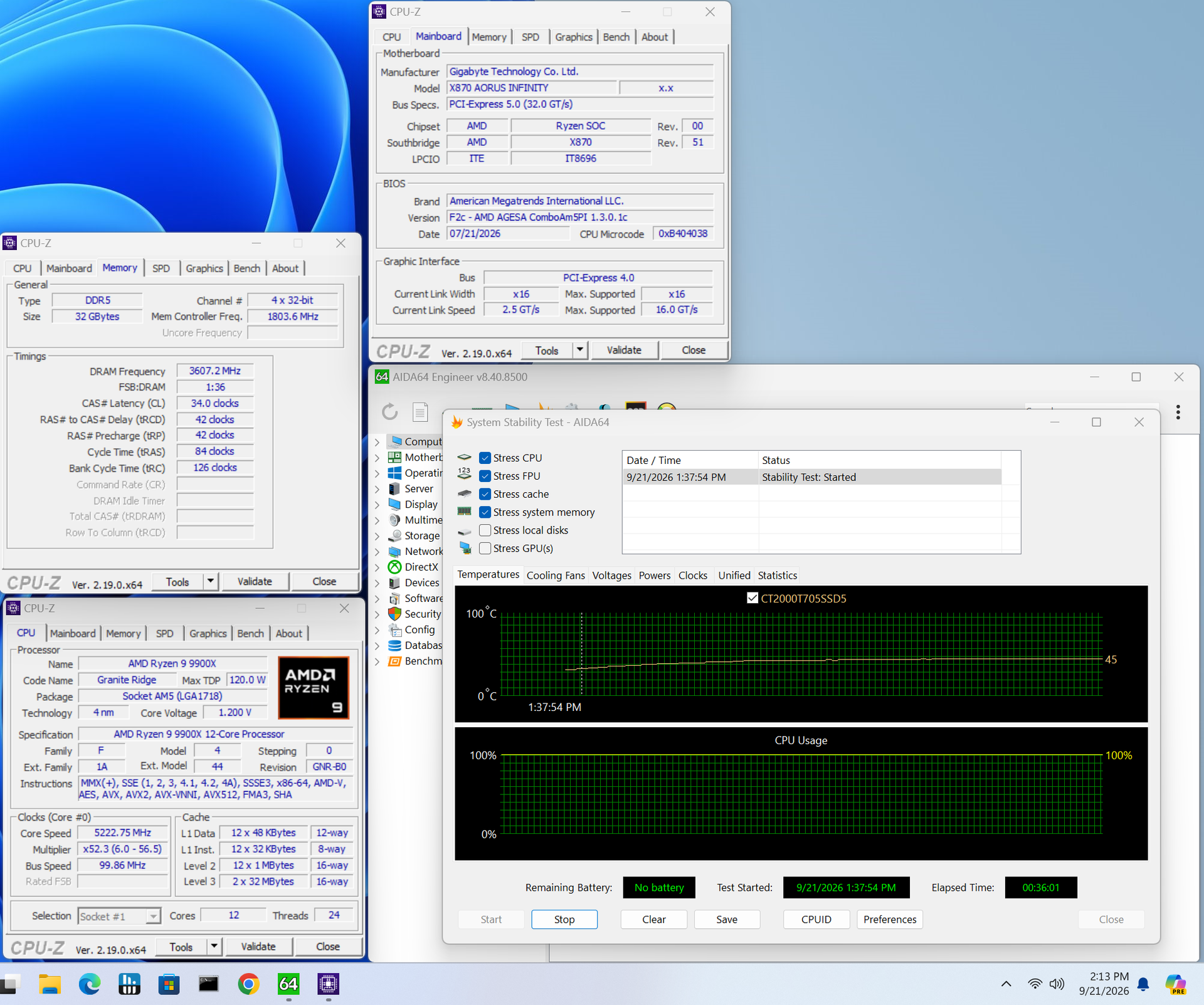
❌

普通视图

发现新文章,点击刷新页面。
昨天以前首页

Gigabyte Z890M Aorus Elite WiFi7 Motherboard Review: Icy-white SFF board offers full-size features for Intel

作者 Joe Shields
2026年10月23日 23:00

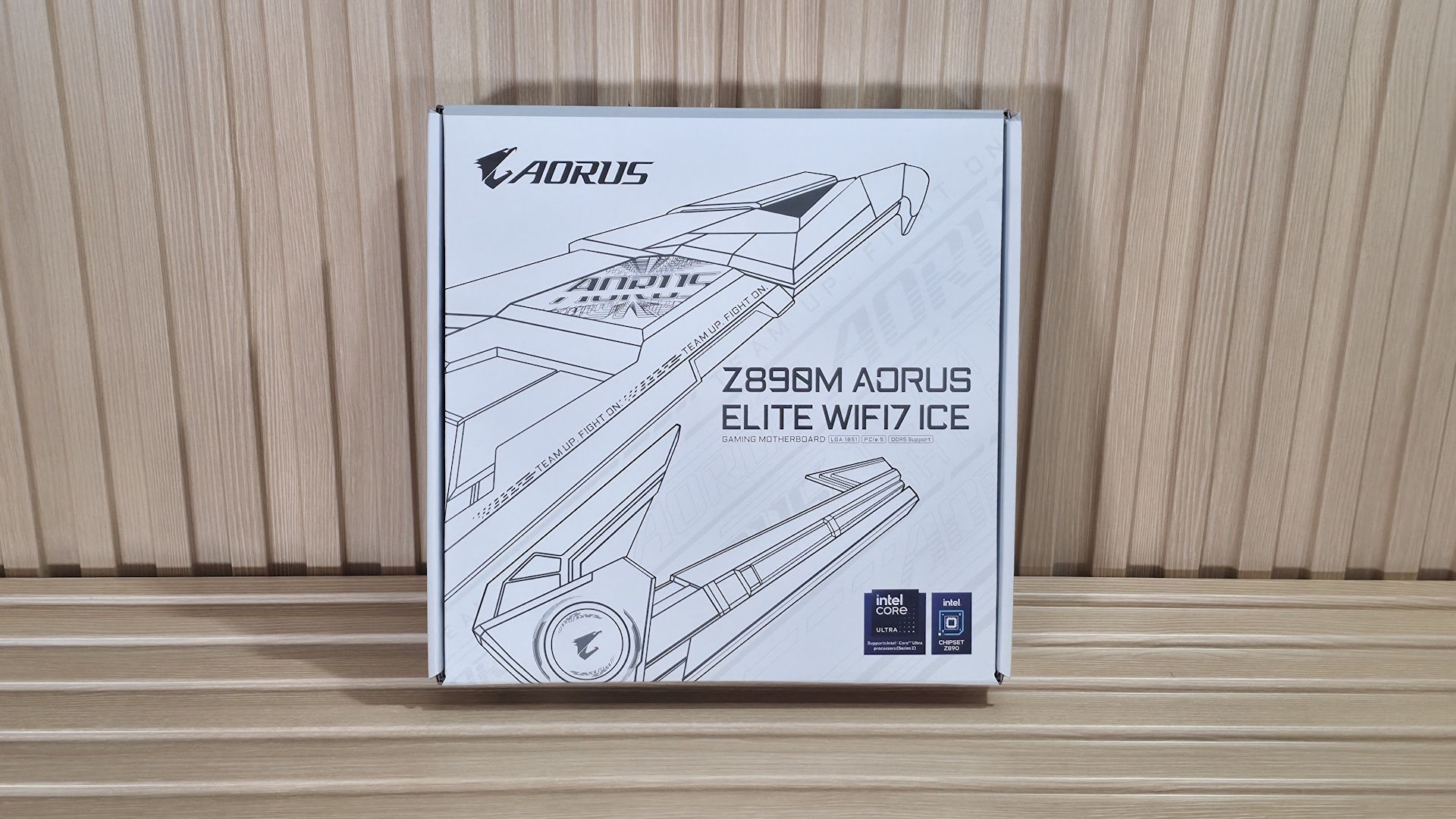
The latest board to land on our test bench is a small-form-factor Intel option, the Gigabyte Z890M Aorus Elite Wifi7 Ice. This Micro ATX motherboard costs only $209 on Amazon and packs most of the ATX version's features into a smaller package. The board is optimized for Intel’s Core Ultra 200S Plus processors and pairs best with Micro ATX chassis, but its best feature is its looks. It’s one of the better-looking Micro ATX options, especially if you’re looking for a white-themed build.

The Z890M Aorus Elite offers three M.2 sockets (2x PCIe 5.0) and four SATA ports for storage, 2.5 GbE and Wi-Fi 7 (160 Hz) for networking, and a basic audio solution. The rear IO delivers nine USB ports total, including one 40 Gbps Type-C port (with DisplayPort capability). All of that is typical fare for the form factor. You also get two full-length PCIe slots (one reinforced) and heatsinks covering all M.2 sockets, giving the board a more premium look than its direct competition. It also adds two RGB lighting zones, one by the VRMs on the left and the other under the chipset heatsink, adding glow to your chassis.

Overall, performance in our testing was average, with the board doing well in some tests and slightly below average in others. For gamers, it performed well in our 3DMark tests and in real games. In short, there’s nothing to worry about from a performance standpoint. The Z890M Aorus Elite also supports AI features, including AI Perfdrive, which offers customizable BIOS performance presets for one-click CPU improvements.

Below, we’ll examine the board's performance and other features to determine whether it deserves a spot on our list of the best motherboards. But before we share test results and discuss details, here are the specifications from Gigabyte.

Specifications of the Gigabyte Z890M Aorus Elite Wifi7 Ice

Socket

LGA 1851

Chipset

Z890

Form Factor

Micro ATX

Voltage Regulator

15 Phase (12x 60A DrMOS MOSFETs for Vcore)

Video Ports

(1) DisplayPort (v2.1)
(1) USB4 Type-C (DP 2.1)
(1) Front HDMI (v1.4)

USB Ports

(1) USB4 Type-C (40 Gbps)
(1) USB 3.2 Gen 2 (10 Gbps)
(4) USB 3.2 Gen 1 (5 Gbps)
(4) USB 2.0

Network Jacks

(1) 2.5 GbE

Audio Jacks

(2) Analog + SPDIF

Legacy Ports/Jacks

✗

Other Ports/Jack

✗

PCIe x16

(1) v5.0 (x16)
(1) v4.0 (x4)

PCIe x8

✗

PCIe x4

✗

PCIe x1

✗

DIMM Slots

(4) DDR5-9200+ MT/s (OC), 256GB Capacity

M.2 Sockets

(1) PCIe 5.0 x4 (128 Gbps) / PCIe (up to 80mm)
(1) PCIe 4.0 x4 (64 Gbps) / PCIe (up to 80mm)
(1) PCIe 4.0 x4 (64 Gbps) / PCIe (up to 110mm)
Supports RAID 0/1/5/10

SATA Ports

(4) SATA3 6 Gbps
Supports RAID 0/1/5/10

USB Headers

(1) USB v3.2 Gen 2 (10 Gbps) Type-C
(1) USB v3.2 Gen 1 (5 Gbps)
(2) USB v2.0 (480 Mbps)

Fan/Pump Headers

(6) 4-Pin (Accepts PWM and DC)

RGB Headers

(3) 3-pin ARGB headers
(1) 4-pin RGB LED strip header

Diagnostics Panel

(1) Q-LEDs (4 LEDs, CPU, VGA, RAM, Boot)

Internal Button/Switch

Power, Reset, and Q-Flash Plus buttons

SATA Controllers

✗

Ethernet Controller(s)

(1) Realtek RTL8125 (2.5 GbE)

Wi-Fi / Bluetooth

Intel MediaTek MT7925 Wi-Fi 7 - Up to 2.9 Gbps, 160 MHz, 6 GHz, 5.8 GHz, BT 5.4

USB Controllers

✗

HD Audio Codec

Realtek ALC897

DDL/DTS

✗ / ✗

Warranty

3 Years

Inside the Box

The box includes the usual accessories. You get two SATA cables (white), a rubber pad, an extra thermal pad for M.2, an EZ connector for the front panel, and an installation guide. The collection here is sparse, but typical for the price point.

Design and Features of the Aorus Elite WiFi7 Ice
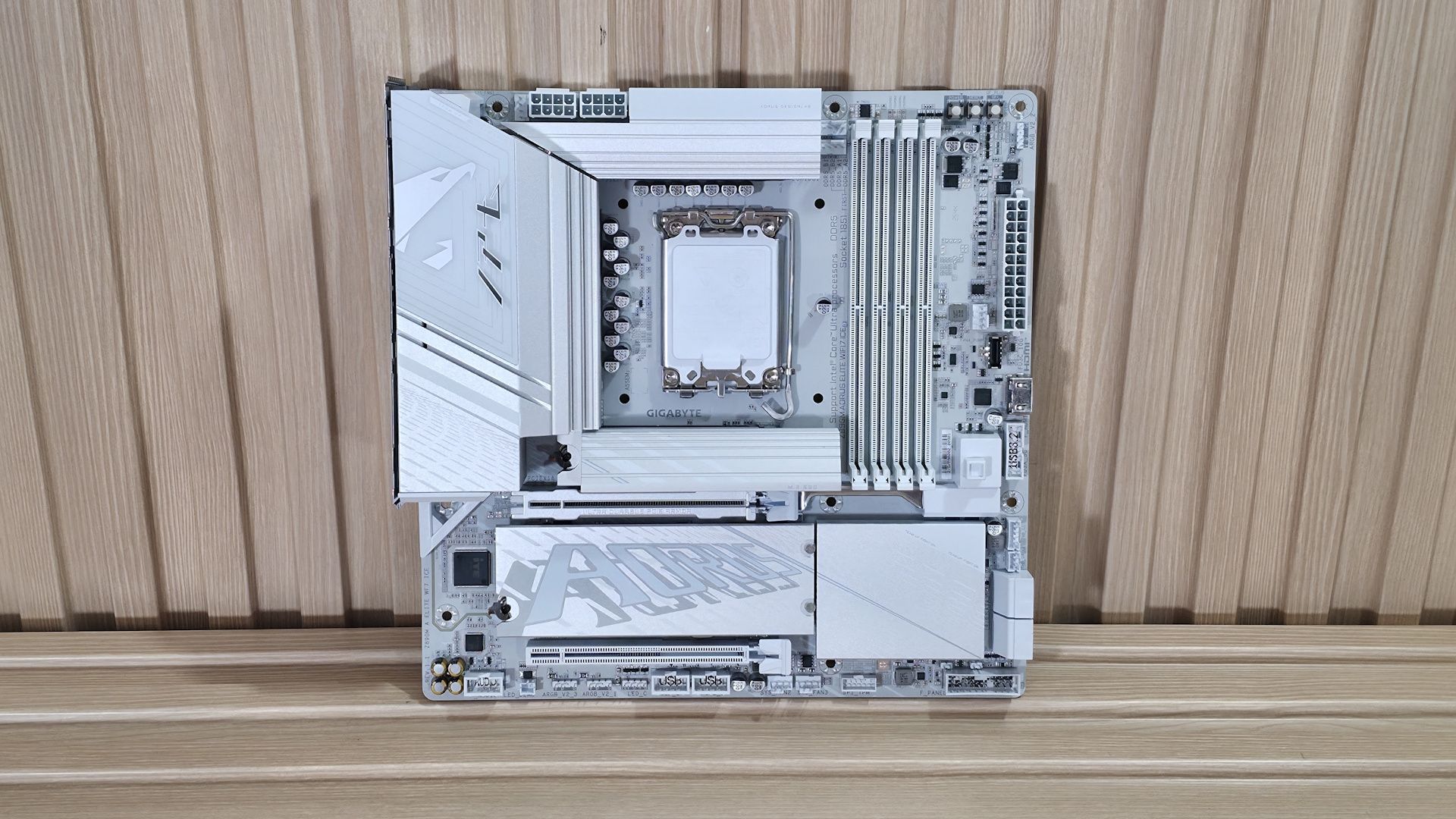
Gigabyte Z890M Aorus Elite Wifi7 Ice - Board images
Future
Gigabyte Z890M Aorus Elite Wifi7 Ice - Board images
Future
Gigabyte Z890M Aorus Elite Wifi7 Ice - Board images
Future
Gigabyte Z890M Aorus Elite Wifi7 Ice - Board images
Future
Gigabyte Z890M Aorus Elite Wifi7 Ice - Board images
Future
Gigabyte Z890M Aorus Elite Wifi7 Ice - Board images
Future
Gigabyte Z890M Aorus Elite Wifi7 Ice - Board images
Future

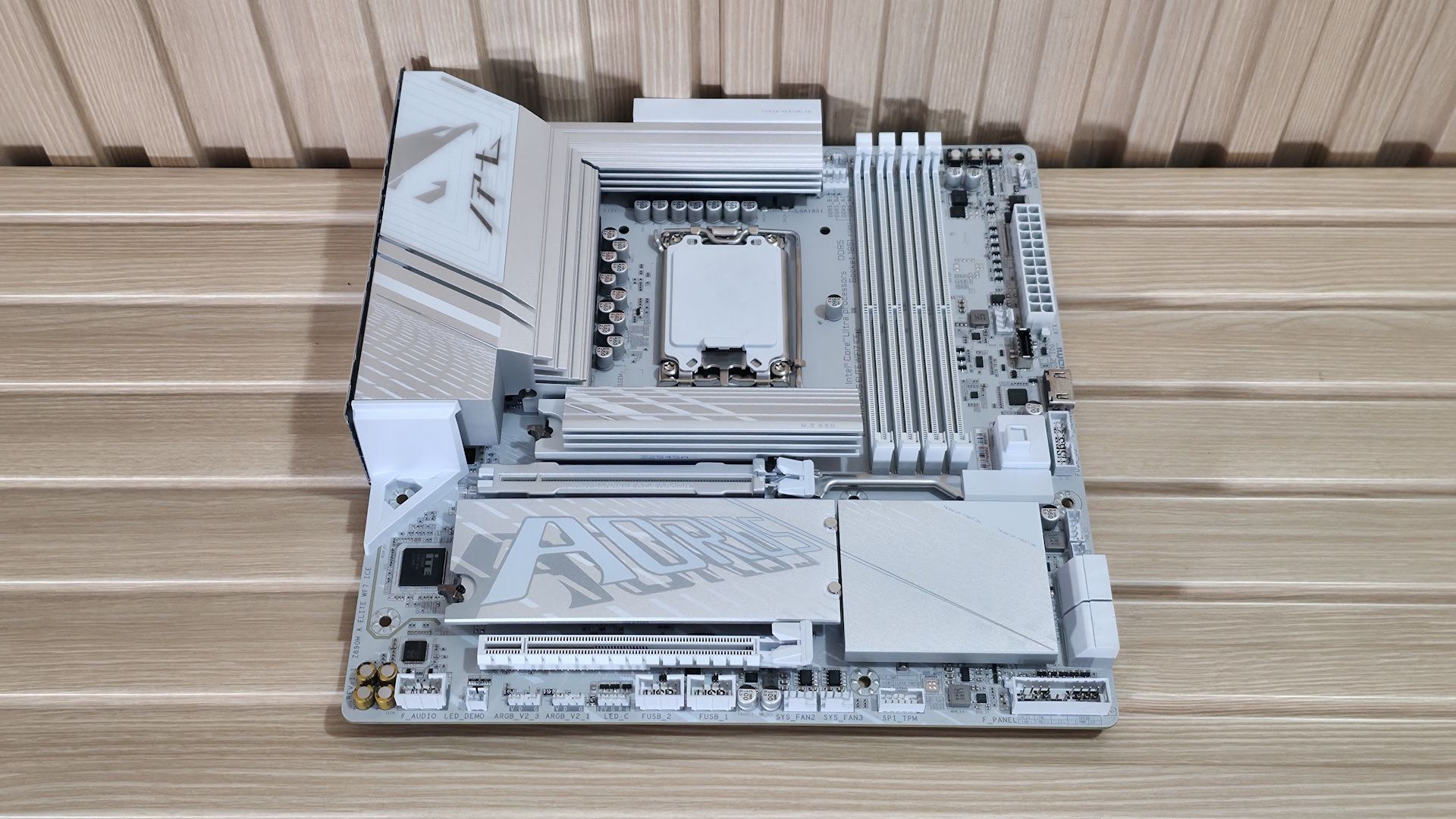
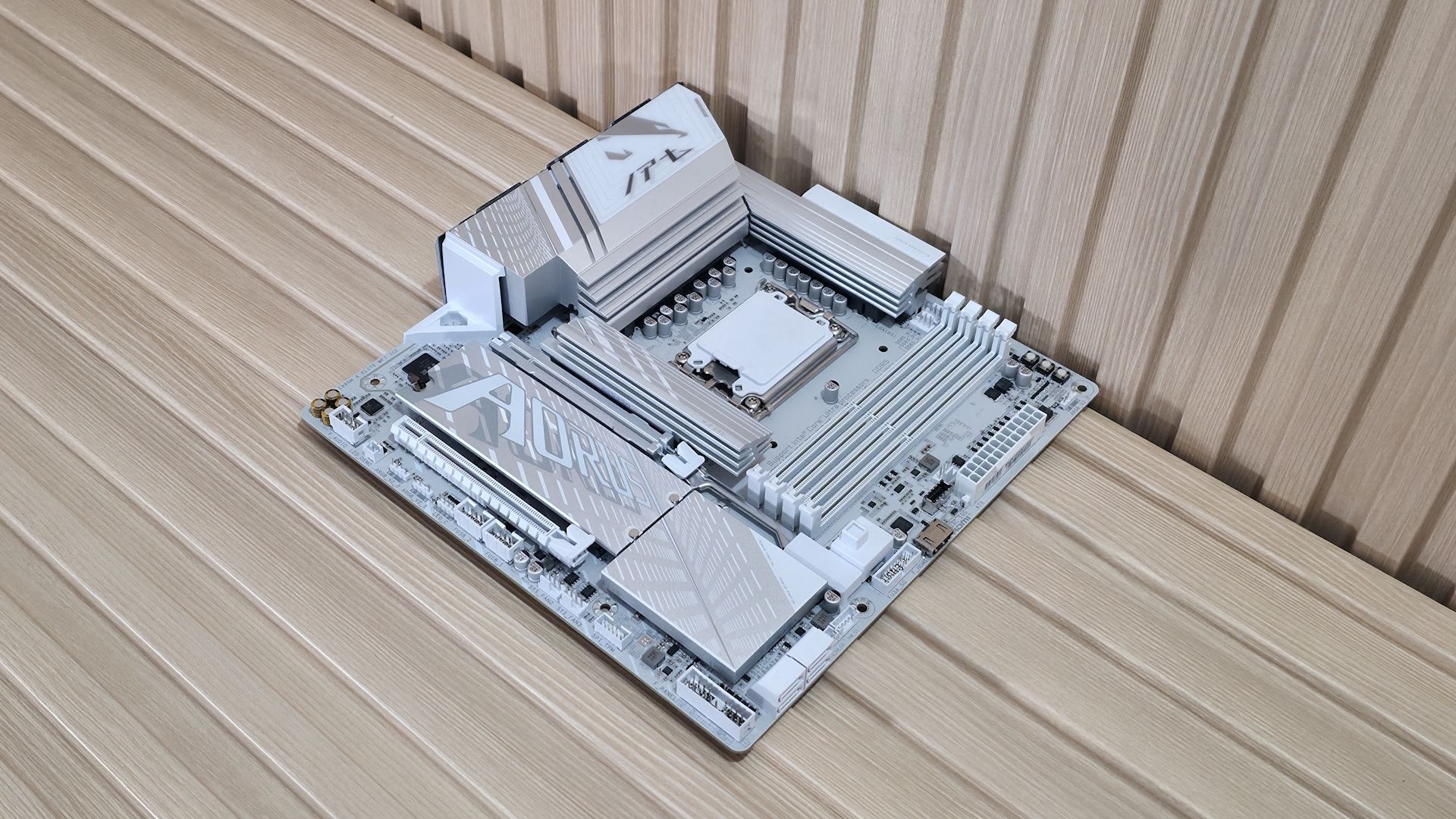
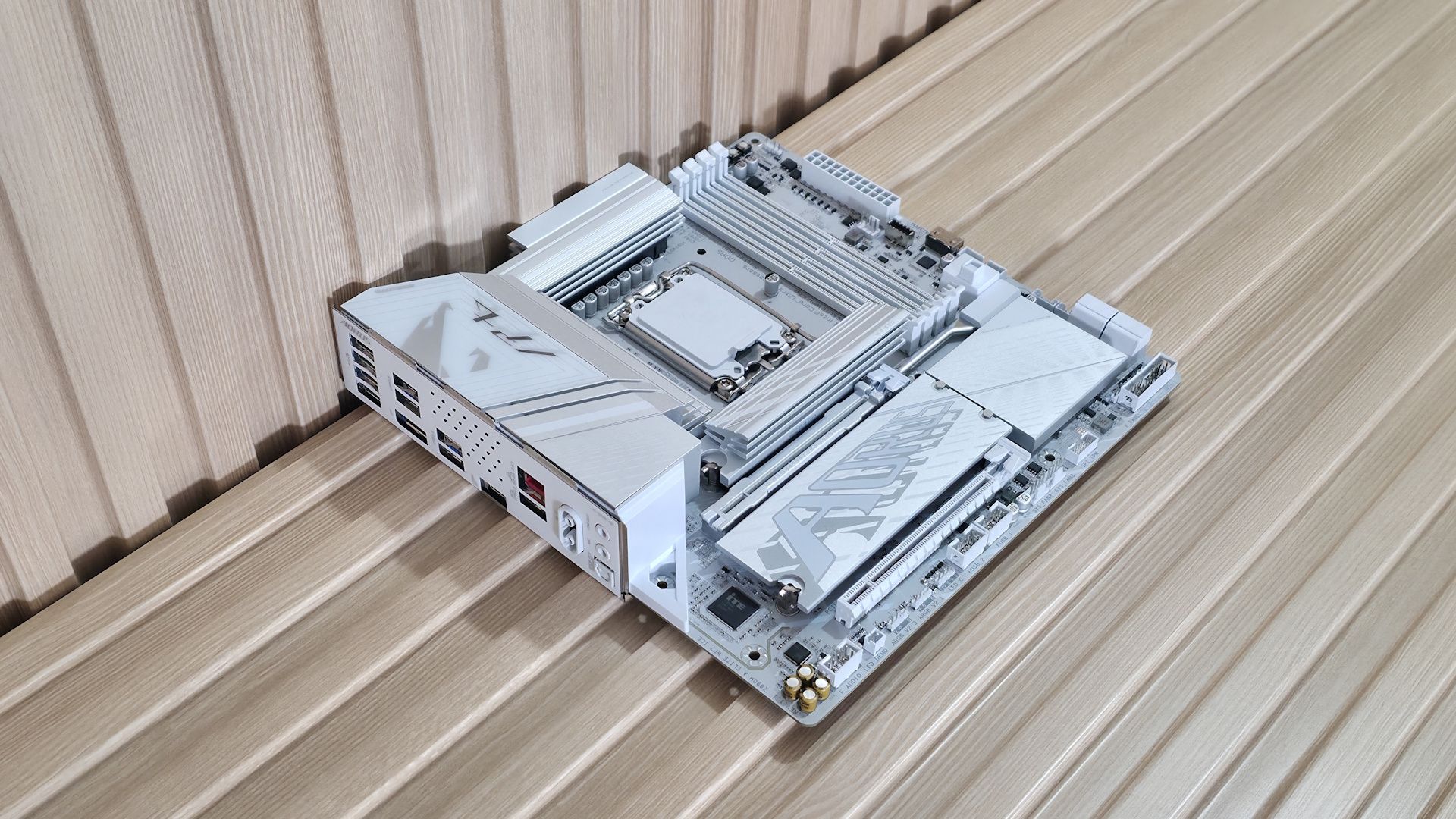
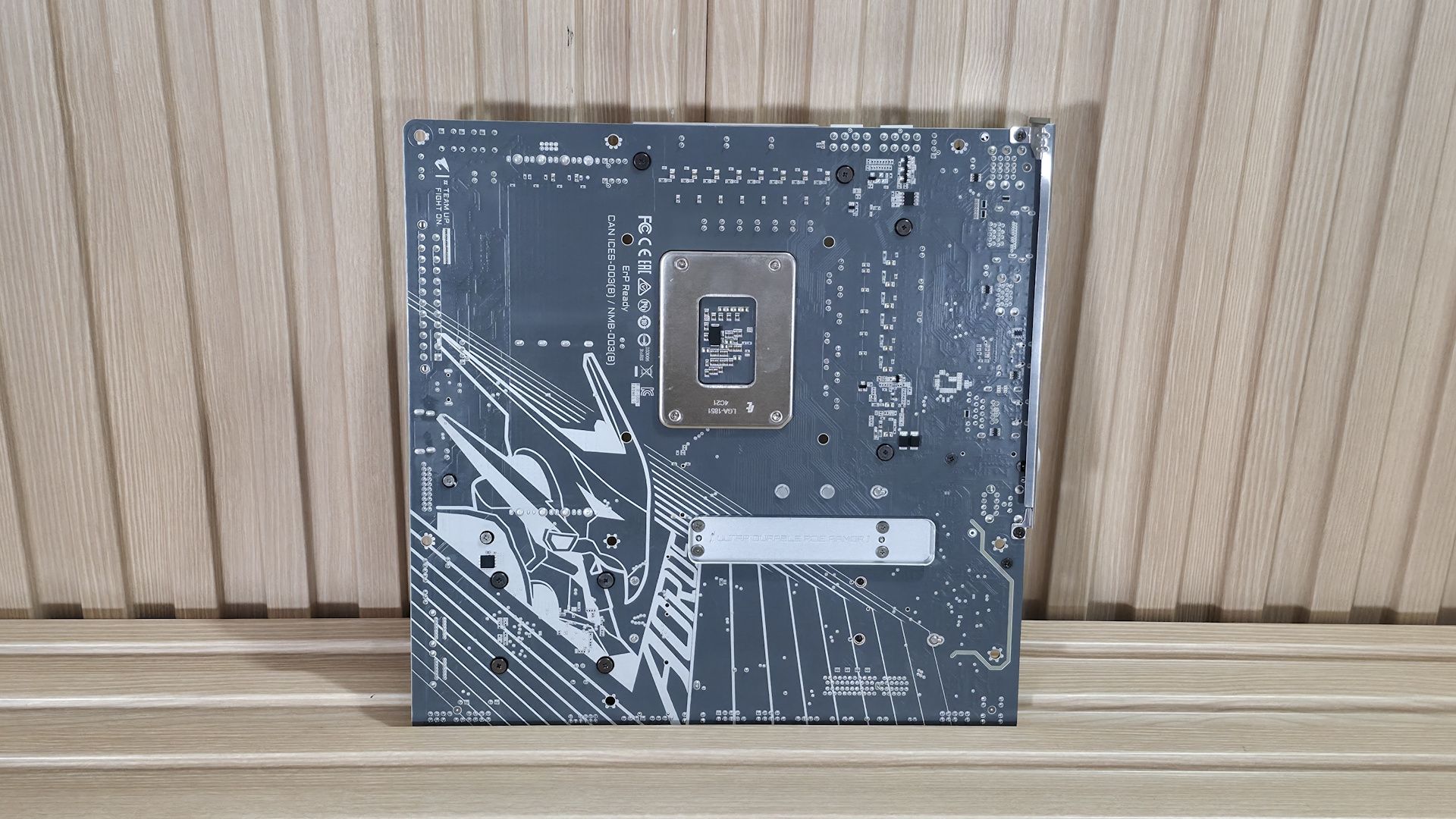
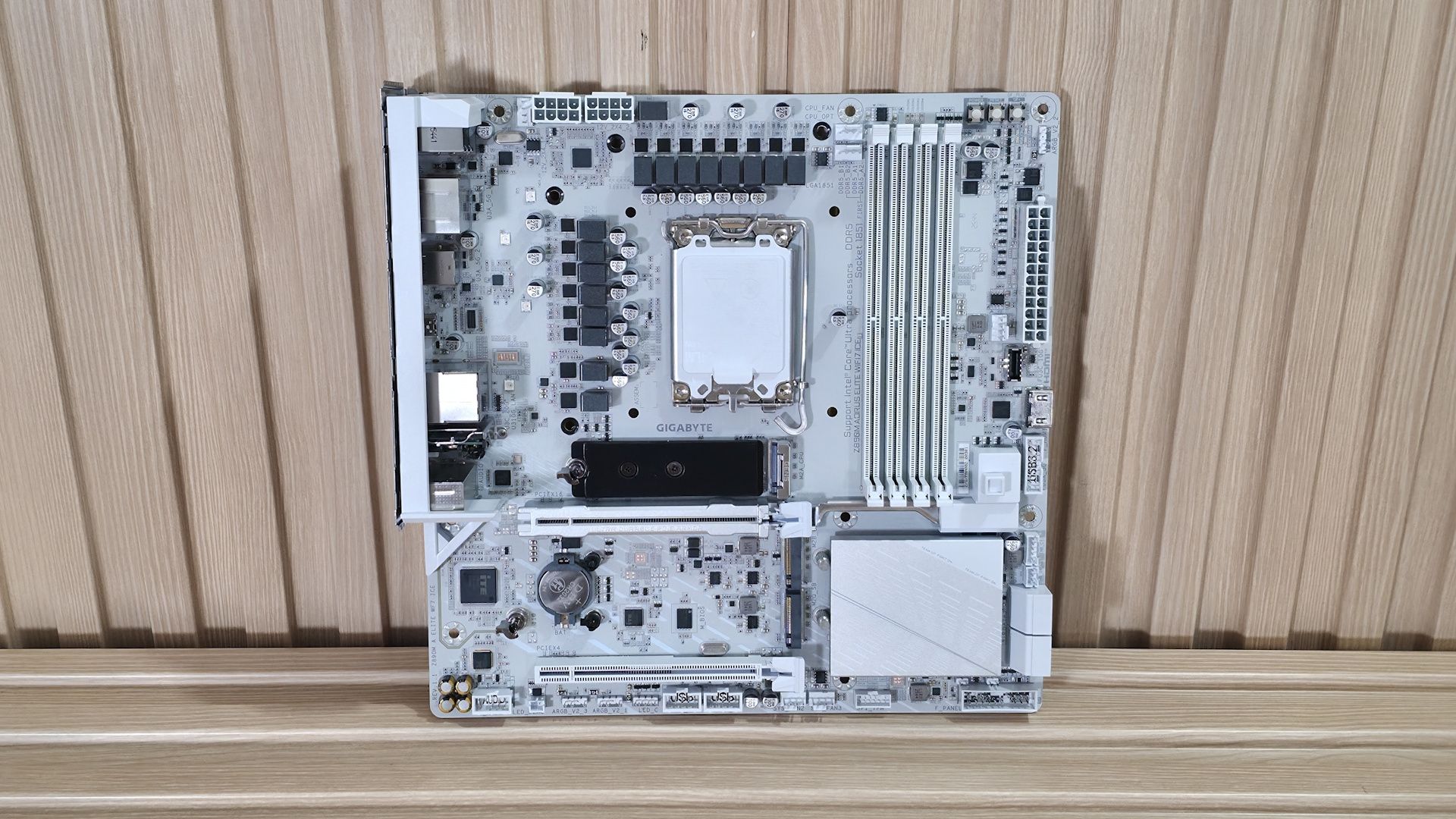
For what tends to be a budget motherboard class (and typically, well, ugly), the Aorus Elite WiFi 7 Ice is an attractive Micro ATX SKU. Where its peers don’t offer complete heatsink coverage on the bottom half, this one does. It also uses a large heatsink for the primary M.2 socket, unlike its peers. It also has integrated RGB lighting (under the VRM and chipset heatsinks) for an extra bit of flair. All in all, it’s one of the better-looking Micro ATX motherboards around.
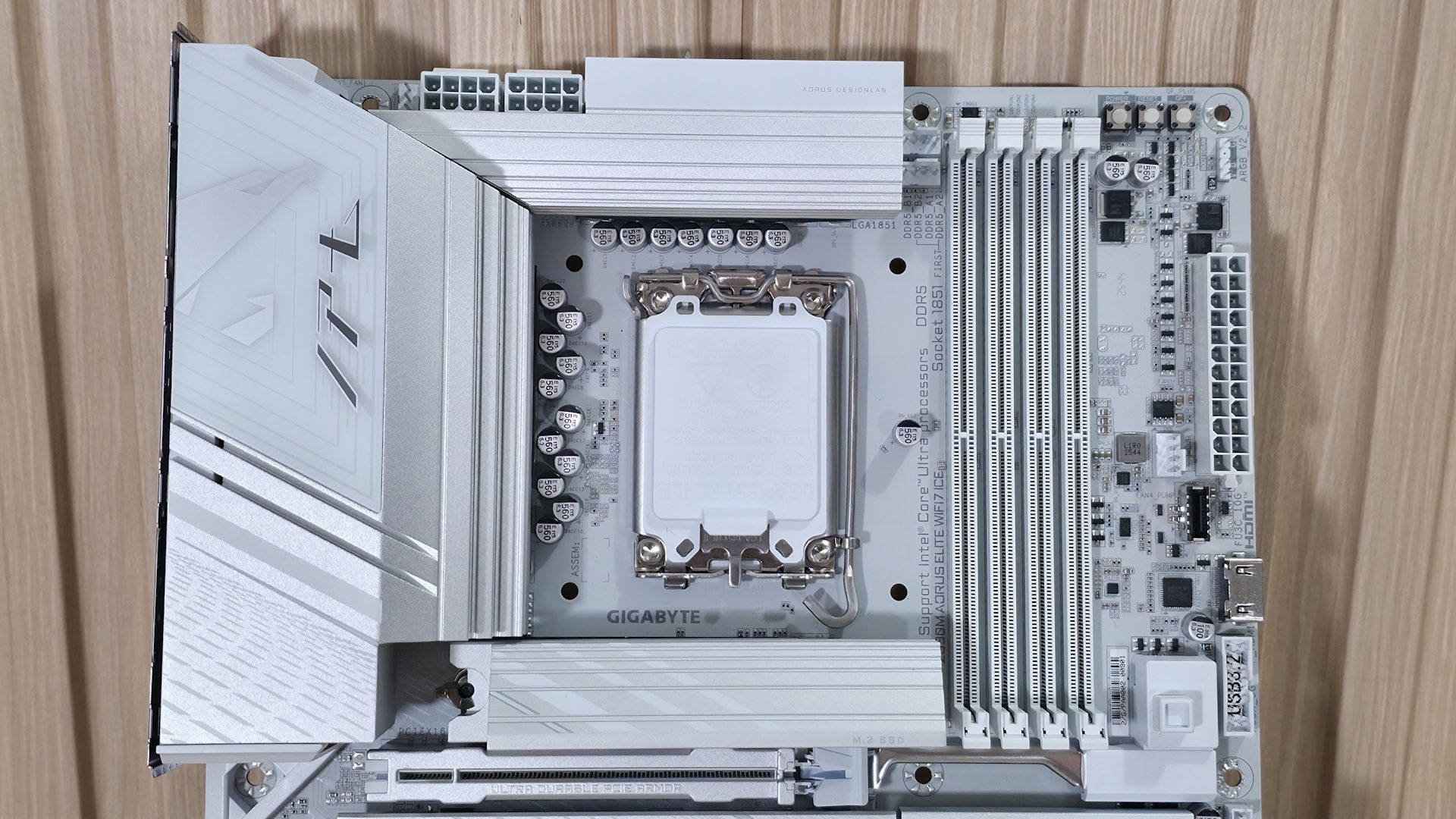
Gigabyte Z890M Aorus Elite Wifi7 Ice - Top half

(Image credit: Future)

Zooming in on the top half, starting on the left, we get a better look at the Aorus eagle design, along with the RGB feature. The VRM heatsink below has a lot of mass and surface area, so it does a good job keeping the MOSFETs below running in spec. Above that are the two “UD” (solid pin) 8-pin power connectors (one required) for the processor.

Past the CPU socket, the next thing we run into is the four DRAM slots with the locking mechanism at the top (where there’s room). Gigabyte lists support for up to DDR5-9200(OC), which is plenty fast for the platform. Surprisingly, our fastest kit (DDR5-8800) didn’t play nice with this board, but the DDR5-8200 kit worked fine. As always, for best results, stick to the memory QVL.

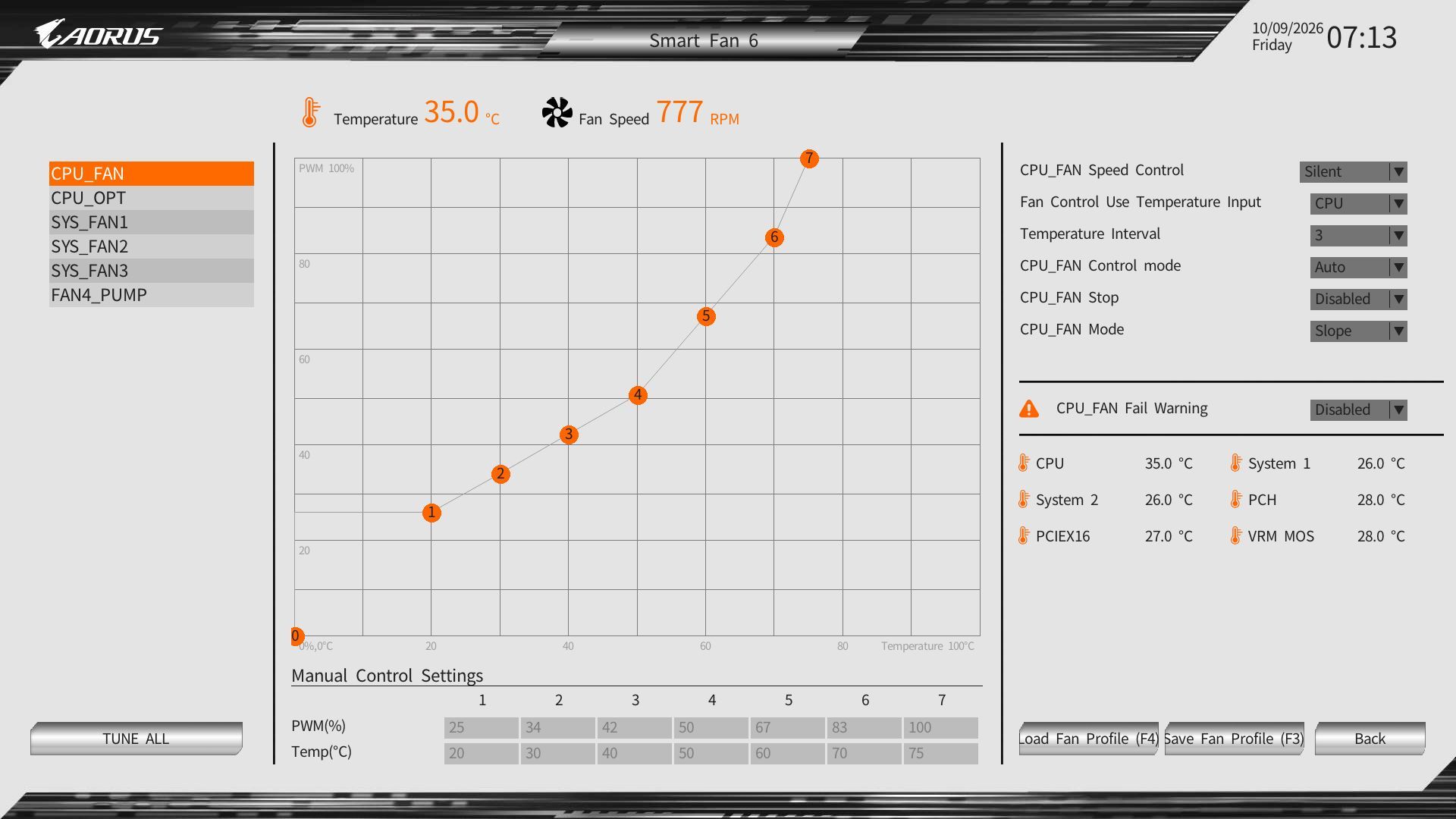
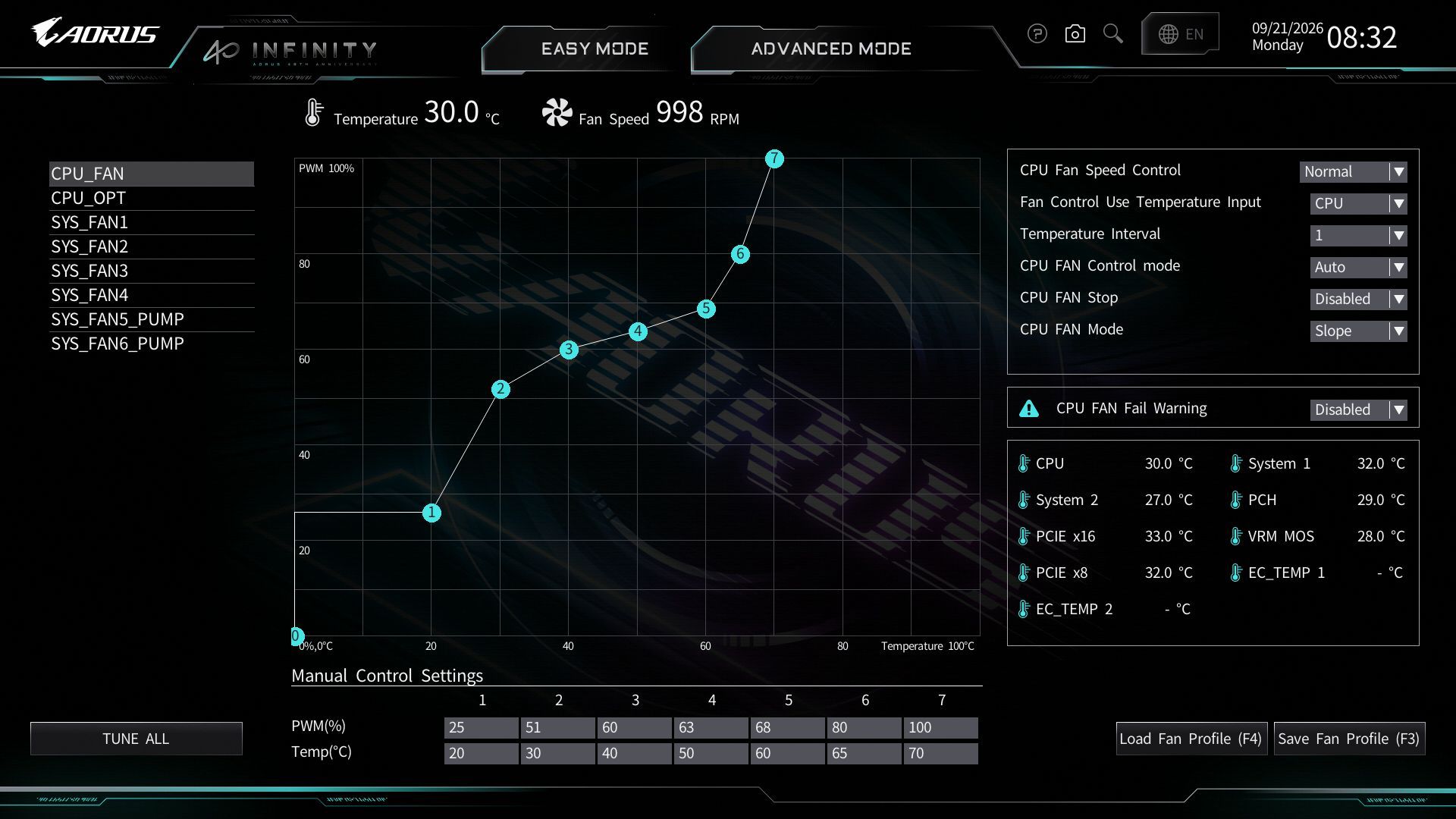
Next to the RAM slots on the left are the first two (of six) 4-pin fan headers. Each header supports PWM and DC-controlled devices. Each header supports up to 2A/24W output, which is plenty, especially for a smaller chassis with fewer fans. Gigabyte Control Center (GCC) and the BIOS control the fans via the Smart Fan 6 applet.

Above the DRAM slots is the Q-LED feature. Four LEDs, CPU/Boot/VGA/RAM, light up during POST. If a failure occurs during that time, the offending RGB stays lit, giving you a general idea of where the problem may be. Next to it, in the upper-right corner, are three simple buttons: power, reset, and Q-Flash.

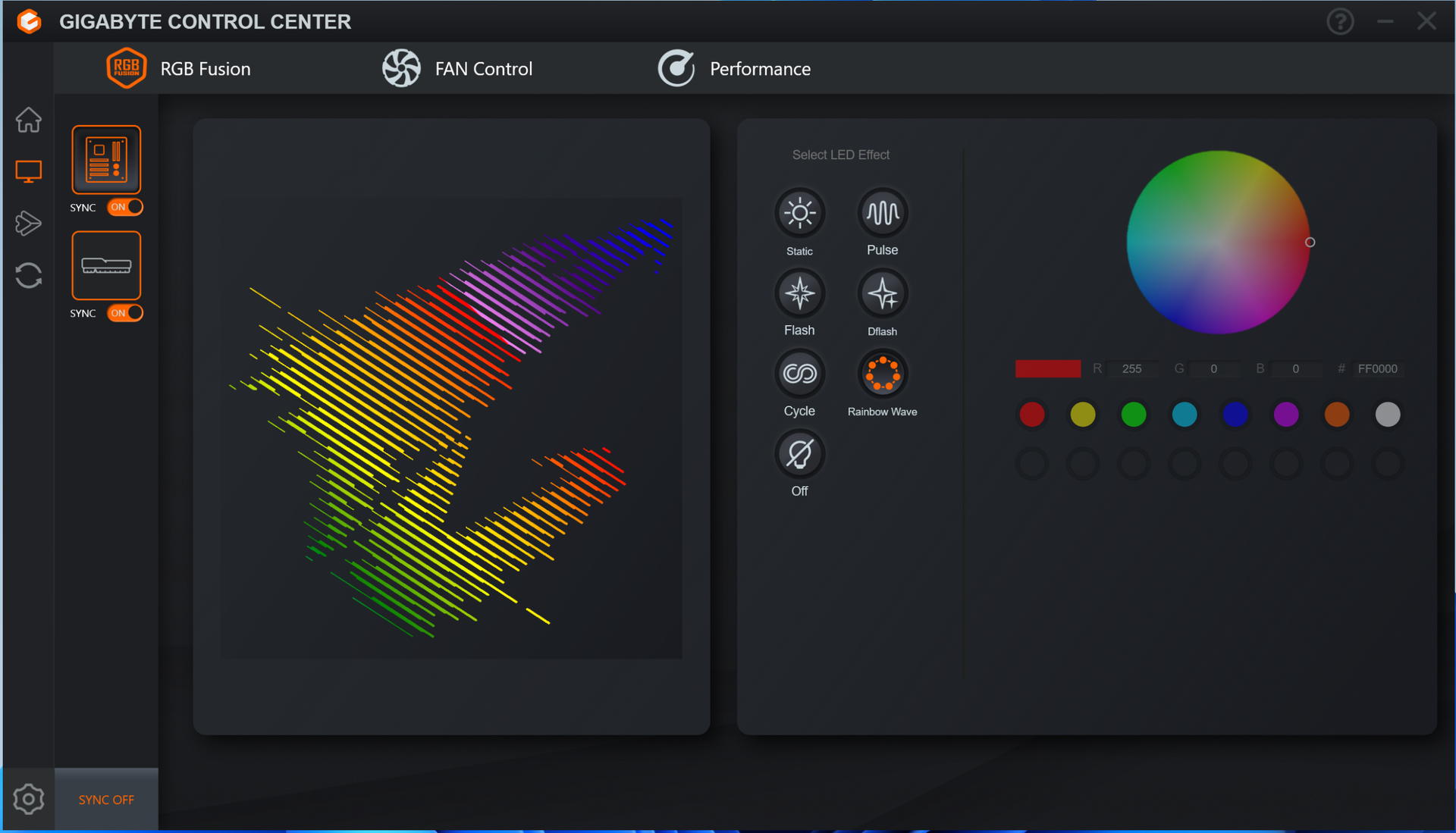
Down the right edge, you'll find the first (of three) 3-pin ARGB headers. The other two are along the bottom edge. GCC and the RGB Fusion app inside control these headers and the integrated lighting, offering users plenty of canned LED effects and customization. Below that are the 24-pin ATX connector to power the board, another 4-pin fan header, the front-panel USB 3.2 Gen 2 (10 Gbps) connector, and a 19-pin front-panel USB 3.2 Gen1 (5 Gbps) header. Between those is a front-panel HDMI output, making it easy to add secondary displays for monitoring or further chassis customization.
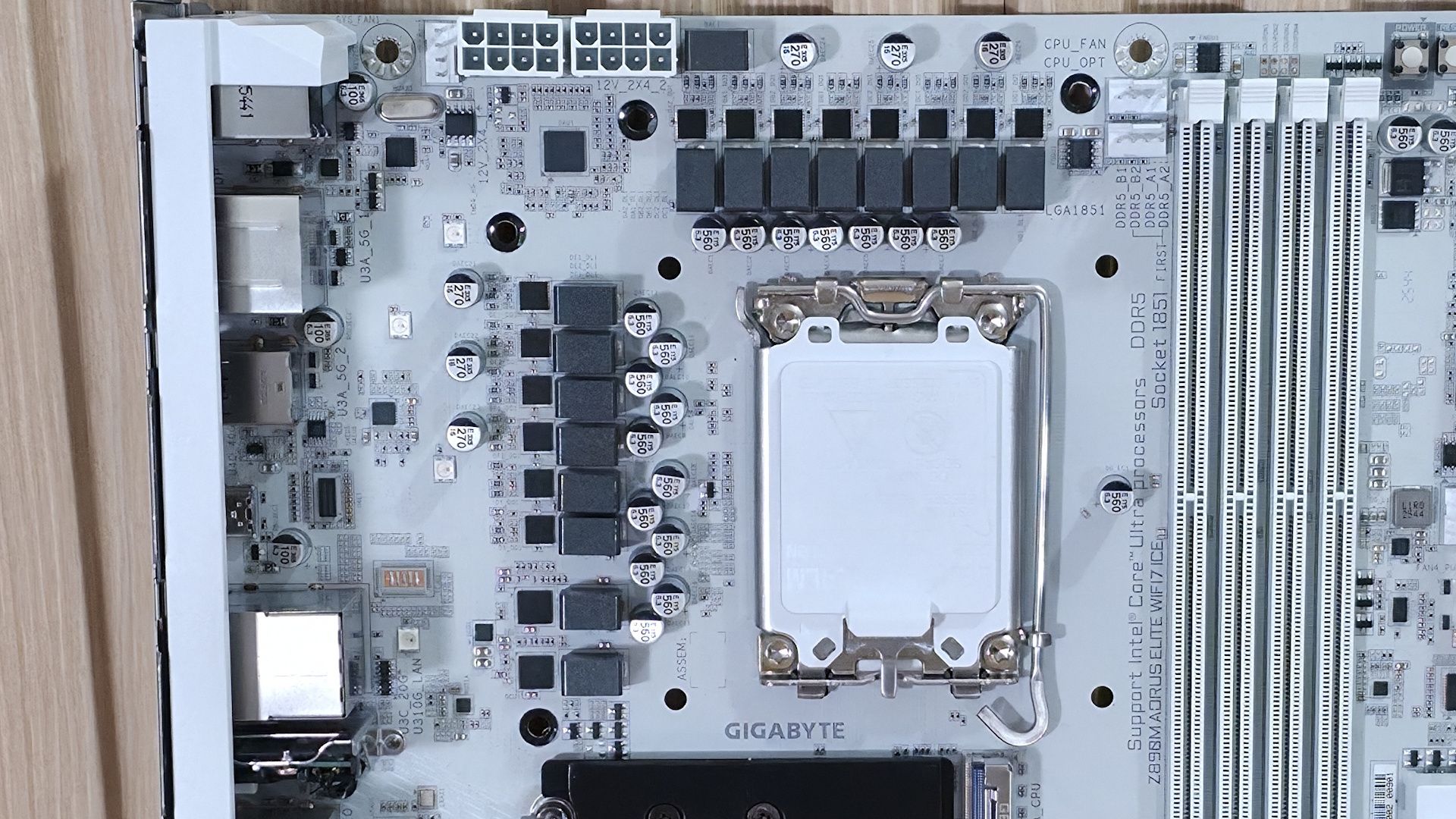
Gigabyte Z890M Aorus Elite Wifi7 Ice - VRMs

(Image credit: Future)

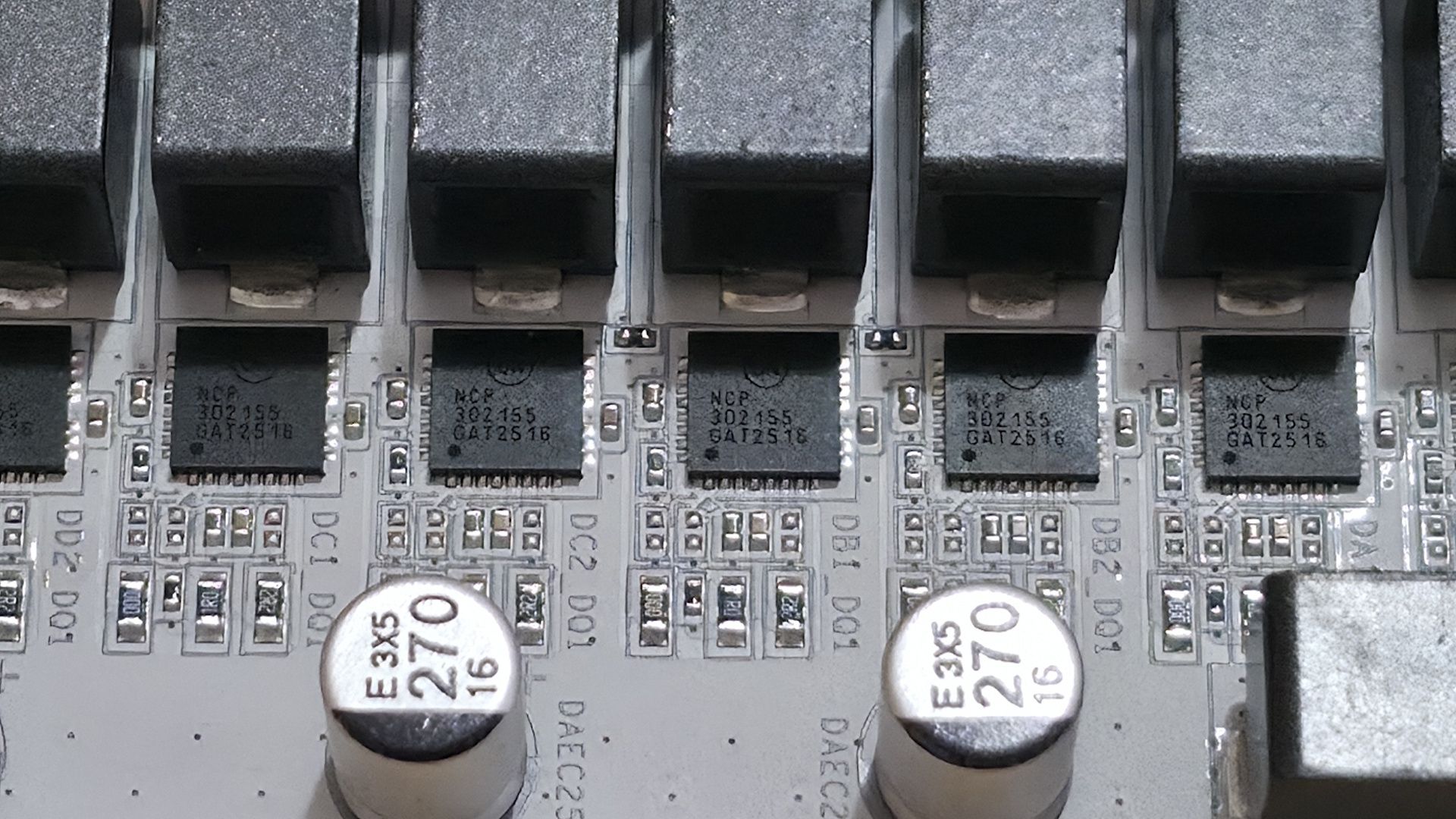
Power delivery on the Z890M Aorus Elite WiFi7 Ice is capable, but it doesn’t quite reach the level of "robust." The board has 15 phases, 12 of which are dedicated to Vcore. Power comes from the dual 8-pin EPS connectors and is controlled by the OnSemiconductor NCP81537 8-phase controller (teamed configuration). From there, power moves on to the OnSemi NCP302155 60A DrMOS MOSFETs and then to your processor. The 720A available isn’t a lot, but it can handle the Core Ultra 7 270K Plus, the Core Ultra 5 250K Plus, and even the Core Ultra 9 285K — though I’m not sure how hard I’d push it overclocking the 285K or 270K Plus. Just be sure to keep air flowing through your chassis, as these components will get warm under sustained heavy use.
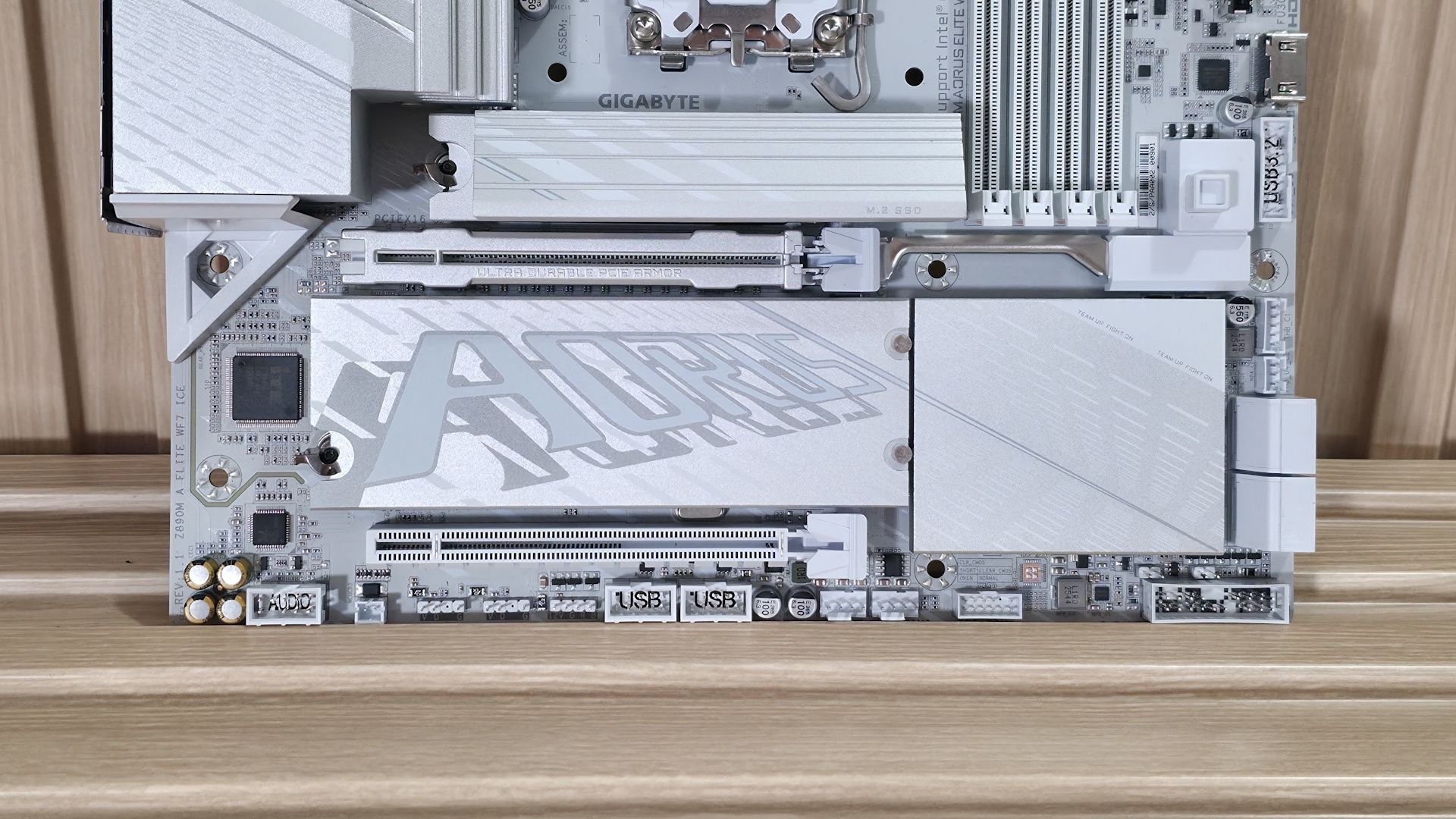
Gigabyte Z890M Aorus Elite Wifi7 Ice - bottom half

(Image credit: Future)

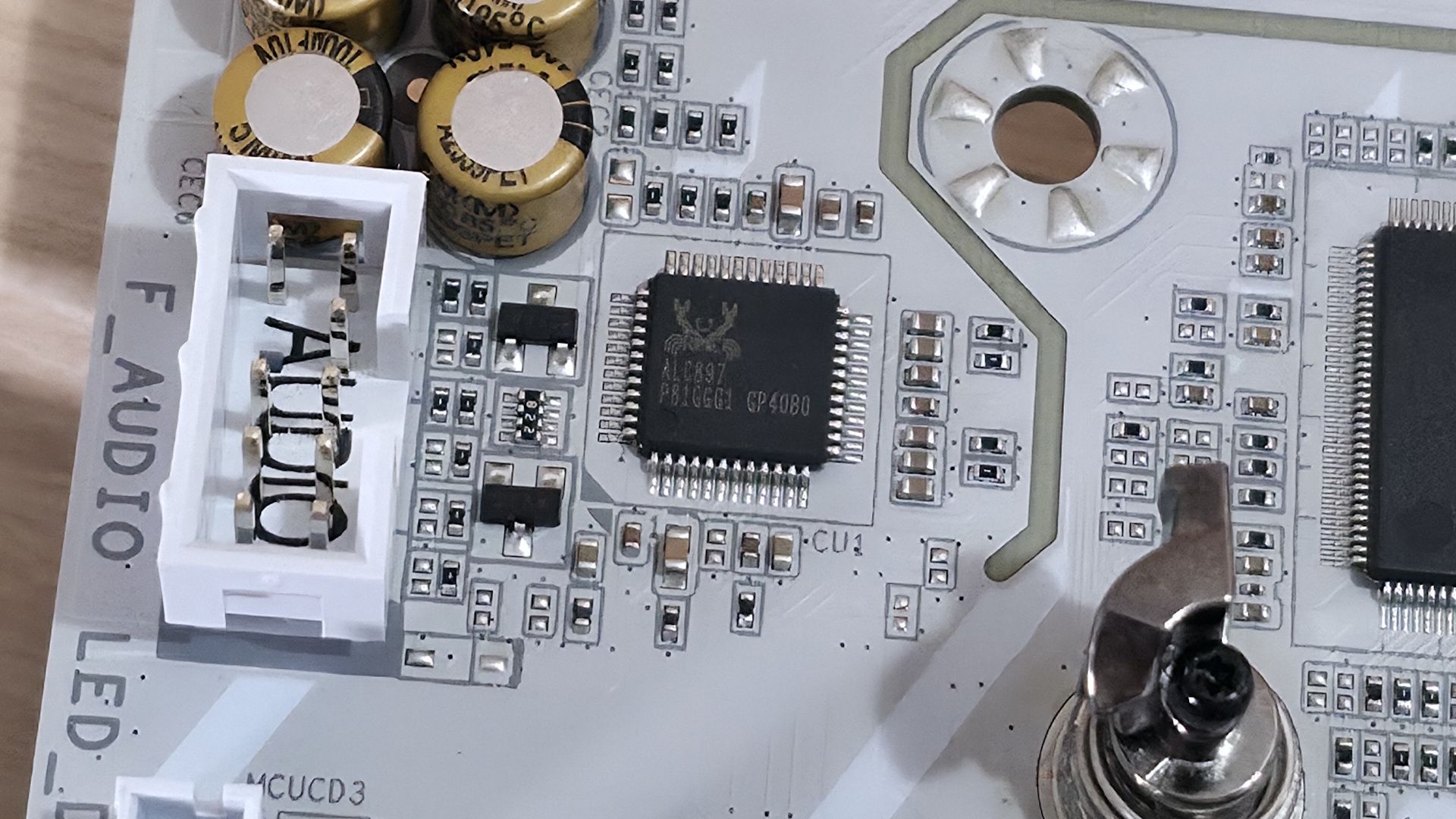
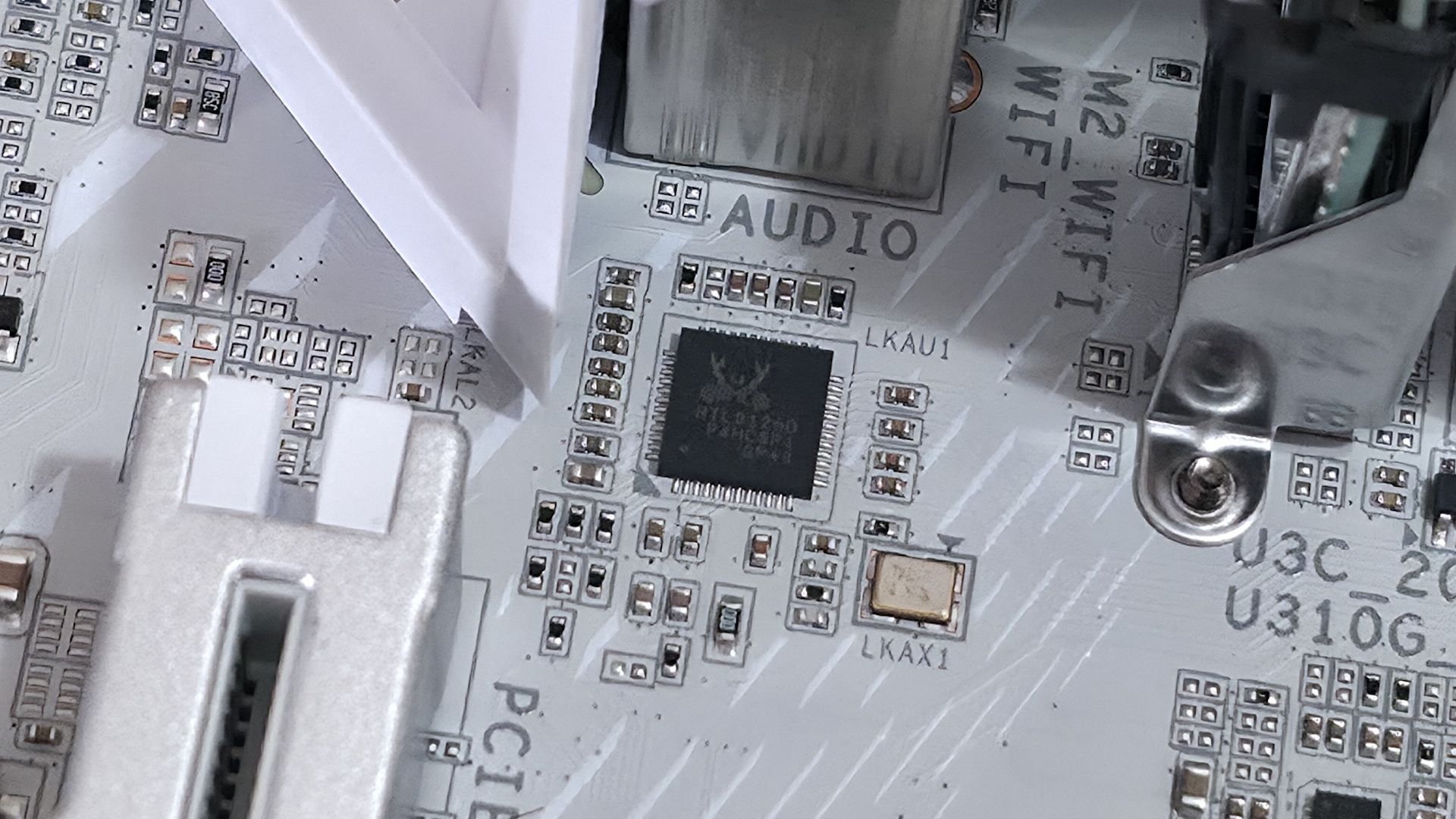
On the bottom half of the board, starting on the left edge, we spy the audio solution. The Z890M uses the budget Realtek ALC897 codec, plus a few dedicated audio capacitors (yellow and black). While one of its direct competitors has a better one, this codec is fine for most users, and there's no reason to avoid it unless you're making music with the board or consider yourself a PC-focused audiophile.

In the middle of the board are two full-length PCIe slots. The primary slot, using Gigabyte’s PCIe UD Slot X reinforcement) connects through the CPU and runs at PCIe 5.0 x16 speeds (no bifurcation, FYI). The second slot at the bottom sources its bandwidth through the chipset and runs up to PCIe 4.0 x4. There’s plenty of bandwidth for expansion; just make sure your graphics card doesn’t cover the second slot if you need to use it.

Between and above the PCIe slots are three M.2 sockets. The top socket, under the beefy EZ-Latch heatsink (made good contact, note), connects through the CPU and is the main PCIe 5.0 x4 (128 Gbps) M.2 socket. Under the plate-style heatsink (also using EZ-Latch along with EZ-Click to secure the M.2 without screws) are two more M.2 sockets. Both sockets connect via the chipset, support 80mm devices, and run up to PCIe 4.0 x4 speeds. The bottom socket supports up to 110mm modules, while the middle socket supports the more familiar 80mm. If you need the additional speed or redundancy RAID offers, the board supports RAID0/1/5/10 modes for NVMe SSDs.

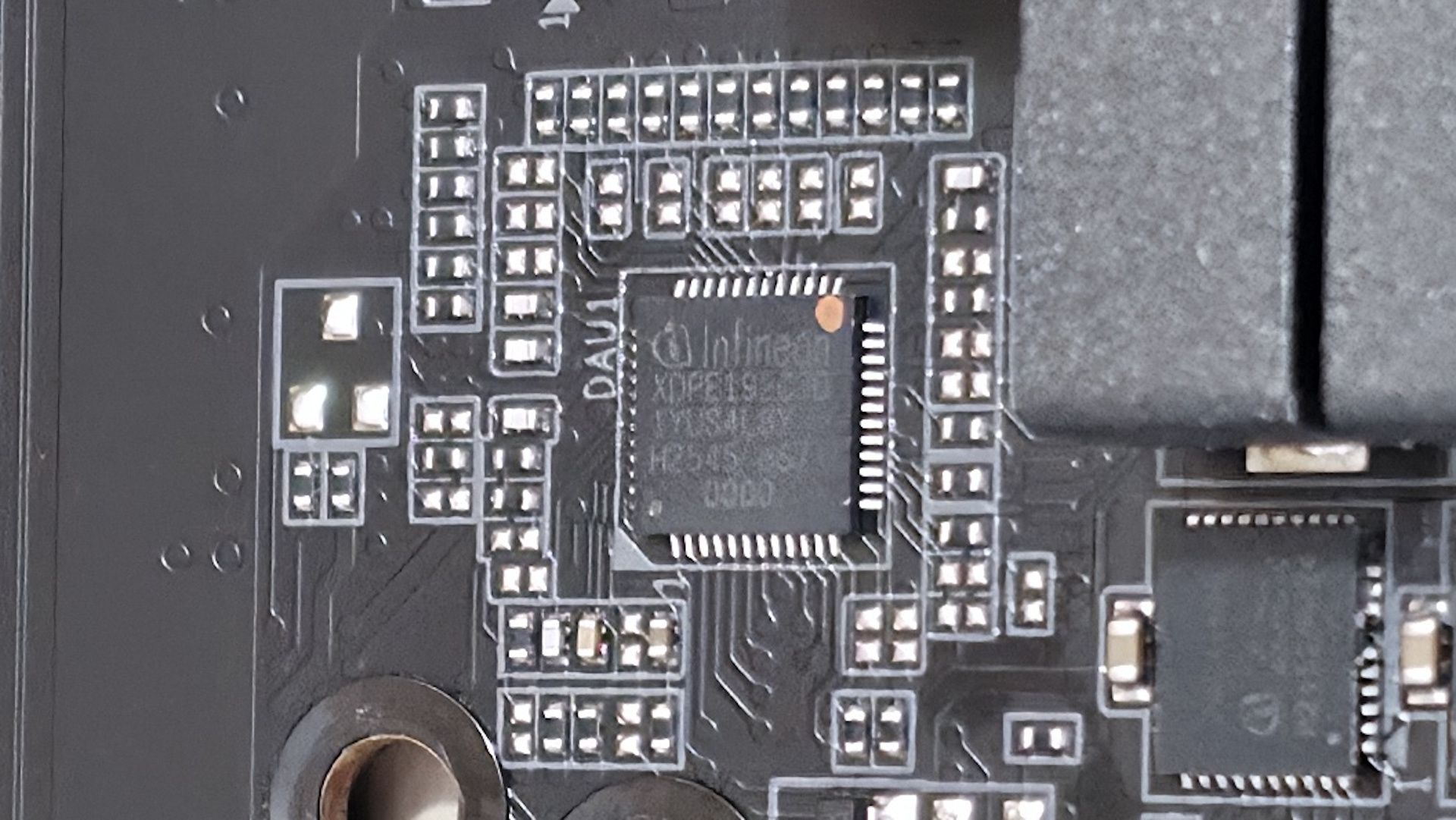
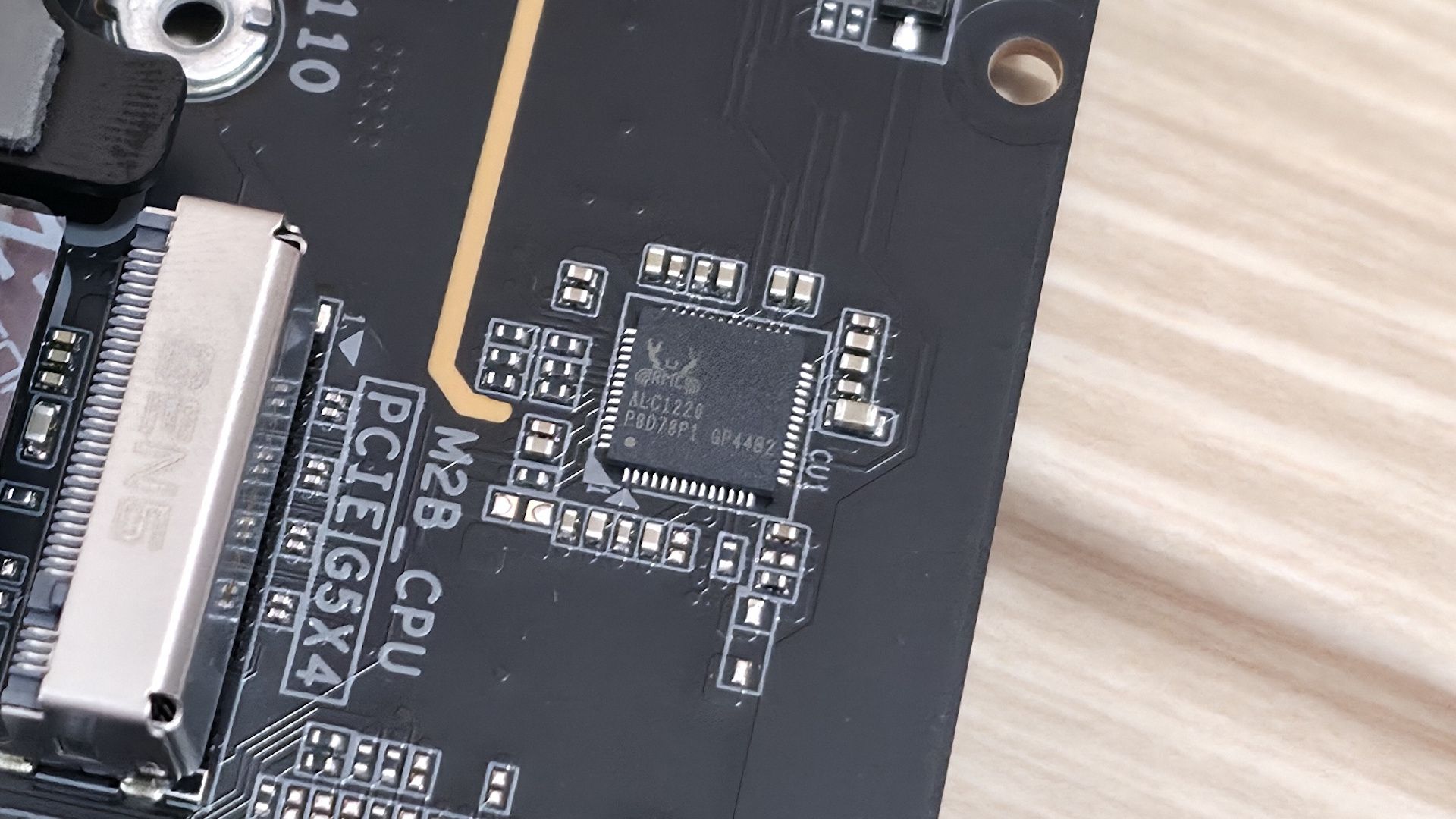
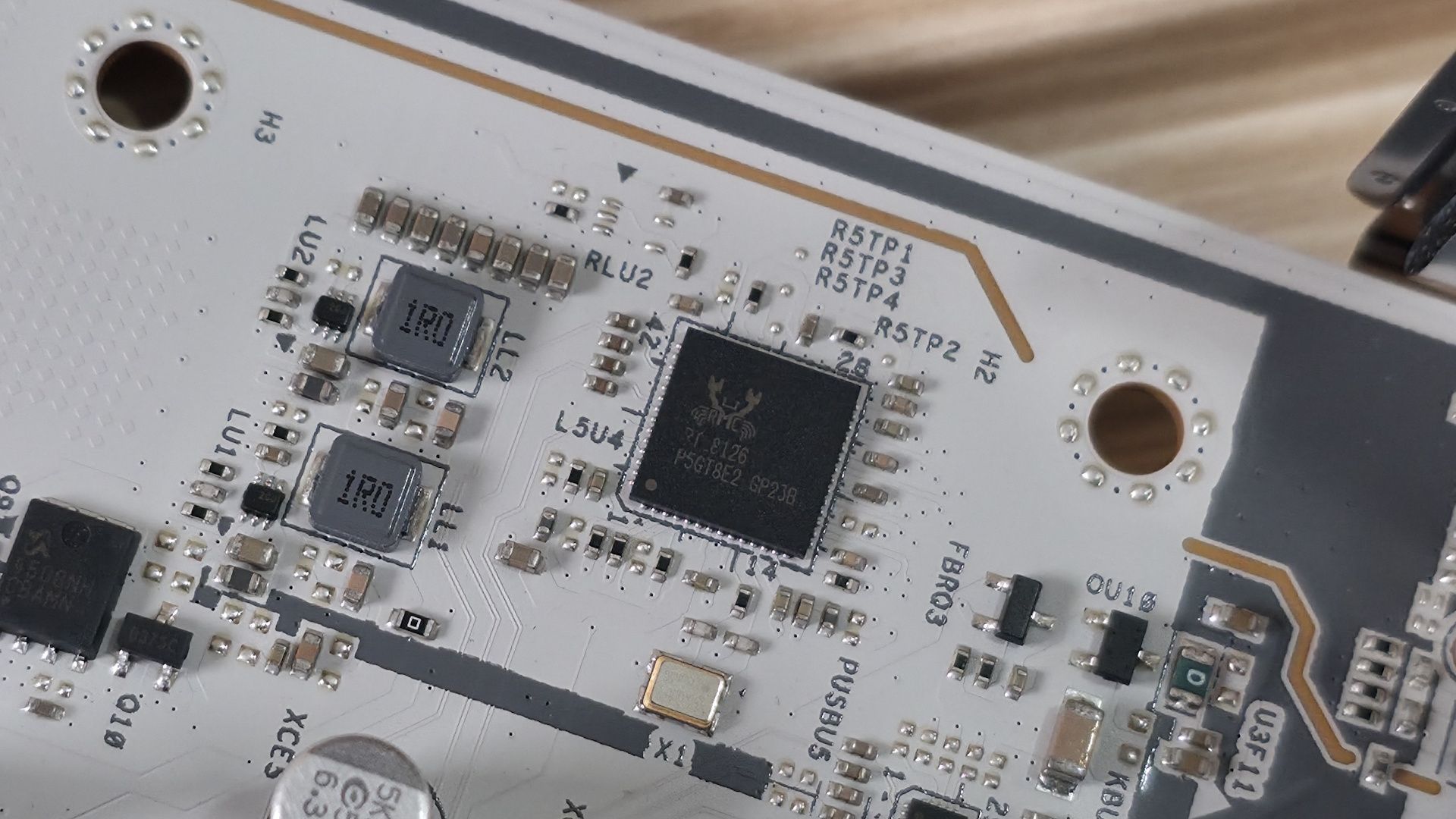
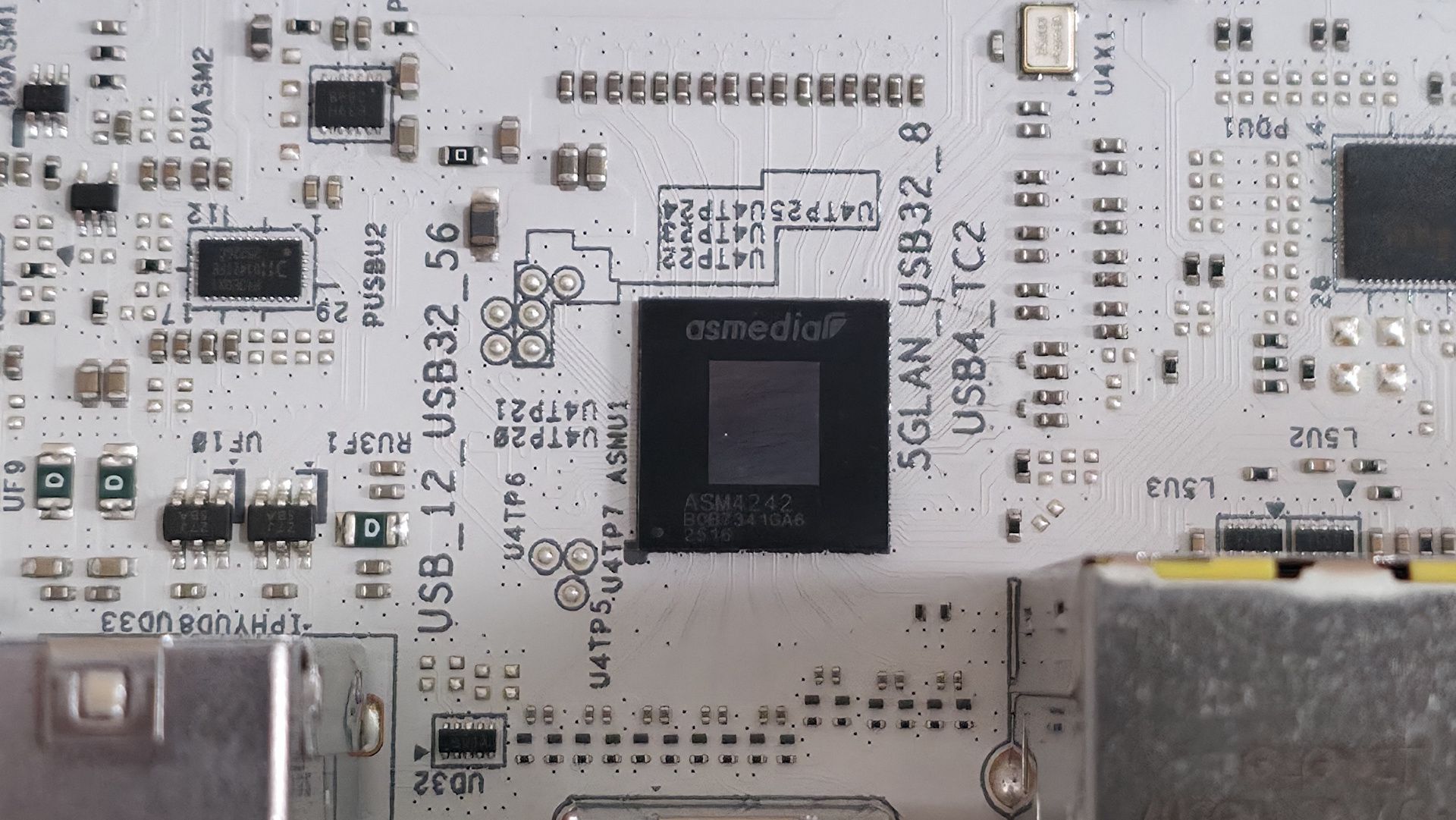
We've also captured several images of the ICs that make this motherboard work, including Realtek Ethernet and audio, ASMedia (for the front HDMI), and OnSemiconductor MOSFETs/PWM controller.

Moving right, past the chipset heatsink and the other RGB lighting element, we spot a couple of Thunderbolt headers and four SATA ports (supporting RAID0/1/5/10 modes). At the bottom of the board is a slew of headers, offering the typical connectivity in this area, with nothing worth calling out.
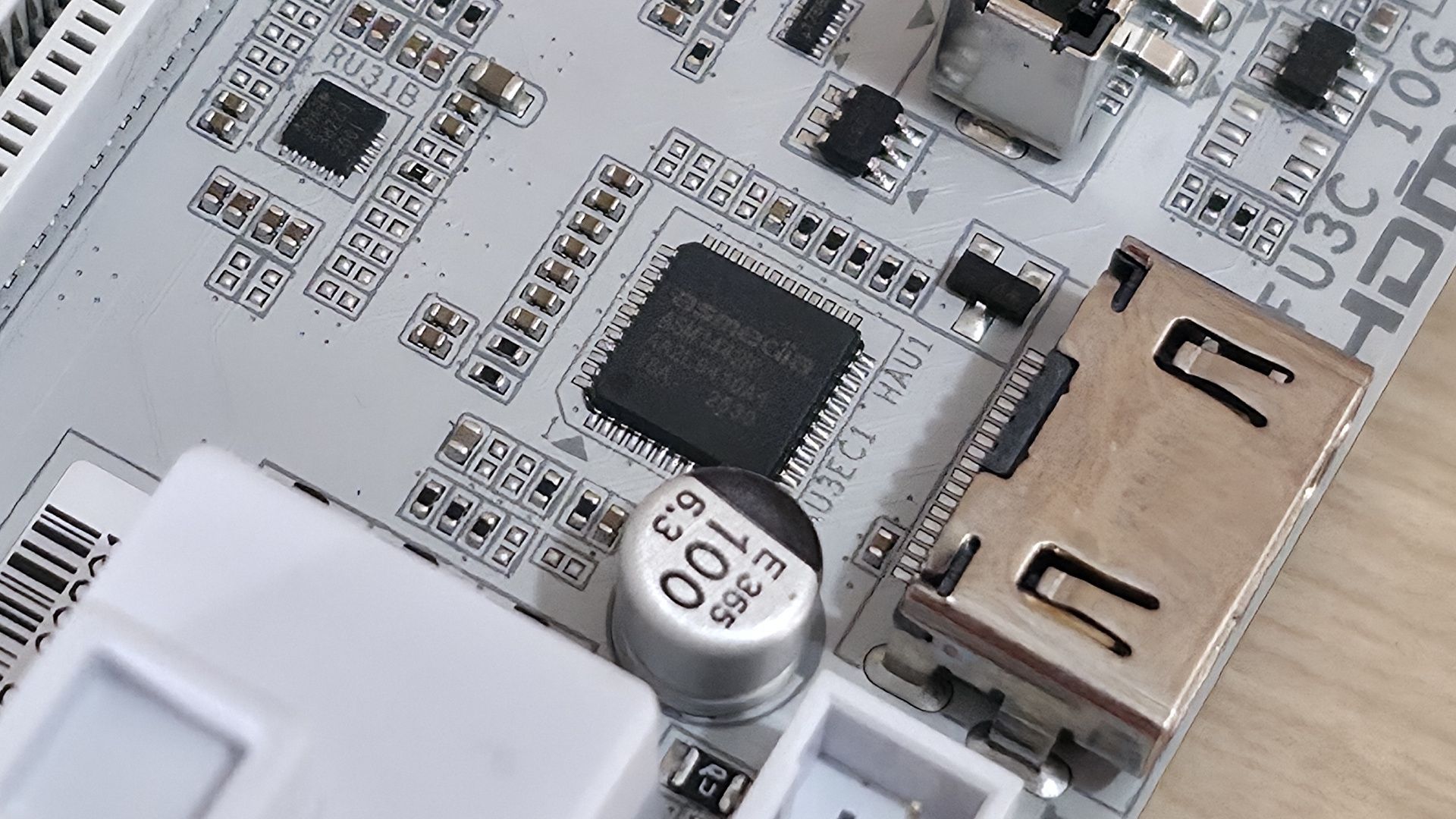
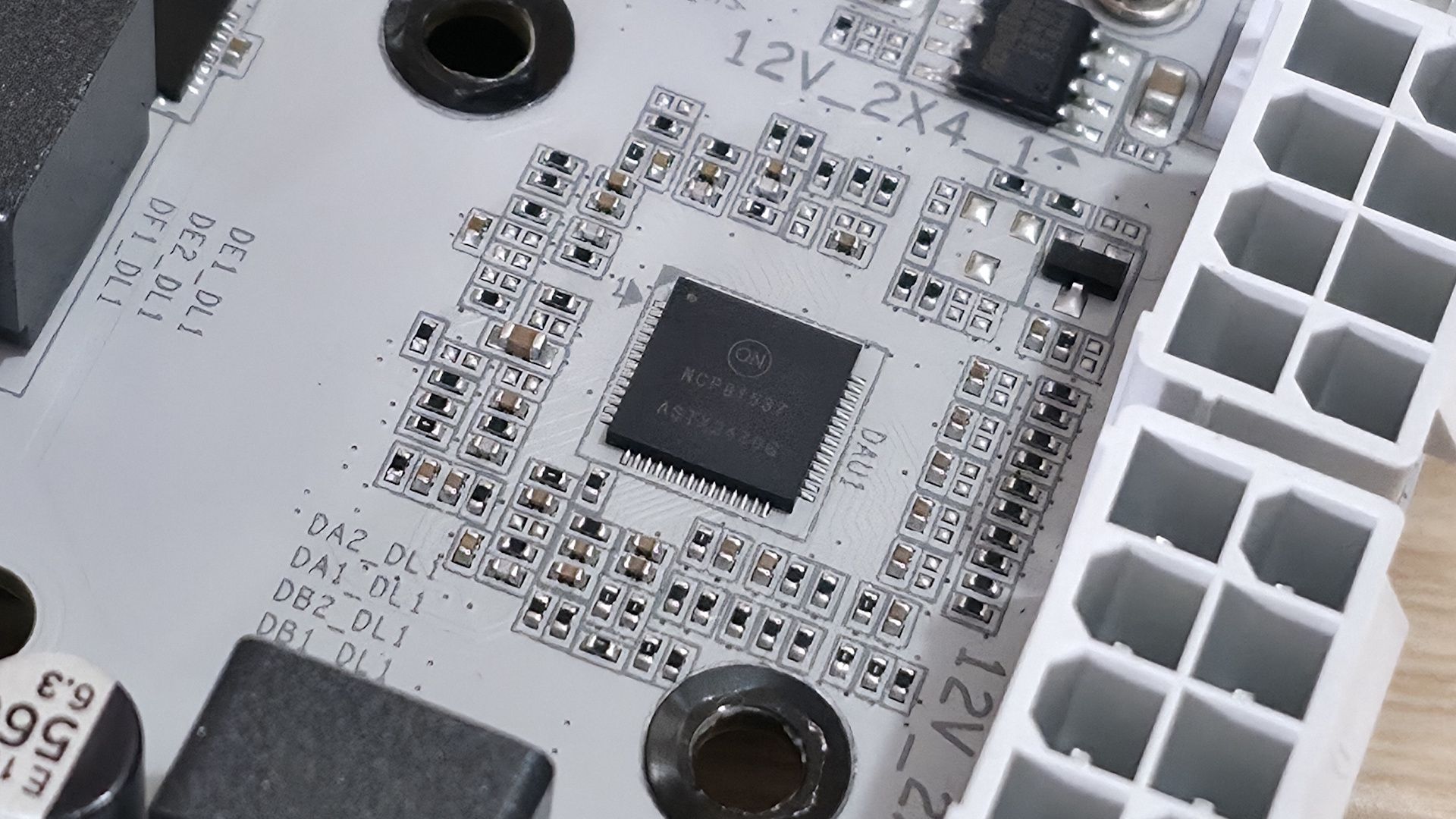
Gigabyte Z890M Aorus Elite Wifi7 Ice - ICs
Future
Gigabyte Z890M Aorus Elite Wifi7 Ice - ICs
Future
Gigabyte Z890M Aorus Elite Wifi7 Ice - ICs
Future
Gigabyte Z890M Aorus Elite Wifi7 Ice - ICs
Future
Gigabyte Z890M Aorus Elite Wifi7 Ice - ICs
Future

Below, we’ve listed all the connections across the bottom of the board.

  • Front panel audio
  • (2) 4-pin RGB header
  • 3-pin ARGB header
  • (2) USB 2.0 (480 Mbps) headers
  • (2) 4-pin system fan headers
  • SPI TPM header
  • 2-pin reset jumper
  • 2-pin Clear CMOS jumper
  • Front panel header

Gigabyte Z890M Aorus Elite Wifi7 Ice - Rear I/O

(Image credit: Future)

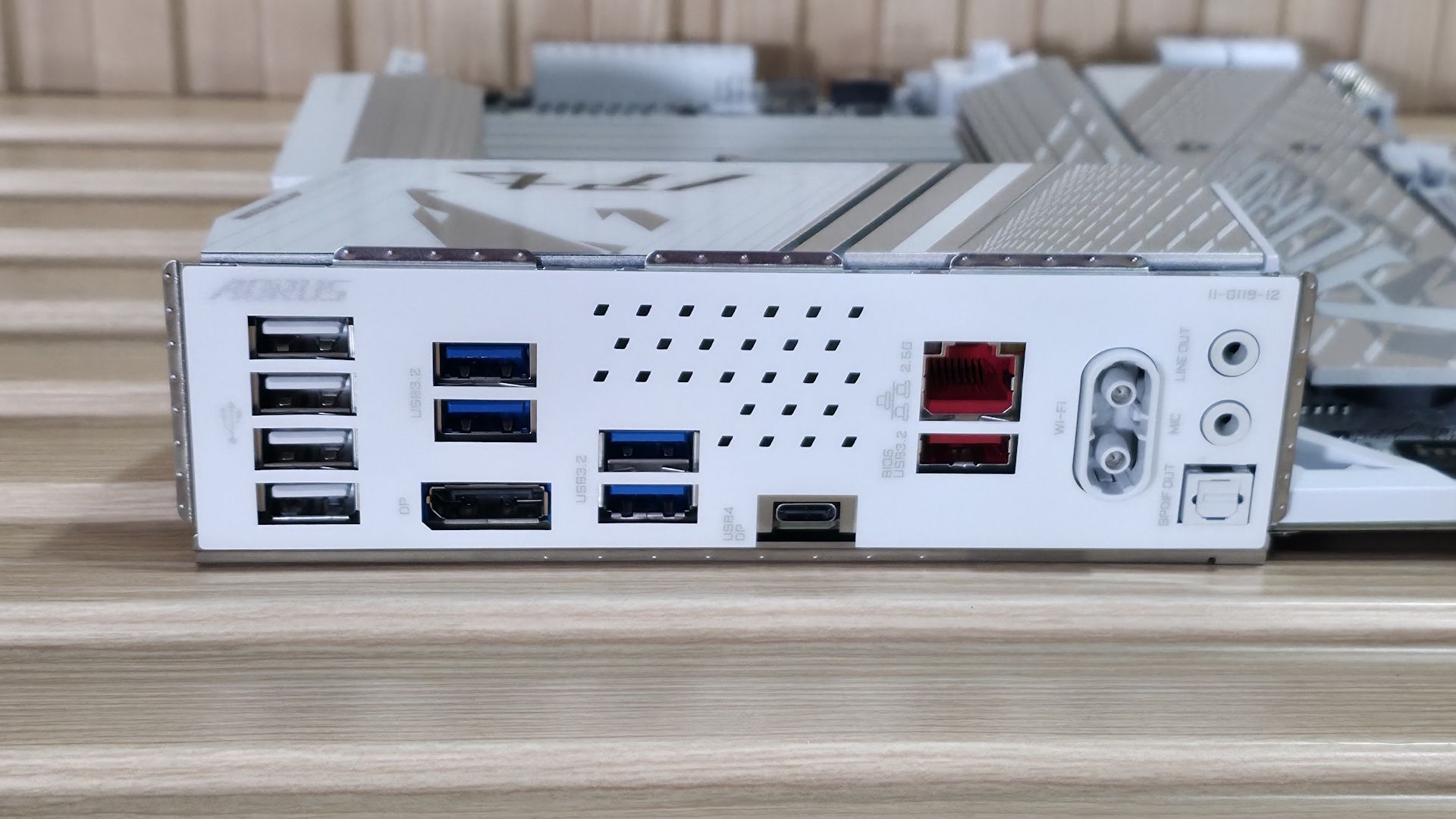
The rear IO area is pretty sparse compared to high-end boards, but it uses some venting to help keep the VRMs running cooler. On the left (in white) are four USB 2.0 ports, followed by four USB 3.2 Gen 1 (5 Gbps) ports in blue. Below those is the DisplayPort (v2.1) output. Next to the blue USB ports is your sole Type-C port. In this case, it's USB4 (not Thunderbolt 4) at 40 Gbps and supports DisplayPort output as well. To the right, you'll find the 2.5 GbE port and, below that in red, the only USB 3.2 Gen 2 (10 Gbps) Type-A port. Finally, on the right, are the quick-connect Wi-Fi 7 (160 Hz) connectors and audio stack: dual 3.5mm jacks for mic and line-out, plus an SPDIF optical output.

MORE: Best Motherboards

MORE: How To Choose A Motherboard

MORE: Best Motherboard Deals

MORE: Best Motherboard Combo Deals

MORE: All Motherboard Content

Firmware

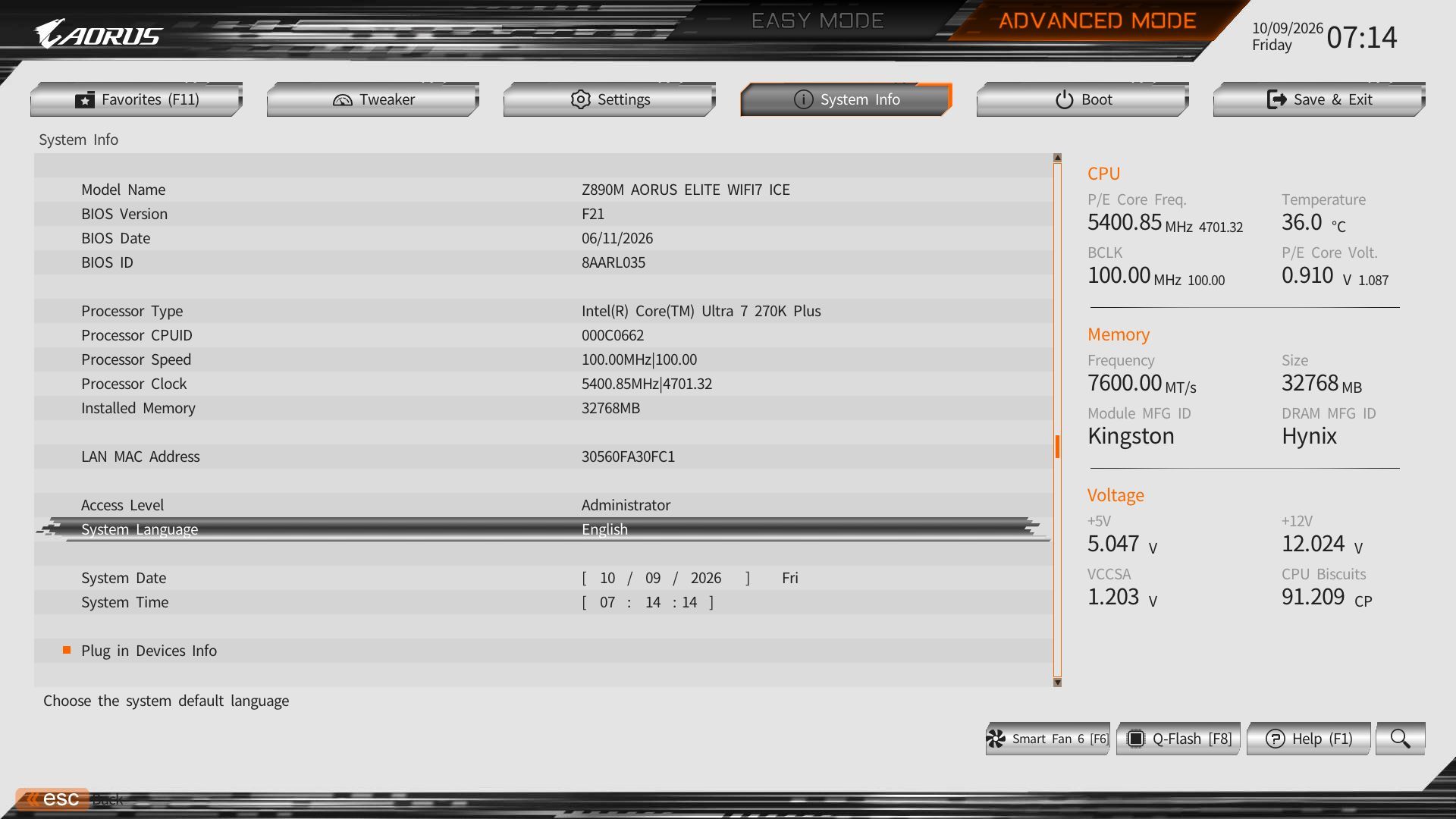
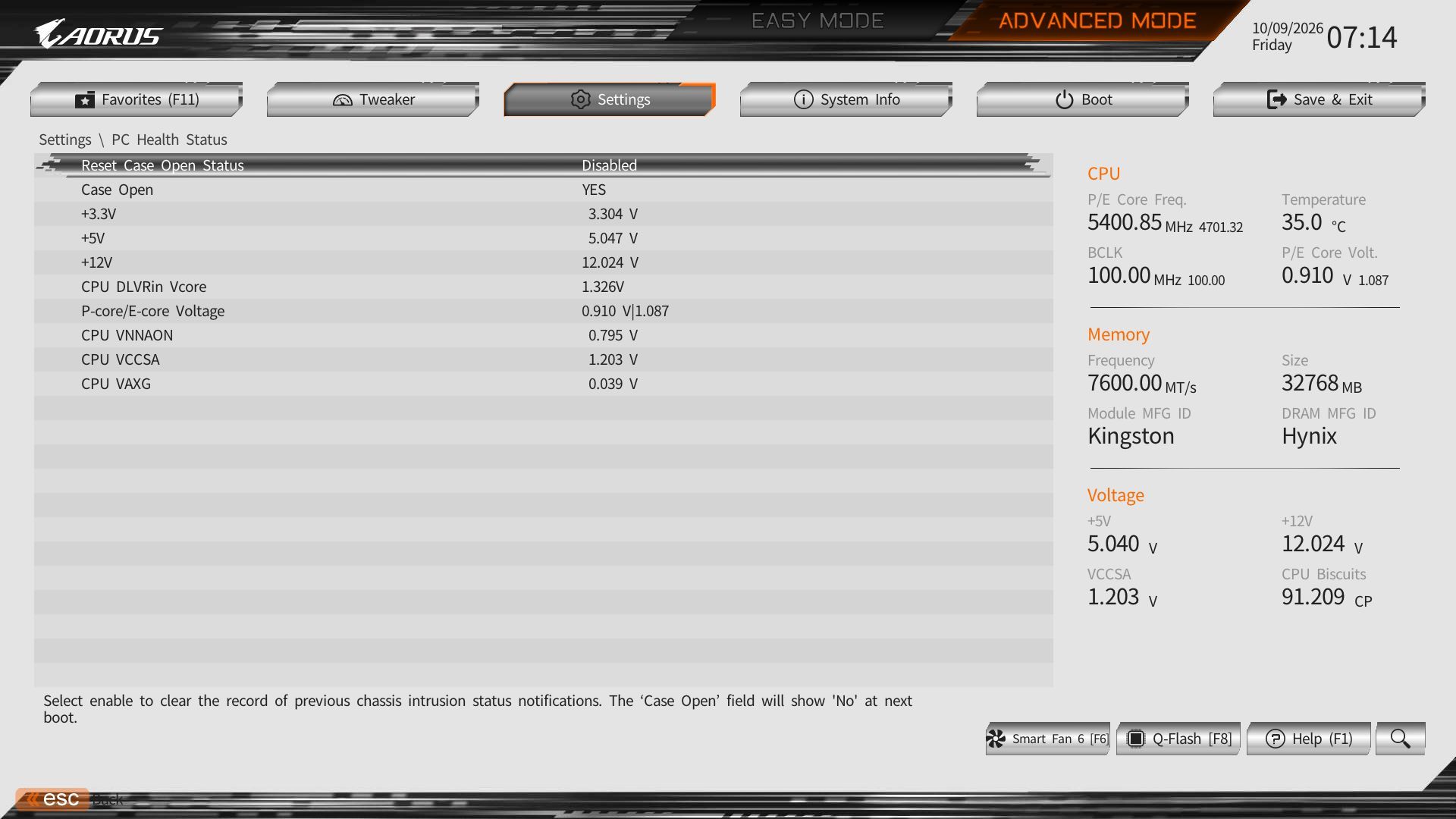
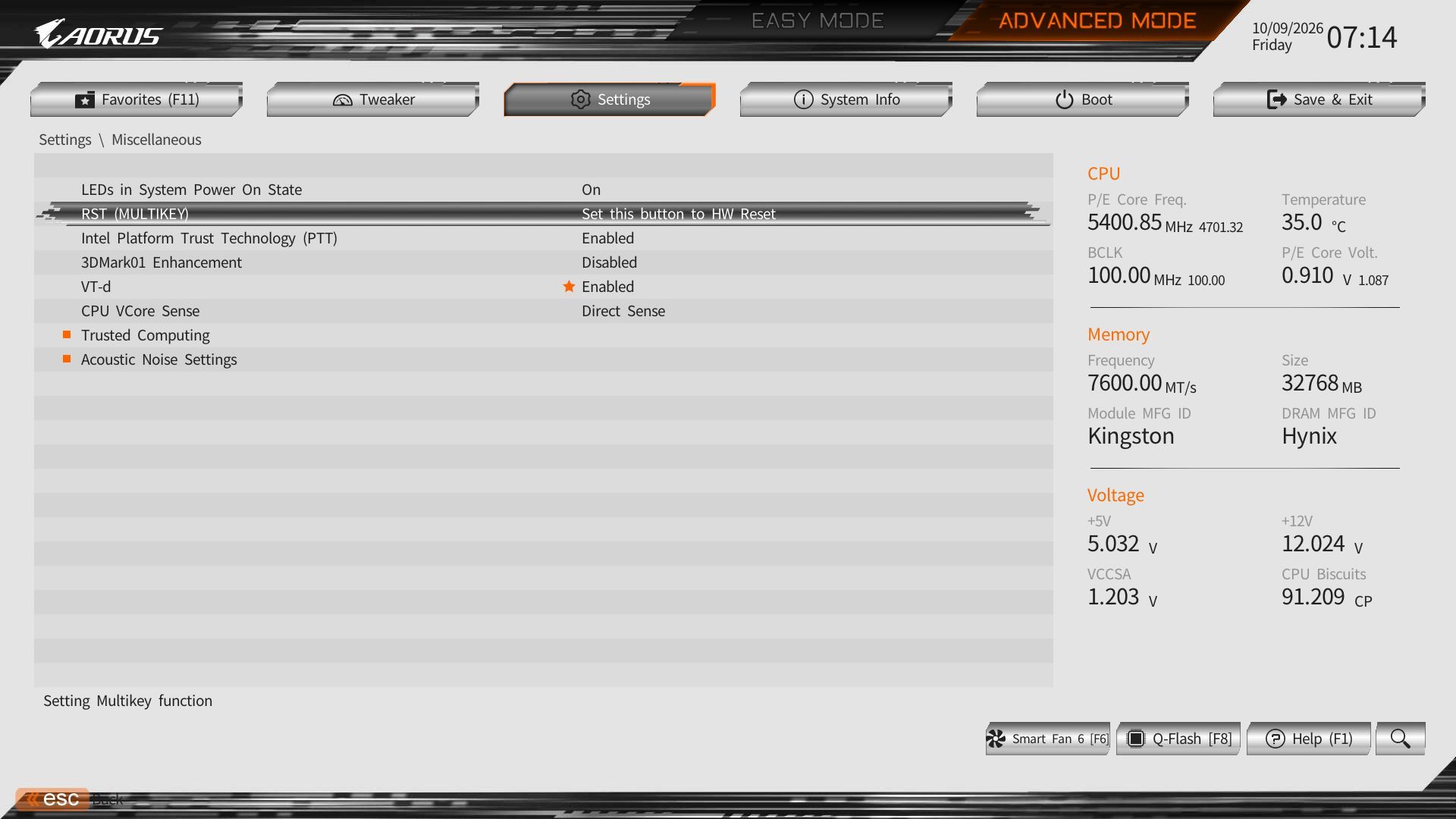
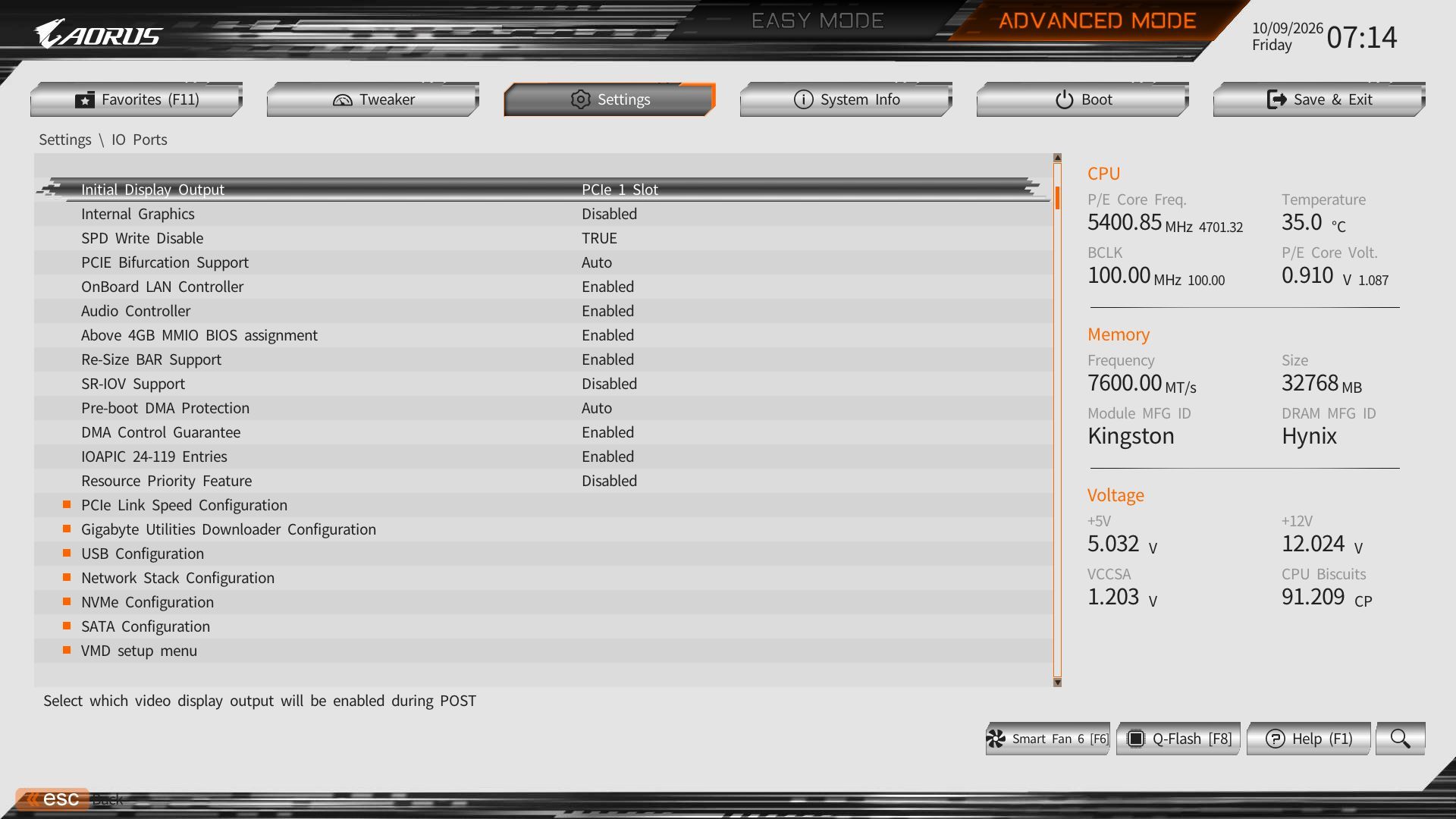
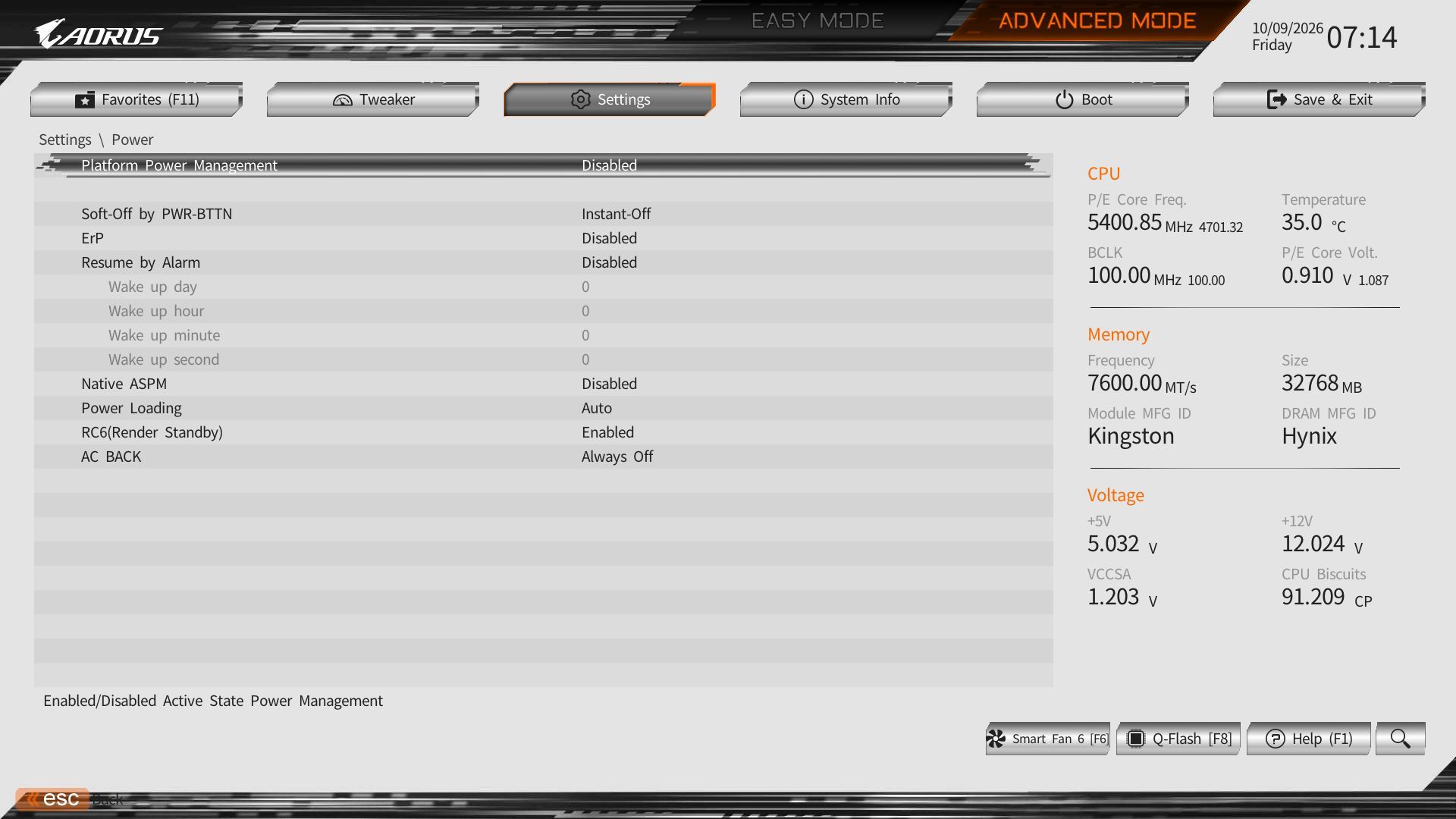
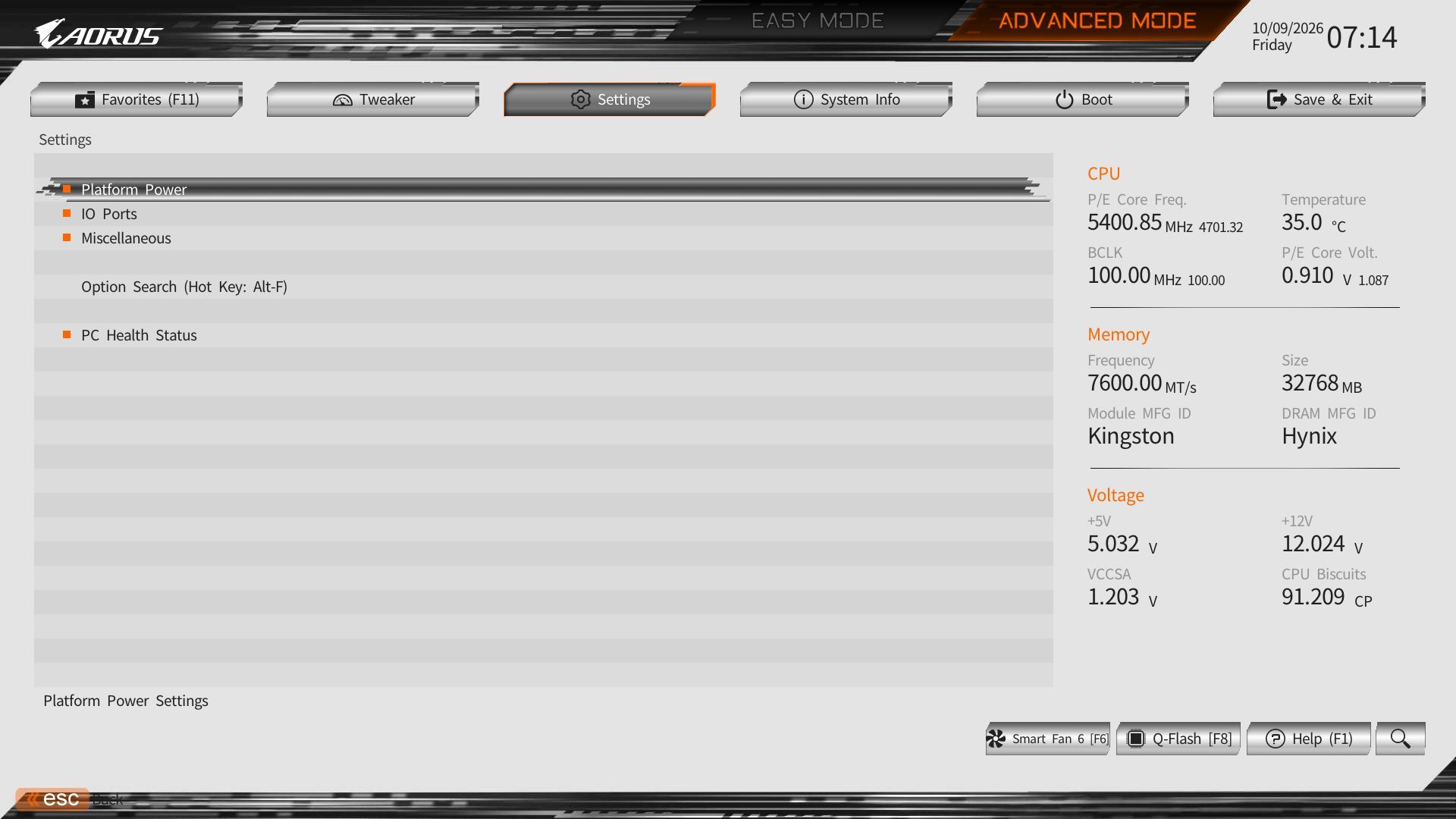
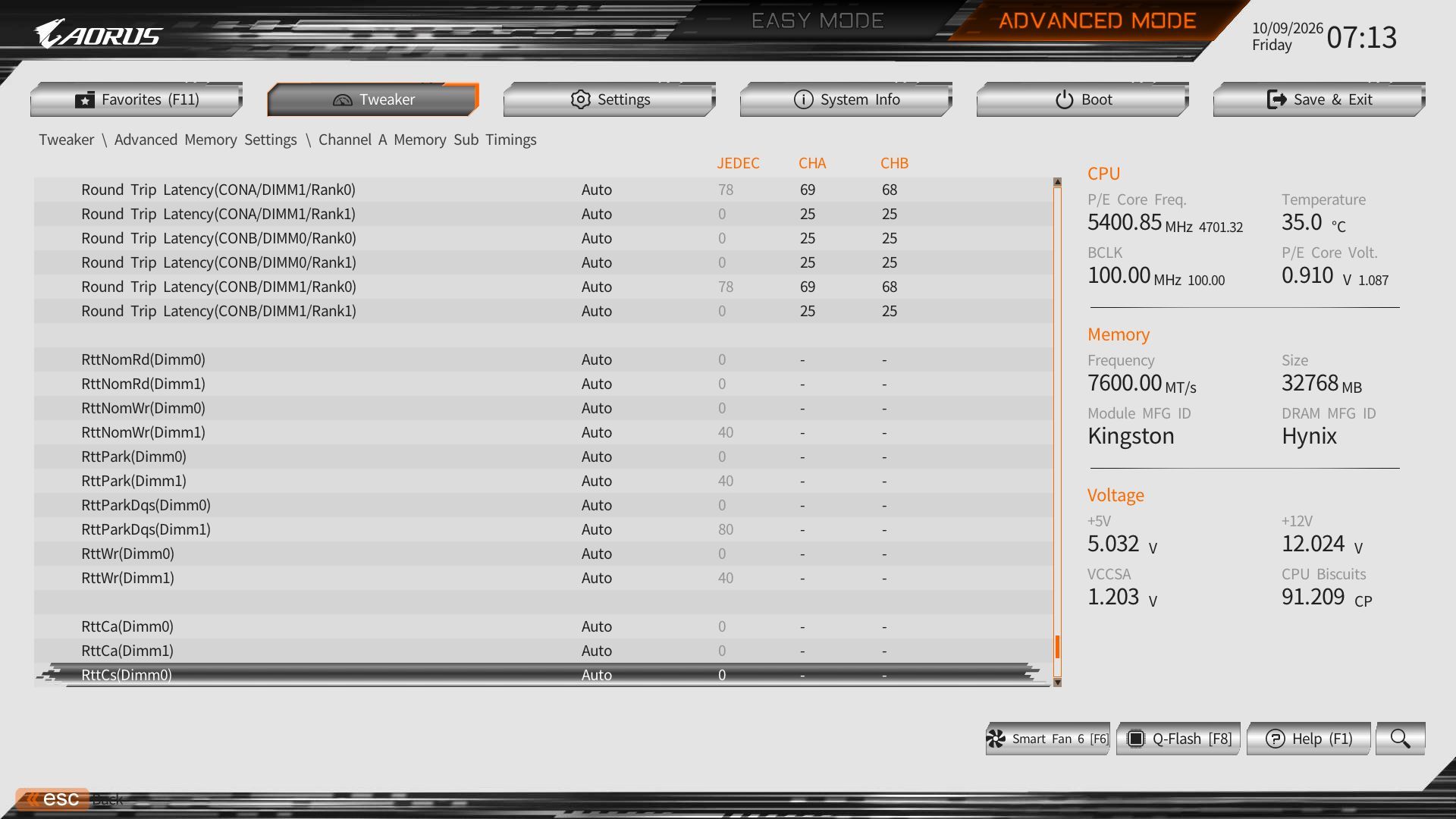
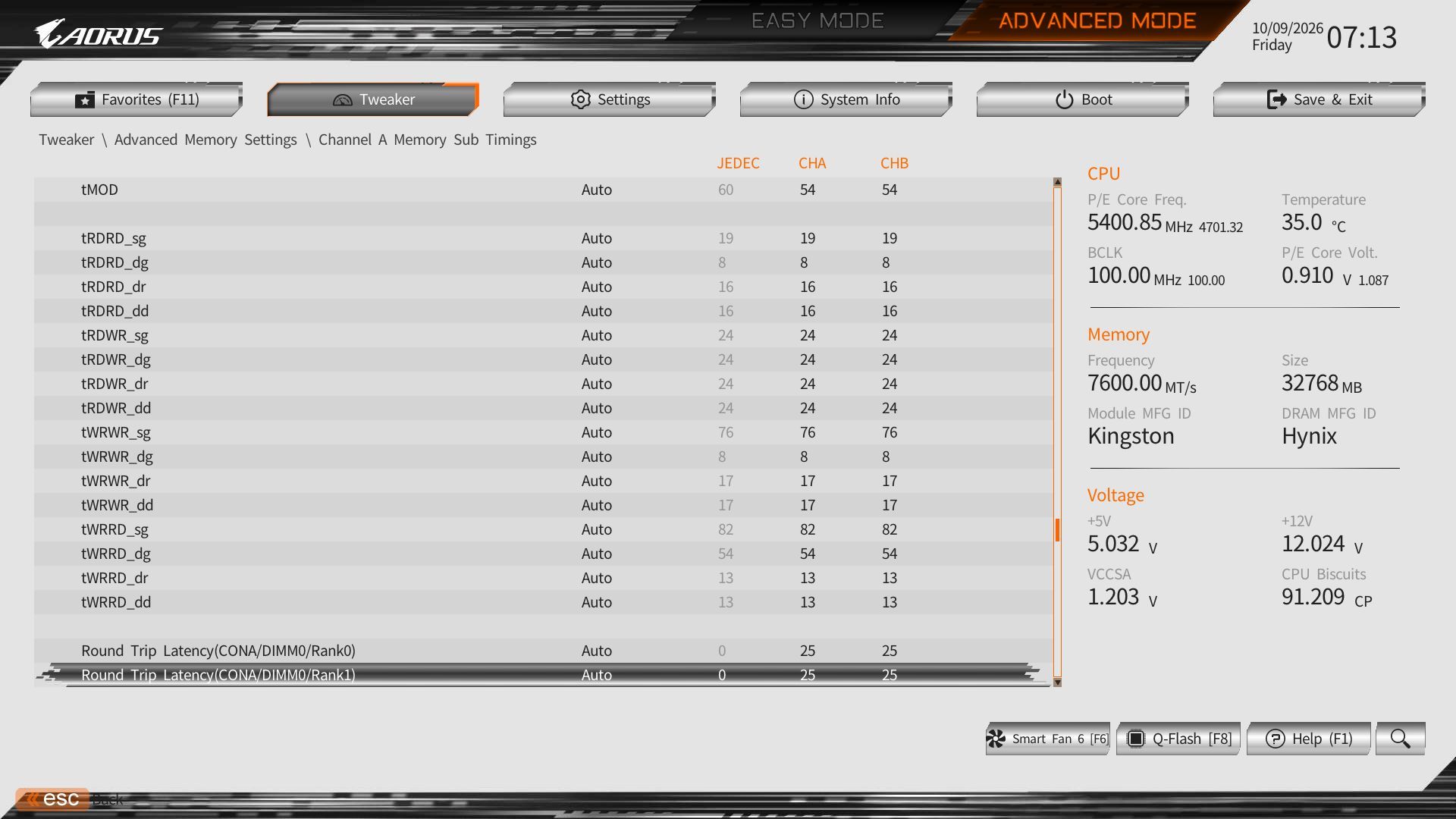
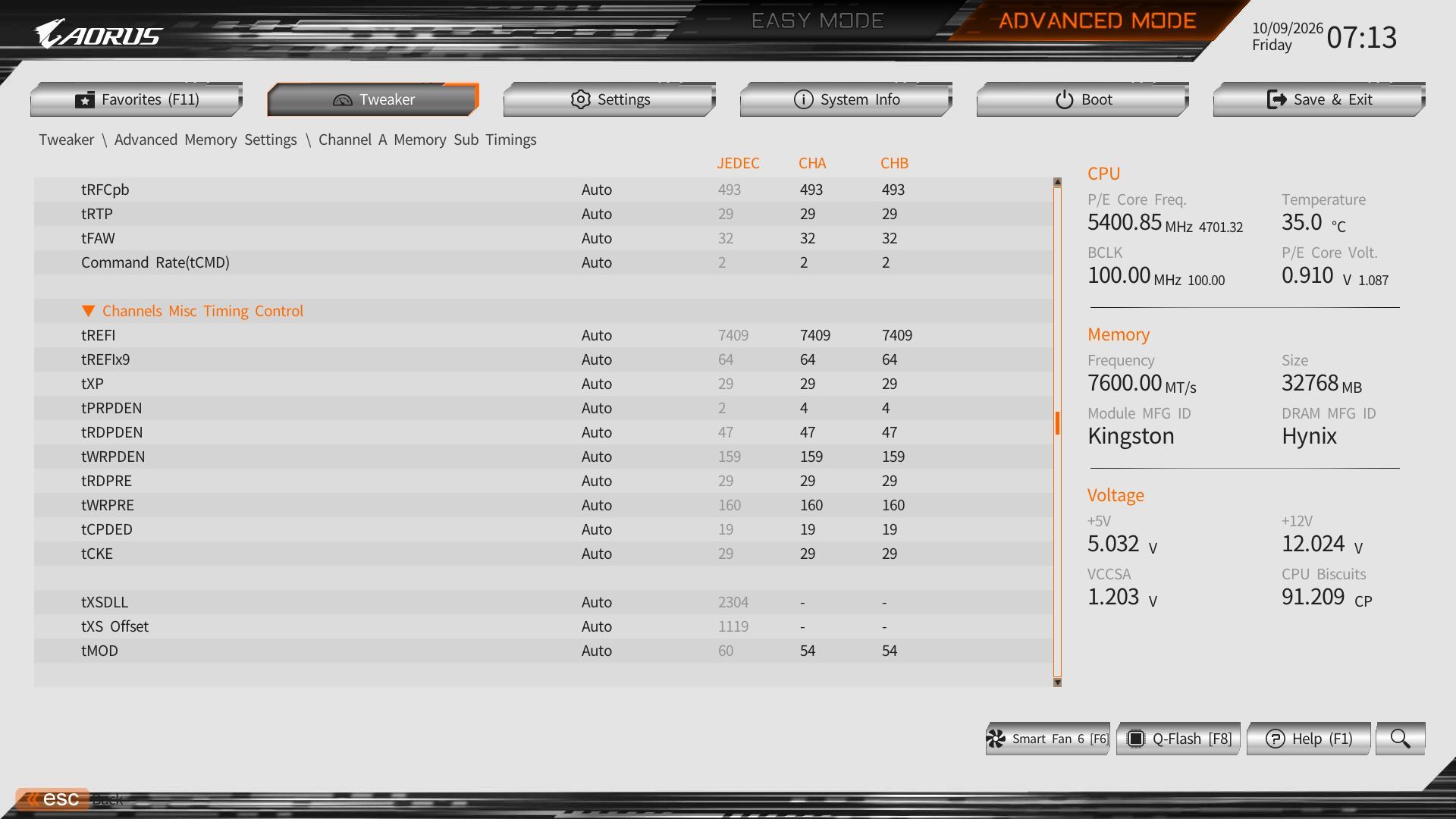
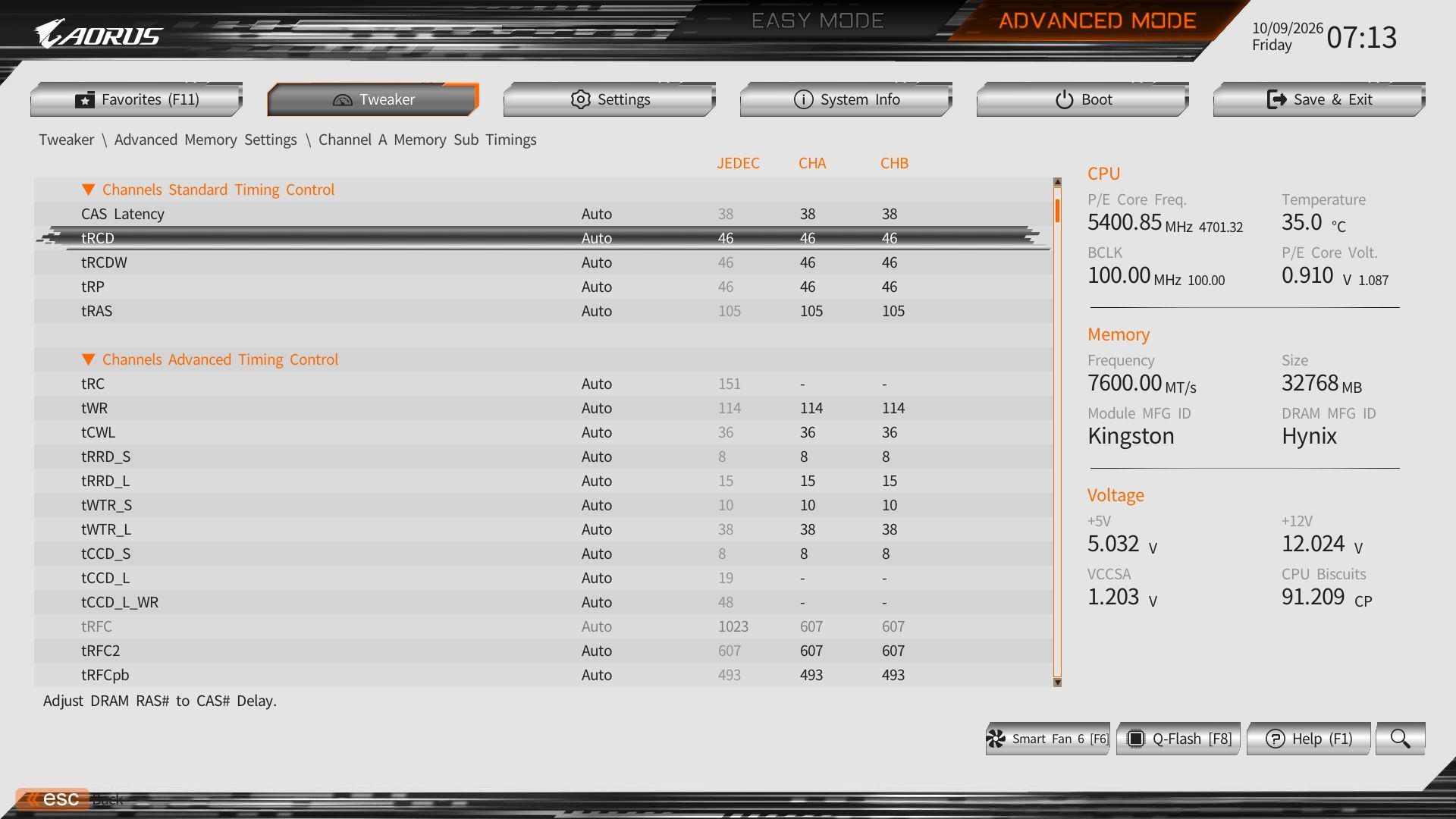
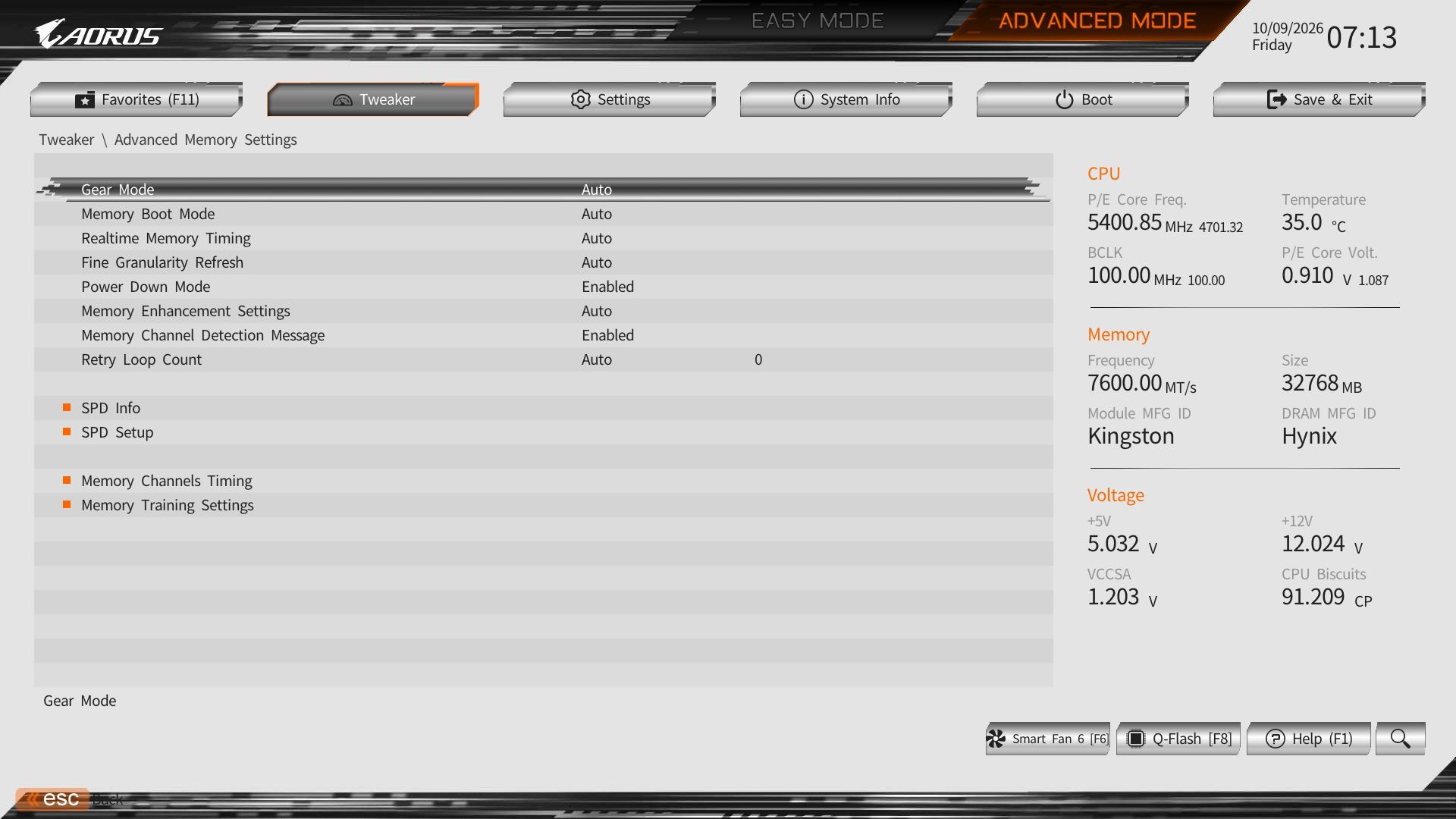
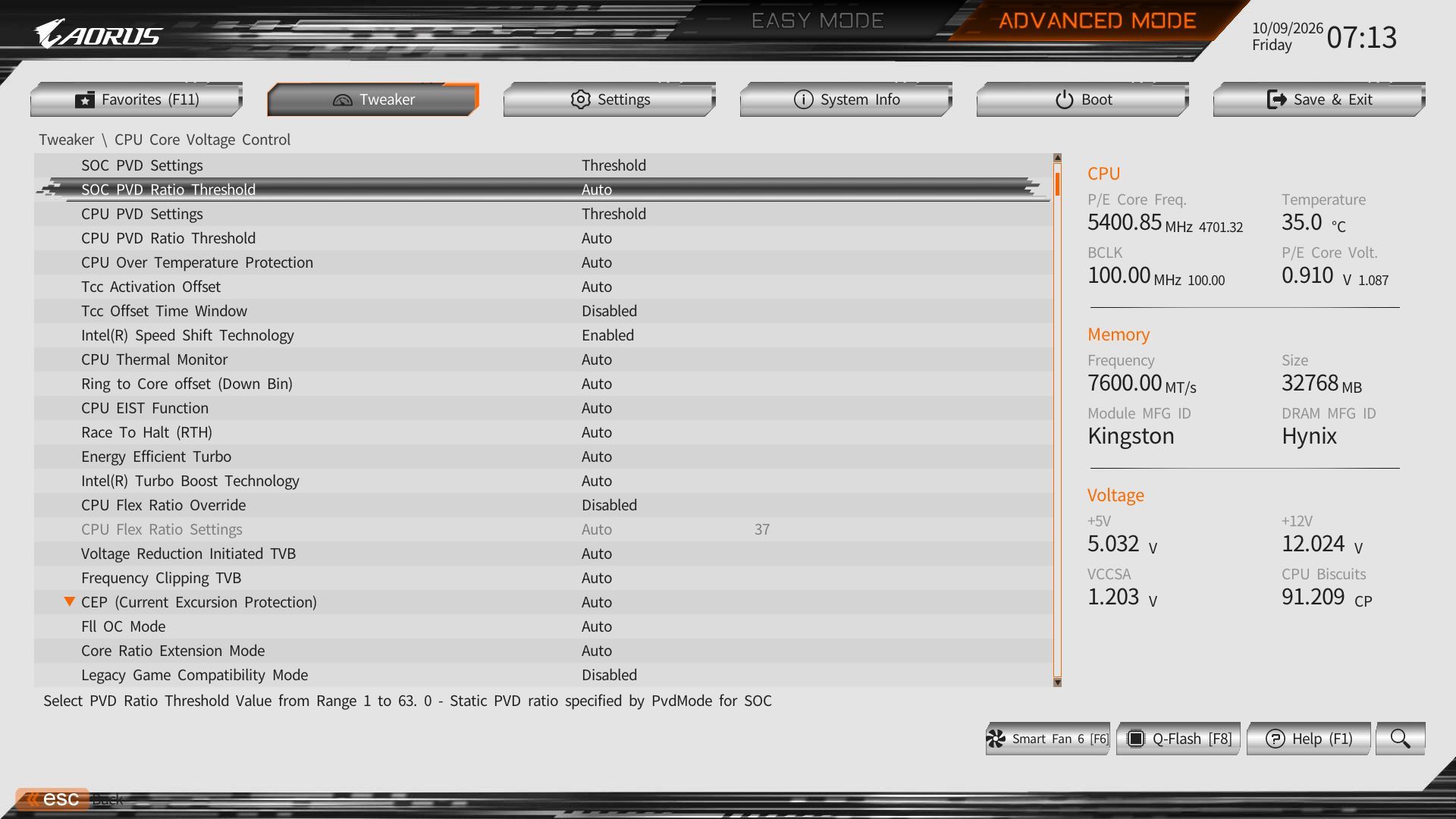
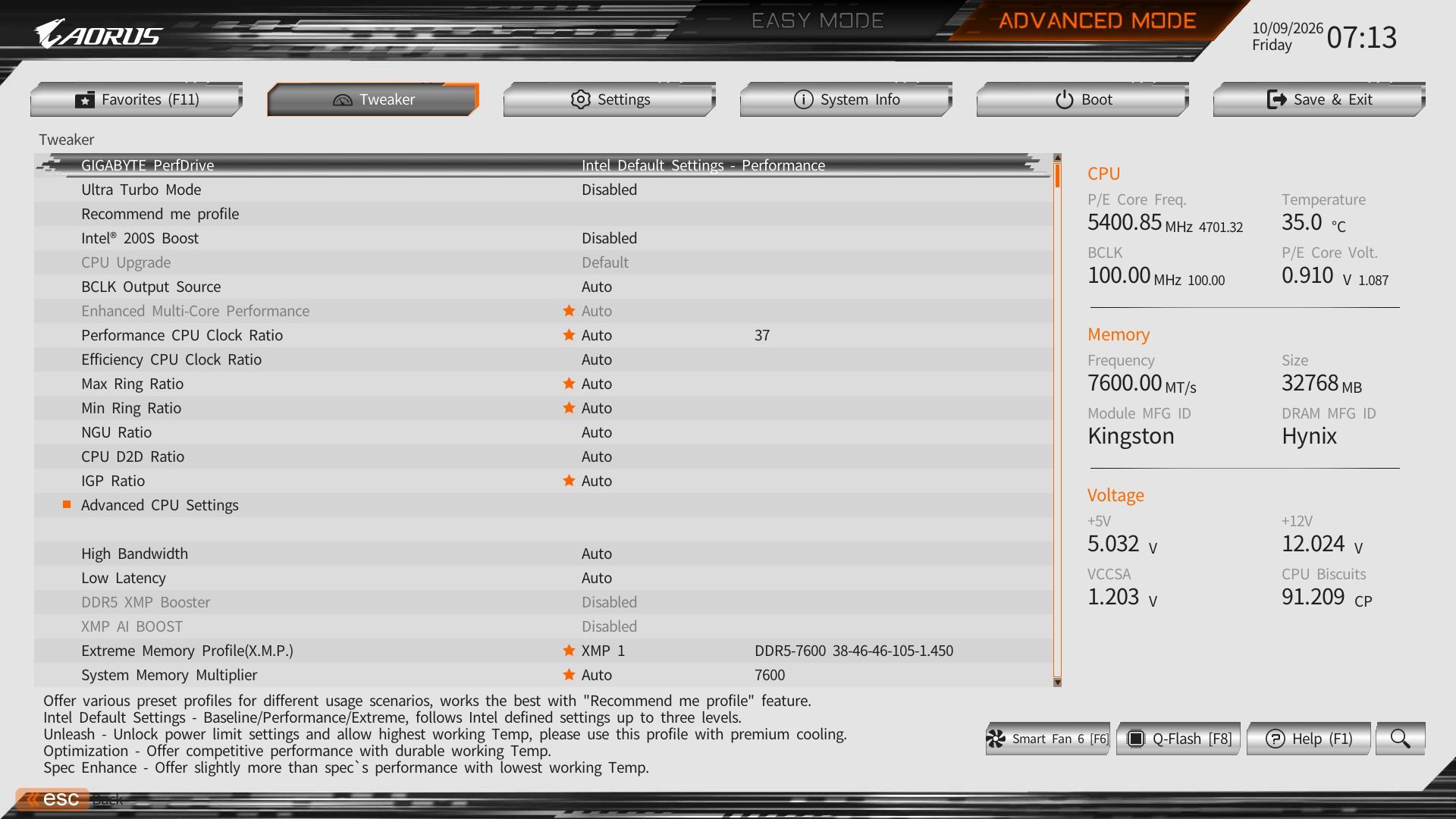
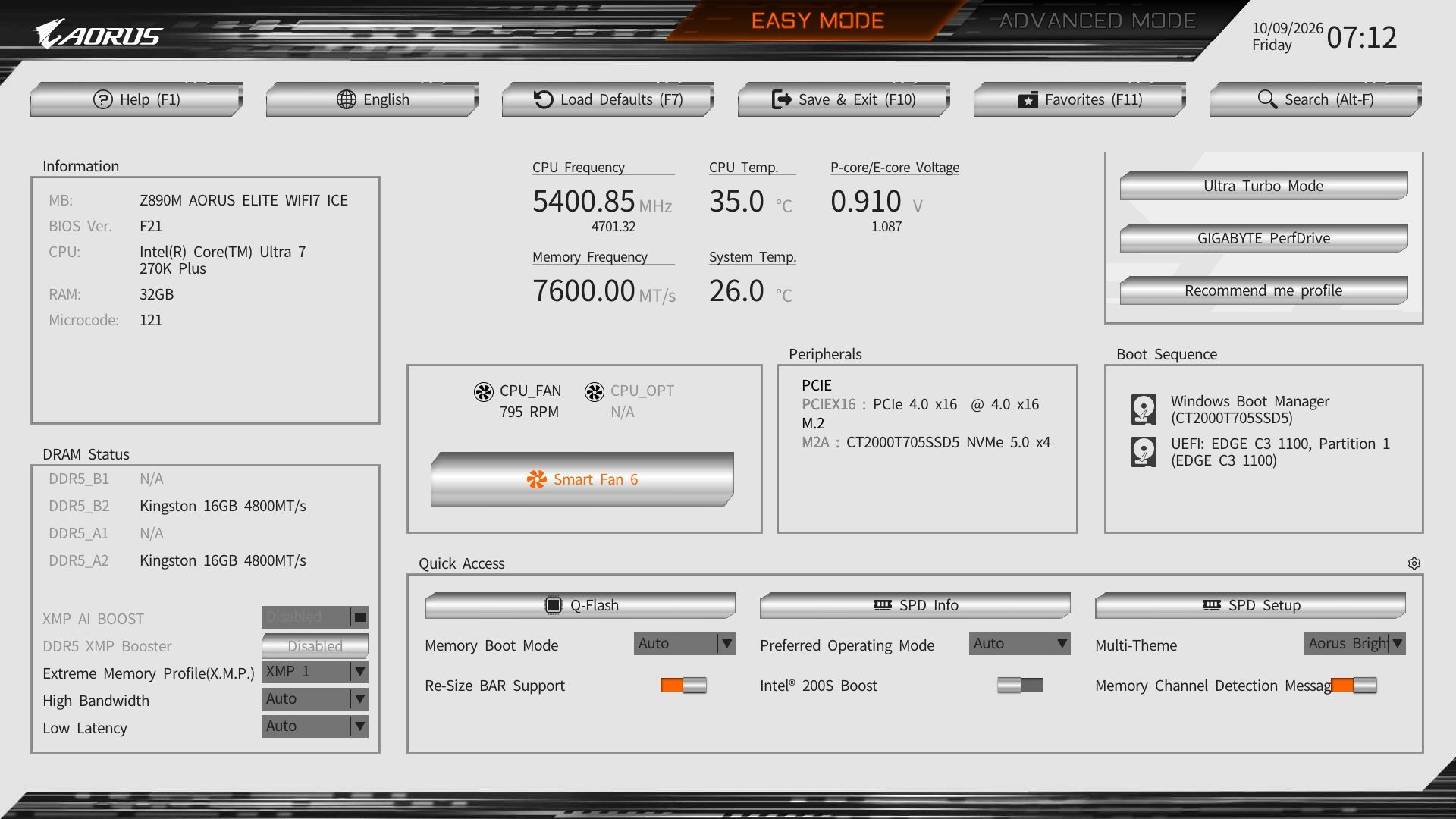
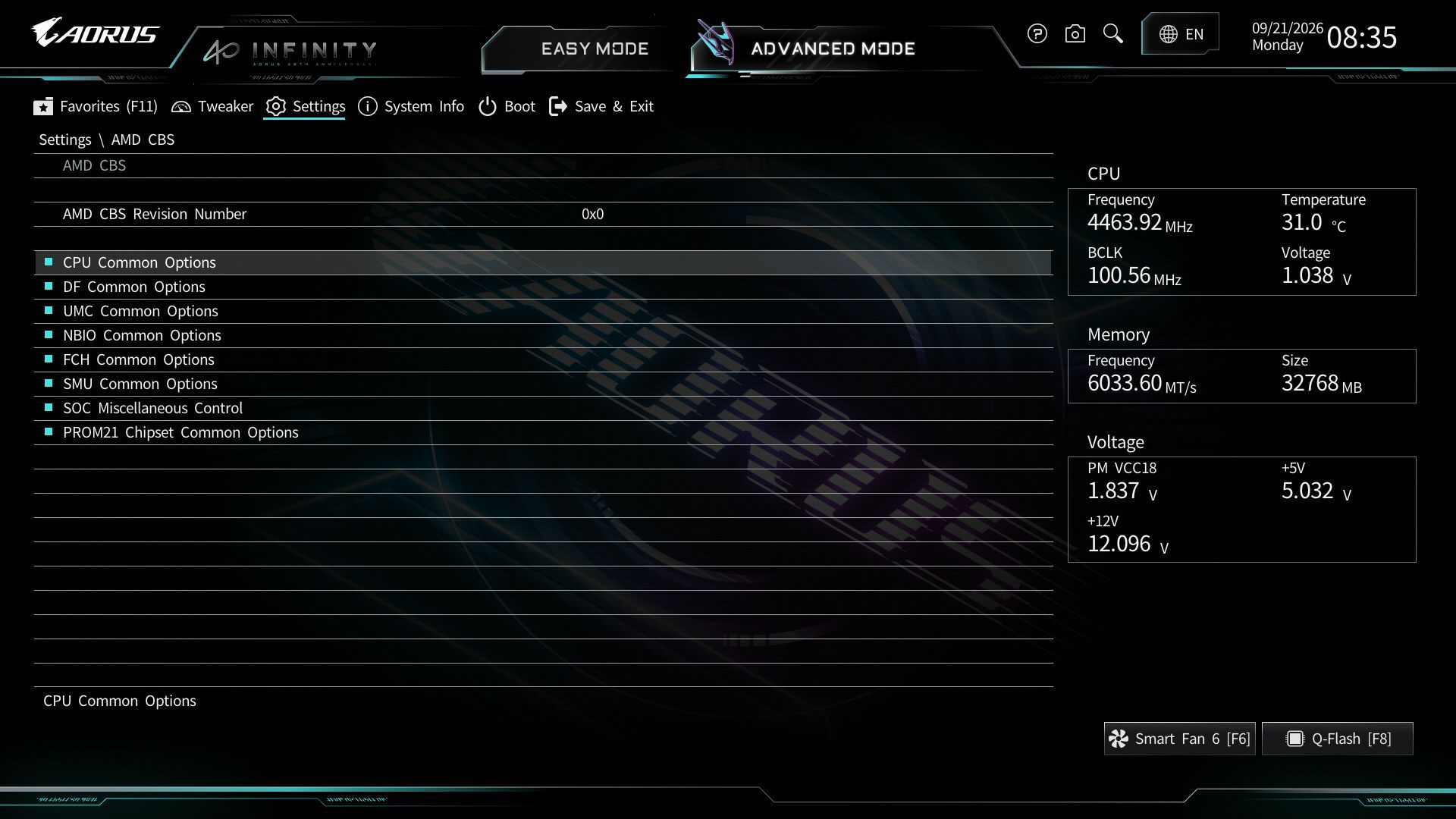
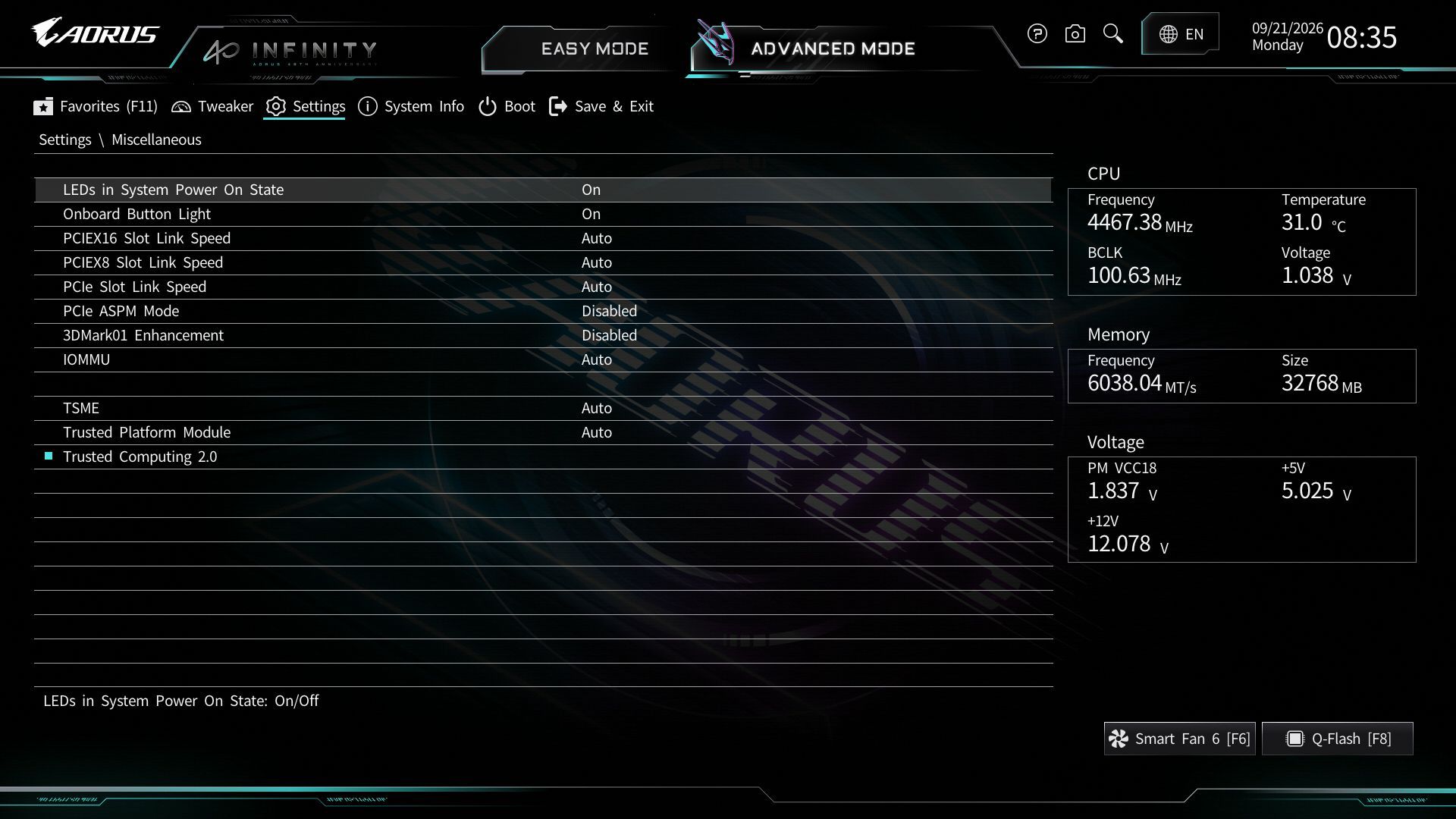
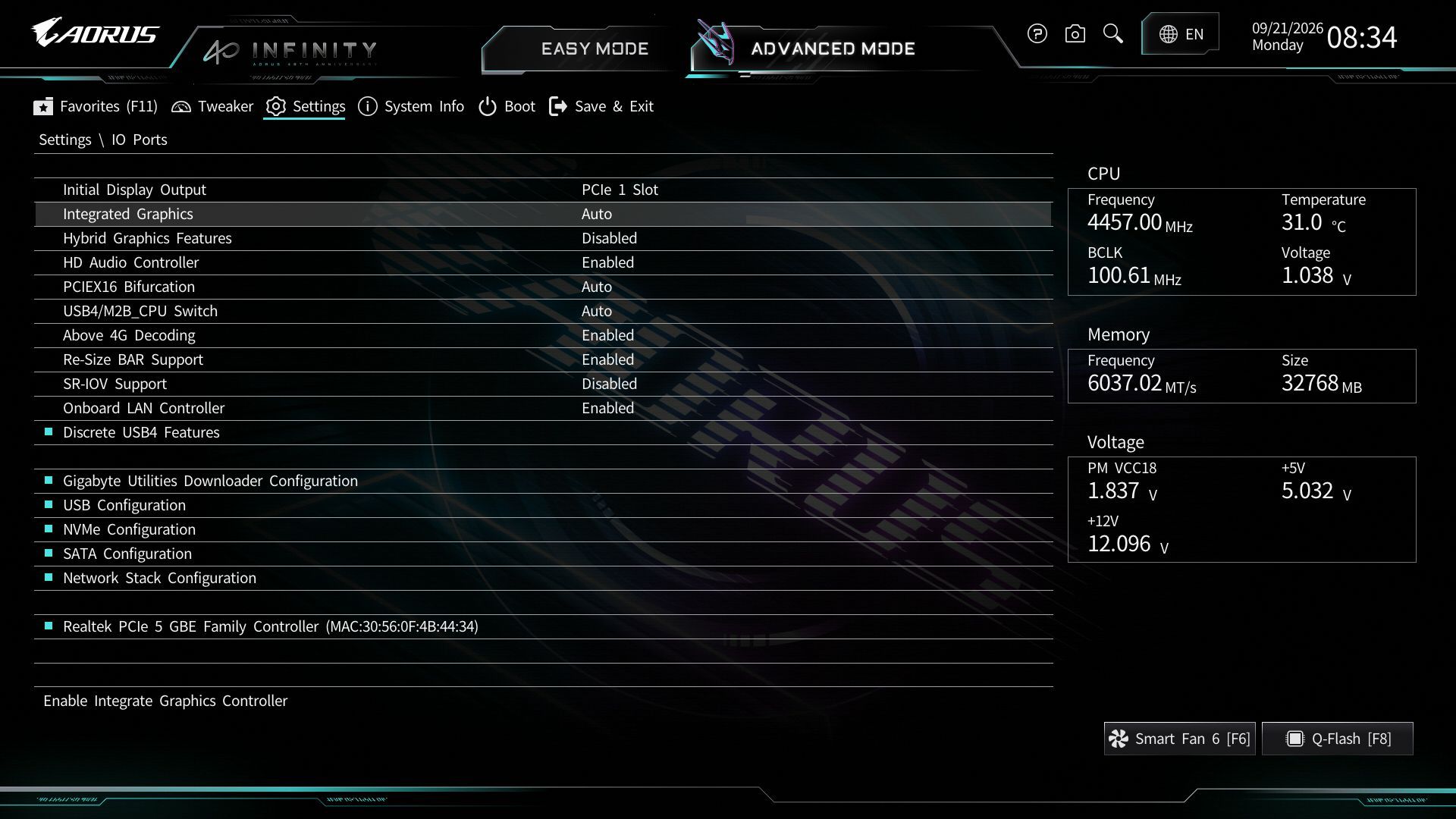
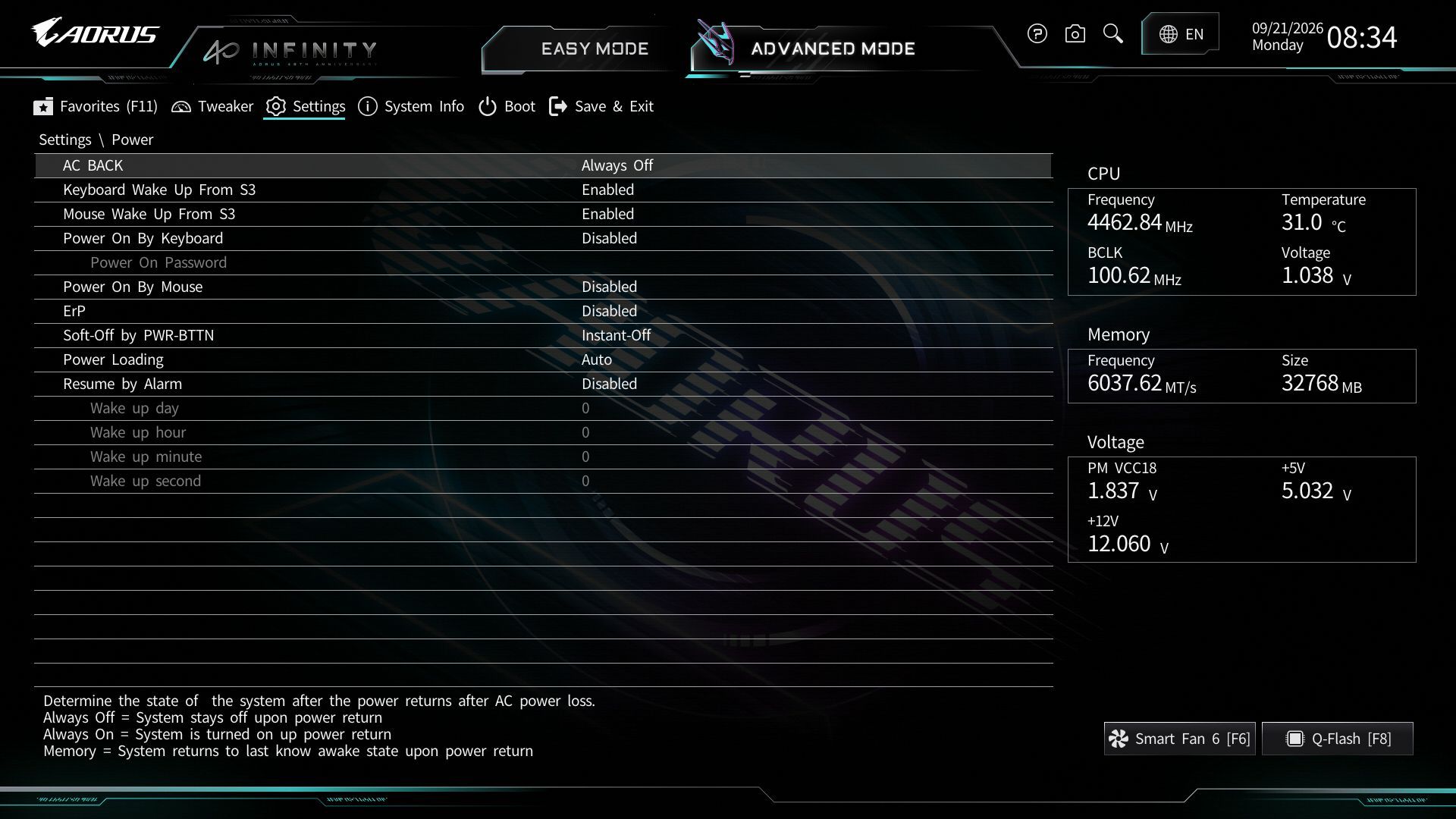
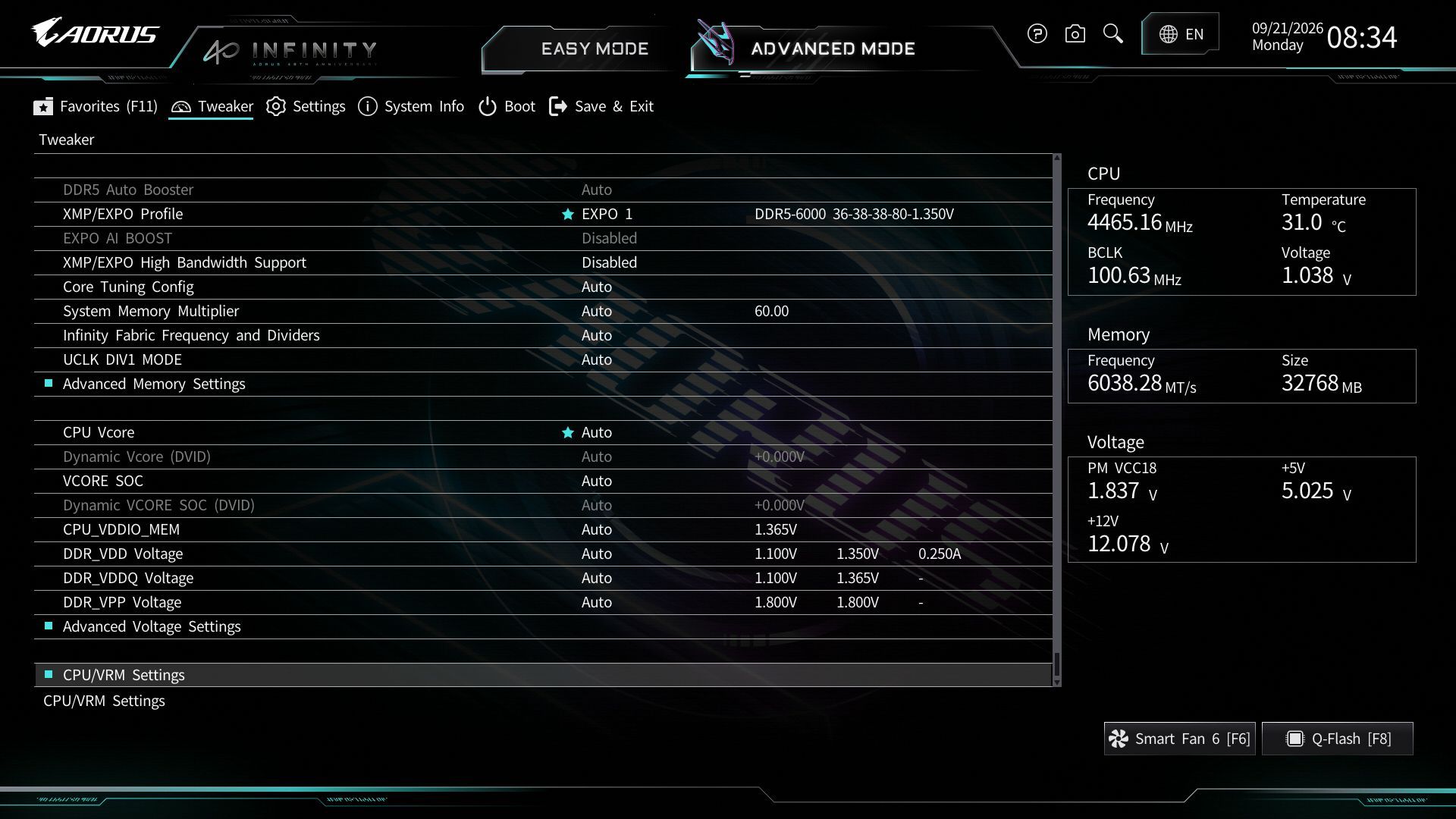
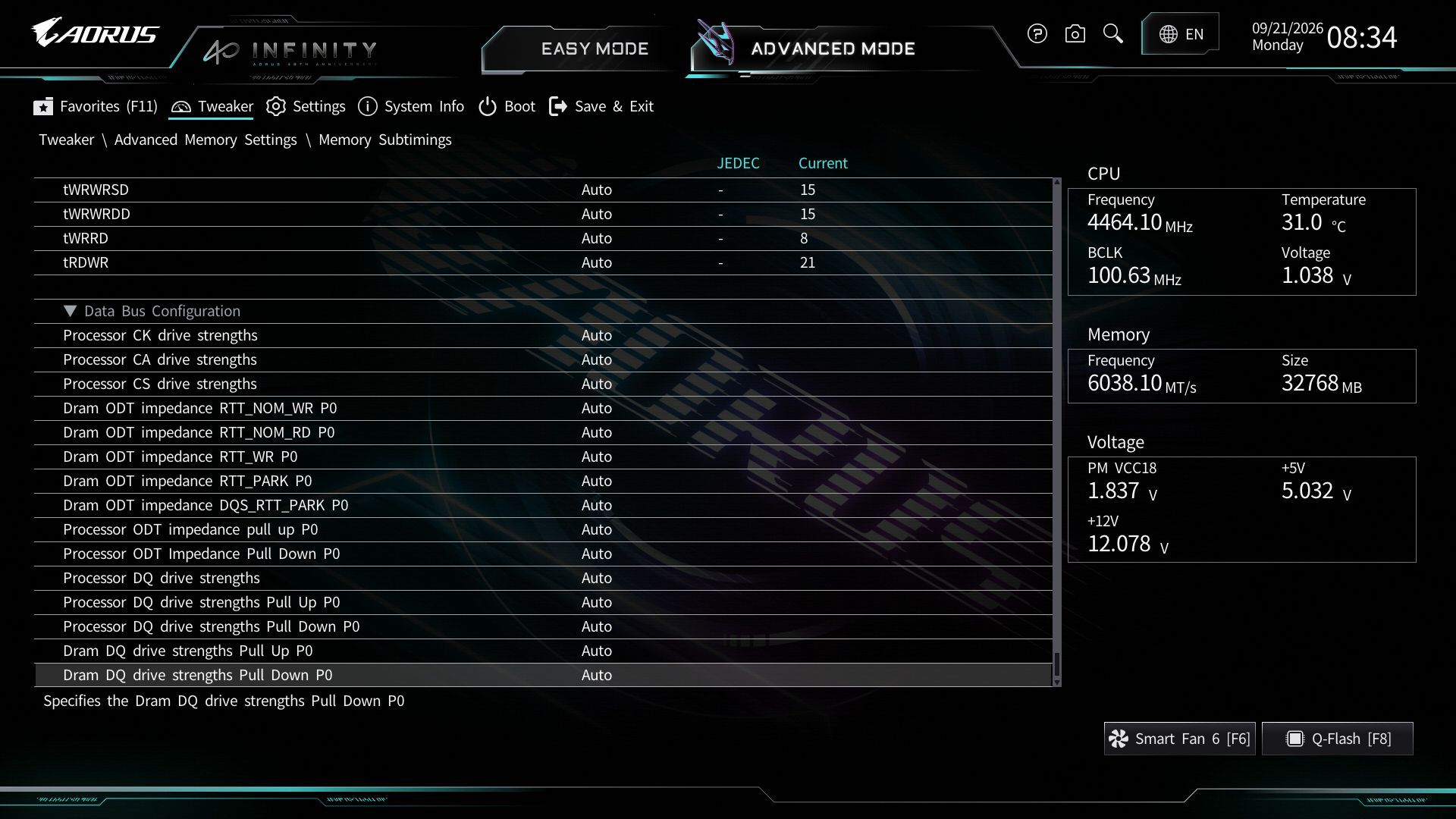
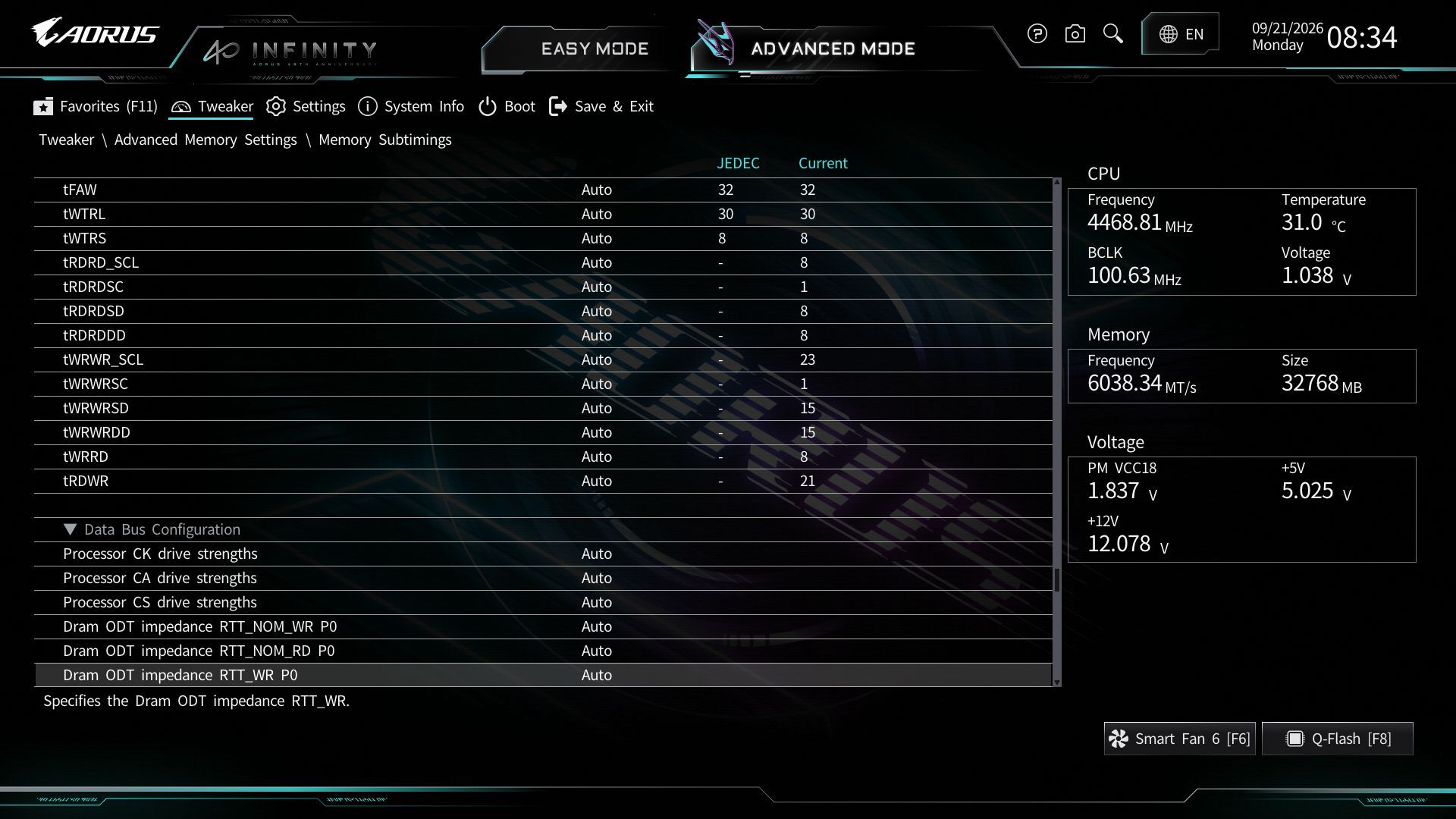
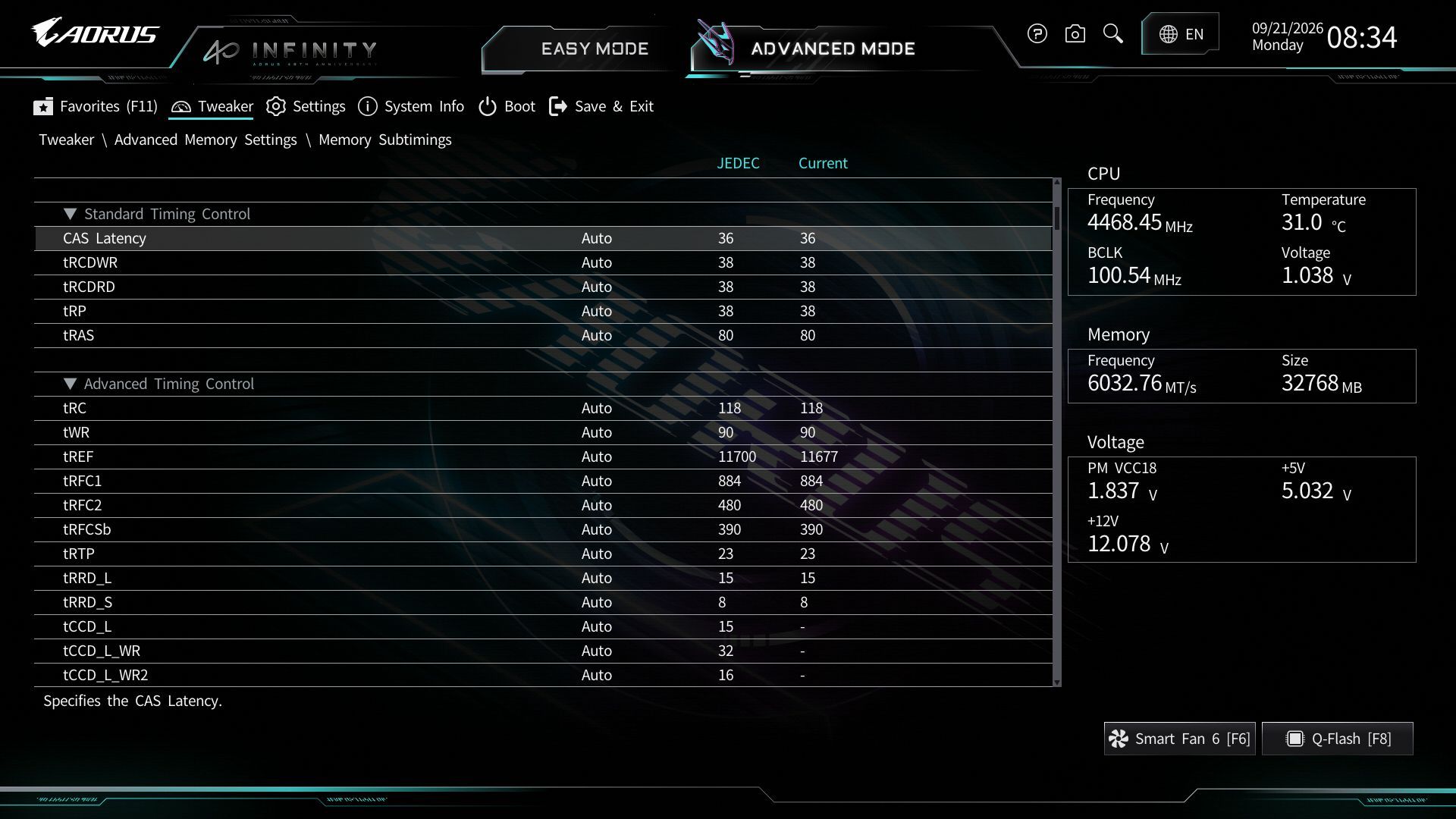
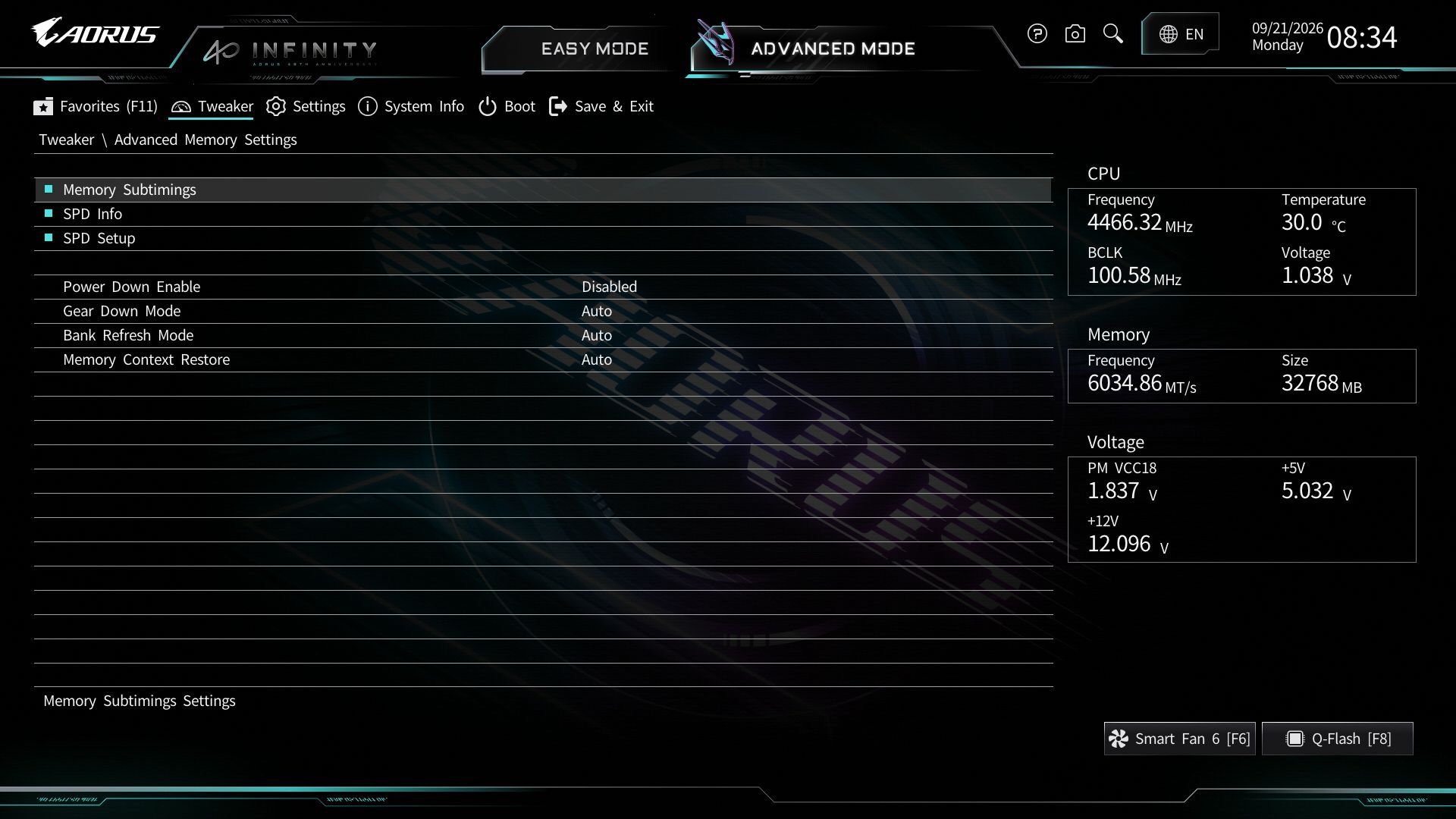
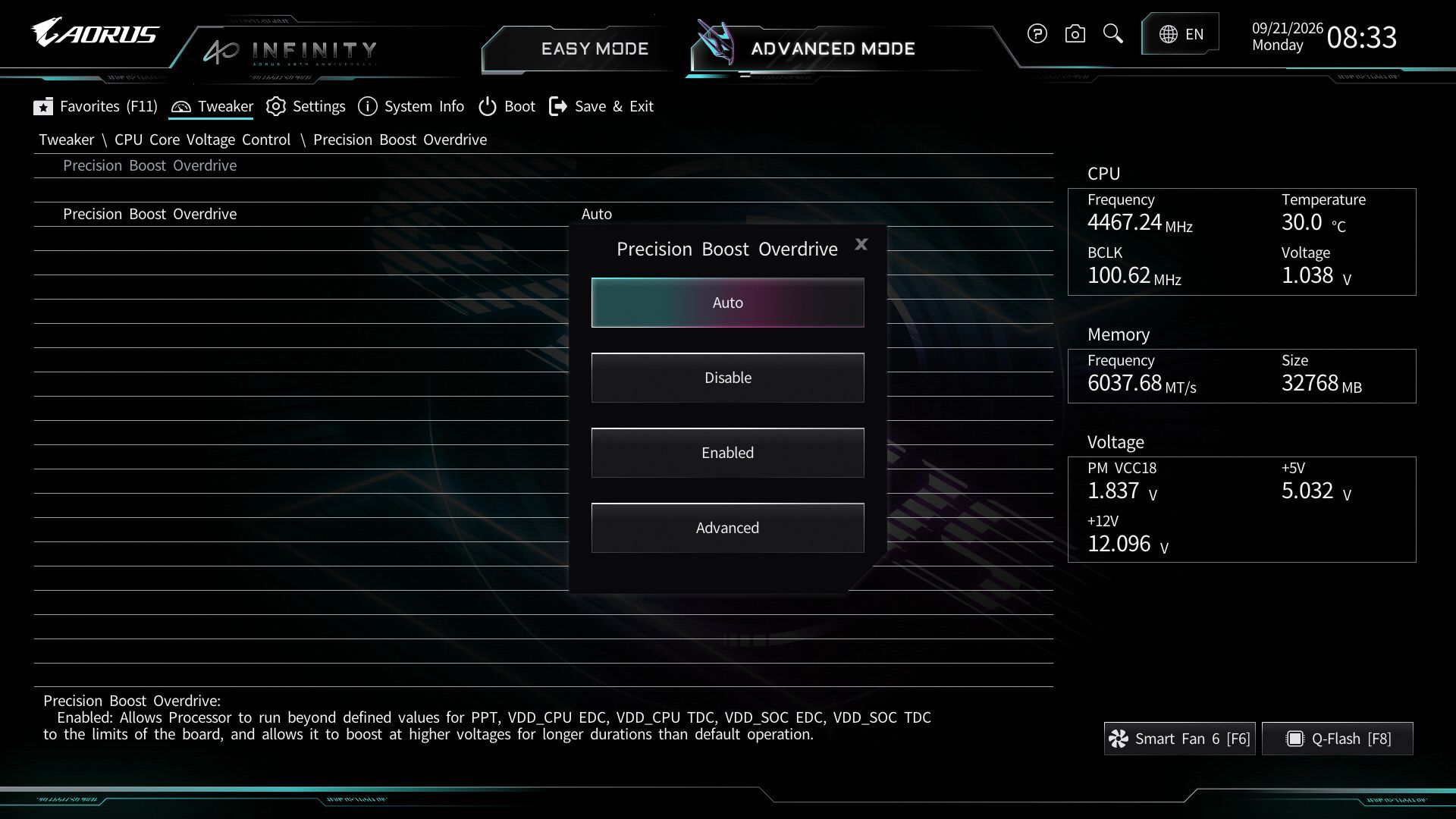
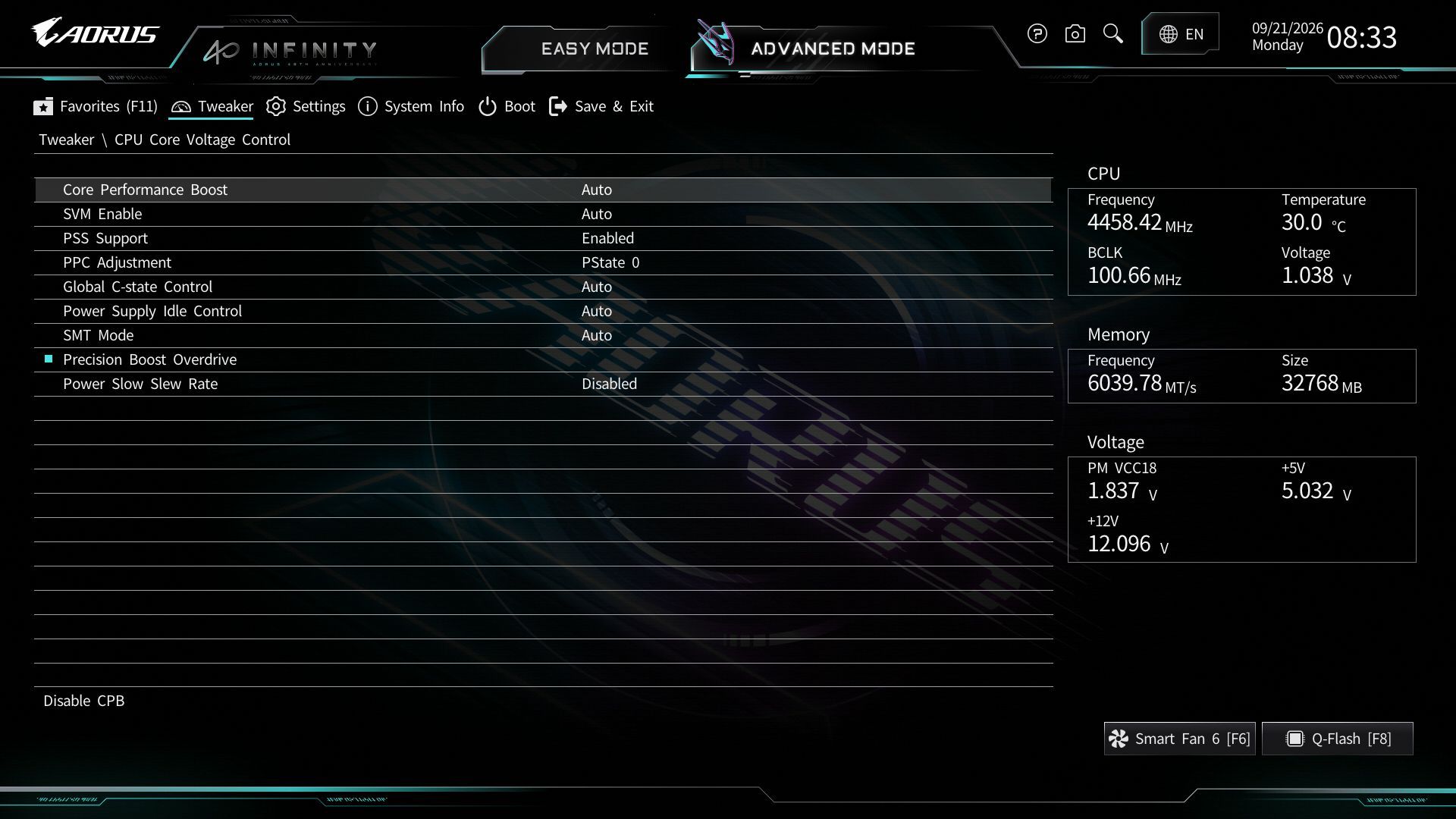
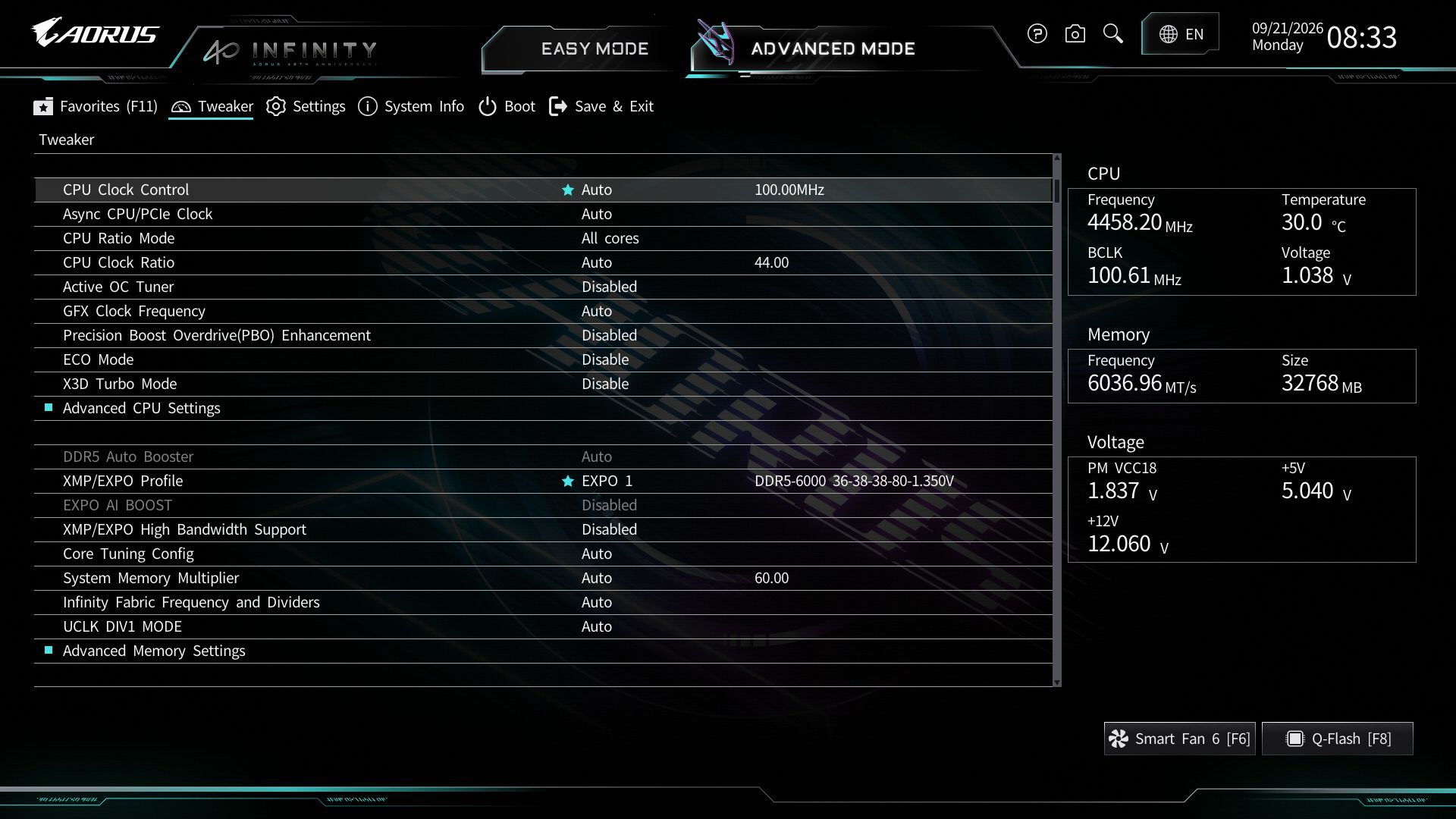
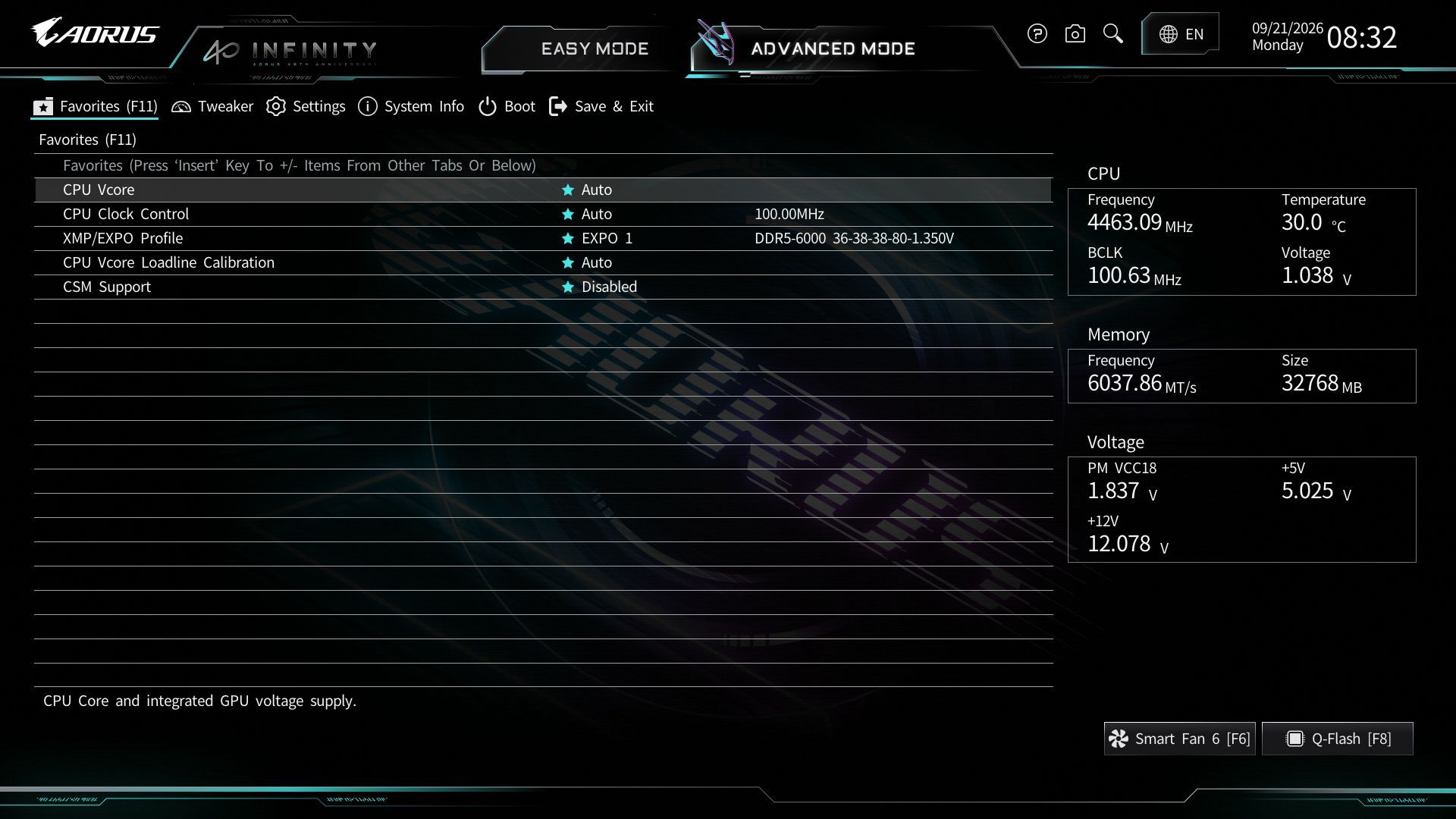
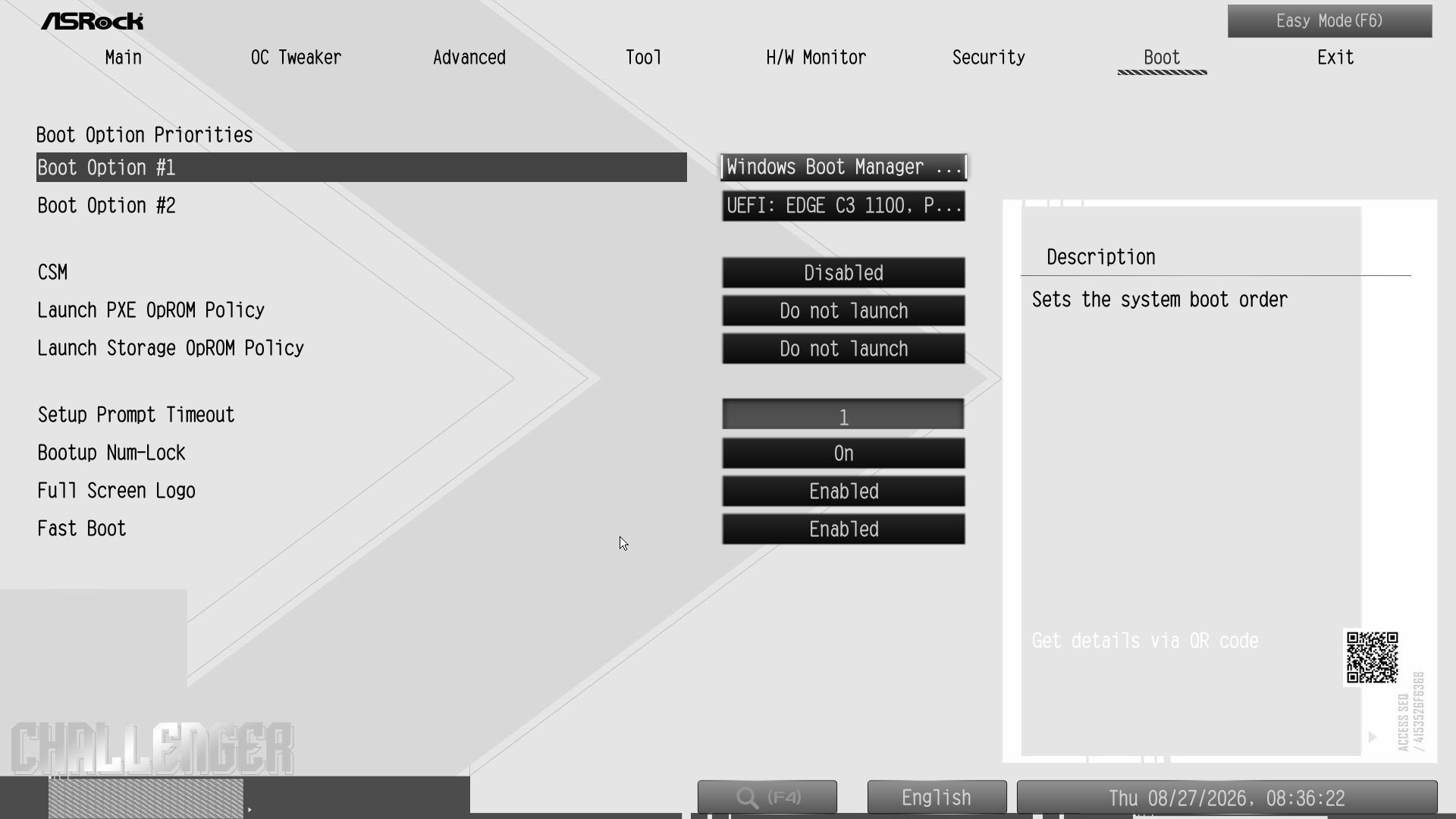
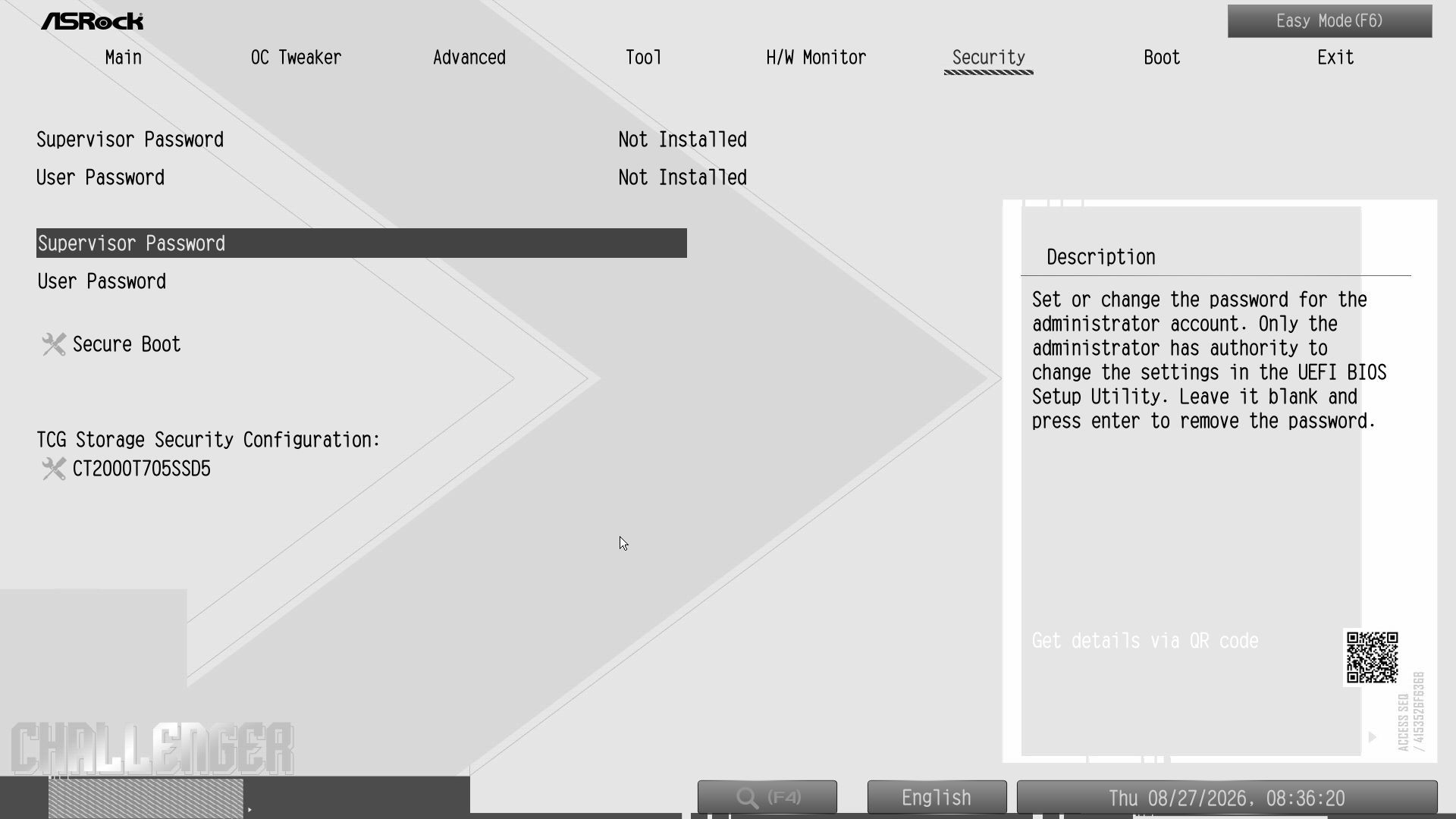
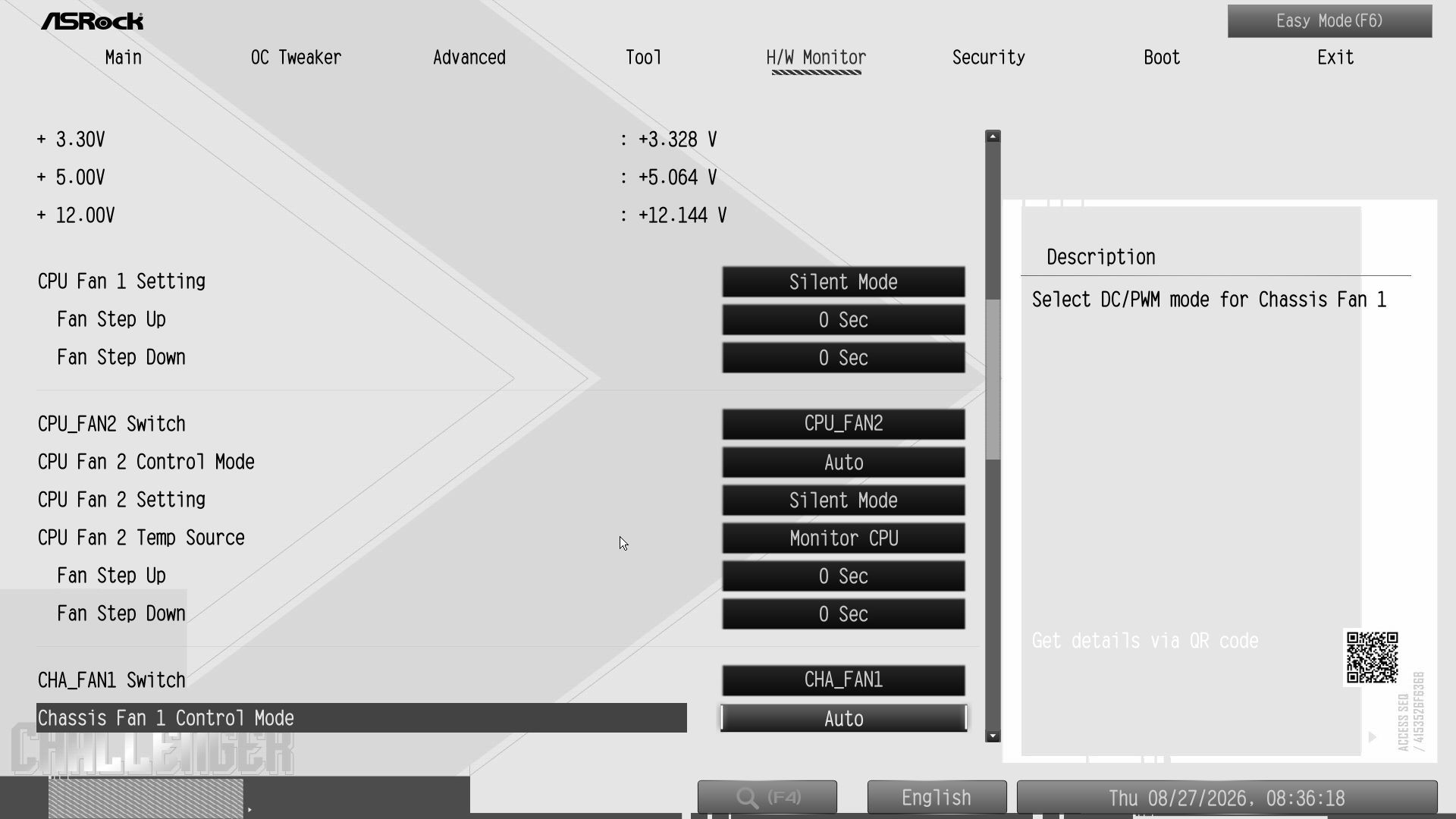
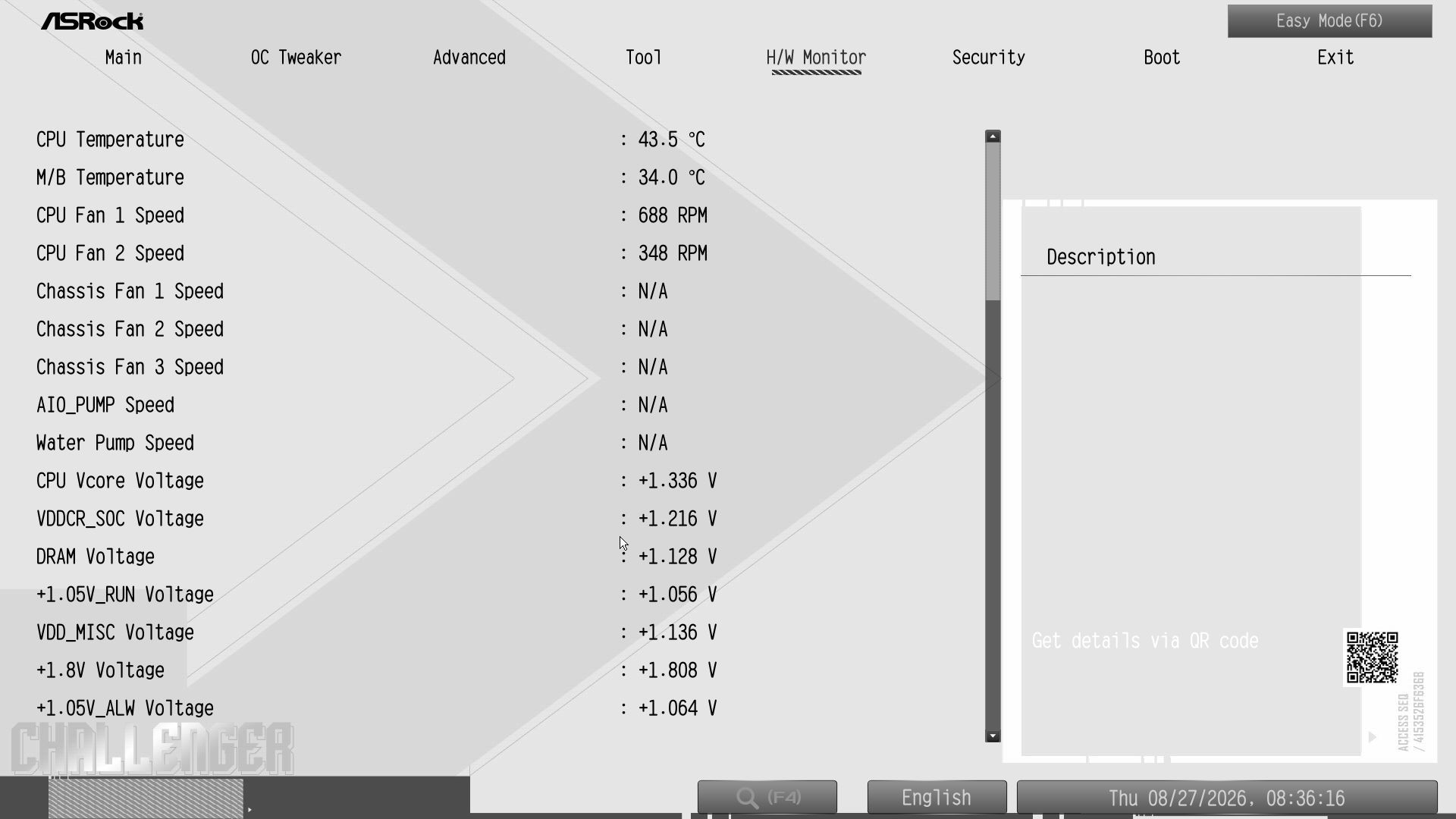
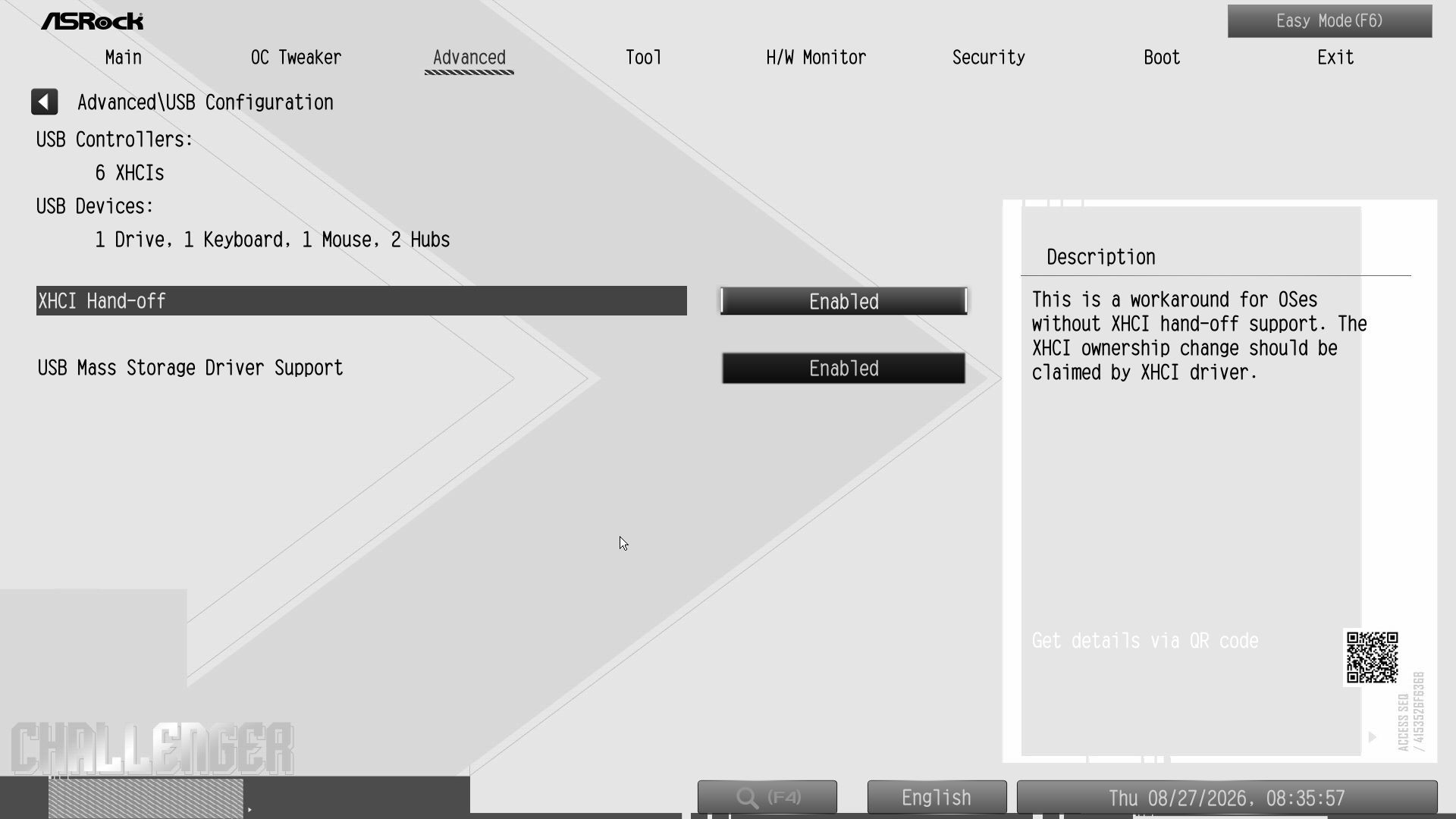
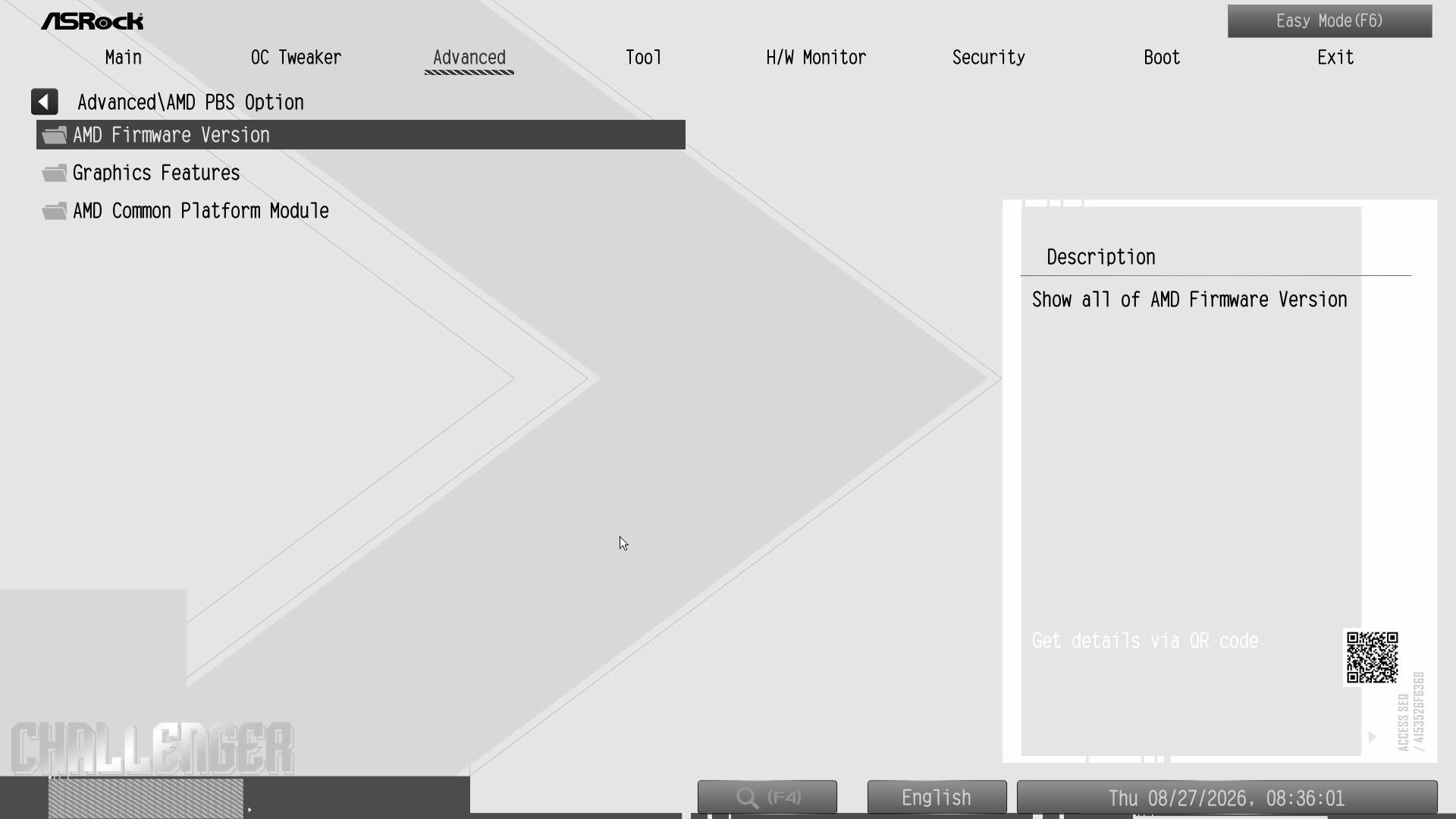
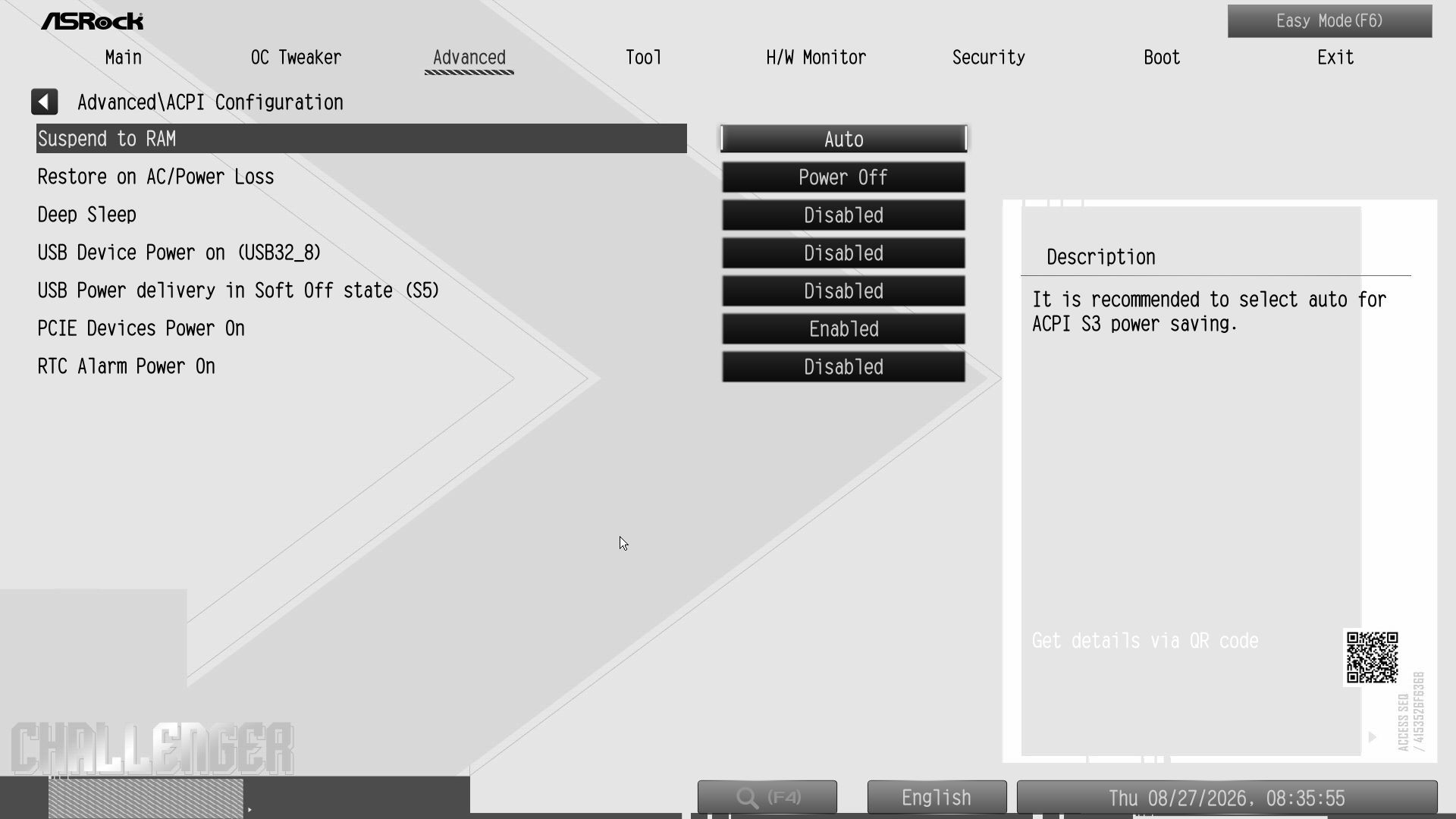
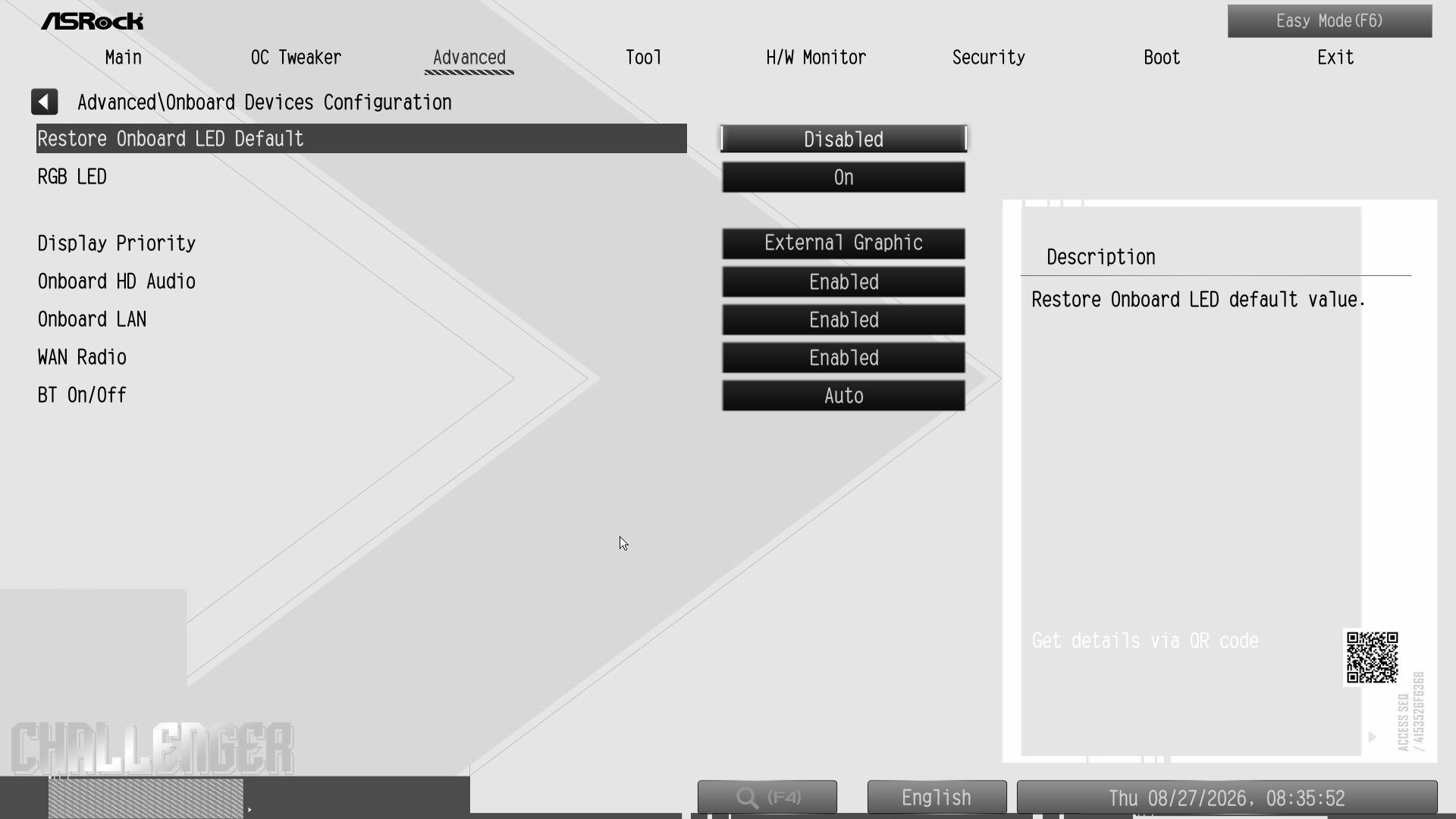
Gigabyte’s updated “UC BIOS 2.0” defaults to Easy Mode. It’s logically laid out and displays a wealth of system information, including processor, RAM, fan speeds, and several selectable options such as XMP profiles, RAM tweaks, Re-Size BAR support, Smart Fan 6 access, and more. The Aorus Elite WiFi7 Ice uses a white background with the ‘Aorus orange’ accents and black text, creating a high-contrast, easy-to-read screen similar to the Aorus Infinity, but with a white background instead of Aorus branding. The BIOS also offers different themes in EZ mode via a dropdown if you want to change it.

All headings still appear across the top in advanced mode, but they are now larger ‘buttons’ and easy to select with a mouse. The highlight bar (where you are on the page) is a light blue here and easy to see. Every option you need and want is at your fingertips, and you don’t have to drill down several layers to reach the most commonly used functions – especially if you populate your selections in the Favorites section.
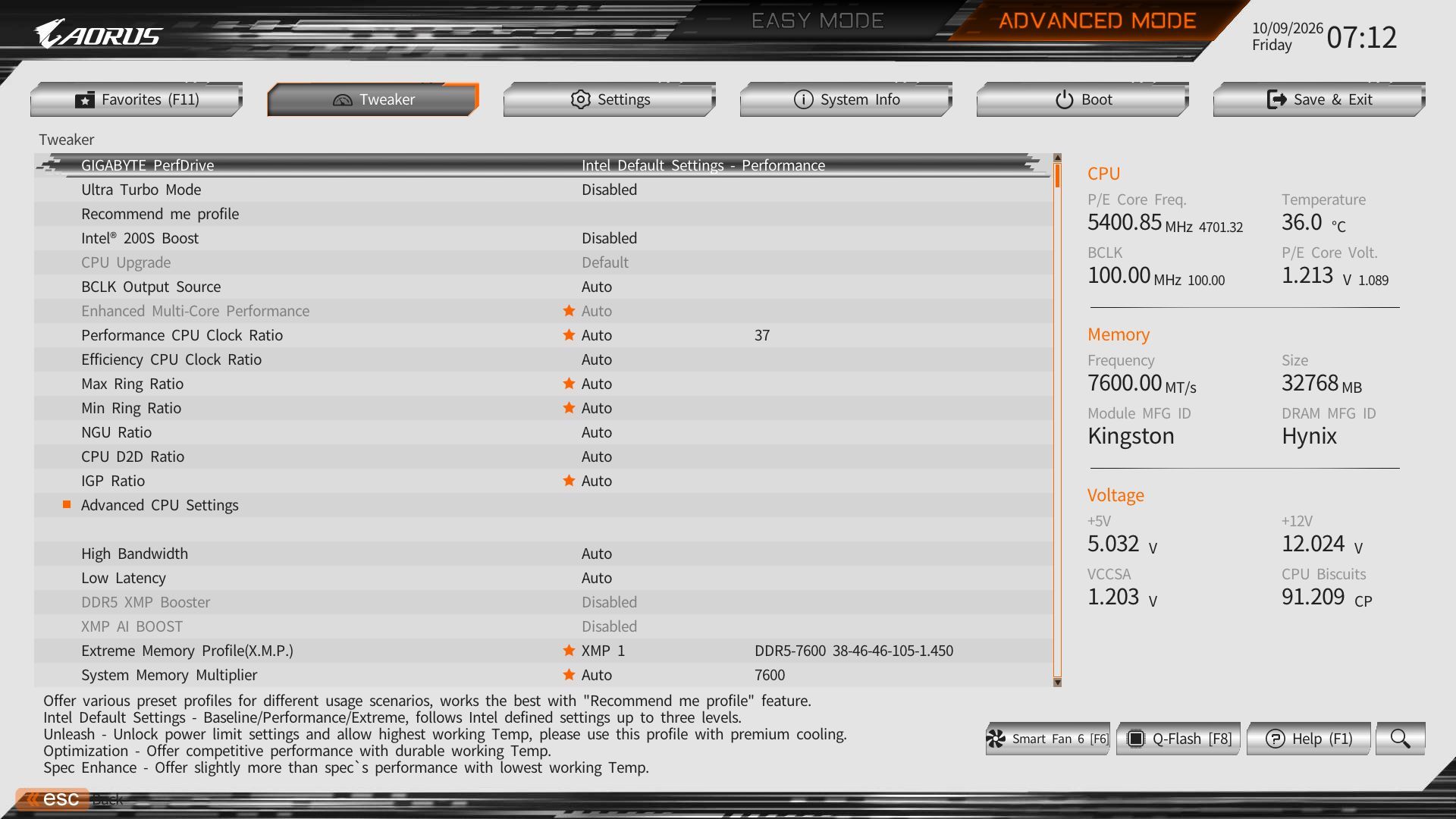
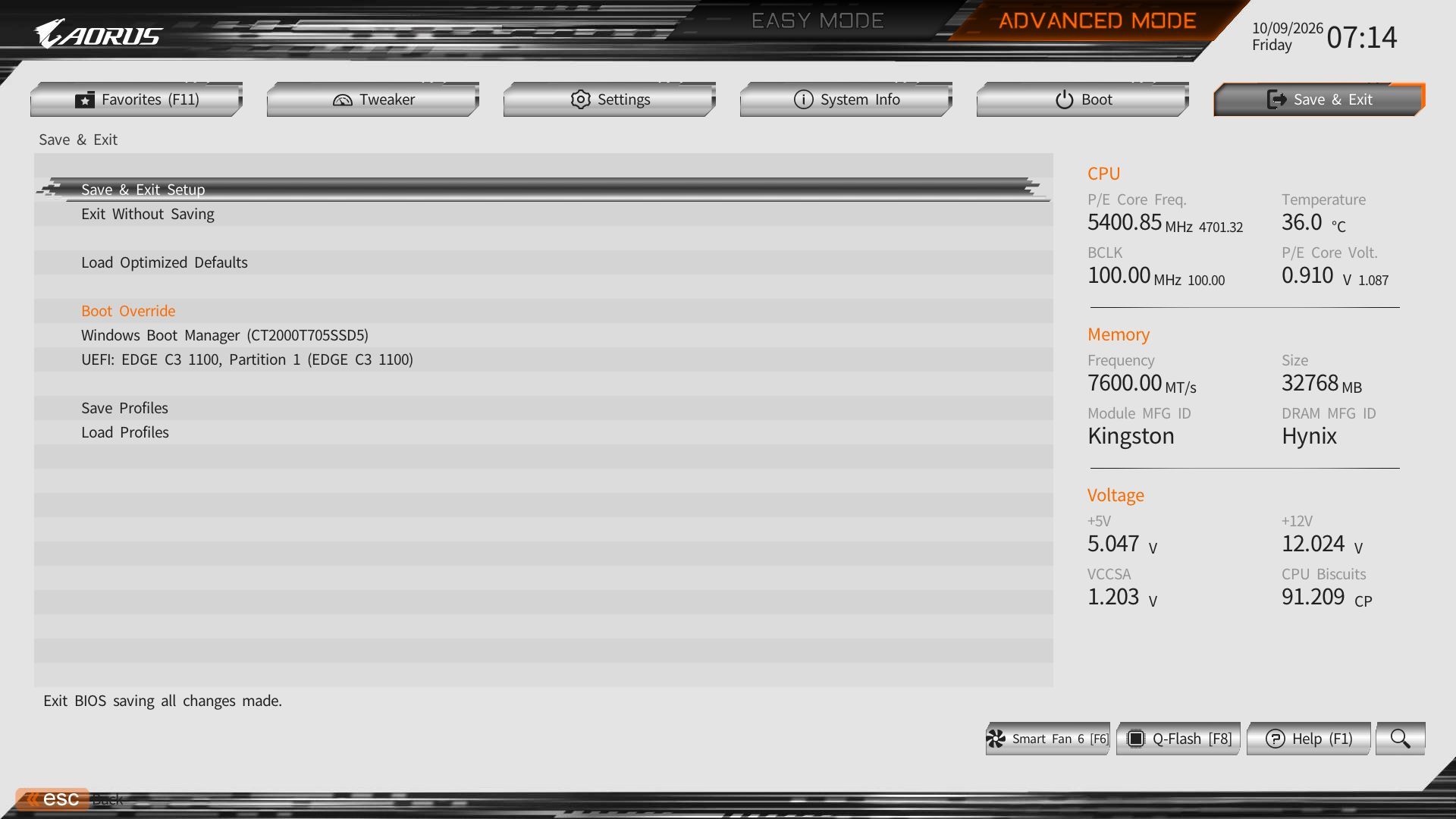
Gigabyte Z890M Aorus Elite Wifi7 Ice - BIOS
Future
Gigabyte Z890M Aorus Elite Wifi7 Ice - BIOS
Future
Gigabyte Z890M Aorus Elite Wifi7 Ice - BIOS
Future
Gigabyte Z890M Aorus Elite Wifi7 Ice - BIOS
Future
Gigabyte Z890M Aorus Elite Wifi7 Ice - BIOS
Future
Gigabyte Z890M Aorus Elite Wifi7 Ice - BIOS
Future
Gigabyte Z890M Aorus Elite Wifi7 Ice - BIOS
Future
Gigabyte Z890M Aorus Elite Wifi7 Ice - BIOS
Future
Gigabyte Z890M Aorus Elite Wifi7 Ice - BIOS
Future
Gigabyte Z890M Aorus Elite Wifi7 Ice - BIOS
Future
Gigabyte Z890M Aorus Elite Wifi7 Ice - BIOS
Future
Gigabyte Z890M Aorus Elite Wifi7 Ice - BIOS
Future
Gigabyte Z890M Aorus Elite Wifi7 Ice - BIOS
Future
Gigabyte Z890M Aorus Elite Wifi7 Ice - BIOS
Future
Gigabyte Z890M Aorus Elite Wifi7 Ice - BIOS
Future
Gigabyte Z890M Aorus Elite Wifi7 Ice - BIOS
Future
Gigabyte Z890M Aorus Elite Wifi7 Ice - BIOS
Future
Gigabyte Z890M Aorus Elite Wifi7 Ice - BIOS
Future

Software

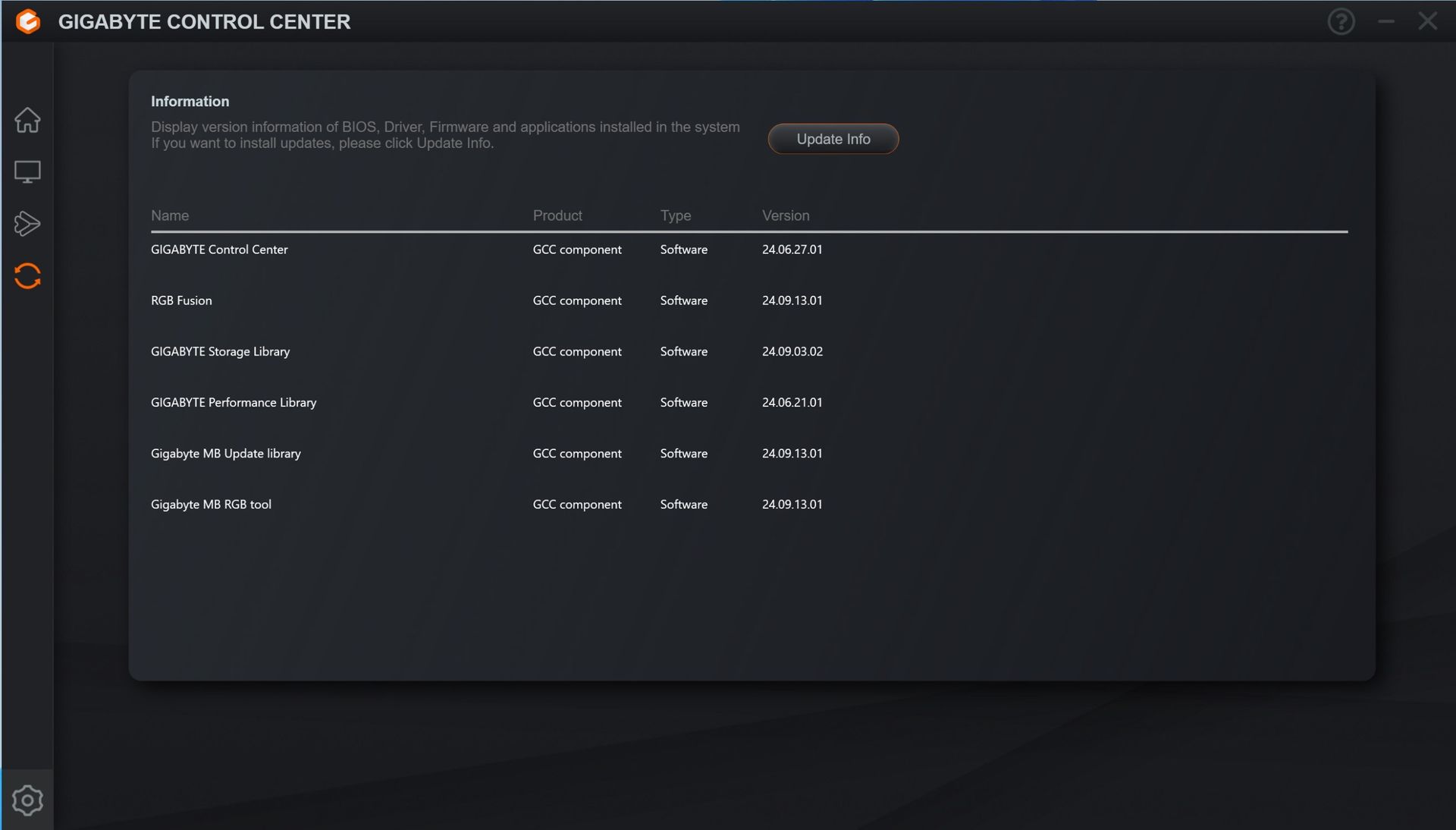
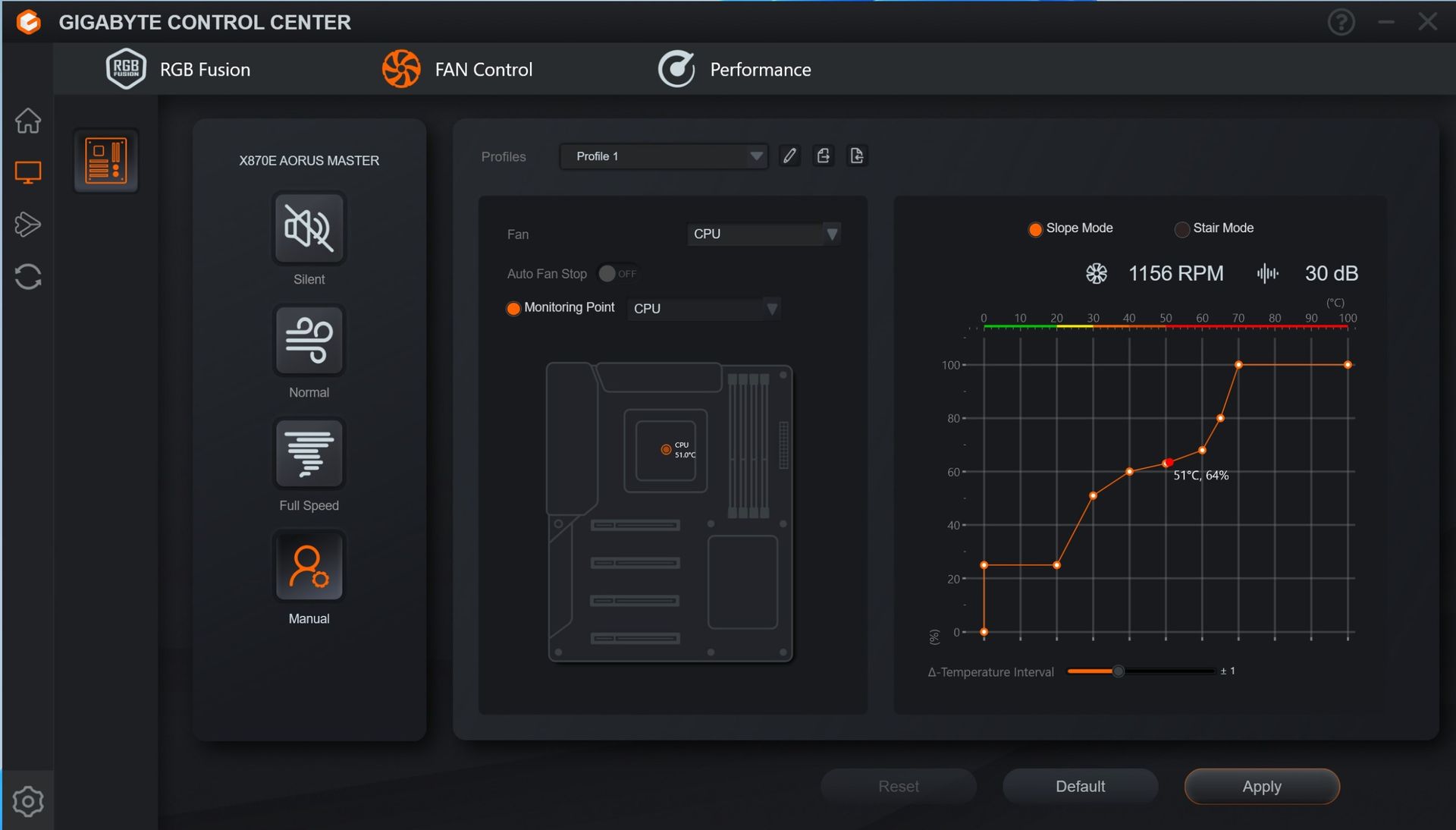
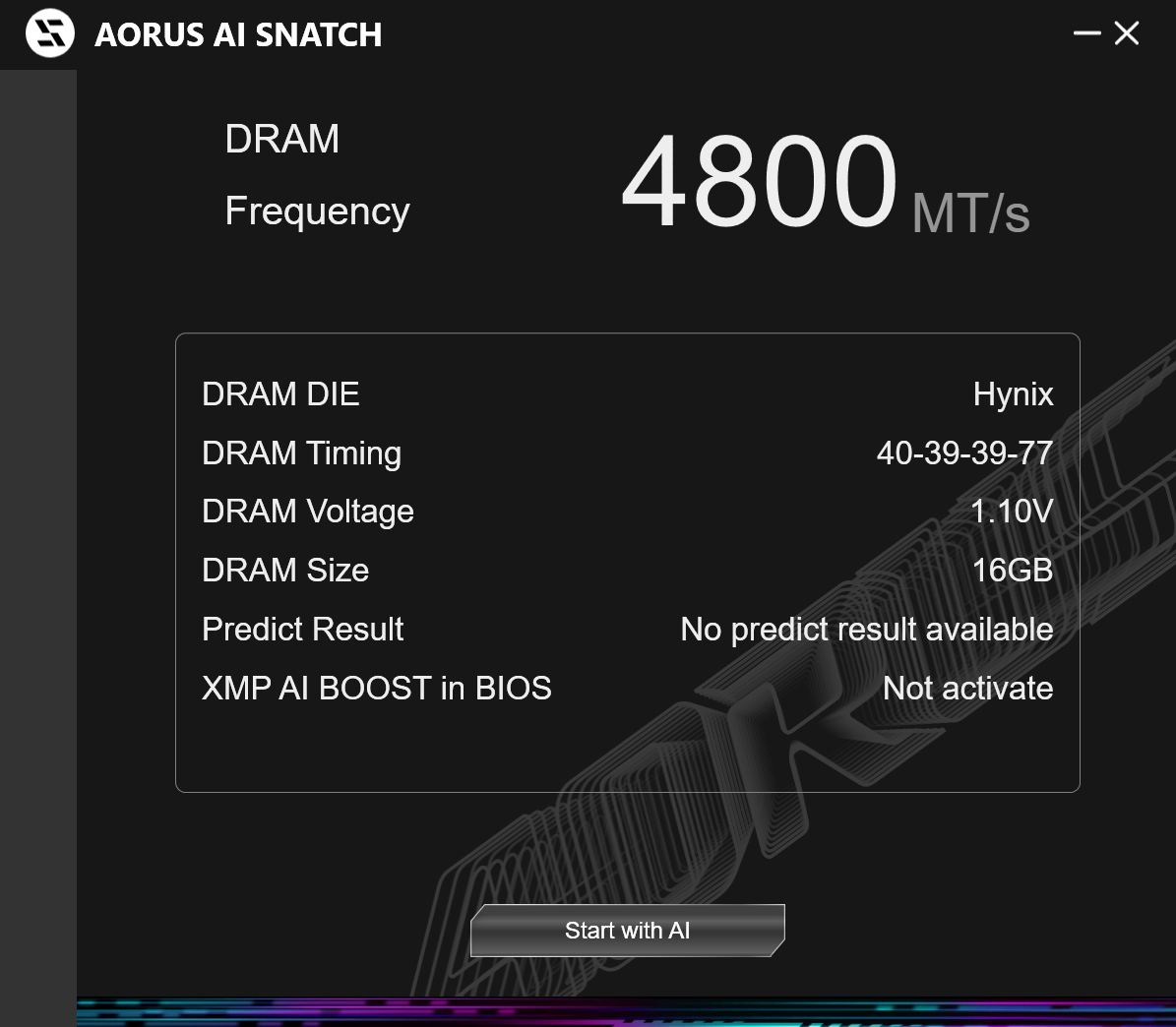
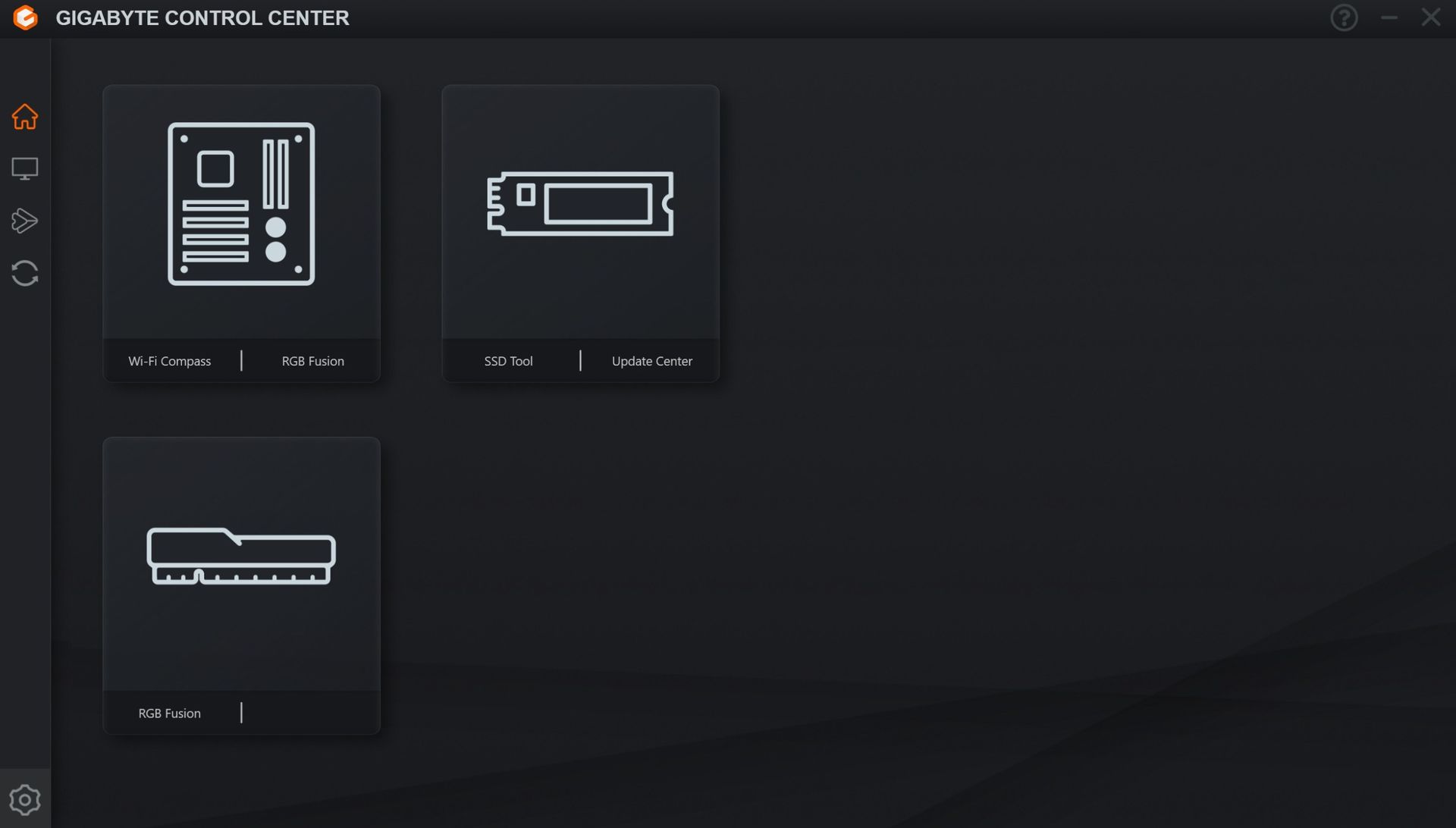
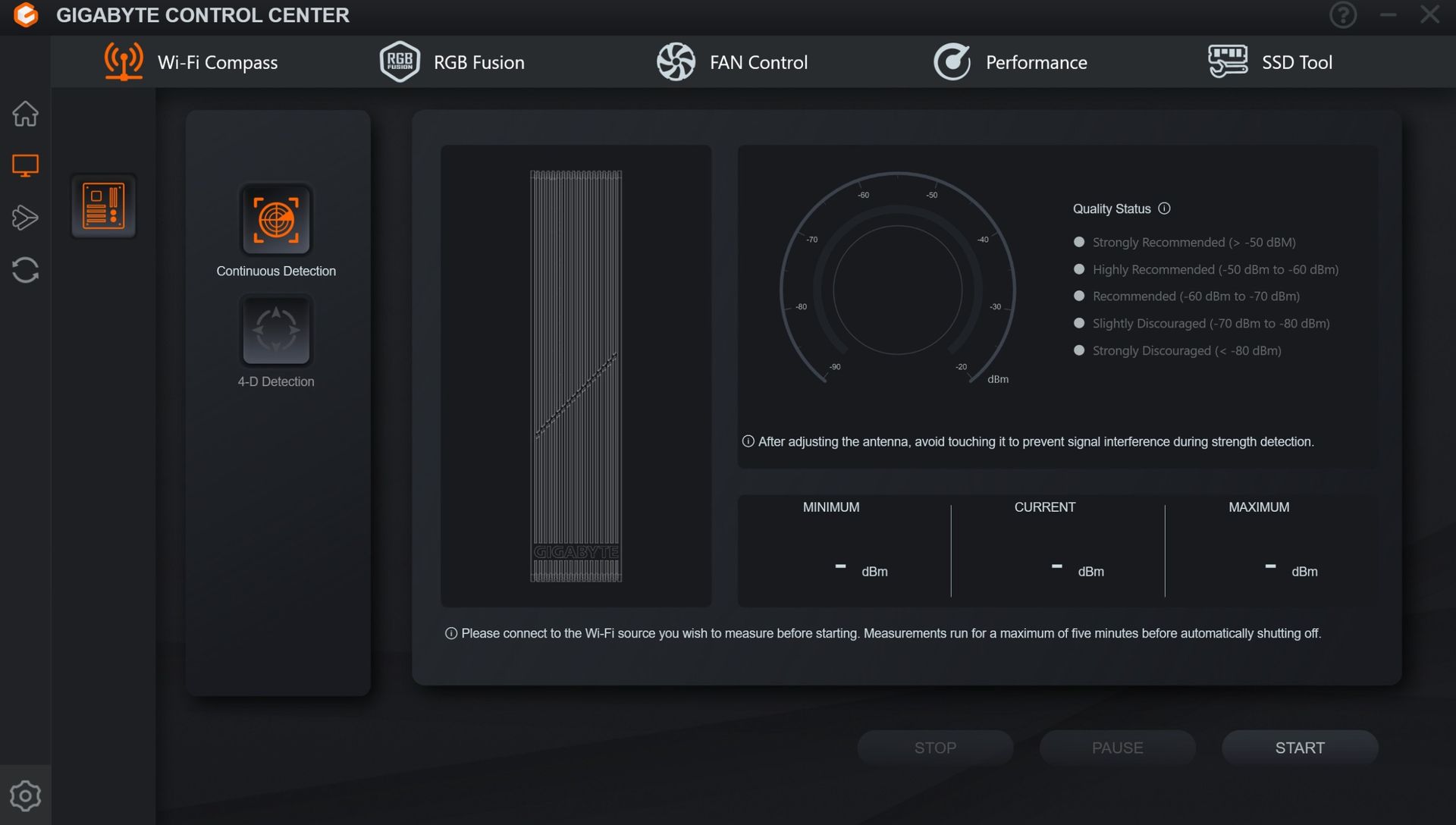
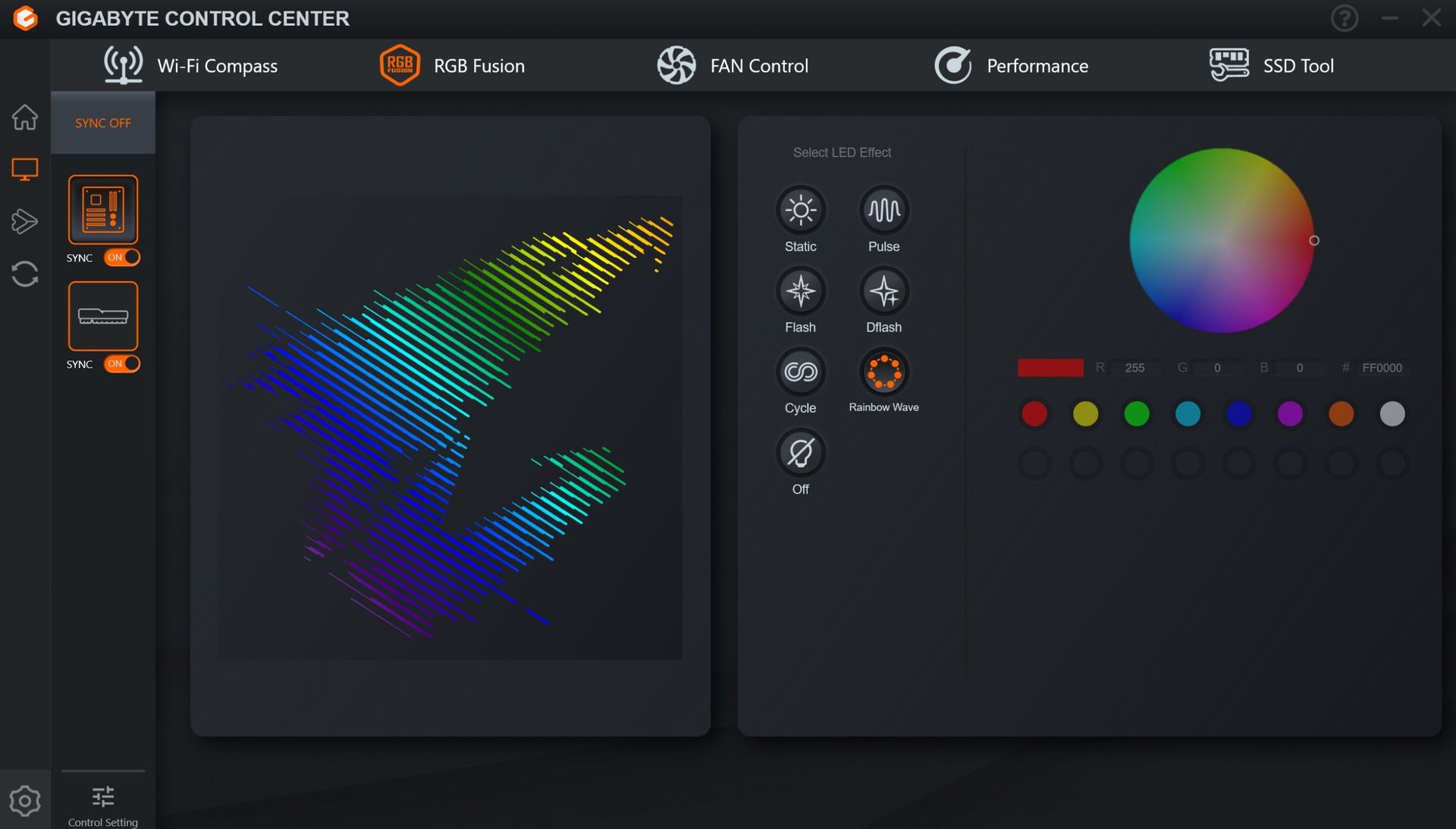
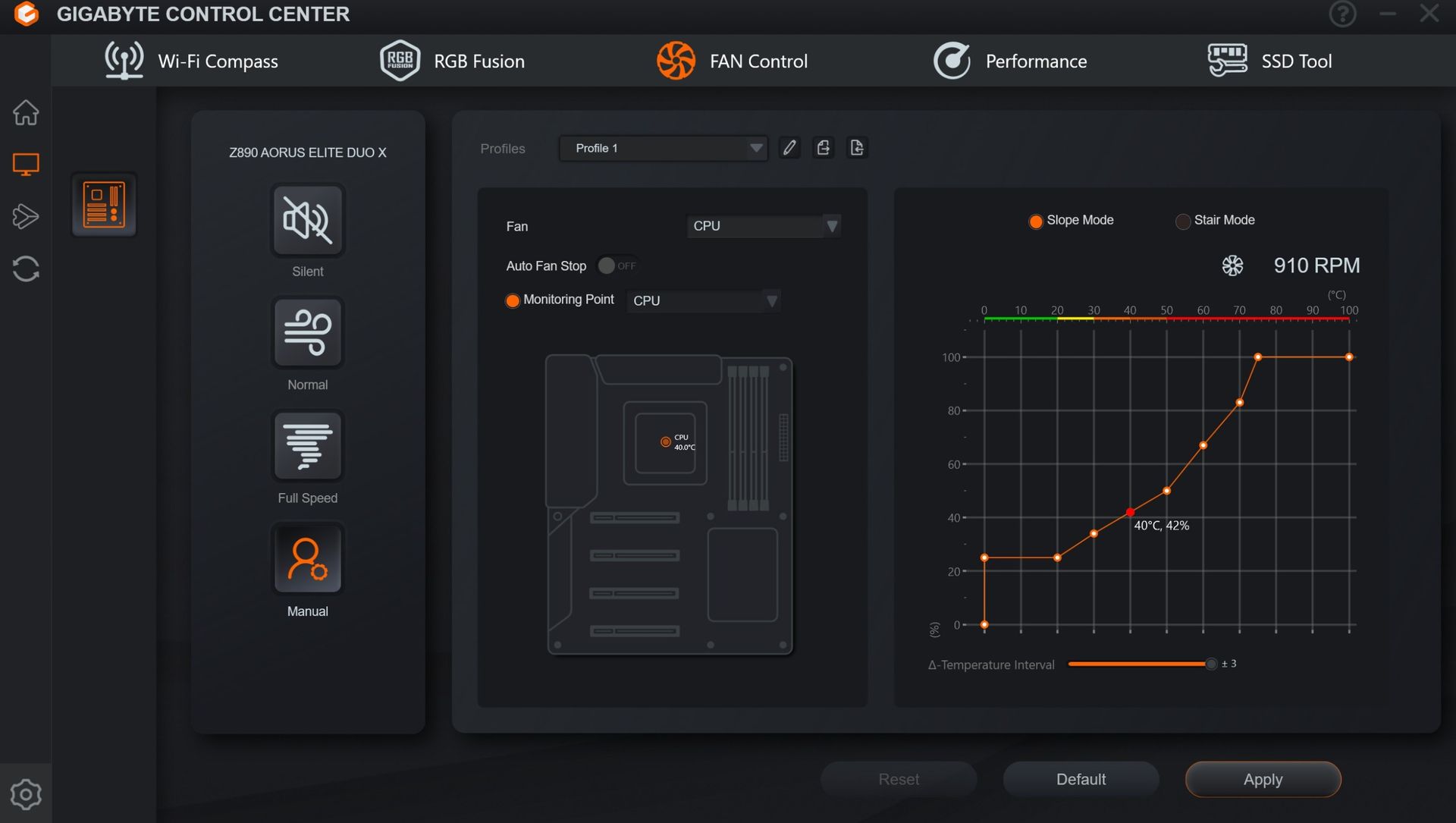
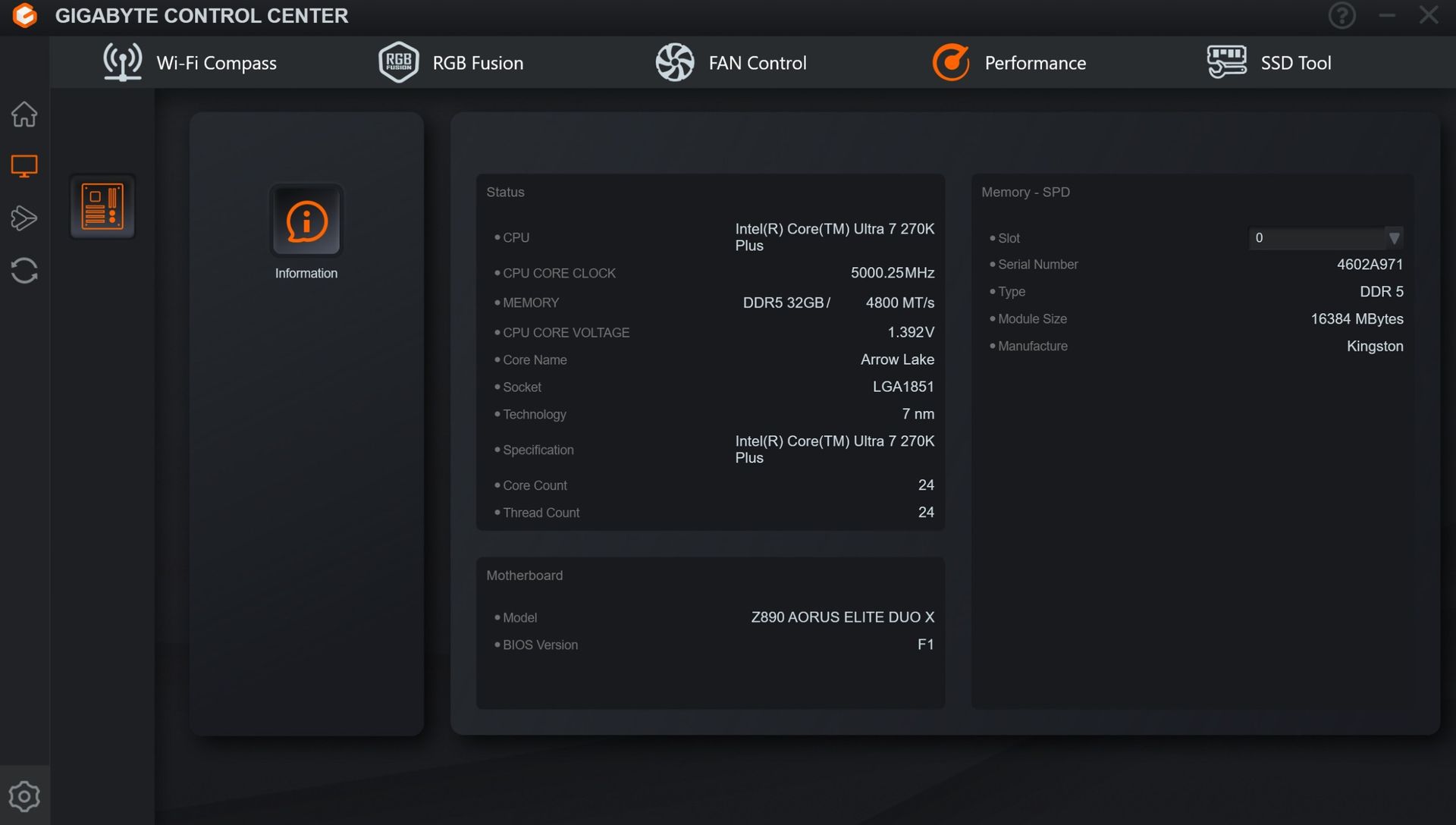
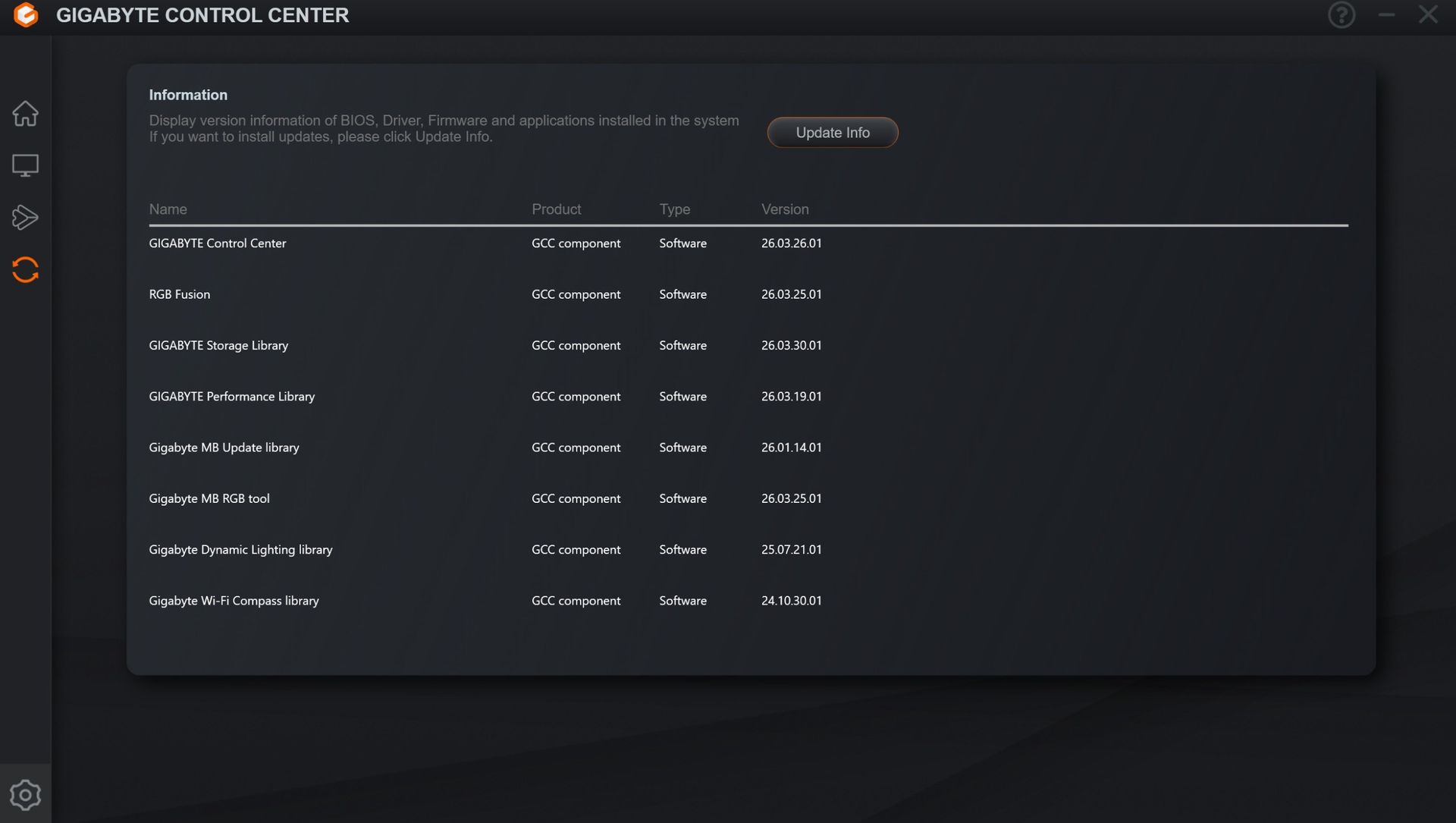
Gigabyte Control Center (GCC) is a one-stop solution for controlling various functions, including RGB and Fan control, hardware monitoring, and overclocking. It also helps you find, download, and install driver updates for your system. It’s a simple application that does its job. It’s also a much cleaner tool than the previous App Center. It earns our approval for the breadth of functionality it offers users. There’s also the curiously named AI Snatch to help with overclocking.

Gigabyte Z890M Aorus Elite Wifi7 Ice - Software
Future
Gigabyte Z890M Aorus Elite Wifi7 Ice - Software
Future
Gigabyte Z890M Aorus Elite Wifi7 Ice - Software
Future
Gigabyte Z890M Aorus Elite Wifi7 Ice - Software
Future
Gigabyte Z890M Aorus Elite Wifi7 Ice - Software
Future
Gigabyte Z890M Aorus Elite Wifi7 Ice - Software
Future
Gigabyte Z890M Aorus Elite Wifi7 Ice - Software
Future

Test System / Comparison Products

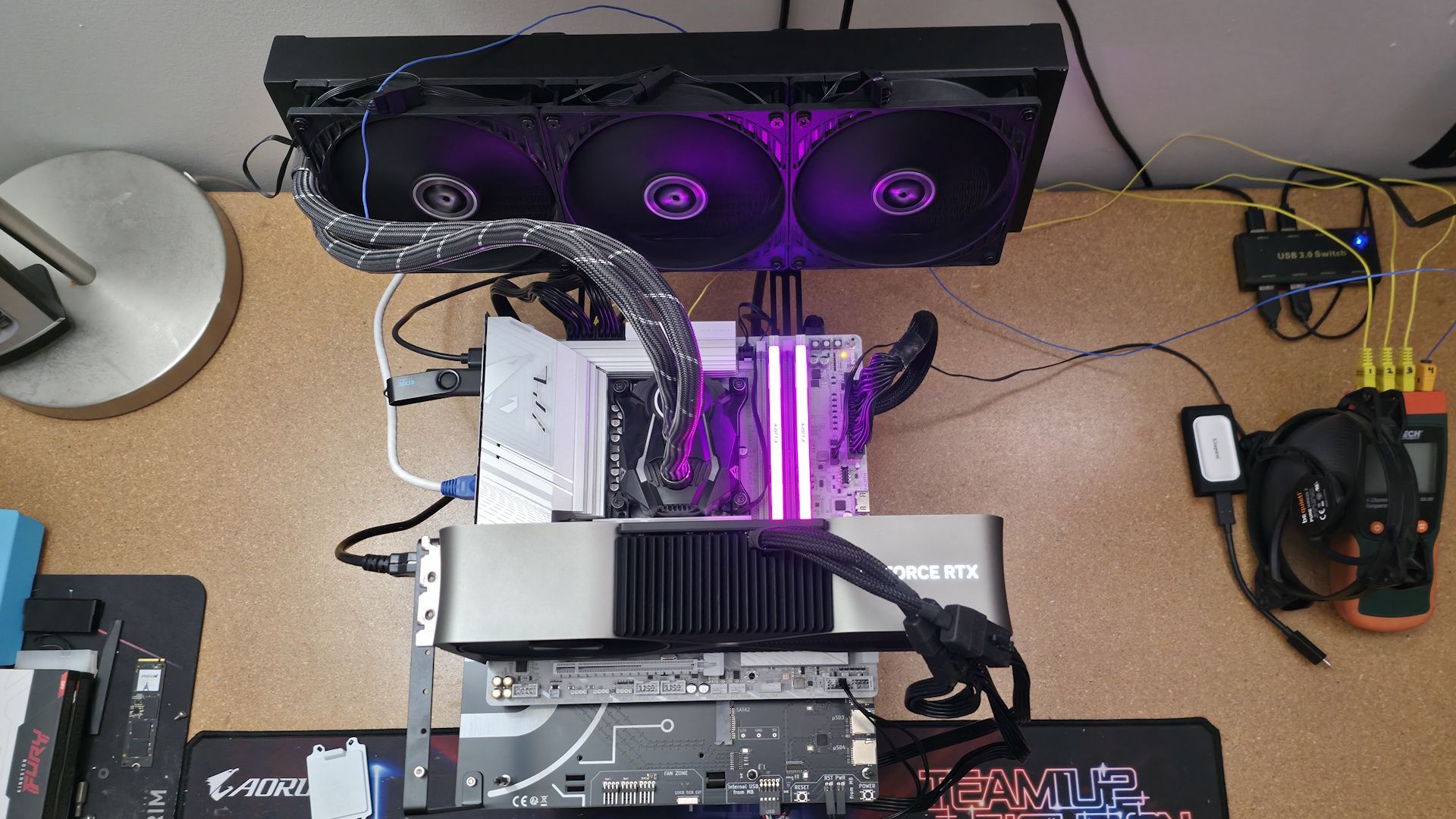
We’ve updated our test system to Windows 11 (25H2) 64-bit OS with all updates applied as of late April 2026. On the hardware front, we’ve updated the RAM kits to ones appropriate for the platform. Peripherals, including cooling, storage, power supply, and graphics cards, remain unchanged. We also use the latest publicly available BIOS unless otherwise noted. The hardware we used is as follows:

TEST SYSTEM COMPONENTS:

Gigabyte Z890M Aorus Elite Wifi7 Ice - test bed

(Image credit: Future)

Sound

Integrated HD audio

Network

Integrated Networking (GbE to 10 GbE)

Graphics Driver

GeForce 595.97

Benchmark Settings

Synthetic Benchmarks and Settings

Procyon

Version 2.8.1352 64

Office 365

Pugetbench

v1.4.20
Adobe Suite - Photoshop (v27.5), Premiere (v26.2), AfterEffects (v26.2), Media Encoder (v26.2), Lightroom Classic (v15.3)

3DMark

Version 2.29.8294.0 64

Speed Way and Steel Nomad (Default)

Cinebench R26

Version 2026.1.0
Open GL Rendering Benchmark - Single and Multi-threaded

Blender

Version 5.0.0
Full benchmark (all 3 tests)

Application Tests and Settings

LAME MP3

Version SSE2_2019

Mixed 271MB WAV to mp3: Command: -b 160 --nores (160Kb/s)

HandBrake CLI

Version: 1.11.0

Sintel Open Movie Project: 4.19GB 4K mkv to x264 (light AVX) and x265 (heavy AVX)

Corona 10

Version 10

Default benchmark

7-Zip

Version 26.00

Integrated benchmark (Command Line)

Game Tests and Settings

Cyberpunk 2077

Ultra RT: - 1920 x 1080, DLSS - Balanced.

F1 2025

Ultra High Preset - 1920 x 1080, 16xAF/TAA, Texas (Clear/Dry), FPS Counter ON

MORE: Best Motherboards

MORE: How To Choose A Motherboard

MORE: Best Motherboard Deals

MORE: Best Motherboard Combo Deals

MORE: All Motherboard Content

Benchmark Results

Our standard benchmarks and power tests are performed using the CPU’s stock frequencies (including any default boost/turbo) with all power-saving features at default. We set optimized defaults in the BIOS, then enable the XMP profile to set the memory. If the BIOS enables boosts by default, it runs like that. We set the Windows power scheme to Balanced (default) for this baseline testing, so the PC idles appropriately.

Synthetic Benchmarks and Real World Applications

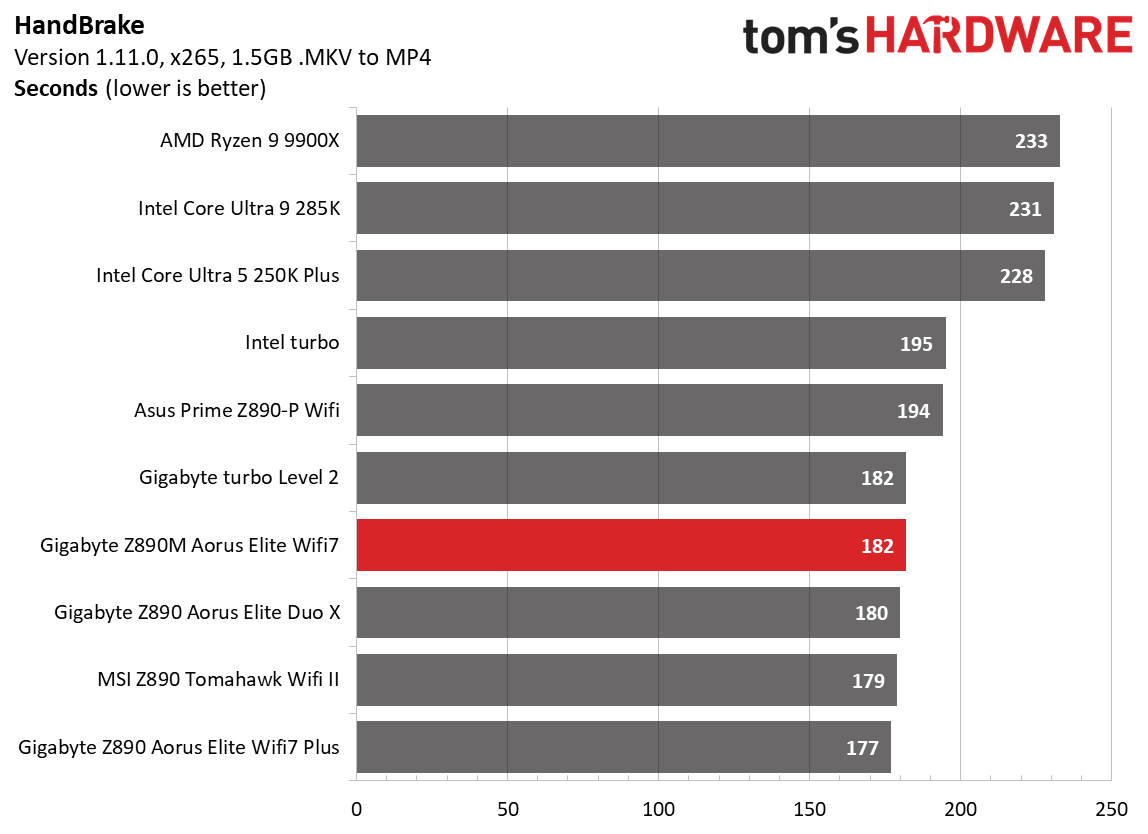
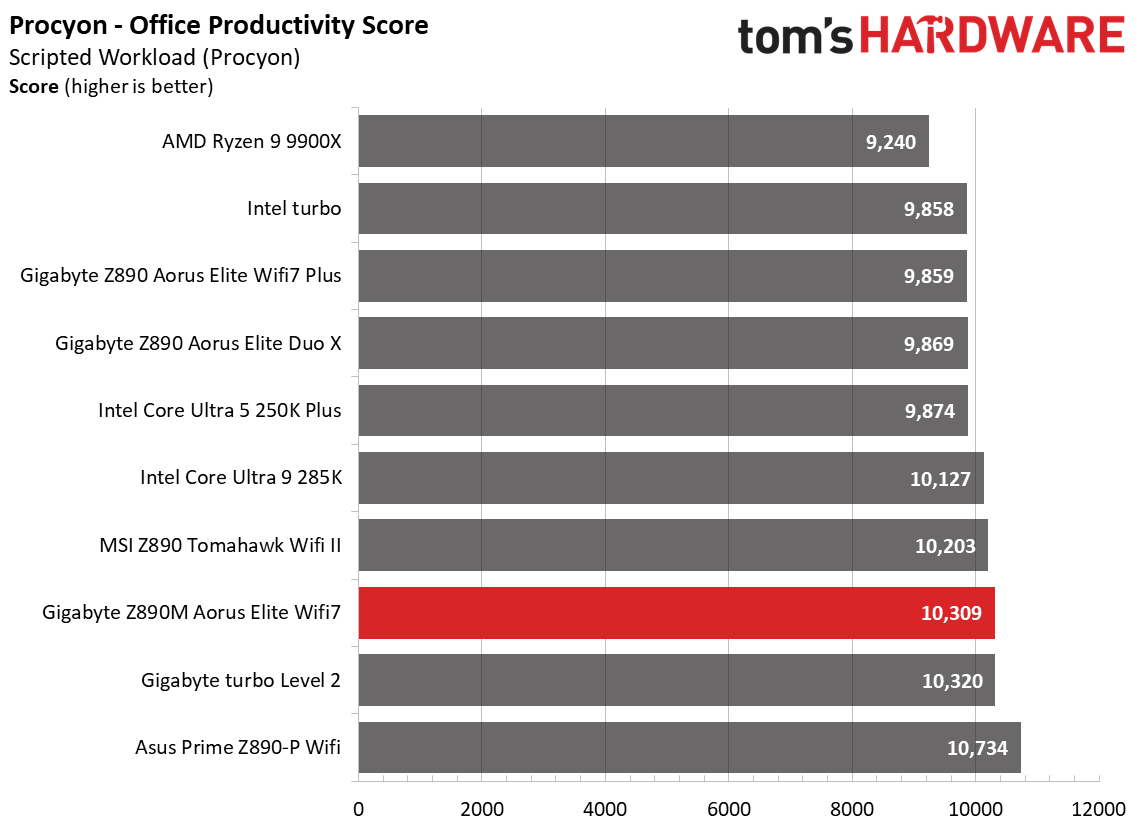
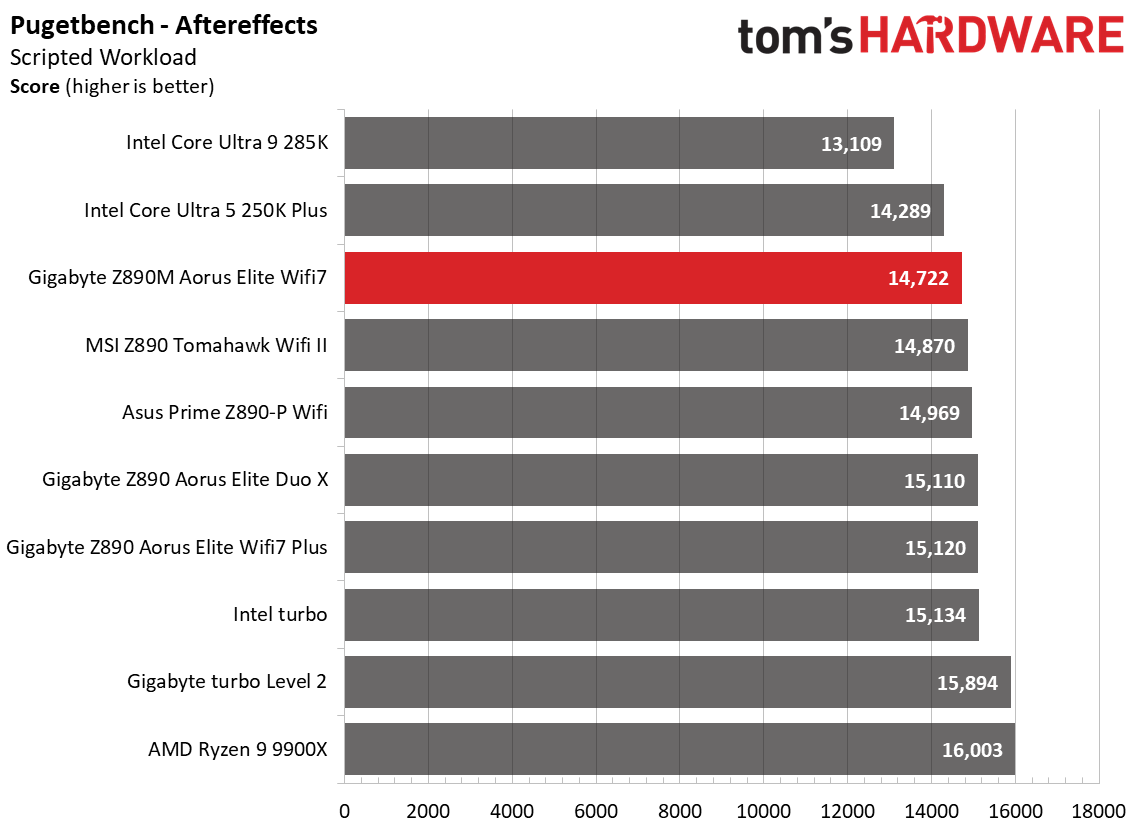
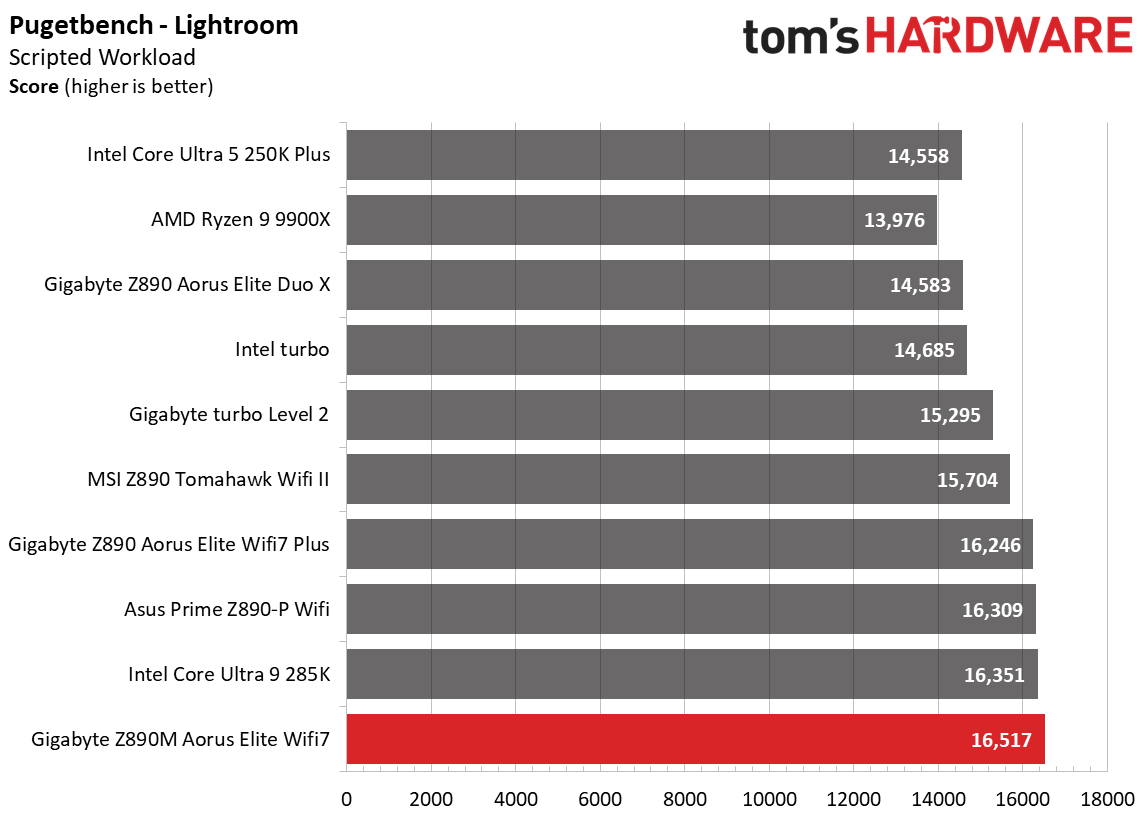
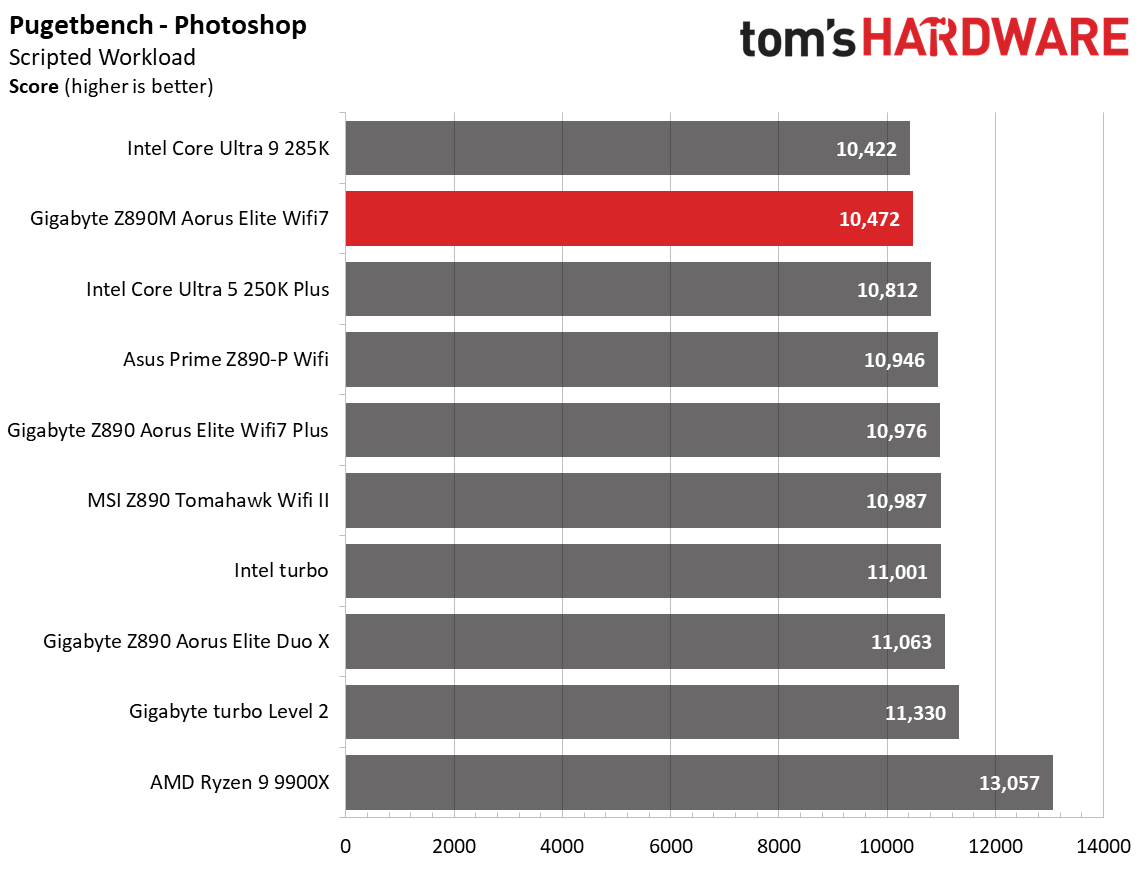
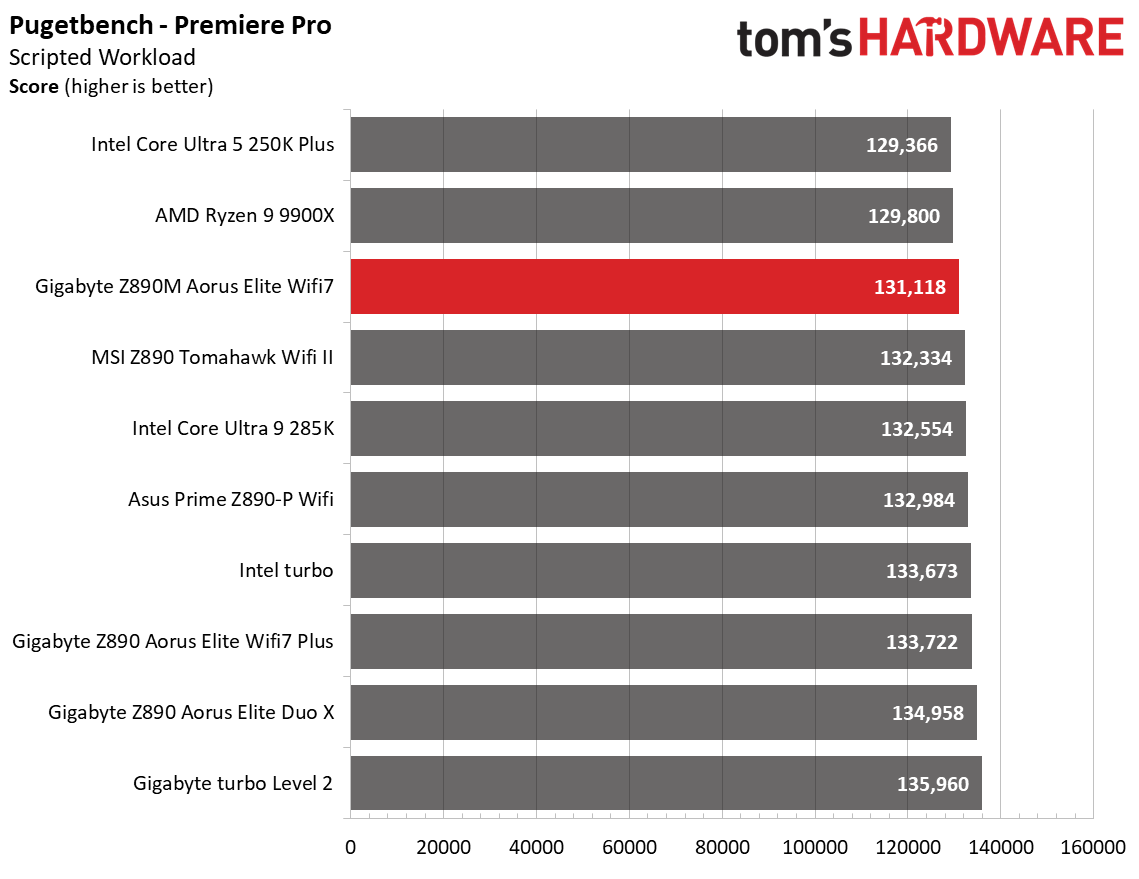
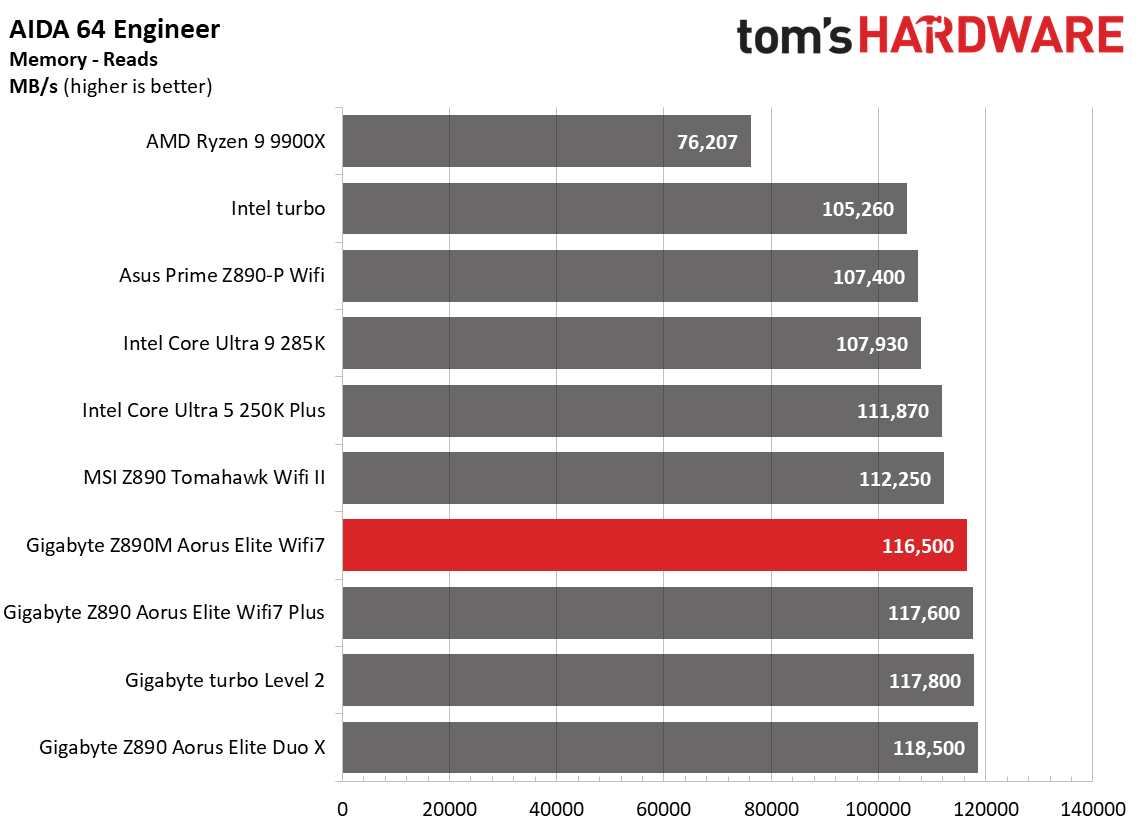
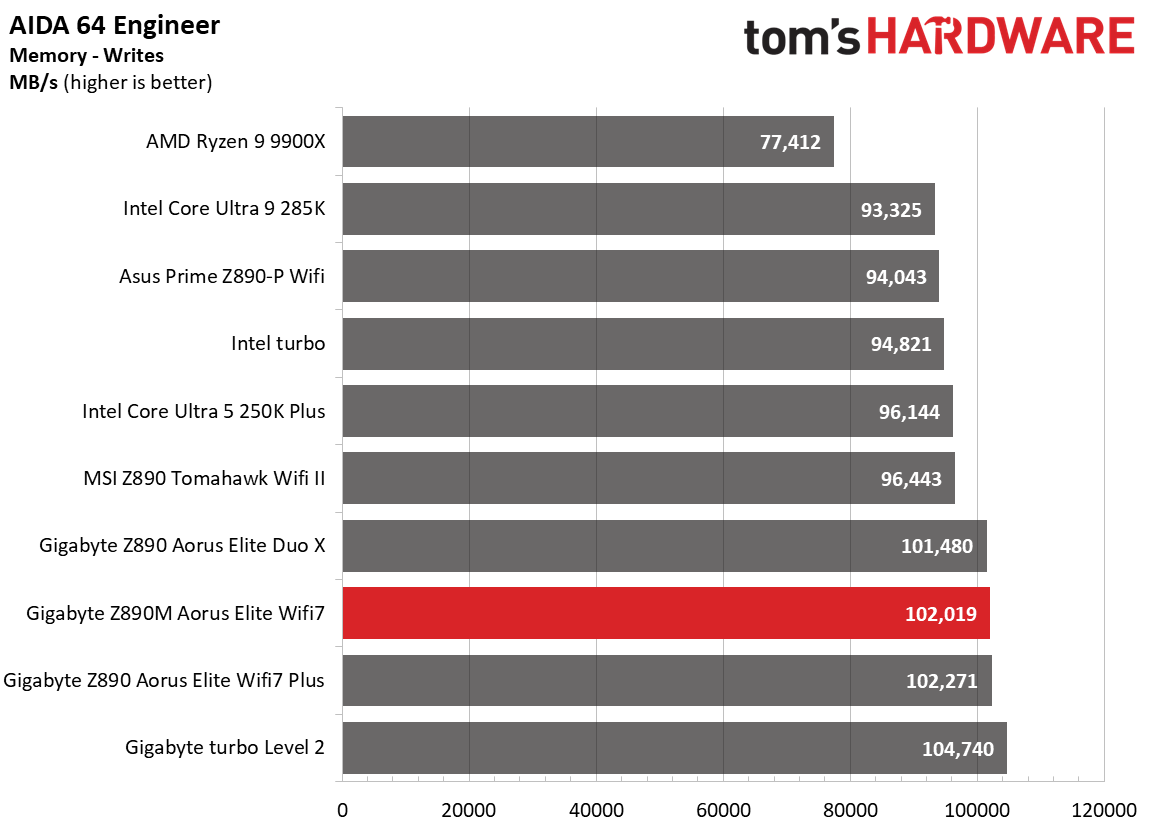
Synthetics offer a valuable way to evaluate a board's performance, since identical settings should yield similar results. Turbo boost wattage and advanced memory timings are areas where motherboard manufacturers can still optimize for stability or performance, though, and these settings can impact specific testing scenarios. We’ve also combined our previous ‘timed’ benchmark applications into this section..

Gigabyte Z890M Aorus Elite Wifi7 Ice - Benchmarks
Future
Gigabyte Z890M Aorus Elite Wifi7 Ice - Benchmarks
Future
Gigabyte Z890M Aorus Elite Wifi7 Ice - Benchmarks
Future
Gigabyte Z890M Aorus Elite Wifi7 Ice - Benchmarks
Future
Gigabyte Z890M Aorus Elite Wifi7 Ice - Benchmarks
Future
Gigabyte Z890M Aorus Elite Wifi7 Ice - Benchmarks
Future
Gigabyte Z890M Aorus Elite Wifi7 Ice - Benchmarks
Future
Gigabyte Z890M Aorus Elite Wifi7 Ice - Benchmarks
Future
Gigabyte Z890M Aorus Elite Wifi7 Ice - Benchmarks
Future
Gigabyte Z890M Aorus Elite Wifi7 Ice - Benchmarks
Future
Gigabyte Z890M Aorus Elite Wifi7 Ice - Benchmarks
Future
Gigabyte Z890M Aorus Elite Wifi7 Ice - Benchmarks
Future
Gigabyte Z890M Aorus Elite Wifi7 Ice - Benchmarks
Future
Gigabyte Z890M Aorus Elite Wifi7 Ice - Benchmarks
Future
Gigabyte Z890M Aorus Elite Wifi7 Ice - Benchmarks
Future
Gigabyte Z890M Aorus Elite Wifi7 Ice - Benchmarks
Future
Gigabyte Z890M Aorus Elite Wifi7 Ice - Benchmarks
Future
Gigabyte Z890M Aorus Elite Wifi7 Ice - Benchmarks
Future
Gigabyte Z890M Aorus Elite Wifi7 Ice - Benchmarks
Future
Gigabyte Z890M Aorus Elite Wifi7 Ice - Benchmarks
Future

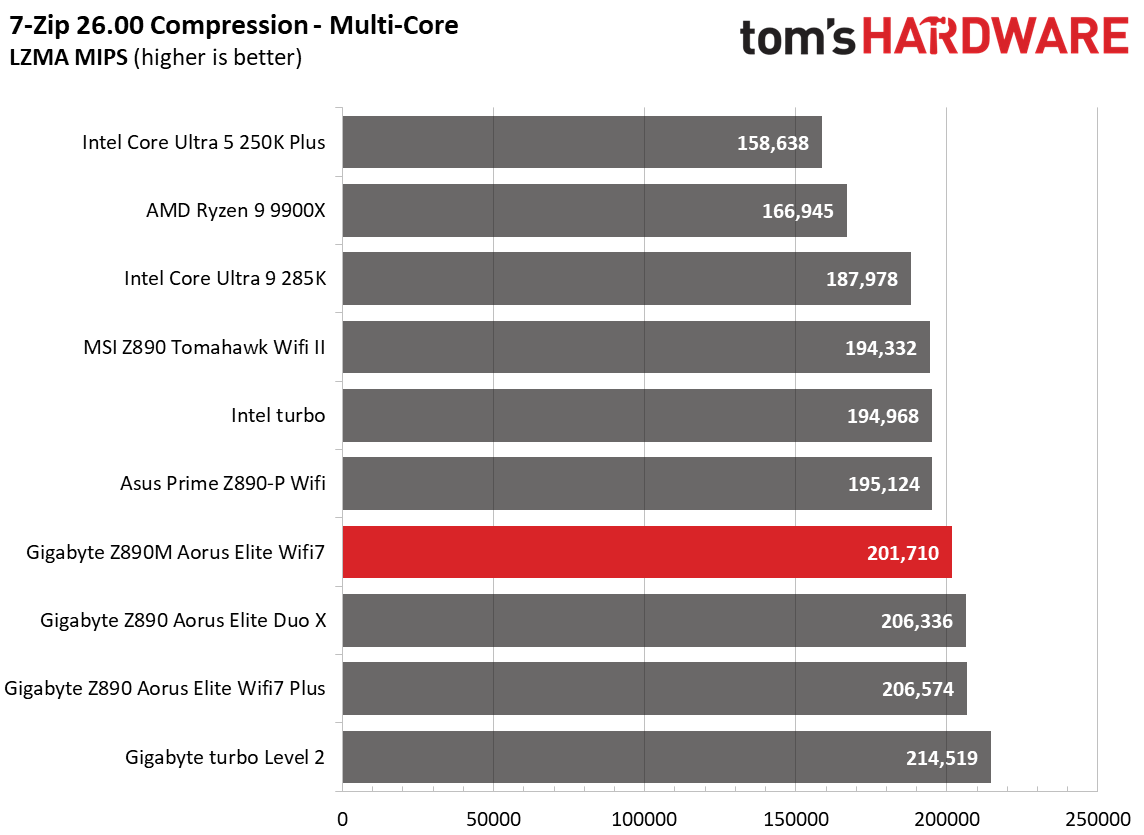
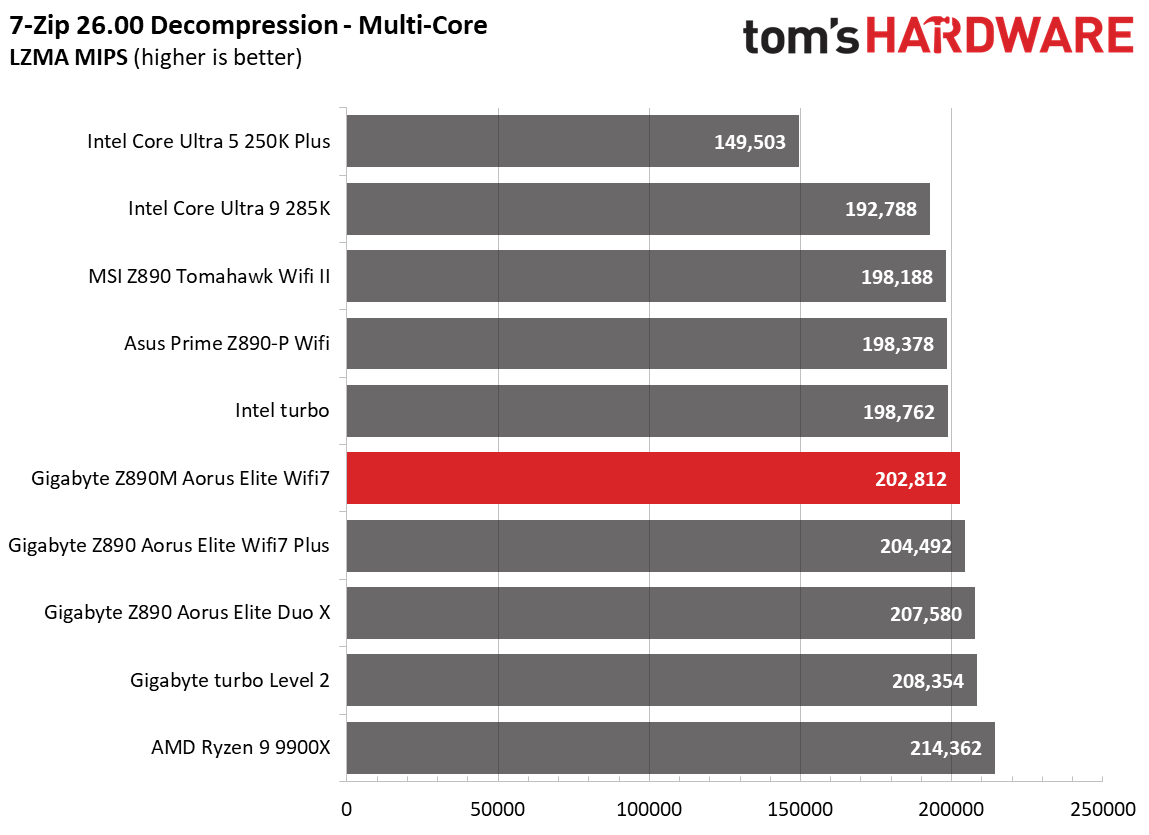
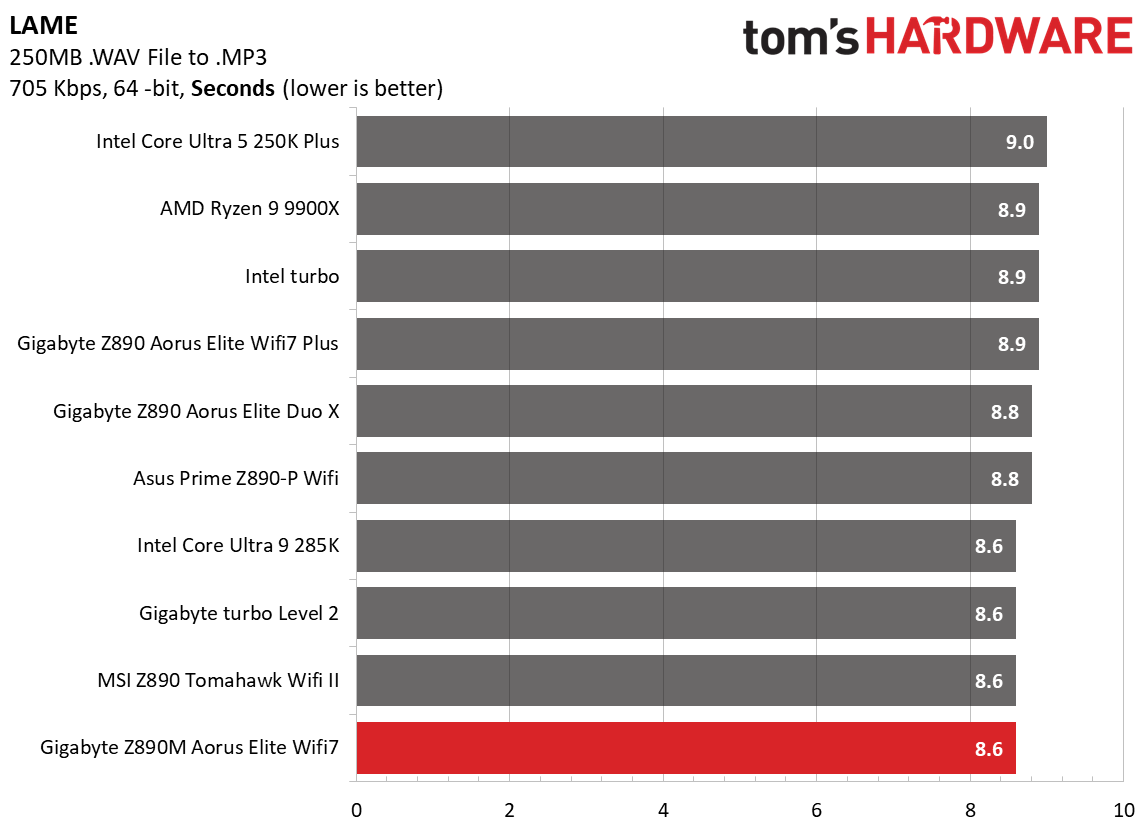
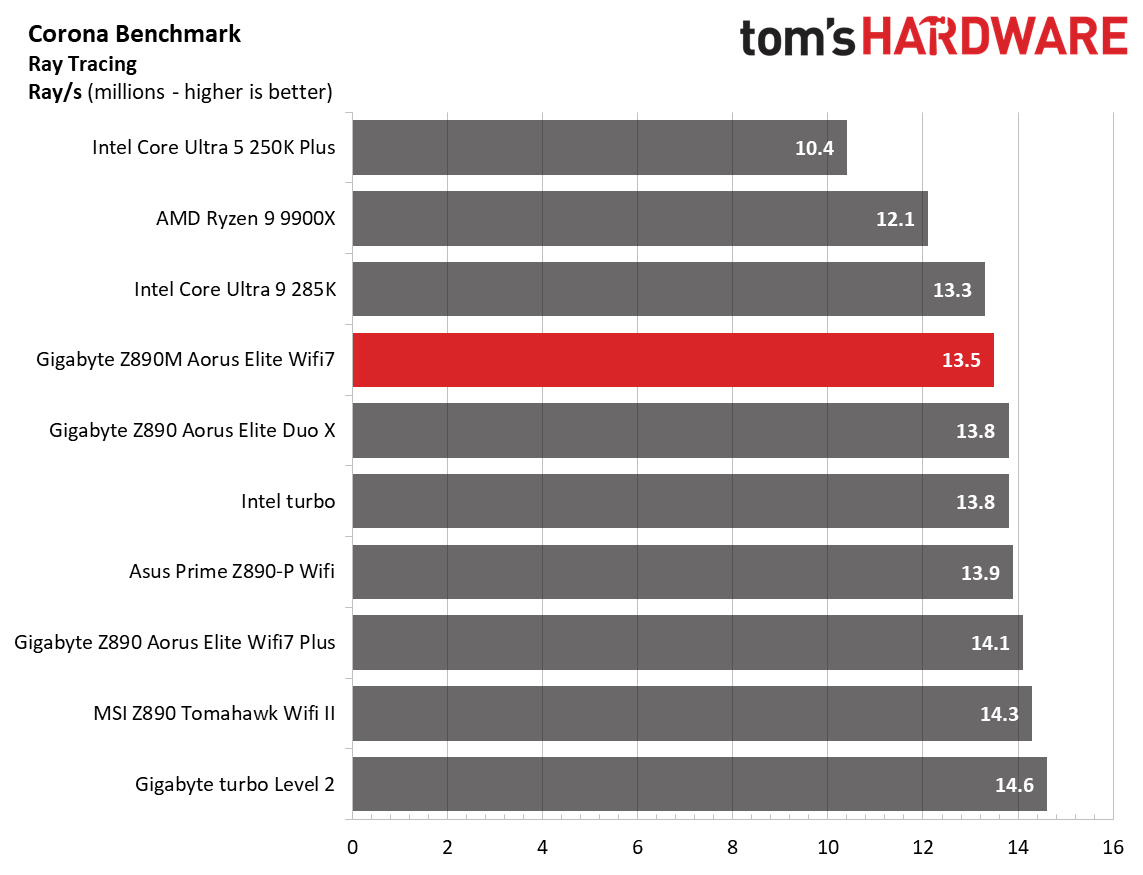
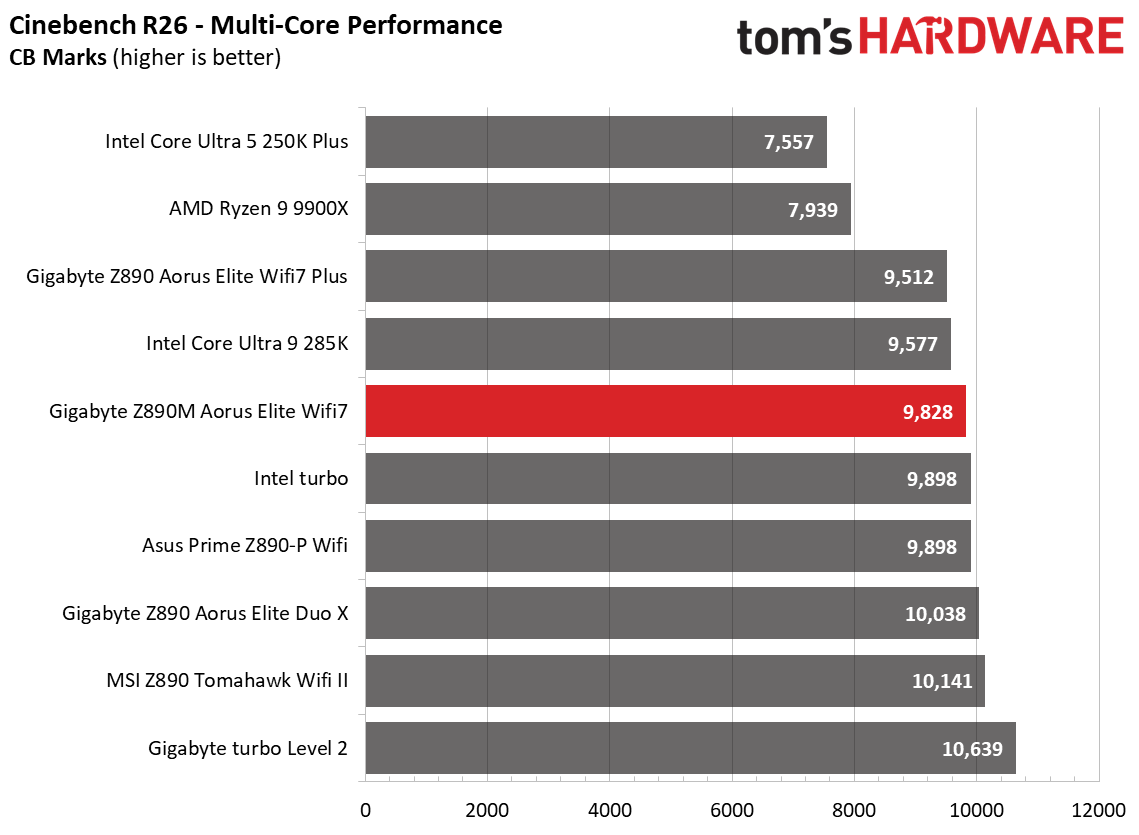
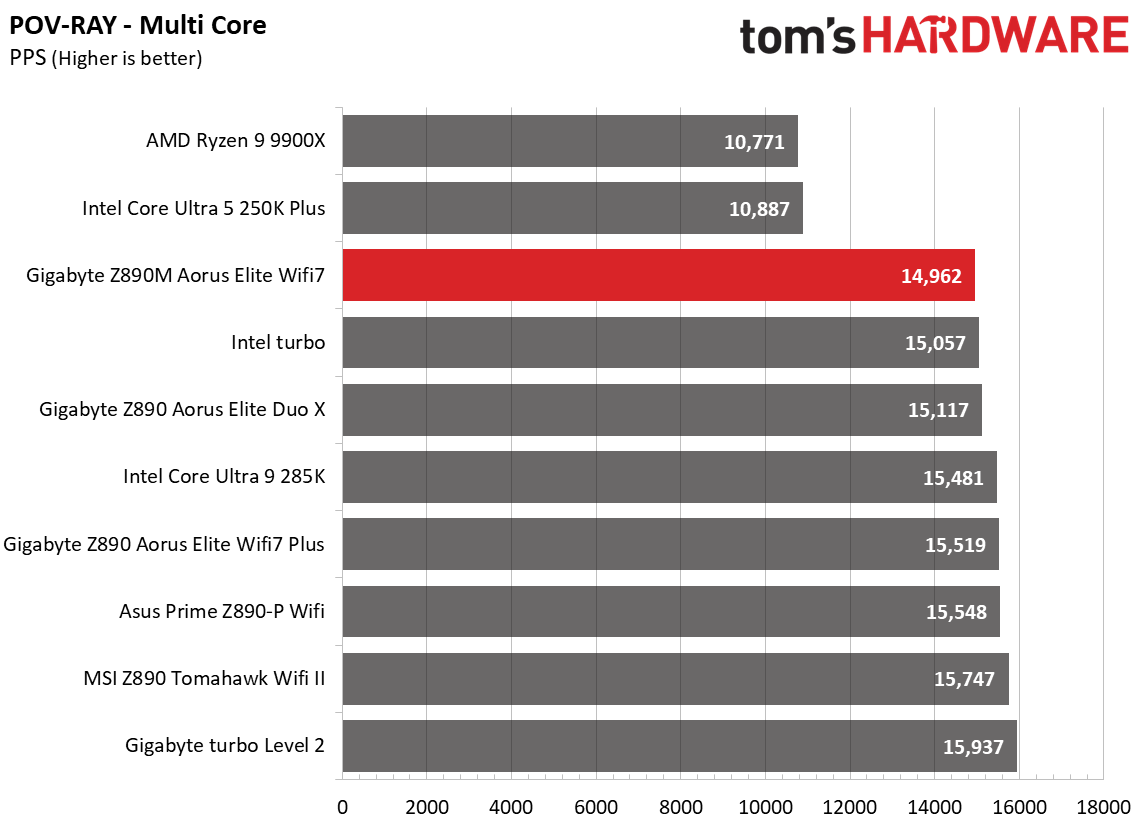
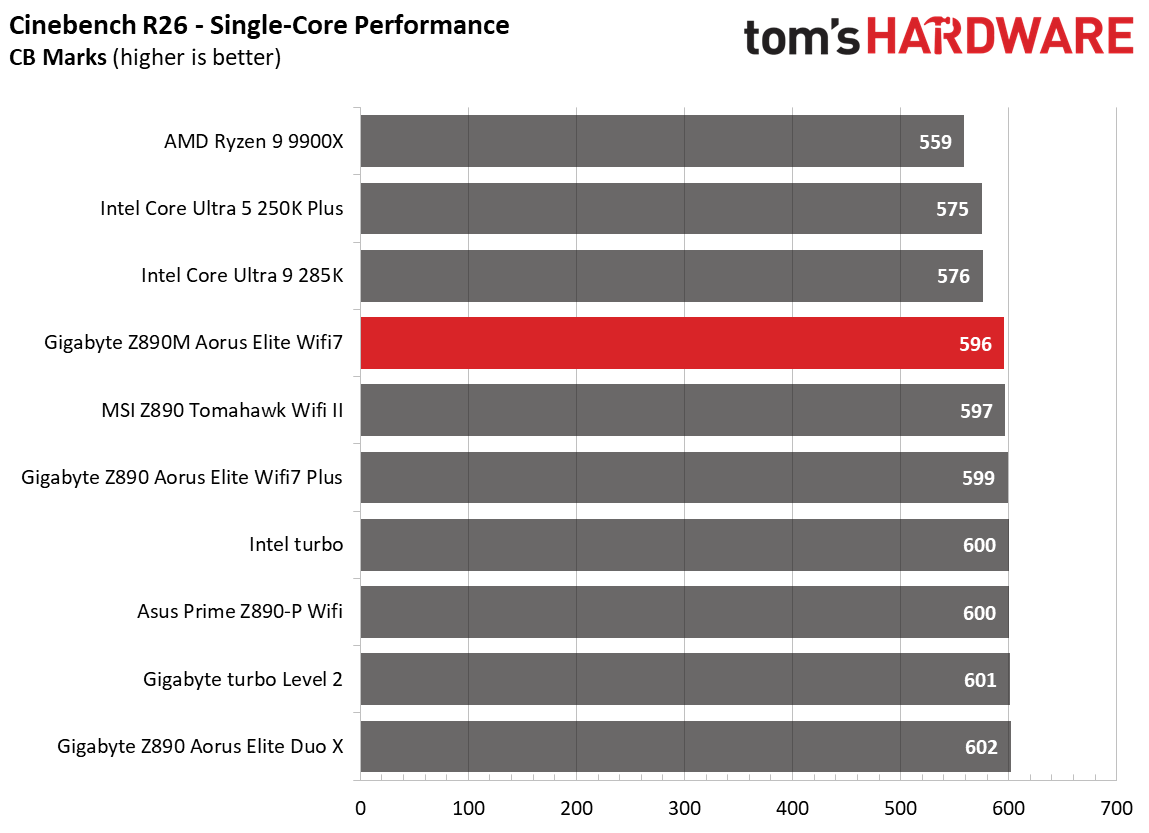
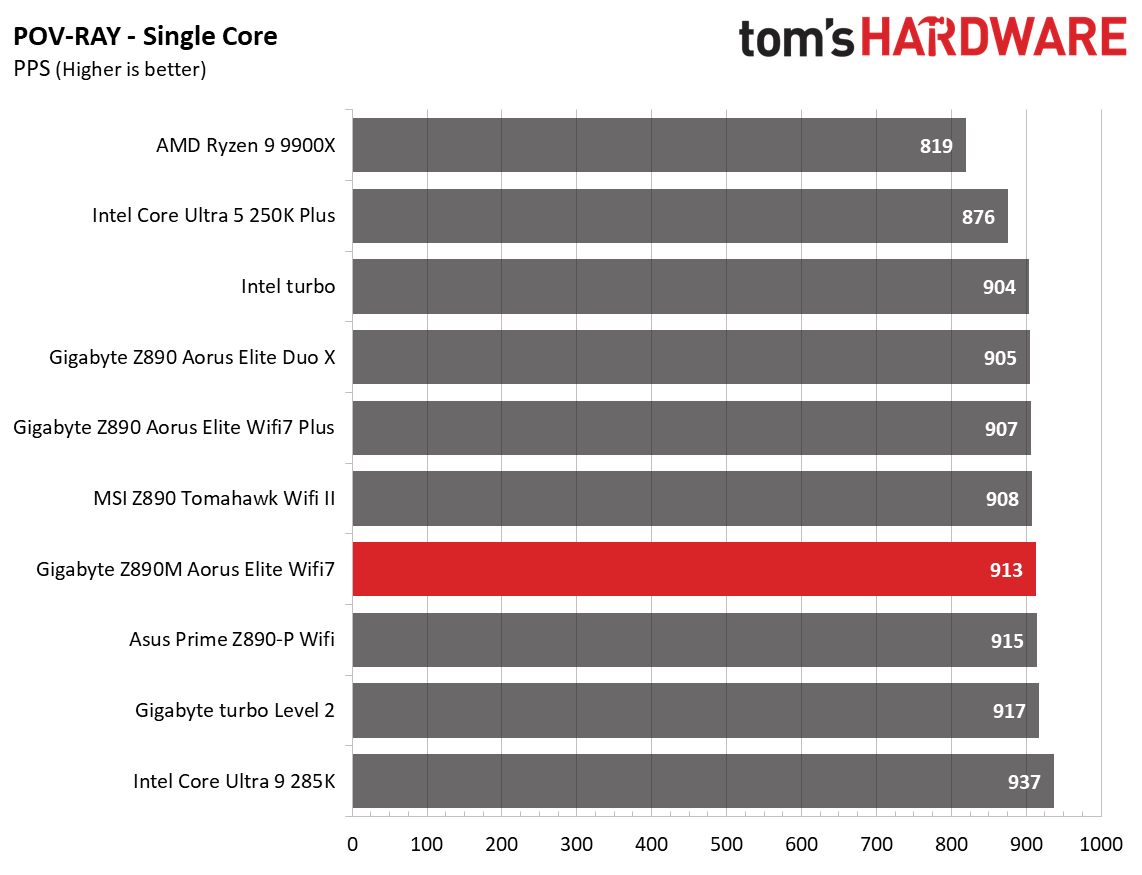
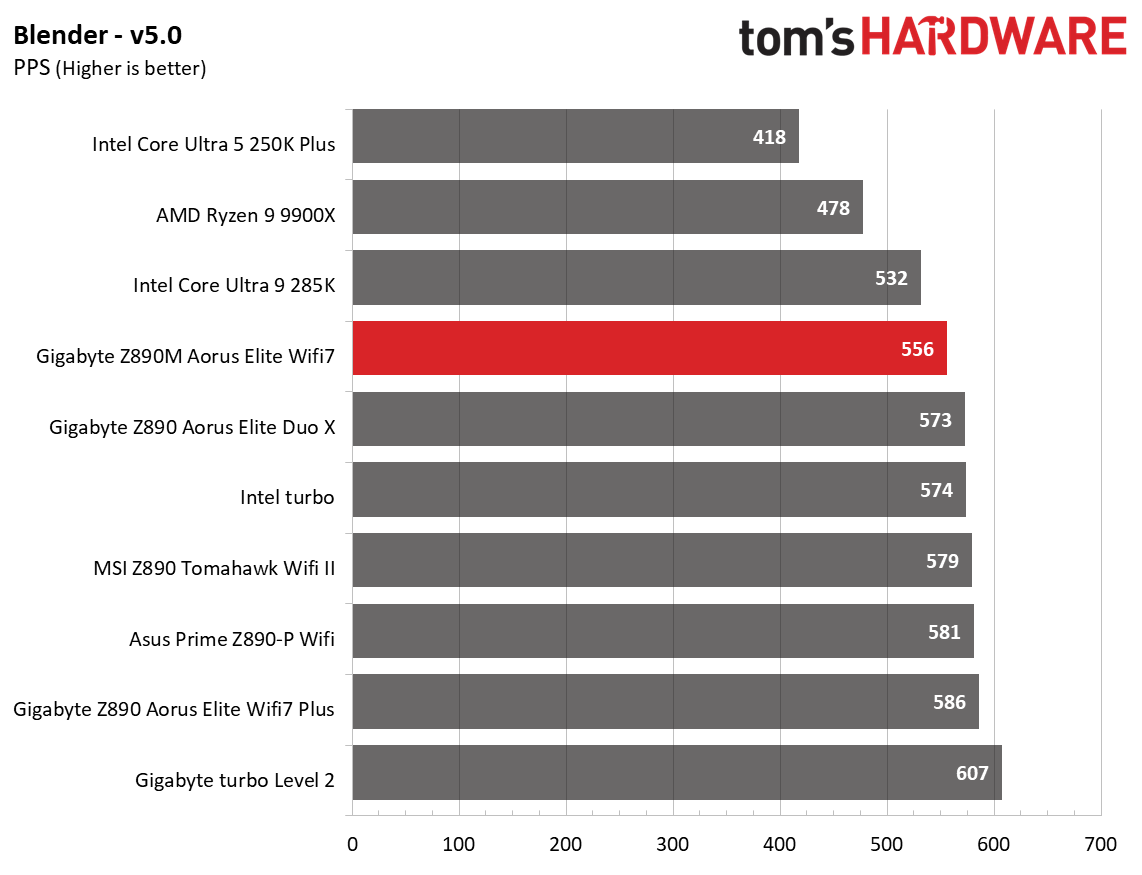
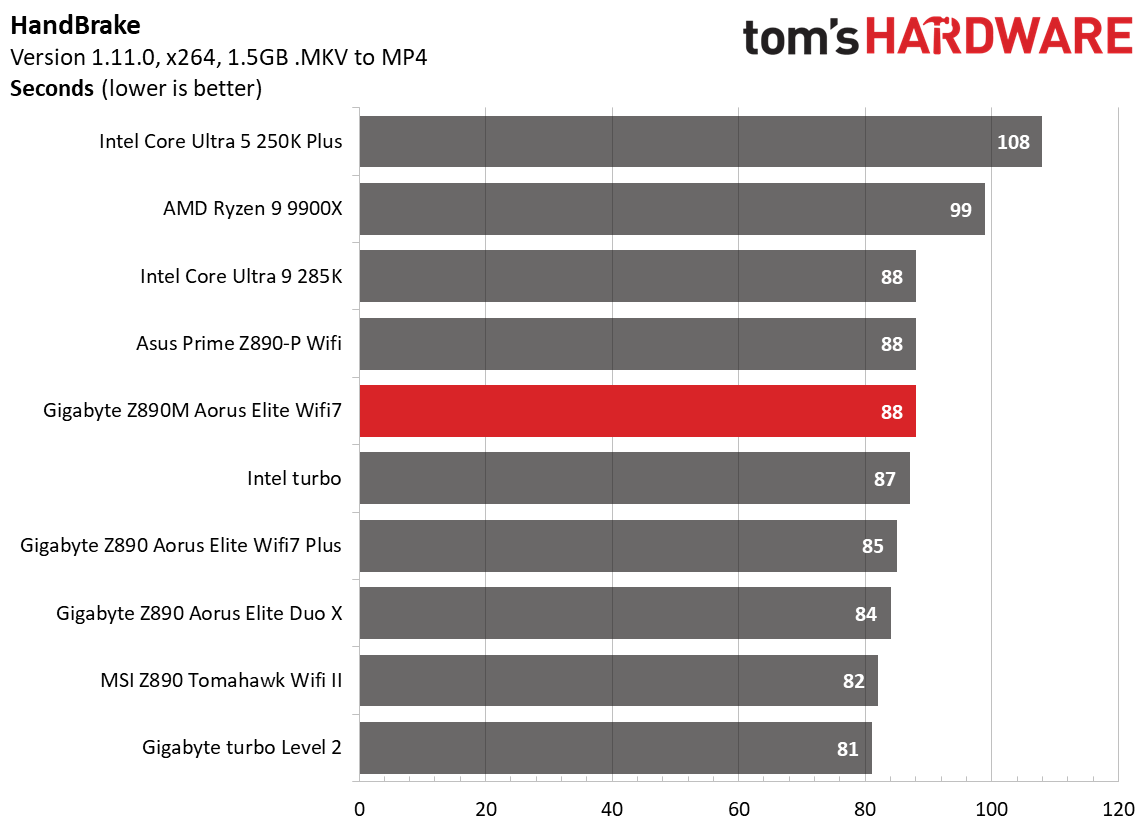
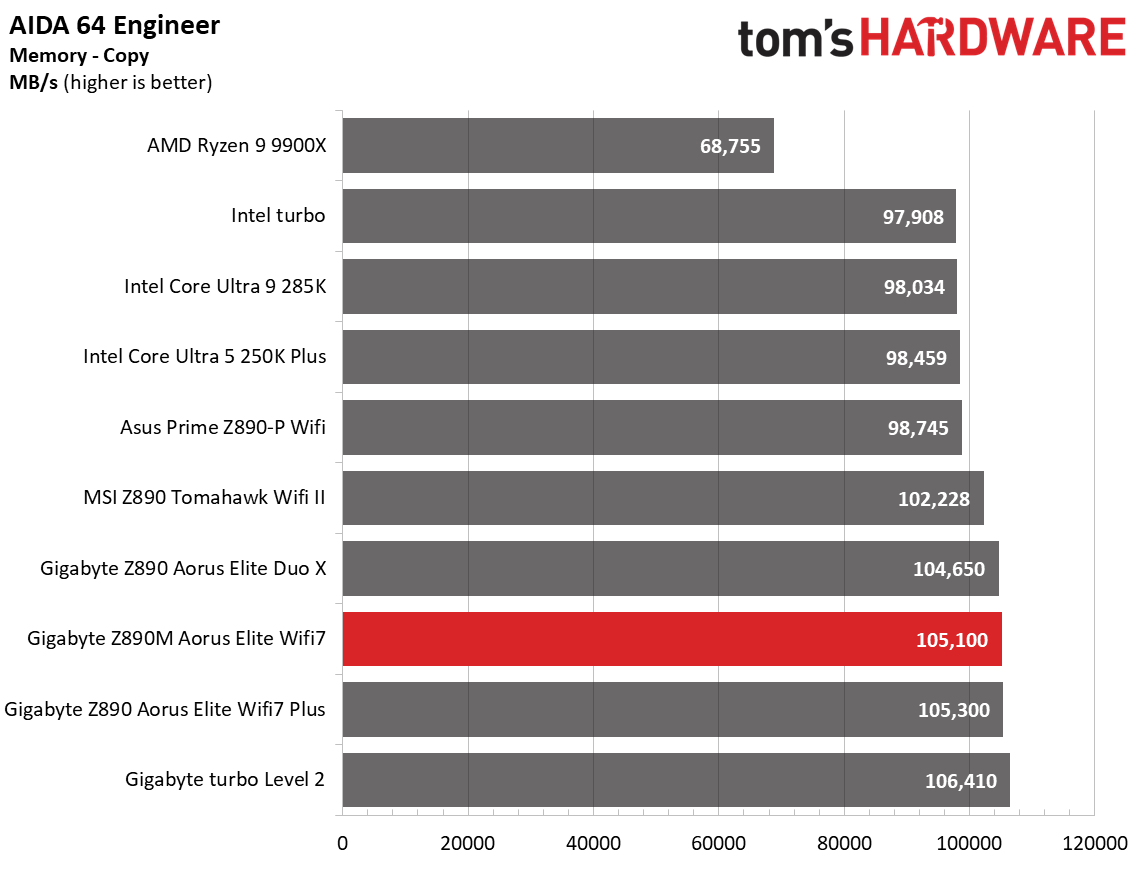
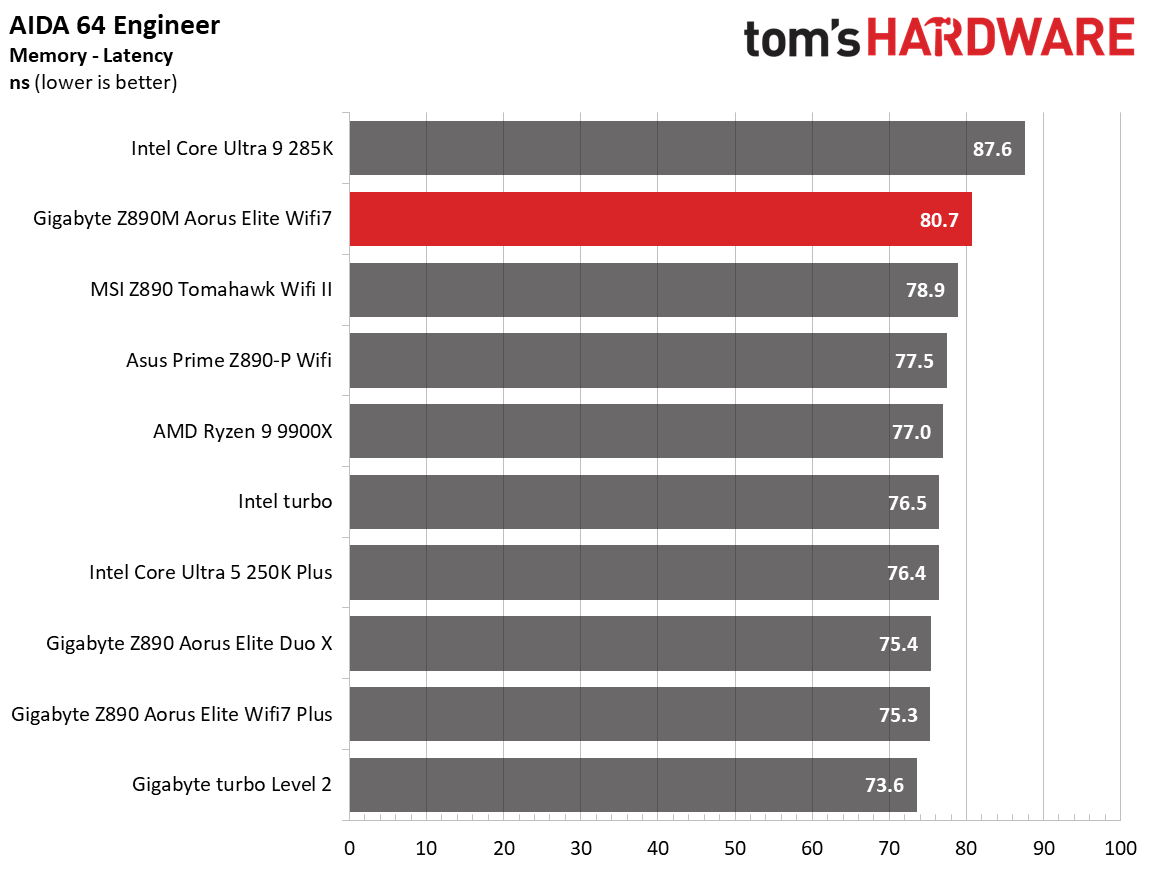
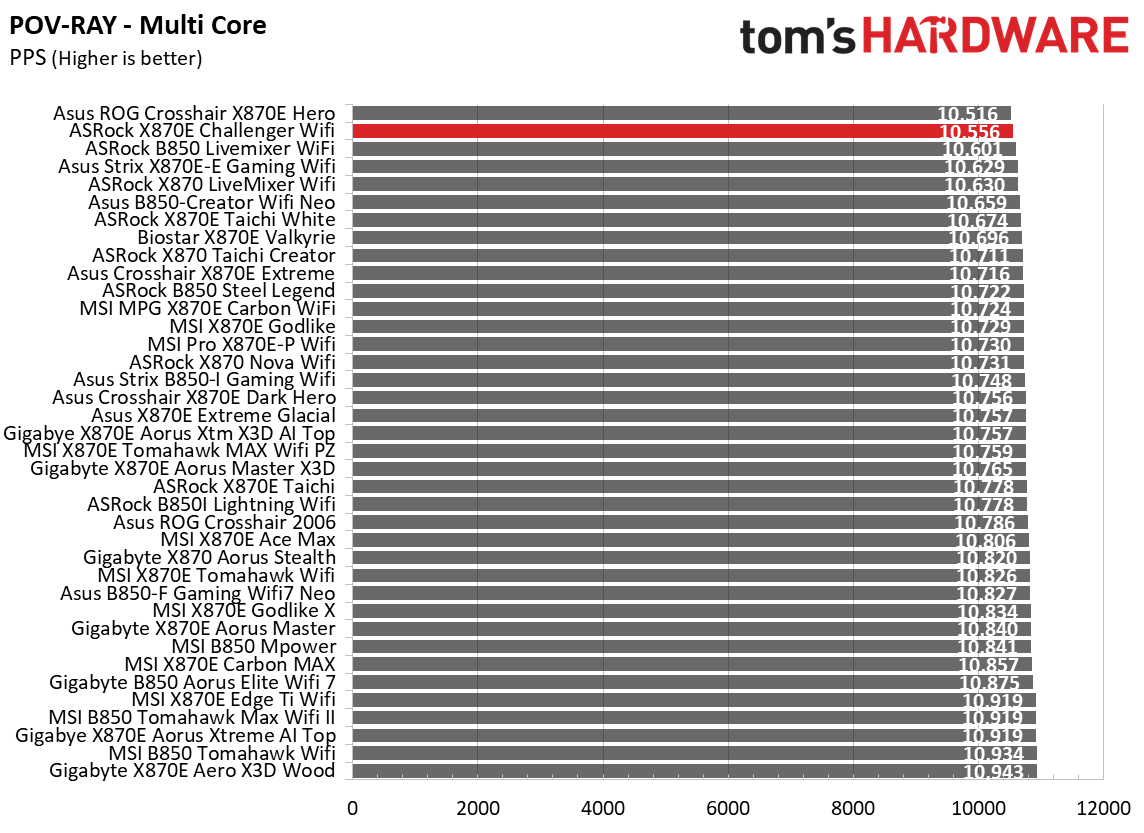
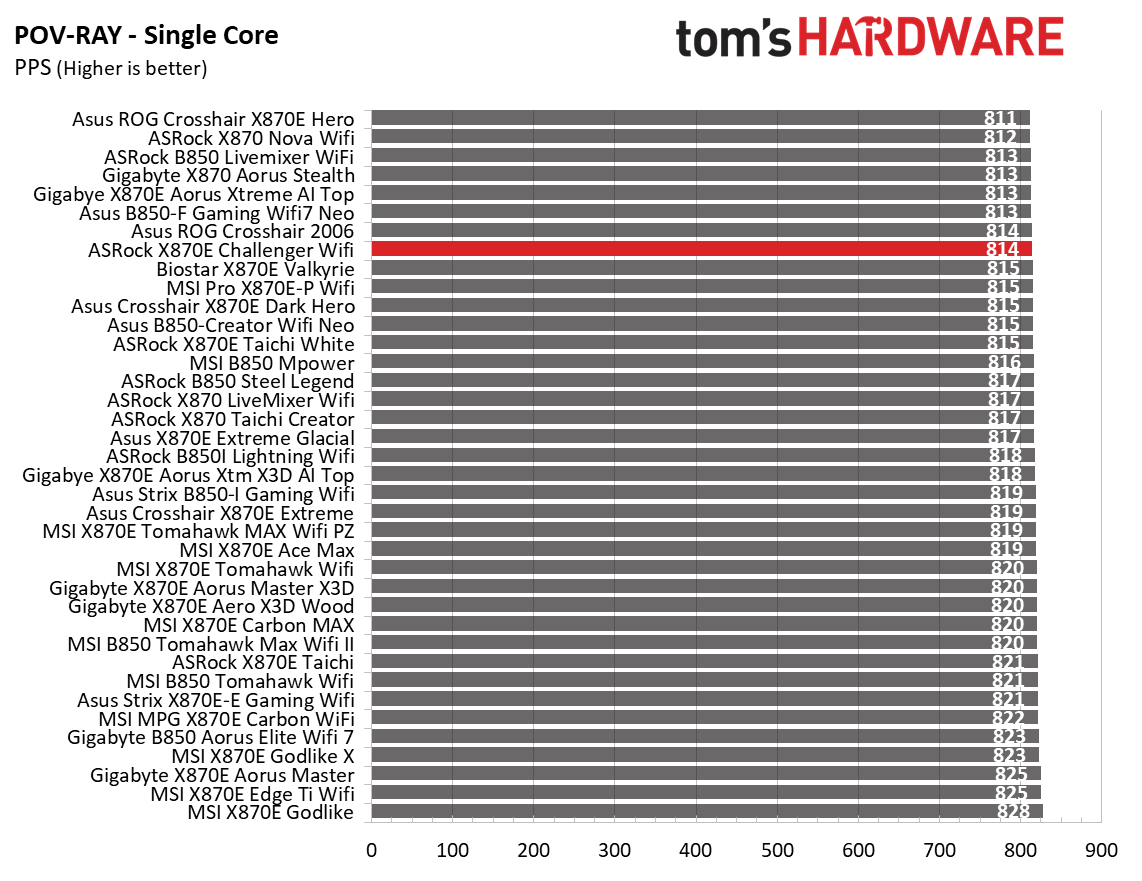
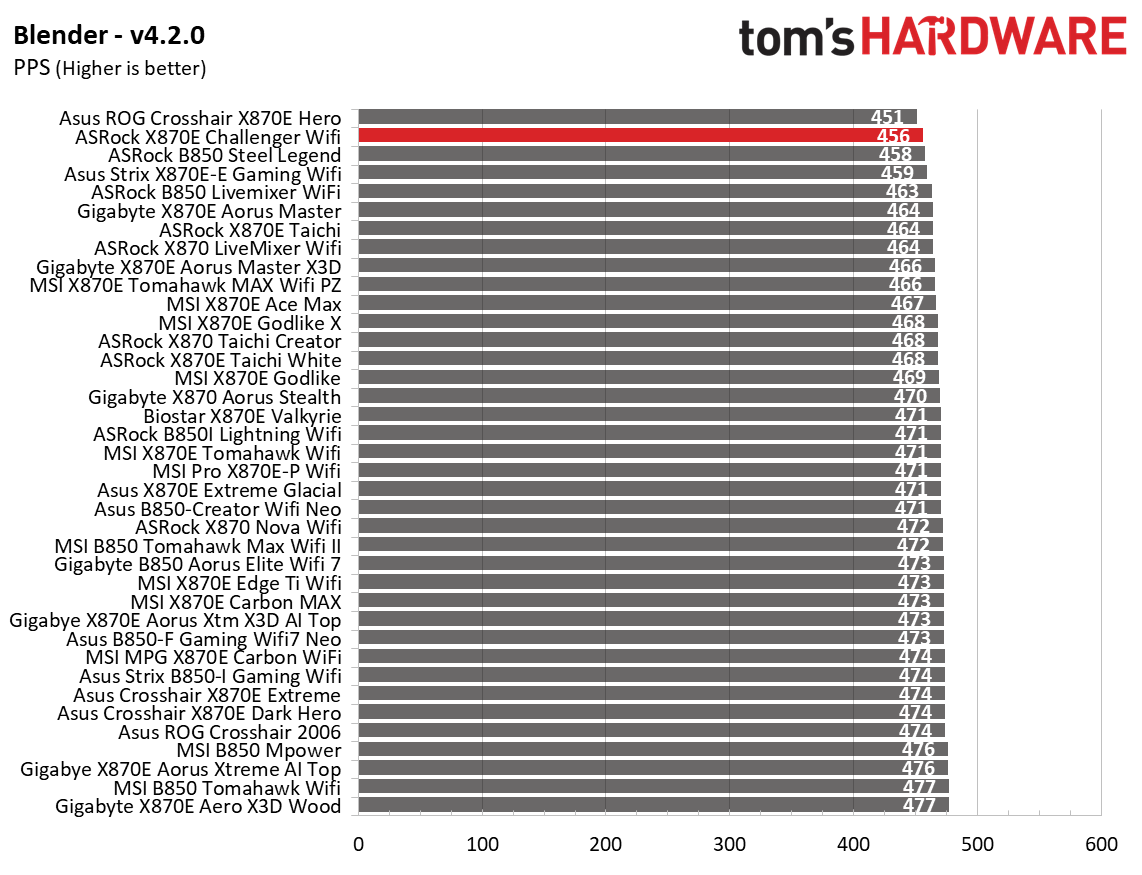
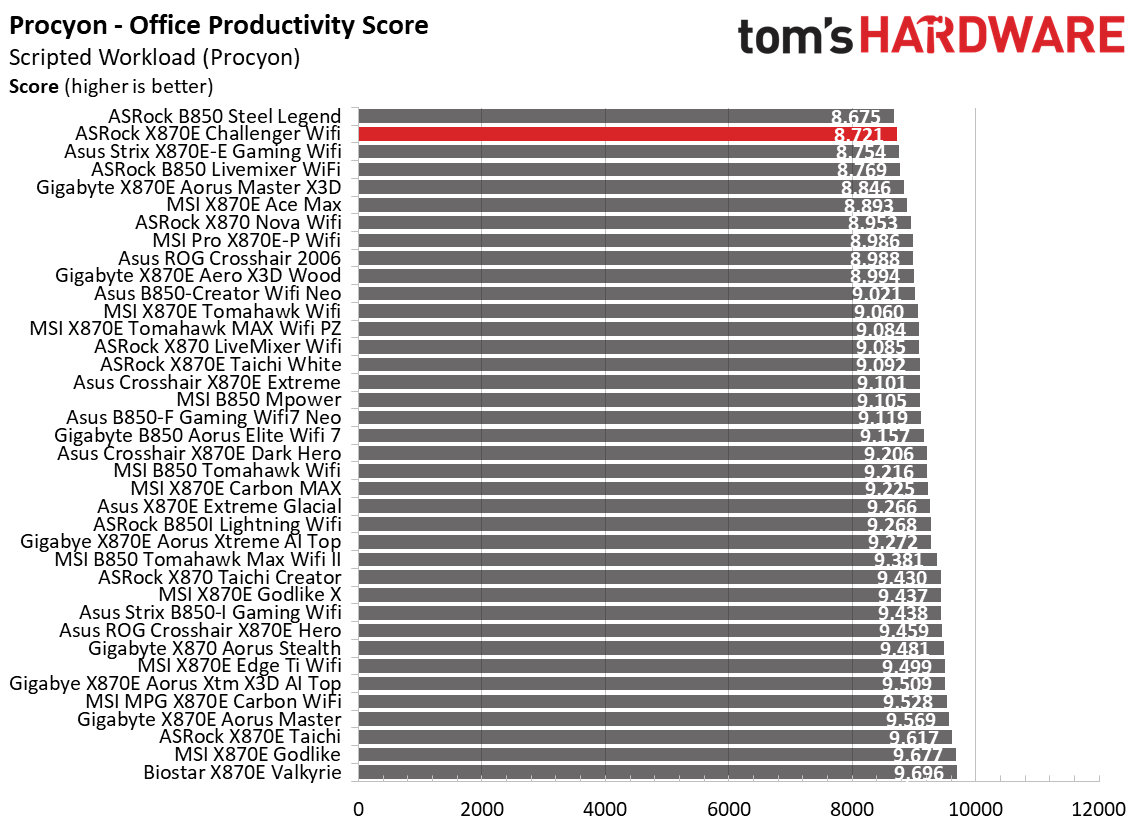
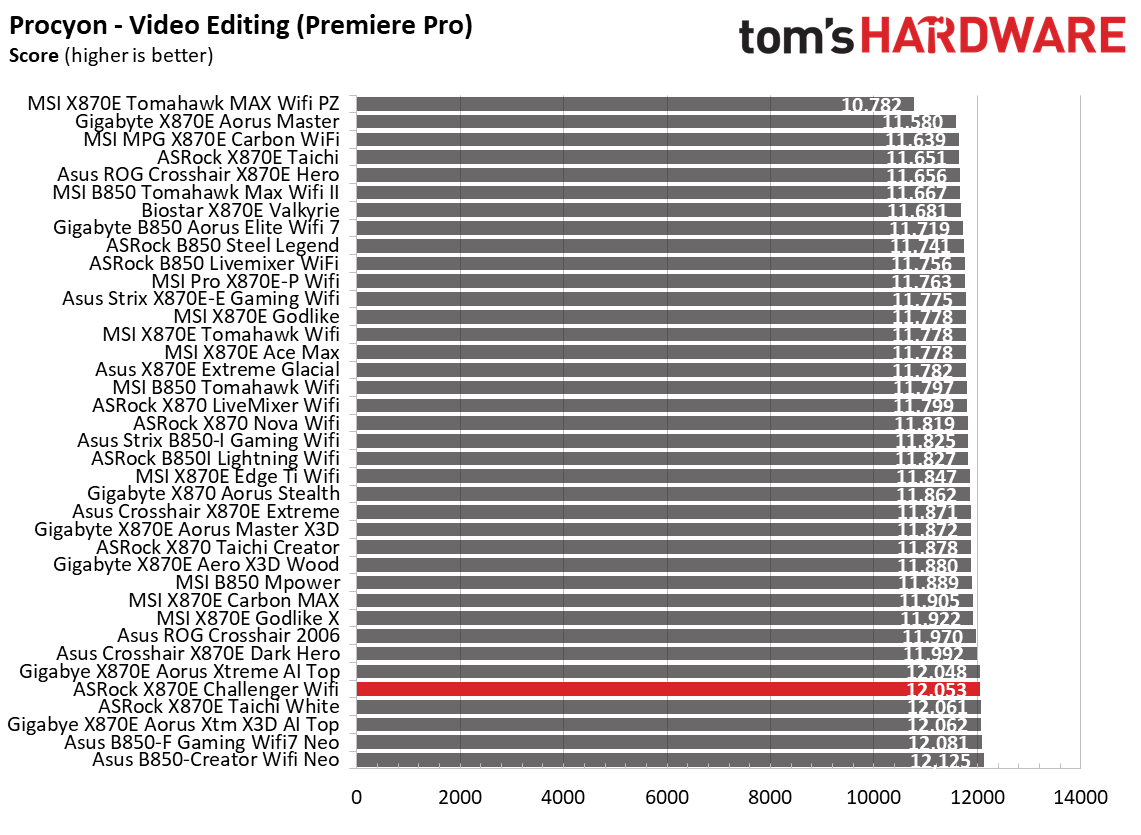
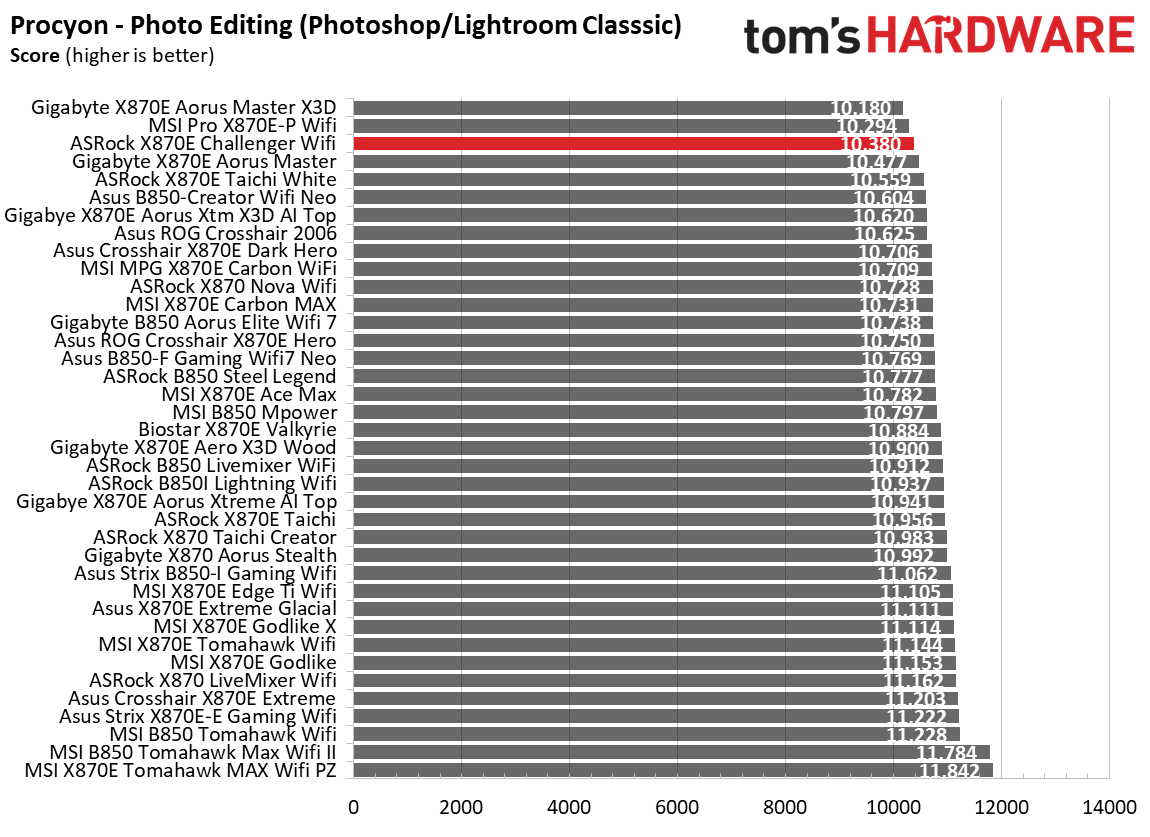
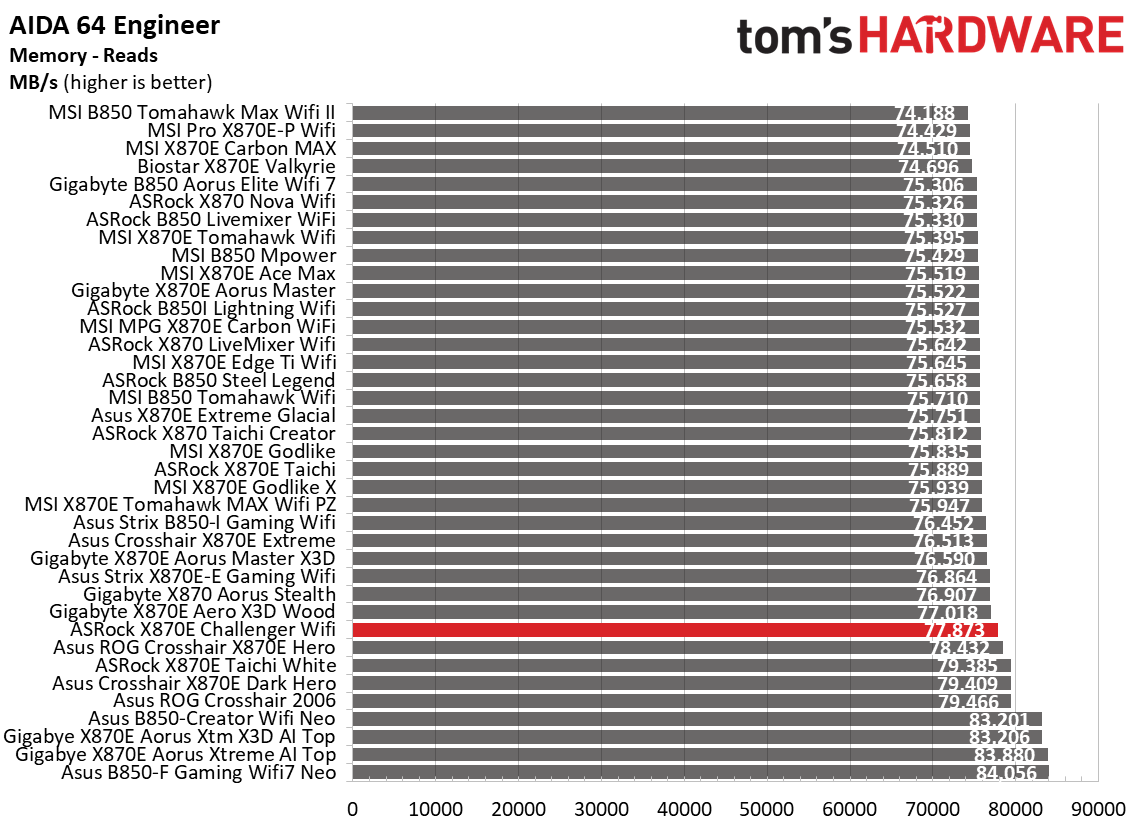
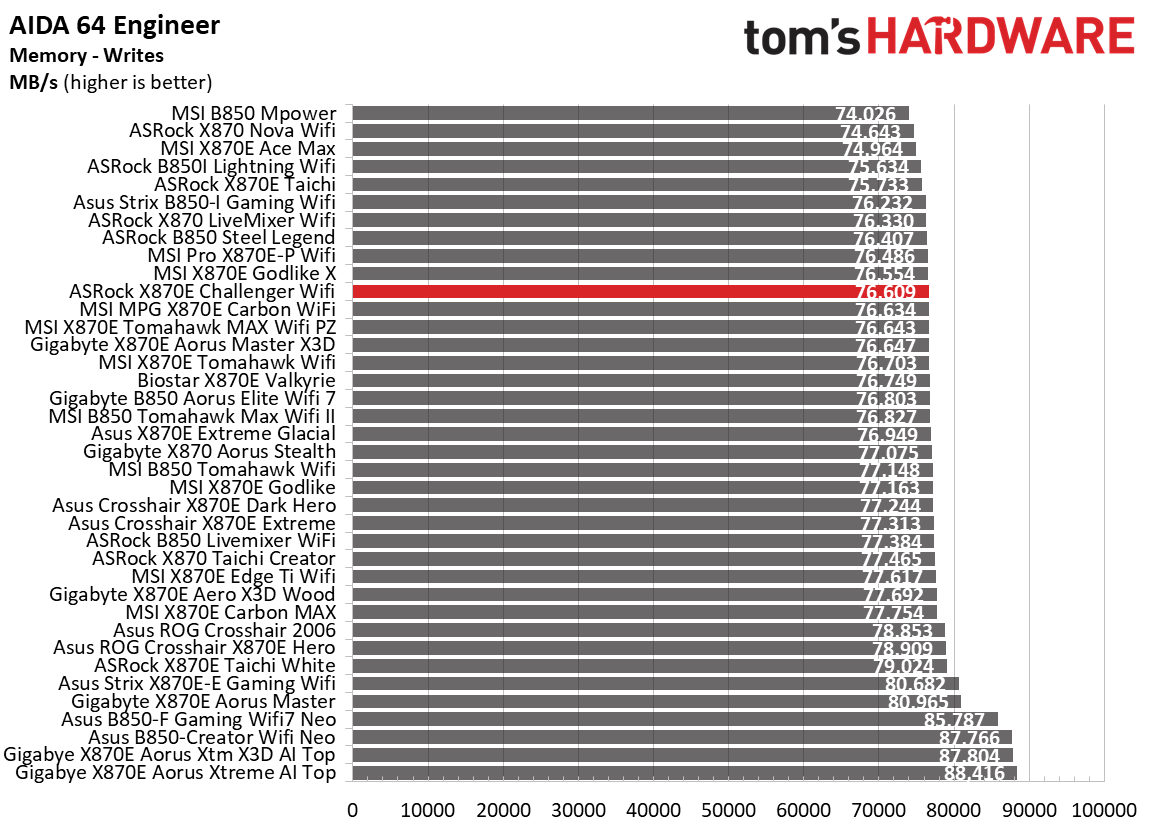
Performance on the Aorus Elite was around the average among the tested boards. Some benchmarks were above average, while others were slightly below—nothing to worry about so far.

3D Games and 3DMark

Gigabyte Z890M Aorus Elite Wifi7 Ice - Game benchmarks
Future
Gigabyte Z890M Aorus Elite Wifi7 Ice - Game benchmarks
Future
Gigabyte Z890M Aorus Elite Wifi7 Ice - Game benchmarks
Future
Gigabyte Z890M Aorus Elite Wifi7 Ice - Game benchmarks
Future

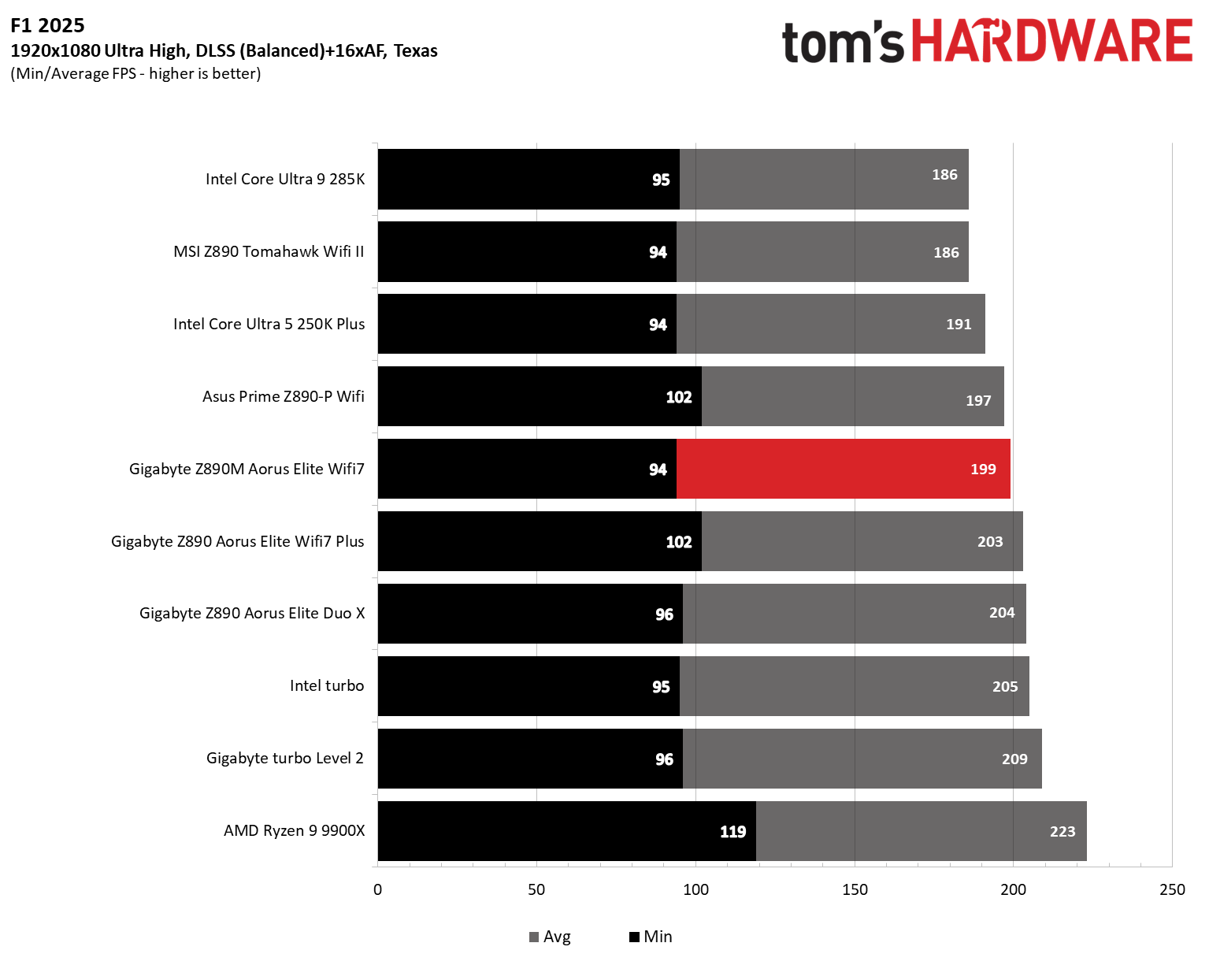
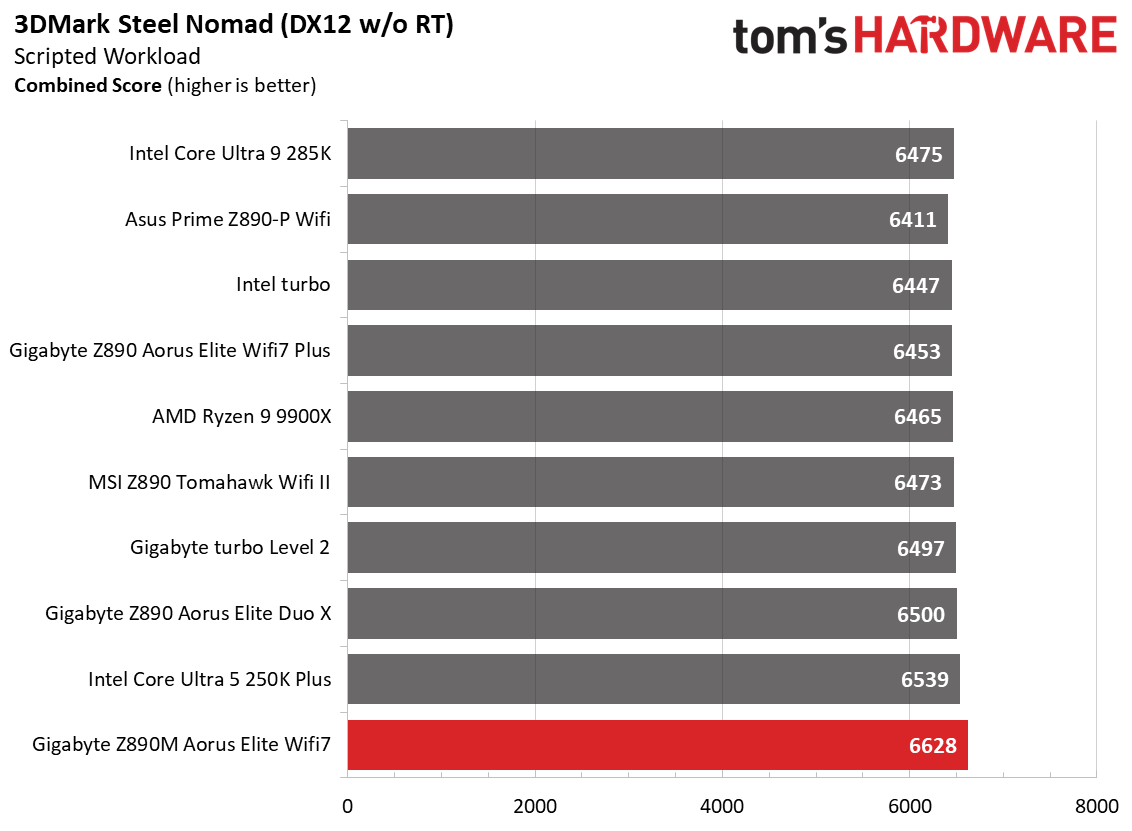
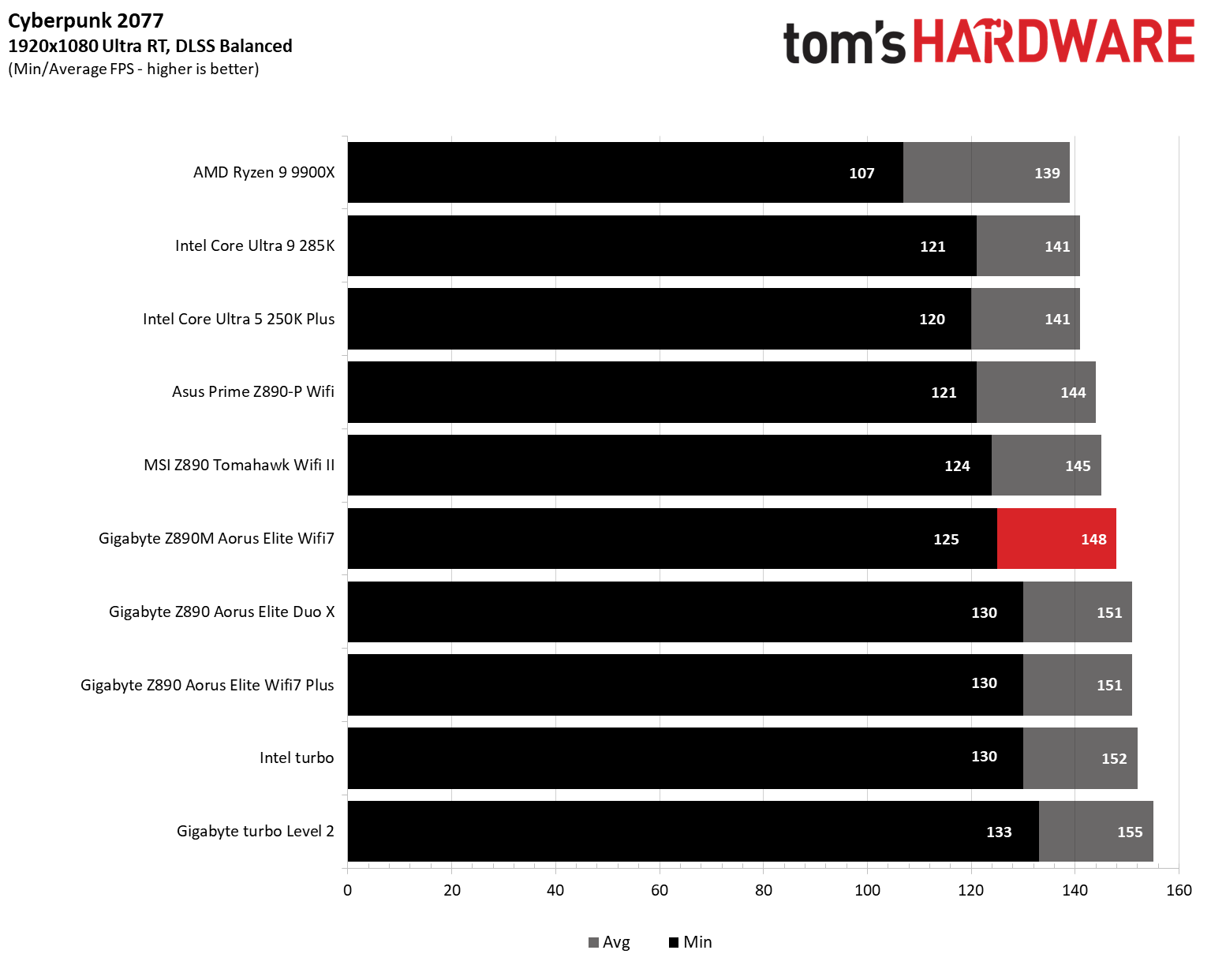
Starting with the launch of the Arrow Lake refresh chips, we’ve updated our game tests. We’re keeping the F1 racing game but have upgraded to F1 25. We’ll also continue with the ever-popular, aesthetically pleasing Cyberpunk 2077. We run both games at 1920x1080 resolution using the Ultra preset (details listed in the table above). Both games are set to use DLSS.

The goal of these settings is to determine whether performance differs at the most commonly used (and CPU/system-bound) resolution, with settings most people use or strive for (Ultra). We expect the difference between boards in these tests to be minor, with most falling within the margin of error. We’ve also added a minimum FPS metric, which can affect your gameplay and immersion.

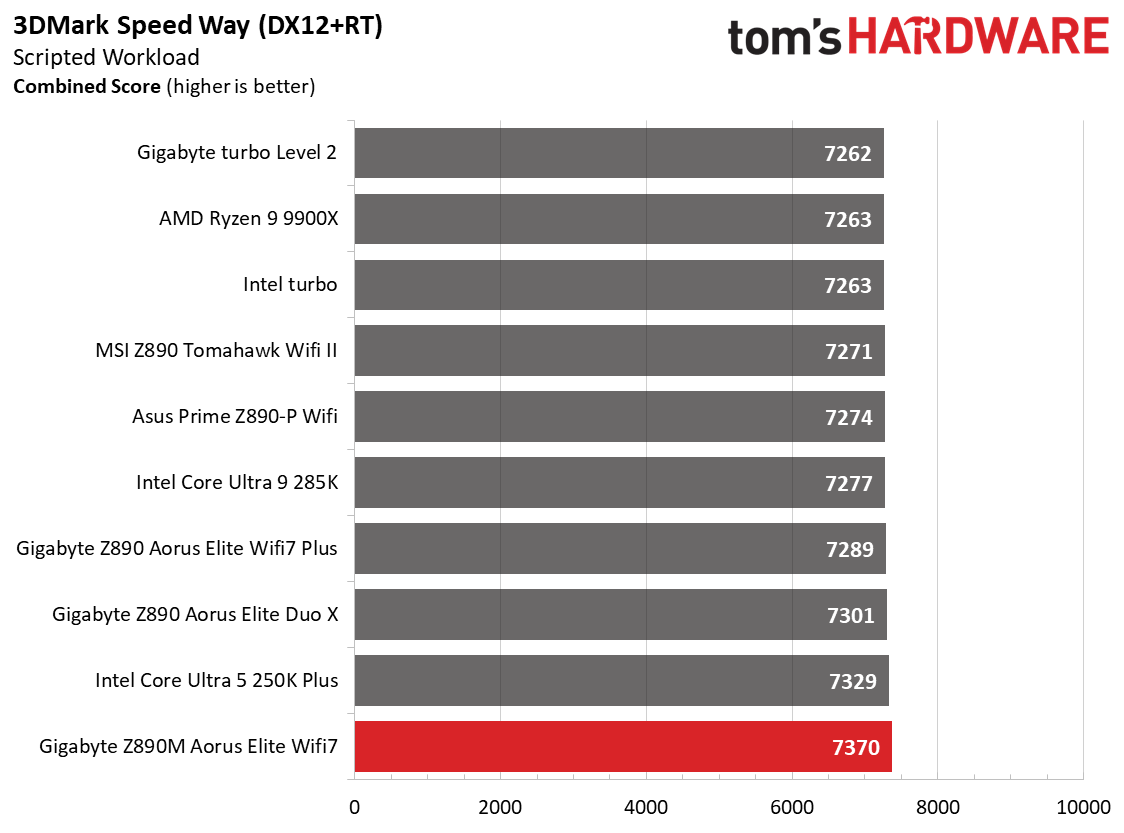
As we’ve seen for a while now, the 3DMark tests don’t show much separation from worst to first, and we see that again across our varied datasets. 3DMark scores were fine; in fact, they were the highest so far in these tight results, while gaming results were average overall. Not only does it do work, but as expected, the board also plays games just fine.

Overclocking

Over the past few CPU generations, overclocking headroom has been shrinking on both sides of the fence, while out-of-the-box performance has increased. For overclockers, that means less fun. For the average consumer, you’re getting the most out of the processor without manual tweaking. Today’s motherboards are more robust than ever, and most support power-hungry flagship-class processors, so we know the hardware can handle them.

You can extract even more performance from these processors by manually adjusting settings or using the fancy AI overclocking that board partners have been touting. Results will vary and depend on the CPU's cooling and quality. In other words, your mileage may vary. With that in mind, we’re not overclocking the CPU for these review articles. However, we'll test our different memory kits to ensure they meet the specifications.

Gigabyte Z890M Aorus Elite Wifi7 Ice - mem testing
Future
Gigabyte Z890M Aorus Elite Wifi7 Ice - mem testing
Future

Memory testing went OK, with the board surviving a 30-minute stress test using the DDR5-7600 and DDR5-8200 kits without issue. That said, it struggled with the DDR5-8800 kit and failed after about 5 minutes. If you really want to push memory speeds, stick to the QVL list for your best chance of reaching higher speeds.

Power Consumption / VRM Temperatures

Gigabyte Z890M Aorus Elite Wifi7 Ice - Power use

(Image credit: Future)

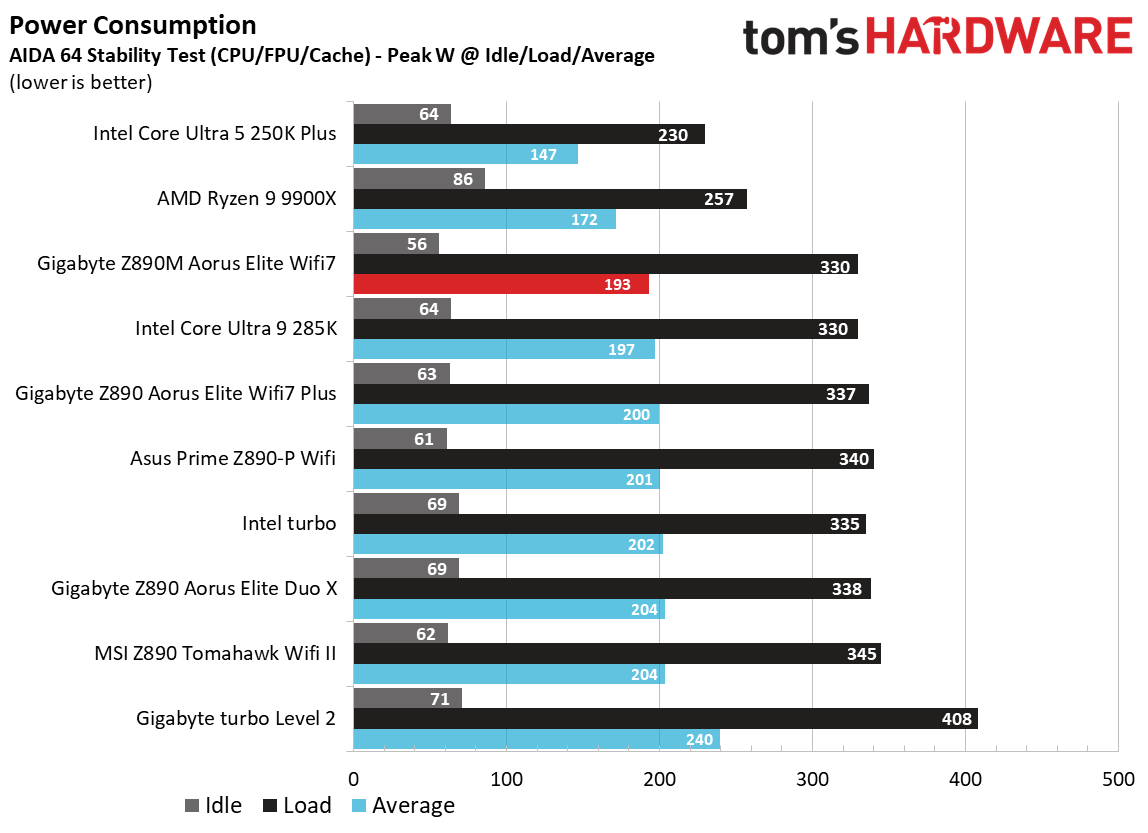
We used AIDA64’s System Stability Test with Stress CPU, FPU, cache, and Memory enabled for power testing, using the processor's peak power consumption value. We measured wall wattage with a Kill-A-Watt meter, which captures the entire PC (excluding the monitor). The only variable that changes is the motherboard; all other parts remain the same. We now use only the stock power-use/VRM temperature charts, as this section aims to ensure the power delivery can handle flagship-class processors.

Stress testing with our flagship-class 270K Plus and the Team Group DDR5-7600 kit at stock yielded a peak of only 330W at the wall, tying our lowest result so far. The board also sipped power at idle, dropping to around 56W, the lowest result we’ve recorded for the platform. This board sips power compared to some others.

Gigabyte Z890M Aorus Elite Wifi7 Ice - VRM temps
Future
Gigabyte Z890M Aorus Elite Wifi7 Ice - VRM temps
Future

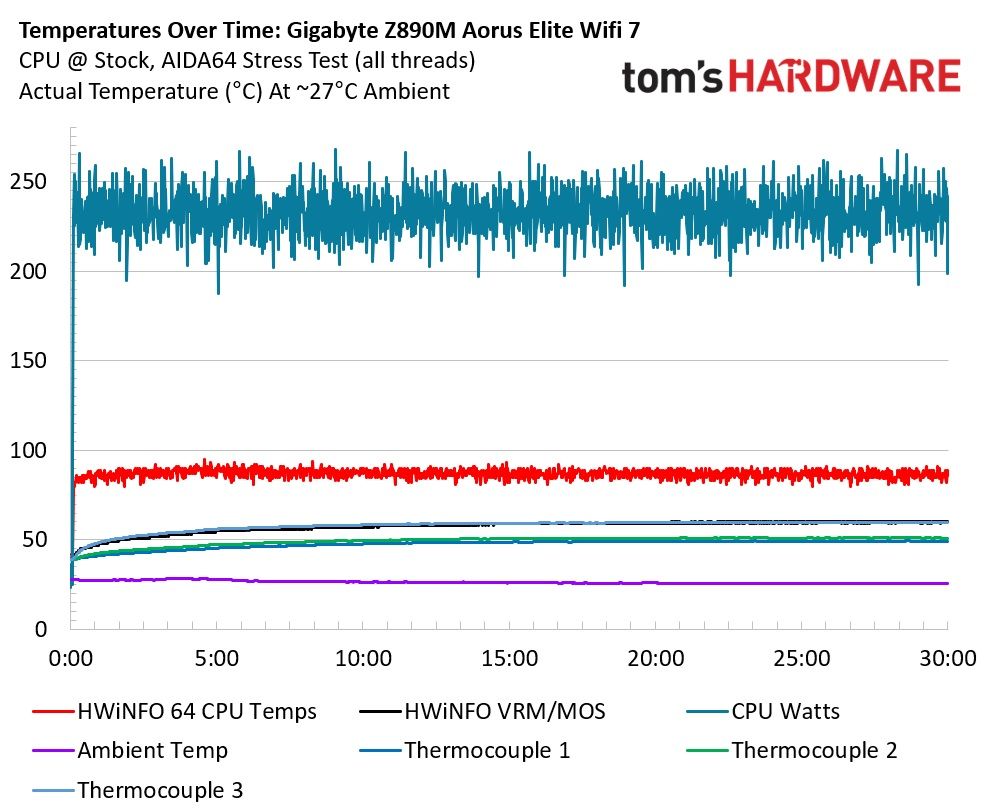
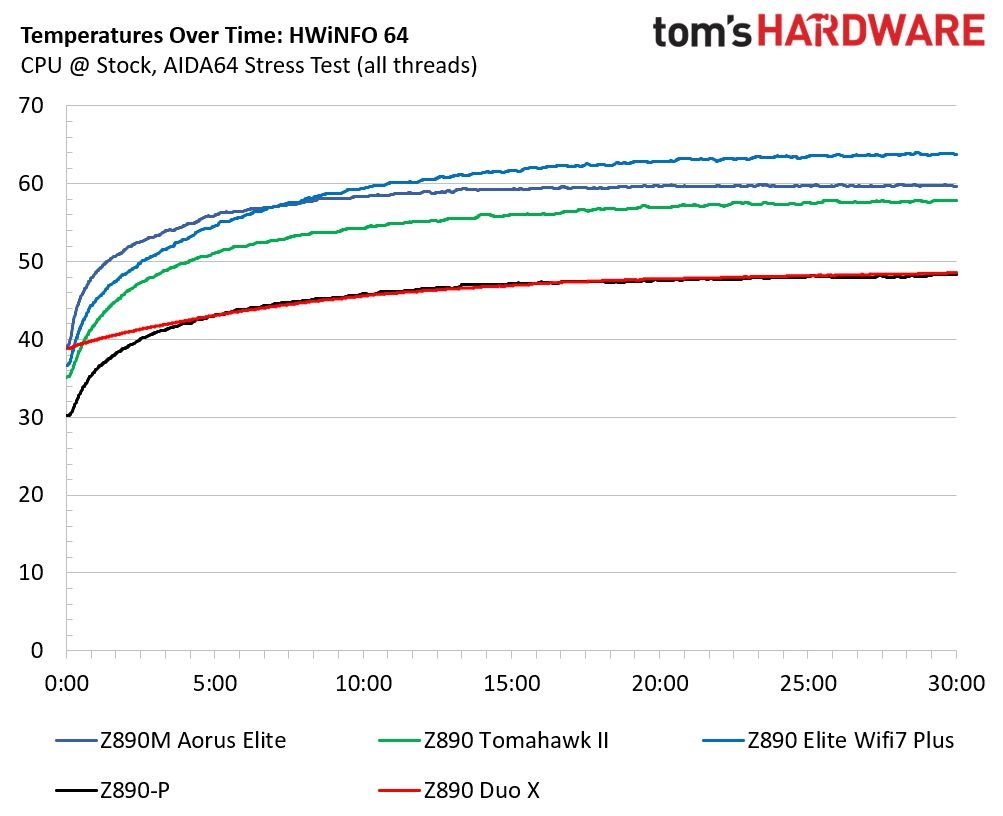
VRM temperatures ran warm, but are not a concern. Throughout the 30-minute test, the system (excluding the monitor) averaged 232W, and our sensors on the back of the board, directly under the MOSFETs, recorded temperatures peaking at just under 60 degrees Celsius, while HWInfo and the internal sensor showed similar peaks at about 60 degrees Celsius. That value is well within specification for the MOSFETs doing all the work below. We’re confident that the power delivery can handle whatever you're likely to throw at it. Chances are, the CPU temperature will limit you before the board does, but keep airflow good to keep temperatures down.

Bottom Line

Gigabyte’s Z890M Aorus Elite WiFi7 Ice is a solid all-around motherboard for the Micro ATX form factor and smaller builds. Its icy-white aesthetic and ‘full coverage’ of heatsinks are rare for this class of board and give it a premium vibe compared to its peers. Hardware-wise, it includes most of what you’d expect from the Z890 platform, though I’d like to see another USB4 port on the rear IO, and perhaps a better audio codec. Still, this is one of the better-looking and better-equipped of the Z890M Micro ATX options.

As for the competition, the Asus Prime Z890M-Plus ($216.99) has more expansion slots (4), additional “AI” features, and SATA ports (6), but fewer rear USB ports, and it just doesn’t give off the same premium vibes as the Gigabyte Z890M. ASRock’s Z890M Riptide Wifi ($252) costs quite a bit more than the others and offers more robust power delivery (like the Asus) and decent looks, but its specs are otherwise similar. Aesthetically, the ASRock is also less pleasing than the Gigabyte, and it has only one PCIe slot (so no room for expansion if needed). MSI has the Pro B860M-A WiFi ($158), which uses a lesser mainstream chipset, offers 5 GbE (and slower 6E Wi-Fi), and is otherwise comparable to the Asus with its extra PCIe slots. Oh, and it doesn't look great.

Overall, the Z890M Aorus Elite WiFi7 Ice is one of the better-looking Micro ATX offerings and nicely priced, earning a spot on our best motherboards list (for Intel Micro ATX). The icy-white aesthetic and minimal PCB visibility will turn heads in a white case. Hardware-wise, it has the specs you expect for this class of board. If you’re in the market for a Micro ATX Intel board, the Z890M Aorus Elite Wi-Fi 7 Ice should be your first stop, especially if you want to show off your paired white components.

MORE: Best Motherboards

MORE: How To Choose A Motherboard

MORE: Best Motherboard Deals

MORE: Best Motherboard Combo Deals

MORE: All Motherboard Content

Buy a complete RTX 5070 Ti gaming PC from Newegg and save $450

作者 Joe Shields
2026年10月20日 20:15

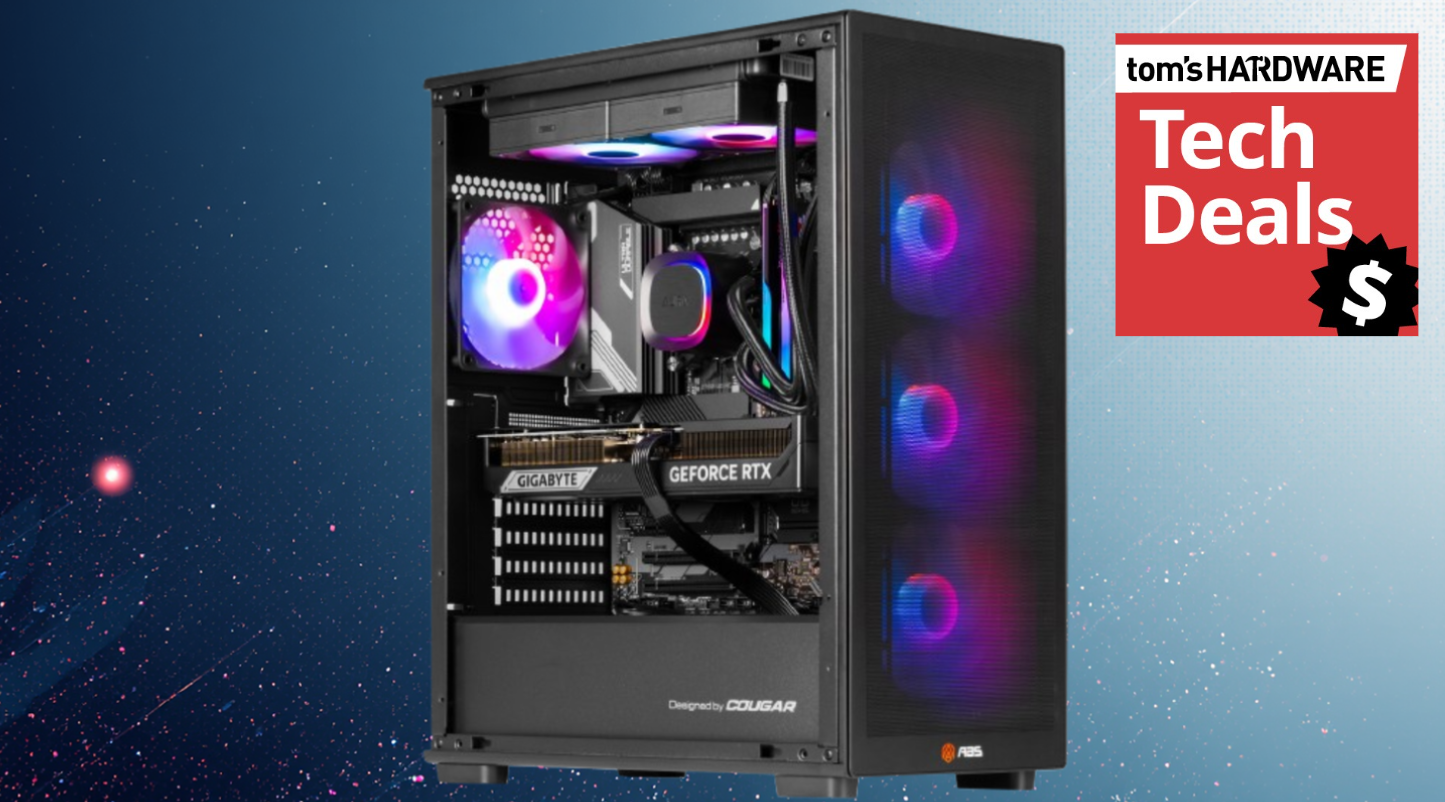
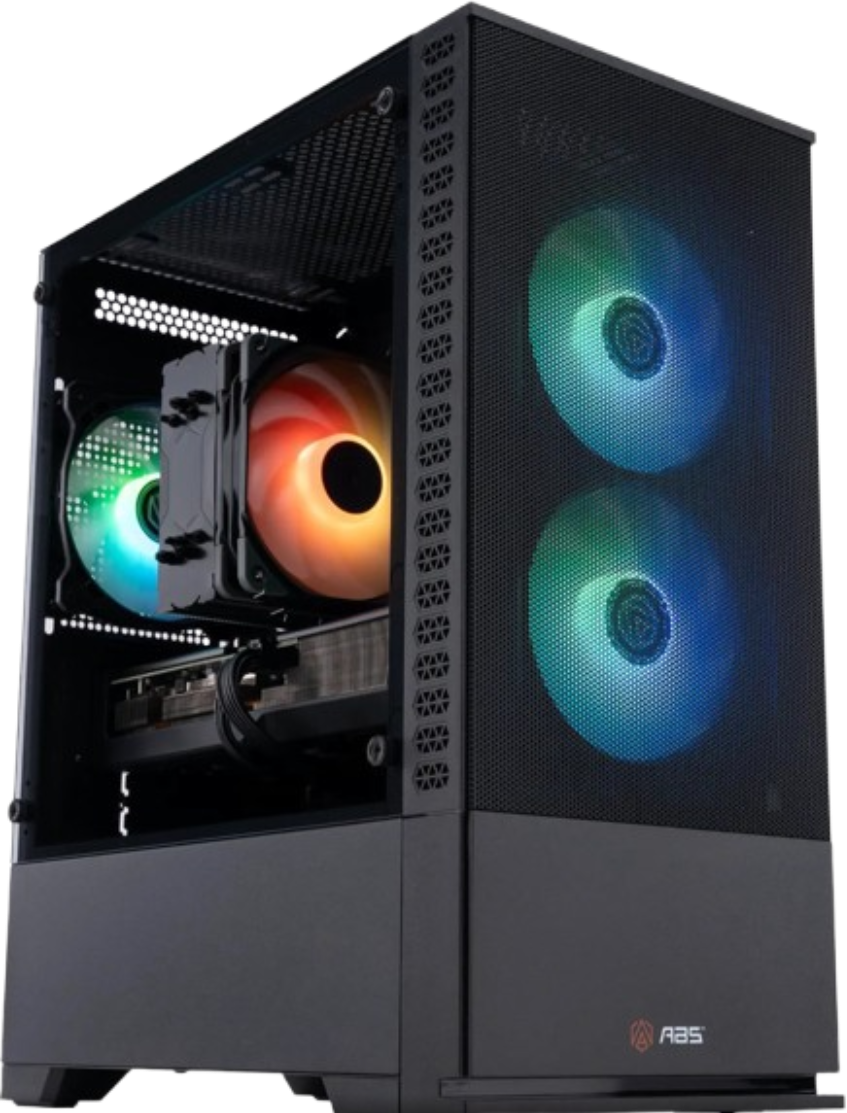
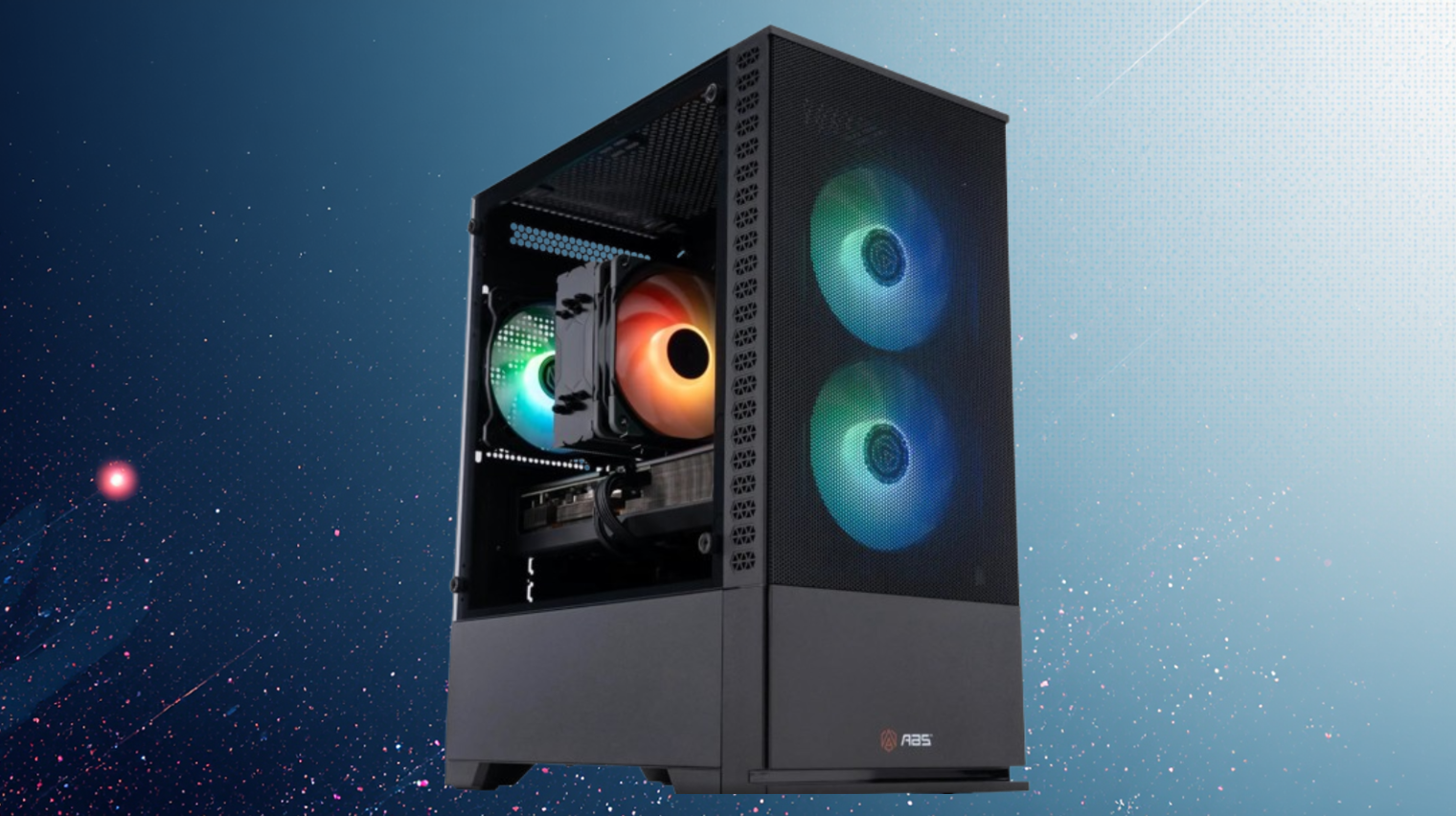
Here we are, nearly a year into the AI pricing apocalypse, and anyone who tried to build a PC during that time relied on some kind of combo deal to bring prices down to something more reasonable. If building a system on your own isn’t in the cards, Newegg is offering a great deal on its own ABS-brand prebuilt, which saves you money, time, effort, and hassle. You can buy the ABS Stratos II Aqua for only $2,549 and start gaming as soon as tomorrow without blowing your budget.

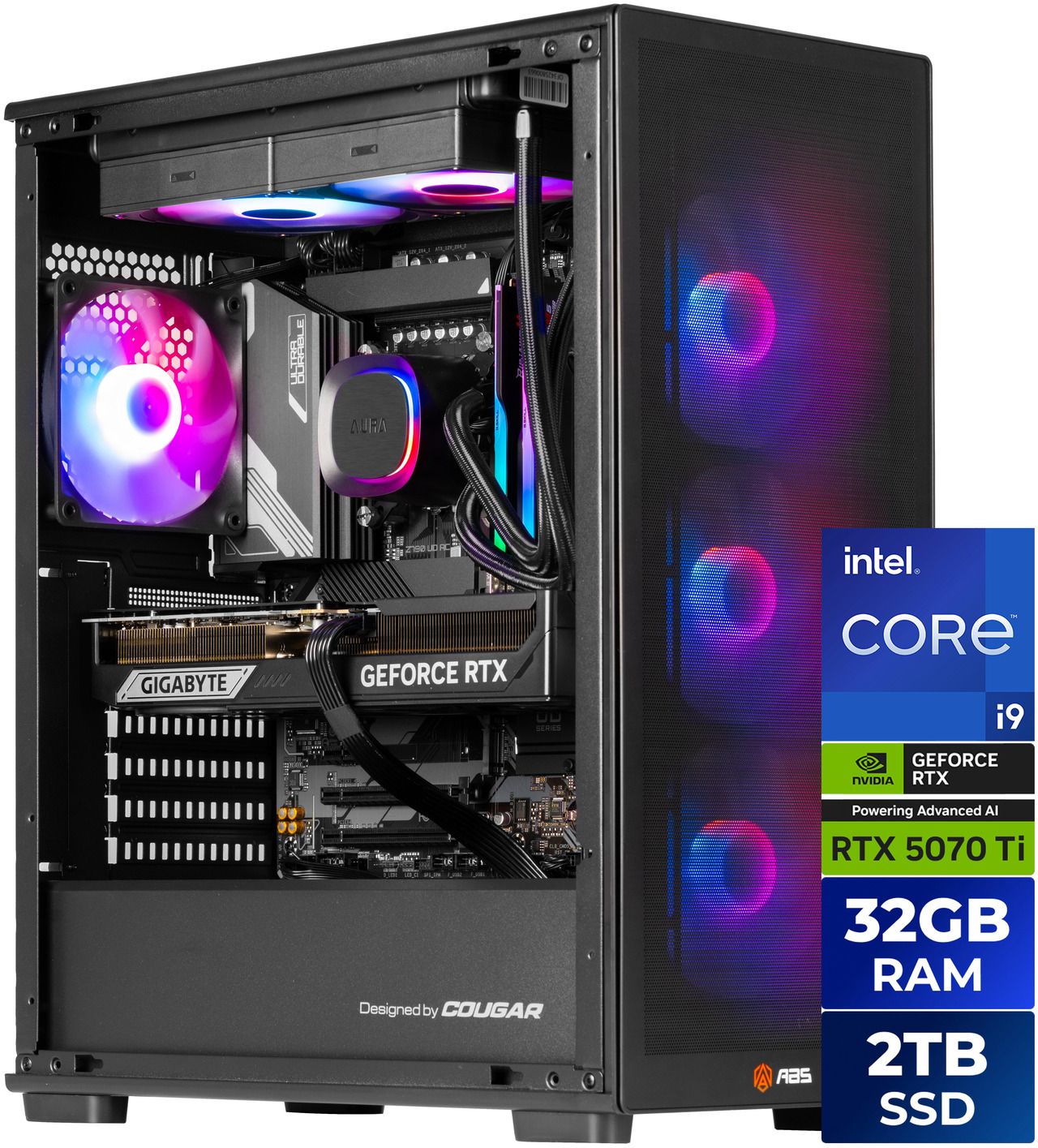
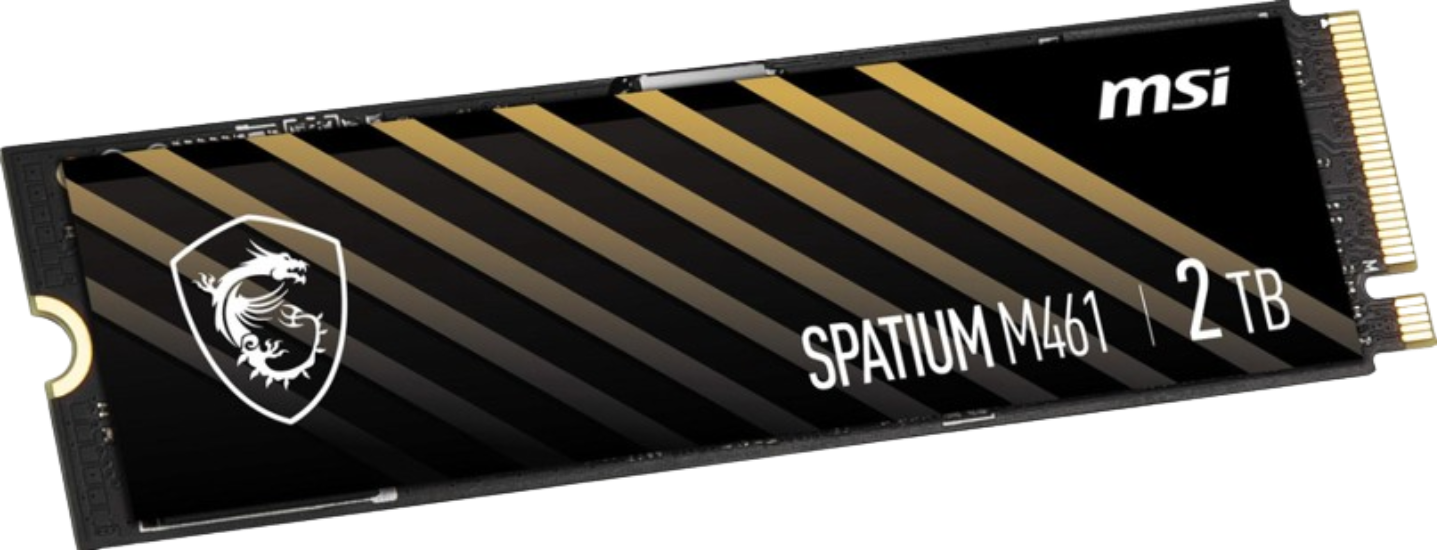
For the money, you get a complete prebuilt gaming system complete focused around the previous generation flagship 14900KF processor, and Nvidia’s capable RTX 5070 Ti 16GB along with a cool looking ABS Stratos II MX220 Black Gaming Case with four pre-installed fans, quality Gamdias Helios ATX/PCIe(3.1/5.1) 850W Gold power supply, 240mm AIO cooler, 32GB of G.Skill Ripjaws M5 RAM, 2TB Team Group M.2 storage, and a Gigabyte motherboard, making this one of the better deals around for a complete gaming system.

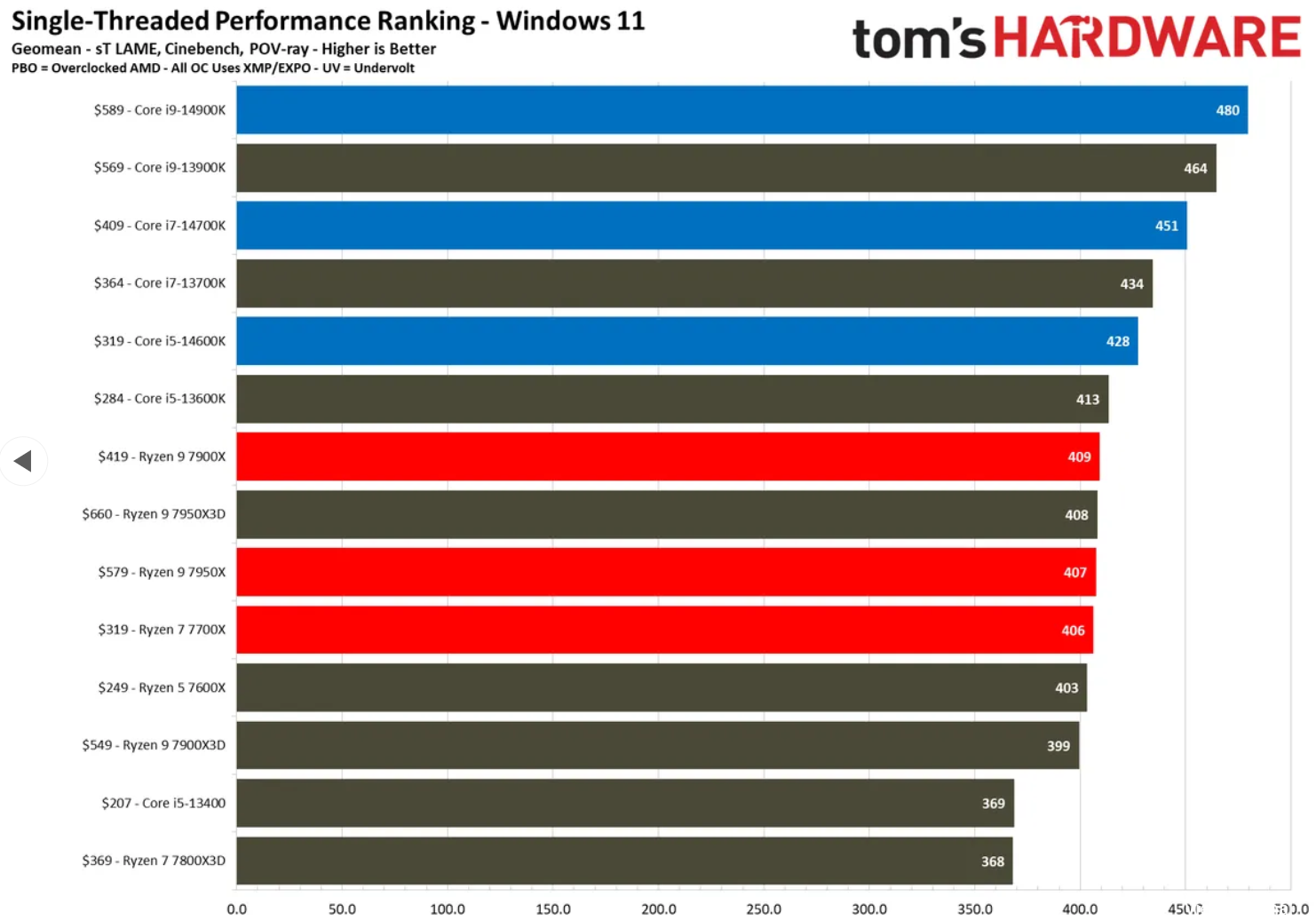
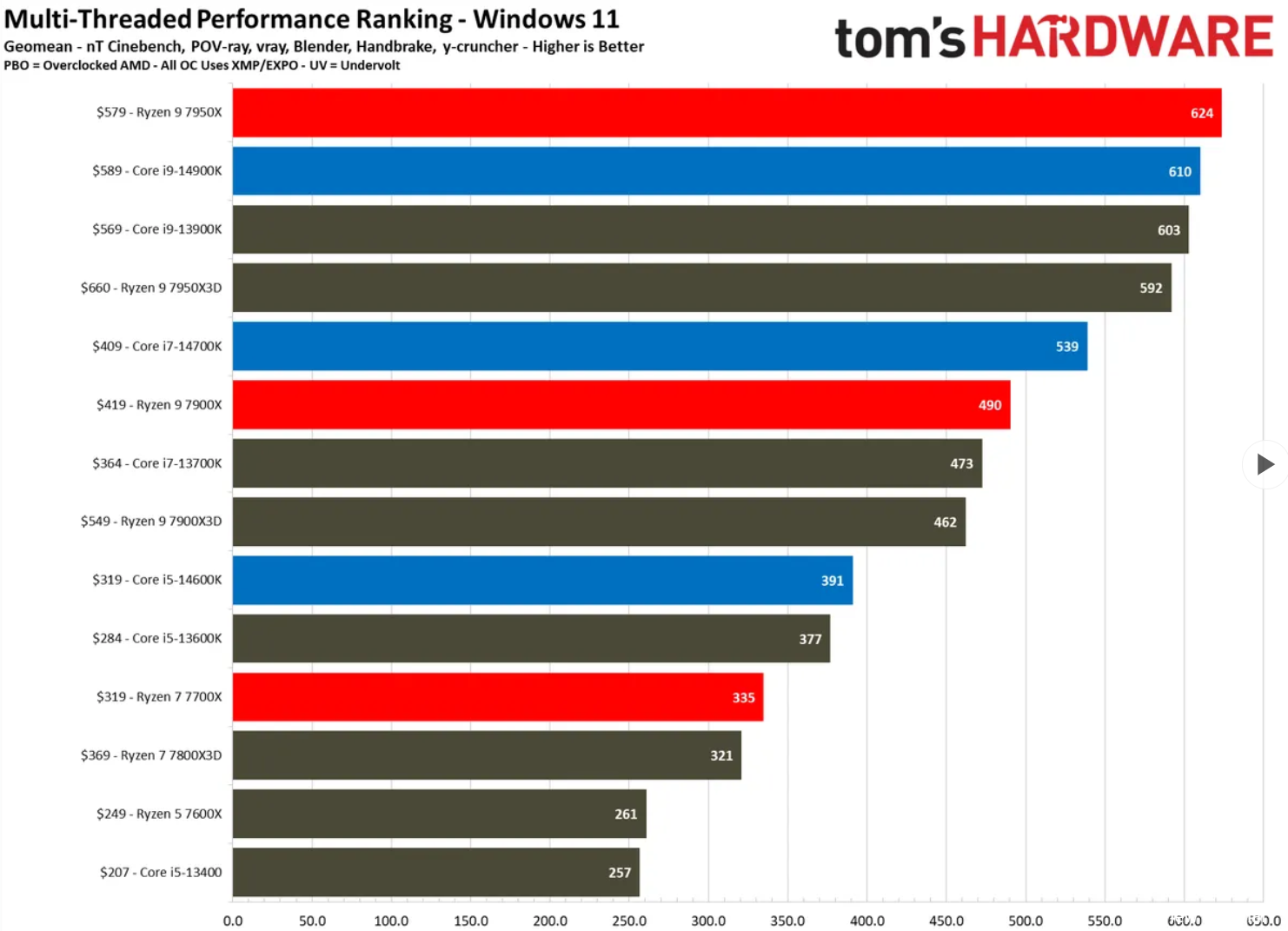
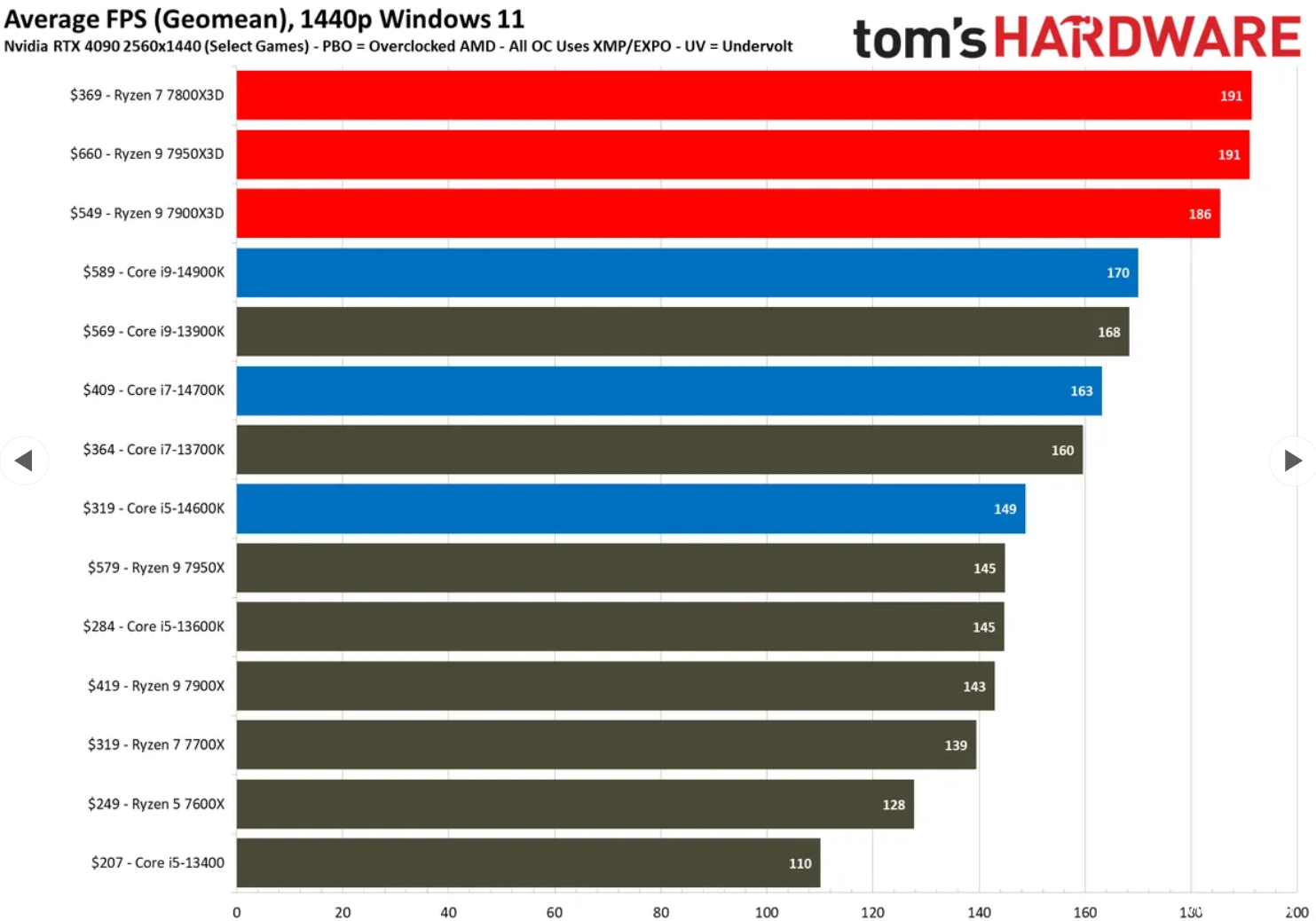
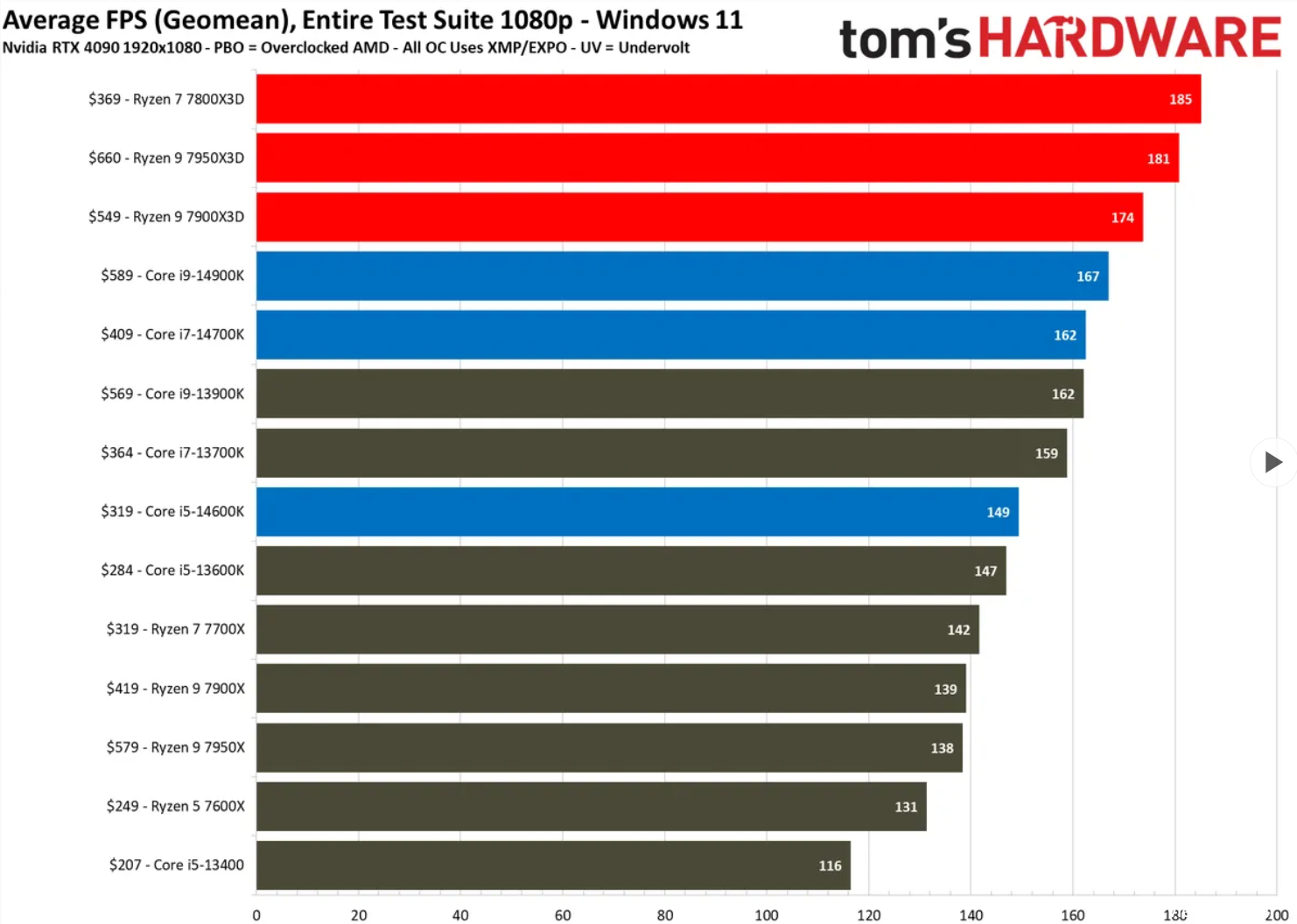
The ABS Stratos II Aqua and the mid-tower chassis include an Intel Core i9-14900KF processor featuring 24 total cores (8P+16E) and 32 threads, with speeds up to a smoking-fast 6 GHz. While this isn’t the fastest gaming processor on the market, it still holds its own, especially at higher resolutions, which the video card can handle without issue.

Save big on the Newegg ABS Stratos II Aqua gaming PC. View Deal

The CPU drops into a Gigabyte Z790 US AC motherboard that offers plenty of connectivity, including 10 USB ports on the rear IO (one 20 Gbps Type-C), two M.2 sockets (both PCIe 4.0 x4), and six SATA ports for storage, 2.5 GbE and integrated Wi-Fi, and will handle the flagship-class i9-14900KF processor. It also pairs well with 32GB of G.Skill Ripjaws M5 Neo RGB DDR5-6000 RAM and a 2TB Team Group NV5000 PCIe 4.0 x4 SSD. ABS also includes the Gamdias Aura GL240 V2 240mm RGB AIO to help keep the unlocked, high-performance processor running smoothly.

i9-14900KF Charts
Future
i9-14900KF Charts
Future
i9-14900KF Charts
Future
i9-14900KF Charts
Future

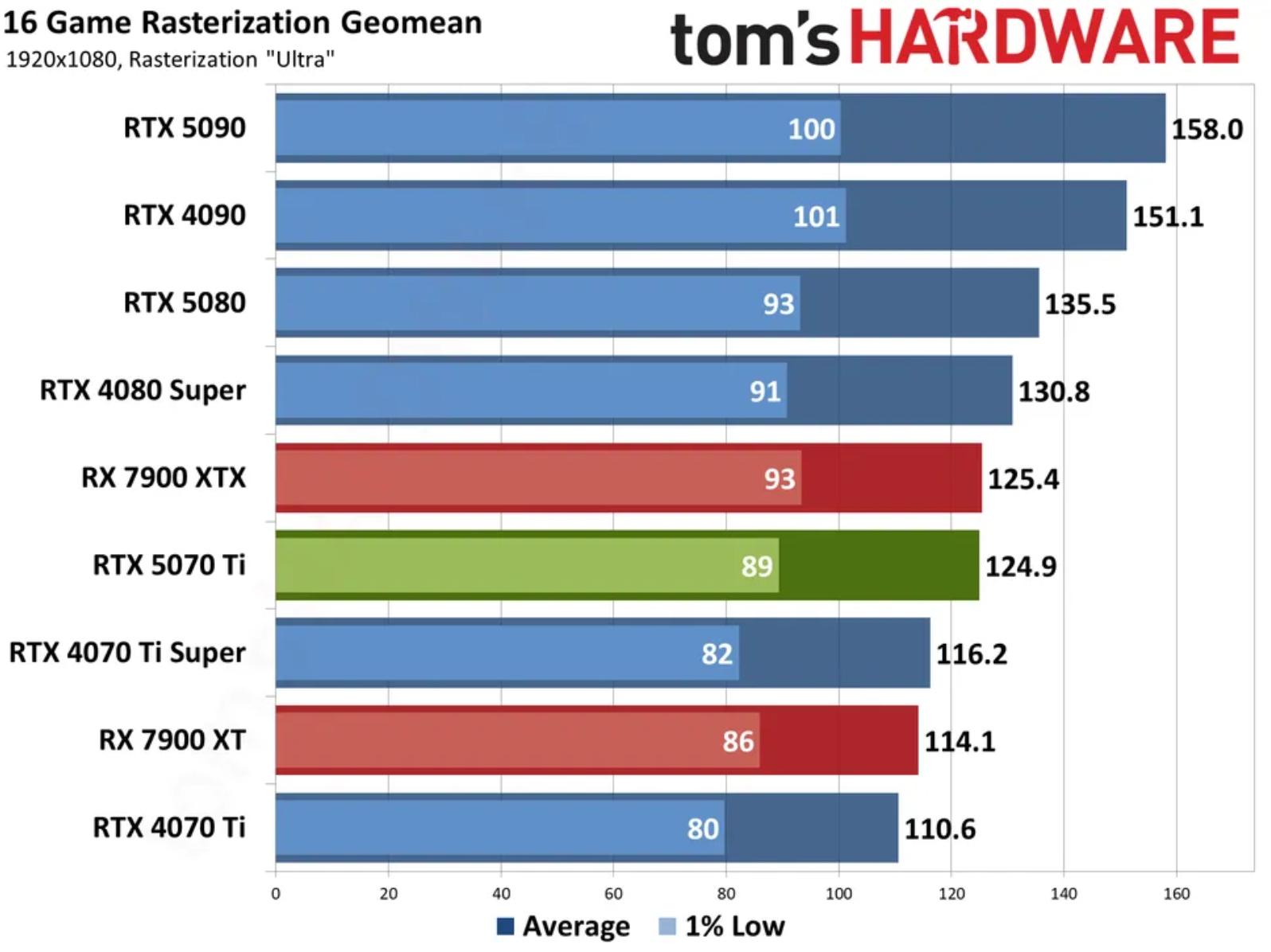
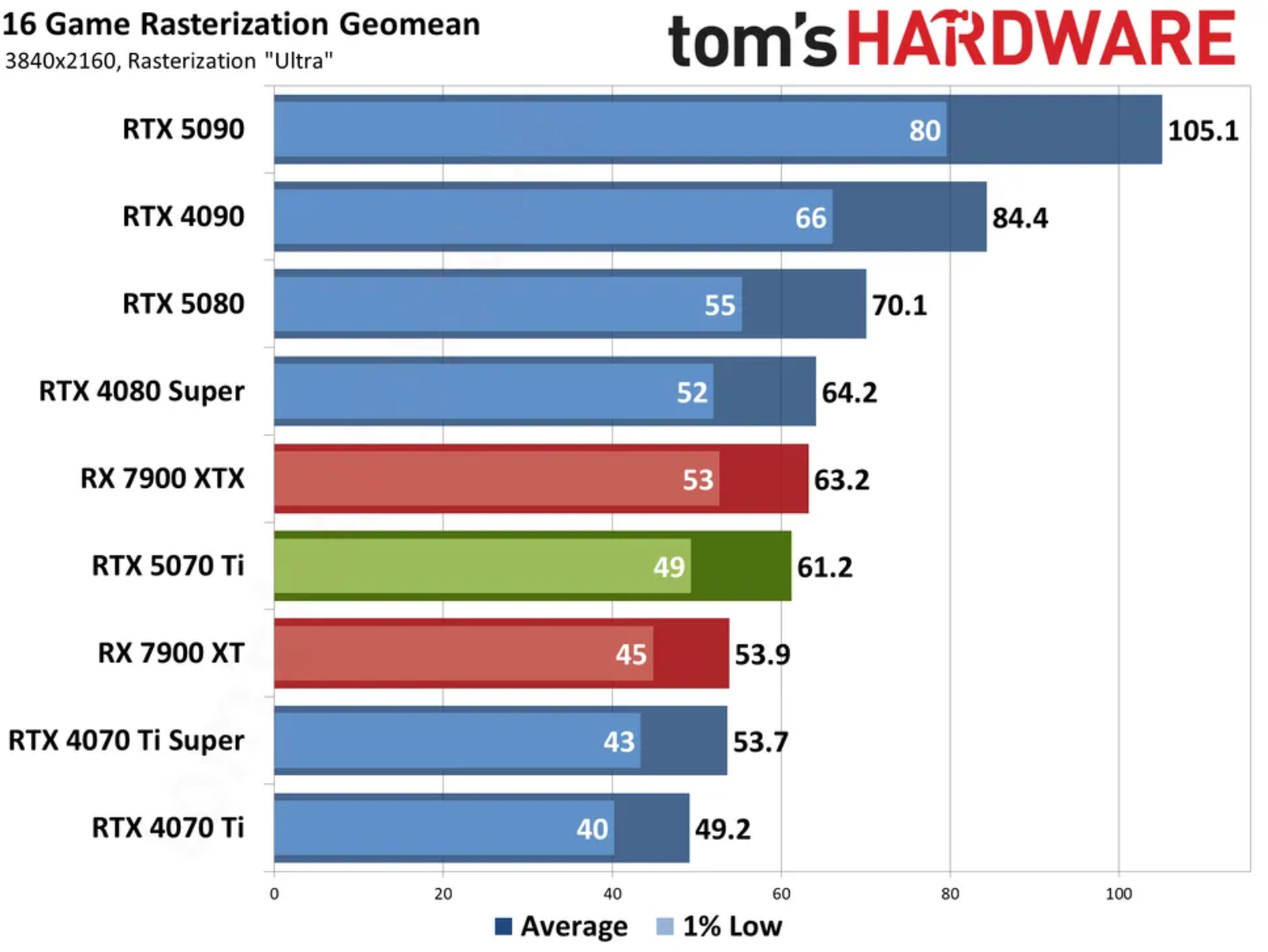
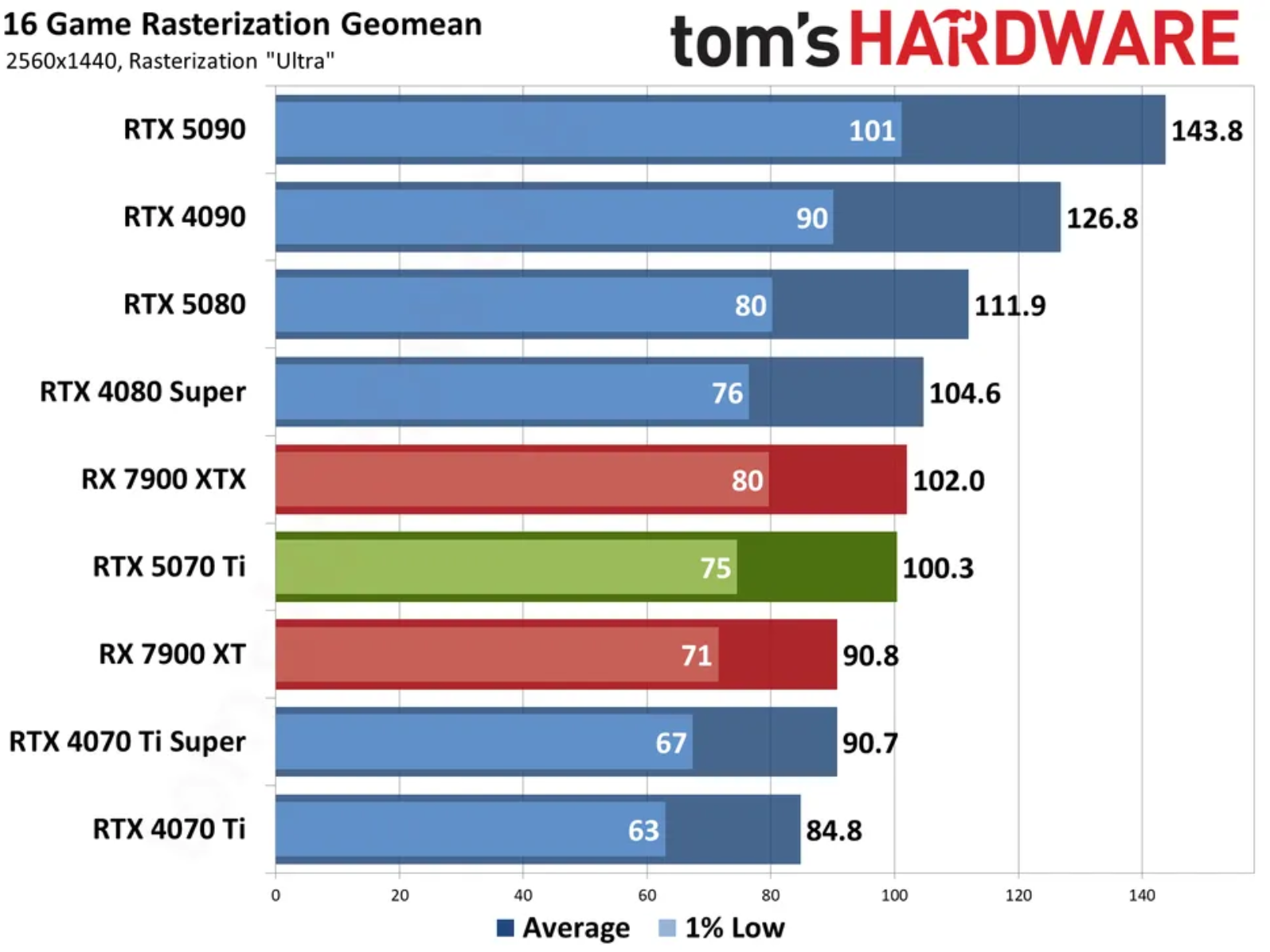
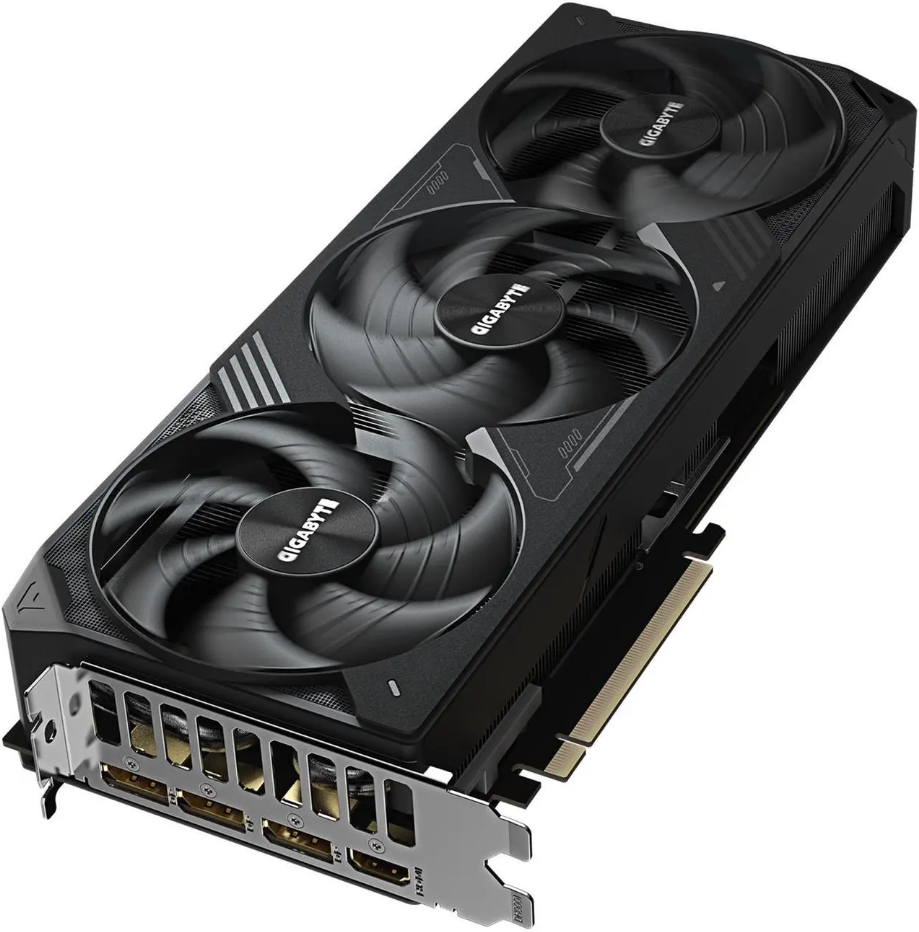
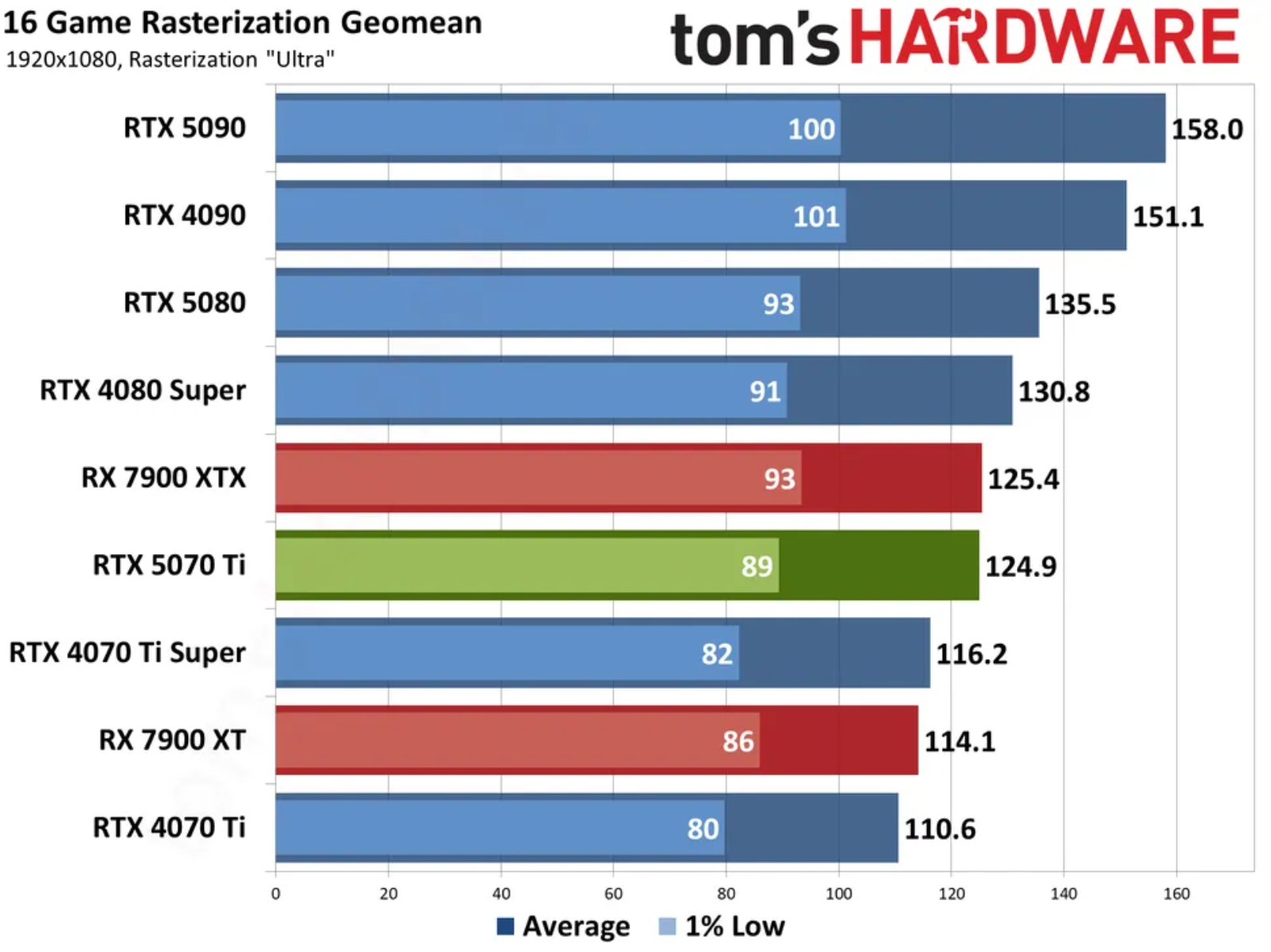
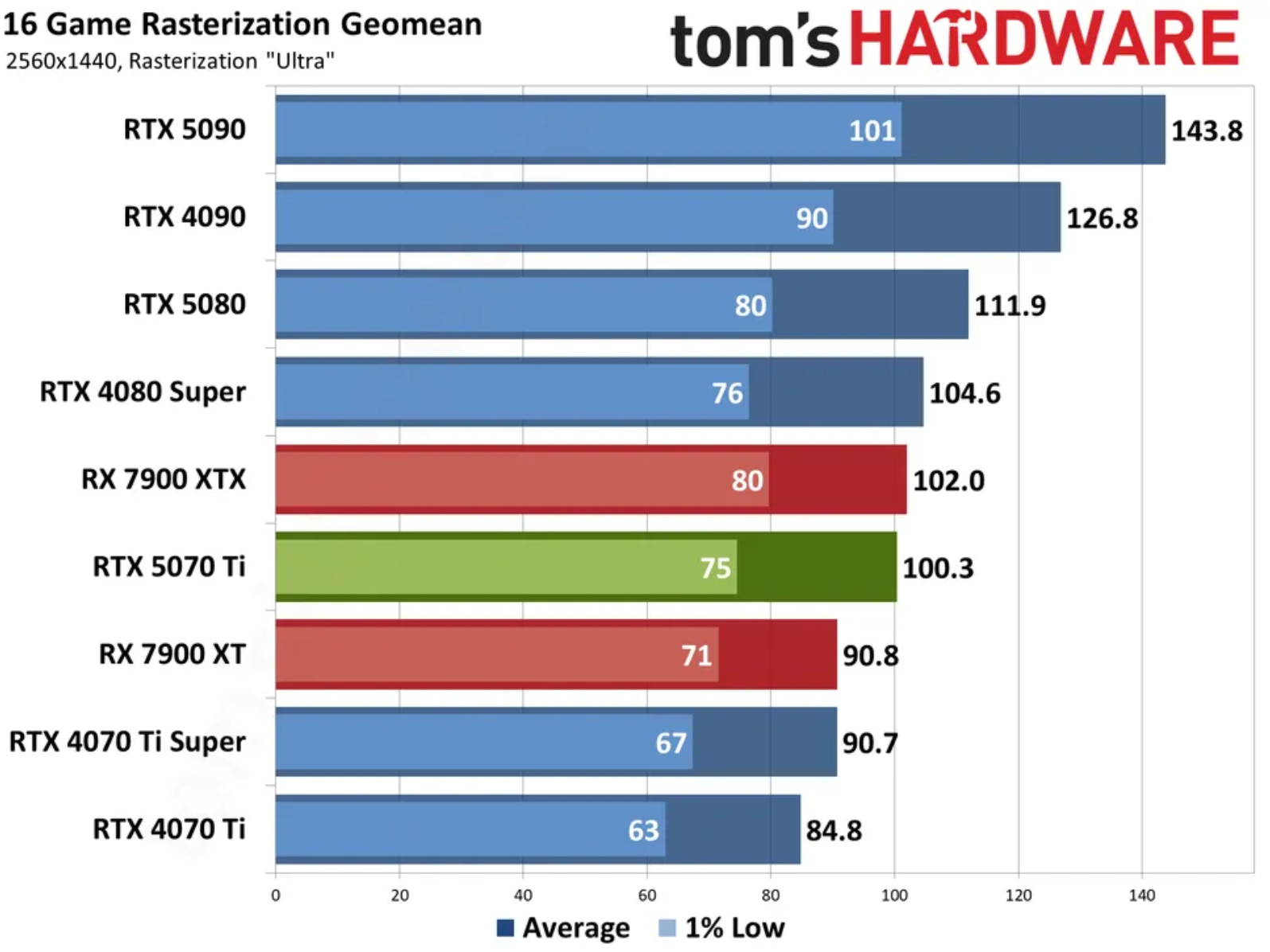
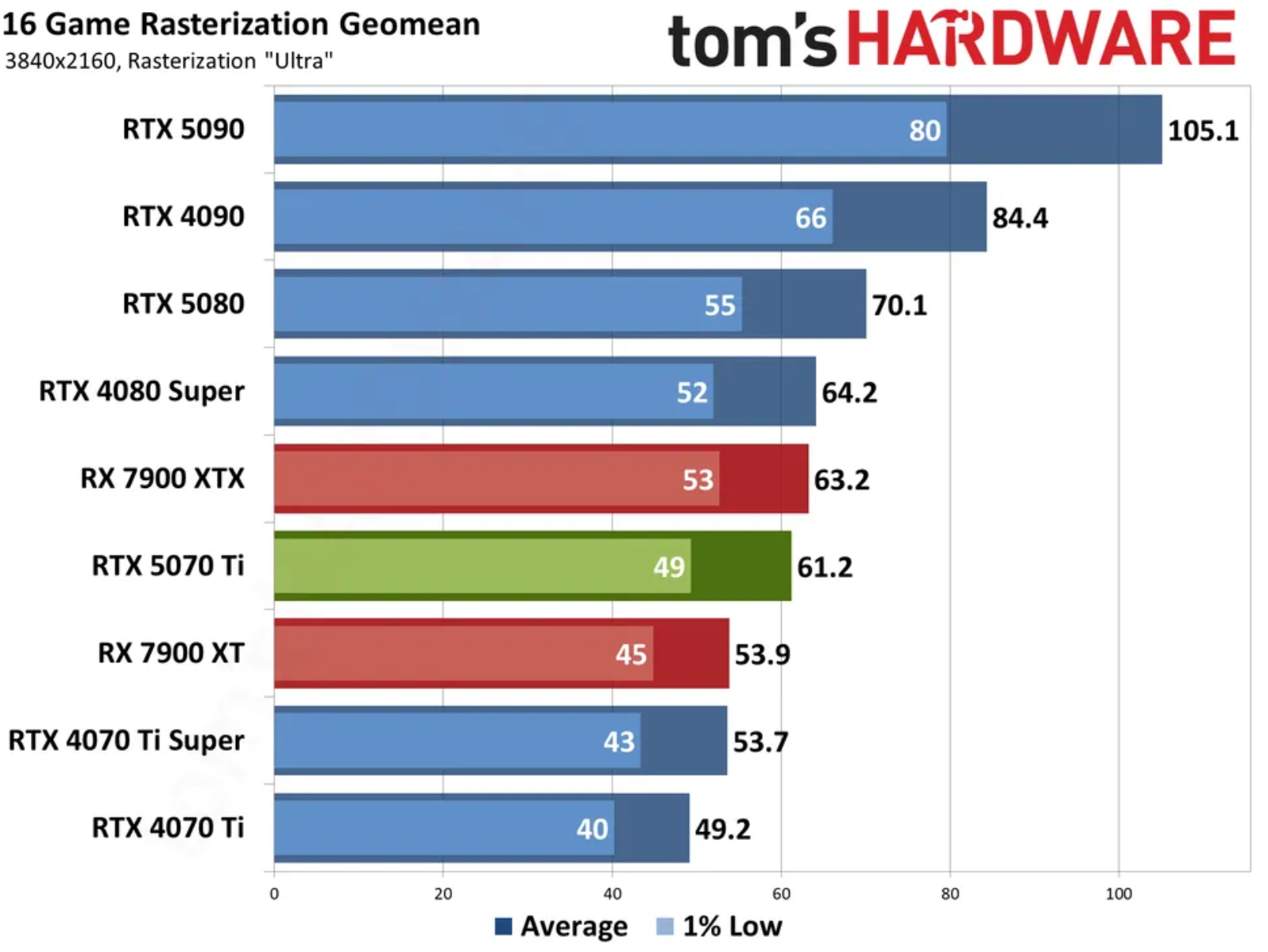
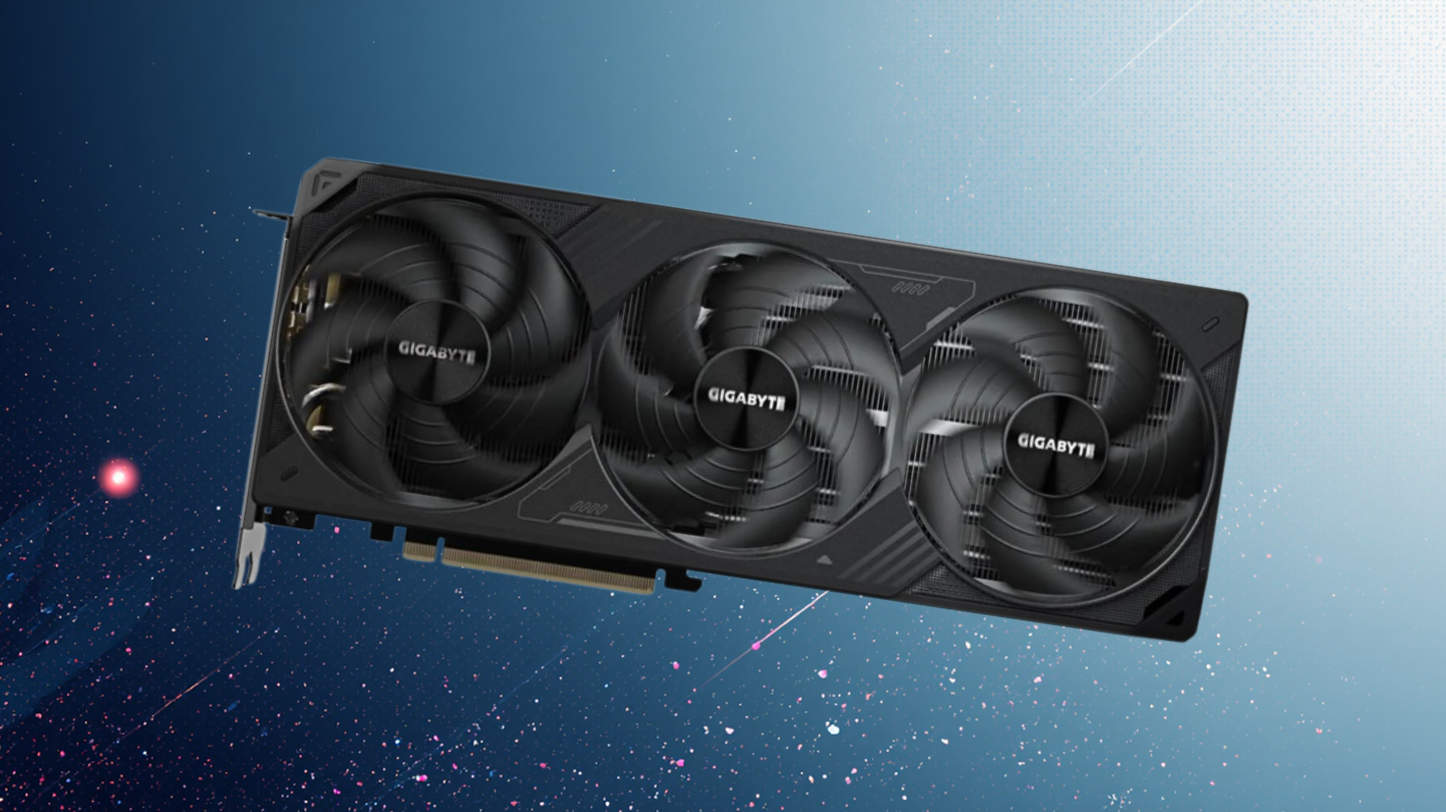
The GPU is Gigabyte’s Windforce RTX 5070 Ti SFF OC, with three fans (2.5-slot-wide) and an all-black look that should pair well with the motherboard and other components. The RTX 5070Ti is a capable graphics card for high-refresh-rate 1080p gaming, 1440p gaming, and even some 4K titles. You won’t find any RGB lighting on this card, but the triple-fan cooling solution will keep the card running cool and quiet.

Gigabyte RTX 5070 Ti Windforce OC SFF benchmarks
Future
Gigabyte RTX 5070 Ti Windforce OC SFF benchmarks
Future
Gigabyte RTX 5070 Ti Windforce OC SFF benchmarks
Future

While it can be cheaper to gather the parts and build your own, it isn’t for everyone. If you build your own and it breaks, troubleshooting is on you. Some people just want to open a box and start gaming and not have to worry about support. ABS backs its systems with a 1-year warranty, so if anything goes wrong, you can easily get it fixed.

For $2,549 (a $450 savings), you can buy a complete, warrantied gaming system that will run anything you throw at it with aplomb without completely emptying your bank account.

Gigabyte X870 Aorus Infinity Motherboard Review: limited-edition, designed for extreme overclocking, but pricey for X870

作者 Joe Shields
2026年10月16日 21:00

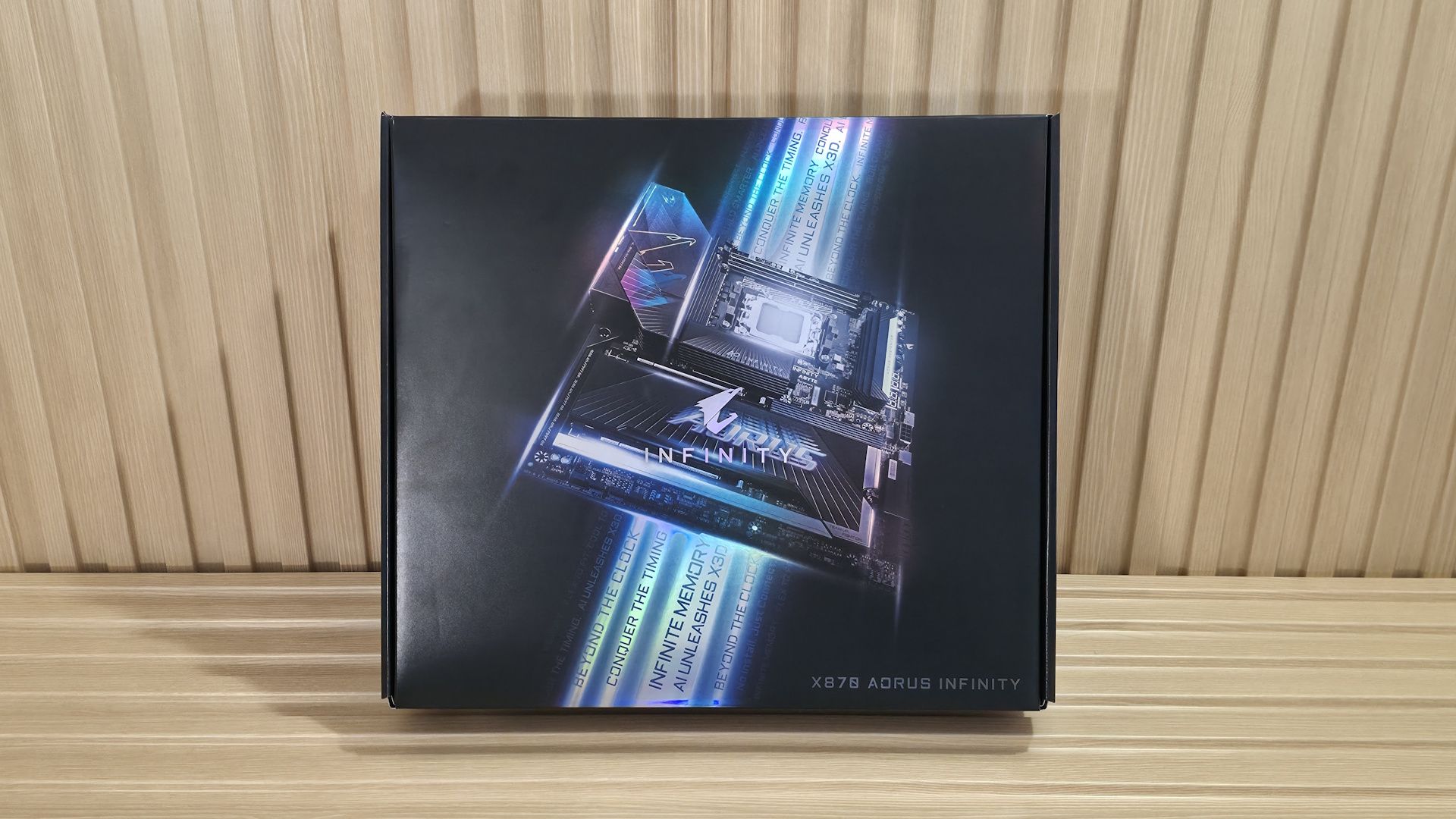
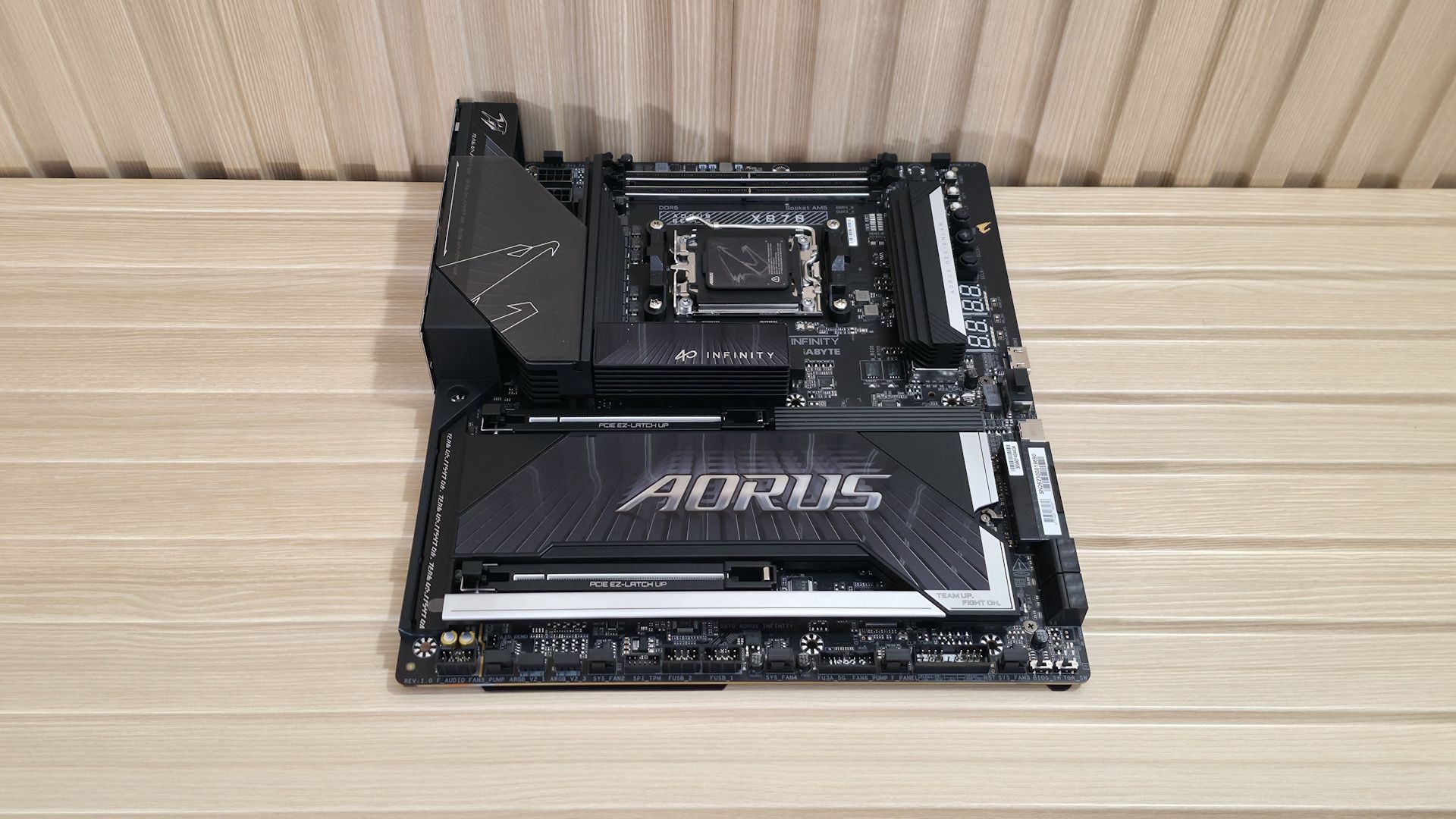
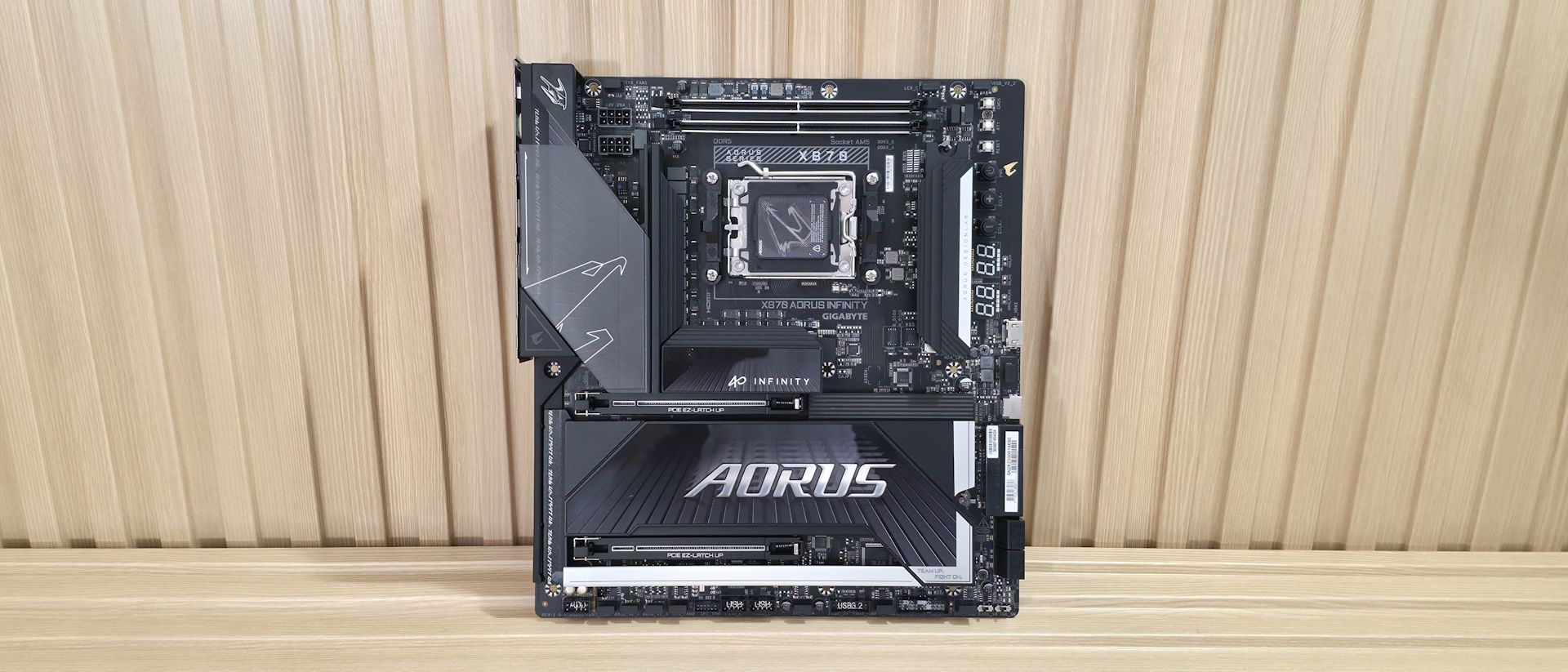
At Computex 2026, we saw Gigabyte’s concept X870E Aorus Infinity Next motherboard using that incredible-looking space-age material for VRM cooling, along with something more practical: the X870 Aorus Infinity, a production board, not a concept. The Infinity is made for overclockers. Just look at the right edge: All those buttons and voltage read points make pushing the limits even easier. It sports a two-DIMM design, with the DRAM slots above the socket, prioritizing speed over capacity. Priced at an eye-opening $799.99, it's far from cheap (it is a 40th-anniversary limited-edition board), even for the enthusiast X870E platform, but it offers a wide range of features that work for nearly everyone.

As far as specifications go, the Aorus Infinity is well-equipped for an X870 board. You get eight total USB ports on the rear IO (one USB4), three M.2 sockets (one PCIe 5.0), and four SATA ports for storage, fast networking with 5 GbE and Wi-Fi 7 (320 MHz), and a quality last-gen flagship-class audio codec. And of course, there are all of the features designed for overclocking, including robust power delivery and the Overclocking kit, with several buttons and voltage read points, to take some of the complications of extreme overclocking down a notch. Gigabyte also lists support for a staggering DDR5-11400(OC), but it needs manual tweaking, specialized BIOS fine-tuning, and the right hardware (likely an APU with an excellent IMC).

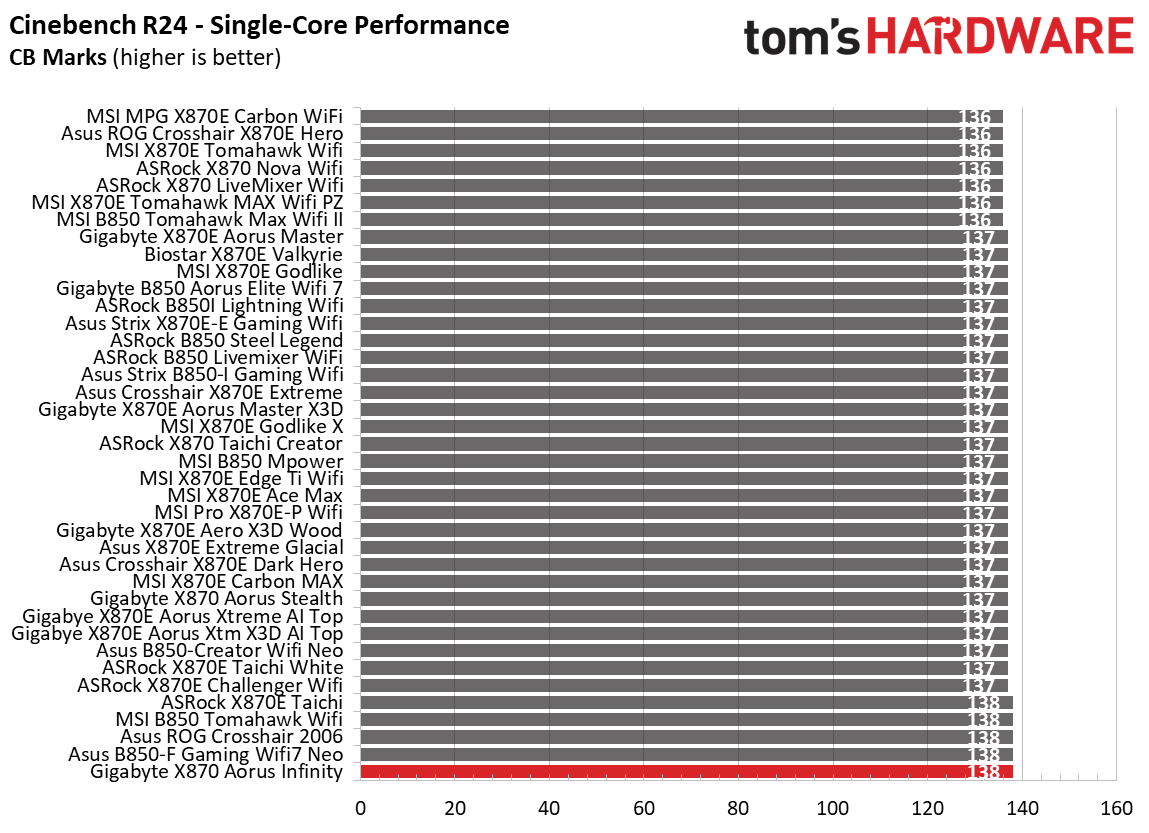
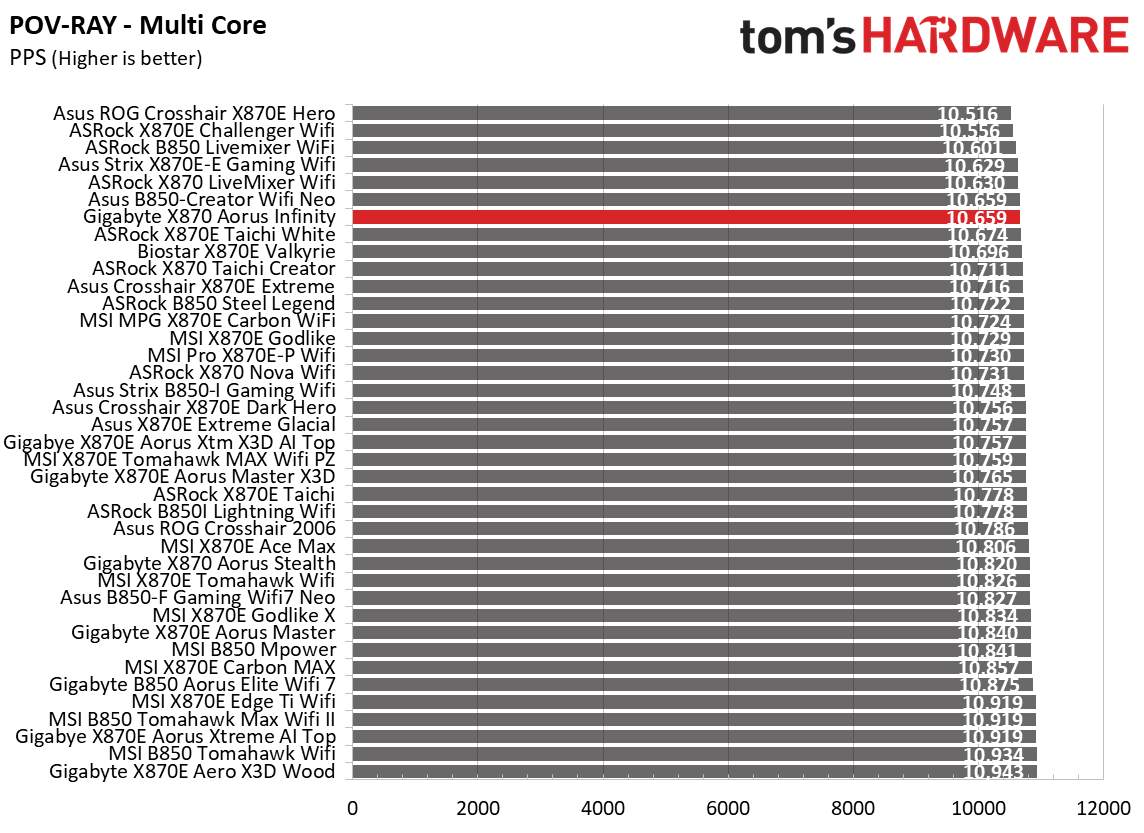
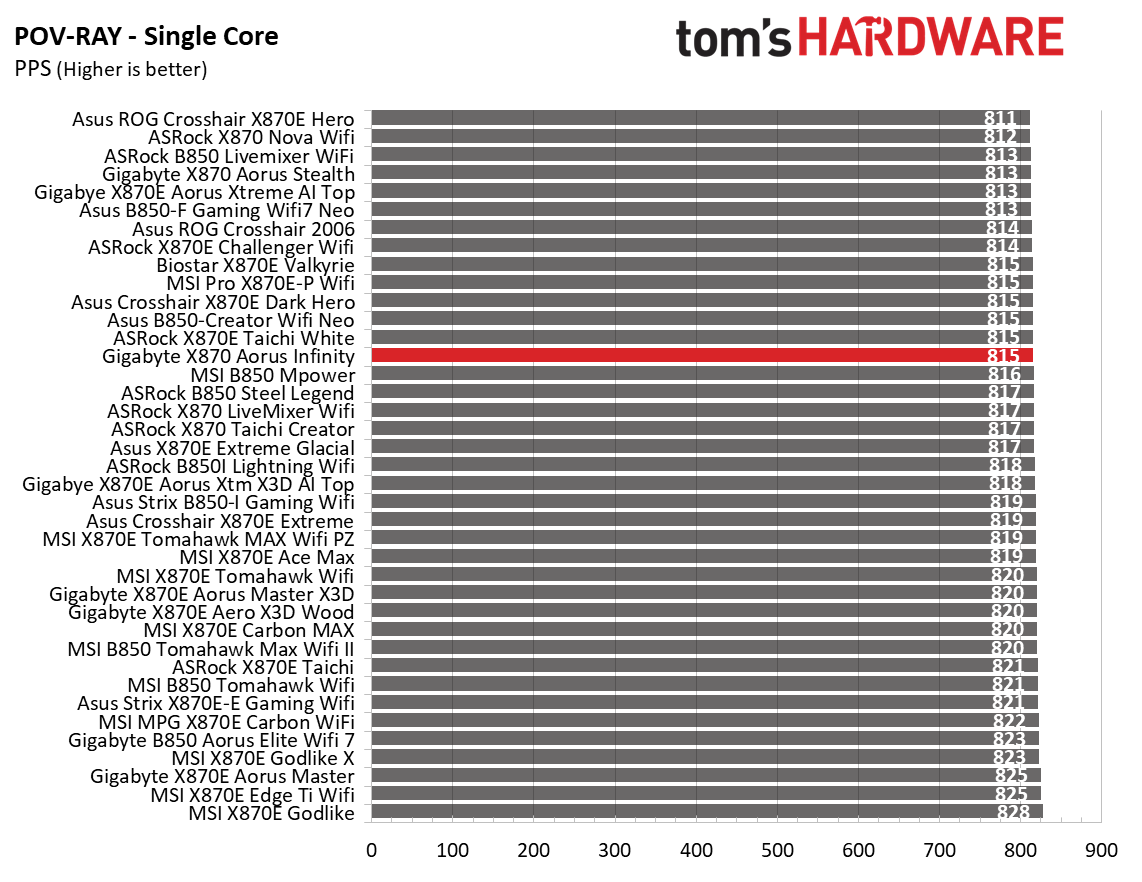
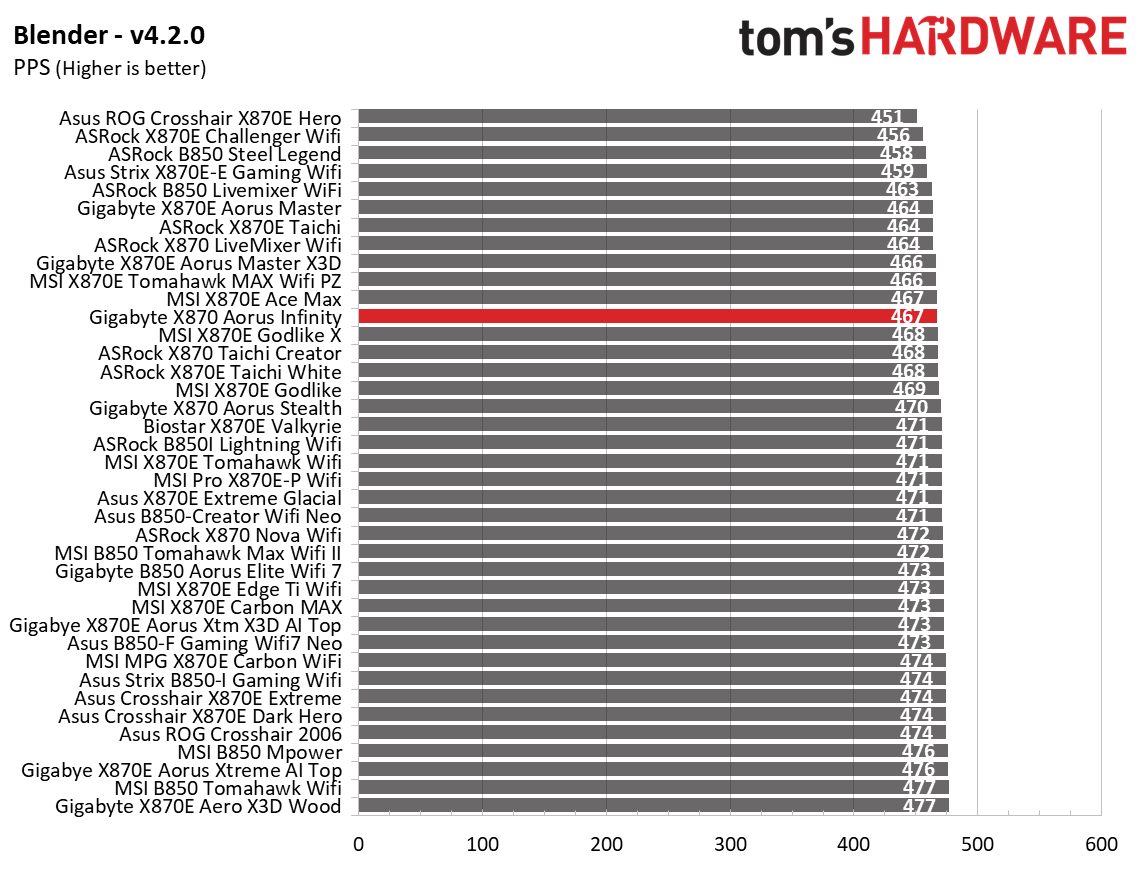
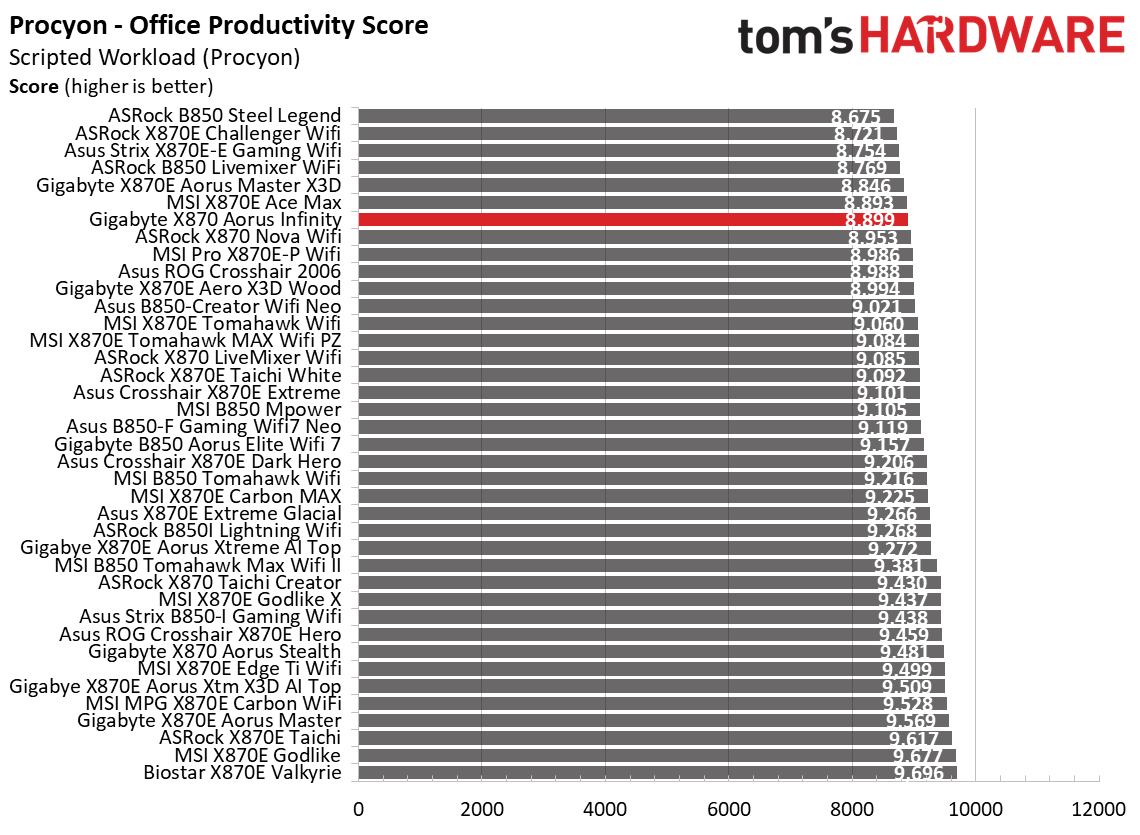
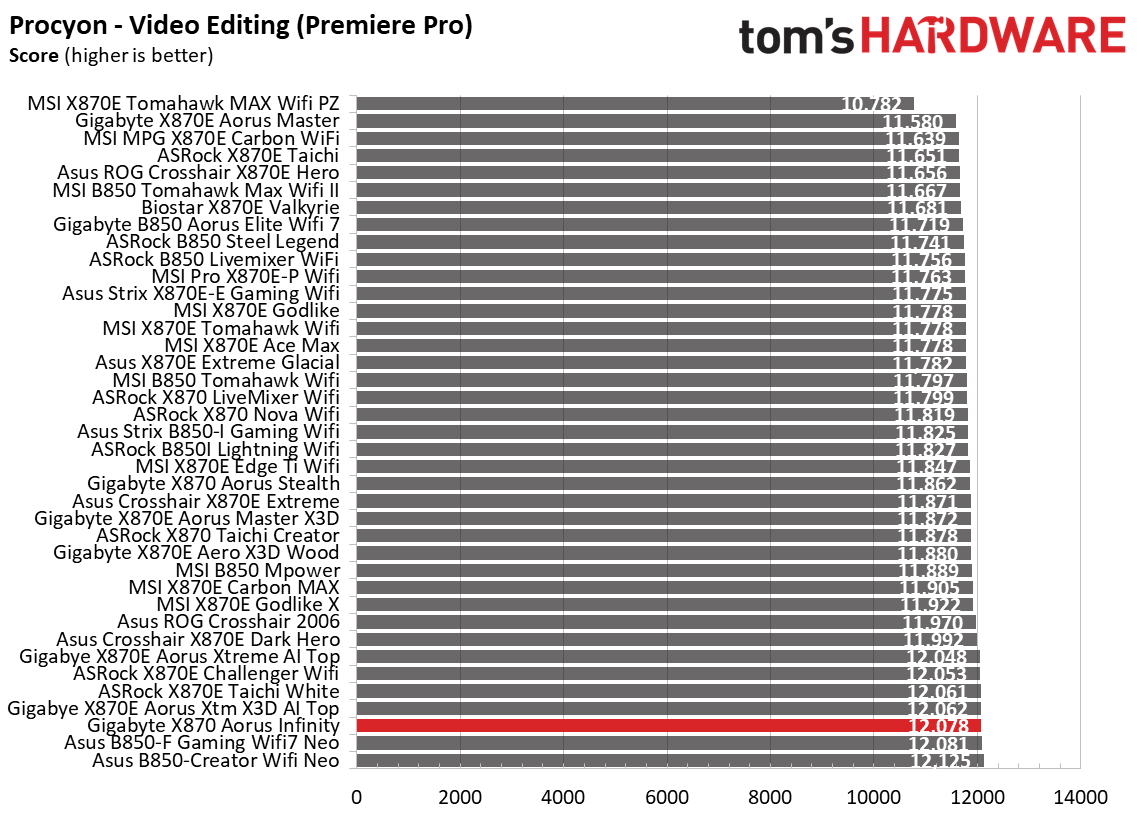
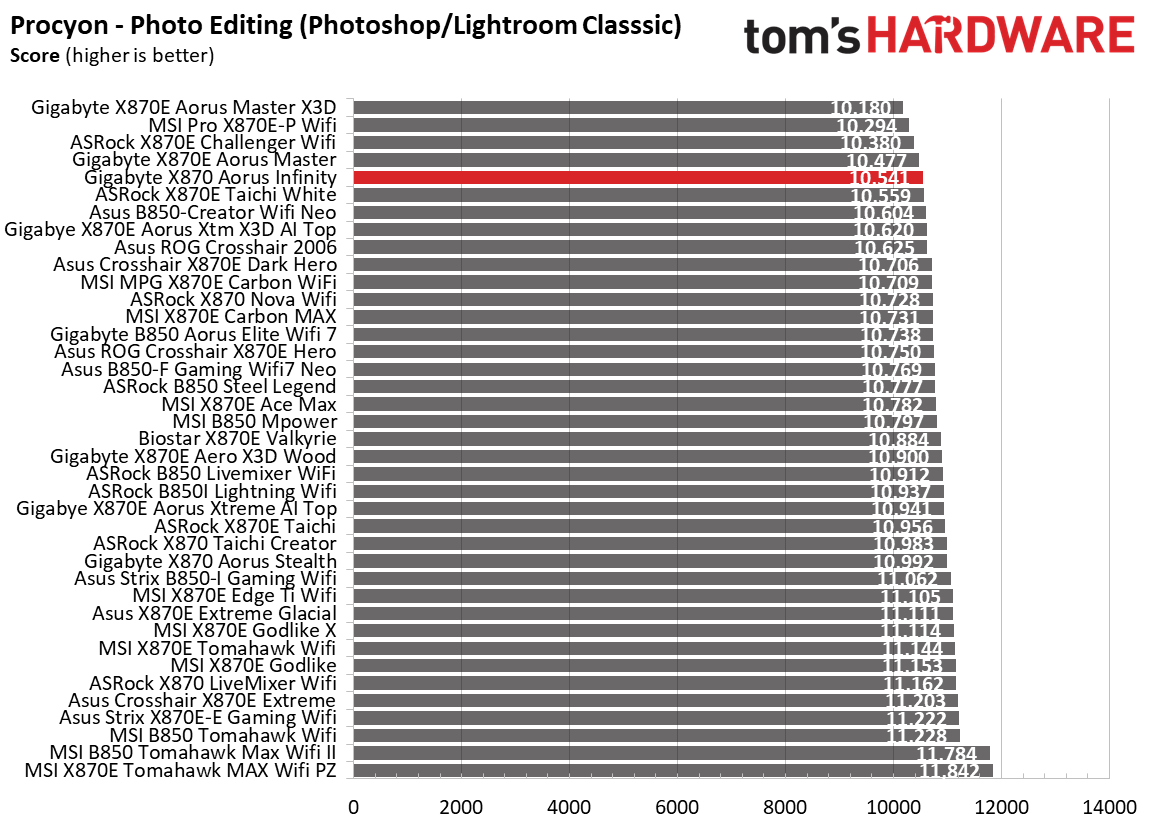
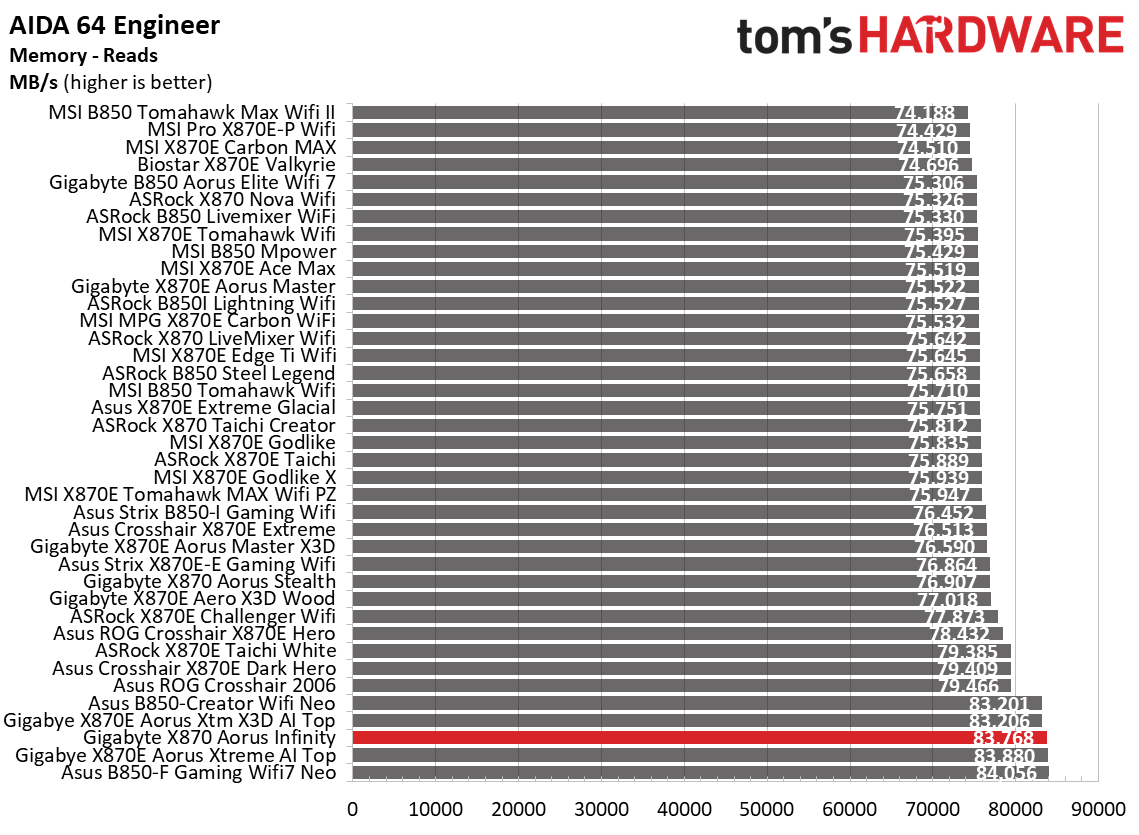
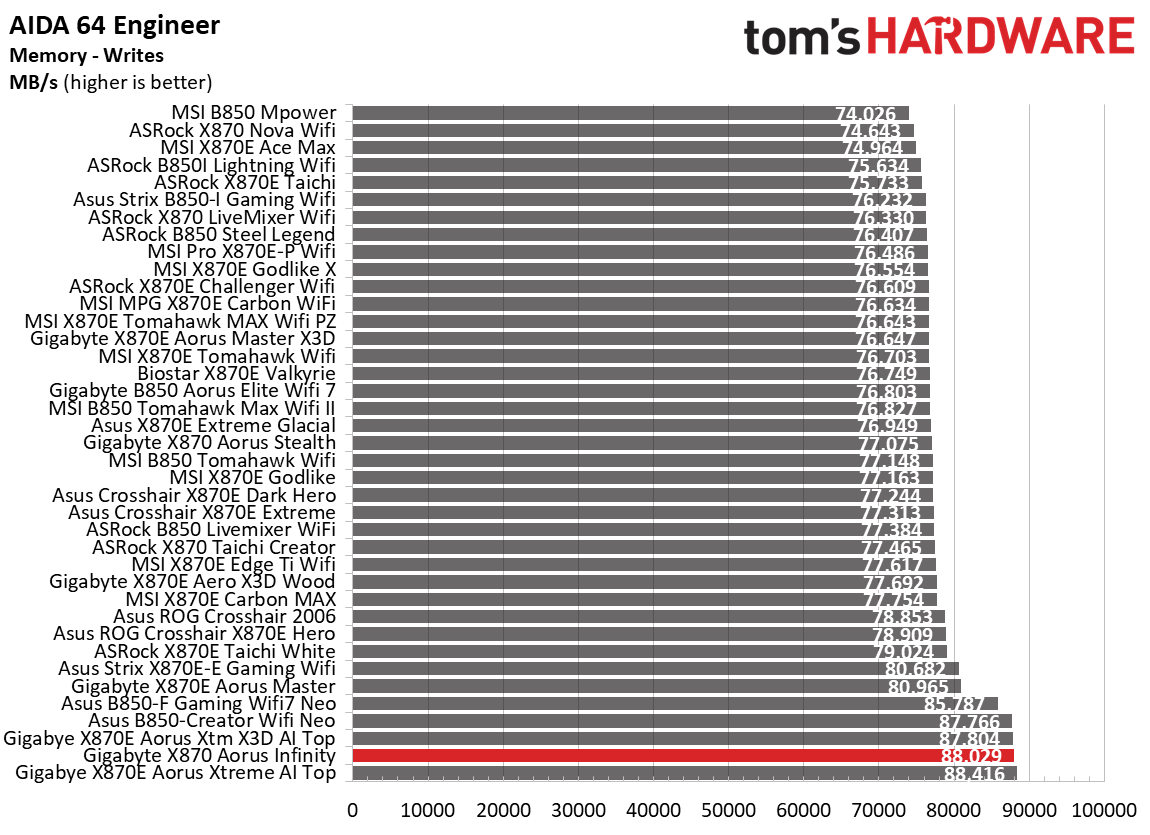
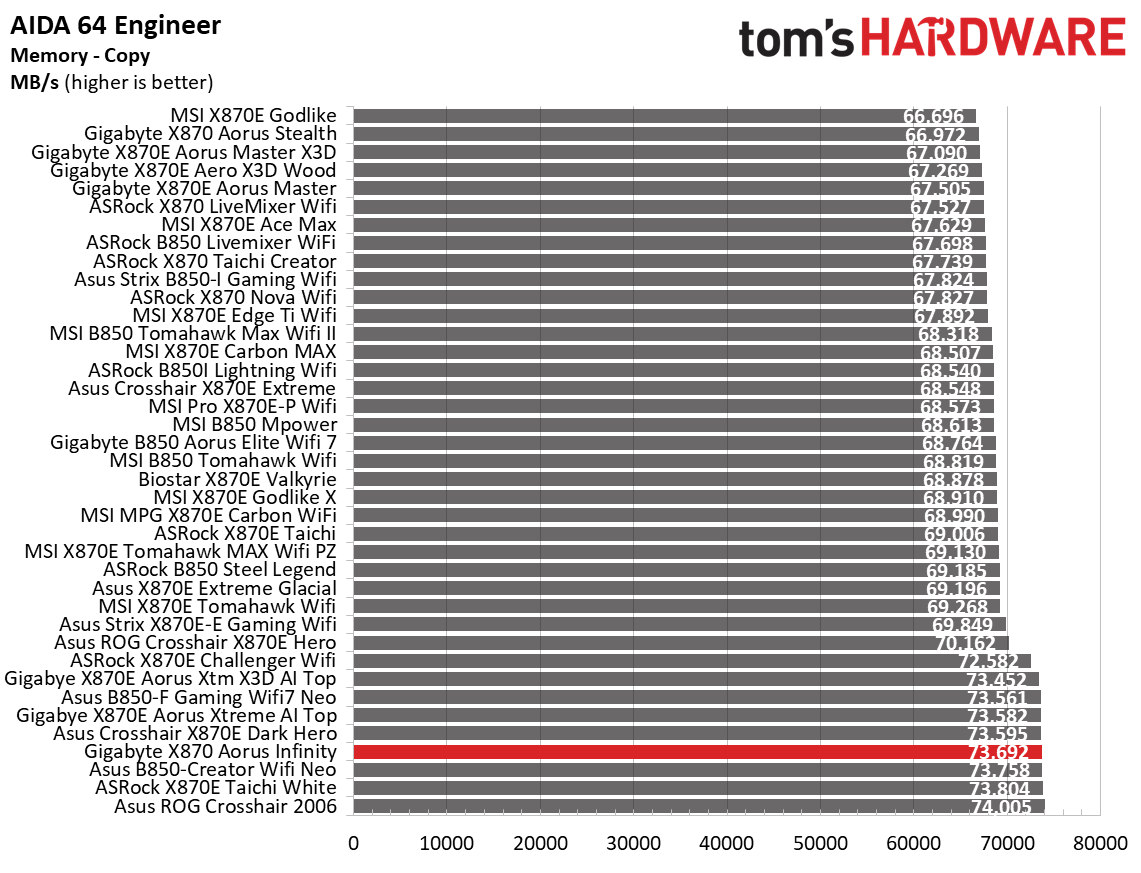
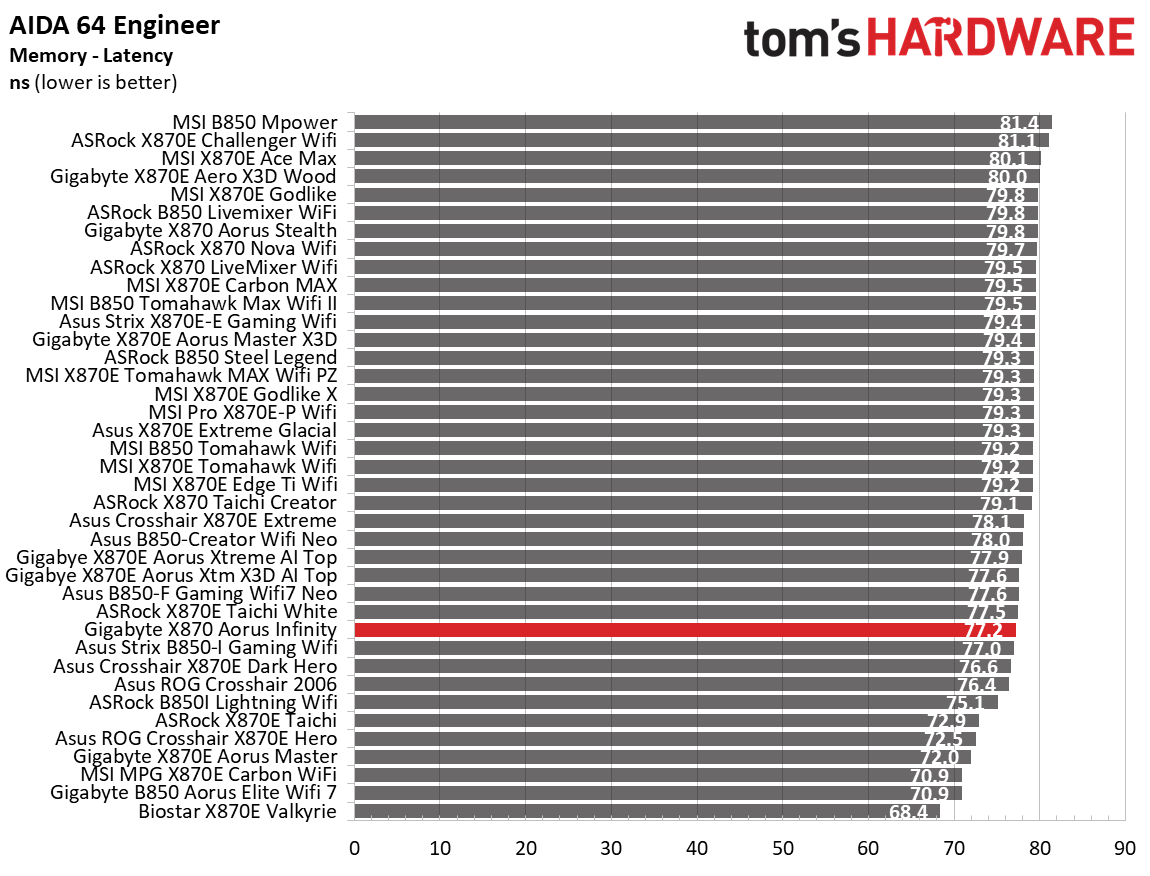
On the performance front, the X870 Aorus Infinity delivered average-to-above-average results across most tests, using our primary Kingston DDR5-6000 kit, which is what we like to see. It proved competent not only in daily office tasks and other productivity functions, but also as a solid gaming platform. Overall, this board is a well-rounded performer.

Below, we’ll examine the Aorus Infinity’s performance and other features, and decide if it has a chance to make our list of the best motherboards. But before we share test results and discuss details, here are the specifications from the Gigabyte website.

Specifications of the Aorus Infinity

Socket

AM5 (LGA 1718)

Chipset

X870

Form Factor

ATX

Voltage Regulator

22 Phase (18x 110A SPS MOSFETs for Vcore)

Video Ports

(1) USB4
(1) HDMI (v2.1)
(1) HDMI (v1.4) Front

USB Ports

(1) USB 4 (40 Gbps) Type-C
(2) USB 3.2 Gen 2 (10 Gbps)
(5) USB 3.2 Gen 1 (5 Gbps)

Network Jacks

(1) 5 GbE

Audio Jacks

(2) Analog and SPDIF

Legacy Ports/Jacks

(2) PS/2 ports (keyboard and mouse)

Other Ports/Jack

✗

PCIe x16

(1) v5.0 (x16, x8)
(1) v5.0 (x8)

PCIe x8

✗

PCIe x4

✗

PCIe x1

✗

CrossFire/SLI

✗

DIMM Slots

(4) DDR5-11400+(OC), 128GB Capacity

M.2 Sockets

(2) PCIe 5.0 x4 (128 Gbps) / PCIe (up to 110mm)
(1) PCIe 4.0 x4 (64 Gbps) / PCIe (up to 110mm)

SATA Ports

(4) SATA3 6 Gbps

USB Headers

(1) USB v3.2 Gen 2x2 (20 Gbps) Type-C
(1) USB v3.2 Gen 1 (5 Gbps)
(2) USB v2.0 (480 Mbps)

Fan/Pump Headers

(8) 4-Pin (Accepts PWM and DC)

RGB Headers

(3) 3-pin ARGB Gen2 headers
(1) 4-pin RGB header

Diagnostics Panel

(2) 2-character Debug
(1) 4 LED Post Status Checker

Internal Button/Switch

CMOS, Retry, Reset, Power, ECLK +/-, BIOS and OC Trigger switches

SATA Controllers

✗

Ethernet Controller(s)

(1) Realtek RTL8126 5 GbE

Wi-Fi / Bluetooth

Qualcomm QCNCM865 Wi-Fi 7 - 320 MHz, 6 GHz, BT 5.4

USB Controllers

ASMedia ASM4242

HD Audio Codec

Realtek ALC1220

DDL/DTS

✗ / DTS:X Ultra

Warranty

3 Years

Inside the Box

Gigabyte includes the typical accessories, including two SATA cables and two 2-pin thermistors, a front panel connector, a Wi-Fi EZ Mag connector for the Wi-Fi Antenna, a manual, and an Aorus sticker. It also includes the CPU Thermal Matrix, two plates (a backplate and one that mounts on top) designed to mount around the socket to reduce VRM and RAM temperatures by up to 8.5 degrees Celsius, which can benefit both the average user and the extreme overclocker.

Design and Features of the Gigabyte X870 Aorus Infinity

Gigabyte X870 Aorus Infinity - Board images
Future
Gigabyte X870 Aorus Infinity - Board images
Future
Gigabyte X870 Aorus Infinity - Board images
Future
Gigabyte X870 Aorus Infinity - Board images
Future
Gigabyte X870 Aorus Infinity - Board images
Future
Gigabyte X870 Aorus Infinity - Board images
Future
Gigabyte X870 Aorus Infinity - Board images
Future

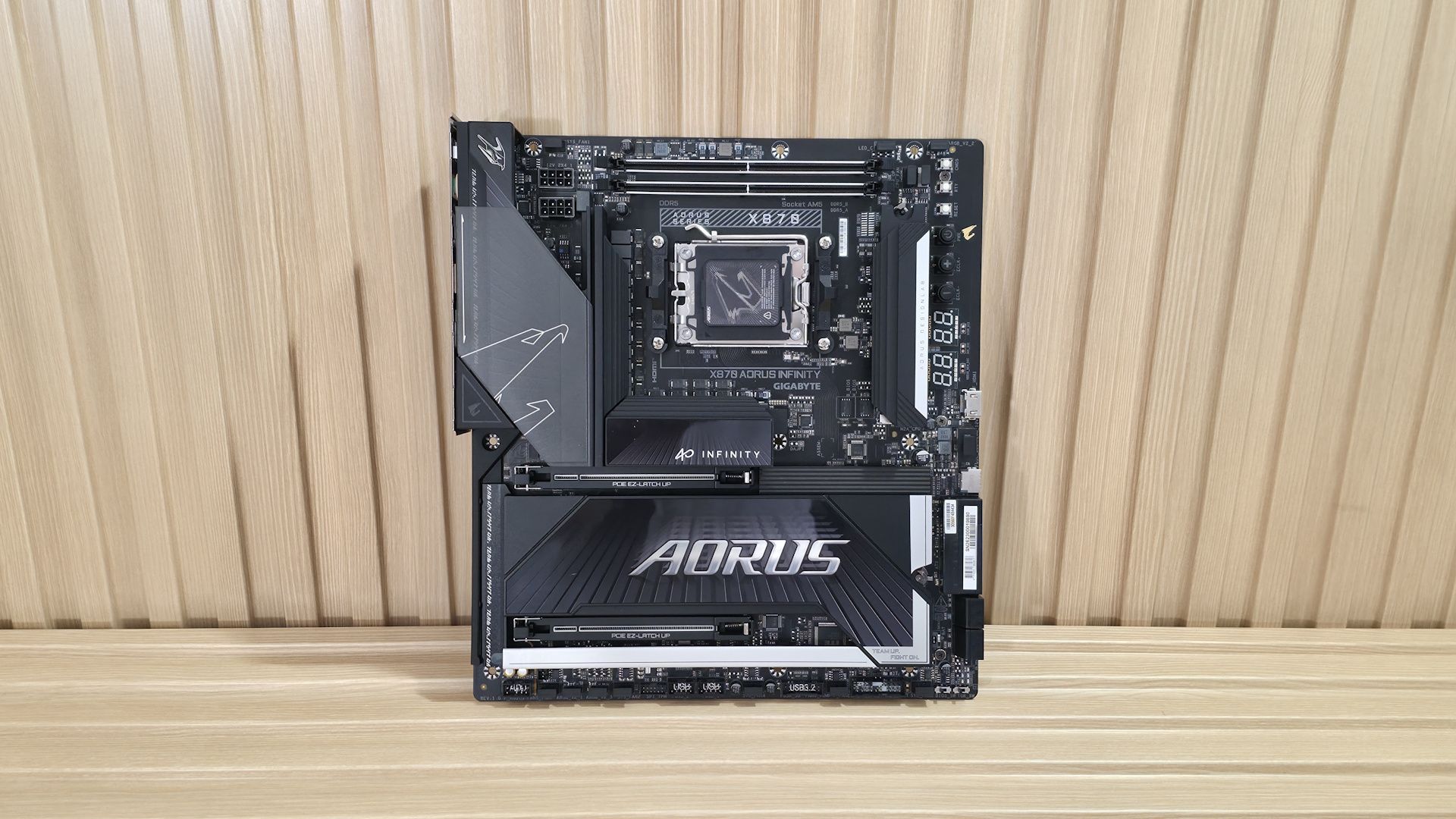
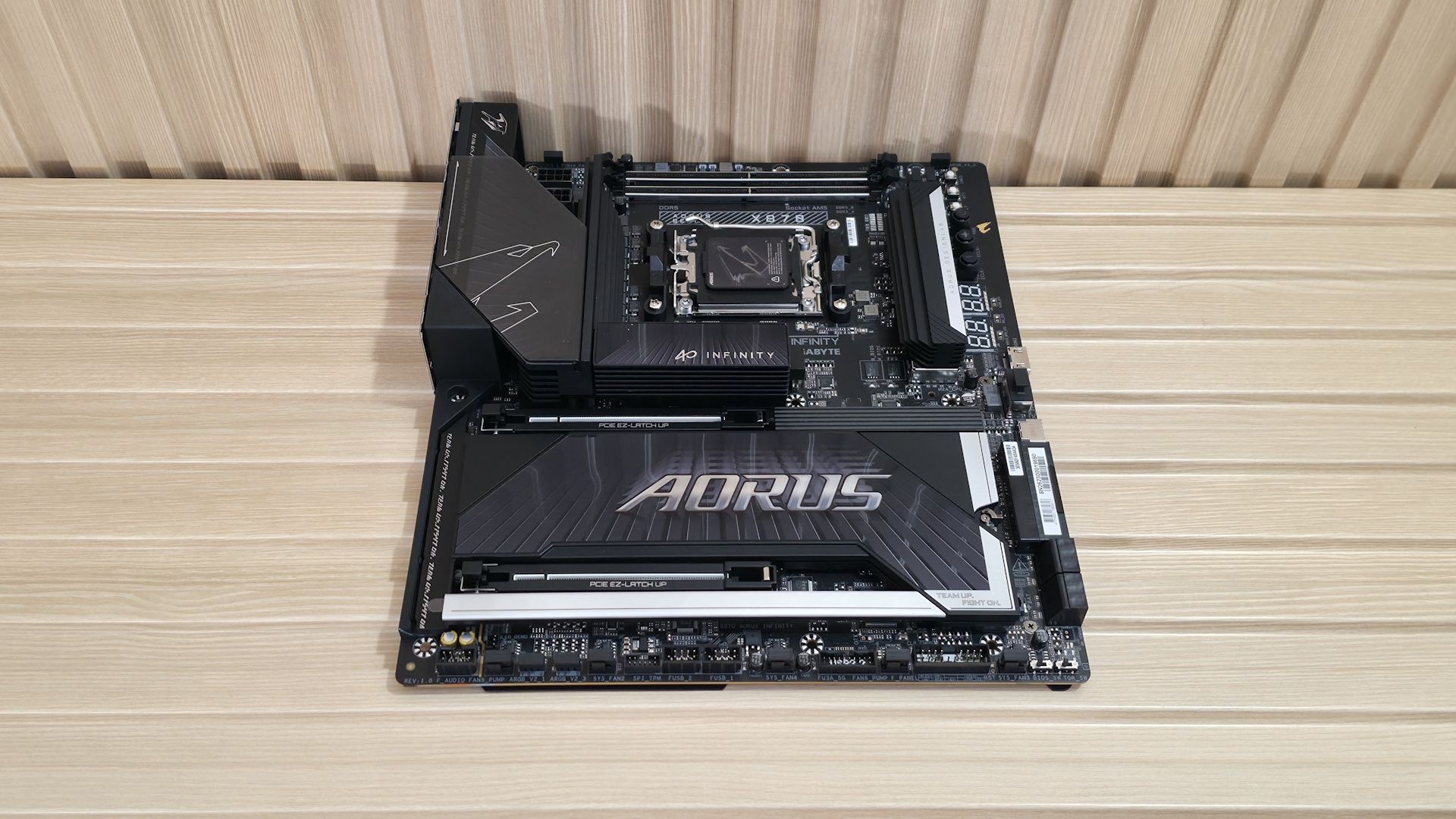
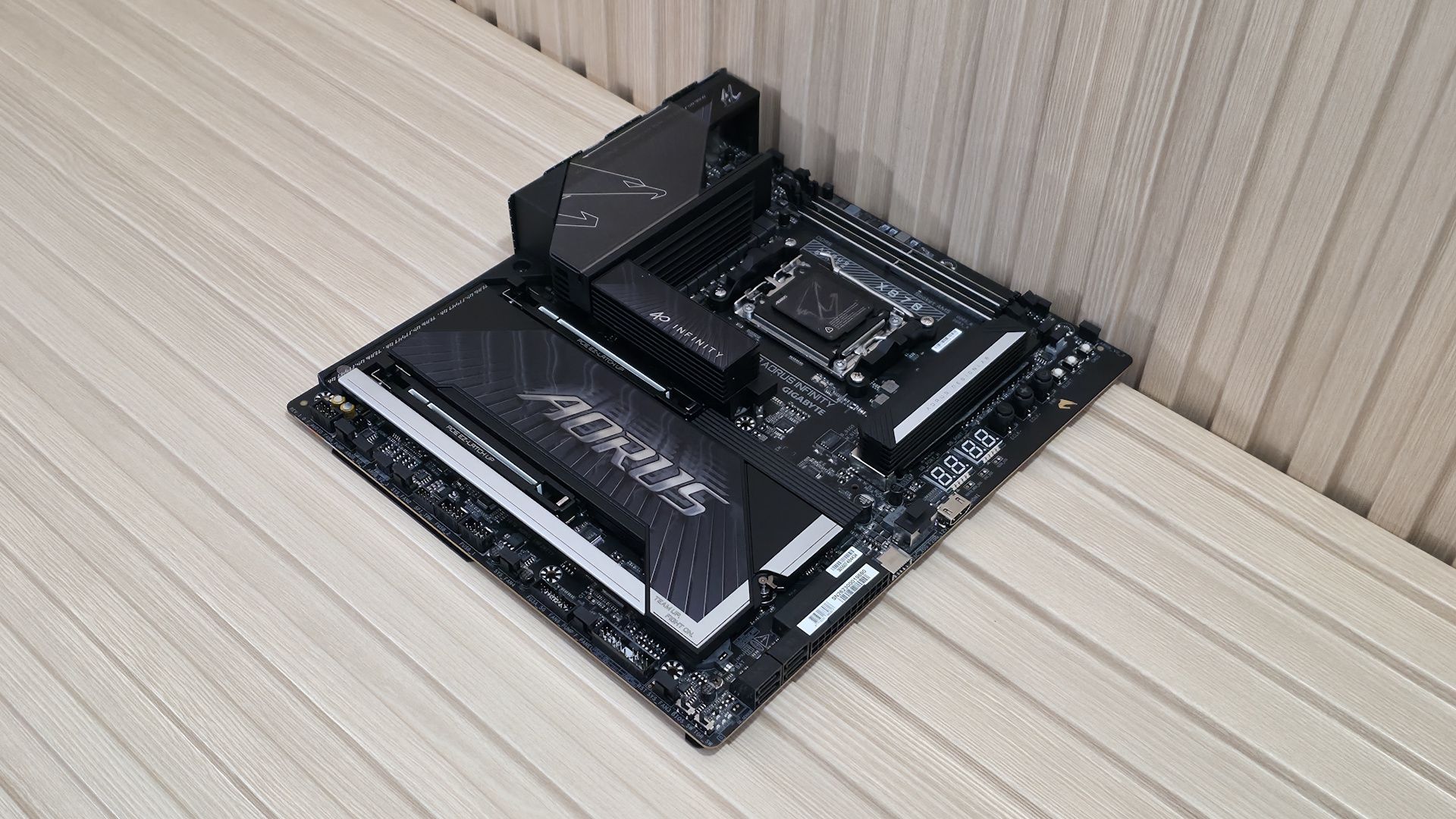
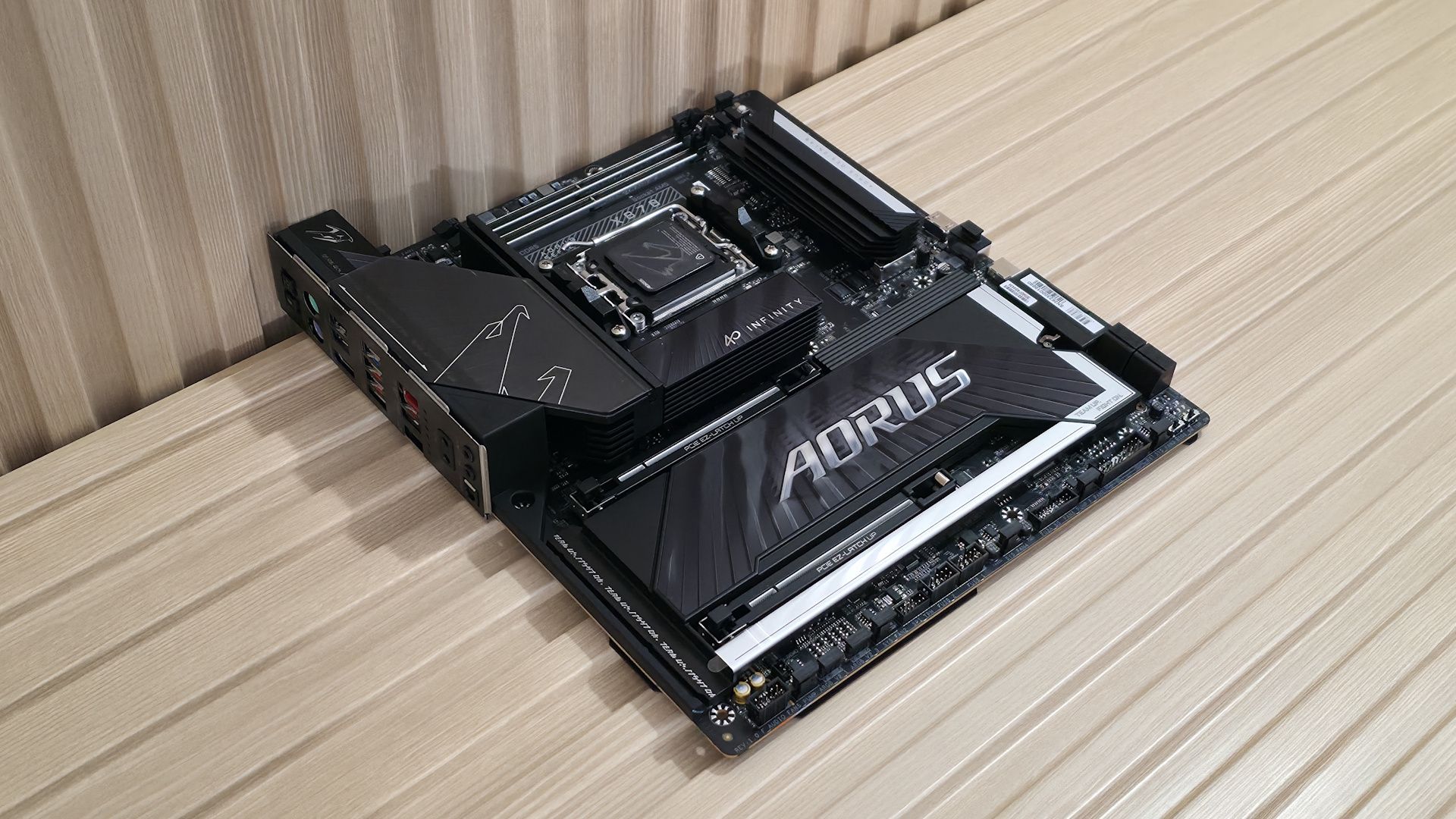
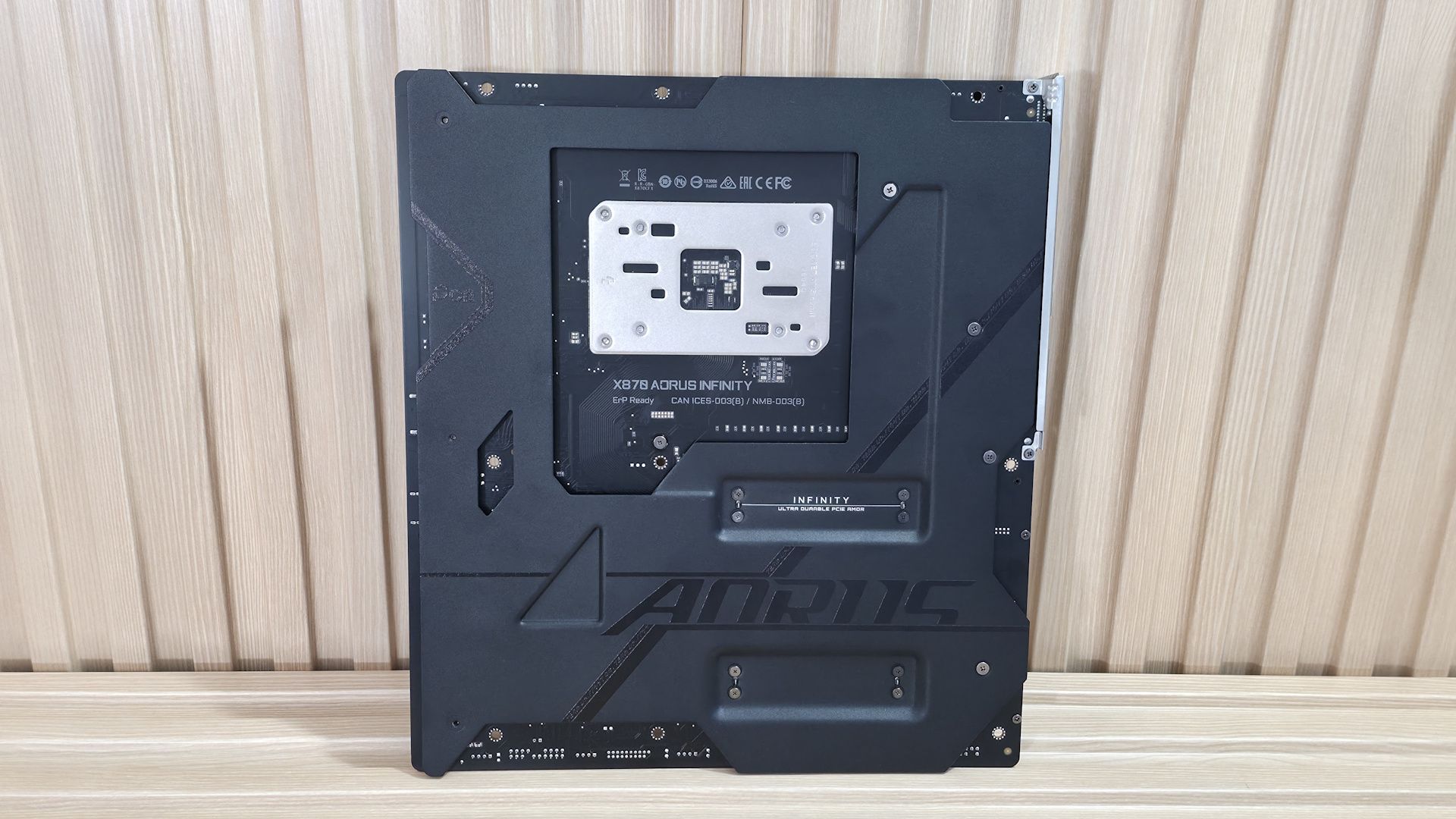
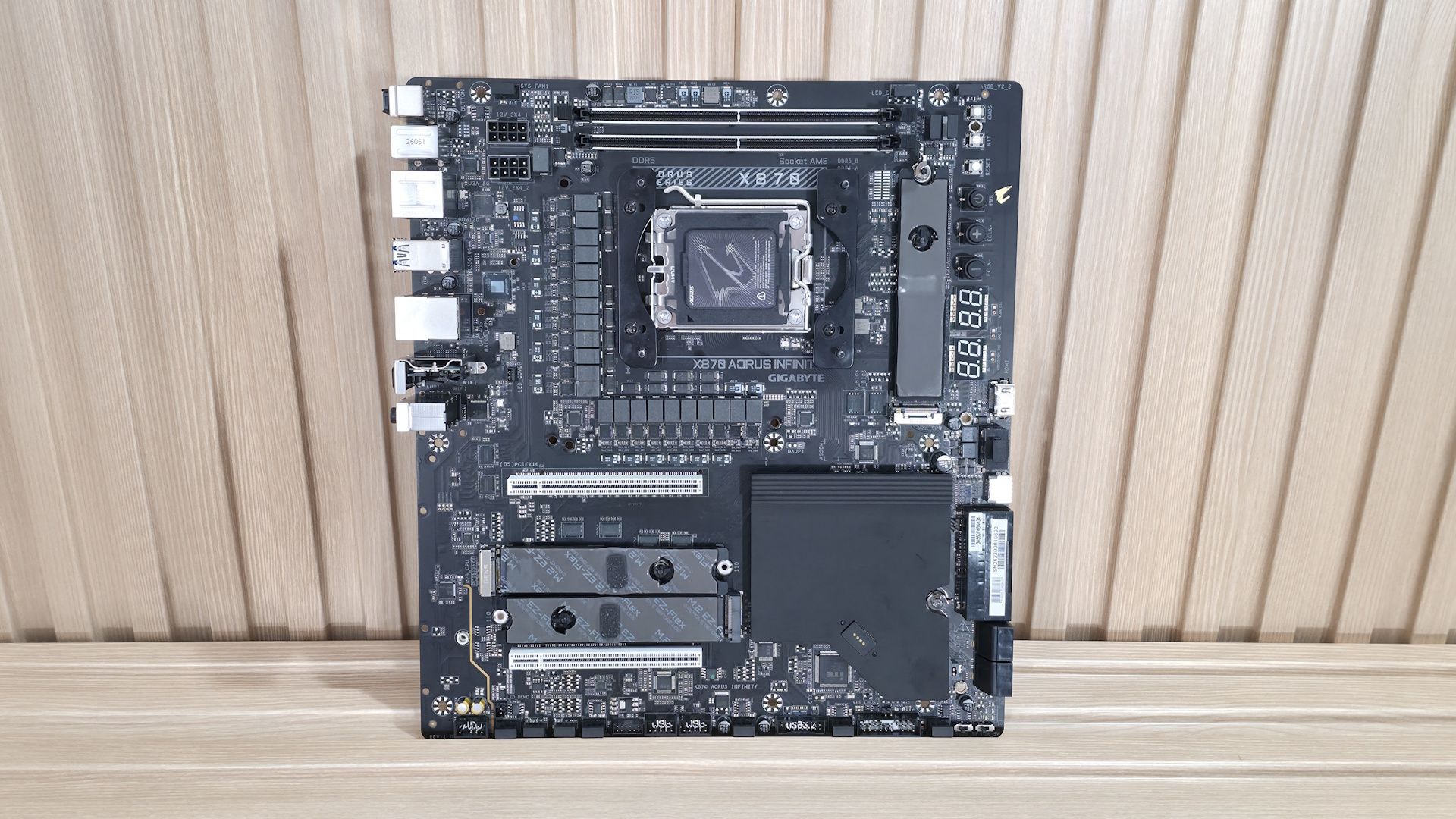
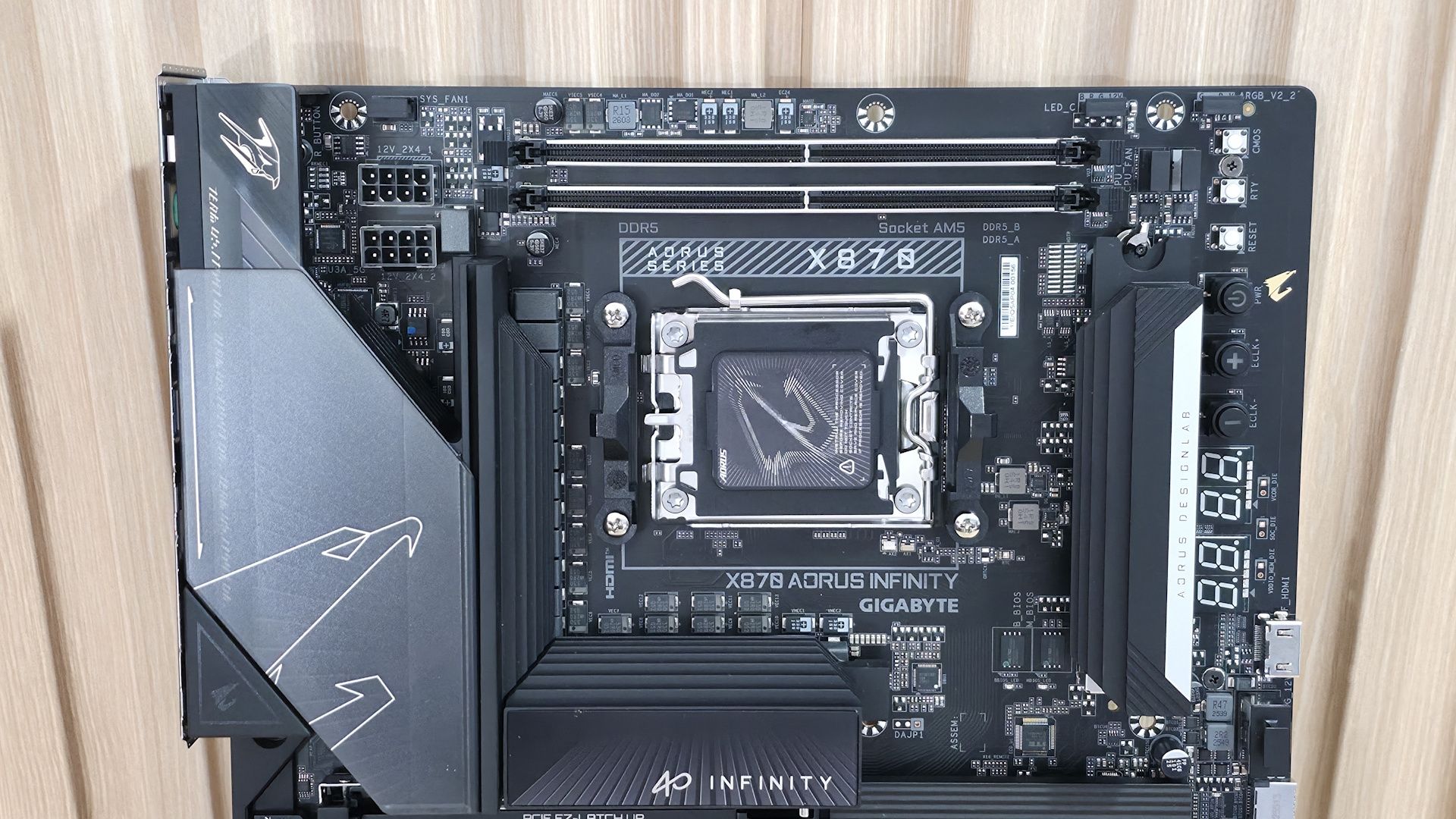
The Aorus Infinity's design stands out primarily for its rotated socket area and top DRAM slots. The left VRM area features a unique heatsink with a plastic cover that slides open to install 8-pin EPS connectors, and slides closed to cover them. On top is the Aorus Falcon, representing the brand, and it's backlit by RGB lighting from below. Where you’d normally find the top M.2 socket (below the CPU socket) is now populated with VRMs, and the M.2 is to the right, running vertically where the DRAM slots normally are. In essence, the entire socket area primary M.2 socket and DRAM slots are rotated 90 degrees counterclockwise.

The bottom portion of the board uses reinforced PCIe slots and plate-style heatsinks with DIY-friendly features like PCIe EZ Latch Up (which works similarly to Asus’ method they had to change) and EZ Latch Plus/Click for screwless M.2 mounting. Overall, it’s a good-looking board that looks good inside any dark chassis.

Gigabyte X870 Aorus Infinity _ Top half

(Image credit: Future)

Starting our tour in the top left, we get a better look at the sliding cover on the large, heatpipe-connected (big 8mm heatpipes) heatsinks. The smoked plastic piece on top slides down to allow access to the two 8-pin EPS connectors (one required). Connect the leads from the power supply, then slide the piece up to hide the unsightly wires. The only RGB element on the board is the Aorus Falcon flying high on the VRM heatsink, with RGB lighting radiating a frosted glow from below.

The two DRAM slots on top of the board have locking mechanisms on both sides. Gigabyte lists support up to an incredible 9600 MT/s and has/had a record on this board reaching an insane 11,400 MT/s (surely that’s achieved with cherry-picked processors and RAM kits) with heavy manual tweaking. Still, it is possible. In a nod to how well this dual-DIMM-slot board handles RAM, it’s one of the rare motherboards that lets our Ryzen 9 9900X run our Klevv DDR5-8000 kit. Normally, that’s only reserved for the APU and its superior IMC or other (but not all) two-DIMM boards.

Moving past the socket, we hit our first M.2 slot, running vertically where you would normally see RAM slots. It’s also one of two CPU-connected M.2 sockets, both supporting PCIe 5.0 x4 (128 Gbps) speeds and 110mm drives. Above that are two (of eight) 4-pin fan headers, each supporting PWM or DC-controlled devices. The BIOS or Gigabyte Control Center (GCC) controls these headers. Above that are two RGB headers, a 3-pin ARGB (one of three) and a 4-pin RGB header. The RGB Fusion app in GCC controls the integrated RGB feature and anything attached through the headers.

Last but not least, on the top half of the board is the Overclocking Kit and EZ-Debug area. This is what makes the board unique compared to ‘normal’ motherboards (ones that aren’t focused on overclocking). Here we see three simple white buttons: a CMOS clear button, a cold reset button for cold boot, and a reset button.

Gigabyte X870 Aorus Infinity - VRMs

(Image credit: Future)

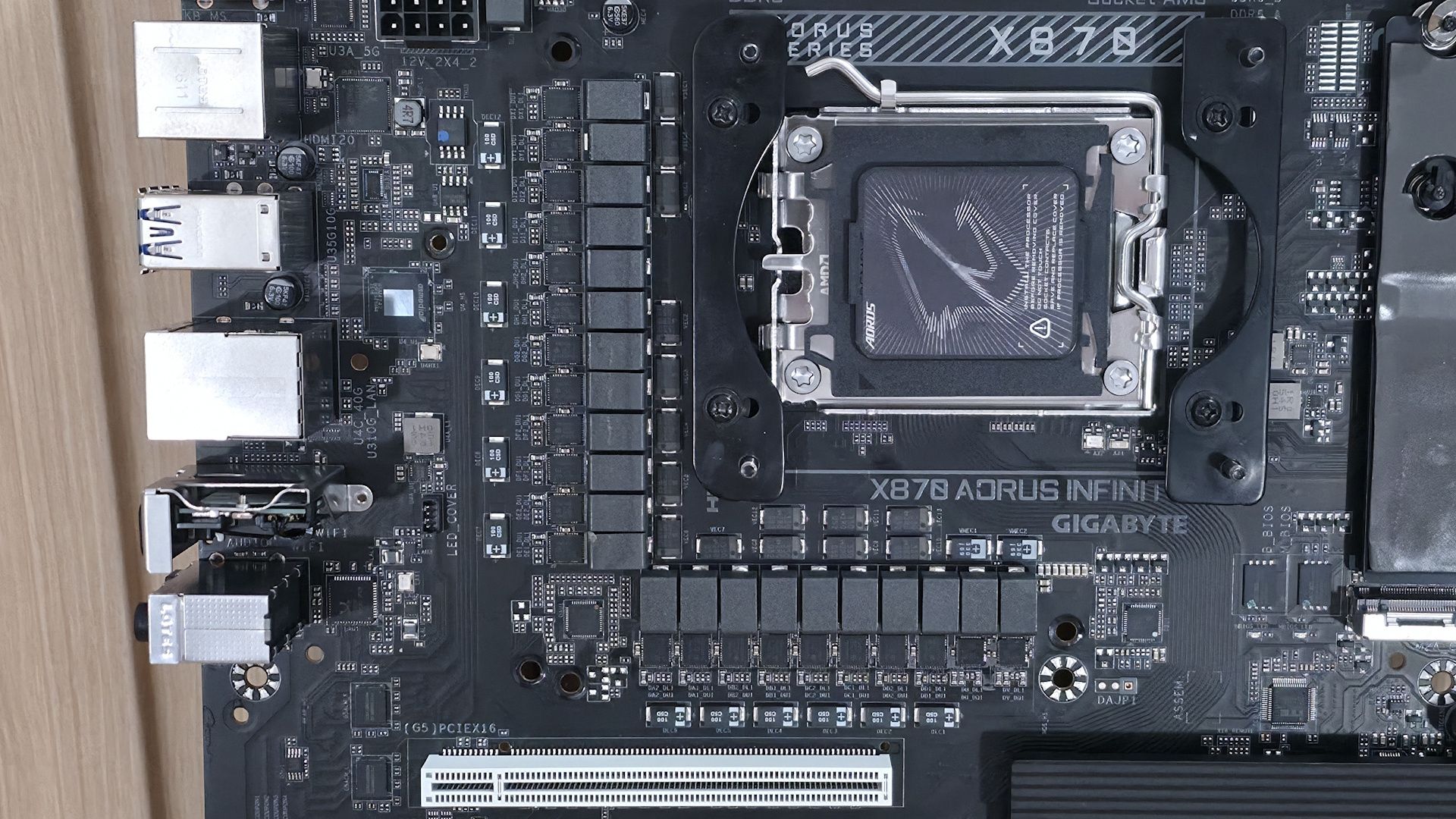
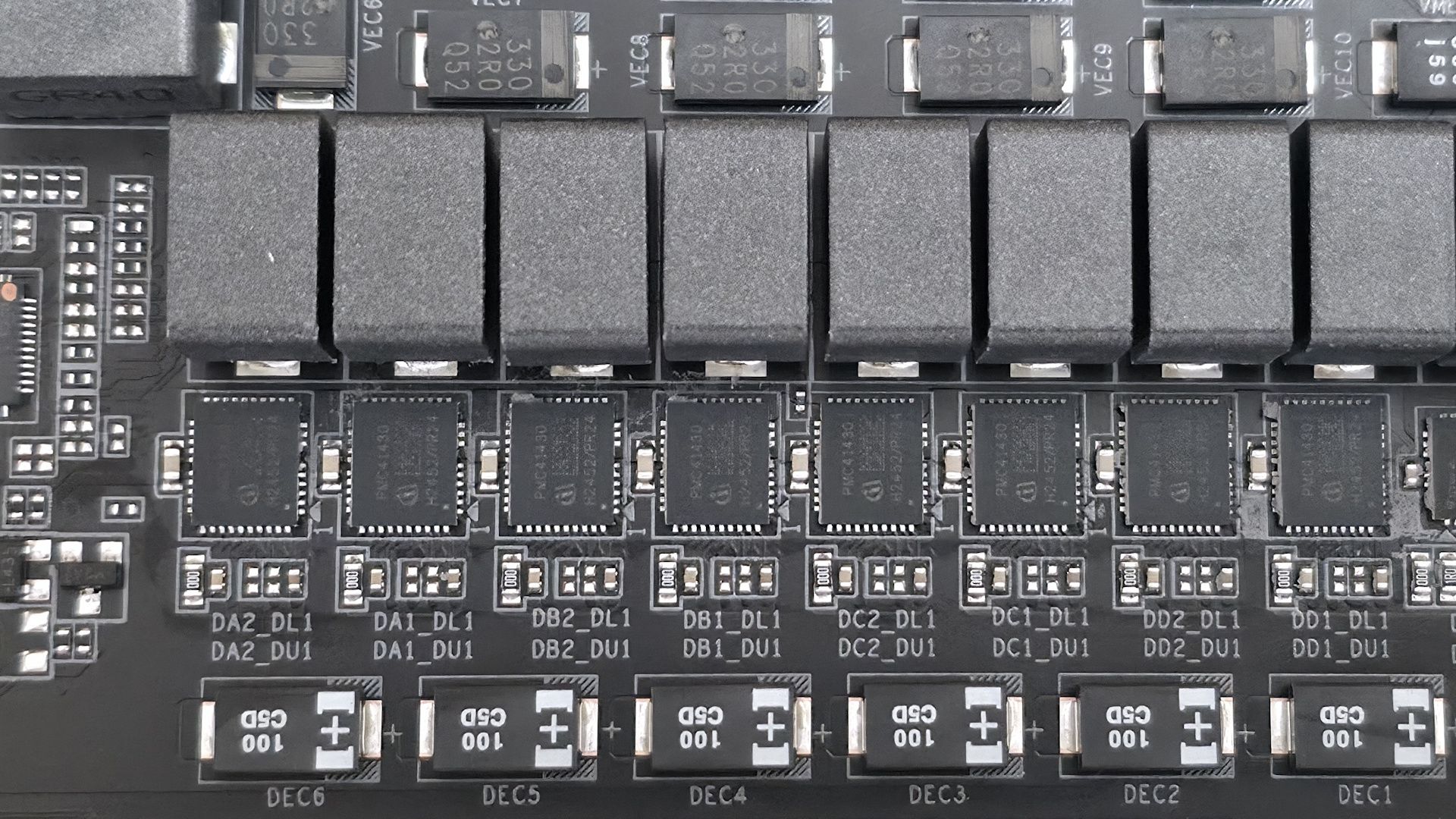
On power delivery, we see a high-end solution with 22 phases, 18 dedicated to Vcore. Power comes from the 8-pin EPS connector(s) and goes to the Infineon XDPE192C3D 12-phase PWM controller using a teamed configuration. From there, it moves to the powerful Infineon PMC41430 110A Smart Power Stage (SPS) MOSFET/gate driver. The 2,200A available will easily handle anything you throw at it, including flagship-class processors like Ryzen 9 9950X or Ryzen 9 9950X3D2, even with extreme cooling methods

Gigabyte X870 Aorus Infinity - Bottom half

(Image credit: Future)

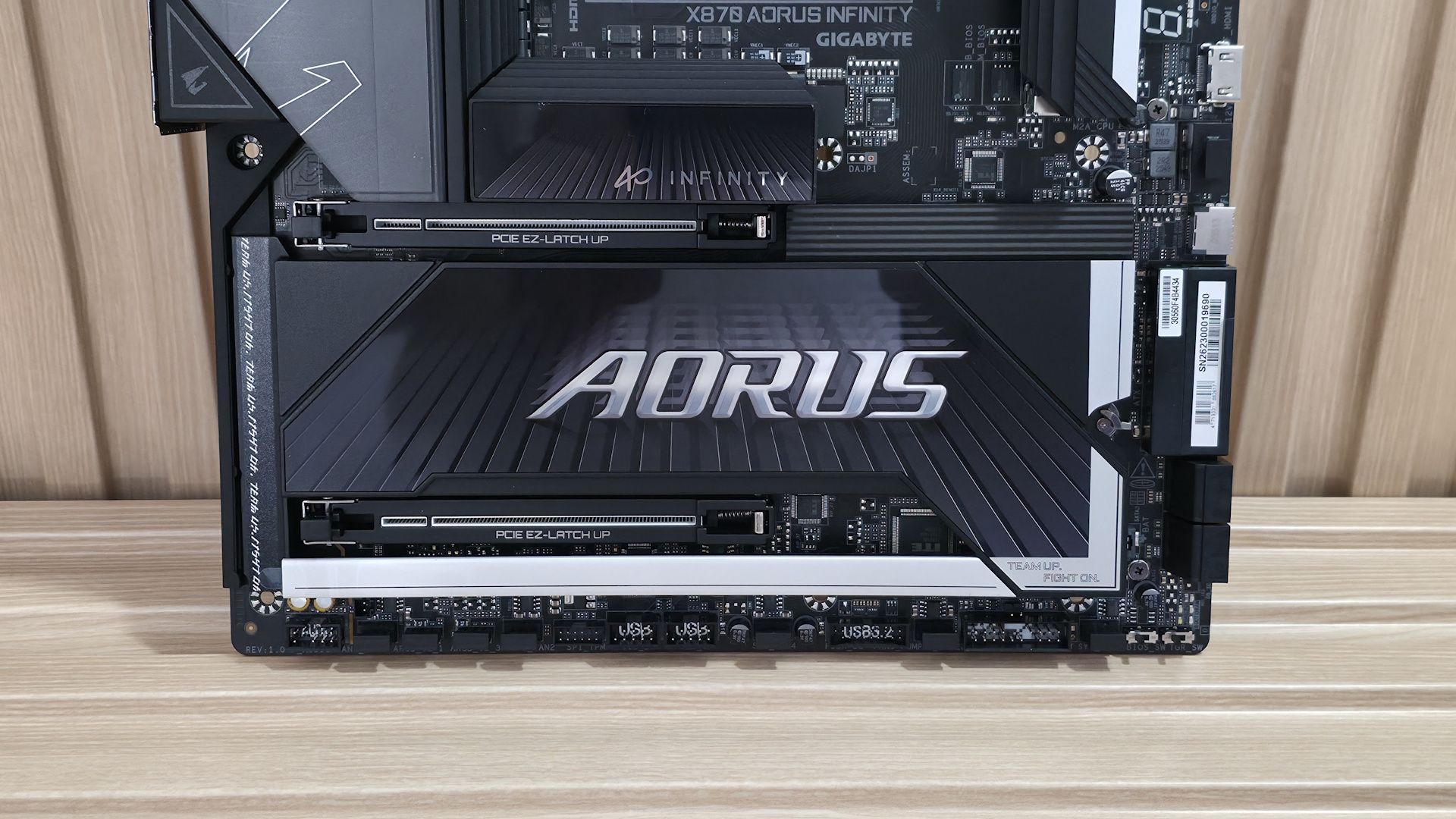
On the bottom half of the board, starting on the left, the audio section is hidden under heatsinks and shrouds. Here, we spy the last-gen flagship Realtek ALC1220 codec and a couple of dedicated audio capacitors. You won’t find a DAC or integrated amplifier, but this board targets overclockers, and we shouldn’t expect that from this type of board. That said, you’ll be perfectly happy with this solution.

In the middle of the board are two full-length PCIe slots, both reinforced and using Gigabyte’s PCIe EZ-Latch Up, which brings back bad memories of Asus’ implementation that got skewered for scratching video-card PCIe connectors. Here’s hoping Gigabyte learned from Asus. The top slot is your primary for graphics and runs up to PCIe 5.0 x16. The bottom slot, also CPU-connected, runs up to PCIe 5.0 x8. When you populate the bottom slot, the top slot drops to x8 speeds (and also supports bifurcation in the BIOS).

Under the large plate-style heatsink with the Aorus branding are two other M.2 sockets (M2B_CPU and M2D_SB). The top socket, M2B_CPU, as the name implies, connects through the CPU and runs at PCIe 5.0 x4 (128 Gbps). Note that this socket shares bandwidth with the USB4 port. You can run it at PCIe 5.0 x2 (64 Gbps, like PCIe 4.0 x4) or disable the USB4 port altogether for full M.2 bandwidth. This isn't ideal for those who need two PCIe 5.0 x4 drives and USB4, but this split is common across vendors. All M.2 sockets also use Gigabyte’s M.2 EZ-Latch Plus and EZ-Latch Click for easy M.2 installation. For anyone who may want to RAID their M.2s, the board supports RAID01/5/10 modes for NVMe (but RAID5 is only available with Ryzen 9000 series).

Along the right edge, we spot a vertical 8-pin PCIe connector that, when used, supports up to QC-USB 65W charging on the front panel (Type-C port). Below that are the front-panel USB 3.2 Gen 2x2 (20 Gbps) Type-C connector and the board's ATX power connector. Just behind the ATX connector are two 2-pin temperature headers for the two included thermistors. Below the ATX connector are the four SATA ports (supports RAID0/1/10).

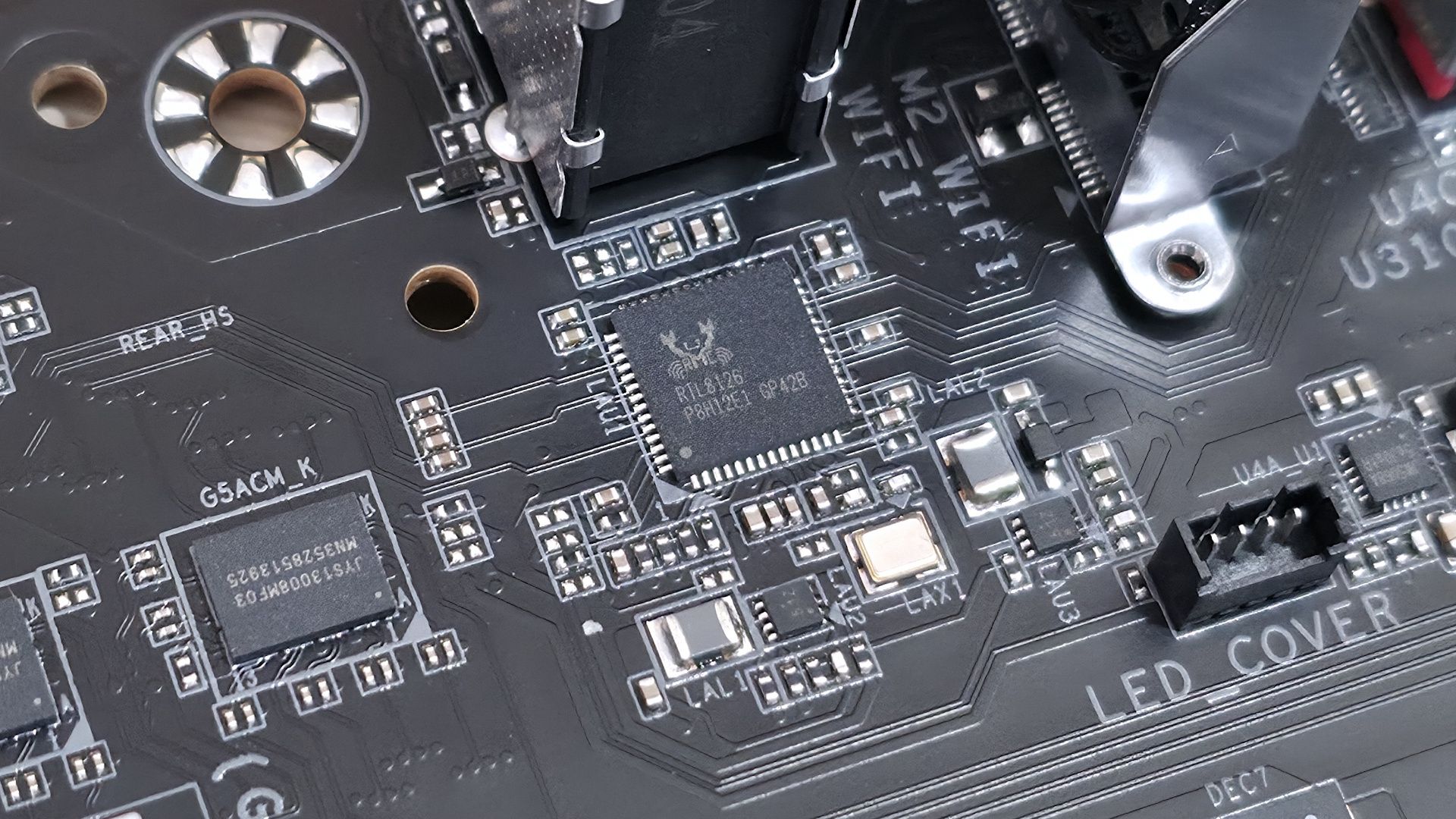
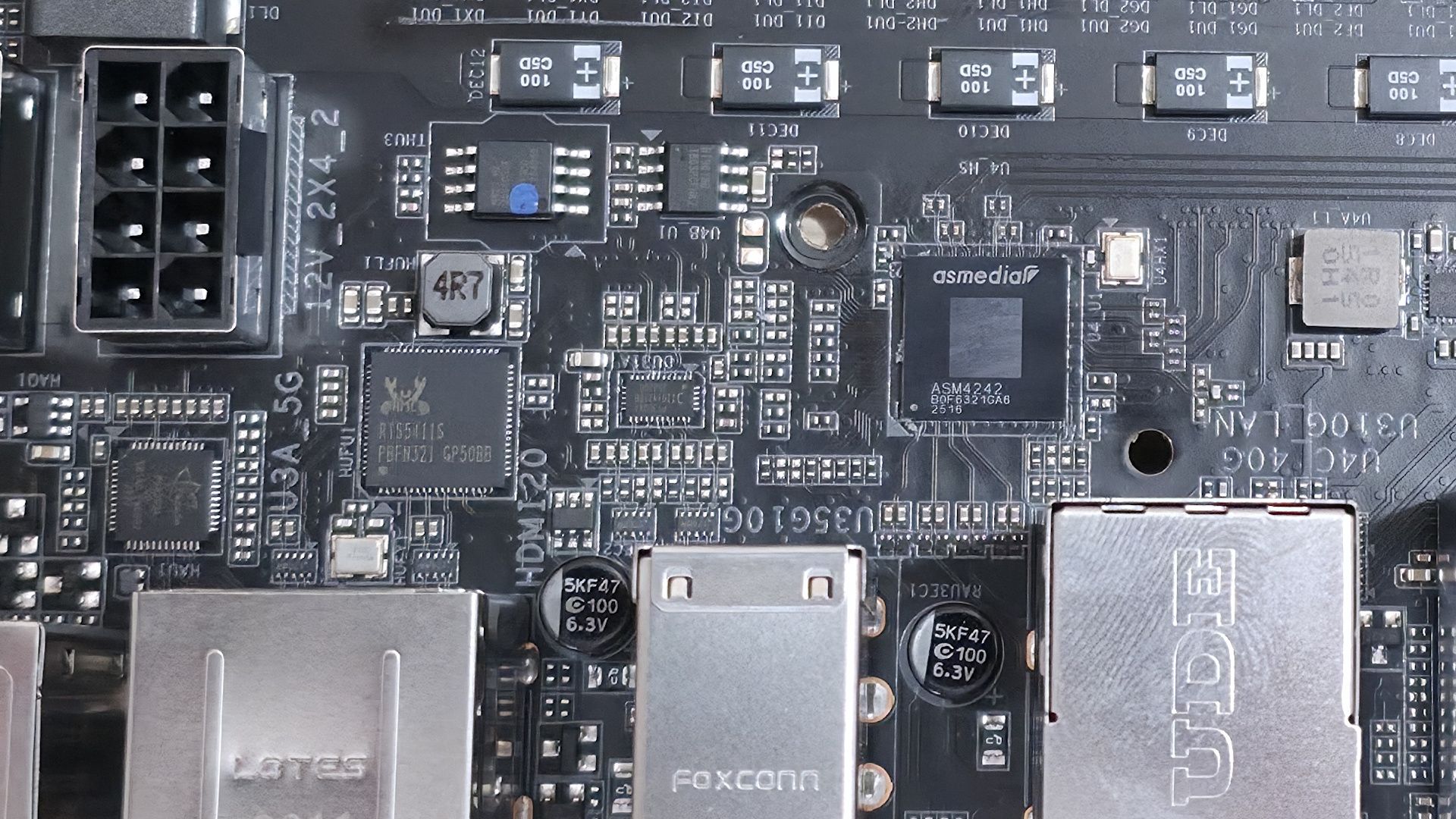
Below that are five LEDs: four used for debugging during POST (CPU, VGA, DRAM, Boot), and an additional LED (orange) is for storage activity. We’ve also included several images of the board’s active IC’s. Gigabyte uses a mix of Infineon (PWM controller and MOSFETs) and Realtek (audio, USB, USB4, LAN, etc.).

Gigabyte X870 Aorus Infinity - ICs
Future
Gigabyte X870 Aorus Infinity - ICs
Future
Gigabyte X870 Aorus Infinity - ICs
Future
Gigabyte X870 Aorus Infinity - ICs
Future
Gigabyte X870 Aorus Infinity - ICs
Future

At the bottom, several headers run the full width of the board, including front-panel audio and USB ports. A complete list of connectivity is listed below (from L to R):

  • Front panel audio
  • 4-pin fan header
  • 3-pin ARGB
  • 4-pin RGB
  • 4-pin fan header
  • TPM header
  • (2) USB 2.0 headers
  • 4-pin fan header
  • 19-pin USB 3.2 Gen 1 header
  • 4-pin fan header
  • Front panel
  • 4-pin fan header
  • BIOS switch
  • OC Trigger Switch

Gigabyte X870 Aorus Infinity - Rear I/O

(Image credit: Future)

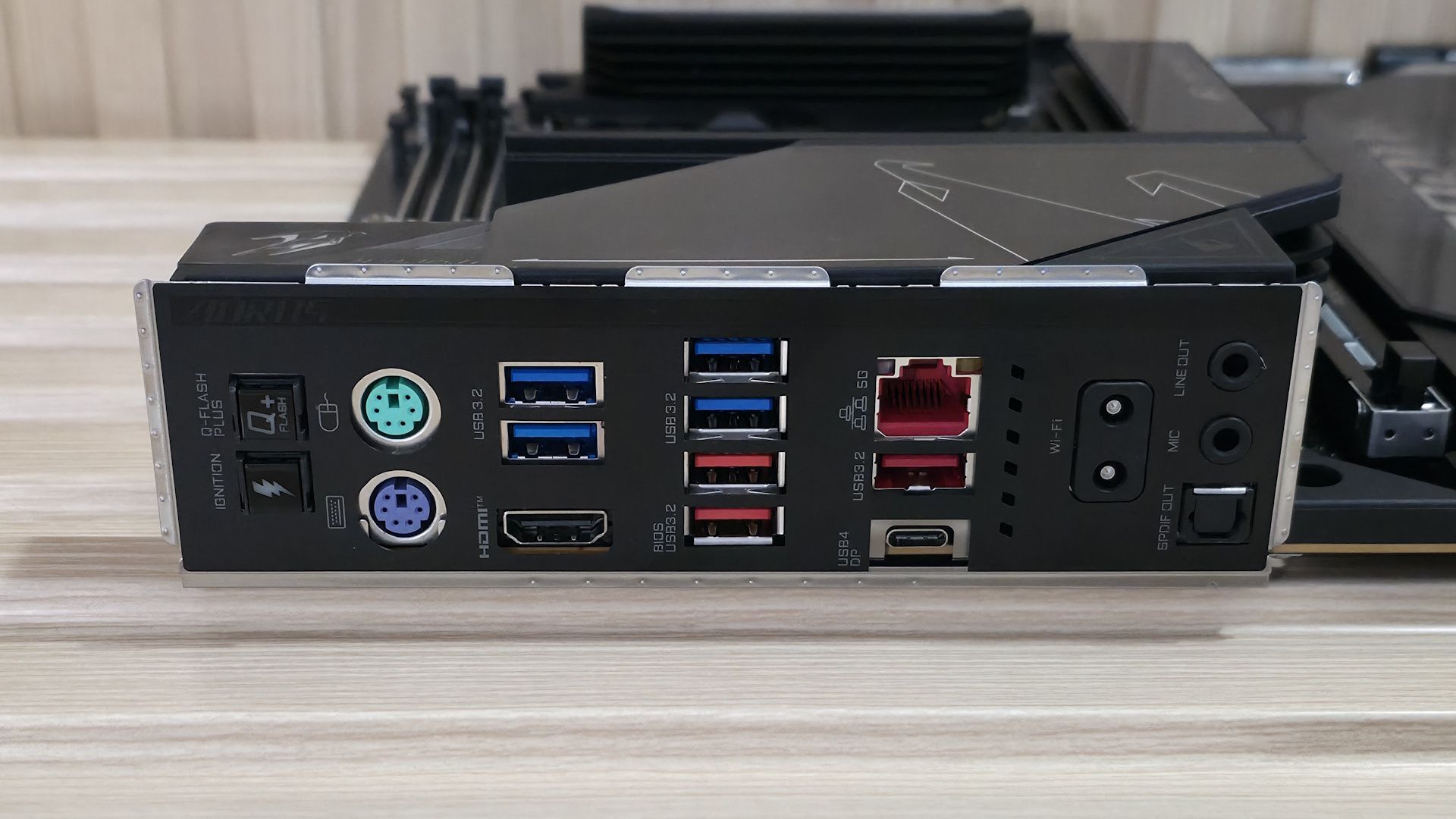
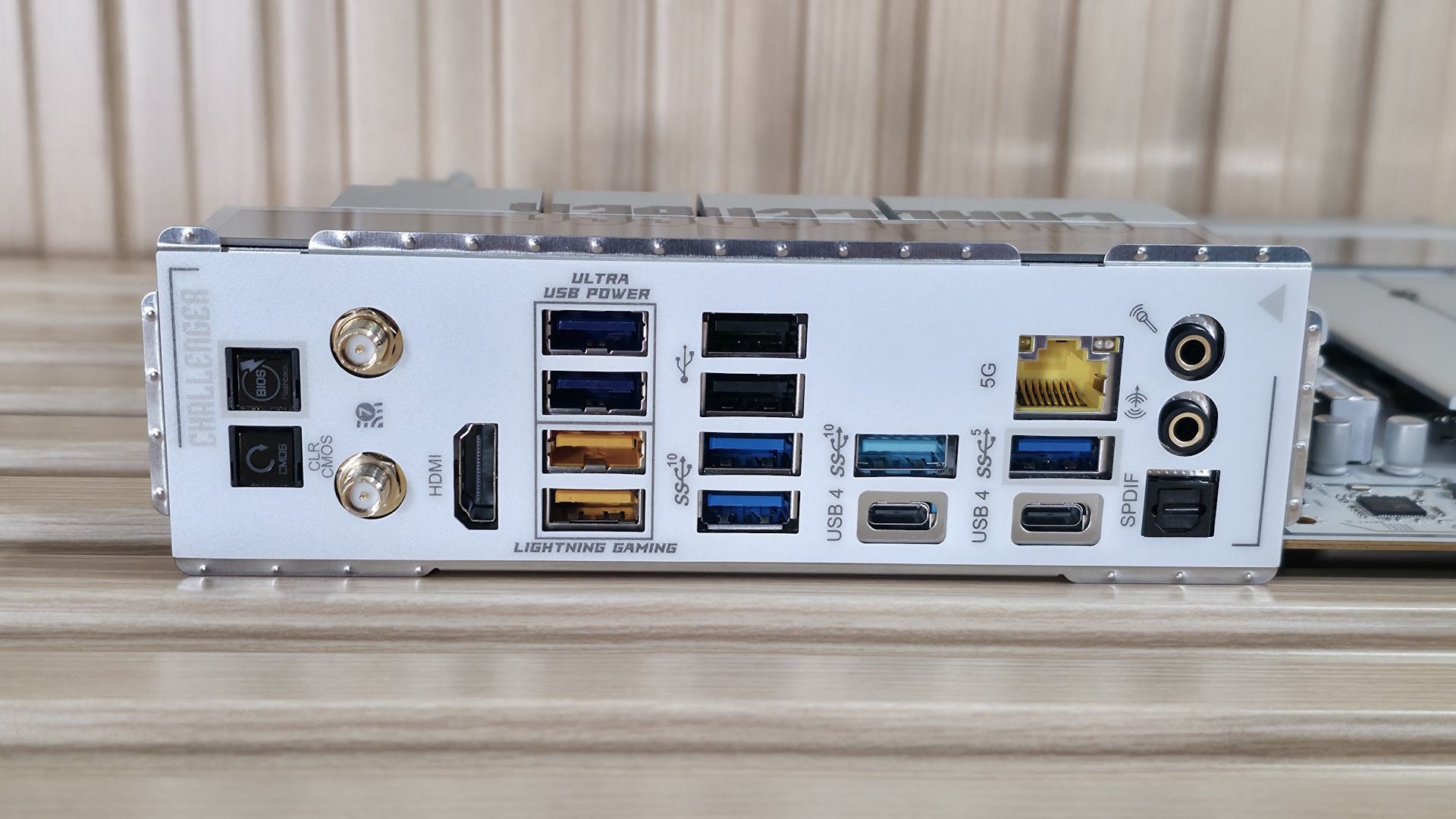
Working our way to the rear I/O, we can see it’s packed with ports (even legacy PS/2) and buttons. On the left is the Q-Flash Plus button, along with the OC Ignition button, which lets users pre-test water-cooling setups when building the PC without booting. Next are two legacy PS/2 ports for a keyboard and mouse, best used for extreme overclocking and pushing the limits (PS/2 is less stressful on the system than USB). After that, we run into the HDMI port and two USB 3.2 Gen 1 (5 Gbps) ports.

Further right, we see another USB 3.2 Gen 1 port and two USB 3.2 Gen 2 (10 Gbps) ports (red; the bottom one is used for Q-Flash). The next stack holds the Realtek 5 GbE, another USB 3.2 Gen 2 port, and below that, the sole USB4 (40 Gbps) port. The Wi-Fi antenna connector is next and connects magnetically — just get it close and let the magnet connect it. Last but not least is the audio stack, which includes two 3.5mm jacks (line out/front speaker out, mic in/rear speaker out) and an optical S/PDIF connector.

It should have plenty of ports, and fast ones at that, for the average user.

MORE: Best Motherboards

MORE: How To Choose A Motherboard

MORE: Best Motherboard Deals

MORE: Best Motherboard Combo Deals

MORE: All Motherboard Content

Firmware

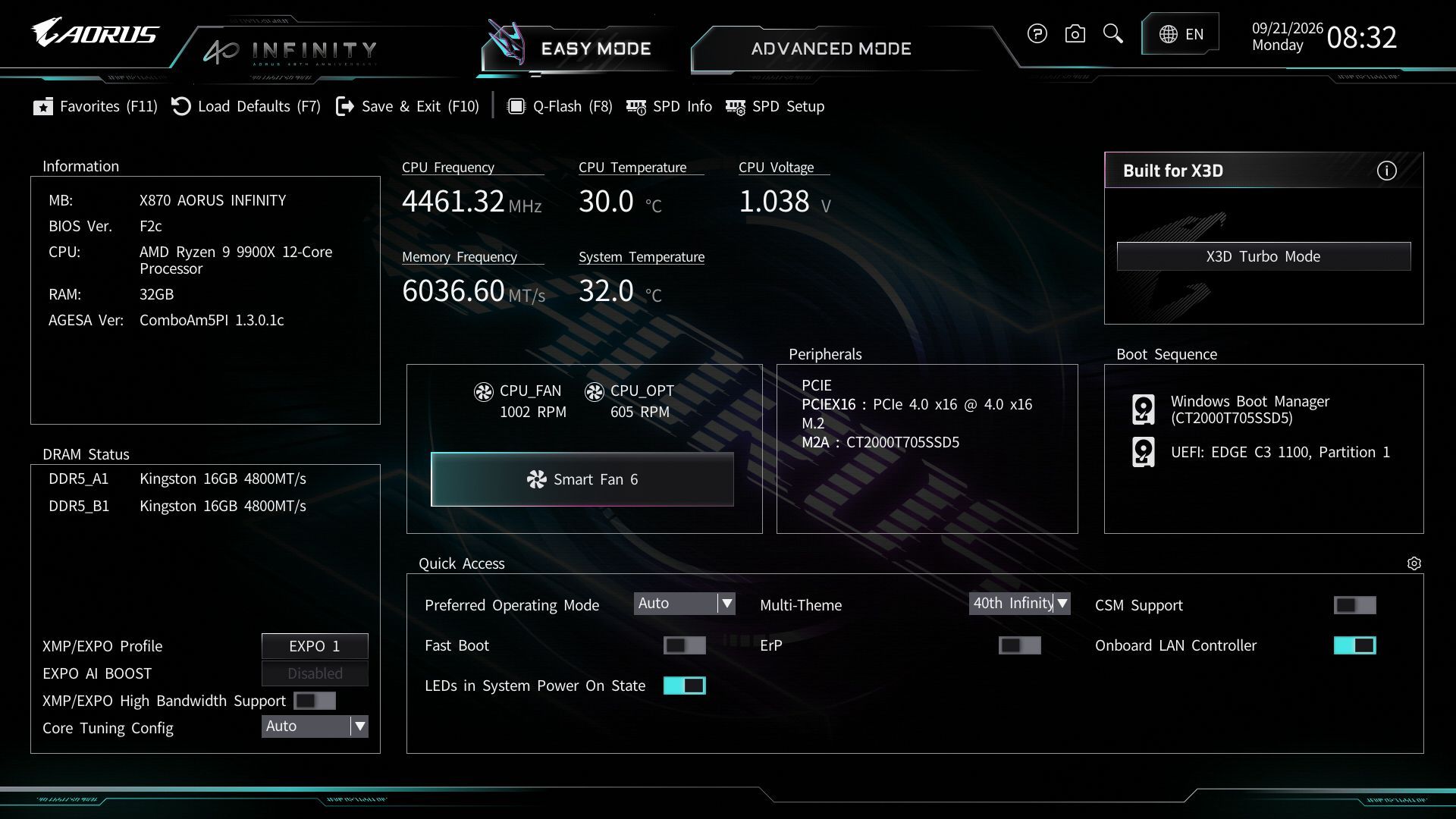
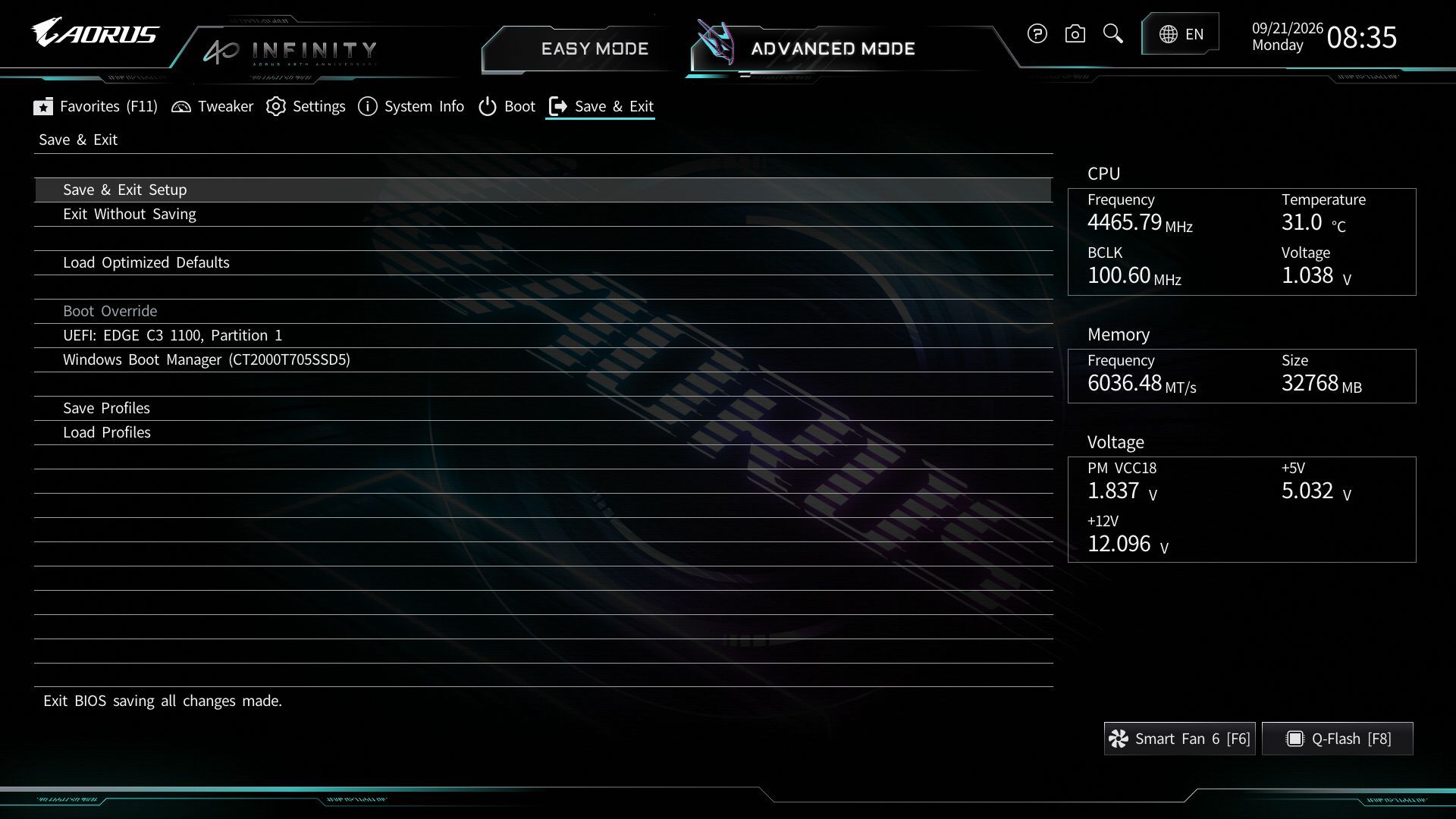
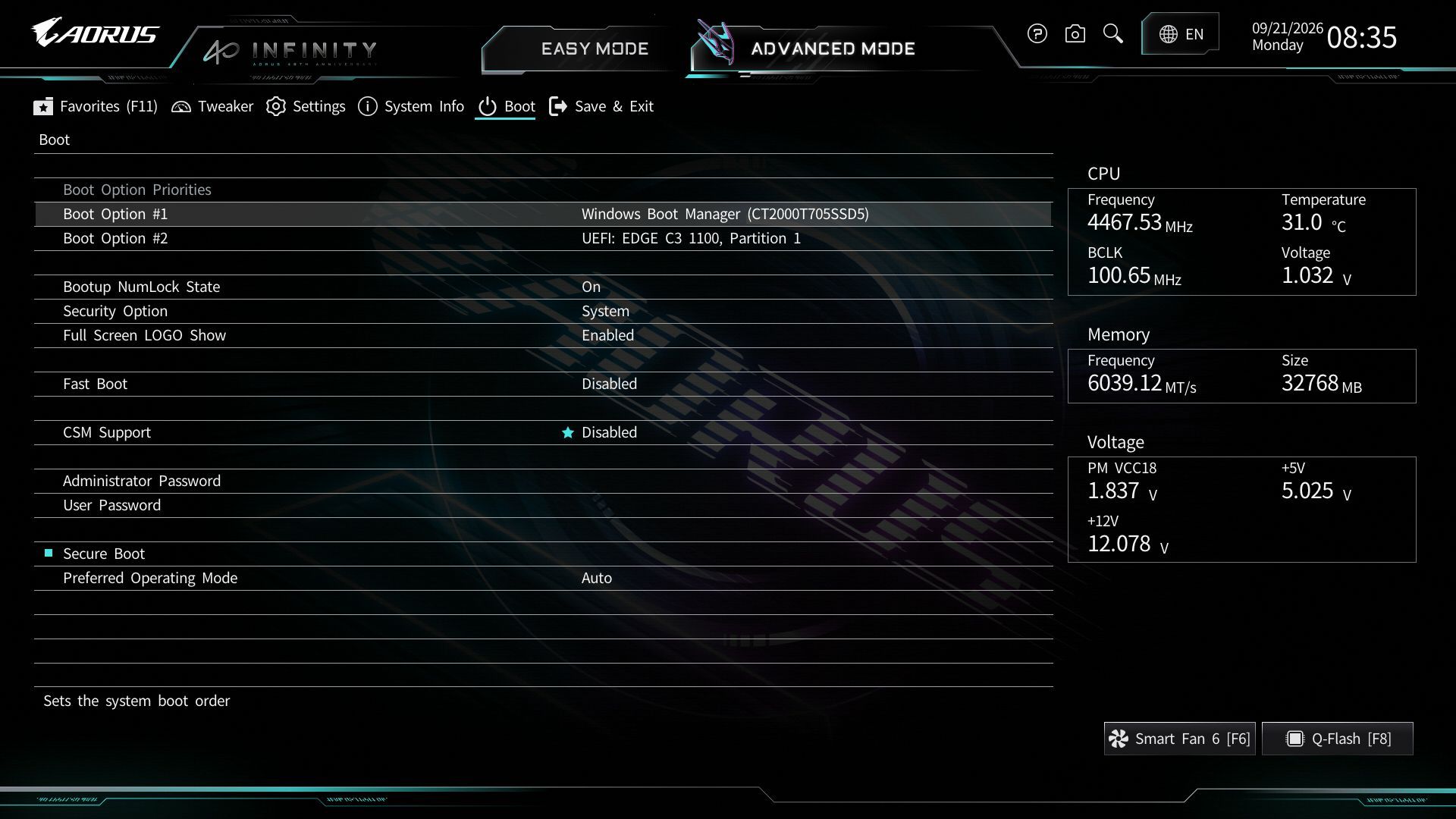
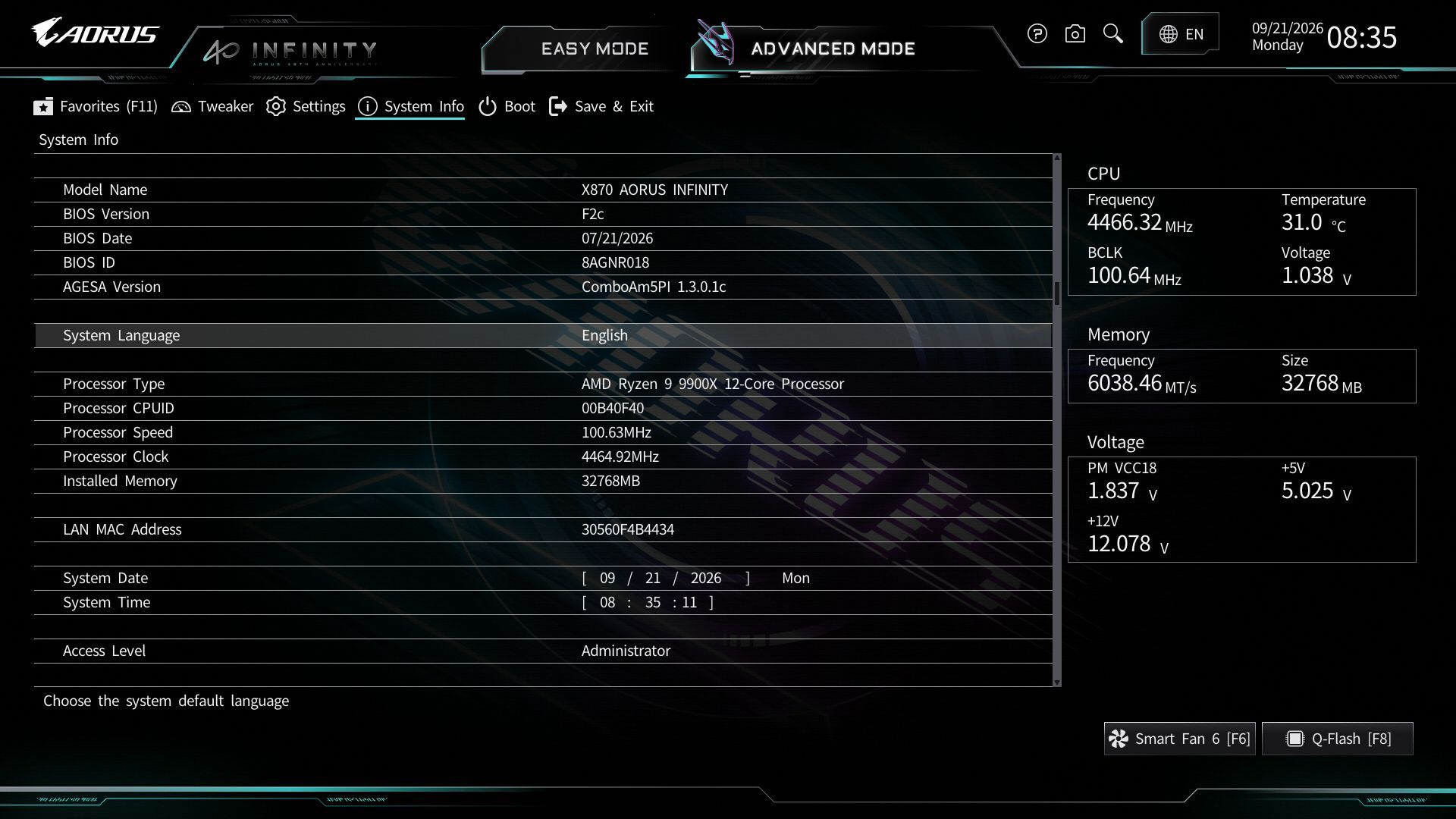
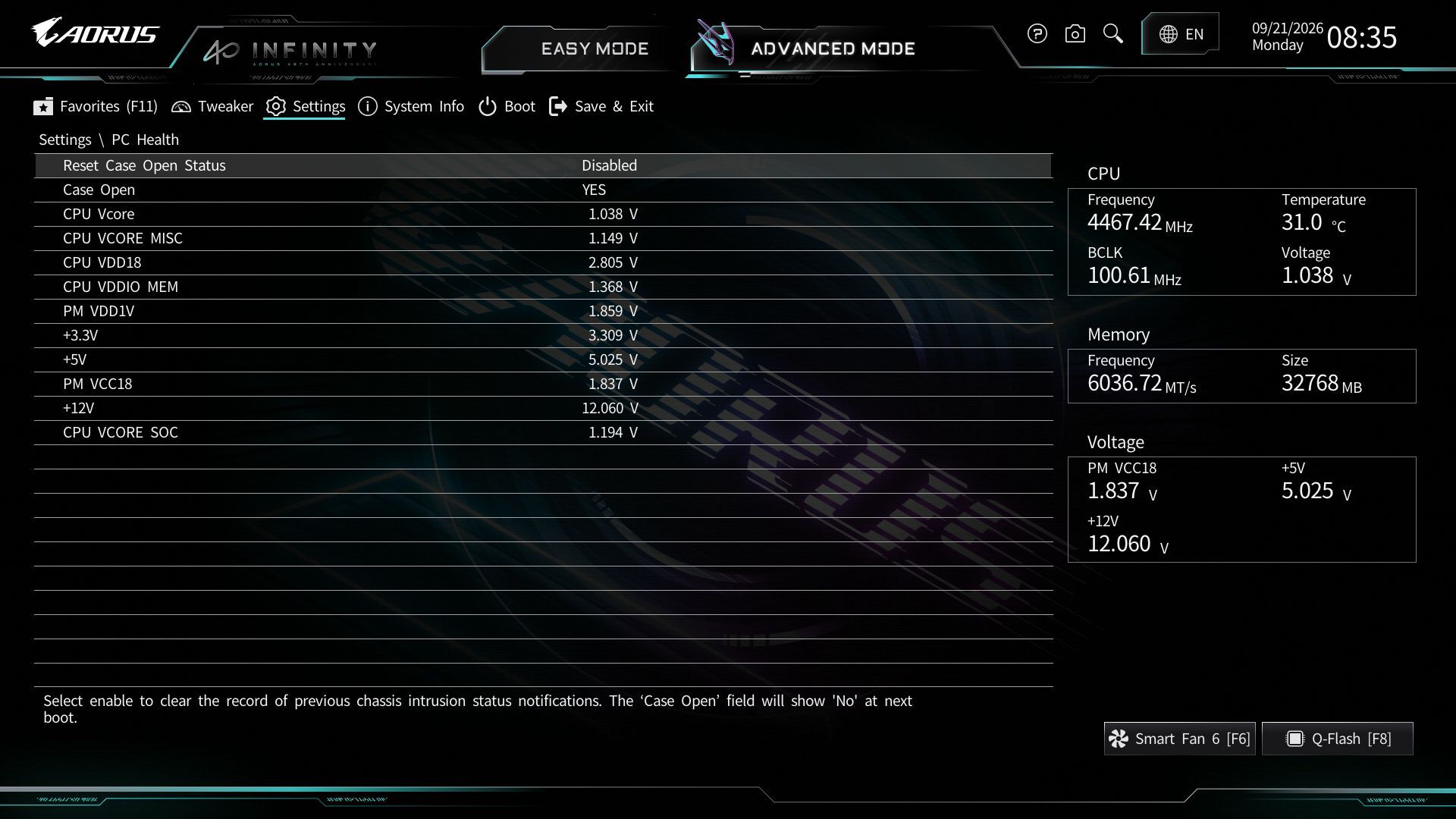
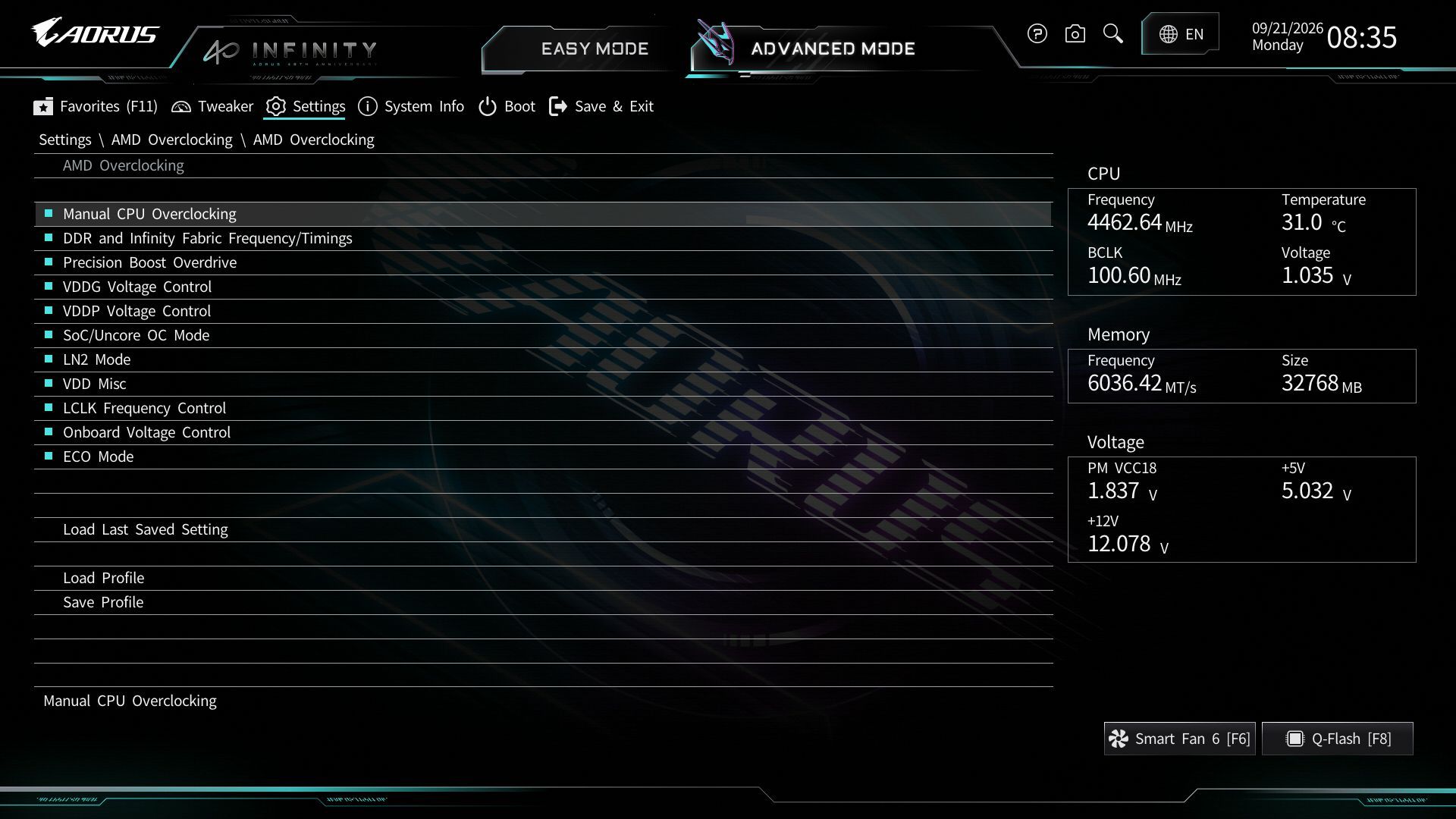
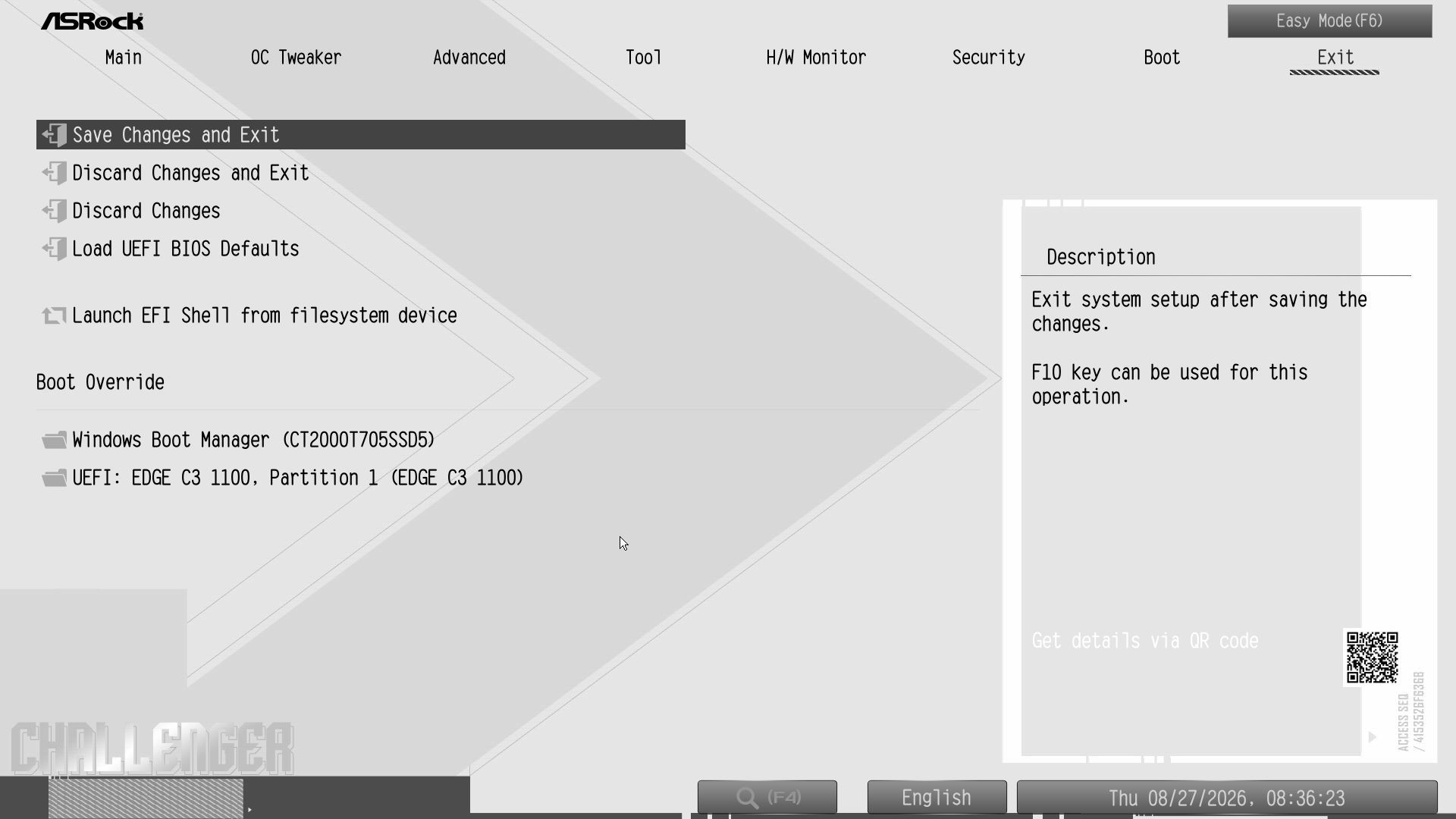
Gigabyte’s updated “UC BIOS 2.0” defaults to Easy Mode. It’s logically laid out and displays a wealth of system information, including processor, RAM, fan speeds, and several selectable options such as XMP profiles, RAM tweaks, Re-Size BAR support, Smart Fan 6 access, and more. The Aorus Infinity uses a black background with light blue accents and white text, creating a high-contrast, easy-to-read screen similar to the Aorus Stealth, but with a moonlit mountain background instead of Aorus branding. The BIOS also offers different themes in EZ mode via a dropdown if you want to change it.

All headings still appear across the top in advanced mode; they are now larger ‘buttons’ and easy to select with a mouse. The highlight bar (where you are on the page) is a light blue here and easy to see. Every option you need and want is at your fingertips, and you don’t have to drill down several layers to reach the most commonly used functions – especially if you populate your selections in the Favorites section.
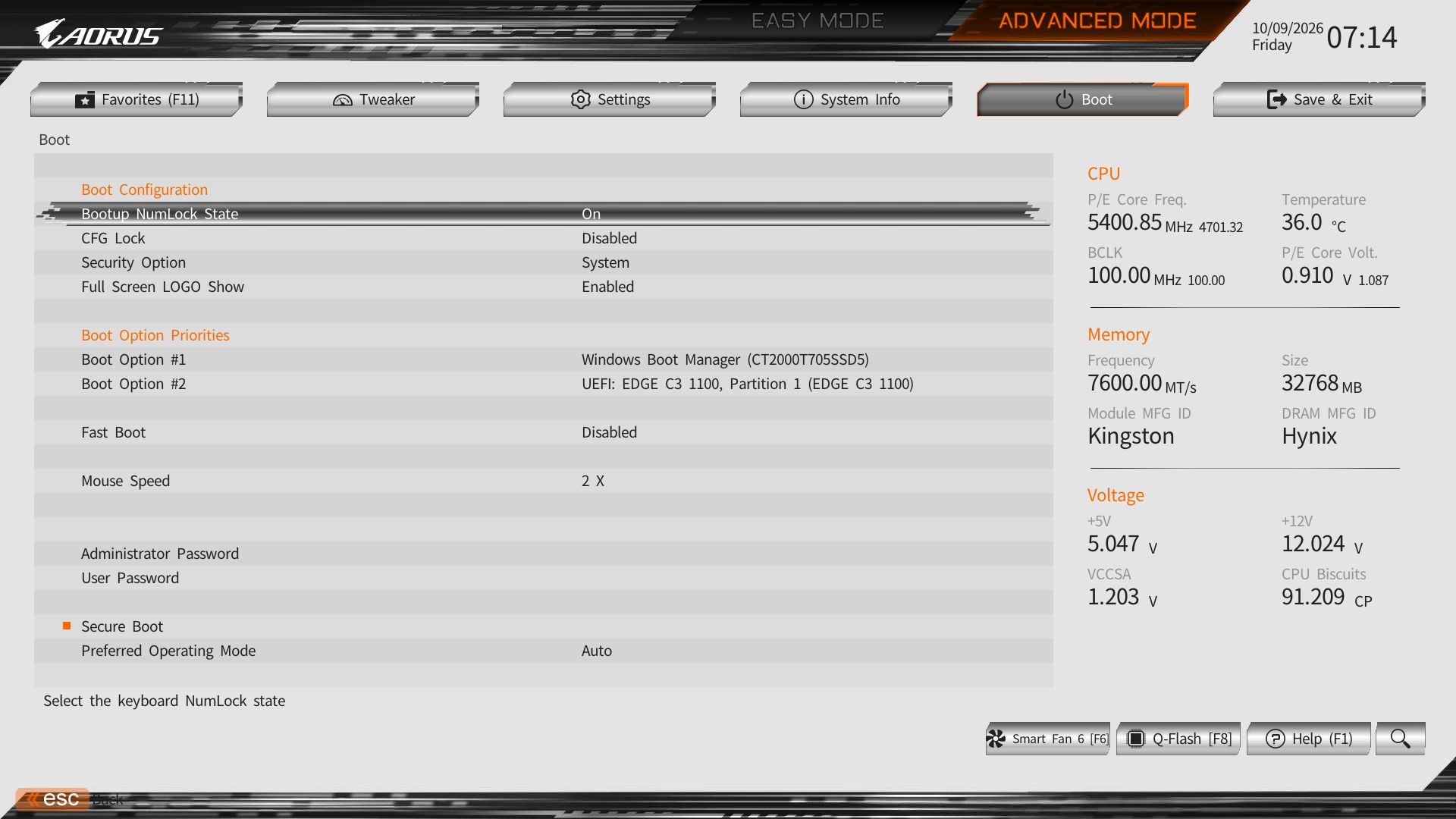
Gigabyte X870 Aorus Infinity - BIOS images
Future
Gigabyte X870 Aorus Infinity - BIOS images
Future
Gigabyte X870 Aorus Infinity - BIOS images
Future
Gigabyte X870 Aorus Infinity - BIOS images
Future
Gigabyte X870 Aorus Infinity - BIOS images
Future
Gigabyte X870 Aorus Infinity - BIOS images
Future
Gigabyte X870 Aorus Infinity - BIOS images
Future
Gigabyte X870 Aorus Infinity - BIOS images
Future
Gigabyte X870 Aorus Infinity - BIOS images
Future
Gigabyte X870 Aorus Infinity - BIOS images
Future
Gigabyte X870 Aorus Infinity - BIOS images
Future
Gigabyte X870 Aorus Infinity - BIOS images
Future
Gigabyte X870 Aorus Infinity - BIOS images
Future
Gigabyte X870 Aorus Infinity - BIOS images
Future
Gigabyte X870 Aorus Infinity - BIOS images
Future
Gigabyte X870 Aorus Infinity - BIOS images
Future
Gigabyte X870 Aorus Infinity - BIOS images
Future
Gigabyte X870 Aorus Infinity - BIOS images
Future
Gigabyte X870 Aorus Infinity - BIOS images
Future
Gigabyte X870 Aorus Infinity - BIOS images
Future
Gigabyte X870 Aorus Infinity - BIOS images
Future
Gigabyte X870 Aorus Infinity - BIOS images
Future
Gigabyte X870 Aorus Infinity - BIOS images
Future

Software

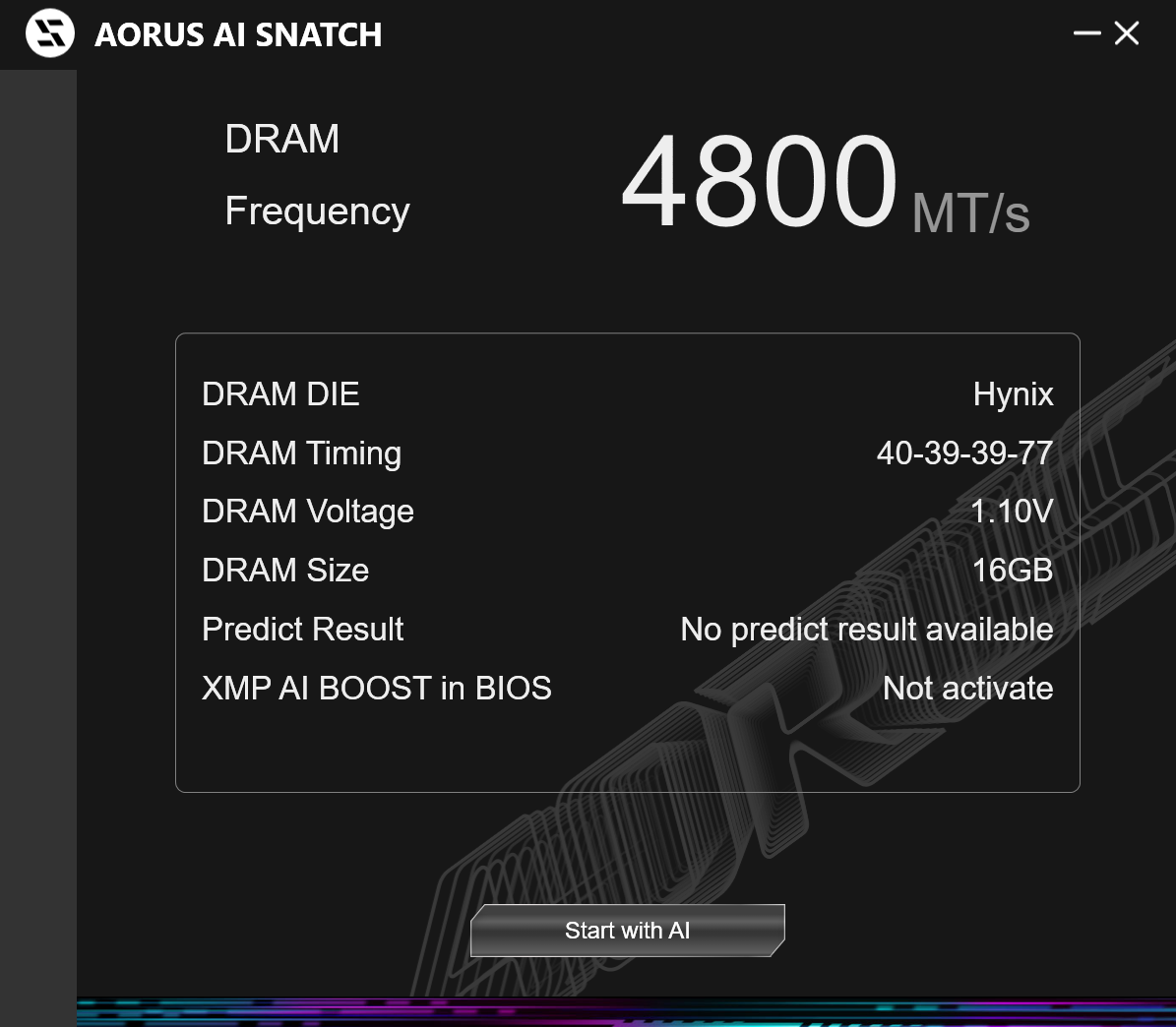
Gigabyte Control Center (GCC) is a one-stop solution for controlling various functions, including RGB and Fan control, hardware monitoring, and overclocking. It also helps you find, download, and install driver updates for your system. It’s a simple application that does its job. It’s also a much cleaner tool than the previous App Center. It earns our approval for the breadth of functionality it offers users. There’s also the curiously named AI Snatch to help with overclocking.
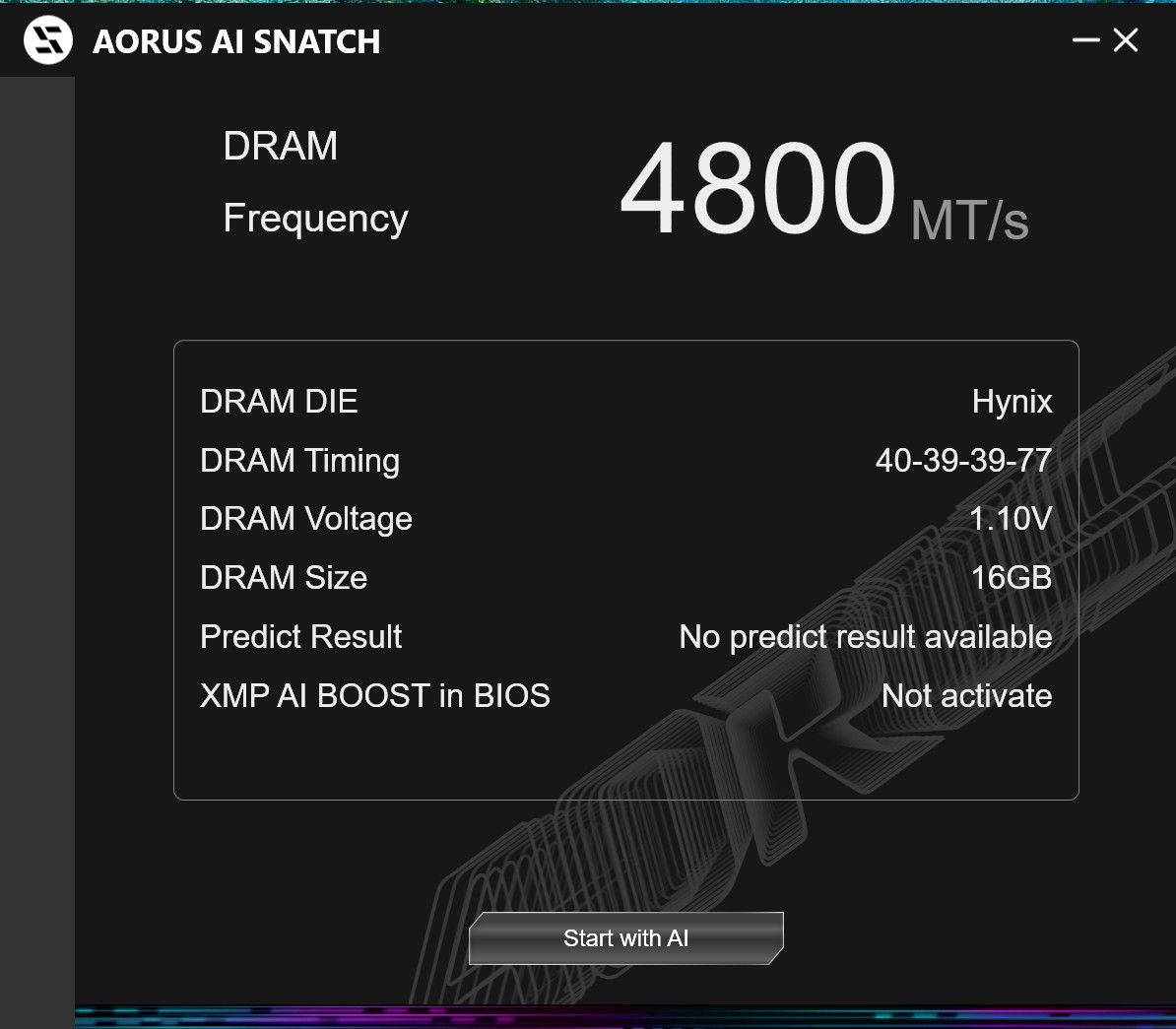
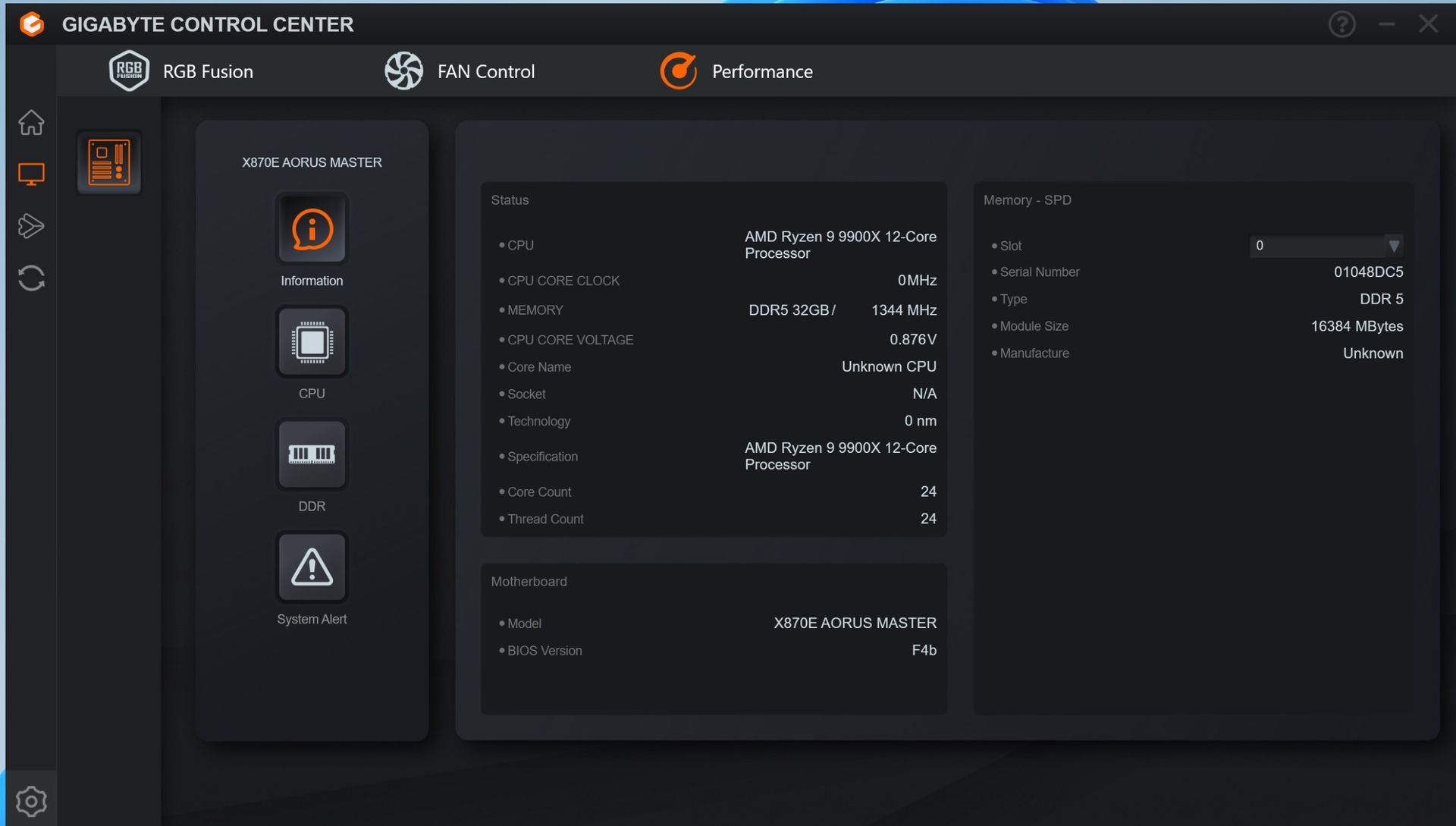
Gigabyte X870 Aorus Infinity
Future
Gigabyte X870 Aorus Infinity - Software
Future
Gigabyte X870 Aorus Infinity - Software
Future
Gigabyte X870 Aorus Infinity - Software
Future
Gigabyte X870 Aorus Infinity - Software
Future
Gigabyte X870 Aorus Infinity - Software
Future
Gigabyte X870 Aorus Infinity - Software
Future
Gigabyte X870 Aorus Infinity - Software
Future

Test System / Comparison Products

We’ve updated our test system to Windows 11 (23H2) 64-bit OS with all updates applied as of late September 2024 (this includes the Branch Prediction Optimizations for AMD). Hardware-wise, we’ve updated the RAM kits (matching our Intel test system), cooling, storage, and video card. Unless otherwise noted, we use the latest publicly available non-beta motherboard BIOS. The hardware we used is as follows:

TEST SYSTEM COMPONENTS

Sound

Integrated HD audio

Network

Integrated Networking (GbE to 10 GbE)

Graphics Driver

GeForce 561.09

Benchmark Settings

Synthetic Benchmarks and Settings

Procyon

Version 2.8.1352 64

Office 365, Video Editing (Premiere Pro 24.6.1), Photo Editing (Photoshop 25.1.2, Lightroom Classic 13.5.1)

3DMark

Version 2.29.8294.0 64

Speed Way and Steel Nomad (Default)

Cinebench R24

Version 2024.1.0
Open GL Rendering Benchmark - Single and Multi-threaded

Blender

Version 4.2.0
Full benchmark (all 3 tests)

Application Tests and Settings

LAME MP3

Version SSE2_2019

Mixed 271MB WAV to mp3: Command: -b 160 --nores (160Kb/s)

HandBrake CLI

Version: 1.8.2

Sintel Open Movie Project: 4.19GB 4K mkv to x264 (light AVX) and x265 (heavy AVX)

Corona 1.4

Version 1.4

Custom benchmark

7-Zip

Version 24.08

Integrated benchmark (Command Line)

Game Tests and Settings

Cyberpunk 2077

Ultra RT: - 1920 x 1080, DLSS - Balanced.

F1 2024

Ultra High Preset - 1920 x 1080, 16xAF/TAA, Great Britain (Clear/Dry), FPS Counter ON

MORE: Best Motherboards

MORE: How To Choose A Motherboard

MORE: Best Motherboard Deals

MORE: Best Motherboard Combo Deals

MORE: All Motherboard Content

Benchmark Results

We run our standard benchmarks and power tests using the CPU’s stock frequencies (including any default boost/turbo) with all power-saving features enabled. We set optimized defaults in the BIOS and the memory by enabling the XMP profile. We set the Windows power scheme to Balanced (default) for this baseline testing, so the PC idles appropriately.

Synthetic Benchmarks

Synthetics offer a valuable way to evaluate a board's performance, as identical settings should yield similar results. Turbo boost wattage and advanced memory timings are areas where motherboard manufacturers can still optimize for stability or performance, though, and these settings can impact specific testing scenarios.

Gigabyte X870 Aorus Infinity - Synthetic benchmarks
Future
Gigabyte X870 Aorus Infinity - Synthetic benchmarks
Future
Gigabyte X870 Aorus Infinity - Synthetic benchmarks
Future
Gigabyte X870 Aorus Infinity - Synthetic benchmarks
Future
Gigabyte X870 Aorus Infinity - Synthetic benchmarks
Future
Gigabyte X870 Aorus Infinity - Synthetic benchmarks
Future
Gigabyte X870 Aorus Infinity - Synthetic benchmarks
Future
Gigabyte X870 Aorus Infinity - Synthetic benchmarks
Future
Gigabyte X870 Aorus Infinity - Synthetic benchmarks
Future
Gigabyte X870 Aorus Infinity - Synthetic benchmarks
Future
Gigabyte X870 Aorus Infinity - Synthetic benchmarks
Future
Gigabyte X870 Aorus Infinity - Synthetic benchmarks
Future
Gigabyte X870 Aorus Infinity - Synthetic benchmarks
Future
Gigabyte X870 Aorus Infinity - Synthetic benchmarks
Future

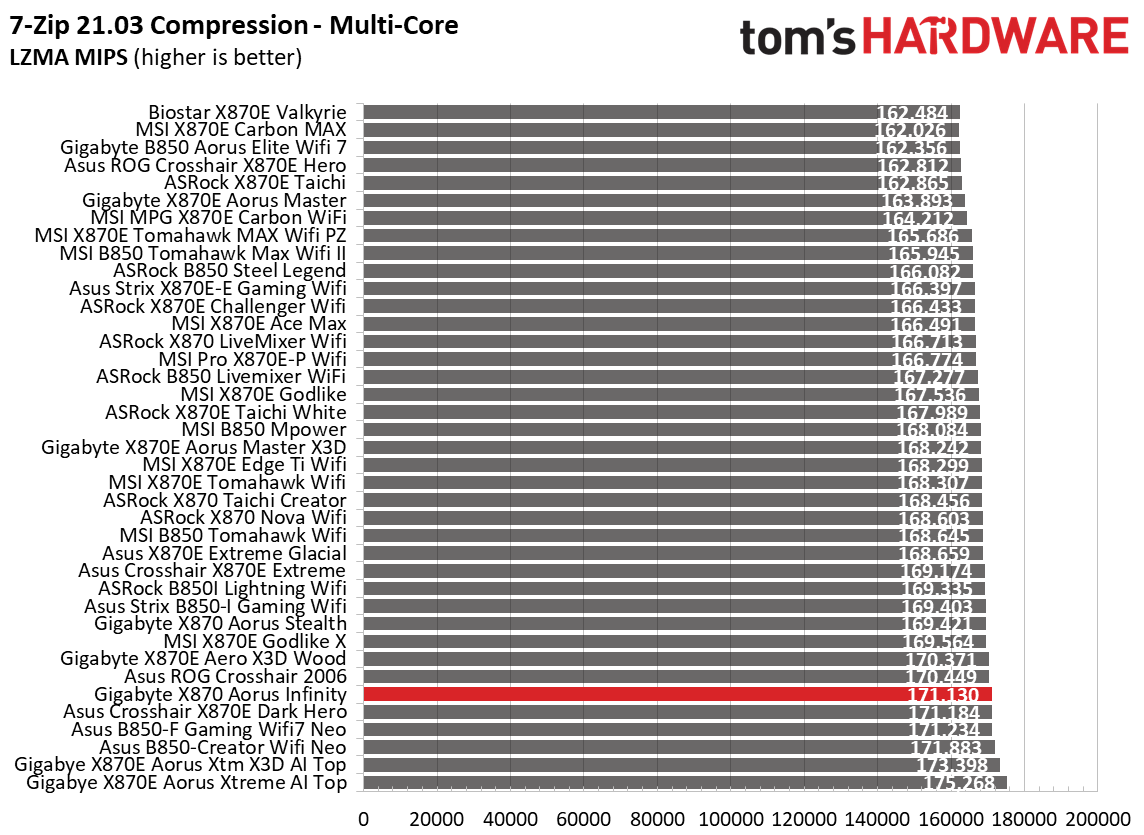
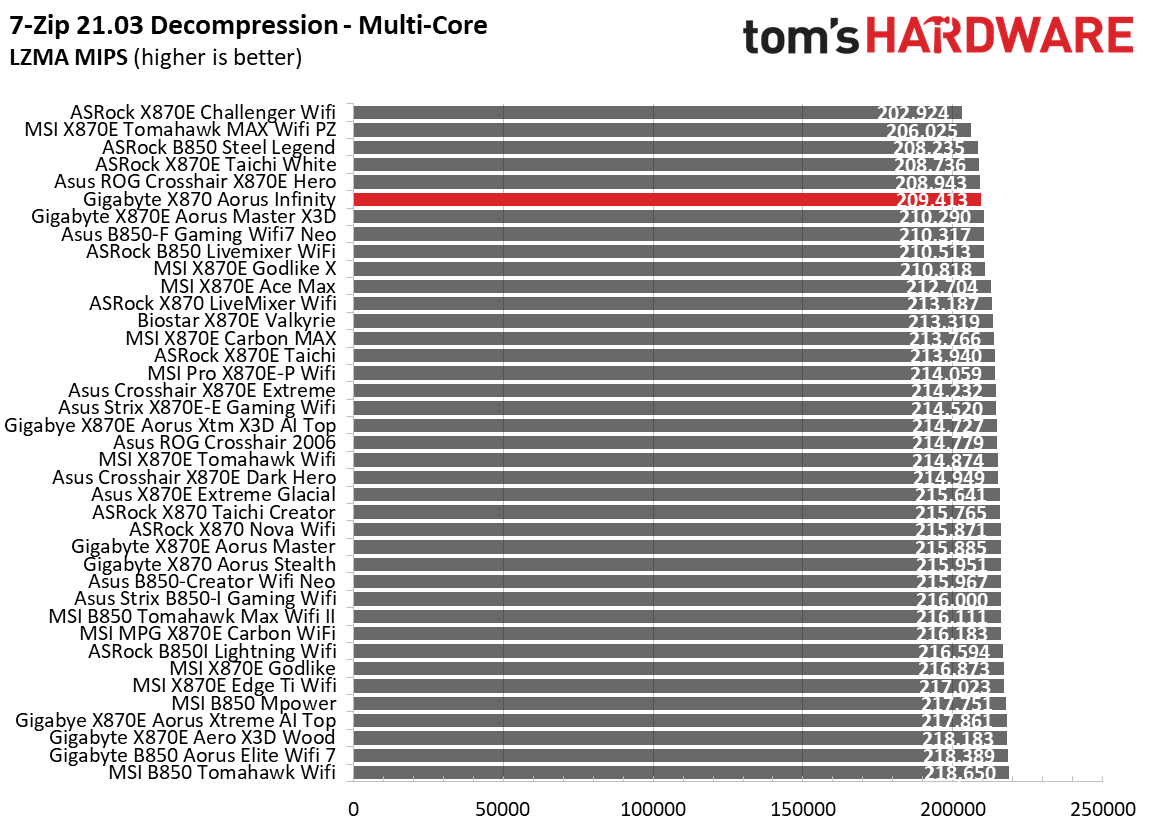
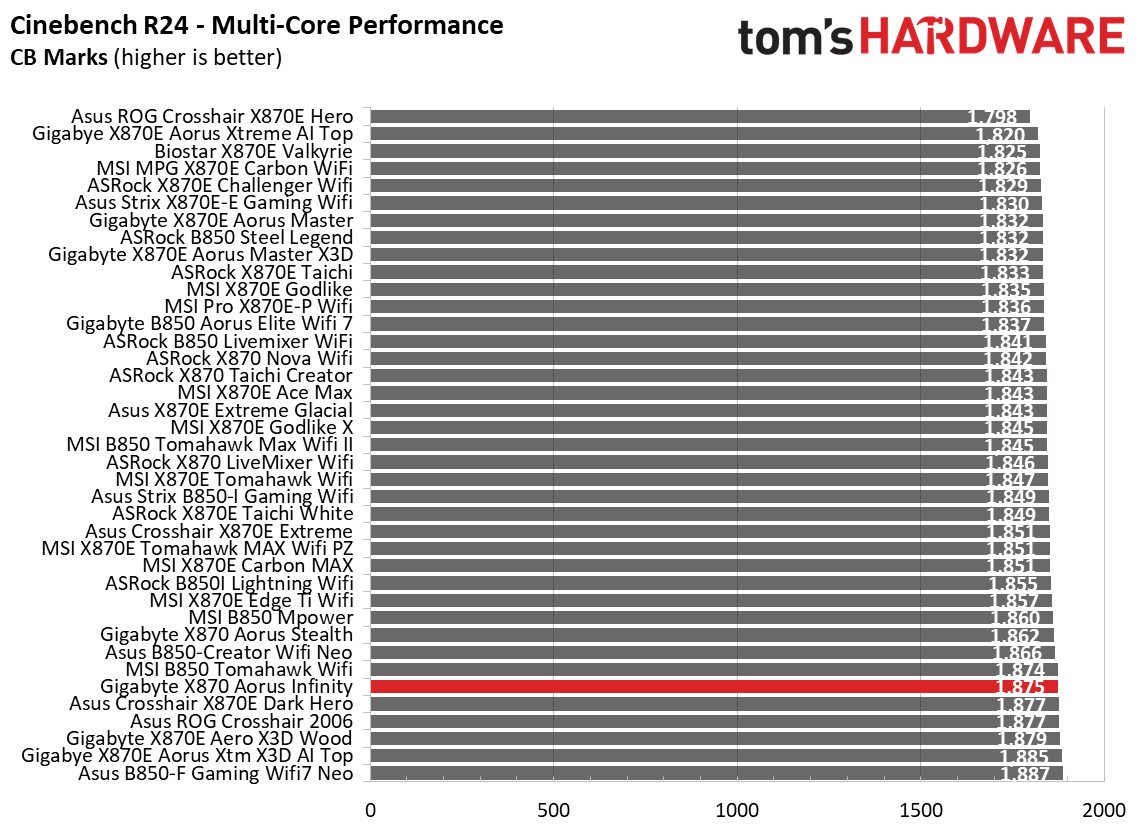
The Aorus Infinity was average to above average in most of these synthetic tests. So far, nothing to worry about.

Timed Applications

Gigabyte X870 Aorus Infinity - Timed benchmarks
Future
Gigabyte X870 Aorus Infinity - Timed benchmarks
Future
Gigabyte X870 Aorus Infinity - Timed benchmarks
Future
Gigabyte X870 Aorus Infinity - Timed benchmarks
Future

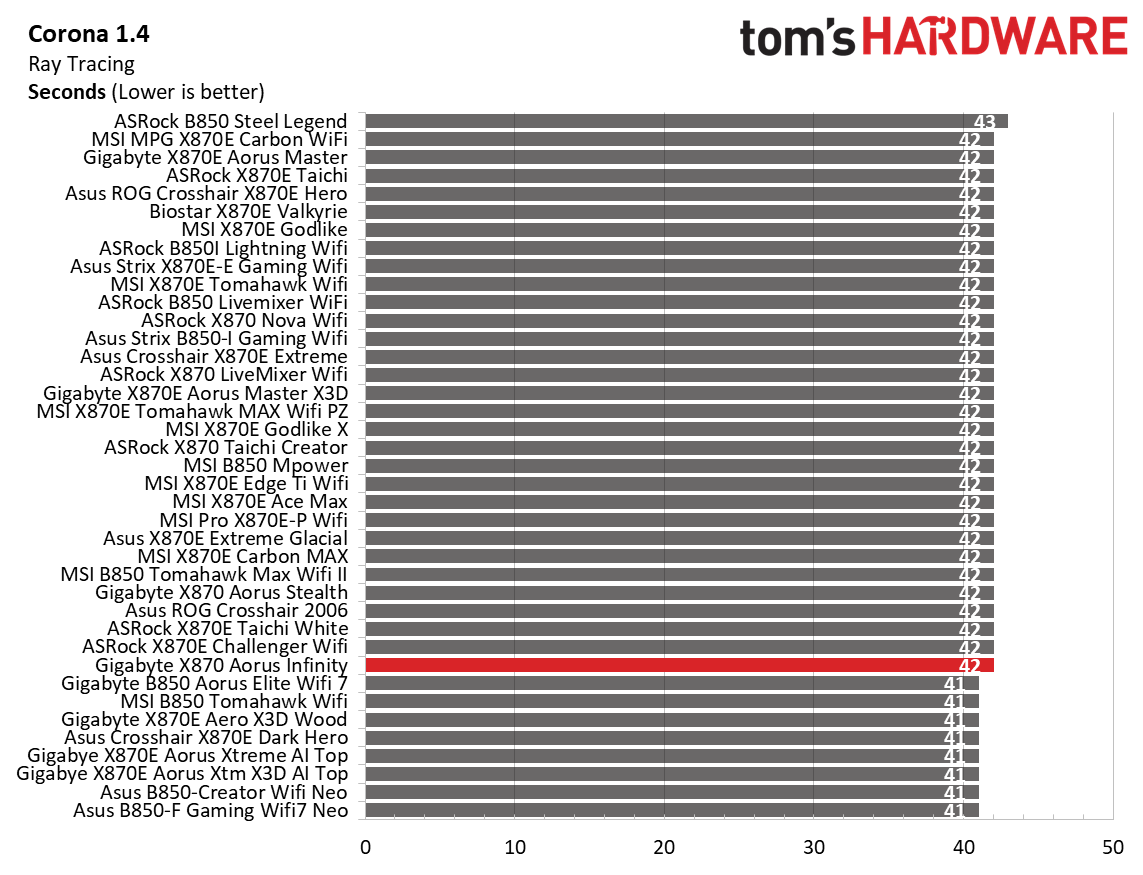
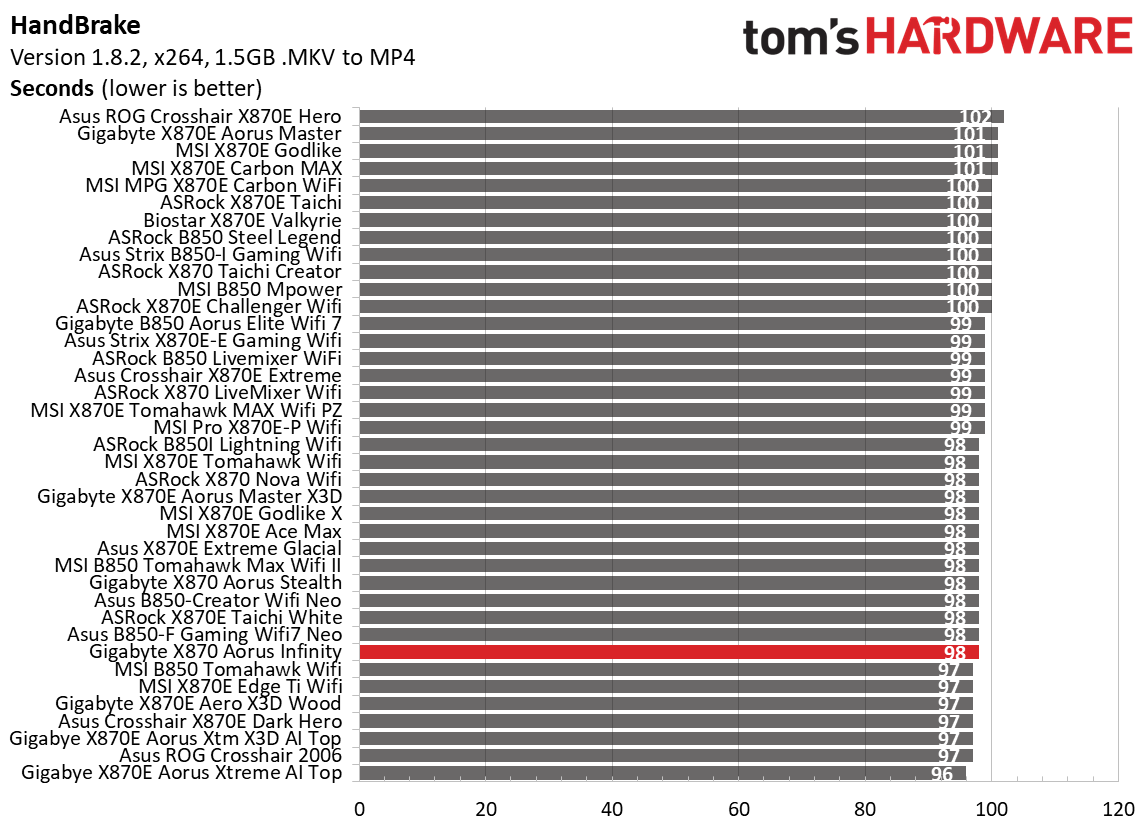
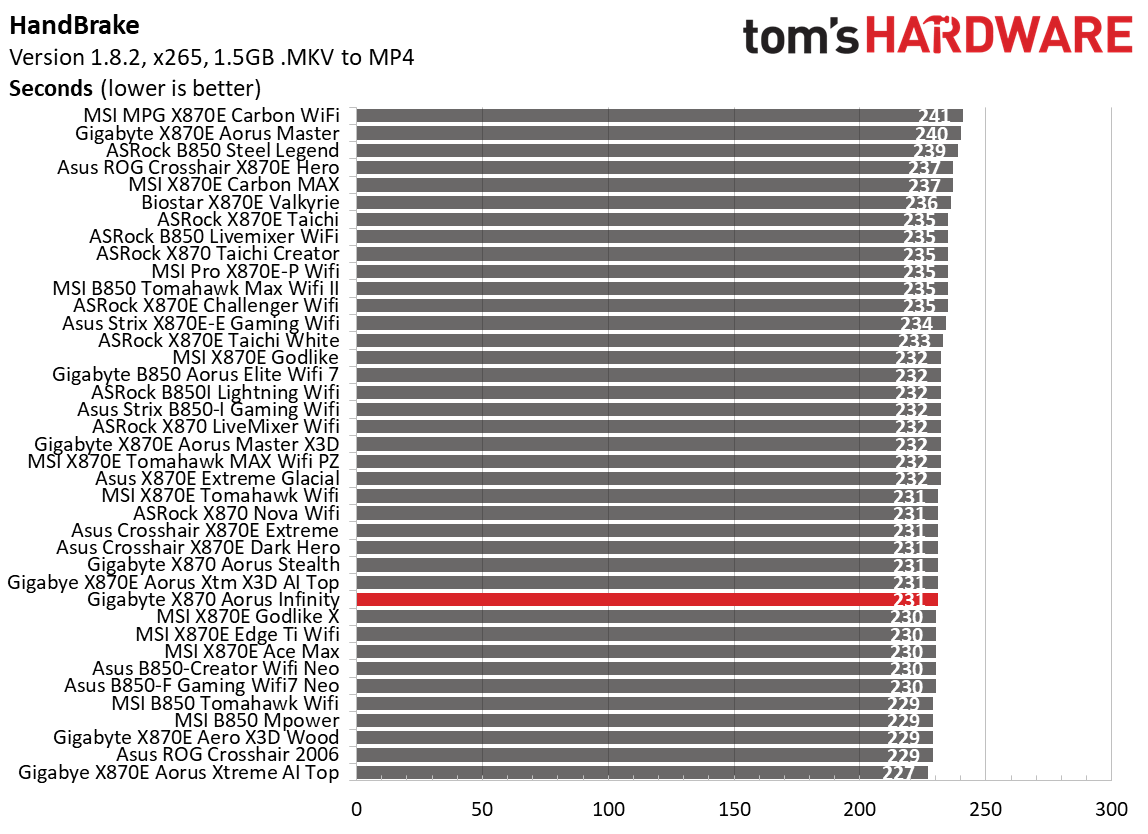
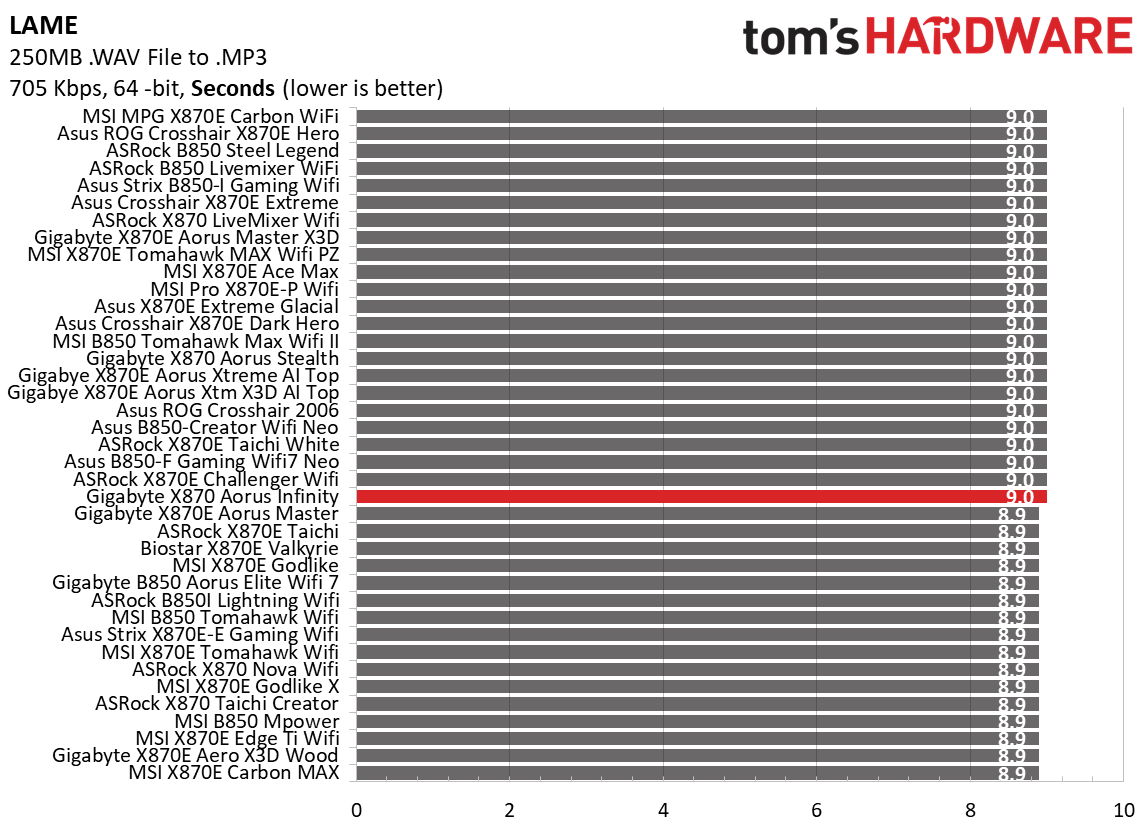
Our timed applications told a similar story. The Aorus board was average in HandBrake, but slightly below average in the Corona and LAME testing. Still, the results aren’t far off, and you wouldn’t notice unless you were benchmarking.

3D Games and 3DMark

Gigabyte X870 Aorus Infinity - Game benchmarks
Future
Gigabyte X870 Aorus Infinity - Game benchmarks
Future
Gigabyte X870 Aorus Infinity - Game benchmarks
Future
Gigabyte X870 Aorus Infinity - Game benchmarks
Future

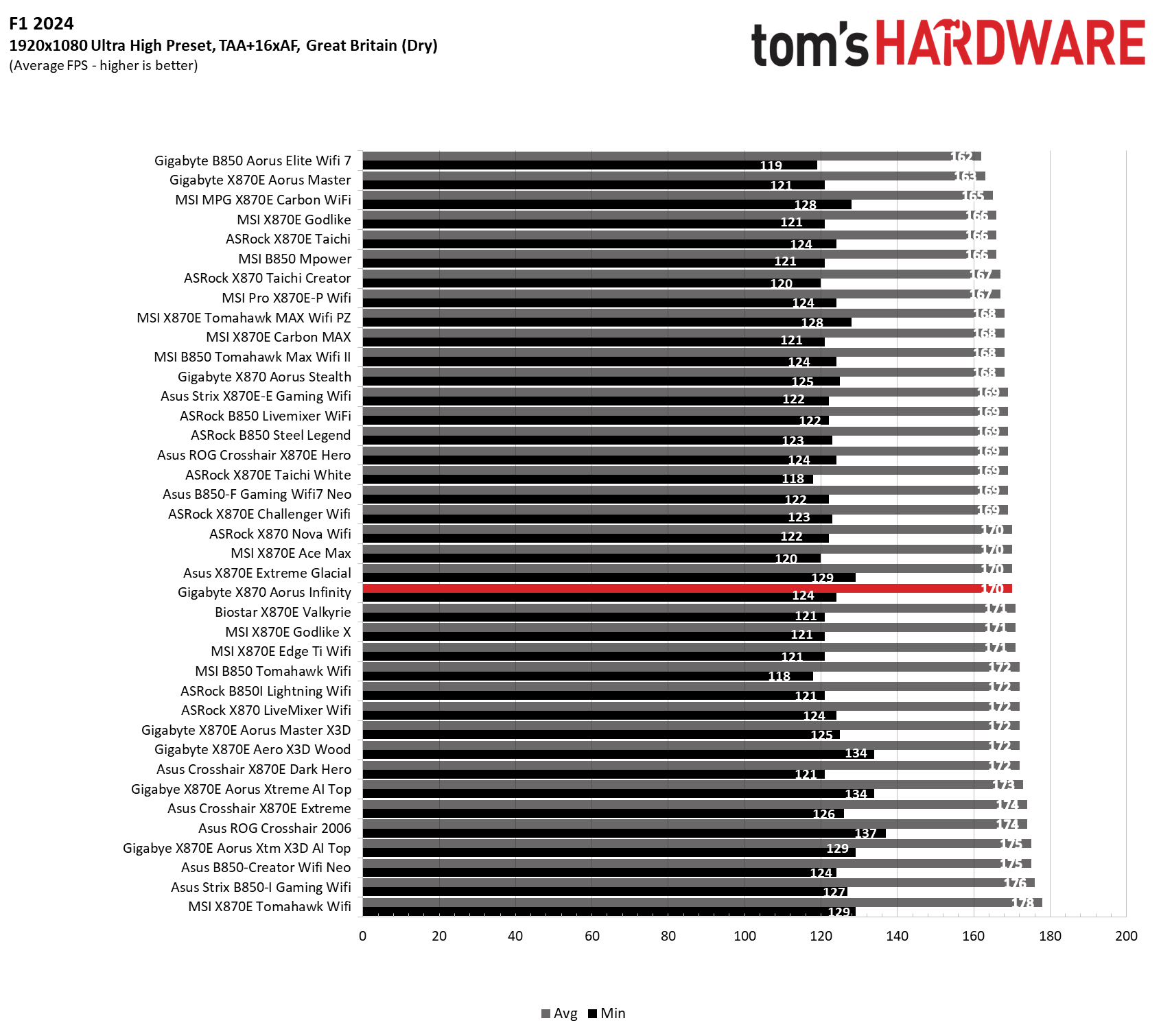
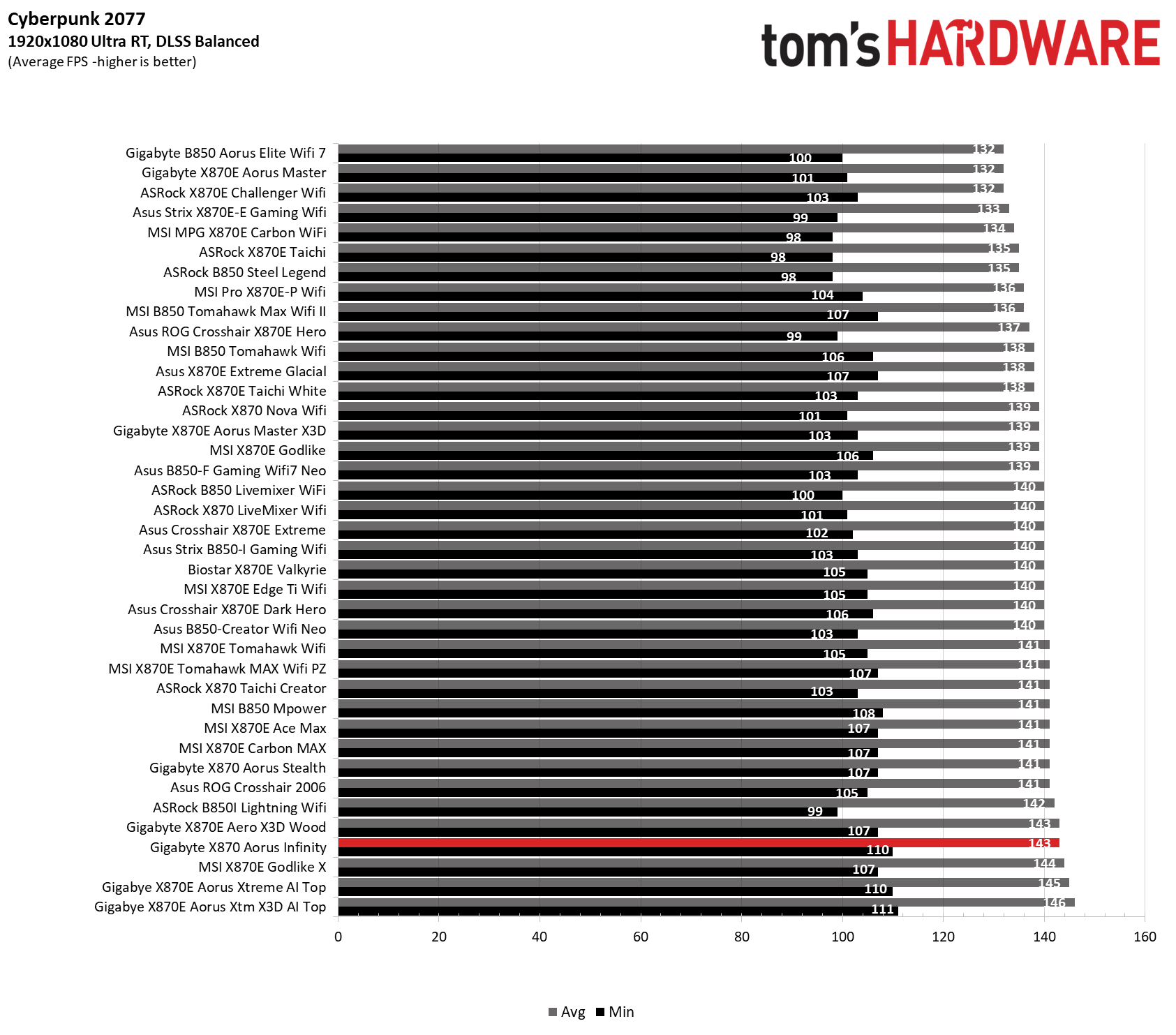
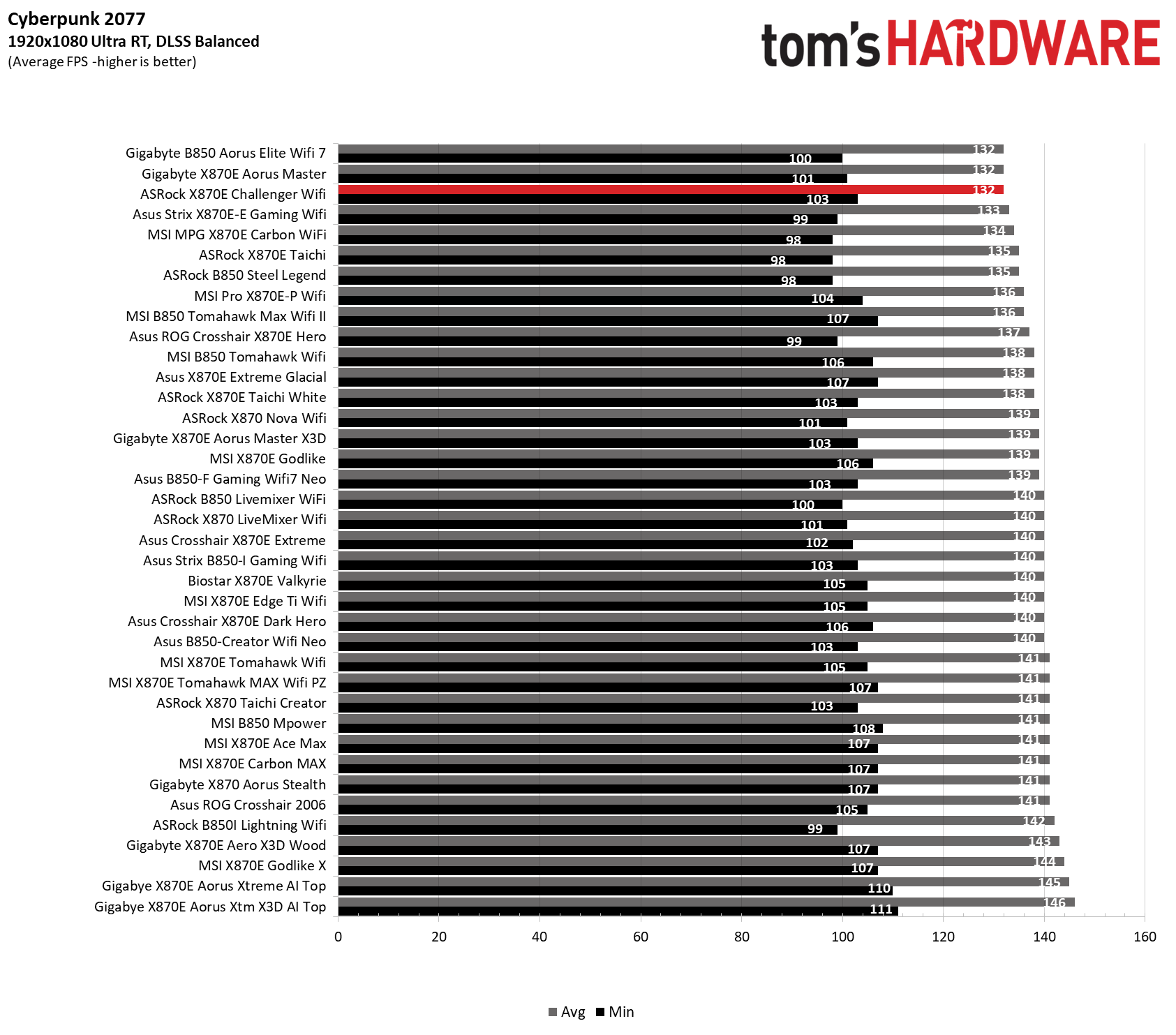
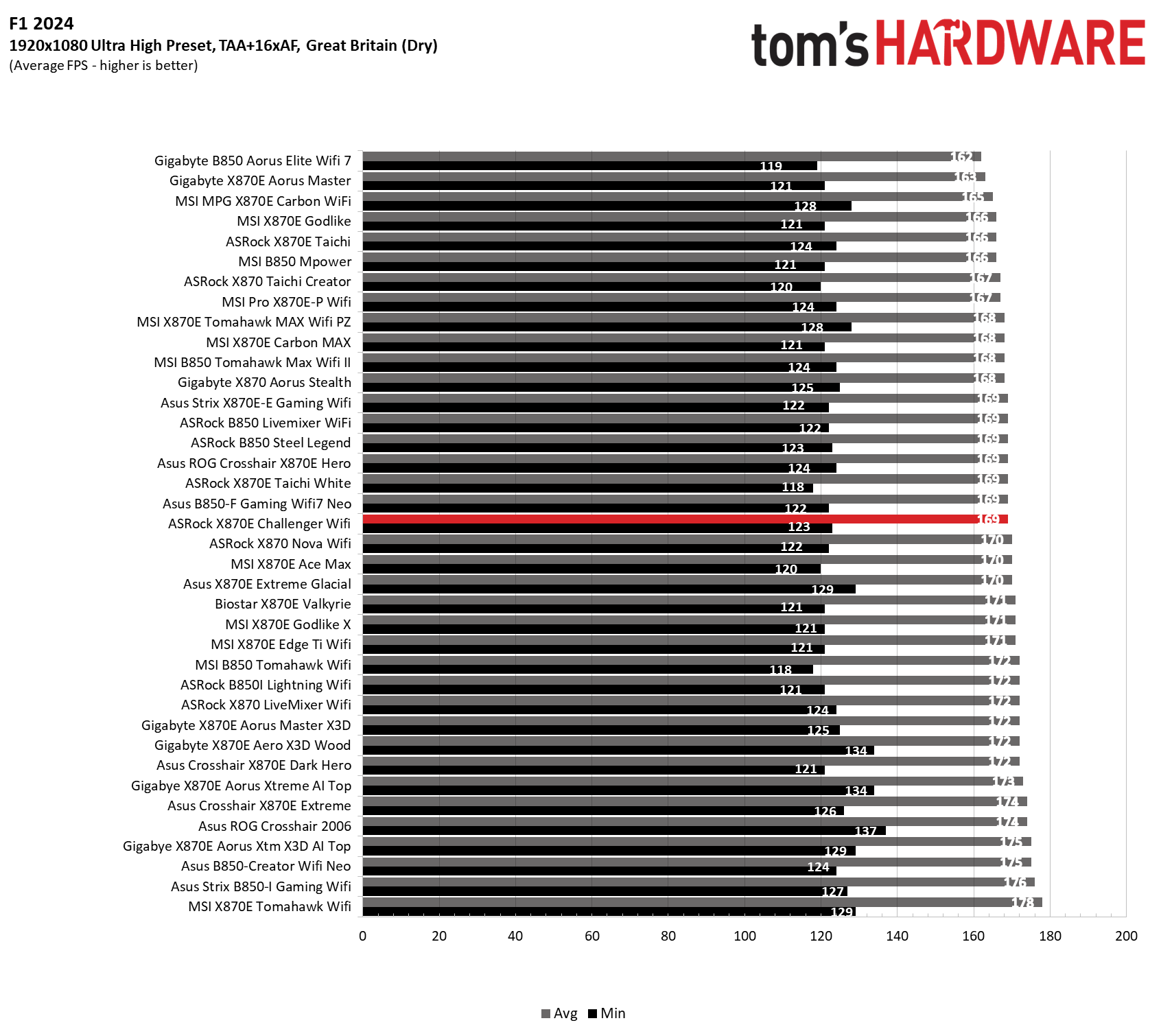
Starting with the launch of Zen 5, we’ve updated our game tests. We kept the F1 racing game but have upgraded to F1 24. We also dropped Far Cry 6 in favor of an even more popular, better-looking game: Cyberpunk 2077. We run both games at 1920x1080 resolution using the Ultra preset (details listed above). Cyberpunk 2077 uses DLSS, while we left F1 24 on native resolution scaling.

The goal of these settings is to determine whether performance differs at the most commonly used (and CPU/system-bound) resolution, with settings most people use or strive for (Ultra). We expect the difference between boards in these tests to be minor, with most falling within the margin of error. We’ve also added a minimum FPS setting, which can affect your gameplay and immersion.

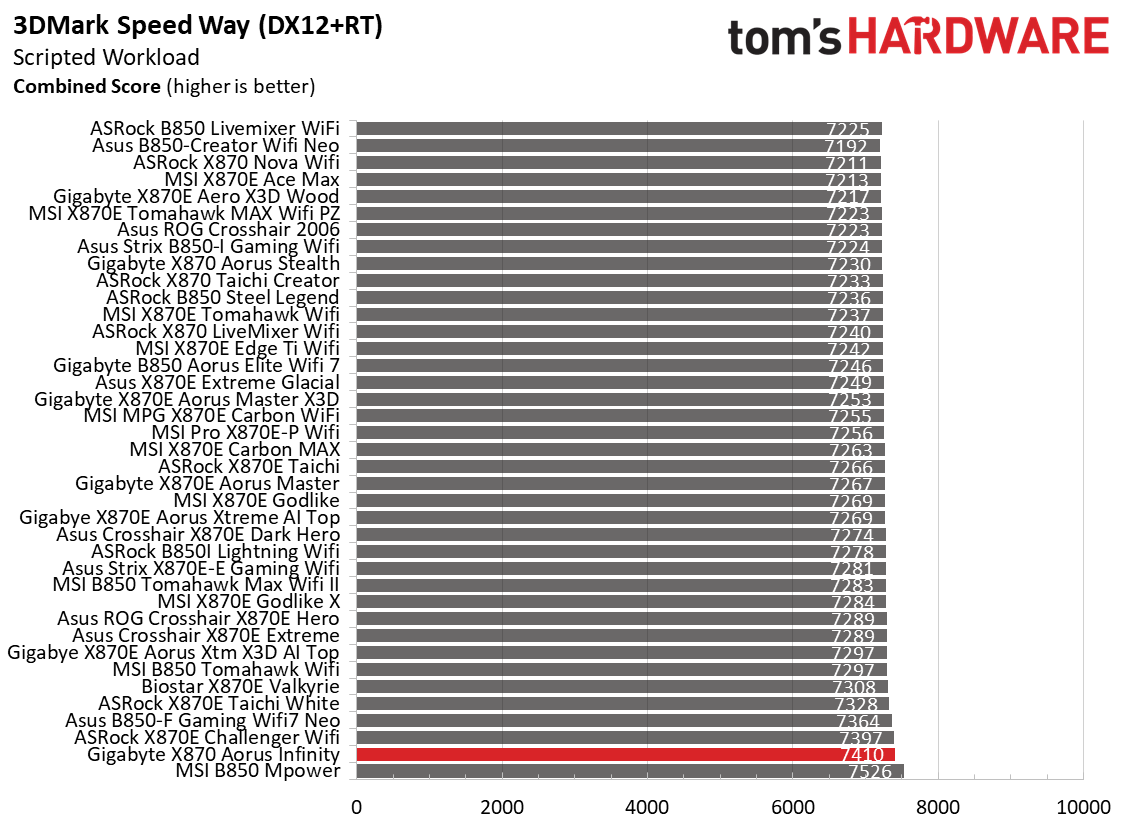
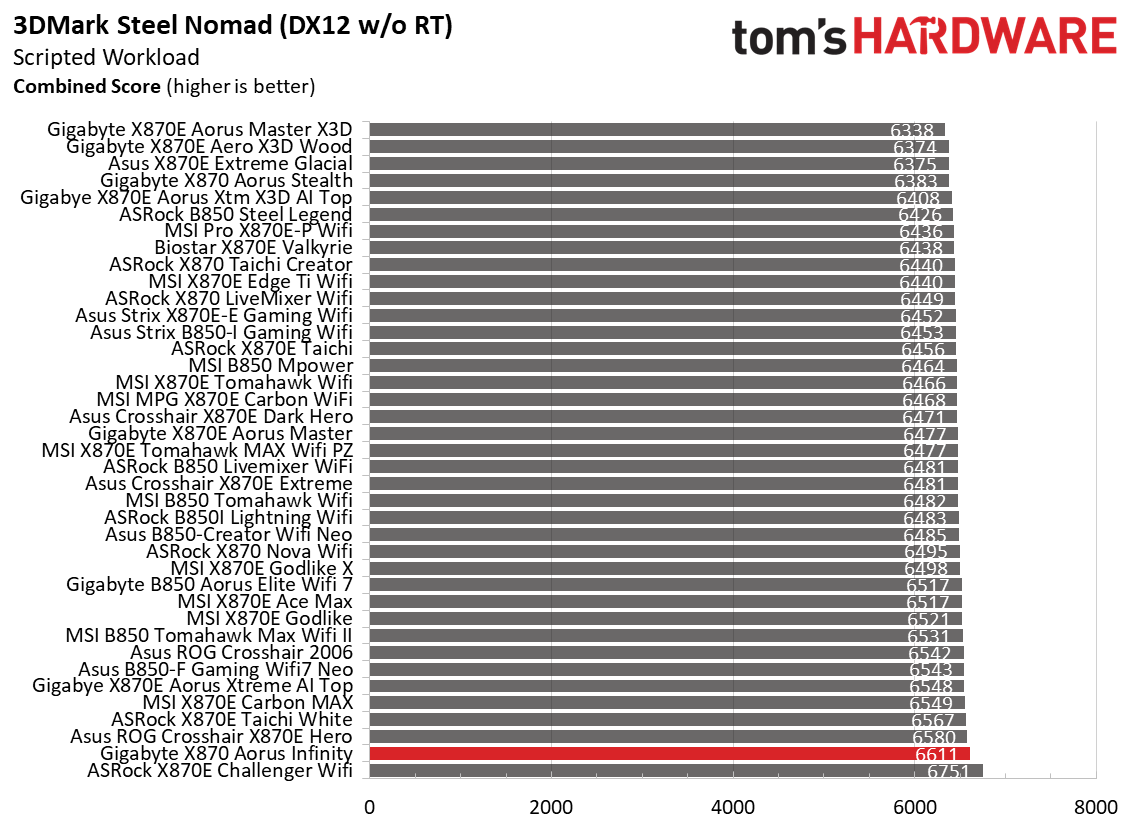
The Infinity did very well in the synthetic 3DMark benchmarks and was average to above average in games.

To summarize, there’s nothing to worry about when it comes to performance on this board. Be it gaming, office work, or creative workflows, the Infinity can do it all.

Overclocking

Over the past few CPU generations, overclocking headroom has shrunk on both sides of the fence, while out-of-the-box potential has increased. For overclockers, that means less fun. For the average consumer, you’re getting the most out of the processor without manual tweaking. Today’s motherboards are more robust than ever and easily support power-hungry, flagship-class processors, so we know the hardware can handle them. There are multiple ways to extract even more performance from these processors: enabling a canned PBO setting, manually tweaking the PBO settings, or just going for an all-core overclock. Results will vary and depend on the cooling as well. In other words, your mileage may vary. Given all of the above, we will not overclock the CPU. However, we will test different memory kits to ensure they meet the specifications.
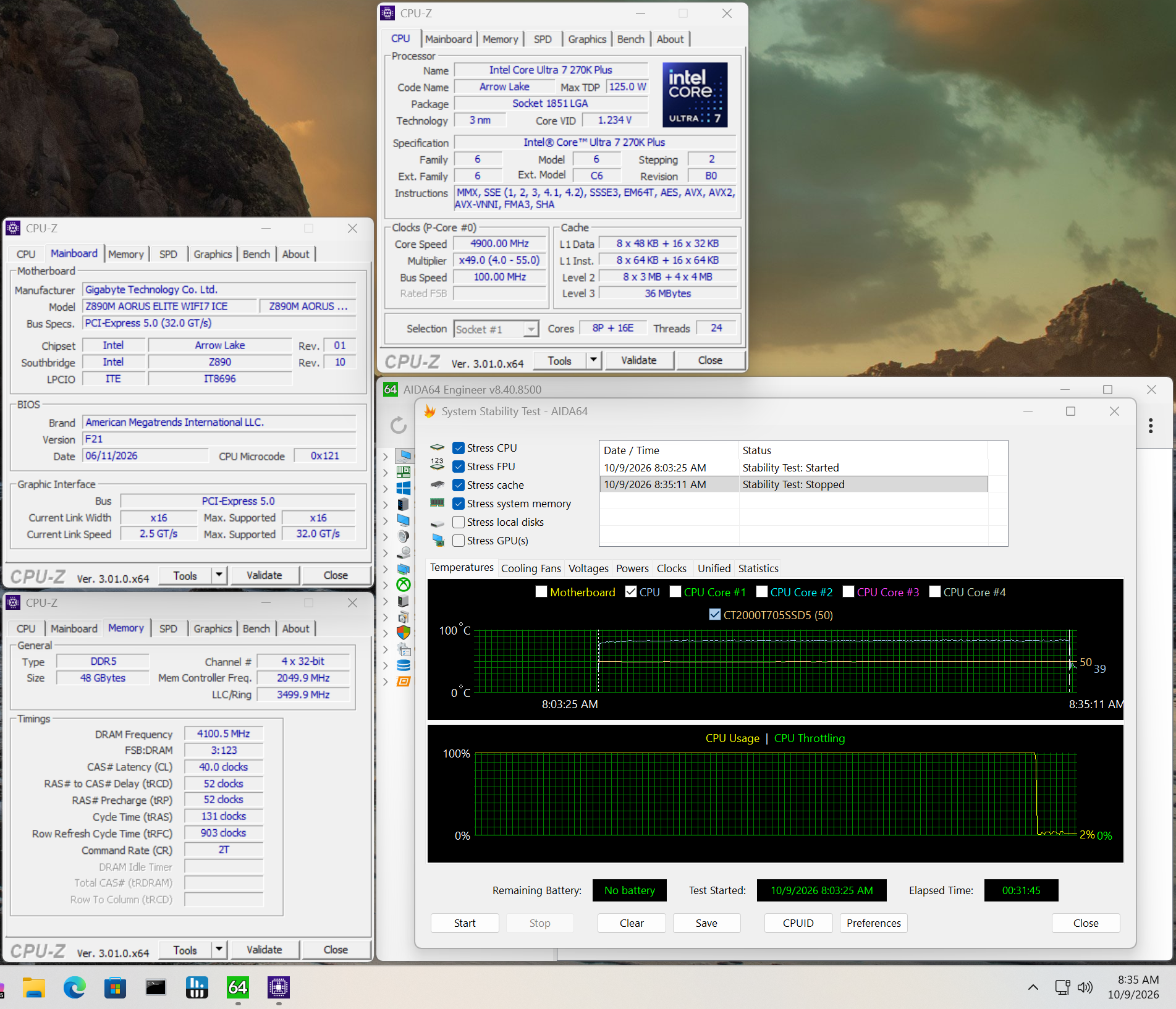
Gigabyte X870 Aorus Infinity - Memory benchmarking
Future
Gigabyte X870 Aorus Infinity - Memory benchmarking
Future

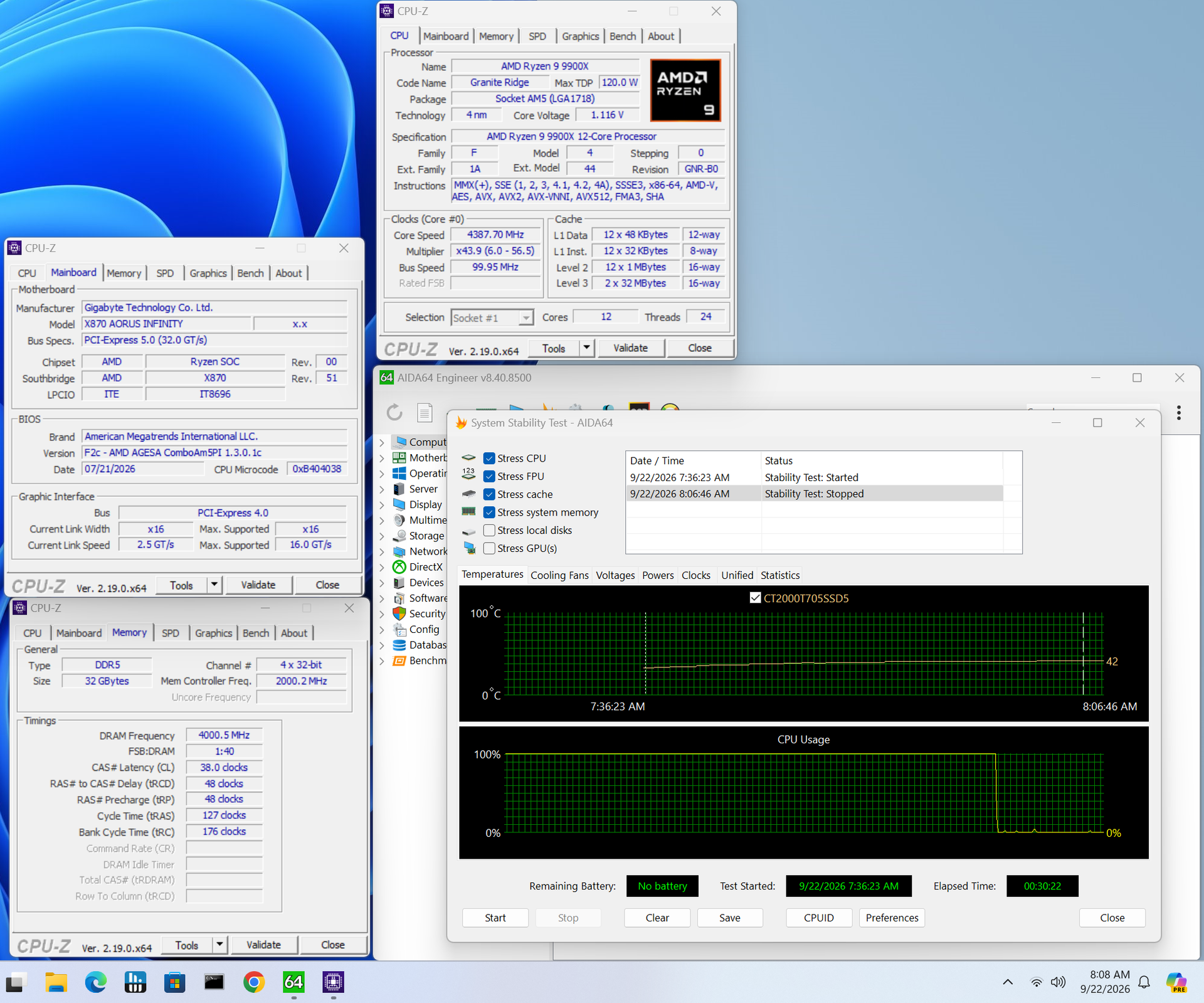
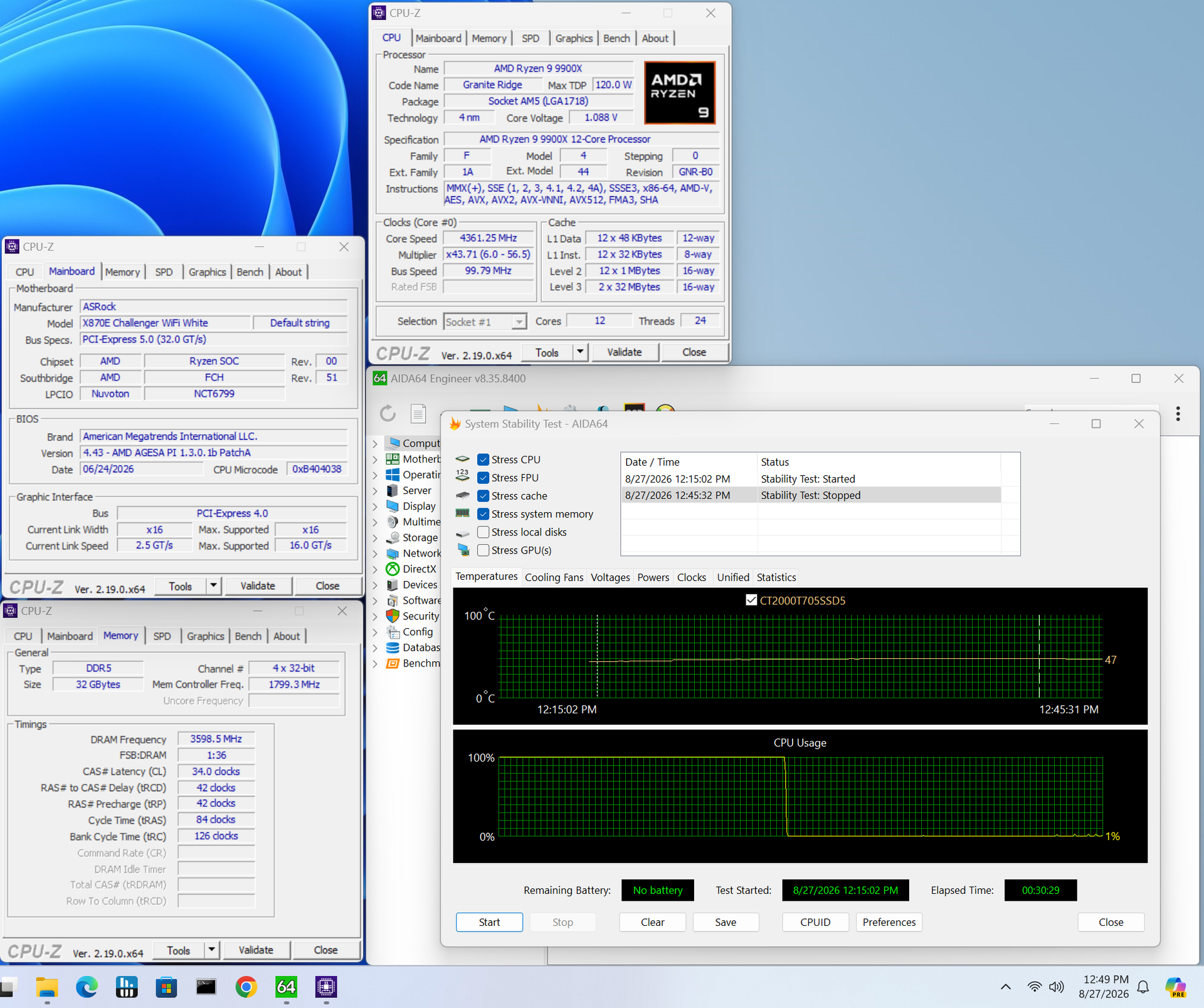
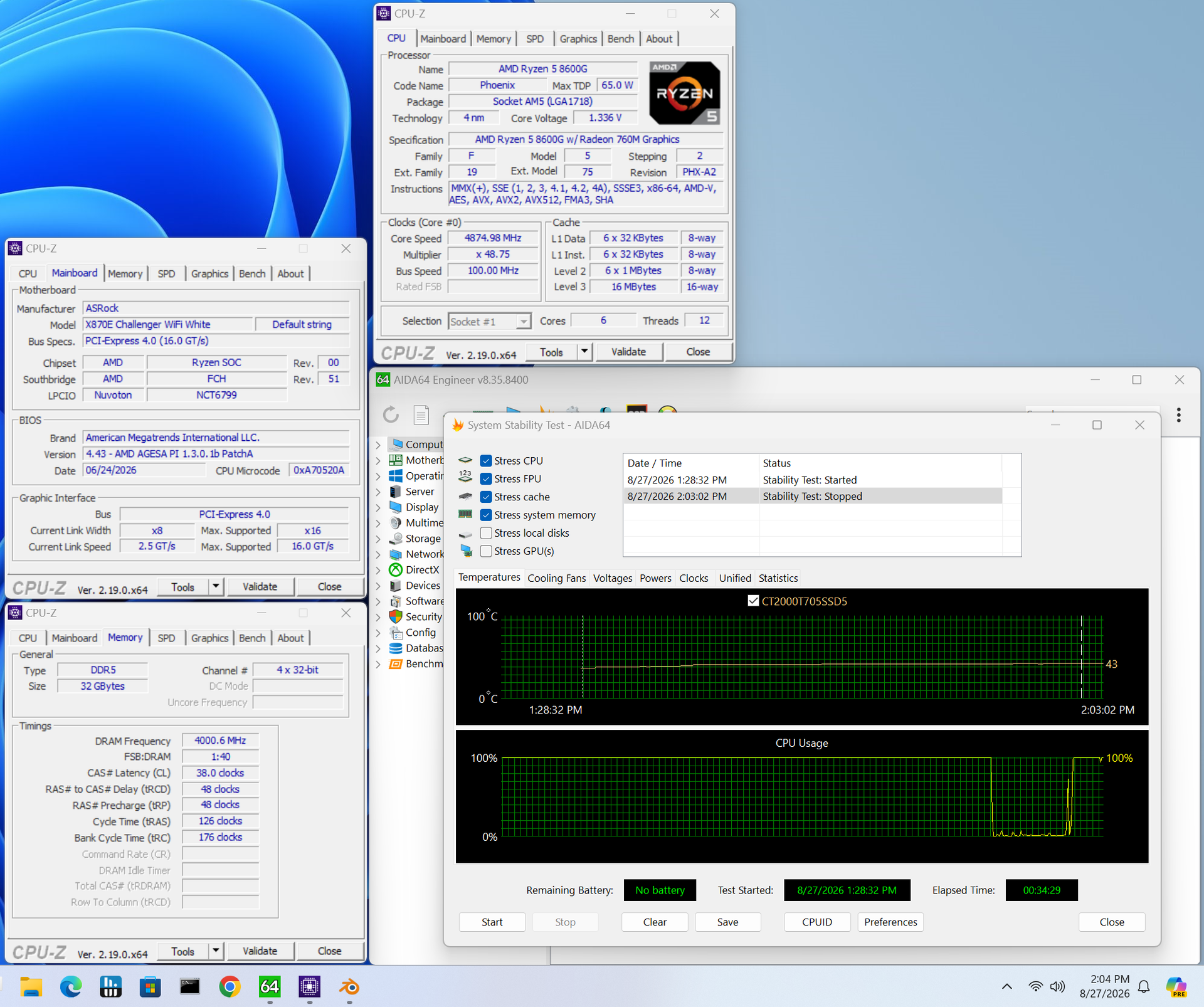
For memory testing, everything we tested worked—even our DDR5-8000 kit from Klevv. The Infinity is one of the few boards that allowed those speeds with the Ryzen 9 9900X CPU. In most cases (read: a board with four memory slots), we need to pivot and install the 8600G APU. But since it has only two DRAM slots, the board completed a stress test on our DDR5-8000 kit and is clearly ideal for pushing memory speeds. It also uses Gigabyte’s X3D Turbo Mode 2.0 for one-touch performance improvements.

Power Consumption / VRM Temperatures

Gigabyte X870 Aorus Infinity - Power consumption

(Image credit: Future)

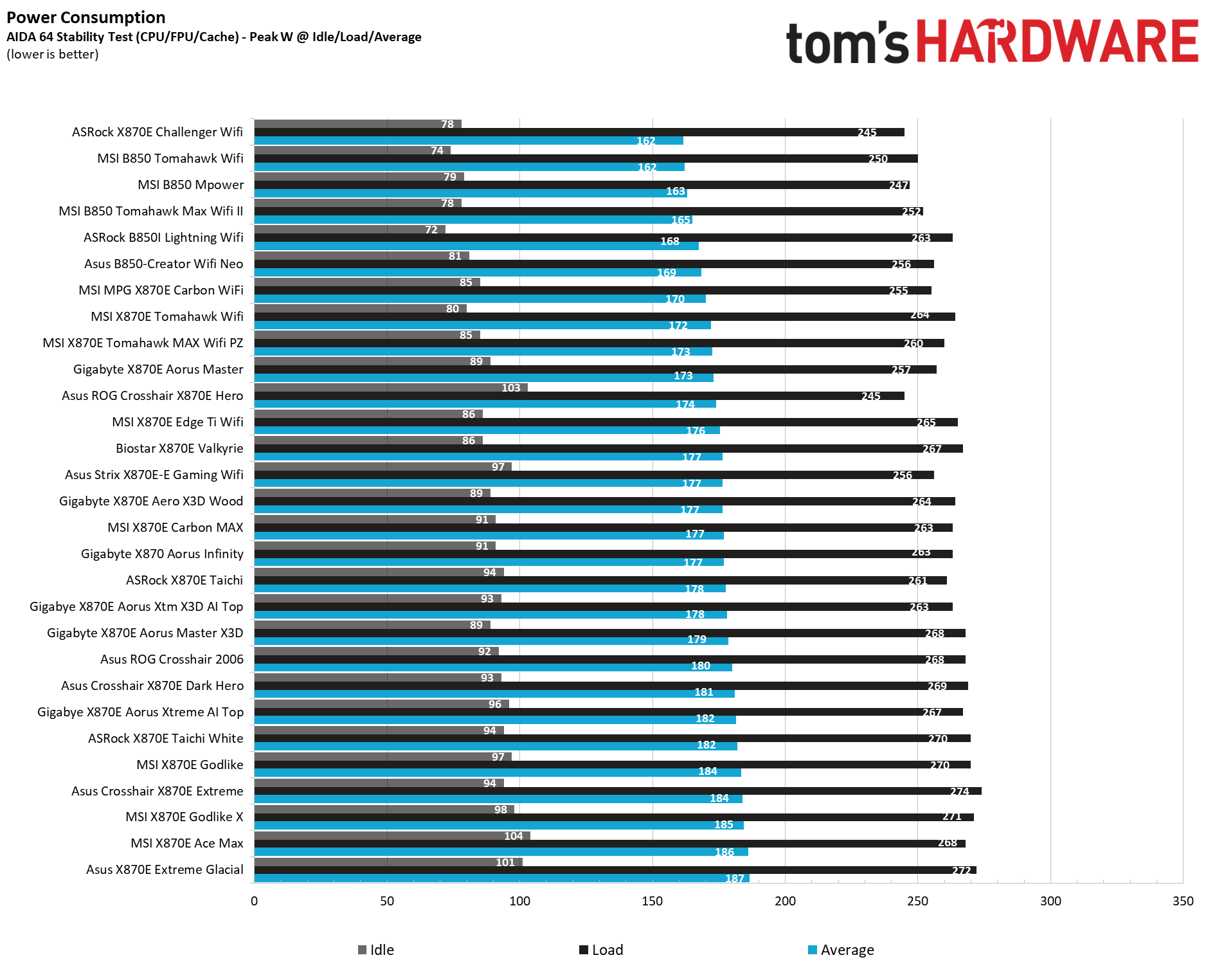
We used AIDA64’s System Stability Test with Stress CPU, FPU, cache, and Memory enabled for power testing, using the processor's peak power consumption value. We obtained the wattage reading from the wall using a Kill-A-Watt meter, which captures the entire PC (excluding the monitor). The only variable that changes is the motherboard; all other parts remain the same. Please note that we now use only the stock power-use/VRM temperature charts, as this section aims to ensure the power delivery can handle flagship-class processors.

Stress testing this board with our DDR5-7200 kit showed it using less power than some. At idle, it sat around 91W, above average (though typical for boards of this class), and it peaked at 263W, slightly above average. This averages out to 177W, about 5W higher than the running 172W average among our tested boards.

Gigabyte X870 Aorus Infinity - VRM temps
Future
Gigabyte X870 Aorus Infinity - VRM temps
Future

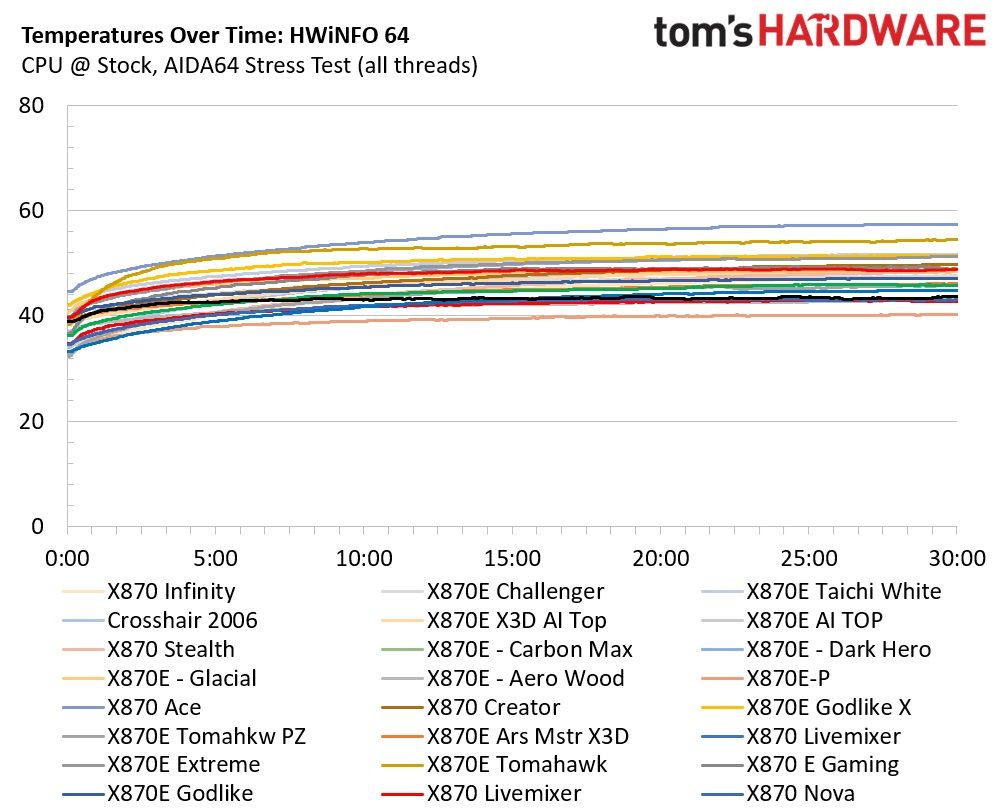
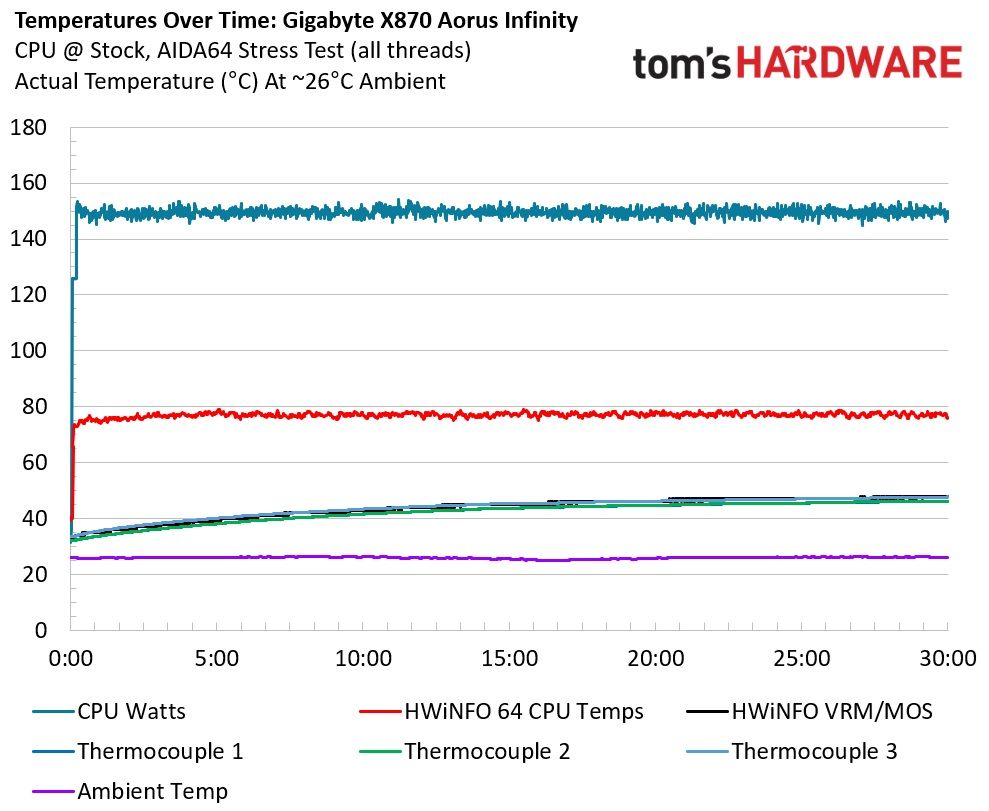
VRM temperatures were very good during our testing, peaking at just over 46 degrees Celsius on our sensor and 48 degrees on the hottest internal sensor. With 110A MOSFETs pushing ~150W loads, it’s a solid result with plenty of headroom left for a more powerful processor and, of course, extreme overclocking, what it was designed for.

Bottom Line

Gigabyte X870 Aorus Infinity

(Image credit: Future)

In the end, we do like the Gigabyte X870 Infinity motherboard. While it’s meant for extreme overclocking, it does everything well overall. The biggest issue is the price. At $799.99, it's expensive for a motherboard. But this is also a limited-edition 40th-anniversary board. For much less, you can get high-end, flagship-class X870E-based boards… but they lack the extreme overclocking features. Obviously, if you’re an extreme overclocker, the price is a bit more palatable than if you were not. But the elephant in the room is the other overclocking board: Asus’ ROG Crosshair X870E Apex is ‘only’ $597.99 at Newegg and offers similar (but not identical) features.

You can also find Gigabyte’s X870E Aorus Master X3D for $589, or MSI’s MEG X870E Ace Max motherboard for just over $530, both of which offer more M.2 sockets and better audio solutions. But again, these aren’t motherboards focused on extreme overclocking and squeezing every last MHz out of your processor or RAM.

While this is a solid all-around motherboard, the price point feels prohibitive for an X870 board, at least for everyone except the extreme overclocking crowd. Performance is where it should be. VRM temperatures are excellent, and the power delivery has plenty of headroom for any processor, even with extreme cooling. If you’re chasing memory records at Hwbot and pushing the limits with LN2, the Infinity has all the tools you need to get the most out of your system. Everyone else can save a couple hundred dollars by looking elsewhere.

MORE: Best Motherboards

MORE: How To Choose A Motherboard

MORE: Best Motherboard Deals

MORE: Best Motherboard Combo Deals

MORE: All Motherboard Content

Save $249 on 32GB of DDR5 with this 3-item Newegg bundle

作者 Joe Shields
2026年10月15日 19:56

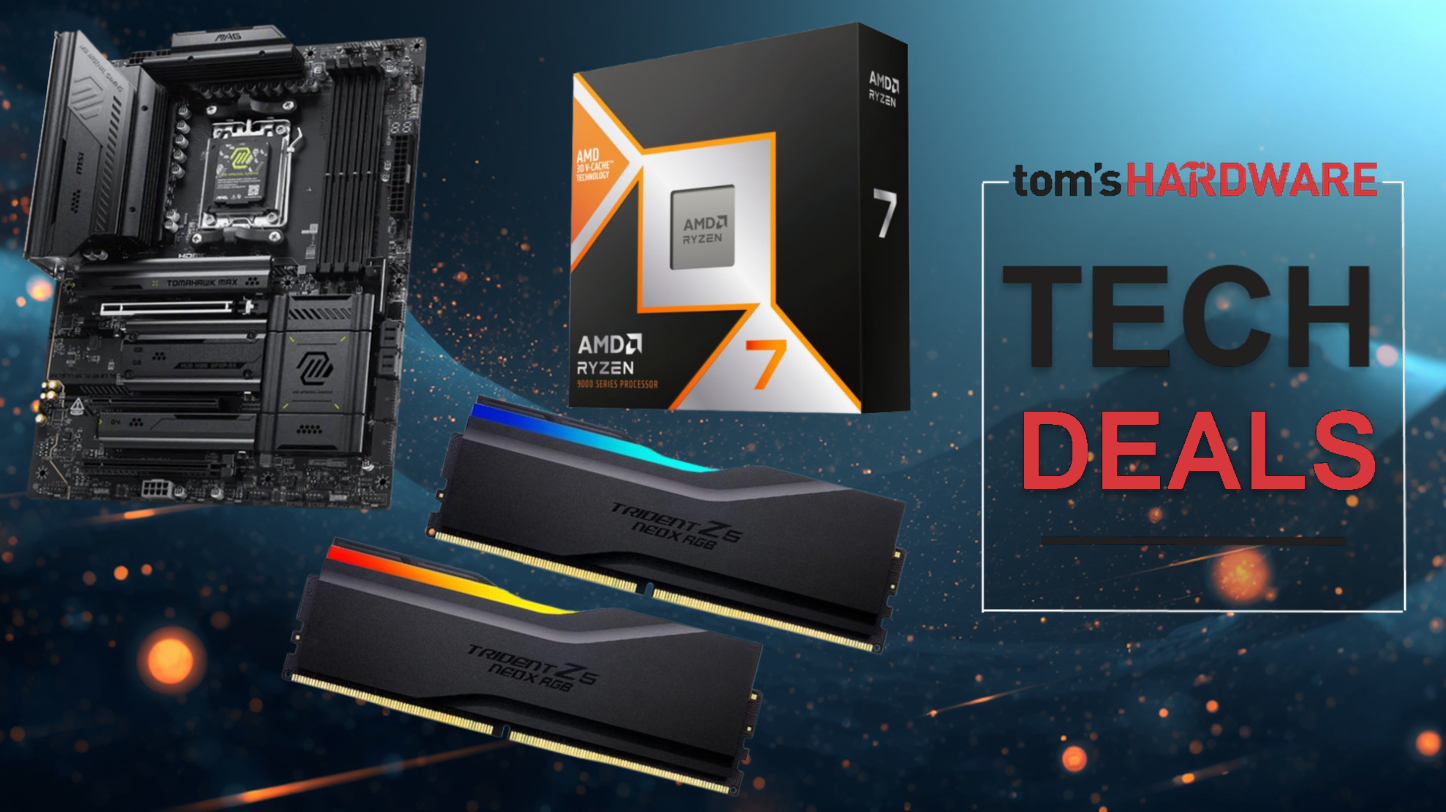
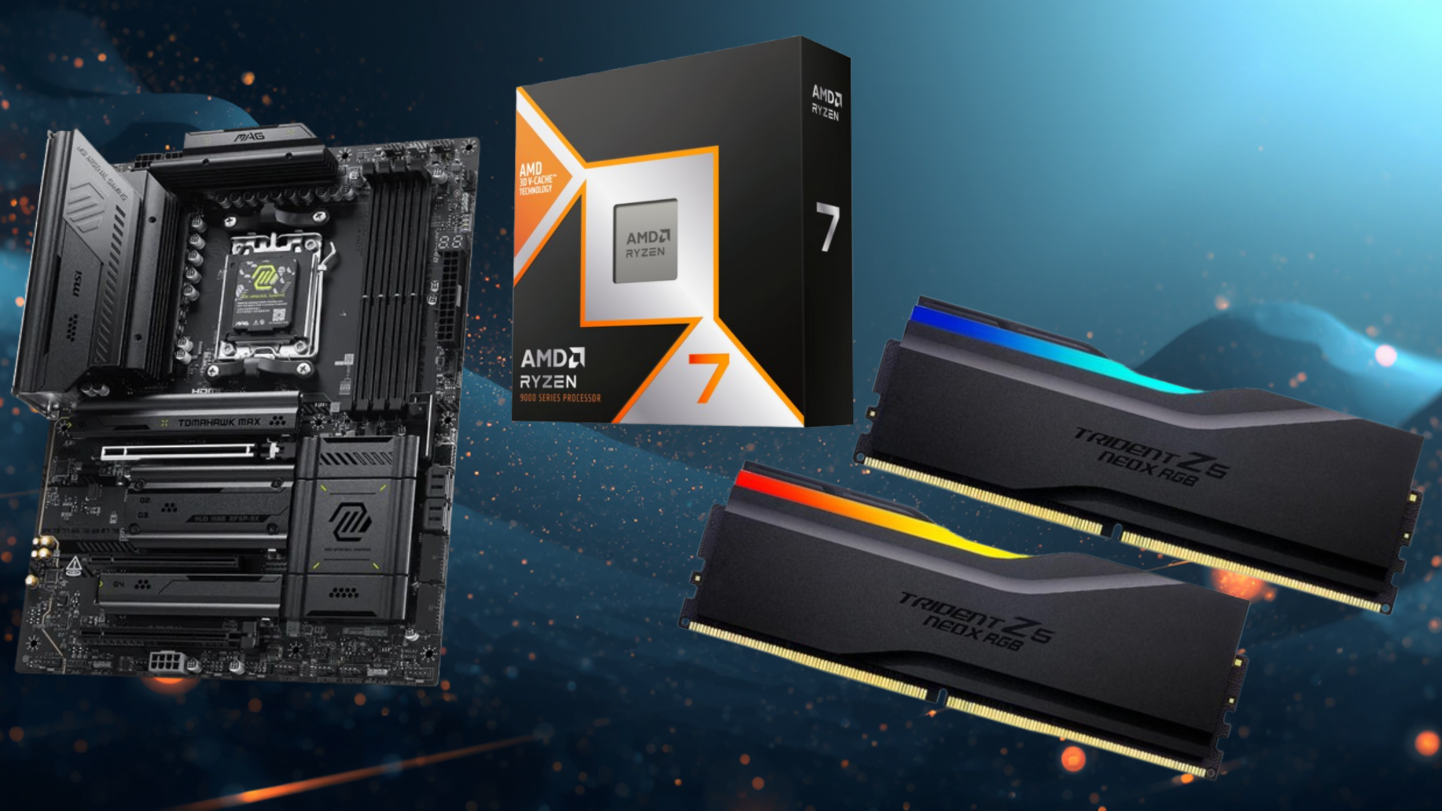
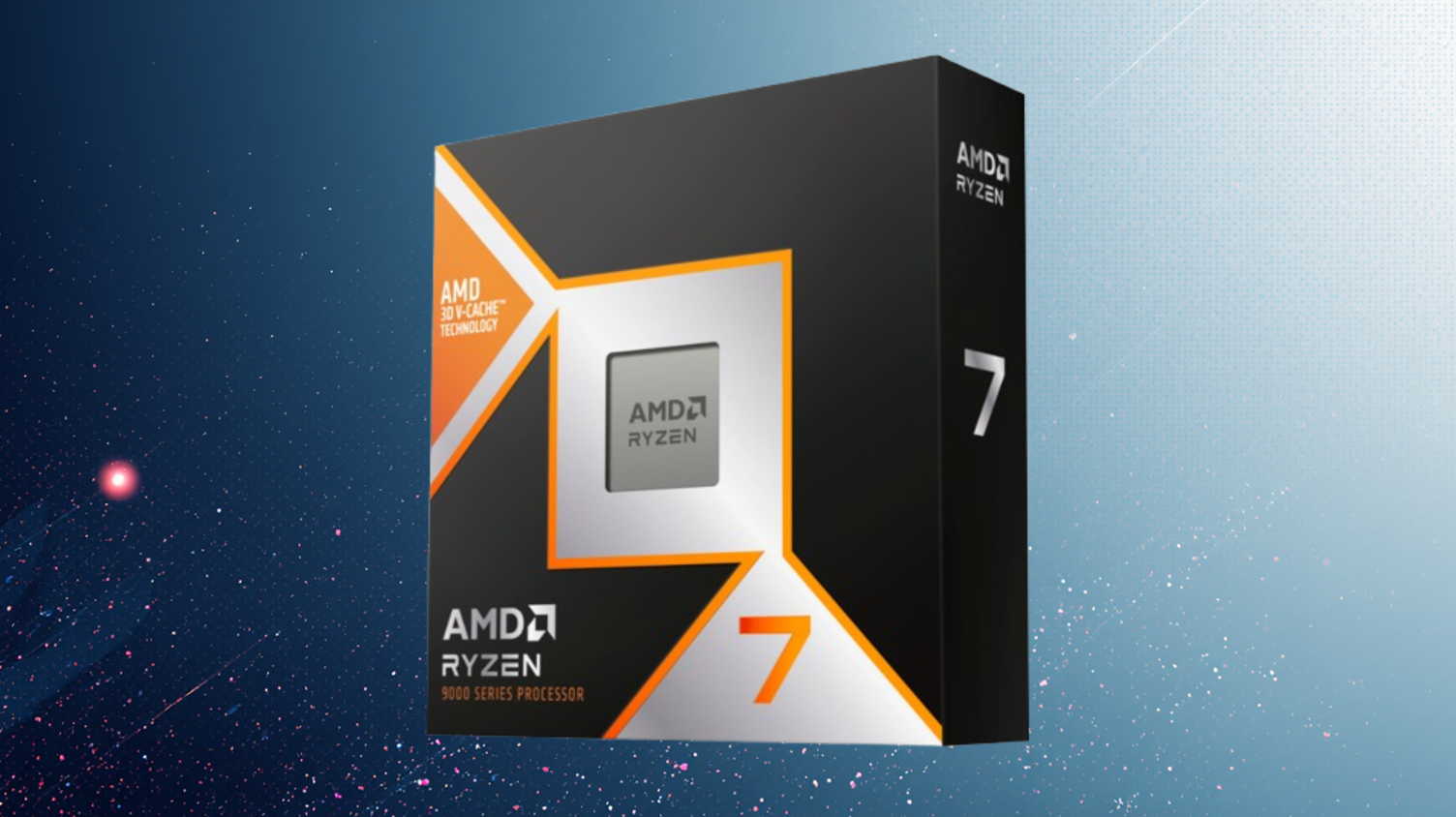
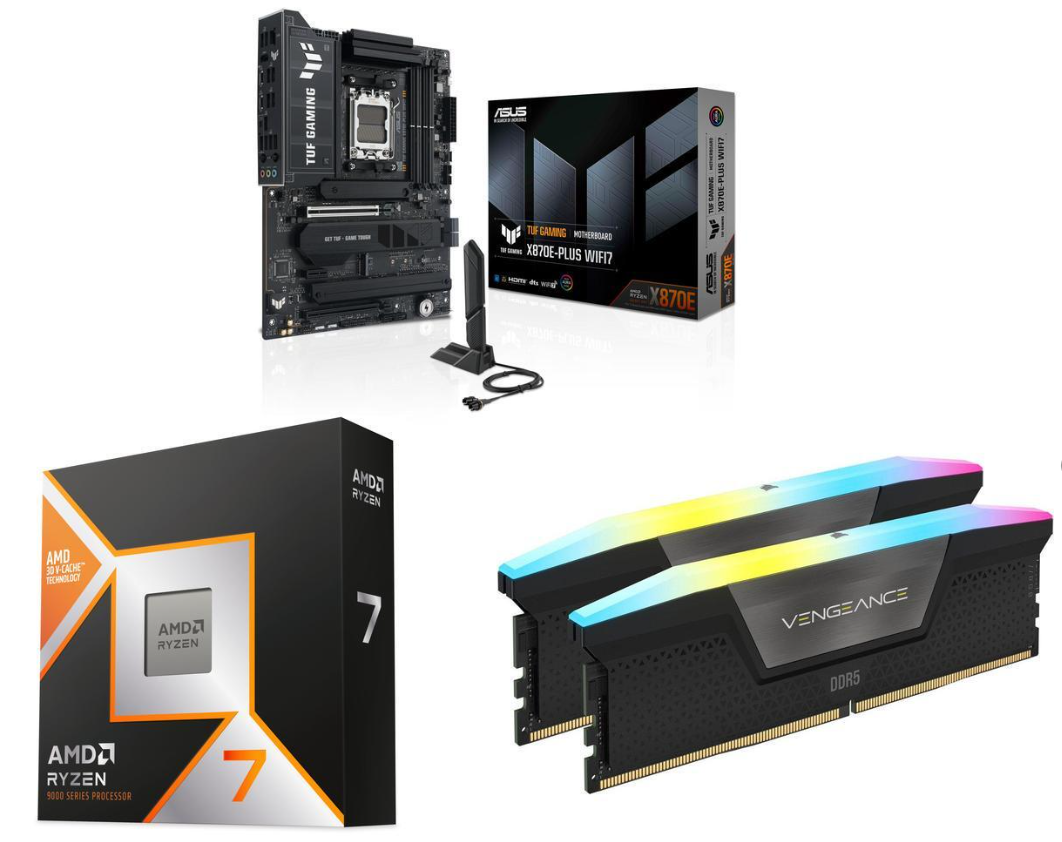
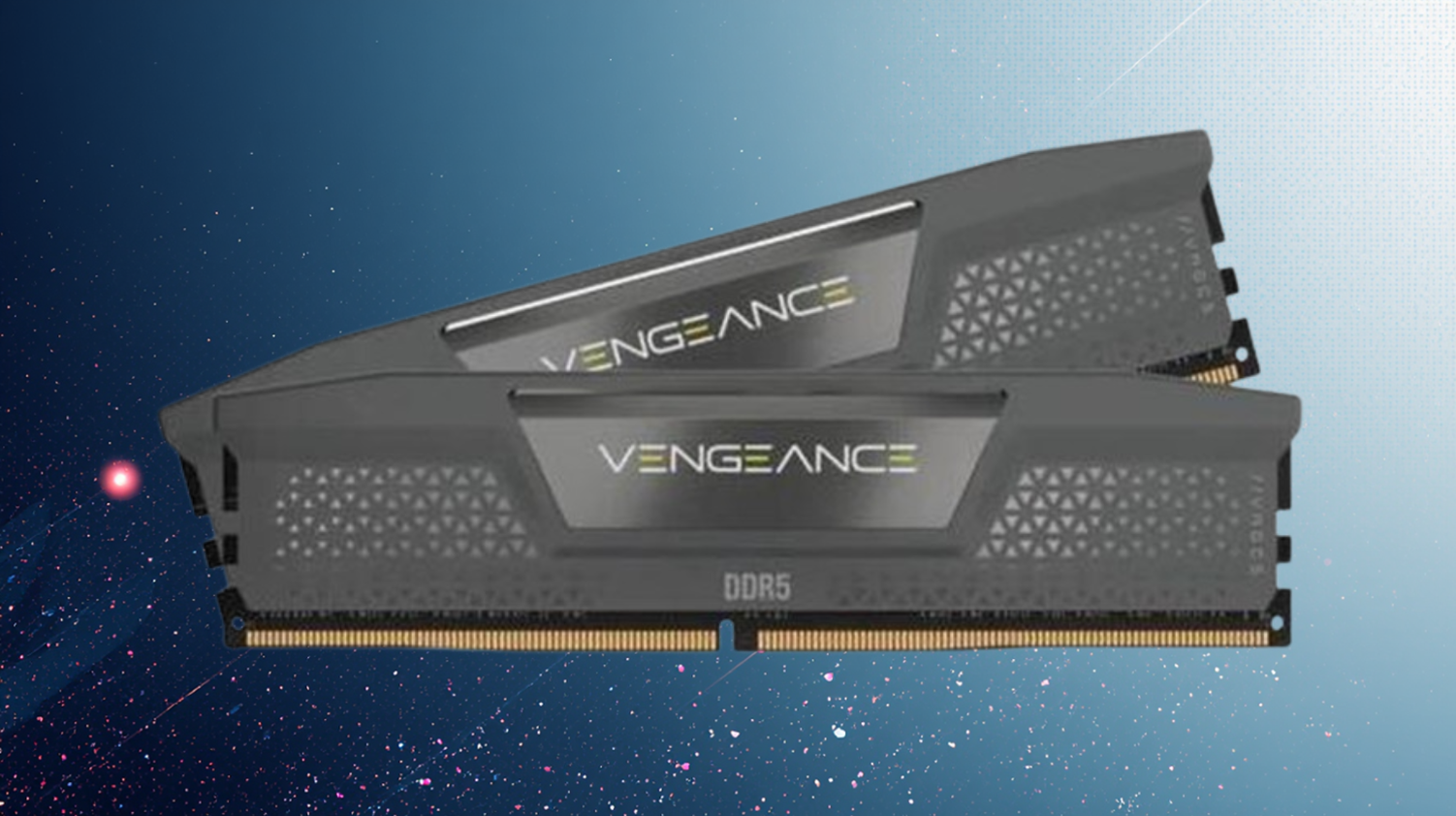
Newegg combos have been one of the best ways to score a good deal on RAM during the AIpocalypse, but the deals have been few and far between over the past couple of weeks. Fast forward to yesterday, and they released some fresh combos that make buying PC components much easier. For only $1,094 (a whopping $249 off), this 3-item combo includes one of the best gaming CPUs, the Ryzen 7 9800X3D, 32GB of G.Skill Trident Z5 NeoX DDR5-6000 RAM, and a quality mid-range motherboard, the MSI X870E Tomahawk MAX Wifi. Applying the discount to the RAM makes this high-end kit only $321.

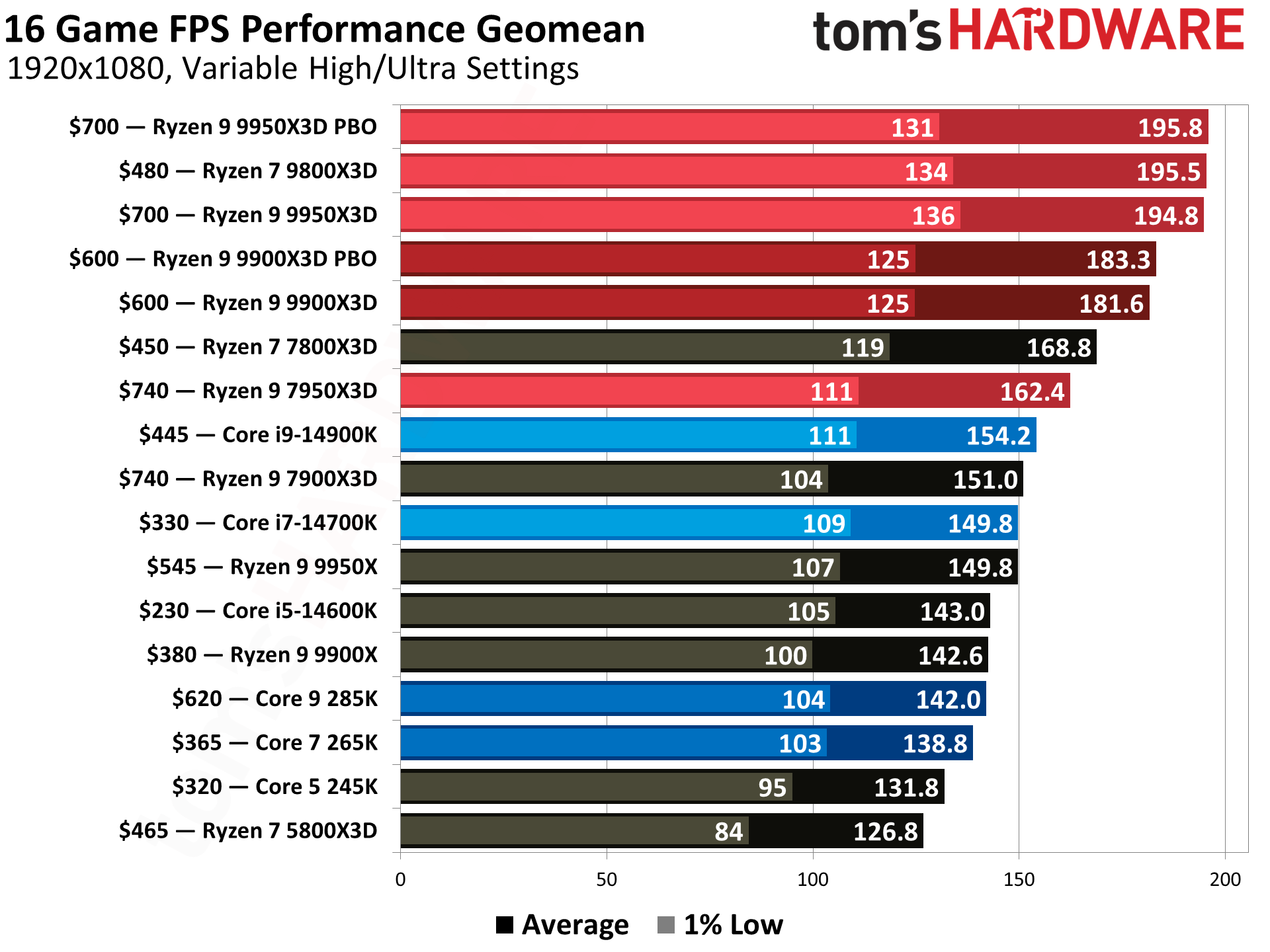
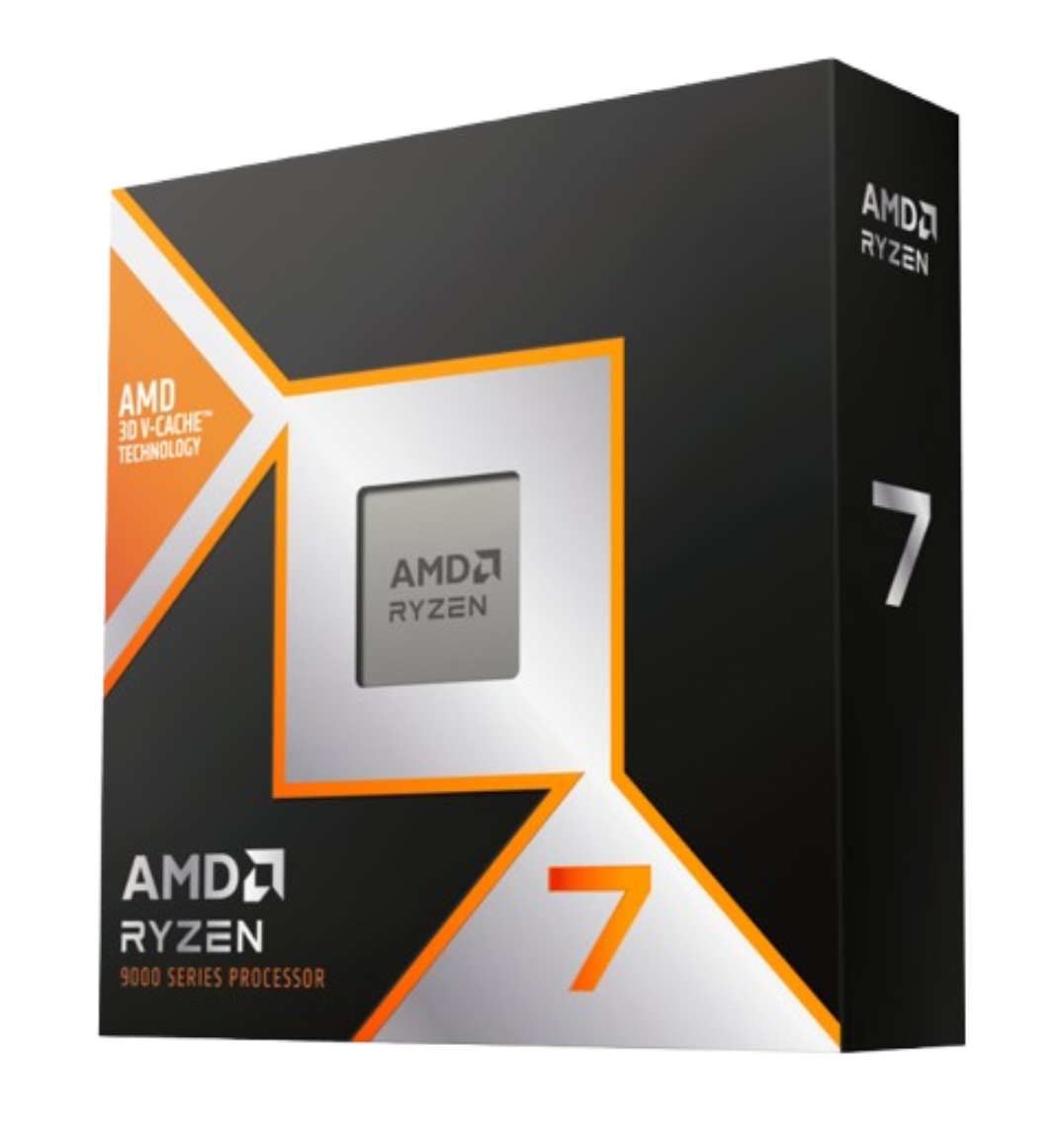
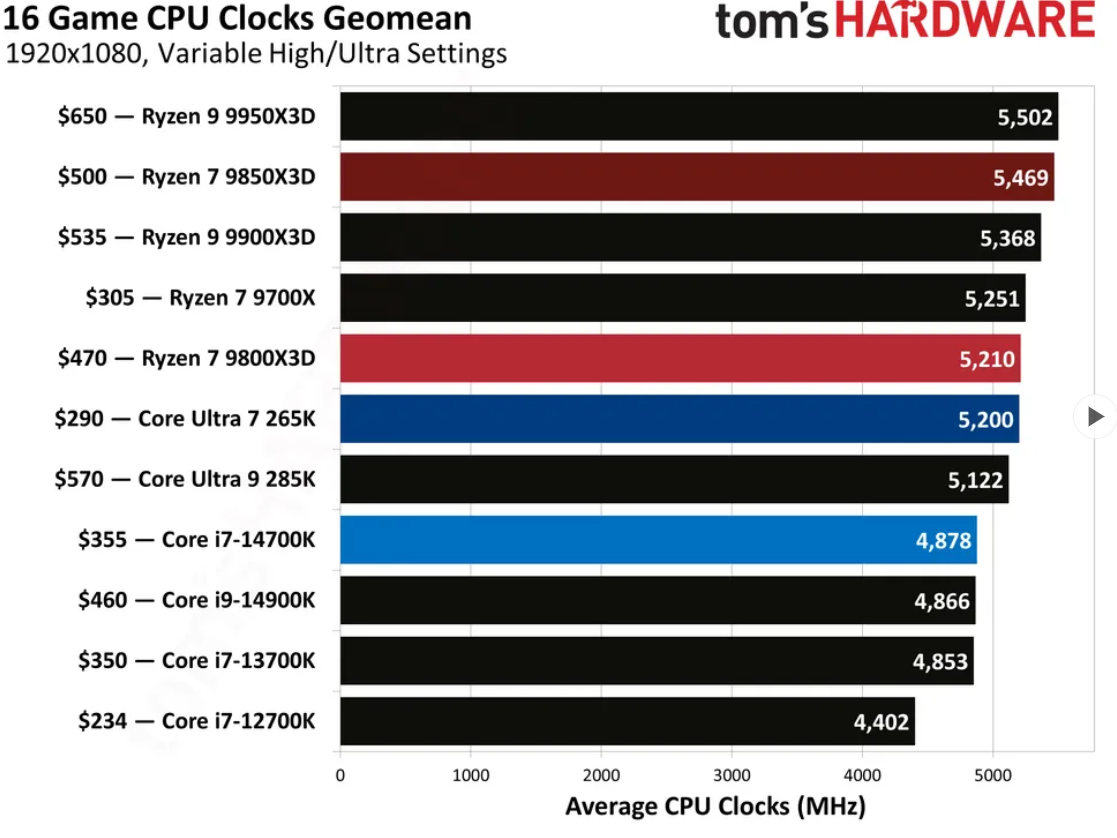
First is one of the most popular and fastest current-generation gaming CPUs: the Ryzen 7 9800X3D. This 8-core/16-thread Zen5-based processor has a 4.6 GHz base clock and a 5.2 GHz max boost, plenty fast for any task. The X3D variant's 96MB of L3 cache helps with gaming (among other things), making it one of the fastest gaming CPUs available. It is also a well-rounded performer that excels in games and suits most applications. This combo also includes a free Cooler Master Elite Liquid 240mm AIO (a $79 value), which easily handles the 120W processor.

free cooler master elite 240mm AIO and Onimusha Game

Ryzen 7 9800X3D, 32GB G.SKill Trident Z5 NeoX RAM, MSI X870E Tomahawk MAX Wifi: was $1343.98 now $1094.99
This 3-item combo saves a whopping $249 making the high-end 32GB G.Skill RAM reasonably priced. You get a great gaming CPU in the 9800X3D along with a quality MSI X870E Tomahawk MAX Wifi motherboard.View Deal

The pièce de résistance of the combo is the high-end black G.Skill Trident Z5 NeoX RGB kit. You get 32GB (2x16GB) DDR5-6000 CL36 (36-36-76) timings and land right in AMD’s sweet spot for the platform. The matte-black heat spreaders give way to the familiar G.Skill Trident Z RGB feature that runs across the top of each stick. Not only are these priced right in the combo, but they also look good and pair perfectly with the MSI X870E Tomahawk.

Best CPUs for Gaming
Tom's Hardware
Best CPUs for Gaming
Tom's Hardware
Best CPU for Gaming
Tom's Hardware

Speaking of motherboards, we’ve covered several MSI X870E boards here, but one of our favorite AM5 boards is the budget-conscious MSI MAG X870E Tomahawk Wifi. In our review, we liked the three USB Type-C ports (2x USB4/40 Gbps), the EZ DIY features, the updated Click BIOS X, and its strong performance in our gaming and productivity tests. The board supports up to four M.2 storage drives (two PCIe 5.0 x4) and four SATA ports, delivers enough power for any CPU you drop in, and adds fast networking with integrated Wi-Fi 7 and 5 GbE, plus a mid-range audio solution. The black aesthetic also blends easily with any dark build theme, as does the G.Skill RAM in the kit.

If you’re looking to update your PC and missed any other sales, this is one of the better 3-item AM5-based combo deals we’ve seen on Newegg. For just $1,094 (a $249 savings), you get a combination of quality hardware (including 32GB of RAM at a reasonable-for-the-times price, and Newegg even includes two freebies. We mentioned the Cooler Master Elite Liquid 240 AIO ($79.99 value), and they even throw in the AMD Game Onimusha ($69.99 value) to sweeten the deal.

These are the best Prime Day deals I've found on tools I use to maintain my PC

作者 Joe Shields
2026年10月8日 09:39

Building a PC is a great experience. We sit there with a spreadsheet and multiple browser tabs, pouring over the best CPUs, the best GPUs, PC cases, motherboards, RAM deals, and many more components.

The package arrives, and we are excitedly tearing into the boxes, putting the parts on the table, and we are ready to build! We reach into the toolkit and dig out the rusty old screwdriver we used to open a paint can back in 2014. We then spill standoffs and screws over the floor, ready for an unsuspecting foot at 2am!

But wait, it doesn't have to be like this! We've all done this, made the mistakes, and now we share my knowledge and that of the Tom's Hardware staff so you don't have to hunt for the Amazon Prime Big Deals.

So tool up, and let battle commence!

Precision Kits

All the gear, and lots of ideas?

You need to start somewhere, and these kits have pretty much every tool that you could need to maintain a PC, all in a handy case. In my office/workshop, I have a general set of screwdrivers for general tasks, and a set of Hoto screwdrivers and bits for servicing my PC and any other parts I review, like motherboards, cases, fans, and more.

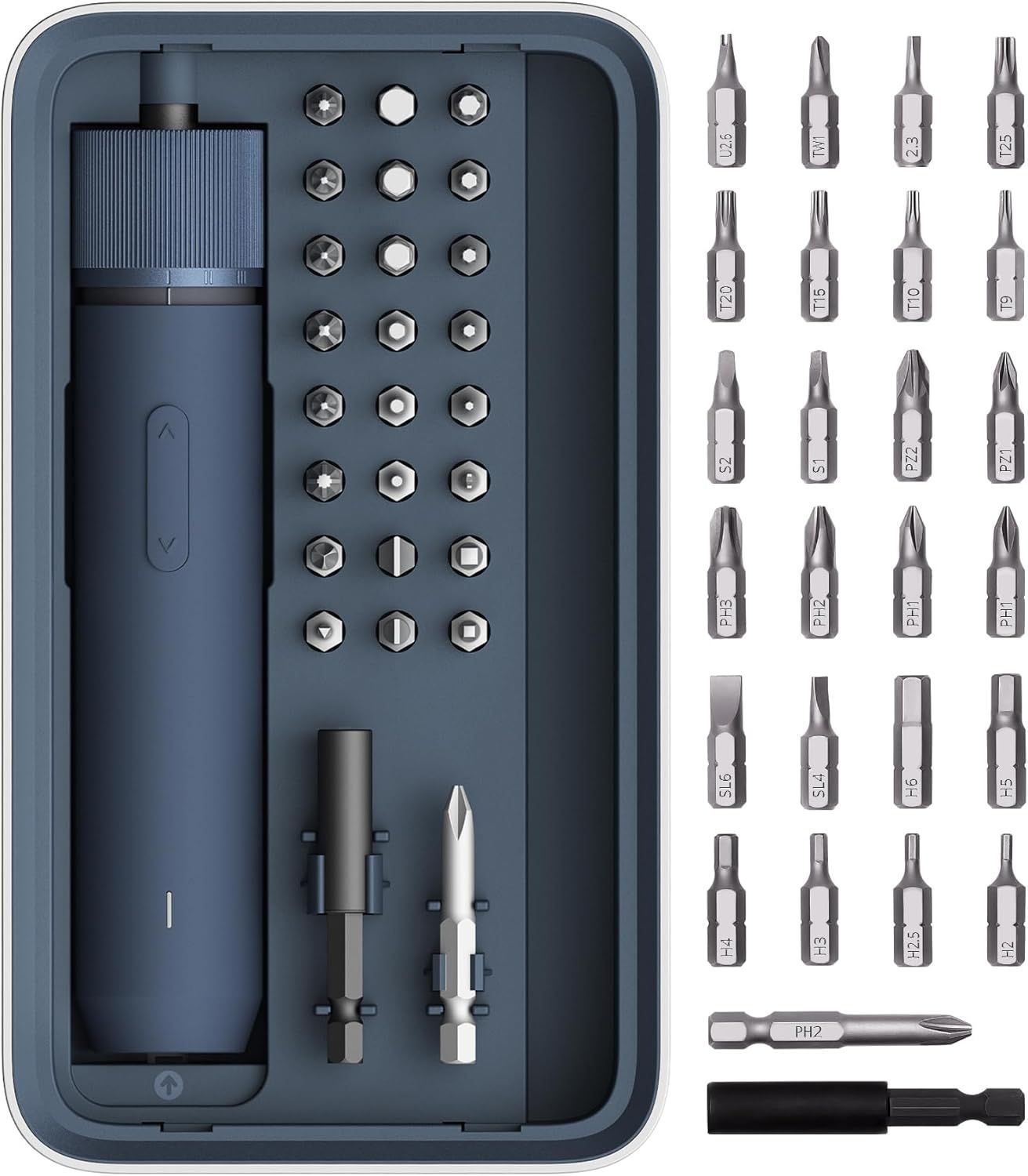
NEX O1 PRO 3.6V Screwdriver Set: was $49.99 now $28.48
HOTO's wireless screwdriver has three torque settings, charges over USB-C, and looks surprisingly good. This kit comes with a sturdy box and all the bits you will need to keep your PC running.View Deal

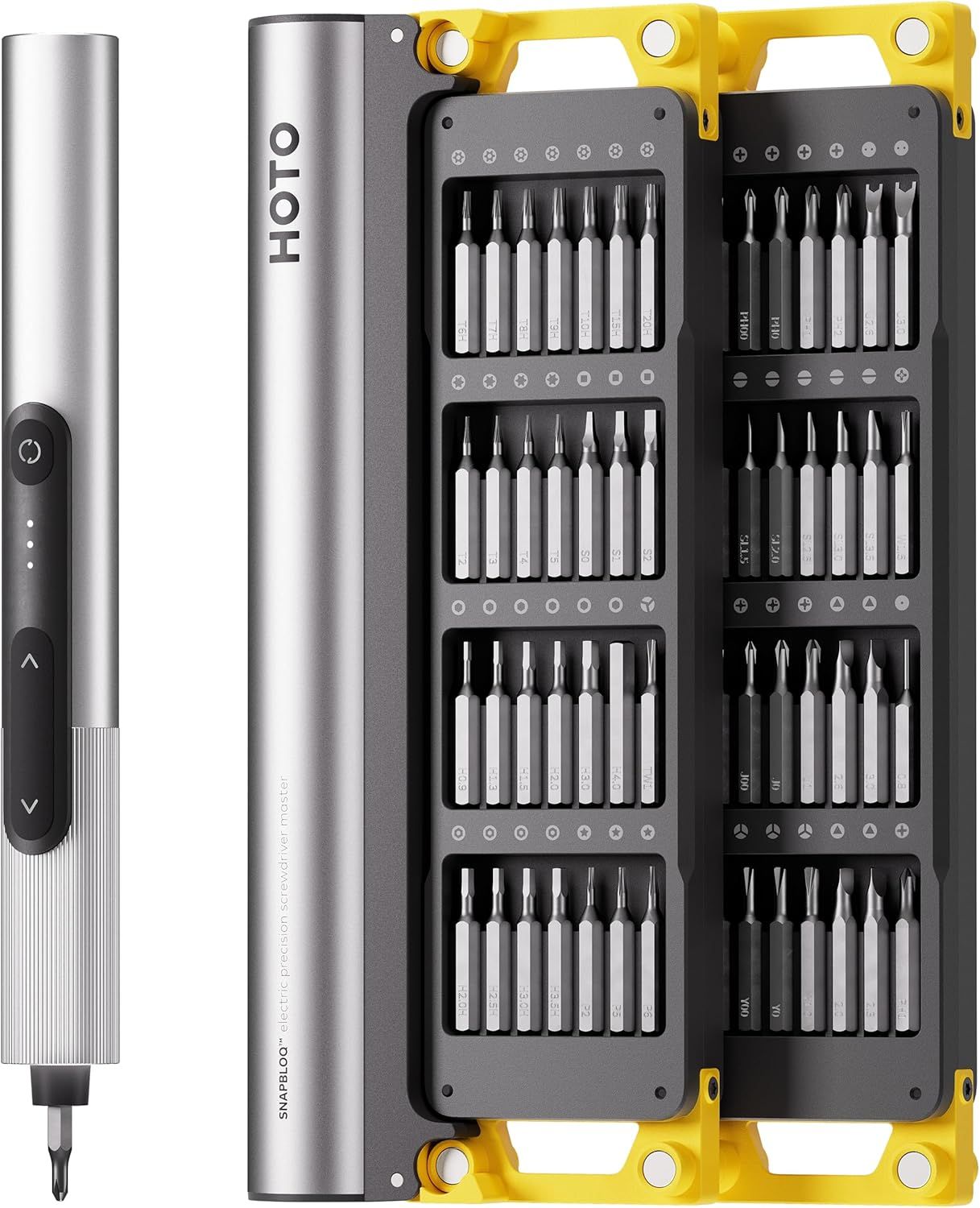
HOTO SNAPBLOQ S-A01 3.7V Electric Screwdriver: was $99.99 now $79.99
This HOTO SnapBloq 3.7V electric screwdriver includes 56 bits including Slotted, Phillips, Hexagon, Hexagon Security, Torx, Torx Security, Pentalobe, Standoff, Y-Shaped, Tri-Wing, Triangle, Square, U-Shaped, JIS, SIM Card Needle. It also has three torque settings, an integrated light, and charges via USB-C.View Deal

155 Piece Electronics Toolkit: was $59.99 now $37.9
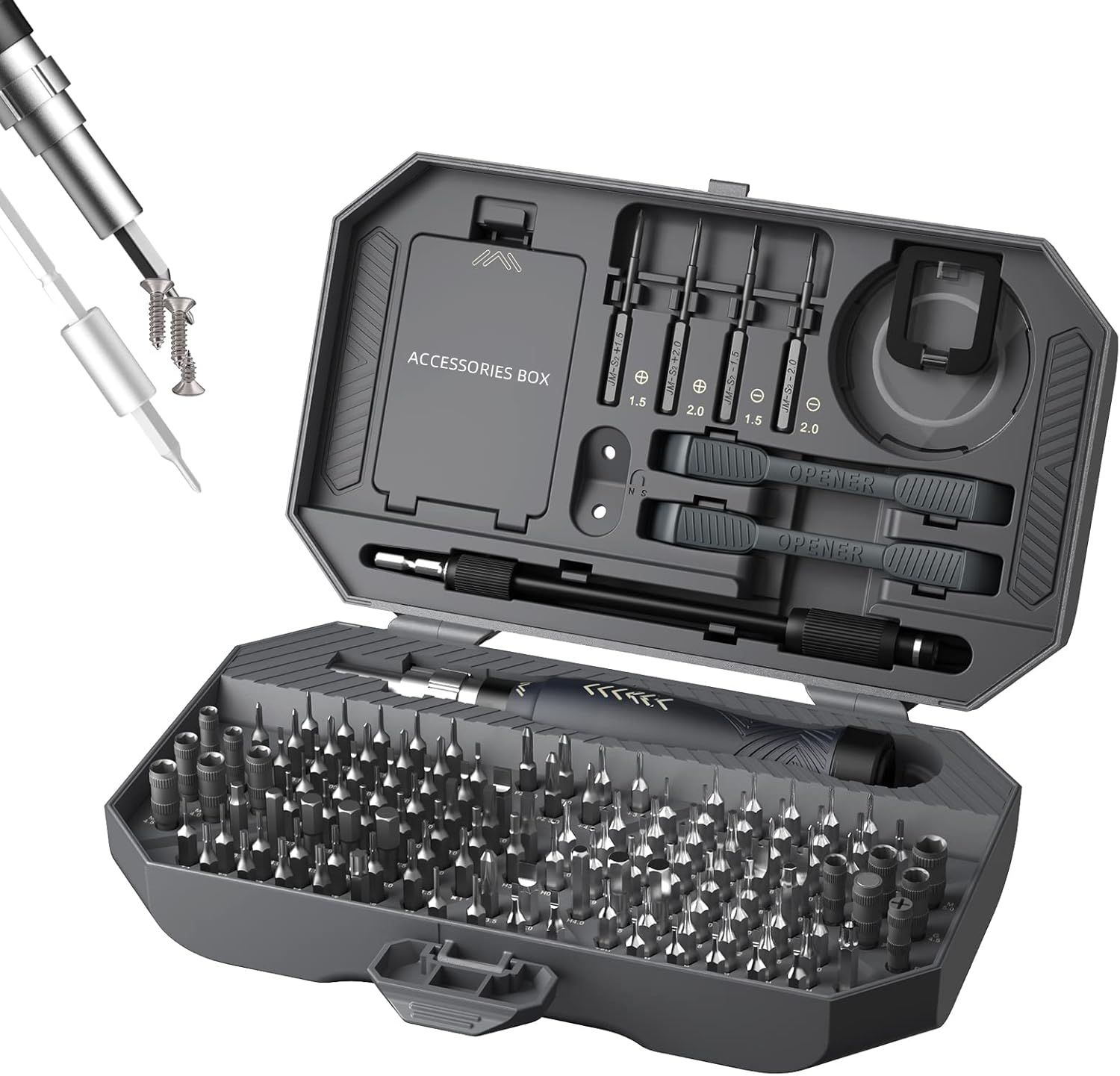
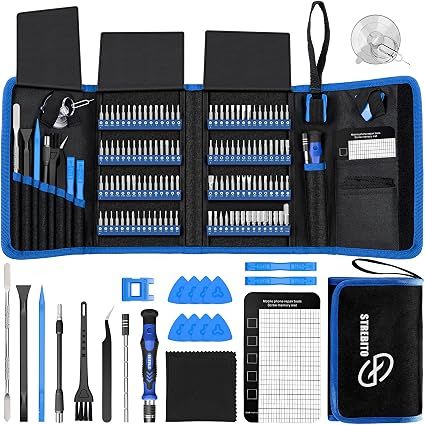
This 155-piece kit has everything you need to get started with your first/next PC build. You get a precision screwdriver with 140 different bits (slot, Phillips, Pozidrive, Pentalobe, Torx, nut driver, Gamebit (for Nintendo consoles), Torx / Torx security, and many others. You also get spudgers and pry tools, and even a suction cup.View Deal

164-in-1 Precision Screwdriver Set: was $29.99 now $22.79
All the bits that you will ever need to keep your 3D printer, laptop, or PC running smoothly, and you get a great case to keep them all in.View Deal

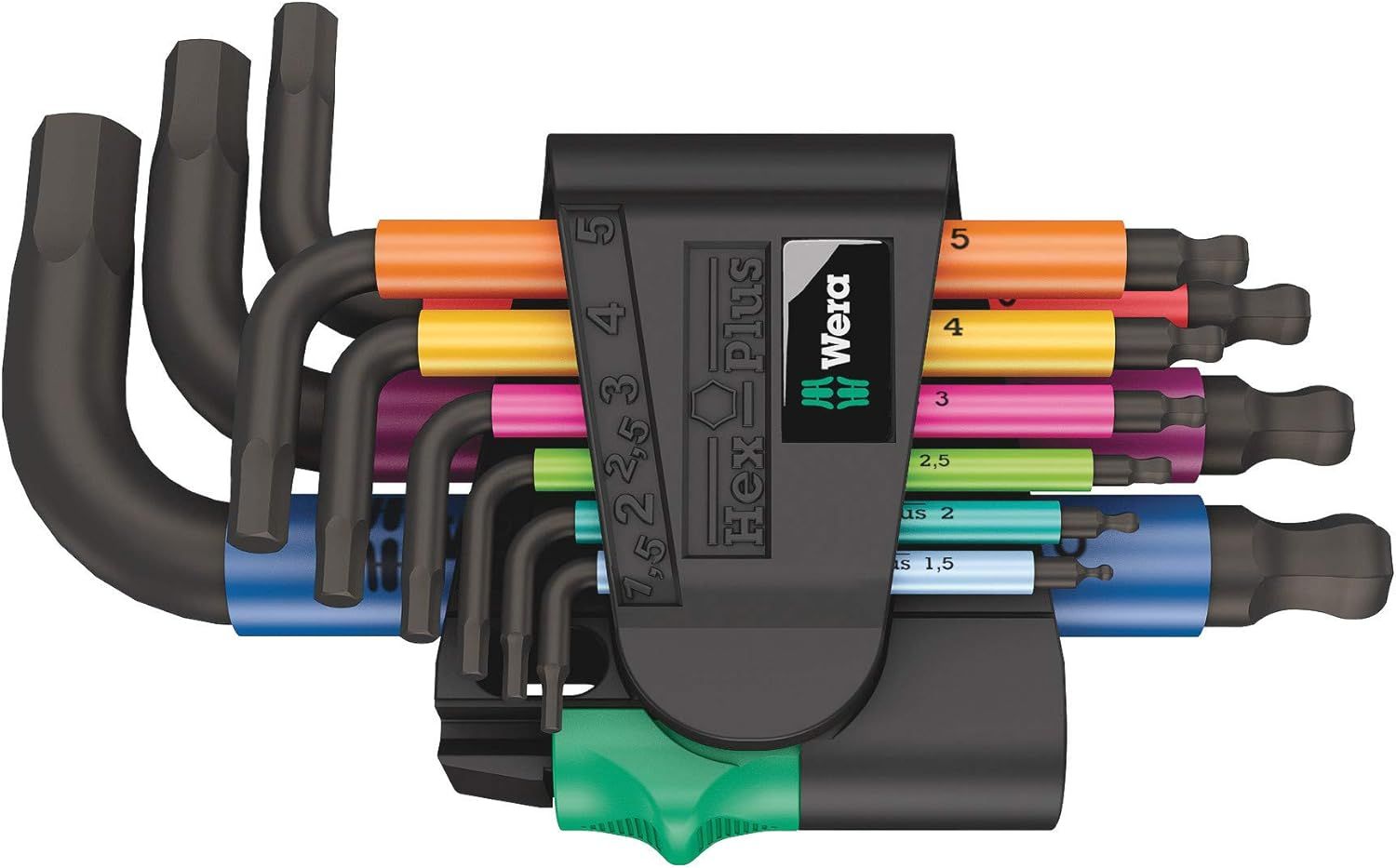
Whether you call them Hex or Allen wrenches, this part of our toolbox is often overlooked. Why? Because we get one in every set of flat-pack, DIY furniture that's why! You can get cheap sets of Hex wrenches, but they are ultimately made from a material softer than Play-Doh, or they have the power to strip a head. You need a good set of Hex wrenches, and this set from Wera is awesome.

German-made precision, strength, and a ball head to enable access to awkward screws. Grab this set now, and thank yourself later!

950/9 Hex-Plus Set: was $61.23 now $40.67
Wera makes quality tools, and these long arm, ball-headed hex keys provide all the key metric sizes from 1.5 to 10mm.View Deal

Everyone should own these great electric screwdrivers!

At least five Tom's Hardware editors own a Hoto screwdriver. I am one of them. It should be difficult to extol an electric screwdriver. After all, it is really just a motor that spins and screws / unscrews. But Hoto's new Pixel Drive is easy to glorify!

The main screwdriver chassis is chunky and features a rubberized finish to prevent it from slipping from your hands. The twist power ring offers three levels of torque, and the simple push-button forward/reverse is a joy to use. Throw in a bonus LED light ring, and you are ready to build and maintain PCs and have plenty of power to put up those shelves in the living room. All of the details are displayed on the LED display, so you know how much power you are putting down, and how much the screwdriver has left!

Si Pro Electric Screwdriver: was $49.97 now $39.99
Save big on excellent the Fanttik S1 Pro electric screwdriver. You get 16 S2 steel bits, 3 torque settings (from 1.5 to 4.2N.m). You get the screwdriver, storage case, buts, USB-C charging cable, and a manual. View Deal

PixelDrive Electric Screwdriver: was $79.99 now $59.99
The latest Hoto electric screwdriver is now almost a year old and it now has a healthy 25% off the MSRP.View Deal

25-in-1 Mini Electric Screwdriver: was $39.99 now $29.98
A simple, go-to screwdriver set for the office, workshop, and your go-bag. With all the bits you will need to fix a multitude of problems. And now it's on sale for 25% off MSRP.View Deal

142-piece Precision Screwdriver Set: was $37.99 now $23.79
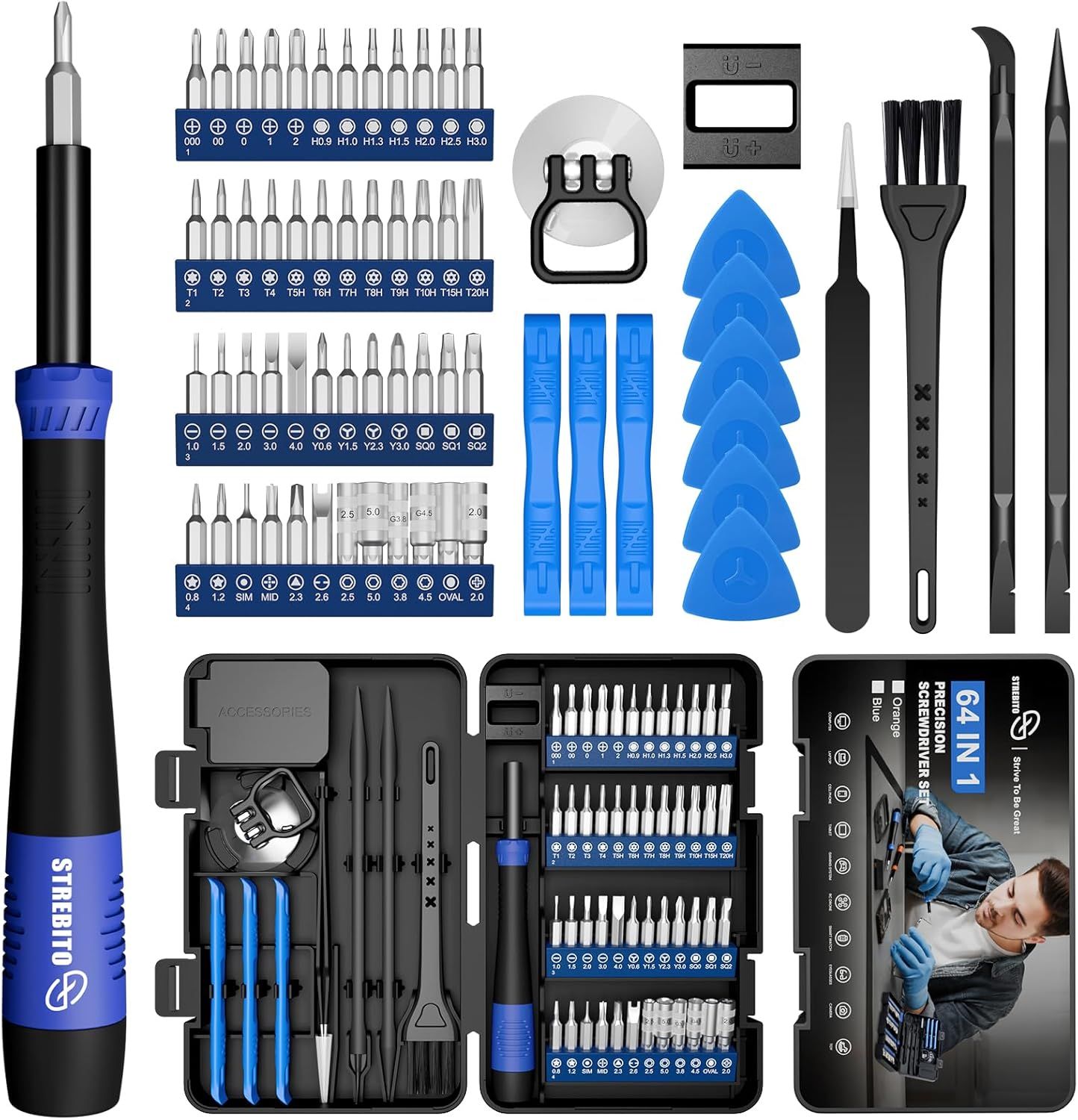
Strebito's 142-piece precision screwdriver is on a significant discount during Prime Big Deal Days. You get 120 different bits and 22 practical accessories including a magnetizer, ESD tweezers, cleaning brush, and more. View Deal

Screw Kits

Don't screw up your next PC build!

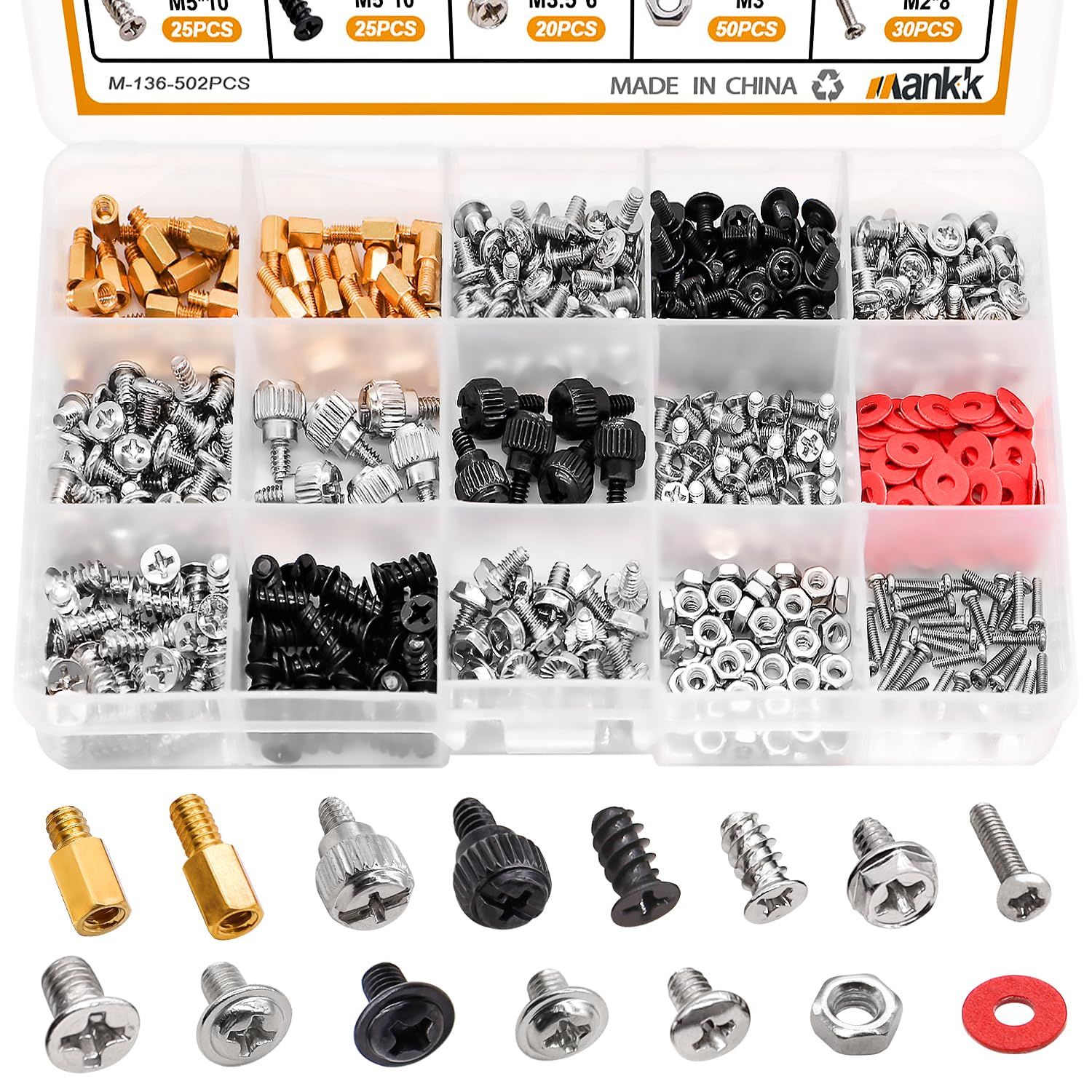
Let's be honest. We've all scoured around for a spare standoff or screw to secure a motherboard to a chassis. We've cannibalized other components to ensure that our main rig has everything it needs to keep the motherboard in place and the GPU firmly attached to the case. But what if we just spent less than $10 for over 500 screws?

That's right, for less than $10, we can have 500 screws, stand-offs, and insulation rings to secure every part of our PC.

In the kit, there are:

  • Hard drive screws
  • Motherboard screws
  • Chassis fan screws
  • SSD mounting screws
  • Insulation gaskets
  • High-strength chassis screws (think GPUs)
  • M.2 screws
  • Flat Phillips screws
  • Chassis hand twist screws

502-Piece Computer Screw Kit: was $12.99 now $9.99
With 15 different types of screws, stand-offs, and gaskets, this kit has everything you need to secure your precious components inside your PC. And now you can get them on sale.View Deal

I bought myself a similar pack years ago since I deal with motherboards and system components on the daily, and it has proven its worth on more than a few occasions. For less than $10, just throw it into your basket without thinking and have all the screws and bits you need to work on your PC.

Flashlights

Save money on this 'illuminating' flashlight deal

A good flashlight is one of the most rewarding tools that we can own. It lights up the dark, helps us see obstacles and what we are working on, and could be used to signal planes, should you be trapped on the island from Lost.

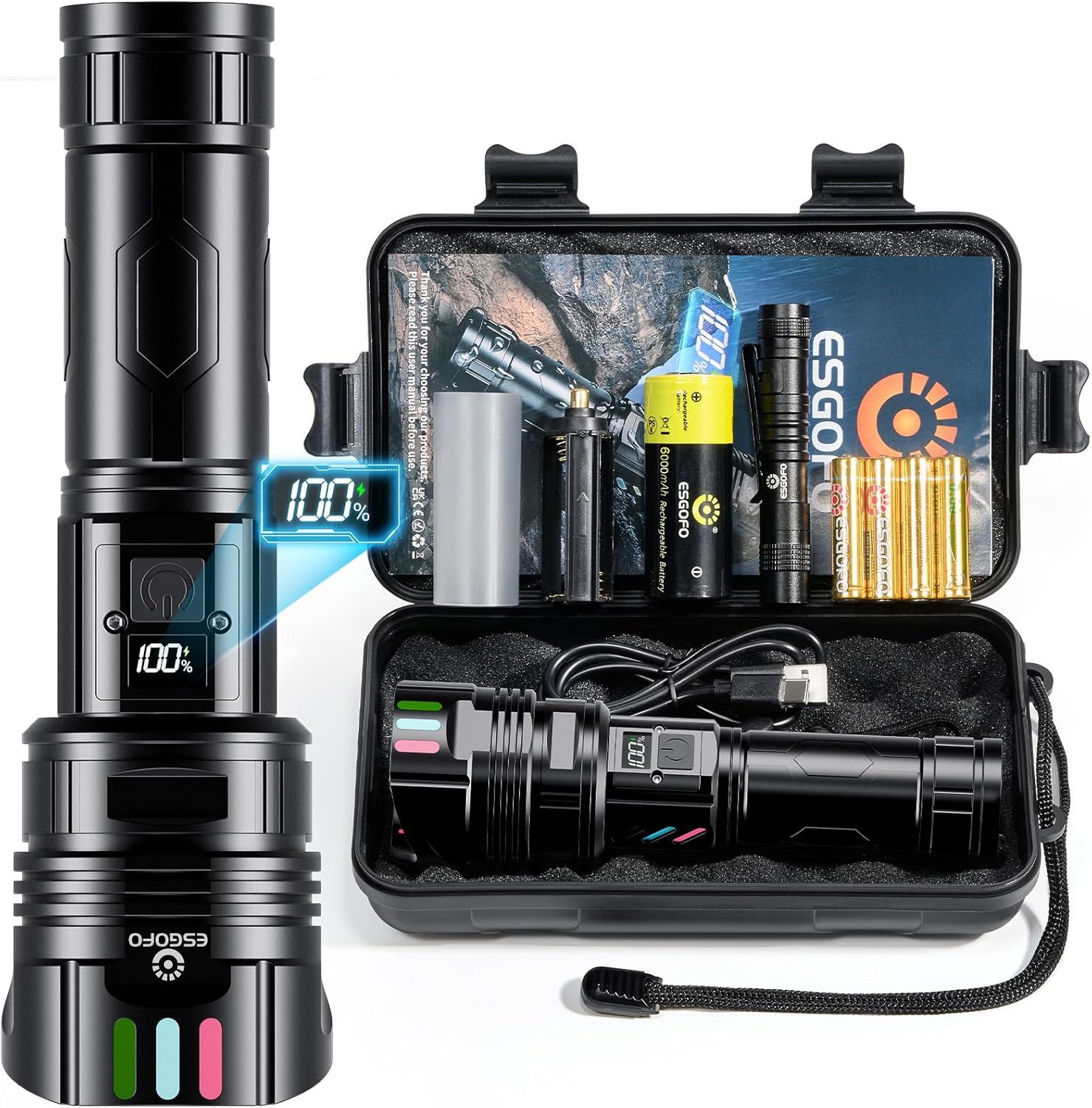
EG0770 Recharable Flashlight: was $28.79 now $16.14
Get a great deal on this small flashlight that could. This flashlight outputs up to 100,000 and lasts 5-15 hours (display to show charge %) and charges with USB-C. It has five modes (high-middle-low-strobe-SOS) comes with a carrying case, charger cable, and more.View Deal

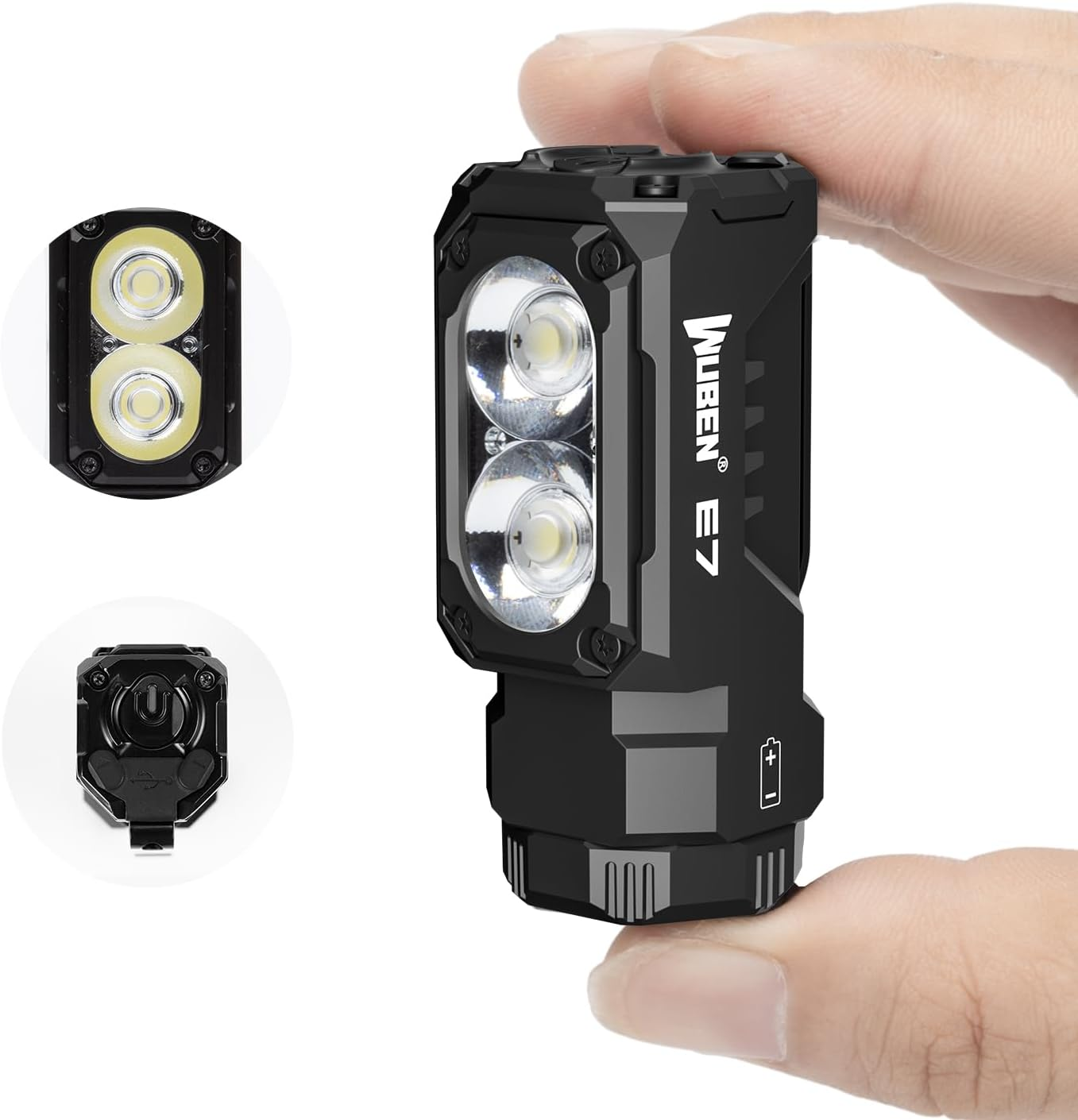
E7 Rechargeable Mini Flashlight: was $29.99 now $22.78
With USB Type-C charging, six brightness modes, and a magnetic base, the Wuben E7 is a useful flashlight for makers and tinkerers who want extra light for their work, without compromising on quality.View Deal

Air dusters and cleaners

Clean the filth from your PC!

Air blowers/dusters are a popular choice for quickly blowing out fans and filters to remove any collected dust and fluff. They can also blow out the crumbs that linger under your keyboard. Air blowers are a great alternative to single-use compressed air cans.

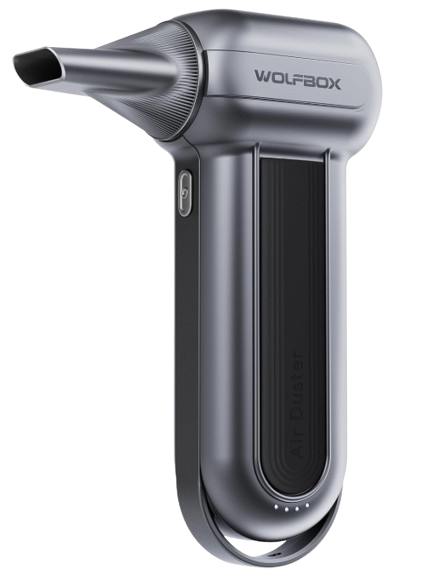
The Wolfbox MegaFlow 100 (MF100) may sound like a 1990s Euro Rock tribute act, but it has 150,000 RPM of power to blow dust out of your PC at 45 meters per second!

This convenient blower is battery-powered and supports USB Type-C charging. The MF100 fully charges in 2.5 hours and provides up to 100 minutes of runtime on the first setting. The MF100 is small and compact, weighing only 0.66lb, so it can be easily stored when not in use. The MF100 is also supported by a 24-month guarantee and 24/7 customer service.

MF100 Electric Air Duster: was $89.99 now $59.83
This compact air duster can move air at up to 45 m/s with its 150,000 RPM turbofan. A rechargeable battery gives up to 100 minutes of use time and supports USB Type-C charging. The MF100 includes five nozzles and two brush tools to help clean your PC equipment.View Deal

Not everyone wants to buy an $60 air duster. There are plenty that cost less that still move a ton of air and come with several attachments that are plenty useful for cleaning out your PC.

Pomels Compressed Air Duster: was $29.99 now $23.99
For only under $24, get your hands on this rechargeable 110,000 RPM electric air duster. You get three adjustable speed settings, and about 20-40 minutes of continuous cleaning power (displayed on the LED screen) from the 7500 MAh battery. It comes with five nozzles and four soft brushes for any task.View Deal

I clean out my desktop PC once or twice a year and the blower did a great job, but there were times when the amassed collection of dead skin cells, dog and cat hair, and other fluff was too much for my much weaker air duster. So I bought some cans of compressed air, and not the dollar store stuff either! I don't use them often, but they are handy when you need a little more power in a precise point.

Electronics Duster 2-pack: was $11.99 now $6.45
Designed for electronics, these two 10-oz bottles of compressed air will blow the dust, dead skin, and last week's sandwich from your keyboard and help prevent the inside of your PC case from becoming a biohazard. Designed for electronics, these four, 10oz bottle of compressed air will blow the dust, dead skin and last week's sandwich from your keyboard and help prevent the inside of your PC case becoming a biohazard.View Deal

Sometimes compressed air or turbo-force USB-powered jet fans aren't enough, and so you must get your hands dirty to get parts of your PC truly clean. Cleaning any electronic components should be done with care. Components aren't as static sensitive as their predecessors but we should take care not to trash our rig.

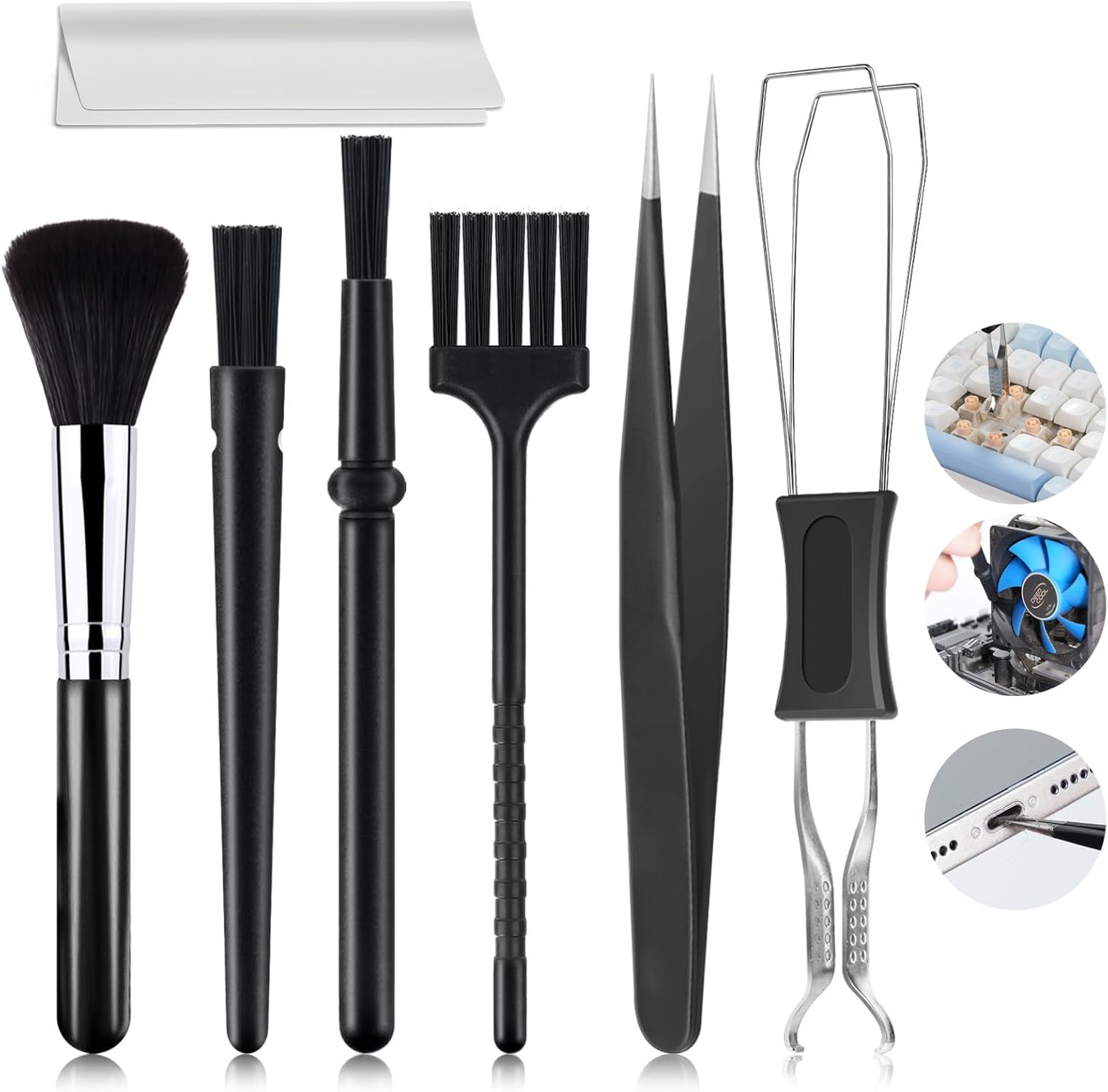
These nylon anti-static brushes come in a range of sizes and shapes to clean dust from components and inside drive bays, and to keep caked-on dust from your fan blades. It also includes a keycap puller and tweezers to deep clean the harrowing scene that lurks under your keyboard.

Computer cleaning brush kit: $7.98
Every type of brush is here to deep clean your PC, keyboard and whatever else needs cleaning in your rig.

View Deal

The final cleaning product that you need for building and maintaining PCs is Isopropyl Alcohol, IPA. Yes, 99% is overkill; heck, it's medical grade for first aid use, but if you really want to eke it out, get some distilled water and water down your mix to 70%. I don’t because it works well as it is.

My top tip, though, is not to spray it when the components are hot. There is very little risk of fire, but it will evaporate rather quickly. That said, in the electronics hobbyist world, rapidly evaporating IPA is used to identify super-hot chips, typically those that have shorted.

One Gallon of Isopropyl Alcohol 99%: was $29.99 now $25.99
Buying in bulk and decanting into dollar store spray bottles is the smart way to get all the IPA that you need.View Deal

16 Oz. Isopropyl Alcohol: was $6.79 now $5.76
If a gallon of rubbing alcohol isn't in the cards, this 16 Oz. bottle of Amazon basics 91% Isopropyl alcohol is a smaller and cheaper option... and on sale. It's not 99%, but 91% does work great on PC components when I used it.View Deal

Thermal pastes

Thermal paste etiquette — pea-sized blob, an X, or a smooth layer like peanut butter?

Let's all agree that, however you apply thermal paste, that is the right way, ok? Thermal paste / TIM or thermal pads bridge the hot side of a component to a heatsink or heatpipe, which wicks away heat, keeping the component cool.

Thermal material is essential to keep your system cool, and I asked the team what they use. Our Editor-in-Chief, Paul Alcorn, said that MX-6 is his go-to thermal paste. So I looked around and found this handy kit that contains 4G of thermal paste and six handy wipes. The wipes are essentially isopropyl alcohol on a cloth, and they are used to prepare the surface for the new paste. They will wipe off the old paste, dust, dead skin (ewww) and leave the surface ready for pasting!

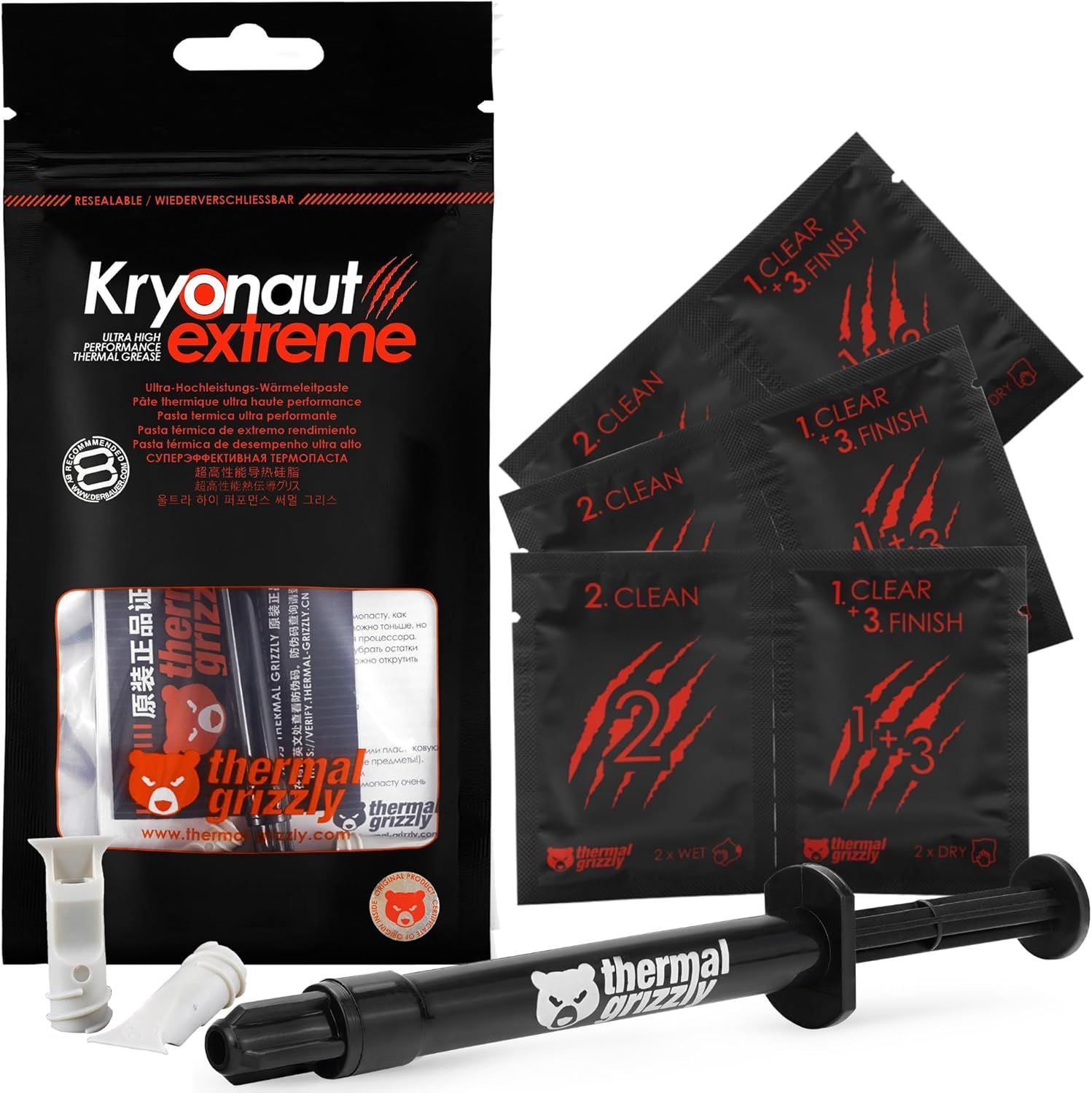
One of our highest rated thermal pastes is on sale, and it comes with a handy spudger for application. Thermal Grizzly's Kryonaut Extreme outperformed many pastes pastes in our extensive benchmark suite, but it's real claim to fame is how it holds up under extreme temperatures (think sub-ambient cooling). View Deal

MX-7 Kit: was $16.99 now $9.57
This kit contains 4G of Arctic MX-7 thermal paste (the latest formulation) and six MX Cleaner wipes to remove old thermal paste from components.View Deal

If you spot something better, or want to tell me I am wrong, hit the comments!

Best gaming laptop deals | Best GPU Deals | Gaming Chair | Best monitor deals | Best SSD deals | Best CPU deals | Gaming Chair | Best hard drive HDD deals | Best PC case deals | Best Dell and Alienware deals | Best 3D printer deals | Best PC peripherals deals | Best motherboard deals | Best CPU cooler deals | Best gaming chair deals | Best laptop PC deals | Best Gaming PC deals | Best RAM deals | Best Wi-Fi Router deals

Why I upgraded to a 4K OLED PC gaming monitor

作者 Joe Shields
2026年10月7日 22:38

4K OLED PC monitors have been out for years, but while some enthusiasts have made the move to OLED tech, some haven’t. Like any new technology, when the first OLED gaming monitor was released - the Alienware AW3423DW - it was expensive, with a launch price of $1,300, and it was price-prohibitive for an overwhelming majority of users. But compared to other PC gaming monitors (think VA and IPS-type panels), it was a Thanksgiving feast for the eyes. The LG UltraGear 32GS95UE, widely considered one of the first 4K OLEDs for gaming, was $1,400.

I eventually settled on the MSI MPG 321URX, which is currently $634 and, without a doubt, it's the best upgrade I’ve made to my system in a long time. There are a lot more affordable options available now, too: Models like the ASRock Phantom Gaming (PG032UFS) dual-mode 4K gaming monitor is on sale for $596, while the MSI 321UPX (similar to mine, but calibrated out of the factory) is $799. A year or so ago, the MSI was around $950, and the ASRock was over $1,000 in late 2025. So while sub-$700 is still a lot of money, prices have come down quite a bit on some quality panels. And while those offer the full-fat 4K resolution, there are even more affordable options if you're willing to step back to 1440p, like the Acer Predator X27U, for under $300.

I remember seeing them at CES and later walking past them in stores. The blacks were as black as could be, and the colors more vibrant than IPS panels. I recall thinking: "I have to have one." Then I looked at the price and walked away. Eventually, prices came down, and I upgraded, donating the 1440p IPS 165Hz panel to my kids, and I’ve been on a 4K OLED ever since. This article explains why I upgraded and offers advice on whether you should or shouldn't.

Why I upgraded to a 4K OLED monitor

Why I upgraded to a 4K OLED monitor

My journey to a 4K OLED started after seeing them at CES a few years ago, and more recently in stores. Seeing the deepest blacks and incredible colors was a sight to behold compared to my previous 27-inch 2560x1440 165Hz Acer Predator IPS panel, which many would consider a very good, fast IPS panel.

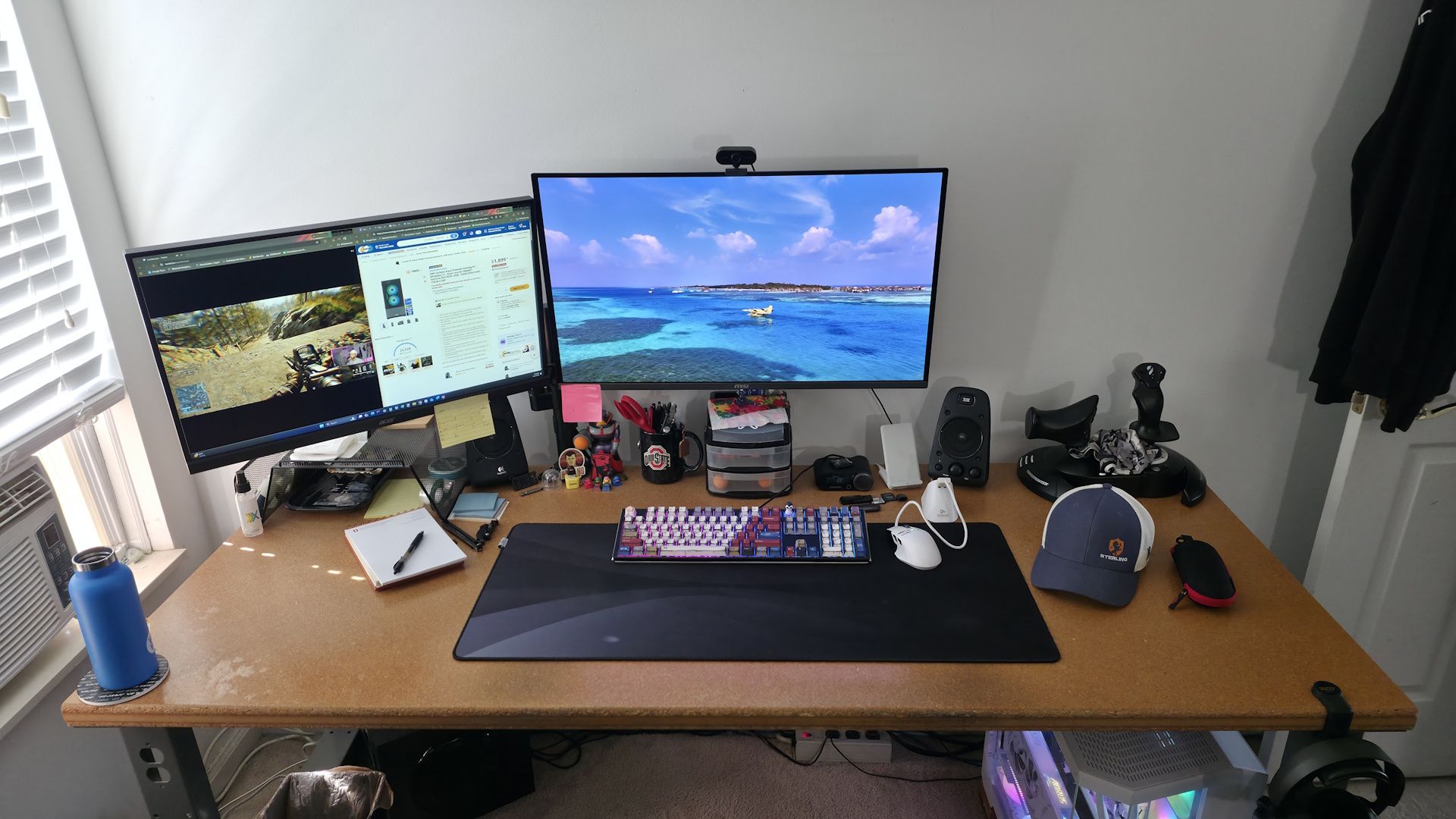
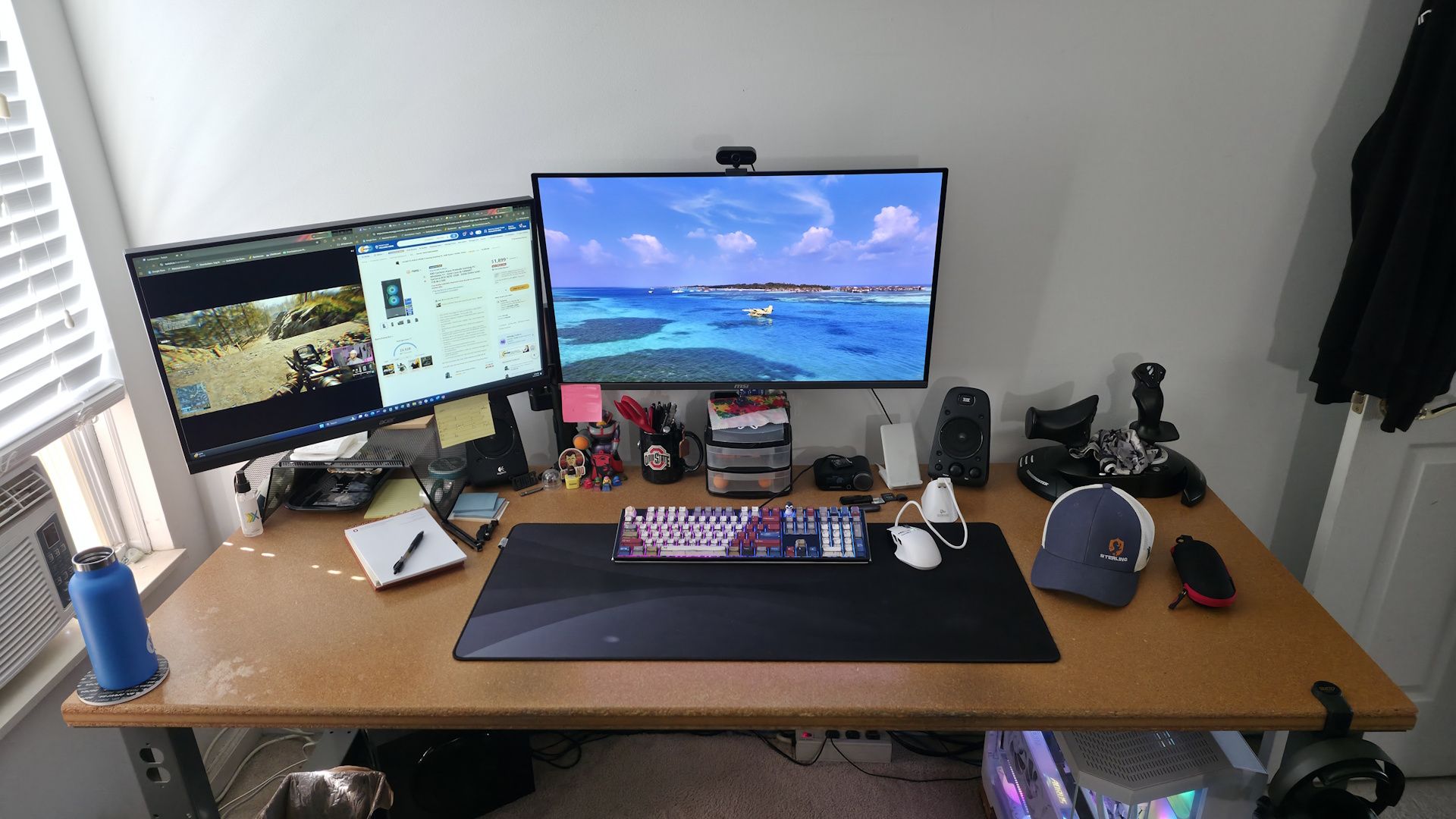
I worked on two 2560x1440 panels at my desk. On the left panel, I usually had video streaming, be it Hulu/news or Twitch, on one half of the monitor along with Chrome and several tabs ranging from personal email to a ‘scratch pad’ for work. On the right monitor, I had my ‘work Chrome’ on the right half (along with Slack), and I used the left area as free space to write articles in another Chrome tab and access File Explorer and other applications necessary for my job. This worked, but I quickly realized that I needed more screen real estate. I needed a higher resolution to fit more on the screen and a larger size so my old eyes could actually see what’s on the screen.

Desk with 4K monitor

(Image credit: Future)

But I’m also a gamer at night. Generally, I'm an FPS (First-Person Shooter) guy playing titles like PUBG, Call of Duty, Battlefield 6, and more. Because I mostly play quick-twitch games, I need a high-refresh-rate monitor. Since I was already rocking 165Hz, the next natural upgrade for significantly higher refresh rates and lower display-related input lag was 240Hz. Sure, 180Hz variants are available, but I want a significant upgrade for something I will likely keep until it dies and cannot be replaced.

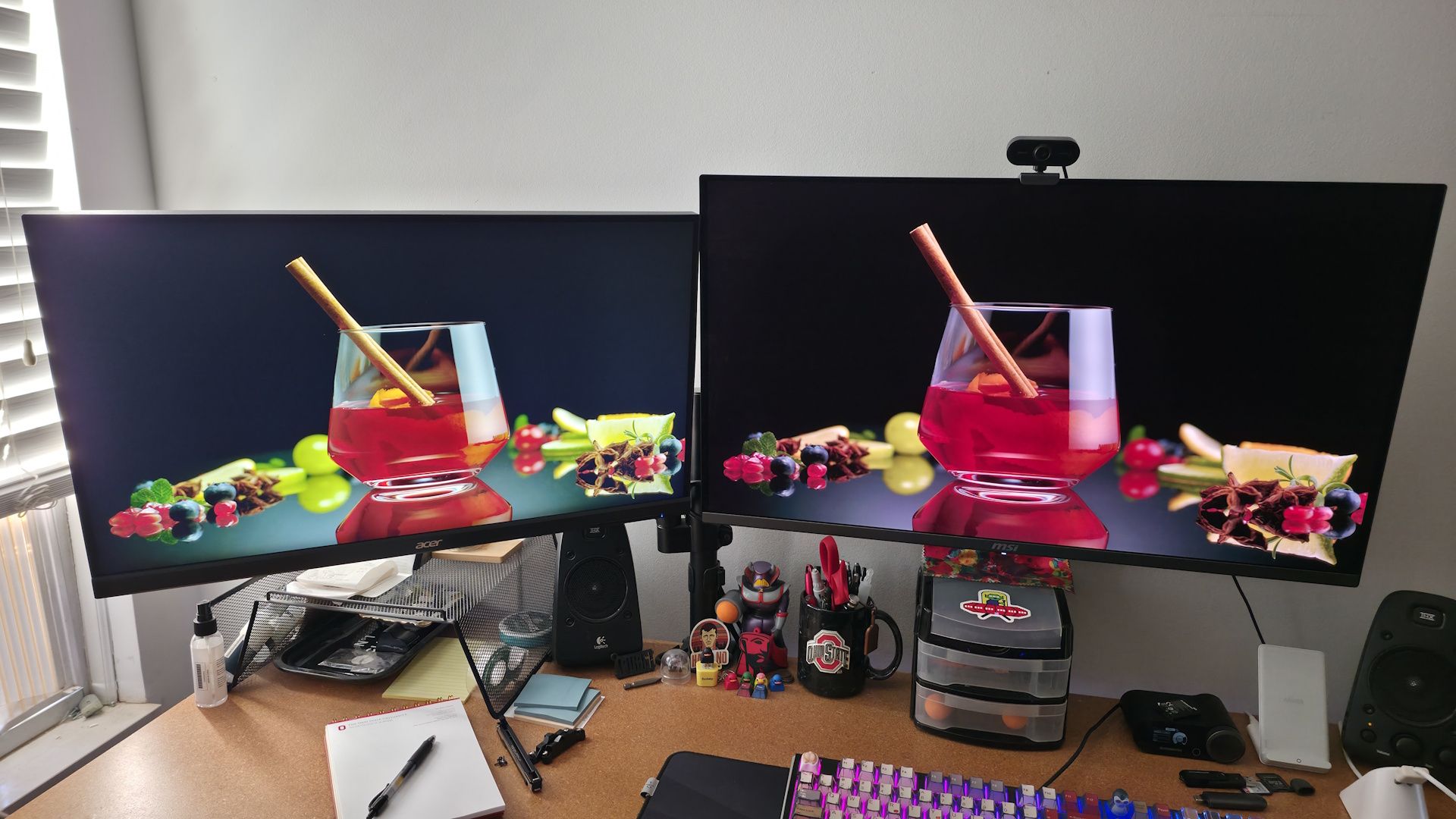
In the end, I upgraded to a 32-inch 4K OLED in early 2025 before RAM, video cards, and storage prices went nuts. The MSI MPG 321URX was $900 at the time (currently $634) and, without a doubt, the best upgrade I’ve made to my system in a long time. While I spent a pretty penny, not only was I able to get more screen real estate, both physically and in pixel count, but I also got true blacks and better color coverage (99% DCI-P3, 137% sRGB, aRGB 96%) than my IPS panel.

I also wanted to keep pixel density (Pixels Per Inch or PPI) the same or better. And if you do the math, the 27-inch 2560x1440 panel is about 109 PPI and, at least for my old eyes, I can’t see the pixels the way you could with, say, a 27-inch 1920x1080p monitor at a low 81 PPI. If we work out the 4K math on a 32-inch panel, that comes out to almost 138 PPI and even more dense than the 27-inch 1440p monitor.

Watching movies or videos in native 4K without scaling was an incredible experience. Seeing all the details and such bright, vibrant colors was such a drastic difference; I’m not sure I can ever go back. It also makes me thankful I’m not missing out in my living room, where it’s 90% movies and TV shows and around 10% console gaming (Xbox) and running an OLED TV (65” LG C4). The difference between these OLEDs and the 45” LCD TV in my bedroom is dramatic.

The refresh-rate bump was also game-changing. I'm lucky enough to have a GeForce RTX 5090, which is practically a necessity to drive a 240Hz high-refresh-rate OLED monitor and achieve frame rates well over 165 and close to the monitor's maximum refresh rate of 240 Hz. In some heavier titles, like Call of Duty, I need to enable DLSS to help reach that, or better, close to, that threshold, but it’s easier today with the RTX 5080 and, in some titles, the RTX 5070 Ti to reach higher frame rates than it was in the previous generations. Nvidia’s DLSS and MFG (Multi-Frame Generation) and AMD’s FSR have both come a long way (with Nvidia’s implementation being arguably better), so don’t be afraid to use them if needed.

Why should you upgrade?

Why should you upgrade?

The short answer: 4K UHD (3840x2160) gives you sharper pictures and more usable space. Whether you're playing games, watching movies, doing photo/video editing, or working in the office, you can now run multiple windows across the 3840-pixel width, and the higher PPI makes text look better (printed rather than rendered); finer details in pictures, games, and video are more visible. Streaming services also support 4K or 1080p, so you can avoid scaling and view content natively compared to a 2560x1440.

It’s also much easier to run today than it was a year or two ago. DLSS, FSR, MFG, and other upscalers let mid- to high-end video cards produce good frame rates at 4K without rendering each pixel natively. With these technologies from Nvidia and AMD, even if you enable this feature and run below native 4K, the upscaled result looks as good as, or sometimes even better than native 1440p. While you still need a fair amount of graphics horsepower to drive it, especially for high frame rates, it is easier using scaling technologies.

Today, 4K OLEDs are affordable enough that they're within reach of many more people than they were just two years ago. While they are still what I would consider a premium product, 4K panel prices have dropped and now sit in the realm of mainstream price points. In fact, you can buy a 32-inch 4K UHD 240Hz panel for under $700.

OLED compare 2

(Image credit: Future)

Models like the ASRock Phantom Gaming (PG032UFS) dual-mode 4K gaming monitor is $596, while the MSI 321UPX (similar to mine, but calibrated out of the factory) is $799. A year or so ago, the MSI was around $950, and the ASRock was over $1,000 in late 2025. So while sub-$700 is still a lot of money, prices have come down quite a bit on some quality panels.

Summary:

  • You need more usable screen space for work or play
  • Desire sharper pictures in games, movies, photo/video editing, office work
  • True blacks, improved colors
  • Easier to run than in years past - DLSS/MFG/FSR looks good and really improves frame rates
  • Increasingly affordable - obviously affordable is in the eye of the beholder, but they are a lot cheaper today than even a year ago
  • Burn-in has improved, too - While it’s still a concern over time, especially for static images like taskbars, manufacturers have implemented mitigations to prevent the phenomenon

Why you shouldn't upgrade

Why you shouldn't upgrade

There are several reasons to hold off on upgrading to a 4K 240Hz OLED monitor. One is that your current GPU may not keep up. Driving 240 FPS on a 4K monitor isn’t easy. And even with improvements and upscaling from both camps, you can’t make a budget card play like a flagship. Now, if you don’t play games, any video card will output 4K on an OLED, so this reason not to is only for the gamers.

I know burn-in is part of the reason to upgrade, and modern panels handle this better than early OLEDs, but it hasn’t disappeared. If your day is packed with spreadsheets and coding, or you use permanent taskbars/toolbars, those pixels stay in the same place all day. Dark modes and manufacturer mitigations help, but it’s the main risk. Check your warranty, as some brands cover burn-in (think Dell/Alienware, MSI, Corsair, Asus, LG, Acer), while others do not (Lenovo, budget/generic brands), and consider it ‘normal wear’. In short, if you work on static images a lot, you could see burn-in down the road.

Text can look slightly off depending on the panel type. If you work with a lot of text or spreadsheets, both OLED panel types can struggle with text clarity because they use non-standard subpixel layouts instead of the traditional RGB stripes. QD-OLED generally provides sharper overall rendering with ClearType enabled, while WOLED can look a bit hazy if the screen uses a matte coating. The good news is that the pixel density is so high, it’s harder to notice (I don’t on mine, and I write on it in a browser tab for 8+ hours a day).

Here again, we mentioned affordability in the why you should section, but it needs a place here too. For many users, $700+ is still prohibitively expensive. 1440p and 1080p OLED monitors cost much less.

If you’re an esports gamer, especially a competitive one, you likely need less real estate and higher frame rates. So choosing a 24-inch 240Hz+ 1080p IPS/VA panel is the best choice for users who want more FPS and less input lag than they do the highest contrast or saturated colors, for example.

Summary:

  • You don’t have a powerful enough video card - If you don’t have an RTX 4080/5070 Ti or greater or AMD Radeon 9070XT, you may want to wait until your next graphics card upgrade. Or, if less than 240 FPS is OK, a lower-end card will work.
  • If your day is packed with static images on the screen, burn-in can eventually become an issue, regardless of mitigation features from the panel or user.
  • Text can look slightly off - Coming from someone who writes on their OLED daily, this isn’t a big issue, but it's worth noting just in case. The higher the pixel density, the less of an issue this is.
  • It’s still expensive - Yeah, they are a lot cheaper than a year ago, but they are still costly. Prices will continue to drop.
  • Esports gamer - You want a higher refresh rate and less real estate. Smaller, faster panels are ideal for this user.

OLED stands for Organic Light-Emitting Diode. It uses self-illuminating pixels that create their own light and can turn completely off. In other words, each LED creates its own color and, for black, turns off, creating infinite contrast compared to LCDs (IPS/VA/TN panels).

OLEDs have two subvariants, QD-OLED (Quantum Dot OLED) and WOLED (White OLED), and they differ in several ways, including how they generate light (WOLED: bottom emission; QD: top emission), their subpixel structure, and filtering. To summarize, WOLEDs generate white light from the bottom, which goes through four (RGBW) color filters, the backplane, and out. Whereas QD displays generate blue light and then turn it into green and red through a quantum dot layer.

What is OLED technology?

What is OLED technology?

What does all that mean? Without getting technical, it means QD-OLEDs excel in color volume and saturated highlights, with excellent color uniformity and tinting. WOLEDs offer the same benefits as traditional OLEDs (per-pixel control) but with an added advantage. Using a single white emitter with color filters means you don’t run into the problem of individual red, Green, and blue emitters aging at different rates, which can cause color shifting and burn-in. Now, WOLEDs don’t eliminate burn-in or image retention, but they can lessen the severity.

In the end, finding a bad OLED monitor is difficult, especially when you compare it to VA and IPS panels, since the contrast ratio, color volume, and response times put them in a league far above their IPS and VA counterparts. The biggest downside to any OLED panel is price (OLEDs cost more).

So what about the elephant in the OLED room, Burn-in? If you don’t know, burn-in is a phenomenon where the image on a monitor is retained and visible when other content is displayed. A good example is something static, like the ticker bar at the bottom of the screen or the Windows taskbar; these items tend to ‘burn in’ versus other areas of the panel that constantly change.

Over the years, this has improved. Most brands have mitigation features; for example, Philips (among others, like Samsung and MSI) uses pixel shifting technology to move displayed content one pixel up/down/left/right to reduce burn-in. MSI also uses pixel shifting, pixel refreshing, and OLED Care 3.0 to dim or turn off the screen when you step away. Each vendor has something to reduce it. Burn-in is real, but with today’s prevention features and a little bit of common sense from the user, it could take years to see anything visible on your screen, and something that I, so far, cannot see.

Tom’s Hardware’s own monitor expert, Brandon Hill, wrote a great article (WOLED vs QD-OLED monitors: which panel technology is better) covering the differences between OLEDs and which panel technology is better; it's absolutely worth a look if you want more detail on the panel types.

WOLED vs QD-OLED vs. LCD

(Image credit: Samsung Dislplay)

Takeaways

Takeaways

Jumping up from my 2560x1440 165Hz monitor to a 4K OLED at 240 Hz was, without a doubt, the best upgrade I made to my system in quite a while. For me, the awesome contrast and colors, plus the extra screen space, changed how I worked during the day and played games at night. Frankly, there’s no way I can go back. Prices, while still out of range for some, have come down considerably, and you can now get a 32-inch 4K 240Hz OLED panel for under $700. With upscaling tech like DLSS and FSR making it easier to run, you may not need a graphics card upgrade to reach your goals. If you want a sharper picture, more screen real estate, and a big jump in image quality, a 4K OLED is hard to beat.

That said, it isn’t for everyone. If your graphics card can’t keep up and your day is packed with static spreadsheets and toolbars, or the price is just too much ($700 is still a lot of money), you can wait or look at a 1440p OLED instead. You can find those, like the Acer Predator X27U, for under $300. If you’re a competitive esports gamer, a smaller, faster 1080p panel is likely the best choice. In the end, the price of entry was worth it for me. But affordability is in the eye of the beholder, so be honest with yourself about how you'll use it before you buy.

Buy an Nvidia RTX 5070 Ti 16GB for only $1099

作者 Joe Shields
2026年10月6日 23:25

The past several months have been nothing but a pain in the wallet for anyone trying to buy RAM, storage, and graphics cards. Prices have shot through the roof since late 2025 and have, for the most part, only increased since. Today, we came across what is arguably one of the best deals on an RTX 5070 Ti we’ve seen in months: Gigabyte’s RTX 5070 Ti Windforce for only $1,099 after you click to get the promo code. All you need is a Newegg account to see the code. Click “Click to see the Extra discount,” select “Yes” to unlock it, confirm your Newegg email, and a pop-up will appear with the code.

The Windforce on sale is an all-black version that forgoes any RGB bling. Three large ‘Hawk’ fans dominate the front face, sending air through a sizable heatsink with copper heatpipes and a copper baseplate. The fans are relatively quiet and shut off at low loads and temperatures for quiet desktop operation. The Windforce is also good for small-form-factor builds, as it’s a dual-slot (50mm deep) card. However, the three-fan card is long (304mm), so it may not fit in all small-form-factor chassis.

The Windforce 5070 Ti uses the ever-so-popular 12V-2x6 connector and includes a 2x PCIe 8-pin adapter if your power supply doesn’t use the 12V-2x6. Gigabyte recommends a 750W power supply for this card. Video outputs here typically include three DisplayPorts (v2.1b) and one HDMI (v2.1b). Base core clocks run at 2,497 MHz (a 45 MHz boost over reference), while the 16GB of GDDR7 runs at 28 Gbps across a 256-bit bus.

For performance, it’s great for high frame rates at 1080p and 1440p, and it's 60 FPS-capable in 4K UHD. Turn on Nvidia’s DLSS and MFG, and you can get even more out of it. Check out the performance charts below for a great idea of average frame rates across the three main resolutions.

WodForce RTX 5070 Ti 16G: was $1169.99 now $1099.99
Snag one of the best deals currently going on a RTX 5070 Ti with this Gigabyte Windforce RTX 5070 Ti 16G.View Deal

5070 Ti benchmarks
Future
5070 Ti benchmarks
Future
5070 Ti benchmarks
Future

If you’re shopping around for graphics cards, the landscape is still bleak and hyper-inflated. But sometimes you just need to buy (let’s be frank, this pricing debacle isn’t going to end soon), and the Gigabyte Windforce RTX 5070 Ti 16GB at $1,099 (with a promo code) is the best deal on this mid-range video card.

Take $40 off the blistering Ryzen 7 9800X3D and get two freebies

作者 Joe Shields
2026年10月5日 21:47

Over the past several months, we’ve been stuck in the murky depths of the AIpocalypse and have been hit with sky-high prices on RAM, storage, and graphics cards. Luckily, processor prices haven’t really changed, but finding a decent deal that isn’t bundled with multiple items you may not need was tough at times. Today we found a solid discount on AMD’s Ryzen 7 9800X3D for only $429 with promo code FTT7668, and it’s not in a bundle! That’s right, you can upgrade from your older or non-X3D AM5 processor to the latest and greatest for gaming without buying extra parts. And while it’s not quite at the all-time low, Newegg throws in two gifts: a 240mm MSI Coreliquid A13 AIO ($69 value) and an AMD Onimusha Game Bundle ($69 value) to sweeten the deal.

The Ryzen 7 9800X3D is an 8-core/16-thread Zen5-based processor with a base clock of 4.6 GHz and a max boost of 5.2 GHz, which is plenty of speed for any task. The X3D variant's 96MB of L3 cache helps with gaming (among other things), making it one of the fastest gaming CPUs we tested. While it excels in games, it also performs well for just about anything else you can throw at it. The charts below show how it and the other processors on sale perform.

free msi mag coreliquid a13 240mm aio and AMD Onimusha game

Ryzen 7 9800X3D: was $497.49 now $429.00
While it's not quite at the all-time low price, you can get AMD's awesome 9800X3D for only $429 (promo code FTTF7668) along with a free 240mm AIO and AMD Onimusha game. The 9850X3D is also on sale (promo code FTTF7669).View Deal

9800X3D Benchmarks
Future
9800X3D Benchmarks
Future
9800X3D Benchmarks
Future

Newegg also has the newer, slightly faster Ryzen 7 9850X3D on sale for $469 with promo code FTTF7669, and it also offers the same gifts as the 9800X3D. In fact, there are a couple of deals on AMD X3D processors, some better than others. If you need more cores and threads for heavier workflows, the 9950X3D ($699) and 9850X3D2 ($899) 16-core/32-thread chips don’t offer a discount, but the free 240mm AIO and AMD game do carry over like the others and can offer a bit of relief if you need a cooler and want a free game.

If you’re in the market to upgrade your AM5-based platform and looking for X3D chips to improve your PC gaming experience, Newegg has you covered. Both the 9800X3D at $429 (promo code FTT7668) and the $469 9850X3D (promo code FTT7669) are discounted, and they throw in a couple of freebies to sweeten the pot. If it’s time to move up to an X3D chip and you don’t need a motherboard or RAM, now is a great time to buy any one of the fastest gaming chips available.

Get over 70% off this Cherry Xtrfy MX 3.1 wired mechanical gaming keyboard

作者 Joe Shields
2026年10月1日 21:20

With RAM, storage, and graphics card prices still stuck in the stratosphere and no relief in sight, we have an opportunity to upgrade other parts of our PC that aren’t affected by the AIpocalypse. Take, for example, this full-size Cherry Xtrfy MX 3.1 wired mechanical gaming keyboard, on sale for only $34 with promo code WOOTCHERRY. That’s an incredible 67% off the original $119.00 list price, 50% off Amazon pricing, and, by far, an all-time low. If you happen to be a new customer at Woot, you get $10 off, taking it down to a dirt-cheap $29 and one of the best deals on a name-brand mechanical keyboard we’ve seen in a while.

The Xtrfy MX 3.1 is a full-size (100%) keyboard boasting a high-quality aluminum frame and RGB lighting. It features the latest Cherry MX2A switches (Red - Linear, smooth and quiet) designed to reduce wobble, eliminate spring ping, and offer a notably smoother feel out of the box than the original. The keys come pre-lubed and feature a new spring design to reduce scratchiness and noise compared with the previous iteration. The updated keys are also durable, rated for up to 100 million keystrokes so that you can hammer away without worry. It also includes integrated internal damping mechanisms to reduce fatigue and lower its acoustic profile.

All-time low price

Snag an incredible deal on Cherry's full-size Xtrfy MX 3.1 keyboard for only $34 with promo code WOOTCHERRY.View Deal

The Cherry keeb uses a 1,000 Hz polling rate and also includes useful gaming functions. You get full N-key rollover (where all keys can register simultaneously), anti-ghosting to prevent false or missed key presses when you press multiple keys at a time, and fully programmable keys through the Cherry software. The MX 3.1 also features 16.8 million-color RGB LED lighting shining up around the keys and out the sides. With the same Cherry software, you can choose from several canned schemes or program your own. You can also personalize multimedia controls, create shortcuts and macros with the software.

Currently sold for $80 (white version) on Amazon and $129 on the Cherry website, this $34 deal from W00t.com (or $29 if you're a new customer!) is one of the best prices we’ve seen on a reputable brand mechanical keyboard. If you’re in the market for a new keeb, or just want a solid backup on the cheap, you won’t want to pass up this deal.

We tested 13 power banks to help you choose the best one

作者 Joe Shields
2026年9月29日 21:10

For many of us, the tech we carry to keep our other devices powered while on the go doesn’t get much consideration. Buy a power bank with enough ports, capacity, and output, and you’re good to go, right? And generally, that is right, though a few small things can make a big difference. Of the dozen-plus chargers we've tested so far, a couple take four to six hours to charge, which may be fine for some, but could be a deal breaker for anyone who needs a quicker turnaround on a fully charged power bank.

We’ve compiled 13 power banks, ranging from slim, single-port 5,000 mAh units outputting 22W to monster multi-port 25,000 mAh bricks capable of delivering 220W across multiple ports. Prices range from around $24.99 for the Cuktech CP12 (10K/20W) to $129.99 for the most powerful unit we’re testing, the high-end Anker Prime (A110B) 20K/220W. Some include integrated USB-C cables; some include a removable USB-C cable; and some include nothing else in the box.

Others have fancy displays that show charging and temperature information, while some use simple LEDs that flash or change color to show charging status. Looks and size matter, too. The designs of the banks we tested range from simple grey boxes barely thicker than a deck of playing cards to larger stand-up units, and even see-through chassis.

What’s right for you depends on your needs, budget, and to some degree taste. In general, the higher the output and capacity, the more the device costs. How many ports do you want or need? Do you need to fly with it? Capacity and output are, of course, key deciding factors. But price, size, and safety features also matter. So there’s a lot to consider if you want the best power bank for you, and there are plenty of feature, design, and performance differences between our tested devices that we’ll share below to help with your buying decision.

What makes a power bank good or bad?

What makes a power bank good or bad?

The answer depends on who's buying the device and how they plan to use it. For example, if you need more than one charging port or an integrated cable, certain models just won’t work for you. Make sure it supports modern charging standards like USB-PD (Power Delivery) and/or Qualcomm Quick Charge so it can fast-charge your device (all tested devices below have PD3.0 or above).

Having the proper output to fast-charge your device is another important consideration. Buying a 10K, 25W charger for your Asus Zenbook Duo, for example, isn’t the best idea, since the device can use around 90W (@ 20V) to fast-charge and run. For that, you’d want something with more listed capacity and more wattage output. If you’re only buying a bank for your phone, that same 10K/25W charger can easily give your phone or a small tablet lots of extra run time away from a wall charger.

Rated capacity versus actual capacity is another issue, but marketing materials don’t clearly state it. The main thing to know is that the rating you see on the box is based on the battery's 3.7V rating. So the actual capacity varies depending on the voltage your device needs. The higher the voltage and output used for charging, the lower the actual capacity is. With 20V laptop charging, usable capacity can drop to around 20% of listed capacity, whereas with simple 5V charging it’s closer to 60% or more.

Power Bank testing - testing image

(Image credit: Future)

Another worthwhile feature for power banks is pass-through charging, or the ability to charge the bank and output power to your device(s) at the same time. Most do support this feature, though we couldn’t find anything concrete on the Cuktech CP12 or Baseus PicoGo Air (though every current Baseus PicoGo series does support it). Belkin’s Ultracharge limits output to 15W while charging, however.

Name-brand devices from Anker, Sharge, Cuktech, Belkin, and Baseus, like the ones we’re covering here, typically have multiple safety features, including protection against overcharging, over-current/voltage, over-temperature, and more, to prevent premature device failure (or worse). You’ll get an assortment of these features from popular brands, but be careful with off-brand ones, as they may not support some (or any) of them, and could therefore be a hazard. If you see a no-name power bank, make sure it is at least UL/CE (or CCC if in China) certified and has some or all of these safety features before buying.

Test Equipment and Setup

Test Equipment and Setup

To gather our power bank testing data, we need several items to ensure we’re getting the right information. Our test setup includes a wall charger to charge the empty power bank, an Asus Zenbook Duo and an Anker portable power station to charge and get output from, a USB tester that shows the output voltage, amperage, and watts, along with the charging protocol, mAh, and Wh, and an IR thermometer to record the device's surface temperature. We also need a high-quality cable that won’t limit the output (we chose one rated at 240W). To test the cable, we used a USB Cable Checker2 to verify its capability. Below is a list of all the parts we use in power bank testing.

Power Bank testing - equipment
Future

How We Test

How We Test

Before we plug the device in, we inspect build quality (does it feel like cheap plastic or metal), size, weight, and port count/type. We also look at capacity and output ratings, fast-charging capabilities (think PD, etc.), and any certifications (UL/CE) or safety features. From this information, we can get a good idea of the pros and cons, including cost/mAh, actual versus listed capacity, port count, temperature, protections, and more.

For testing, we first make sure the power banks are fully discharged before we begin. Next, we take the chassis temperature with the IR thermometer and connect the power bank to the Satechi desktop charger via a certified 240W USB-C cable, along with the Power-Z device. From there, we record the time to fully charge the device and the maximum sustained input wattage (which, as you’ll see, tends to drop due to temperature or at a point in charging where it slowly lowers the amperage/wattage, and sometimes voltage). We also record the maximum chassis temperature using the IR Thermometer.

Power Bank testing - test setup

(Image credit: Future)

After fully charging a power bank, the next step is to discharge it using a constant load. In this case, we use the Asus Zenbook Duo as a real-world load up to ~93 W while running Cinebench for the CPU and FurMark to stress the integrated Intel Arc B390 graphics. This isn’t your basic budget laptop. At over $2,200, it packs an Intel Core Ultra X9 388H (5.1 GHz turbo, up to 80W), dual 14-inch Lumina Pro OLED touchscreens, and a 99 Wh charger.

Here, we test maximum and minimum output in watts and determine watt-hours (Wh) and milliamp-hours (mAh), with data gathered from the Power-Z device while discharging. We also record temperature readings at the start and at the maximum.

Once we have that data, we can determine the device's capacity efficiency, at least for testing the laptop and higher-voltage charges. As we mentioned earlier, mAh ratings on packages are inflated by voltage-conversion losses and are based on the internal battery cells' 3.7V voltage. The higher the voltage (and, of course, amperage/watts), the less mAh capacity a battery bank provides.

In our testing, the Zenbook Duo accepts 20V and up to 93W when it can, which is a worst-case scenario for smaller-output chargers, normal for higher-output chargers, and typical for laptops and higher-powered devices. If you’re only charging a smartphone or small tablet at lower volts, the value will be closer to the listed specifications. But it will differ when your smartphone charges at a lower voltage, often 9V for fast charging. Remember, output wattage (and voltage) determines charging speed, and for some people (or in some instances), that matters more than capacity.

After testing all of the power banks, we compiled all the data into the charts below.

Tested Power Banks

Tested Power Banks

We captured some images of all the chargers during the test below. We also included a simple chart listing all the power banks tested, along with capacity, wattage, port/count type, safety features, and the current price (at the time of publication).

Power Bank testing - All chargers
Future
Power Bank testing - images of the power banks during testing
Future
Power Bank testing - images of the power banks during testing
Future
Power Bank testing - images of the power banks during testing
Future
Power Bank testing - images of the power banks during testing
Future
Power Bank testing - images of the power banks during testing
Future
Power Bank testing - images of the power banks during testing
Future
Power Bank testing - images of the power banks during testing
Future
Power Bank testing - images of the power banks during testing
Future
Power Bank testing - images of the power banks during testing
Future
Power Bank testing - images of the power banks during testing
Future
Power Bank testing - images of the power banks during testing
Future
Power Bank testing - images of the power banks during testing
Future
Power Bank testing - images of the power banks during testing
Future

Brand/Model

Capacity (mAh), Output (W)

Port Count/Type

Safety
Features

Price / (sale price)

Anker Nano
(A1638)

10K / 45W

2 - Type-C (one retractable)
1 - Type-A

ActiveShield 3.0

$59.99

Anker Prime
(A110B)

20K / 220W

2 - Type-C
1 - Type-A

ActiveShield 4.0

$179.99 / $129.99

Anker Laptop
(A1635)

25K / 165W

2 - Type-C
1 - Type-A

ActiveShield 2.0

$119.99

Sharge IceMag 3

10K / 35W

1 - Type-C
Wireless

Qi2 Active Cooling, Thermal protection, FOD

$79.90 / $67.89

Sharge Shargeek 170

24K / 170W

3 - Type-C (one retractable)
1 - Type-A


O/U Voltage, OCP, O/U Load, Overheat, Short Circuit

$109 / $79.90

Belkin BoostCharge Pro
(BPB020)

20K / 65W

2 - Type-C
1 - Type-A

Thermal monitoring, dual-chip proprietary battery mgmt system

$89.99

Belkin UltraCharge Pro
(BPB039)

25K / 158W

2 - Type-C (one retractable)
1 - Type-A

Over/Discharging, Short Circuits, Thermal Mgmt

$99.99

Baseus PicoGo Air
(E00337)

5K / 22.5W

2 - Type-C (one retractable)
1 - Type-A

Over/Discharging, Short Circuits, Thermal Mgmt

$69.99 / $49.99

Baseus PicoGo
(AC22)

20K / 45W

3 -Type-C
(one retractable cable)

OCP, OVP, Over-discharge, Thermal mgmt, Short Circuit

$39.99 / $29.99

Baseus Enerfill
(FC41)

20K / 100W

2 - Type-C (one retractable)
1 - Type-A

AI temp control, Overcharging, short-circuit, OCP/OVP

$79.99 / $49.99

Cuktech CP24
(LPB200NL)

20K / 40W

1 - Type-C

Overcharging, short-circuit, Over-discharge, temp control, safe charge/low current mode

$49.99 / $44.99

Cuktech CP12
(WPB100L)

10K / 20W

1 - Type-C
Wireless

Overcharging, short-circuit, over-discharge, temperature control, safe charge/low current mode

$29.99 / $24.99

Cuktech P Series (P23)

25K / 110W

2 - Type-C
1 - Type-A

Overcharging, short-circuit, over-discharge, temp control, safe charge/low current mode

$109.99 / $98.99

Takeaways and Results

Takeaways and Results

What surprised me most was how long a couple of these devices took to completely charge from empty. Cuktech’s CP12 and CP24 models and the Baseus PicoGo AC22 took over 2.5, 4, and 6 hours, respectively, to reach 100%. This is partly due to lower input wattage and/or how the device accepts power over time. Whether it's the voltage used, temperatures and potential throttling, or battery health and safety features, each handles the activity a bit differently. Others, like the Anker Prime or Shargegeek 170, offer much higher output and charge even higher-capacity devices much faster. In fact, the Shargegeek took under an hour to fill its 24K mAh coffers, accepting the most power (almost 140W peak) from our charger. Again, charging may not be a major concern for many people, but it’s good to know how long to expect your bank to reach full, since some are notably faster than others at the same capacity.

Temperatures didn’t play as obvious a role as they did in our charger testing. Lithium batteries perform best between 20 and 30 degrees Celsius, and the hottest device we covered was the Baseus PicoGo, which reached a peak chassis temperature of 43 degrees. The coolest of the bunch were the Anker Prime and Anker Laptop chargers, peaking at 37 degrees externally. These are all warm to the touch, but not hot — not something I would be particularly concerned about leaving out on a desk or table, in your purse or backpack, or even just sitting on the couch or a bed while charging your device(s).

But of course, it’s always good to keep charging devices somewhere you can see them regularly. Because batteries can, of course, be dangerous when things go very wrong, and there are at least two batteries cycling when you’re using a power bank.

Power Bank testing - Charging
Future
Power Bank testing - Charging
Future
Power Bank testing - Charging
Future
Power Bank testing - Charging Data
Future
Power Bank testing - Charging Data
Future
Power Bank testing - Charging Data
Future
Power Bank testing - Charging Data
Future
Power Bank testing - Charging Data
Future
Power Bank testing - Charging Data
Future
Power Bank testing - Charging Data
Future
Power Bank testing - Charging Data
Future
Power Bank testing - Charging Data
Future
Power Bank testing - Charging Data
Future
Power Bank testing - Charging Data
Future
Power Bank testing - Charging Data
Future

Discharging didn’t bring too many surprises. A rare couple, like the Shargegeek 170 and Cuktech P23, maintained output throughout the entire discharge tests, while most others dropped voltage, amperage/wattage, or both. This matches how many devices charge: they use a lot of power/voltage initially, then drop to lower values to protect battery health (or due to thermal throttling).

We see a lot of ads about charging X device to Y% in Z minutes, and the higher the sustained output (assuming your device can take it), the faster it charges. For those that did drop, the differences were somewhere between 33% and 50% of the peak output.

Power Bank testing - Close up of 'winners'
Future
Power Bank testing - Close up of 'winners'
Future
Power Bank testing - Close up of 'winners'
Future
Power Bank testing - Close up of 'winners'
Future

The one thing I found surprising here was how quickly some power banks stopped outputting at their maximum. For instance, the Baseus PicoGo dropped from its peak just four minutes into testing, while the Shargegeek 170 pumped a constant 90+ Watts until it was empty – no subtle voltage changes, just 20V/90W full tilt until the very end. Belkin’s Ultracharge also maintained its full output over time.

Power Bank testing - Charts
Future
Power Bank testing - Charts
Future
Power Bank testing - Charts
Future
Power Bank testing - Discharging data
Future
Power Bank testing - Discharging data
Future
Power Bank testing - Discharging data
Future
Power Bank testing - Discharging data
Future
Power Bank testing - Discharging data
Future
Power Bank testing - Discharging data
Future
Power Bank testing - Discharging data
Future
Power Bank testing - Discharging data
Future
Power Bank testing - Discharging data
Future
Power Bank testing - Discharging data
Future
Power Bank testing - Discharging data
Future
Power Bank testing - Discharging data
Future
Power Bank testing - Discharging data
Future

Below are the results covering capacity, output, and the actual capacity from our testing. The Anker Nano (A1638) had the least capacity when charging a laptop, at 1,600 mAh out of 10K. It spit out over 40W of output for a short time and stepped down to 20W, about 20 minutes in.

The Baseus Picogo Air and its slim design managed the highest actual capacity, but this is more a function of its limited 9V output and a quick drop from 19 to 11W. This tiny little device is great for a phone, but not ideal for larger items like our laptop. The large 24K Shargeek 170 sits in the middle of the pack, since it can output the full 20V and 90+W constantly.

Power Bank testing - mAh, Wh, Listed vs Actual capacity
Future
Power Bank testing - mAh, Wh, Listed vs Actual capacity
Future
Power Bank testing - mAh, Wh, Listed vs Actual capacity
Future

Conclusion

Conclusion

After testing all 13 power banks, there really isn’t a single ‘best’ bank. It comes down to what you’re charging and how patient you are. If you’re mainly topping off a phone or small tablet, capacity efficiency matters more than raw output. The Baseus PicoGo Air (currently $49.99 on sale), with its tiny footprint, shines here, squeezing out the highest actual-versus-listed capacity because of its lower 9V charging output. It’s small, light, and fits easily into a bag or purse; just don’t expect it to do much for a laptop, but it will easily charge a modern smartphone.

For laptop charging, the Shargeek 170 (currently on sale for $79.90) and Cuktech P23 $109.99 stood out by maintaining peak output (90+W @ 20V) through discharge instead of stepping down like most other power banks. At under $80, the Shargeek is a steal compared to the Cuktech.

Although others will charge laptops fine, that consistency could mean the difference between a predictable fast charge and a slower charge over time due to pre-programmed behavior or thermal throttling. The Anker Prime at $129.99 deserves a mention for charging laptops, too, as it pairs high output, fast charging, and the coolest chassis temps. However, it is the most expensive power bank we’ve tested. While it and others do come with informative displays, it’s up to you if that’s worth the premium.

If you’re concerned about the speed of charging the power bank, stay away from the Baseus PicoGo (AC22), Cuktech CP24, and CP12 – they took anywhere from 2.5 to 6 hours to reach full, which is a long time to wait if you need your battery back in rotation quickly. The good news is that these also have pass-through charging and will charge and discharge at the same time. The bottom line is, for phones, go small and efficient like the Baseus PicoGo Air; for laptops, prioritize sustained high wattage and sheer capacity (Shargeek 170, Cuktech P23, or Anker Prime), and if you want a bit of everything, the Anker Prime is hard to beat given its balance of speed, output, and temps, but it is expensive.

ASRock X870E Challenger Wifi Motherboard Review: A value X870E board packed with features

作者 Joe Shields
2026年9月28日 21:20

The latest all-white board to land on our test bench is from ASRock. But this time, it’s more affordable than the updated X870E Taichi White we recently covered. The $230 X870E Challenger Wifi White offers a surprising number of features for the price.

Specs-wise, the Challenger comes handsomely equipped for almost any price point. Features include a flagship audio codec, robust VRMs, and ample (and fast!) USB connectivity (including USB4 ports). You also get plenty of internal storage options, with four M.2 sockets (one PCIe 5.0) and two SATA ports, and fast networking with 5 GbE and Wi-Fi 7 (160MHz). Looking at other boards at this price, some don’t include USB4, offer slower 2.5 GbE, or provide weaker audio solutions. For $230, the Challenger is a great deal for an X870E-based board, though, like everything, it has drawbacks that we’ll cover below.

On the performance front, the X870E Challenger delivered average-to-below-average results across most tests, as we again had to use our secondary DDR5-6000 kit (the Kingston kit isn’t officially supported and didn’t work after enabling the XMP/DOCP profile). Still, we’re confident it would perform a bit better if you snag some RAM on the board’s QVL list that has tighter secondary and tertiary timings.Below, we’ll examine the X870E Challenger White’s performance and other features, and see if it earns a spot on our list of the best motherboards. But before we share test results and discuss details, here are the specifications from the ASRock website:

Specifications of the ASRock X870E Challenger Wifi White

Socket

AM5 (LGA 1718)

Chipset

X870E

Form Factor

ATX

Voltage Regulator

23 Phase (20x 110A SPS MOSFETs for Vcore)

Video Ports

(2) USB4
(1) HDMI (v2.1)

USB Ports

(2) USB 4 (40 Gbps) Type-C
(5) USB 3.2 Gen 2 (10 Gbps)
(3) USB 3.2 Gen 1 (5 Gbps)

(2) USB 2.0 (480 Mbps)

Network Jacks

(1) 5 GbE

Audio Jacks

(2) Analog and SPDIF

Legacy Ports/Jacks

✗

Other Ports/Jack

✗

PCIe x16

(1) v5.0 (x16)
(1) v3.0 (x2)

PCIe x8

✗

PCIe x4

✗

PCIe x1

(1) v3.0 (x1)

CrossFire/SLI

✗

DIMM Slots

(4) DDR5-8200+(OC), 256GB Capacity

M.2 Sockets

(1) PCIe 5.0 x4 (128 Gbps) / PCIe (up to 80mm)
(3) PCIe 4.0 x4 (64 Gbps) / PCIe (up to 80mm)

SATA Ports

(2) SATA3 6 Gbps

USB Headers

(1) USB v3.2 Gen 2x2 (20 Gbps) Type-C
(2) USB v3.2 Gen 1 (5 Gbps)
(2) USB v2.0 (480 Mbps)

Fan/Pump Headers

(7) 4-Pin (Accepts PWM and DC)

RGB Headers

(3) 3-pin ARGB Gen2 headers
(1) 4-pin RGB header

Diagnostics Panel

4 LED Post Status Checker

Internal Button/Switch

✗

SATA Controllers

✗

Ethernet Controller(s)

(1) Realtek RTL8126 5 GbE

Wi-Fi / Bluetooth

Realtek 8922AE Wi-Fi 7 - 160 MHz, 6 GHz, BT 5.4

USB Controllers

ASMedia ASM4242

HD Audio Codec

Realtek ALC4082

DDL/DTS

✗ / ✗

Warranty

3 Years

Inside the Box

The retail packaging includes a few accessories to help you get up and running. You get the standard Wi-Fi antennas, two white SATA cables (one with a 90-degree connector), an installation guide, and some stickers. It’s not a lot, but par for the course in this price bracket.

Design and Features of the ASRock X870E Challenger Wifi White

ASRock X870E Challenger Wifi
Tom's Hardware
ASRock X870E Challenger Wifi
Tom's Hardware
ASRock X870E Challenger Wifi
Tom's Hardware
ASRock X870E Challenger Wifi
Tom's Hardware
ASRock X870E Challenger Wifi
Tom's Hardware
ASRock X870E Challenger Wifi
Tom's Hardware
ASRock X870E Challenger Wifi
Tom's Hardware

The X870E Challenger Wifi White is, as the name describes, all white. In fact, everything save for two light-gray fan headers is white, along with the onboard chips and screws that secure the M.2 heatsinks to the 8-layer, server-grade PCB. Oversized VRM heatsinks cover the top-left part of the board, with Challenger written across them.

The bottom part of the board has a DIY-friendly, toolless multi-layer heatsink for the primary M.2 socket, plus basic plate-style heatsinks with screws for the M.2 sockets and dual promontory chipset. Overall, it’s a no-frills board (no integrated RGB lighting, even), so it lacks some of the larger plate-style heatsinks and ‘EZ latch features found on more expensive boards. You’ll need an all-white build to take advantage of the all-white look, but it’s still one of the better-looking white boards, especially for its price.

ASRock X870E Challenger Wifi

(Image credit: Tom's Hardware)

Starting in the top left corner, we see two “high-density” 8-pin EPS connectors (one required) to power the processor. Surrounding those are the two “XL” heatsinks to cool the flagship-class power delivery below. To the right of the socket are four DRAM slots with locking mechanisms on both sides. ASRock lists support up to DDR5-8200, which is plenty for the platform. Our Kingston kit didn’t want to play nice with this board, which makes this the third ASRock board that doesn’t support our base test kit. As always, stick to the memory QVL list for assured support.

Above the DRAM slots are the first three (of seven) 4-pin fan headers. Each header supports PWM- or DC-controlled devices and can be tweaked through the BIOS or ASRock’s Windows-based software. The CPU_FAN1 header supports up to 1A/12W output, while the rest support up to 3A/36W each. You should have plenty of headers and enough power.

Shifting focust to the right corner and moving down, the next feature is the 4-LED POST Status Checker. There are LEDs for the CPU, Boot, VGA, and RAM. During the POST process, these light up and, if there is a problem, the offending area’s LED stays lit, giving you a general idea of where the issue is. It’s not quite as helpful as the 2-character debug display on higher-end boards, but is a lot better than nothing and typical on a lower-priced motherboard.

Continuing down the edge, we spy two (of three) 3-pin ARGB headers, just above the main 24-pin ATX power connector. ASRock’s Polychrome Sync application controls the attached RGBs, offering several canned light patterns and adjustments. Last but not least is the front panel USB 3.2 Gen 2x2 (20 Gbps) Type-C connector. If there’s one thing that stands out on this board, it’s the number and speed of the USB ports — there are a lot, and ASRock didn’t skimp on speed.

ASRock X870E Challenger Wifi

(Image credit: Tom's Hardware)

Power delivery on the X870E Challenger is one of the most robust we’ve seen, especially for a $230 budget-class motherboard. It comes with 23 total phases, 20 dedicated to Vcore. Power flows from the 8-pin EPS connectors to the Renesas RAA229628 20-phase PWM controller. From there, power heads to the more Renesas bits, this time the R2209004 110A SPS MOSFETs — a surprise to see on a board of this class. The 2,200A available will most certainly handle anything you throw at it. Flagship processors like the Ryzen 9 9950X or Ryzen 9 9950X3D2, overclocked even with extreme cooling methods, are also no problem.ALBM - board6 (bottom half):

On the bottom half of the board, we’ll start on the left where there’s a fully exposed audio solution that shows off the flagship Realtek ALC4082 codec, along with a couple of dedicated audio capacitors. While you won’t find a fancy integrated amplifier or DAC, this is the best codec for the platform and another pleasant surprise on such an inexpensive offering.

In the middle of the board are three PCIe slots. Two are full-length, and one is an open-ended x1-size slot. The top slot uses ASRock’s Reinforced Steel Slot, connects through the CPU, and is your PCIe 5.0 x16 slot (no bifurcation) for video cards. The second full-length slot at the bottom connects through the chipset and runs up to PCIe 3.0 x2, while the tiny x1 slot runs at PCIe 3.0 x1 speeds and also sources its bandwidth from the chipset. I’d like to see a PCIe 4.0 slot for extra bandwidth, but as-is it will easily support lower-bandwidth expansion needs.

Mixed among the PCIe slots, to the right of the chipset heatsink, sit four M.2 sockets. The top socket, under the large, tiered, DIY-friendly heatsink, is the one and only PCIe 5.0 x4 (128 Gbps) “Blazing” M.2 socket (M.2_1). M.2_2/3, which both run at PCIe 4.0 x4 (64 Gbps), are under the plate-style heatsink that’s secured with three captive screws. M.2_4 runs vertically along the right edge of the board and also supports PCIe 4.0 x4 drives. The good news is that the M.2 drives don't share lanes. You can pack the motherboard full of them, and each will run at full bandwidth without degrading or disabling another part. If your system needs a RAID setup on M.2, the board supports RAID0/1/10 modes. I wish there were more DIY-friendly features, but at this price, something has to give to keep prices low.

Hidden under the M.2 heatsink, along the right edge, is a 19-pin USB 3.2 Gen 1 (5 Gbps) header and the two SATA ports (supports RAID0/1 modes). Finally, we've included a few images of the board's active ICs. ASRock uses a mix of ASMedia (USB4), Realtek (audio, networking), and Renesas for the power bits.

ASRock X870E Challenger Wifi
Tom's Hardware
ASRock X870E Challenger Wifi
Tom's Hardware
ASRock X870E Challenger Wifi
Tom's Hardware
ASRock X870E Challenger Wifi
Tom's Hardware
ASRock X870E Challenger Wifi
Tom's Hardware

At the bottom are several headers, including front-panel audio and USB ports. A complete list of connectivity is listed below (from L to R):

  • Front panel audio
  • 4-pin RGB
  • 3-pin ARGB
  • (2) USB 2.0 headers
  • (4) 4-pin fan headers
  • 19-pin USB 3.2 Gen 1 header
  • 2-pin Clear CMOS jumper
  • Power LED and Speaker
  • Front panel

ASRock X870E Challenger Wifi

(Image credit: Tom's Hardware)

Flipping the board around to the rear IO, you can see it’s chock-full of colorful USB and other ports. On the left are Clear CMOS and BIOS Flashback buttons. Next to those are the Wi-Fi 7 (remember, it’s ‘only’ 160 MHz) antenna connections and the HDMI (v2.1) port. Next to that are stacks of colored USB ports. In total, there are 12: two USB 4 (40 Gbps) Type-C ports that double as video outputs; five USB 3.2 Gen 2 (10 Gbps), two of which are the Lightning USB ports (yellow, and designed to reduce latency by using different controllers). Three USB 3.2 Gen 1 (5 Gbps) ports (purple) support USB PD 3.0 charging up to 5V@3A (15W). Lastly, the two USB 2.0 ports are black. Above one of the Type-C ports is the Realtek 5 GbE, and finally, on the right end, is the audio stack with two 3.5mm analog jacks and SPDIF outputs.

If you’re an esports gamer where every millisecond counts, the lighting gaming ports could come in handy. Otherwise, the feature adds little value for the average user.

MORE: Best Motherboards

MORE: How To Choose A Motherboard

MORE: Best Motherboard Deals

MORE: Best Motherboard Combo Deals

MORE: All Motherboard Content

Firmware

Like other X870E ASRock boards, the X870E Challenger starts in the informative Easy Mode, but it also lets you adjust several options (XMP, profiles, boot order, access to Fan-Tastic Tuning, etc.). The Challenger White uses a grey background and black characters, closely matching the new Taichi’s theme. The high contrast also makes it easy to read. The standard BIOS displays headings across the top, with subheadings and details below.

You can tweak anything here, as ASRock includes every option you can think of. Overclocking is straightforward, with most options readily available. The layout is logical, and the mouse movement is smooth. We have no significant complaints about the ASRock firmware, but it could certainly use a facelift if it wants to keep up with recent Asus, Gigabyte, and MSI updates.

ASRock X870E Challenger Wifi
Tom's Hardware
ASRock X870E Challenger Wifi
Tom's Hardware
ASRock X870E Challenger Wifi
Tom's Hardware
ASRock X870E Challenger Wifi
Tom's Hardware
ASRock X870E Challenger Wifi
Tom's Hardware
ASRock X870E Challenger Wifi
Tom's Hardware
ASRock X870E Challenger Wifi
Tom's Hardware
ASRock X870E Challenger Wifi
Tom's Hardware
ASRock X870E Challenger Wifi
Tom's Hardware
ASRock X870E Challenger Wifi
Tom's Hardware
ASRock X870E Challenger Wifi
Tom's Hardware
ASRock X870E Challenger Wifi
Tom's Hardware
ASRock X870E Challenger Wifi
Tom's Hardware
ASRock X870E Challenger Wifi
Tom's Hardware
ASRock X870E Challenger Wifi
Tom's Hardware
ASRock X870E Challenger Wifi
Tom's Hardware
ASRock X870E Challenger Wifi
Tom's Hardware
ASRock X870E Challenger Wifi
Tom's Hardware
ASRock X870E Challenger Wifi
Tom's Hardware
ASRock X870E Challenger Wifi
Tom's Hardware
ASRock X870E Challenger Wifi
Tom's Hardware
ASRock X870E Challenger Wifi
Tom's Hardware
ASRock X870E Challenger Wifi
Tom's Hardware
ASRock X870E Challenger Wifi
Tom's Hardware
ASRock X870E Challenger Wifi
Tom's Hardware

Software

ASRock offers several different software options. These include the App Shop, which lets users install drivers and software; the Nahimic 3 audio control panel; the A-Tuning application that lets you overclock and control fans; the Polychrome RGB software; and more. There’s also a Blazing OC Tuner, Motherboard Utility, and a convenient pop-up to install drivers when the system first boots. ASRock’s software gives users everything they need to manage and tweak their systems.

ASRock X870E Challenger Wifi
Tom's Hardware
ASRock X870E Challenger Wifi
Tom's Hardware
ASRock X870E Challenger Wifi
Tom's Hardware
ASRock X870E Challenger Wifi
Tom's Hardware
ASRock X870E Challenger Wifi
Tom's Hardware
ASRock X870E Challenger Wifi
Tom's Hardware
ASRock X870E Challenger Wifi
Tom's Hardware
ASRock X870E Challenger Wifi
Tom's Hardware

Test System / Comparison Products

We’ve updated our test system to Windows 11 (23H2) 64-bit OS with all updates applied as of late September 2024 (this includes the Branch Prediction Optimizations for AMD). Hardware-wise, we’ve updated the RAM kits (matching our Intel test system), cooling, storage, and video card. Unless otherwise noted, we use the latest publicly available non-beta motherboard BIOS. The hardware we used is as follows:

TEST SYSTEM COMPONENTS

Sound

Integrated HD audio

Network

Integrated Networking (GbE to 10 GbE)

Graphics Driver

GeForce 561.09

Benchmark Settings

Synthetic Benchmarks and Settings

Procyon

Version 2.8.1352 64

Office 365, Video Editing (Premiere Pro 24.6.1), Photo Editing (Photoshop 25.1.2, Lightroom Classic 13.5.1)

3DMark

Version 2.29.8294.0 64

Speed Way and Steel Nomad (Default)

Cinebench R24

Version 2024.1.0
Open GL Rendering Benchmark - Single and Multi-threaded

Blender

Version 4.2.0
Full benchmark (all 3 tests)

Application Tests and Settings

LAME MP3

Version SSE2_2019

Mixed 271MB WAV to mp3: Command: -b 160 --nores (160Kb/s)

HandBrake CLI

Version: 1.8.2

Sintel Open Movie Project: 4.19GB 4K mkv to x264 (light AVX) and x265 (heavy AVX)

Corona 1.4

Version 1.4

Custom benchmark

7-Zip

Version 24.08

Integrated benchmark (Command Line)

Game Tests and Settings

Cyberpunk 2077

Ultra RT: - 1920 x 1080, DLSS - Balanced.

F1 2024

Ultra High Preset - 1920 x 1080, 16xAF/TAA, Great Britain (Clear/Dry), FPS Counter ON

MORE: Best Motherboards

MORE: How To Choose A Motherboard

MORE: Best Motherboard Deals

MORE: Best Motherboard Combo Deals

MORE: All Motherboard Content

Benchmark Results

We run our standard benchmarks and power tests using the CPU’s stock frequencies (including any default boost/turbo) with all power-saving features enabled. We set optimized defaults in the BIOS and the memory by enabling the XMP profile. We set the Windows power scheme to Balanced (default) for this baseline testing, so the PC idles appropriately.

Synthetic Benchmarks

Synthetics offer a valuable way to evaluate a board's performance, as identical settings should yield similar results. Turbo boost wattage and advanced memory timings are areas where motherboard manufacturers can still optimize for stability or performance, though, and these settings can impact specific testing scenarios.

ASRock X870E Challenger Wifi
Tom's Hardware
ASRock X870E Challenger Wifi
Tom's Hardware
ASRock X870E Challenger Wifi
Tom's Hardware
ASRock X870E Challenger Wifi
Tom's Hardware
ASRock X870E Challenger Wifi
Tom's Hardware
ASRock X870E Challenger Wifi
Tom's Hardware
ASRock X870E Challenger Wifi
Tom's Hardware
ASRock X870E Challenger Wifi
Tom's Hardware
ASRock X870E Challenger Wifi
Tom's Hardware
ASRock X870E Challenger Wifi
Tom's Hardware
ASRock X870E Challenger Wifi
Tom's Hardware
ASRock X870E Challenger Wifi
Tom's Hardware
ASRock X870E Challenger Wifi
Tom's Hardware
ASRock X870E Challenger Wifi
Tom's Hardware

Starting with our synthetic benchmarks, the Challenger was average to below average in our tests, mostly due to the different timings in our secondary RAM kit. If we could run our primary kit, I’m confident performance would be closer to average across the board.

Timed Applications

ASRock X870E Challenger Wifi
Tom's Hardware
ASRock X870E Challenger Wifi
Tom's Hardware
ASRock X870E Challenger Wifi
Tom's Hardware
ASRock X870E Challenger Wifi
Tom's Hardware

Our timed applications told the same story. The board hit the slower of the two times in LAME and Corona, and was on the slower side of average in the Handbrake tests.

3D Games and 3DMark

ASRock X870E Challenger Wifi
Tom's Hardware
ASRock X870E Challenger Wifi
Tom's Hardware
ASRock X870E Challenger Wifi
Tom's Hardware
ASRock X870E Challenger Wifi
Tom's Hardware

Starting with the launch of Zen 5, we’ve updated our game tests. We’re keeping the F1 racing game but have upgraded to F1 24. We also dropped Far Cry 6 in favor of an even more popular game in Cyberpunk 2077. We run both games at 1920x1080 resolution using the Ultra preset (details listed above). Cyberpunk 2077 uses DLSS, while we left F1 24 on native resolution scaling.

The goal of these settings is to determine whether performance differs at the most commonly used (and CPU/system-bound) resolution, with settings most people use or strive for (Ultra). We expect the difference between boards in these tests to be minor, with most falling within the margin of error. We’ve also added a minimum FPS setting, which can affect your gameplay and immersion.

The Challenger did well in the synthetic 3DMark benchmarks, but was slower in games. Here again, we’re confident that if the secondary/tertiary memory timings were the same, results would be closer to average for Cyberpunk 2077 and perhaps higher for F1 24.

In short, there’s nothing to worry about regarding performance on this board.

Overclocking

Over the past few CPU generations, overclocking headroom has shrunk on both sides of the fence, while out-of-the-box potential has increased. For overclockers, that means less fun. For the average consumer, you’re getting the most out of the processor without manual tweaking. Today’s motherboards are more robust than ever and easily support power-hungry, flagship-class processors, so we know the hardware can handle them. There are multiple ways to extract even more performance from these processors: enabling a canned PBO setting, manually tweaking the PBO settings, or just going for an all-core overclock. Results will vary and depend on the cooling as well. In other words, your mileage may vary. Given all of the above, we will not overclock the CPU. However, we will test different memory kits to ensure they meet the specifications.
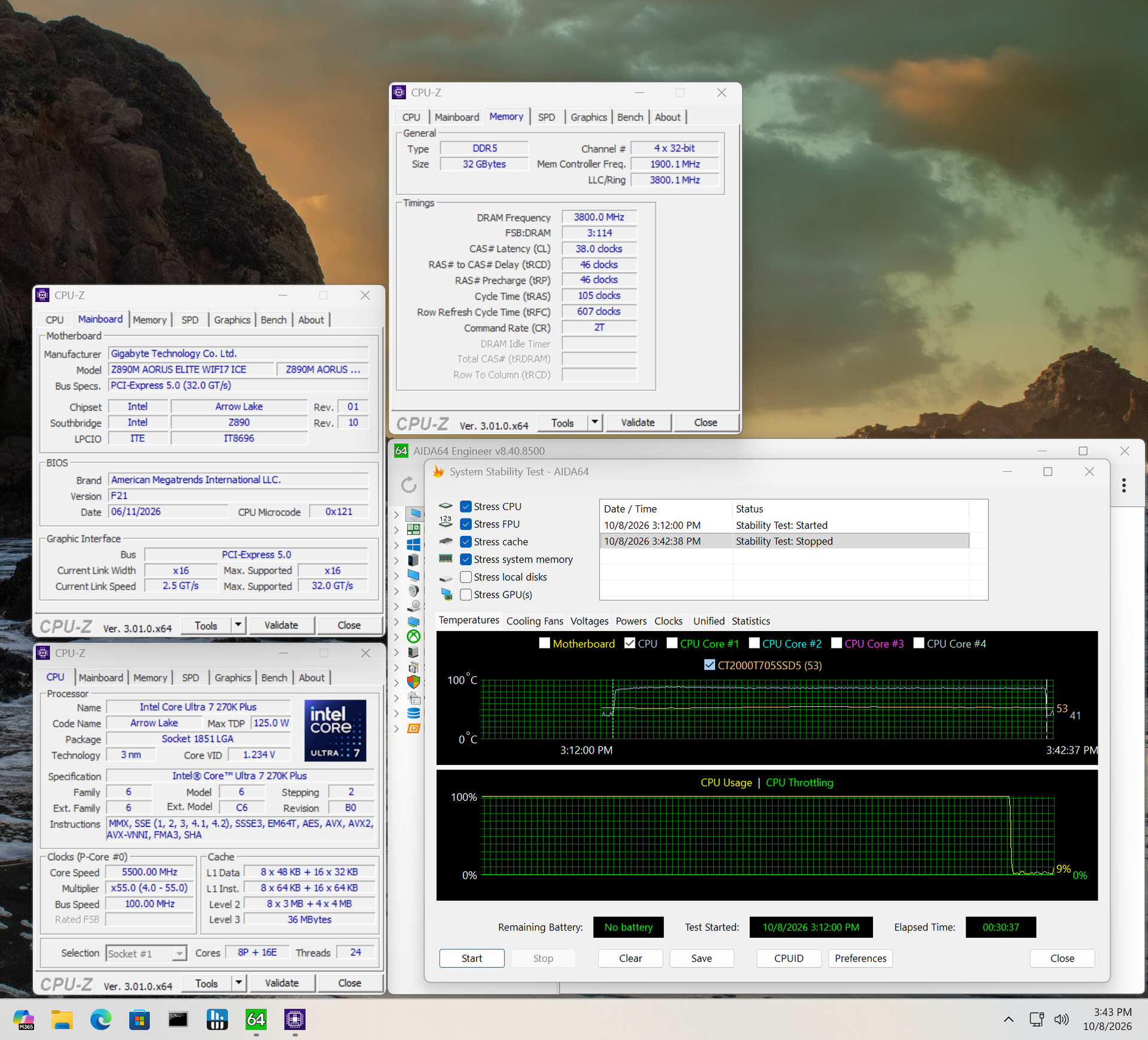
ASRock X870E Challenger Wifi
Tom's Hardware
ASRock X870E Challenger Wifi
Tom's Hardware

For memory testing, we start with our fastest non-clock driver kit: Klevv 32GB (2x16) DDR5-8000. Per usual on this platform, it booted to Windows but wouldn’t pass a stress test with our 9900X. The Team Group DDR5-7200 kit worked without issue. After dropping in the 8600G APU, that DDR5-8000 Klev kit worked just fine. These speeds are well past the ‘sweet spot’ for the AM5 platform, and with today’s RAM prices, few are buying such fast kits anyway. But it’s good to know the board can handle it.

Power Consumption / VRM Temperatures

ASRock X870E Challenger Wifi

(Image credit: Tom's Hardware)

We used AIDA64’s System Stability Test with Stress CPU, FPU, cache, and Memory enabled for power testing, using the processor's peak power consumption value. We obtained the wattage reading from the wall using a Kill-A-Watt meter, which captures the entire PC (excluding the monitor). The only variable that changes is the motherboard; all other parts remain the same. Please note that we now use only the stock power-use/VRM temperature charts, as this section aims to ensure the power delivery can handle flagship-class processors.

Stress testing this board with our DDR5-7200 kit showed it using less power than most. At idle, it sat around 78W, below average, and it peaked at 265W, slightly above average. This averages out to 162W, about 10W better than the running 172W average among our tested boards.

ASRock X870E Challenger Wifi
Tom's Hardware
ASRock X870E Challenger Wifi
Tom's Hardware

VRM temperatures were quite good during our testing, peaking at just over 47 degrees Celsius on our sensor and 53 degrees on the hottest internal sensor. With 110A MOSFETs pushing ~150W loads, it’s a solid result with plenty of headroom left for a more powerful processor and/or overclocking.

Bottom Line

ASRock X870E Challenger Wifi

(Image credit: Tom's Hardware)

Overall, the ASRock X870E Challenger Wifi White ($229.99) is an excellent and well-rounded budget X870E board. From the overbuilt power delivery and flagship audio codec to the copious number and speed of the USB ports, there’s a lot to like here, including the all-white aesthetic that’s sure to look good in a white build. Just add RGBs for additional bling, if that’s your thing.

Compared to others around this price point, like the Gigabyte X870E Eagle Wifi7 ($239.99), MSI’s Pro X870E-S Evo Wifi ($219.99), and the Asus TUF Gaming X870E-Plus Wifi7 ($289.99 (Asus’ least expensive X870E), the Challenger Wifi offers a better audio codec, a more robust VRM solution, more USB ports, and all M.2 sockets have a heatsink, whereas the competitors do not. You can step down to X870, but you lose bandwidth and bring the potential for lane sharing among USB, PCIe, and M.2 sockets.

In the end, the ASRock X870E Challenger Wifi is one of the best-equipped AMD boards around its $230 price point. If you’re sad because it’s white, don’t fret, as the black X870E Challenger Wifi is the same price. If you’re in the market for a new motherboard or want to jump into the AM5 platform with lots of features but don't have the budget for a more mid-range board, the X870E Challenger Wifi fits the bill and is one of the best X870E motherboards around.

MORE: Best Motherboards

MORE: How To Choose A Motherboard

MORE: Best Motherboard Deals

MORE: Best Motherboard Combo Deals

MORE: All Motherboard Content
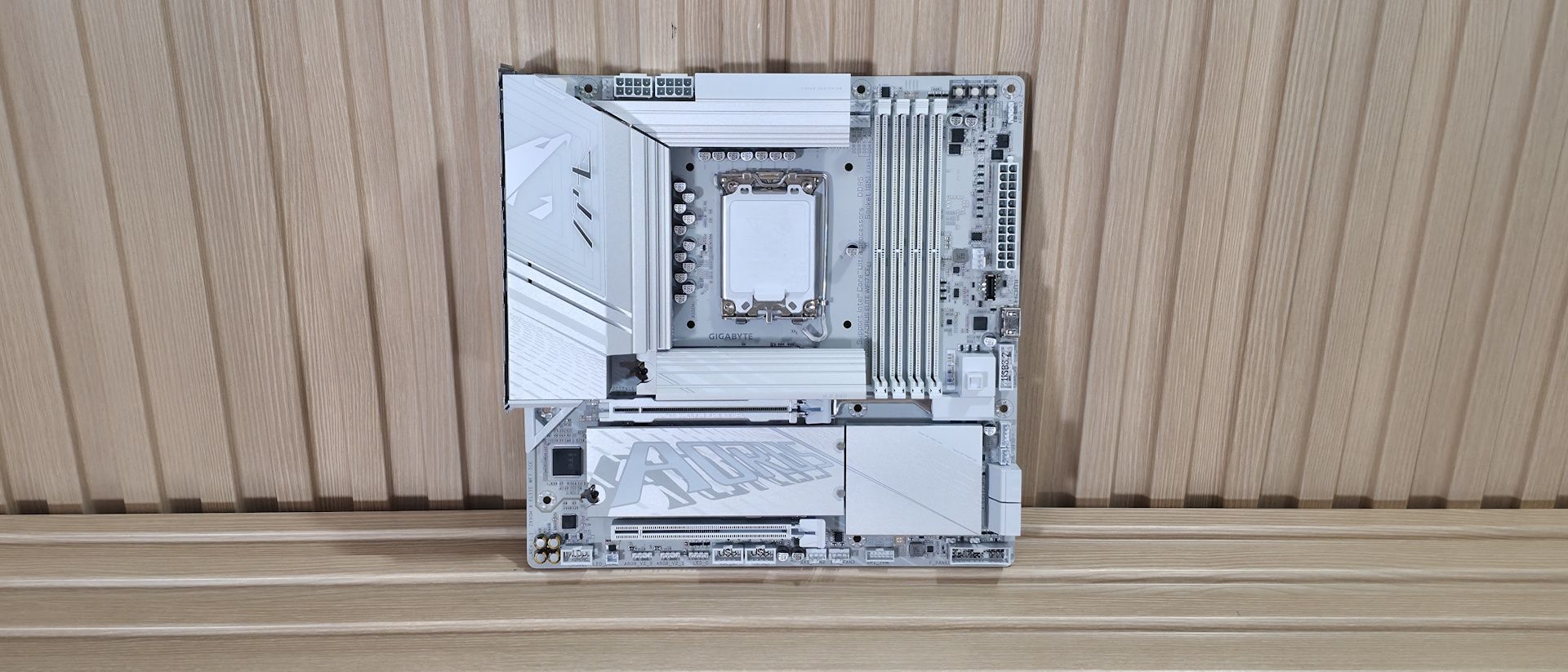
Save $149 on this 3-item gaming combo from Newegg

作者 Joe Shields
2026年9月24日 20:45

With the RAMpocalypse in full swing and little relief in sight, we need to look for combo deals to get the best prices on items like RAM (and even those are fleeting today). This 3-item combo from Newegg is one of the better ones lately, offering the wicked-fast gaming processor Ryzen 7 9800X3D, 32GB of Corsair Vengeance DDR5-6000 RAM, and a quality motherboard in the Asus TUF Gaming X870E-Plus Wifi for only $1,050. A savings of $149. And if you apply the discount to the RAM, it’s only $351, which many would consider reasonable (for the times).

First is one of the most popular and fastest current-generation CPUs for gaming: the Ryzen 7 9800X3D. This 8-core/16-thread Zen5-based processor has a base clock of 4.6 GHz and a max boost of 5.2 GHz, which is plenty of speed for any task. The X3D variant's 96MB of L3 cache helps with gaming (among other things), making it one of the fastest gaming CPUs available. It is also a well-rounded performer that excels in games and suits most applications. This combo also includes a free Rosewill FrostMax 240mm AIO with digital display (a $70 value), which easily handles the 120W processor.

The RAM portion of the bundle, Corsair’s Vengeance RGB 32GB (2x16GB) DDR5-6000 CL36 RAM kit, is currently available on Newegg for a wallet-emptying $499.99 (the price keeps going up) when bought separately. The good news is that the discount brings this RAM down to $351. This black kit matches the Asus TUF Gaming X870E-Plus Wifi board in this combo and features a frosted RGB light bar that runs the length of the sticks. If RGB lighting isn’t your thing and you prefer a stealthy, unassuming look, you can turn it off. The DDR5-6000 speed lands in the sweet spot for the AM5 platform and is a worthwhile, good-looking option. The SK Hynix ICs under the heatsink pair nicely with the board and offer plenty of overclocking headroom.

free rosewill frostmax 240mm AIO and AMD gam bundle ($140 value)

Ryzen 7 9800X3D, Asus TUF Gaming X870E-Plus Wifi, 32GB Corsair Vengeance RAM: was $1199.98 now $1050.99
Save big on this 3-item combo from Newegg and get snag 32GB of Corsair Vengeance DDR5-6000 RAM for less. You get the awesome Ryzen 7 9800X3D CPU, a quality Asus X870E TUF Gaming motherboard, and Newegg even throws in a free 240mm AIO and AMD gam bundle ($140 value)View Deal

Best CPUs for Gaming
Tom's Hardware
Best CPUs for Gaming
Tom's Hardware
Best CPU for Gaming
Tom's Hardware

Last, the Asus TUF Gaming X870E-Plus Wifi 7 is a solid all-around motherboard for the AM5 platform. It delivers sufficient power to support flagship-class processors and easily handles the 9800X3D in the combo, even with some overclocking. It comes with four M.2 sockets (one PCIe 5.0), two SATA ports for storage, fast networking with integrated Wi-Fi 7 and 2,5 GbE, ample USB ports on the rear IO (13, including two USB4 40 Gbps Type-C), and a quality audio solution based on the last-gen Realtek flagship (ALC1220P). Asus’ AI solutions (AI Cache Boost, Overclocking, Cooling II, and Networking II) and the DIY-friendly design make it easy to build and get the most out of your system.
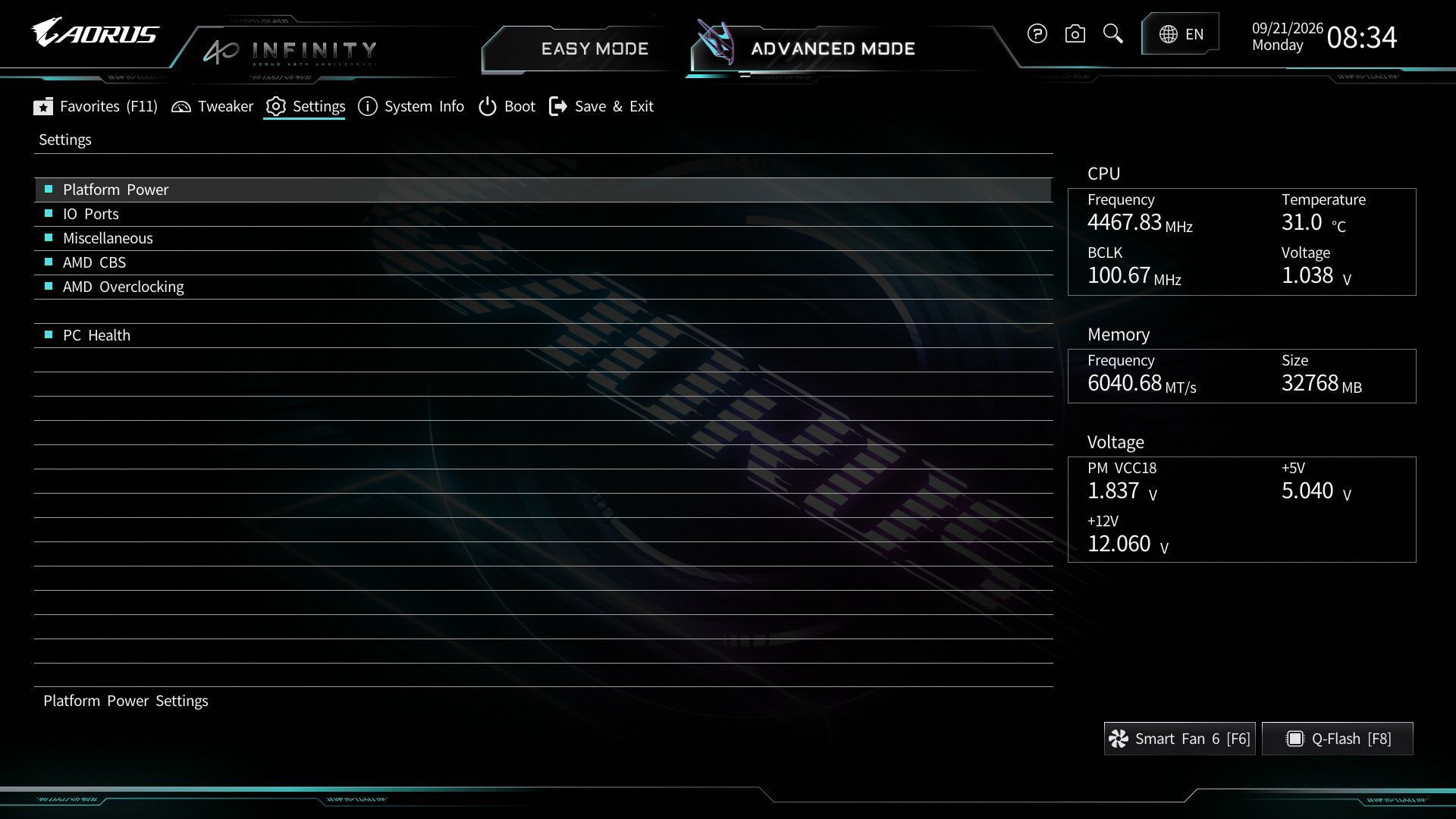
Newegg used to offer several Combo deals with RAM. Still, over the past few weeks, as stock continues to dwindle, we’ve seen them whittle down to only a couple that are worthwhile, so when you see something like this and are ready to pull the trigger, do it, as you never know how long it will last. If you’re in the market to buy a new AM5-based system, this 3-item $1,050 combo from Newegg, sporting 32GB of RAM, the venerable Ryzen 5 9800X3D, and a quality motherboard (don’t forget the free 240mm AIO and AMD game bundle!), is currently one of the least expensive ways into the platform.

Save big on this vivid 27-inch OLED monitor with fast 240Hz refresh rate

作者 Joe Shields
2026年9月24日 18:20

If you’re one of the many consumers who are still struggling to find ways to spend your hard-earned money in the PC space, we found a deal that has nothing to do with ridiculously priced components like RAM, video cards, and storage, but still makes a difference in your computing experience. Newegg recently dropped the price of the MSI MAG 272QP QD-OLED X24 monitor to a palatable $359.99 (from its $499.99 MSRP) when using promo code SSF73849, just $10 away from its all-time low ($349.99), according to Camelcamelcamel. It's currently one of the best deals around on a high-quality 27-inch 4K QD-OLED with a high refresh rate.

Check out this deal on Newegg

This monitor is ready for any type of gaming you can throw at it, from MMOs that don’t need the high refresh rate but lean into the wide color gamut (98% RGB/99% DCI-P3/138% SRGB, Delta E≤2), to first-person shooters (FPS) where the blazing-fast 240Hz refresh rate and the highest VESA ClearMR rating (13000) make a difference. Even if you’re not a gamer, productivity activities also look good, and the long 3-year burn-in warranty, along with MSI’s OLED Care 2.0 technology (with Pixel Shift, Panel Protect, and other features), should move burn-in worries to the back burner.

The panel itself is a 26.5-inch 10-bit, QD-OLED sporting 4K UHD resolution (3,840 x 2,160). It has a typical contrast ratio of 1,500,000:1, a 0.03ms (GTG) response time, and a 172 pixels per inch density. It’s also VESA-certified DisplayHDR 400 True Black. This means you're getting a display that looks incredible and is a significant improvement over older monitors that can’t display the same colors or have as fast response times.
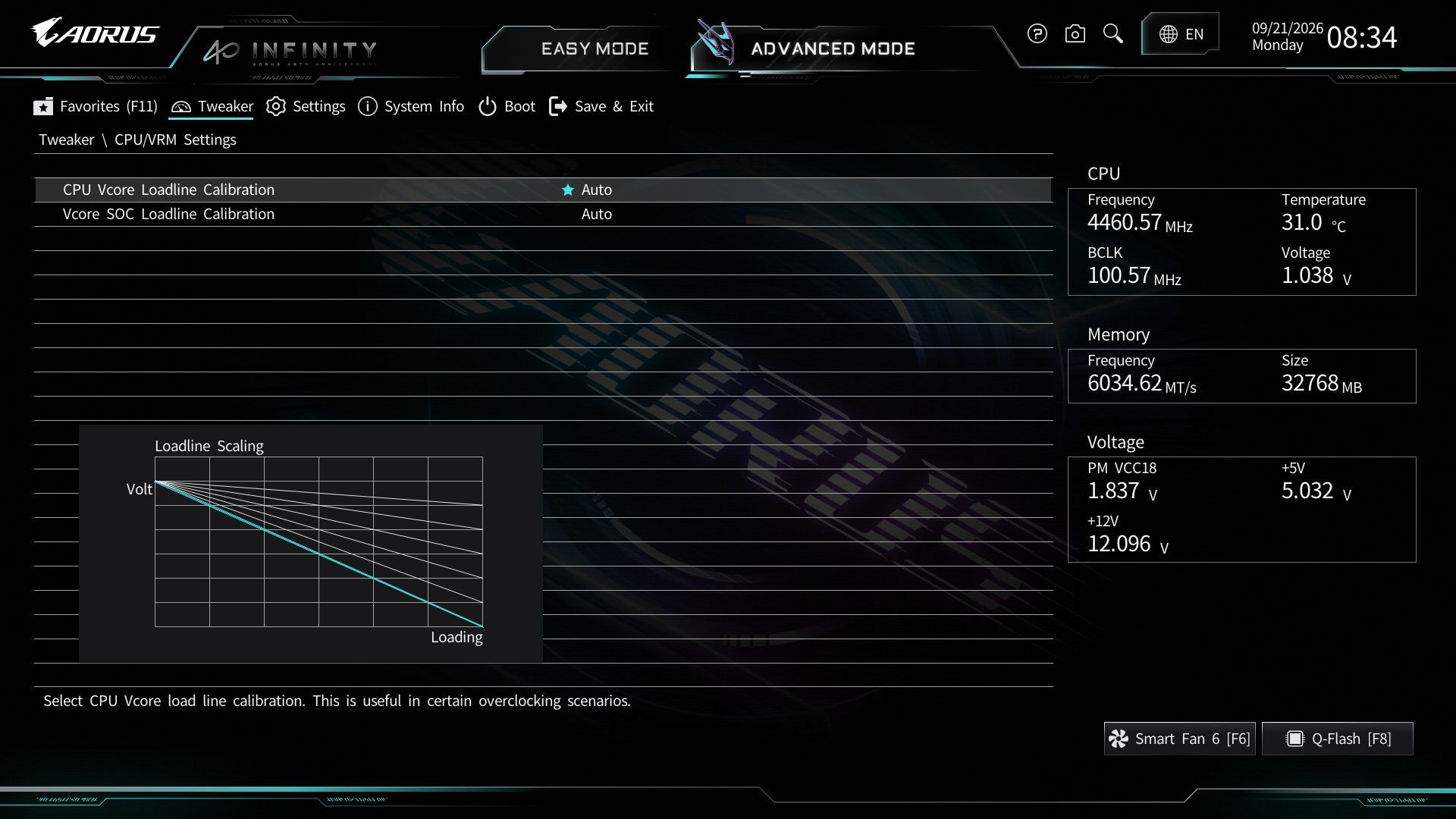
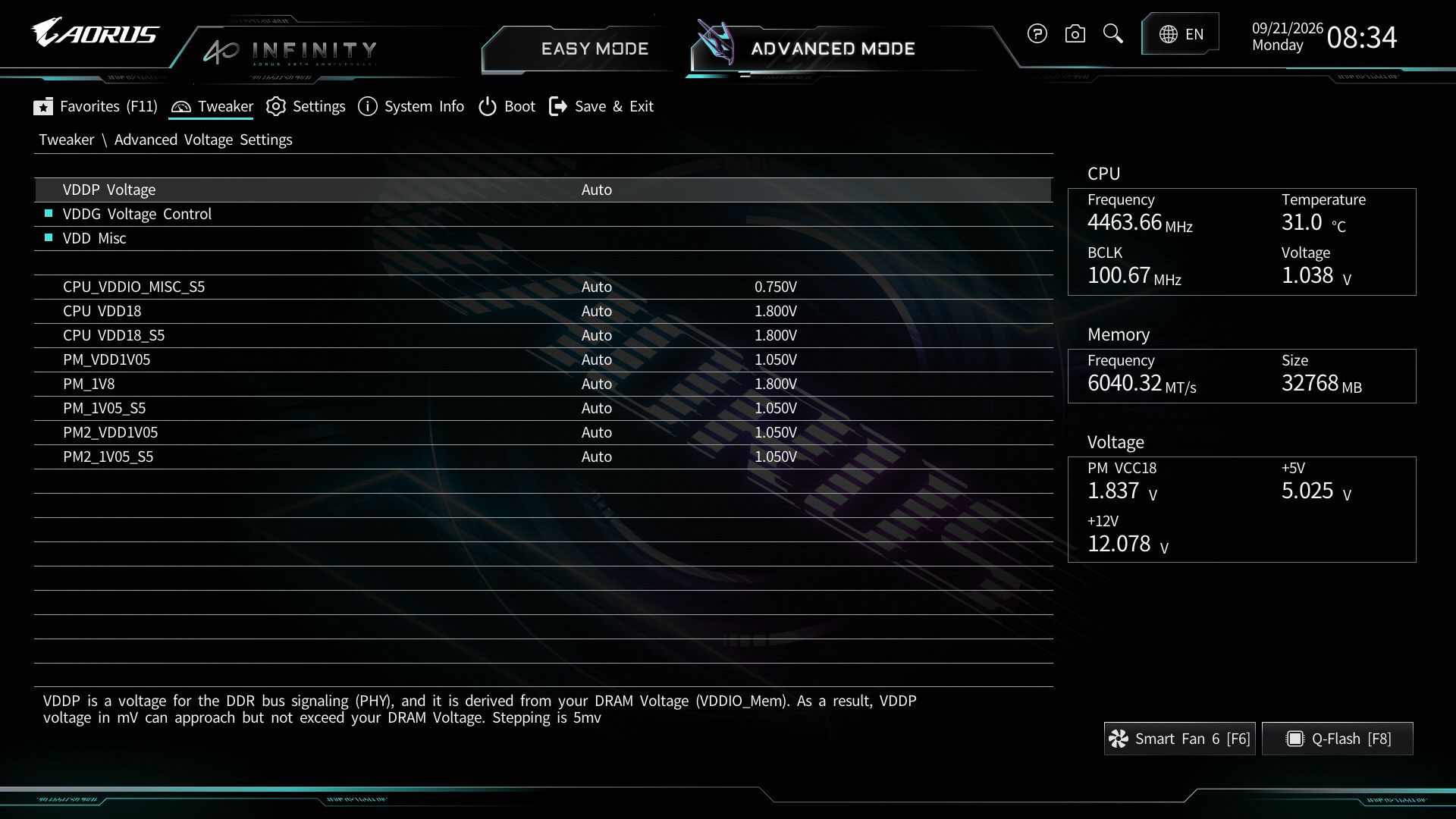
MSI MAG 272QP QD-OLED X24: was $499 now $359.99
Get the MSI MAF 272QP QD-OLED X24 monitor for the low price of $359.99 saving almost $150. You get a high quality QD-OLED panel with 240Hz refresh rate, OLED care tools, wide color gamut, and that tear free gaming with G-Sync and FreeSync Premium supportView Deal

While a 4K QD-OLED for under $360 is an incredible deal right now, other features make it really useful for gaming. Functions like crosshair mode, which displays one of several crosshair styles on the screen regardless of background color, help with your aim/centering. A really useful feature for FPS games in particular, where point-and-click in the center is key.

It’s also AMD FreeSync and Nvidia G-Sync compatible (officially on Nvidia’s list!), which eliminates screen tearing by syncing your GPU's output with the monitor’s refresh rate. As far as connectivity goes, it has the usual suspects: two HDMI (2.1) ports, one DisplayPort (1.4a), and a USB Type-C (DP alt.), so you can connect this monitor to other items outside of your PC, including your laptop, handheld, a console (it even has a Console Mode that optimizes for gaming consoles such as the PS5 and Xbox Series X|S).

If you’re in the market for a new 4K OLED monitor, you won’t find any with these specifications for less right now. I can tell you from personal experience (I own the 32” 4K version of this monitor) that the colors are awesome, blacks are true black, and ghosting in high-action games is non-existent. Priced at $359.99 with promo code SSF73849, the 272QP QD-OLED X24 deal won’t be around for long. So if you’re thinking about moving up to 1440P OLED monitor, you’ll want to jump on this deal while you can.

Upgrade your gaming experience with this 27-inch Acer 1440p 270Hz panel that’s an incredible 45% off

作者 Joe Shields
2026年9月23日 19:45

While RAM, video cards, and storage have become the most expensive parts of a PC build or upgrade, monitors haven’t really flinched price-wise. They can still offer a tangible upgrade, whether for gaming or productivity, for your PC. After all, you are staring at it the entire time you use your PC. Acer is currently offering an incredible deal on the Nitro (XV270U). Just $179 (a whopping 45%/$150 off the $239.99 MSRP) buys a 27-inch 2560x1440 IPS panel with a wicked-fast 270 Hz refresh rate without breaking the bank.

This IPS panel uses a matte anti-glare surface and supports up to 99% sRGB, making it suitable for a wide range of tasks, specifically gaming, entertainment, and basic creative work. It also supports brightness up to 250 cd/m², a 1ms (MPRT) response time, wide 178-degree viewing angles, and Acer VisionCare, a suite of technologies to reduce eye strain, headaches, and fatigue, including BlueLightShield, flicker-less technology, and a low-dimming feature for a more comfortable viewing experience during prolonged use. It also supports AMD FreeSync Premium technology to help prevent screen tearing and stuttering for a better visual experience.
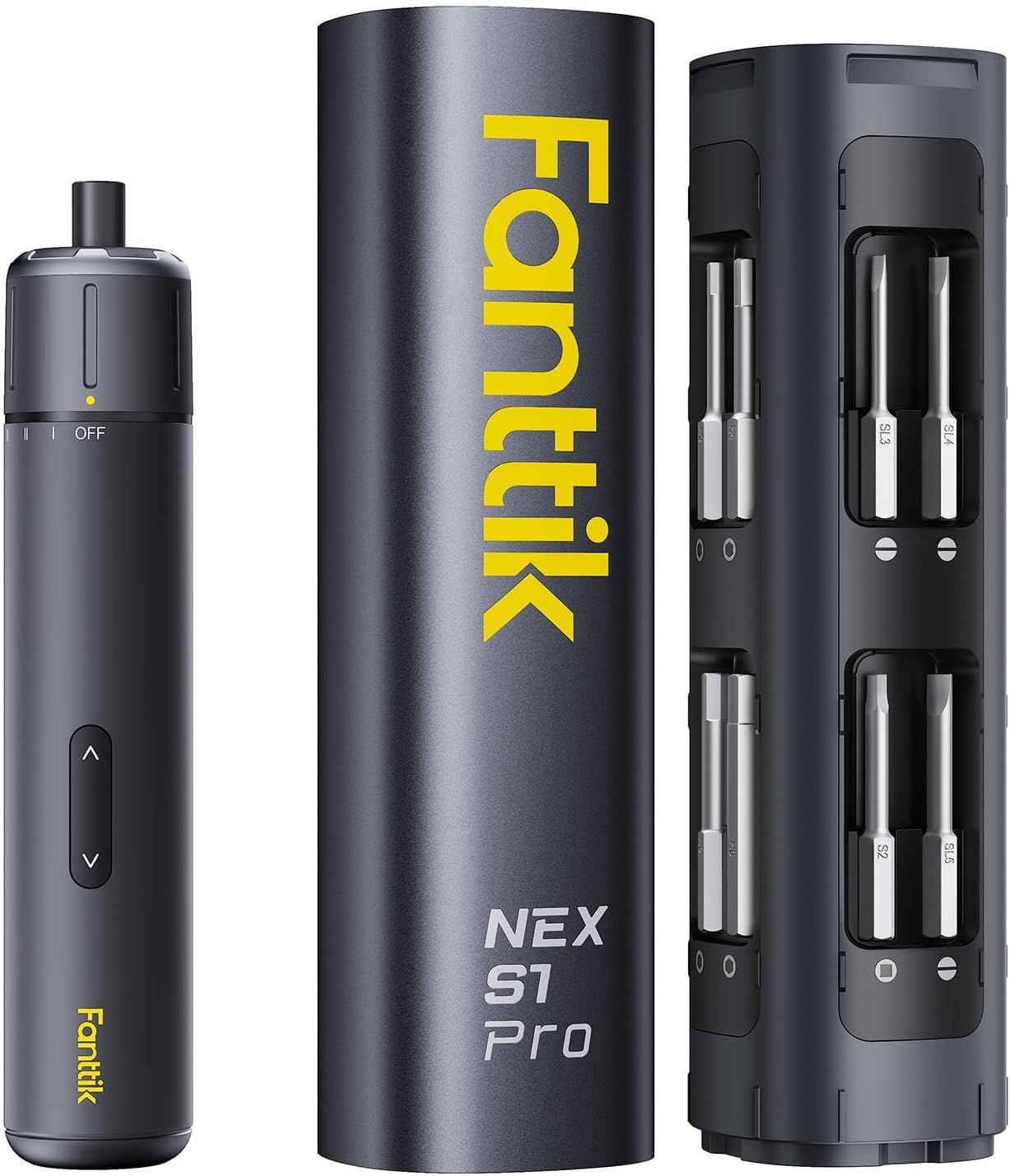
Nitro XV270U Z1BMIIPRX: was $329.99 now $179.77
Snag an incredible deal on a 27-inch 270Hz IPS panel from Acer. The XV270U offers users a wide color gamut (99% sRGB), 250 cd/m brightness, and supports AMD FreeSync Premium to prevent screen tearing.View Deal
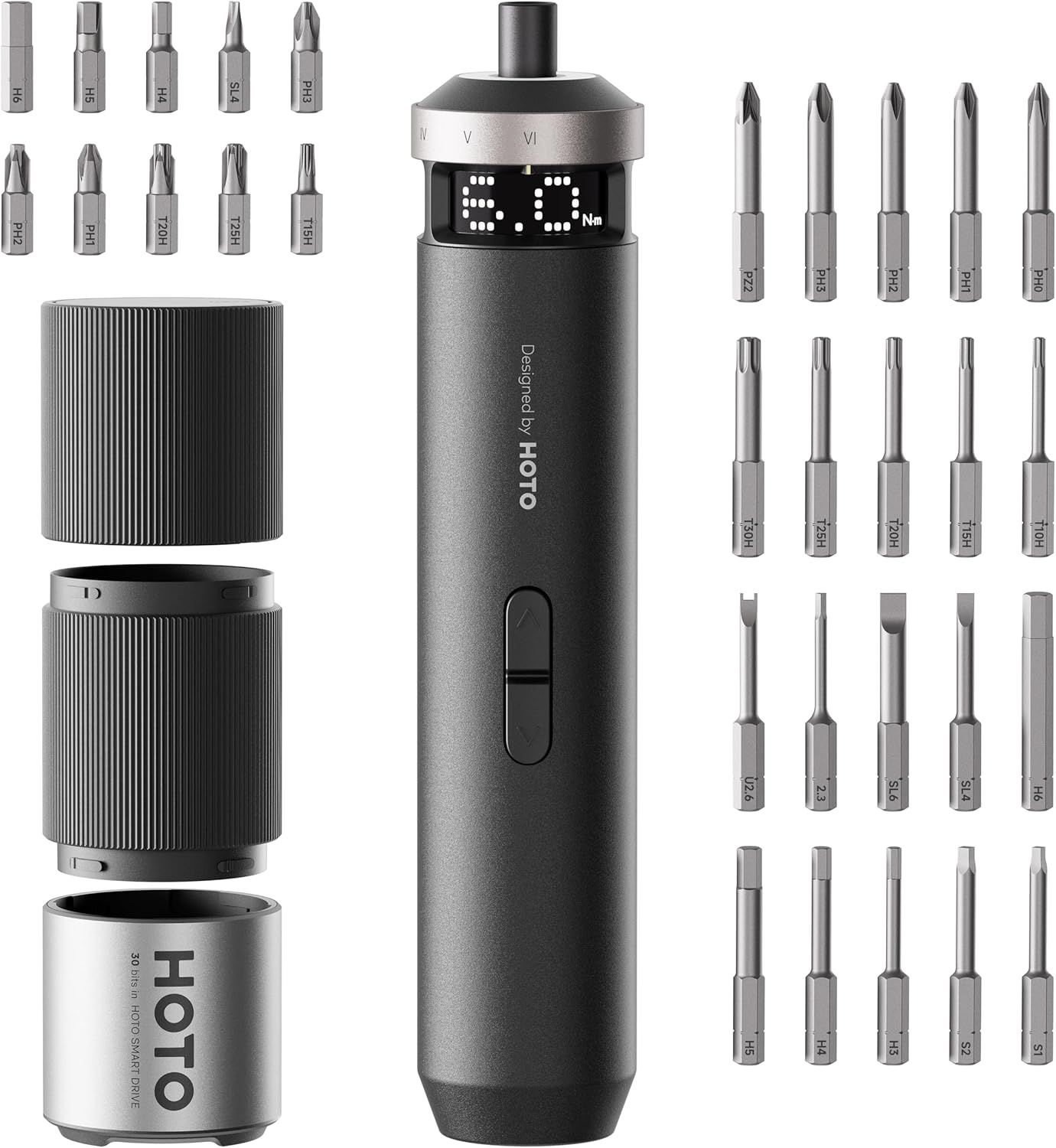
The monitor features a thin bezel on three edges for a cleaner look; however, it's not an ultra-thin bezel, so it may not be ideal for a surround setup. It comes with a stand that offers tilt adjustment from +25 degrees to -5 degrees, plus ~30mm of vertical height adjustment, and you can mount it on the wall using the standard 100x100mm VESA mounting holes on the back. As for I/O, the XV270U offers the standard fare of two HDMI (v2.0) and one DisplayPort (v1.4), which supports the panel’s specifications. It also has a single 3.5mm headphone out and two integrated speakers (2W x2).
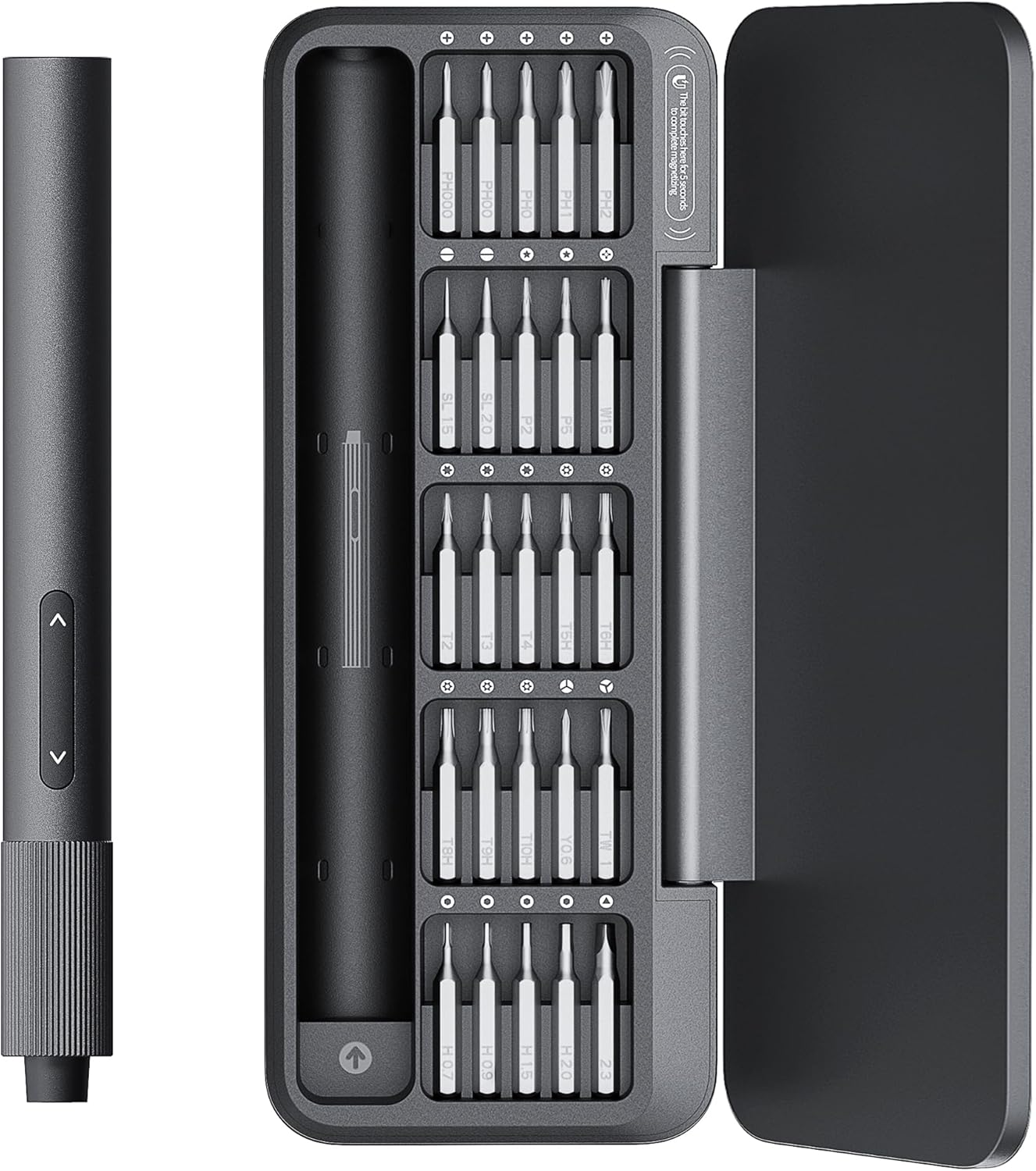
If you’re in the market for a new gaming monitor, or even a secondary monitor, and just don’t have the cash for a much more expensive 4K OLED (which, chances are, also requires a potentially prohibitively expensive video card upgrade), you can still reap the benefits of a more pixel-dense, high-refresh-rate display. Acer’s XV270U is only $179, an incredible 45% off, and while it’s not at an all-time low, it is the cheapest it’s been in several months. It's a great deal for a 27-inch, 1440p, 270 Hz, FreeSync Premium-capable IPS panel.

This 32GB Corsair Vengeance DDR5-6000 memory is the cheapest kit available

作者 Joe Shields
2026年9月23日 18:45

RAM prices are still out of whack and will be for the foreseeable future. Combo deals certainly help to bring this outlandish pricing down to something reasonable for the time being. This gray Corsair Vengeance DDR5-6000 kit is now $439 with promo code SSF73844 and is the cheapest standalone kit we could find right now matching our white 32GB V-Color Manta XSky kit we found earlier this week for less, but that’s now the same price.

Deals like this, and the combos when active, are by far the best way to buy new RAM in the ongoing RAMpocalypse. Sadly, the days when you can get 64GB of DDR5-6400 RAM for around $225 (what I paid for a G.Skill Trident Z Royale kit in April 2025) are over, and you’re left with what we have now…the best prices in an extremely expensive market.

As for this specific Corsair Vengeance kit, it’s a great option for any build, performance-wise. The DDR5-6000 speed sits squarely in AMD’s sweet spot for price-to-performance and is much faster than older DDR4 modules. Sadly, we didn’t review this specific kit, but below are performance numbers from a similar DDR5-6000 CL38 kit from Team Group (Vulcan CL38 kit) that show how well it performs in our CPU test suite.

32GB Vengeance DDR5-6000 CL38: was $524.99 now $439.99
Save big on this 32GB (2x16GB) Corsair Vengeance DDR5-6000 CL38 kit in gray and get your new system, or upgraded RAM moving for less.View Deal

DDR5-6000 performance chart

(Image credit: Future)

The Corsair Vengeance kit comes in gray without RGB lighting and includes two DDR5-6000 modules with CL38-48-48-96 timings at 1.35V. Though the timings are a bit higher than we’d like to see, they'll work well for any use case, from gaming to workstation productivity, and you’ll get the most out of your system at these speeds, especially on the AM5 platform. If you were considering this kit for an Intel system, it will also work well, but is a bit on the slower side for the platform.

While $439 for 32GB of Corsair Vengeance DDR5-6000 RAM (read: any RAM) makes most of us shudder in disappointment these days, considering what RAM prices were in early 2025, it is one of the best deals available for 32GB DDR5-6000 in gray/black. If you’re in the market to start a DDR5-based build or upgrade what you have and need it soon, I wouldn’t pass up this Newegg deal.

Gaming PC with RTX 5060, 32GB of RAM, and 1TB of storage gets $500 discount

作者 Joe Shields
2026年9月22日 19:30

Bundle deals are often the best way to sidestep today's inflated pricing of memory, SSDs, and GPUs. However, a well-configured prebuilt can be even more compelling, offering compatible components and the convenience of a fully assembled system out-of-the-box. One such prebuilt is the ABS Cyclone Aqua that is currently listed on Newegg for $1,299.99, down from its original price of $1,699.99, resulting in savings of $400. Customers can get an additional $100 discount using the promo code SSF73826 during checkout, bringing the final cost down to $1,199.99 for the Cyclone Aqua and an overall saving of $500.

The ABS Cyclone Aqua gaming PC features hardware suitable for modern AAA gaming at 1080p. It is powered by an Intel Core i7-14700F, which is a solid 20-core (8 P-cores + 12 E-cores) processor with 28 threads and boost clock speeds of up to 5.4 GHz. The CPU is paired with an ASRock B760M-C/D4 motherboard with 32GB (2 x 16GB) of DDR4 3200 MT/s memory from G.Skill (Ripjaws V). The motherboard also comes with onboard Wi-Fi 6 and Bluetooth. For storage, the system includes a 1TB Patriot P410 M.2 2280 PCIe 4.0 SSD offering read speeds of up to 5,000 MB/s and write speeds of up to 4,500 MB/s.

Cyclone Aqua Gaming PC: was $1699.99 now $1199.99
Grab this prebuilt gaming PC for a discounted price of $1,299.99. Make sure to use promo code SSF73826 during checkout to get an additional $100 off.View Deal

Graphics duties are handled by the Zotac Gaming RTX 5060 Solo with 8GB VRAM, which is essentially Nvidia’s latest entry-level 1080p card. While it may not be ideal for high-end AAA gaming, it's good enough for less demanding titles, especially if you are into competitive FPS shooters. The rest of the features include a Cooler Master Hyper 212 CPU air cooler, a 650W 80+ Gold power supply unit, and a decent ABS Cyclone Micro ATX mid-tower case with a glass side panel, as well as two 120mm ARGB fans at the front and one at the rear.

If you've been holding off on a new gaming PC due to high component prices, this deal at $1,199.99 is definitely worth your attention. Considering that sourcing comparable components individually would likely push the total cost beyond $1,500, this prebuilt offers excellent value for the money.

This $299 2TB MSI SSD is one of the least expensive PCIe 4.0 SSDs you can buy right now

作者 Joe Shields
2026年9月22日 18:48

Component prices have been through the roof for far too long because of the AI apocalypse, with RAM, video cards, and storage among the biggest increases. And while the prices are nowhere near what they were just a scant year and a half ago, we are seeing some deals that are good for the times. For example, Newegg has a great price on the budget-friendly MSI Spatium M461 2TB PCIe 4.0 SSD for only $299.99, or 10 cents per GB, after the promo code (SSD73852). This mid-range SSD is one of the least expensive name-brand drives available.

While this isn’t the fastest PCIe 4.0 SSD, it’s exponentially faster than your average HDD and SATA-based SSD, with solid all-around performance for random and sequential reads and writes. The M461 uses a PCIe Gen 4x4 (64 Gbps) backbone, the NVMe 1.4 standard interface, and a Phison E21T controller with 3D NAND flash. This lets the 2TB MSI Spatium reach speeds of 5,000/4,200 MBps reads/writes, which is plenty fast for game storage or even an OS drive, and a notable upgrade over old storage technology and PCIe 3.0 drives.

2TB Spatium M461: was $359.99 now $299.99
Save big on this budget-friendly 2TB MSI Spatium M461 SSD. At under $200 using promo code SSF73852, it's one of the best deals on a PCIe 4x4 drive going today.View Deal

MSI backs the M461 with a long five-year warranty and 900 TBW, which should be plenty of write cycles for the average user. You’ll likely reach the five-year time limit before you blow through 900 TB of writes. The Spatium also includes built-in data security and error correction capabilities, standard for this type of drive.

If you’re in the market for more NVMe-based storage, the 2TB MSI Spatium M461 for only $199 (with promo code SSF73852) is an excellent deal, since it’s one of the least expensive name-brand Gen 4x4 drives available on the market at only 10 cents per GB.

Snag the least expensive 32GB DDR5-6000 memory kit available for only $429

作者 Joe Shields
2026年9月21日 21:30

RAM prices have been out of this world for nearly a year, with some 32GB kits frequently breaking $500. The only real relief we had came from RAM combo deals, where you get a motherboard, processor, and RAM at a discount. While that well has seemingly run dry, at least for the moment, we did find a solid deal for the times on a 32GB V-Color Manta XSky DDR5-6000 kit for $429 when using promo code TEF366 at Newegg, making it the least expensive DDR5-6000 CL30 kit around (by ~$70) at Newegg.

Deals like this, and the combos when active, are by far the best way to buy new RAM in the ongoing RAMpocalypse. Gone are the days when you can get 64GB of DDR5-6400 RAM for $225 (what I paid for a G.Skill Trident Z Royale kit in April 2025), and you’re left with what we have now…the best prices in an extremely difficult market.

As for this specific kit, it’s a great option for any build, performance-wise. The DDR5-6000 speed isn’t the fastest kit out there, but it does sit squarely in AMD’s sweet spot for price-to-performance and is much faster than older DDR4 modules. Sadly, we didn’t review this specific kit, but below are performance numbers from a similar DDR5-6000 CL30 kit from Team Group that show how well that speed and timings perform in our CPU test suite.

Manta XSky 32GB DDR5-6000 CL30 (White): was $479.99 now $429.99
Upgrade to DDR5 with the least expensive DDR5-6000 CL30 kit we can find in the V-Color Manta XSky (white) RAM kit. Use promo code TEF366 to take $40 off the listed $469.99 price.View Deal

DDR5-6000 chart

(Image credit: Future)

The Manta XSky kit includes two white DDR5-6000 modules with CL30-38-38-96 timings at 1.35V. These speeds and timings work well for any use case, from gaming to workstation productivity, and you’ll get the most out of your system at these speeds, especially on the AM5 platform. If you were considering this kit for an Intel system, it will also work well. A frosted RGB light bar across the top of the sticks adds some bling to your chassis. If you need a black kit, V-Color has its Manta XFinity DDR5-6000 CL30 kit for only $439 using promo code TEF364.

While $429 with promo code TEF366 for a 32GB set of RAM makes me want to cry (considering I bought 64GB for about half of this price in early 2025), it’s one of the best deals available. As a matter of fact, it is the least expensive DDR5-6000 CL30 available at Newegg or Amazon, and it doesn’t force you to choose between reasonable timings/speeds and price/performance. If you’re in the market to start a DDR5-based build or upgrade what you have, I wouldn’t pass this Newegg deal up.

Improve your gaming experience with this 27-inch ASRock FHD 180Hz gaming monitor that’s at an all-time low of just $96

作者 Joe Shields
2026年9月21日 19:01

The RAMapocalypse, which has been in effect for almost a year now, has sadly cleared out most of the RAM, storage, and video card deals we’ve clung to in hopes of finding some sanity amid these outlandish prices. And while we wait for prices on those components to come back down to earth, you can still find good deals on other items. For example, this ASRock Phantom Gaming (PG27FFT1B) 27-inch 1920x1080 180Hz gaming monitor, on sale for only $96, is a worthwhile upgrade for anyone still using a smaller or lower-refresh-rate monitor and who wants to jump into high-refresh-rate gaming, or maybe even go surround, without breaking the bank.

The IPS panel uses an anti-glare surface and supports up to 94% DCI-P3 or 123% sRGB, making it suitable for a wide range of tasks, including gaming, entertainment, and standard creative work. It also supports brightness up to 450 cd/m² and the VESA DisplayHDR 400 standard, a 1ms (MPRT) response time, wide 178-degree viewing angles, and multiple technologies to reduce eye strain, including flicker-free and low blue light, for a more comfortable viewing experience. It also supports AMD FreeSync technology to help prevent screen tearing and stuttering for a better visual experience.

Phantom Gaming PG27FFT1B: was $159.99 now $96.77
All-time low price

Snag a solid deal on a 27-inch 180Hz IPS panel from ASRock. The PG27FFT1B offers users wide color gamut (94% DCI-P3), 450 cd/m brightness and HDR400 certification, as well as AMD FreeSync to prevent screen tearing.View Deal

The monitor features an ultra-thin bezel on three edges for a cleaner look, or, if you’re using multiple monitors, reduces the visual gaps between them for a seamless surround gaming experience. It comes with a stand that offers tilt adjustment from +23 degrees to -5 degrees so you can angle it just right on your desk (no vertical height adjustment), and you can mount it on the wall with the standard VESA mounting holes on the back. As for I/O, the PG27FF1T1B offers the standard fare of two HDMI (v2.0) and one DisplayPort (v1.2), which easily support the panel’s specifications. It also has a single 3.5mm headphone out and two integrated speakers (2W x2).

If you’re in the market for a new gaming monitor, or even a secondary monitor, and just don’t have the cash for a much more expensive 4K OLED (which, chances are, also requires a potentially prohibitively expensive video card upgrade), you can still reap the benefits of a high-refresh-rate display. ASRock’s Phantom Gaming PG27FFT1B is just $96, an incredible 40% off and at an all-time low, and is one of the best deals going on for a 27-inch, 1080p, 180 Hz IPS panel.

Get an AMD Ryzen 7 9800X3D for only $320 — 2-item Newegg combo saves $149 and nets one of the fastest gaming CPUs and a quality MSI X870E motherboard for only $578

作者 Joe Shields
2026年9月17日 19:28

If you’re in the market for an AM5 CPU and motherboard, Newegg has a solid 2-item combo to help. For just $578, you get the Ryzen 5 9800X3D, one of the fastest CPUs for gaming, and a quality MSI X870E Gaming Max Wifi motherboard. The $149 savings, when applied to the processor, make it the least expensive way, by far, to buy the popular CPU and jump into (or upgrade) the AM5 platform.

First, and the star of the show, is one of the most popular and fastest current-generation CPUs for gaming, the Ryzen 7 9800X3D. This 8-core/16-thread Zen5-based processor has a base clock of 4.6 GHz and a max boost of 5.2 GHz, which is plenty of speed for any task. The X3D variant's 96MB of L3 cache helps with gaming (among other things), making it one of the fastest gaming CPUs available. It is also a well-rounded performer that excels in games and suits most applications. This combo also includes a free Cooler Master Elite Liquid 240 AIO (a $80 value), which easily handles the 120W processor.

free CM elite liquid 240 AIO, AMD Game bundle

Ryzen 7 9800X3D, MSI MAG X870E Gaming Max Wifi: was $727.99 now $578.99
All-time low price

Snag a great deal on a AMD Ryzen 7 9800X3D in this 2-item Newegg combo. You get a quality MSI X870E motherboard with plenty of connectivity, and the star of the show one of the best gaming CPUs aroundView Deal

The combo includes the MSI MAG X870E Gaming Max Wifi motherboard, a solid mid-range refresh board with all the platform's latest features. You get fast networking with integrated Wi-Fi 7 (160MHz) and 5 GbE, DDR5 support up to 8200 MT/s, ample storage options with three M.2 sockets (one PCIe 5.0) and four SATA ports, and 10 USB ports on the rear I/O, including a fast 40 Gbps Type-C port. Plenty of connectivity. It also looks good with the black PCB and silver heatsinks and can blend into most build themes, as long as you don’t want a solid black or solid white aesthetic. I didn’t review this specific motherboard, but I do like most of MSI’s X870E offerings.

Best CPUs for Gaming
Tom's Hardware
Best CPUs for Gaming
Tom's Hardware
Best CPU for Gaming
Tom's Hardware

Newegg combos are getting scarcer lately. Where there were a few gems per week, there are now maybe one or two that are truly worthwhile, and this is one of them. For just $578, this combo nets you one of the best gaming processors around for only $320 (as cheap as we’ve seen it by far), a solid MSI X870E-based motherboard, and a couple of freebies with the Cooler Master AIO and AMD game bundle. If you're thinking about updating or buying a new AM5 rig and need the processor, I'd jump on this deal before it expires.

❌
❌