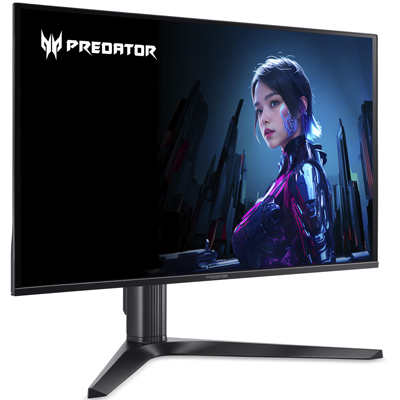
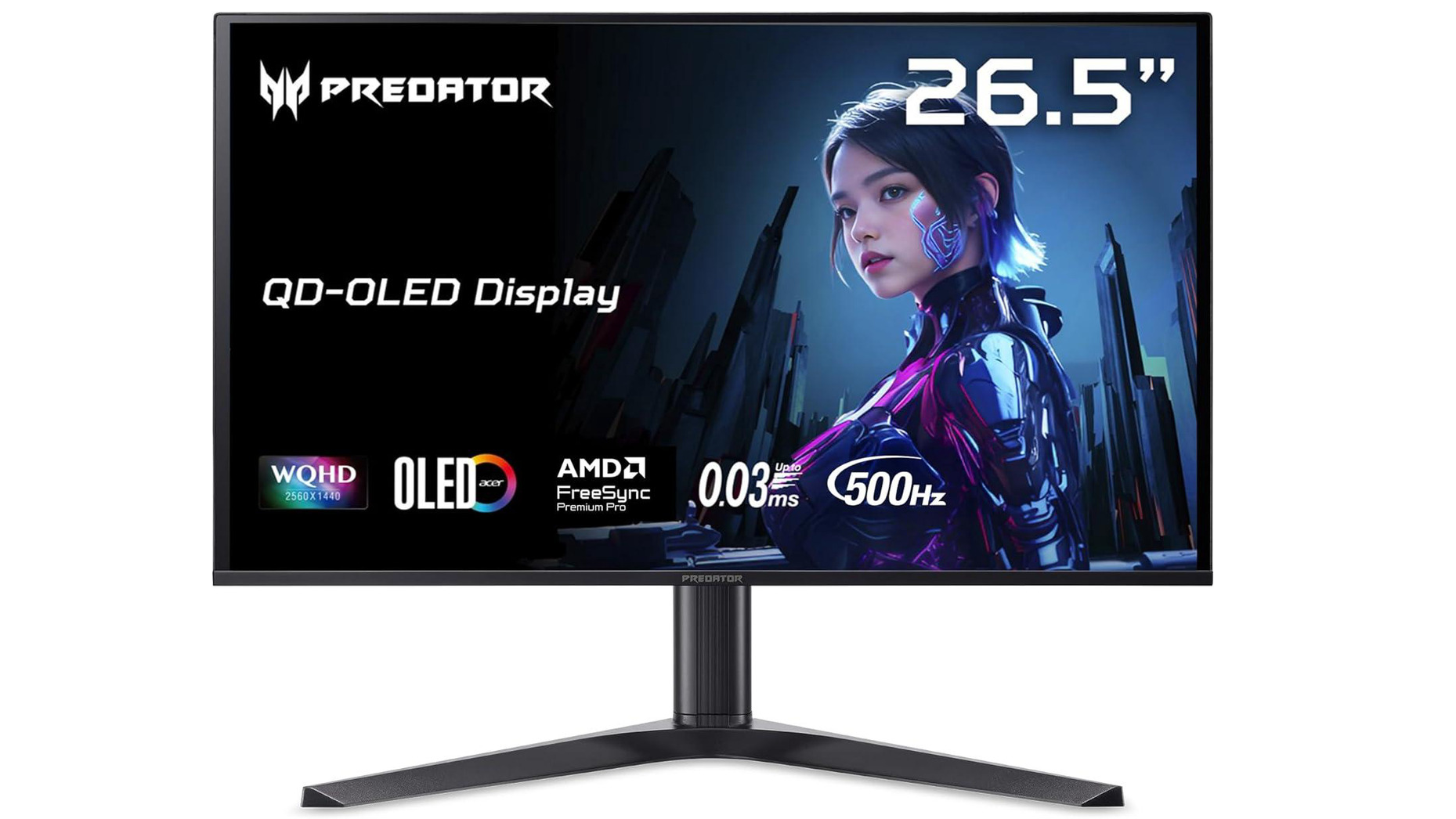
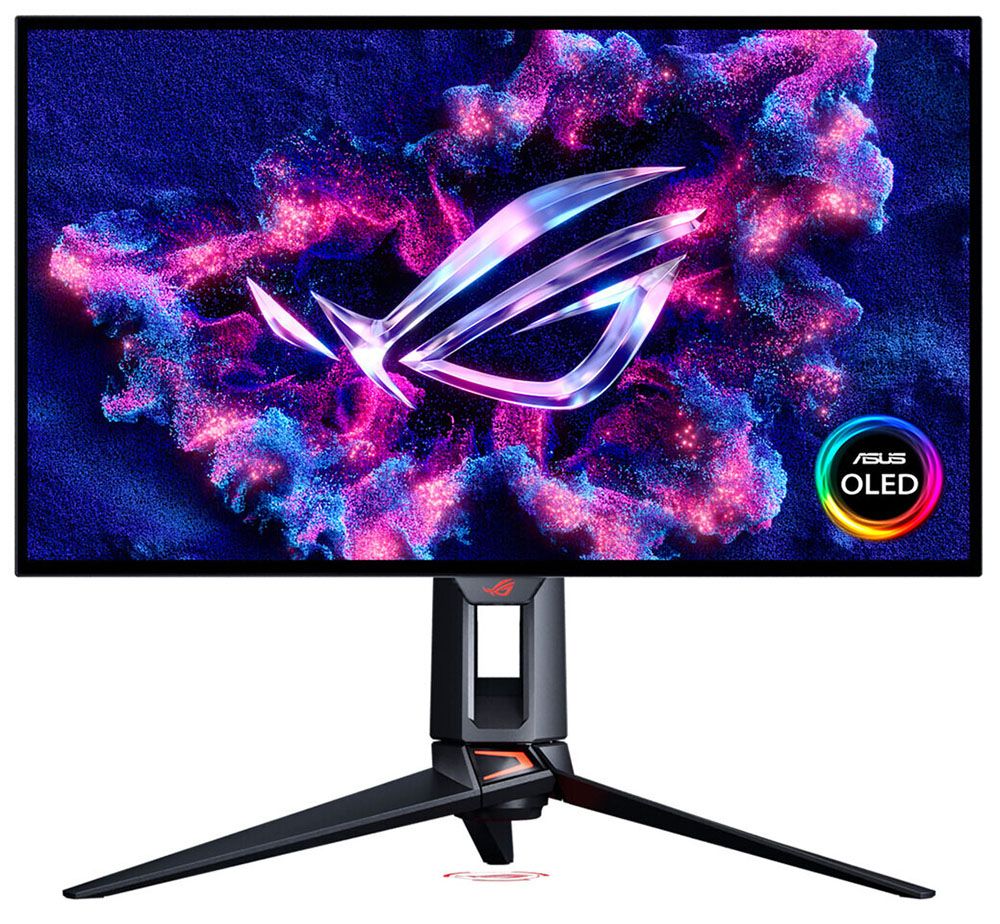
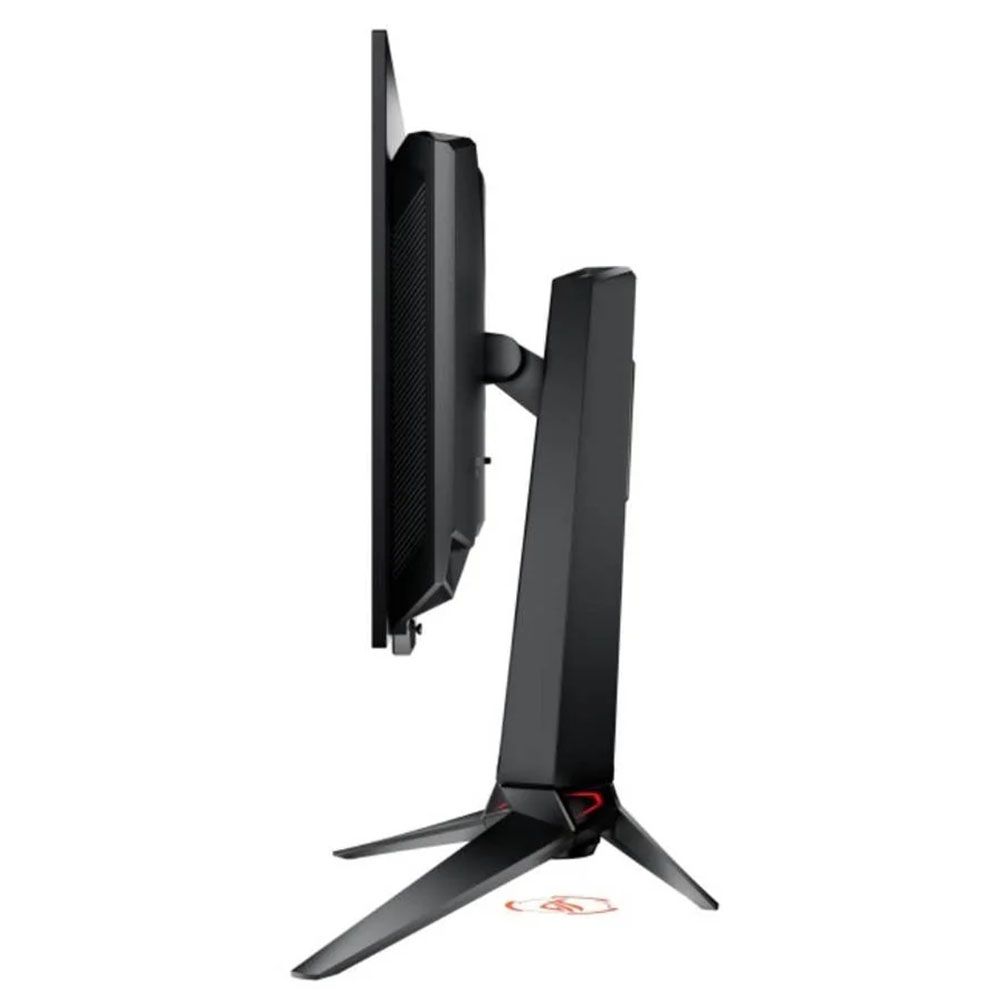
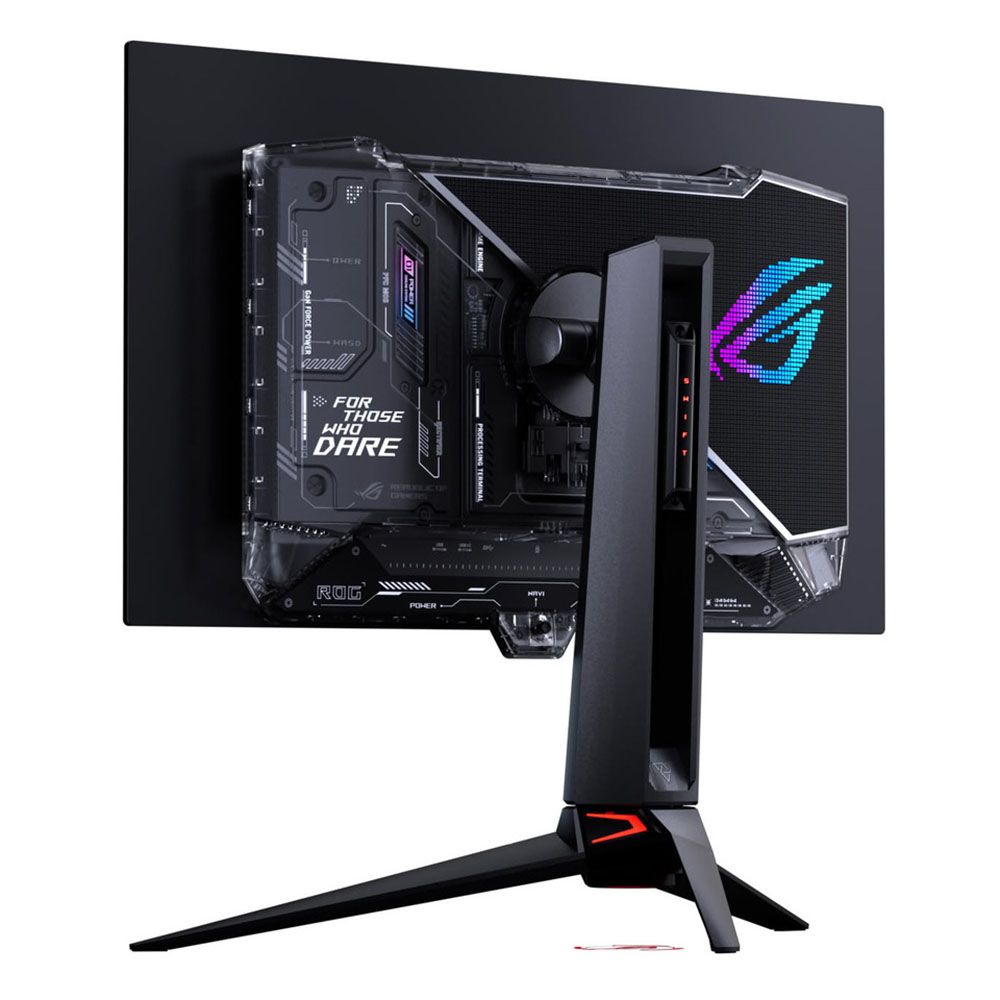
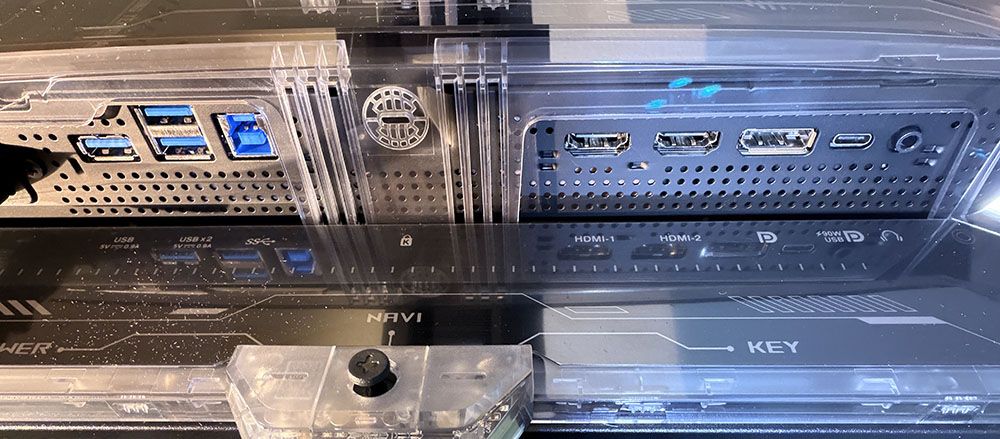
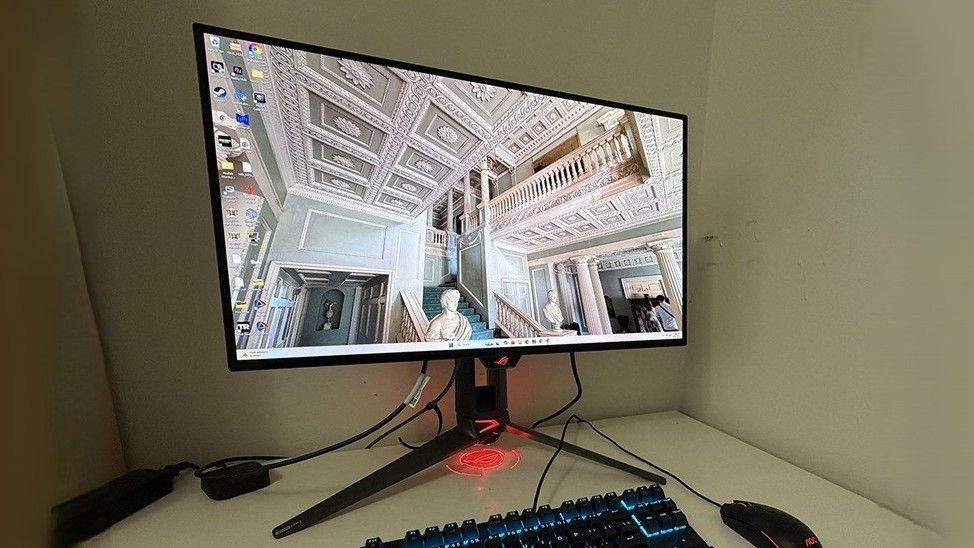
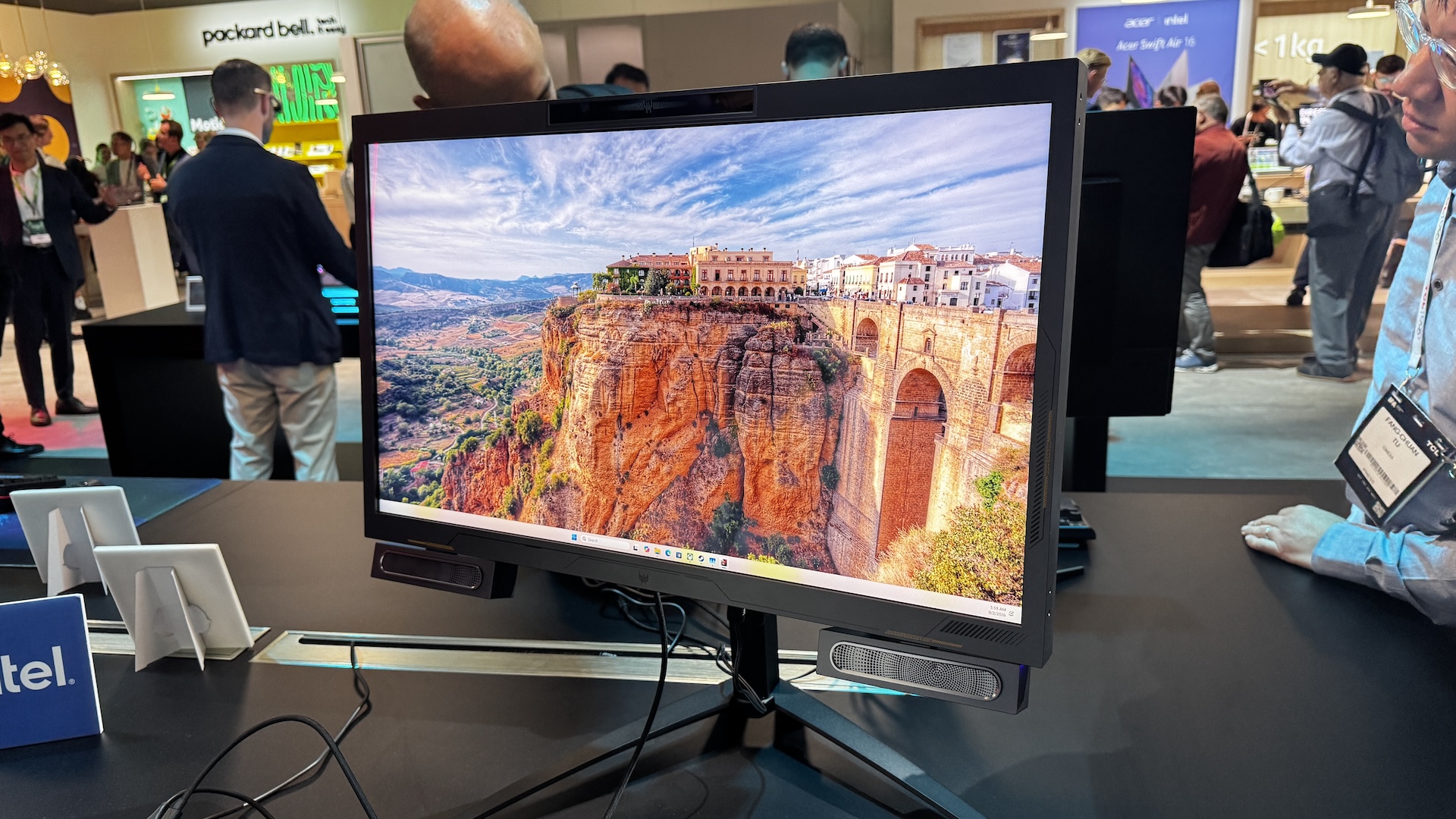
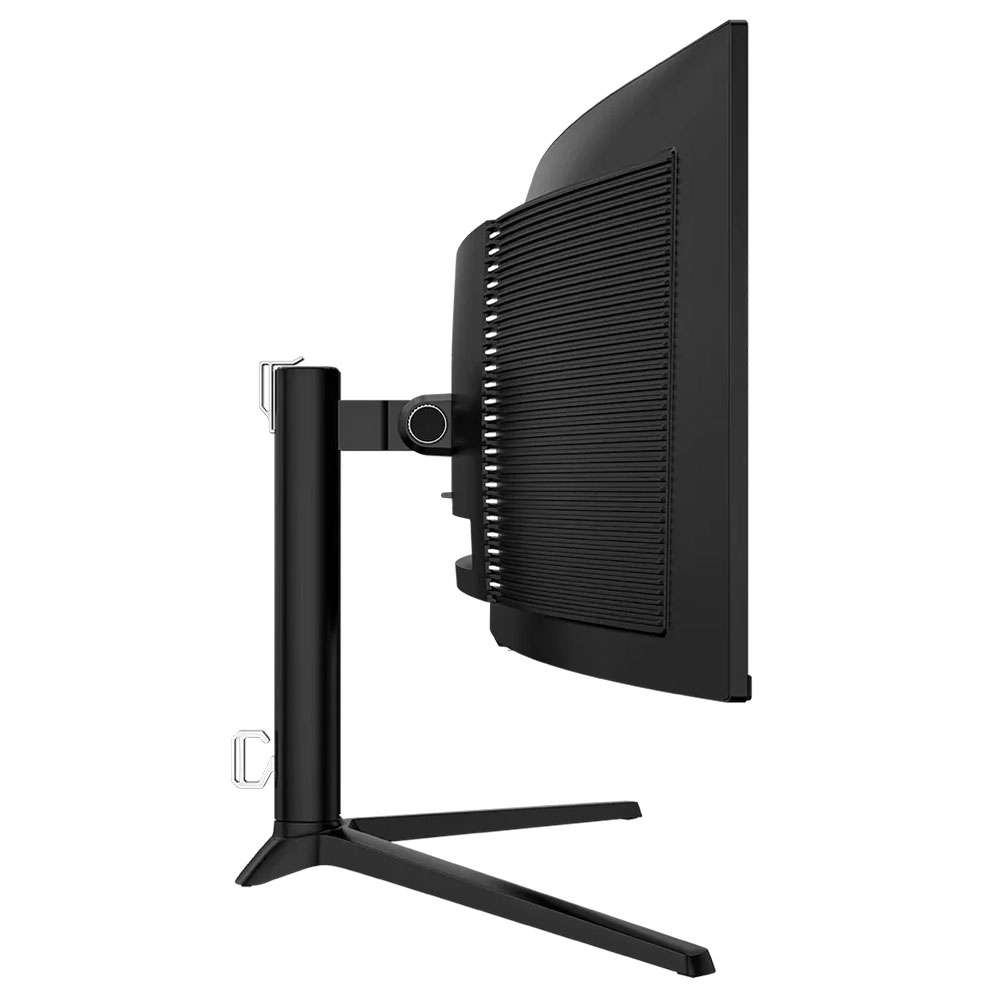
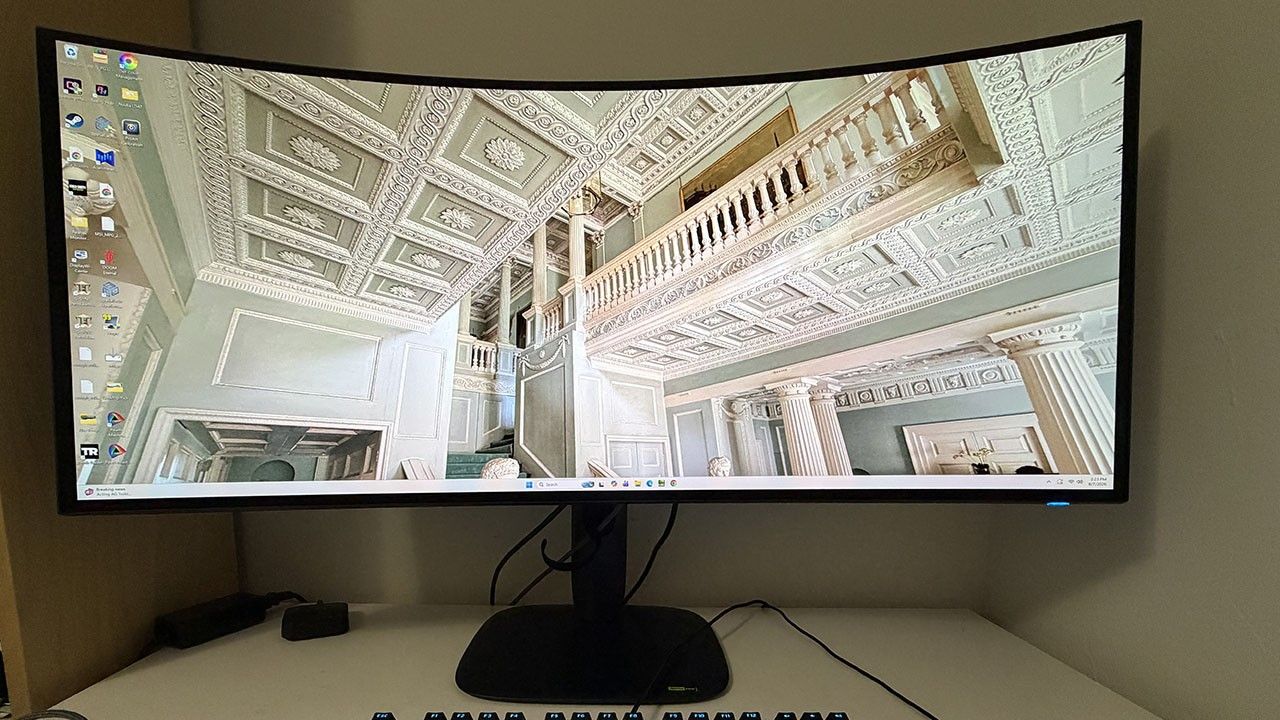
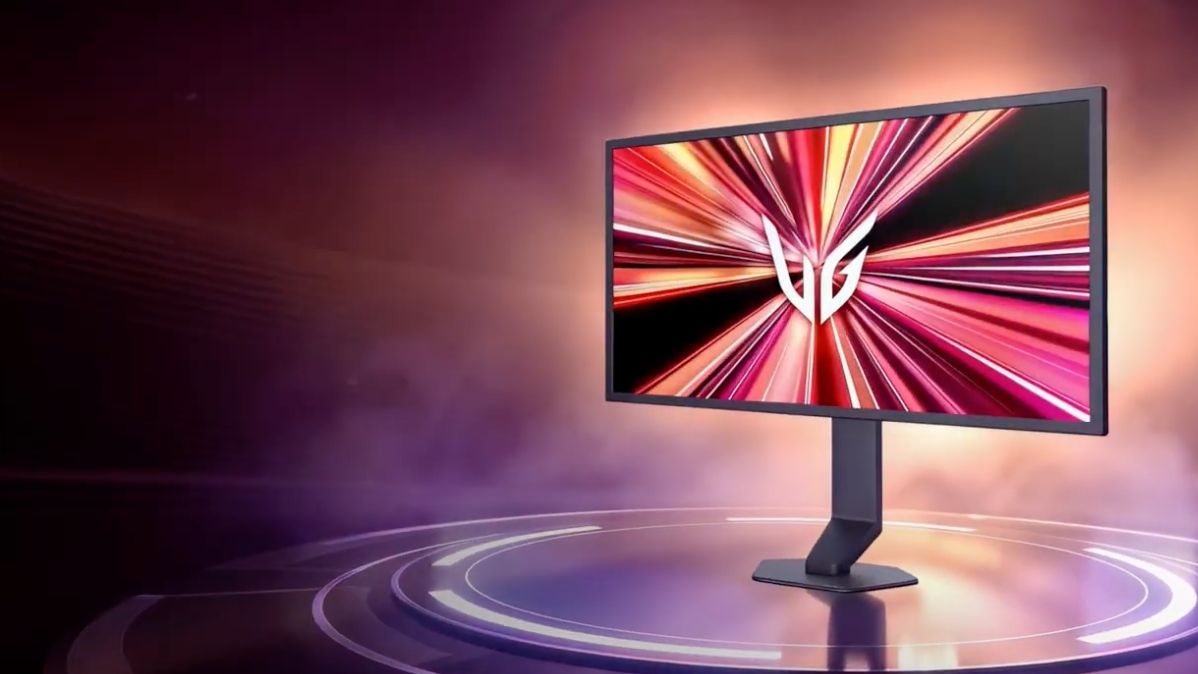
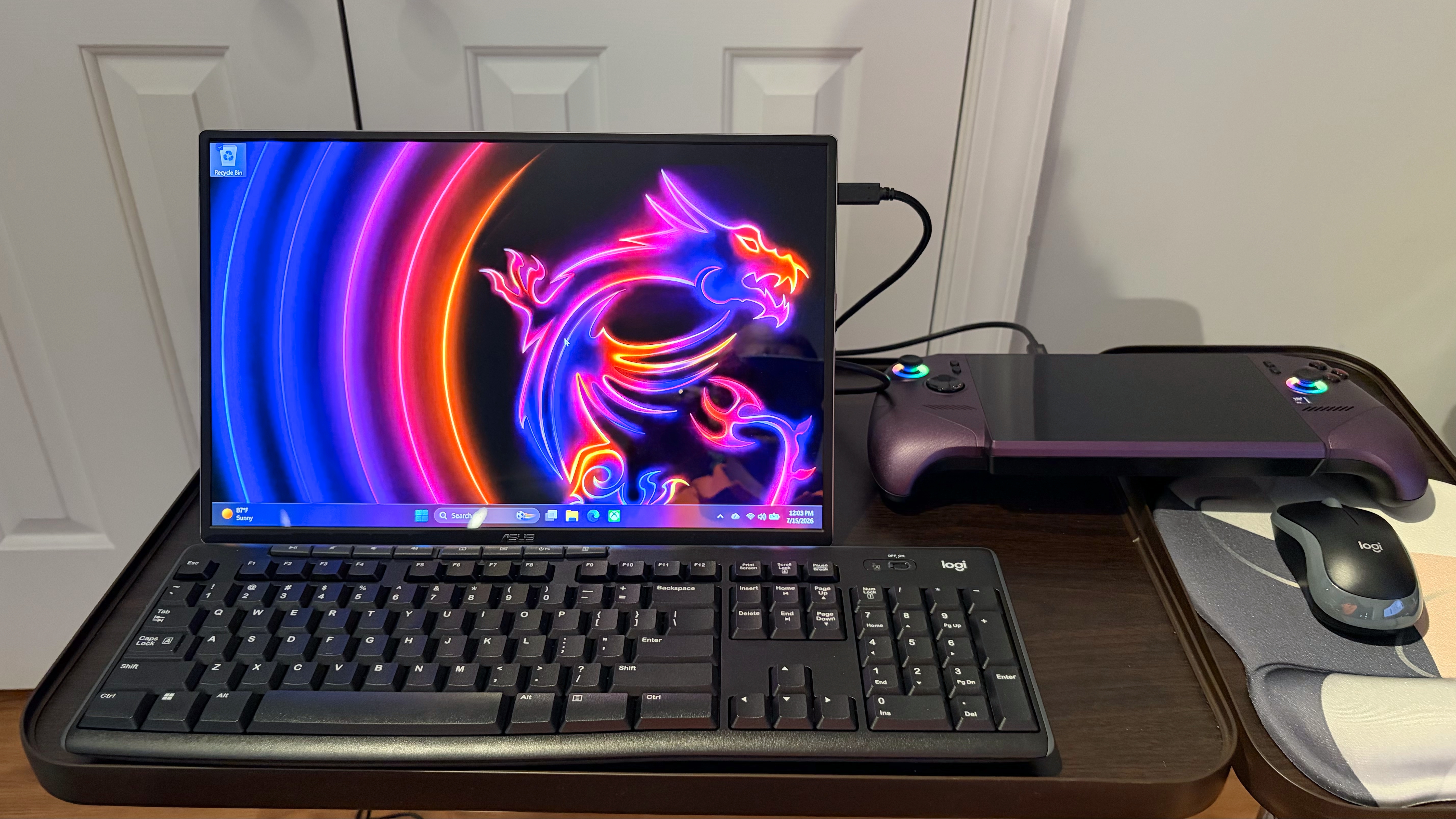
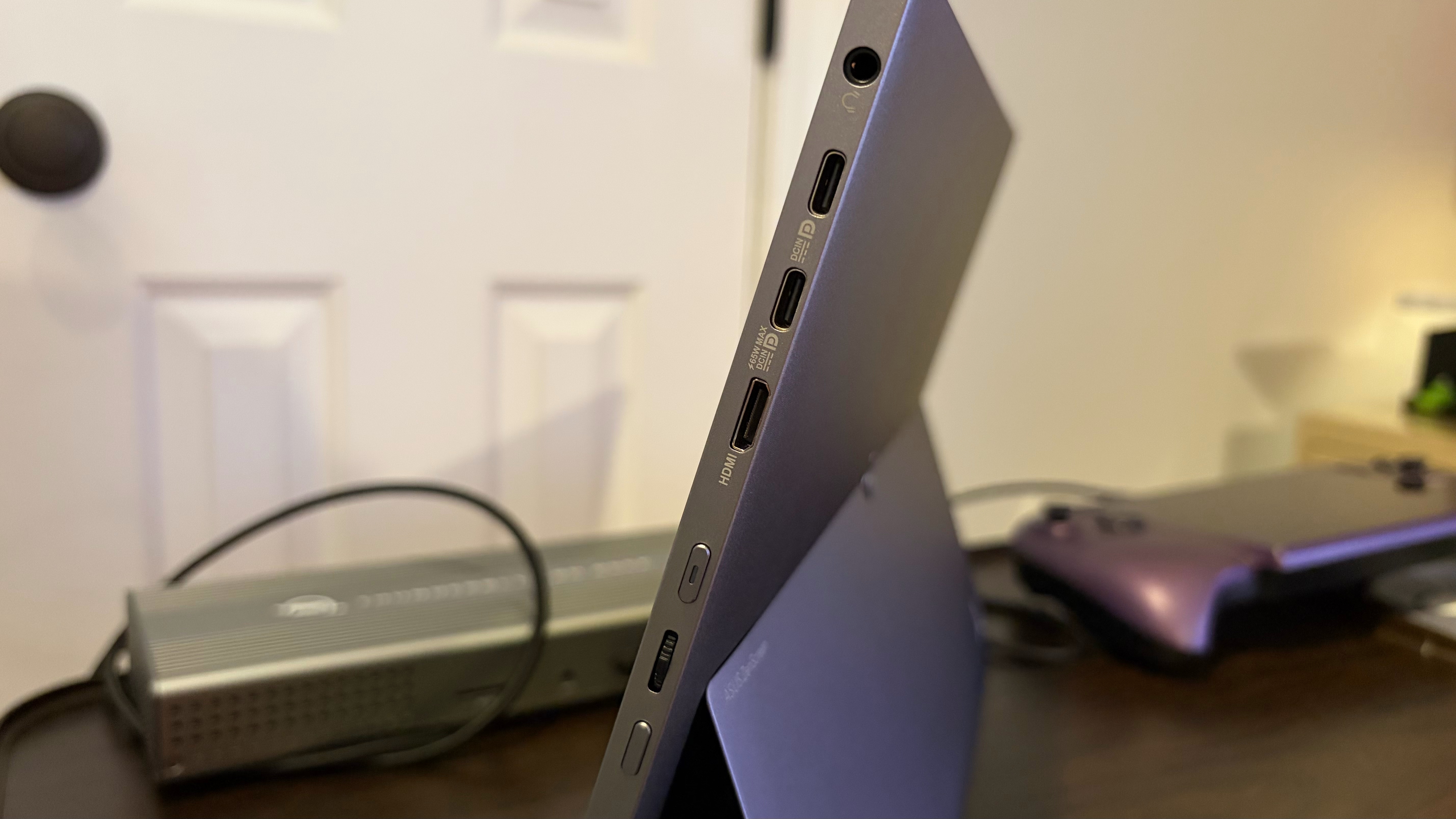
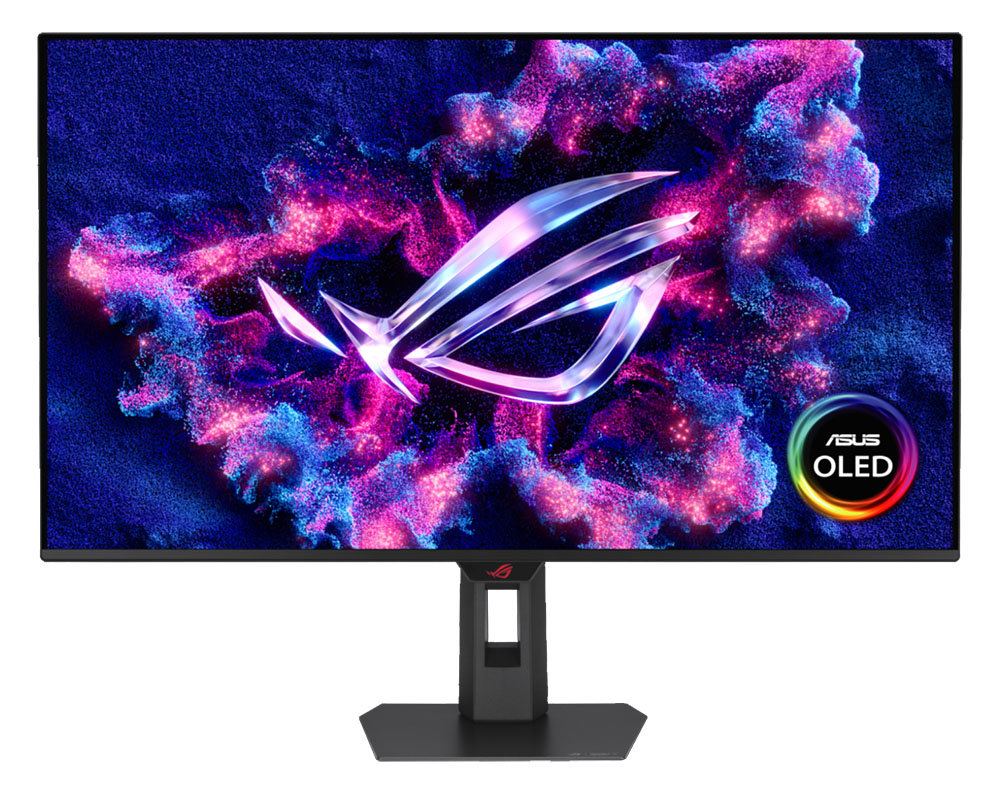
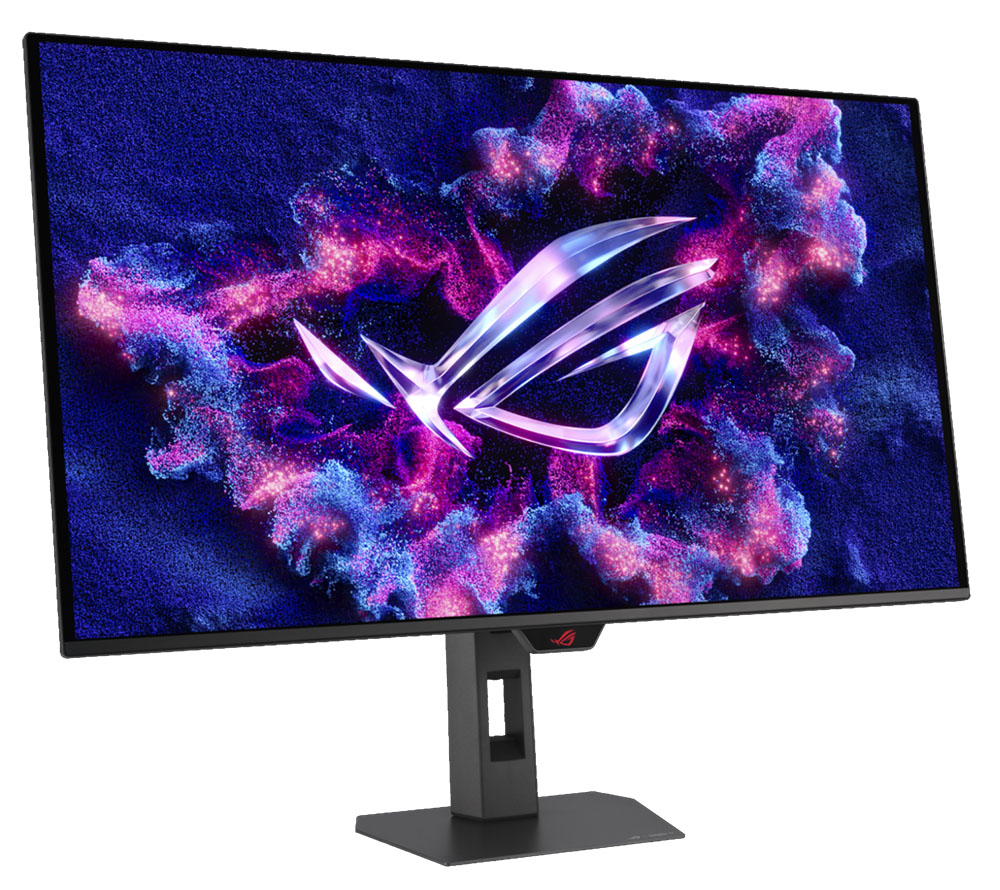
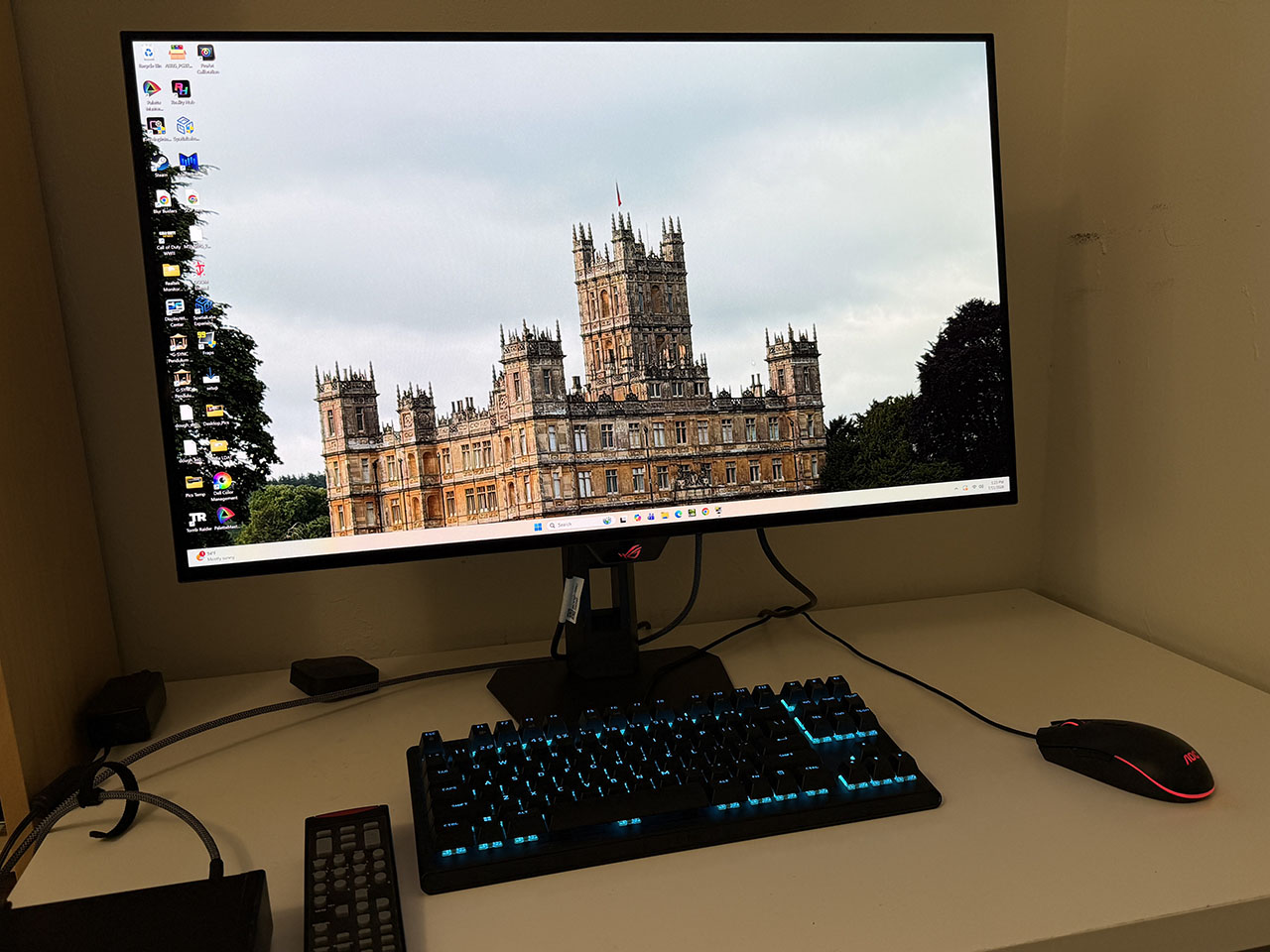
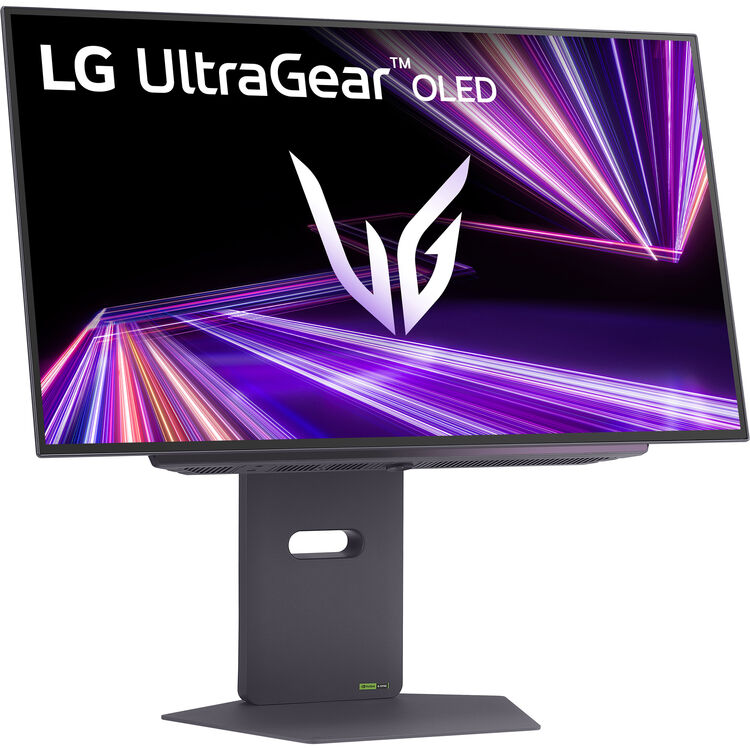
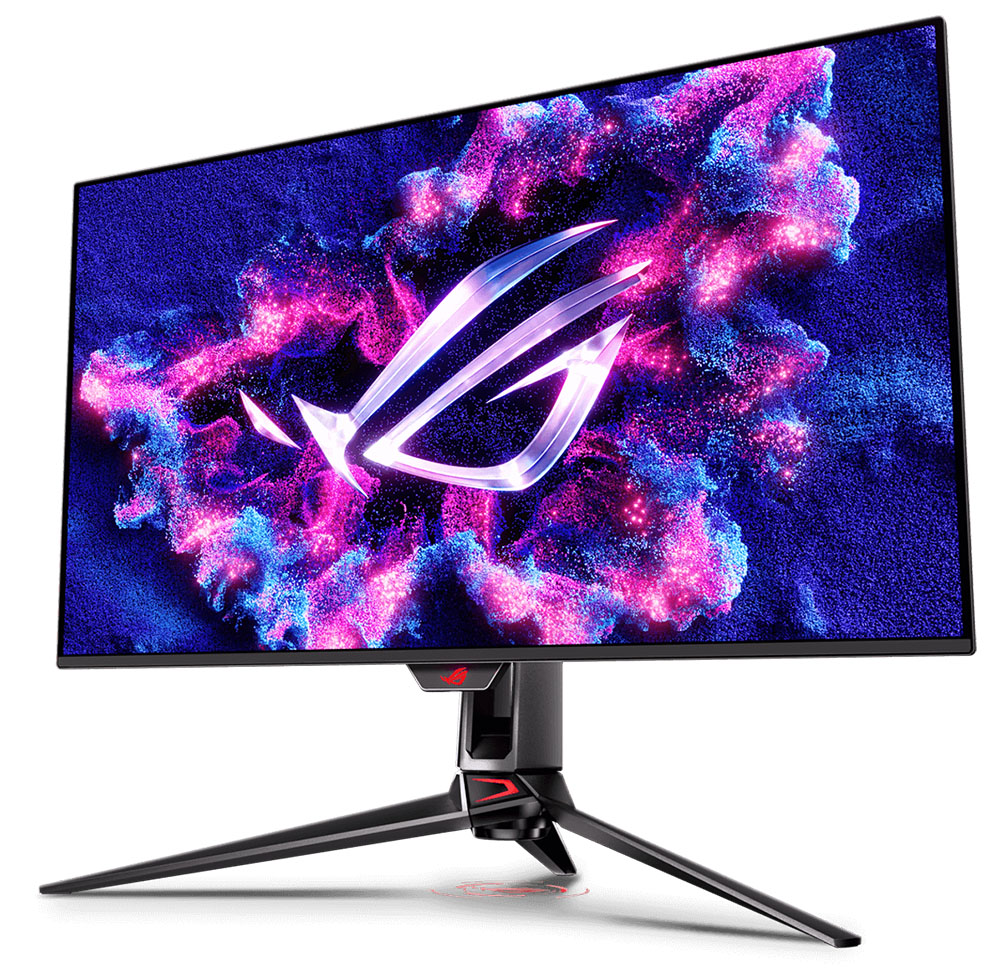
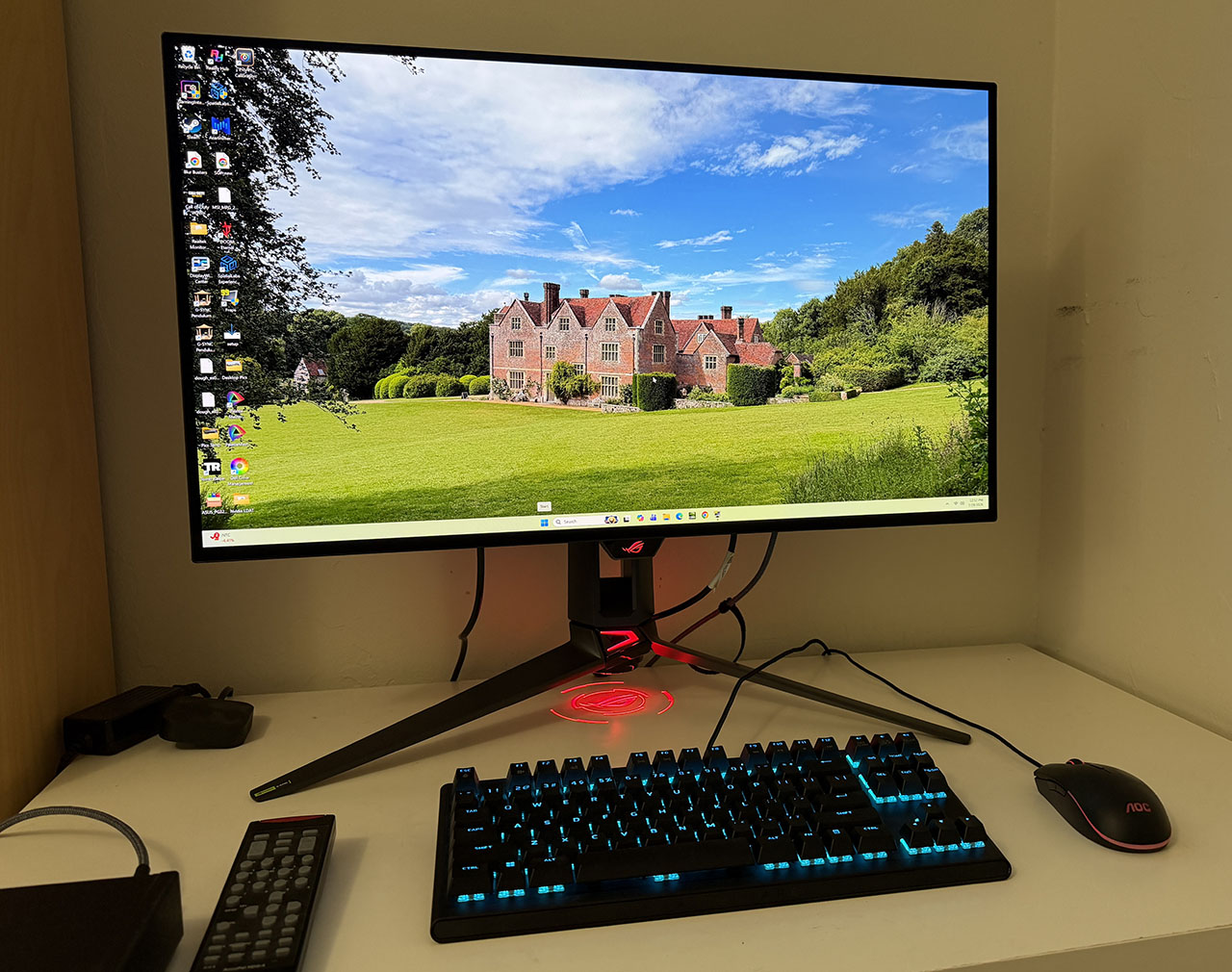
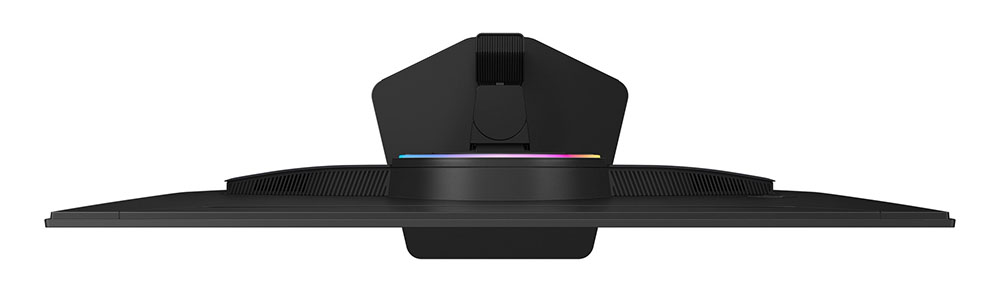
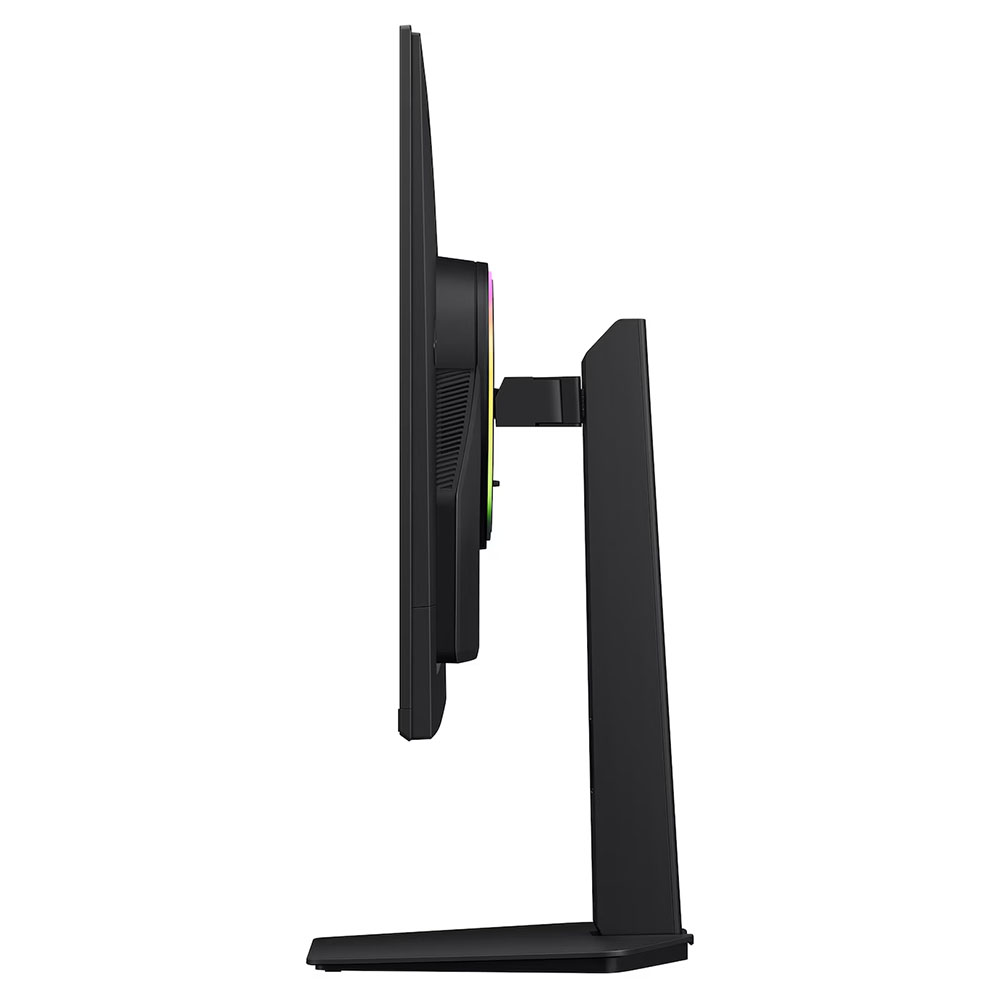
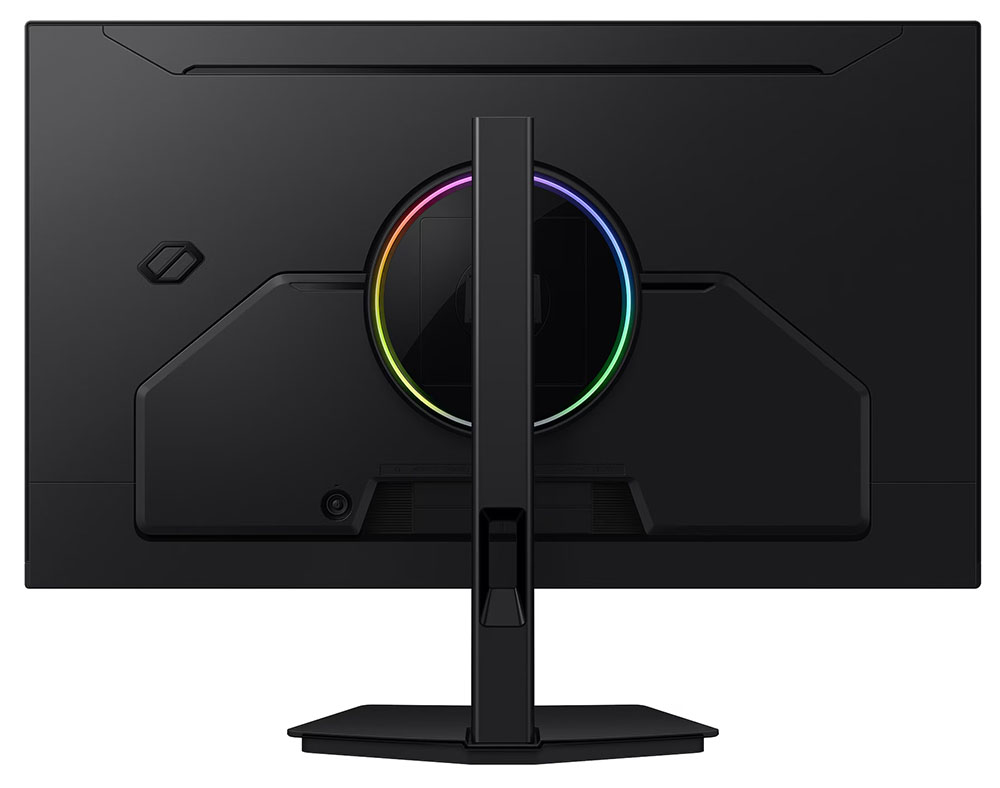
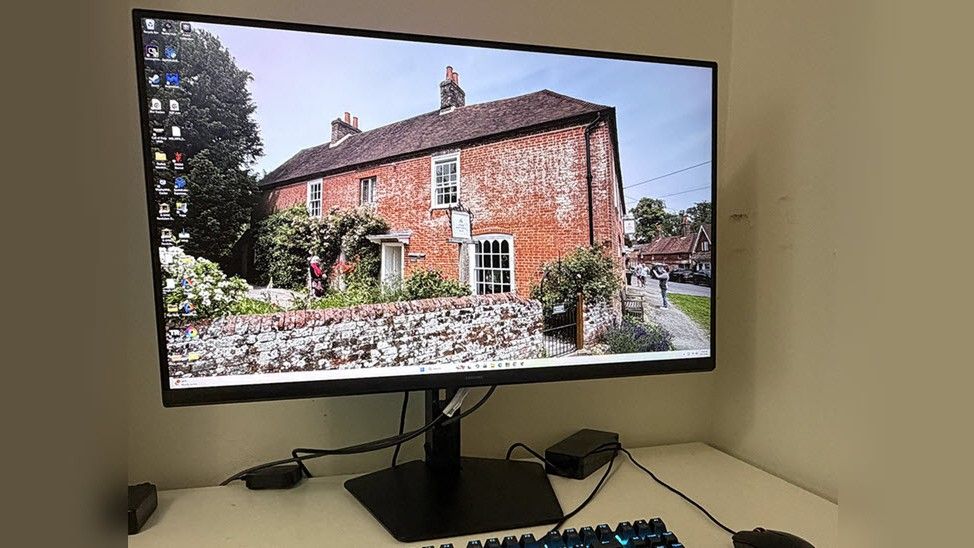
Most every day there's yet another bit of news about how RAM, SSDs, and hard drives are insanely expensive. Today, though, there's a reprieve from high prices, in the form of a sale on an exceedingly nice display. The Acer Predator X27U, or model F5bmiippruzx as it's known to friends, is a 27" 1440p QD-OLED display with a whopping 500 Hz refresh rate and DisplayHDR True Black 500 certification, making for a consistently bright experience. It can be yours for a mere $509.99 at Newegg right now.
The Predator X27U's display is one of the latter-generation QD-OLED 27" 2560x1440 types, granting it that massive 500 Hz refresh rate and increased brightness compared to earlier offerings. It's as good a time as any to note that Acer reused the "Predator X27U" moniker — the F5 model on sale is the nicer revised version, just in case you go searching and find the old specs.
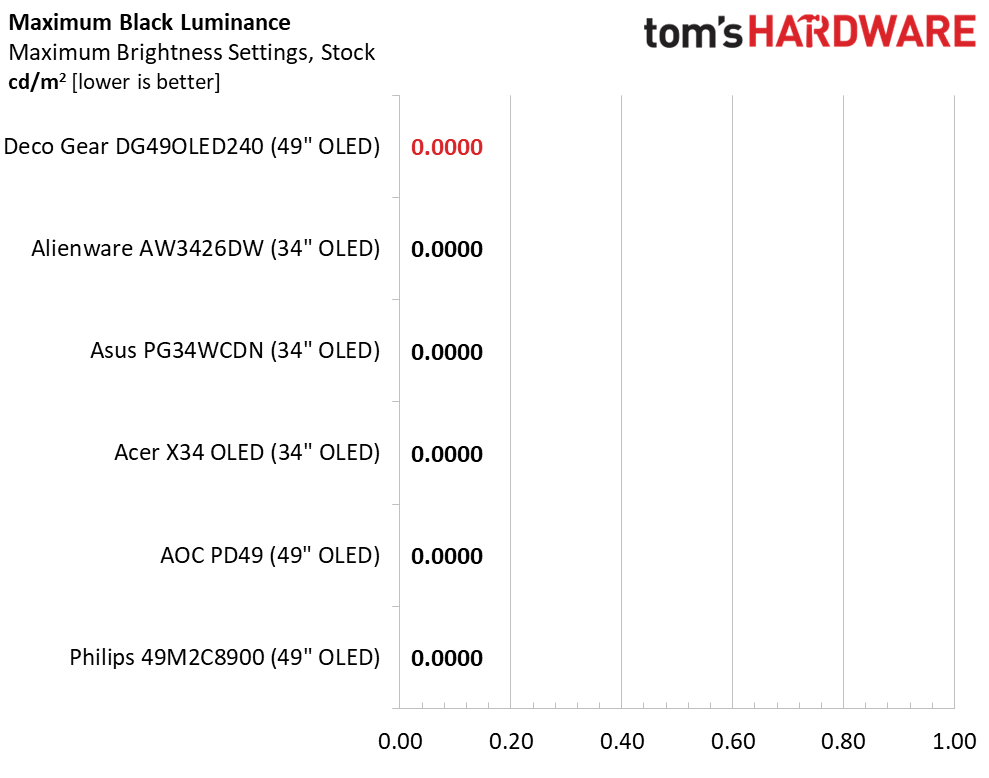
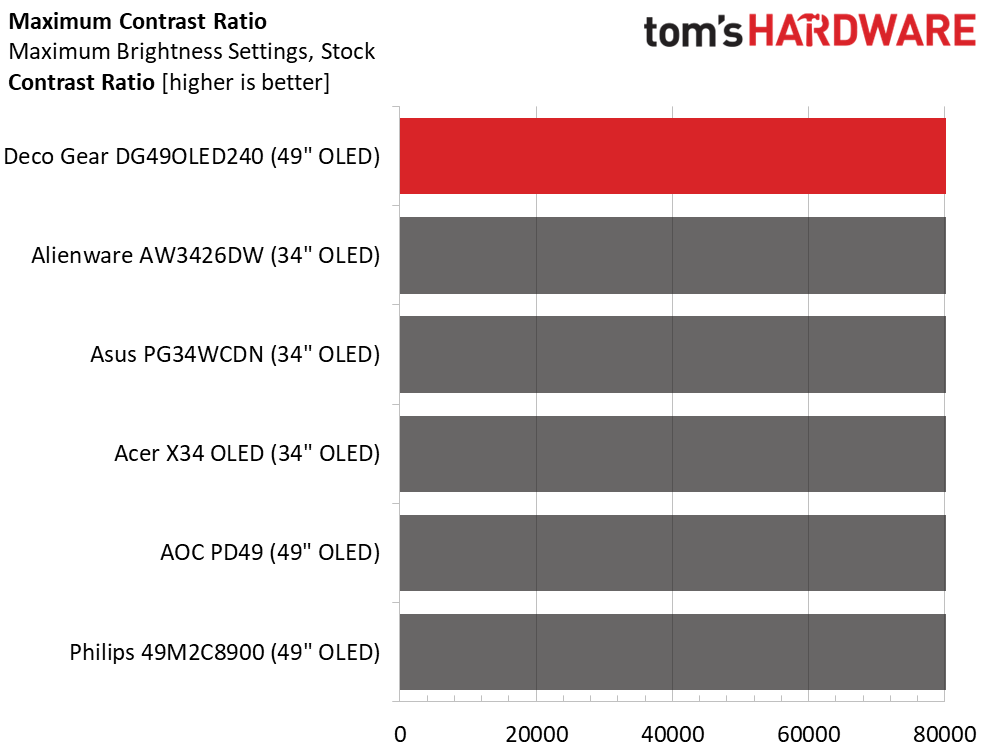
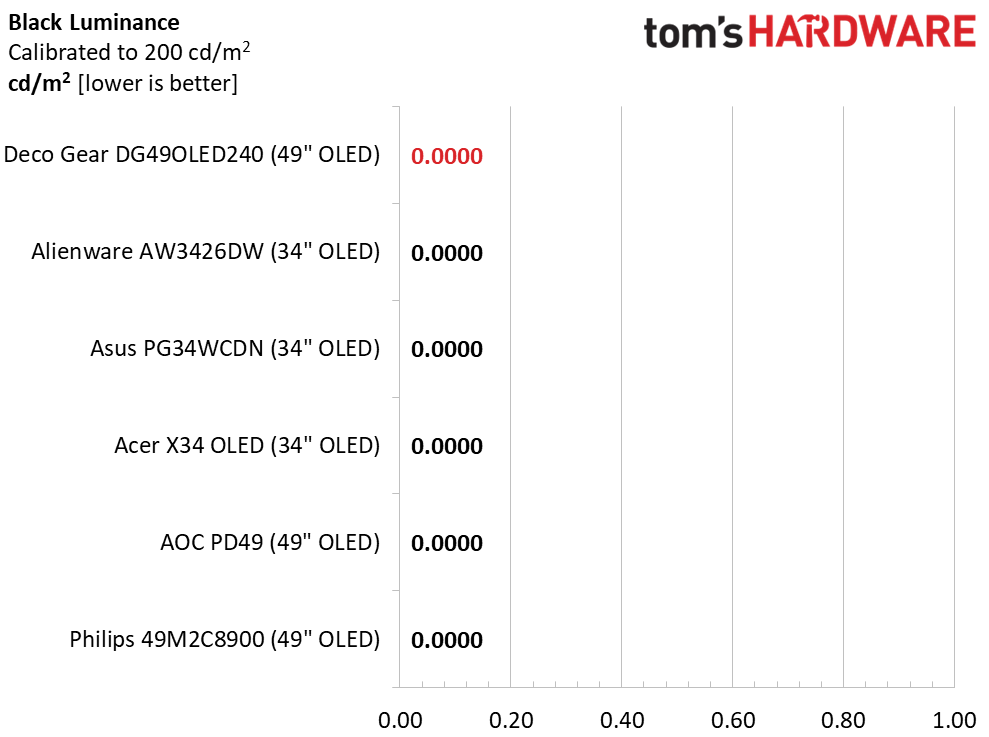
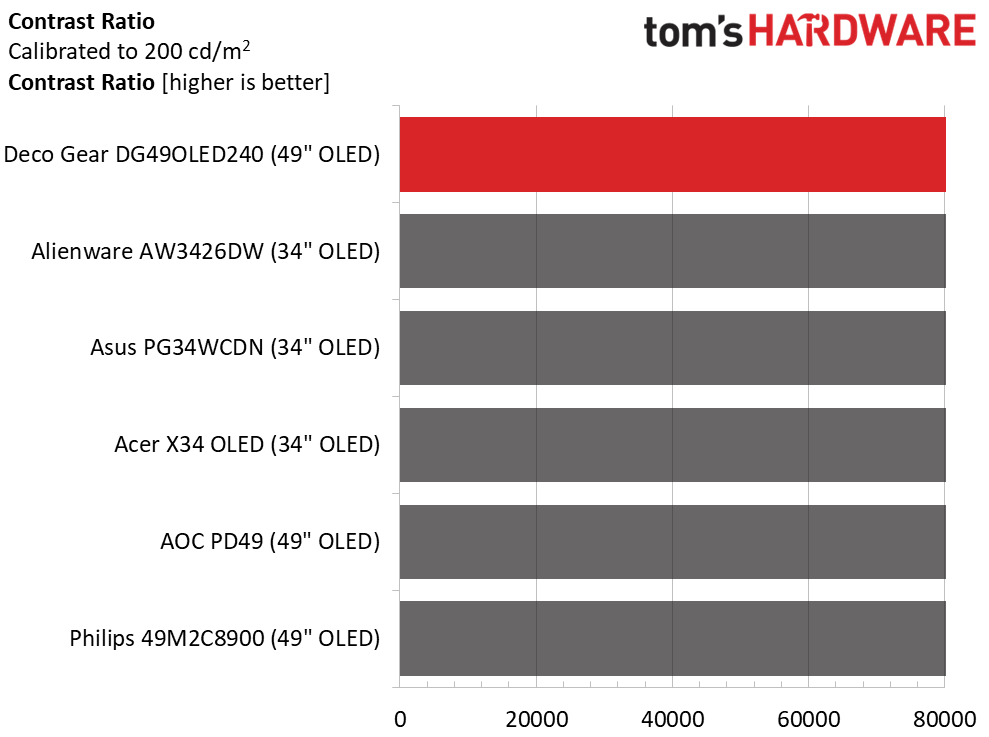
Broadly speaking, OLED displays all have near-zero black levels, an infinite contrast ratio, and "perfect" viewing angles and response time. However, this model's DisplayHDR 500 True Black certification is the star of the show, as it ensures that brightness in HDR mode must be at least 500 nits, but most importantly, that full-screen brightness is at least 300 nits.
Put together, this means that for standard desktop usage, you get a consistently bright image regardless of what's on screen, and that brightness fluctuations ought to be tame — all unlike OLED displays of old. Those 500 nits in HDR mode are also a minimum, too, as Acer says that this display's peak brightness should top out at 1000 nits for 3% panel coverage, for nice highlights during action. As with most any OLED display, the color gamut covers 99% of the DCI-P3 space, and there's true 10-bit input support.
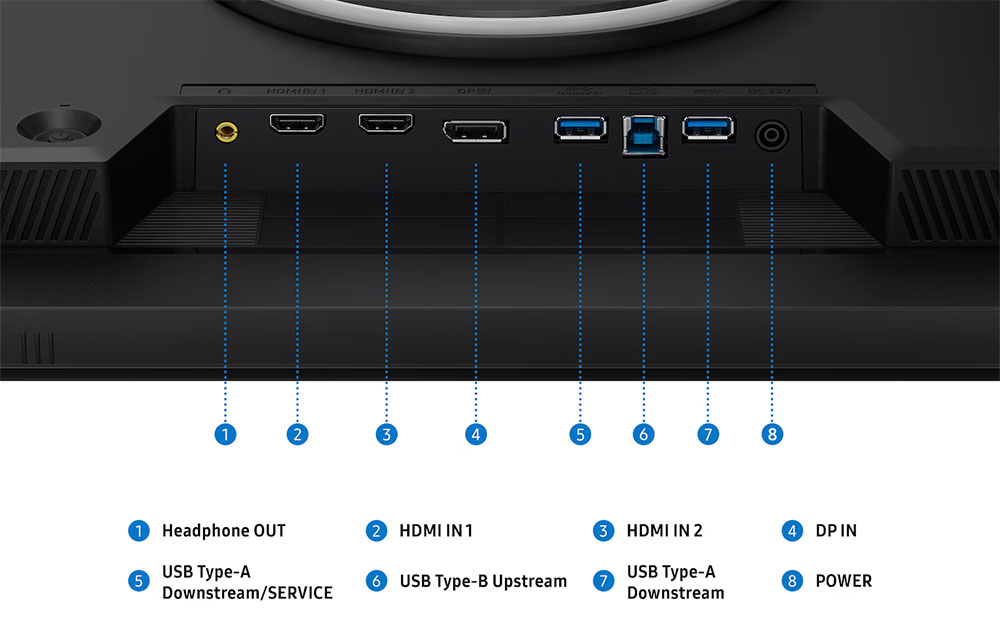
To make the best use of the 500 Hz refresh rate, the Predator X27U has both AMD FreeSync Premium Pro and Nvidia G-Sync Compatible support. The included stand is height-, tilt-, and swivel-adjustable. The newer revision eschews a proximity sensor and other similar accessories for its lower price, but it does include USB-C connectivity alongside two DisplayPort 1.4 inputs and two HDMI 2.1 ports. A pair of 5W speakers round out the main specs. Get yours now from Newegg for $509.99.
The number 1,000 is a benchmark goal in many disciplines. You know a car is special when it has 1,000 horsepower. An amplifier reaches a different level when it can output 1,000 watts. In computer monitor parlance, 1,000 Hz or 1 kHz is also a plateau. Remember that TVs and most displays max out at 60 Hz. But the best gaming monitors, in pursuit of higher frame rates and smoother motion, have been getting faster with each new generation.
I’ve reviewed several 500 Hz monitors, mostly LCDs, with a few OLEDs sprinkled in. But currently on my desk is Acer’s Nitro XV273U F5, which has a 1,000 Hz mode. And before I get to the caveat, know that it can refresh its screen at 540 Hz in QHD 2560x1440 resolution, so even without trickery, it’s one of the fastest flat panels you can buy. This 27-inch IPS display also features Adaptive-Sync, HDR 600, and wide gamut color. Let’s take a look.
Acer Nitro XV273U F5 Specs
Panel Type / Backlight
IPS / W-LED, edge array
Screen Size / Aspect Ratio
27 inches / 16:9
Max Resolution and Refresh Rate
2560x1440 @ 540 Hz
1280x720 @ 1,000 Hz
FreeSync and G-Sync Compatible
Native Color Depth and Gamut
10-bit (8-bit+FRC) / DCI-P3
Response Time (GTG)
1ms
Brightness (mfr)
400 nits, 600 nits peak HDR
Contrast (mfr)
1,000:1
Speakers
2x 2w
Video Inputs
2x DisplayPort 1.4
2x HDMI 2.1
Audio
3.5mm headphone output
USB
None
Power Consumption
36.5w, brightness @ 200 nits
Panel Dimensions
WxHxD w/base
24.3 x 15.6-21.5 x 8.3 inches
(617 x 396-546 x 211mm)
Panel Thickness
2.36 inches (60mm)
Bezel Width
Top/sides: 0.39 inch (10mm)
Bottom: 0.55 inch (14mm)
Weight
13.57 pounds (6.17kg)
Warranty
3 years
So, let’s get the caveat out of the way first. The XV273U F5’s 1,000 Hz mode happens at 1280x720 resolution. That’s HD, not Full HD, which is 1920x1080. The good part is that this is a multiple of QHD’s 2560x1440. The picture becomes softer but not by as much as you’d expect. Additional video processing features include backlight strobe-based blur reduction and very precise overdrive.
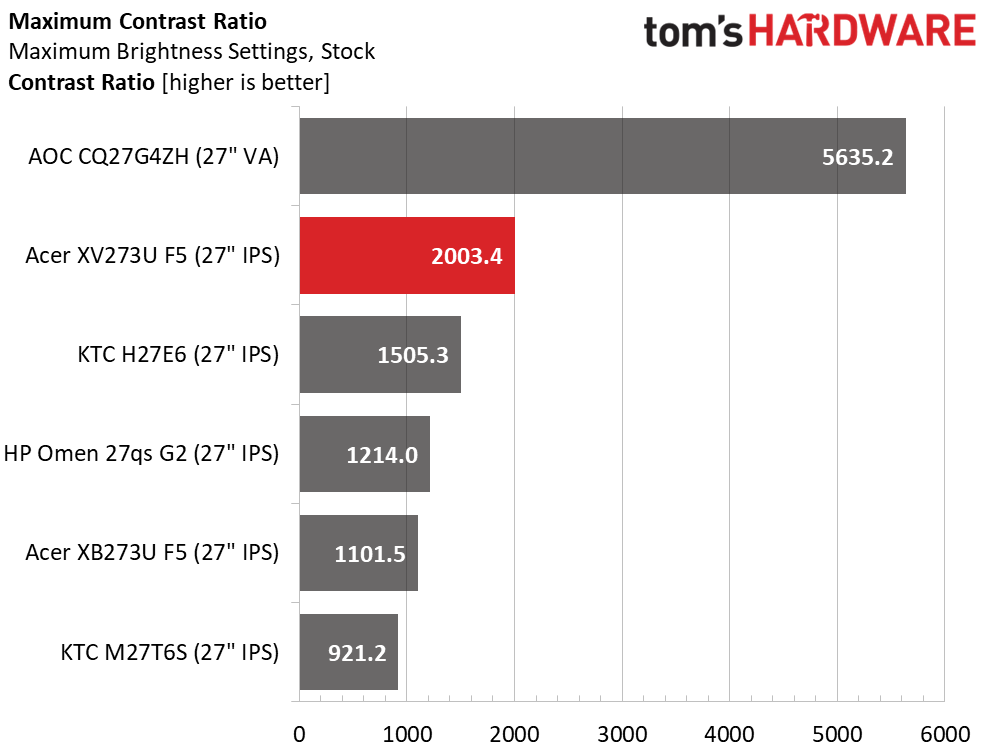
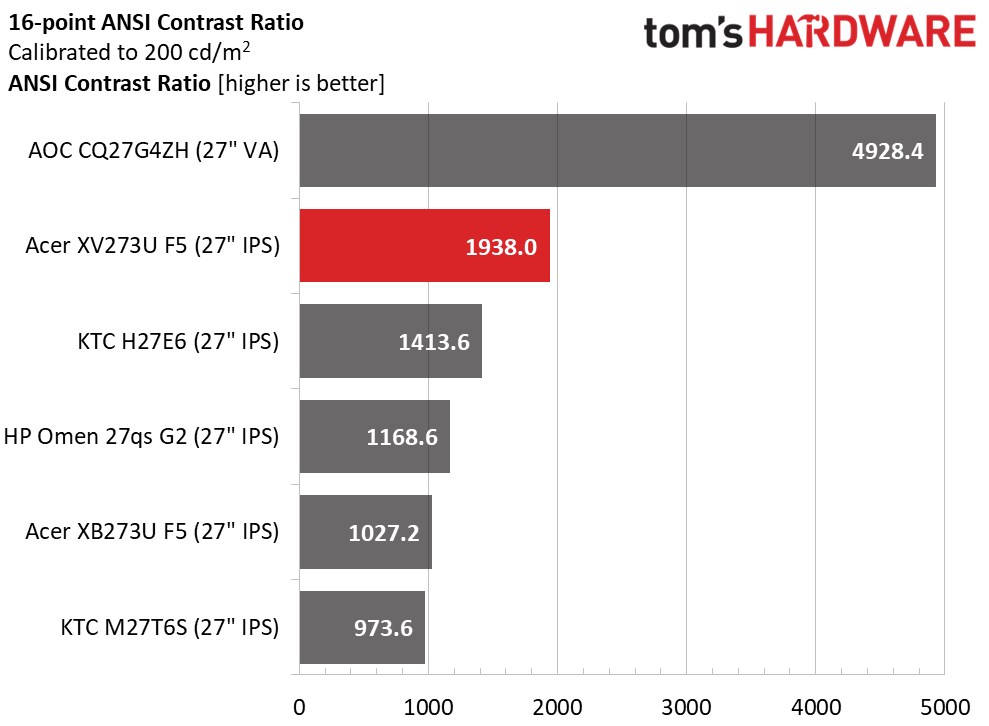
The XV273U F5 also provides excellent image quality from an IPS panel, which has far higher contrast than its claimed 1,000:1 ratio. I measured just over 2,000:1 in testing, which blows away most other IPS panels for dynamic range. The black levels are almost in VA territory, resulting in a very deep, textural image. Acer gets color and gamma right as well, and with a few tweaks that I’ll show you on page four, you can enjoy reference-level accuracy. Gamut coverage is generous, with around 90% coverage of DCI-P3.
The XV273U F5 is fully ready for gaming on PC or console and has all the features to enhance gameplay at any skill level. You get plenty of aiming points and sniper modes, along with a set of timers. The overdrive and backlight strobe are enabled when your system can’t push the frame rates to 540 or 1,000, and they work extremely well, with significant blur reduction and no ghosting or phasing artifacts.
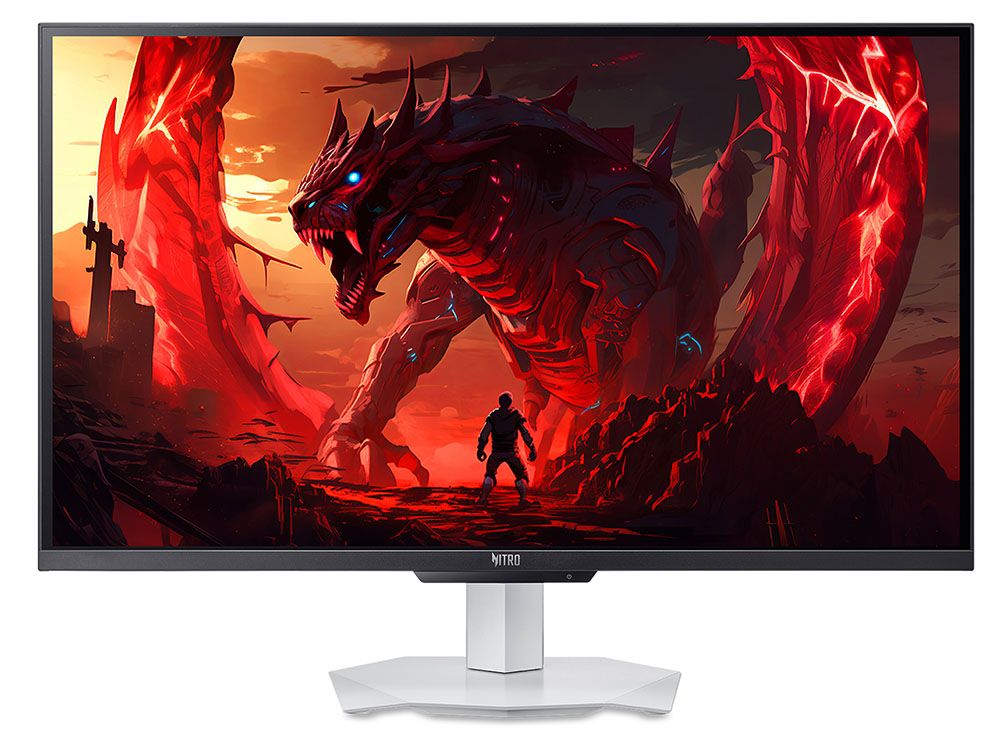
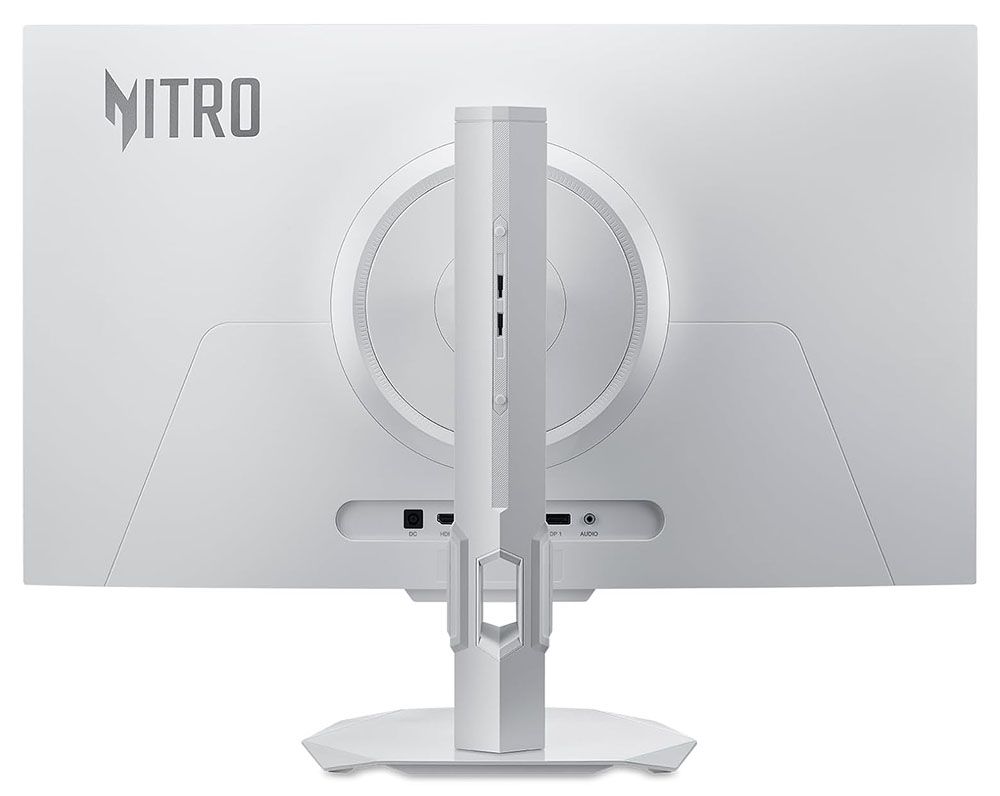
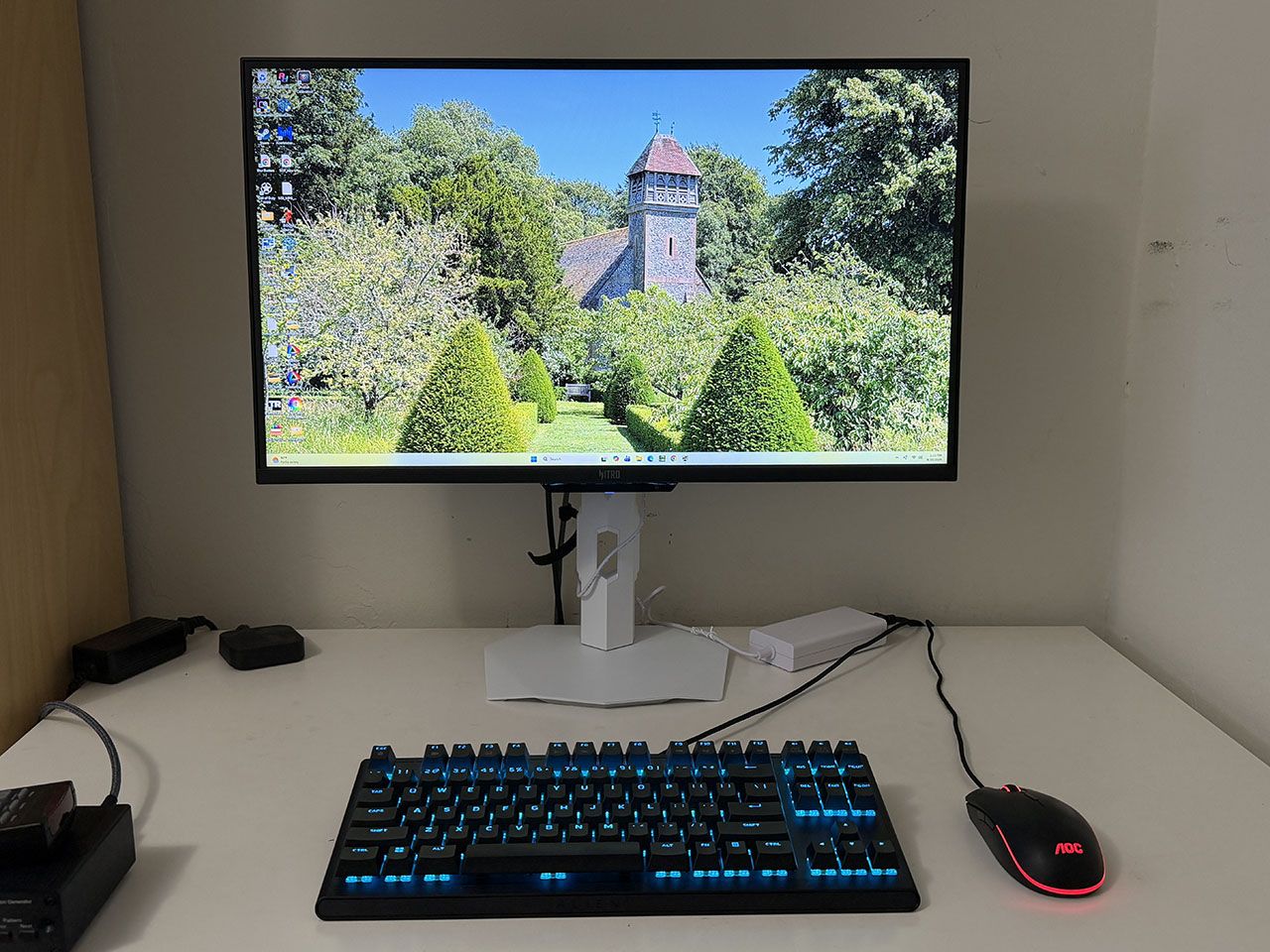
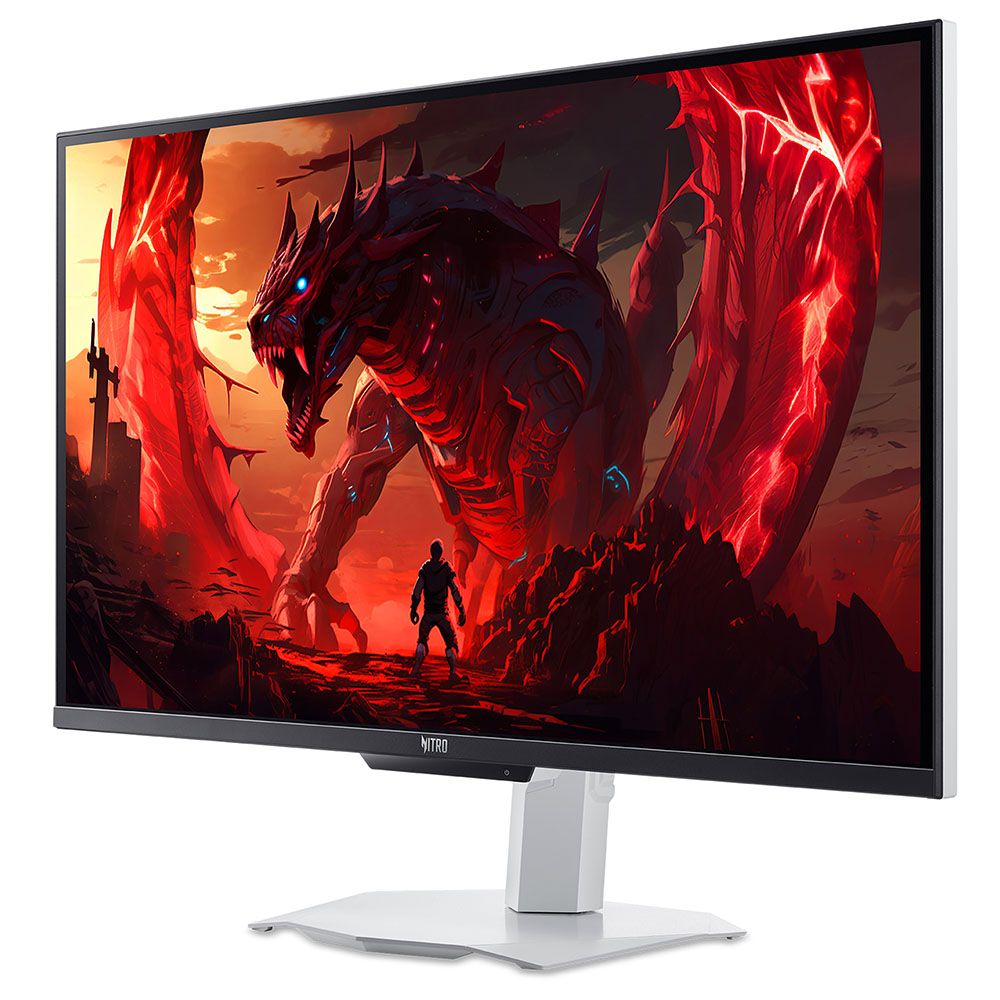
Style is not forgotten here, with a rare white aesthetic. Everything is white, including the base and the included cables. Only the thin screen bezel is black. A handy joystick controls most functions, and there are three control keys, one of which switches the refresh modes.
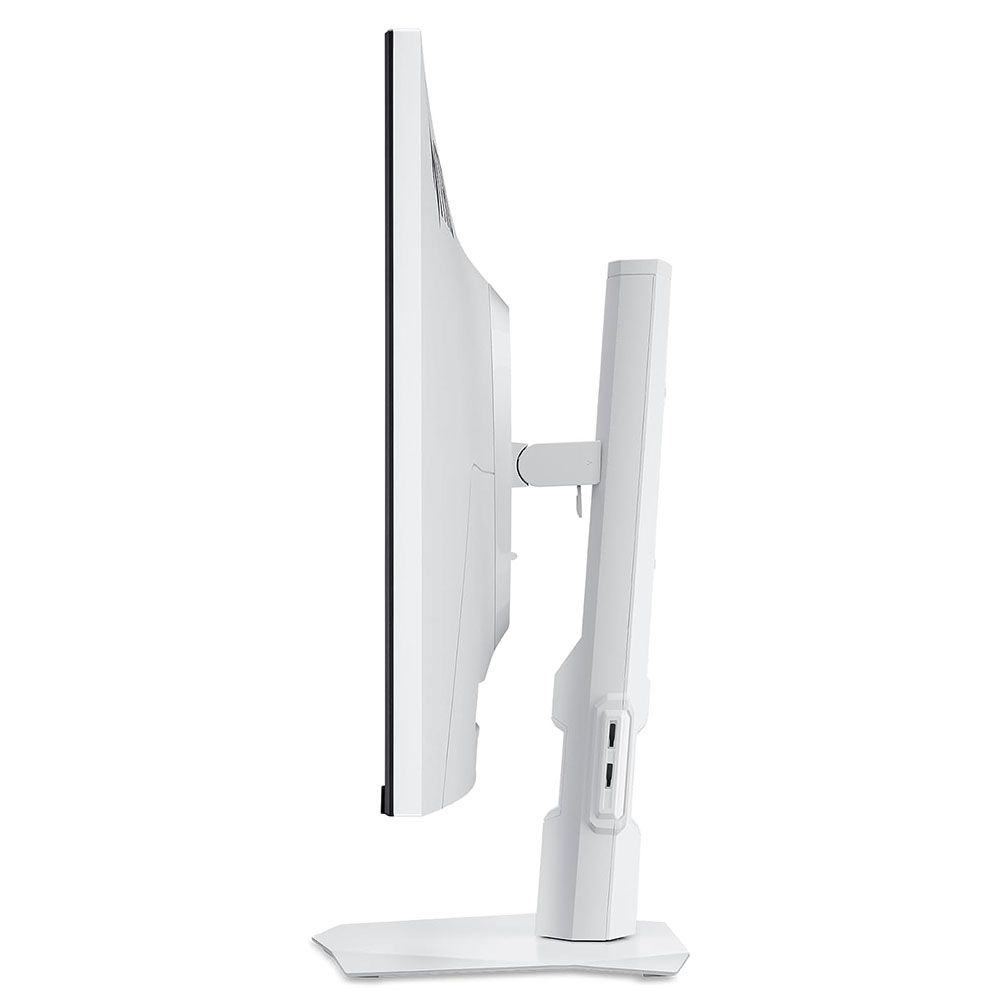
Connectivity includes two DisplayPorts and two HDMIs. There are no USB ports. You also get internal speakers and a headphone jack. And the ports all face backward for easy access.
The XV273U F5 isn’t a trifling purchase at $700, but if you want a 1,000 Hz monitor, they aren’t exactly common. I’m anxious to pop the hood, then take it for a spin.
Assembly and Accessories
The XV273U F5 comes simply packaged in recyclable pulp forms. A clamshell box opens to reveal four parts: the panel, upright, base, and a snap-on fulcrum. You would omit that if you wanted to use the 100mm VESA mount with an aftermarket arm or wall bracket. The cable bundle includes a white external power brick and an HDMI cable, no DisplayPort though.
Product 360
AcerAcerAcer
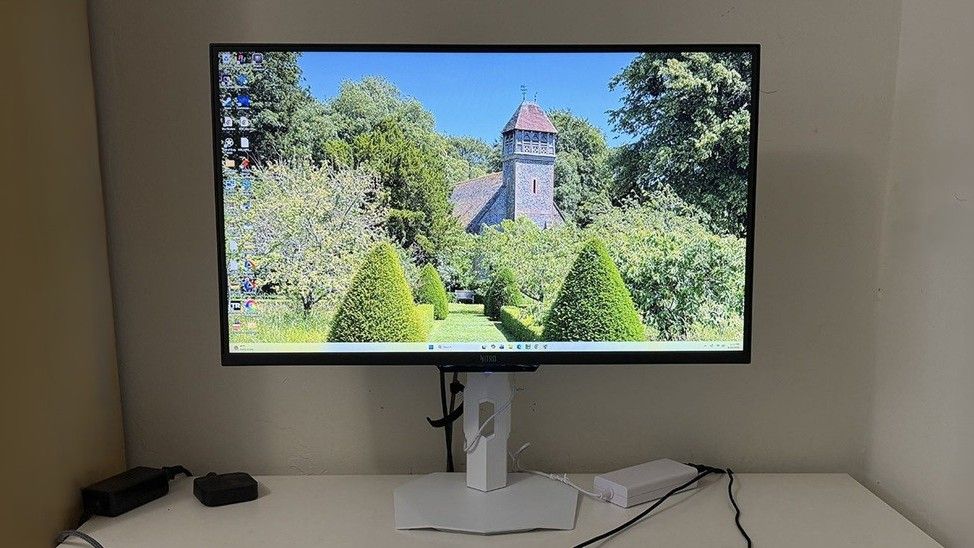
There’s something cool about white monitors, mostly because they are few and far between. The XV273U F5 has a nice aesthetic that balances purpose between gaming and productivity. The angular bits are reserved for the stand. The base is a metal plate with downturned corners, finished in a white powder coat. The upright has a cable hole and a few small trim pieces, with a tripod socket at the top. It features full ergonomics with a 5.9-inch height adjustment, 5/25 degree tilt, 20-degree swivel, and a 90-degree portrait mode. Movements are firm, but there’s a little play at the fulcrum point. Getting the panel level takes a bit more effort.
In the back is a large gray Nitro logo and a smooth panel shape with no angles or extra curves. The inputs face backward, making them easy to see and access. You get two DisplayPort 1.4, two HDMI 2.1, and a 3.5mm headphone jack. There are no USB ports, but there is a pair of two-watt internal speakers that play clean and politely in the upper midrange frequencies.
OSD Features
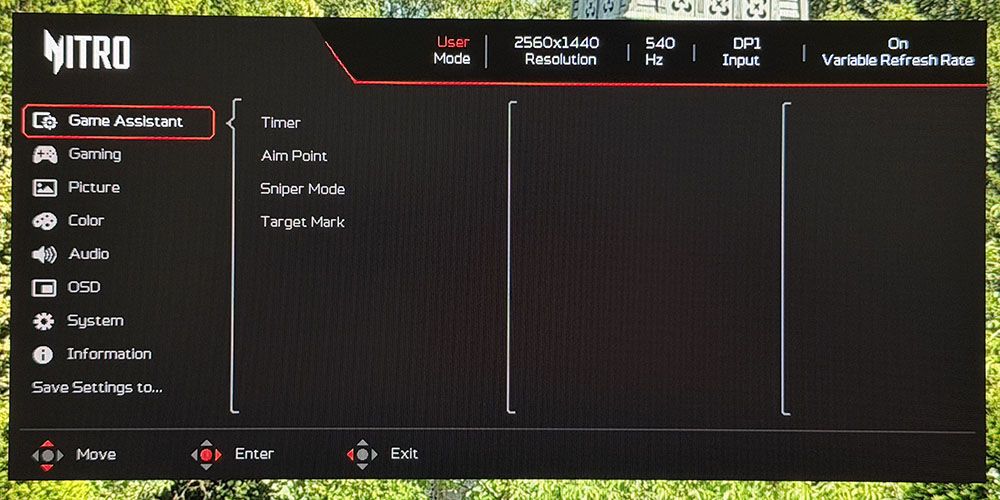
The XV273U F5’s OSD will be familiar to users of Acer monitors. It’s divided into four fields forming a logical tree and has eight sub-sections. To summon it, press the joystick twice.
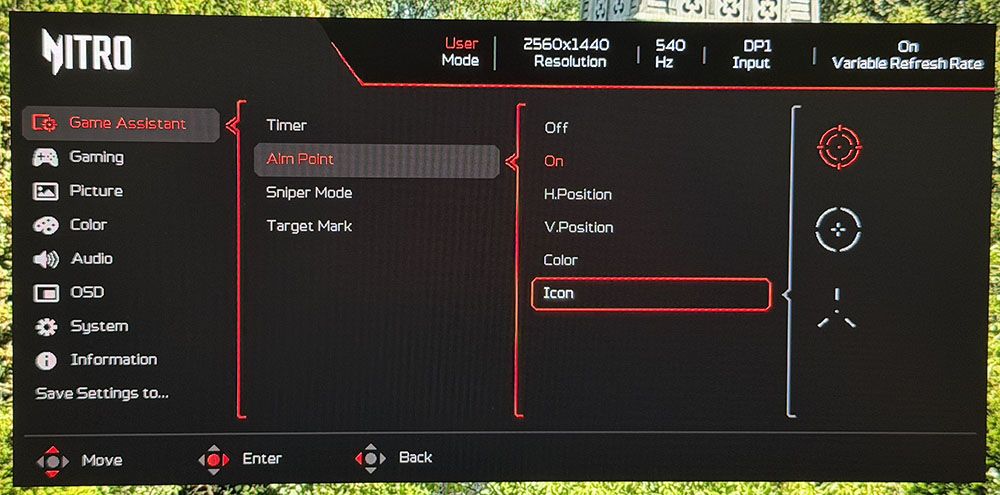
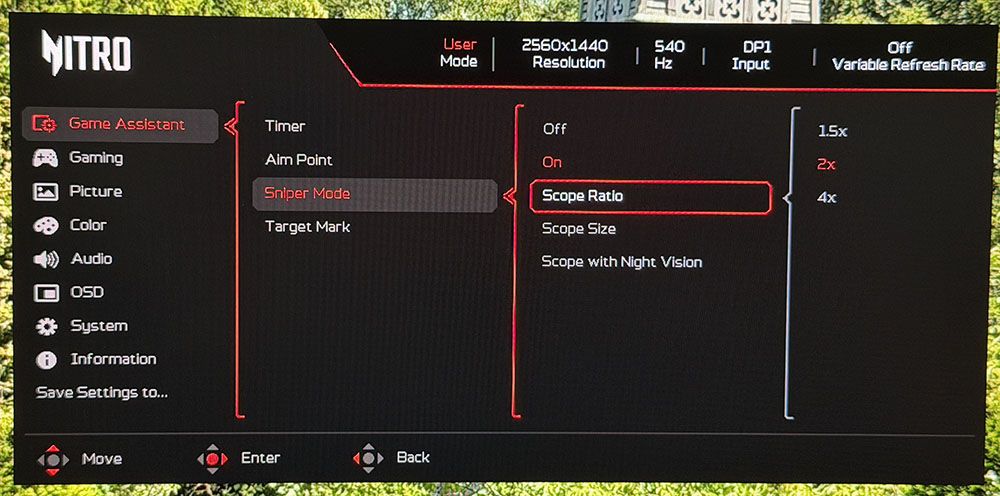
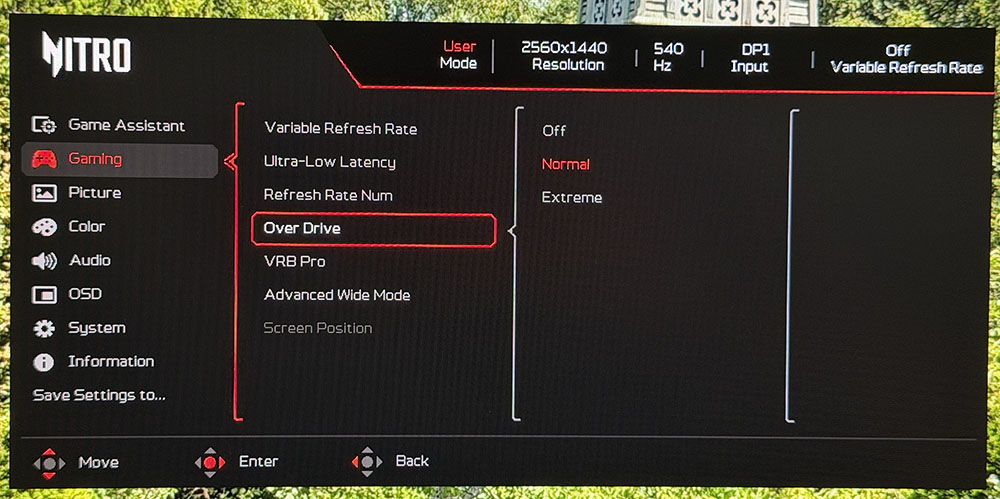
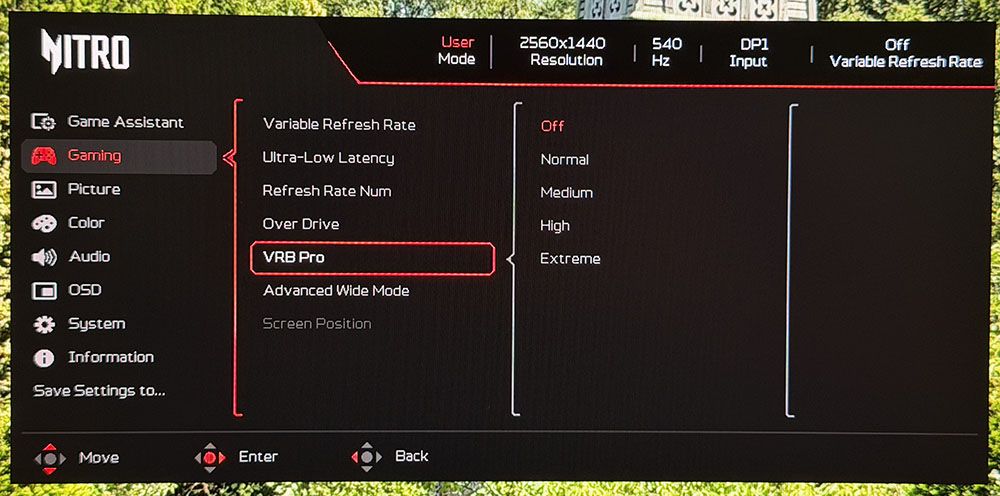
The first two menus are the gaming aids and video processing options. Enhancements include timers, aiming points in multiple shapes and colors, and a sniper mode. The reticle can be moved around the screen if you wish. The sniper scope has three magnifications and night vision. Video processing includes a frame counter, blur reduction with four backlight strobe pulse width levels, and a two-level overdrive. Both are very effective at reducing blur and operate artifact-free. The strobe is one of the very best I’ve seen. At its most extreme setting, it reduces light output by around 40%, but you can increase the brightness slider to compensate.
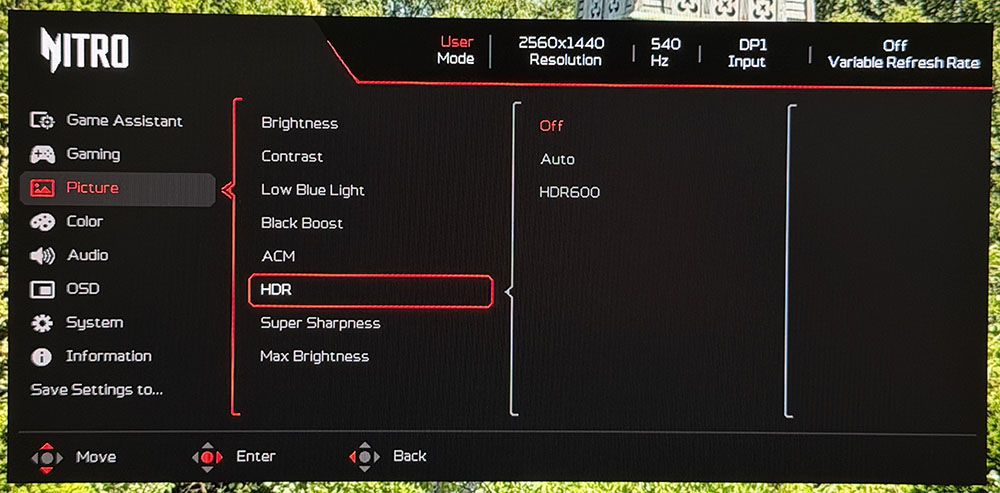
The picture menu includes the HDR modes. You get two: Auto and HDR 600. You would think they are different, but in my tests they measured the same. I noted that the XV273U F5 does not switch to HDR mode automatically; you must select one of these options after applying the signal. Also important in the menu is Max Brightness. Turn it on to get, you know…
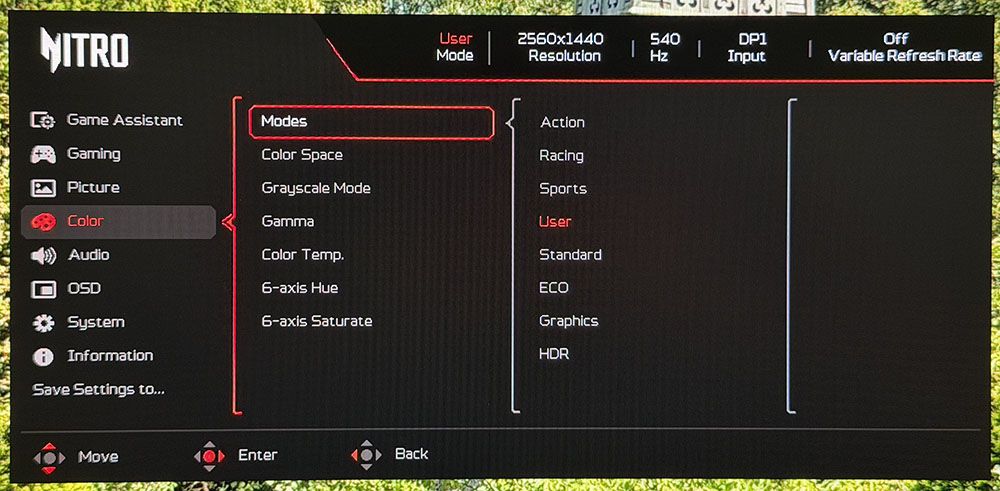
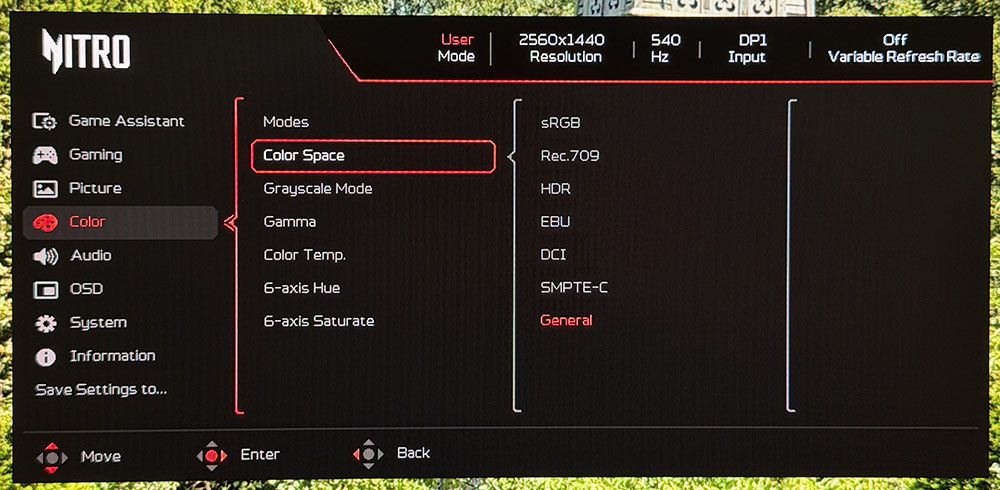
In the Color menu are the eight picture modes arranged by game type or task. Standard is the default, but if you change any setting, the XV273U F5 switches to User. Calibration controls include seven color space options; Native is the most colorful, plus gamma and color temp presets. The RGB sliders include gain and bias adjustments for very precise grayscale tracking.
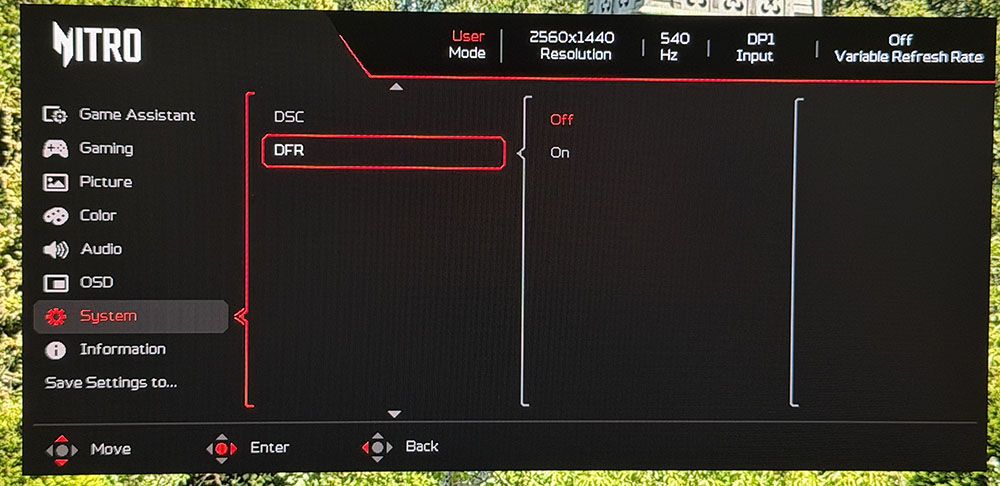
If you’re looking for the frame rate switch, it’s in the System menu, which is counterintuitive. It should be in the Gaming menu. You can also do it with the far-left control key to switch refresh rates without going into the OSD. Like most dual-mode monitors, you must initially set up each resolution in the Nvidia or AMD control panel. Then, you can make the switch on the fly. When you’ve made your settings, you can save them to the two memory locations under Save Settings to…
Acer Nitro XV273U F5 Calibration Settings
The XV273U F5 comes out of the box looking a little cool. It could probably satisfy most users, but a grayscale calibration takes it to reference level. The Native color gamut covers about 90% of DCI-P3, and an sRGB option is available. In all cases, gamma was spot-on, so I left that preset on 2.2. I had to reduce contrast by two clicks to solve a clipping issue. My suggested settings are below. For HDR, apply the signal first, then choose either Auto or HDR 600 from the Picture menu. And don’t forget to turn on Max Brightness for the XV273U F5’s max brightness.
Picture Mode
User
Brightness 200 nits
55
Brightness 120 nits
31
Brightness 100 nits
23
Brightness 80 nits
18
Brightness 50 nits
8 (min. 23 nits)
Contrast
48
Gamma
2.2
Color Temp User
Gain – Red 49, Green 51, Blue 49
Bias – Red 50, Green 50, Blue 50
Gaming and Hands-on
If you are a gamer looking for maximum smoothness and next-to-no input lag, and you don’t want to buy an OLED, the XV273U F5 is easily the next best thing. My perspective comes from the fact that the most prolific OLED category right now is 27-inch QHD 240 Hz. The XV273U F5 has the same size and pixel density, as well as excellent contrast and color. And it’s as smooth as a QHD 240 Hz OLED, albeit running at 540 Hz. I could do this without any problem using a GeForce RTX 4090, though given the fan noise I heard, it was working for it. But this monitor is the first LCD I would compare to an OLED for gaming feel and addictive play.
Motion blur simply did not exist at 540 Hz, and perceptually, neither did input lag. Turn-and-fire and circle strafe maneuvers were super easy and precise. I experienced very little wasted ammo. Competitive gamers will be right at home playing on an XV273U F5.
At 1,000 Hz, the story is different, but not that different. Yes, the picture is soft. It’s a bit like watching old TV shows on YouTube. You don’t enjoy them less, but by modern FHD and UHD standards, 480p is so 10 years ago. However, 1,000 fps is really something. The RTX 4090 worked even harder than before, but it managed to keep the frame rate locked at 1K. Again, there is no input lag, nor is there any blur. And even though the picture was soft, gameplay was just as addictive. It’s just so quick that some scenarios become too easy. For gamers of all skill levels, the XV273U F5 is a weapon.
I’m spoiled by OLEDs, so I won’t pretend that the XV273U F5 looks as good as them. But it’s closer to that standard than many other LCDs. It has one of the highest-contrast IPS panels I’ve seen, with a native contrast ratio around 2,000:1. That’s almost VA territory, but with better viewing angles and more saturated color. You’ll see in my test results on page four that this is a very accurate display, and it shows in practice. I noted that HDR content looked very good but had no more contrast than SDR. But with excellent luminance tracking and rich color, it provided decent impact.
For daily use, you can save a little power and run it at 120 Hz for productivity. That will get you smooth scrolling for webpages and documents. 109ppi pixel density gave me clear fonts, sharp graphics, and solid detail in small objects like icons and toolbars. Color accuracy and a useful sRGB mode provided good functionality in Photoshop.
I enjoyed the styling very much too, especially the white part. I’m a fan of white monitors, and the XV273U F5 is one of the nicer ones I’ve experienced. The rear-facing ports are super handy because they’re easy to see and reach. I’d have liked some USB ports, though. But I was glad to hear decent sound from the internal speakers. They aren’t Wilson Sashas, but they play clean and loud enough for one user.
Takeaway: The XV273U F5 is a superb gaming monitor with a gaming feel and response time on par with any OLED display. It has plenty of contrast and color too, which gives the picture impact and texture. I really enjoyed the styling and the white aesthetic. Though premium-priced, it can refresh at 1,000 Hz, and that is something rare indeed.
To compare the XV273U F5’s performance, I’ve rounded up a group of speedy LCDs that refresh between 210 and 360 Hz. Obviously, the response and lag tests give the Acer an unfair advantage, but I haven’t reviewed a 500 Hz LCD monitor in quite a while. They are Acer’s XB273U F5, KTC’s M27T6S and H27E6, AOC’s CQ27G4ZH, and HP’s Omen 27qs.
Pixel Response and Input Lag
Click here to read up on our pixel response and input lag testing procedures.
Tom's HardwareTom's Hardware
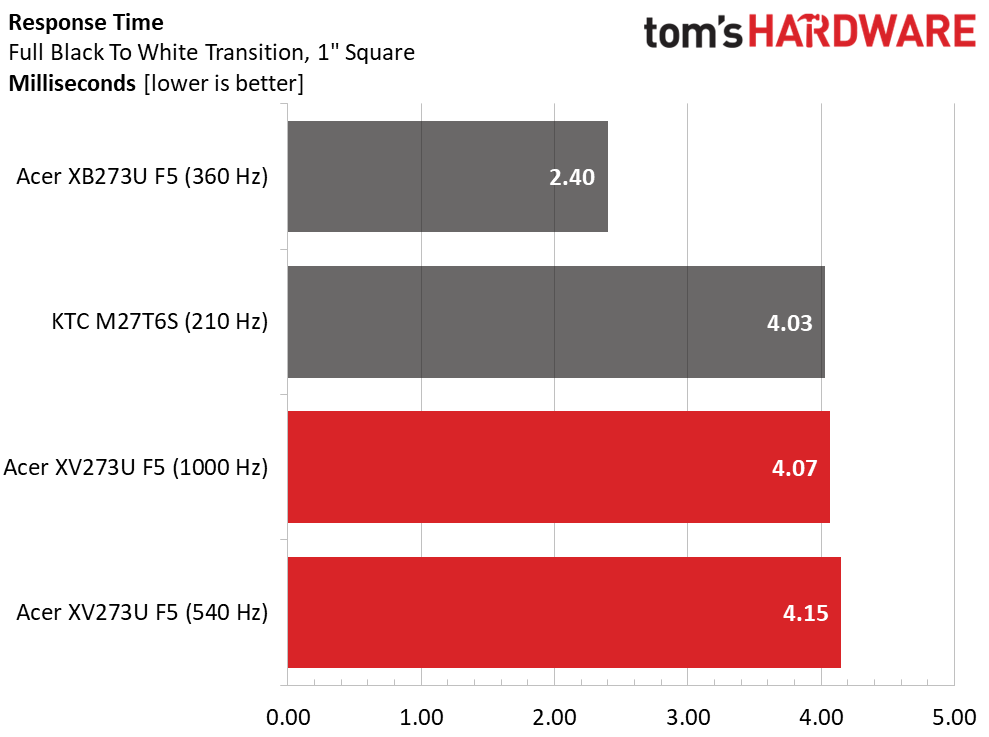
For the response test, only the XB273U F5 and M27T6S have been measured by my new LDAT sensor from Nvidia. Interestingly, the 360 Hz screen is the quickest at 2.4ms. The XV273U F5 seems a tad slow by comparison, and there’s only a slight difference at 1,000 Hz. But this doesn’t account for the quality of the overdrive. The XV273U F5 has one of the best I’ve seen, and it removes almost all motion blur at 540 and 1,000 Hz. It’s effective at lower frame rates too. You can run down to about 300fps before blur becomes noticeable.
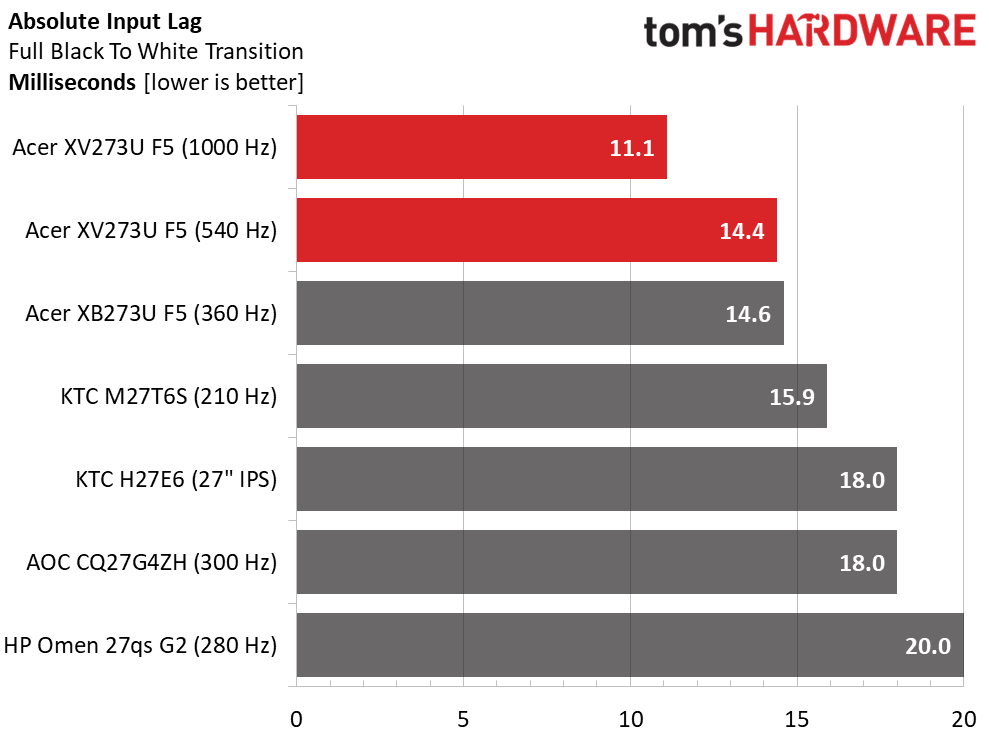
The lag test is where the XV273U F5 really shines. It’s one of the quickest LCDs I’ve tested at just 14.4ms for 540 Hz and 11.1ms for 1,000 Hz. In practice, any of these monitors will satisfy twitchy gameplay, but the XV273U F5 is firmly on top. Only the XB273U F5 and M27T6S come close.
Test Takeaway: The XV273U F5 is one of the fastest LCDs you can buy. At 540 Hz, it equals many OLEDs in smoothness. The overdrive and backlight strobe are among the best available, with effective blur reduction and no ghosting or phasing artifacts. At 1,000 Hz, motion is uncannily smooth, and though resolution is reduced, it isn’t as soft as you might expect. And it has very low input lag in that mode.
Viewing Angles
(Image credit: Tom's Hardware)
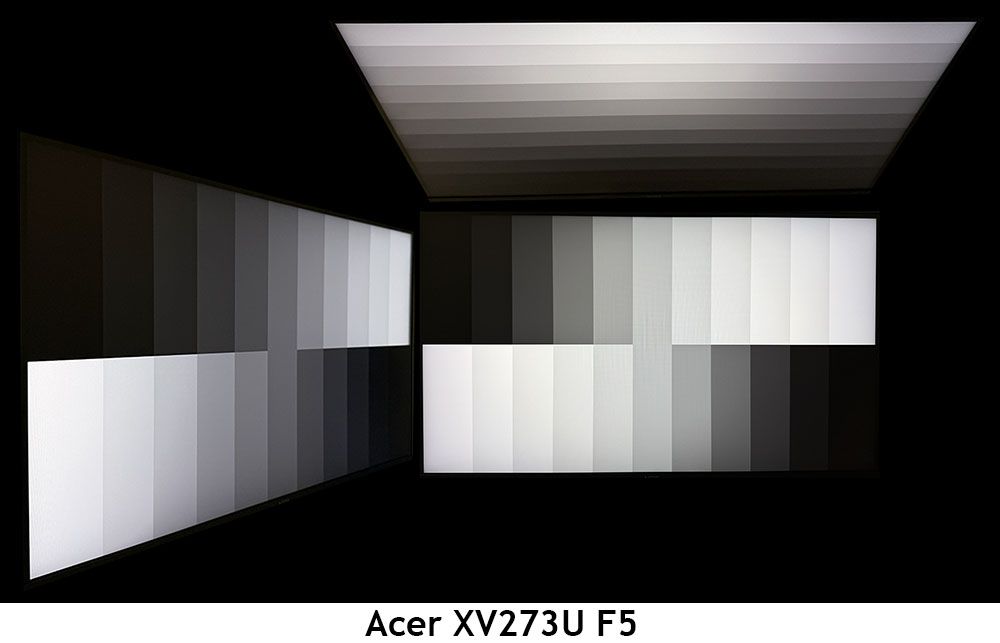
The XV273U F5 is one of the better IPS screens I’ve photographed. In the side view, there is a slight blue tint but no change to gamma or brightness. The top view darkens by around 50% and has a red tint, but its gamma is better than most. This is one of the most shareable LCDs I’ve seen.
Screen Uniformity
To learn how we measure screen uniformity,click here.
(Image credit: Tom's Hardware)
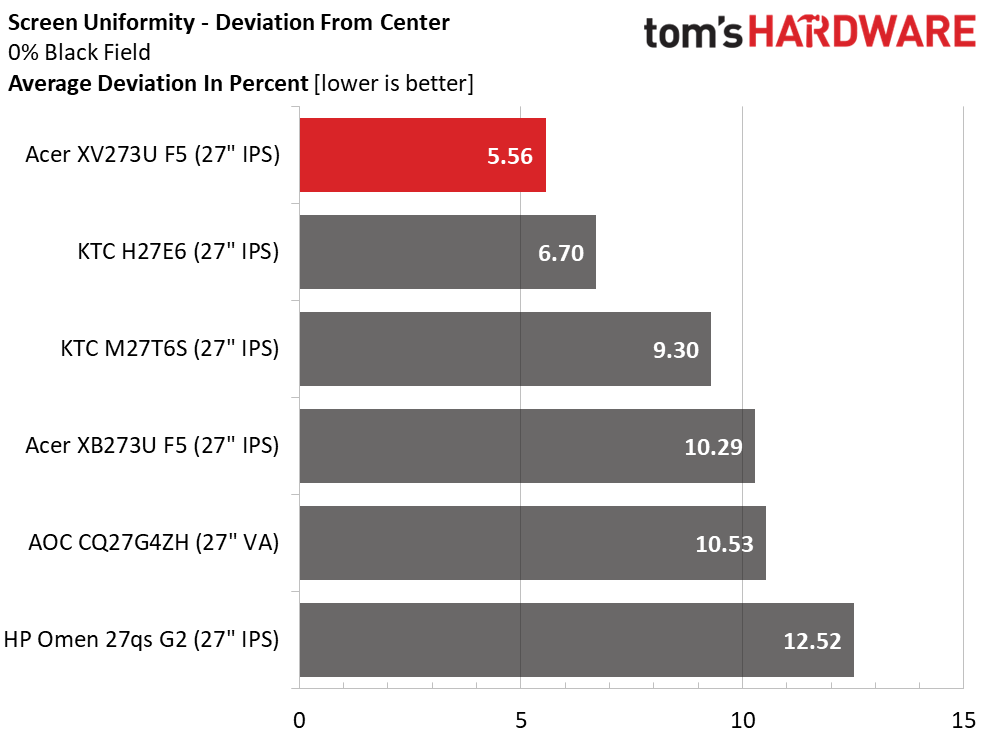
The XV273U F5’s screen uniformity is also on par with many OLEDs. 5.56% is well below the point where you would see any glow or bleed. Color fields were perfectly uniform in my tests as well. This is excellent performance.
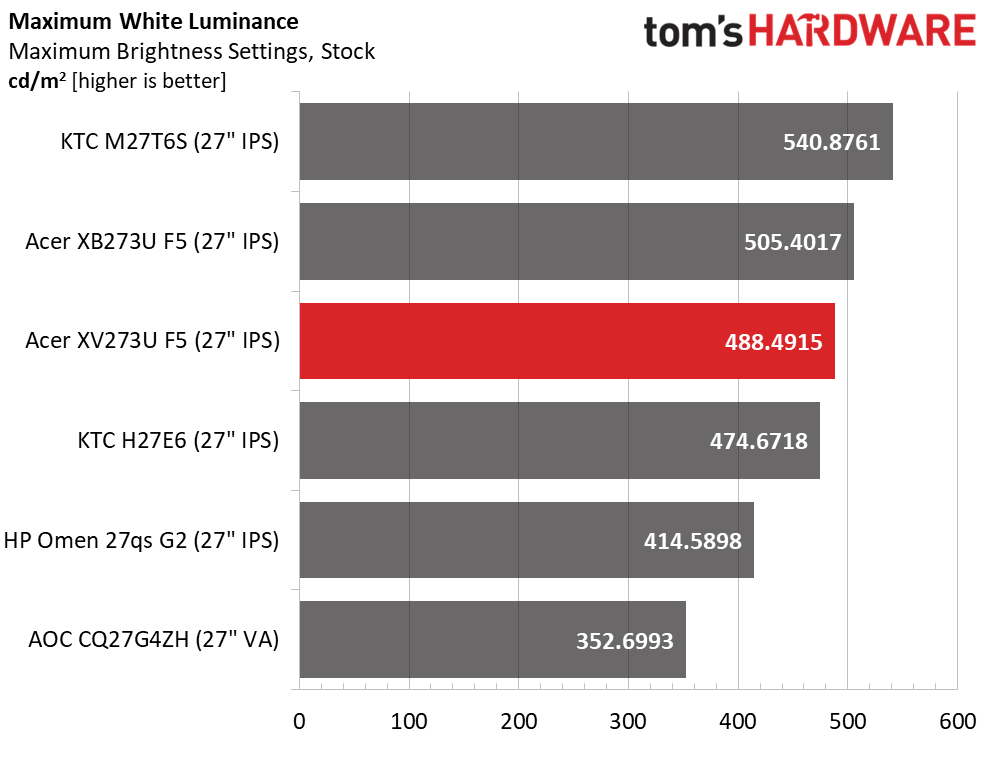
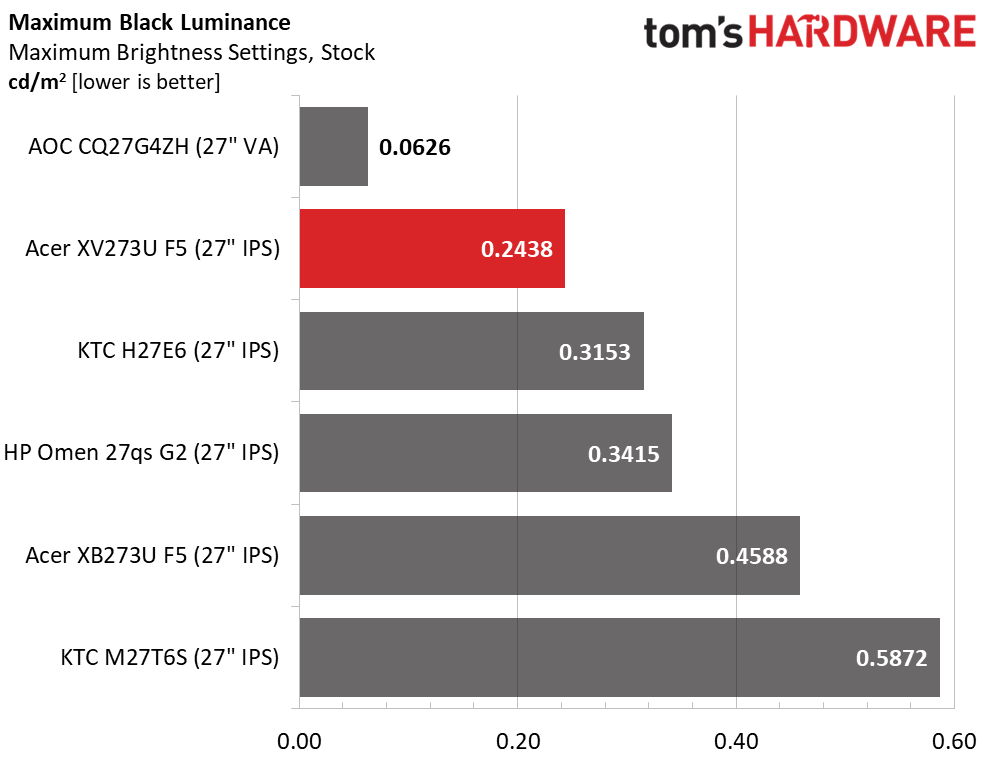
The XV273U F5 has more than enough light output for any indoor space. You could use it in an outdoor location, too, with almost 500 nits available. What’s truly amazing though, is the black level. I was almost fooled into thinking it was a VA panel with a contrast ratio of 2,003:1. This is twice the IPS average of 1,000:1. Only the AOC, which actually is VA, can do better.
After Calibration to 200 nits
Tom's HardwareTom's HardwareTom's Hardware
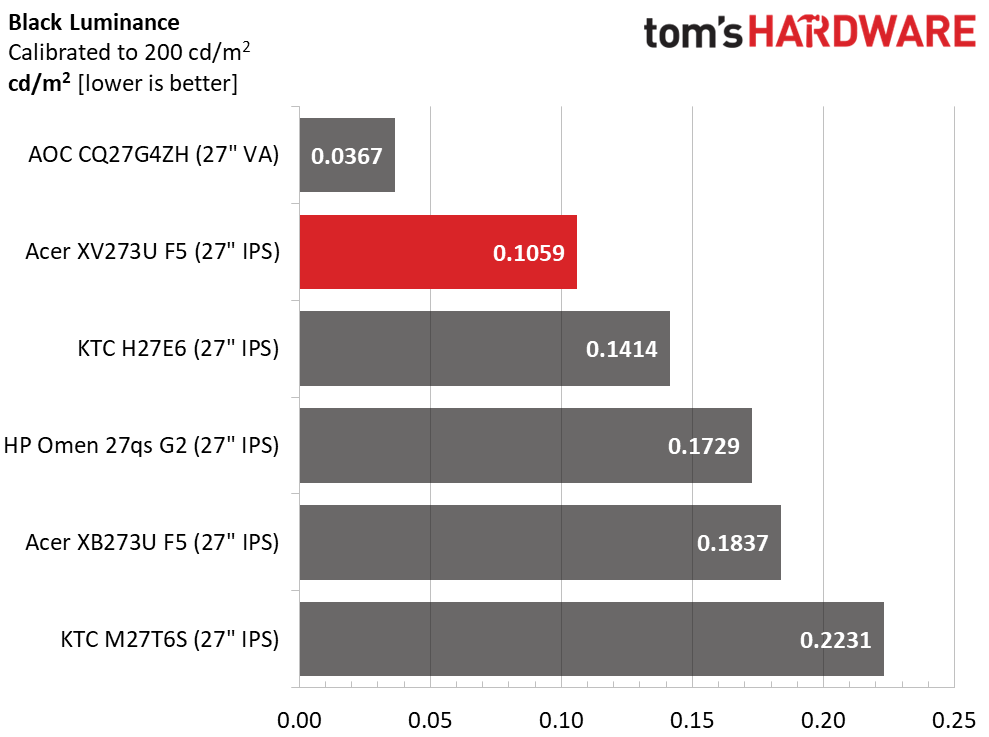
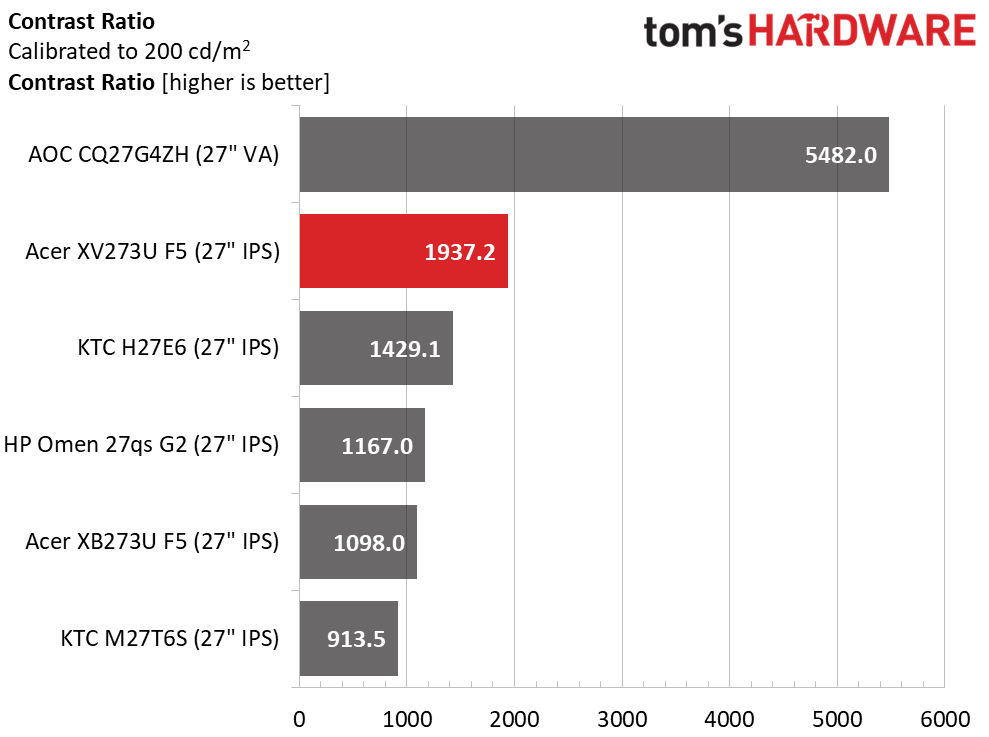
During calibration, I had to lower the contrast slider a bit to solve a clipping issue, but that didn’t make much difference in dynamic range. It’s still an excellent 1,937.2:1, well ahead of the next best KTC. The ANSI score is even more impressive at 1,938:1. It’s rare that any monitor matches its static and intra-image results in my tests. This is excellent performance.
Test Takeaway: The XV273U F5 tries hard to be an OLED with its superb contrast and deep black levels. It’s bright when needed as well, with nearly 500 nits of peak output for SDR content. It also shows excellent quality control with near-identical static and ANSI contrast numbers.
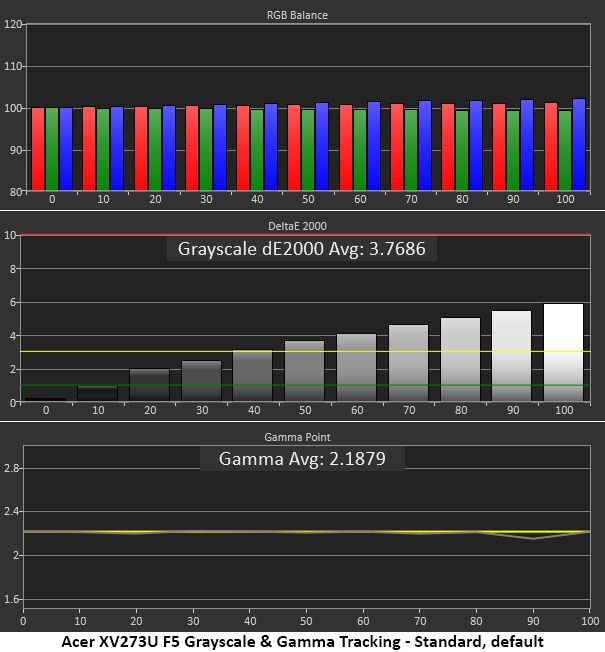
The XV273U F5 ships in its Standard picture mode and includes plenty of picture options like gamma presets, color temps, RGB sliders with two-point control and a gamut selector.
Grayscale and Gamma Tracking
Our grayscale and gamma tests use Calman calibration software fromPortrait Displays. We describe our grayscale and gamma tests in detail here.
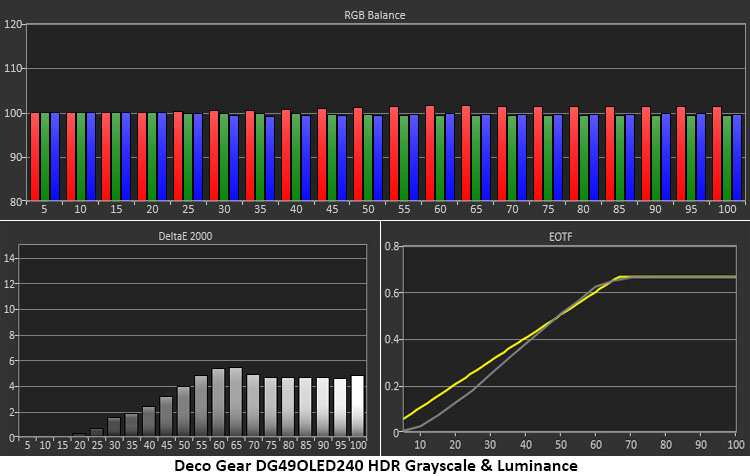
The initial grayscale run shows visible errors starting at the 50% brightness step. The pattern looks a little cool in tone though it’s not too far off the mark. I would definitely calibrate, but many users will be satisfied with the image. And that’s largely because gamma is within a hair of perfect. Only the tiniest dip happens at 90%, and that is well below the visible threshold. Gamma this good makes the image more textural and realistic. It also increases perceived color saturation.
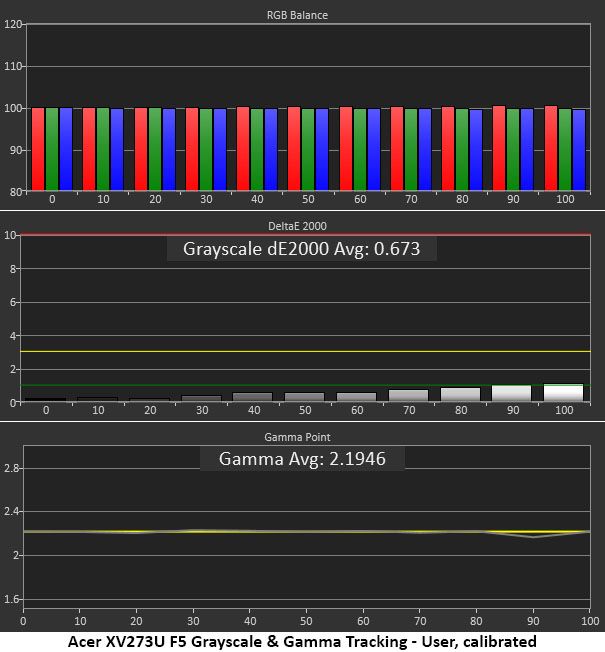
Calibration takes the XV273U F5 to reference level. All errors are under 1dE except 100%, which just cracks the line. It doesn’t get much better than this. Gamma improves a tad as well, with that 90% dip almost gone. This is excellent performance.
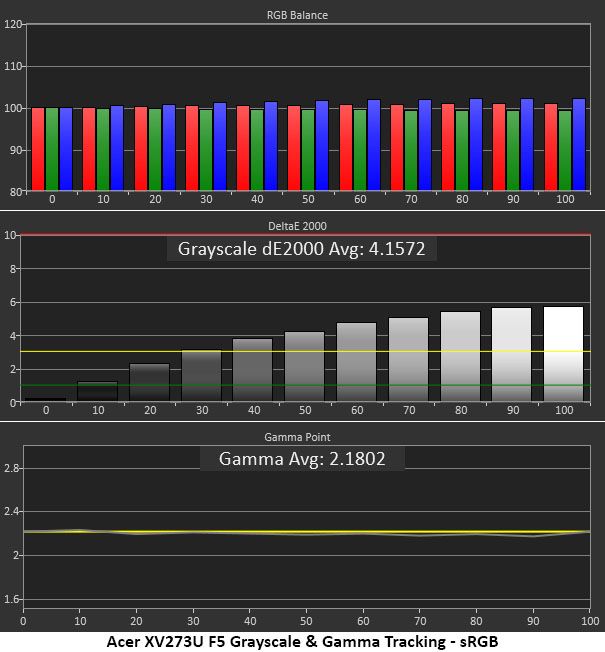
Picking the sRGB color space grays out all other calibration controls, so you get great gamma, but that cool grayscale returns. It’s not a big deal, but I'd like the RGB sliders available. This is decent performance.
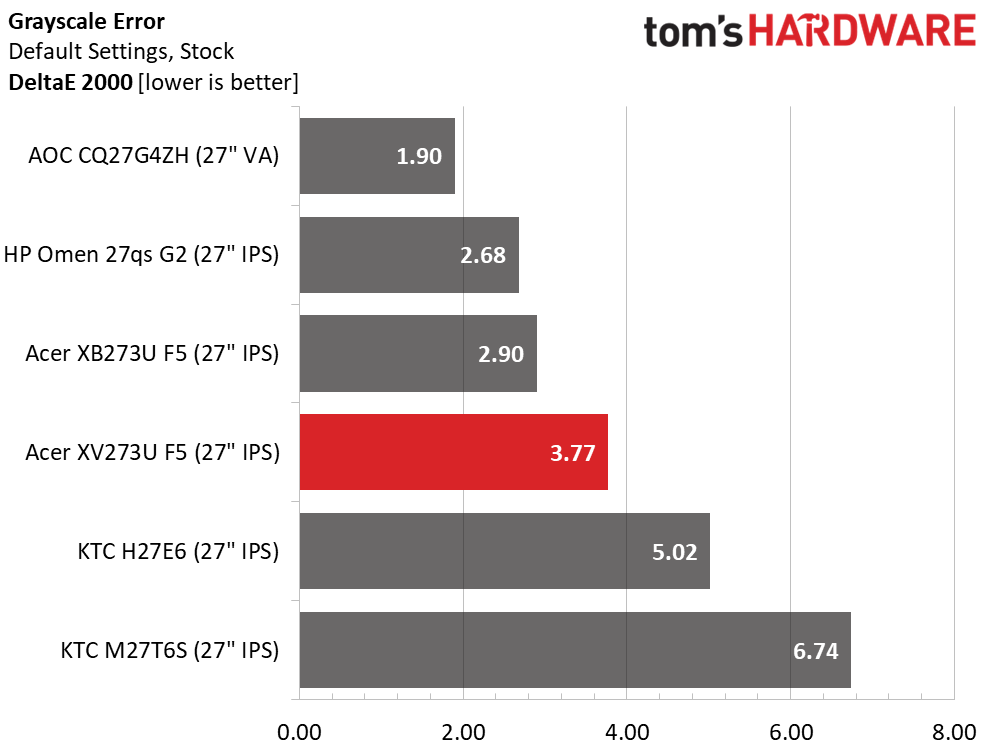
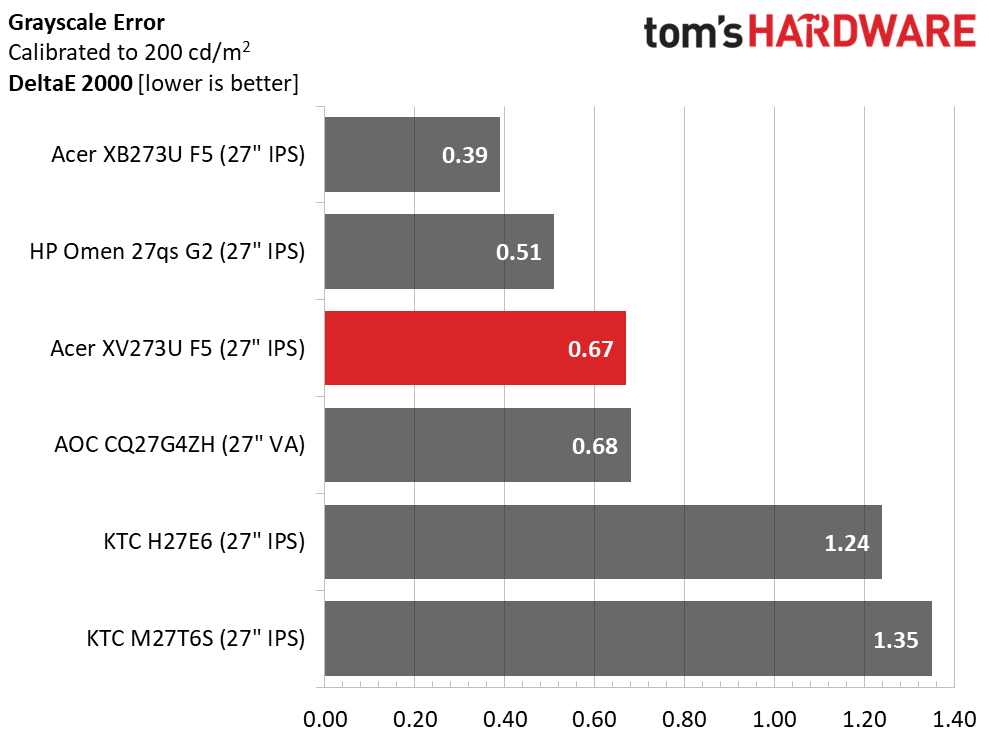
The XV273U F5 finishes fourth in the comparison and just cracks the “should calibrate” line. Most users will be satisfied with the picture, but since a few adjustments can produce reference-quality results, it’s worth a little effort. That takes the average error down to 0.67dE, which is awesome but not quite as good as its predecessor, the XB273U F5, or the HP.
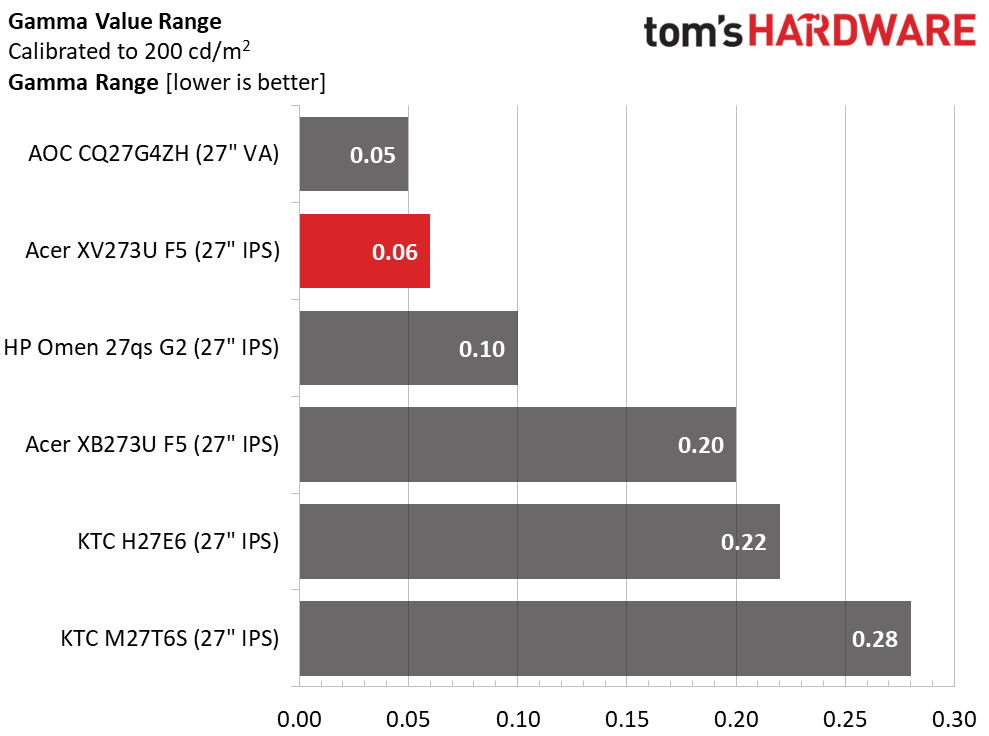
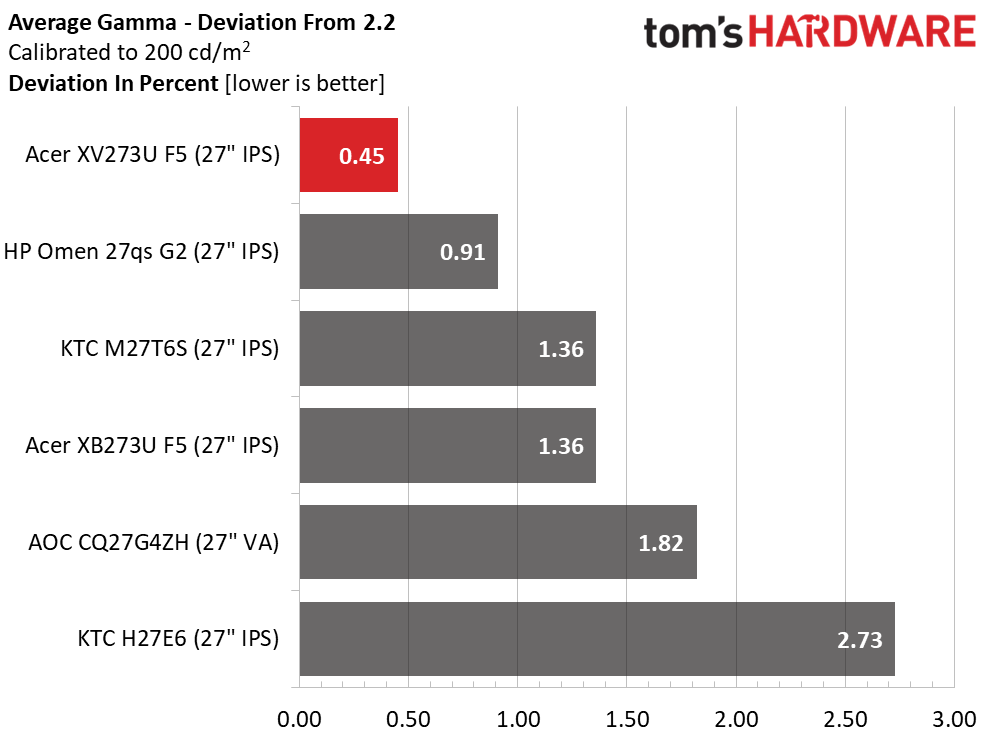
The gamma value range is about as tight as it gets, though the AOC is 0.01 better. But when compared to the 2.2 reference, the XV273U F5 comes out on top with just a 0.45% deviation. The actual value is 2.19. The XV273U F5 has gamma on par with the most accurate pro monitors I’ve reviewed.
Color Gamut Accuracy
Our color gamut and volume testing usePortrait Displays’ Calman software. For details on our color gamut testing and volume calculations,click here.
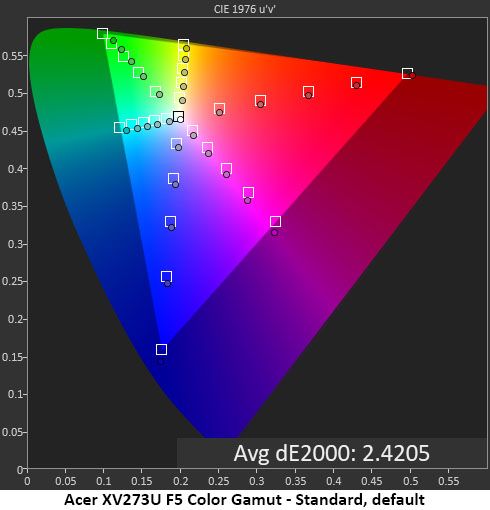
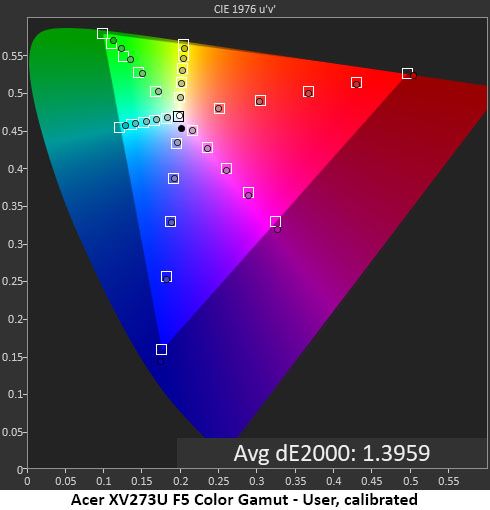
The XV273U F5’s initial color measurement is good, but there is room for improvement. Saturation levels are spot-on thanks to the near-perfect gamma, but hues are slightly off due to grayscale errors. You can see what I mean in the next chart where my grayscale calibration has been done. Now, every point is either inside or in contact with its target box. It doesn’t get much better than that.
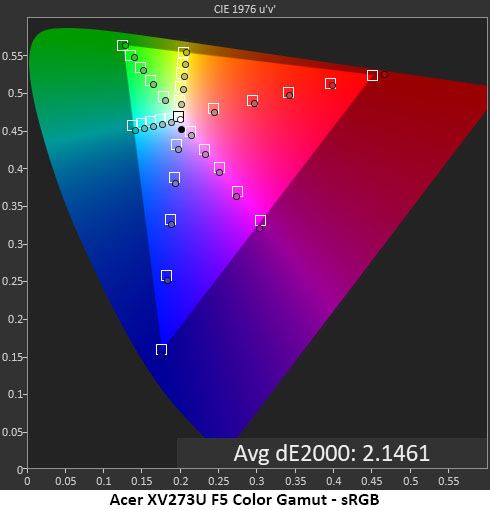
The sRGB mode is quite close to the mark, with a slightly warm grayscale but perfect gamma. There are slight hue errors in cyan and magenta, but other colors are spot-on. If the RGB sliders were available in sRGB mode, this chart could be improved, though it is already good enough for color-important applications.
Comparisons
Tom's HardwareTom's Hardware
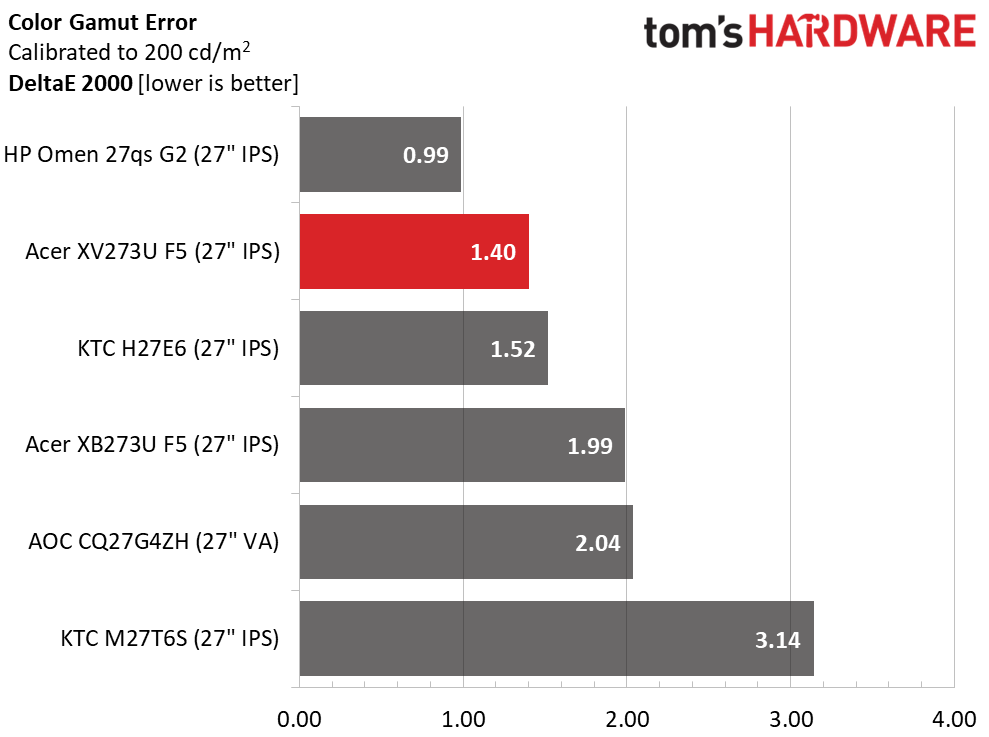
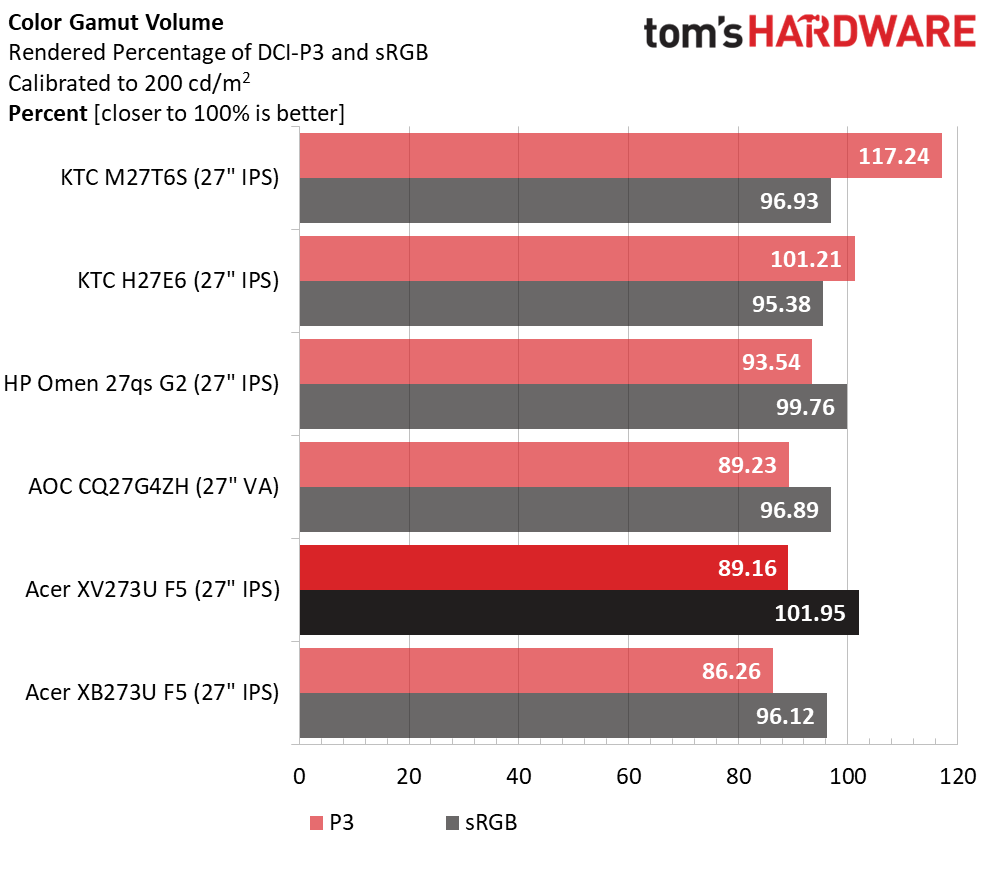
The XV273U F5 has superb color accuracy and gamut coverage, with only minor errors that won’t diminish the picture. A 1.40dE final color score is among the best I’ve recorded. In the gamut volume test, it achieves 89.16% DCI-P3 coverage, which is about average for non-Quantum Dot LCD panels. It only comes up a tad short in the green primary. sRGB coverage comes close to 102% thanks to a little bonus red.
Test Takeaway: The XV273U F5 has excellent color accuracy once calibrated. Out of the box, it’s still solid. In either case, it has gamma tracking on par with the best professional monitors. Color coverage is about average for non-Quantum Dot screens with around 90% of DCI-P3. That suits it well for HDR material.
The XV273U F5 accepts HDR10 signals with a manual switch. You must apply the signal first, then choose one of the two HDR picture modes, Auto or HDR 600.
HDR Brightness and Contrast
Tom's HardwareTom's HardwareTom's Hardware
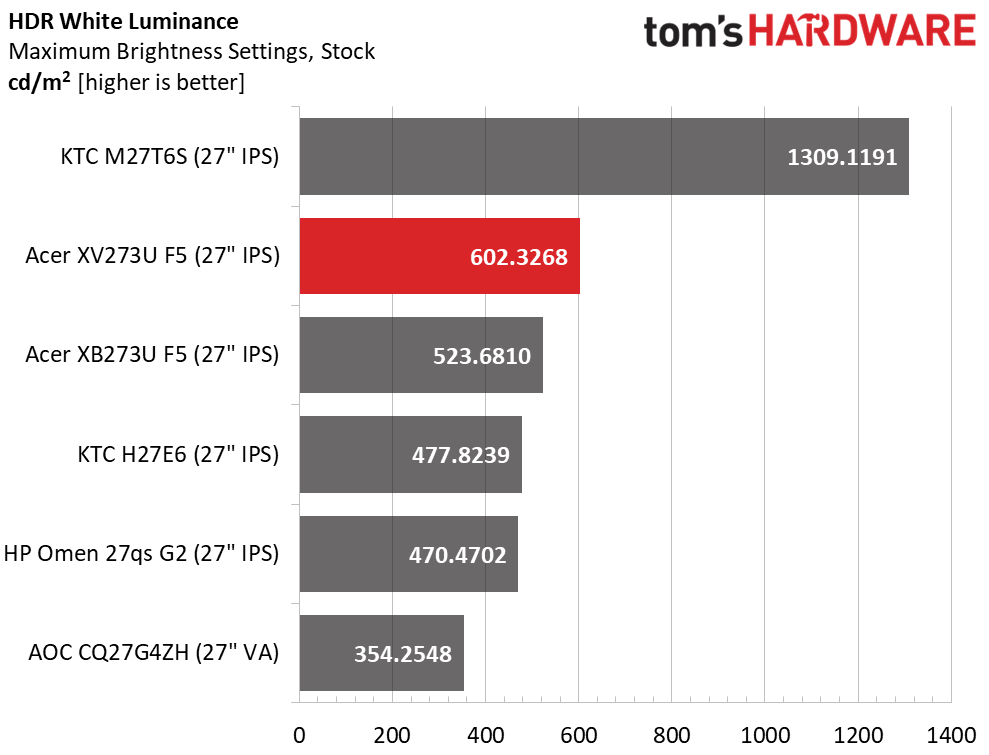
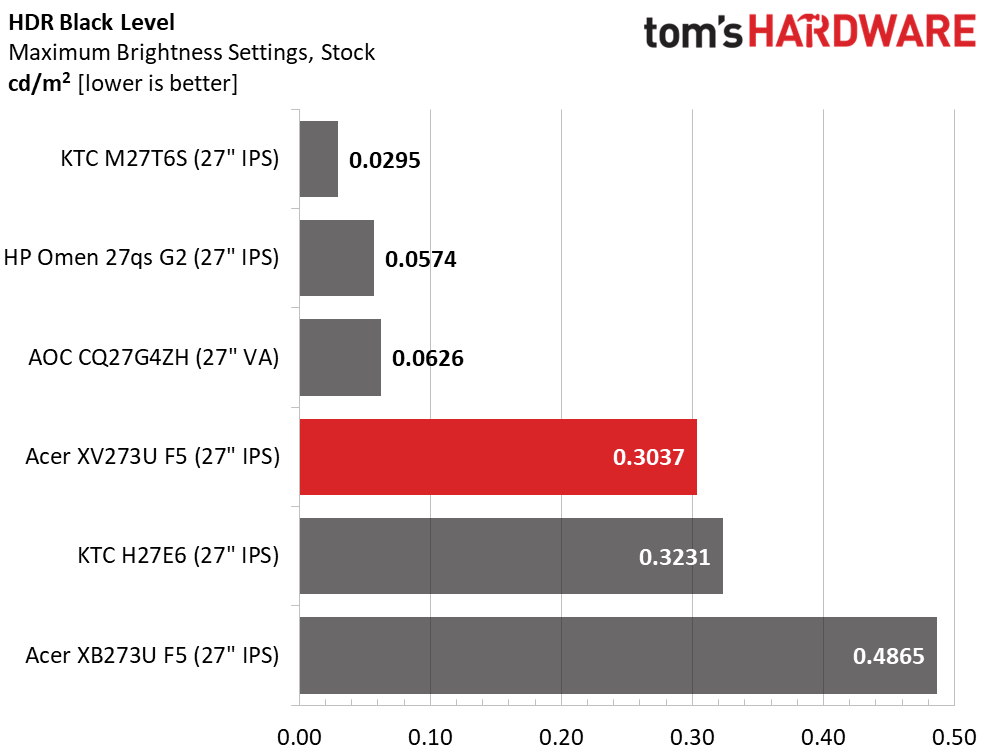
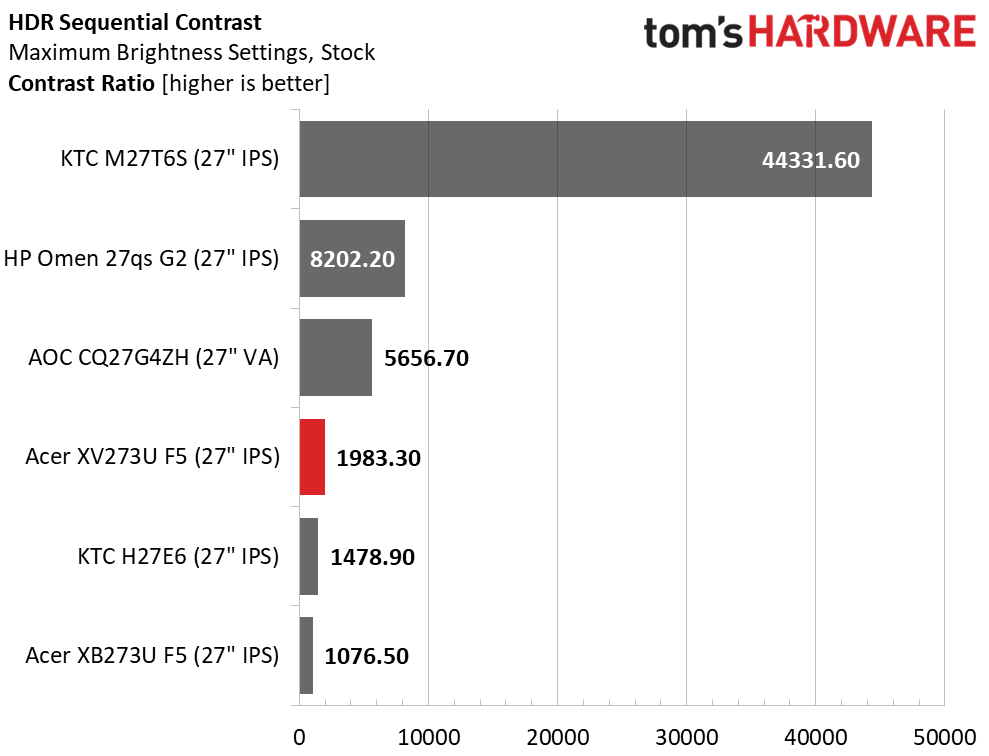
I measured the same peak output in both HDR modes, Auto and HDR 600. The XV273U F5 just cracks the 600-nit mark, earning its VESA Display HDR 600 certification. There is no dimming, either field or zone, to reduce the black level, so contrast is the same as SDR, 1,983:1. This is solid performance, but the HP, KTC, and AOC use dimming to lower their black levels and increase dynamic range, which ultimately provides more impact.
Grayscale, EOTF and Color
Portrait Displays CalmanPortrait Displays Calman
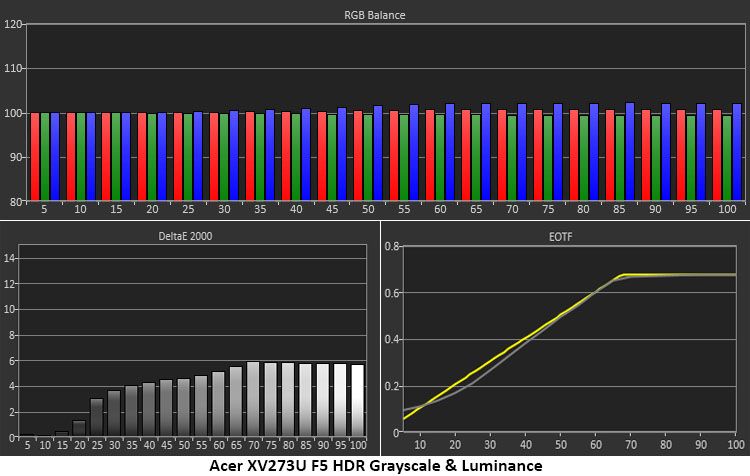
The XV273U F5 has a slightly cool grayscale in HDR mode, with errors visible from the 25% step and brighter. This flattens the image a little, but that is mitigated by excellent EOTF tracking. Aside from a light 0% reading, the measurements stick close to the reference line and hit the correct tone map transition point at 65%. This is where it should be for the measured black and white thresholds.
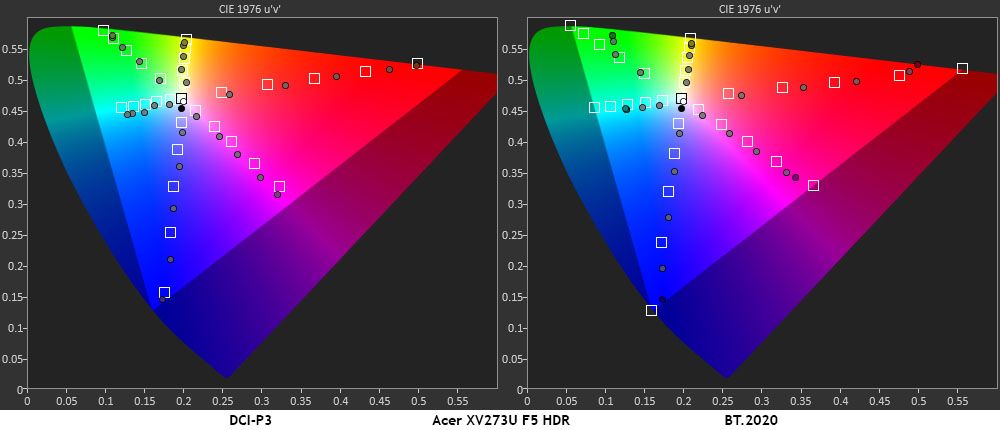
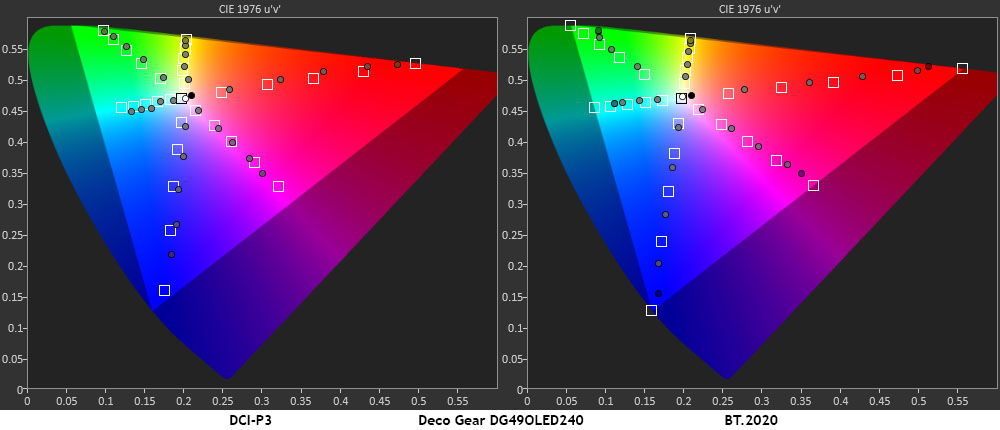
In the color test, you can see some oversaturation in red and blue while green is close to its targets. That primary comes up a tad short at 100%, which was also the case in my SDR tests. You’ll need Quantum Dots or a Tandem OLED to get more green than this. Hues are true for all colors except magenta and cyan, which are pulled off target by the cool grayscale. In the BT.2020 test, color runs out at 85% red, 70% green, and 95% blue.
Test Takeaway: The XV273U F5 has solid HDR contrast but gives away some performance to other monitors that have zone or field dimming. It mitigates this somewhat with very accurate EOTF tracking. Color is also close to the mark and there’s plenty of saturation there to provide decent impact for HDR content.
There’s no question that OLED gaming monitors have raised the bar for motion quality, gaming feel and quick response. But LCD isn’t done yet. With a high refresh rate and good video processing, an IPS panel can provide the same experience. Acer has clearly raised the bar with its Nitro XV273U F5.
(Image credit: Acer)
At 540 Hz, the XV273U F5 has no visible motion blur. At lower refresh rates, the overdrive keeps motion smooth and if you want a backlight strobe, it’s available and is one of the best implementations out there. You can run this monitor with any gaming PC or console. It isn’t limited to just expensive video cards. And it’s super cool to see “1000” displayed on the screen’s frame counter.
The XV273U F5 panel also provides superb contrast. Though it isn’t going to displace OLED or VA in the black level contest, I measured a 2,000:1 ratio, which puts it well ahead of the IPS average. I also measured perfect gamma, which resulted in a highly textured image with vivid color saturation and 90% DCI-P3 coverage. It can be enjoyed without calibration, but a few tweaks of the RGB sliders put it in pro-monitor territory.
(Image credit: Tom's Hardware)
I also enjoyed the white aesthetic, mainly because it’s something different. It stands out from the sea of black monitors in a good way. The only misses for me were the lack of USB ports and the lack of dimming to increase HDR contrast. But neither of these things diminishes its gaming prowess. It’s addictive in every respect.
If you want the smoothest motion and the quickest response from your next gaming monitor, and you don’t want an OLED, the Acer Nitro XV273U F5 deserves serious consideration. Definitely check it out.
Asus has introduced some of the best OLED gaming monitors in recent years, and with each generation, it makes incremental improvements in performance, features, and technology. Its latest panel type is Tandem RGB Stripe, bringing higher brightness, a wide color gamut, sharper imagery, and lower power consumption.
The latest ROG Swift display to hit my test bench is the PG27UCWM. It’s a 27-inch 4K panel with 240 Hz (480 Hz in FHD), HDR10, Dolby Vision, DisplayHDR 400, and Adaptive-Sync. Let’s take a look.
Asus ROG Swift PG27UCWM Specs
Panel Type / Backlight
Tandem RGB Stripe OLED
Screen Size / Aspect Ratio
27 inches / 16:9
Max Resolution and Refresh Rate
3840x2160 @ 240 Hz
1920x1080 @ 480 Hz
FreeSync and G-Sync Compatible
Native Color Depth and Gamut
10-bit / DCI-P3
DisplayHDR 400, HDR10
Dolby Vision
Response Time (GTG)
0.03ms
Brightness (mfr)
250 nits full screen
1,000 nits 3% window
Contrast
Unmeasurable
Speakers
None
Video Inputs
1x DisplayPort 2.1
2x HDMI 2.1, 1x USB-C
Audio
3.5mm headphone output
USB 3.2
1x up, 3x down
Power Consumption
48w, brightness @ 200 nits
Panel Dimensions
WxHxD w/base
23.9 x 17.1-21.5 x 10.1 inches
(607 x 434-546 x 257mm)
Panel Thickness
2.5 inches (64mm)
Bezel Width
Top/sides: 0.35 inch (9mm)
Bottom: 0.43 inch (11mm)
Weight
17.86 pounds (8.1kg)
Warranty
3 years
I’ve reviewed a few Tandem RGB Stripe OLEDs of late, most recently, Asus’ 32-inch version of this screen, the PG32UCWM. There’s no denying the extra sharpness that this tech brings. Though I never saw much color fringing around text as discussed online, these new panels are clearly sharper than single-layer OLEDs. By sandwiching two layers and making the pixels’ physical shape narrower, you get more clarity, more color, and more brightness at a given wattage. And by driving the panel less aggressively, its lifespan is extended.
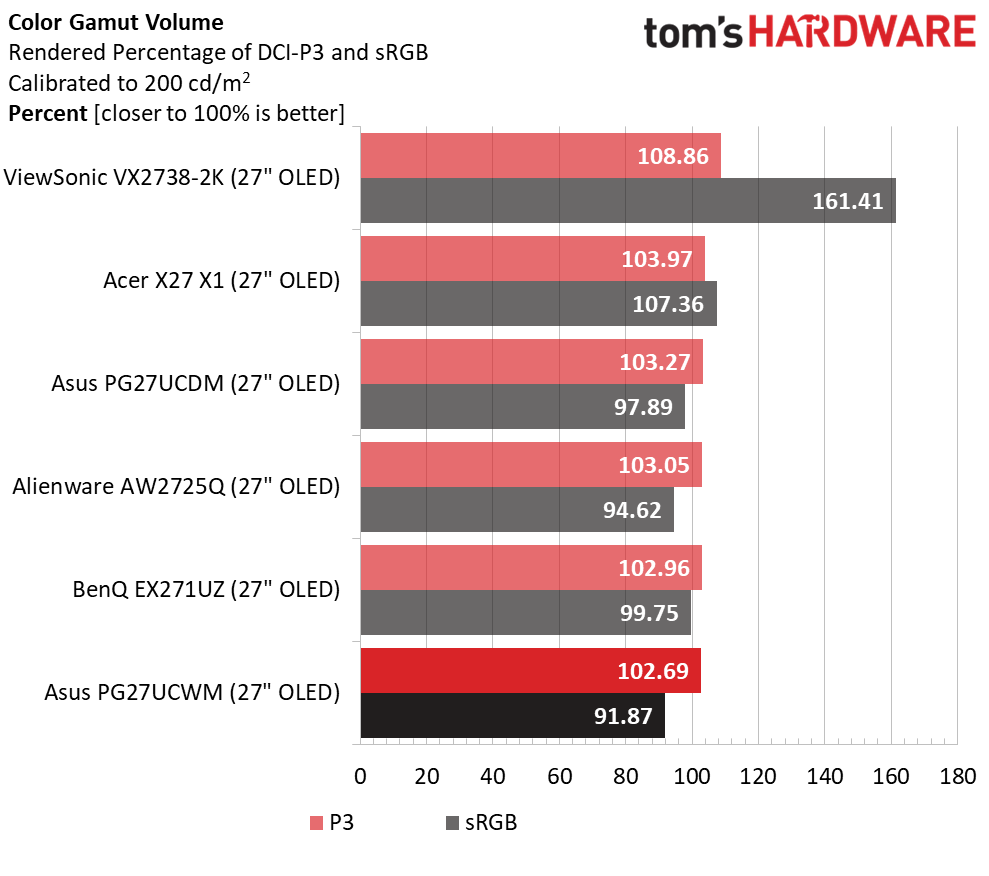
The PG27UCWM’s color volume is greater than that of single-layer OLEDs but not quite as large as that of Quantum Dot displays. I measured just over 102% coverage on my sample, whereas you’ll get closer to 110% with a QD monitor. Asus includes factory calibration with each monitor, and you can find that stored in firmware and accessed through the comprehensive OSD.
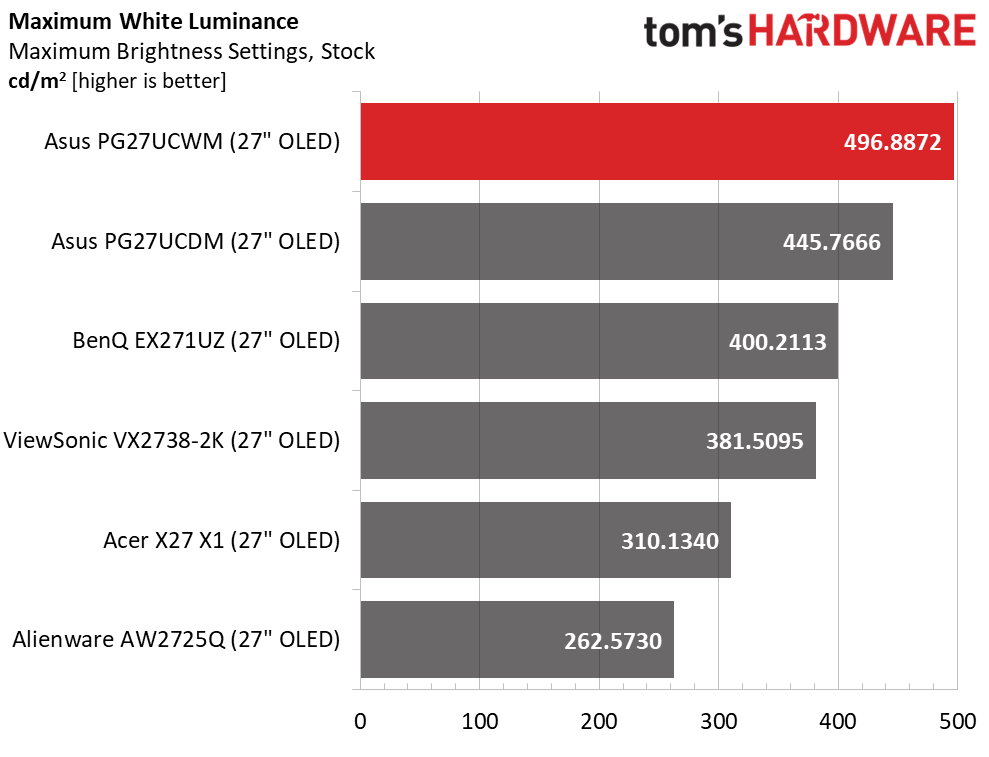
Peak brightness is just under 500 nits when measuring a 25% window pattern with uniform brightness turned off. That number holds for both SDR and HDR content. The PG27UCWM supports HDR10 and Dolby Vision, with VESA DisplayHDR 400 certification. Asus’ TrueBlack Glossy screen coating keeps reflected light from spoiling those deep black levels.
In the video processing department, Asus includes a dual-refresh feature called Frame Rate Boost that switches between 4K/240 Hz and Full HD/480 Hz. You can change modes with a single button press. Also in the mix is Adaptive-Sync, with certifications from both Nvidia (G-Sync) and AMD (FreeSync Premium Pro). And you can augment lower frame rate capable systems with ELMB (Extreme Low Motion Blur).
The PG27UCWM, like all ROG Swift products, is feature-rich. You get Asus’ GamePlus enhancements, including multiple aiming points, sniper modes, frame rate counters, timers, and alignment marks. The quick menu and joystick clicks are fully customizable for quick access to many functions. And you can download Asus’ DisplayWidget Center app for full control on Windows or Mac desktops. A full array of inputs includes DisplayPort 2.1 with 80 Gbps bandwidth, HDMI 2.1, USB-C, and a USB 3.2 hub with KVM options.
There are plenty of cables included, along with Asus’ signature LED lighting and graphics. The PG27UCWM is firmly in the premium segment at a starting price of $1,099. I would expect greatness for that sum, and if you read on, we’ll see if it delivers.
Assembly and Accessories
The PG27UCWM arrives in a well-adorned carton with colorful graphics and secure, recyclable packaging. The base, upright, and panel are separate, as is the lens for the ROG logo projector that shines symbols on your desk. It includes multiple lenses. The ROG pouch reveals cables for USB, HDMI, and DisplayPort, plus IEC for the internal power supply. There’s also a heavy stamped steel bracket that snaps onto the panel to create a 100mm VESA mount.
Product 360
AsusAsusAsusTom's Hardware
The PG27UCWM features Asus’ latest ROG Swift styling cues, with clear plastic on the back that reveals some of the monitor’s internal components. Opposite that is the Lite Brite ROG graphic that can light up in a multitude of colors and effects. More LEDs can be found on the front, on the small protrusion beneath the screen, as well as on the base and even the sliding bit on the stand’s upright. All this fun can be controlled in the OSD and by DisplayWidget Center.
In front, the bezel is very narrow on all sides, just 9-11 millimeters, with a small protrusion at the bottom center for the joystick and control buttons. It also contains a sensor that works with the OLED care features to shut off the panel when you leave your desk.
From the side, you can see the panel-on-box design that is common to many OLEDs. This not only looks nice but aids in cooling. The OLED is backed by a metal plate that helps dissipate heat, along with a graphene layer inside, heatsinks on the internal circuit boards, and a heat-efficient power module. The PG27UCWM is fanless and always ran cool during my time with it.
The stand is very solid with a cast aluminum base that is both wide and deep. The upright features full ergonomics with a 4.4-inch height range, 5/20-degree tilt, 30-degree swivel, and a 90-degree portrait mode. Movements are firm and smooth with no wobble or play. The stand also has a threaded tripod socket on top for things like webcams.
The I/O panel is well-appointed with a single DisplayPort 2.1 (UHBR20, 80 Gbps), two HDMI 2.1, a USB-C, and a USB hub with one upstream and three downstream. The hub has full KVM functionality, along with version control and power for the USB-C up to 90 watts. There are no internal speakers, but you do get a 3.5mm headphone jack.
OSD Features
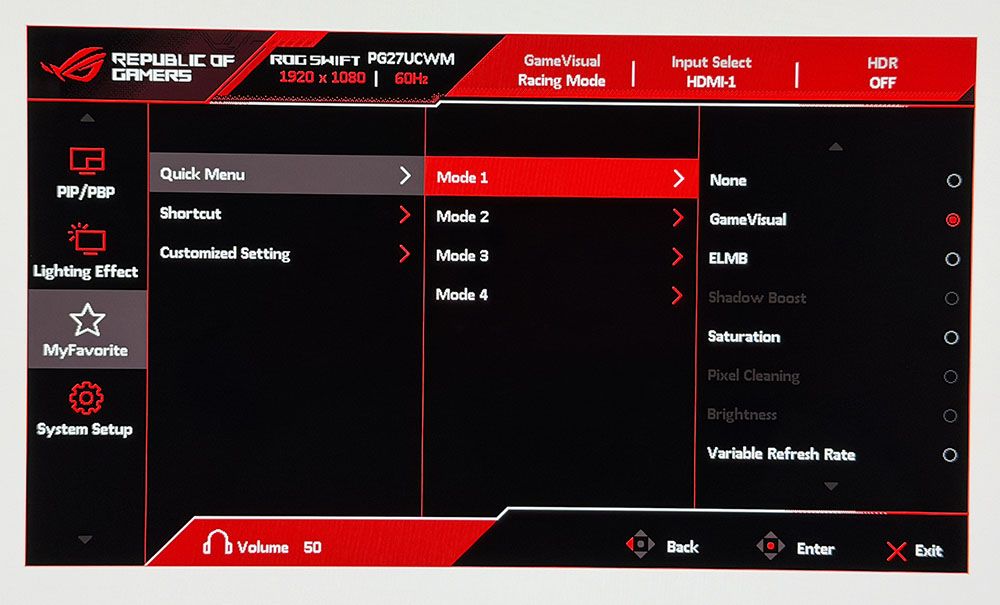
The PG27UCWM has two buttons and a joystick to cover all monitor functions. Pressing the left button switches the refresh rate between 240 Hz and 480 Hz. The right button is a power toggle. Pressing the joystick brings up a quick menu which is fully programmable. A second press reveals the full OSD.
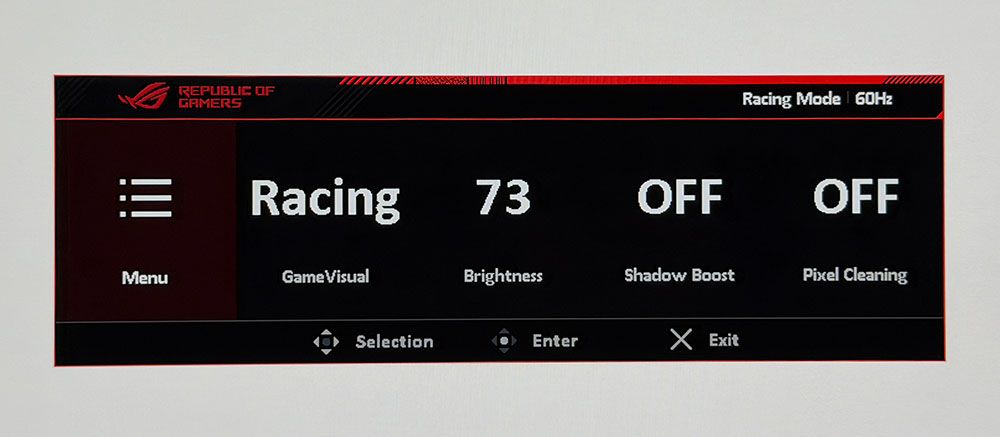
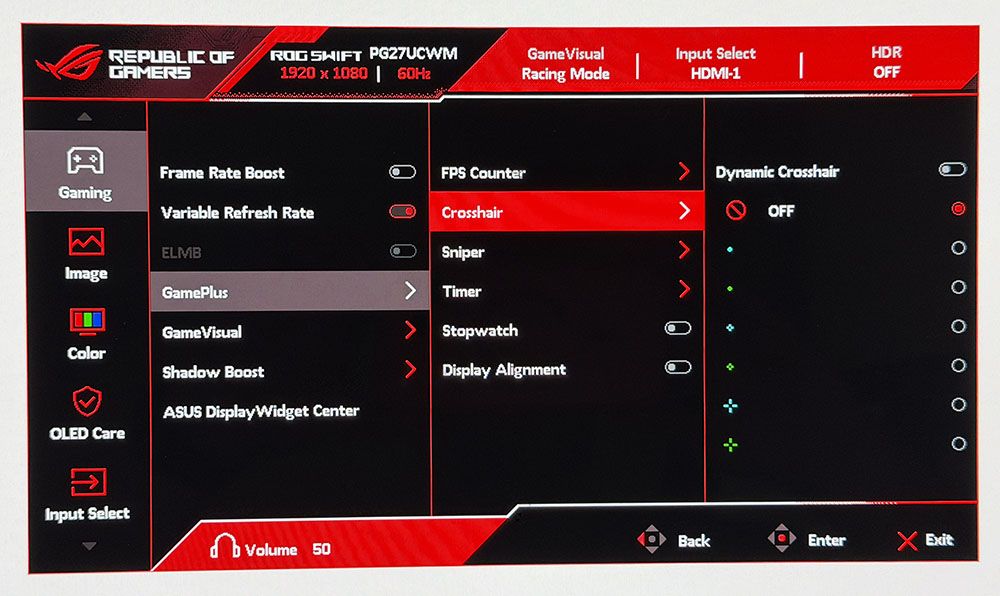
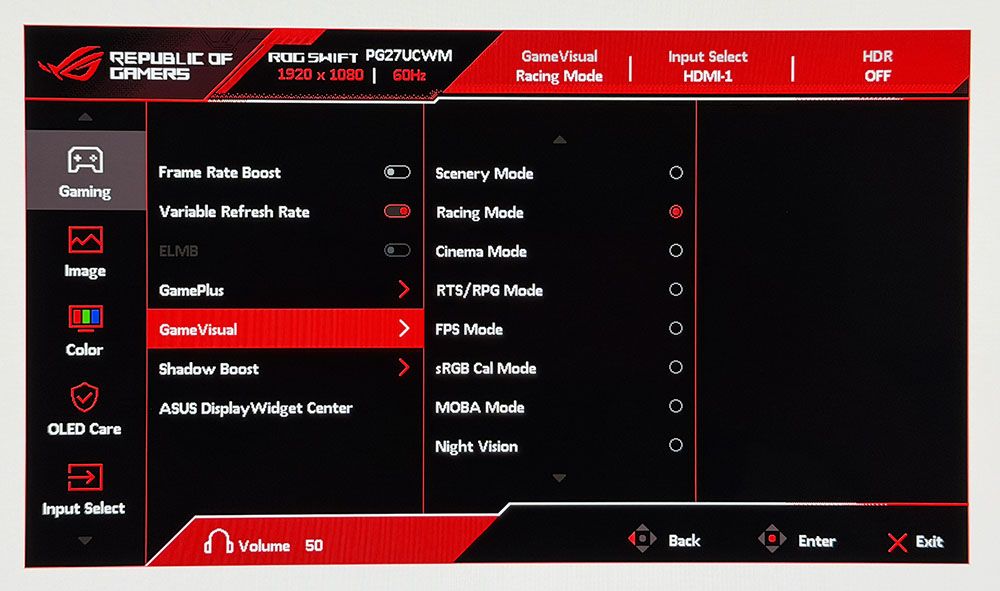
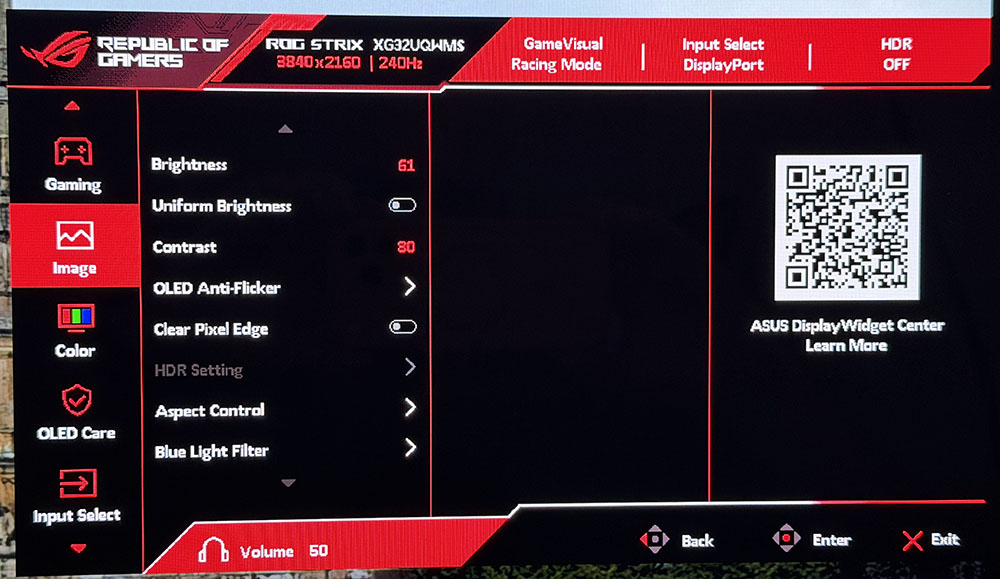
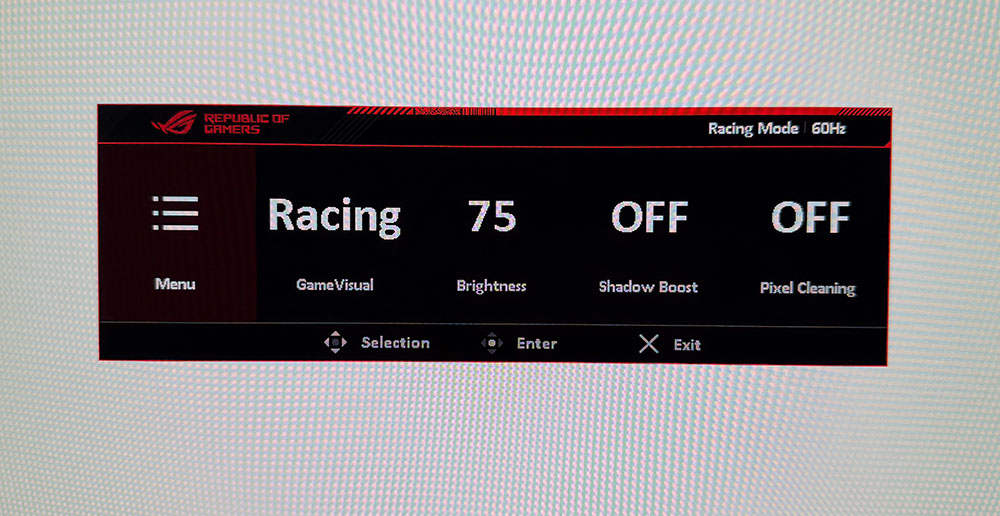
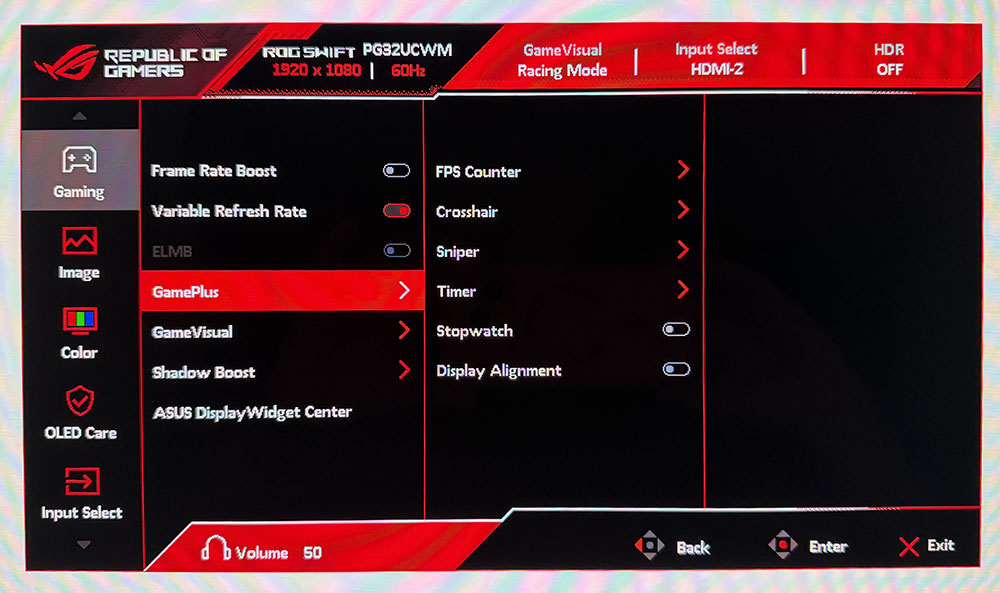
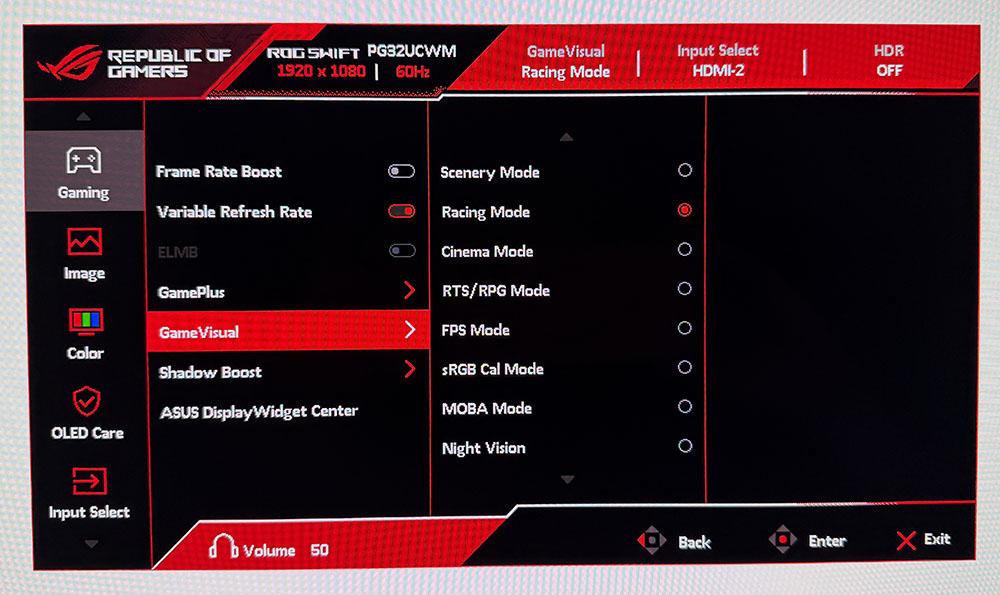
The quick menu has four slots for any function you might want quick access to, like picture mode, brightness, and the like. The full OSD starts with Gaming, and there, you’ll find the GamePlus suite with a large selection of aiming points, sniper modes, frame counters, timers, a stopwatch, and display alignment marks. GameVisual refers to the nine picture modes, each aimed at different game types or tasks. Racing is the default and best choice there.
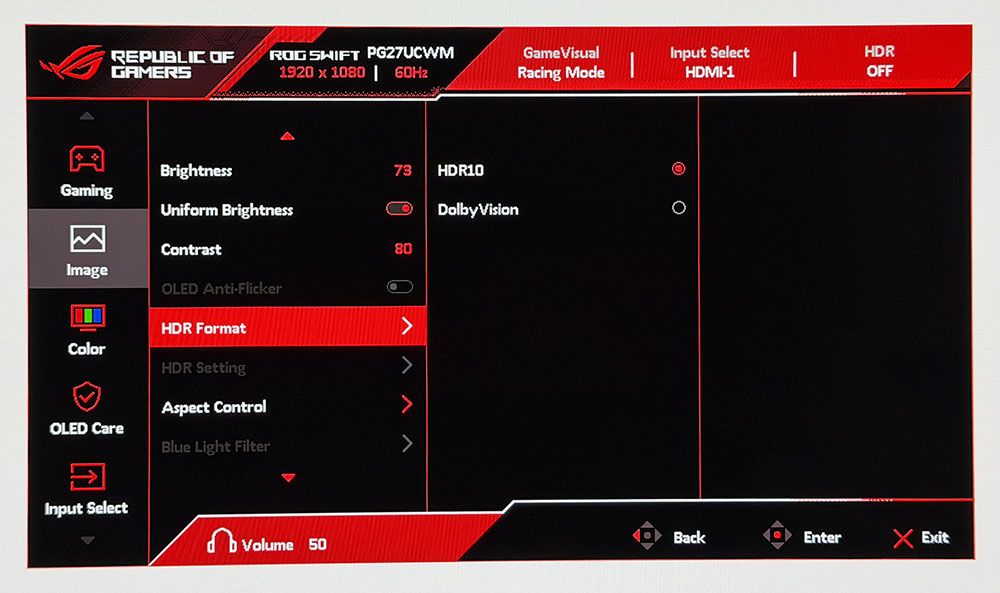
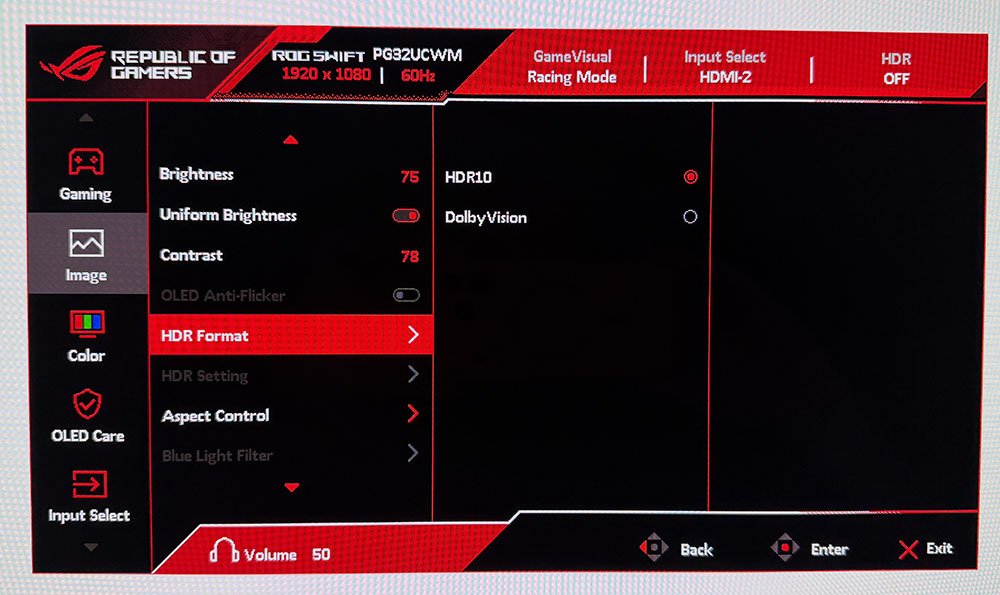
The PG27UCWM is one of the few monitors to support Dolby Vision in addition to HDR10. Dolby Vision uses dynamic tone mapping from the content metadata to tailor its luminance curve for each individual display. This renders the content more faithfully and with more impact than the fixed tone curve from HDR10 material. For that format, you get four more modes with the option to adjust brightness and other parameters.
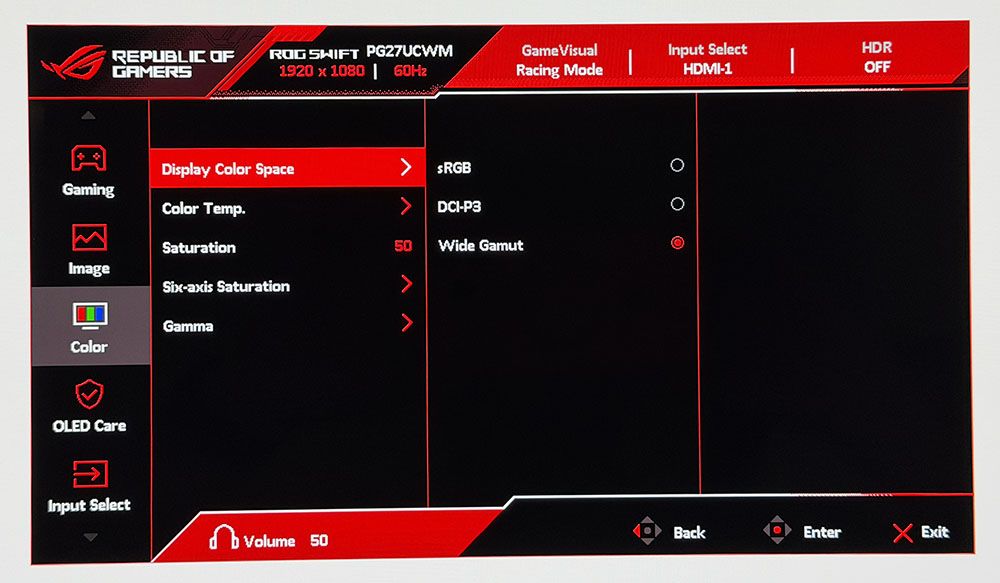
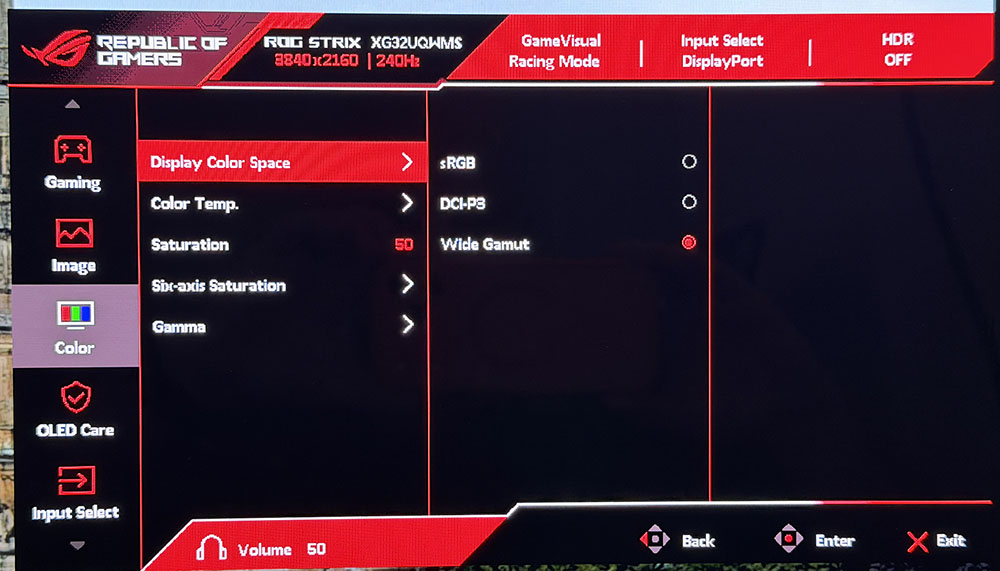
To adjust color, the PG27UCWM includes a gamut selector, gamma presets, and color temps arranged by Kelvin value. You can also adjust RGB sliders for finer control. My sample was nearly perfect out of the box, and I could only make a tiny difference with calibration.
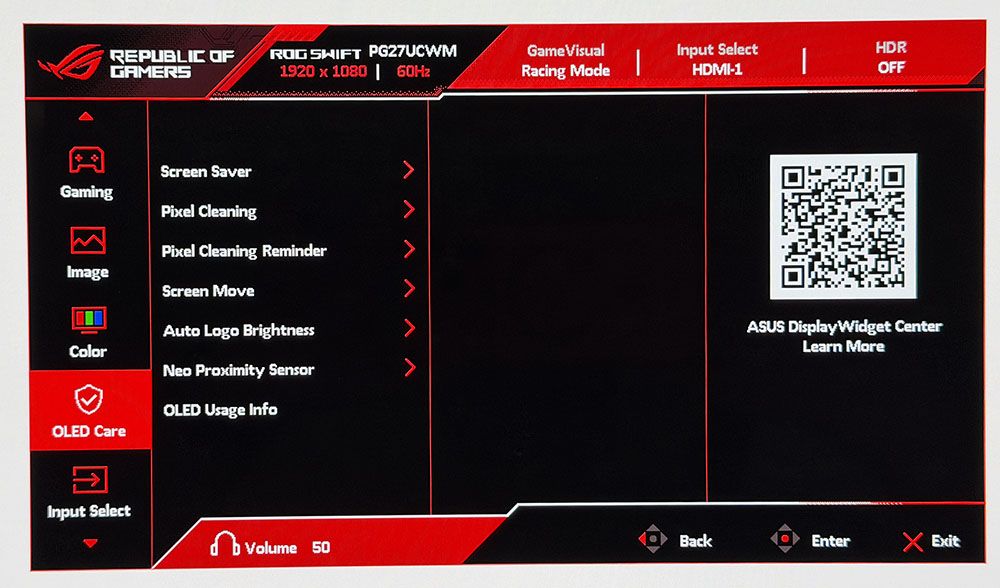
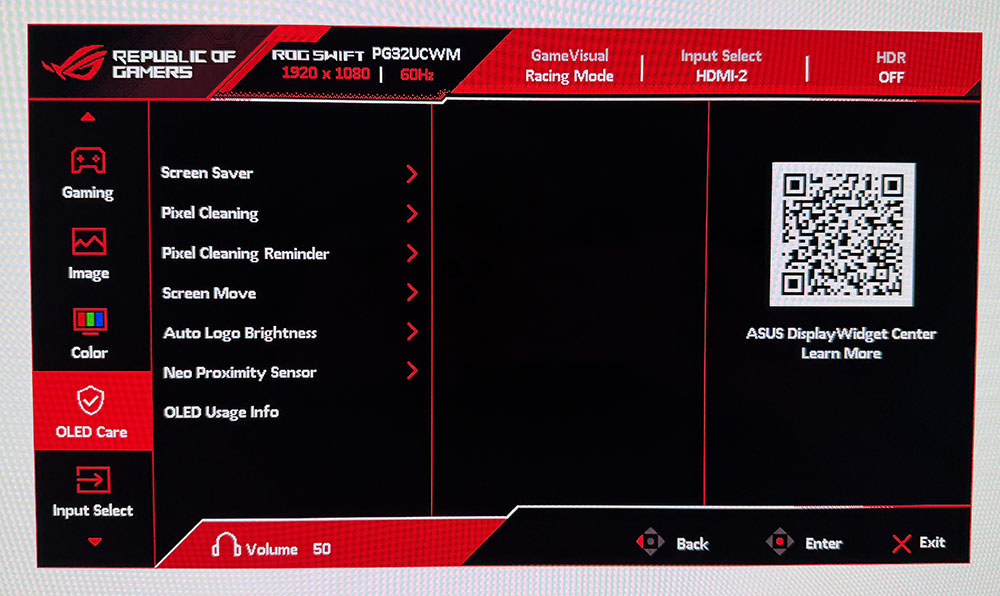
OLED Care includes many toggles for screen savers, logo detection, and more. Pixel Cleaning is a panel refresh feature that takes about six minutes to complete. When I first powered up the PG27UCWM, it prompted me to do this. I’ve found this to improve screen uniformity with brand-new panels, so I make it a habit for every review. A front-mounted sensor can be configured to shut off the monitor when you leave your desk.
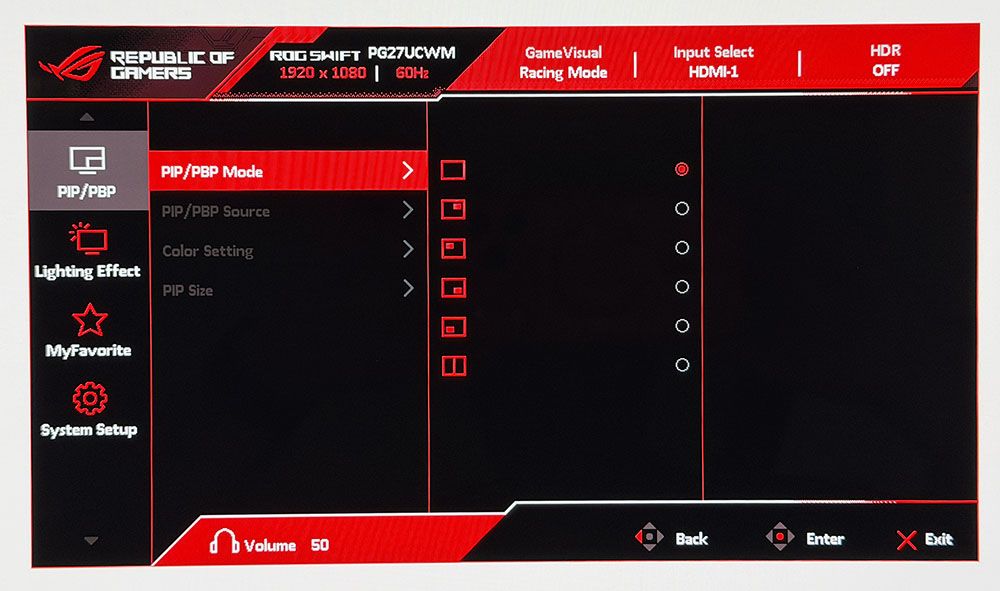
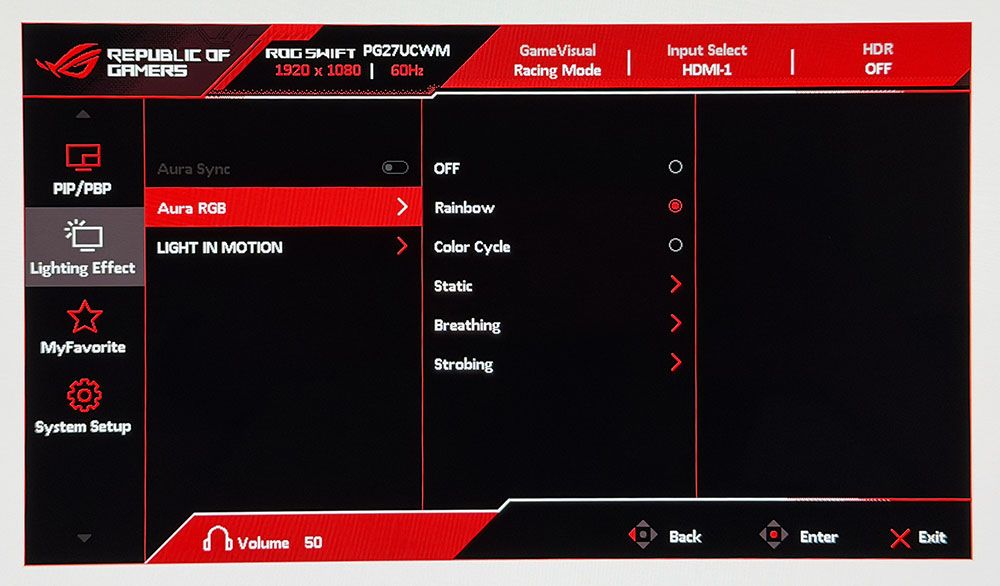
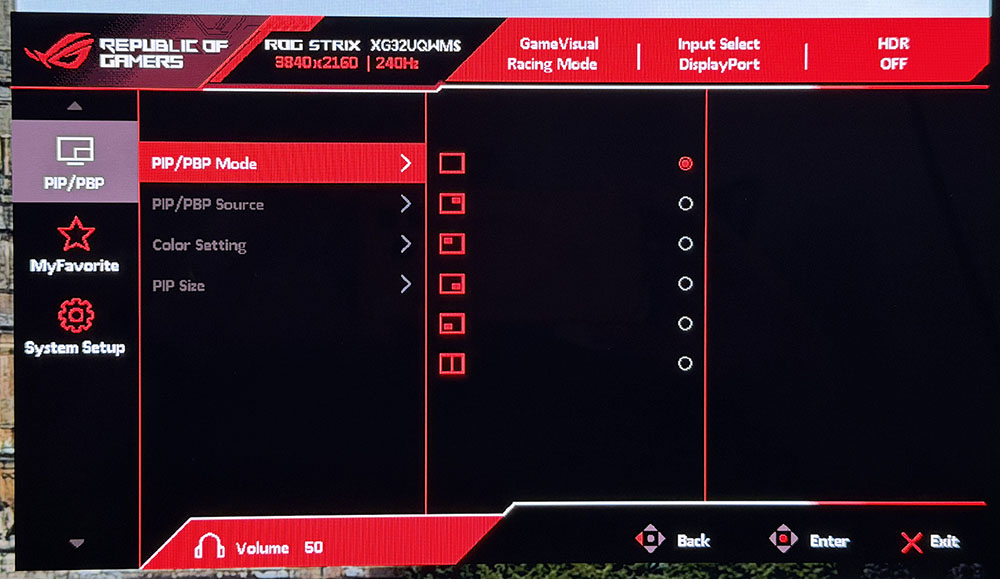
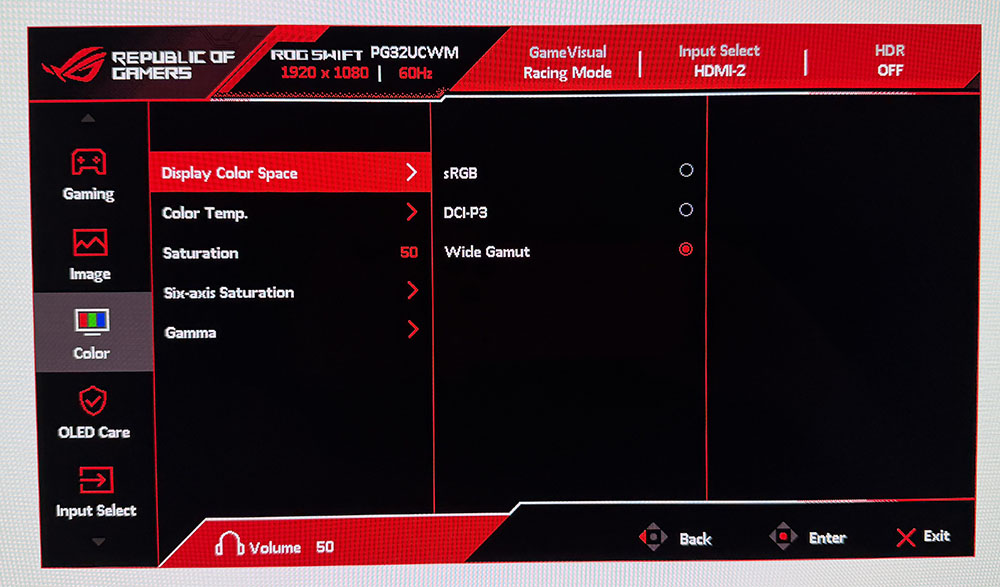
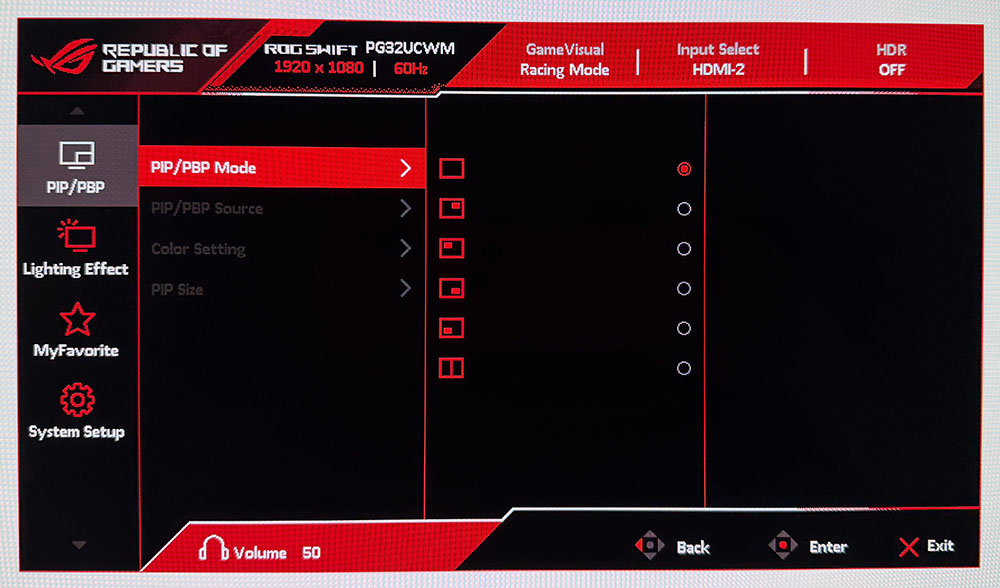
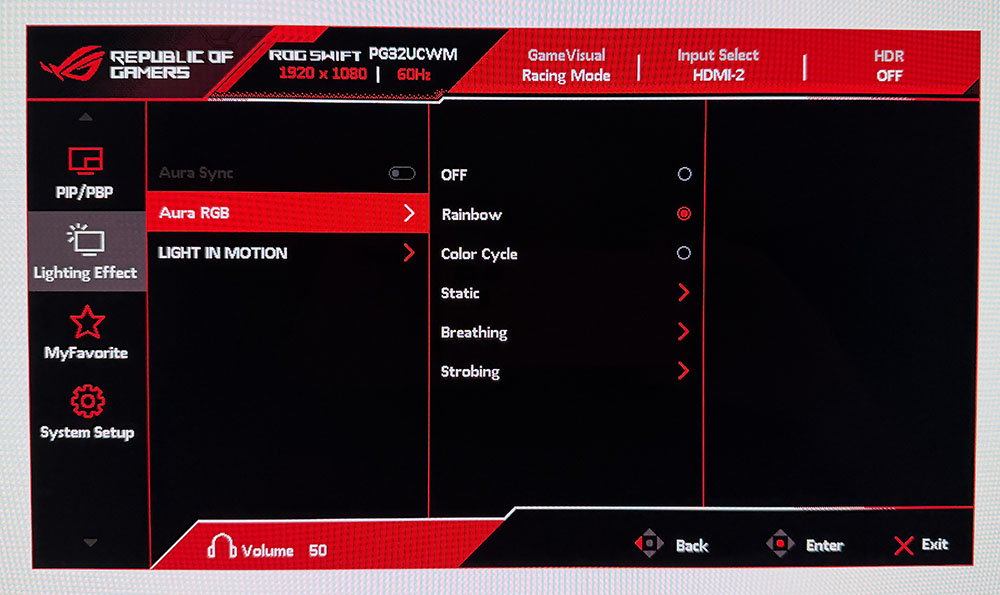
To view two video sources simultaneously, use the PIP and PBP options. Each can have its own color settings, and you can size the PIP window. Aura RGB is the lighting feature, and it offers a wide range of effects and colors. Light In Motion works with the DisplayWidget Center app to create light shows that mimic what’s happening on the screen.
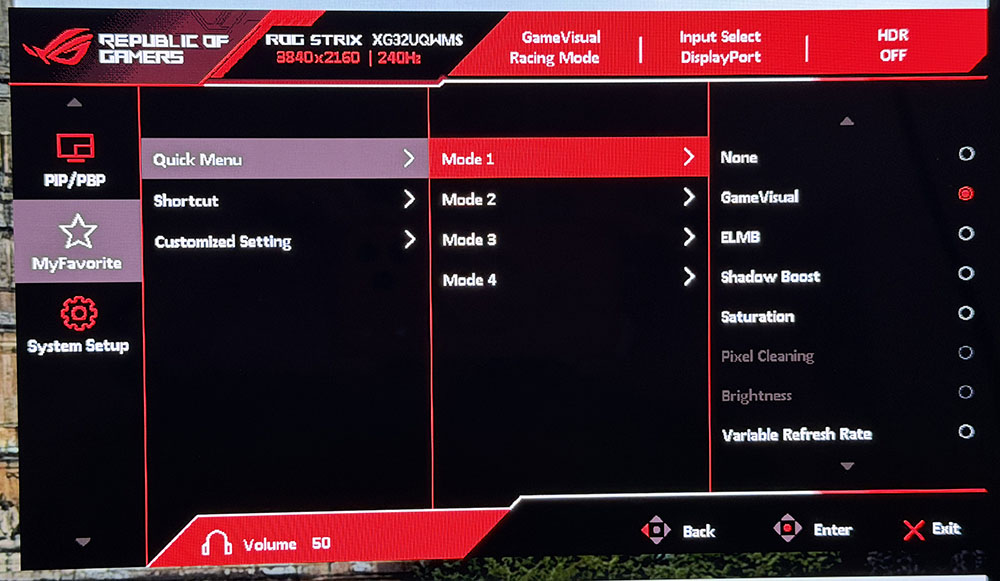
The quick menu and joystick are fully programmable, so you can access up to 9 functions quickly. This is great for switching inputs, adjusting brightness, changing the refresh mode or what have you. Also included are two memory settings.
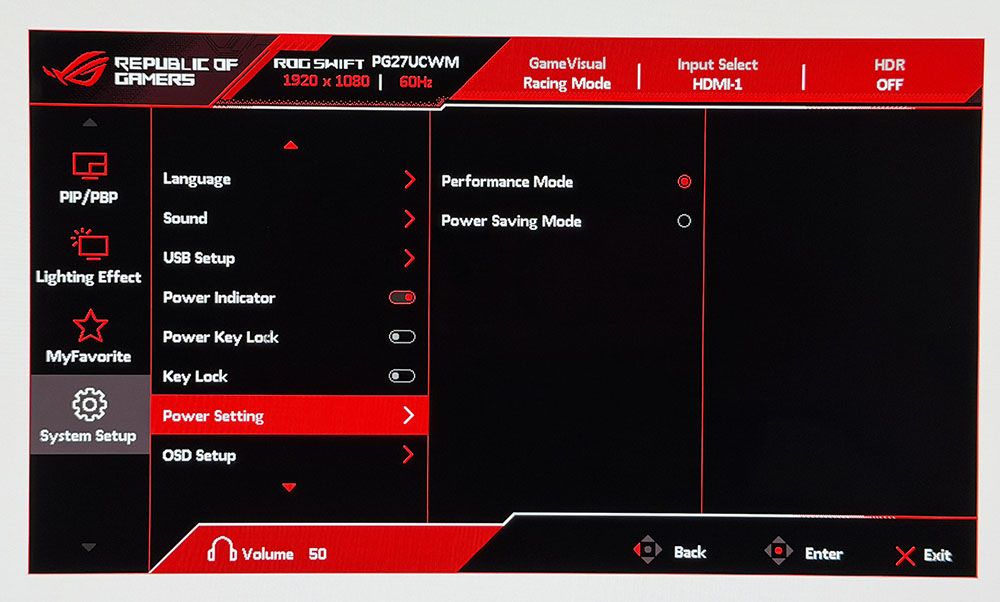
The System Setup menu can be left alone in most scenarios, but one option you must address is the Power Setting. It’s on Power Saving by default, and that limits brightness. Switch to Performance Mode to unlock the PG27UCWM’s full potential.
Asus ROG Swift PG27UCWM Calibration Settings
The PG27UCWM measured close to spec out of the box for grayscale and color, but I noted a slight gamma shift. To improve this metric, I selected the 2.4 preset, which made it a tad darker in a good way. I also adjusted the RGB sliders for a tiny gain in grayscale accuracy. For gaming, calibration is completely unnecessary. My suggested settings are below and include brightness values for Uniform Brightness on or off.
For HDR10 content, I recommend the Gaming HDR mode even though its EOTF tracking is lighter than spec. You can read more about this on page five. For spot-on HDR, True Black mode is the winner.
Picture Mode
Racing
Uniform Brightness
Off / On
Brightness 200 nits
73 / 56
Brightness 120 nits
39 / 38
Brightness 100 nits
31 / 30
Brightness 80 nits
23 / 22
Brightness 50 nits
11 / 10 (min. 25 / 25 nits)
Contrast
80
Gamma
2.4
Color Temp User
Red 100, Green 97, Blue 95
Gaming and Hands-on
I have yet to game on an Asus OLED that wasn’t addictive in its imagery and responsiveness. The PG27UCWM was no exception. It’s super quick with no perceptible input lag and perfectly smooth motion resolution. For frame rates, I tried both modes, 240 and 480, and had excellent results. With a GeForce RTX 4090 in my test PC, I kept the action at 220-230fps in 4K with HDR enabled. This was awesome, to say the least, with every detail rendered sharply whether static or moving. I knew my system was working hard because the fans ran fast and there was a good bit of warm air circulating about my legs as I dispatched enemies in Doom Eternal.
To switch refresh modes, I had to exit to the Windows desktop to prevent the game from crashing. This is typical of the dual-refresh monitors I’ve reviewed and has nothing to do with their operation. At 480 Hz in FHD resolution, the picture was softer but not tremendously so. Games were just as playable and addictive. I kept the frame rate locked at 480 fps across all scenarios. It didn’t make play better for me, but I can see the advantage for users with slower PCs. Or if you just want to brag about frame rates.
HDR color and contrast were exemplary, and I toggled between two HDR picture modes: Gaming and True Black. You’ll see the technical differences between them on page five, but visually, Gaming provided a bit more brightness while True Black had better midtone contrast. It came down to game type for me. Bright outdoor scenery looked better in Gaming while dark imagery looked better in True Black. As with the frame rate boost feature, switching HDR modes should be done on the Windows desktop rather than in a game.
I noted light gamma during testing, which in SDR mode manifested as a slight flattening of the image. I fixed this by upping the gamma setting to 2.4 and raising the brightness value a few points. This added more texture to the picture, which was easy to see in a side-by-side comparison. For a more scientific explanation of the PG27UCWM’s gamma performance, see my test results on page four.
Like all Asus ROG Swift displays, the PG27UCWM is premium in every respect. It looks great just sitting on a desk with its clear back and extensive but not garish lighting. I turned on all the Aura RGB elements and enjoyed the show without distraction from games or work. The accents are well-balanced, even down to the logo projector, a feature unique to Asus ROG Swift monitors.
The Tandem RGB Stripe panel was visibly sharper than last year’s Quantum Dot-based PG27UCDM. The difference is small, but it is there. Text was rendered with perfect edges, free of artifacts such as fringing or jaggies. I could also see a difference in photos, especially when zooming in to the pixel level. This is a great monitor for content creation and writing. I also appreciated the inclusion of Dolby Vision for watching movies and TV shows. There is a lot of DV content on disc and through streaming services like Netflix, Disney+, and HBO Max.
The PG27UCWM has plenty of convenience features, such as USB ports with KVM and a tripod thread on the stand. But I missed internal speakers. Game sound had to come through headphones plugged into the provided 3.5mm jack.
Takeaway: The PG27UCWM is a supremely versatile monitor with lots of features, premium styling, excellent build quality, and top-level game performance. Competitive gamers will appreciate its advanced video processing, low input lag, and smooth response. Image quality is also top-shelf with accurate and saturated color, high luminance, and a variable brightness option. The Tandem RGB Stripe tech delivers a sharper picture than Quantum Dot or single-layer OLEDs.
Click here to read up on our pixel response and input lag testing procedures.
Tom's HardwareTom's Hardware
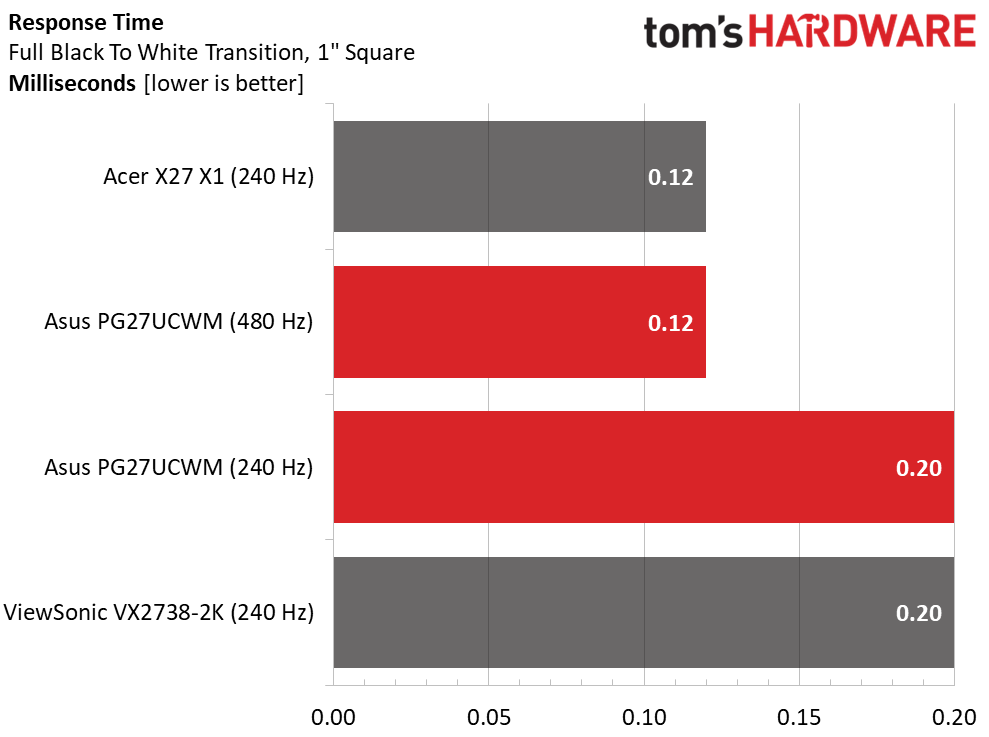
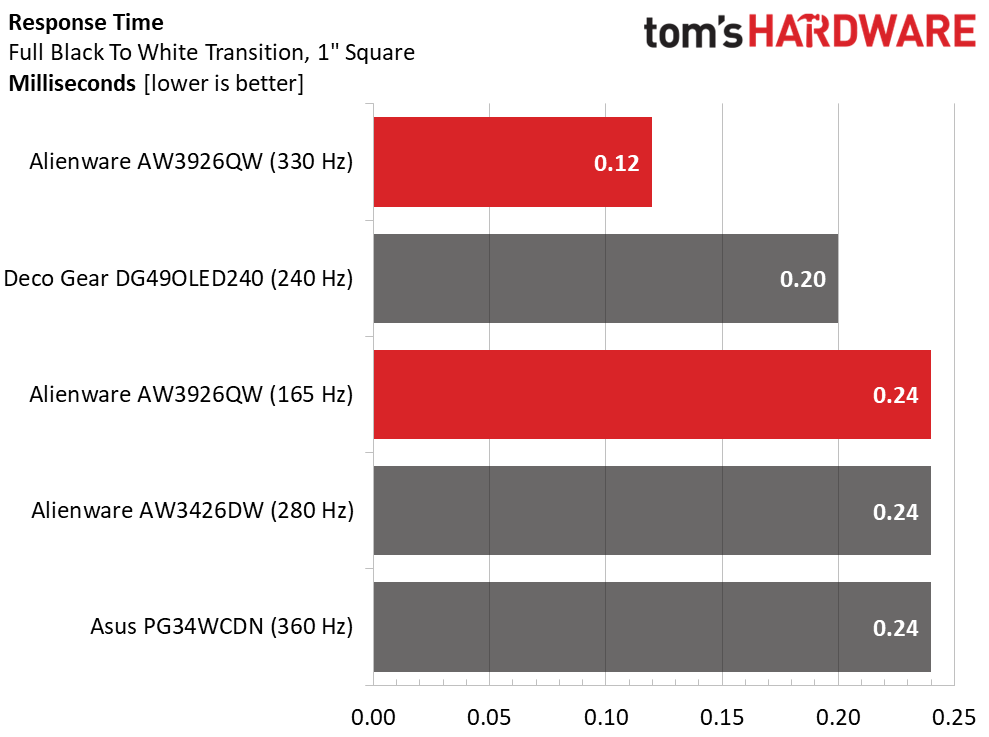
My data on the BenQ, Alienware, and Asus PG27UCDM predates my LDAT tests, so they are not included in the response results. Thus far, I haven’t seen much variation in OLED panel times. They range from 0.12 to 0.24ms, which is a tiny difference that can’t be seen with the naked eye. That’s why OLEDs all look smooth at 200fps or more. I noted that the PG27UCWM was quicker at 480 Hz than 240, but not by half: 0.12 versus 0.20ms.
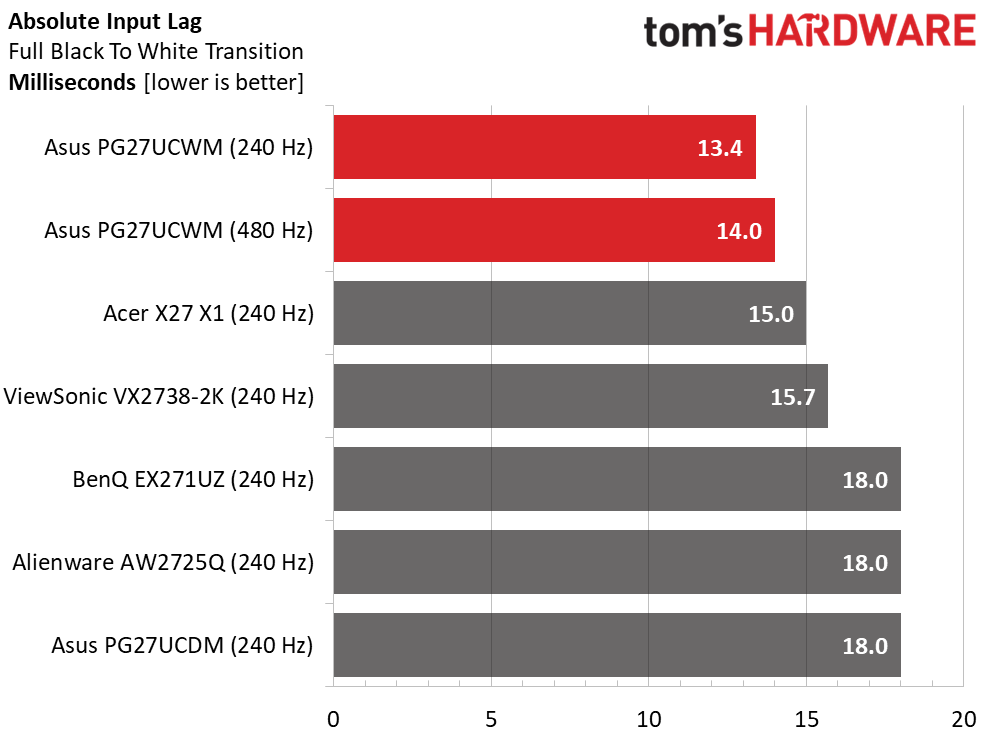
In the lag test, the frame rate boost doesn’t provide an advantage in input lag. Even a Jedi Knight won’t be able to tell a 0.6ms difference. Either way, the PG27UCWM has the lowest input lag of any 27-inch 4K OLED I’ve tested, by a small margin over the Acer and ViewSonic screens. Gamers will want to check one of these out for their competition kit.
Test Takeaway: The PG27UCWM is the quickest 27-inch 4K OLED panel I’ve tested to date. It has very low input lag, and panel response is smooth in either frame rate mode. 480 Hz provides a boost in frame rates and is useful for slower systems, but it does not provide lower input lag. If you have enough video card power, the 240 Hz mode is more than adequate for instant control response and smooth motion resolution.
Viewing Angles
(Image credit: Tom's Hardware)
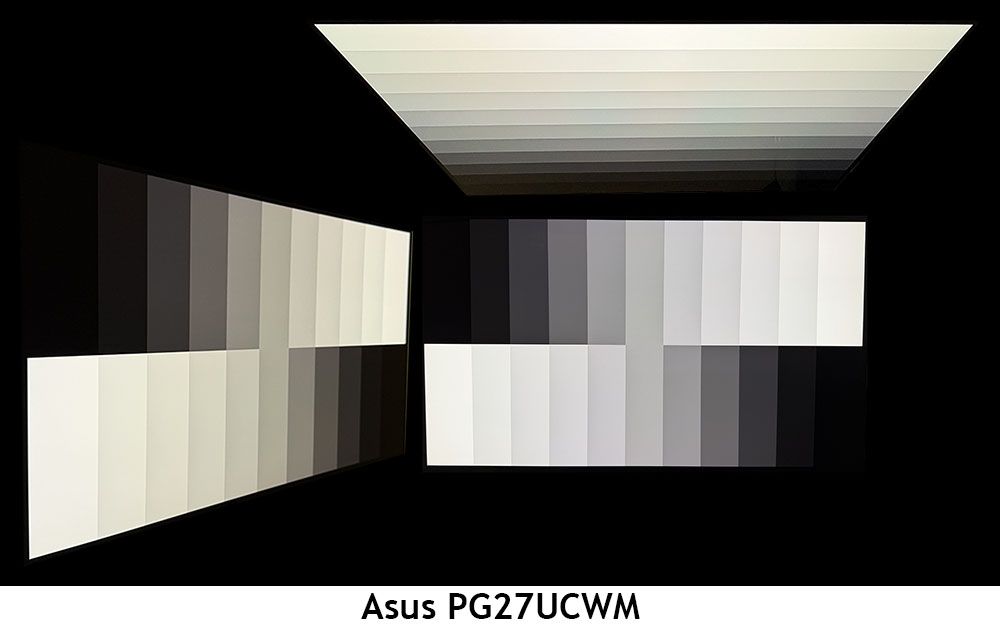
In my experience, the one weakness of Tandem RGB Stripe OLED panels is their slight color shift in the horizontal plane. There is no reduction in brightness or gamma, but there is a reddish-green (greenish-red?) tint, a bit like an IPS monitor. For a 27-inch panel like the PG27UCWM, this isn’t a big deal. Just don’t share it with another user who is picky. The vertical photo shows reduced gamma and the same color shift.
Screen Uniformity
To learn how we measure screen uniformity,click here.
(Image credit: Tom's Hardware)
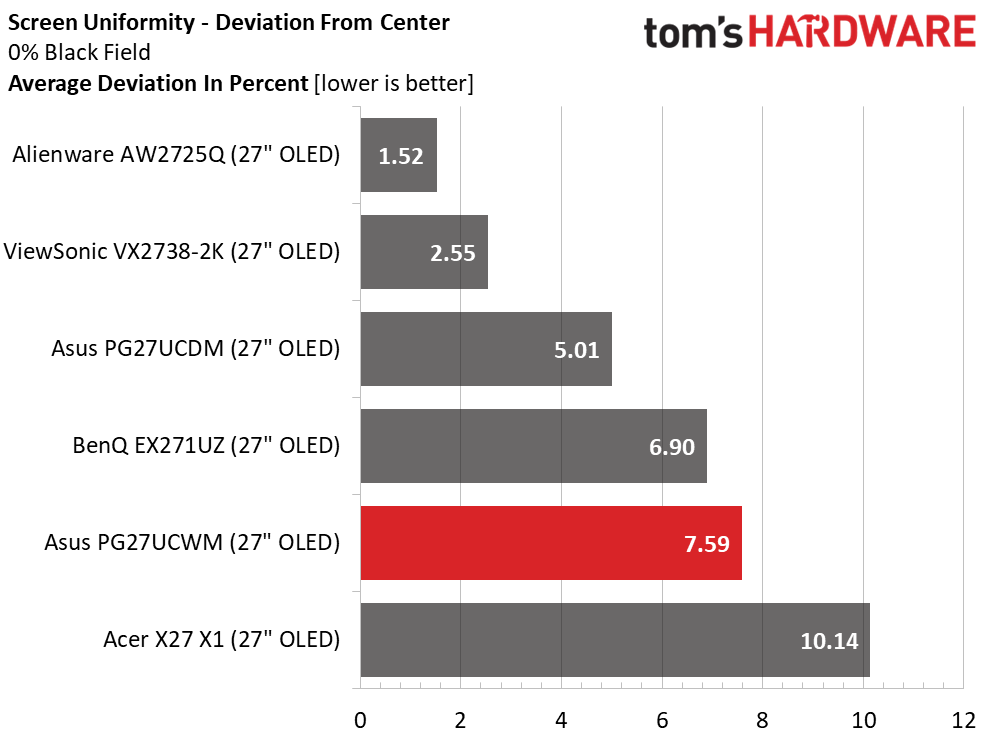
The PG27UCWM’s screen uniformity is in line with other OLEDs. I have yet to find a bad one. I recommend that anyone buying an OLED run the pixel refresh routine when you first unpack it. This often yields a 5-10% improvement in uniformity.
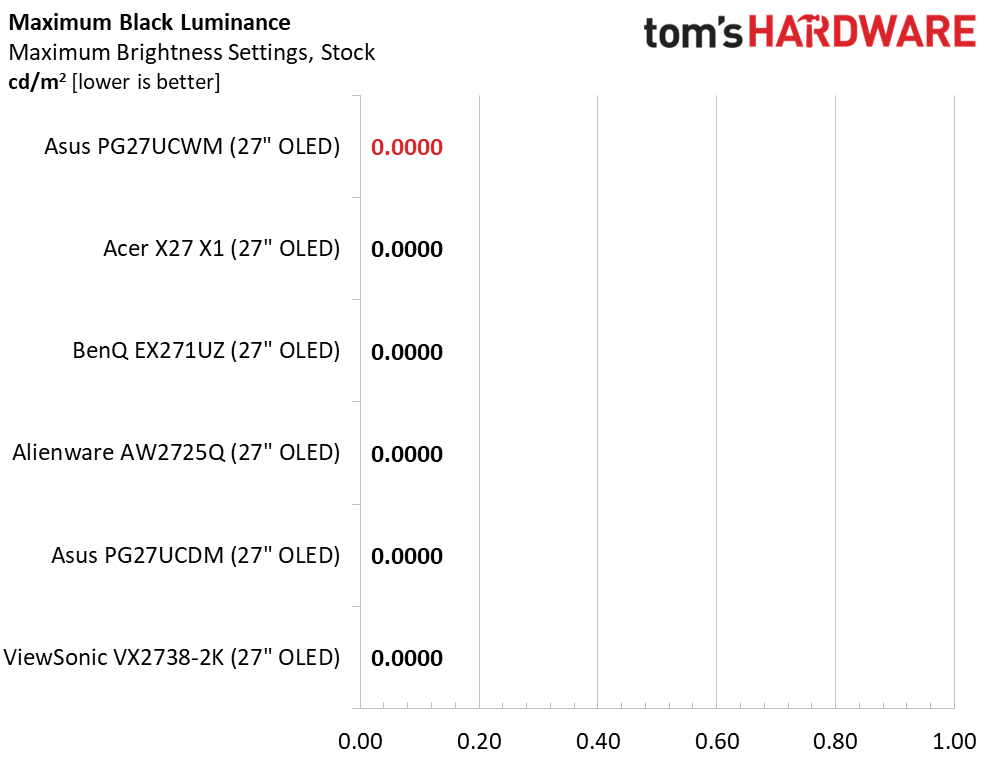
I measured the PG27UCWM in its Racing mode with the Power mode set to Performance and the brightness slider maxed. With Uniform Brightness (UB) off, a 25% window came up just short of 500 nits, and a full field was 278 nits. UB on kept that same 278 nit value for both window and field patterns. I noted that the PG27UCWM was a tad brighter than last year’s PG27UCDM, which had a Quantum Dot panel. Black levels and contrast could not be measured.
After Calibration to 200 nits
Tom's HardwareTom's HardwareTom's Hardware
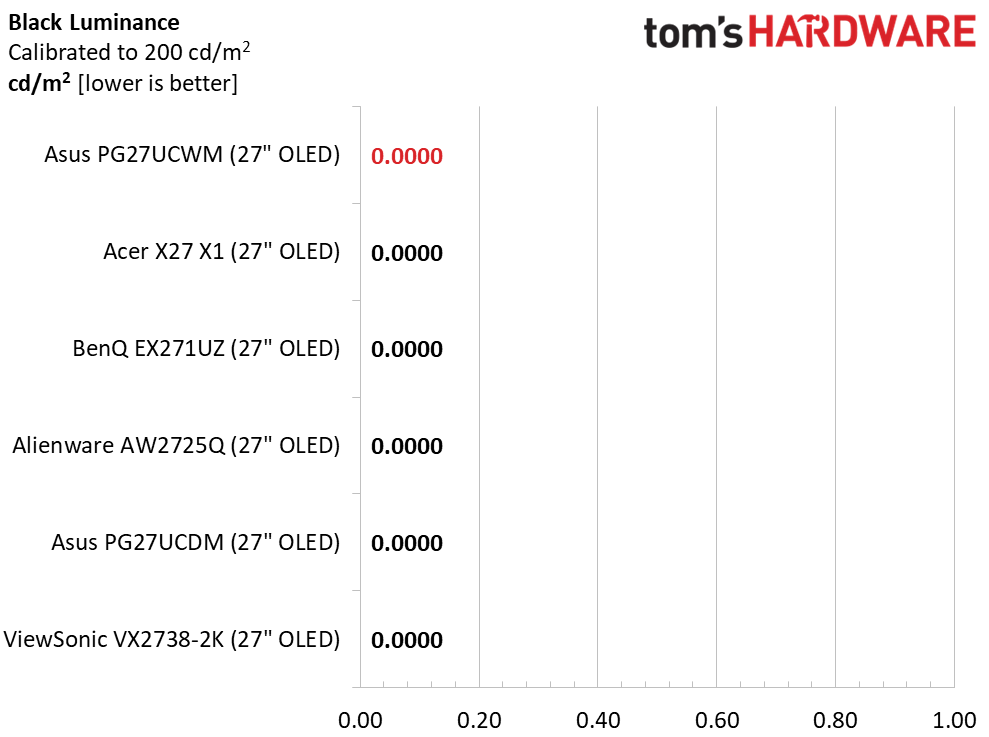
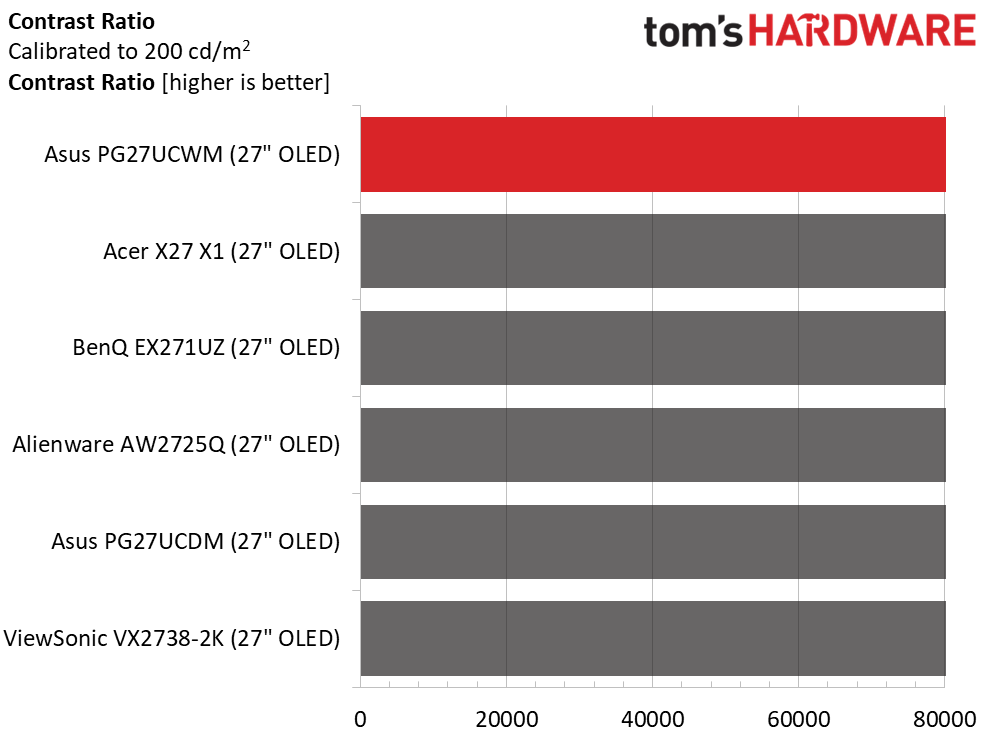
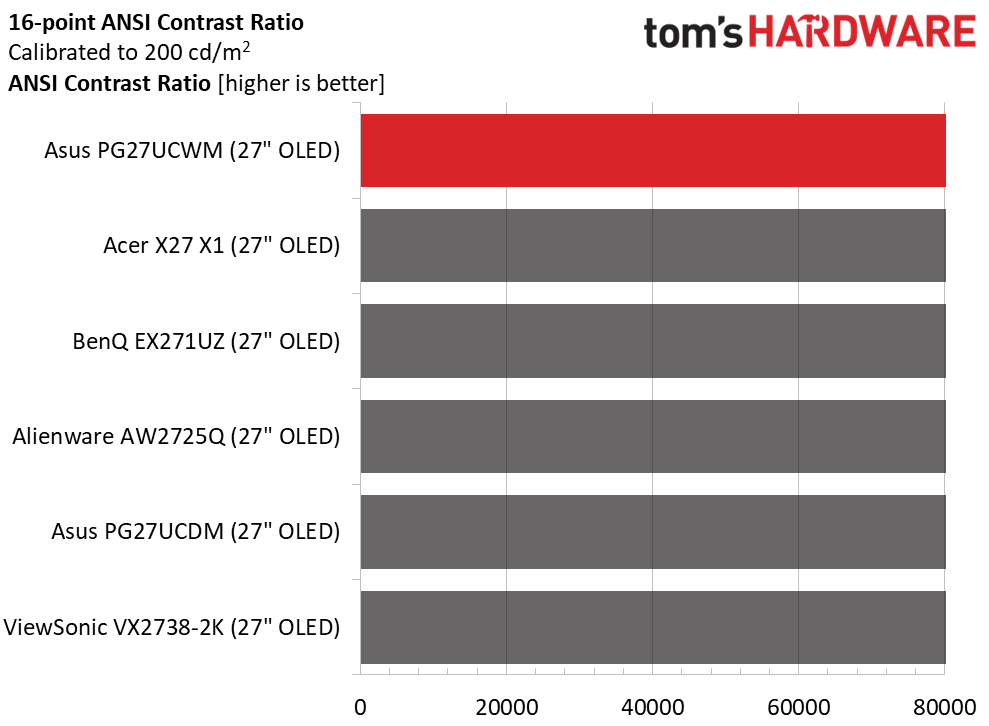
Calibration made no difference to contrast or black levels. When switching between UB modes, I noted that the PG27UCWM saved the brightness value for each mode. That means you can equalize brightness by using a full field for UB on and a 25% window for UB off. As is typical for OLEDs, I could not measure the intra-image (ANSI) contrast.
Test Takeaway: The PG27UCWM delivers contrast and black level performance identical to other OLED monitors. It nearly hits 500 nits for a 25% window pattern with Uniform Brightness switched off. Leaving it on delivers around 278 nits peak.
In the PG27UCWM’s Racing picture mode, there is no need for calibration, but you have the option to change color space, gamma, and white balance if you wish.
Grayscale and Gamma Tracking
Our grayscale and gamma tests use Calman calibration software fromPortrait Displays. We describe our grayscale and gamma tests in detail here.
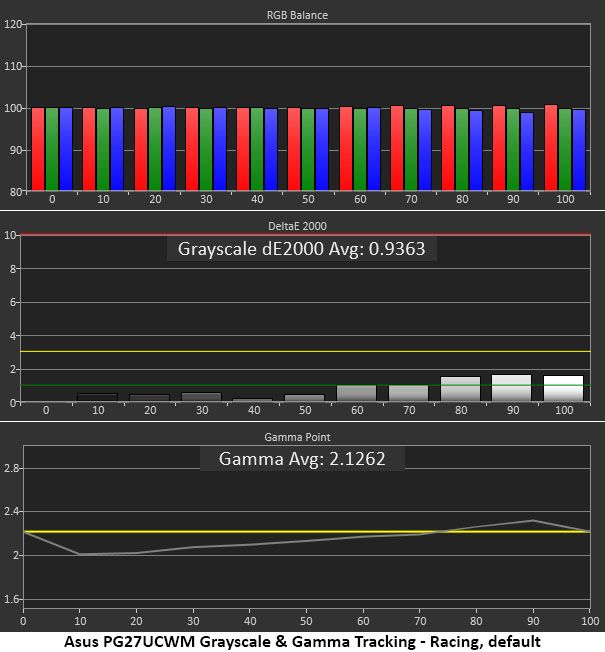
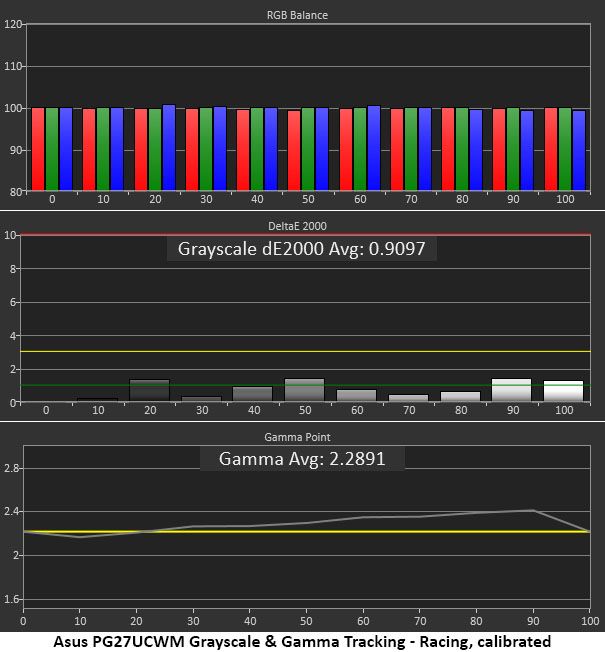
In the first chart, grayscale tracking is visually perfect with no error exceeding 2dE. The accepted visible threshold is 3dE. Gamma is a bit skewed, though. It’s too light in the darkest parts of the image, and midtones are also a little under. This flattens the image a little. At 90% brightness, it is slightly dark, which also lessens the picture’s impact.
I calibrated the RGB sliders for a tiny improvement in grayscale. For gamma, I could only pick a different preset, so I opted for 2.4, which was a good compromise. Since OLEDs have such high contrast, it’s easier to get away with dark gamma because you can just click up the brightness a bit to compensate. A perfect trace on the 2.2 reference would be better, but I don't expect anyone to complain about the PG27UCWM.
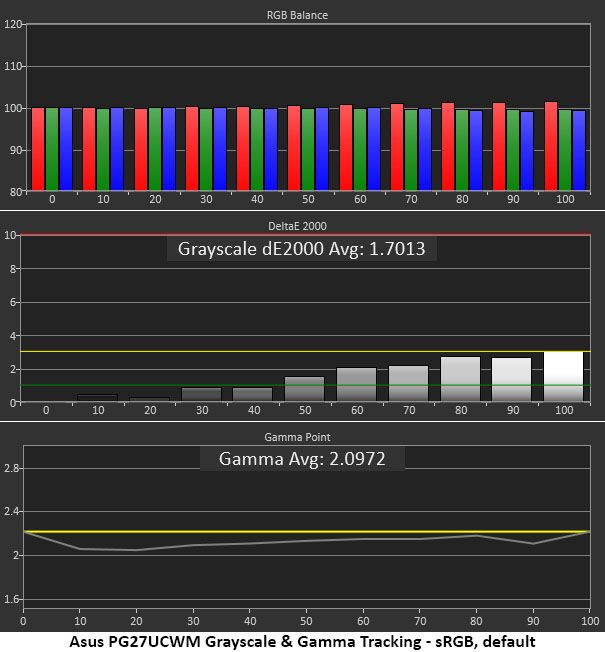
For sRGB, you can either pick the sRGB Cal mode or select sRGB from the color space options in the Color menu. I chose the latter because it leaves the RGB and gamma controls available. Gamma is still a bit light but also more consistent.
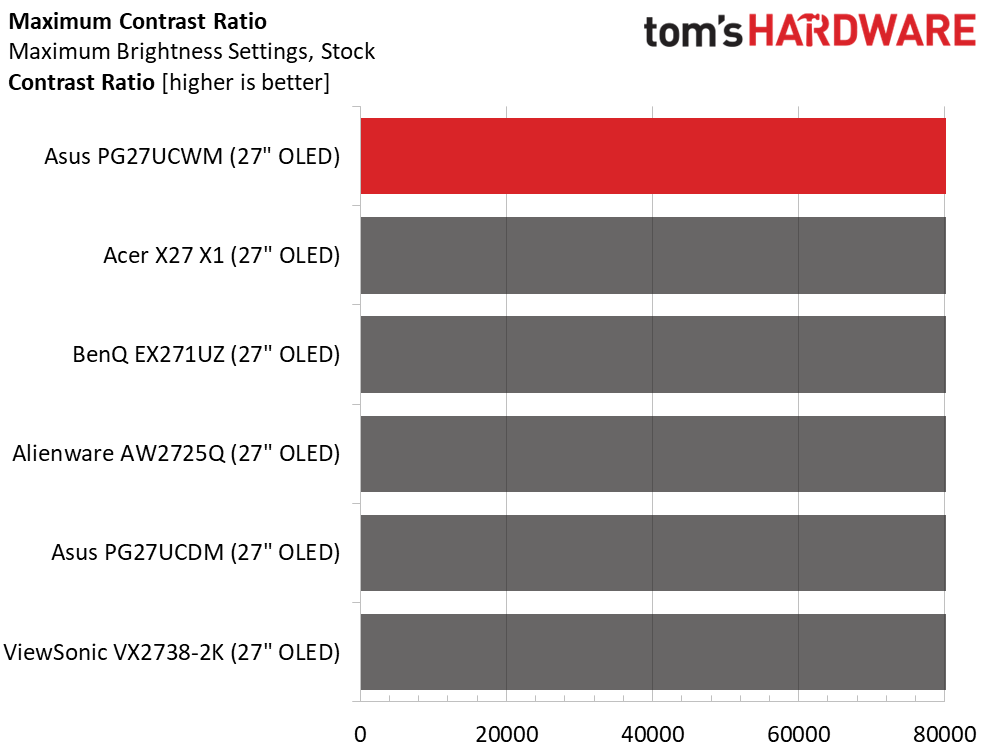
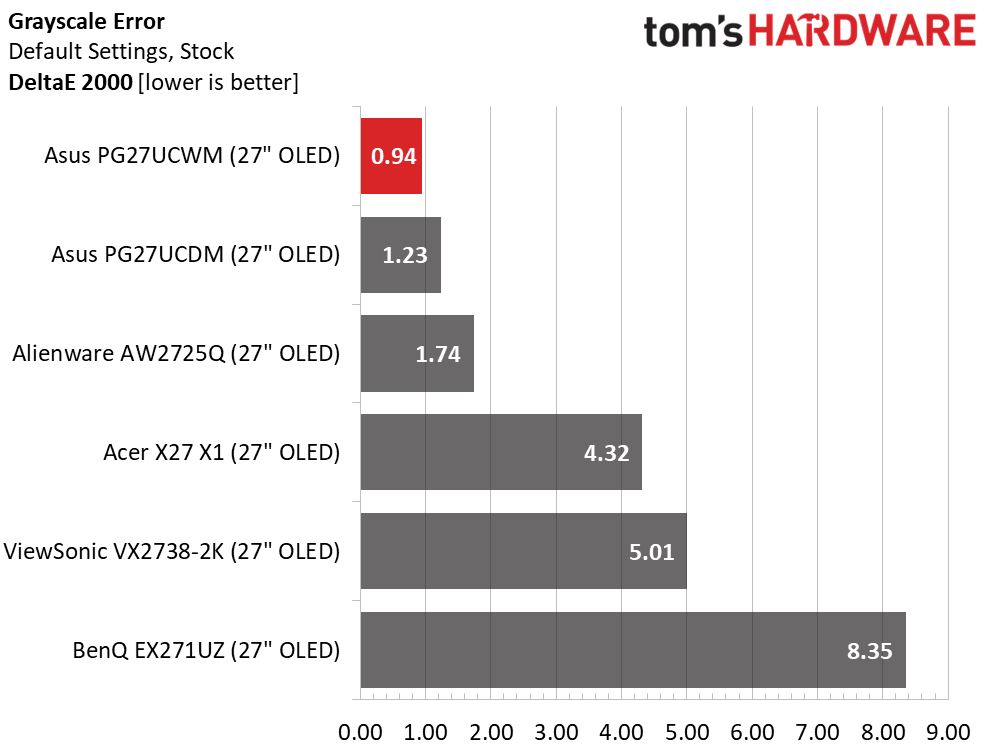
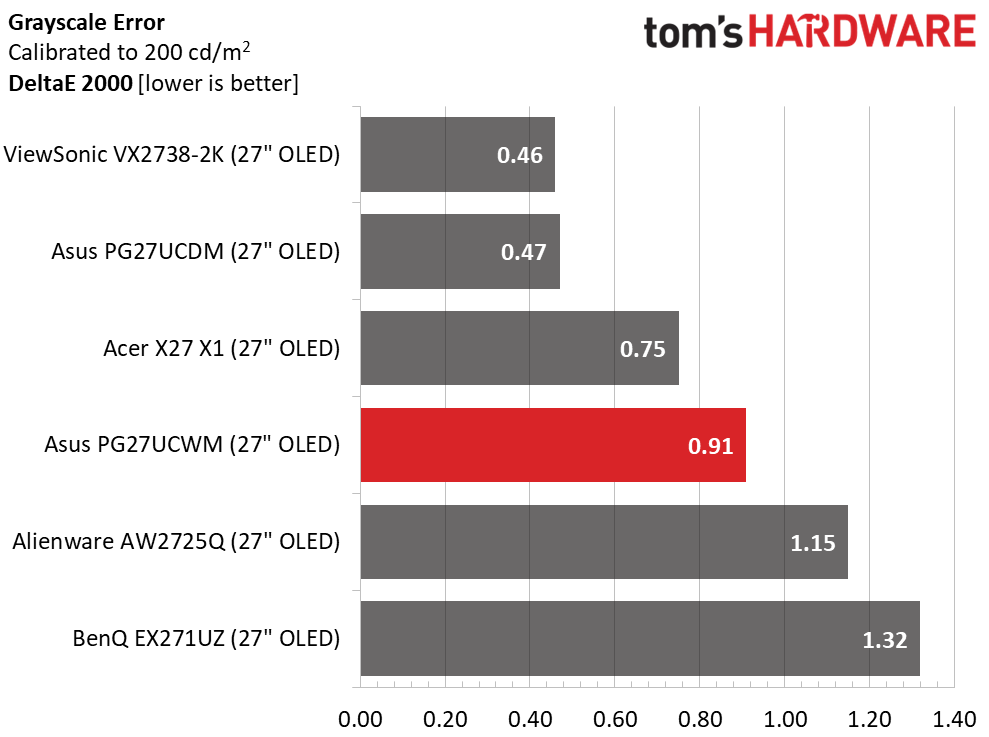
The PG27UCWM wins the out-of-box grayscale comparison with an excellent 0.94dE score. Calibration only improves that to 0.91dE. The two Asus and the Alienware screens can be used without calibration, but the Acer, ViewSonic, and BenQ should get some attention for top performance. Once adjusted, the six monitors are visually equal.
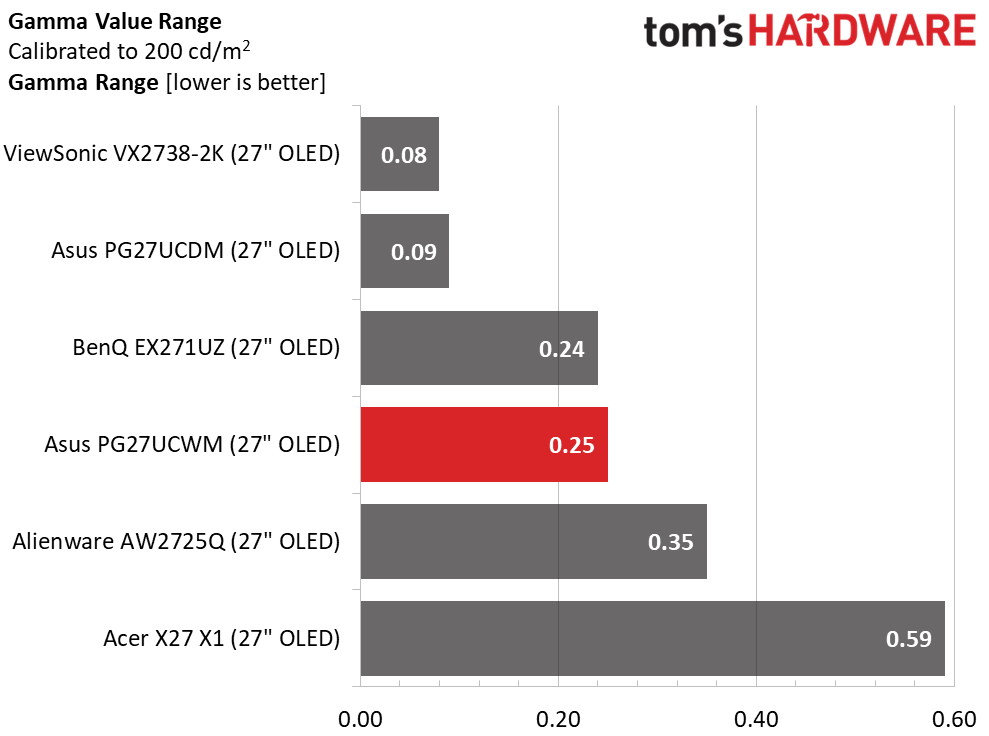
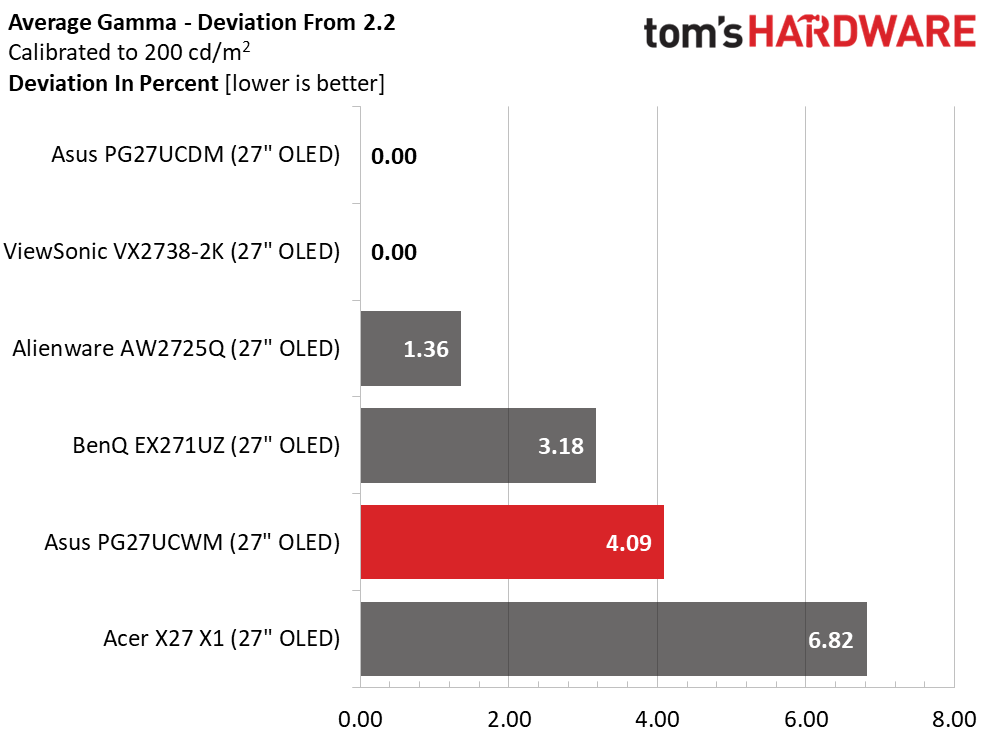
In the gamma test, the PG27UCWM runs mid-pack with a 0.25 range of values and a 4.09% deviation from 2.2. I made a compromise here, setting gamma to 2.4. If you leave it on 2.2, the value range is the same and the deviation is 3.18%. But I preferred the look of the darker gamma setting. Try both to see which works best for you.
Color Gamut Accuracy
Our color gamut and volume testing usePortrait Displays’ Calman software. For details on our color gamut testing and volume calculations,click here.
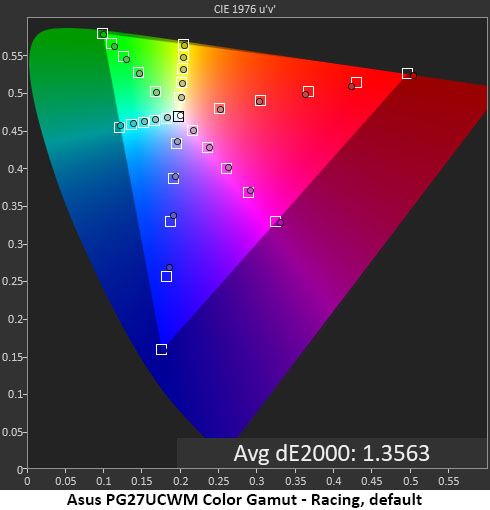
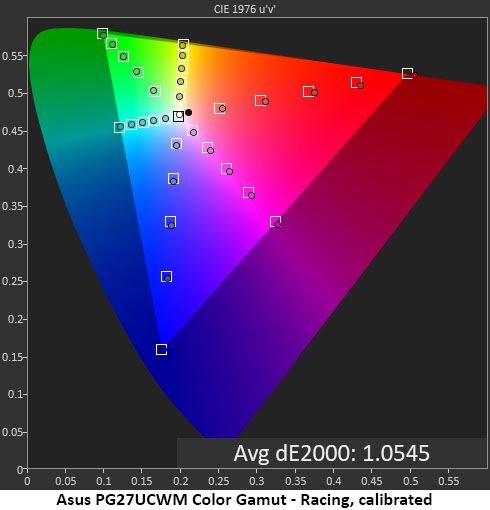
Asus’ latest crop of Tandem RGB Stripe OLEDs all come within a whisker of 100% coverage of DCI-P3 and display near-perfect accuracy. In the default chart, the PG27UCWM is a tad undersaturated in the primary colors, but not by a visible amount. My grayscale calibration adds just a little verve to the palette. You can barely see a difference, but it’s there when comparing screens side-by-side. This is excellent performance.
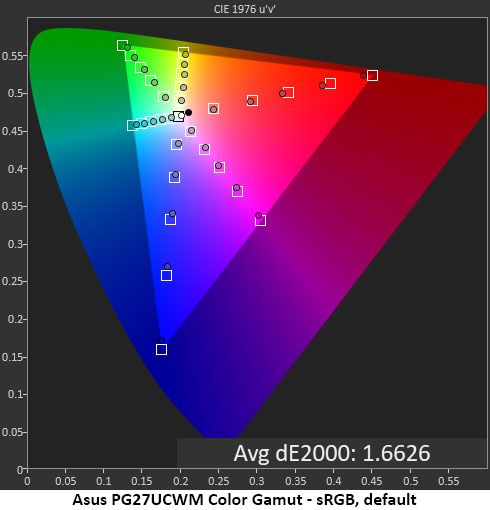
The sRGB gamut is also a bit undersaturated, coming up short in red, magenta and blue. This is a minor issue, but users needing the nth degree of accuracy might want to consider a color lookup table for their applications.
Comparisons
Tom's HardwareTom's Hardware
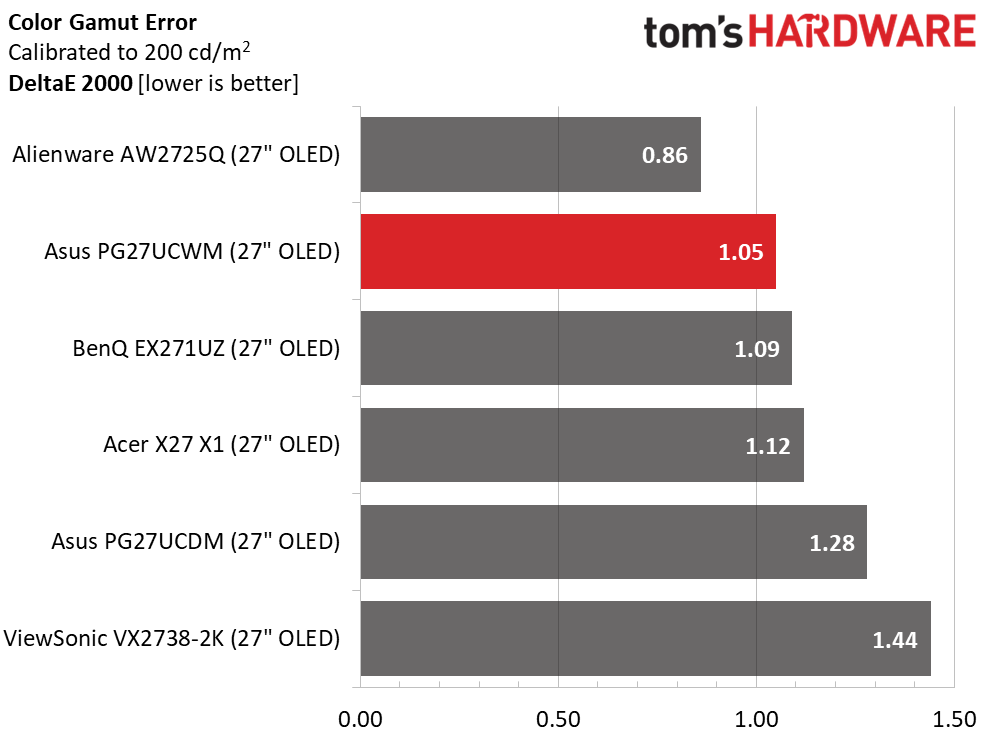
A 1.05dE color gamut error is impressive, but all the screens perform as well as the PG27UCWM in this test. OLED is an accurate monitor category, and you’ll be hard-pressed to find a bad one.
I’ve commented that Quantum Dot OLEDs have greater color volume than Tandem RGB Stripe panels, but in the 27-inch category, the differences are quite small. Asus’ own PG27UCDM has less than 1% more volume, an invisible amount. The ViewSonic will look a bit more colorful in a side-by-side comparison, but only slightly. The PG27UCWM delivers vivid and bold hues for both SDR and HDR. The sRGB mode is slightly undersaturated in red, magenta, and blue, hence the 91.87% score.
Test Takeaway: The PG27UCWM is very color-accurate out of the box but needs some attention in the gamma department. I had to compromise for the best picture because none of the presets are exactly on the 2.2 reference. The sRGB mode is slightly undersaturated and has light gamma. Color volume is high and nearly equals that of many Quantum Dot displays. The PG27UCWM is a very colorful monitor.
The PG27UCWM adds extra HDR brightness and Dolby Vision to its feature list over last year’s PG27UCDM. It switches automatically when an HDR10 signal is detected and offers four picture modes with an adjustable option.
HDR Brightness and Contrast
Tom's HardwareTom's HardwareTom's Hardware
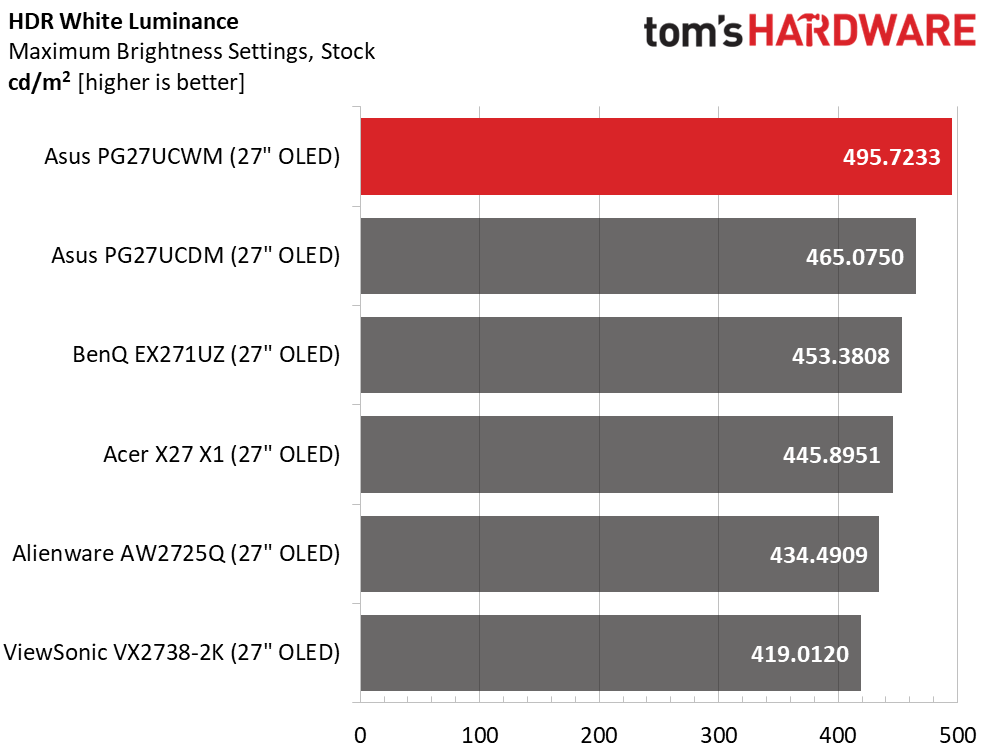
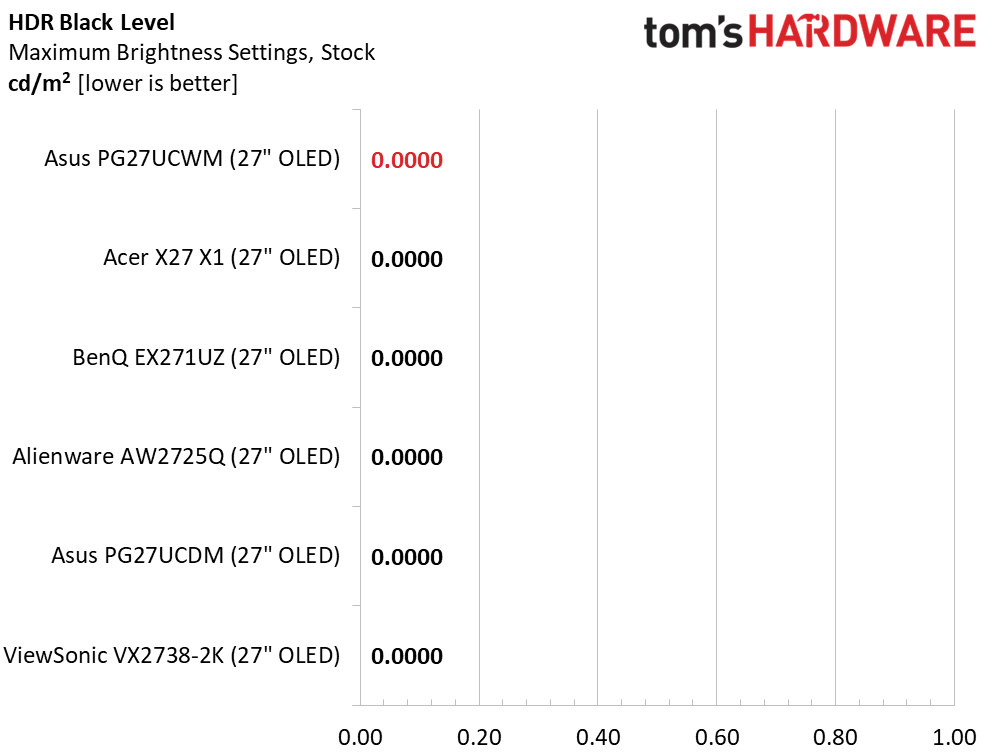
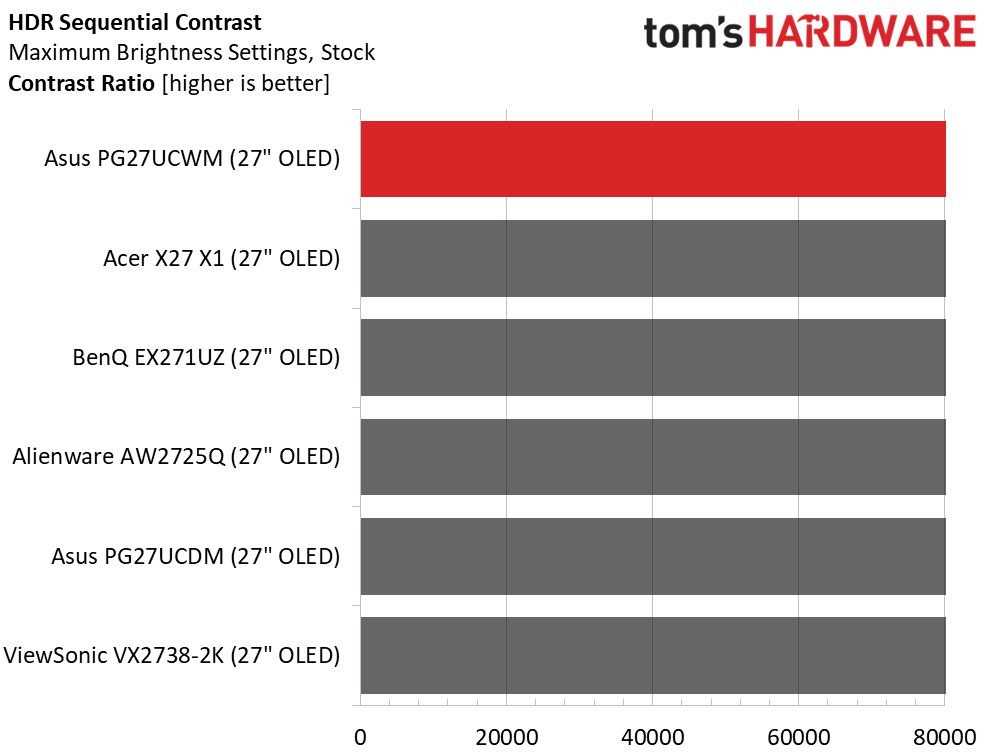
To get the brightest HDR, I opted for the Gaming mode with the Adjustable toggle turned on. This delivered almost 500 nits from a 25% window pattern. Asus claims 1,000 nits for a 3% window, and there is no reason to doubt this. If you’re considering an upgrade from last year’s PG27UCDM, you can expect an extra 30 nits of peak brightness, about 6%. The Gaming HDR mode comes with a compromise, which I’ll tell you about below. If you choose the most accurate mode, True Black, it peaks at around 470 nits. Black levels and contrast could not be measured.
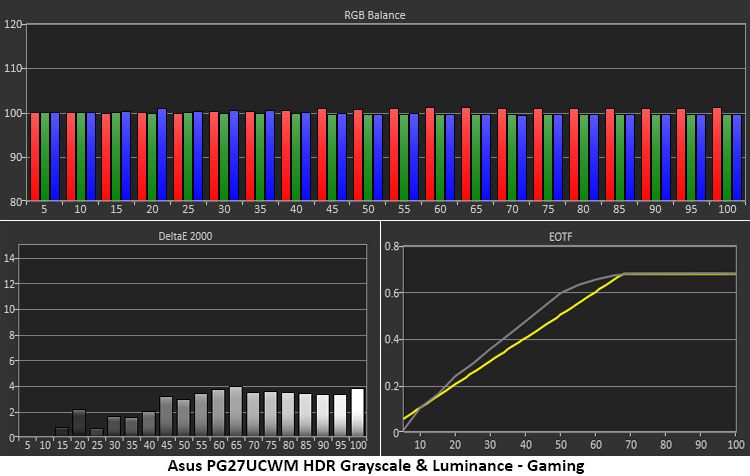
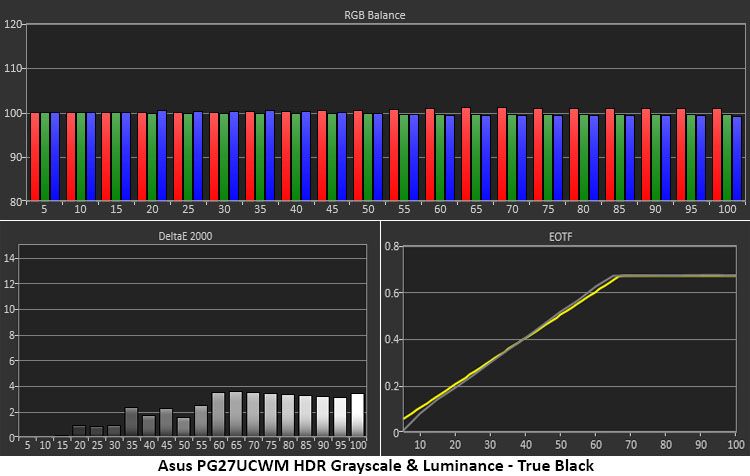
The first two charts illustrate the difference between Gaming and True Black modes. Gaming is a little brighter, not only because it peaks higher, but also because it rides above the EOTF reference. This gives the image a little more impact but also a little less texture. The difference is small and will come down to user preference. For games with bright scenery and color, I preferred Gaming HDR. But more subdued tones benefitted from True Black and its deeper shadows. Either way, you get excellent grayscale accuracy.
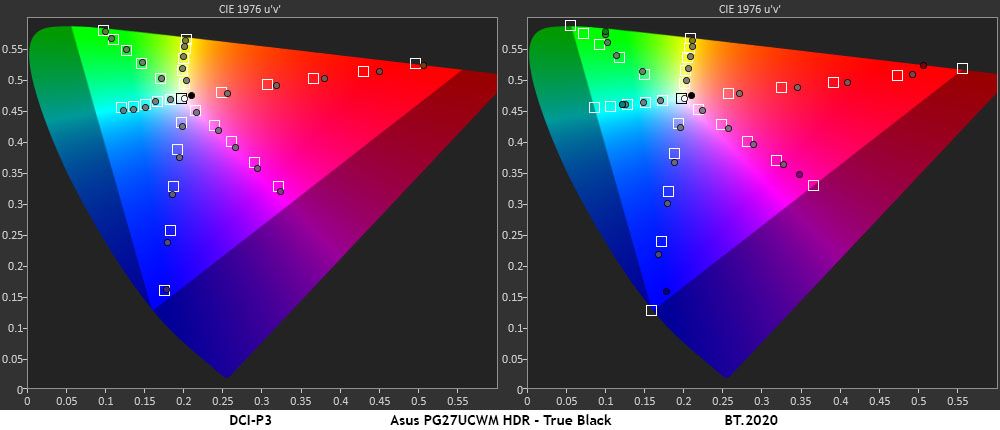
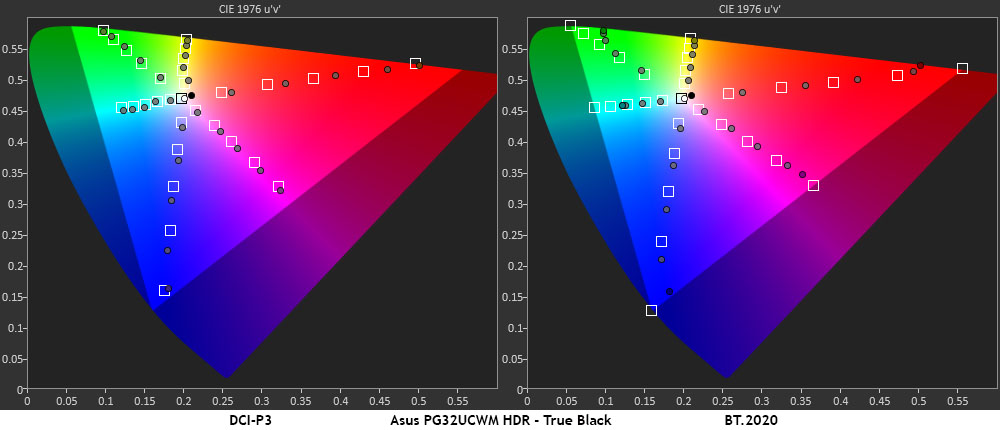
In the HDR color tests, the PG27UCWM makes full use of its large gamut in all content. The DCI-P3 is fully covered with a little extra verve in red, magenta, and blue. By emphasizing the warmer tones, it gives the picture more punch without becoming unnatural. This is an approach shared by many HDR monitors, LCD and OLED. In the BT.2020 test, the PG27UCWM runs out of color at 90% red, 75% green, and 95% blue, which is comparable to many Quantum Dot screens.
Test Takeaway: The PG27UCWM delivers a lot of HDR impact and is a little brighter than its predecessor and the other 27-inch 4K OLEDs I’ve tested. It has excellent grayscale and color accuracy in either Gaming or True Black modes. For the best luminance tracking choose True Black and for the brightest image, choose Gaming. Either way, it renders HDR content beautifully.
Though OLED prices in general have crept downwards, it is still a premium category. New panel variants keep the technology moving forward and create more choices for buyers. It’s also a product category that embodies the concept that you never regret buying the best. With stunning images, bold color, and lightning-fast reflexes, OLEDs are the go-to display for gamers of all skill levels.
(Image credit: Asus)
Asus has remained at the forefront of OLED technology by being early out of the gate with each new panel tech. It has fully embraced Tandem RGB Stripe with the ROG Swift PG27UCWM. Though relatively expensive for a 27-inch monitor, it is richly featured and capable of truly addictive gameplay. With 240 Hz in 4K and 480 Hz in Full HD, it can pair well with just about any gaming system from console to bleeding-edge PC. In my tests, it proved faster than all the other 27-inch 4K OLEDs I’ve reviewed.
(Image credit: Tom's Hardware)
Tandem RGB Stripe also delivers a visible improvement in sharpness. OLEDs were sharp already, but I could easily see the difference when comparing the PG27UCWM to a single-layer monitor. Color is also a highlight here. Though a Quantum Dot screen will get you a little more color volume, the PG27UCWM is still in the mix at over 102% DCI-P3 coverage. And its HDR prowess is substantial with the addition of Dolby Vision.
If you have the budget, currently $1,099, for a premium 27-inch OLED gaming monitor, the Asus ROG Swift PG27UCWM is sitting nicely atop the performance heap. Gamers looking for a premium experience should definitely check it out.
IFA 2026 is upon us, and Acer has unleashed a whole onslaught of new products across various categories. One specific category is monitors, where Acer announced no less than seven new Nitro- and Predator-branded products to satisfy nearly every price point and gaming niche. With prices ranging from $299 to $1,199, there’s something for everyone with today’s announcements.
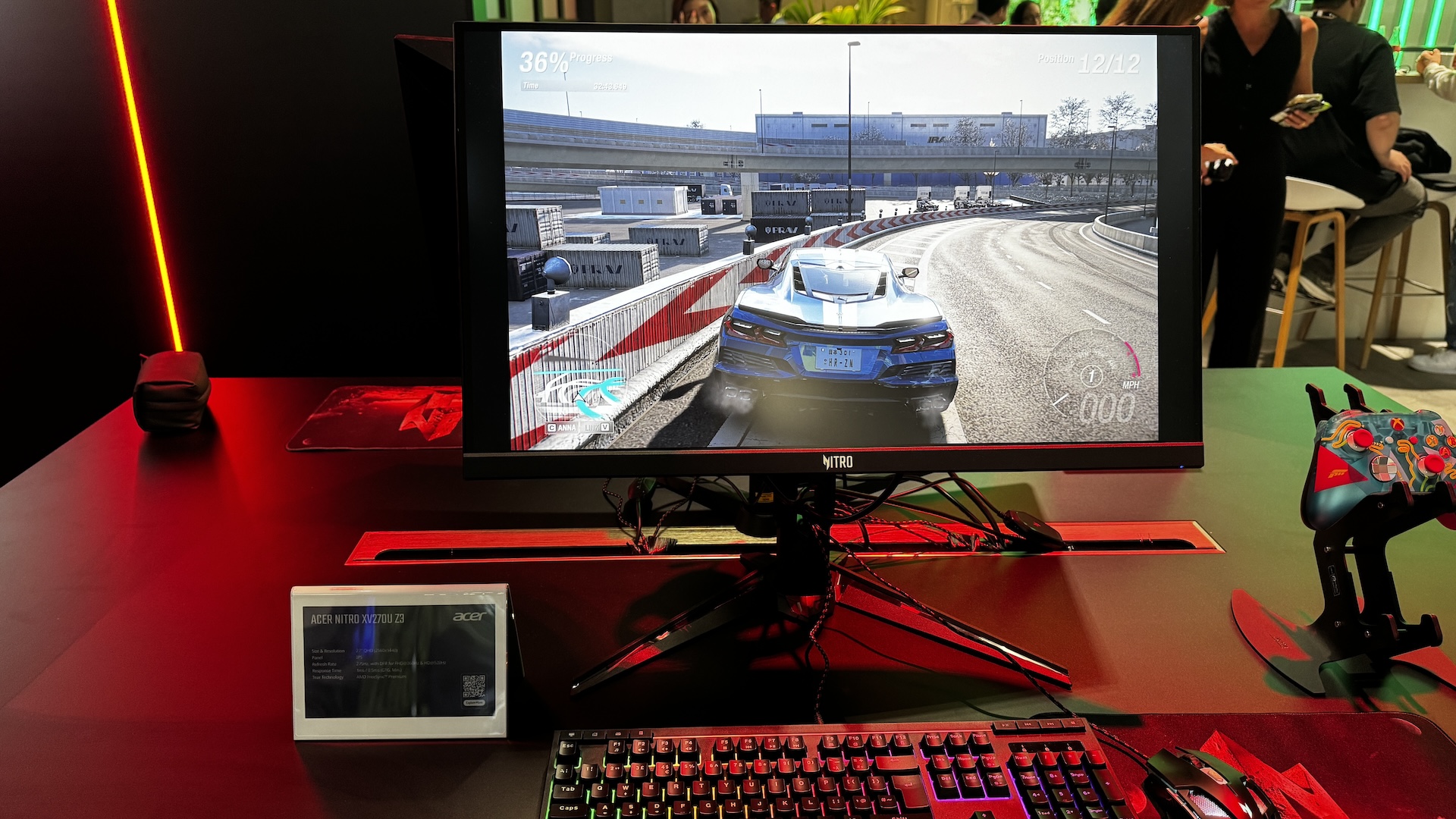
We’ll start our coverage with the Nitro family, which has four new members, the cheapest of which is the Nitro XV270U Z3 at $299. The XV270U Z3 is a tri-mode monitor, offering three distinct resolution/refresh rate presets. This is a 27-inch monitor with an IPS panel, QHD resolution, and a 275 Hz refresh rate. However, you can switch to two additional modes: 1080p at 360 Hz or 720p at 520 Hz. I haven’t gamed at 720p since the turn of the century, but the resolution is here for folks who crave frame rates over everything else.
The Nitro XV275U Z2 is another 27-inch tri-mode monitor with an IPS panel, but it is upgraded with 1,152-zone Mini LED backlighting. The available resolutions and refresh rates mirror those of the XV270U Z3, but there are a few additional perks. The XV275U Z2 offers a typical brightness of 500 nits (twice that of the XV270U Z3) and reaches 1,000 nits in HDR mode. Despite the pretty substantial upgrades, the Nitro XV275U Z2 is only $30 more expensive at $329.
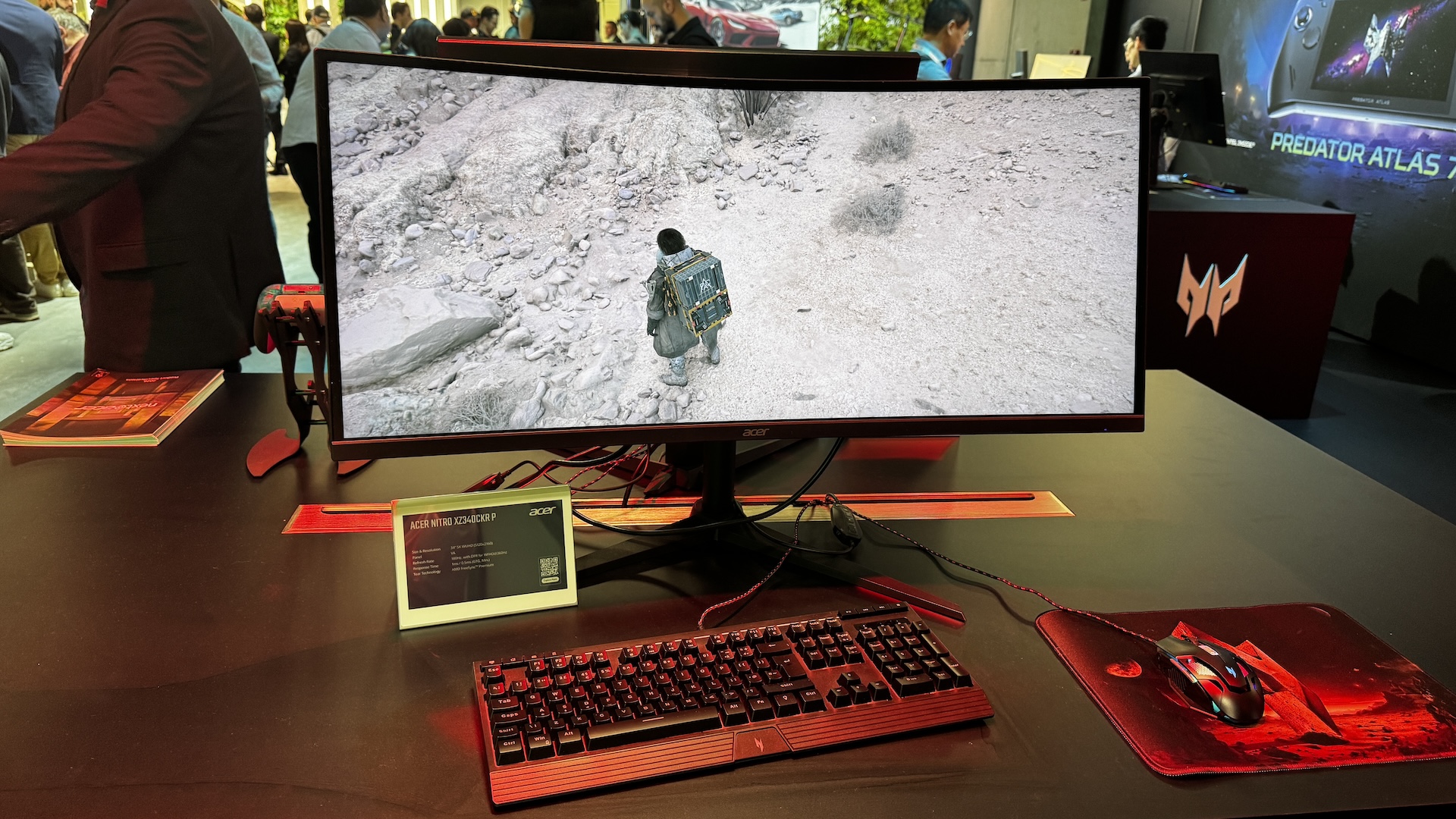
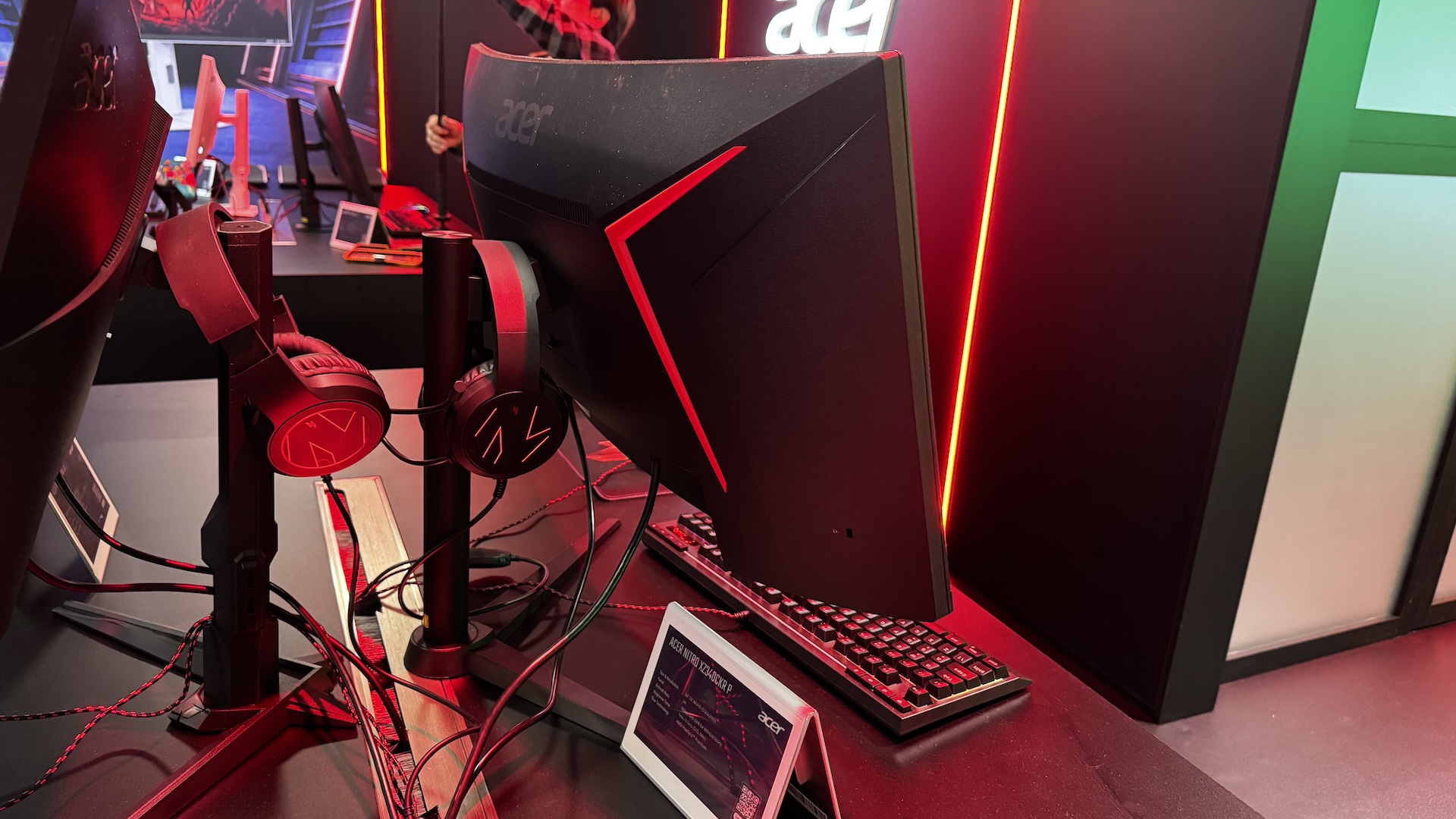
The next two Nitro monitors also offer 5K resolution, and we'll start with the $699 Nitro XZ340CKR P. It features a 34-inch IPS panel with 5120 x 2160 resolution (21:9 aspect ratio) and a maximum refresh rate of 180 Hz. However, Acer also infuses the Nitro XZ340CKR P with a dual-mode switch, allowing it to operate at WFHD (2560 x 1880) at 360 Hz.
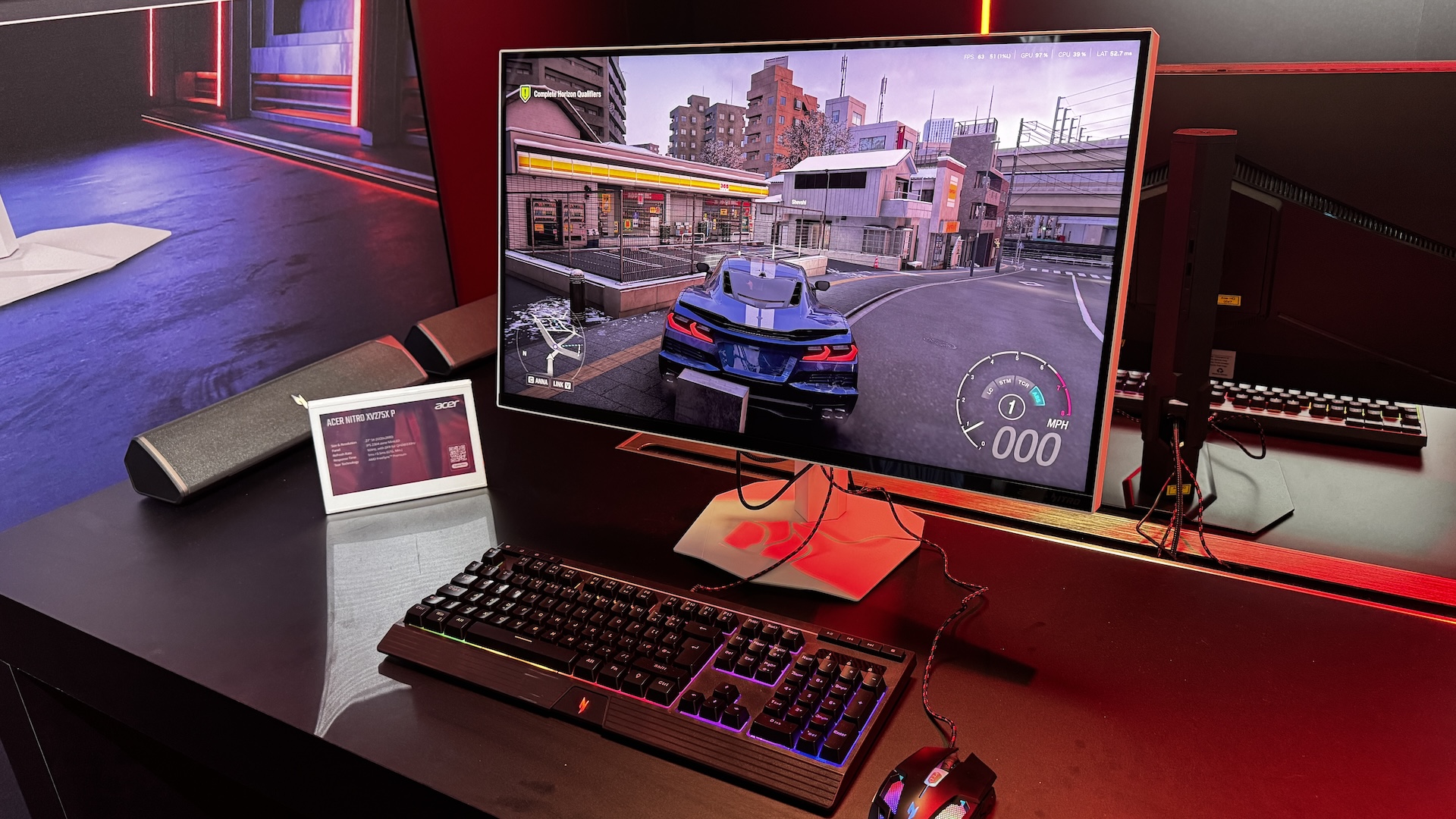
Rounding out the new additions to the family is the Nitro XV275X P, which squeezes a 5120 x 2880 resolution (16:9 aspect ratio) in a 27-inch IPS panel. For those who crave the ultimate in pixel density, the Nitro XV275X P should tick all the right boxes. The panel tops out at 165 Hz at native resolution, but if you're willing to drop down to 2560 x 1440, you can bump the max refresh rate to 330 Hz. The monitor has a typical brightness of 450 nits, but can jump up to 1,400 nits in HDR mode. However, you'll pay for that density and performance with a price tag of $1,199.
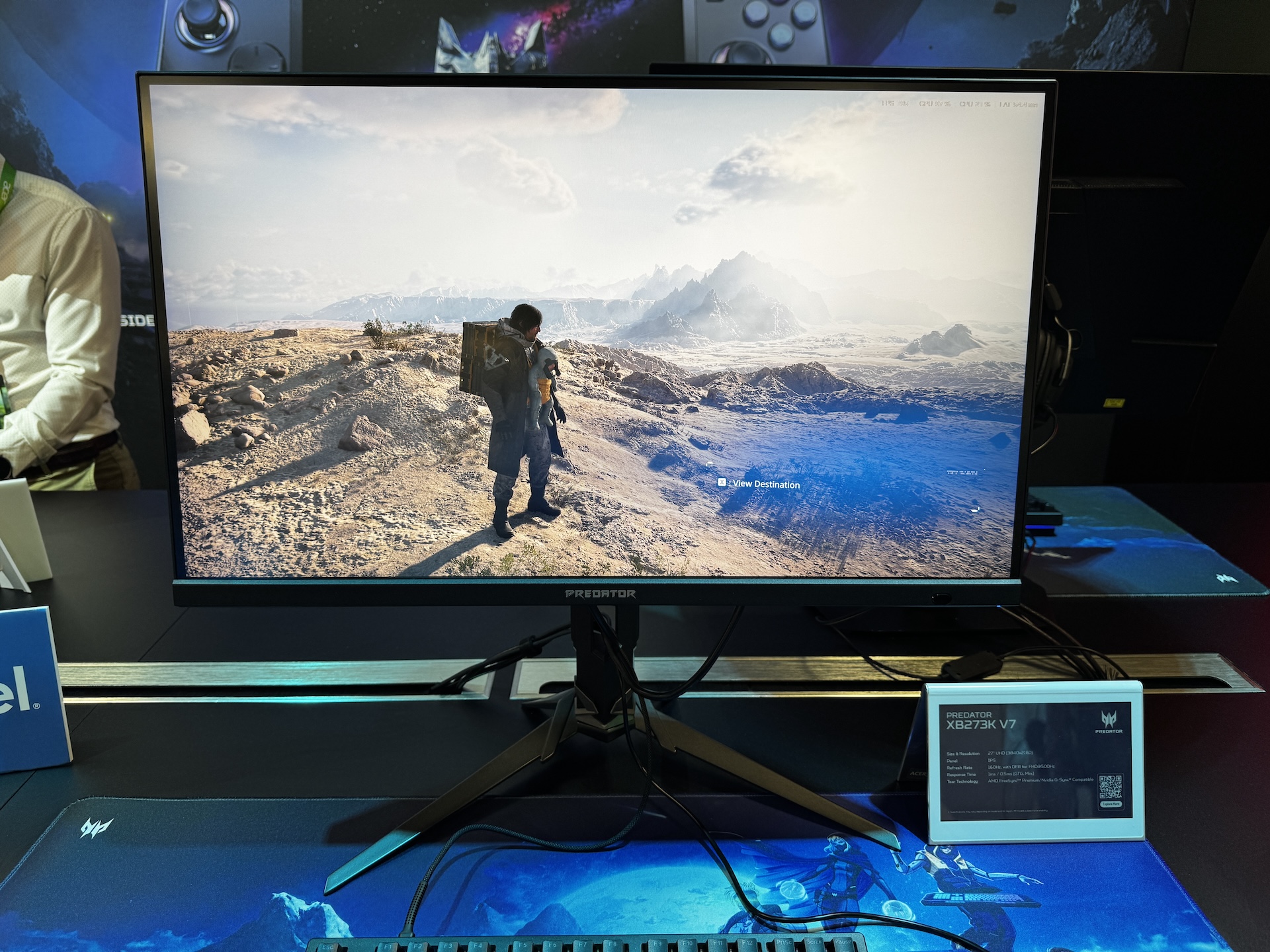
Shifting gears to the Predator family, we start at the lower end of the price spectrum with the $449 XB273K V7. The XB273K V7 natively runs at 4K resolution with a 160 Hz refresh rate. However, thanks to Dynamic Frequency and Resolution, you can switch to 1080p resolution and more than triple the maximum refresh rate to 500 Hz.
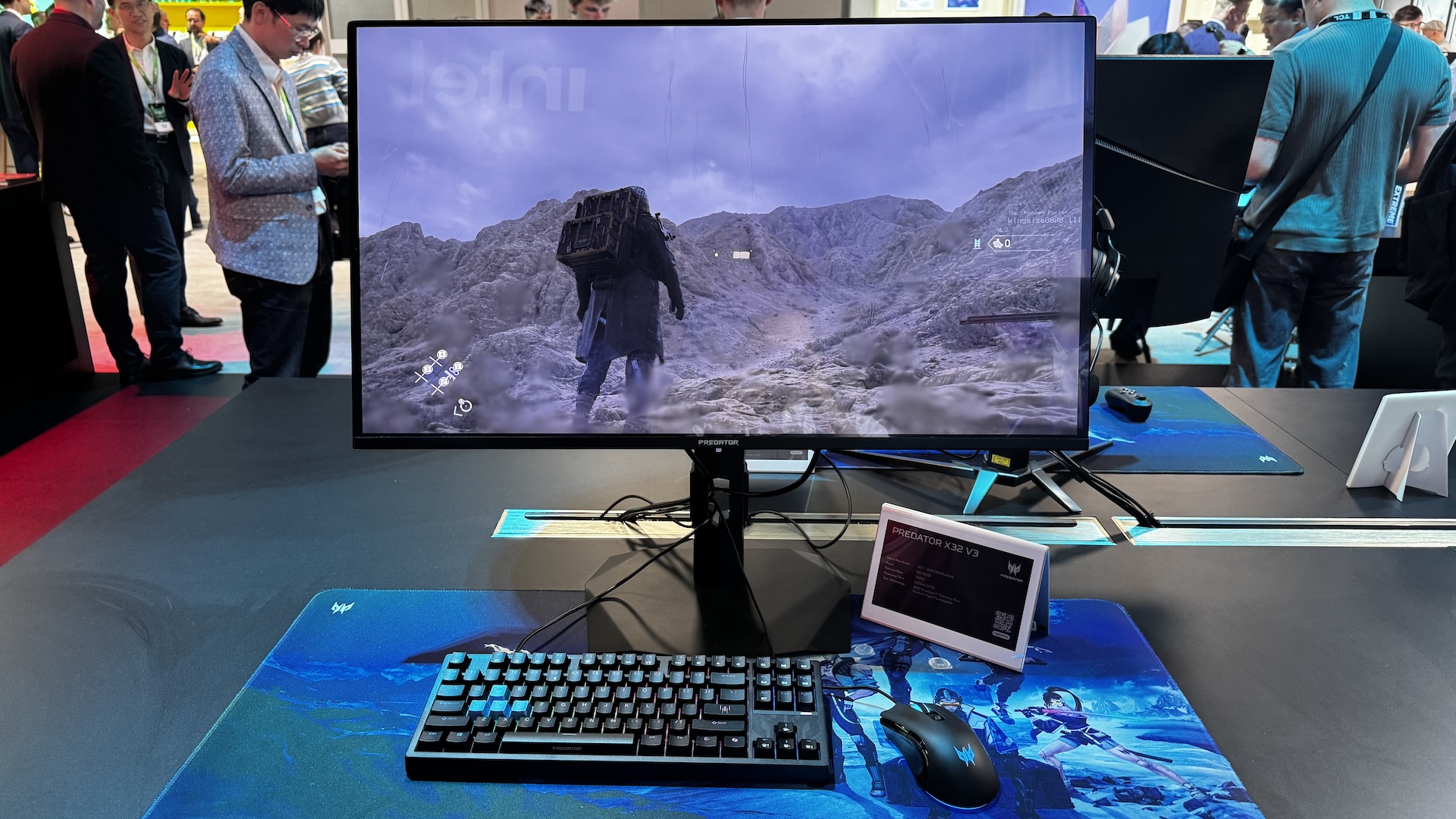
Stepping up the price ladder, we come to the $899 Predator X32 V3, the first of Acer's monitors announced today that use Penta Tandem QD-OLED panel technology. The 31.5-inch panel has a native 4K (3840 x 2160) resolution and a 180 Hz maximum refresh rate. Unlike the other multi-mode monitors that are launching, you're stuck with 180 Hz no matter which resolution you choose.
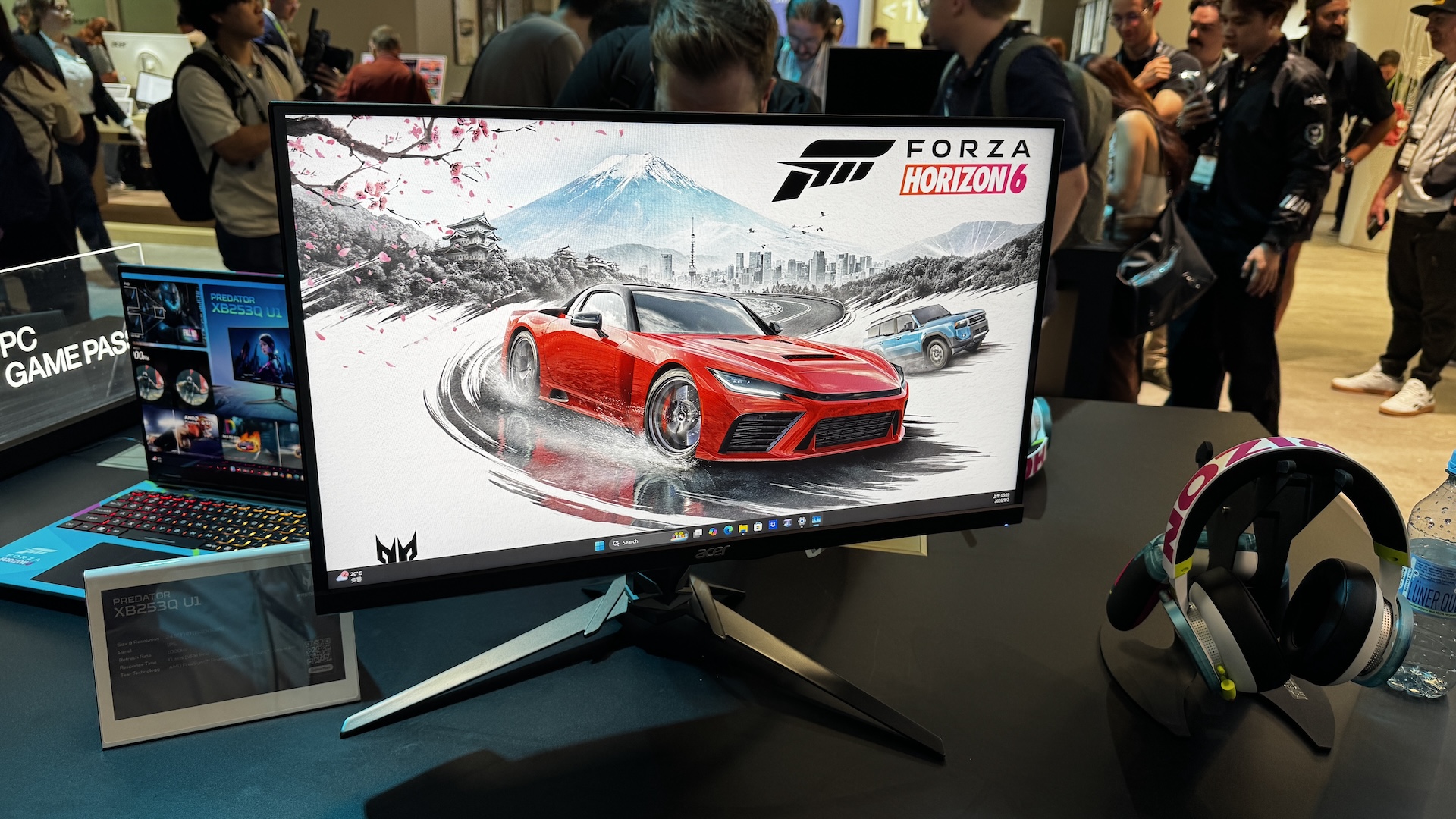
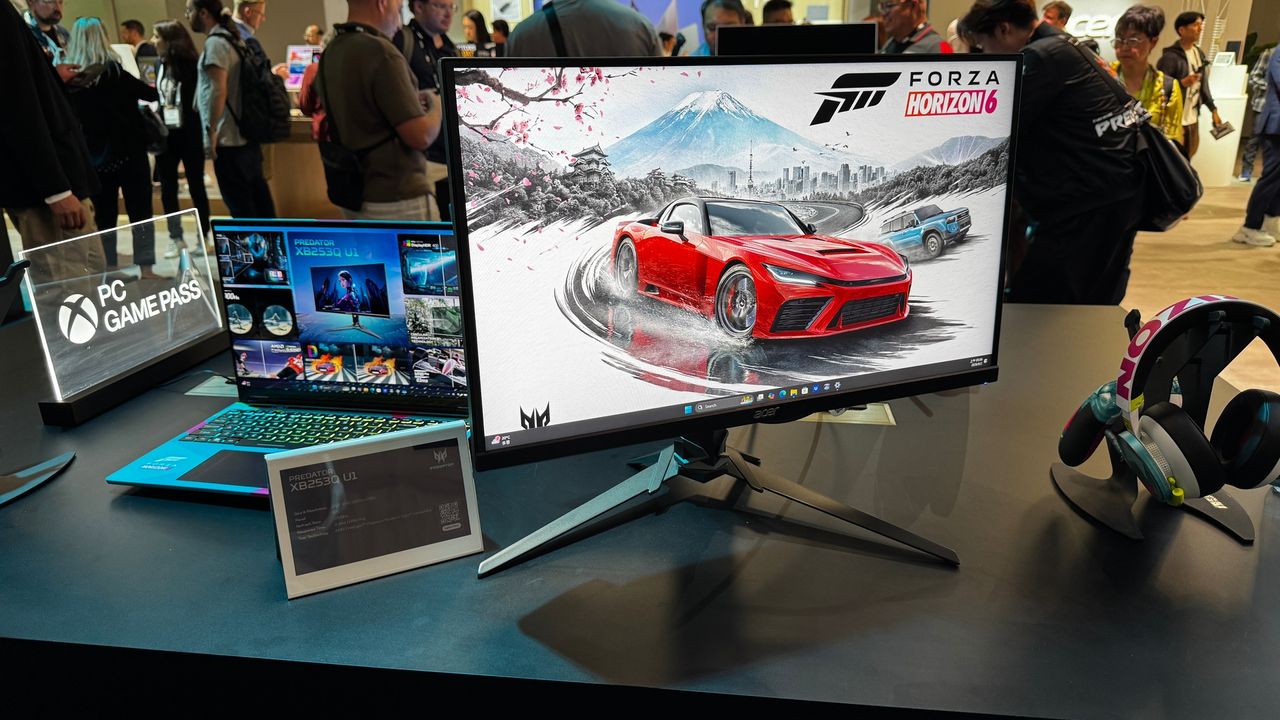
Finally, we come to the Predator XB253Q U1, which is the smallest of the announced monitors, with a 24.5-inch diagonal. But don't let its small size fool you, the Predator XB253Q U1 is the most performant of the bunch, and is aimed squarely at the elite eSports gamers. The monitor has a native 1080p resolution with a maximum refresh rate of 1,000 Hz from its IPS panel.
You'll find the usual support for AMD FreeSync Premium and Nvidia G-Sync, along with a 0.3 ms response time. Acer quotes typical brightness of 400 nits, while HDR mode squeezes out just a bit more at 450 nits. The added performance of the Predator XB253Q U1 doesn't come cheap, as you're looking at a suggested retail price of $1,099 when it launches.
Most of the monitors announced today will launch in Q4 2026, with a few stragglers extending the launch window to Q1 2027.
While gamers are definitely feeling the pricing pinch when it comes to memory and storage, some segments of the consumer tech sector are seeing more favorable trends. Advances in screen technology for gaming monitors are accelerating, while OLED prices are steadily falling. Dell is part of this trend with a pair of new Alienware monitors, the AW3226Q and AW2527HX, that take differing approaches to appeasing gamers.
We start with the AW3226Q, which is aimed at gamers who crave higher-resolution 4K gaming over outright speed. At its heart is a 32-inch panel that uses an RGB Stripe Tandem OLED technology (previously seen on the AW3926QW that we recently reviewed). The use of a four-stack tandem layer within the panel addresses one of the few criticisms leveled against traditional QD-OLED panels: slightly blurry/soft text upon close inspection. Another added benefit is that brightness levels are higher than on previous-generation QD-OLED monitors (1,000-nit peak brightness).
Blazing-fast refresh rates aren't the goal here, since the AW3226Q tops out at 165 Hz. With that said, you do get a 0.03 ms response time, AMD FreeSync Premium Pro and Nvidia G-Sync support, VESA DisplayHDR True Black 400 and Dolby Vision compliance, and a built-in USB-C/USB-A hub.
Alienware AW2527HX (Image credit: Dell)
For the most discerning speed freaks, there's the AW2527HX. Instead of the larger 32-inch 4K panel's 165 Hz refresh rate, the AW2527HX uses a 24.5-inch panel with a 560 Hz refresh rate. While many of the higher-refresh-rate monitors we've seen can reach upwards of 1,000 Hz with IPS or TN panels, the AW2527HX offers the color performance and black-level improvements afforded by a QD-OLED panel. However, what you gain in speed, you lose in pixel density — the AW2527HX makes do with 1920 x 1080 resolution. With that said, you do get VESA DisplayHDR True Black 600 support, a matte panel finish, and DisplayPort 2.1 connectivity.
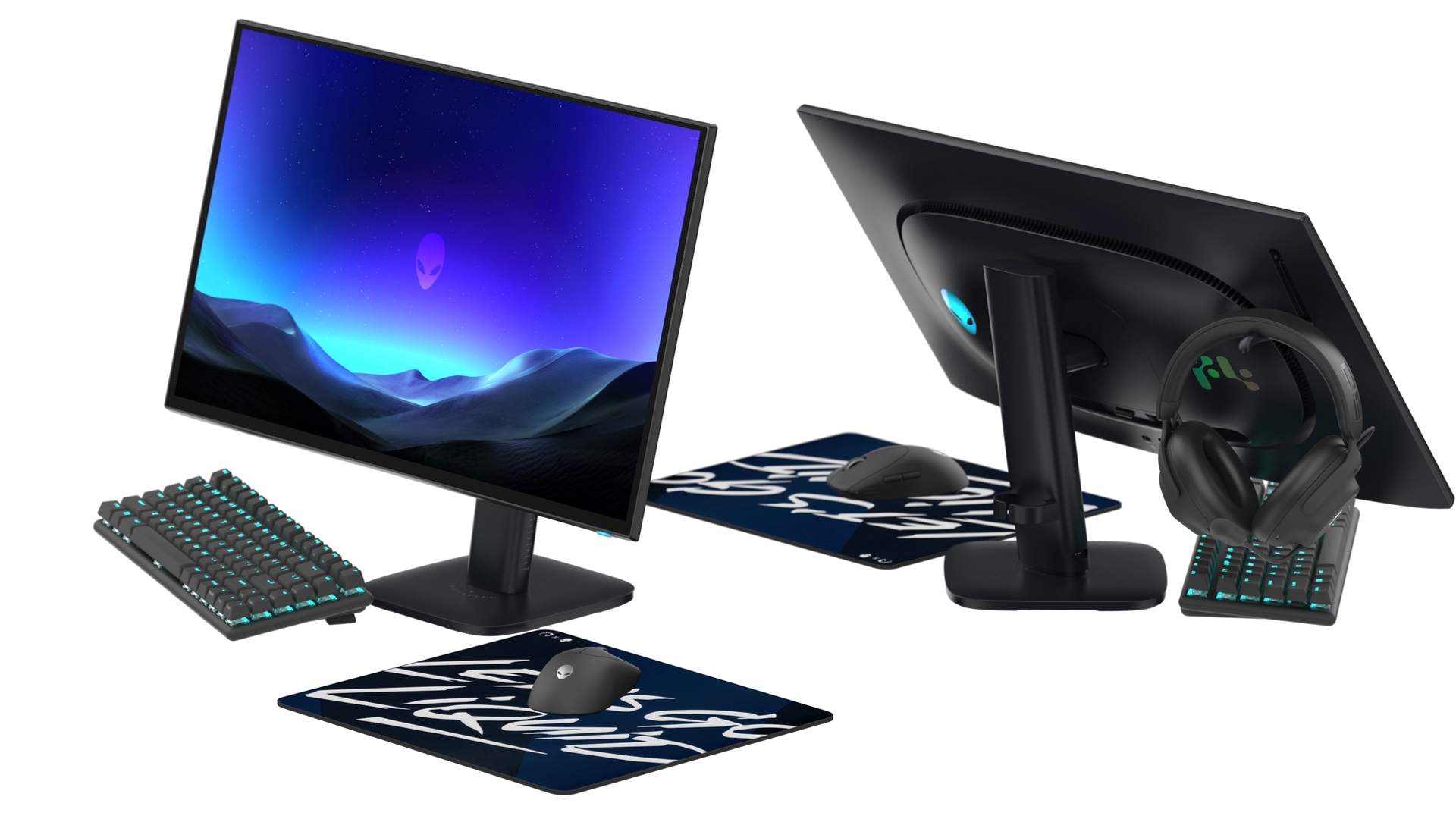
Alienware worked together with the folks at Team Liquid to develop the monitor, ensuring that it ticks all the major boxes for eSports gamers. There's a graphene sheet integrated into the display that helps distribute heat more evenly to mitigate pixel burn-in. An integrated stand is there to hang your headset, and there's a dedicated button that lets you switch between 4:3 and 3:2 aspect ratios depending on how you want to game. The base of the AW2527HX has even been minimized to ensure there's enough space under the monitor for your keyboard.
Both the AW3226Q and AW2527HX launch with a three-year OLED pixel burn-in warranty. Although pricing hasn't been announced yet, the former will launch this fall, while the latter is promised in Q1 2027.
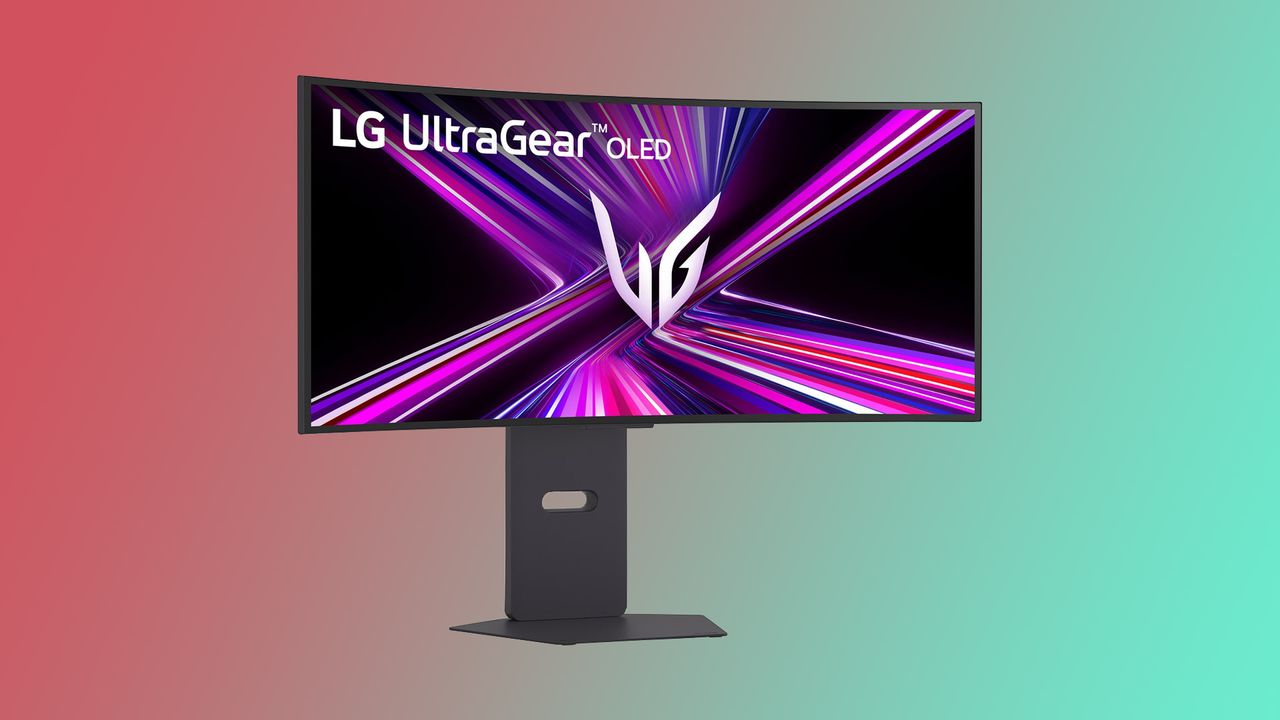
OLED gaming monitors have become increasingly affordable in recent years, as the technology has matured in addition to the growing competition among major brands. If you’ve been saving up to make the jump to an ultrawide OLED monitor, Amazon currently has LG’s 34-inch UltraGear 34GX900A-B at a particularly attractive price. With an original listed price of $1,200, it is currently on sale and can be purchased for $599.99, resulting in a substantial discount of 50%.
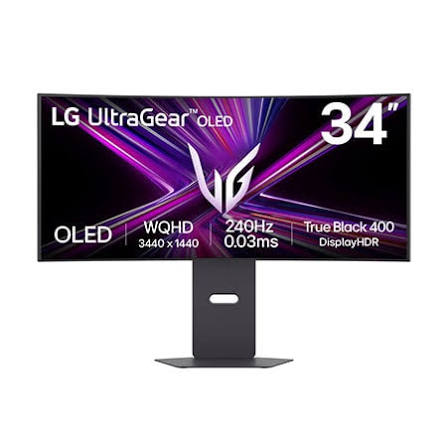
The LG Ultragear 34GX900A-B is a premium curved OLED gaming monitor offering a WQHD or 3440 x 1440 resolution with a 21:9 aspect ratio. According to LG, the steep 800R curve and impressive screen brightness of up to 1300 nits ensure an immersive experience during your gaming sessions. It also comes with up to a 240 Hz refresh rate and 0.03ms response time that keeps the gameplay fast, smooth, and responsive. Additionally, the monitor supports FreeSync Premium Pro and Nvidia G-Sync compatible for clear and tear-free visuals.
The monitor is listed to support 98.5% of the DCI-P3 color gamut, a 1.5M:1 contrast ratio, and DisplayHDR True Black 400. Essentially, one can expect deep blacks, excellent highlights, and cinematic color. The monitor is also UL-verified for flicker reduction, glare reduction, and hardware-based low-blue-light output, all aimed at making the display more comfortable to use for long periods. In terms of connectivity, the LG Ultragear 34GX900A-B comes with two HDMI 2.1 ports, a DisplayPort 1.4, USB Type-C with power delivery, two USB Type-A, and a 3.5mm audio jack. Other notable features include an inbuilt app to split the screen into 6 sections for multitasking, an adjustable stand with height, tilt, and swivel control, and some RGB lighting at the back, adding to the gamer aesthetics.
The LG UltraGear 34GX900A-B at $599.99 is highly recommended for anyone looking to move to an ultrawide gaming monitor. You’re getting a 240 Hz OLED panel, 3440 x 1440 resolution, 0.03ms response time, up to 1300 nits of brightness, and support for both FreeSync Premium Pro and G-Sync, all for $600 less than its original $1,200 price.
Fast refresh curved gaming monitors often cost a pretty penny, so it’s always a good idea to snag one if you see one go on sale. That’s why you should check out the Samsung Odyssey G55C if you want to get your hands on one, as it’s currently at 39% off on Amazon. This limited-time deal brings that price of the monitor from $329.99 to just $199.99, saving you $130 off sticker.
The Samsung Odyssey G55C is a 32-inch VA gaming monitor that comes with a 1000R curvature for better immersion during gaming. Aside from that, it also gives you 1440p QHD resolution, a 165 Hz refresh rate, and a 1 ms response time for that sharp and smooth gameplay. Of course, since this display is designed for gaming and entertainment, it also has AMD FreeSync to avoid screen tearing and is HDR10-compliant to give you incredibly vibrant scenes. If you plan to game for several hours at a time, you’ll also appreciate its Eye Saver Mode, which cuts screen flicker to reduce eye strain and distraction.
The Samsung Odyssey G55C is a 32-inch curved gaming monitor with a 1000R curvature. It has 1440p QHD resolution. a 165 Hz refresh rate, and a 1ms response time, making it a great option for hardcore gamers.View Deal
This display offers both HDMI and DisplayPort, allowing you to simultaneously plug your gaming PC and gaming console into it. Although it doesn’t have built-in speakers, it does come with a 3.5mm headphone jack, allowing you to attach your headphones or speakers directly, reducing cable clutter on your desk. The monitor comes with a fixed base that with thin legs to save space, but if you need more flexibility, you can also mount it to a monitor arm via the standard VESA mounting points at the back of the display.
Some of the drawbacks of this monitor is that Samsung doesn’t share its DCI-P3 coverage and color accuracy stats. It also only limited to just 300 nits, so it might struggle if you plan to use it in brighter locations. If you need a more capable monitor, you should consider options from our best gaming monitors list. But if you’re only looking for a display to satisfy your gaming needs, this monitor is more than enough for most of your requirements. So, if you’re looking for a new gaming monitor, you should get the Samsung Odyssey G55C right now for just $199.99. Don’t hesitate as this is a limited-time deal, so you should get it while you can.
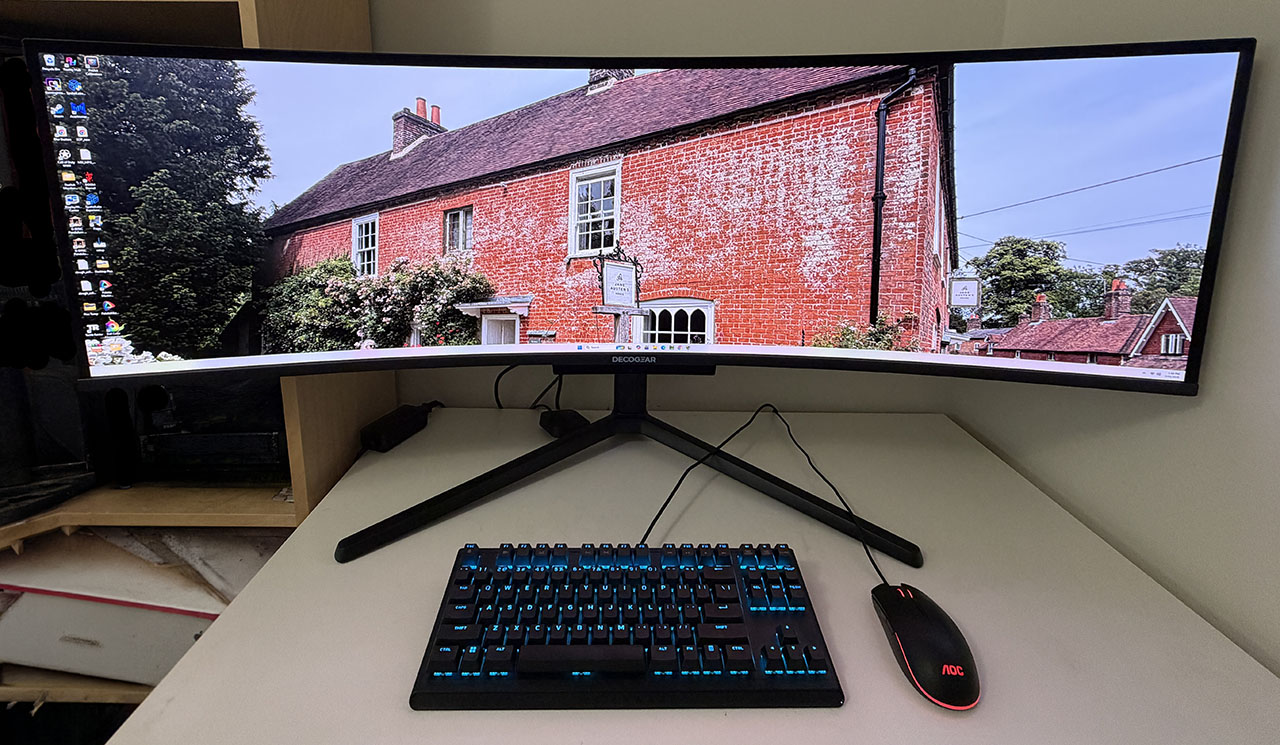
Few, if any, users will say that they have too much screen real estate. There’s always one more window you’d like to open, or you’ll often wish you could see just a little more of a game environment. To this end, many people run two or three of the best gaming monitors together. This approach solves many problems, and if you go for something common like a 27-inch QHD, the price isn’t too high. But there’s one thing you can’t escape: the dividing line.
Monitors always have a frame; even the flush ones are visible. And no one will say that they like the line. It can perhaps be ignored, but it doesn’t just magically disappear. The simplest solution is to go for an ultra-wide display. If you’re currently running two 27-inch QHD monitors, you can replace them with a single 49-inch 32:9 panel. Add a curve, and you have a screen that’s great for productivity, gaming, and simulation.
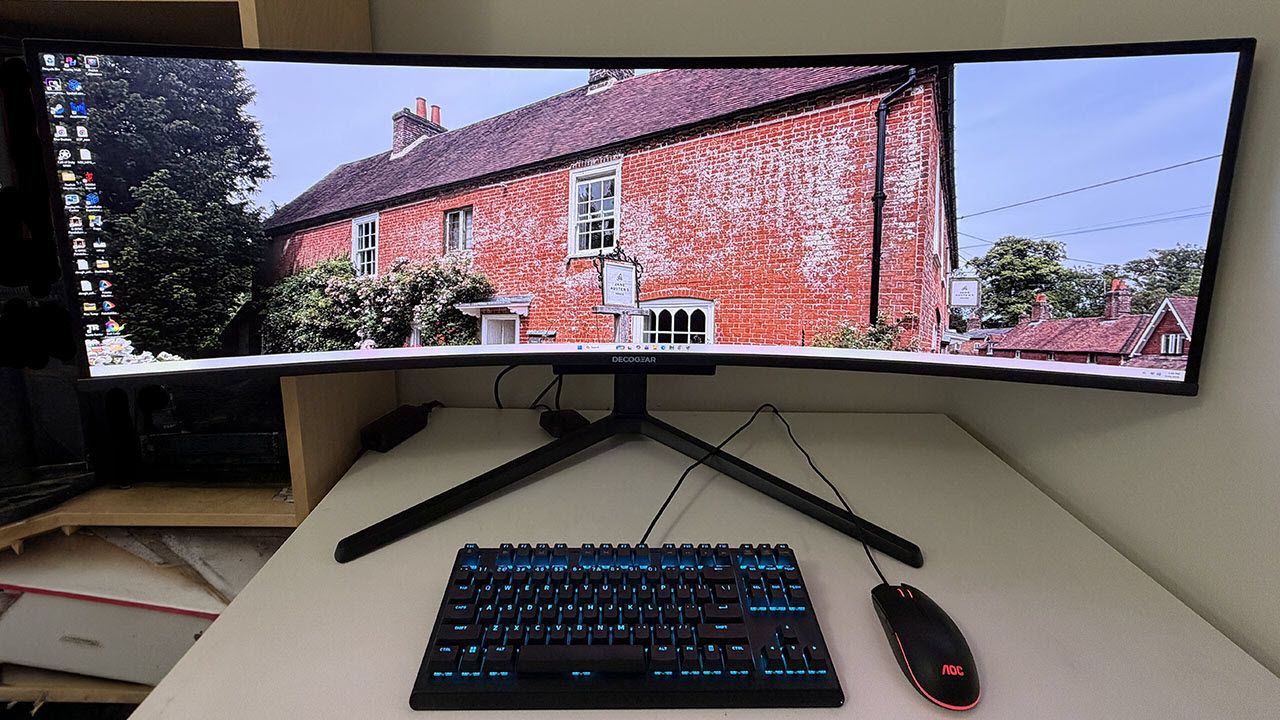
This isn’t necessarily the least expensive solution, but if you buy one from Deco Gear, you can put the DG49OLED240 on your desk for $1,230. That will get you 5120x1440 pixels, a Quantum Dot OLED panel, 240 Hz, Adaptive-Sync, HDR400, and wide gamut color. Let’s take a look.
The 49-inch 32:9 display format is the exact equivalent of two 27-inch 16:9 QHD screens; it’s the perfect solution for those who would otherwise run two monitors. The only downside is that it costs more than two 27-inch QHD panels. But given the specs in play here, the DG49OLED240 delivers a lot for the money.
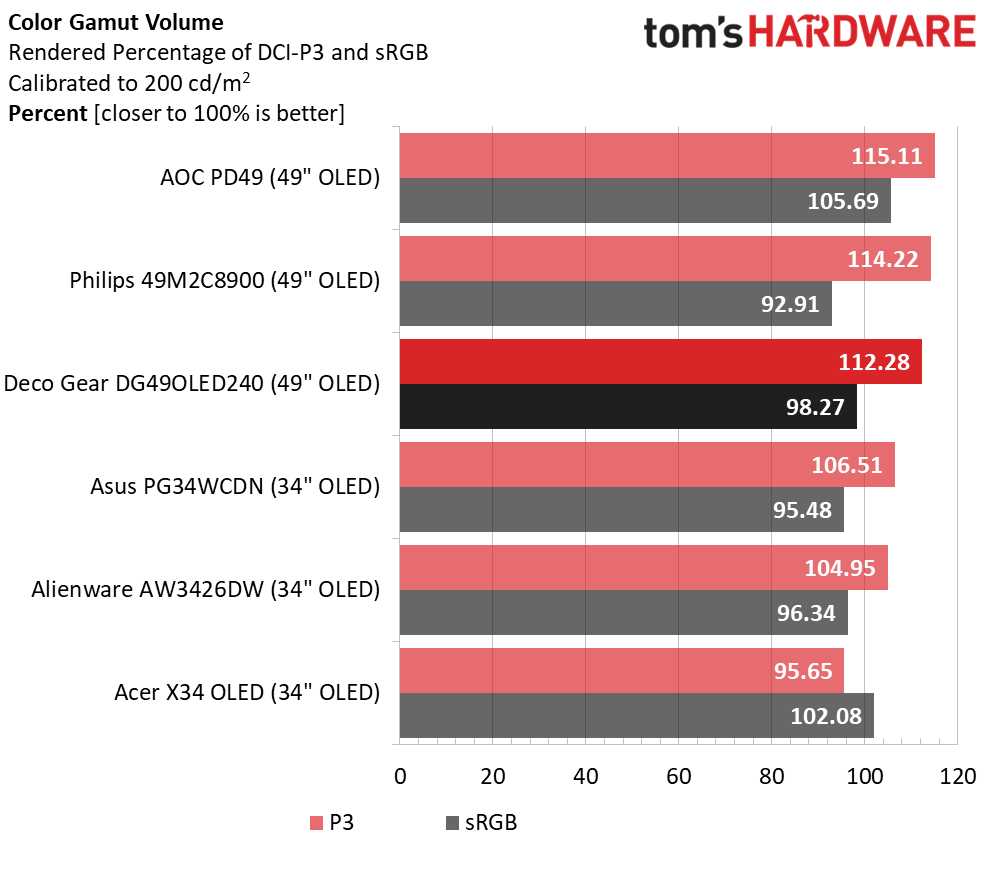
With Quantum Dot color, you get a healthy 112% coverage of DCI-P3. That’s more than many 34-inch 21:9 screens I’ve reviewed. It’s reasonably accurate out of the box as well. My sample measured well before calibration and better after a few adjustments.
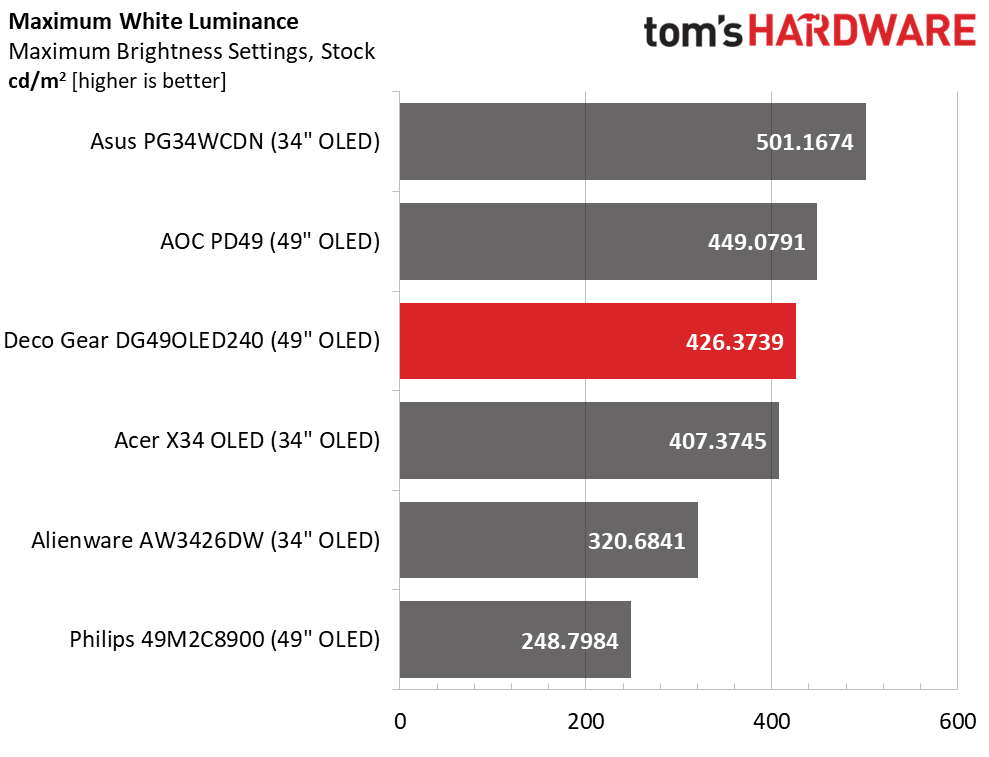
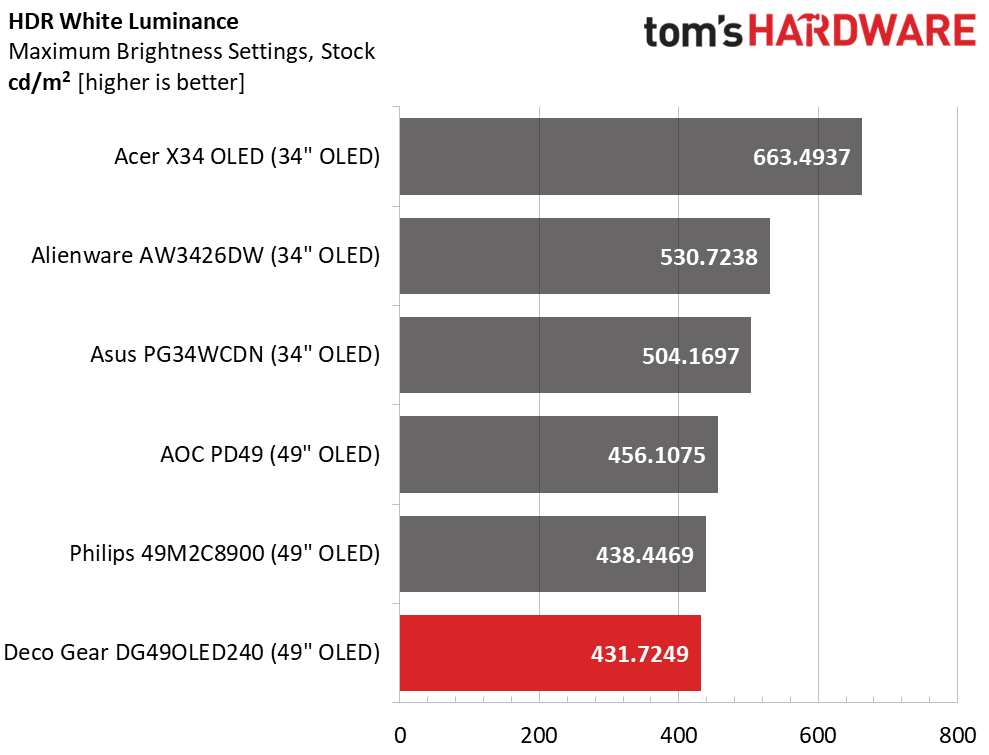
Light output is around 430 nits for SDR and HDR content. That’s with variable brightness engaged and measurement of a 25% window pattern. Full field white comes in around 360 nits. The DG49OLED240 provides more than enough brightness for impactful HDR in an indoor space with some ambient light. It also plays well in the dark with lower levels that maintain full color and contrast.
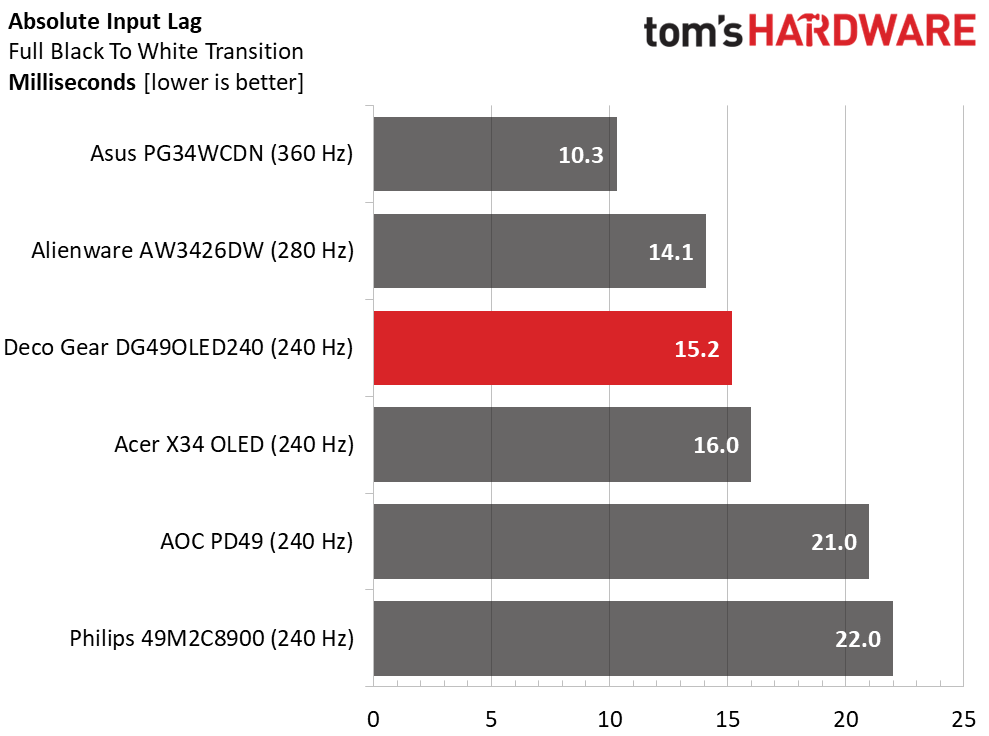
Video processing is excellent in all respects with a 240 Hz refresh rate and Adaptive-Sync. I measured panel response on par with other OLEDs and lower input lag than other 49-inch 32:9 screens in my test database.
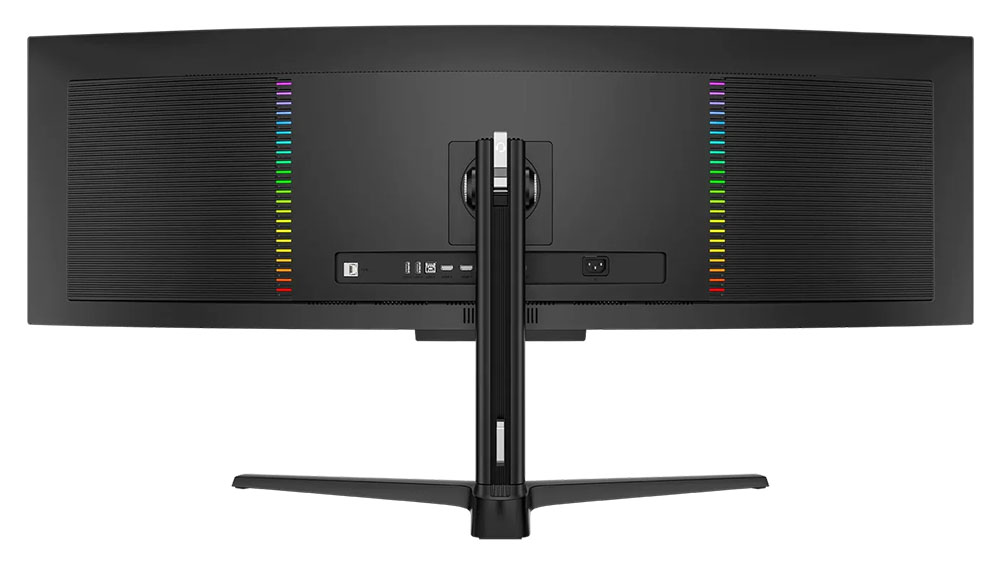
Gaming is enhanced by a pair of internal five-watt speakers accompanied by a 10-watt woofer plus a 3.5mm headphone jack. And you can hang those cans on a stout metal hook that flips out from the stand. Video inputs include two DisplayPort 1.4, one HDMI 2.1, and a USB-C that includes 90 watts of charging power. Additional USB ports support things like input devices and webcams. You also get LED lighting in the back with control in the OSD.
If you’re wondering about the Deco Gear brand, it is a subsidiary of Beach Camera, a very experienced vendor of electronics and technology. You can buy the DG49OLED240 directly for $1,229.99, or in one of Beach Camera’s brick-and-mortar locations.
Assembly and Accessories
The DG49OLED240 showed up in a large white carton with just the words “49” OLED Ultrawide Monitor” printed on it. A visit to Deco Gear’s website revealed that several variants of this display differ mainly by refresh rate. The DG49OLED240 is the flagship model at 240 Hz. The contents are packed in crumbly foam and assembled tool-free. The accessory bundle includes an IEC cord for the internal power supply plus DisplayPort, HDMI and USB cables.
Product 360
Deco GearDeco GearDeco GearDeco Gear
The DG49OLED240 is styled simply with just a Deco Gear logo on the front, screened on above a small protrusion. This is where you’ll find the only control, a tiny joystick. It covers all monitor functions. A word of warning: pressing it only toggles power. It doesn’t select functions like every other joystick on every other monitor. So, unless you plan to turn the DG49OLED240 on or off, do not press it.
The screen’s bezel is flush so you can’t see it when the power’s off. But it is a tad wider than average at 12mm around the top and sides and 15mm at the bottom. In practice though, you’ll be so glad to get rid of the line down the center after chucking your two 27-inch screens that you won’t care.
The stand is super solid with a wide and deep base made from cast aluminum and finished in a matte black powdercoat. It’s almost monolithic, but there is a bit of wobble where the panel snaps on. This is typical of super wide monitors. Ergonomics include a 4.6-inch height range plus 5/20 degrees tilt and 20 degrees swivel.
In the back are LED lights in two vertical arrays that frame the rear-facing I/O panel. There are two DisplayPort 1.4s and an HDMI 2.1. A USB-C handles video signals and provides 90 watts of power. There are USB ports too, one upstream and two downstream. A 3.5mm headphone jack delivers audio, and there’s an RJ-45 network port.
OSD Features
The DG49OLED240’s OSD is somewhat frustrating to control because the joystick doesn’t work the same way as nearly every other monitor I’ve encountered. One major issue I had was that pressing it toggles the power no matter what menu you’re currently in. I lost count of how many times I accidentally turned off my review sample. To select a function, right-click. To back out of the menu, left-click. Once I got the hang of it, I was able to find everything I needed for image control and video processing.
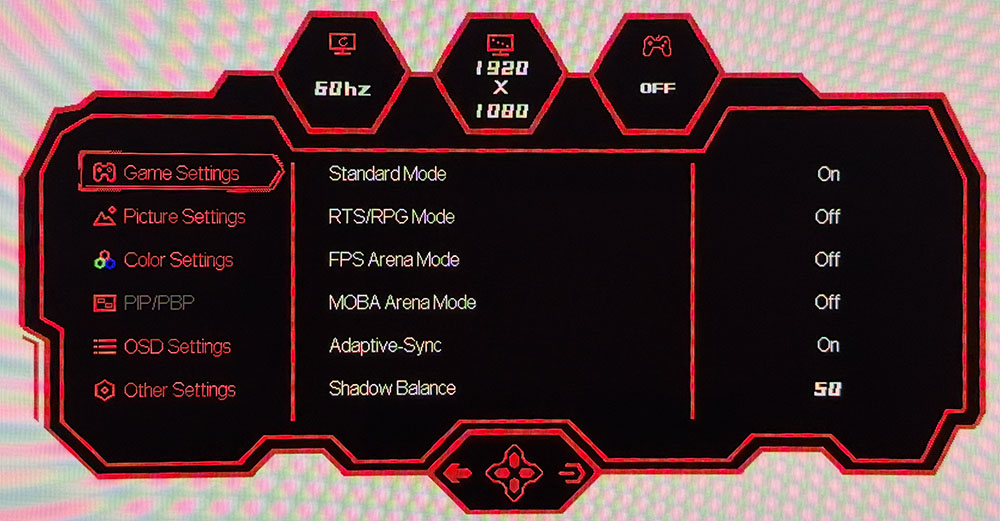
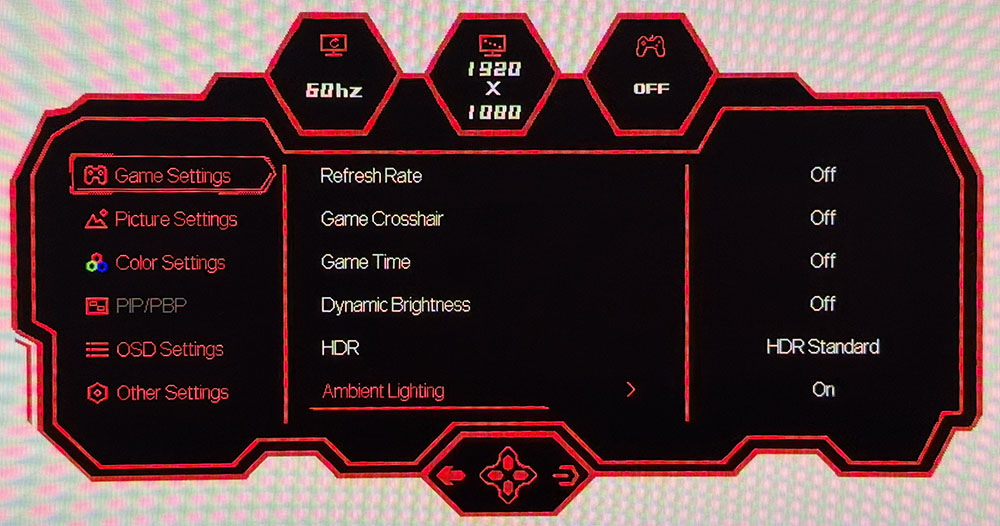
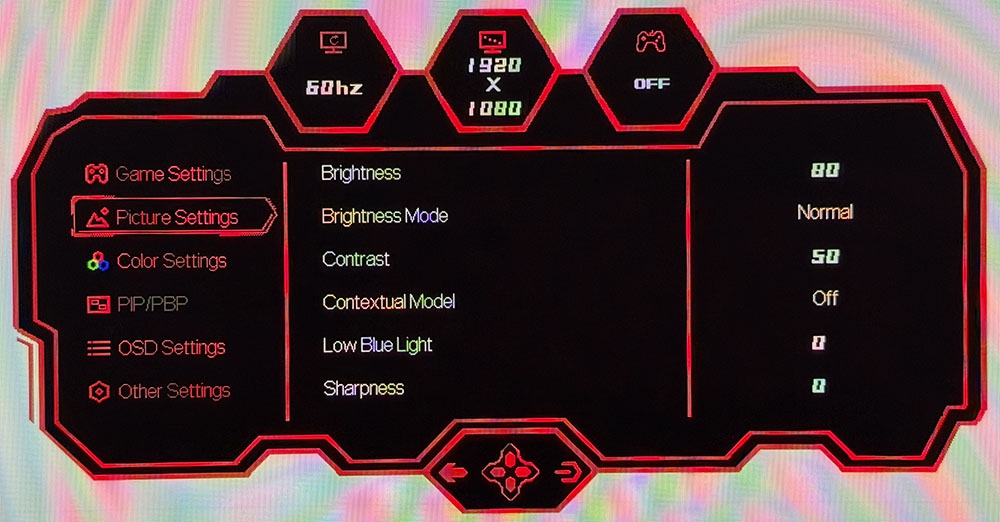
Every menu screen has basic signal information at the top in three small portholes. The menu graphics are game-focused with a purposeful red border on a black background. Game Settings is up first with four image modes, an Adaptive-Sync toggle, and Shadow Balance, which brightens darker areas for better visibility. On the second screen, you get a frame counter, two aiming points, and a timer. Dynamic Brightness is a global dimming feature. HDR can be turned off or engaged with two different modes. Ambient Lighting refers to the LEDs on the back.
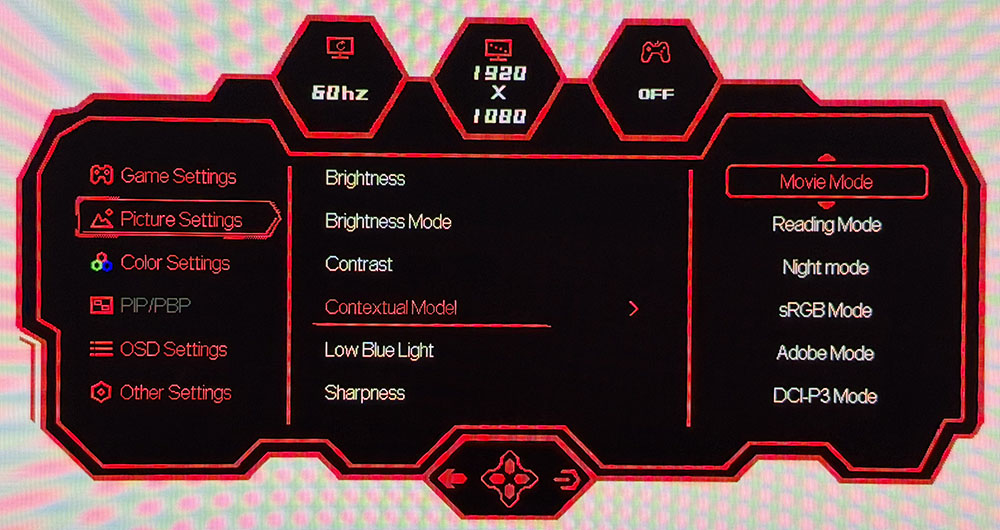
Picture Settings has the usual basic controls and an unusual one called Contextual Model. I don’t know where this terminology comes from, but here, it means more picture modes. Specifically, this is where you’ll find sRGB along with other activity-specific options. An important one here is Brightness Mode. Deco Gear calls the two settings Normal and Highlight, and what they actually are is fixed or variable brightness. I’ll talk more about that later. The second screen, not shown above, has six gamma presets.
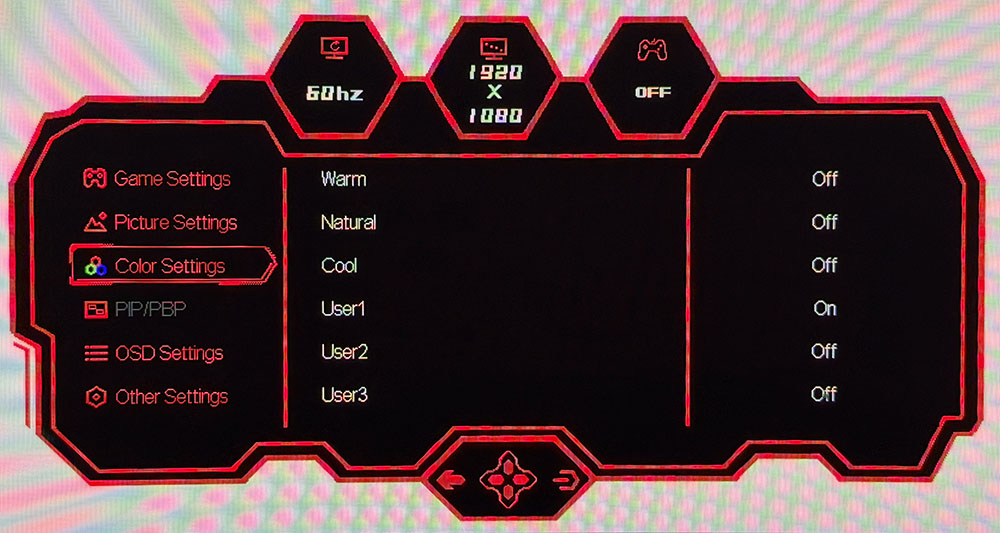
In Color Settings, you get three fixed color temps plus three more user memories with RGB sliders. These are difficult to adjust thanks to the joystick’s unusual operation. But they are effective and allowed me to dial in grayscale tracking to a very accurate level.
Additional settings include PIP/PBP for viewing two video sources at once. You can adjust the position of the OSD, and there are port version options. The one thing I didn’t find was OLED care options. But Deco Gear assures me that the DG49OLED240 has automated logo dimming and panel refresh, which runs every few hours to guard against burn-in.
Deco Gear DG49OLED240 Calibration Settings
The DG49OLED240 can be calibrated in its Standard picture mode, which uses the full native color gamut, 112% of DCI-P3. There are three user color temps with RGB sliders that helped me get grayscale tracking from good to great. Gamma runs a tad dark but tracks close to the 2.2 reference. For sRGB color, go to the menu called Contextual Model and select it from the options there. You can also specify Adobe RGB or P3 color. There is a variable brightness option as well called Brightness Mode. For fixed, choose Normal and for variable, choose Highlight. I’ve included brightness values for both modes in my settings list below.
HDR signals get two modes that vary only in their EOTF tracking. The best choice there is HDR Standard.
Picture Mode
Standard
Brightness Mode
Normal / Highlight
Brightness 200 nits
79 / 45
Brightness 120 nits
47 / 25
Brightness 100 nits
39 / 20
Brightness 80 nits
30 / 16
Brightness 50 nits
18 / 8 (min. 10 / 17 nits)
Contrast
50
Gamma
2.2
Color Temp User
Red 49, Green 49, Blue 50
Gaming and Hands-on
Gaming on the DG49OLED240 was instantly addictive. It delivered very balanced performance with perfect motion resolution, lighting-fast reflexes, and a gorgeous image. The extra width provided by the 32:9 aspect ratio really drew me into the gaming environment with a VR-like feel that enveloped my peripheral vision.
You’ll see on the next page that the DG49OLED240 has a tad less input lag than the other 49-inch OLEDs I’ve reviewed. Though the numerical difference is small, I experienced a quickness and precision that I don’t get with every OLED. Clearly, 240 Hz is more than enough speed to ensure blur-free operation and instant control response. A seasoned competitor will want to give this monitor serious consideration. And I had no problem maintaining 240 fps on a GeForce RTX 4090 in Doom Eternal with detail set at maximum in HDR mode.
The DG49OLED240 also has exceptional color balance. Even though it covers more than 112% of DCI-P3, it never looked overblown in SDR mode. There is an available and accurate sRGB mode, but I only needed it when working on photos and graphics for web publication. For all other activities, including watching SDR video, I enjoyed the extra color. And HDR looked stunning thanks to linear saturation tracking and no visible hue errors.
With the same 109 ppi as a 27-inch QHD screen, clarity is excellent but not quite at the level of a 4K screen. It is more than sharp enough for gaming though. Documents also render with clean fonts, no apparent fringing, and that signature OLED contrast. I found smooth scrolling in Windows by running at 120 Hz. You can certainly run at 240 Hz all the time if you wish, but it will increase power consumption.
Putting a monitor as wide as the DG49OLED240 on your desk will require some adaptation if you aren’t already used to multiple screens. I habitually put the work I’m focusing on at the center of the screen, but with a mega-wide, I had to spend more time with pages to my left and right. Photoshop was my favorite use since I could put the photo in the center and leave the sides for toolbars and supporting dialog boxes. It’s also great for very wide spreadsheets, like my monitor test database which has 25 horizontal fields. For my work, it is less suited to writing since I prefer more height when using Word or Notepad.
A standout feature I noticed immediately was the DG49OLED240’s excellent audio quality. It has a pair of internal speakers which alone are not extraordinary, but they are accompanied by a 10-watt woofer which rounds out the bass frequencies. This makes the sound presentation much fuller and more realistic. It adds to the screen’s immersive quality and is a completely viable alternative to headphones or external desktop speakers.
Takeaway: The DG49OLED240 delivers gaming performance on par with the best OLED screens I’ve reviewed. It has perfect motion resolution and responds instantly to control inputs with less lag than other 49-inch monitors. It’s super useful for workday tasks like Photoshop and Excel and not quite as well suited to word processing or web browsing. Sound quality is equivalent to a good pair of headphones or external desktop speakers. If you’re looking to get rid of the line between your two 27-inch QHD monitors, the DG49OLED240 is a no-brainer.
Click here to read up on our pixel response and input lag testing procedures.
Tom's HardwareTom's Hardware
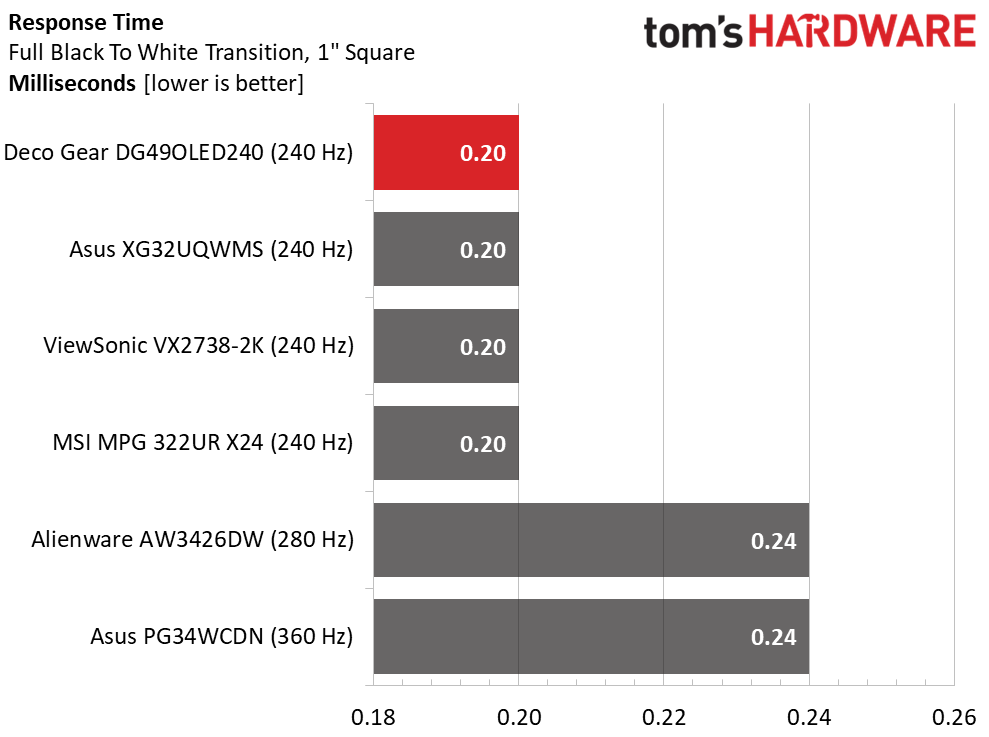
The response group is slightly different in that it includes ViewSonic and MSI monitors. This is because I’m still building up the number of screens tested by the Nvidia LDAT sensor. Its results cannot be compared to my previous test method of counting frames from a high-speed camera. It’s becoming evident that refresh rate has a smaller effect on performance in this test than with LCD panels. So far, the OLEDs I’ve tested have ranged from 0.12 to 0.24ms. And faster refresh rates don’t guarantee faster response. That said, a 0.12ms difference is well below the threshold of perception. No human being could tell them apart. The DG49OLED240 is super smooth, same as any OLED.
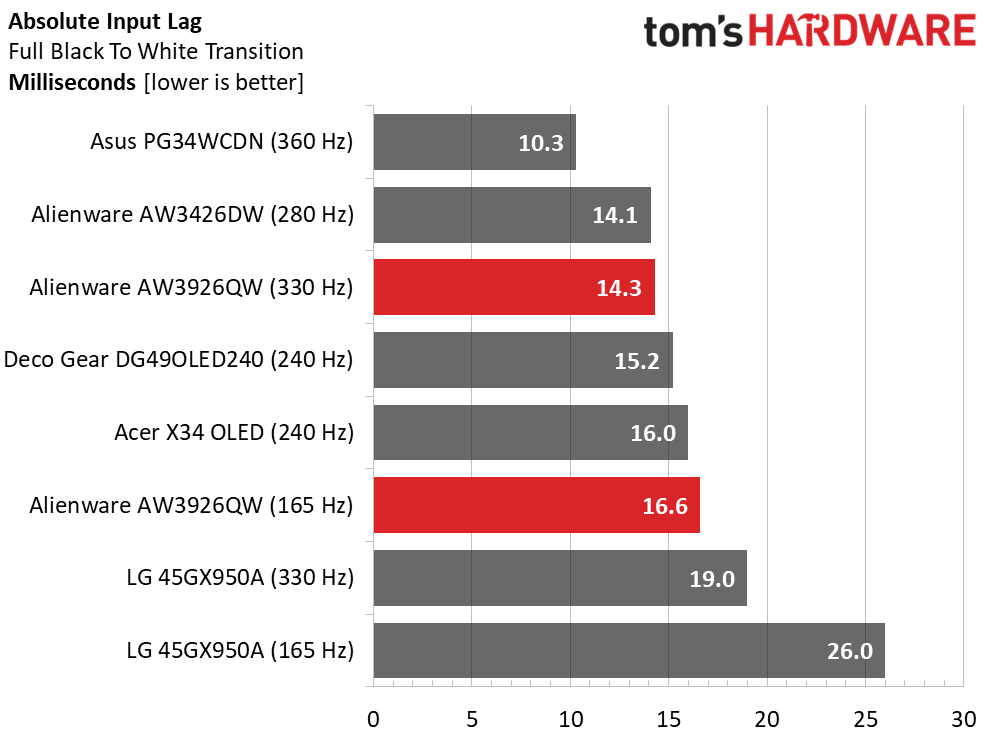
In the lag test, the DG49OLED240 does well with just 15.2ms averaged over 25 mouse clicks. It’s the quickest 49-inch monitor, and it’s a tad quicker than the Acer. Here, refresh rate does matter, though it's a tight race. The 360 Hz PG34WCDN is very fast at 10.3ms. But the DG49OLED240 is more than quick enough for gamers of all skill levels.
Test Takeaway: The DG49OLED240 provides low input lag and smooth motion resolution for all game types and play scenarios. It is on par with other OLEDs in the panel response test and has a bit less input lag than the other 49-inch 32:9 OLEDs I’ve tested. I found it completely addictive during gameplay with perfect motion resolution and instant control response.
Viewing Angles
(Image credit: Tom's Hardware)
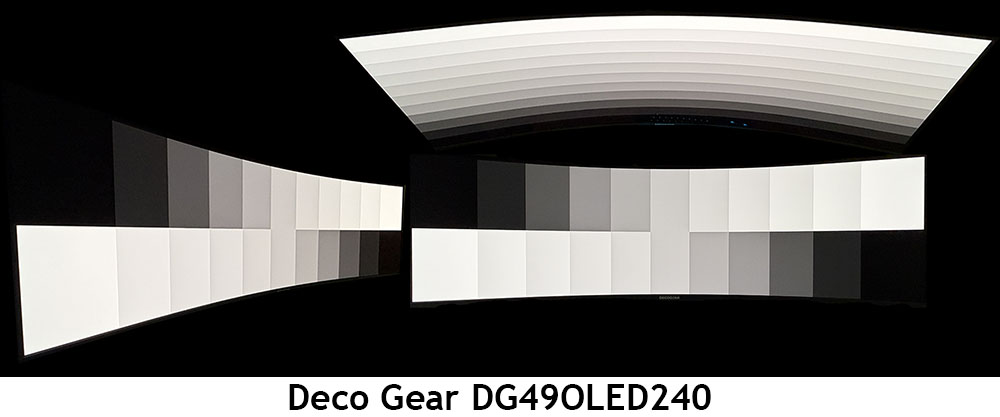
I’ve found that most Quantum Dot OLEDS show a slight tint at 45 degrees to the side. The DG49OLED240 has a red shift that’s just perceptible. There is no change to brightness or gamma, though, meaning you’ll have a hard time seeing a problem in actual content. The top view is also a bit red with a moderate reduction in gamma and brightness.
Screen Uniformity
To learn how we measure screen uniformity,click here.
(Image credit: Tom's Hardware)
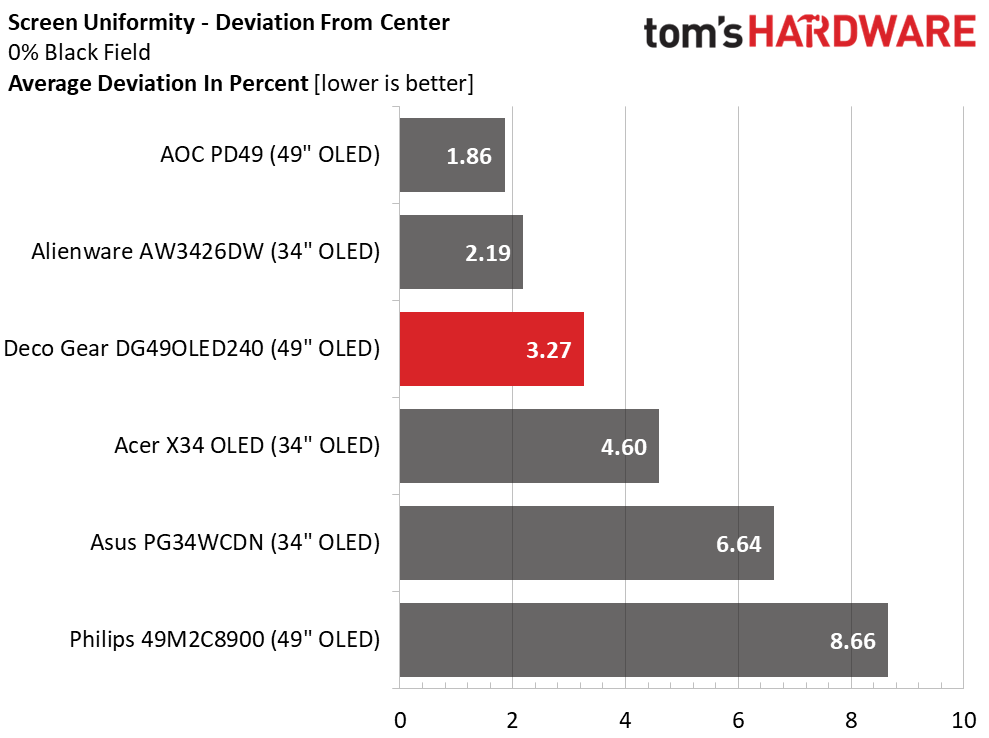
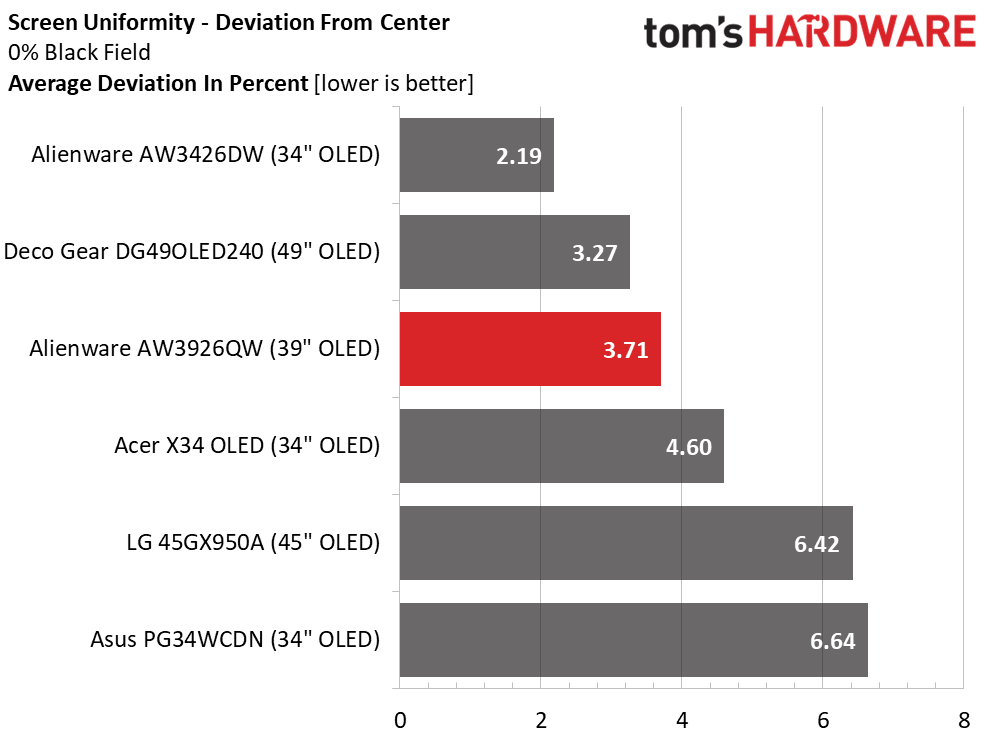
The DG49OLED240 aced my uniformity test with just 3.27% deviation from the center zone. This is well below the visible threshold of 10%. My sample had no issues whatsoever, no bleed, no glow, and no color variation in any full-field test pattern. This is excellent performance that is typical of the OLED monitors I’ve reviewed.
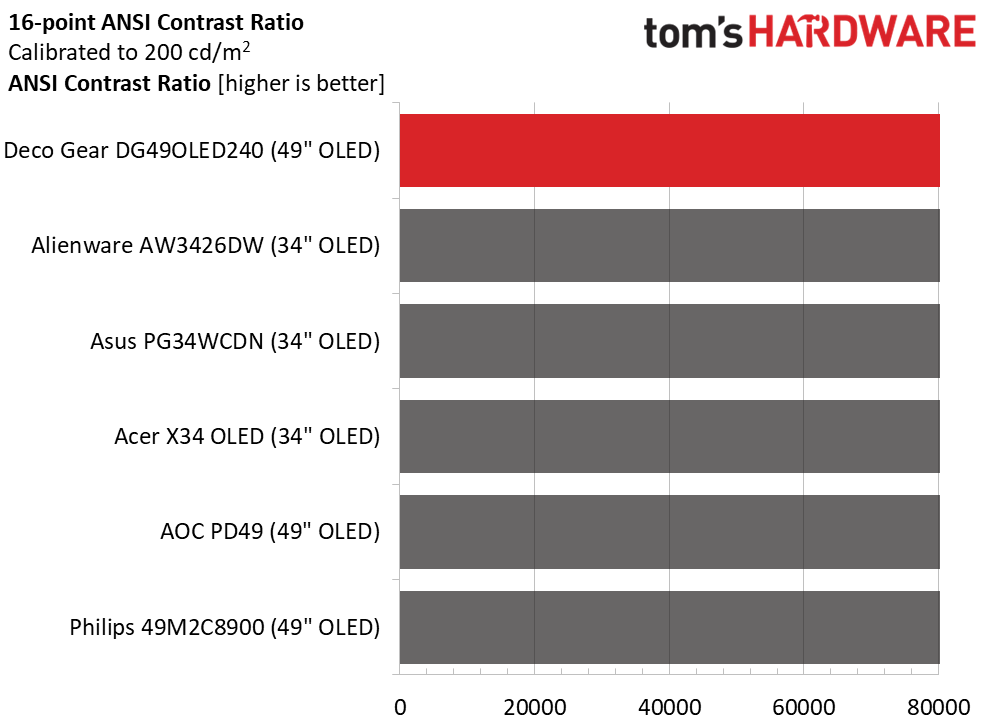
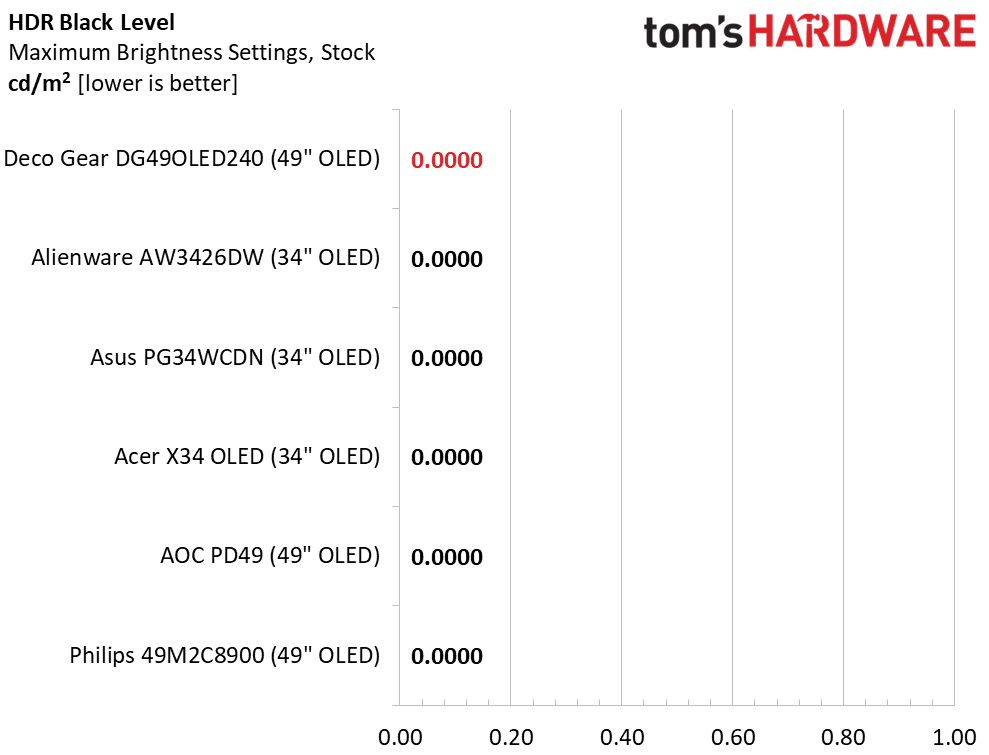
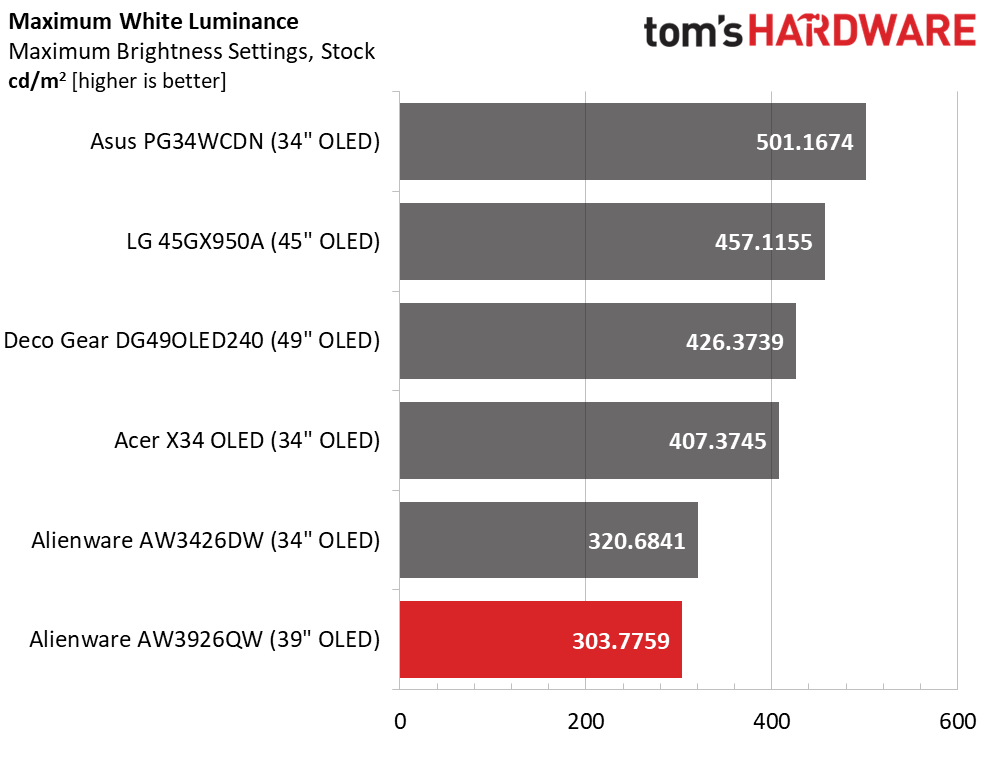
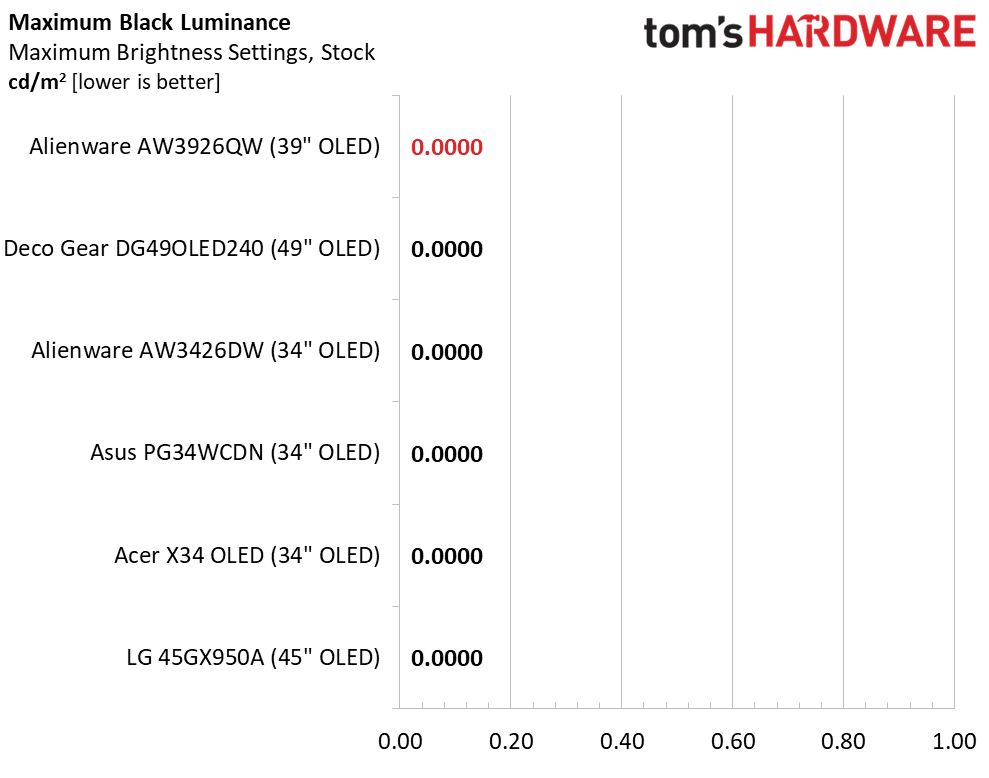
To get maximum brightness from the DG49OLED240 in SDR mode, I had to set Brightness Mode to Highlight, which corresponds to variable brightness. Measuring a 25% window gave me 426 nits, which is about average for the category. A full field measured 360 nits, which is a bit higher than the average of 250 nits. The DG49OLED240 is plenty bright. It should be noted that large screens look much brighter at a given light level thanks to their extra size. In other words, you might not want to crank up a monitor this big to the highest brightness setting. As always in OLED testing, black levels and contrast could not be measured.
After Calibration to 200 nits
Tom's HardwareTom's HardwareTom's Hardware
Calibration changes nothing except the peak brightness value. If you set Brightness Mode to Normal, that’s 79 for 200 nits. In Highlight, I set the peak with a 25% window, and that value was 45. Unfortunately, you must change the brightness setting every time you switch brightness modes. I find it best to use variable for gaming and video, and constant for work tasks. Black levels and contrast could not be measured in either the static or intra-image (ANSI) tests.
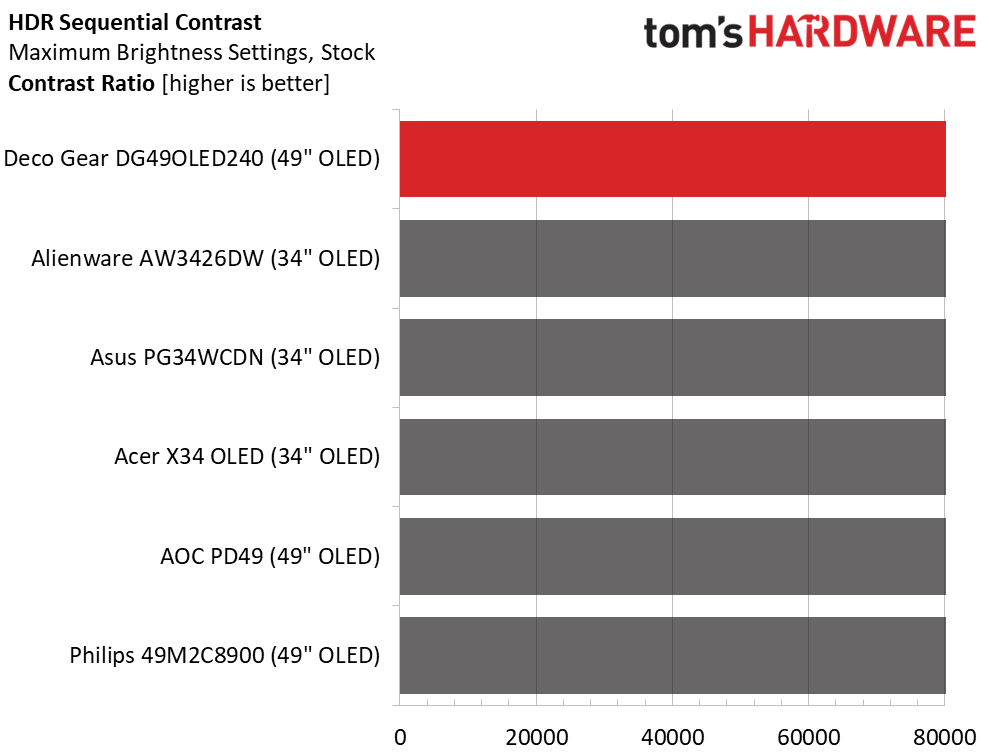
Test Takeaway: The DG49OLED240 delivers similar brightness, black level, and contrast performance to other OLED displays in the ultra-wide and mega-wide formats. It stands out for having a variable brightness option, but it doesn’t remember the different brightness settings when you switch back and forth. It offers plenty of peak output for any indoor environment and can go down to 50 nits peak for dark room play.
The DG49OLED240 ships in its Standard picture mode, which can be used without calibration. It employs the full native color gamut, which covers over 112% of DCI-P3. An sRGB mode is available if you need it.
Grayscale and Gamma Tracking
Our grayscale and gamma tests use Calman calibration software fromPortrait Displays. We describe our grayscale and gamma tests in detail here.
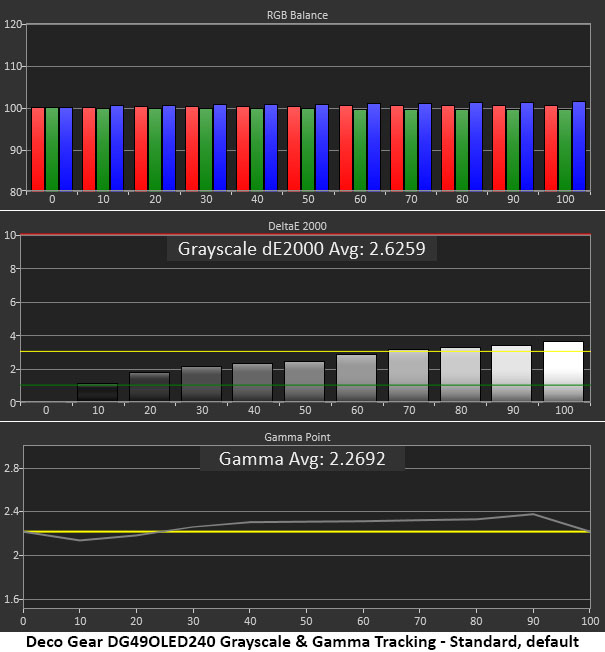
In the initial grayscale test, the DG49OLED240 shows almost no visible errors. Brightness steps above 70% just crack the 3dE threshold. You won’t see any issues in content, and the monitor is accurate enough not to require adjustment. I saw slight gamma variations in steps from 30 to 90% where the values were a little too dark. And there’s a slight dip at 10% where it’s too light. These are small errors, but gamma could be a little tighter.
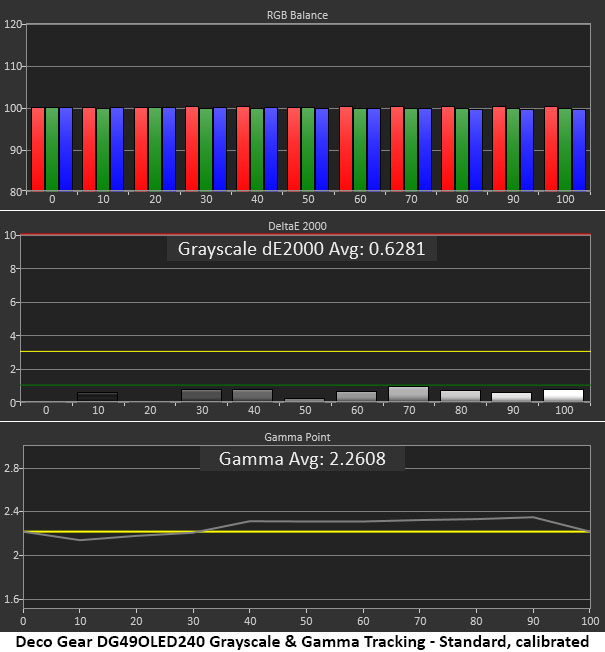
Calibration brings all grayscale errors below 1dE, which is pro-level performance. Gamma is unchanged. It is possible to change the gamma as a whole, but there’s no way to straighten out the tracking line.
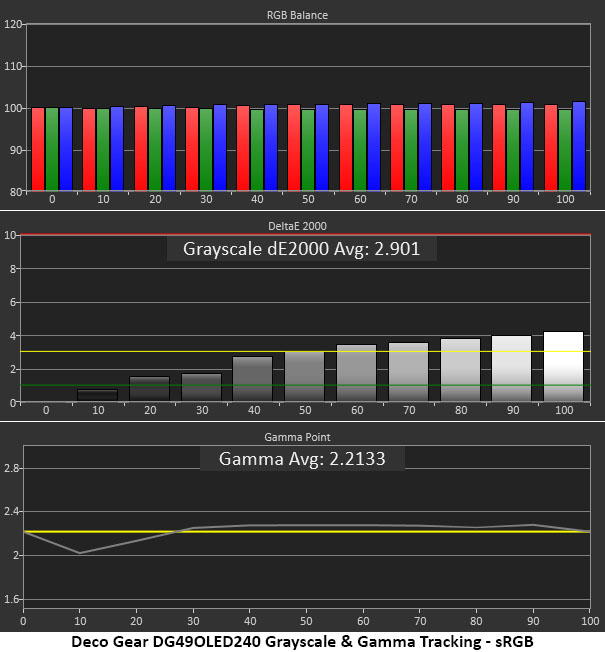
Interestingly, the sRGB mode has tighter gamma from 30 to 100%, where it’s only a tick above the reference line. There’s a slightly larger dip at 10%, which means shadow areas will be too light. Grayscale errors are just visible above 60% brightness. Calibration is possible here, something few monitors offer, and you can have independent settings for up to three color modes.
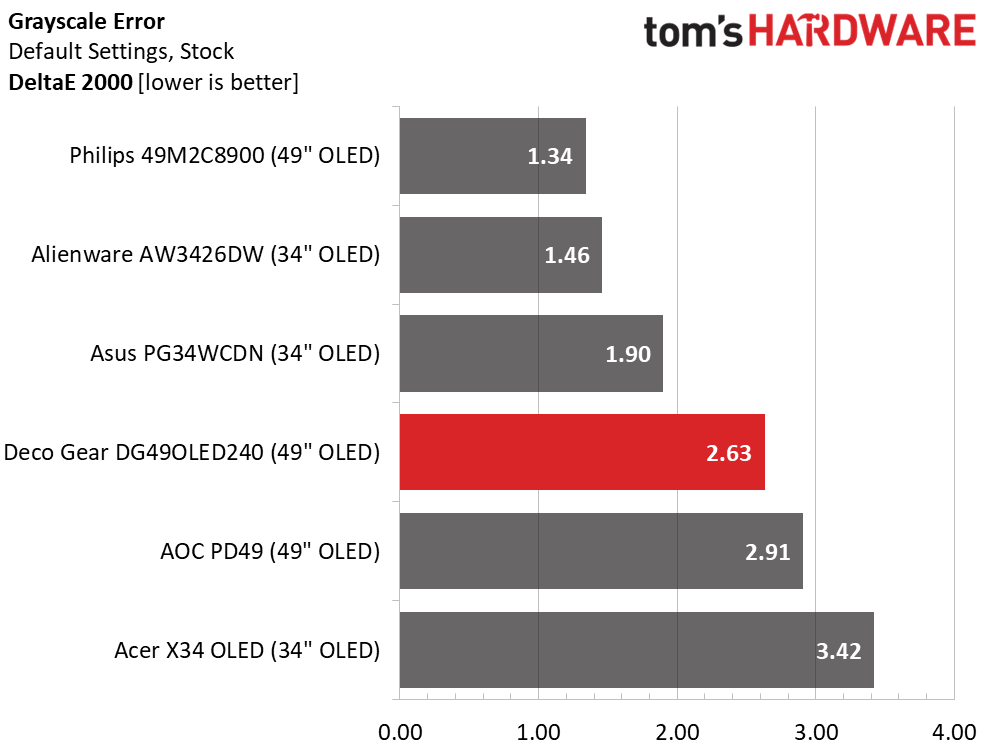
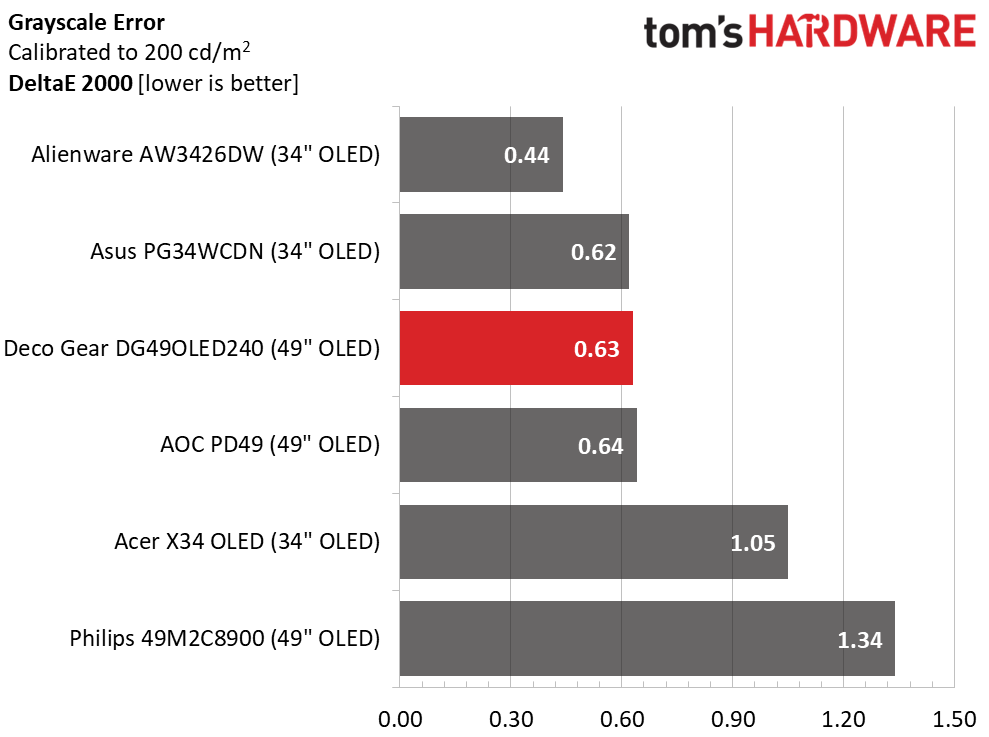
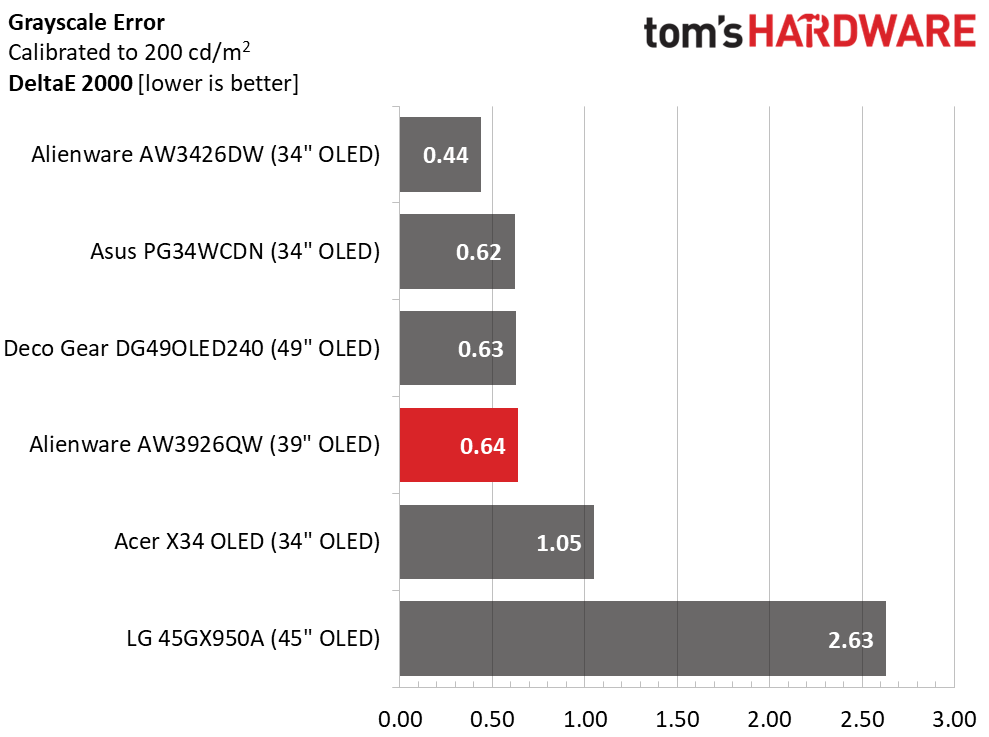
In the default test, the DG49OLED240 is mid-pack among a solid group of monitors at 2.63dE. You can enjoy it without calibration. After a few tweaks, the number falls to an excellent 0.63dE. With a range from 0.44 to 1.34dE, these screens are all visually perfect in the grayscale test.
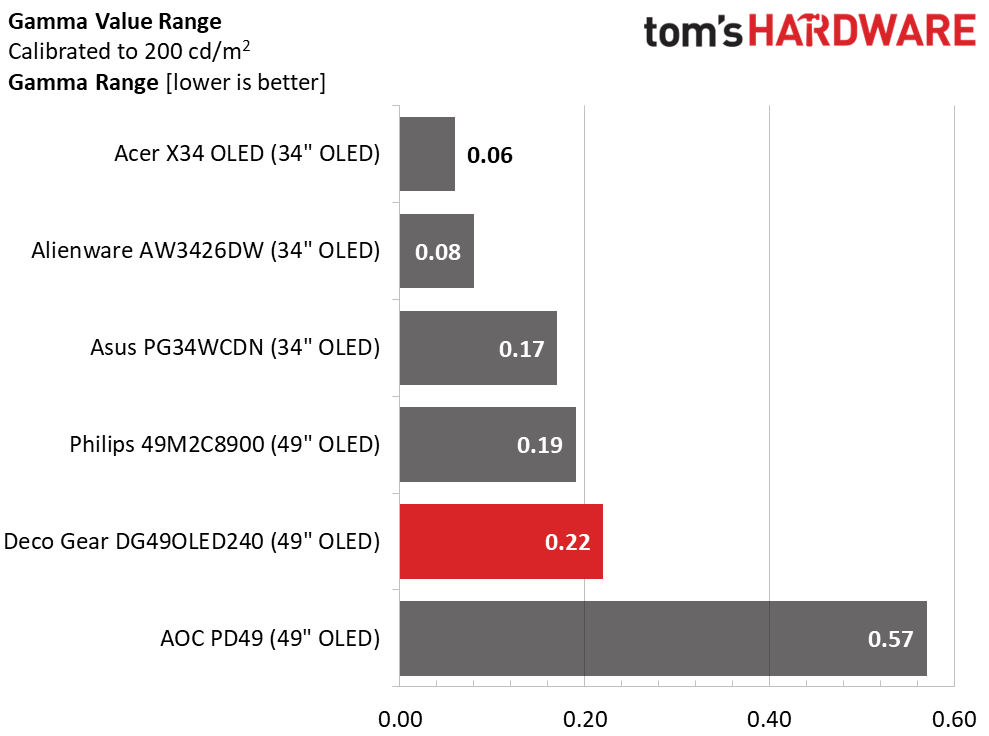
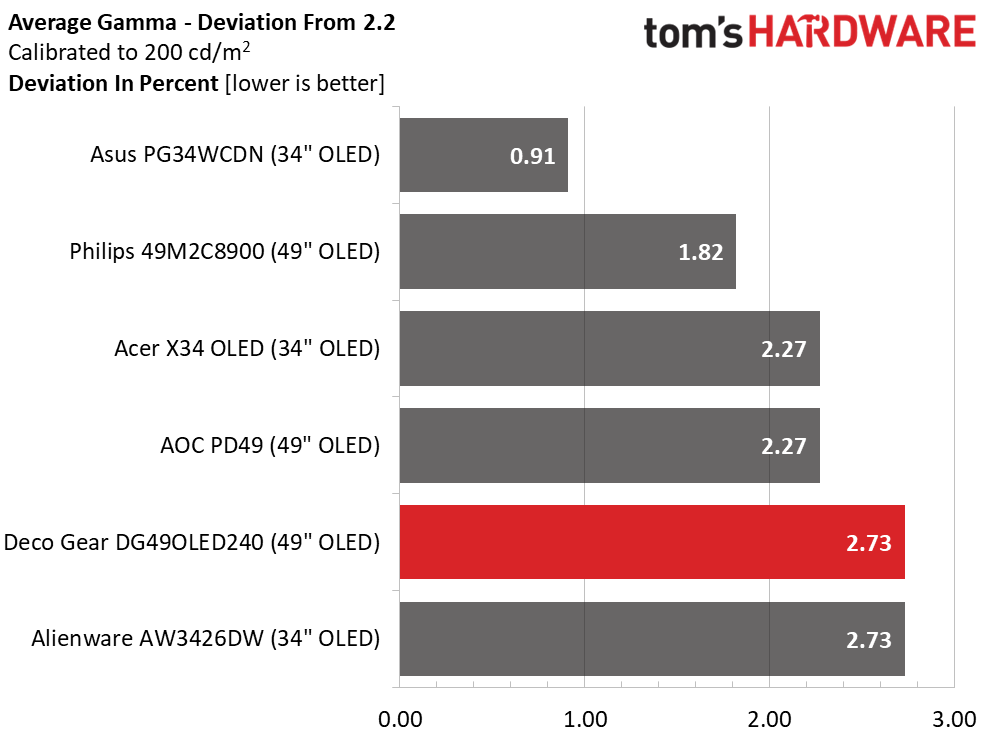
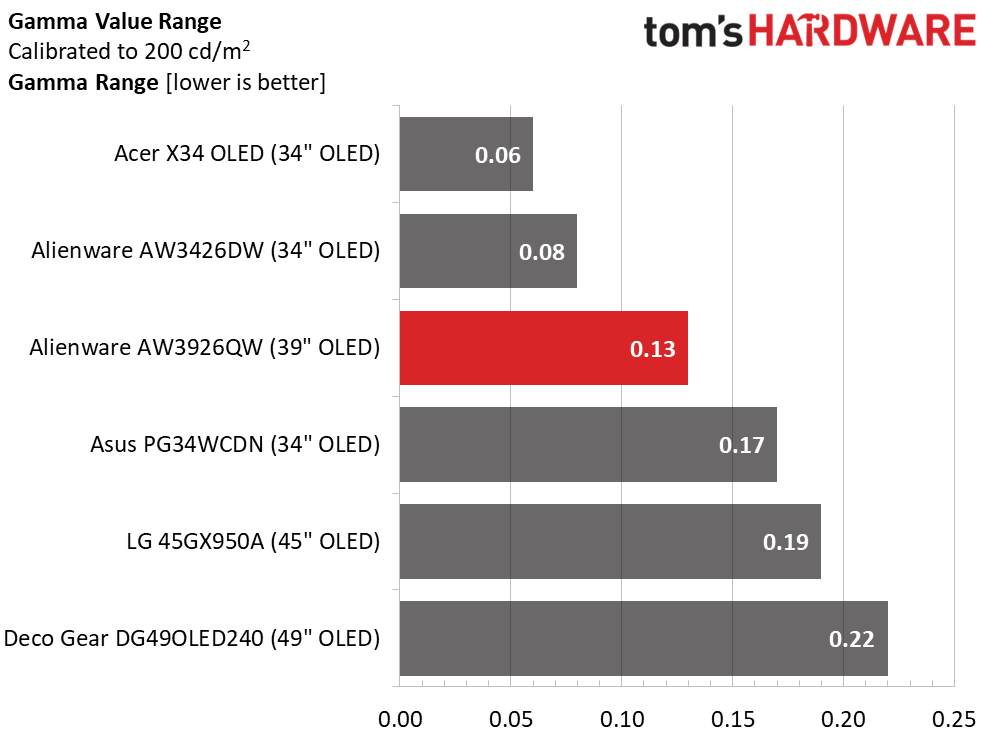
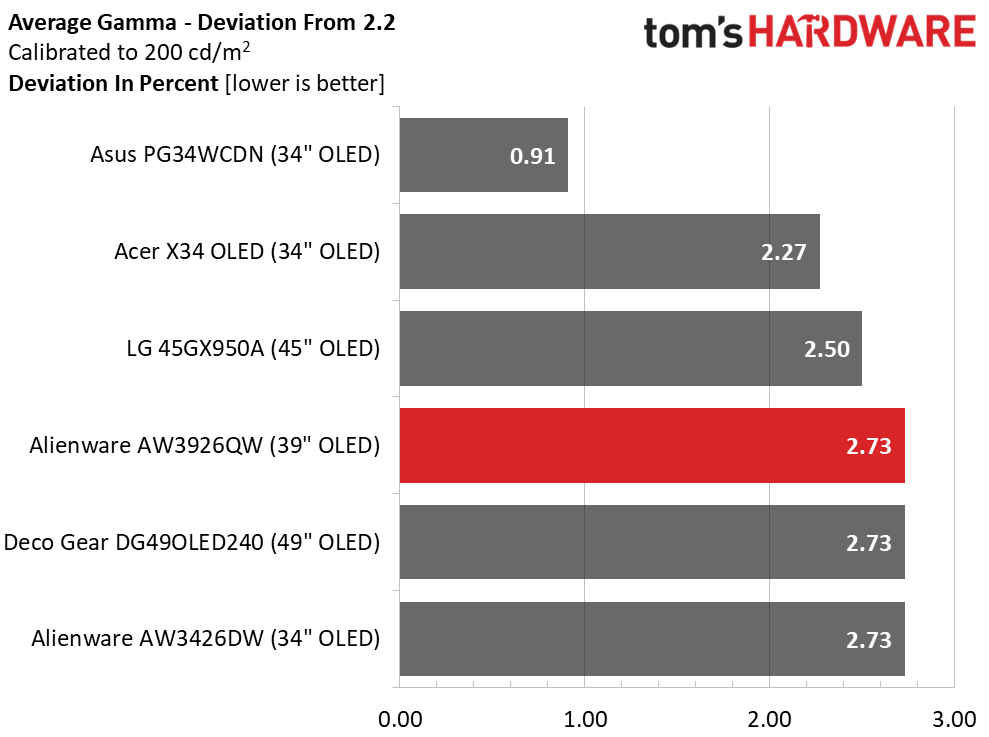
The DG49OLED240’s gamma is reasonably good, but it could be tighter. Most of the range runs on the dark side, which is forgivable in a monitor with infinite contrast like an OLED. The values span 0.22, while the deviation is 2.73%; the actual value is 2.26. This is very good performance.
Color Gamut Accuracy
Our color gamut and volume testing usePortrait Displays’ Calman software. For details on our color gamut testing and volume calculations,click here.
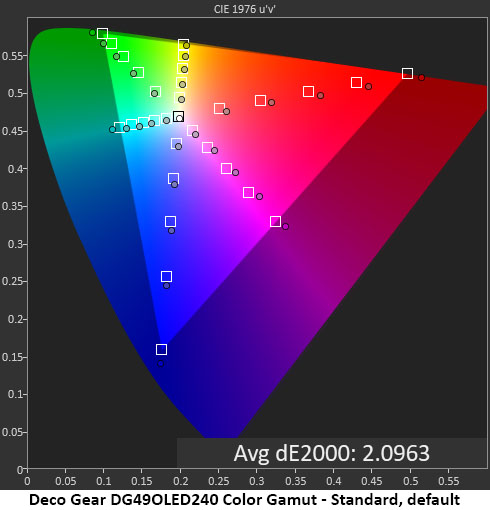
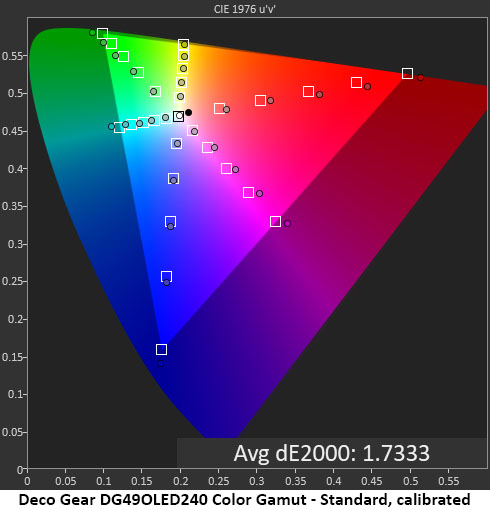
In the color test, you can see how the DG49OLED240 distributes its ample gamut with linear oversaturation and bonus color on all sides of the triangle. This creates a balanced image that doesn’t look overblown even though it covers over 140% of sRGB for SDR content. Hue points are on or close to target. Calibration only makes a slight difference, which is hard to spot in actual content. This is excellent performance.
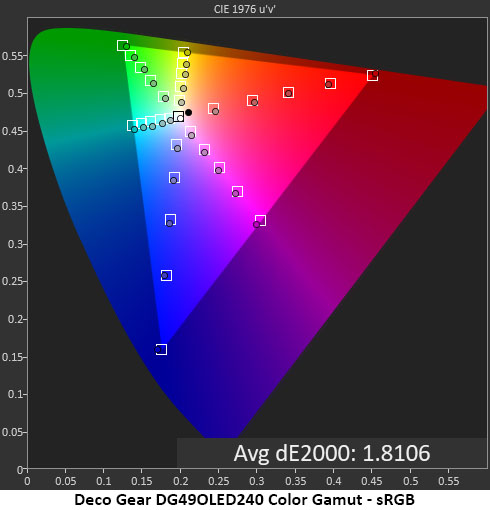
sRGB is nearly perfect as well, with all points on target and a low 1.81dE average error. I didn’t calibrate sRGB for this test, so there is a slight gain potential to be had from a grayscale adjustment. This too is excellent performance.
Comparisons
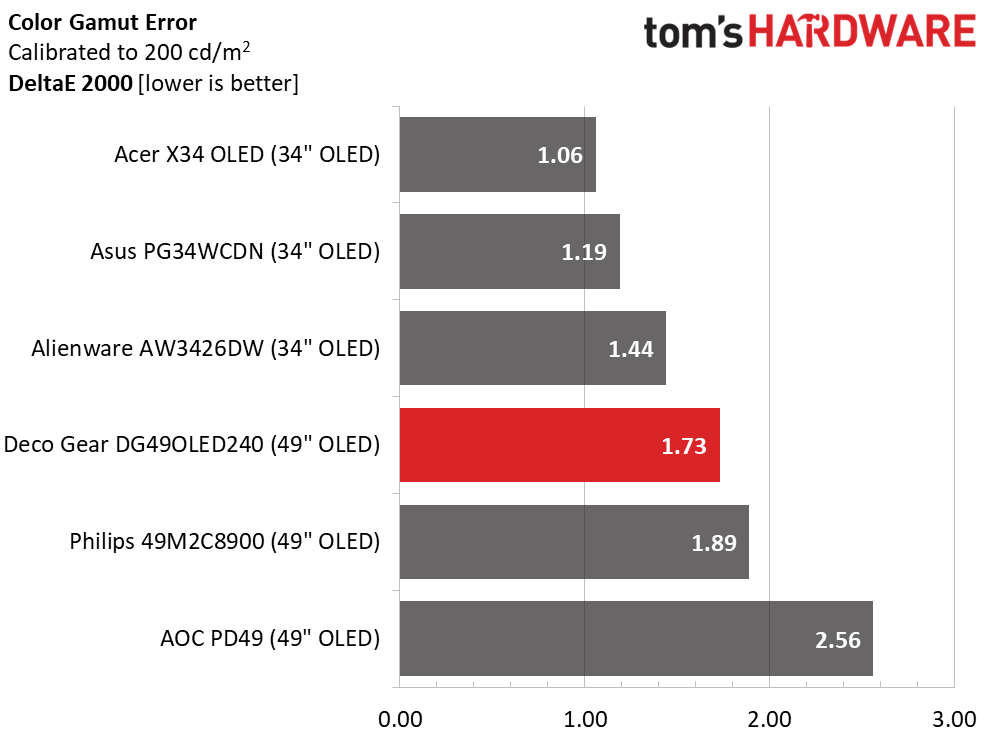
Tom's HardwareTom's Hardware
The DG49OLED240 again finds itself mid-pack among excellent displays with a 1.73dE average color error, well below the visible threshold. Where you can see a difference is in the volume test. It is on par with the other 49-inch screens and more colorful than the 34-inch displays. If you want a colorful monitor, the DG49OLED240 delivers with 112.28% coverage of DCI-P3. Its 98.27% coverage of sRGB is ideal for color-critical applications.
Test Takeaway: The DG49OLED240 is color accurate both out of the box and after calibration. With 112.28% coverage of DCI-P3, it is on par with other 49-inch OLEDs and more colorful than typical Quantum Dot 34-inch screens. It stands out with an adjustable sRGB mode that has a very accurate gamut. Gamma is a tad dark in all modes, but that is forgivable from an OLED thanks to its infinite contrast.
The DG49OLED240 supports HDR10 signals with an automatic switch and two additional picture modes. All other picture controls are grayed out.
HDR Brightness and Contrast
Tom's HardwareTom's HardwareTom's Hardware
The DG49OLED240 offers about the same peak output for HDR as it does for SDR. There’s plenty of brightness and impact, but it’s a little below the other screens. The Alienware and Acer have visibly brighter HDR, but the Asus, AOC, and Philips are close to the Deco Gear. It is more than bright enough to earn its VESA DisplayHDR 400 certification. Black levels and contrast cannot be measured.
Grayscale, EOTF and Color
Portrait Displays CalmanPortrait Displays Calman
HDR grayscale is a tad warm in tone, but the errors are no more than 5dE. This won’t affect content too obviously, and red errors are easier to ignore. Tracking is linear, which is a good thing, and darker tones are well below 3dE. The EOTF rides a little dark up to 40% brightness, where it meets the reference line. The tone map transition is at 65%, which is correct for the measured black and white thresholds.
In the color test, the DG49OLED240 doesn’t quite use all its red primary in the DCI-P3 gamut. The other points are slightly oversaturated, which is typical of the HDR monitors I’ve tested. Hue points run in line with their targets and are also a tad oversaturated. In the BT.2020 test, there is a little more oversaturation up to where color runs out at 90% red, 75% green, and 95% blue. This is solid performance.
Test Takeaway: The DG49OLED240 delivers excellent HDR with an impactful and colorful image. Accuracy is on par with other 34- and 49-inch OLEDs. It doesn’t offer calibration for the HDR modes, but with only a slightly warm grayscale, that isn’t a problem.
With so many users putting two or three monitors on their desks to increase screen area, it is surprising that there aren’t more 49-inch 32:9 displays available. If you consider that 27-inch QHD is extremely common with many choices for buyers, then why aren’t there more screens like Deco Gear’s DG49OLED240? I can only imagine it’s the expense. Though it’s a good value at $1,229.99, that is still more than two 27-inch QHD 16:9 OLEDs with comparable specs. But how much is it worth to you to ditch that vertical line that sits right in the center of your view?
(Image credit: Deco Gear)
As a gaming monitor, the DG49OLED240 is superb. That it is an OLED gives it an immediate advantage. It performs on par with most of the premium screens I’ve reviewed. It has smooth motion processing and very low input lag, which suits it well for competitive gaming. Serious players should give it a serious look.
(Image credit: Tom's Hardware)
With a Quantum Dot layer, it delivers over 112% coverage of DCI-P3 color, which puts it slightly ahead of the other 49s I’ve tested. It’s accurate out of the box and improves slightly with calibration. Gamma was slightly askew, but color was exemplary. I also found more than enough brightness with healthy light levels over 430 nits and the usual unmeasurable OLED blacks and contrast. And if you’re concerned about text fringing, don’t be. My sample was free of that artifact. I also noted better-than-average sound thanks to the addition of a third speaker to fill out the bass. The DG49OLED240 can be enjoyed without headphones or external desktop speakers.
If you already have two 27-inch QHD screens, the Deco Gear DG49OLED240 is the perfect way to eliminate that dividing line once and for all. And if you’ve considered adding a second screen, it’s worth a look. If you have the space and the desire for a widescreen high-performance gaming OLED, definitely check it out.
Remember back at CES when Samsung showed off a huge suite of Odyssey gaming monitors? The vast majority of those screens are now shipping, but arguably the most interesting monitor among them, the Odyssey G6 (G60H), still hasn't launched. Back at CES, Samsung was touting a 1,040-Hz refresh rate for that screen; now at Gamescom 2026, Samsung has shared the finalized specification, which is a nice and round 1,100 Hz. That's right; this monitor refreshes vertically at 1.1 KHz.
It's a fascinating display because aside from that specification, it's actually a bit of a pedestrian gaming monitor. You've got a 27" Fast IPS LCD in 2560×1440 (QHD) resolution, and at its native sharpness, it tops out at "only" 600 Hz. Surely that should satisfy anyone, but if you really feel the need for speed, you can drop the resolution to one-quarter of native, bringing you to 1280×720 (HD), and then refresh the panel at 1.1 KHz. That means each frame is displayed for less than one millisecond.
Samsung's Odyssey G60H hits 1,100 Hz at 720p despite having an IPS LCD panel. (Image credit: Samsung)
With its Fast IPS LCD panel and one millisecond response time, this new monitor will have its work cut out keeping up with those claimed performance figures. It's surely still going to be incredibly sharp and clear in motion (assuming your system can put out the requisite 1,100 frames per second), but it does seem like an OLED would have been the more appropriate technology for this feature.
The Odyssey OLED G75SJ is massive for a desktop monitor at 42 inches diagonally. (Image credit: Samsung)
Indeed, the rest of the displays that Samsung is showing off at Gamescom 2026, comprising its next-generation Odyssey family, are all OLEDs. Starting from the OLED G7 (G75SJ), we have what Samsung says is "the world's first 42-inch 16:9 curved OLED gaming monitor," which might be true. A 42-inch screen area is absolutely massive, and as you'd expect, to keep DPI up to reasonable levels, it's 3840×2160 (4K UHD) resolution.
The Odyssey OLED G7 G75SJ has a 1000R curvature, which is quite tight for a display of this size. It also has a 165-Hz refresh rate and a rated 0.03-ms response time, although it's an OLED, so you already knew that. Samsung doesn't really share any other specifications for this screen, but the firm does say that this monitor includes "Glare Free technology" to help reduce reflections for "clearer daytime play." That's very helpful on an SDR OLED because the peak brightness of this display is probably low enough that it becomes hard to see in daylight.
Samsung's Odyssey OLED G80SJ is a no-gimmicks high-spec 4K HDR OLED gaming monitor. (Image credit: Samsung)
The next step up from the G7 is the Odyssey OLED G8 (G80SJ). This beautiful beast sports a 32-inch 3840×2160 (4K UHD) QD-OLED panel that tops out at 360 Hz and features "triple mode" support, meaning that you can drop the resolution to QHD for a 520-Hz refresh rate, or all the way down to 1920×1080 (FHD) for a blistering 680 Hz refresh rate. That's not as fast as the 720-Hz OLED that ASUS announced, but it's also a higher resolution, as that screen has to drop to 720p HD to hit 720 Hz.
The Odyssey OLED G8 (G80SJ) has a few other tricks up its sleeve, too. It supports FreeSync Premium Pro (and is G-SYNC Compatible as a result), and it is spec'd for VESA DisplayHDR TrueBlack 600, which should result in a pretty decent HDR experience, especially in darkened rooms. Notably, its USB Type-C port supports up to 98W of power delivery, meaning it can very rapidly charge whatever device you connect to it.
Samsung's Odyssey OLED G95SJ super ultrawide is like having two QHD displays snapped together. (Image credit: Samsung)
Finally, the star of the show, the Odyssey OLED G9 (G95SJ), is a 49-inch "DQHD" gaming monitor. DQHD is "Double Quad High Definition", and if you can do arithmetic, you already know that the resolution of this 32:9 monitor is 5120×1440. The super-ultrawide uses a fifth-gen (latest) OLED with "Penta Tandem" technology, meaning that it has a five-layer panel structure that Samsung says lasts twice as long as older OLEDs. It also uses an RGB stripe subpixel layout that should mostly eliminate the text fringing which plagues older-gen OLED monitors.
You've already heard me whinging about the brightness of OLEDs; that won't be a problem on the Odyssey OLED G9 because this thing apparently supports a peak brightness of 1,300 nits. That's admittedly only on a 3% window at 4K resolution, but it's a high enough value that it should mean HDR highlights are nice and vibrant on this screen, although Samsung curiously doesn't list a DisplayHDR cert for this one. Other critical specs include the 360-Hz refresh rate, dual mode support (meaning 720Hz at 2560×720), and the usual 0.03ms response time rating.
Unfortunately, there's no pricing or specific availability for any of these displays. Samsung says that the 1,100-Hz Odyssey G6 will be available globally in "the second half of 2026", which basically means "any day now." Meanwhile, the other displays are explicitly noted as 2027 monitors, where "availability will vary by market," and pricing is anybody's guess in today's tech market.
What gives a product flagship status? Some might say price, and that is sometimes true. But in the computer monitor world, a flagship is something that stands apart from the rank and file.
I’ve reviewed many 34-inch ultra-wide panels. These 21:9 aspect ratio curved displays can cover the user’s peripheral vision almost as well as a pair of VR goggles. When using them, I have often wished for a little more vertical space. The easiest way to achieve this is with a 39-inch size.
Alienware’s latest flagship delivers that very thing to the best gaming monitors category. The AW3926QW is a 39-inch, 21:9 1500R curved OLED panel with Tandem RGB Stripe technology, 5120x2160 (WUHD) resolution at 165 Hz, eSports modes that run at 330 Hz, Adaptive-Sync, HDR10, Dolby Vision, VESA DisplayHDR 500 and wide gamut color. Let’s take a look.
Alienware AW3926QW Specs
Panel Type / Backlight
Organic Light Emitting Diode (OLED) Tandem RGB Stripe
Screen Size / Aspect Ratio
39 inches / 21:9
Curve radius: 1500mm
Max Resolution and Refresh Rate
5120x2160 @ 165 Hz
2560x1080 @ 330 Hz
FreeSync and G-Sync Compatible
Native Color Depth and Gamut
10-bit / DCI-P3
HDR10, Dolby Vision
VESA DisplayHDR 500 True Black
Response Time (GTG)
0.03ms
Brightness (mfr)
300 nits full screen
1,300 nits 3% window
Contrast
Unmeasurable
Speakers
None
Video Inputs
1x DisplayPort 2.1
2x HDMI 2.1, 1x USB-C
Audio
3.5mm headphone output
USB 3.2
1x up, 3x down (2x A, 1x C)
Power Consumption
58w, brightness @ 200 nits
Panel Dimensions
WxHxD w/base
36.2 x 18.2-22.5 x 9.6 inches
(919 x 462-572 x 244mm)
Panel Thickness
5.1 inches (130mm)
Bezel Width
Top: 0.35 inch (9mm)
Sides: 0.43inch (11mm)
Bottom: 0.59 inch (15mm)
Weight
22.6 pounds (10.25kg)
Warranty
3 years, incl. burn-in
This isn’t my first foray into Tandem RGB Stripe tech. I saw it in Asus’ recent PG32UCWM as well. It brings two important advantages: higher brightness with lower power consumption and wide gamut color without the addition of a Quantum Dot layer. The AW3926QW easily tops 500 nits in HDR mode for a 25% window pattern and can fill the screen at over 300 nits. Alienware claims 1,300 nits for a 3% window, and I have no reason to doubt that. It doesn’t quite have the color volume of a QD display, but my sample covered more than 100% of DCI-P3. It also came out of the box with reference-level color accuracy and a pro-worthy sRGB mode.
The AW3926QW also has higher pixel density than typical 34-inch ultra-wides. Most of them are 3440x1440, which means 109ppi, equivalent to a 27-inch 16:9 QHD panel. A 39-inch panel at 5120x2160 pixels delivers a 4K level density of 144ppi. That’s a clearly visible difference. The AW3926QW is super sharp with no fringing or other clarity-reducing artifacts.
Gaming performance is high thanks to Adaptive-Sync, FreeSync, and G-Sync support, and a 165 Hz refresh rate. For eSports applications, there are multiple resolution and refresh modes that go up to 330 Hz in full screen, 25, 27, and 32-inch formats. These can be switched with a single click thanks to a programmable joystick that controls a comprehensive OSD. Alienware also provides its AlienVision feature with its designable aiming points and sniper aids. And you get a frame counter, timer, and screen alignment marks.
On the outside, the AW3926QW sports AlienFX lighting with colored LEDs for the power button and the Alien Head on the back. These can be controlled in the OSD or with the Alienware Command Center app. Also included are the latest video inputs, DisplayPort 2.1 and HDMI 2.1, along with USB-C for a total of four ports. And there are USB upstream and downstream connections with KVM control.
With everything included except for internal speakers, you’d expect the AW3926QW to cost a lot, but it’s opening at $1,100, which makes it competitive with many other premium OLED ultra-wide displays. On paper, Alienware is delivering everything a flagship should have without an extreme price. Let’s see how it performs.
Assembly and Accessories
Alienware’s packaging is completely recyclable, even down to the paper tape that seals the clamshell carton. The panel, upright, and base assemble without tools. Included cables are IEC power, two USBs, DisplayPort, and HDMI. The power supply is internal.
Product 360
DellDellDellDellDell
The AW3926QW maintains Alienware’s latest styling aesthetic with a thin bezel and the cool floating upright that appears to be detached from the small-footprint base. Everything is solid, with metal cores and heavy plastic coverings finished in a matte texture. On the back is a lozenge-shaped vent ring that provides effective fanless cooling. Inside it is the Alien Head and a polished logo. The stand unsnaps to reveal a 100mm VESA mount with fasteners included if you want to use an arm.
The stand provides a 4.3-inch height range plus 5/21 degrees tilt and 20 degrees swivel. The base remains stationary while the stand pivots upon it. There is no portrait mode, but you can tweak the panel with five degrees of yaw if your desk isn’t level. Movements are firm and sure and befit a flagship product.
The screen curve is 1500R, which in the scheme of things is fairly subtle. There’s just enough wraparound effect to bring the sides of the screen into your vision cone when sitting around three feet away. You can sit closer if you like since pixel density is tight, but then you’d have to turn your head to see the whole image. The screen coating is shiny, but a polarizing layer keeps reflections from affecting the picture.
There are inputs aplenty for video, four in all. You get two HDMI 2.1, a DisplayPort 2.1, and USB-C, which functions as DP Alt and delivers 90 watts of power. There’s a 3.5mm headphone jack plus more USBs: two on the bottom of the panel edge (C and A) and an A and B on the I/O panel. They can be bound to video inputs using the KVM wizard in the OSD.
OSD Features
The AW3926QW’s OSD appears when you click the joystick. First up is a quick menu with signal info at the top, then an up-click opens the full menu, which is quite extensive, which is why there are 12 photos below.
The little quick menu at the bottom of the first screen is programmable by the user. You can put almost any monitor function into the five slots provided. You can also program the four joystick directionals for a total of nine options. This makes it easy to change picture modes, refresh modes, call up aiming points, or whatever. That’s all controlled in the Personalize menu, photo 11 above.
The first menu is Game, and it has everything a gamer could want. There are 12 picture modes in total. Three of them have color temp and dark stabilizer settings, called Game 1-3. Custom Color also has color temp gain and offset sliders along with color management. Creator is where you’ll find gamma presets and colorspace options like sRGB. Standard is the default mode, and it’s visually perfect out of the box.
Game Enhance Mode has a timer, frame counter, and alignment marks. For the aiming points, go to AlienVision where you’ll see a cool reticle editor that includes settings for sniper aids. You can create up to three configurations for later recall.
The eSports modes are where you can change the refresh rate and image size. I’m not sure why they aren’t all in one menu, but between the two sections, you’ll find 25, 27, 32, and 39-inch settings. All but the 32 run at 330 Hz. The 32-inch gives you 4K at 165 Hz and puts black bars on the sides of the image. That one is handy because it doesn’t change the pixel density like the others. The 25- and 27-inch options can be moved up or down from the center if you prefer.
AlienFX Lighting refers to the power LED and Alien Head’s color and effect options. You can customize them to a variety of colors and movements.
For HDR signals, there’s a Dolby Vision option along with eight modes for HDR10 content. Custom Color HDR includes grayscale calibration. Of the listed modes, the brightest one is True Black, and the one with the best luminance tracking is Peak 1300 Bright.
The USB menu is where you’ll find the KVM options. There, you can bind the HDMI and DisplayPort inputs to specific USB ports which means you can use one keyboard, monitor and mouse for multiple systems like a PC and a console.
Personalize is where you can program the quick menu and joystick directionals, as well as toggle the power delivery of the USB ports.
For panel maintenance, the AW3926QW has pixel refresh, which runs automatically when the panel health indicator goes red. That’s determined automatically by internal software. Alienware backs the AW3926QW with a three-year warranty that includes burn-in.
Alienware AW3926QW Calibration Settings
The AW3926QW doesn’t need calibration in its Standard picture mode. I noted slightly light gamma, but the color gamut and temperature are visually perfect out of the box. To adjust the grayscale, I used Custom Color mode, which has both gain and offset sliders. If you want to change the color space, Creator mode has that option along with gamma presets. The three Game modes also have grayscale adjustments. My recommended SDR settings are below. For HDR, there are eight modes available plus Dolby Vision. I suggest trying Peak 1300 Bright and True Black to see which you prefer. They look similar, but the latter is a tad brighter while the former has more accurate luminance tracking.
Picture Mode
Custom Color
Brightness 200 nits
80
Brightness 120 nits
45
Brightness 100 nits
34
Brightness 80 nits
23
Brightness 50 nits
6 (min. 40 nits)
Contrast
75
Color Temp User
Red 100, Green 100, Blue 98
Gaming and Hands-on
A few days with the AW3926QW proved its flagship status beyond a doubt. It excelled as a gaming monitor and workday display in equal measure.
For gameplay, my test PC with its GeForce RTX 4090 was more than enough to drive it at 165 Hz at full 5120x2160 resolution. That’s 11 megapixels in case you’re counting, about 23% more than Ultra HD. The video processing here is good enough that I didn’t wish for 240 Hz. And I had little need for the 330 Hz modes. I can see their use in competition or with lesser video cards to keep the action smooth. But I saw nothing but perfect motion resolution and hyper precision. Aiming and moving became an extension of my brain as control inputs were instantly translated.
Image quality was also superb, with lush bright color and deep contrast. Playing in SDR mode with the full color gamut was excellent, but HDR games were even better. The AW3926QW is a superb HDR display. And don’t forget to try Dolby Vision with its dynamic tone mapping. I didn’t have any DV games, but I watched content from a Blu-ray player that looked stunning. Going back and forth between HDR True Black and Peak Bright 1300, I found I preferred True Black because it had a tad more impact. On page five, I’ll explain the technical differences.
I’ve reviewed many 34-inch ultra-wide displays, and while I find them excellent for gaming, they lack the height I prefer for writing content. The 39-inch AW3926QW is perfect for getting work done. It is only half-an-inch shorter than the 32-inch 16:9 screen I use every day. So, it’s ideal for lining up two or three windows side by side when comparing copy or graphics. I loved it for Photoshop, where I could open and see multiple photos and still have room for toolbars. If you’re already a user of dual screens, the AW3926QW is the perfect replacement if you’re sick of that pesky dividing line.
The monitor proved to be flagship-worthy in every respect. The stand is solid; styling is premium and everything about the AW3926QW exudes quality. The inclusion of USB ports and KVM further extends its usability. And the selection of esports modes makes it flexible for a wide variety of gaming systems.
Takeaway: The AW3926QW is super useful in every way and excels as a gaming display. It delivers speedy and responsive performance at 165 Hz and impressive frame rates up to 330 Hz in the esports modes. The picture is gorgeous with vivid and accurate color and plenty of brightness. HDR has high impact and multiple picture modes to choose from, plus Dolby Vision support. The AW3926QW is a great all-around monitor that delivers a lot of bang for the buck.
The AW3926QW is somewhat unique in my database and is the only 39-inch WUHD panel I’ve reviewed. The next closest comparison is LG’s 45GX950A, which is a 45-inch panel with the same 5120x2160 resolution at 165 Hz. The other screens are Alienware’s AW3426DW, Deco Gear’s DG49OLED240, Acer’s X34 OLED, and Asus’ PG34WCDN.
Pixel Response and Input Lag
Click here to read up on our pixel response and input lag testing procedures.
Tom's HardwareTom's Hardware
Faster panel response at higher refresh rates is not a given but in the AW3926QW’s case, 330 Hz halves the time it takes to draw a one-inch white square from black. It’s impossible to see this difference with the naked eye but the numbers are there for your interpretation. I noted that the Asus at 360 Hz did the draw in 0.24ms, the same as the AW3926QW at 165 Hz.
In the lag test, the AW3926QW is mid-pack at 165 Hz with a 2.3ms speed increase at 330 Hz. Notice that the LG drops 7ms off its lag score but is still slower than the other screens. The Asus PG34WCDN is the king of speed here but the AW3926QW at 165 Hz is on par with other 240 Hz displays.
Test Takeaway: The AW3926QW isn’t the absolute fastest ultra-wide OLED out there but it is just a couple of milliseconds off the pace, which in practice is nothing. Only Obi-Wan Kenobi might notice a difference between 16.6ms and 14.1ms of input lag. It’s plenty quick and with its extra esports modes, it’s versatile too. For most gamers, driving it with a speedy video card at full resolution and 165 Hz will bring the most fun.
Viewing Angles
(Image credit: Tom's Hardware)
I’ve noted a slight color shift with the Tandem RGB Stripe OLED panels I’ve photographed like the AW3926QW. This comes from the stacked emissive layers and added polarization. It rejects ambient light effectively but introduces some slight artifacts. You can also see a slight drop in brightness, but gamma remains constant in the horizontal plane. The vertical shot shows reduced brightness, gamma and a green color shift.
Screen Uniformity
To learn how we measure screen uniformity,click here.
(Image credit: Tom's Hardware)
The AW3926QW has exceptional screen uniformity, even among OLEDs with a 3.71% deviation from the center zone. There is no visible change in brightness in any field pattern when viewed head-on. With all the screens here being under 10%, you won’t see a difference between them with the naked eye.
Be not concerned about the AW3926QW’s 303 nit score in the SDR test. It isn’t as bright as the others because it only operates at constant brightness in SDR mode. This is a trait of all the Alienware OLEDs I’ve reviewed. It means there’s no difference in brightness between a full field and a 25% window pattern. The top-finishing Asus manages 501 nits with a window but just 306 nits with a full field, so at constant brightness, the two monitors are equal in luminance. Black levels and contrast cannot be measured.
After Calibration to 200 nits
Tom's HardwareTom's HardwareTom's Hardware
Calibrating the AW3926QW makes no difference in either black levels or contrast. I set 200 nits based on a full-field pattern since there’s no variable brightness available for SDR. ANSI contrast was also theoretically infinite. This is typical OLED performance.
Test Takeaway: The AW3926QW has similar peak SDR brightness to other ultra-wide OLEDs when constant brightness is engaged. It does not have a variable option for SDR content. Black levels and contrast could not be measured under any test conditions.
The AW3926QW comes set to its Standard picture mode, which employs the full native gamut for SDR content. It’s nearly perfect out of the box and does not need to be calibrated, but there are multiple options for adjustment, including a very accurate sRGB mode.
Grayscale and Gamma Tracking
Our grayscale and gamma tests use Calman calibration software fromPortrait Displays. We describe our grayscale and gamma tests in detail here.
With all errors below 2dE, and most under 1dE, the AW3926QW does not need to be calibrated. My only complaint is slightly light gamma that tracks a bit below the 2.2 reference. You can adjust gamma, but only in preset increments in the Creator mode. Custom Color has no gamma options.
I managed a slight gain in grayscale accuracy, but it was so small that it could not be seen with the naked eye. Gamma gets a tad better in the 60-100% brightness steps, but that too is a tiny difference. Ultimately, calibration is only able to satisfy my ego, rather than making any visible improvement.
sRGB color, accessed from the Creator mode, has a couple of visible grayscale errors at 90 and 100%. It also has gamma anomalies at 10 and 90% where it is too light. These are minor complaints. You’ll see in the next section that sRGB color is visually perfect. This mode is suitable for color-critical applications.
The AW3926QW has the best out-of-box grayscale score with a tiny error of 0.70dE. That’s well into the professional realm. You could use this screen for video post-production or content creation and save yourself the cost of a professional monitor. After calibration, the top five screens are equal, with the LG just a tad behind the rest. For gaming, this is a non-issue.
In the gamma test, the AW3926QW stays tight from dark to light with a small 0.13 range of values. It’s a little light overall at 2.73% off the 2.2 reference with an actual value of 2.14. This is solid performance, but it would be nice to have gamma options in the Custom Color mode.
Color Gamut Accuracy
Our color gamut and volume testing usePortrait Displays’ Calman software. For details on our color gamut testing and volume calculations,click here.
There is zero reason for complaint about any of the AW3926QW’s color test results. Though it doesn’t have quite as much color volume as a Quantum Dot display, it covers a perfect amount of DCI-P3, hitting every target squarely in the process. You can see slight oversaturation in magenta and blue, but only on the chart. You won’t see anything on the screen but perfect and vivid color. Calibration takes the error from visually perfect to a tad more visually perfect. In other words, there’s no visible difference. This is excellent performance.
The sRGB test is even closer to numerical perfection with a 1.24dE average. The AW3926QW is completely qualified for critical work where the smaller gamut is needed.
Comparisons
Tom's HardwareTom's Hardware
You’d think 1.24dE would be a winning color score, but clearly, these OLED panels are seriously accurate. The spread from best to worst is only 0.67dE, and the worst number is 1.73dE. That’s impressive, to say the least. The AW3926QW is on par with the best displays I’ve ever tested and is clearly a flagship.
In the volume test, the AW3926QW is mid-pack, though with 101.20% coverage of DCI-P3, it’s ideal. The Deco Gear 49-inch claims the win at 112.28% thanks to its Quantum Dot layer. No one will think the AW3926QW isn’t colorful. It presents brilliant primary colors in all parts of the image, from dark to light. sRGB coverage is 96.09%, which reflects a tiny shortfall in blue. This is excellent performance.
Test Takeaway: The AW3926QW has color accuracy that rivals any professional monitor, and that’s straight out of the box. You can get a small improvement in numbers with a calibration, but it is completely unnecessary. Gamut coverage is ideal for both DCI-P3 and sRGB. The AW3926QW is fully qualified for critical work and can easily manage video post-production or content creation for photography and graphics.
The AW3926QW supports both HDR10 and Dolby Vision formats. For HDR10 signals, you get an automatic switch and eight image modes. I tested True Black and Peak 1300 Bright to see which looked best.
HDR Brightness and Contrast
Tom's HardwareTom's HardwareTom's Hardware
You’d think a mode called “Bright” would be the brightest, but the AW3926QW’s most luminous HDR mode is True Black. I measured 517 nits from a 25% window pattern. Peak 1300 Bright came up to 502 nits. Yes, that’s a tiny difference. And the color tests might sway your decision as to which mode to run. In practice, they both look good with deep blacks, bright highlights, and clear detail rendering. HDR definitely looks better than SDR on this monitor.
The first two charts above show the difference between Peak 1300 Bright and True Black modes. Grayscale tracking is excellent and identical for both modes, but the EOTF is different. This is the luminance tracking, like gamma for SDR. Peak 1300 Bright tracks close to the reference (the yellow line) with only slight variations and a 60% tone map transition. True Black runs too light starting at 20% but transitions closer to 70% thanks to its higher peak value. These differences are minor, but they are visible. Looking at the charts, I’d choose Peak 1300 Bright, but in most of the content I watched, I liked True Black better. These are the two best HDR modes in the AW3926QW’s toolkit. I suggest trying them both to see which you prefer.
Either way, HDR color is exemplary. And the differences are minuscule, so I’m just showing the True Black result. There is general oversaturation, which adds impact to the image. DCI-P3 is fully covered, while BT.2020 runs out of color at 90% red, 75% green, and 95% blue. This is close to what you’d see from a Quantum Dot display.
Test Takeaway: The AW3926QW has excellent HDR image quality and is one of the very few displays that supports Dolby Vision. With eight HDR10 picture modes, you can get a variety of looks, though the best accuracy comes from True Black and Peak 1300 Bright. Which is better is a matter of personal preference. Peak 1300 Bright measured a tad better, but True Black had a little more verve. Either one delivers excellent performance.
Often, flagship means a halo product; one that has a huge feature list, bleeding-edge performance and premium build quality, with a high price to match. But in the case of Alienware’s 39-inch AW3926QW, you get all that for no more than the cost of a high-end 34-inch display.
(Image credit: Dell)
The Tandem RGB Stripe panel means you get more than 100% coverage of DCI-P3 without the added cost of a Quantum Dot layer. It also means high brightness, more than 500 nits in HDR mode, with no extra power consumption. Resolution is 5120x2160, which means pixel density equivalent to a 32-inch 16:9 aspect ratio 4K panel. The 1500R curve is just enough to bring the sides in without image distortion and provides the immersive quality curved screens are famous for.
(Image credit: Tom's Hardware)
The image is colorful and incredibly accurate. Reference-level color comes right out of the box, no calibration needed. DCI-P3 coverage is over 101%, which is a little less than Quantum Dot monitors but more than the category average of 95%. The only flaw I noted was slightly light gamma in the Standard and Custom Color modes. I wished for gamma presets, but they were only available in the Creator modes.
As a gaming monitor, you’ll have a hard time finding a better OLED. The AW3926QW’s unusual size is perfect for first-person titles, and you can employ a slick aiming point editor, AlienVision, to help you stay on target. The extra eSports modes with speeds up to 330 Hz mean better performance with a wide variety of gaming systems. Panel response is smooth, and input lag is low enough that competitive gamers will want to add one of these to their arsenal.
Alienware has positioned the AW3926QW as a flagship display, and it earns that title while offering decent value. If you have $1,100 to spend on a large-format OLED monitor, definitely check it out.
Earlier this year, we brought you news of the UltraGear 25G590B gaming monitor, which LG proudly claimed as the world’s first 1080p gaming monitor to offer a 1,000 Hz refresh rate. At the time, LG said that pricing and availability for the 25G590B would arrive in the second half of 2026, and, true to its word, we now have details. According to the company, the monitor, which is currently available for preorder, is priced at $999.99. Looking at it a different way, you’re paying $1 per Hz if you want to be the first on the block with this segment leader.
However, that’s not all; LG is throwing in a couple of sweeteners with the 25G590B if you preorder it directly from its online store before August 31. The first perk is that you’ll earn 5 percent back in MyLG rewards on a purchase, which, on a $1,000 monitor, should get you $50 to use on a future purchase. As for the second perk, you can get two years of LG Premium Care for only a buck.
We've seen monitors employ Dynamic Frequency Resolution (DFR) to hit the 1,000 Hz mark before, but only at lower resolutions. For example, the Acer Predator XB273U F6 can hit the mark at 720p resolution, as can the AntGamer ANT275PQ MAX. The ANT275PQ MAX also uses a TN panel to reach 1,000 Hz, which might be a dealbreaker for some gamers. However, the 25G590B can hit 1,000 Hz at 1080p, giving it a resolution edge over its competitors.
The 25G590B features a 24.5-inch IPS panel supporting both AMD FreeSync Premium and Nvidia G-Sync. LG has also enabled its Motion Blur Reduction Pro technology, which helps smooth out visuals at 1,000 Hz for your fast-paced gameplay. However, we’ll be eager to get our hands on the monitor to test out the tech in person.
You'll also find two HDMI 2.1 ports and one DisplayPort 2.1. The monitor is adjustable for tilt, height, and swivel, and it features LG UltraGear RGB lighting.
Asus is a well-known name in the portable monitor space, offering single-screen or dual-screen options with IPS or OLED panels. The Asus ZenScreen OLED (MQ16FC) is the company’s latest single-panel portable monitor, and it’s a winner all around.
The MQ16FC uses a 16.1-inch OLED display with a 1920 x 1200 resolution, features an integrated kickstand, and has excellent color performance for well under $300. The MQ16FC is even good enough to be considered a shoo-in among the best portable monitors.
Design of the Asus ZenScreen OLED (MQ16FC)
I’ll start off by saying that I really like the design of the MQ16FC. It has a 16.1-inch OLED panel with a glossy finish. That display is trimmed with extremely thin bezels all around. The top and side bezels are roughly the same size, while the bottom is about twice as thick (although still slim for a portable monitor).
The entire enclosure for the MQ16FC is made of aluminum, which contributes to the minimal weight (1.5 pounds) and sturdy build. But my favorite exterior feature of the monitor is its kickstand, which pivots about halfway up the back. The hinge is stiff enough to keep the monitor at your preferred viewing angle, and tiny rubber feet on the bottom of the monitor keep it in place regardless of the kickstand's position. There are also rubber feet on the left side of the display for using the MQ16FC in portrait mode.
Tom's HardwareTom's HardwareTom's Hardware
The “business end” of the MQ16FC is on the right side of the display, where you’ll find all of the ports and controls. From top to bottom, you’ll find a 3.5 mm headphone jack, two USB-C ports, a micro-HDMI port, a power button, a jog wheel for the OSD, and an action button.
One final feature of the MQ16FC is a quarter-inch tripod socket on the back of the display, just above the kickstand. The MQ16FC measures 14.13 x 9.17 x 0.35 inches and weighs 1.5 pounds. It comes with a padded cloth case, a wall adapter, a USB-C-to-USB-C cable, and an HDMI-to-micro-HDMI cable.
Asus ZenScreen OLED (MQ16FC) Specifications
Panel Type / Backlight
OLED
Screen Size / Aspect Ratio
16 inches / 16:10
Max Resolution & Refresh Rate
1920 x 1200 @ 60Hz
Response Time
1 ms (GtG)
Typical Brightness
300 nits
Contrast Ratio Typical
100,000:1
Ports
2x USB-C (DisplayPort Alt Mode), 1x Mini-HDMI
Speakers
None
Dimensions
14.13 x 9.17 x 0.35 inches
Weight
1.5 pounds
Warranty
1 year
Asus ZenScreen OLED (MQ16FC) OSD
The MQ16FC features an on-screen display (OSD), which pops out from the right side of the screen when you press in on the jog wheel or the action button below it. One press opens the OSD Quick Menu, which lets you access the Blue Light Filter and Splendid display modes. However, if you press the jog wheel in twice, it brings up the full OSD.
Tom's HardwareTom's Hardware
The full OSD provides overall display information at the top, including the current Splendid display mode, display resolution, the currently selected input method (USB-C-1, USB-C-2, or HDMI), brightness level (in percent), and refresh rate. From there, you can scroll down through the various menu options, including the aforementioned Splendid (Standard Mode, sRGB Mode, Game Mode, etc.), Eye Care (Blue Light Filter, Color Augmentation), Image (Brightness, Contrast, etc.), Color (Gamma, Color Space, Color Temperature), input select, and Settings (auto rotation, power settings, OSD layout, etc.).
(Image credit: Tom's Hardware)
If you prefer, you can install the Asus DisplayWidget Center app for Windows, which provides even easier access to Spendid picture modes, color, and image settings.
Display Performance on the Asus ZenScreen OLED (MQ16FC)
The MQ16FC features a 16.1-inch OLED panel with a 1920 x 1200 resolution and 60 Hz refresh rate. Asus uses a glossy finish over the OLED panel to provide an extra "punch" of color. The glossy film does a good job of slightly enhancing colors while not completely succumbing to environmental reflections. However, the reflections that did make their way onto the screen were quickly vanquished by adjusting the display angle with the kickstand.
Color performance from the OLED display was generally excellent, with deep blacks and vibrant colors. My new go-to for testing out color performance on monitors is to watch Project Hail Mary on Amazon Prime Video. Not only is it an excellent movie, but it's an absolute feast for the eyes in so many respects. The scene featuring planet "Adrian" looked wonderful, from the flashes of red and green to the fiery orange plasma as the Haily Mary started descending into Adrian's atmosphere. Absolutely nothing can do the movie justice like seeing it in theaters, but I was still enthralled watching it on this 16.1-inch OLED.
Our instrumented tests showed the MQ16FC covering 153.2 percent of DCI-P3 and 216.2 percent of sRGB, putting it ahead of rivals like the ViewSonic ColorPro VP16-OLED and Innocn 15A1F. However, it did fall short in brightness. The MQ16FC is rated for 300 nits typical brightness, and we measured just 140 nits in Standard mode (the default). However, we were able to punch that figure up to 271 nits in User Mode, with no discernible change in DCI-P3 or sRGB coverage. Still, the MQ16FC isn't nearly as bright as the other two monitors, which each hit around 370 nits.
With that said, I used the MQ16FC with several different systems, from a Mac mini, to a MacBook Air to an MSI Claw 8 EX AI+. In fact, I was able to turn the Claw 8 EX AI+ into a miniature desktop system with the help of the Thunderbolt 5 dock, the MQ16FC, and a wireless keyboard and mouse. This setup allowed me to install games more easily and perform certain tasks that I find tedious on the gaming handheld's 8-inch touchscreen.
In each instance, the MQ16FC connected to the systems using a single USB-C-to-USB-C cable, delivering power and video. I greatly appreciate the flexibility of using a single cable instead of needing USB-C for power and an HDMI cable for video.
Bottom Line
The Asus ZenScreen OLED (MQ16FC) is a solidly built portable monitor with excellent color performance and a sturdy kickstand. It is also quite versatile, with a built-in tripod mount, and can be propped up in portrait mode (with support for auto-rotation). Maximum brightness isn’t as high as its peers, but I found it perfectly fine for my daily usage patterns. The only miss is the lack of speakers, but given that most portable monitor speakers are borderline trash, it shouldn’t be a huge deterrent for most people.
With a street price of $274, the MQ16FC is actually priced fairly for a 16-inch OLED monitor. Given its features along with a standard three-year warranty, it’s truly a notch above the rest.
Asus’ ROG Strix line of products is known for high performance and high value. It also regularly boasts new models, with monitors being no exception. Though the best OLED gaming monitors still represent a premium category, many newcomers are vying for attention.
If you want a premium 32-inch 4K OLED, expect to spend around $1,000 for something with maximum performance and perhaps not every single bell and whistle. The XG32UQWMS has all the speed and smoothness of the flagship Swift displays but gives up minor bits like LED lighting and internal speakers. You still get 240 Hz, frame rate boost to 480 Hz in FHD resolution, Adaptive-Sync, DisplayHDR 500 True Black and Tandem OLED tech for a super wide color gamut. Let’s take a look.
Asus ROG Strix XG32UWQMS Specs
Panel Type / Backlight
Tandem Organic Light Emitting Diode (Tandem OLED)
Screen Size / Aspect Ratio
32 inches / 16:9
Max Resolution and Refresh Rate
3840x2160 @ 240 Hz
1920x1080 @ 480 Hz
FreeSync and G-Sync Compatible
Native Color Depth and Gamut
10-bit / DCI-P3+
Response Time (GTG)
0.03ms
Brightness (mfr)
330 nits full screen
1,500 nits 3% window
Contrast
Unmeasurable
Speakers
None
Video Inputs
1x DisplayPort 1.4
2x HDMI 2.1
Audio
3.5mm headphone output
USB 3.2
1x up, 2x down
Power Consumption
40.5w, brightness @ 200 nits
Panel Dimensions
WxHxD w/base
28.3 x 17.8-22.3 x 7.4 inches
(719 x 452-566 x 188mm)
Panel Thickness
2.9 inches (74mm)
Bezel Width
Top: 0.28 inch (7mm)
Sides: 0.39 inch (10mm)
Bottom: 0.47 inch (12mm)
Weight
14.33 pounds (6.5kg)
Warranty
3 years, includes burn-in
Asus expands the XG32UQWMS’s color gamut with Tandem OLED tech rather than Quantum Dots. The twofold advantage is that you get more light output with lower power consumption, and you get the same color coverage. The XG32UQWMS easily tops 600 nits in HDR mode when measuring a 25% window pattern. A 3% window gets up to 1,500 nits. Color coverage is over 108% of DCI-P3, which puts it just ahead of most of the Quantum Dot OLEDs I’ve tested.
This version of Asus’ Tandem OLED has four layers, which not only make the panel brighter, but it also runs cooler, consumes less energy, and lasts longer. Asus estimates 60% longer panel life, equating to over 30,000 hours. That’s a really long time, as in over a decade with the panel going six hours a day.
The XG32UQWMS adds flexibility with a 240 Hz 4K panel and a frame rate boost feature that doubles the speed to 480 Hz and reduces resolution to 1920x1080. You can also reduce blur at low frame rates by opting for ELMB (black frame insertion) instead of Adaptive-Sync. As you’ll see in my response and lag tests, the XG32UQWMS is one of the quickest and smoothest 4K OLEDs you can buy.
To ensure no ambient light can spoil the image, Asus employs a screen coating called TrueBlack Glossy. Though the panel is shiny, it doesn’t pick up light from top or side angles easily. This does indeed keep blacks true.
To protect the panel, there are multiple OLED care options like pixel orbiting and refresh. You also get logo and perimeter dimming. A proximity sensor blanks the screen when you leave your desk. And the XG32UQWMS is backed by a three-year warranty that includes burn-in. All these features can be controlled from a comprehensive OSD or with Asus’ Display Widget Center app.
The port complement is stacked with two HDMI 2.1 and a DisplayPort 1.4 with Display Stream Compression. Peripherals can be connected to the two downstream USB ports while a single upstream port makes the XG32UQWMS a hub. There are no internal speakers, but headphones can be plugged into the provided 3.5mm jack.
I didn’t have firm pricing information at this writing, but indications are that the XG32UQWMS will cost $1,099 to start. That puts it firmly in the thick of the high bang-for-the-buck genre against competitors like Acer, Dough, HP and MSI. The great part is that all the latest OLEDs are stellar displays. How does this new ROG Strix stack up? Let’s see what the tests say.
Assembly and Accessories
Like all ROG Strix products, the wrapper is plain brown and devoid of the colorful graphics found on Swift cartons. However, the contents are no less capable. The XG32UQWMS is packed in crumbly foam and ships in three parts. Assembly does not require tools. You get a solid stand and a thick steel mounting bracket with 100mm VESA lugs for use with aftermarket solutions. A zippered pouch contains an IEC power cord and a DisplayPort cable. A sheet of ROG stickers is there for those who like to decorate.
Product 360
AsusAsusAsusAsus
Asus styles the Swift and Strix lines similarly with a thin metal-backed OLED panel attached to a component bulge which creates a two-box design. The profile of the thin part is just five millimeters. This isn’t just for show; it improves cooling with the metal backing acting as a heat sink. More heat sinks inside take care of the control boards and processors. This means no fans are required; temperature control is fully passive.
In the back are the familiar ROG graphics but without LED backlighting. They reflect enough light to glow white without any emitters required. In the top view, you can see a quarter-inch threaded fitting at the top of the stand, which is useful for headphone hooks, webcams, and the like.
The base is small but sturdy and made from a thick metal plate. The stand has a 4.5-inch height range plus 5/20 degrees tilt and 25 degrees swivel. There is no portrait mode. Movements are smooth and firm with quality on par with any premium display I’ve reviewed.
The I/O panel is on the bottom center and faces downward. You get two HDMI 2.1 and one DisplayPort 1.4 with Display Stream Compression (DSC). There are three USB 3.2 ports, one upstream and two downstream. And a 3.5mm headphone jack provides external audio. There are no built-in speakers.
OSD Features
The XG32UQWMS OSD is nearly identical to what I’ve seen from Asus ROG previously, except that a convenient quick menu has been added. It has four programmable functions with signal and picture mode info at the top.
The XG32UQWMS’s quick menu is large enough to see from across the room, which might suggest that a remote control would be useful, but there isn’t one. No matter because the joystick and two control buttons take care of business just fine. The OSD can be viewed in two different sizes though…
A second press of the joystick brings up the familiar Asus menu with its eight sections. Gaming is up first with Frame Rate Boost (refresh rate switch), VRR toggle, ELMB, GamePlus enhancements, GameVisual picture modes and Shadow Boost. Frame Rate Boost is most easily done by pressing the leftmost button for a one-click mode change. I would usually tell you that a visit to Nvidia or AMD Control Panel is required for a one-time setup, but that was not an issue this time. The XG32UQWMS communicated with my Windows 11 PC and configured itself automatically for the fastest refresh rate settings.
ELMB (Extreme Low Motion Blur) is a black frame insertion feature, similar to backlight strobing in an LCD. It’s useful at low frame rates, and indeed, it only works at 120 Hz or less, and cancels Adaptive-Sync in the process. It’s another option to keep resolution at 4K and still have decent motion resolution. If you can keep the frame rate above 200fps in 4K, the XG32UQWMS won’t need any help to look amazing.
GamePlus includes a full set of extras with a frame rate counter, aiming points, sniper modes, timer, stopwatch and display alignment marks. GameVisual offers nine picture modes, of which Racing is the default and best choice. It can be calibrated for color temp and gamma, and there are gamut selections too.
In the Image menu, you’ll find standard luminance controls along with Uniform Brightness. Turning this off means smaller peak areas of the screen will be brighter, which adds some punch to highlights. You can expect around 550 nits in SDR mode and as much as 1,500 nits for HDR content. For workday tasks, leaving it on maintains steady output regardless of picture content. It peaks at around 327 nits.
HDR signals get four additional presets which can be adjusted for brightness and contrast. In testing, the XG32UQWMS shone brightest in True Black 500 or Gaming HDR mode with Adjustable HDR turned on and brightness set to 100%.
For color adjustments, you get three color space options plus color temperature presets and a user mode with RGB sliders. You can also adjust saturation globally or for each color. And five gamma curves range from 1.8 (lighter) to 2.6 (darker).
The XG32UQWMS has flexible PIP and PBP settings when you want to view two sources at once. The PIP window can live in any corner of the screen and have independent color settings.
The quick menu shown in the first photo above has four user slots that can be set to a variety of functions like GameVisual, ELMB, and others. You can also customize the behavior of the four joystick directions and the left control key. That one is set by default to frame rate boost, and it is the easiest way to switch refresh rates with a single button press. Finally, there are two memories where settings can be saved for later recall.
Asus ROG Strix XG32UQWMS Calibration Settings
Initial testing of my XG32UQWMS sample showed that it did not require calibration. I tried the user color temp and found a small gain that was barely visible in actual content. This is a very accurate monitor, albeit one with a huge color gamut that covers over 108% of DCI-P3. If you’re OK with that for SDR content, it is very colorful if not strictly accurate. If you’d rather use sRGB for SDR, you can either choose the sRGB Cal mode or select sRGB from the color space options in Racing mode. I did the latter to retain access to the calibration controls. My recommended settings are below. I noted that I could use the same brightness values whether Uniform Brightness was on or off.
For HDR content, there are four additional modes, all of which can be adjusted for brightness and contrast. Gaming HDR or True Black 500 are the best choices there.
Picture Mode
Racing
Brightness 200 nits
61
Brightness 120 nits
34
Brightness 100 nits
22
Brightness 80 nits
13
Brightness 50 nits
13 (min. 9 nits)
Contrast
80
Gamma
2.2
Color Temp User
Red 98, Green 100, Blue 99
Gaming and Hands-on
If you’re looking for the speediest possible gaming monitor, meaning smoothest and most responsive, nothing can hang with an OLED. I’ve experienced many 360 and 500 Hz LCDs, and while they are fast, they aren’t as smooth as an OLED running above 200fps. 4K resolution makes it even better by rendering an image that is super realistic and tactile.
The first time I powered on the XG32UQWMS, it prompted me to run the pixel refresh routine, which took about five minutes. I have encountered other OLED panels that benefited from an initial refresh to make the screen more uniform in tone.
Since I can keep the frame rate above 200fps with a GeForce RTX 4090, I did not need the XG32UQWMS’s frame rate boost feature, but I gave it due diligence. In my case, it only served to soften the image. It wasn’t any faster or more responsive. Indeed, in testing, the screen response and lag times are barely different. So, you won’t gain much from 480 Hz if you can already run at 240. Where it helps is with slower PCs where 4K would drag the rate down below 160fps. That’s where blur starts to show. Switching rates keeps motion smooth, but there’s no hiding the reduced pixel density, especially with a 32-inch monitor in front of you. 70ppi is visibly softer than 140. But at those lower frame rates, motion blur is enough that aiming accurately becomes more difficult.
Unlike many OLEDs, the XG32UQWMS includes ELMB in the form of black frame insertion. It’s another way to combat motion blur at low frame rates, and indeed, it is capped at 120 Hz. It also takes Adaptive-Sync out of the equation. But at those speeds, frame tears are the least of your problems. It’s nice to have options and the XG32UQWMS gives you more than anyone else. If you plan to pair it with a less stout video card, it can adapt and still deliver a good gaming experience.
Playing at the XG32UQWMS’s full capability is an impressive thing, even if you are spoiled by fast gaming screens like me. Moving and aiming is so much easier when motion is this smooth. Precision is automatic and requires no effort other than to pay attention to one’s surroundings. And that’s easy to do with such a large monitor. Though ultra-wide displays encompass more of the user’s peripheral vision, a 32-inch 16:9 panel has more height. That means you can fill your view and sit as close as you like thanks to the 4K resolution.
The picture in both SDR and HDR modes is stunning. There’s so much color available and it’s bright. You can crank the XG32UQWMS well past the point of visual fatigue, but setting it to 200 nits and turning off Uniform Brightness delivers highlights that make the image truly three-dimensional. You can see the glistening of blood and sweat on your enemies as you apply the chainsaw. It looks so good that I found myself using it more than other weapons just to get close-up views of the alien monsters in Doom Eternal. This monitor has an addictive quality.
Being a 32-inch 16:9 flat panel, the XG32UQWMS is ideal for any task, work or play. My everyday screen is the same size, so I’m used to its ability to display multiple documents and windows. This monitor size was made for multitasking and side-by-side comparisons. If you work with a lot of graphics and photos, it’s an ideal format for keeping lots of toolbars open in Photoshop.
To keep the price down, the XG32UQWMS doesn’t have quite all the bells and whistles of a Swift display. But it gives up nothing in performance. You don’t get the LED lighting or internal speakers. But you get everything else and a nice savings in cost.
Takeaway: The XG32UQWMS delivers addictive gameplay along with versatility and capability for every task or form of entertainment. It has a stunning picture that is unmatched by other panel technologies and stands out among OLEDs with high brightness and rich color. The True Black Glossy screen coating keeps ambient light from spoiling the party, and its styling and build quality will remind you why you never regret buying the best.
Click here to read up on our pixel response and input lag testing procedures.
Tom's HardwareTom's Hardware
For the response test, I didn’t have enough 32-inch 4K OLEDs from my Nvidia LDAT tests, so I mined the latest OLED monitors from the database. I’ve observed super close times from monitors running between 240 and 360 Hz. They’re so close that the human eye cannot tell a difference in smoothness. That said, the XG32UQWMS is a tad quicker than some at 0.20ms gray-to-gray. I noted that increasing the frame rate to 480 did not change the response time. This suggests that panel draw times may have reached their limit at 240 Hz, meaning faster OLEDs won’t render smoother motion resolution.
In the input lag test, the XG32UQWMS is quickest for both refresh rates, with 12.1ms at 240 Hz and 13.7ms at 480 Hz. This tells me that switching to 480 does not provide a significant advantage in speed or response. The dual mode switch is useful when 4K frame rates are lower, say below 160fps. But you can also smooth things out with ELMB at rates below 120 Hz.
Test Takeaway: The XG32UQWMS is one of the quickest and most responsive 4K OLED displays I’ve tested. While you can get a tad less input lag from LG’s and Philips’ 360 Hz models, it isn’t enough to make a perceivable difference. Among the 240 Hz screens I’ve tested, the XG32UQWMS is the king of speed.
Viewing Angles
(Image credit: Tom's Hardware)
The XG32UQWMS has excellent off-axis image quality that is on par with other OLED displays. There is a slight color shift at 45 degrees to the side, but the difference is more visible in a test pattern than in content. There is no change to gamma or brightness. The top view is also bright but with reduced gamma that washes out the image.
Screen Uniformity
To learn how we measure screen uniformity,click here.
(Image credit: Tom's Hardware)
OLED screens generally have excellent screen uniformity, but it seems that 32-inch flat panel models have slightly higher numbers than most of their 27-inch counterparts. This is nitpicking for sure because anything under 10% means you can’t see an issue. The XG32UQWMS is right in the middle at 7.36% deviation from the center zone. I noted that this was an improvement from the 11.56% I measured before running the panel refresh routing for the first time. This is recommended when you power it up for the first time.
The XG32UQWMS is one of the brightest OLEDs I’ve tested, with a 25% window pattern measuring 533 nits peak. A full field comes in at 327 nits. To get the 533-nit result, I turned Uniform Brightness off. You’ll want to do this for HDR content, but SDR images are less fatiguing to view when Uniform Brightness is engaged. As always, OLEDs have unmeasurable black levels so no contrast ratio can be calculated.
After Calibration to 200 nits
Tom's HardwareTom's HardwareTom's Hardware
Calibration doesn’t change the result. The XG32UQWMS still has undetermined contrast. I noted that I could use the same brightness values whether Uniform Brightness was on or off. This makes it easier to equalize peak luminance when switching modes. The ANSI test is also incalculable.
Test Takeaway: The XG32UQWMS has the same infinite contrast as any OLED but is brighter than most for both full field and window patterns. When toggling between Uniform Brightness on or off, it lets you set the same brightness value, which automatically equalizes light output between modes. Though I could not measure an effect from the screen’s TrueBlack Glossy coating, I did note that the panel was more tolerant of ambient room light.
As you can see in the first chart above, the XG32UQWMS does not require calibration out of the box. Gamma is a tad light but runs close to the reference line. The grayscale values just crack 3dE at 90 and 100% brightness, but I could not see any problems in either test patterns or actual content.
Calibration reduced the grayscale number slightly, but there was no visible difference. Gamma also got a tad darker, and that was a difference I could see, so the adjustments were worth making. This is excellent performance.
If you want sRGB for SDR content, there are two options. Either select the sRGB Cal mode or keep access to calibration by choosing sRGB from the Color Space options. In either case, gamma is a tad wonky with a slightly dark value at 10% and light values from 60% to 100%. This is a minor error that will not significantly affect content. But if you’re using the XG32UQWMS for color-critical tasks, an external lookup table might be a good idea.
OLEDs as a category are very color accurate, so the XG32UQWMS’s middle tier results aren’t a problem. With 1.65dE out of the box and 1.25dE after adjustment, there is nothing to complain about. In the gamma test, the range of values is very small at just 0.12 from lowest to highest. The deviation is 3.18%, equating to an actual score of 2.13. Gamma is a shade light, but values are in a tight range which mitigates the error.
Color Gamut Accuracy
Our color gamut and volume testing usePortrait Displays’ Calman software. For details on our color gamut testing and volume calculations,click here.
The XG32UQWMS is a very colorful monitor with DCI-P3 coverage that’s a tad greater than the competition. You can see slight oversaturation in red and green and more in blue where the color is extremely vivid. The points are in line, though, which means the image is very colorful but not unnatural. Calibration barely made a difference in the chart and no difference to the eye. This is excellent performance.
The sRGB gamut result is almost perfect with just some slight hue errors in magenta. The numbers are well below the visible threshold of 3dE, so there’s nothing to see here but excellent color.
Comparisons
Tom's HardwareTom's Hardware
Ordinarily, the XG32UQWMS’s last place finish in the comparison would be a bummer, but since the number is 2.11dE, well below the visible threshold, there’s nothing to be sad about. OLEDs are a competitive category for color accuracy, which is great because you will be hard-pressed to find a bad one. The big win comes in the volume calculation where the XG32UQWMS renders more color than all the other screens. Though the margin of victory is small, it’s significant because it is achieved without Quantum Dot technology. Asus’ use of Tandem OLED is very effective and is brighter too. With ideal 100.26% coverage of sRGB, the XG32UQWMS can be used for color-critical tasks, though it would be best to use a software lookup table to compensate for the light gamma.
Test Takeaway: Aside from slightly light gamma, the XG32UQWMS displays excellent color accuracy both before and after calibration. It has the largest color gamut in the 32-inch 4K OLED category by a small margin, and it covers an ideal 100% of sRGB. Calibration is possible but only produces tiny gains.
The XG32UQWMS supports HDR10 signals with an automatic switch and four specific picture modes. By turning on a switch in the OSD, you can adjust brightness and contrast and toggle the Uniform Brightness option.
HDR Brightness and Contrast
Tom's HardwareTom's HardwareTom's Hardware
In the 32-inch 4K category, only the Dough Spectrum Black 32 is brighter than the XG32UQWMS. At 622 nits, it is brighter than other Asus monitors and easily outshines the MSI, Acer, and HP. I measured a 25% window pattern to get this result. Asus’ claims of 1,500 nits for a 3% window are not in doubt. You can see the difference between screens in a side-by-side comparison where the XG32UQWMS’s highlights have more pop and texture. Ultimately, this broadens dynamic range and gives HDR content more impact.
Grayscale, EOTF and Color
Portrait Displays CalmanPortrait Displays Calman
The XG32UQWMS shows excellent grayscale tracking in both Gaming and True Black 500 HDR modes. There are slightly visible errors at 60% brightness and higher, but they are very hard to spot in actual content. The EOTF tracks the reference closely with slight darkness from zero to 25%. The tone-map transition point is at 65%, which is correct for the measured black and white levels.
In the color tests, the XG32UQWMS is a tad oversaturated in both the DCI-P3 and BT.2020 color spaces. This adds to HDR’s impact without going too far. Color is bright and vivid but also natural and smooth. Hue points are on target except for yellow and magenta, which are a tad off-line. Again, this isn’t a significant error. In the 2020 test, the XG32UQWMS runs out of color at 90% red, 80% green, and 98% blue. It has more green and blue than nearly every HDR monitor I’ve tested. This is excellent performance.
Test Takeaway: The XG32UQWMS is a benchmark HDR monitor with high brightness, adjustability, and more color than its direct competitors. The image is punchy and vivid without becoming overblown or cartoonish. If you play HDR games or want to watch HDR content, you won’t find a better OLED gaming monitor.
OLEDs remain premium priced, but their capabilities are such that in my mind, they’re more than worth the money. $1,100 is a lot for a 32-inch monitor, but when it has unmatched sharpness, contrast, brightness, and gaming performance, spending that money brings no regret.
Asus isn’t the most or the least expensive, but it always offers value when you shop the ROG Strix line. These displays offer the same performance as their flagship Swift cousins and only leave out a couple of minor features. And nothing that affects gameplay is missing. When you’re mowing through enemies or exploring virtual worlds, you won’t know the difference between Swift and Strix.
(Image credit: Asus)
The XG32UQWMS is the latest in a long line of excellent OLED displays. It has a stunning picture that’s brighter and more colorful than its competitors. It isn’t unique in offering 240 Hz at 4K resolution, but the inclusion of frame rate boost to 480 Hz in FHD and ELMB blur reduction makes it more flexible. You can pair it with a wide variety of systems and enjoy smooth, responsive play.
(Image credit: Tom's Hardware)
With over 108% coverage of DCI-P3 and HDR peaks between 600 and 1,500 nits, the picture is dazzling and textural with natural color that has an addictive quality. And there’s added sharpness from the True Black Glossy coating.
If you have $1,100 to spend on a 32-inch 4K OLED, the Asus ROG Strix XG32UQWMS is one of the best you can buy at this writing. Definitely check it out.
If you have been planning to upgrade your monitor, now might be a great time to invest in an OLED display. Prices have been pretty decent compared to last year, and one great option is the LG UltraGear 27GX790A-B, which has dropped to $467.97 on Amazon from its original price of $999. The sale price saves you about $532, a 53% discount.
The LG UltraGear 27GX790A-B features a 27-inch WOLED panel with 1440p resolution, widely considered the sweet spot for gaming monitors. It also offers an impressive 480 Hz refresh rate and a 0.03 ms response time, plus support for Nvidia G-Sync and AMD FreeSync Premium Pro, making it suitable for both cinematic and esports titles. Additionally, the monitor is ClearMR 21000 certified, VESA’s highest motion-clarity tier, which helps eliminate the faint blur that lingers around fast-moving objects.
The LG UltraGear 27GX790A-B is a 27-inch 1440p OLED gaming monitor with an impressive 480 Hz refresh rate. It also supports Nvidia G-Sync and AMD FreeSync Premium Pro, along with ClearMR 21000 certification that helps eliminate the faint blur that lingers around fast-moving objects.View Deal
LG claims that the panel covers up to 98.5% of the DCI-P3 color gamut, along with a 1.5M:1 contrast ratio and DisplayHDR True Black 400 certification. This ensures that visuals pop with deep blacks, brilliant highlights, and vibrant cinematic colors. For connectivity, the monitor offers two HDMI 2.1 ports, a DisplayPort 2.1 port, a USB Type-B upstream port, two USB Type-A downstream ports, and a 3.5mm headphone and microphone jack with support for 3D audio via DTS Headphone: X. The monitor has a slim profile and supports height, tilt, swivel, and pivot adjustments. The back of the monitor also features customizable RGB hexagonal backlighting, adding to its gaming aesthetic.
At its discounted price of $467.97, the LG UltraGear 27GX790A-B is a compelling option for gamers looking to make the jump to OLED without spending close to $1,000. The combination of a 1440p WOLED panel, 480 Hz refresh rate, and strong HDR capabilities makes it particularly appealing for both competitive and visually demanding games.
LG Display has just unveiled perhaps the biggest innovation in OLED manufacturing in a while, aptly called "FLiPP" or FMM-less Innovative Pixel Patterning. FMM stands for Fine Metal Masks, and they're required as a stencil to deposit organic LEDs onto a glass substrate. FLiPP gets rid of these and instead relies on photolithography to vaporize unneeded areas from an RGB subpixel to produce a brighter panel that takes less power to drive and is ultimately cheaper to produce.
The main benefit of FLiPP is how it increases the subpixel surface area in an OLED stack. Instead of the metal mask taking up space, the subpixels are spread out much closer to each other, which improves their "aperture ratio" by up to 55%. In reality, that translates to 1.6x brighter panels with 2.4x longer lifespans. Since the panel doesn't have to work as hard to drive the pixels, its power consumption drops by 13% as well.
A metal mask is also heavy and can thus sag in the middle, leading to panel uniformity or color blending issues. It's expensive to make, too, because it features tiny holes that scale up in precision depending on resolution and size. FLiPP eliminates those constraints entirely, as it can, in theory, produce panels ranging from 1-100 inches for a broad range of devices and applications with any resolution in mind.
(Image credit: Samsung Display)
For instance, whenever new panel tech emerges, a new metal mask needs to be created to specifically accommodate its subpixel layout. A majority of the OLED materials are wasted during the stencil process; only about 30% make it through the stencil on the motherglass. Moreover, the motherglass needs to be cut in half for larger displays because of the mask's unstable structure just so be joined back together after deposition.
FLiPP uses a process akin to semiconductor manufacturing where UV light reacts with a photoresist layer through a micron-sharp photomask. A bed of organic material, such as the red subpixels, is first deposited, and a photoresist layer is applied on top. The UV changes the chemical bonds of the areas that should have red subpixels, hardening and locking them into place. The glass then goes through a chemical bath to dissolve away everything else.
(Image credit: Samsung Display)
The process is repeated for the green and blue subpixels until the desired layout is achieved. LG says this method utilizes 64% more of the motherglass when producing laptop-sized panels, leading to less wastage, which will make displays cheaper. The company has already internally produced an OLED panel that used an entire 8.5-Gen motherglass through FLiPP, which measures at 2,200mm x 2,500mm.
LG is currently looking to apply FLiPP to its RGB OLED technology, which means self-emissive red, green, and blue subpixels will be deposited directly onto a motherglass. Otherwise, in Samsung's QD-OLED and LG's WOLED, white (or blue) LEDs pass through color filters to produce red, green, and blue, instead. Therefore, the combination of RGB OLED and FLiPP could lead to panels with exceptional color volume and gamut coverage — traditionally weaknesses of OLED.
(Image credit: LG Display)
FLiPP is not the only FMM-less OLED deposition technique on the market, but it does seem to be the first to be commercialized on a massive scale. Japan Display Inc.'s eLEAP is actually the pioneer of maskless OLED photolithography, and LG was said to enter into some sort of partnership with them last year, though FLiPP is marketed entirely as an LG invention. China's Visionox also has its own version that it plans to release next year.
Inkjet printing is increasingly gaining traction in the OLED world as an alternative method, too, and TCL CSOT is currently at the forefront of its development. As far as FLiPP is concerned, LG promises to invest 3 trillion Won, or $2.15 billion, to begin production using this tech by late 2027. Laptops and monitors will be the first recipients of FLiPP OLED screens before expanding to smartwatches and ultra-large TVs.
With prices generally higher than their LCD counterparts, the best OLED gaming monitors remain a premium category. And within that, there are flagships even though you’ll rarely see the words “bad” and “OLED” in the same sentence.
Asus ROG Swift displays represent an entire series of flagships, with every model featuring plenty of bells and whistles along with benchmark performance. I’ve looked at many of these in the past, and here, I have the latest one, the PG32UCWM. It’s a 32-inch Tandem RGB Stripe OLED with 4K resolution at 240 Hz, FHD at 480 Hz, Adaptive-Sync, HDR10, DisplayHDR 400, Dolby Vision, and wide-gamut color. Let’s take a look.
Asus ROG Swift PG32UCWM Specs
Panel Type / Backlight
Organic Light Emitting Diode (OLED) Tandem RGB Stripe
Screen Size / Aspect Ratio
32 inches / 16:9
Max Resolution and Refresh Rate
3840x2160 @ 240 Hz
1920x1080 @ 480 Hz
FreeSync and G-Sync Compatible
Native Color Depth and Gamut
10-bit / DCI-P3
HDR10, DisplayHDR 400 True Black, Dolby Vision
Response Time (GTG)
0.03ms
Brightness (mfr)
270 nits full-field
1,000 nits 3% window
Contrast
Unmeasurable
Speakers
None
Video Inputs
1x DisplayPort 2.1
2x HDMI 2.1, 1x USB-C
Audio
3.5mm headphone output
USB 3.2
1x up, 3x down
Power Consumption
52.4w, brightness @ 200 nits
Panel Dimensions
WxHxD w/base
28.1 x 20.2-23.3 x 10.9 inches
(714 x 513-592 x 277mm)
Panel Thickness
2.5 inches (64mm)
Bezel Width
Top: 0.3 inch (8mm)
Sides: 0.35 inch (9mm)
Bottom: 0.43 inch (11mm)
Weight
19.84 pounds (9kg)
Warranty
3 years
First, we’ll tackle the alphabet soup in the room: Tandem RGB Stripe OLED. Let’s call it TRS-OLED, consisting of two light-emitting layers with red, green, and blue diodes. This approach addresses several issues. With two layers comes lower power consumption at a given light level. Tandem white OLEDs do the same thing. RGB Stripe takes care of the fringing issue where white diodes behind color filters can spread their light and cause a loss of sharpness. In practice, you will be hard-pressed to see any softness from any OLED, but an RGB Stripe panel like the PG32UCWM is a tad sharper, and you’ll see it in a side-by-side comparison. To this, Asus adds its True Black Glossy screen coating, which earns its name by reducing the effect of ambient light on the screen. Visually, it deepens black areas and improves perceived contrast.
Another advantage of RGB Stripe is increased color volume. Most wide gamut screens employ Quantum Dots to increase volume up to 110% of DCI-P3 or more. RGB Stripe achieves most of that without the light-reducing effect of a QD layer. The PG32UCWM delivers an honest 100% of P3, which is a little less than the competition, but it’s more than the 93-95% coverage of non-QD monitors. Asus promises and delivers accuracy out of the box as well with a calibration report stored in the panel’s firmware.
It wouldn’t be ROG without serious gaming performance, and on that, the PG32UCWM delivers in spades. 240 Hz at 4K is available for those with enough video card power to achieve it. If you want maximum fps, there’s a 480 Hz mode with FHD 1920x1080 resolution. You can also employ ELMB at lower frame rates to reduce motion blur. Asus includes its exclusive OLED Anti-Flicker feature, which mitigates stutter during rapid frame rate transitions. Does this translate into a fast and smooth experience? Check out my test results on page two to find out.
The PG32UCWM supports HDR10 with multiple picture modes and an adjustable option. And it accepts Dolby Vision content, which is still a rarity among computer monitors. Its dynamic tone mapping creates a major improvement in picture depth, regardless of the level to which content is mastered. It will show you every nuance and render every detail present in the original material.
Like all ROG Swift screens, the PG32UCWM includes multiple LED arrays on the back and in the stand where a logo can be projected onto the desktop. There is a full list of GamePlus enhancements like aim points and sniper modes. And some of these can be automated with AI to better adapt to the gaming environment. You also get USBs and a full set of the latest video I/O ports: HDMI 2.1, DisplayPort 2.1 and USB-C.
Swift displays usually come with a price premium over their competition, but the PG32UCWM comes out of the gate at $1,299, which isn’t a huge number when you consider its build quality and performance. It is a true flagship.
Assembly and Accessories
A colorfully adorned box houses the PG32UCWM in molded pulp, which is completely recyclable. The stand, base, and panel assemble without tools. The ROG logo projector lens fits under the base with magnets and includes extra lenses. A zippered pouch disgorges a cable bundle consisting of IEC cords, two USBs, HDMI, and DisplayPort. You also get sheets of ROG decals and a microfiber cleaning cloth for that beautiful shiny screen. Speaking of shiny, there is a lot of bling on this monitor, all protected by bits of clear film. It almost becomes a game to find it all, but at least you can be sure your PG32UCWM won’t arrive with scratches.
Product 360
AsusTom's HardwareAsusTom's Hardware
The latest crop of Swift displays, like the PG32UCWM, set themselves apart with LEDs in the stand, a logo projector and clear plastic on the back that reveals the internal componentry. It’s a great complement to a transparent PC case, which Asus can also sell you. The right half includes the Lite-Brite LED feature, which can play a vast array of colors and effects. You also get lighting in the stand where it says “Swift”, in the base, in the ROG logo up front, and in the projector under the stand.
The stand is super solid and includes a 3.1-inch height adjustment plus 5/20 degrees tilt and 15 degrees swivel. There is no portrait mode. If you want one, you’ll need an aftermarket arm that interfaces with the included adapter bracket, which provides a 100mm VESA mount. It comes with beefy fasteners.
The styling is a two-piece configuration with the screen and its metal backing attached to a component bulge. This improves cooling along with a graphene layer and internal heat sinks. Several OLED care features enhance panel life, and Asus backs the PG32UCWM with a three-year warranty that includes burn-in. No internal fans are needed to keep running temps low.
The I/O panel includes one DisplayPort 2.1 (configurable to 1.4), two HDMI 2.1, and a USB-C (DP Alt). USB 3.2 is supported by one upstream and three downstream ports. Audio comes only through a 3.5mm headphone jack; there are no internal speakers.
OSD Features
The PG32UCWM’s OSD has every feature one could want in a flagship gaming monitor, including video processing and extensive image controls. It’s operated by a joystick behind the small protrusion in the front center. Two buttons flank it; one toggles power, and the user can program the other.
At the top of the Gaming menu is the Frame Rate Boost toggle. You can also switch modes with the left control button. Either way, it takes a few seconds for the picture to return. In GamePlus, you get frame counters, aiming points, sniper modes, timers, a stopwatch, and display alignment marks. Some of these have AI-controlled settings which change things like the reticle color or the gamma of the image’s dark areas to increase visibility.
GameVisual has nine picture modes, of which Racing is the default and best choice. Like all Asus ROG monitors, there’s an sRGB Cal mode which is accurate but also grays out the calibration controls. If you want sRGB, it’s better to pick that option from Color Space in the Color menu. Then you can adjust grayscale and gamma if you wish.
HDR is available in HDR10 and Dolby Vision formats. When the appropriate signal is present, you can pick between four different picture modes and turn on an adjustment toggle that enables the brightness and contrast sliders. Also included is Uniform Brightness for both SDR and HDR. If you turn this off, the peak output of small highlights can top 1,000 nits. I measured 532 nits from a 25% window pattern. This feature improves HDR impact and is handy for SDR gaming and video. Turn it on for productivity and static graphics where it will reduce eye fatigue during long work sessions.
The Color menu includes the aforementioned gamut options plus color temp and gamma presets. A set of RGB sliders can dial in grayscale to a very precise level. If you want to tweak color further, there are global and individual saturation controls.
Asus takes OLED care very seriously with a host of options like pixel cleaning, screen saver, orbiter, and logo brightness. All of these can be toggled individually. When I first powered up my PG32UCWM sample, it recommended running the pixel clean straight away, so I did. This often improves screen uniformity for brand-new monitors, though I didn’t see a difference in this case. You also get a proximity sensor that turns off the screen when you leave your desk.
The PG32UCWM includes PIP and PBP options for viewing two video sources at once. You can have individual color settings for the two windows and position and size them how you like. The Lighting Effect menu controls the many effects possible with LEDs in the base and back of the monitor. With Aura Sync enabled through Asus’ Display Widget Center app, you can coordinate the show with what’s happening on screen.
The quick menu has four user-programmable slots for one-click access to different functions. You can also program the four joystick directions and the left control button. There are two settings memories as well.
Asus ROG Swift PG32UCWM Calibration Settings
The PG32UCWM doesn’t need calibration in the Racing mode but I tweaked the RGB sliders for a nice gain, which took it into pro-monitor territory. Color is spot-on whether you choose wide gamut or sRGB. I found similar results in HDR mode when using either Gaming HDR or True Black modes, more about that on page five. Below are my suggested SDR settings including brightness values for Uniform Brightness on or off. You only need to set this value once for each mode, which is nice when switching back and forth.
Picture Mode
Racing
Uniform Brightness
On / Off
Brightness 200 nits
69 / 55
Brightness 120 nits
38 / 37
Brightness 100 nits
30 / 29
Brightness 80 nits
22 / 22
Brightness 50 nits
10 / 10 (min. 25 /25 nits)
Contrast
78
Gamma
2.2
Color Temp User
Red 100, Green 100, Blue 97
Gaming and Hands-on
I’ve often said that it’s nearly impossible to buy a bad OLED. All the displays I’ve reviewed over the past few years are super close in performance and image quality. That said, there have been several variations in technology that have subtle effects on the picture. Asus currently has the largest selection of different panel types covering Quantum Dot, Tandem, and RGB Stripe as the major categories. The PG32UCWM combines the latter two into a fourth variant, Tandem RGB Stripe. Looking at my sample, I could immediately see its sharper image. OLEDs are always razor-sharp, but this one is sharper, and I could see that in a side-by-side comparison with a typical Quantum Dot panel.
I could see it while gaming too. The detailed environments of Doom Eternal were even more textural and sharply resolved than usual. Little things like the reflections of light on a gun barrel, or the changing hues of the player’s hand as I moved around had me almost entranced. I’ll warn you now, if you audition a PG32UCWM, you will want to buy it. The sharpness and clarity of this monitor is addictive.
Video processing was exemplary, as it is with any Asus ROG Swift display. Movements and transitions happened with surgical precision as I ran through my usual sequence of run-and-gun maneuvers. Turn and shoot became second nature as I was able to stay apart from enemies and still put most of my ammo on target. Lobbing grenades became easier too. I love the sticky ones!
I always check out the HDR calibration screen in Doom’s menu to look for the correct rendering of both highlight and shadow detail. Game HDR showed a little clipping of highlights, but shadow areas were perfect. True Black was the better mode, which showed everything clearly.
I also tried the dual mode switch. You don’t want to do this in a game because it scrambles the image to where you can’t see the menu. Always make the switch on the Windows desktop. The PG32UCWM lets you do this with a single button press. My GeForce RTX 4090 maintained 220-230fps at 4K and around 430fps in FHD. Though the image was softer, this monitor has smoother scaling than other dual-refresh screens I’ve reviewed. It is a good solution for those who can’t run more than 200fps in 4K.
When the games were put away in favor of getting work done, the PG32UCWM continued to provide a picture that was hard to look away from. It is very colorful, though a few Quantum Dot displays will show you a tad more red and green. But the PG32UCWM covers 100% of DCI-P3 so it still overachieves for SDR in a good way. When editing graphics, I switched the Color Space option to sRGB and enjoyed similarly high accuracy.
The effect of Asus’ True Black Glossy coating was also evident. Blacks seemed deeper because there was no reflected ambient light. The screen is shiny, but it rejects room light as if it were matte. This also makes color more vibrant. It was like having a light-blocking hood in place.
My user experience was completely positive. The PG32UCWM has a familiar and intuitive control and menu system. It’s easy to create different settings memories and to set up the quick menus for easy access to things like picture modes and GamePlus options. I could plug input devices into the USB ports, which was handy. My only minor complaint was the lack of internal speakers. But playing with the extensive LED lighting was fun.
Takeaway: The PG32UCWM is a benchmark gaming display with a reference-quality image. It’s incredibly sharp, and it looks great in brightly lit rooms thanks to its advanced screen coating and Tandem RGB Stripe technology. The refresh rate boost will be useful for those with less stout video cards, and its scaling down to FHD resolution is excellent. Paired with a well-endowed gaming PC, the PG32UCWM is about as good as it gets.
Click here to read up on our pixel response and input lag testing procedures.
Tom's HardwareTom's Hardware
Since acquiring the Nvidia LDAT sensor, I’ve noted that OLED panel response times, black-to-white transition run in a super tight range from 0.12 to 0.24. The PG32UCWM manages this feat in 0.16 in both 240 and 480 Hz modes. Motion blur is non-existent when any of these screens run past 200fps.
In the lag test, the PG32UCWM is the quickest of the 240 Hz screens at 11.2ms average lag over 25 mouse clicks. Only a couple of the 360 Hz panels I’ve tested are quicker, and only by 1.2ms, a microscopic amount. What’s interesting is that 480 Hz is a tick slower at 12.9ms. This is still much lower than any human reaction time, so the difference is imperceptible. I’m confident that this is due to the processing lag involved in scaling the image down to Full HD from 4K.
Test Takeaway: The PG32UCWM is the quickest 32-inch 4K OLED you can buy at this time. Only a couple of 360 Hz QHD screens are a tad quicker, so if you have the video card necessary to run 4K over 200fps, this Asus is your best choice. There’s no motion blur at that speed either. I noted that 480 Hz brought an increase in frame rate but not in motion resolution. And it did not reduce input lag.
Viewing Angles
(Image credit: Tom's Hardware)
I’ve noticed slight differences in off-axis images from the different OLED variants I’ve reviewed. The PG32UCWM has two emissive layers, meaning that at any angle other than head-on, they are slightly out of phase with each other. This is the reason for the slight tints seen in a grayscale step pattern. In color patterns, or in actual content, you can’t see this issue. In the side photo, there is no change to brightness or gamma, which is typical of OLED displays. The top view washes out a bit with reduced gamma.
Screen Uniformity
To learn how we measure screen uniformity,click here.
(Image credit: Tom's Hardware)
The PG32UCWM is the recipient of serious quality control as its low 2.69% uniformity score indicates. There is no hint of bleed or glow in any part of the image. It doesn’t get much better than this.
To find the PG32UCWM’s maximum brightness value, I turned Uniform Brightness off and measured a 25% window pattern. It peaked just below 500 nits, which is typical for the category. The Dough and HP screens have only fixed brightness for SDR, so they measure the same for window or full white field patterns. The PG32UCWM’s full-field value with Uniform Brightness on was 269 nits. Black levels and contrast could not be measured.
After Calibration to 200 nits
Tom's HardwareTom's HardwareTom's Hardware
Calibration doesn’t change anything but the peak white value. I recommend setting uniform brightness to 200 nits using a full field pattern and variable brightness to 200 nits using a 25% window pattern. This creates a visual balance between the two modes. Black levels, static contrast and ANSI intra-image contrast could not be measured.
Test Takeaway: The PG32UCWM offers the option of fixed or variable brightness which is something not all OLEDs offer. It’s nice that the user can set individual brightness values for each mode just once. They are saved when switching back and forth which is another standout feature. The PG32UCWM can hit nearly 500 nits showing SDR content which makes it impactful for gaming and video content. Though contrast is theoretically infinite, the True Black Glossy screen coating makes this monitor’s blacks perceptually deeper.
The PG32UCWM offers accurate color out of the box and does not need to be calibrated. You can choose between DCI-P3 and sRGB gamuts and adjust grayscale tracking to a high standard.
Grayscale and Gamma Tracking
Our grayscale and gamma tests use Calman calibration software fromPortrait Displays. We describe our grayscale and gamma tests in detail here.
In the initial grayscale run, the PG32UCWM shows slight red errors in steps from 60 to 90% brightness. This error is barely visible, even in a test pattern. Gamma tracks very close to the 2.2 reference line. With calibration of the RGB sliders, all but one brightness step drops below 1dE. Gamma becomes a little tighter thanks to a change in the contrast slider.
For sRGB applications, I recommend using the sRGB gamut option rather than the sRGB Cal picture mode. Then, you can calibrate the grayscale if you wish. By default, it’s a little warm in tone. Gamma is excellent with no visible errors.
With a 2.27dE average value, the PG32UCWM has no visible grayscale issues. It can be used without calibration like all the screens here. One should expect this from a premium display. After changes to the RGB values (just blue actually), the error drops to 0.72dE, which is better than all but the MSI. Visually, there is no difference between any of the monitors.
The PG32UCWM’s gamma is very tight with a tiny 0.08 range of values and a 0.45% deviation from the 2.2. reference. The actual value is 2.19, which is nearly perfect and visually flawless.
Color Gamut Accuracy
Our color gamut and volume testing usePortrait Displays’ Calman software. For details on our color gamut testing and volume calculations,click here.
The PG32UCWM aces the default gamut test with a low value of 1.53dE, well below the visible threshold of 3dE. This is the average of 32 measurements. Though it covers right at 100% of DCI-P3, it is slightly oversaturated in the red, magenta, and blue areas of the triangle. Green is perfectly and fully rendered, putting the PG32UCWM ahead of any non-Quantum Dot screen. This is what Tandem OLED tech is supposed to do, and it is successful here. Calibration, shown in the second chart, tightens everything up even further, putting the monitor firmly in reference territory. This is excellent performance.
In the sRGB test, I’m showing a pre-calibration result so magenta is a tad off hue. The score is still quite low at 1.76dE so there’s no cause for complaint. The PG32UCWM is fully qualified for color-critical applications.
Comparisons
Tom's HardwareTom's Hardware
As impressive as the PG32UCWM’s color is, it isn’t any better than the others save the XG32UQWMS. I am picking nits here since the naked eye cannot see these differences. But every hundredth of a point counts, and the PG32UCWM has fewer than most with a 1.06dE score. That’s better than many pro monitors can boast, and it’s only a tick behind the Dough and MSI displays. It doesn’t really get better than this.
In the gamut volume test, the PG32UCWM is slightly behind the top four screens. But with almost exactly 100% coverage of DCI-P3, you’ll see every shade and hue from the original content, and more if you run wide gamut mode for SDR. sRGB coverage is also nearly ideal at 96.66%. There is no cause for complaint here.
Test Takeaway: The PG32UCWM is very colorful and accurate with visual perfection out of the box and calibration to a high standard. It is fully qualified for critical applications in either DCI-P3 or sRGB modes. It has a little less color volume than some of the competition but more than the average non-Quantum Dot display. Gamma is tight and ruler straight in every case, which makes fine detail and texture more visible and impactful.
HDR is the PG32UCWM’s forte with its bright highlights, deep blacks and vivid color. It supports HDR10 with four specific modes and offers adjustable brightness and contrast. It also plays Dolby Vision content which is a rarity in the computer monitor genre.
HDR Brightness and Contrast
Tom's HardwareTom's HardwareTom's Hardware
All the screens offer variable brightness for HDR content, so their peak levels vary somewhat. The PG32UCWM is in the middle at a healthy 532 nits which is plenty of light from the 25% window pattern I measured. Asus’ claim of 1,000 nits for a 3% window is completely valid. I measured this by engaging the Gaming HDR mode and turning on Adjustable HDR which upped the peak output a little. That changed the EOTF a little and I’ll show you how below.
In the first two charts, you can see the difference between the Gaming and True Black HDR modes. They offer the same accurate grayscale tracking but vary in the EOTF luminance curve. True Black is closer to the reference with only tiny variations from black to white. Gaming offers a little more peak output, but it rises from black too quickly. This will make mid-tone regions a little less textural. These are subtle differences that will be perceived differently by different viewers. I would go for the True Black version, but the Gaming HDR picture will be a little blingier. It’s like the “brighter TV sells better” principle seen at big-box electronics stores. At least the PG32UCWM gives you a choice.
I measured color in both modes and got similar results. There is a slight and general oversaturation in the manner of nearly all the HDR OLEDs I’ve tested. This is typical performance. The picture is very impactful and colorful. In the BT.2020 test, the PG32UCWM runs out of color at 90% red, 75% green, and 95% blue. This is also typical of wide gamut screens with either Tandem or Quantum Dot enhancement.
Test Takeaway: The PG32UCWM delivers a superb HDR image with options to dial it into the user’s liking. I recommend the True Black mode for its luminance accuracy, but some users may prefer the Gaming mode for its higher brightness. Either way, it’s gorgeous to look at. Also of note is that the PG32UCWM is one of the rare computer monitors that supports Dolby Vision.
There’s always something special about flagship products. So, if a company makes a line of displays that are all flagship, are any of them special? In the case of Asus’ ROG Swift PG32UCWM, I’m going to say yes. Thanks to Asus’ willingness to seed its stable with multiple OLED panel technologies, we have a large array of choices, all of them good.
(Image credit: Asus)
The PG32UCWM and its Tandem RGB Stripe panel stand out for being incredibly sharp. In other areas like color, video processing and build quality, it is the same as other Swift displays, but image clarity raises the bar. You can expect accurate color out of the box with reference-level performance after a few adjustments. Video processing is super smooth with perfect motion resolution and the lowest input lag in the category. There’s flexibility in the frame rate boost feature that lets the PG32UCWM work with less powerful video cards. And its extra features like GamePlus and Aura RGB elevate it beyond most premium monitors.
(Image credit: Tom's Hardware)
At $1,299, it is an investment, but consider that its performance and build quality mean you’ll be using it for many years through multiple system upgrades. If you desire a flagship monitor and have the budget, the Asus ROG Swift PG32UCWM is well worth checking out.
Five years ago, there was very little variety in the types of portable monitors available for consumers. You had a few options from well-known desktop monitor brands, and that was about it. However, in the past few years, we’ve seen a large uptick not only in form factors for portable monitors, but also in the adoption of leading panel technologies like OLED.
ViewSonic is a well-known player among the best portable monitors, and we’ve reviewed several of its entries. The latest to grace our lab is the VG1457. This is a dual-display monitor that is quite different from the typical competitors in this space. Rather than having the two displays flank a laptop’s built-in screen with a “spine” connecting them, the VG1457 features two panels stacked on top of each other, joined by a 360-degree hinge.
Due to this design, the VG1457 can be used in several types of orientations across multiple screen modes. And with a sub-$350 price tag, it represents a relative bargain for mobile warriors.
Design of the ViewSonic VG1457
The VG1457 features a remarkable design, incorporating two display panels in a relatively light and compact form factor. Since ViewSonic doesn’t have a thick and heavy frame that needs to support two outstretched panels, the VG1457 only weighs 2.6 pounds (about double that of a portable monitor with a single display). And when folded, it has roughly the same footprint as a single-panel portable monitor (albeit thicker).
Each panel measures 14 inches across and features 1200p resolution. In its default landscape orientation, the VG1457’s panels are stacked on top of each other, with two 360-degree hinges connecting them. However, if you prefer, you can stand the panels up so that they are in portrait mode, with the two panels sitting next to each other, book-style.
In either viewing mode, the twin panels are supported by an adjustable kickstand. The kickstand incorporates dual 2-watt speakers and three USB-C ports. The bottom USB-C port is used exclusively to power the monitor, while the other three USB-C ports can handle power and video, including two-way power delivery up to 65 watts. I was able to power the VG1457 using a single USB-C cable connection to an HP OmniBook X laptop.
ViewSonic includes two USB-C cables and a 65-watt USB-C wall adapter in the box. A felt carrying case is also included, which is sufficient for protecting the VG1457 while traveling. It’s not substantial enough to protect the displays from damage if you drop it, but it should prevent more superficial damage to the displays.
ViewSonic VG1457 Specifications
Panel Type / Backlight
IPS
Screen Size / Aspect Ratio
14 inches / 16:10 x2
Max Resolution & Refresh Rate
1920 x 1200 @ 60Hz
Typical Brightness
250 nits
Contrast Ratio Typical
800:1
Ports
3x USB-C
Speakers
2x 2-watts
Weight
2.6 pounds
Warranty
3 years
ViewSonic VG1457 Operating Modes and OSD
The 360-degree hinge design allows the VG1457 to be used in various orientations. The most popular will likely be landscape mode, with the panels stacked. Portrait mode has the two panels side by side, which would be beneficial for editing two Word documents simultaneously, for example.
There’s also a “tent” mode, which would allow you to have one display facing you, and the second facing away from you (i.e., for someone sitting on the opposite side of the table from you). The VG1457 can automatically rotate the screens to the correct visual orientation using the Auto Pivot feature.
In addition to these orientations, there are also several operating modes. Mirror Mode will simply duplicate what’s on your laptop’s screen to both of the VG1457’s displays. Extend will allow you to have a separate image across each display (laptop and both VG1457 displays). Full Screen mode will display one source/image across both of the VG1457’s displays. Finally, dual source mode allows each of the VG1457’s panels to take input from a separate source. For example, one panel could use a laptop as a source, while the second panel could use a tablet as a source.
(Image credit: Tom's Hardware)
As for the OSD, it’s controlled by four circular buttons on the right side of the kickstand. It took a little while to get used to, as once a button is pressed, you have to pay attention to the position of the on-screen menus and what button they correspond to. I had to do some mental gymnastics to navigate the interface somewhat smoothly.
The Display Settings menu allows you to choose between Mirror, Extend, Full Screen, and Dual Source modes. The only other configurable options are under the Color Adjust Menu, where you can only adjust Contrast and Brightness. When you’re not in the OSD, you can use the buttons to individually control brightness and speaker volume.
Display Performance on the ViewSonic VG1457
The VG1457 uses twin 14-inch 1200p IPS panels with a standard 60 Hz refresh rate. Both panels are covered with an anti-glare finish to reduce distracting reflections.
ViewSonic says that the panels are rated for up to 300 nits maximum brightness, but that wasn't the case with our review unit. Instead, we saw just 201 nits, ranking it in fourth place of five dual-screen portable monitors that we've recently tested. Only the KYY X90D was dimmer at 181.4 nits at full power.
(Image credit: Tom's Hardware)
Color performance was also not up to par compared to its peers; we measured just 44.8 percent coverage of DCI-P3 and 63.2 percent of sRGB. Both figures put it at the back of the pack, and by a large margin.
It's one thing to be able to boast (or not boast) about color performance with instrumented tests, but how does the VG1457 look in real-world applications? For my needs, I spend a lot of time in Word, Excel, Microsoft Edge, and Pixelmator Pro. And for those use cases, it was "fine." Colors weren't particularly vibrant, and I wished that the brightness of the VG1457's panels at least matched the brightness of the native 14-inch display on the OmniBook X that I was using as a test system.
Watching movies was also just an "OK" experience, with muted colors and lots of grey undertones when watching dark scenes.
The VG1457 also includes a pair of 2-watt speakers, which sounded OK. They're serviceable for handling your Google Meet or Zoom calls, or listening to some music in the background while you work. However, they are by no means high-quality speakers that will blow your socks off.
Bottom Line
The ViewSonic VG1457 has a lot of positive qualities that I appreciated. Its relatively compact and lightweight frame (for a dual-screen monitor) is a boon for travel. Many dual-screen monitors are “portable” in name only, and would be a chore to carry around; however, I was able to slip the VG1457 into my laptop backpack with ease. I also like that there are three USB-C ports supporting 65-watt power passthrough to your computer or other peripherals.
On the other hand, color performance and brightness were lackluster compared to the competition. You won’t be happy if you’re looking to use the VG1457 for watching videos or photo editing. Still, for more basic productivity tasks or presenting (which is its primary mission anyway), it’s more than adequate.
Rtings.com is back with another longevity test for OLED TVs — this time, comparing newer models from 2020 to 2023 against an older model from 2017. Results show that units from either era develop similar burn-in after 10,000 hours of simulated news channel usage. But modern TVs are much brighter and use less power, which can mitigate the typical burn-in period and extend your TV's overall lifespan.
(Image credit: Rtings.com)
Rtings tested a single LG C7 from 2017, four models from 2020, six models from 2021, seven models from 2022, and just two models from 2023. At the end of the simulated longevity period, all TVs had suffered from image retention, as you can see above. Each TV was tested at its maximum SDR brightness rather than a universal luminance value matched across all models, to more accurately simulate daily usage.
This methodology makes sense when you consider that some panels are inherently brighter than others. For instance, a newer model could achieve the same luminance at 75%, whereas an older model would be pegged at 100%. People often use their TVs at their brightest setting, so this way, the testers are evaluating real-world usage rather than differences in panel durability over generations.
The results above show that the average 2023 OLED was 28% brighter than the 2017 OLED in terms of sustained brightness within 10% windows. When set to 100% window size (full-screen), the 2023 panel is more than twice as bright as the 2017 panel. These improvements don't come at the cost of power consumption either — in fact, quite the opposite. Models from 2023 are about 27% more efficient than those from 2017.
At 100 nits, the average OLED TV from 2017 consumed 130W, so 1.28 watts to power every nit, while the average OLED TV from 2023 only ate 95W, so 0.97W for every nit. If we go beyond the scope of the test and look at 2026 TVs, too, they are roughly twice as efficient as models from a decade ago while being much brighter, more feature-rich, and shipping with extra panel-care options.
The testers also compared the brightness capabilities of LCD TVs against OLED TVs and, as expected, saw the former dominate the latter. LCD panels have a backlight that can be supplied with more power to make the image brighter, and with the advent of mini-LEDs, that brightness is more controlled and precise as well. OLED panels cannot drive their organic pixels in the same way, because they'd wear out too quickly and cause burn-in.
OLED TVs have improved a lot in terms of brightness, to the point that the latest flagships can comfortably fight glare in a sunny room, but the brightest LCDs still outdo them. As such, Rtings asks whether panel preservation should've been prioritized over peak luminance for OLEDs. The answer is no because 10,000 hours of simulated usage works out to 5 hours per day for 10 years, and people don't just have static elements on-screen perpetually.
Instead, the data compels us to look at these results from a different perspective. Since these OLEDs have similar image retention vulnerabilities but at higher luminance levels, we now have more headroom to leverage. Instead of simply maxing out the panel's brightness, one can achieve the desired luminance at a lower level, giving the panel more breathing room. As we saw, that lower level will also use much less power.
(Image credit: Rtings.com)
The publication points out that this is "a risk-reduction measure rather than a guaranteed lifespan control" because organic pixels will always wear over time no matter what. Plus, the data does not quantify the difference between running a new OLED at lower brightness levels (so that it matches the peak luminance of older models) and at its maximum, though the obvious can be inferred.
The pixels will be under less cumulative stress, potentially allowing them to last longer. In other words — delay the point of no return for image retention. We haven't even talked about panel materials that enable improvements in the OLED stack beyond just pumping more voltage. The latest OLED TVs are more than twice as bright as their decade-old counterparts.
The ultimate takeaway is that, for most users, mixed usage on modern OLED TVs will not be an issue, despite them not showing a clear advantage in terms of burn-in. Static elements can bend any OLED to their will. As long as you're not manually interfering with the built-in self-care features, the TV is smart enough to manage its delicate pixels, and you will likely move on to a newer model before burn-in becomes an issue.
Since the advent of fixed-pixel flat panel displays, the quest for greater pixel density has not subsided. In times past, a high-res display was 1280x1024 with a 4:3 aspect ratio. Now the gold standard is 4K, 3840x2160. So, where do we go from here?
Traditionally, resolution increases in whole multiples like 1920x1080 to 3840x2160. And there are a few 8K 7680x4320 screens out there. But in the realm of the best gaming monitors, you can have any resolution you want, so why not 6K?
Samsung’s Odyssey G80HS is a 32-inch IPS panel with 6144x3456 pixels at 165 Hz and 3072x1728 pixels at 330 Hz along with Adaptive-Sync, HDR10, and wide gamut color. Pixel density is an impressive 224 or 112 ppi. Let’s take a look.
Samsung Odyssey G80HS Specs
Panel Type / Backlight
IPS / W-LED, edge array
Screen Size / Aspect Ratio
32 inches / 16:9
Max Resolution and Refresh Rate
6144x3456 @ 165 Hz
3072x1728 @ 330 Hz
FreeSync and G-Sync Compatible
Native Color Depth and Gamut
10-bit / DCI-P3
Response Time (GTG)
1ms
Brightness (mfr)
450 nits
Contrast (mfr)
1,000:1
Speakers
None
Video Inputs
1x DisplayPort 2.1
2x HDMI 2.1
Audio
3.5mm headphone output
USB 3.2
1x up, 2x down
Power Consumption
52.5w, brightness @ 200 nits
Panel Dimensions
WxHxD w/base
28.1 x 18.5-23.5 x 10.4 inches
(714 x 470-597 x 264mm)
Panel Thickness
2.3 inches (58mm)
Bezel Width
Top/sides: 0.3 inch (8mm)
Bottom: 0.8 inch (20mm)
Weight
16.3 pounds (7.4kg)
Warranty
3 years
I’ll start with the caveat: the G80HS requires the latest port specification, DisplayPort 2.1 or HDMI 2.1, to run in 6K at 165 Hz. You’ll also need an HDMI cable rated for 48 Gbps, or a DisplayPort cable rated for 80Gbps. You’ll also need a GeForce RTX 5090 to even dream of running over 120fps in 6K. That’s where the dual mode function comes in. Though 3072x1728 is unusual, it is a realistic task for an RTX 5090 or an RTX 4090 to move things along at 240 fps or more. That 330 Hz refresh rate is handy to have.
The panel uses Fast IPS technology with a claimed 1ms response time. It includes Adaptive-Sync and overdrive, but you can’t have both at the same time. I’ll talk more about that later. The good part is that input lag is extremely low, so gamers will get a responsive experience. And running at the higher refresh rate eliminates nearly all motion blur.
The panel doesn’t employ Quantum Dots but manages to cover just over 90% of DCI-P3 with solid out-of-box accuracy. With a few tweaks, I saw reference-level color, gamma and grayscale tracking. The G80HS also has an equally accurate sRGB mode for graphics pros, photographers, and users who want the correct BT.709 color space for SDR content. HDR10 signals are supported as well with expanded contrast and peak white levels around 480 nits.
The G80HS is clearly a gaming monitor with extras like LED lighting, aiming points and game-specific picture modes. You get all the latest video ports too with DisplayPort 2.1 and two HDMI 2.1 inputs. There are USBs for peripherals and a 3.5mm headphone jack. The only thing missing are internal speakers.
Bleeding-edge resolution doesn’t come cheap, but the G80HS isn’t super pricey either at $1,599 to start. Let’s see how it performs.
Assembly and Accessories
The G80HS arrives packed in crumbly foam with a base, upright, and panel that assembles easily, no tools needed. A medium-sized power brick with right-angled cords provides the alternating current, and you get very thick HDMI and DisplayPort cables which are rated for 48 and 80 Gbps respectively.
Product 360
SamsungSamsungSamsungSamsungSamsungSamsung
The G80HS has a minimalist aesthetic with only a tiny Samsung logo on the front bezel. The rest of the frame is flush and thin. Coupled with a very slim side profile, one might think they’re looking at an OLED. Internal bits are packed into a central bulge which has generous ventilation. The stand’s fulcrum is ringed by an LED that can play a variety of effects and colors.
The stand is substantial with firm movements and generous adjustments. You get a five-inch height range plus 2/25 degrees tilt and 30 degrees swivel. There’s a 90-degree portrait mode as well. The base has a medium footprint and brings plenty of stability. I noted that the fulcrum had a little wobble when adjusting tilt and rotation.
The screen has an effective anti-glare coating with a matte finish. It is grain-free and provides excellent clarity for the extreme 224ppi pixel density. You’ll need a magnifying glass to see any dot structure from any distance. Sharp and smooth is almost an understatement.
The I/O panel includes a DisplayPort 2.1 and two HDMI 2.1 ports. All of them can manage 6K resolution at 165 Hz if your video card has DisplayPort 2.1 or HDMI 2.1 outputs. USB 3.2 ports are also included, one upstream and two downstream.
OSD Features
The G80HS has a super-efficient OSD that’s controlled by a joystick. A quick menu pops up on the first press, then you click up and select to see the full menu.
Samsung’s gaming monitors all have this cool control-panel-looking menu with signal info at the top in little portholes and a tree-style menu. The G80HS has four sub-menus starting with game options. You can toggle Adaptive-Sync, which is good because if you want overdrive, it must be turned off. This is an unusual choice because at 165fps, you’re going to want both things. The choice is less motion blur or no frame tears. And that will depend on game type. I’ll talk more about that below.
The Dual Mode option switches between 6K at 165 Hz and 3K at 330 Hz. Given my experience, users will be using the 3K mode more often for twitchy shooters and the 6K mode for less frenetic titles. For aiming help, you get two different reticles. And the lighting, called Infinity Core, can play different colors and effects through the LED ring in the back. CoreSync lets you sync the light show with what’s happening on the screen.
The Picture menu starts with 10 picture modes, with Graphic being the default and best choice for all-around gameplay and productivity. It leaves calibration controls accessible and has an Auto color space option which selects sRGB for SDR and DCI-P3 for HDR. This is something I wish more wide-gamut monitors had. For adjustments, you get gamma presets and a very precise set of RGB sliders.
To enhance contrast, there are three different options: Local Dimming, Contrast Enhancer, and Dynamic Brightness. Local Dimming is a bit misleading because the G80HS is not a full-array panel. And tests showed me that it doesn’t do zone-edge dimming either. The best of the three for expanding dynamic range is Dynamic Brightness. That will deliver almost 15,000:1 contrast versus the panel’s native ratio of around 1,700:1. In HDR mode, you can opt for dynamic tone mapping, which improves the image in most cases. I noted that in testing, the Static mode produced reference-level accuracy. You can read more about that on page five.
Samsung Odyssey G80HS Calibration Settings
The G80HS is close to standard out of the box and will display its full native color gamut, 90% of DCI-P3, for both SDR and HDR content. The Picture menu has a single-point RGB control which is very precise. I used it to tighten up grayscale tracking. Gamma is nearly perfect on the zero setting. If you want sRGB for SDR content, change the Color Space option to Auto. Then the monitor will switch back and forth automatically. My recommended settings are below. I noted that I could adjust the RGB sliders independently for HDR mode, and as it turned out, the same settings worked. This is something very few HDR monitors allow.
Picture Mode
Graphic
Brightness 200 nits
17
Brightness 120 nits
Brightness 100 nits
4
Brightness 80 nits
2 (min. 71 nits)
Contrast
50
Gamma
0
Color Temp User
Red 2, Green 3, Blue -3 (SDR and HDR)
Gaming and Hands-on
Gaming on the G80HS was a unique experience. On the positive side, it’s the first dual-refresh monitor that I can call truly useful because its resolution only reduces to 3072x1728, which equates to 112 ppi, a tad more than a 27-inch QHD screen. And my GeForce RTX 4090 ran it at around 250 fps, which eliminated any need for Adaptive-Sync or overdrive.
This was fortunate because, as I discovered, playing in HDR mode grays out both options. In essence, you get no video processing with dual mode engaged, but don’t be dismayed. Motion resolution was superb, and the G80HS was super responsive to control inputs. You’ll see why when you read the input lag test results on the next page.
Playing in 6K was not as fun with my setup. An RTX 4090 is fine for 4K where I can get speeds over 200fps. But at full resolution, I could barely crack 100 fps. And with Adaptive-Sync and overdrive out of the picture, motion was just too blurry. There was no hit to input lag; control response was instantaneous. But it was hard to aim precisely at distant targets because unless I stopped moving, enemies were too difficult to make out.
Gameplay experiences aside, the G80HS is gorgeous to look at. With 224 ppi, the picture is uncannily smooth. I could not see the pixels even with my nose next to the screen. Though 4K looks very film-like and realistic, 6K is even more so. It amps up my anticipation and desire for 8K, which will inevitably be a thing within my lifetime.
Working on documents and graphics is such a pleasure when detail and clarity are this high. Though I usually crow more about contrast… Oh wait, the G80HS has a good deal of that. True that it’s IPS, but it delivers around 1,700:1 natively and almost 15,000:1 with Dynamic Brightness engaged. Though it isn’t quite in OLED territory, it is visibly superior to the average LCD panel, and that includes Mini LED monitors with their full-array backlights. The G80HS’s HDR is particularly excellent with balanced color, perfect luminance tracking, and peak highlights around 480 nits.
Takeaway: Though the G80HS’s resolution is somewhat of an “in-between” proposition, there’s no denying its appeal. 224ppi is serious pixel density, and it manifests itself as a super smooth and lifelike picture. Coupled with excellent contrast and pro-level color accuracy, it delivers a truly useful dual-refresh feature where you can play at 330fps at 3K resolution, which equates to 112ppi. So, if you can’t drive it at 6K/165 Hz yet, you can still enjoy it until the next generation of premium video cards comes to market.
To compare the G80HS’s performance, I’ve mined the highest resolution gaming monitors in my database. They are AOC’s U27G4XM and U32G4, ViewSonic’s VX2730D-4K, KTC’s H27P3, and Asus’ XG27JCG. None are 6K, but the KTC and Asus are 5K (5120x2880) and the rest are 4K (3840x2160).
Pixel Response and Input Lag
Click here to read up on our pixel response and input lag testing procedures.
Tom's HardwareTom's Hardware
The Asus was tested before my acquisition of the Nvidia LDAT, so it has been omitted from the response chart. The remaining screens are very close in speed except for the 60 Hz KTC, which is slower for obvious reasons. The G80HS is slightly behind the top three but not enough to make a visible difference. The only consideration is that you’ll need to choose either overdrive or Adaptive-Sync; you can’t have both at once. Overdrive has a tad less motion blur, but there are some frame tears.
In the lag test, the G80HS takes the crown by a significant margin at 165 Hz. Surprisingly, 330 Hz is actually slower. I can only conclude that there is some processing overhead from scaling down to a non-native resolution. Again though, this is an invisible difference. The benefit from 330 Hz is that you get almost no motion blur and you can use Adaptive-Sync because overdrive is unnecessary.
Test Takeaway: The G80HS is a very quick monitor at either 165 or 330 Hz. Running at 6K comes with some motion blur since you can’t use overdrive when Adaptive-Sync is turned on. It also takes more horsepower than a GeForce RTX 4090 provides to even approach 165 fps in a game. 330 Hz comes with decent pixel density and much smoother motion resolution because you don’t need the overdrive, which leaves Adaptive-Sync available. Either way, input lag is lower than other 4K and 5K monitors running at 120 to 160 Hz.
Viewing Angles
(Image credit: Tom's Hardware)
The G80HS shows its IPS roots with a slight green tint in the 45-degree horizontal view. This is offset by excellent gamma and brightness retention, as in there is no change in luminance. It’s one of the best IPS panels I’ve seen for off-axis image quality. The top view retains most of its brightness, but gamma is reduced, and there’s a green tint.
Screen Uniformity
To learn how we measure screen uniformity,click here.
(Image credit: Tom's Hardware)
My G80HS sample showed minor hotspots in the corners of the screen, which took its average deviation above the 10% threshold. This was difficult to spot in most content, but I could see a little glow in the darkest material. This is a sample-specific issue.
Many of the G80HS’s closest competitors have Mini LED backlights and are capable of high peak brightness. But 431 nits is nothing to complain about for SDR content. This was measured from a full field pattern with all dynamic contrast options turned off. Trying different combinations of the three settings, I found that turning Dynamic Brightness on produced the highest peak from a 25% window pattern, 470 nits with a contrast ratio around 14,500:1. But the native ratio of 1,662.8:1 is well above the IPS average. This is excellent performance.
After Calibration to 200 nits
Tom's HardwareTom's HardwareTom's Hardware
The G80HS has a very low black level after calibration, and I saw a small increase in contrast to 1,706.1:1. The IPS average is 1,000:1, so all the screens except the U27G4XM are overachievers.
The ANSI result is reasonably consistent at 1,308:1. This is partially affected by the corner glow I noted earlier, so other G80HS samples might have a higher intra-image result. This is still excellent performance that is above the IPS average.
Test Takeaway: The G80HS has more contrast than most IPS monitors with around 1,700:1 after calibration. Dynamic Black can take that to over 14,000:1 with peaks of 470 nits if you’re looking for extra punch for games and video. My sample showed slight uniformity errors, so its ANSI score was a bit lower but still above the IPS average.
The G80HS ships in its Graphic mode, which is backed by a factory calibration report. It doesn’t need to be calibrated, though some slight gains will come from a few tweaks.
Grayscale and Gamma Tracking
Our grayscale and gamma tests use Calman calibration software fromPortrait Displays. We describe our grayscale and gamma tests in detail here.
Portrait Displays CalmanPortrait Displays Calman
Only the 90 and 100% brightness steps crack the 3dE threshold. That’s the point where errors become visible, though there are very few users who would spot a problem in either test patterns or actual content. Gamma is almost perfectly aligned with the 2.2 reference. This is excellent out-of-box performance.
Calibration of the very precise RGB sliders brings all grayscale errors to below 2dE, which is as good as it gets, even in the pro-monitor category. Gamma remains almost perfect at 2.23. It doesn’t get much better than this.
For the sRGB test, I had already calibrated the G80HS, so it measured just as excellently. This is one of the rare displays that lets you calibrate outside its native gamut mode. Just set Color Space to Auto and it will use sRGB for SDR and native (DCI-P3) for HDR. This is something that all wide gamut monitors should do, but most will gray out the RGB sliders in sRGB mode.
With a score of 1.98dE out of the box, the G80HS does not need to be calibrated. It’s ahead of many other gaming monitors in this test. With a few tweaks of the precise RGB sliders, the error drops to 0.99dE, pro monitor territory. That’s impressive, as is the score of the four other monitors, which are even lower. This is more for ego than anything else. Visually, you won’t be able to tell a difference between any of the six screens once they’ve been calibrated.
The G80HS is a poster child for gamma accuracy. Grayscale can be fixed, but nearly all computer monitors only allow wholesale changes to gamma; there’s rarely a way to fix errors at specific luminance points. When you have only a 0.10 range of values, and the average is 2.23 (1.36% deviation), you’ll see clear detail and texture in all parts of the image. And it improves gamut accuracy too because hue and saturation points are closer to their targets.
Color Gamut Accuracy
Our color gamut and volume testing usePortrait Displays’ Calman software. For details on our color gamut testing and volume calculations,click here.
The G80HS achieves decent gamut accuracy out of the box in Graphic mode. You can see slight undersaturation in red and green, which lets you know that Quantum Dots are not present. But there’s a little bonus blue which makes the sky a little more brilliant. Only slight hue errors in magenta mar an otherwise solid chart.
Calibration not only aligns the magenta hue, but it also improves red saturation. Though the change to grayscale is invisible in neutral patterns, it has a visible effect on color, so it’s worth making the adjustments.
On the sRGB chart, you can see a bit of over-saturation in red, magenta, and blue, but not enough to take the G80HS out of contention as a color-critical-qualified display. With a low 1.15dE error, it can work in a video post-production or photography editing suite.
Comparisons
Tom's HardwareTom's Hardware
All the screens score well in the color test, with the G80HS coming in fifth place at 1.91dE. This is well below the visible threshold, so in a side-by-side comparison, all the monitors will look similar. The difference is more one of color volume rather than accuracy. The top three screens have visibly more color, which is most visible in the brightest red and green hues. If you view a lot of HDR content, you can’t have too much color volume. But the G80HS does well without the added expense of Quantum Dots at 90.32% coverage of DCI-P3. And its 102% score for sRGB is near-ideal.
Test Takeaway: The G80HS is accurate enough to be used without calibration, but there are some gains to be had from a grayscale adjustment. Gamma is nearly perfect in either case. There are more colorful screens in the category, but among non-QD displays, the G80HS is very competitive.
The G80HS supports HDR10 signals with an automatic switch. Unusually, in a good way, it leaves the RGB sliders accessible so you can create an independent calibration if you wish
HDR Brightness and Contrast
Tom's HardwareTom's HardwareTom's Hardware
Without the advantage of a full-array Mini LED backlight, the G80HS isn’t as bright as some others, but it is brighter than average. Most edge-lit screens manage around 400 nits for HDR content. The G80HS gives you a couple of options for dynamic range. Natively, it will render around 1,700:1, but with Dynamic Brightness on High, it tickles the underside of 15,000:1, a nearly tenfold increase. I measured this with a 25% window pattern in, oddly enough, the HDR Eco mode. Trying the other modes brought no increase in output. In the comparison chart, the Asus shuts the backlight off in its brightest HDR mode when a 0% signal is input, so I couldn’t measure its contrast. The G80HS is one of the better edge-lit LCDs I’ve tested for HDR contrast.
Grayscale, EOTF and Color
Portrait Displays CalmanPortrait Displays Calman
The G80HS’s HDR color accuracy is even more impressive. Though I give a free pass to nearly every HDR monitor with over-saturated color, because they look good anyway, I must commend Samsung on its ultra-precise HDR. The grayscale chart is excellent with no visible errors. I did make a couple of tweaks to the RGB sliders, but the default test also had no visible errors. The EOTF is also spot-on with only tiny variations from the reference line.
In the color test, every point on the DCI-P3 chart is on target except for the 100% saturations of green, blue, and cyan, which are off by around 5%. This isn’t surprising given the lack of Quantum Dots. On the BT.2020 chart, the G80HS runs out of color at 85% red, 70% green, and 95% blue. While one might think this approach would be less colorful, it is more balanced and detailed than a monitor that simply pushes everything 5-10% higher. This is excellent performance.
Test Takeaway: The G80HS has some of the best and most accurate HDR color I’ve ever experienced, both in tests and in actual content. The balance is such that pushing saturation points as other monitors do becomes unnecessary. It isn’t as bright as a full-array Mini LED screen, but it is a bit brighter than most edge-lit displays. The Dynamic Brightness option delivers a nice contrast bump from 1,700:1 to almost 15,000:1 without any loss of detail.
The quest for higher resolution and pixel density is unlikely to end any time soon. We might have been satisfied with Full HD for a time, but the lure of 4K, 5K, 6K and 8K is strong. 8K is still an exotic technology that will someday be more common on the desktop, but not today. For now, we have the in-between.
(Image credit: Samsung)
Since PCs and Macs can render any resolution the user wishes, monitors like Samsung’s Odyssey G80HS will be relevant. Greater pixel density is always a good thing, and this screen boasts 224ppi at 6K and 112ppi at 3K. And that dual refresh feature is super important because this monitor’s capabilities go beyond those of the current crop of top-shelf video cards. Though I found too much motion blur at 6K and 100fps, the experience in 3K and 300fps was excellent.
(Image credit: Tom's Hardware)
I was a bit dismayed that Adaptive-Sync and overdrive couldn’t be used together. But playing in 3K mode negated any need for either feature. The G80HS has impressively low input lag, so its gaming prowess is equal to the best competition monitors I’ve reviewed. I was also impressed by its accurate color, both out of the box and after calibration. The ability to switch color spaces automatically between SDR and HDR was a major plus. And though it uses an IPS panel rather than an OLED, it boasts impressive contrast of 1,700:1 native and almost 15,000:1 with an effective set of dynamic options.
Since 8K is still something of a unicorn, I can easily recommend a 6K monitor like the G80HS. It delivers superb imagery, speedy game performance, flexibility, and Samsung’s usual solid build quality. If you want to venture into the realm of extreme pixel density, definitely check it out.
While the overall portable monitor market has exploded over the past few years, one sub-segment that has seen increasing attention is the dual-panel market. We’ve already reviewed entries from several players in this space, but the latest from JSAUX might be one of the most versatile that we’ve seen so far.
The JSAUX FlipGo Horizon Pro is a dual-screen portable monitor with a large footprint. Still, it’s highly configurable in how you position the display panels, and it even includes an integrated hub with multiple USB-A ports and a gigabit Ethernet port. Those features are rare among the best portable monitors, so let’s see what makes the FlipGo Horizon Pro tick.
Design of the JSAUX FlipGo Horizon Pro
A lot is going on with the design of the FlipGo Horizon Pro, and for good reason. It's trying to accomplish a lot with its various operating modes, and it employs a rather ingenious system to execute on its mission.
At the heart of the FlipGo Horizon Pro is its black aluminum frame. It consists of a wedge-shaped base, on which your laptop rests. Not only does the weight of the laptop provide an additional anchor point (and stability) for the base, but it also positions the laptop on a slight incline.
(Image credit: Tom's Hardware)
On the back of the base are several ports used for connecting the monitors and expanding port availability for your laptop. You’ll find two USB-C inputs for the monitors, a USB-C for power from the included 65-watt power adapter, and a USB-C port for data and video that connects directly to your laptop. In addition, there are three USB-A ports for peripherals and a Gigabit Ethernet port for networking.
Tom's HardwareTom's Hardware
Sprouting up from the base is a horizontal bar that forms the basis for mounting the monitors. Two sliding platforms attach to the horizontal bar: one for the left monitor and one for the right monitor. The sliders allow you to accommodate both large and small laptops. In addition, each slider can fold forward or back to suit your preferred viewing angle or enable a specific operating mode.
At the end of each slider are magnets that firmly hold each monitor panel in place, whether in landscape or portrait mode. The whole platform can then be adjusted for tilt thanks to the aluminum kickstand that attaches to the horizontal bar.
Each monitor is also constructed of aluminum and has two USB-C ports (one for video, one for power) and a micro-HDMI port. You’ll also find a jog wheel for the OSD and a power/menu button on each.
The whole setup comes in dual-carrying cases. A large, foam-padded carrying case opens to reveal a second carrying case that houses the two display panels. Elsewhere inside, you’ll find the 65-watt wall adapter, multiple USB-C cables to handle video and power, two HDMI cables, a MagSafe phone mount, and multiple power plug ends for global travel.
JSAUX FlipGo Horizon Pro Specifications
Panel Type / Backlight
IPS
Screen Size / Aspect Ratio
15.6 inches / 16:9 x2
Max Resolution & Refresh Rate
1920 x 1080 @ 60Hz
Typical Brightness
300 nits
Contrast Ratio Typical
800:1
Ports
2x USB-C, 1x micro-HDMI
Speakers
None
Weight
6 pounds (stand + 2 displays)
Warranty
1 year
JSAUX FlipGo Horizon Pro OSD
Since each display is independent, each has its own on-screen display (OSD). You can access the OSD by pressing in on the jog wheel. Moving up and down with the jog wheel navigates through the OSD, while pressing in goes one level deeper until you select an option. A single press on the power button goes back one menu, while a long press turns off the monitor.
(Image credit: Tom's Hardware)
Once in the OSD, there are your typical adjustable settings, including brightness, contrast, and sharpness. There’s a separate menu for color temperature, saturation, and hue. You can also switch between HDMI and USB-C connections for the monitors.
JSAUX FlipGo Horizon Pro Operating Modes
The FlipGo Horizon Pro has an extensive array of operating modes that you can use with a laptop and even a smartphone. Its namesake mode is “Horizon Mode,” which has both display panels sprouting out from either side of your laptop’s display like a big pair of ears. Each display can be presented in landscape mode, portrait mode, or any combination of the two (i.e., one landscape and one portrait or both in portrait).
Stack Mode allows you to place the two panels standalone, side-by-side, in portrait orientation or on top of each other in landscape orientation. Solo Mode is for using just a single panel, while Creative Mode uses the included magnetic attachment to mount your smartphone in place of one of the monitors.
My preferred arrangement was to use Horizon Mode, with the two display panels in portrait orientation. Creative Mode just seemed like a waste to me, because the point of purchasing a FlipGo Horizon Pro is to have the expanded real estate of two monitors, and ditching one to use a smartphone in its place just rang hollow.
I had similar reservations about Solo Mode due to the unit's weight, even with one display, which is easily twice that of a traditional single-screen portable monitor due to the heavy frame.
With that said, we have to give JSAUX credit for providing a wealth of options for customers to choose from. In the end, having options is a good thing, even if they don’t align with my specific tastes.
Display Performance on the JSAUX FlipGo Horizon Pro
Before I get into the actual numbers, let me first talk about living with the FlipGo Horizon Pro. When I’m working at my desk, I use a 49-inch DQHD OLED monitor, which gives me plenty of real estate to have multiple Google Chrome and Microsoft Edge windows open, widgets strewn about my screen, along with my photo editing software. However, when I’m on the go, my go-to system is a 13-inch MacBook Air. Needless to say, the fall-off in screen real estate is jarring, which is why I usually travel with a 15.6-inch 1200p portable monitor.
With the FlipGo Horizon Pro, I was able to add two 15.6-inch 1080p monitors to flank my 13-inch MacBook Air. The extra displays are incredibly welcome, especially when I’m performing data entry or researching topics that I’m writing about. With that said, there’s room for improvement with respect to the actual panels that JSAUX uses on the FlipGo Horizon Pro.
(Image credit: Tom's Hardware)
JSAUX claims that each panel is rated for 300 nits of maximum brightness; however, our instrumented test showed just under 250 nits in its default picture mode. Even using the custom setting in User mode, we maxed out at 276 nits. Likewise, color performance was dismal at best. We recorded 79.9 percent coverage of sRGB and just 56.6 percent of DCI-P3. The numbers tell one story, but real-world performance was also rather lackluster. Photos looked lifeless, and colors (particularly reds) seemed off-kilter. In addition, the stark difference in color reproduction between my MacBook Air's native IPS panel and the two panels on the FlipGo Horizon Pro was stark. I saw similar disparities when using the FlipGo Horizon Pro with a HyperX Omen 16 gaming laptop.
With that said, my needs for a portable monitor while traveling aren't incredibly demanding. When I'm editing photos, I do so on my MacBook Air's native display, while the secondary display panels are used for spreadsheets, my word processor, and browsing websites. In other words, the relatively poor quality of the panels did not put a damper on the actual functional usefulness that they provided.
Bottom Line
(Image credit: Tom's Hardware)
The JSAUX FlipGo Horizon Pro is a do-everything mobile accessory, offering two screens, a built-in hub, and multiple configuration options. It seems as though JSAUX thought of everything, providing all the necessary cables and a two-tier storage case with separate padded storage for the two display panels.
I encountered no issues while using the displays, although the cable management can get a bit overwhelming. And despite the included suitcase, because of the weight of the entire apparatus, the FlipGo Horizon Pro is more of an accessory that I’d want permanently sitting on my desk than lugging around when traveling.
With that said, the FlipGo Horizon Pro carries a price of $449.99 direct from JSAUX, although the company is currently offering a coupon that takes off $40. For comparison, the KYY X90D is $224; while it doesn’t allow the screens to pivot independently into portrait mode, it represents a huge cost saving if all you want are two additional screens. But if you want the added versatility, including features like additional USB ports and an Ethernet port, there aren’t many options superior to the FlipGo Horizon Pro in the dual-screen space.
 登录
登录