A premium PC DIY fan brand has announced that one of its prized spinners is being used in a 4K camera. Noctua says that its NF-A4x10 5V PWM was used by the CAIM1 camera designers due to its quiet, compact nature and strong airflow and pressure performance. This camera runs two intensive processing tasks simultaneously within a compact shell, high-bitrate imaging and cryptography, hence the need for active cooling to prevent throttling.
CAIM1 proves its footage is real at the moment of capture. 4K60 capture and cryptographic proof generation at once push its processors to the thermal limit – inside a mostly enclosed shell.So it needs a fan. It just can't be heard or felt... https://t.co/2SL3rVc8N5 @CaimeraX… pic.twitter.com/Ogbe4YBRqXSeptember 18, 2026
The CAIM1 is something of a niche product. It has been designed to create photo and video captures that one can say with certainty haven’t been altered or generated using AI. Noctua says it is “cooling a camera built to prove reality.” CAIM1 is short for Counter Artificial Intelligence Machine 1.
From the brief description provided by the source, this anti-AI functionality seems to work by piping the imagery directly from the lens/sensor through an “onboard hardware attestation with edge cryptographic proof generation” process. This is stored on the camera’s “immutable, decentralized storage, enabling the origin of the media to be verified independently,” says the Austrian air-cooling specialist.
Of course Noctua’s involvement was beneficial to the camera makers for its high-quality precision fans. The CAIM1 generates heat through its high-bitrate 4K imaging activity, its cryptographic processing, all within the confines of a compact handling-friendly shell. Other key considerations of the designers were precise PWM fan control, and finding a fan with minimal noise (as the camera records audio) and minimal microvibrations.
NoctuaNoctuaNoctua
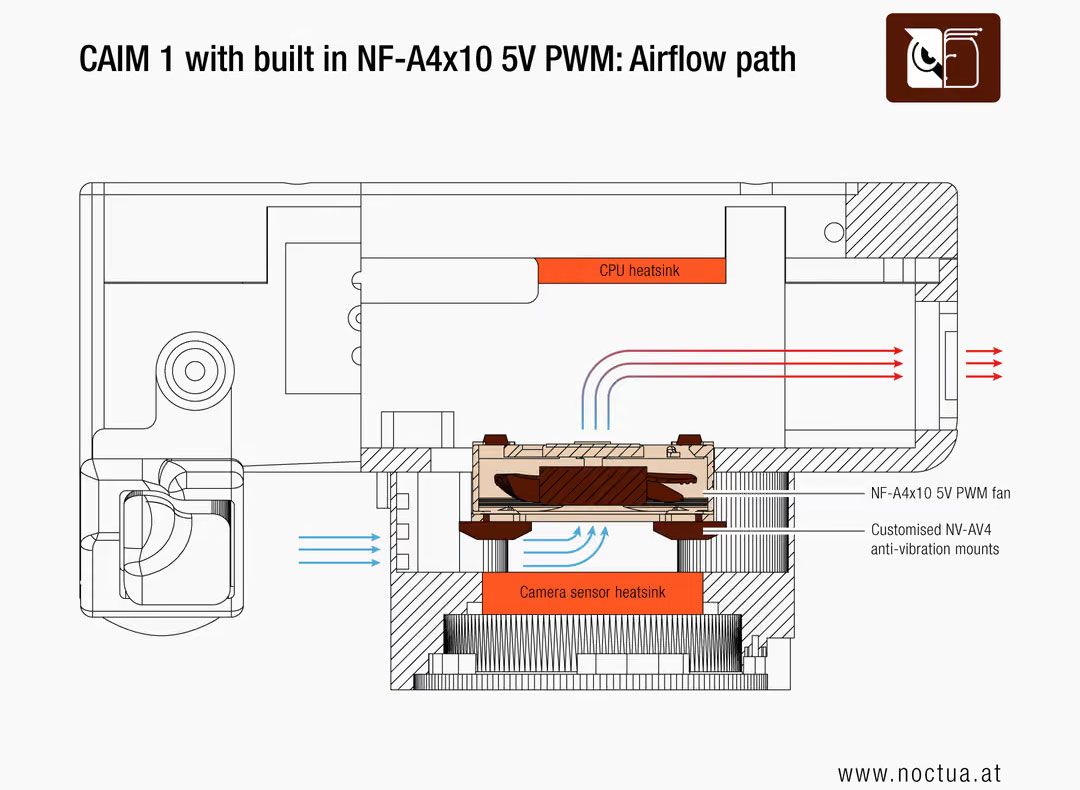
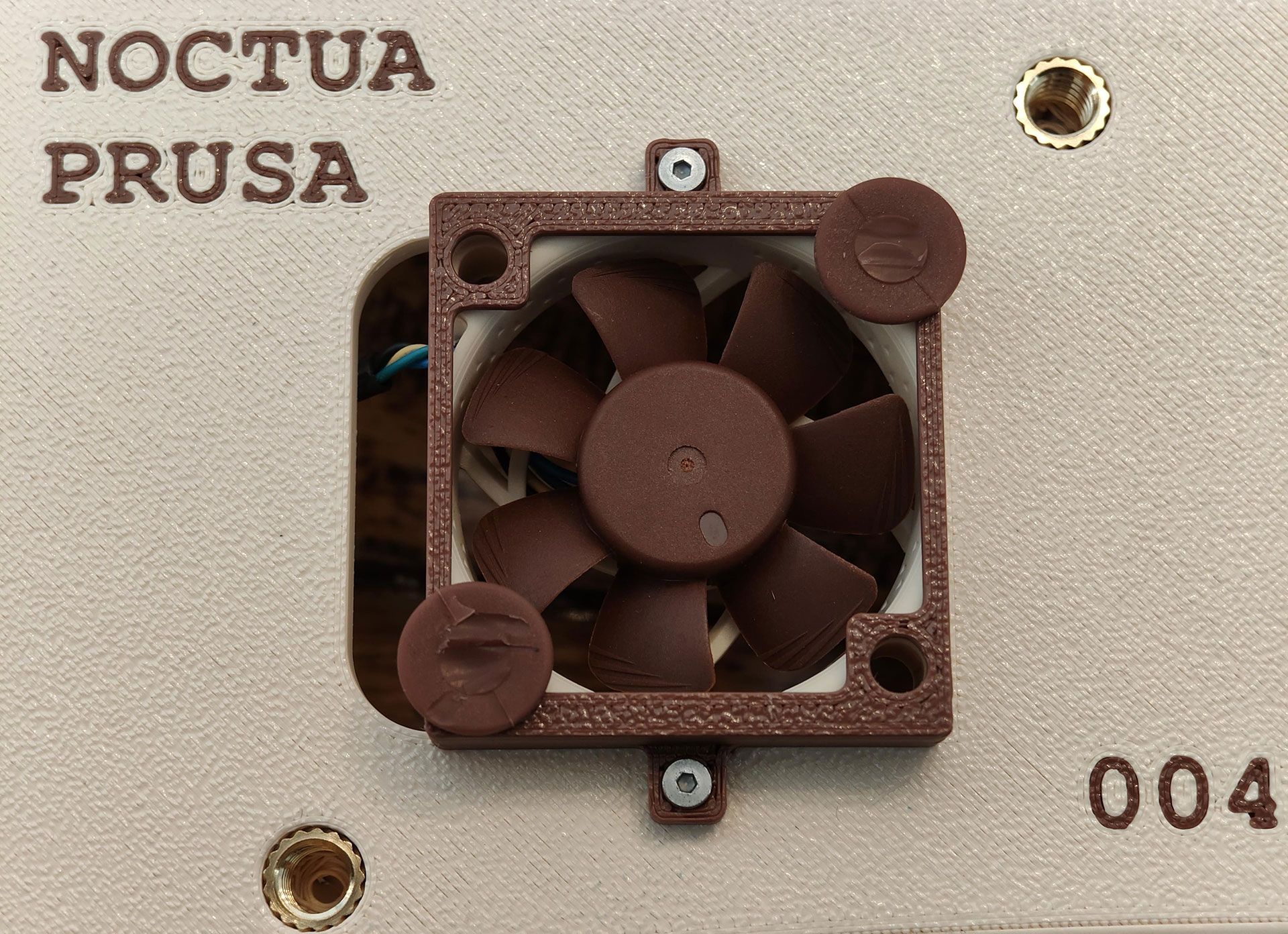
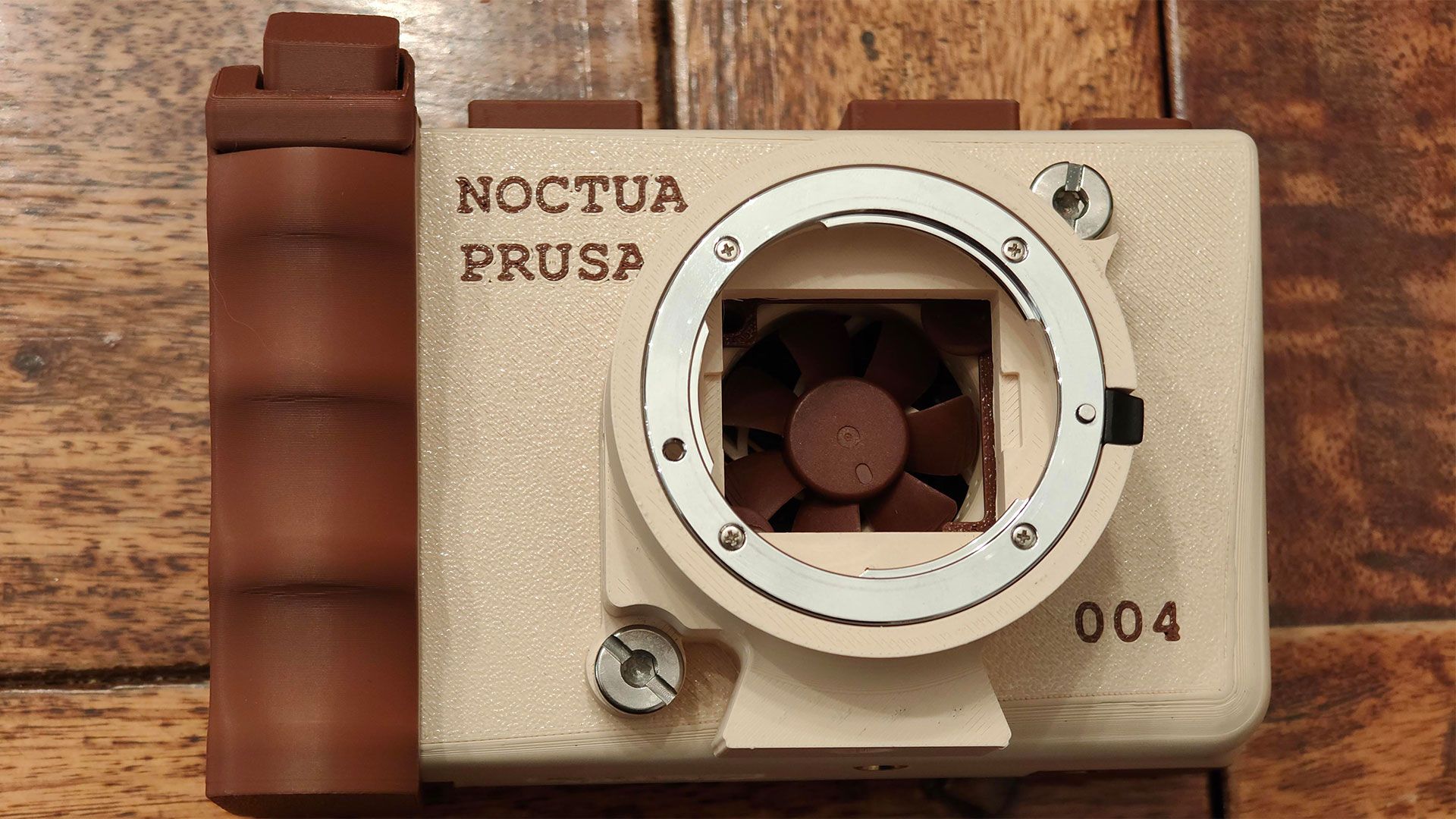
Noctua says its NF-A4x10 5V, with its PWM’s SSO2 bearing system and smooth motor drive fitted the bill. This tiny fan was leveraged in a unified single-airstream cooling design with custom anti-vibration mounts, situated right behind the image sensor. This directs air across the sensor’s alloy heatsink backplate, and which gets exhausted though the camera chassis left side.
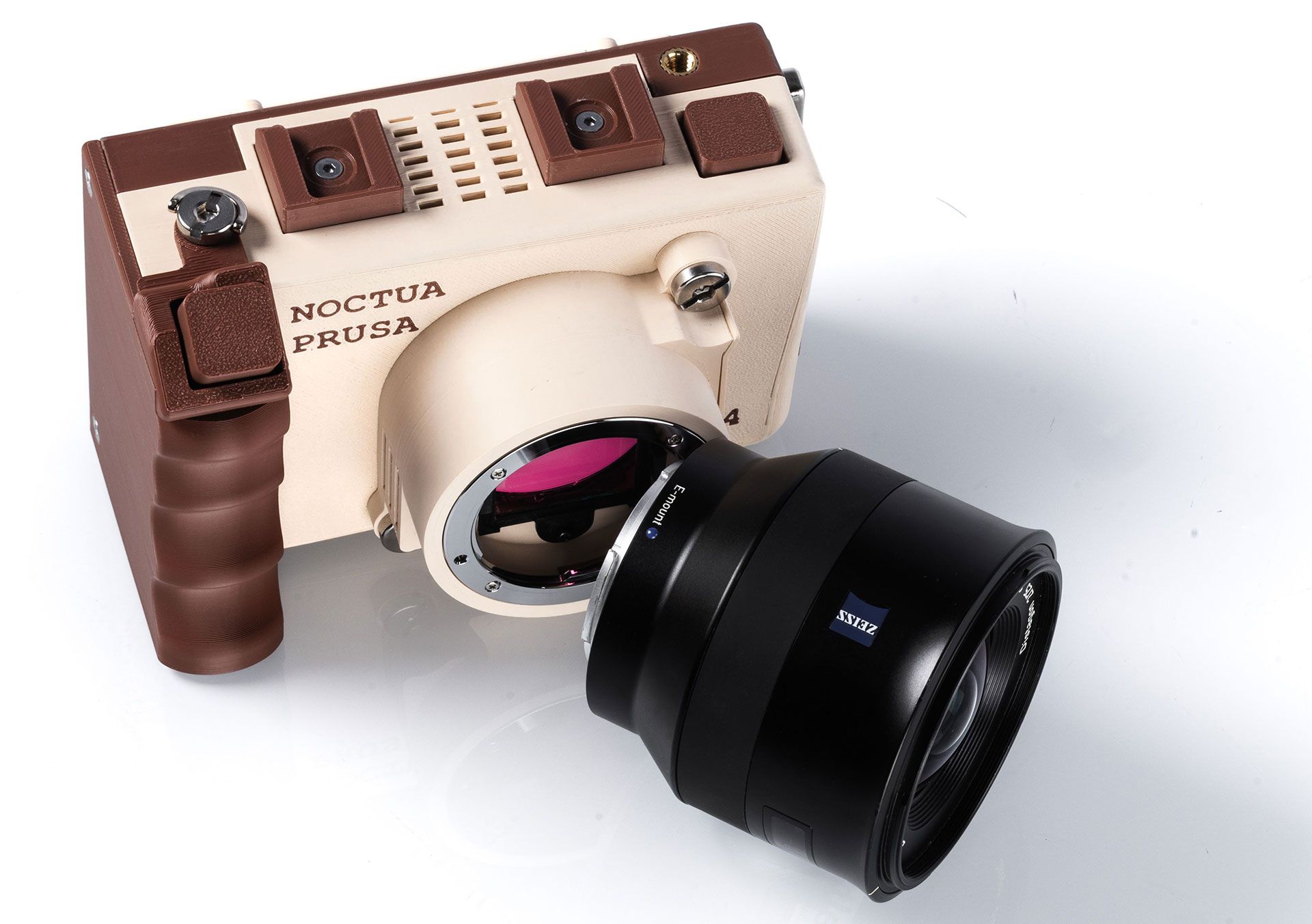
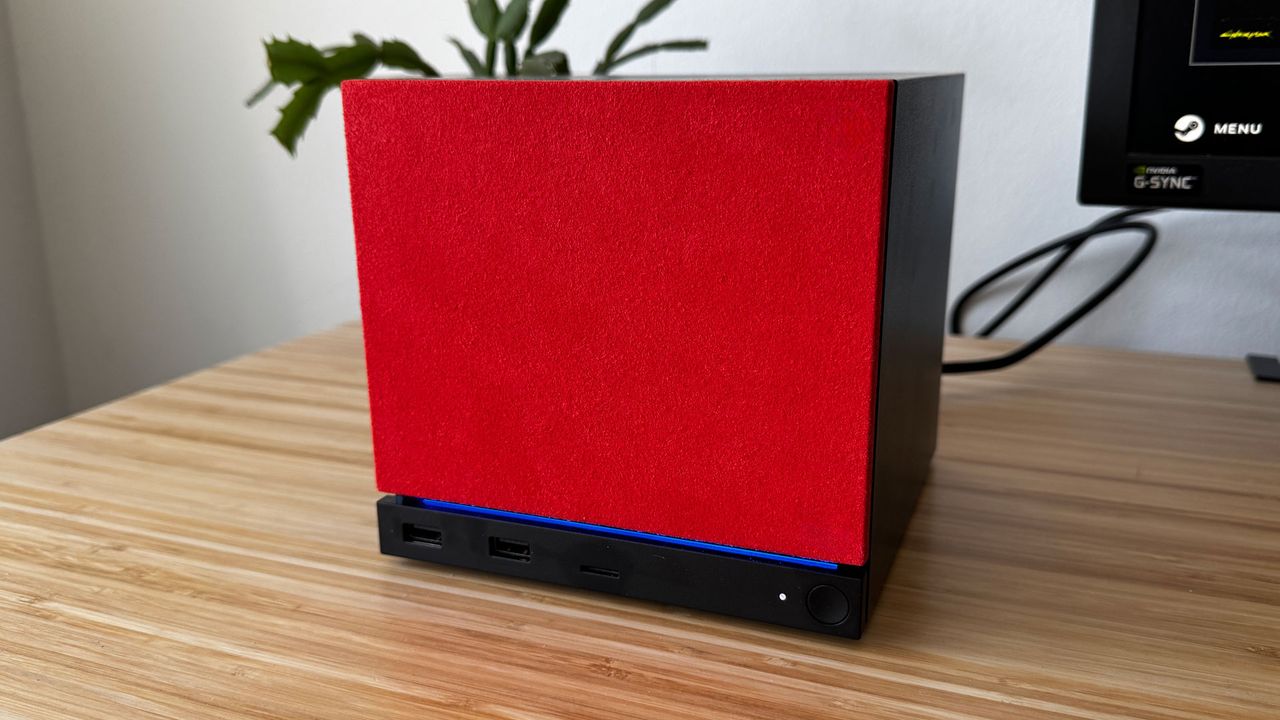
Our nozzle-headed readers will also be pondering over the Prusa branding on the camera body. The simple answer is that the CAIM1 is still at the prototyping stage and these models have been prepared using 3D printers and Prusament PETG Noctua Beige and Noctua Brown for the outer shell and fan mount. CAIM1 devices will be showcased at a handful of trade shows in Japan later this month. However, commercial batches are targeting Q1 2027 availability.
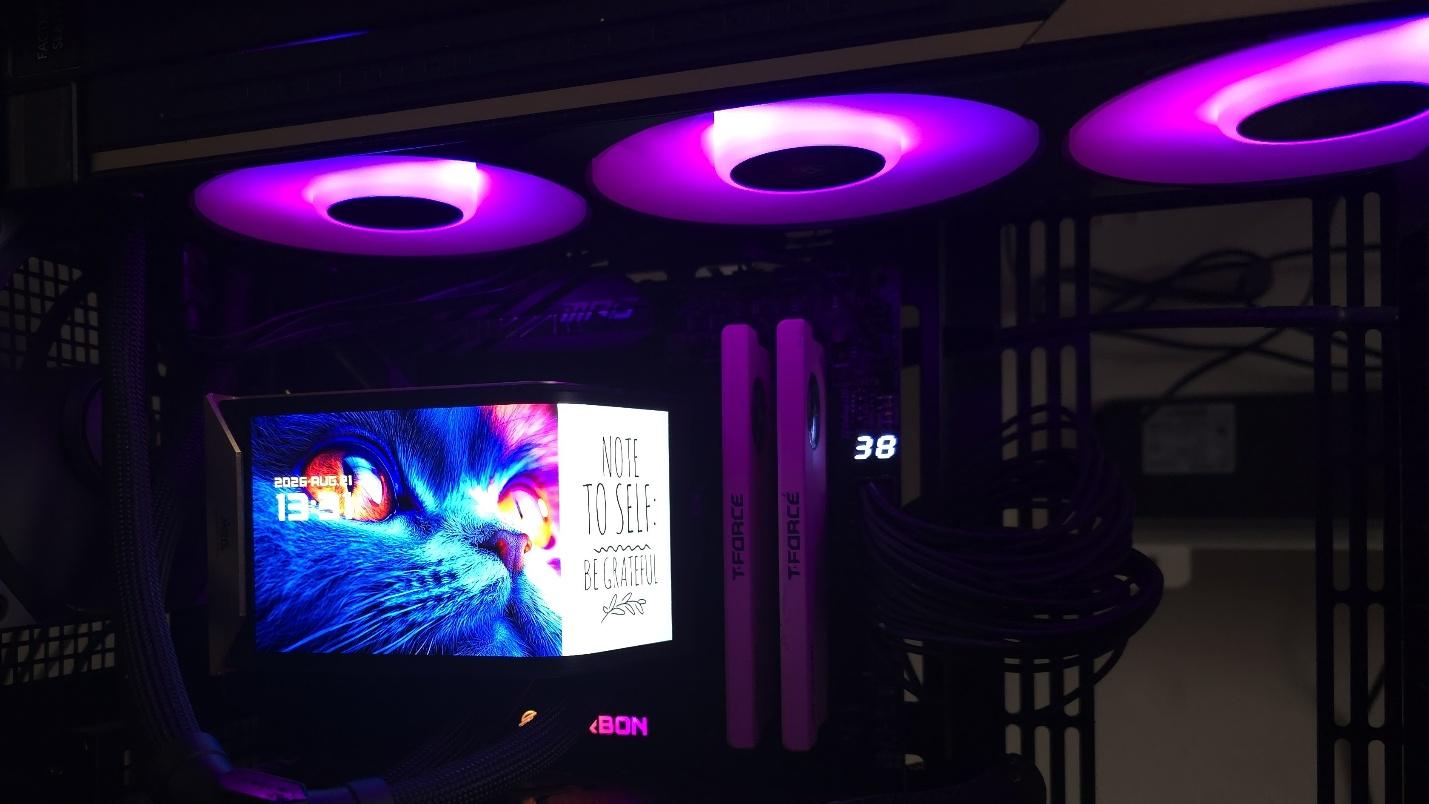
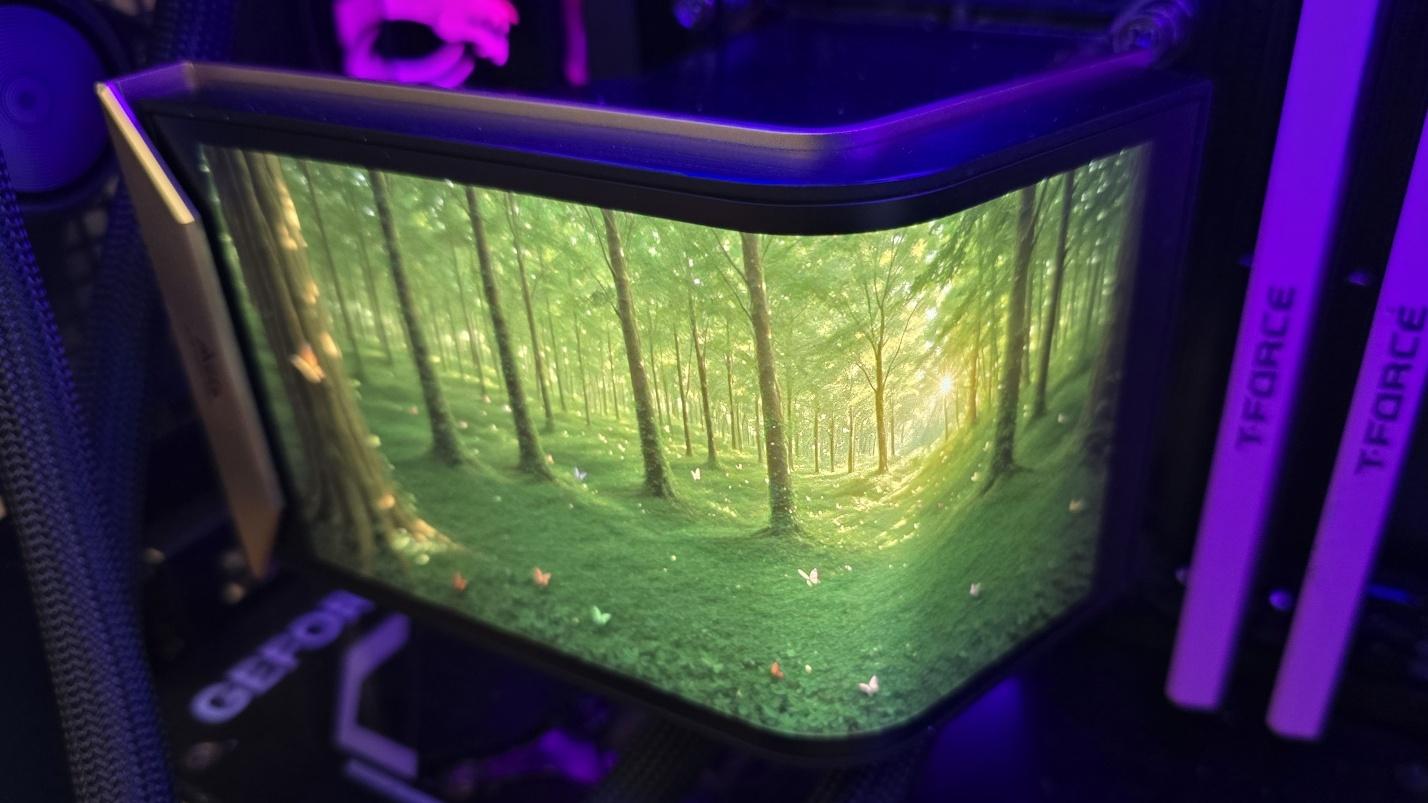
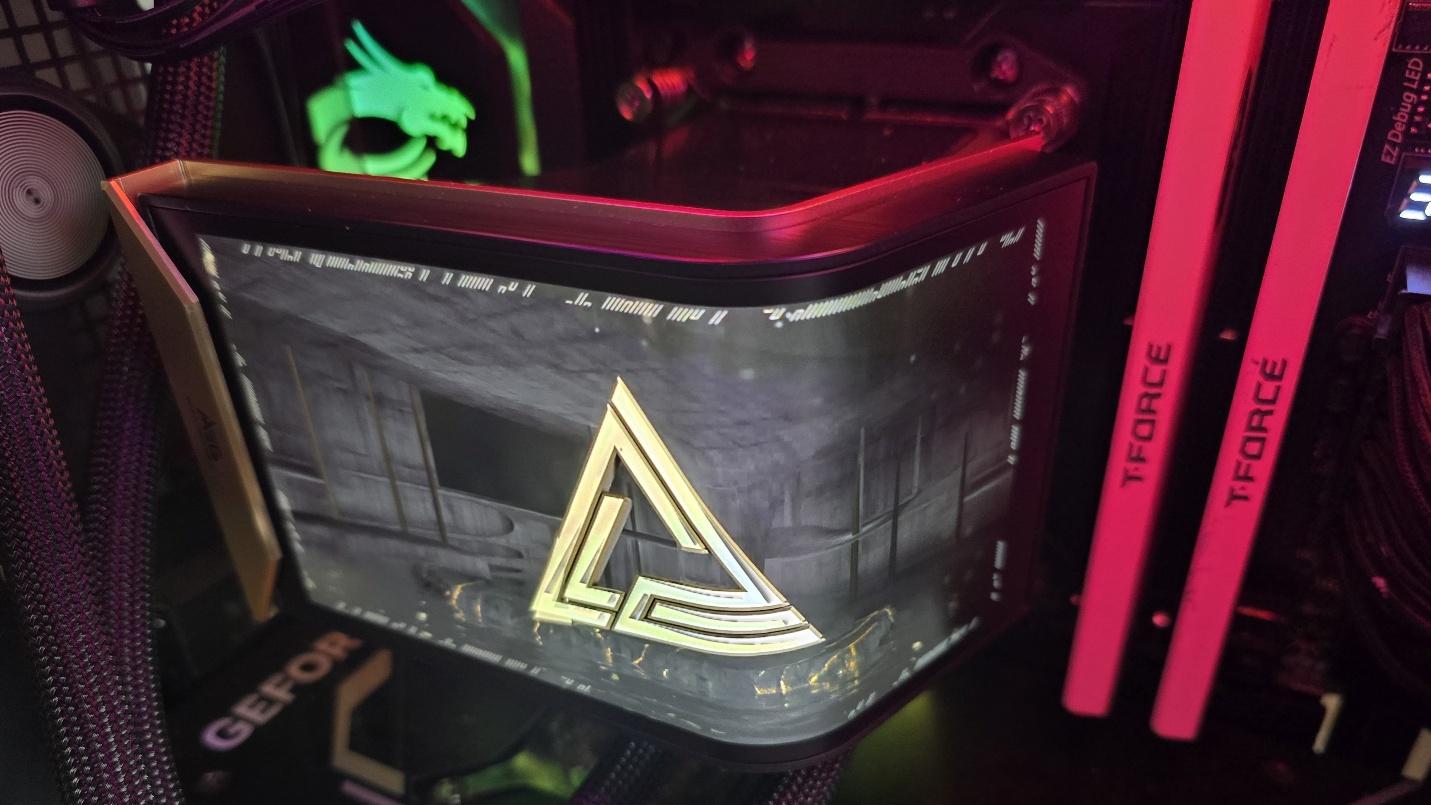
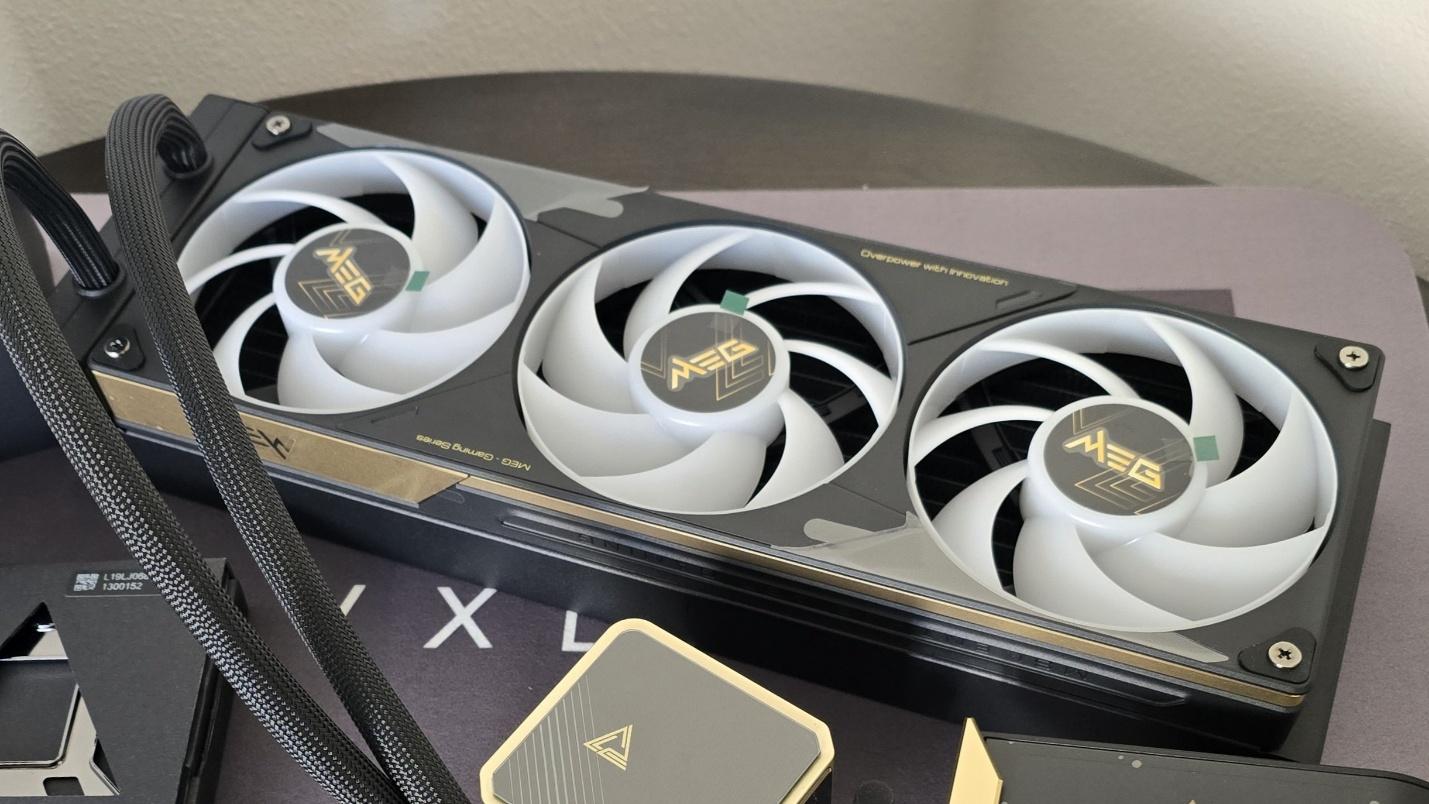
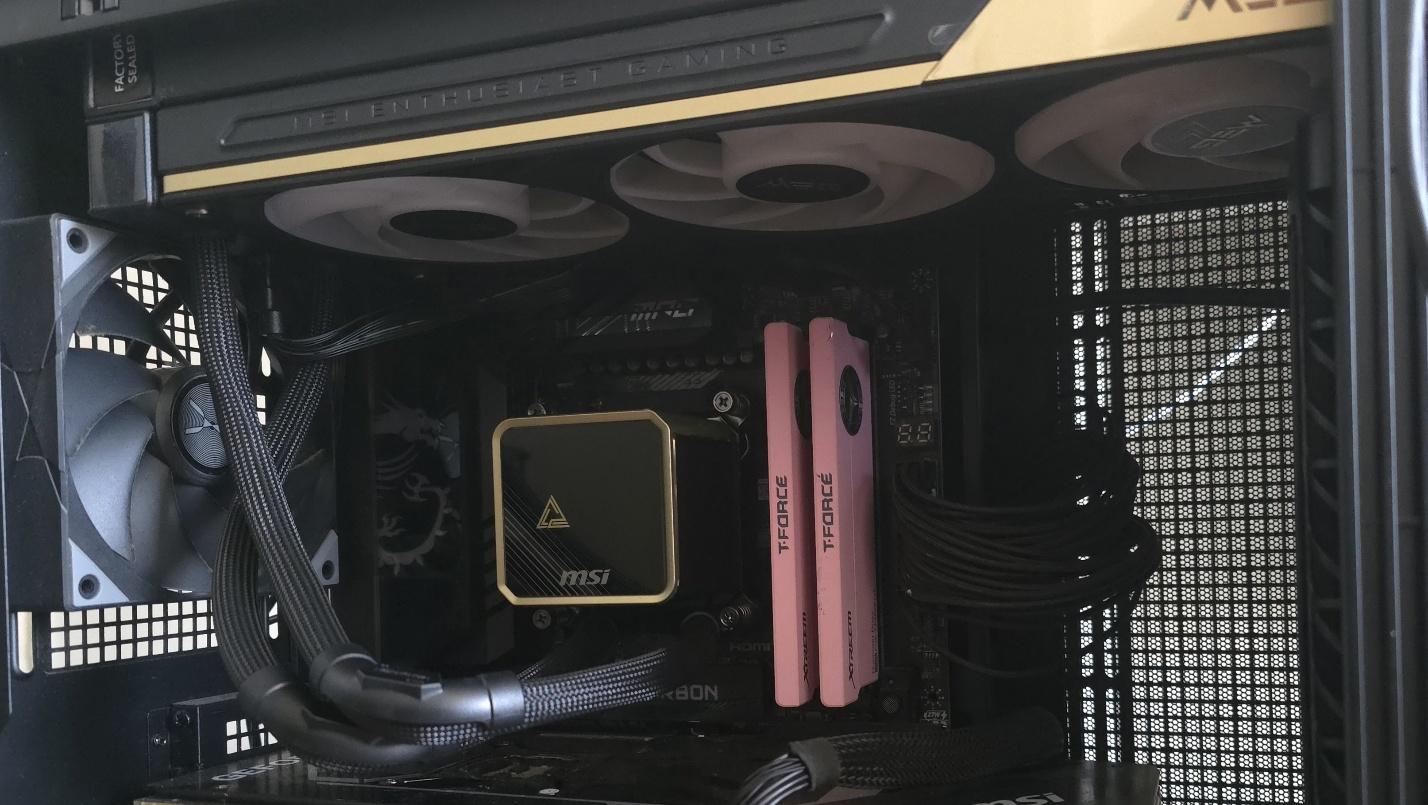
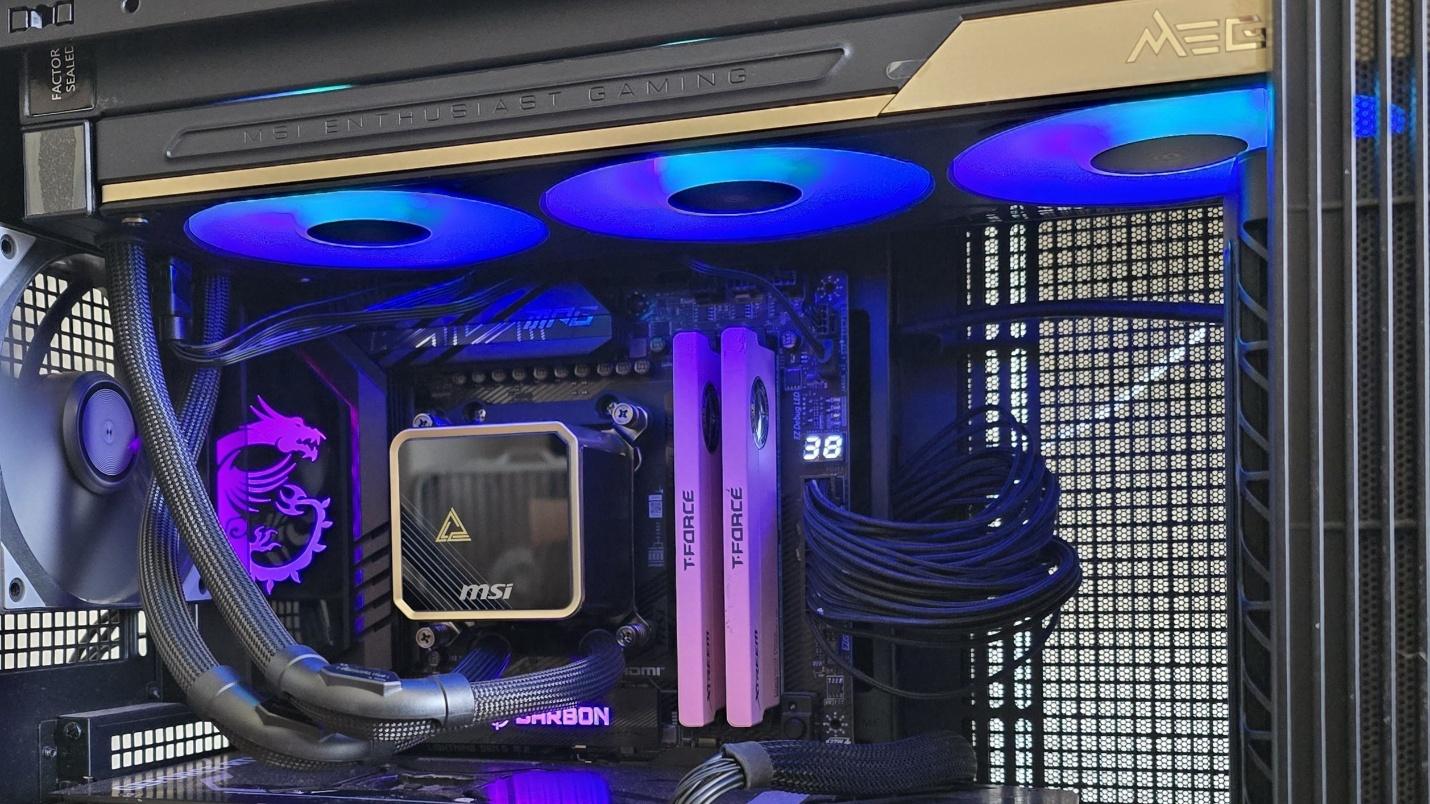
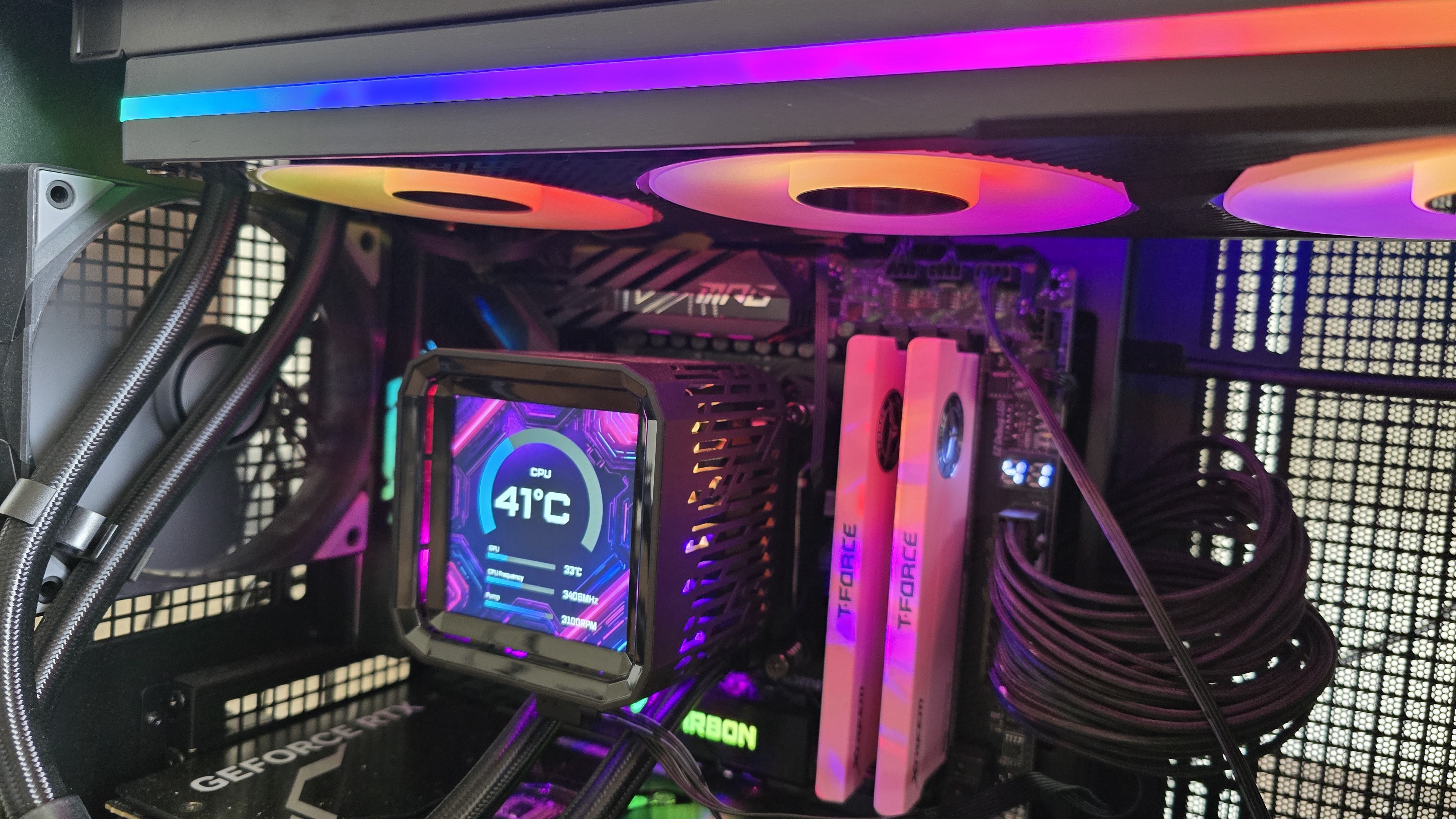
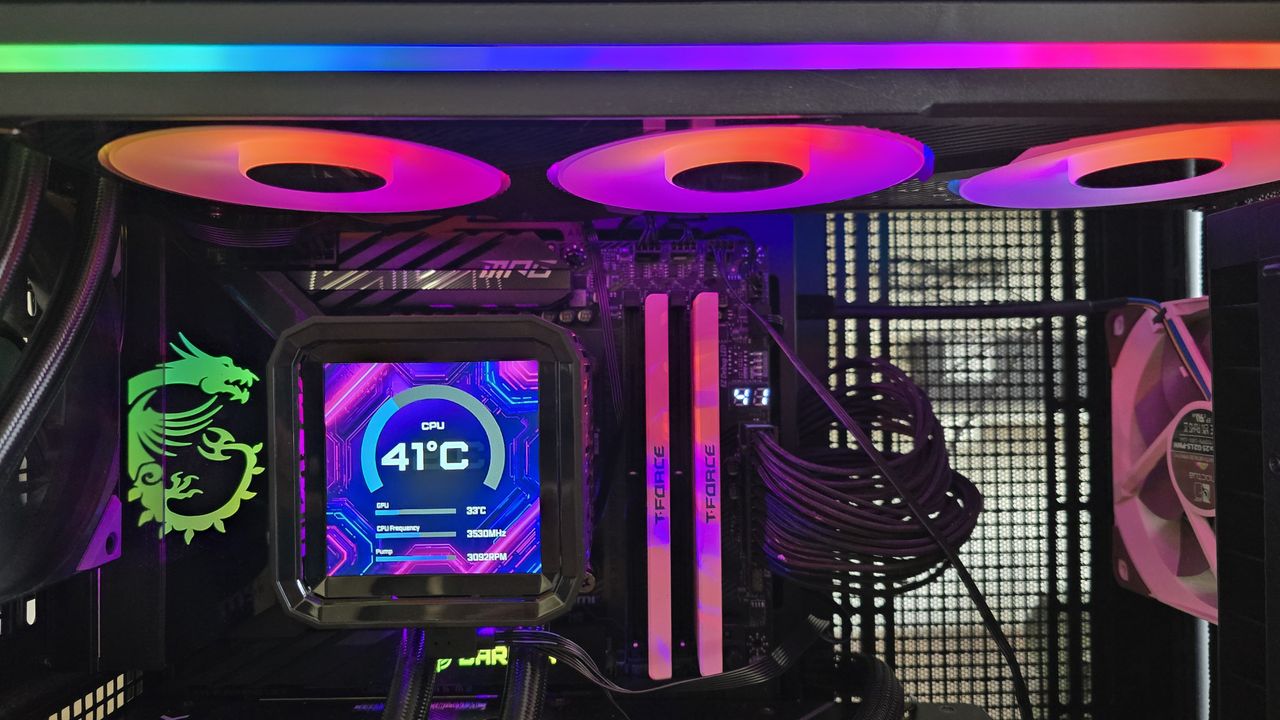
Today we’re testing MSI’s latest flagship AIO, the MEG Coreliquid E15 360, a luxury AIO with a premium black-and-gold aesthetic symbolizing authority and elegance. So we’re expecting market-leading thermal performance. Of course, the feature that stands out the most is the stunning 6.67-inch curved 2240x1080 AMOLED screen. The whole design looks and feels premium, with a price tag to match.
(Image credit: Tom's Hardware)
Let's take a look at the specifications and features of this CPU cooler, then we’ll go over thermal and noise benchmarks to decide if the MEG CoreLiquid E15 360 is good enough to make our list of the best CPU coolers on the market.
Cooler specifications
Cooler
MSI MEG CoreLiquid E15 360
Colors
Black with Gold
MSRP
$399.99
Lighting
ARGB on fans
Warranty
6 years (cooling components) 2 years (AMOLED display)
Socket Compatibility
AMD AM5/AM4 Intel 1700/1851
Dimensions
138.95 (W) x 136.47 (D) x 167.3mm (H)/ 133 (W) x 114 (D) x 161mm (H)
Maximum TDP with AMD’s Ryzen 9 9950X3D (Our Testing)
>265W with AMD’s Ryzen 9 9950X3D
Features of MSI’s MEG CoreLiquid E15 360 AIO
▶️ Premium black-and-gold aesthetic
(Image credit: Tom's Hardware)
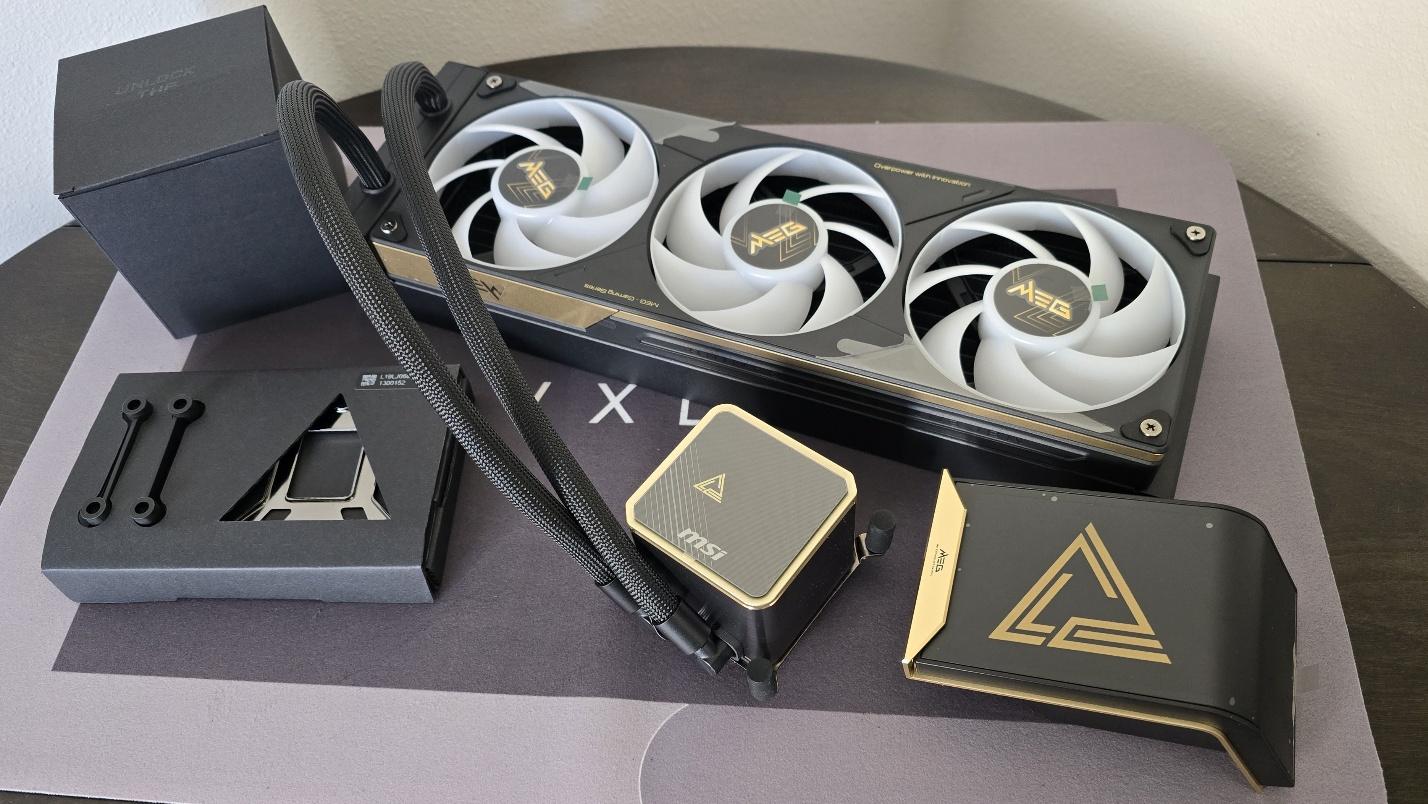
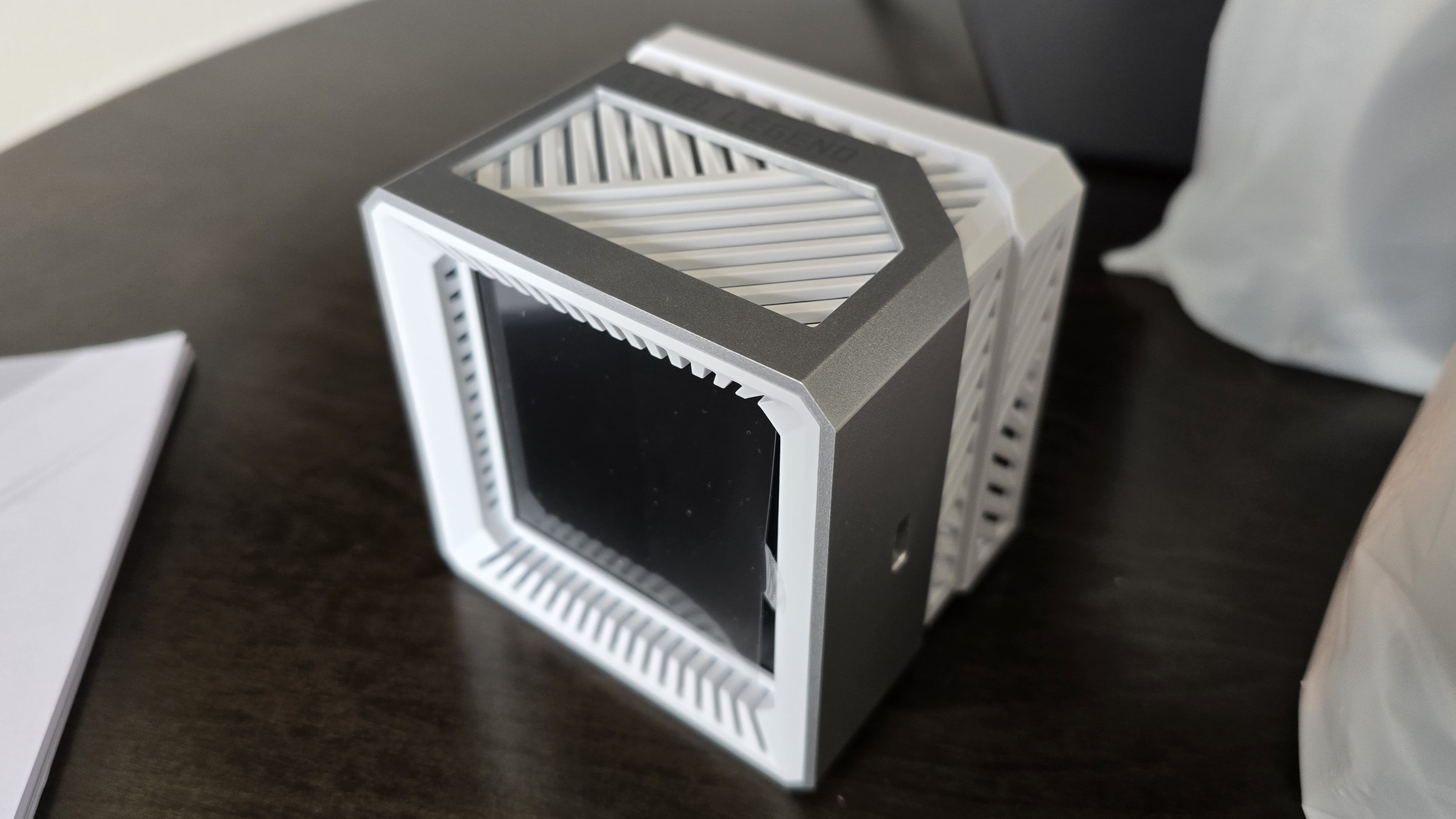
MSI’s MEG CoreLiquid E15 features a design that just oozes a feeling of premium quality – each component is precision-made using high-quality components, with gold colored plating flanking black metal. The highlight of this cooler, of course, is the premium curved screen, but if, for some reason, you’d prefer not to use the screen, a stylish black-and-gold pump cover is also included.
(Image credit: Tom's Hardware)
▶️ RAM Clearance
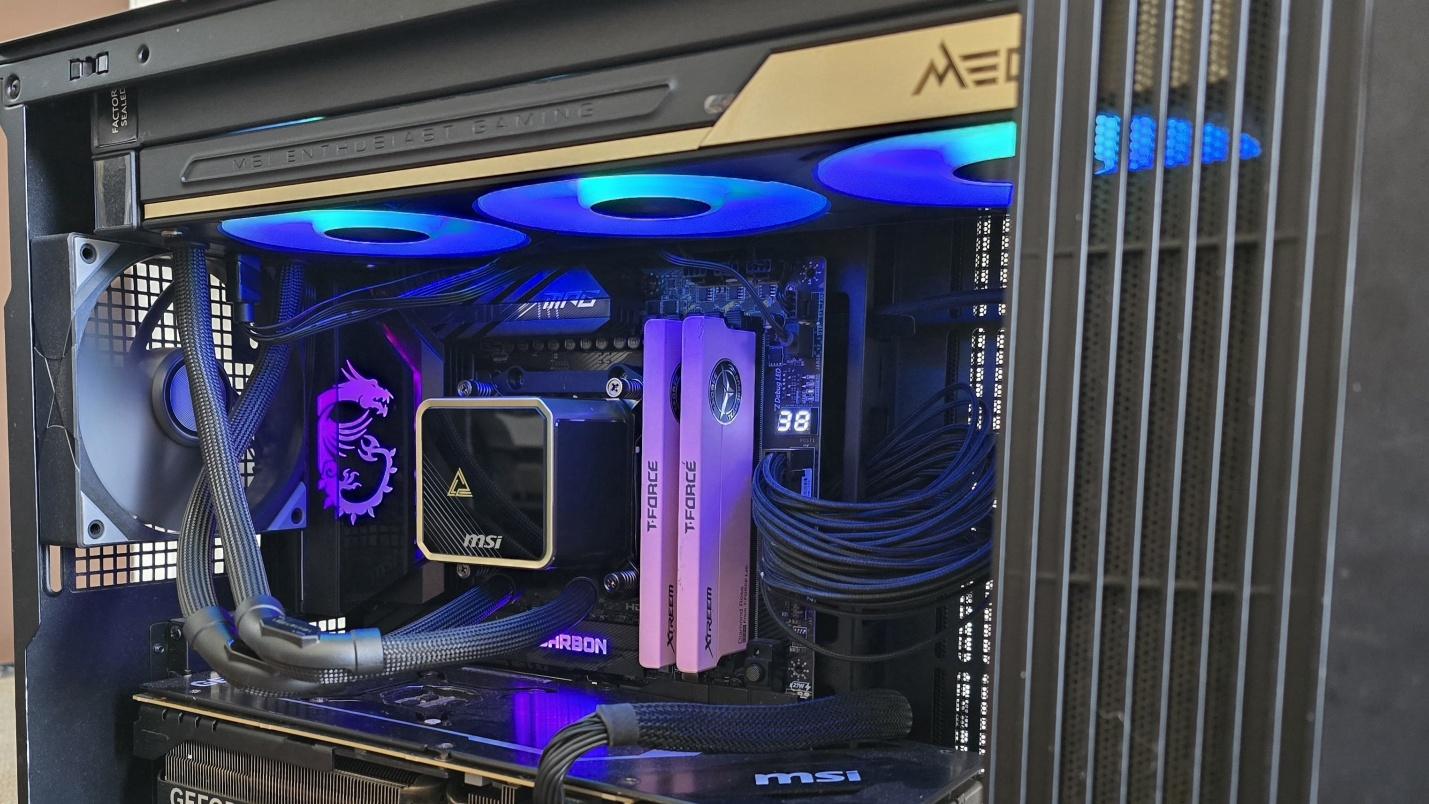
As with most AIOs on the market, MSI’s E15 doesn’t overhang or interfere with RAM DIMMs at all, allowing for compatibility with all sizes of DDR4 or DDR5 DIMMs, no matter how tall.
(Image credit: Tom's Hardware)
▶️ Magnetic Penrose Triangle
(Image credit: Tom's Hardware)
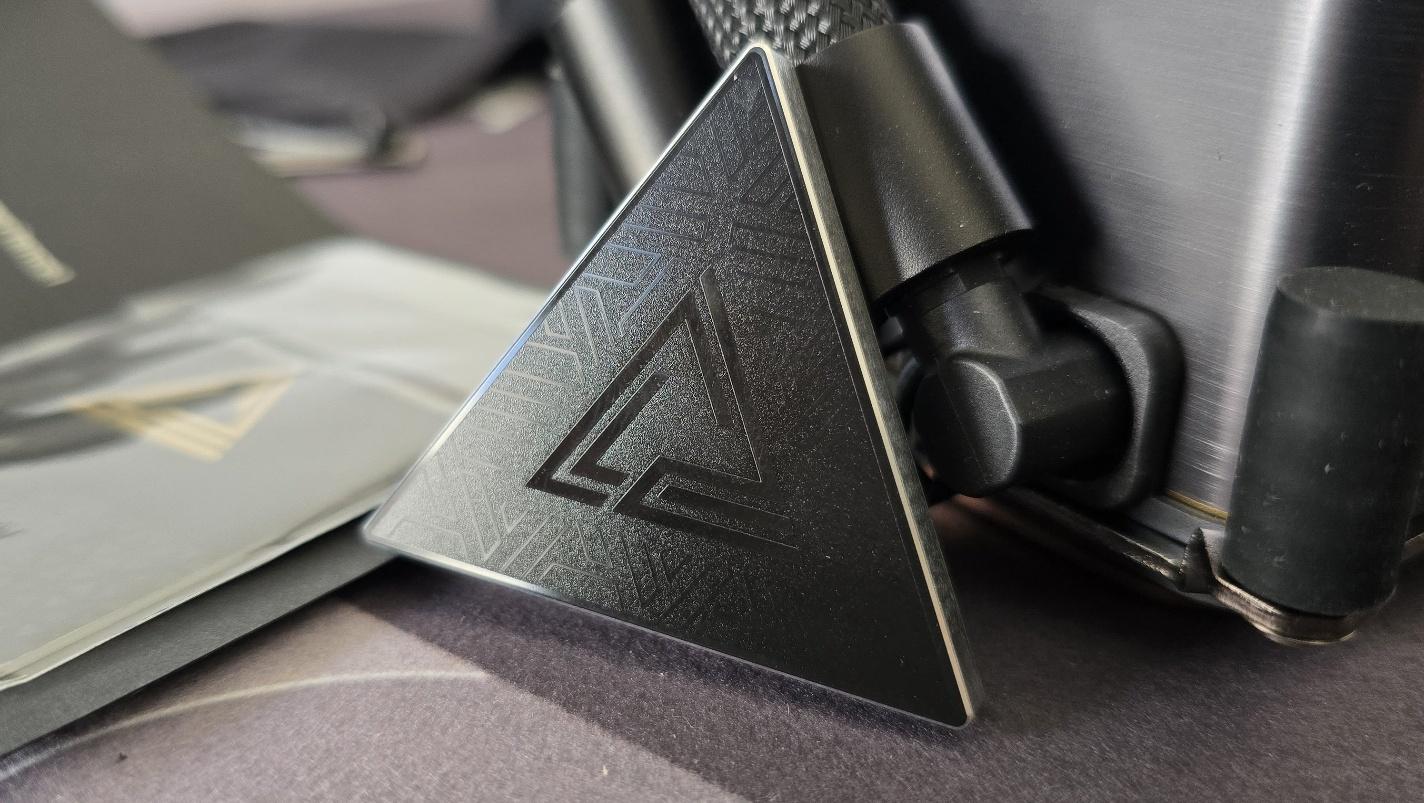
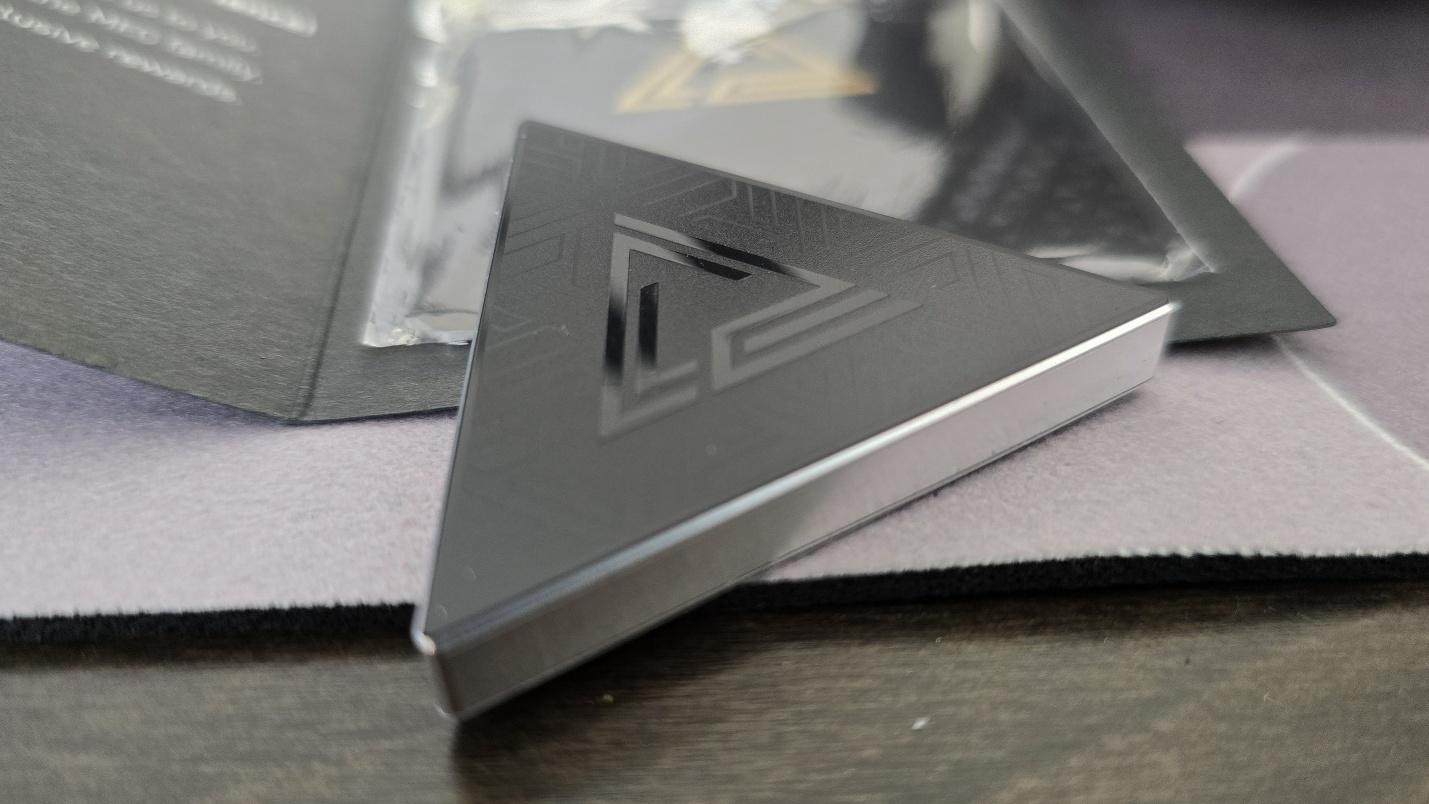
A pretty nifty piece of swag included with this AIO is a magnetic Penrose triangle and, boy, let me tell you, this magnet is strong! How strong? I threw it across the living room to a metal door and it instantly secured itself to the door!
(Image credit: Tom's Hardware)
▶️ 28mm thick single-frame fans
There’s more to a cooler than just the heatsink. The included fans have a direct impact on aesthetics, noise levels, and overall thermal performance. The E15 features a 360mm single-frame fan unit, and it is pre-installed for user convenience, saving a few moments during cooler installation.
(Image credit: Tom's Hardware)
Fan Speed
800–2300 RPM ±10%
Dimensions
362 x 125 x 28.4 mm
Airflow
217.91 CFM
Air Pressure
3.84 MMH20
▶️ MSI EZ Display software – Pros and Cons
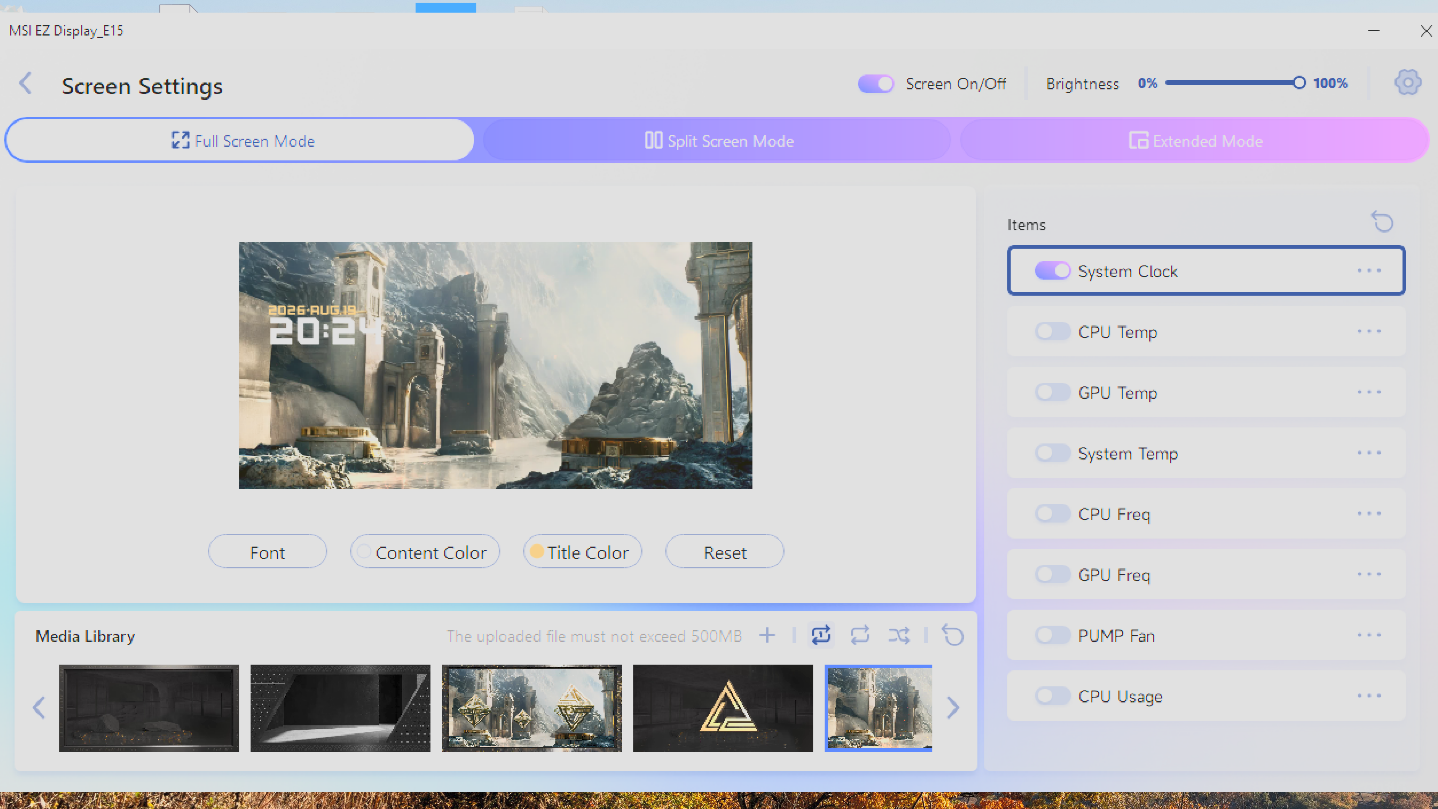
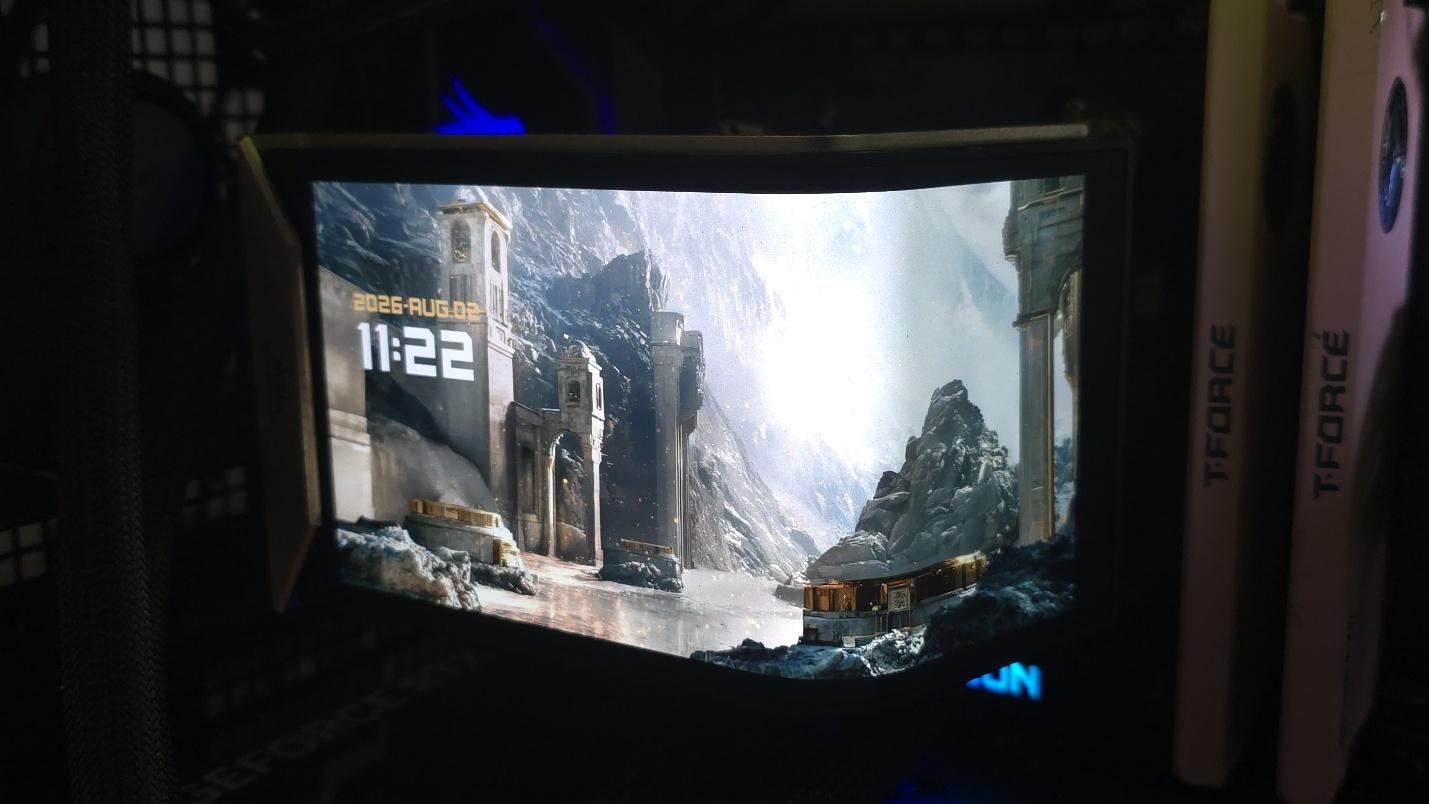
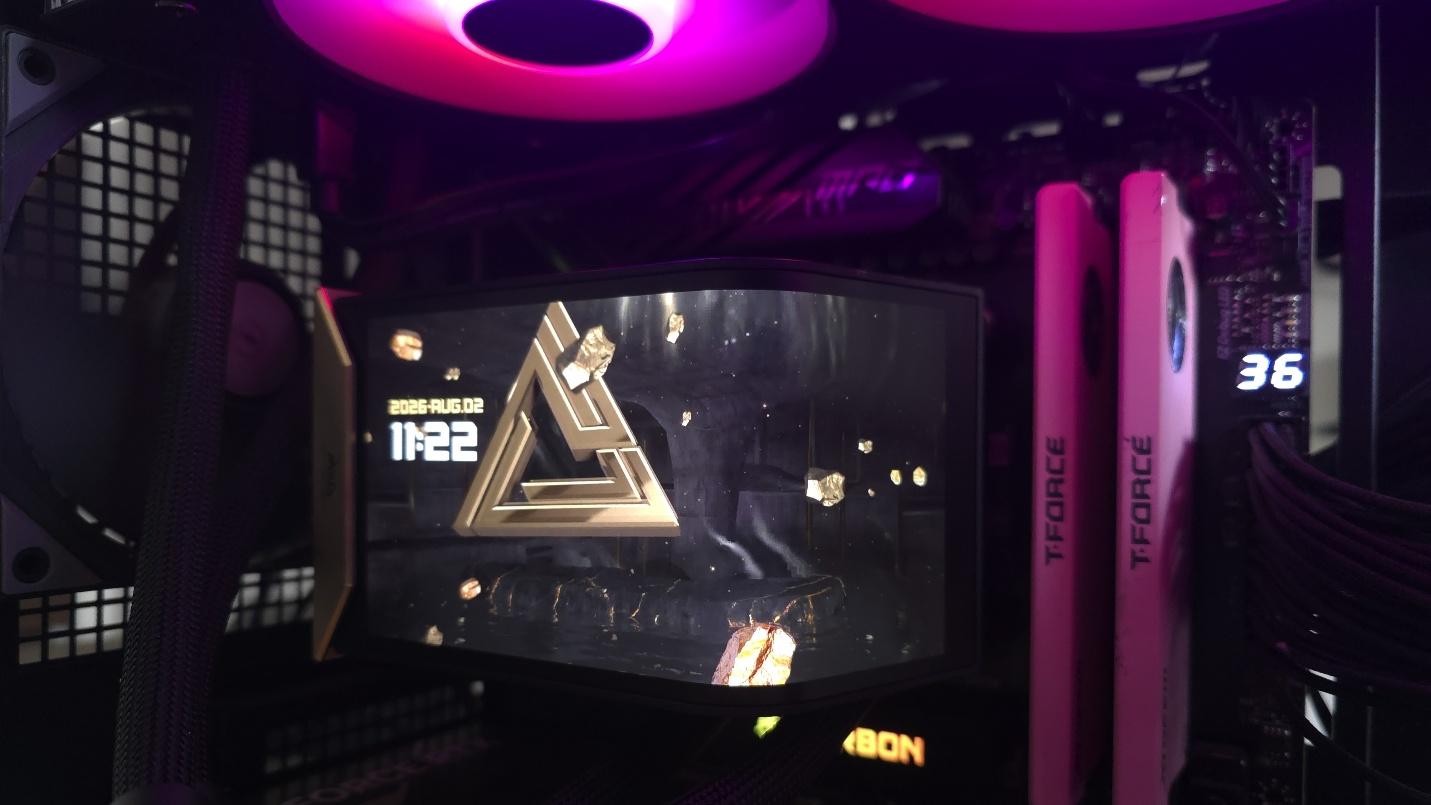
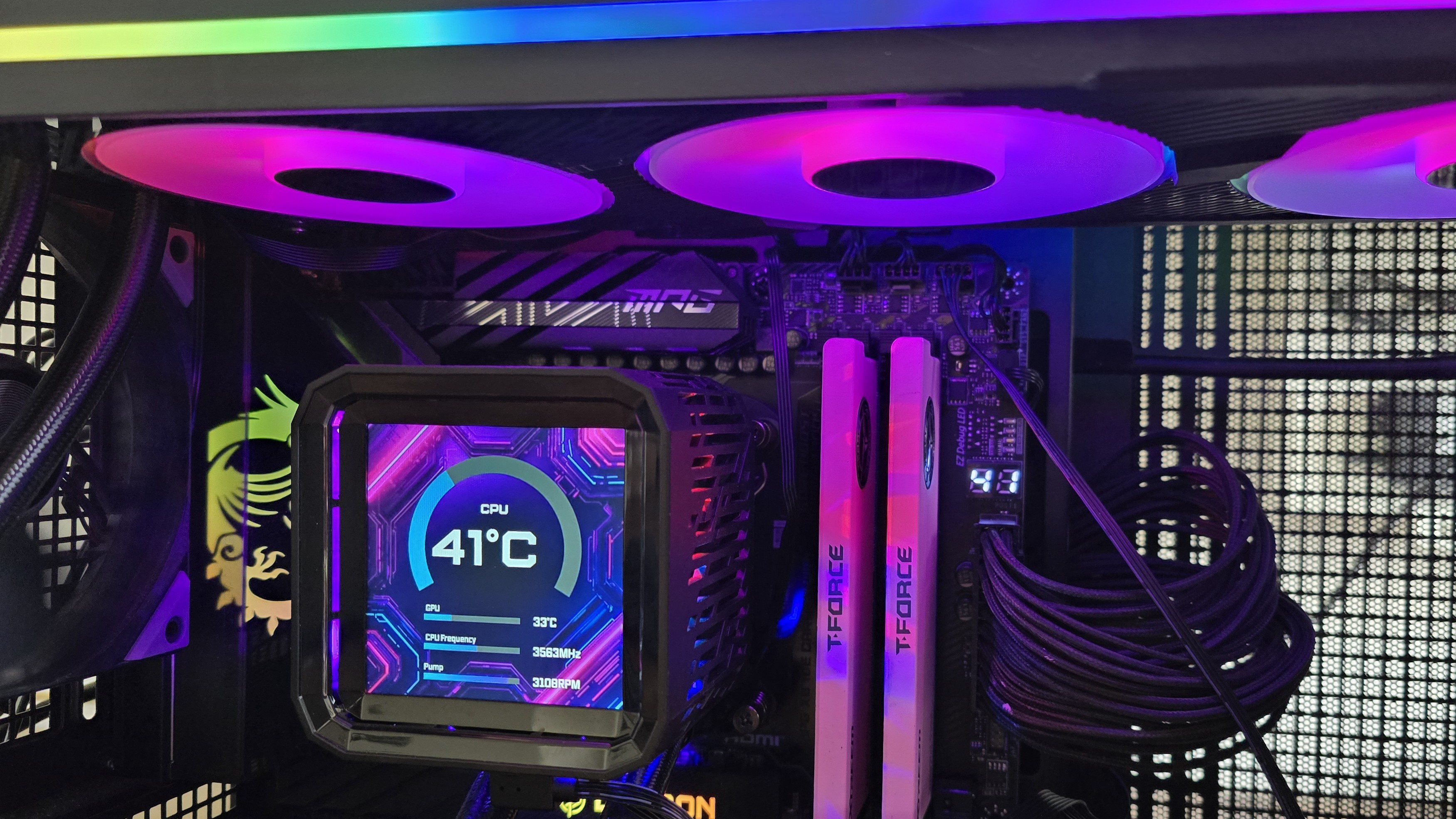
Strictly speaking, you don’t actually need to install MSI’s EZ Display software to enjoy the functionality of the included screen. The E15’s default animation shows a Penrose triangle against a background strongly reminiscent of the brutalist Isu ruins from The Fate of Atlantis DLC in Ubisoft’s Assassin’s Creed: Odyssey.
(Image credit: Tom's Hardware)
If you’re happy with this default animation, no software installation is necessary. It’s only if you want to customize the screen that software installation is necessary.
(Image credit: Tom's Hardware)
Once the MSI EZ Display software has been installed, there are three primary configuration styles. The first is a “full screen” mode that has several stunning animations, each unique but in the same style as the others.
(Image credit: Tom's Hardware)
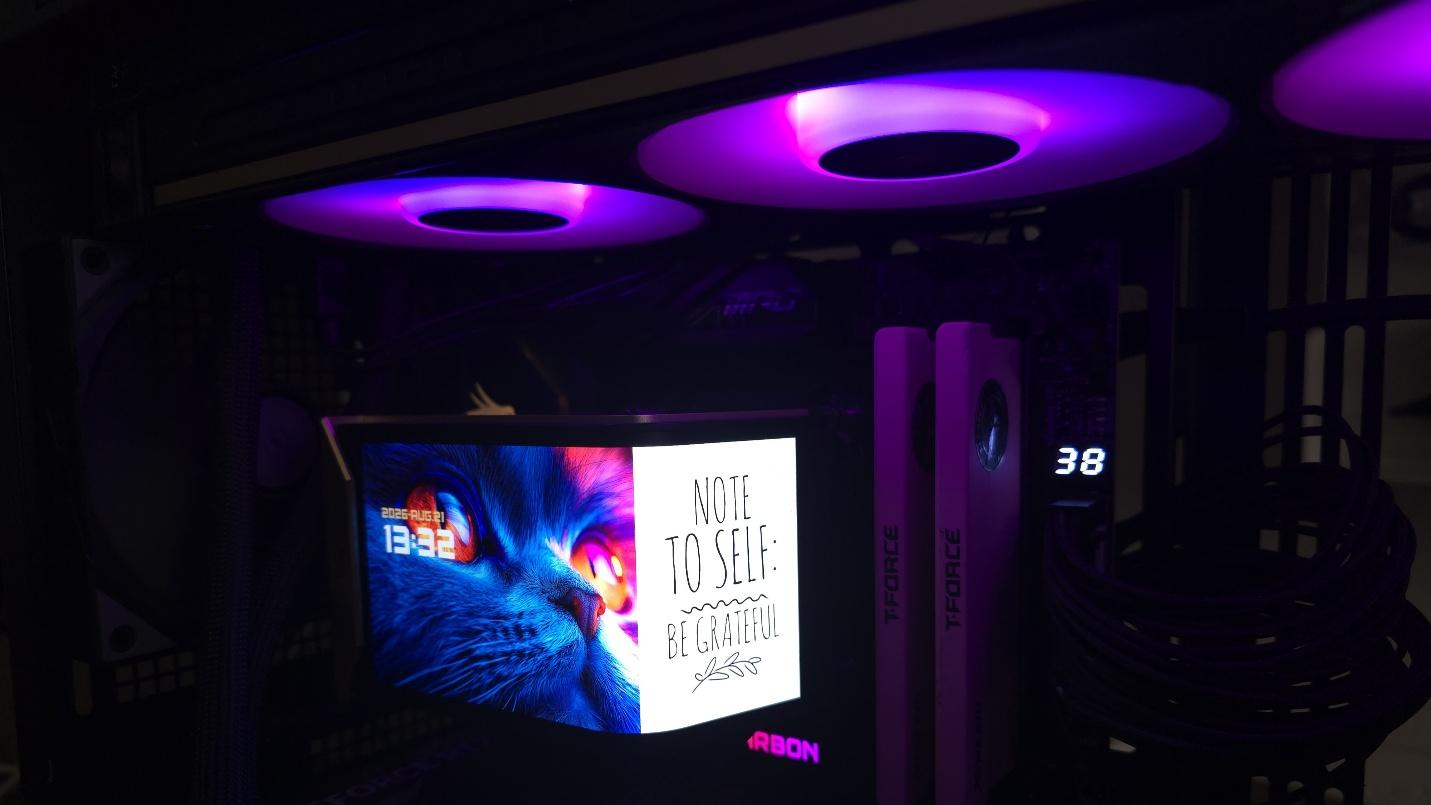
In addition to the visual theme, you can choose to enable several metrics on the screen. In the image above, I’ve enabled the date and time, but you can opt for other things, like CPU and GPU temperatures, processor frequencies, etc.
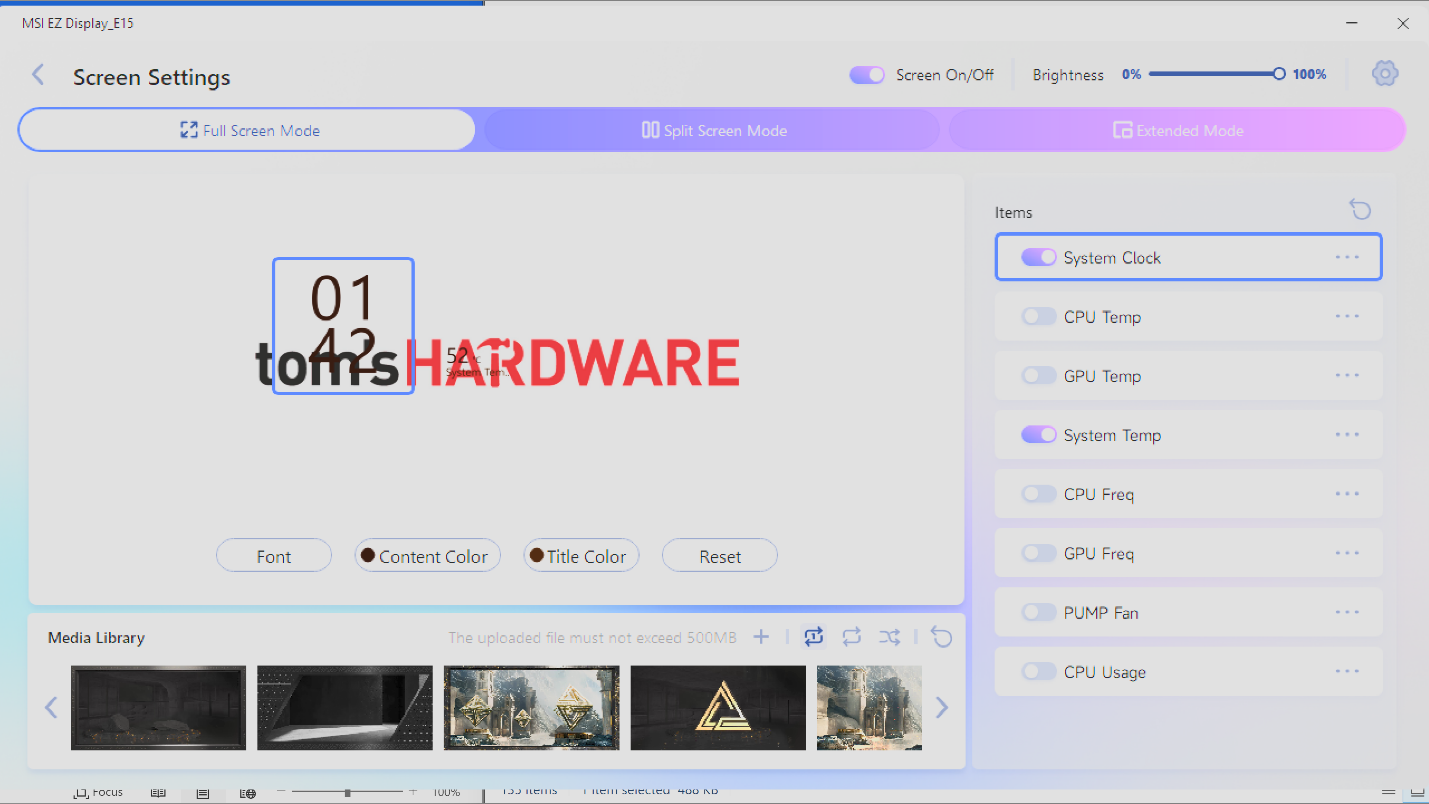
These are nice features and certainly look good, but that’s where the customization ends for metrics. The EZ Display doesn’t currently let you change the position or size of the metrics displayed. If MSI wants this AIO to appeal to tech enthusiasts, that’s a feature they’ll need to implement – especially when you consider the E15’s luxury price tag. This lack of proper customization is especially annoying when trying to display metrics with a custom image, as shown below.
(Image credit: Tom's Hardware)
Another aspect I would like to see improved is the ability to deselect themes in the “playlist.” Currently, if you let the animations shuffle or loop, every single animation (preset and custom) that you have included in your library is played.
Tom's HardwareTom's Hardware
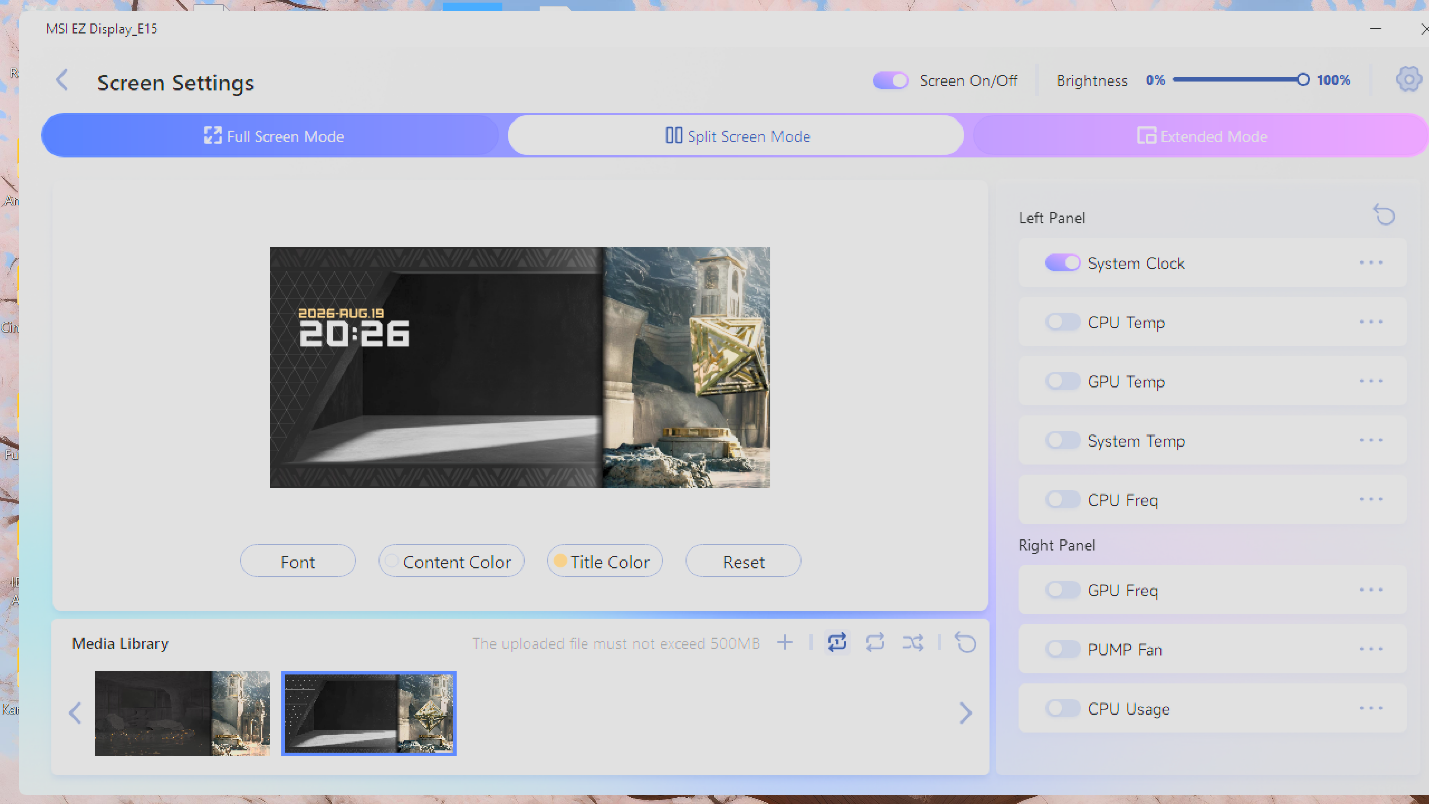
The second configuration mode available for this screen is a “split-screen” option, which currently has only two presets. As the mode’s name implies, this splits the display into two parts, allowing for one animation or image on each side of the display.
(Image credit: Tom's Hardware)
The last mode available for this screen is extended mode, which allows you to use the display as a secondary monitor with Windows.
(Image credit: Tom's Hardware)
This allows you to use your own software and show off themes and images entirely of your own creation, play movies of any length, etc. There is one downside though: when I tested this mode, HDCP would not work on either the MSI display or my primary LG ultrawide monitor when streaming video from Amazon Prime on my primary monitor, resulting in degraded video quality.
▶️ Packaging
(Image credit: Tom's Hardware)
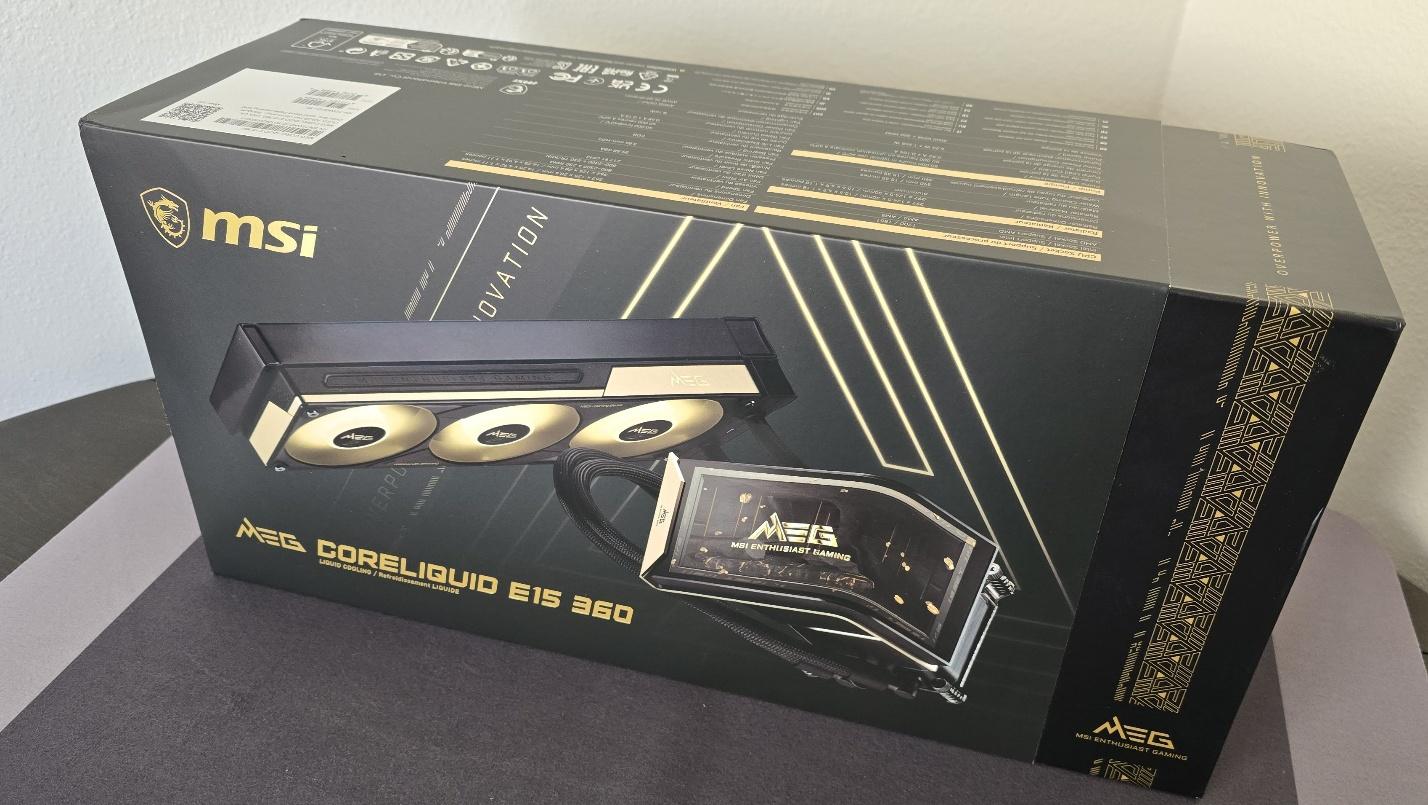
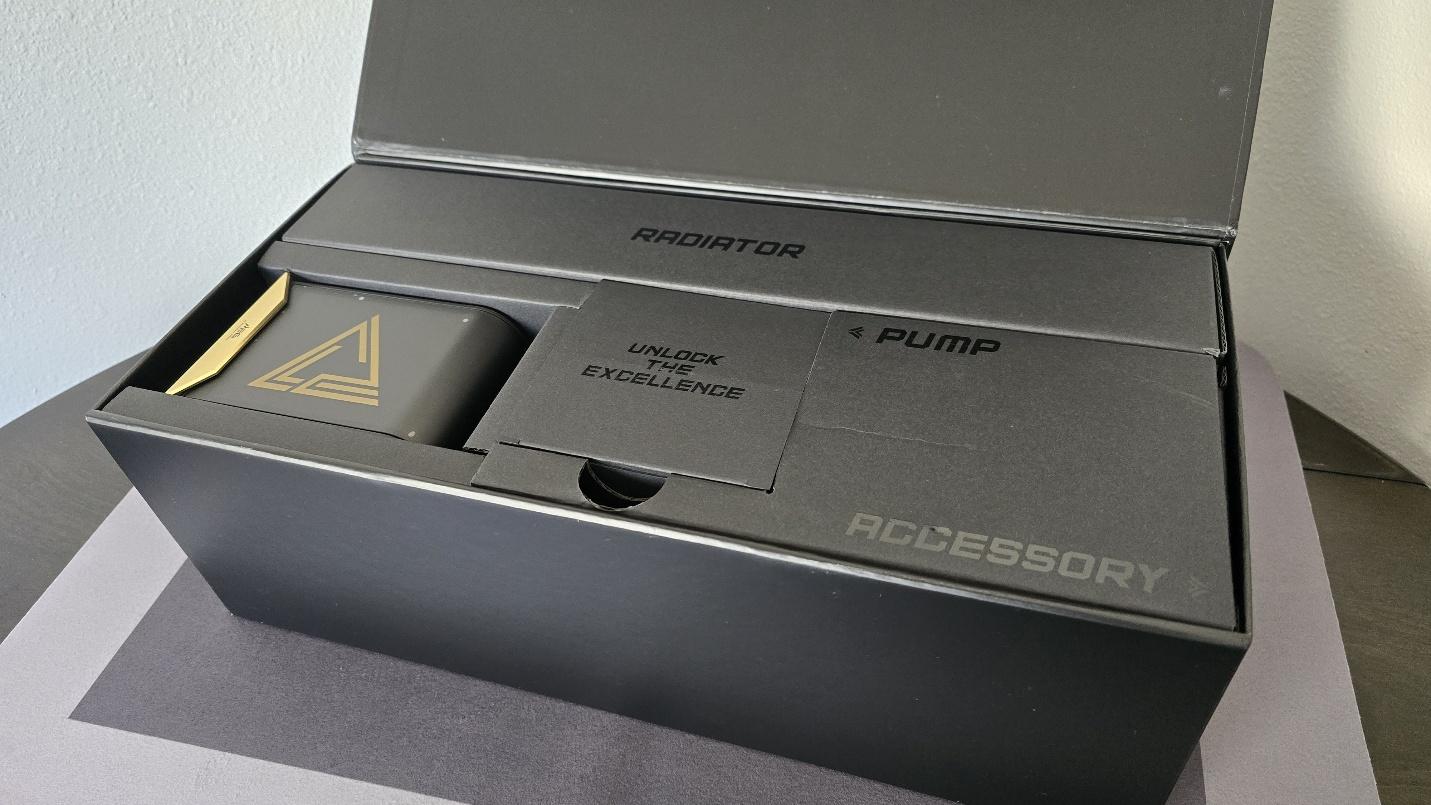
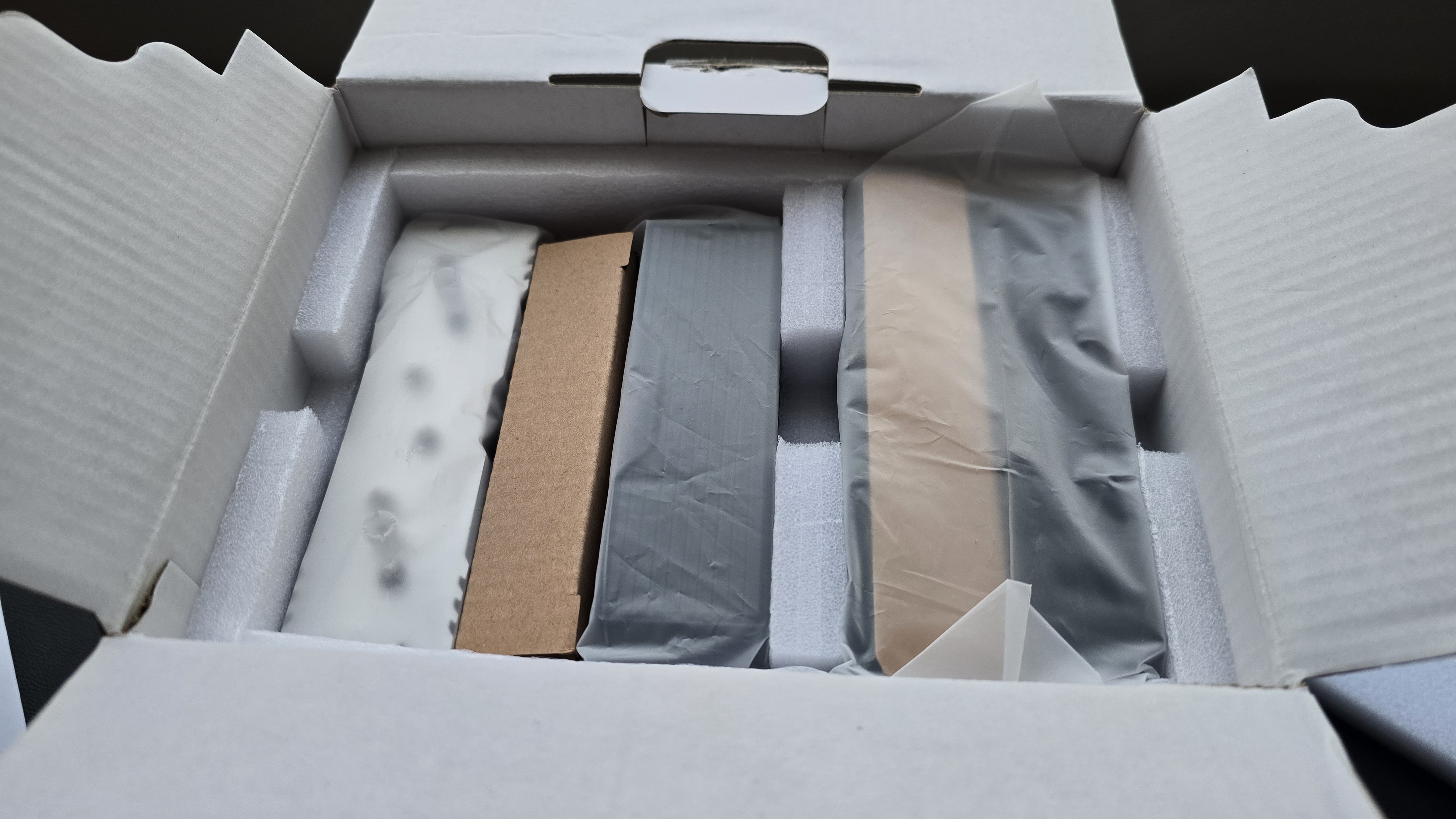
The outer packaging loudly advertises the product, with a stunning black-and-gold theme and the AIO’s image on the front. The individual parts in the package are protected with cardboard, with mini boxes for the radiator, pump, accessories, and etc.
(Image credit: Tom's Hardware)
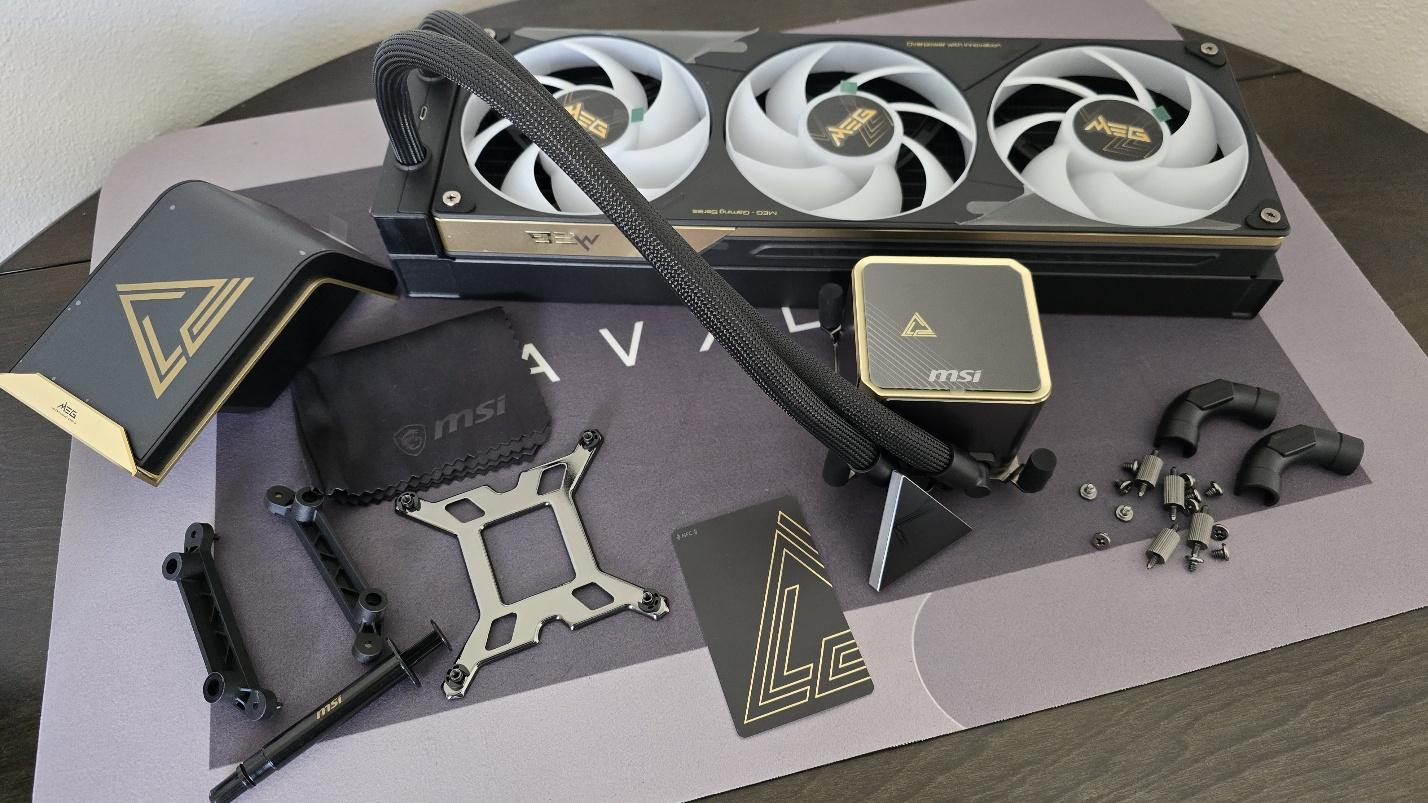
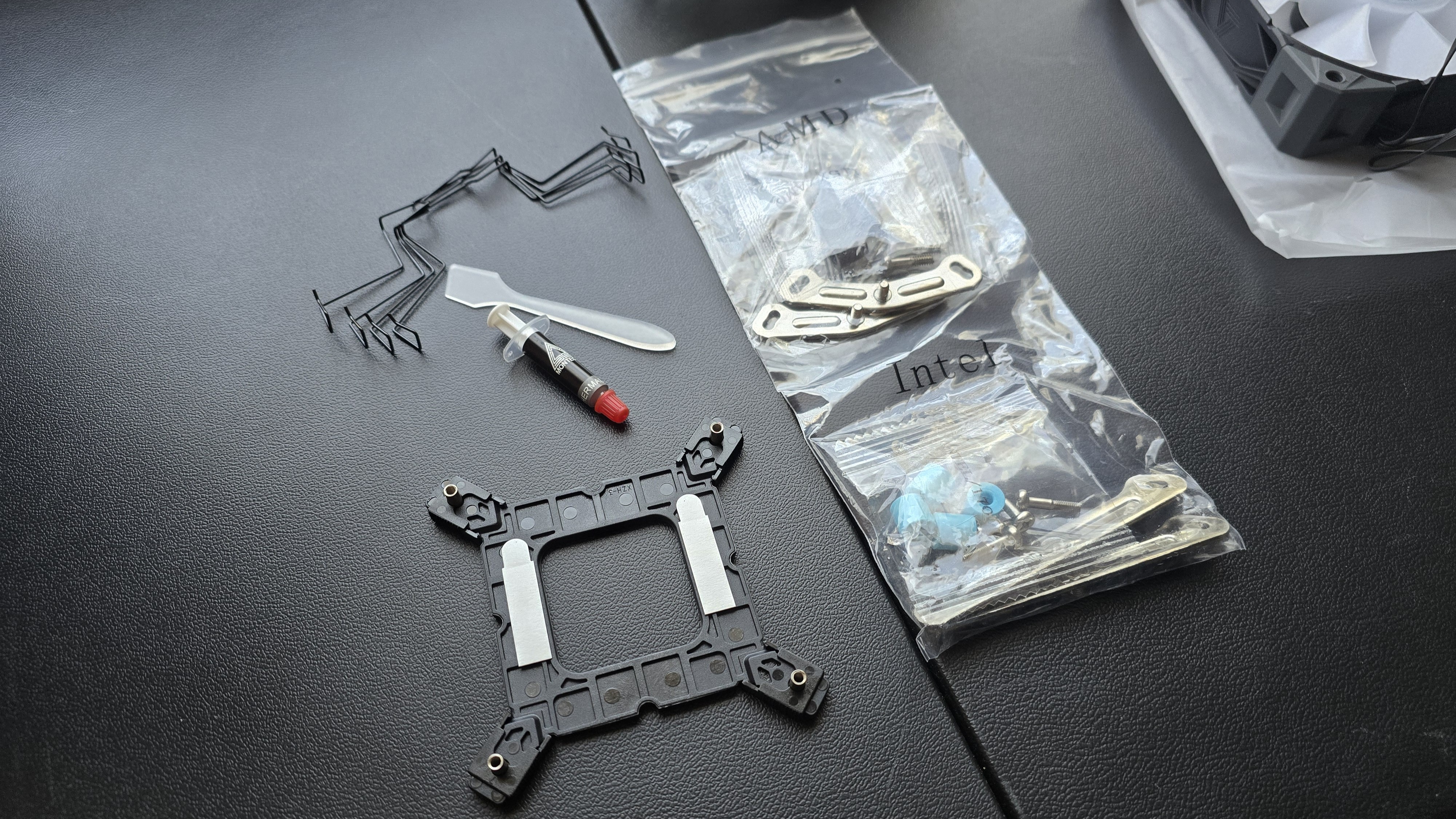
Included with the package are:
Mounting hardware for AMD and Intel platforms
120mm fans
Thermal paste
Magnetic Penrose triangle
Bending tube clips
(Image credit: Tom's Hardware)
▶️ MSI MEG CORELIQUID E15 360 AM5 Installation
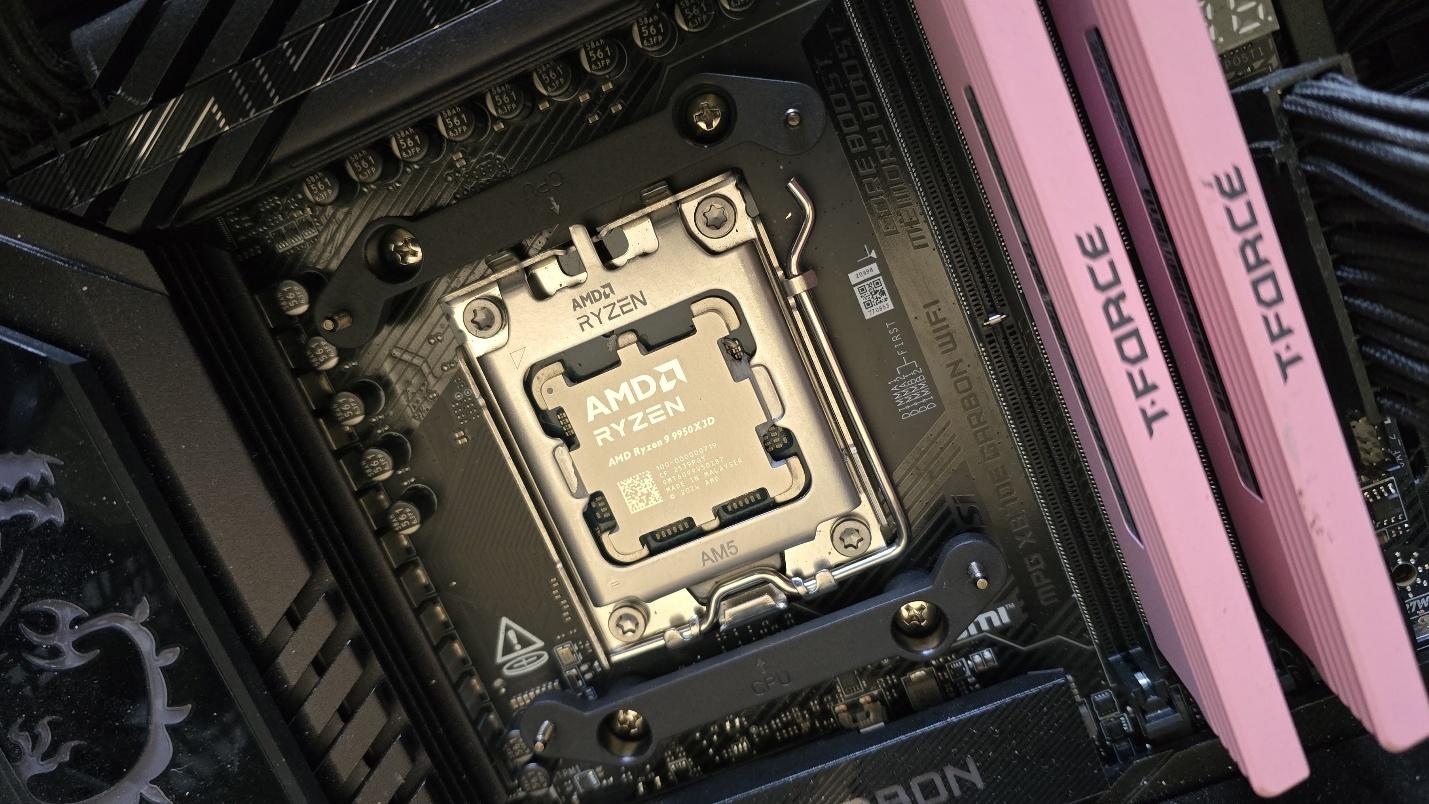
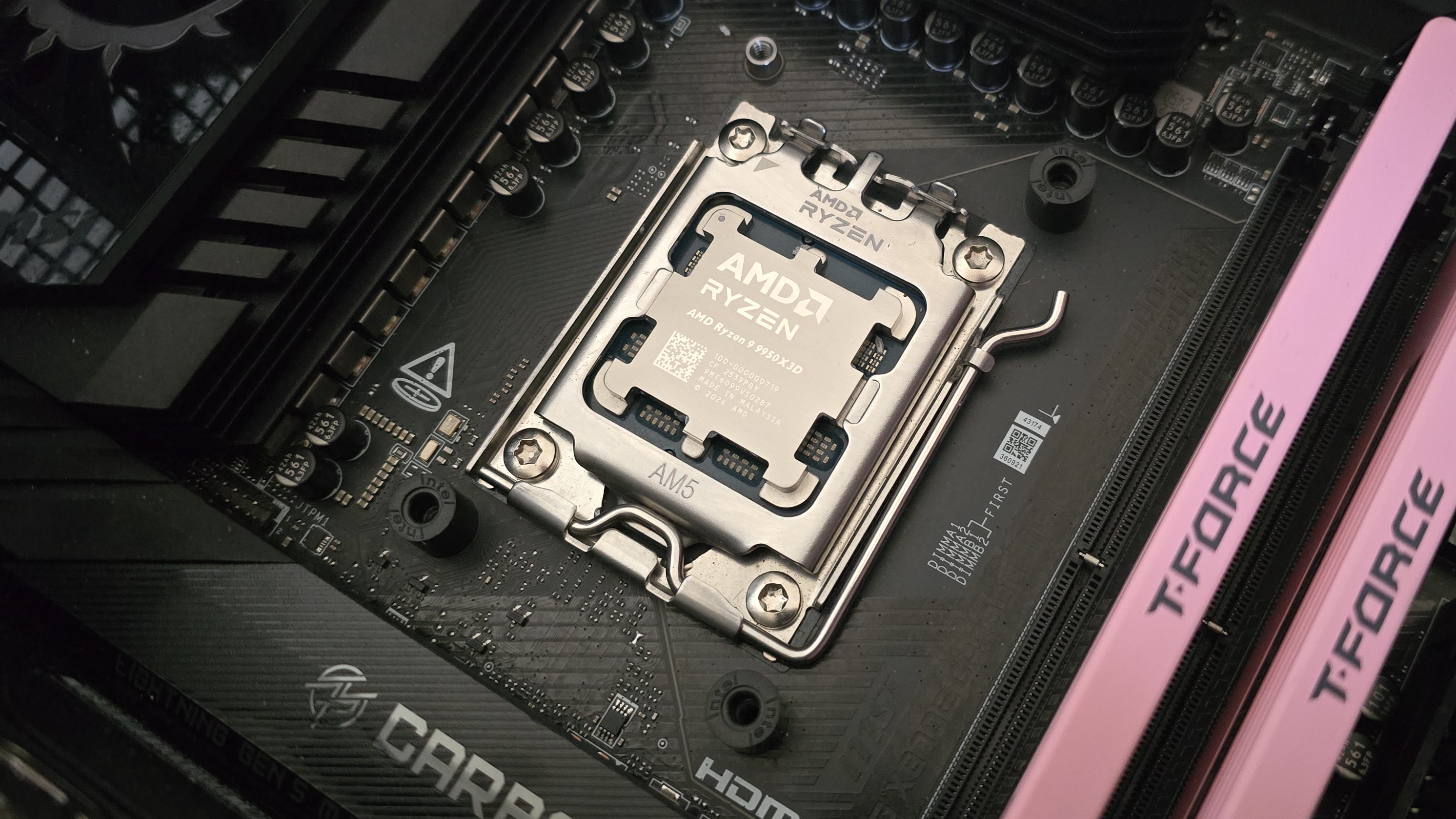
To begin putting things together, you’ll first need to remove the default AM4/5 retention brackets and replace them with the included mounting bars for the AIO.
(Image credit: Tom's Hardware)
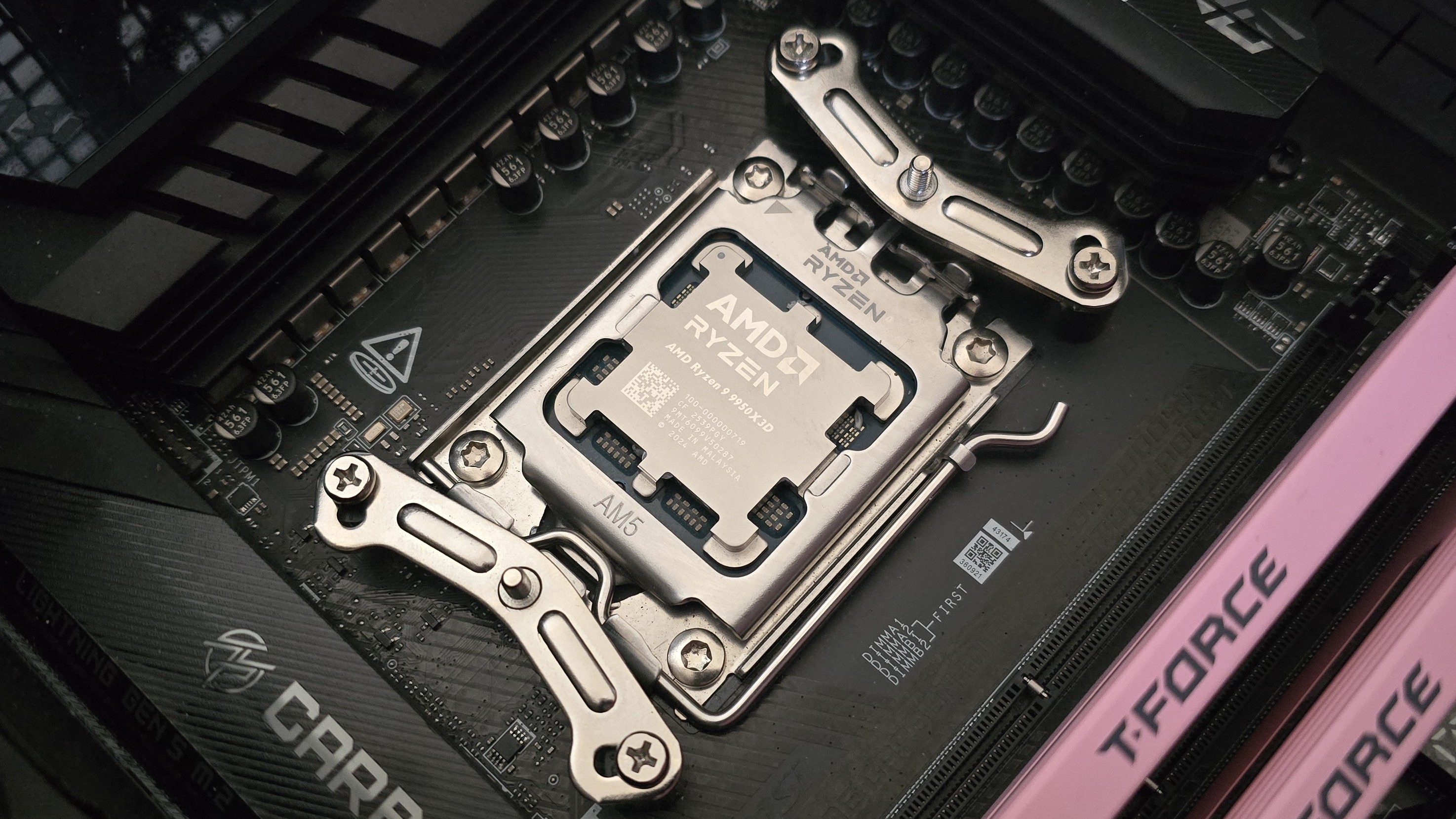
Next, take the mounting bars and secure them with the included screws.
Now it’s time to apply the thermal compound. If you’re not sure how to do that, we have a handy thermal paste application guide that covers the different methods you can use.
After thermal paste is applied, take the CPU block and press it against the mounting bars, using the built-in screws to secure it in place.
(Image credit: Tom's Hardware)
At this point, you’re mostly good to go. You can leave the AIO set up as above if you want, but most users will want to take off the cover from the CPU block and place the screen on top of it instead.
(Image credit: Tom's Hardware)
The final step, of course, is to connect the AIO’s cables – ARGB, USB, and PWM.
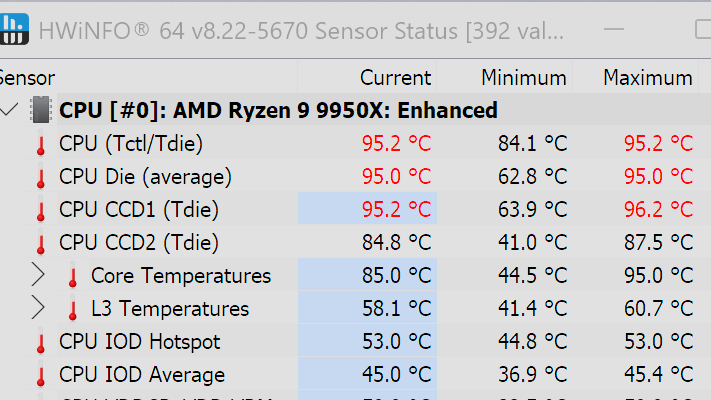
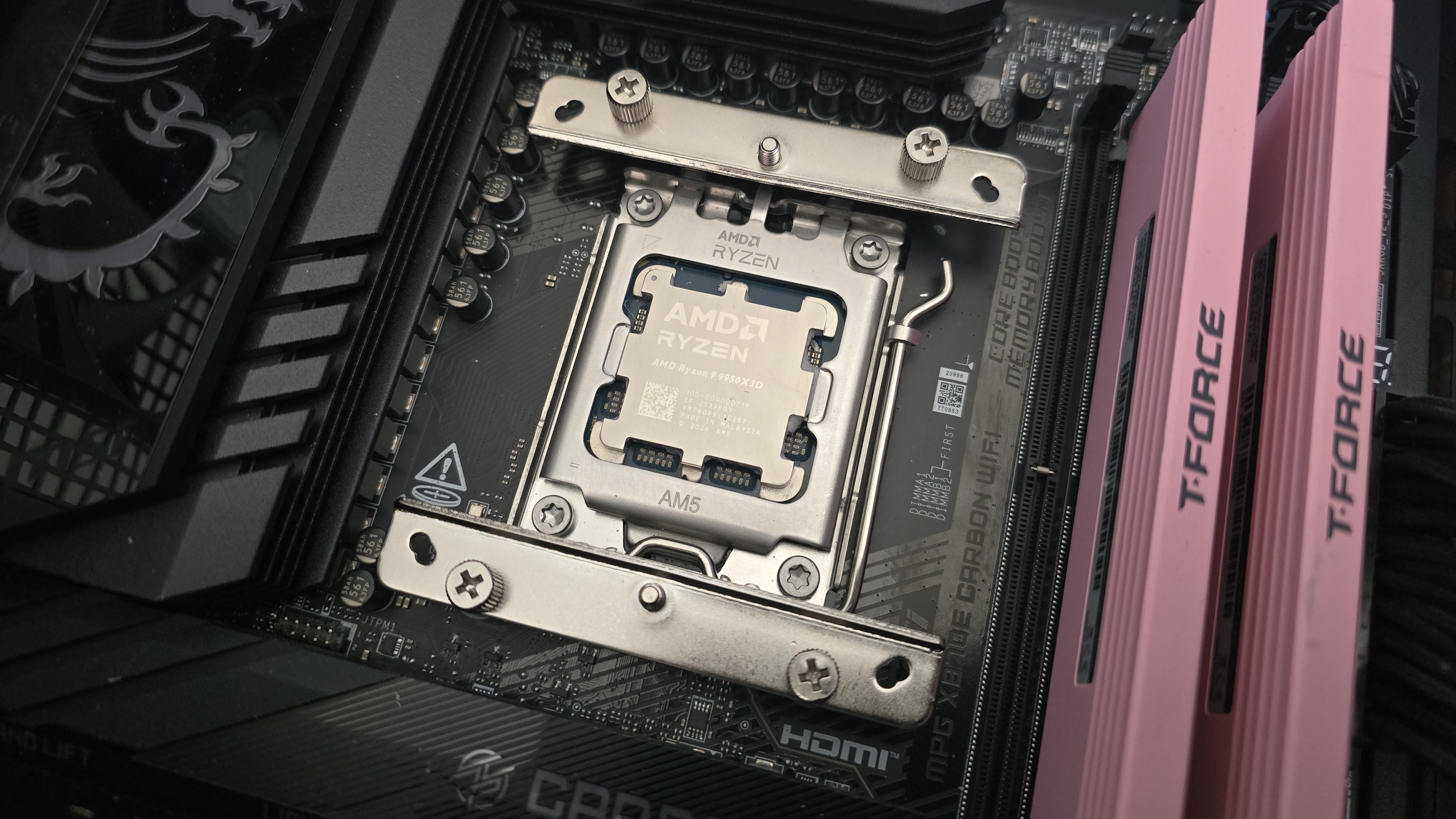
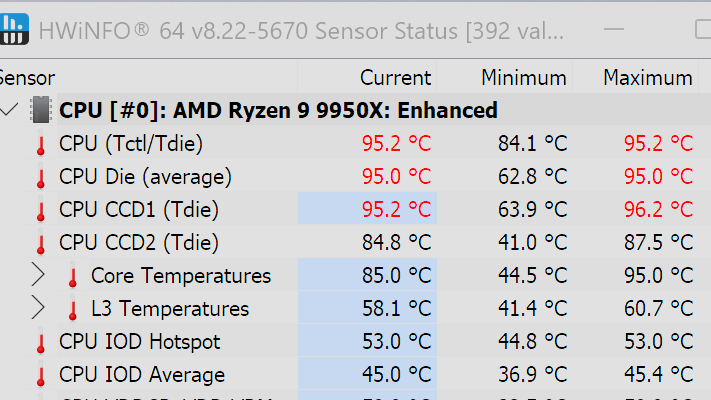
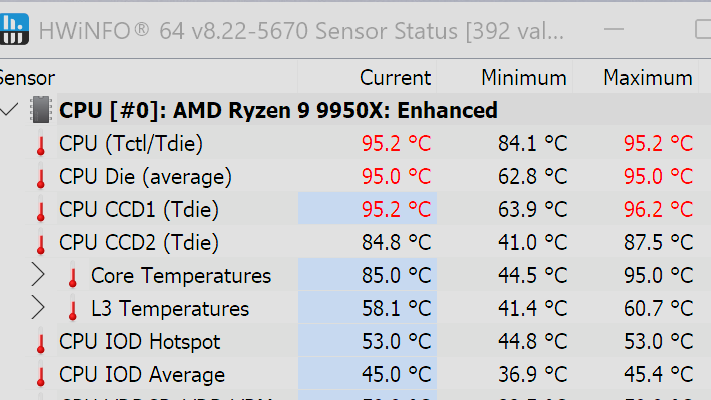
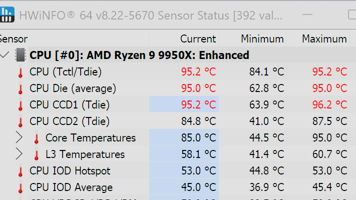
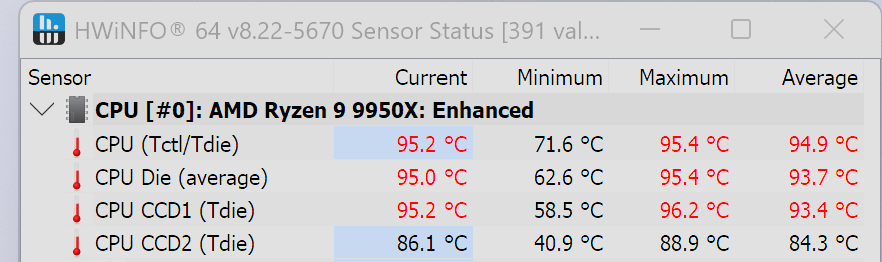
We’ve tested coolers with both the Ryzen 9950X3D and its non-V-Cache sibling, the 9950X. There are some differences in how the 9950X and 9950X3D CPUs are impacted by thermal events. While the heat output of the CCDs of AMD’s 9950X3D is relatively balanced, the 9950X I used has one CCD that runs much hotter than the other, with a difference of over 10 degrees Celsius in some scenarios, shown below.
(Image credit: Tom's Hardware)
We’ve since returned to using a 9950X3D for cooler testing, as it has a more balanced heat profile, and is almost certainly a more widely adopted CPU. The benchmark results shared in these reviews may differ from others because I emphasize results that are comparable to real-world use. This means I generally test CPU coolers inside of a closed desktop case, which increases cooling difficulty compared to other testing methods.
Many reviewers test coolers on open test benches, which have a combination of lower airflow needs and lowered ambient temperatures. This can make weak coolers appear stronger than they really are. Some publications have also used generic thermal plates to test cooling solutions. I reject both of these methods because they don’t accurately reflect real-world cooler conditions.
CPU
AMD Ryzen 9 9950X3D
GPU
MSI Ventus 3X RTX 4070Ti Super
RAM
TeamGroup Diamond Rose T-Force Xtreem DDR5-7200
Motherboard
MSI X870E Carbon Wifi
Case
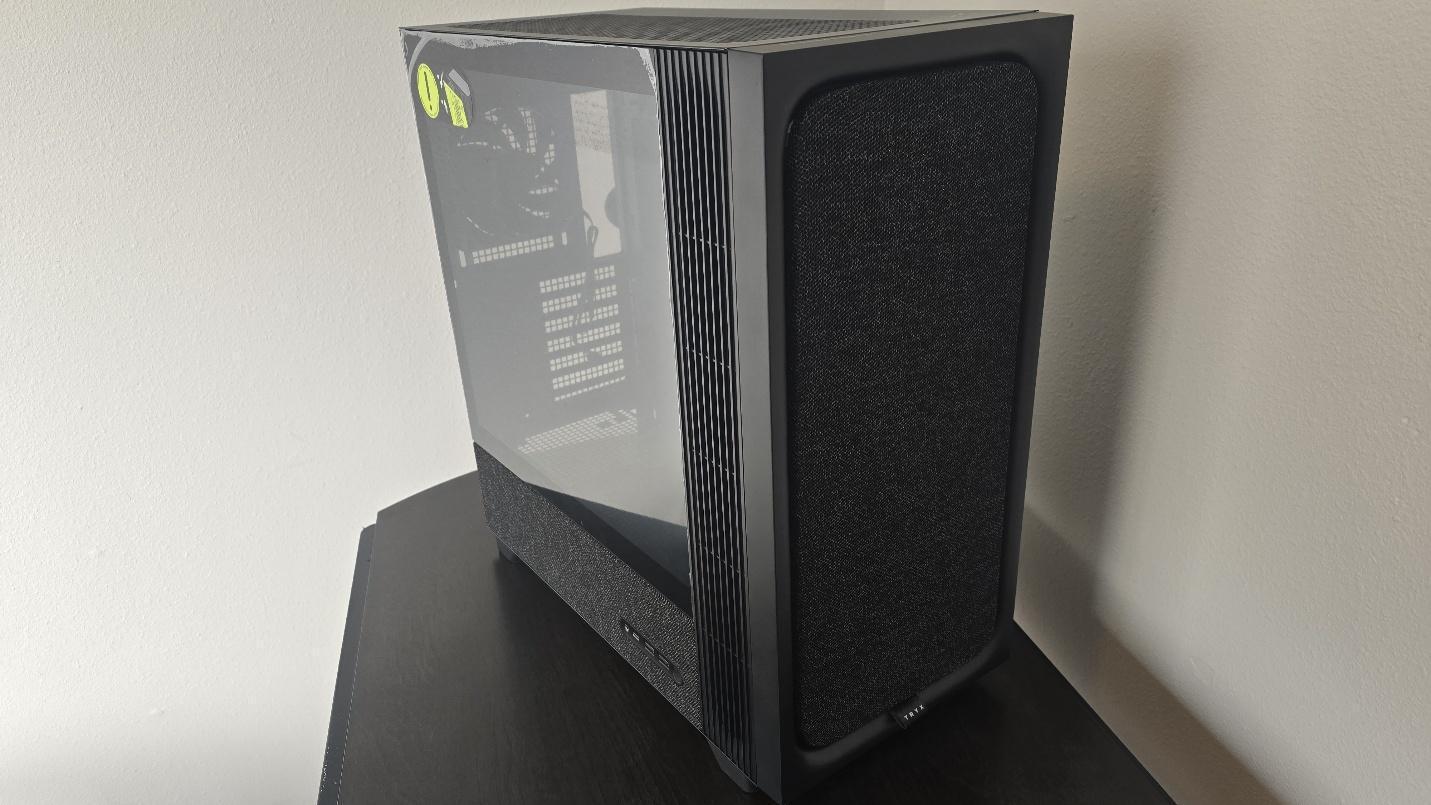
Tryx FLOVA F50
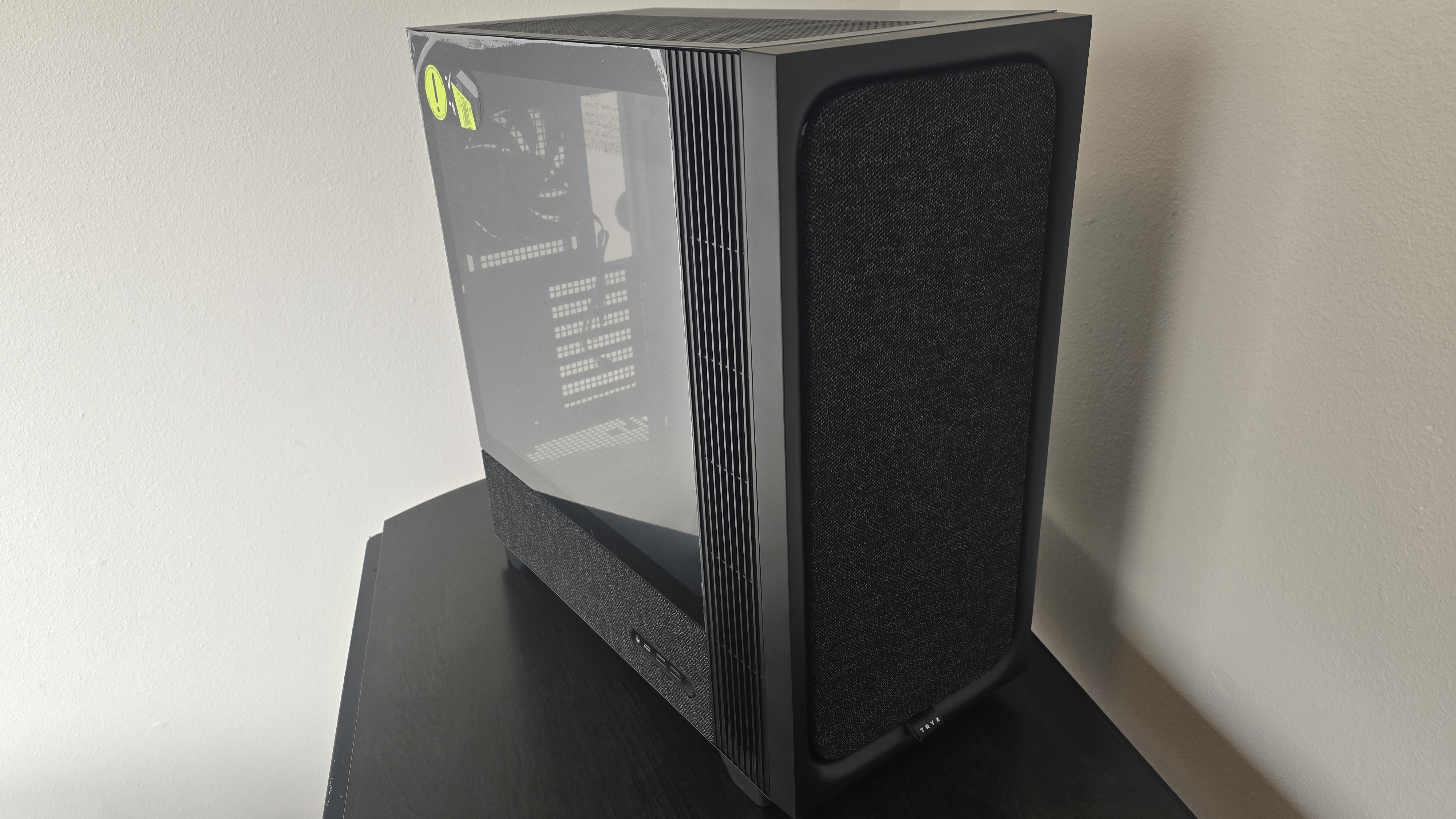
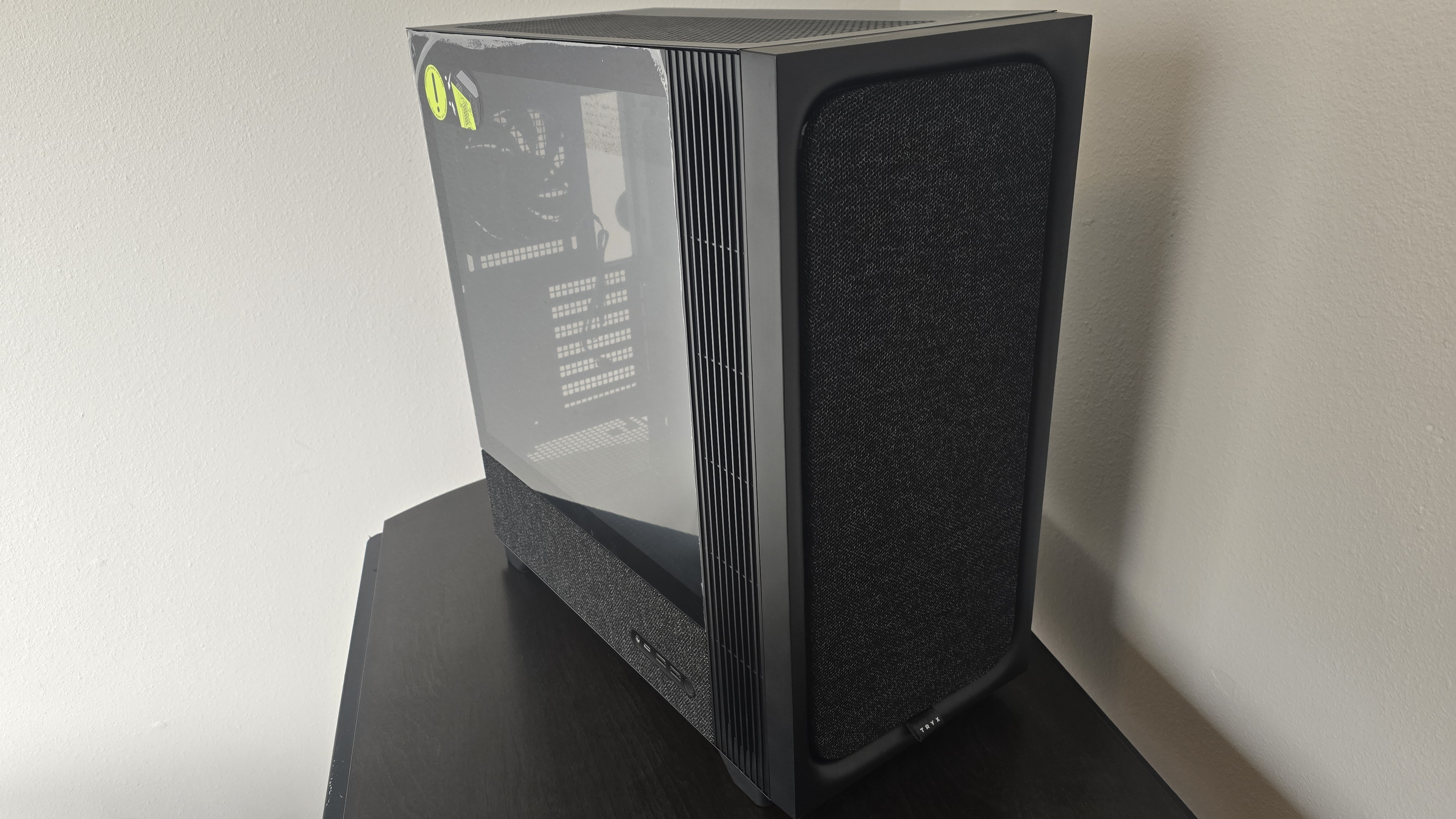
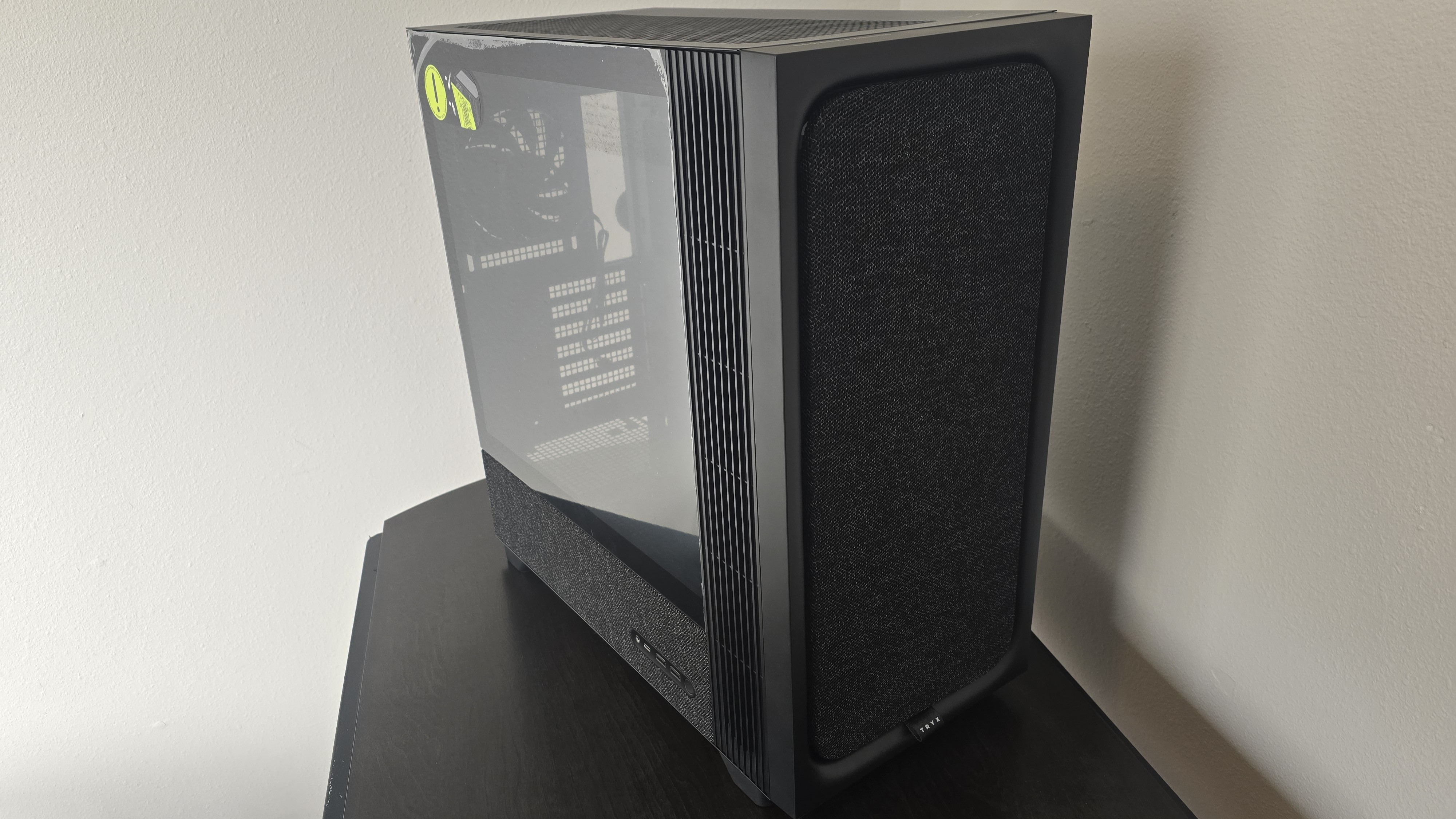
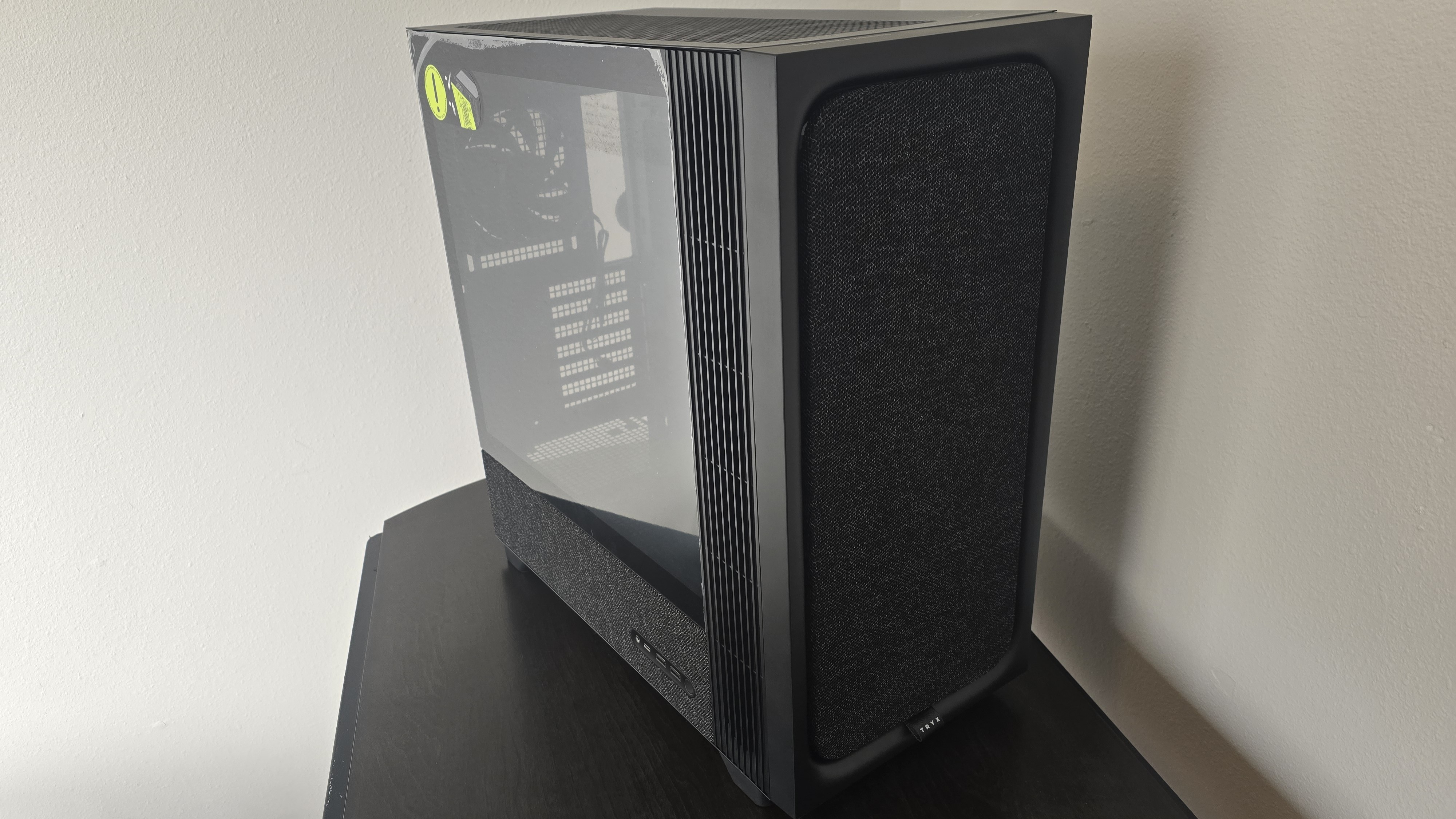
Our latest testing setup uses the FLOVA F50 computer case from Tryx.
(Image credit: Tom's Hardware)
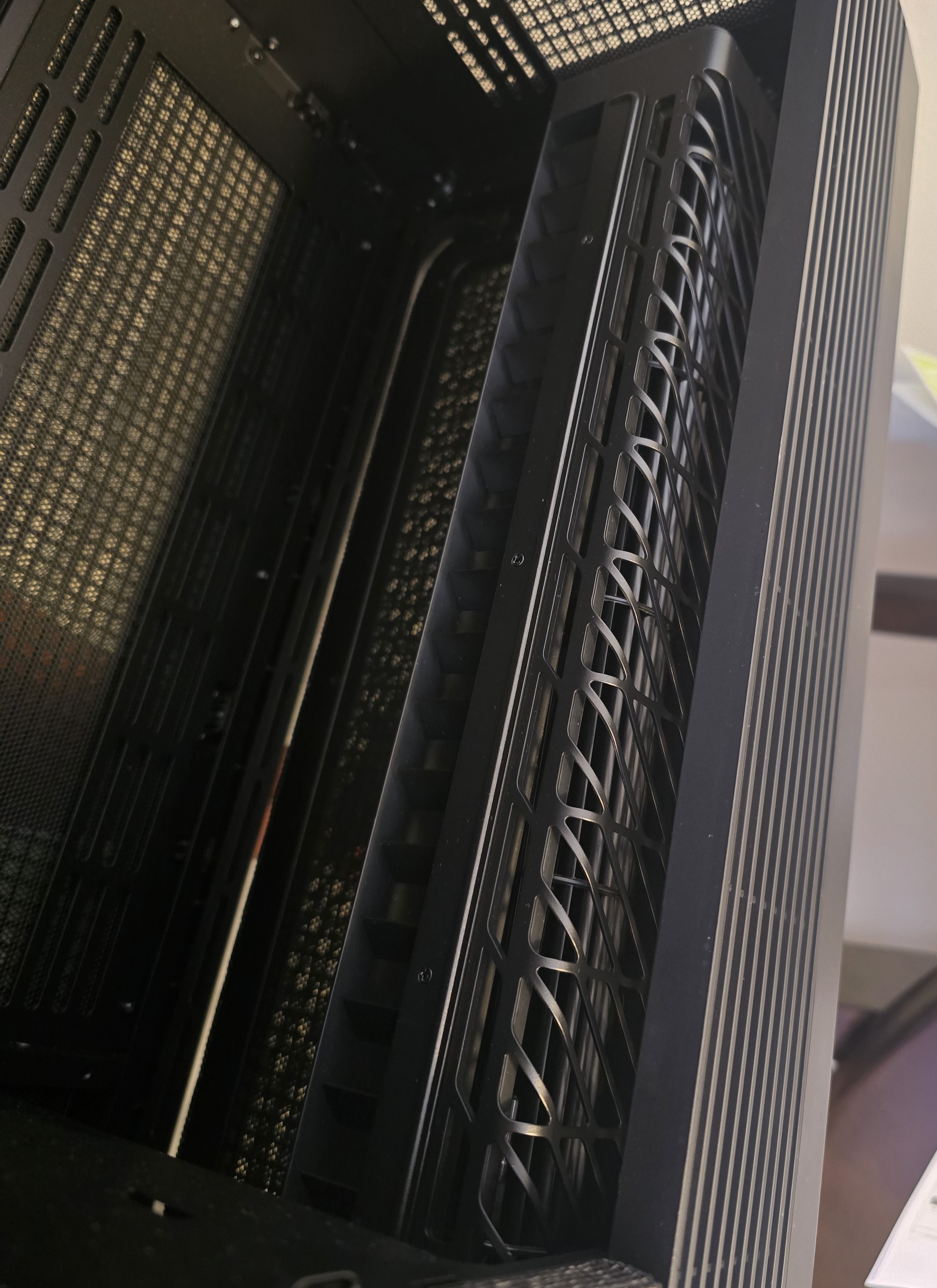
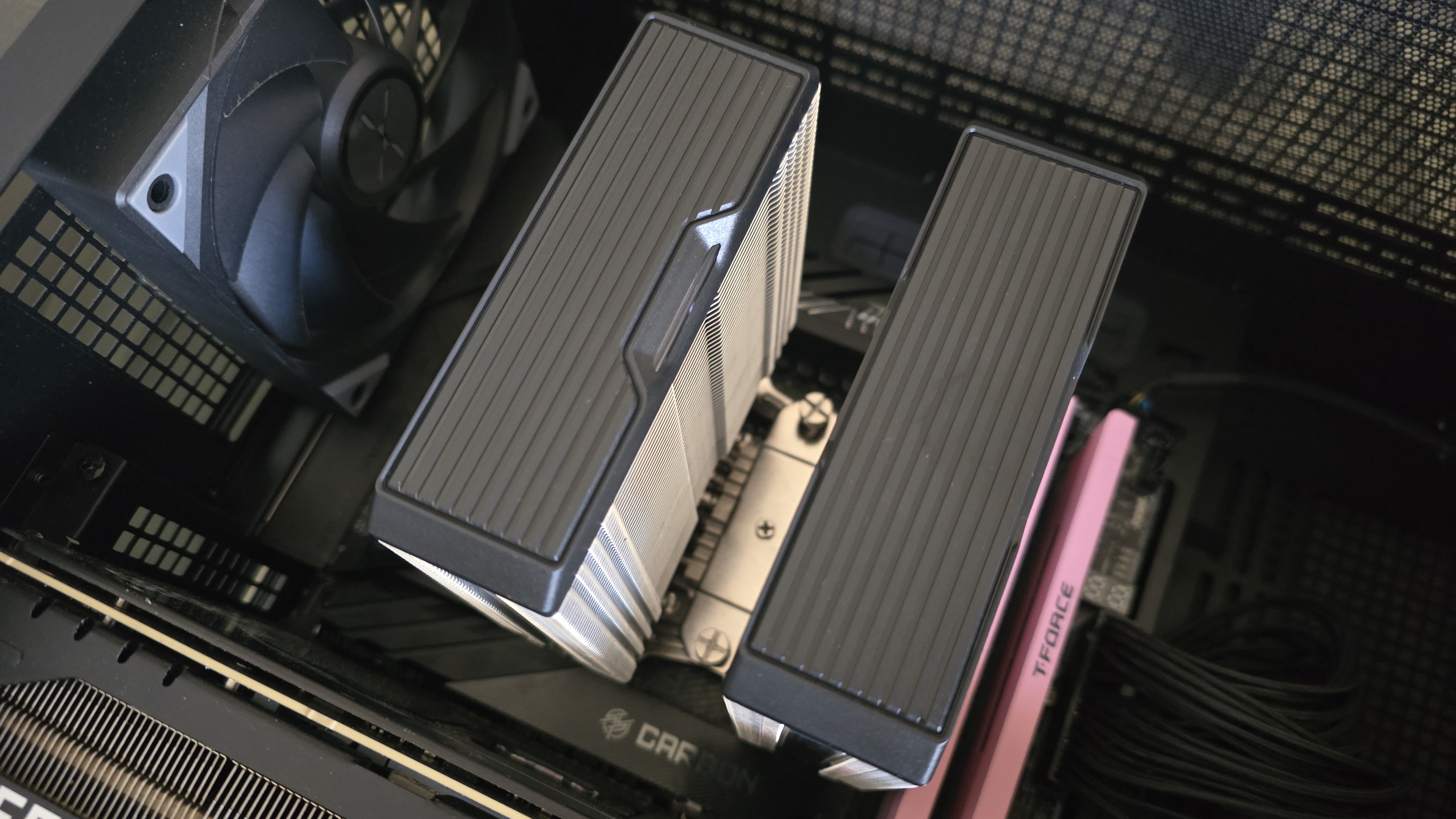
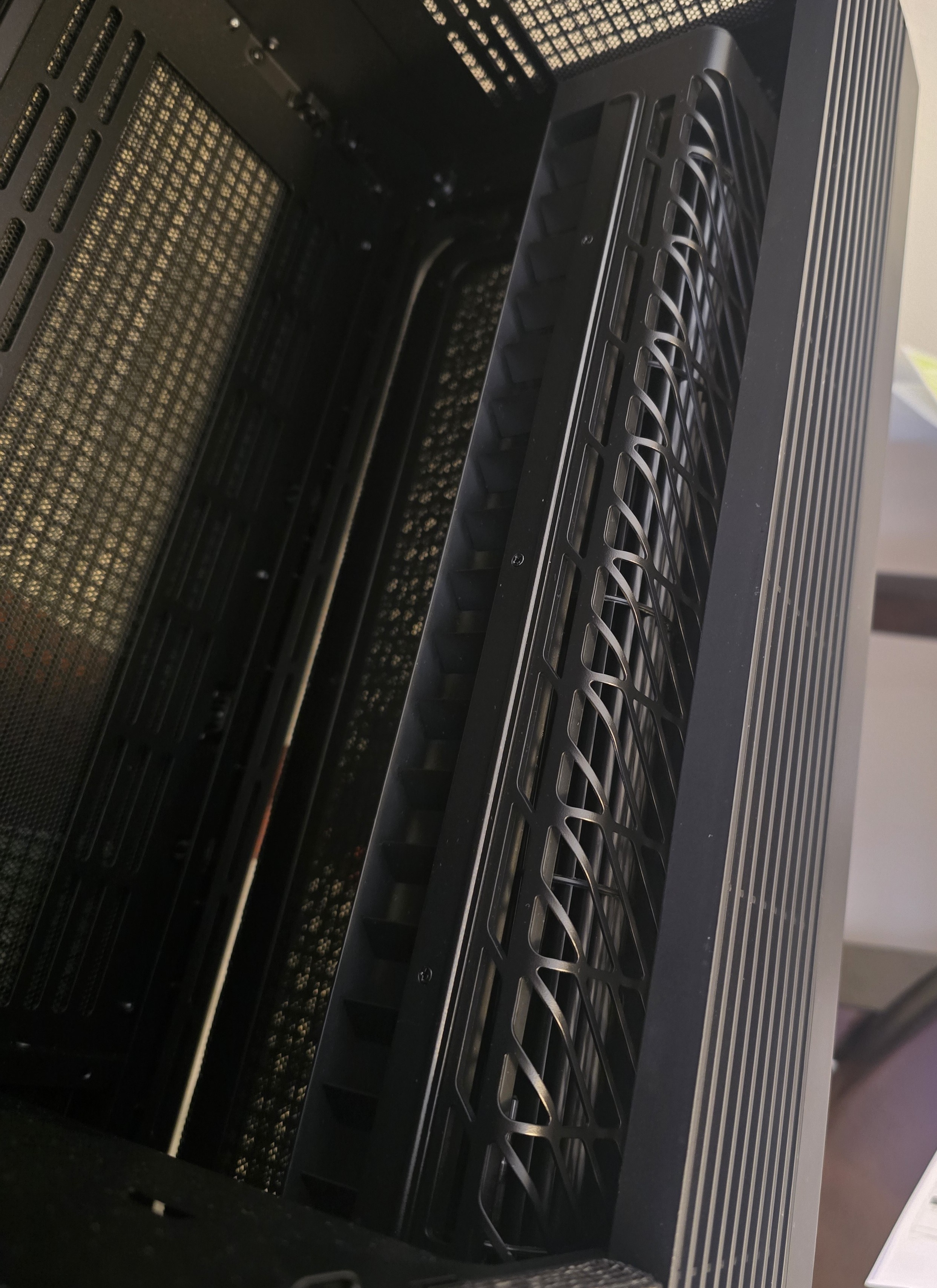
This case features a unique “crossflow” fan that pulls air from the side, which the company claims is more effective than traditional intake fans. For air cooling tests, we’ve added a single Noctua NF-A12 G2 intake fan.
PBO Performance and maximum noise levels
We’re going to start this review’s benchmark section by focusing on a traditional maximum performance test, with the CPU cooler’s fans allowed to reach their fastest speeds, for the best cooling possible.
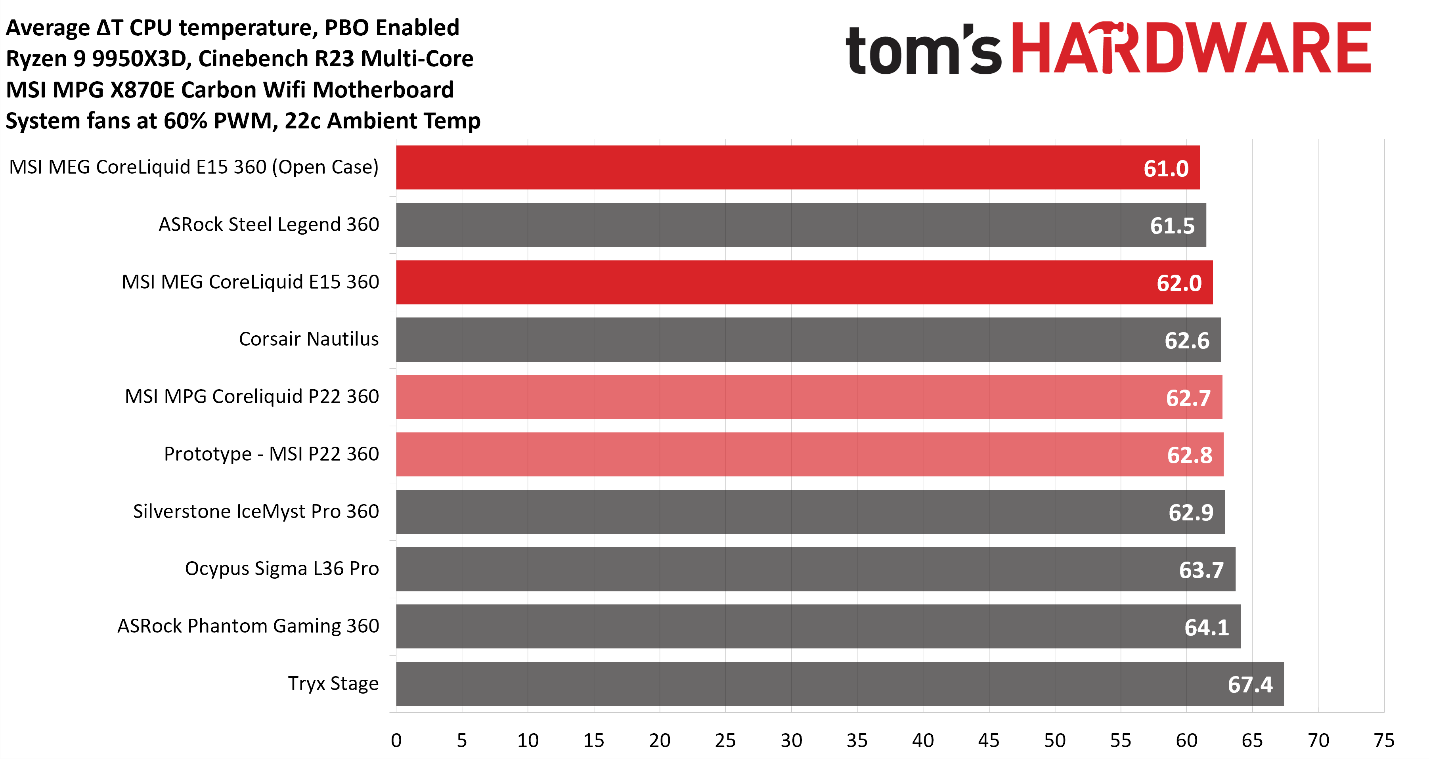
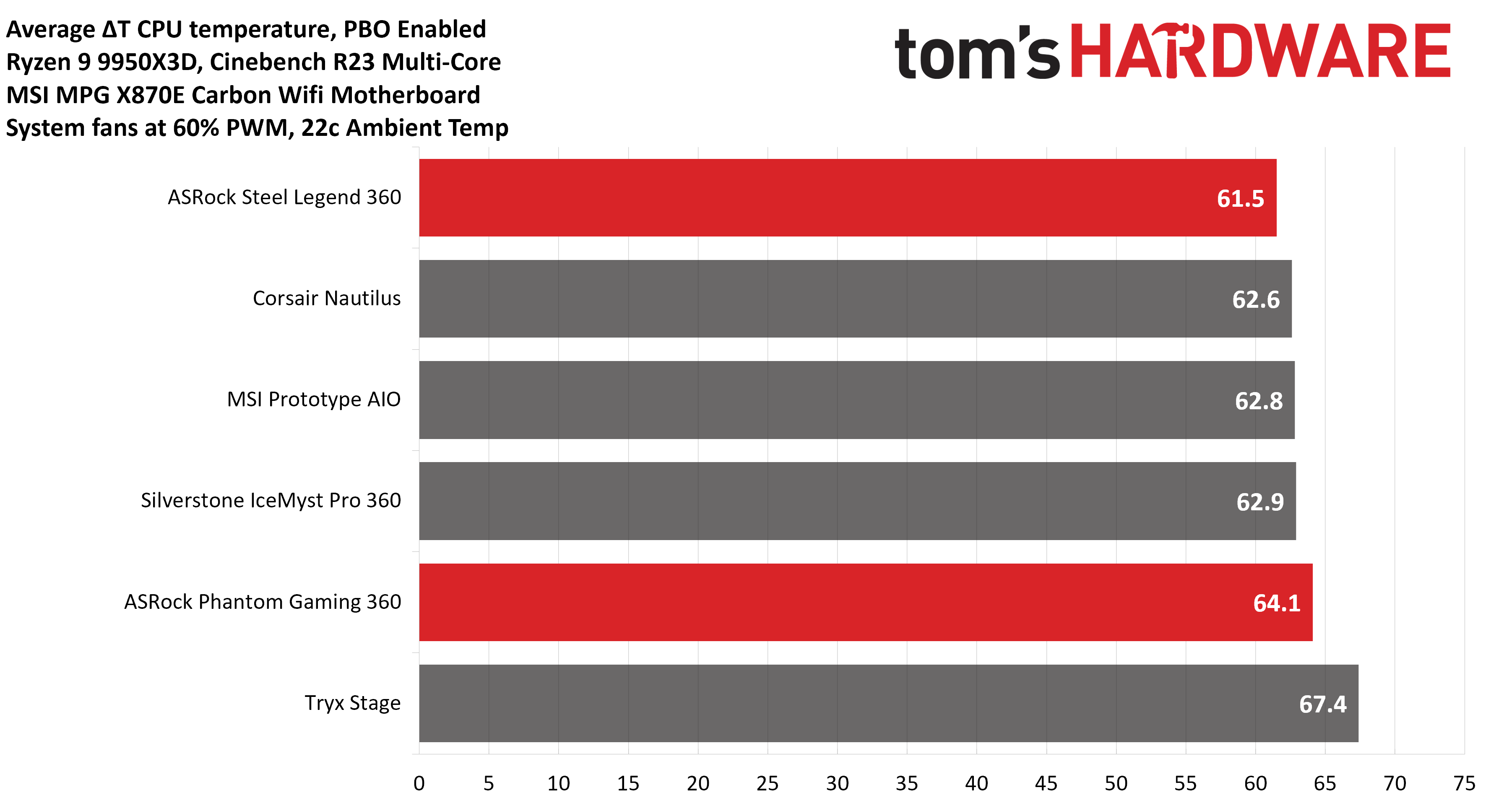
Turning on PBO allows AMD’s Ryzen 9 9950X3D to stretch its legs and consume over 260W. Enabling PBO allows for high power consumption and heat output. When using MSI’s X870E Carbon Wifi motherboard, the CPU will reach its TJ Max (peak temperature) of 95 degrees C (203 F) and thermally throttle, to some extent, with most coolers. When this throttling occurs, I’ve measured the average power consumption to determine performance.
(Image credit: Tom's Hardware)
I’ve highlighted the performance of the MEG CoreLiquid E15, the P22, and the prototype P22 to demonstrate how MSI has been continuously improving the thermal performance of its AIOs. The MEG E15 has the second-best results in our current test bench, averaging 62 degrees Celsius over ambient (84 C). Out of curiosity, I also tested the thermal performance to see how better temperatures might perform with an open case – and surprisingly, there was only a single degree’s difference.
(Image credit: Tom's Hardware)
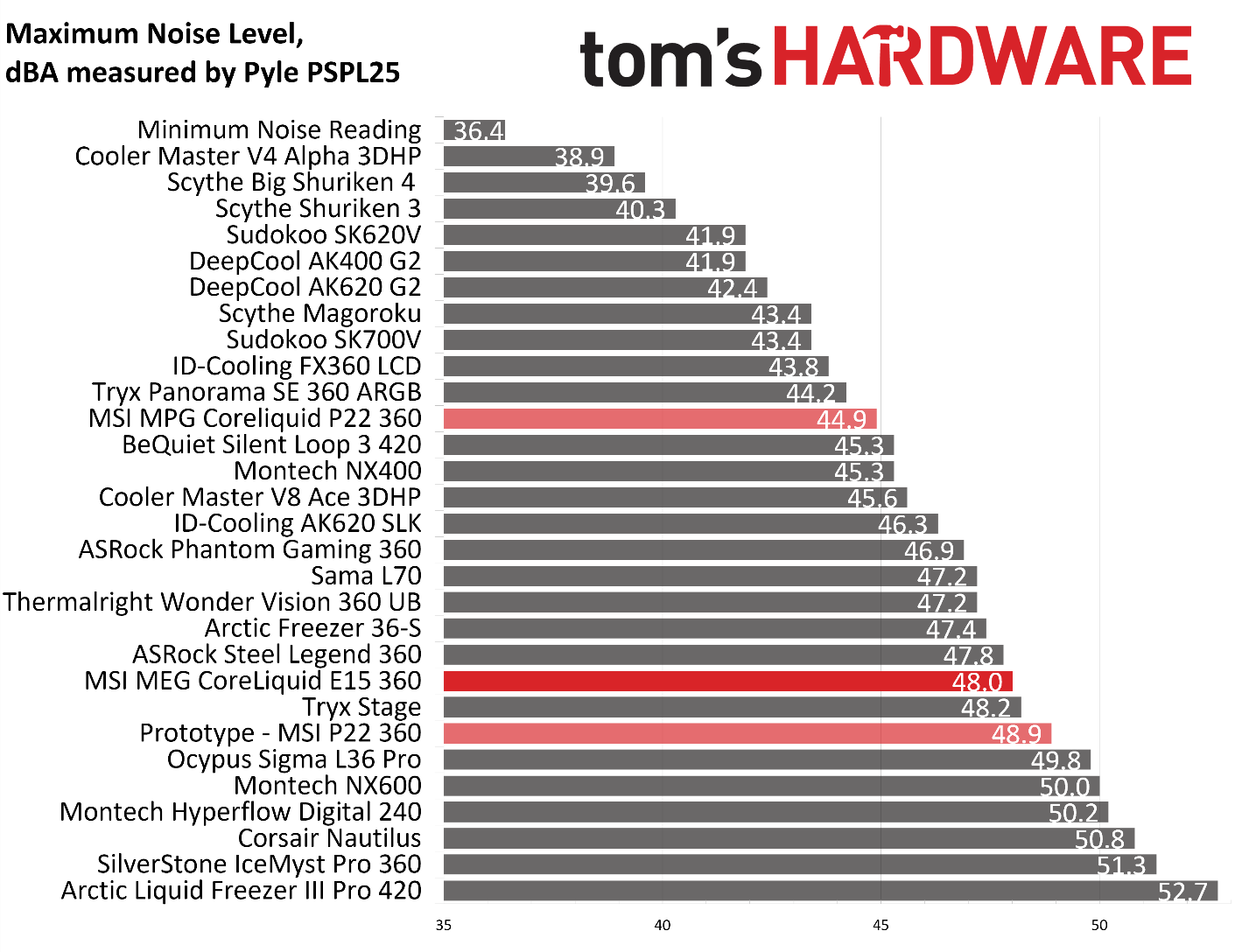
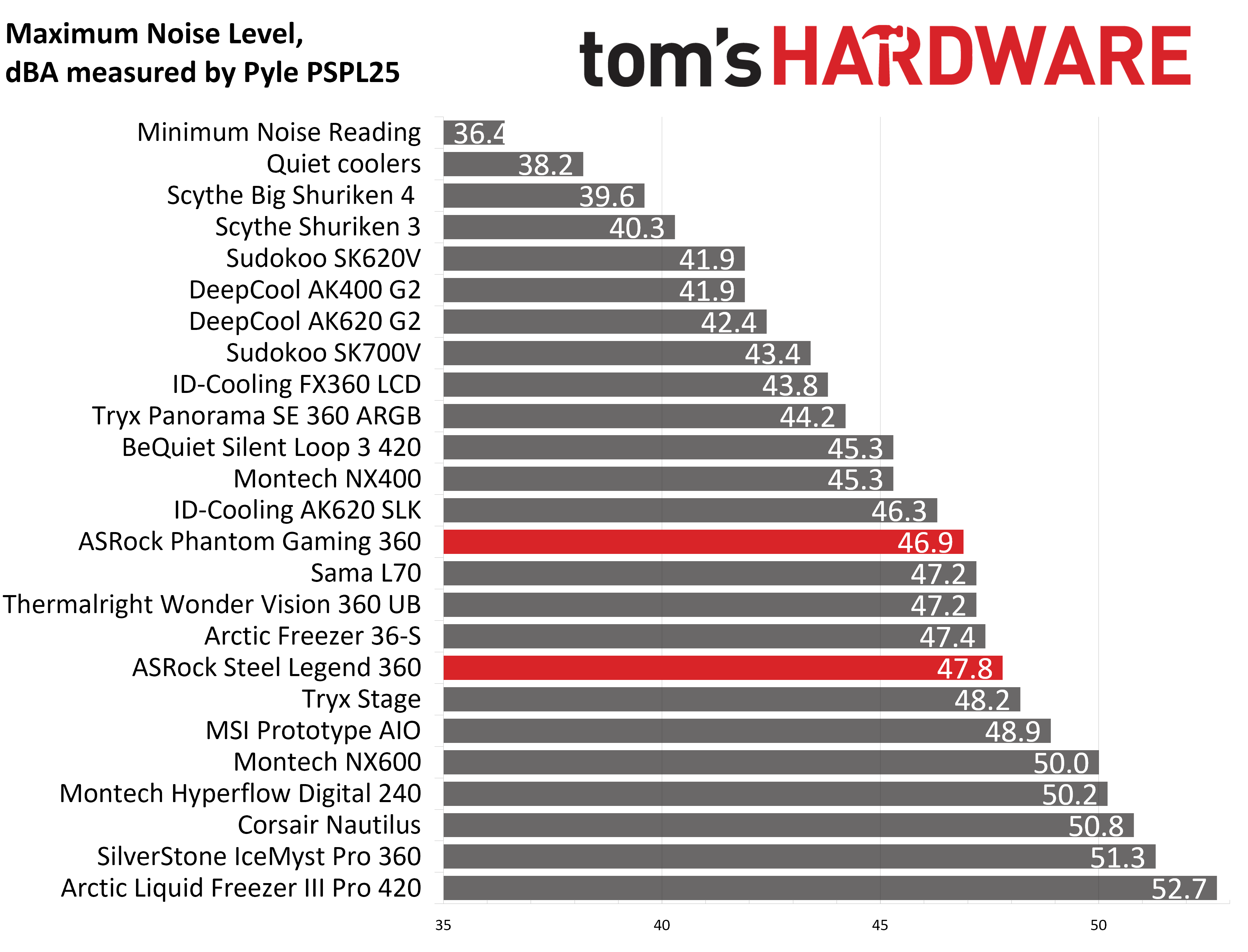
The maximum noise levels of this cooler are on the louder end, measuring 48 dBA. But to my ears at least, the the pitch of the cooler’s fans is soft, which makes the cooler feel quieter than how it measures.
200W thermal benchmarks
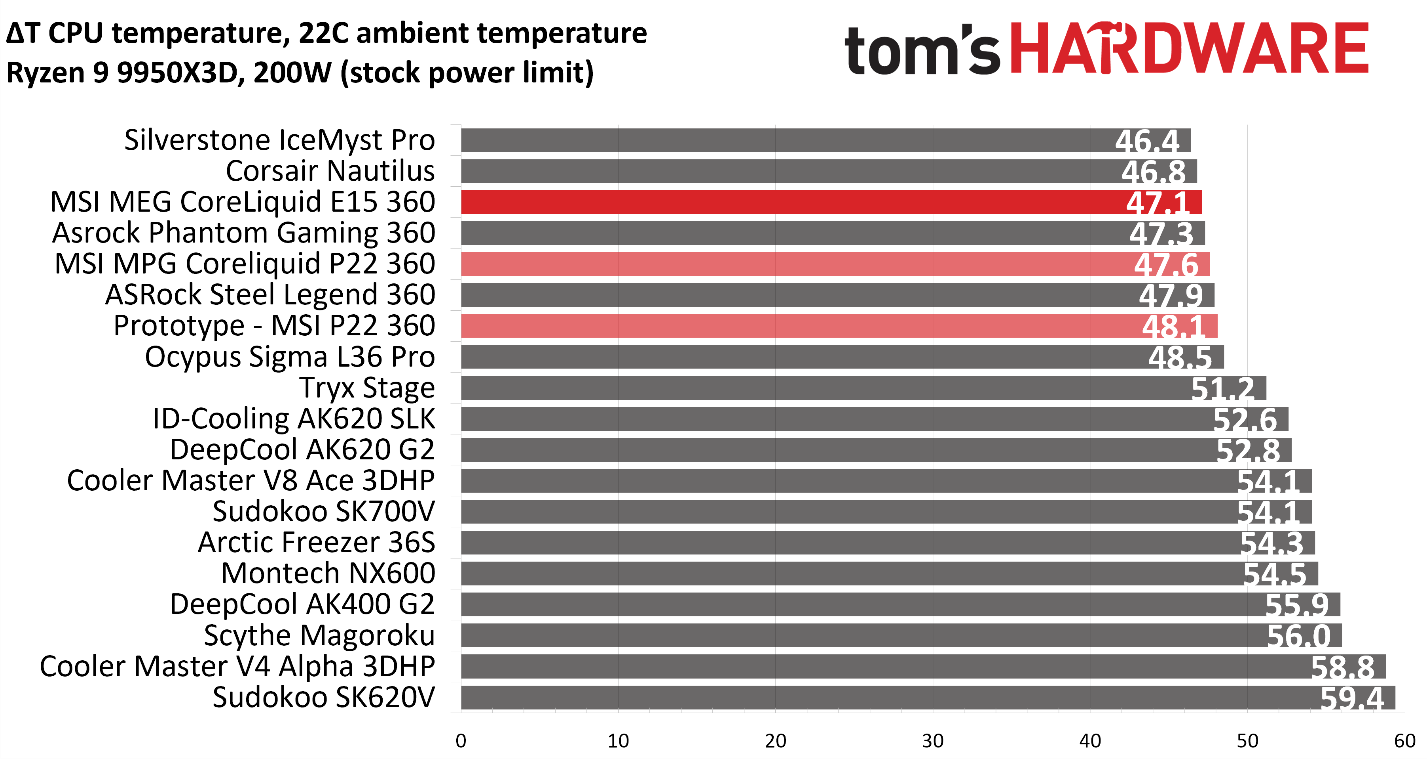
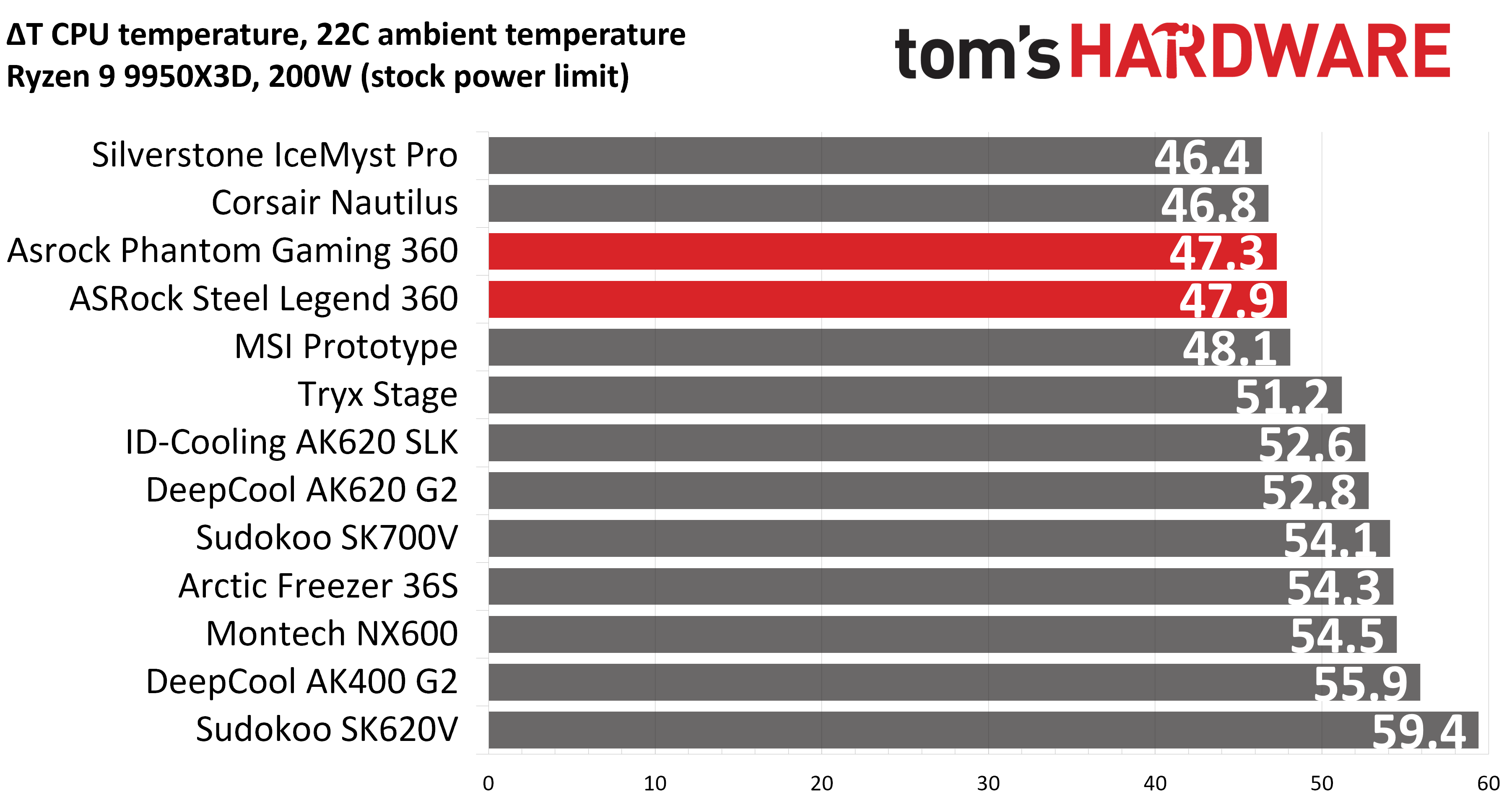
For the next thermal test, I leave the motherboard settings at their defaults, which results in a power limit of 200W when running Cinebench R23.
(Image credit: Tom's Hardware)
Thermal results in this scenario were similar to our first test, with MSI’s E15 being a top performer, holding the third-best results, averaging 47.1 C over ambient (69.1 C).
150W + GPU thermal results
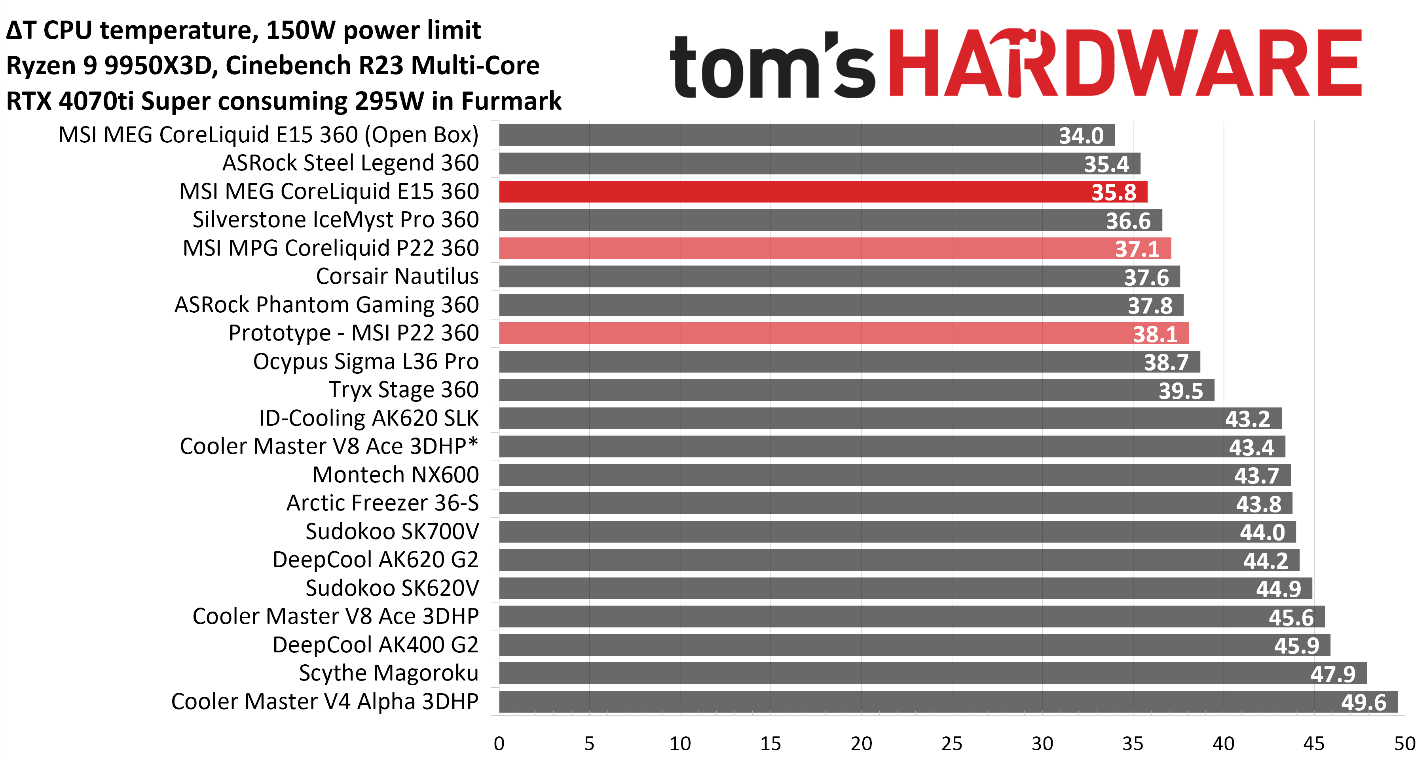
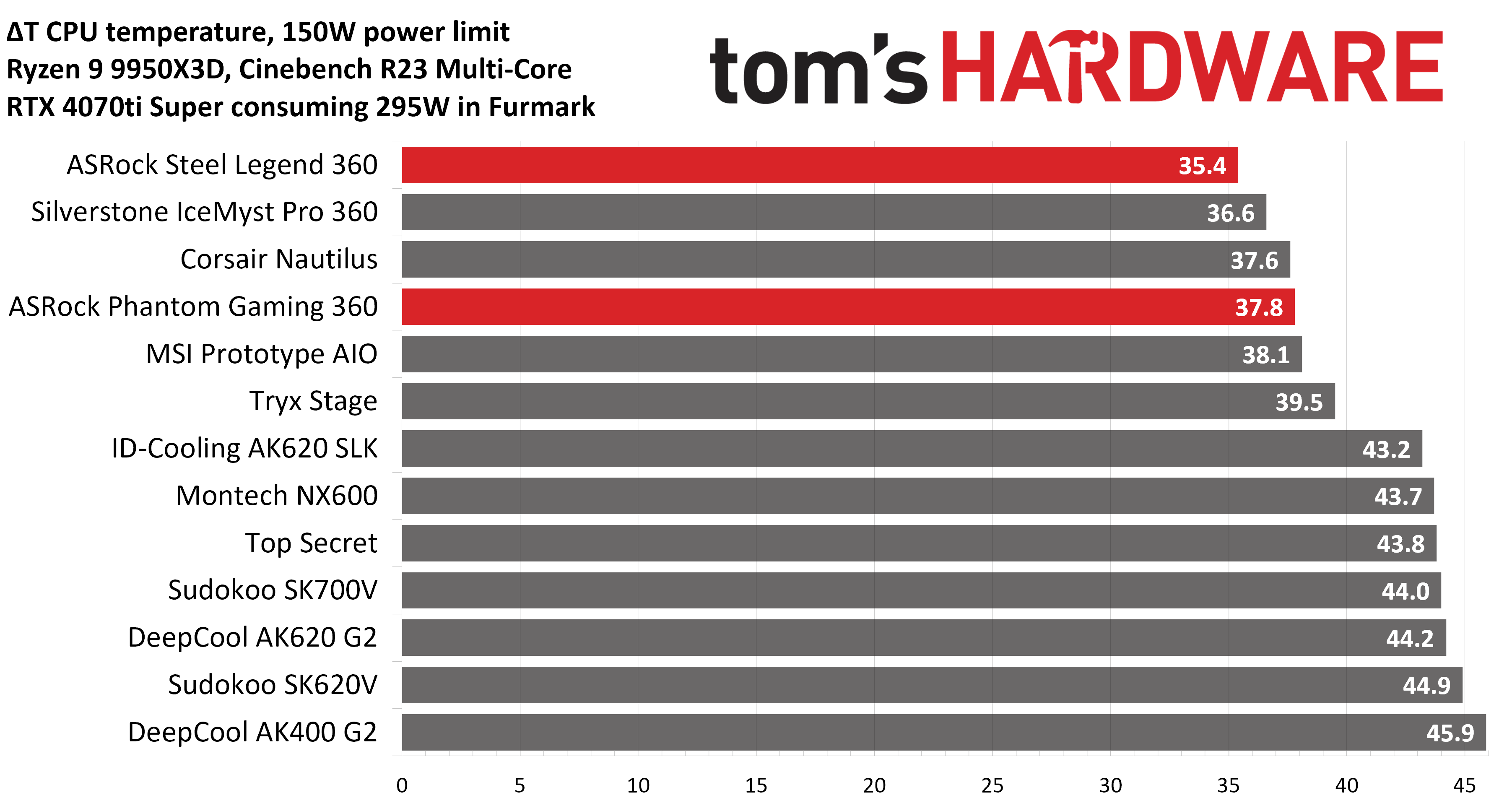
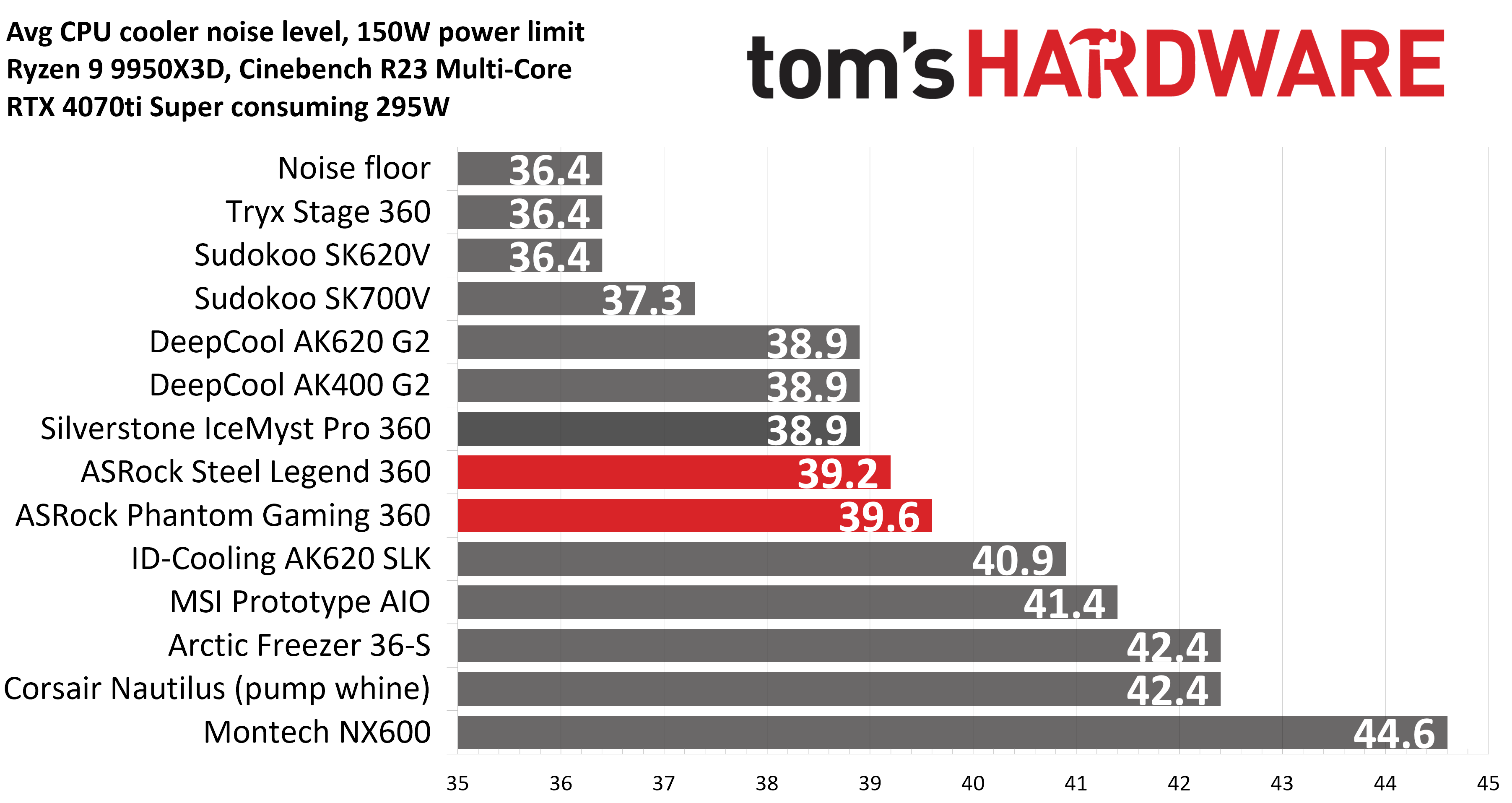
Our next test runs Cinebench on the CPU with a 150W power limit, while also running Furmark on MSI’s RTX 4070 Ti Super Ventus 3x OC. This causes the GPU to consume ~295W of power. This test is designed to emulate the thermals of games, which stress both the CPU and GPU.
(Image credit: Tom's Hardware)
MSI’s E15 AIO once again performs well here, with our second-place result when testing in our Tryx FLOVA F50 test bench. Out of curiosity, I also tested this AIO in an open case, which resulted in an additional thermal improvement of 1.8 C.
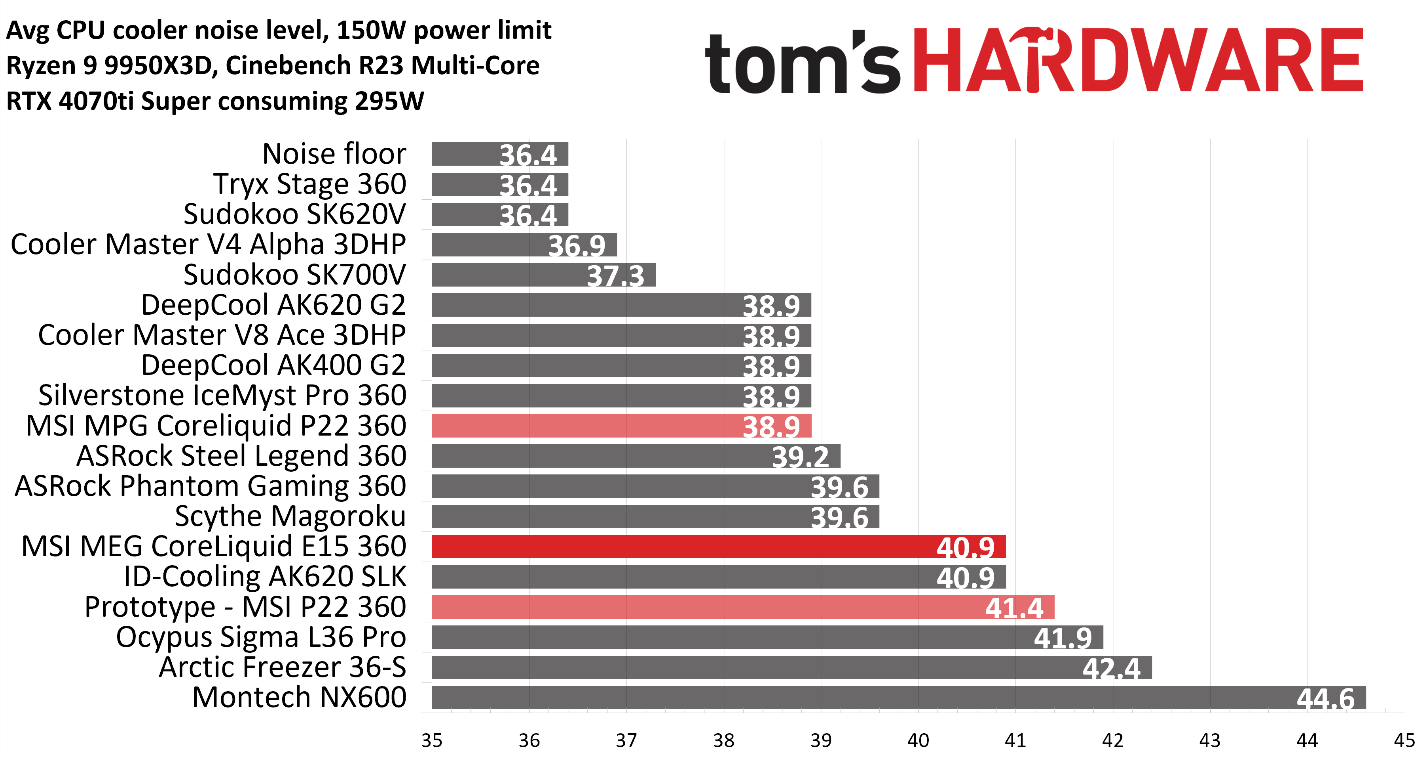
Noise levels in this scenario were moderate, registering at 40.9 dBA with our Pyle PSP25 sound meter.
(Image credit: Tom's Hardware)
Noise-normalized testing
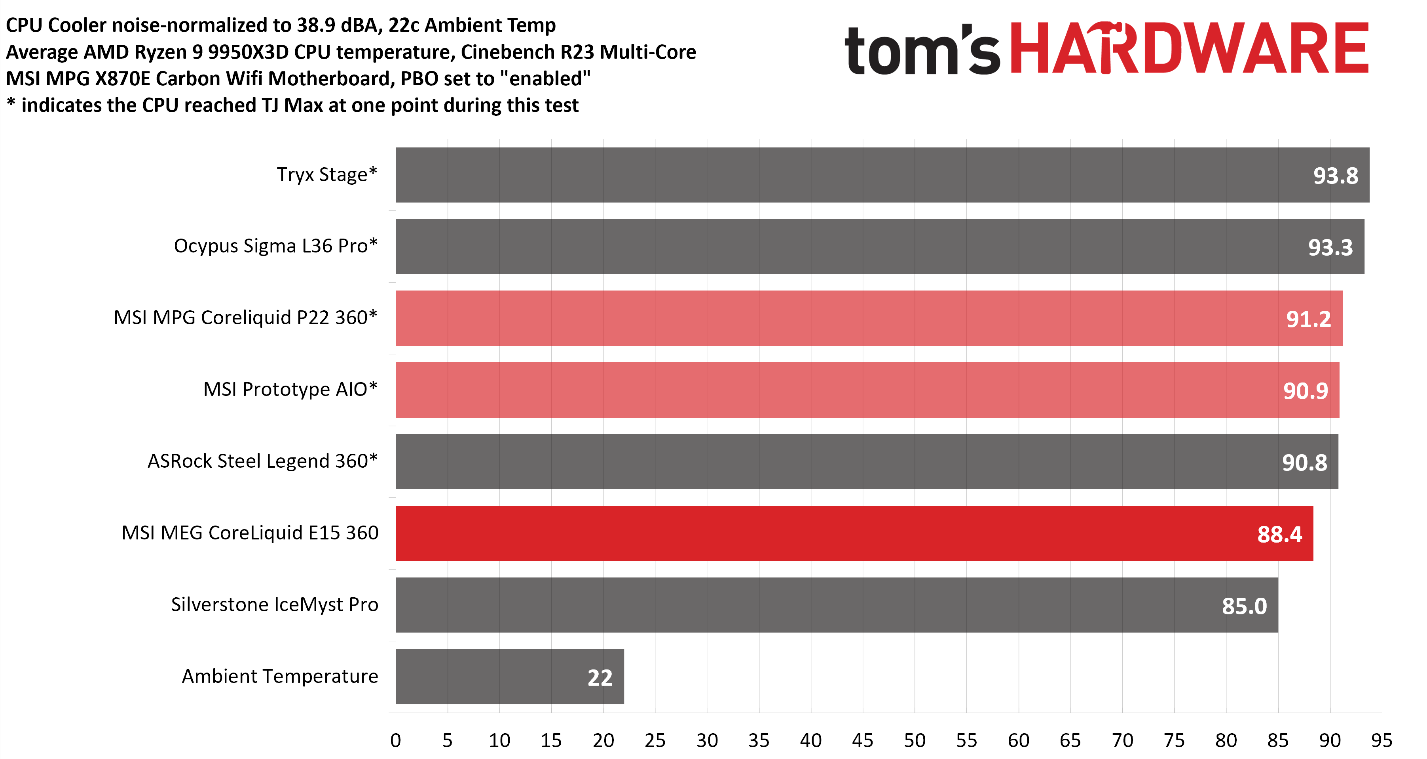
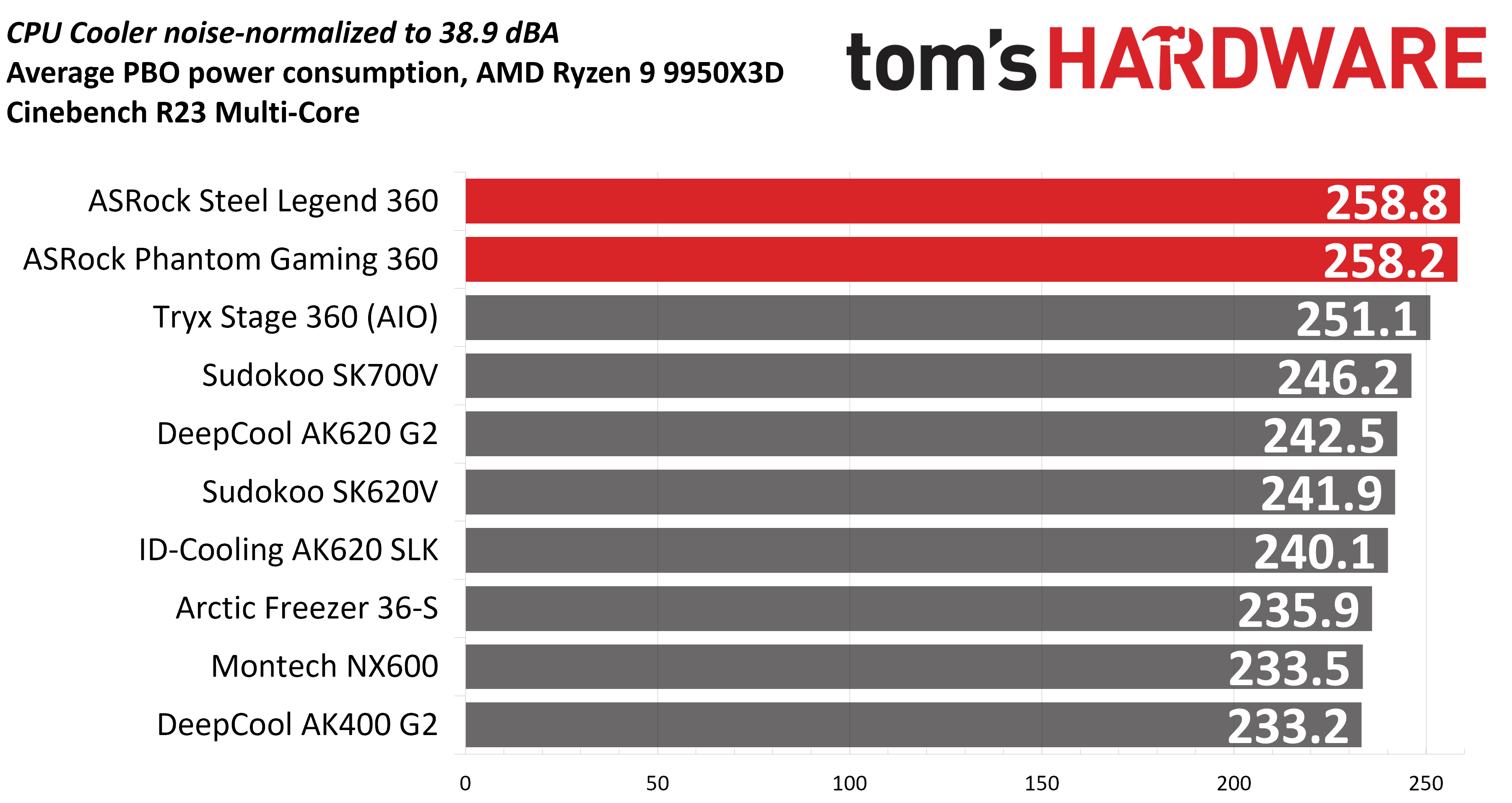
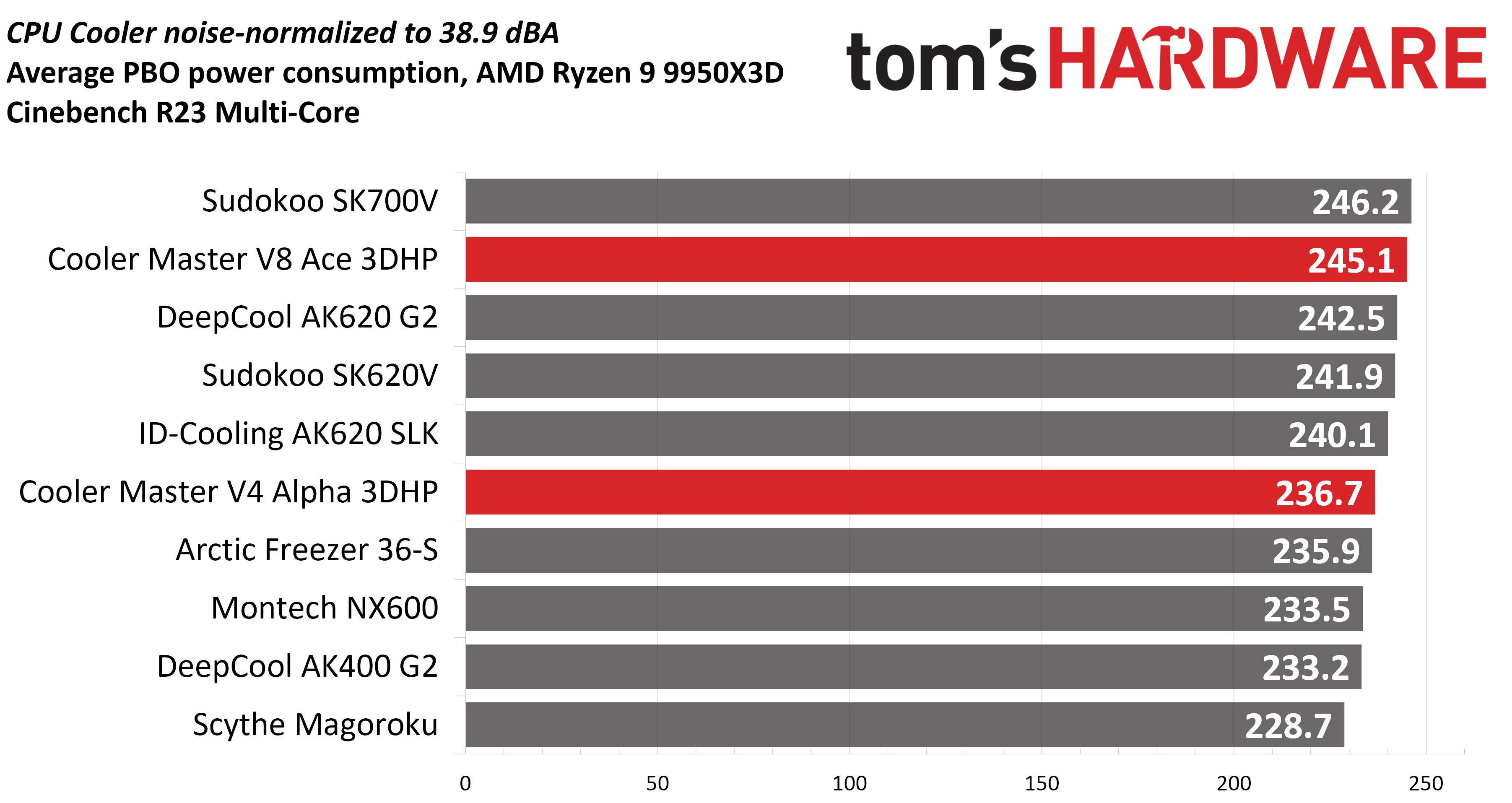
Most testing is performed with the cooler tied to the default fan curve of our MSI X870E Carbon motherboard, but some of y’all prefer to see tests when the noise levels of coolers are equalized. This is especially important to those of you who prefer silent computers. This next test has the CPU cooler noise-normalized to 38.9 dBA, with PBO enabled for the Ryzen 9 9950X3D CPU.
This test is especially difficult, because in addition to the reduced noise from the CPU cooler, our current test bench’s system fans are configured to run extremely silently, below the floor of the noise meter I use to measure dBA.
(Image credit: Tom's Hardware)
The results here are simply excellent. MSI’s E15 is one of the few AIOs on the market capable of keeping the CPU under TJ Max with PBO enabled in our current test bench, even when the noise levels of the fans are limited.
Karhu DDR5 RAM thermals testing
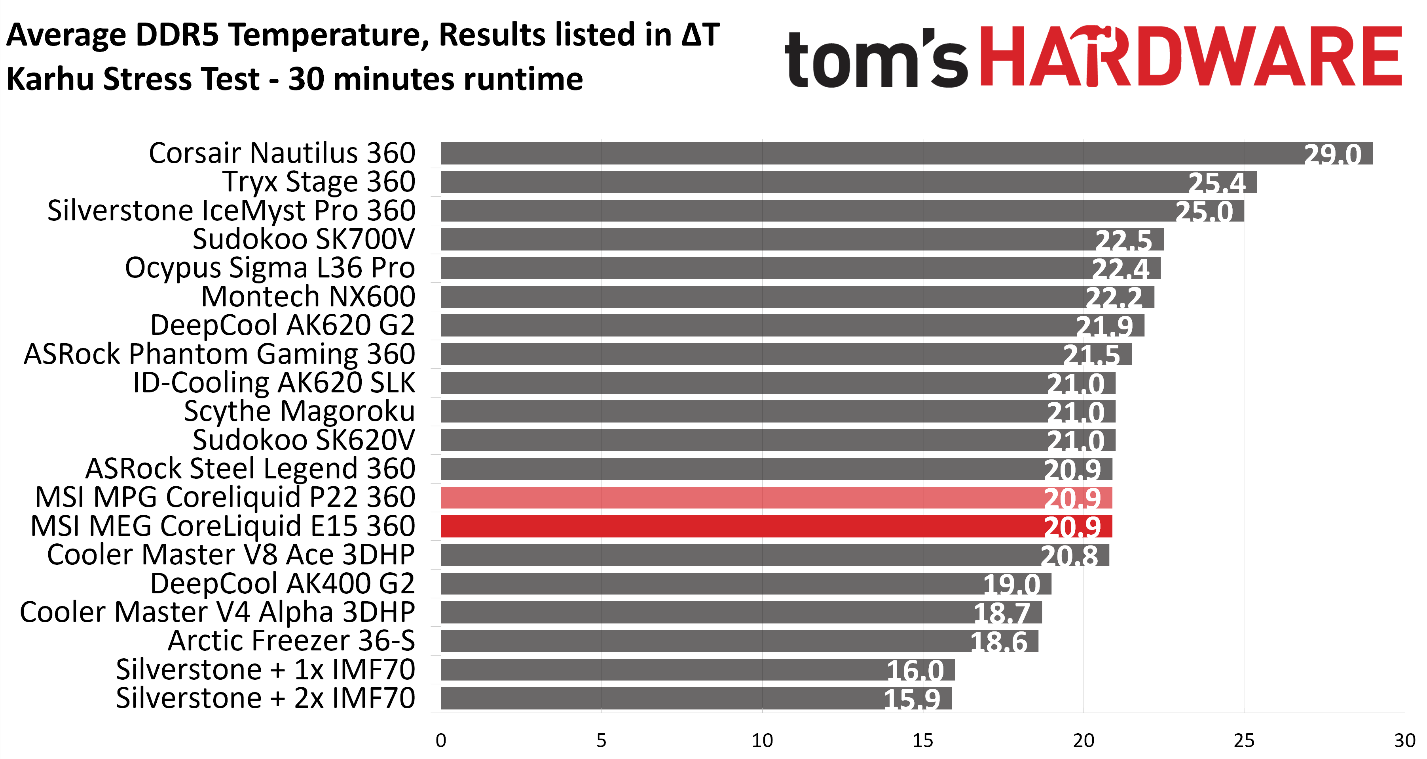
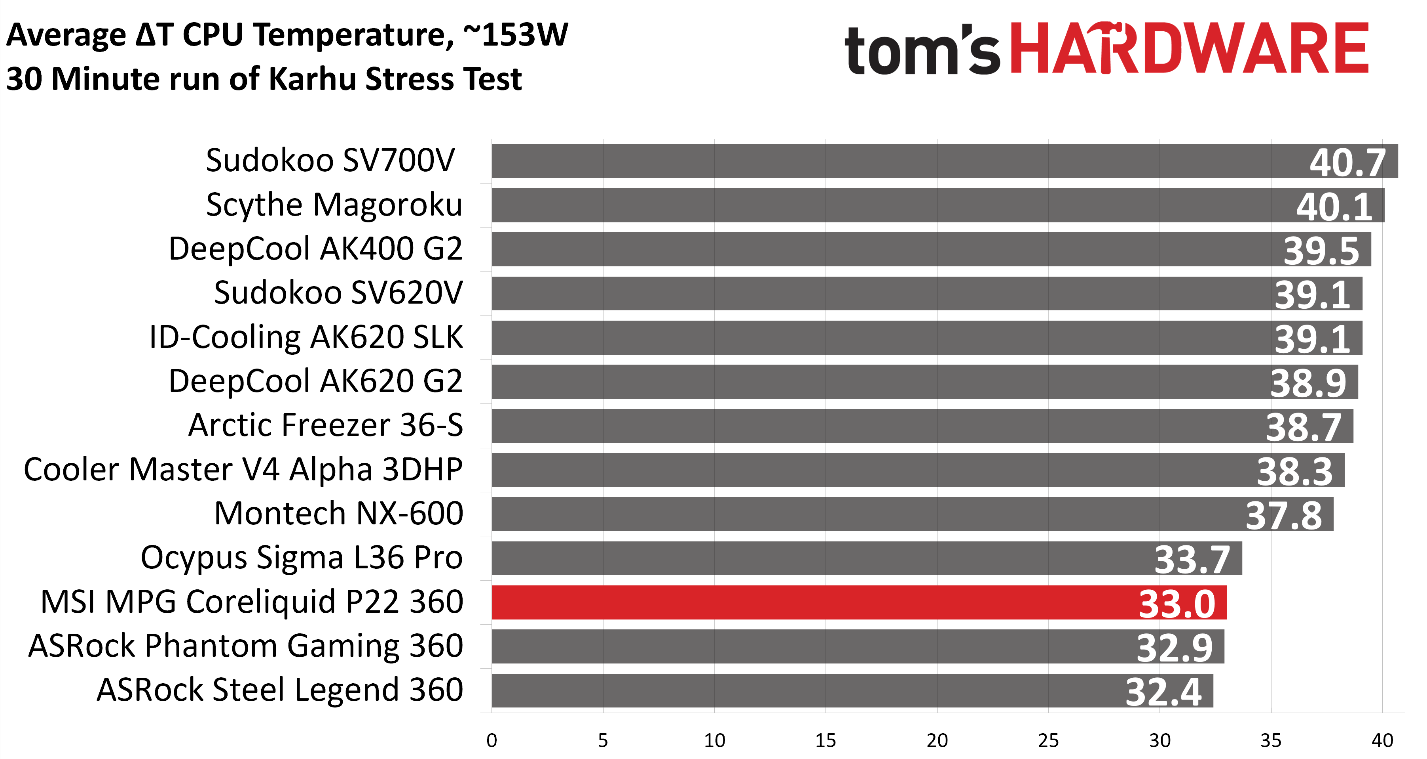
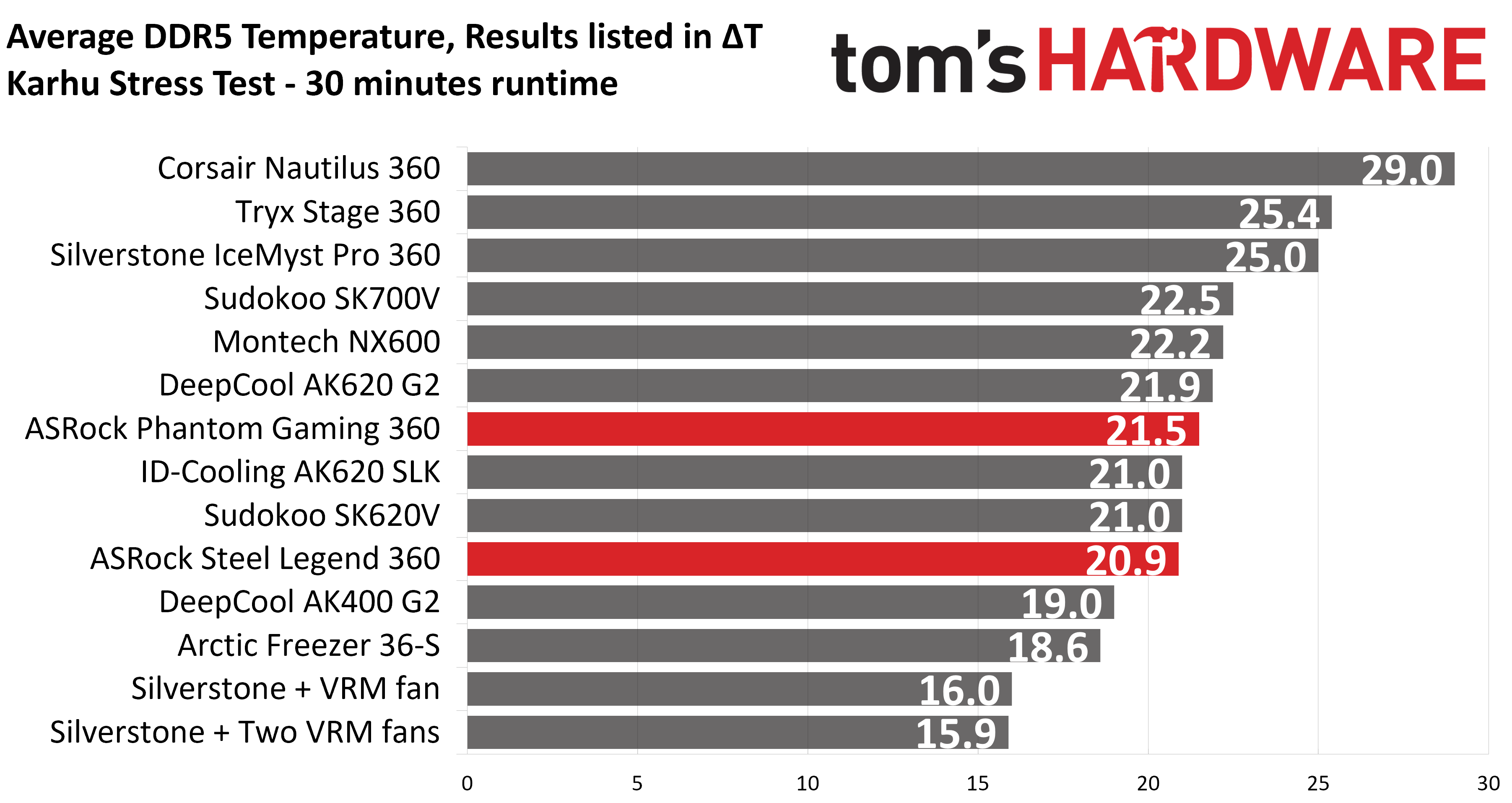
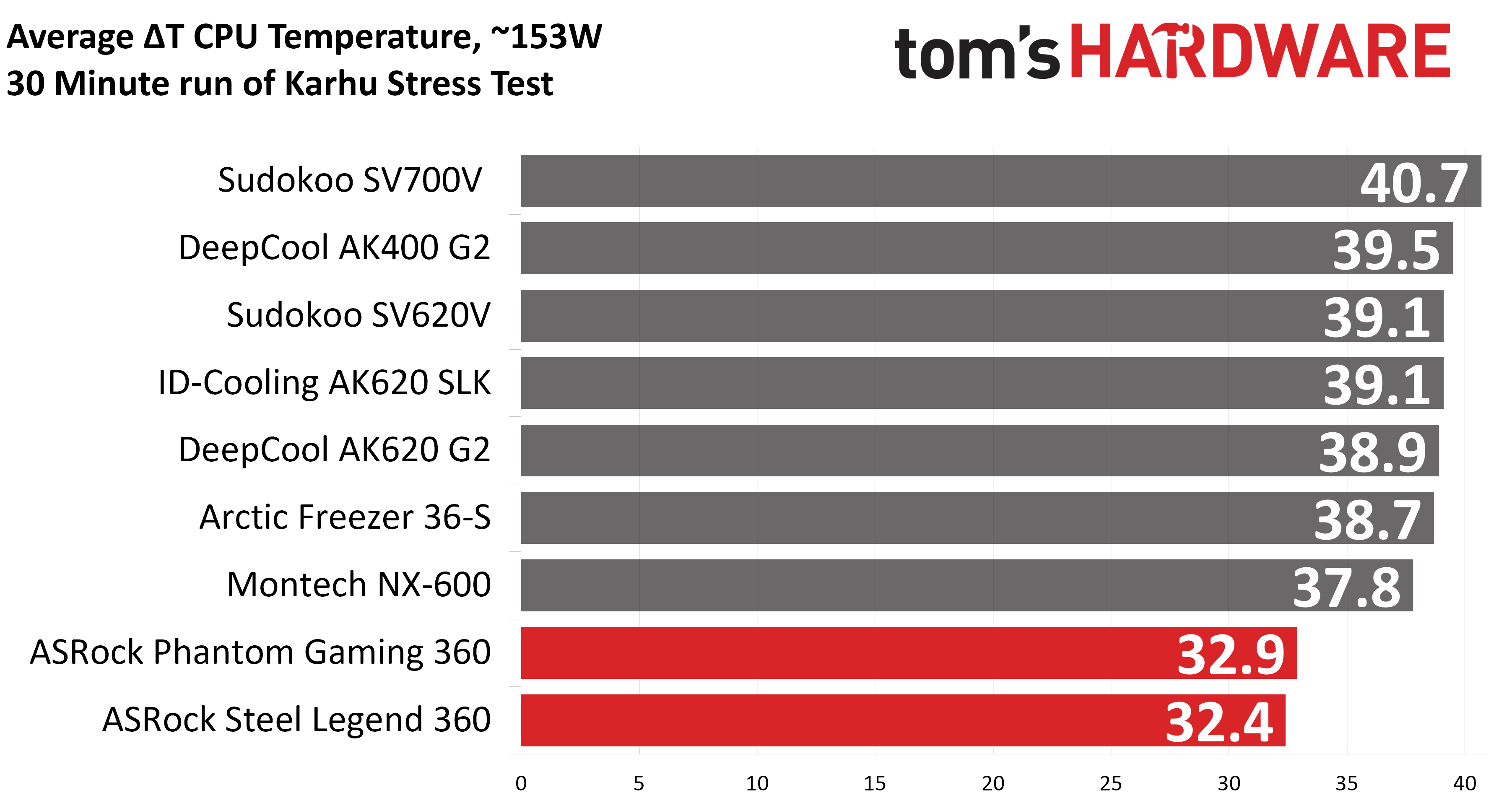
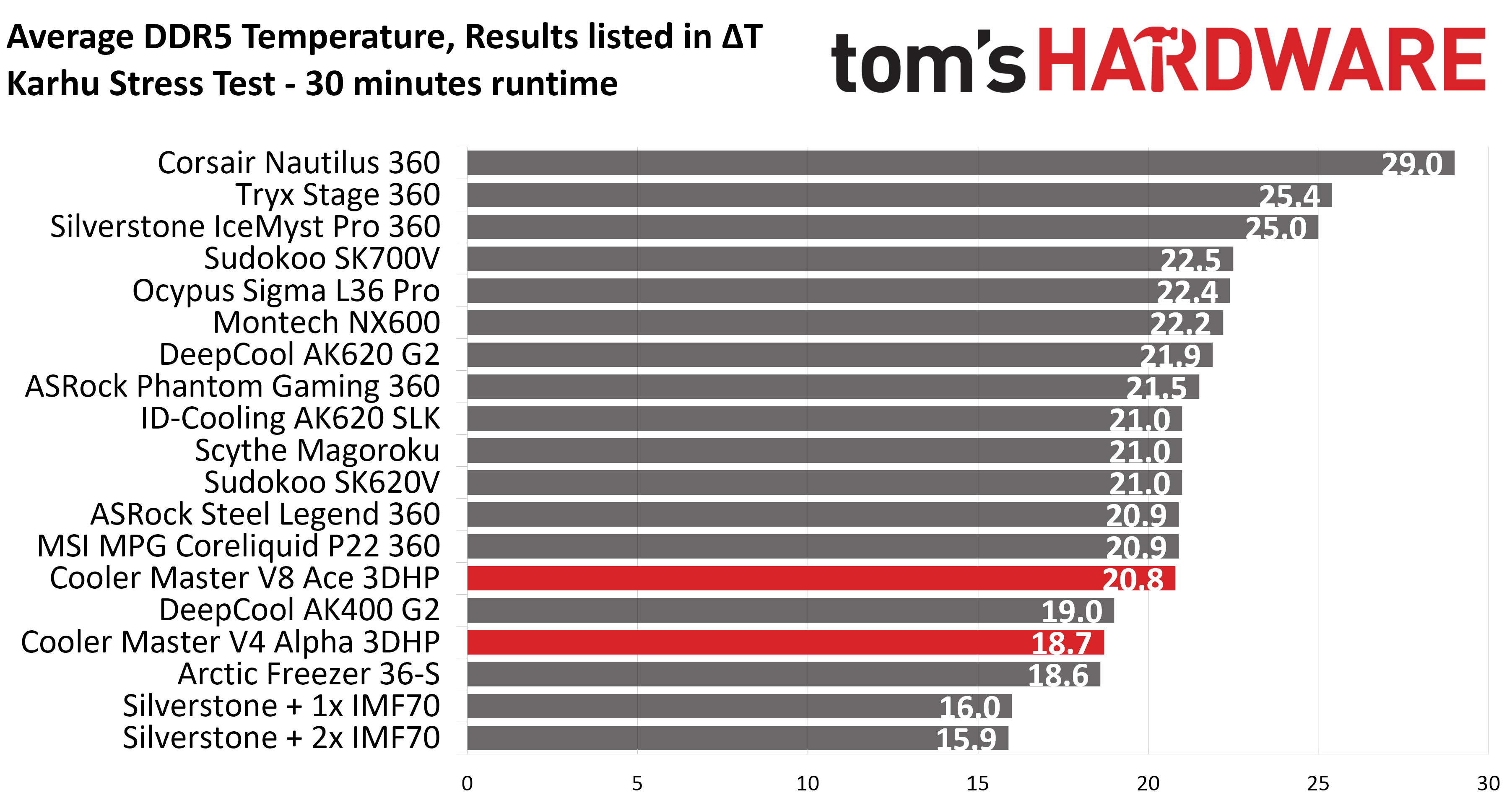
Your CPU cooler does not operate in isolation. It has an impact on not just your CPU’s temperatures, but also the other components in your build, like your RAM and GPU. To that end, I’ve run the Karhu RAM stress test. This places a load of ~153W on the CPU and ensures system RAM (DDR5 in my case) is fully stable. In this type of scenario, most AIOs tend to produce worse results than air coolers.
(Image credit: Tom's Hardware)
DDR5 temperatures in this test were good, the best of any AIO, save those incorporating VRM or RAM fans.
(Image credit: Tom's Hardware)
Conclusion
(Image credit: Tom's Hardware)
With a hefty $399 price, this AIO is strictly for users who don’t care much about build budgets. The stunning black-and-gold aesthetic reflects that luxury status, and the included 6.7-inch screen and preset animations are stunning. Thermal performance is also among the best AIOs on the market, so the cooler isn’t all about style over substance.
But of course, with the ongoing inflated prices of RAM, storage, and GPUs, most of us aren’t likely to seriously consider spending nearly $400 on a cooler. If you’re looking for a more budget-minded alternative, I’d encourage you to check out Arctic’s Liquid Freezer III Pro instead.
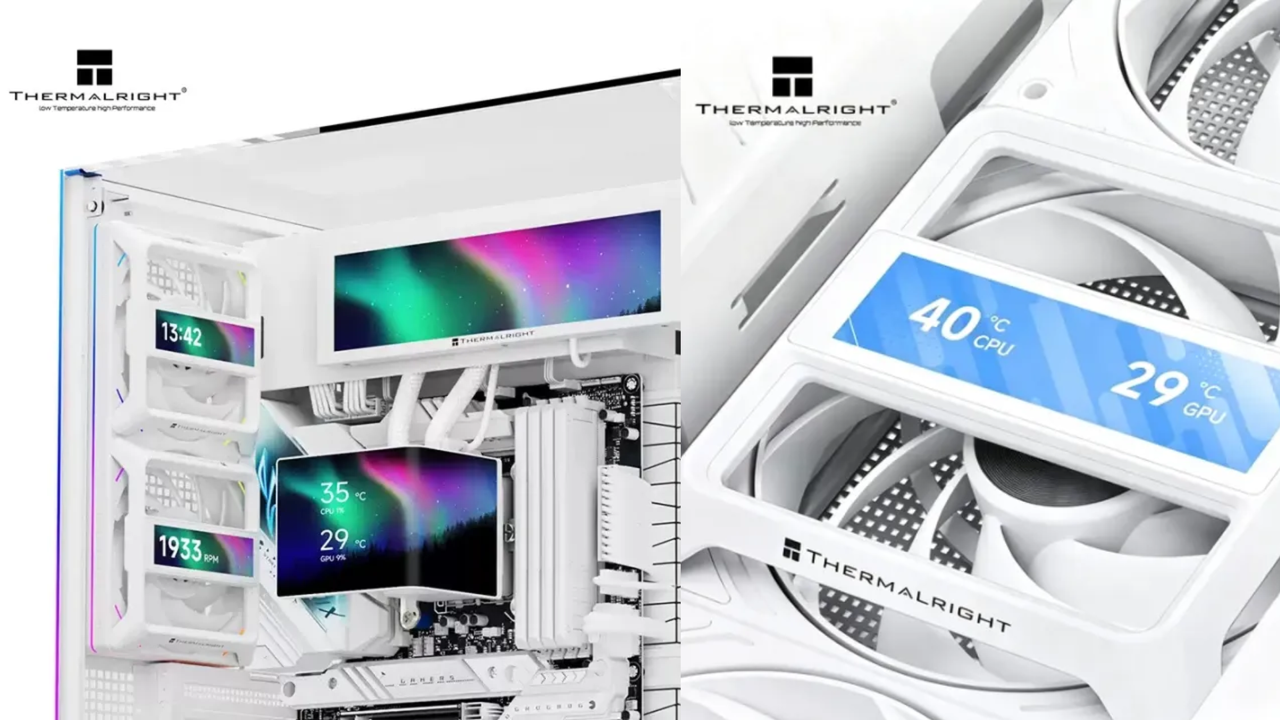
If you can’t have enough RGB and LCD screens inside your PC case, Thermalright just announced another must-have accessory for your build. The Fan Frame Vision-1 is a magnetic clip-on screen that snaps onto most standard 120mm fans on the market. This fan accessory boasts a 3.69-inch IPS display, is available in black or white, and can be mounted horizontally or vertically. Unfortunately, this device isn’t available on Amazon yet, although more “adventurous” enthusiasts could get it off AliExpress for $37.14 apiece, making it more expensive than some of the best PC case fans you can buy today.
Although this accessory mounts in front of your case fans, Thermalright claims it offers enough clearance that it doesn't interfere with airflow. It connects to your PC via a USB 2.0 hub inside your case, although you could also attach it to a blank USB-A port with the included adapter if you’re already out of interfaces on your motherboard. It’s also integrated with Thermalright’s LCD software, TRCC, making it easy to customize what information and theme you see on the screen. Given that TRCC has also already been ported to Linux, you can enjoy this overload of screens on your gaming PC, even if you’ve stepped away from Windows and into SteamOS or other Linux builds designed for gaming.
This accessory pairs well with some of the best AIO coolers that come with their own screens, letting you create a unified theme across all your cooling solutions. Because it has a standardized design, you can mount it on most standard fans that use metal screws at each corner. The magnetic mounts on the Fan Frame Vision-1 would easily grab onto the heads of these screws, keeping the screen secure inside your case. Unfortunately, if you use larger fans, like the Thermalright TL-US24/36, you won’t be able to use this as an add-on, especially if they use offset screws. This means that the magnetic studs on the base of this accessory would have nothing to grab onto.
The Fan Frame Vision-1 and other similar LCD screen accessories won't bring any performance benefits to your PC build. But if you have an overpowered computer, these little extras wouldn’t hurt one bit. Besides, all that eye-candy would help remind you how much you’ve spent on your gaming computer, especially given the egregious prices on RAM and storage these days.
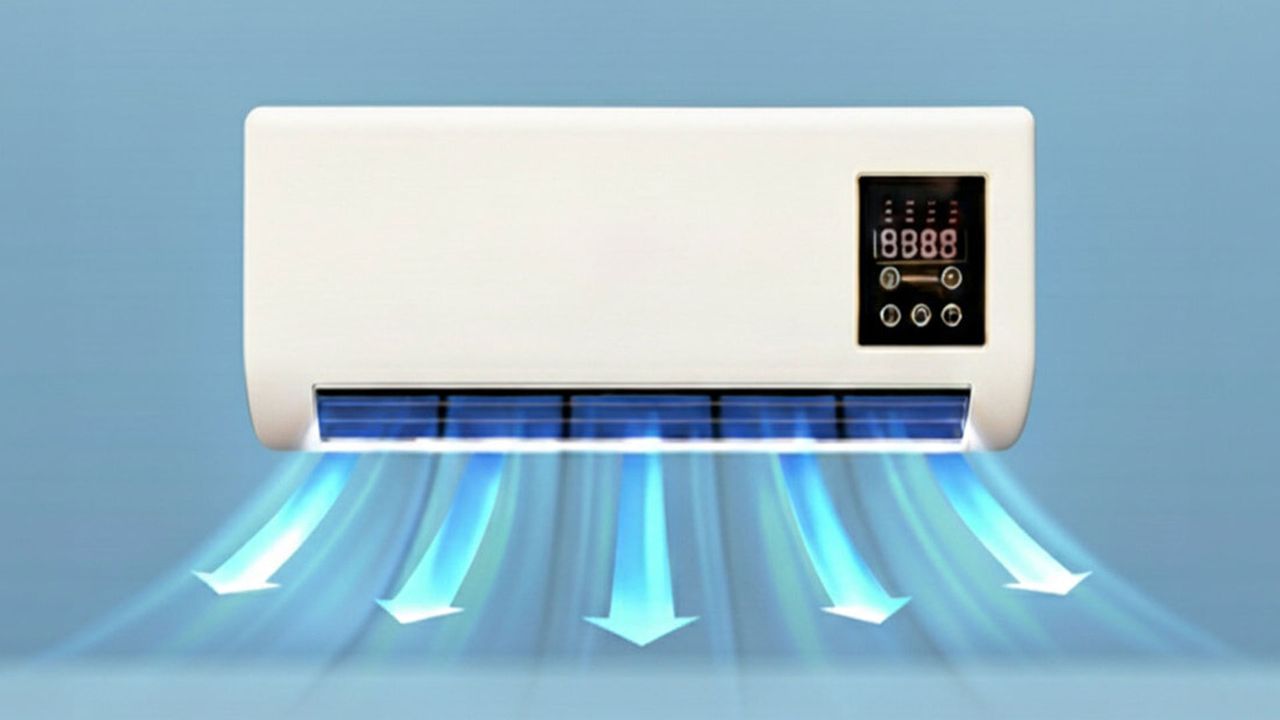
Germany's leading consumer testing organization, Stiftung Warentest, has warned people to avoid fake air conditioners from Epicooler. Golem.de reports that this direct-from-China brand also ships to the U.S., and its so-called air conditioner contains “a simple PC fan combined with a small heating element” [machine translation]. We don’t know the PC fan brand. In tests, the Epicooler didn’t reduce the temperature of the room when set in its ‘Cold Wind’ mode.
Europe has been literally burning this summer, so countless folks have become interested in acquiring an air conditioner, perhaps for the first time. Epicooler reportedly aggressively markets its air conditioners with “AI-generated videos on social media, YouTube, and in online magazines,” notes the source. Moreover, its devices look very much like traditional air conditioners but sell for a fraction of the price. Many people therefore have taken a chance on this ‘bargain’ only to find out they have actually overpaid for a box containing a PC fan alongside a heating coil.
We guess the Epicooler price is just low enough to attract some chancy purchases. The source says this fake aircon is sold for €163, which is about $188. These devices are always shipped from China, it is noted, even when local warehouse stock is advertised. It is thought that this is a method that helps Epicooler swerve national regulators such as the FTC, as well as sidestep local consumer protection laws regarding product description accuracy, refunds, etc. This kind of operation is also easy to ‘dissolve’ and reappear under other brand names once the ‘game is up.’
A very popular purchase this summer (Image credit: Epicooler)
There have been previous cries of fake, concerning Epicooler products. Its products have been panned on various consumer review sites, criticized on social media, and more. But it is good to get these ‘air conditioners’ fully exposed by a leading consumer testing organization in Europe.
Stiftung Warentest seemed to be suspicious of the Epicooler as soon as it was received. The device weighed less than 3 kg (6.6 pounds), whereas a genuine internal unit might weigh 13 kg (28.7 pounds) and require a 38 kg (83.8 pound) outside unit. A sticker on this device also spoke the truth, reading ‘Wall Mounted Heater.’ So there was no compressor/condenser/expansion/evaporation process going on here to genuinely cool the space where it was installed. It was just a “standard PC fan and a small heating element.” The consumer site also commented that when using the heating element “the device quickly became so hot that we decided to switch it off again.”
The Epicooler is very cheap for an AC unit, which can often cost 10x more. But they’ll work. However, it is expensive for a fan, with the best consumer-reviewed fans (accurately advertised) available for half as much money as an Epicooler, noted Stiftung Warentest.
Please be careful with your cash, and keep in mind the maxim “if something seems too good to be true, it probably is.”
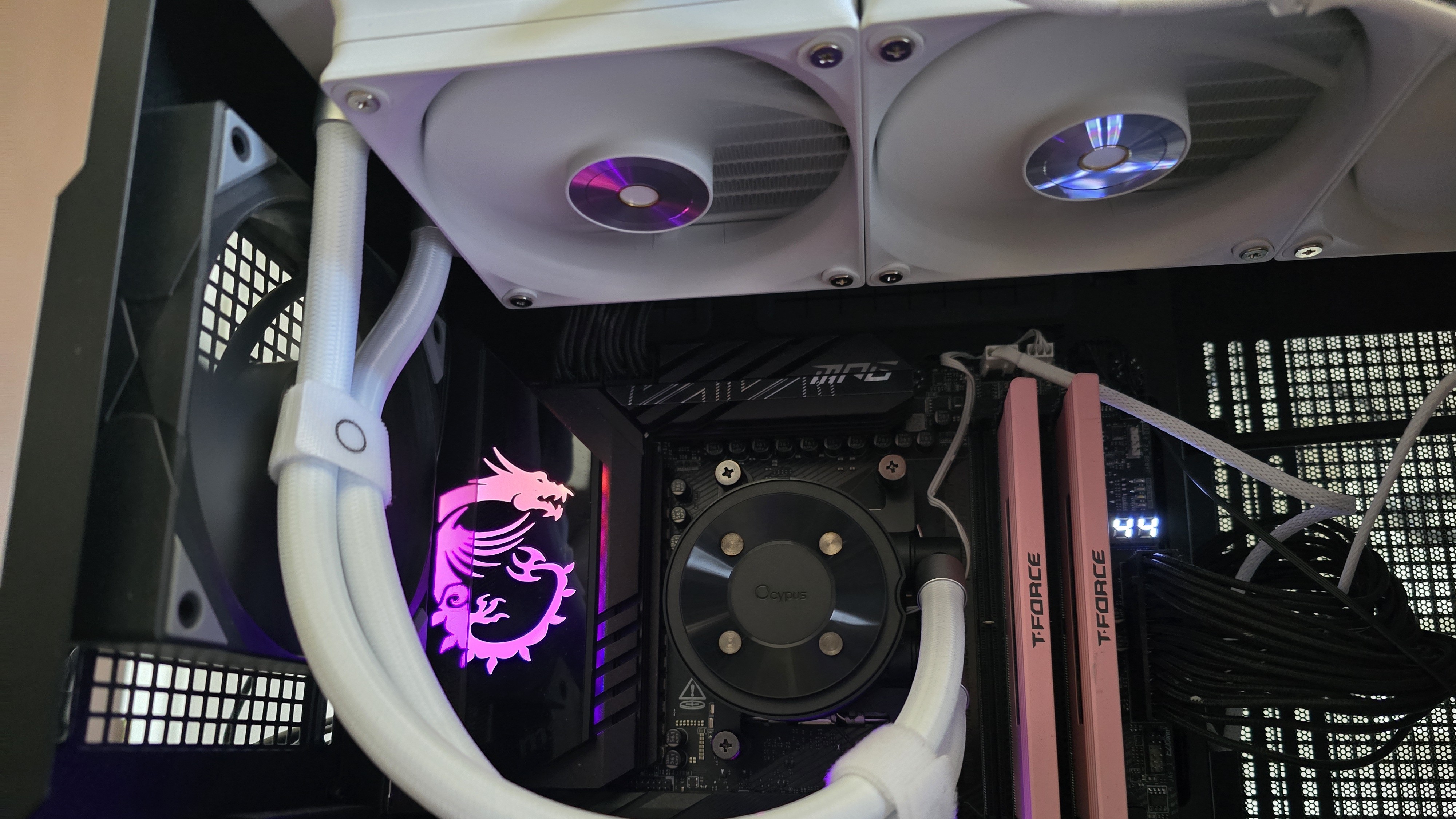
The latest cooler on our test bench is the Sigma L36 Pro, a high-end AIO with a 3.5-inch display from relative cooling newcomer Ocypus. This manufacturer is known for quirky design choices that help set it apart from its many competitors. I found the company’s Iota C70 computer case and A62 digital air cooler especially interesting products when I tested them last year.
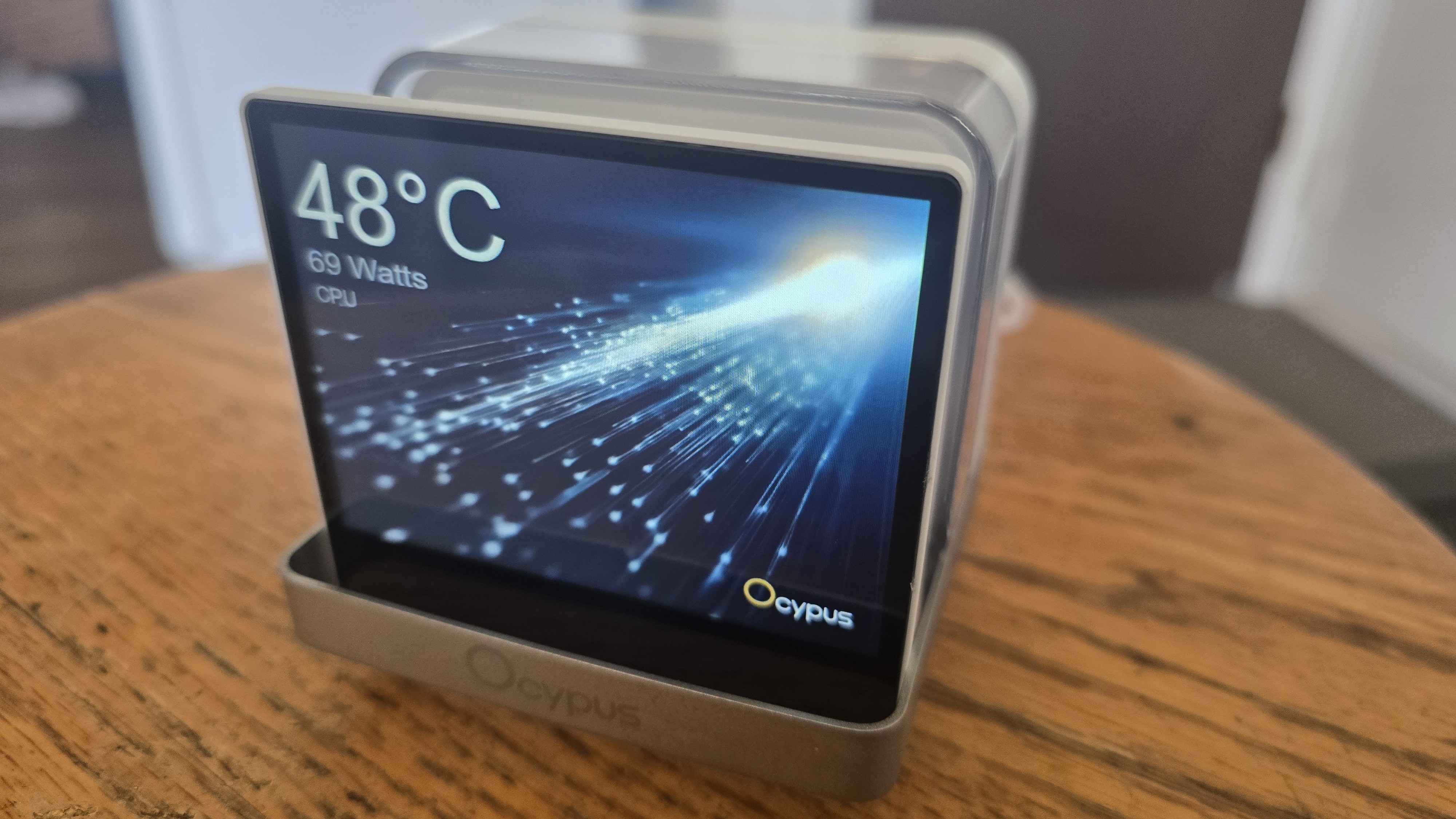
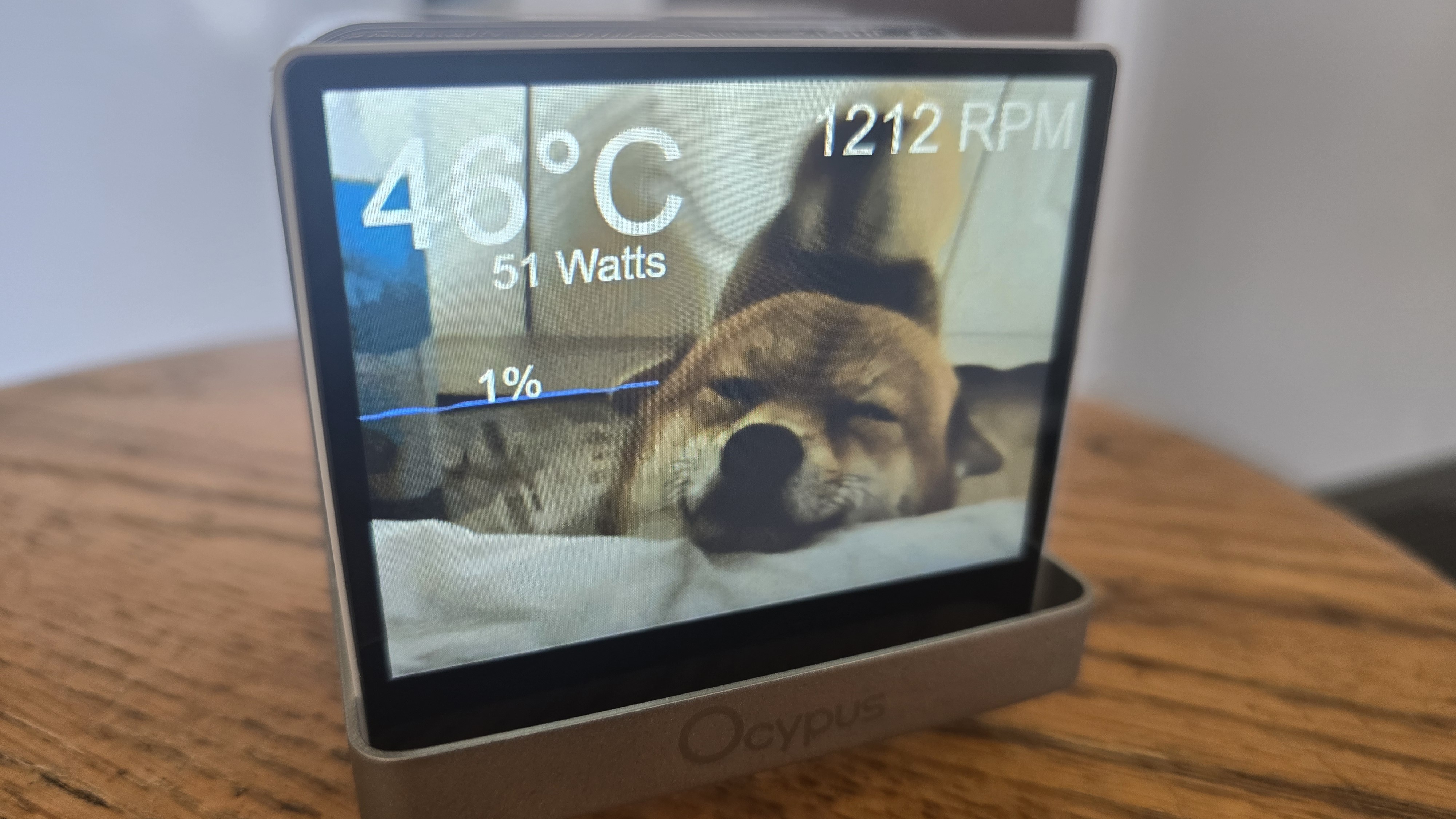
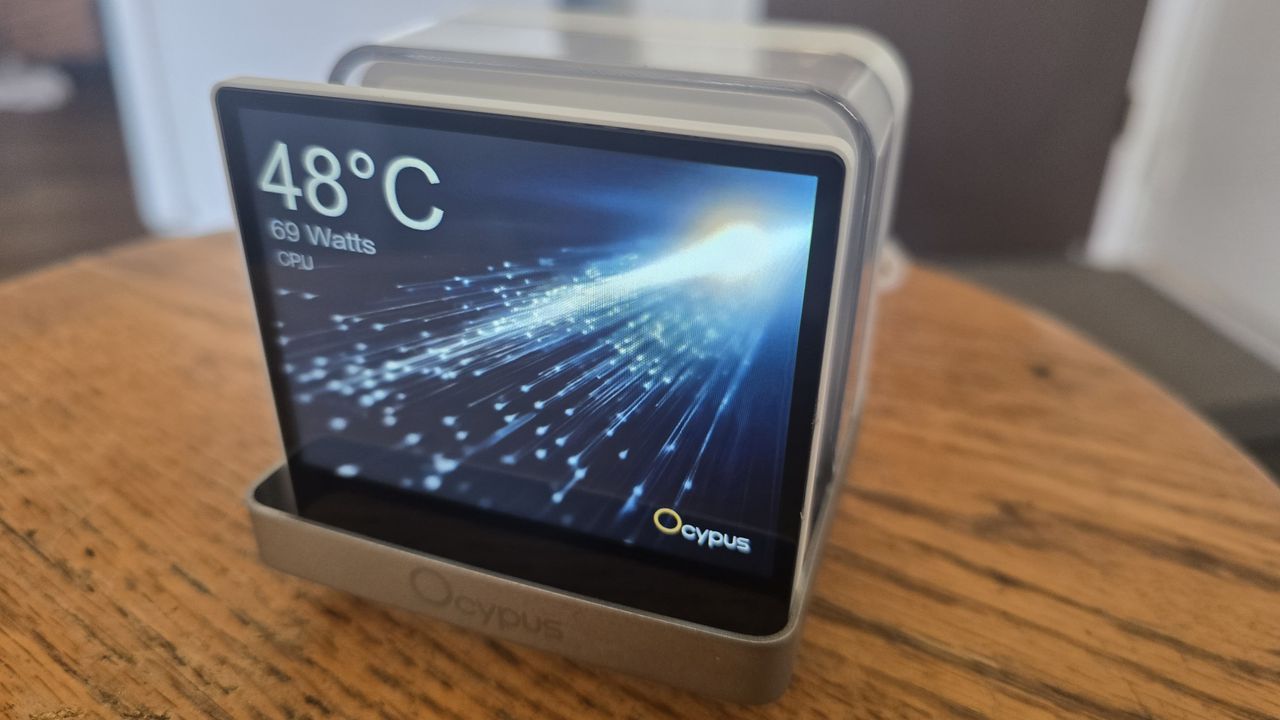
Like many other AIOs we’ve reviewed lately, the Sigma L36 Pro features a display – a large 3.5-inch detachable screen in this case, capable of displaying performance metrics and animated images and video.
(Image credit: Tom's Hardware)
Screen aside, the technical specifications of the product are impressive. The static pressure exerted by the fans is nearly twice as strong as many competitors – rated for up to 5.8 mmH20. But even more impressive than this is the price of the liquid cooler: Despite having a relatively large display and extremely powerful fans, you can find this cooler selling for $135 or less.
(Image credit: Tom's Hardware)
Let's take a look at the specifications and features of this eye-catching AIO, then we’ll go over thermal and noise benchmarks so you can decide if the Ocypus Sigma L36 Pro deserves to make our list of the best CPU coolers.
Cooler specifications
Cooler
Ocypus Sigma L36 PRO
Colors
Black or White
MSRP
$134.99
Lighting
Display block only
Warranty
5 years
Socket Compatibility
AMD AM5/AM4 Intel 1700/1851/1200/115X
Radiator dimensions
397m (L) x 120mm (W) x 27mm (H)
Maximum TDP with AMD’s Ryzen 9 9950X3D (Our Testing)
It seems like the biggest trend in liquid cooling recently is AIOs with fancy displays on top of the CPU block, and Ocypus rides this trend, including a 3.5-inch IPS screen here that some users might find reminiscent of older PCs due to it’s VGA (640x480) resolution and 4:3 aspect ratio.
(Image credit: Tom's Hardware)
Many AIOs have the screen built into the CPU block, like Hyte’s THICC Q60. Other manufacturers offer the display and CPU block as separate components, and that’s how the Ocypus Sigma L36 Pro is designed.
When a display connects to the PC, but isn’t actually built into the CPU block, this opens up customization options that you might not think of normally. As you can see in the photograph above, I’ve got the display set up on a stool next to my computer desk, instead of inside my case. You’ll have to obtain a 9-pin header to USB-A (or C) adapter to use the device externally, but these can usually be found for less than $10.
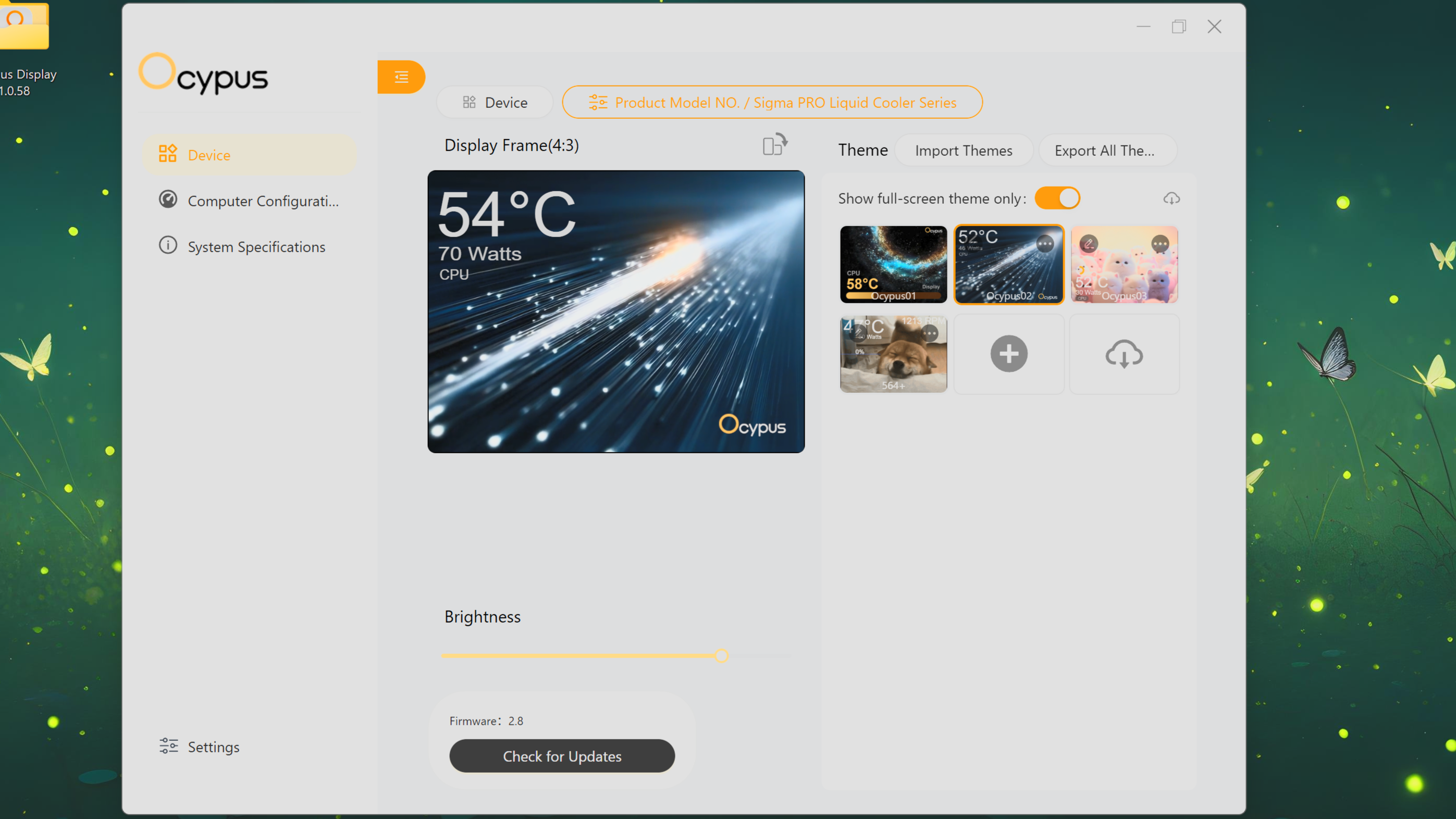
To control and customize the display, you’ll need to download the simply named Ocypus Display software. It’s a surprisingly small download size of only 184 megabytes, and uses 493 MB when installed – and about the same amount of RAM when active.
Multiple preset themes are available, but only three are installed by default.
(Image credit: Tom's Hardware)
If you click the cloud icon shown in the picture above, a link to Ocypus' “Download Center” is opened in your default browser, which offers more options.
(Image credit: Tom's Hardware)
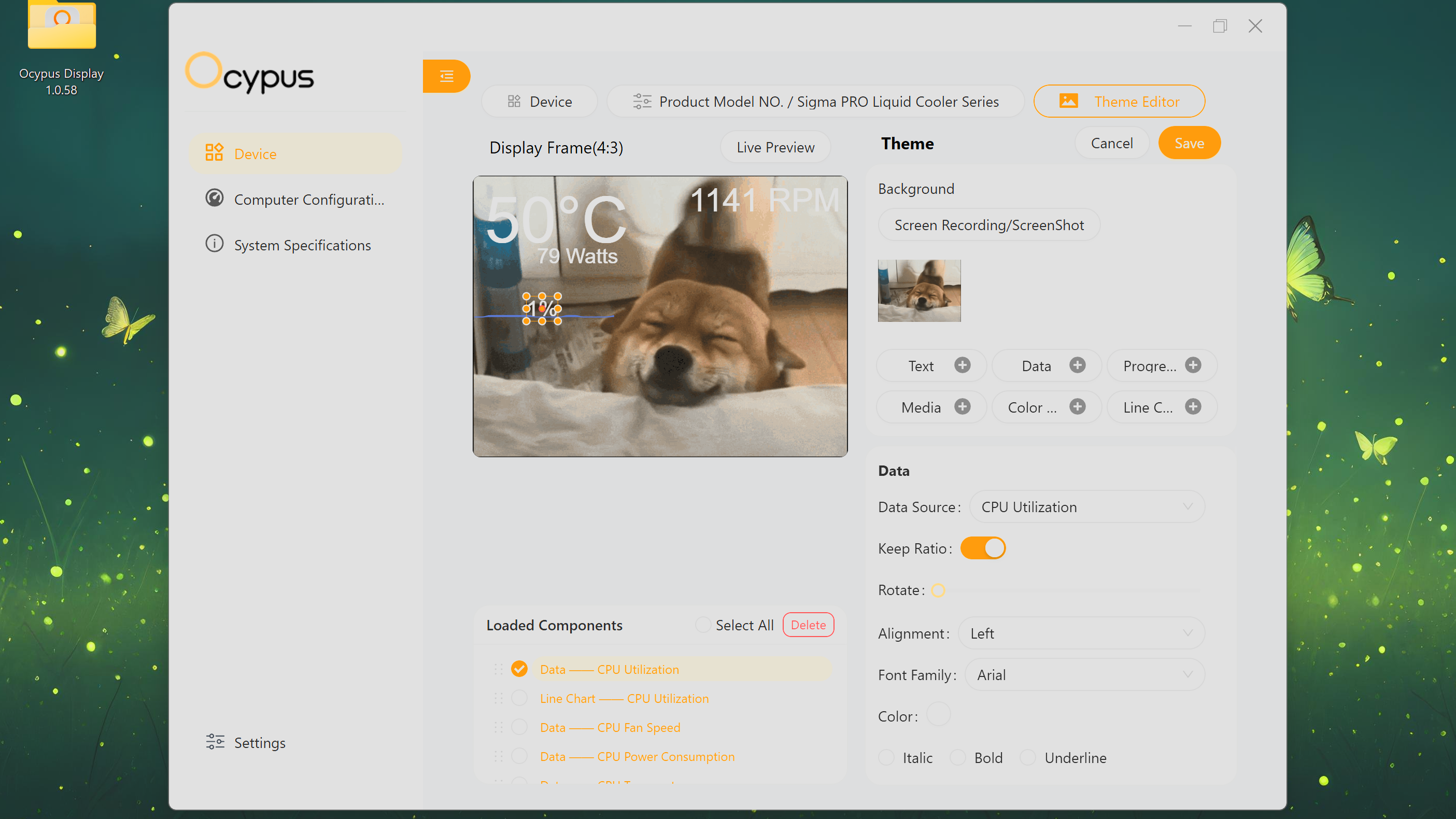
The software is extremely simple to use and easy to create your own customized theme with. In the example above, I uploaded an animated GIF file of a happy puppy and set the display to monitor CPU temperature, power consumption, and fan speeds metrics through text labels. I’ve also set up monitoring of CPU utilization, both with a text label showing the current status and a line graph showing the changes in CPU utilization over time.
▶️ RAM Clearance
As with most liquid coolers, the design of this AIO is such that the CPU block as such that it doesn’t overhang or interfere with the DIMM slots in any manner, ensuring that all sticks of compatible RAM, no matter how tall, will fit with this cooler.
▶️ Thick CPU cold plate
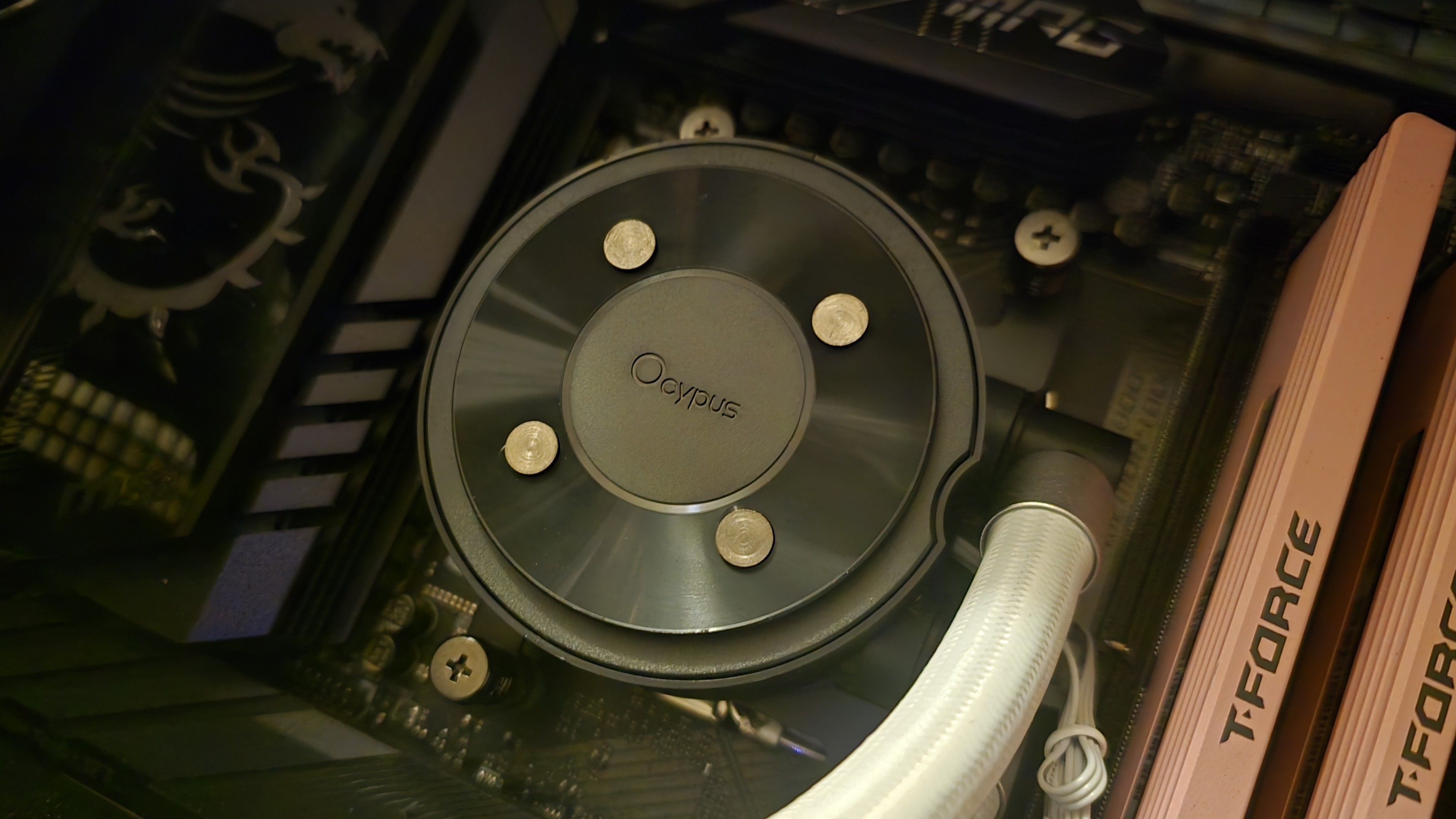
This AIO is designed for normal PC platforms like Intel’s Arrow Lake and LGA1851 socket or AMD’s Ryzen X3D CPUs and the AM5 socket, but you might wonder if it supports server products when you see the size of the coldplate – it has a larger surface area and greater thickness than most liquid coolers designed for consumer PCs.
(Image credit: Tom's Hardware)
▶️ 120mm fans
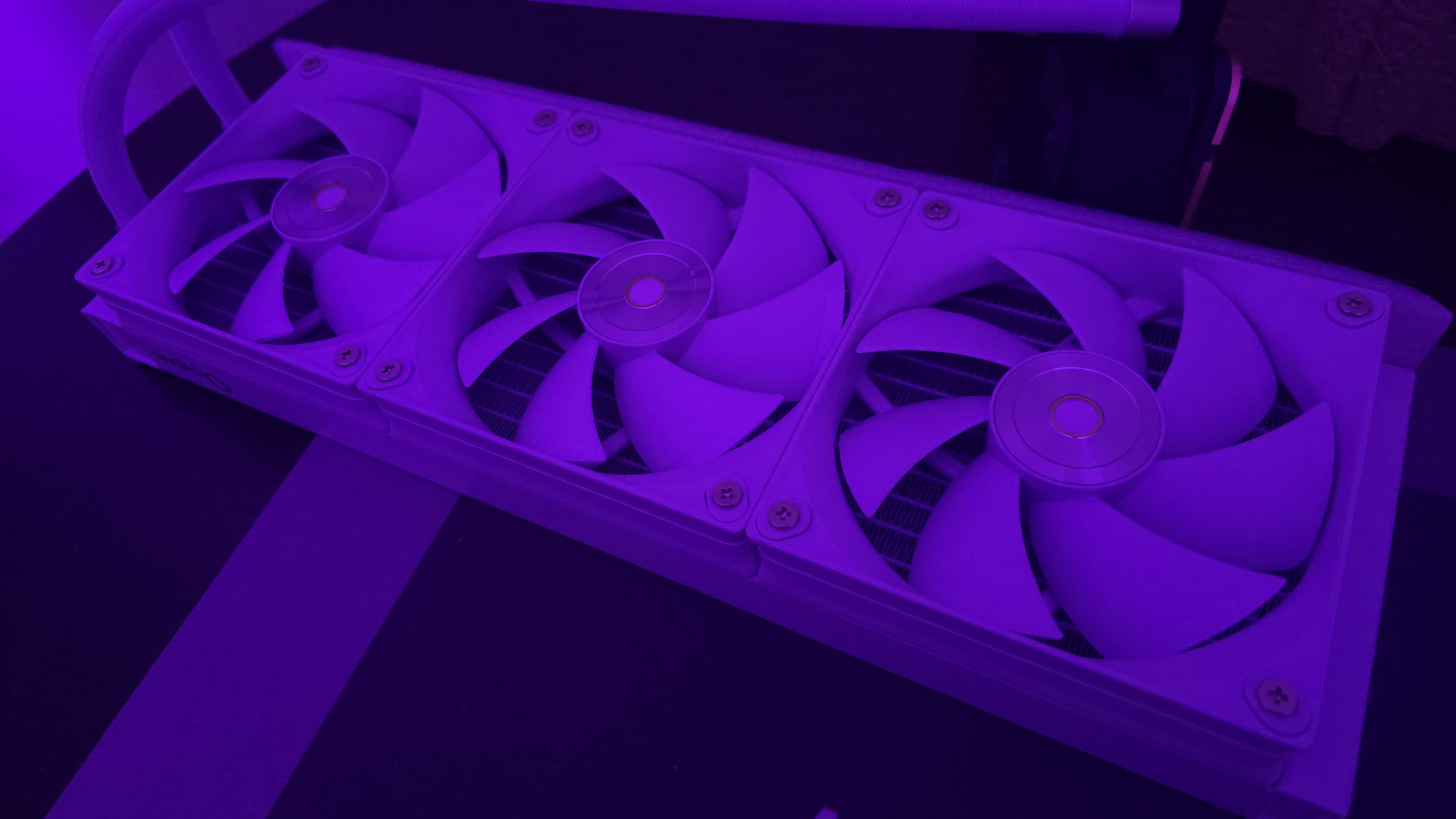
There’s more to a cooler than just the radiator and liquid pump. The included fans have a direct impact on aesthetics, noise levels, and overall thermal performance. Conveniently, the fans here arrive pre-installed, saving a few moments of time when you put things together. The fans included in this model are white, but this cooler is also available with black fans.
(Image credit: Tom's Hardware)
Fan Speed
500-2400 RPM (±10%)
Airflow
90 CFM
Air Pressure
5.8 MMH20
These fans seem to be overbuilt, more powerful than the rest of the AIO can properly take advantage of. They are rated for an unusually high 5.8 MMH20 of static pressure and 90 CFM at full speed.
▶️ Packaging
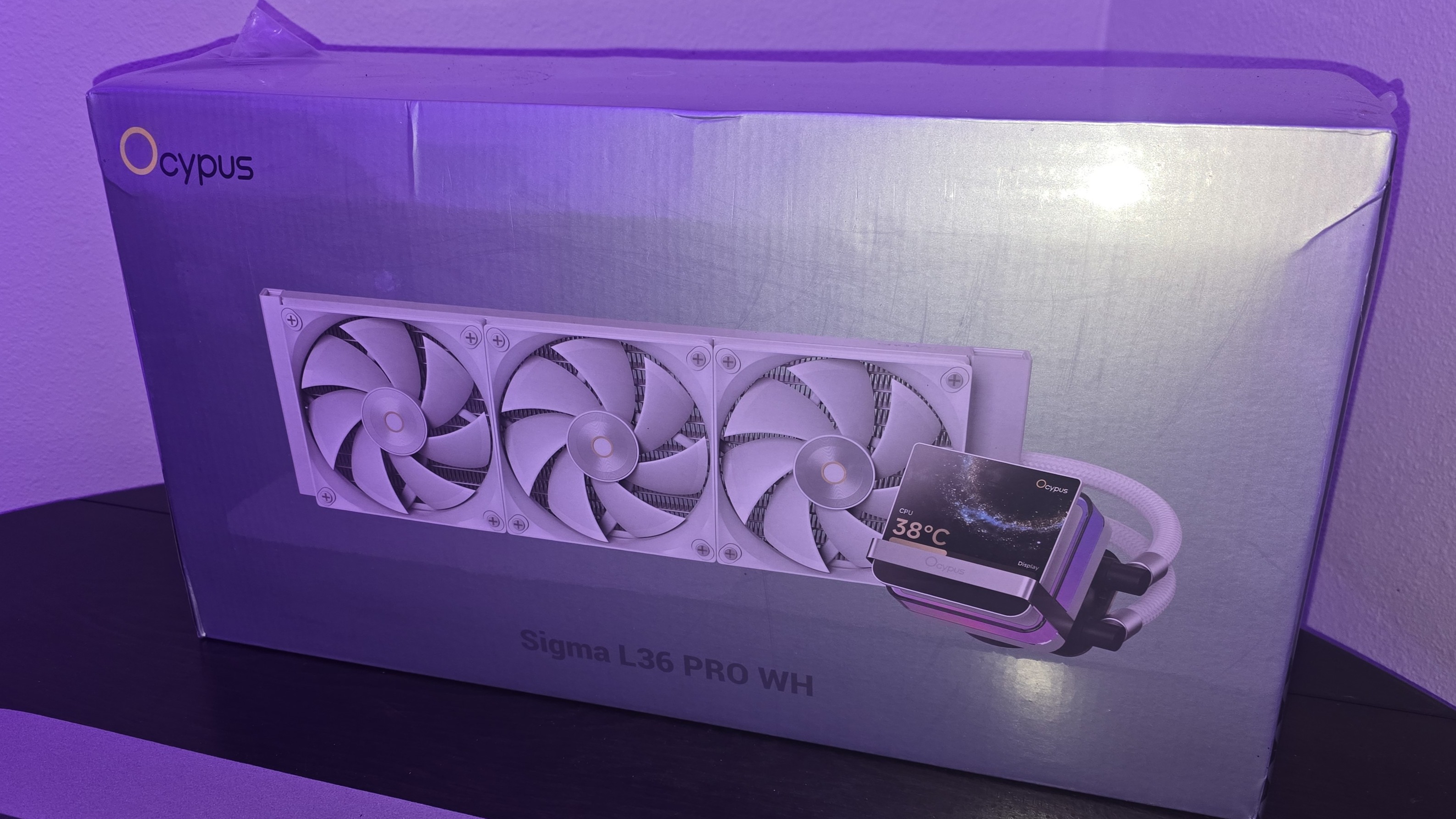
The outer packaging is a bit flashy, at least in comparison to your normal AIO box. It features a rendering of the cooler against a black background with streaks of purple hues – logos on all sides of the box for full marketing impact.
(Image credit: Tom's Hardware)
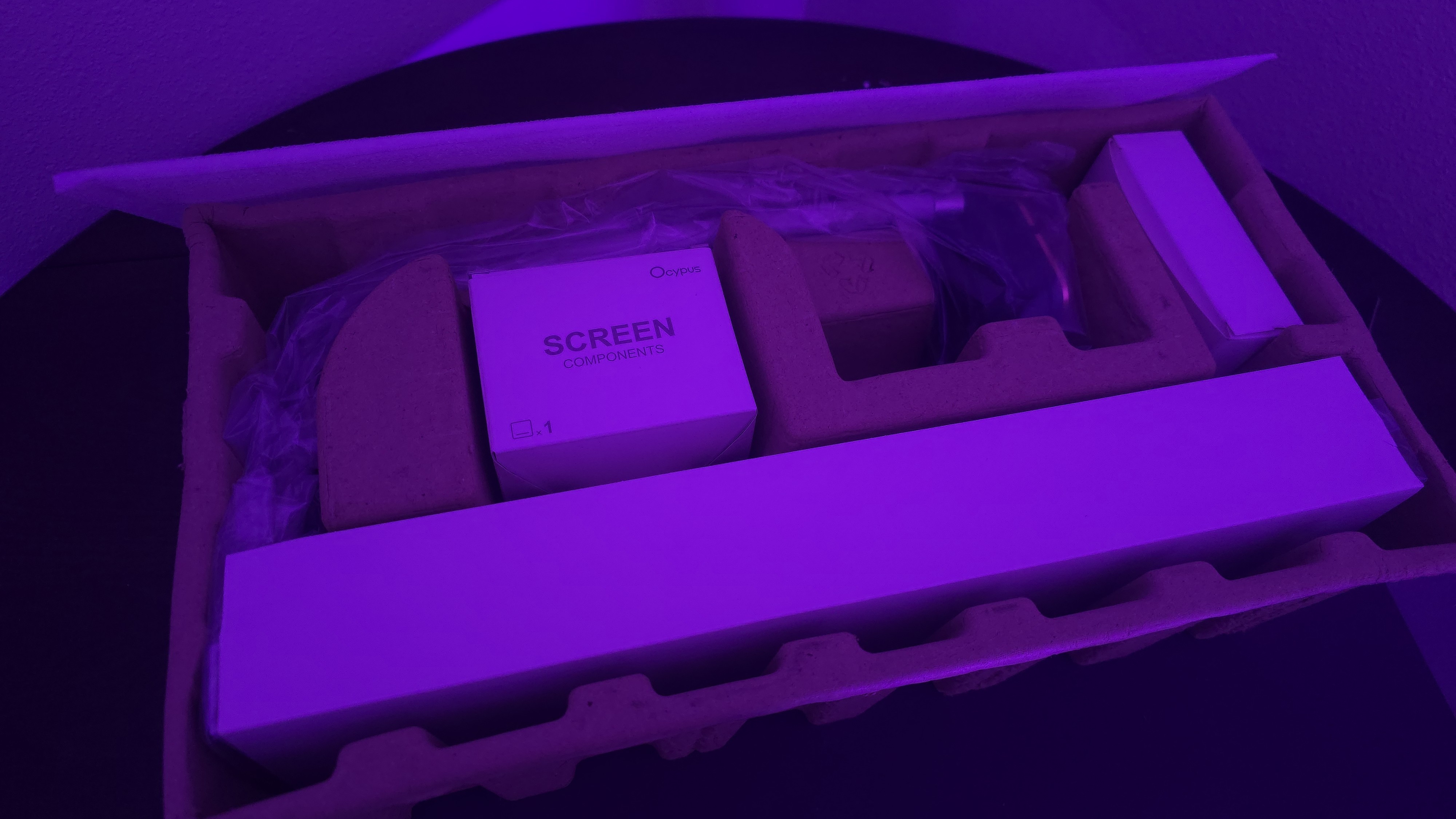
The inner packaging is just as fresh as the outside, with each component of the cooling system well protected from the chaos that shipping can bring by using a combination of soft covers and individual cardboard walls for each component.
(Image credit: Tom's Hardware)
Included with the package are:
Mounting hardware for AMD and Intel platforms
Tubing clips
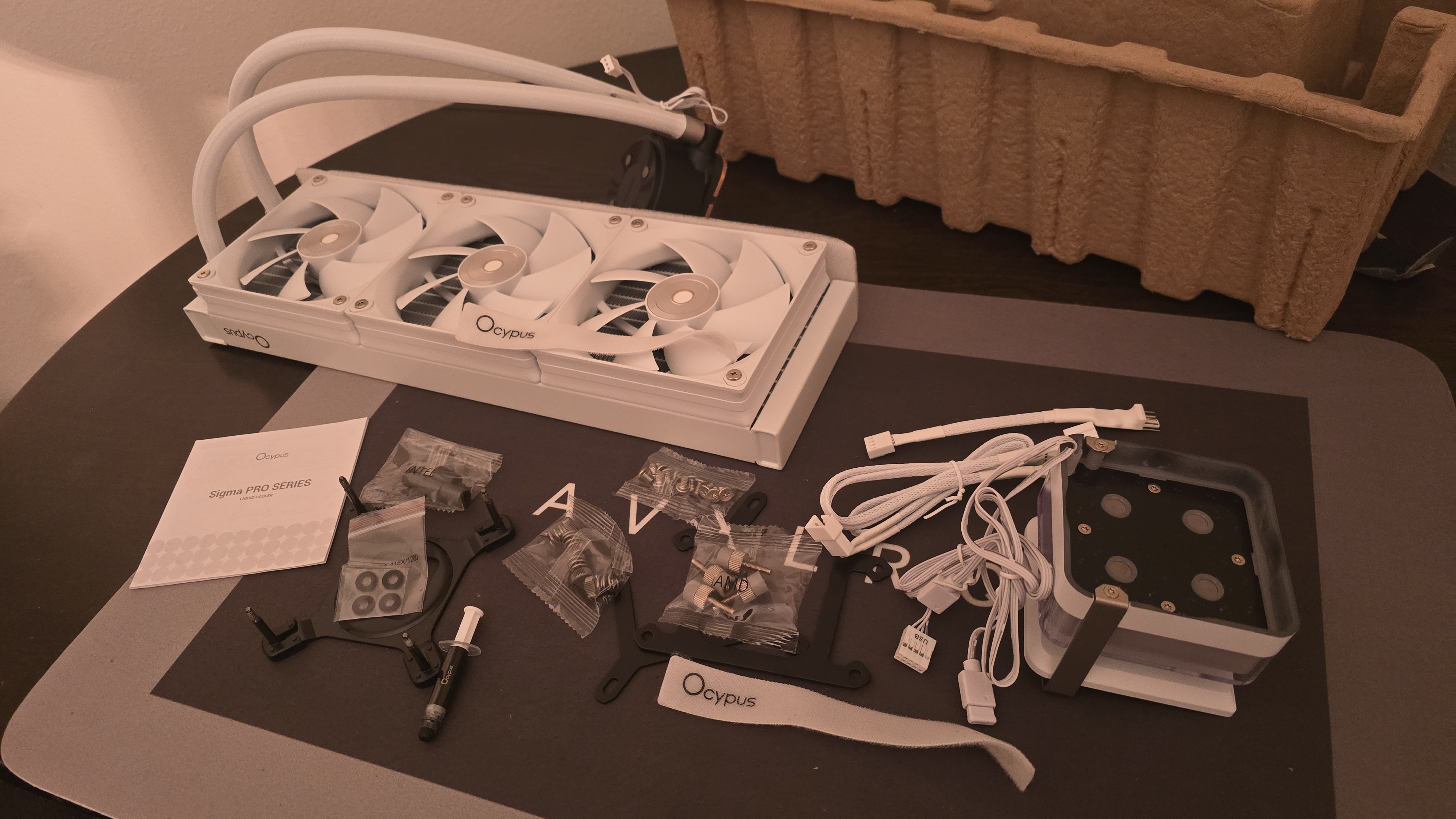
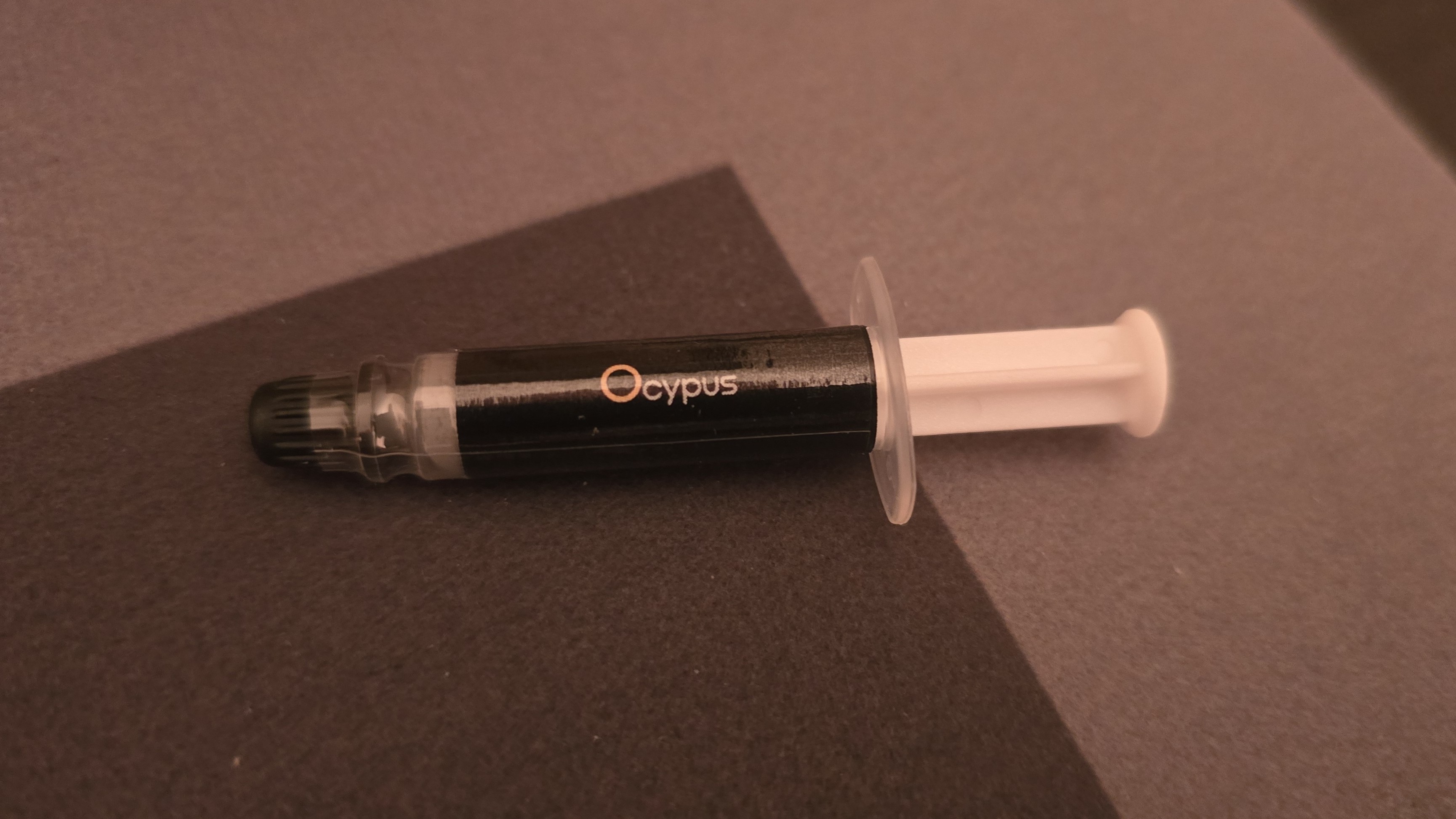
A small tube of thermal paste
360mm radiator and 120mm fans
3.5-inch LCD display
(Image credit: Tom's Hardware)
AM5 Installation
This section assumes you’ve already mounted the 360mm radiator. Installation of AIOs is typically much easier when you have already secured the radiator to your computer case. To begin putting things together, you’ll first need to remove the default AM4/5 retention hardware.
The next step is to screw in the mounting studs, as shown below.
Now you’ll want to apply the included thermal paste. If you’re not sure how to do that, we have a handy thermal paste application guide that covers the different methods you can use.
(Image credit: Tom's Hardware)
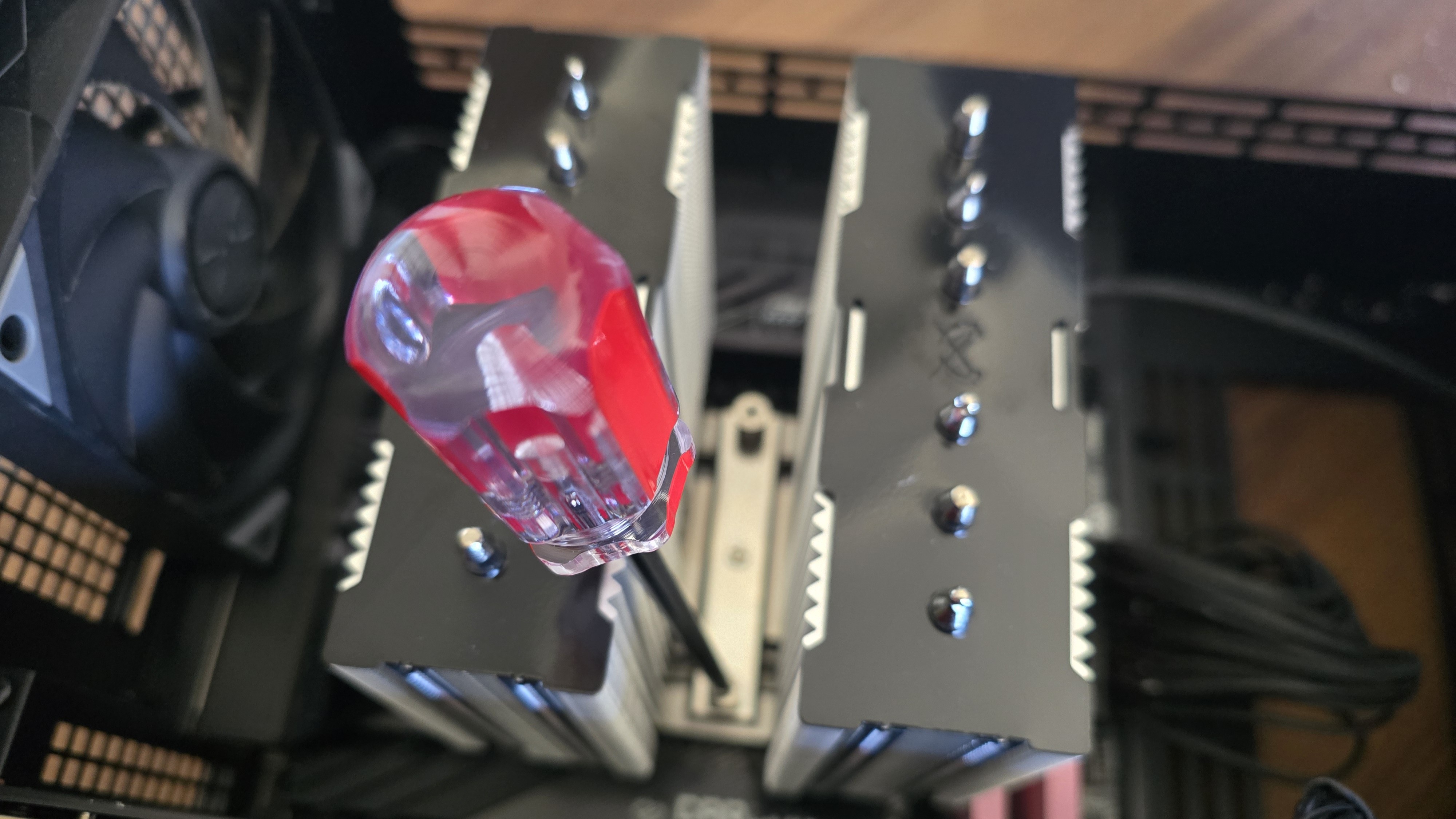
After thermal paste is applied, take the CPU block and press it against the studs, using the included screws and a screwdriver to secure it in place.
(Image credit: Tom's Hardware)
I chose to attach the included 3.5-inch screen externally, but if you want to place it in your case, this is the time to put it on top of your CPU block. The final step, of course, is to connect the cables and turn on your computer when finished.
We’ve tested coolers with both the Ryzen 9950X3D and its non-V-Cache sibling, the 9950X. There are some differences in how the 9950X and 9950X3D CPUs are impacted by thermal events. While the heat output of the CCDs of AMD’s 9950X3D is relatively balanced, the 9950X I used has one CCD that runs much hotter than the other, with a difference of over 10 degrees Celsius in some scenarios, shown below.
We’ve since returned to using a 9950X3D for cooler testing, as it has a more balanced heat profile, and is almost certainly a more widely adopted CPU. The benchmark results shared in these reviews may differ from others because I emphasize results that are comparable to real-world use. This means I generally test CPU coolers inside of a closed desktop case, which increases cooling difficulty compared to other testing methods.
Many reviewers test coolers on open test benches, which have a combination of lesser airflow needs and lowered ambient temperatures. This results in making weak coolers appear stronger than they really are. Some publications have also used generic thermal plates to test cooling solutions. I reject both of these methods because they don’t accurately reflect real-world cooler conditions.
CPU
AMD Ryzen 9 9950X3D
GPU
MSI Ventus 3X RTX 4070Ti Super
RAM
TeamGroup Diamond Rose T-Force Xtreem DDR5-7200
Motherboard
MSI X870E Carbon Wifi
Case
Tryx FLOVA F50
Our latest testing setup uses the FLOVA F50 computer case from Tryx.
This case features a unique “crossflow” fan that pulls air from the side, which the company claims is more effective than traditional intake fans. For air cooling tests, we’ve added a single Noctua NF-A12 G2 intake fan.
PBO Performance and maximum noise levels
We’re going to start this review’s benchmark section by focusing on a traditional maximum performance test, with the CPU cooler’s fans allowed to reach their fastest speeds, for the best cooling possible.
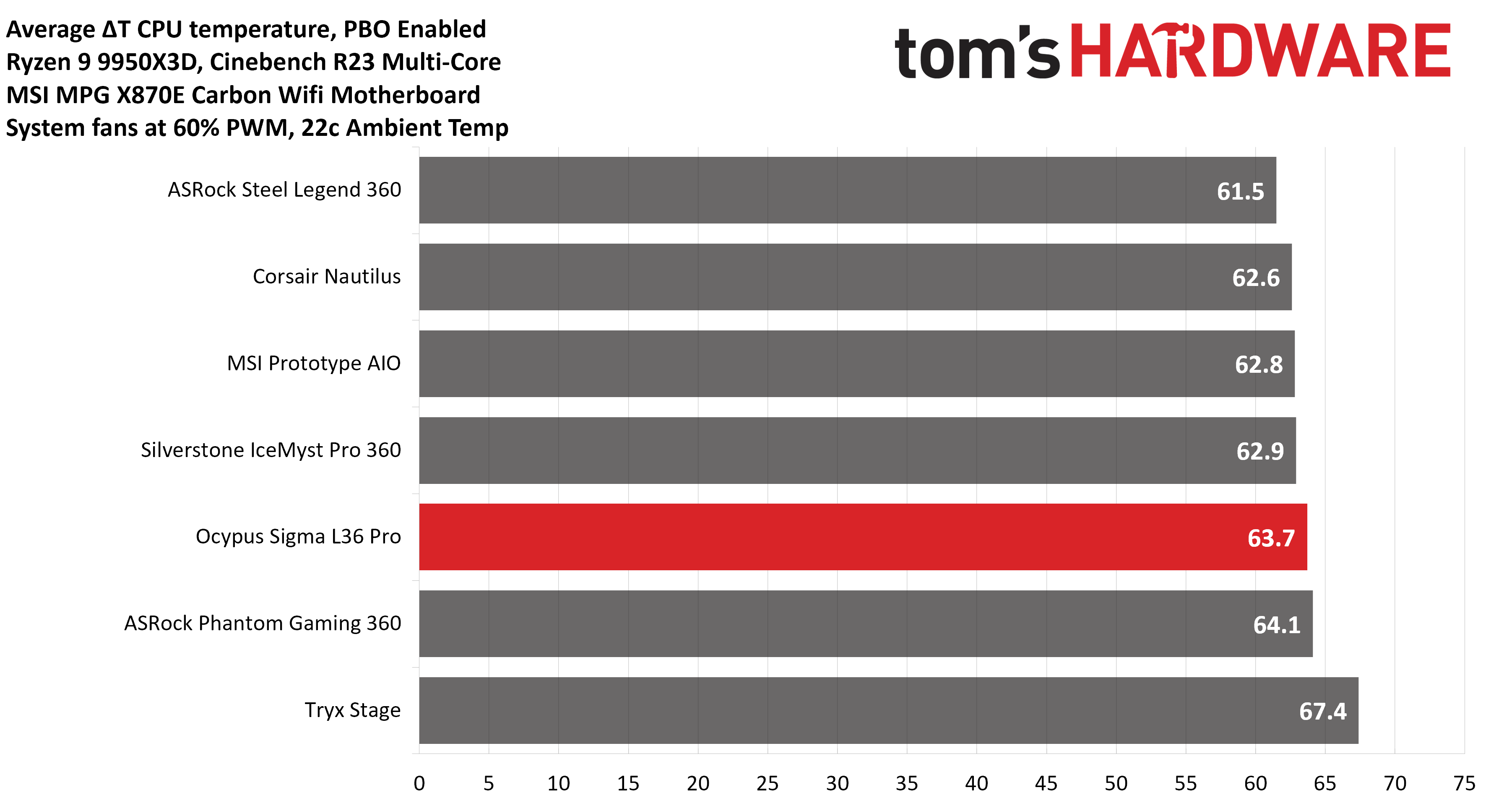
Turning on PBO allows AMD’s Ryzen 9 9950X3D to stretch its legs to an extent and consume over 260W. Enabling PBO enables high power consumption and heat output, when using MSI’s X870E Carbon Wifi motherboard, the CPU will reach its TJ Max (peak temperature) of 95 degrees C (203 F) and thermally throttle to some extent with most coolers. When this throttling occurs, I’ve measured the average power consumption to determine performance.
(Image credit: Tom's Hardware)
High-end AIO liquid coolers have higher expectations in this benchmark, and are expected to be able to keep AMD’s Ryzen 9 9950X3D under TJ Max during the duration of the benchmark – in these cases, we compare the CPU’s actual temperature.
Ocypus’ Sigma L36 Pro performs well and is capable of keeping the CPU cool in this test, with an average temperature of 85.7C/186.3F.
(Image credit: Tom's Hardware)
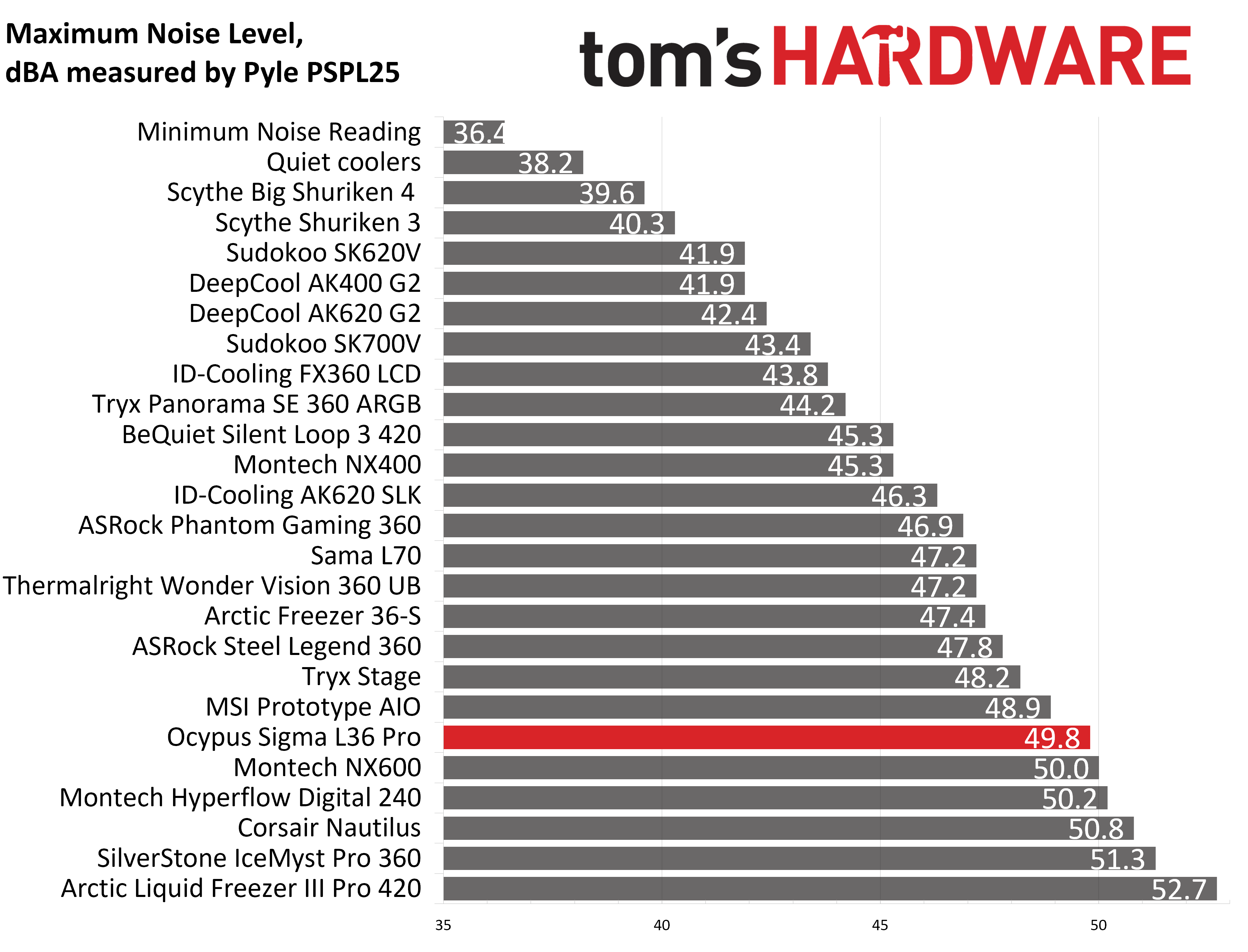
Some coolers perform well in maximum strength tests, but run loudly at full speeds. Noisy fans in this scenario aren’t necessarily a bad thing; some folks prefer to hear them as a way to be aware when the CPU is getting hot.
The fans included with Ocypus’ Sigma L36 Pro reach 49.8 dBA at 100% RPM, which is loud, but to be expected of fans with 5.8mm H20 of air pressure. Those who prefer to implement speed restrictions for silent operation need not worry; our noise-normalized benchmarks show good performance even when the fans are set to run quietly.
(Image credit: Tom's Hardware)
200W thermal benchmarks
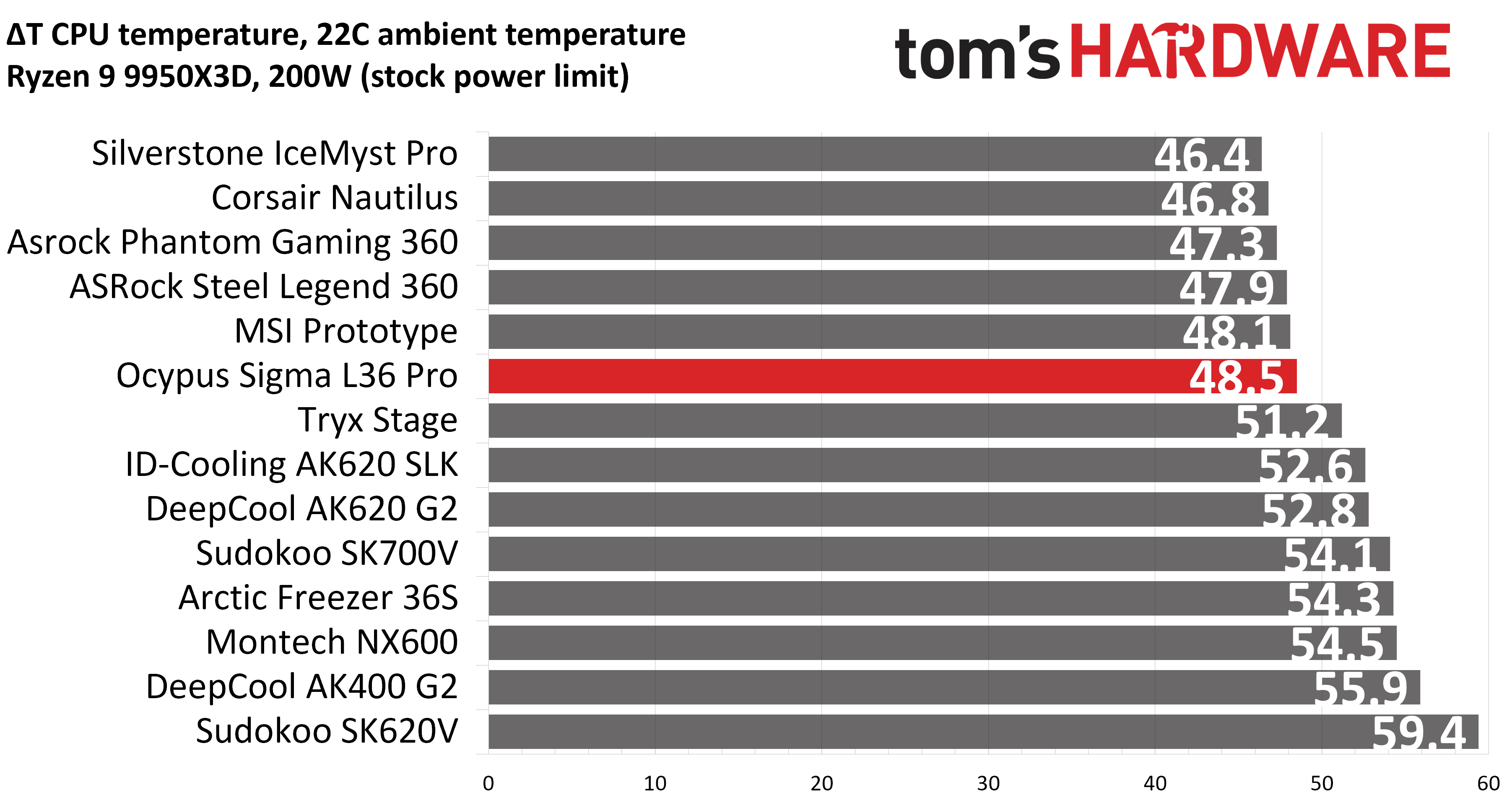
For the next thermal test, I leave the motherboard settings at their defaults, which results in a power limit of 200W when running Cinebench R23.
(Image credit: Tom's Hardware)
When compared to the other seven AIOs we’ve tested Ocypus Sigma L36 Pro against, its performance is behind most of its peers. That said, the gap between Ocypus’ AIO and the top performer is rather small – the average temperature of 70.5C (48.5C above ambient) achieved by the Sigma L36 Pro is only 2.1C behind our best result.
150W + GPU thermal results, noise levels
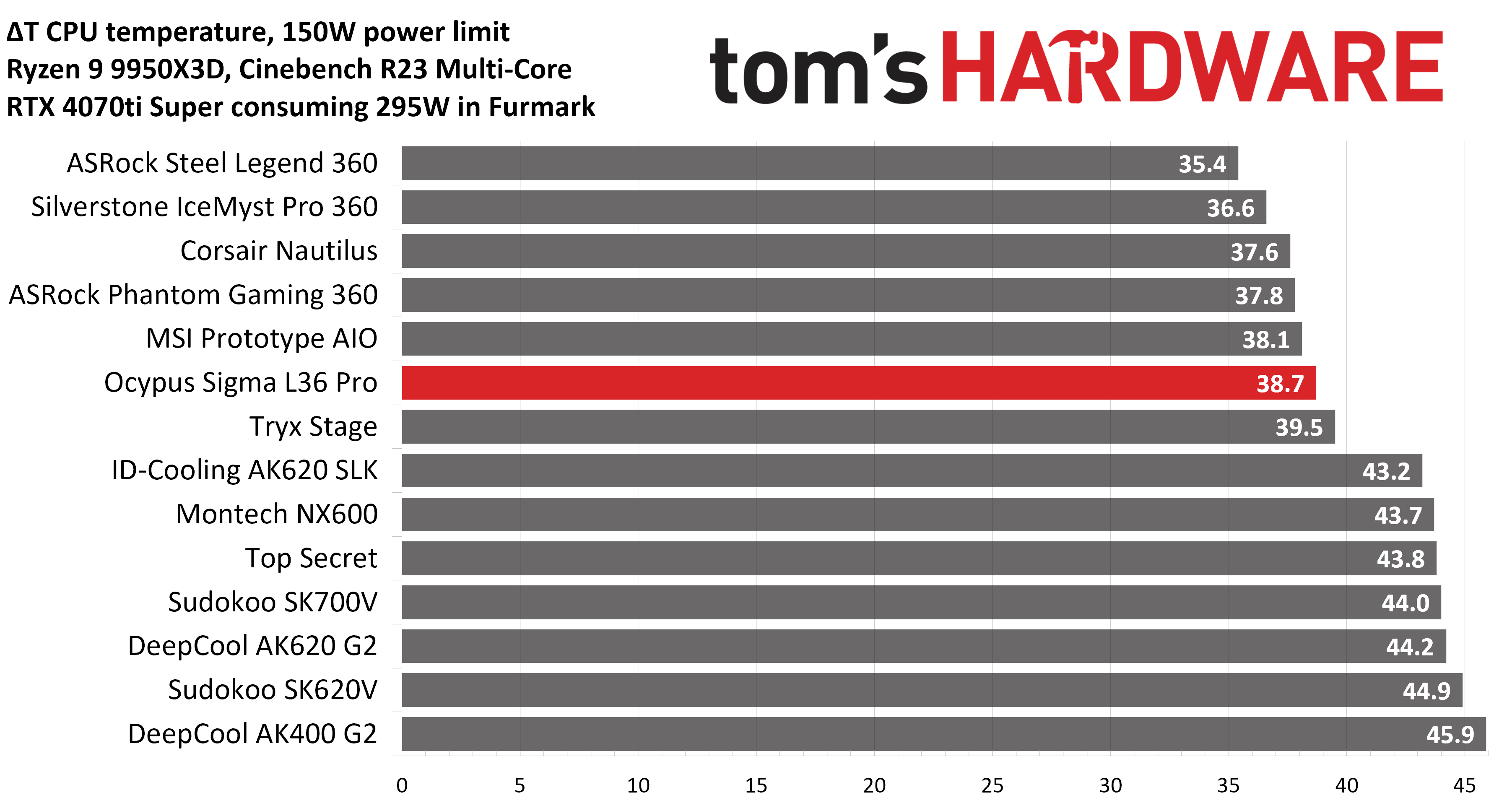
Our next test runs Cinebench on the CPU with a 150W power limit, while also running Furmark on MSI’s RTX 4070 Ti Super Ventus 3x OC. This causes the GPU to consume ~295W of power. This test is designed to emulate the thermals of games, which primarily stress the CPU and GPU.
(Image credit: Tom's Hardware)
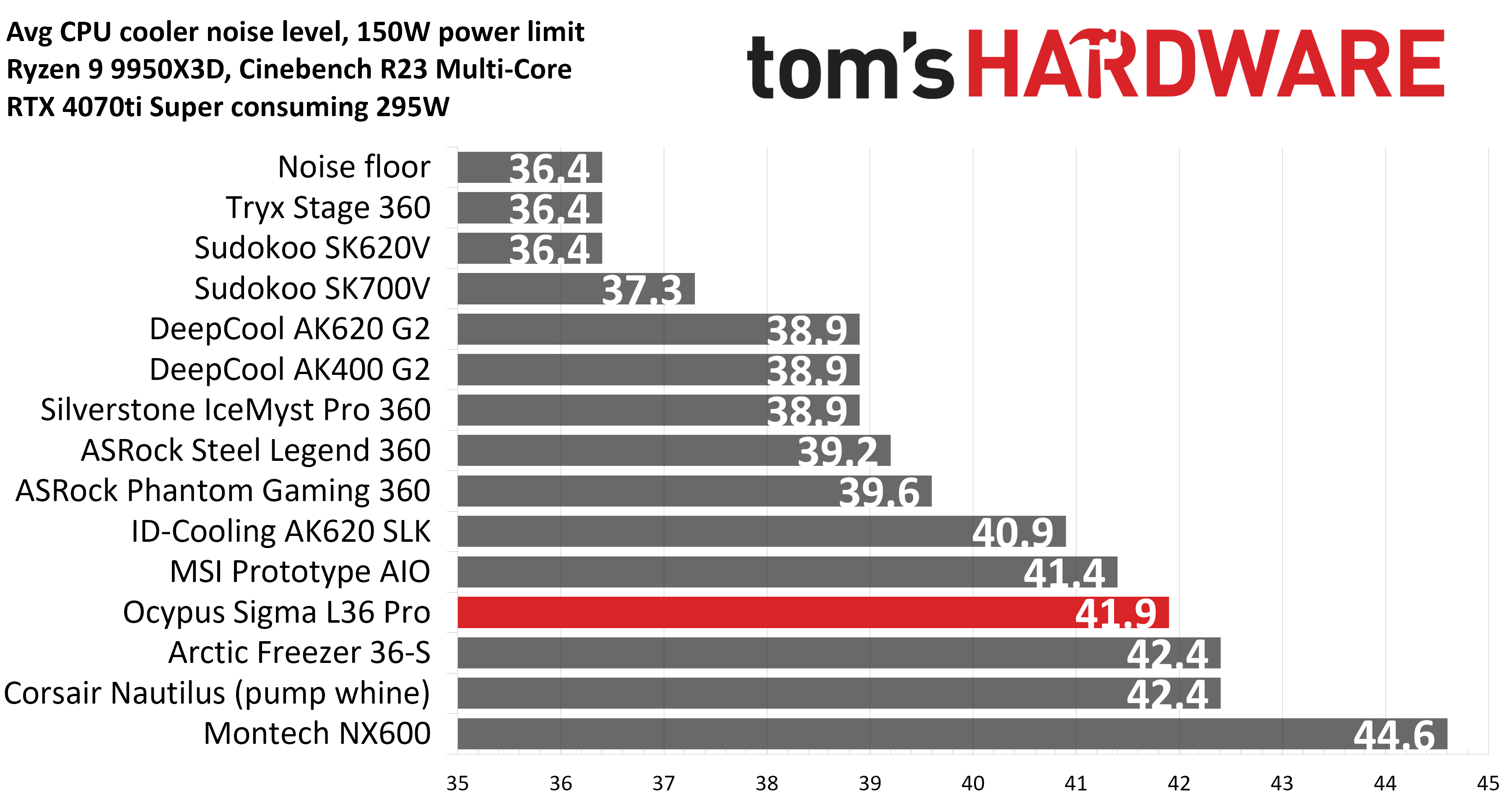
Ocypus’ position in this thermal test remains the same as in our previous chart. When tied to the default fan curve of MSI’s X870E Carbon motherboard, it reaches a mild volume level of 41.9 dBA.
(Image credit: Tom's Hardware)
Noise-normalized testing
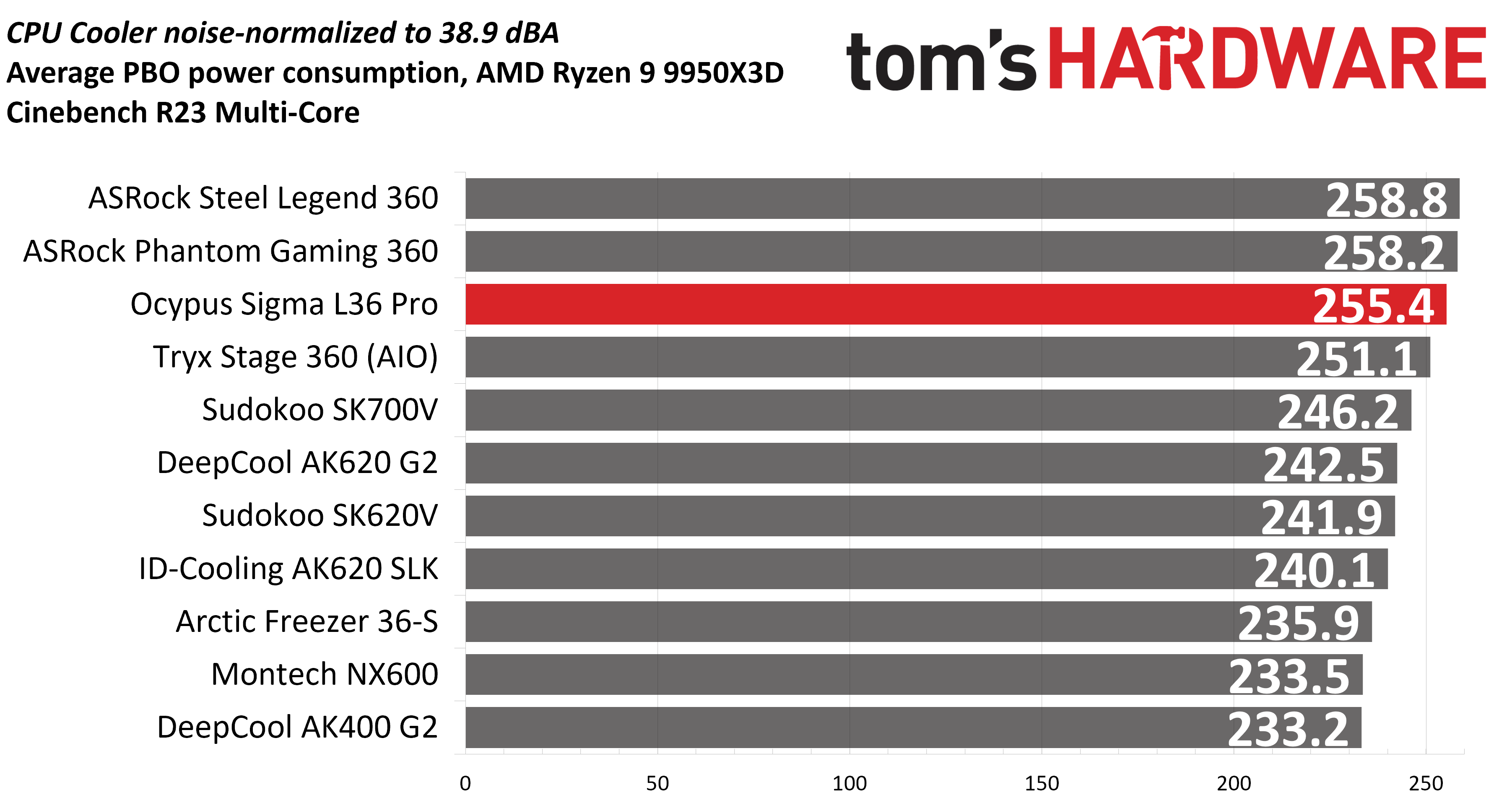
Most testing is performed with the cooler tied to the default fan curve of our MSI X870E Carbon motherboard, but some of y’all prefer to see tests when the noise levels of coolers are equalized. This is especially important to those of you who prefer silent computers. This next test has the CPU cooler noise-normalized to 38.9 dBA, with PBO enabled for the Ryzen 9 9950X3D CPU.Most coolers will not be able to keep the CPU from reaching its peak temperature (TJ Max) in this stress test. So we’ll look at this in terms of average CPU power consumption, which averaged 255.4 watts.
(Image credit: Tom's Hardware)
This test is especially difficult because in addition to the reduced noise from the CPU cooler, our current test bench’s system fans are configured to run extremely silently, below the floor of the noise meter I use to measure dBA.
Conclusion
(Image credit: Tom's Hardware)
Ocypus’ Sigma L36 Pro features an attractive combination of features, including a fancy 3.5-inch LCD display. Those things alone make this AIO interesting and worth considering, but it’s also affordable, with a regular price of only $135, and often on sale for less. In fact, as this review was wrapping up, the black version of the Sigma L36 Pro was on sale at Amazon for just $105. At that price, it’s inarguably a CPU-cooling steal.
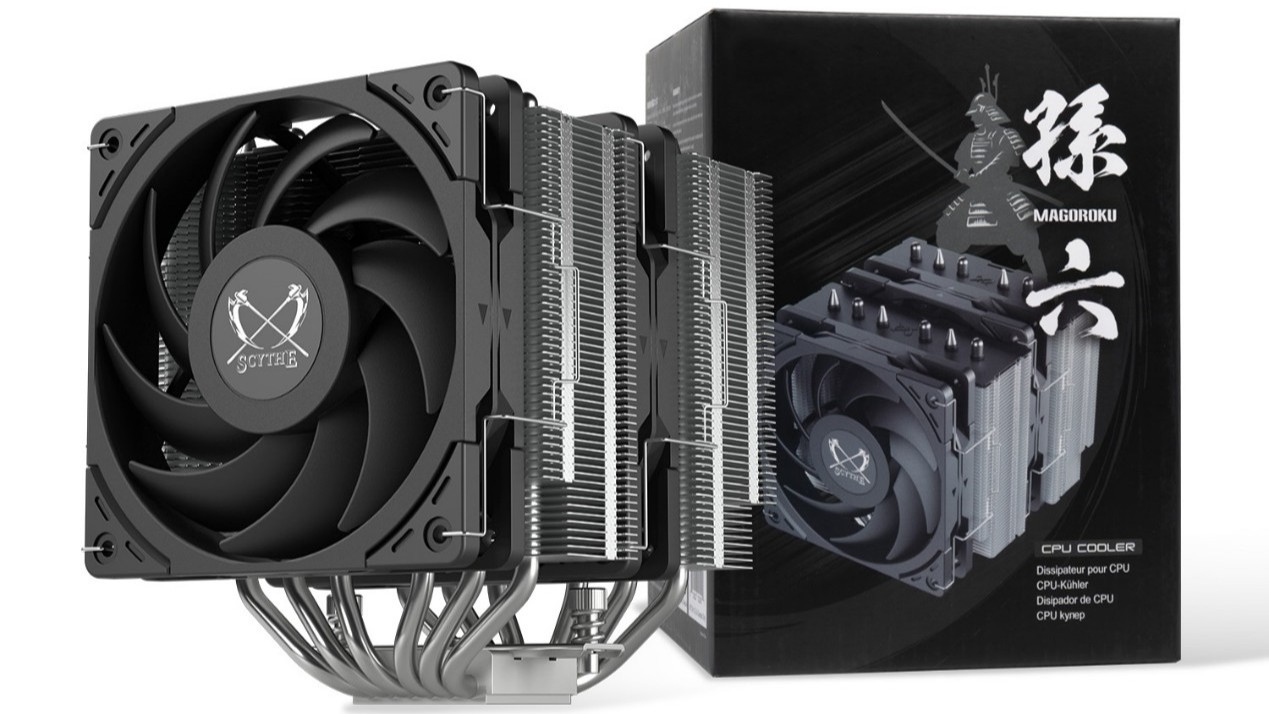
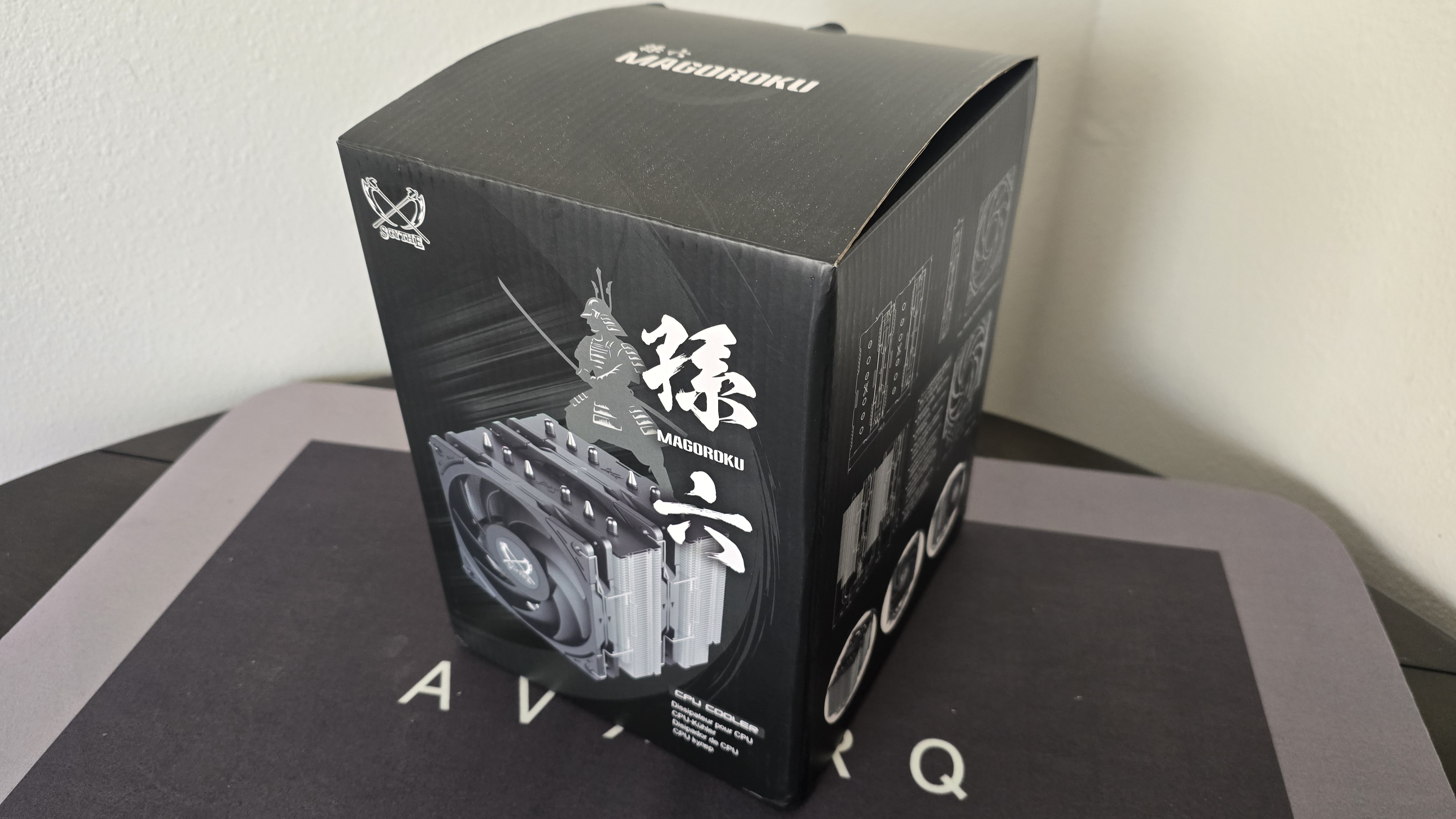
Unlike some of its cooler competitors, Chiba Japan-based Scythe is a fabless company that partners with factories in China and Taiwan for manufacturing of its air coolers, fans, and other PC hardware. The company has been delivering cooling products aimed largely at quiet performance for more than 20 years. We’ve enjoyed testing its previous products, like the fan-favorite FUMA 3 air cooler. Today we’re looking at Scythe’s latest offering, the Magoroku – a dual tower heatsink paired with two of Scythe’s Wonder Tornado 120 fans.
(Image credit: Scythe)
Let's take a look at the specifications and features of this CPU cooler. Then we’ll go over thermal and noise benchmarks to see if the Magoroku deserves to make our list of the best CPU coolers.
Cooler specifications
Cooler
Scythe Magoroku
Colors
Black
MSRP
$42.99
Lighting
None
Warranty
One year
Socket Compatibility
AMD AM5/AM4
Intel 1700/1851/1200/115x
Dimensions w/ fan
134 (W) x 142.5 (D) x 155mm (H)
Maximum TDP with AMD’s Ryzen 9 9950X3D (Our Testing)
Full speed fans: >236W
Noise-normalized: >228W average
Features of the Scythe Magoroku air cooler
▶️ Dual tower heatsinks, six copper heatpipes
(Image credit: Tom's Hardware)
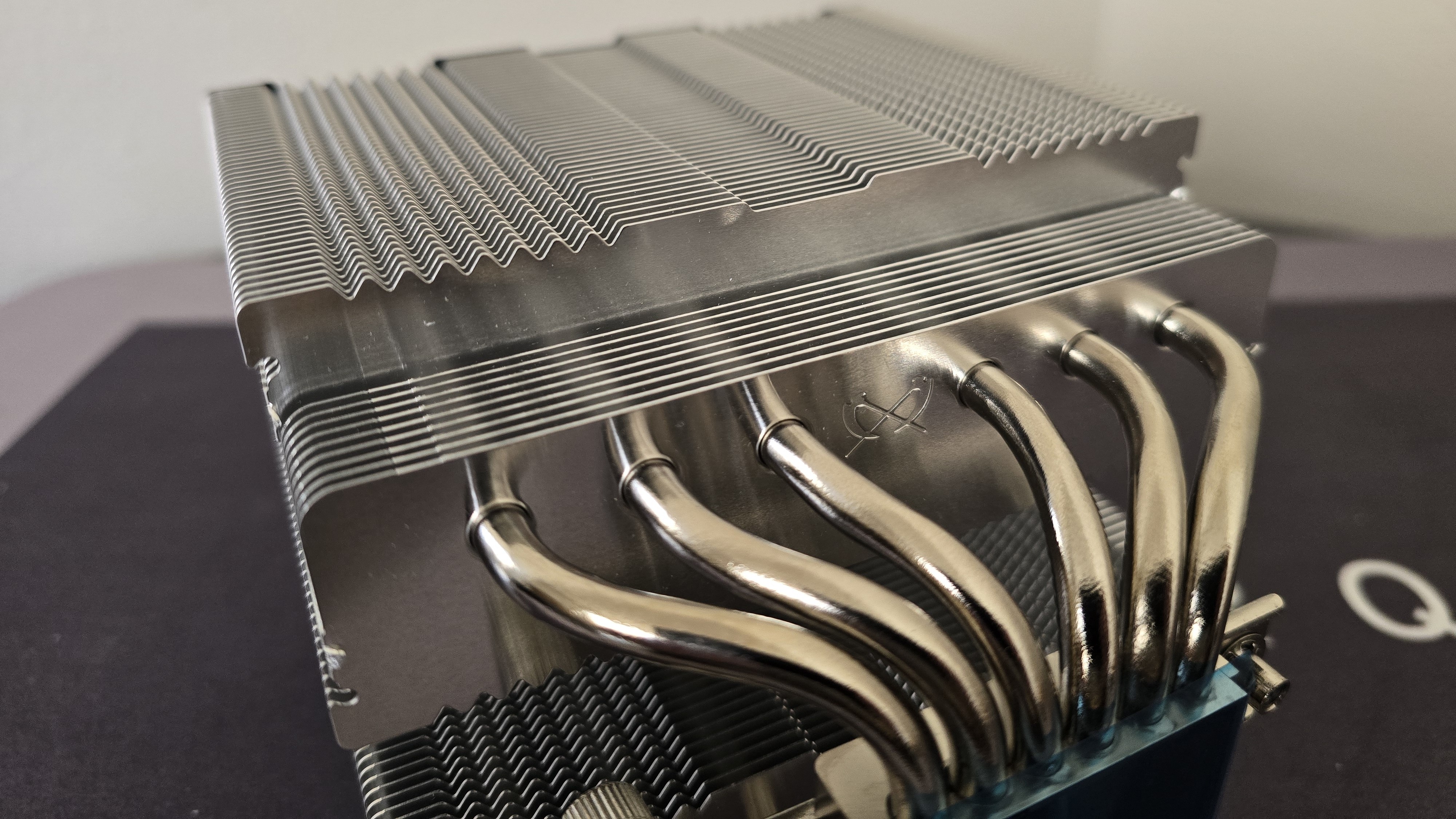
This air cooler features a dual-tower design, with six copper heatpipes to move heat from the CPU block into the metal fins above.
▶️ RAM Clearance
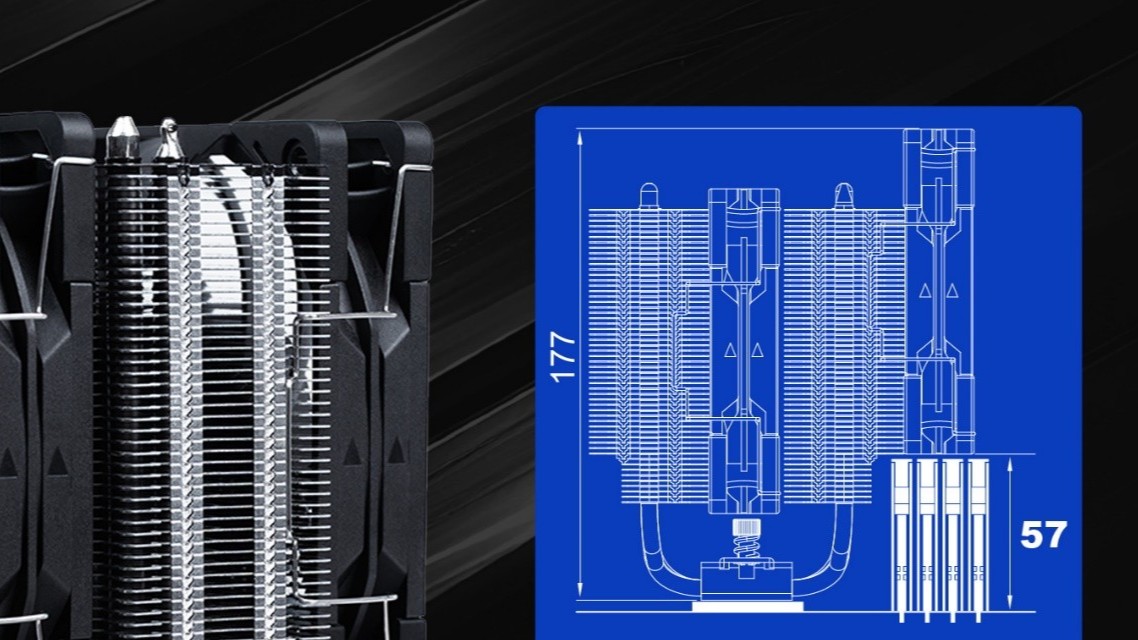
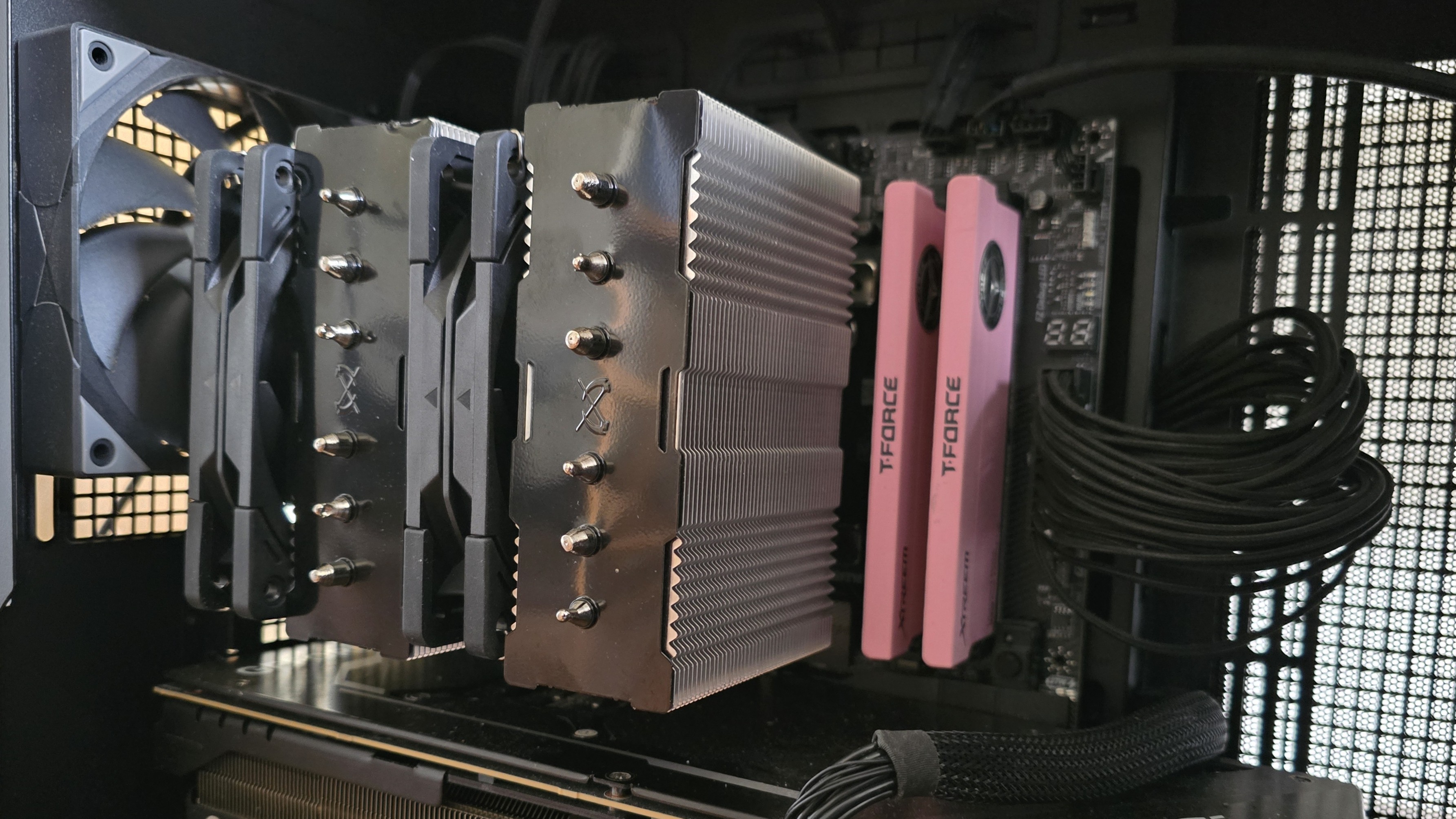
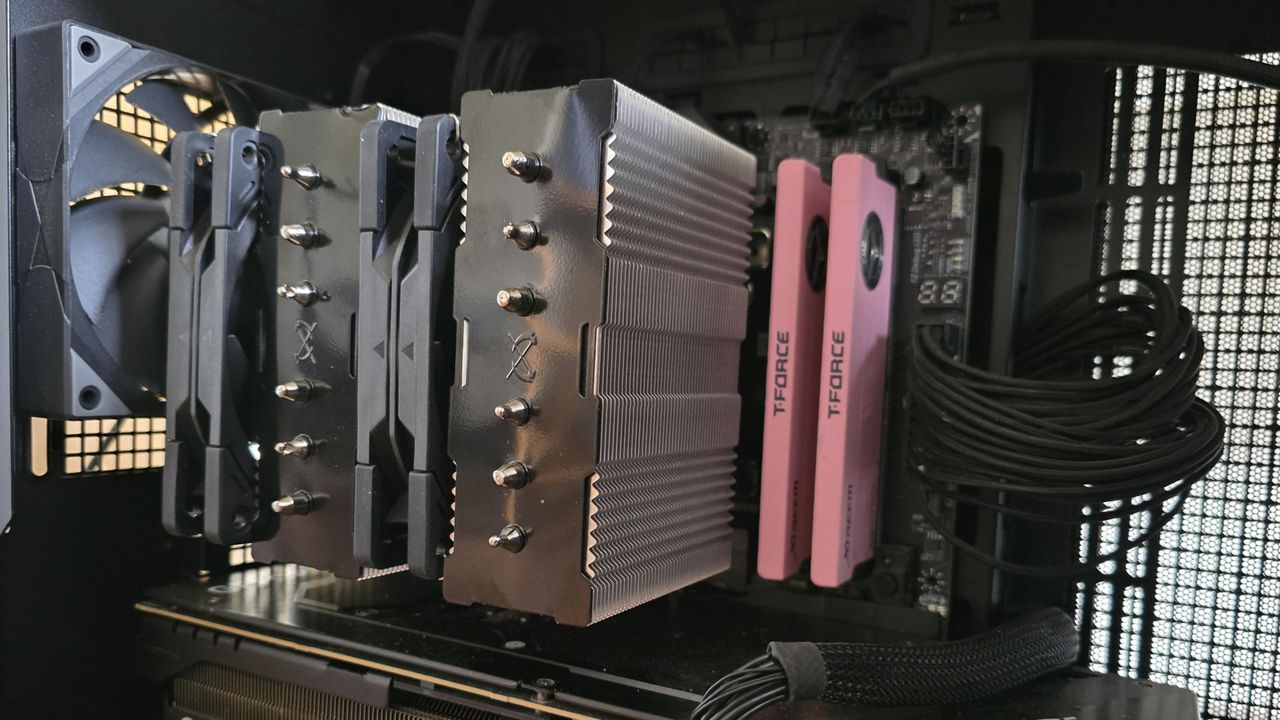
RAM compatibility with this cooler depends on how you look at it. Officially, Scythe mentions support for RAM up to 57mm tall. However, using the fan with tall RAM in this configuration does result in some performance loss.
(Image credit: Scythe)
We instead recommend moving the front fan to the back of the unit, above your motherboard’s VRM heatsinks, for best thermal performance. This configuration also has the side effect of complete RAM compatibility, as nothing interferes with or overhangs the DIMM slots.
(Image credit: Tom's Hardware)
▶️ 120mm Wonder Tornado fans
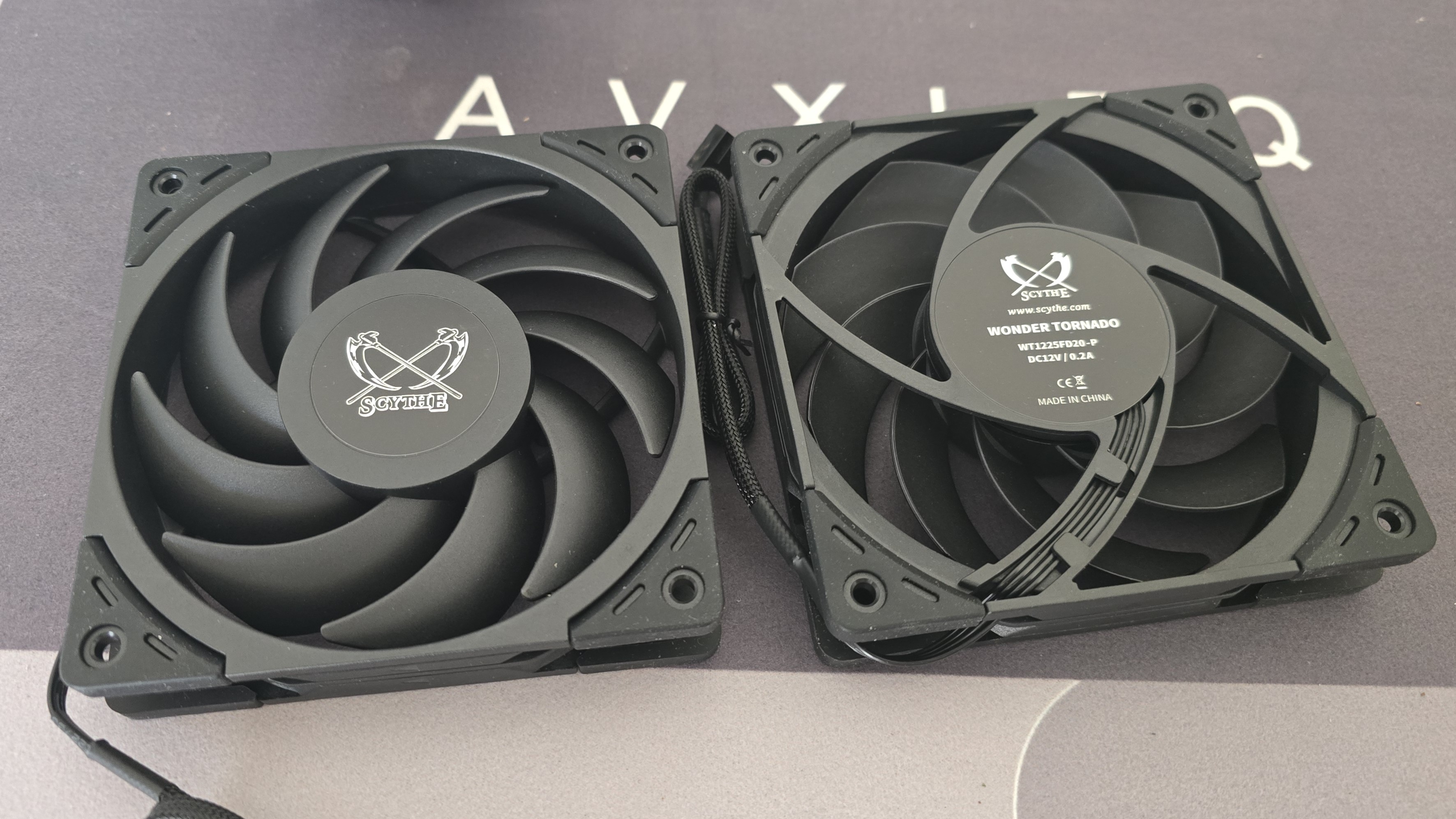
There's more to a cooler than just the heatsink. The included fans have a direct impact on aesthetics, noise levels, and overall thermal performance. Scythe includes two of its Wonder Tornado 120 fans with the Magoroku air cooler.
(Image credit: Tom's Hardware)
Fan Speed
300-2000 RPM
Dimensions
120 x 120 x 26 mm
Airflow
60.29 CFM
Air Pressure
2.45 MMH20
▶️ Packaging
The outer packaging highlights the design of the product in a flashy but subtle way, incorporating a black background with grey and white highlights.
(Image credit: Tom's Hardware)
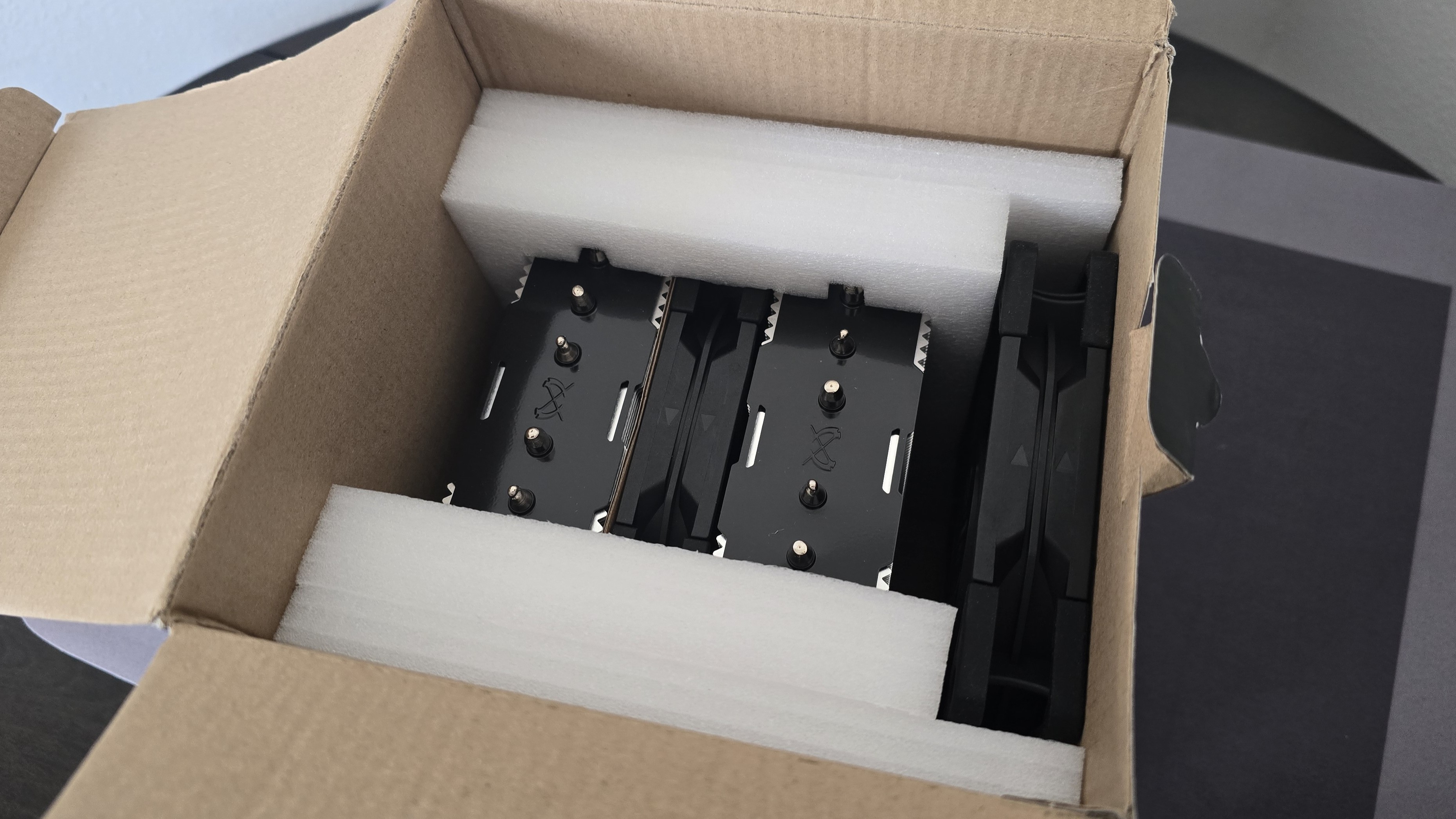
The CPU cooler and fans are protected by molded foam and cardboard inserts.
(Image credit: Tom's Hardware)
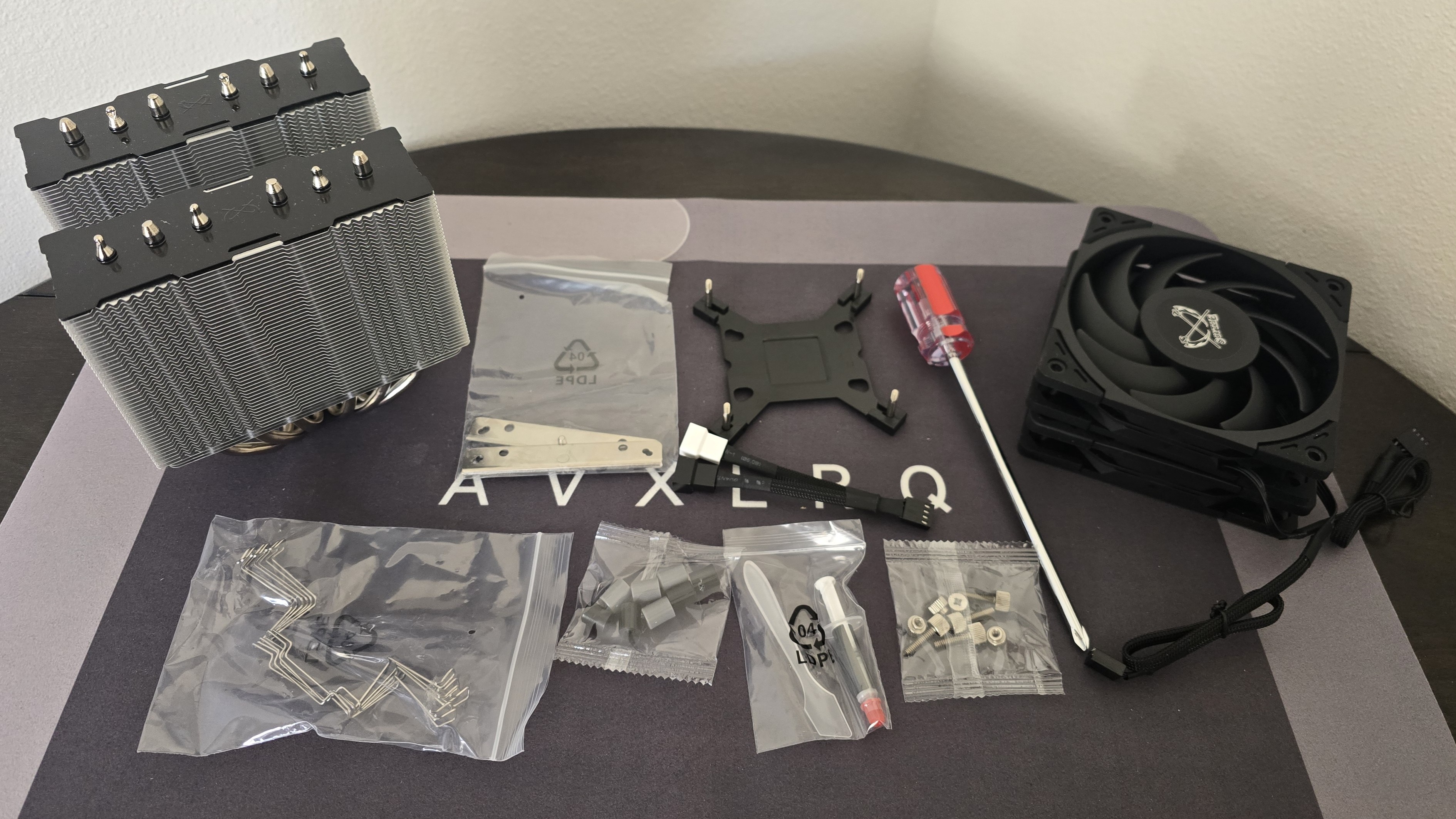
Included with the package are:
● Mounting hardware for AMD and Intel platforms
● Three sets of fan clips
● A small tube of thermal paste
● Two 120mm Wonder Tornado fans
● Screwdriver
(Image credit: Tom's Hardware)
AM5 Installation
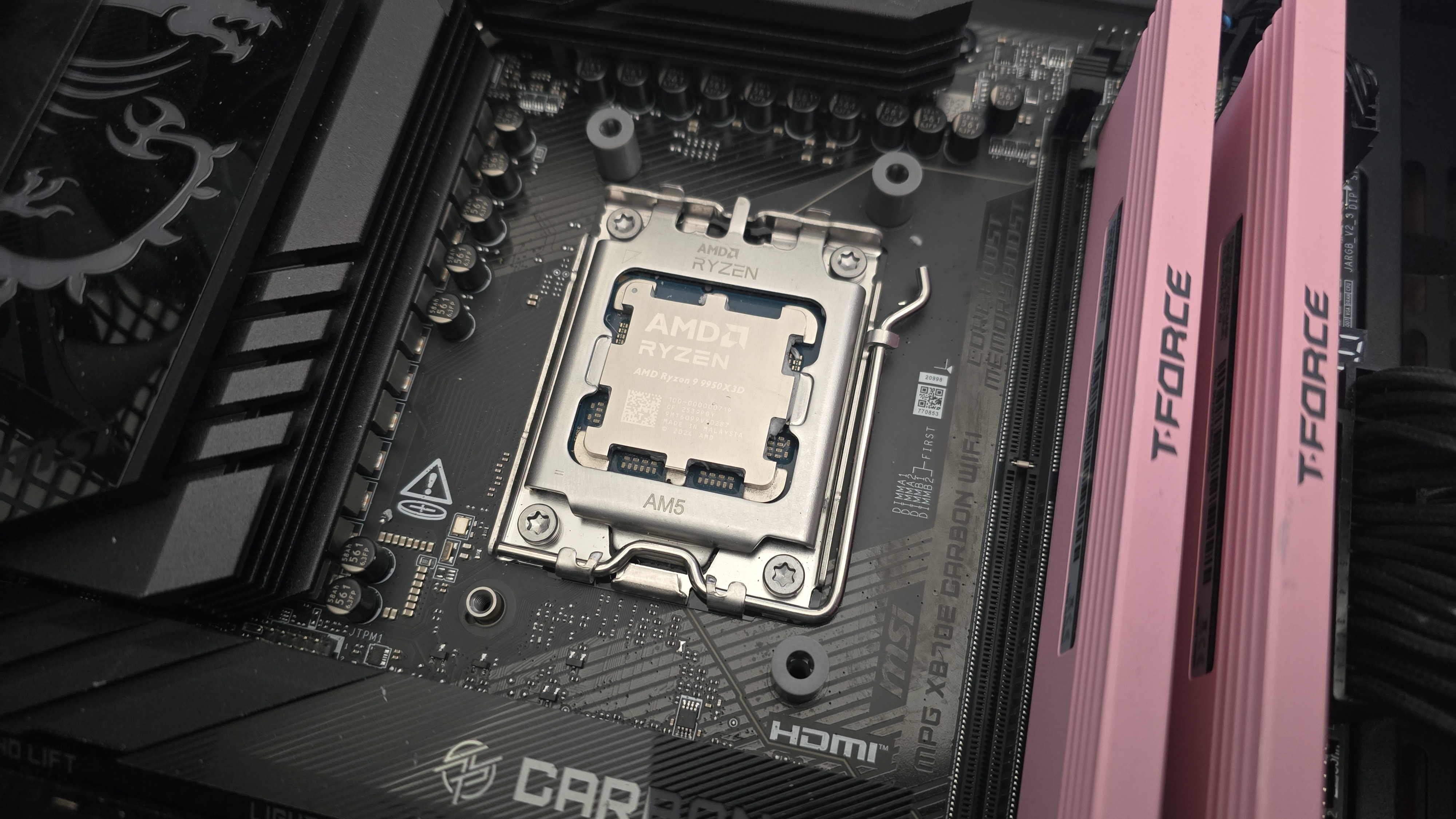
To begin putting things together, you’ll need to first remove the default AM4/5 retention mechanism. Next, place the studs over the exposed holes.
(Image credit: Tom's Hardware)
Afterwards, take the mounting bars and secure them with the included screws and screwdriver.
(Image credit: Tom's Hardware)
It’s time to apply the thermal compound. If you’re not sure how to do that, we have a handy thermal paste application guide that covers the best methods you can use.
After thermal paste is applied, take the CPU block and press it against the mounting bars, using the built-in screws and screwdriver to secure it in place.
(Image credit: Tom's Hardware)
Finally, you’ll want to attach both fans using the clips included with the cooler and connect them to the motherboard’s PWM header. If you have tall system RAM, I advise moving the front fan and placing it in the rear for best thermal performance.
(Image credit: Tom's Hardware)
Real-world testing configuration on AMD’s AM5 platform
We’ve tested coolers with both the Ryzen 9950X3D and its non-V-Cache sibling, the 9950X. There are some differences in how the 9950X and 9950X3D CPUs are impacted by thermal events. While the heat output of the CCDs of AMD’s 9950X3D is relatively balanced, the 9950X I used has one CCD that runs much hotter than the other, with a difference of over 10 degrees Celsius in some scenarios, shown below.
(Image credit: Tom's Hardware)
We’ve since returned to using a 9950X3D for cooler testing, as it has a more balanced heat profile, and is almost certainly a more widely adopted CPU. The benchmark results shared in these reviews may differ from others because I emphasize results that are comparable to real-world use. This means I generally test CPU coolers inside of a closed desktop case, which increases cooling difficulty compared to other testing methods.
Many reviewers test coolers on open test benches, which have a combination of lesser airflow needs and lowered ambient temperatures. This results in making weak coolers appear stronger than they really are. Some publications have also used generic thermal plates to test cooling solutions. I reject both of these methods because they don’t accurately reflect real-world cooler conditions.
CPU
AMD Ryzen 9 9950X3D
GPU
MSI Ventus 3X RTX 4070Ti Super
RAM
TeamGroup Diamond Rose T-Force Xtreem DDR5-7200
Motherboard
MSI X870E Carbon Wifi
Case
Tryx FLOVA F50
Our latest testing setup uses the FLOVA F50 computer case from Tryx.
(Image credit: Tom's Hardware)
This case features a unique “crossflow” fan that pulls air from the side, which the company claims is more effective than traditional intake fans. For air cooling tests, we’ve added a single Noctua NF-A12 G2 intake fan.
We’re going to start this review’s benchmark section by focusing on a traditional maximum performance test, with the CPU cooler’s fans allowed to reach their fastest speeds, for the best cooling possible.
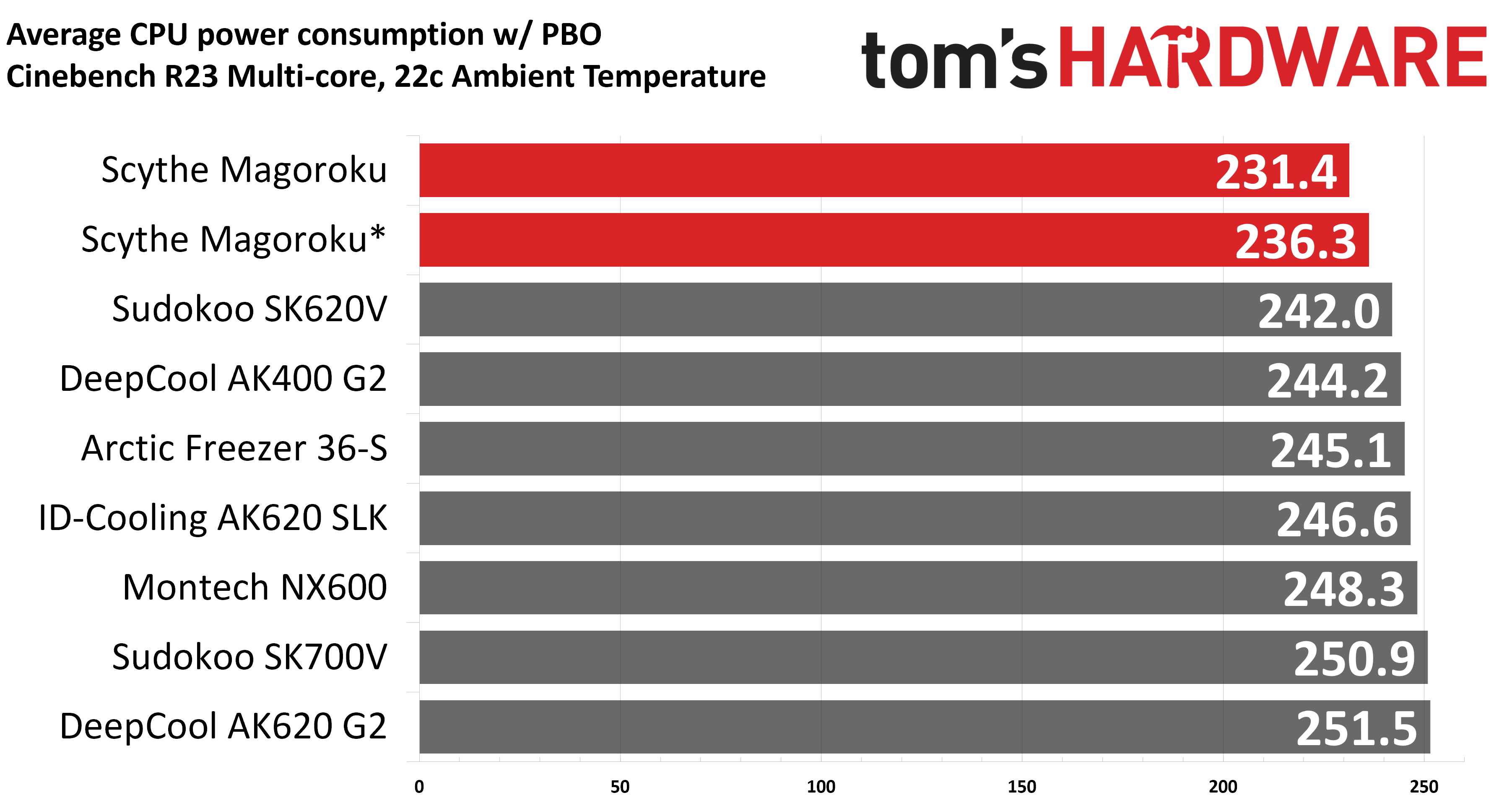
Turning on PBO allows AMD’s Ryzen 9 9950X3D to stretch its legs to an extent and consume over 260W. Enabling PBO enables high power consumption and heat output, when using MSI’s X870E Carbon Wifi motherboard the CPU will reach its TJ Max (peak temperature) of 95 degrees C (203 F) and thermally throttle to some extent with most coolers. When this throttling occurs, I’ve measured the average power consumption to determine performance.
(Image credit: Tom's Hardware)
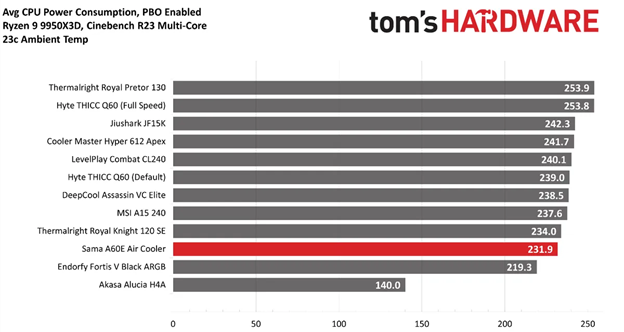
You’ll notice there are two results for Scythe’s Magoroku here. The first result is with an intake fan above our test rig’s TeamGroup DDR5 (as Scythe suggests); the second result is with that fan placed on the back above the motherboard’s VRM modules. As you can see, it’s better to move the front fan to the back if your system incorporates tall RAM modules. That said, neither result is particularly impressive. These are the worst results we’ve seen on our latest test bench.
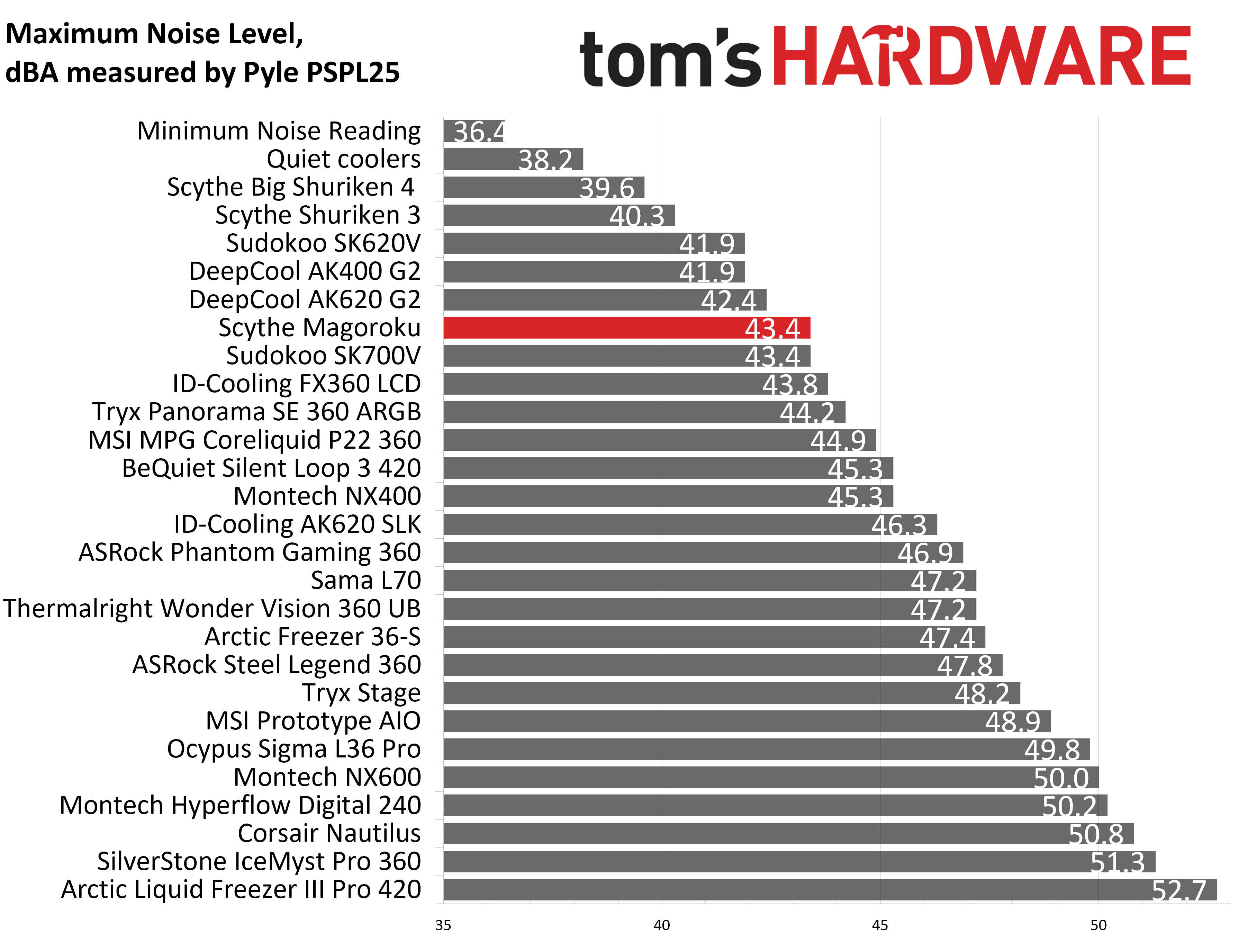
Some coolers perform well in maximum strength tests, but run loudly at full speeds. Noisy fans in this scenario aren’t necessarily a bad thing; some prefer to hear them as a way to be aware when the CPU is getting hot. Scythe’s Magoroku has a maximum volume level of 43.4 dBA, which is on the quieter end of the fan noise spectrum.
(Image credit: Tom's Hardware)
200W thermal benchmarks
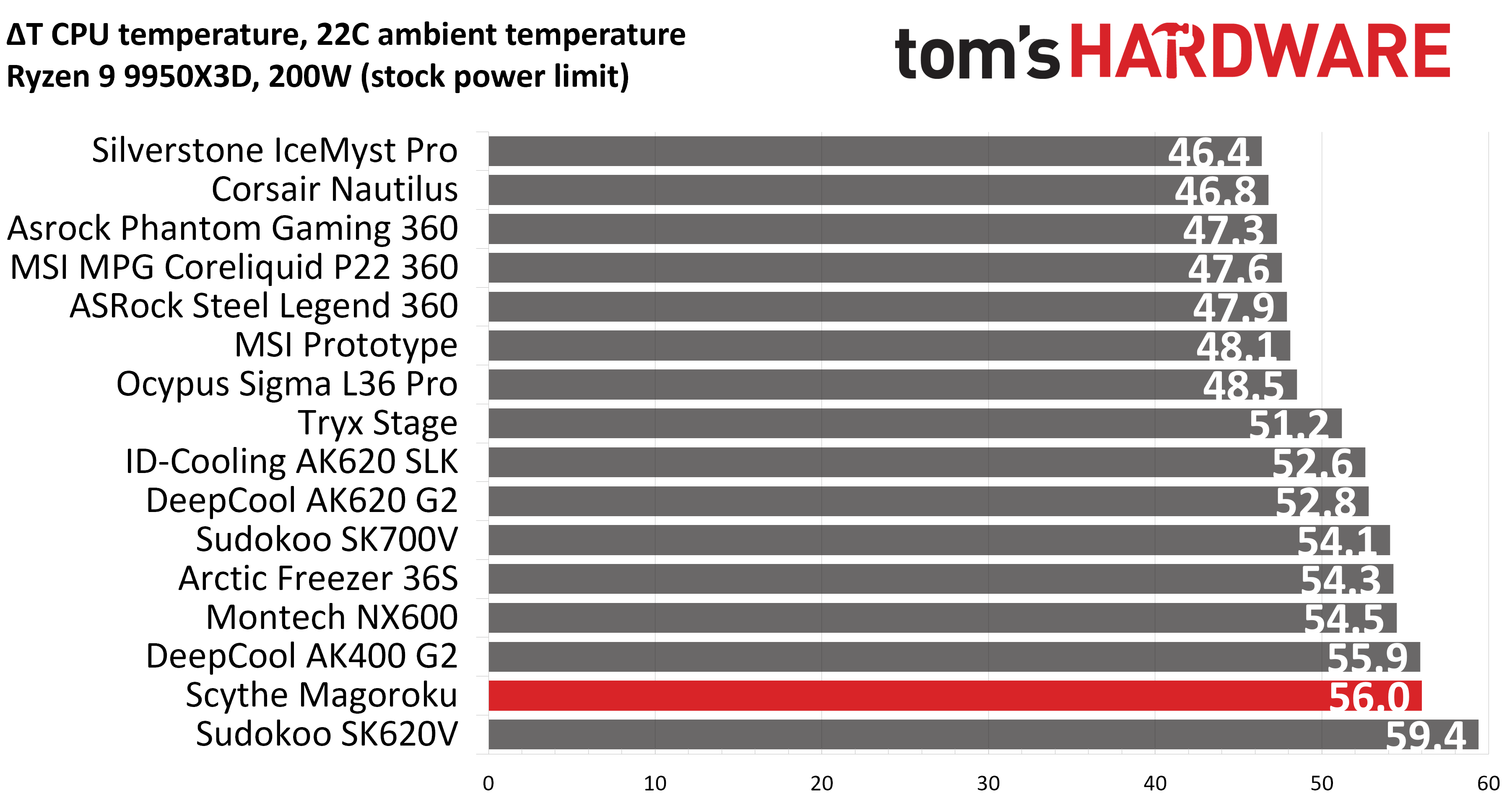
For the next thermal test, I leave the motherboard settings at their defaults, which results in a power limit of 200W when running Cinebench R23. The results here are slightly better than the last test, but not by much. The Scythe was the second-warmest cooler we’ve seen on this test bench.
(Image credit: Tom's Hardware)
150W + GPU thermal results
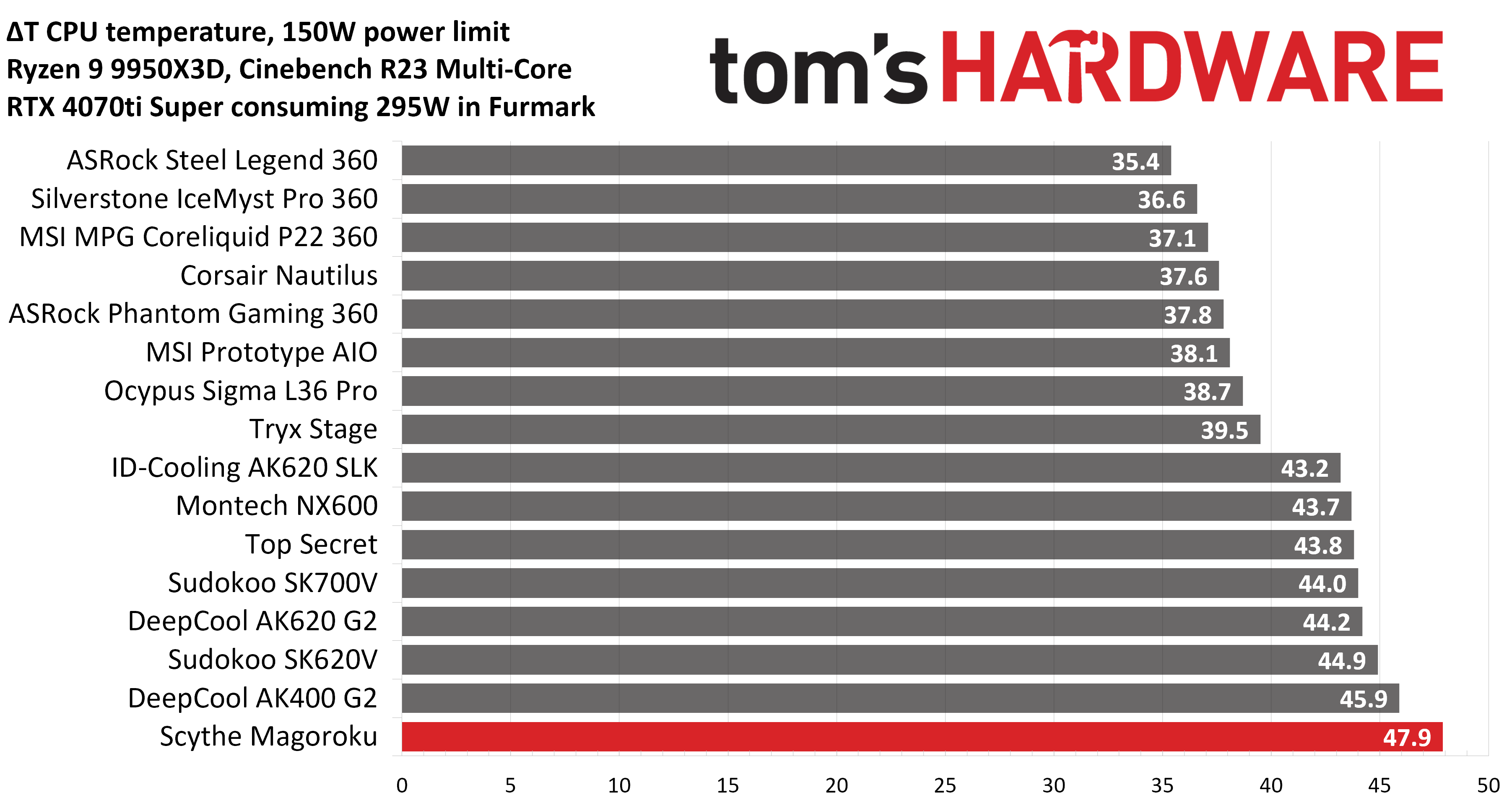
Our next test runs Cinebench on the CPU with a 150W power limit, while also running Furmark on MSI’s RTX 4070 Ti Super Ventus 3x OC. This causes the GPU to consume ~295W of power. This test is designed to emulate the thermals of games, which primarily stress the CPU and GPU.
(Image credit: Tom's Hardware)
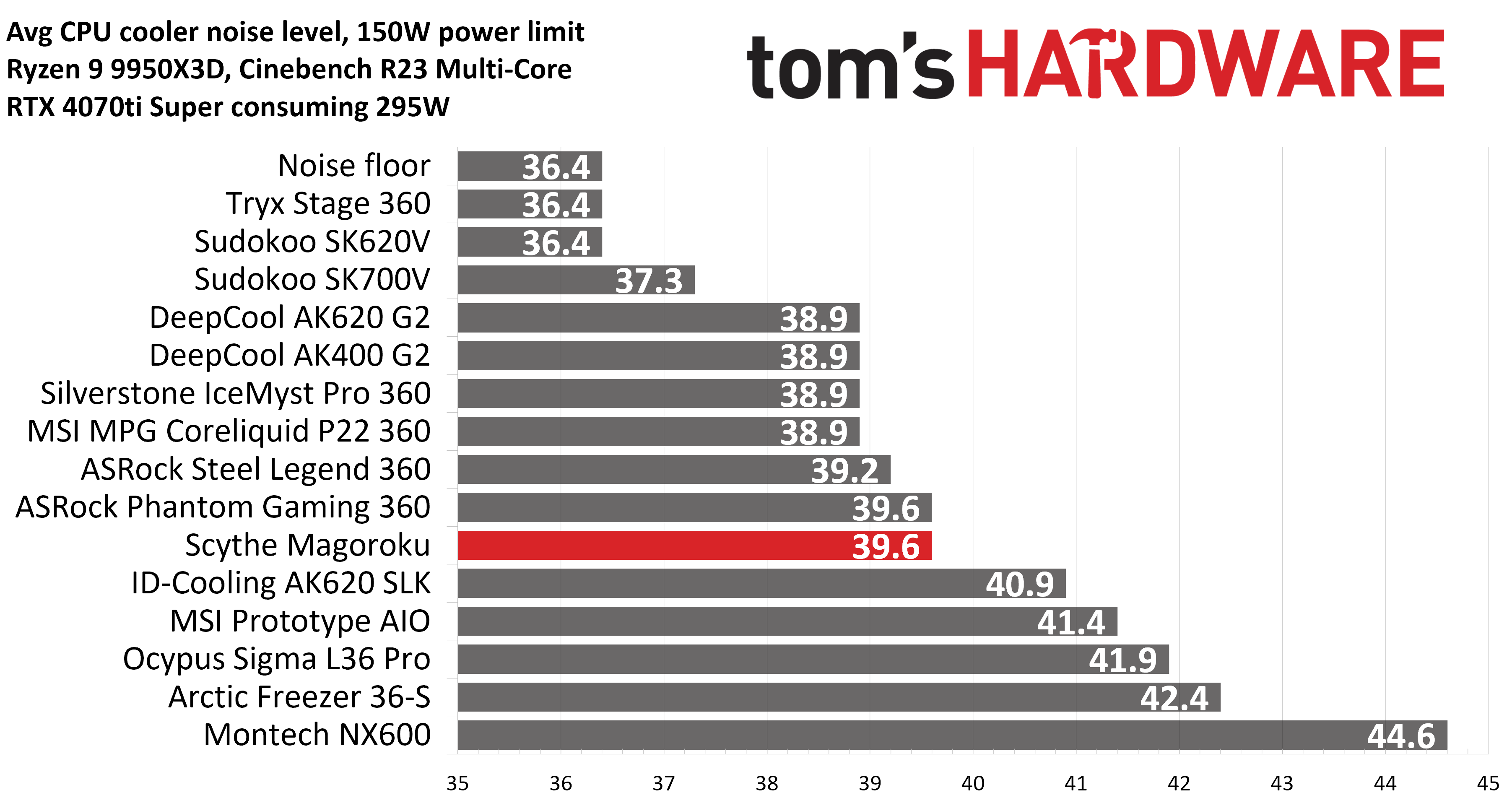
We’ve got another fairly disappointing result here, with a CPU temperature of 69.9C (47.9C over ambient) – the thermal performance is again in last place. Noise levels in our 150W CPU thermal test were acceptable, though, reaching 39.6 dBA.
(Image credit: Tom's Hardware)
It’s worth pointing out that some games are more intensive than this test above. While playing Assassin’s Creed: Odyssey, I regularly noticed temperatures reaching near TJ Max. This is a bit concerning.
Noise-normalized testing
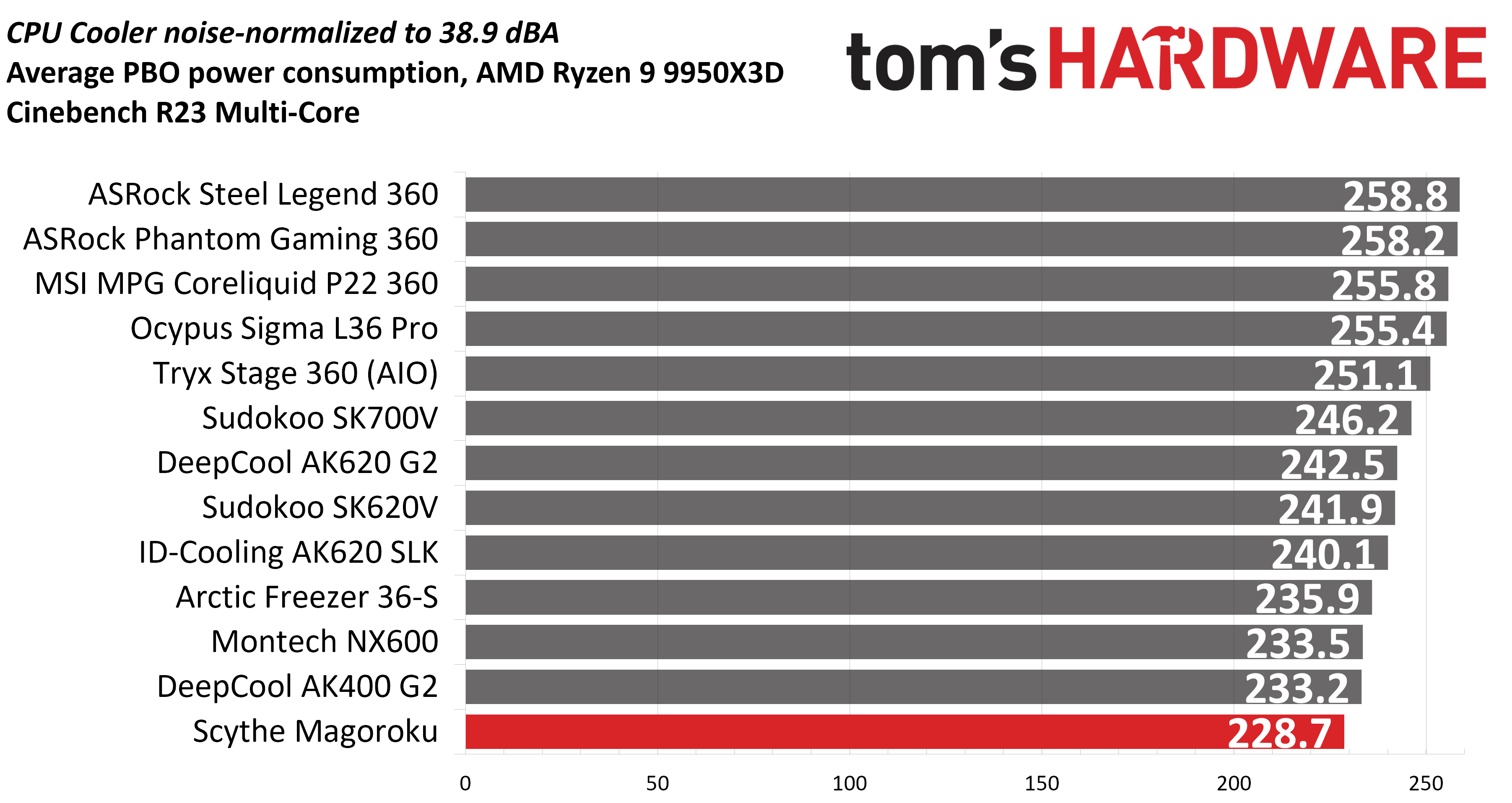
Most testing is performed with the cooler tied to the default fan curve of our MSI X870E Carbon motherboard, but some of y’all prefer to see tests when the noise levels of coolers are equalized. This is especially important to those of you who prefer silent computers. This next test has the CPU cooler noise-normalized to 38.9 dBA, with PBO enabled for the Ryzen 9 9950X3D CPU.
This test is especially difficult because, in addition to the reduced noise from the CPU cooler, our current test bench’s system fans are configured to run extremely silently, below the floor of the noise meter I use to measure dBA.
(Image credit: Tom's Hardware)
Most coolers, particularly air coolers, can’t keep the CPU from reaching its peak temperature (TJ Max) in this stress test. We’ll look at this in terms of power consumption, which averaged 228.7 watts. I wish I could say more positive things about this cooler’s thermal performance, but it just doesn’t seem to perform very well with an AMD Ryzen 9950X3D CPU.
Karhu DDR5 RAM thermals testing
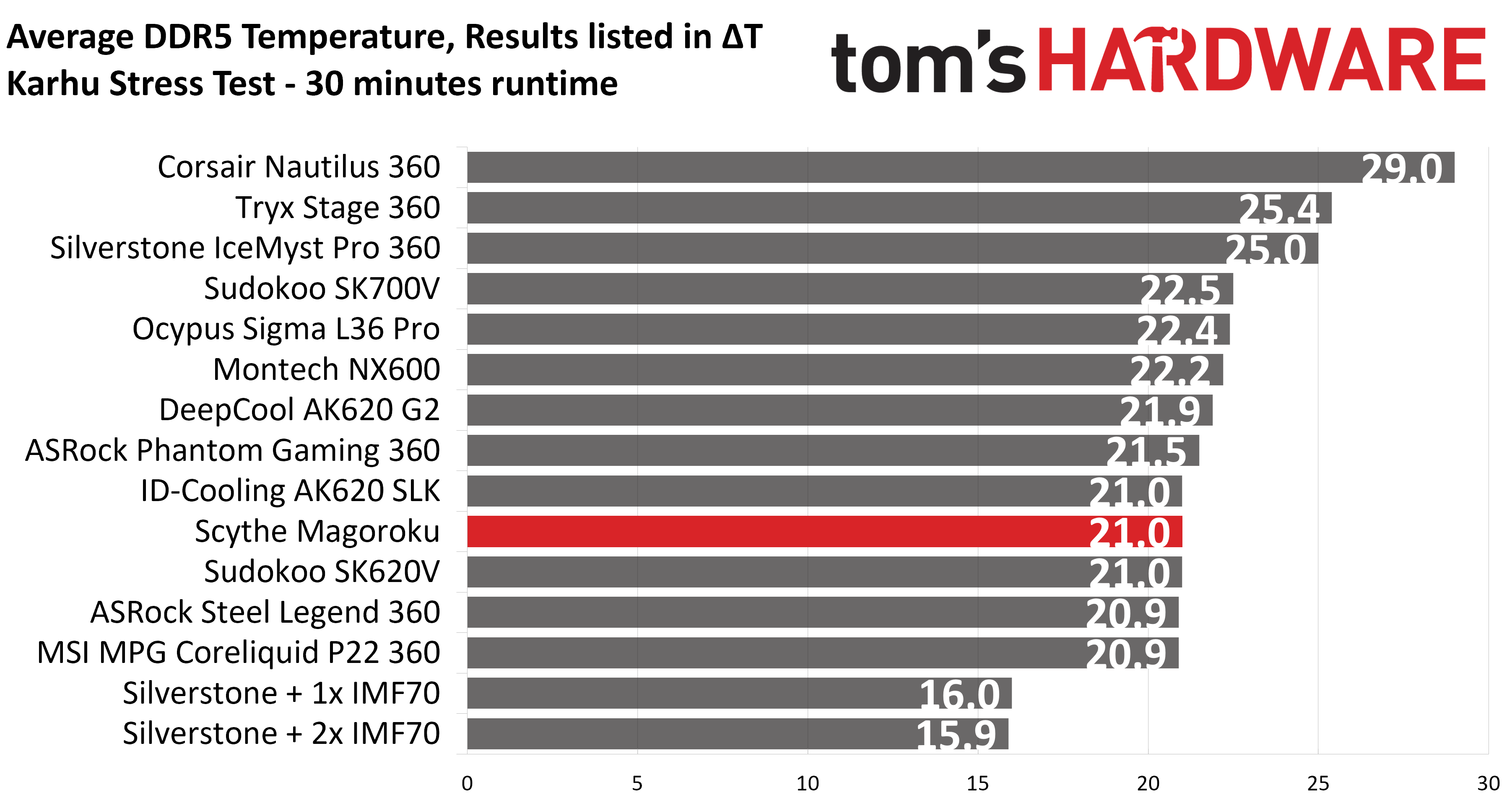
Your CPU cooler does not operate in isolation. It has an impact on not just your CPU’s temperatures, but also the other components in your build, like your RAM and GPU. To that end, I’ve run the Karhu RAM stress test. This places a load of ~153W on the CPU and ensures system RAM (DDR5 in my case) is fully stable. In this type of scenario, most AIOs tend to produce worse results than air coolers.
(Image credit: Tom's Hardware)
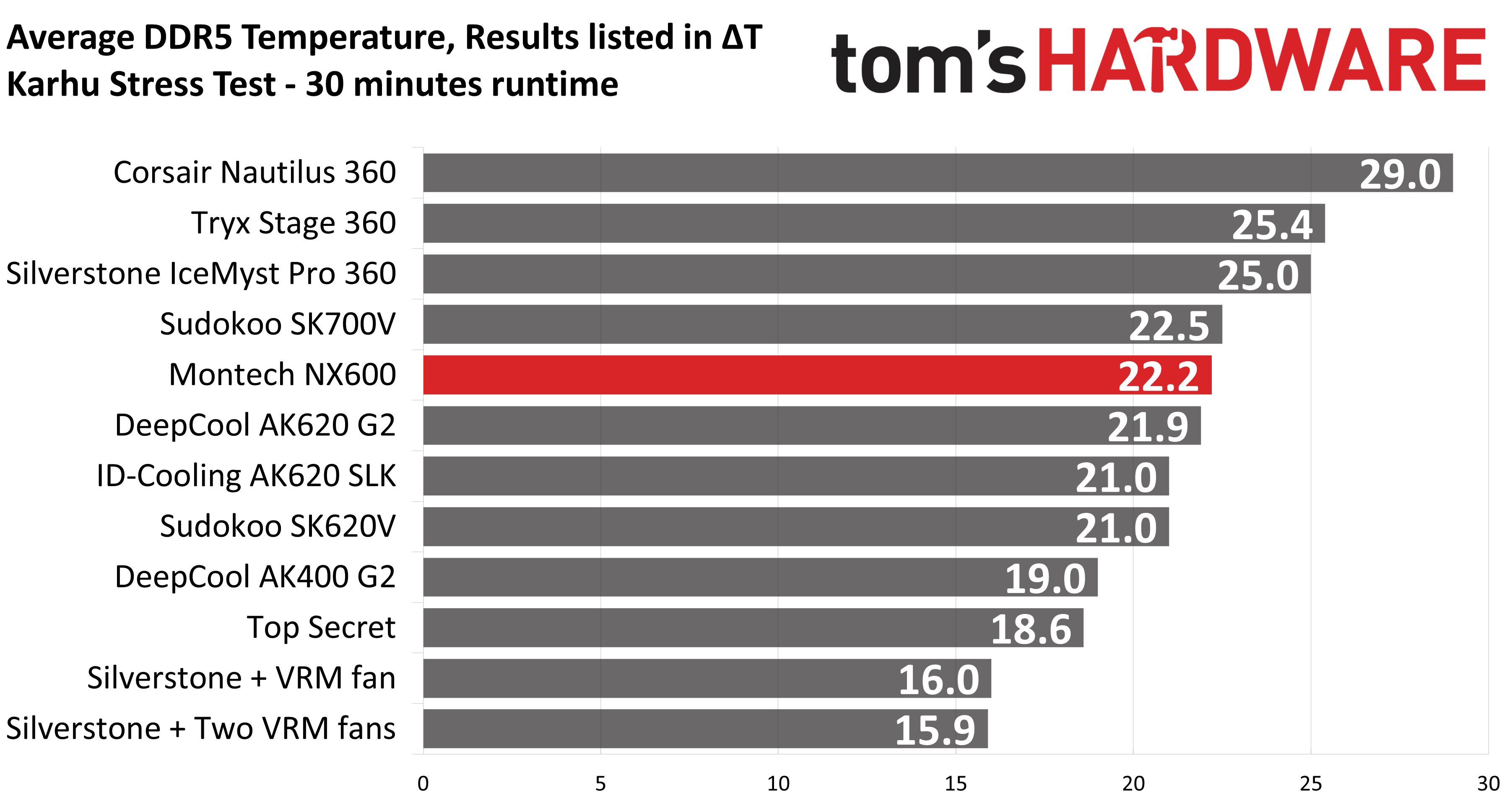
While the rest of our test results weren’t very impressive, Scythe’s Magoroku performed well when it came to keeping system DDR5 temperatures under control, measuring at an average of 43C (21C over ambient), tied for our second-place result in this benchmark if you don’t count Silverstone’s AIO with extra VRM fans.
Conclusion
Scythe’s Magoroku is a nice-looking cooler with moderately low noise levels. But most of our thermal results were underwhelming with our AMD Ryzen 9 9950X3D test bench. The exception to this was DDR5 RAM temperatures, which were impressive. If you’re looking for a low-noise air cooler that effectively cools your system memory, you might be happy with this product.
Perhaps this cooler performs better on Intel systems, but for AMD users, I’d instead recommend Thermalright’s Royal Pretor 130 at this price point.
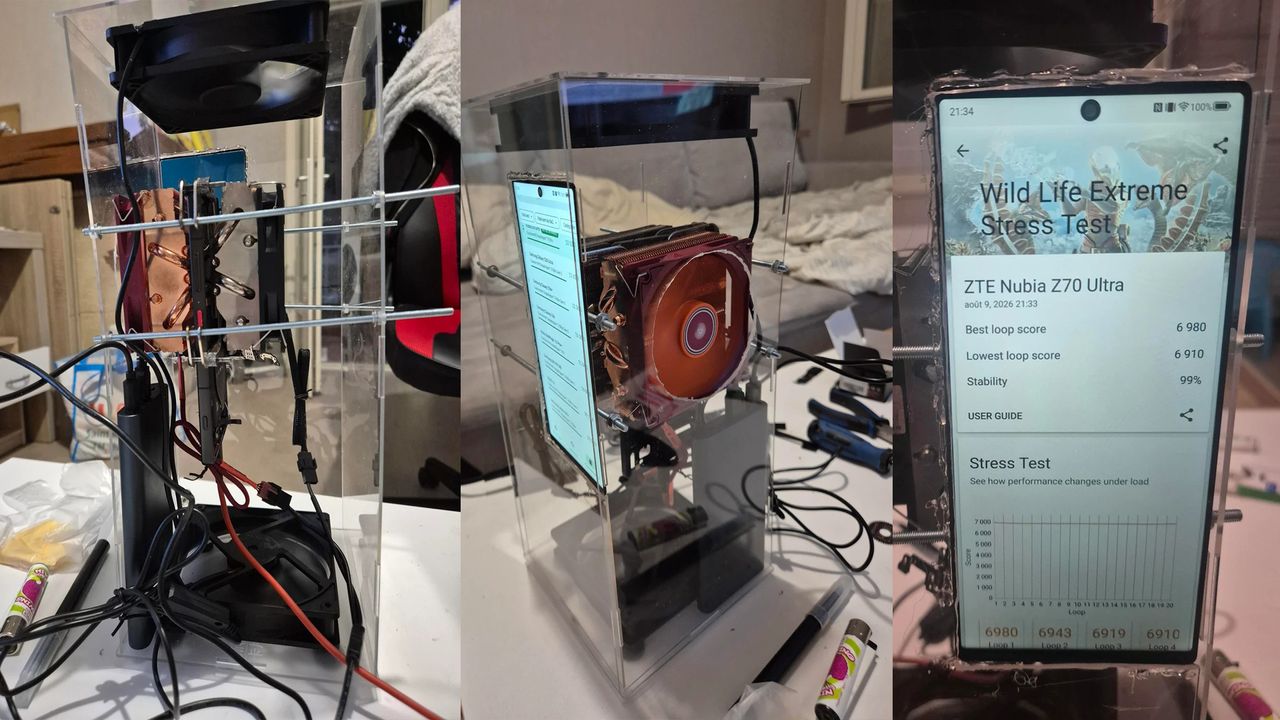
Modern smartphones pack enough computing power to rival budget PCs. However, one of the biggest limitations preventing mobile chips from sustaining peak performance is thermal throttling. To tackle the problem, a hardware enthusiast on Reddit carried out an experiment in the most absurd way possible, sandwiching a smartphone between two desktop CPU air coolers. The result is a miniature desktop PC built around a phone's motherboard that actually works and performs well.
The smartphone chosen for this project is the ZTE Nubia Z70 Ultra, which is powered by Qualcomm's Snapdragon 8 Elite SoC paired with 24GB of LPDDR5X RAM and 1TB of UFS 4.0 storage. It is worth noting that this particular chipset made its debut in 2024, with its prime CPU cores rated to reach up to 4.32 GHz. The latest Snapdragon 8 Elite Gen 5 is a more powerful chip and can go as high as 4.6 GHz. Rather than using a newer, higher-clocked chip, the project is essentially testing how much sustained performance can be extracted from an older Snapdragon flagship.
“It actually started from a pretty simple idea," the creator told Tom's Hardware. "I wanted to see how far I could push the concept of using a single smartphone as my main machine, instead of having a phone, a gaming console and a separate PC.”
To carry out the project, the smartphone was completely stripped down to its core by removing the camera hardware, mobile network hardware, as well as the display, which is cleverly mounted within the custom acrylic enclosure for the system. The creator then mounted two full-size desktop CPU heatsinks on each side of the phone hardware. The contact plates on the heatsinks, being large enough, could fully cover the main components, thus allowing improved heat dissipation compared to the original phone chassis.
The results are particularly impressive when it comes to sustained workloads. In the 3DMark Wild Life Extreme stress test, the setup achieved a 99% stability score over 20 loops. Its best loop produced a score of 6,980, while the lowest-scoring loop came in at 6,910, which is a mere 70-point difference. A screenshot also shows a 3DMark score of 10,533 in the ranking, putting the modified Z70 Ultra slightly ahead of the Samsung Galaxy S25+ powered by the sameSnapdragon 8 Elite chipset.
The sustained performance is arguably more interesting compared to the peak benchmark numbers. Smartphones are designed around a difficult compromise where their processors can briefly operate at high performance levels. But due to the limited physical space for heat dissipation means sustained workloads eventually force the system to reduce clocks and power consumption.
“The long-term goal is basically one device that can cover Android, desktop Linux, Windows applications and PC gaming,” added the creator. Essentially, they wanted to keep Android at the core while having a desktop environment when connecting the setup to an external monitor, keyboard, and mouse. To achieve that, a custom Linux XFCE4 desktop environment was created using Termux, running directly on top of Android. The setup also supports hardware-accelerated Vulkan via Turnip on the Adreno GPU. Since the creator wanted to run Windows games locally on the Snapdragon hardware, they tinkered with Wine, Box64, and Hangover builds adapted and recompiled for the Linux environment, alongside GameNative.
The creator claims to have successfully run Windows applications and games, including The Witcher 3. The system was able to run the game at 1080p resolution with the Ultra graphics preset, delivering around 20–30 FPS. Notably, the GPU was sitting at approximately 99% utilization during gameplay, while certain scenes managed to exceed 30 FPS. That obviously isn't enough performance to turn the smartphone into a replacement for a modern gaming PC. However, it is impressive that a smartphone SoC can render a demanding PC game at 1080p using a compatibility stack designed to translate software between different CPU architectures and operating environments.
The project is anything but practical, as the two desktop CPU coolers make the original smartphone form factor essentially irrelevant. However, by giving the Snapdragon 8 Elite substantially more thermal headroom, the creator has turned a flagship smartphone into something that sits somewhere between a phone and a desktop PC. More importantly, it raises an interesting question about how much performance modern mobile chips are leaving on the table simply because they have to fit inside our pockets.
DeepCool has been delivering innovative, interesting, and often budget-conscious PC cases and cooling products for more than a decade. Its current lineup includes air and AIO coolers, computer cases, keyboards, power supplies, and other accessories.
We were impressed by the company’s AK620 and Assassin VC Elite air coolers in the past. In 2024, the Beijing-based company was banned from selling products in the U.S., but has continued to produce and improve its cooling products for markets elsewhere. US consumers also have the option of importing the cooler, if you don’t mind paying for extra shipping costs.
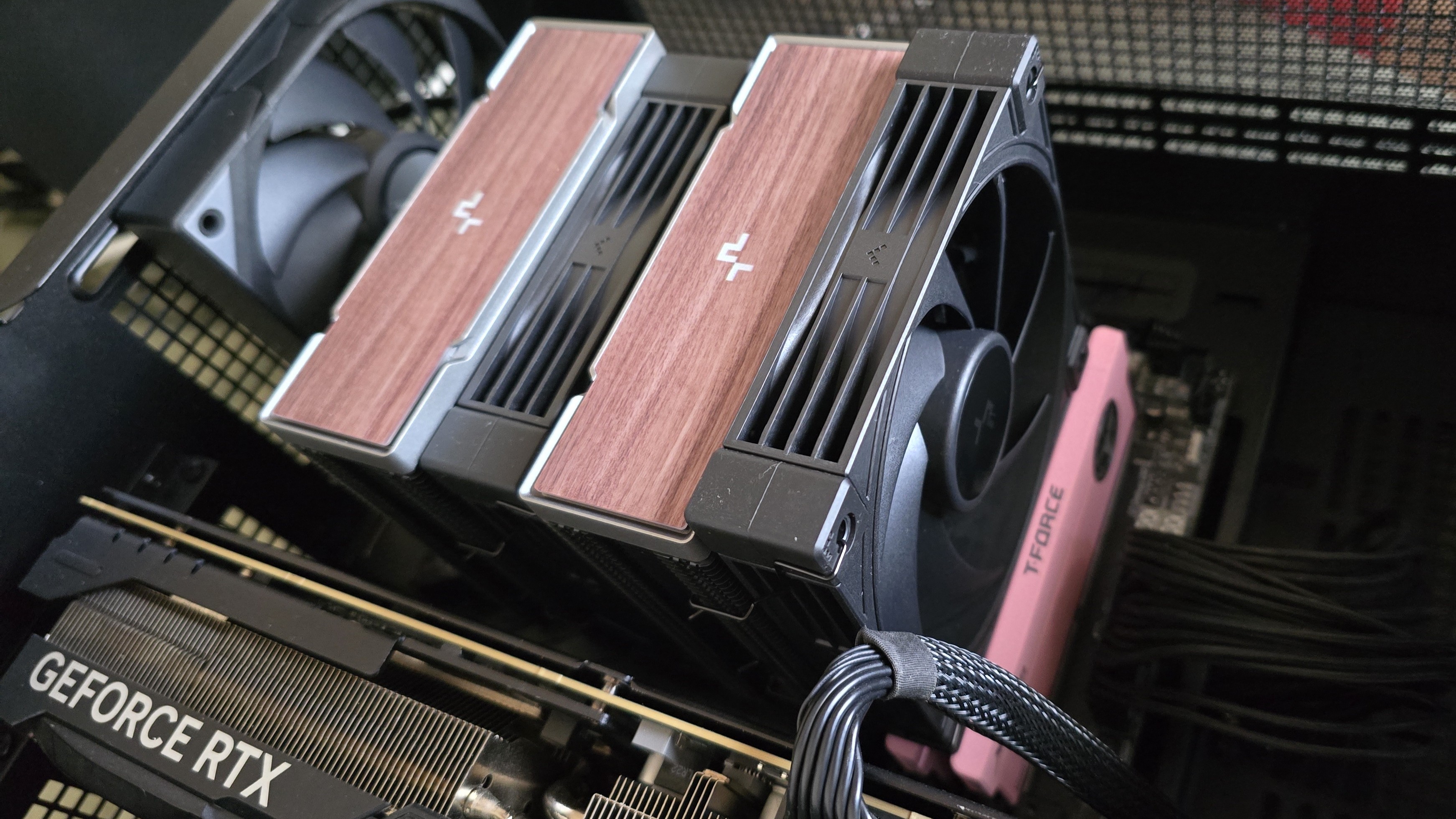
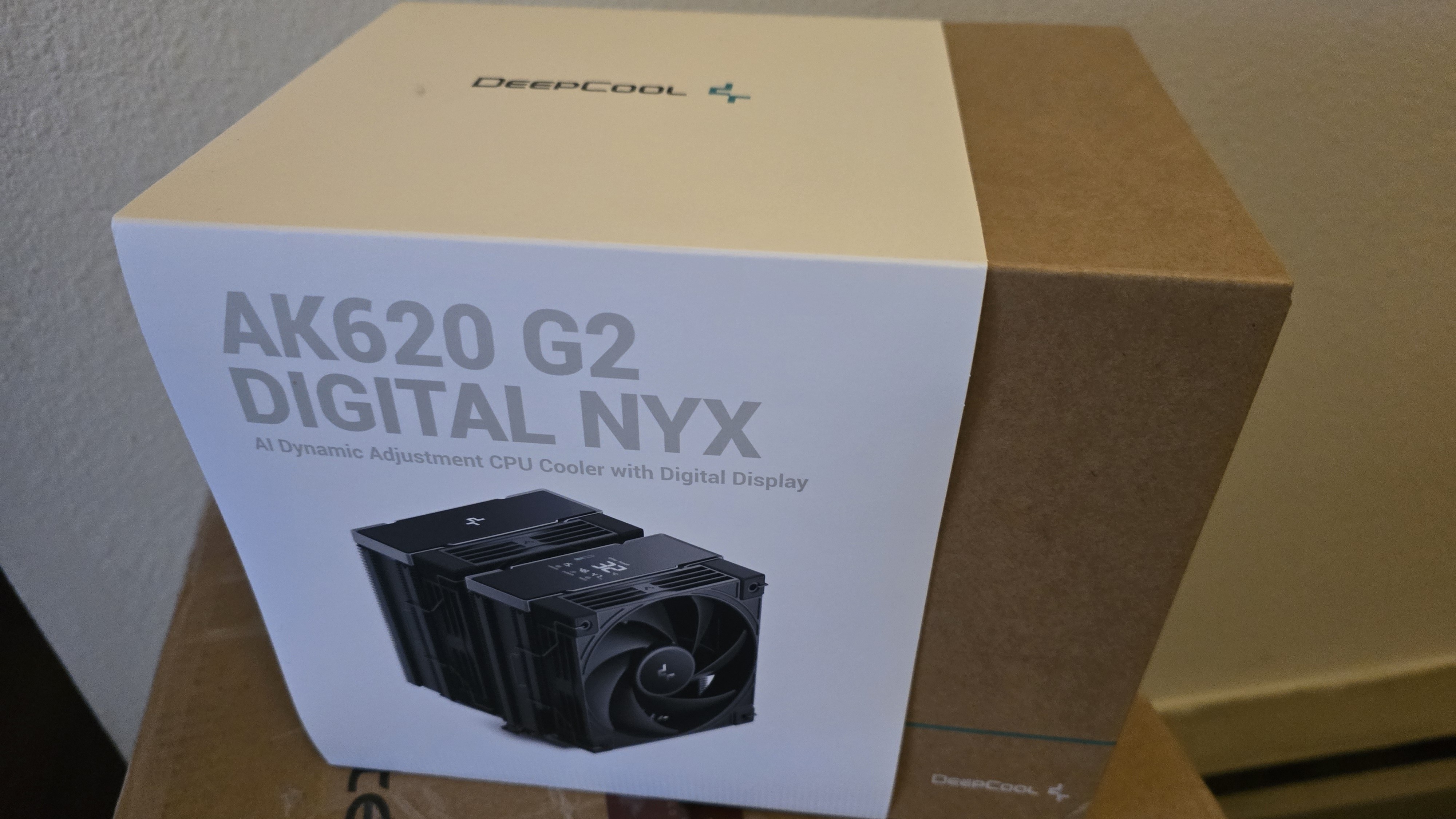
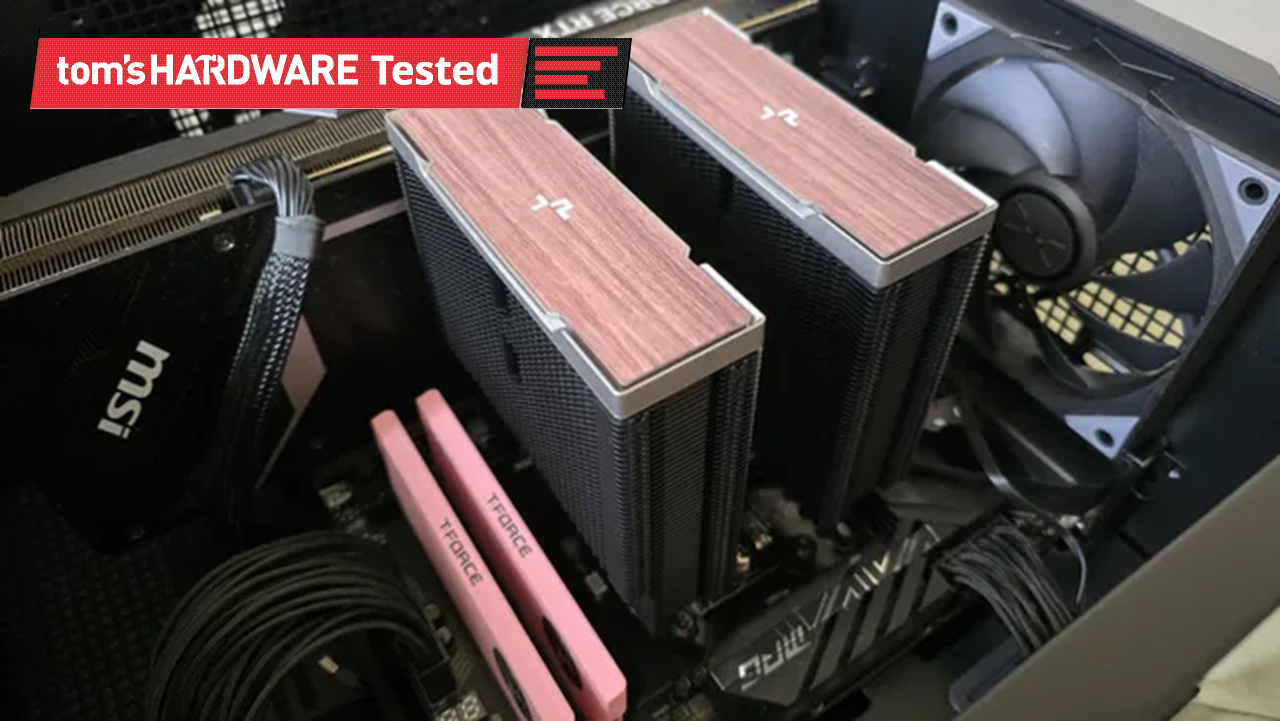
Here, we’re looking at DeepCool’s second-generation AK series coolers, the AK400 G2 and AK620 G2. These are available in two styles: one with woodgrain top covers, the other featuring a digital display.
(Image credit: Tom's Hardware)
Let's take a look at the specifications and features of the coolers, then we’ll go over thermal and noise benchmarks and decide if DeepCool’s AK G2 series coolers deserve to make our list of the best CPU coolers.
DeepCool AK620 G2/AK400 G2 specifications
Cooler
DeepCool AK620 G2/AK400 G2
Colors
Black or white, with woodgrain or digital display options
MSRP
N/A
Lighting
None
Warranty
3 years
Socket Compatibility
AMD AM5/AM4 Intel 1700/1851/1200/115x
Heatsink dimensions
AK620 G2: 125 (L) x 115 (W) x 159mm (H)
AK400 G2: 130 (L) x 92 (W) x 151 (H)
Maximum TDP (Our Testing)
>251W with AMD’s Ryzen 9 9950X3D for the AK620 G2, >244W for the AK400 G2
Features of DeepCool’s AK G2 Air coolers
▶️ Heatpipes and heatsink
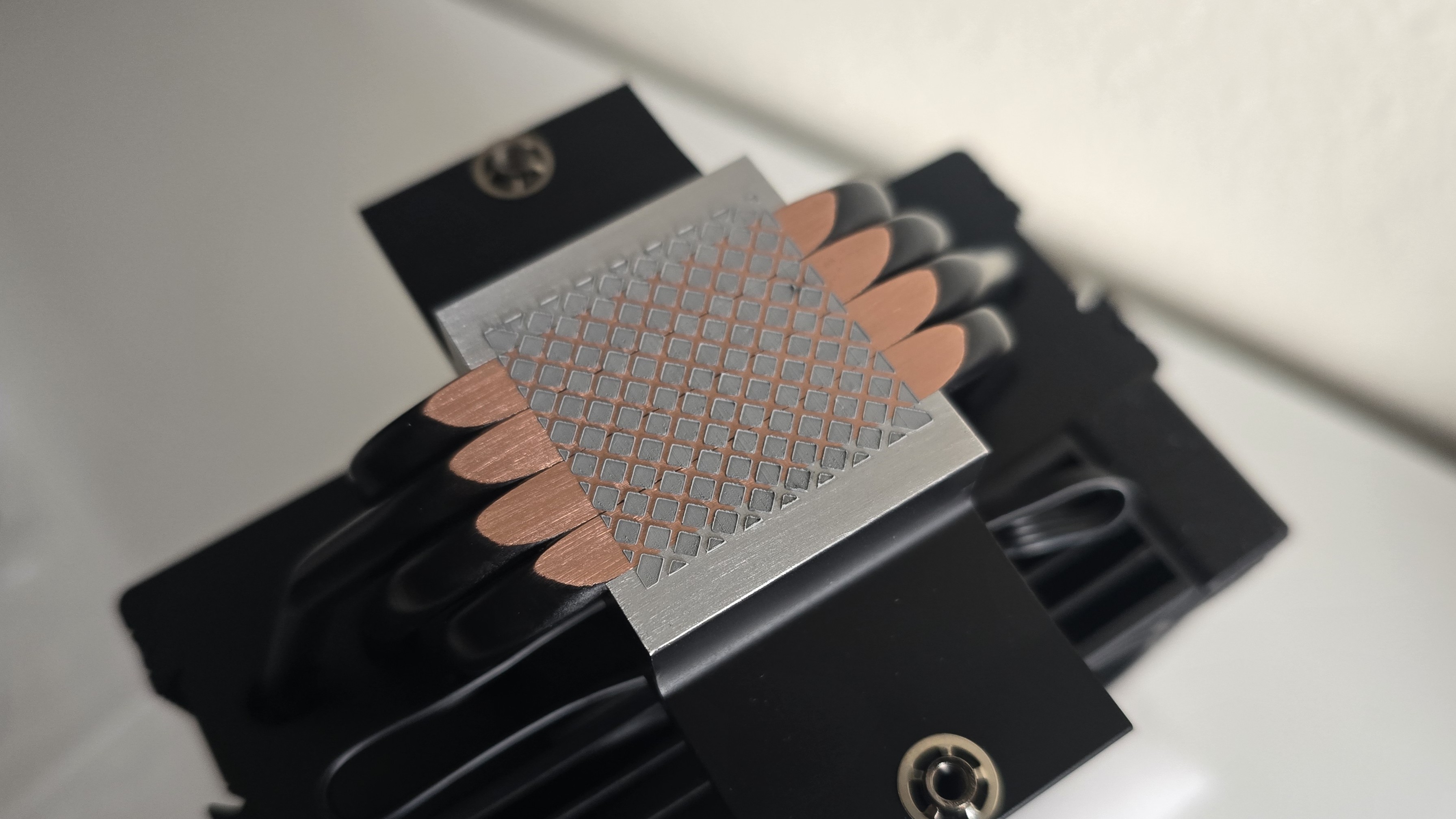
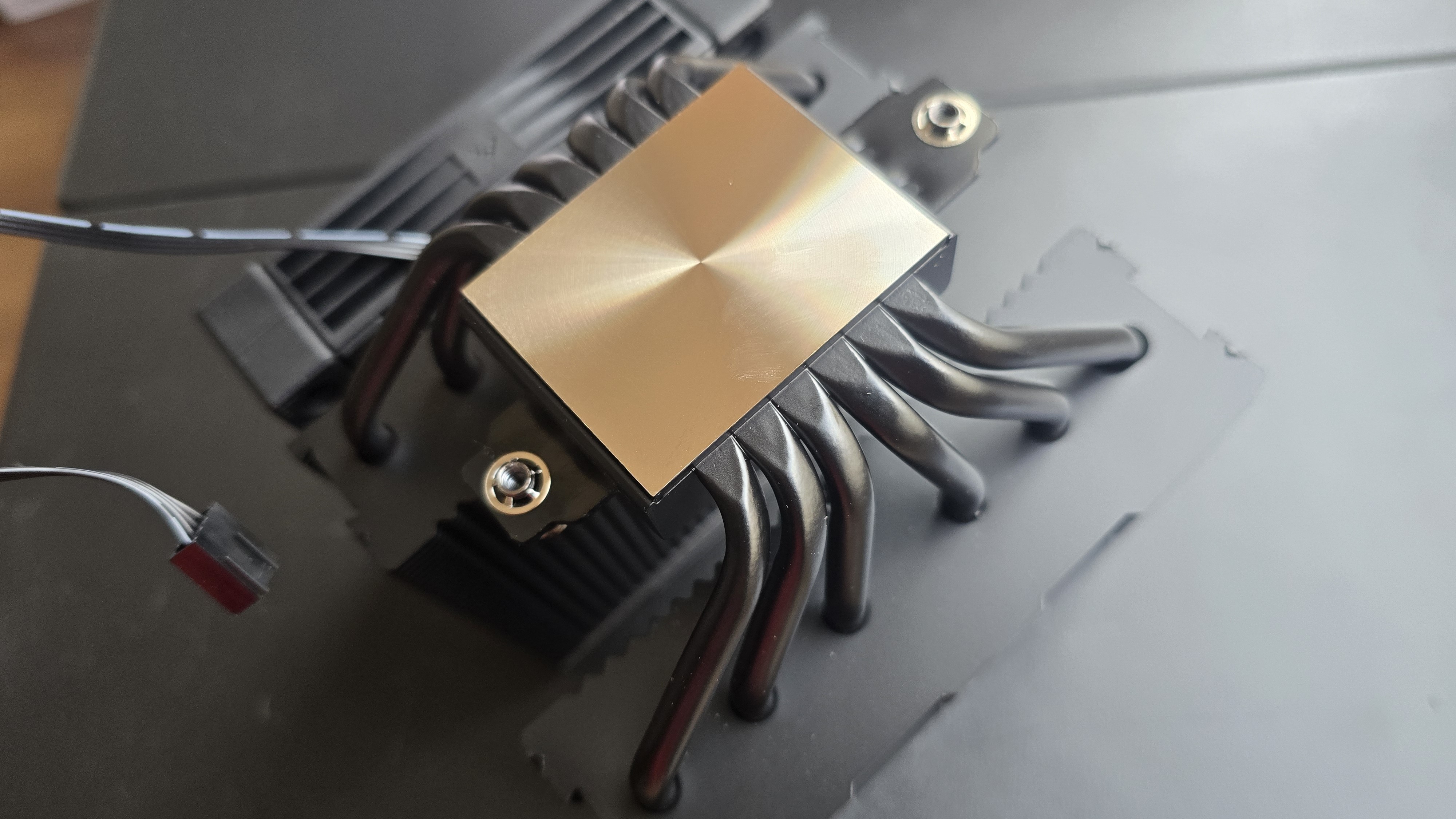
With the single-tower AK400 G2, four slightly staggered direct-touch copper heatpipes are embedded in the base to transfer heat from the CPU into the heatsink and its fins.
(Image credit: Tom's Hardware)
The larger, dual-tower AK620 G2 features six evenly spaced copper heatpipes.
(Image credit: Tom's Hardware)
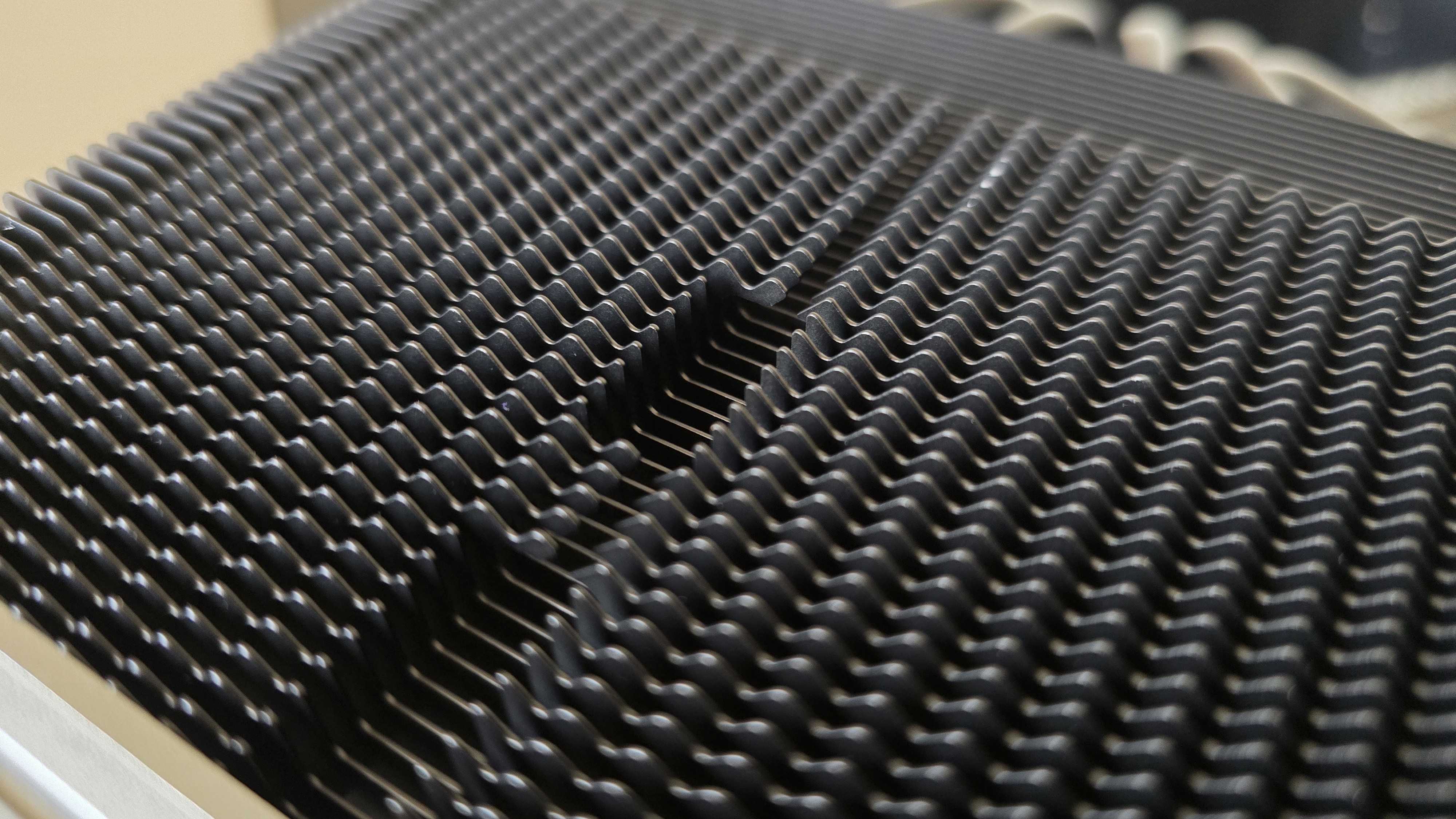
The heatsink fin designs are similar in both models. The front ends feature a jigsaw-type design, shown below.
(Image credit: Tom's Hardware)
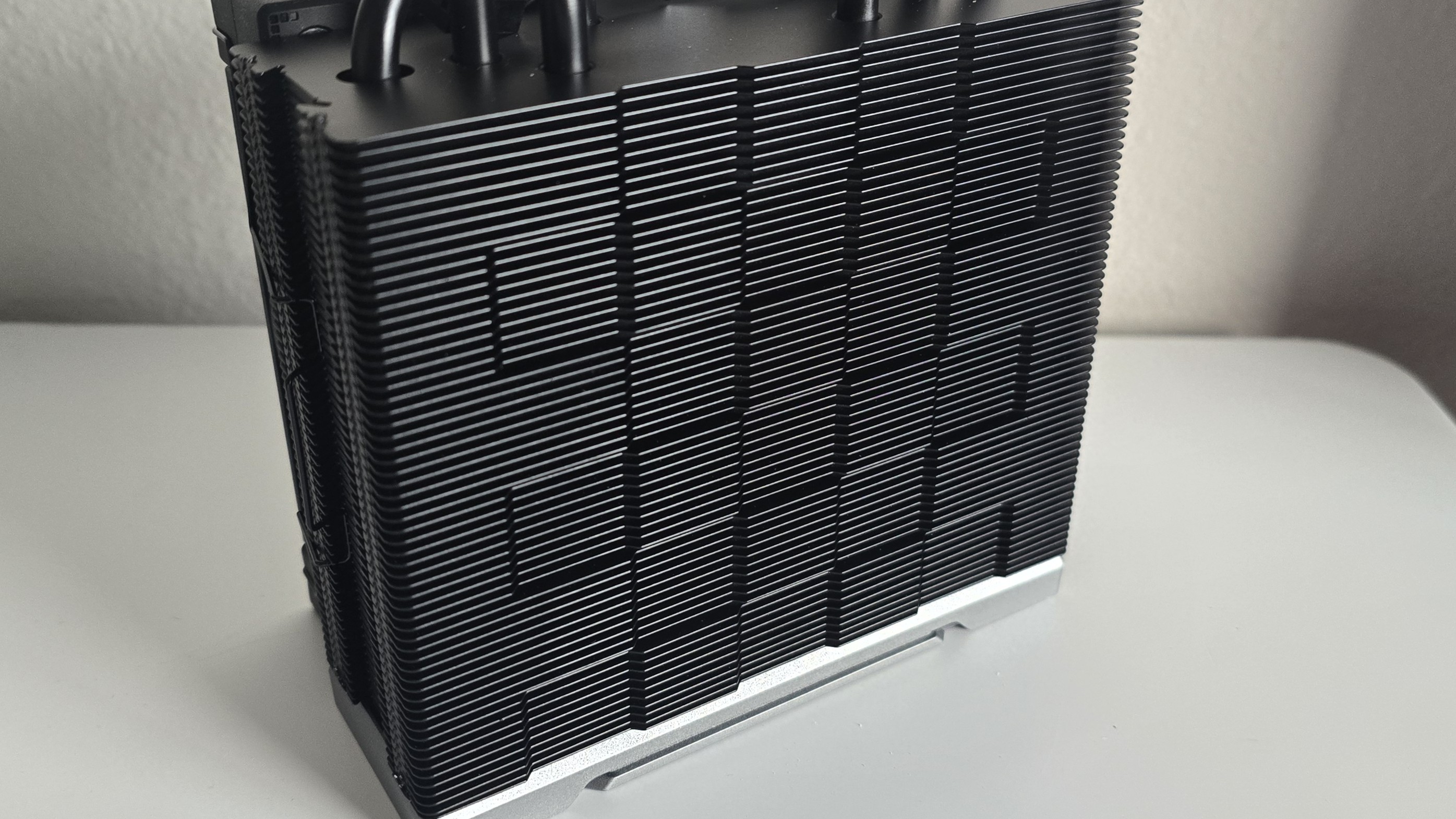
The exhaust side features the checkerboard matrix style DeepCool’s air coolers are known for, a design choice which the company says improves static pressure.
(Image credit: Tom's Hardware)
▶️ High-performance 120 mm fans
(Image credit: Tom's Hardware)
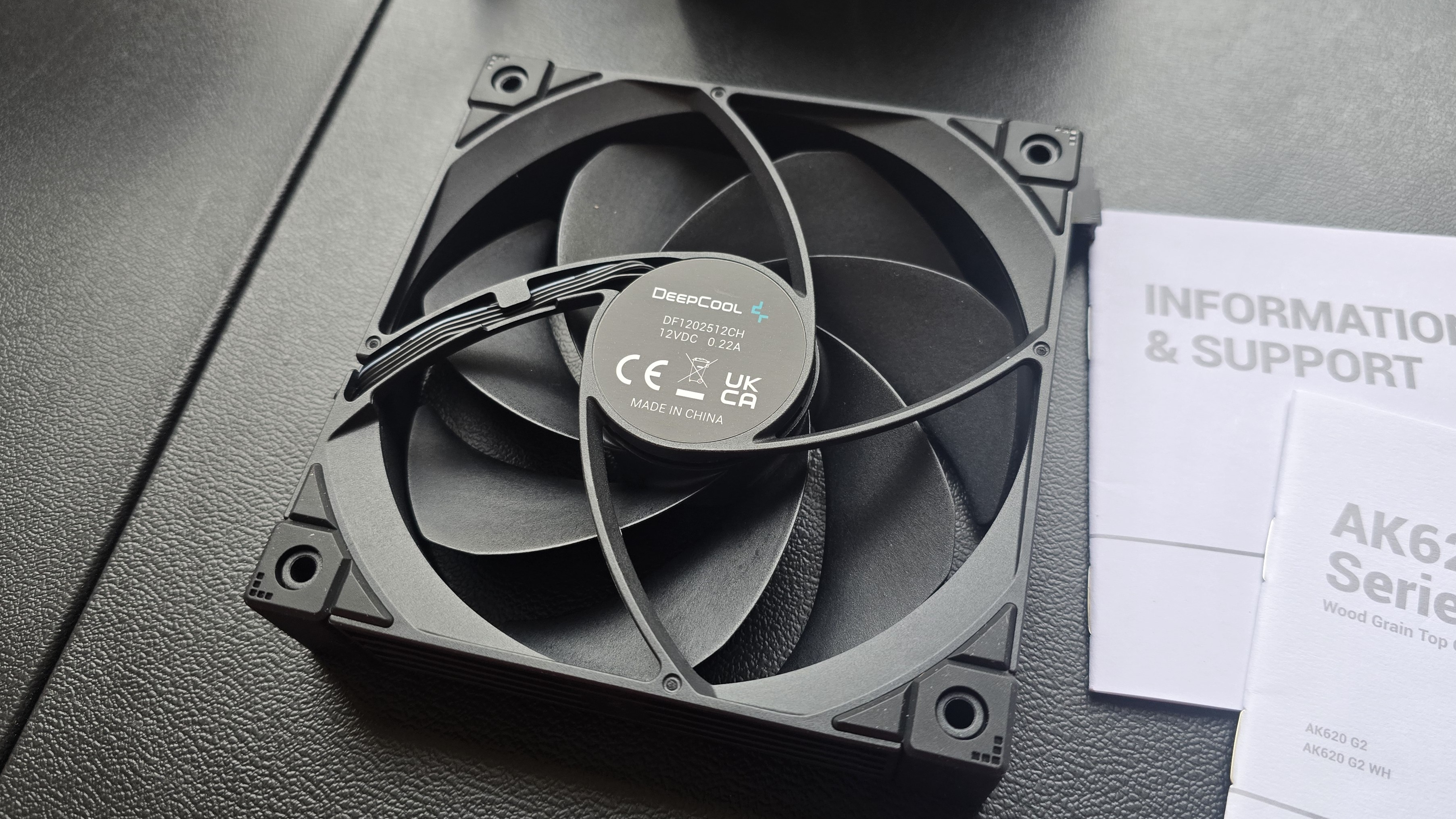
There’s more to a cooler than just the heatsink. The included fans directly impact noise levels and cooling performance. The fans included on both AK400 and AK620 G2 models are essentially the same – but the AK400’s single fan runs up to 10% faster than the two fans included with the AK620 G2.
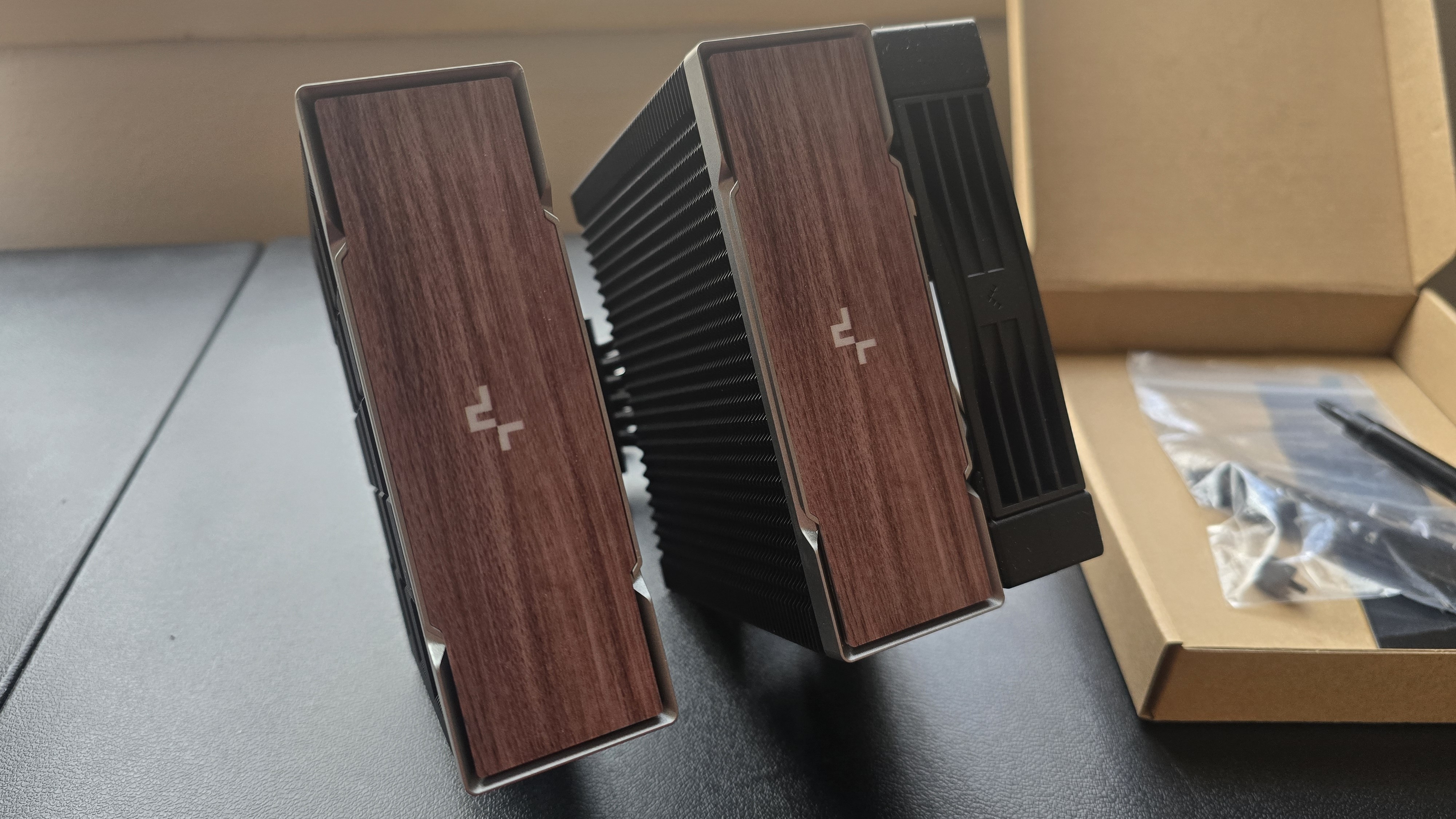
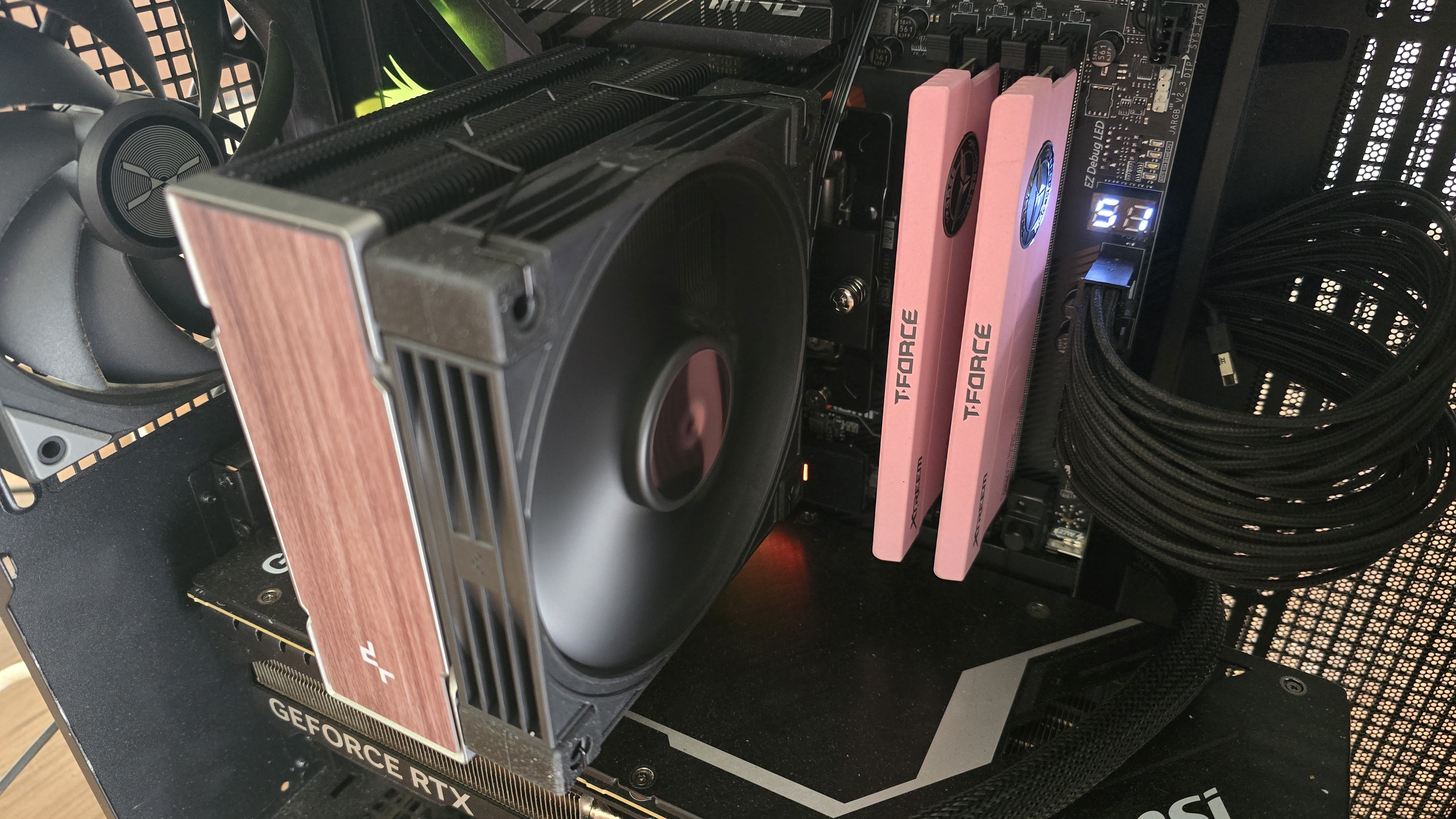
Both the AK400 and AK620 are available in black or white, but there are two sub-choices for the aesthetic. The versions we’ve tested for this review feature woodgrain, a motif that’s been increasing in popularity in DIY PCs since the release of Fractal’s North computer case.
(Image credit: Tom's Hardware)
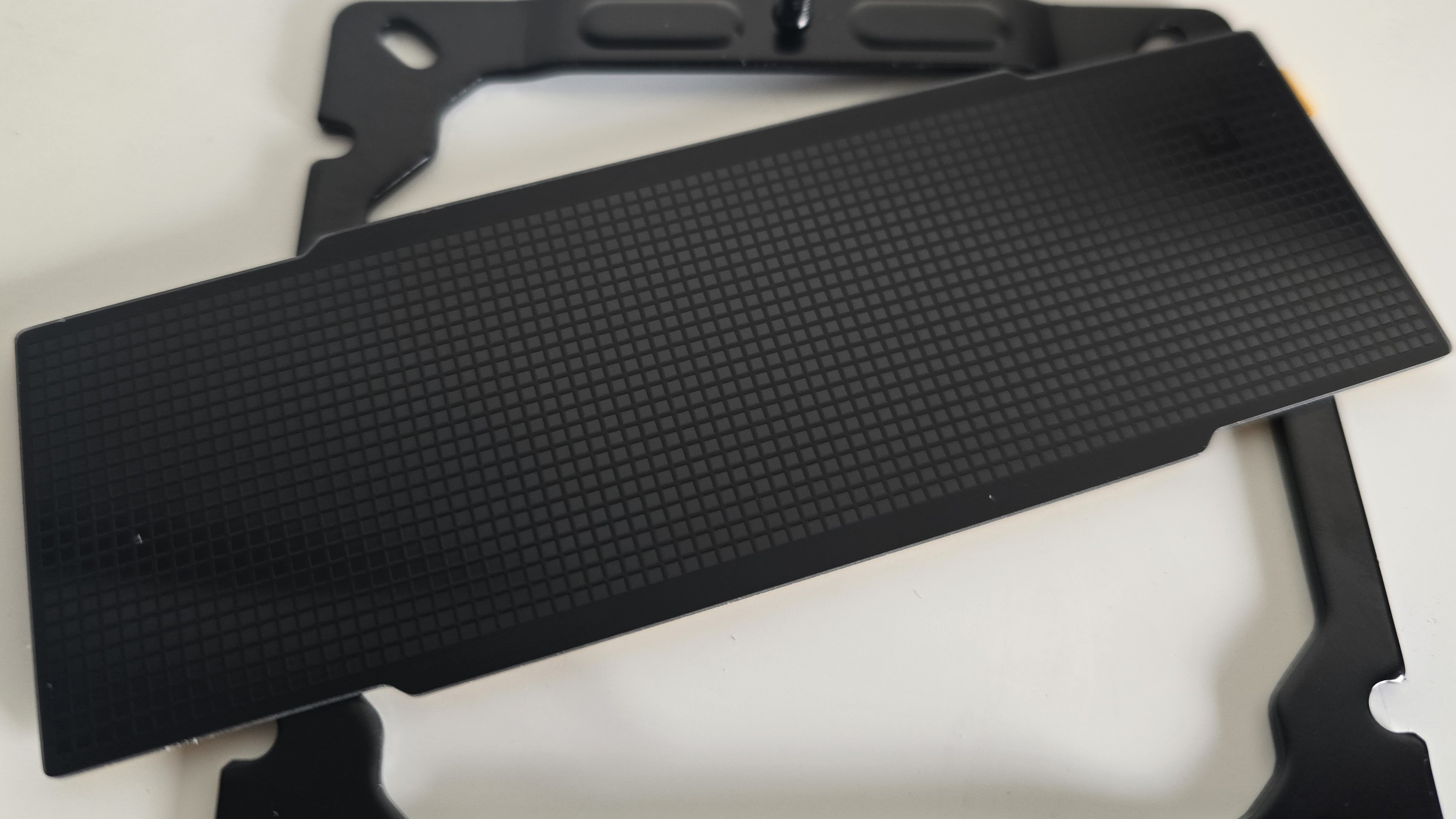
If you don’t like woodgrain, DeepCool also includes a checkerboard black cover that you can use in place of the woodgrain covers.
(Image credit: Tom's Hardware)
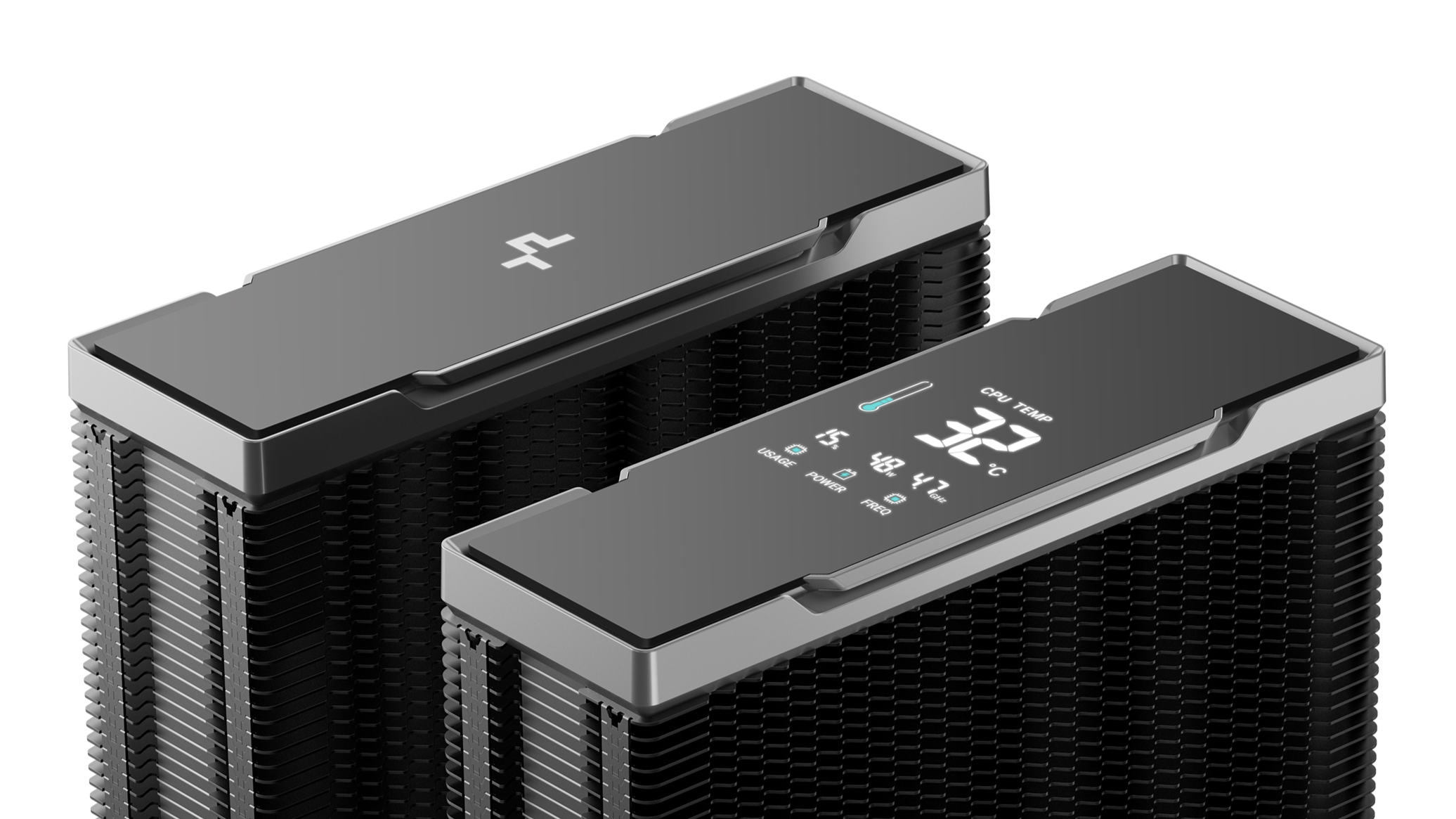
There’s also the Nyx version of the AK620 G2 available, which features a digital display showing CPU performance metrics – temperature, frequency, power consumption, and overall CPU usage.
(Image credit: DeepCool)
▶️ RAM Clearance
The AK400 G2's design is such that it doesn’t overhang or interfere with the DIMM slots, ensuring that all sizes of RAM, no matter how tall, are compatible.
(Image credit: Tom's Hardware)
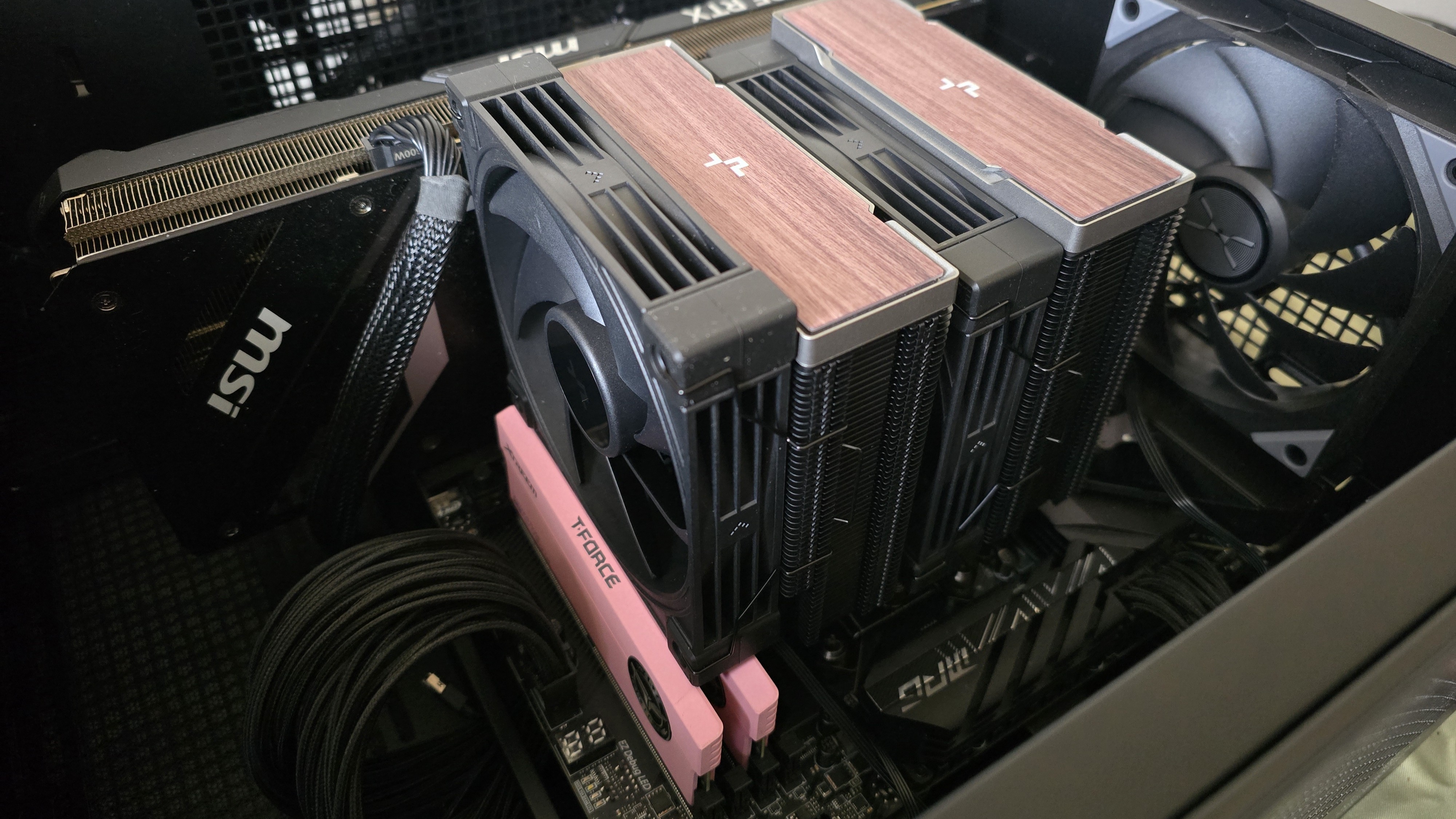
Standard-height DDR5 sticks 40mm tall fit well under the larger AK620 G2, but taller sticks won’t fit perfectly underneath. Our current CPU cooler test bench incorporates TeamGroup’s Sakura Rose T-Force Xtreem DDR5-7200 sticks, which are 48.8mm (1.92 inches) tall.
(Image credit: Tom's Hardware)
If you also use taller RAM DIMMs, you’ll have to raise the intake fan’s placement by a few millimeters for things to fit properly, as we did (see image, above). This might result in slightly lower cooling performance in certain scenarios. But even so, the AK620 G2 performed excellently, as you’ll see in the benchmarks section.
▶️ Packaging
(Image credit: Tom's Hardware)
The outer packaging is typical of DeepCool products: a basic brown box with a blue line and DeepCool’s logo, covered by a wraparound showing a picture of the cooler.
(Image credit: Tom's Hardware)
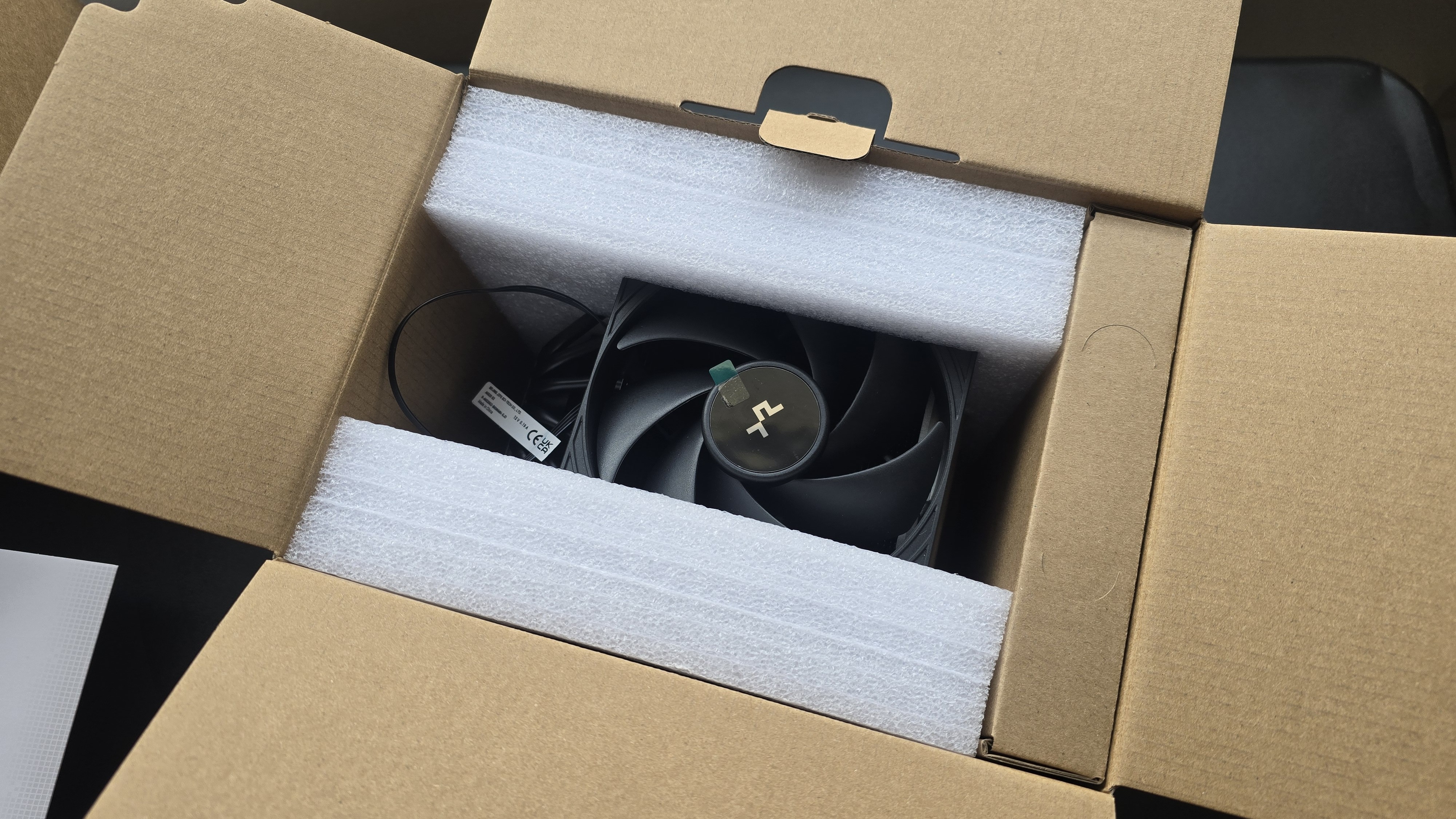
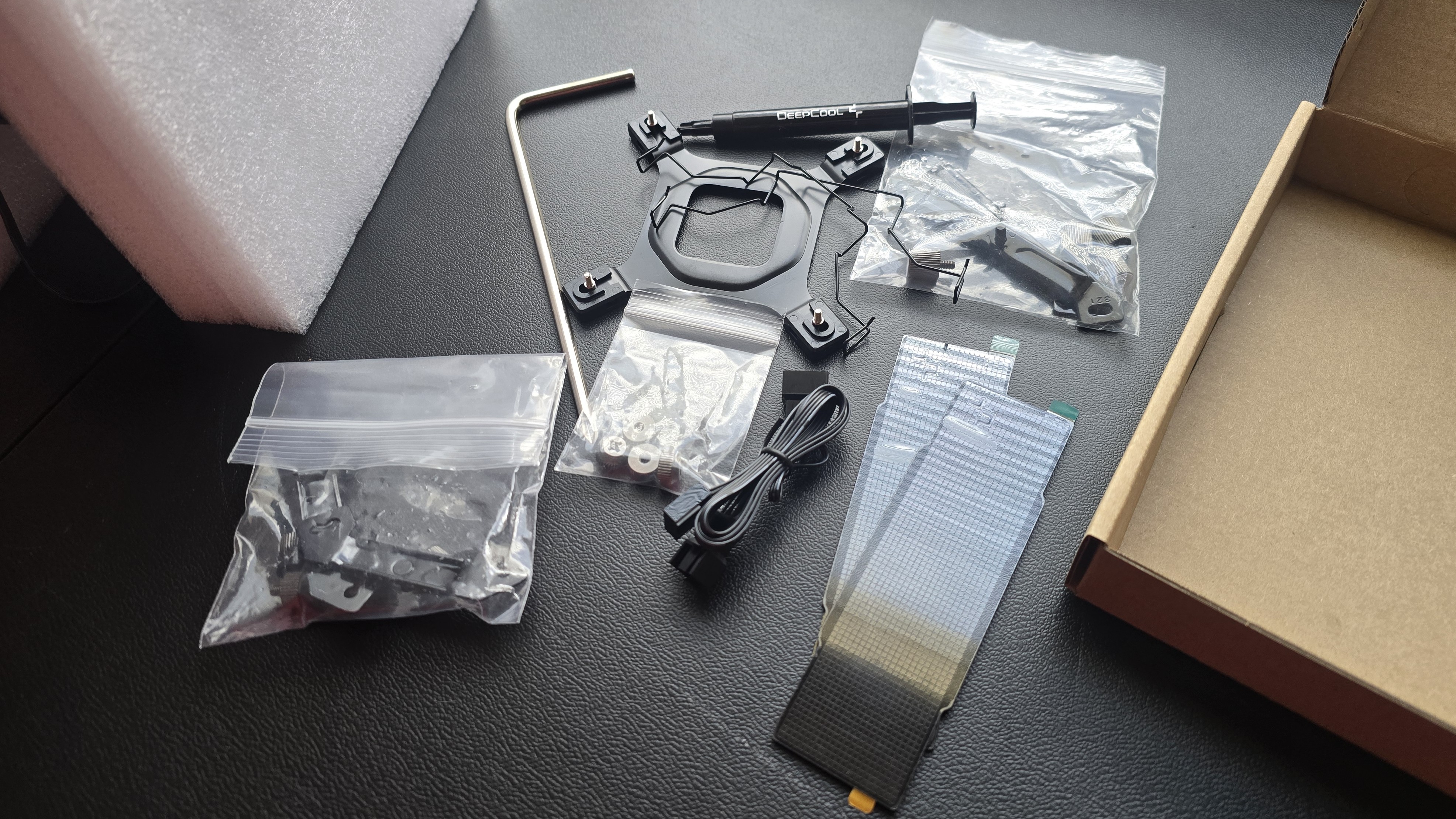
The heatsink and fans are protected by molded foam, and the accessories are contained in a small cardboard box. Included with the package are:
Mounting hardware for AMD and Intel platforms
Alternative top covers
Screwdriver (AK620 G2 only)
The AK620 G2 includes a tube of thermal paste; the AK400 G2 includes pre-installed thermal paste
Single-tower (AK400 G2) or dual-tower (AK620 G2) heatsink
120 mm fans and fan clips
Installation manual
(Image credit: Tom's Hardware)
▶️ AK620 G2 AM5 Installation
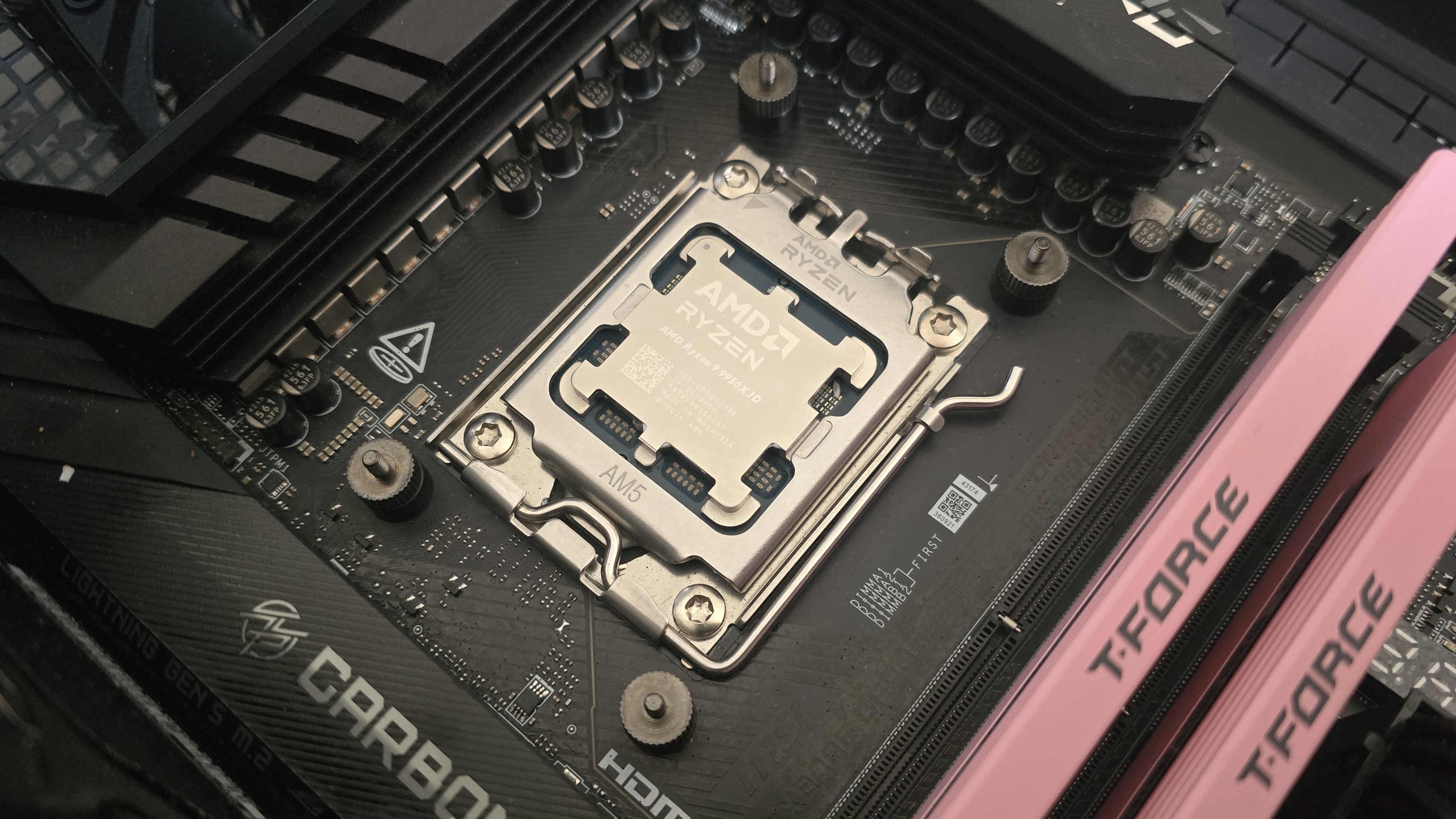
You’ll need to first remove the default AM4/5 retention mechanism and then place the mounting studs around the exposed screw holes.
(Image credit: Tom's Hardware)
The next step is to place the mounting bars on top of the studs, securing them with the included screws, and then apply the included thermal paste. If you’re not sure how to do that, we have a handy thermal paste application guide that covers the different methods you can use. Afterwards, place the heatsink tower against the CPU and mounting bars, and use a screwdriver to secure it.
(Image credit: Tom's Hardware)
Once the heatsink is secured, attach the 120 mm fans to the heatsinks. Lastly, connect the PWM cables of the fans to the corresponding headers of your motherboard.
We’ve tested coolers with both the Ryzen 9950X3D and its non-V-Cache sibling, the 9950X. There are some differences in how the 9950X and 9950X3D CPUs are impacted by thermal events. While the heat output of the CCDs of AMD’s 9950X3D is relatively balanced, the 9950X has one CCD that runs much hotter than the other, with a difference of over 10 degrees Celsius in some scenarios, shown below.
(Image credit: Tom's Hardware)
The benchmark results shared in these reviews may differ from others because I emphasize results that are comparable to real-world use. This means I generally test CPU coolers inside of a closed desktop case, which increases cooling difficulty compared to other testing methods.
Many reviewers test coolers on an open test bench, which has lesser airflow needs and lowered ambient temperatures. This results in weak coolers appearing stronger than they really are. Some have also used generic thermal plates to test cooling solutions. I feel that these methods don’t accurately reflect real-world cooler conditions.
CPU
AMD Ryzen 9 9950X3D
GPU
MSI Ventus 3X RTX 4070Ti Super
RAM
TeamGroup Diamond Rose T-Force Xtreem DDR5-7200
Motherboard
MSI X870E Carbon Wifi
Case
Tryx Flova F50
Our latest testing setup uses the Flova F50 computer case from Tryx.
(Image credit: Tom's Hardware)
This case features a unique “crossflow” fan that pulls air from the side, which the company claims is more effective than traditional intake fans. For air cooling tests, we’ve added a single Noctua NF-A12 G2 intake fan.
(Image credit: Tom's Hardware)
PBO Performance and maximum noise levels
We’re going to start by focusing on a traditional maximum performance test, with the CPU cooler’s fans allowed to reach their fastest speeds, for the best cooling possible.
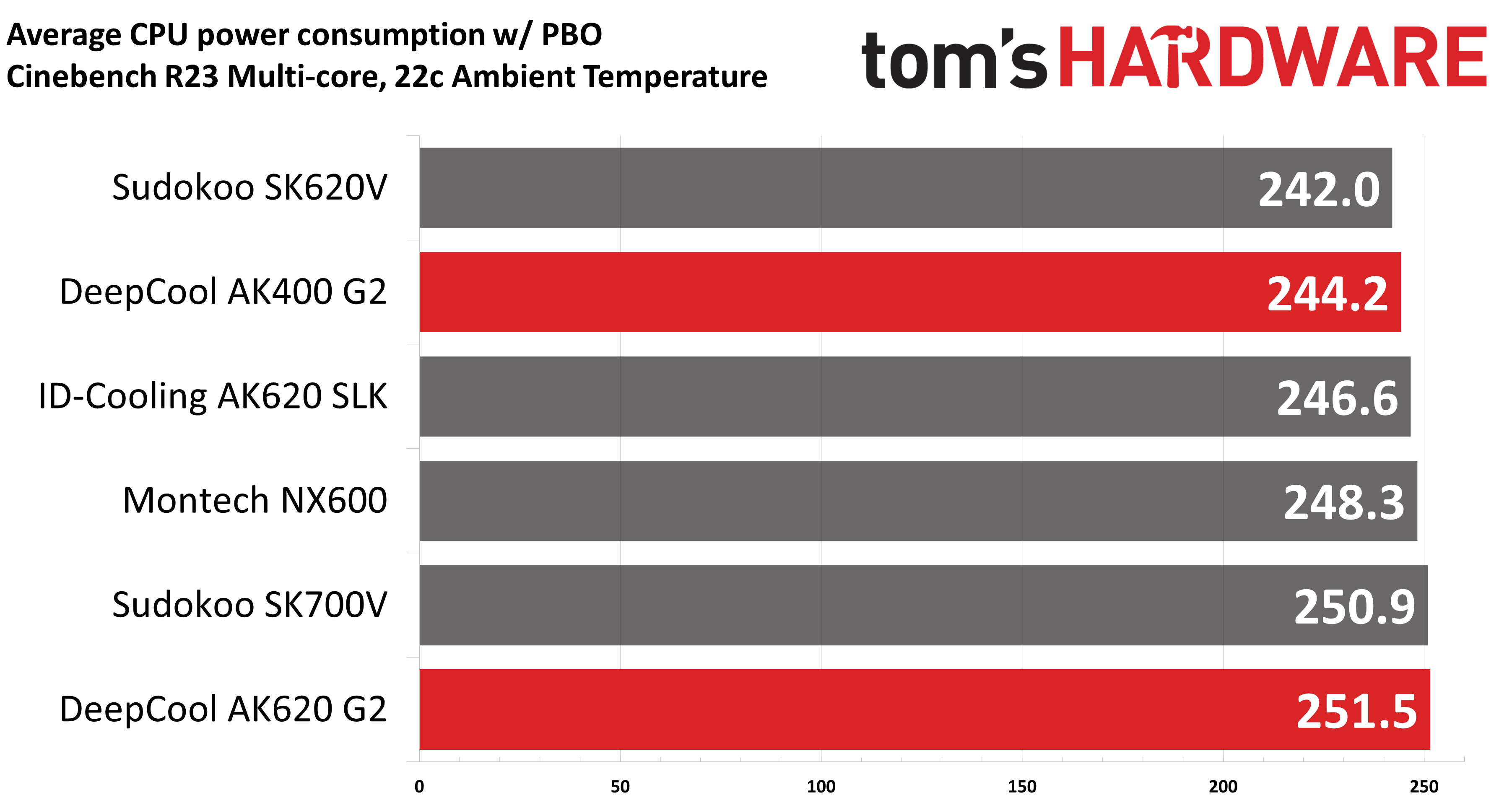
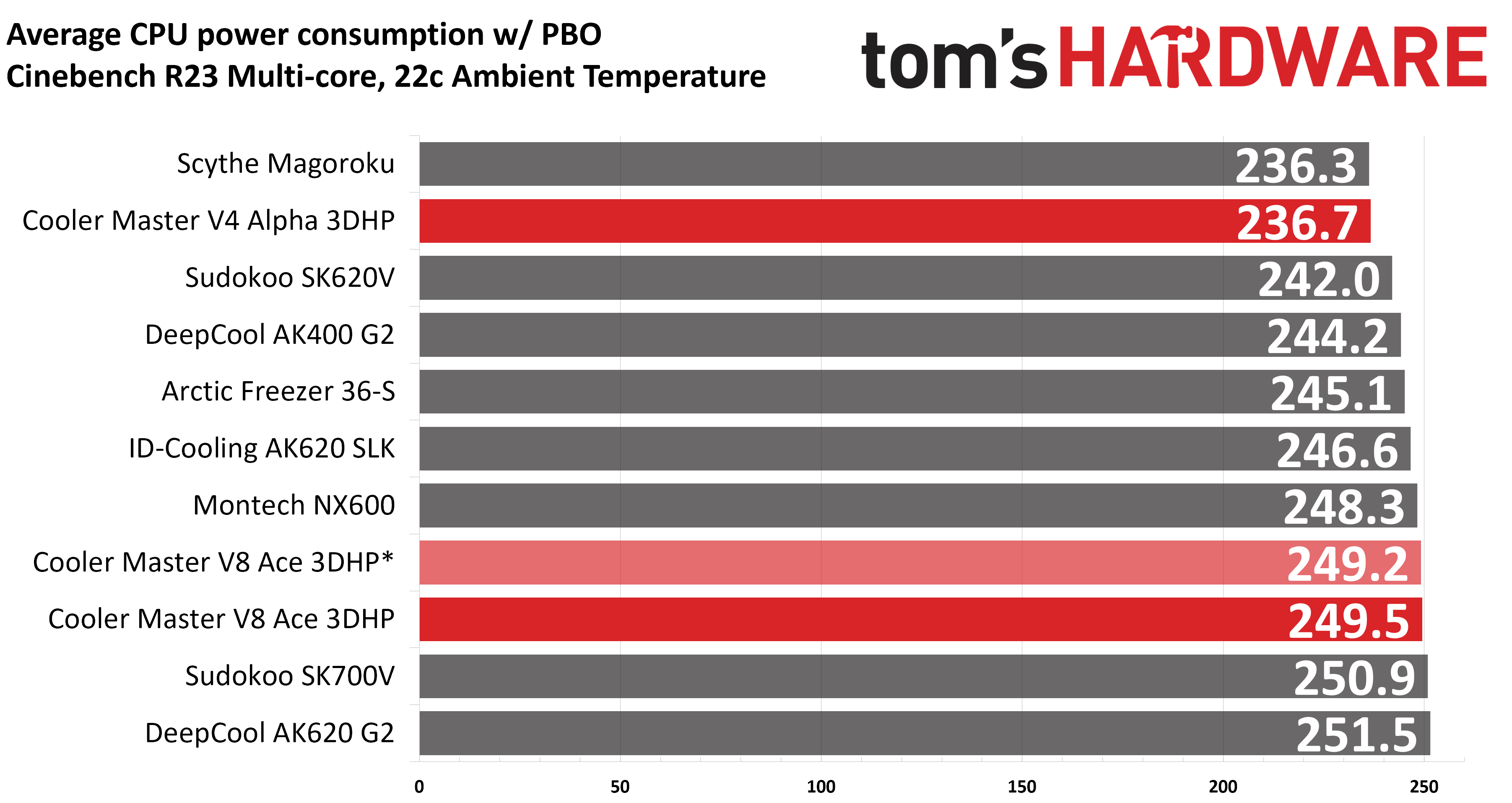
Turning on PBO allows AMD’s Ryzen 9 9950X3D to stretch its legs to an extent, and all air coolers I have tested with PBO enabled using MSI’s X870E Carbon Wifi motherboard reach the maximum CPU temperature of 95 degrees Celsius (203 degrees Fahrenheit) and thermally throttle to some extent.
(Image credit: Tom's Hardware)
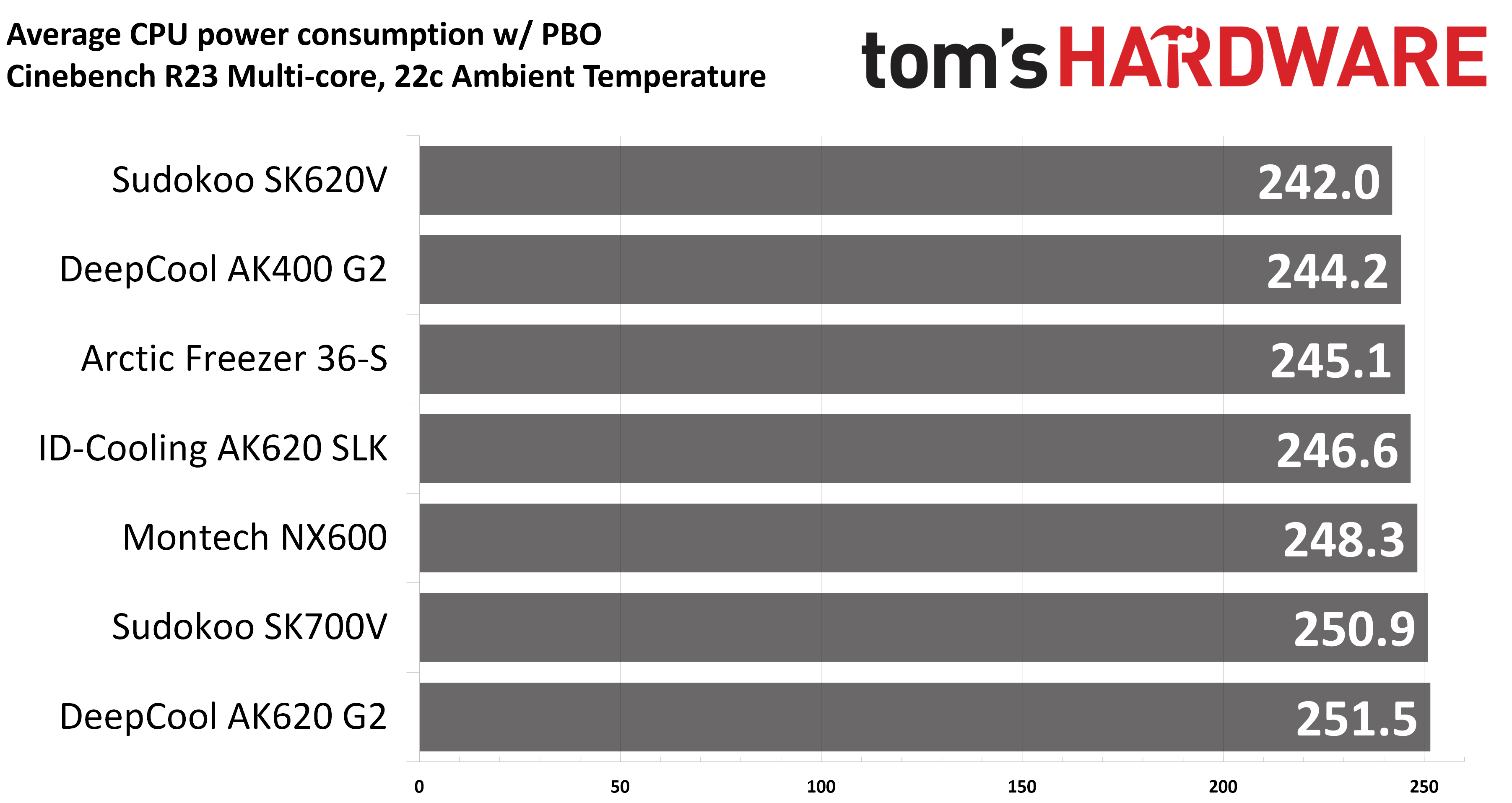
Results from the liquid coolers we’ve recently tested aren’t shown above because they are able to keep AMD’s Ryzen 9 9950X3D under TJ Max, and as such, power consumption figures aren’t quite comparable.
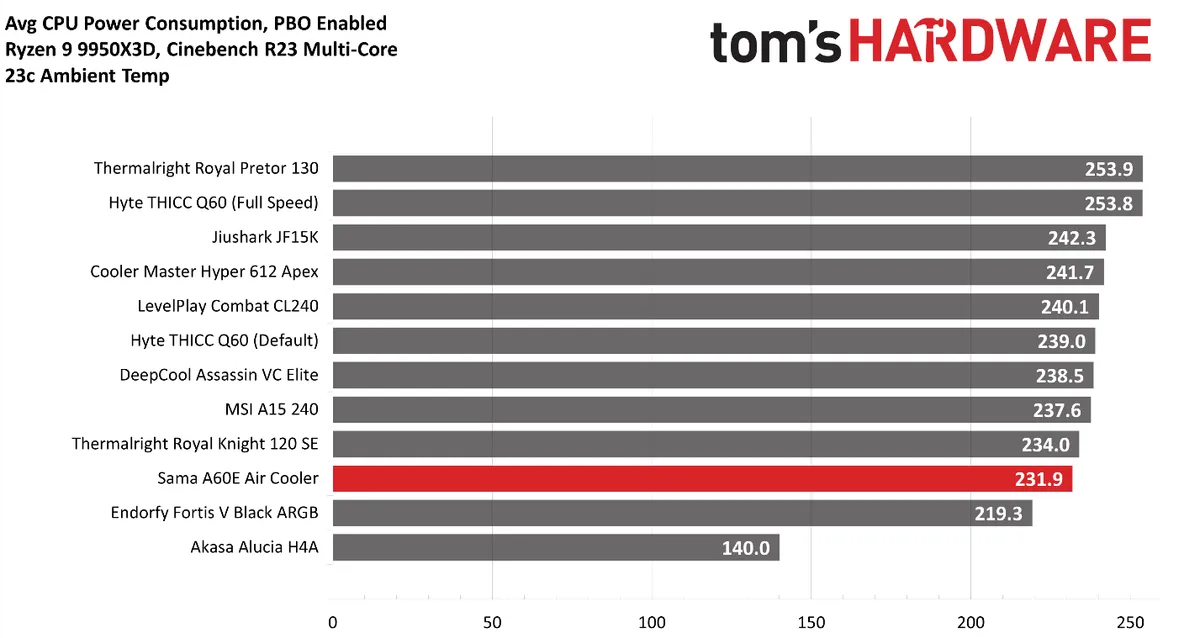
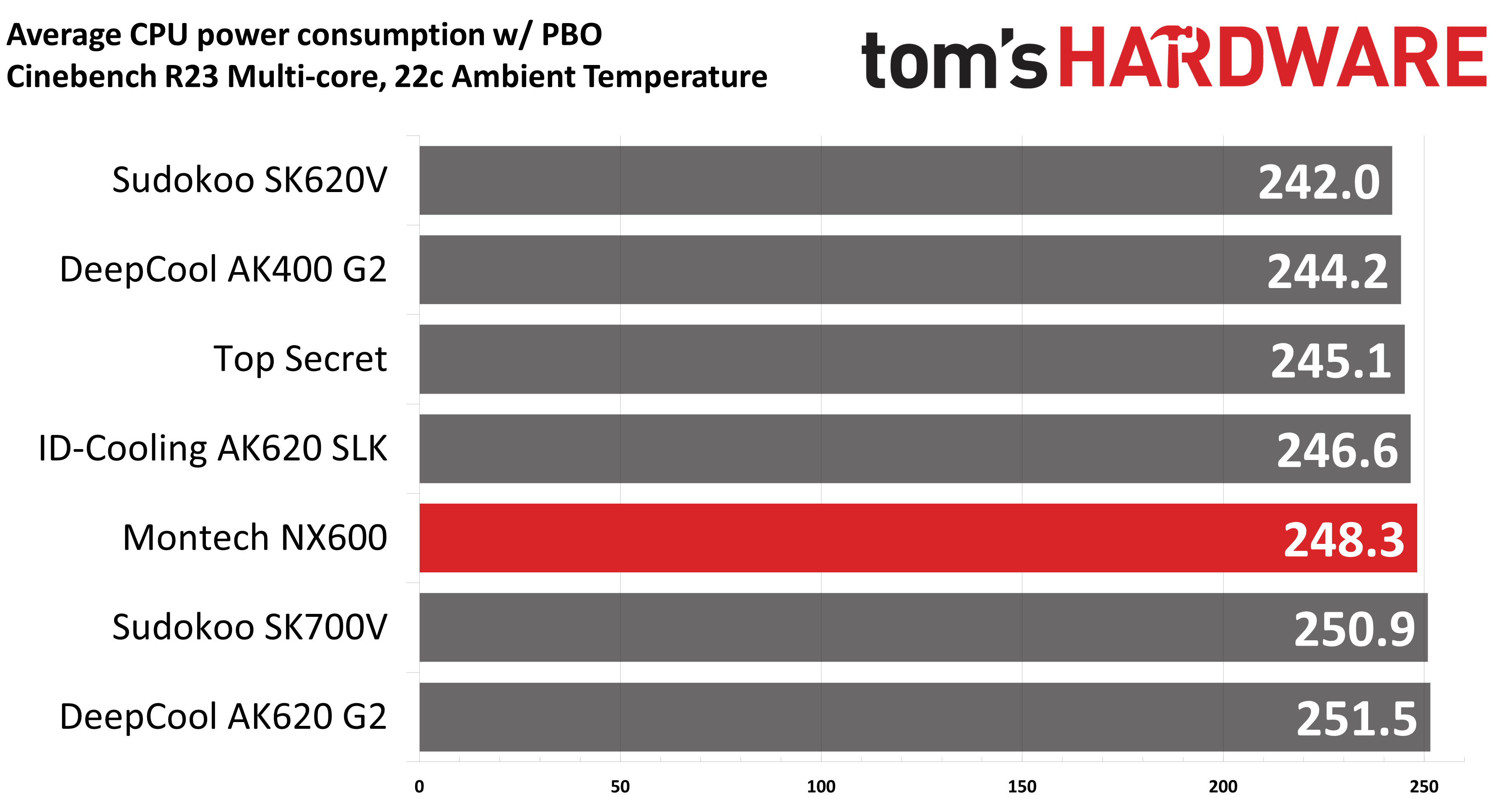
The performance of DeepCool’s AK620 G2 is simply excellent, outperforming every air cooler we’ve tested on our current test bench. Its little sibling, the AK400 G2, also does fairly well for a single-tower air cooler, slightly outperforming Sudokoo’s SK620V and only trailing ID-Cooling’s AK620 SLK by 2.4W!
To give a wider variety of comparison examples, I’ve included a chart of the same tests from our last AMD Ryzen 9 9950X3D cooling test bench. But keep in mind these results aren’t 100% comparable, due to a different case and fans being used; the ambient temperature is also slightly higher with the results below.
Our newest test bench used for this and other recent reviews incorporates a Tryx crossblade intake fan as well as a single Noctua NF-A12 G2 intake fan, which results in better air cooling performance.
(Image credit: Tom's Hardware)
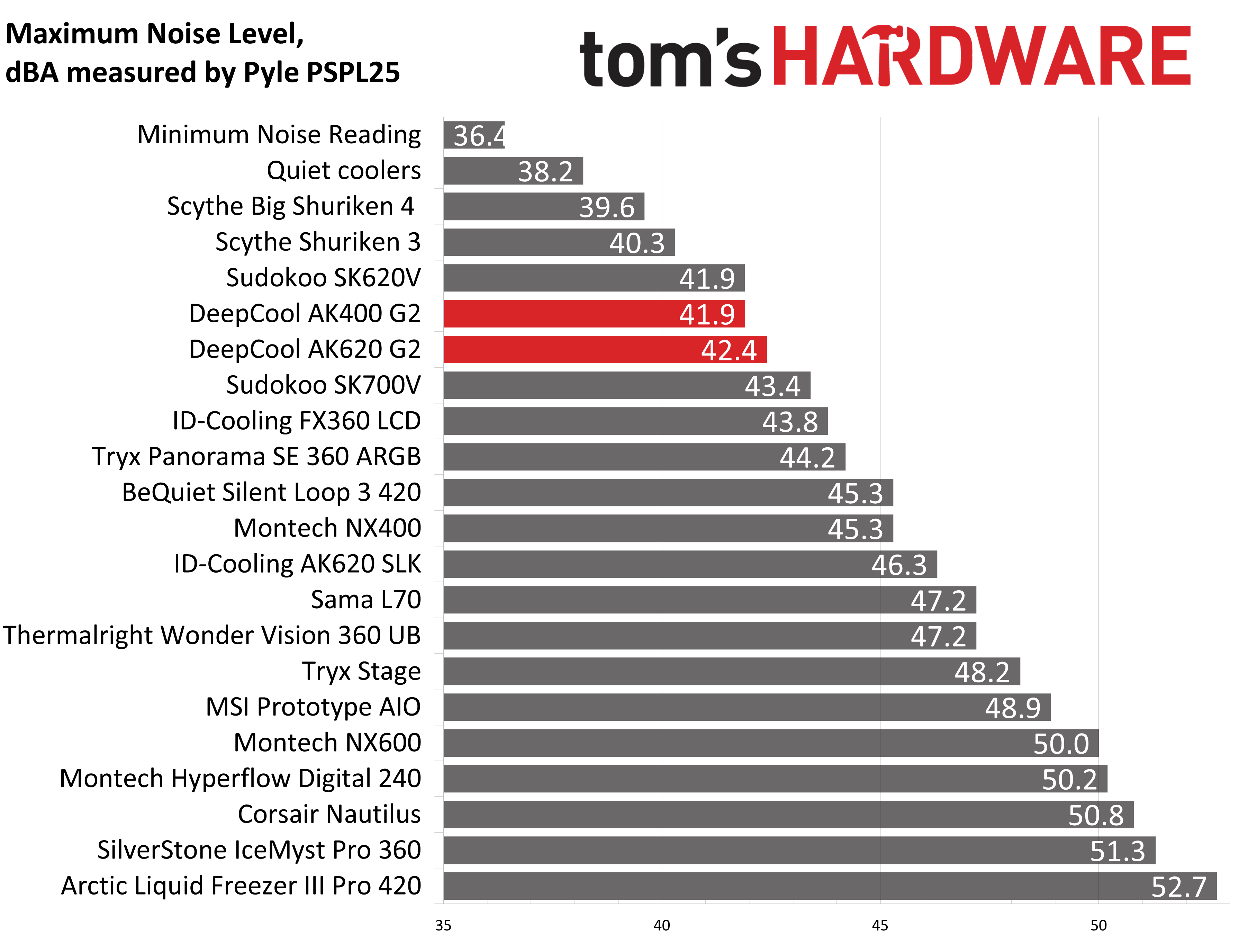
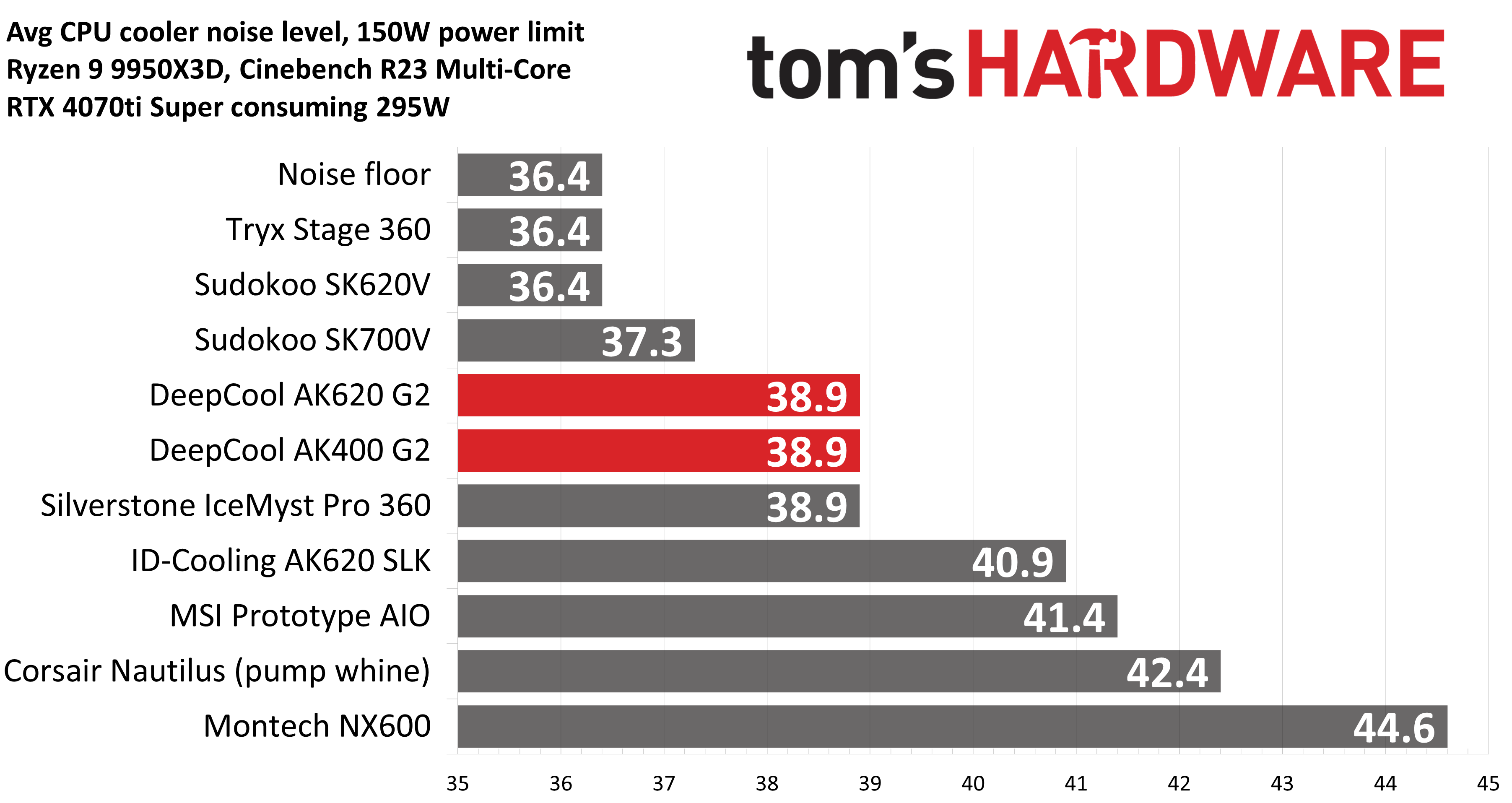
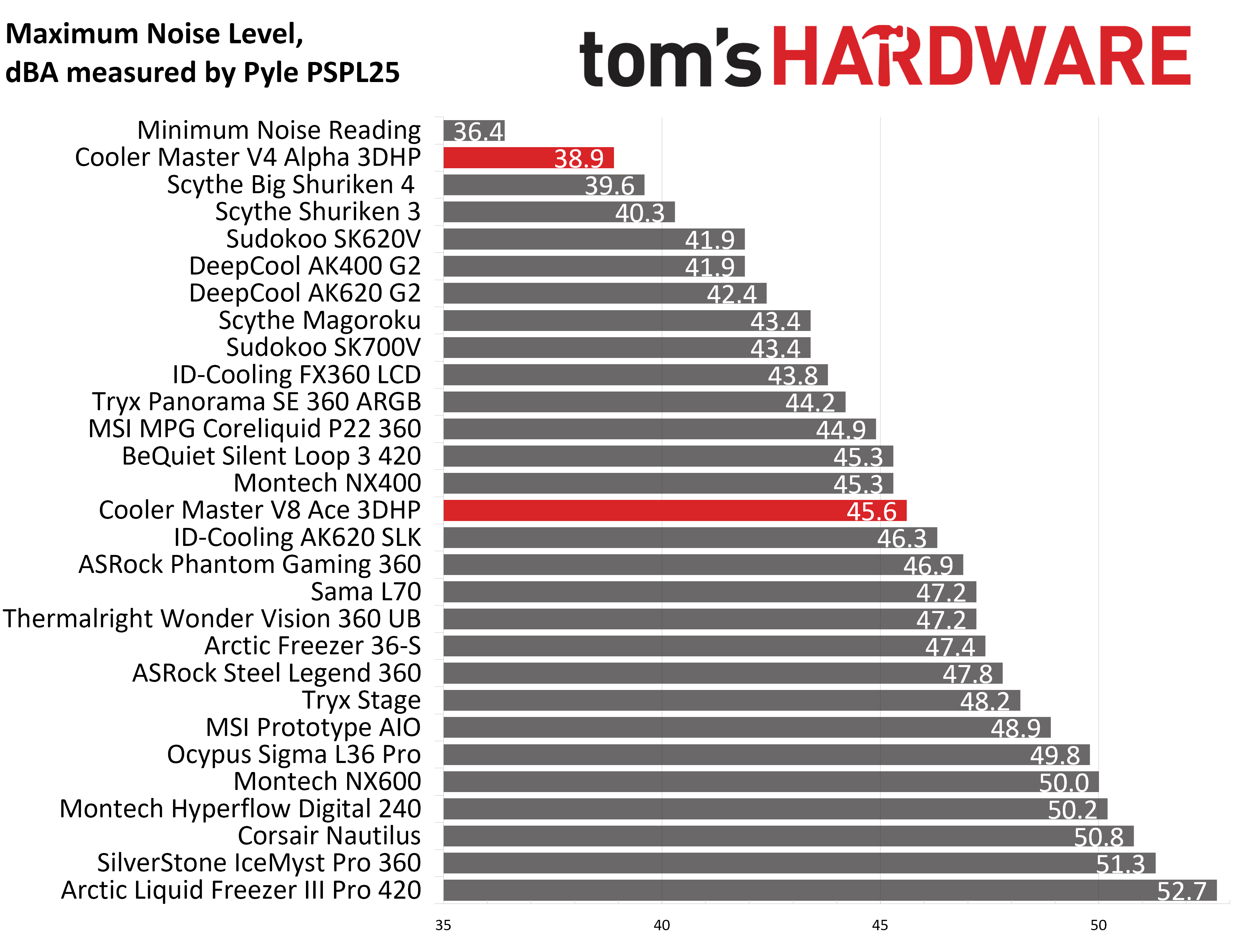
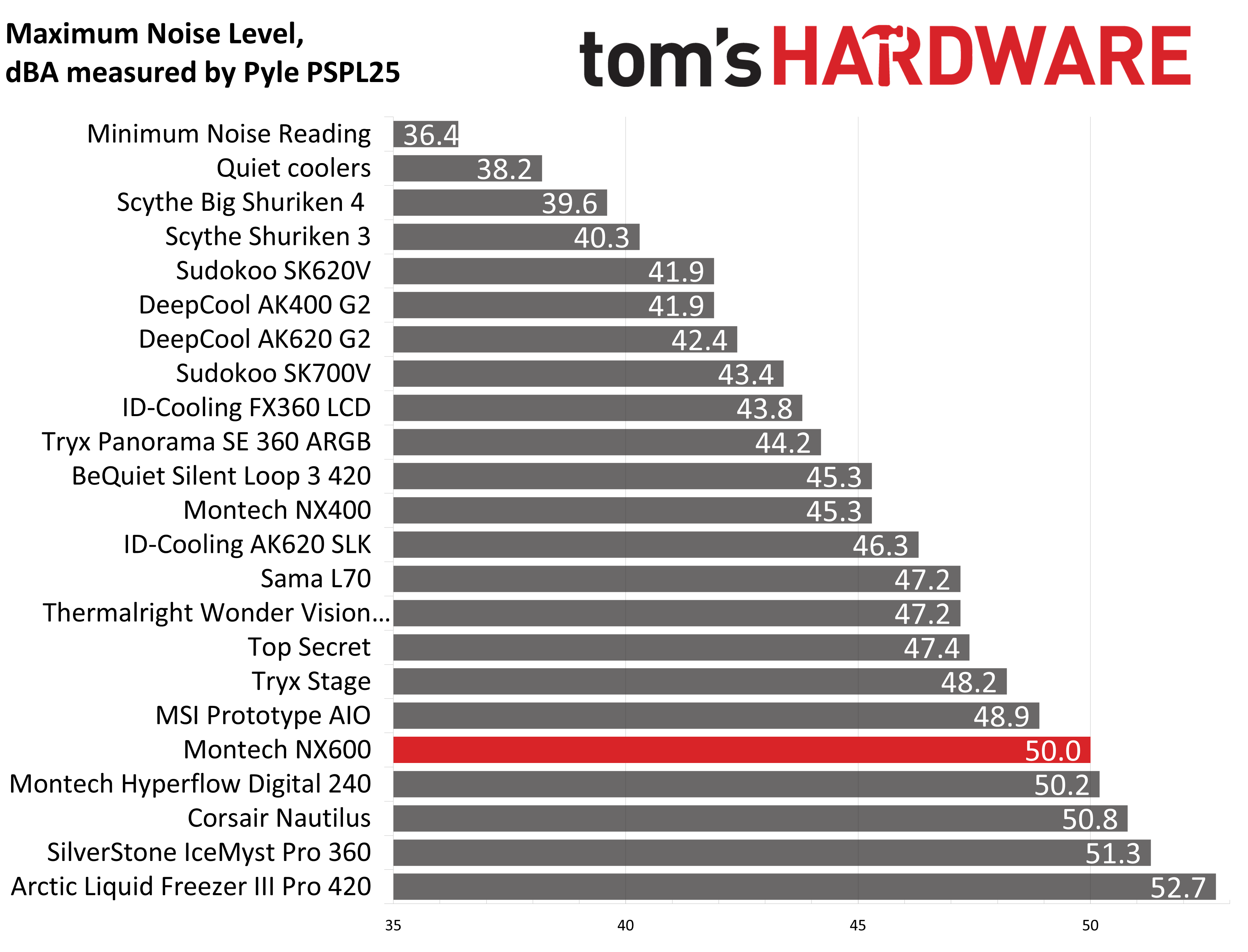
Some coolers perform well in maximum strength tests, but require running loudly to maintain said performance, but that’s not the case with DeepCool’s AK G2 air coolers. With measurements of 42.4 and 41.9 dBA respectively, their maximum noise levels put them among the quietest coolers featured in our charts.
(Image credit: Tom's Hardware)
200W thermal benchmarks
For the next thermal test, I leave the motherboard settings at their defaults, which results in a power limit of 200W when running Cinebench R23.
(Image credit: Tom's Hardware)
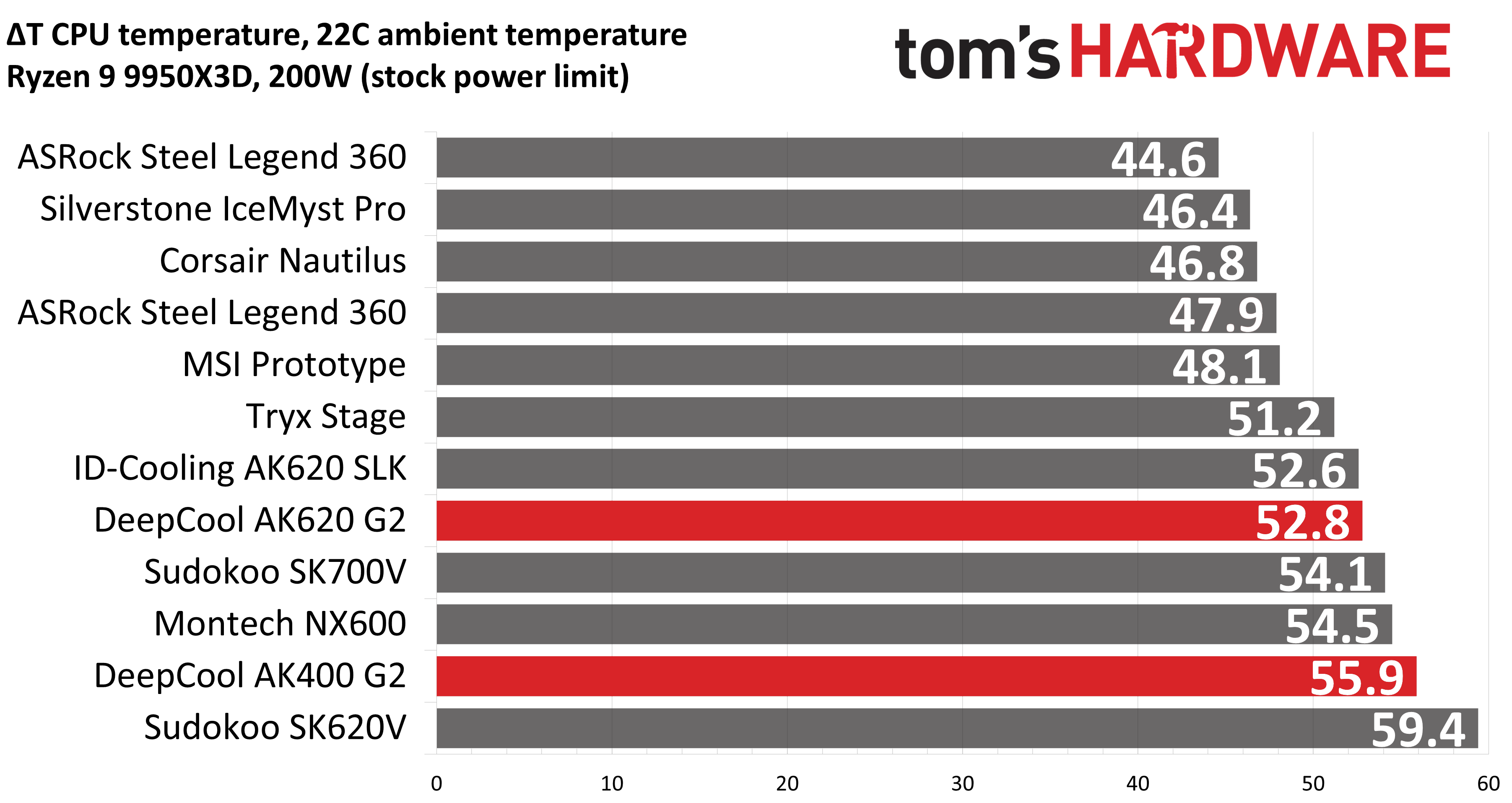
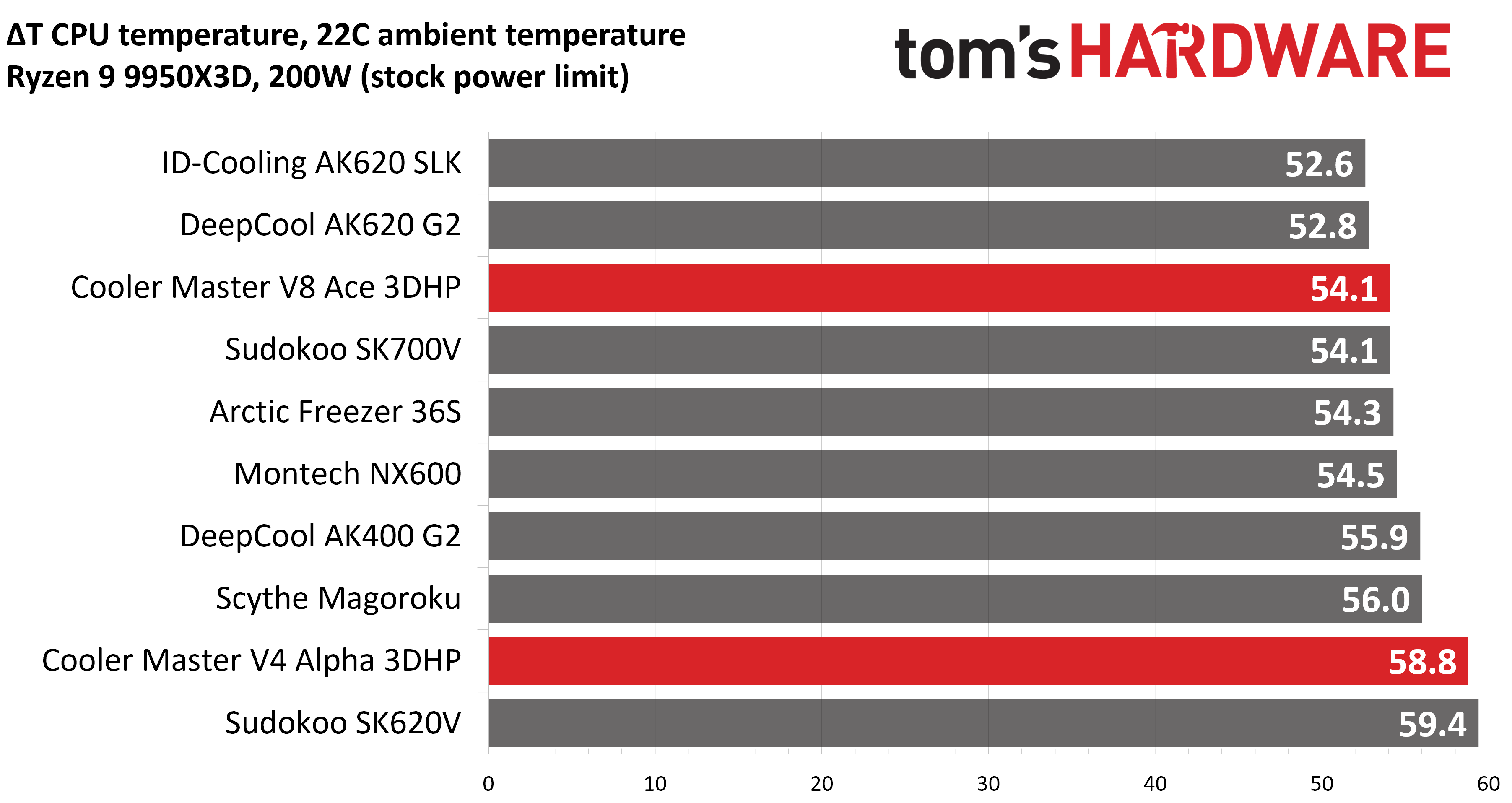
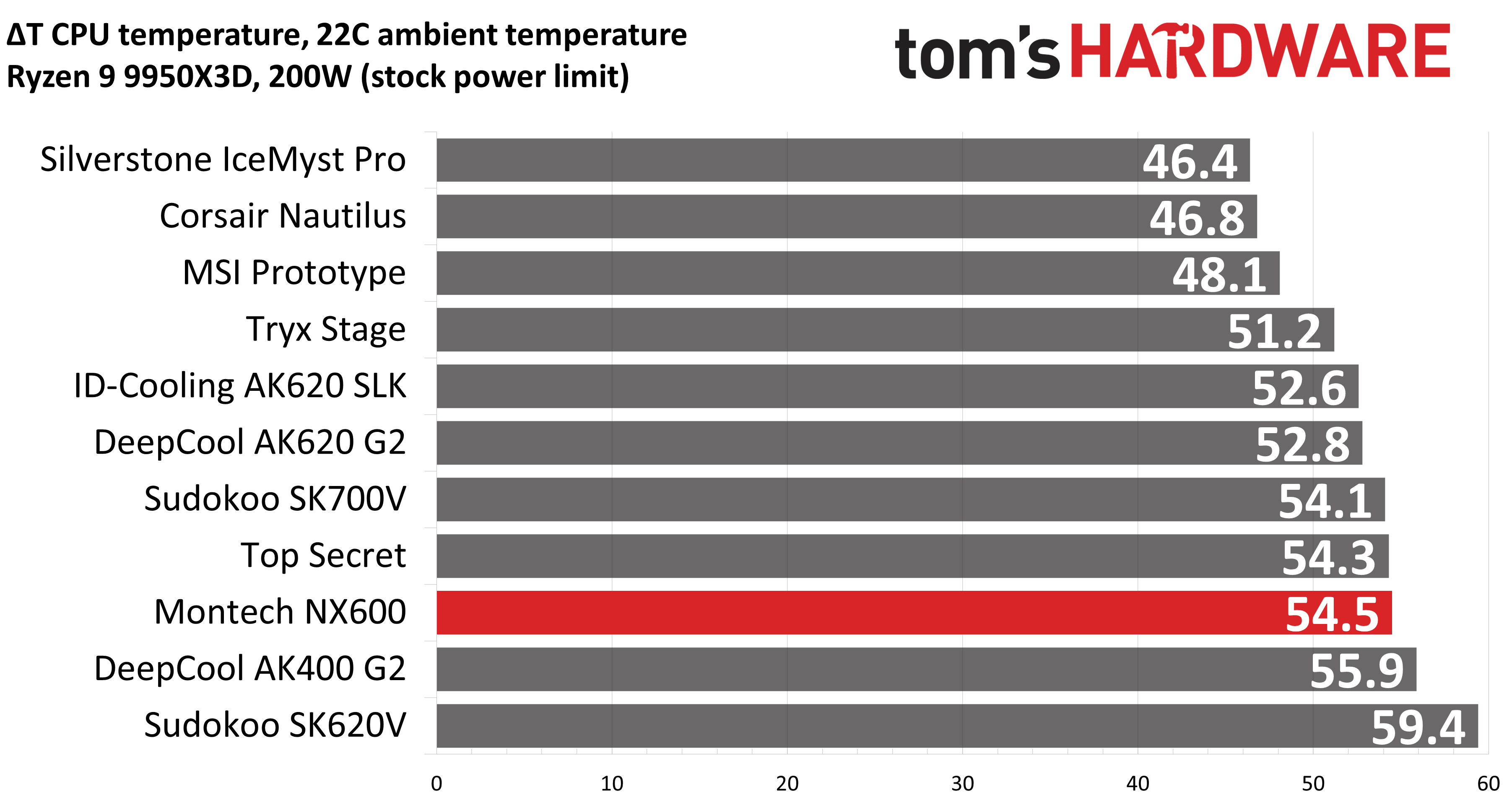
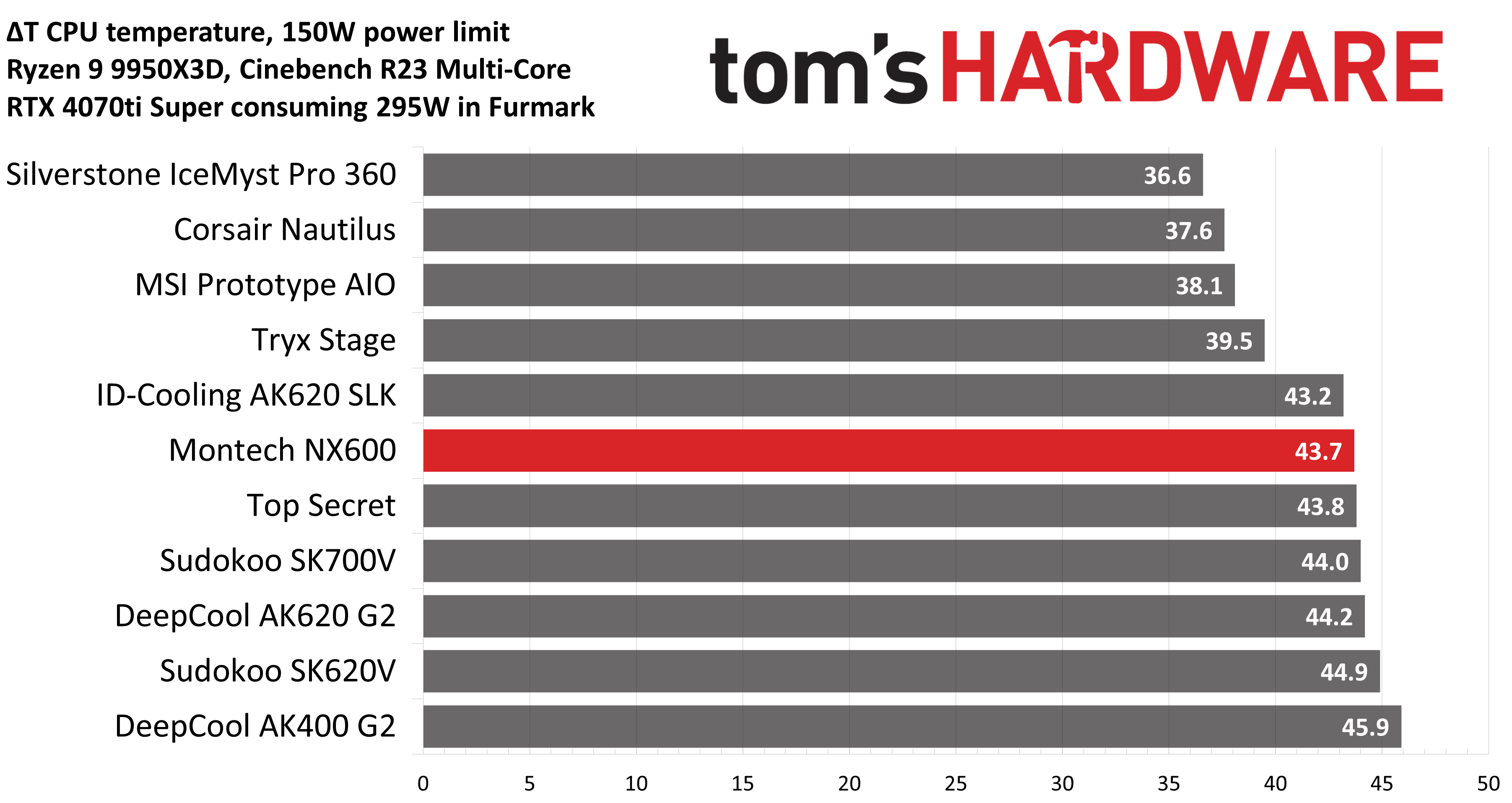
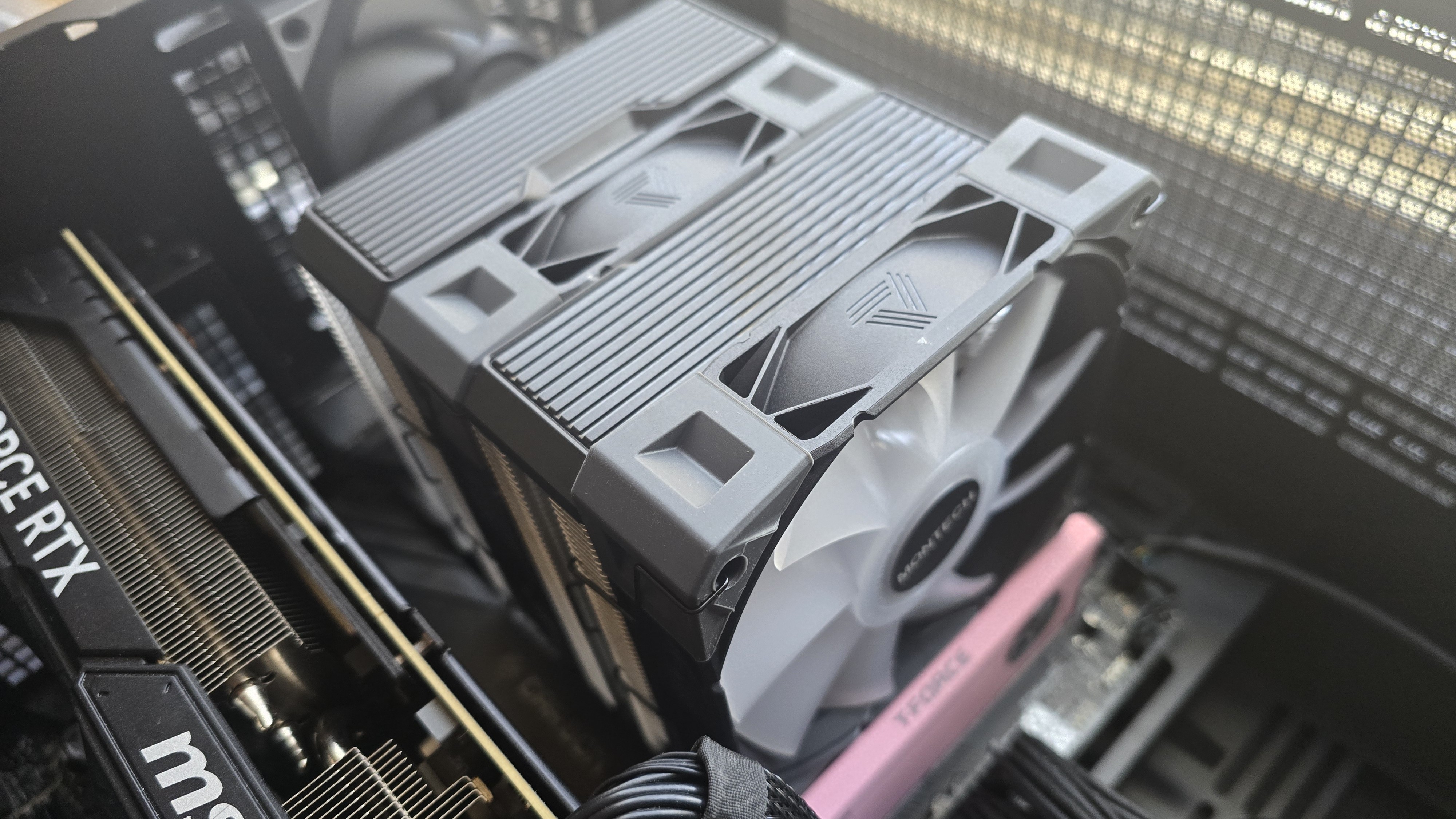
With this thermal test, DeepCool’s AK620 G2 slips to the second best result we got from any air cooler. The single tower version, the AK400 G2, still performs well in comparison to dual-tower products, besting Sudokoo’s SK620V and just a bit behind Montech’s NX600 with its powerful E28 fans.
150W + GPU thermal results, noise levels
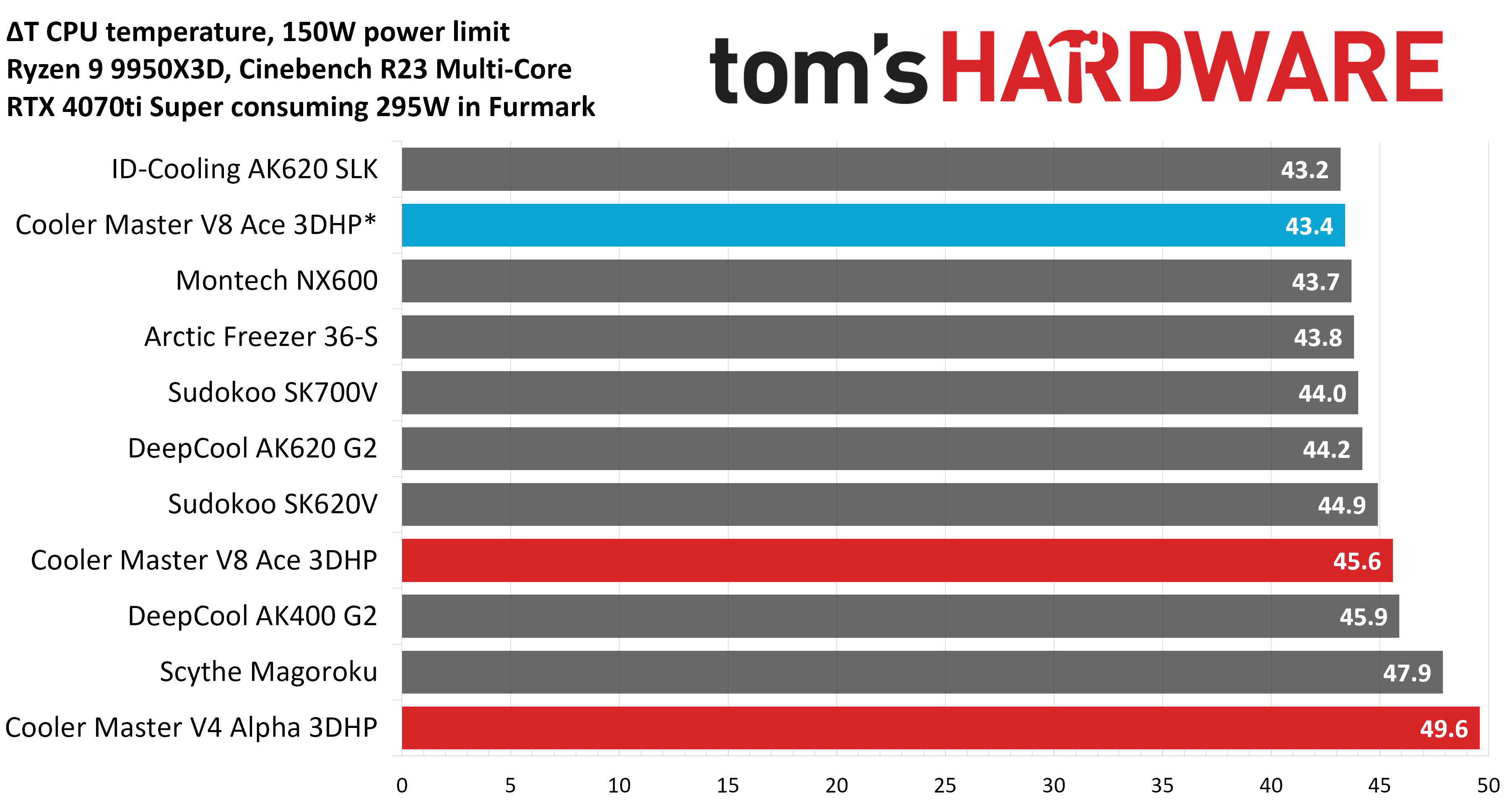
Our next test runs Cinebench on the CPU with a 150W power limit, while also running Furmark on MSI’s RTX 4070 Ti Super Ventus 3x OC. This causes the GPU to consume ~295W of power. This test is designed to emulate the thermals of games, which primarily stress the CPU and GPU.
(Image credit: Tom's Hardware)
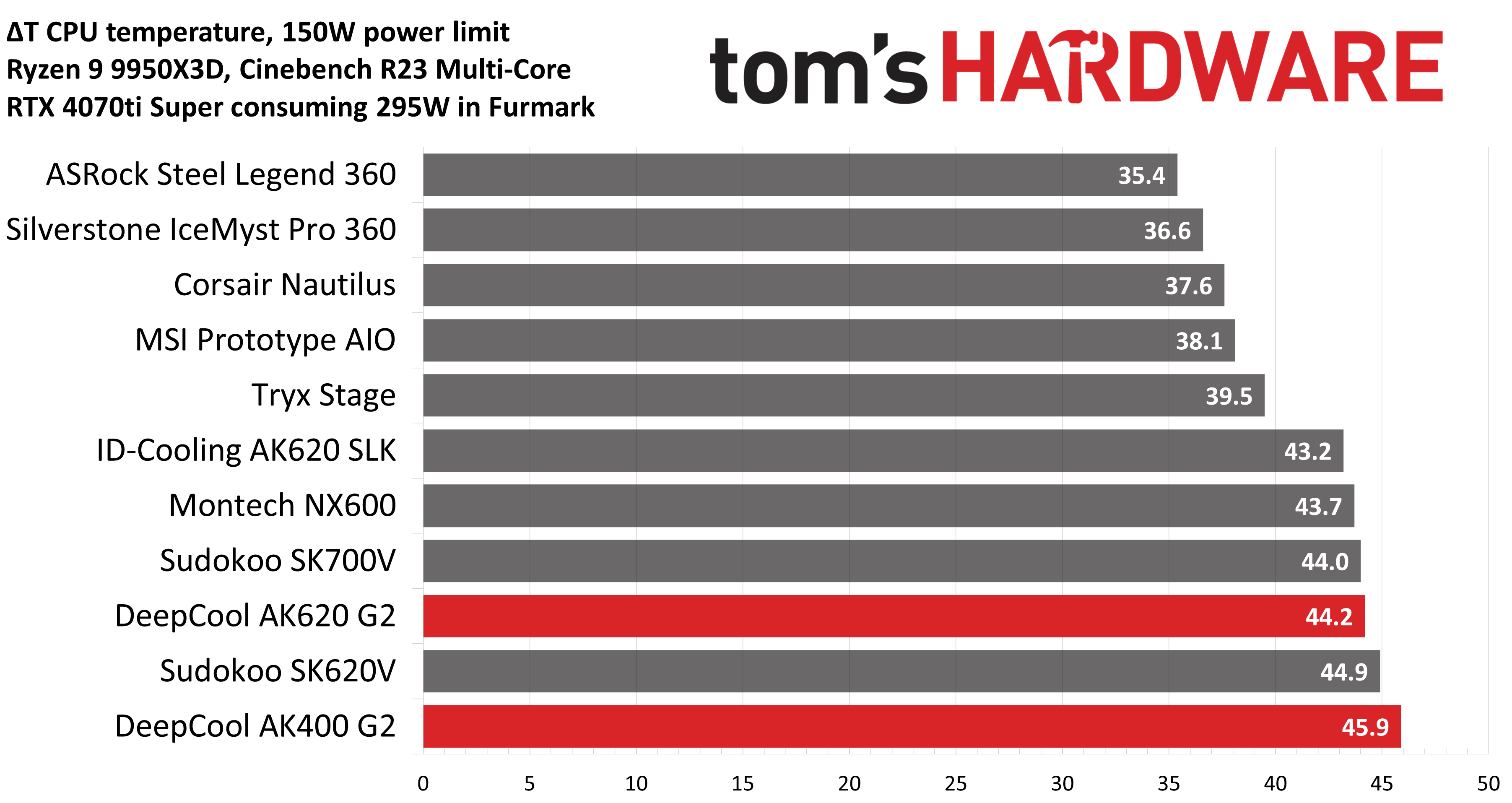
At first glance, you might think the results above – when tied to the default fan curve of MSI’s X870E Carbon motherboard – are a little underwhelming compared to the competing coolers shown in the chart.
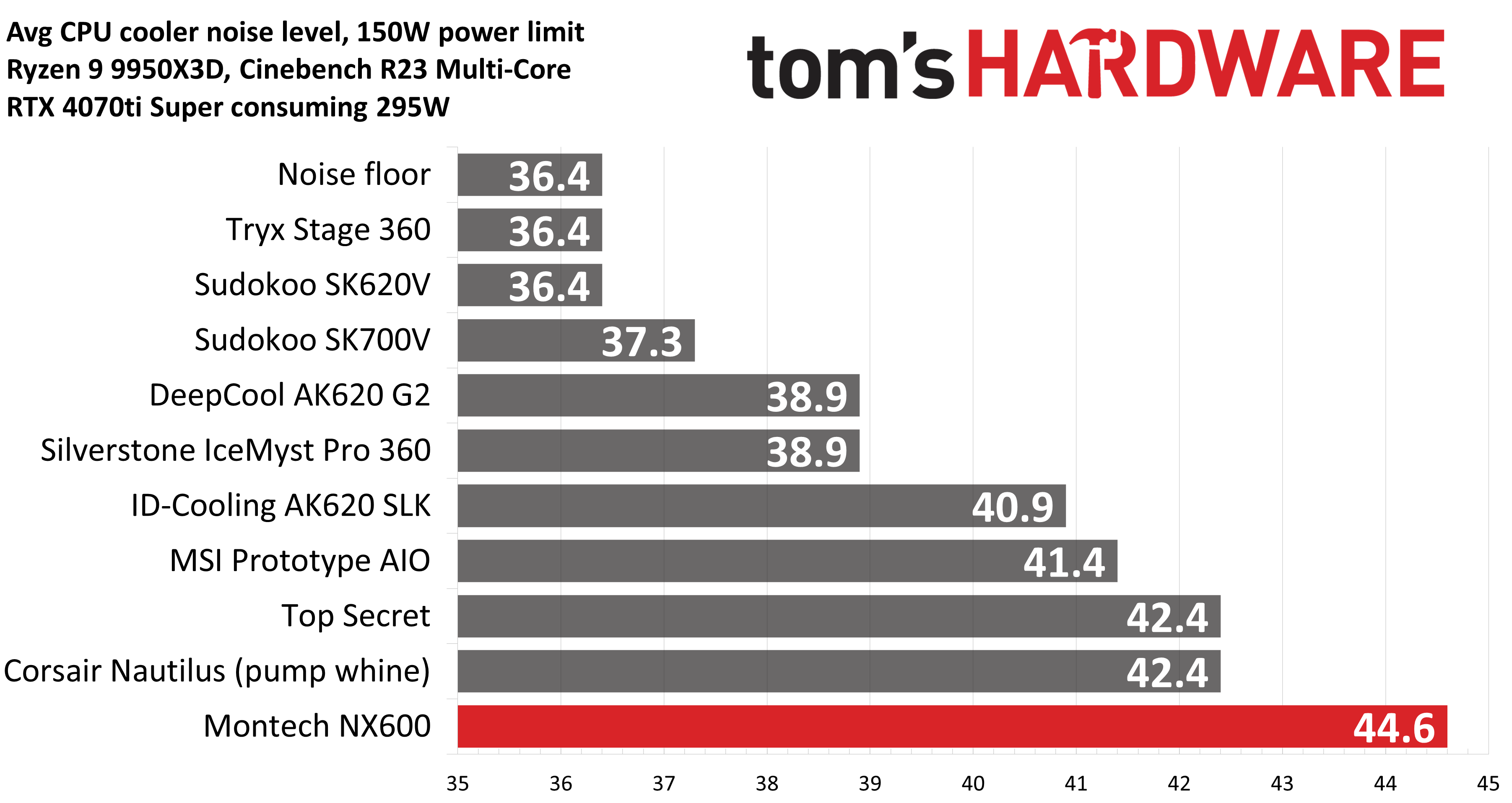
But thermals are only part of the story. Noise levels, especially when you’re gaming, are far more important here. With a noise level of only 38.9 dBA measured, the loudness of these coolers won’t be an issue while you’re gaming. Your GPU fans and / or your case will likely be making more noise in most setups.
(Image credit: Tom's Hardware)
Noise-normalized testing
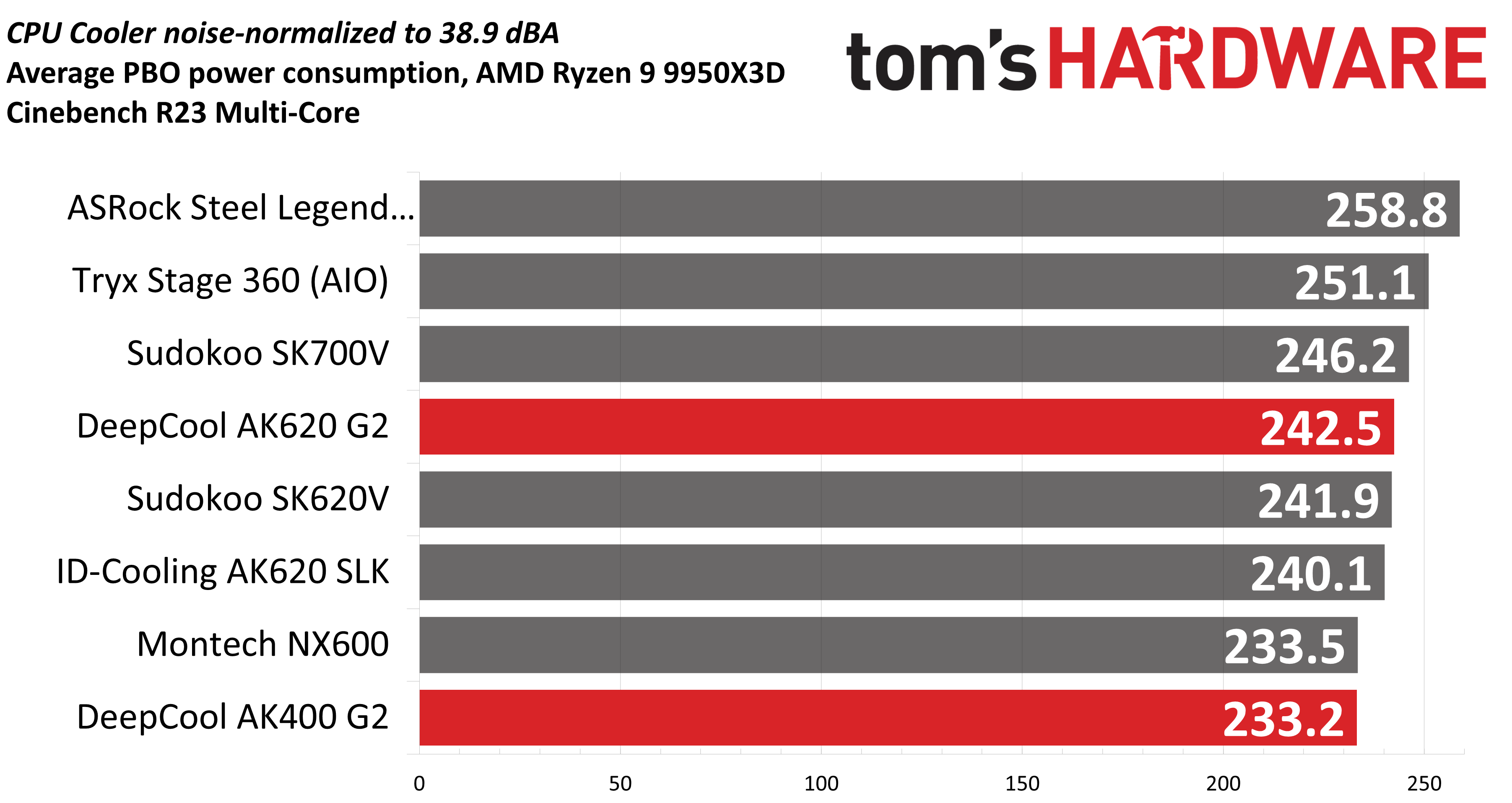
Most testing is performed with the cooler tied to the default fan curve of our MSI X870E Carbon motherboard, but many prefer tests with the noise levels of coolers equalized. This is especially important to those of you who prefer silent computers. This next benchmark has the CPU cooler noise-normalized to 38.9 dBA, with PBO enabled for the Ryzen 9 9950X3D CPU.
(Image credit: Tom's Hardware)
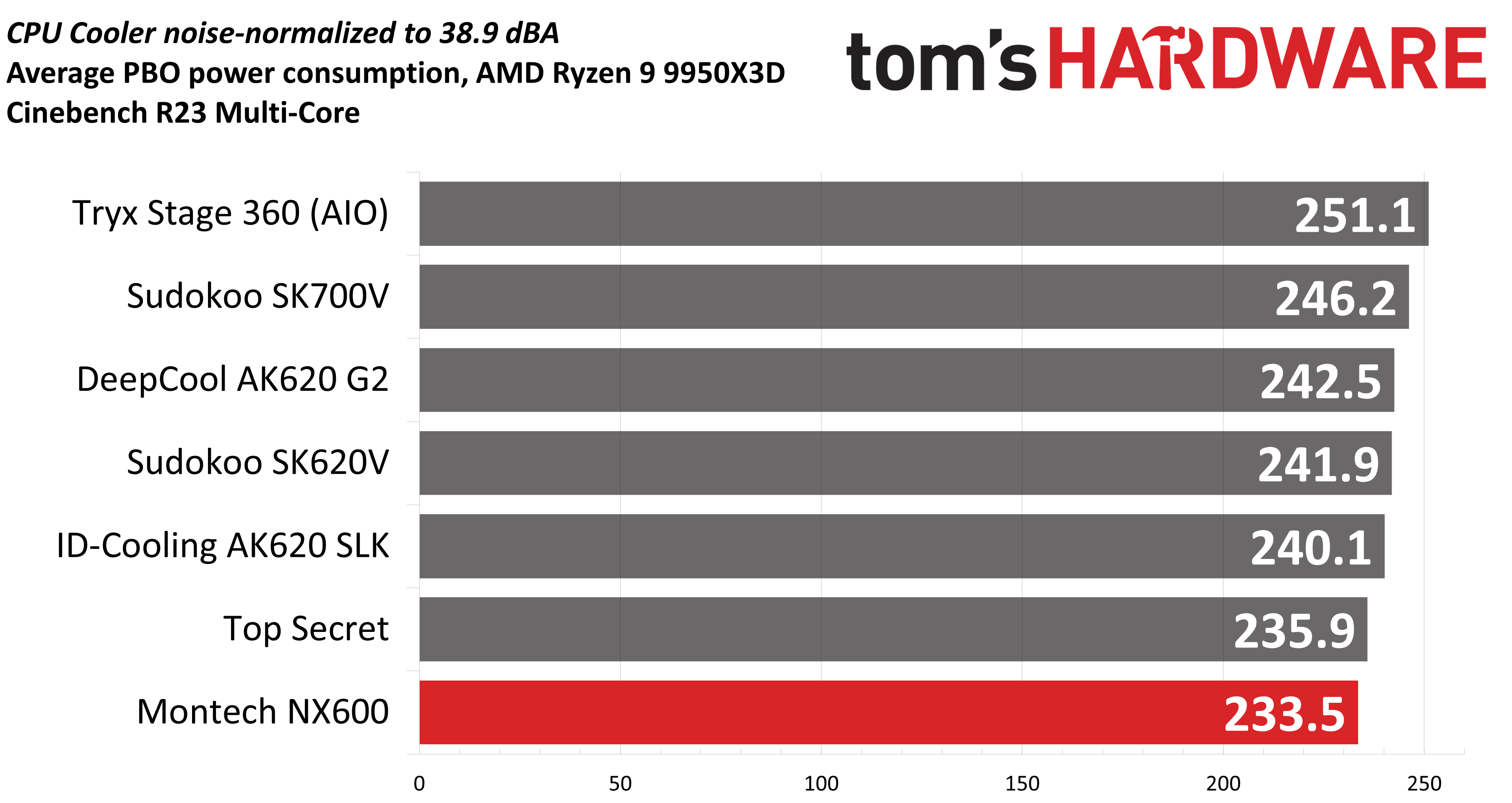
The results here are pretty good. With an average of 242.5W cooled during the course of testing, DeepCool’s AK620 G2 shows the second-best performance of the air coolers in this chart. The single-tower AK400 G2 is our bottom result, but even so, its performance is basically on par with Montech’s NX600. That’s fairly impressive for a single-tower air cooler.
Karhu DDR5 RAM thermals testing!
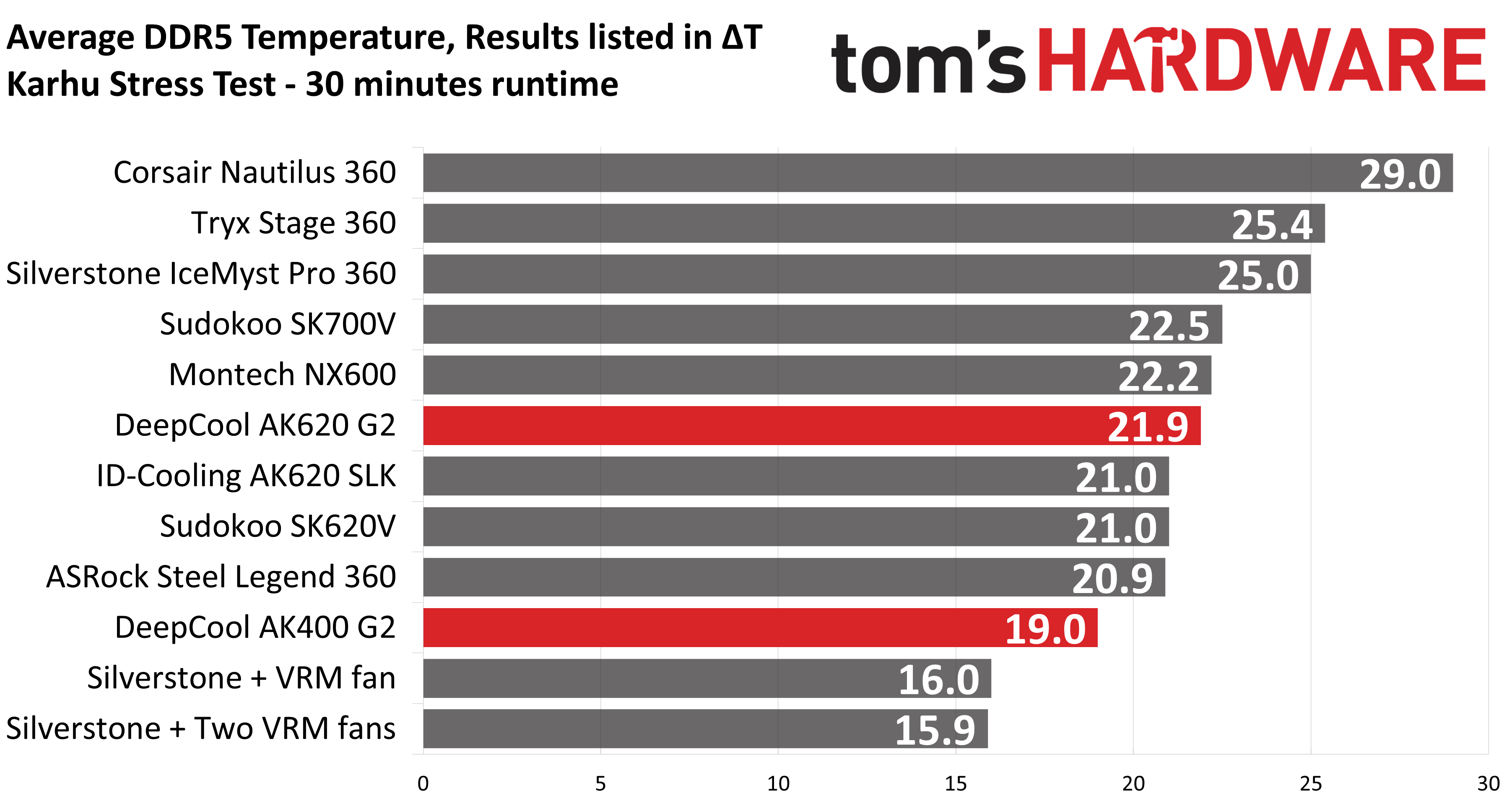
Your CPU cooler does not operate in isolation. It has an impact on not just your CPU’s temperatures, but also the other components in your build, like your RAM and GPU. To that end, I’ve run the Karhu RAM stress test. This places a load of ~153W on the CPU and ensures system RAM (DDR5 in my case) is fully stable. In this type of scenario, most AIOs tend to produce worse results than air coolers.
(Image credit: Tom's Hardware)
The DDR5 temperature recordings from this test seem to be within expectations compared to other dual-tower air coolers. Temperatures with DeepCool’s AK620 G2 were an average of 21.9C above ambient. Curiously, DeepCool’s single tower AK400 G2 showed the best RAM temperatures in this scenario of any air cooler.
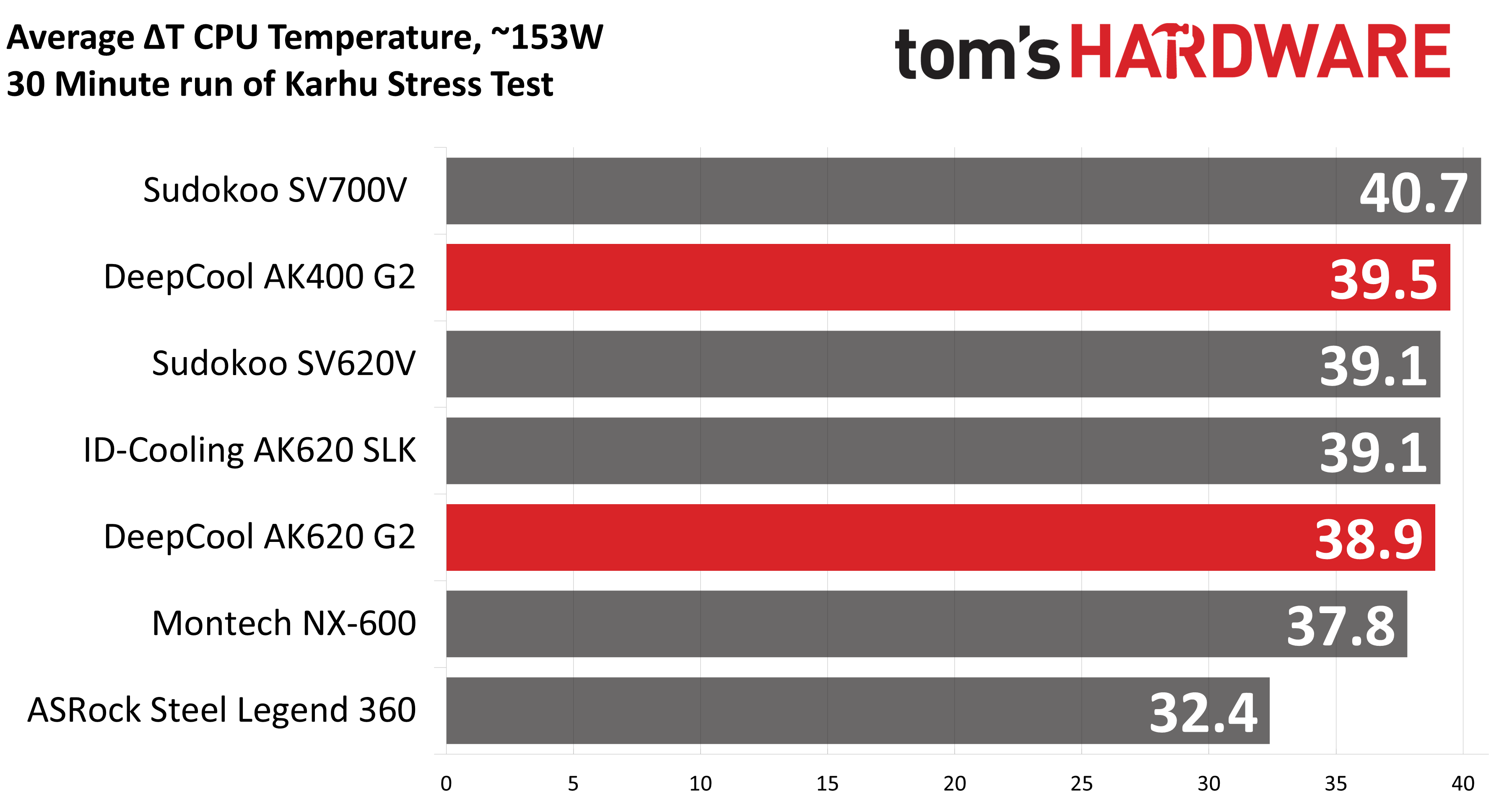
The thermals of the CPU in this test were about as expected, with the AK620 G2 showing some of the best temperatures and the AK400 G2 running warmer than most of the dual-tower coolers here, but notably still outperforming Sudokoo’s SK700V.
(Image credit: Tom's Hardware)
Conclusion
(Image credit: Tom's Hardware)
DeepCool continues to impress with its second-generation AK air coolers, the AK620 G2 and AK400 G2, delivering strong thermal performance and low noise levels. Our only major complaint is that these coolers aren’t easily available for purchase in the USA. If you’d rather not go through the hassle of importing, our recommendation would be Thermalright’s Royal Pretor 130, which offers similarly strong thermal performance and low noise levels, at a more affordable price of $50 USD.
The fearless TrashBench has been testing direct die water cooling of graphics cards. The inevitable twist here is that they removed the metal waterblock from the equation. Despite initial leaky results and much concern of water damage to the expensive parts thrown into the mix, some of the end results are eyebrow-raising in a good way.
“In my pursuit of the perfect water block, I realized, why do we need metal at all?” queried the antipodean host of the punk-rock GPU death lab. “Why can't we just pump water directly over the bare silicon? Makes sense to me.”
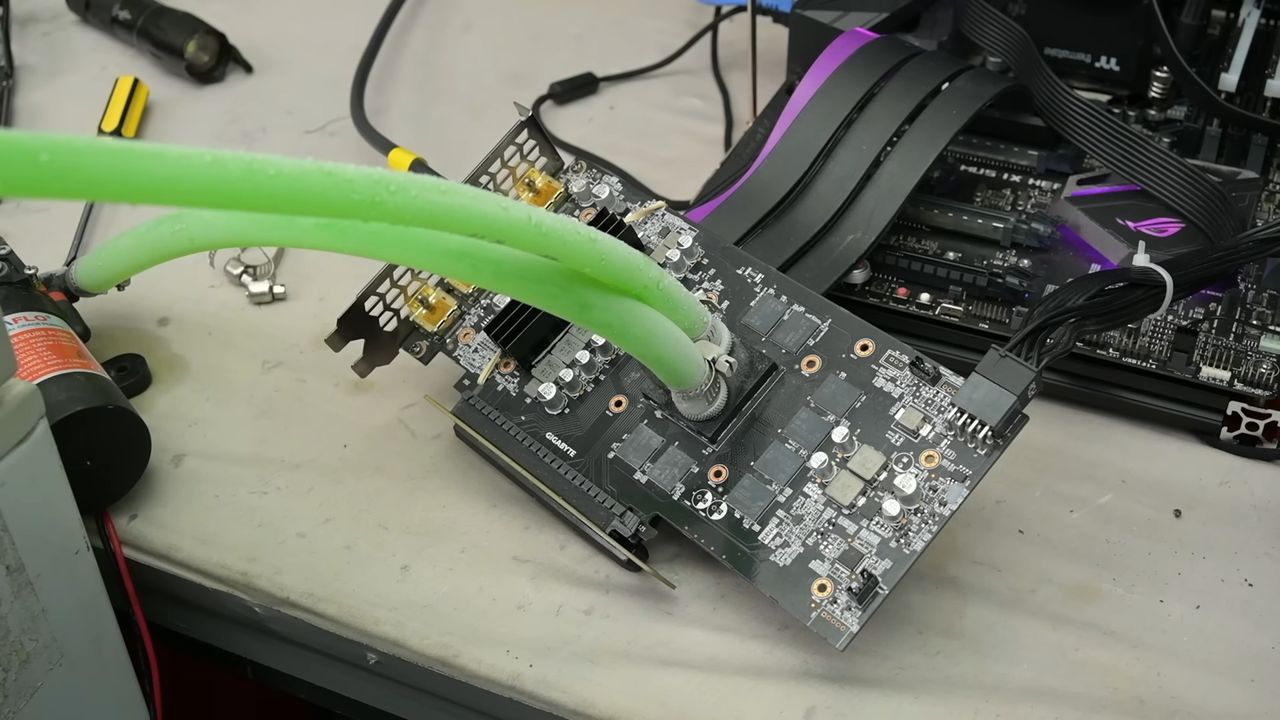
TrashBench began this project well aware that leaks might be a problem. Thus, a non-working GeForce RTX 3060 was chosen for the initial feasibility tests. It was measured up for a 3D printed water block which would direct the coolant directly over the GPU die. Our hardware adventurer covered any surface-mount components beside the GPU with nail polish to prevent water damage/shorting.
Some tried and trusted plumbing measures were then applied, with the design incorporating washers, gaskets, and hose clamps (worm-screw equipped jubilee clips). Water pipe fittings were melted into the block, which was fastened using the retaining clamp mechanism that the air cooler had previously used.
This initial test sprang a leak, or two, so TrashBench decided to add epoxy adhesive to secure and seal the 3D printed block to the GPU. This worked, but then some water was spotted oozing from the tube fittings, so they got a dose of epoxy too. At last, we had the first non-leaky prototype…
After some live runs using a powered-up GTX 980 were successful, it was time for the main event with fitting, testing, and benchmarking using an RTX 2060 Super. On the way, it was noticed that the choice of 3D print material used on TrashBench’s Bambu Lab 3D printer wasn’t trivial. Some materials leaked from the edges, and others were actually slightly porous. During live power tests, the TechTuber wisely used a PCIe riser cable so any leaks wouldn’t immediately drip onto the motherboard.
Was it worth it?
If you like to live dangerously, it could be argued that the TrashBench results show some value in this cooling methodology. The headlining technique was compared against the stock cooler and a clamped-on AiO cooling solution.
Going by the numbers above, you can see that direct water cooling could be interesting, as long as you can ensure long-term confidence about leakage. In the video, you can also see some interesting extras, like running this system using -28°C coolant. The same trick is also tested using an Intel i5-7600K CPU. That was chosen as “it’s not a particularly hot CPU, but if it dies, I don’t care.”
The eventual conclusion was that chamber size matters (most clearly illustrated by the CPU cooling test), but pumping water directly over silicon can work.
It is not a secret that proper cooling ensures longevity and enables hardware to demonstrate its full potential. But when it comes to data center AI hardware, proper cooling also means higher sustained performance, which directly translates into money earned by the owner. Frore Systems, a maker of cooling solutions that are made using semiconductor-grade tools, seems to have a perfect idea of how to reduce the temperature of next-generation AI accelerators and increase their performance by 15%.
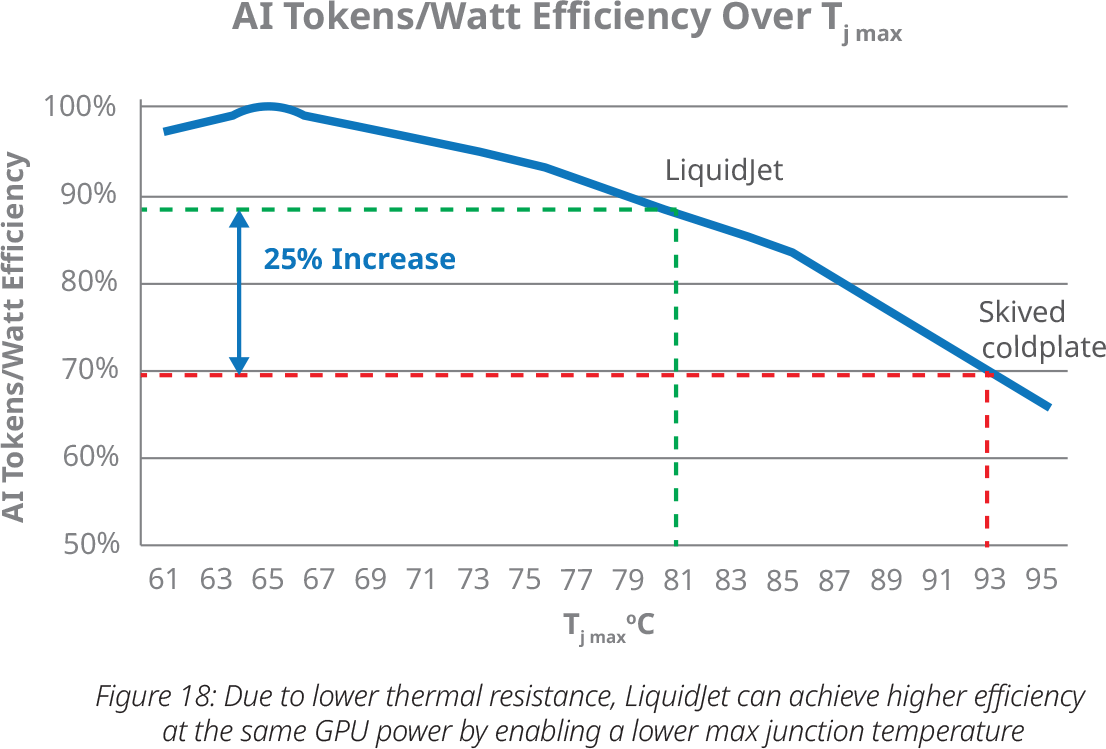
Frore Systems last week published a white paper which suggests that improvements to the entire cooling stack — from the GPU packaging and thermal interface materials (TIMs) to coldplates and coolant temperatures — can increase token generation per watt by more than 30%. Meanwhile, one of the company's boldest projections based on an analytical thermal model* is that its LiquidJet coldplate technology alone can lower Nvidia Rubin GPU junction temperatures by up to 12°C, which translates into a 10% to 25% improvement in tokens/Watt, while a 10°C reduction could increase token generation by around 15%.
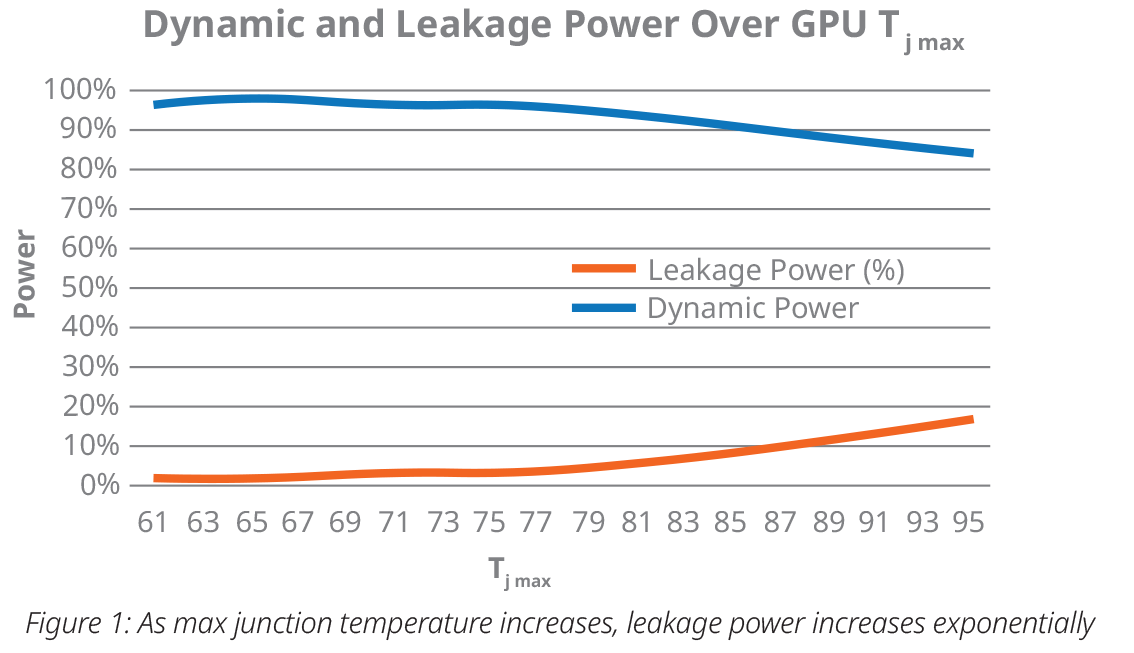
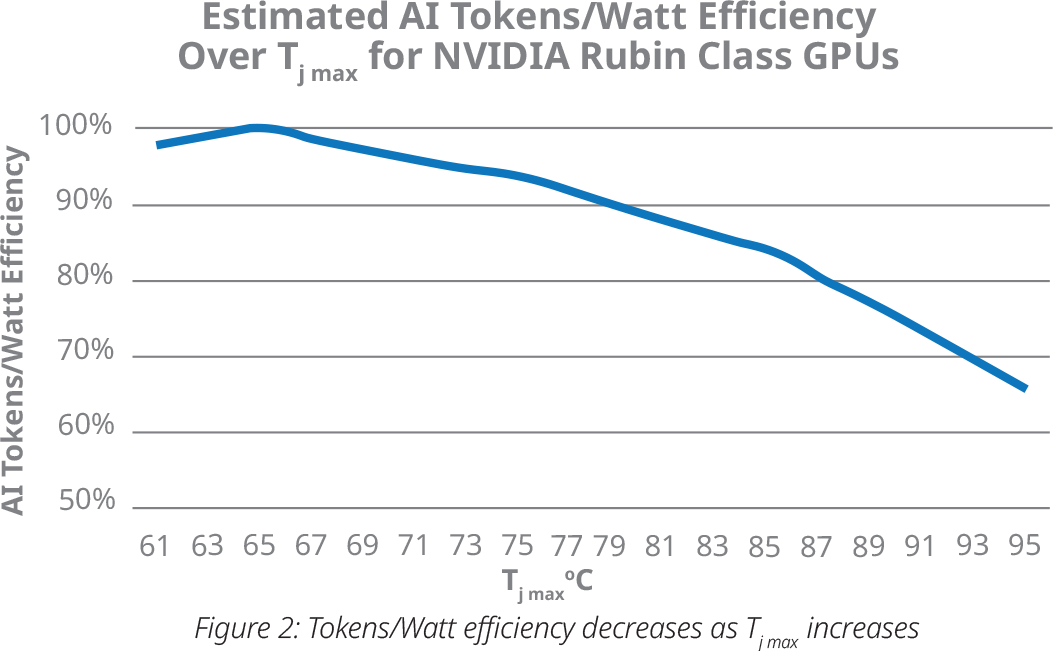
Indeed, modern AI accelerators, such as the upcoming Nvidia Rubin, can dissipate up to 2,400 W, and their die temperatures can easily hit 95°C or more. But while 95°C is not necessarily a problem for silicon longevity, leakage current certainly is. Leakage current rises exponentially with temperature, approximately doubling for every 10°C increase in maximum junction temperature, which is when transistor switching itself also becomes less efficient. As a consequence, hotter GPUs require higher voltages to sustain clocks, which eventually forces Dynamic Voltage and Frequency Scaling (DVFS) to reduce clocks to remain within thermal limits, which in turn will reduce performance and token generation.
(Image credit: Frore Systems)
This all leads to a simple conclusion: the better the cooling, the higher the performance and token output. Which is generally right. However, cooling is not as simple, as it depends on multiple factors that can be optimized. Furthermore, for AI data centers, cooling itself is no longer a way to preserve CPUs and accelerators from overheating, but really is a way to maximize their performance and token money generation.
Nvidia designs its platforms around Tj(max) temperature; it is one of the fundamental design constraints for the GPU, package, and cooling solution. This works like this:
Nvidia specifies a maximum allowable junction temperature (Tj,max limit). This is the temperature the silicon must not exceed during normal operation. The exact value is not always public, but Frore uses 95°C for Rubin in its analysis.
The GPU continuously monitors its junction temperature using tens or hundreds of on-die thermal sensors, yet power management monitors the hottest region.
DVFS attempts to maximize performance while staying below the thermal and power limits, so if the GPU has thermal headroom, it can sustain higher clocks or lower voltage. If the junction temperature rises, the firmware gradually adjusts voltage and frequency. If necessary, it throttles to prevent exceeding Tj(max).
The problem is that GPUs operate under several simultaneous limits, such as thermal limit (Tj,max), package power limit, current limit, and voltage limit. Usually, power is reached before thermal. Meanwhile, modern cooling systems are designed to prevent silicon from reaching Tj(max). So, even if Nvidia's GPU never reaches Tj(max), lowering the operating junction temperature still improves efficiency because transistor leakage decreases as temperature falls. This is where Frore and its cooling systems come into play.
According to Frore, leakage power approximately doubles for every 10°C increase in junction temperature, while transistor switching power rises by about 2% over the same temperature range, so lowering operating temperatures is beneficial even when the processor is not thermally throttling.
Thermal resistance
According to Frore, the maximum GPU junction temperature used by hardware makers is directed by a deceptively simple equation:
Tj(max) = Tinlet + Q × Rtotal
where coolant inlet temperature, GPU power, and total thermal resistance determine how hot the silicon can be. Meanwhile, total thermal resistance depends on three major elements: the GPU package itself, the thermal interface material between the package, and the coldplate design. As each layer adds thermal resistance, it increases die temperature and reduces overall token money generation. That said, thermal resistance is becoming a major problem, according to the paper.
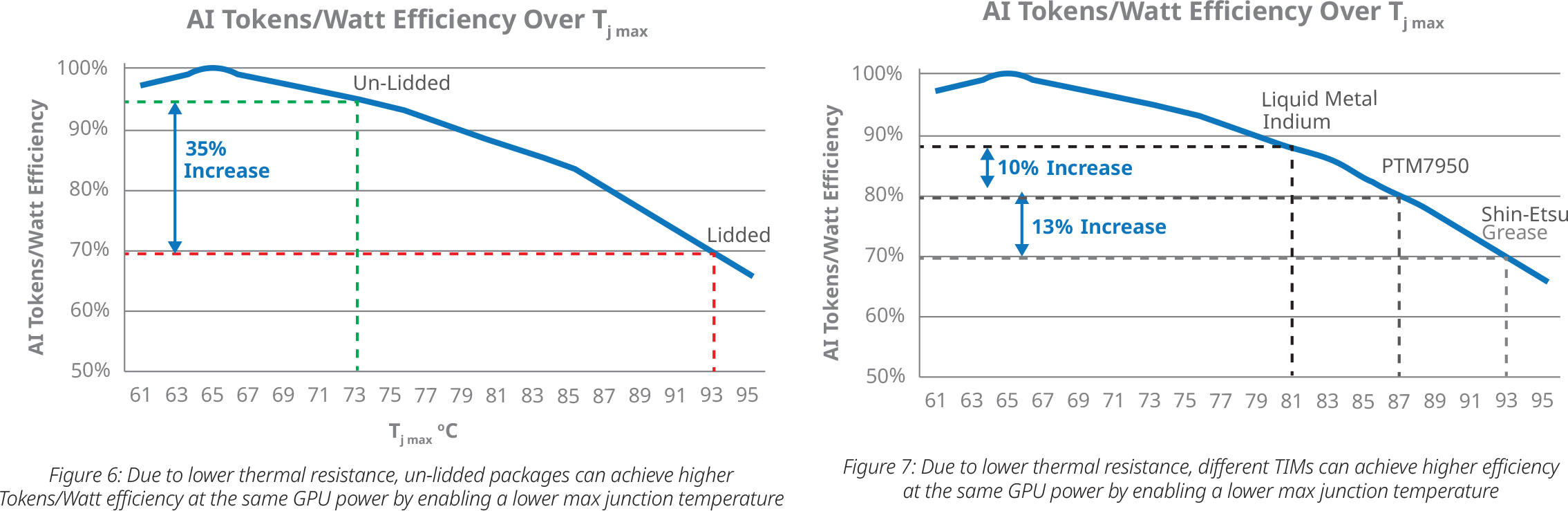
Frore claims that delidding the Rubin package dramatically lowers thermal resistance (while this is obvious, I must add again that the paper is based on an analytical thermal model*). According to the paper, an unlidded Rubin package can reduce junction temperature by as much as 20°C compared to one with an integrated heatspreader (IHS), which potentially improves tokens/Watt by up to 35%. Of course, there are disadvantages, as delidded GPUs have lower mechanical reliability. We will talk about it later on. In any case, there are cloud system providers that explore the use of delidded Rubin GPUs to boost their token money generation despite all the risks, according to Frore.
(Image credit: Frore Systems)
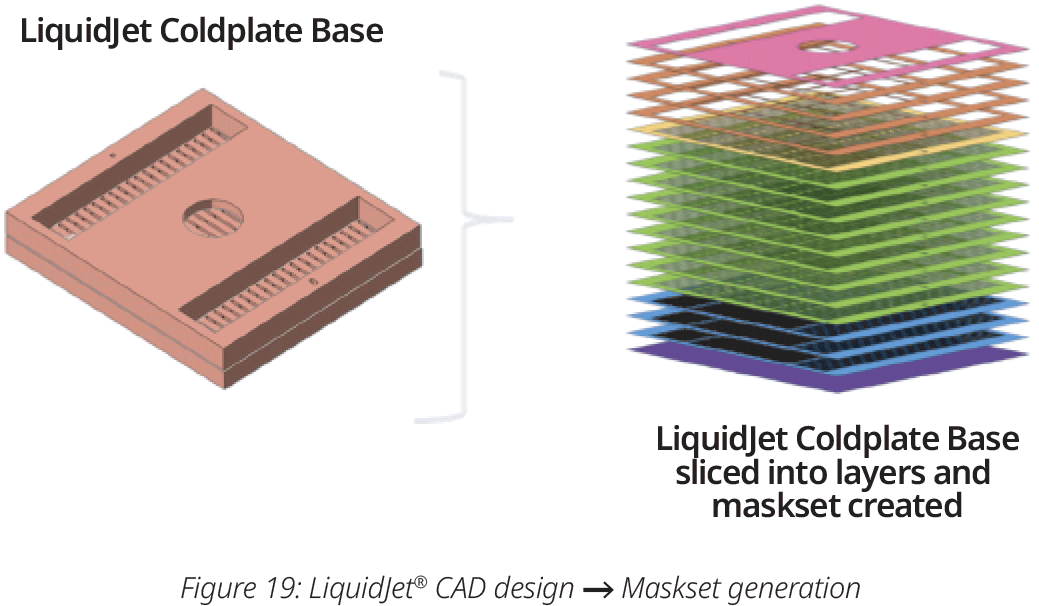
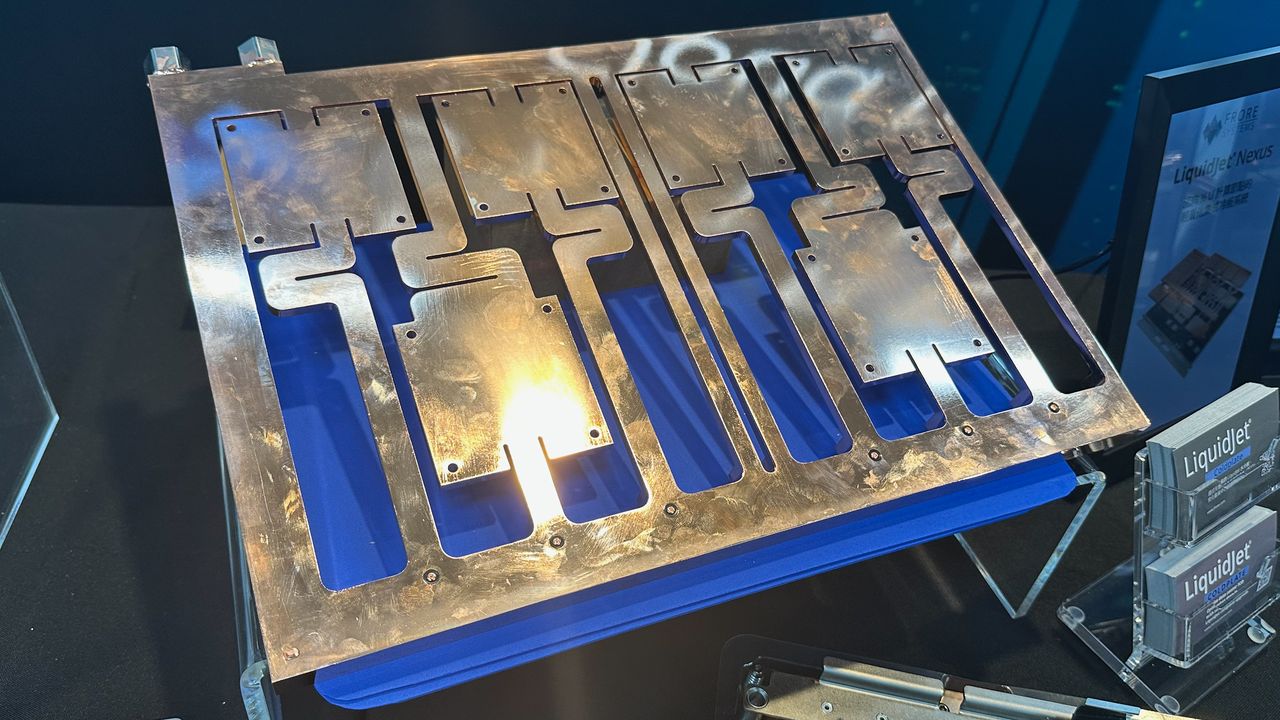
Frore's own contribution is, of course, its coldplate. Conventional coldplates are typically manufactured using skiving, a machining process that creates long, straight microchannels inside a copper block. Frore instead borrows manufacturing techniques from semiconductor fabrication — etching and bonding — to build intricate three-dimensional copper microstructures that address hotspots on the accelerator's silicon. These unique microstructures cannot be produced using traditional machining, at least not cost-efficiently, according to Frore.
(Image credit: Frore Systems)
Improving efficiency
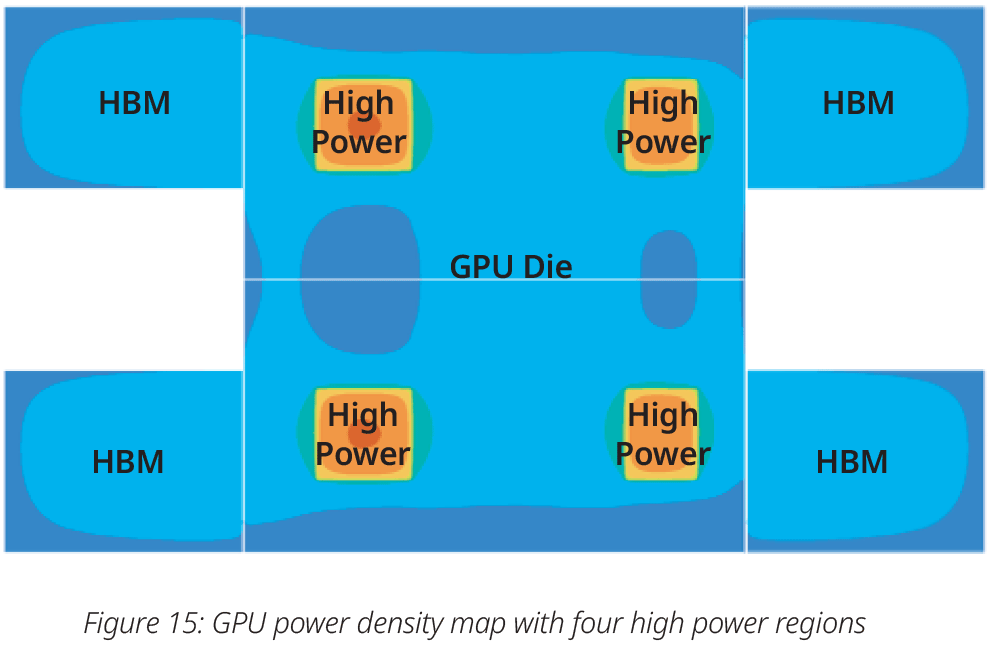
The LiquidJet design features short microchannels that are etched around hot spots, multiple cooling stages, and flow routing optimized for the GPU's power-density map. According to the company's analysis, this enables a 6°C to 12°C reduction in junction temperature and improves tokens/Watt by 10% to 25% in the case of the Nvidia Rubin GPU*. A roughly 10°C temperature reduction would therefore correspond to about a 15% increase in token generation efficiency, the paper claims.
Frore SystemsFrore SystemsFrore Systems
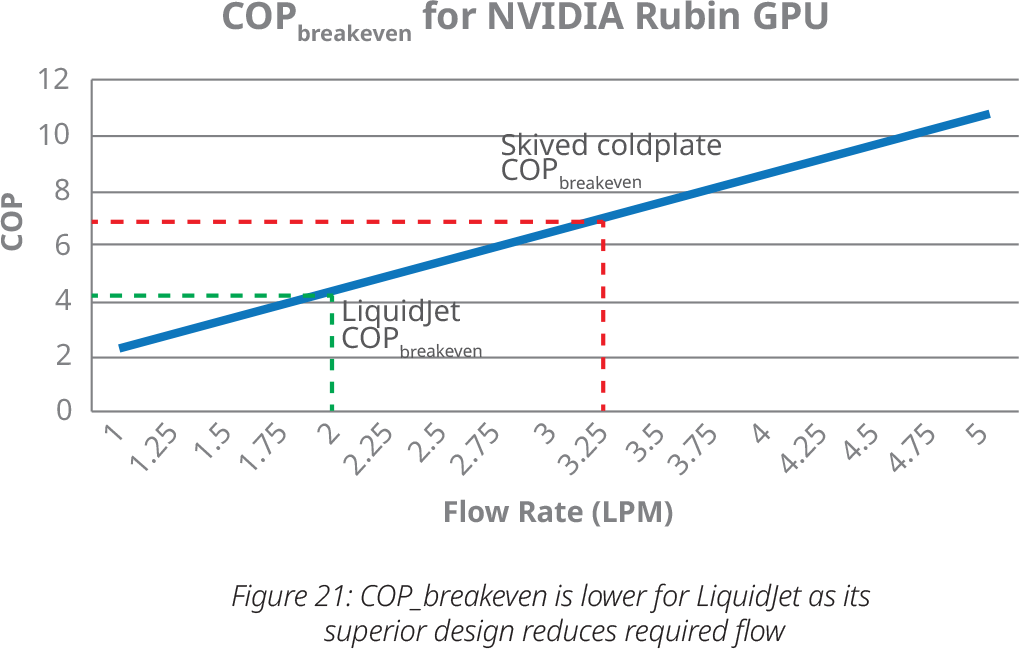
Frore argues that improved coldplate efficiency changes the economics of facility cooling, which is obviously the most important part of the hyperscalers' consideration. Nvidia designed Rubin to operate with coolant entering at up to 45°C, which enables many AI data centers to rely entirely on 'free' cooling without mechanical chillers. While lowering the inlet temperature can further improve GPU efficiency, doing so only makes economic sense if the energy consumed by the chillers is offset by the resulting increase in money token generation. Meanwhile, because LiquidJet requires a lower coolant flow rate to maintain the same junction temperature, it also reduces the chiller coefficient of performance (COP) required for additional cooling to become worthwhile.
(Image credit: Frore Systems)
In Frore's example, a Rubin GPU equipped with a conventional skived coldplate requires a chiller COP of approximately 6.7 before colder coolant delivers a net efficiency benefit, whereas LiquidJet lowers the break-even COP to around 4.1, which makes mechanical chilling economically attractive across various deployments.
One interesting thing about Frore's analysis is that its LiquidJet is more efficient on Rubin data center GPUs compared to Blackwell data center GPUs* due to the higher transistor density of the former.
Frore's analysis does not stop at exploring the advantages of its own cooling systems, so the company's analytical thermal model extends to other means by which improved cooling and/or lowered thermal resistance can affect temperatures and therefore money token generation.
(Image credit: Frore Systems)
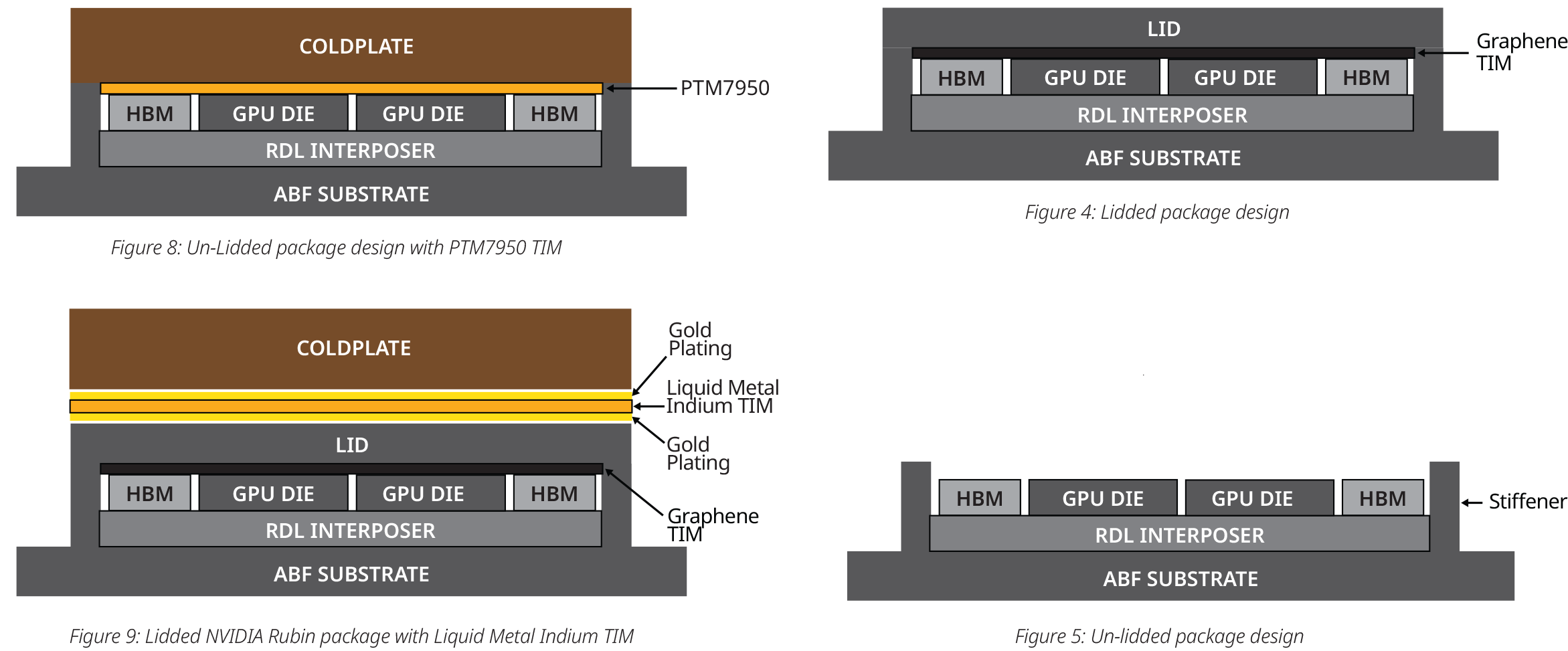
One of the most striking claims by Frore concerns Nvidia's upcoming Rubin is that Frore claims that delidding the GPU package — removing the IHS and the graphene TIM placed between the die and the lid — dramatically lowers thermal resistance, which therefore reduces junction temperature by as much as 20°C compared to regular GPUs with IHS, which therefore improves tokens per Watt by up to 35%, according to the model used by Frore.
Meanwhile, mechanical reliability becomes a major concern for delidded GPUs. Without the IHS, the bare Rubin GPU packaged using TSMC's CoWoS-L technology becomes considerably more vulnerable to cracking of bridges that connect the two Rubin dies. In fact, even in the Hopper era, some GPUs literally cracked with certain liquid coolers. Furthermore, maintaining uniform contact pressure across multiple exposed dies is substantially more difficult than in the case of monolithic processors. Nonetheless, there are hyperscalers that are exploring the use of delidded Rubin GPUs to increase their token generation and money output.
Thermal interface materials play an equally important role. By default, Nvidia's Rubin reportedly addresses the thermal penalty of a lidded package by using liquid indium metal TIM with gold-plated contact surfaces. Frore argues that an unlidded package paired with a high-performance phase-change material such as PTM7950 still exhibits lower overall thermal resistance than a lidded package using liquid metal, which turns into as much as a 14°C junction-temperature advantage and up to a 28% increase in money tokens/Watt, according to Frore's model.
Summary
The key point of Frore's white paper is that cooling has become a key determinant of AI data center profitability, as lower GPU junction temperatures improve token generation efficiency rather than 'just' preventing overheating.
In a white paper based on an analytical thermal model, the company claims that its LiquidJet coldplate can lower Nvidia Rubin junction temperatures by 6°C to 12°C and increase tokens/Watt by 10% to 25%, while a 10°C reduction could boost token generation by about 15%.
In addition, the company argues that more efficient coldplates make mechanical chilling economically viable across a wider range of AI data centers as it lowers the break-even chiller efficiency required to offset cooling power consumption.
Finally, Frore claims that delidding Rubin and optimizing thermal interface materials can reduce thermal resistance further and improve tokens/Watt by up to 35%, albeit at the cost of greater mechanical risk for these accelerators.
*It should be noted that Frore's analysis is based on an analytical thermal model rather than experimental results. The paper builds on the thermal resistance equation (Tj = Tinlet + Q × Rtotal), published or assumed operating parameters for Nvidia's Rubin GPU, and the company's own estimates of how different coldplate designs affect thermal resistance.
Following a tariff refund from the United States government, popular PC cooling hardware manufacturer Arctic has announced a price rollback for its products sold in the U.S. The refund was made possible after a February 2026 Supreme Court ruling found that the 1977 International Emergency Economic Powers Act (IEEPA) does not grant the President unilateral authority to impose import duties without prior approval from Congress.
The reduced price will be applicable across Arctic’s direct-to-consumer sales channels in the U.S. and is claimed to be already in effect on Amazon and eBay. In its latest blog post, Arctic said, “When U.S. trade tariffs significantly increased, Arctic proactively absorbed as much of the tariffs as possible to protect our customers. While most of the product lineup remained unaffected, price adjustments became necessary for a limited number of products in the U.S. market. At the time, Arctic committed to reversing those increases if circumstances allowed. “
Notably, the company isn't limiting price reductions only to the products that were affected by tariffs. Instead, it's using the refunded tariff money to lower prices across its entire U.S. product lineup. We did a quick price check on Amazon and found that a range of Arctic PC cooling products have indeed dropped in price. For example, the Arctic Liquid Freezer III Pro 360mm AIO liquid cooler has fallen to an all-time low of $69.89, its lowest price ever since it launched in the first half of 2025. In our testing, we were impressed by its chart-topping performance even when it retailed for $125.
In addition to the price rollback, the company says that it is investing in community initiatives that support technology education and grassroots PC communities in the United States through hardware donations and technical support.
With this announcement, Arctic has become one of the first PC hardware manufacturers to publicly reverse tariff-related price increases following the landmark Supreme Court judgement. While it remains to be seen whether other component and peripheral makers will follow suit, the move will definitely put pressure on brands that previously cited tariffs as a reason for raising prices in the U.S.
Mechanical pressure serves as a better system to design computers around than natural buoyancy, but a new experiment from der8bauer is attempting to challenge that notion. The legendary modder recently built a chimney to exploit the "stack effect," which uses temperature differences to catalyze natural convection to the point where it becomes effective again. As a result, the CPU in his test bench saw temperatures drop by 19 degrees Celsius without any fans.
The video above explains the concept of the stack effect pertaining to its foundation, natural convection, in great detail. Also known as the chimney effect, it relies on differences in indoor-to-outdoor air density, which are dictated by differences in temperature and humidity. The bottom of the chimney becomes a low-pressure zone, sucking in cold air that escapes through the low-pressure exit at the top.
(Image credit: der8auer on YouTube)
In the experiment, der8auer uses a fog machine to show how a radiator can't "pull" air without fans attached to it; the hot air dissipating from the other side is forced to fall back on natural convection. The test bench was water-cooled and consisted of an AMD Ryzen 7 9800X3D, so he added a temperature probe to the fittings to monitor the water temp as well. The experiment then begins with the first 3D-printed chimney that's 10cm tall — it barely works, but temps already start to drop by 0.5 degrees.
At this point, the water was at 61°C and der8auer added another 20cm chimney atop the previous one, making the enclosure 30cm tall in total. This made the temps drop by another 5 degrees over a 30-minute stabilization period. The fog machine didn't really show any difference in the airflow, however. Now, it was time for the big boy: an 80cm tall chimney made up of 4x 20cm parts, bringing the total height to 110cm.
Right away, temperatures began dropping below 55°C before the modder could even set up his camera for the ultrawide framing this setup warranted. Just five minutes later, the water had hit 50°C, but the visual demonstration really sealed the deal. Turning on the fog machine underneath the radiator showed air being pulled through the chimney as if there were fans facilitating airflow on top.
(Image credit: der8auer on YouTube)
The CPU temperatures had peaked at 90°C previously, but the "big tower" had now brought them down to just 71°C, as reported by HWiNFO. The experiment was a raging success. The video ends with der8auer actually tying the stack effect back to how we use fans in modern PCs to synthesize air pressure, since they achieve the same goal — a pressure differential — just more reasonably. So, unless you want to redefine what a tower PC means, sticking to regular, boring old fans is enough.
A PC gamer has DIYed a passive Nvidia GeForce RTX 4060 graphics card system. Perhaps unhappy with the Palit GeForce RTX 3050 KalmX 6GB still being the pinnacle of commercial passive graphics cards in 2026, Bilibili user NexFrame (h/t Fanless Tech) has bolted a hulking finned aluminum heatsink onto an RTX 4060.
NexFrame appears to be a small or up-and-coming ‘brand’ with a penchant for passive PC systems, from what we can understand from their Bilibili bio (machine translation). Unfortunately, we don’t have a lot of information about this passive 5.5-pound (2.5kg) aluminum heatsink-wearing RTX 4060, like whether it is tuned to run cooler than a standard model for fanless operation.
Bilibili user NexFrameBilibili user NexFrameBilibili user NexFrame
Squinting at the Bilibili video source, a system monitor window seen towards the end of the video appears to show that the GPU is running in a gaming scenario at 58C, with a 71C hotspot. Meanwhile, the graphics fan is running at 0 RPM, which seems accurate. However, the modder doesn’t seem to be taking it easy on the GPU. Further down the system info screen, we see the GPU reportedly pulling 198W. A standard actively cooled RTX 4060 would consume far less than that under load, more like 115W to 120W, so some data must be mangled here, or being misreported.
Elsewhere in the images shared by NexFrame, we can see that the CPU is also being cooled passively. It looks like a hexacore Intel CPU has been combined with a Noctua NH-P1 Passive CPU cooler. This commercial passive cooler was capable of keeping a CPU consuming up to 75W cool and stable enough over extended periods during our review testing. The system monitor tool overlaid on NexFrame’s game testing session shows the CPU sipping between 35 and 50W.
Passively cooled PCs are of interest to a significant number of enthusiasts for eliminating what is typically the noisiest component of a modern PC – fans. In a standard gaming PC, there will be fans built into the CPU cooler, on the GPU shroud, in the PSU, and also arranged at strategic places around the case. Even so-called liquid cooling systems usually rely on their CPU or GPU contact heatsinks being attached to an array of fans cooling a radiator in the case. Just think how blissfully peaceful your computing experience could be if all these moving parts were eliminated.
TrashBench recently decided to test whether adding more and more fans to what used to be one of the best graphics cards would improve its performance. The result wasn’t significantly faster performance, sadly, even when the thermal headroom was used for overclocking (vs. stock OC). Nevertheless, lessons were learned, and the self-described “punk-rock GPU death lab” was still proud of the temperature reductions, plus the GPU contraption's “awesome” looks and sounds.
The experiment began with an overview of the Asus ROG GeForce RTX 3080, a nice example of the breed. But it was a choice that would perhaps end up making the 11-fan wonder look like less of an accomplishment. TrashBench stated the goal was to add more and more fans, plus duct tape and cable ties, then see whether the reduced temperatures from the boosted airflow result in more frames.
After cleaning and repasting the guinea pig GPU, a baseline was set with the stock cooler. Running 100% fan speed on the Asus ROG resulted in a stable temperature of 63°C (down from 70°C) during stress testing with the Unigine Heaven benchmark.
Replacing the Asus ROG cooling shroud with a trio of Arctic case fans dropped the reported GPU temperatures to a stable 52 degrees Celsius. That’s a decent result. Next, the trio of case fans was swapped for thicker server fans, shaving another 2 degrees Celsius off the GPU temperature, bringing it to 50 degrees Celsius precisely. Duct tape was added to prevent air venting from the sides of the server fans. Oops, the GPU temperature actually stabilized at a warmer 54 degrees Celsius.
So, that was the end of fans-at-the-front modifications. TrashBench next looked at adding a quintet of tiny Arctic server fans that run at up to 15,000 RPM along the top of the card. This jet-engine-soundalike configuration didn’t shift the needle, though. The RTX 3080 still wouldn’t hold below 50 degrees Celsius when tested for any length of time.
SOTTR 1440p tests
Cooling config
Performance
Stock
178 FPS
11 fans
180 FPS
Stock OC
183 FPS
11 fans OC
187 FPS
Trying backplate fans was the next idea. After another ineffective endeavor, though, TrashBench decided to upgrade the backplate fan to an AiO 360mm cooler. Wow - a new best was recorded with this setup, with the GPU reporting a top stable temperature of just 41 degrees Celsius in Heaven.
Momentarily happy with this low-temperature achievement, the tech tinkerer decided to check whether benchmark runs in Shadow of the Tomb Raider showed any benefit. There were some performance uplifts charted, but only very modest, as you can see from our results table, which even includes cases where the newfound overclocking headroom was taken advantage of.
TrashBench concluded with some positives. “It nearly cut the temperatures in half. It looks awesome. It sounds awesome,” underlined our hardware hacking hero. However, the tech tinkerer kept it real by adding “And it got me 2 FPS. So, not worth it.” In some ways, then, the good quality of the stock triple-fan Asus ROG RTX 3080 graphics card detracted from the 11 extra-fan hijinks.
ASRock is well known among PC enthusiasts for its graphics cards, motherboards, power supplies, and gaming monitors. Now, it has entered the market for liquid cooling solutions.
We’re looking at two of the company’s first AIOs here, the Phantom Gaming 360 LCD and Steel Legend 360 LCD. Both of these liquid coolers feature 3.4-inch 480 x 480 displays for showing off animations and monitoring performance metrics. Aside from aesthetics, the main differences between the two are the included fans and radiator size. The Steel Legend 360 incorporates a standard 27 mm thick radiator, whereas the Phantom Gaming 360 uses a thicker-than-normal 32 mm radiator.
(Image credit: Tom's Hardware)
Let's take a look at the specifications and features of the coolers, then we’ll go over thermal and noise benchmarks and decide whether ASRock’s Phantom Gaming and Steel Legend AIOs deserve to make our list of the best CPU coolers.
Cooler specifications
Cooler
ASRock Phantom Gaming 360
LCD/Steel Legend 360 LCD
Colors
Black
White
MSRP
$189.99
$159.99
Lighting
CPU block, radiator, and fans
CPU block
Warranty
6 years
2 years
Socket Compatibility
AMD AM5/AM4
Intel 1700/1851
Radiator dimensions
397mm (L) x 120mm (W) x 32mm (H)
397mm (L) x 120mm (W) x 27mm (H)
Maximum TDP (Our Testing)
>260W with AMD’s Ryzen 9 9950X3D
>260W with AMD’s Ryzen 9 9950X3D
Features of ASRock Phantom Gaming & Steel Legend 360 LCD
▶️ 60hz 3.4-inch LCD display
(Image credit: Tom's Hardware)
Both the Phantom Gaming 360 LCD and the Steel Legend 360 LCD include a 3.4-inch square IPS screen with a 480 x 480 resolution and 60 Hz refresh rate, with brightness rated at 250 nits.
(Image credit: Tom's Hardware)
To control and customize the screen, you’ll need to download ASRock’s Polychrome Display software. You have the option of selecting six preset themes, or you can build your own theme, and/or customize the individual elements shown on the display.
(Image credit: Tom's Hardware)
While I certainly wish there were more presets available, my biggest complaint using this software is the extreme file compatibility limits. If you’d like to upload a custom background, the image or video file needs to be less than 20 megabytes and 1080p or lower in resolution.
(Image credit: Tom's Hardware)
▶️ RAM Clearance
As with most liquid coolers, the design of both the Steel Legend and Phantom Gaming 360 has the CPU block set so it doesn’t overhang or interfere with the DIMM slots – ensuring that all sizes of RAM, no matter how tall, are compatible.
(Image credit: Tom's Hardware)
▶️ VRM fan
Included on top of the CPU block is a 70 mm, 3,000 RPM fan designed to help keep your RAM and motherboard’s VRM modules cool. As you’ll see in our Karhu benchmarks, it does an excellent job of cooling these parts of your computer.
(Image credit: Tom's Hardware)
▶️ Thick CPU cold plate
The copper contact plate is unusually thick, like you’d more typically see in an AIO supporting AMD Threadripper or Intel Xeon server CPUs.
(Image credit: Tom's Hardware)
Differences between the ASRock Phantom Gaming 360 LCD and Steel Legend 360 LCD
▶️ Color schemes and aesthetic
While they are similar in many ways, each of these AIOs has a different aesthetic, similar to what you’d see in the company’s motherboard lines. The Steel Legend might appeal to those who prefer simpler designs, with a white body and gray fan blades.
(Image credit: Tom's Hardware)
If you want flashy lighting, the Phantom Gaming 360 might be your thing. In addition to ARGB lighting on the fan blades, it also includes a lighting strip across the side of the radiator.
(Image credit: Tom's Hardware)
▶️ Radiator sizes: 32 mm and 27 mm
There are two primary technical differences between the Phantom Gaming 360 LCD and the Steel Legend 360 LCD; one of those is the radiator size. The Steel Legend 360 LCD has a standard 27 mm radiator, whereas the Phantom Gaming 360 features a thicker 32 mm radiator.
(Image credit: Tom's Hardware)
▶️ 120 mm fans
There’s more to a liquid cooler than just the radiator and liquid pump. The included fans directly impact noise levels and cooling performance. This constitutes the second primary technical difference between the AIOs we’re reviewing today.
Both units include fans that are 28 mm thick and pre-installed for user convenience. The Steel Legend 360 features three individual 120 mm fans, with a white shell and gray blades.
(Image credit: Tom's Hardware)
The Phantom Gaming includes a fancier fan block instead of individual fans, and features ARGB lighting on the fan blades and a strip across the radiator. These fans aren’t as powerful – or as noisy – as the fans included with the Steel Legend, but this is balanced by the thicker 32 mm radiator included on the Phantom Gaming 360 LCD.
(Image credit: Tom's Hardware)
Steel Legend
Phantom Gaming
Fan Speed
0 - 2500 ± 10% RPM
0 - 2400 ± 10% RPM
Airflow
76.7 CFM
61.28 CFM
Air Pressure
4.16 mmH20
3.11mmH20
Packaging
The outer packaging is a bit flashy – at least, in comparison to your normal AIO box. It features a rendering of the cooler against a black background with streaks of purple hues.
(Image credit: Tom's Hardware)
The inner packaging is just as fresh as the outside, with each component of the cooling system well protected from the chaos that shipping can bring by using a combination of soft covers and individual cardboard walls for each component.
Tom's HardwareTom's Hardware
Included with the package are:
Mounting hardware for AMD and Intel platforms
Tubing clips
A small tube of thermal paste
360 mm radiator and 120 mm fans
3.4-inch LCD display
(Image credit: Tom's Hardware)
AM5 Installation
This section assumes you’ve already mounted the 360 mm radiator. Installation of AIOs is typically much easier when you have already secured the radiator to your computer case.
To begin putting things together, you’ll first need to remove the default AM4/5 retention from the motherboard.
(Image credit: Tom's Hardware)
The next step is to place the mounting bars on top of the studs, securing them with the included screws. The middle of the mounting bars includes a helpful image indicating the direction the bars should be installed, with an arrow pointing towards where the CPU should be.
(Image credit: Tom's Hardware)
Now you’ll want to apply the included thermal paste. If you’re not sure how to do that, we have a handy thermal paste application guide that covers the different methods you can use.
Afterwards, place the pump block against the CPU and mounting bars, and use a screwdriver to secure it. You should have the liquid tubing in the south position for best thermal performance.
(Image credit: Tom's Hardware)
The next step is to slide the LCD display on top of the VRM fan. To complete the AIO’s installation, you’ll want to connect the USB, PWM, and ARGB headers as appropriate – then you can power on your system.
We’ve tested coolers with both the Ryzen 9950X3D and its non-V-Cache sibling, the 9950X. There are some differences in how the 9950X and 9950X3D CPUs are impacted by thermal events. While the heat output of the CCDs of AMD’s 9950X3D is relatively balanced, the 9950X I used has one CCD that runs much hotter than the other, with a difference of over 10 degrees Celsius in some scenarios, shown below.
(Image credit: Tom's Hardware)
We’ve since returned to using a 9950X3D for cooler testing, as it has a more balanced heat profile, and is almost certainly a more widely adopted CPU. The benchmark results shared in these reviews may differ from others because I emphasize results that are comparable to real-world use. This means I generally test CPU coolers inside of a closed desktop case, which increases cooling difficulty compared to other testing methods.
Many reviewers test coolers on open test benches, which have a combination of lesser airflow needs and lowered ambient temperatures. This results in making weak coolers appear stronger than they really are. Some also use generic thermal plates to test cooling solutions. I reject both of these methods because they don’t accurately reflect real-world cooler conditions.
Our latest testing setup uses the Flova F50 computer case from Tryx.
(Image credit: Tom's Hardware)
This case features a unique “crossflow” fan that pulls air from the side, which the company claims is more effective than traditional intake fans. For air cooling tests, we’ve added a single Noctua NF-A12 G2 intake fan.
We’re going to start this review’s benchmark section by focusing on a traditional maximum performance test, with the CPU cooler’s fans allowed to reach their fastest speeds for the best cooling possible.
Turning on PBO allows AMD’s Ryzen 9 9950X3D to stretch its legs to an extent, and all air coolers I have tested with PBO enabled using MSI’s X870E Carbon Wifi motherboard reach the maximum CPU temperature of 95 degrees C (203 F) and thermally throttle to some extent.
(Image credit: Tom's Hardware)
The thermals of both ASRock AIOs are excellent, able to keep AMD’s Ryzen 9 9950X3D under its peak temperature (TJ Max) in Cinebench R23 with PBO enabled – allowing for the best possible benchmark performance. Of particular note is the performance of ASRock’s Steel Legend 360; it maintained an average of 61.5C over ambient (83.5C), the best result we’ve seen on this test bench.
Some coolers perform well in maximum strength tests, but require running loudly to maintain said performance. The ASRock AIOs we tested reach 46.9 and 47.8 dBA, which is about average for most liquid coolers on the market.
(Image credit: Tom's Hardware)
200W thermal benchmarks
For the next thermal test, I leave the motherboard settings at their defaults, which results in a power limit of 200W when running Cinebench R23.
(Image credit: Tom's Hardware)
When a standard power limit is imposed, the thermal differences between the two ASRock coolers close, with both coolers performing about the same. I measured 47.3 and 47.9 degrees over ambient, giving them the third- and fourth-best performing results from this test bench.
150W + GPU thermal results, noise levels
Our next test runs Cinebench on the CPU with a 150W power limit, while also running Furmark on MSI’s RTX 4070 Ti Super Ventus 3x OC. This causes the GPU to consume ~295W of power. This test is designed to emulate the thermals of games, which primarily stress the CPU and GPU.
(Image credit: Tom's Hardware)
ASRock’s Steel Legend stood out in this test, outperforming all other competitors, with an average temperature of 57.4 C (35.4 C above ambient). The Phantom Gaming AIO also performed well, taking the fourth-place spot.
But thermals are only part of the story. Noise levels, especially when you’re gaming, are far more important here. When tied to my motherboard’s default fan curve, ASRock’s Steel Legend 360 had a noise level measured at 39.2 dBA. The Phantom Gaming 360 LCD was just a hair louder, measuring 39.6 dBA.
(Image credit: Tom's Hardware)
Noise-normalized testing
Most testing is performed with the cooler tied to the default fan curve of our MSI X870E Carbon motherboard, but some prefer to see tests when the noise levels of coolers are equalized. This is especially important to those of you who prefer silent computers. This next test has the CPU cooler noise-normalized to 38.9 dBA, with PBO enabled for the Ryzen 9 9950X3D CPU.
(Image credit: Tom's Hardware)
With recordings of 258.8 and 258.2W average CPU power consumption, ASRock’s AIOs perform essentially on par with each other while noise-normalized.
Karhu DDR5 RAM thermals testing
Your CPU cooler does not operate in isolation. It has an impact on not just your CPU’s temperatures, but also the other components in your build, like your RAM and GPU. To that end, I’ve run the Karhu RAM stress test. This places a load of ~153W on the CPU and ensures system RAM (DDR5 in my case) is fully stable. In this type of scenario, most AIOs tend to produce worse results than air coolers.
(Image credit: Tom's Hardware)
DDR5 temperatures were excellent in this test, with averages of 20.9 C (Steel Legend) and 21.5 C (Phantom Gaming) recorded. Of the AIOs I’ve tested on this configuration, only Silverstone’s IceMyst Pro with its unique stackable fans performs better.
We’ve also included a chart showing the CPU temperatures in this test, and thermal performance was strong – outperforming air coolers by ~5 degrees C. But I haven’t recorded this data for other AIOs yet.
(Image credit: Tom's Hardware)
Conclusion
(Image credit: Tom's Hardware)
ASRock’s Steel Legend 360 LCD and Phantom Gaming 360 LCD are both strong coolers, well suited to heat-intensive CPUs like AMD’s Ryzen 9950X3D or Intel’s Core i9-14900K.
Of the two ASRock AIOs, I would recommend the Steel Legend 360 LCD for users who want the best thermal performance possible (and a lower price tag). It might lack the thicker 32 mm radiator included with the Phantom Gaming 360 LCD, but its included fans are stronger, and as a result provide lower CPU temperatures and quieter noise levels in common scenarios. Still, at around $160, the Steel Legend is far from the most affordable AIO with a display, and it’s only available in white.
We're enduring a particularly hot summer in the northern hemisphere, so it is understandable if powerful, pint-sized PCs are getting relatively toasty during long gaming sessions. However, Valve has confirmed that the Steam Machine's red light bar warning is bugged and being triggered prematurely. Redditor Pure-Outcome-5977 shared a Steam Support message that appears to confirm that a BIOS fix is on the way to raise the temperature and throttling red light warning threshold for the CPU/GPU from 95/90 to 100/100 degrees Celsius.
There appears to be a little miscommunication going on between the Redditor and Steam Support. Pure-Outcome-5977’s red warning light was coming on with system monitor tools showing the CPU was at 81°C and the GPU at 71°C. So the red light bar warning trigger temperatures of 95/90°C seem to be bugged. Thus, they got an answer to a slightly different issue than the one they raised.
“After discussing with our engineers, there is a known issue with the current BIOS that results in the red LED lights displaying much earlier than they should,” admits the Steam Support person in the message screenshot. “The issue is just with when the lights are set to come on. The Steam Machine itself is within normal operating temperature for the CPU/GPU, which they confirmed from your screenshots. For your awareness, the Steam machine will start throttling performance at 100C for CPU/GPU and will shut down to protect itself if temperatures rise past that.”
Importantly, this premature red warning light is just a temporary wrinkle that will be fixed soon via a BIOS update, adds Steam / Valve. After the update, red light warnings will only be seen after hitting a threshold of “100/100C for CPU/GPU instead of 95/90 for CPU/GPU that is currently happening,” concluded the official support message.
The nearest desktop alternative to the Steam Machine’s CPU, something like the Ryzen 5 7500F, has a TDP of 65W and a max operating temperature of 95°C. However, Valve uses a custom mobile-tuned 30W CPU, which is configured to throttle at 100°C and self-protect shutdown if temperatures continue to rise, hitting 105°C.
We don’t have a set date for the arrival of the new Steam Machine BIOS, but “soon” should be good enough for most users.
The Steam Machine’s light bar has previously been in media focus, being central to stories about the device suffering from a ‘Red Line of Death’ (RLOD). Happily, the pronouncement of death in that case was also premature. RLOD Steam Machines can be reanimated Lazarus-like by following a simple and officially described CMOS reset procedure (read more via the above link).
What makes Cooler Master’s new V4 Alpha and V8 Ace 3DHP air coolers stand out against their competitors? Well, it’s in the name of the product – the company’s new 3DHP (3D heatpipe) technology represents a serious advancement in cooling.
(Image credit: Cooler Master)
Traditional copper heatpipes are typically formed in a “U” shape, and work well enough in most scenarios. But Cooler Master’s 3DHP heatpipes look more like a trident, with three ends instead of two. There’s more to the tech, which we will cover in more detail below.
Additionally, the V8 Ace 3DHP features two of the strongest fans we’ve ever tested from a Cooler Master product, with liquid crystal polymer blades and backed by a six-year warranty.
Let's take a look at the specifications and features of these coolers. Then we’ll go over thermal and noise benchmarks to decide if the V4 Alpha and V8 Ace 3DHP air coolers are good enough to make our list of the best CPU coolers we’ve tested.
138.95 (W) x 136.47 (D) x 167.3mm (H)/ 133 (W) x 114 (D) x 161mm (H)
Maximum TDP with AMD’s Ryzen 9 9950X3D (Our Testing)
Full speed fans: >249W/237W
Noise-normalized: >245W/237W
Features of Cooler Master’s V4 Alpha and V8 Ace
▶️ Innovative 3DHP Heatpipes
(Image credit: Cooler Master)
Both the V4 Alpha and V8 Ace are powered by Cooler Master’s innovative 3DHP heatpipe technology. To simplify things somewhat, while most heatpipes are “U” shaped, with one prong of each heatpipe on the left and right sides of a heatsink, 3D heatpipes add a prong in the middle to give it more of a trident shape, enhancing the efficiency of thermal transfer.
Traditional heatpipe setups don’t usually fully saturate the fins of a heatsink, only providing 70% fin utilization, according to Cooler Master. This makes sense, as you’ll often see that temperatures continue to rise in extended-length cooler testing as the fins become more fully saturated. Cooler Master claims that with its 3D heatpipes, fin utilization is increased to 95% or more. We’ll see how that plays out in our benchmark testing shortly.
(Image credit: Tom's Hardware)
▶️ RAM Clearance
RAM compatibility is excellent with both of these coolers. The V4 Alpha doesn’t overhang or interfere with RAM DIMMs at all, allowing for compatibility with all sizes of DDR4 or DDR5 DIMMs.
(Image credit: Tom's Hardware)
The V8 also has wide RAM compatibility. Its intake fan does overhang the DIMM slots, but if your RAM is particularly tall – like our T-Force Xtreem DDR5-7200 featured below – the sliding rail system allows you to easily adjust fan position, so things fit properly. We had to raise the fan by a few millimeters for proper clearance, but I think the sticks I’m using are about the tallest on the market, at 48.8mm height. Officially, RAM up to 45mm in height is supported.
(Image credit: Tom's Hardware)
▶️ 30mm thick Liquid Crystal Polymer fans
(Image credit: Tom's Hardware)
There’s more to a cooler than just the heatsink. The included fans have a direct impact on aesthetics, noise levels, and overall thermal performance. The fans on the V8 Ace 3DHP are made for longevity, built with liquid crystal polymer (LCP) blades and loop dynamic fan bearings.
They come pre-installed with a sliding rail system, allowing for simple installation and height adjustment.
Fan Speed
0–2500 RPM ±10%
Dimensions
120 x 120 x 30 mm
Airflow
89.6 CFM (front fan), 61.0 CFM (rear fan)
Air Pressure
3.85 MMH20 (front fan), 2.00 MMH20 (rear fan)
▶️ Aesthetics
(Image credit: Tom's Hardware)
You might notice the top of the V8 Ace 3DHP looks like it has eight gigantic heatpipes – but note they’re not actually real heatpipes. Does that mean it’s only decorative, and serves no real purpose? I wouldn’t say that. The “fake” heatpipes here seem to be made from metal and are cold to the touch, indicating that they do have the ability to absorb heat.
I decided to take the cooler apart for a better look at this piece, and it appears the primary function is actually to prevent air leakage. If you look closely at the picture below, you’ll see the fans are slightly taller than the heatsink. If that’s not a concern for you and you prefer an “old-fashioned” look that shows the ends of the copper heatpipes, the cooler works just fine without the top, though you’ll lose a small amount of thermal efficiency.
(Image credit: Tom's Hardware)
▶️ Packaging
The outer packaging highlights the design of the product in a colorful but subtle way, incorporating a purple background on the top and black on the bottom.
(Image credit: Tom's Hardware)
Pulling on the purple tab in the front reveals the fanciest inner packaging I’ve ever seen for an air cooler, seemingly designed for store displays.
(Image credit: Tom's Hardware)
Intel and AMD-specific models
Cooler Master sells versions of these coolers labeled specifically for Intel or AMD CPUs. We tested the AMD model with our 9950X3D. Both versions do come with mounting hardware for platforms from both companies, so you could install, say, an Intel-specific version of this cooler on an AM4 or AM5 CPU / motherboard.
But a Cooler Master rep told us that the AMD version has a flatter IHS, while the Intel version is more convex, to make the best contact with CPUs from each platform. The V8 Ace reportedly also has different internal liquid volumes to best target heat on each platform. We're told both versions target the same performance metrics, but you should use the correct cooler for your platform for the best results – as we did when running our benchmarks, shown below.
Included with the package are:
Mounting hardware for AMD and Intel platforms
120mm fans
Cryofuze thermal paste
Installation manual
▶️ V8 Ace 3DHP AM5 Installation
To begin putting things together, you’ll first need to remove the default AM4/5 retention bracket. Next, place the studs over the exposed holes.
(Image credit: Tom's Hardware)
Afterwards, take the mounting bars and secure them with the included screws.
(Image credit: Tom's Hardware)
It’s time to apply the thermal compound. If you’re not sure how to do that, we have a handy thermal paste application guide that covers the different methods you can use.
After thermal paste is applied, take the CPU block and press it against the mounting bars, using the built-in screws to secure it in place.
(Image credit: Tom's Hardware)
Finally, you’ll want to attach both fans by sliding them into the rail system built into the cooler, then connect their cables to the motherboard’s PWM header.
We’ve tested coolers with both the Ryzen 9950X3D and its non-V-Cache sibling, the 9950X in the past year. There are some differences in how the 9950X and 9950X3D CPUs are impacted by thermal events. While the heat output of the CCDs of AMD’s 9950X3D is relatively balanced, the 9950X I used has one CCD that runs much hotter than the other, with a difference of over 10 degrees Celsius in some scenarios, shown below.
For now we’ve returned to using a 9950X3D for cooler testing, as it has a more balanced heat profile, and is almost certainly a more widely adopted CPU. The benchmark results shared in these reviews may differ from others because I emphasize results that are comparable to real-world use. This means I generally test CPU coolers inside of a closed desktop case, which increases cooling difficulty compared to other testing methods.
Many reviewers test coolers on open test benches, which have a combination of lesser airflow needs and lowered ambient temperatures. This results in making weak coolers appear stronger than they really are. Some publications have also used generic thermal plates to test cooling solutions. I reject both of these methods because they don’t accurately reflect real-world cooler conditions.
CPU
AMD Ryzen 9 9950X3D
GPU
MSI Ventus 3X RTX 4070Ti Super
RAM
TeamGroup Diamond Rose T-Force Xtreem DDR5-7200
Motherboard
MSI X870E Carbon Wifi
Case
Tryx FLOVA F50
Our latest testing setup uses the FLOVA F50 computer case from Tryx.
(Image credit: Tom's Hardware)
This case features a unique “crossflow” fan that pulls air from the side, which the company claims is more effective than traditional intake fans. For air cooling tests, we’ve added a single Noctua NF-A12 G2 intake fan.
PBO Performance and maximum noise levels
We’re going to start by focusing on a traditional maximum performance test, with the CPU cooler’s fans allowed to reach their fastest speeds, for the best cooling possible.
Turning on PBO allows AMD’s Ryzen 9 9950X3D to stretch its legs to an extent and consume over 260W. Enabling PBO enables high power consumption and heat output, when using MSI’s X870E Carbon Wifi motherboard the CPU will reach its TJ Max (peak temperature) of 95 degrees Celsius (203 Fahrenheit) and thermally throttle to some extent with most coolers. When this throttling occurs, I’ve measured the average power consumption to determine performance.
(Image credit: Tom's Hardware)
You’ll notice there are two results for Cooler Master’s V8 Ace 3DHP, one marked with an asterisk. I wanted to include a test to see if there’s any point to using stronger or more powerful fans. When we tested the first iteration of Cooler Master’s 3DHP technology in the Hyper 212 3DHP, replacing the default fans with Montech’s flagship E28 fans resulted in ~5% better thermal performance.
Fortunately, the fans included with the V8 are strong enough to extract the maximum thermal potential of the 3DHP technology – the results are basically on par with the best coolers on the market.
The included fans are also a bit different than your average 120x25mm PC fan, measuring 30mm thick. At 45.6 dBA, their maximum noise level is audible, but those who prefer silence will be satisfied with our noise-normalized results.
The V4 Alpha’s thermal performance might not seem impressive at first glance, until you consider its noise level. Measuring at a maximum of 38.9 dBA, it is the quietest cooler we’ve tested in over a year.
(Image credit: Tom's Hardware)
200W thermal benchmarks
For the next thermal test, I leave the motherboard settings at their defaults, which results in a power limit of 200W when running Cinebench R23.
(Image credit: Tom's Hardware)
Thermal results in this scenario were similar to our first test, with Cooler Master’s V8 Ace taking second place. The V4 Alpha’s results were on the low end of our charts, but that’s more or less to be expected with its quiet, low-power fans.
150W + GPU thermal results
Our next test runs Cinebench on the CPU with a 150W power limit, while also running Furmark on MSI’s RTX 4070 Ti Super Ventus 3x OC. This causes the GPU to consume ~295W of power. This test is designed to emulate the thermals of games, which primarily stress the CPU and GPU.
(Image credit: Tom's Hardware)
You’ll see there are two results for Cooler Master’s V8 Ace: the result in blue was obtained after pairing the heatsink with Montech’s flagship E28 fans, which are extremely strong. The result in red was testing performed with the default fans included.
This test highlights the one “weakness” of Cooler Master’s 3DHP lineup – the reduced fin area results in worse thermal results when the internal temperature of the computer case is higher, such as you’d see in warmer environments or when your GPU is being fully utilized (like in gaming.)
Noise-normalized testing
Most testing is performed with the cooler tied to the default fan curve of our MSI X870E Carbon motherboard, but some of y’all prefer to see tests when the noise levels of coolers are equalized. This is especially important to those of you who prefer silent computers. This next test has the CPU cooler noise-normalized to 38.9 dBA, with PBO enabled for the Ryzen 9 9950X3D CPU.
This test is especially difficult because in addition to the reduced noise from the CPU cooler, our current test bench’s system fans are configured to run extremely silently, below the floor of the noise meter I use to measure dBA.
(Image credit: Tom's Hardware)
Most coolers can’t keep the CPU from reaching its peak temperature (TJ Max) in this stress test. Cooler Master’s V8 Ace did especially well here, with the second-best result we’ve ever recorded. The V4 Alpha’s results aren’t as impressive at first glance, until you remember that it is powered by only two heatpipes – it outperforms other coolers with four to six heatpipes!
Karhu DDR5 RAM thermals testing!
Your CPU cooler does not operate in isolation. It has an impact on not just your CPU’s temperatures, but also the other components in your build, like your RAM and GPU. To that end, I’ve run the Karhu RAM stress test. This places a load of ~153W on the CPU and ensures system RAM (DDR5 in my case) is fully stable. In this type of scenario, most AIOs tend to produce worse results than air coolers.
(Image credit: Tom's Hardware)
Both of Cooler Master’s 3DHP coolers performed exceptionally well in this RAM thermal test. The V8 Ace outperformed all competing dual-tower air coolers, and the V4 Alpha tied with Arctic’s Freezer 36-S for the best results we’ve seen that don’t include a dedicated RAM fan!
Conclusion
(Image credit: Tom's Hardware)
Cooler Master’s V8 Ace is an engineering masterpiece, using two 3D heatpipes and four standard copper heatpipes, combined with a single-tower heatsink to deliver thermal performance that beats most dual-tower heatsinks with eight heatpipes. Installation is simple, and noise levels are reasonable.
There’s not much more you could want in a cooler – except for a lower price. But as with all new cutting-edge technology, there’s an early adopter tax with a price tag of $119.99 for the V8 Ace. If you’re looking for a similarly powerful cooler with a lower price tag, I’d recommend Thermalright’s Royal Pretor 130. Alternatively, if you want a less-powerful, more-affordable option that incorporates Cooler Master’s three-pronged heatpipe tech, the Hyper 212 3DHP also impressed us in testing, and costs around $25. And of course there's the middle-ground V4 Alpha, which we also tested here and found to be one of the quietest air coolers you can buy. That model has a list price of $49, but was selling for $44 at Amazon when this was published.
I look forward to testing future products as Cooler Master continues to refine and improve its 3DHP manufacturing processes. I can imagine a future iteration of this technology will empower an air cooler stronger than anything previously possible.
Windows development guru Dave W. Plummer has shared a brief video demonstrating a novel cooling solution for his AMD Threadripper chipset. While not a real solution to an overheating chipset, the physics behind the Stirling Engine suggest that it does something, as it clearly converts waste heat energy to power a piston propelling a flywheel. We found what looks like the same Stirling Engine on Amazon for $39.99, and there’s currently a $10 off coupon if you feel like giving this chipset cooling tech a spin for yourself.
Cooling my Threadripper chipset with a Stirling Engine! pic.twitter.com/2JG6i70zBnJuly 3, 2026
Patented in 1816 by Robert Stirling, the eponymous engine was positioned as a safer alternative to the steam engines of the day. It found some niche applications in water pumping and domestic tasks. Nowadays, the technology is useful in the fields of solar power, CHP, cryocooling, and submarine applications.
Briefly, a Stirling Engine converts heat energy to mechanical work. A heat source causes its gas piston (attached to a heatsink here) to expand, and that turns the flywheel, cooling the gas (reducing pressure). Momentum continues the flywheel cycle, and we get quite an efficient energy conversion going on. “The Stirling engine is characterized by its closed-cycle process involving a fixed amount of gas. The basic components include a heat source, a heat sink, a power piston, and a displacer piston,” explains Modern Physics, somewhat more scientifically. “The engine operates in four main phases: isothermal expansion, cooling at constant volume, isothermal compression, and heating at constant volume.”
Sterling Engine for $39.99 on Amazon, and don't forget the 10% coupon (Image credit: SunnyTech on Amazon)
You can see Plummer get the flywheel started right at the beginning of the video to help the process begin. In the Amazon listing for the Sunnytech Low Temperature Stirling Engine Motor Steam Heat Education Model Toy Kit For mechanical skills (LT001), you can see what looks like an identical item perched atop a hot beverage, as its power source. The listing suggests that the flywheel will spin up to about 200 RPM in a 20C/68F environment when placed on top of a hot cup of coffee. One Amazon user reports that the engine is sensitive enough to spin up from just the heat of your hand. In that case, a Threadripper motherboard chipset should definitely be enough.
Dave Plummer's AMD Threadripper 3970X CPU with RX 5700 XT PC system (Image credit: Dave Plummer)
We’d like to see Plummer share some chipset temperature details from before and after the Stirling Engine ‘installation.’ Also, we can see him running Cinebench on his 32-core, 64-thread AMD Threadripper 3970X right at the beginning of the video clip. Did it improve his benchmark scores? I guess we will probably find out in a longer-form video on the legendary dev Dave’s Garage YouTube channel.
The latest CPU cooler air cooler from Taiwanese manufacturer Montech PC is the NX600, a budget air cooler that incorporates six copper heatpipes to transfer heat from the CPU to the fin plates.
What sets the NX600 apart from the competition is the inclusion of two high-performance, thick E28 fans. And the price is right, at less than $30, which makes the purchase arguably worth it even if you’re only interested in the fans (and not the heatsink).
(Image credit: Tom's Hardware)
Let's take a look at the specifications and features of the cooler, then we’ll go over thermal and noise benchmarks so you can decide if the NX-600 deserves to make our list of the best CPU coolers.
Cooler specifications
Cooler
Montech NX600
Colors
Silver/Black, White
MSRP
$29.90 for standard model
$34.90 for ARGB models
Lighting
Non-ARGB and ARGB versions are available
Warranty
1 year
Socket Compatibility
AMD AM5, Intel 1700/1851/1200/115x
Heatsink dimensions
160 (L) x 132.5 (W) x 120mm (H)
Maximum TDP (Our Testing)
>248W with AMD’s Ryzen 9 9950X3D
Features of Montech’s NX600 air cooler
● Dual-tower heatsink with six heatpipes
(Image credit: Tom's Hardware)
Six copper heatpipes transfer heat from the CPU contact plate to the fins of the heatsink. The heatsink features serrated edges – an engineering choice which generally results in lower noise from turbulence as air enters and exits the fin stack. There are interlocking “zipper” tabs on the sides of the fins, which improve structural rigidity and prevent the plates from squishing together to ensure proper airflow.
(Image credit: Tom's Hardware)
● Dual 120mm E28 performance fans
(Image credit: Tom's Hardware)
There’s more to a cooler than just the heatsink. The included fans directly impact on noise levels and cooling performance. The E28 fans are especially powerful, as we discovered in our review of Cooler Master’s Hyper 212 3DHP – dropping temperatures by over 3 degrees C compared to the default fan included with the 3DHP air cooler!
(Image credit: Tom's Hardware)
● Color scheme options
(Image credit: Tom's Hardware)
The color scheme of the NX600 model included in this review is black, grey, and silver, which might appeal to users who prefer old-school designs. There’s also a white option, shown below. ARGB and non-ARGB fan options are available with both heatsink designs, for about $5 more.
(Image credit: Monotech)
The top covers of the heatsink are mainly decorative, and can be removed if you so desire – as shown in the picture below.
(Image credit: Tom's Hardware)
● RAM Clearance
Standard-height DDR5 sticks 40mm tall fit well under the NX600 with the E28 fans installed, but taller sticks won’t fit perfectly underneath. Our current CPU cooler test bench incorporates TeamGroup’s Sakura Rose T-Force Xtreem DDR5-7200 sticks, 48.8mm (1.92 inches) tall.
Tom's HardwareTom's Hardware
If you also use taller RAM DIMMs, you’ll have to raise the intake fan’s placement by a few millimeters for things to fit properly. This might result in slightly lower cooling performance in certain scenarios, particularly those where the fans’ speeds are limited to ensure lower noise levels.
● Packaging
(Image credit: Tom's Hardware)
The heatsink towers are protected by soft coverings and foam inserts, with the fans and accessories packaged in cardboard. Included in the package are the dual-tower heatsink, two high-performance E28 fans, mounting hardware for Intel and AMD platforms, fan clips, and a small tube of thermal paste.
(Image credit: Tom's Hardware)
● AM5 Installation
You’ll need to first remove the default AM4/5 retention mechanism and then place the mounting studs around the exposed screw holes.
(Image credit: Tom's Hardware)
The next step is to place the mounting bars on top of the studs, securing them with the included screws.
(Image credit: Tom's Hardware)
Then, apply Montech’s thermal paste. If you’re not sure how to do that, we have a hadny thermal paste application guide that covers the different methods you can use. Afterwards, place the heatsink tower against the CPU and mounting bars, and use a screwdriver to secure it.
(Image credit: Tom's Hardware)
Once the heatsink is secured, attach the high-performance E28 fans to the cooling tower with the included clips. Lastly, connect the PWM and (optional) ARGB cables of the fans to the corresponding headers of your motherboard.
We’ve tested coolers with both the Ryzen 9950X3D and its non-V-Cache sibling, the 9950X. There are some differences in how the 9950X and 9950X3D CPUs are impacted by thermal events. While the heat output of the CCDs of AMD’s 9950X3D is relatively balanced, the 9950X I used has one CCD that runs much hotter than the other, with a difference of over 10 degrees Celsius in some scenarios, shown below.
(Image credit: Tom's Hardware)
We’ve since returned to using a 9950X3D for cooler testing, as it has a more balanced heat profile, and is almost certainly a more widely adopted CPU.
The benchmark results shared in these reviews may differ from others because I emphasize results that are comparable to real-world use. This means I generally test CPU coolers inside of a closed desktop case, which increases cooling difficulty compared to other testing methods.
Many reviewers test coolers on an open test benches, which have a combination of lesser airflow needs and lowered ambient temperatures. This results in making weak coolers appear stronger than they really are. Some publications have also used generic thermal plates to test cooling solutions. I reject both of these methods because they don’t accurately reflect real-world cooler conditions.
CPU
AMD Ryzen 9 9950X3D
GPU
MSI Ventus 3X RTX 4070Ti Super
RAM
TeamGroup Diamond Rose T-Force Xtreem DDR5-7200
Motherboard
MSI X870E Carbon Wifi
Case
Tryx FLOVA F50
Our latest testing setup uses the FLOVA F50 computer case from Tryx.
(Image credit: Tom's Hardware)
This case features a unique “crossflow” fan that pulls air from the side, which the company claims is more effective than traditional intake fans. For air cooling tests, we’ve added a single Noctua NF-A12 G2 intake fan.
(Image credit: Tom's Hardware)
PBO Performance and maximum noise levels
We’re going to start this review’s benchmark section by focusing on a traditional maximum performance test, with the CPU cooler’s fans allowed to reach their fastest speeds, for the best cooling possible.
Turning on PBO allows AMD’s Ryzen 9 9950X3D to stretch its legs to an extent, and all air coolers I have tested with PBO enabled using MSI’s X870E Carbon Wifi motherboard reach the maximum CPU temperature of 95 degrees C (203 F) and thermally throttle to some extent.
(Image credit: Tom's Hardware)
Results from the liquid coolers we’ve recently tested aren’t shown above because they are able to keep AMD’s Ryzen 9 9950X3D under TJ Max – and as such, power consumption figures aren’t quite comparable.
Montech’s NX600 does fairly well in this test. While it is technically beaten by Sudokoo’s SK700V & DeepCool’s AK620 G2, it only falls behind by a few watts. This means benchmarks will basically be the same, as any scaling gained from raising power consumption to 251W (compared to 248W) would be so small as to be irrelevant.
To give a wider variety of comparison examples, I’ve included a chart of the same tests from our last AMD Ryzen 9 9950X3D cooling test bench. But keep in mind these results aren’t 100% comparable, due to a different case and fans being used. Our newest test bench used for this and other recent reviews incorporates a Tryx crossblade intake fan as well as a single Noctua NF-A12 G2 intake fan, which results in better air cooling performance.
(Image credit: Tom's Hardware)
Montech’s NX600 performs well, but a large part of that comes from the inclusion of its flagship E28 fans, which are a bit overpowered compared to the included dual-tower heatsink. As such, at full fan speeds, this cooler does not run at all quietly – with a measurement of 50dBA, it is the loudest air cooler I’ve ever tested.
(Image credit: Tom's Hardware)
200W thermal benchmarks
For the next thermal test, I leave the motherboard settings at their defaults, which results in a power limit of 200W when running Cinebench R23.
(Image credit: Tom's Hardware)
The result here was curious, as with a “stock” power profile, its thermal performance was not as strong as our previous test.
150W + GPU thermal results, noise levels
Our next test runs Cinebench on the CPU with a 150W power limit, while also running Furmark on MSI’s RTX 4070 Ti Super Ventus 3x OC. This causes the GPU to consume ~295W of power. This test is designed to emulate the thermals of games, which primarily stress the CPU and GPU.
(Image credit: Tom's Hardware)
Montech’s NX600 did particularly well with this combined CPU and GPU thermal test; the included E28 fans seemed especially effective in helping to push the GPU’s heat outside of the case.
(Image credit: Tom's Hardware)
But again, the cooling potential provided by the E28 fans comes at the cost of noise – with the NX600 averaging 44.6 dBA. Between our current (shown above) and former (shown below) testing setup, this result is the third-loudest we’ve seen from any air cooler on this test.
(Image credit: Tom's Hardware)
Noise-normalized testing
Most testing is performed with the cooler tied to the default fan curve of our MSI X870E Carbon motherboard, but some of y’all prefer to see tests when the noise levels of coolers are equalized. This is especially important to those of you who prefer silent computers. This next test has the CPU cooler noise-normalized to 38.9 dBA, with PBO enabled for the Ryzen 9 9950X3D CPU.
(Image credit: Tom's Hardware)
The results here were not impressive for the Montech. Perhaps the thermal transfer from the NX600’s CPU coldplate and copper heatpipes is not ideal, as performance should be better with these flagship E28 fans.
Another factor to consider when evaluating this benchmark is that my test bench utilizes DDR5 DIMMs that are 49mm tall – which requires lifting the front intake fan a few millimeters to fit. The particularly poor noise-normalized performance may be the result of reduced performance when the fans are set to lower noise levels and rotation speeds.
Karhu DDR5 RAM thermals testing!
Your CPU cooler does not operate in isolation. It has an impact on not just your CPU’s temperatures, but also the other components in your build, like your RAM and GPU. To that end, I’ve run the Karhu RAM stress test. This places a load of ~153W on the CPU and ensures system RAM (DDR5 in my case) is fully stable. In this type of scenario, most AIOs tend to produce worse results than air coolers.
(Image credit: Tom's Hardware)
The DDR5 temperature recordings from this test seem to be within expectations compared to other dual-tower air coolers, with Montech’s NX600 performing only 1.2 degrees C behind the best dual-tower air cooler in our setup.
Conclusion
(Image credit: Tom's Hardware)
Montech’s NX600 generally performs well, and has a very reasonable price of only $29.90, which makes purchasing this cooler worth it even if you’re “only” interested in the fans.
On the flipside, the included E28 fans seem overpowered compared to the heatsink, resulting in high noise levels during moderate to intensive workloads. If you’re looking for a quietly running system, you should consider alternatives like SAMA’s E360 air cooler instead.
We test Noctua’s first attempt at an all-in-one liquid cooler, focusing specifically on pump performance to determine whether Noctua’s AIO is truly a viable alternative to swapping the fans on another unit and the brand’s own legendary air cooler.
 登录
登录