阅读视图

发现新文章,点击刷新页面。
✇Tomshardware

Acer Nitro XV273U F5 gaming monitor review: One of the fastest LCDs on the planet

The number 1,000 is a benchmark goal in many disciplines. You know a car is special when it has 1,000 horsepower. An amplifier reaches a different level when it can output 1,000 watts. In computer monitor parlance, 1,000 Hz or 1 kHz is also a plateau. Remember that TVs and most displays max out at 60 Hz. But the best gaming monitors, in pursuit of higher frame rates and smoother motion, have been getting faster with each new generation.

I’ve reviewed several 500 Hz monitors, mostly LCDs, with a few OLEDs sprinkled in. But currently on my desk is Acer’s Nitro XV273U F5, which has a 1,000 Hz mode. And before I get to the caveat, know that it can refresh its screen at 540 Hz in QHD 2560x1440 resolution, so even without trickery, it’s one of the fastest flat panels you can buy. This 27-inch IPS display also features Adaptive-Sync, HDR 600, and wide gamut color. Let’s take a look.

Acer Nitro XV273U F5 Specs

Panel Type / Backlight

IPS / W-LED, edge array

Screen Size / Aspect Ratio

27 inches / 16:9

Max Resolution and Refresh Rate

2560x1440 @ 540 Hz

1280x720 @ 1,000 Hz

FreeSync and G-Sync Compatible

Native Color Depth and Gamut

10-bit (8-bit+FRC) / DCI-P3

Response Time (GTG)

1ms

Brightness (mfr)

400 nits, 600 nits peak HDR

Contrast (mfr)

1,000:1

Speakers

2x 2w

Video Inputs

2x DisplayPort 1.4

2x HDMI 2.1

Audio

3.5mm headphone output

USB

None

Power Consumption

36.5w, brightness @ 200 nits

Panel Dimensions

WxHxD w/base

24.3 x 15.6-21.5 x 8.3 inches

(617 x 396-546 x 211mm)

Panel Thickness

2.36 inches (60mm)

Bezel Width

Top/sides: 0.39 inch (10mm)

Bottom: 0.55 inch (14mm)

Weight

13.57 pounds (6.17kg)

Warranty

3 years

So, let’s get the caveat out of the way first. The XV273U F5’s 1,000 Hz mode happens at 1280x720 resolution. That’s HD, not Full HD, which is 1920x1080. The good part is that this is a multiple of QHD’s 2560x1440. The picture becomes softer but not by as much as you’d expect. Additional video processing features include backlight strobe-based blur reduction and very precise overdrive.

The XV273U F5 also provides excellent image quality from an IPS panel, which has far higher contrast than its claimed 1,000:1 ratio. I measured just over 2,000:1 in testing, which blows away most other IPS panels for dynamic range. The black levels are almost in VA territory, resulting in a very deep, textural image. Acer gets color and gamma right as well, and with a few tweaks that I’ll show you on page four, you can enjoy reference-level accuracy. Gamut coverage is generous, with around 90% coverage of DCI-P3.

The XV273U F5 is fully ready for gaming on PC or console and has all the features to enhance gameplay at any skill level. You get plenty of aiming points and sniper modes, along with a set of timers. The overdrive and backlight strobe are enabled when your system can’t push the frame rates to 540 or 1,000, and they work extremely well, with significant blur reduction and no ghosting or phasing artifacts.

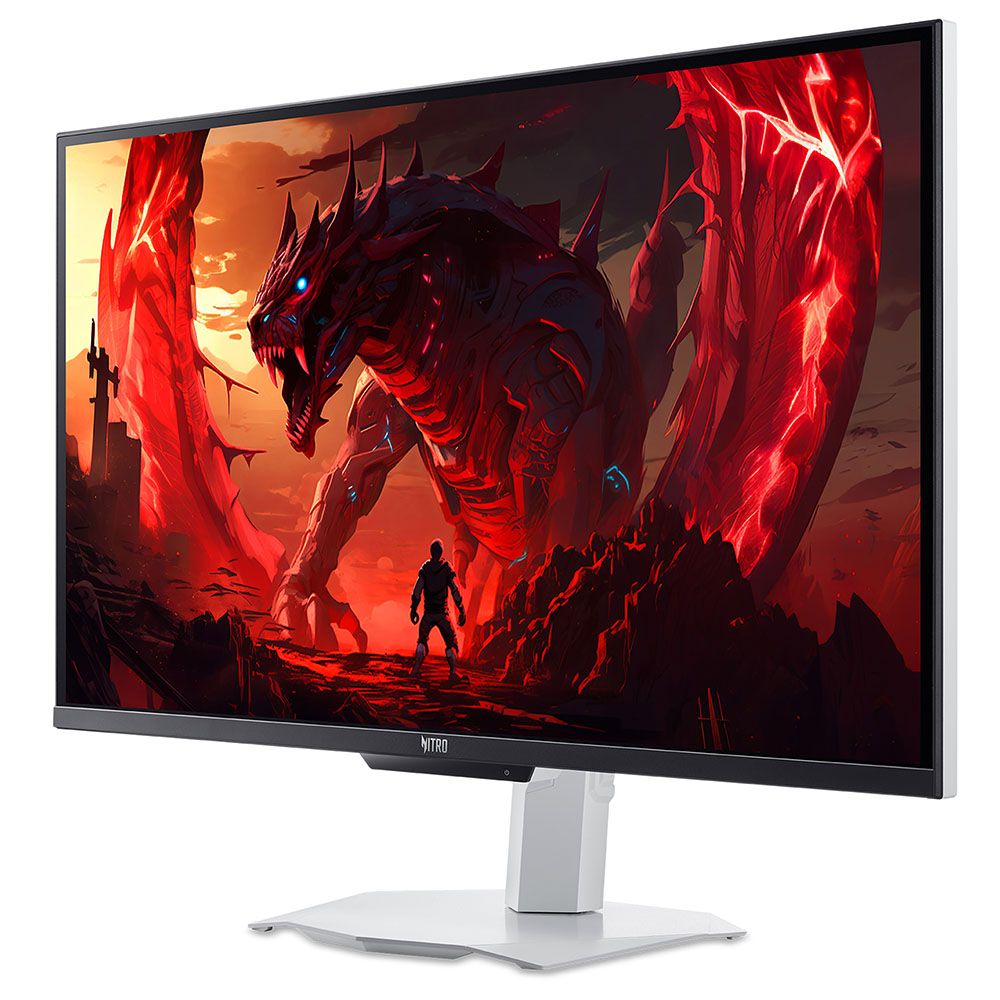
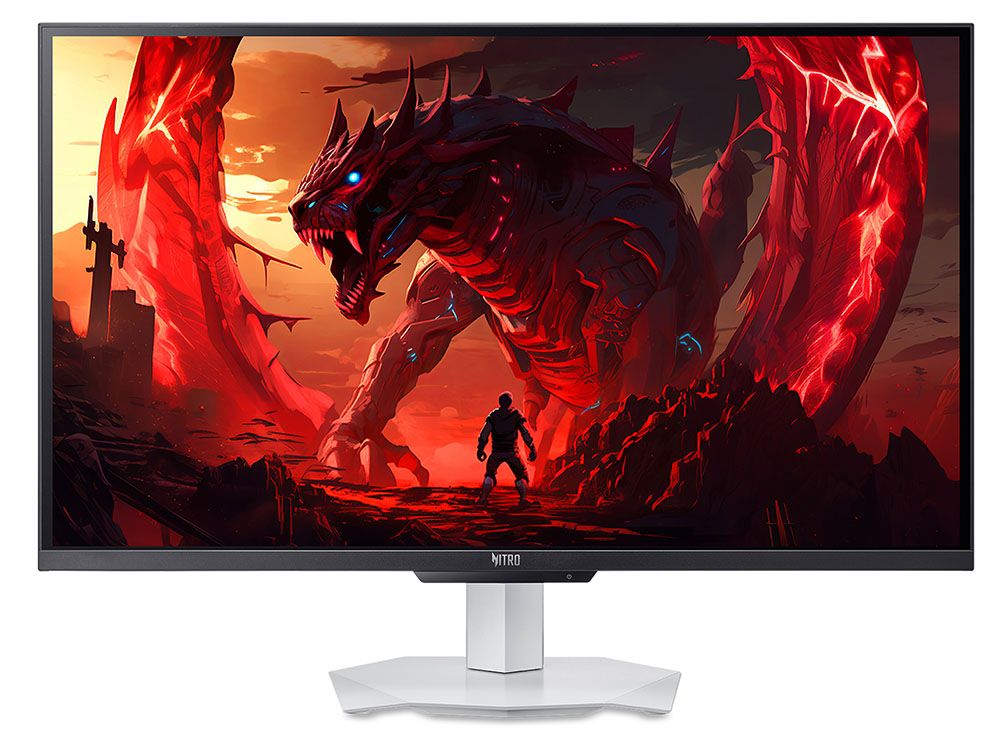
Style is not forgotten here, with a rare white aesthetic. Everything is white, including the base and the included cables. Only the thin screen bezel is black. A handy joystick controls most functions, and there are three control keys, one of which switches the refresh modes.

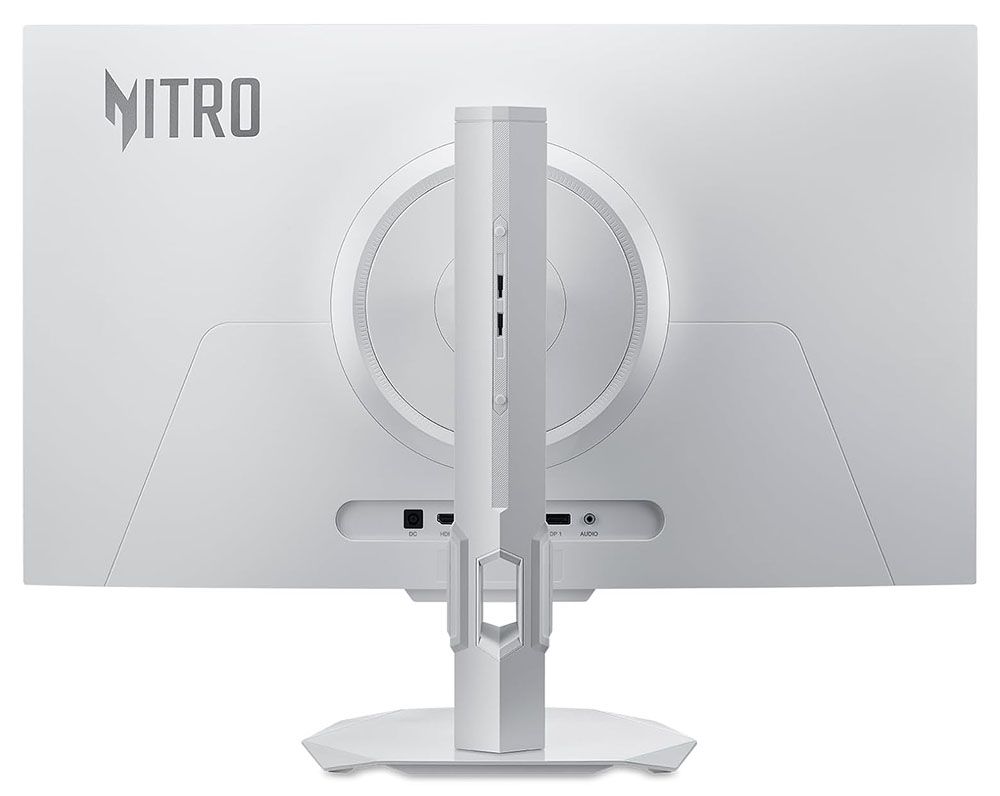
Connectivity includes two DisplayPorts and two HDMIs. There are no USB ports. You also get internal speakers and a headphone jack. And the ports all face backward for easy access.

The XV273U F5 isn’t a trifling purchase at $700, but if you want a 1,000 Hz monitor, they aren’t exactly common. I’m anxious to pop the hood, then take it for a spin.

Assembly and Accessories

The XV273U F5 comes simply packaged in recyclable pulp forms. A clamshell box opens to reveal four parts: the panel, upright, base, and a snap-on fulcrum. You would omit that if you wanted to use the 100mm VESA mount with an aftermarket arm or wall bracket. The cable bundle includes a white external power brick and an HDMI cable, no DisplayPort though.

Product 360
Acer Nitro XV273U F5
Acer
Acer Nitro XV273U F5
Acer
Acer Nitro XV273U F5
Acer

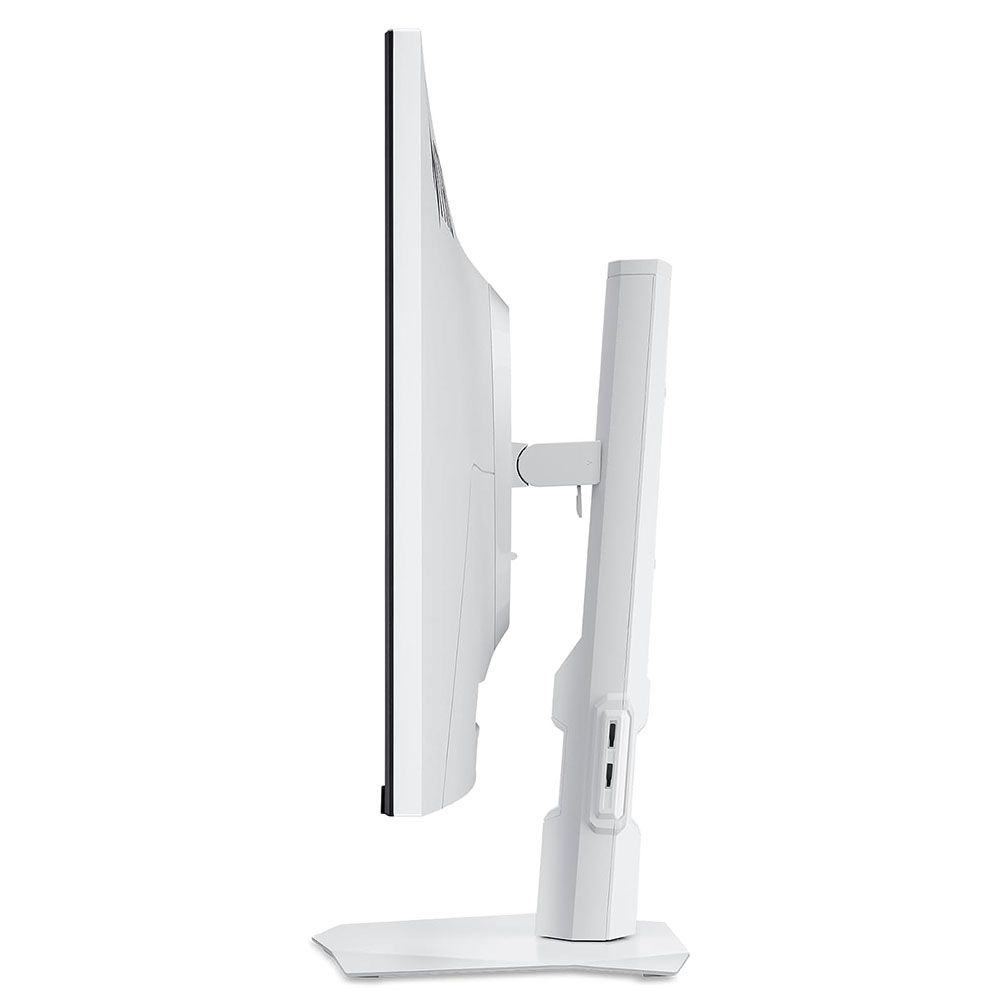
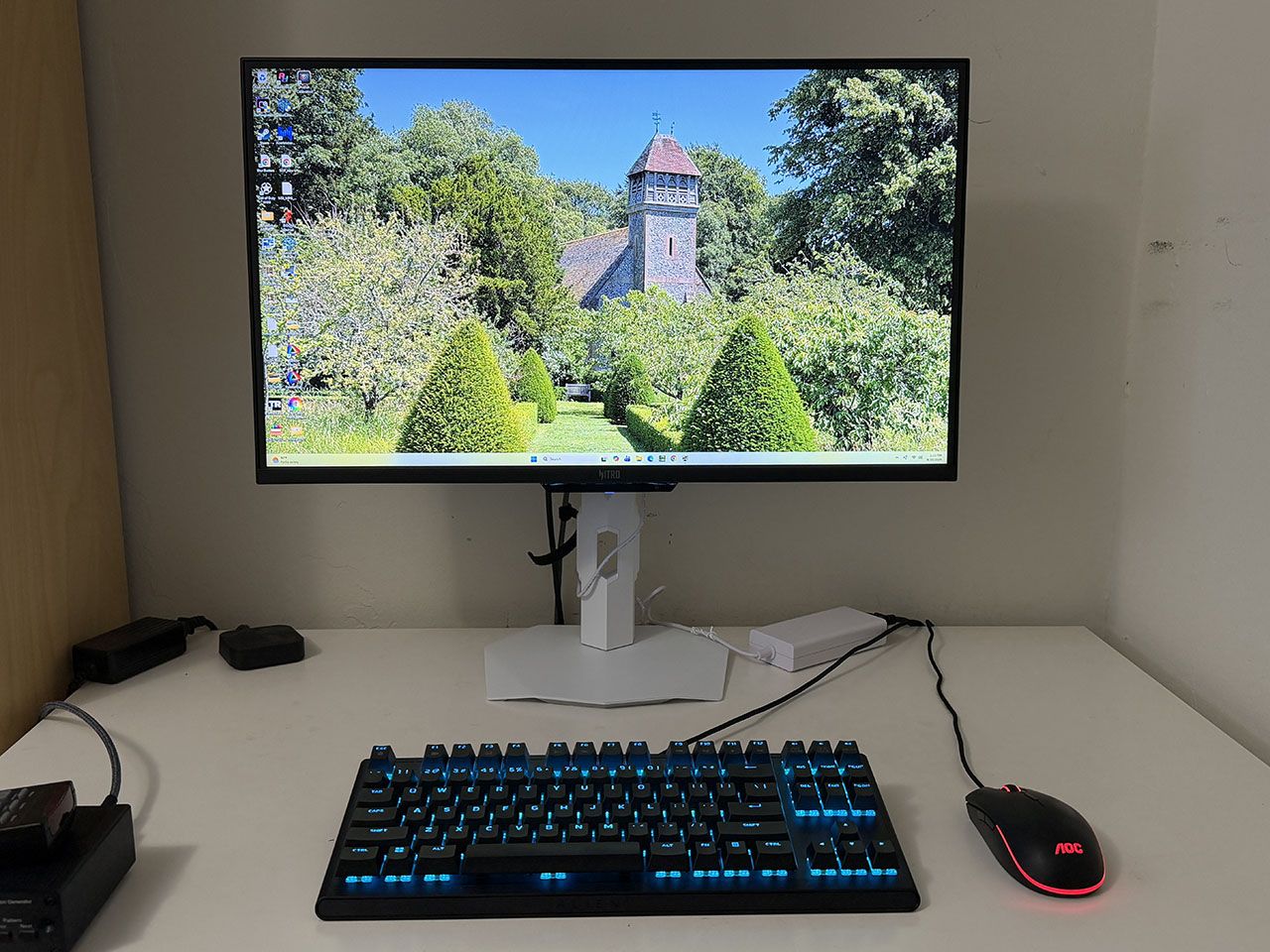
There’s something cool about white monitors, mostly because they are few and far between. The XV273U F5 has a nice aesthetic that balances purpose between gaming and productivity. The angular bits are reserved for the stand. The base is a metal plate with downturned corners, finished in a white powder coat. The upright has a cable hole and a few small trim pieces, with a tripod socket at the top. It features full ergonomics with a 5.9-inch height adjustment, 5/25 degree tilt, 20-degree swivel, and a 90-degree portrait mode. Movements are firm, but there’s a little play at the fulcrum point. Getting the panel level takes a bit more effort.

In the back is a large gray Nitro logo and a smooth panel shape with no angles or extra curves. The inputs face backward, making them easy to see and access. You get two DisplayPort 1.4, two HDMI 2.1, and a 3.5mm headphone jack. There are no USB ports, but there is a pair of two-watt internal speakers that play clean and politely in the upper midrange frequencies.

OSD Features

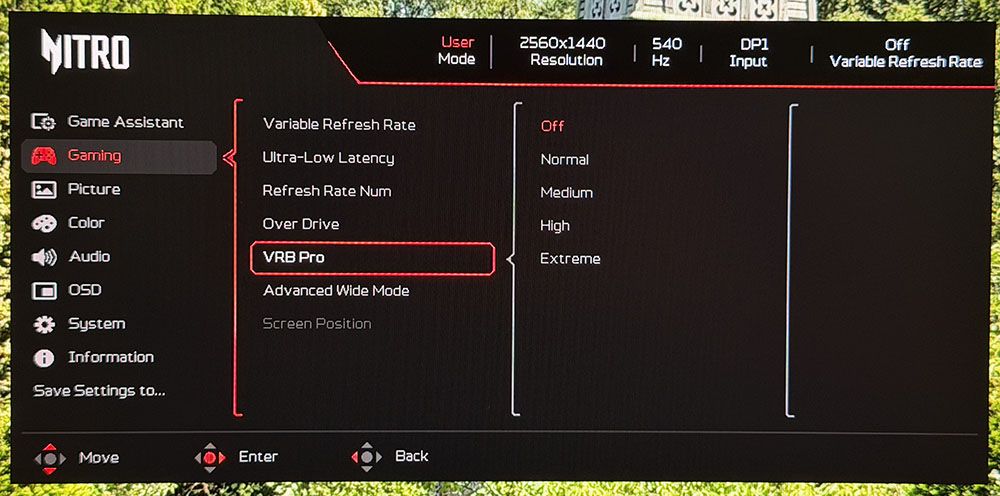
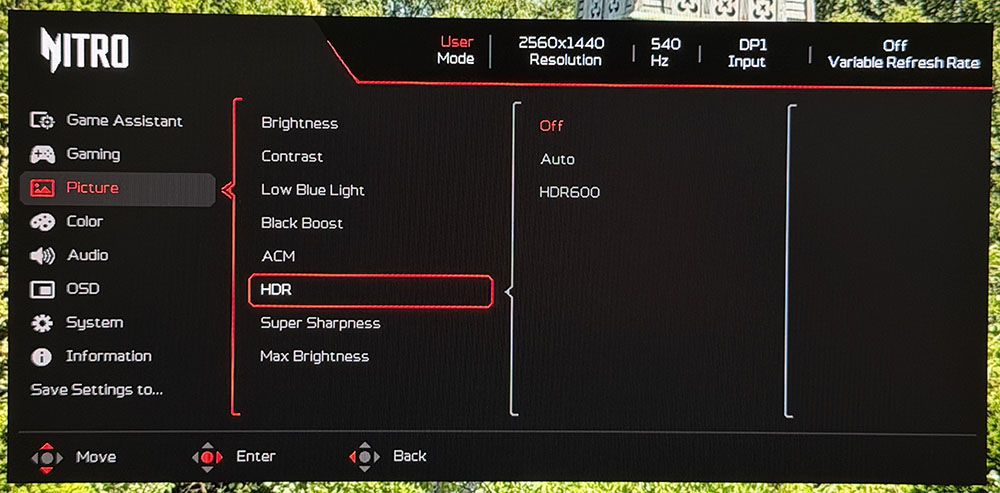
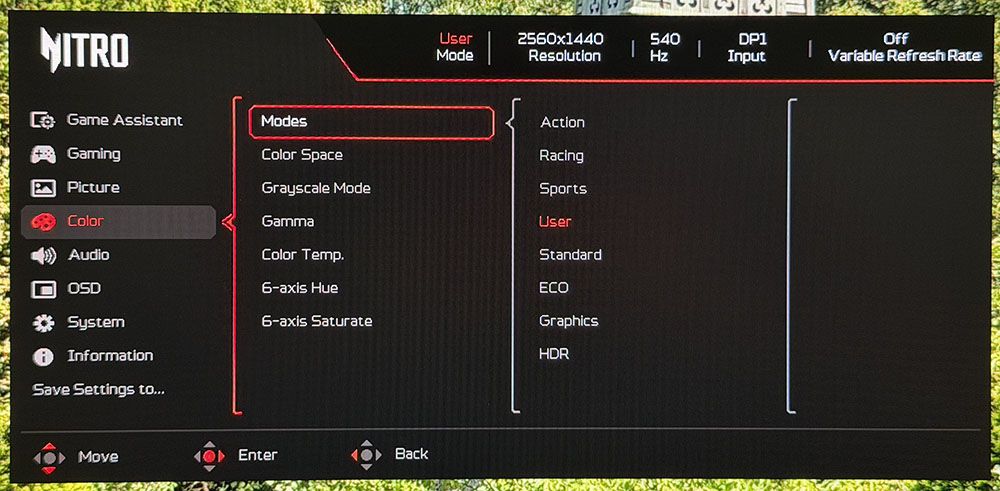
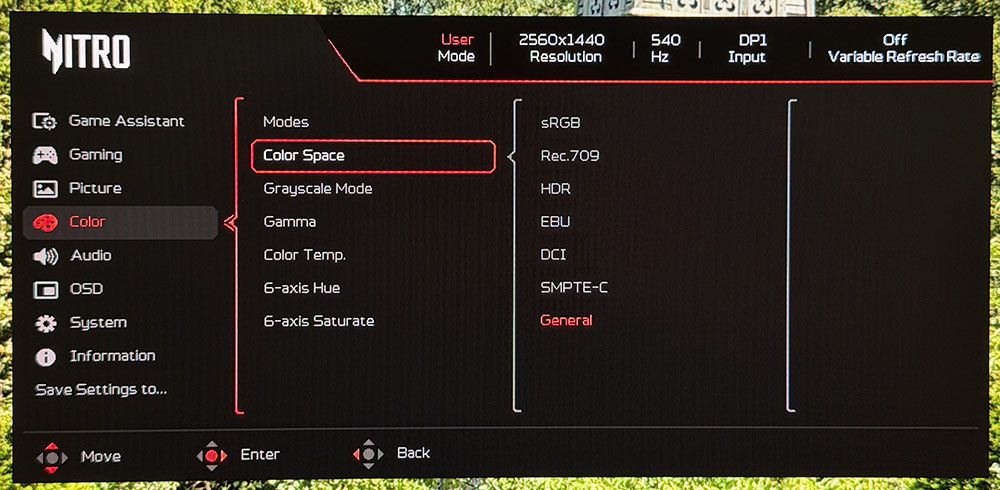
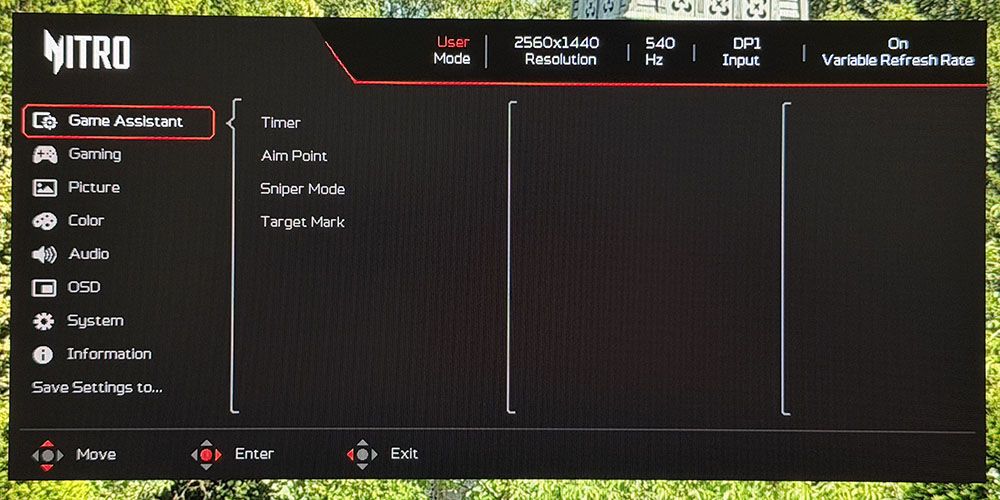
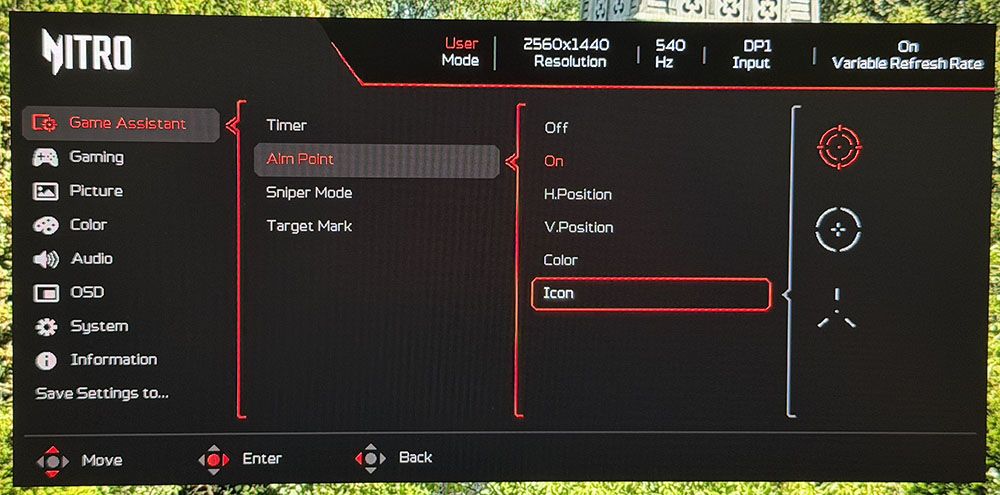
The XV273U F5’s OSD will be familiar to users of Acer monitors. It’s divided into four fields forming a logical tree and has eight sub-sections. To summon it, press the joystick twice.
Acer Nitro XV273U F5
Tom's Hardware
Acer Nitro XV273U F5
Tom's Hardware
Acer Nitro XV273U F5
Tom's Hardware
Acer Nitro XV273U F5
Tom's Hardware
Acer Nitro XV273U F5
Tom's Hardware
Acer Nitro XV273U F5
Tom's Hardware
Acer Nitro XV273U F5
Tom's Hardware
Acer Nitro XV273U F5
Tom's Hardware
Acer Nitro XV273U F5
Tom's Hardware

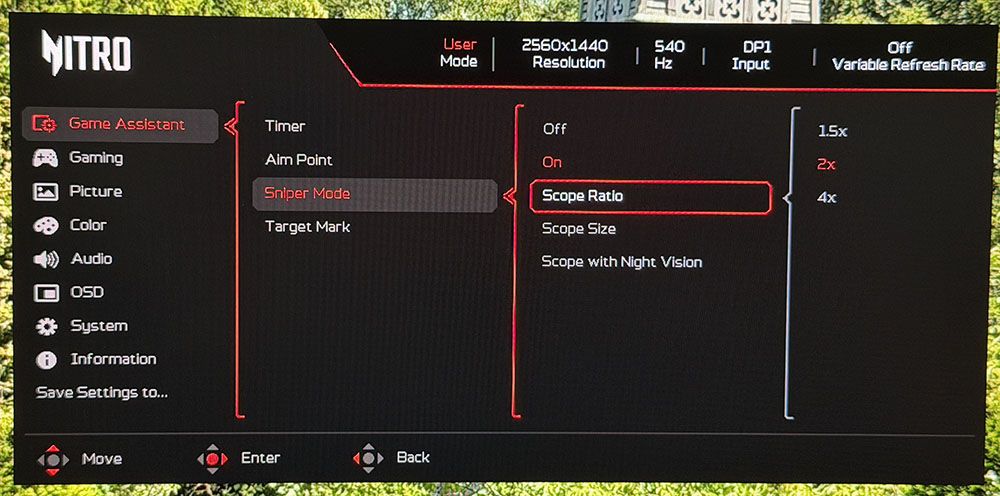
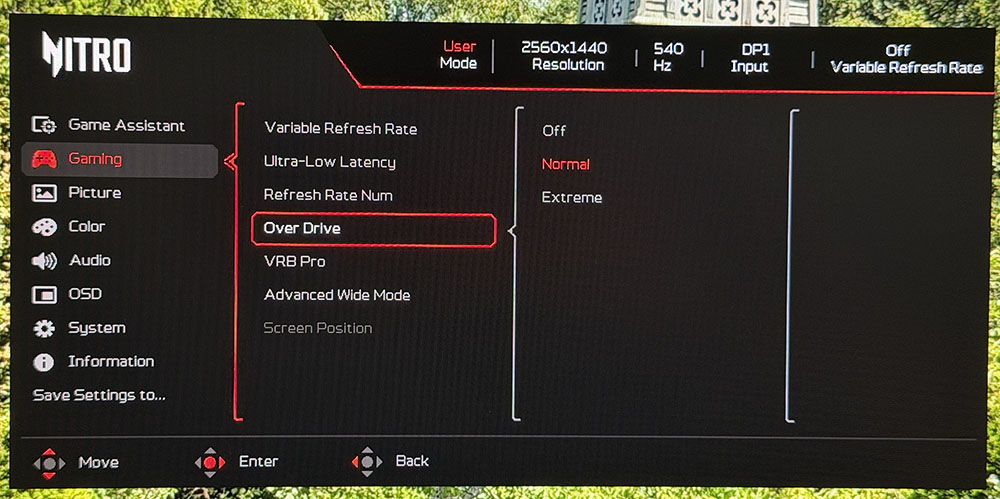
The first two menus are the gaming aids and video processing options. Enhancements include timers, aiming points in multiple shapes and colors, and a sniper mode. The reticle can be moved around the screen if you wish. The sniper scope has three magnifications and night vision. Video processing includes a frame counter, blur reduction with four backlight strobe pulse width levels, and a two-level overdrive. Both are very effective at reducing blur and operate artifact-free. The strobe is one of the very best I’ve seen. At its most extreme setting, it reduces light output by around 40%, but you can increase the brightness slider to compensate.

The picture menu includes the HDR modes. You get two: Auto and HDR 600. You would think they are different, but in my tests they measured the same. I noted that the XV273U F5 does not switch to HDR mode automatically; you must select one of these options after applying the signal. Also important in the menu is Max Brightness. Turn it on to get, you know…

In the Color menu are the eight picture modes arranged by game type or task. Standard is the default, but if you change any setting, the XV273U F5 switches to User. Calibration controls include seven color space options; Native is the most colorful, plus gamma and color temp presets. The RGB sliders include gain and bias adjustments for very precise grayscale tracking.

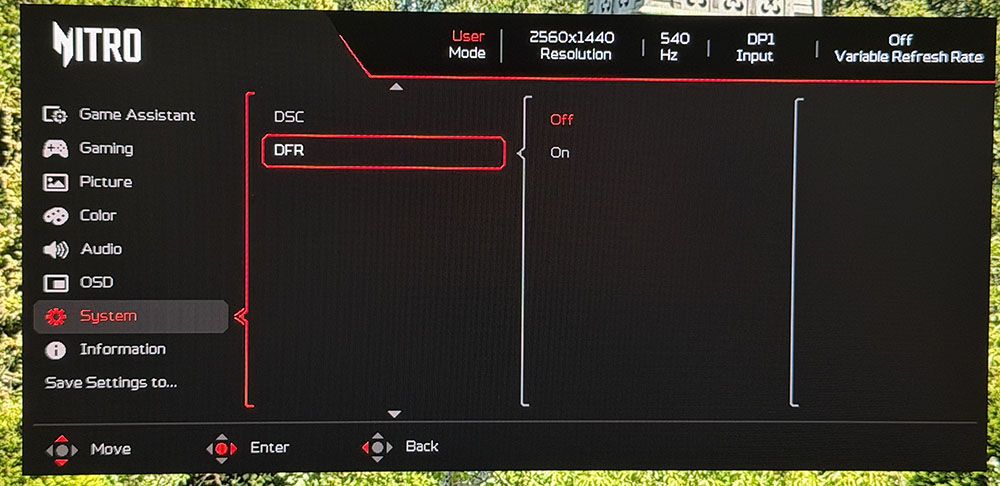
If you’re looking for the frame rate switch, it’s in the System menu, which is counterintuitive. It should be in the Gaming menu. You can also do it with the far-left control key to switch refresh rates without going into the OSD. Like most dual-mode monitors, you must initially set up each resolution in the Nvidia or AMD control panel. Then, you can make the switch on the fly. When you’ve made your settings, you can save them to the two memory locations under Save Settings to…

Acer Nitro XV273U F5 Calibration Settings

The XV273U F5 comes out of the box looking a little cool. It could probably satisfy most users, but a grayscale calibration takes it to reference level. The Native color gamut covers about 90% of DCI-P3, and an sRGB option is available. In all cases, gamma was spot-on, so I left that preset on 2.2. I had to reduce contrast by two clicks to solve a clipping issue. My suggested settings are below. For HDR, apply the signal first, then choose either Auto or HDR 600 from the Picture menu. And don’t forget to turn on Max Brightness for the XV273U F5’s max brightness.

Picture Mode

User

Brightness 200 nits

55

Brightness 120 nits

31

Brightness 100 nits

23

Brightness 80 nits

18

Brightness 50 nits

8 (min. 23 nits)

Contrast

48

Gamma

2.2

Color Temp User

Gain – Red 49, Green 51, Blue 49

Bias – Red 50, Green 50, Blue 50

Gaming and Hands-on

If you are a gamer looking for maximum smoothness and next-to-no input lag, and you don’t want to buy an OLED, the XV273U F5 is easily the next best thing. My perspective comes from the fact that the most prolific OLED category right now is 27-inch QHD 240 Hz. The XV273U F5 has the same size and pixel density, as well as excellent contrast and color. And it’s as smooth as a QHD 240 Hz OLED, albeit running at 540 Hz. I could do this without any problem using a GeForce RTX 4090, though given the fan noise I heard, it was working for it. But this monitor is the first LCD I would compare to an OLED for gaming feel and addictive play.

Motion blur simply did not exist at 540 Hz, and perceptually, neither did input lag. Turn-and-fire and circle strafe maneuvers were super easy and precise. I experienced very little wasted ammo. Competitive gamers will be right at home playing on an XV273U F5.

At 1,000 Hz, the story is different, but not that different. Yes, the picture is soft. It’s a bit like watching old TV shows on YouTube. You don’t enjoy them less, but by modern FHD and UHD standards, 480p is so 10 years ago. However, 1,000 fps is really something. The RTX 4090 worked even harder than before, but it managed to keep the frame rate locked at 1K. Again, there is no input lag, nor is there any blur. And even though the picture was soft, gameplay was just as addictive. It’s just so quick that some scenarios become too easy. For gamers of all skill levels, the XV273U F5 is a weapon.

I’m spoiled by OLEDs, so I won’t pretend that the XV273U F5 looks as good as them. But it’s closer to that standard than many other LCDs. It has one of the highest-contrast IPS panels I’ve seen, with a native contrast ratio around 2,000:1. That’s almost VA territory, but with better viewing angles and more saturated color. You’ll see in my test results on page four that this is a very accurate display, and it shows in practice. I noted that HDR content looked very good but had no more contrast than SDR. But with excellent luminance tracking and rich color, it provided decent impact.

For daily use, you can save a little power and run it at 120 Hz for productivity. That will get you smooth scrolling for webpages and documents. 109ppi pixel density gave me clear fonts, sharp graphics, and solid detail in small objects like icons and toolbars. Color accuracy and a useful sRGB mode provided good functionality in Photoshop.

I enjoyed the styling very much too, especially the white part. I’m a fan of white monitors, and the XV273U F5 is one of the nicer ones I’ve experienced. The rear-facing ports are super handy because they’re easy to see and reach. I’d have liked some USB ports, though. But I was glad to hear decent sound from the internal speakers. They aren’t Wilson Sashas, but they play clean and loud enough for one user.

Takeaway: The XV273U F5 is a superb gaming monitor with a gaming feel and response time on par with any OLED display. It has plenty of contrast and color too, which gives the picture impact and texture. I really enjoyed the styling and the white aesthetic. Though premium-priced, it can refresh at 1,000 Hz, and that is something rare indeed.

MORE: Best Gaming Monitors

MORE: How We Test PC Monitors

MORE: How to Buy a PC Monitor
Acer Nitro XV273U F5

(Image credit: Tom's Hardware)

Acer Nitro XV273U F5

(Image credit: Tom's Hardware)

To compare the XV273U F5’s performance, I’ve rounded up a group of speedy LCDs that refresh between 210 and 360 Hz. Obviously, the response and lag tests give the Acer an unfair advantage, but I haven’t reviewed a 500 Hz LCD monitor in quite a while. They are Acer’s XB273U F5, KTC’s M27T6S and H27E6, AOC’s CQ27G4ZH, and HP’s Omen 27qs.

Pixel Response and Input Lag

Click here to read up on our pixel response and input lag testing procedures.
Acer Nitro XV273U F5
Tom's Hardware
Acer Nitro XV273U F5
Tom's Hardware

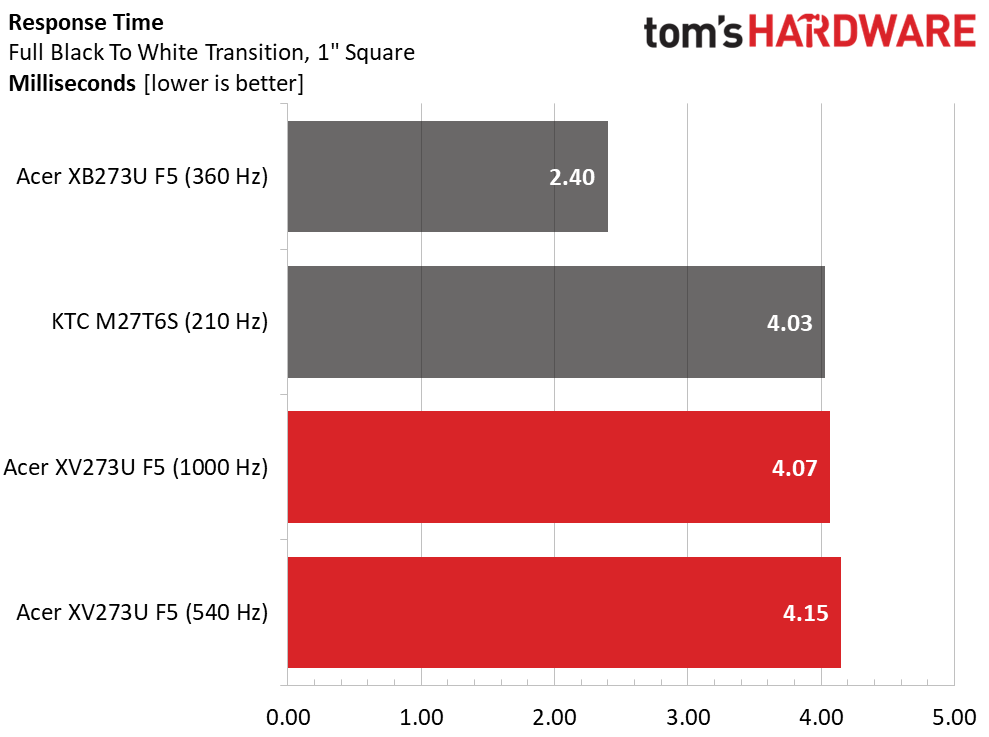
For the response test, only the XB273U F5 and M27T6S have been measured by my new LDAT sensor from Nvidia. Interestingly, the 360 Hz screen is the quickest at 2.4ms. The XV273U F5 seems a tad slow by comparison, and there’s only a slight difference at 1,000 Hz. But this doesn’t account for the quality of the overdrive. The XV273U F5 has one of the best I’ve seen, and it removes almost all motion blur at 540 and 1,000 Hz. It’s effective at lower frame rates too. You can run down to about 300fps before blur becomes noticeable.

The lag test is where the XV273U F5 really shines. It’s one of the quickest LCDs I’ve tested at just 14.4ms for 540 Hz and 11.1ms for 1,000 Hz. In practice, any of these monitors will satisfy twitchy gameplay, but the XV273U F5 is firmly on top. Only the XB273U F5 and M27T6S come close.

Test Takeaway: The XV273U F5 is one of the fastest LCDs you can buy. At 540 Hz, it equals many OLEDs in smoothness. The overdrive and backlight strobe are among the best available, with effective blur reduction and no ghosting or phasing artifacts. At 1,000 Hz, motion is uncannily smooth, and though resolution is reduced, it isn’t as soft as you might expect. And it has very low input lag in that mode.

Viewing Angles

Acer Nitro XV273U F5

(Image credit: Tom's Hardware)

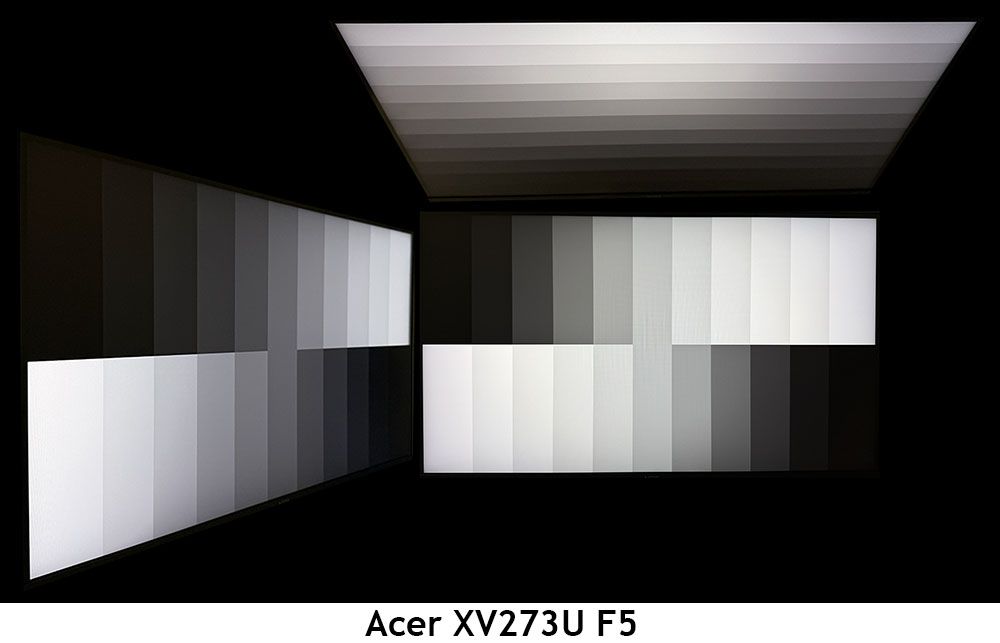
The XV273U F5 is one of the better IPS screens I’ve photographed. In the side view, there is a slight blue tint but no change to gamma or brightness. The top view darkens by around 50% and has a red tint, but its gamma is better than most. This is one of the most shareable LCDs I’ve seen.

Screen Uniformity

To learn how we measure screen uniformity, click here.

Acer Nitro XV273U F5

(Image credit: Tom's Hardware)

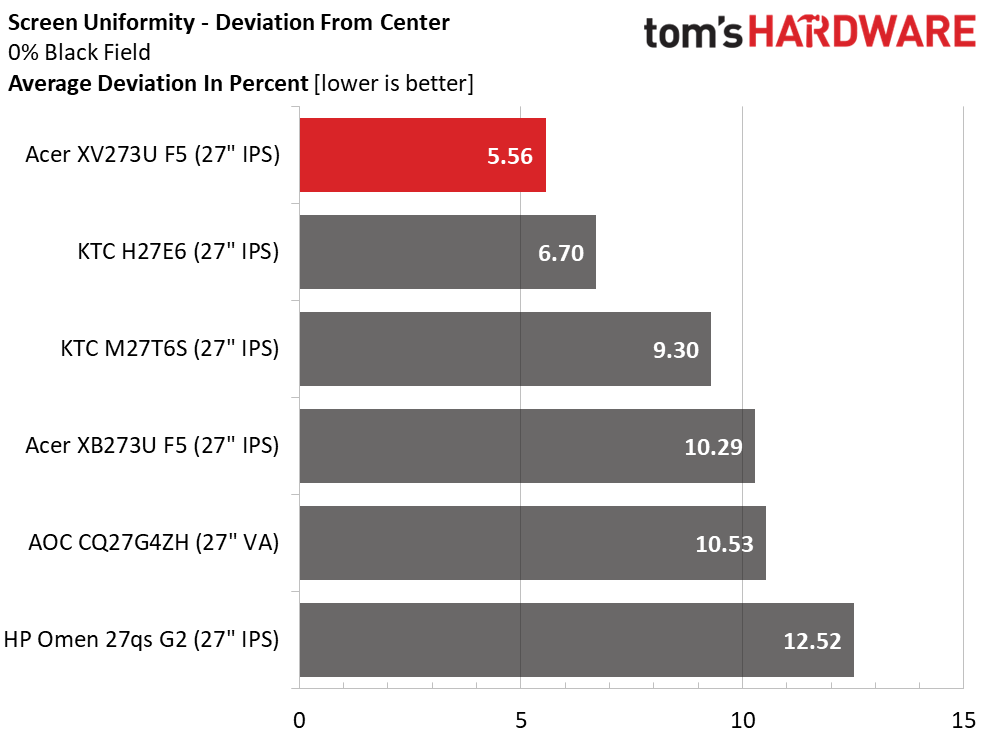
The XV273U F5’s screen uniformity is also on par with many OLEDs. 5.56% is well below the point where you would see any glow or bleed. Color fields were perfectly uniform in my tests as well. This is excellent performance.

MORE: Best Gaming Monitors

MORE: How We Test PC Monitors

MORE: How to Buy a PC Monitor

To read about our monitor tests in-depth, please check out Display Testing Explained: How We Test PC Monitors. We cover brightness and contrast testing on page two.

Uncalibrated – Maximum Backlight Level

Acer Nitro XV273U F5
Tom's Hardware
Acer Nitro XV273U F5
Tom's Hardware
Acer Nitro XV273U F5
Tom's Hardware

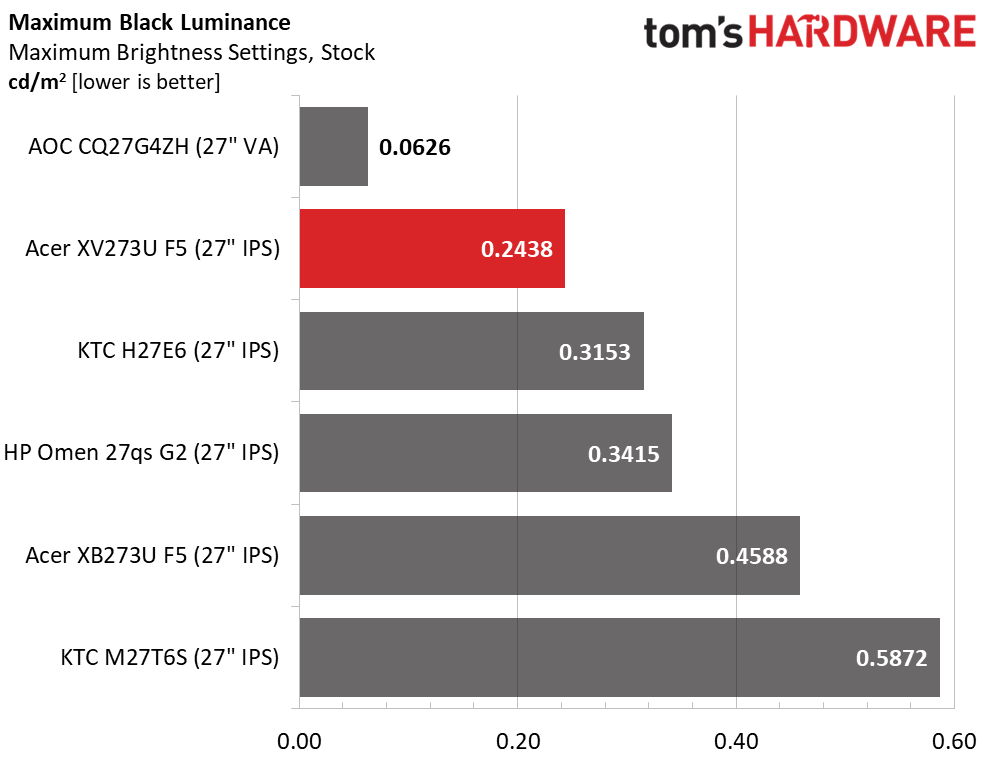
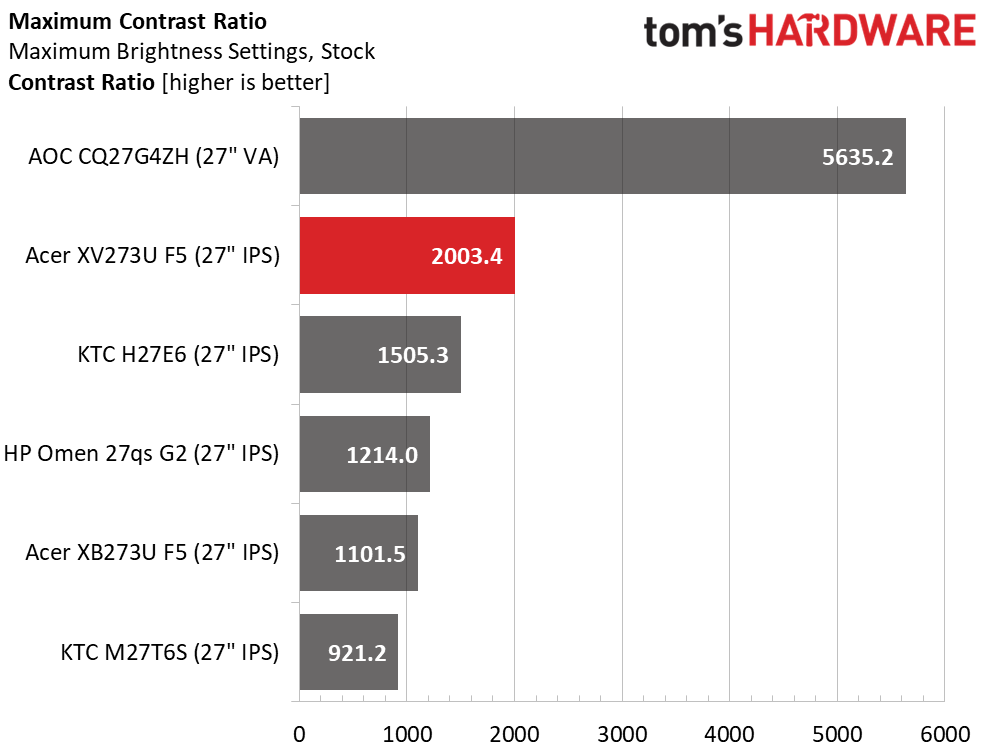
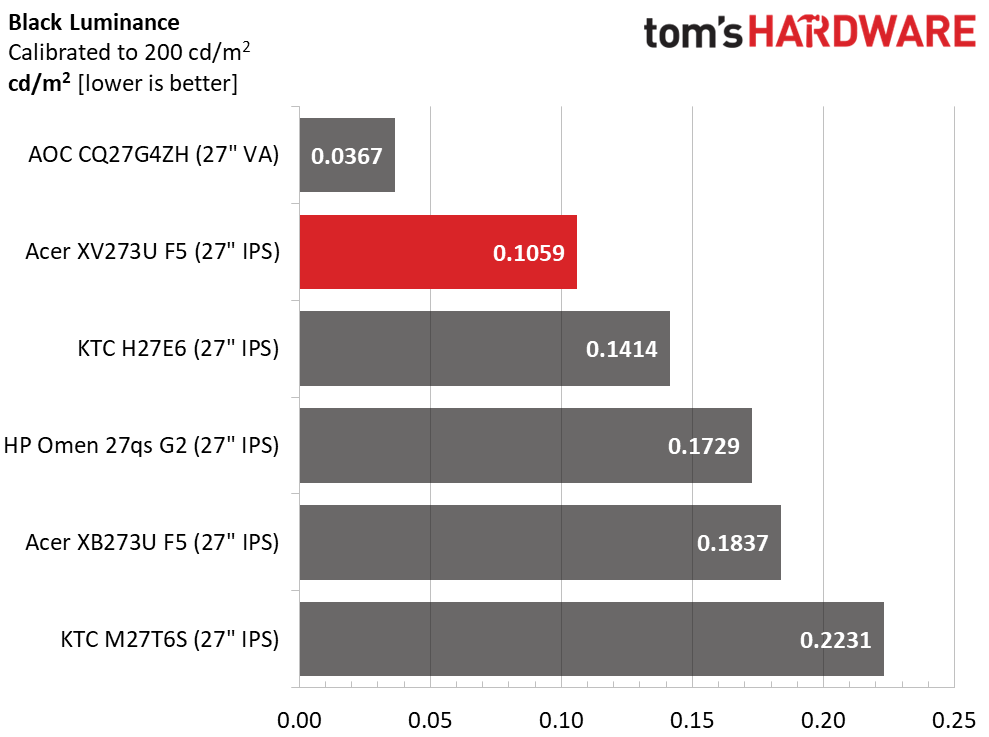
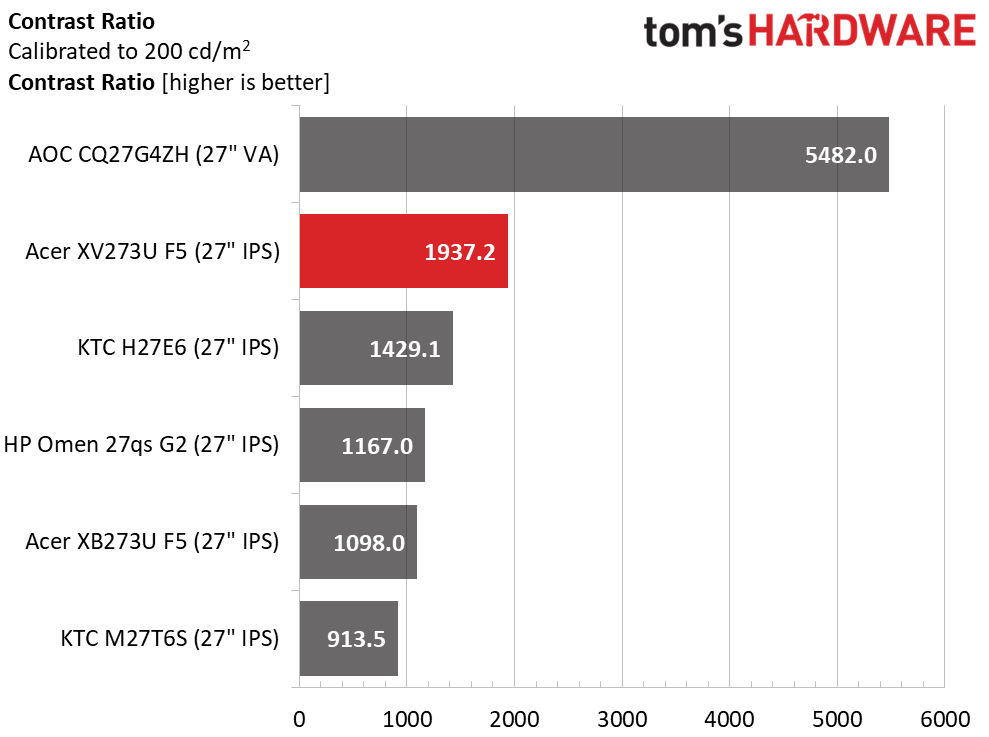
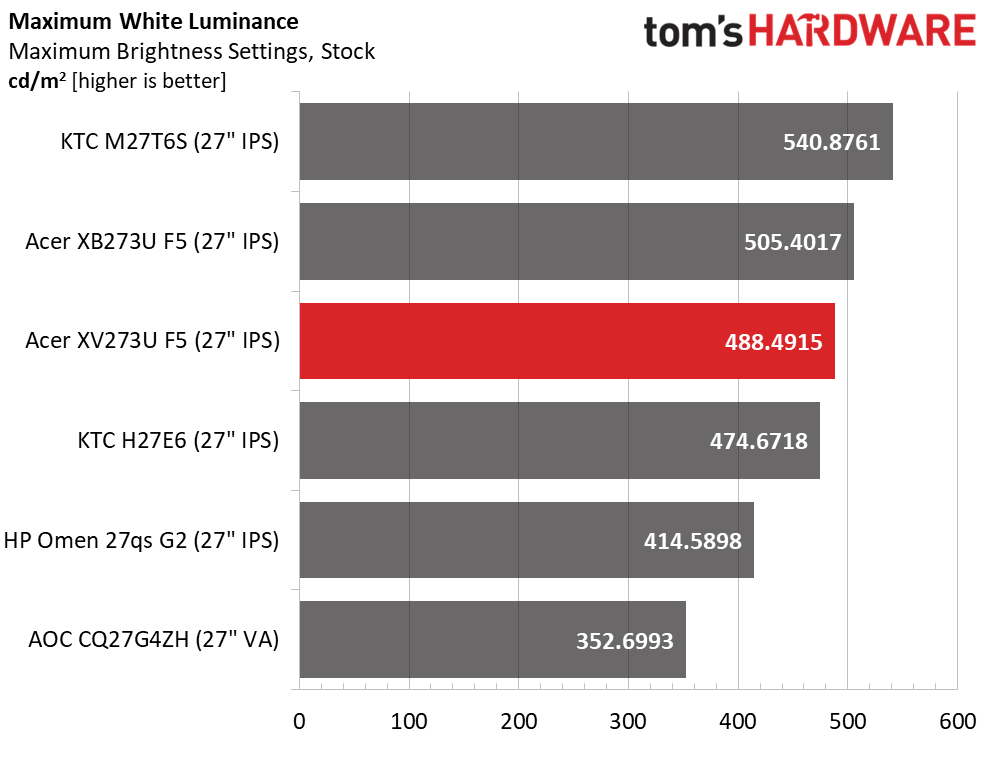
The XV273U F5 has more than enough light output for any indoor space. You could use it in an outdoor location, too, with almost 500 nits available. What’s truly amazing though, is the black level. I was almost fooled into thinking it was a VA panel with a contrast ratio of 2,003:1. This is twice the IPS average of 1,000:1. Only the AOC, which actually is VA, can do better.

After Calibration to 200 nits

Acer Nitro XV273U F5
Tom's Hardware
Acer Nitro XV273U F5
Tom's Hardware
Acer Nitro XV273U F5
Tom's Hardware

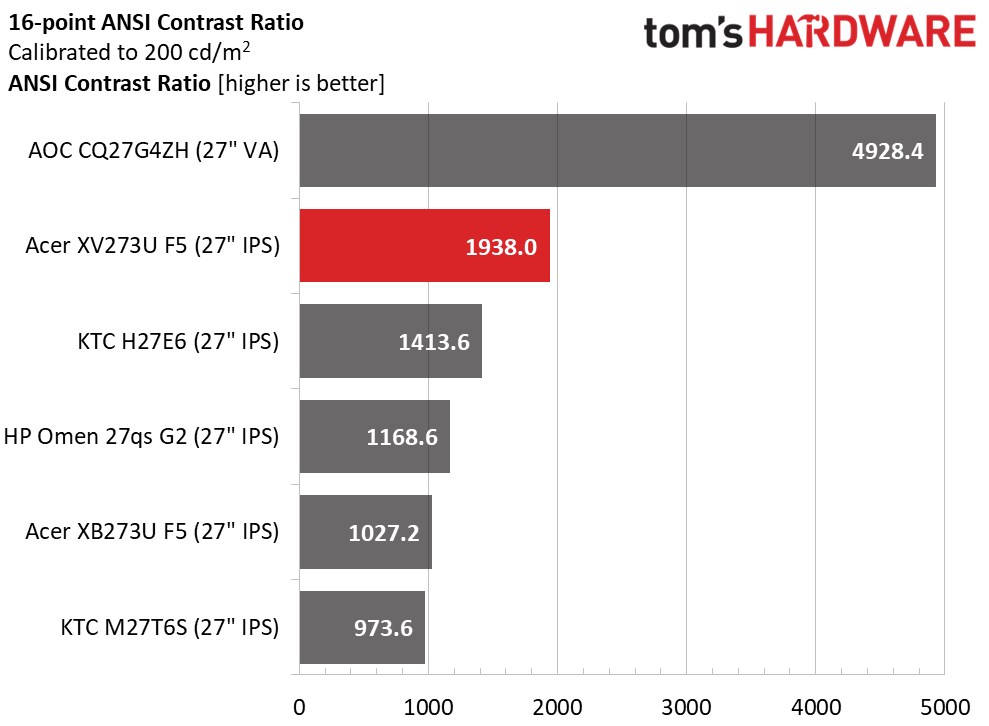
During calibration, I had to lower the contrast slider a bit to solve a clipping issue, but that didn’t make much difference in dynamic range. It’s still an excellent 1,937.2:1, well ahead of the next best KTC. The ANSI score is even more impressive at 1,938:1. It’s rare that any monitor matches its static and intra-image results in my tests. This is excellent performance.

Test Takeaway: The XV273U F5 tries hard to be an OLED with its superb contrast and deep black levels. It’s bright when needed as well, with nearly 500 nits of peak output for SDR content. It also shows excellent quality control with near-identical static and ANSI contrast numbers.

MORE: Best Gaming Monitors

MORE: How We Test PC Monitors

MORE: How to Buy a PC Monitor

The XV273U F5 ships in its Standard picture mode and includes plenty of picture options like gamma presets, color temps, RGB sliders with two-point control and a gamut selector.

Grayscale and Gamma Tracking

Our grayscale and gamma tests use Calman calibration software from Portrait Displays. We describe our grayscale and gamma tests in detail here.

Acer Nitro XV273U F5
Portrait Displays Calman
Acer Nitro XV273U F5
Portrait Displays Calman
Acer Nitro XV273U F5
Portrait Displays Calman

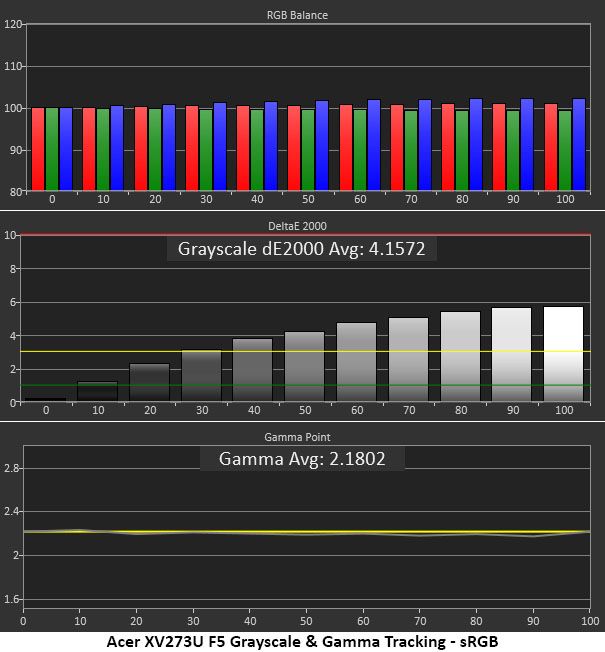
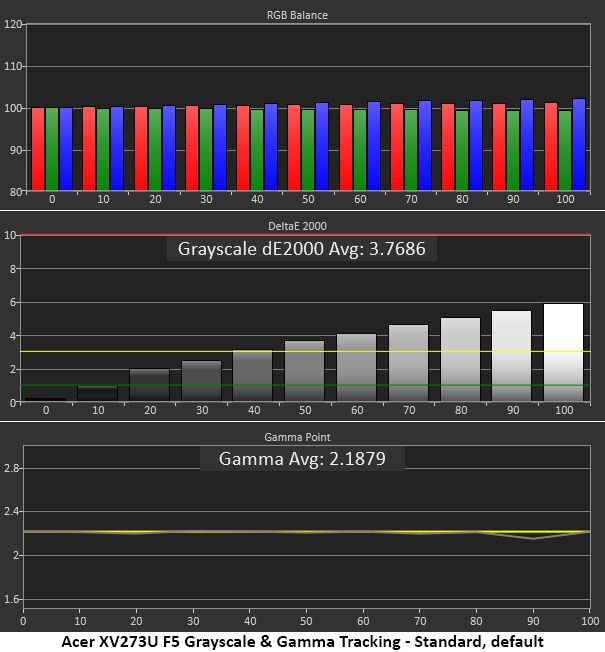
The initial grayscale run shows visible errors starting at the 50% brightness step. The pattern looks a little cool in tone though it’s not too far off the mark. I would definitely calibrate, but many users will be satisfied with the image. And that’s largely because gamma is within a hair of perfect. Only the tiniest dip happens at 90%, and that is well below the visible threshold. Gamma this good makes the image more textural and realistic. It also increases perceived color saturation.

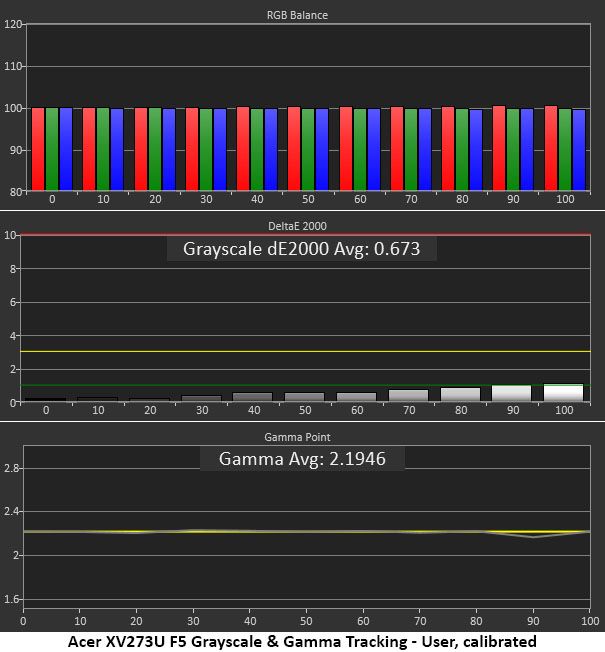
Calibration takes the XV273U F5 to reference level. All errors are under 1dE except 100%, which just cracks the line. It doesn’t get much better than this. Gamma improves a tad as well, with that 90% dip almost gone. This is excellent performance.

Picking the sRGB color space grays out all other calibration controls, so you get great gamma, but that cool grayscale returns. It’s not a big deal, but I'd like the RGB sliders available. This is decent performance.

Comparisons

Acer Nitro XV273U F5
Tom's Hardware
Acer Nitro XV273U F5
Tom's Hardware
Acer Nitro XV273U F5
Tom's Hardware
Acer Nitro XV273U F5
Tom's Hardware

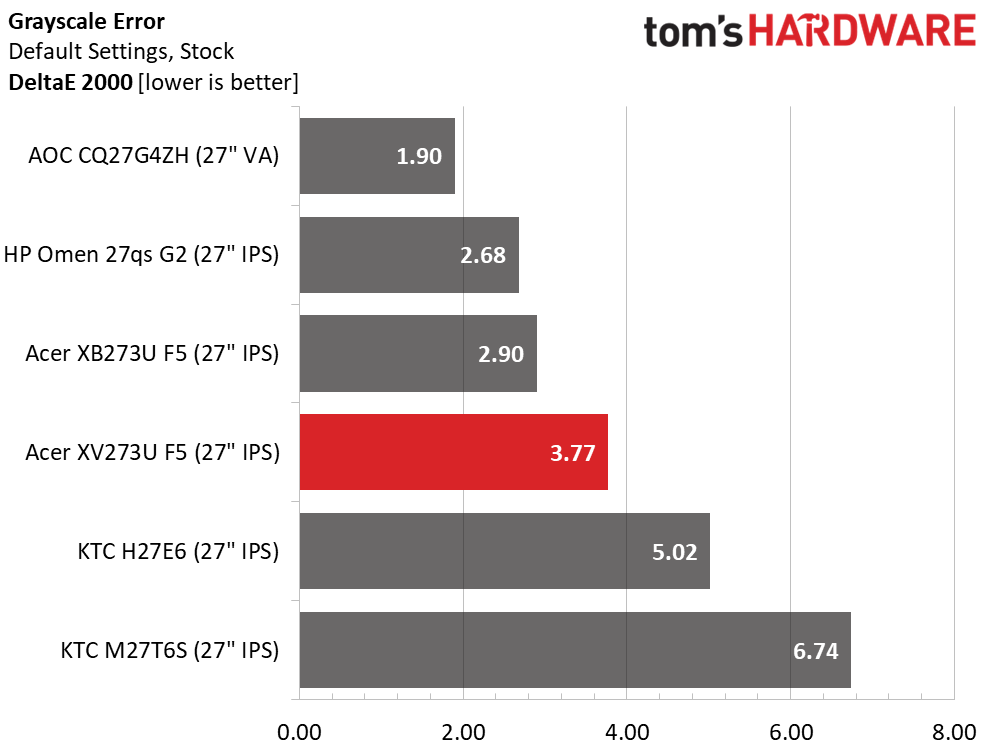
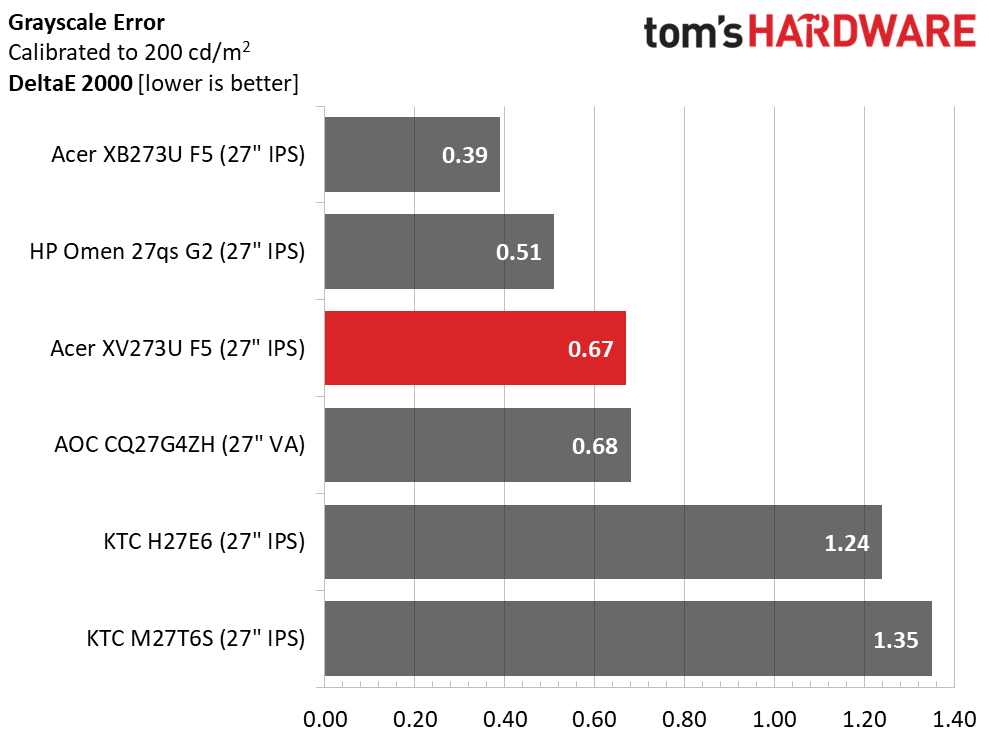
The XV273U F5 finishes fourth in the comparison and just cracks the “should calibrate” line. Most users will be satisfied with the picture, but since a few adjustments can produce reference-quality results, it’s worth a little effort. That takes the average error down to 0.67dE, which is awesome but not quite as good as its predecessor, the XB273U F5, or the HP.

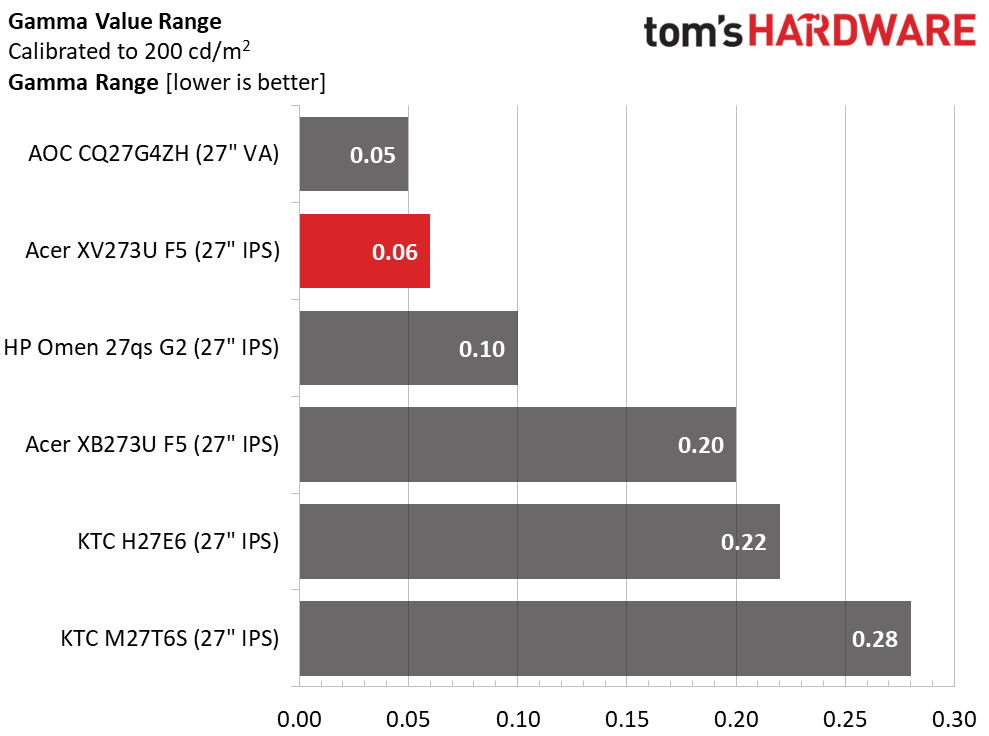
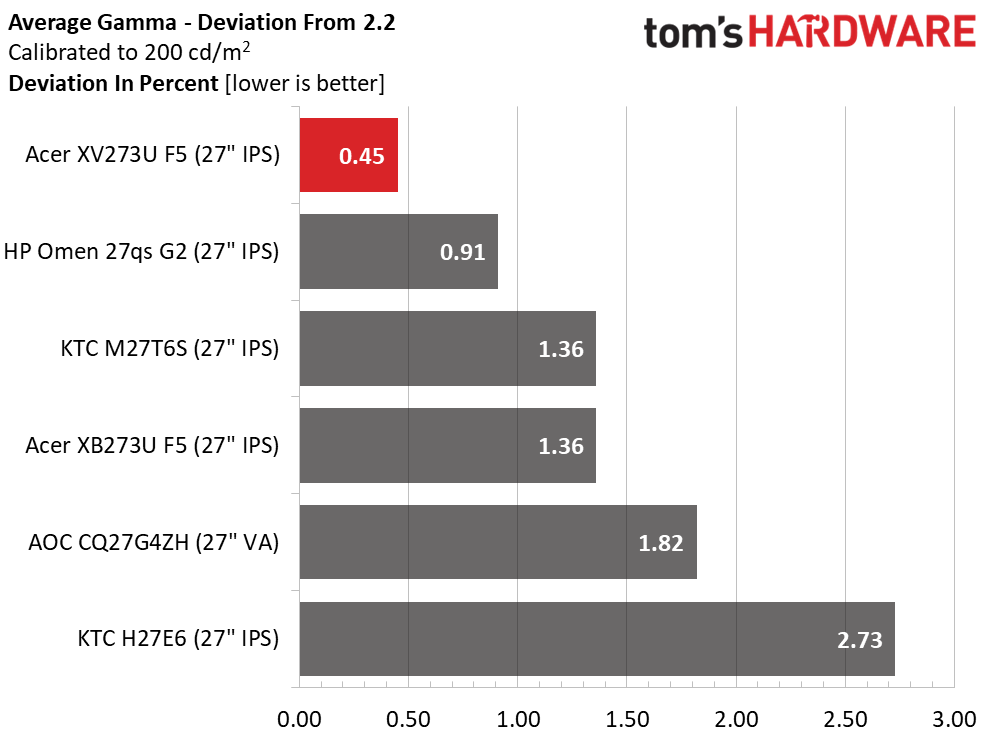
The gamma value range is about as tight as it gets, though the AOC is 0.01 better. But when compared to the 2.2 reference, the XV273U F5 comes out on top with just a 0.45% deviation. The actual value is 2.19. The XV273U F5 has gamma on par with the most accurate pro monitors I’ve reviewed.

Color Gamut Accuracy

Our color gamut and volume testing use Portrait Displays’ Calman software. For details on our color gamut testing and volume calculations, click here.

Acer Nitro XV273U F5
Portrait Displays Calman
Acer Nitro XV273U F5
Portrait Displays Calman
Acer Nitro XV273U F5
Portrait Displays Calman

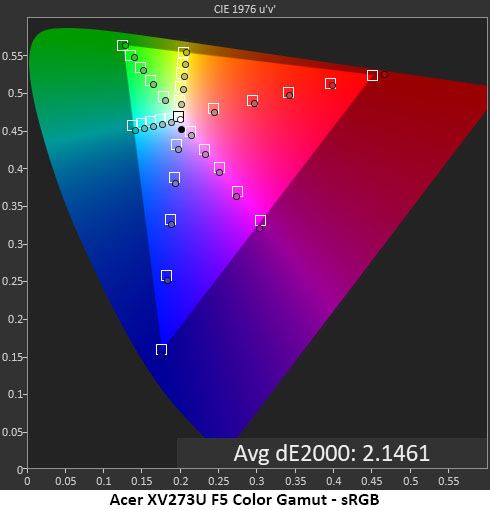
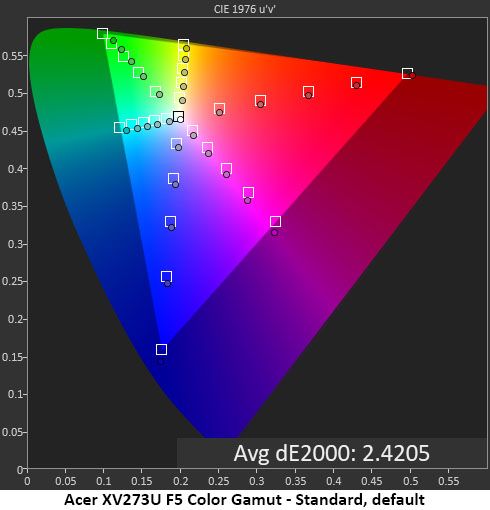
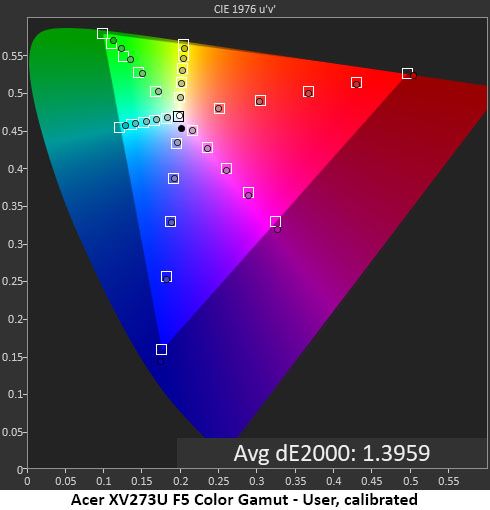
The XV273U F5’s initial color measurement is good, but there is room for improvement. Saturation levels are spot-on thanks to the near-perfect gamma, but hues are slightly off due to grayscale errors. You can see what I mean in the next chart where my grayscale calibration has been done. Now, every point is either inside or in contact with its target box. It doesn’t get much better than that.

The sRGB mode is quite close to the mark, with a slightly warm grayscale but perfect gamma. There are slight hue errors in cyan and magenta, but other colors are spot-on. If the RGB sliders were available in sRGB mode, this chart could be improved, though it is already good enough for color-important applications.

Comparisons

Acer Nitro XV273U F5
Tom's Hardware
Acer Nitro XV273U F5
Tom's Hardware

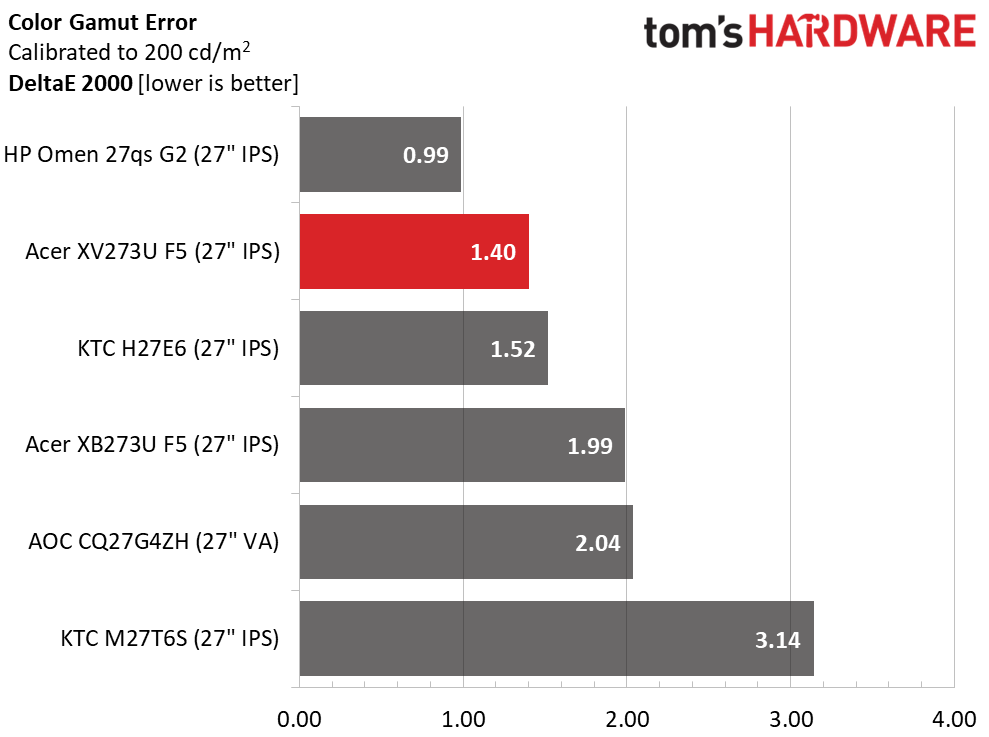
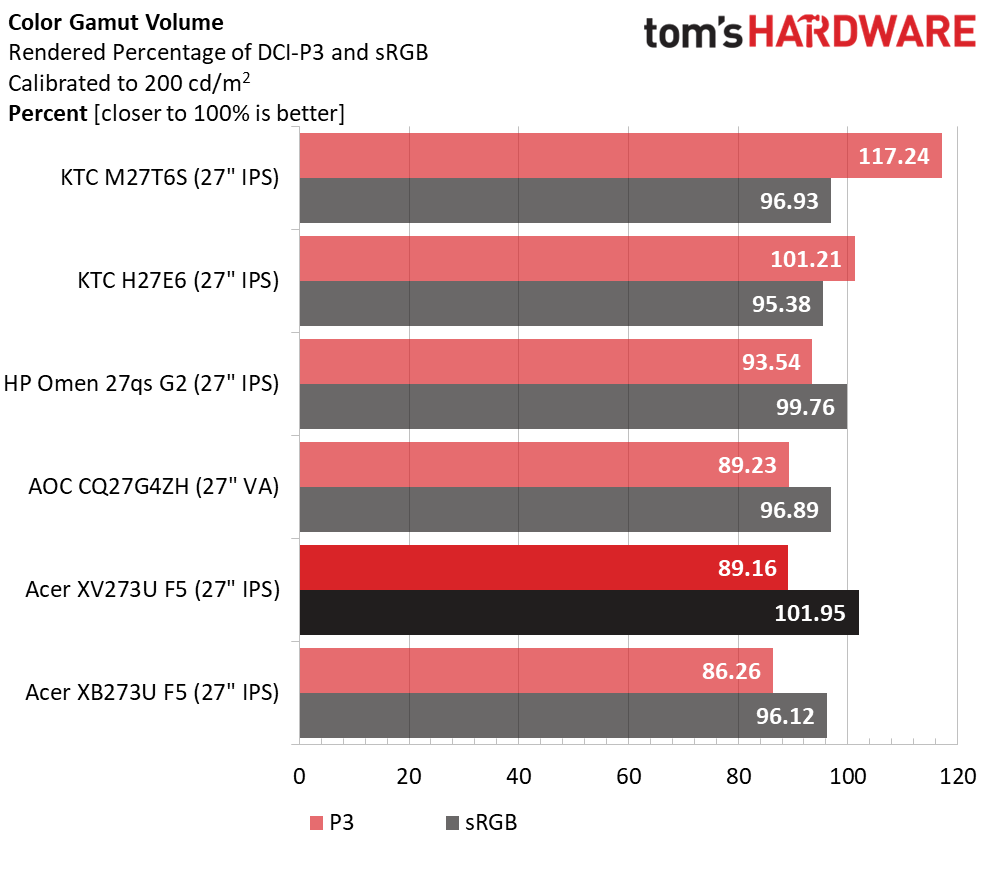
The XV273U F5 has superb color accuracy and gamut coverage, with only minor errors that won’t diminish the picture. A 1.40dE final color score is among the best I’ve recorded. In the gamut volume test, it achieves 89.16% DCI-P3 coverage, which is about average for non-Quantum Dot LCD panels. It only comes up a tad short in the green primary. sRGB coverage comes close to 102% thanks to a little bonus red.

Test Takeaway: The XV273U F5 has excellent color accuracy once calibrated. Out of the box, it’s still solid. In either case, it has gamma tracking on par with the best professional monitors. Color coverage is about average for non-Quantum Dot screens with around 90% of DCI-P3. That suits it well for HDR material.

MORE: Best Gaming Monitors

MORE: How We Test PC Monitors

MORE: How to Buy a PC Monitor

Our HDR benchmarking uses Portrait Displays’ Calman software. To learn about our HDR testing, see our breakdown of how we test PC monitors.

The XV273U F5 accepts HDR10 signals with a manual switch. You must apply the signal first, then choose one of the two HDR picture modes, Auto or HDR 600.

HDR Brightness and Contrast

Acer Nitro XV273U F5
Tom's Hardware
Acer Nitro XV273U F5
Tom's Hardware
Acer Nitro XV273U F5
Tom's Hardware

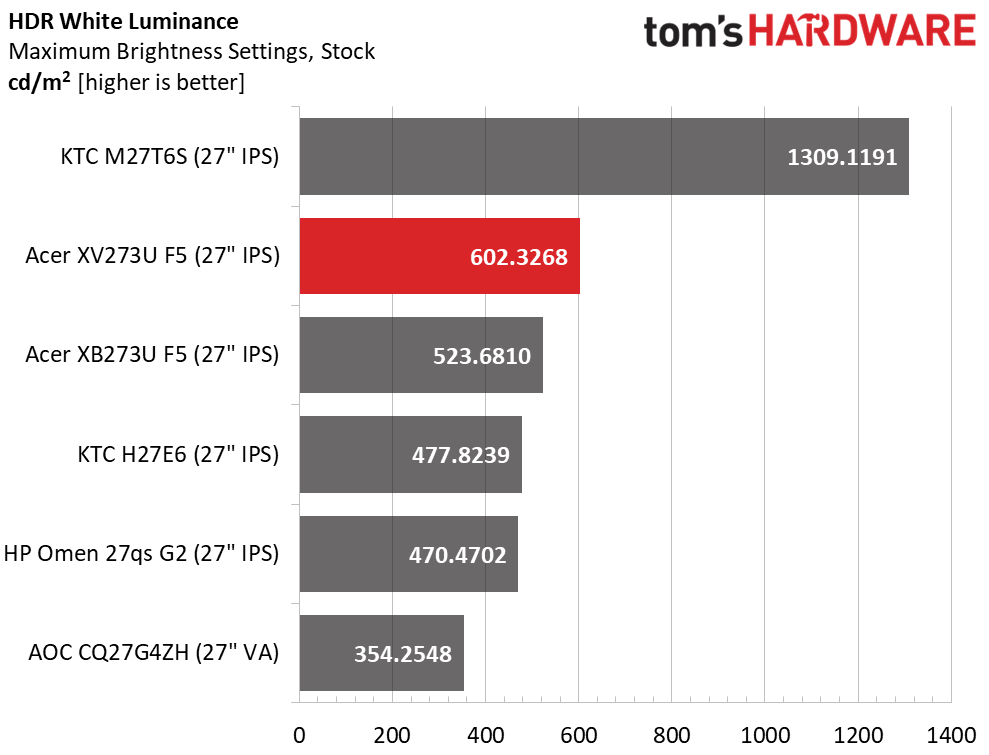
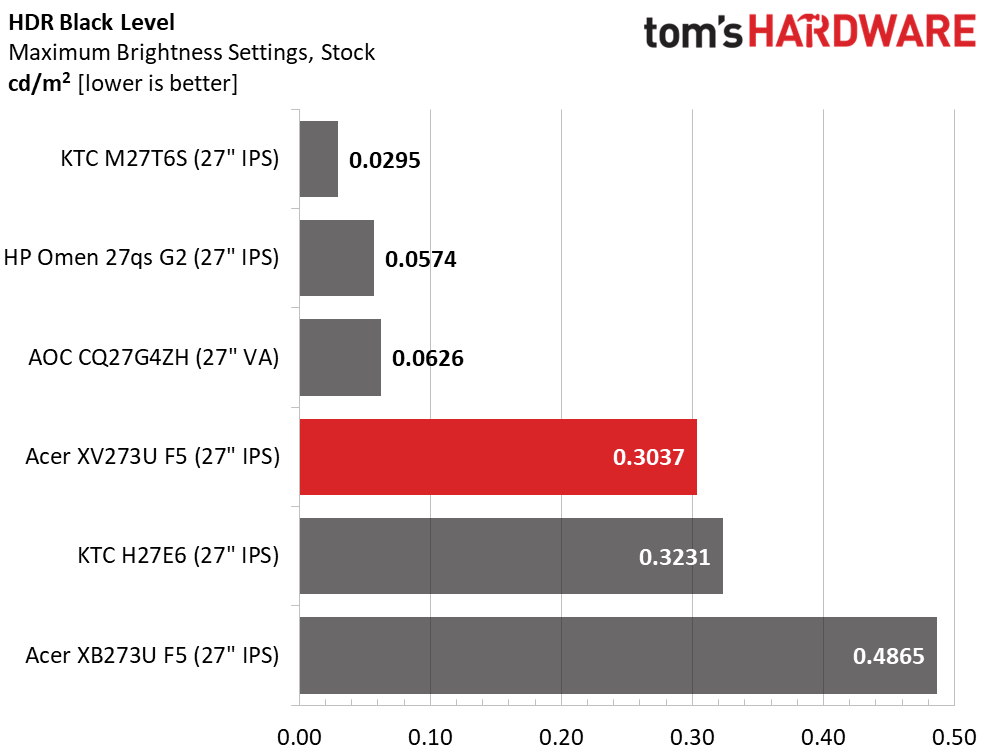
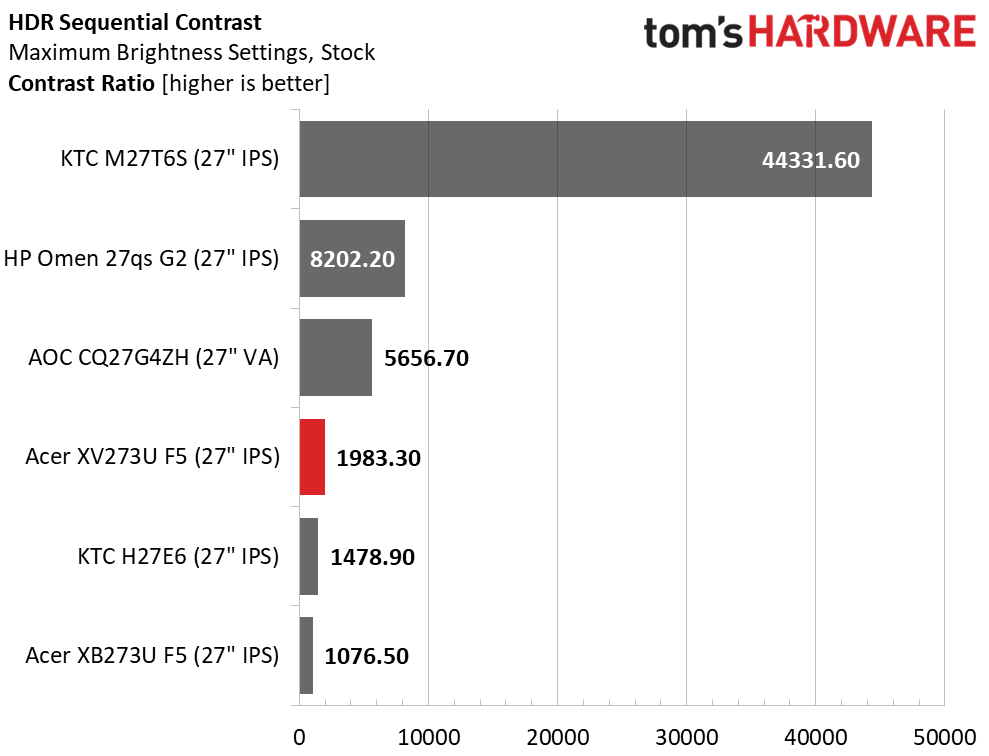
I measured the same peak output in both HDR modes, Auto and HDR 600. The XV273U F5 just cracks the 600-nit mark, earning its VESA Display HDR 600 certification. There is no dimming, either field or zone, to reduce the black level, so contrast is the same as SDR, 1,983:1. This is solid performance, but the HP, KTC, and AOC use dimming to lower their black levels and increase dynamic range, which ultimately provides more impact.

Grayscale, EOTF and Color

Acer Nitro XV273U F5
Portrait Displays Calman
Acer Nitro XV273U F5
Portrait Displays Calman

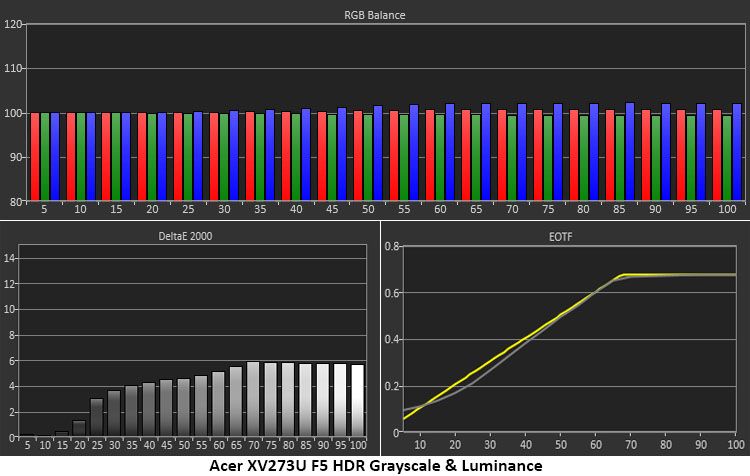
The XV273U F5 has a slightly cool grayscale in HDR mode, with errors visible from the 25% step and brighter. This flattens the image a little, but that is mitigated by excellent EOTF tracking. Aside from a light 0% reading, the measurements stick close to the reference line and hit the correct tone map transition point at 65%. This is where it should be for the measured black and white thresholds.

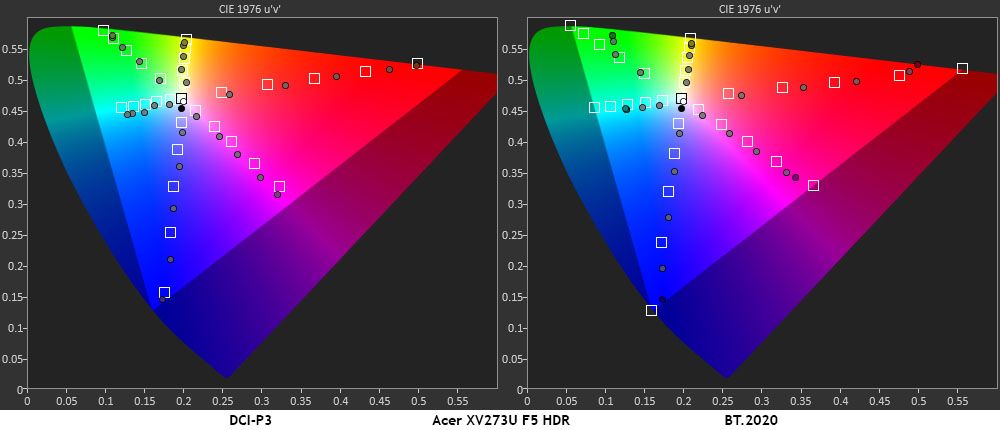
In the color test, you can see some oversaturation in red and blue while green is close to its targets. That primary comes up a tad short at 100%, which was also the case in my SDR tests. You’ll need Quantum Dots or a Tandem OLED to get more green than this. Hues are true for all colors except magenta and cyan, which are pulled off target by the cool grayscale. In the BT.2020 test, color runs out at 85% red, 70% green, and 95% blue.

Test Takeaway: The XV273U F5 has solid HDR contrast but gives away some performance to other monitors that have zone or field dimming. It mitigates this somewhat with very accurate EOTF tracking. Color is also close to the mark and there’s plenty of saturation there to provide decent impact for HDR content.

MORE: Best Gaming Monitors

MORE: How We Test PC Monitors

MORE: How to Buy a PC Monitor

There’s no question that OLED gaming monitors have raised the bar for motion quality, gaming feel and quick response. But LCD isn’t done yet. With a high refresh rate and good video processing, an IPS panel can provide the same experience. Acer has clearly raised the bar with its Nitro XV273U F5.

Acer Nitro XV273U F5

(Image credit: Acer)

At 540 Hz, the XV273U F5 has no visible motion blur. At lower refresh rates, the overdrive keeps motion smooth and if you want a backlight strobe, it’s available and is one of the best implementations out there. You can run this monitor with any gaming PC or console. It isn’t limited to just expensive video cards. And it’s super cool to see “1000” displayed on the screen’s frame counter.

The XV273U F5 panel also provides superb contrast. Though it isn’t going to displace OLED or VA in the black level contest, I measured a 2,000:1 ratio, which puts it well ahead of the IPS average. I also measured perfect gamma, which resulted in a highly textured image with vivid color saturation and 90% DCI-P3 coverage. It can be enjoyed without calibration, but a few tweaks of the RGB sliders put it in pro-monitor territory.

Acer Nitro XV273U F5

(Image credit: Tom's Hardware)

I also enjoyed the white aesthetic, mainly because it’s something different. It stands out from the sea of black monitors in a good way. The only misses for me were the lack of USB ports and the lack of dimming to increase HDR contrast. But neither of these things diminishes its gaming prowess. It’s addictive in every respect.

If you want the smoothest motion and the quickest response from your next gaming monitor, and you don’t want an OLED, the Acer Nitro XV273U F5 deserves serious consideration. Definitely check it out.

MORE: Best Gaming Monitors

MORE: How We Test PC Monitors

MORE: How to Buy a PC Monitor

✇Tomshardware

Asus ROG Swift PG27UCWM gaming monitor review: Speed and pixel density in a premium package

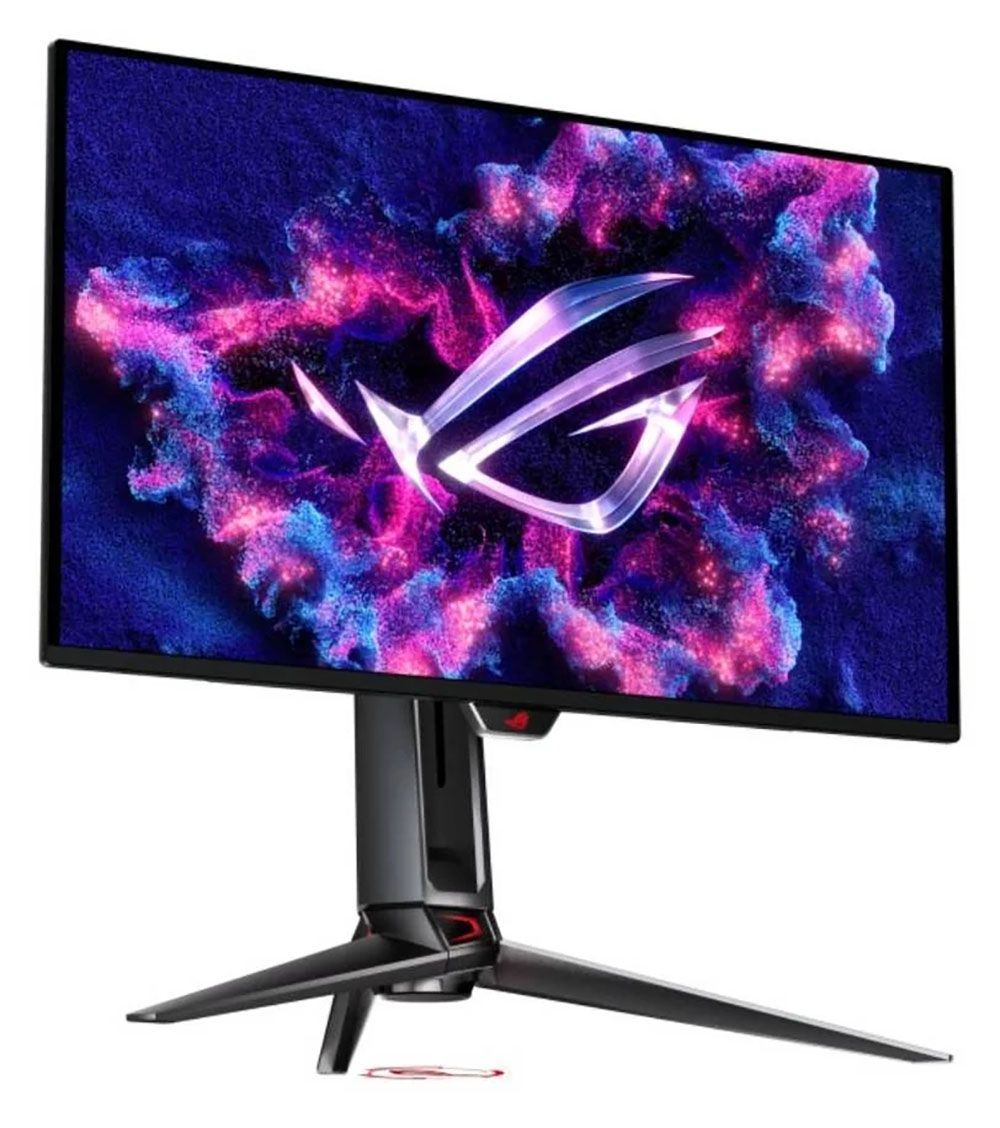
Asus has introduced some of the best OLED gaming monitors in recent years, and with each generation, it makes incremental improvements in performance, features, and technology. Its latest panel type is Tandem RGB Stripe, bringing higher brightness, a wide color gamut, sharper imagery, and lower power consumption.

The latest ROG Swift display to hit my test bench is the PG27UCWM. It’s a 27-inch 4K panel with 240 Hz (480 Hz in FHD), HDR10, Dolby Vision, DisplayHDR 400, and Adaptive-Sync. Let’s take a look.

Asus ROG Swift PG27UCWM Specs

Panel Type / Backlight

Tandem RGB Stripe OLED

Screen Size / Aspect Ratio

27 inches / 16:9

Max Resolution and Refresh Rate

3840x2160 @ 240 Hz

1920x1080 @ 480 Hz

FreeSync and G-Sync Compatible

Native Color Depth and Gamut

10-bit / DCI-P3

DisplayHDR 400, HDR10

Dolby Vision

Response Time (GTG)

0.03ms

Brightness (mfr)

250 nits full screen

1,000 nits 3% window

Contrast

Unmeasurable

Speakers

None

Video Inputs

1x DisplayPort 2.1

2x HDMI 2.1, 1x USB-C

Audio

3.5mm headphone output

USB 3.2

1x up, 3x down

Power Consumption

48w, brightness @ 200 nits

Panel Dimensions

WxHxD w/base

23.9 x 17.1-21.5 x 10.1 inches

(607 x 434-546 x 257mm)

Panel Thickness

2.5 inches (64mm)

Bezel Width

Top/sides: 0.35 inch (9mm)

Bottom: 0.43 inch (11mm)

Weight

17.86 pounds (8.1kg)

Warranty

3 years

I’ve reviewed a few Tandem RGB Stripe OLEDs of late, most recently, Asus’ 32-inch version of this screen, the PG32UCWM. There’s no denying the extra sharpness that this tech brings. Though I never saw much color fringing around text as discussed online, these new panels are clearly sharper than single-layer OLEDs. By sandwiching two layers and making the pixels’ physical shape narrower, you get more clarity, more color, and more brightness at a given wattage. And by driving the panel less aggressively, its lifespan is extended.

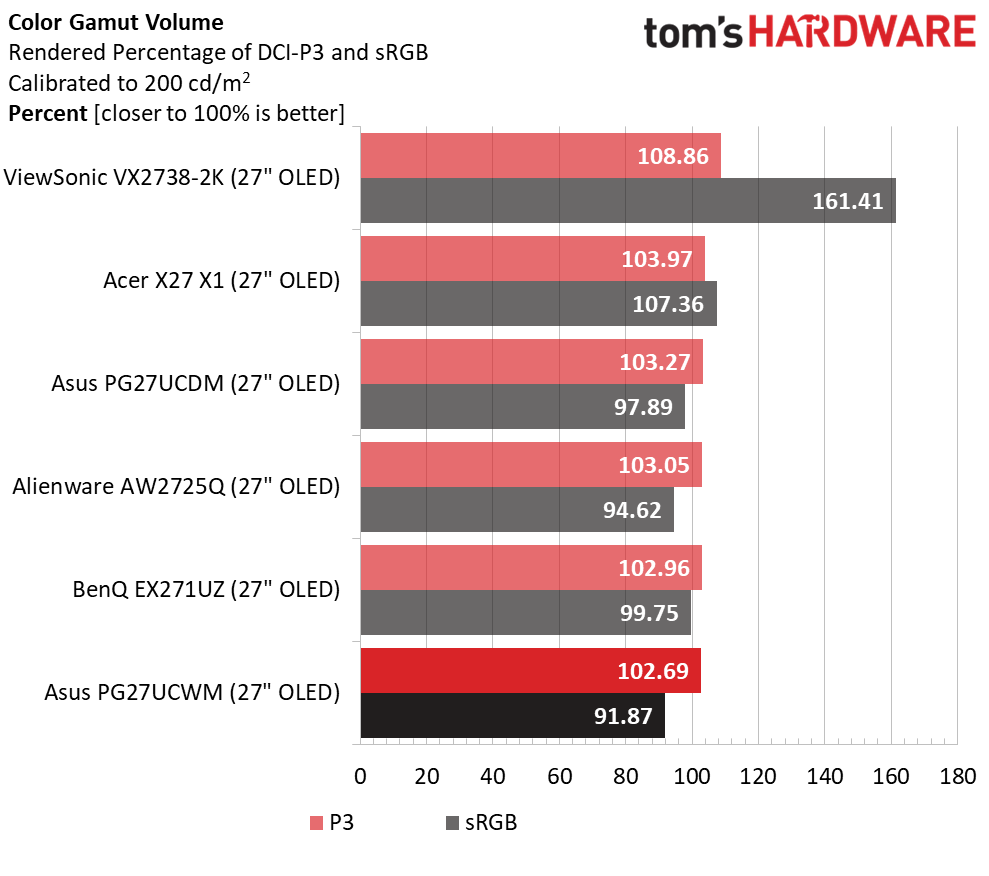
The PG27UCWM’s color volume is greater than that of single-layer OLEDs but not quite as large as that of Quantum Dot displays. I measured just over 102% coverage on my sample, whereas you’ll get closer to 110% with a QD monitor. Asus includes factory calibration with each monitor, and you can find that stored in firmware and accessed through the comprehensive OSD.

Peak brightness is just under 500 nits when measuring a 25% window pattern with uniform brightness turned off. That number holds for both SDR and HDR content. The PG27UCWM supports HDR10 and Dolby Vision, with VESA DisplayHDR 400 certification. Asus’ TrueBlack Glossy screen coating keeps reflected light from spoiling those deep black levels.

In the video processing department, Asus includes a dual-refresh feature called Frame Rate Boost that switches between 4K/240 Hz and Full HD/480 Hz. You can change modes with a single button press. Also in the mix is Adaptive-Sync, with certifications from both Nvidia (G-Sync) and AMD (FreeSync Premium Pro). And you can augment lower frame rate capable systems with ELMB (Extreme Low Motion Blur).

The PG27UCWM, like all ROG Swift products, is feature-rich. You get Asus’ GamePlus enhancements, including multiple aiming points, sniper modes, frame rate counters, timers, and alignment marks. The quick menu and joystick clicks are fully customizable for quick access to many functions. And you can download Asus’ DisplayWidget Center app for full control on Windows or Mac desktops. A full array of inputs includes DisplayPort 2.1 with 80 Gbps bandwidth, HDMI 2.1, USB-C, and a USB 3.2 hub with KVM options.

There are plenty of cables included, along with Asus’ signature LED lighting and graphics. The PG27UCWM is firmly in the premium segment at a starting price of $1,099. I would expect greatness for that sum, and if you read on, we’ll see if it delivers.

Assembly and Accessories

The PG27UCWM arrives in a well-adorned carton with colorful graphics and secure, recyclable packaging. The base, upright, and panel are separate, as is the lens for the ROG logo projector that shines symbols on your desk. It includes multiple lenses. The ROG pouch reveals cables for USB, HDMI, and DisplayPort, plus IEC for the internal power supply. There’s also a heavy stamped steel bracket that snaps onto the panel to create a 100mm VESA mount.

Product 360

Asus ROG Swift PG27UCWM
Asus
Asus ROG Swift PG27UCWM
Asus
Asus ROG Swift PG27UCWM
Asus
Asus ROG Swift PG27UCWM
Tom's Hardware

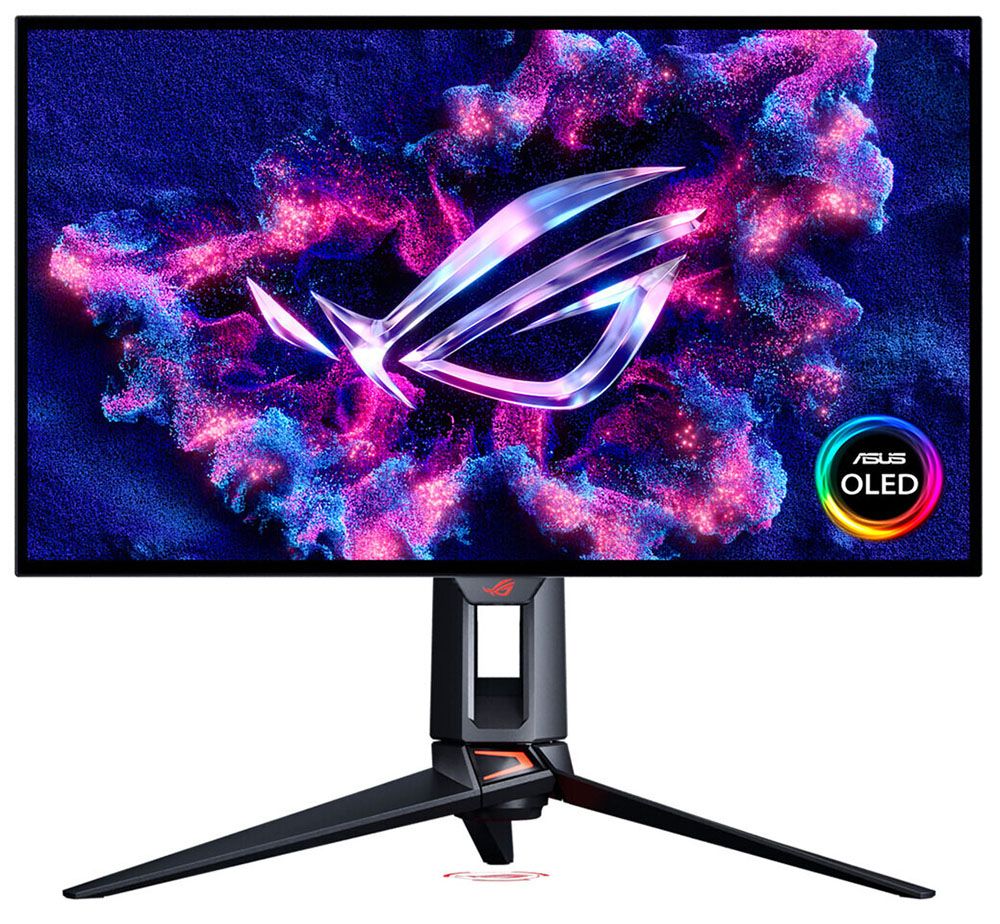
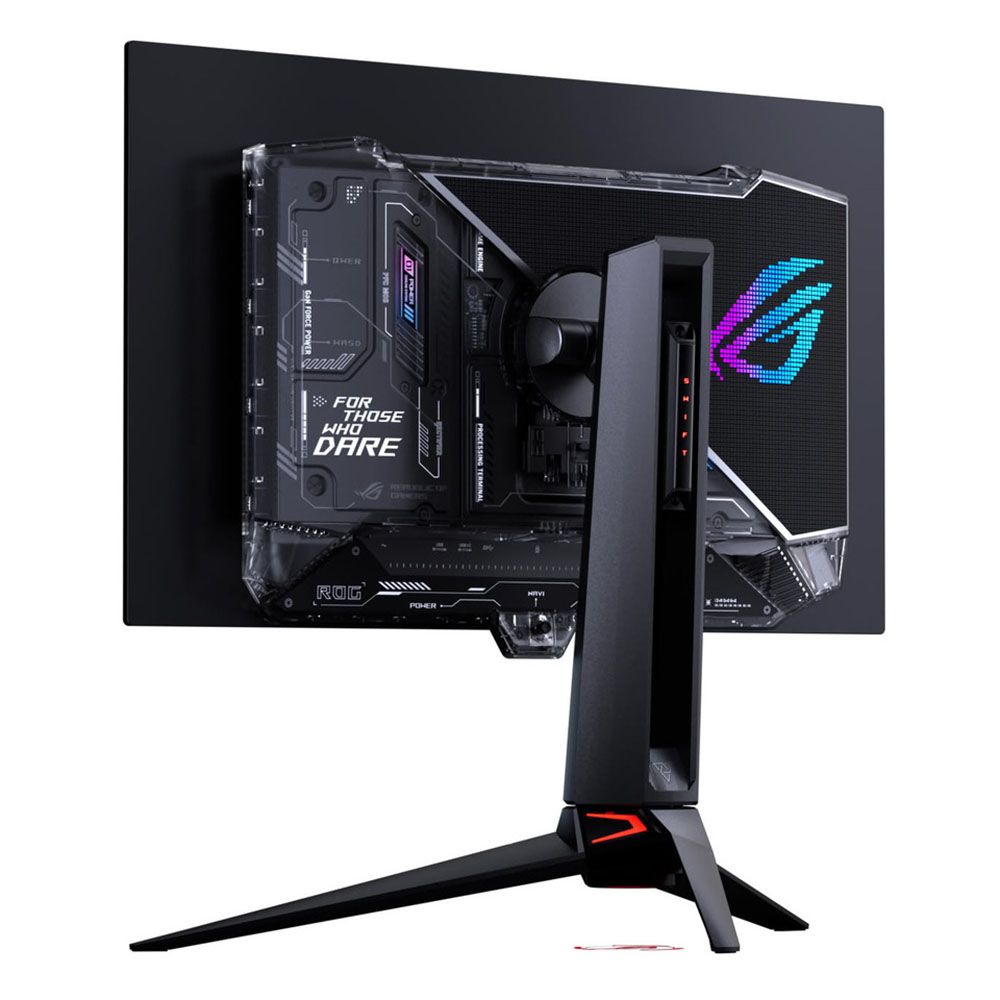
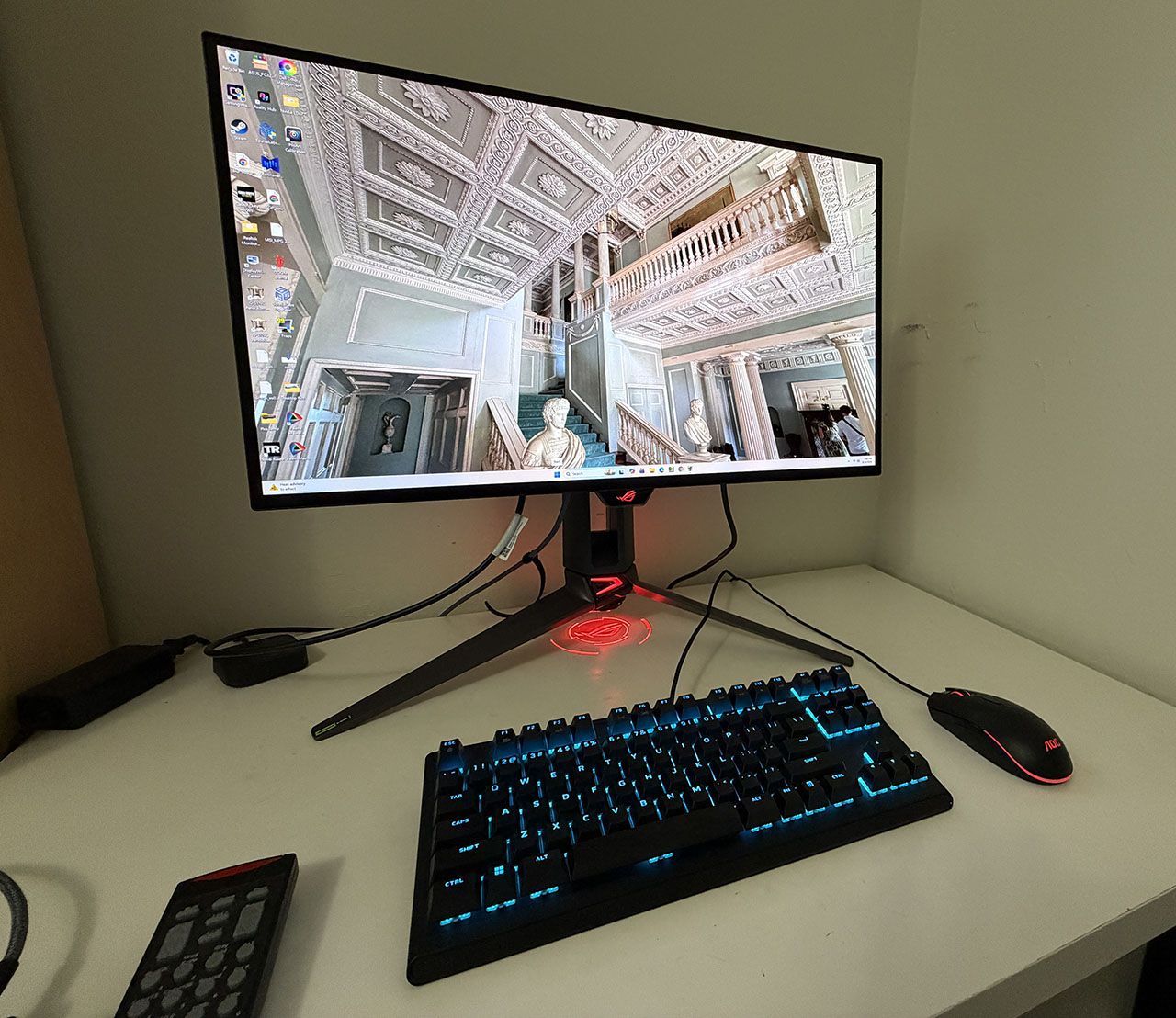
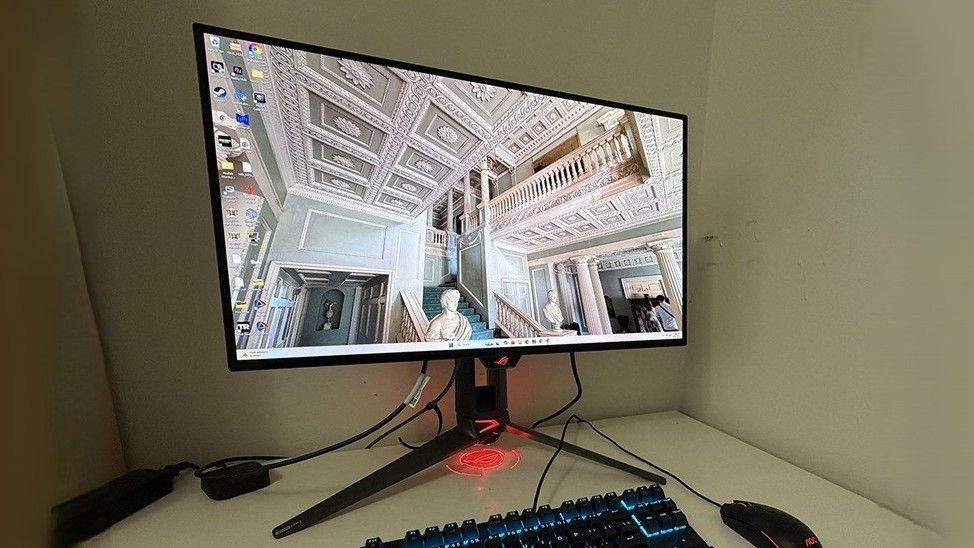
The PG27UCWM features Asus’ latest ROG Swift styling cues, with clear plastic on the back that reveals some of the monitor’s internal components. Opposite that is the Lite Brite ROG graphic that can light up in a multitude of colors and effects. More LEDs can be found on the front, on the small protrusion beneath the screen, as well as on the base and even the sliding bit on the stand’s upright. All this fun can be controlled in the OSD and by DisplayWidget Center.

In front, the bezel is very narrow on all sides, just 9-11 millimeters, with a small protrusion at the bottom center for the joystick and control buttons. It also contains a sensor that works with the OLED care features to shut off the panel when you leave your desk.

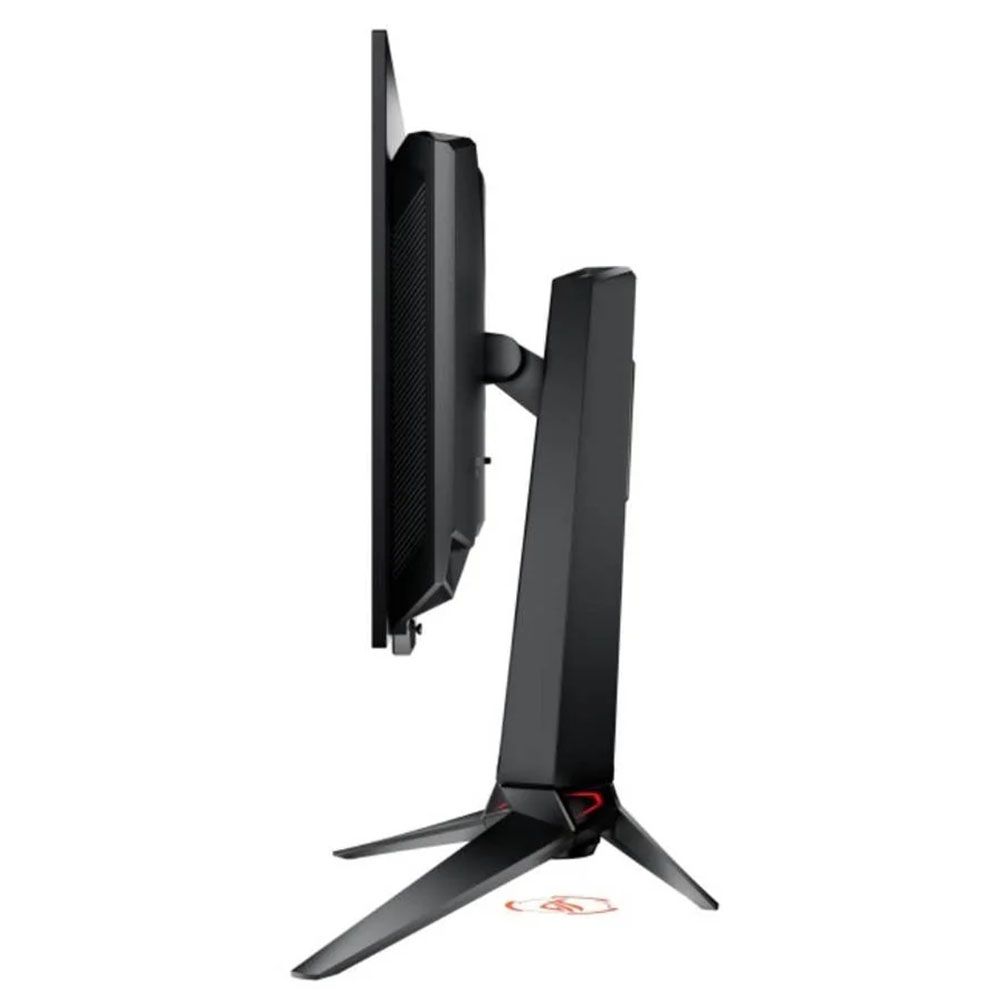
From the side, you can see the panel-on-box design that is common to many OLEDs. This not only looks nice but aids in cooling. The OLED is backed by a metal plate that helps dissipate heat, along with a graphene layer inside, heatsinks on the internal circuit boards, and a heat-efficient power module. The PG27UCWM is fanless and always ran cool during my time with it.

The stand is very solid with a cast aluminum base that is both wide and deep. The upright features full ergonomics with a 4.4-inch height range, 5/20-degree tilt, 30-degree swivel, and a 90-degree portrait mode. Movements are firm and smooth with no wobble or play. The stand also has a threaded tripod socket on top for things like webcams.

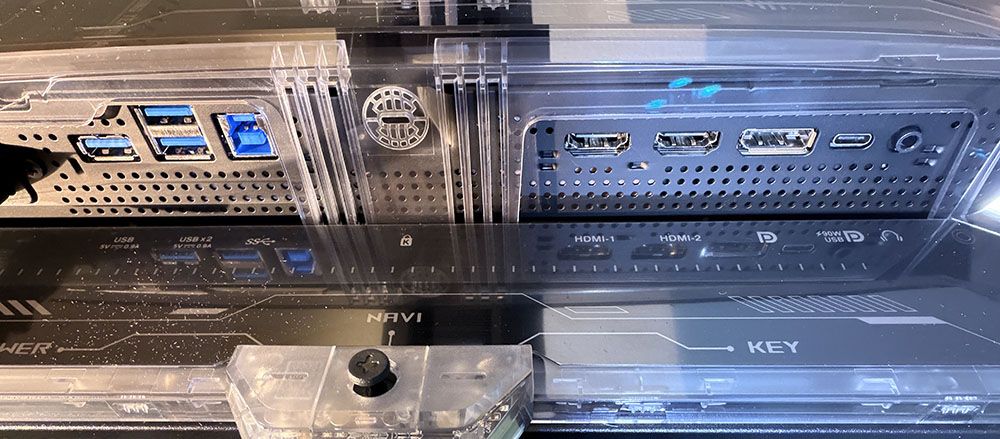
The I/O panel is well-appointed with a single DisplayPort 2.1 (UHBR20, 80 Gbps), two HDMI 2.1, a USB-C, and a USB hub with one upstream and three downstream. The hub has full KVM functionality, along with version control and power for the USB-C up to 90 watts. There are no internal speakers, but you do get a 3.5mm headphone jack.

OSD Features

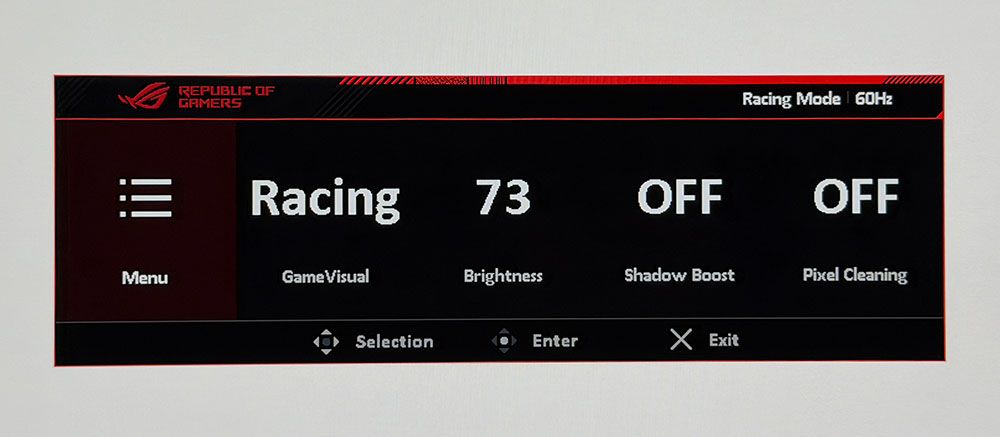
The PG27UCWM has two buttons and a joystick to cover all monitor functions. Pressing the left button switches the refresh rate between 240 Hz and 480 Hz. The right button is a power toggle. Pressing the joystick brings up a quick menu which is fully programmable. A second press reveals the full OSD.

Asus ROG Swift PG27UCWM
Tom's Hardware
Asus ROG Swift PG27UCWM
Tom's Hardware
Asus ROG Swift PG27UCWM
Tom's Hardware
Asus ROG Swift PG27UCWM
Tom's Hardware
Asus ROG Swift PG27UCWM
Tom's Hardware
Asus ROG Swift PG27UCWM
Tom's Hardware
Asus ROG Swift PG27UCWM
Tom's Hardware
Asus ROG Swift PG27UCWM
Tom's Hardware
Asus ROG Swift PG27UCWM
Tom's Hardware
Asus ROG Swift PG27UCWM
Tom's Hardware

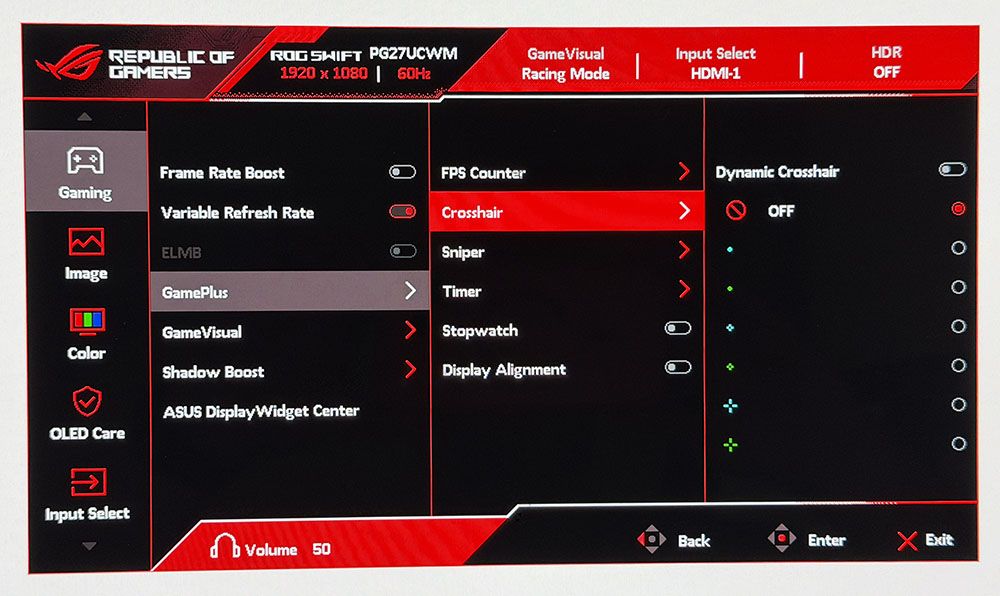
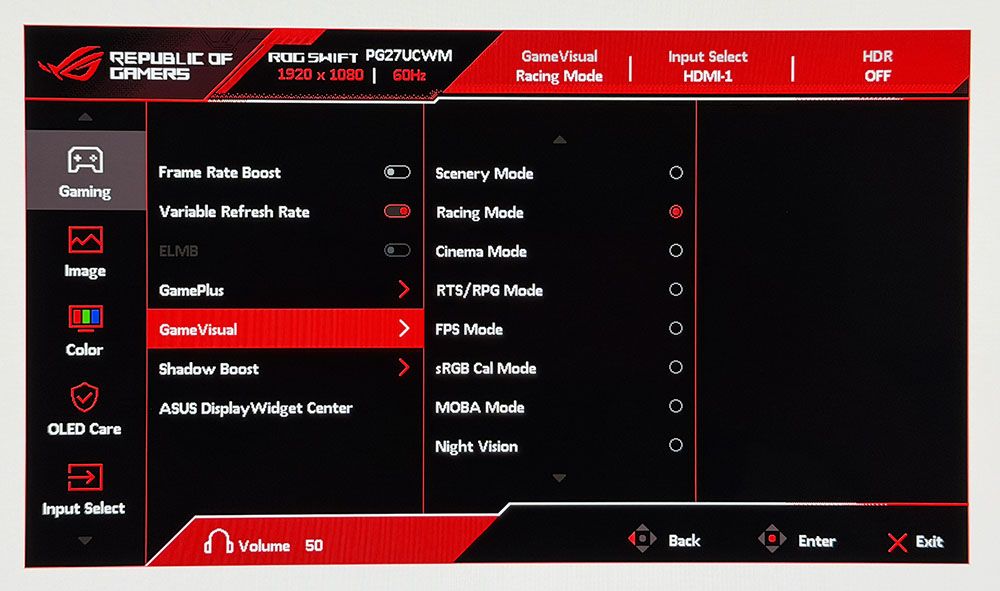
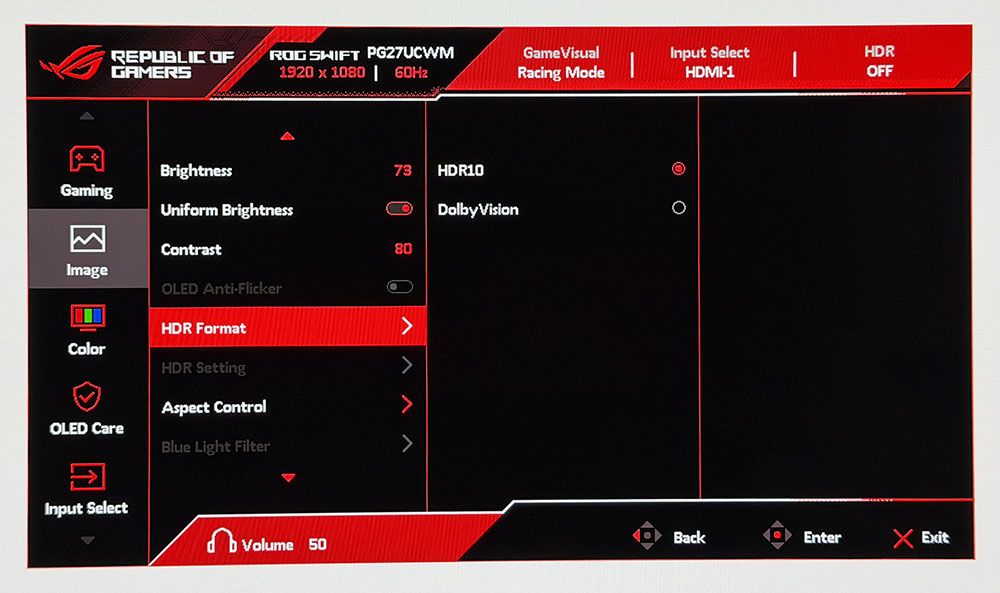
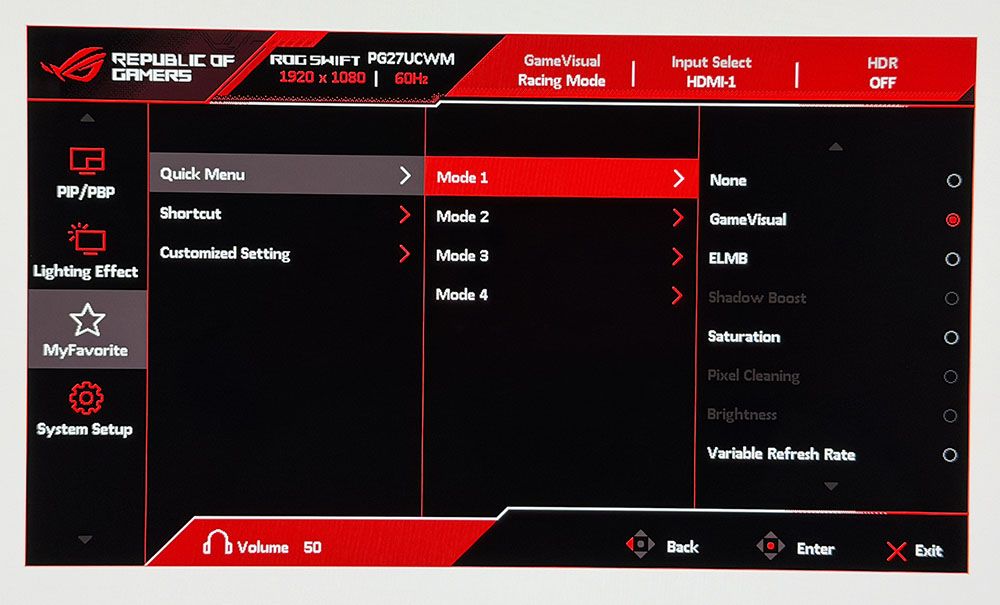
The quick menu has four slots for any function you might want quick access to, like picture mode, brightness, and the like. The full OSD starts with Gaming, and there, you’ll find the GamePlus suite with a large selection of aiming points, sniper modes, frame counters, timers, a stopwatch, and display alignment marks. GameVisual refers to the nine picture modes, each aimed at different game types or tasks. Racing is the default and best choice there.

The PG27UCWM is one of the few monitors to support Dolby Vision in addition to HDR10. Dolby Vision uses dynamic tone mapping from the content metadata to tailor its luminance curve for each individual display. This renders the content more faithfully and with more impact than the fixed tone curve from HDR10 material. For that format, you get four more modes with the option to adjust brightness and other parameters.

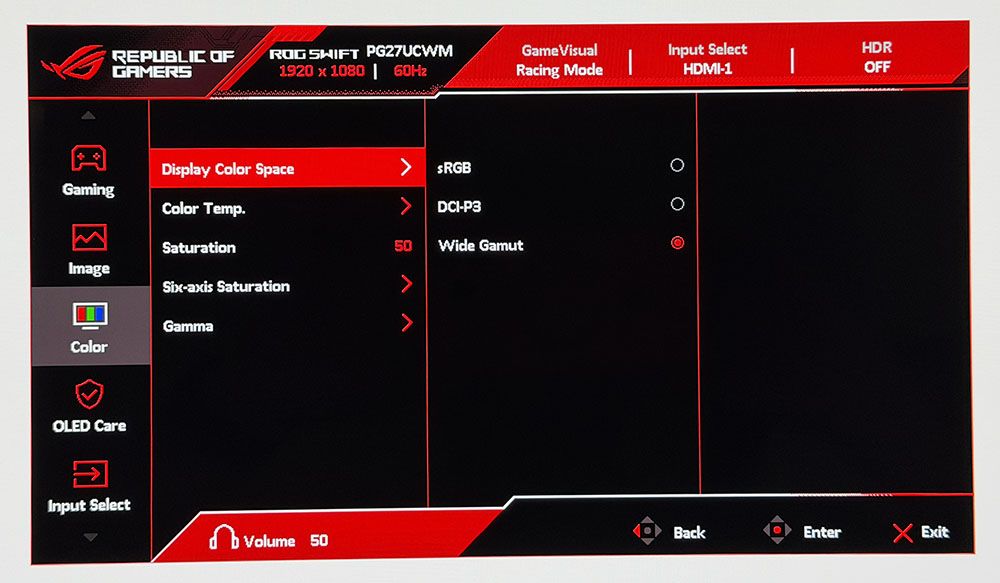
To adjust color, the PG27UCWM includes a gamut selector, gamma presets, and color temps arranged by Kelvin value. You can also adjust RGB sliders for finer control. My sample was nearly perfect out of the box, and I could only make a tiny difference with calibration.

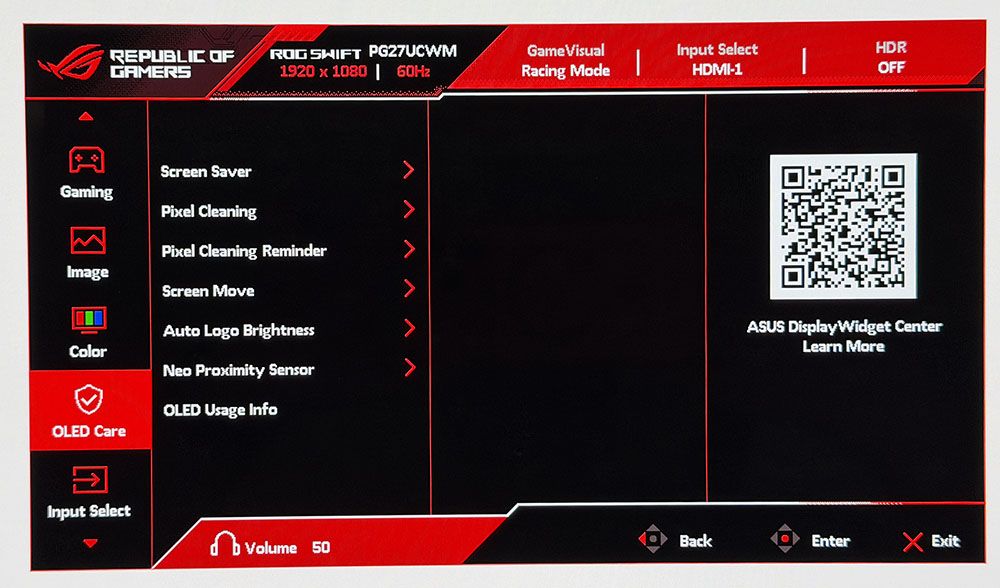
OLED Care includes many toggles for screen savers, logo detection, and more. Pixel Cleaning is a panel refresh feature that takes about six minutes to complete. When I first powered up the PG27UCWM, it prompted me to do this. I’ve found this to improve screen uniformity with brand-new panels, so I make it a habit for every review. A front-mounted sensor can be configured to shut off the monitor when you leave your desk.

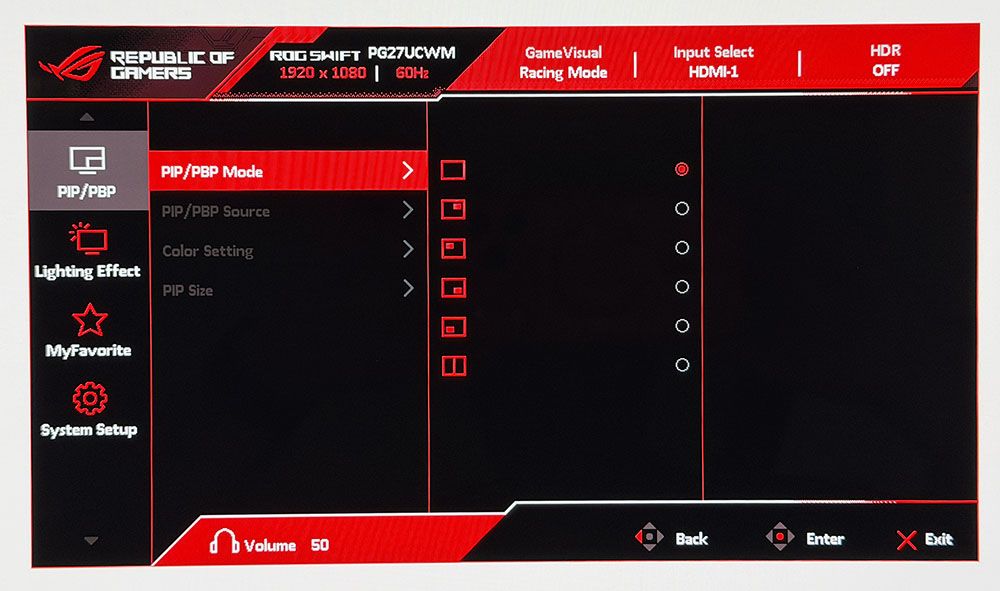
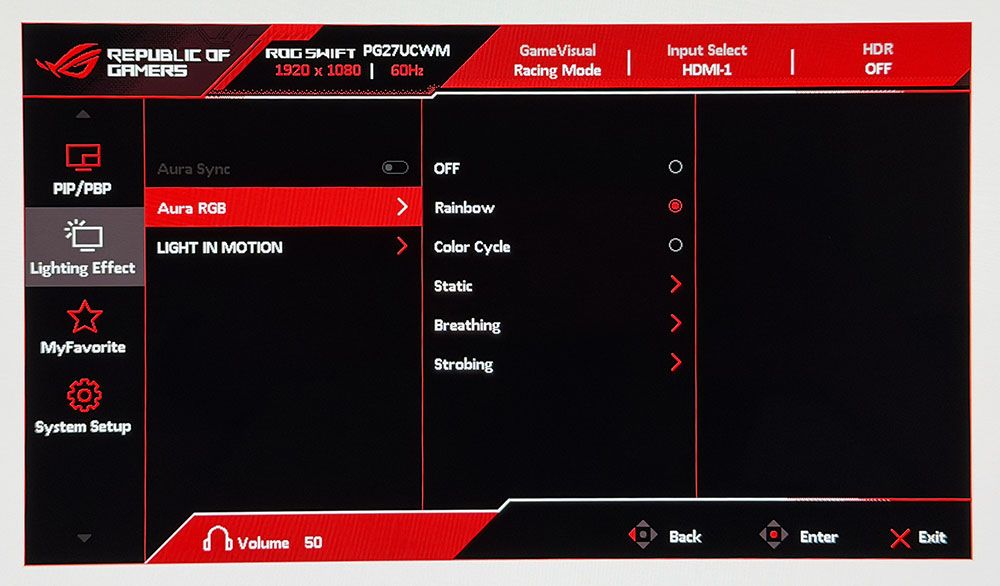
To view two video sources simultaneously, use the PIP and PBP options. Each can have its own color settings, and you can size the PIP window. Aura RGB is the lighting feature, and it offers a wide range of effects and colors. Light In Motion works with the DisplayWidget Center app to create light shows that mimic what’s happening on the screen.

The quick menu and joystick are fully programmable, so you can access up to 9 functions quickly. This is great for switching inputs, adjusting brightness, changing the refresh mode or what have you. Also included are two memory settings.

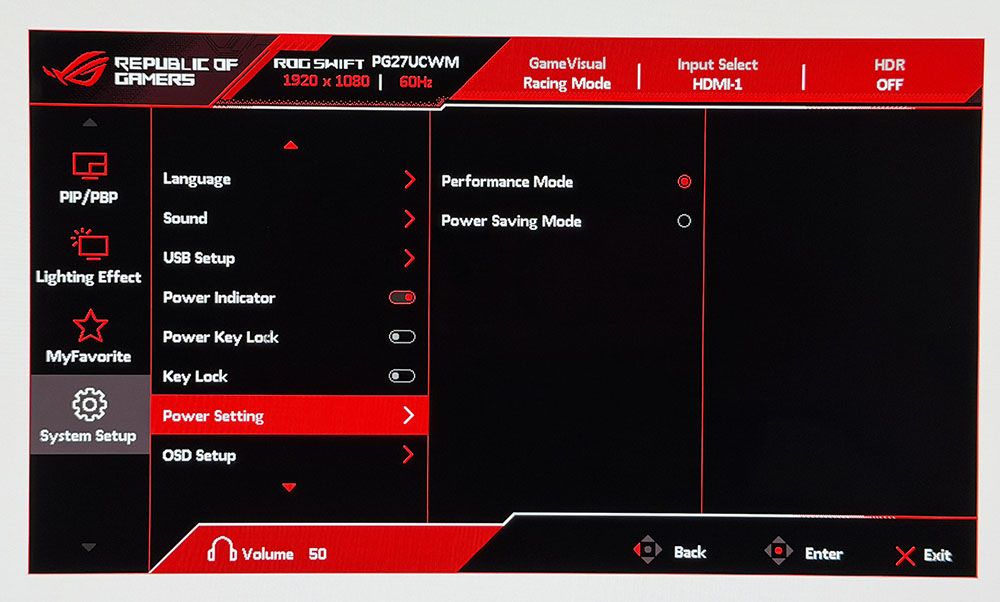
The System Setup menu can be left alone in most scenarios, but one option you must address is the Power Setting. It’s on Power Saving by default, and that limits brightness. Switch to Performance Mode to unlock the PG27UCWM’s full potential.

Asus ROG Swift PG27UCWM Calibration Settings

The PG27UCWM measured close to spec out of the box for grayscale and color, but I noted a slight gamma shift. To improve this metric, I selected the 2.4 preset, which made it a tad darker in a good way. I also adjusted the RGB sliders for a tiny gain in grayscale accuracy. For gaming, calibration is completely unnecessary. My suggested settings are below and include brightness values for Uniform Brightness on or off.

For HDR10 content, I recommend the Gaming HDR mode even though its EOTF tracking is lighter than spec. You can read more about this on page five. For spot-on HDR, True Black mode is the winner.

Picture Mode

Racing

Uniform Brightness

Off / On

Brightness 200 nits

73 / 56

Brightness 120 nits

39 / 38

Brightness 100 nits

31 / 30

Brightness 80 nits

23 / 22

Brightness 50 nits

11 / 10 (min. 25 / 25 nits)

Contrast

80

Gamma

2.4

Color Temp User

Red 100, Green 97, Blue 95

Gaming and Hands-on

I have yet to game on an Asus OLED that wasn’t addictive in its imagery and responsiveness. The PG27UCWM was no exception. It’s super quick with no perceptible input lag and perfectly smooth motion resolution. For frame rates, I tried both modes, 240 and 480, and had excellent results. With a GeForce RTX 4090 in my test PC, I kept the action at 220-230fps in 4K with HDR enabled. This was awesome, to say the least, with every detail rendered sharply whether static or moving. I knew my system was working hard because the fans ran fast and there was a good bit of warm air circulating about my legs as I dispatched enemies in Doom Eternal.

To switch refresh modes, I had to exit to the Windows desktop to prevent the game from crashing. This is typical of the dual-refresh monitors I’ve reviewed and has nothing to do with their operation. At 480 Hz in FHD resolution, the picture was softer but not tremendously so. Games were just as playable and addictive. I kept the frame rate locked at 480 fps across all scenarios. It didn’t make play better for me, but I can see the advantage for users with slower PCs. Or if you just want to brag about frame rates.

HDR color and contrast were exemplary, and I toggled between two HDR picture modes: Gaming and True Black. You’ll see the technical differences between them on page five, but visually, Gaming provided a bit more brightness while True Black had better midtone contrast. It came down to game type for me. Bright outdoor scenery looked better in Gaming while dark imagery looked better in True Black. As with the frame rate boost feature, switching HDR modes should be done on the Windows desktop rather than in a game.

I noted light gamma during testing, which in SDR mode manifested as a slight flattening of the image. I fixed this by upping the gamma setting to 2.4 and raising the brightness value a few points. This added more texture to the picture, which was easy to see in a side-by-side comparison. For a more scientific explanation of the PG27UCWM’s gamma performance, see my test results on page four.

Like all Asus ROG Swift displays, the PG27UCWM is premium in every respect. It looks great just sitting on a desk with its clear back and extensive but not garish lighting. I turned on all the Aura RGB elements and enjoyed the show without distraction from games or work. The accents are well-balanced, even down to the logo projector, a feature unique to Asus ROG Swift monitors.

The Tandem RGB Stripe panel was visibly sharper than last year’s Quantum Dot-based PG27UCDM. The difference is small, but it is there. Text was rendered with perfect edges, free of artifacts such as fringing or jaggies. I could also see a difference in photos, especially when zooming in to the pixel level. This is a great monitor for content creation and writing. I also appreciated the inclusion of Dolby Vision for watching movies and TV shows. There is a lot of DV content on disc and through streaming services like Netflix, Disney+, and HBO Max.

The PG27UCWM has plenty of convenience features, such as USB ports with KVM and a tripod thread on the stand. But I missed internal speakers. Game sound had to come through headphones plugged into the provided 3.5mm jack.

Takeaway: The PG27UCWM is a supremely versatile monitor with lots of features, premium styling, excellent build quality, and top-level game performance. Competitive gamers will appreciate its advanced video processing, low input lag, and smooth response. Image quality is also top-shelf with accurate and saturated color, high luminance, and a variable brightness option. The Tandem RGB Stripe tech delivers a sharper picture than Quantum Dot or single-layer OLEDs.

MORE: Best Gaming Monitors

MORE: How We Test PC Monitors

MORE: How to Buy a PC Monitor

When I looked for 27-inch 4K OLEDs to compare to the PG27UCWM, I didn’t find many in the database. It is still an unusual format compared to 32-inch 4K or 27-inch QHD. The group consists of Alienware’s AW2725Q, ViewSonic’s VX2738-2K (QHD), Asus’ PG27UCDM, BenQ’s EX271UZ, and Acer’s X27 X1. All run at 240 Hz.

Pixel Response and Input Lag

Click here to read up on our pixel response and input lag testing procedures.
Asus ROG Swift PG27UCWM
Tom's Hardware
Asus ROG Swift PG27UCWM
Tom's Hardware

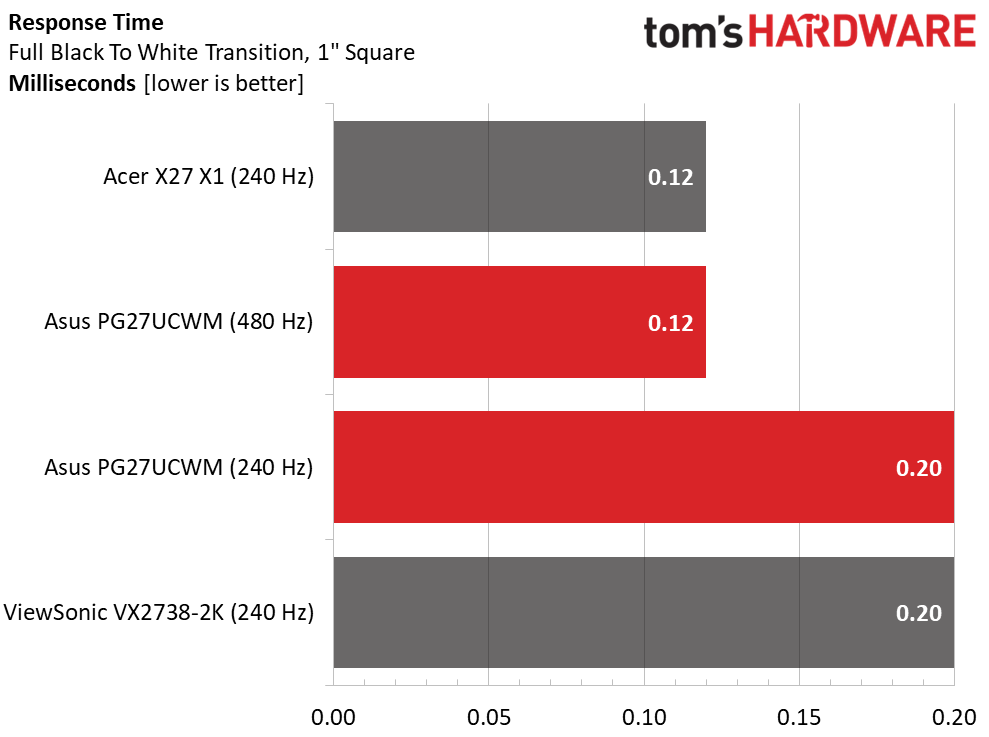
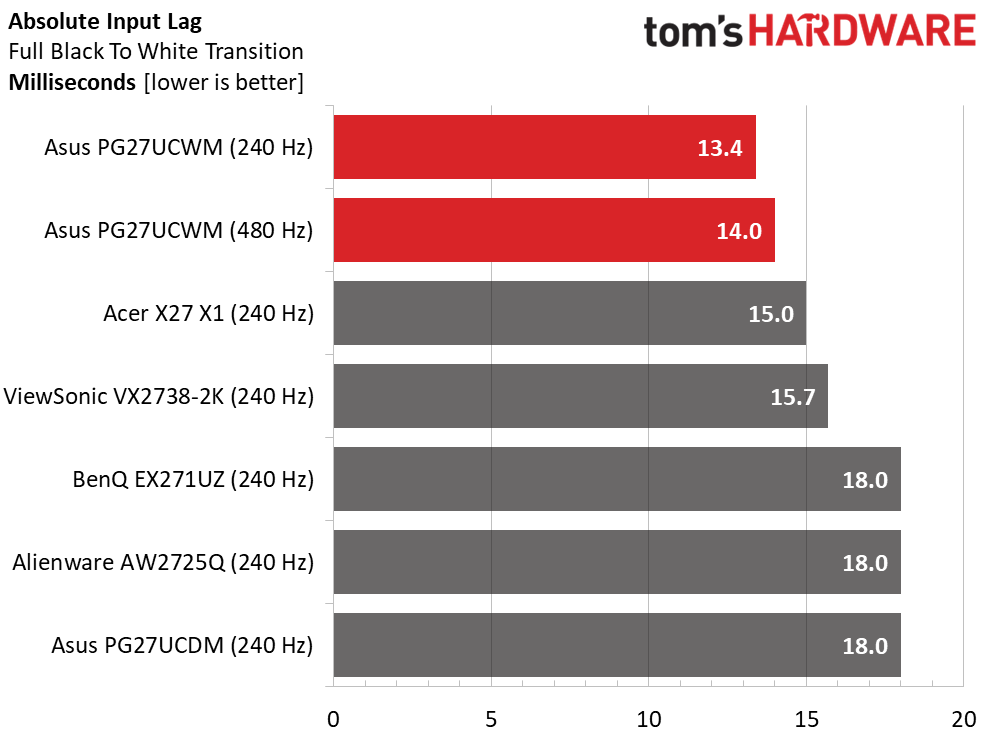
My data on the BenQ, Alienware, and Asus PG27UCDM predates my LDAT tests, so they are not included in the response results. Thus far, I haven’t seen much variation in OLED panel times. They range from 0.12 to 0.24ms, which is a tiny difference that can’t be seen with the naked eye. That’s why OLEDs all look smooth at 200fps or more. I noted that the PG27UCWM was quicker at 480 Hz than 240, but not by half: 0.12 versus 0.20ms.

In the lag test, the frame rate boost doesn’t provide an advantage in input lag. Even a Jedi Knight won’t be able to tell a 0.6ms difference. Either way, the PG27UCWM has the lowest input lag of any 27-inch 4K OLED I’ve tested, by a small margin over the Acer and ViewSonic screens. Gamers will want to check one of these out for their competition kit.

Test Takeaway: The PG27UCWM is the quickest 27-inch 4K OLED panel I’ve tested to date. It has very low input lag, and panel response is smooth in either frame rate mode. 480 Hz provides a boost in frame rates and is useful for slower systems, but it does not provide lower input lag. If you have enough video card power, the 240 Hz mode is more than adequate for instant control response and smooth motion resolution.

Viewing Angles

Asus ROG Swift PG27UCWM

(Image credit: Tom's Hardware)

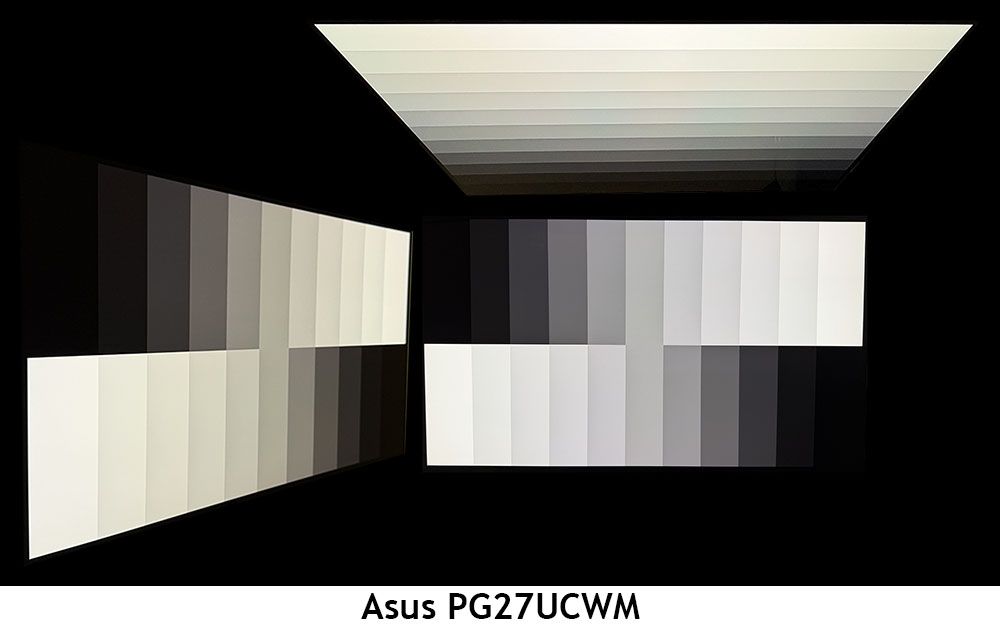
In my experience, the one weakness of Tandem RGB Stripe OLED panels is their slight color shift in the horizontal plane. There is no reduction in brightness or gamma, but there is a reddish-green (greenish-red?) tint, a bit like an IPS monitor. For a 27-inch panel like the PG27UCWM, this isn’t a big deal. Just don’t share it with another user who is picky. The vertical photo shows reduced gamma and the same color shift.

Screen Uniformity

To learn how we measure screen uniformity, click here.
Asus ROG Swift PG27UCWM

(Image credit: Tom's Hardware)

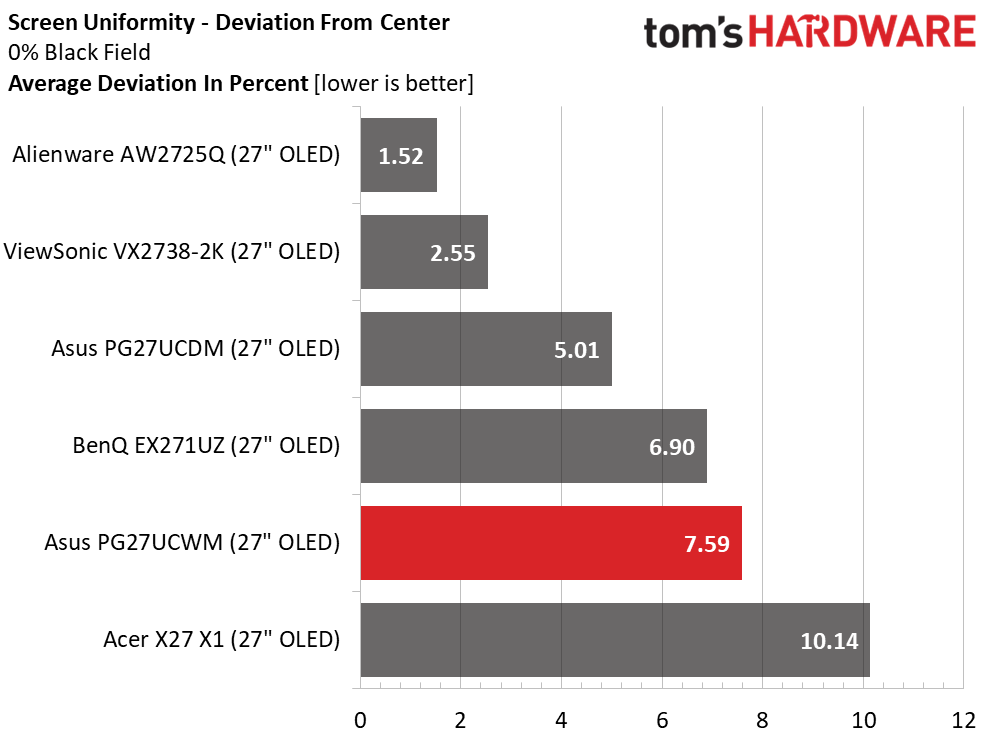
The PG27UCWM’s screen uniformity is in line with other OLEDs. I have yet to find a bad one. I recommend that anyone buying an OLED run the pixel refresh routine when you first unpack it. This often yields a 5-10% improvement in uniformity.

MORE: Best Gaming Monitors

MORE: How We Test PC Monitors

MORE: How to Buy a PC Monitor

To read about our monitor tests in-depth, please check out Display Testing Explained: How We Test PC Monitors. We cover brightness and contrast testing on page two.

Uncalibrated – Maximum Backlight Level
Asus ROG Swift PG27UCWM
Tom's Hardware
Asus ROG Swift PG27UCWM
Tom's Hardware
Asus ROG Swift PG27UCWM
Tom's Hardware

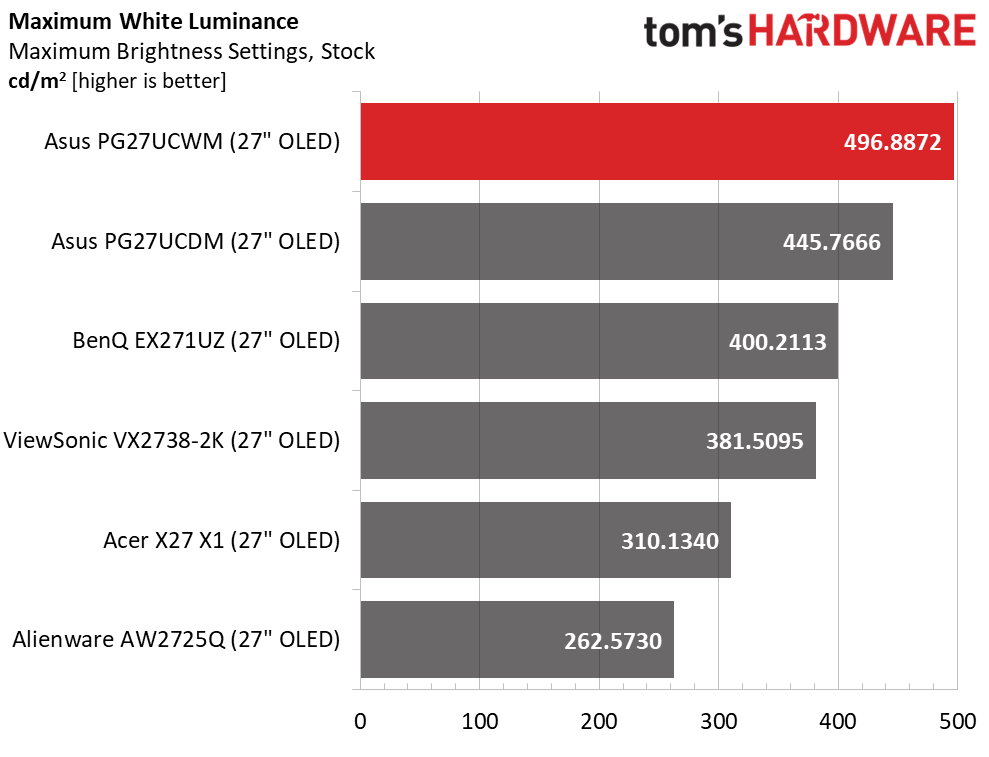
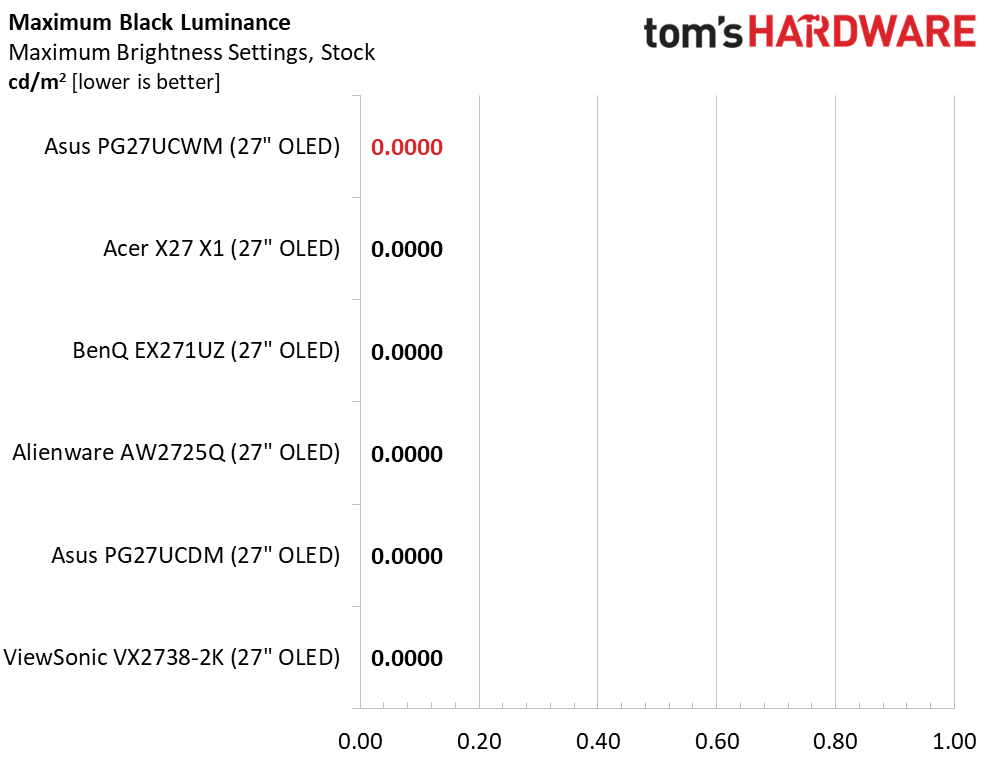
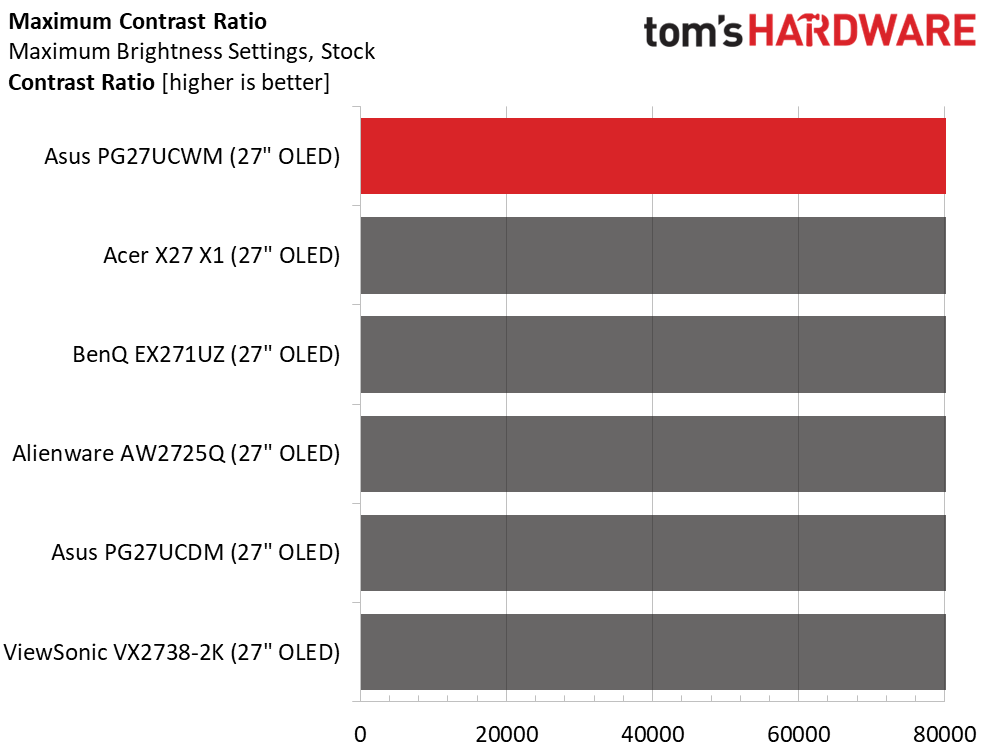
I measured the PG27UCWM in its Racing mode with the Power mode set to Performance and the brightness slider maxed. With Uniform Brightness (UB) off, a 25% window came up just short of 500 nits, and a full field was 278 nits. UB on kept that same 278 nit value for both window and field patterns. I noted that the PG27UCWM was a tad brighter than last year’s PG27UCDM, which had a Quantum Dot panel. Black levels and contrast could not be measured.

After Calibration to 200 nits

Asus ROG Swift PG27UCWM
Tom's Hardware
Asus ROG Swift PG27UCWM
Tom's Hardware
Asus ROG Swift PG27UCWM
Tom's Hardware

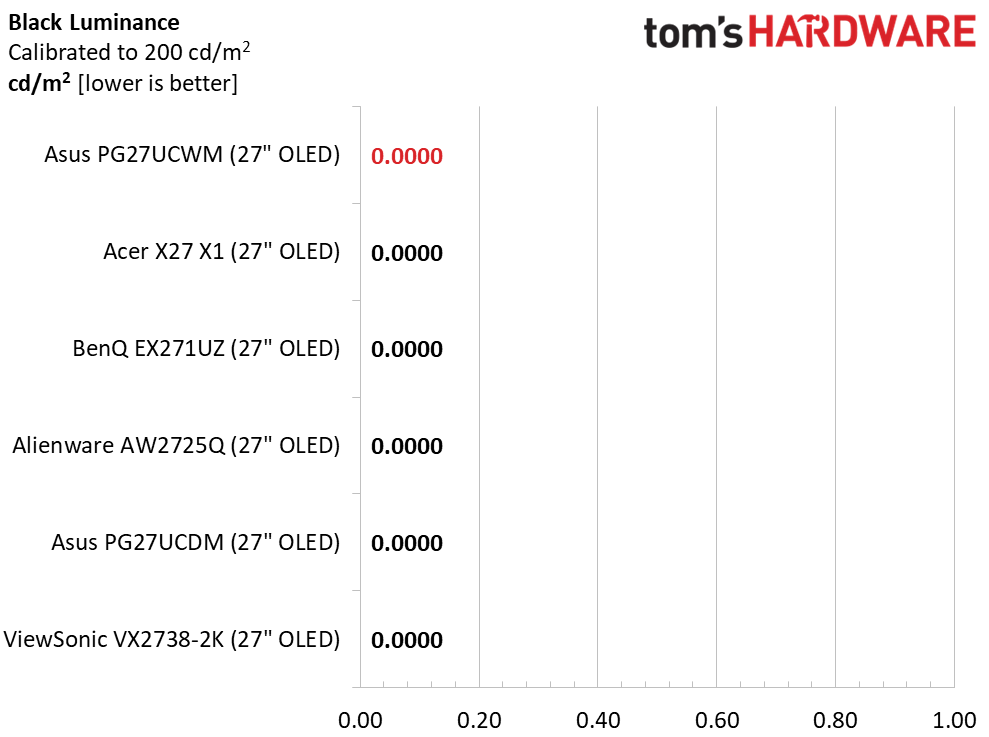
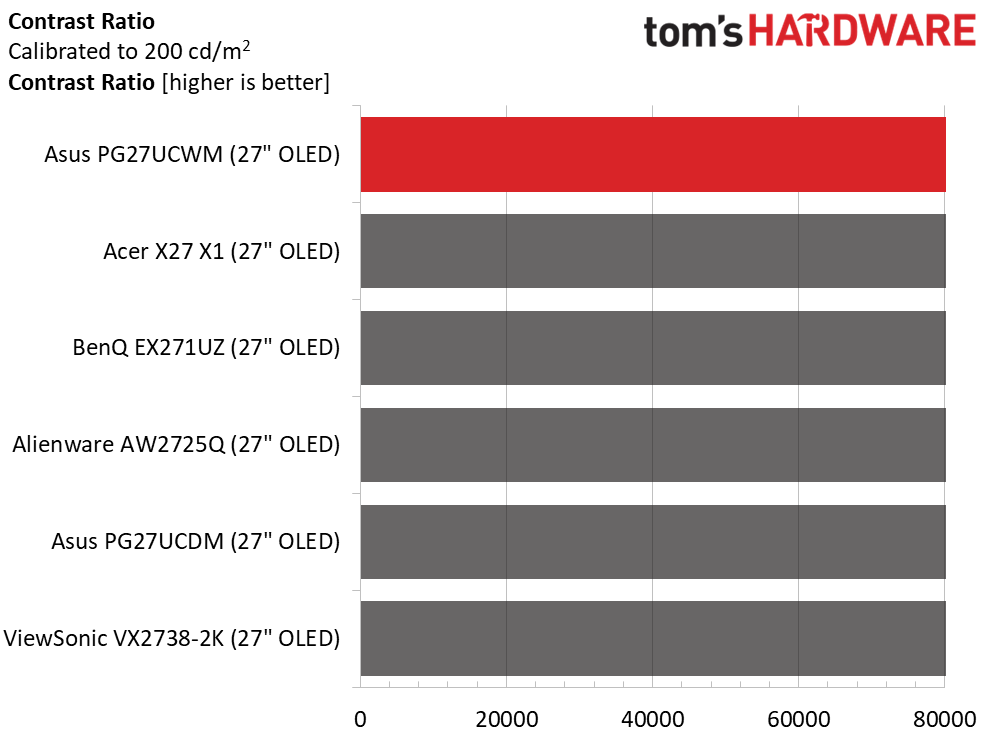
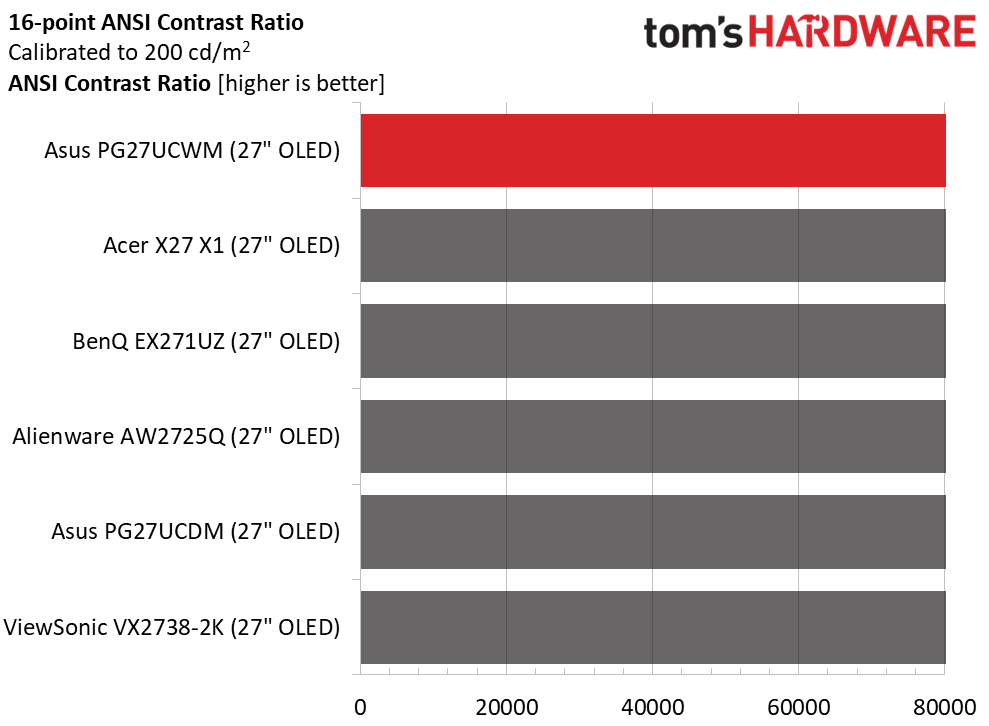
Calibration made no difference to contrast or black levels. When switching between UB modes, I noted that the PG27UCWM saved the brightness value for each mode. That means you can equalize brightness by using a full field for UB on and a 25% window for UB off. As is typical for OLEDs, I could not measure the intra-image (ANSI) contrast.

Test Takeaway: The PG27UCWM delivers contrast and black level performance identical to other OLED monitors. It nearly hits 500 nits for a 25% window pattern with Uniform Brightness switched off. Leaving it on delivers around 278 nits peak.

MORE: Best Gaming Monitors

MORE: How We Test PC Monitors

MORE: How to Buy a PC Monitor

In the PG27UCWM’s Racing picture mode, there is no need for calibration, but you have the option to change color space, gamma, and white balance if you wish.

Grayscale and Gamma Tracking

Our grayscale and gamma tests use Calman calibration software from Portrait Displays. We describe our grayscale and gamma tests in detail here.
Asus ROG Swift PG27UCWM
Portrait Displays Calman
Asus ROG Swift PG27UCWM
Portrait Displays Calman
Asus ROG Swift PG27UCWM
Portrait Displays Calman

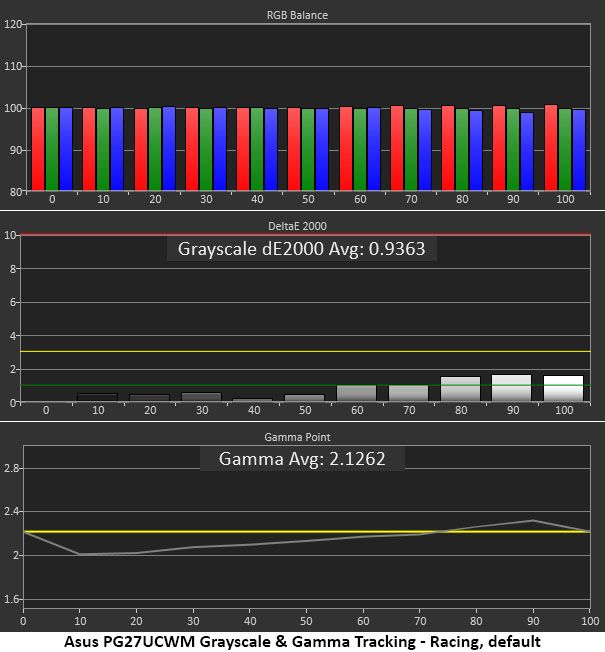
In the first chart, grayscale tracking is visually perfect with no error exceeding 2dE. The accepted visible threshold is 3dE. Gamma is a bit skewed, though. It’s too light in the darkest parts of the image, and midtones are also a little under. This flattens the image a little. At 90% brightness, it is slightly dark, which also lessens the picture’s impact.

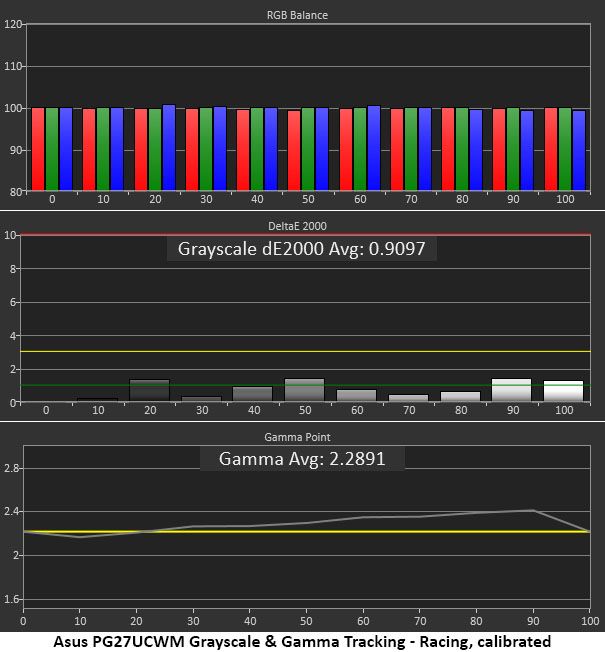
I calibrated the RGB sliders for a tiny improvement in grayscale. For gamma, I could only pick a different preset, so I opted for 2.4, which was a good compromise. Since OLEDs have such high contrast, it’s easier to get away with dark gamma because you can just click up the brightness a bit to compensate. A perfect trace on the 2.2 reference would be better, but I don't expect anyone to complain about the PG27UCWM.

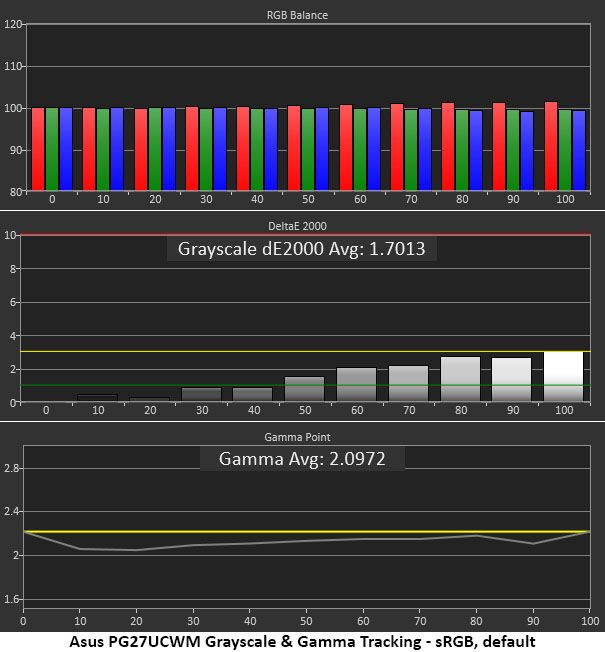
For sRGB, you can either pick the sRGB Cal mode or select sRGB from the color space options in the Color menu. I chose the latter because it leaves the RGB and gamma controls available. Gamma is still a bit light but also more consistent.

Comparisons

Asus ROG Swift PG27UCWM
Tom's Hardware
Asus ROG Swift PG27UCWM
Tom's Hardware
Asus ROG Swift PG27UCWM
Tom's Hardware
Asus ROG Swift PG27UCWM
Tom's Hardware

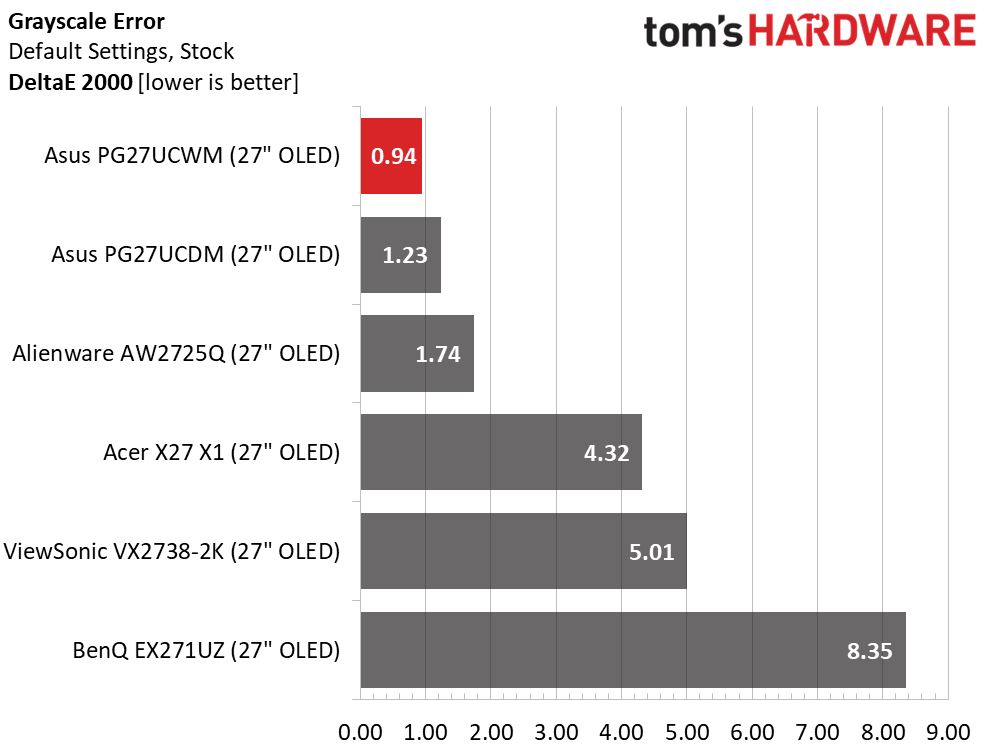
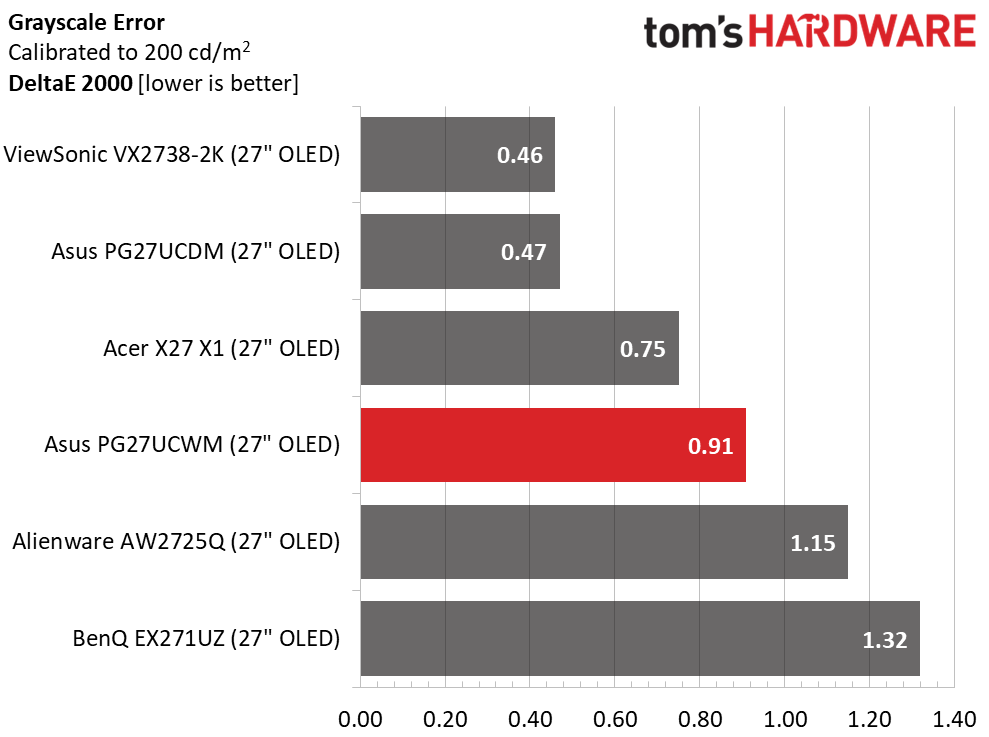
The PG27UCWM wins the out-of-box grayscale comparison with an excellent 0.94dE score. Calibration only improves that to 0.91dE. The two Asus and the Alienware screens can be used without calibration, but the Acer, ViewSonic, and BenQ should get some attention for top performance. Once adjusted, the six monitors are visually equal.

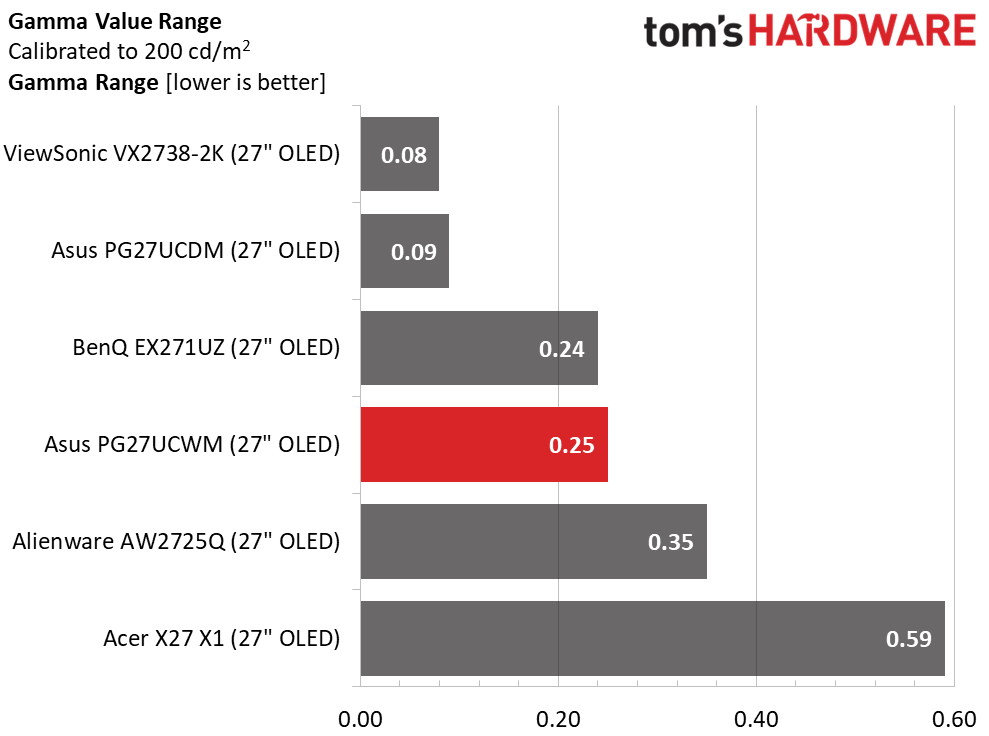
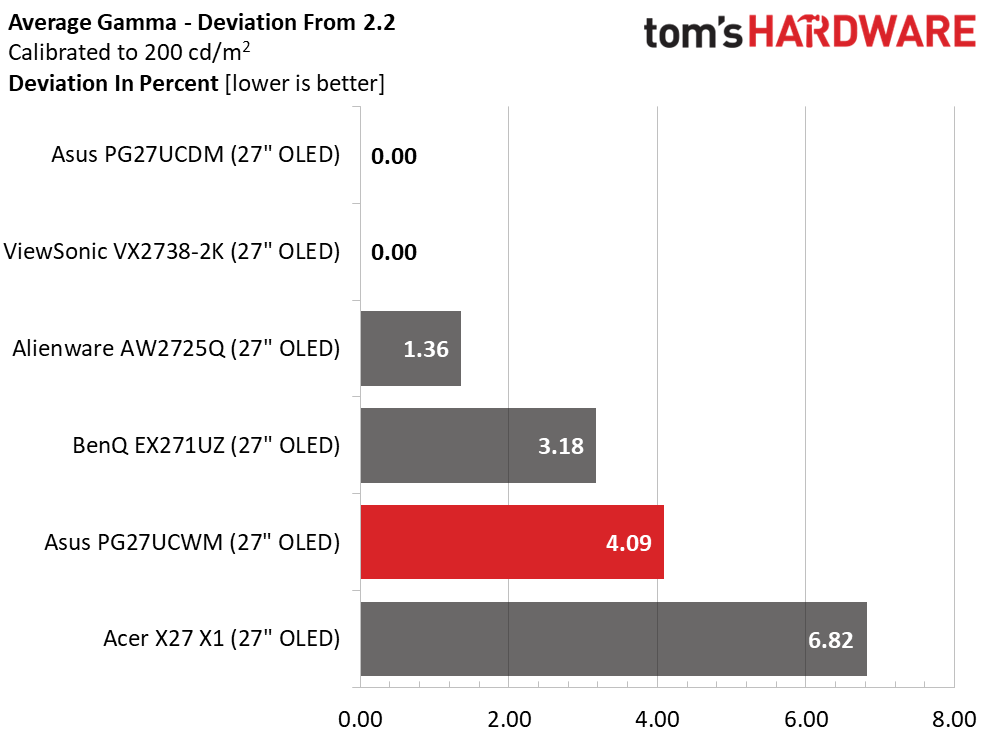
In the gamma test, the PG27UCWM runs mid-pack with a 0.25 range of values and a 4.09% deviation from 2.2. I made a compromise here, setting gamma to 2.4. If you leave it on 2.2, the value range is the same and the deviation is 3.18%. But I preferred the look of the darker gamma setting. Try both to see which works best for you.

Color Gamut Accuracy

Our color gamut and volume testing use Portrait Displays’ Calman software. For details on our color gamut testing and volume calculations, click here.
Asus ROG Swift PG27UCWM
Portrait Displays Calman
Asus ROG Swift PG27UCWM
Portrait Displays Calman
Asus ROG Swift PG27UCWM
Portrait Displays Calman

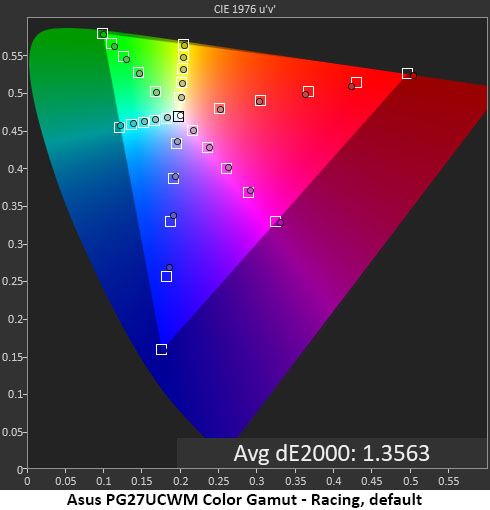
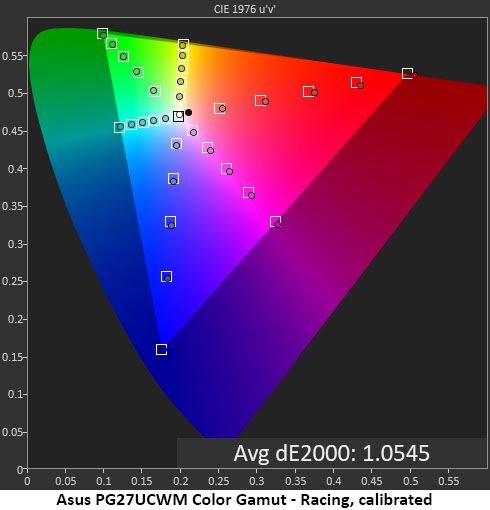
Asus’ latest crop of Tandem RGB Stripe OLEDs all come within a whisker of 100% coverage of DCI-P3 and display near-perfect accuracy. In the default chart, the PG27UCWM is a tad undersaturated in the primary colors, but not by a visible amount. My grayscale calibration adds just a little verve to the palette. You can barely see a difference, but it’s there when comparing screens side-by-side. This is excellent performance.

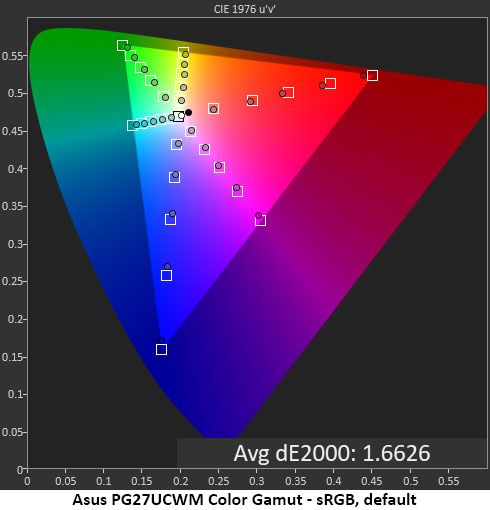
The sRGB gamut is also a bit undersaturated, coming up short in red, magenta and blue. This is a minor issue, but users needing the nth degree of accuracy might want to consider a color lookup table for their applications.

Comparisons

Asus ROG Swift PG27UCWM
Tom's Hardware
Asus ROG Swift PG27UCWM
Tom's Hardware

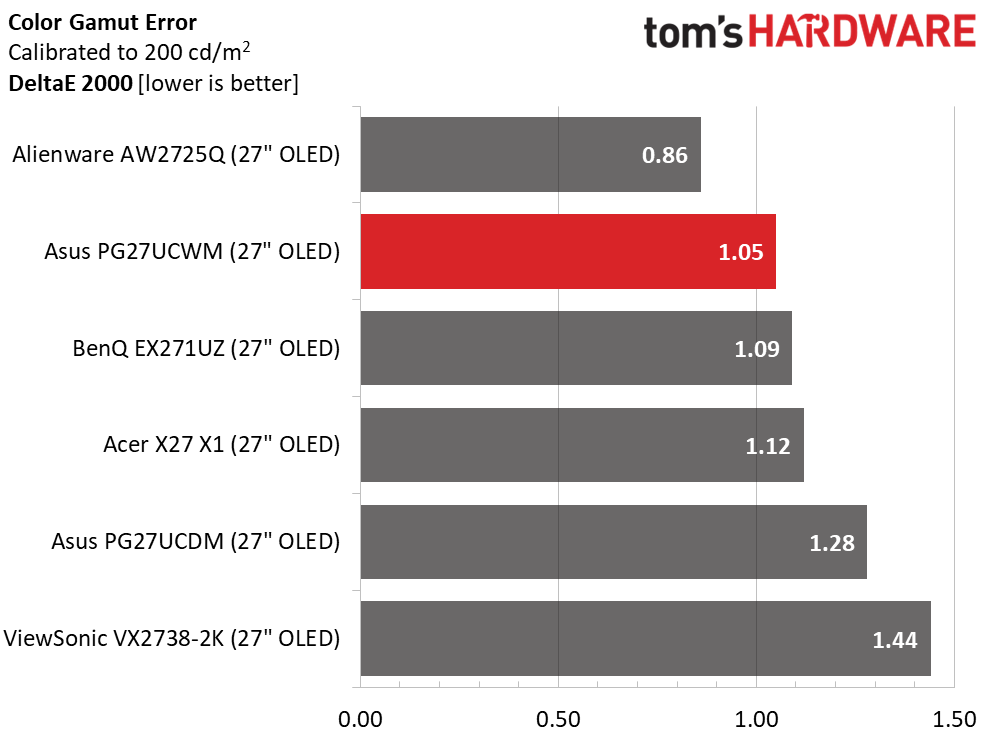
A 1.05dE color gamut error is impressive, but all the screens perform as well as the PG27UCWM in this test. OLED is an accurate monitor category, and you’ll be hard-pressed to find a bad one.

I’ve commented that Quantum Dot OLEDs have greater color volume than Tandem RGB Stripe panels, but in the 27-inch category, the differences are quite small. Asus’ own PG27UCDM has less than 1% more volume, an invisible amount. The ViewSonic will look a bit more colorful in a side-by-side comparison, but only slightly. The PG27UCWM delivers vivid and bold hues for both SDR and HDR. The sRGB mode is slightly undersaturated in red, magenta, and blue, hence the 91.87% score.

Test Takeaway: The PG27UCWM is very color-accurate out of the box but needs some attention in the gamma department. I had to compromise for the best picture because none of the presets are exactly on the 2.2 reference. The sRGB mode is slightly undersaturated and has light gamma. Color volume is high and nearly equals that of many Quantum Dot displays. The PG27UCWM is a very colorful monitor.

MORE: Best Gaming Monitors

MORE: How We Test PC Monitors

MORE: How to Buy a PC Monitor

Our HDR benchmarking uses Portrait Displays’ Calman software. To learn about our HDR testing, see our breakdown of how we test PC monitors.

The PG27UCWM adds extra HDR brightness and Dolby Vision to its feature list over last year’s PG27UCDM. It switches automatically when an HDR10 signal is detected and offers four picture modes with an adjustable option.

HDR Brightness and Contrast

Asus ROG Swift PG27UCWM
Tom's Hardware
Asus ROG Swift PG27UCWM
Tom's Hardware
Asus ROG Swift PG27UCWM
Tom's Hardware

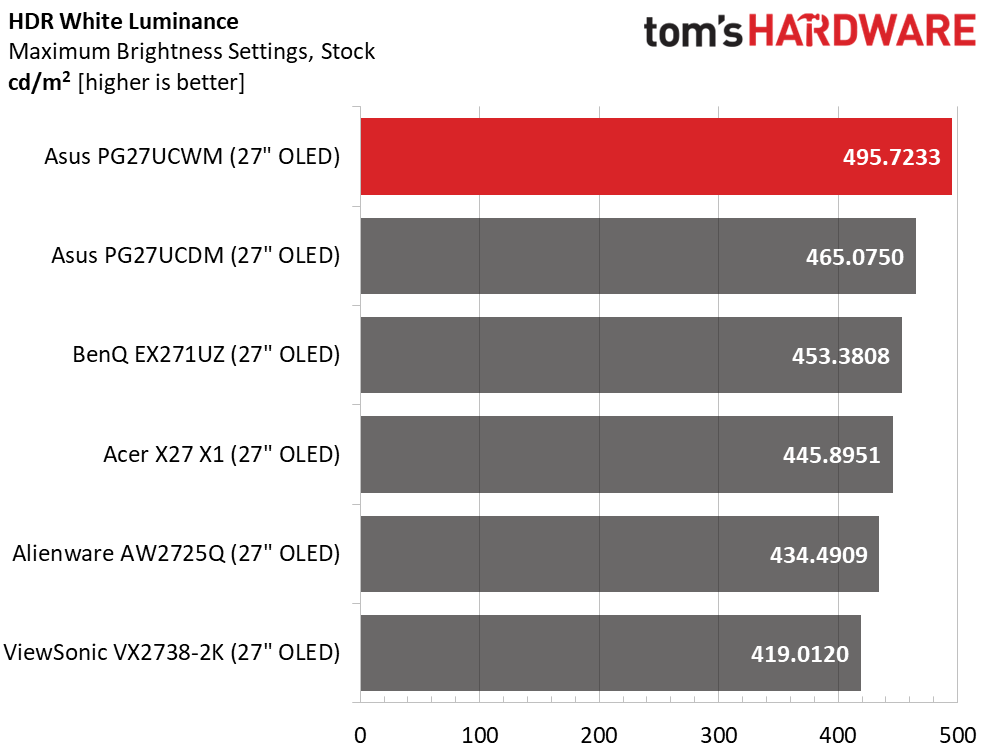
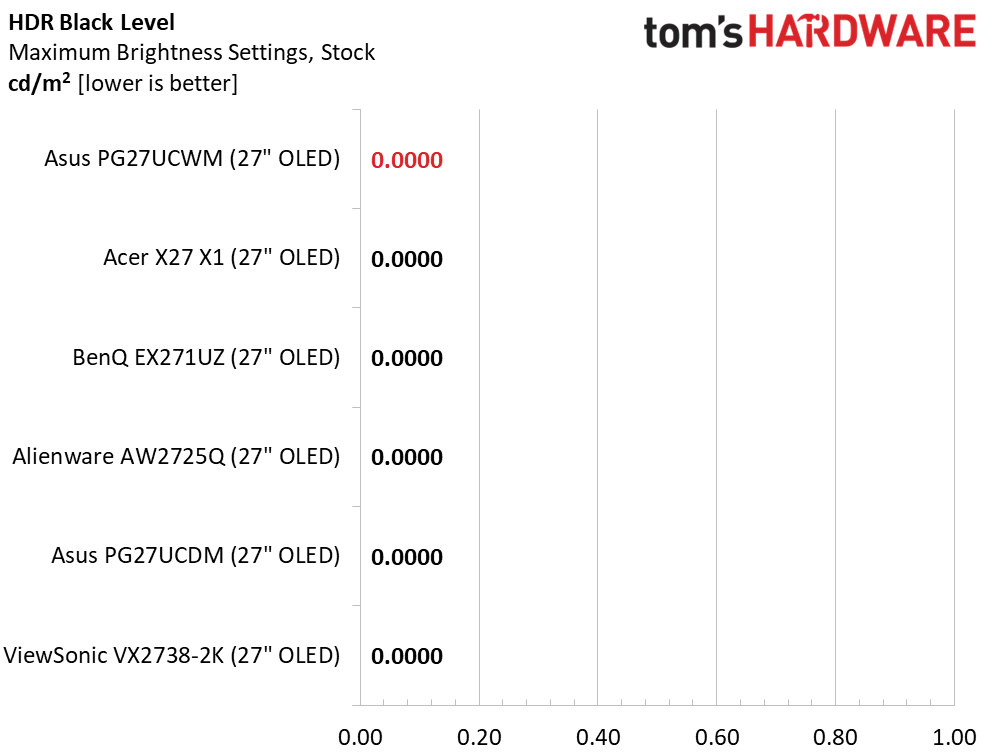
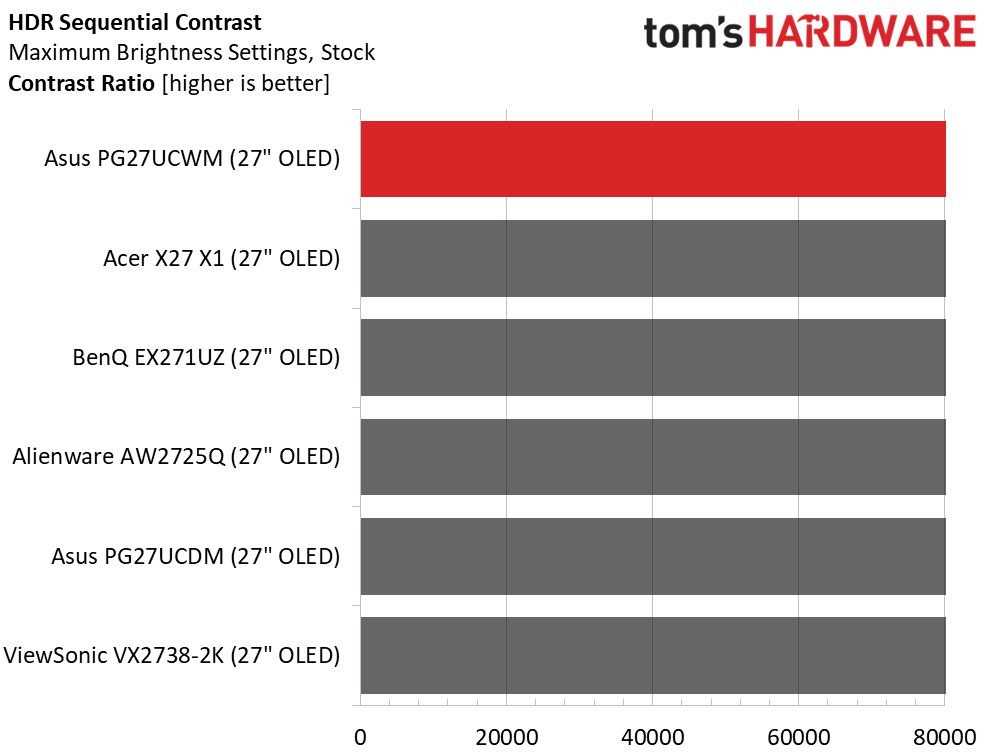
To get the brightest HDR, I opted for the Gaming mode with the Adjustable toggle turned on. This delivered almost 500 nits from a 25% window pattern. Asus claims 1,000 nits for a 3% window, and there is no reason to doubt this. If you’re considering an upgrade from last year’s PG27UCDM, you can expect an extra 30 nits of peak brightness, about 6%. The Gaming HDR mode comes with a compromise, which I’ll tell you about below. If you choose the most accurate mode, True Black, it peaks at around 470 nits. Black levels and contrast could not be measured.

Grayscale, EOTF and Color

Asus ROG Swift PG27UCWM
Portrait Displays Calman
Asus ROG Swift PG27UCWM
Portrait Displays Calman
Asus ROG Swift PG27UCWM
Portrait Displays Calman

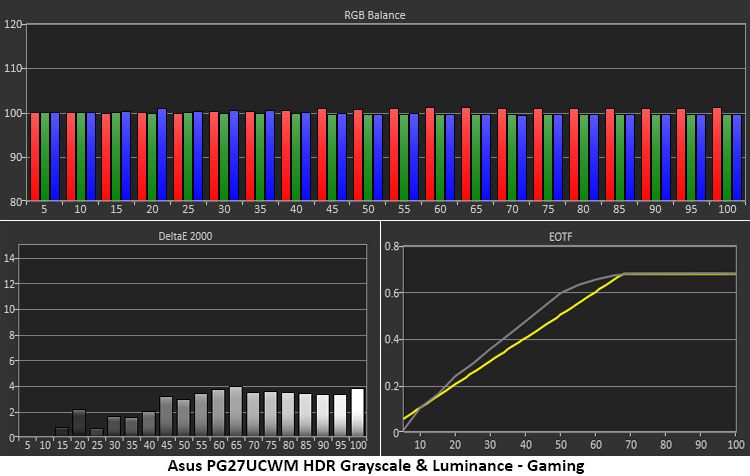
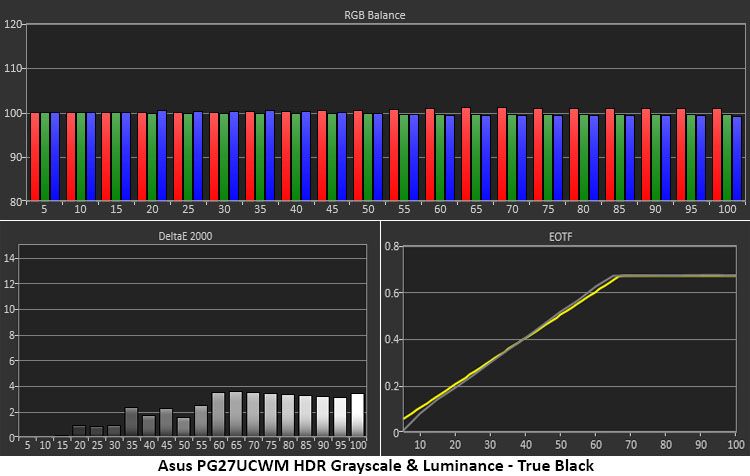
The first two charts illustrate the difference between Gaming and True Black modes. Gaming is a little brighter, not only because it peaks higher, but also because it rides above the EOTF reference. This gives the image a little more impact but also a little less texture. The difference is small and will come down to user preference. For games with bright scenery and color, I preferred Gaming HDR. But more subdued tones benefitted from True Black and its deeper shadows. Either way, you get excellent grayscale accuracy.

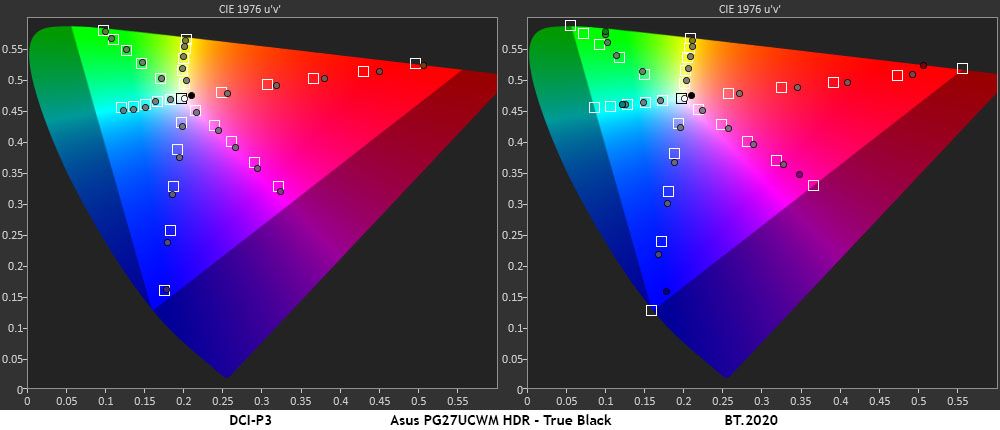
In the HDR color tests, the PG27UCWM makes full use of its large gamut in all content. The DCI-P3 is fully covered with a little extra verve in red, magenta, and blue. By emphasizing the warmer tones, it gives the picture more punch without becoming unnatural. This is an approach shared by many HDR monitors, LCD and OLED. In the BT.2020 test, the PG27UCWM runs out of color at 90% red, 75% green, and 95% blue, which is comparable to many Quantum Dot screens.

Test Takeaway: The PG27UCWM delivers a lot of HDR impact and is a little brighter than its predecessor and the other 27-inch 4K OLEDs I’ve tested. It has excellent grayscale and color accuracy in either Gaming or True Black modes. For the best luminance tracking choose True Black and for the brightest image, choose Gaming. Either way, it renders HDR content beautifully.

MORE: Best Gaming Monitors

MORE: How We Test PC Monitors

MORE: How to Buy a PC Monitor

Though OLED prices in general have crept downwards, it is still a premium category. New panel variants keep the technology moving forward and create more choices for buyers. It’s also a product category that embodies the concept that you never regret buying the best. With stunning images, bold color, and lightning-fast reflexes, OLEDs are the go-to display for gamers of all skill levels.

Asus ROG Swift PG27UCWM

(Image credit: Asus)

Asus has remained at the forefront of OLED technology by being early out of the gate with each new panel tech. It has fully embraced Tandem RGB Stripe with the ROG Swift PG27UCWM. Though relatively expensive for a 27-inch monitor, it is richly featured and capable of truly addictive gameplay. With 240 Hz in 4K and 480 Hz in Full HD, it can pair well with just about any gaming system from console to bleeding-edge PC. In my tests, it proved faster than all the other 27-inch 4K OLEDs I’ve reviewed.

Asus ROG Swift PG27UCWM

(Image credit: Tom's Hardware)

Tandem RGB Stripe also delivers a visible improvement in sharpness. OLEDs were sharp already, but I could easily see the difference when comparing the PG27UCWM to a single-layer monitor. Color is also a highlight here. Though a Quantum Dot screen will get you a little more color volume, the PG27UCWM is still in the mix at over 102% DCI-P3 coverage. And its HDR prowess is substantial with the addition of Dolby Vision.

If you have the budget, currently $1,099, for a premium 27-inch OLED gaming monitor, the Asus ROG Swift PG27UCWM is sitting nicely atop the performance heap. Gamers looking for a premium experience should definitely check it out.

MORE: Best Gaming Monitors

MORE: How We Test PC Monitors

MORE: How to Buy a PC Monitor
❌