普通视图

发现新文章,点击刷新页面。
昨天 — 2026年9月20日首页

Dell Pro 7 Webcam 4K Review: Sounds surprisingly great

2026年9月20日 23:11

The best webcams are getting smaller, cheaper, and faster, apparently — Dell's newest premium webcam is a 4K webcam that streams video at a maximum resolution of 4K / 60fps, which is definitely a faster and smoother frame rate than your typical Dell webcam buyer needs. There's not much you can really do with those numbers if you're not a content creator — and especially not in a professional setting, as most video conferencing apps limit your outgoing stream to 1080p or lower.

Luckily, the Dell Pro 7 has more than just smooth, high-res video going for it — it also features Windows Hello compatibility, presence detection, smart image enhancements, and built-in dual beam-forming mics that might be the first built-in webcam mics we can actually recommend. At $199.99, it's priced right alongside 4K webcams such as the Logitech MX Brio and the Insta360 Link 2 4K, which means it has some pretty tough competition.

Design

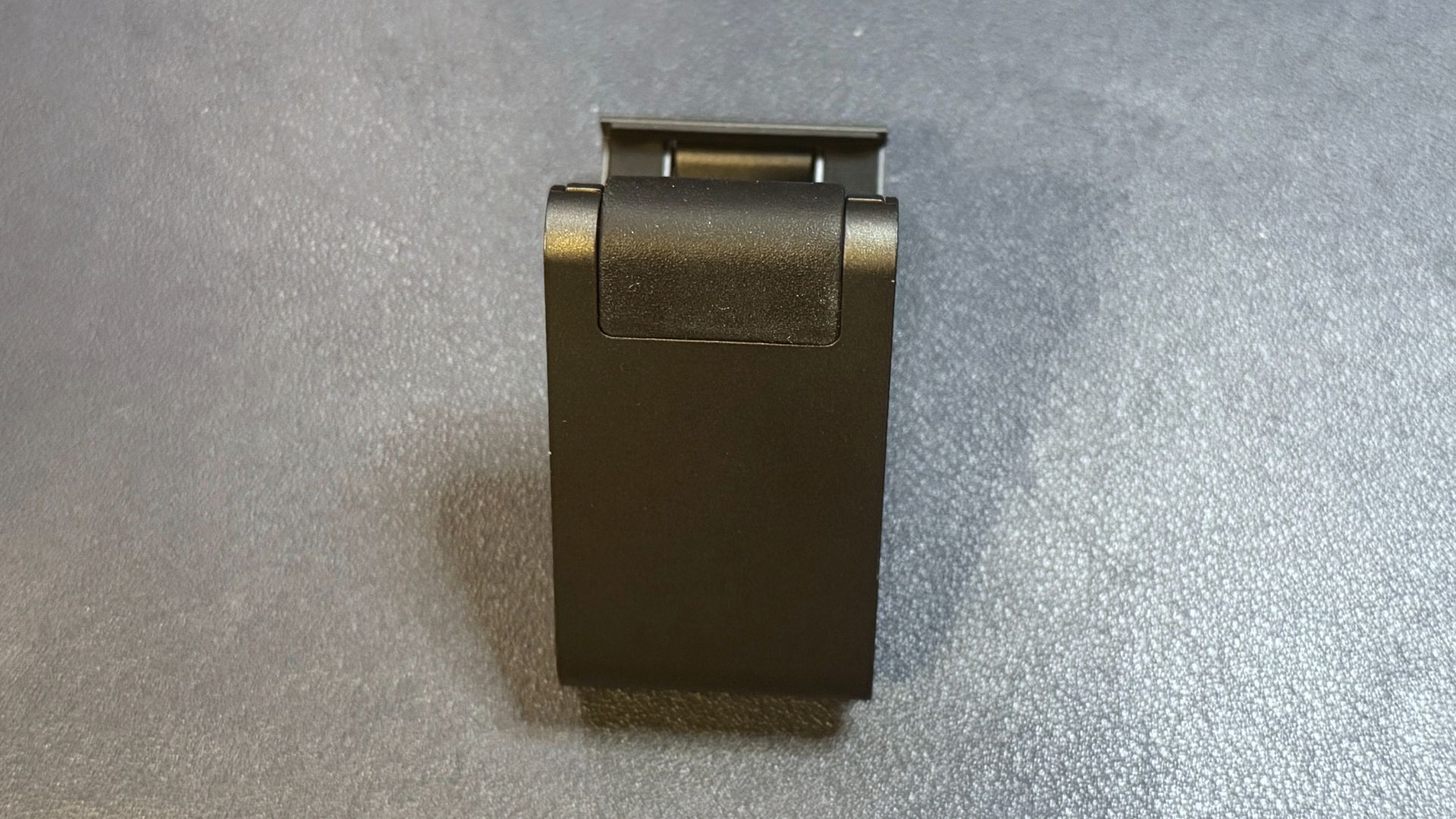
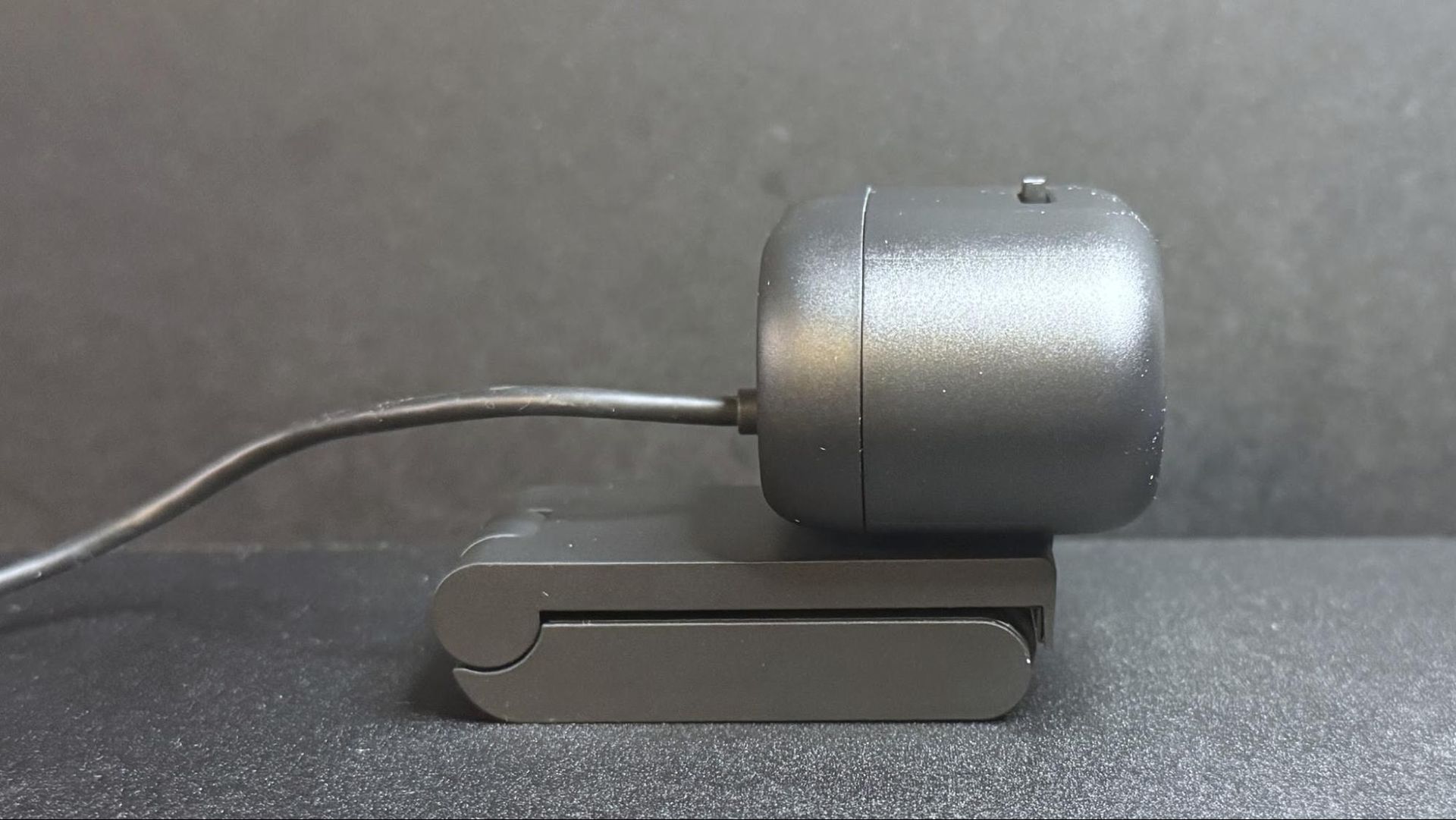
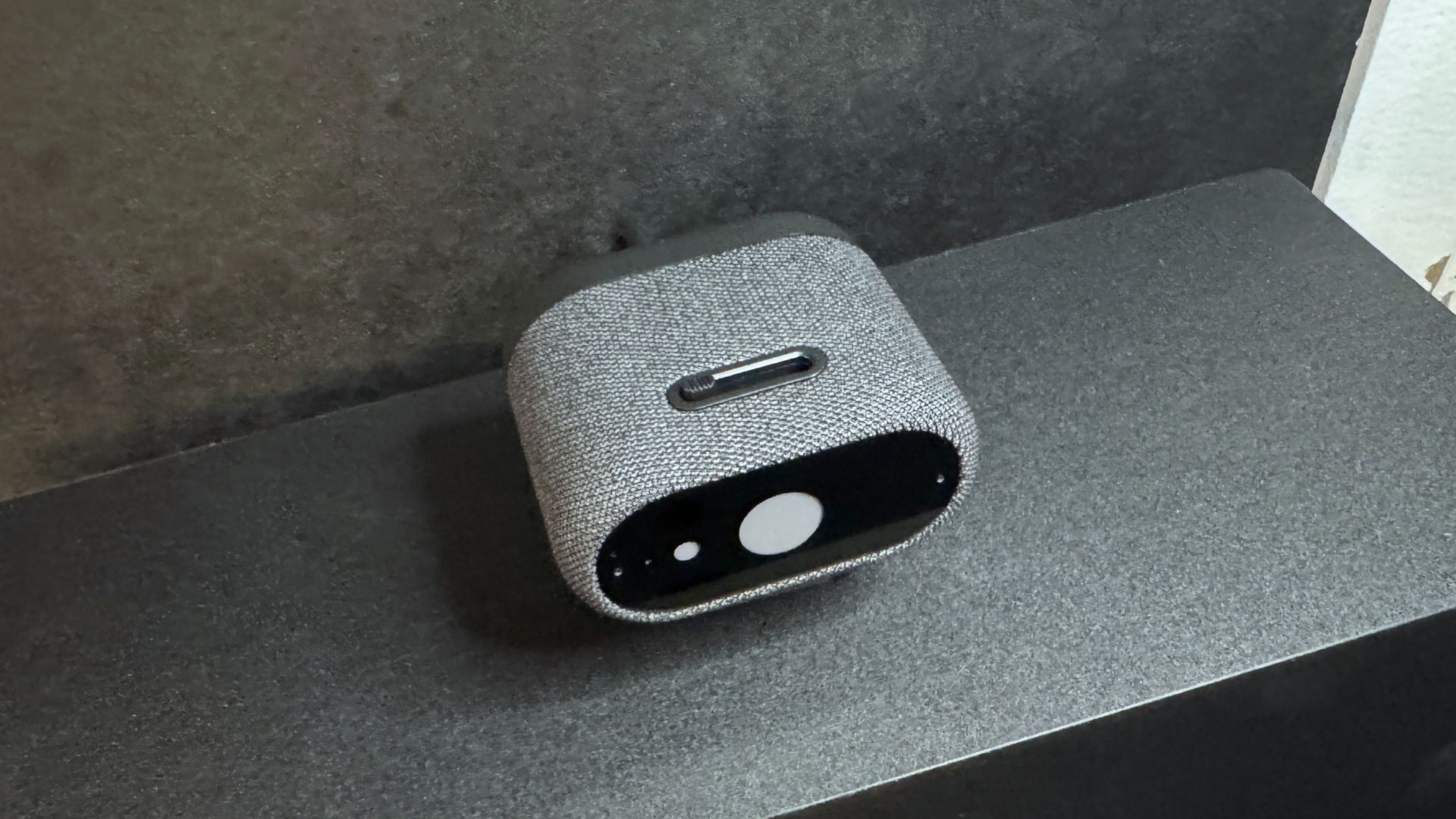
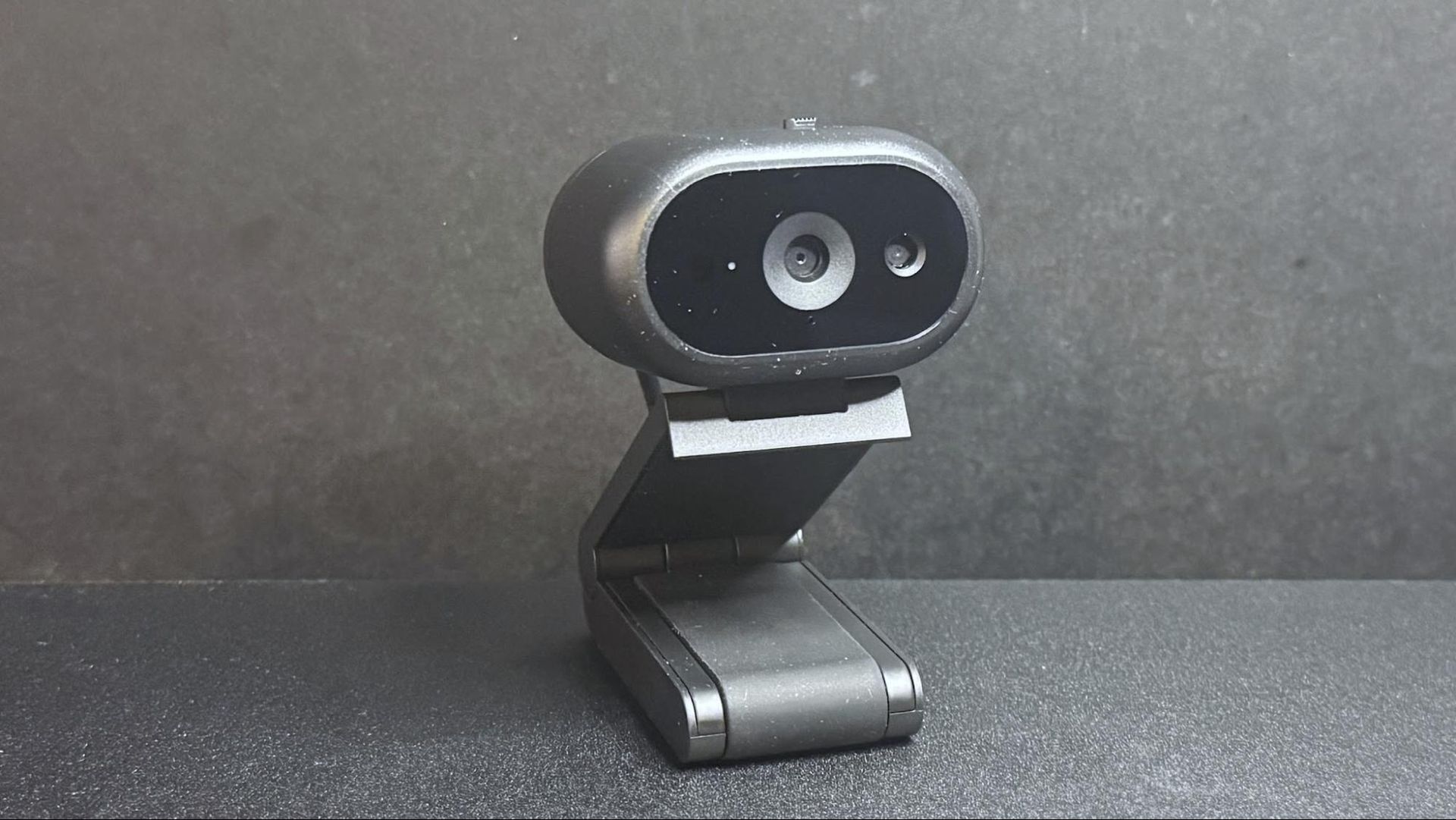
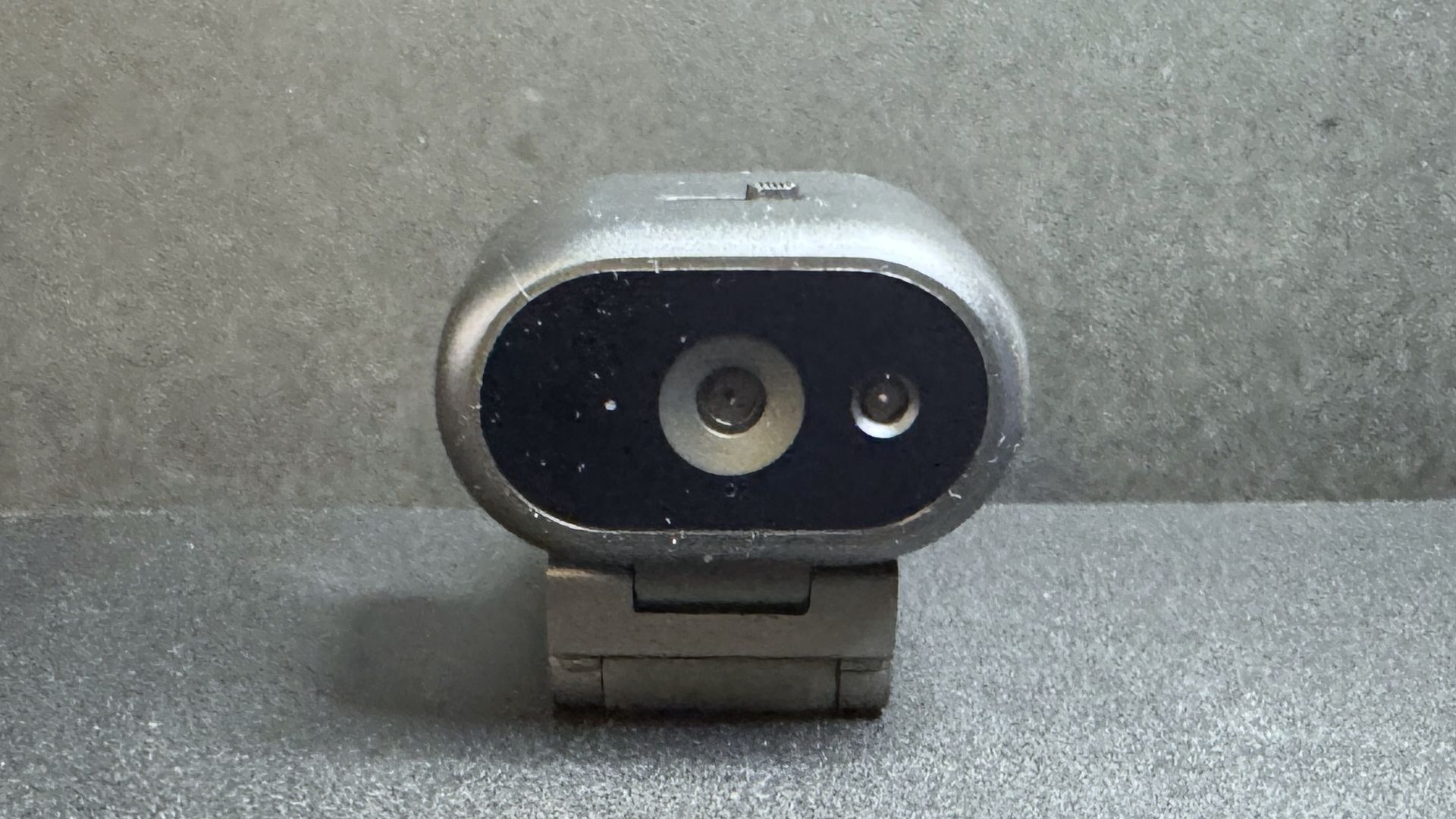
The Dell Pro 7 webcam is a 4K / 60fps webcam with a solid, sturdy fabric-covered chassis and a glass lens cover. It features a large Sony STARVIS CMOS sensor, an auto-focus lens, 4x digital zoom, and it has a maximum aperture of f/2.0. It has a built-in physical privacy shutter and comes with a detachable USB-C cable and monitor mount.
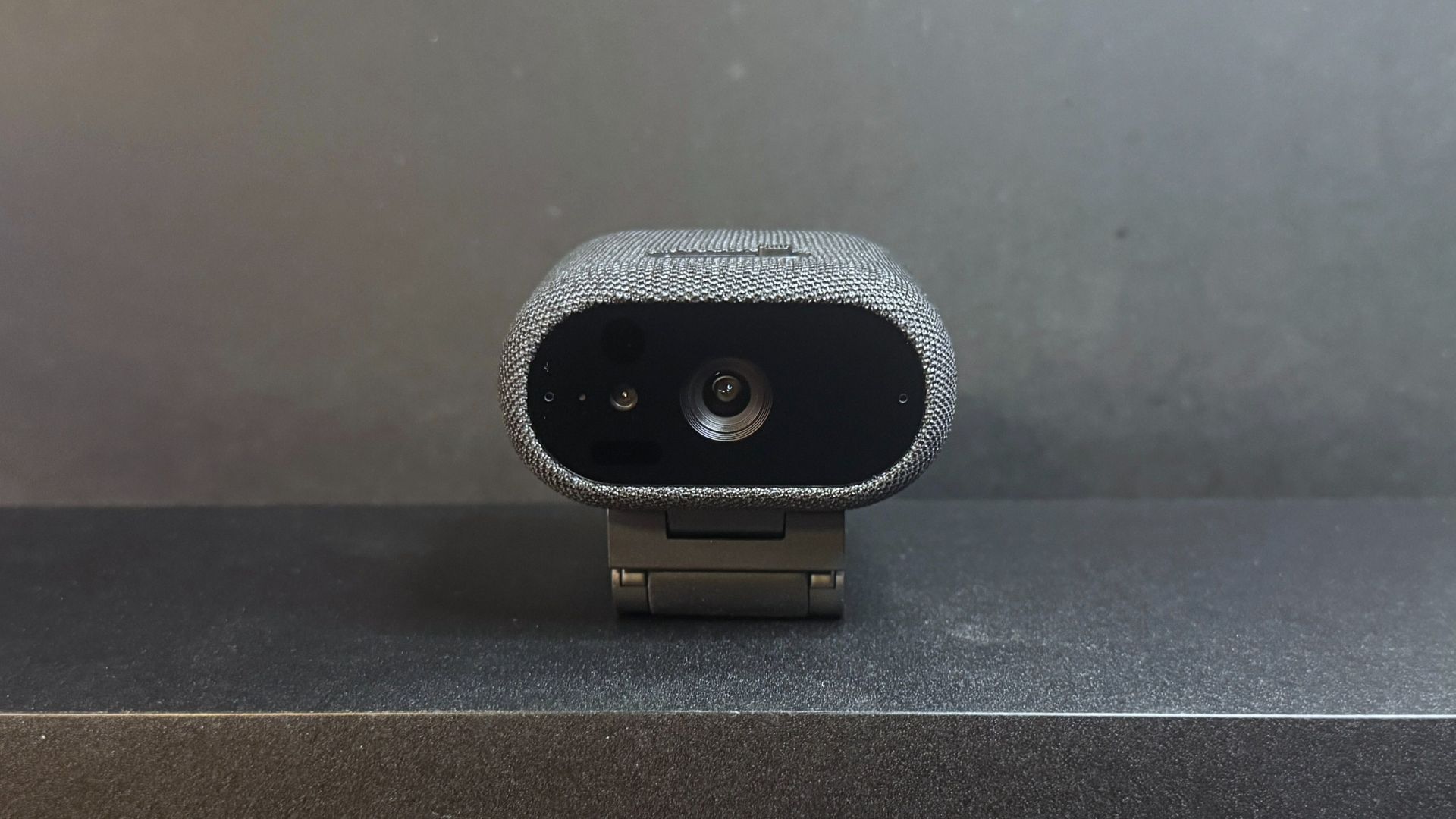
Dell Pro 7 Webcam 4K

(Image credit: Tom's Hardware)

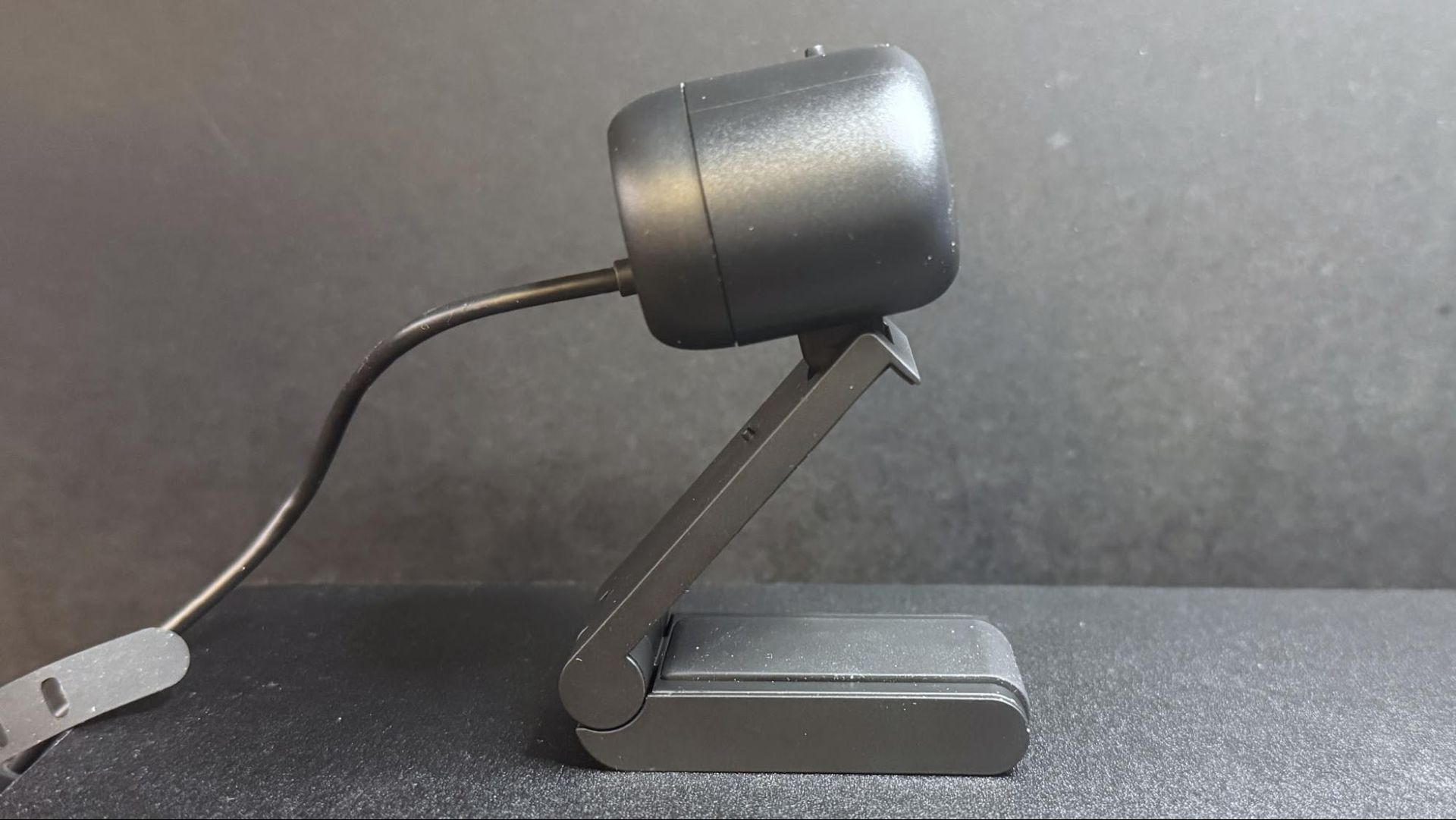
The Dell Pro 7 is similar in design to the cheaper Dell Pro 5 Webcam 2K — it features the same low-profile oval-shaped body, though the Dell Pro 7 is quite a bit larger and heavier than the Dell Pro 5. The Dell Pro 7 measures approximately 2.6 inches (66mm) deep by 2.1 inches (53.3mm) wide, and is about 1.4 inches (35.6mm) tall. This is the same height as the Dell Pro 5, though the Dell Pro 7 is both deeper and wider than its cheaper sibling. It's also heavier — Dell lists its weight at 8.48 ounces (240.4g), but that includes the mount. However the webcam alone still weighs around 3.46 ounces (98g). By comparison, the Dell Pro 5 weighs 7.41 ounces (210g) including its mount, and weighs 2.57 ounces (73g) without it (but including the cable, which is not detachable).
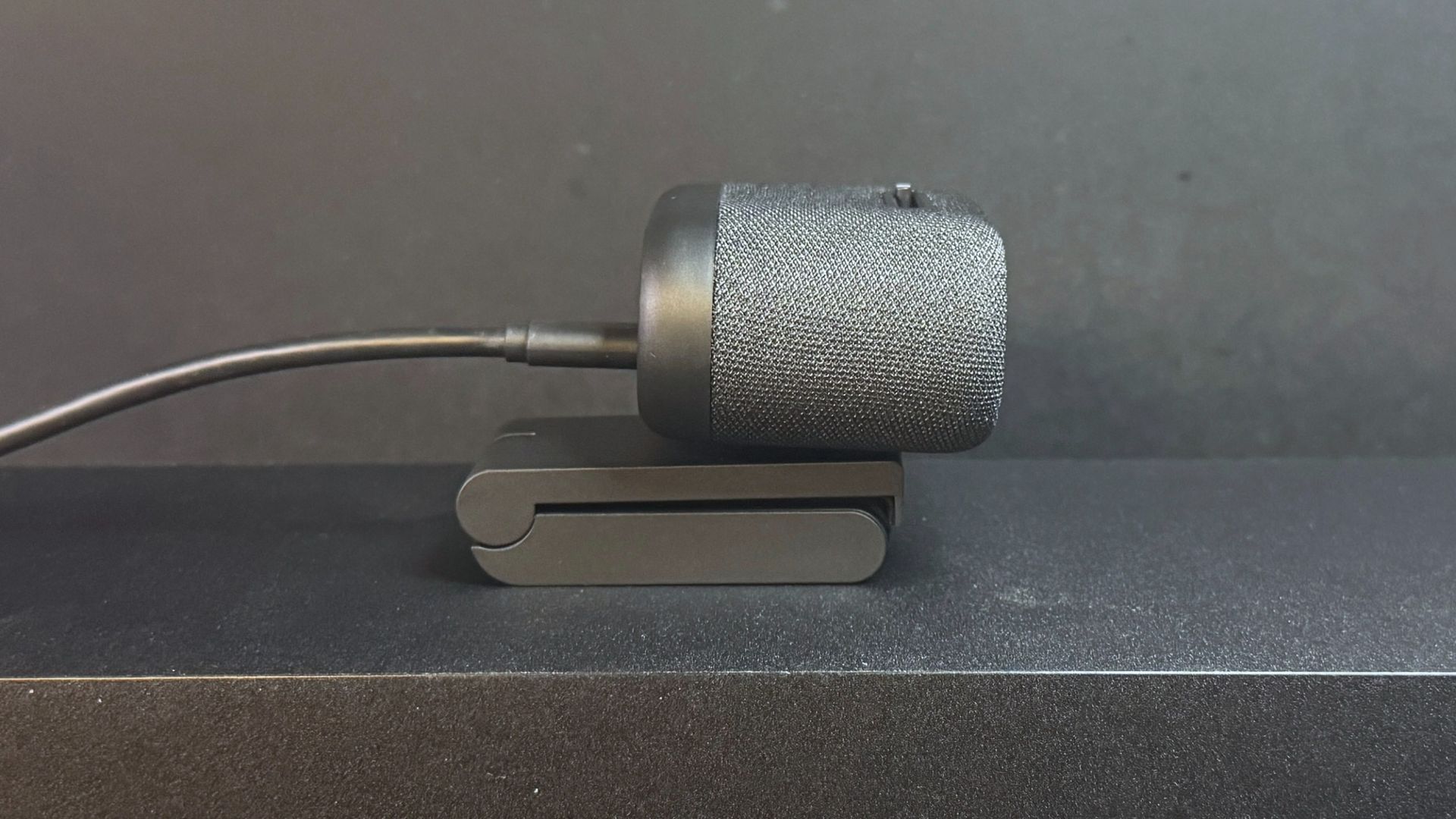
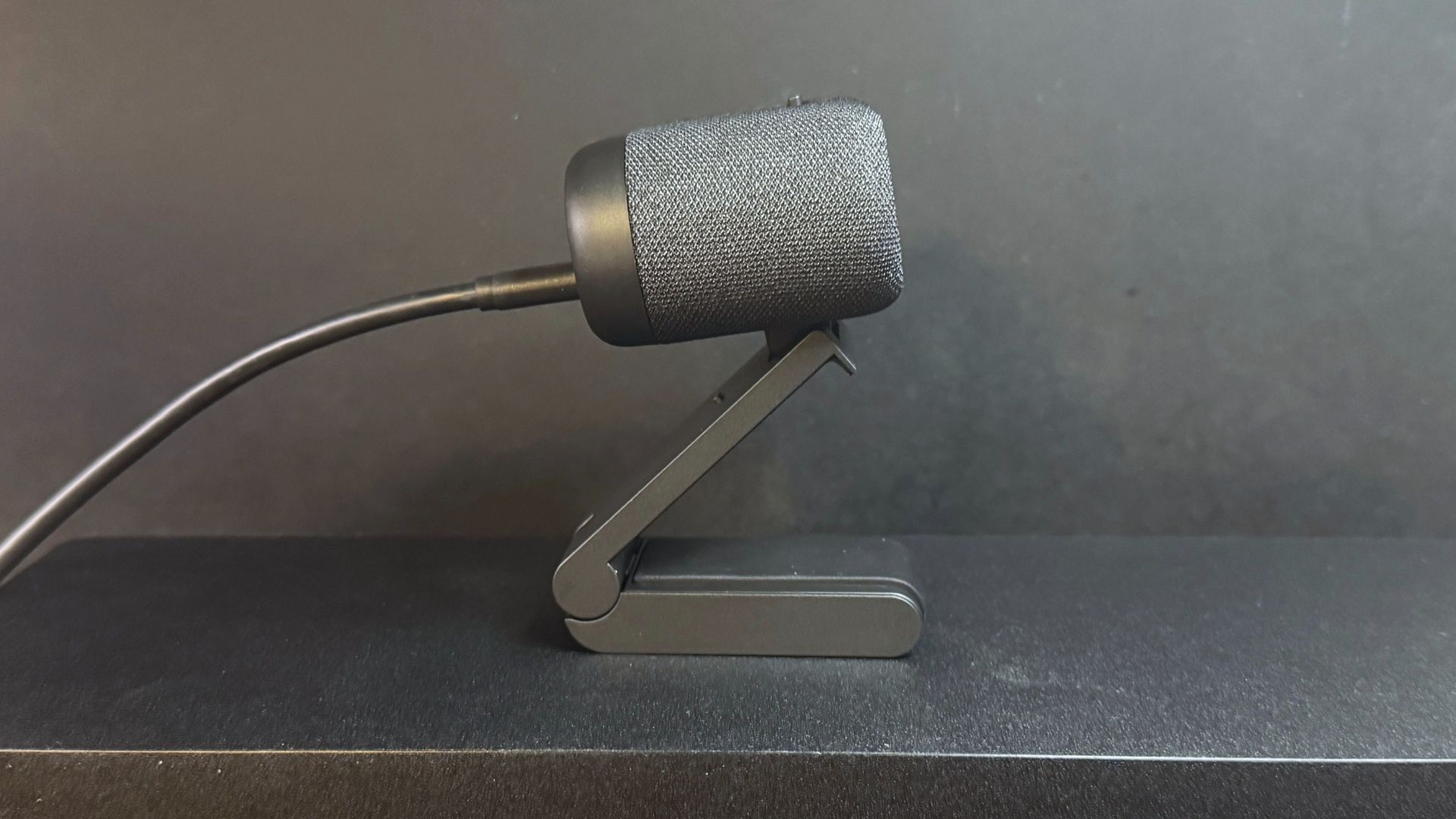
Dell Pro 7 Webcam 4K
Tom's Hardware
Dell Pro 7 Webcam 4K
Tom's Hardware

It is heavier than the Dell Pro 5, but it's not unusually heavy for a premium 4K webcam. The Razer Kiyo Pro Ultra, for example, weighs about 6.28 ounces (178g) alone, and that jumps up to 11.89 ounces (337.08g) when you include the mount. The Logitech MX Brio weighs just 4.83 ounces (137g) alone, but it weighs 11.04 ounces (313g) with its mount. And the Dell Pro 7 is also quite a bit smaller than its competition — I especially like how relatively low-profile it is at 1.4 inches, which is less than half the height of the 3.01-inch (76.5mm) height of the Kiyo Pro Ultra.
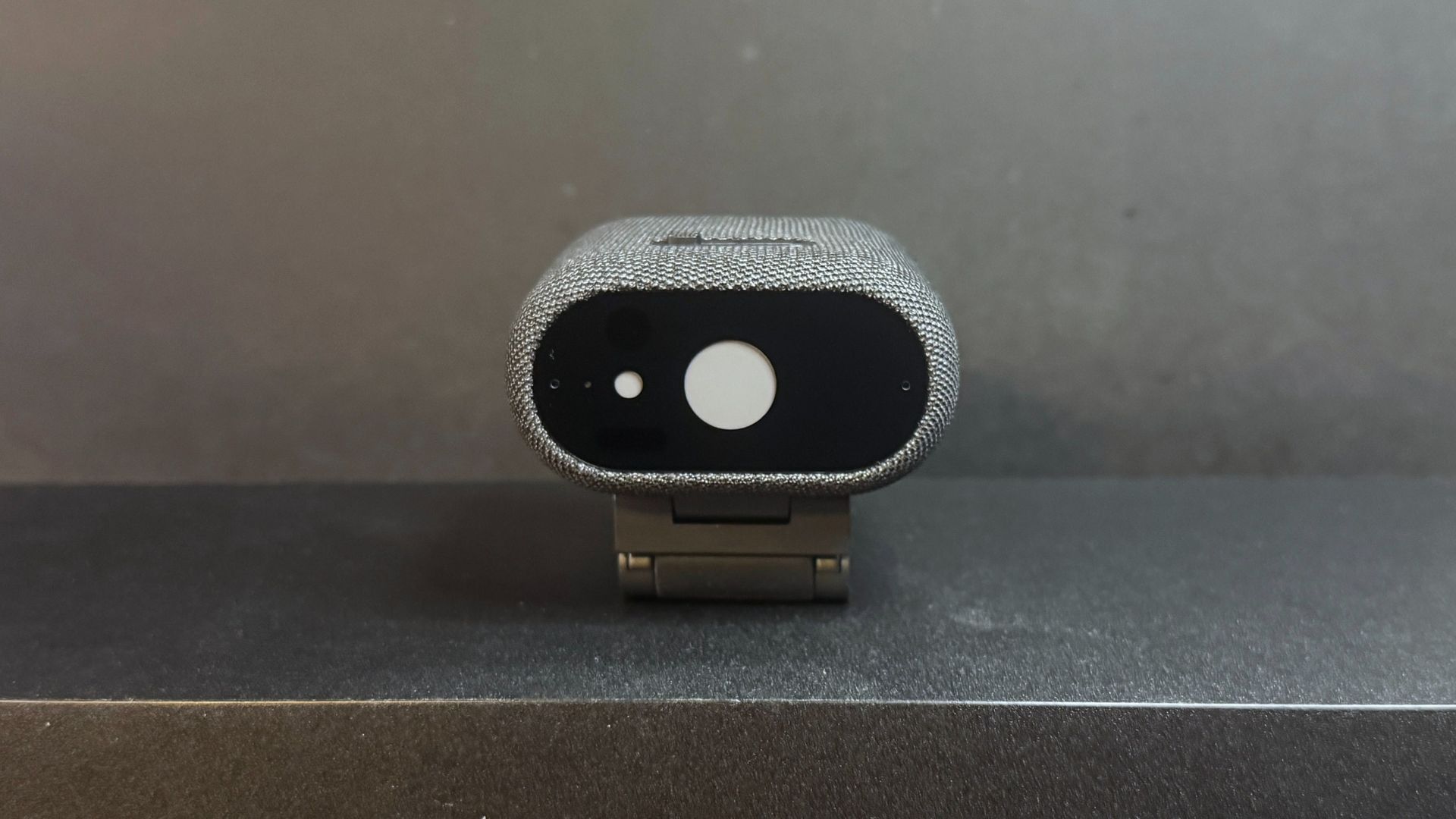
Dell Pro 7 Webcam 4K
Tom's Hardware
Dell Pro 7 Webcam 4K
Tom's Hardware

The Dell Pro 7 has a built-in physical shutter that you can close with a switch on top of the webcam. It looks just like the built-in physical privacy shutter on the Dell Pro 5, but it has a built-in spring-loaded mechanism so it snaps into place when you slide the switch. (The Dell Pro 5 doesn't have this mechanism — you need to manually slide it all the way.) The spring-loaded mechanism definitely made it feel more premium than the Dell Pro 5, but it still needed to be pressed fairly hard to activate, which means you can't really use the shutter without messing up your frame.
Dell Pro 7 Webcam 4K
Tom's Hardware
Dell Pro 7 Webcam 4K
Tom's Hardware
Dell Pro 7 Webcam 4K
Tom's Hardware

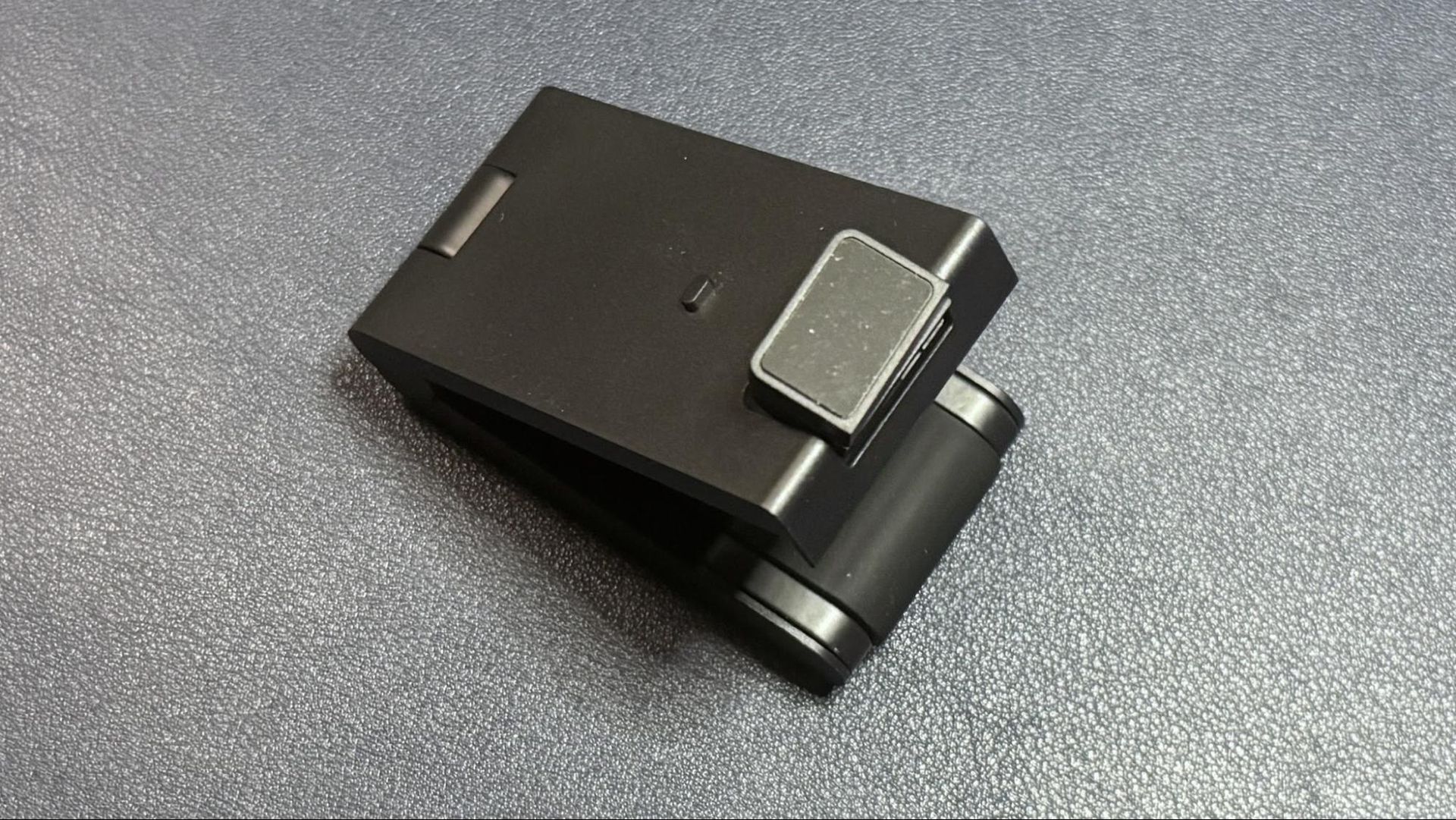
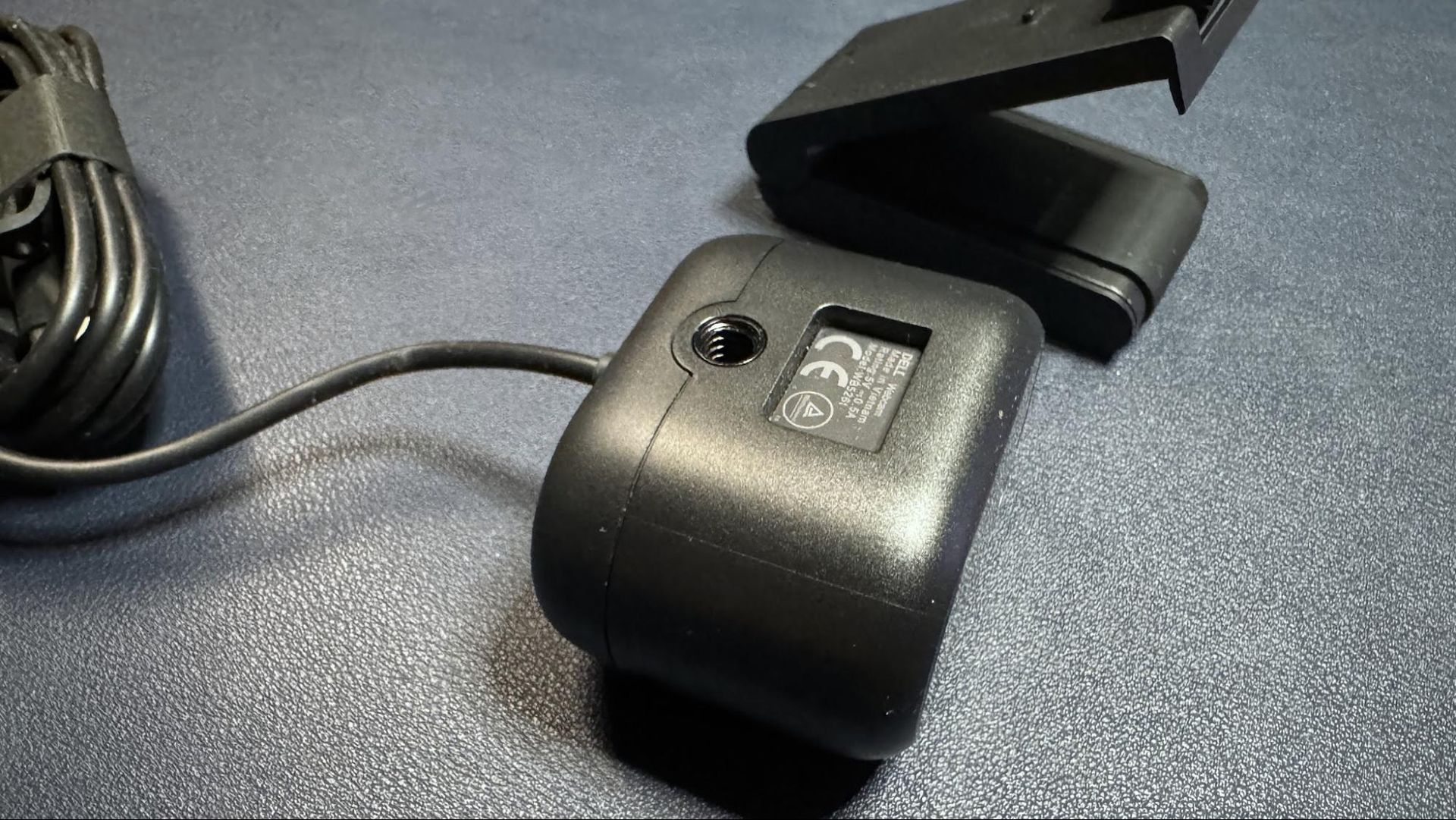
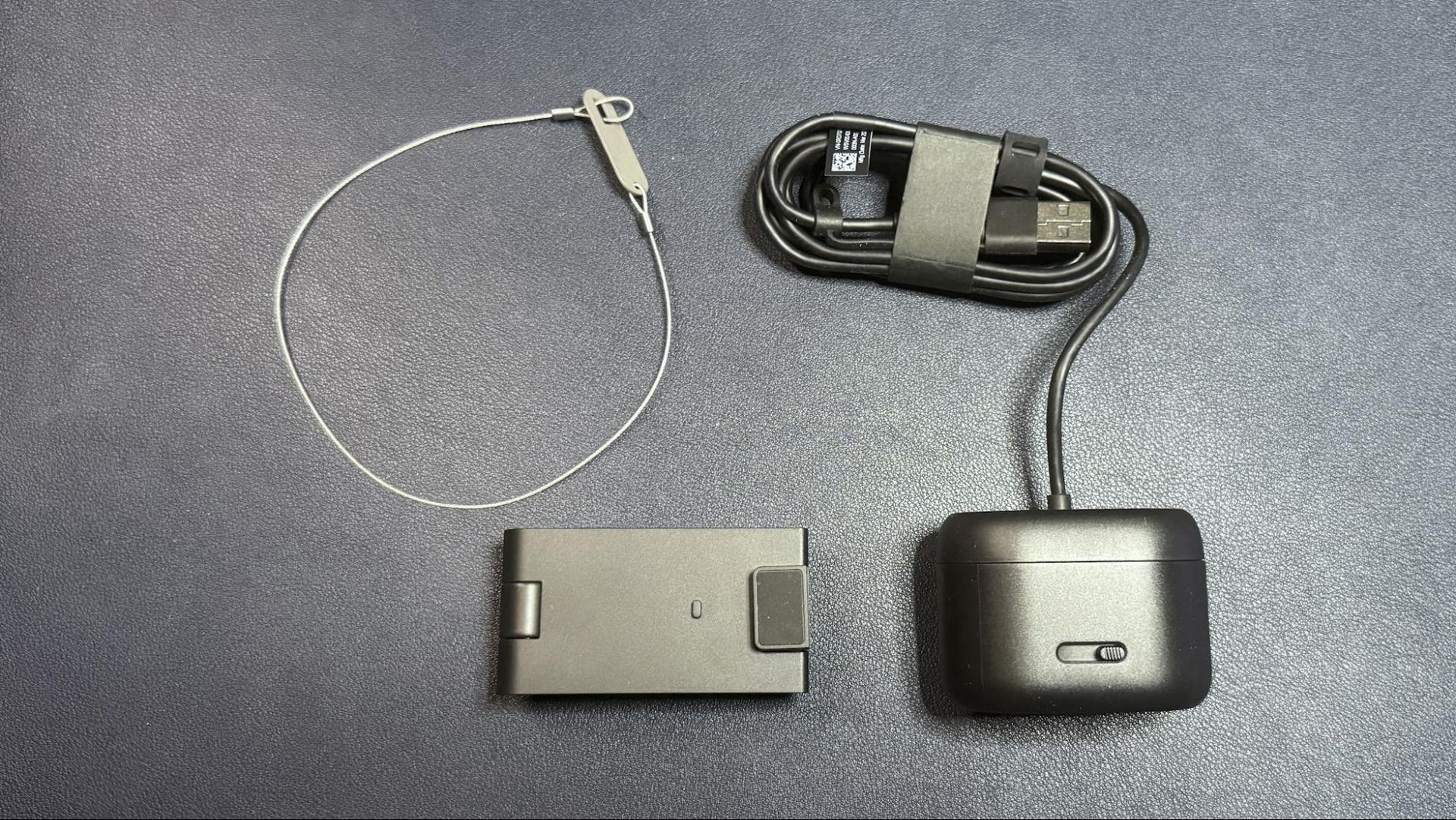
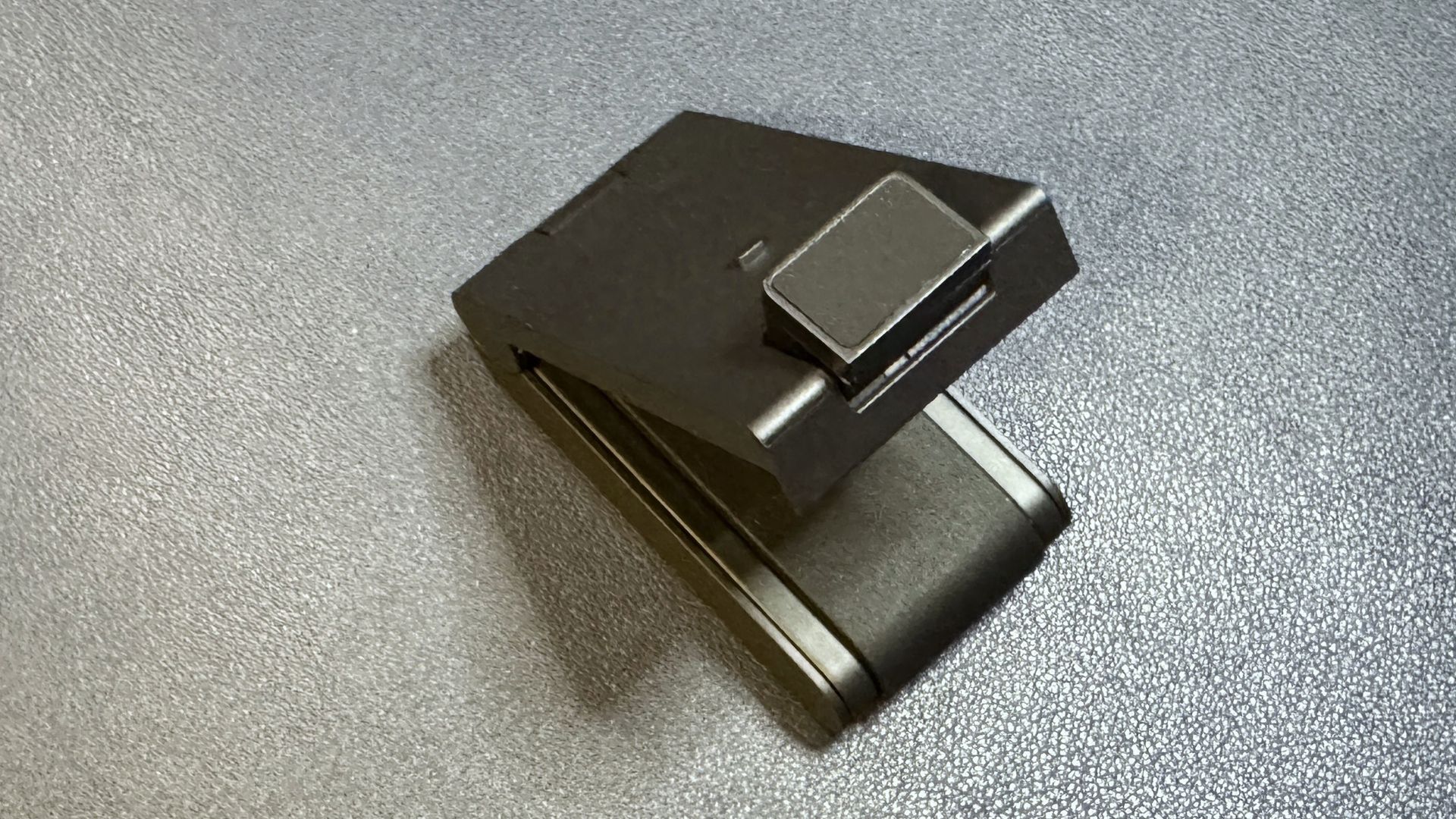
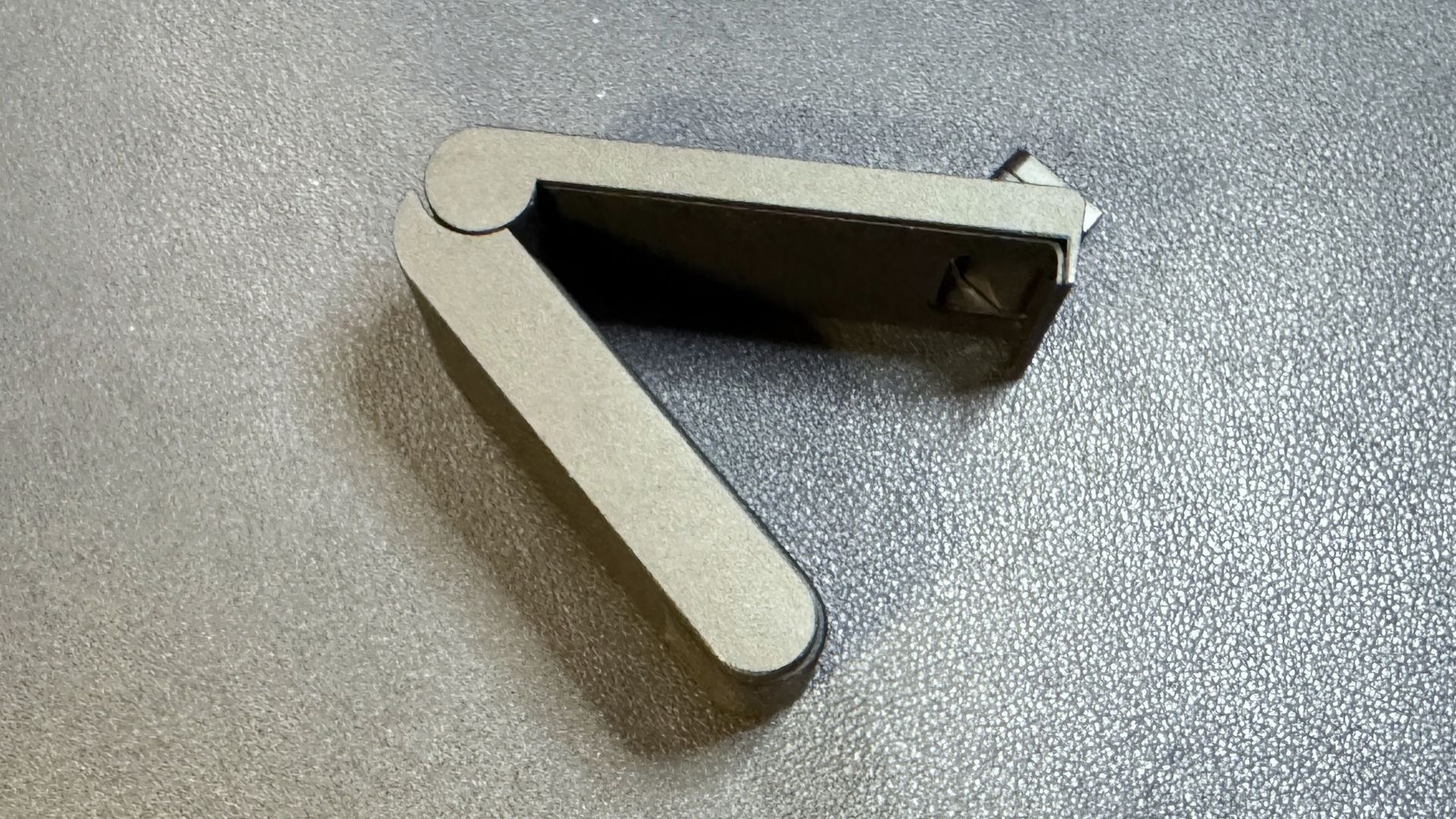
The Dell Pro 7 comes with a detachable monitor mount that attaches to the webcam via magnet. The mount is a pretty standard clamp-style monitor mount, with a lip at the front that hooks over your monitor and a rubber-coated adjustable "foot" that sits against the back of your monitor to stabilize the setup. The mount attaches to the Dell Pro 7 via a relatively stable magnetic attachment point, and the camera can tilt (approximately 90 degrees forward) and swivel while mounted. On the bottom of the webcam you'll also find a universal tripod attachment mounting point so you can use it with a tripod or a different, third-party mount. The mount itself does not have a tripod attachment point, which is a little disappointing as it means you'll be limited to the movement options of whatever third-party mount/tripod you're using.

The mount is hefty and stable, weighing about 4.83 ounces (137g). It's basically the exact same mount that comes with the Dell Pro 5, though it has a slightly textured rubber coating on its "foot," while the Dell Pro 5's mount features soft, smooth rubber. The weight and quality feel much more consistent with the build of the Dell Pro 7, however.
Dell Pro 7 Webcam 4K

(Image credit: Tom's Hardware)

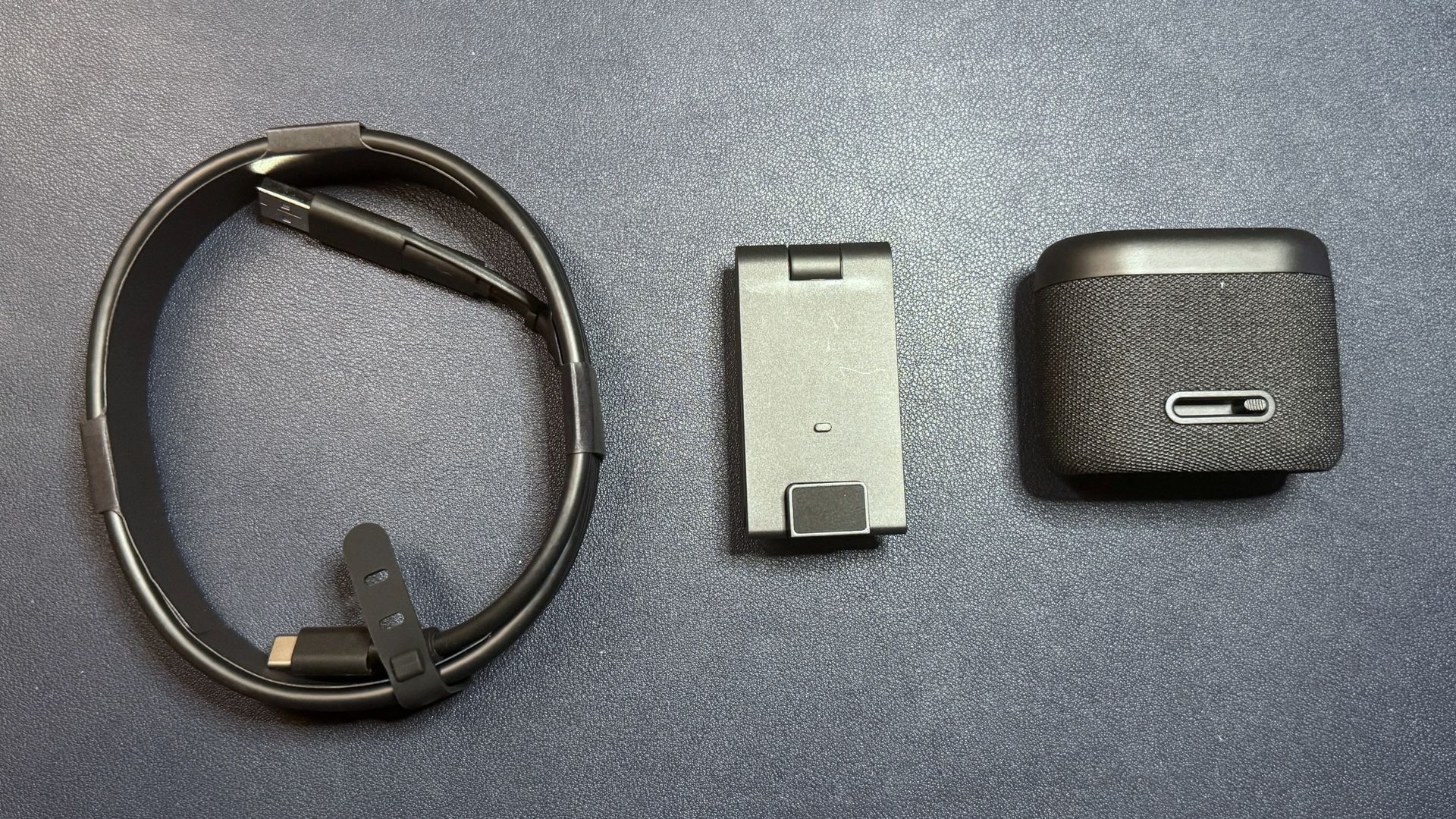
In the box, the Dell Pro 7 comes with a 6.5-foot (2m) heavy-duty USB-C to USB-C cable (USB 3.0) with a built-in USB-C to USB-A converter, the detachable monitor mount, and the webcam itself. The cable is definitely very thick and sturdy — a little too thick and sturdy, as bumping it kept displacing the webcam. The built-in USB-C to USB-A adapter is a nice touch, though you will still need to plug it into a USB 3.0 port if you want to get the full 4K picture quality and use some of the "smart" features (such as the "smart" HDR).

Specs

Resolution FPS

4K / 30, 60fps; 1080p / 30, 60fps; 720p / 30, 60fps

Diagonal Field of View

90 degrees

Zoom

4x digital zoom

Autofocus

Yes

HDR

Yes

Microphone

Dual beam-forming mics

Connection

Wired (USB 3.0)

Mount

Universal clip

Dimensions

2.6 x 2.1 x 1.4 inches / 66 x 53.3 x 35.6mm

Weight

8.48oz / 240.4g (including mount)

Software

Dell

Special Features

Windows Hello, AI

MSRP / Price at Time of Review

$199.99

Release Date

June 11, 2026

Well-lit Performance

The Dell Pro 7 is a 4K webcam that records video in 4K, 1080p, and 720p resolution at both 60 and 30fps — which makes it somewhat rare, as most 4K webcams record a maximum of 4K / 30fps. Not that this matters for most users, as streaming and video chat platforms still generally limit outgoing streams to 1080p at most. Still, I guess it's worth noting if you're looking for a webcam that you can use to record action sequences on.

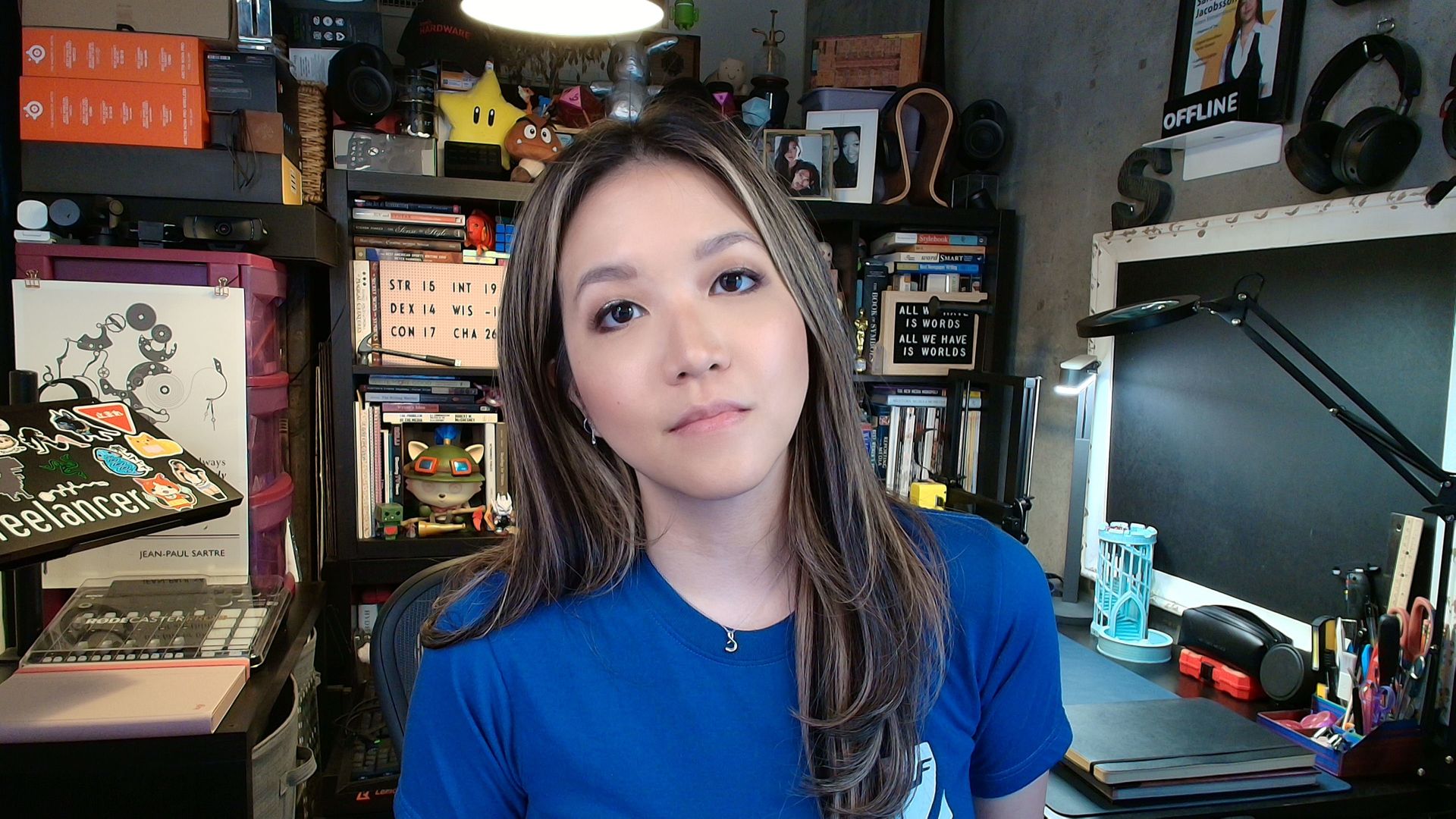
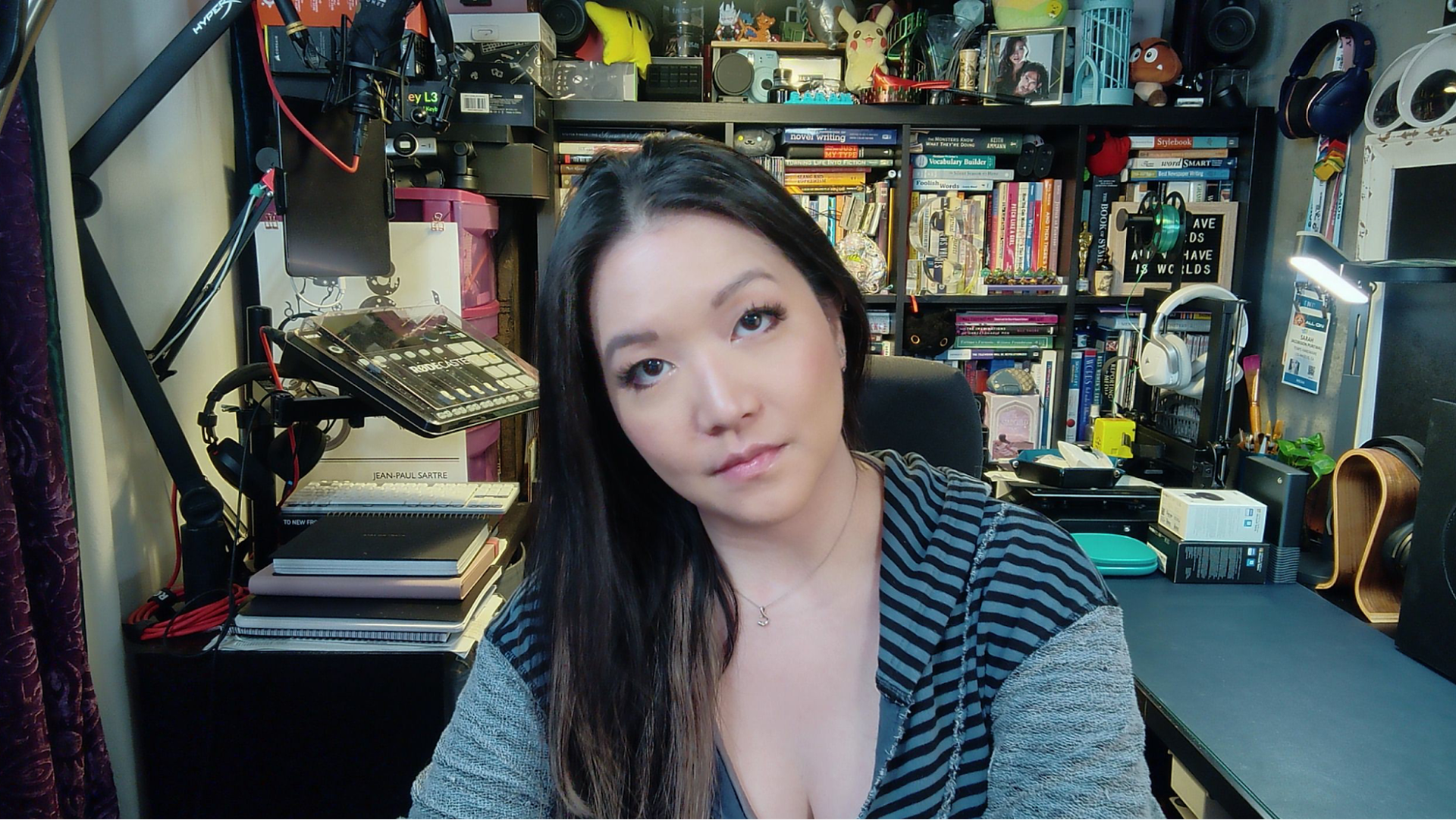
We started out by testing the Dell Pro 7's performance in what is basically an "ideal" (and very unrealistic) webcam lighting scenario. In this scenario there are two professional lights in front of me (behind my monitor set up): a ring light and a key light. I also have four monitors — three 27-inch monitors and one ultra-wide 34-inch monitor, plus some negligible ambient lighting from various peripherals (including my desk). There are two desk lamps behind me, as well as an arching floor lamp above me. All in all, this is an aggressively well-lit scenario (and a very unlikely one, unless you happen to be a professional content creator).
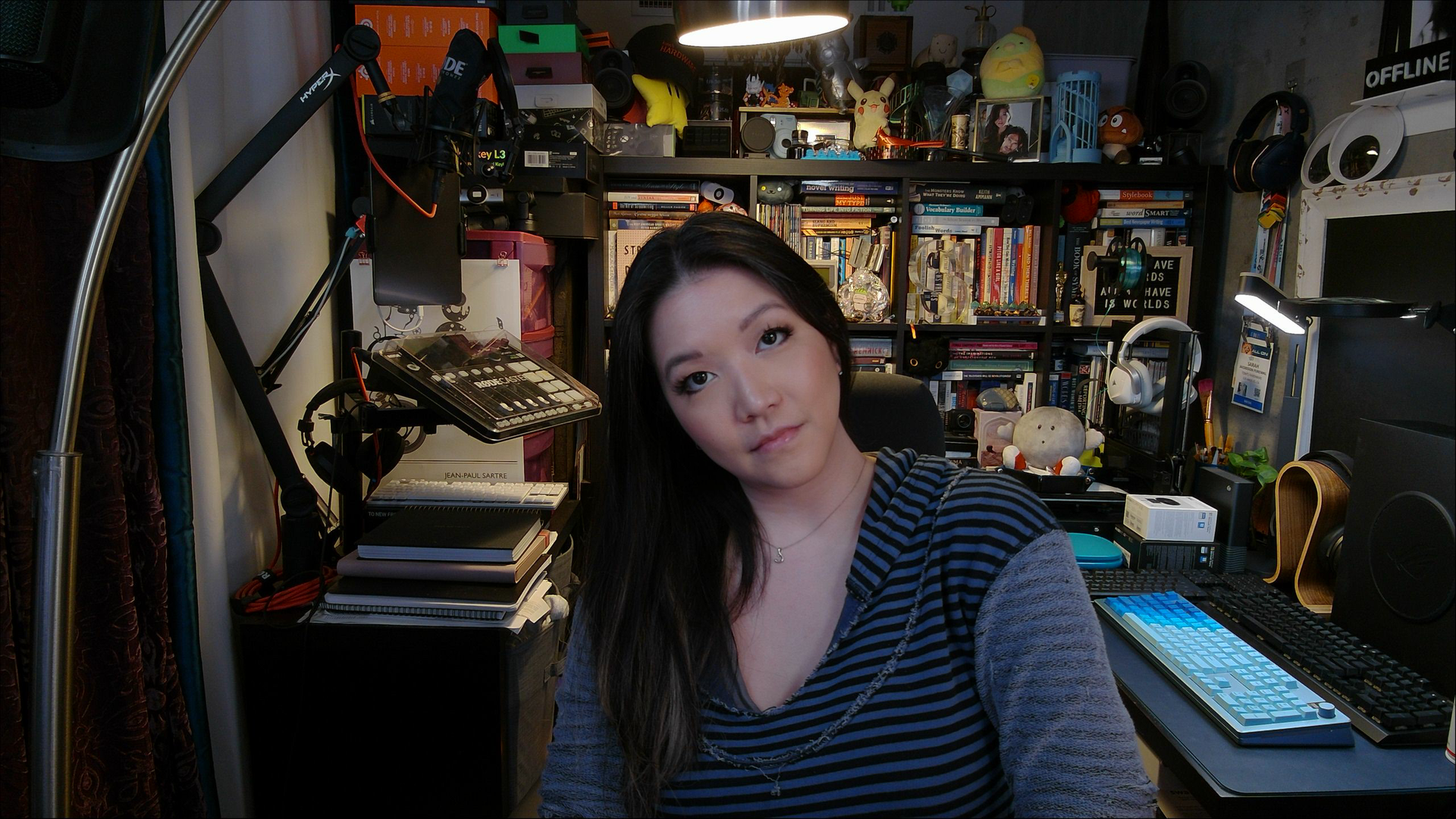
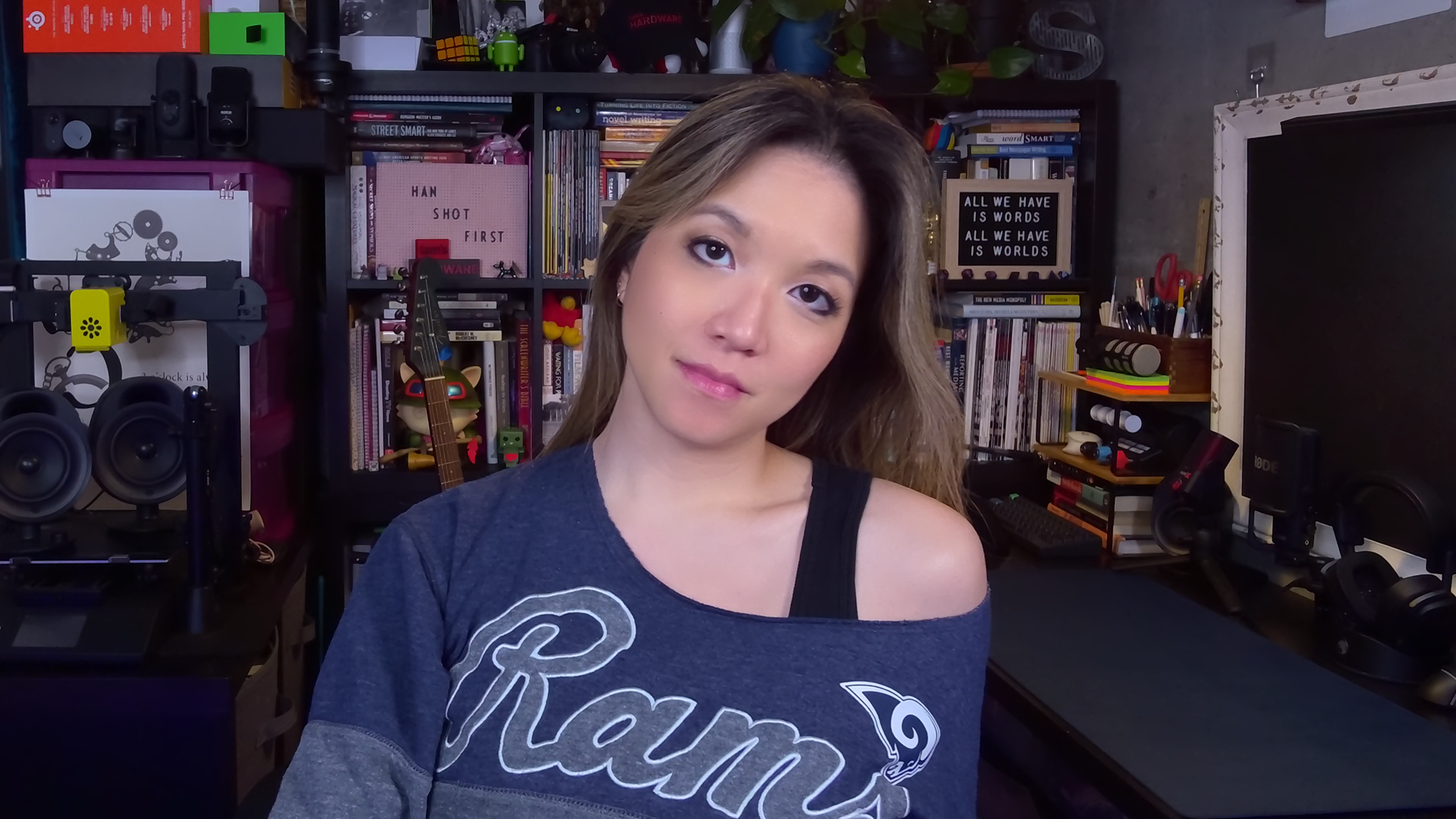
Dell Pro 7 Webcam 4K
Dell Pro 7Tom's Hardware
Elgato Facecam Pro
Elgato Facecam ProTom's Hardware
Logitech MX Brio
Logitech MX BrioTom's Hardware
Razer Kiyo Pro Ultra
Razer Kiyo Pro UltraTom's Hardware

The Dell Pro 7 looked very good in our well-lit scenario. It did a great job of reigning in its auto-exposure in response to the lighting, which is something even the best webcams usually have more trouble with. It managed to keep the scene pretty evenly lit, even as I moved around the room, while also keeping it from looking too evenly lit, i.e., flat and featureless. Its auto white balancing was okay, though it trended toward the cool end of the spectrum. Actually, the colors on this webcam always seemed to be just a little too cool, even with some tweaking in the software. Not the worst thing in the world, but it was frustrating that I couldn't get the color to where I wanted it with adjustments.

That said, while the Dell Pro 7 produced an objectively very good image overall, it didn't really stand out in any way aside from that. I suppose that's not a bad thing, especially for a webcam that's (maybe) slightly more aimed at the workplace, but it mostly made me think of all the other $200 4K webcams you can pick up instead of the Dell Pro 7. Also, while the webcam did a pretty solid job of capturing still photos, the auto-focus was a little slow — which sort of negates the benefit of a 4K / 60 fps capture rate.

Low-Light Performance

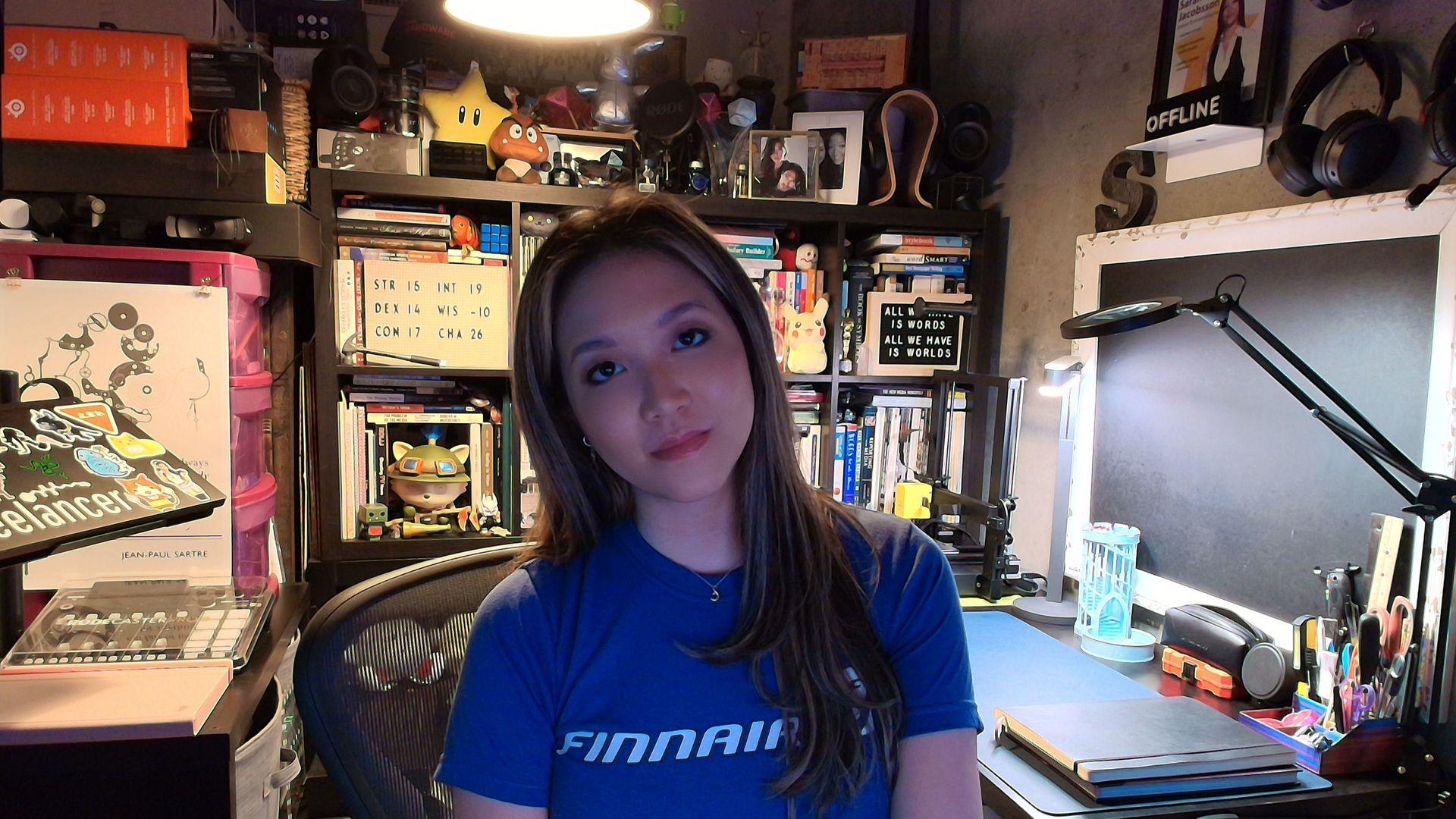
To test the webcam's low-light performance, I turned off all of the lights and all of my monitors except for one 27-inch monitor. For consistency, I opened the standard Google home page, which is mostly white, on one half of the monitor and the Windows 11 camera app on the other half. This scenario leaves me in complete darkness save for the light from one 27-inch monitor, which is still quite a bit more light than a laptop user would have if they were sitting in the dark.
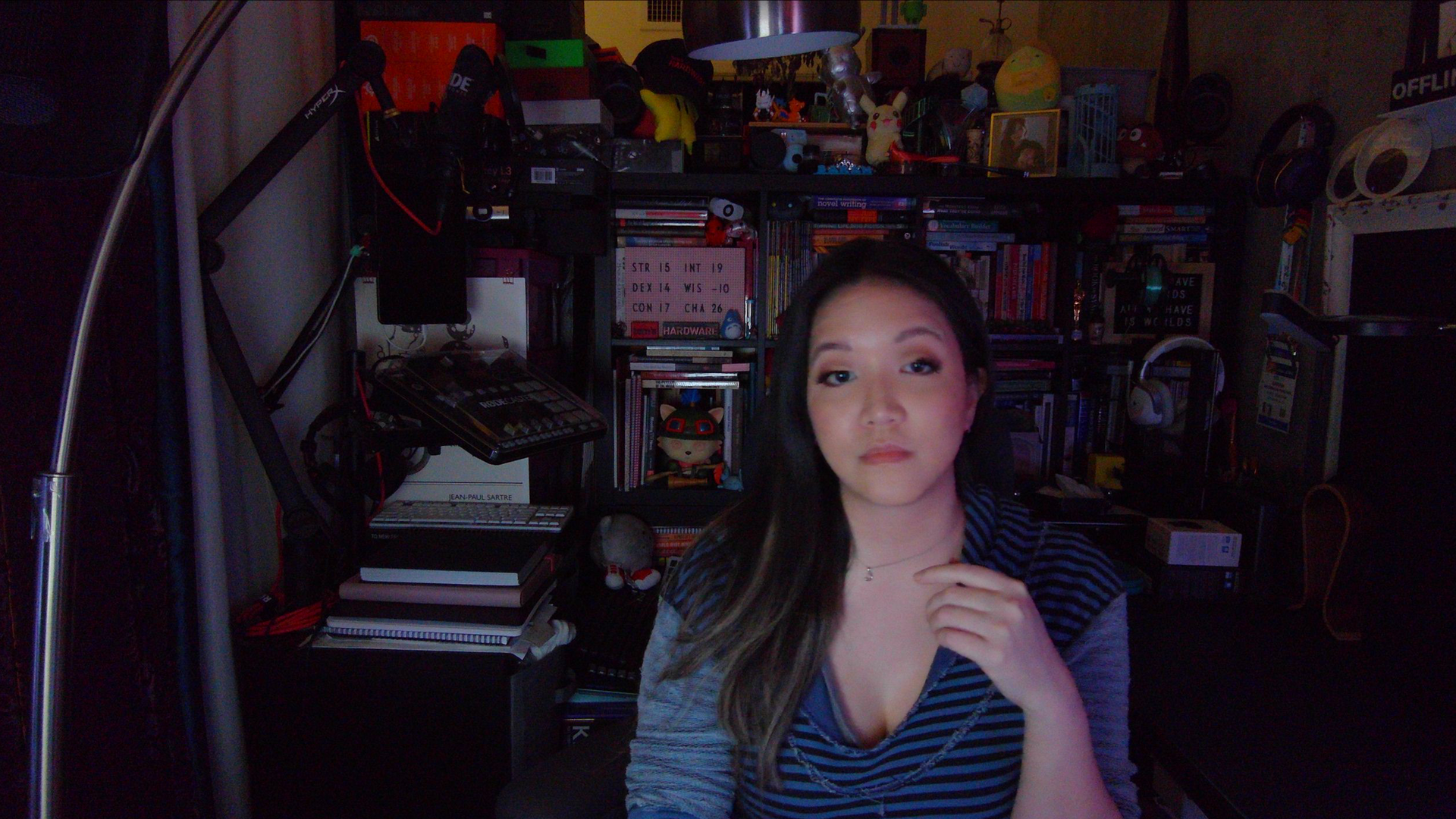

Dell Pro 7 Webcam 4K
Dell Pro 7Tom's Hardware
Elgato Facecam Pro
Elgato Facecam ProTom's Hardware
Logitech MX Brio
Logitech MX BrioTom's Hardware
Razer Kiyo Pro Ultra
Razer Kiyo Pro UltraTom's Hardware

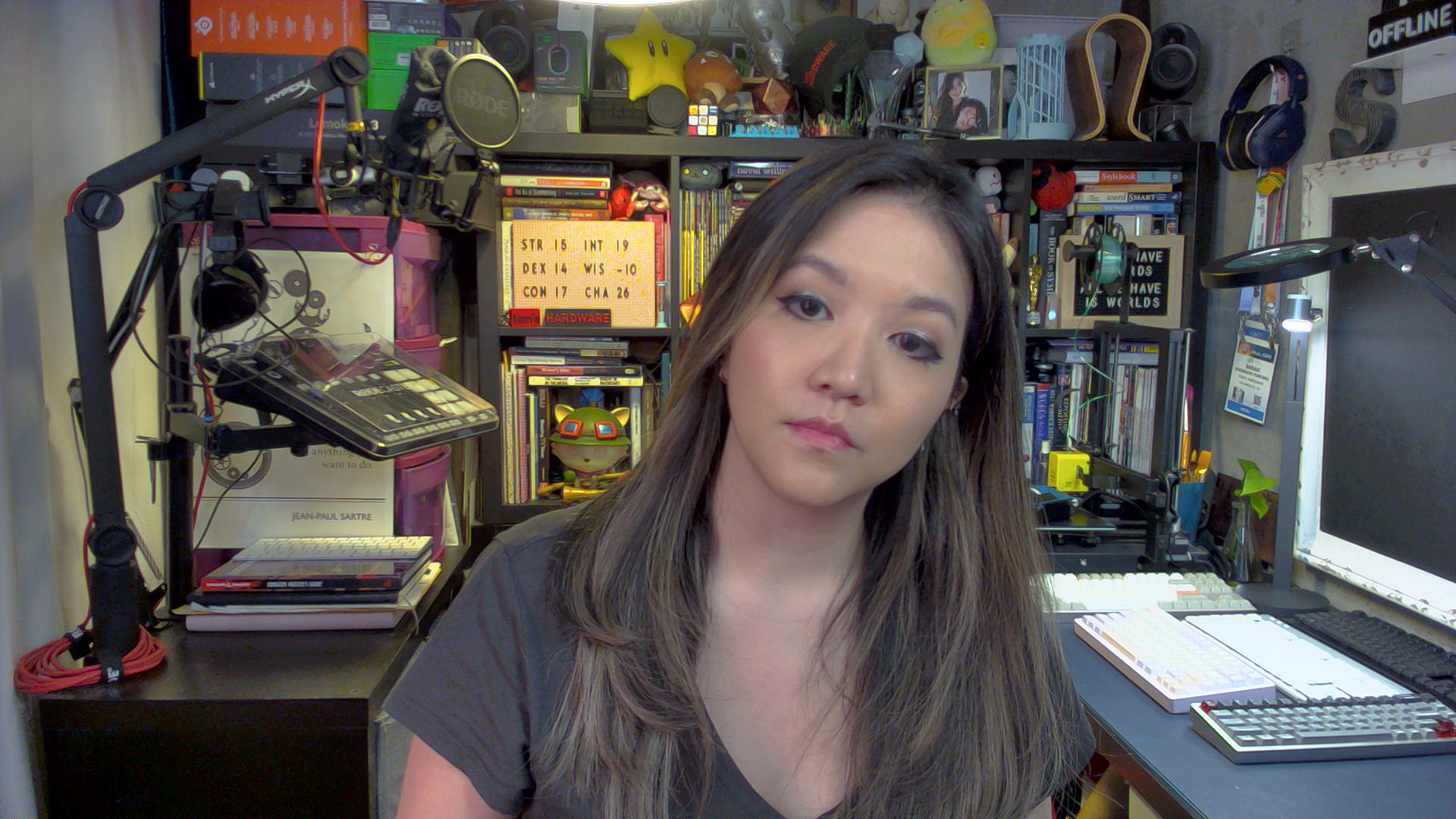
The Dell Pro 7 performed moderately well in our low-light scenario. It did an okay job of lighting the scene — the picture looked better than most older webcams, but that's about it (and that's not saying much). There was a lot of noise / graininess and artifacting, however, especially when I moved. And the autofocus had (unsurprisingly) even more trouble tracking me in the dark, and an evenly-lit blurry mess is still a blurry mess.

No webcam performs particularly well in low light, because sensor size is a major factor in low-light performance and webcams are... just not that big. But compared to other 4K webcams such as the Elgato Facecam Pro and the Logitech MX Brio, the Dell Pro 7 definitely comes in a little below average.

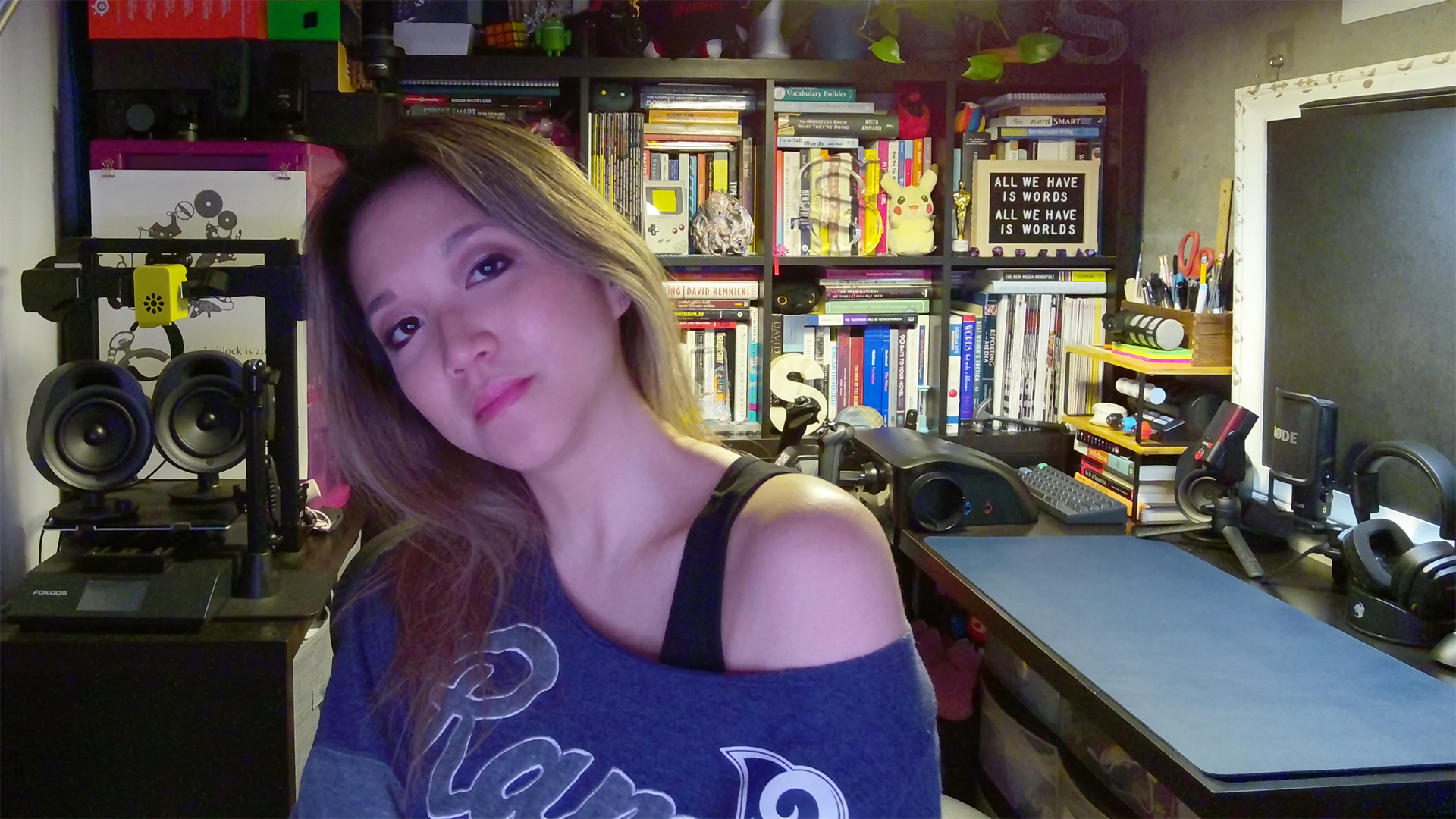
Overexposed Performance

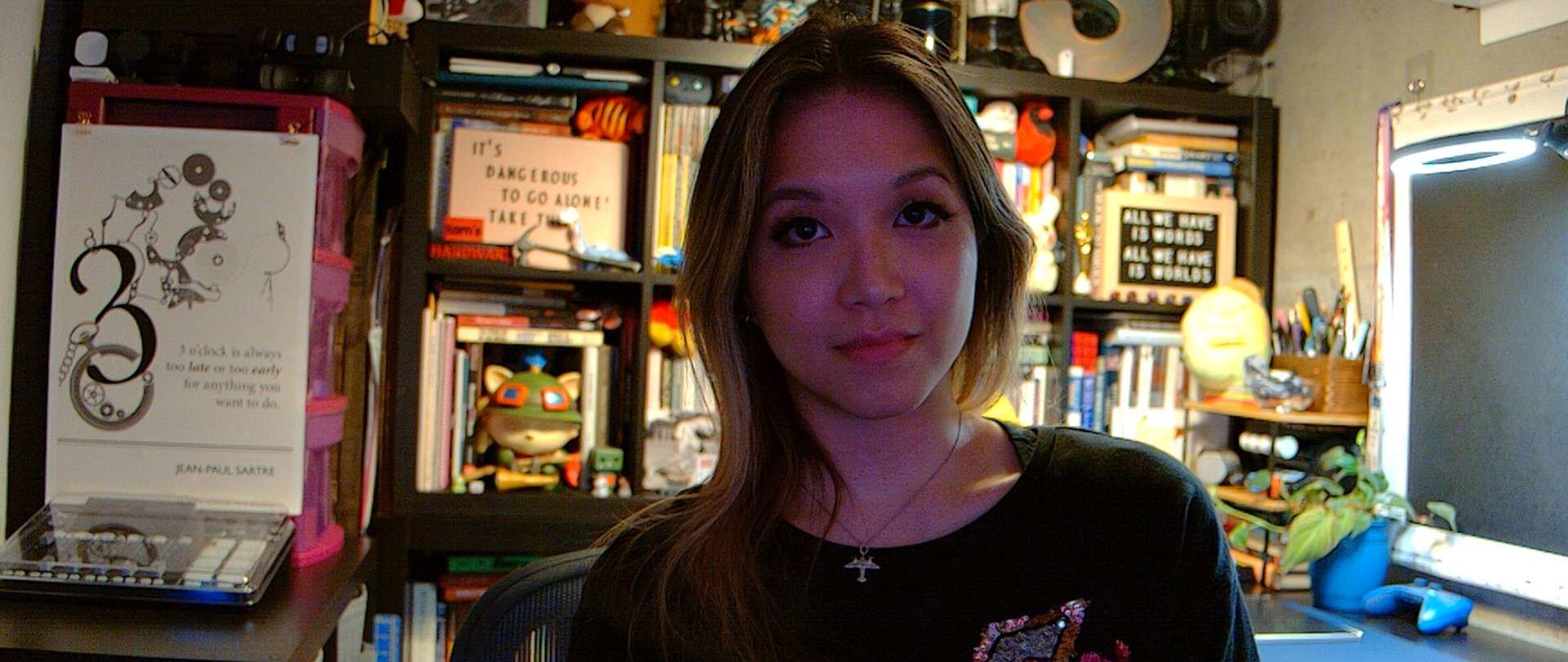
To test the Dell Pro 7's performance in overexposed lighting scenarios, I turned off all of the lights in front of me and three of my monitors. That left me with my overhead and background lights, as well as one 27-inch monitor. This isn't the most extreme overexposed lighting scenario, but it's a fairly common one as most offices tend to have a lot of overhead lighting (and only professional streamers put bright, studio-grade lighting directly behind a monitor).
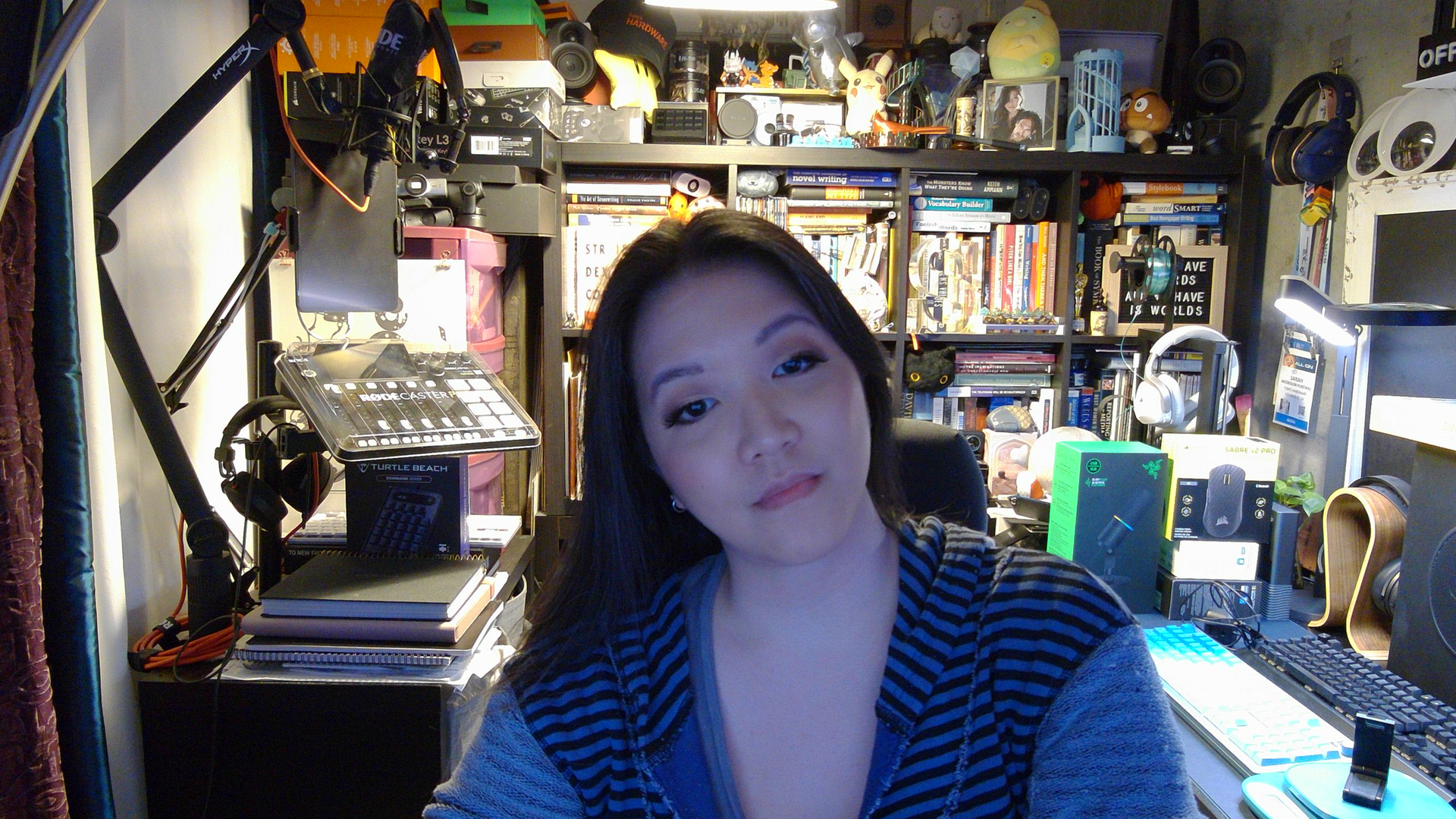
Dell Pro 7 Webcam 4K
Dell Pro 7Tom's Hardware
Elgato Facecam Pro
Elgato Facecam ProTom's Hardware
Logitech MX Brio
Logitech MX BrioTom's Hardware
Razer Kiyo Pro Ultra
Razer Kiyo Pro UltraTom's Hardware

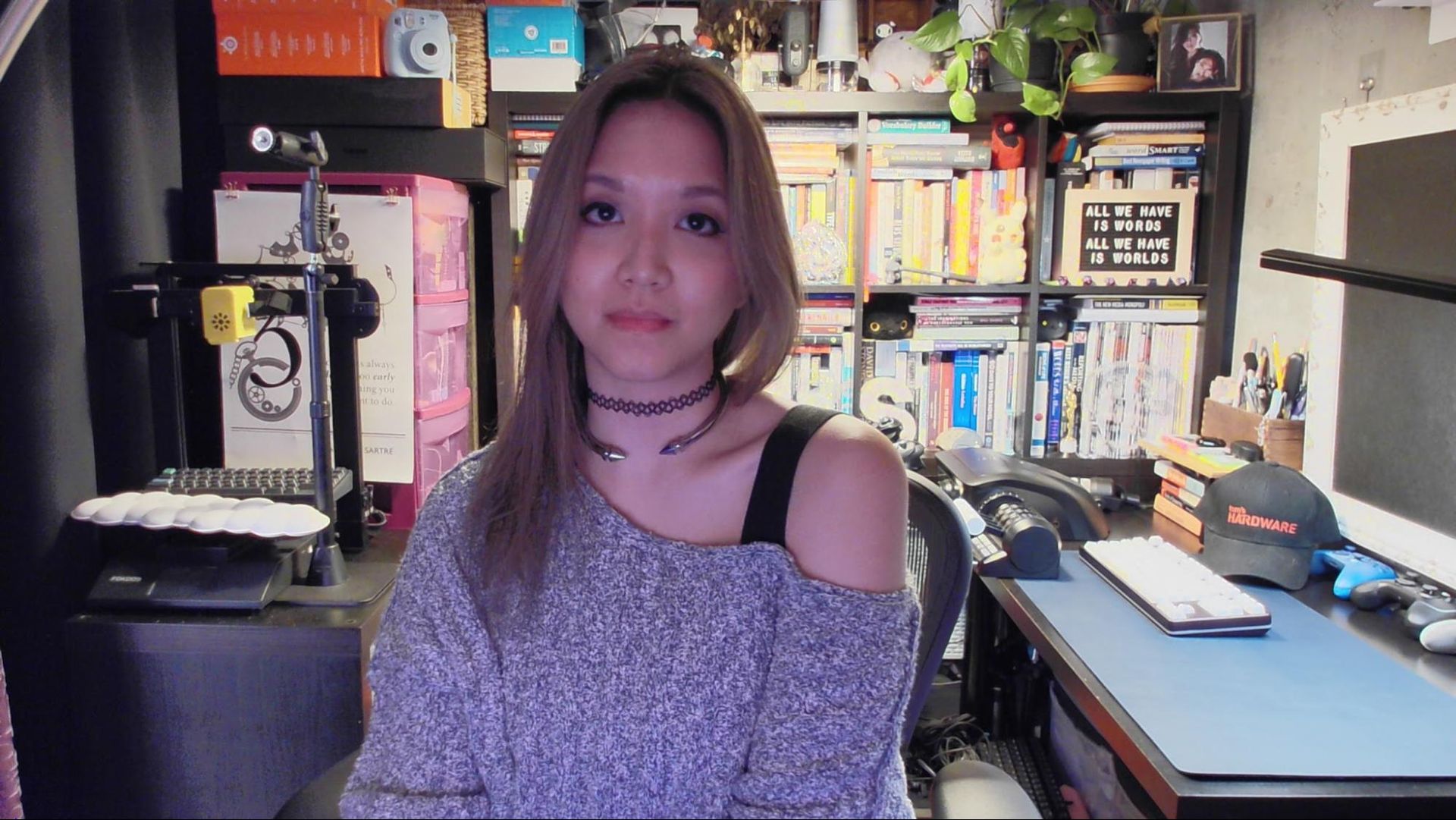
The Dell Pro 7 performed fairly well in this lighting scenario, though it struggled to find a natural-looking color balance (and it kept veering cooler). This is another scenario in which no webcam does particularly well — for the most part, it's enough to just not get blown out by the lighting behind you. But the Logitech MX Brio, which is probably one of the Dell Pro 7's closest competitors, did a much better job here.

Features and Software

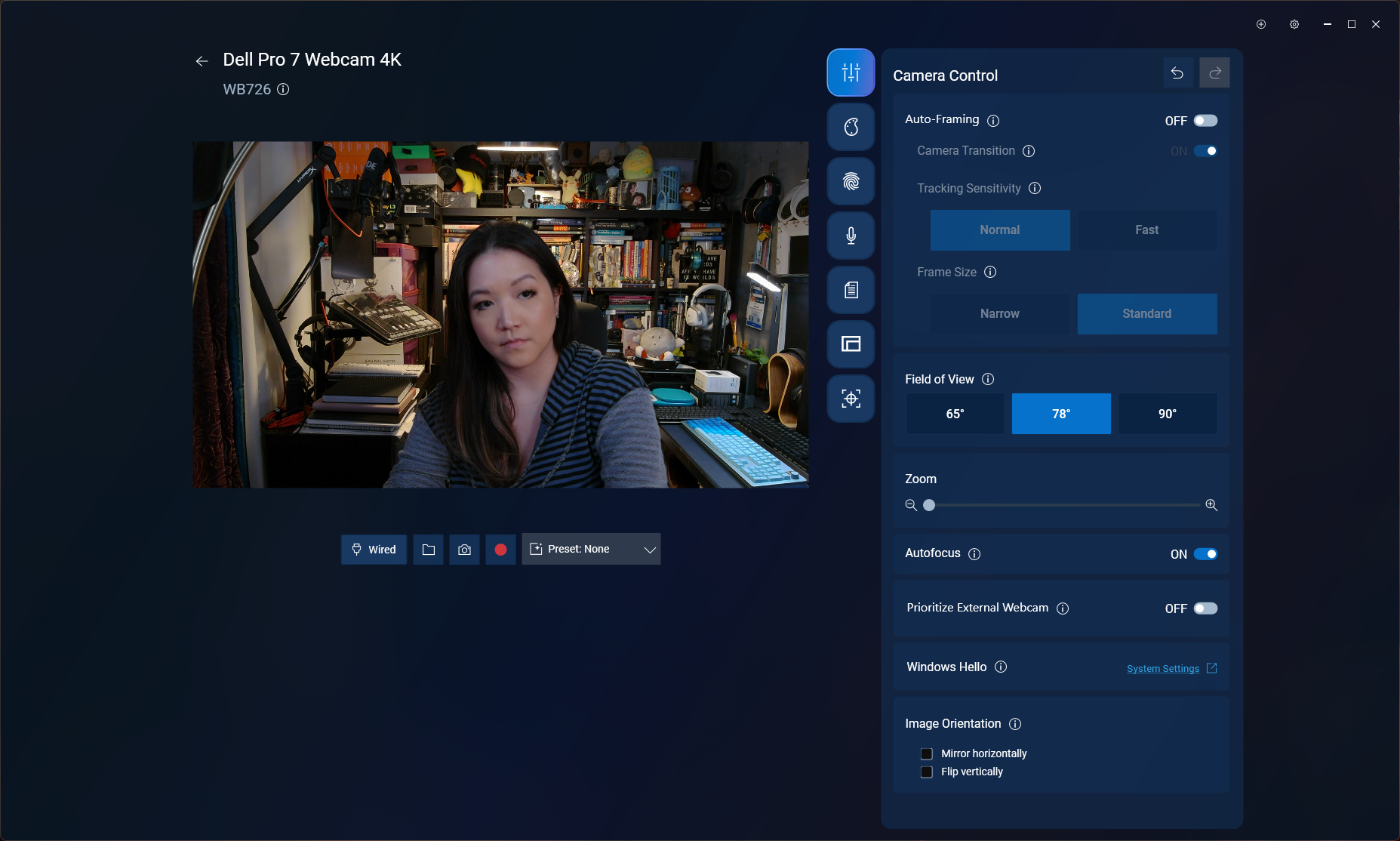
The Dell Pro 7 is configurable via the Dell Display and Peripheral Manager, which lets you adjust camera and picture settings and set up the webcam's various features, such as Windows Hello, presence detection, and the "smart" image enhancements.
Dell Pro 7 Webcam 4K

(Image credit: Tom's Hardware)

While the Dell Display and Peripheral Manager has all the settings and adjustments you might expect in a webcam app, I didn't feel like the various manual adjustments for exposure, saturation, contrast, sharpness, and vibrance were very powerful, which was a bit surprising as usually these settings are too powerful. But this wasn't too much of an issue for me, as the picture is already pretty good — just not perfect — out of the box.

In addition to image enhancements and color adjustments, you can also set up several features in Dell Display and Peripheral Manager — such as face-tracking and auto-framing; "smart" HDR, exposure, and auto white balance; and Windows Hello compatibility. Like the Dell Pro 5, the Dell Pro 7 also has a "document view" feature designed to better focus on and display documents, as well as an "object focus" mode that can be activated using gesture controls (or manually).

The Dell Pro 7 has built-in dual beam-forming microphones, and while a built-in microphone is not really something most people are looking for in a webcam (especially as they generally tend to be terrible), the Dell Pro 7's built-in mics were surprisingly good — and not just for a webcam, but... in general. In fact, this might be the first webcam with a mic I can actually recommend.

The Dell Pro 7's mics picked up my voice very well — it came through loud, clear, and surprisingly vibrant and full, even when I was sitting at a normal distance from the webcam and speaking casually (i.e., not trying to speak "into" the mic). There was a little fuzziness and distortion around the edges of my words, and it picked up the clacking on my keyboard and the clicking on my mouse almost as well as it picked up my voice (and the software-based noise reduction in the app almost immediately started swallowing my words), but as long as you're not trying to type and talk at the same time the Dell Pro 7's mic sounds good. Not as good as a standalone USB gaming mic, of course, but on par with the average gaming headset mic.

Bottom Line

The Dell Pro 7 is actually a pretty solid 4K webcam, if not a particularly thrilling one. While I don't think most people looking at the Dell Pro 7 are going to be fiending for 60fps, I'm sure there are probably at least two people who will appreciate it. For everyone else, the Dell Pro 7 has a nice suite of office-friendly features, including presence detection to lock your PC when you're not sitting in front of it, Windows Hello compatibility for extra security, and things like document view and gesture control and an extra-wide field of view for when you need to run a remote 4K, 60fps meeting with lots of people (and documents).

But if you don't see yourself running speedy, highly-detailed multi-person webcam meetings, the similarly-priced Logitech MX Brio does a better job at making you look good... which is a big part of what webcams are for, right? The Dell Pro 7 outputs a decent picture (in relatively "ideal" lighting), but this webcam is not really about the picture — it's about everything else.
昨天以前首页

Dell Pro 5 Webcam 2K Review: So you can look good in office

2026年9月13日 22:00

Just because you're in the office doesn't mean you might not still need to be on camera — so I guess it's not too surprising that some of the best webcams are made specifically for the office. Or that Dell is the one to make them.

Dell's new office-oriented 2K webcam, the Dell Pro 5 (WB526), is a small, lightweight webcam that records video at 2K QHD / 30fps, 1080p / 30fps, and 720p / 60 and 30fps. It sports a Sony sensor and has a 78-degree field of view, 2x digital zoom, and an autofocus lens with a maximum aperture of f/2.0. As for its "office-friendly" features, it's compatible with Windows Hello, and it has an "anti-theft interface" and comes with a lockable cable that you can attach to a loop on the non-detachable USB-C cable. It also has some intelligent features, such as smart auto-exposure, AI auto-framing, and face tracking, as well as a built-in omnidirectional microphone that doesn't sound quite as terrible as most built-in webcam mics. It's available now for $119.99, though it's currently on sale for $114.99.

Design

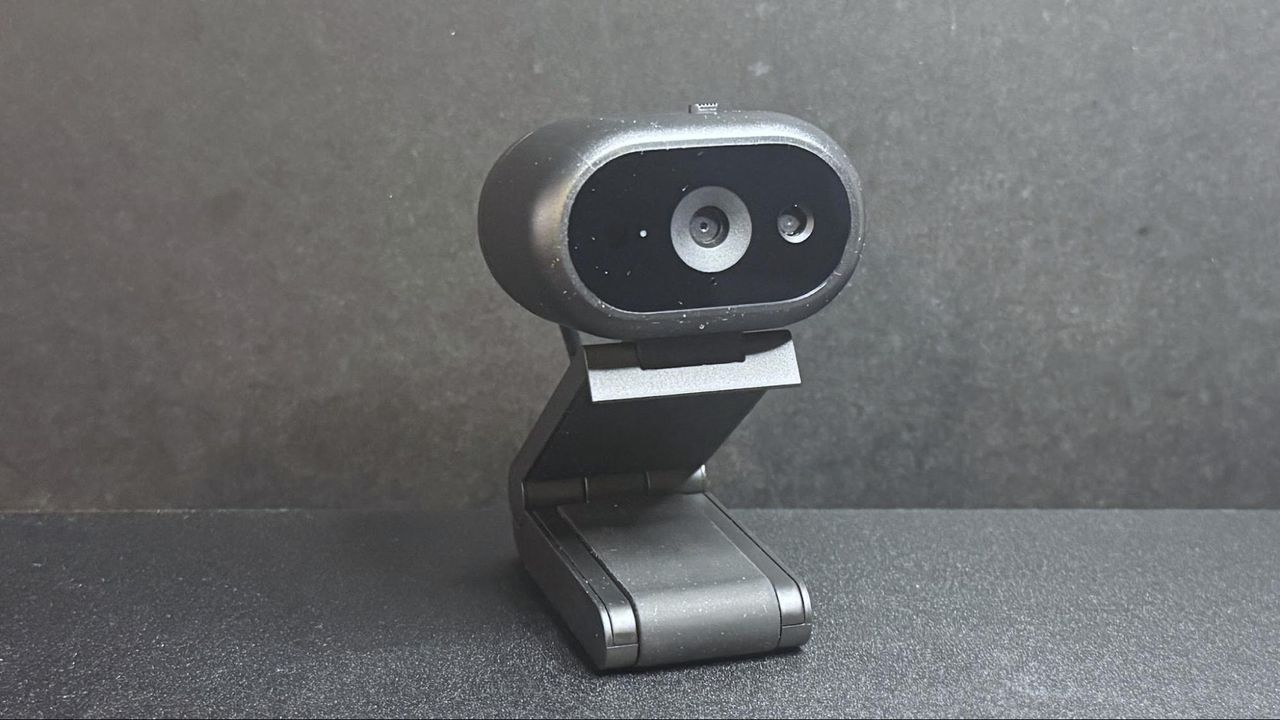
The Dell Pro 5 webcam is a small oval-shaped webcam with a non-detachable USB-C cable (which comes with a built-in USB-A adapter. It has a lightweight black plastic body, measuring about 2.28 inches (57.9mm) wide by 1.7 inches (43.18mm) deep, and is 1.4 inches (35.56mm) high. It's a fairly small webcam — not quite as small as the YoloLiv YoloCam S3, but close. It also has a physical lens shutter, which you can open and close via a small switch on top of the device. It's not the most elegantly implemented lens shutter we've ever seen, but it does the job perfectly well.
Dell Pro 5 Webcam 2K
Tom's Hardware
Dell Pro 5 Webcam 2K
Tom's Hardware
Dell Pro 5 Webcam 2K
Tom's Hardware
Dell Pro 5 Webcam 2K
Tom's Hardware

Like many lower-cost webcams, its cable is not detachable — it's a 5-foot (1.5m) rubber USB-C cable with a built-in USB-C to USB-A converter attached to one end. It's not a particularly thick cable, but it's stiff enough (and the webcam is lightweight enough) that it does influence the webcam's position, and bumping it can cause the webcam to accidentally move and mess up your framing.

Dell Pro 5 Webcam 2K
Tom's Hardware
Dell Pro 5 Webcam 2K
Tom's Hardware

The Dell Pro 5 comes with a sturdy detachable monitor mount that attaches to the bottom of the webcam via a strong magnet. (The webcam also has a standard tripod mounting point, should you want to use it with a different camera mount.) The mount is surprisingly hefty — it weighs about 4.7 ounces (133g), which is nearly twice the weight of the webcam itself, which weighs around 2.57 ounces (73g). It's a pretty standard monitor clip mount, with a lip that goes over the edge of your monitor and an adjustable, rubber-coated "foot" that sits on the back of your monitor to hold the webcam in place.

The mount allows you to tilt the webcam forward up to 90 degrees, which will probably be useful for the webcam's document-reading feature. It also allows you to swivel the webcam almost 90 degrees in either direction, so it's actually pretty flexible for a mount included with a more budget-friendly webcam. It does not have a tripod mounting point on the bottom, however, so you won't be able to take advantage of this flexibility away from your PC.

Dell Pro 5 Webcam 2K

(Image credit: Tom's Hardware)

In the box, the Dell Pro 5 comes with its detachable monitor mount and a locking mechanism for those of you who work in insecure office environments (or, I suppose, for those who might travel and work from co-working spaces, I guess). The locking mechanism is designed to slide through a loop on the cable.

Specs

Resolution FPS

2K QHD / 30fps; 1080p / 30fps; 720p / 60fps, 30fps

Diagonal Field of View

78, 65

Zoom

2x digital

Autofocus

Yes

HDR

Yes

Microphone

Omni-directional

Connection

Wired (USB-C)

Mount

Universal clip

Dimensions

2.28 x 1.7 x 1.4" / 57.9 x 43.18 x 35.56mm

Weight

7.41oz / 210g (with mount)

Software

Dell Display and Peripheral Manager

Special Features

Lock

MSRP / Price at Time of Review

$119.99 / $114.99

Release Date

June 2026

Well-lit Performance

The Dell Pro 5 is a 2K webcam that outputs video in 2K UHD at 30fps — it's not 4K, but it should give you more detail and better image quality than a standard full HD 1080p webcam, even if most streaming and video conferencing services limit your outgoing stream to 1080p or lower.

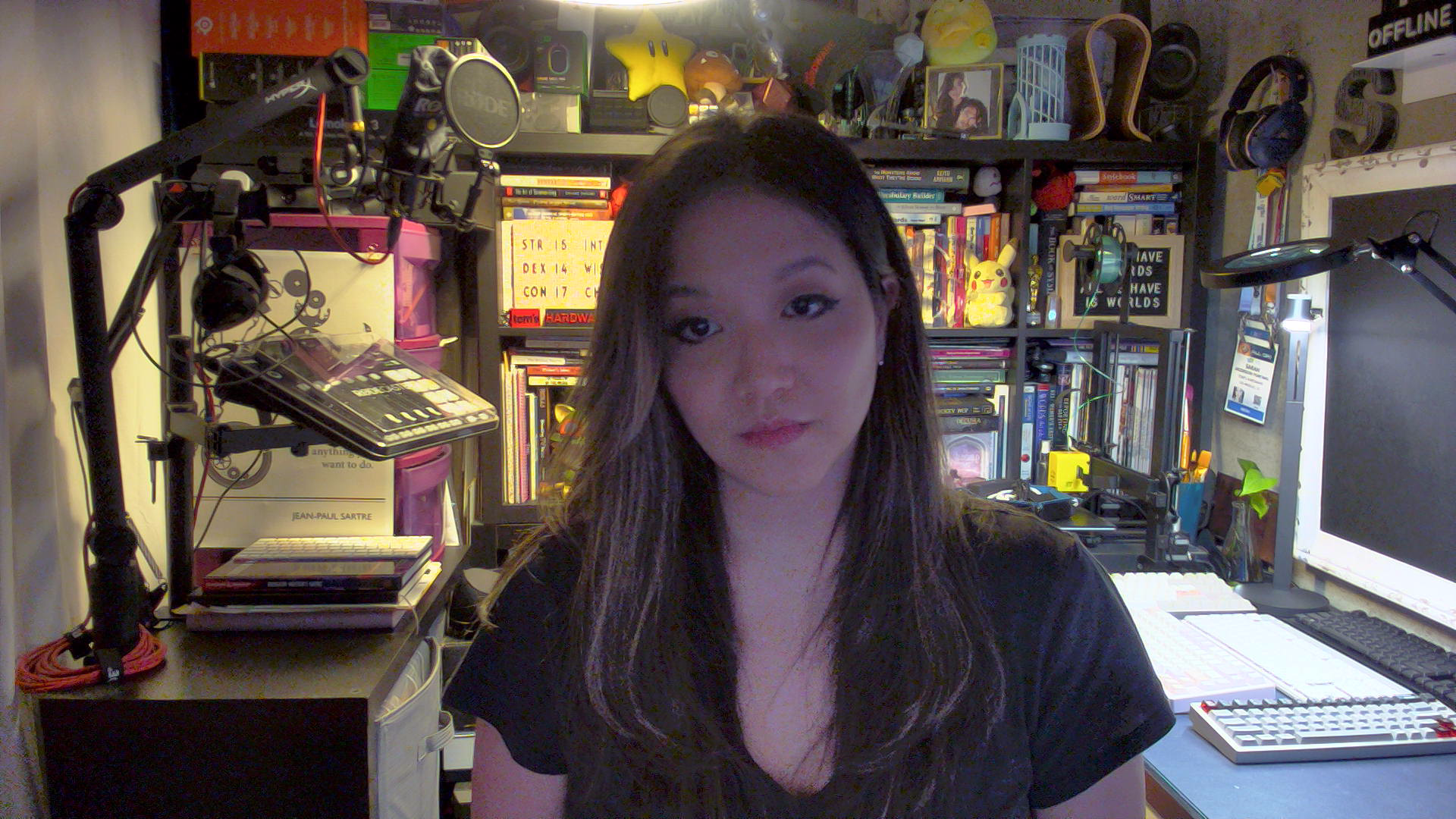
For our well-lit performance test, I tested the Dell Pro 5 webcam in a fully-lit setting. From the front, I have two professional lights (a ring light on the right side and a key light on the left side), as well as four monitors (three 27-inch monitors and one 34-inch widescreen monitor), plus ambient lighting from various peripherals, including my desk. Behind me, there are two desk lamps, and overhead I have an arching floor lamp. There is no uncontrolled light in my home office, and it's a pretty bright scenario. (All of my test photos are taken with Windows' native camera app for consistency, but please note that test photos are mainly for illustrative purposes and the conclusions drawn are based on extensive testing.)

Dell Pro 5 Webcam 2K
Dell Pro 5Tom's Hardware
Dell Pro 5 Webcam 2K
Dell Pro (WB5023)Tom's Hardware
Dell Pro 5 Webcam 2K
Elgato NeoTom's Hardware

The Dell Pro 5 performed pretty well in our well-lit scenario, though the color balancing seemed to wash me out slightly and the picture wasn't quite as crisp as I would have liked. That said, this is exactly the kind of picture I look for in an office-oriented webcam — bright and evenly-lit, if a little flat, for a more "professional" appearance (and so it can do things like read text and scan documents). It's not the most cinematic, dramatic, or flattering image from a webcam, but it should work very well in a professional setting.

Low-Light Performance

For our low-light test, I turned off all of the lights in my home office except for one 27-inch monitor, on which I had a window open with Google's homepage (mostly white) filling half the screen and the Windows 11 Camera app filling the other half. This is basically a completely dark scenario with only my (admittedly, relatively large) monitor for lighting.

Dell Pro 5 Webcam 2K
Dell Pro 5Tom's Hardware
Dell Pro 5 Webcam 2K
Dell Pro Webcam (WB5023)Tom's Hardware
Dell Pro 5 Webcam 2K
Elgato NeoTom's Hardware

The Dell Pro 5 performed about as well as I expected in this scenario — it was able to pick up more detail in the dark than most 1080p webcams, though its low-light performance is far from what I'd call "good." This was more noticeable in moving video, however, as the video was extremely grainy with large artifacts (this photo actually makes it look much better than it was). The Dell Pro 5 does have HDR, but this didn't seem to make a significant difference in the low-light picture quality.

By comparison, the Dell Pro (WB5023) webcam did a better job with balancing light in the low-light scenario, though it picked up the same amount of detail. The Elgato Neo, which is a budget 1080p webcam, did a much better job of balancing light in this scenario, but its picture was also extremely grainy.

Overexposed Performance

For our overexposed performance test, I turned off most of the lights in front of me (save for one 27-inch monitor) and left the lights behind and above me turned on. This is actually one of the most likely scenarios for webcam users, as offices tend to be generally well-lit environments, but without dedicated camera-focused lighting aimed at the user.

Dell Pro 5 Webcam 2K
Dell Pro 5Tom's Hardware
Dell Pro 5 Webcam 2K
Dell Pro Webcam (WB5023)Tom's Hardware
Dell Pro 5 Webcam 2K
Elgato NeoTom's Hardware

The Dell Pro 5 performed adequately in our overexposed performance test: it managed to balance light fairly well (every webcam struggles with this), but its auto color balancing was definitely off. Both the Dell Pro (WB5023) and the Elgato Neo did a much better job with color balancing in the overexposed scenario, especially with the default settings.

Features and Software

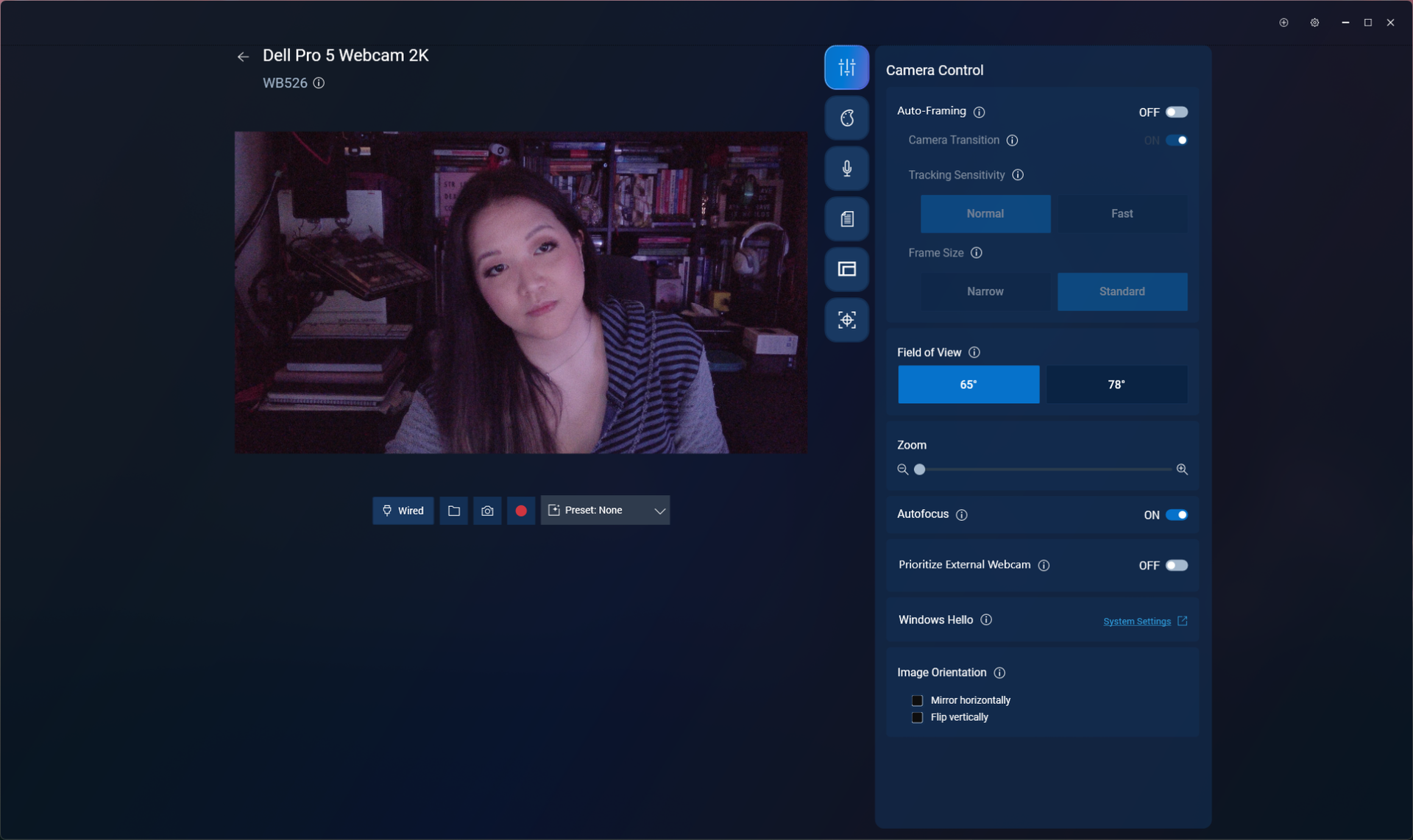
The Dell Pro 5 is configurable via Dell Display and Peripheral Manager, which lets you adjust the webcam's image settings and toggle on various features such as face tracking, HDR, and auto exposure. You can also set up features such as gesture control and Windows Hello from this app, as well as Document View, which can be configured to automatically turn on when you tilt the camera down at least 60 degrees and show a rectangular document.

Dell Pro 5 Webcam 2K

(Image credit: Tom's Hardware)

While the Dell Display and Peripheral Manager does have a lot of settings you can adjust, including brightness, sharpness, contrast, saturation, and vibrance, I found that adjusting the settings didn't actually seem to do much for the picture. Turning the saturation down to 0%, for example, gave me a slightly desaturated image — not a completely black-and-white one. I also found it frustrating that there was no way (at least as far as I could see) to minimize the app to your system tray.

The Dell Pro 5 has a built-in omni-directional microphone for when you have absolutely no choice other than to use your webcam's built-in mic. The mic wasn't the worst I've heard on a webcam — it managed to pick up my voice pretty clearly, and didn't make me sound like I was yelling through an underwater tunnel — but it wasn't great, either. It should work fine if you've got nothing else on hand to speak into, but it's not a microphone I'd recommend.

Bottom Line

The Dell Pro 5 webcam is definitely designed for office use — and for an office-oriented webcam, it's not bad. But if you're looking for something easy to use and cheap enough that your coworkers aren't going to try to steal it, I'd probably recommend the Elgato Neo over the Dell Pro 5 — after all, the Elgato Neo retails for $60 and can currently be found for about half that, which means the Dell Pro 5 is more than four times as expensive.

The Dell Pro 5's 2K resolution might come in handy if you're the type of person who's constantly showing documents over video calls, but Razer's Kiyo X also has a 2K resolution and retails for $100 (and can currently be found on sale for around $75). The Dell Pro 5 isn't a bad webcam, but you don't need to pay $120 for similar quality.

The world's first webcam was switched off 25 years ago today — 128x128 grayscale feed predated the World Wide Web to monitor a Cambridge coffee pot

2026年8月23日 17:00

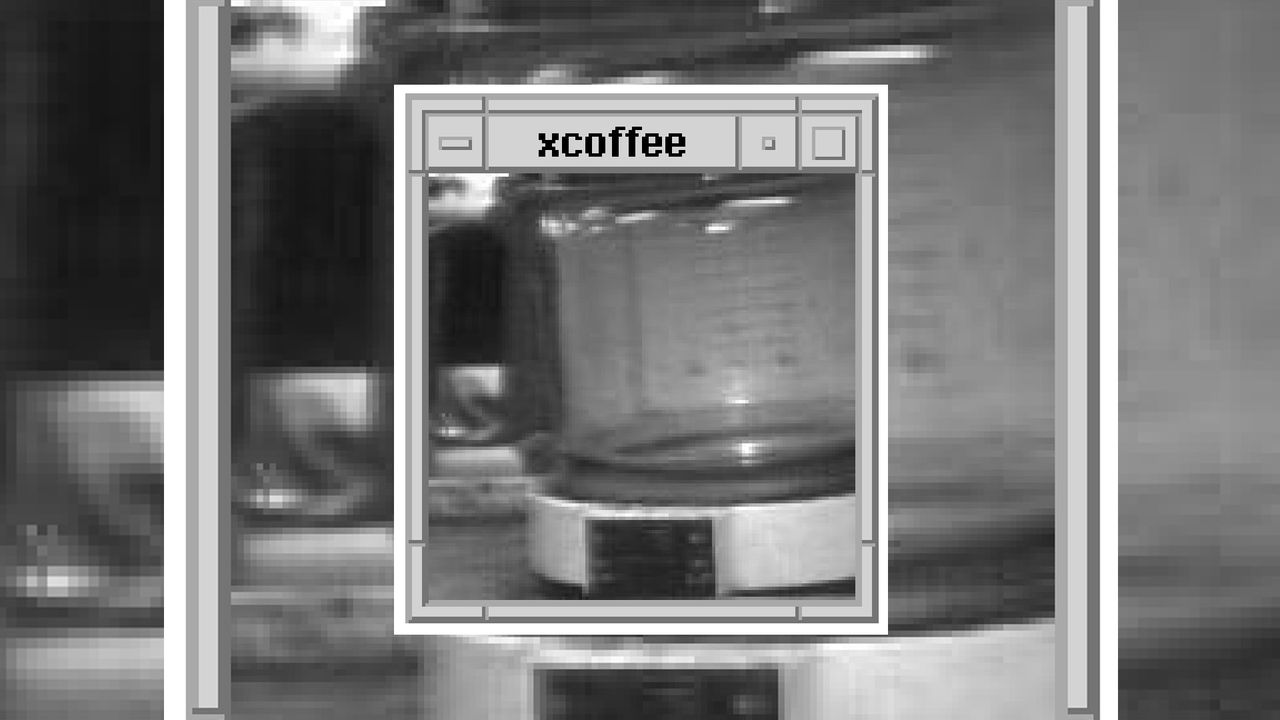
It has been a quarter century since the world’s first webcam was turned off for good. The Trojan Room Coffee Pot was retired on Wednesday, August 22, 2001, after 10 years of service at Cambridge University. This extraordinary webcam’s final low-res image was of its own switch-off, with the fingers of Daniel Gordon, Martyn Johnson, and Quentin Stafford-Fraser pressing the power-off switch on the Acorn Archimedes to which the cam was attached.

Quentin Stafford-Fraser and Paul Jardetzky created the webcam for the entirely practical purpose of preventing team members from being disappointed when they visited the coffee pot. “There were about fifteen of us involved in related research and, being poor, impoverished academics, we only had one coffee filter machine between us, which lived in the corridor just outside the Trojan Room,” Stafford-Fraser recalls. “However, being highly dedicated and hard-working academics, we got through a lot of coffee, and when a fresh pot was brewed, it often didn't last long.” With several team members in other parts of the building, some needing to traverse several flights of stairs to reach the coffee pot, XCoffee was devised as a solution.

The Archimedes mentioned in the intro wasn’t the first host for the Trojan Room Coffee Pot camera; that was an unnamed Motorola 680X0 machine. The Acorn RISC computer took over webcam duties less than eight years prior to the switch-off in 2001.

This webcam has a history going even further back, though. Remarkably, the Trojan Room Coffee Pot webcam was live even before the World Wide Web was a thing. It began service in 1991, when a 128 x 128 pixel grayscale camera was connected to the science lab’s LAN via a frame capture card. An image of the coffee pot was captured three times a minute and via a custom-coded server-side X Window System protocol app so that any team member on the network could monitor/check it. This pioneering webcam actually connected to the internet for the first time in November 1993, just a few months after web browsers gained the ability to display images.

Today, webcams can be used to broadcast very high-quality streams with high resolutions and supporting very fast data and frame rates. Great capture hardware, fast computers, and fiber internet are widespread now, so if you wanted to live-stream a coffee pot, it would be a cinch to do so in true color, in up to 4K, and 60 frames per second using one of the best webcam picks of 2026.

How to look better on webcam — tips for the average person to look better and more professional

2026年7月29日 19:32

You don't need a professional streaming setup to take work video calls and chat with friends and family — and, honestly, you don't want one. And webcams have a lot of limitations (most professional streamers use DSLRs to shoot content, not webcams), so there's only so much you can do. But it's not nothing.

Here are several things the average person can do to make their webcam streams look better.

Webcam

First of all, let me point out that the webcams on our list of best webcams are, for the most part, not 4K webcams. That's because you don't need a fancy, expensive 4K webcam to look good — and, in fact, a 4K webcam might end up working against you. Most video conferencing platforms, including Google Meet, Microsoft Teams, and Zoom, limit your outgoing stream to 1080p or 720p, depending on the type of account you have. So you basically can't stream in 4K even if you want to (and you probably don't want to). Plus, higher-resolution webcams often require more power and bandwidth, which can result in freezing, lagging, and choppiness (none of which are flattering) if your PC or your internet connection isn't up to speed.

Instead of looking for a high-res webcam, look for one with a relatively narrow field of view and/or digital zoom (which narrows the field of view). One of the reasons we love the Logitech Brio 500 is that it has the option for narrowing the field of view to 65 degrees, and a narrower field of view is more flattering to your face. Wide-angle lenses tend to distort the picture subtly, warping objects at the edges and making whatever's in the center look larger than it is.

How to look great on (web)cam
Elgato's Camera HubTom's Hardware
How to look great on (web)cam
Elgato's Camera HubTom's Hardware

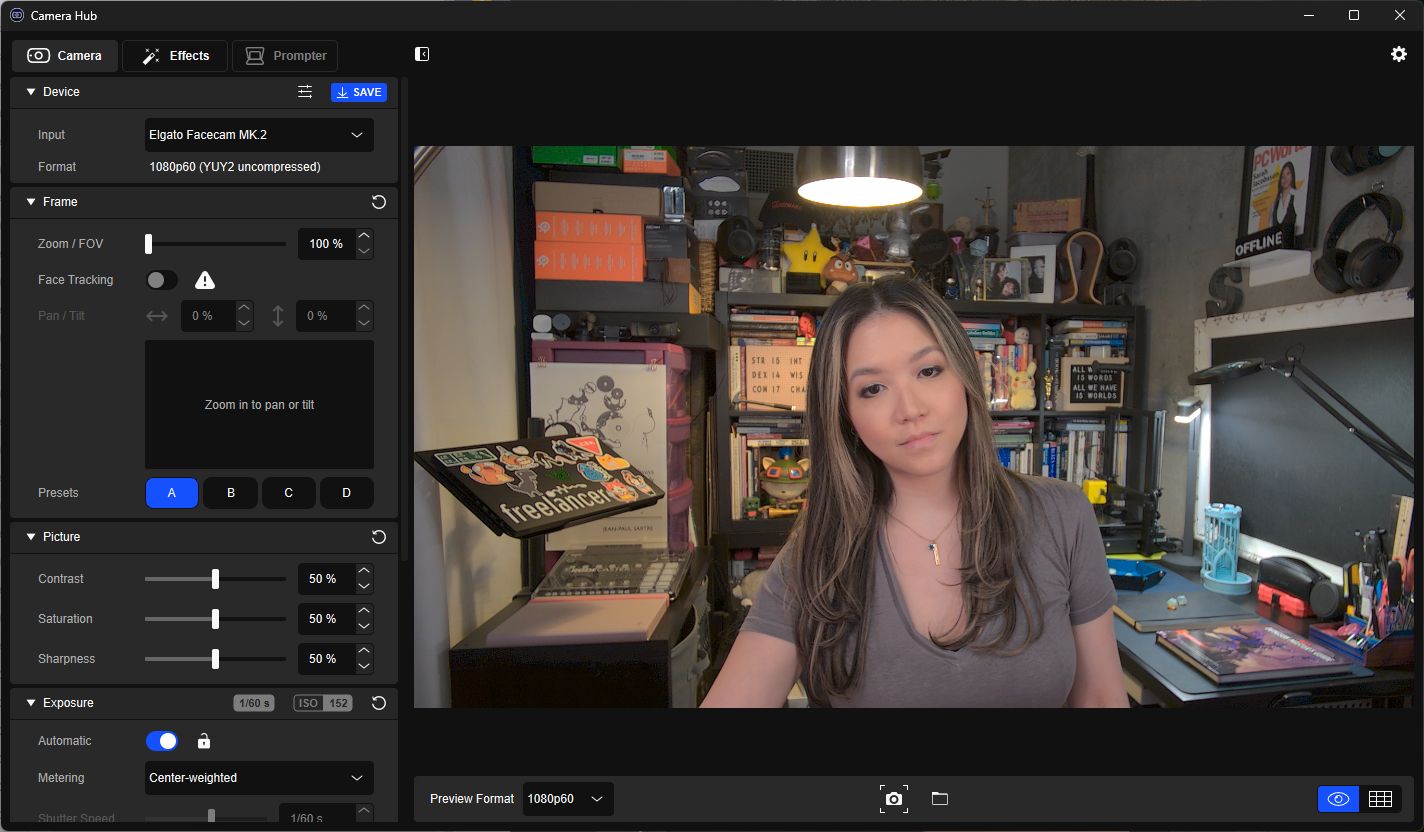
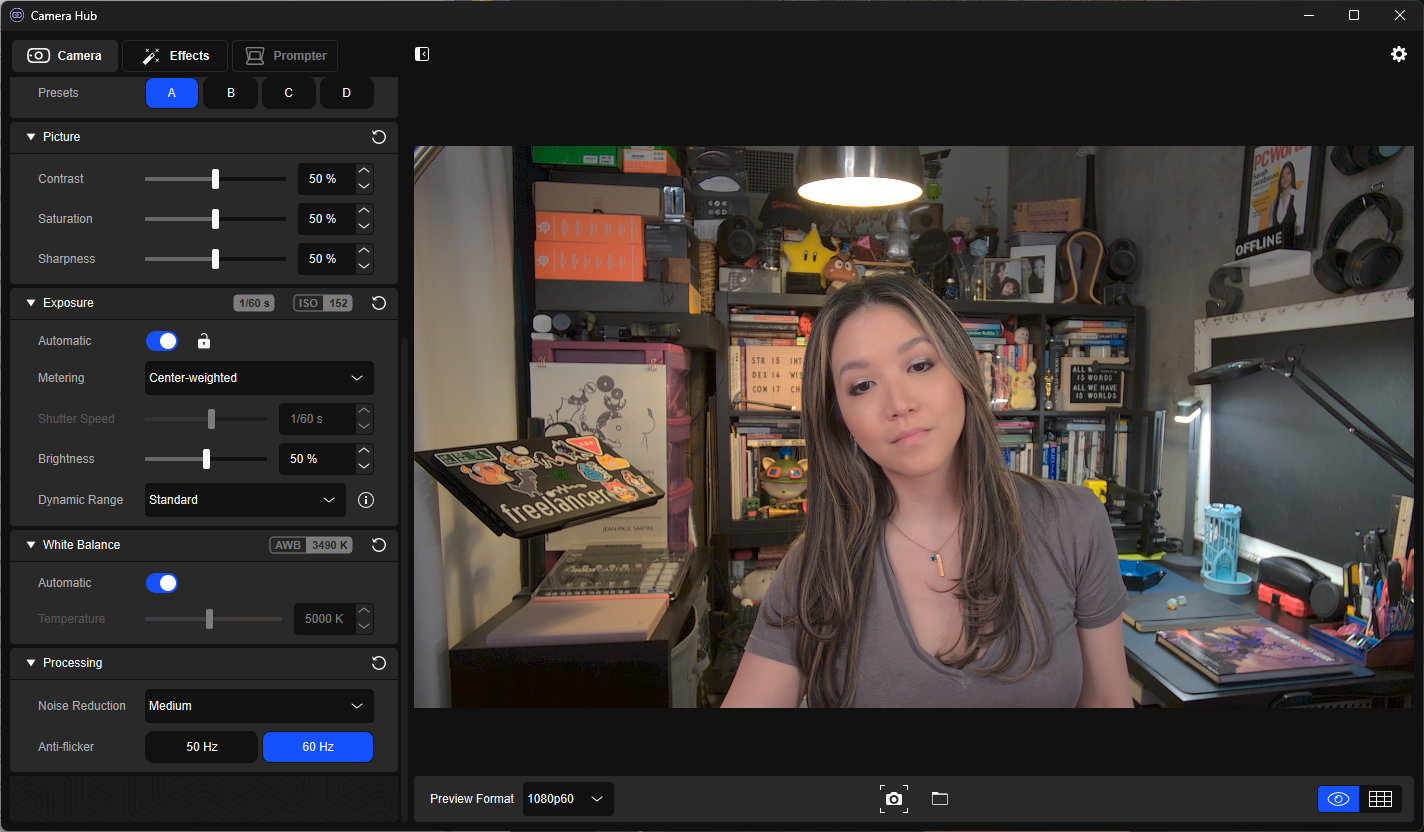
Larger sensors and lenses can also help, but what you'll find is pretty limited in the webcam market (they are, after all, webcams) — so instead of worrying too much about the hardware, look for a webcam with robust software support. I'm a big fan of Elgato's Camera Hub (which supports Elgato webcams, such as the Elgato Facecam MK.2 and the Elgato Facecam Neo), which gives you a lot of control over exposure, white balance, and picture adjustments, and also lets you zoom in and save presets so you can quickly switch between angles while you're streaming.

How to look great on (web)cam

Logitech MX Brio has some of the best auto-exposure and auto-white balancing we've seen. (Image credit: Tom's Hardware)

Needless to say, part of the reason you're looking for a webcam with good software is that you should be changing the settings in the software — webcam auto-exposure and auto-white balancing are notoriously terrible and should almost always be manually adjusted. But if you're the type of person who can't be bothered to go in and tweak software settings, you should pick up a webcam with decent auto-exposure and auto-white balancing — the Logitech MX Brio has excellent auto settings (though, at $200, you are paying for them).

Lighting

Lights shining down on you from above, such as those found in a typical office setup or, I don't know, in your kitchen, are designed to help you work more efficiently. They're not designed to flatter your face. In fact, this is probably some of the least flattering lighting around, thanks to the harsh shadows it creates. That said, you generally won't find a "naturally occurring" ideal webcam lighting setup, because most people do not place bright lights behind their already-bright, backlit monitors. But lighting is one of the most important elements when it comes to looking good on webcam, and it definitely makes a difference.

While there are some webcams that handle poor lighting situations slightly better than others, the difference is pretty minor. So instead of looking for a webcam that performs like a beast in the dark, just grab some lights.

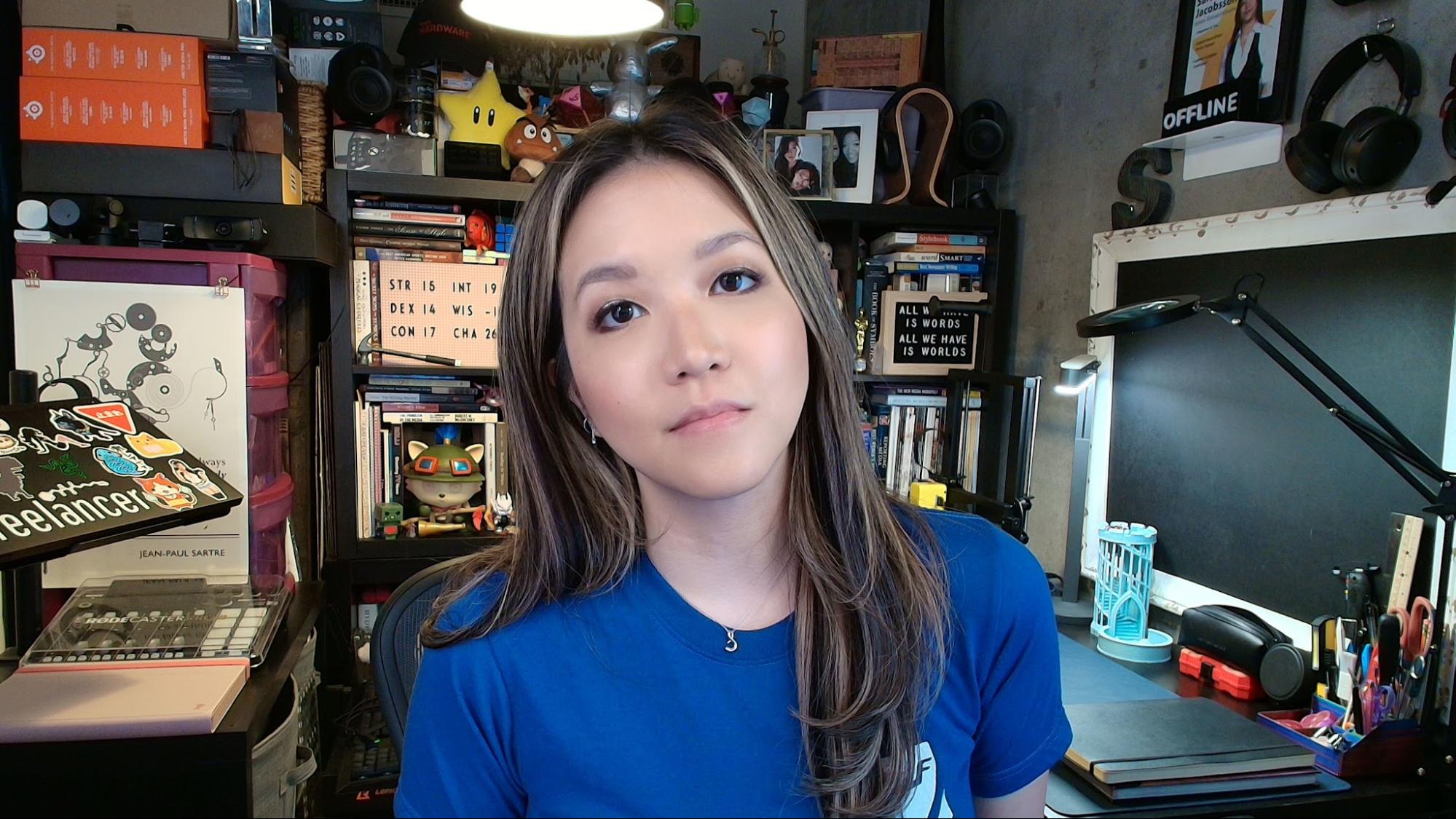
You don't need to go overboard with a full studio setup, but basic three-point lighting is a classic for a reason. This consists of two lights on either side of you (at 45-degree angles) and one light behind you. At the very least, you should try to have two lights on either side of your face, and some sort of lighting (even overhead lighting) in the background so it doesn't look like you're sitting around in the dark. You can, of course, buy lights specifically for your webcam streaming setup — Elgato's Key Light is slim and comes with a desktop clamp mount designed to fit sleekly into your setup, while the brand's cheaper Key Light Neo features a monitor mount. Logitech sells the Litra Beam LX, which is dual-sided (colorful on one side, white on the other), as well as a monitor-mounted option, the Litra Glow.

How to look great on (web)cam
Three different lighting scenarios on the Razer Kiyo Pro Ultra — lighting in front, lighting behind/above, no lighting except monitor.Tom's Hardware
How to look great on (web)cam
Three different lighting scenarios on the Razer Kiyo Pro Ultra — lighting in front, lighting behind/above, no lighting except monitor.Tom's Hardware
How to look great on (web)cam
Three different lighting scenarios on the Razer Kiyo Pro Ultra — lighting in front, lighting behind/above, no lighting except monitor.Tom's Hardware

But you don't need a fancy, wirelessly-controlled webcam-specific streaming light — you can use a lamp, or even the sun. You just need two light sources, of which one is (ideally) dimmable. If you happen to have a multi-monitor setup, you can even use your monitor (or monitors, depending on how many you have). I use this whitescreen website to switch two of my monitors into lights when I'm taking pictures for webcam reviews. Just make sure the lights are off to the side of your face — straight-on lighting is more flattering than top-down lighting, but it does make your features look a little flat.

When you do have at least two lights in front of you, you'll want to make sure you turn off your webcam's auto-exposure and tune the exposure to work with the lights.

Height

Most webcams come with some sort of monitor mount for convenience. But your monitor — especially the top of your monitor — basically never sits at a height that makes for a flattering camera angle. If you've got a laptop, it's too low (even if it's not on your lap), and if you have a desktop monitor, it's probably too high. The best place for your webcam to be is at eye-level — not only does this give the most flattering, accurate view of your face, it also makes it easier for you to look into the camera (and making eye contact with the camera, not your screen, goes a long way in making you look good — or at least like you're paying attention).

There are a few ways to get your webcam to eye-level height:

How to look great on (web)cam

(Image credit: Tom's Hardware)

✔️ Get a separate camera mount

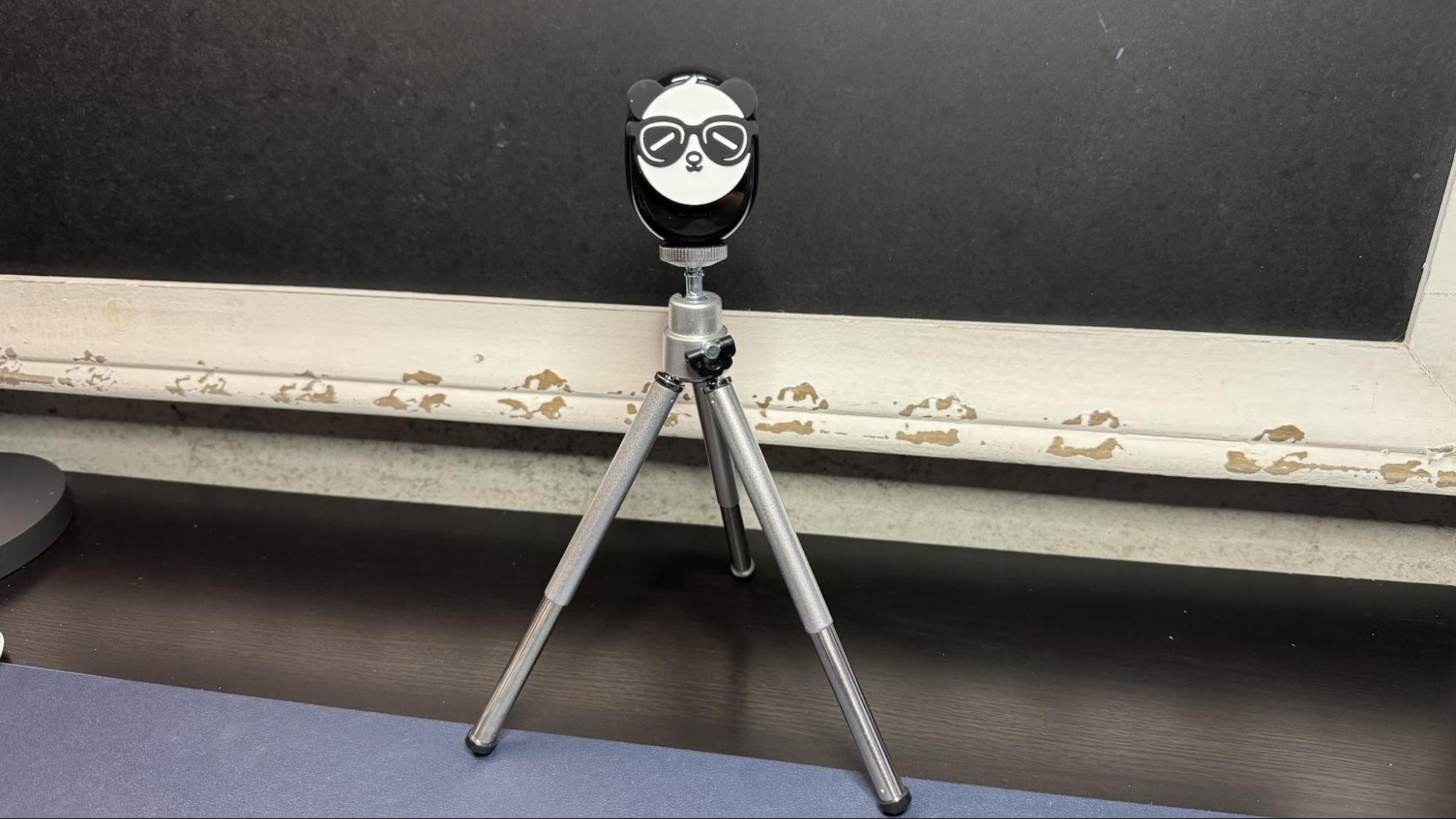
You don't have to mount your webcam on your monitor! Most webcams either have tripod attachment points built in or come with a monitor mount that has a tripod attachment point built in. This lets you mount your webcam on any standard camera mount, such as a tripod, a desktop tripod, or some other sort of desktop camera mount. A desktop tripod is probably the easiest way to get your webcam to an acceptable height, although it's perhaps not the most elegant, as you'll have to move it around when you're not using it. For a more permanent solution, I recommend a desktop clamp mount if you have somewhere to mount it — just make sure that the one you buy has enough adjustment options to get your webcam to where you want it to be.

✔️ Lift your laptop

If you're on a laptop and you happen to be using the built-in webcam, you can't exactly mount it separately, so you'll need to figure out how to get your laptop to eye-level height. The easiest way to do this is to just put your laptop on something: a box, a stack of books, or, if you're feeling fancy, a laptop mount. You'll also need to make sure that the screen is angled correctly — either straight on (90 degrees) or tilted slightly down.

How to look great on (web)cam

(Image credit: Tom's Hardware)

✔️ Mount your webcam in the middle of your screen

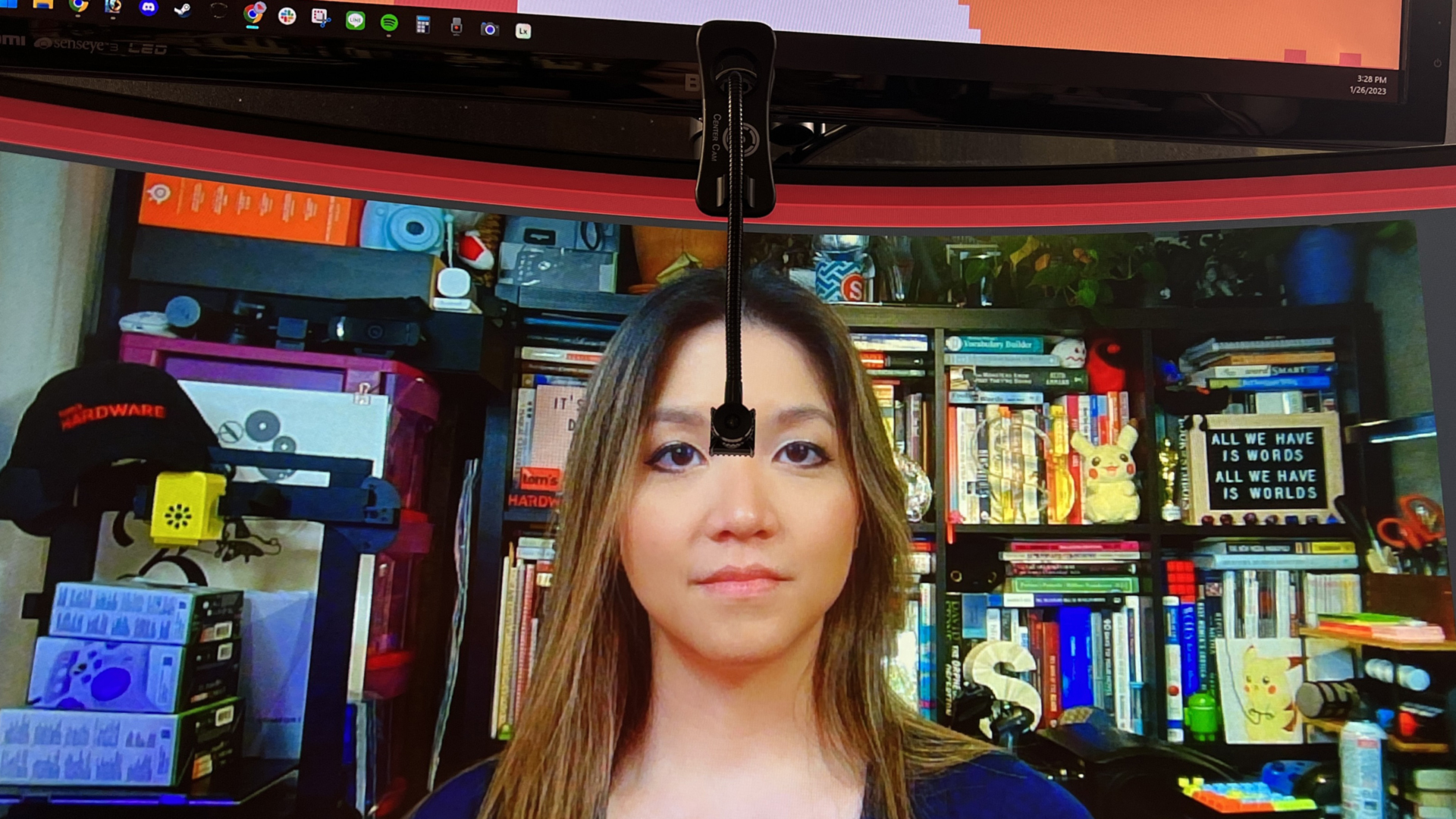
Look, your webcam is probably going to end up in the middle of your screen in an ideal scenario anyway, so why not just... put it there to begin with? There are a couple of ways to do this — you can buy a webcam specifically designed to be mounted this way, such as the Center Cam, or you can get a mount that sits in the middle of your screen, such as the PlexiCam Pro V2, which is a clear, acrylic webcam mount that hangs on your monitor and puts the camera right in the center of your screen.

Background

This might seem obvious, but it's not just about how you look... it's about what people can see in the background. I know that not everyone has the space, resources, or willpower to set up some sort of perfectly curated streamer-ready background, and that's understandable. But there's probably some middle ground between showing off piles of laundry and unsuspecting roommates, and looking like you're ready to launch a Twitch partnership.

How to look great on (web)cam

(Image credit: Tom's Hardware)

✔️ Less is more

If you can't clean up your background before you get on a call, use the power of zoom and crop. Try to make the area directly behind you as neat and camera-ready as possible, and then use your webcam's software to zoom in and crop so that people just can't see what's just outside the frame.

✔️ But not... nothing

While you don't want everyone to see a pile of junk behind you, you also don't want to look like you live in an asylum. And that's what you look like when you just have a blank white wall behind you. If you have to be tucked up against a wall (and, turning your desk around to hide the mess is a completely valid strategy), just... put something on the wall. A picture, a painting, a sign, some of that peel-and-stick wallpaper, anything. It doesn't have to be fancy; it just has to look like you're anywhere that's not an endless void.

✔️ Use a greenscreen

Most video conferencing apps have an option to blur your background and/or replace it. I'll just come right out and say it: Blurring your background looks terrible. Yes, I know everyone does it, and it's generally accepted in workplace video calls, but that doesn't mean it looks good — that just means we're all willing to overlook how bad it looks. And replacing your background rarely works well, unless you're against a blank white wall (in which case you should just throw up some art and go with it). If you really can't make a real background work, consider a pop-up greenscreen for a more seamless background-replacing experience. And if you must blur your background, make sure you at least zoom in and crop so that people focus on you, and not whatever you're mysteriously hiding behind you.

This is not an exhaustive guide to how to look good on a webcam, but it's a start.

Elgato Facecam Neo Review: Versatile and cheap

2025年11月11日 05:04
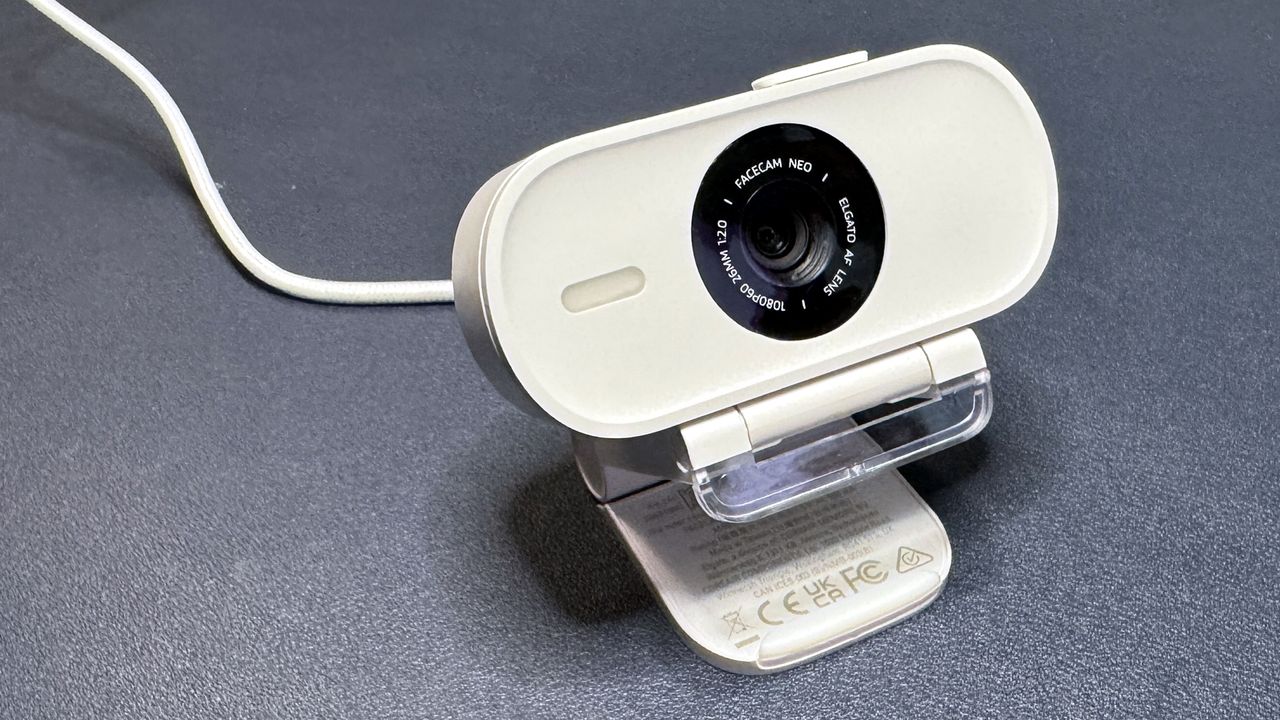
Elgato's Facecam Neo is a budget-friendly plug-and-play webcam that performs well in low-light scenarios and works on just about any device with a USB-C port (including non-traditional devices, such as iPads). It cost $99.99 when it first launched, but the price has since been permanently cut to $59.99, which might be an unbeatable deal.

Perfect your setup with hot deals on Logitech gear

作者 David Snow
2025年4月3日 00:45
Logitech peripherals deal

With all these great peripherals deal in Logitech's "Refresh" sale, you can gussy up your workstation with keyboards, mice, webcams and more.

(via Cult of Mac - Apple news, rumors, reviews and how-tos)

Logitech StreamCam kicks up video-call quality [Setups]

作者 David Snow
2024年10月16日 23:30
Logitech StreamCam webcam

Sure, a MacBook Pro includes a camera. But this user turns to the more capable Logitech StreamCam webcam for his video calls.

(via Cult of Mac - Apple news, rumors, reviews and how-tos)

❌
❌