普通视图

发现新文章,点击刷新页面。
昨天以前IT News

Motherboard VRM thermal testing – budget vs. high-end boards, does it really matter?

2026年7月28日 20:43

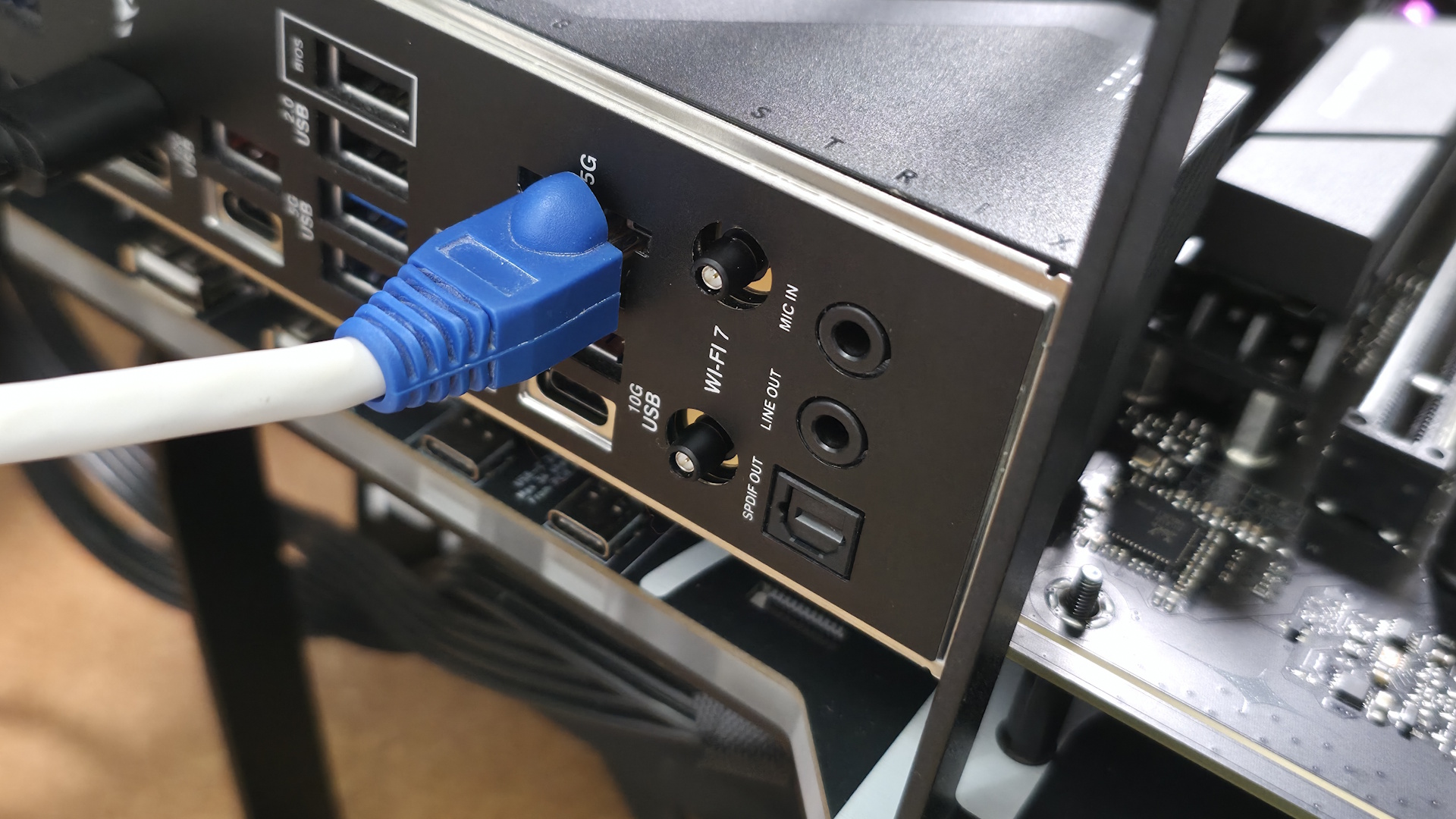
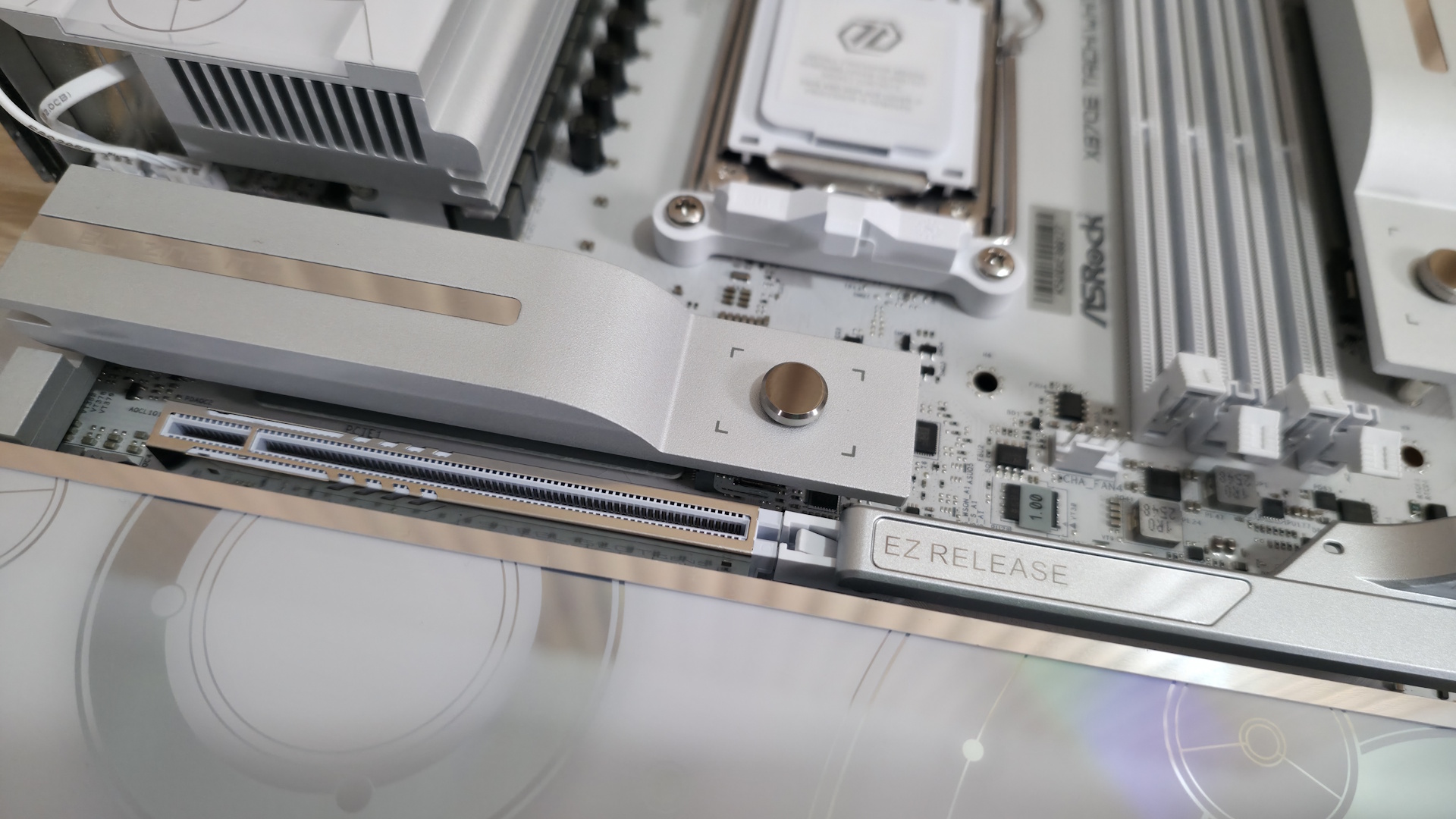
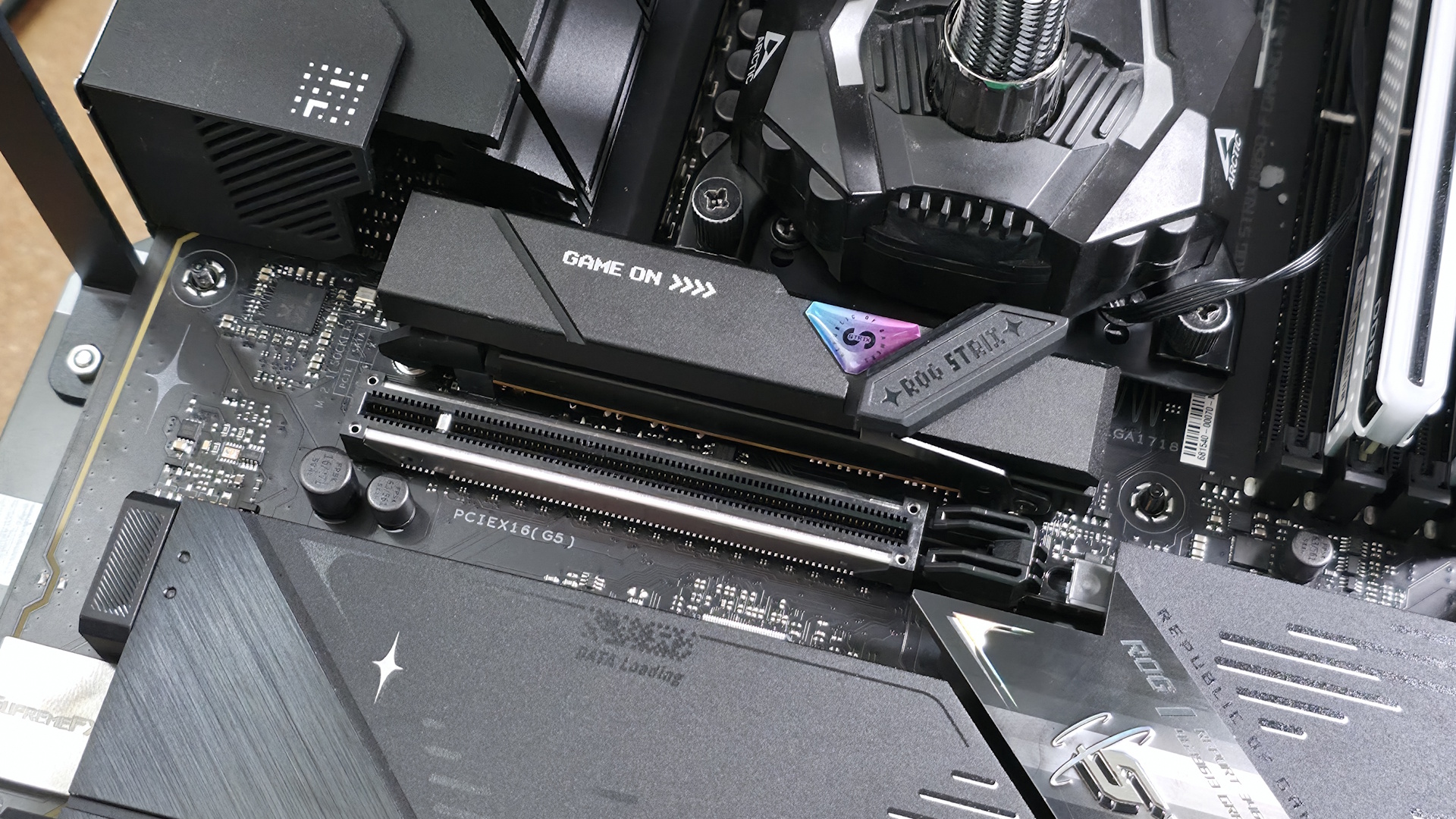
If you’re a PC enthusiast, chances are you’ve bought or at least looked into picking a motherboard, and it can be daunting. The list of specifications is long and includes (but is not limited to) CPU support/compatibility, port count and type (think USB, networking, etc.), storage options, audio solutions, slot count and speed, aesthetics, and last but not least, power delivery, which is critical to ensuring you get everything out of your processor.

Should you buy a board with more phases or more powerful MOSFETs? What’s good enough? Using data from our motherboard reviews, we’ll examine details such as temperature and performance to assess the magnitude of the differences and whether power delivery should be a key factor when choosing a motherboard.

What are VRMs?

Some may be reading this and asking, "What are VRMs?" VRM stands for Voltage Regulation Modules. Their primary function is to take the 12V power from your power supply and reduce it to a lower, stable voltage (around 1-1.5V) that your CPU and other components need to function. Or, in electrical terms, they are advanced DC-to-DC step-down converters tasked with smoothing out electrical noise and voltage spikes, which could crash your CPU. If they seem important based on that description, congratulations, you are paying attention.

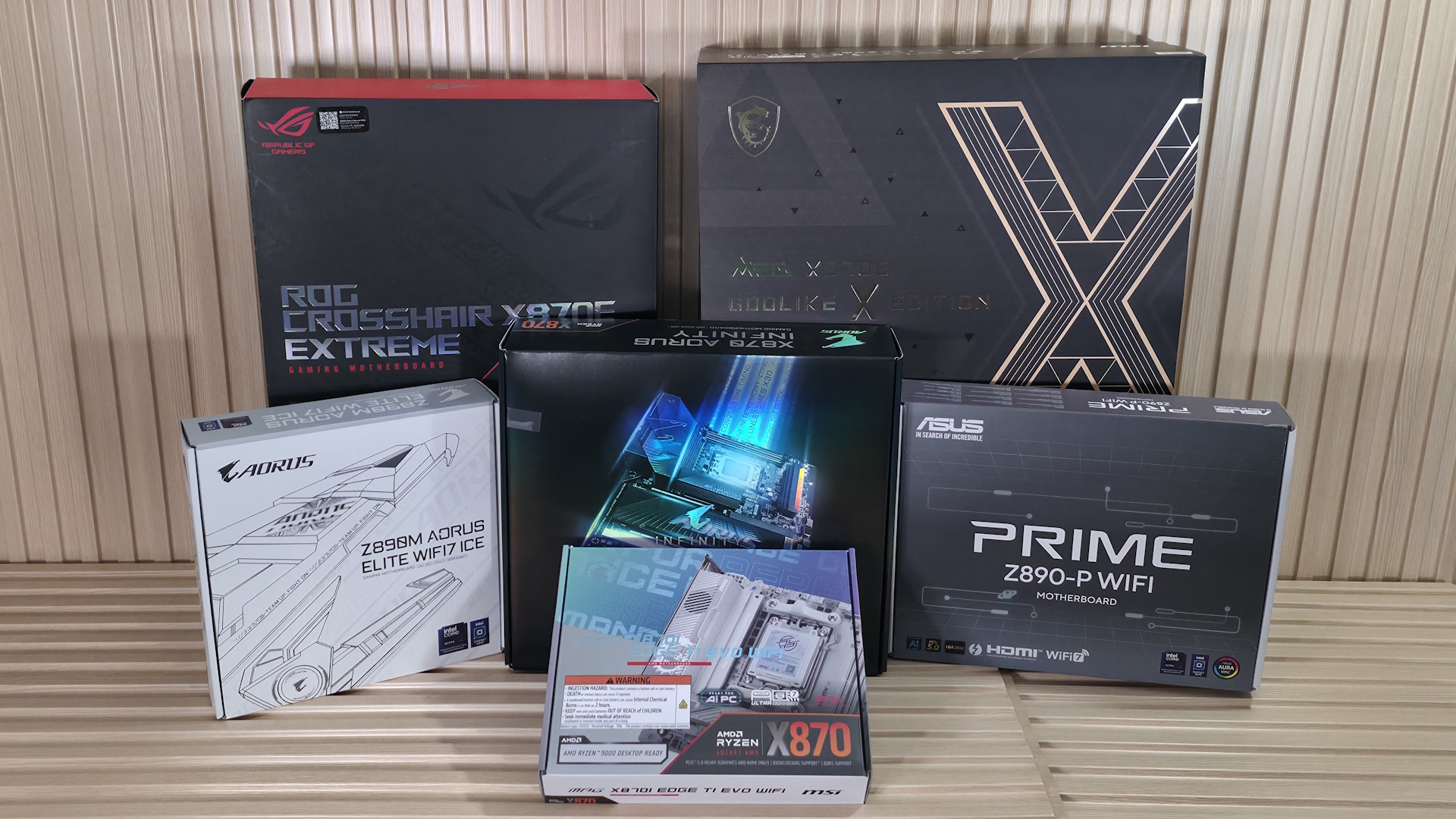
Budget vs. High-End Motherboards

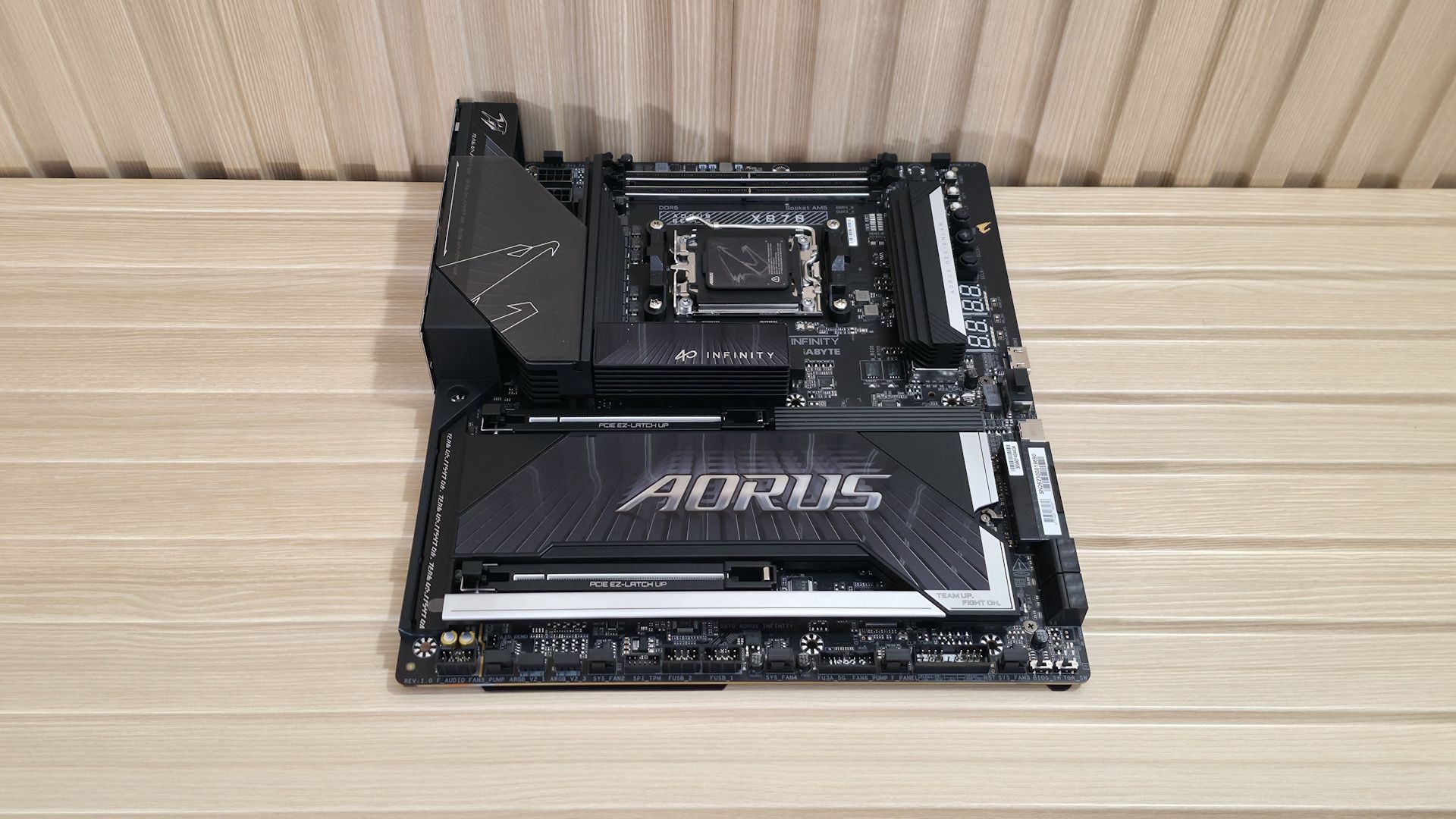
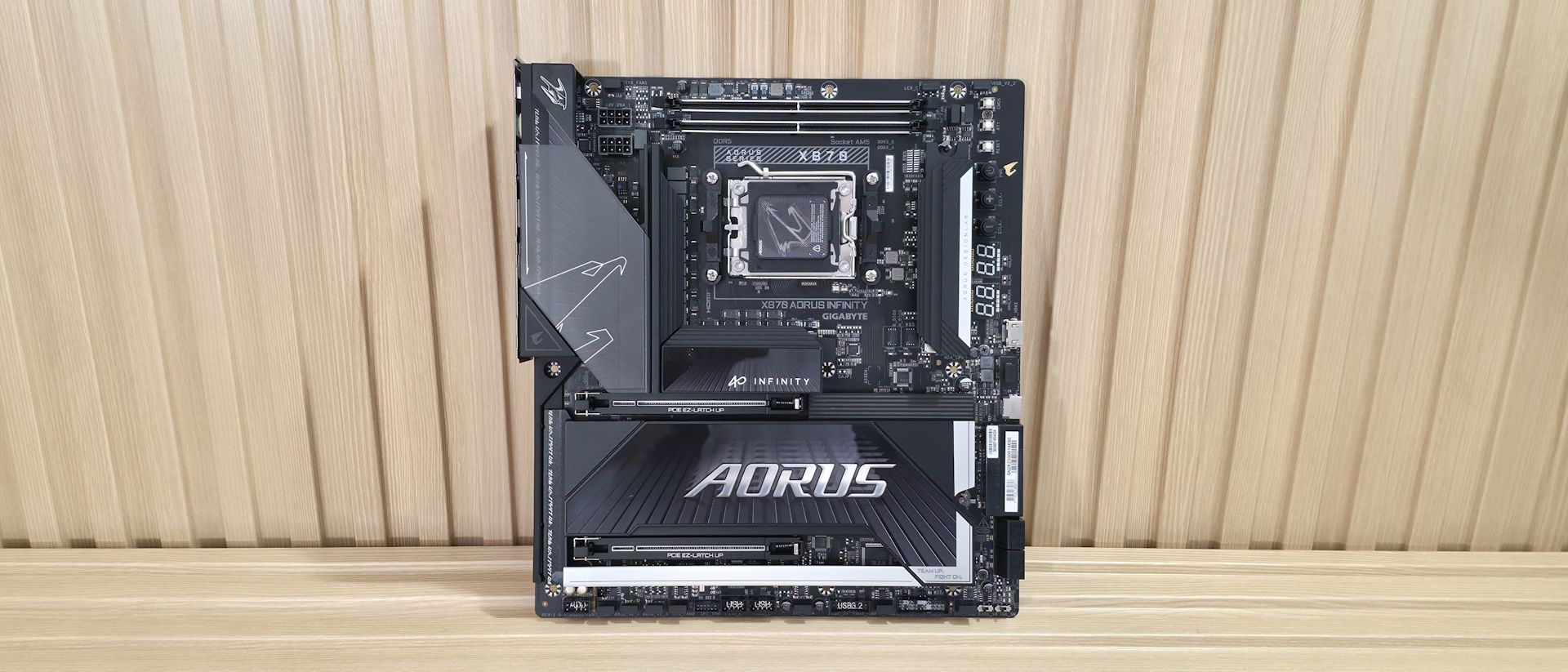
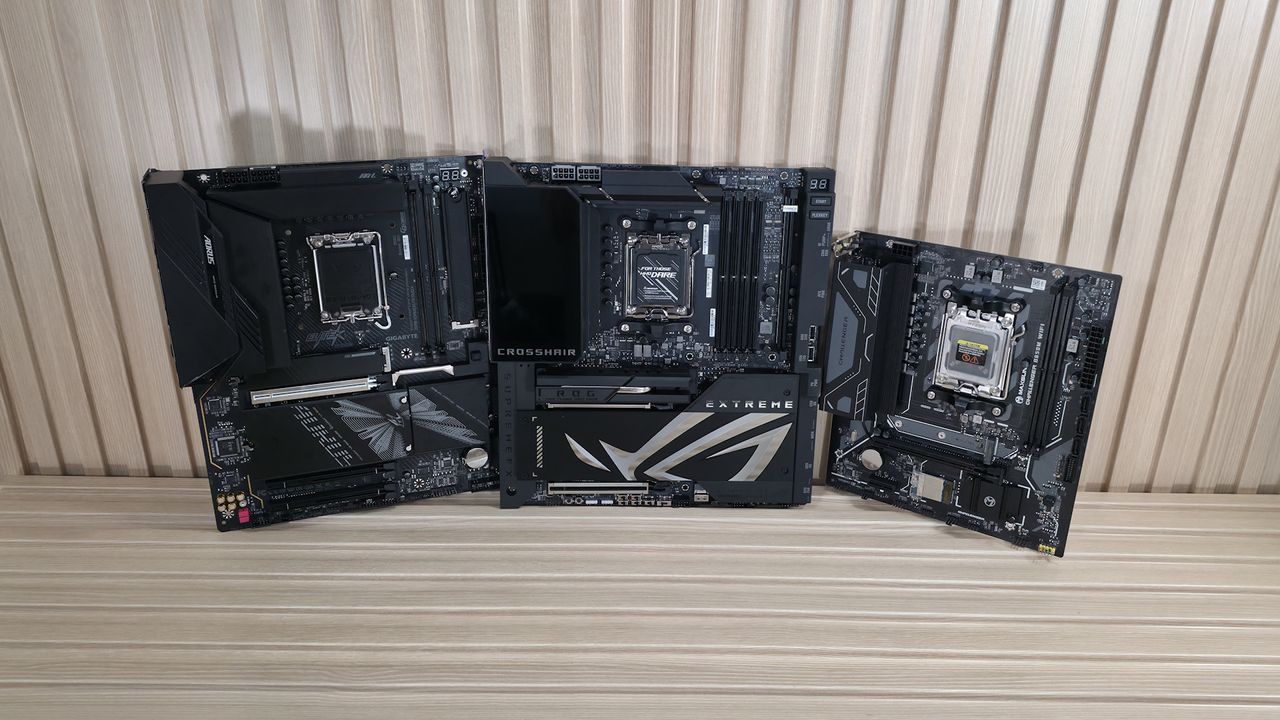
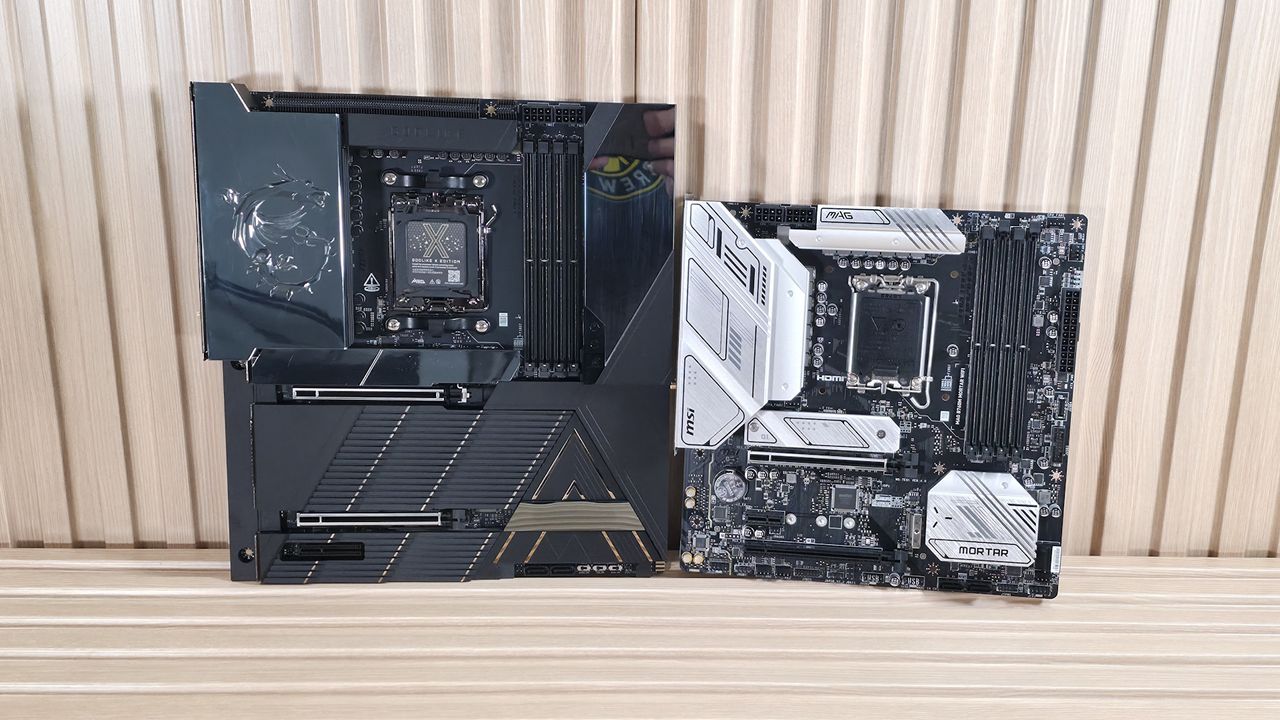
(Image credit: Tom's Hardware)

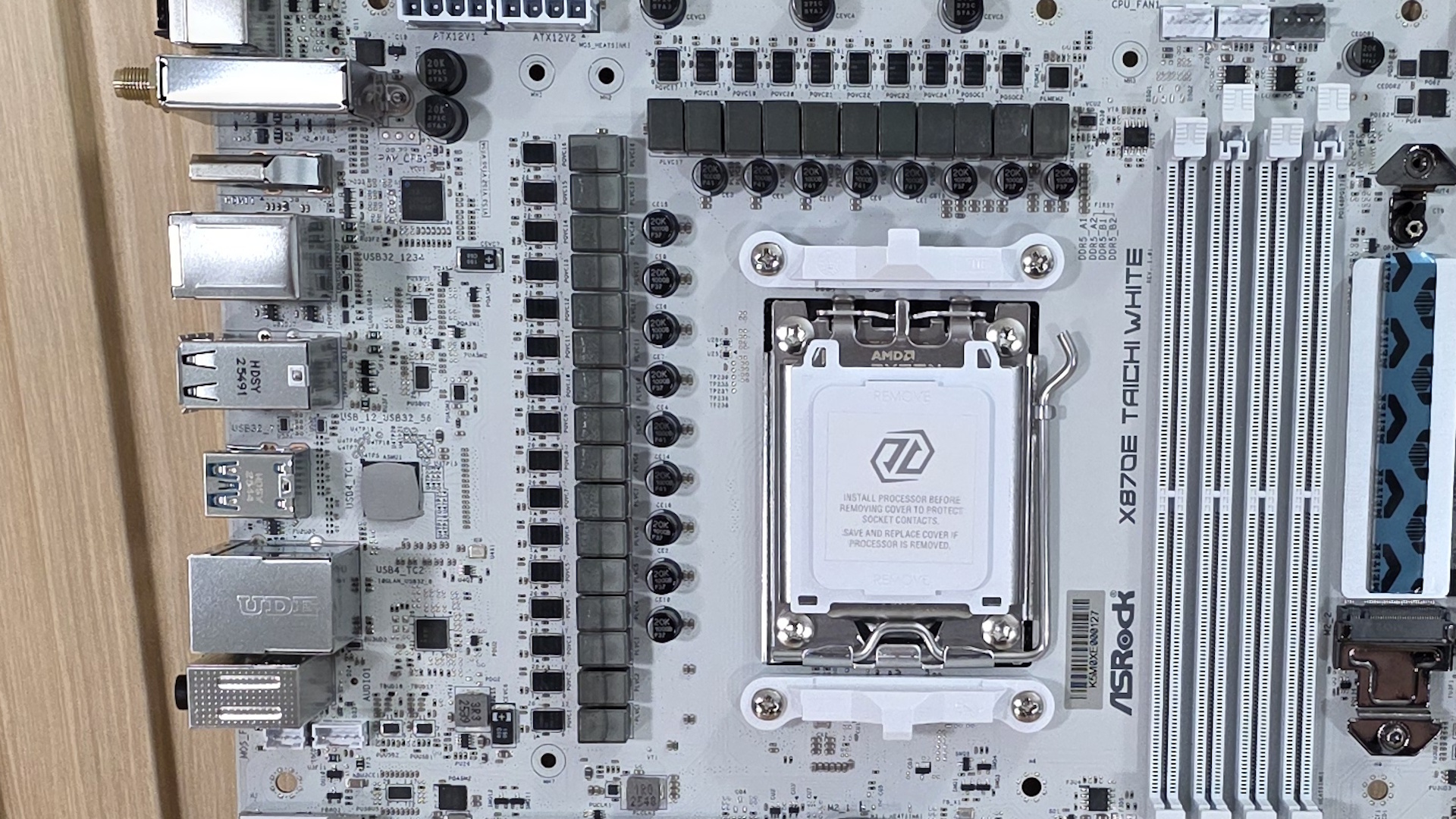
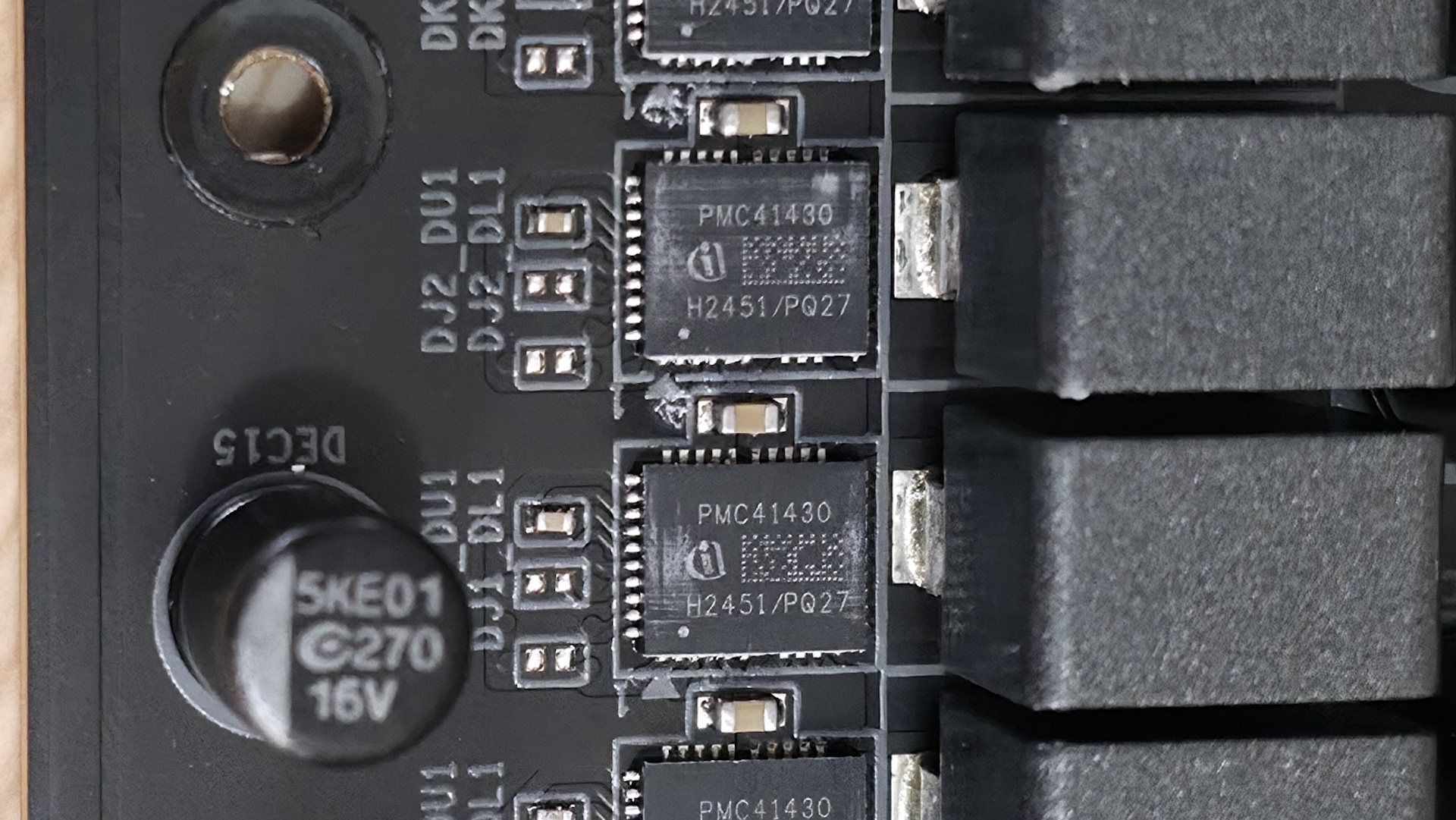
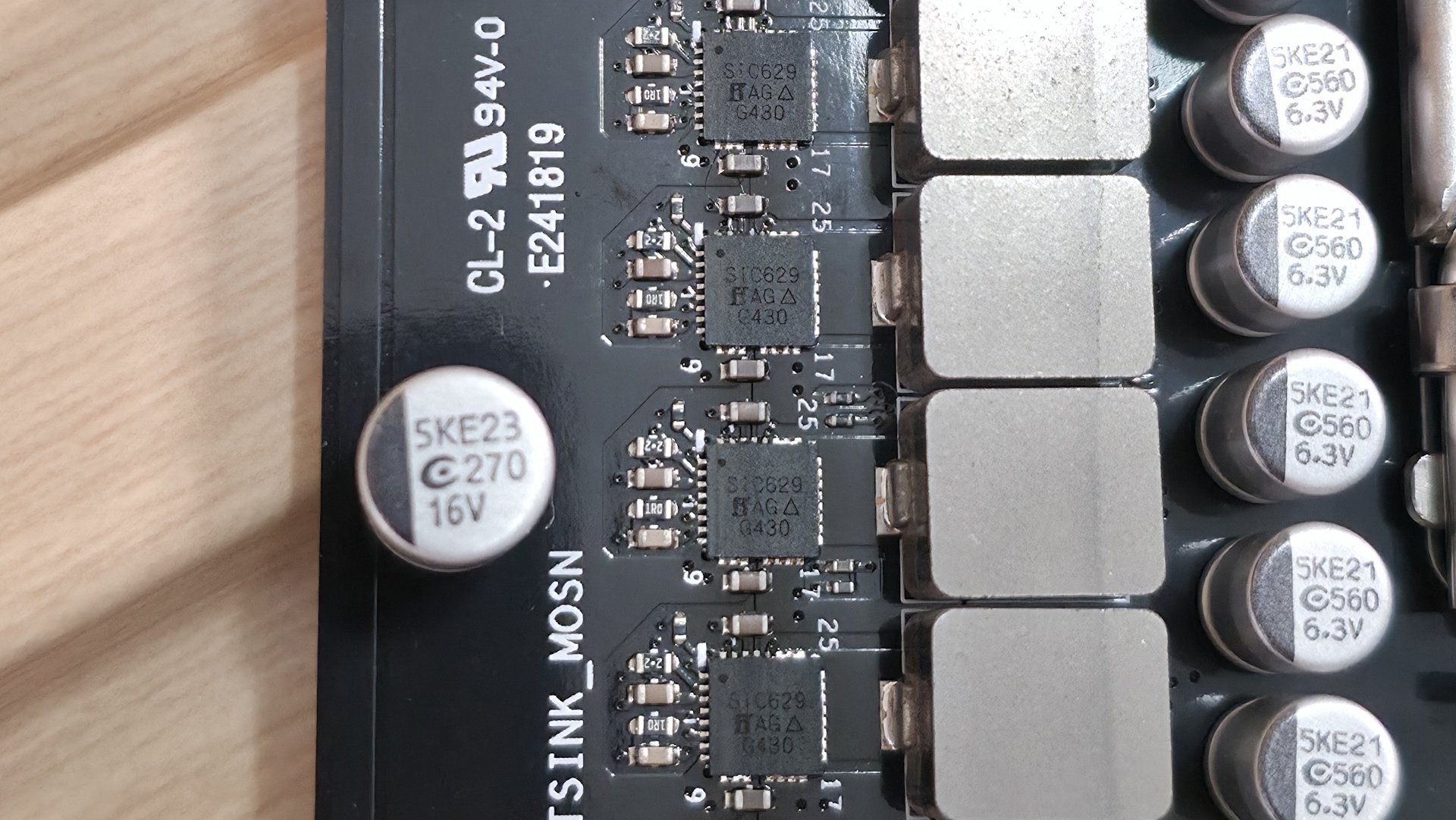
VRMs are not a single component but a group of parts working together as a “power phase,” and a typical motherboard has multiple phases to share the electrical and thermal workload. The PWM controller is the brain of the whole system, telling the components how much voltage is needed at any given millisecond. The MOSFETs are the switches that rapidly turn the 12V power on and off to regulate the current. The chokes are coils that smooth the pulsating current from the MOSFETs into a steady current, while the capacitors store and release energy to maintain a stable voltage. The controller, MOSFETs, Chokes, and Capacitors all work together and make up your VRMs.

VRM quality is important because, when dealing with significant voltage fluctuations and output (its job), a lot of heat is generated. And if you have a power-hungry processor like a flagship-class Intel Core Ultra or AMD Ryzen 9, the chips require a lot of power and places a lot of stress on the VRMs. Most motherboards have metal heatsinks on top to help remove the heat generated. If it gets too hot (the exact temperature varies by MOSFET, but is generally around 100 degrees Celsius), the CPU then automatically throttles to prevent damage, which can hurt your performance, and that's what we’re here to shed some light on.

What makes VRMs better (or worse)?

VRM quality varies widely by motherboard. Typically, your enthusiast-class chipsets (Z890, X870E) have the most capable power delivery components, followed by the mainstream chipsets (B860, B850) and budget-class (A620 for AMD, “H” series for Intel). On most enthusiast-class boards, you’ll see 80-110A MOSFETs, more phases, and robust heatsinks, while mainstream and budget boards typically have 50-80A MOSFETs, fewer phases, and smaller heatsinks.

Entry-level motherboards, although they list support for flagship-class processors, are designed for low-power CPUs and may throttle under heavy workloads if you overbuy on the processor or don’t have adequate case cooling. These basic boards often come with minimal heatsinks (or none at all), a low phase count, and lower output capability, and are designed for simple tasks and office use. Mid-range motherboards offer a better balance of price and performance and can handle most any processor, even with some overclocking. These are better suited to gaming and productivity builds, where sustained performance needs are more common. High-end boards can support any processor and any type of overclocking (ambient, extreme/sub-ambient).

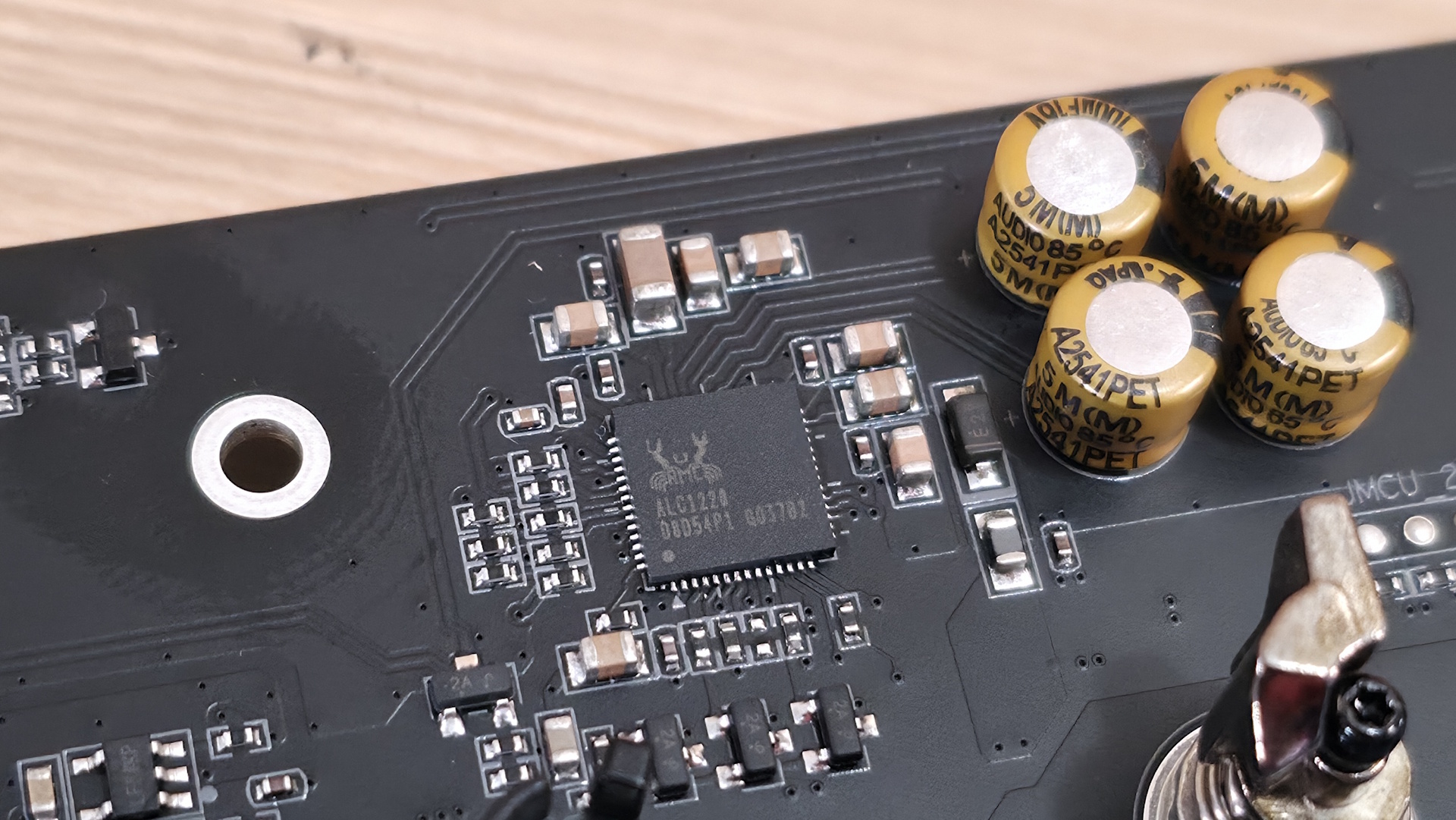
A ‘better’ VRM has more power stages with higher current capacity. At a high level, 20-phase VRMs with 110A MOSFETs, as you’d see on high-end enthusiast-class boards, are better than a 12-phase VRM with 60A MOSFETs, as is common on budget-class offerings. More details matter, such as whether the phases are ‘teamed’ (as most are today) or the type of MOSFETs used (DrMOS or SPS - the latter relays real-time telemetry), but for the purposes of this article, we’ll stick with count and type and try to stay out of the minutiae.

Budget vs. High-End motherboards

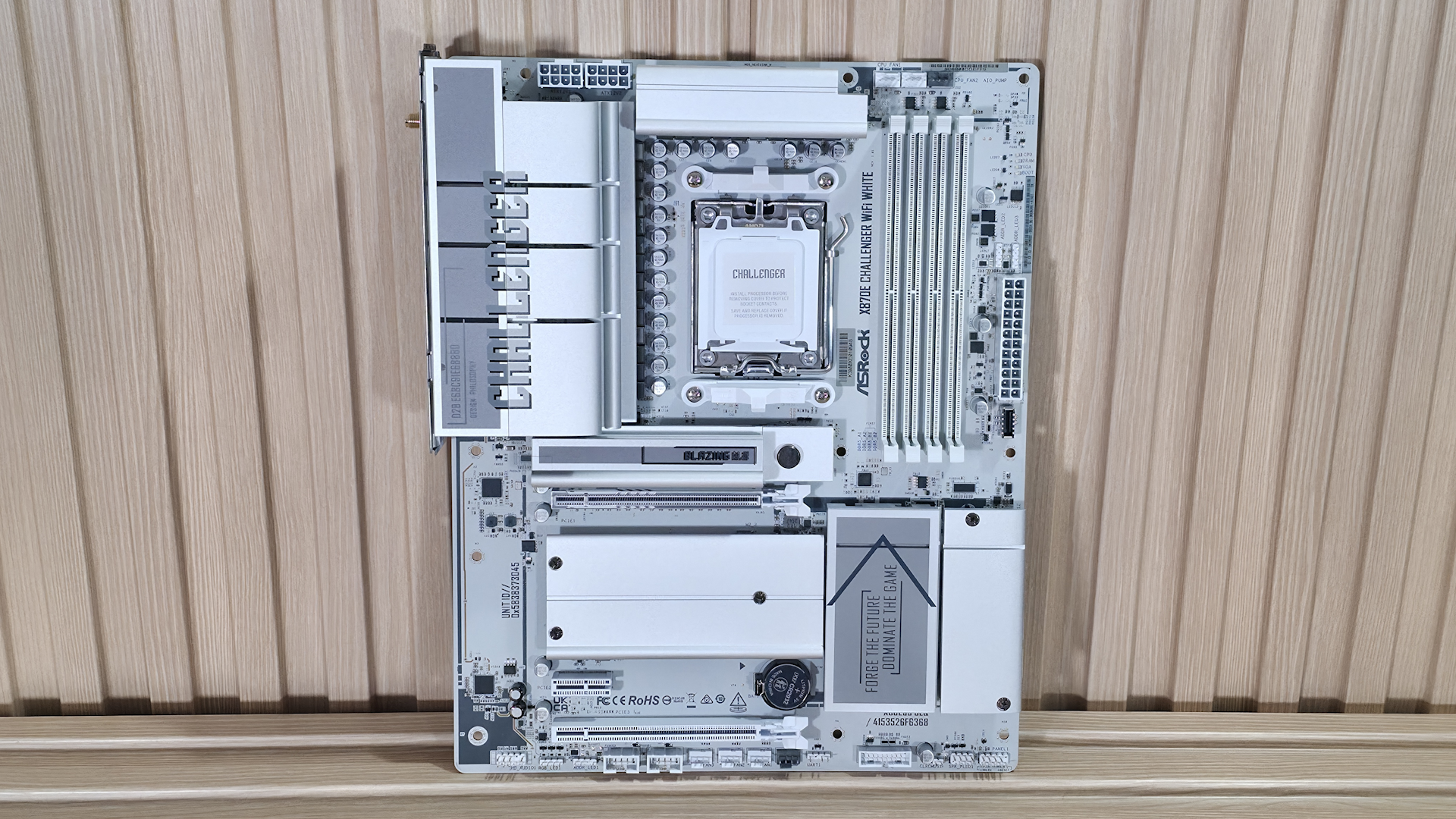
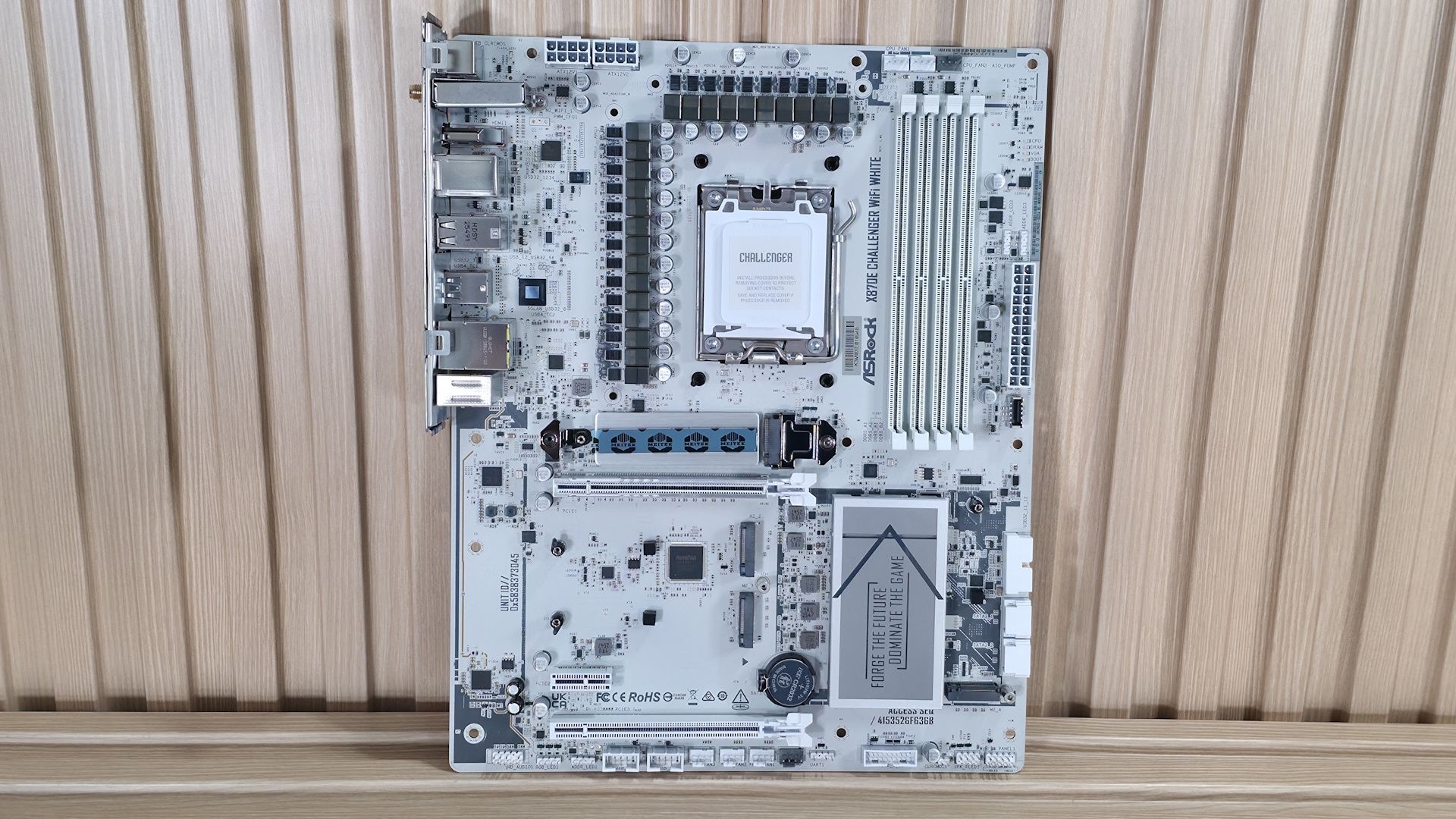
(Image credit: Tom's Hardware)

To understand what a board can handle, you need to know the phase count as well as the output of the MOSFETs. For example, a 12-phase VRM with 80A MOSFETs outputs up to 960A, and a 20-phase VRM with 110A MOSFETs outputs up to 2,200A. The higher the amperage/output, the more it can handle from your processor. In general, for flagship-class processors, I like to have at least 900A available, as this provides enough headroom to avoid stressing the chips too much.

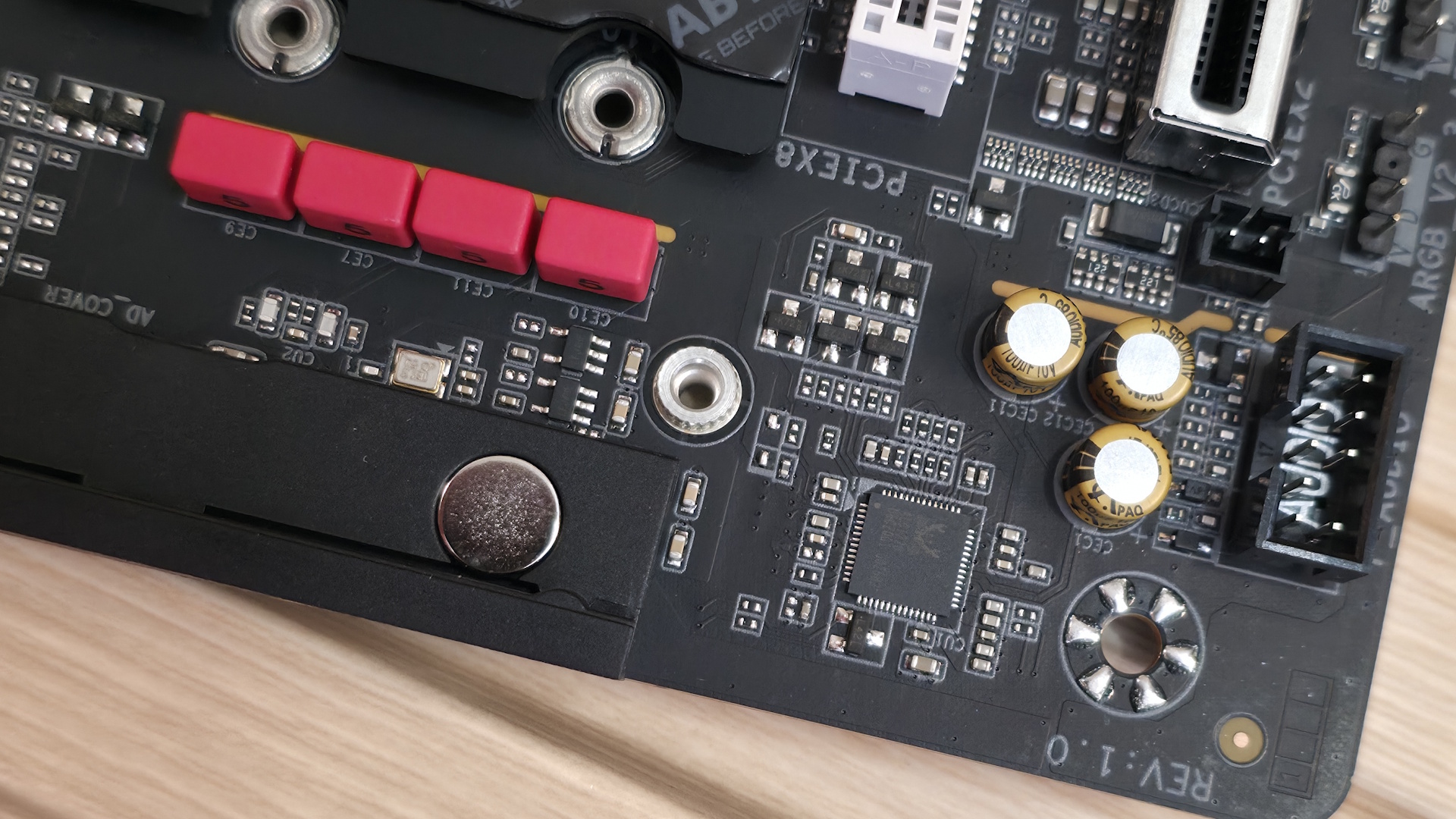
Cooling can also make a big difference. From no heatsinks on the extreme budget and business-class boards to massive, actively cooled hunks of metal on high-end boards, keeping the VRMs cool prevents throttling, ensures sustained performance, and helps prolong their lifespan. Heatsinks come in all shapes and sizes, and some even include fins and heat pipes, along with improved thermal pads to help transfer and dissipate heat. The more power phases and output, the larger and more capable the cooling tends to be. At a high level, unless you’re using a low-power processor (think ~65W TDP), stay away from any boards without heatsinks on the VRMs. And even then, make sure you have good airflow to keep the temperatures in check.

Real-world Results

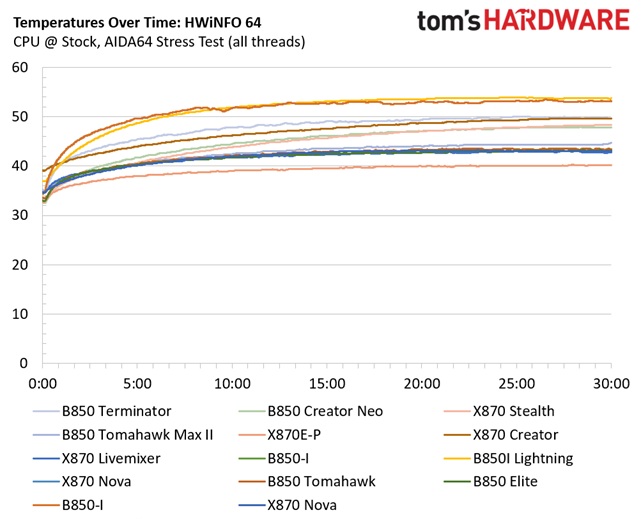
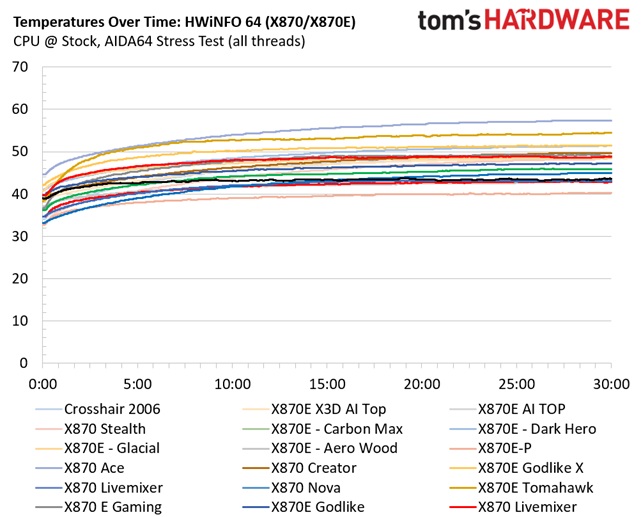
Our first set of charts shows VRM temperatures for our Intel- and AMD-based systems. We have a lot of data for the AMD X870/X870E/B850 data sets, but less for Intel (Z890/B860). Still, the data we have gives us a good idea of the differences (or lack thereof) between the enthusiast-class and mainstream chipsets. It has been a generation or two since we covered the budget and business-class chipsets and motherboards, so we don’t have information on the latest platforms using the absolute bottom-of-the-barrel motherboards (where you typically see performance/throttling issues due to VRMs).

CHARTS - VRM test result charts (3x - X870, B850, Intel)

Comparing VRM thermals

(Image credit: Tom's Hardware)

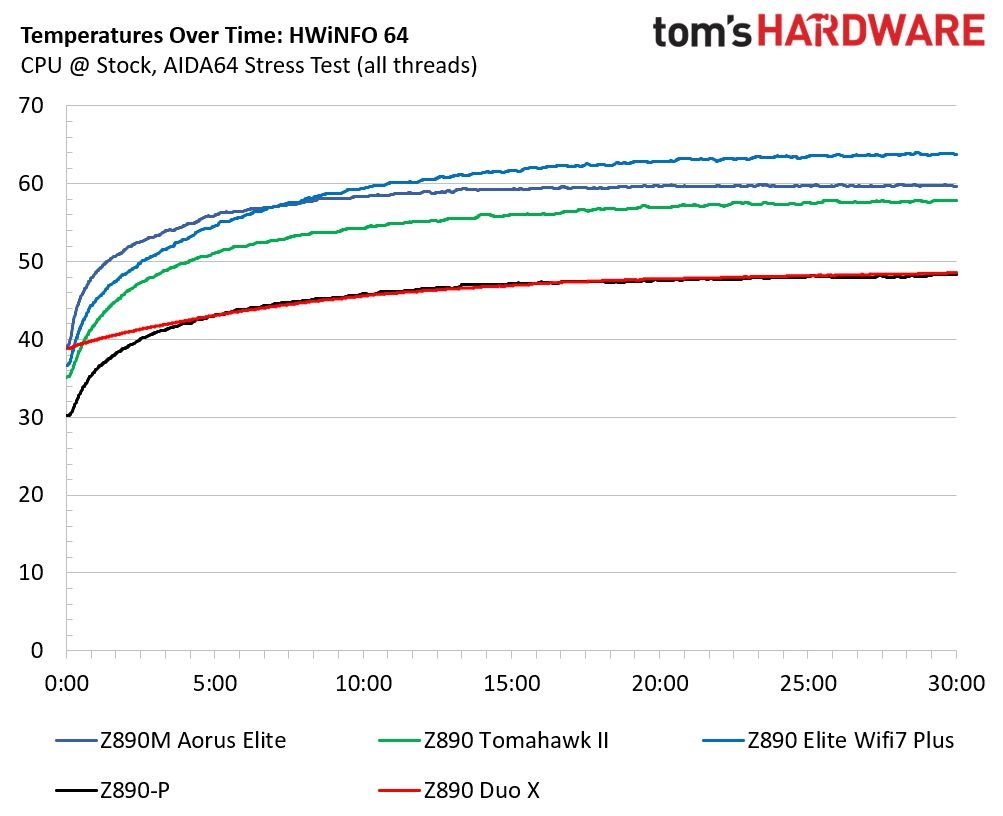
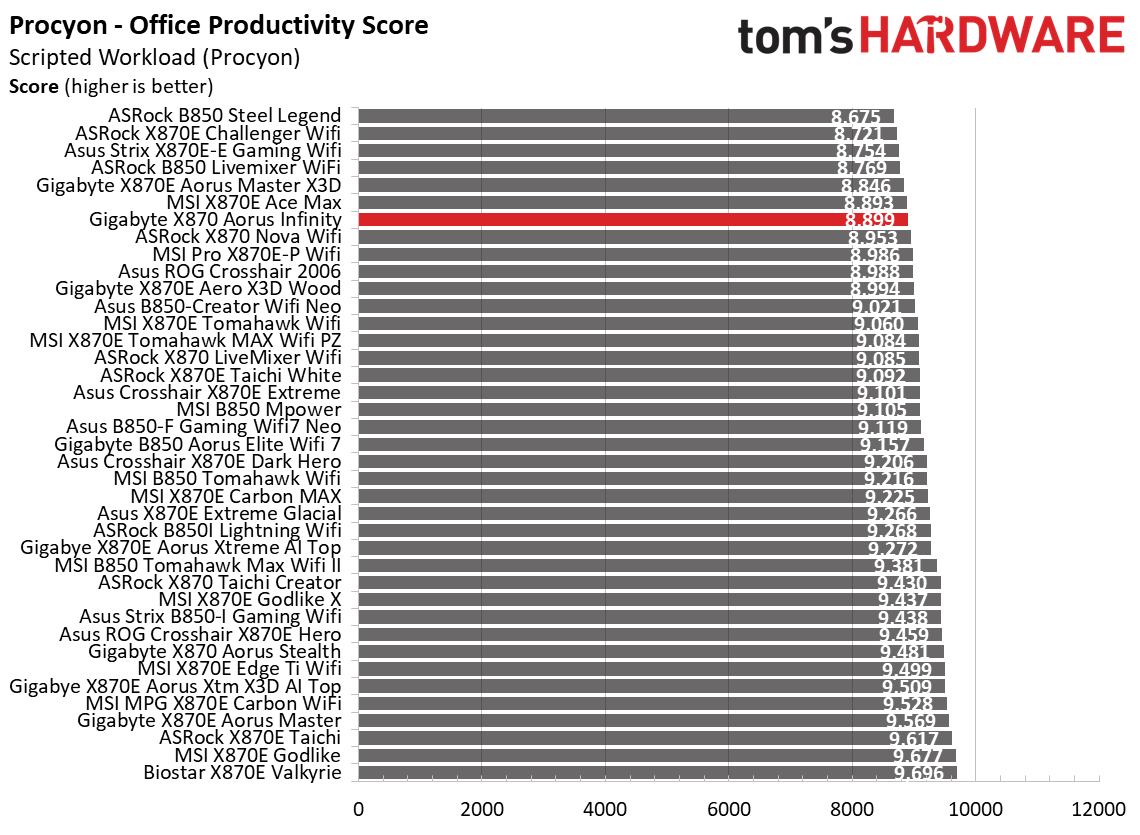
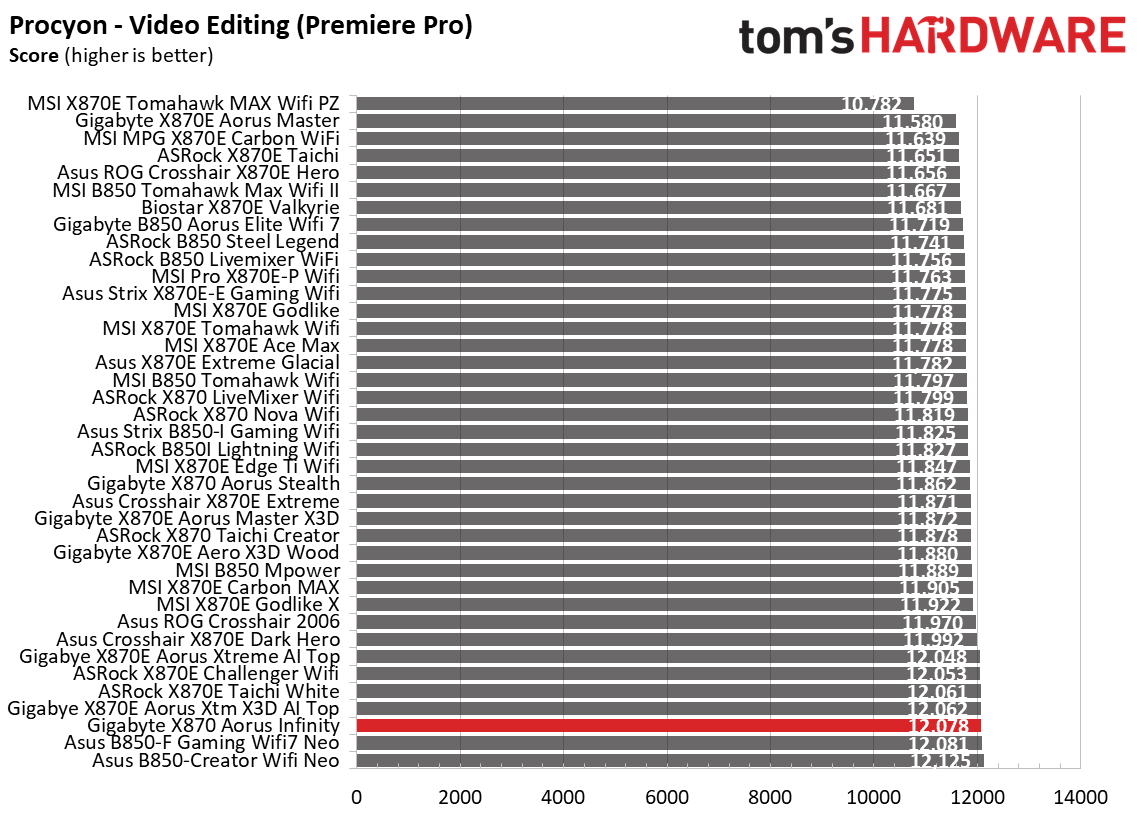
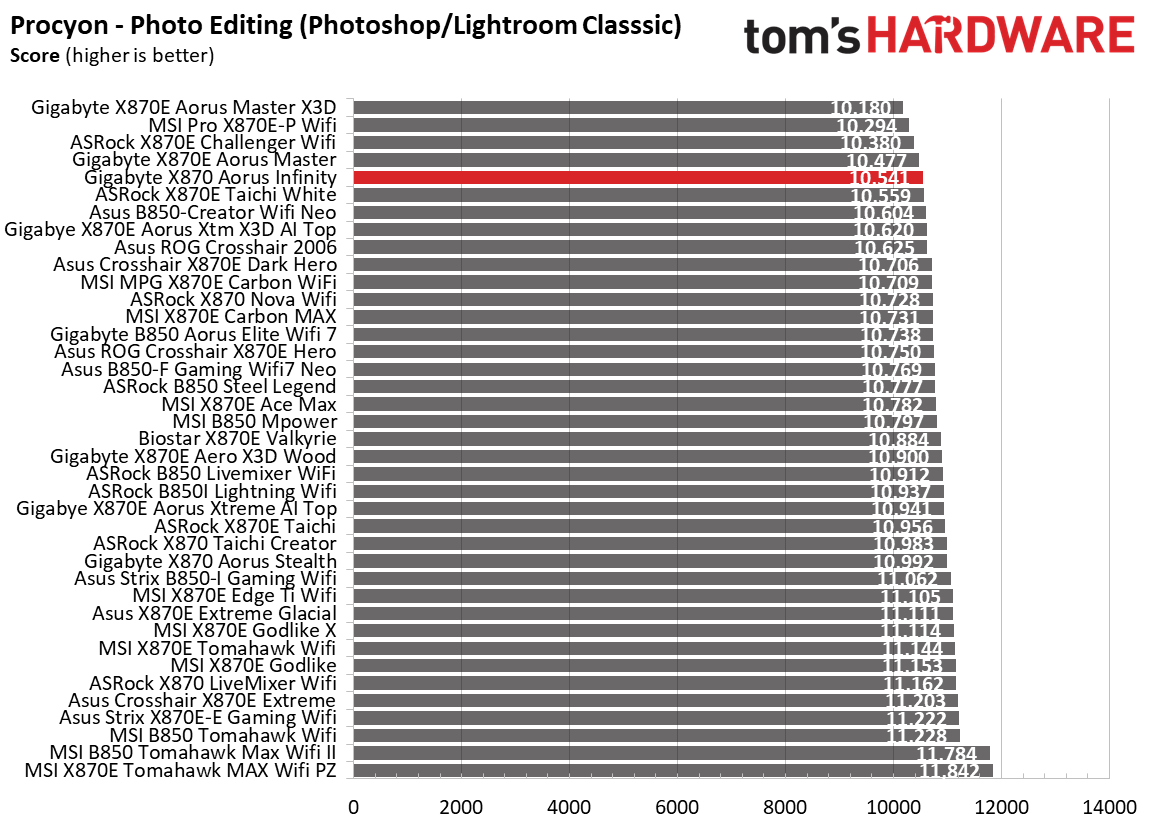
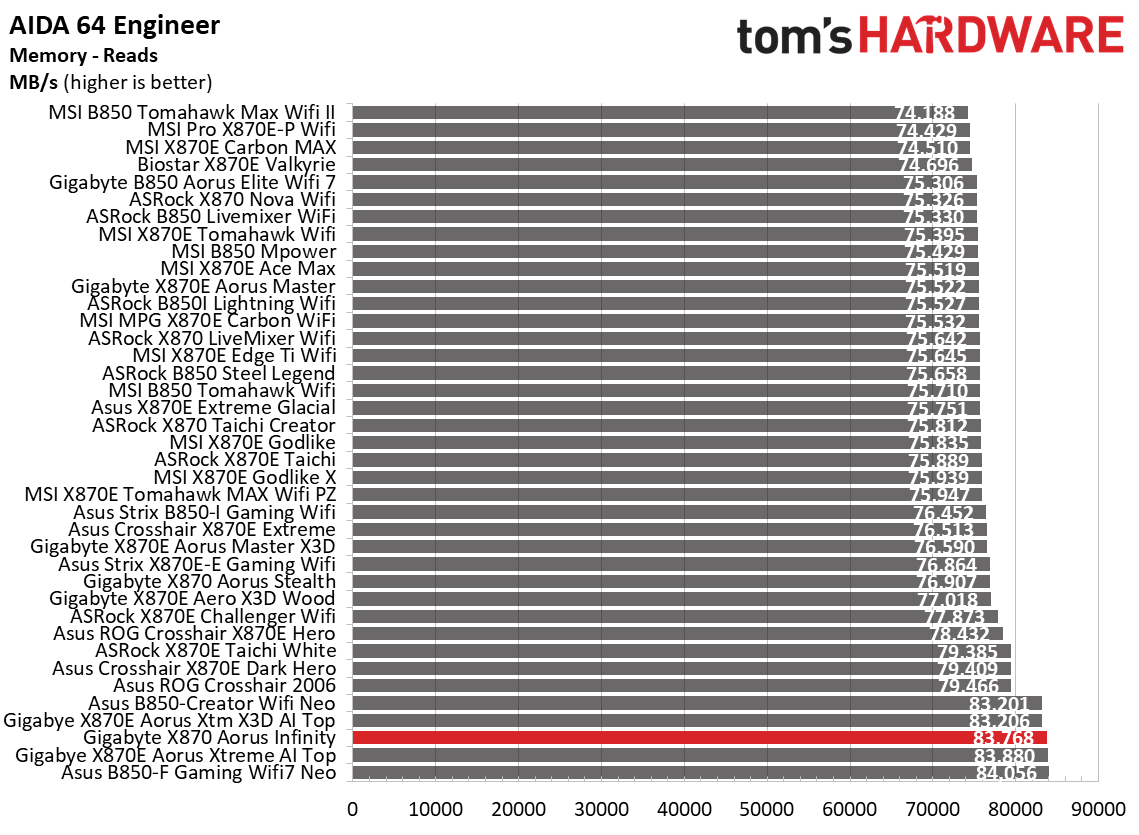
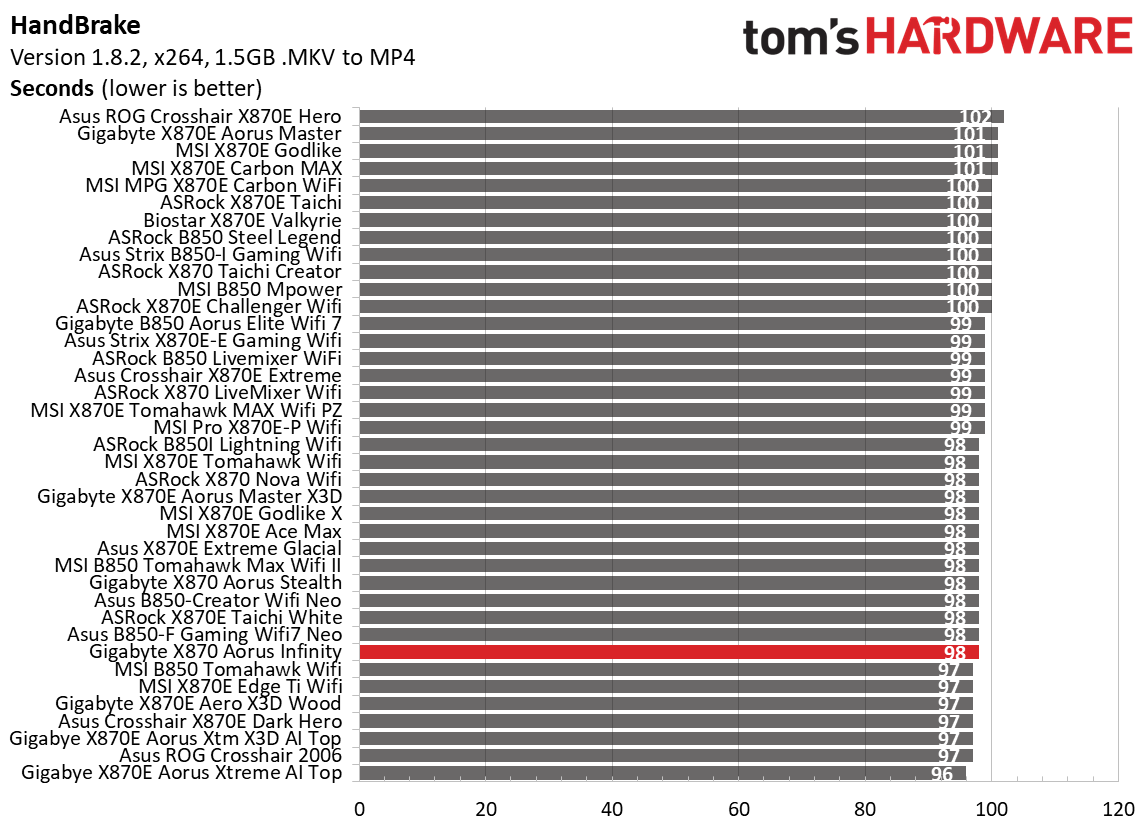
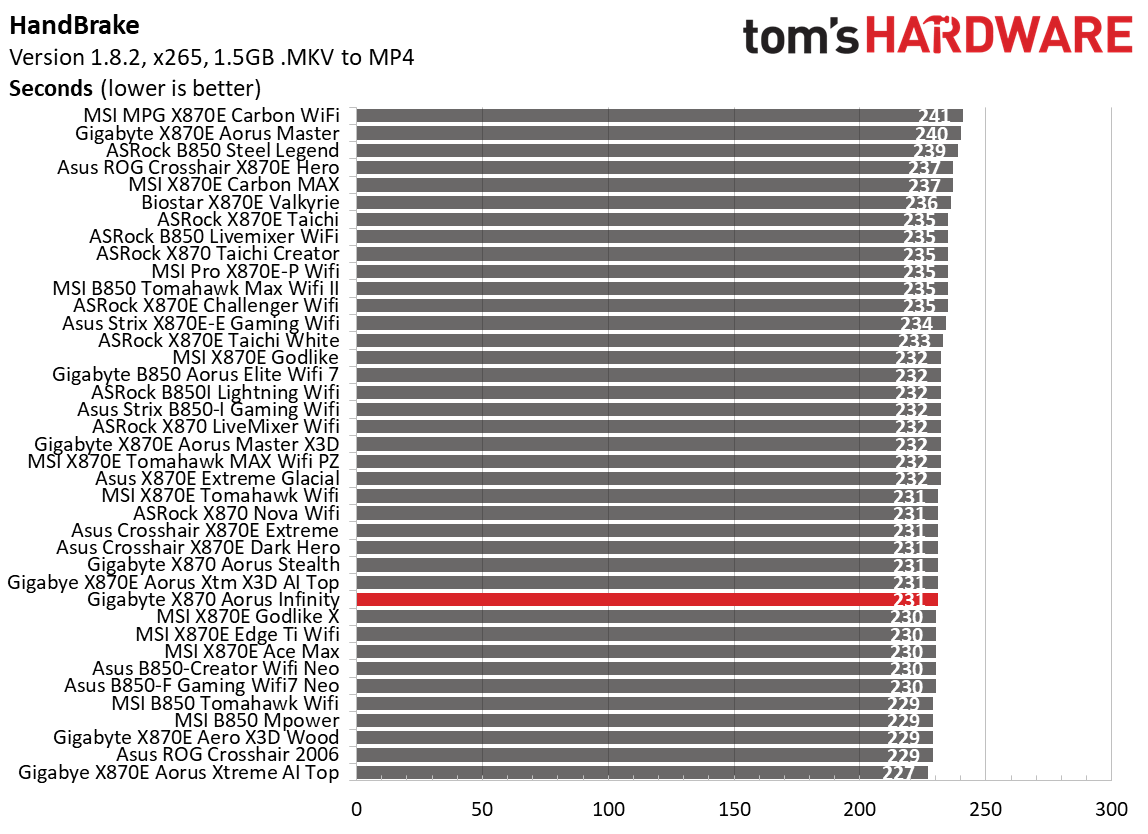
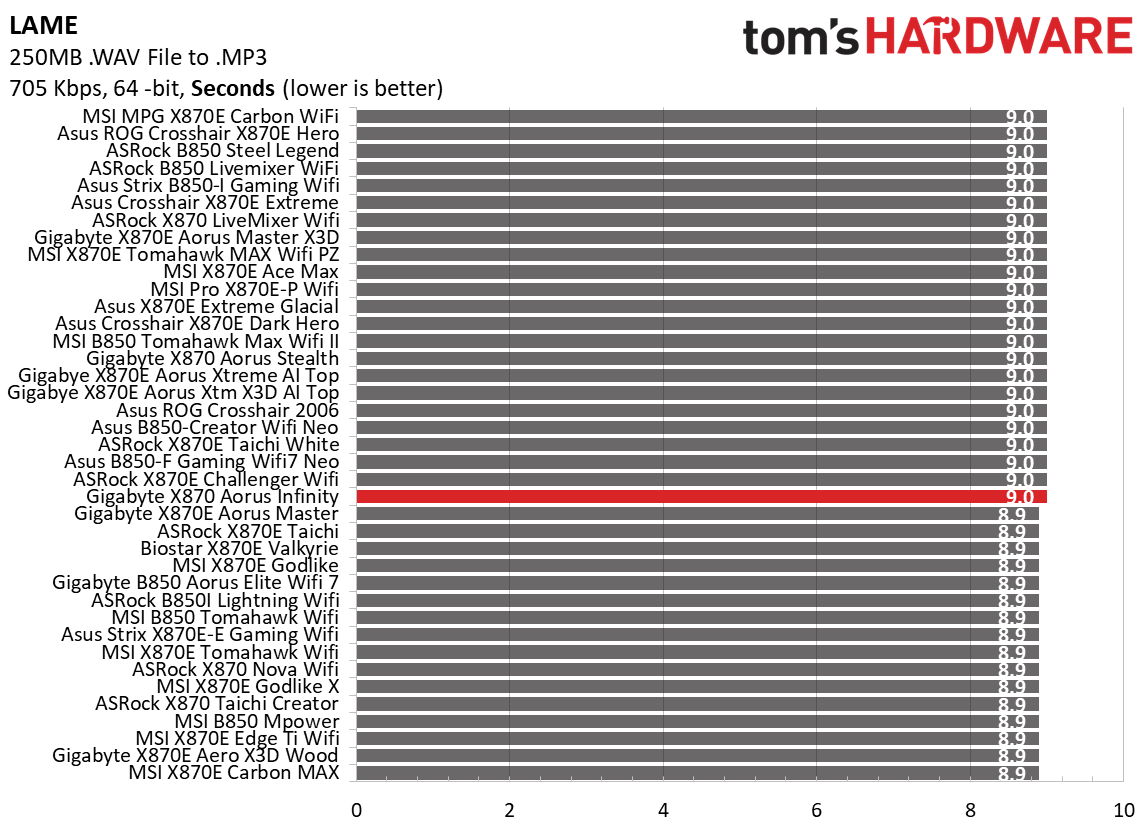
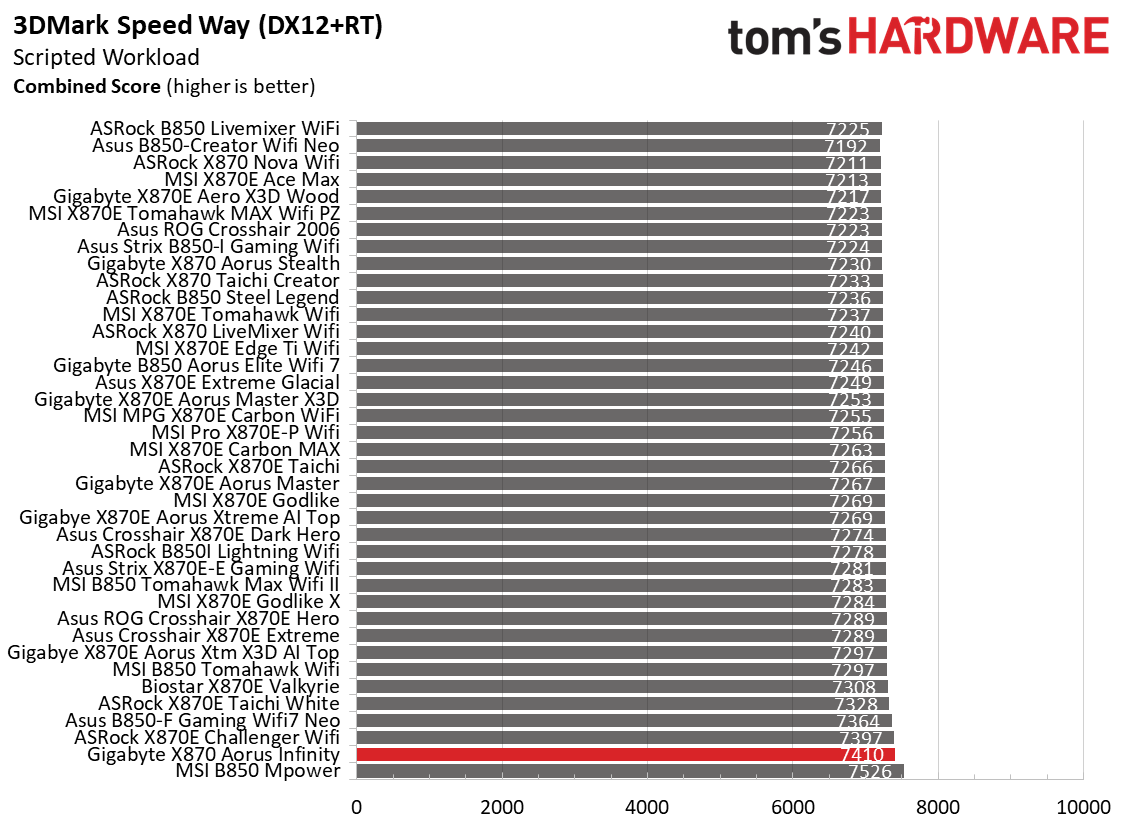
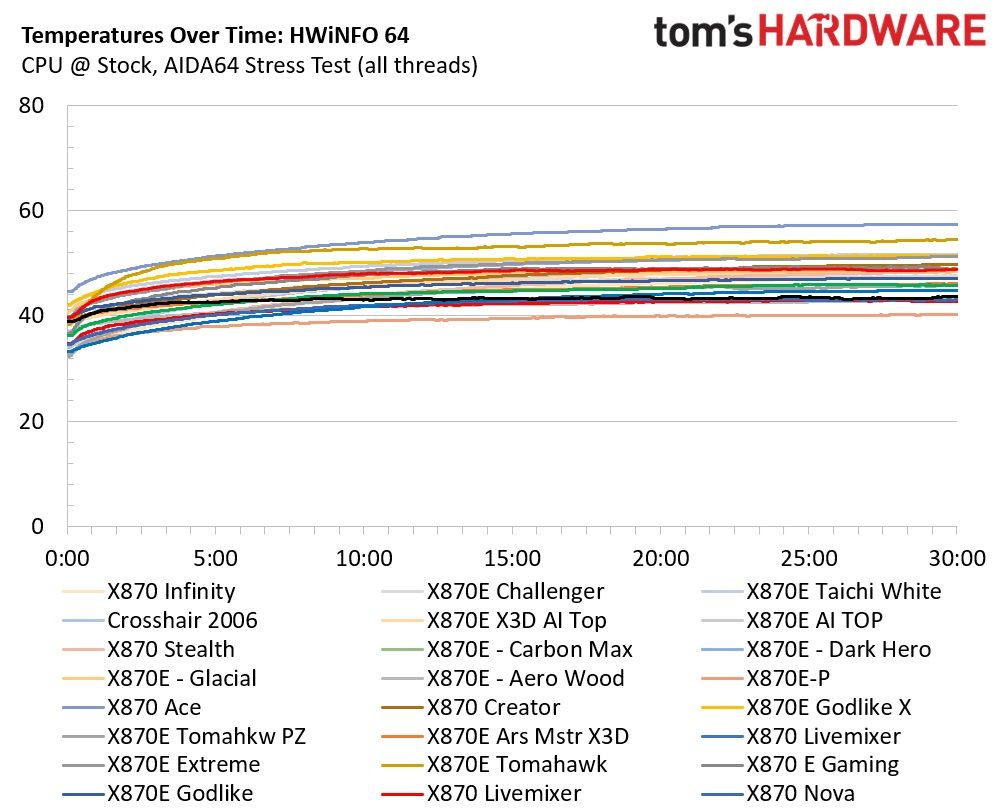
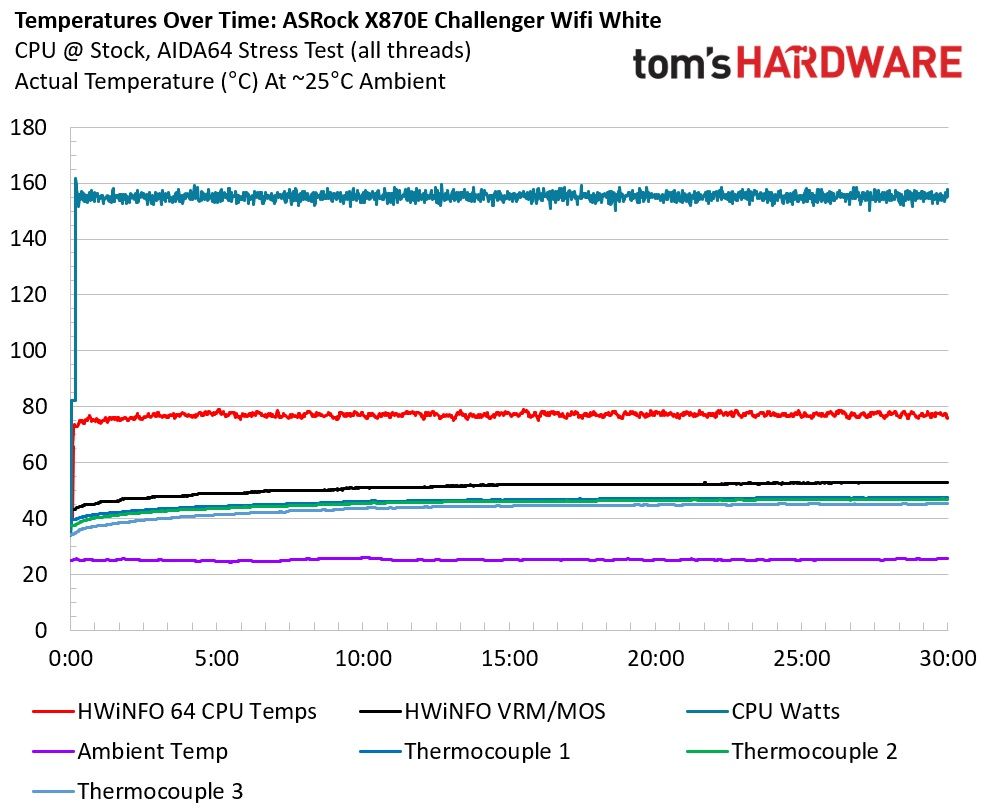
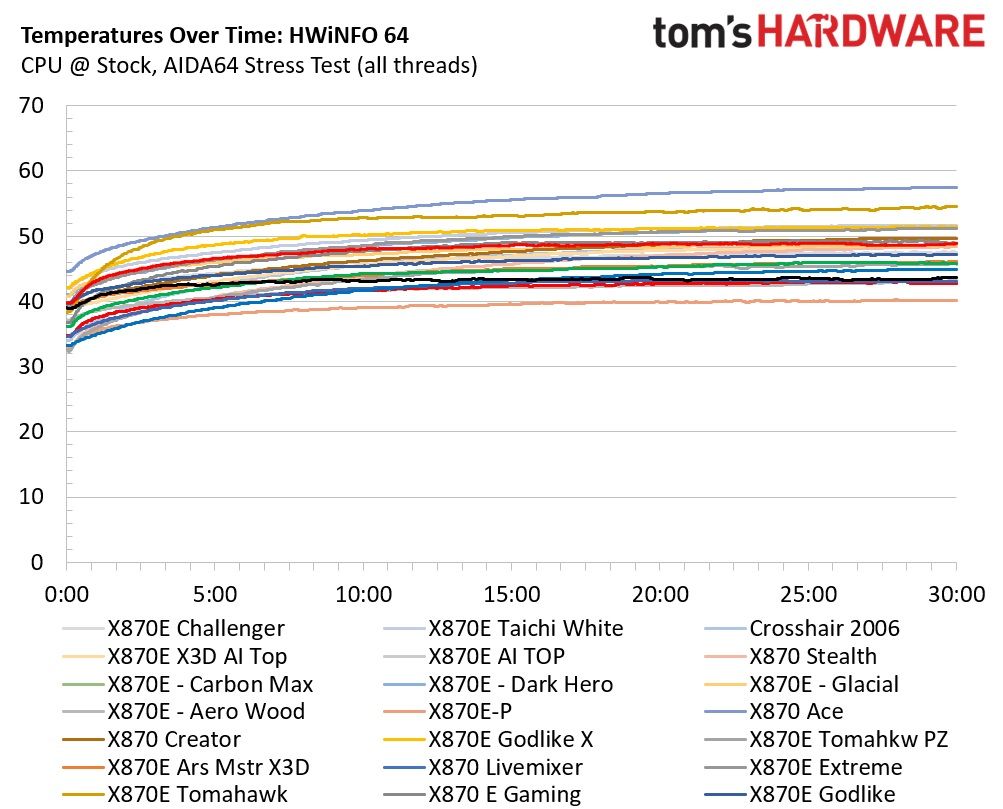
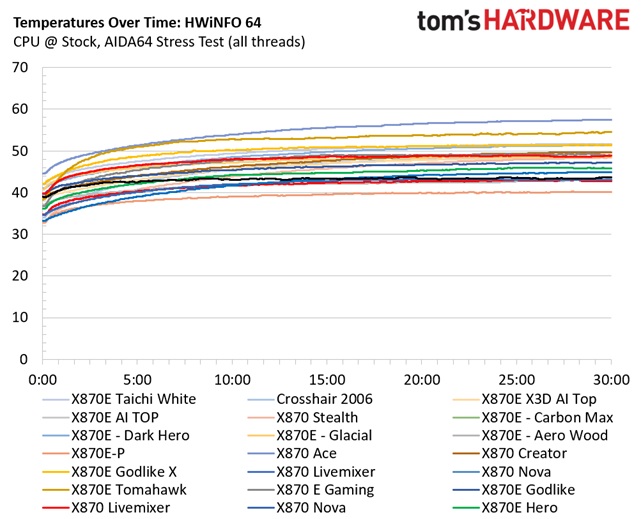
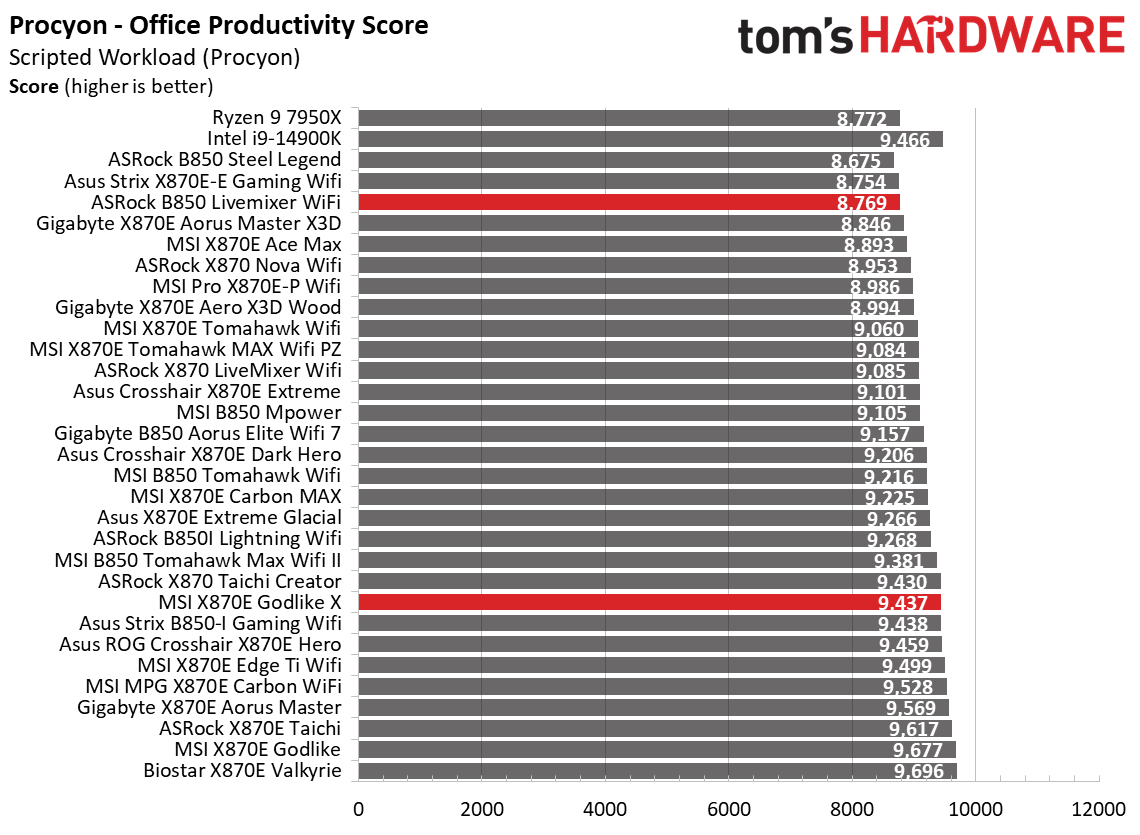
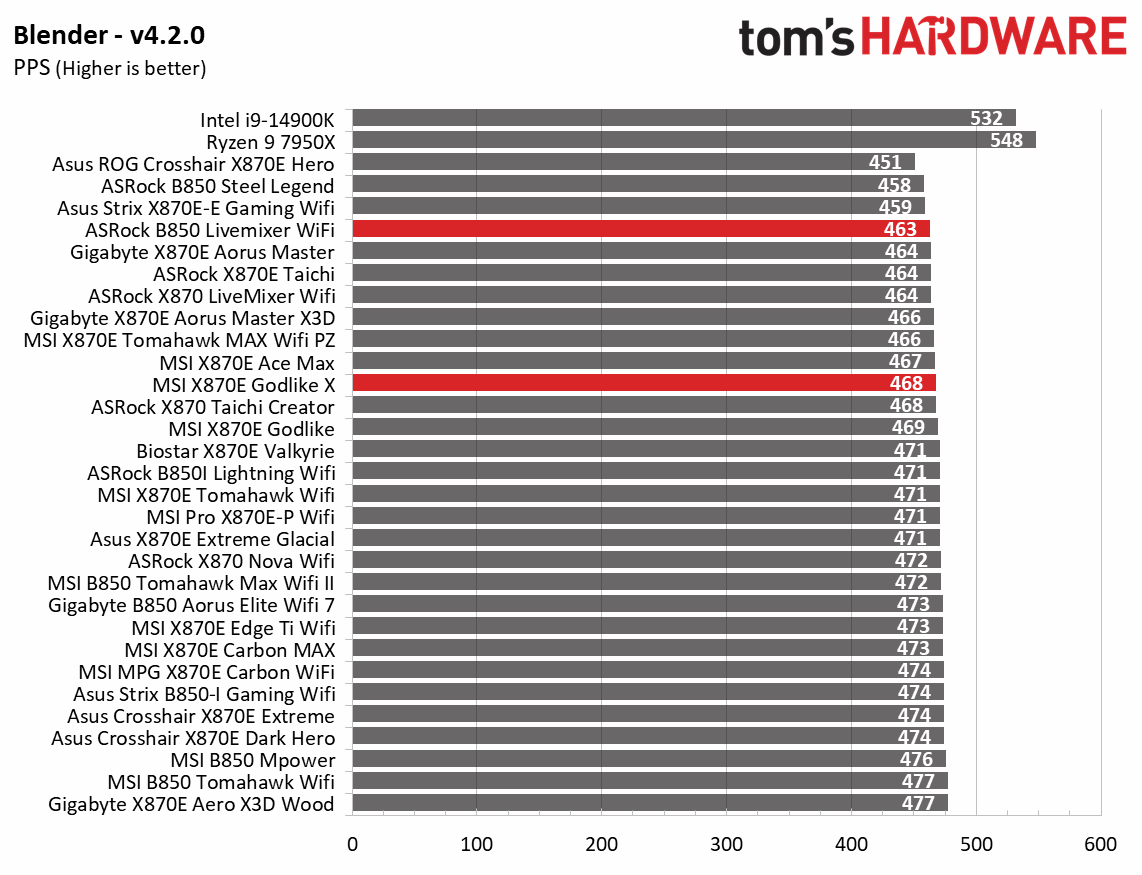
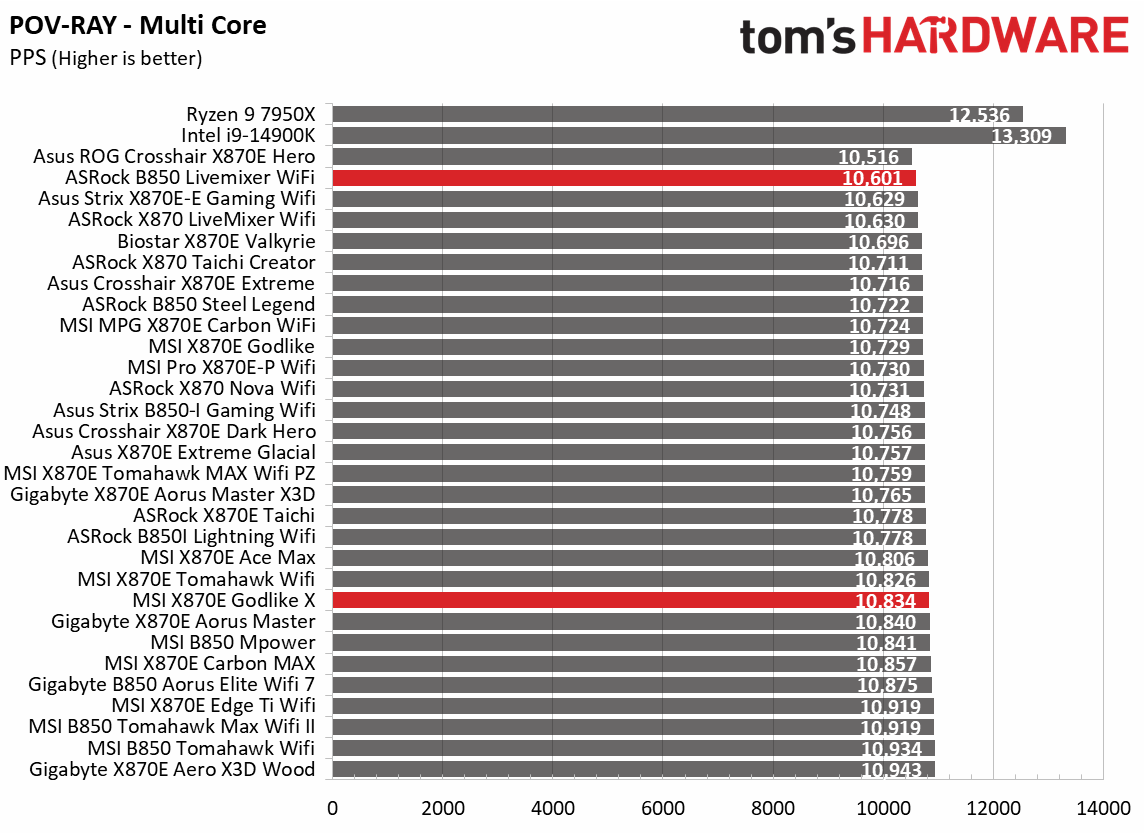
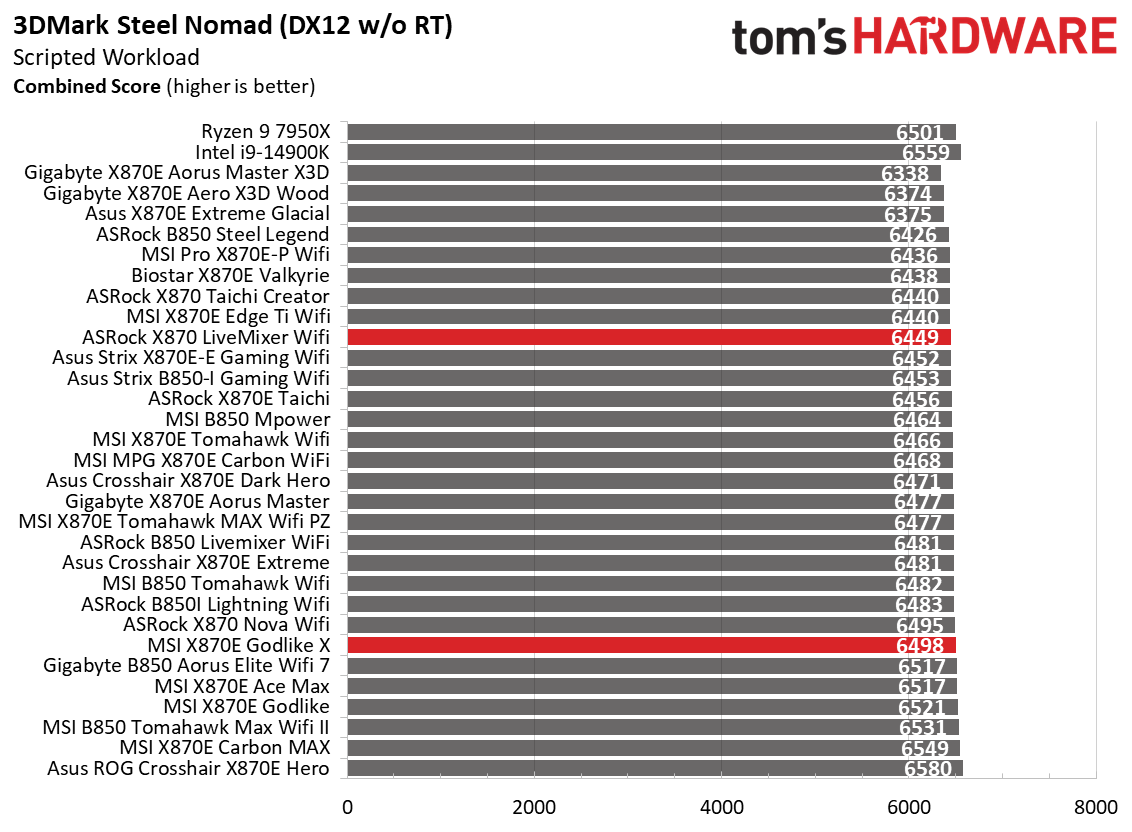
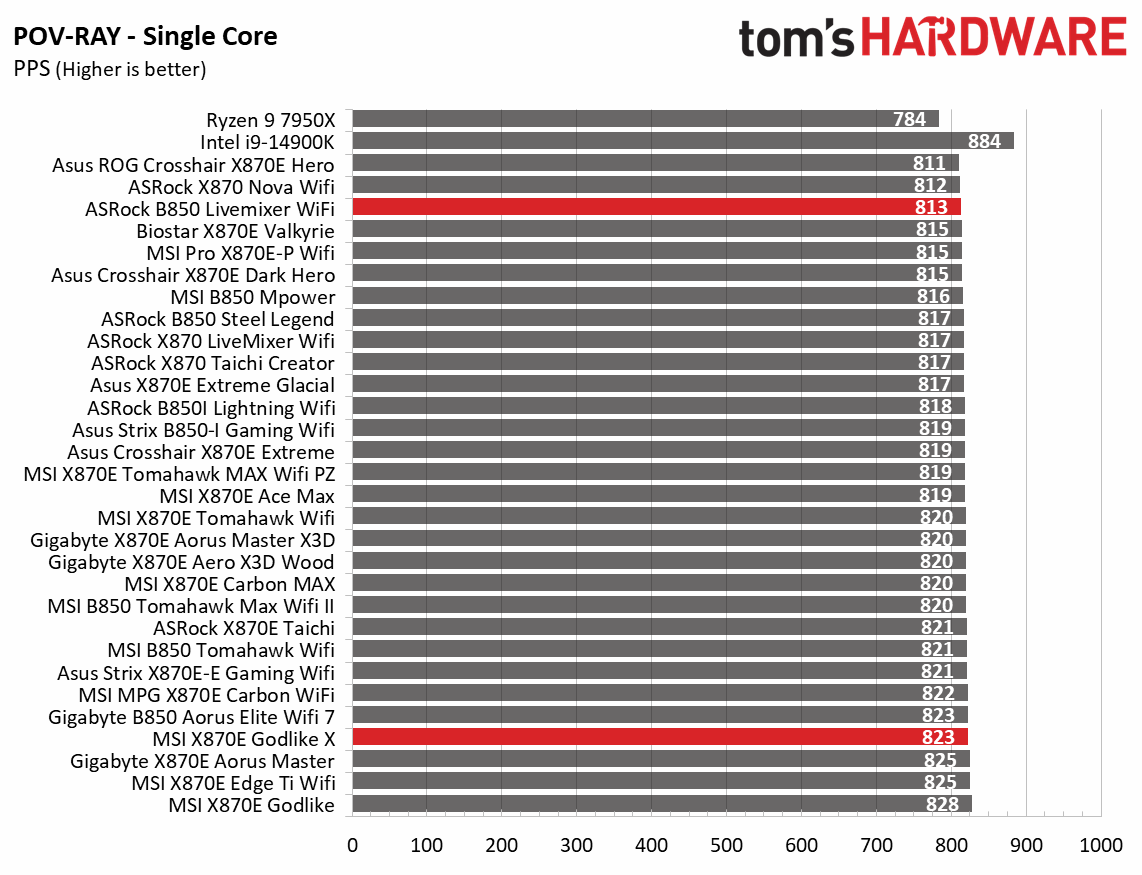
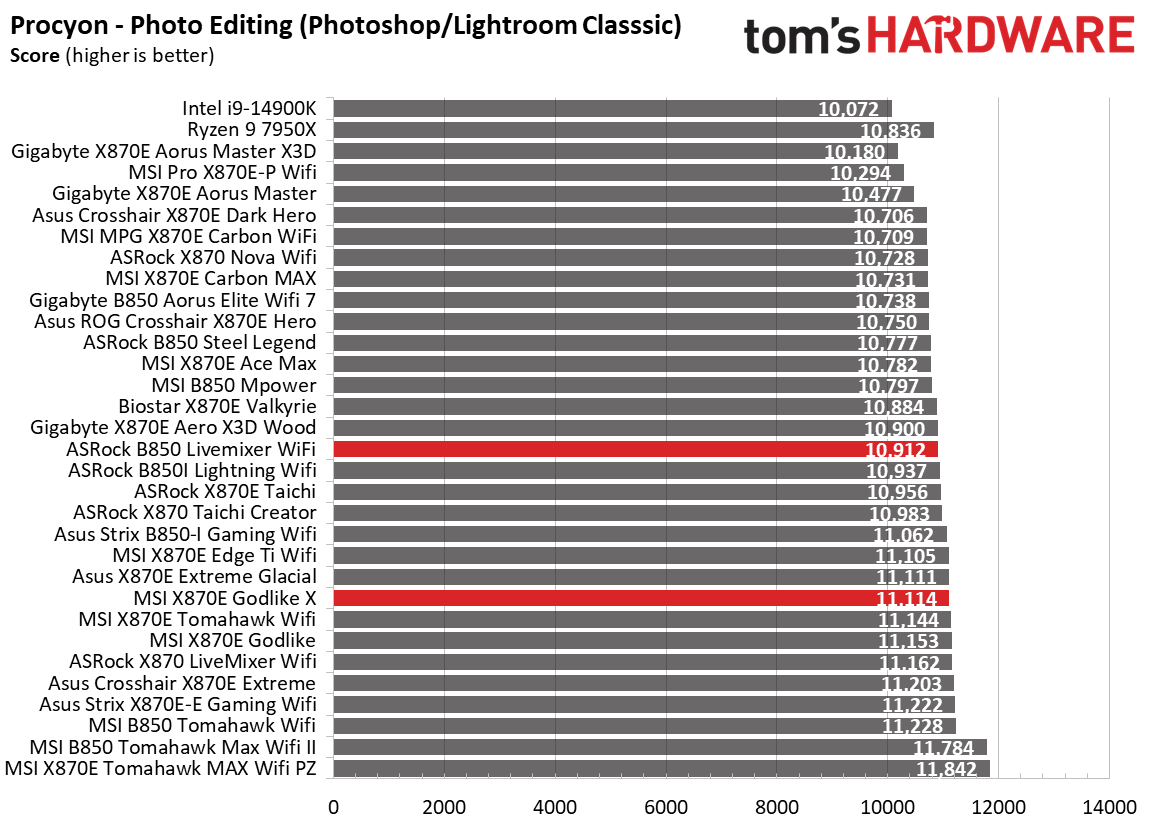
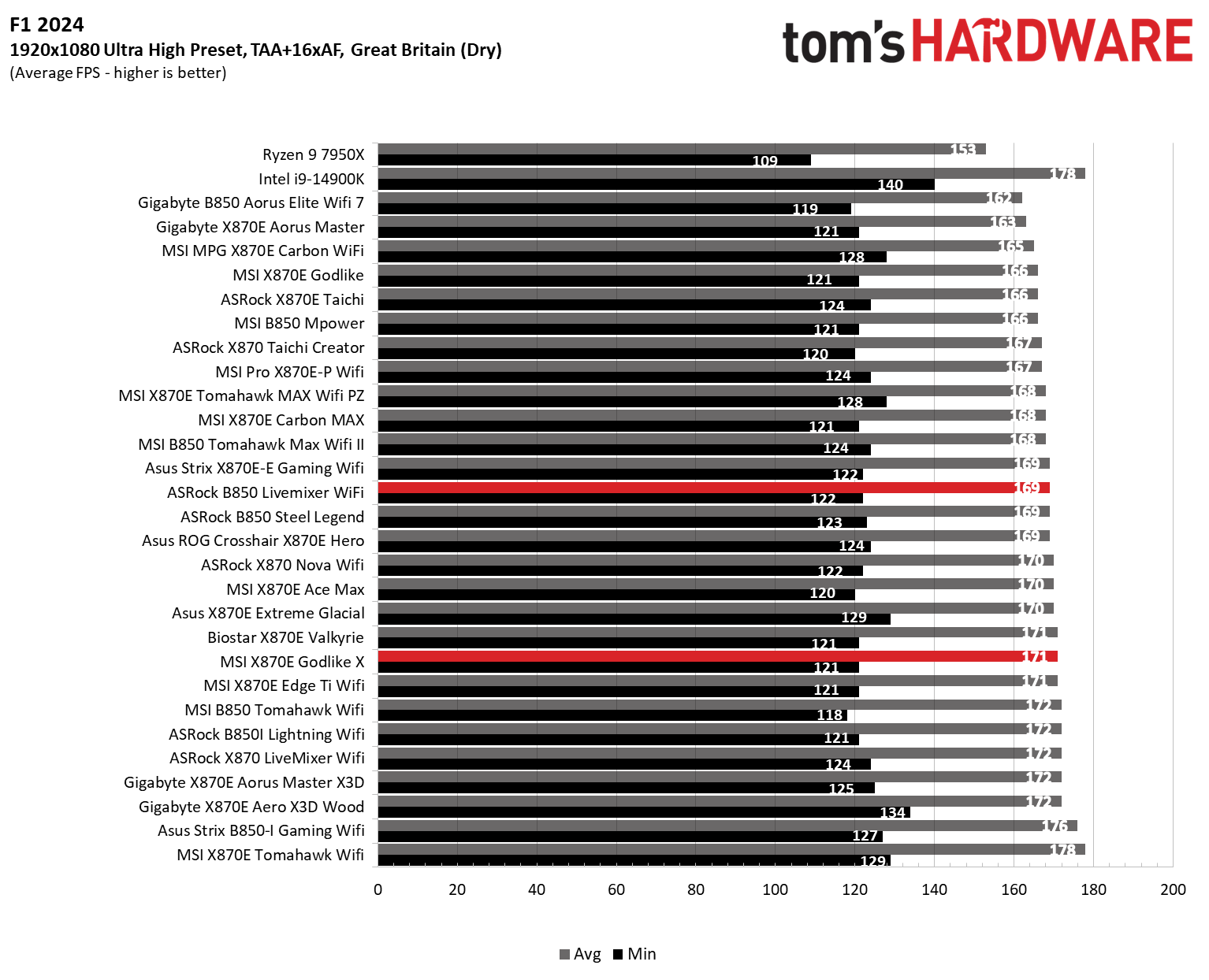
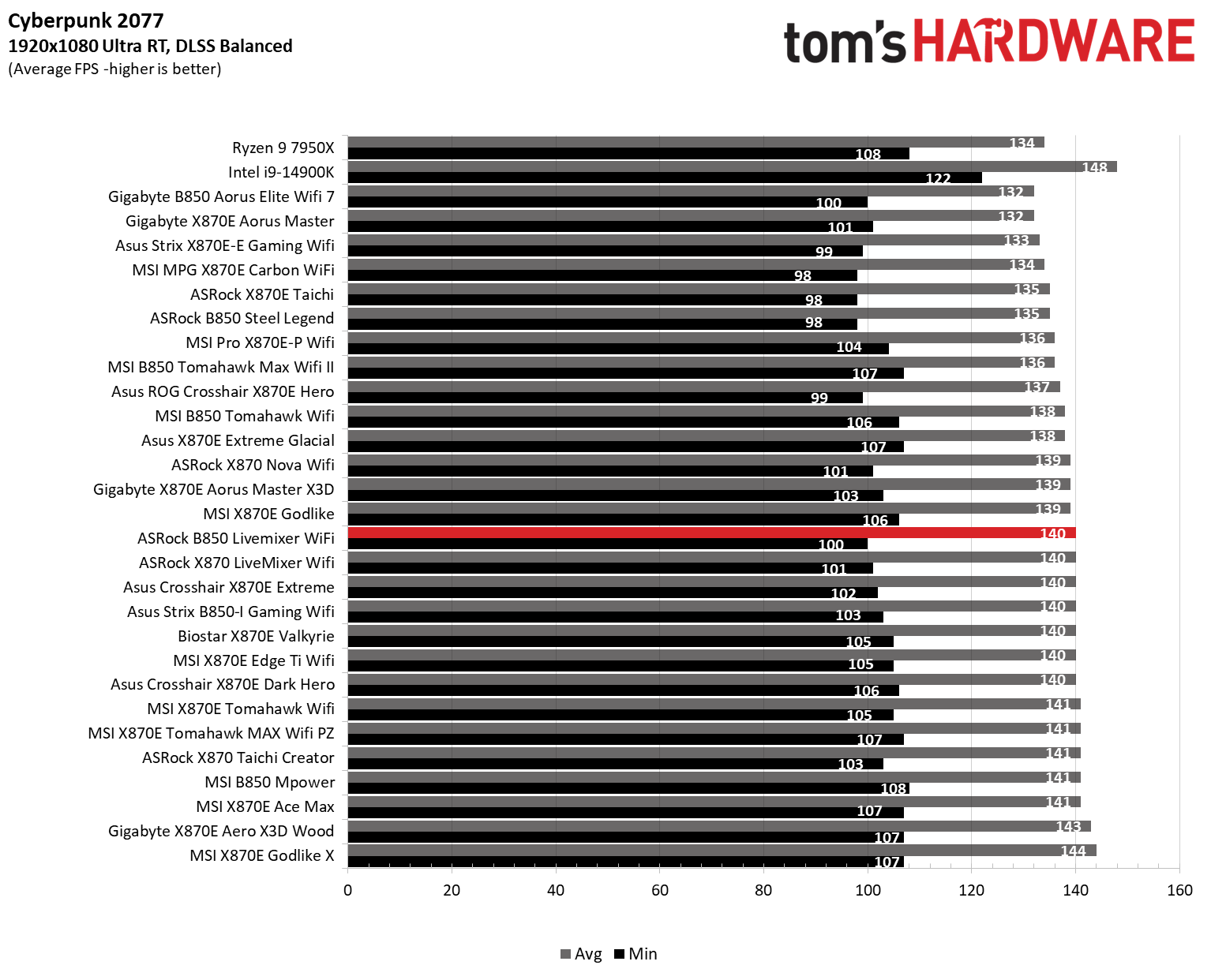
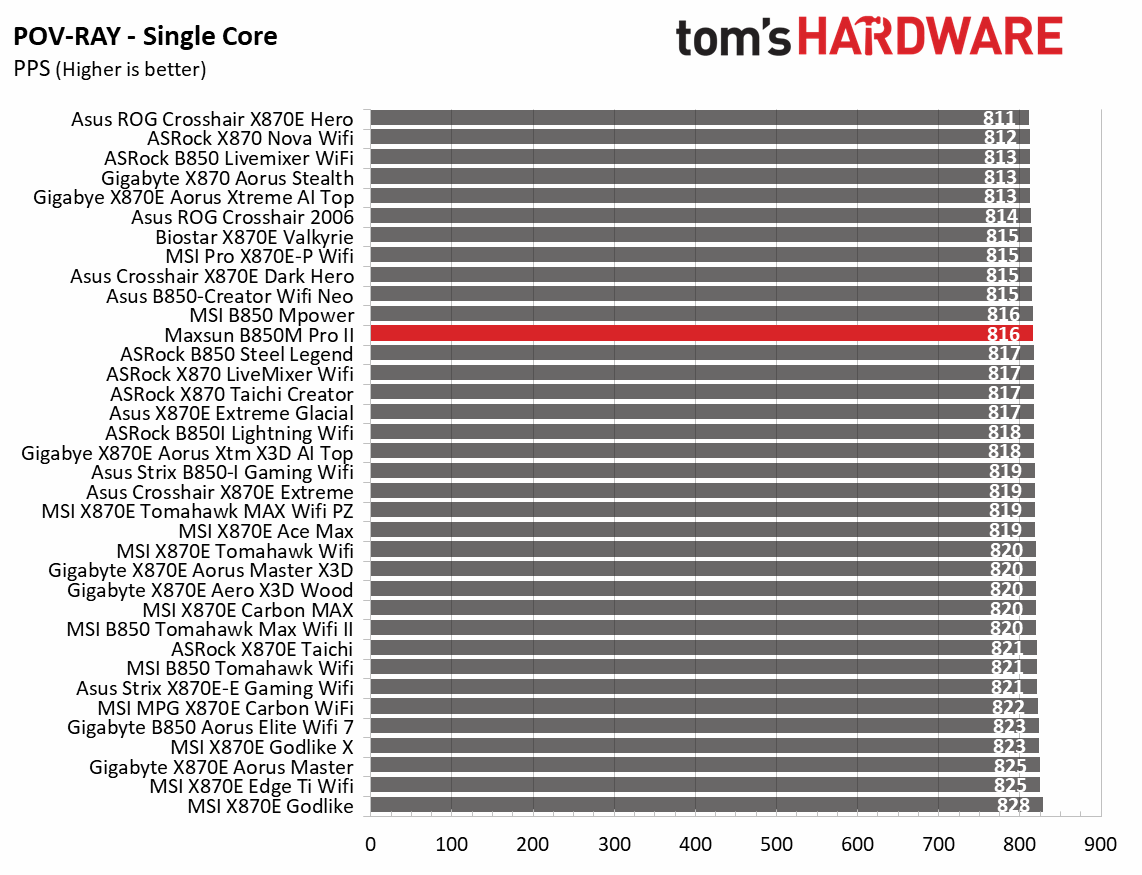
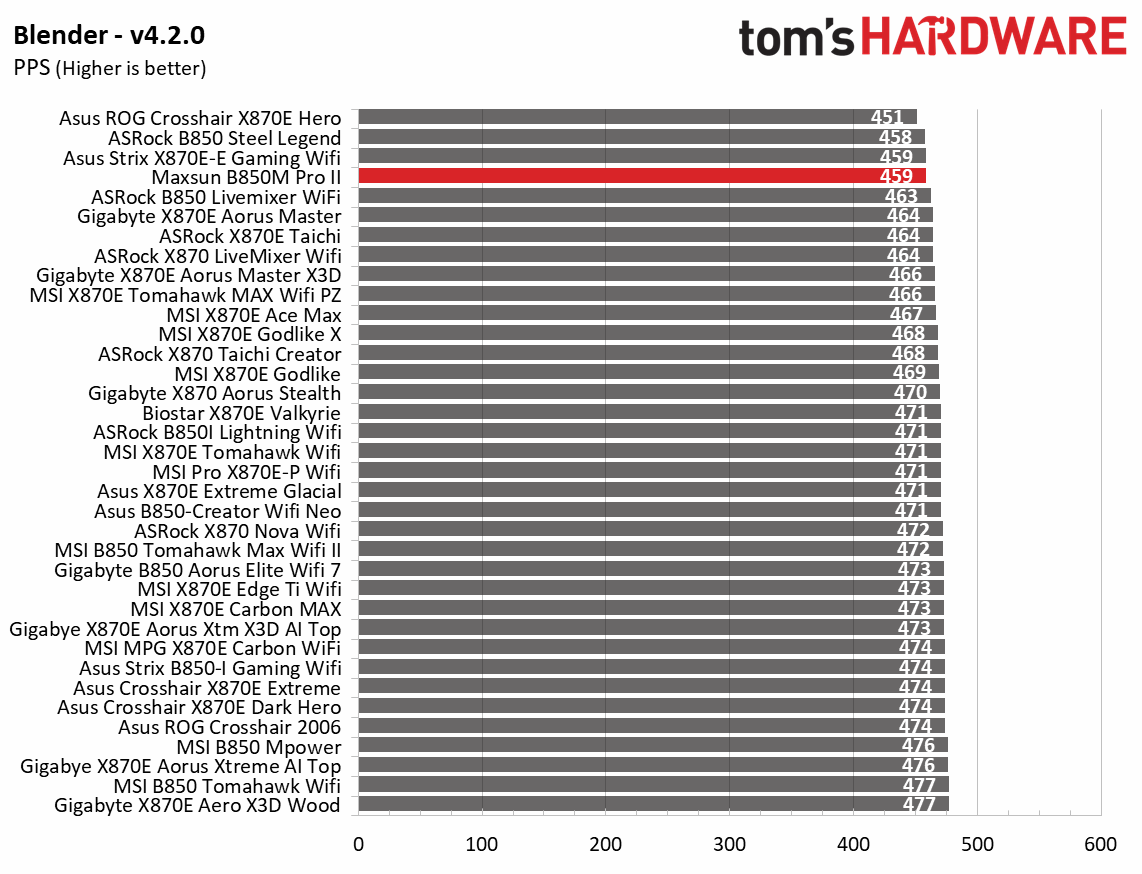
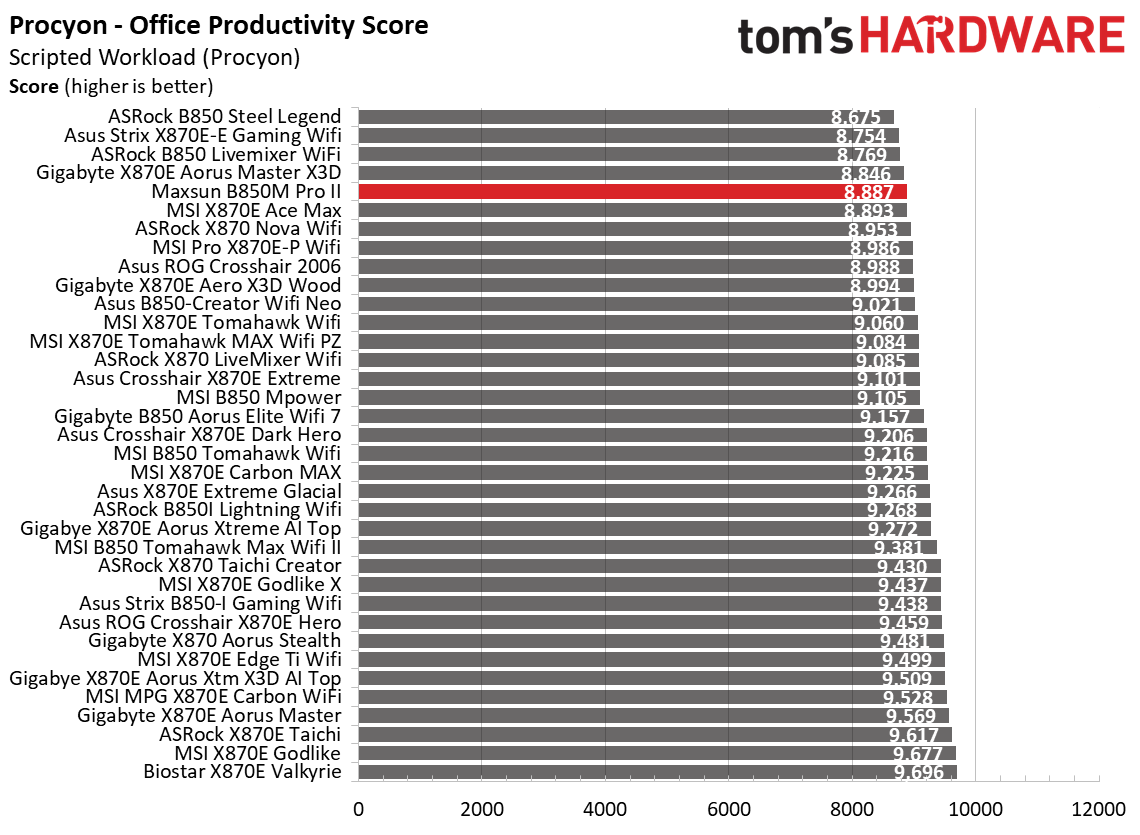
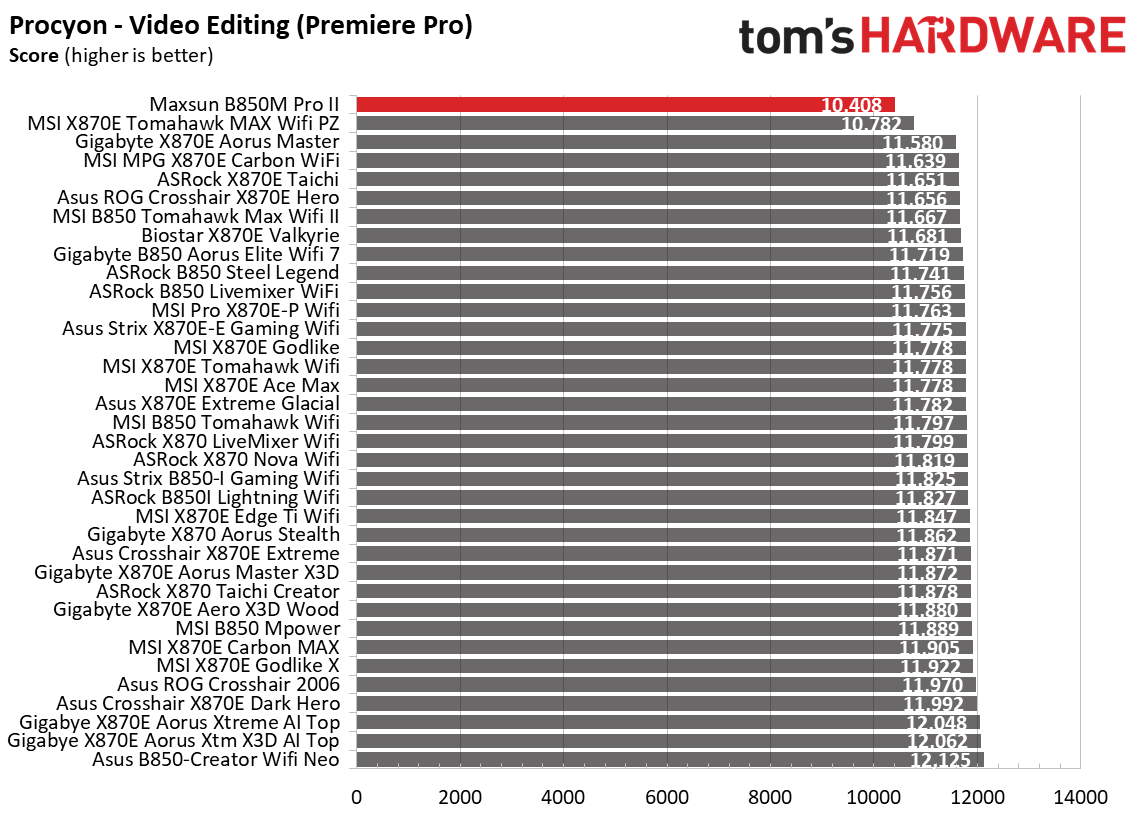
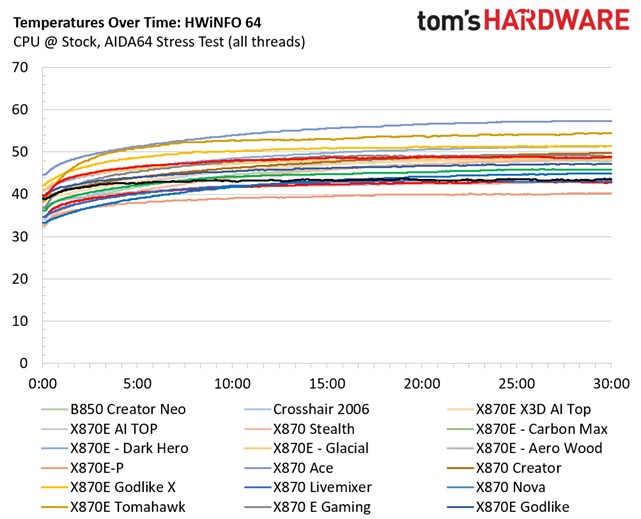
As you can glean from the charts above, all of the results are generally close together, a range of around 15 degrees Celsius, for this set of mainstream and enthusiast-class motherboards. Even the hottest board is still 10s of degrees away (think 30 degrees or more) from running ‘too hot’ and potentially throttling.

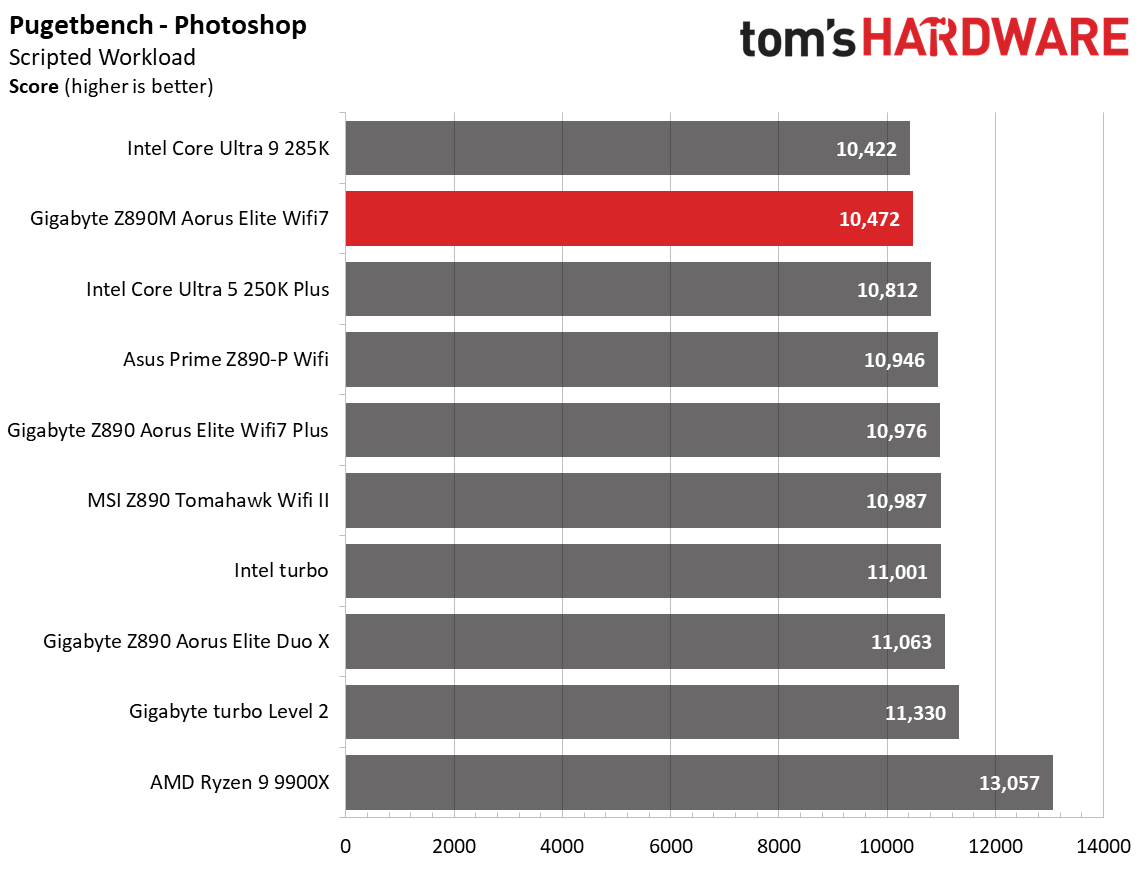
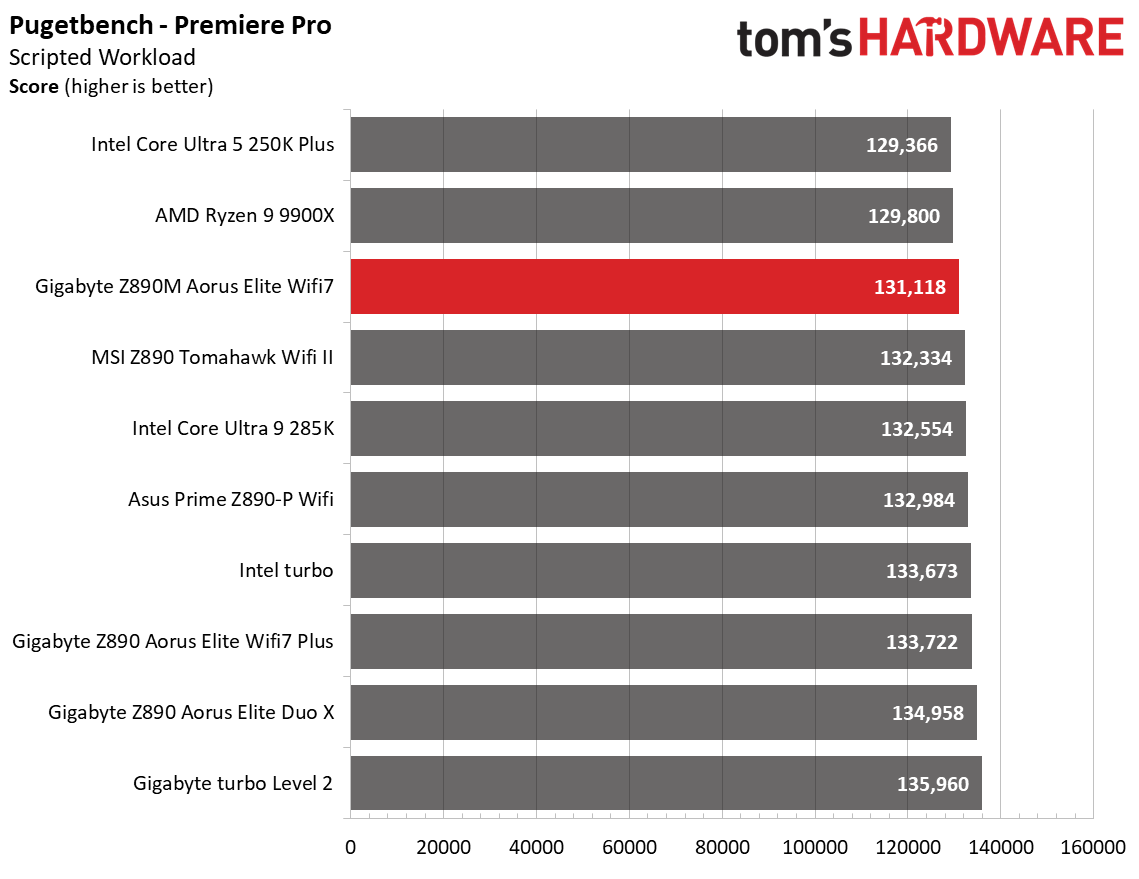
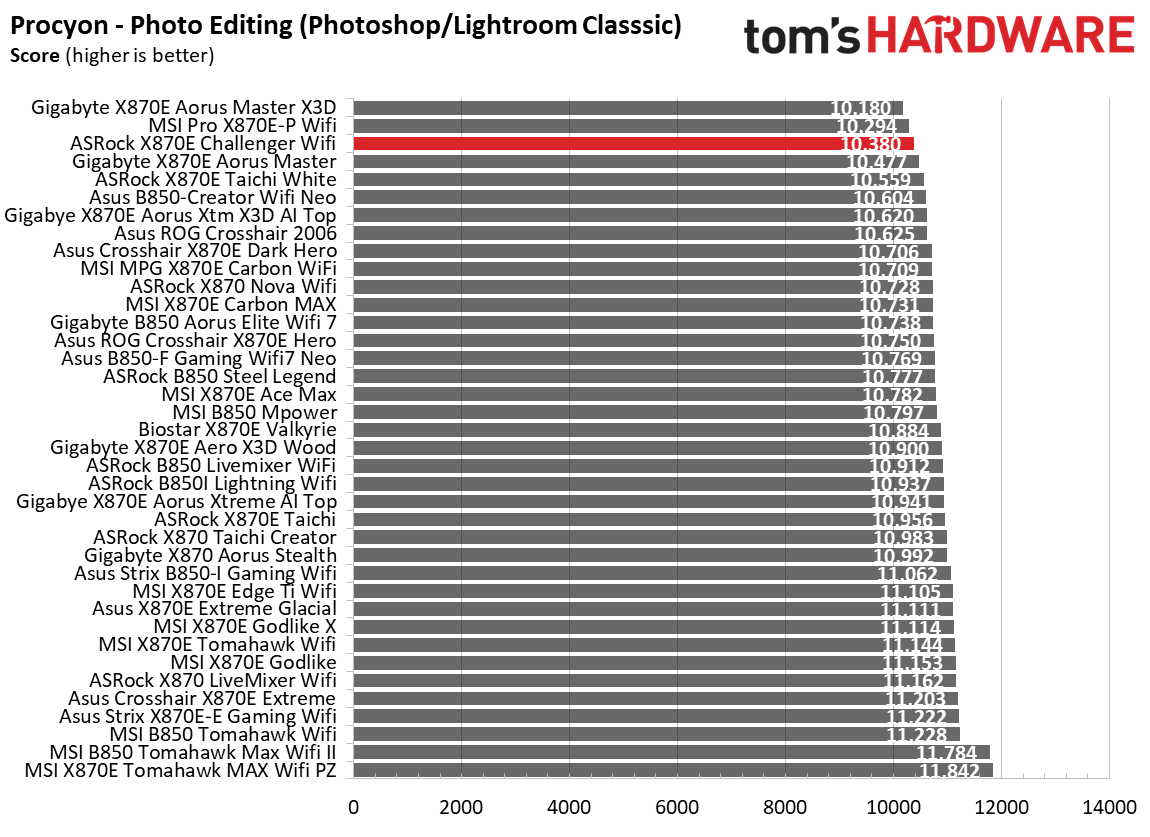
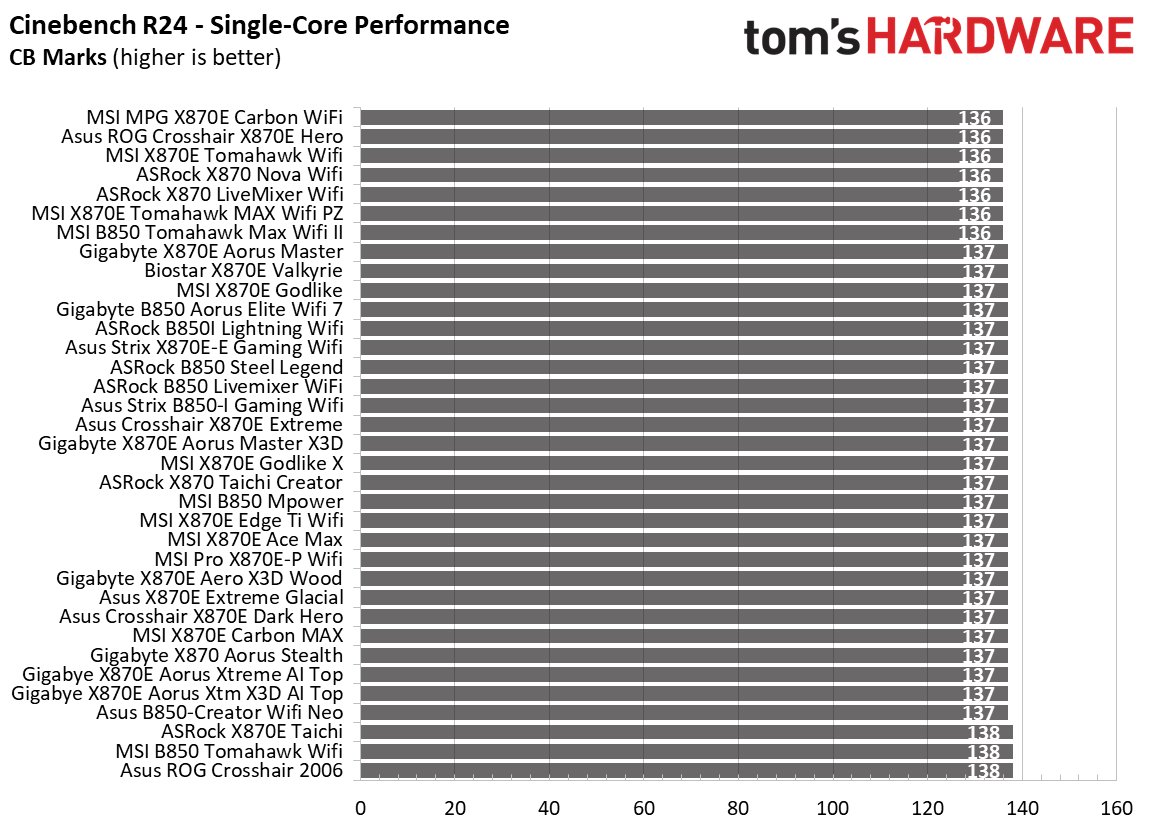
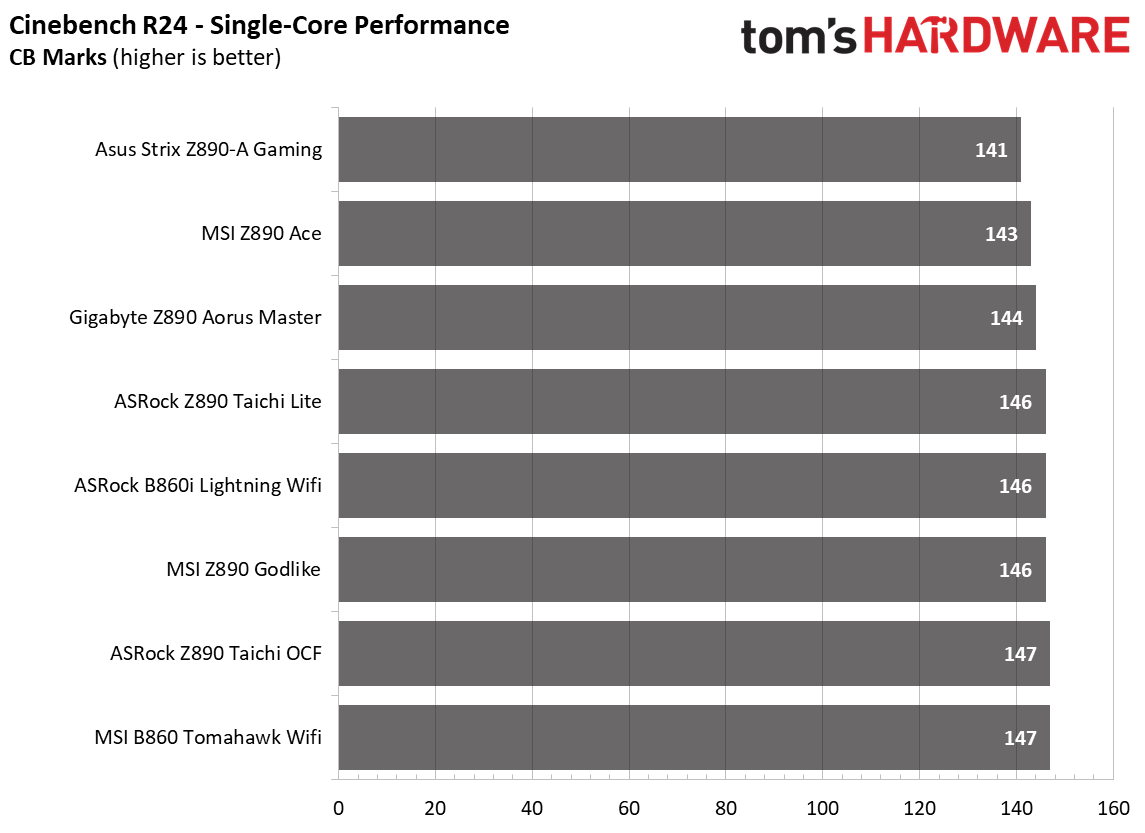
The next set of charts hails from our motherboard reviews and shows the performance of all the boards across a wide variety of tests, including gaming, productivity, and creative workflows. As you can see, none of the boards, ranging from $179.99 to over $1,000 (new/MSRP), throttled with our flagship Intel Core Ultra 285K, nor did any using the Ryzen 9 9900X.

Comparing VRM thermals
Tom's Hardware
Comparing VRM thermals
Tom's Hardware

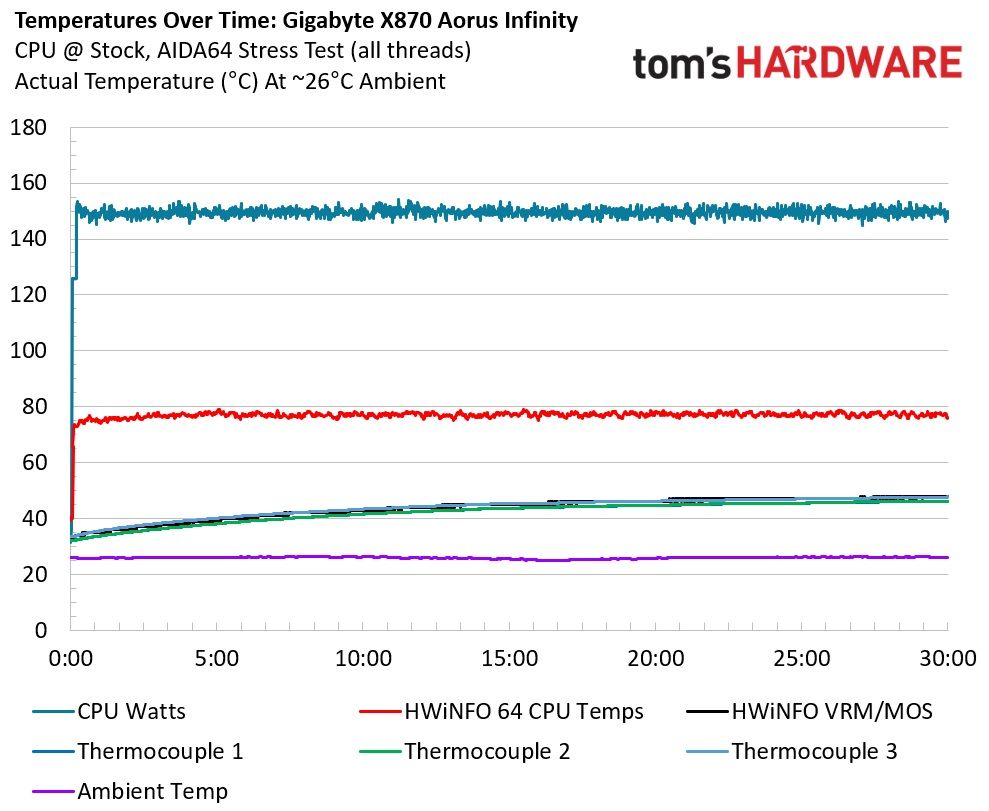
While we know the 9900X isn’t AMD’s current flagship, it still produces a fair amount of heat (~150W in our testing) for an upper-midrange processor. Even if we had used a high-power Ryzen 9 9950X, it wouldn’t have changed things much.

On the Intel side, we don’t have many datasets as we haven’t reviewed as many of the company’s Z890 motherboards at the time of this writing (we’re covering more now with the release of the new Intel Core Ultra 270K Plus and 250K Plus processors). That said, we’re confident the story remains the same, and you’ll get everything out of your processor on this and the B860 chipset-based boards. But if you plan on extended periods of high CPU use, you should always get more than you need, if only for longevity.

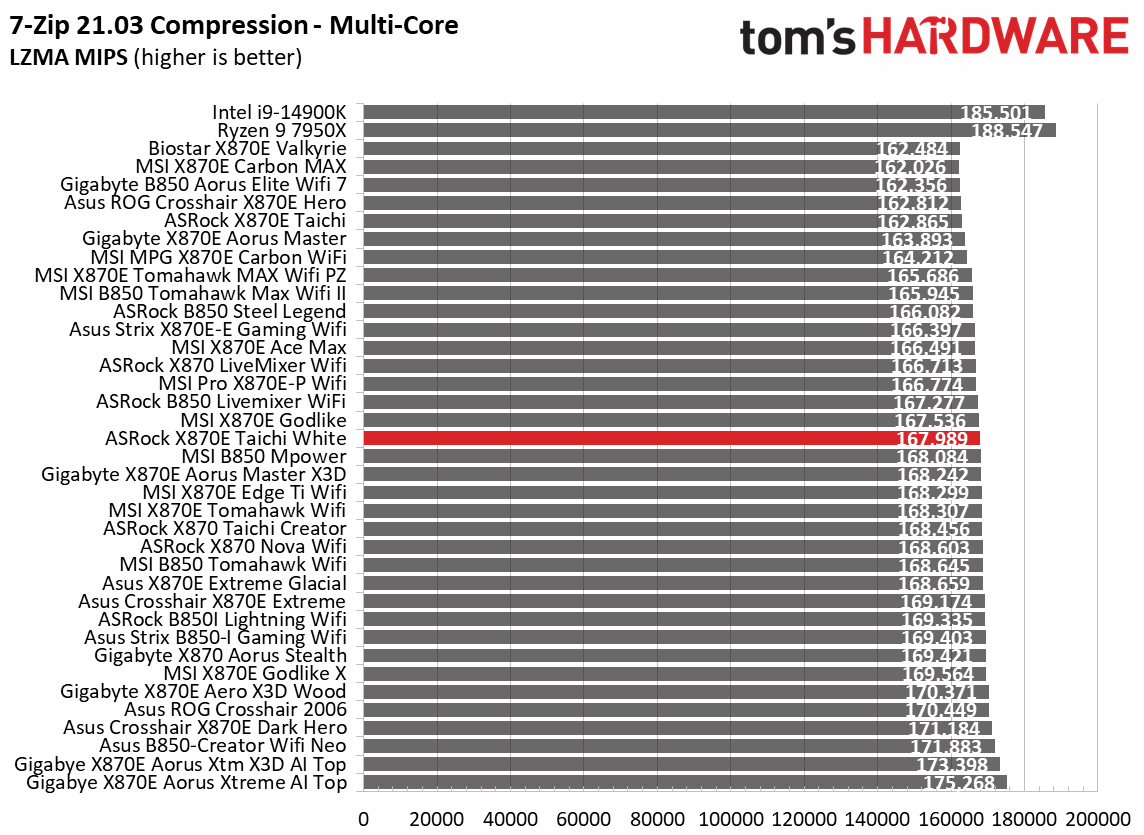
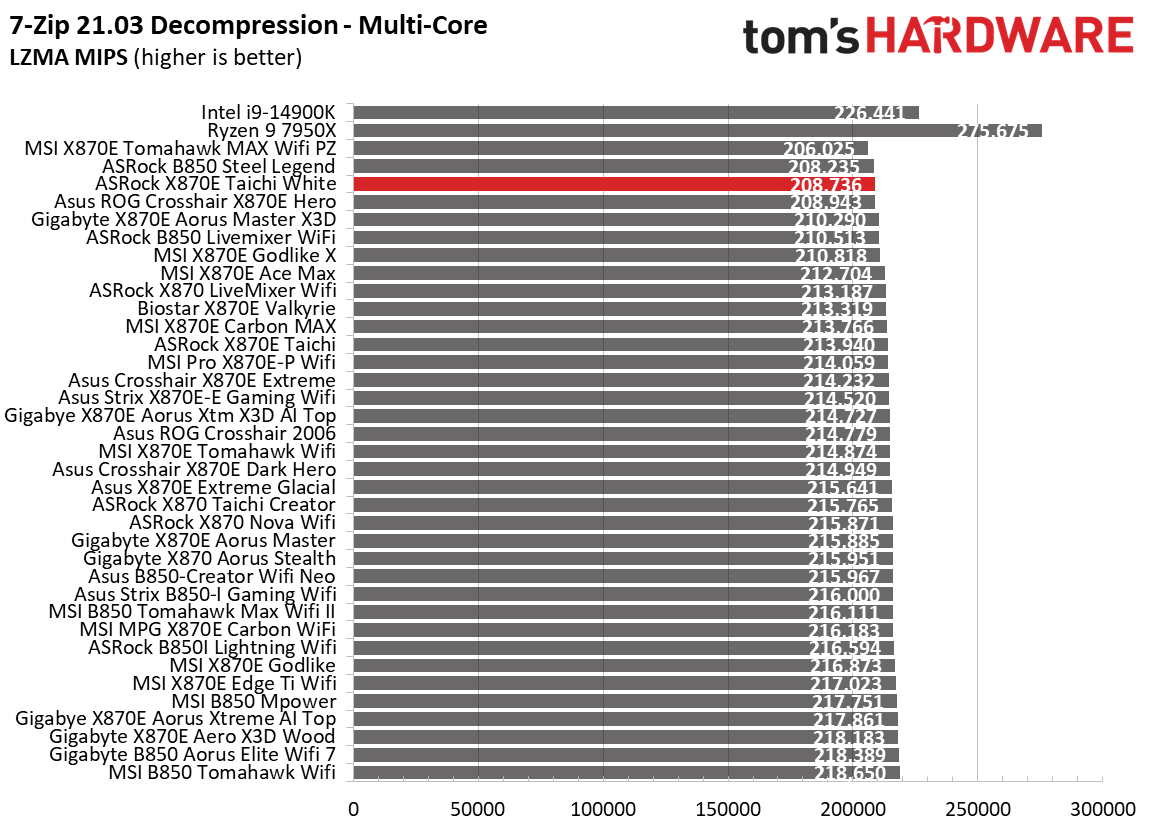
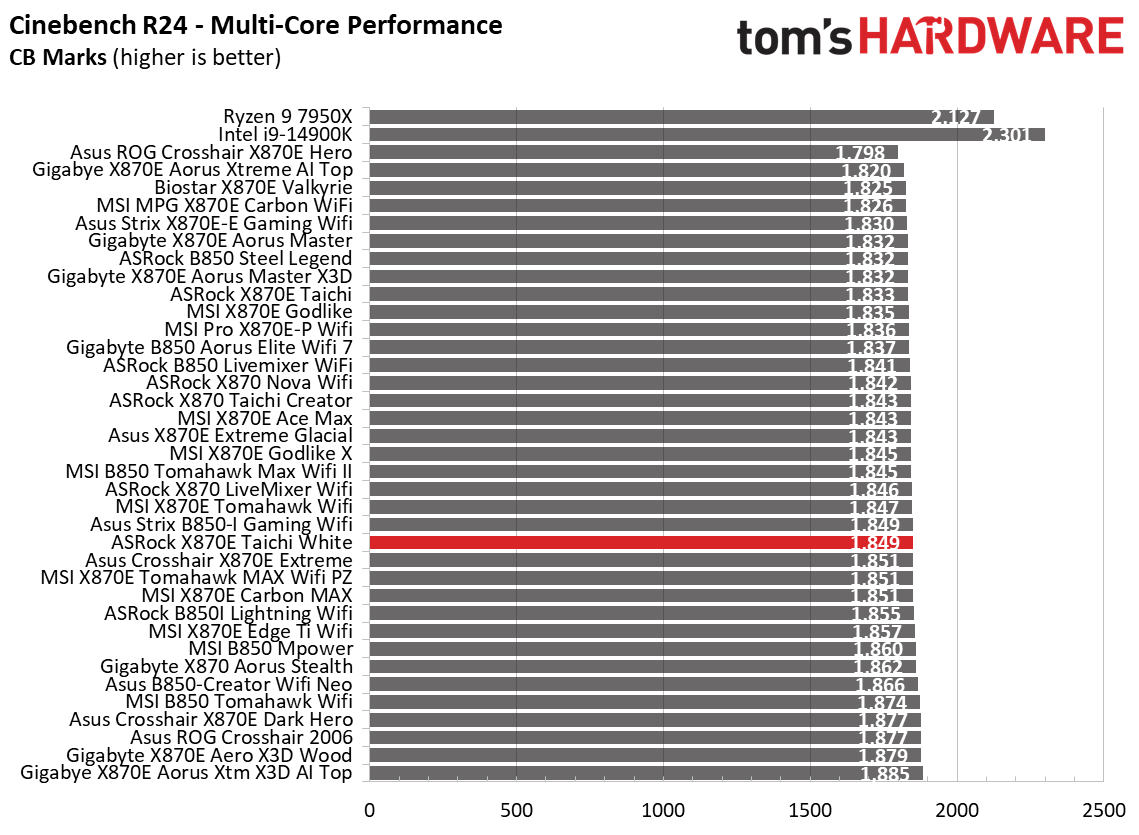
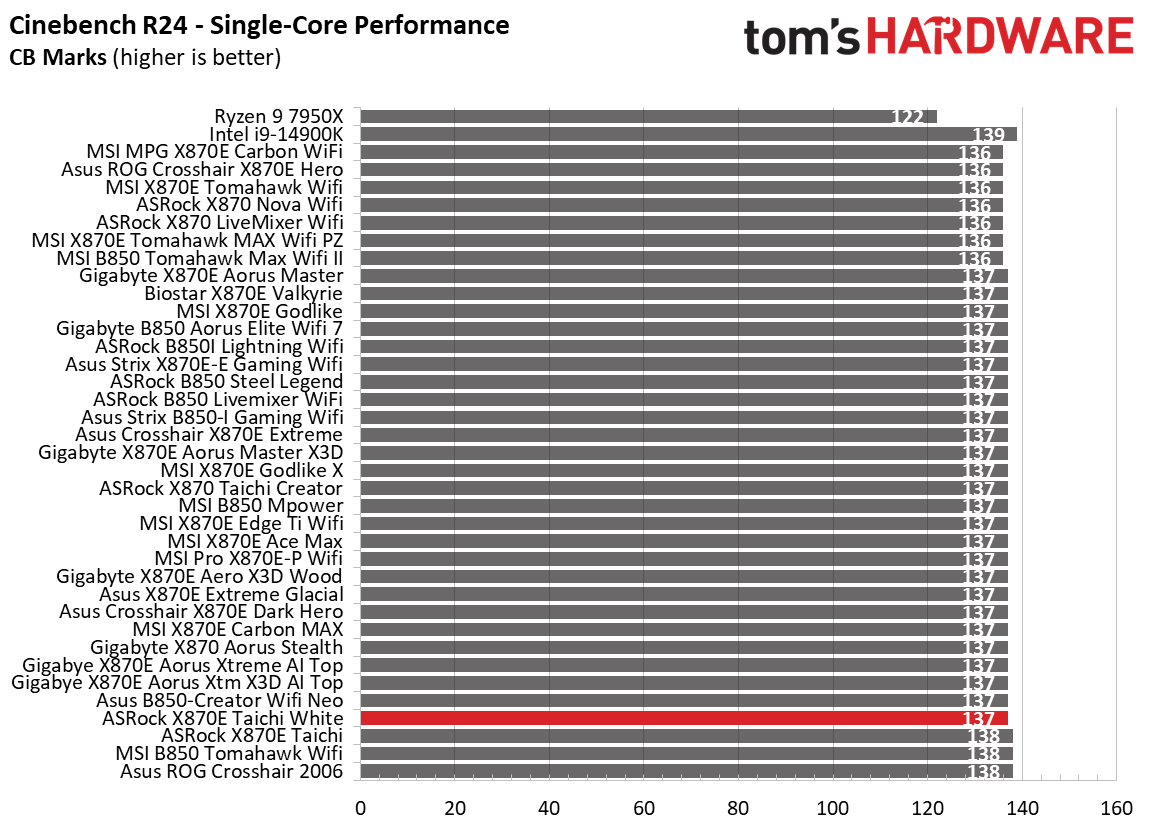
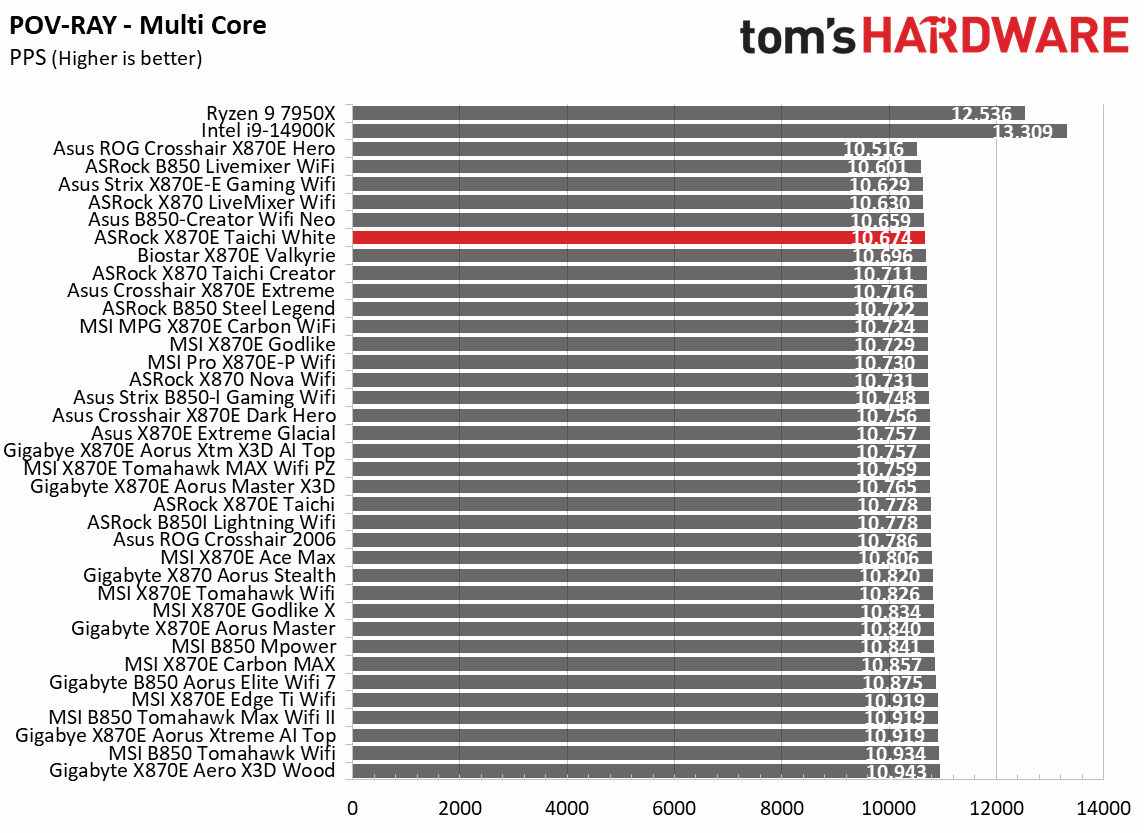
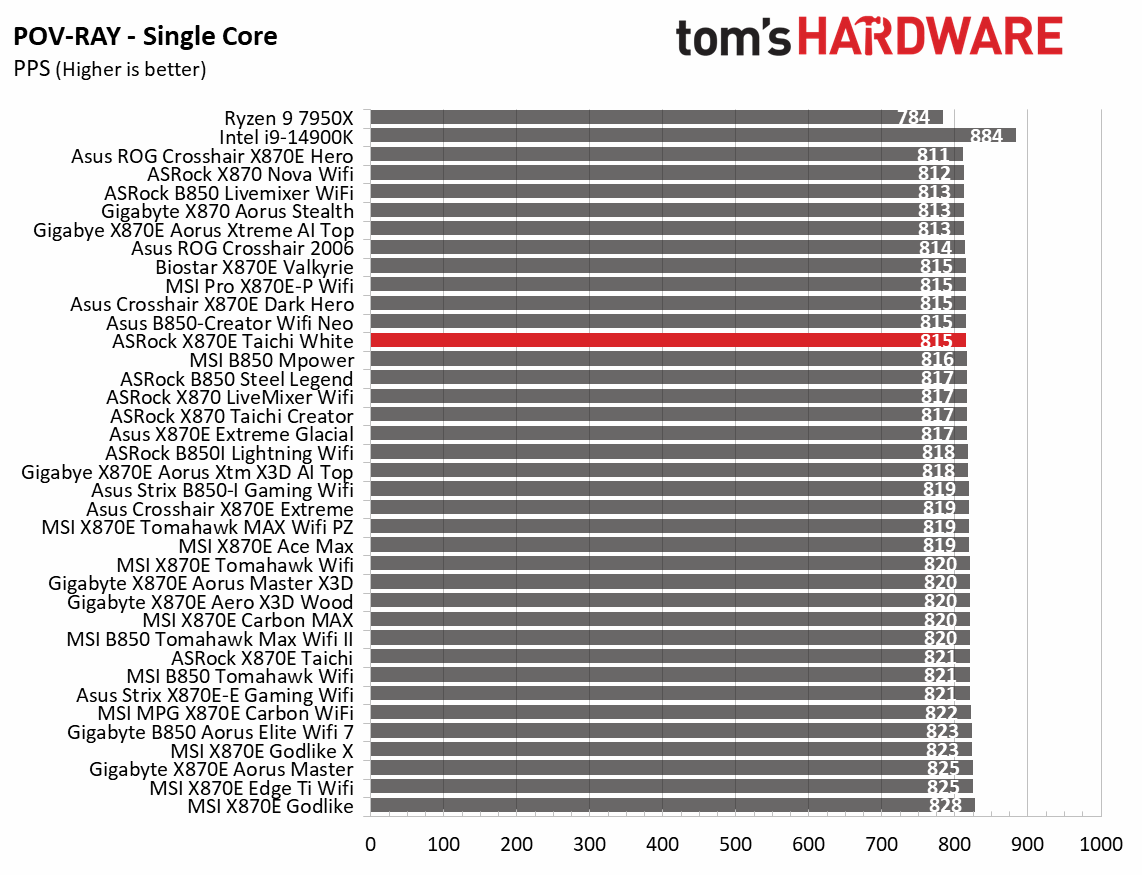
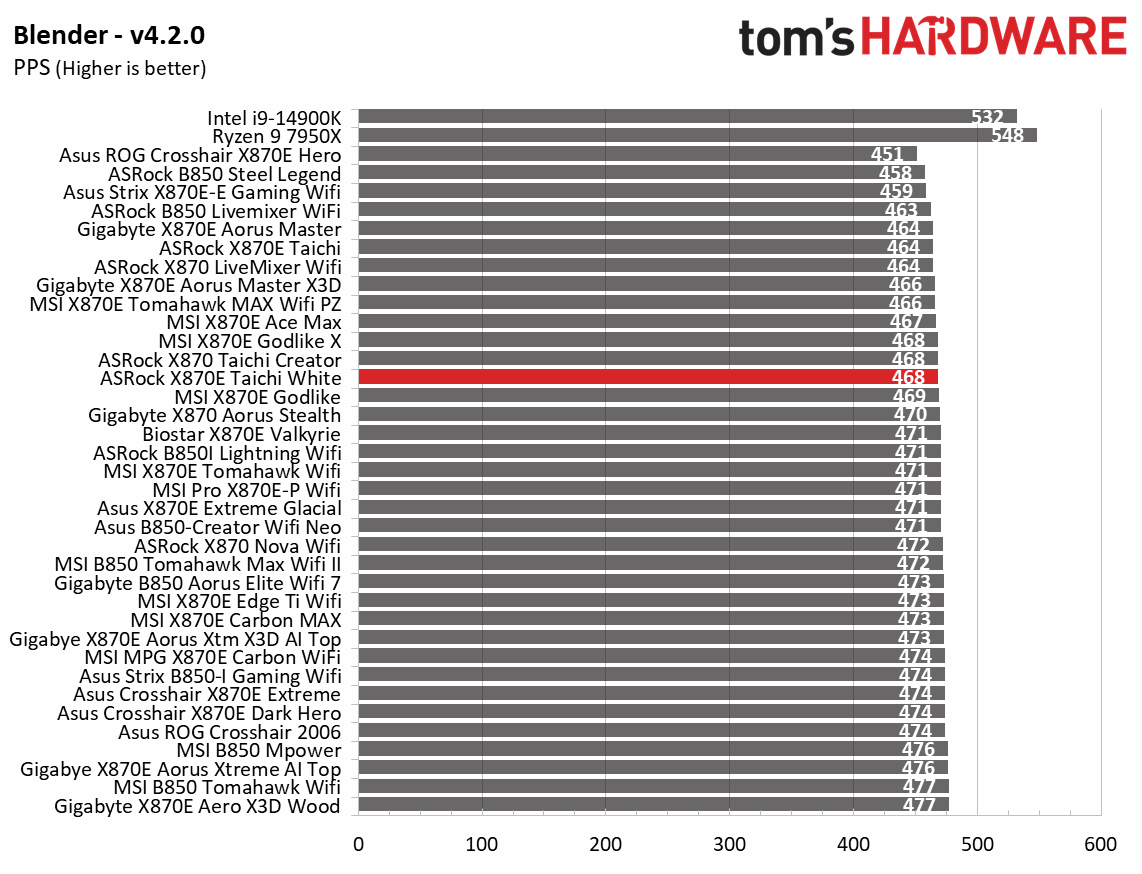
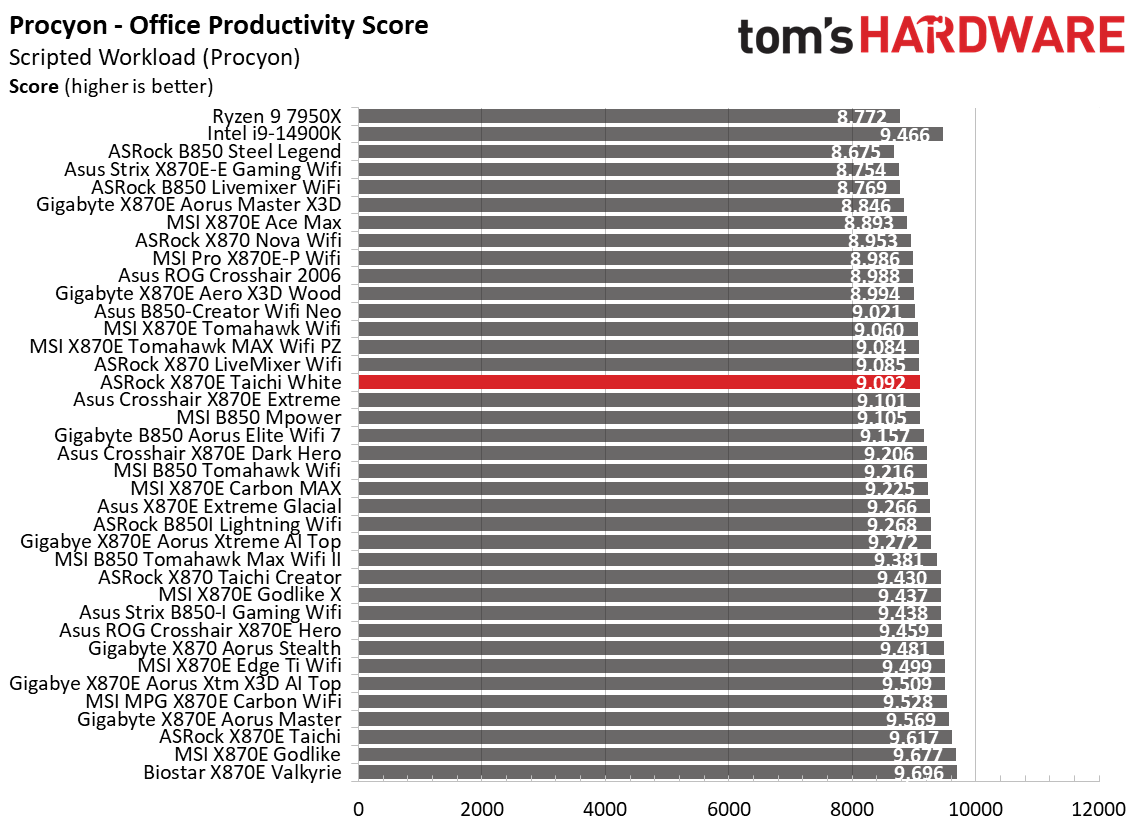
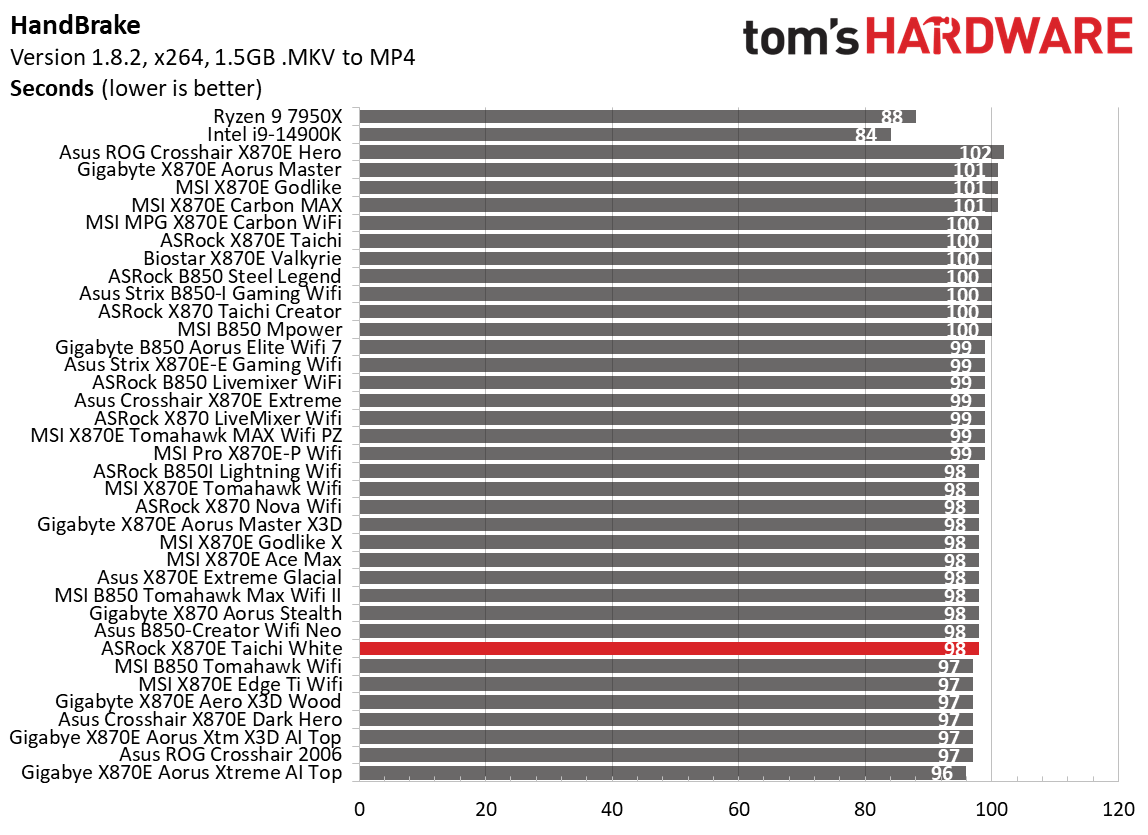
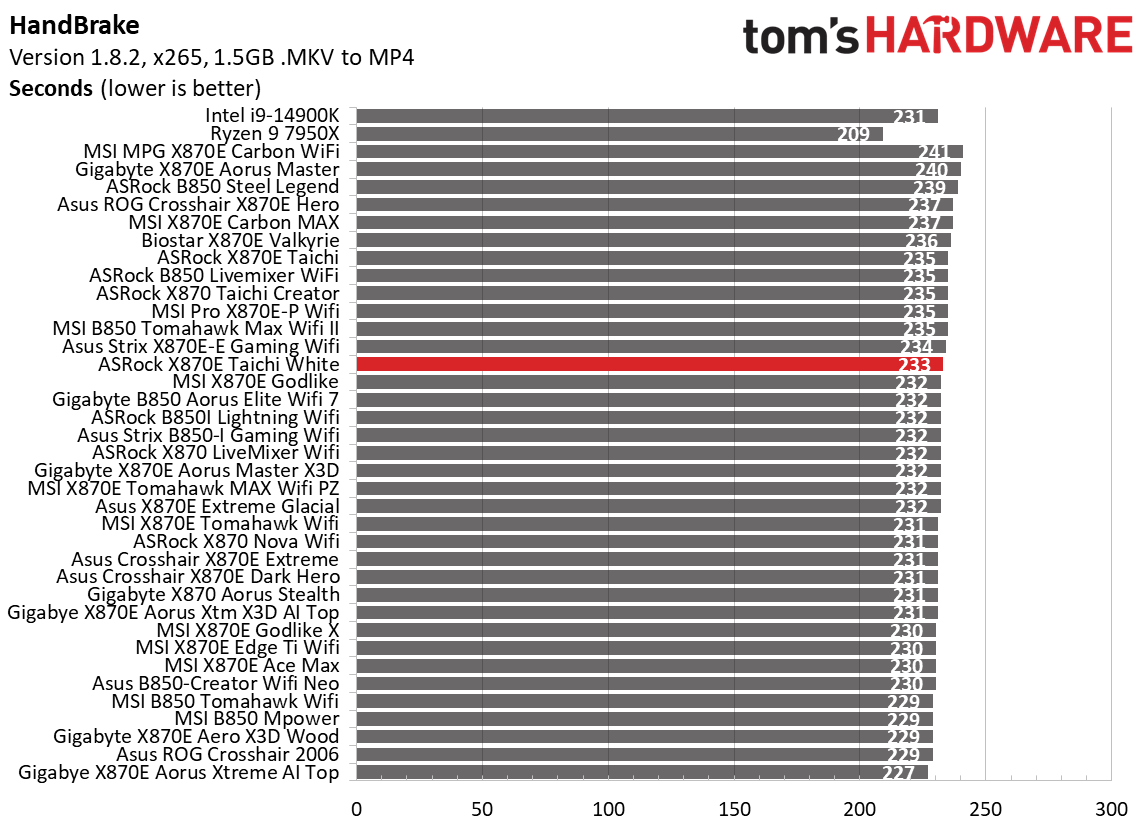
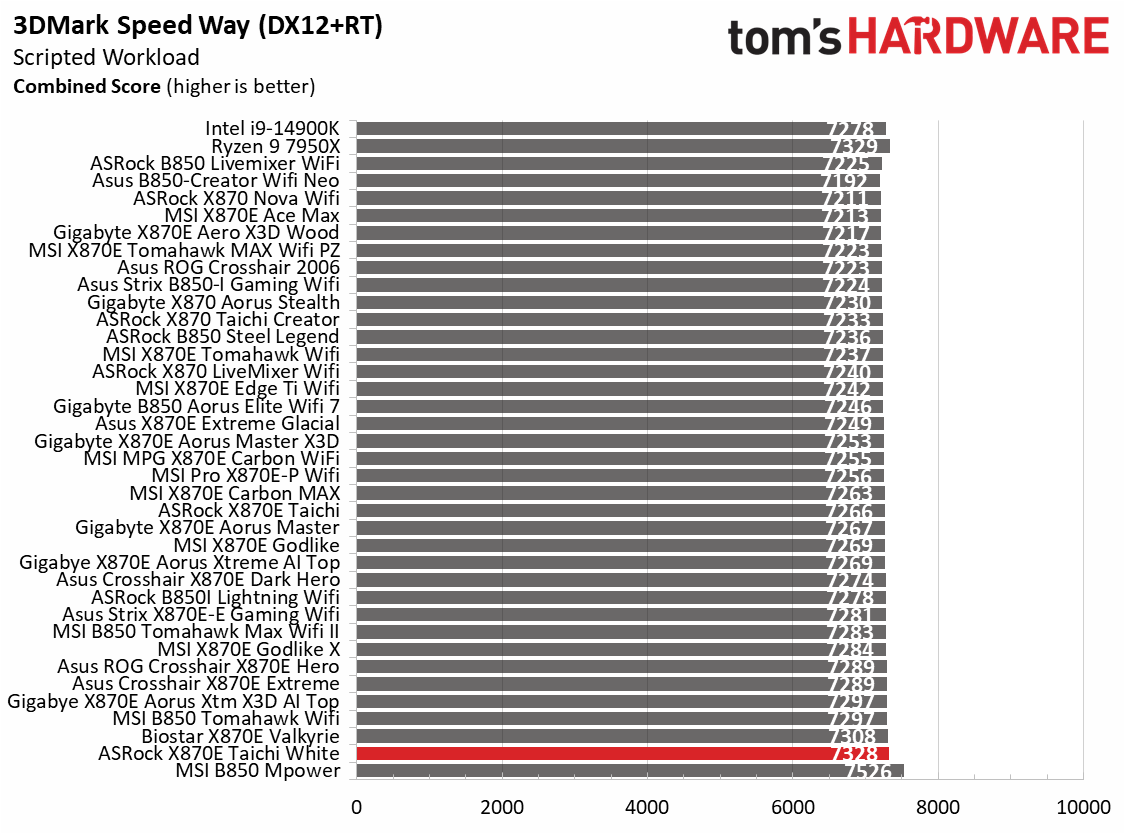
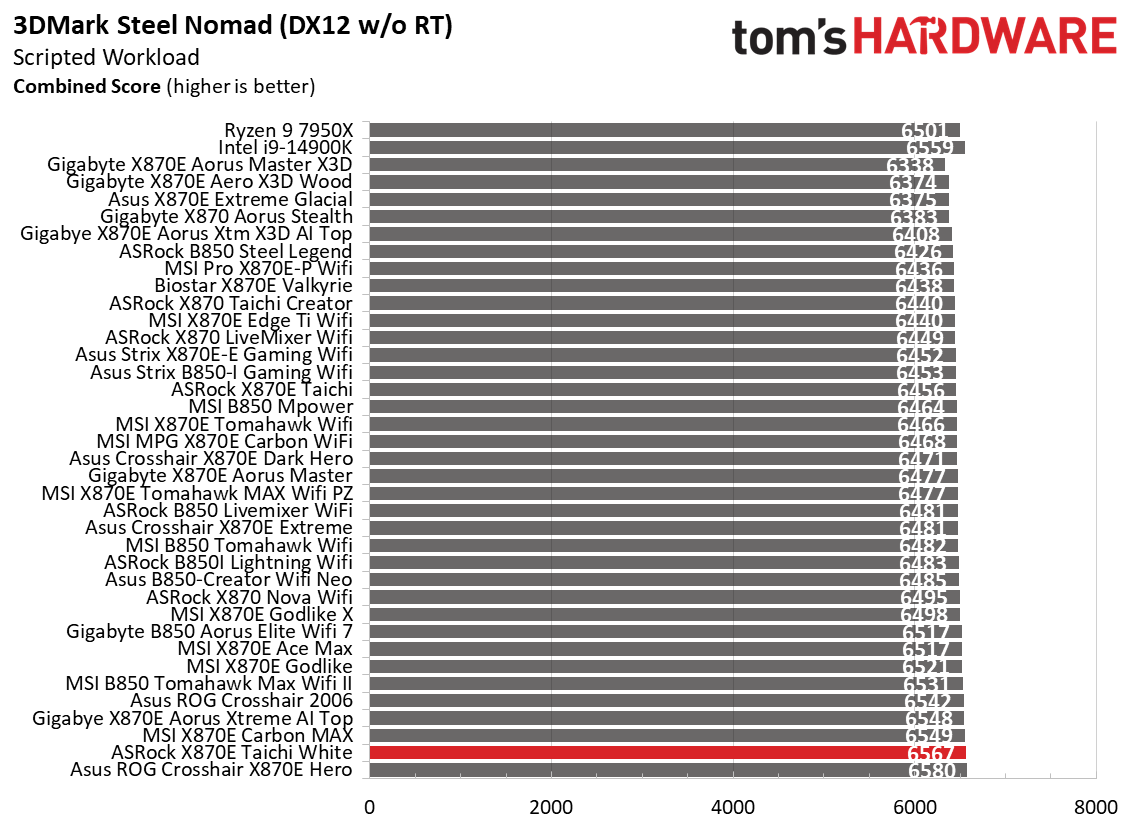
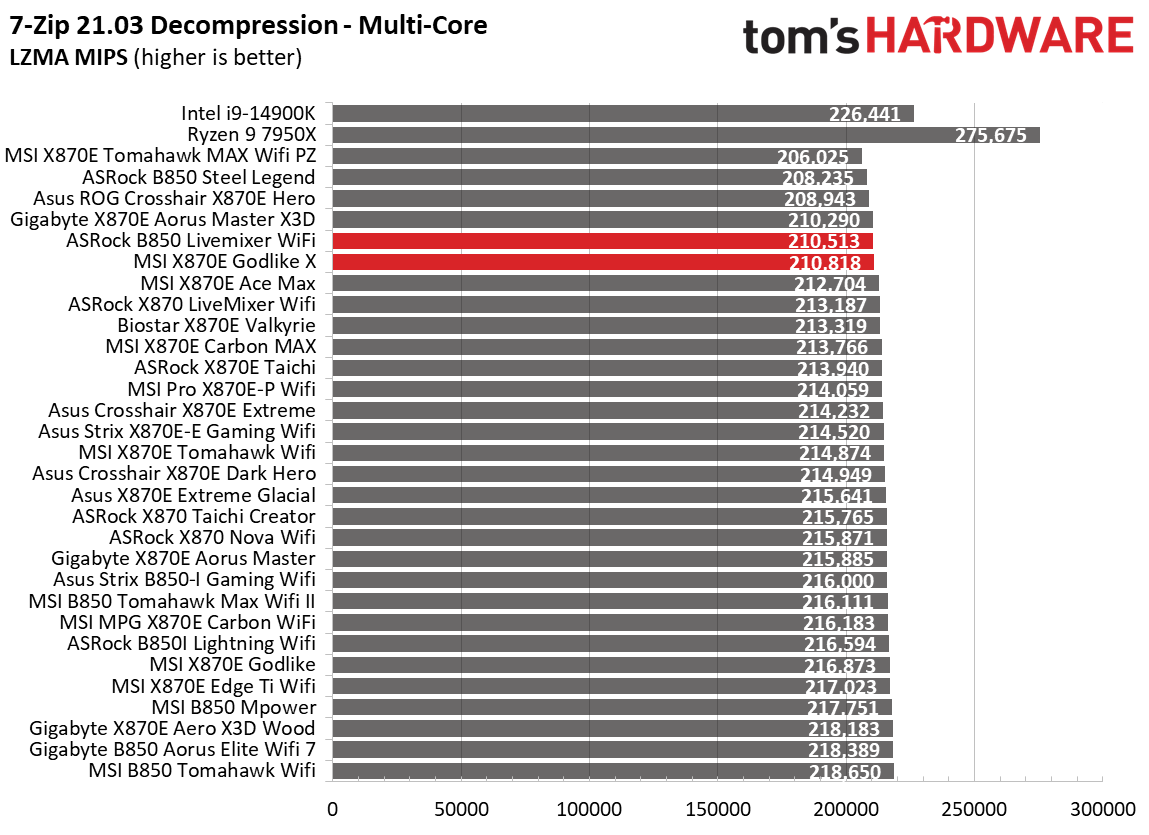
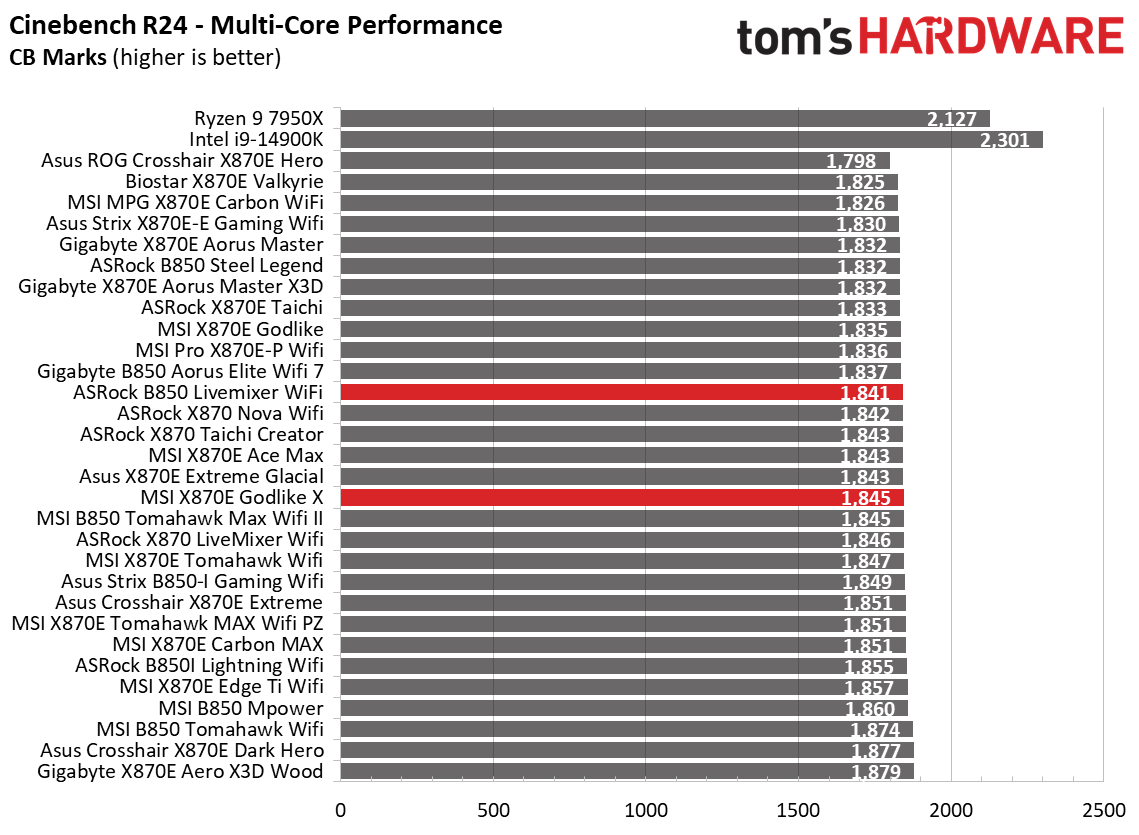
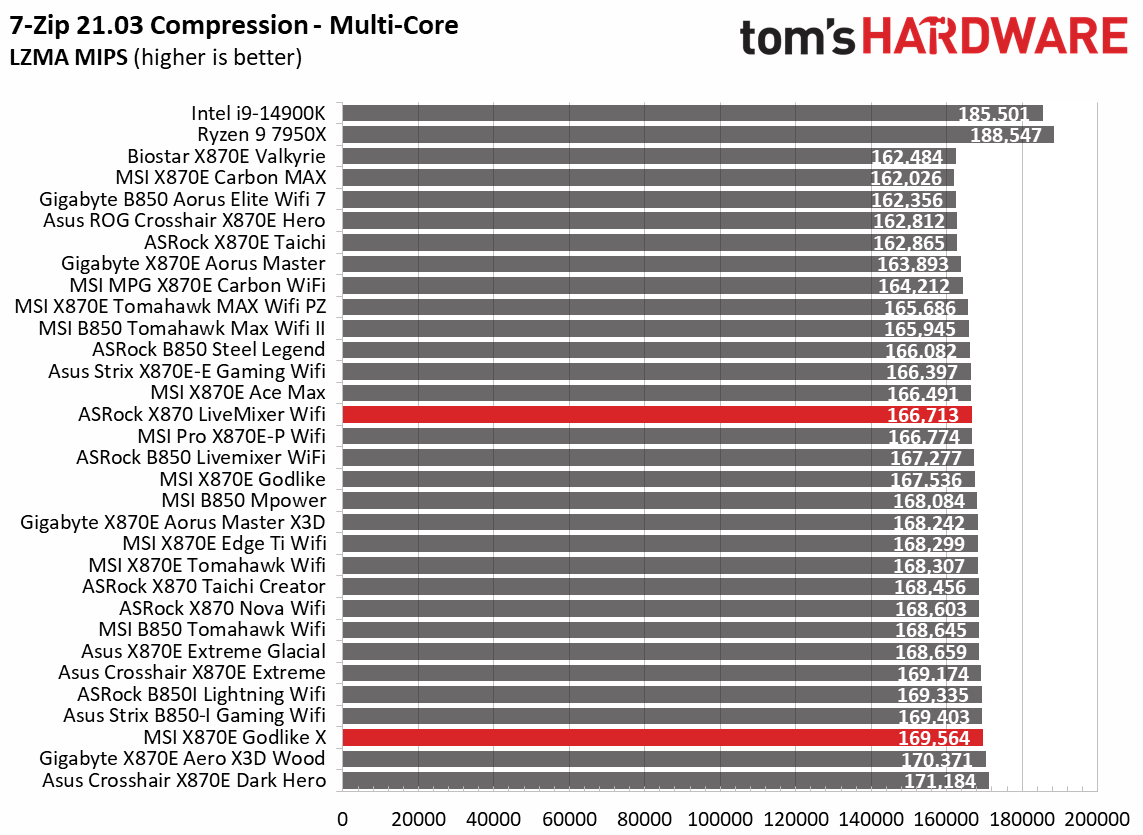
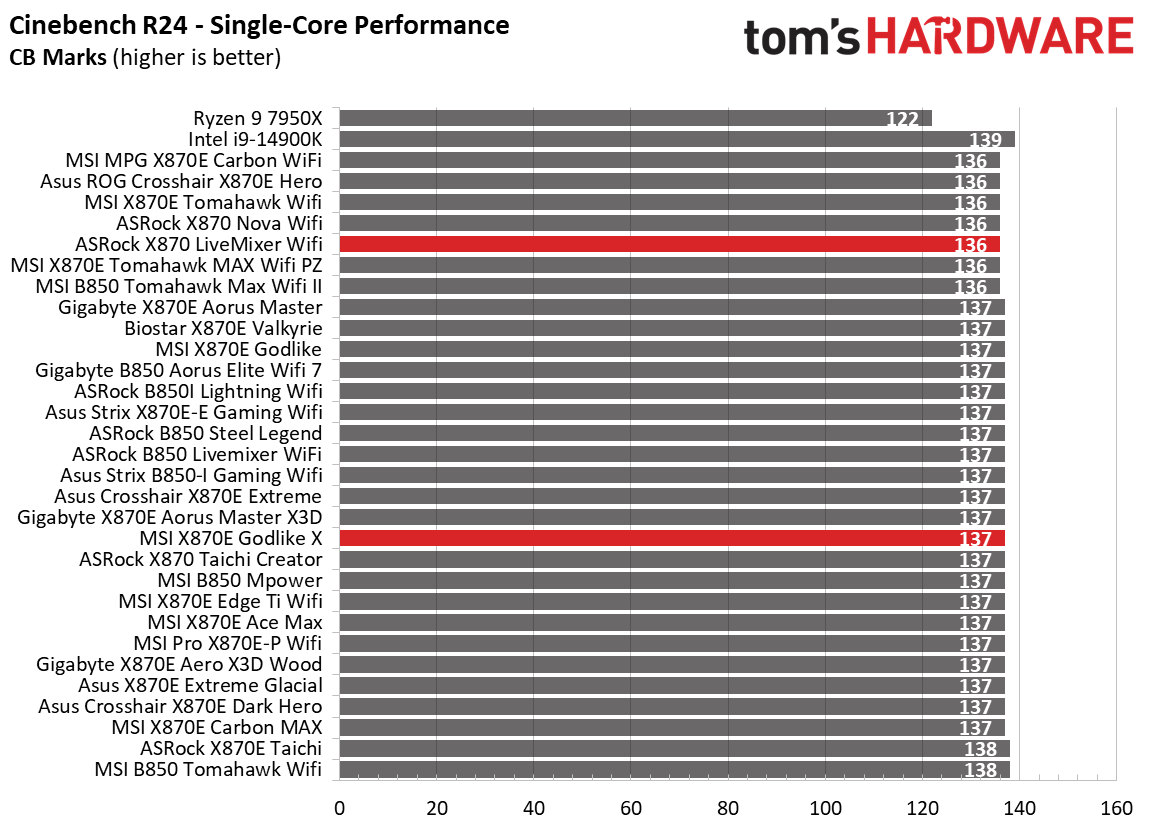
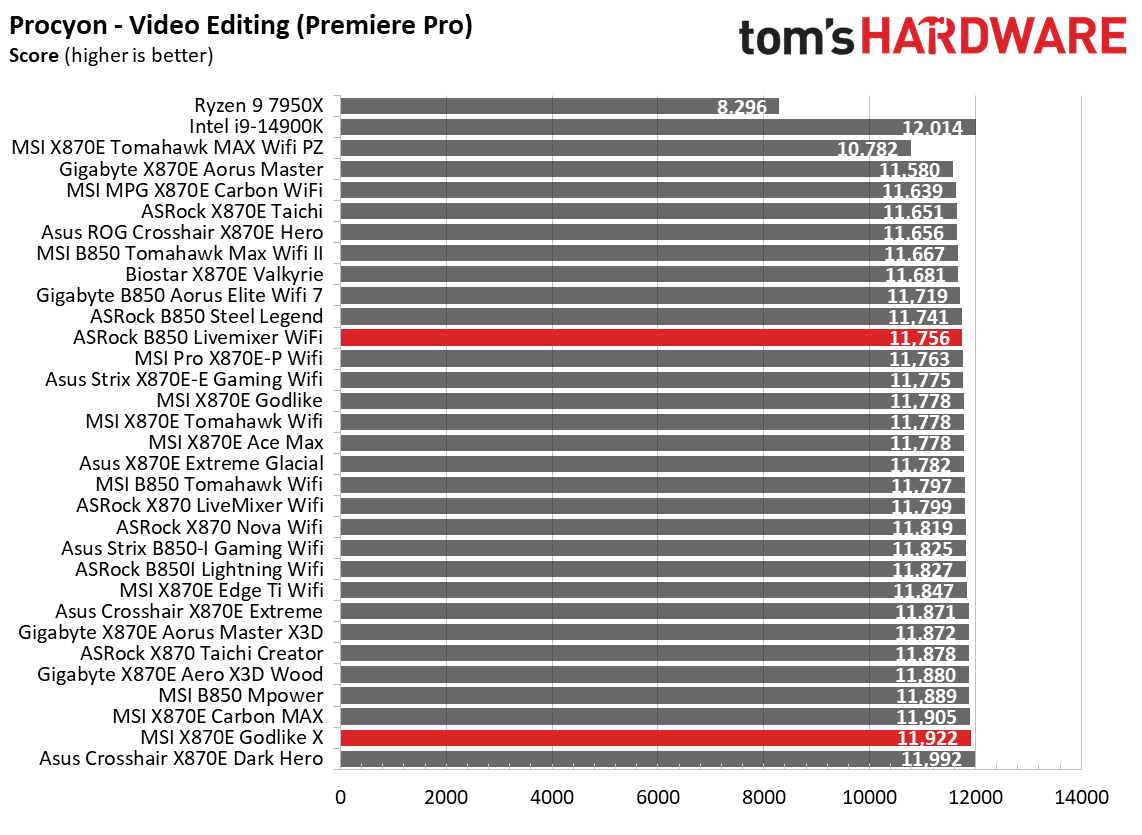
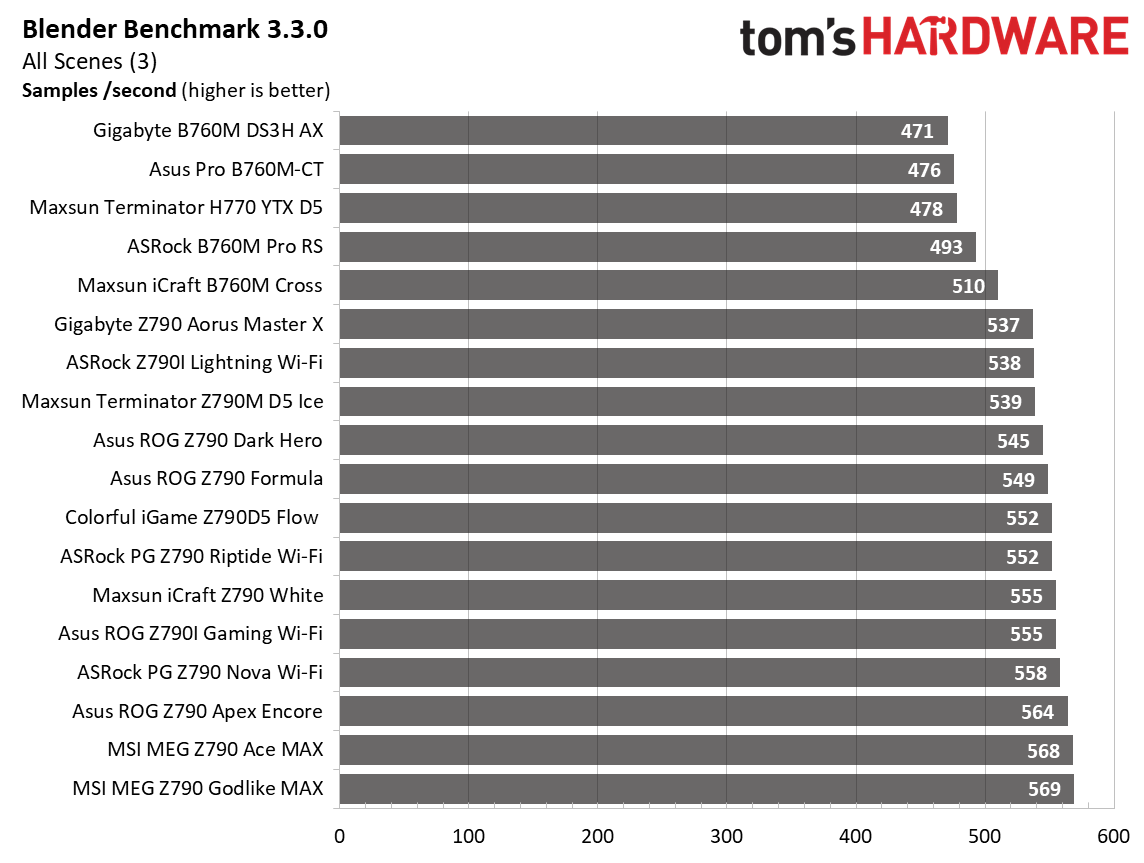
The last set of charts covers previous-gen Intel and AMD, including Z790, B760, and H770 for Intel and X670E and B650 for AMD (though still AM5, like 800-series). In the following multi-threaded tests, you can see a significant difference in performance between budget-class boards and mainstream and enthusiast boards.

Comparing VRM thermals

(Image credit: Tom's Hardware)

Intel budget boards tend to take a bigger hit, as their CPUs use more power than AMD's Ryzen 9 7950X. On the AMD side, we still saw performance differences, but overall not extreme when looking at these data sets, even in some of the cheapest mainstream boards we tested. This could also be due to throttling or BIOS settings, as some budget/business-class boards strictly limit the processor to its baseline specification. In contrast, others take liberties with settings, especially with Intel processors.

Final Thoughts

Ultimately, a vast majority of the boards we've tested were able to get the most out of the processor we use for testing. It’s typically only the absolute entry-level offerings, most in the budget/business class, that notably hinder performance. Sadly, there isn’t a smoking gun of ‘...if you’re using this processor, then you want this many phases/amps.’ But at a high level, the more phases and the higher the amperage rating, the better off you are.

Whether you can utilize a budget-tier board depends on several factors. If your primary use cases are office productivity and gaming with a mid-range or budget CPU, you’ll likely encounter few issues. However, if your workflows consist of sustained, heavily multi-threaded workloads, investing in a more capable board is advisable. On top of having paltry power delivery, the cheap boards tend to have fewer ports, slower overall connectivity (think USB and networking), a basic audio solution, and they just don’t look as good as mid-range to high-end boards that offer more and faster connectivity.

Does this mean a flagship motherboard is the only solution? Simply put, no. The vast majority of users don’t require extreme-class VRMs and would do fine with any motherboard from the mainstream or enthusiast chipsets. Your goal should be to find a balance that provides sufficient power headroom for your CPU and usage patterns.

However, if you intend to push high-TDP processors to their limits or want to overclock, VRM quality should be one of your top priorities, aside from the connectivity you need. Now that we have a better idea of what you may need, check out our curated best motherboards article or best motherboard deals to find a board that’s right for you.

MSI MAG Z890 Tomahawk Wifi II motherboard review: Loses features from the original, but shaves a few dollars off the price

2026年7月17日 19:10

The latest board from the budget side of the Z890 lineup to land on our test bench is the MSI MAG Z890 Tomahawk Wi-Fi II. This updated Intel board is a streamlined revision of the original, optimized for Intel’s Core Ultra 200S Plus processors. It retains the same aesthetic, core power delivery, and DIY-friendly features, but has two connectivity downgrades: a single TB4 port (down from two) and reduced Wi-Fi 7 speeds. It’s a decent budget motherboard; it’s just that the feature-reduction refresh is a bit curious to me.

Currently listed at $229.99, the Tomahawk Wi-Fi II costs roughly the same as the original Z890 Tomahawk. Aside from the two downgrades, it also tweaks some header locations and, minimally, the aesthetics. Hardware-wise, you still get nearly everything from the original, including capable power delivery (19 phases, 90A MOSFETs), two Type-C ports (one TB4/40 Gbps) and seven Type-A USB ports on the rear IO. There's also Wi-Fi 7 and 5 GbE networking, a last-gen audio solution, along with MSI’s EZ DIY and EZ Overclock features.

Performance on the Tomahawk II was good overall with the MSI Performance setting, landing somewhere in the middle among the boards tested. In short, it’s competent across a wide variety of PC activities, including gaming, rendering, encoding, and office-type work. There’s nothing to worry about on the performance front.

Below, we’ll examine the board's performance and other features to determine whether it deserves a spot on our list of the best motherboards. But before we share test results and discuss details, here are the specifications from MSI.

Specifications of the MSI MAG Z890 Tomahawk Wifi II

Socket

LGA 1851

Chipset

Z890

Form Factor

ATX

Voltage Regulator

19 Phase (16x 90A SPS MOSFETs for Vcore)

Video Ports

(1) HDMI (v2.1)
(1) Thunderbolt 4 Type-C (DP 2.1)

USB Ports

(1) TB4 Type-C (40 Gbps)
(1) USB 3.2 Gen 2 Type-C (10 Gbps)
(3) USB 3.2 Gen 2 (10 Gbps)
(4) USB 3.2 Gen 1 (5 Gbps)

Network Jacks

(1) 5 GbE

Audio Jacks

(2) Analog + SPDIF

Legacy Ports/Jacks

Other Ports/Jack

PCIe x16

(1) v5.0 (x16)
(2) v4.0 (x4)

PCIe x8

PCIe x4

PCIe x1

DIMM Slots

(2) DDR5-9200+ MT/s (OC), 256GB Capacity

M.2 Sockets

(1) PCIe 5.0 x4 (128 Gbps) / PCIe (up to 80mm)
(1) PCIe 4.0 x4 (64 Gbps) / PCIe (up to 110mm)
(1) PCIe 4.0 x4 (64 Gbps) / PCIe (up to 80mm)
(1) PCIe 4.0 x4 (64 Gbps) / PCIe/SATA (up to 80mm)
Supports RAID 0/1/5

SATA Ports

(4) SATA3 6 Gbps
Supports RAID 0/1/5/10

USB Headers

(1) USB v3.2 Gen 2x2 (20 Gbps) Type-C (USB PD 27W)
(1) USB v3.2 Gen 1 (5 Gbps)
(2) USB v2.0 (480 Mbps)

Fan/Pump Headers

(8) 4-Pin (Accepts PWM and DC)
(1) ARGB+Fan+USB2.0 header

RGB Headers

(3) 3-pin ARGB headers
(1) 4-pin RGB LED strip header

Diagnostics Panel

(1) EZ Debug LED
(1) EZ Digi-Debug LED

Internal Button/Switch

SATA Controllers

Ethernet Controller(s)

(1) Killer E5000 Realtek RTL8125 (2.5 GbE)

Wi-Fi / Bluetooth

Intel MediaTek Wi-Fi 7 - Up to 2.9 Gbps, 160 MHz, 6 GHz, 5.8 GHz, BT 5.4

USB Controllers

Genesys Logic GLG3253

HD Audio Codec

Realtek ALC1200P

DDL/DTS

✗ / ✗

Warranty

3 Years

Inside the Box

Inside the box, MSI includes a few accessories to help get your system running, hopefully, without a trip to the store. You get the typical array of guides and EU notices, a 1 to 3 EZ Conn-Cable (V2), Wi-Fi antenna, EZ M.2 clip remover, (2) EZ M.2 Clips II, and two SATA cables. There isn’t much here, but it is similar to other budget boards.

Design and Features of the Tomahawk Wifi II

MSI MAG Z890 Tomahawk Wifi II
Future
MSI MAG Z890 Tomahawk Wifi II
Future
MSI MAG Z890 Tomahawk Wifi II
Future
MSI MAG Z890 Tomahawk Wifi II
Future
MSI MAG Z890 Tomahawk Wifi II
Future
MSI MAG Z890 Tomahawk Wifi II
Future
MSI MAG Z890 Tomahawk Wifi II
Future

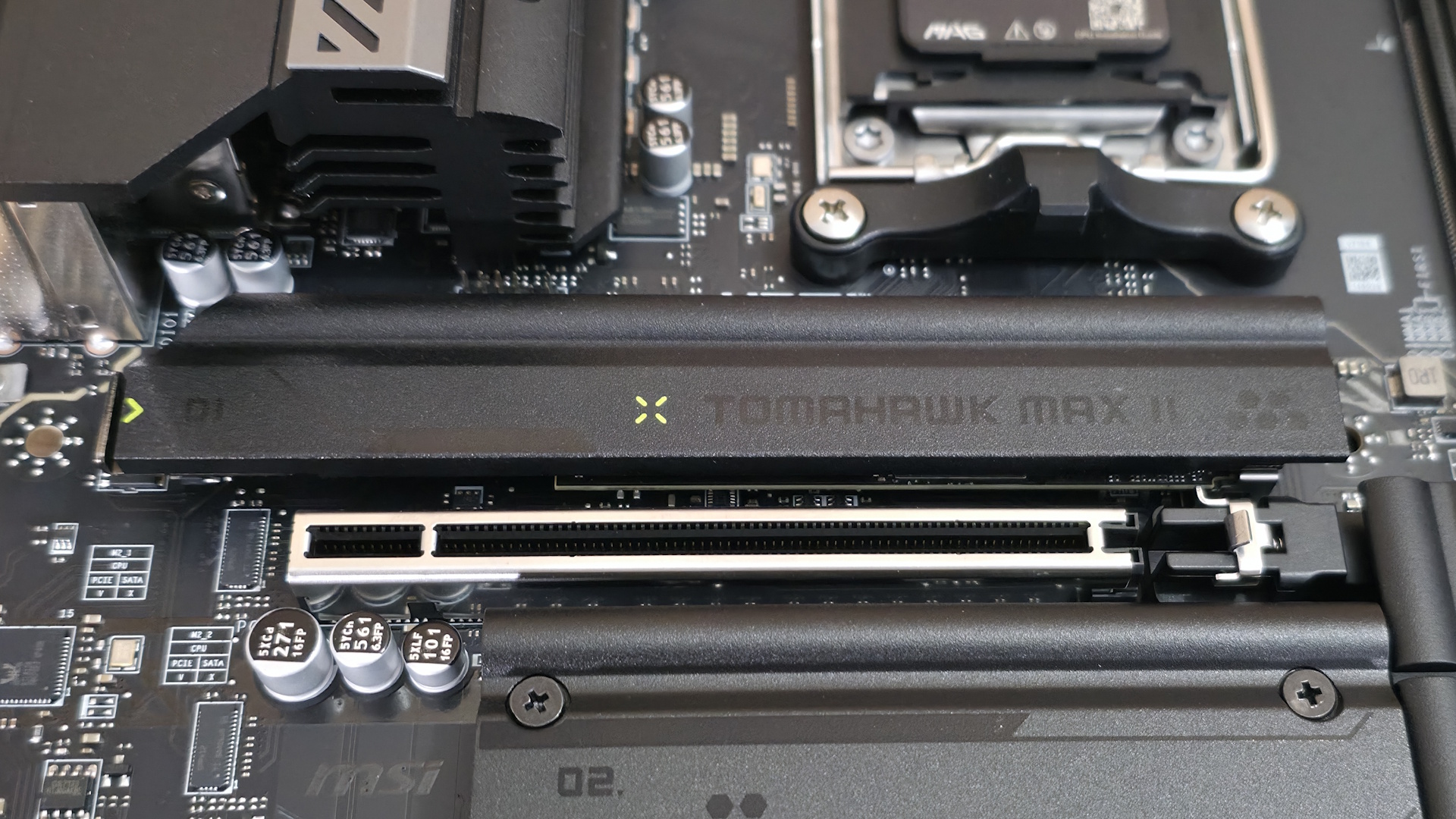
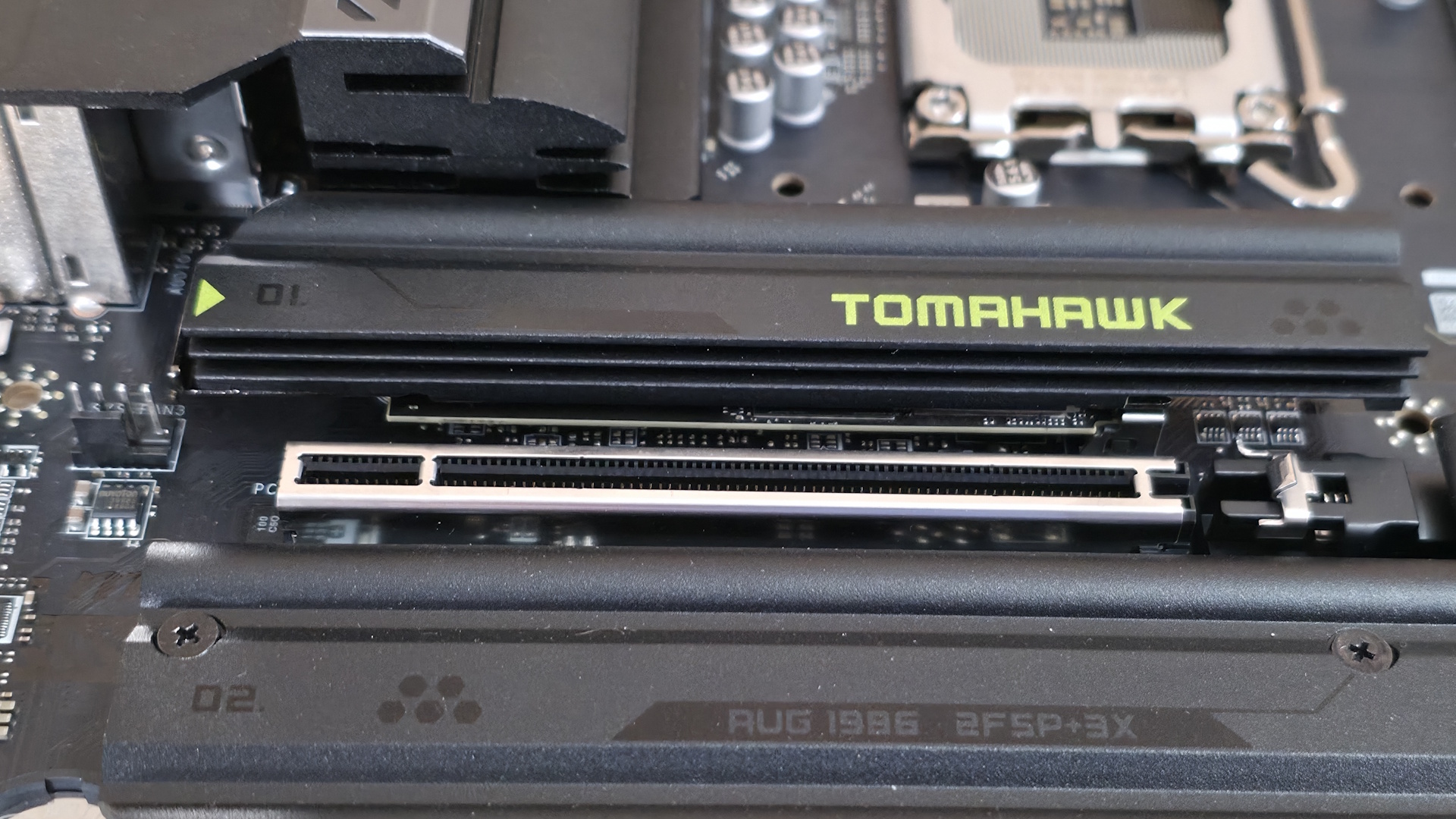
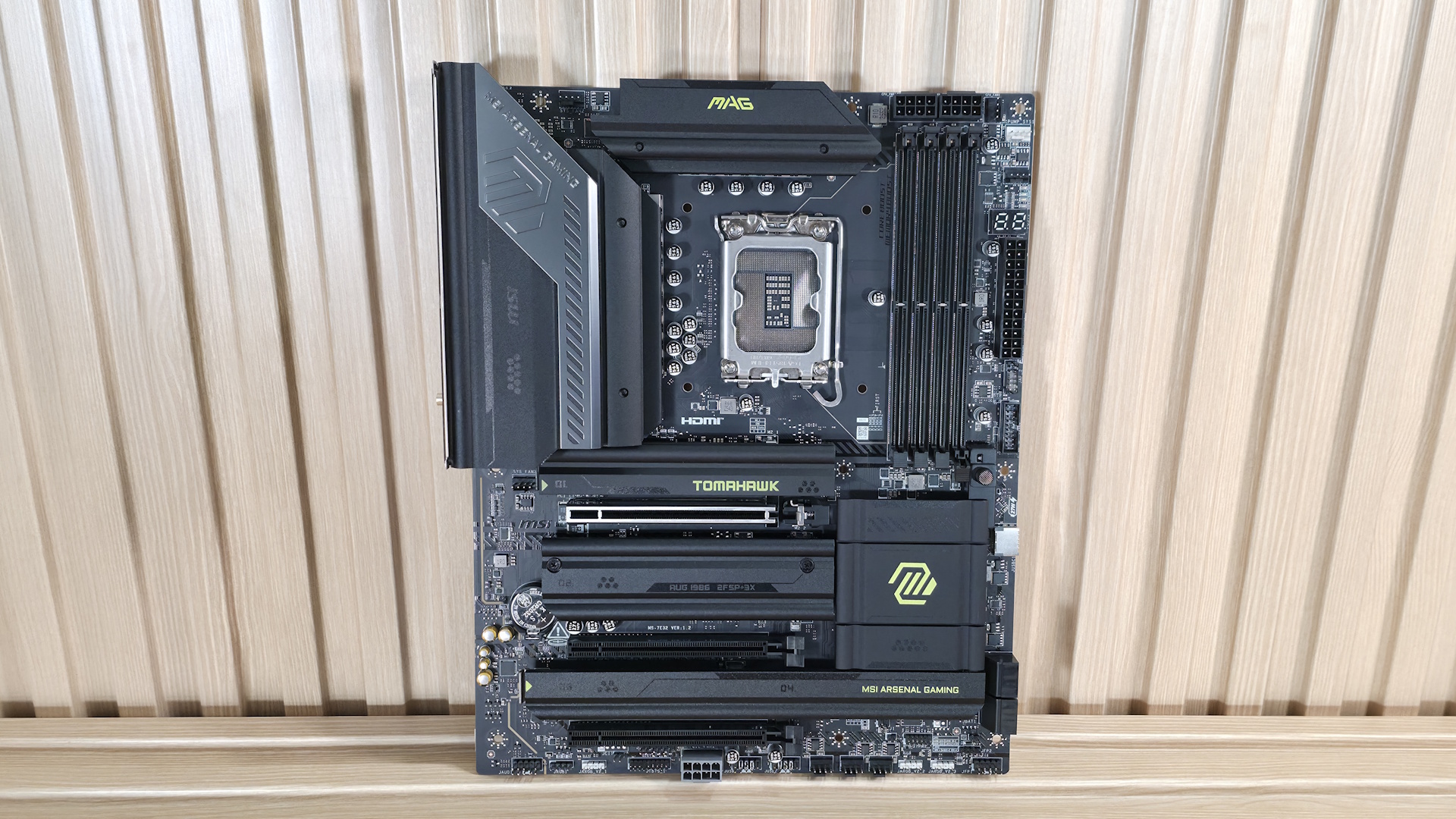
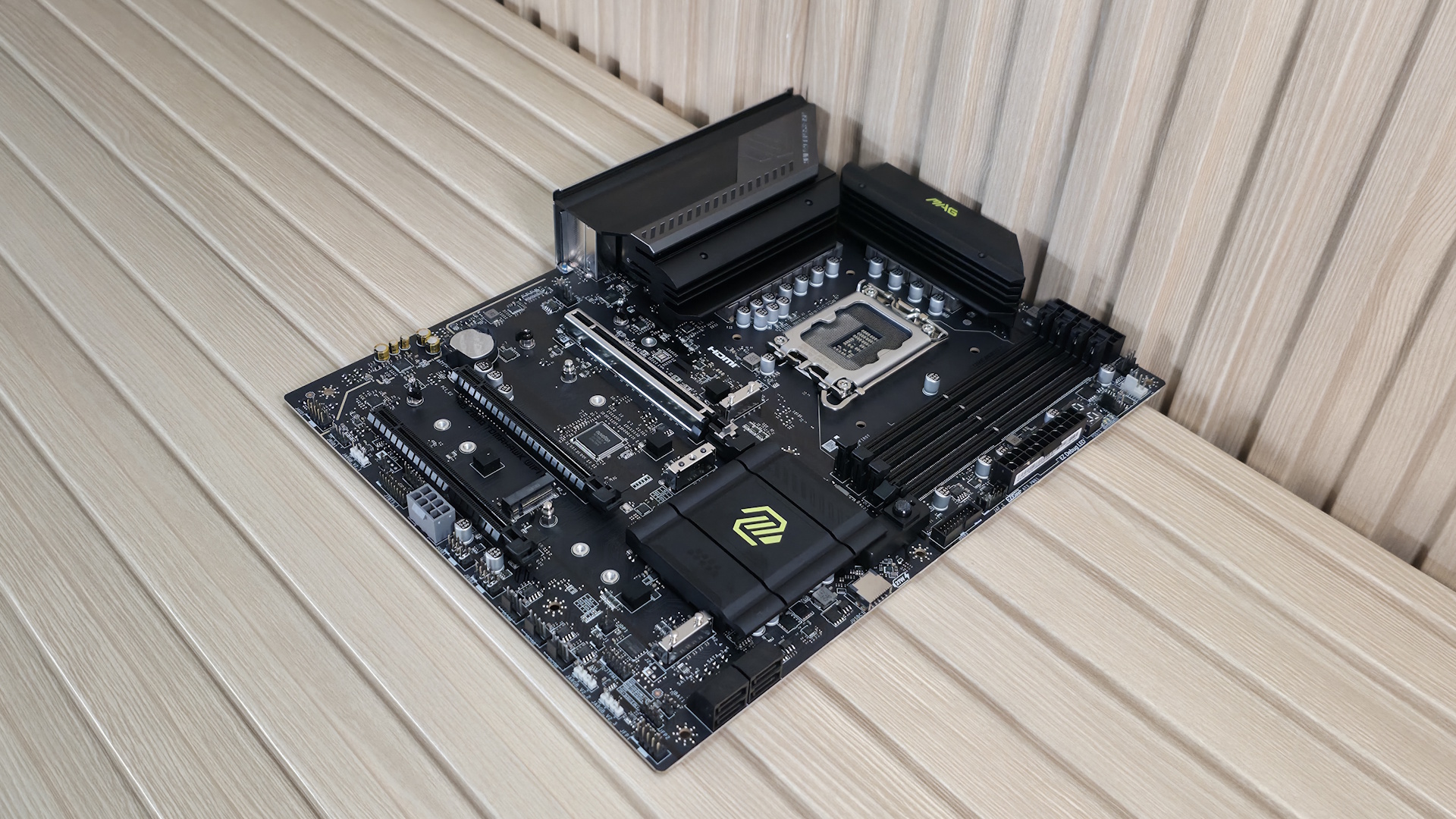
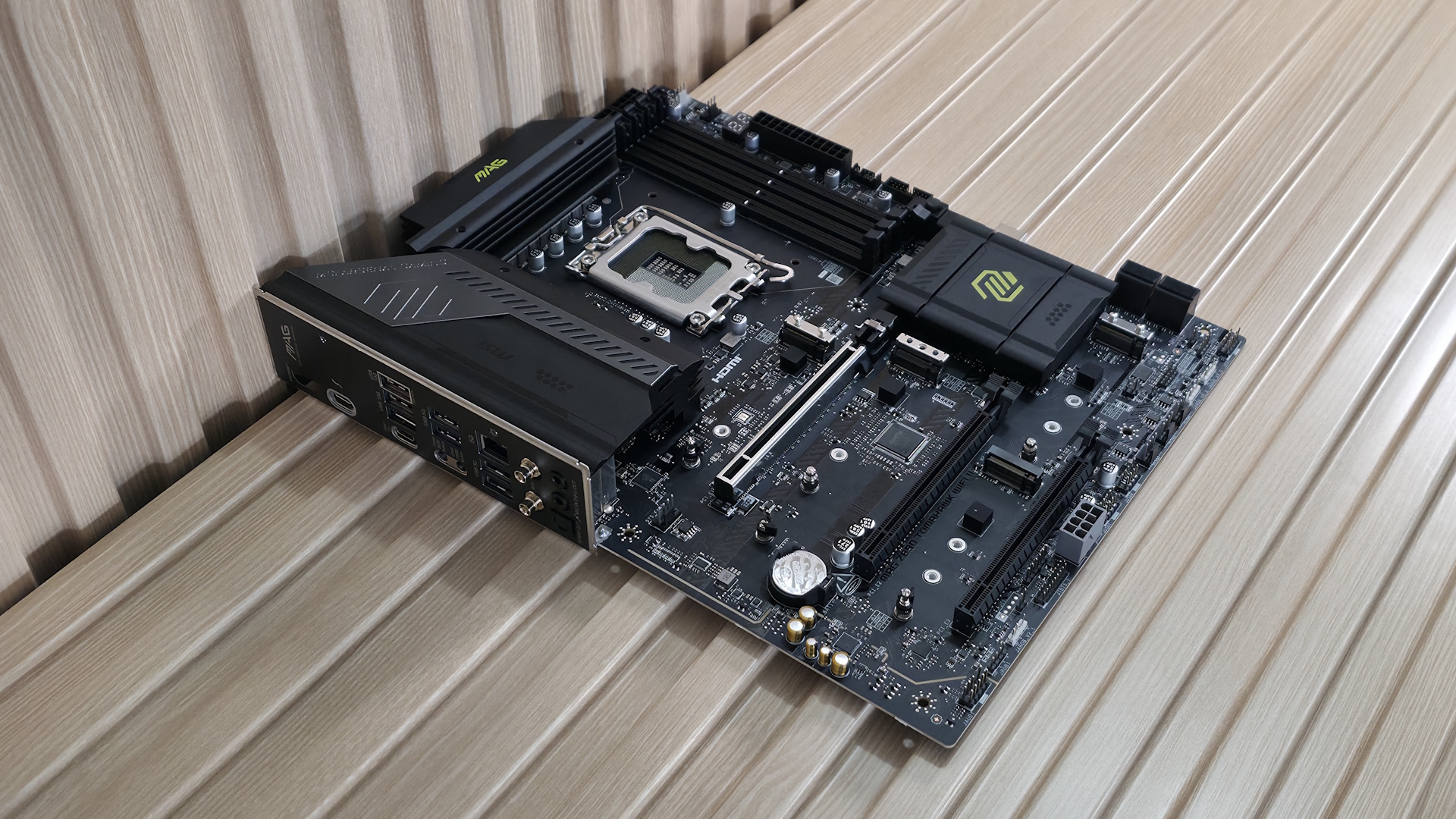
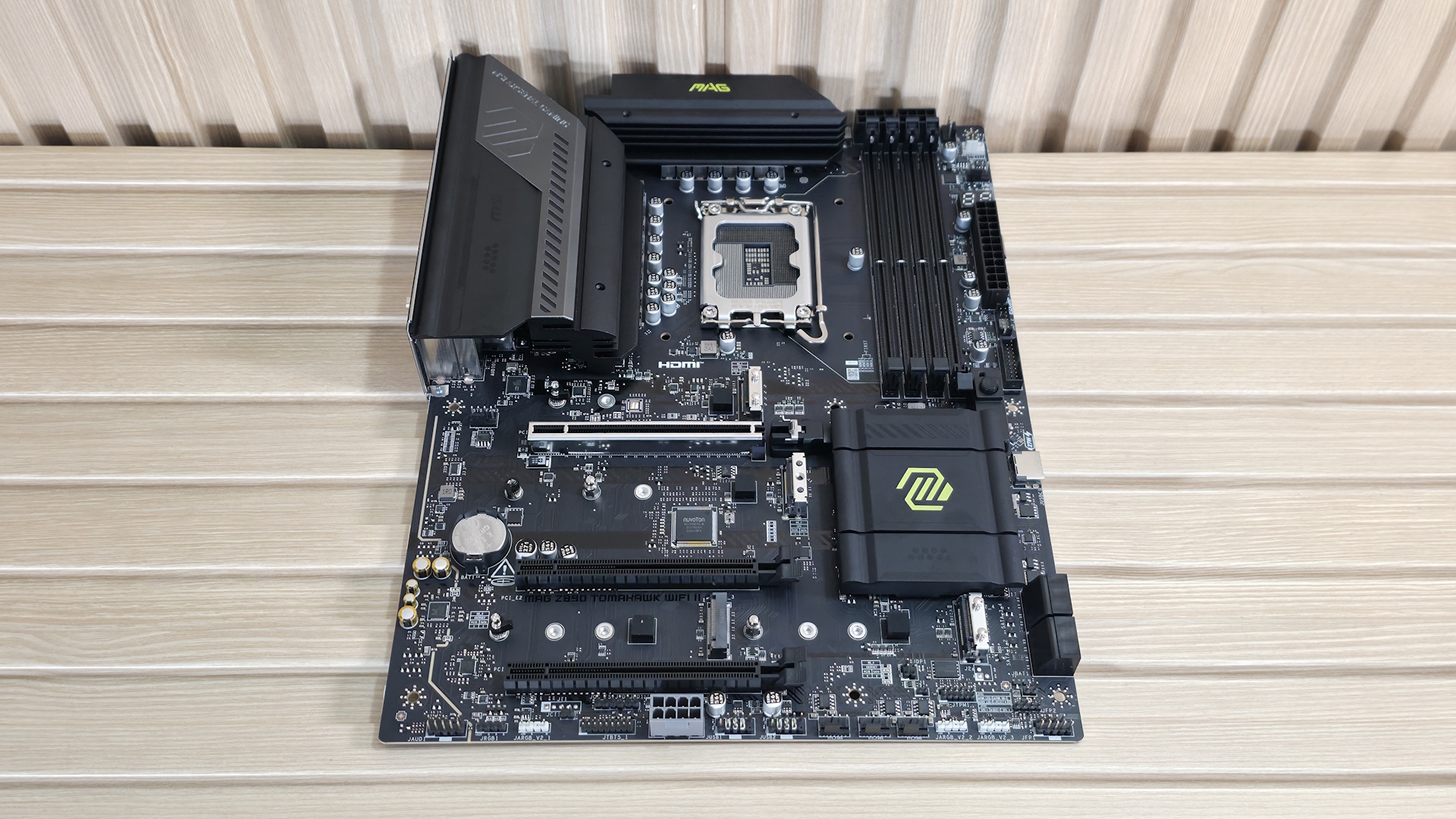
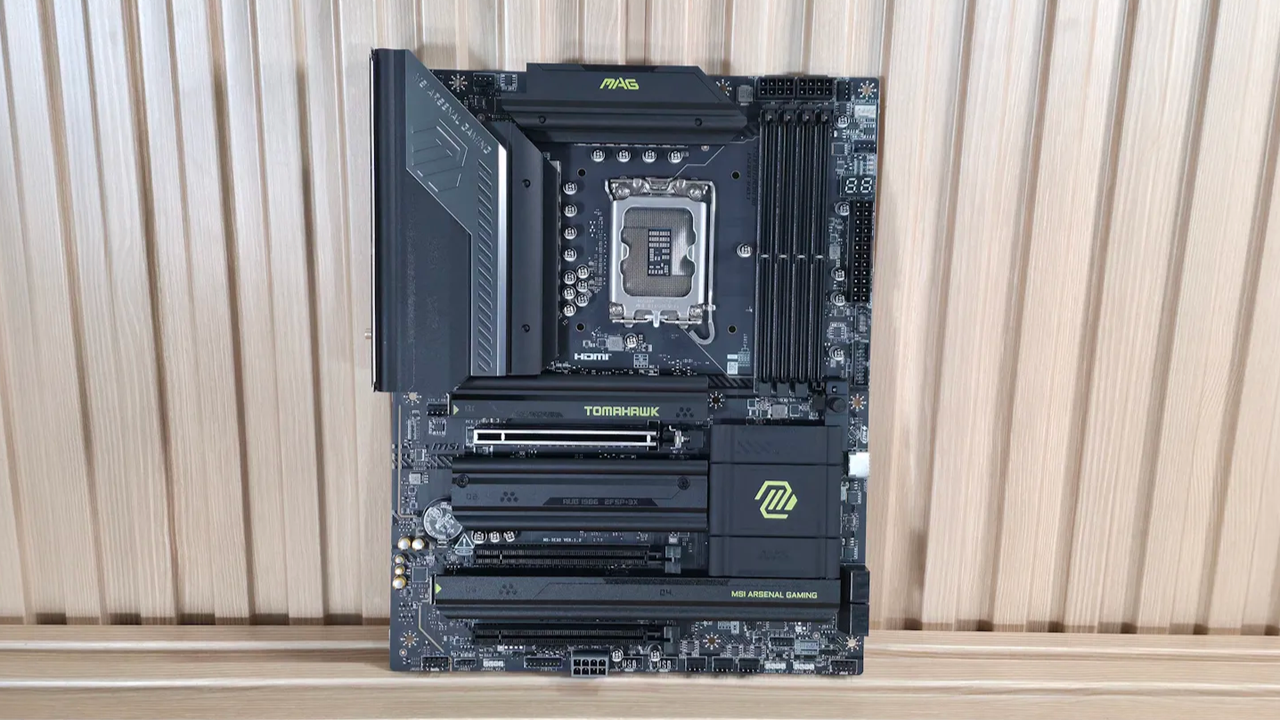
Looking at the Z890 Tomahawk II, it’s tough to discern any aesthetic changes versus the original. It sports an all-black 6-layer, server-grade PCB design with black heatsinks all around. There are bright yellow/green branding accents on the chipset heatsink, the primary M.2 heatsink (for which I wish to see a larger one for the PCIe 5.0 M.2 socket underneath), and the top VRM heatsink. As for RGB lighting, the Tomahawk II, like the original, doesn’t include RGB lighting, though it does have multiple headers to connect your own. It’s not begging to be the showpiece of the build, but it surely looks good with a black build theme.

MSI MAG Z890 Tomahawk Wifi II

(Image credit: Future)

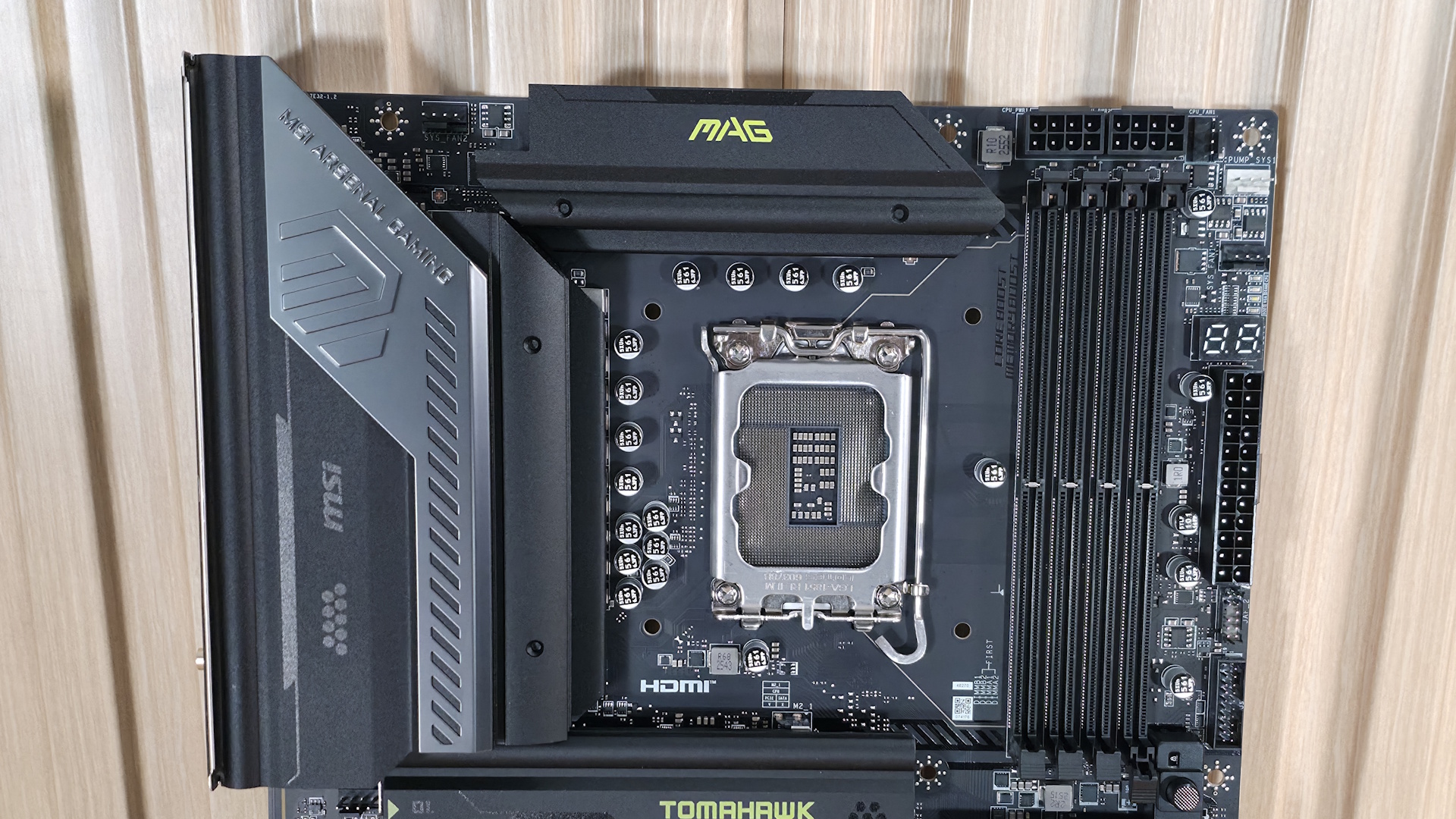
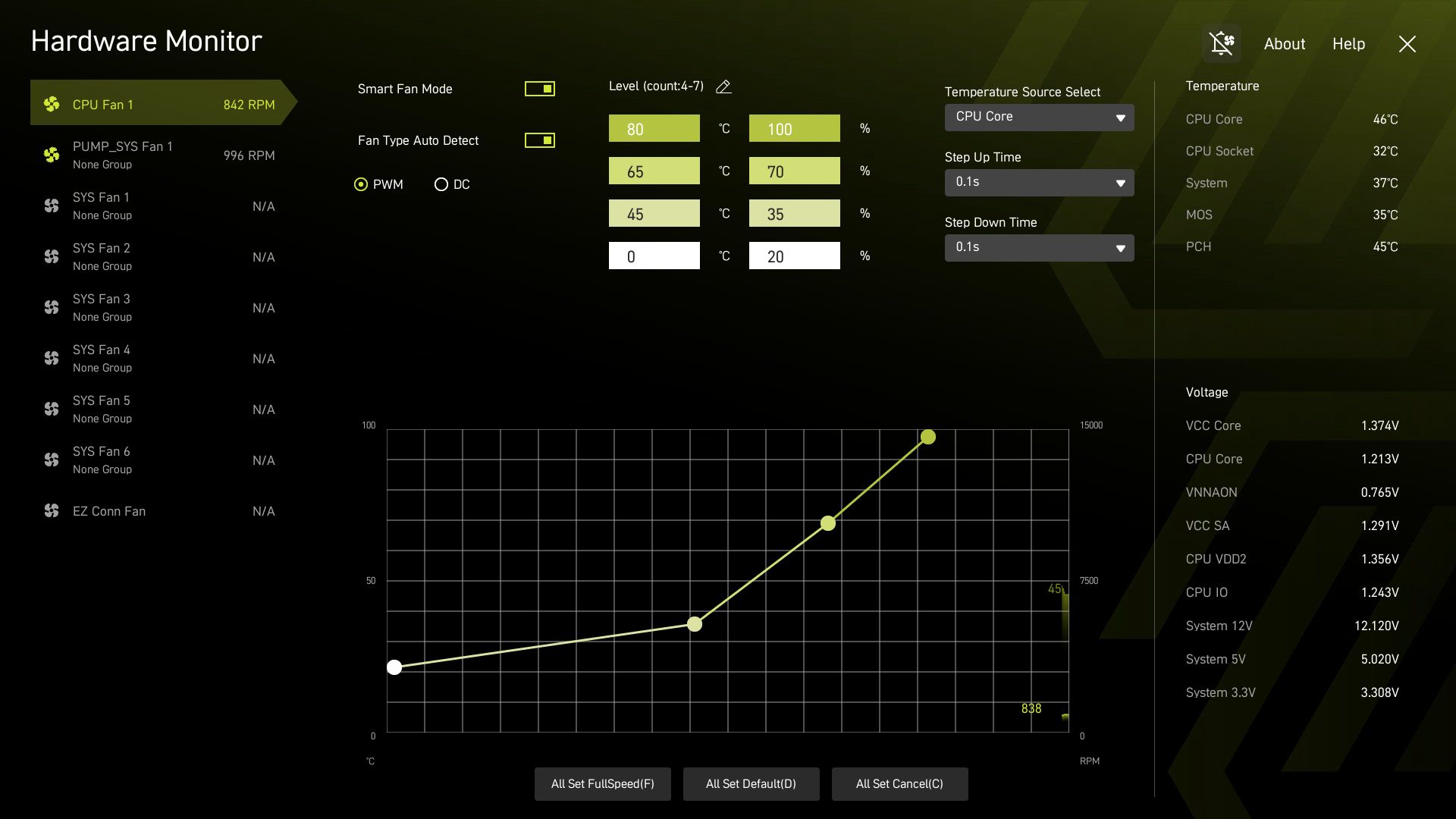
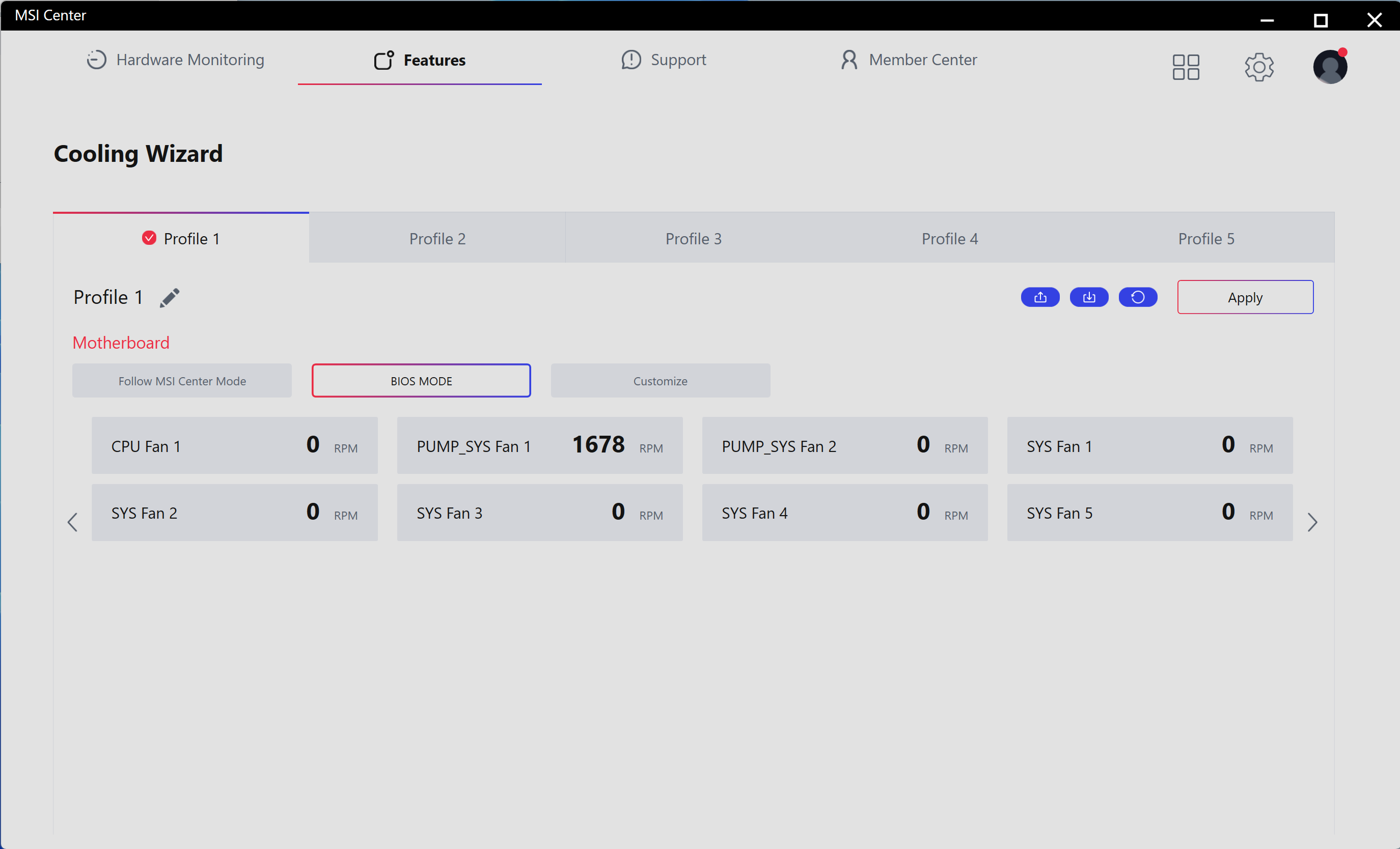
Focusing on the top half of the board, we get a better look at the capable VRM heatsinks and socket area. What is different on this board compared to many others is that the two 8-pin EPS connectors (one required) are above the DRAM slots instead of above and to the left of the VRM heatsinks. In its place is the first (of seven) 4-pin fan headers. Each header supports PWM and DC devices, with current/power ratings ranging from 1A/12W (SYS_FAN1-6) to 2A/24W for the CPU_FAN1 and 3A/36W for the PUMP_SYS1 header. There’s plenty of power to go around. Header control is managed via the BIOS or MSI's Control Center software.

Below the EPS connectors are the four DRAM slots, each with a single locking mechanism at the bottom. With the CPU power leads so close above, it makes sense to have them on the bottom, where there is more room to access them. The board supports up to DDR5-9200 MT/s, which is plenty fast for the platform. Our own testing showed the board worked fine at DDR5-8800 MT/s with a 2x24GB kit, so there’s some headroom left with 2x16GB sticks to reach the listed peak.

In the upper-right corner and along the edge, we spy three more 4-pin fan headers, along with the EZ debug (4 LEDs, basic troubleshooting) and the 2-character EZ Digi-Debug LED, which offers more details on POST issues and doubles as a temperature display once booted.

Below that is the JAF_2 EZ-Conn-header V2, which allows you to connect ARGB LED strips, fans, and USB 2.0 devices (with the included adapter cable), saving space on the motherboard. Last but not least, on the top half is a front-panel USB 3.2 Gen 1 (5 Gbps) connector.

MSI MAG Z890 Tomahawk Wifi II

(Image credit: Future)

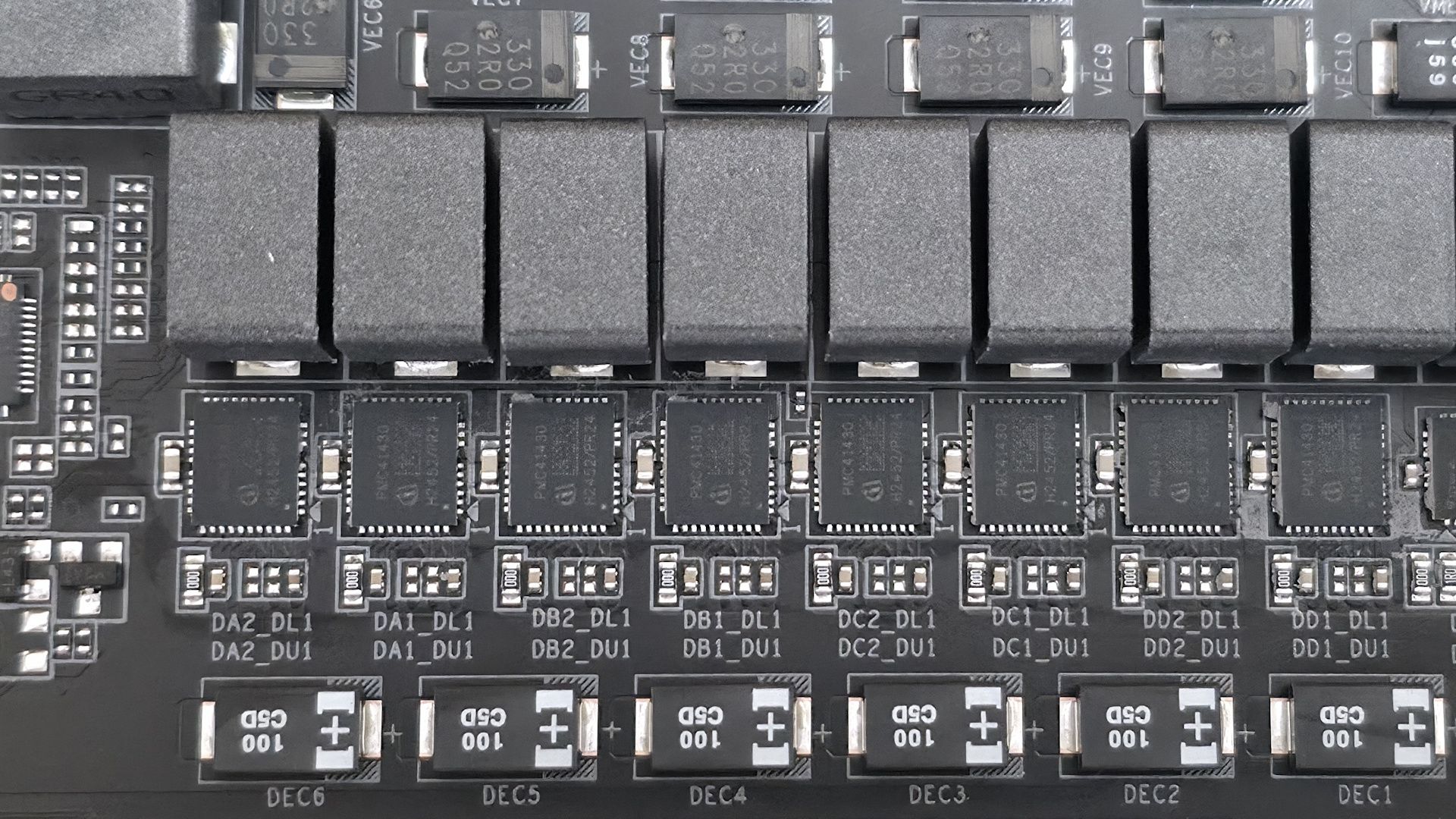
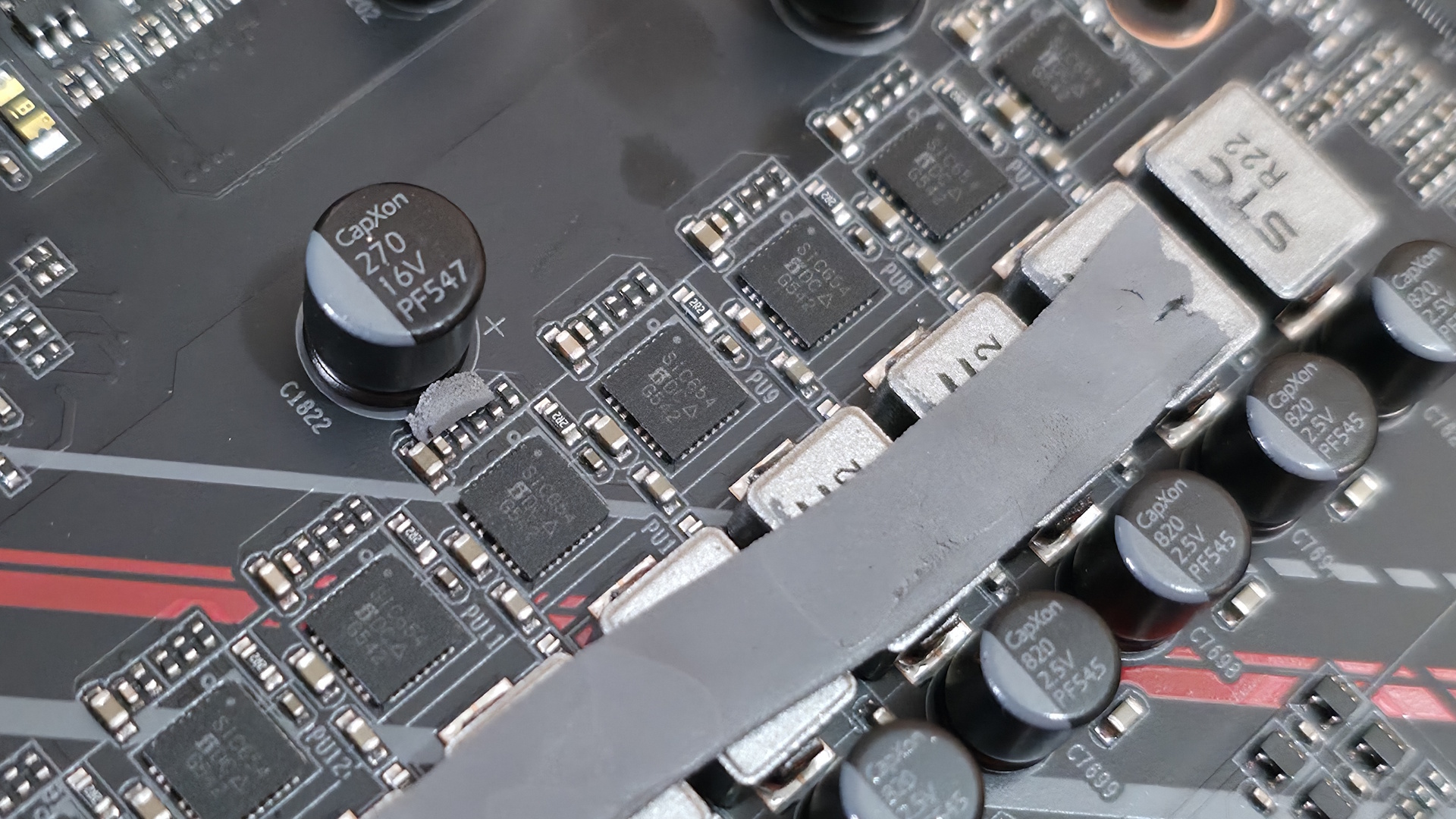
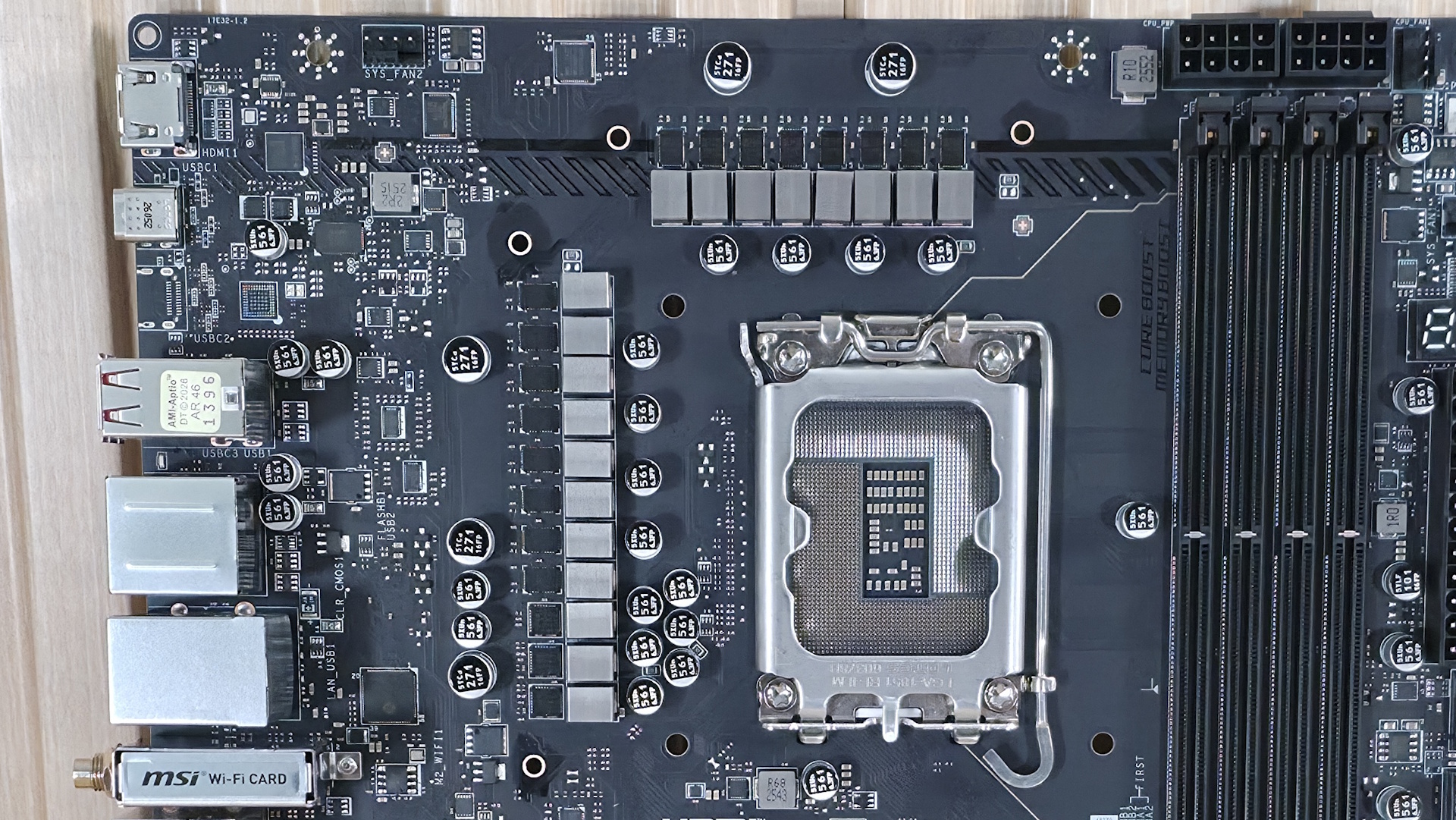
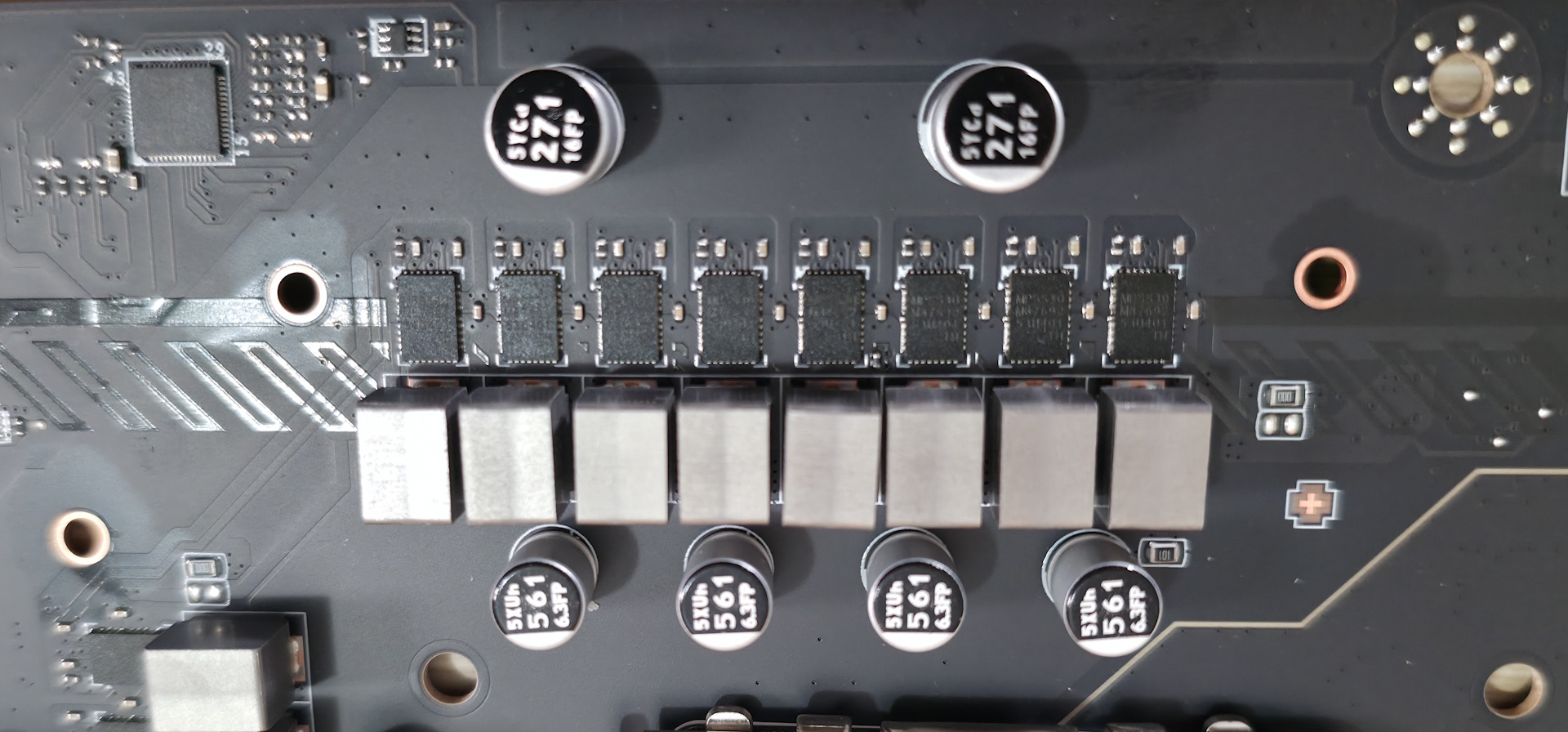
Power delivery on the Tomahawk II is capable and appropriate for this class of motherboard. It has 19 phases, 16 of which are dedicated to Vcore. Power is supplied to the Monolithic Power Systems (MPS) MPS2477 controller. From there, it heads to 16 MPS 90A SPS MOSFETs. The 1,440A available can handle the Core Ultra 7 270K Plus, the Core Ultra 5 250K Plus, and even the Core Ultra 9 285K, even with overclocking. Just be sure to keep air flowing in your chassis, as the components here will get warm with sustained heavy use.

MSI MAG Z890 Tomahawk Wifi II

(Image credit: Future)

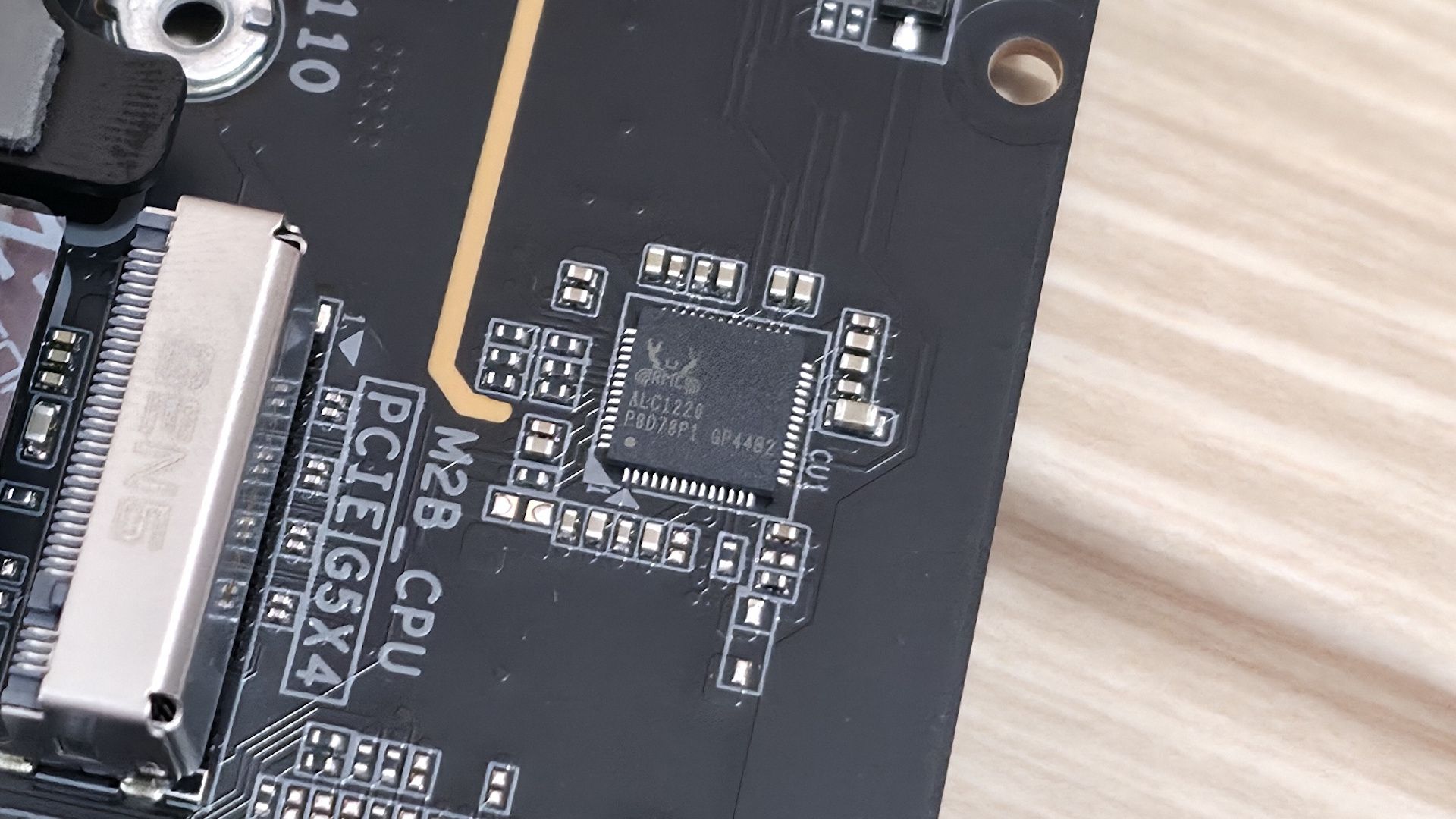
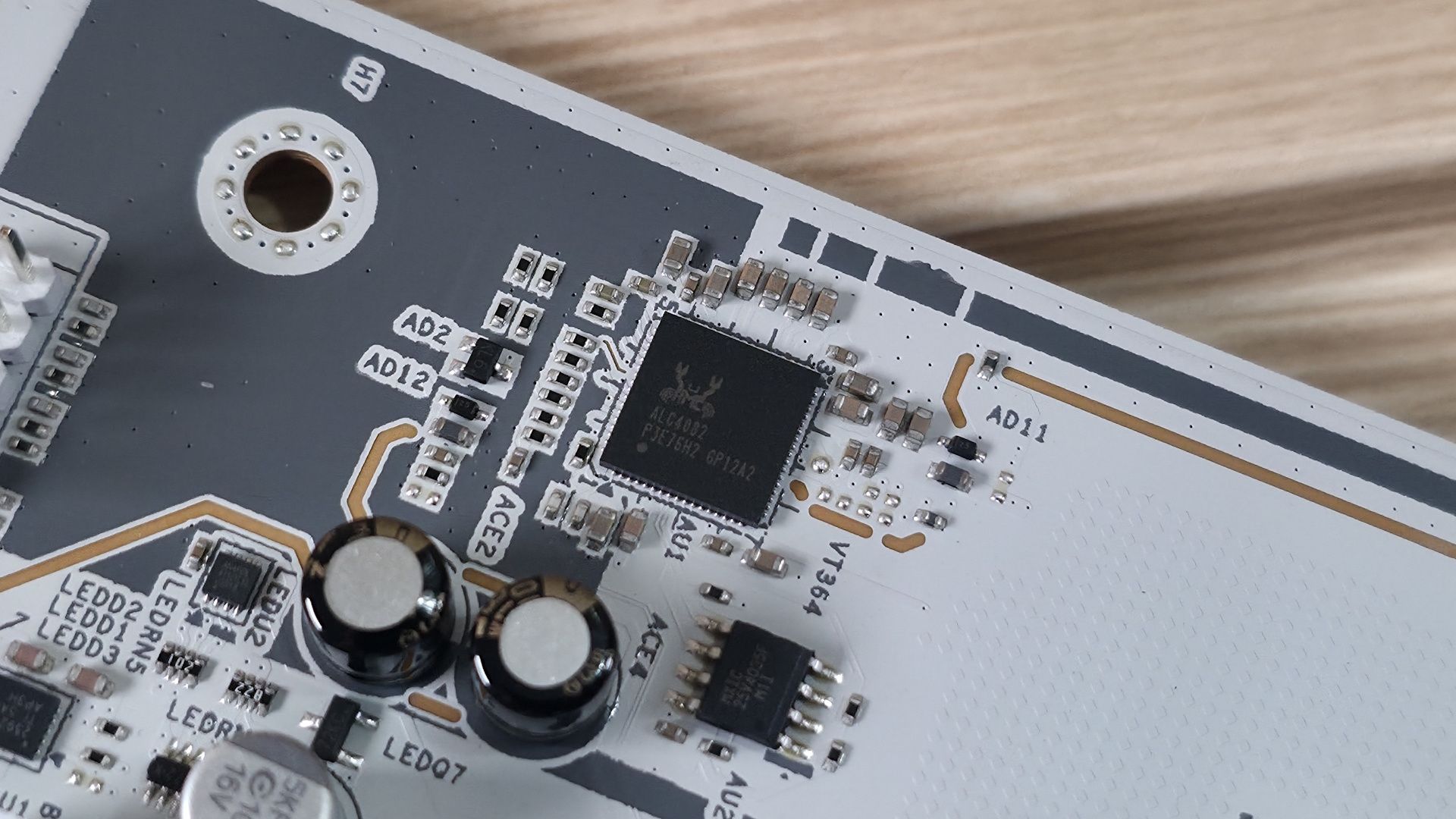
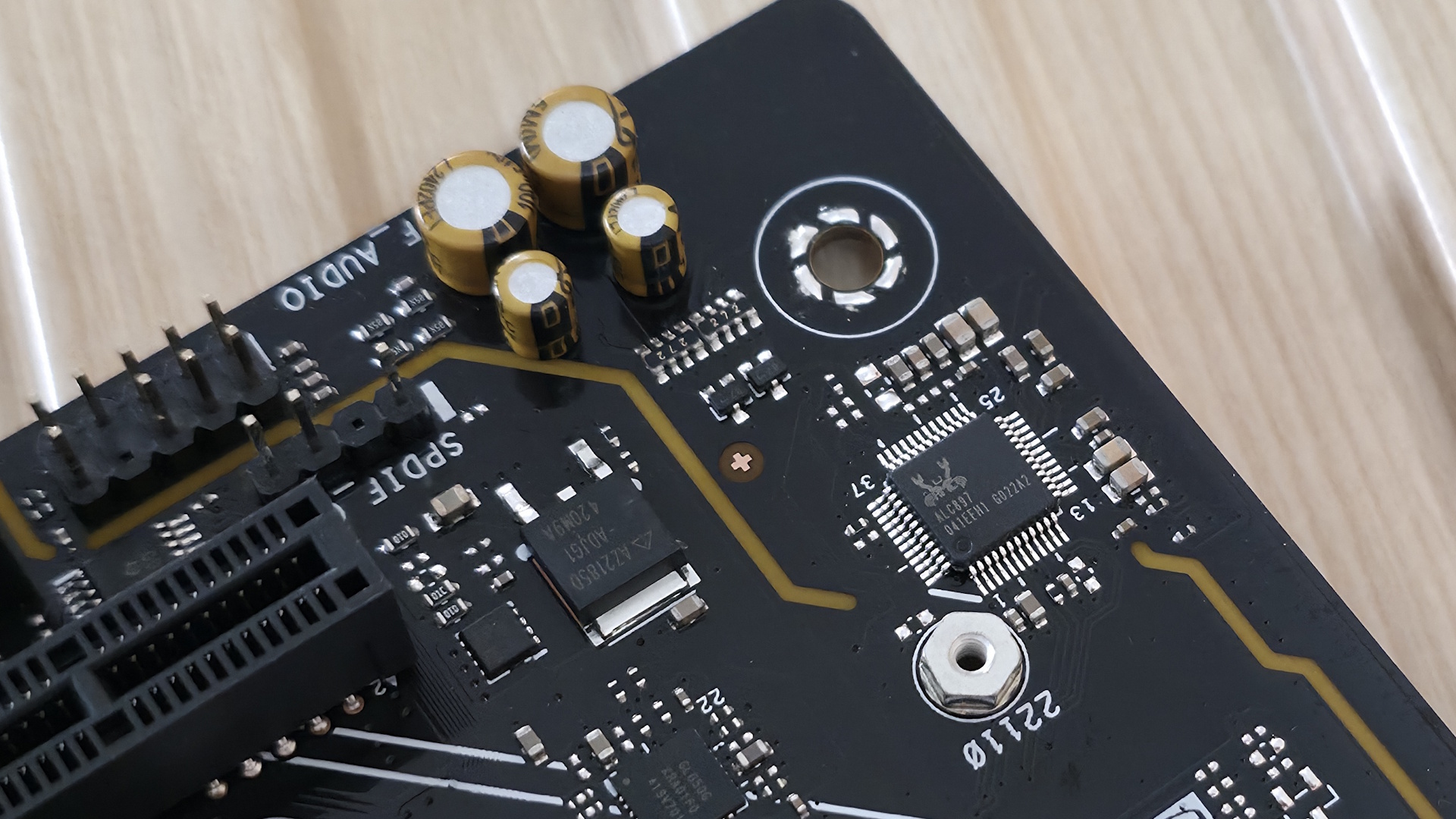
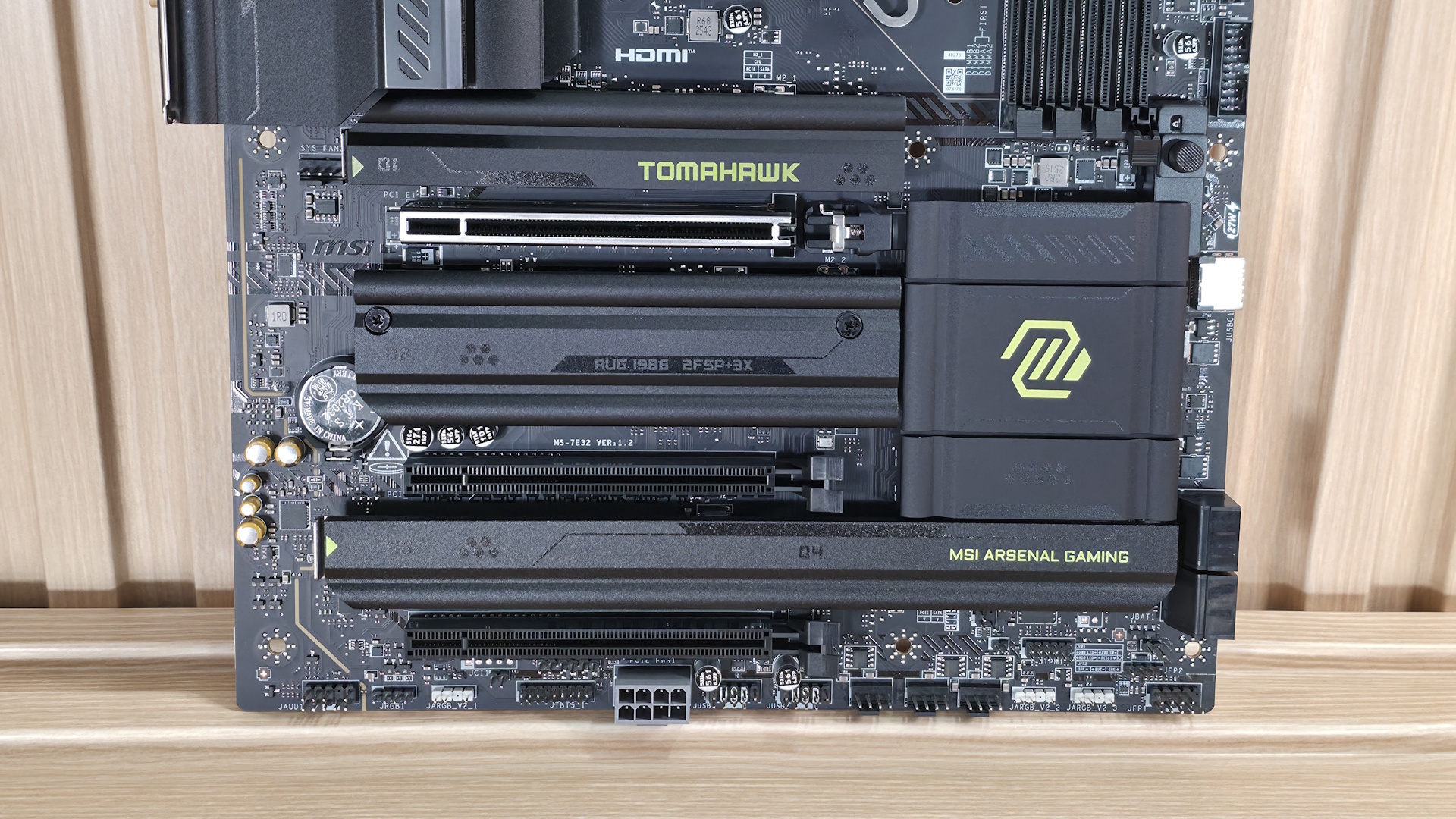
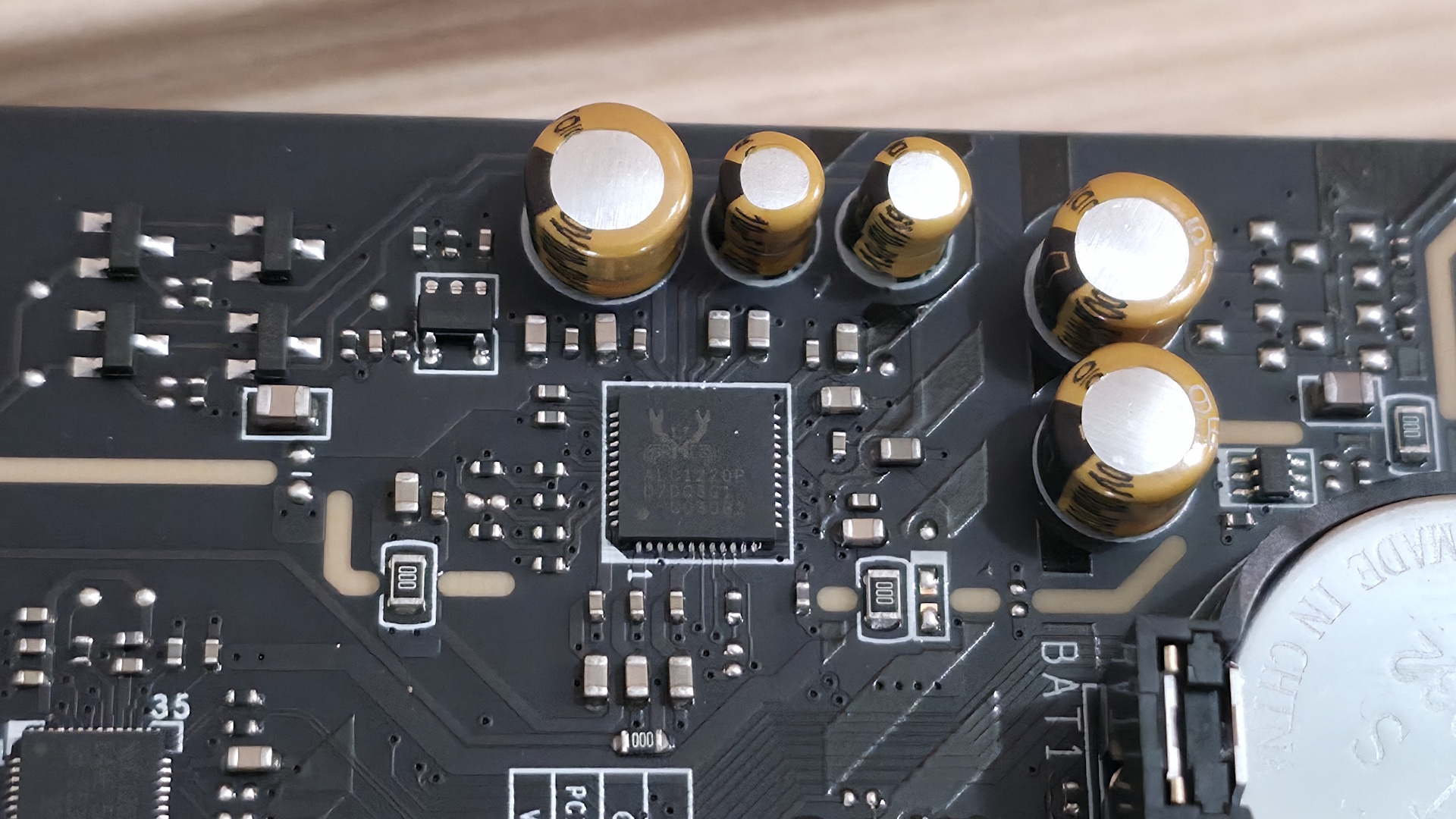
On the bottom half of the board, we’ll start on the left with the audio section. There, we see a couple of dedicated audio capacitors and the last-gen flagship codec, the Realtek ALC1220P. While this isn’t the latest/best audio codec available, it’s a good one and makes sense for most budget-class motherboards. You should still be happy with it, as it’s difficult to tell them apart without seeing the actual specifications anyway.

In the middle of the board are three full-length PCIe slots and four M.2 sockets. Starting with PCIe, the topmost slot has reinforcement, which MSI calls Steel Armor II. It is your sole PCIe 5.0 x16 slot and connects through the CPU. The bottom two slots connect via the chipset and support PCIe 4.0 x4. The top slot does not bifurcate, if you’re wondering.

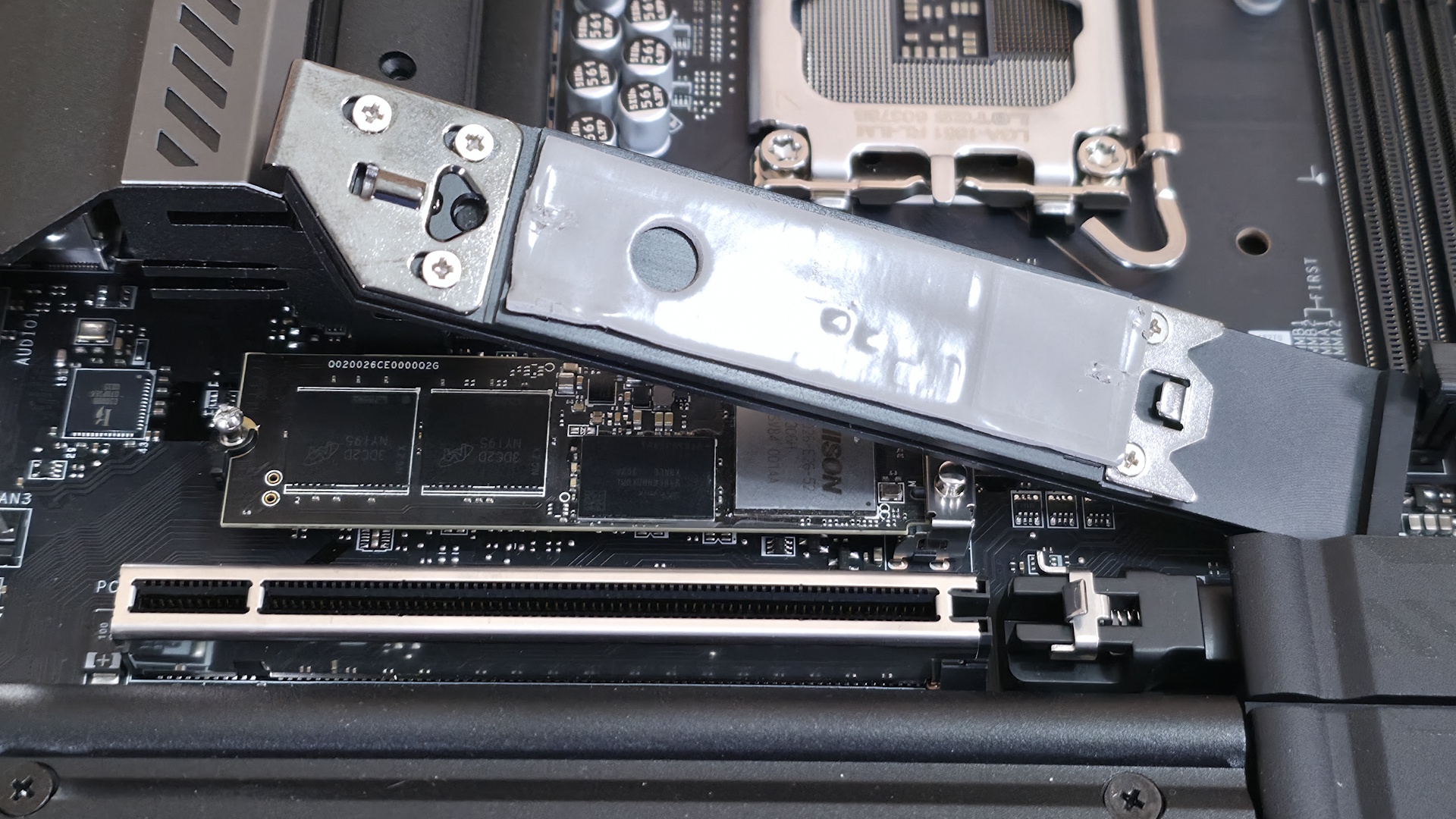
Among and around the PCIe slots are four M.2 sockets. The top socket, M.2_1 (above the top PCIe slot and under the heatsink that, again, I wish were larger), is your CPU-connected PCIe 5.0 x4 (128 Gbps) socket. The other three M.2s all connect through the chipset and run at PCIe 4.0 x4 (64 Gbps), with M.2_4, the bottom-right socket, also supporting SATA-based M.2 devices. All sockets support up to 80mm modules and can run RAID 0/1/5 modes for redundancy and/or increased speed (RAID is not a backup). Between the PCIe slots, M.2, USB, and SATA ports, there is no lane sharing. You can fill all the slots and sockets and still receive the full bandwidth from each.

Finally, moving past the chipset heatsink to the right edge, are two of the four SATA ports (supporting RAID 0/1/5/10). The other two are mounted vertically along the bottom edge.

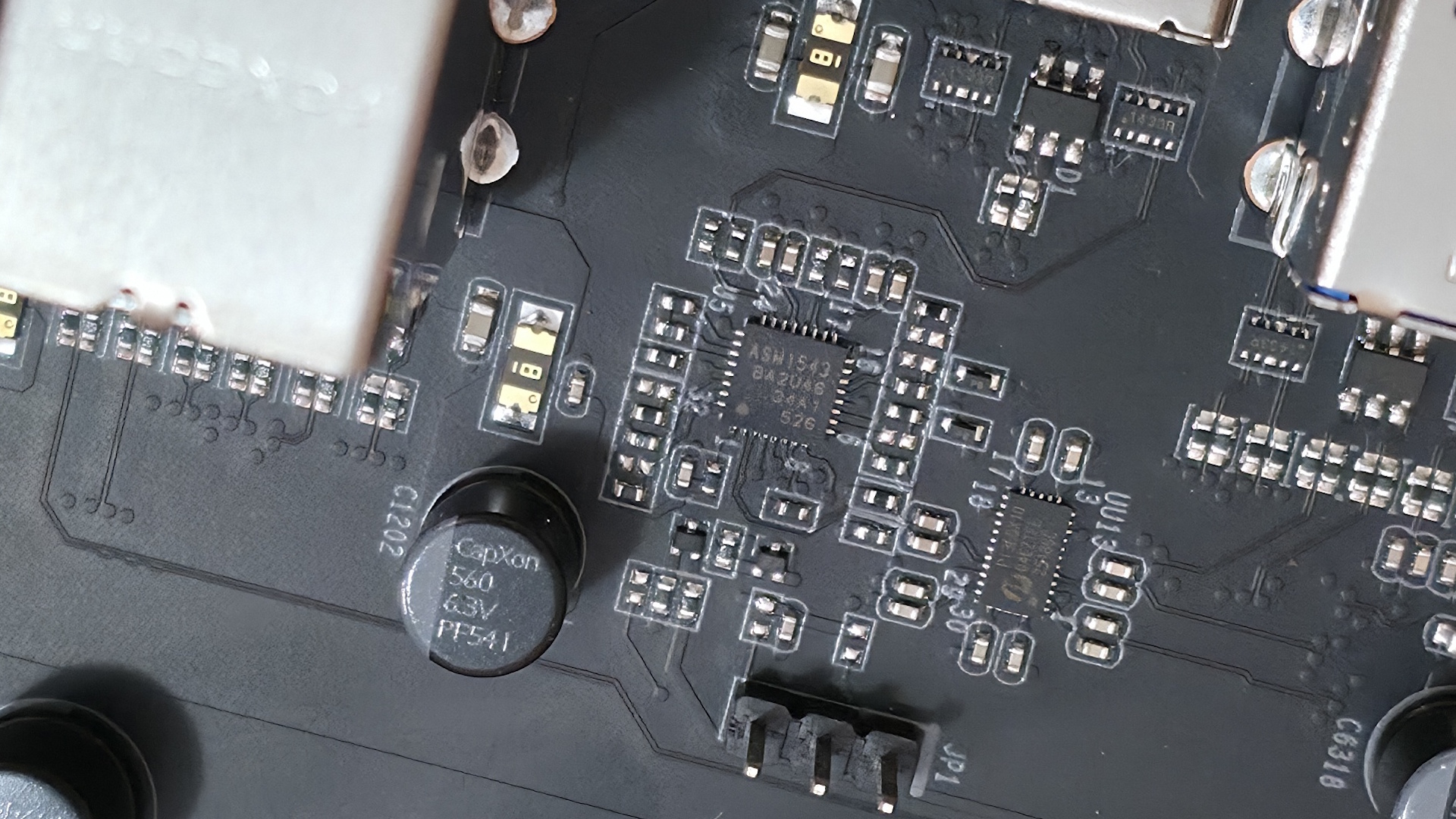
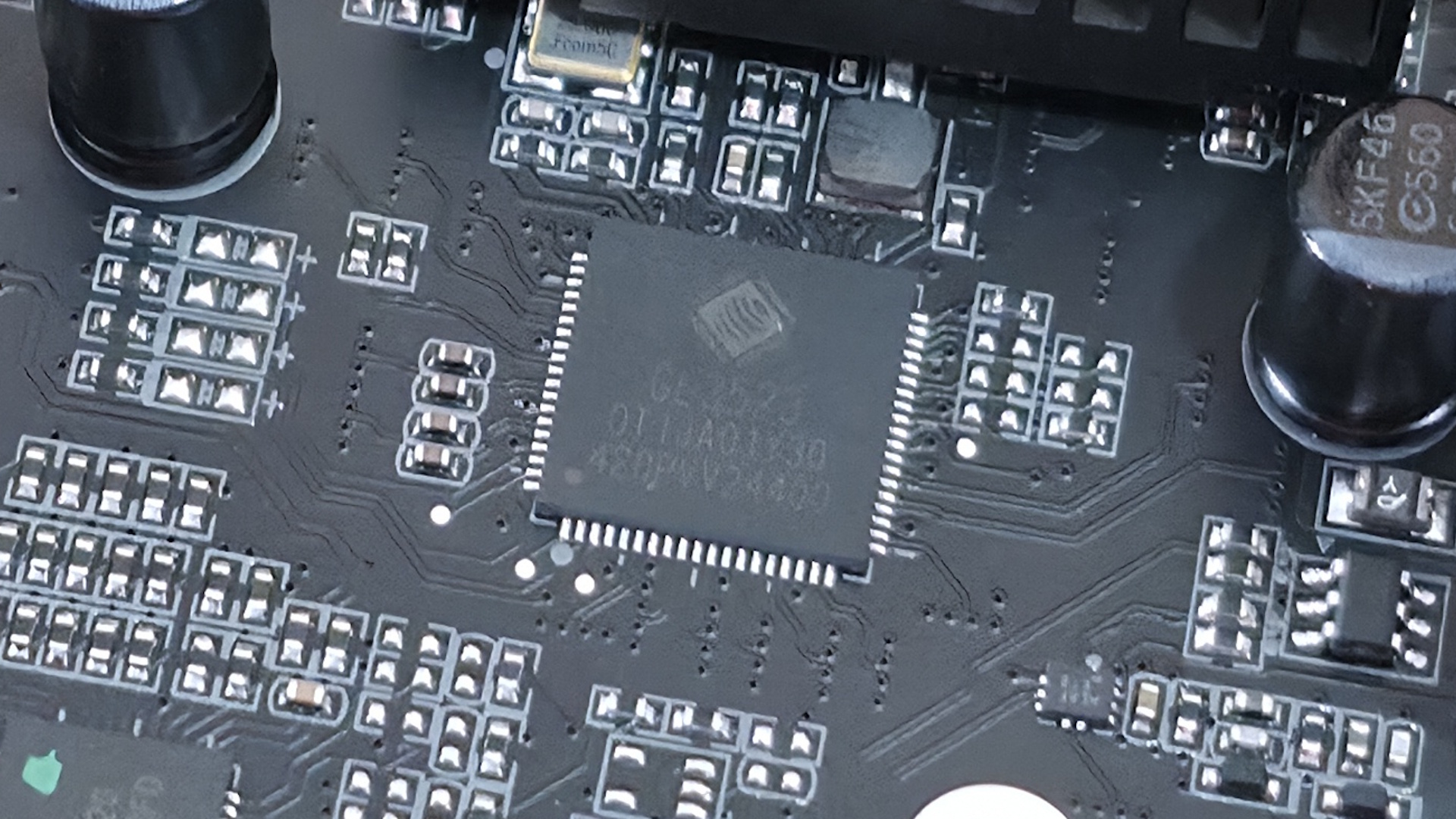
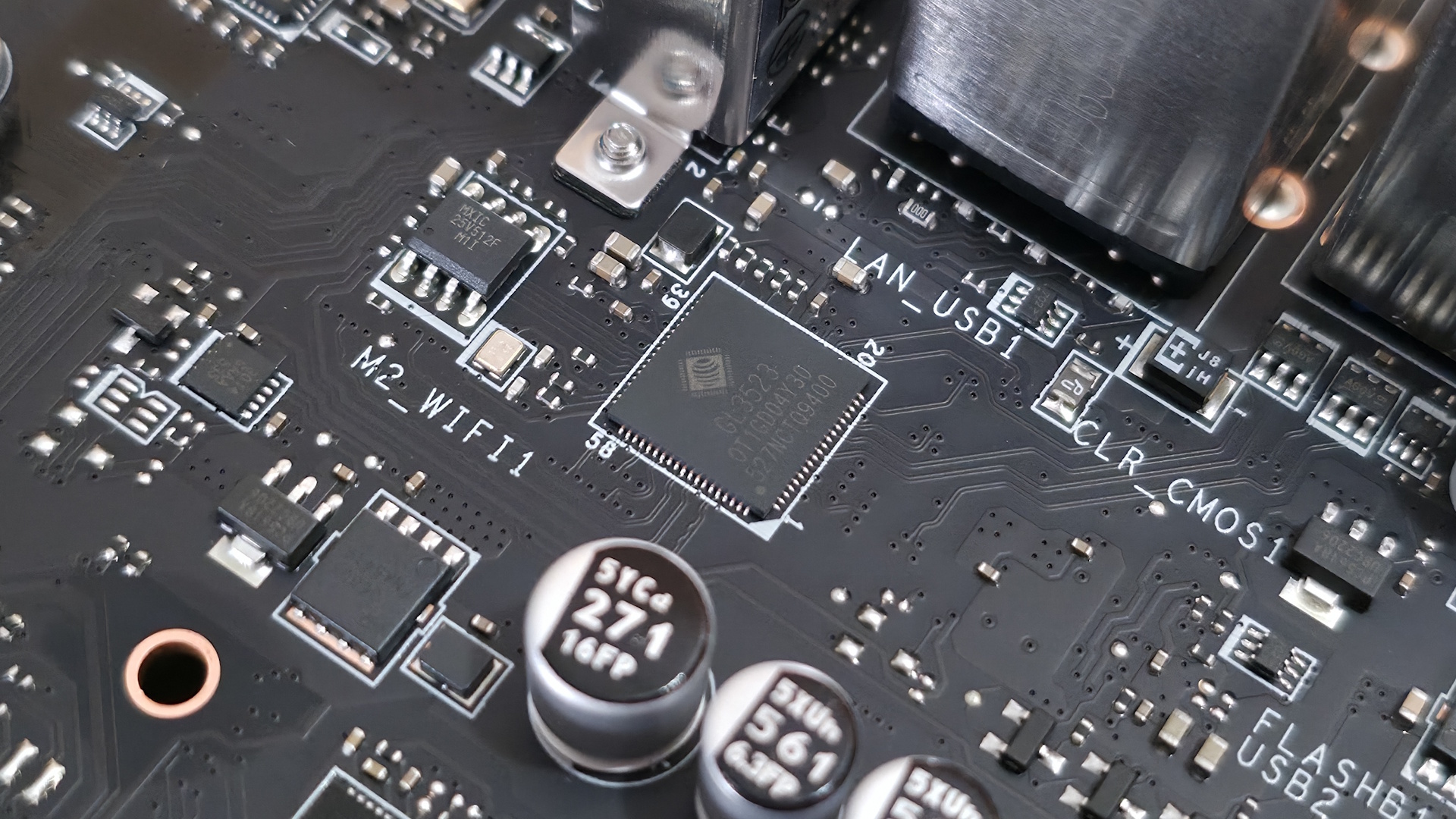
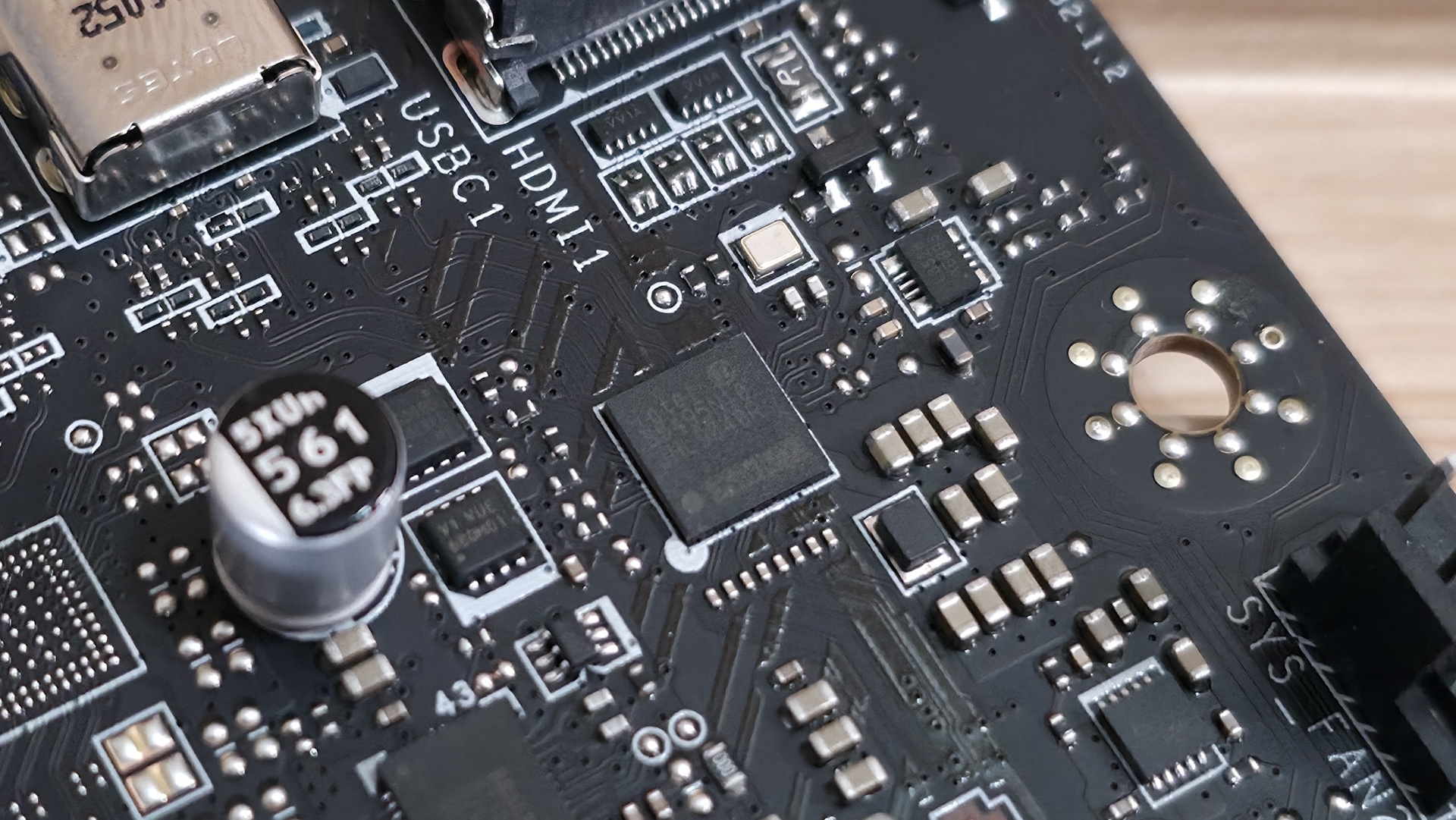
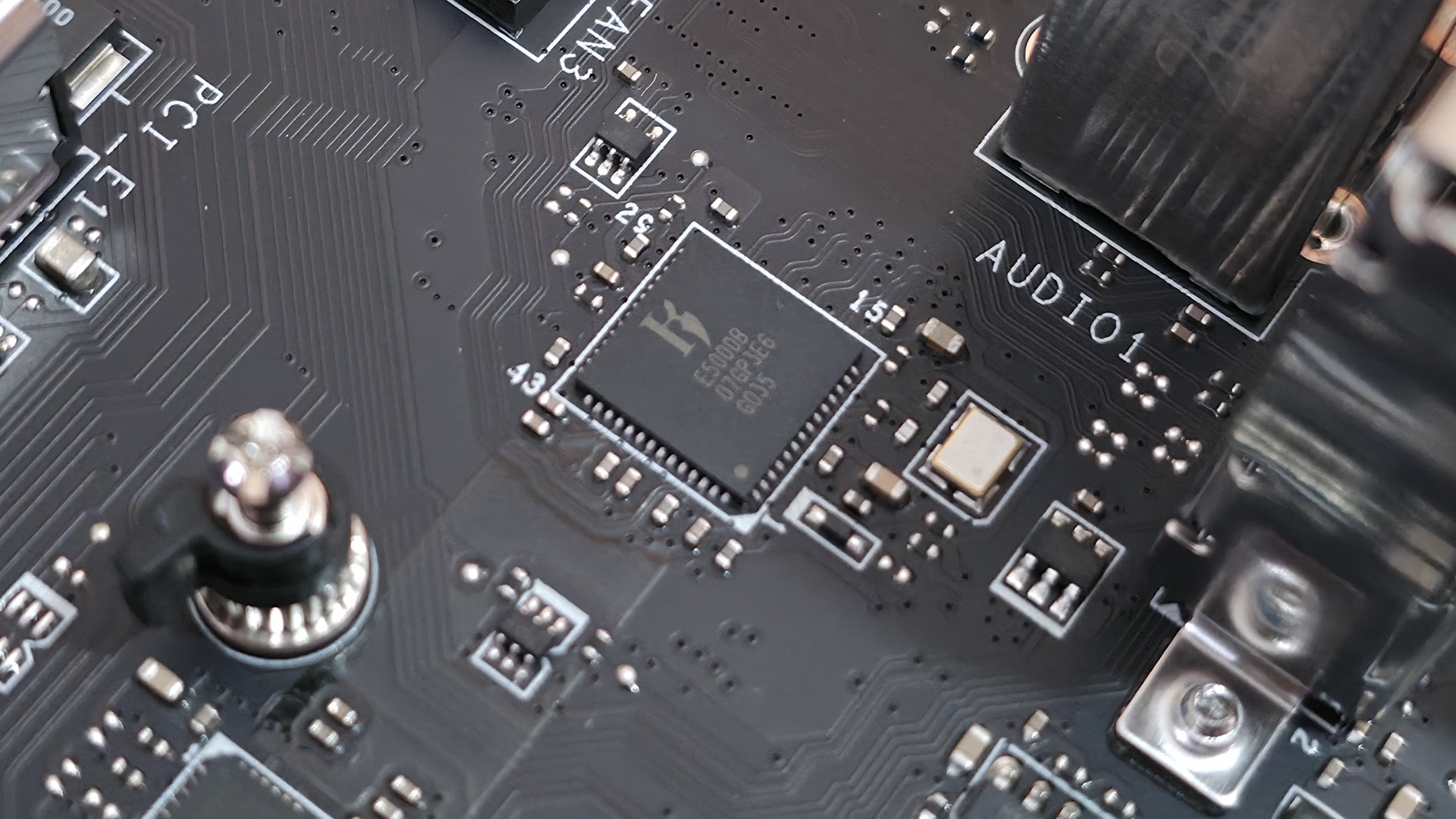
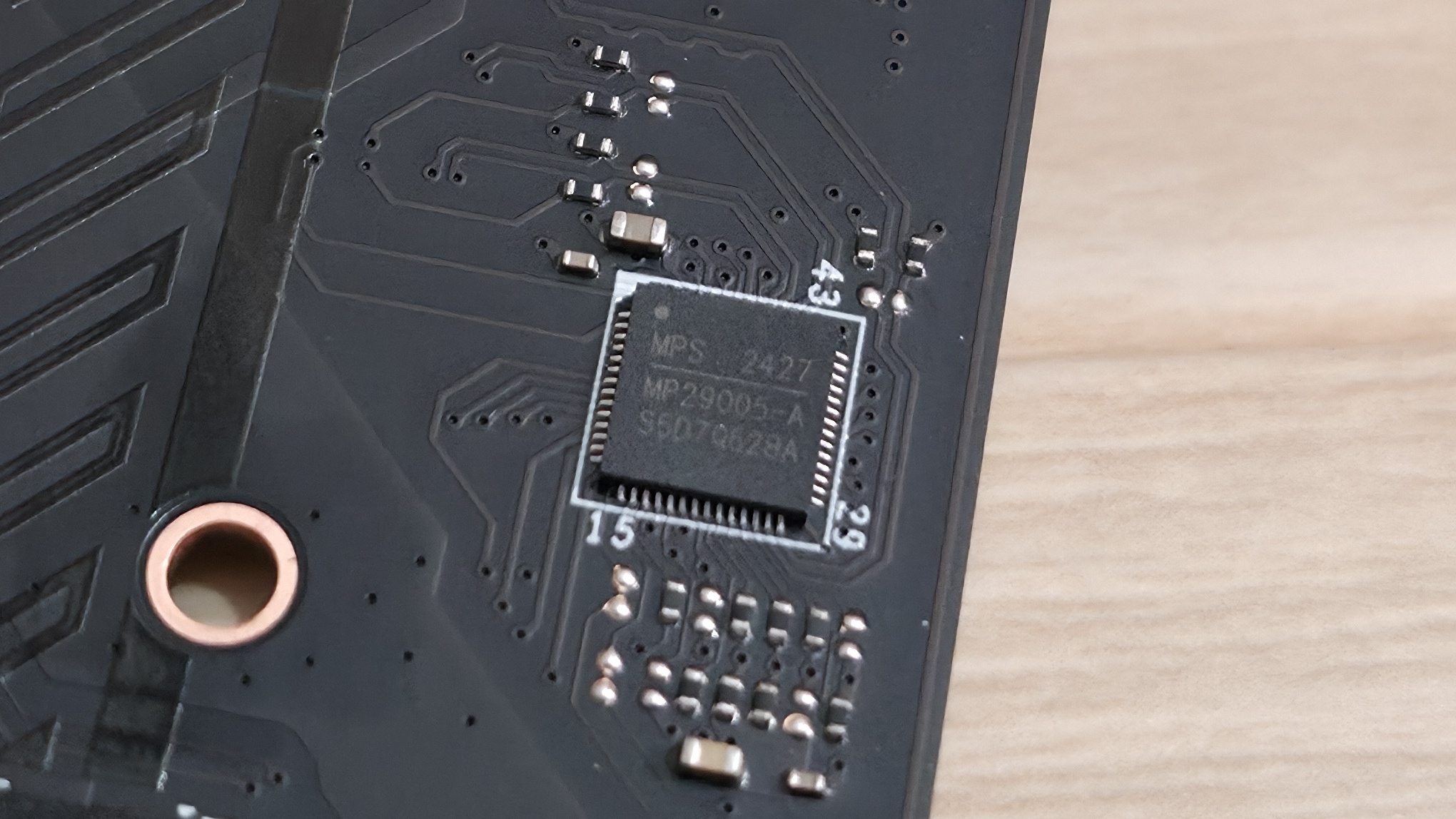
We've also captured several images of the IC's used to make this motherboard work consisting of a mix of Genesys Logic for a USB hub, Killer/Intel Ethernet, Realtek audio, and Monolithic Power Systems MOSFETs.

MSI MAG Z890 Tomahawk Wifi II
Future
MSI MAG Z890 Tomahawk Wifi II
Future
MSI MAG Z890 Tomahawk Wifi II
Future
MSI MAG Z890 Tomahawk Wifi II
Future
MSI MAG Z890 Tomahawk Wifi II
Future
MSI MAG Z890 Tomahawk Wifi II
Future

At the bottom of the board is a slew of headers. It offers your typical set of connectivity in this area, with nothing missing or worth a specific mention. Below we’ve listed all the connections across the bottom of the board.

  • Front panel audio
  • 4-pin RGB header
  • 3-pin ARGB header
  • 2-pin chassis intrusion header
  • TB5 AIC header
  • 8-pin PCIe connector
  • (2) USB 2.0 (380 Mbps) headers
  • (3) 4-pin system fan headers
  • (2) 3-pin ARGB headers
  • TPM header
  • 2-pin Clear CMOS header
  • Front panel headers

MSI MAG Z890 Tomahawk Wifi II - Rear IO

(Image credit: Future)

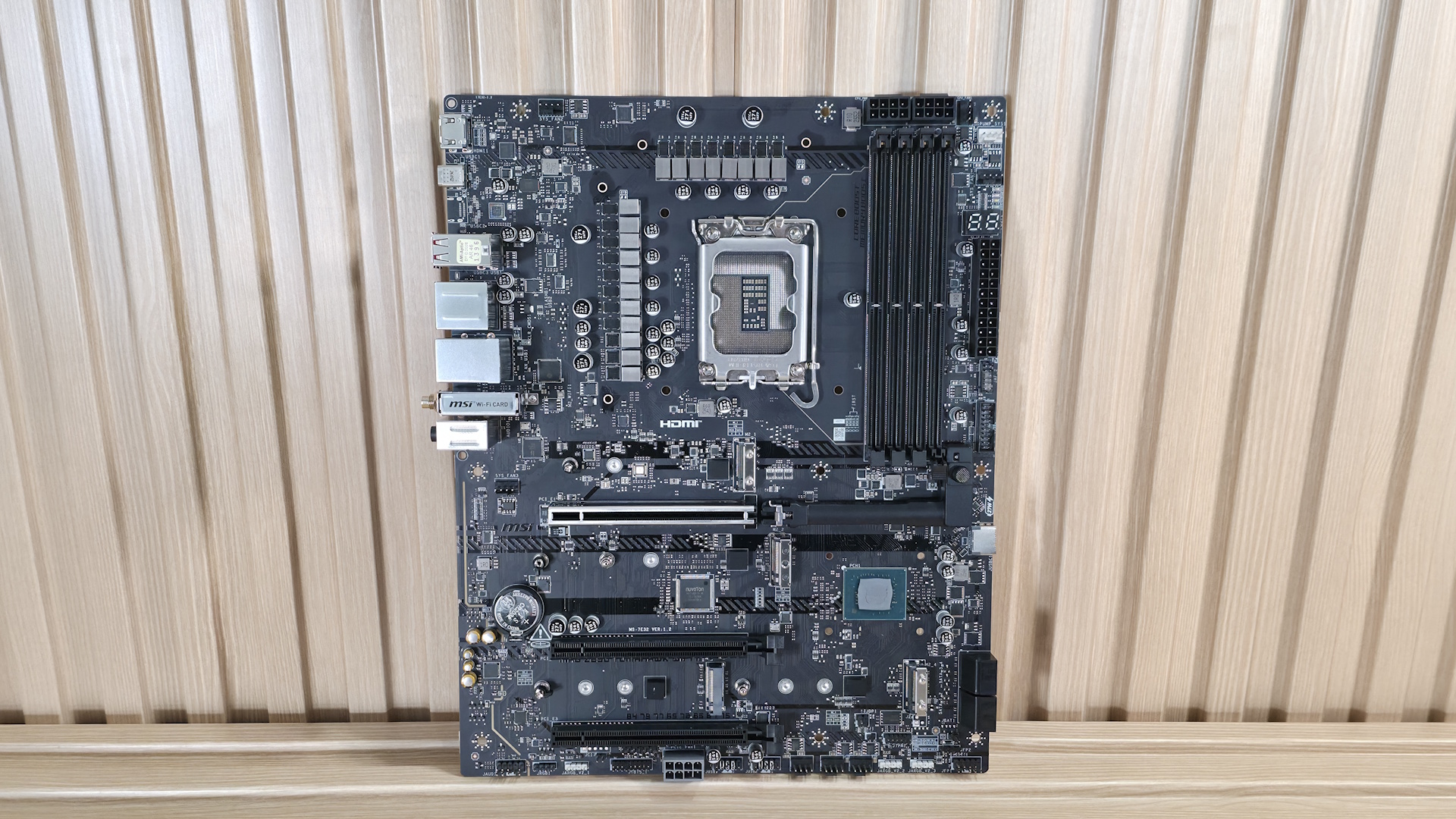
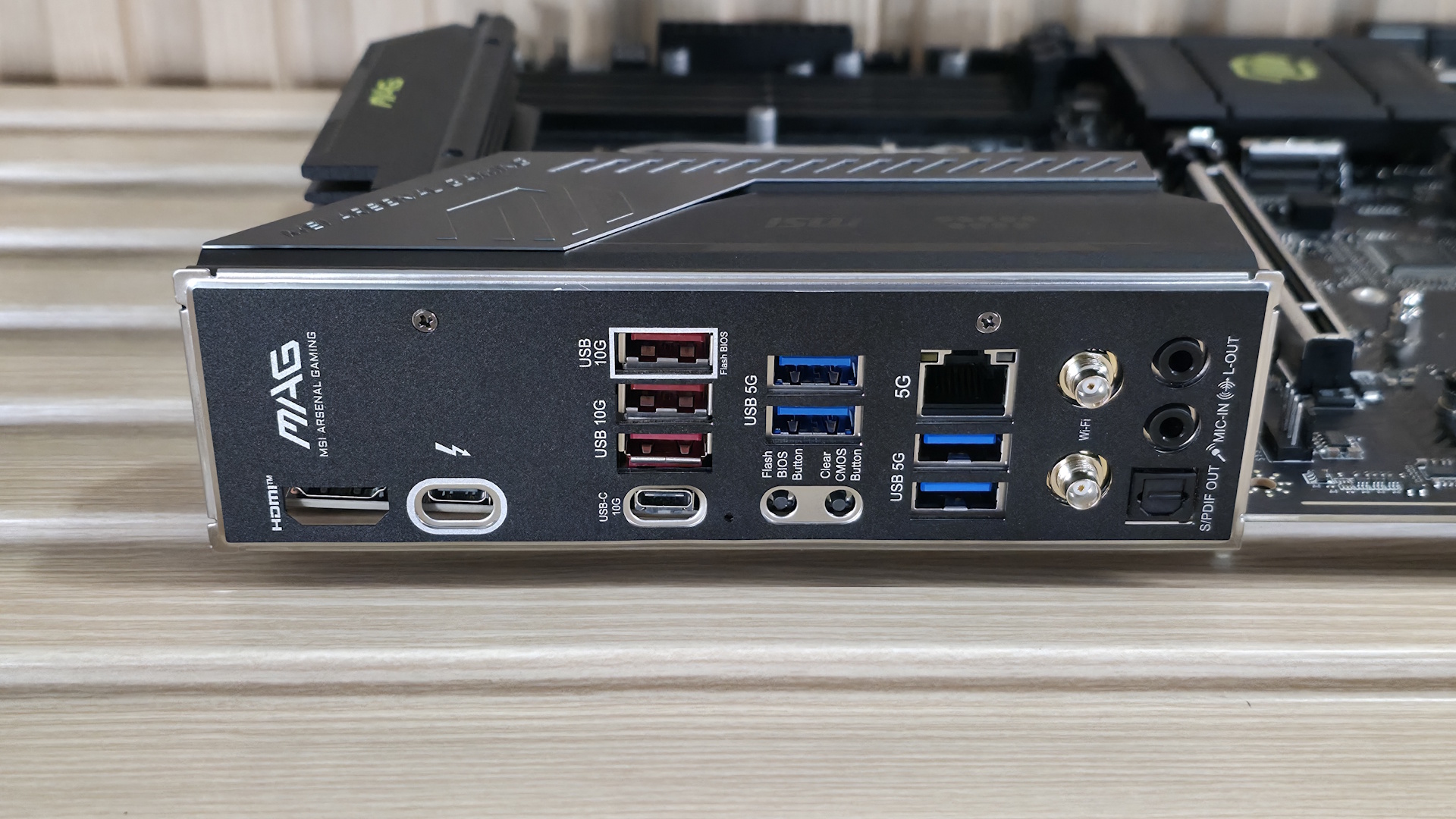
Flipping the board around to the rear IO, the Tomahawk II provides basic connectivity for the platform. You get everything, but compared to the original Tomahawk, you get one less Thunderbolt (40 Gbps) Type-C port. On the left, there's the HDMI (v2.1) output and the TB4/DisplayPort Type-C port, both of which work with integrated video. Next to that is a 10 Gbps Type-C port, while above that are the seven Type-A ports (3x 10 Gbps, 4x 5 Gbps). Below the USB ports are two buttons (BIOS Flashback and Clear CMOS). Next is the Killer 5GbE, the EZ antenna quick-connect for the slower (2.9 Gbps) Wi-Fi 7 connections, and the 3-plug (2x 3.5mm and SPDIF) audio stack. The next stack holds the 40 Gbps Thunderbolt Type-C port and the only USB 3.2 Gen 2 (10 Gbps) port. Next to that are four USB 2.0 ports, and the Realtek-based 2.5 GbE port stacked on top. Rounding out the USB ports back here are two USB 3.2 Gen 1 (5 Gbps) ports.

There’s nothing particularly notable here, just a difference in TB4/40 Gbps port count (now one).

MORE: Best Motherboards

MORE: How To Choose A Motherboard

MORE: Best Motherboard Deals

MORE: Best Motherboard Combo Deals

MORE: All Motherboard Content

Firmware

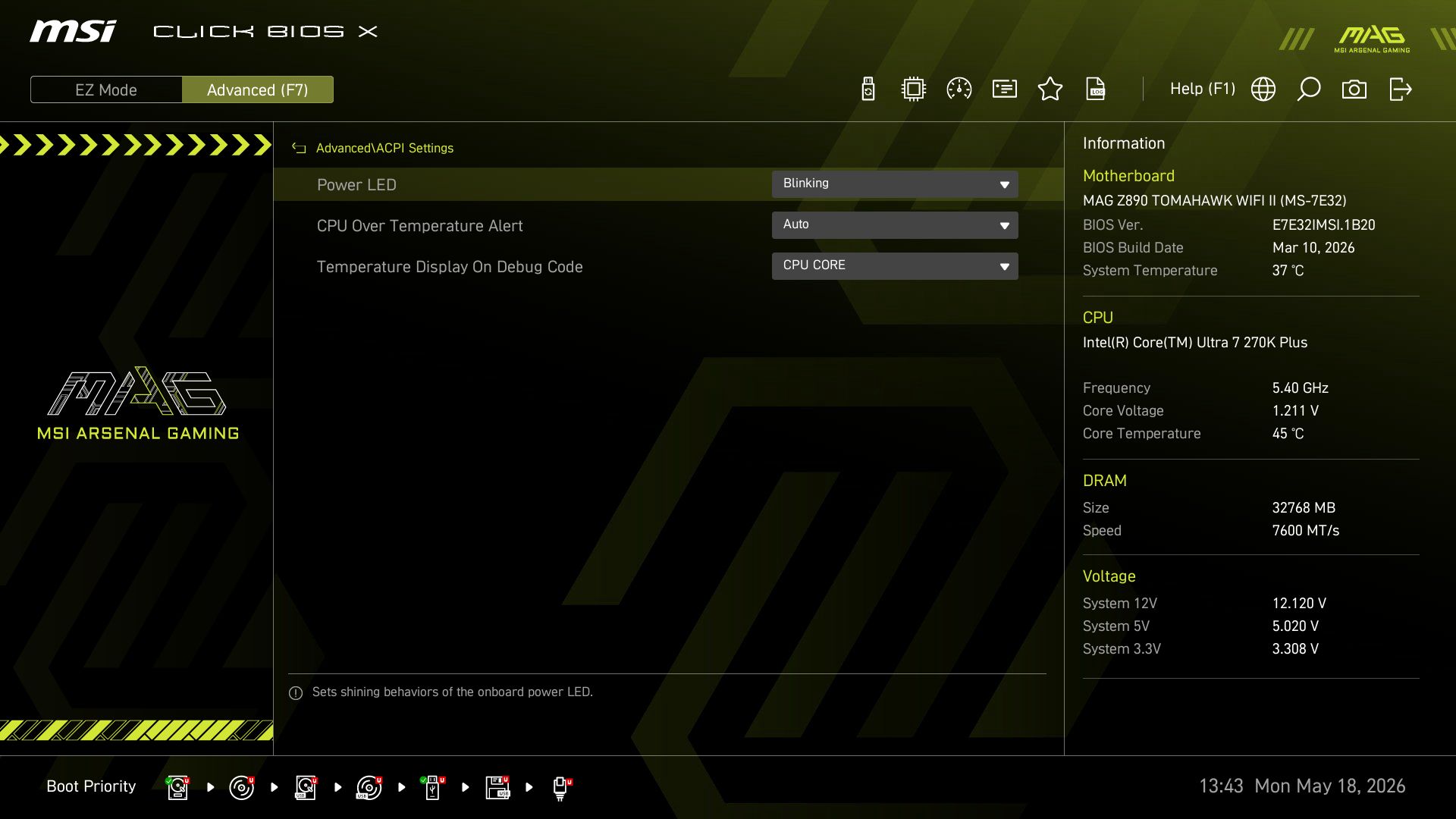
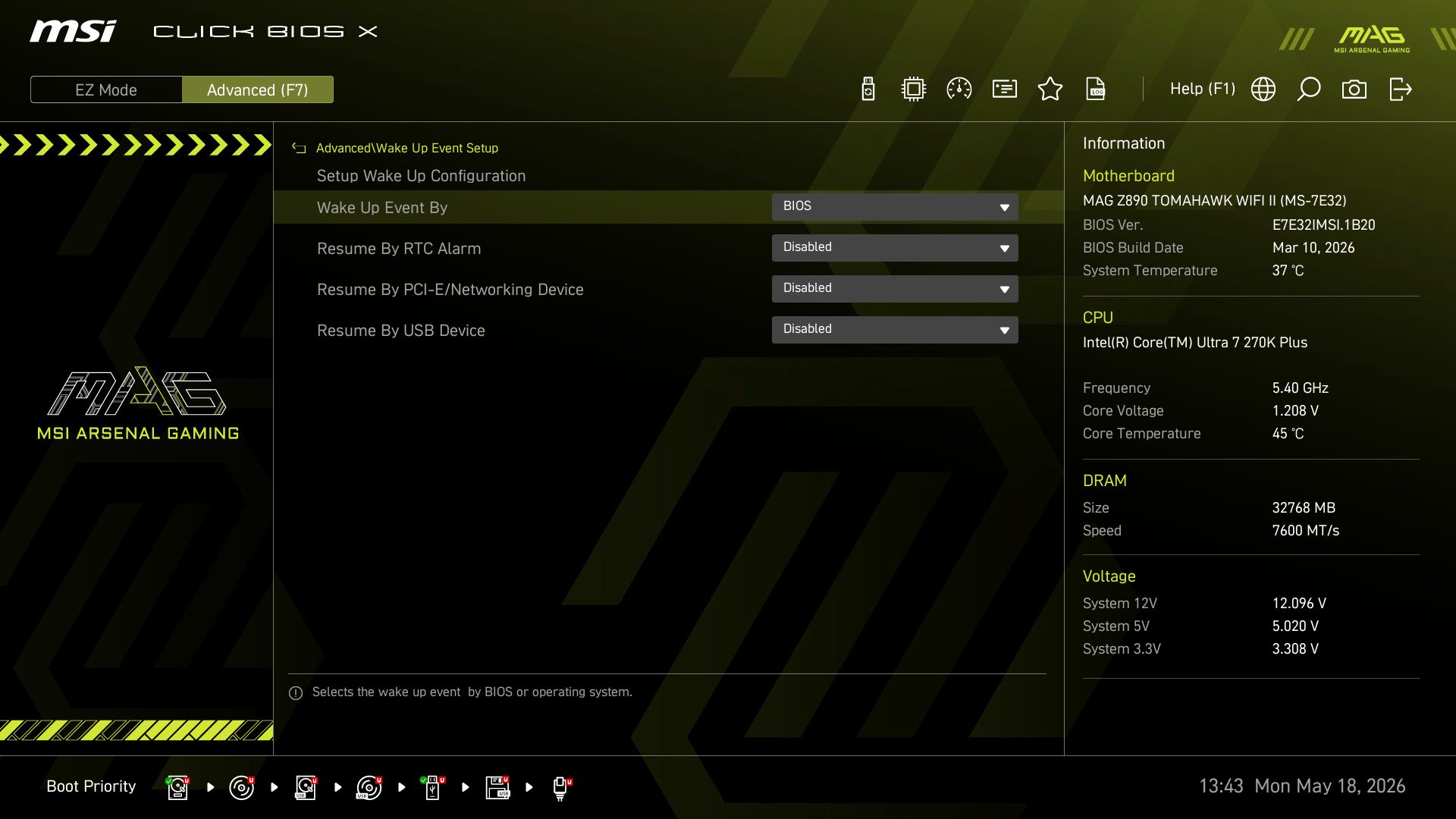
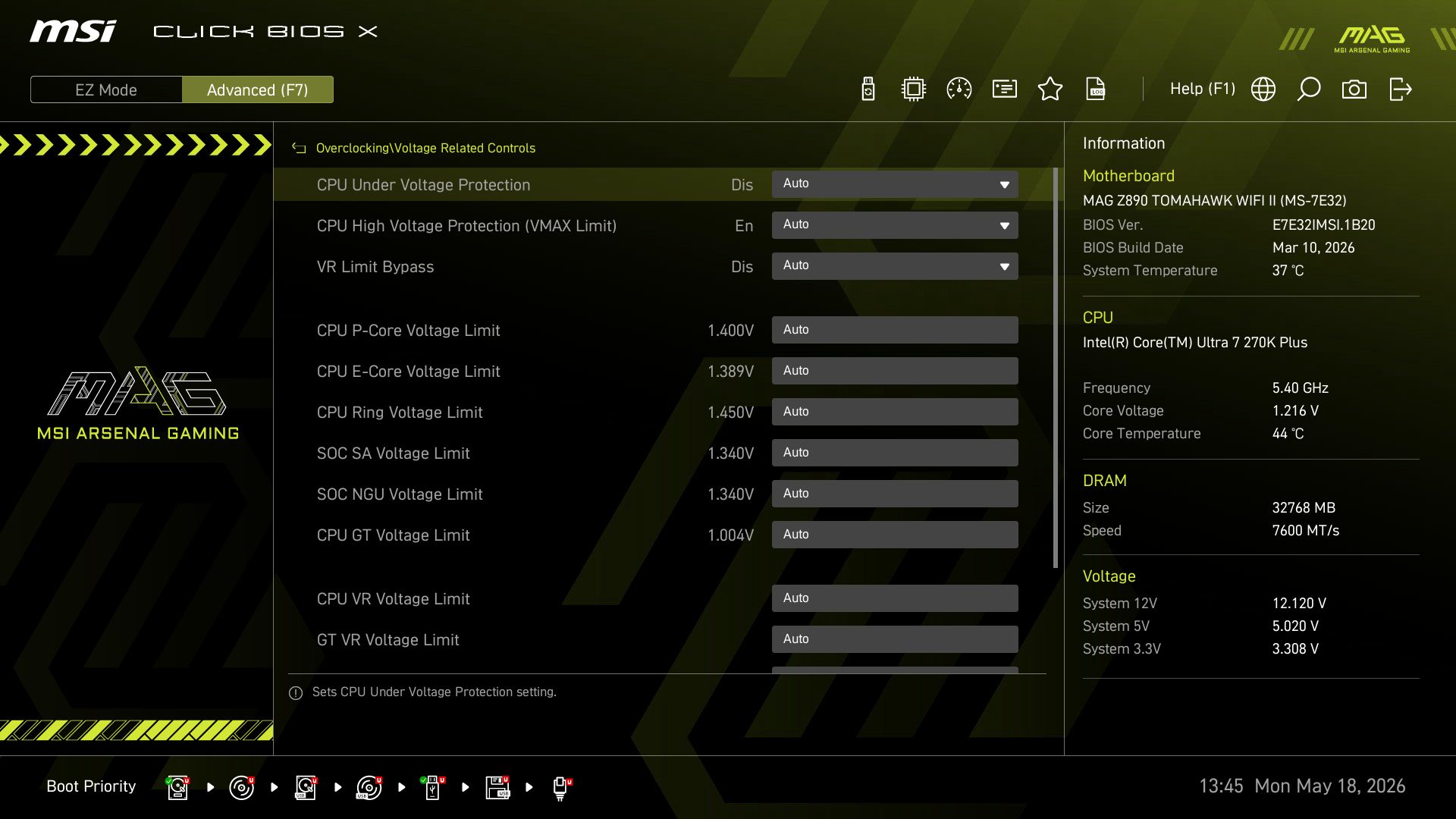
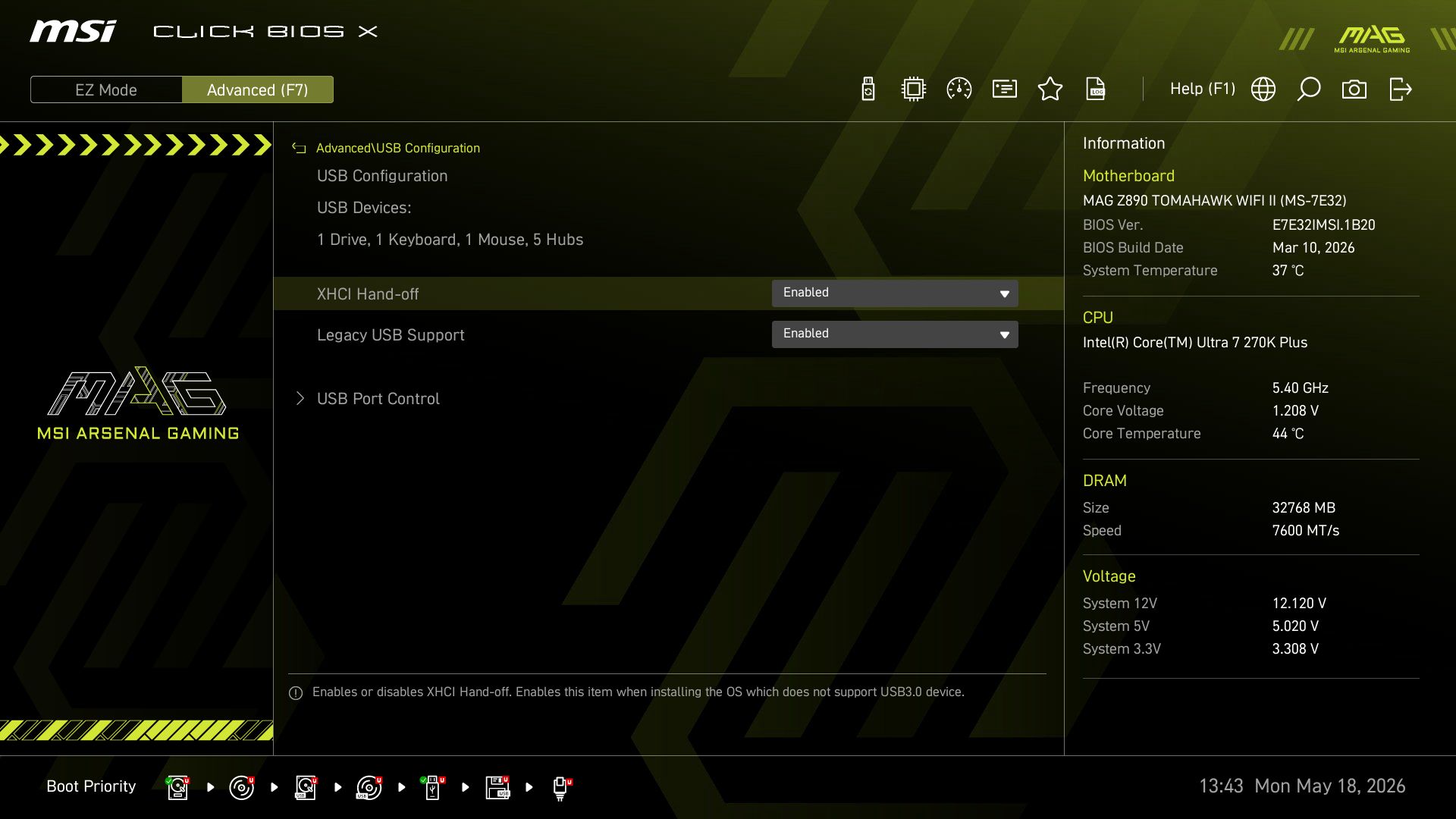
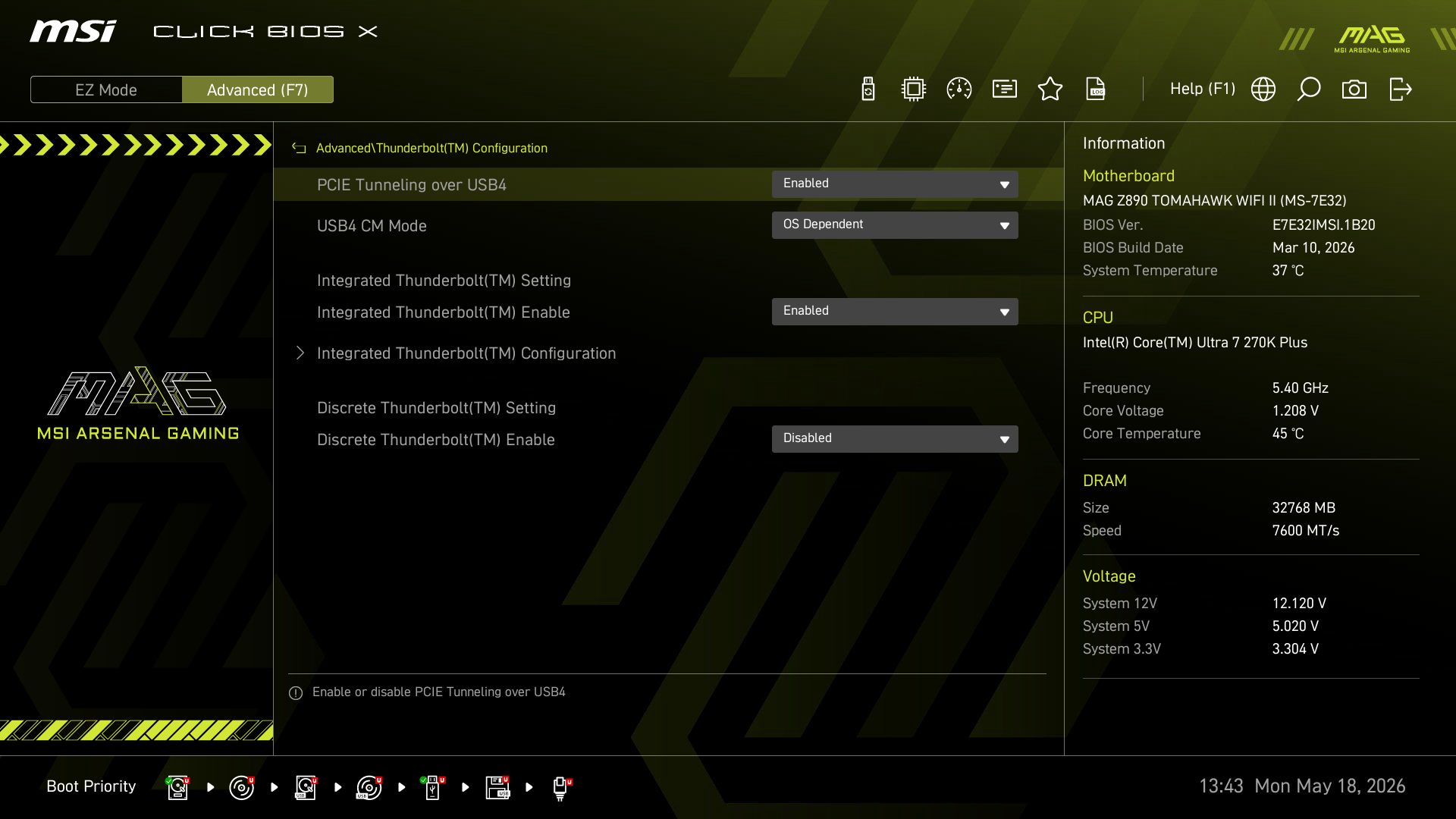
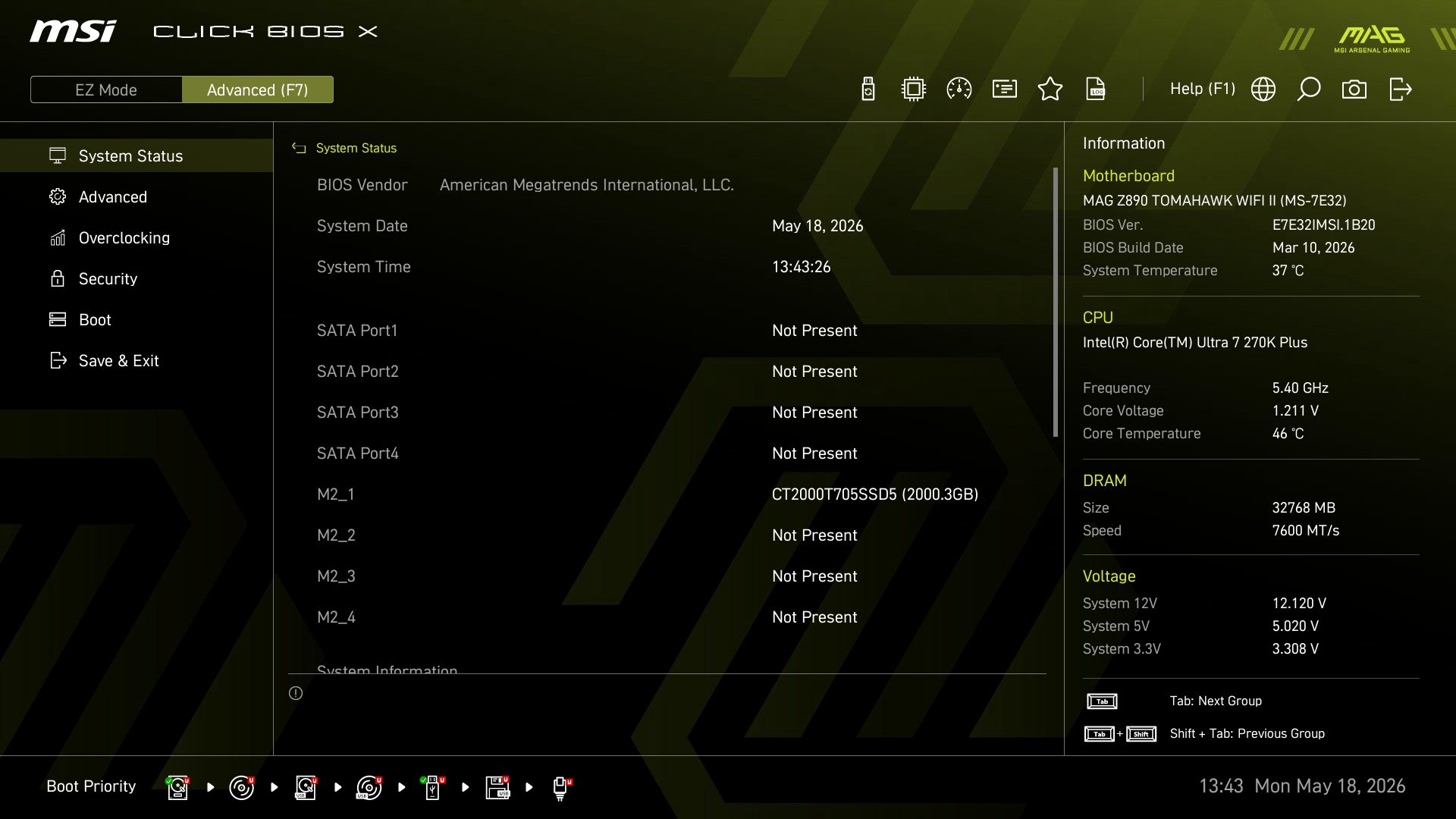
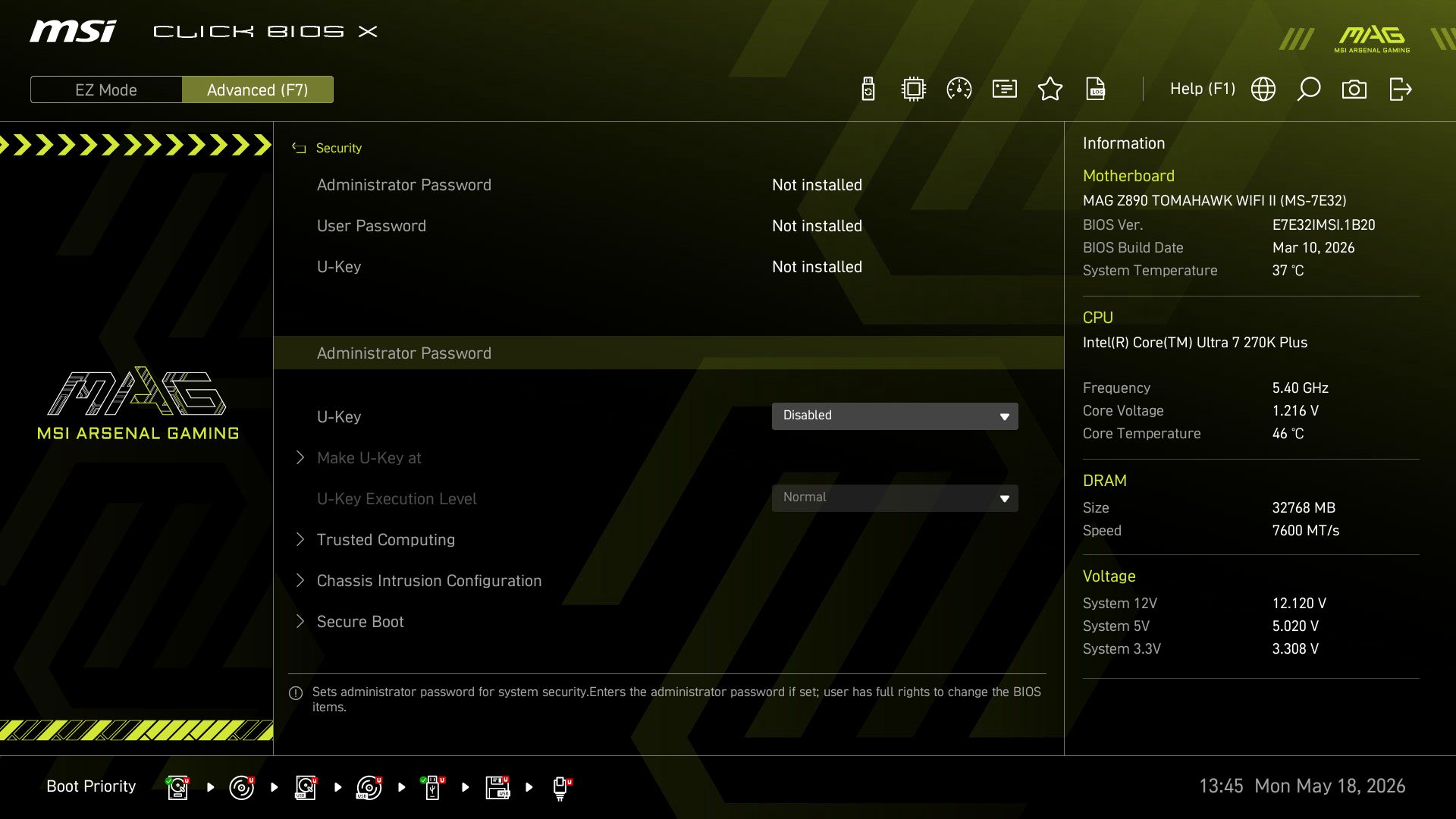
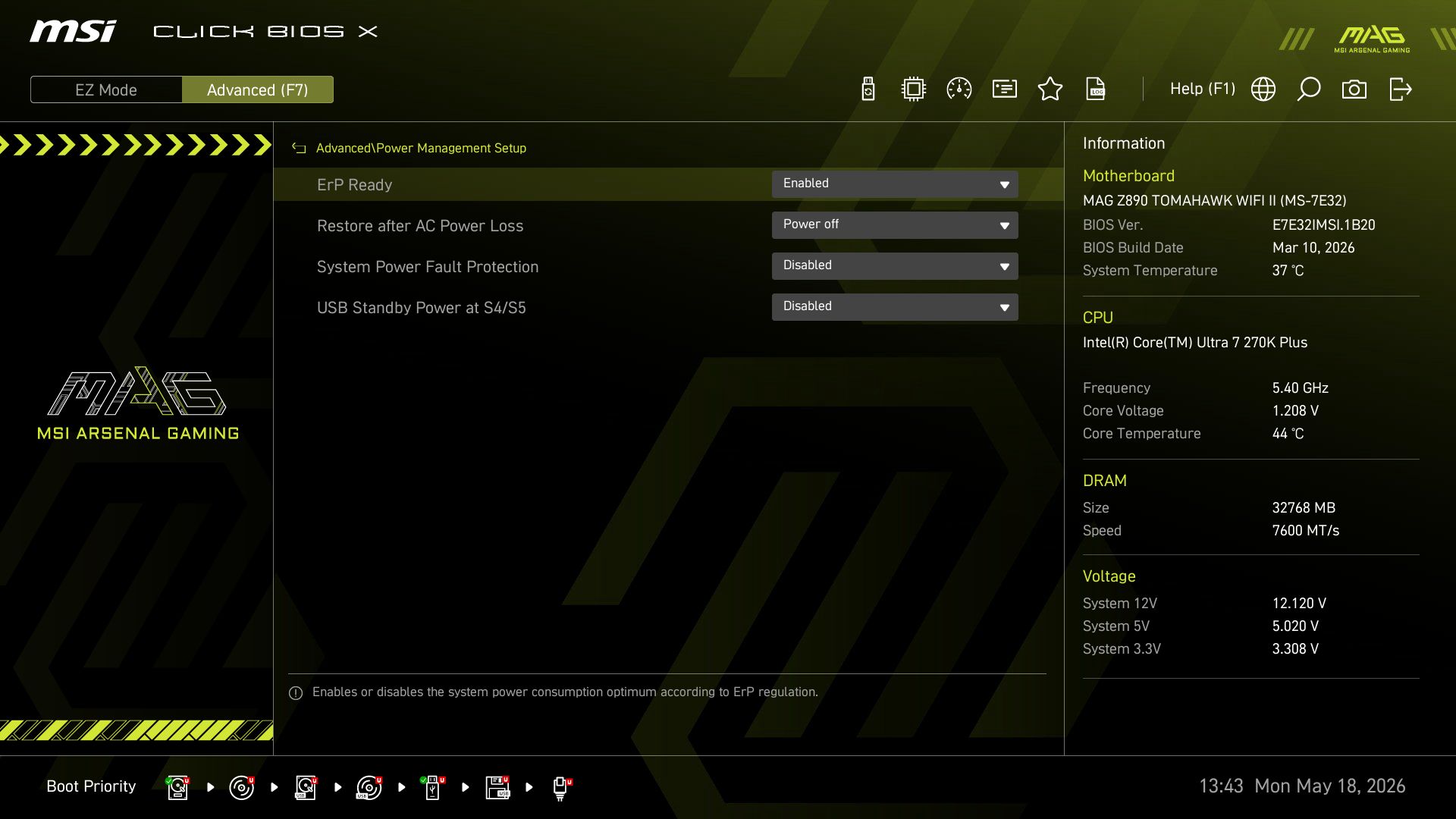
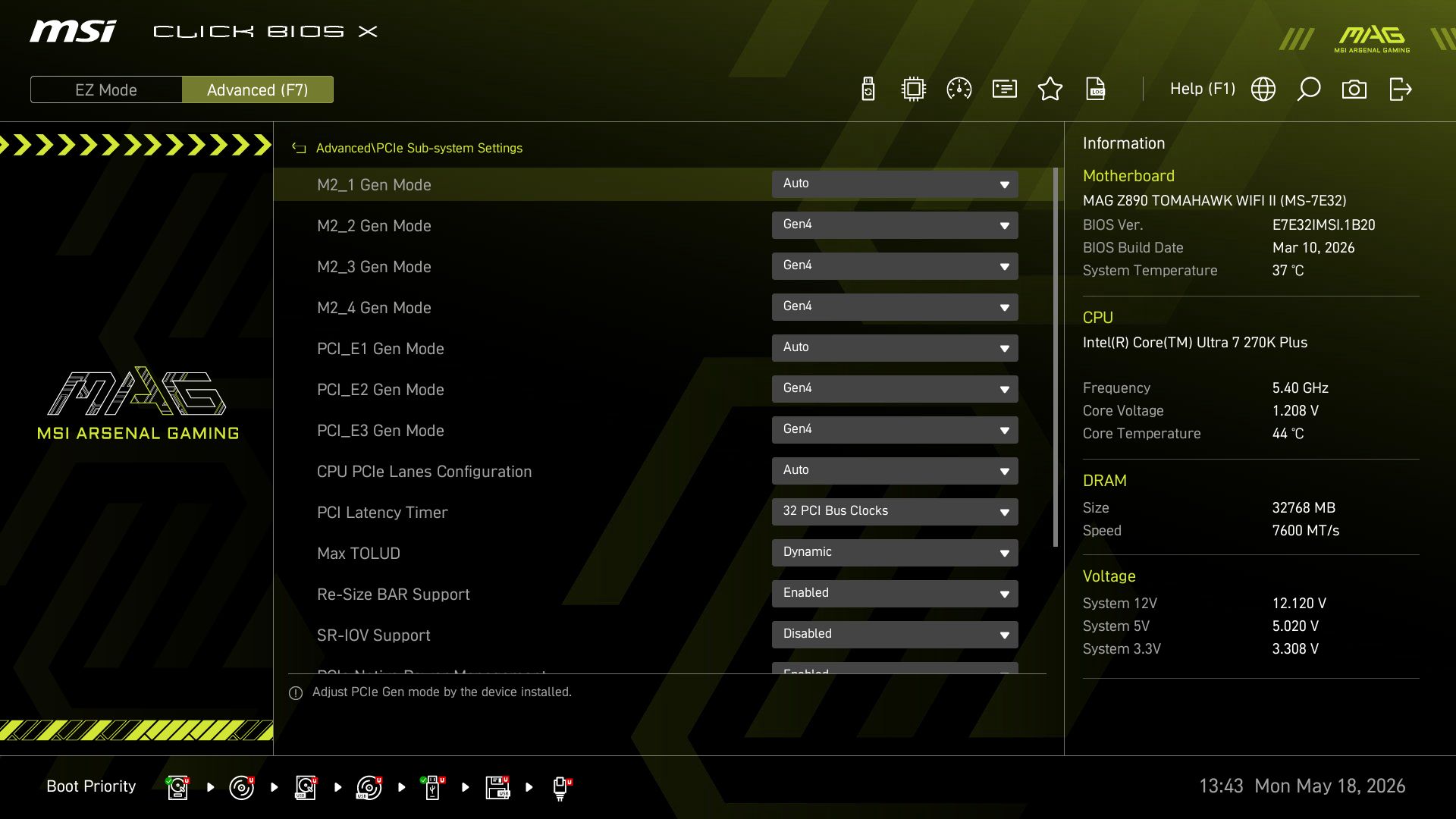
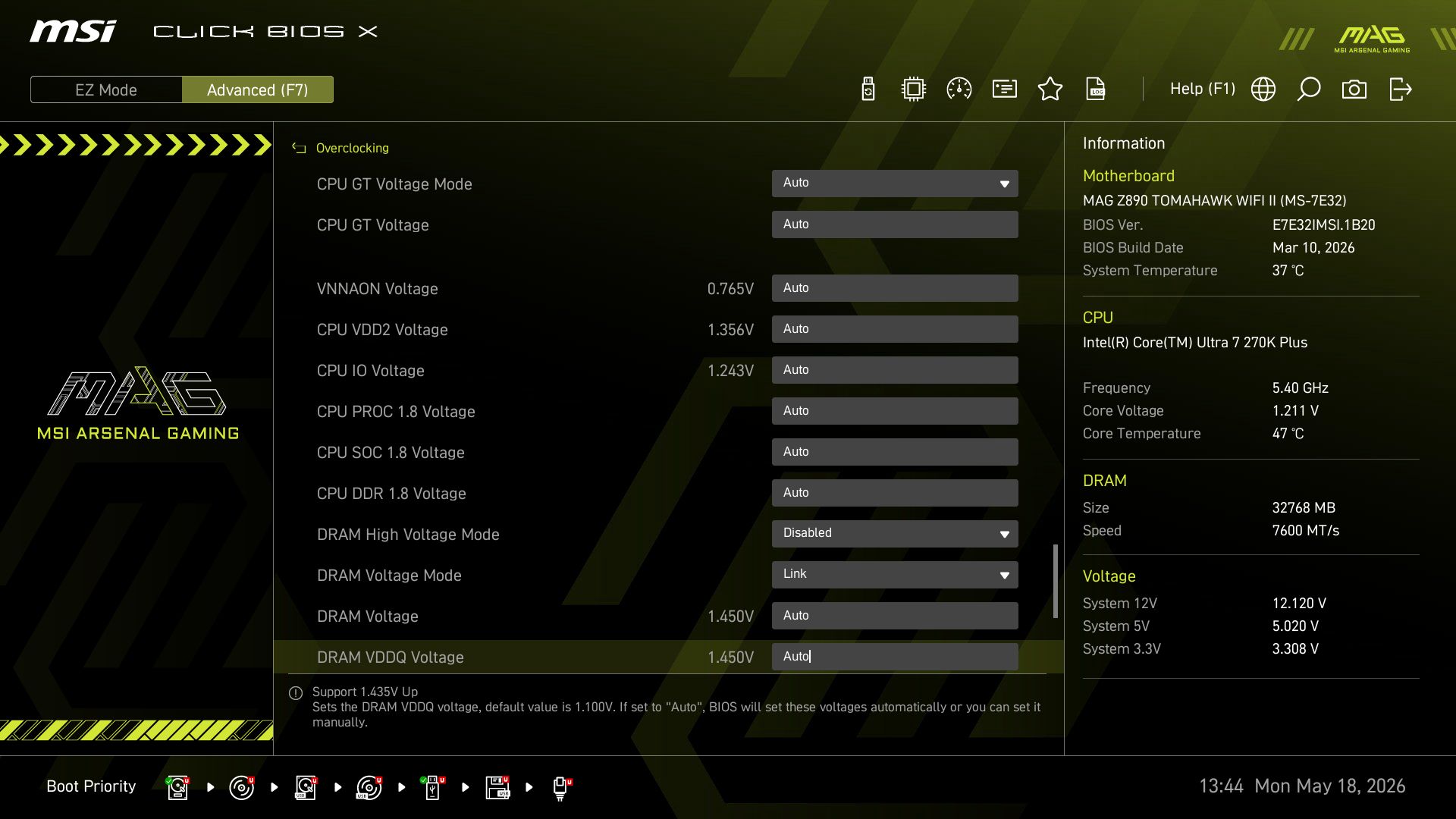
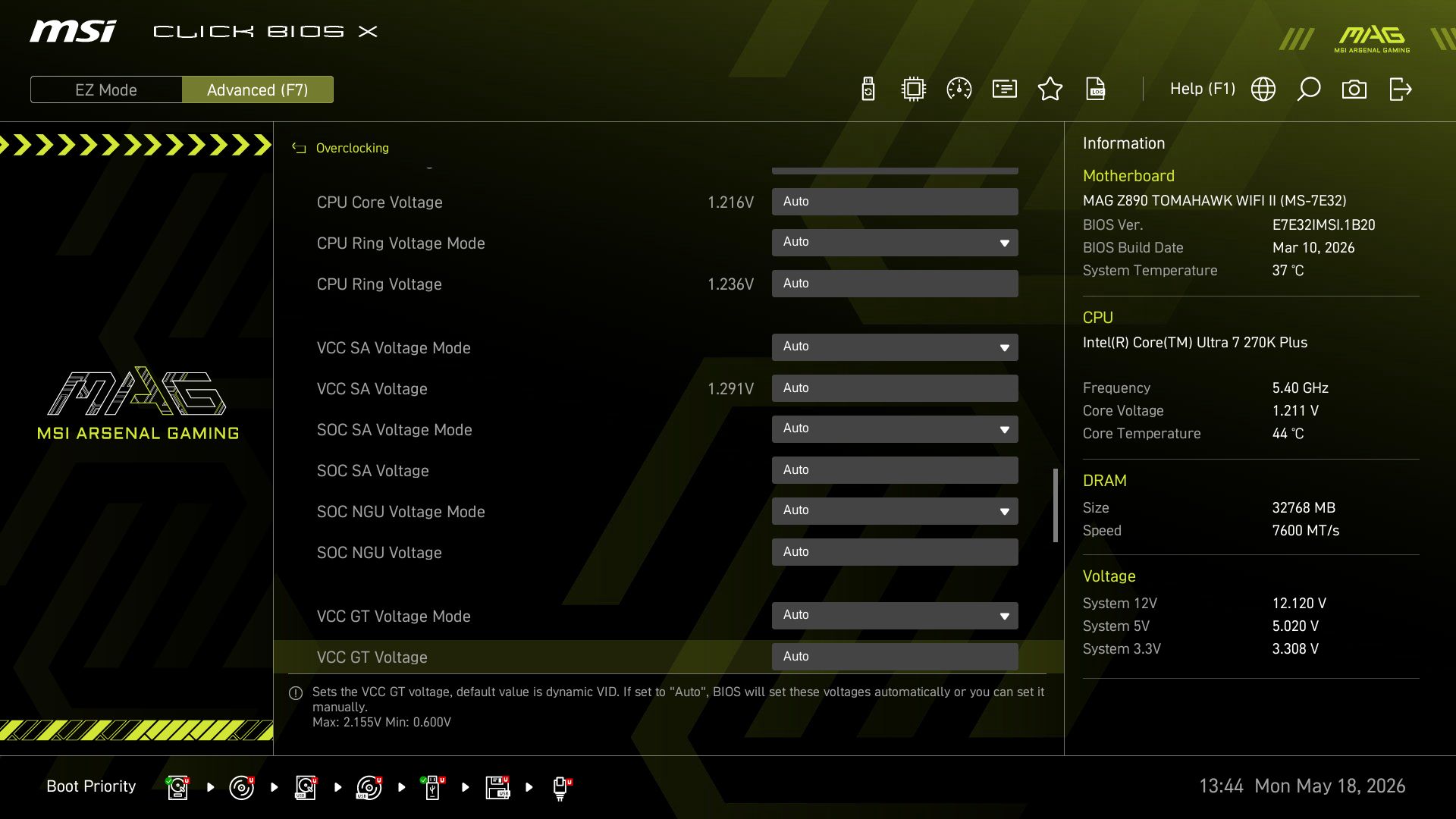
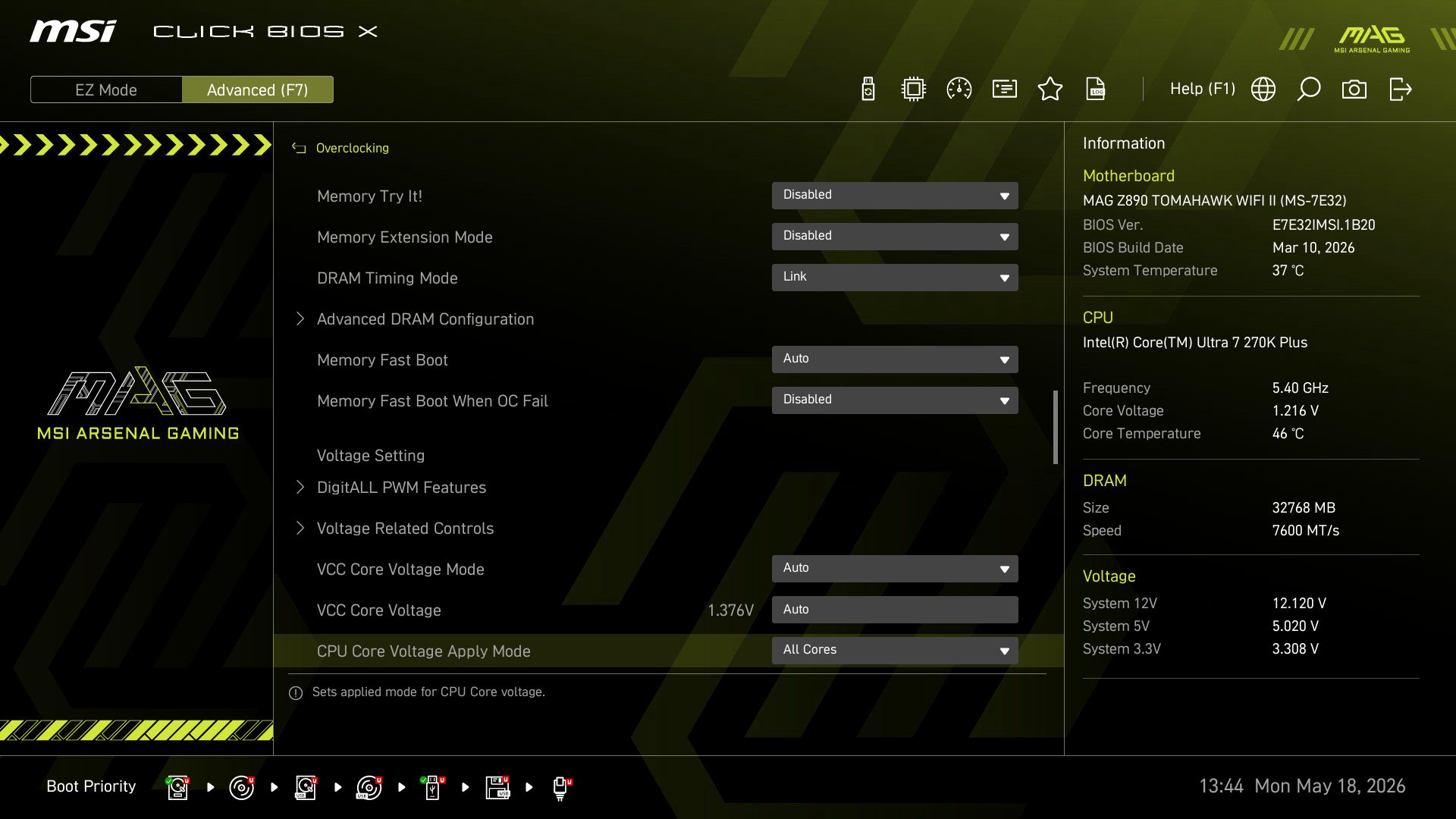
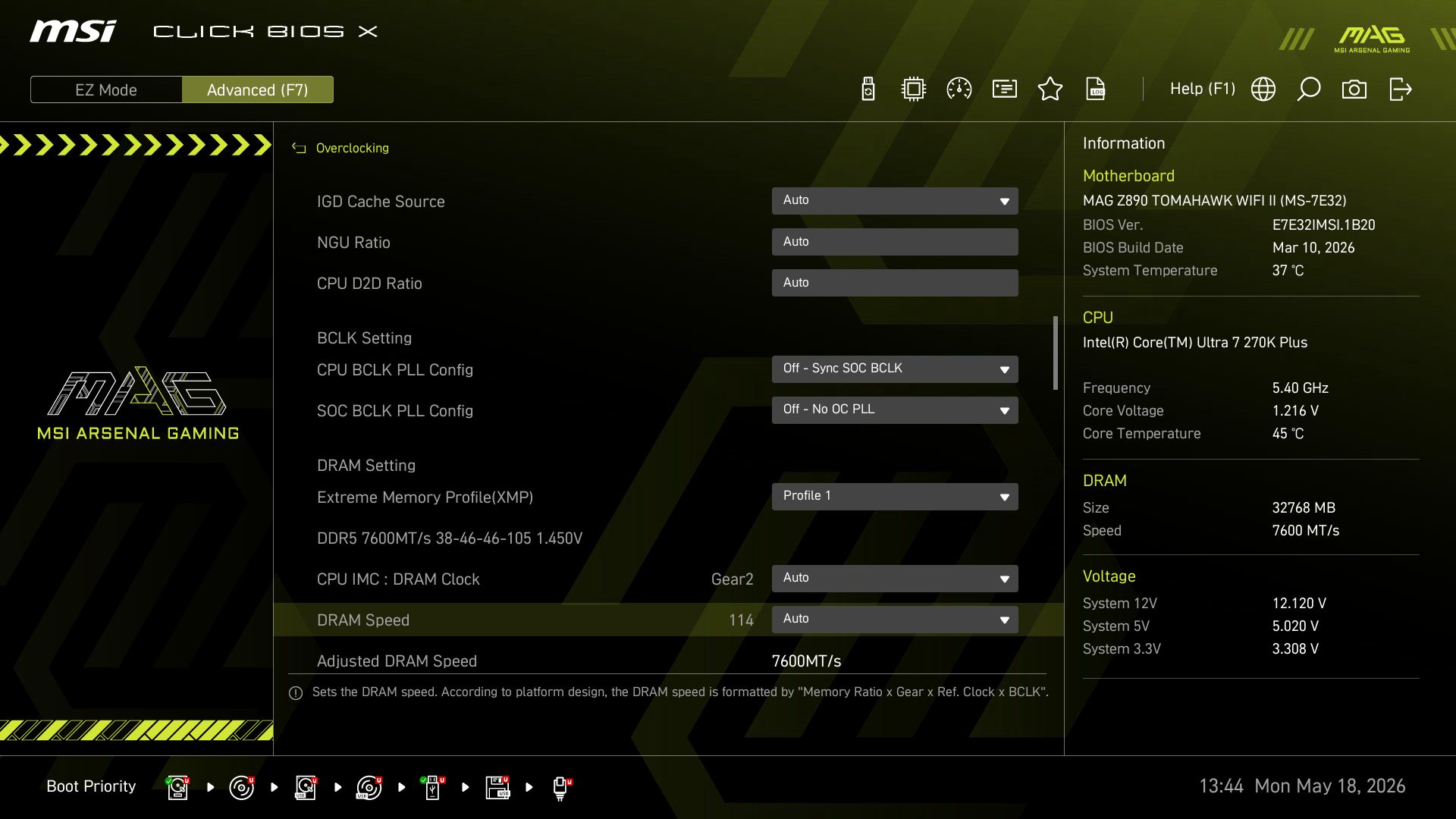
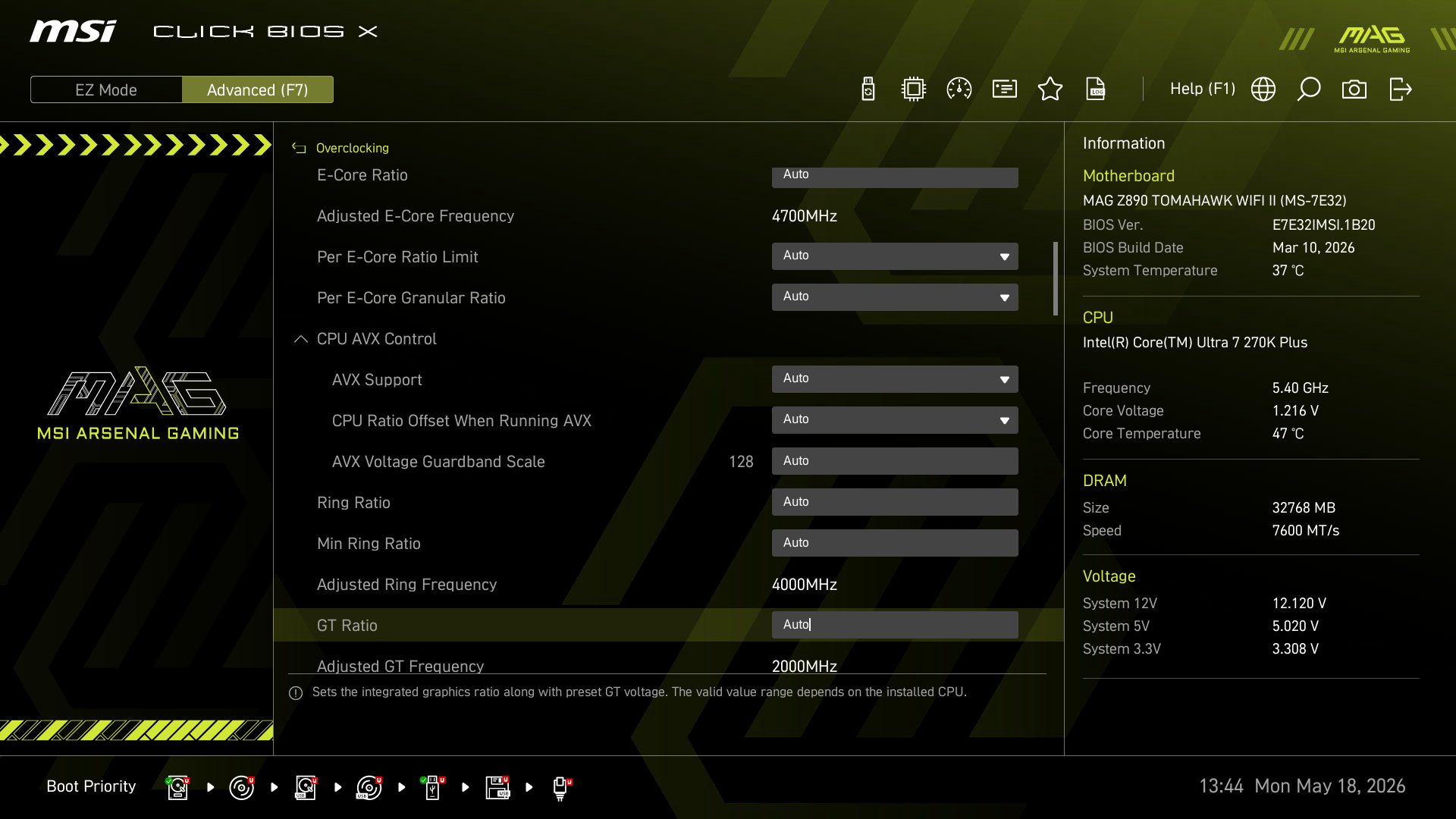
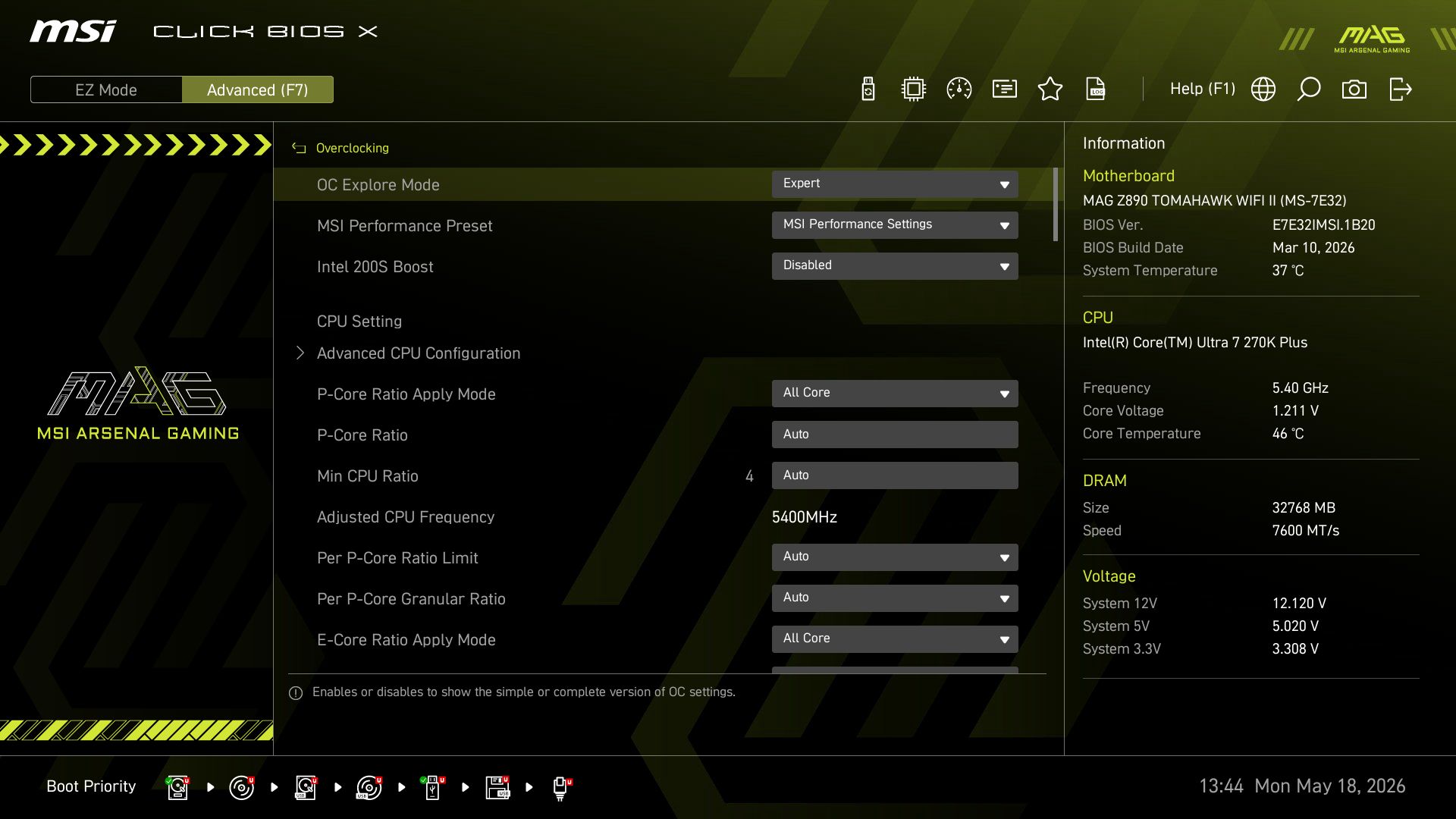
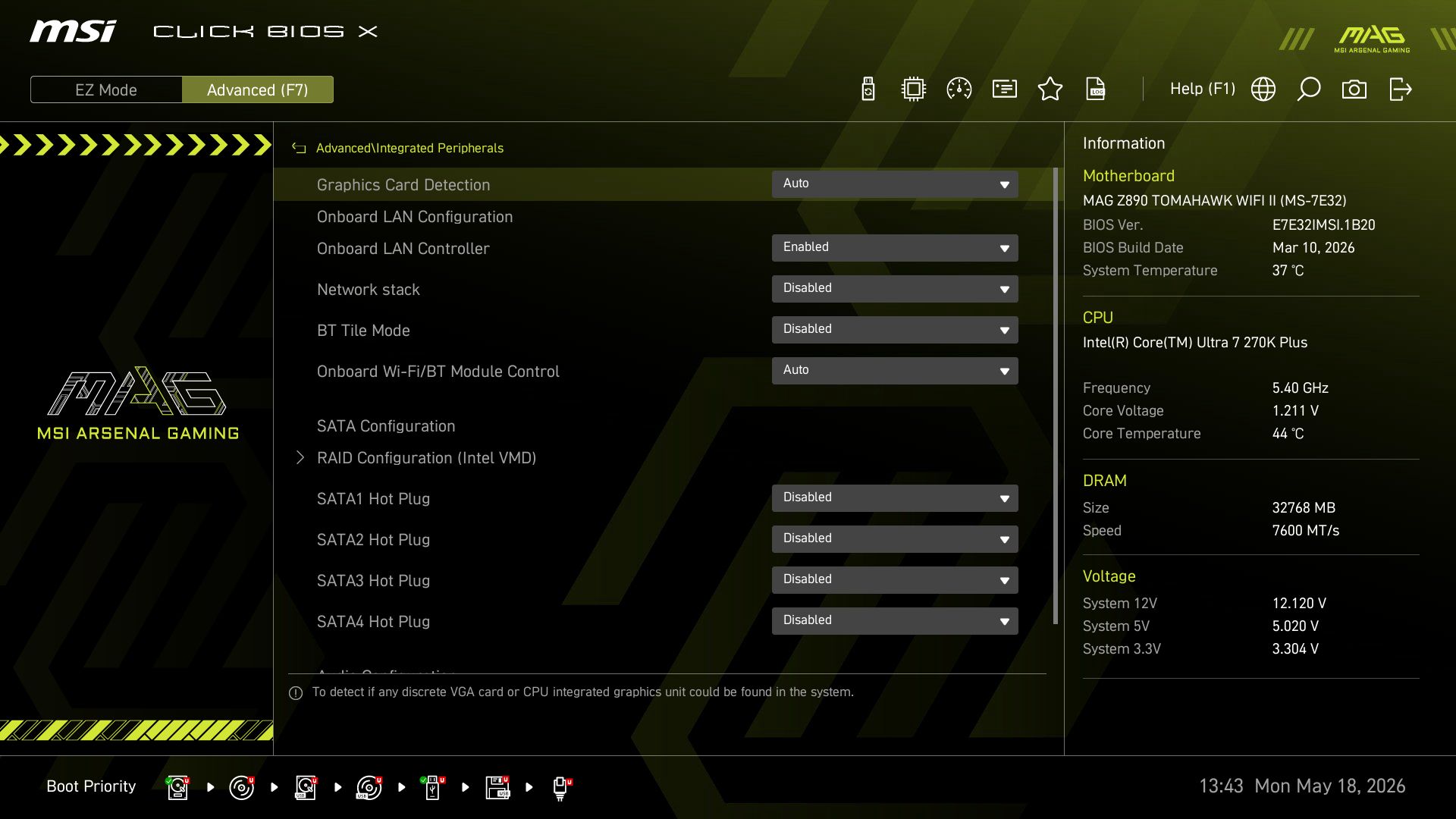
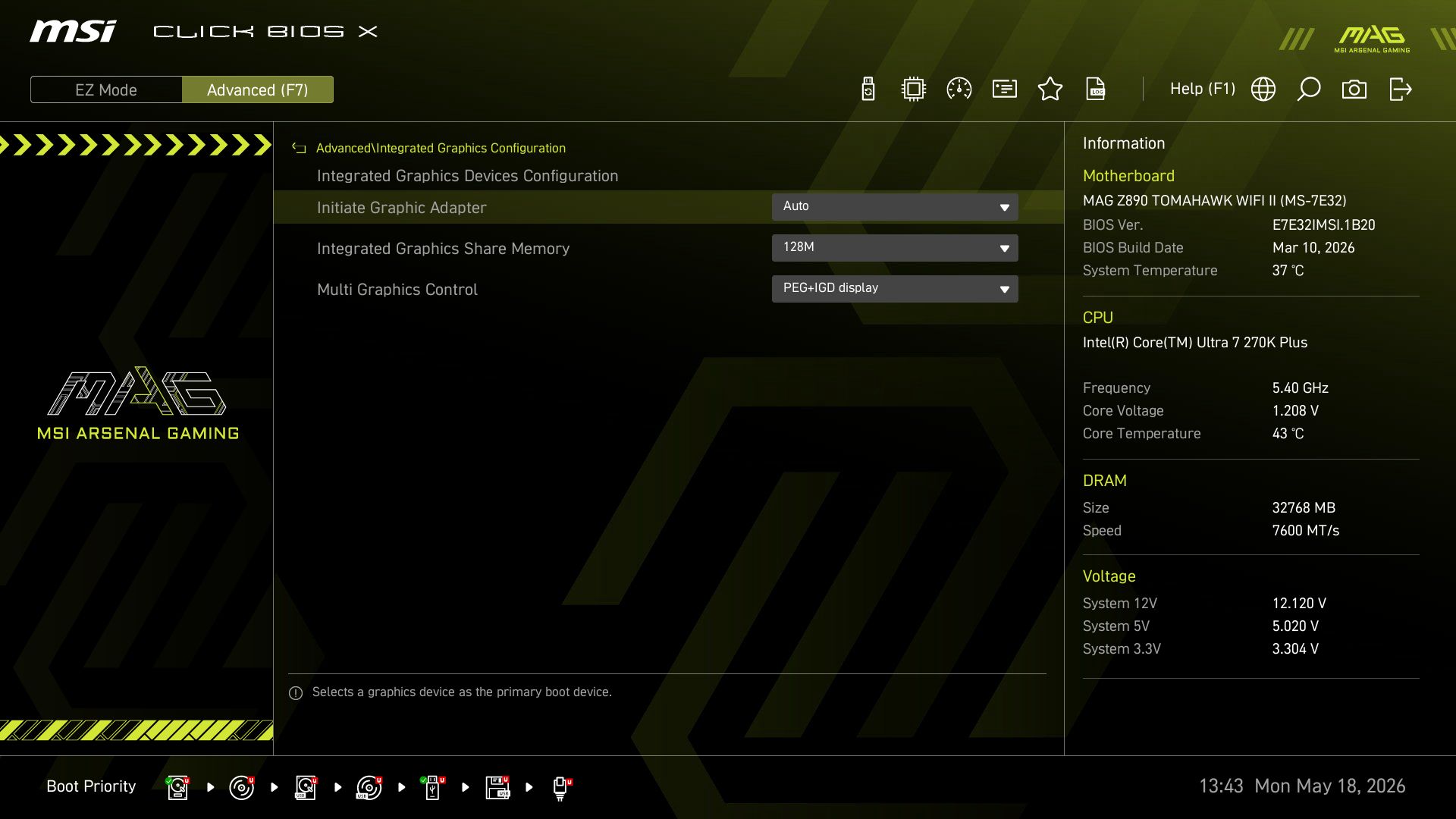
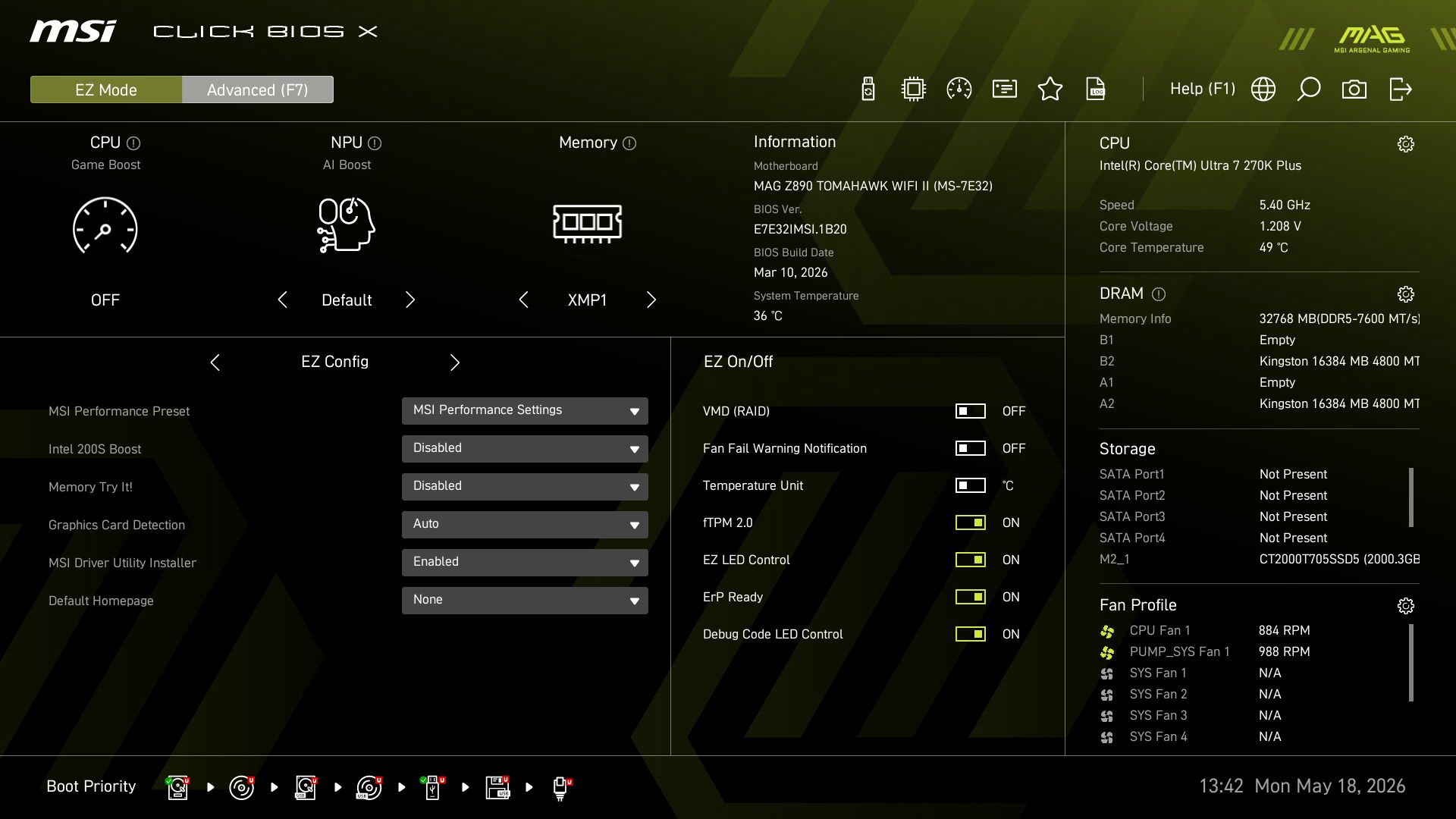
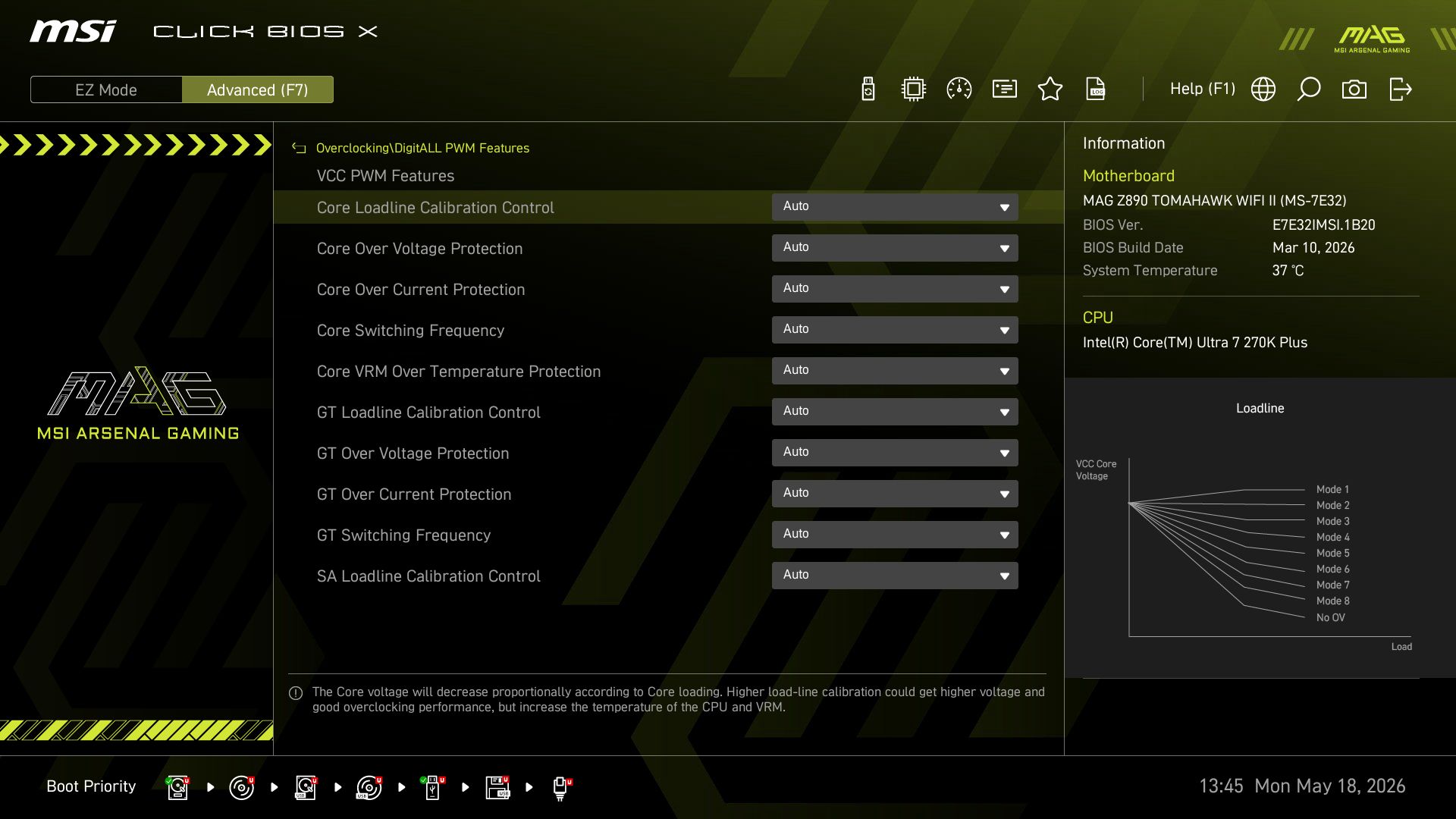
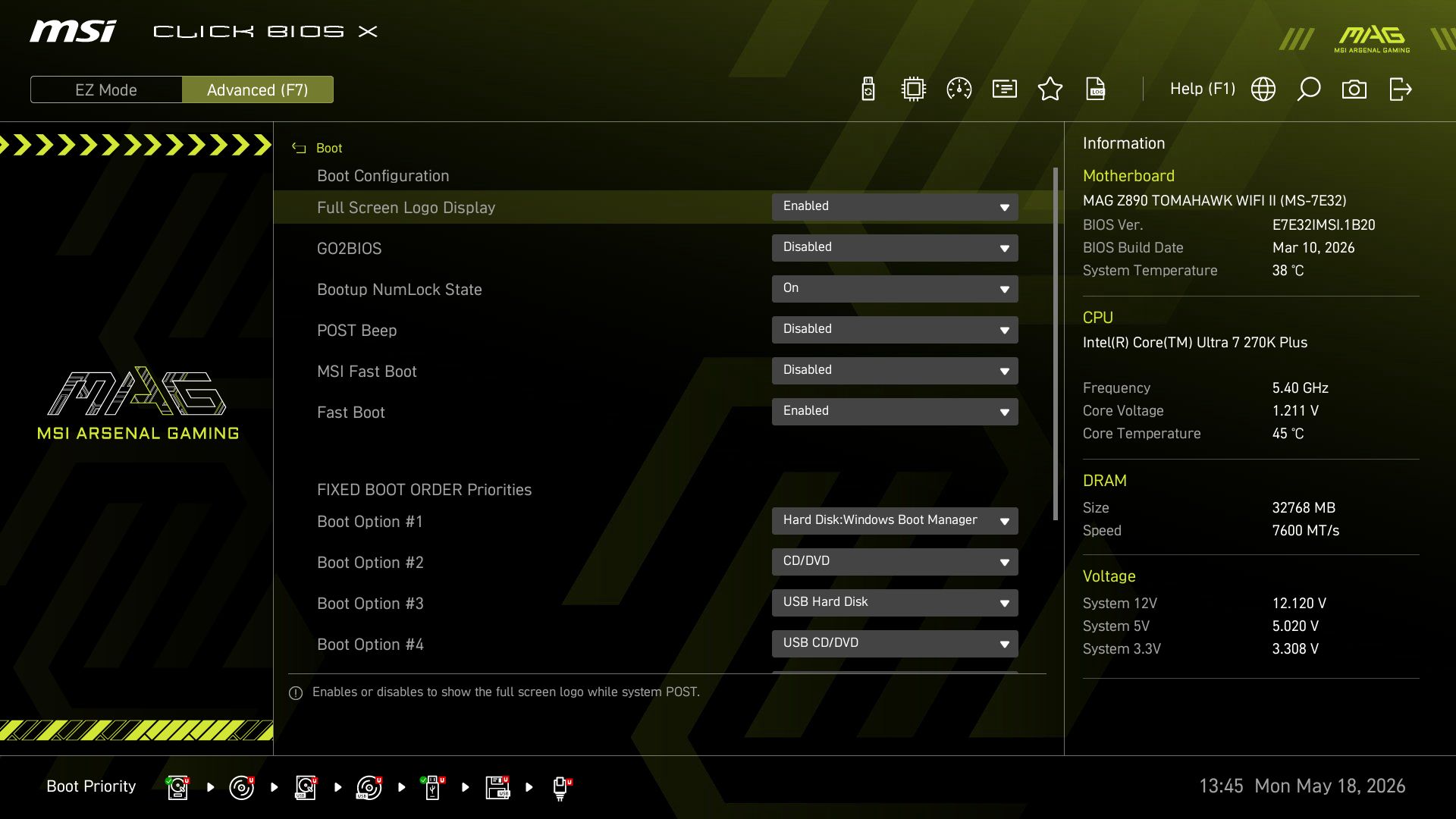
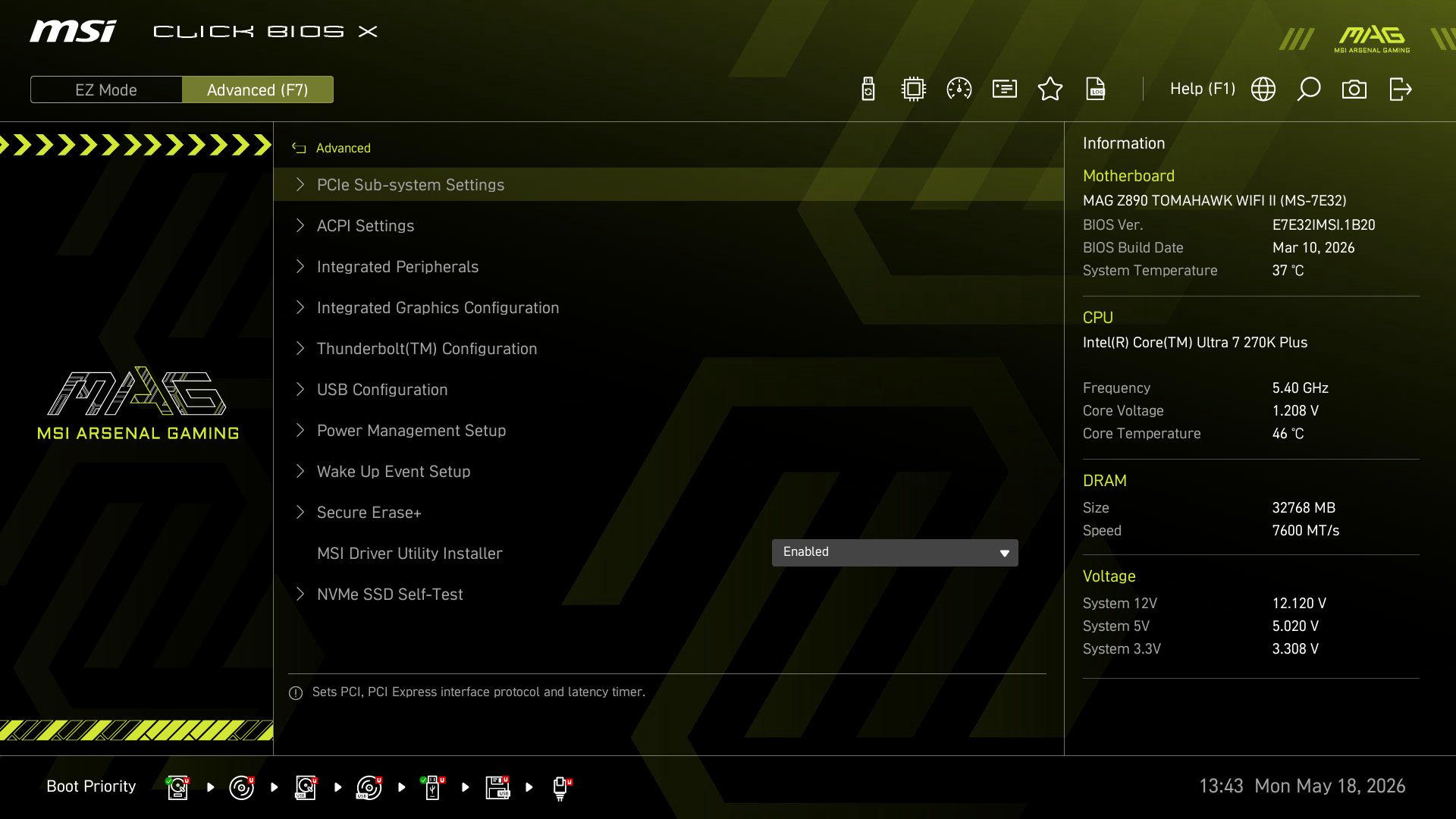
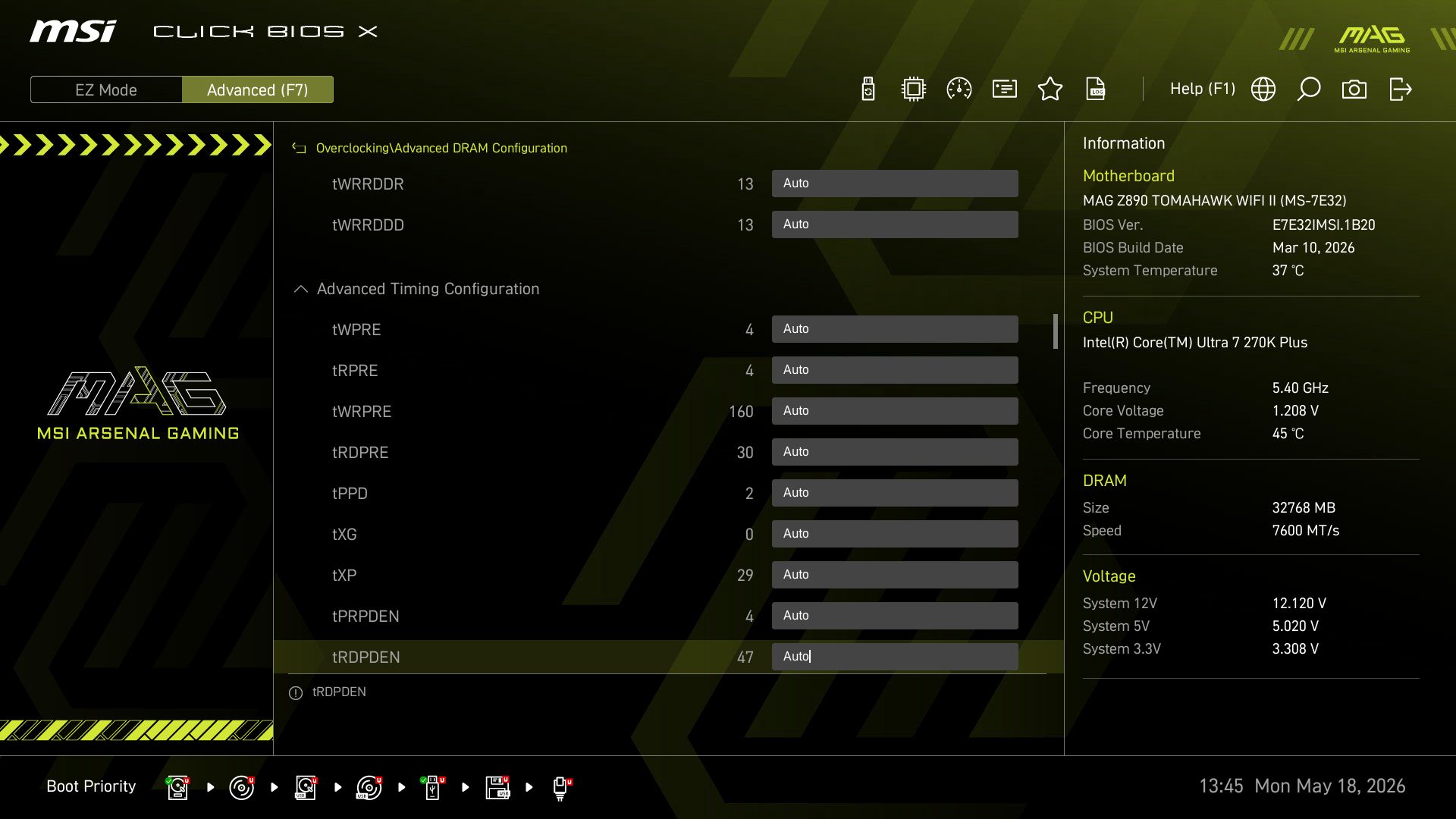
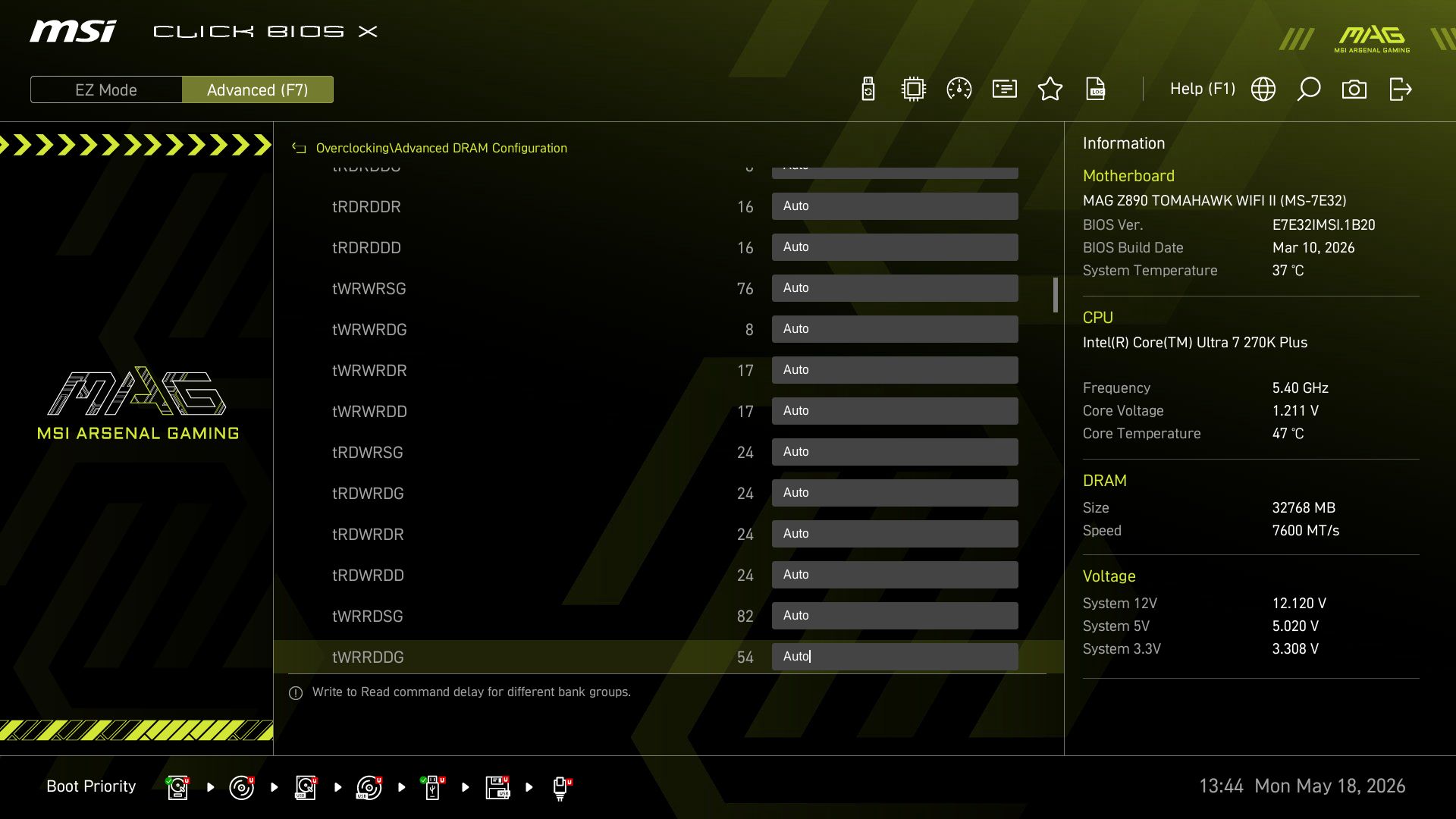
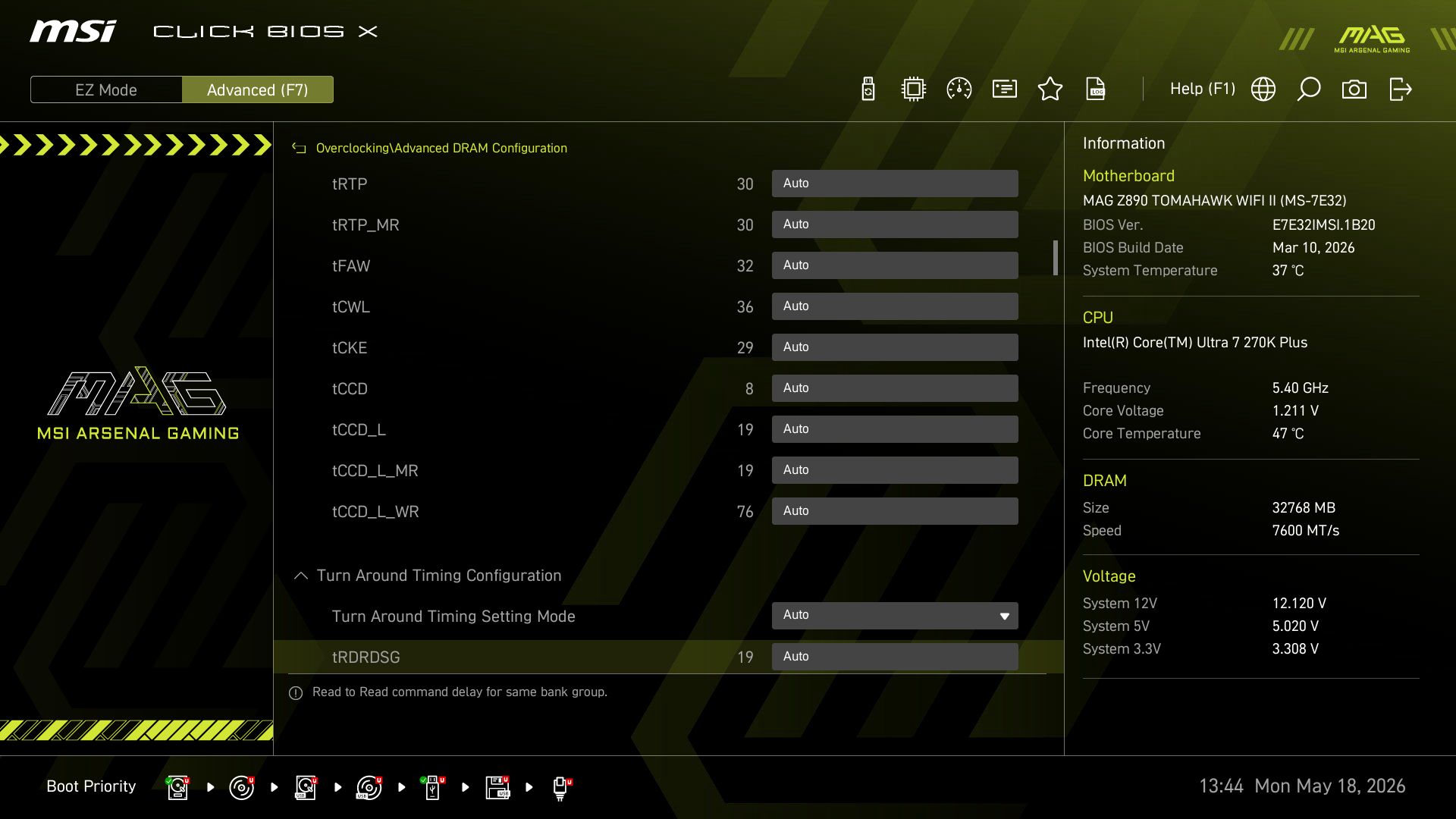
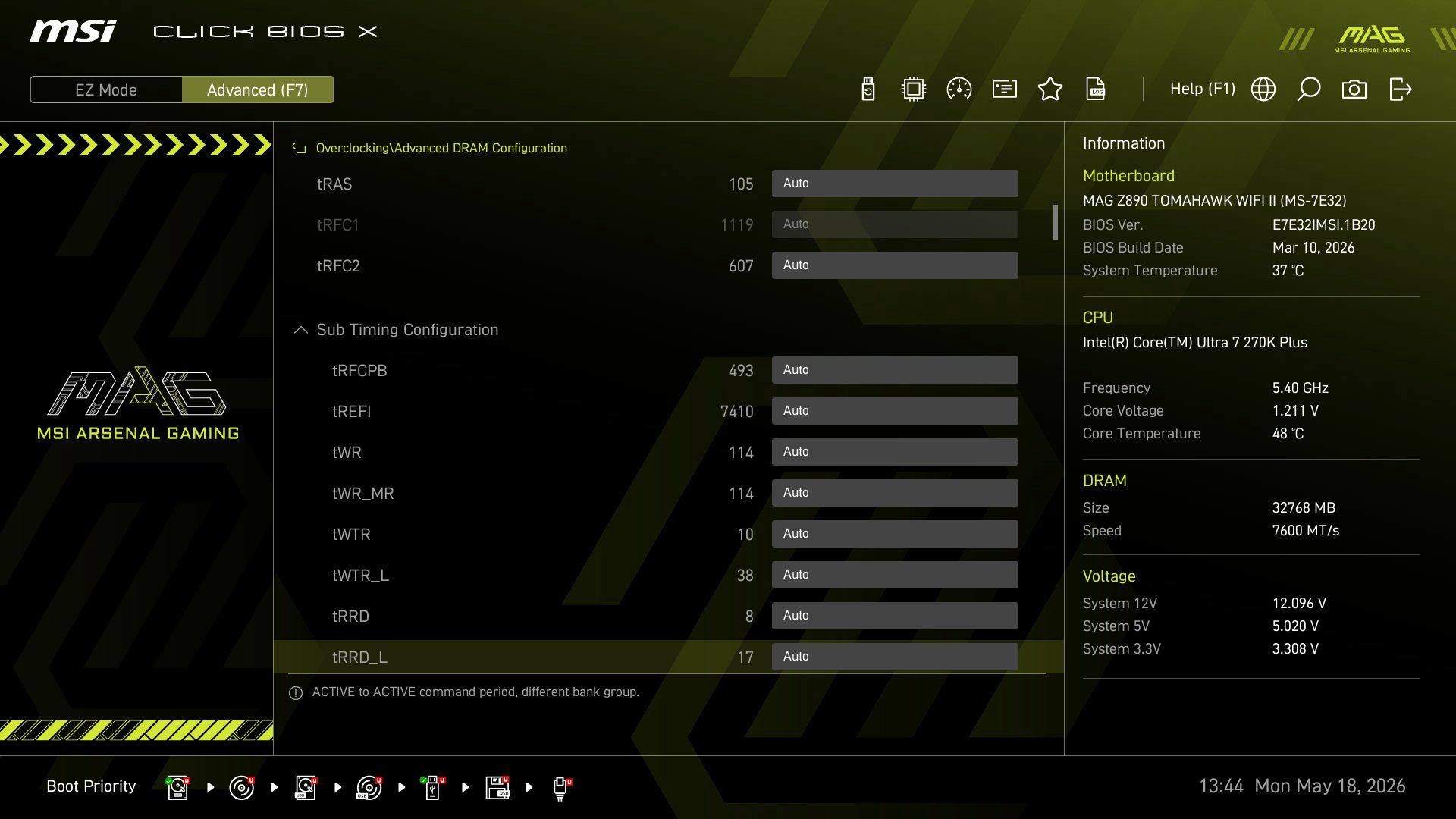
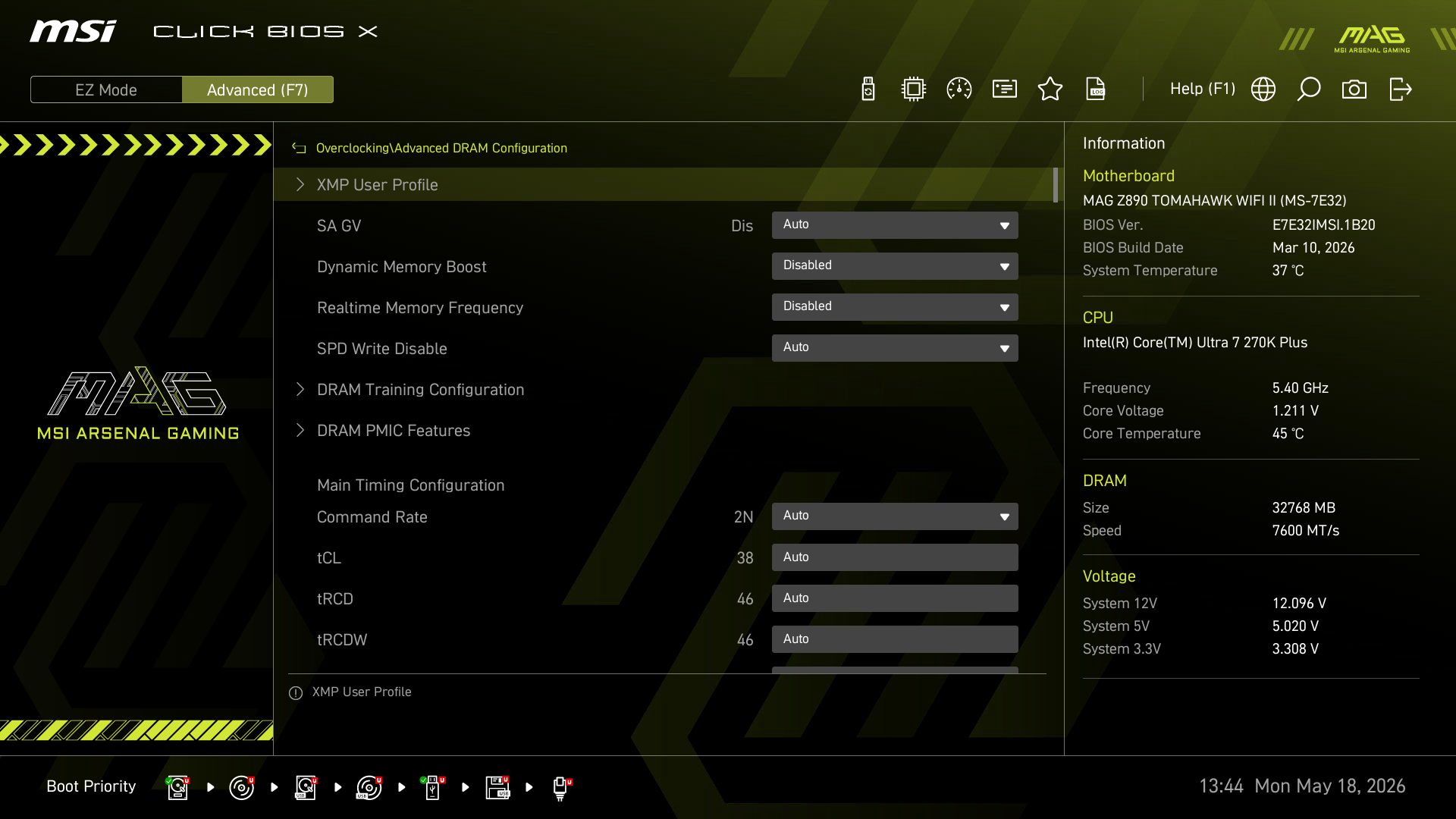
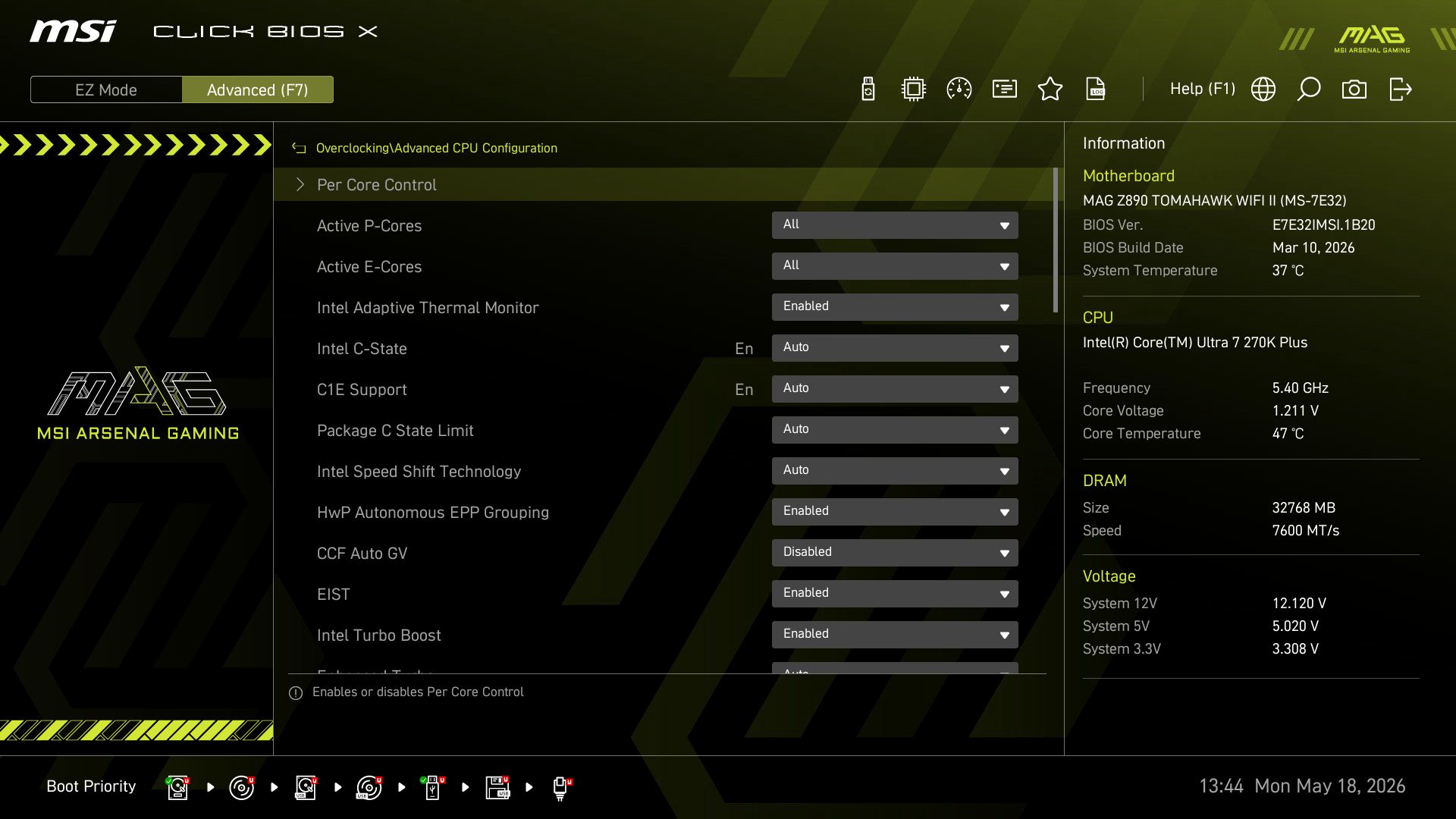
MSI has updated its BIOS and renamed it “Click BIOS X.” It arrives with improved aesthetics and functionality. The company changed the format to left-aligned headings, middle-aligned details, and right-aligned system status information, and it’s all logically laid out. Like most other board partners, it features an informational EZ Mode that offers high-level functionality, including access to Game Boost, PBO, XMP profiles, and more. The Tomahawk uses a black background with a yellow highlighting theme and is easy to read.

Overall, we like the layout (it's one of my favorites), and maneuvering around is intuitive after a short time, though it does take some getting used to.

MSI MAG Z890 Tomahawk Wifi II
Future
MSI MAG Z890 Tomahawk Wifi II
Future
MSI MAG Z890 Tomahawk Wifi II
Future
MSI MAG Z890 Tomahawk Wifi II
Future
MSI MAG Z890 Tomahawk Wifi II
Future
MSI MAG Z890 Tomahawk Wifi II
Future
MSI MAG Z890 Tomahawk Wifi II
Future
MSI MAG Z890 Tomahawk Wifi II
Future
MSI MAG Z890 Tomahawk Wifi II
Future
MSI MAG Z890 Tomahawk Wifi II
Future
MSI MAG Z890 Tomahawk Wifi II
Future
MSI MAG Z890 Tomahawk Wifi II
Future
MSI MAG Z890 Tomahawk Wifi II
Future
MSI MAG Z890 Tomahawk Wifi II
Future
MSI MAG Z890 Tomahawk Wifi II
Future
MSI MAG Z890 Tomahawk Wifi II
Future
MSI MAG Z890 Tomahawk Wifi II
Future
MSI MAG Z890 Tomahawk Wifi II
Future
MSI MAG Z890 Tomahawk Wifi II
Future
MSI MAG Z890 Tomahawk Wifi II
Future
MSI MAG Z890 Tomahawk Wifi II
Future
MSI MAG Z890 Tomahawk Wifi II
Future
MSI MAG Z890 Tomahawk Wifi II
Future
MSI MAG Z890 Tomahawk Wifi II
Future
MSI MAG Z890 Tomahawk Wifi II
Future
MSI MAG Z890 Tomahawk Wifi II
Future
MSI MAG Z890 Tomahawk Wifi II
Future
MSI MAG Z890 Tomahawk Wifi II
Future

Software

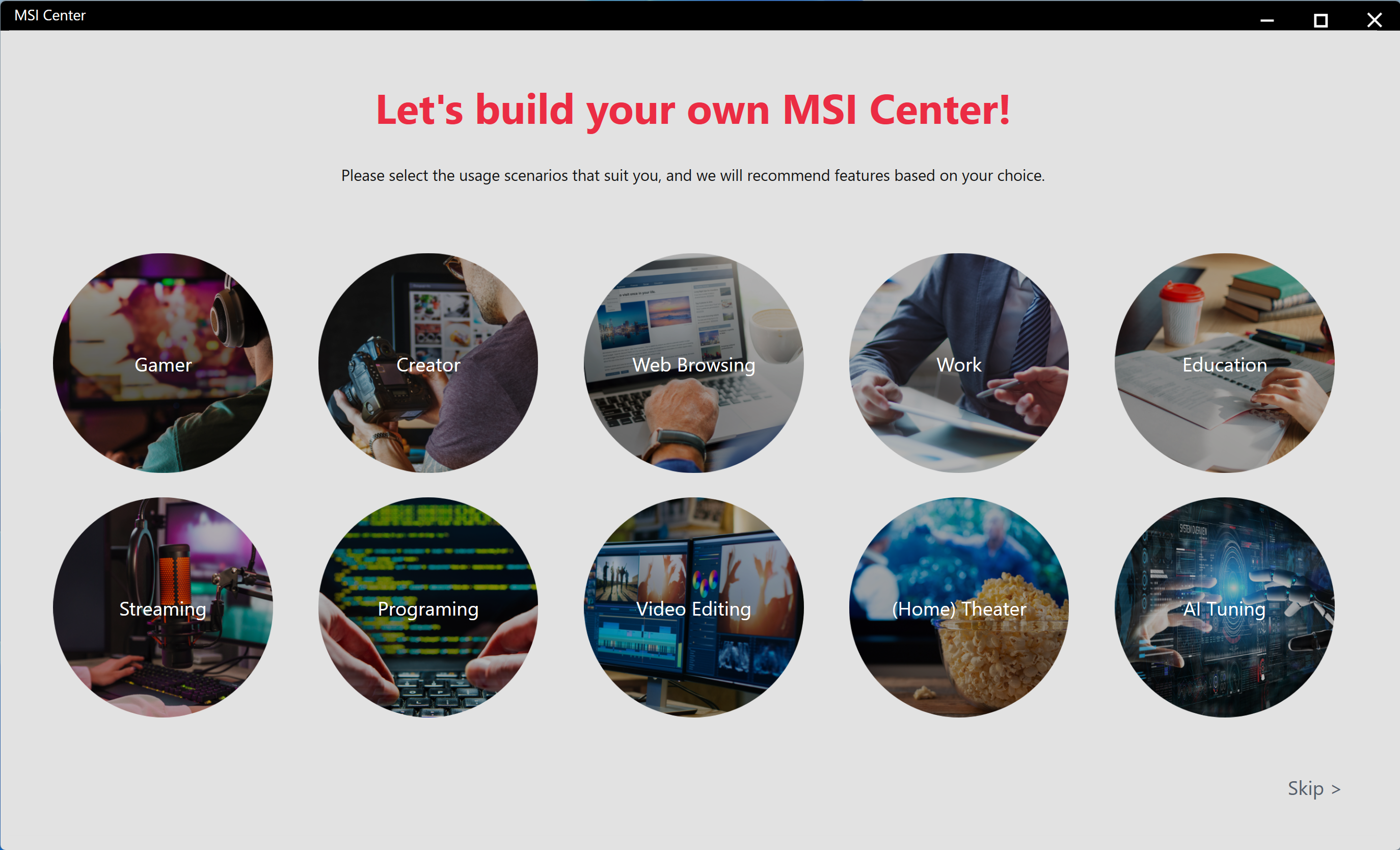
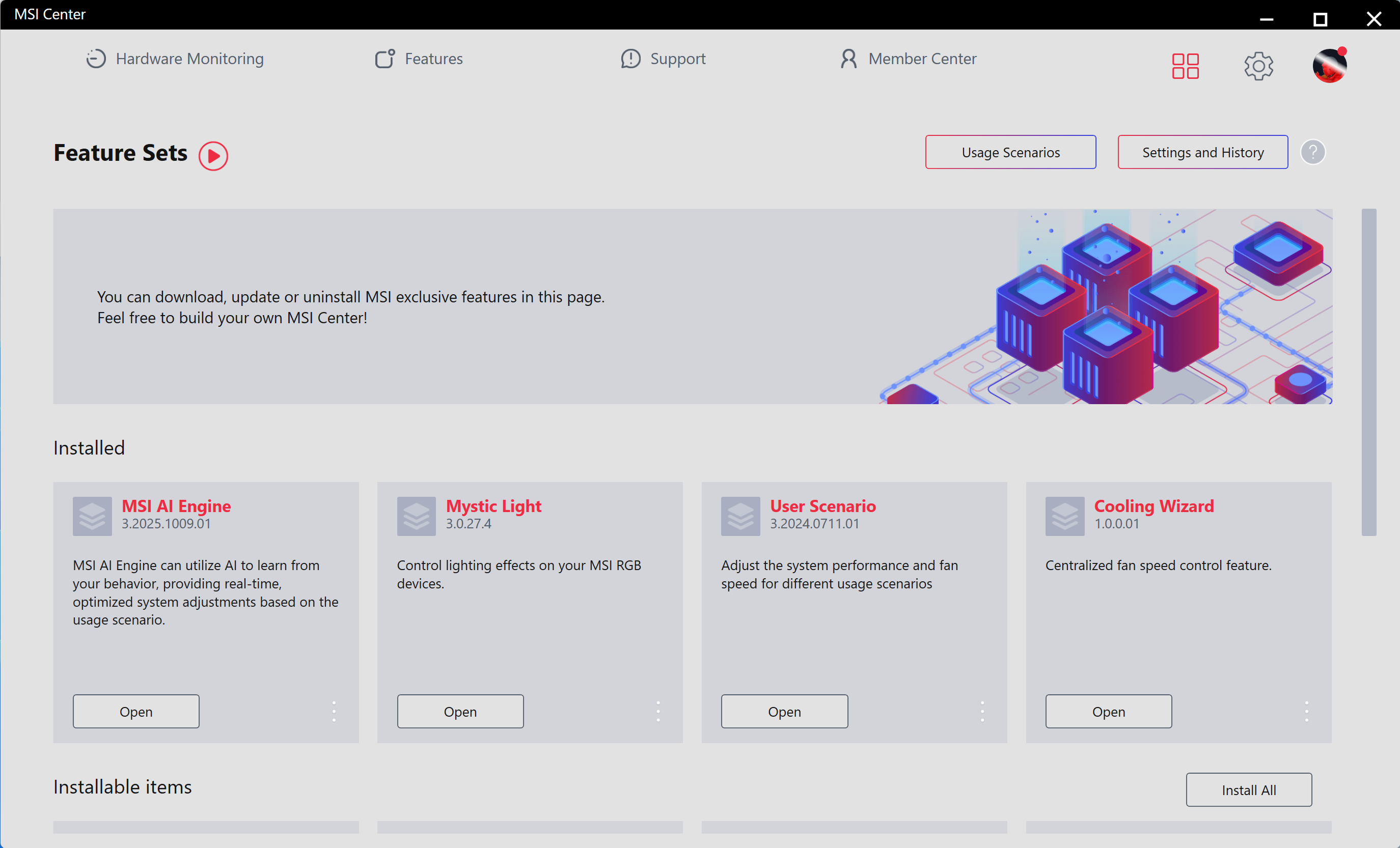
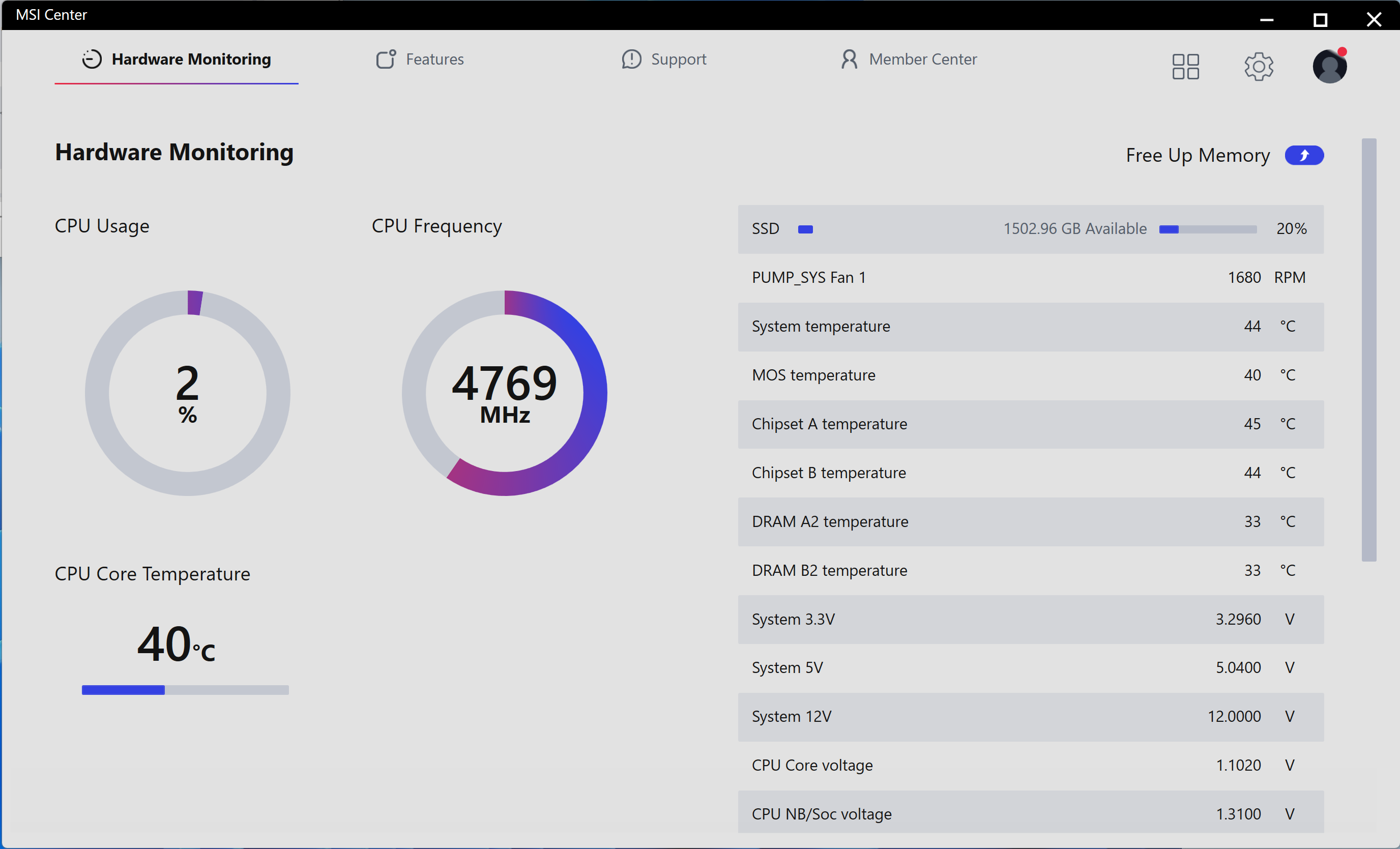
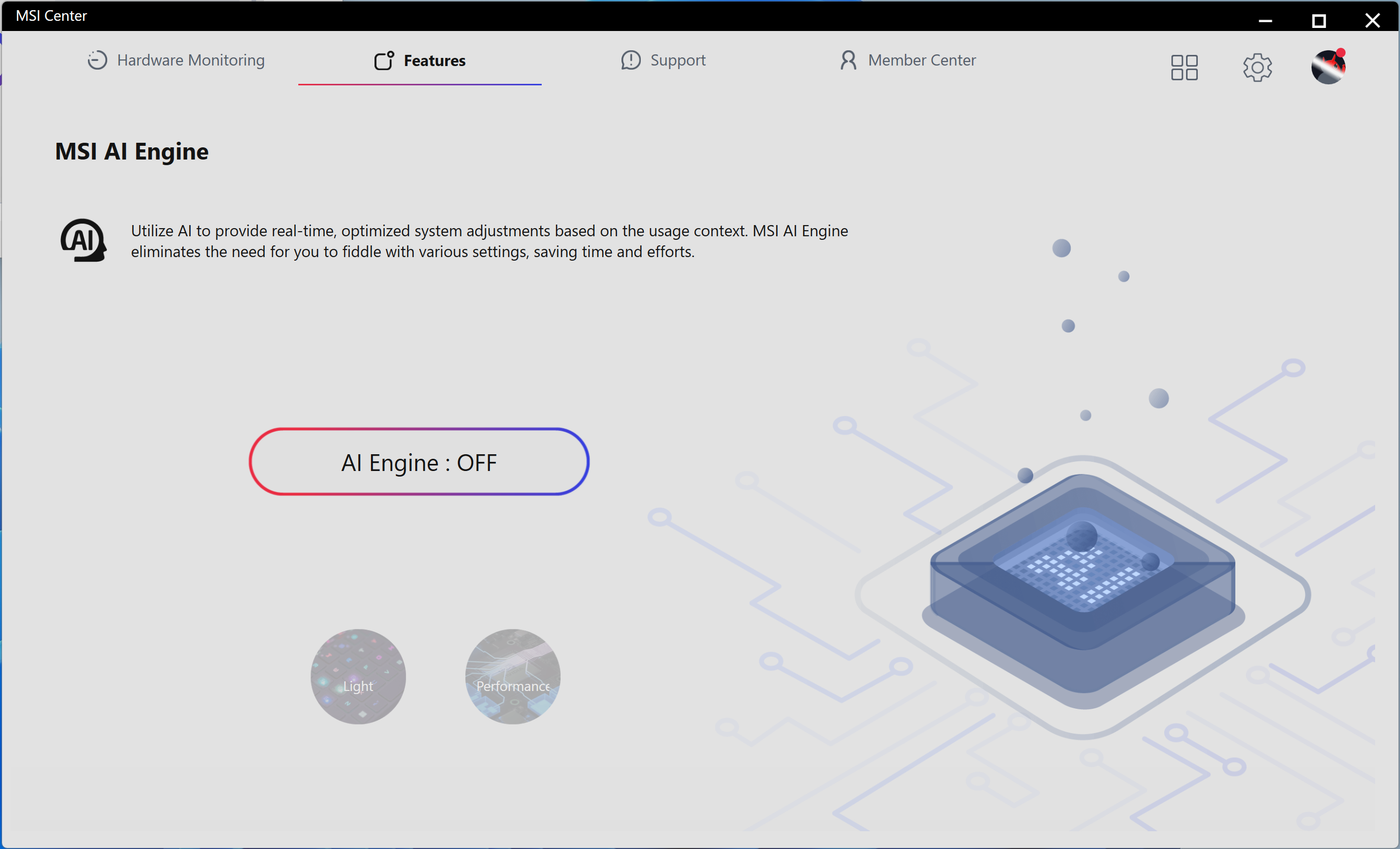
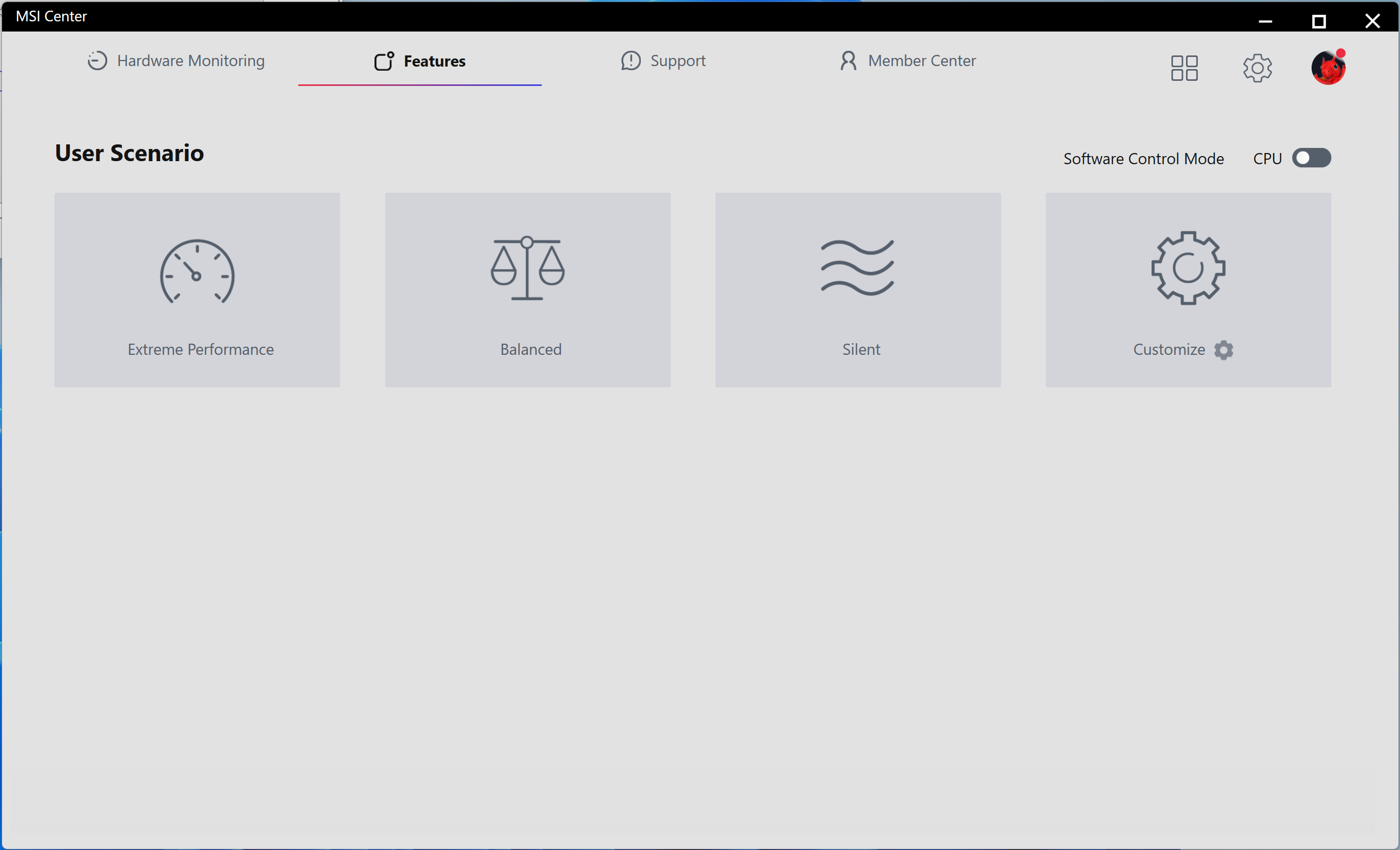
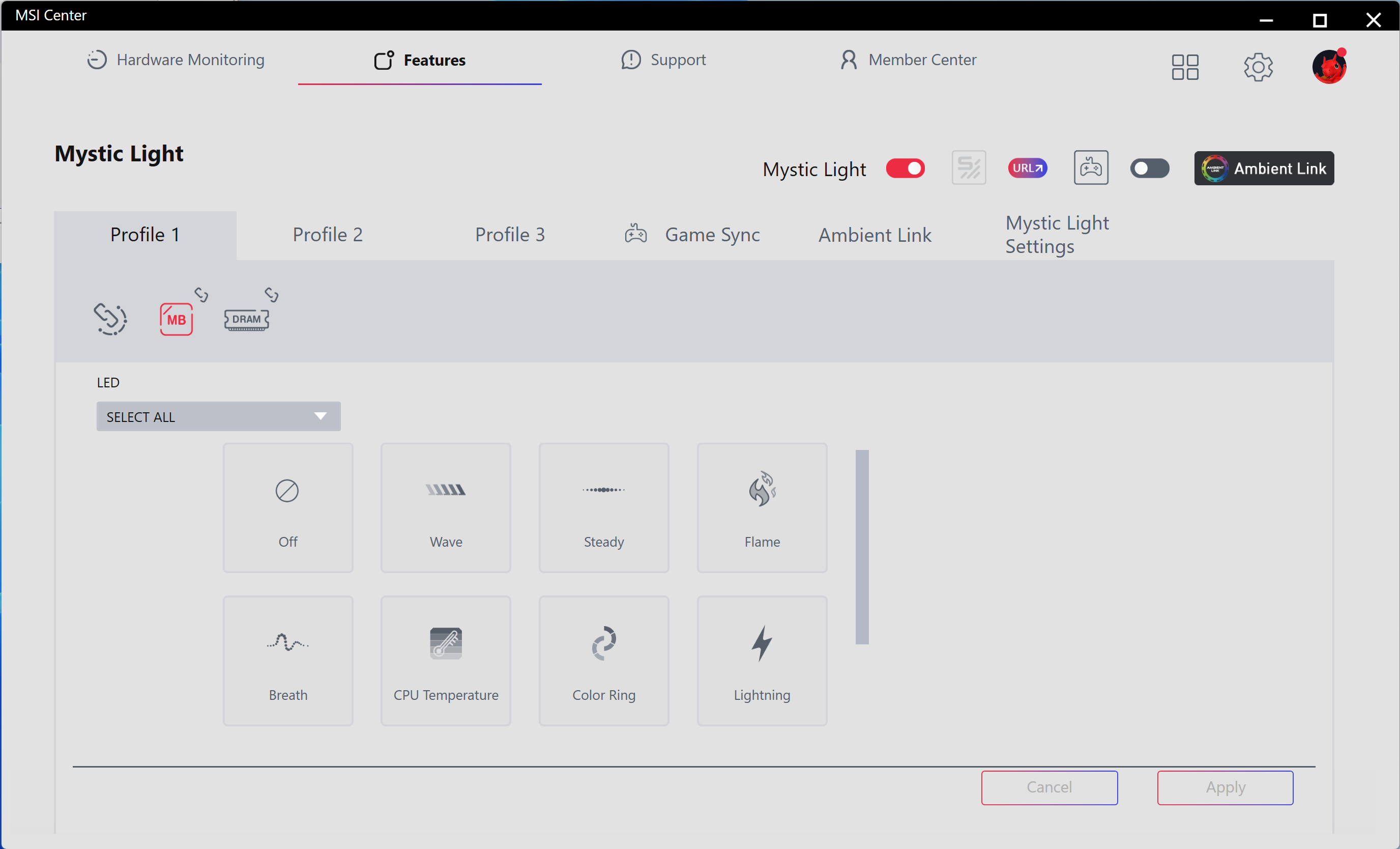
MSI Center is a single utility that offers a wide range of functionality. From hardware monitoring to RGB control with Mystic Light, the software has many applets and is a one-stop shop for downloading other utilities, including overclocking and fan control. Those looking to use the Gamebar feature, Super Charger, or any other utilities MSI offers will find them all in MSI Center. This is the latest version from early 2026.

MSI MAG Z890 Tomahawk Wifi II - MSI Center
Future
MSI MAG Z890 Tomahawk Wifi II - MSI Center
Future
MSI MAG Z890 Tomahawk Wifi II - MSI Center
Future
MSI MAG Z890 Tomahawk Wifi II - MSI Center
Future
MSI MAG Z890 Tomahawk Wifi II - MSI Center
Future
MSI MAG Z890 Tomahawk Wifi II - MSI Center
Future
MSI MAG Z890 Tomahawk Wifi II - MSI Center
Future

Test System / Comparison Products

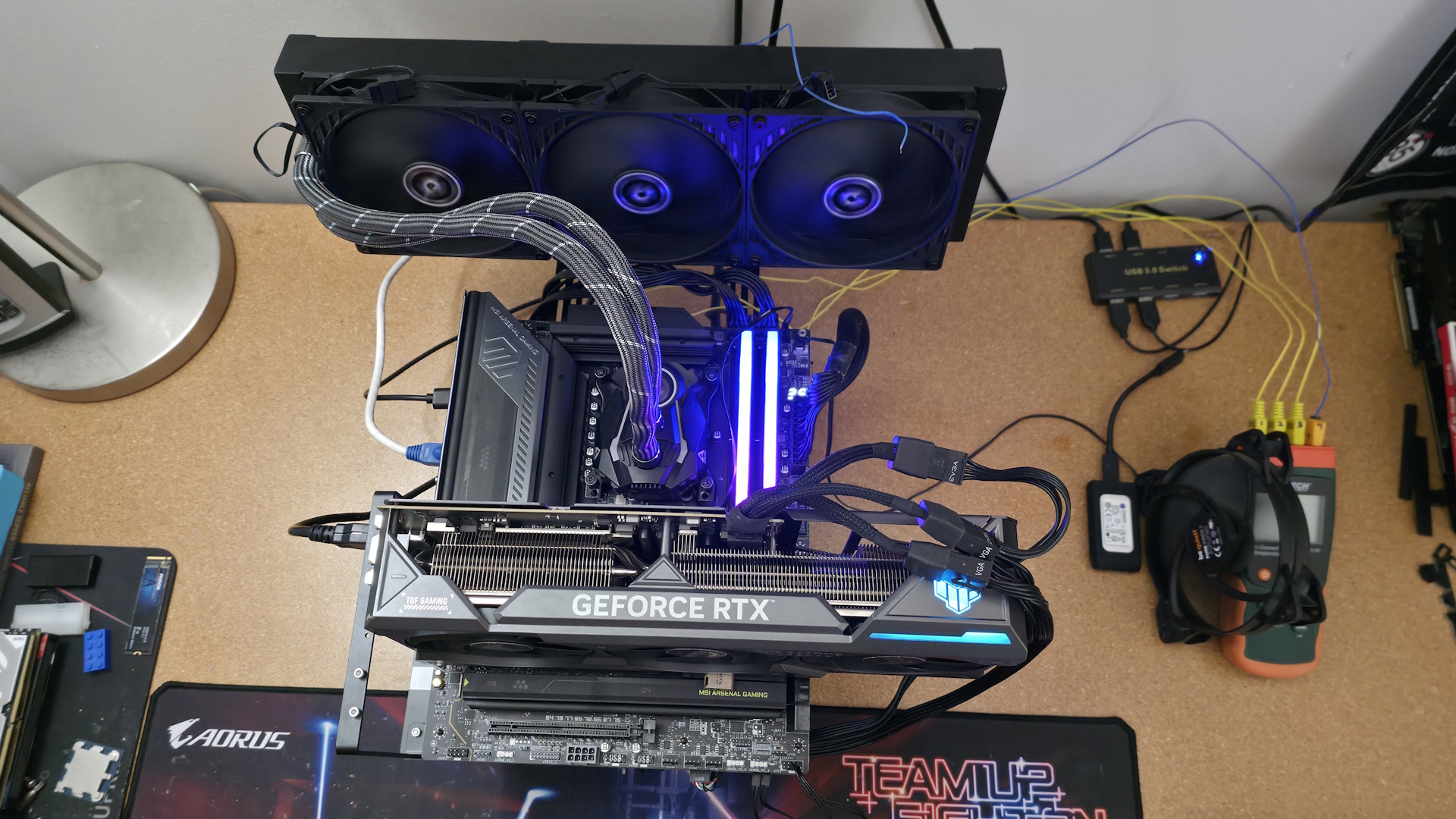
We’ve updated our test system to Windows 11 (25H2) 64-bit OS with all updates applied as of late April 2026. On the hardware front, we’ve updated the RAM kits to ones appropriate for the platform. Peripherals, including cooling, storage, power supply, and graphics cards, remain unchanged. We also use the latest publicly available BIOS unless otherwise noted. The hardware we used is as follows:

TEST SYSTEM COMPONENTS:

MSI MAG Z890 Tomahawk Wifi II - Test bed

(Image credit: Future)

Sound

Integrated HD audio

Network

Integrated Networking (GbE to 10 GbE)

Graphics Driver

GeForce 595.97

Benchmark Settings

Synthetic Benchmarks and Settings

Procyon

Version 2.8.1352 64

Office 365

Pugetbench

v1.4.20
Adobe Suite - Photoshop (v27.5), Premiere (v26.2), AfterEffects (v26.2), Media Encoder (v26.2), Lightroom Classic (v15.3)

3DMark

Version 2.29.8294.0 64

Speed Way and Steel Nomad (Default)

Cinebench R26

Version 2026.1.0
Open GL Rendering Benchmark - Single and Multi-threaded

Blender

Version 5.0.0
Full benchmark (all 3 tests)

Application Tests and Settings

LAME MP3

Version SSE2_2019

Mixed 271MB WAV to mp3: Command: -b 160 --nores (160Kb/s)

HandBrake CLI

Version: 1.11.0

Sintel Open Movie Project: 4.19GB 4K mkv to x264 (light AVX) and x265 (heavy AVX)

Corona 10

Version 10

Default benchmark

7-Zip

Version 26.00

Integrated benchmark (Command Line)

Game Tests and Settings

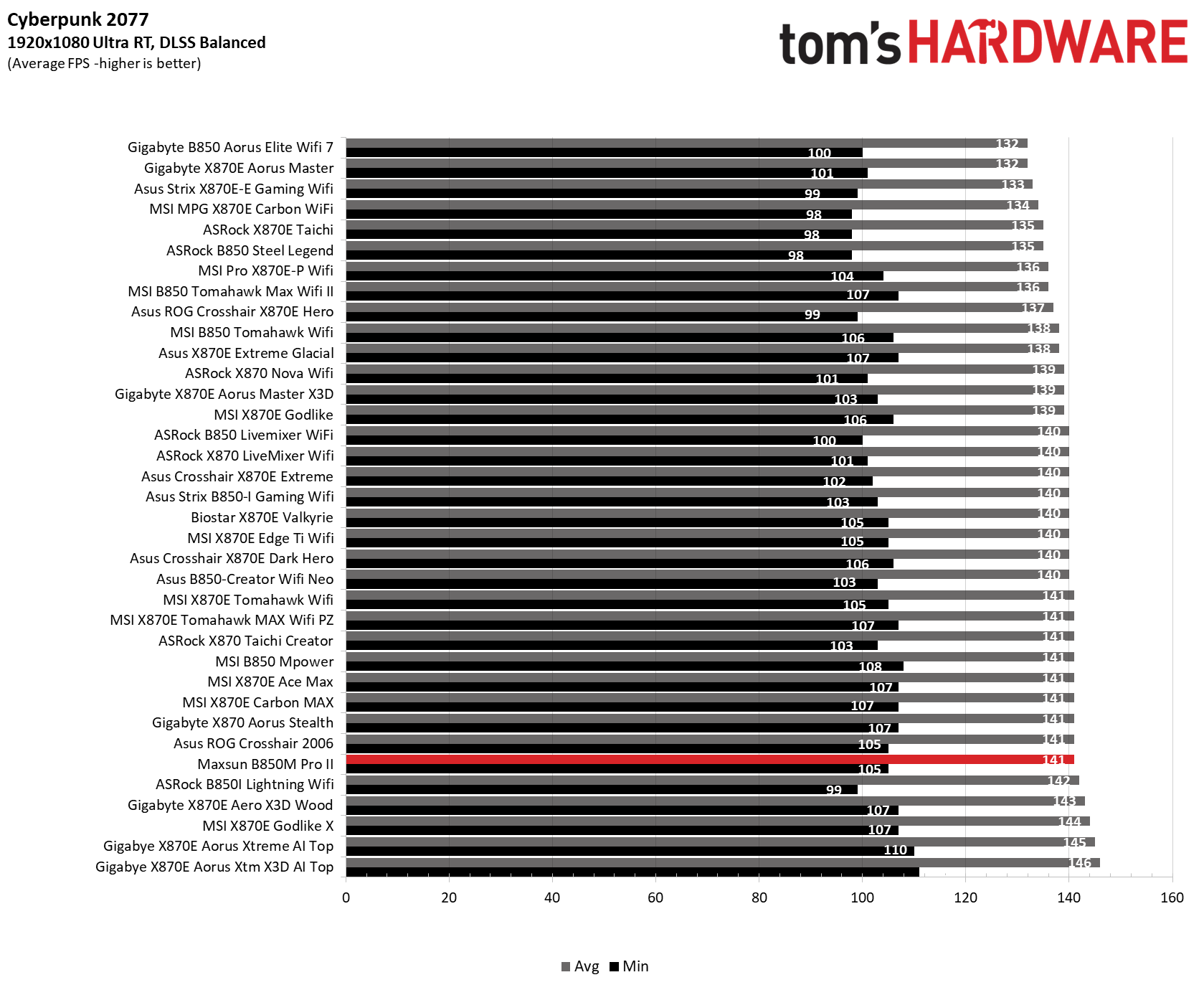
Cyberpunk 2077

Ultra RT: - 1920 x 1080, DLSS - Balanced.

F1 2025

Ultra High Preset - 1920 x 1080, 16xAF/TAA, Texas (Clear/Dry), FPS Counter ON

MORE: Best Motherboards

MORE: How To Choose A Motherboard

MORE: Best Motherboard Deals

MORE: Best Motherboard Combo Deals

MORE: All Motherboard Content

Benchmark Results

Our standard benchmarks and power tests are performed using the CPU’s stock frequencies (including any default boost/turbo) with all power-saving features at default. We set optimized defaults in the BIOS, then set the memory by enabling the XMP profile. If there are boosts enabled by the BIOS by default, it runs like that. The Windows power scheme is set to Balanced (default) for this baseline testing, so the PC idles appropriately.

Synthetic Benchmarks and Real World Applications

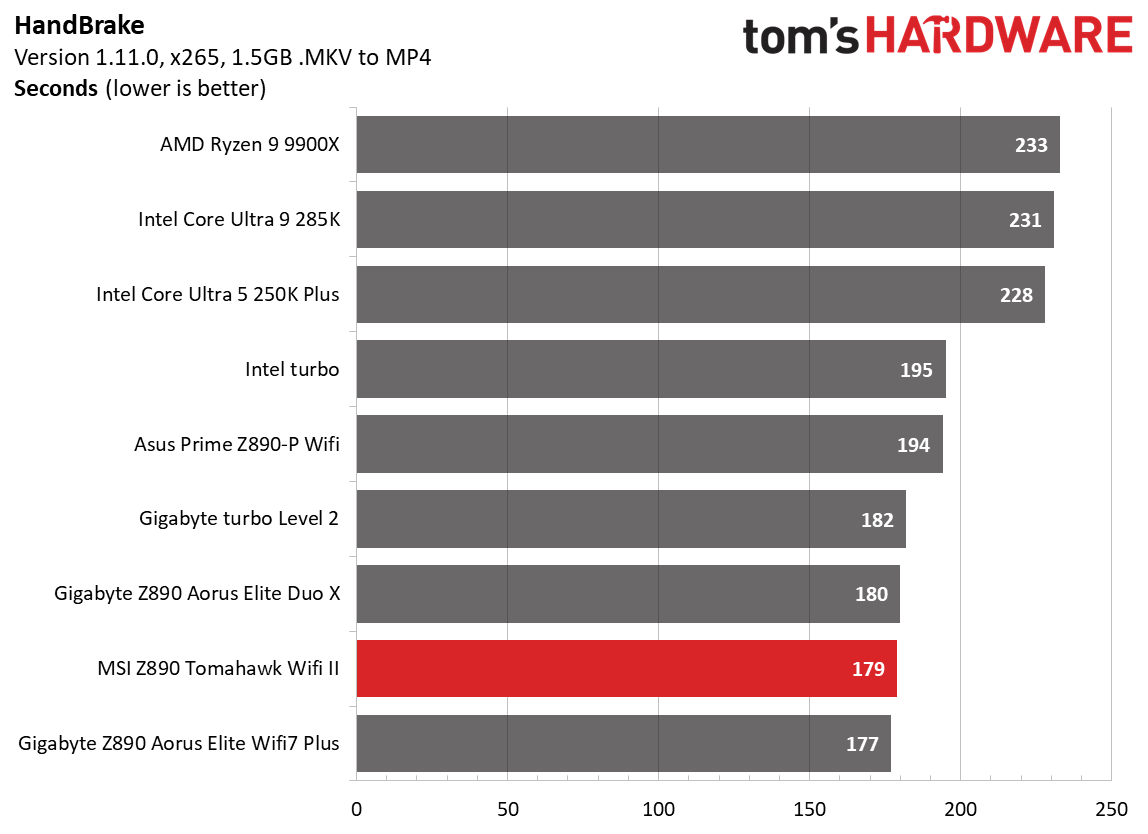
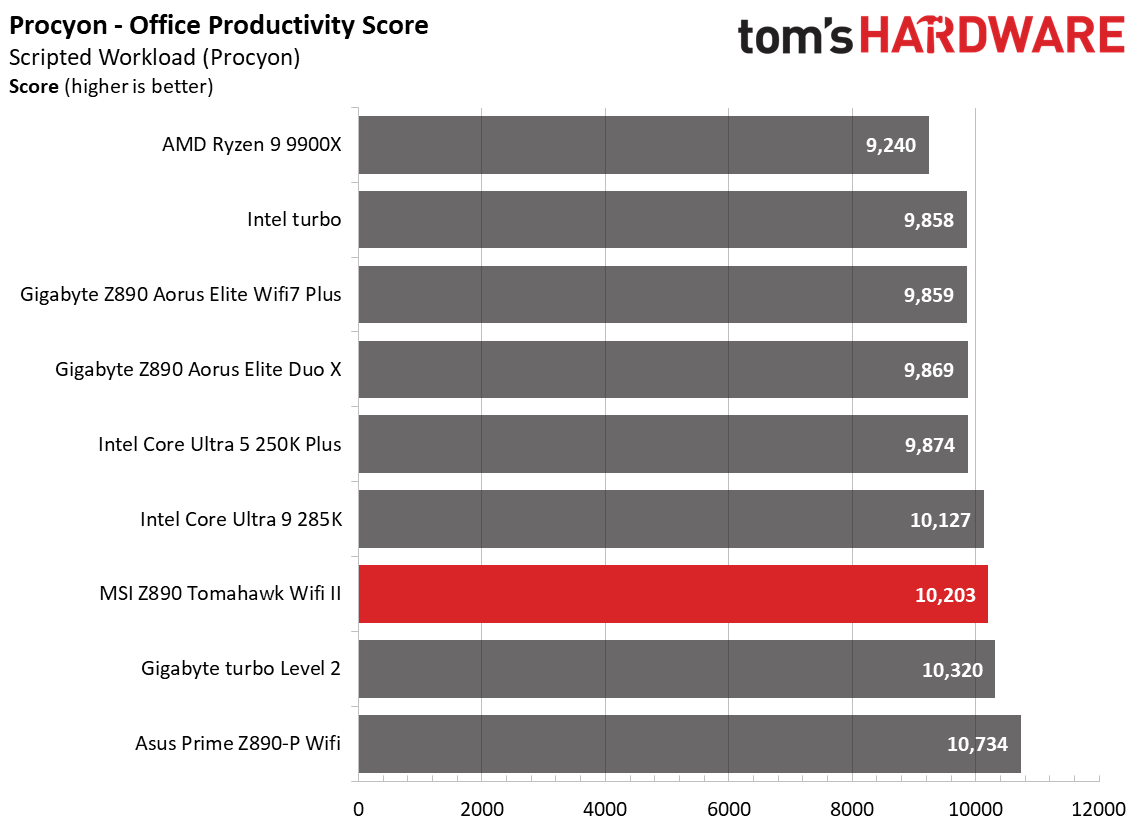
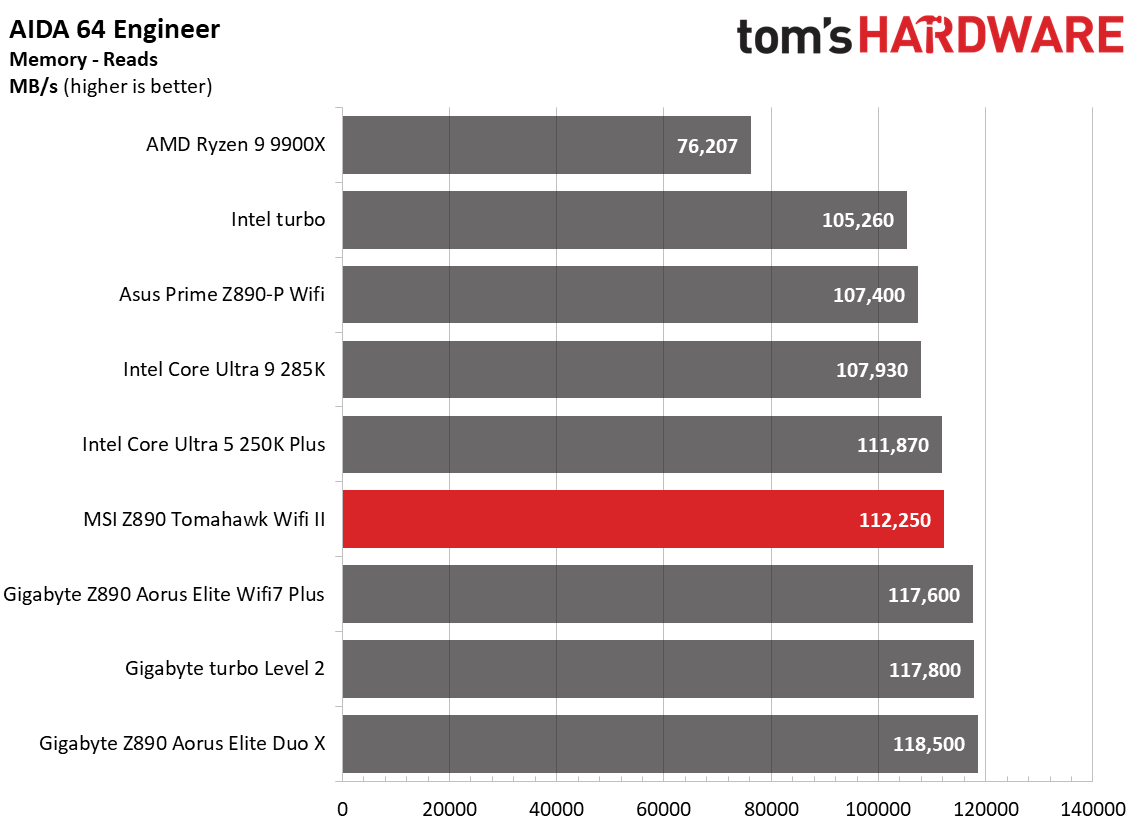
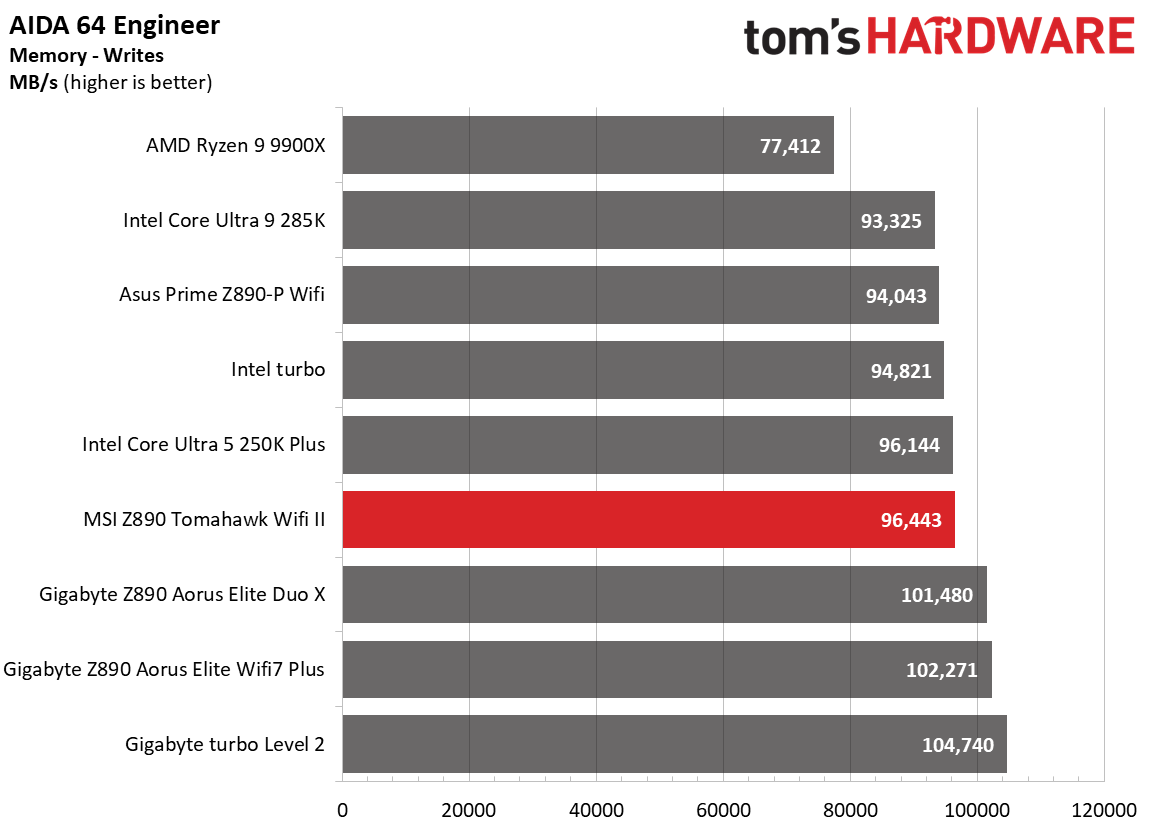
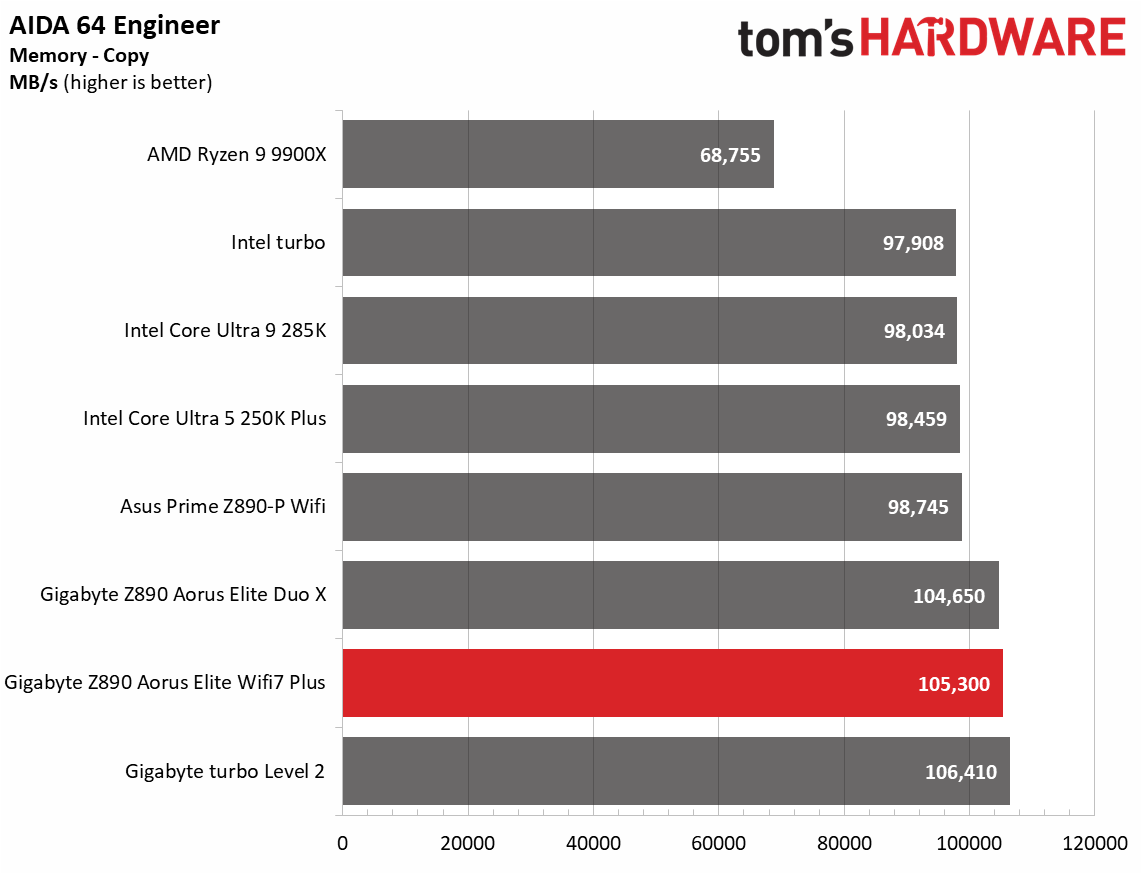
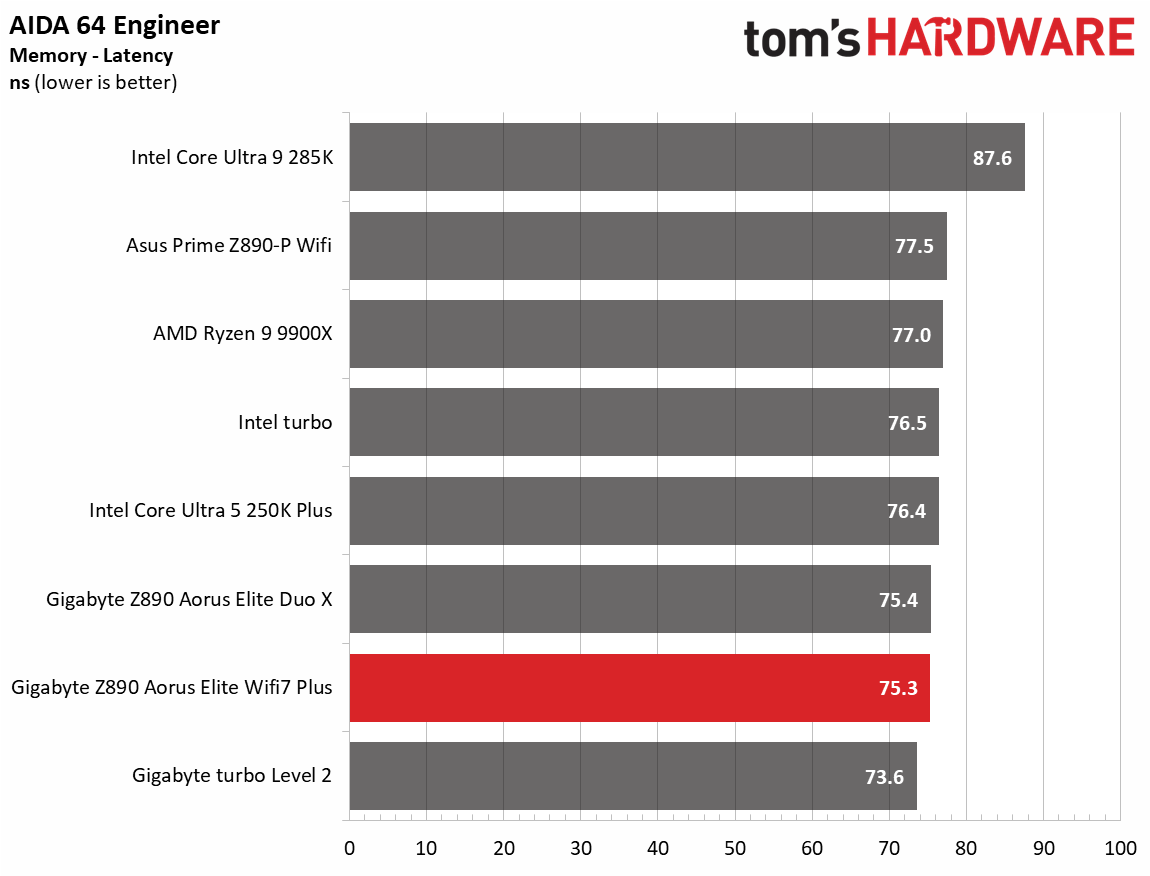
Synthetics offer a valuable method for evaluating a board's performance, as identical settings are expected to yield similar results. Turbo boost wattage and advanced memory timings are areas where motherboard manufacturers can still optimize for stability or performance, though, and these settings can impact specific testing scenarios. We’ve also combined our previous ‘timed’ benchmark applications into this section.

MSI MAG Z890 Tomahawk Wifi II - Benchmarks
Future
MSI MAG Z890 Tomahawk Wifi II - Benchmarks
Future
MSI MAG Z890 Tomahawk Wifi II - Benchmarks
Future
MSI MAG Z890 Tomahawk Wifi II - Benchmarks
Future
MSI MAG Z890 Tomahawk Wifi II - Benchmarks
Future
MSI MAG Z890 Tomahawk Wifi II - Benchmarks
Future
MSI MAG Z890 Tomahawk Wifi II - Benchmarks
Future
MSI MAG Z890 Tomahawk Wifi II - Benchmarks
Future
MSI MAG Z890 Tomahawk Wifi II - Benchmarks
Future
MSI MAG Z890 Tomahawk Wifi II - Benchmarks
Future
MSI MAG Z890 Tomahawk Wifi II - Benchmarks
Future
MSI MAG Z890 Tomahawk Wifi II - Benchmarks
Future
MSI MAG Z890 Tomahawk Wifi II - Benchmarks
Future
MSI MAG Z890 Tomahawk Wifi II - Benchmarks
Future
MSI MAG Z890 Tomahawk Wifi II - Benchmarks
Future
MSI MAG Z890 Tomahawk Wifi II - Benchmarks
Future

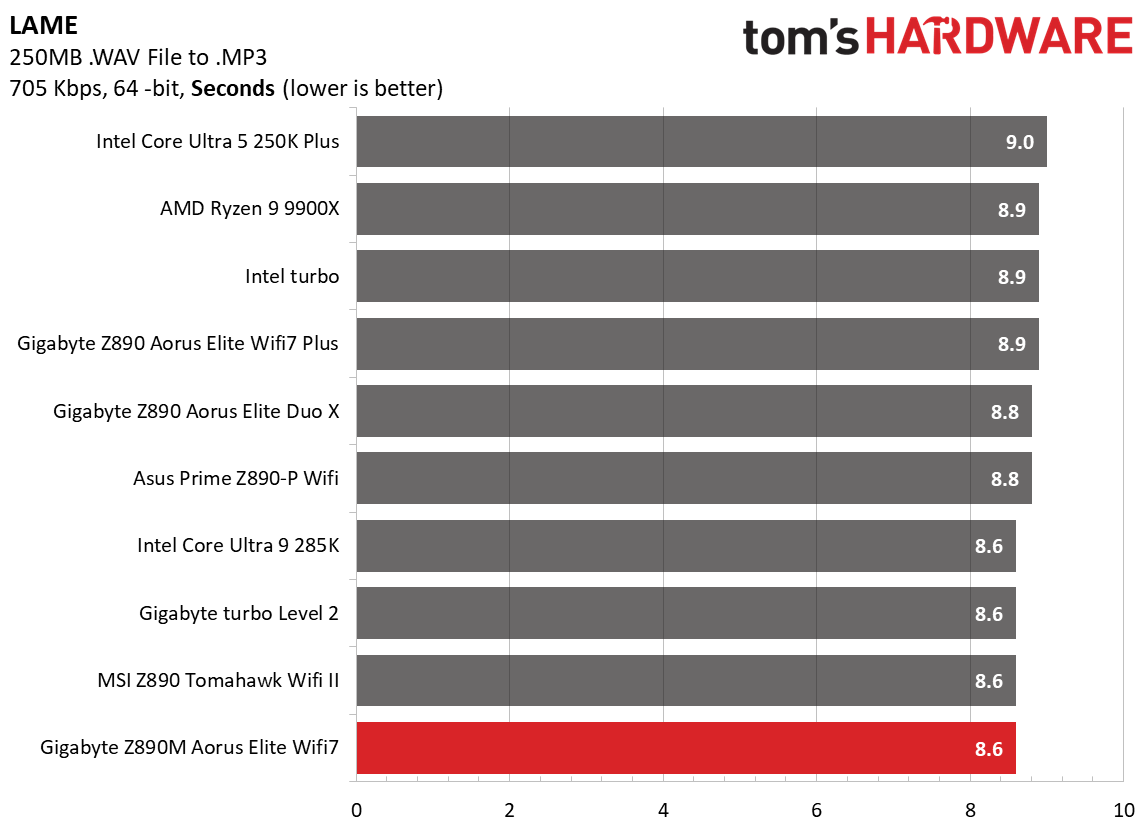
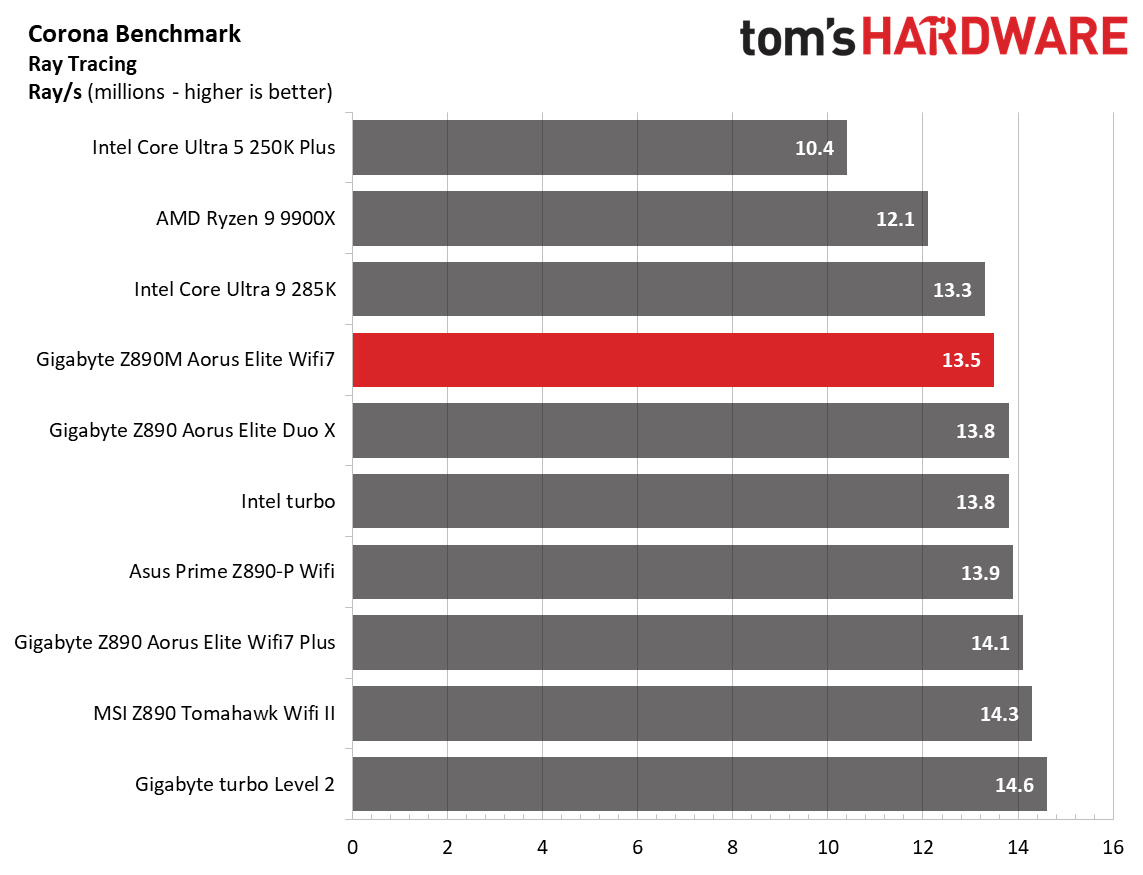
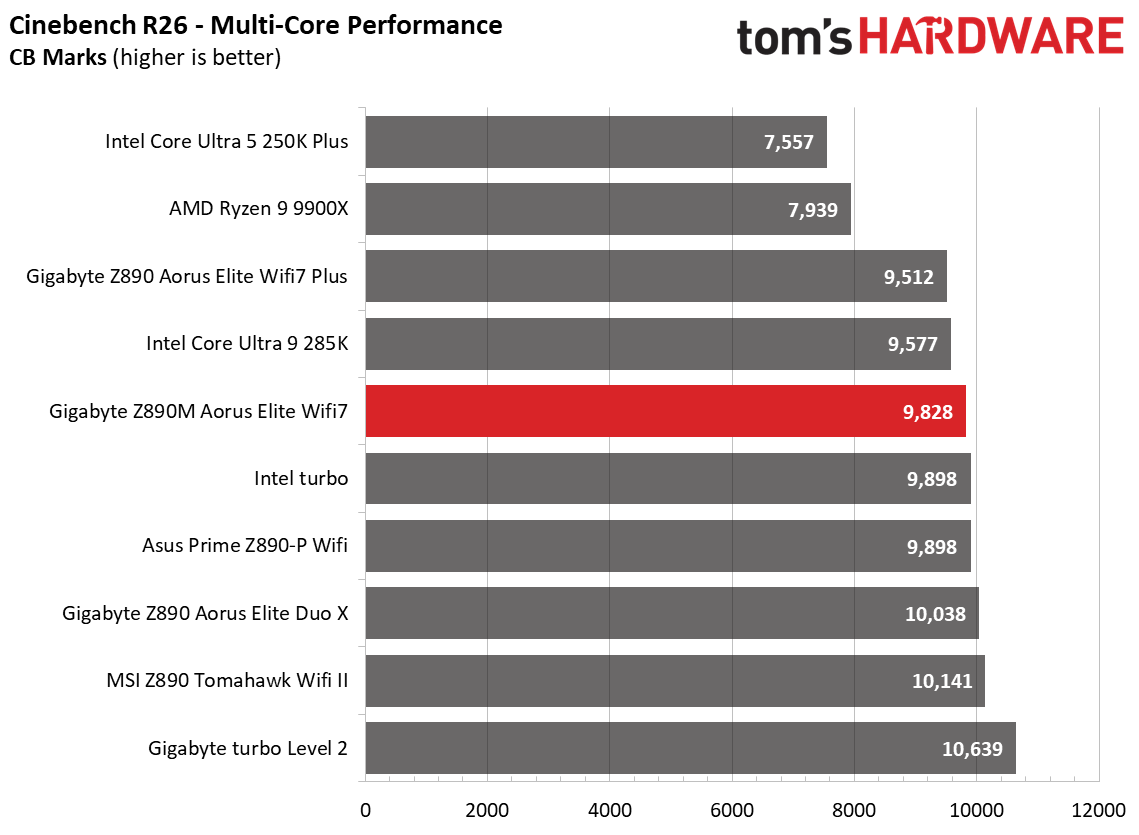
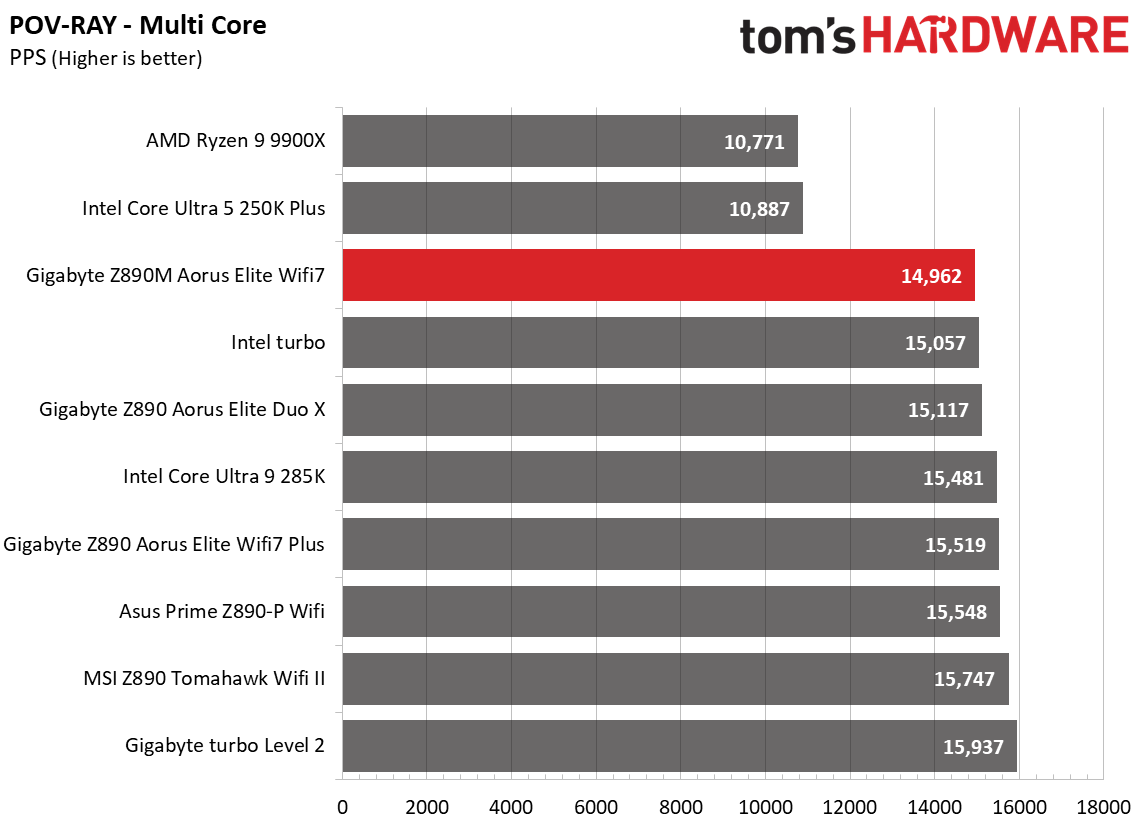
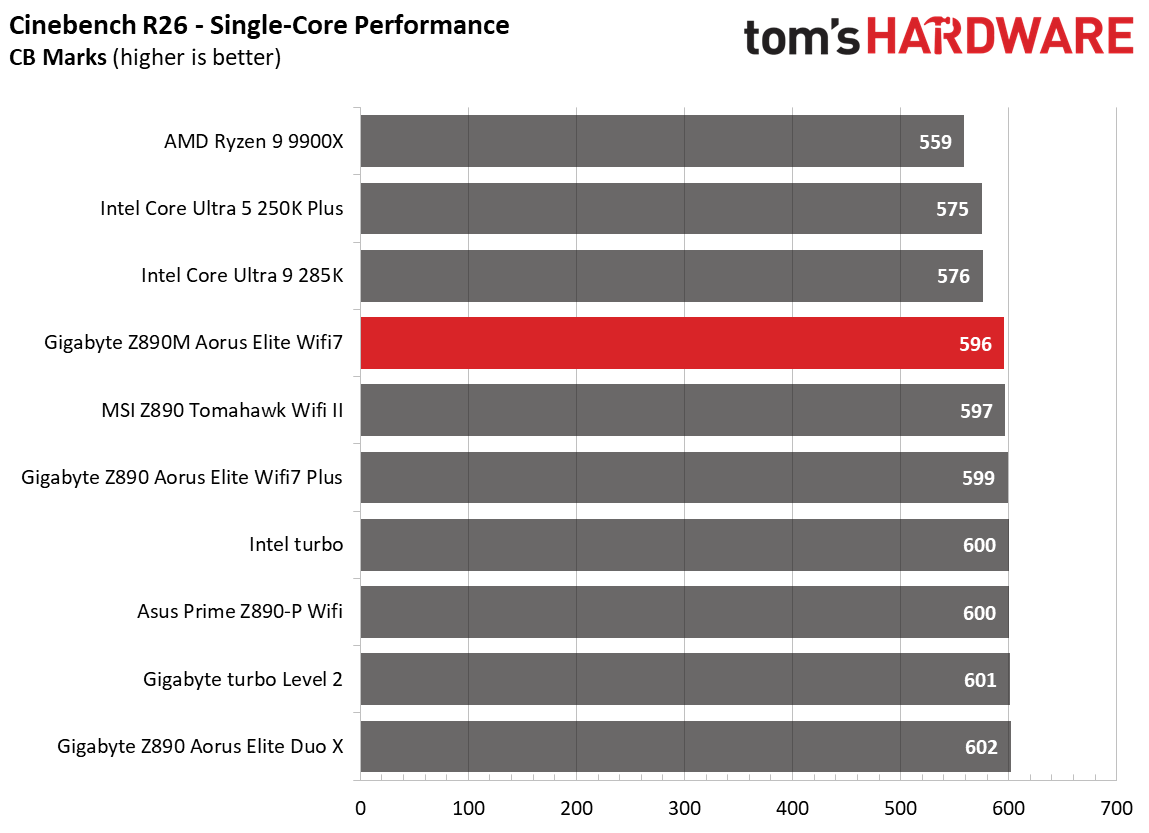
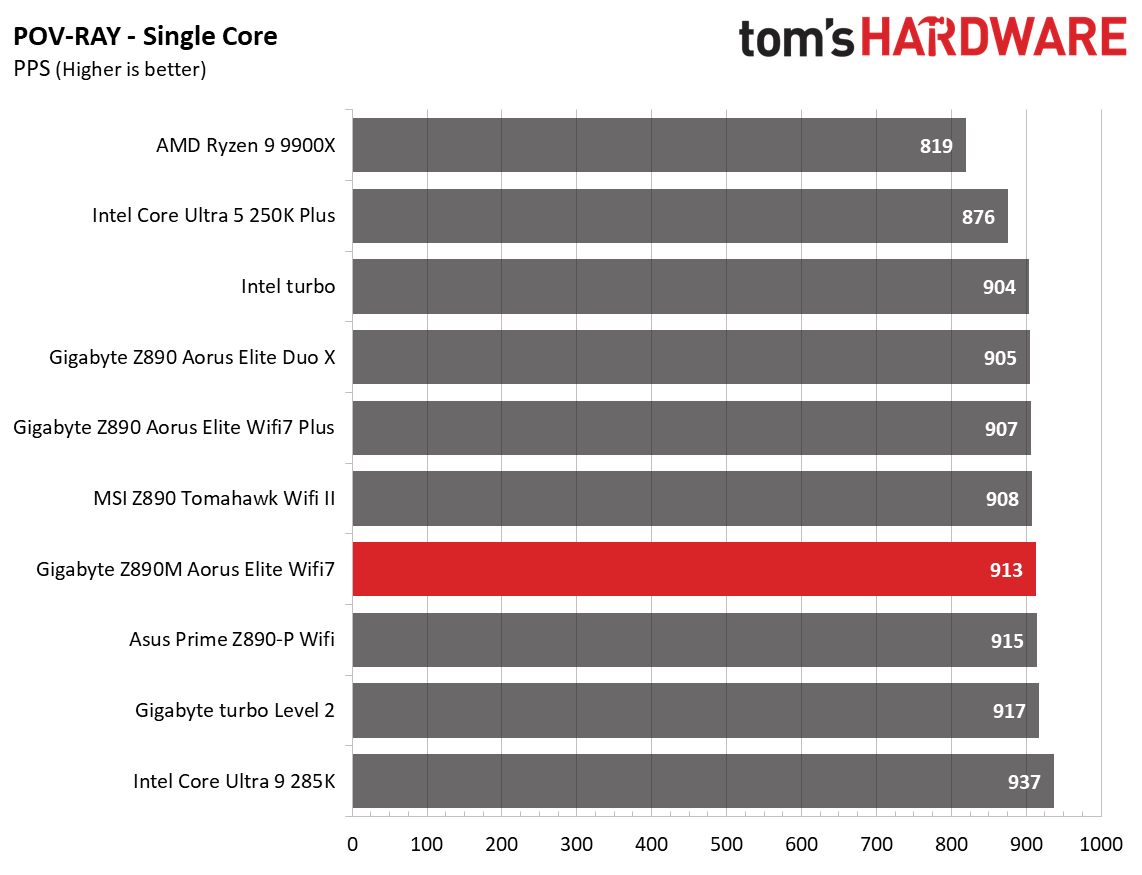
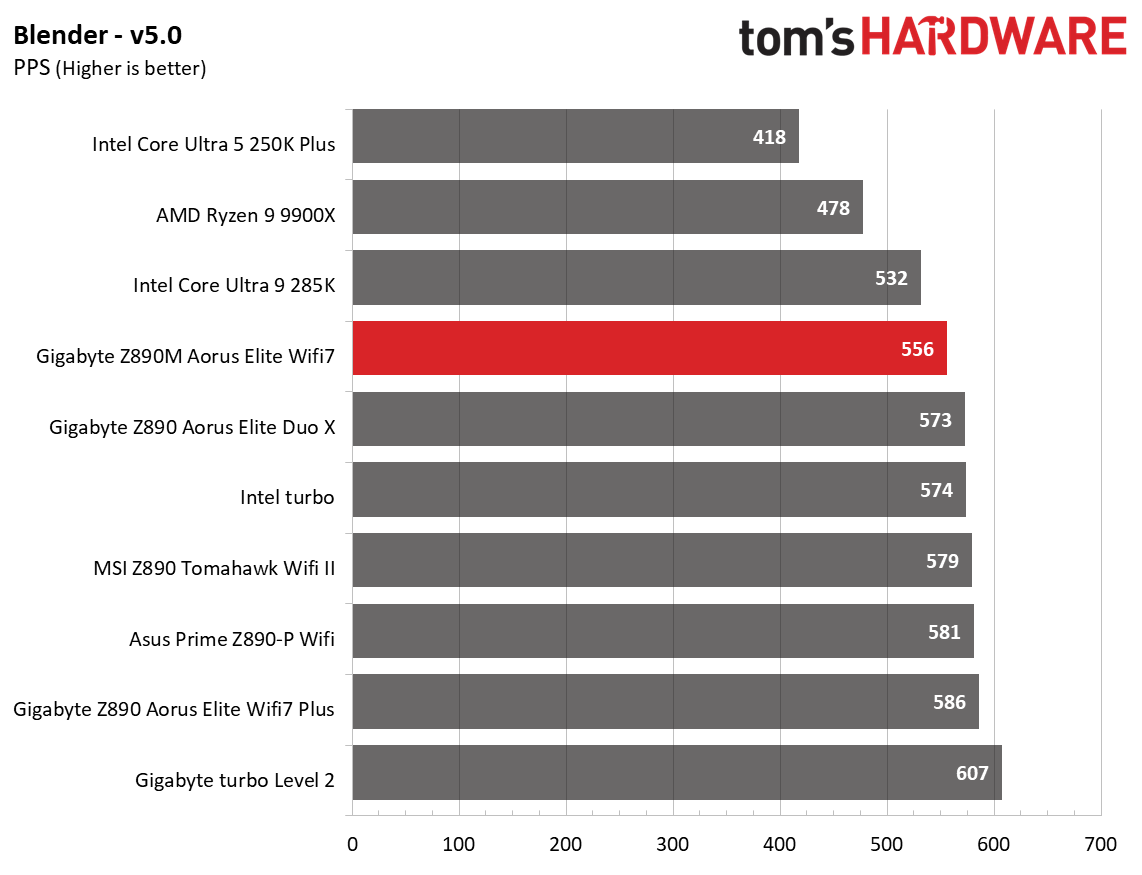
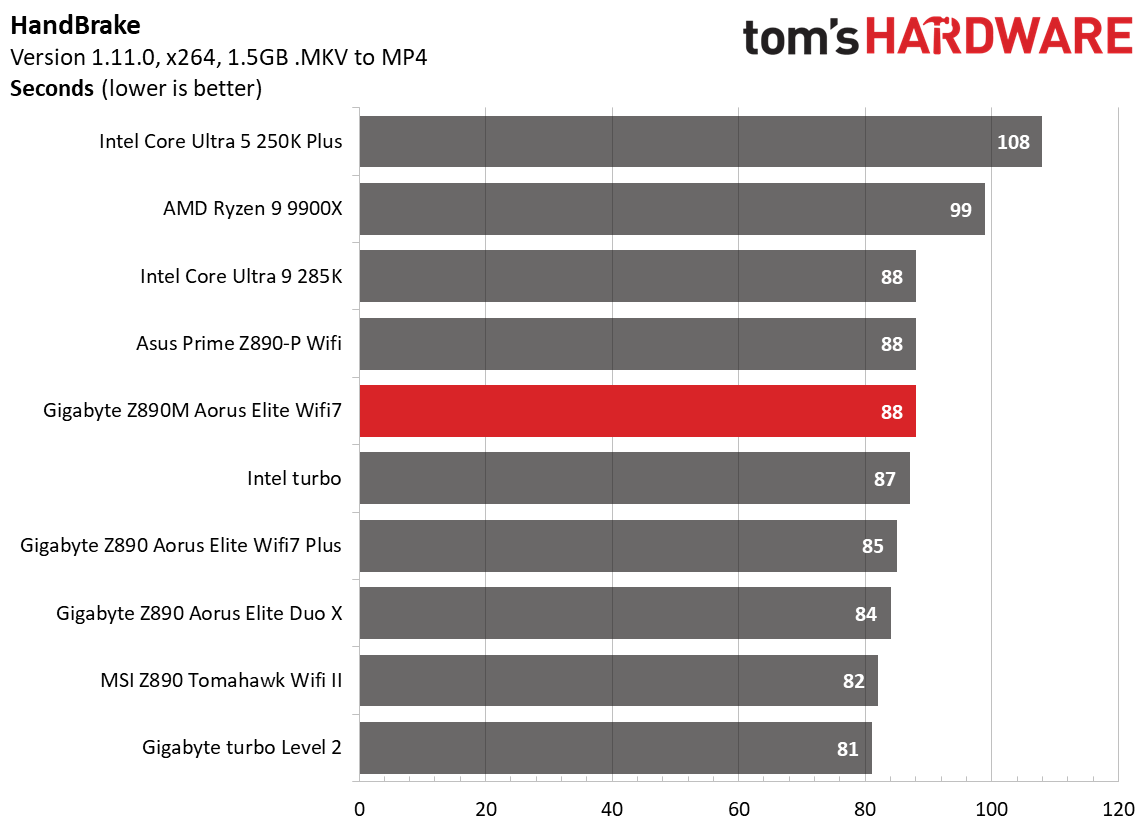
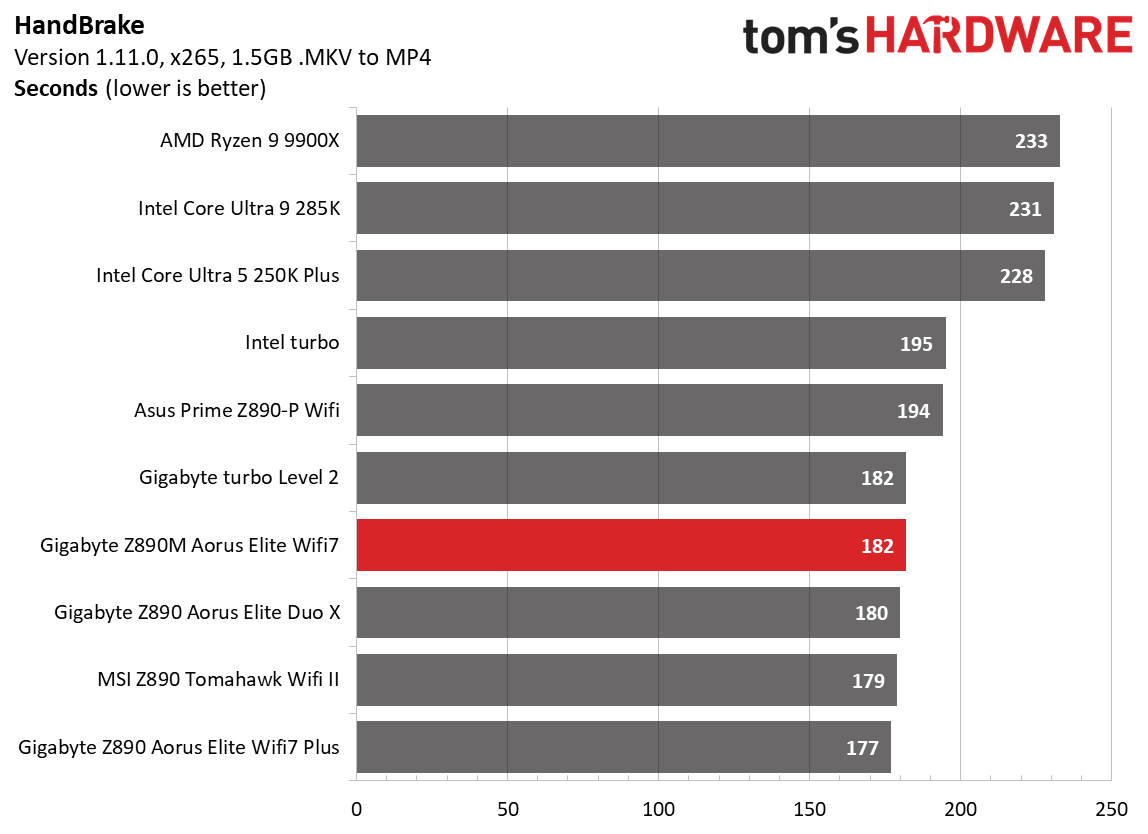
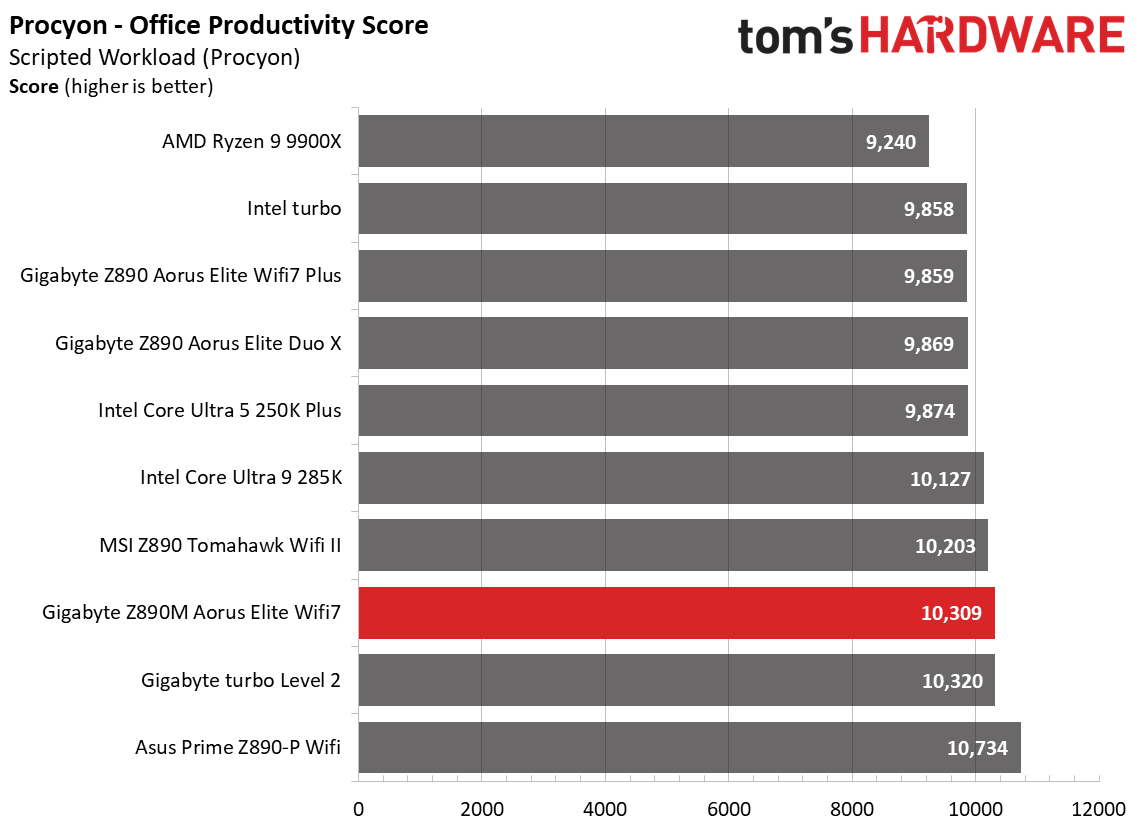
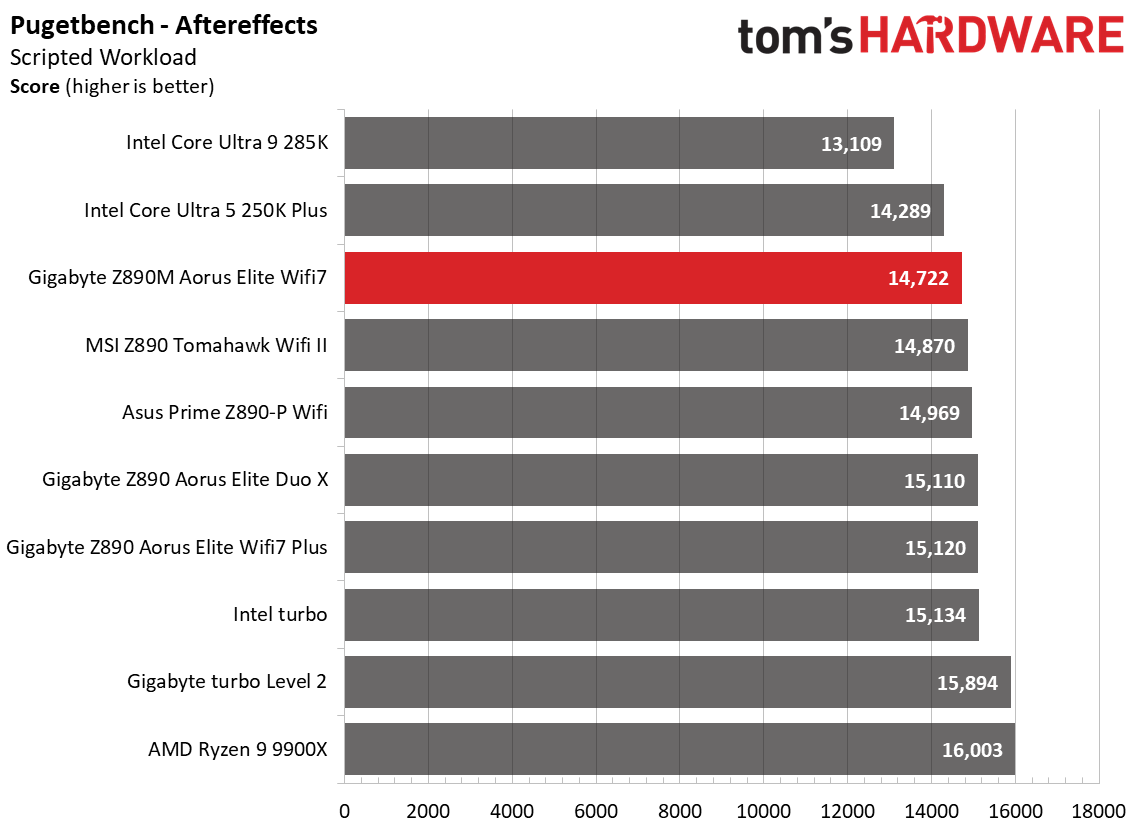
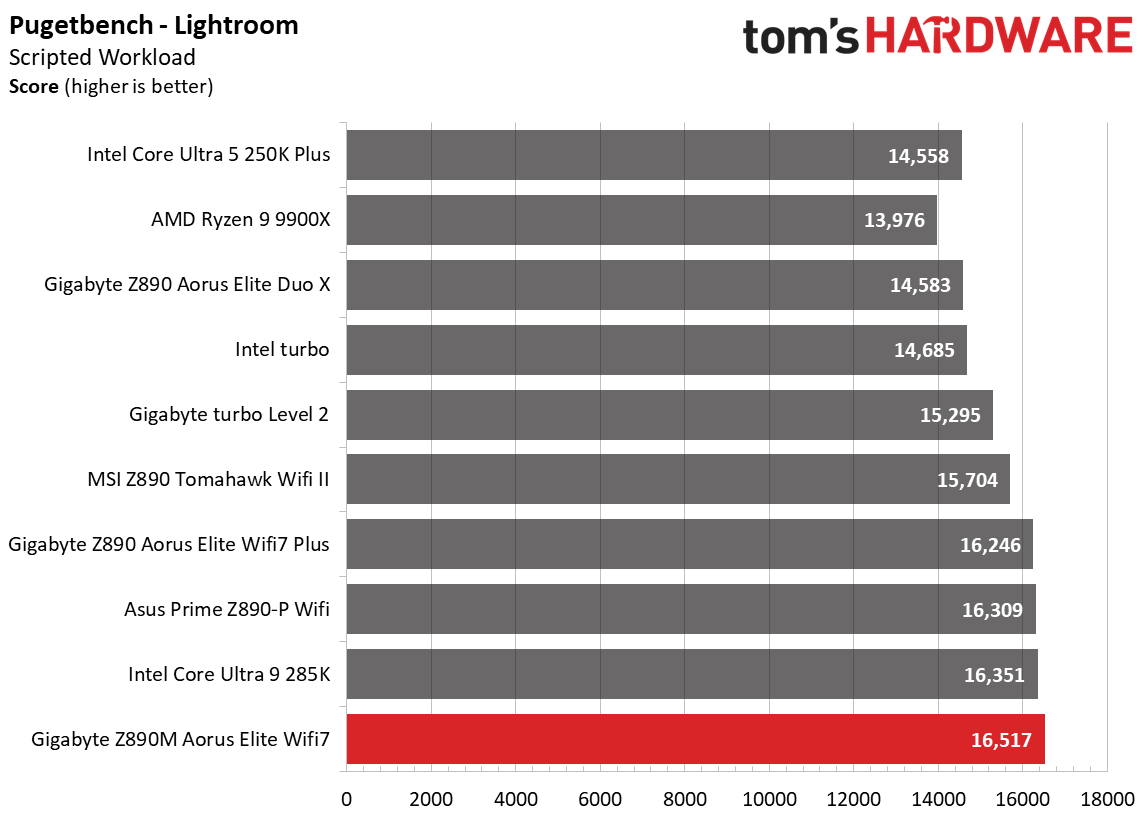
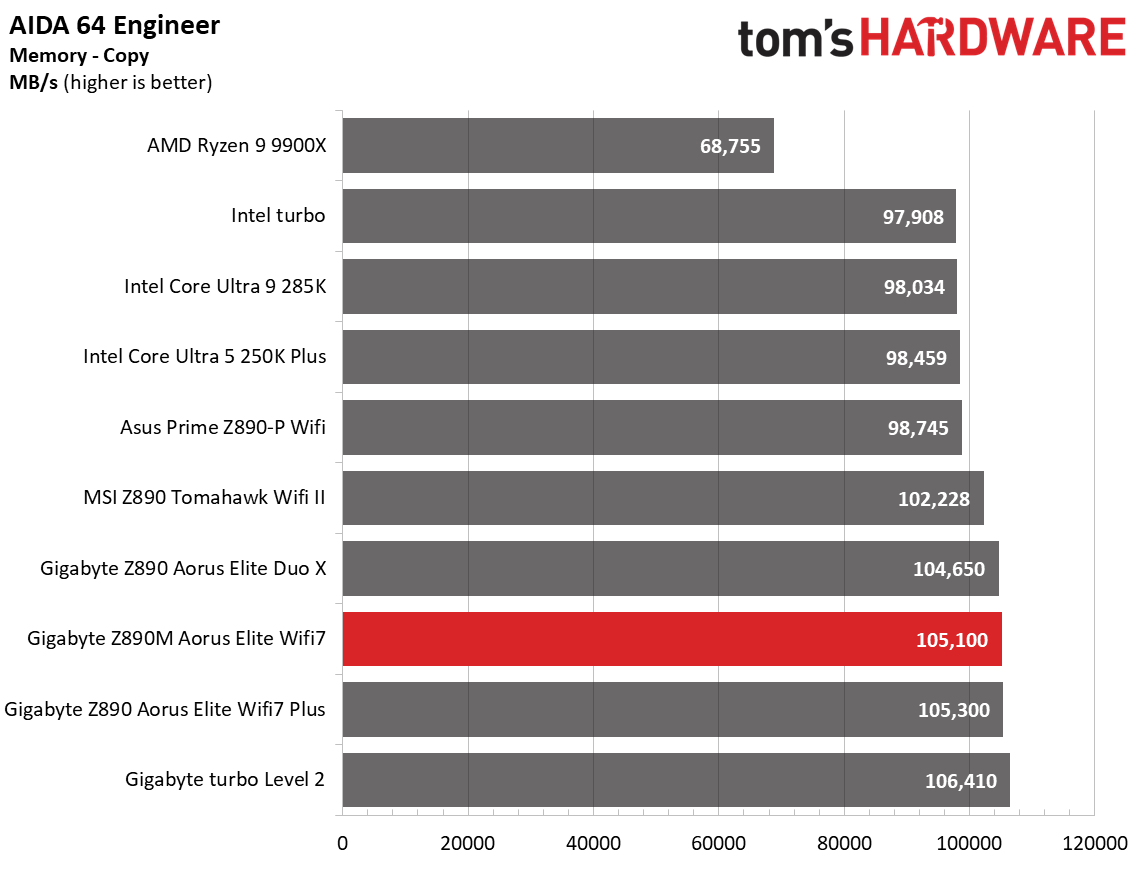
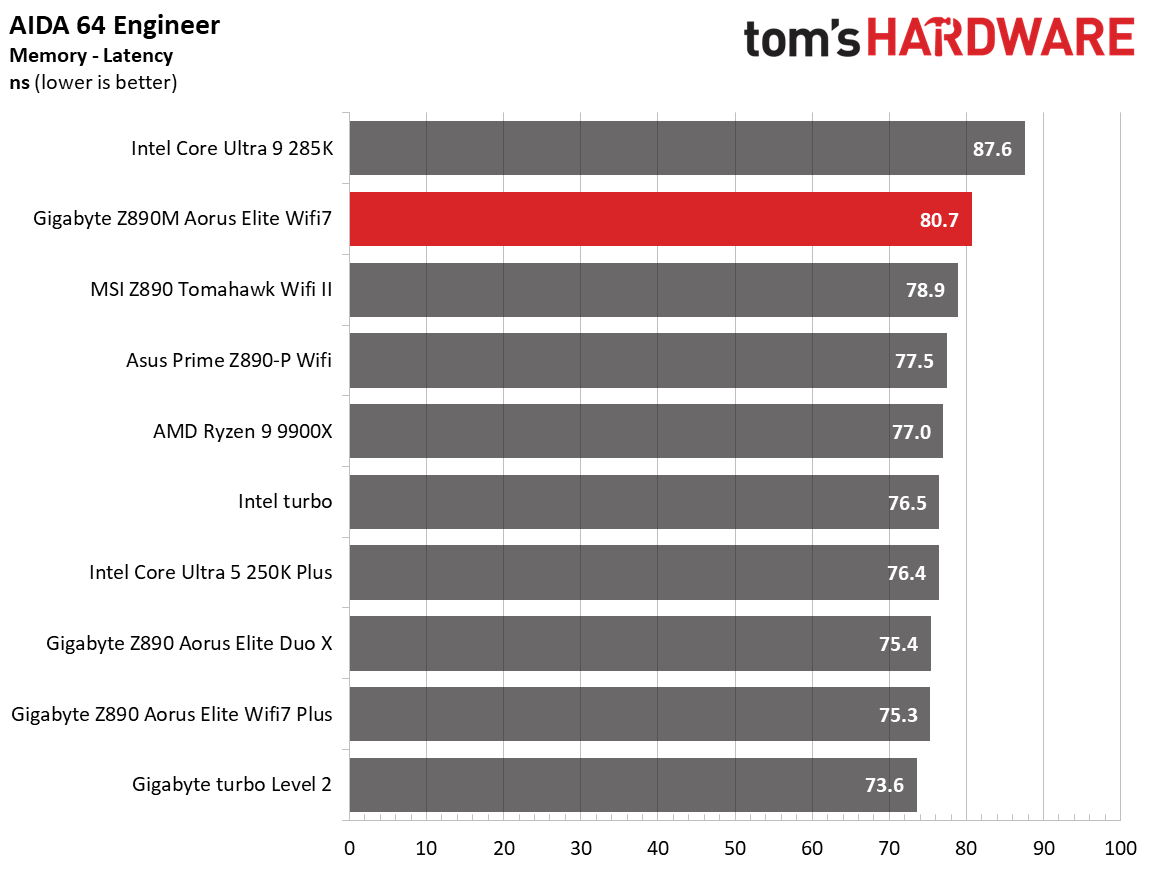
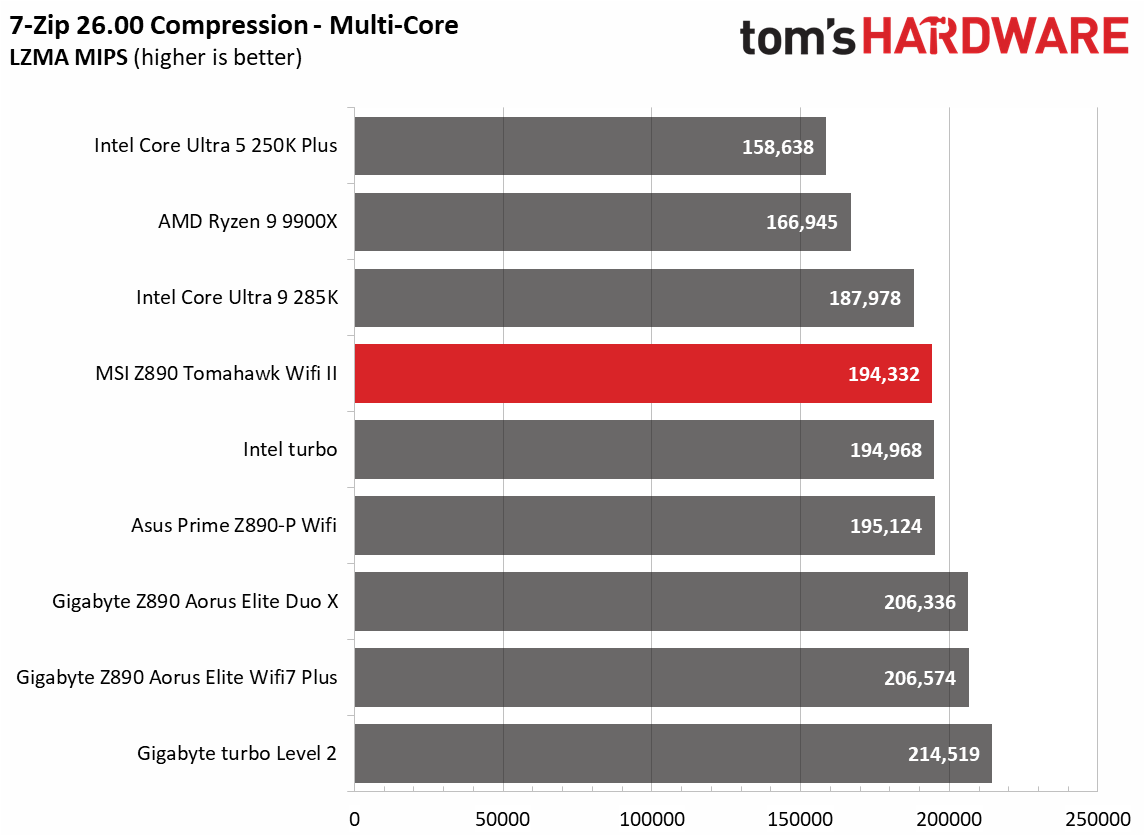
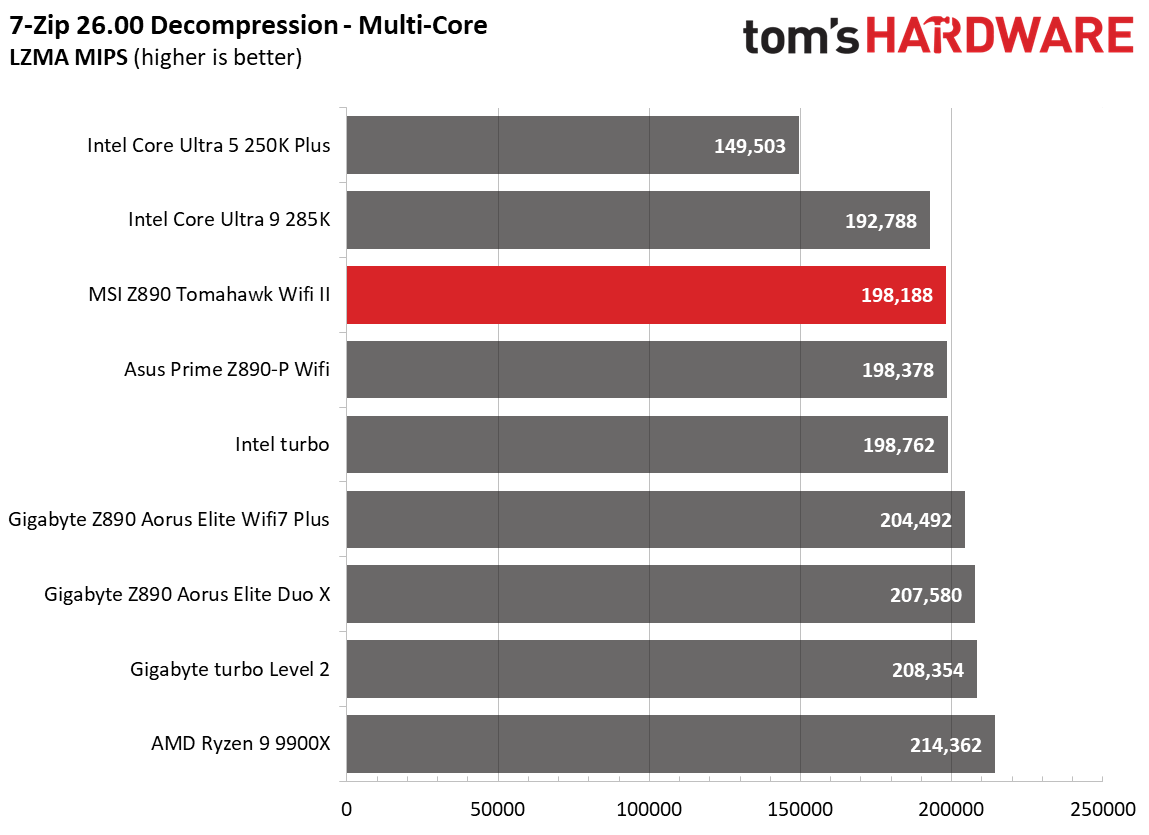
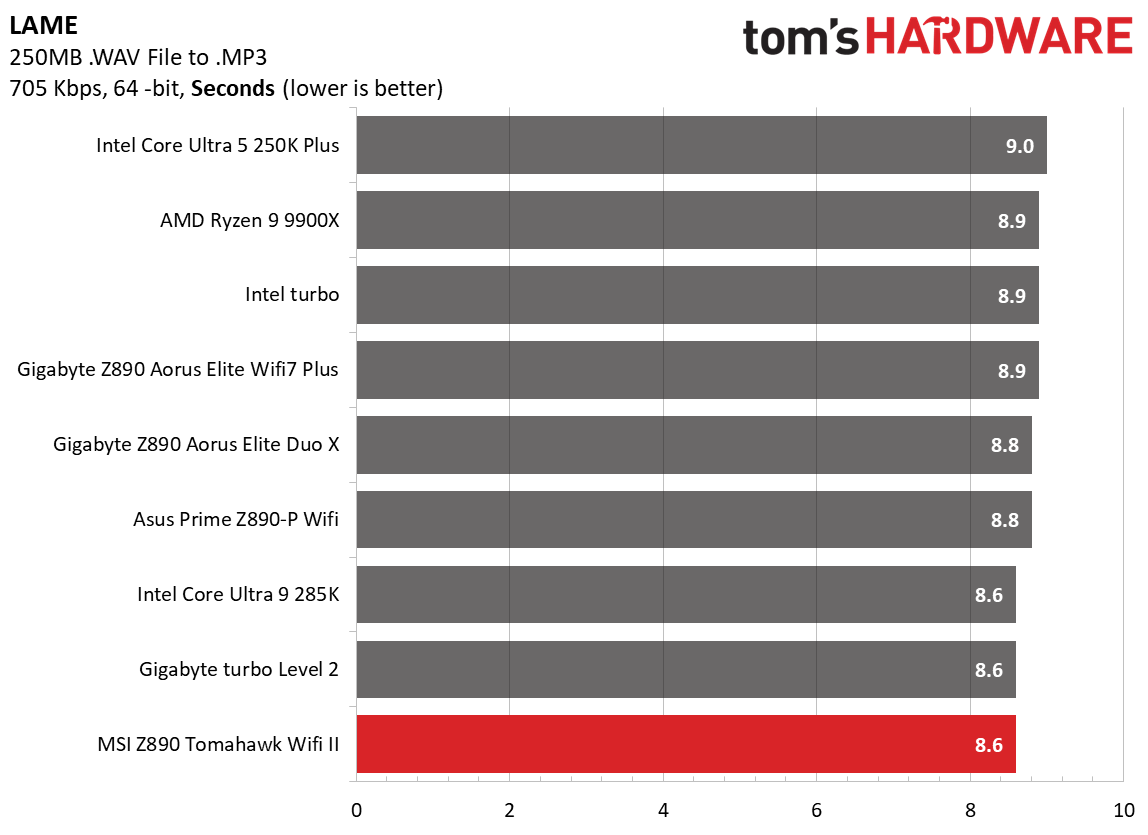
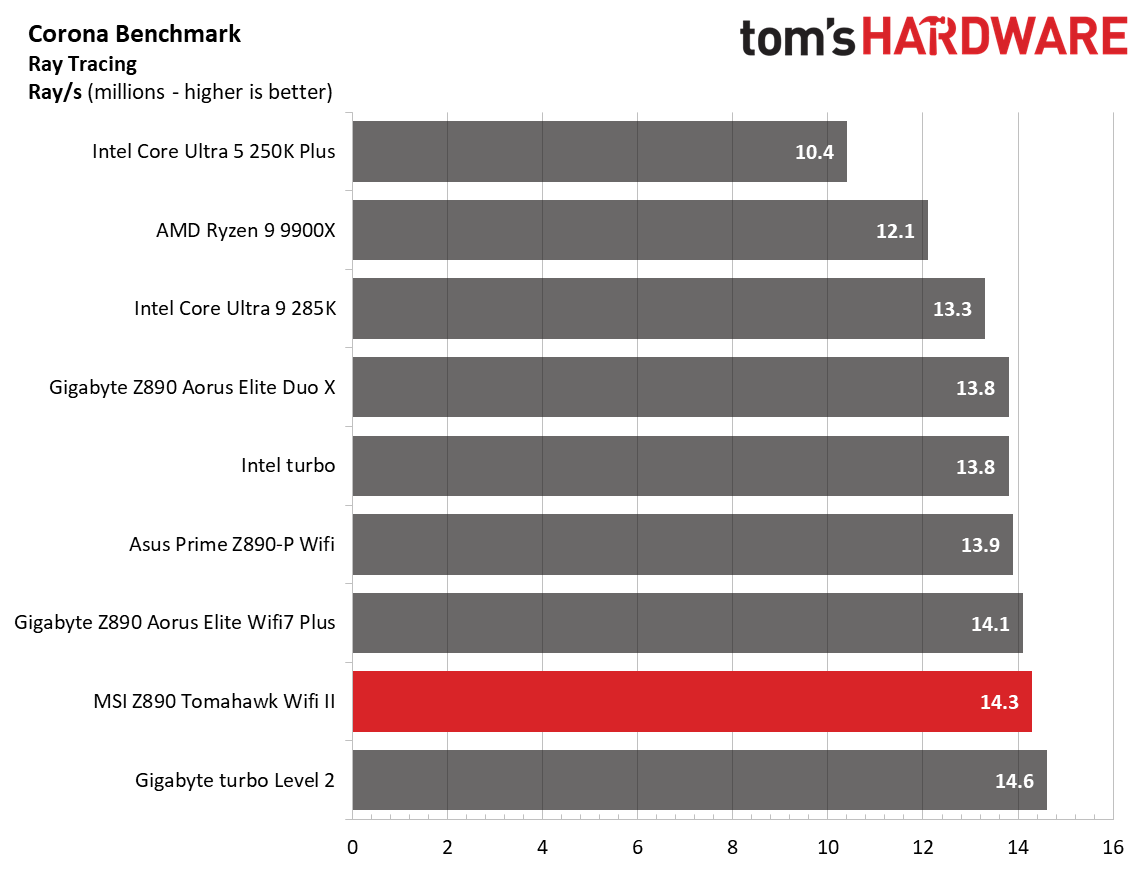
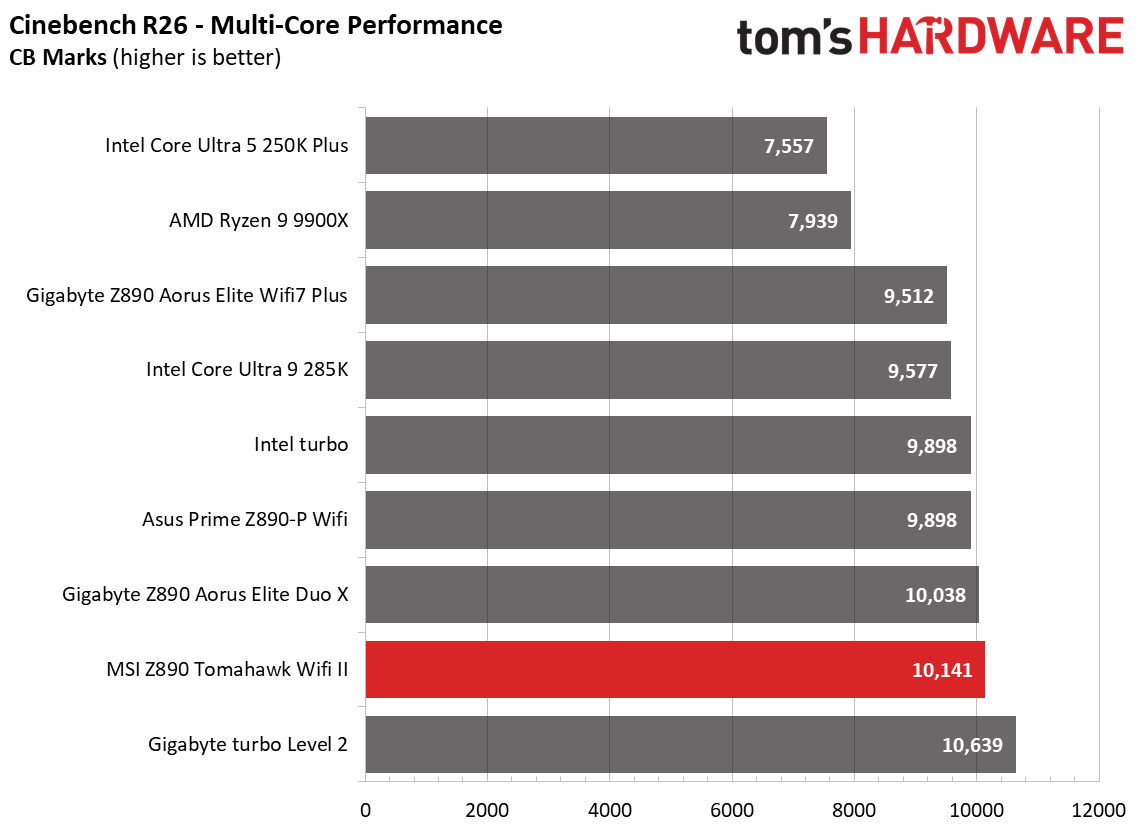
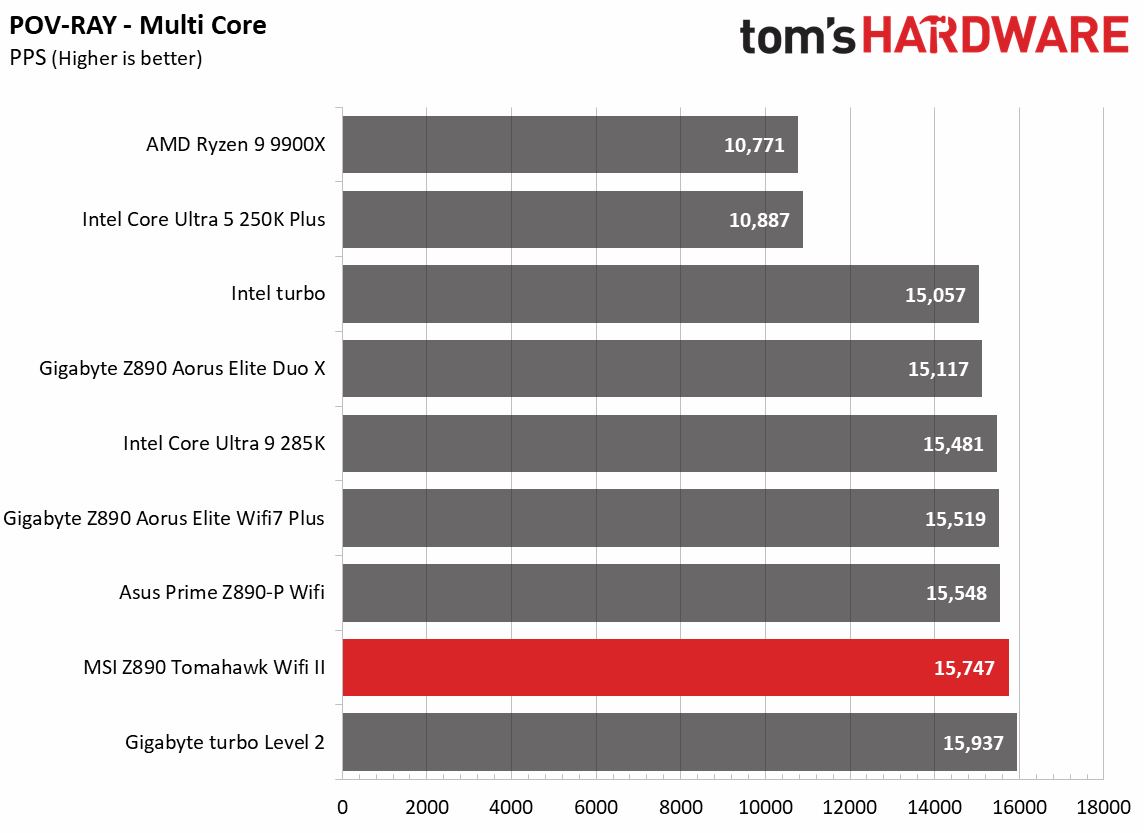
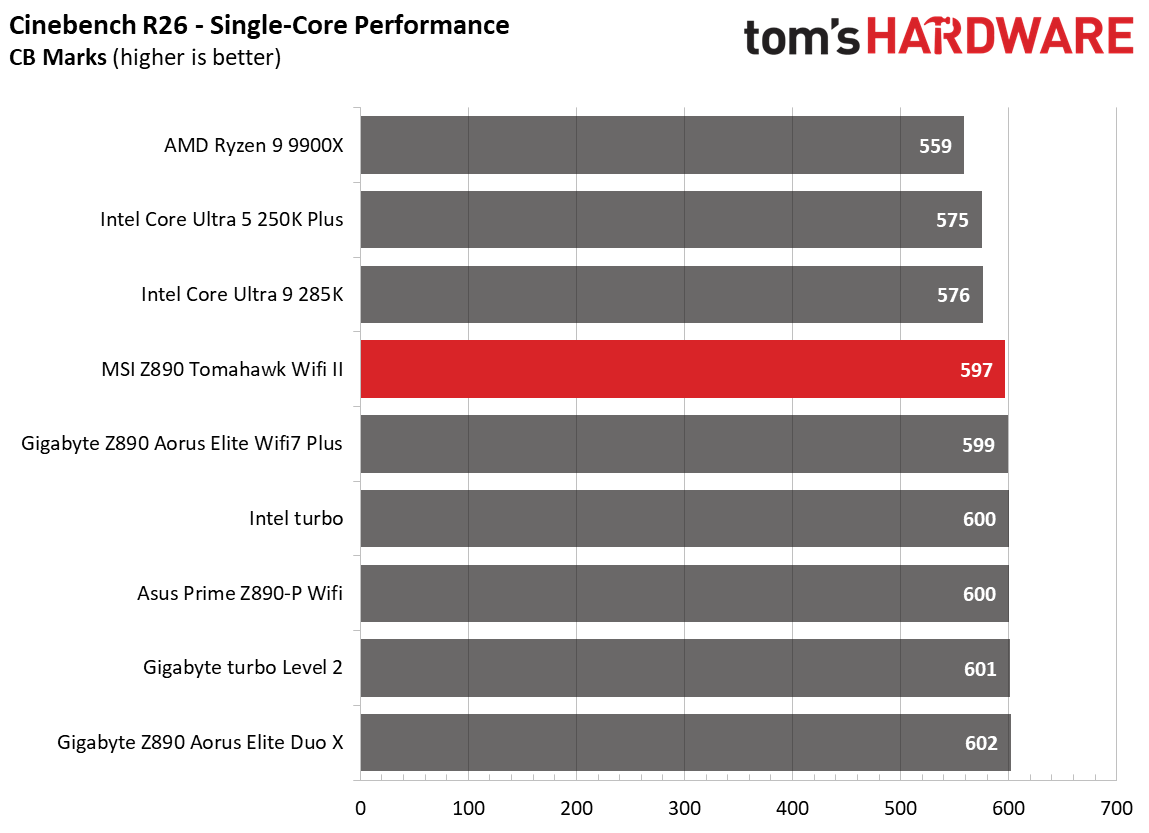
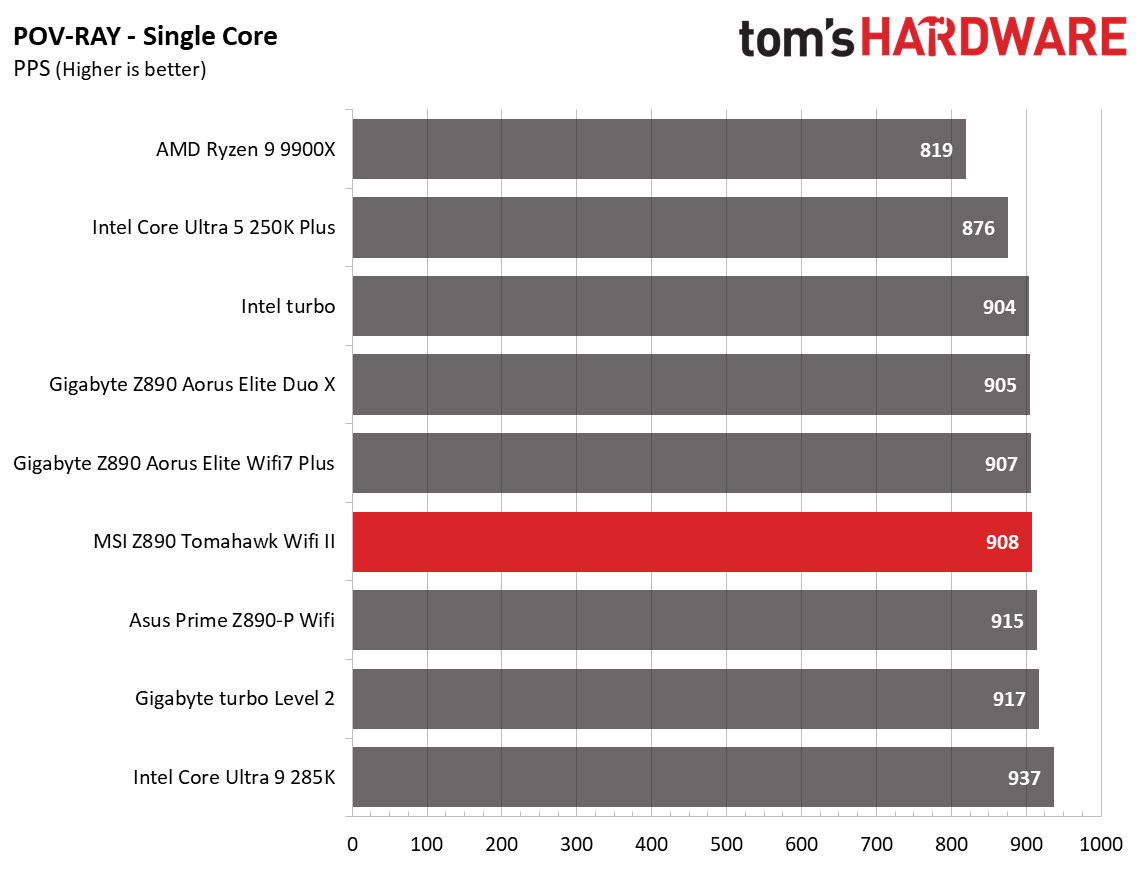
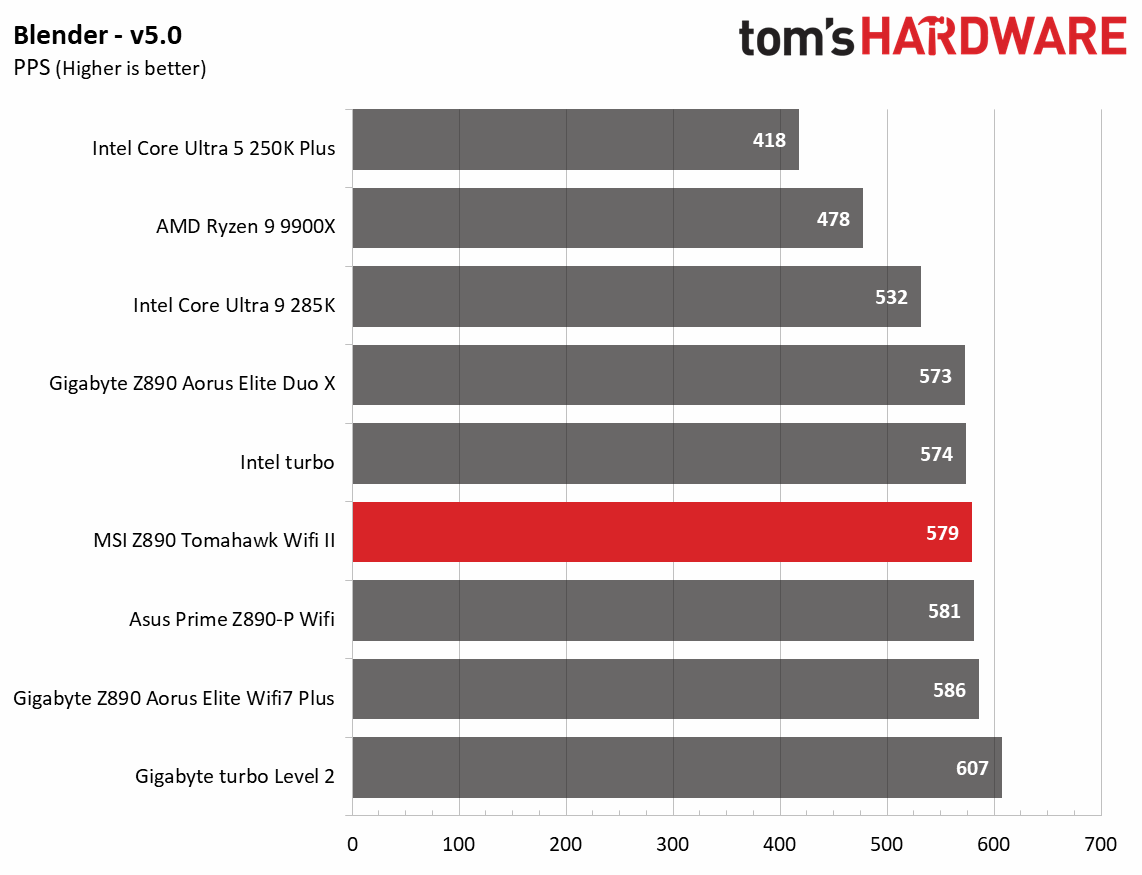
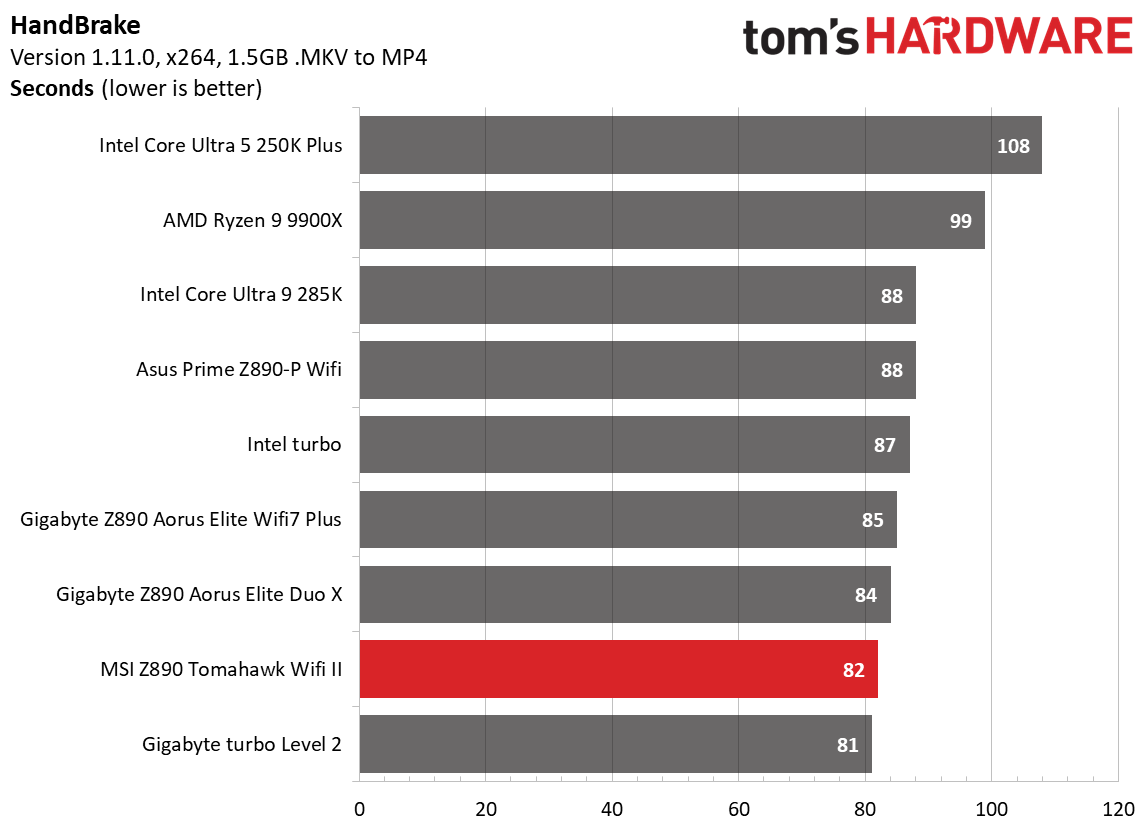
Performance on the Tomahawk Wifi II was average among the tested boards. Nothing really stood out either way in this set of benchmarks.

3D Games and 3DMark

MSI MAG Z890 Tomahawk Wifi II - Game benchmarks
Future
MSI MAG Z890 Tomahawk Wifi II - Game benchmarks
Future
MSI MAG Z890 Tomahawk Wifi II - Game benchmarks
Future
MSI MAG Z890 Tomahawk Wifi II - Game benchmarks
Future

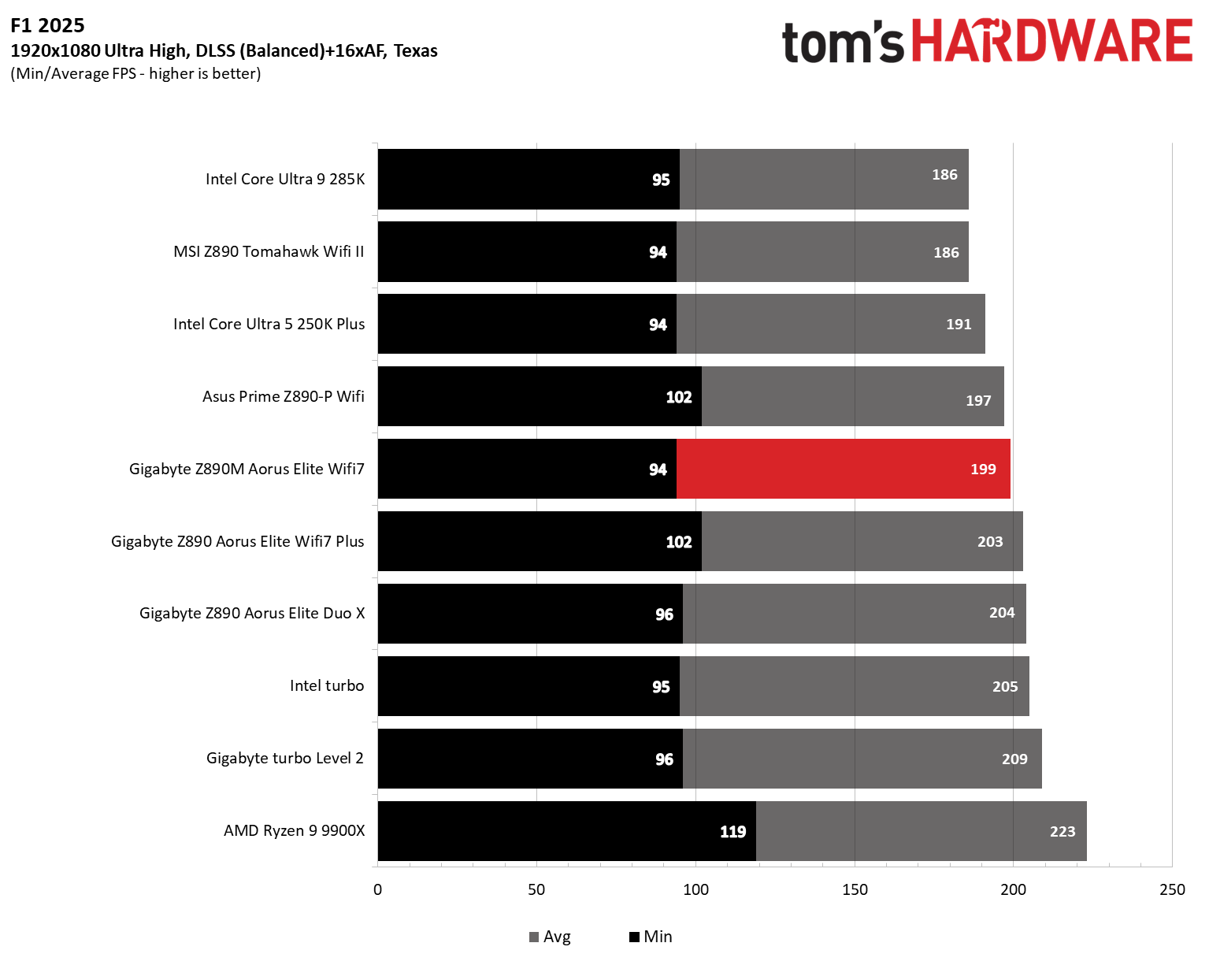
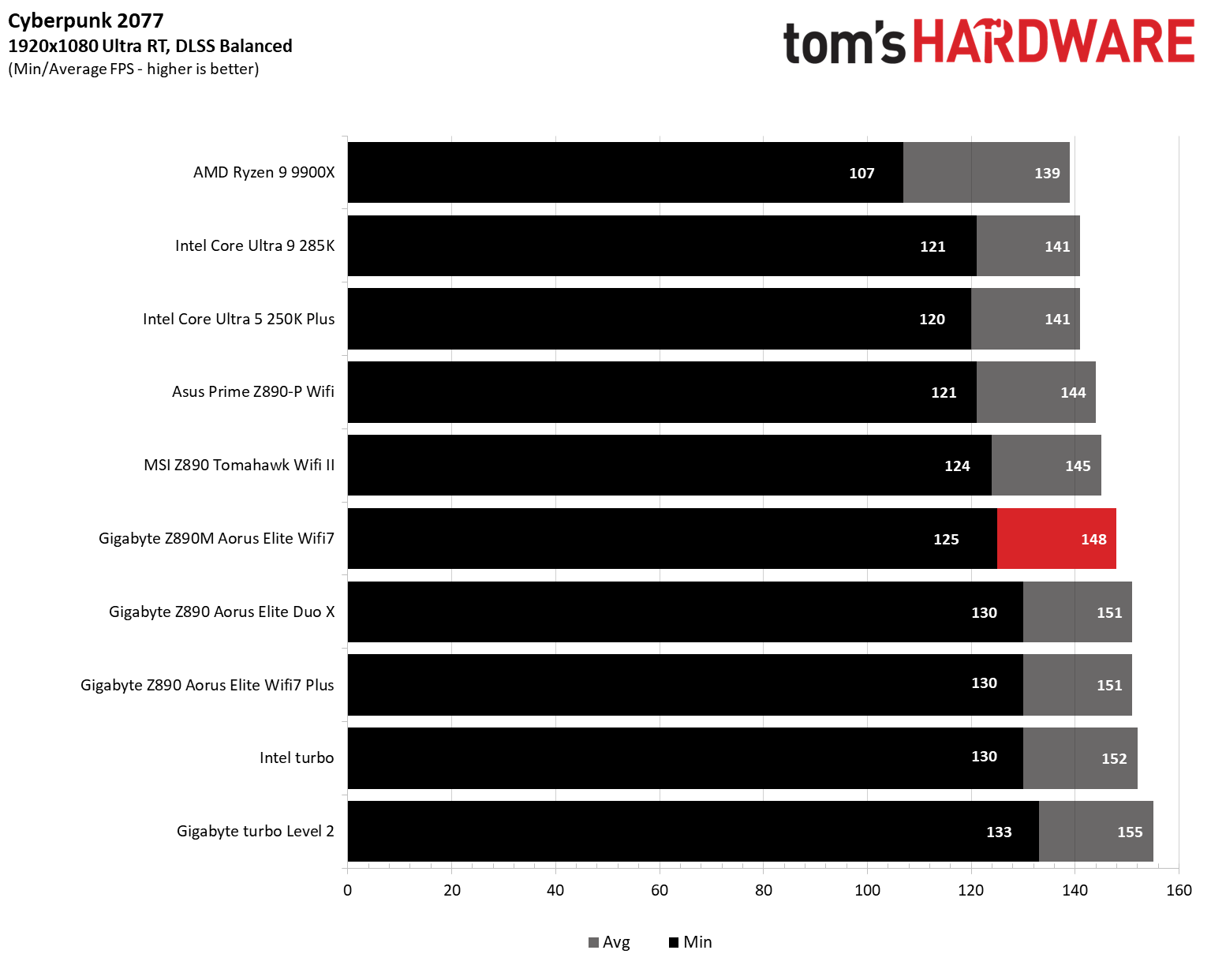
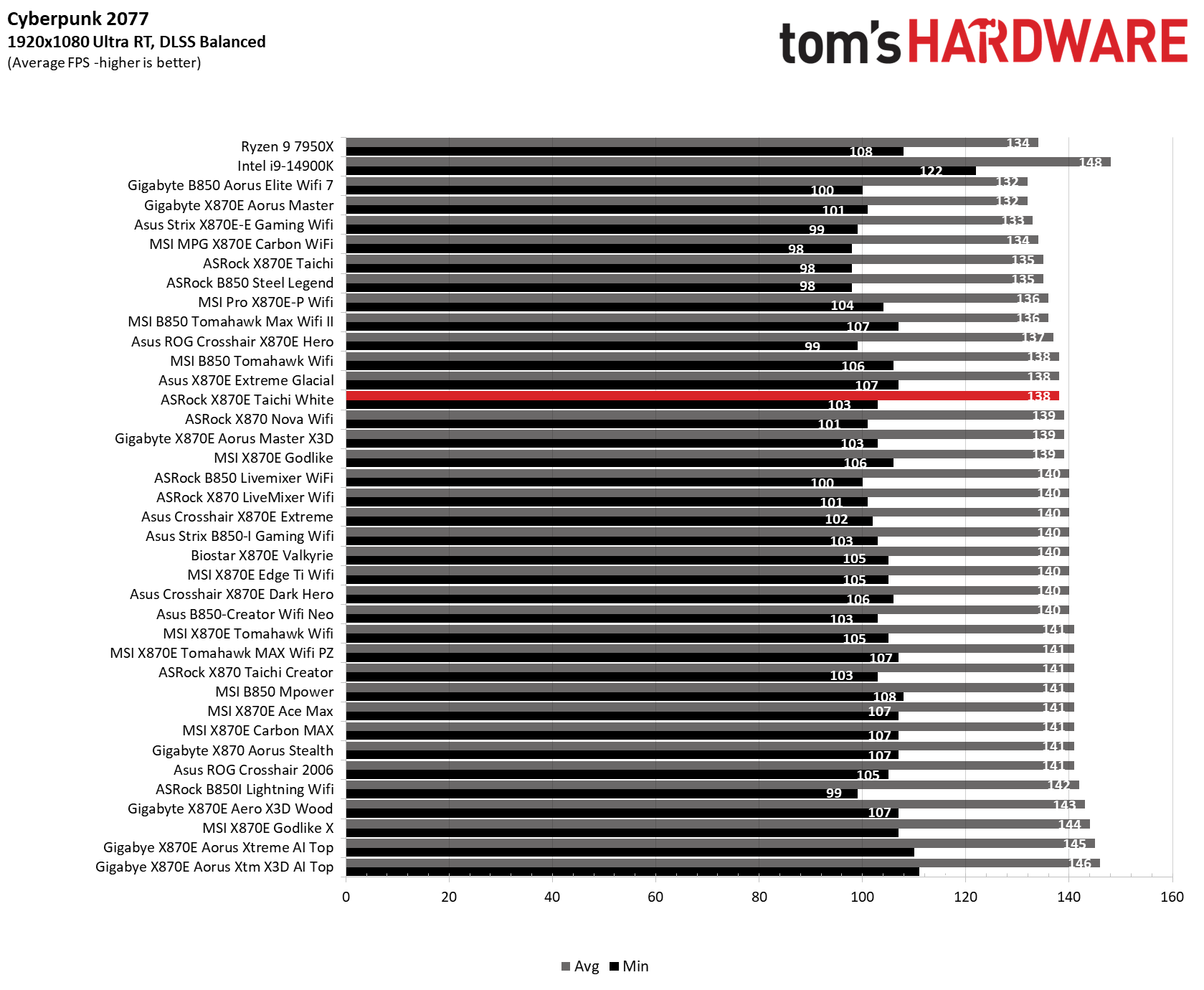
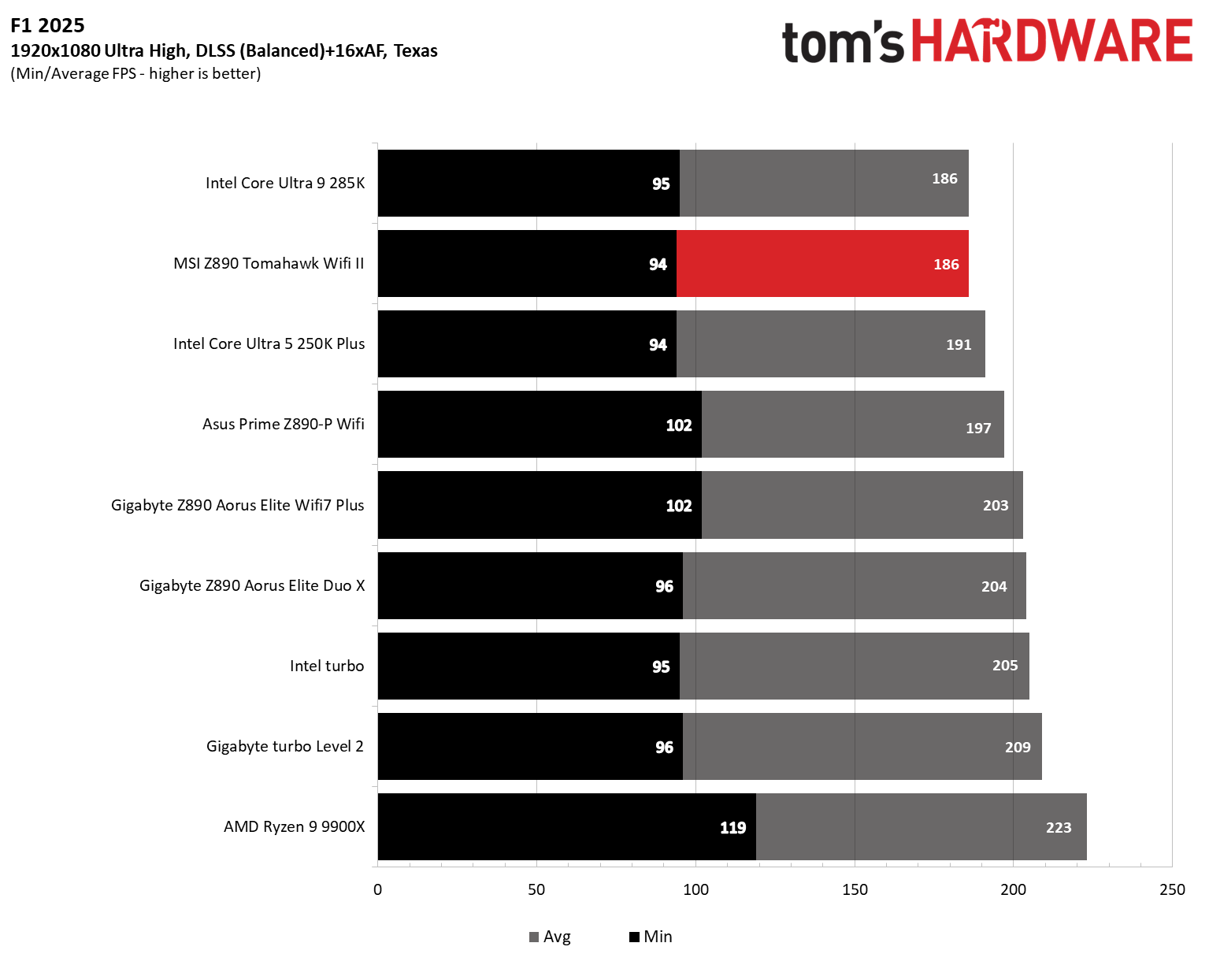
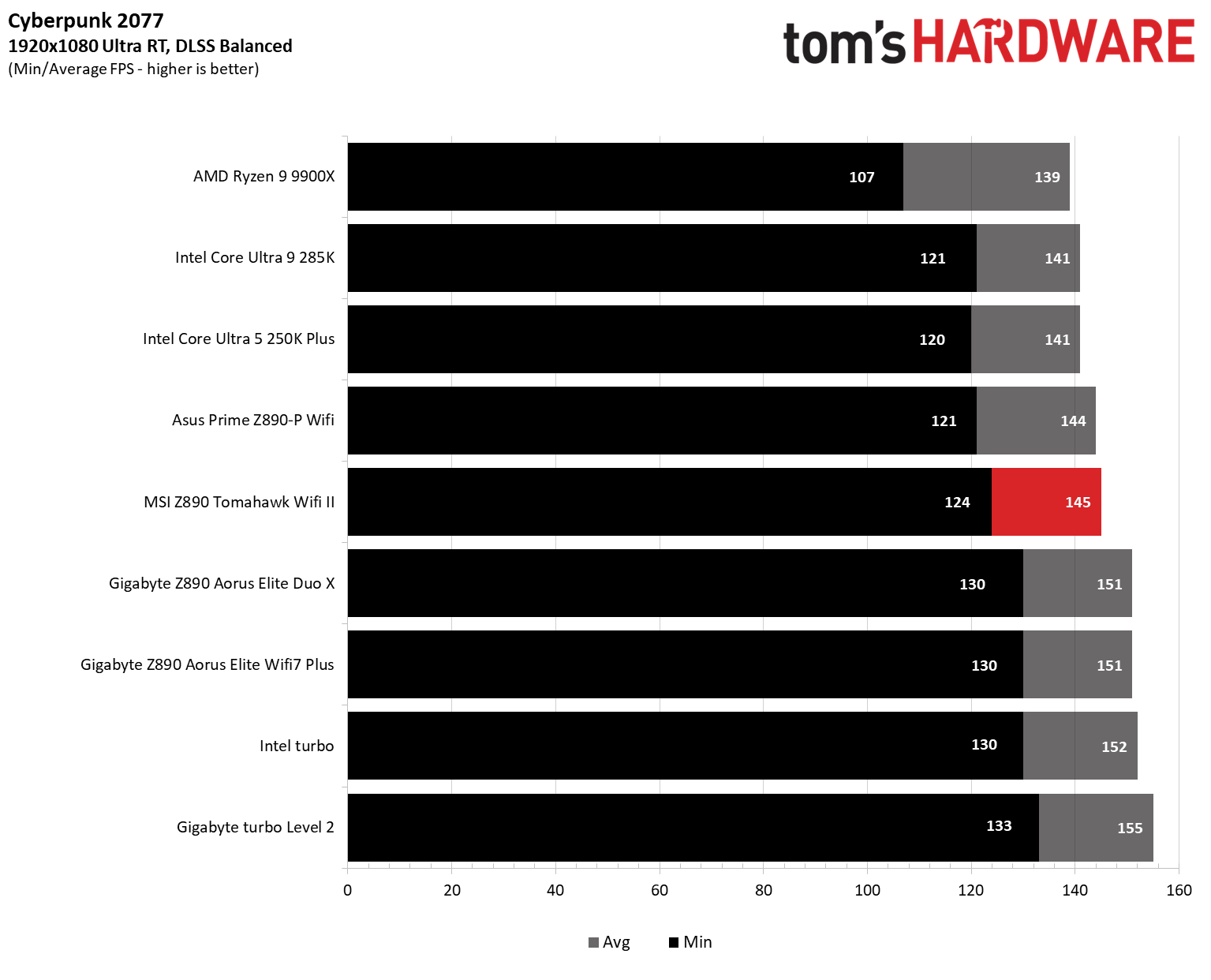
Starting with the launch of the Arrow Lake refresh chips, we’ve updated our game tests. We’re keeping the F1 racing game but have upgraded to F1 25. We’ll continue with the ever-popular and aesthetically pleasing Cyberpunk 2077. We run both games at 1920x1080 resolution using the Ultra preset (details listed in the table above). Both games are set to use DLSS.

The goal with these settings is to determine if there are differences in performance at the most commonly used (and CPU/system-bound) resolution with settings most people use or strive for (Ultra). We expect the difference between boards in these tests to be minor, with most falling within the margin of error. We’ve also added a minimum FPS metric, which can affect your gameplay and immersion.

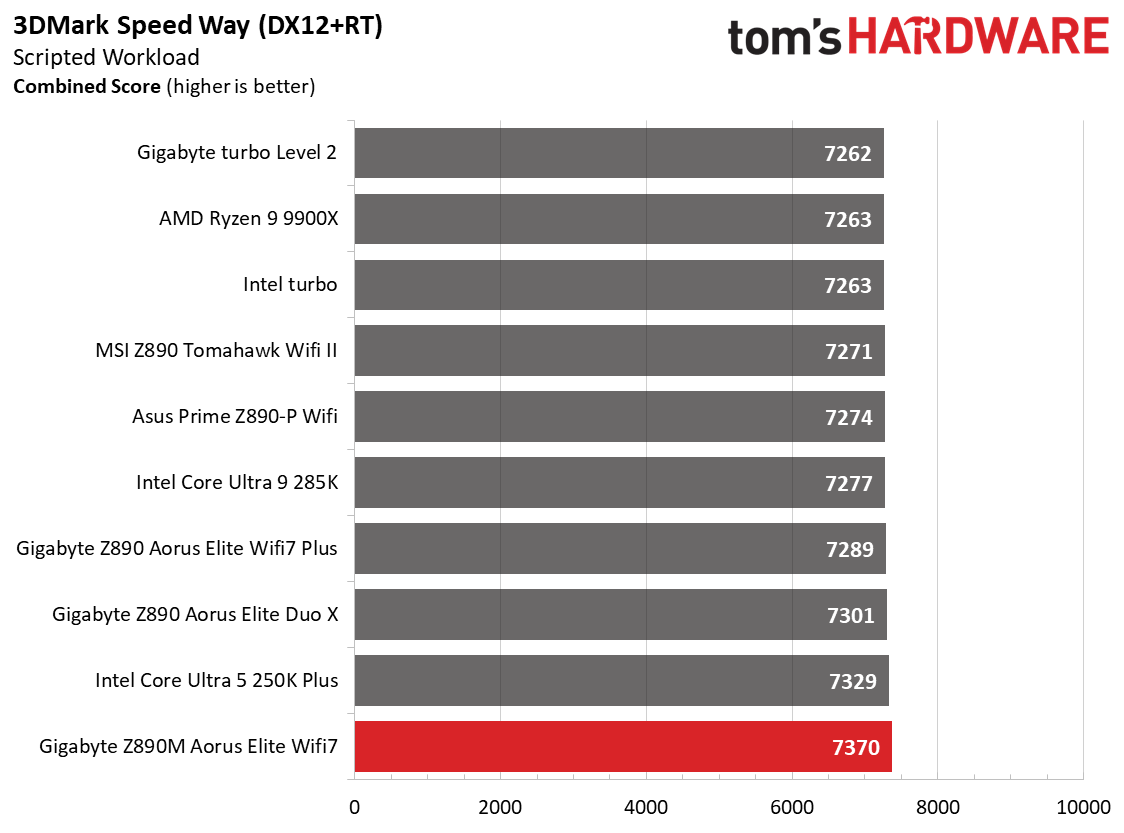
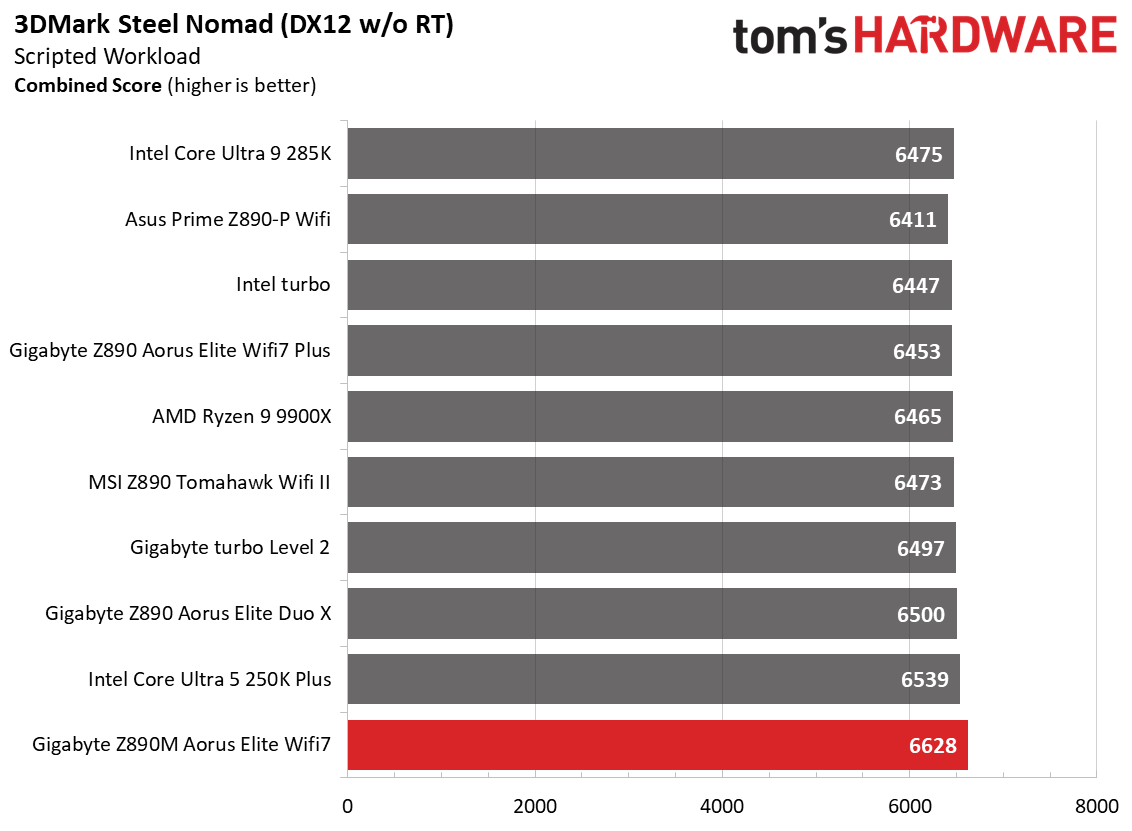
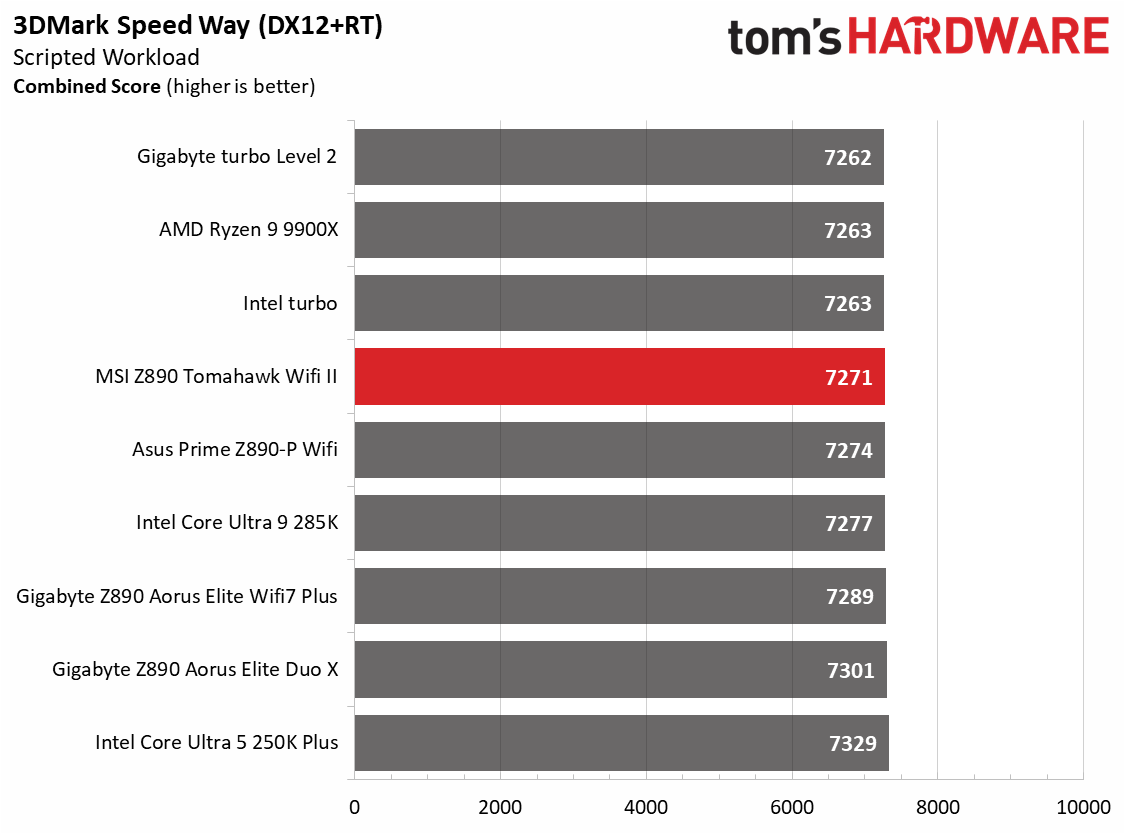
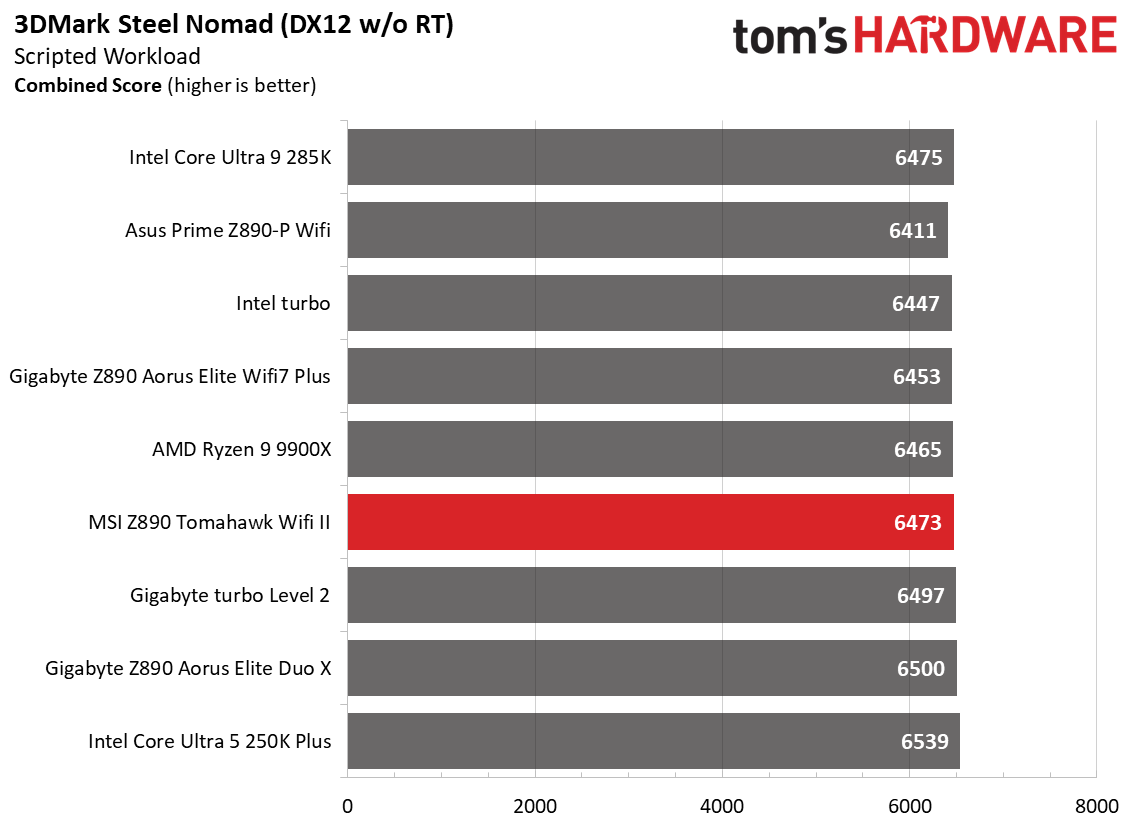
As has been the case with previous motherboards and CPUs, the 3DMark tests don’t show much separation from worst to first, and we see that again across our varied datasets. 3DMark scores were fine, and gaming results were also comparable, although F1 25 was a bit slower and matched the previous-gen 285K for some reason. Still, it’s a performant board, just like the others. Whether you’re using the machine for office productivity, rendering, encoding, or gaming, the results are on par with others.

Overclocking

Over the past few CPU generations, overclocking headroom has been shrinking on both sides of the fence, while out-of-the-box performance has increased. For overclockers, this means there’s less fun to have. For the average consumer, you’re getting the most out of the processor without manual tweaking. Today’s motherboards are more robust than ever, and an overwhelming majority support power-hungry flagship-class processors, so we know the hardware can handle them.

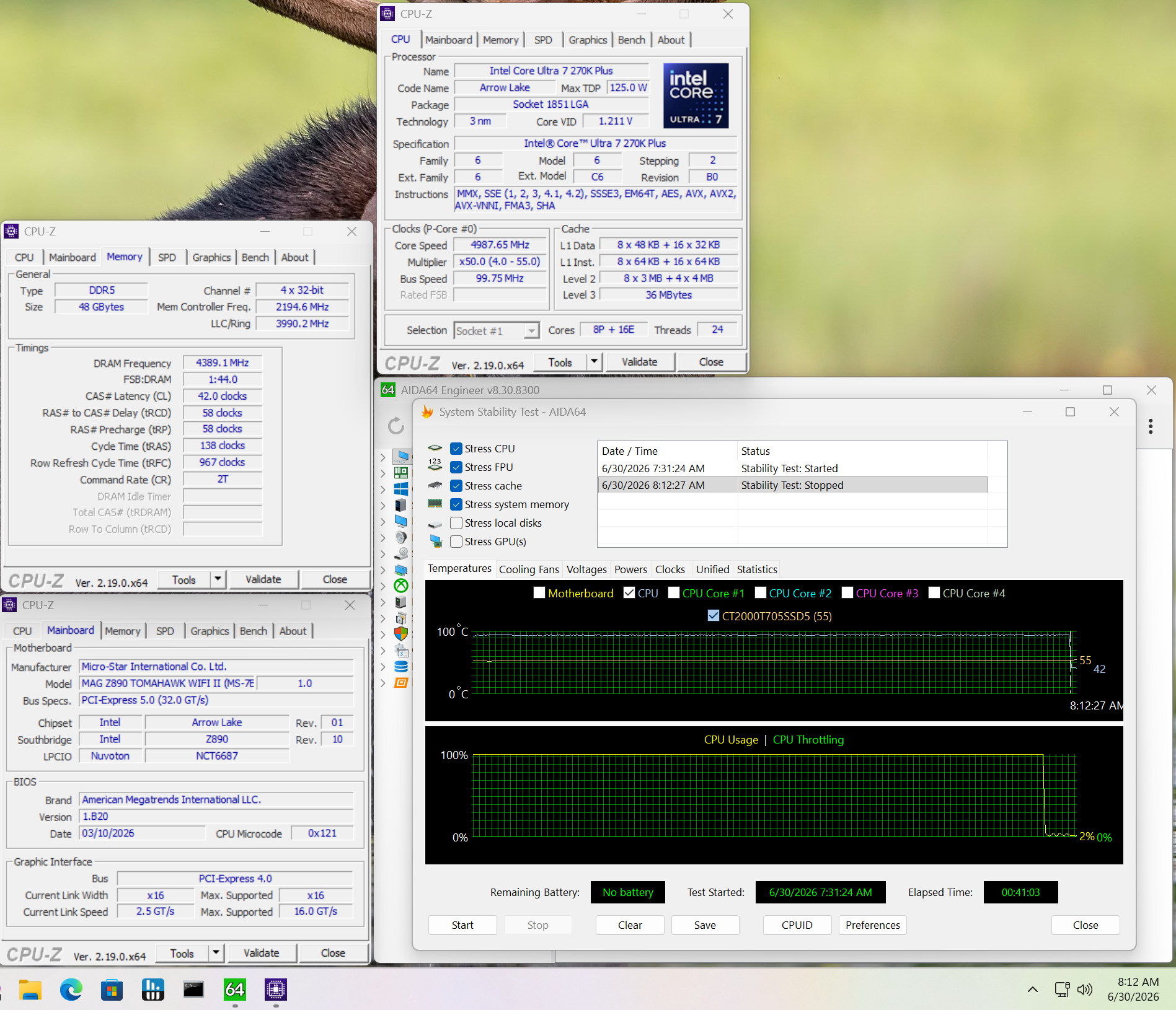
There are multiple ways to extract even more performance from these processors: manually adjust the settings or use some of the fancy AI overclocking board partners have been touting. Results will vary and depend on the CPU's cooling and quality. In other words, your mileage may vary. Considering the above, we’re not overclocking the CPU for these review articles. However, we will try out our different memory kits to ensure they meet the specifications.
MSI MAG Z890 Tomahawk Wifi II - Overclocking RAM
Future
MSI MAG Z890 Tomahawk Wifi II - Overclocking RAM
Future

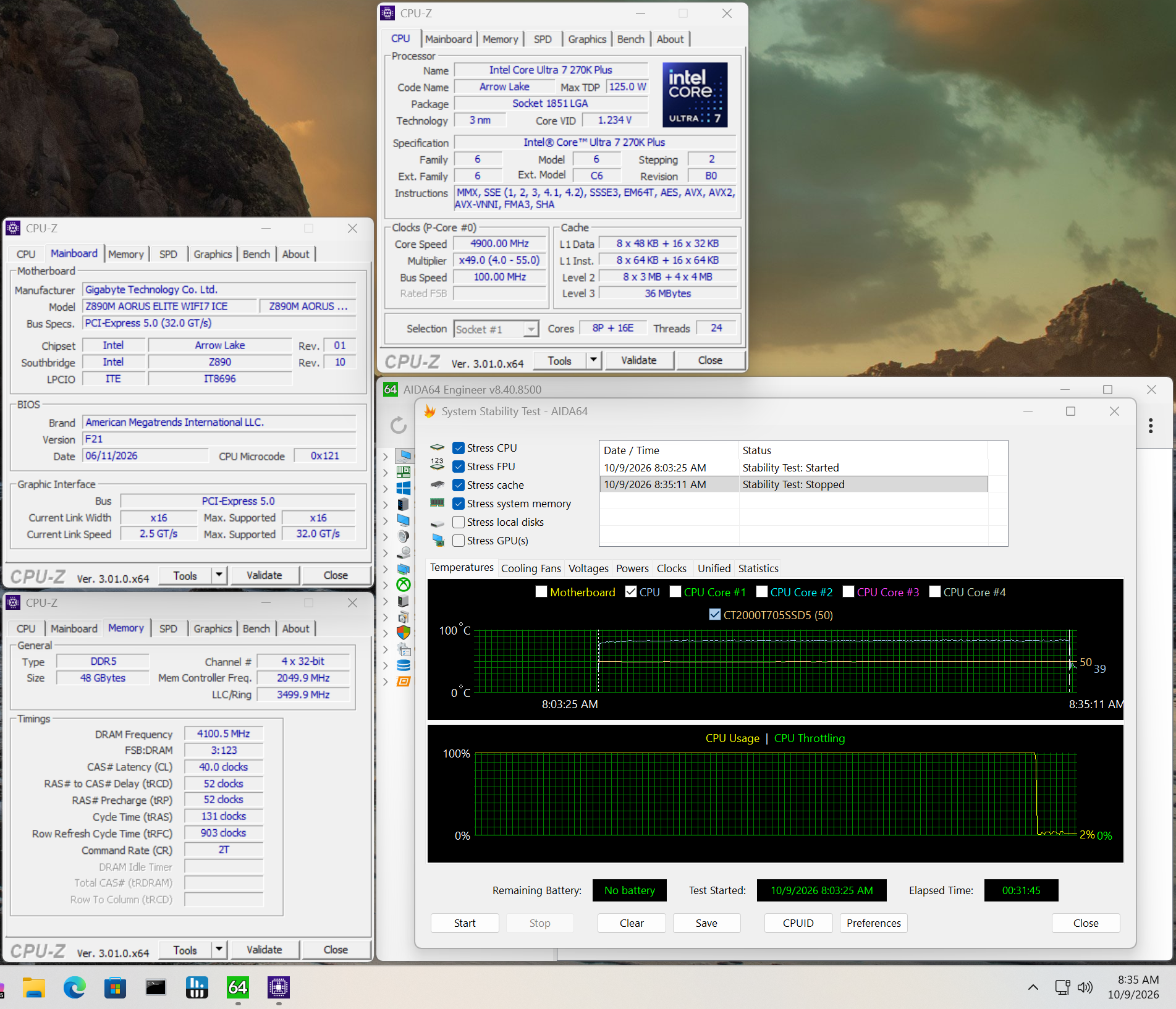
Memory testing went without issue. The board was stable with the DDR5-7600 kit, and we went all the way up to our (new) fastest kit, Kingston Fury Beast 48GB DDR5-8800, without issue during our 30-minute stress test.

Power Consumption / VRM Temperatures

MSI MAG Z890 Tomahawk Wifi II - Power Use

(Image credit: Future)

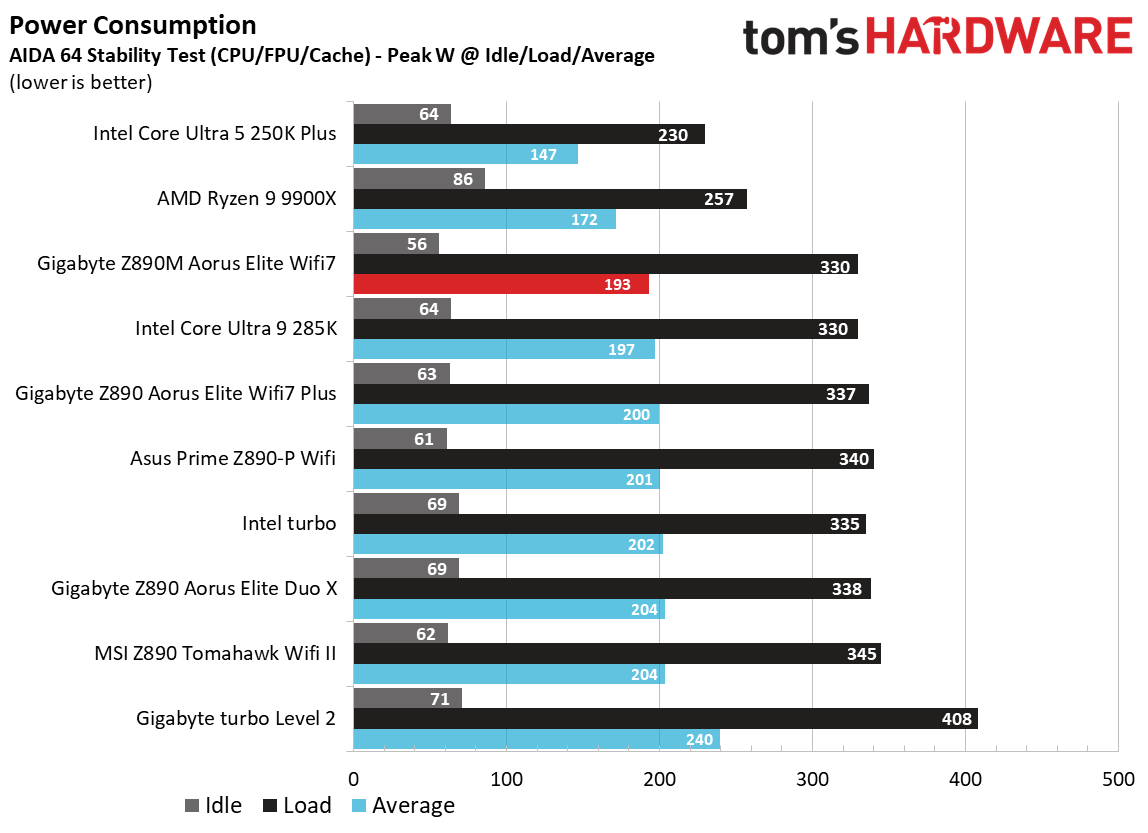
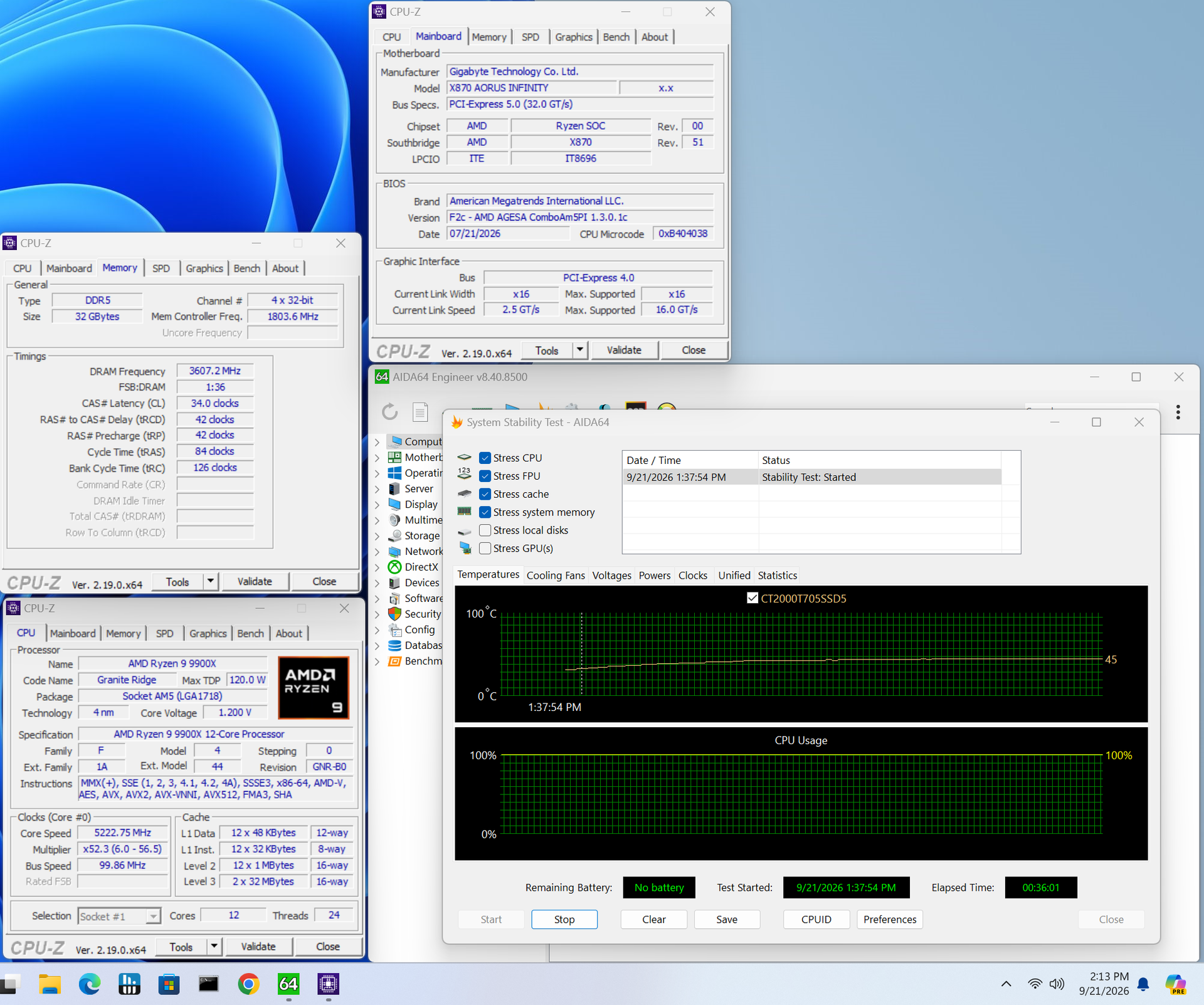
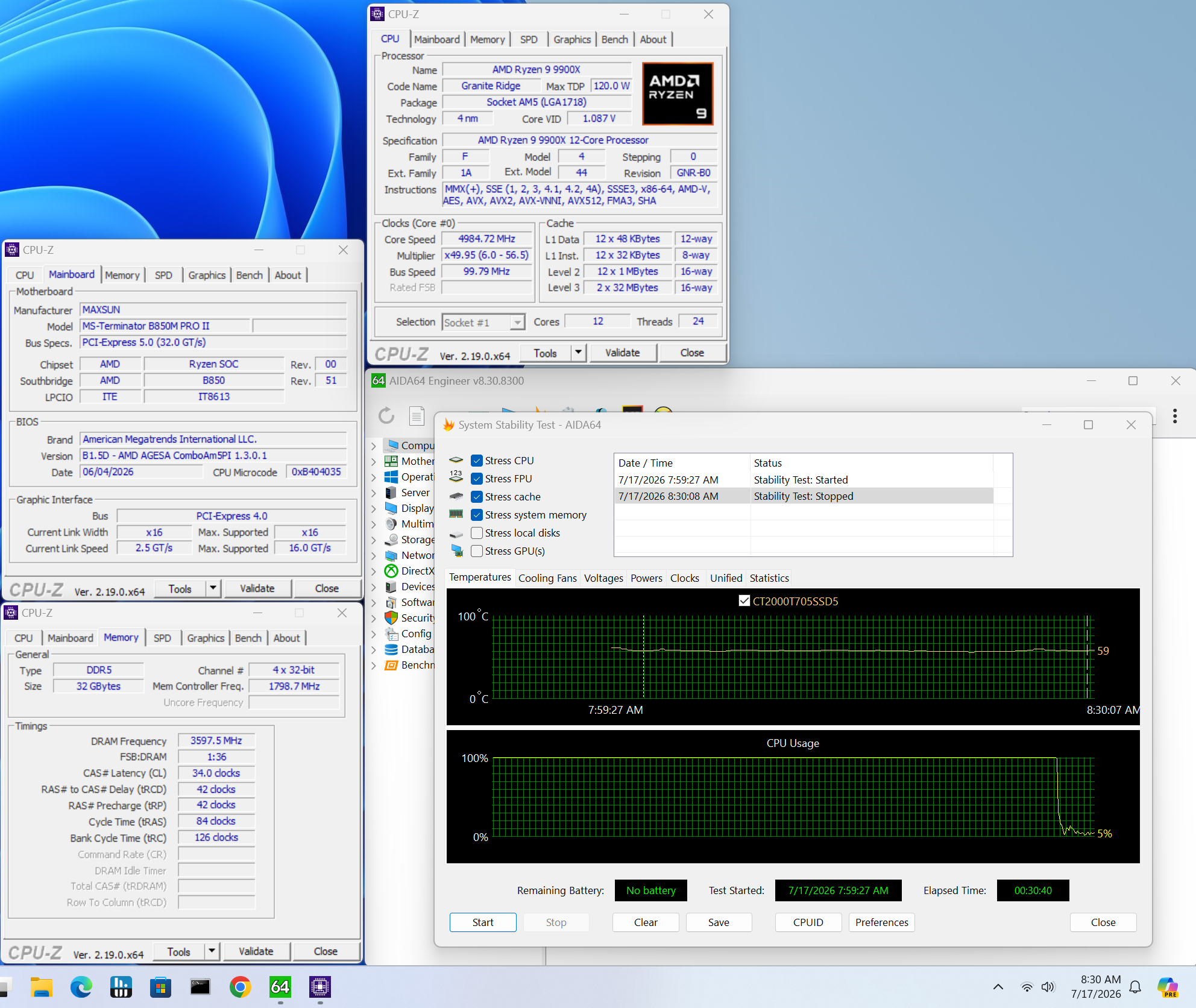
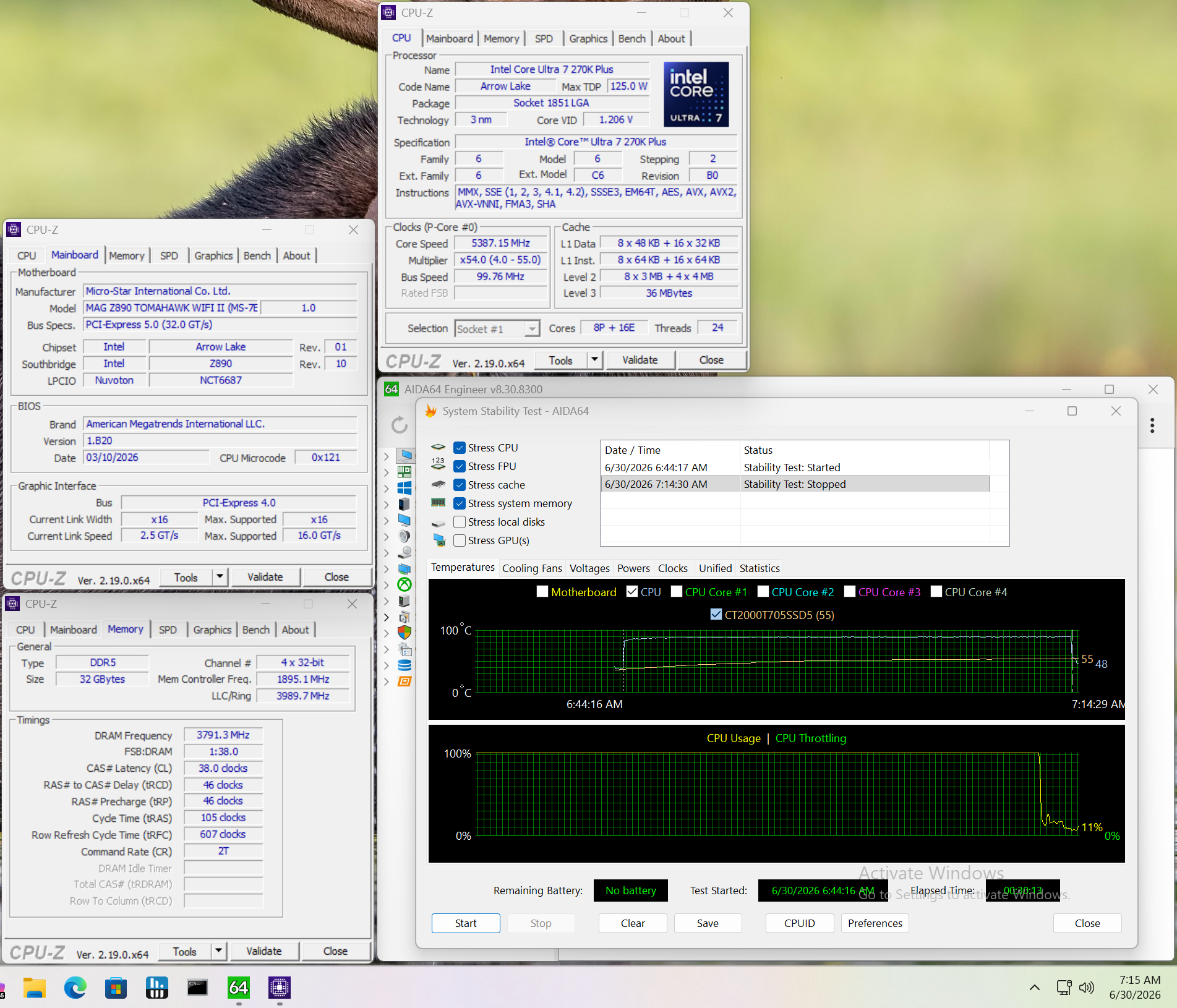
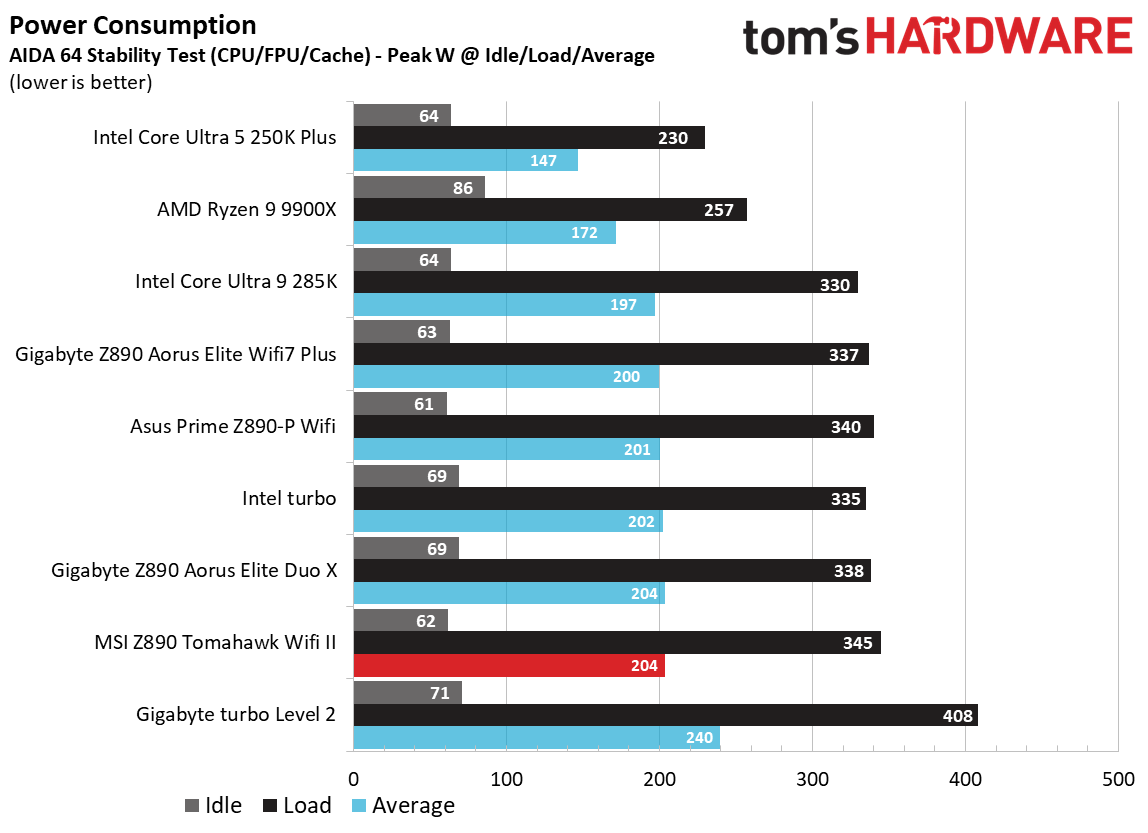
We used AIDA64’s System Stability Test with Stress CPU, FPU, cache, and Memory enabled for power testing, using the processor's peak power consumption value. The wattage reading is obtained from the wall via a Kill-A-Watt meter, capturing the entire PC (excluding the monitor). The only variable that changes is the motherboard; all other parts remain the same. We have moved to using only the stock power use/VRM temperature charts, as this section aims to ensure the power delivery can handle flagship-class processors.

Stress testing with our flagship-class 270K Plus and the Team Group DDR5-7600 kit at stock yielded a peak of 345W at the wall, which aligns with other boards. The Tomahawk II used 61W at idle. There’s nothing noteworthy, otherwise.

 MSI MAG Z890 Tomahawk Wifi II - VRM temps
Future
 MSI MAG Z890 Tomahawk Wifi II - VRM temps
Future

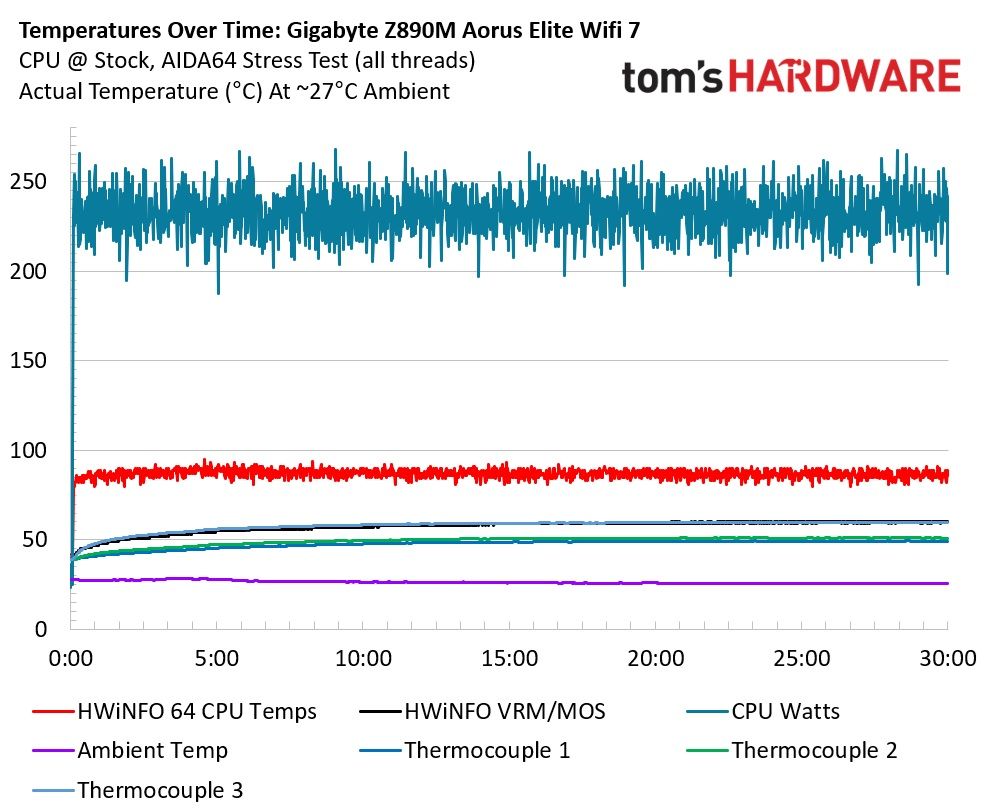
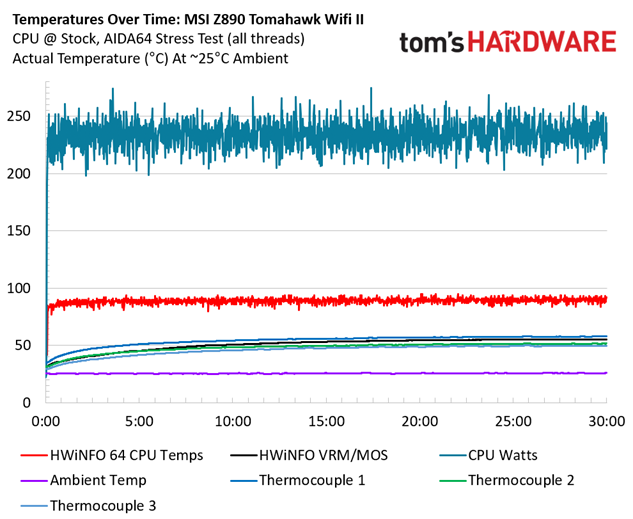
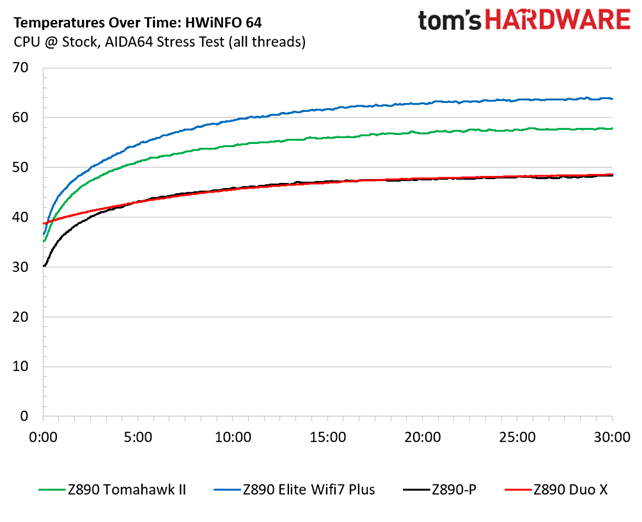
VRM temperatures ran warm, but are not a concern on this board. Throughout the 30-minute test, the system (excluding the monitor) averaged 233W, and our sensors on the back of the board, directly under the MOSFETs, recorded temperatures peaking at 58 degrees Celsius, while Hwinfo and the internal sensor showed temperatures peaking a couple of degrees lower at 56 degrees Celsius. That value is well within specification for the MOSFETs doing all the work below. We’re confident that the power delivery can handle anything you throw at it. Chances are, the CPU temperature will limit you before the board does, but always maintain good airflow to keep temperatures down.

Bottom Line

The Z890 Tomahawk II is an interesting new iteration compared to the original. For all intents and purposes, it’s the same board with native Core Ultra 200S Plus support. However, the II moves away from the Killer-based 320MHz Wi-Fi 7 to the slower (less expensive?) Intel/Mediatek Wi-Fi 7 solution and moves to a single TB4/40 Gbps Type-C port. The Wi-Fi speed is something most can overlook, as few have a Wi-Fi 7 ecosystem in the first place. And, again, for the overwhelming majority, it’s fast enough and supports plenty of concurrent connections. I still would like to see the second Thunderbolt port, though. Most users don’t have two devices that can each utilize 40 Gbps bandwidth, either. So while this likely doesn’t affect many, it’s still a small step back from the original – only a problem if you’re one of the few who need it.

Currently (at the time we published the article) priced at $229.99 (was just on sale for $199.99, so keep an eye out!) on Newegg, it’s on shelves alongside the Asus Prime Z890-P ($229.99 and recently reviewed), Gigabyte’s Z890 Gaming X Wifi7 ($219.00), and the ASRock Z890 Lighting Wifi at $211.99. If we look at the specs of competitors at a similar price point, we see that the Tomahawk II is similarly equipped, if not better. It’s the only one with 5 GbE, and all of these have one Thunderbolt 4/40 Gbps port. The Wi-Fi, you ask? These boards have a mix of Wi-Fi 6E and the even faster Wi-Fi 7.

So while we’re disappointed the Z890 Tomahawk II took a step back in some areas (one of the only reasons it didn’t make our best motherboards list), it isn't effectively any different than the more expensive competition. At the current sub-$230 price point, it doesn’t stand out from most others, and the original is still available for $229.99. If you need faster Wi-Fi 7 and an additional Thunderbolt/40 Gbps port, stick with the original Tomahawk. If you don’t need those features, the Tomahawk II is the preferred option if you can find it cheaper than the original Z890 Tomahawk.

MORE: Best Motherboards

MORE: How To Choose A Motherboard

MORE: Best Motherboard Deals

MORE: Best Motherboard Combo Deals

MORE: All Motherboard Content

Asus B850-Creator Wifi Neo motherboard review: AM5 Creator mobo looks the part, but is missing useful features

2026年7月2日 21:00

Asus’ B850-Creator Wifi Neo motherboard is designed to serve the creator community (think 3D modeling and rendering, animation, and other media production). This community tends to use a lot of bandwidth, particularly for storage when you’re dealing with large files, either via physical connections to external drives (think USB-C) or via a NAS over Ethernet. With that, Creator boards tend to focus on faster networking, storage, and USB ports to speed up workflows.

The B850-Creator Neo is a ProArt-class board for creators that tries to serve that niche, offering dual 5 GbE ports and two PCIe 5.0 x4 M.2 sockets, neither of which is often found on a $299.99 motherboard. However, it doesn’t have any USB4/40 Gbps ports for connecting external storage (unlike the more expensive X870E-Creator Wifi), so any work that requires speed from your storage will have to come from the internal connections.

Outside of that, the X850-Creator Wifi Neo has enough ports and sockets to keep most budget users happy. On top of the 160 MHz Wi-Fi 7 and dual 5 GbE ports, you get eight total USB ports, though only six Type-A ports will leave some wanting. You also get three M.2 sockets (two PCIe 5.0) and a solid last-gen flagship-class audio codec. If you need more USB ports, you can use one of the two extra PCIe expansion slots for more, and even faster ports. Aside from the hardware specifications, the ProArt uses a clean, professional design with a black PCB and black heatsinks, along with metallic gold accents that spell out the ProArt branding on the VRM heatsinks.

Performance testing went as expected and was quite similar to most other boards we tested. Overall, it performed well across most of our benchmark suite. It was competent at gaming and also above average at most tests, including rendering (as we’ll see in detail later), so there's nothing to worry about in terms of performance, no matter how you want to use this motherboard.

Below, we’ll examine the B850-Creator Neo’s performance and other features, although as you have probably guessed from the score above, it won't make it to our list of the best motherboards. But before we share test results and discuss details, here are the specifications from Asus’ website:

Specifications of the Creator Wifi Neo

Socket

AM5 (LGA 1718)

Chipset

B850

Form Factor

ATX

Voltage Regulator

17 Phase (14x 80A DrMOS MOSFETs for Vcore)

Video Ports

(1) DisplayPort
(1) HDMI (v2.1)
(1) USB-C (DP Alt Mode)

USB Ports

(2) USB 3.2 Gen 2 (10 Gbps) Type-C
(2) USB 3.2 Gen 2 (10 Gbps)

(4) USB 2.0 (480 Mbps)

Network Jacks

(2) 5 GbE

Audio Jacks

(2) Analog

Legacy Ports/Jacks

Other Ports/Jack

PCIe x16

(2) v5.0 (x16, x8/x8)
(1) v 4.0 (x4)

PCIe x8

PCIe x4

PCIe x1

(1) v 4.0 (x1)

CrossFire/SLI

DIMM Slots

(4) DDR5-8400(OC), 256GB Capacity
8600+ MT/s w/ Ryen 8000 Series

M.2 Sockets

(2) PCIe 5.0 x4 (128 Gbps) / PCIe (up to 110/80mm)
(1) PCIe 4.0 x4 (64 Gbps) / PCIe (up to 80mm)
Supports RAID 0/1/5/10

SATA Ports

(4) SATA3 6 Gbps
Supports RAID 0/1/5/10

USB Headers

(1) USB v3.2 Gen 2x2 (20 Gbps) Type-C (up to 30W PD/QC4+)
(1) USB v3.2 Gen 2 (5 Gbps)
(2) USB v2.0 (480 Mbps)

Fan/Pump Headers

(7) 4-Pin (Accepts PWM and DC)

RGB Headers

(3) 3-pin ARGB Gen2 headers

Diagnostics Panel

(1) EZ Debug LED

Internal Button/Switch

SATA Controllers

Ethernet Controller(s)

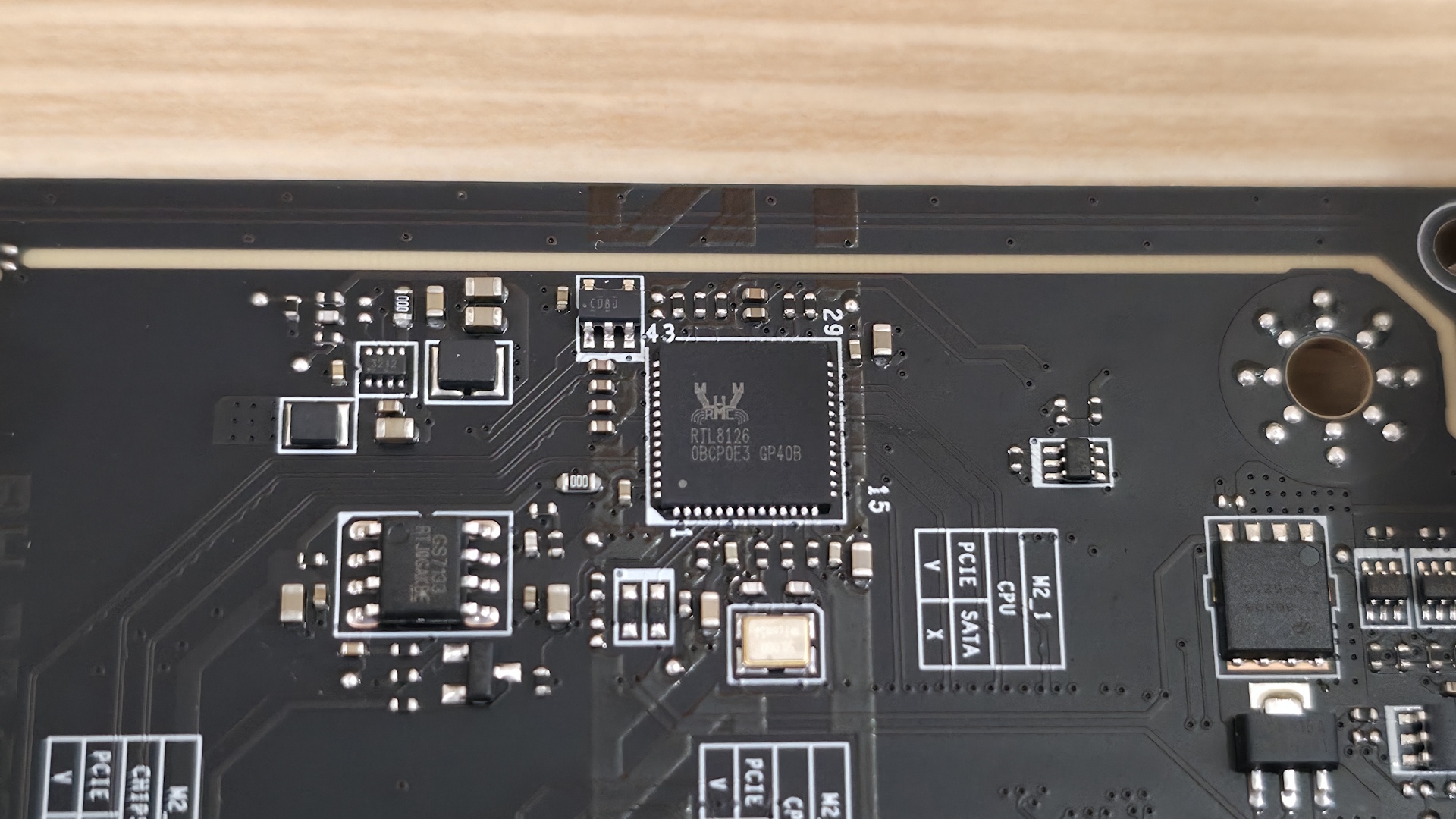
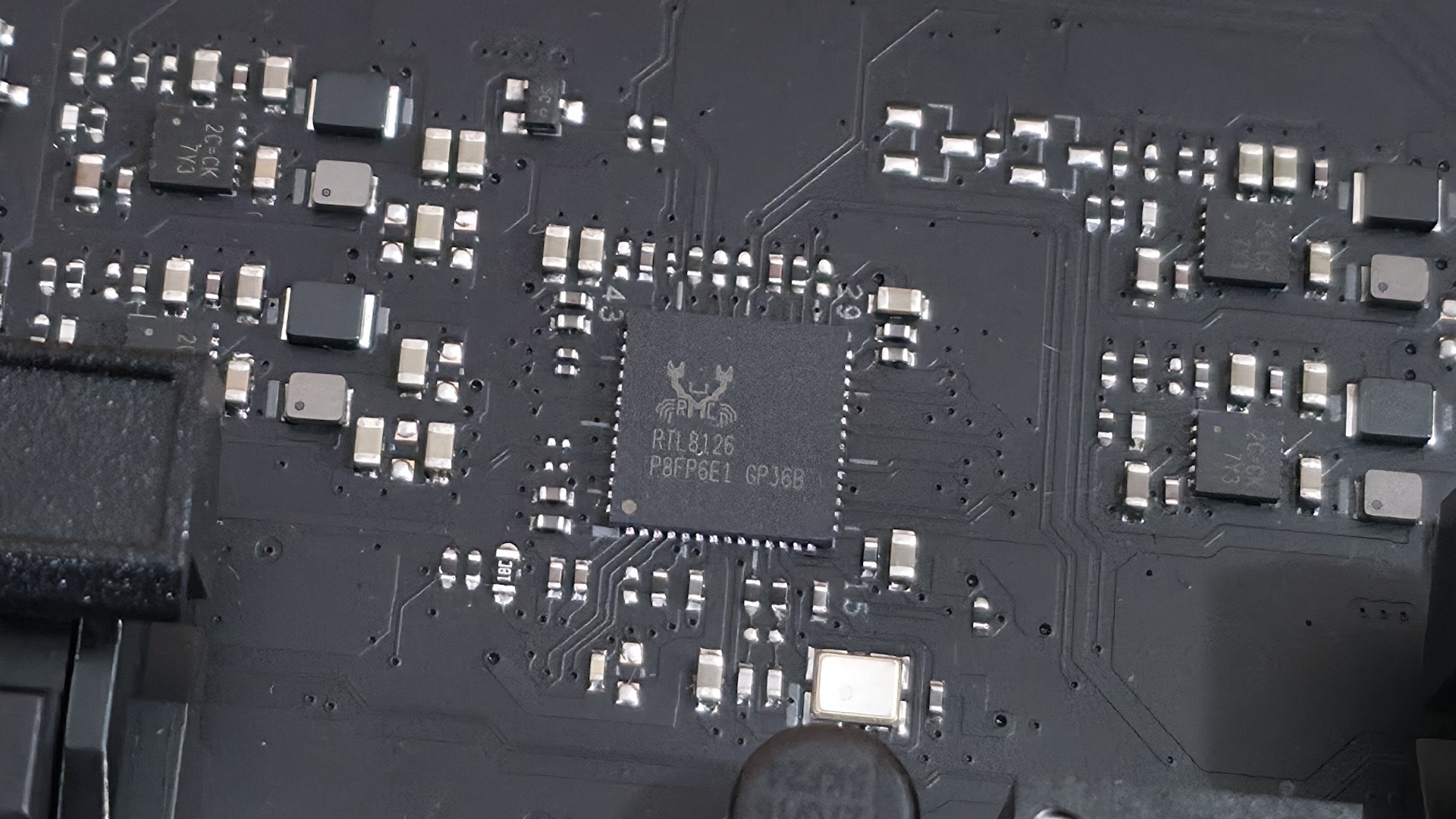
(2) Realtek 8126 (5 GbE)

Wi-Fi / Bluetooth

Realtek 5922AE Wi-Fi 7 - 160 MHz, 6 GHz, 5.8 GHz, BT 5.4

USB Controllers

HD Audio Codec

Realtek ALC1220P

DDL/DTS

✗ / ✗

Warranty

3 Years

Inside the Box

Asus includes a few accessories to get you started, including the typical collection of cables, antennas, and guides, but not much else, as is typical for this class of motherboard. We’ve listed the accessories inside the box below:

  • (4) SATA 6Gb/s cables
  • Thermal pad for M.2 22110
  • ASUS WiFi Q-Antenna
  • Q-connector
  • (3) M.2 Q-Slide package
  • (5) M.2 backplate rubber packages
  • ROG stickers
  • ROG screwdriver
  • Quick start guide

Design of the Creator Neo

Asus B850-Creator Wifi Neo - board images
Future
Asus B850-Creator Wifi Neo - board images
Future
Asus B850-Creator Wifi Neo - board images
Future
Asus B850-Creator Wifi Neo - board images
Future
Asus B850-Creator Wifi Neo - board images
Future
Asus B850-Creator Wifi Neo - board images
Future
Asus B850-Creator Wifi Neo - board images
Future

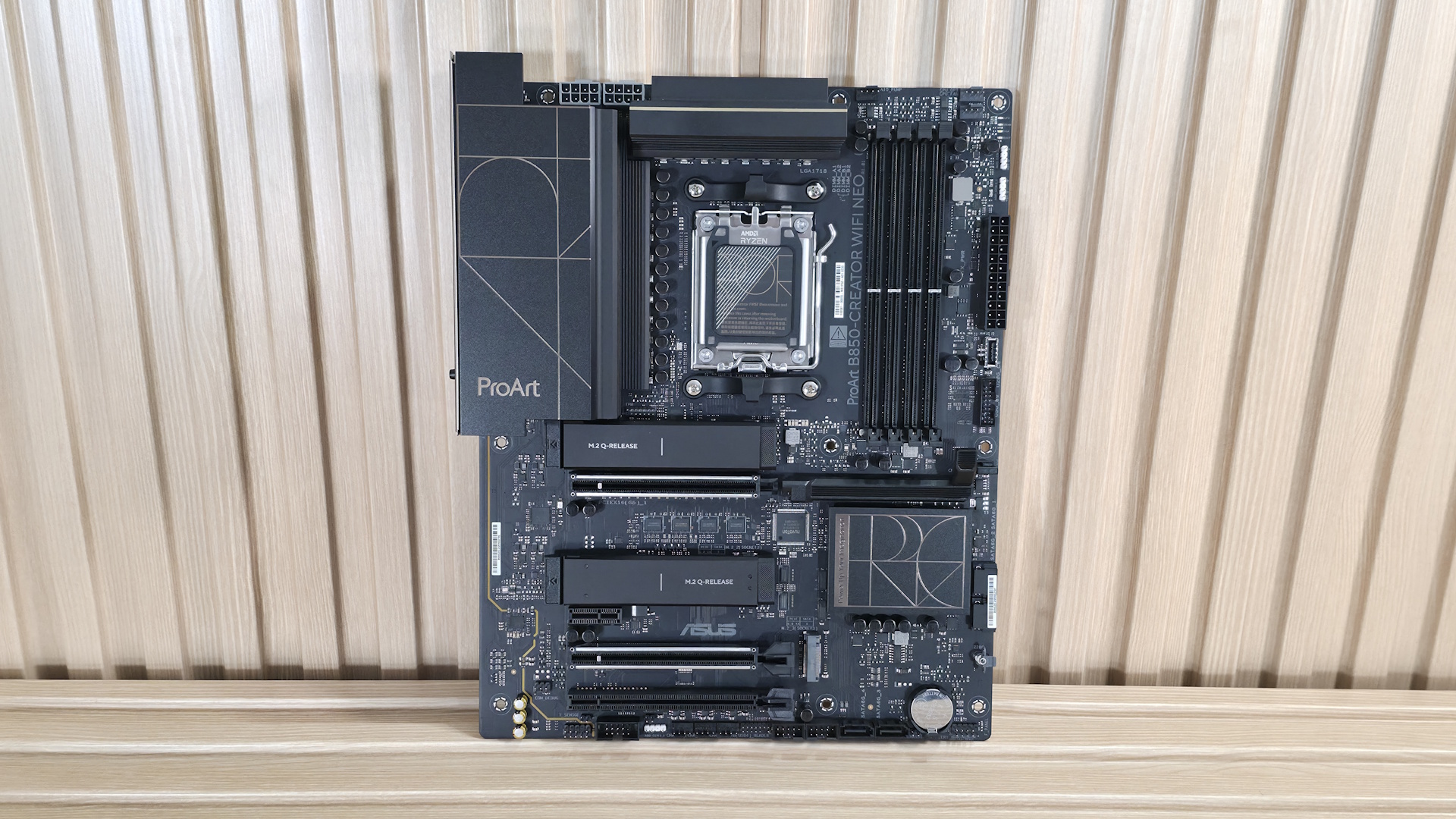
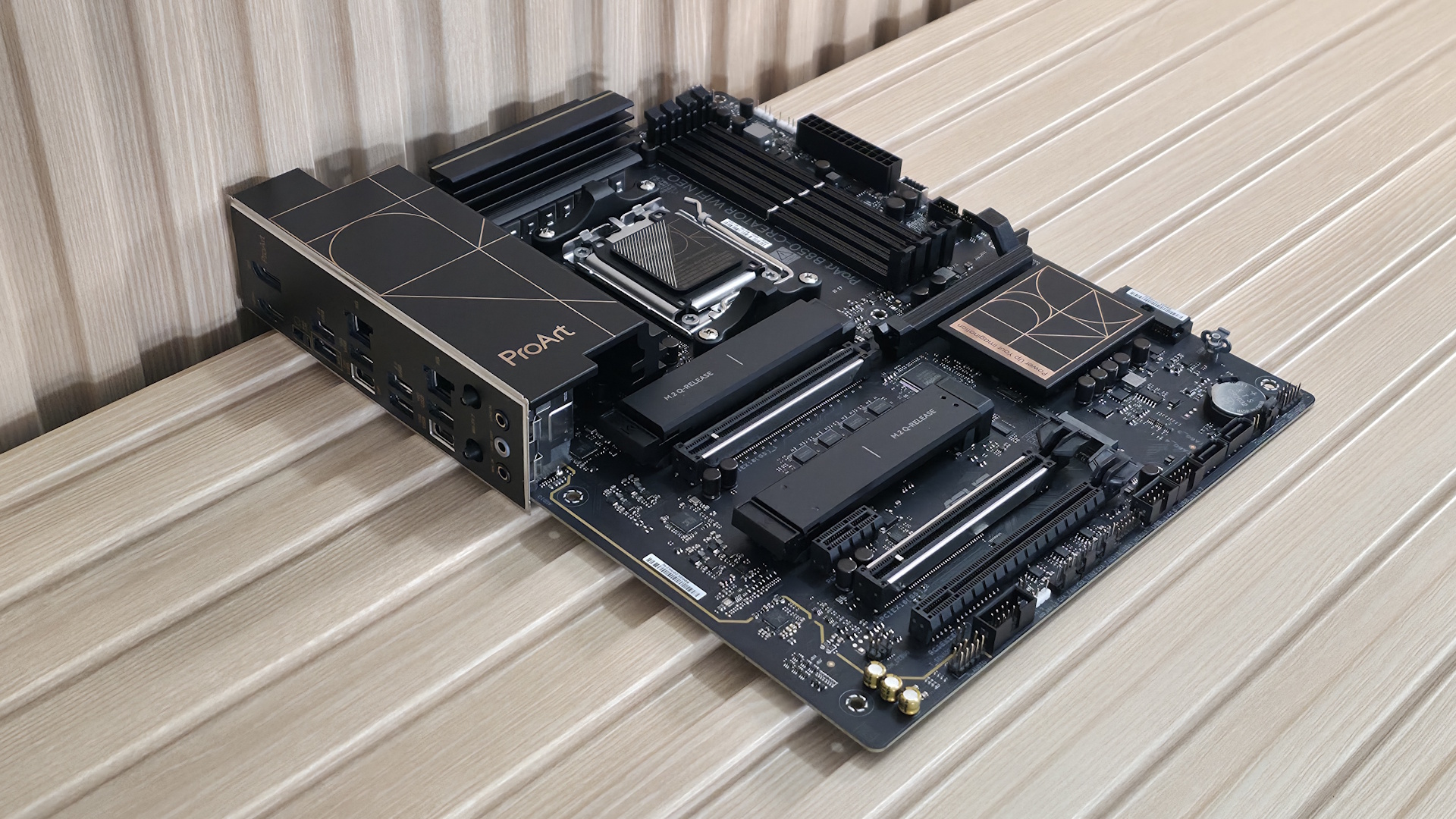
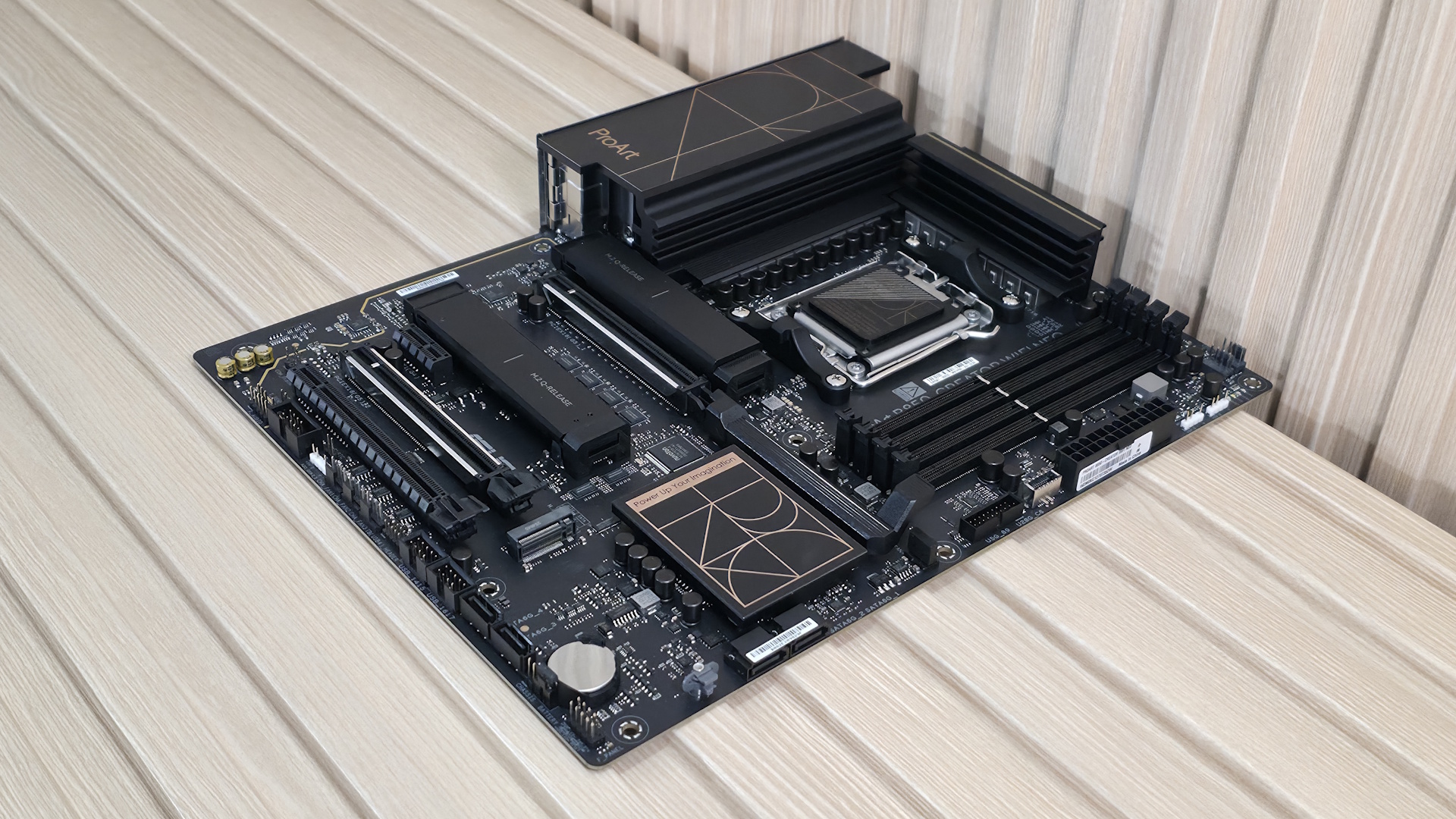
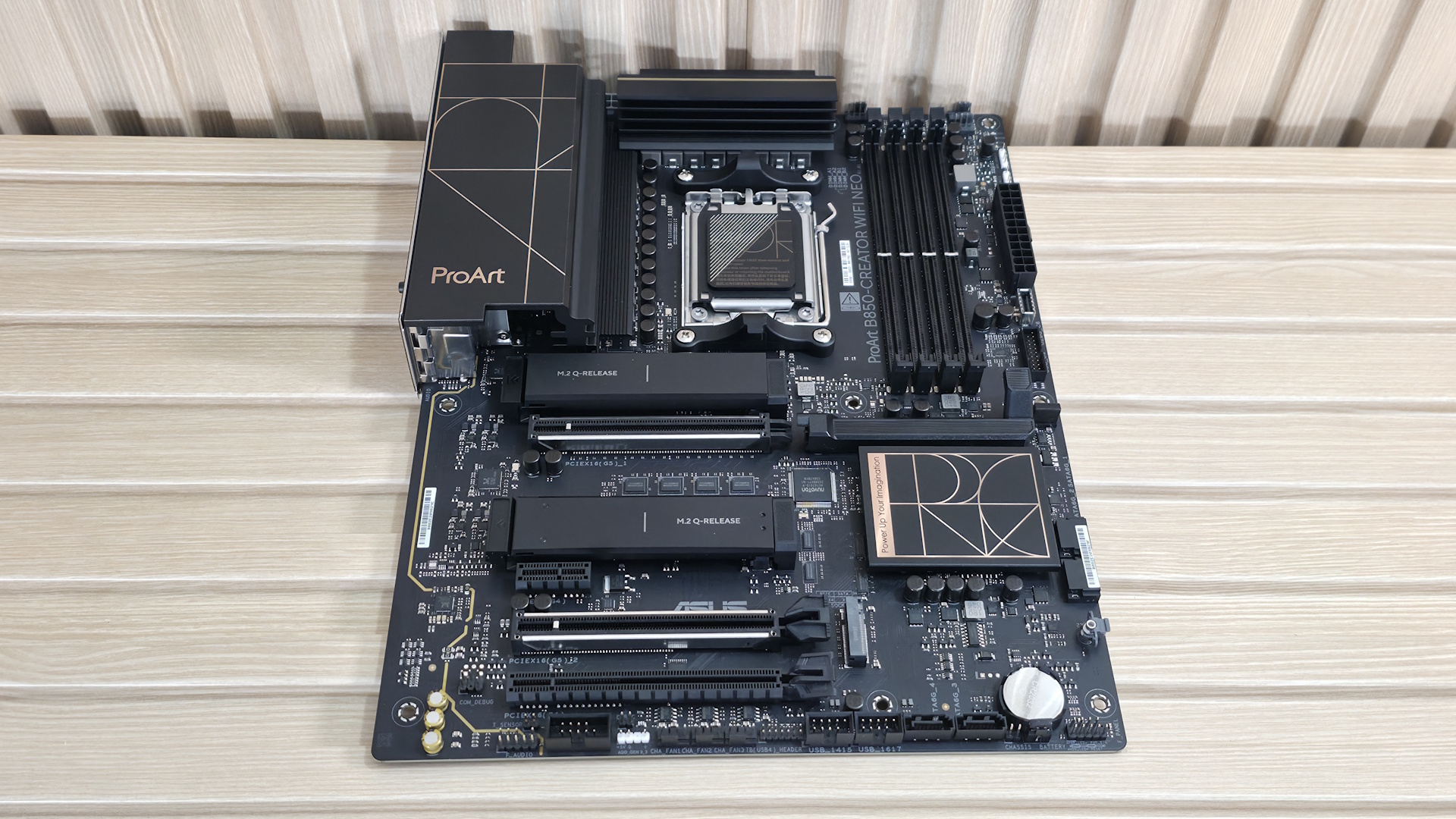
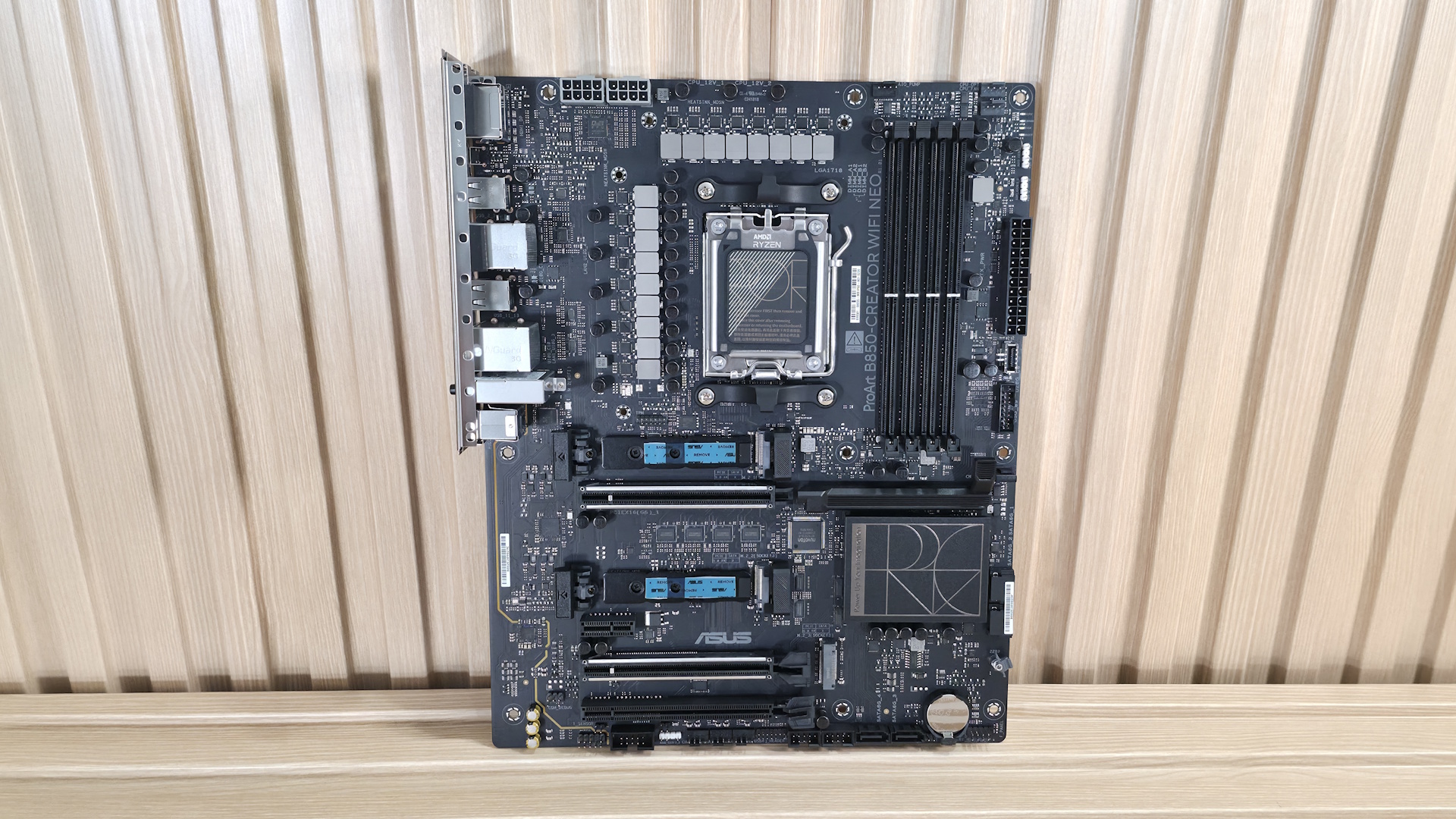
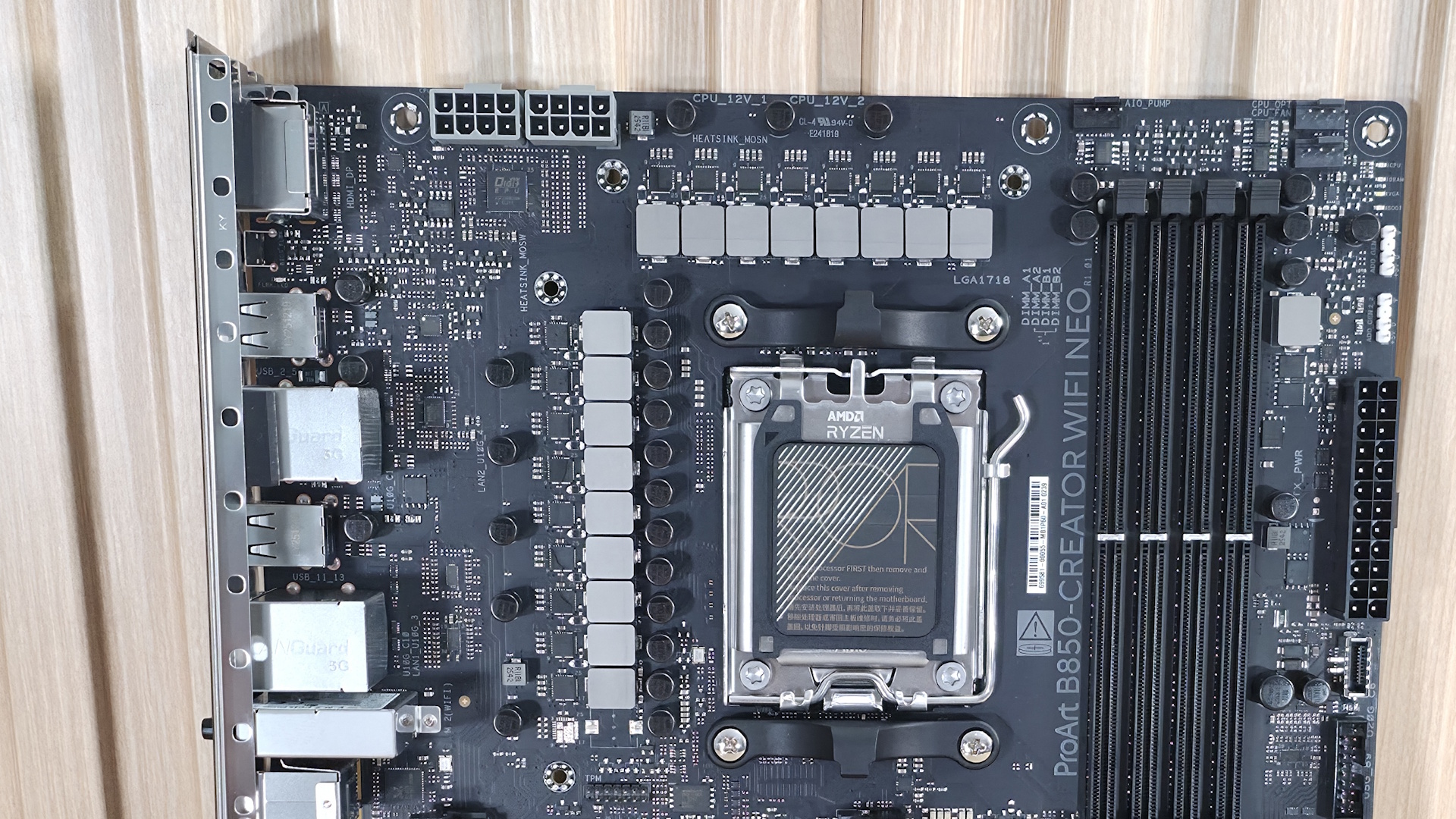
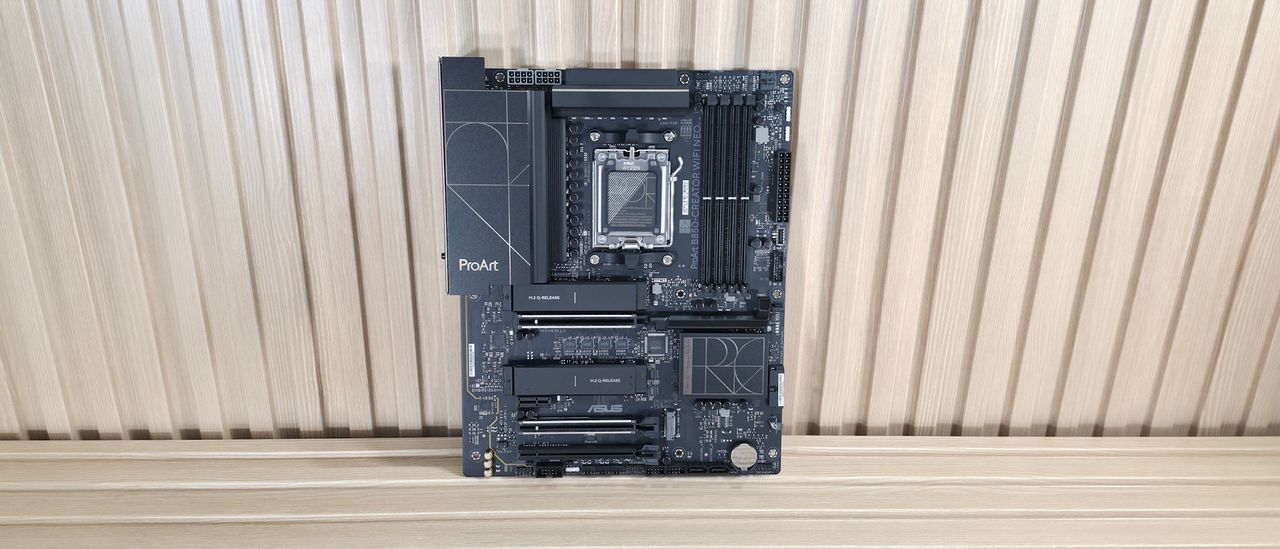
The B850-Creator Wifi Neo is decidedly a ProArt board. With its all-black, 8-layer server-grade PCB design, gold accents on the heatsinks spelling out Pro Art in some form (Pro on the chipset heatsinks and Art on the left VRM heatsink. The M.2 heatsinks cover the PCIe 5.0-capable sockets, but I wouldn't call them sufficient for extended use of hot-running 5.0 drives without throttling. Outside of that, there isn’t much bling, like RGB lighting. So if that’s a part of your vision, it would need to come from the case and fans through the onboard headers.

Overall, I like the professional appearance. And what you see, a lot of motherboard showing, is typical for the price point. I just wish at least one of the PCIe 5.0 x4 sockets included a heavier heatsink.

Asus B850-Creator Wifi Neo - top half

(Image credit: Future)

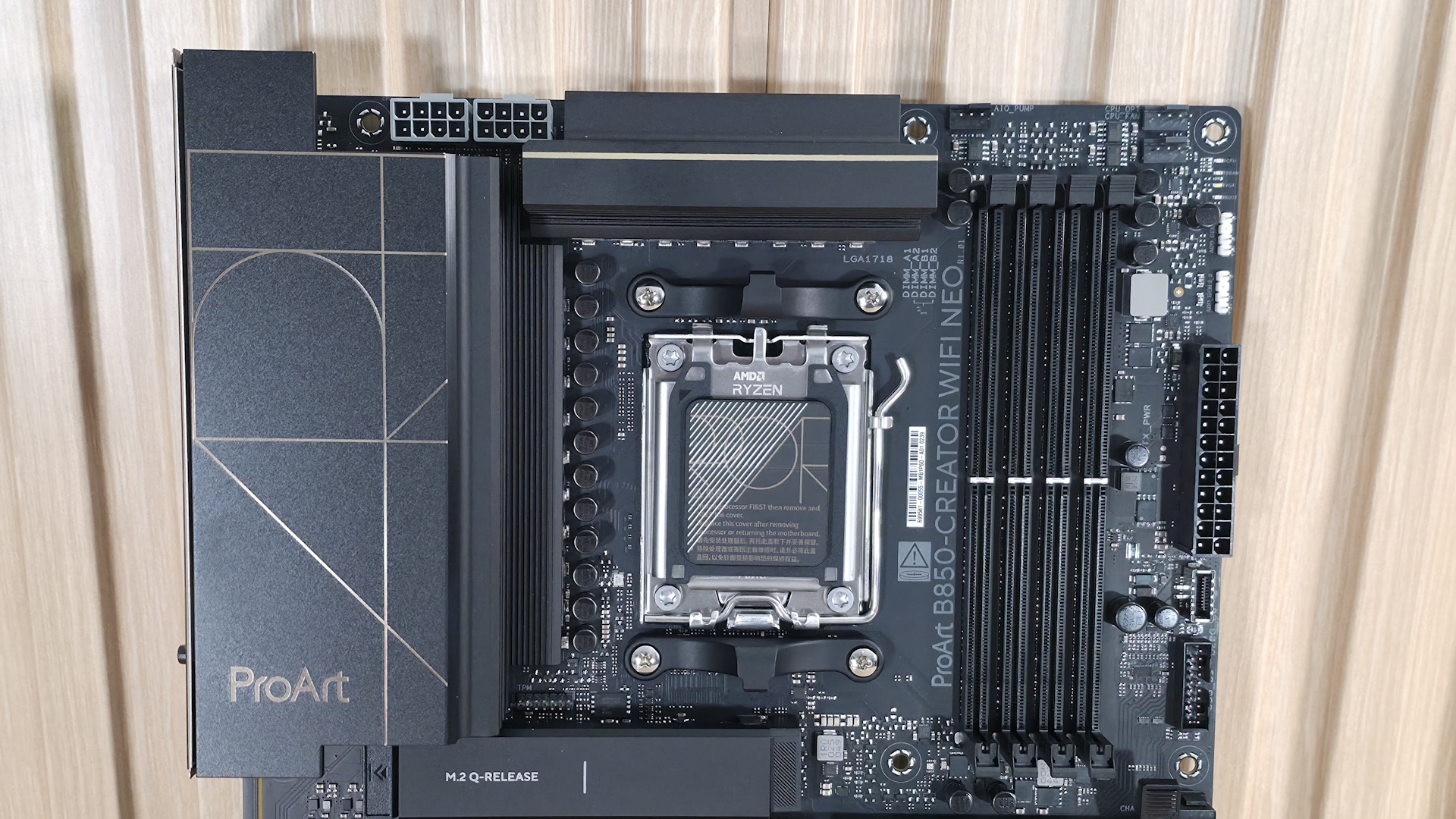
Starting with the top-left corner, we get a better look at the two 8-pin ProCool EPS connectors (one required) to feed the processor. Next, we get a better look at the gold-accented ProArt design on the matte-finish VRM heatsinks. Moving past the socket area, the next feature we encounter is the four DRAM slots, with the locking mechanism located only on the top. Asus lists support for DDR5-8400 with 9000-series processors and higher, and DDR5-8600 for 8000-series APUs. We didn’t have any issues running our DDR5-6000 and DDR5-7200 kits with the 9900X. But, as is typical with our test hardware, we needed to break out the APU for our DDR5-8000 kit to work. If you want to get the most out of your RAM, you can use Asus’ AEMP (Asus Enhanced Memory Profile) functionality, which detects the memory ICs in the kit and provides optimized frequency, timing, and voltage profiles that you can easily apply to increase performance.

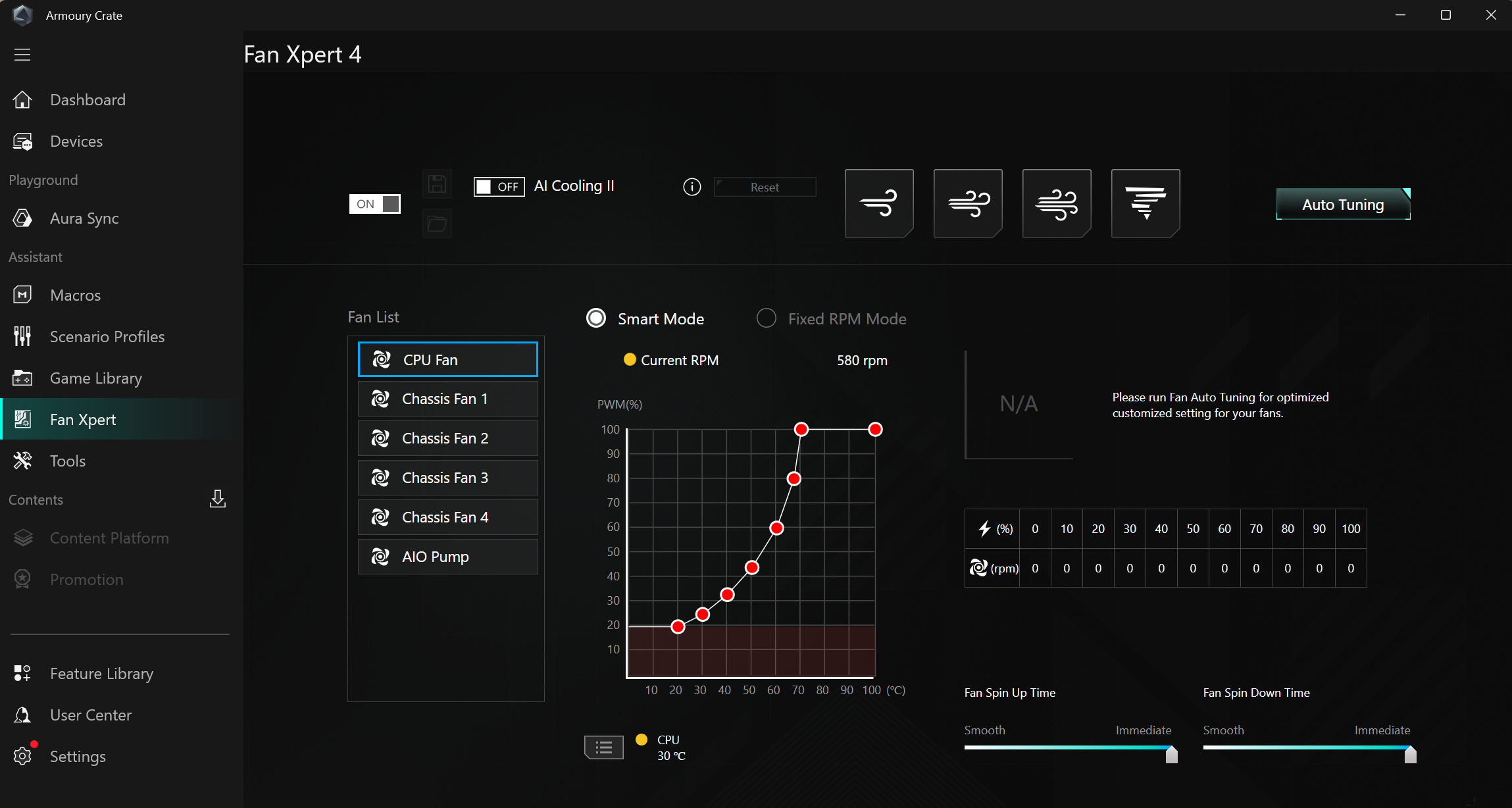
Above the DRAM slots are the first three (of seven) 4-pin fan headers. Each header supports PWM and DC-controlled devices. Each header outputs up to 3A/36W, which is plenty of output for any pump-and-fan configuration. You can even run a custom loop off the headers without worrying about power. Control of any attached devices is handled via the BIOS or Fan Expert 4 in the Armory Crate software suite. Or you can use ProArt Creator Hub to monitor PC status, switch fan profiles, and adjust performance modes.

Continuing right and moving down the long edge, the first thing we run into is the 4-LED debug header, which lights up during the POST process. If something goes wrong during this critical time, one of the LEDs corresponding to the problem (CPU, DRAM, VGA, Boot) remains lit, indicating where the hiccup is. Moving down the same edge, we then see the first two (of three) 4-pin ARGB connectors. The ProArt Creator hub or Armory Crate controls each. Next, we see the 24-pin ATX connector for board power, a front-panel USB 3.2 Gen 2x2 (20 Gbps) connector that also supports 30W PD/QC4+ charging, and a 19-pin front-panel USB 3.2 Gen 1 (5 Gbps) header.

Asus B850-Creator Wifi Neo - VRMs

(Image credit: Future)

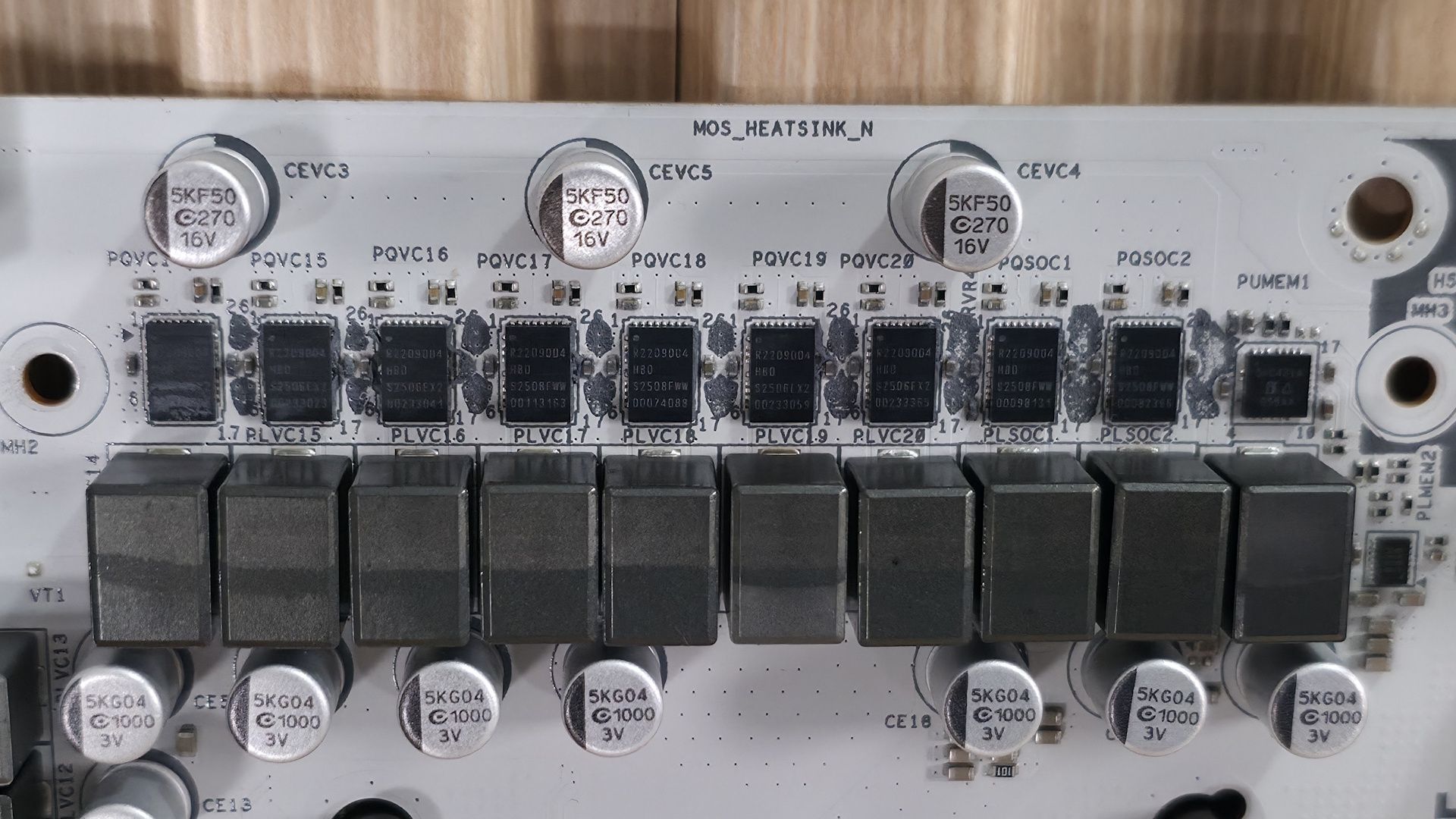
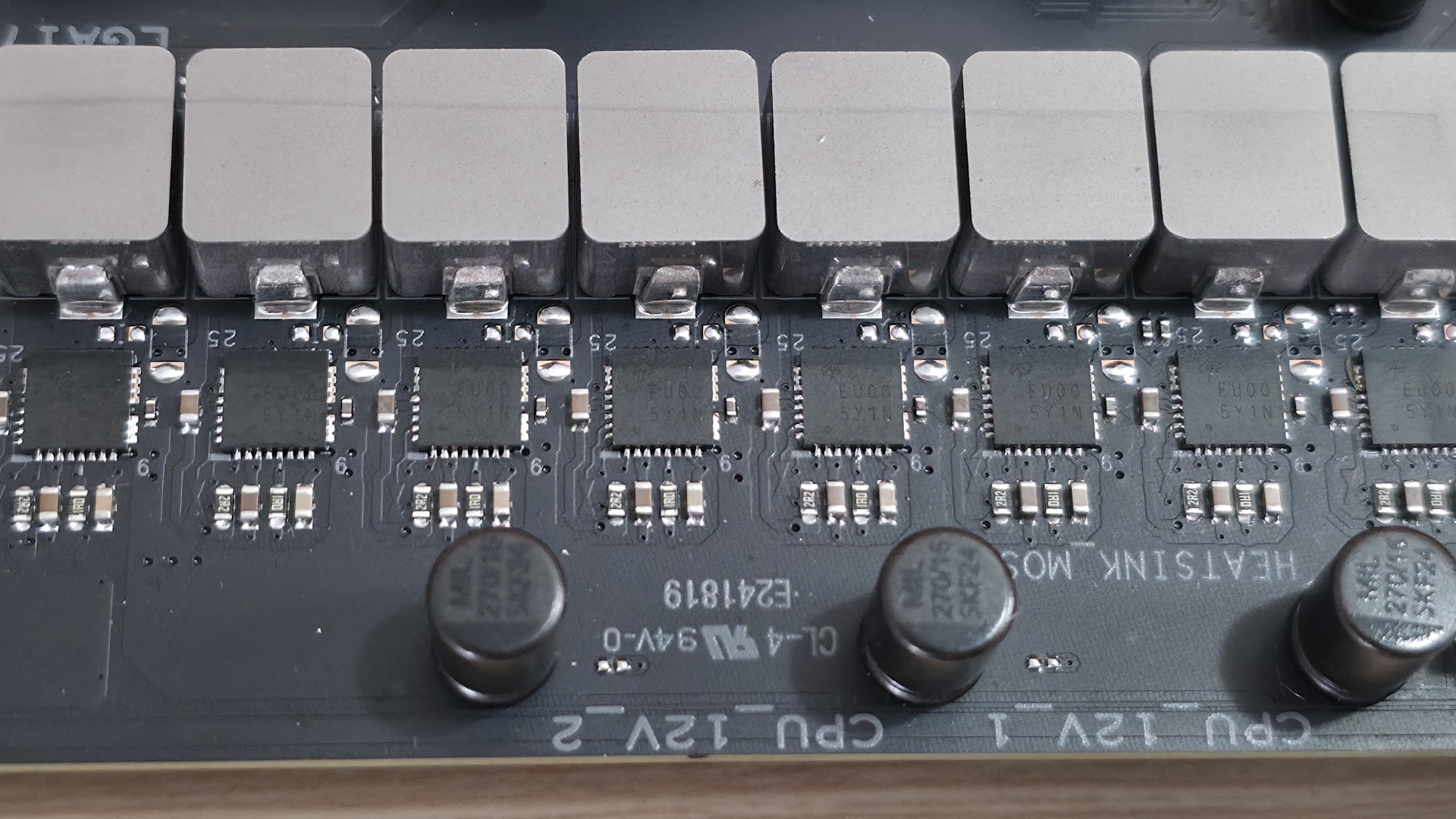
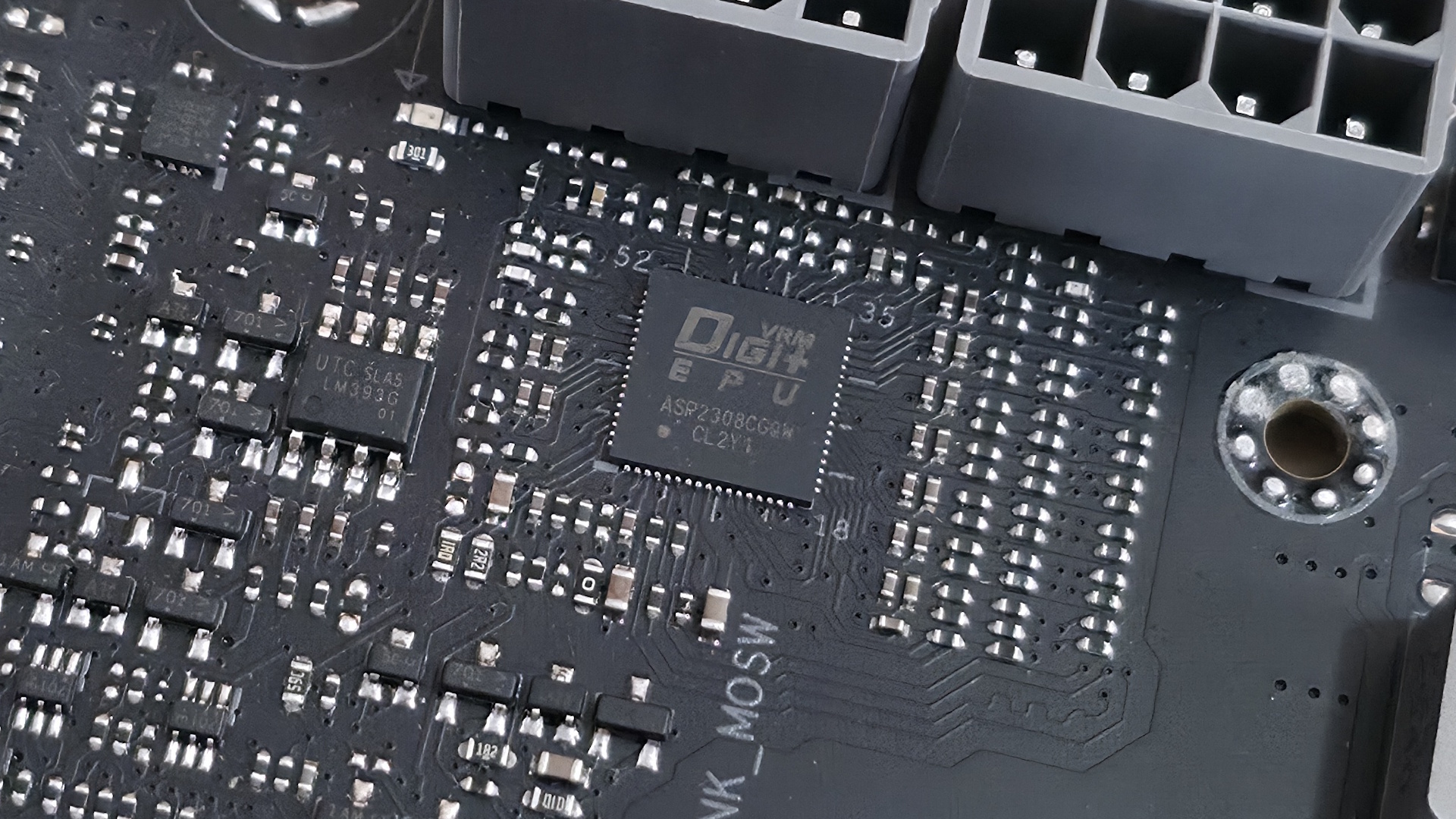
Power delivery on the B850-Creator Wifi Neo is plenty capable, sporting 17 phases, with 14 dedicated to Vcore. Power heads from the 8-pin EPS connectors and onto the Digi+ EPU (ASP2205) voltage regulator. From there, it moves to the 80A DrMOS MOSFETs. The 1,120 Amps available isn’t a ton, but it will handle any CPU you throw at it, including the Ryzen 9 9950X or the Ryzen 9 9950X3D2.

Asus B850-Creator Wifi Neo - bottom half

(Image credit: Future)

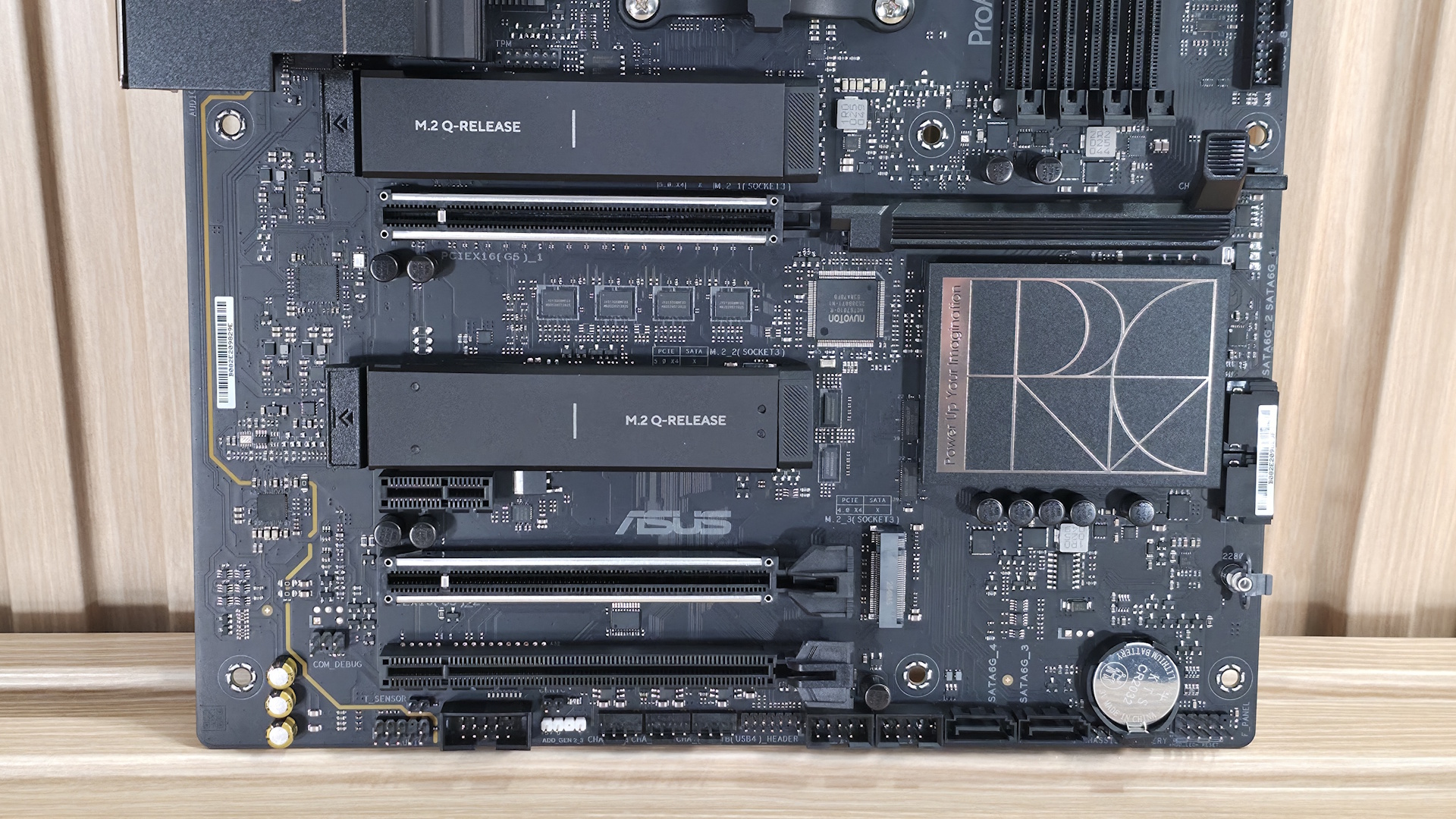
At the bottom of the board, on the left, are the last-gen flagship Realtek ALC1220P codec and a couple of dedicated audio capacitors. This audio solution is typical for the price point, and most users won’t have any issues with it.

Next are four PCIe slots in the middle of the board. The top full-length slot uses reinforcement, connects to the CPU, supports PCIe 5.0 x16 speeds, and uses the PCIe Slot Q-Release to simplify removing a PCIe card from the motherboard. The other reinforced full-length slot also connects via the CPU and supports PCIe 5.0 x8 speeds. If both slots are in use, they run at x8/x8. The bottom full-length slot (not reinforced) connects via the chipset and supports PCIe 4.0 x4 (but it shares lanes with M.2_3). The tiny x1 slot also connects through the chipset and runs up to PCIe 4.0 x1 speeds.

There are three M.2 sockets, with the top two (under heatsinks) connecting to the processor and supporting PCIe 5.0 x4 (128 Gbps) speeds. The last M.2 socket, M.2_3 on the right, connects through the chipset and runs up to PCIe 4.0 x4 (64 Gbps) speeds. This socket shares bandwidth with the PCIe_3 slot. If either one is populated, the other gets disabled. So keep that in mind if you need to use that slot, as it will take away an M.2 socket.

Along the right edge, we find another 4-pin fan header and two (of four) SATA ports. If you need to run RAID, the SATA ports and M.2 sockets support RAID0/1/5/10 modes.

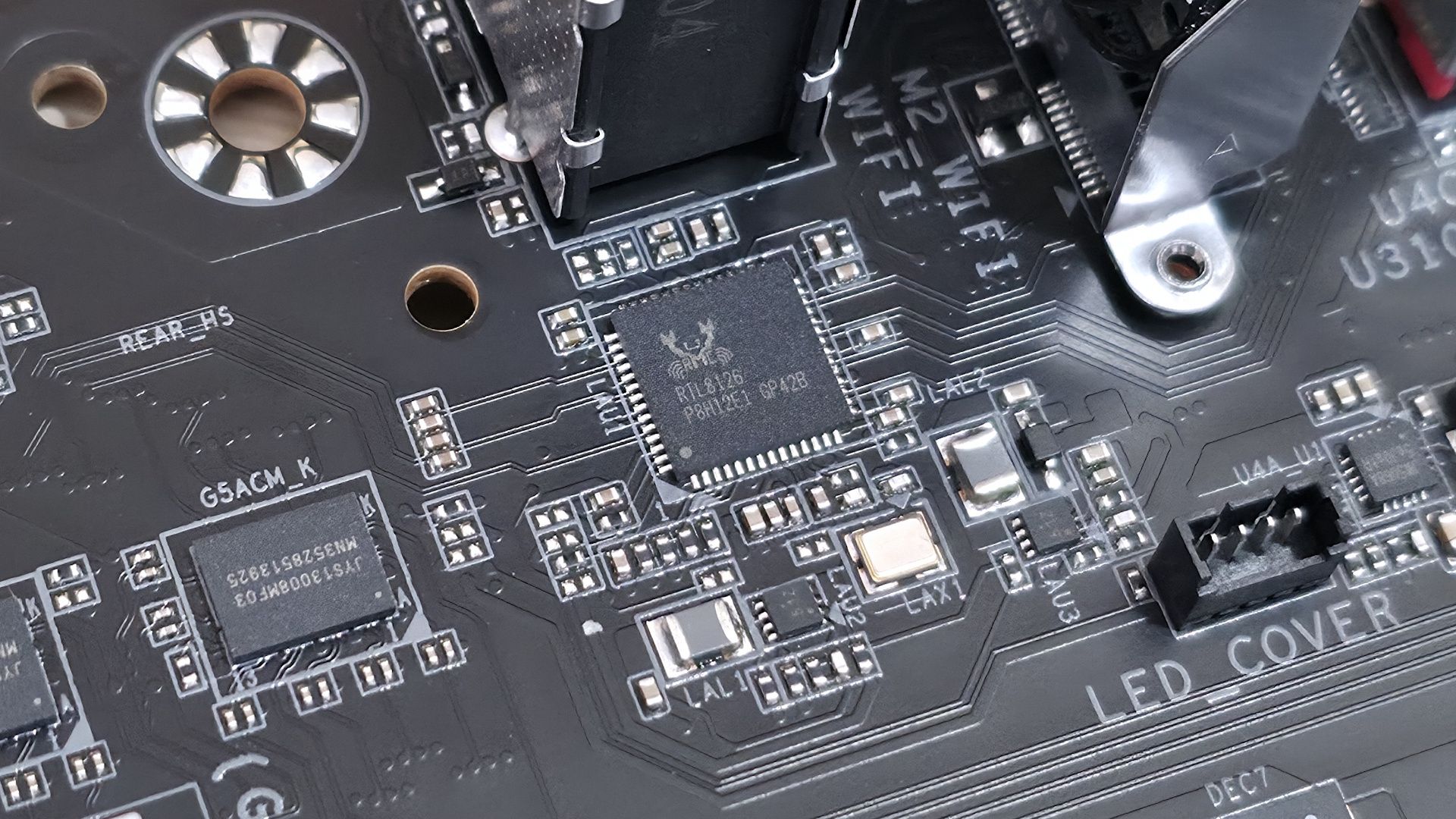
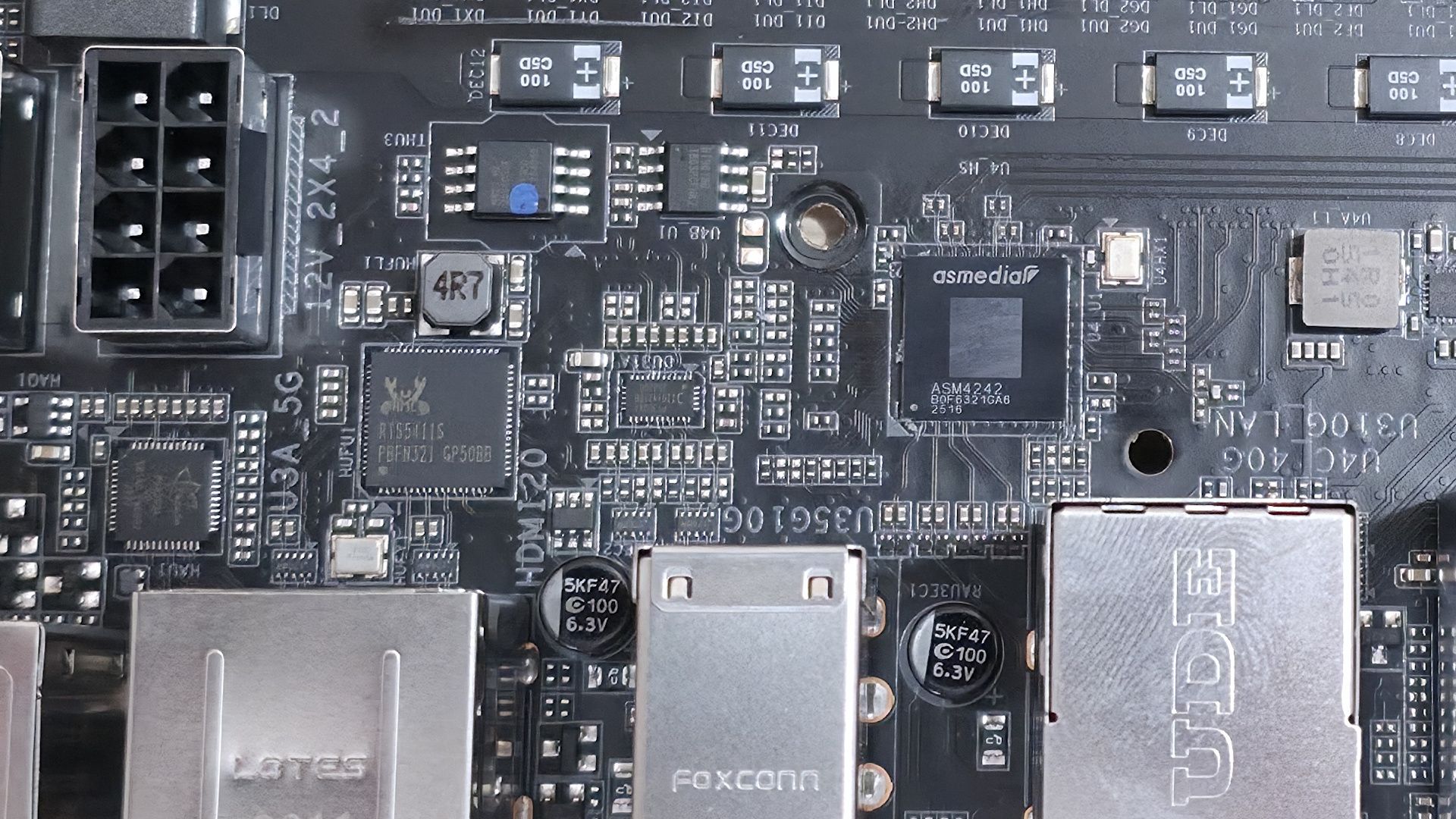
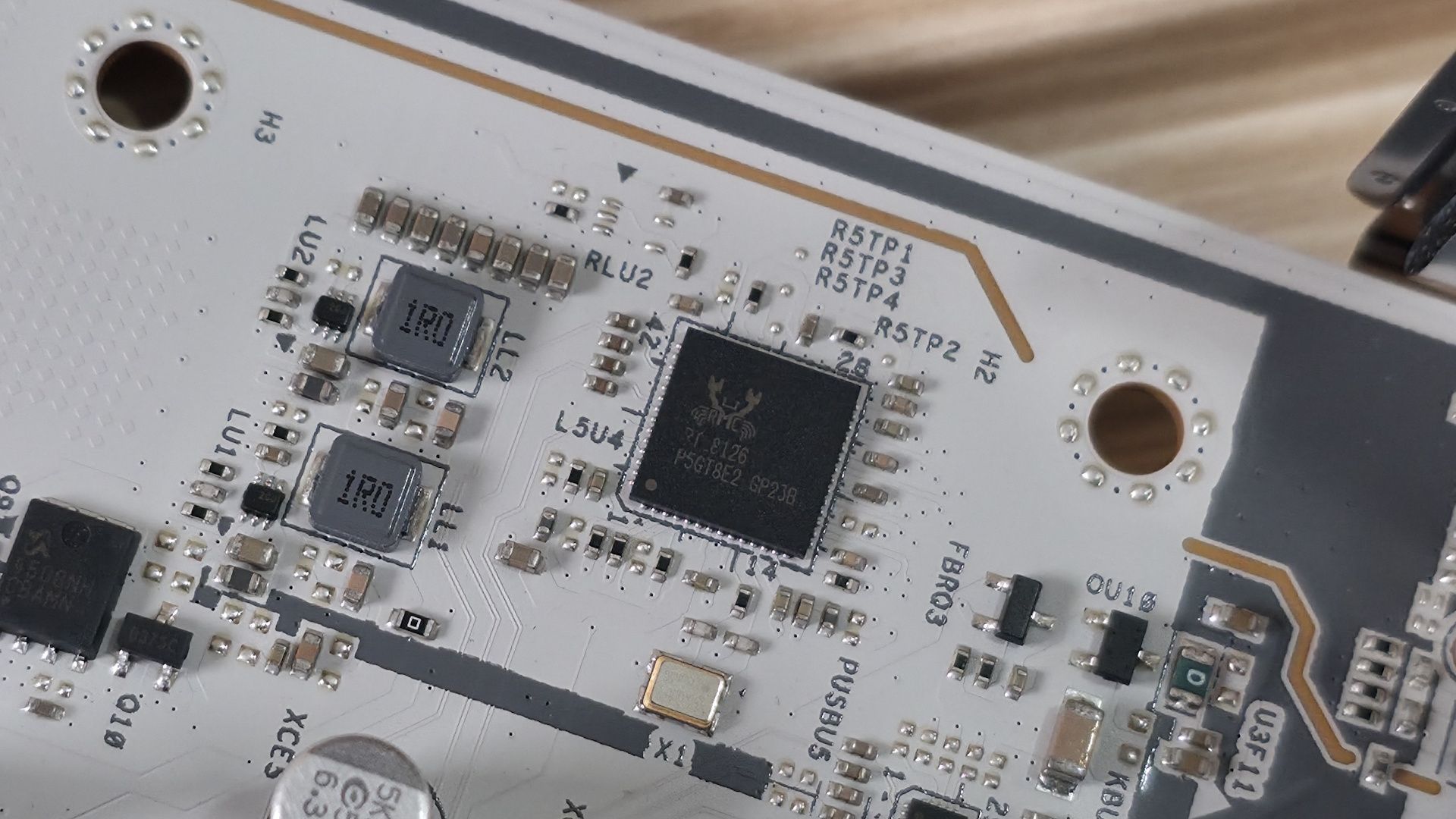
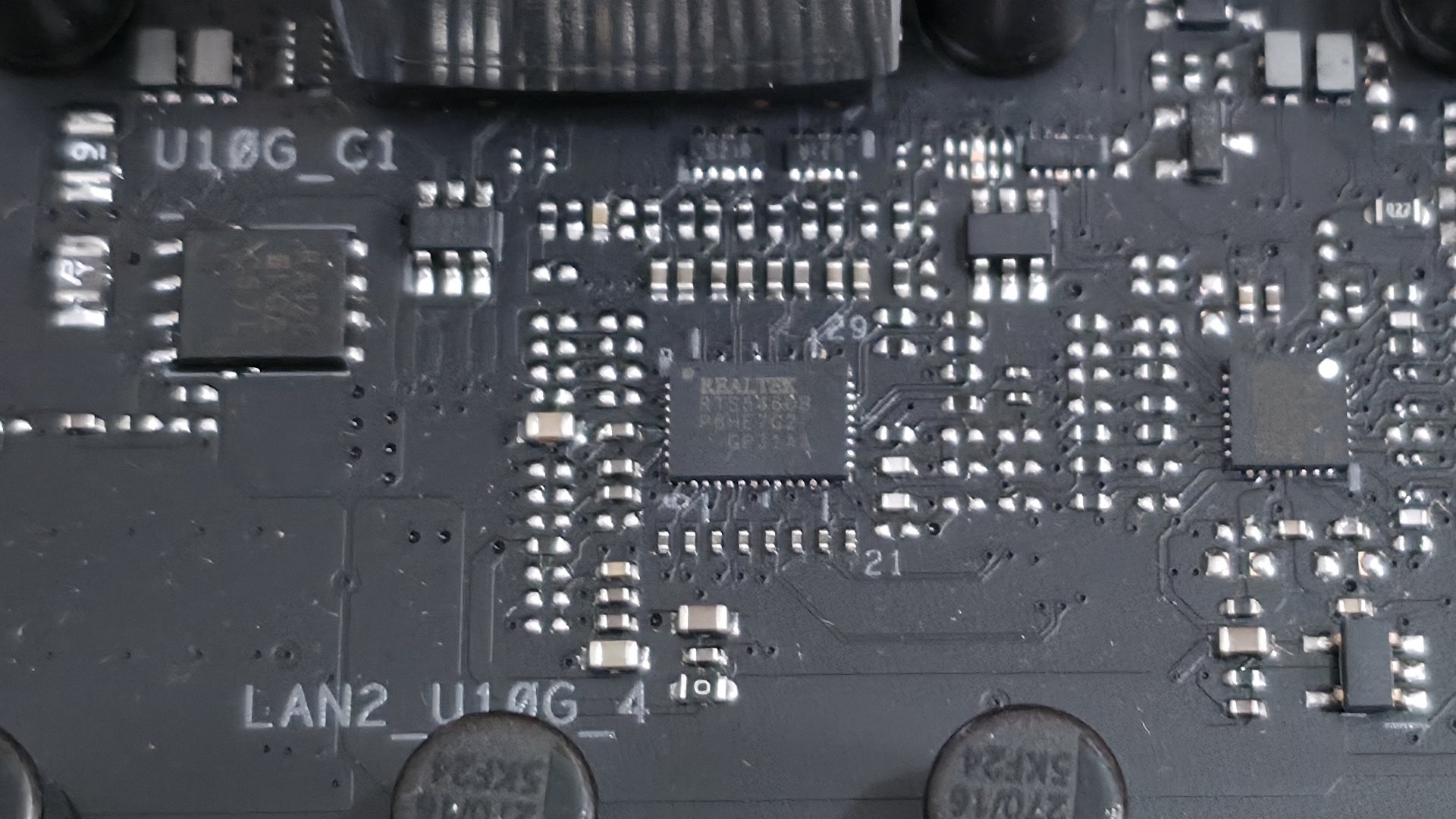
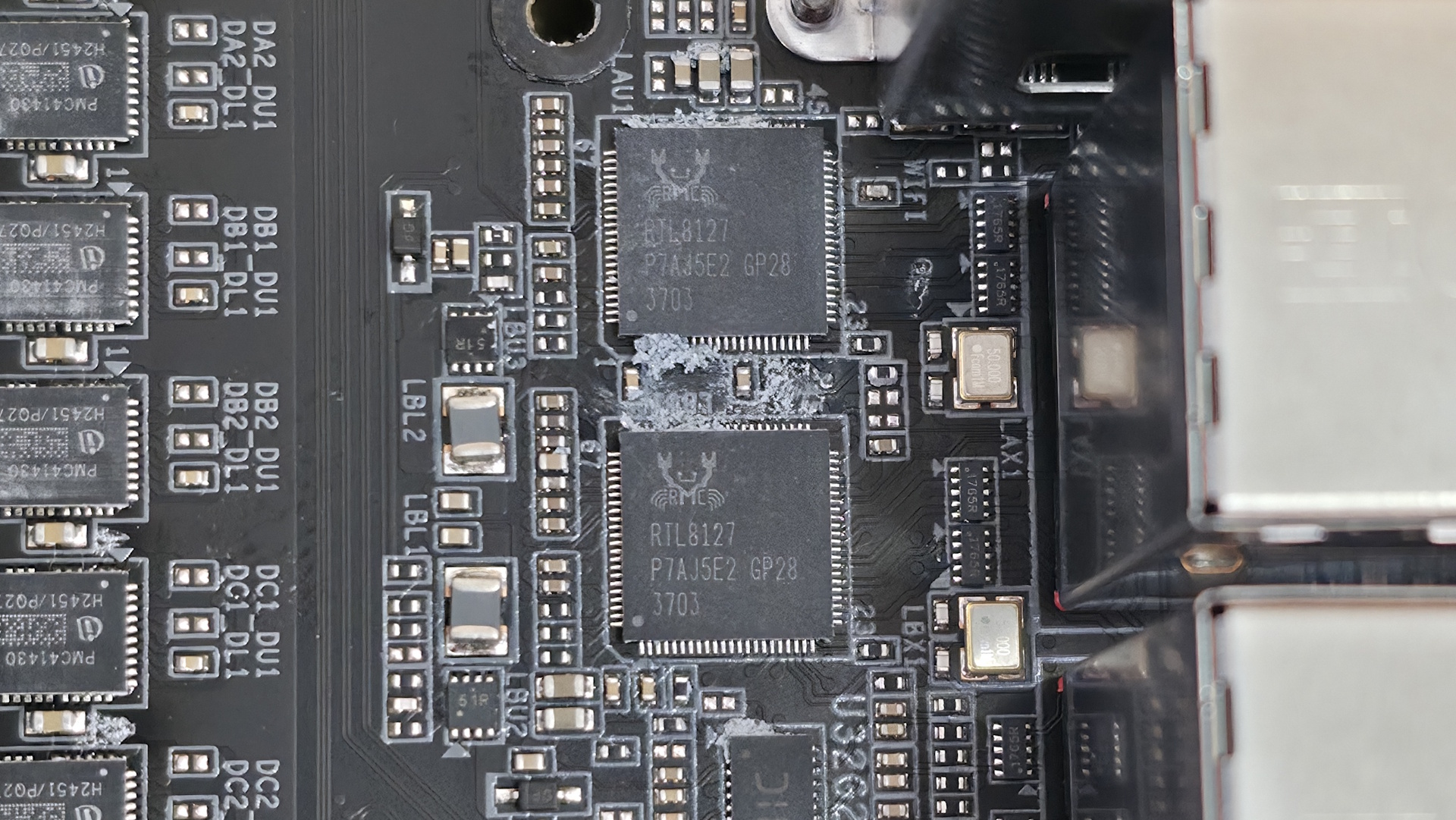
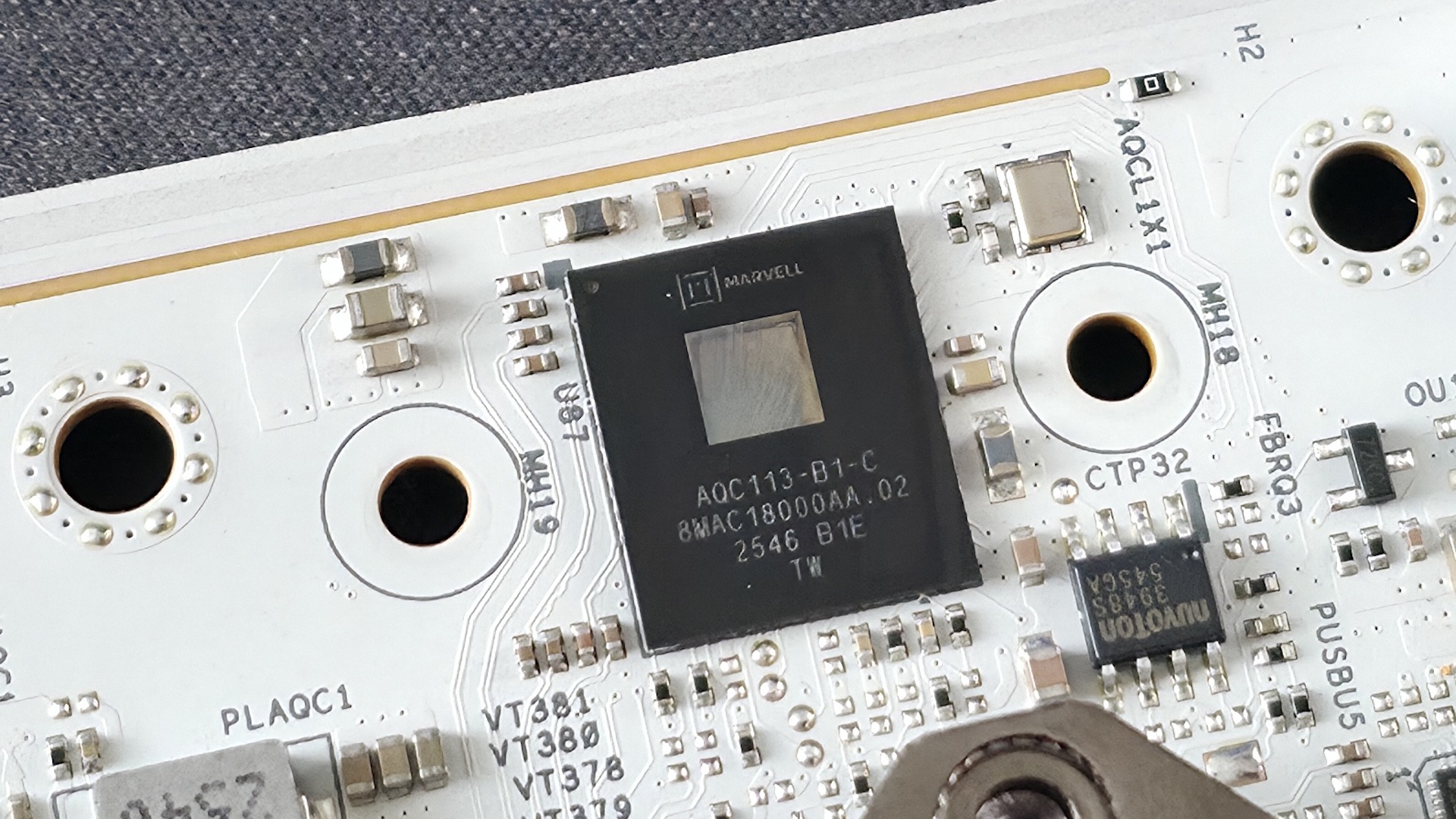
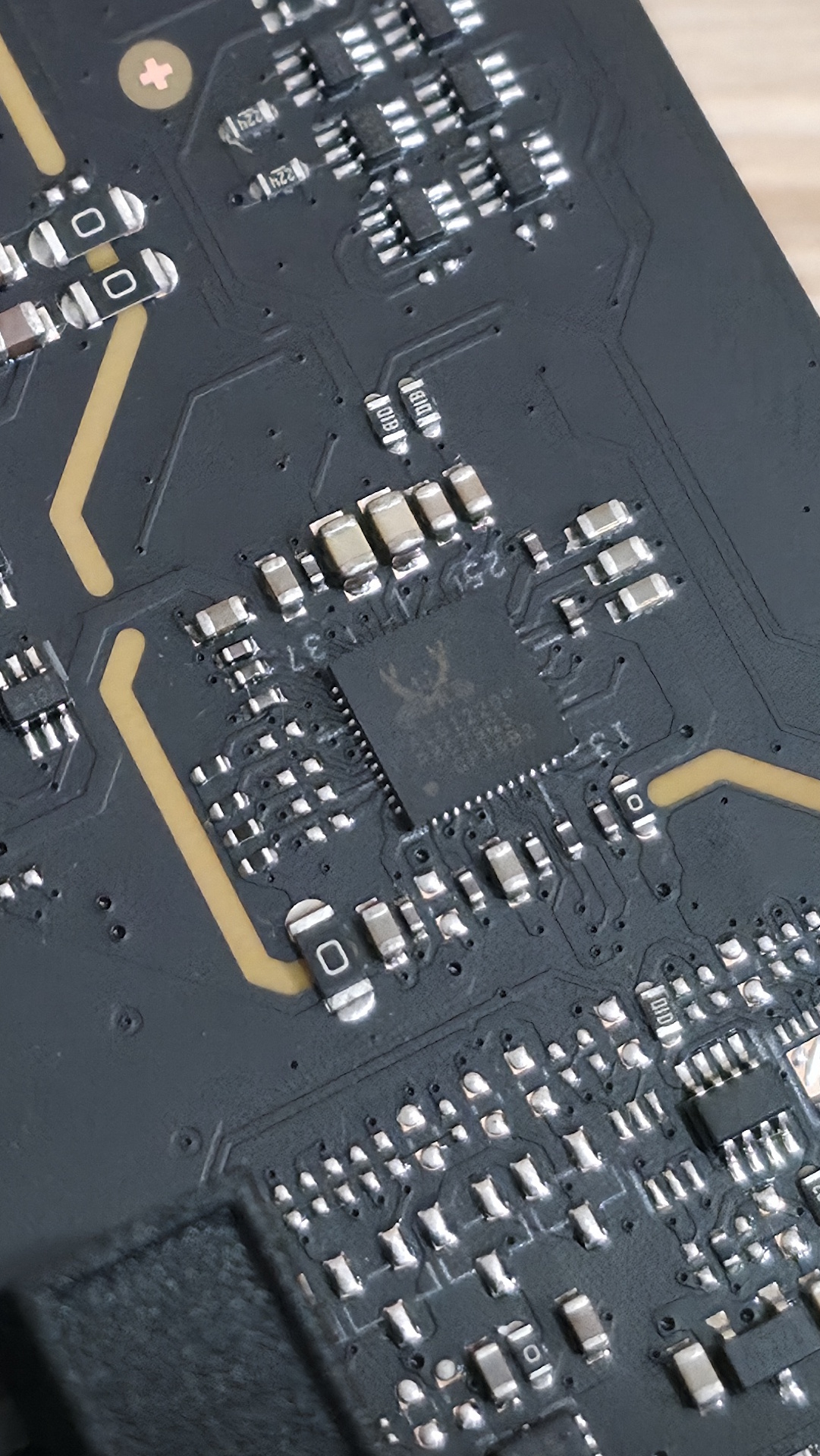
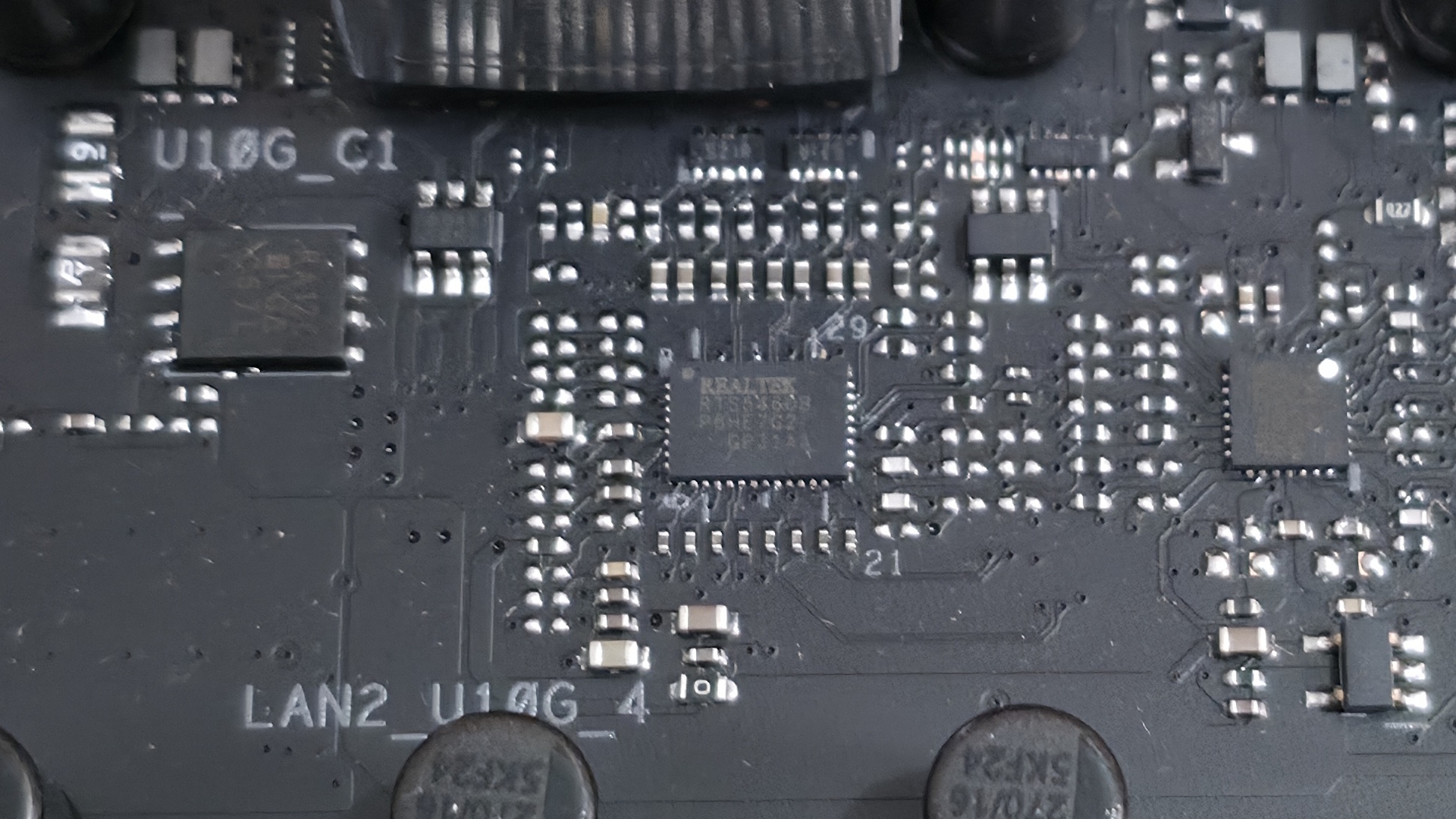
We also included images of several chips used on the board. Asus uses mainly Realtek (audio, networking), and it's own PWM ICs.

Asus B850-Creator Wifi Neo - ICs
Future
Asus B850-Creator Wifi Neo - ICs
Future
Asus B850-Creator Wifi Neo - ICs
Future
Asus B850-Creator Wifi Neo - ICs
Future
Asus B850-Creator Wifi Neo - ICs
Future

At the bottom are several headers, including front-panel audio and USB ports. A complete list of connectivity is listed below (from L to R):

  • Front panel audio
  • 2-pin thermal sensor header
  • COM port
  • 2-pin Clear CMOS
  • 3-pin ARGB header
  • (3) 4-pin fan headers
  • TB/USB4 header
  • (2) USB 2.0 headers
  • (2) SATA ports
  • Front panel
  • Battery

Asus B850-Creator Wifi Neo - Rear IO

(Image credit: Future)

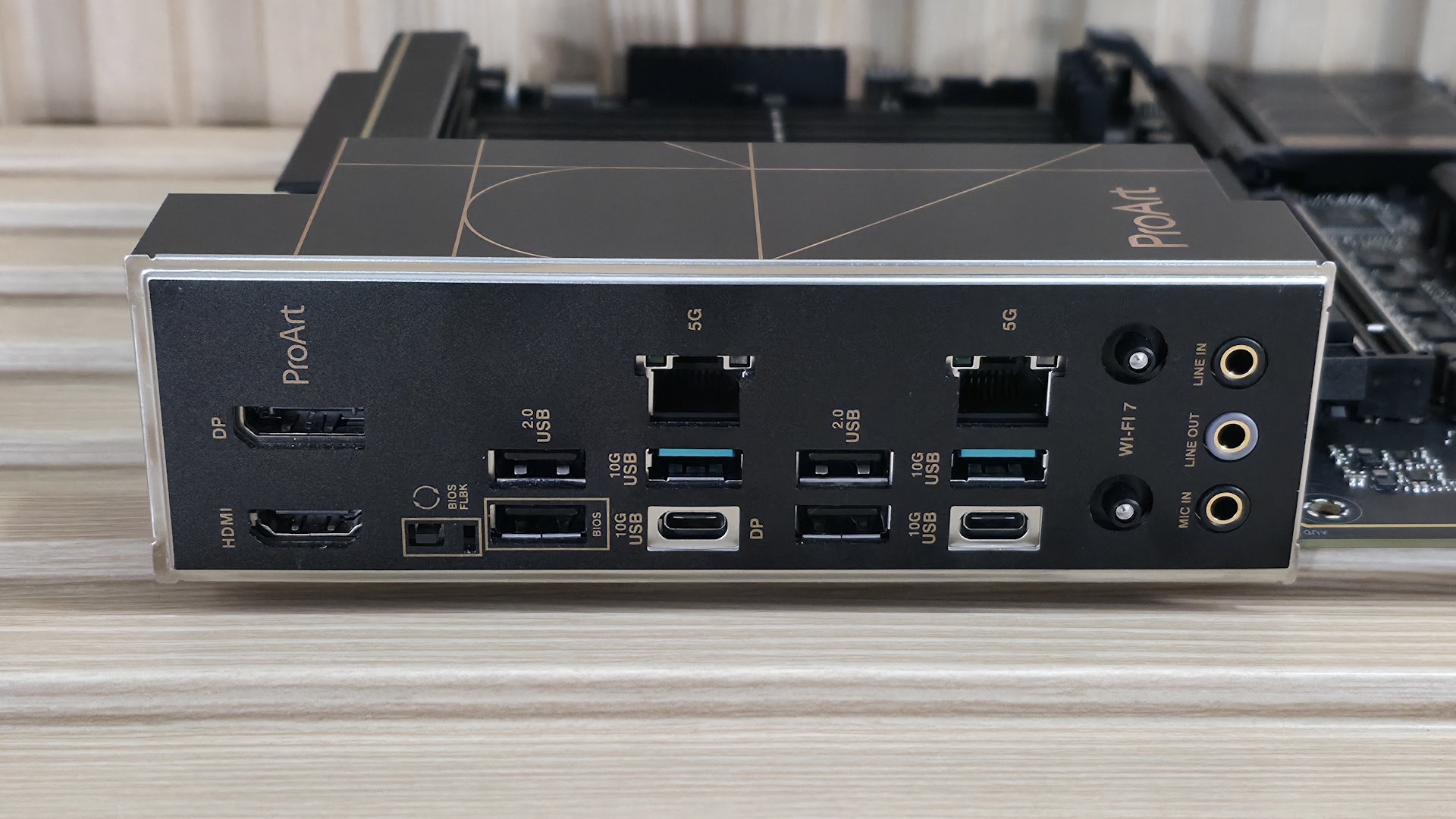
The rear I/O on the B850-Creator Neo has all the basics, but lacks native 40 Gbps USB ports, which could be a concern for creators whose files are on an external drive. Outside of that, it does come with two USB-C ports, both running at 10 Gbps (USB 3.2 Gen 1), and one supporting DP Alt Mode (for video). You get two 10 Gbps and four 480 Mbps Type-A ports for a total of six, which can be limiting for some users (including me). Additionally, there are DisplayPort and HDMI for video output, a BIOS Flashback button, dual 5 GbE ports, quick-connect Wi-Fi 7, and three 3.5mm audio jacks (no SPDIF).

Note: this board uses a ‘slower’ Wi-Fi 7 that’s limited to 2.9 Gbps. It’s still plenty fast, and faster than Wi-Fi 6, but it's worth mentioning in case you’re one of the few who actually need the fastest Wi-Fi around and have the hardware to use it.

MORE: Best Motherboards

MORE: Best Motherboard Deals

MORE: Best RAM Combo Deals

MORE: How To Choose A Motherboard

MORE: All Motherboard Content

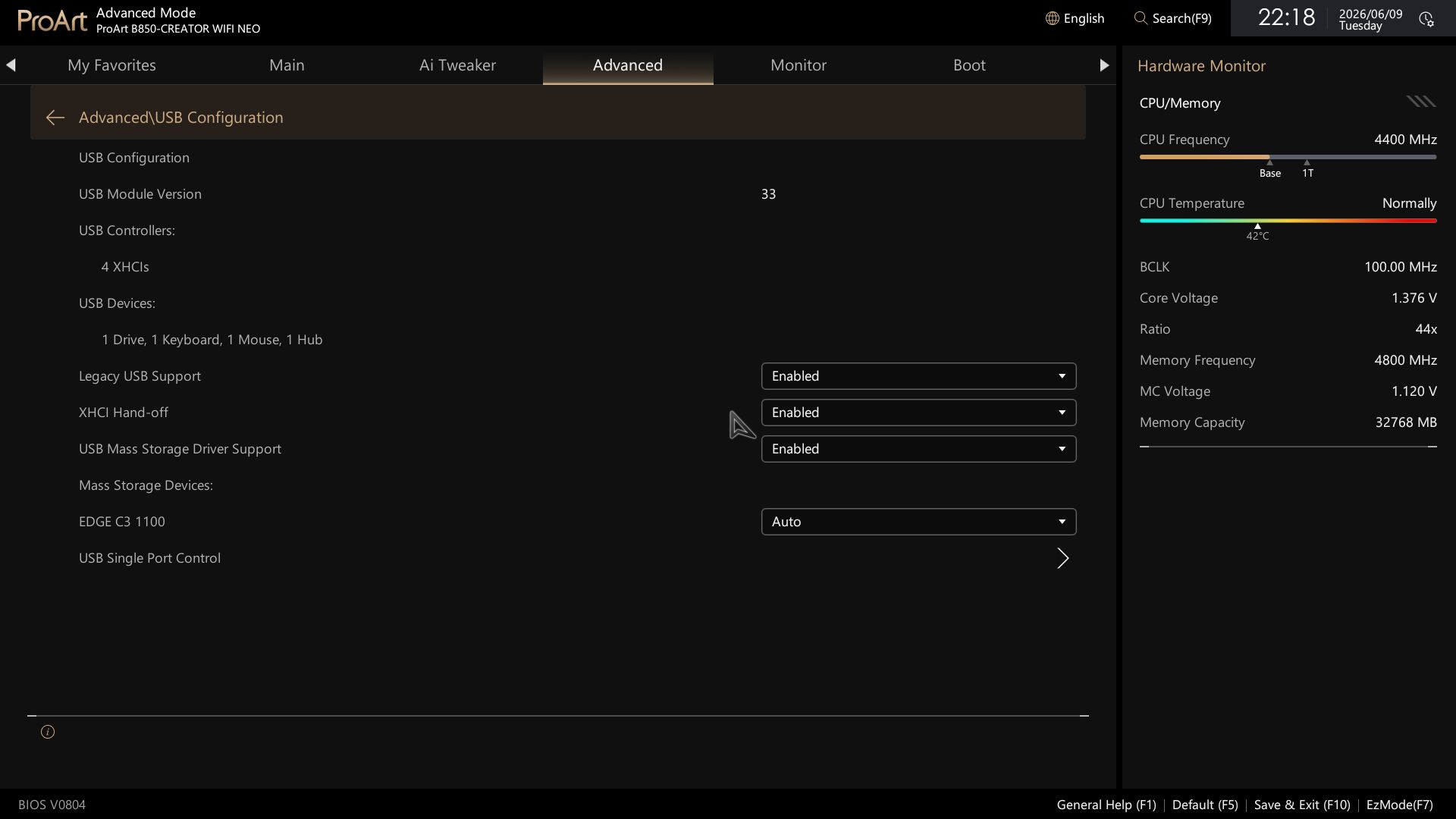
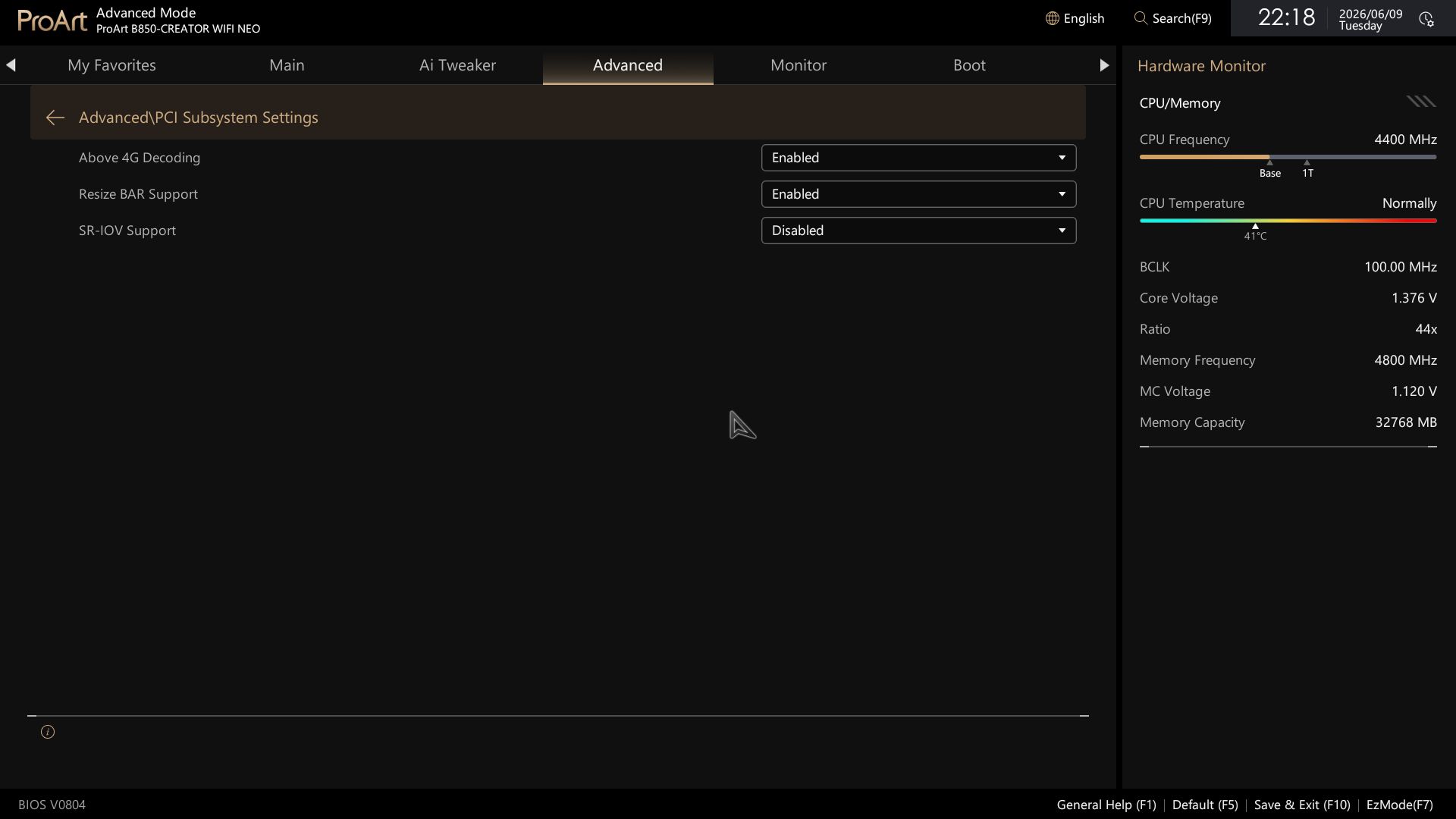
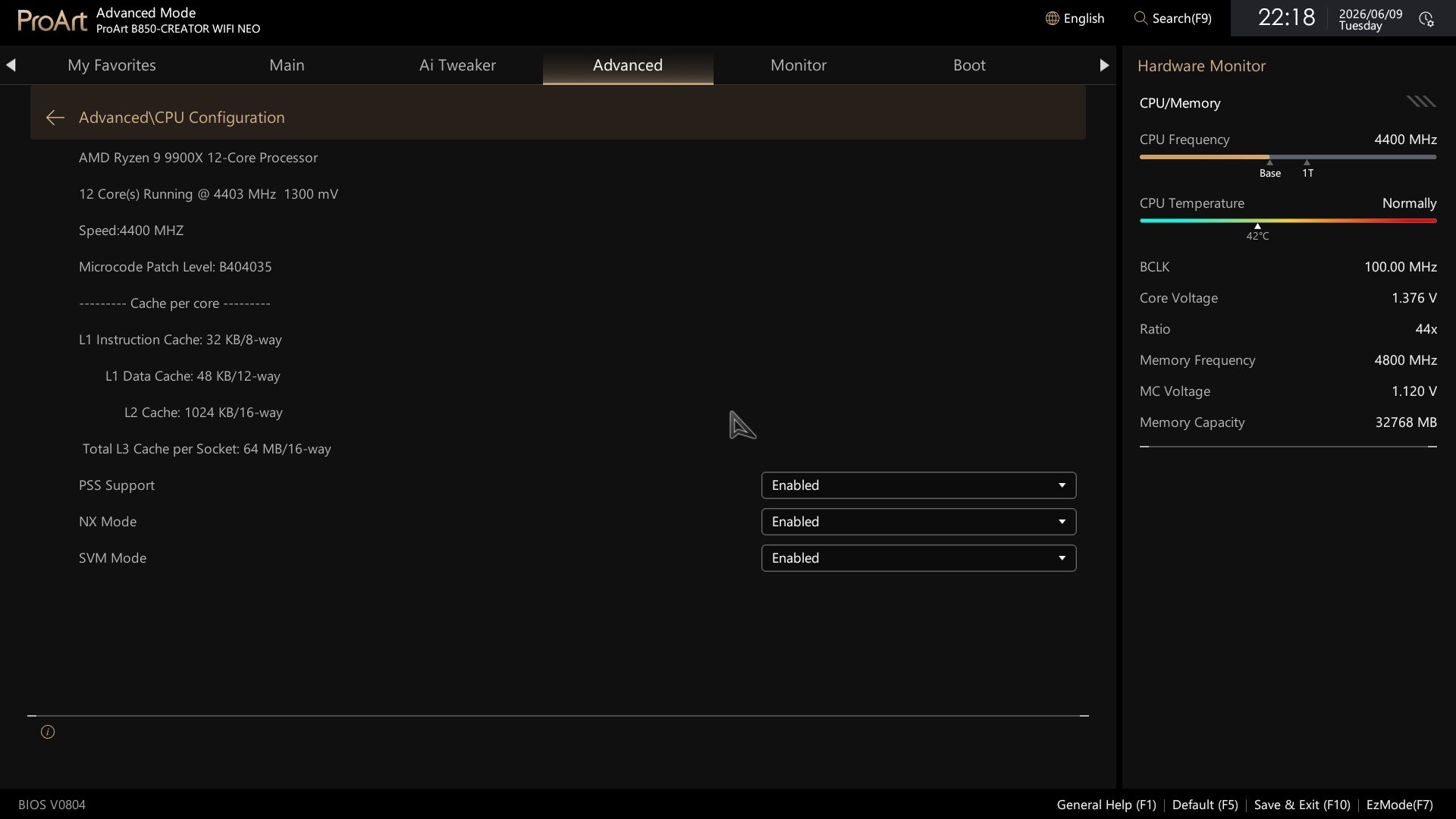
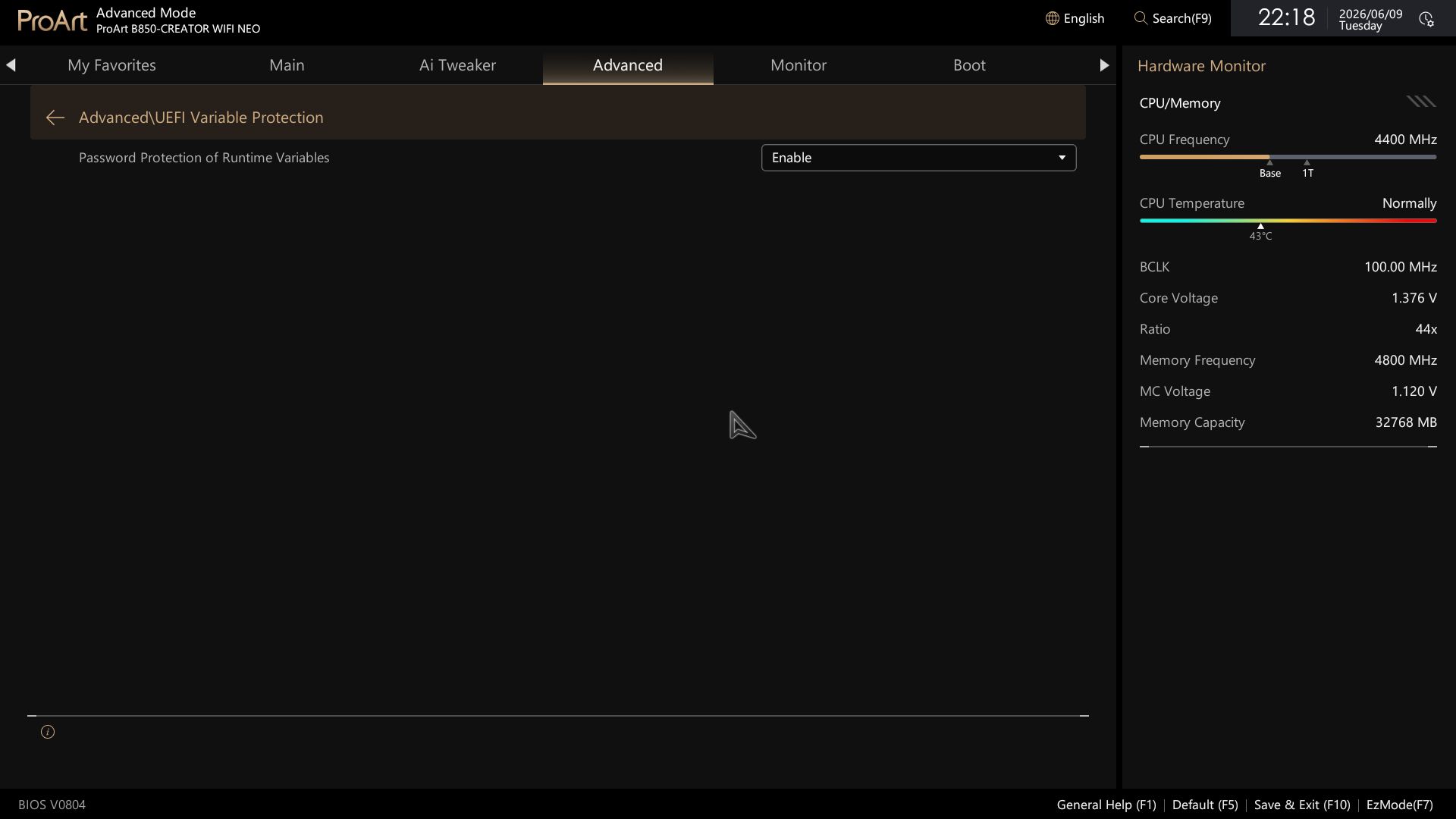
Firmware

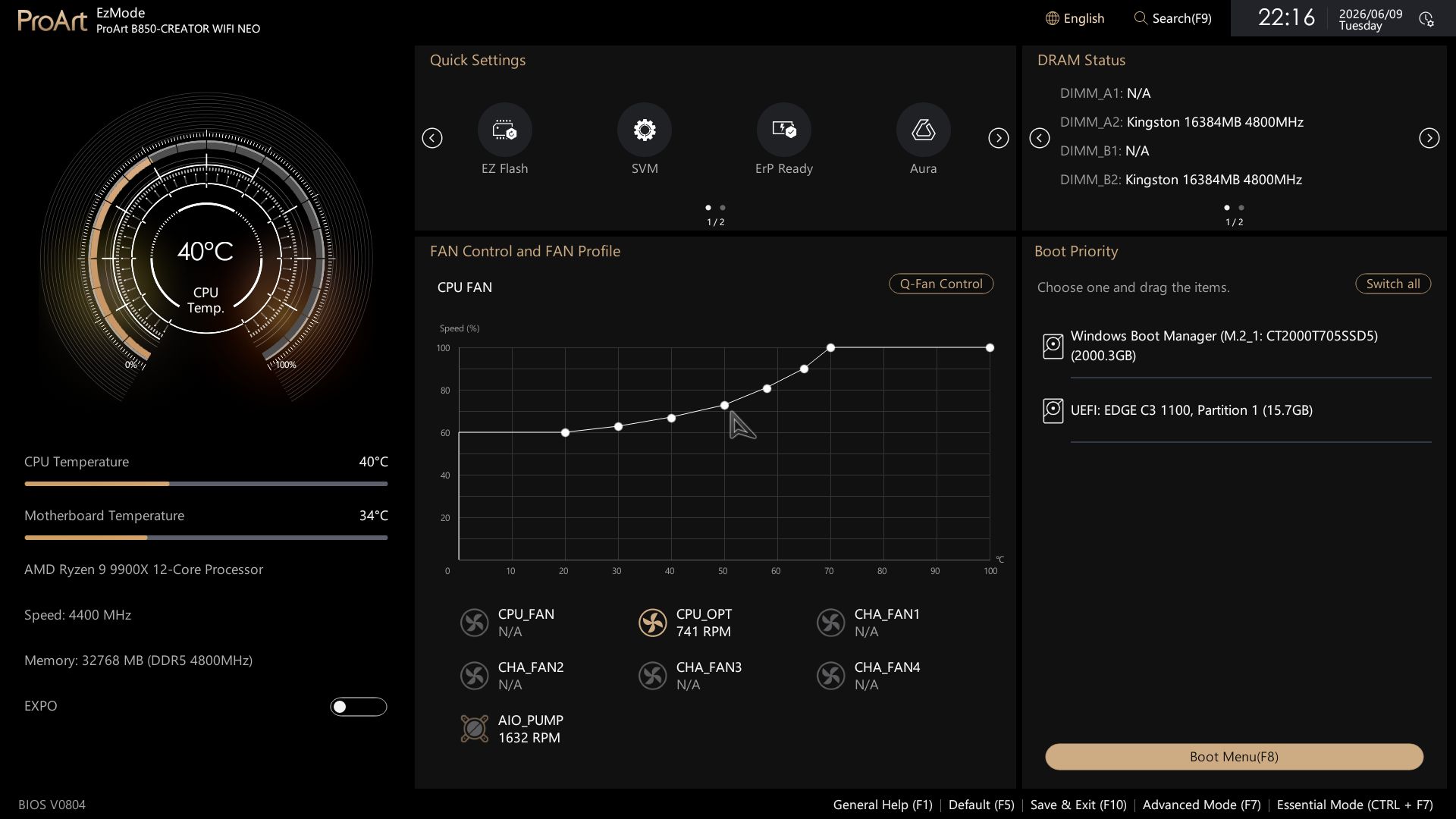
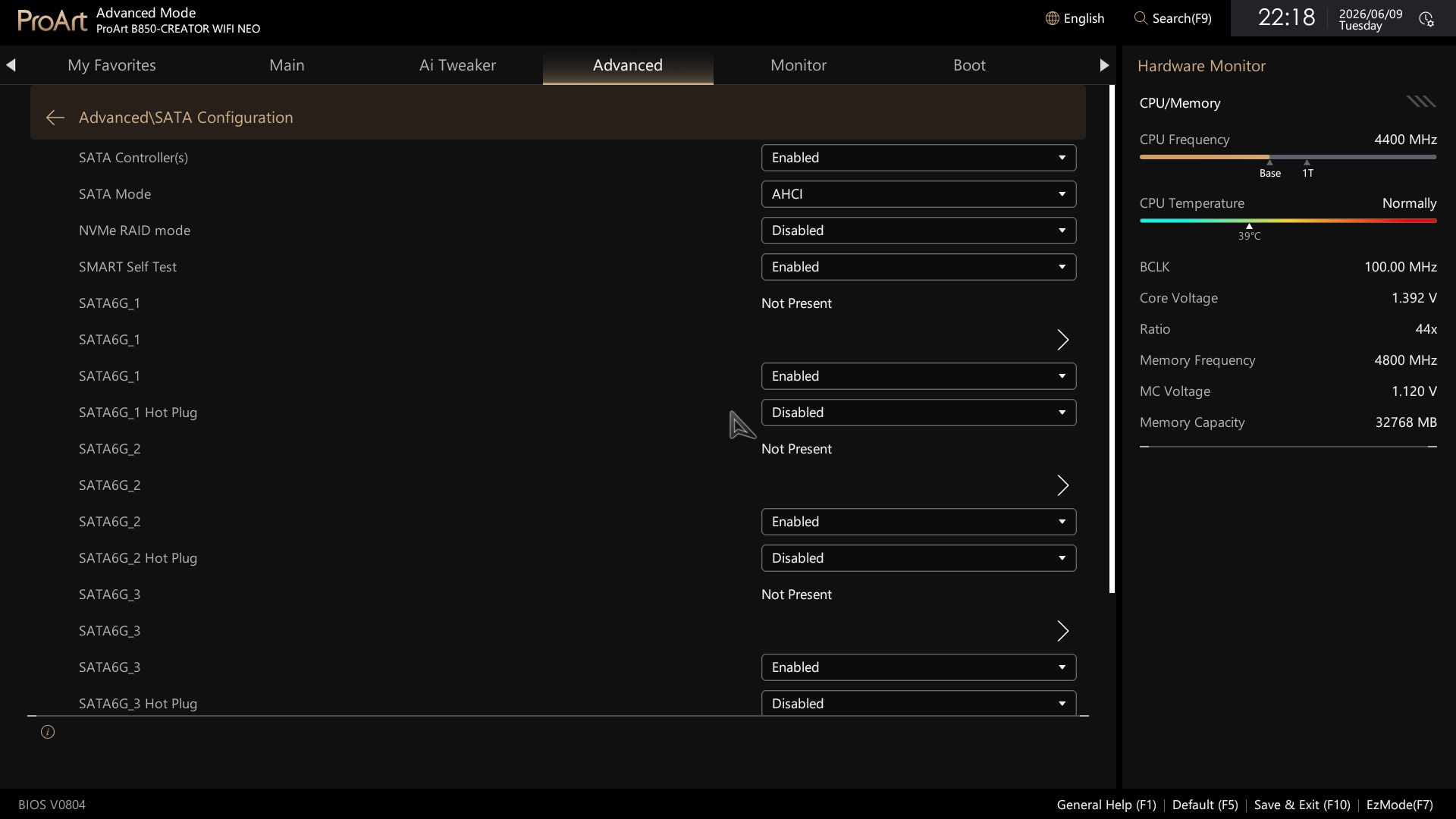
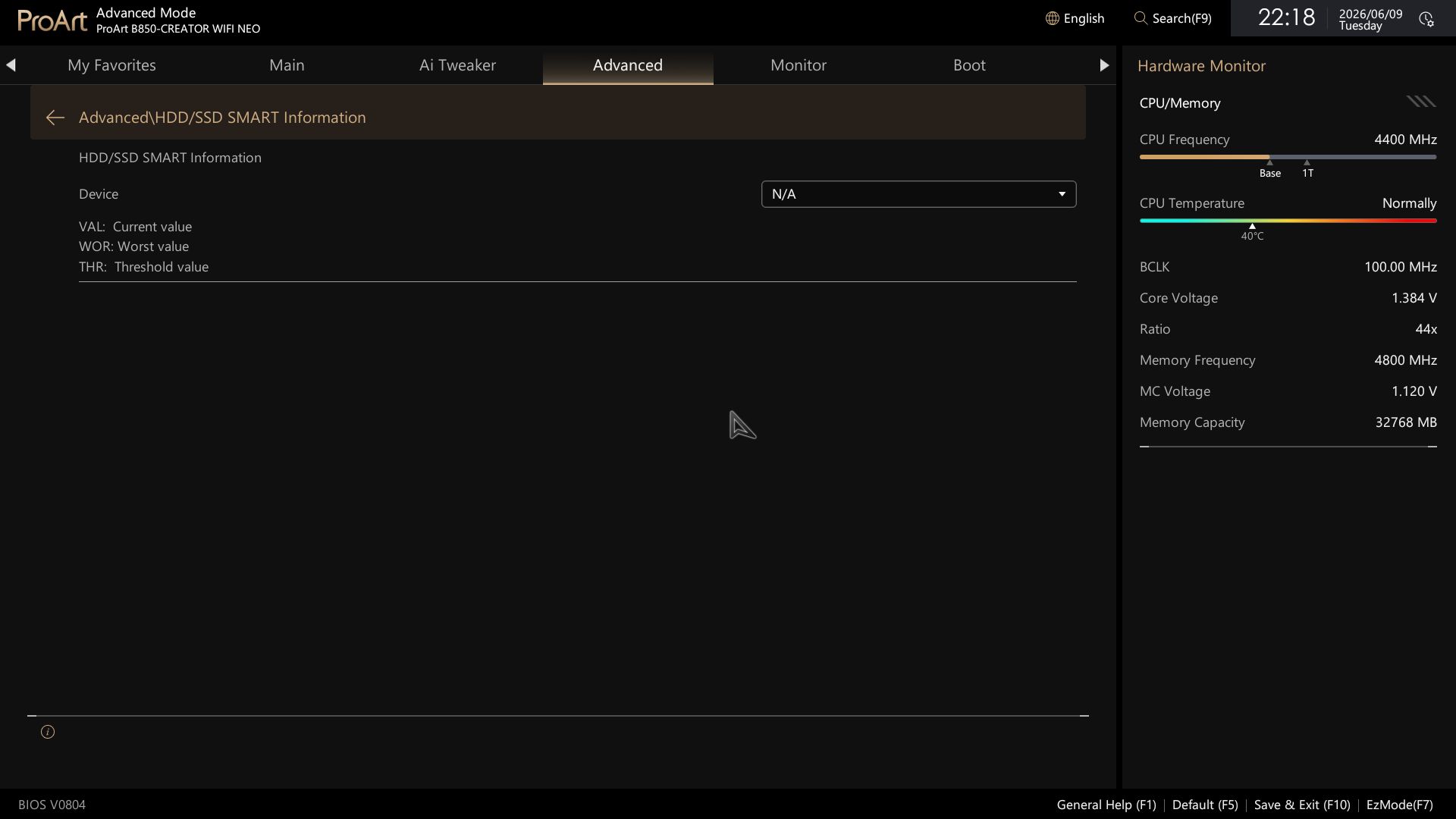
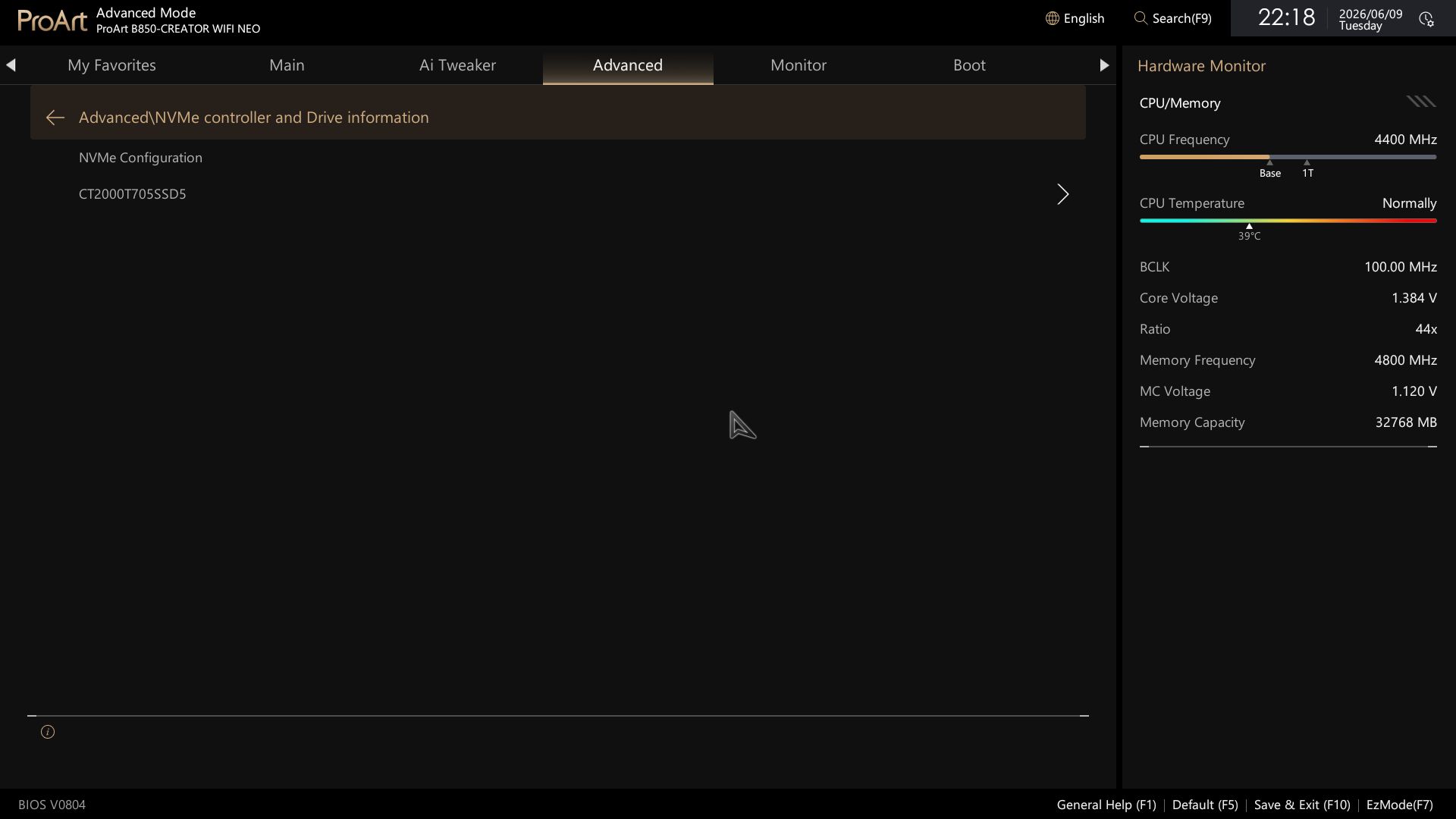
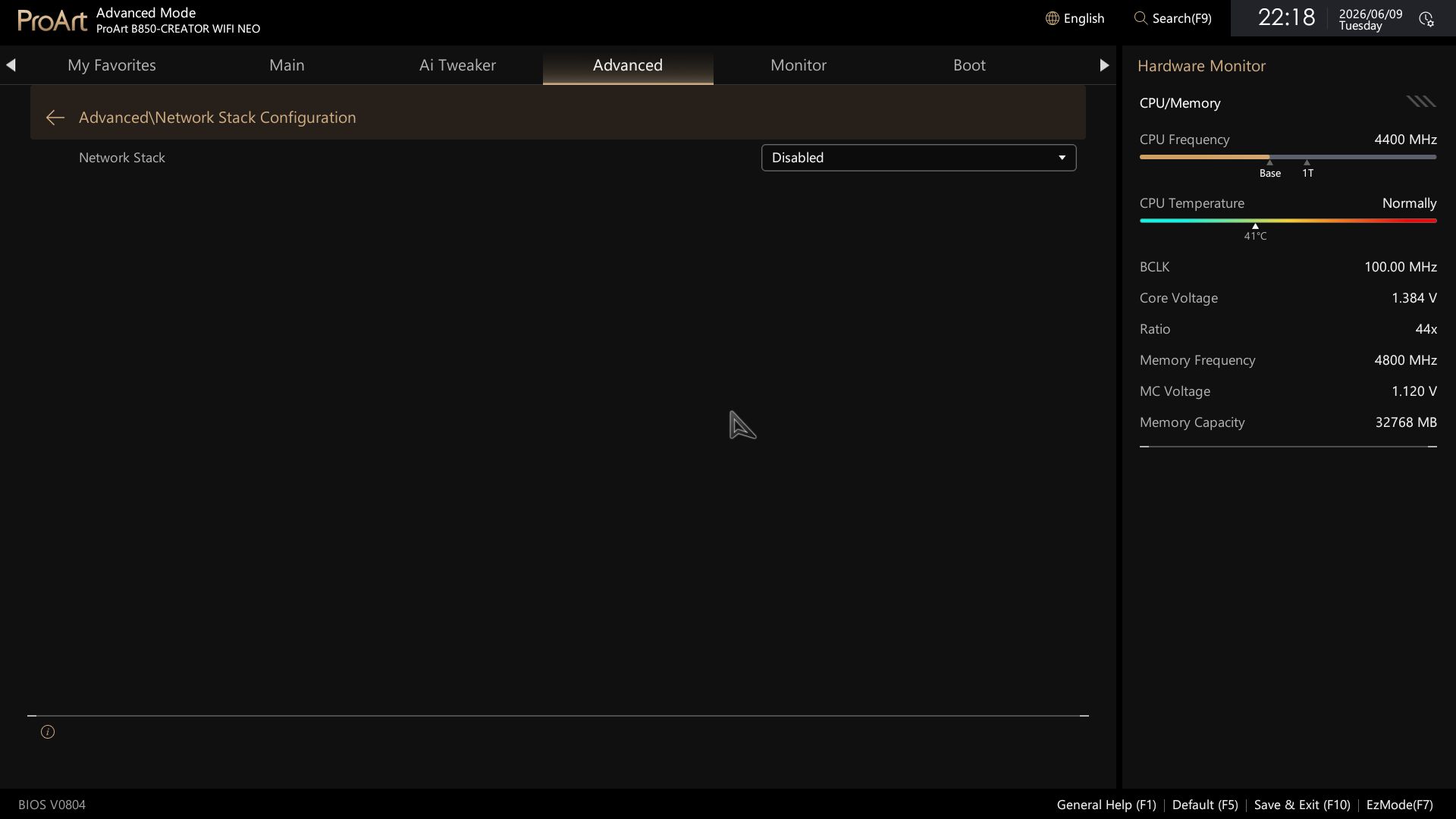
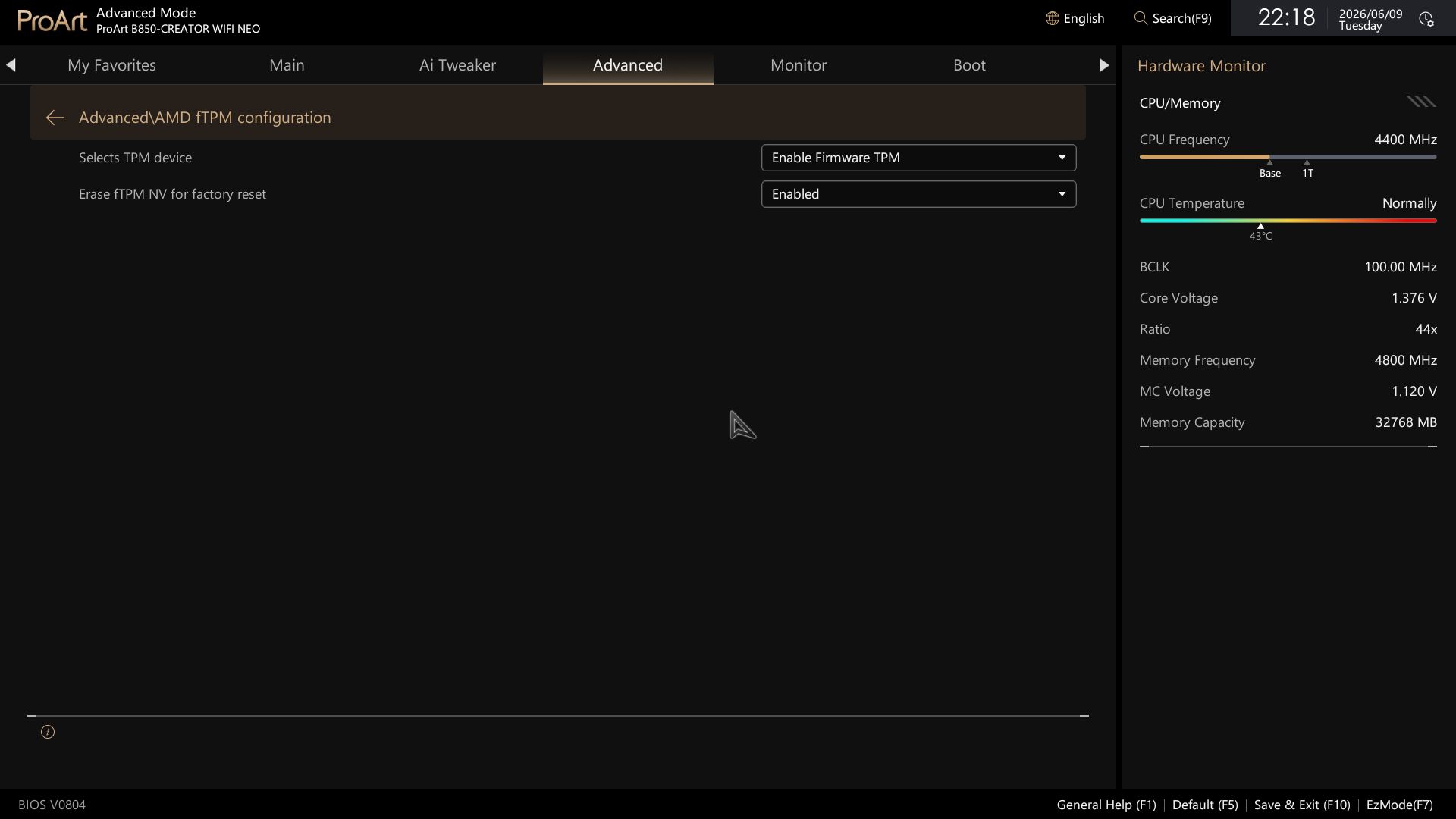
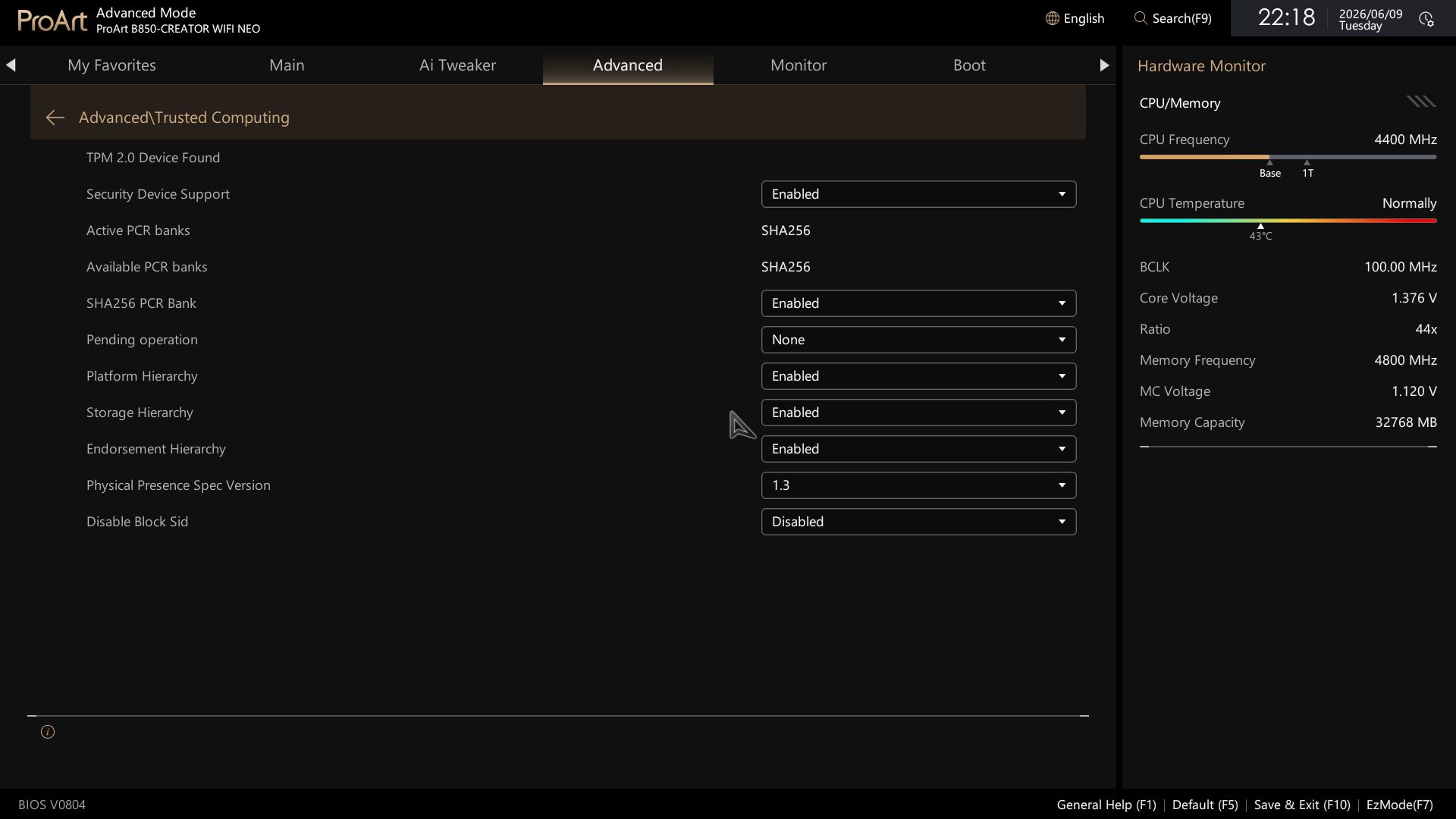
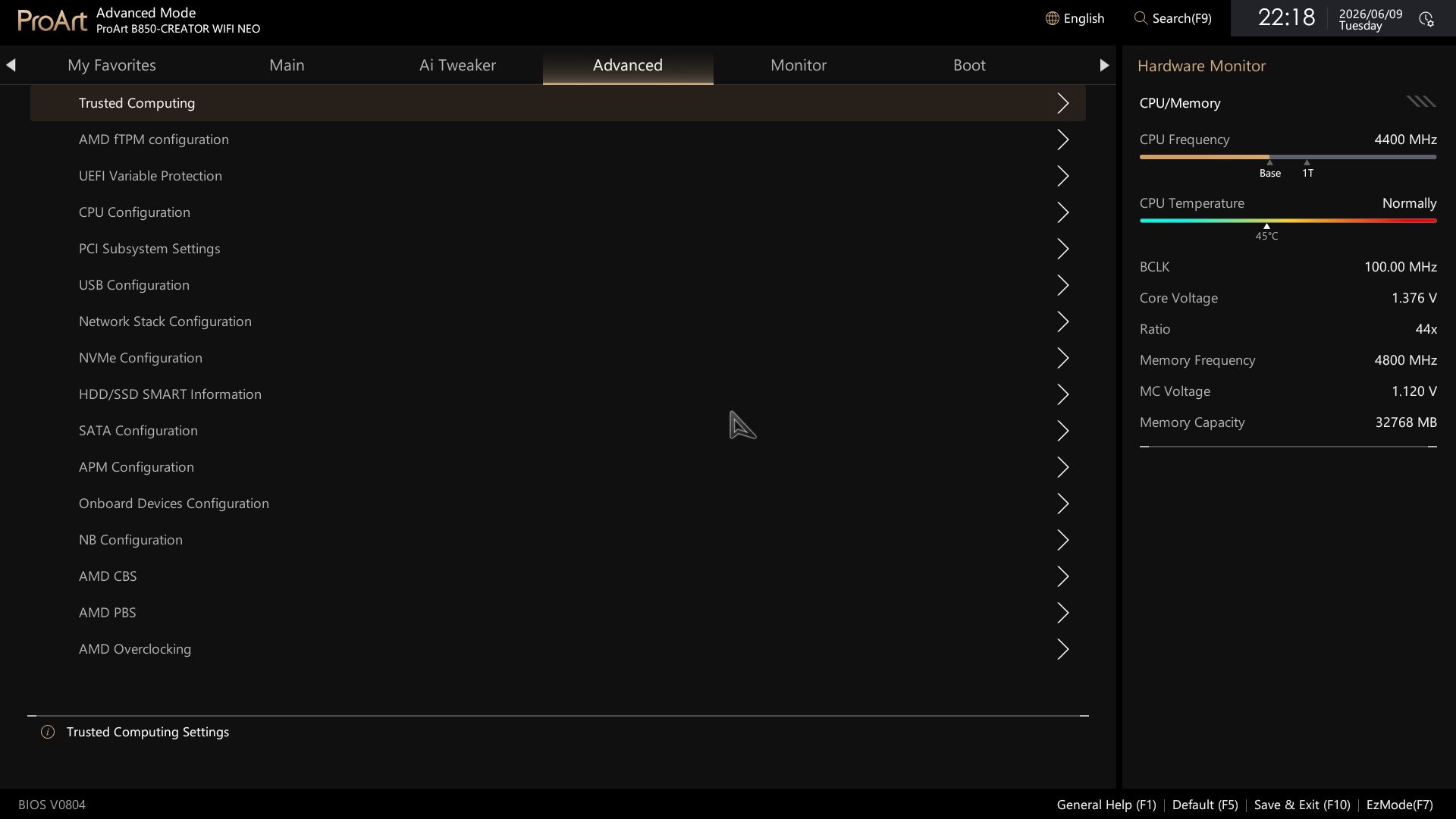
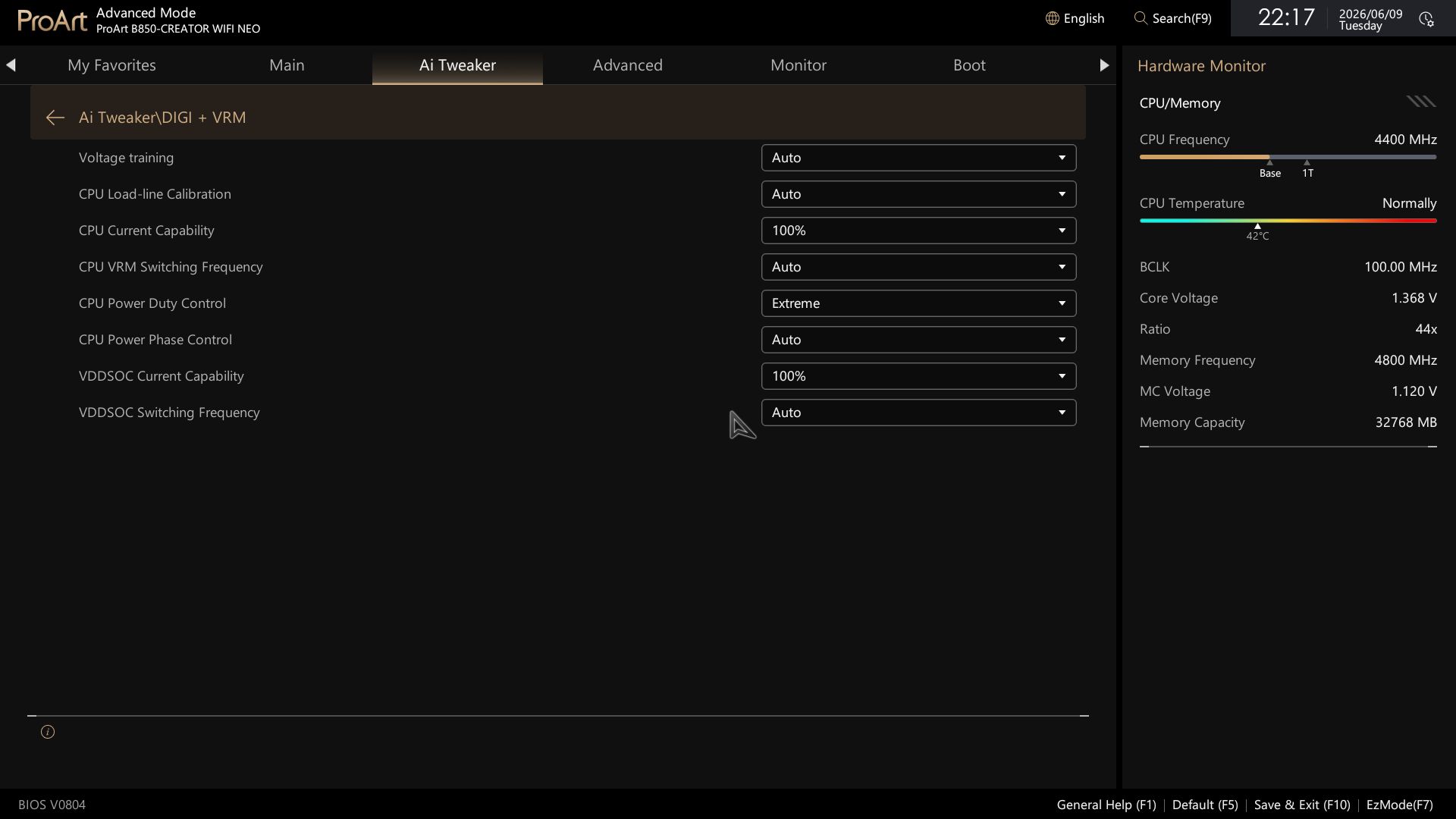
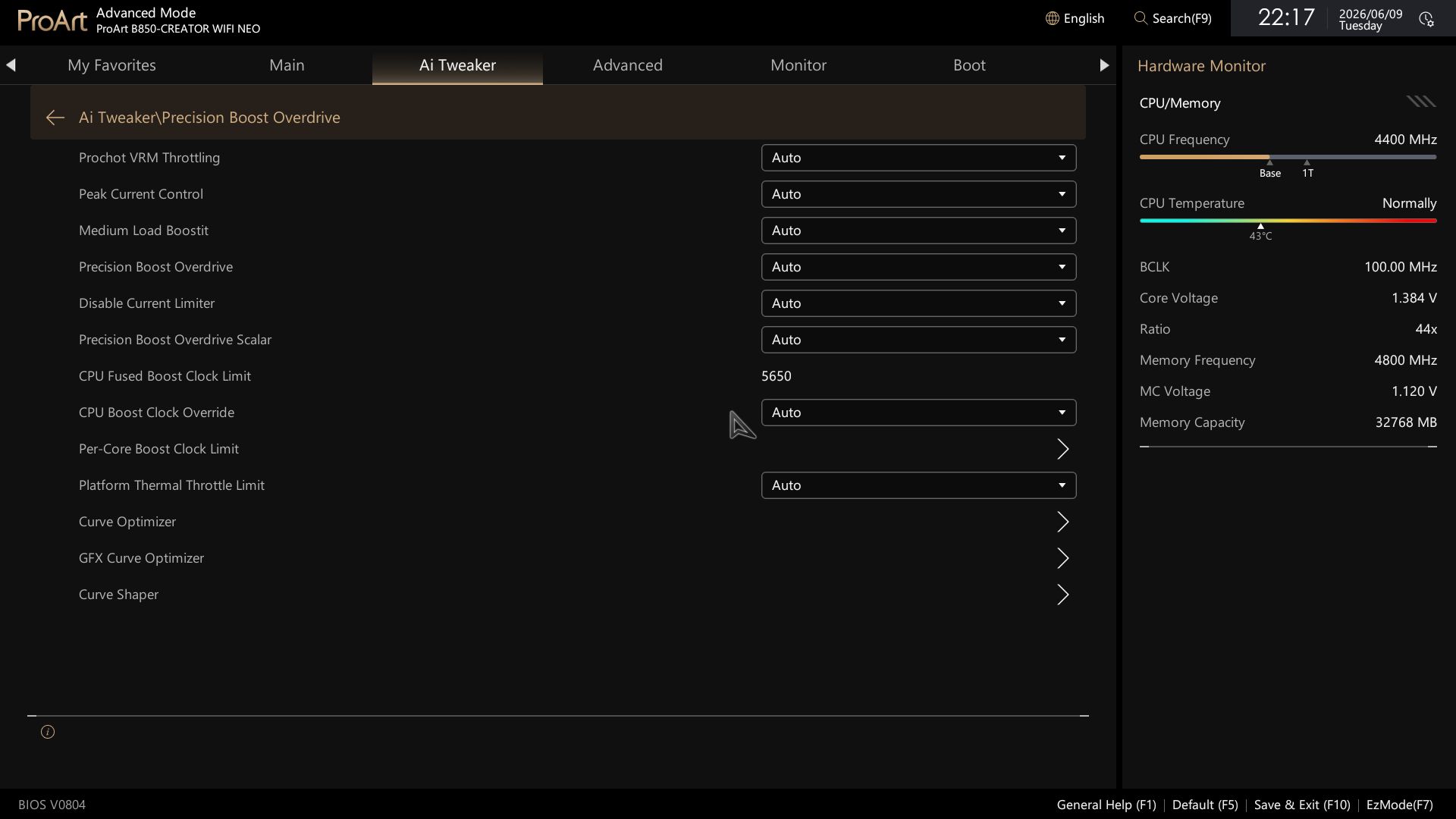
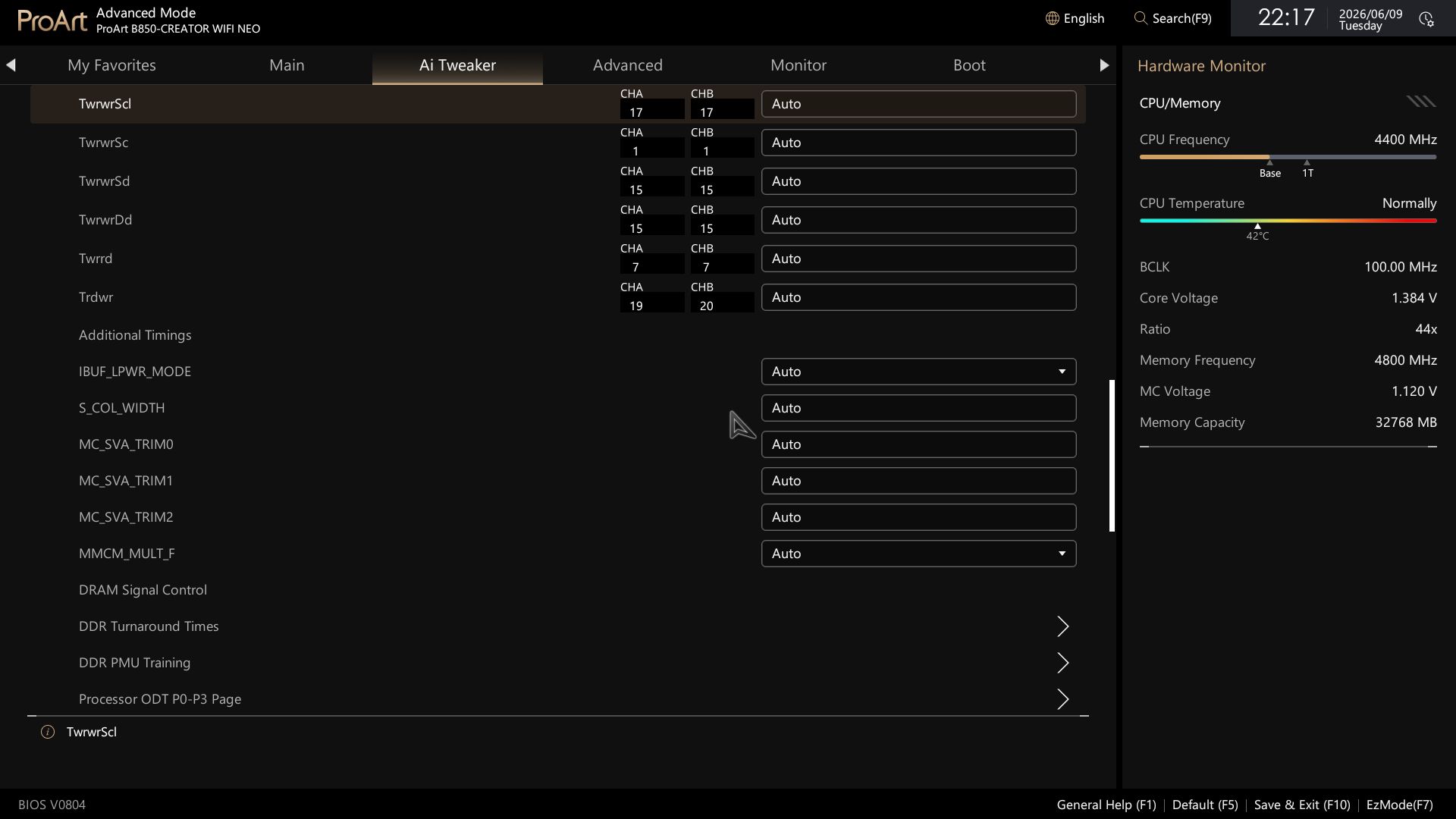
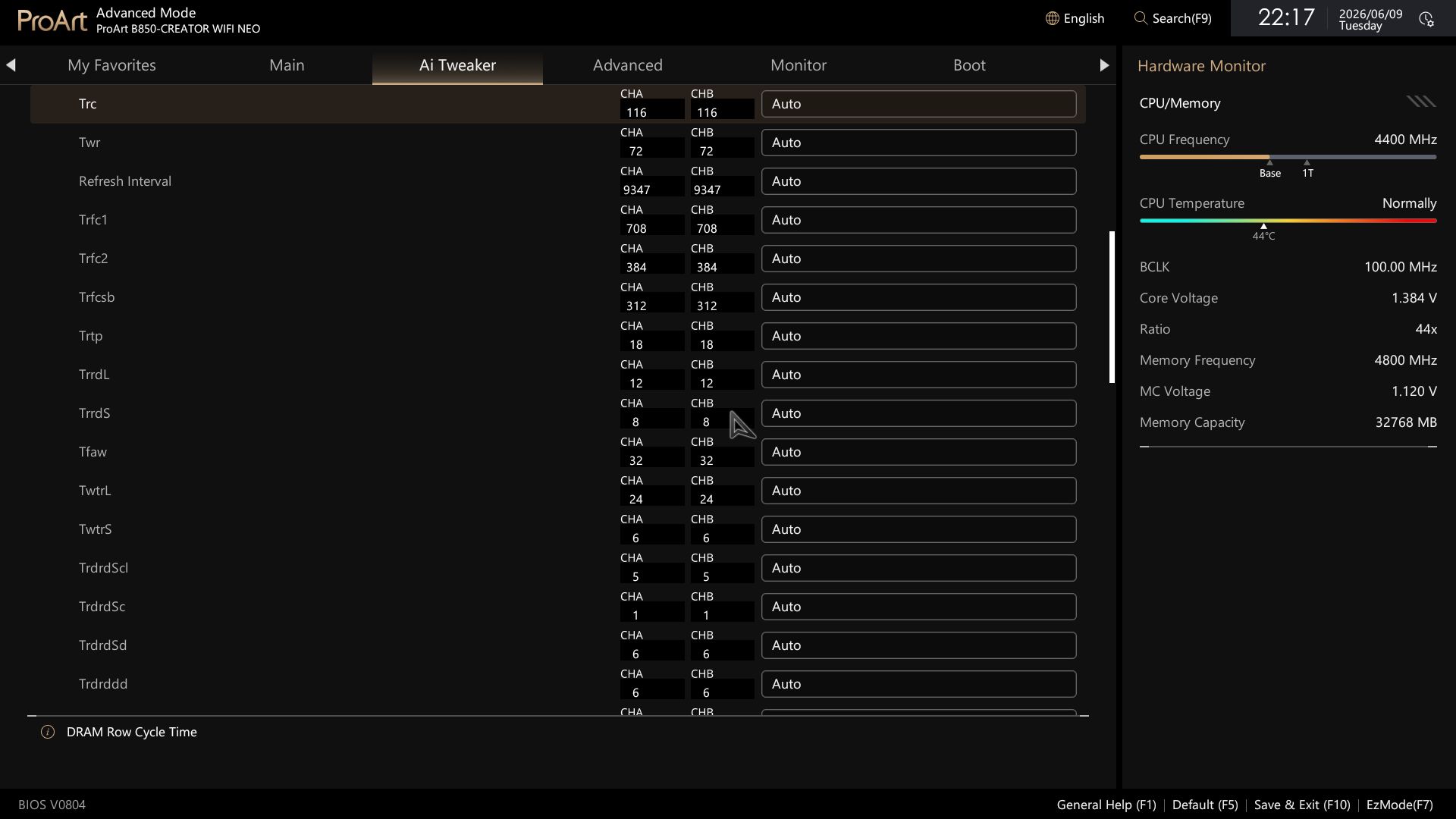
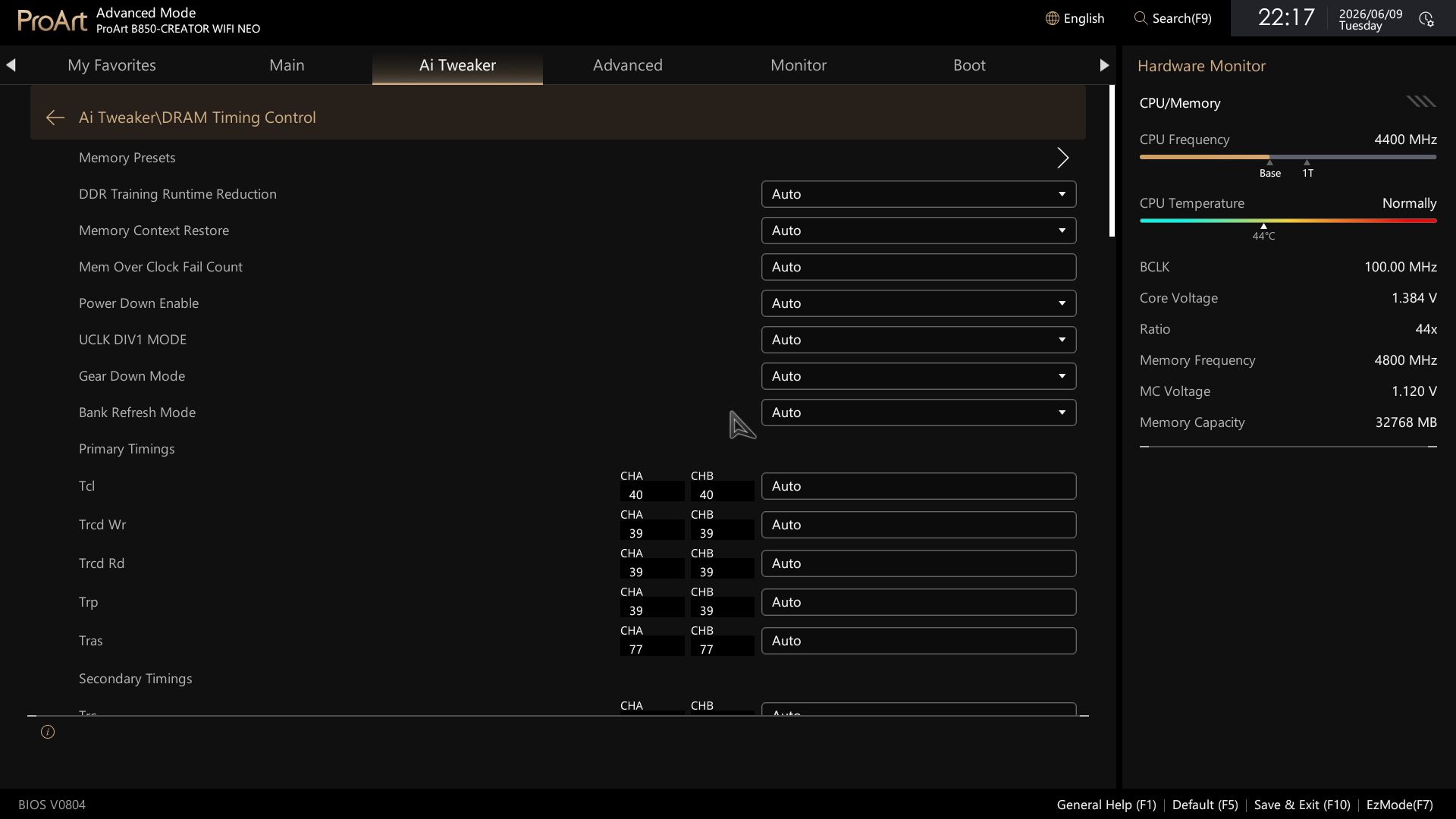
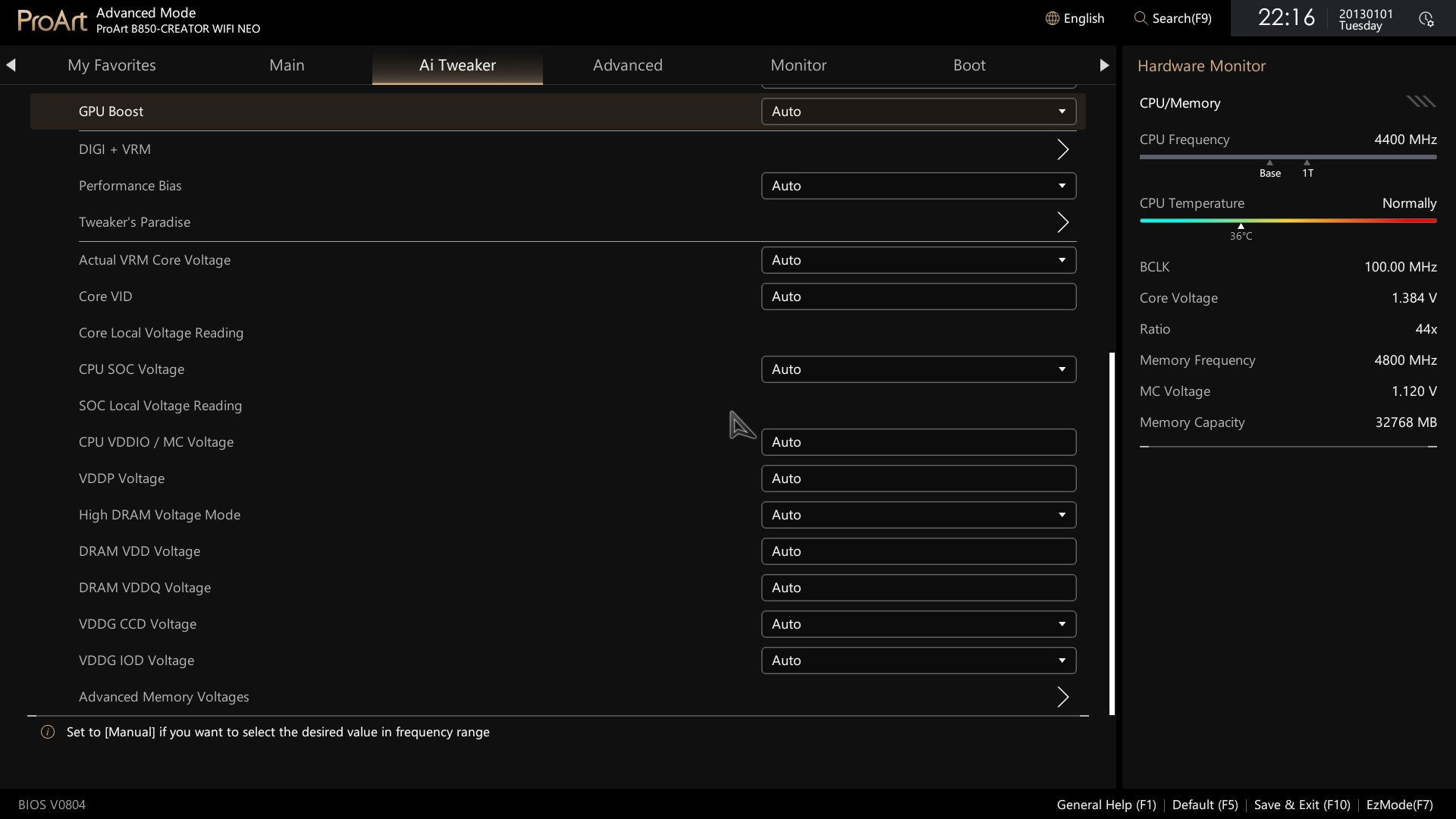
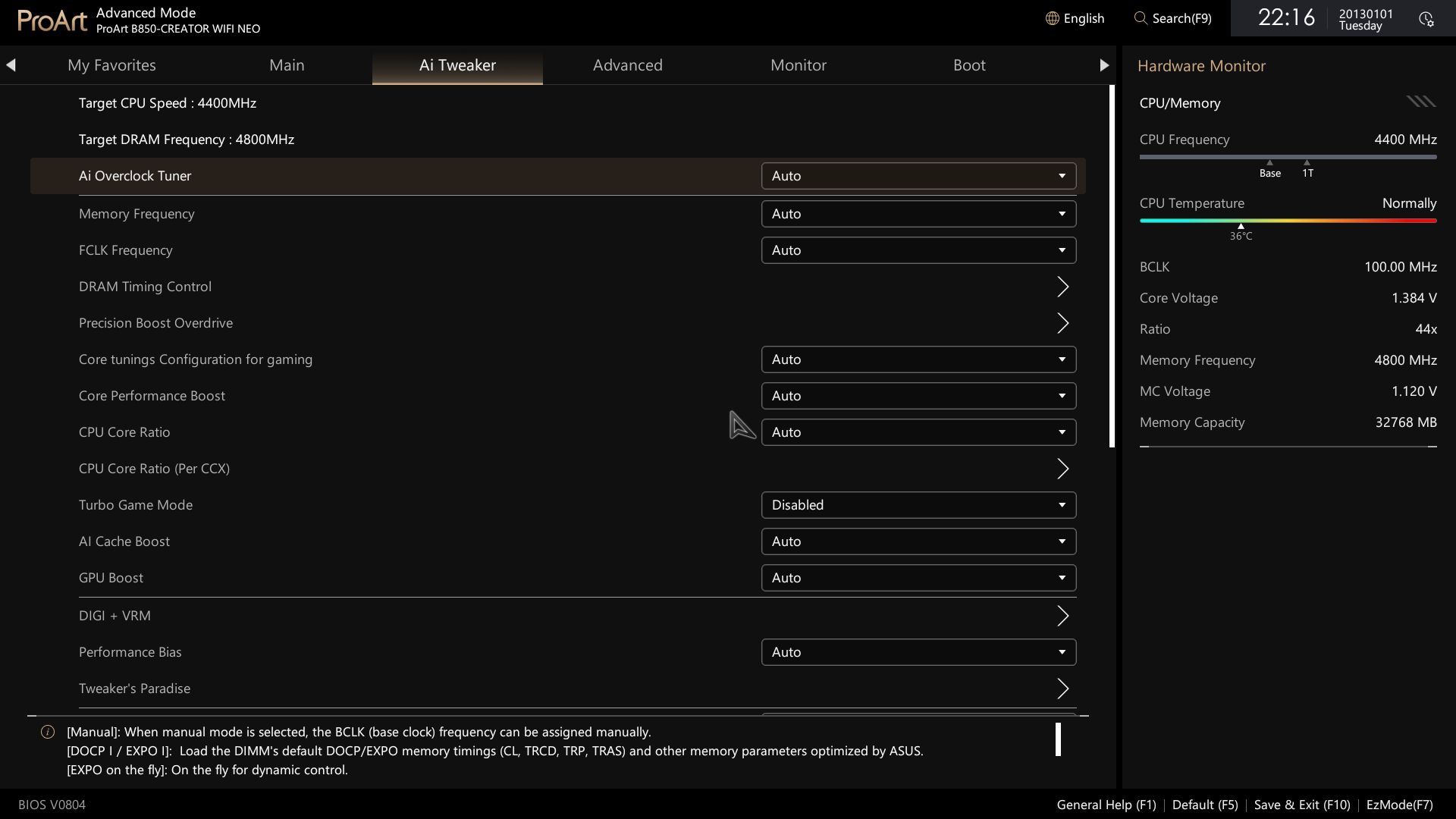
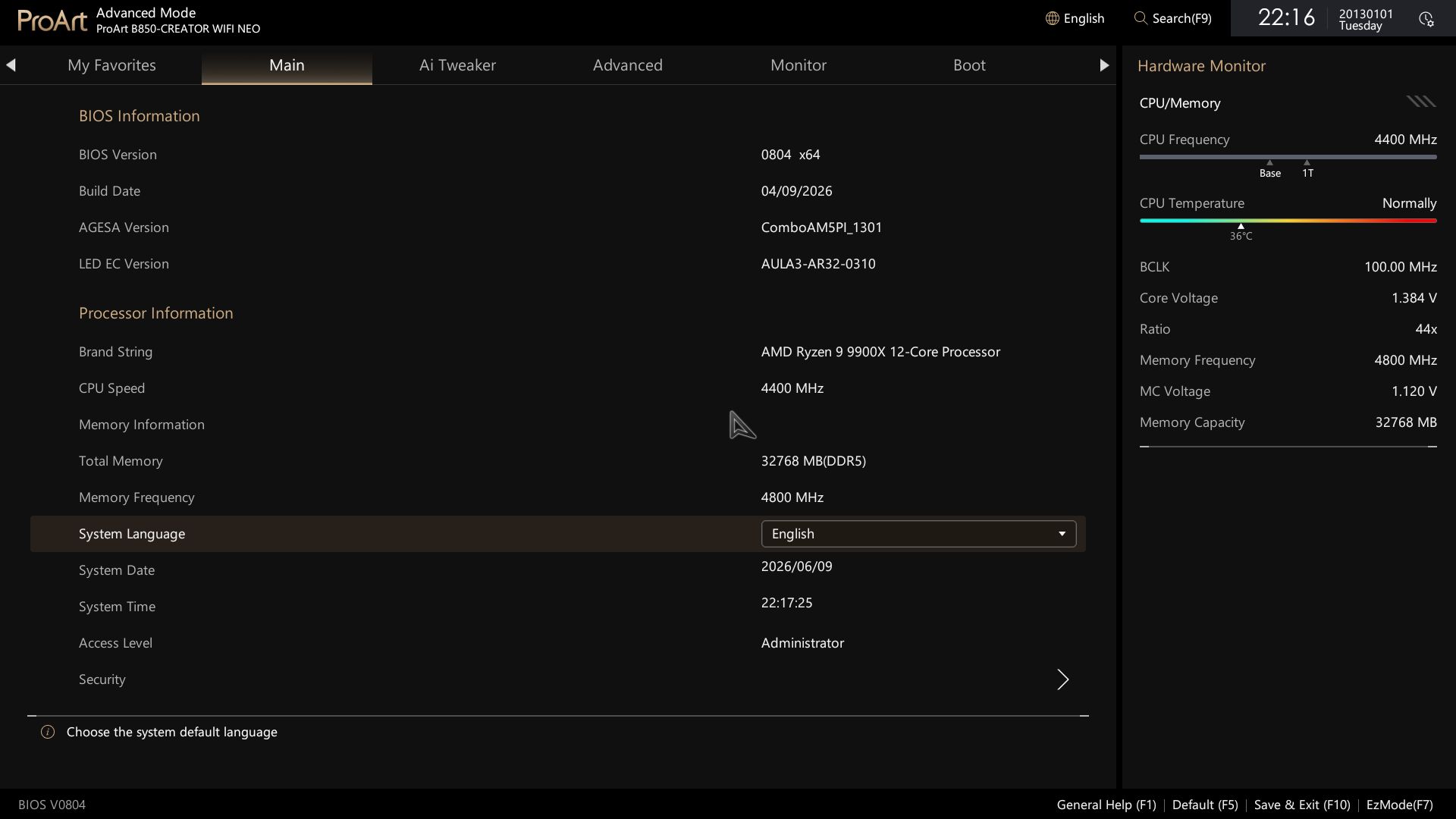
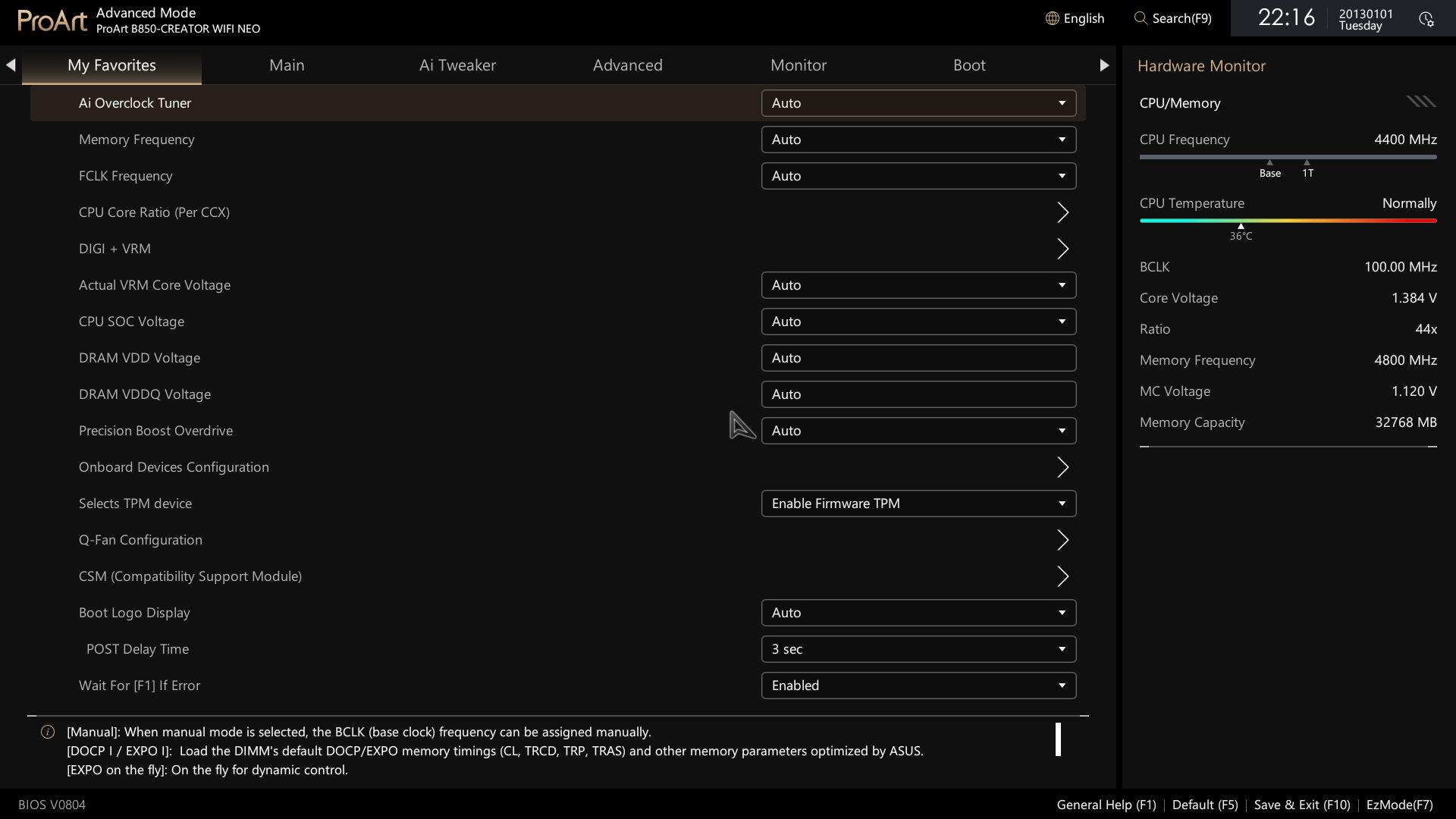
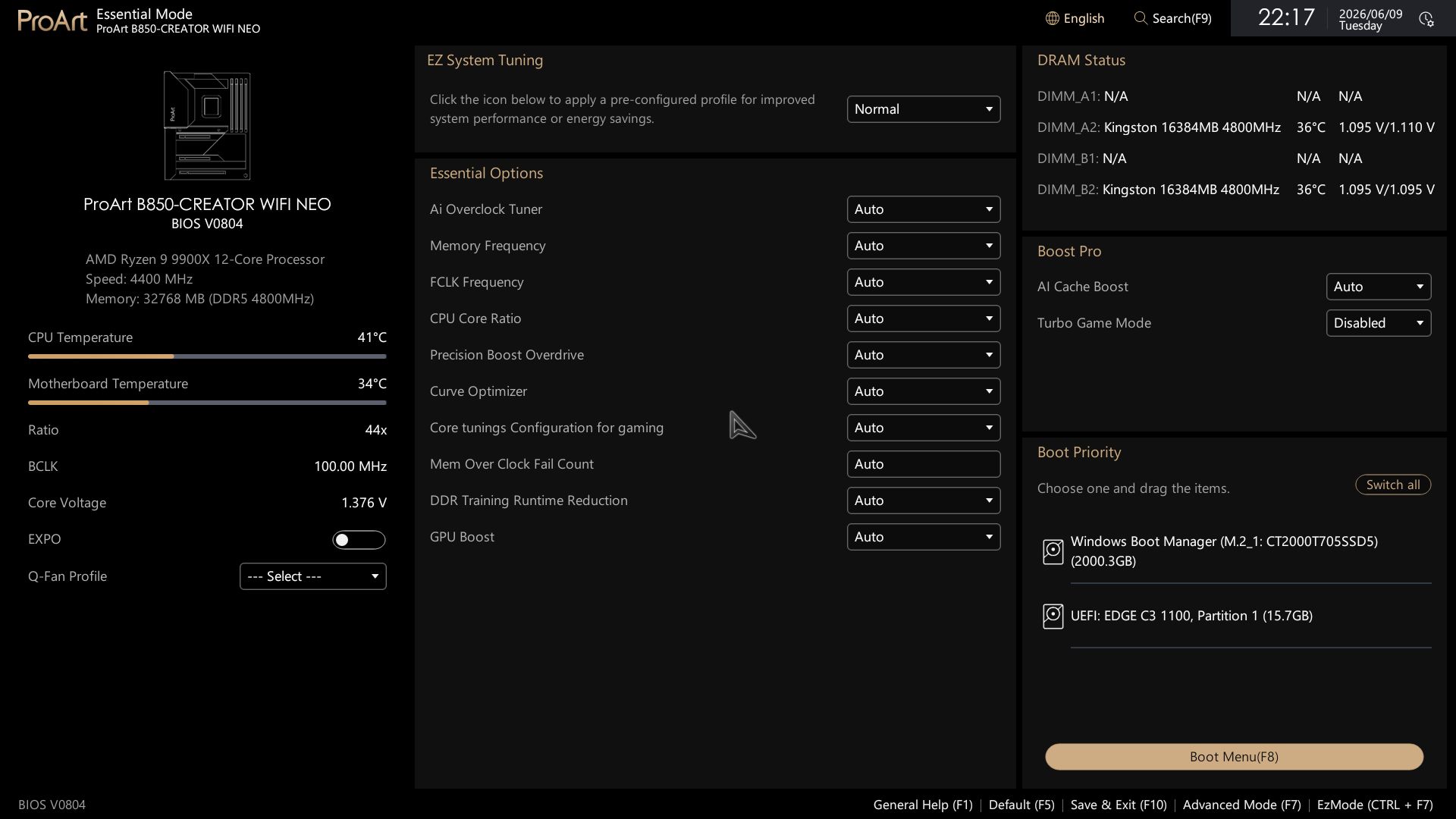
Asus updated the BIOS layout and for the Creator Neo, using the familiar white/tan/gold that matches the ProArt theme and the mostly black board. EZ Mode is mostly informative, with system information and temperatures on the left, and quick settings for EZ Flash, Aura RGB, the Driver Hub for easy driver installation, and more in the middle. Fan control and access to full Q-Fan functionality are below. The right block displays DRAM and storage status, and Boot Priority is self-explanatory.

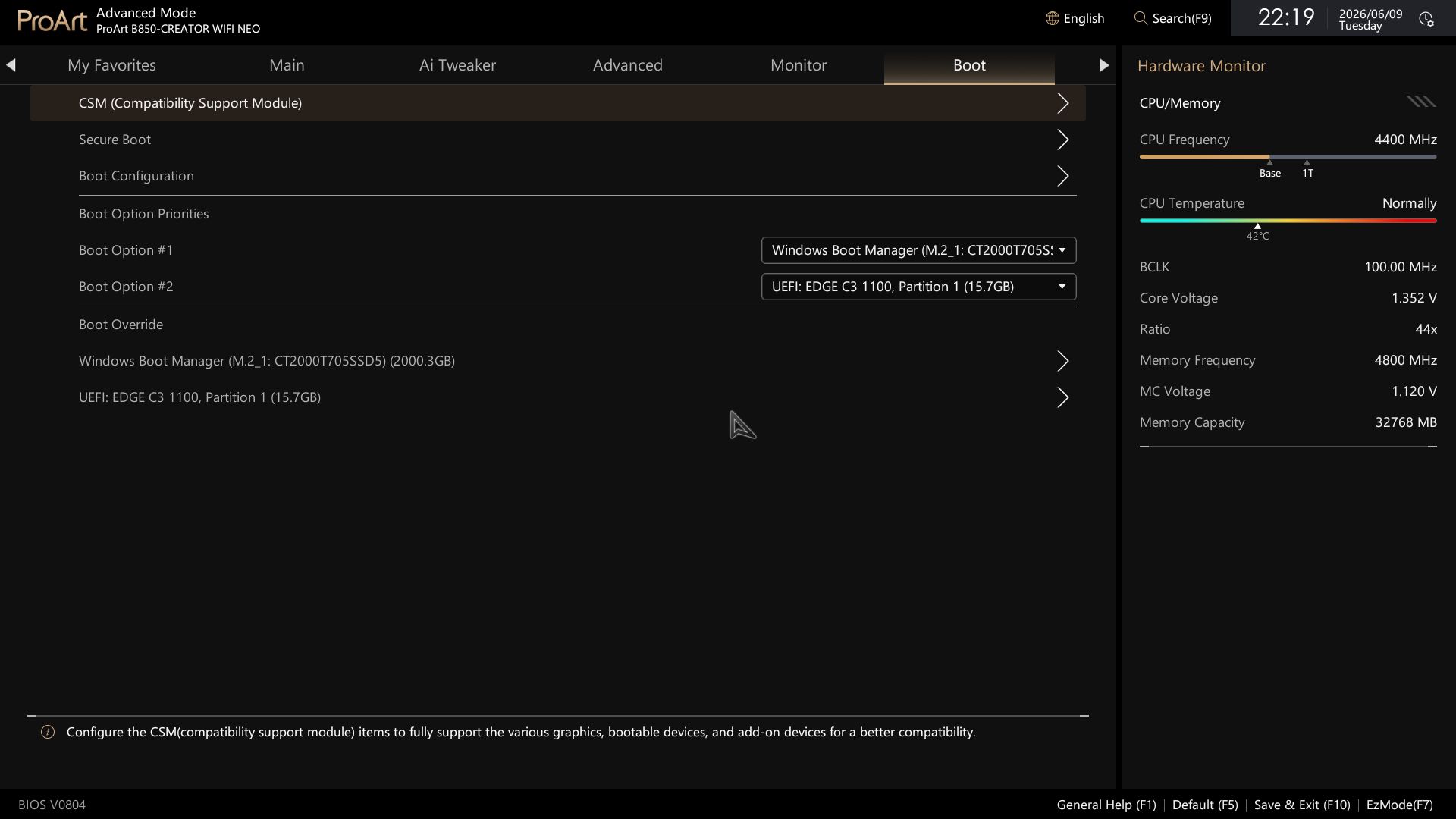
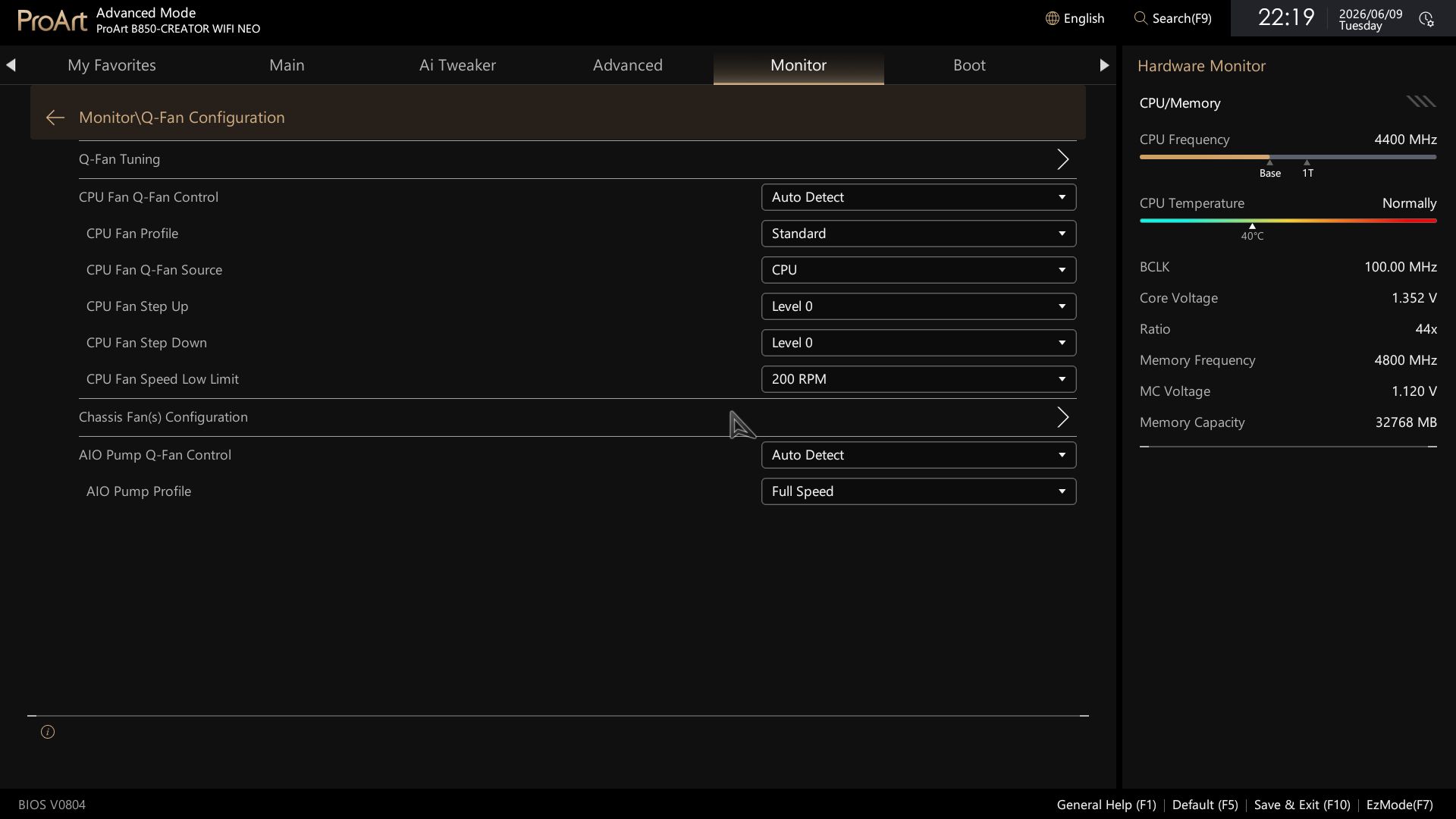
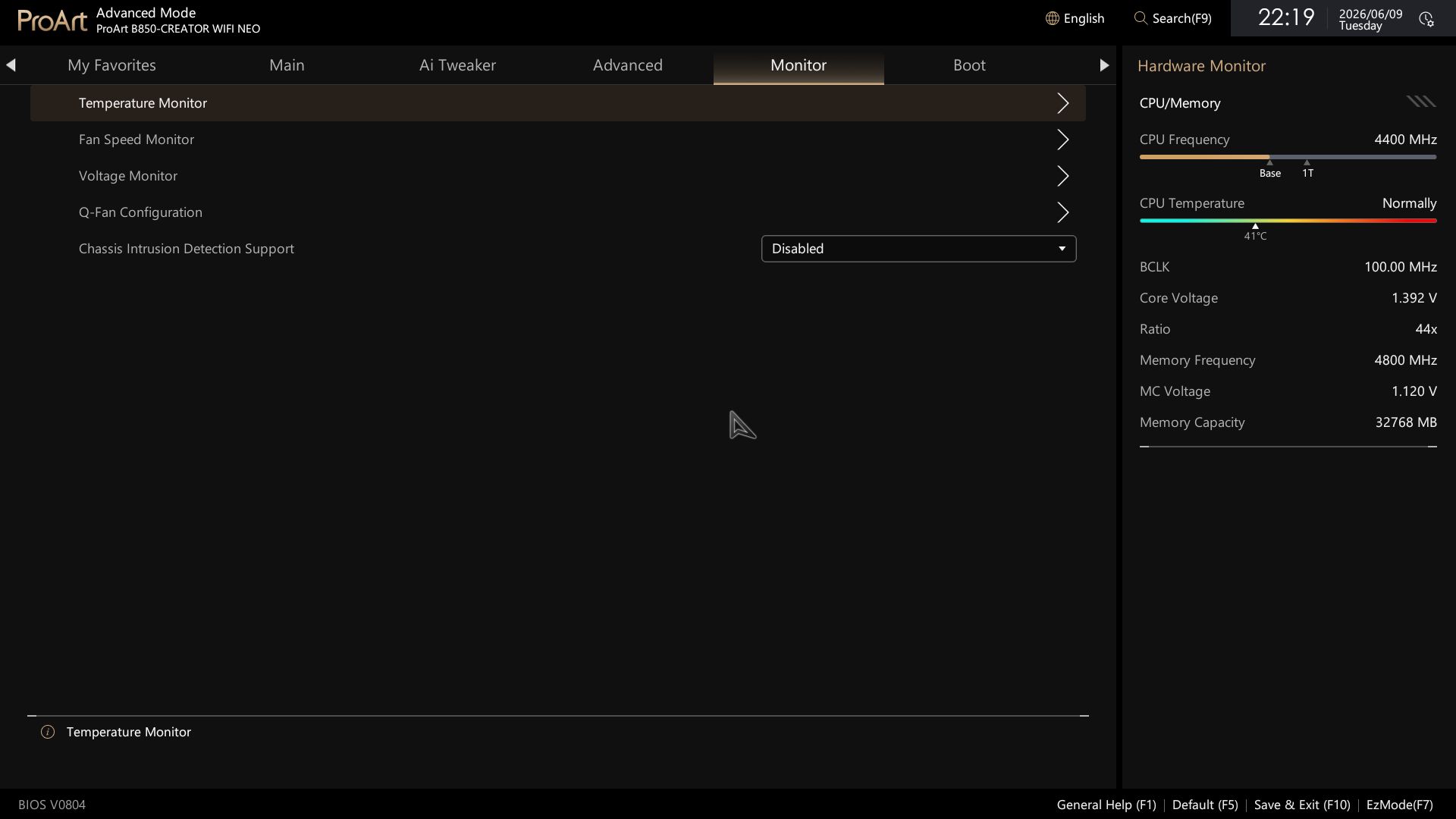
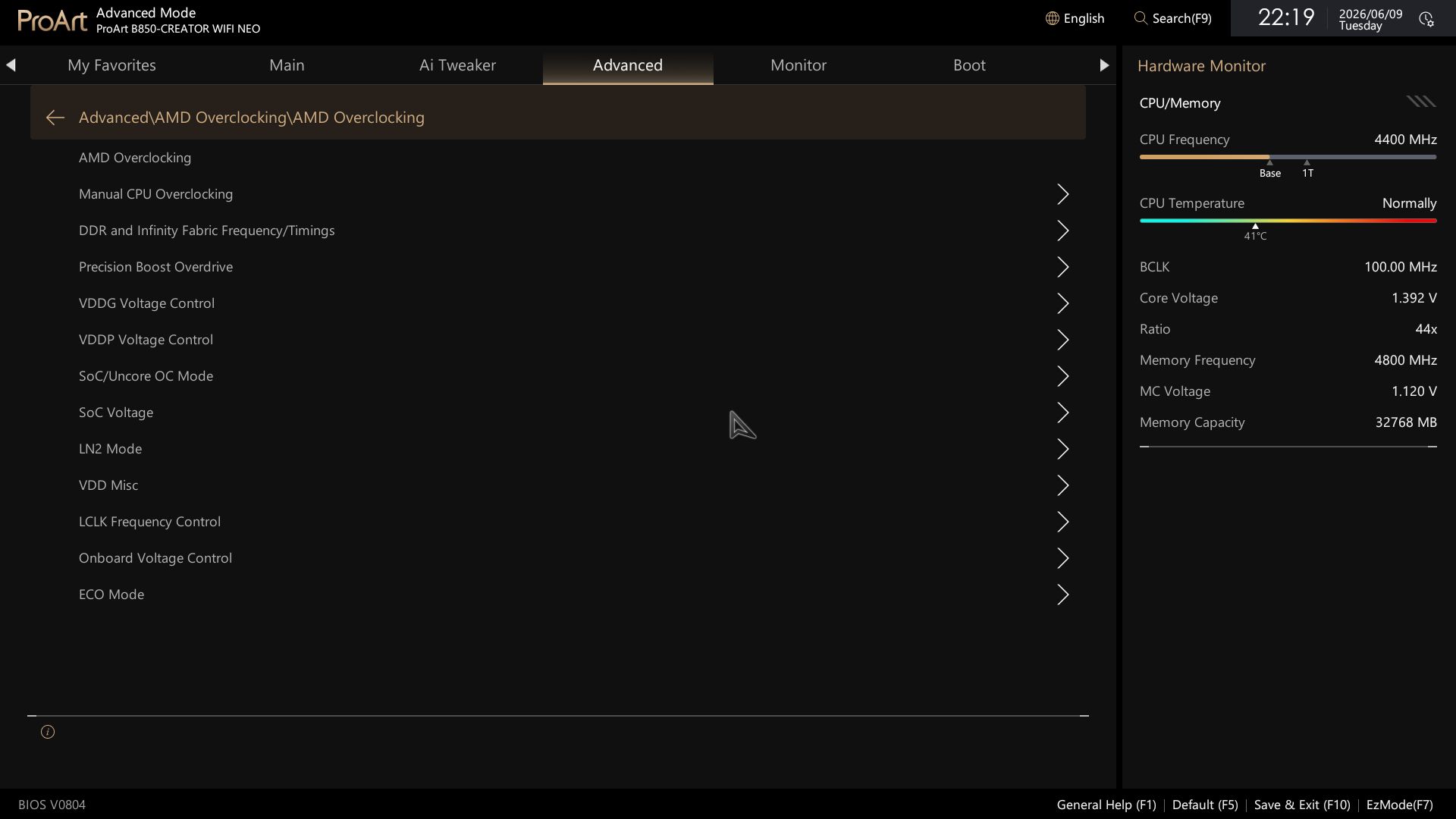
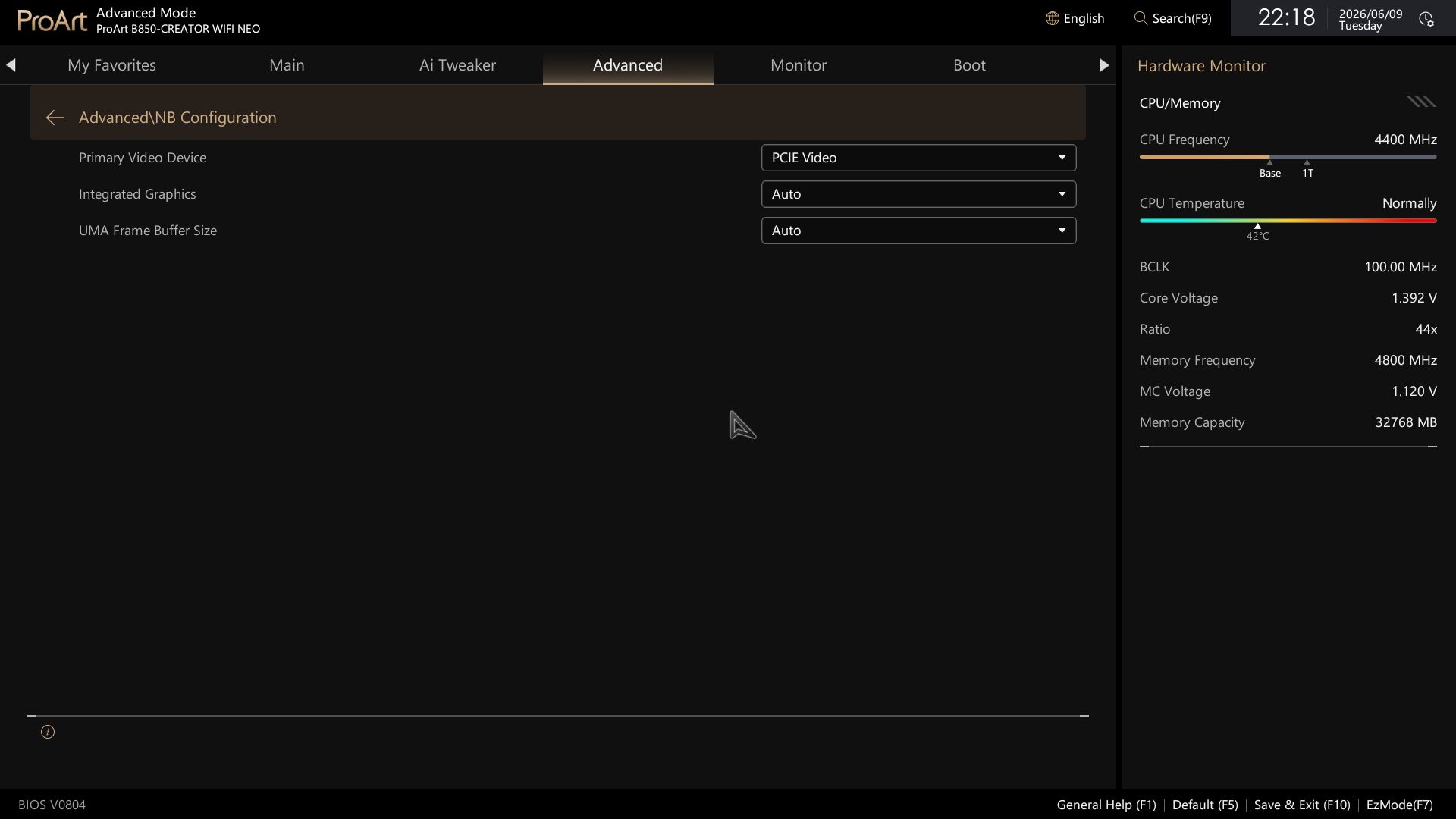
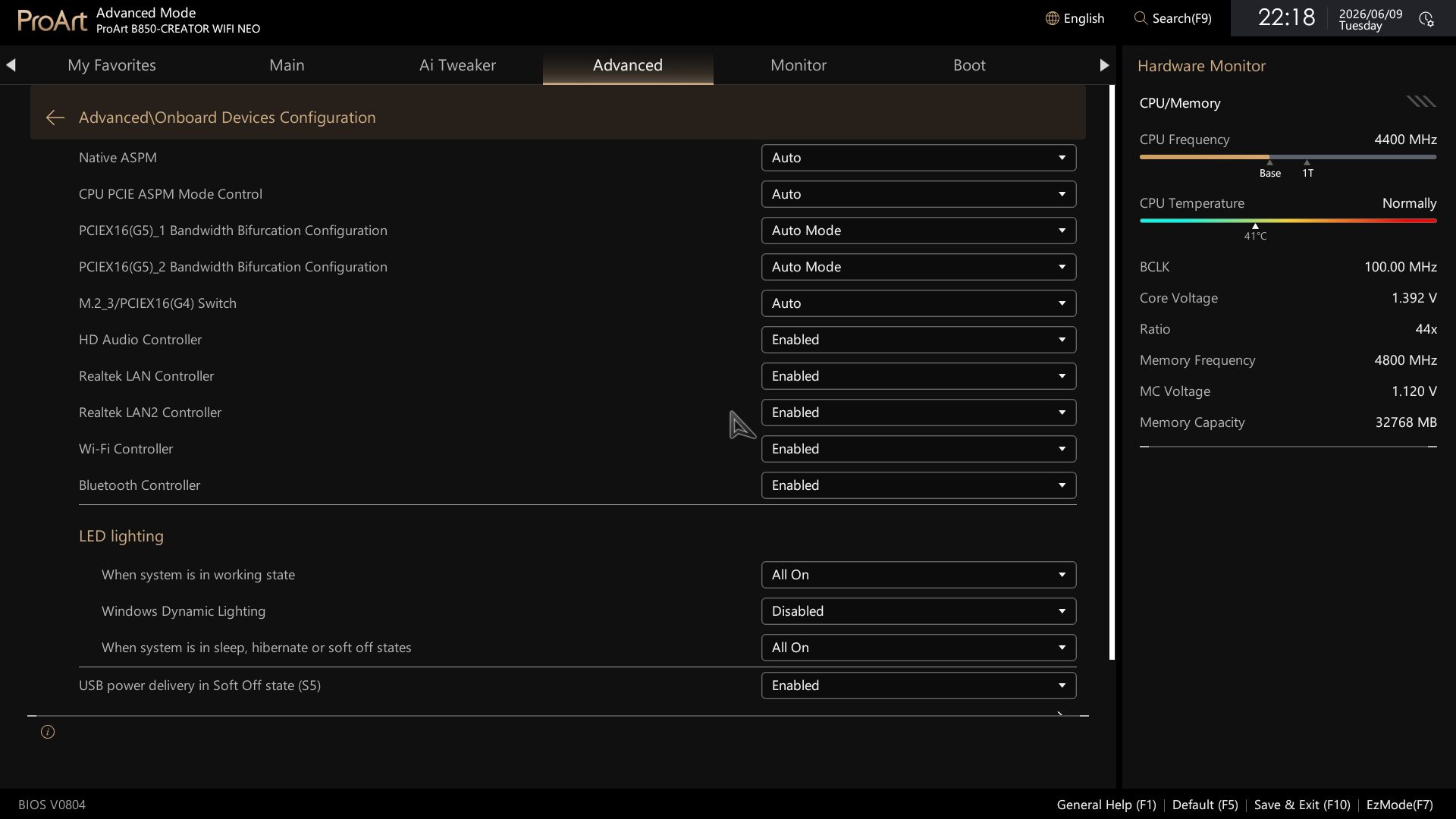
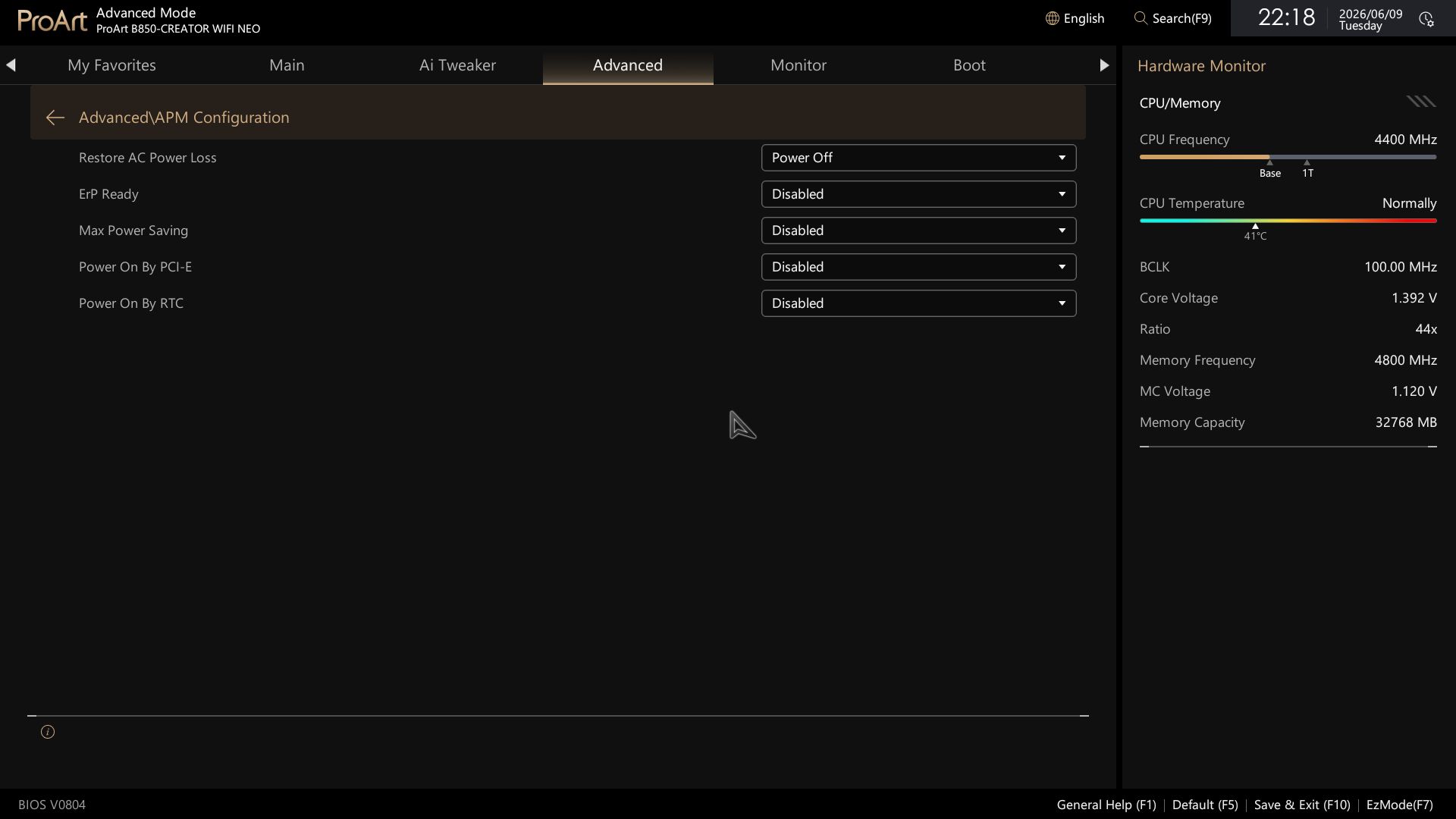
Advanced mode still has the headers across the top, but the shortcuts to Q-Fan and AI OC have been moved to quick settings and other locations. The right panel holds system information, including CPU frequency and temperature, in a colorful display. The main body has all the editable functionality.

Overall, I like the aesthetic update for the BIOS. It’s easy to read, and, as usual with Asus' BIOS, frequently used items are easy to find and not buried too deeply in their menus. Anything that’s a pain to access can be added to the customizable favorites screen.

Asus B850-Creator Wifi Neo - BIOS
Future
Asus B850-Creator Wifi Neo - BIOS
Future
Asus B850-Creator Wifi Neo - BIOS
Future
Asus B850-Creator Wifi Neo - BIOS
Future
Asus B850-Creator Wifi Neo - BIOS
Future
Asus B850-Creator Wifi Neo - BIOS
Future
Asus B850-Creator Wifi Neo - BIOS
Future
Asus B850-Creator Wifi Neo - BIOS
Future
Asus B850-Creator Wifi Neo - BIOS
Future
Asus B850-Creator Wifi Neo - BIOS
Future
Asus B850-Creator Wifi Neo - BIOS
Future
Asus B850-Creator Wifi Neo - BIOS
Future
Asus B850-Creator Wifi Neo - BIOS
Future
Asus B850-Creator Wifi Neo - BIOS
Future
Asus B850-Creator Wifi Neo - BIOS
Future
Asus B850-Creator Wifi Neo - BIOS
Future
Asus B850-Creator Wifi Neo - BIOS
Future
Asus B850-Creator Wifi Neo - BIOS
Future
Asus B850-Creator Wifi Neo - BIOS
Future
Asus B850-Creator Wifi Neo - BIOS
Future
Asus B850-Creator Wifi Neo - BIOS
Future
Asus B850-Creator Wifi Neo - BIOS
Future
Asus B850-Creator Wifi Neo - BIOS
Future
Asus B850-Creator Wifi Neo - BIOS
Future
Asus B850-Creator Wifi Neo - BIOS
Future
Asus B850-Creator Wifi Neo - BIOS
Future
Asus B850-Creator Wifi Neo - BIOS
Future
Asus B850-Creator Wifi Neo - BIOS
Future
Asus B850-Creator Wifi Neo - BIOS
Future

Software

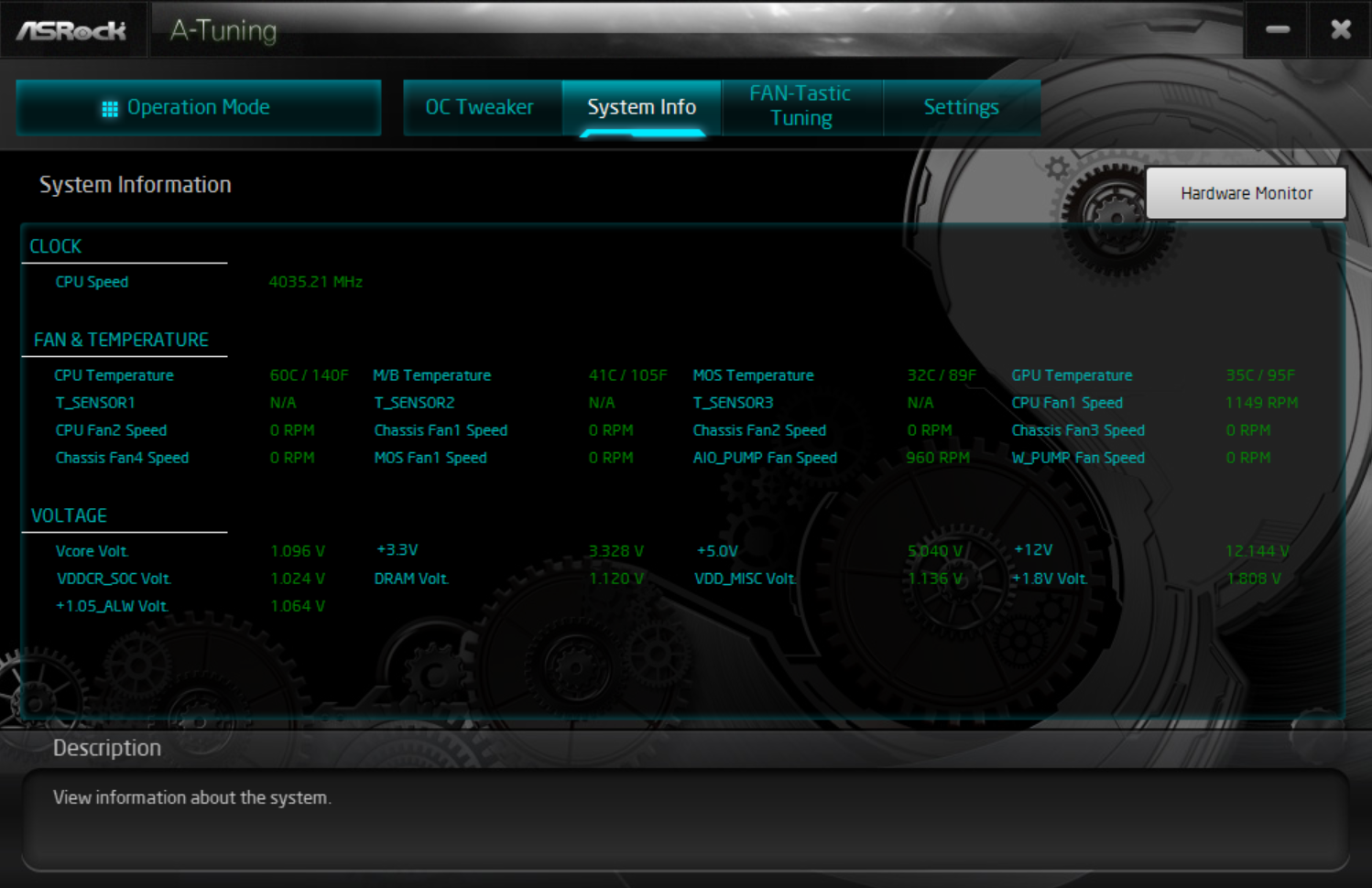
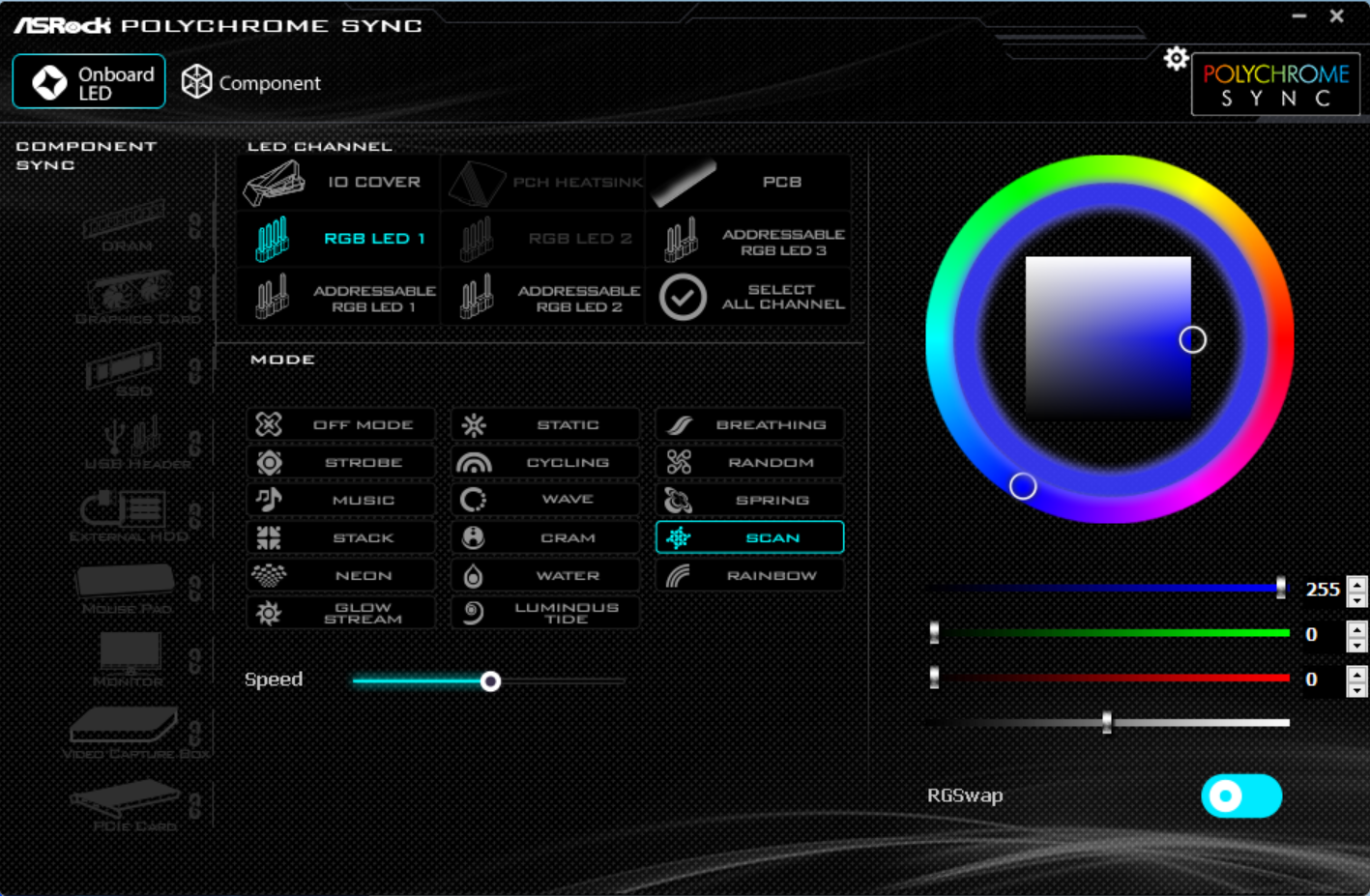
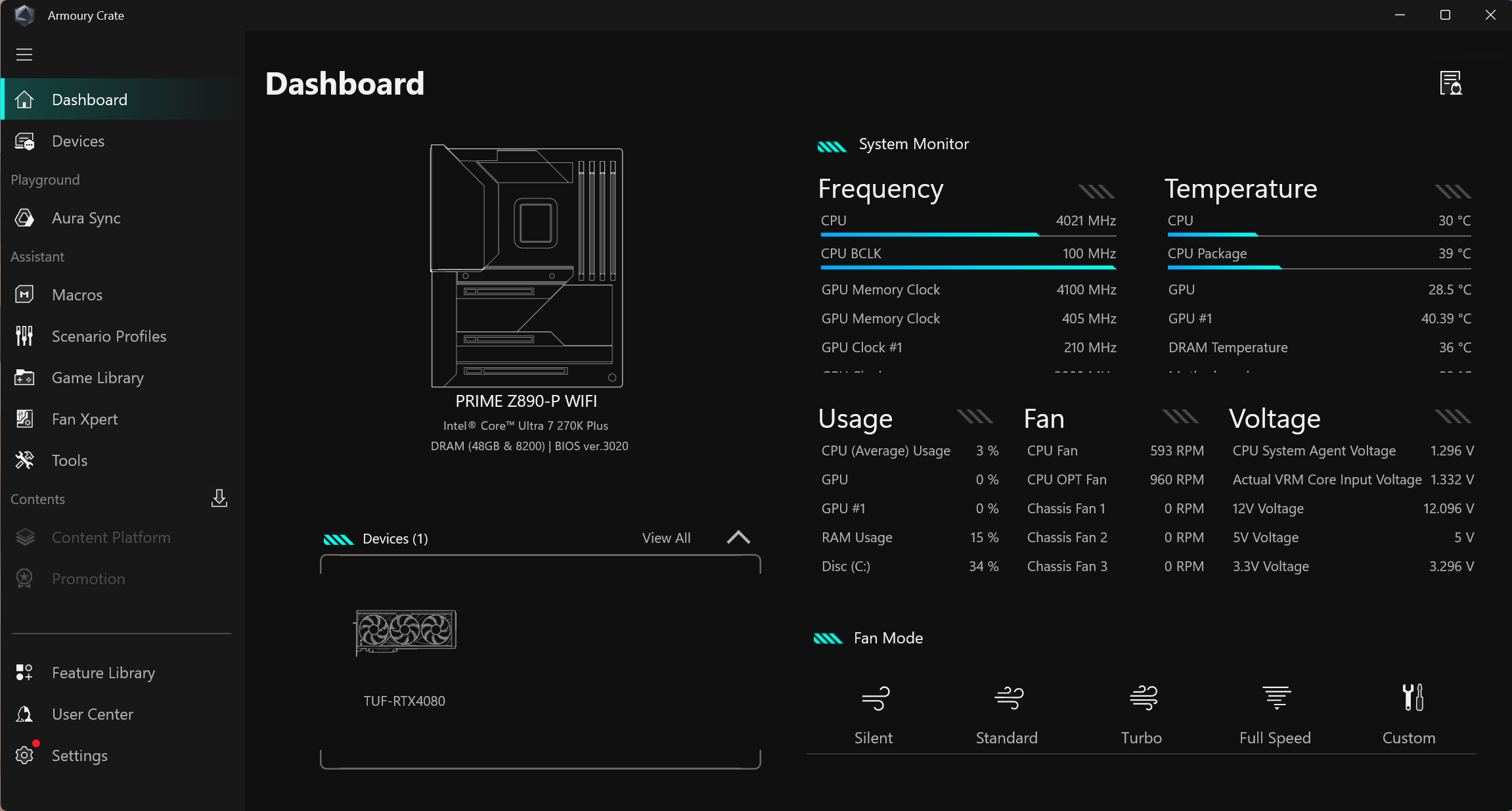
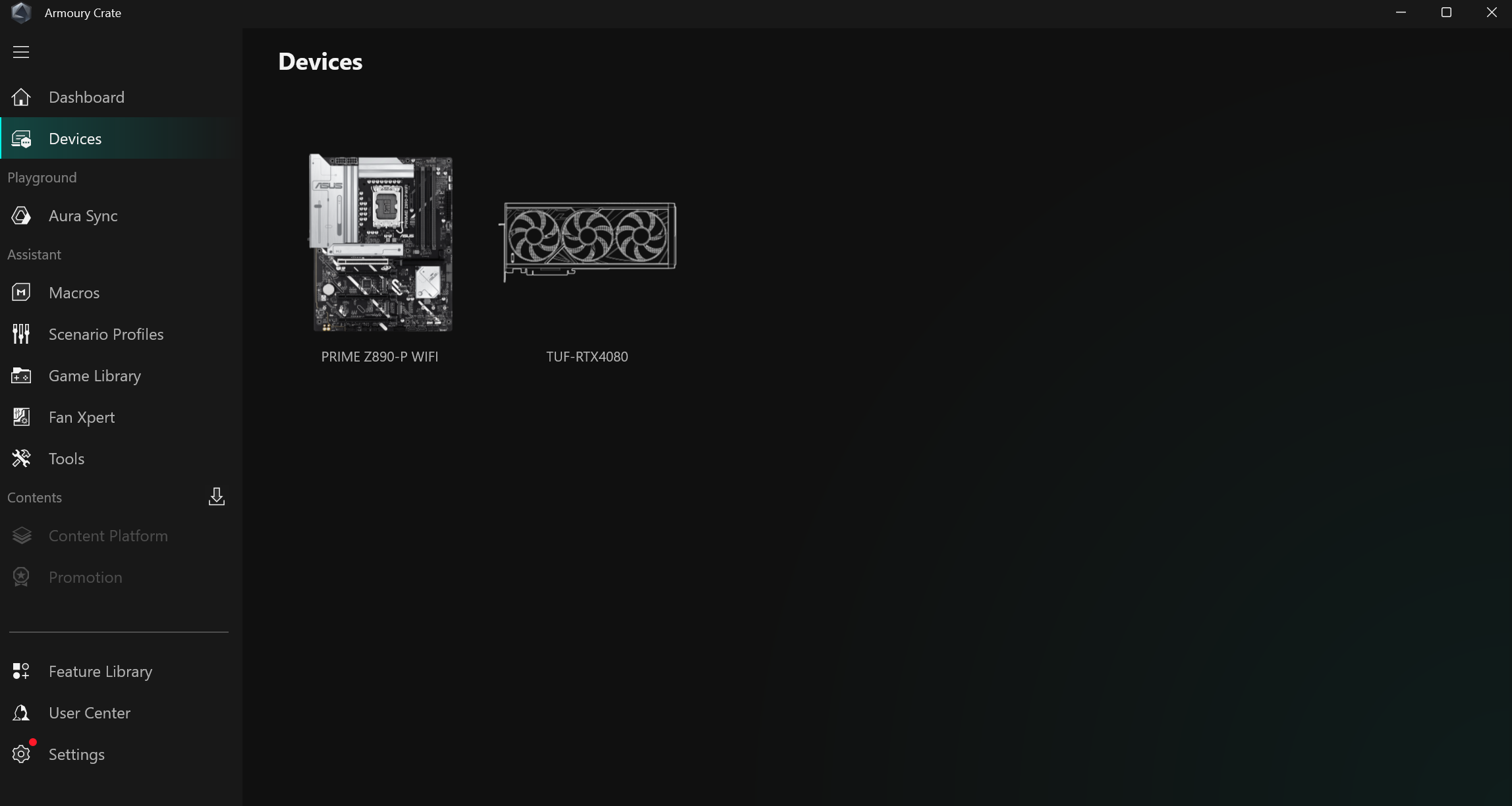
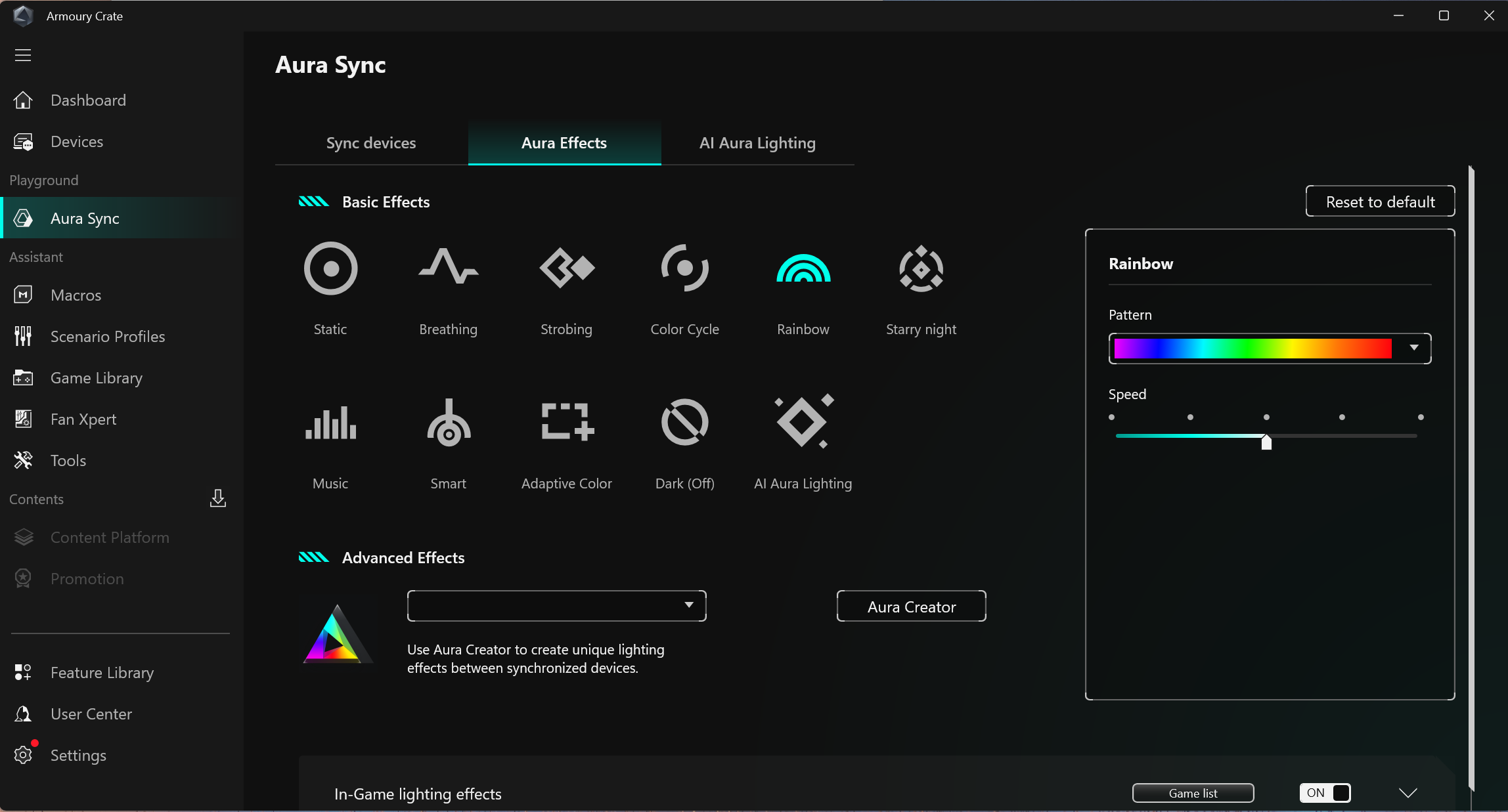
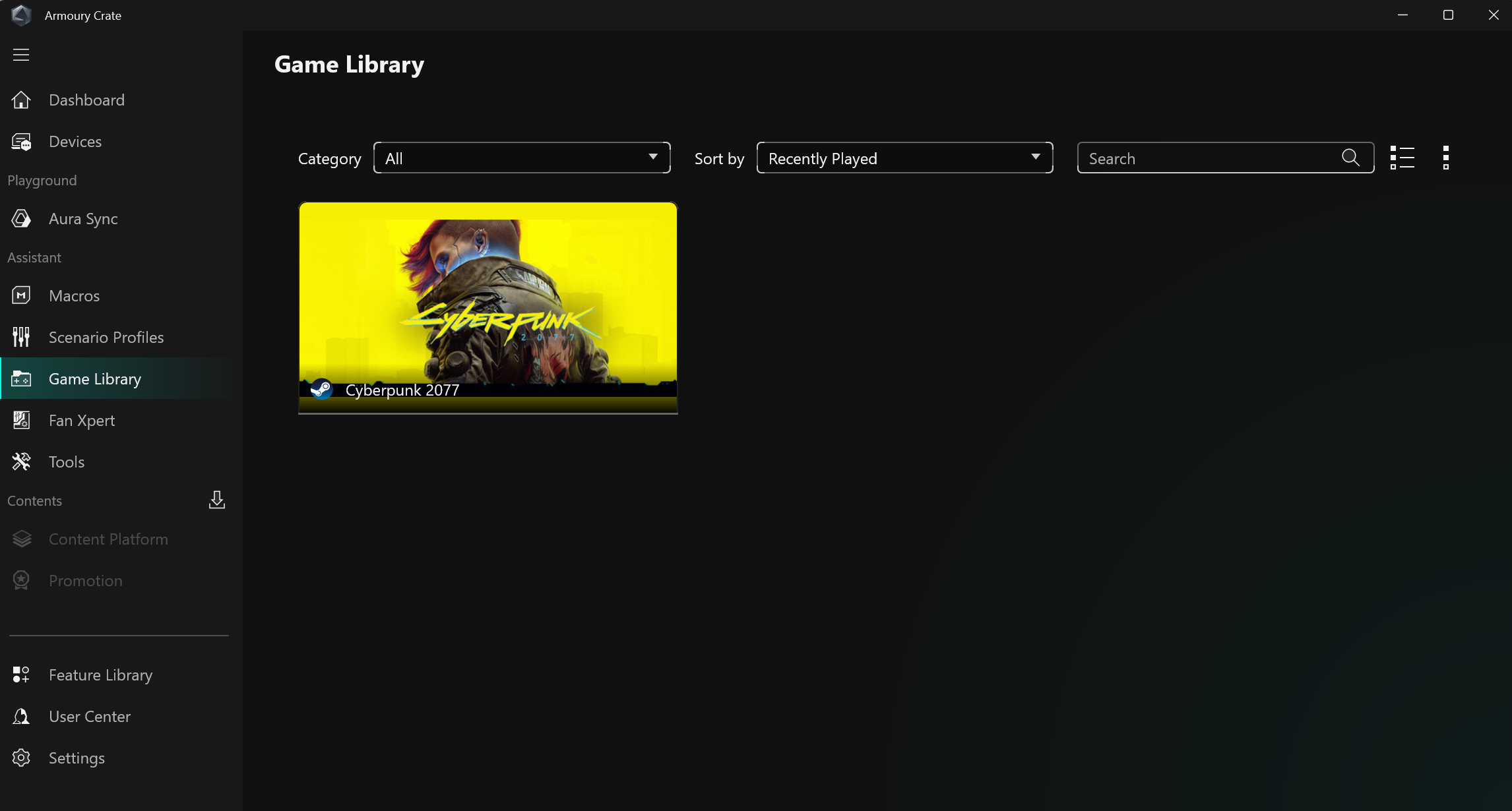
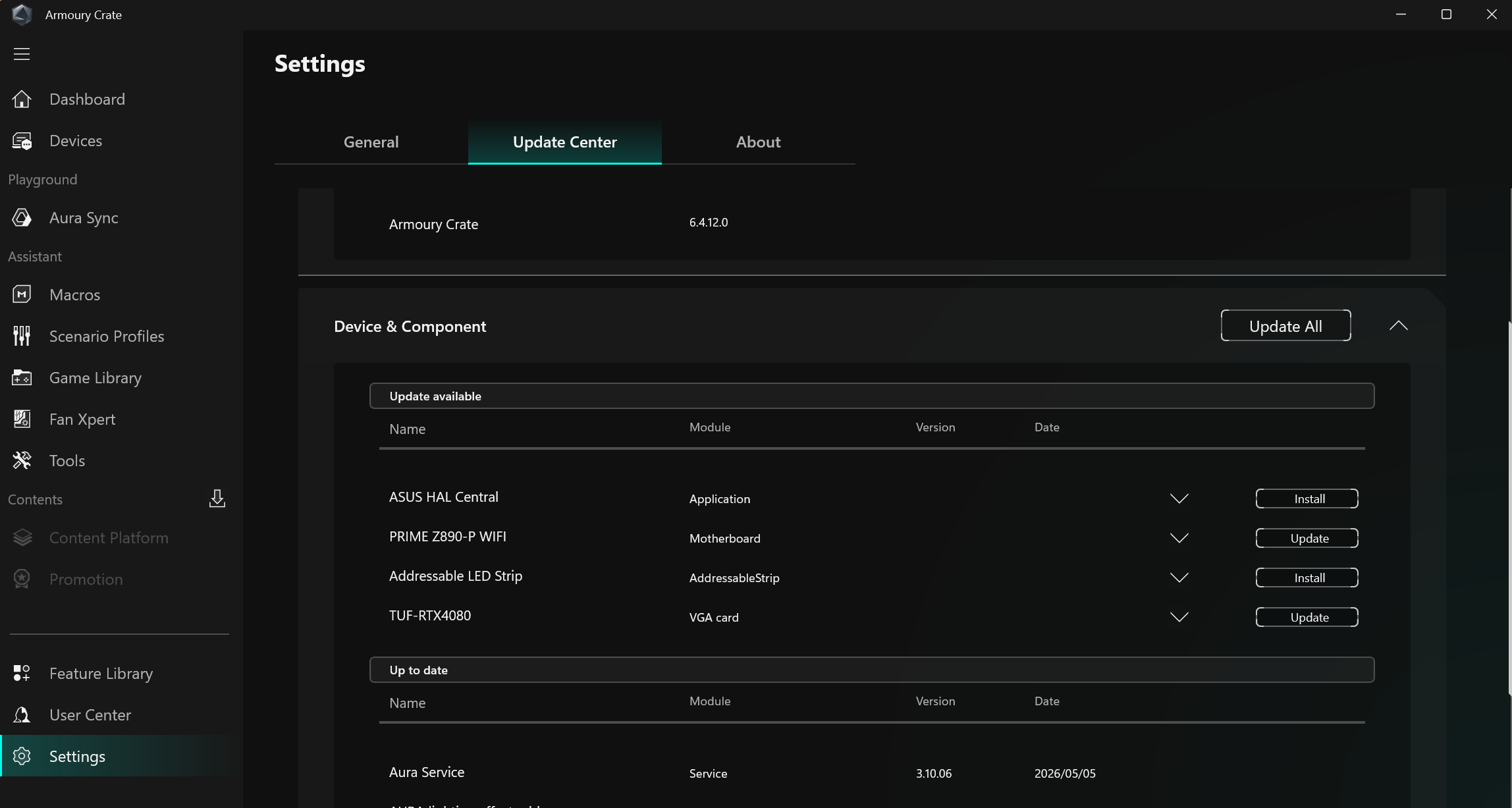
Armoury Crate has Several applications exist for various functions, ranging from RGB lighting control and audio to system monitoring and overclocking. It's also worth mentioning the included software. When purchasing this Asus motherboard, you get a one-year AIDA64 license – a helpful application for stress and performance testing; Asus’ Driver Hub (get your updated drivers here); Dolby Atmos (for audio); and a custom version of Hwinfo for real-time monitoring — all are helpful applications. We’ve captured a few screenshots of the applications below.

Asus B850-Creator Wifi Neo - Armoury Crate
Future
Asus B850-Creator Wifi Neo - Armoury Crate
Future
Asus B850-Creator Wifi Neo - Armoury Crate
Future
Asus B850-Creator Wifi Neo - Armoury Crate
Future
Asus B850-Creator Wifi Neo - Armoury Crate
Future
Asus B850-Creator Wifi Neo - Armoury Crate
Future

Test System / Comparison Products

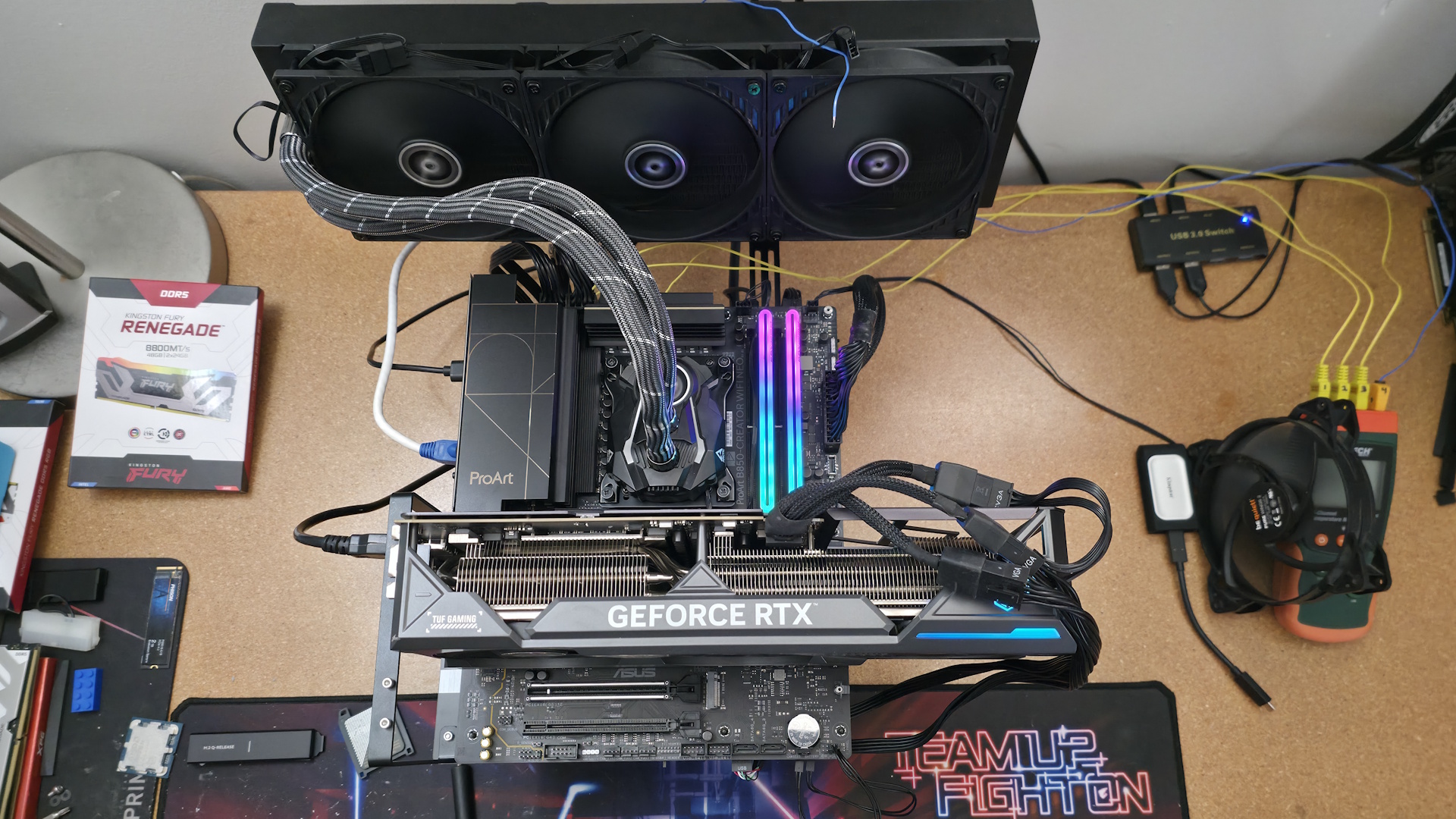
We’ve updated our test system to Windows 11 (23H2) 64-bit OS with all updates applied as of late September 2024 (this includes the Branch Prediction Optimizations for AMD). Hardware-wise, we’ve updated the RAM kits (matching our Intel test system), cooling, storage, and video card. Unless otherwise noted, we use the latest publicly available non-beta motherboard BIOS. The hardware we used is as follows:

TEST SYSTEM COMPONENTS

Asus B850-Creator Wifi Neo - On the testbed

(Image credit: Future)

Sound

Integrated HD audio

Network

Integrated Networking (GbE to 10 GbE)

Graphics Driver

GeForce 561.09

Benchmark Settings

Synthetic Benchmarks and Settings

Procyon

Version 2.8.1352 64

Office 365, Video Editing (Premiere Pro 24.6.1), Photo Editing (Photoshop 25.1.2, Lightroom Classic 13.5.1)

3DMark

Version 2.29.8294.0 64

Speed Way and Steel Nomad (Default)

Cinebench R24

Version 2024.1.0
Open GL Rendering Benchmark - Single and Multi-threaded

Blender

Version 4.2.0
Full benchmark (all 3 tests)

Application Tests and Settings

LAME MP3

Version SSE2_2019

Mixed 271MB WAV to mp3: Command: -b 160 --nores (160Kb/s)

HandBrake CLI

Version: 1.8.2

Sintel Open Movie Project: 4.19GB 4K mkv to x264 (light AVX) and x265 (heavy AVX)

Corona 1.4

Version 1.4

Custom benchmark

7-Zip

Version 24.08

Integrated benchmark (Command Line)

Game Tests and Settings

Cyberpunk 2077

Ultra RT: - 1920 x 1080, DLSS - Balanced.

F1 2024

Ultra High Preset - 1920 x 1080, 16xAF/TAA, Great Britain (Clear/Dry), FPS Counter ON

MORE: Best Motherboards

MORE: Best Motherboard Deals

MORE: Best RAM Combo Deals

MORE: How To Choose A Motherboard

MORE: All Motherboard Content

Benchmark Results

Our standard benchmarks and power tests are performed using the CPU’s stock frequencies (including any default boost/turbo) with all power-saving features enabled. We set optimized defaults in the BIOS and the memory by enabling the XMP profile. For this baseline testing, the Windows power scheme is set to Balanced (default) so the PC idles appropriately.

Synthetic Benchmarks

Synthetics offer a valuable method for evaluating a board's performance, as identical settings are expected to yield similar results. Turbo boost wattage and advanced memory timings are areas where motherboard manufacturers can still optimize for stability or performance, though, and these settings can impact specific testing scenarios.

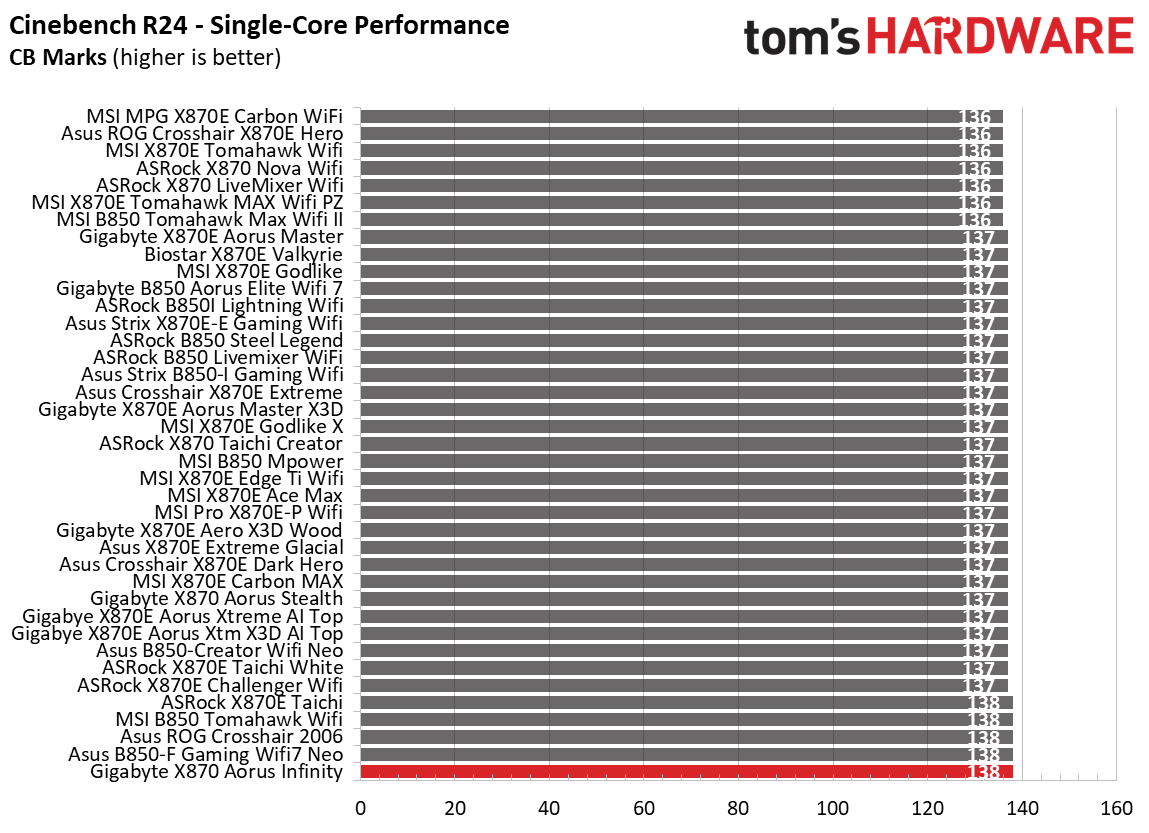
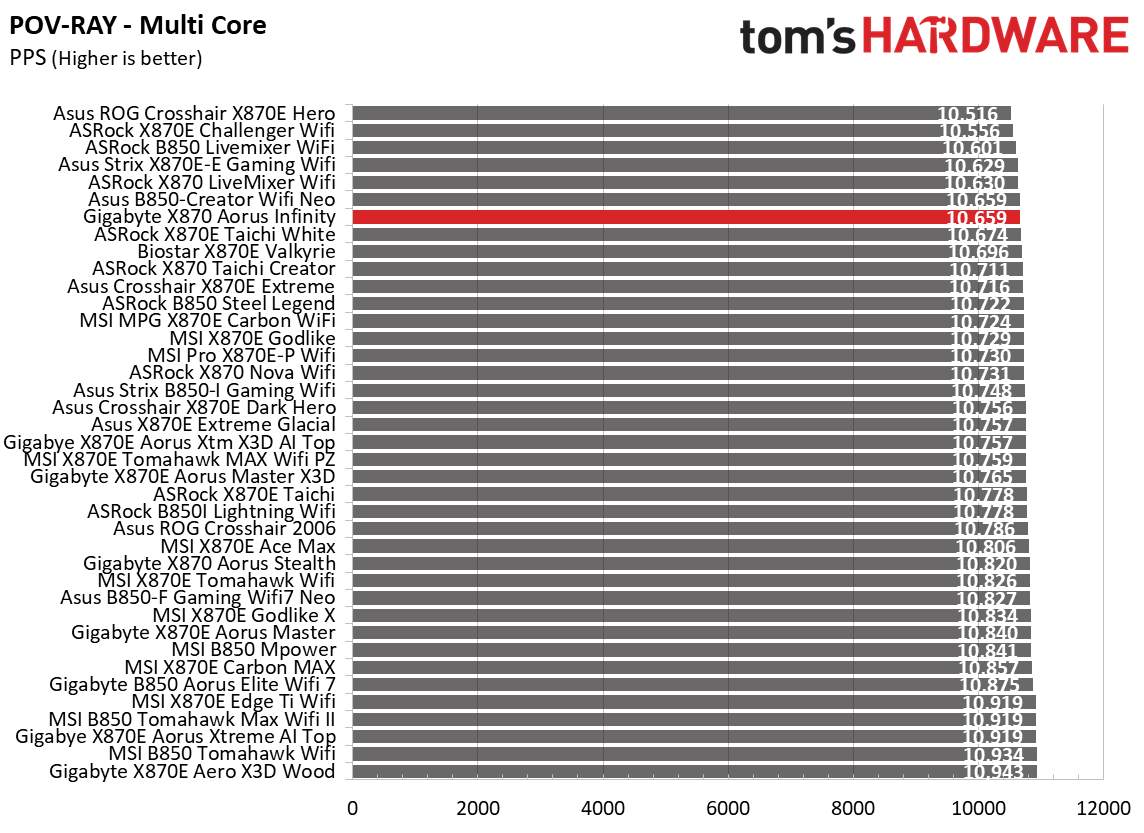
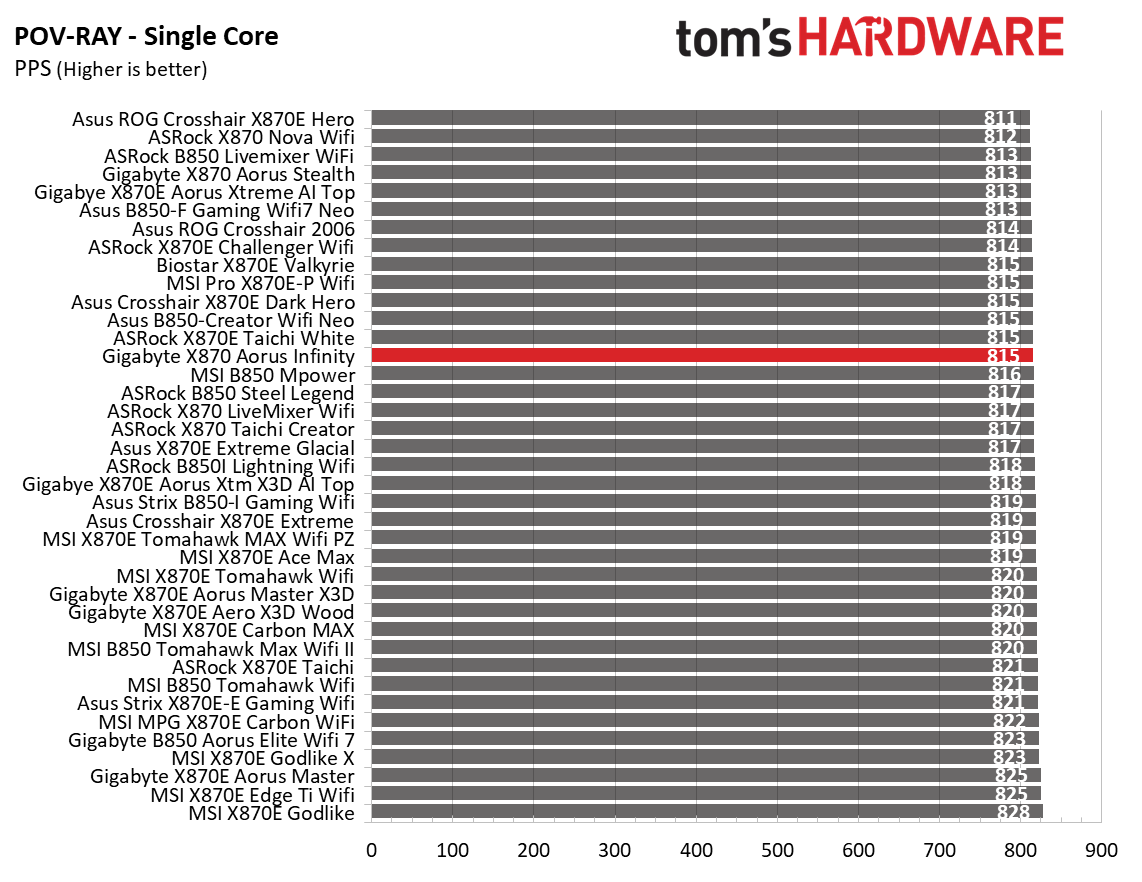
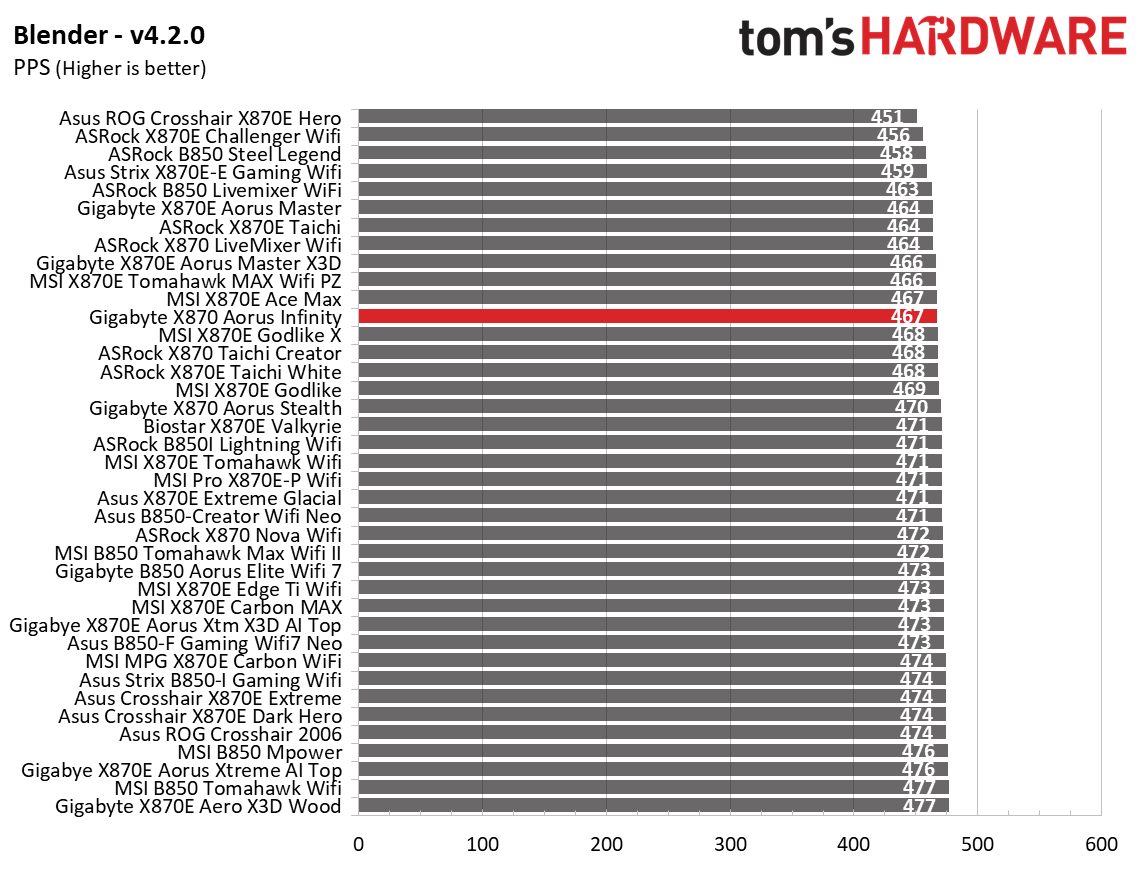
Asus B850-Creator Wifi Neo - Synthetic benchmarks
Future
Asus B850-Creator Wifi Neo - Synthetic benchmarks
Future
Asus B850-Creator Wifi Neo - Synthetic benchmarks
Future
Asus B850-Creator Wifi Neo - Synthetic benchmarks
Future
Asus B850-Creator Wifi Neo - Synthetic benchmarks
Future
Asus B850-Creator Wifi Neo - Synthetic benchmarks
Future
Asus B850-Creator Wifi Neo - Synthetic benchmarks
Future
Asus B850-Creator Wifi Neo - Synthetic benchmarks
Future
Asus B850-Creator Wifi Neo - Synthetic benchmarks
Future
Asus B850-Creator Wifi Neo - Synthetic benchmarks
Future
Asus B850-Creator Wifi Neo - Synthetic benchmarks
Future
Asus B850-Creator Wifi Neo - Synthetic benchmarks
Future
Asus B850-Creator Wifi Neo - Synthetic benchmarks
Future
Asus B850-Creator Wifi Neo - Synthetic benchmarks
Future

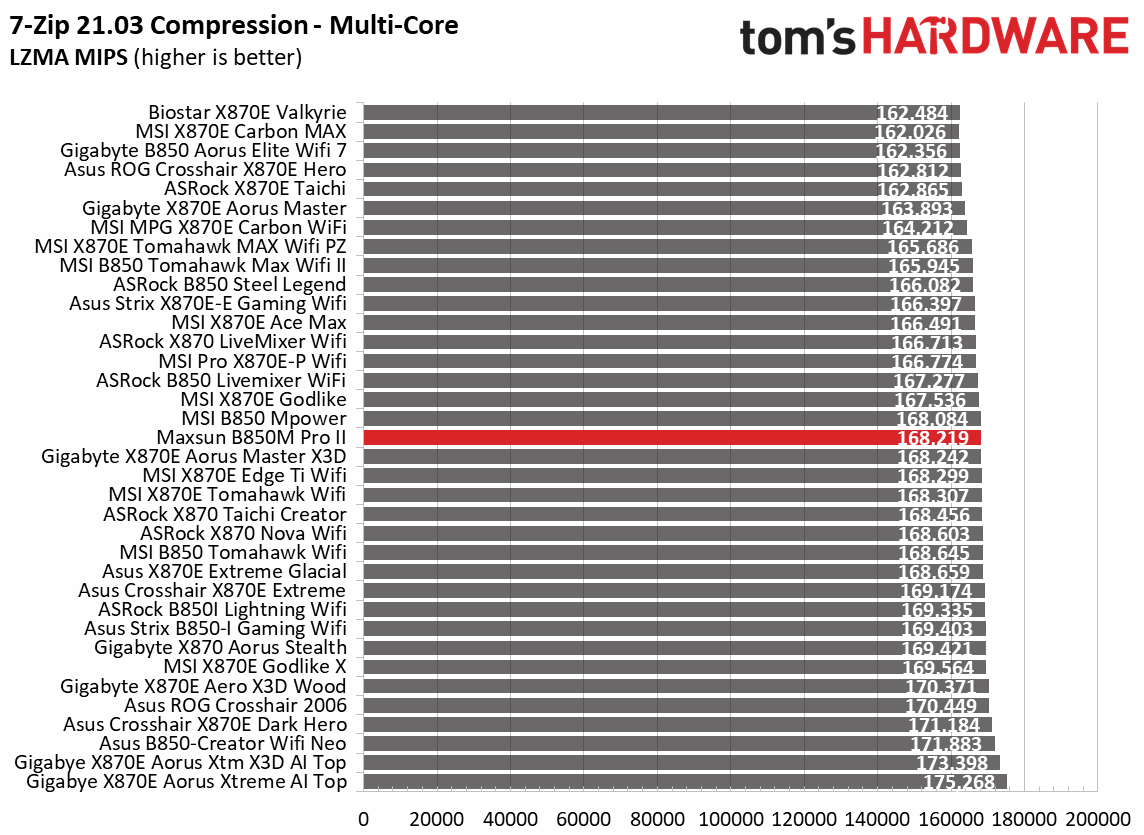
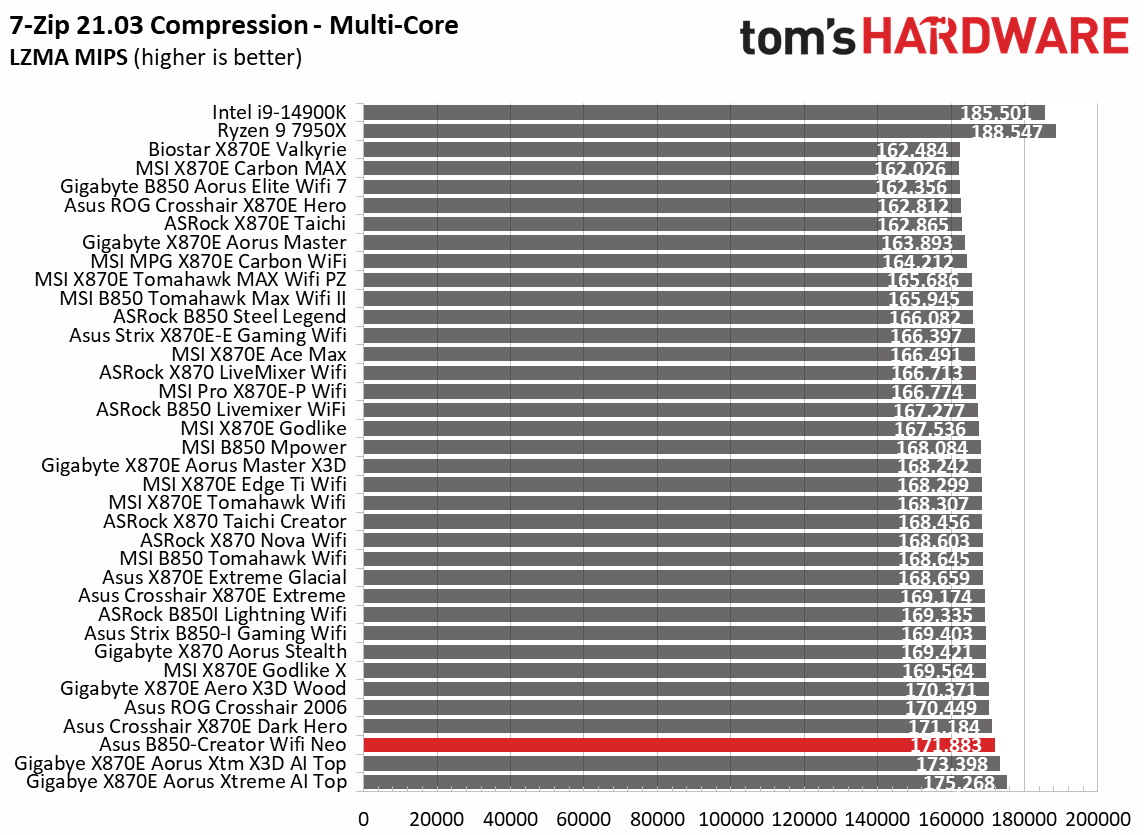
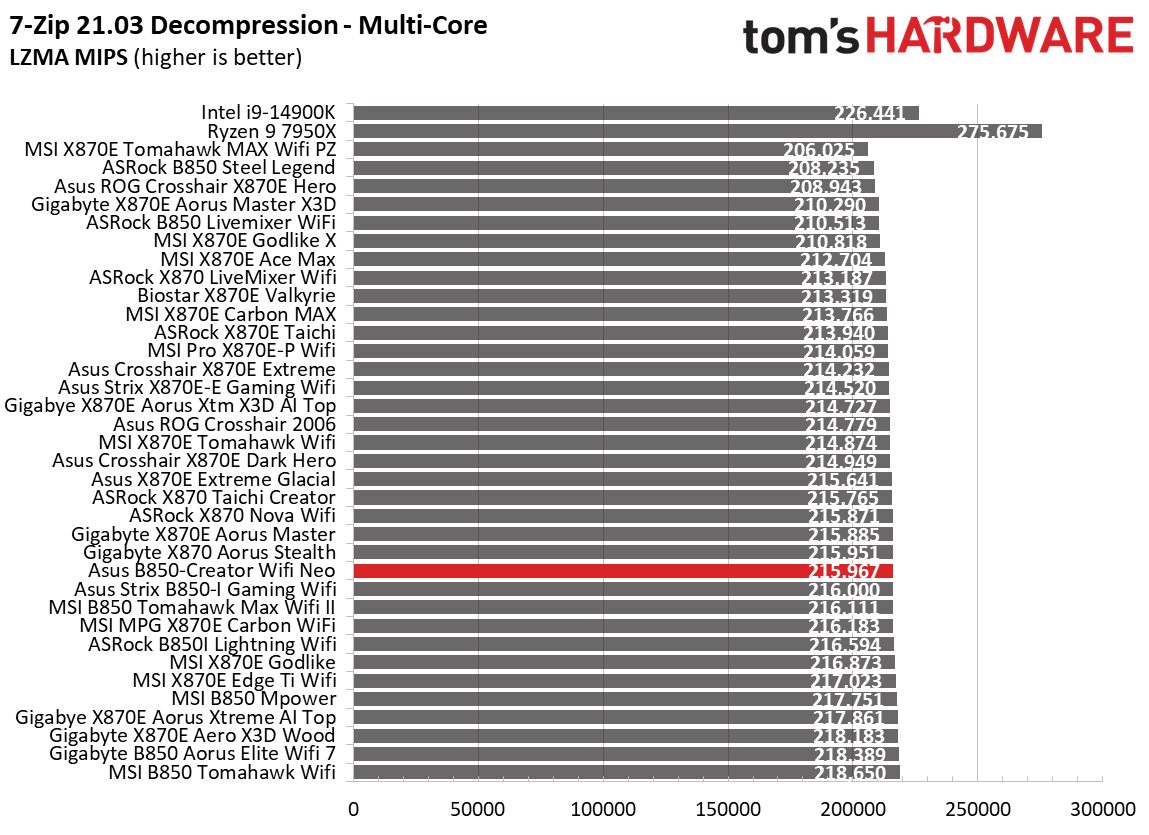
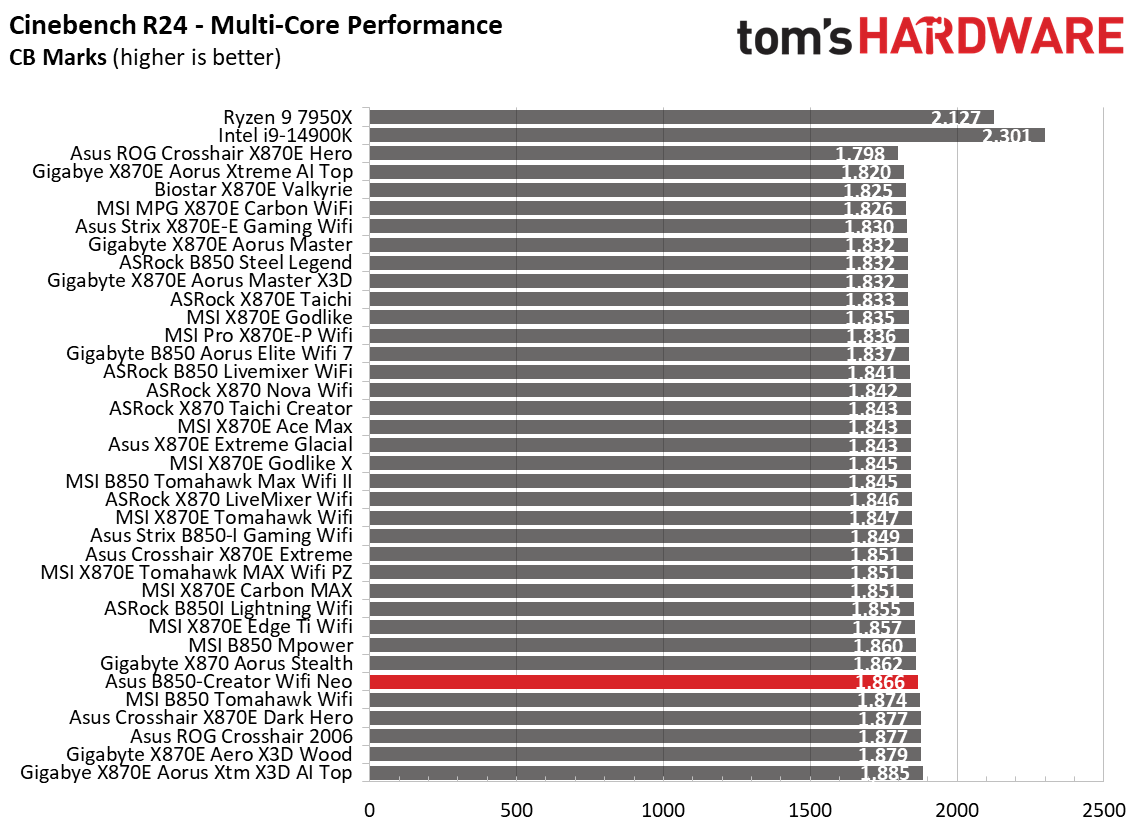
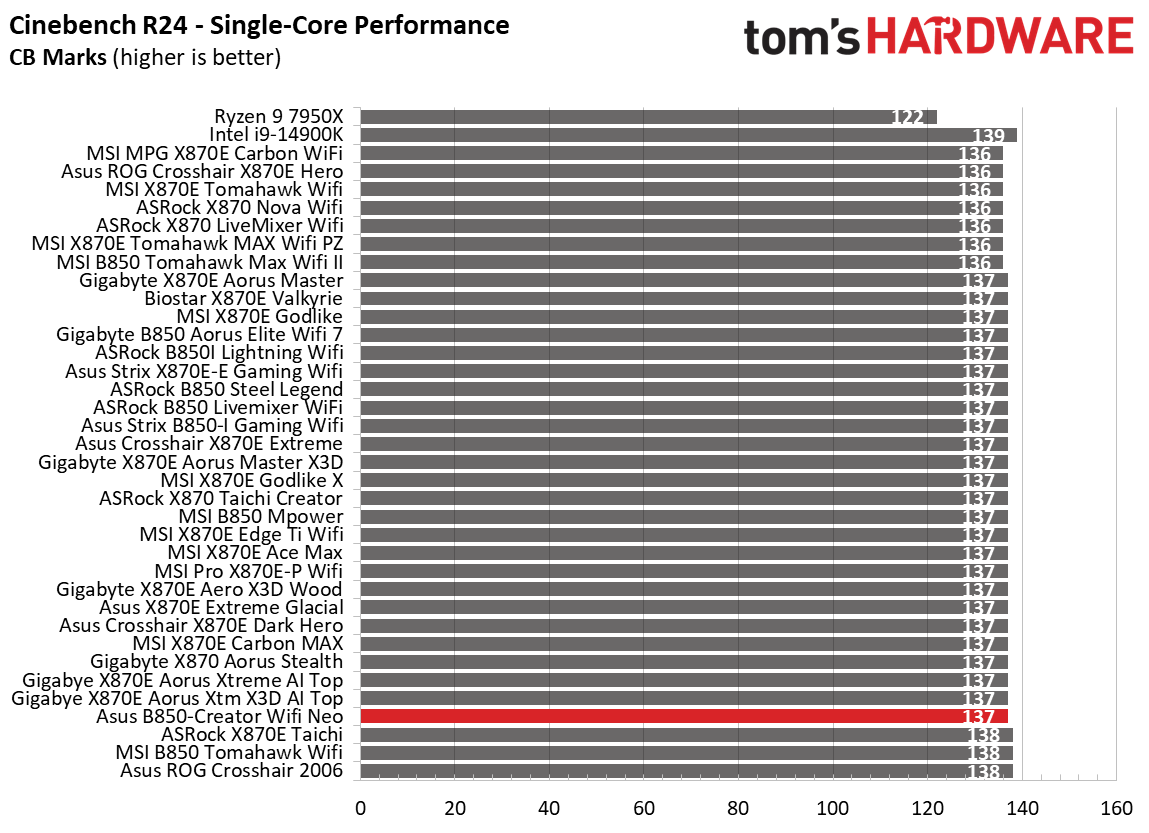
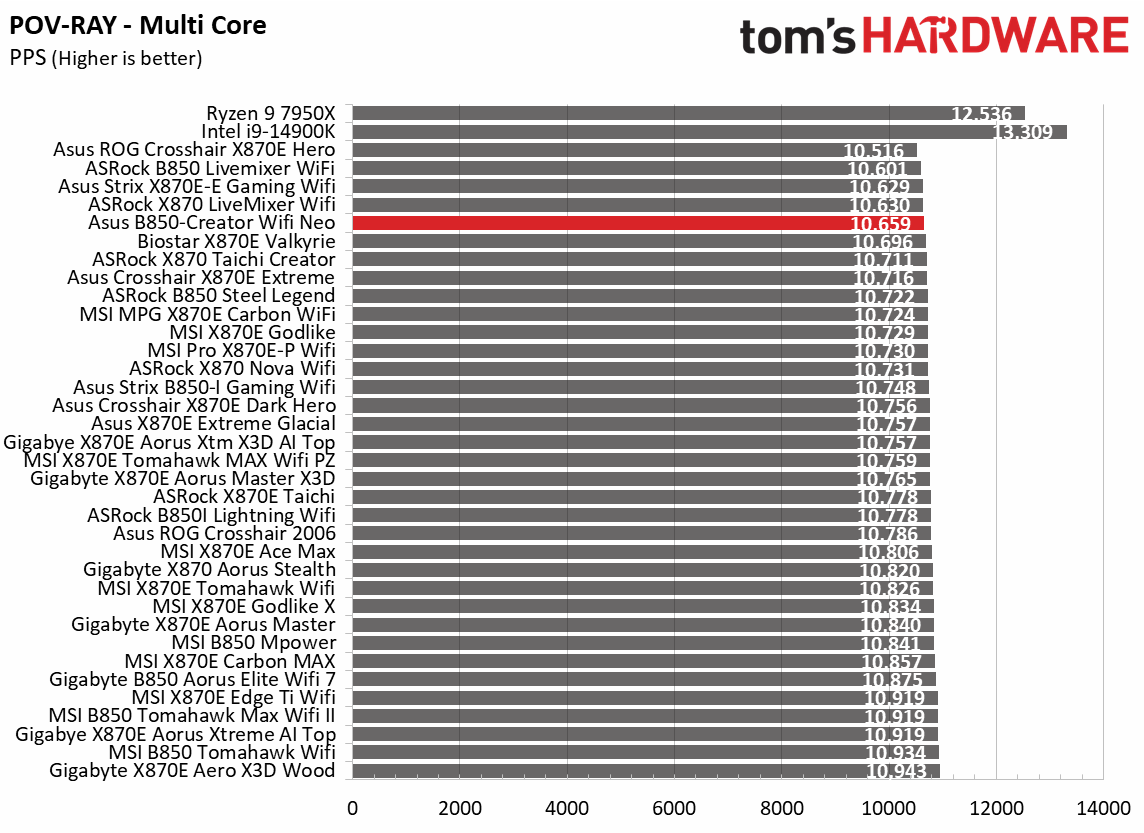
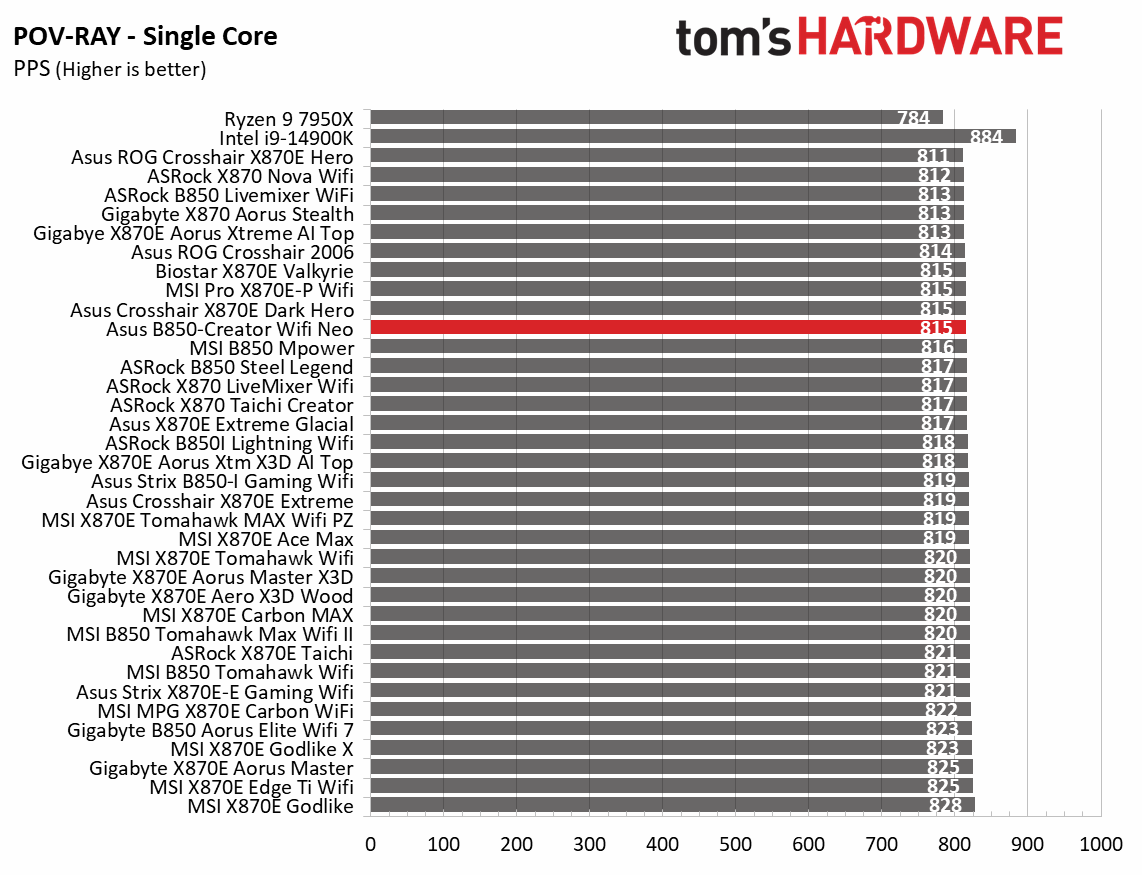
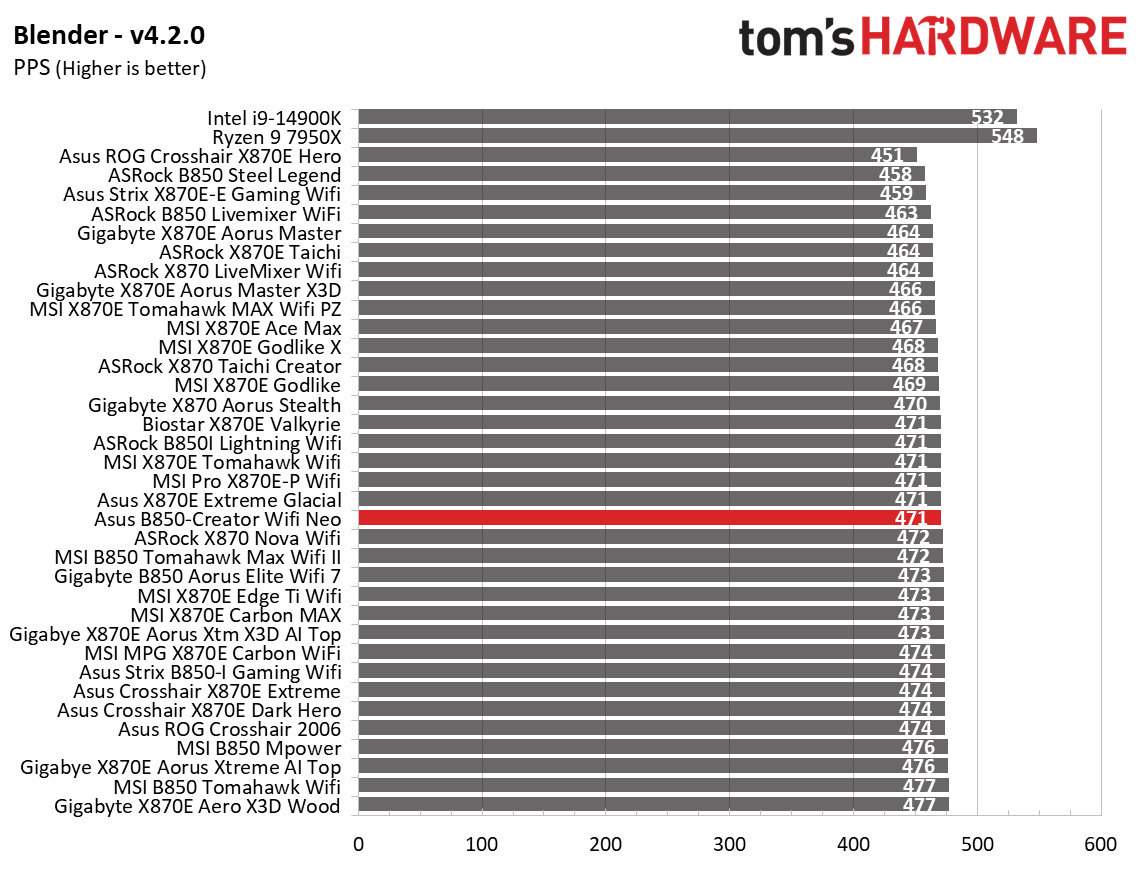
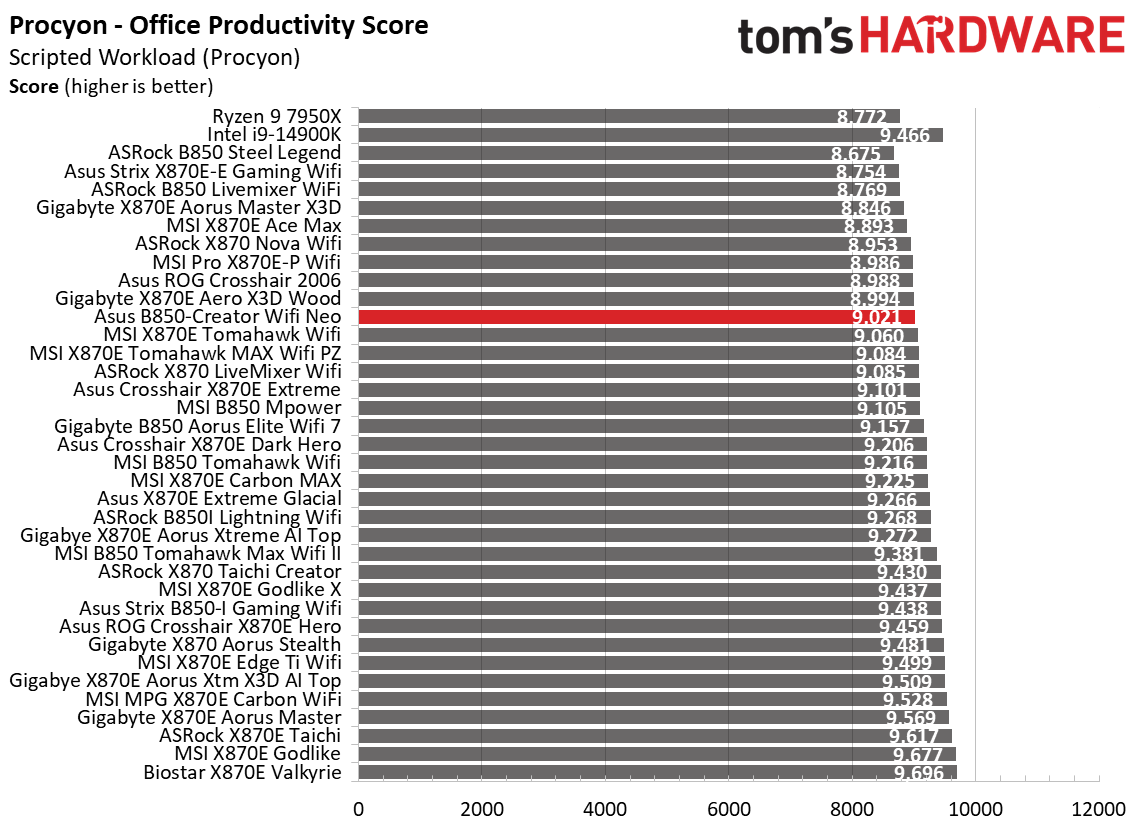
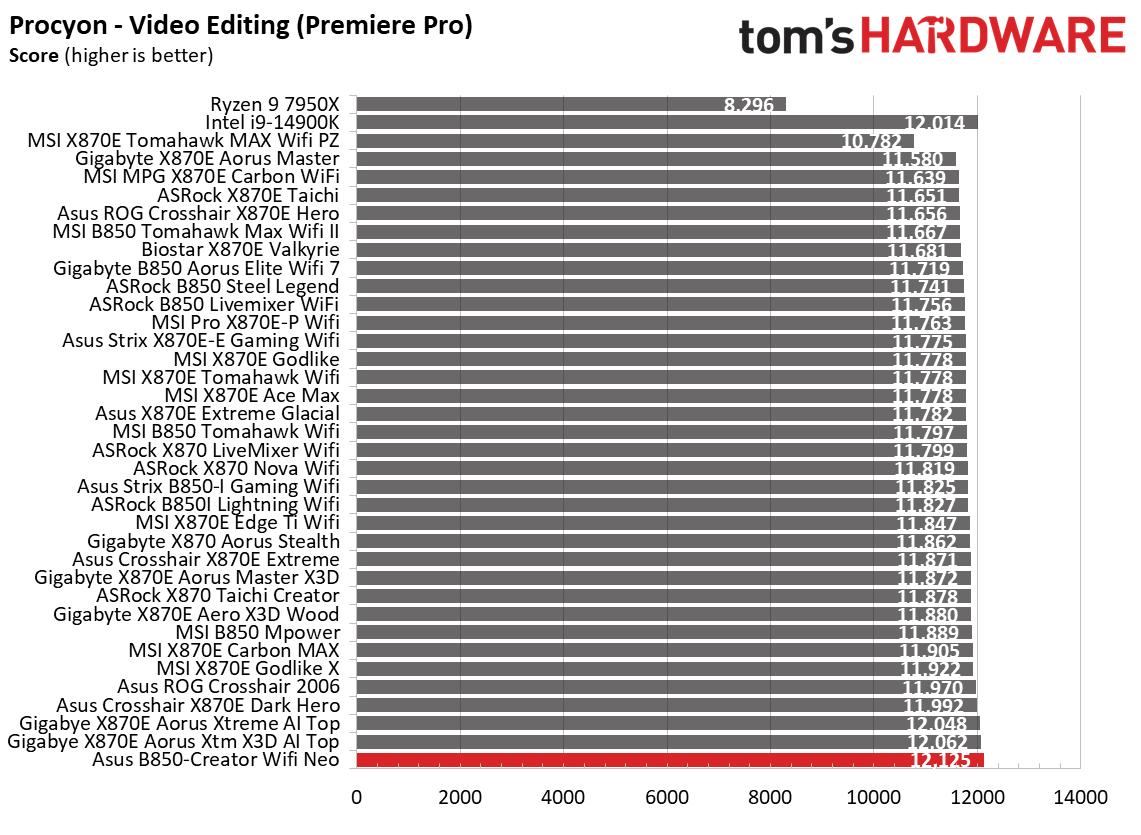
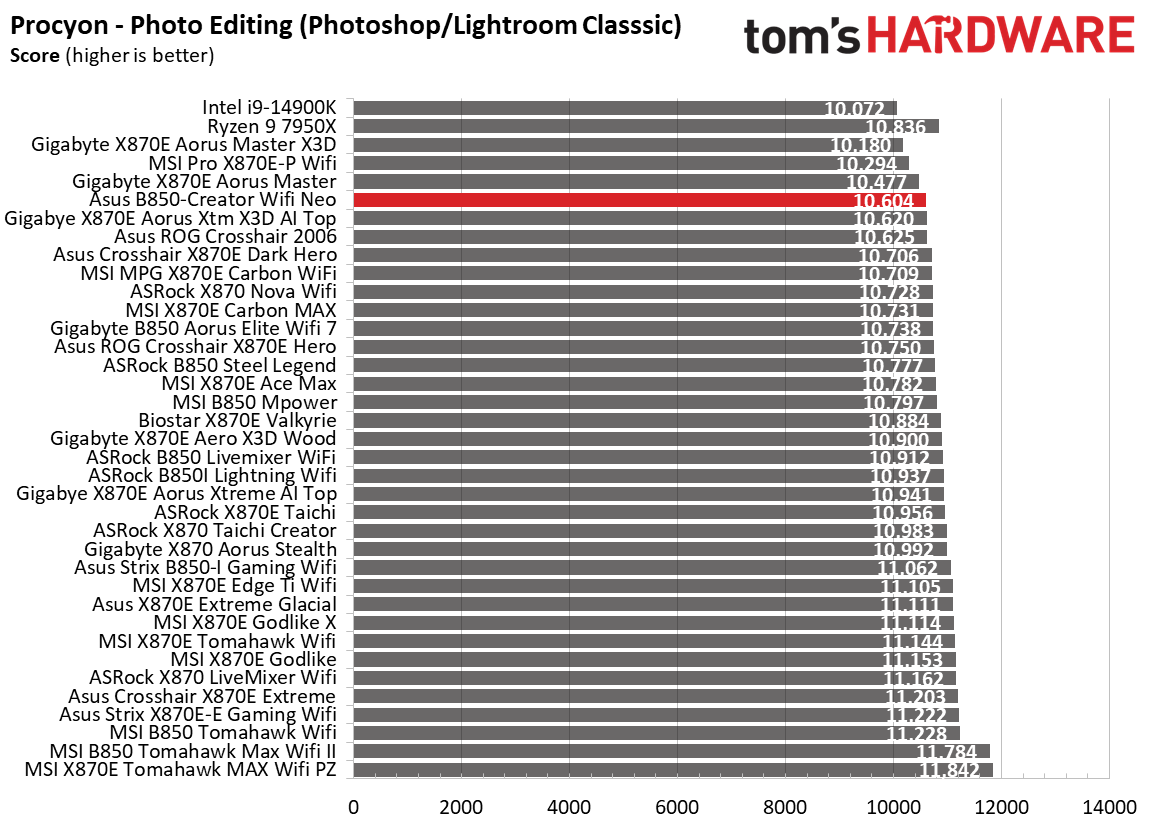
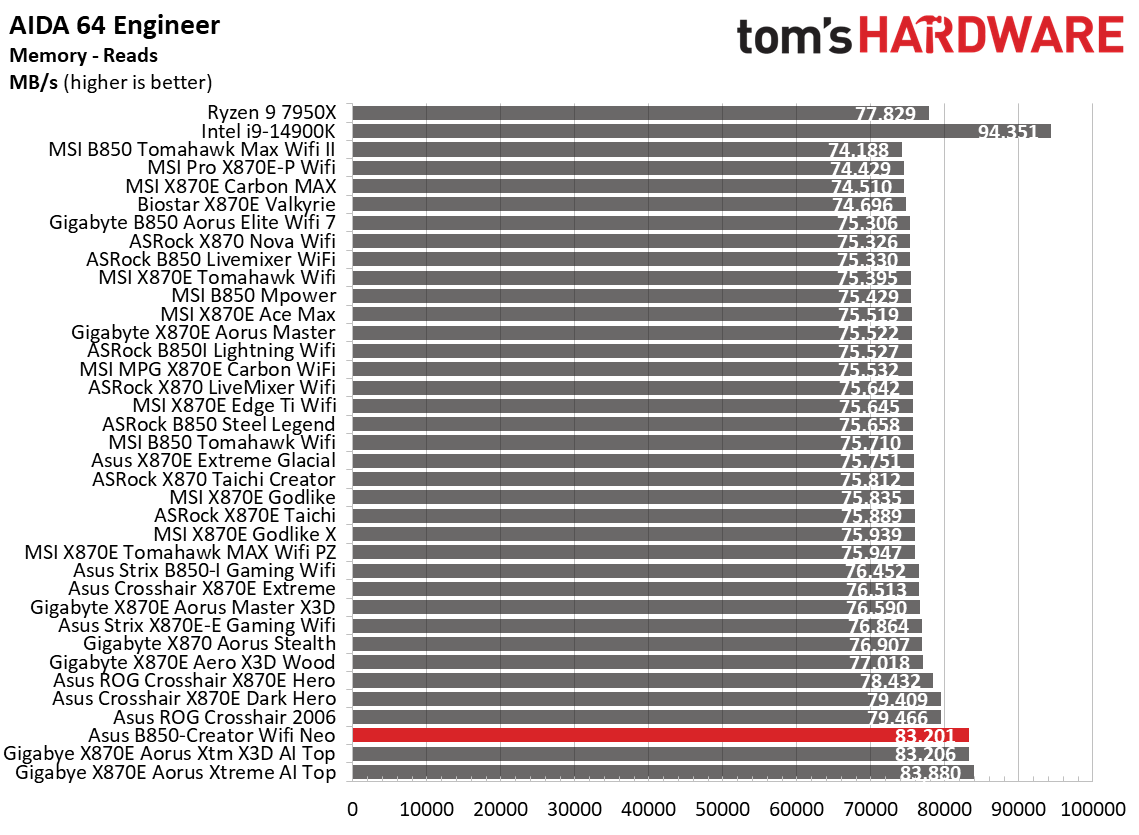
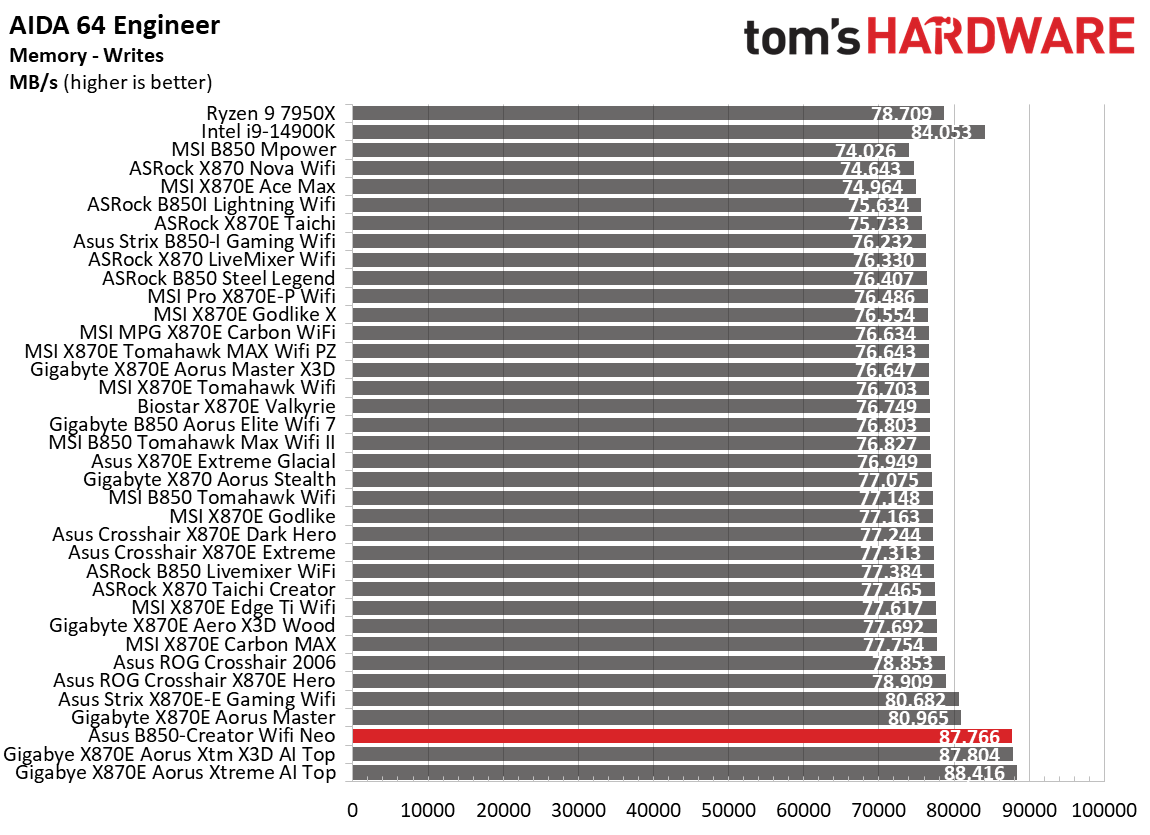
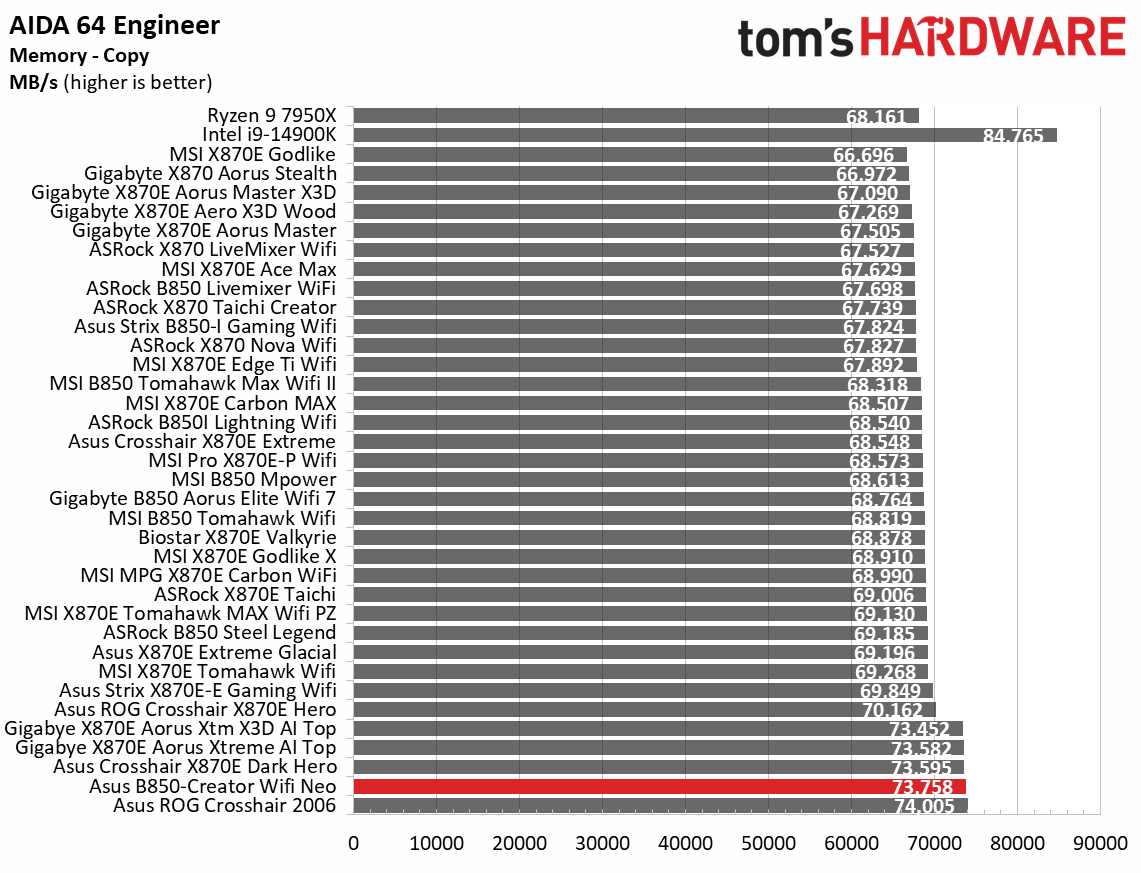
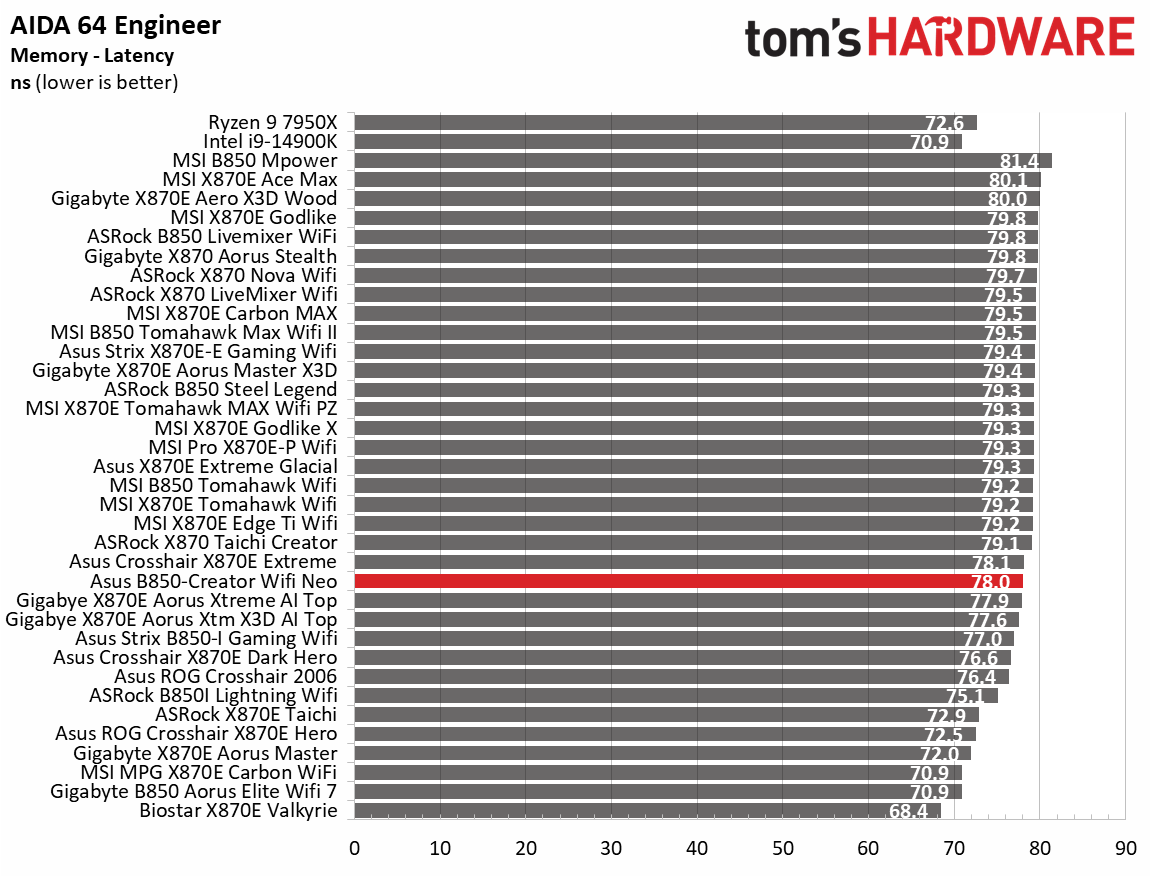
Starting with our synthetic benchmarks, the Creator Neo was average to above average among the other tested boards. In some tests, such as 7-Zip compression, it was among the fastest. It was average elsewhere and rarely below. This is what we see from most boards—nothing to worry about so far.

Timed Applications

Asus B850-Creator Wifi Neo - Timed applications
Future
Asus B850-Creator Wifi Neo - Timed applications
Future
Asus B850-Creator Wifi Neo - Timed applications
Future
Asus B850-Creator Wifi Neo - Timed applications
Future

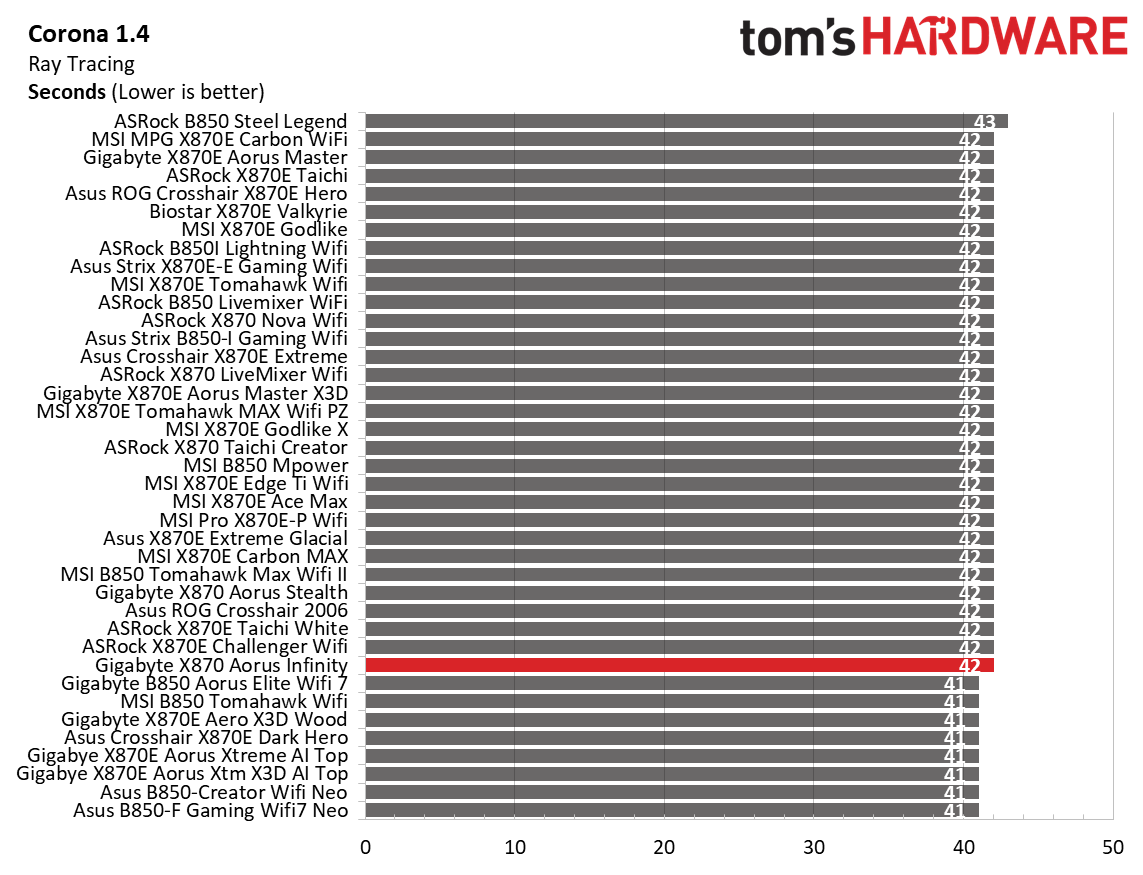
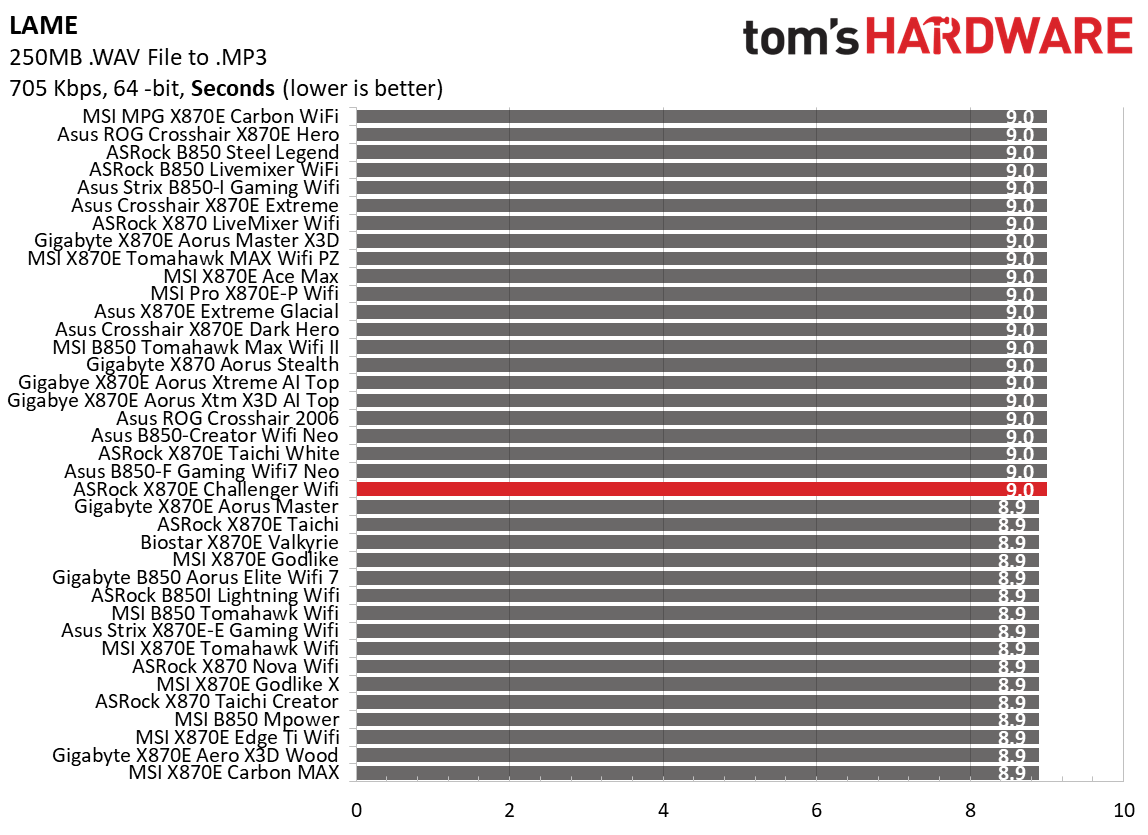
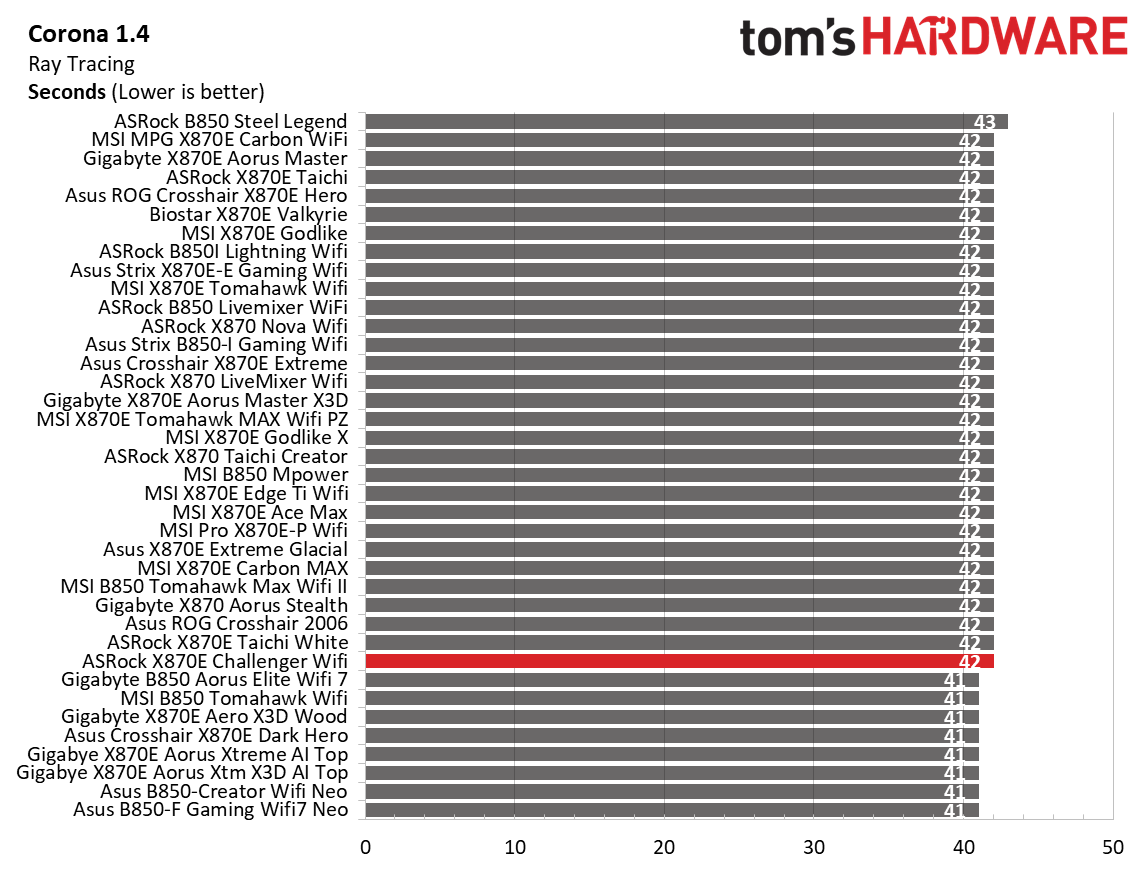
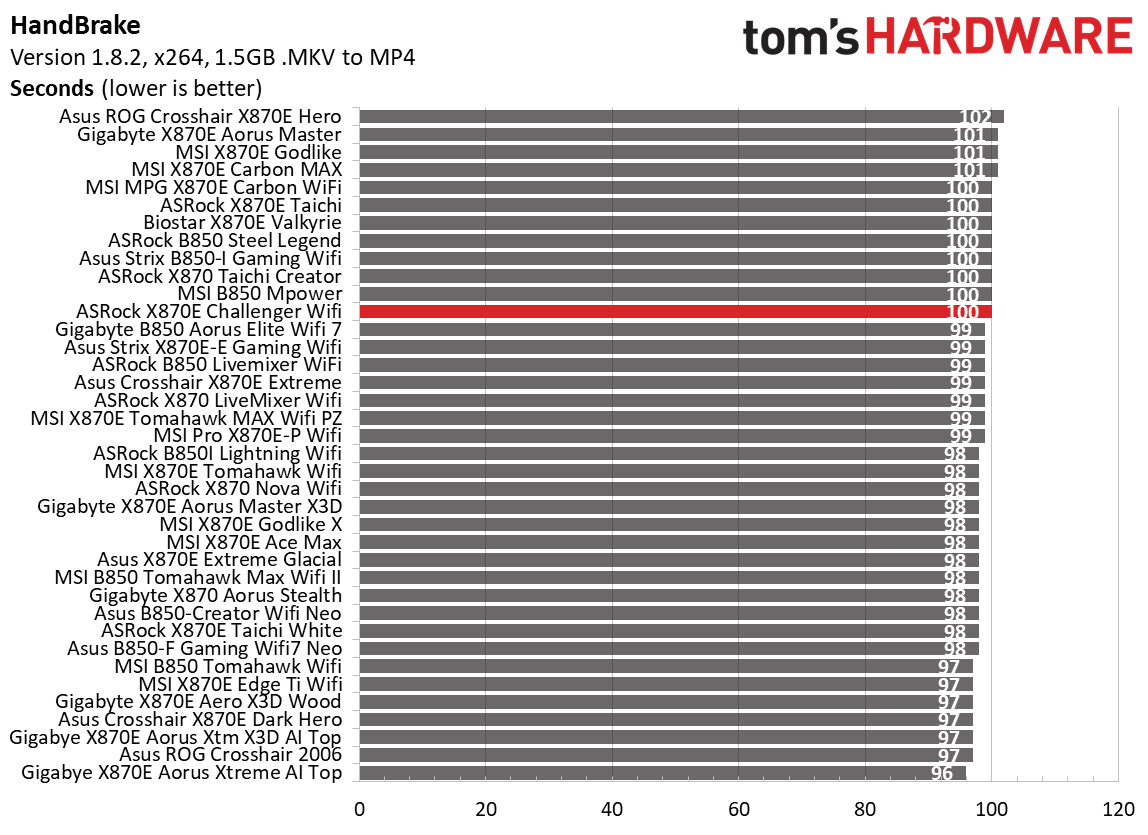
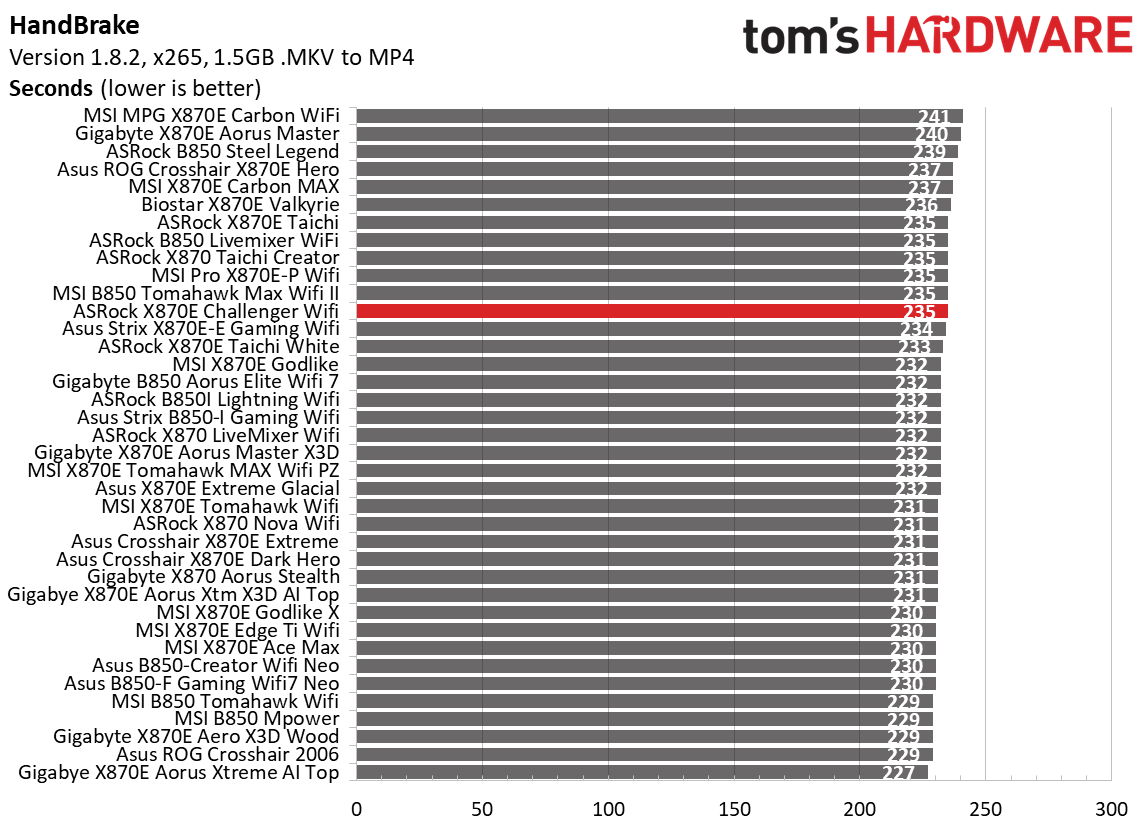
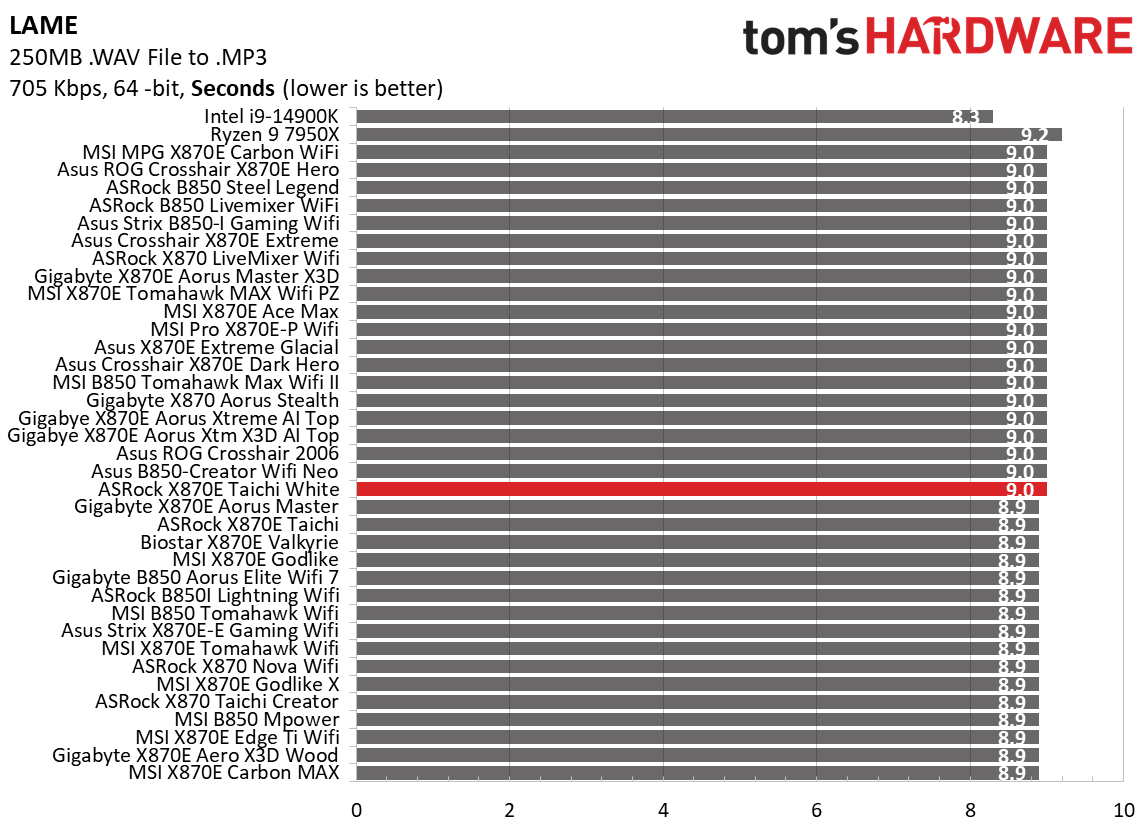
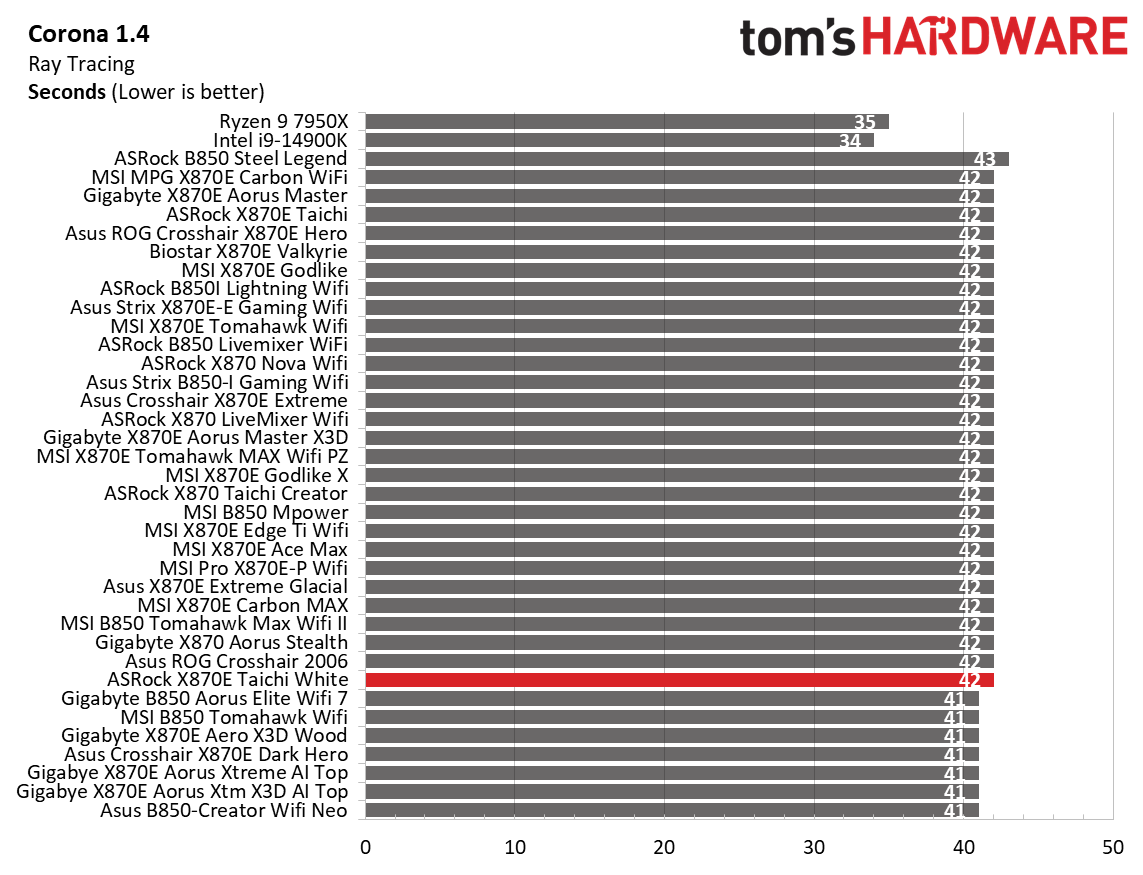
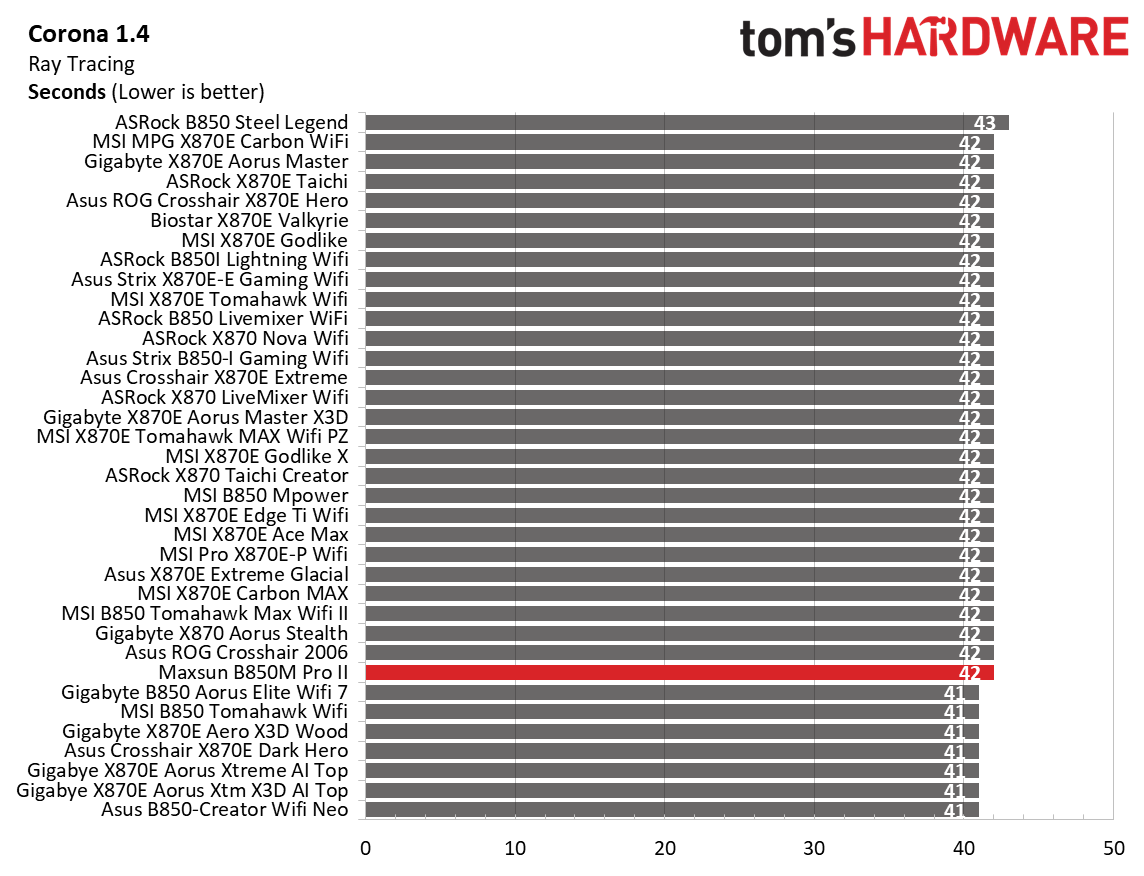
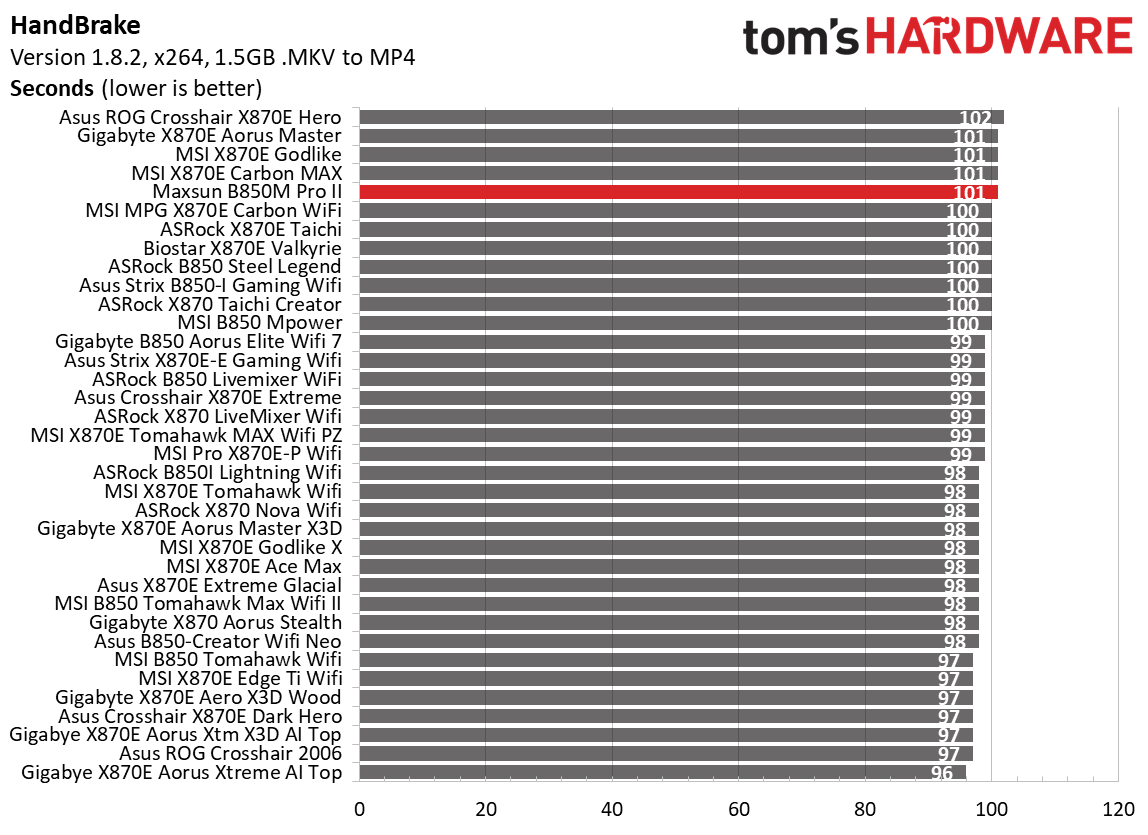
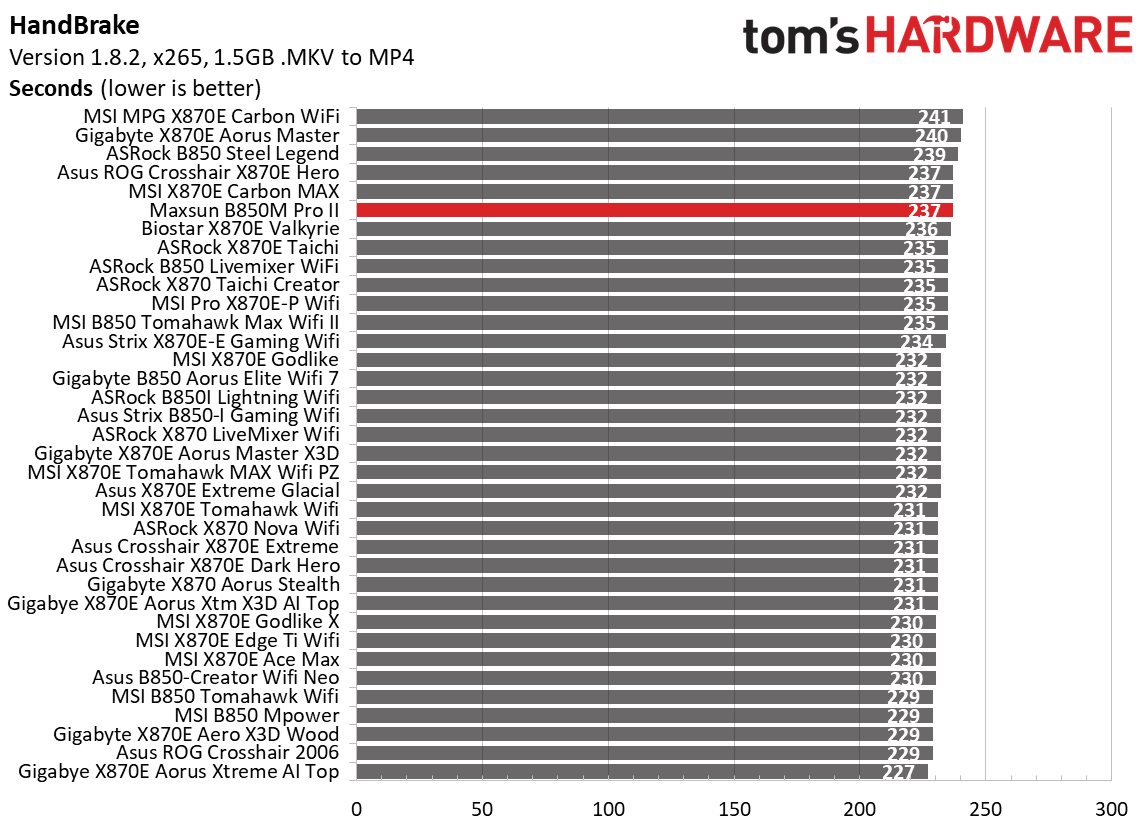
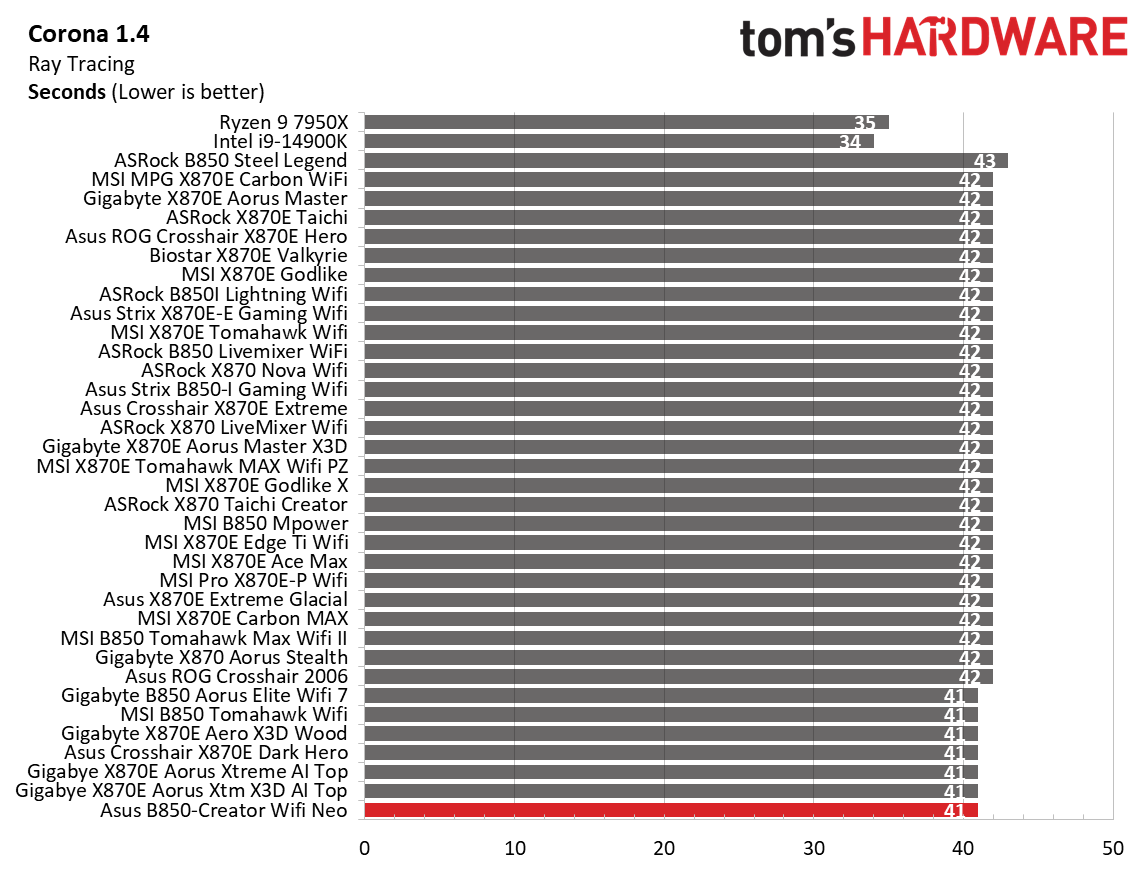
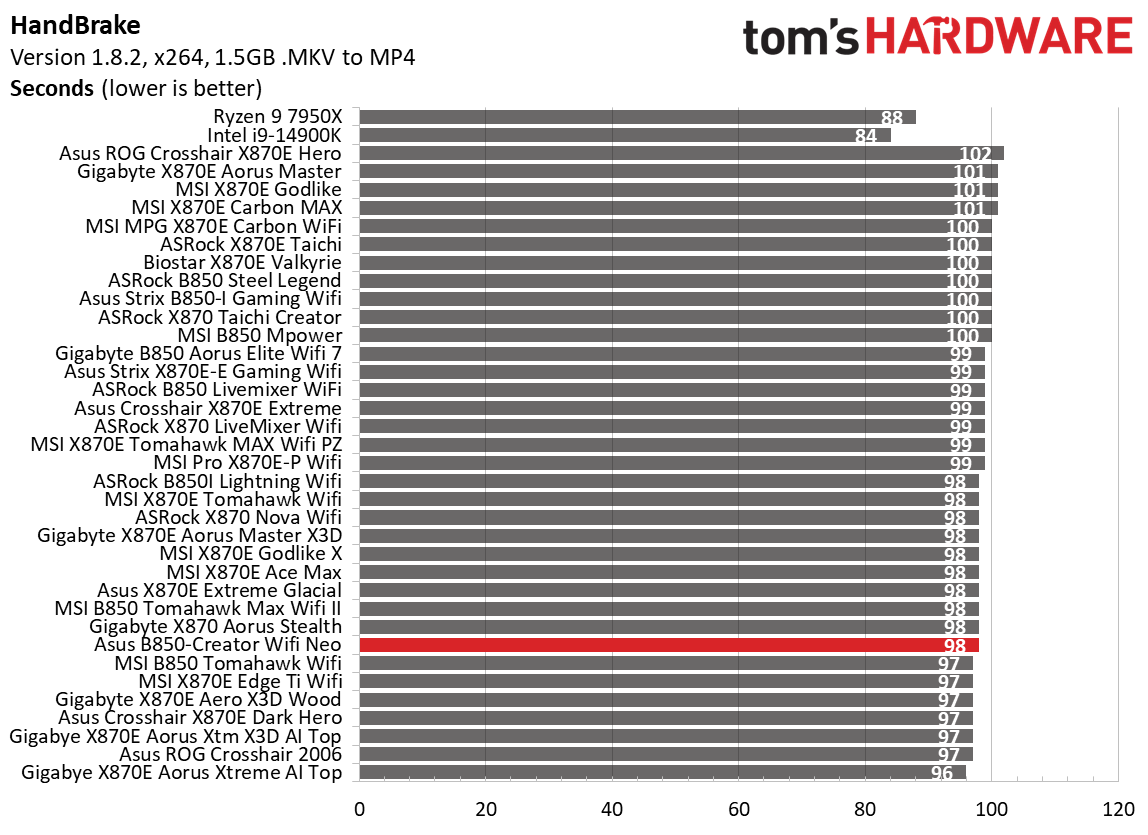
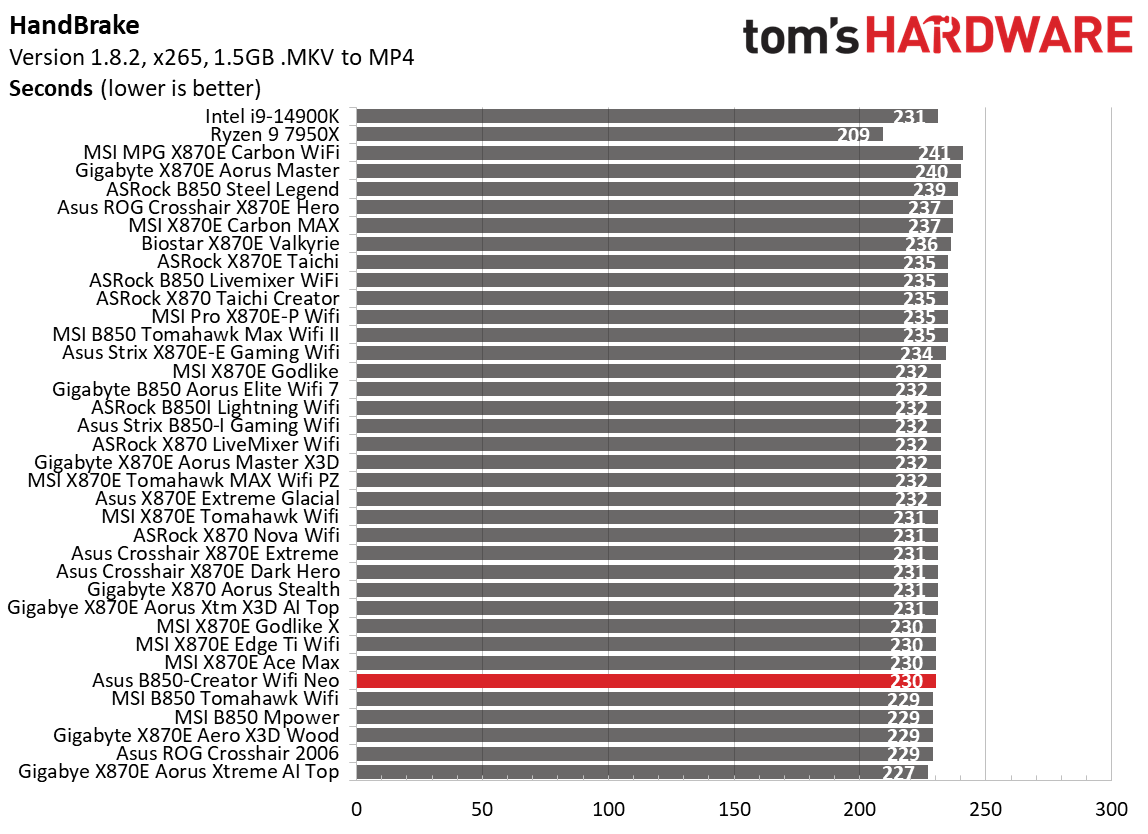
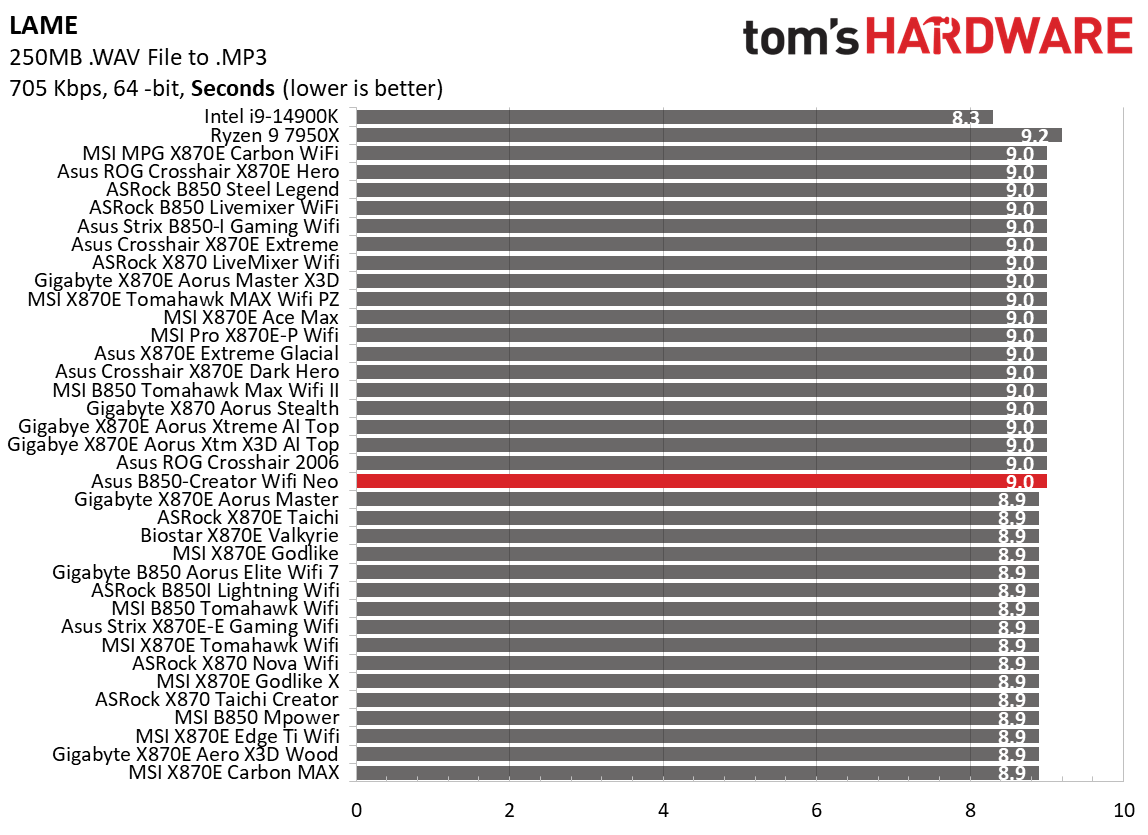
Timed applications also went well. It delivered the slower of the two times in LAME (9.0 seconds) but faster in Corona (41 seconds). Handbrake results were also good, running above average across both sub-tests. Nothing out of the ordinary here, either.

3D Games and 3DMark

Asus B850-Creator Wifi Neo - 3DMark and Game benchmarks
Future
Asus B850-Creator Wifi Neo - Timed applicaitons
Future
Asus B850-Creator Wifi Neo - Timed applicaitons
Future
Asus B850-Creator Wifi Neo - Timed applicaitons
Future

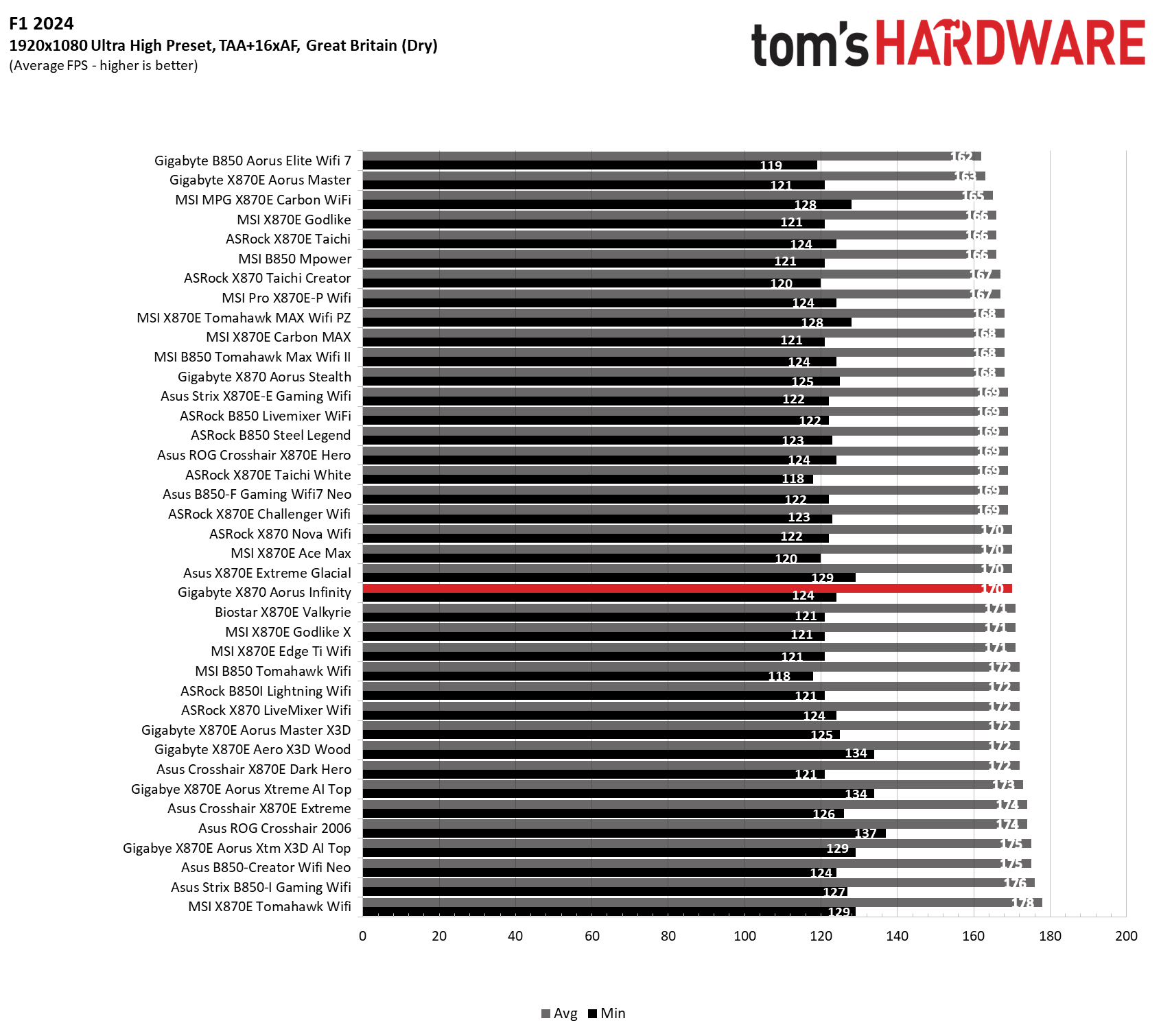
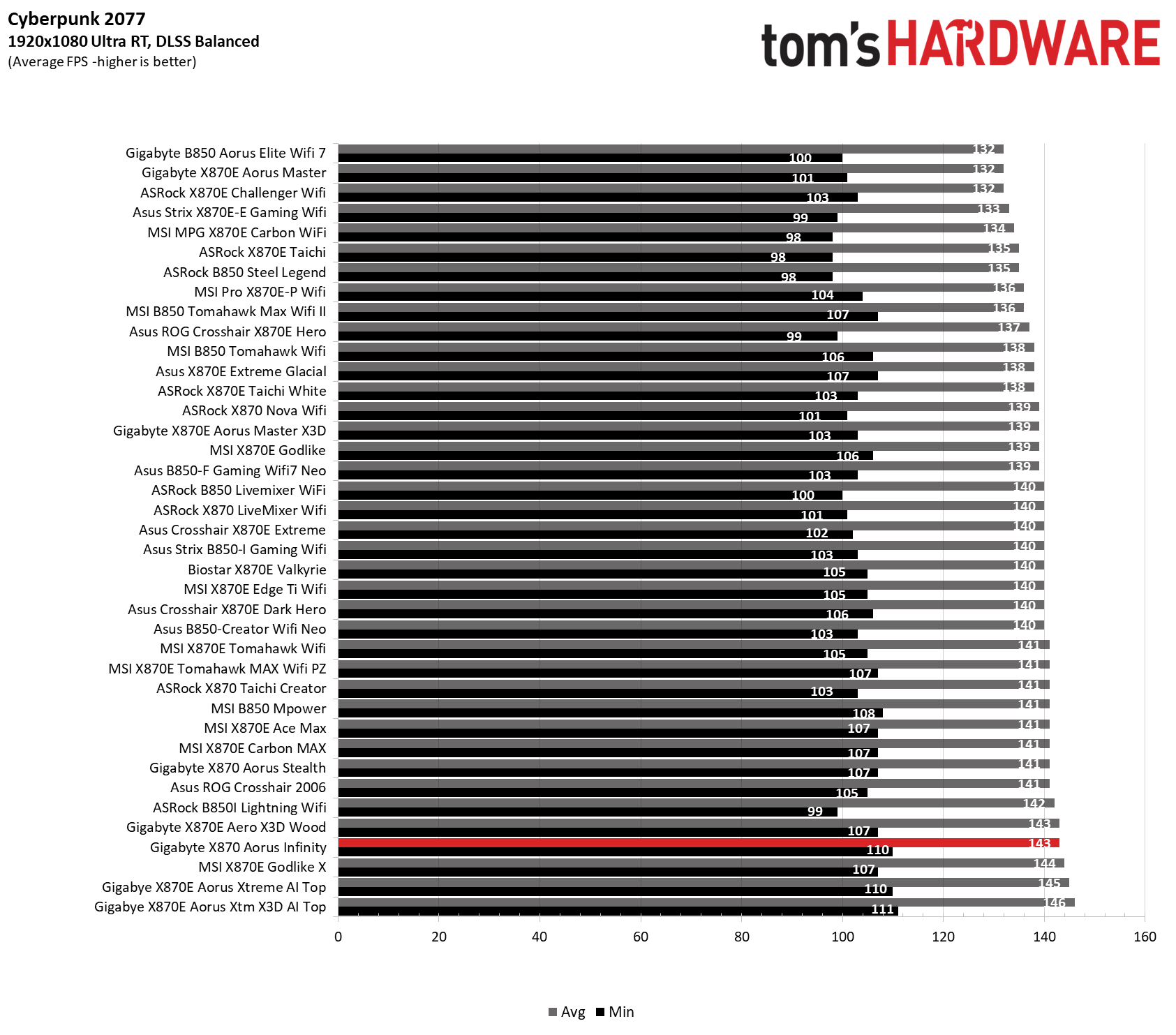
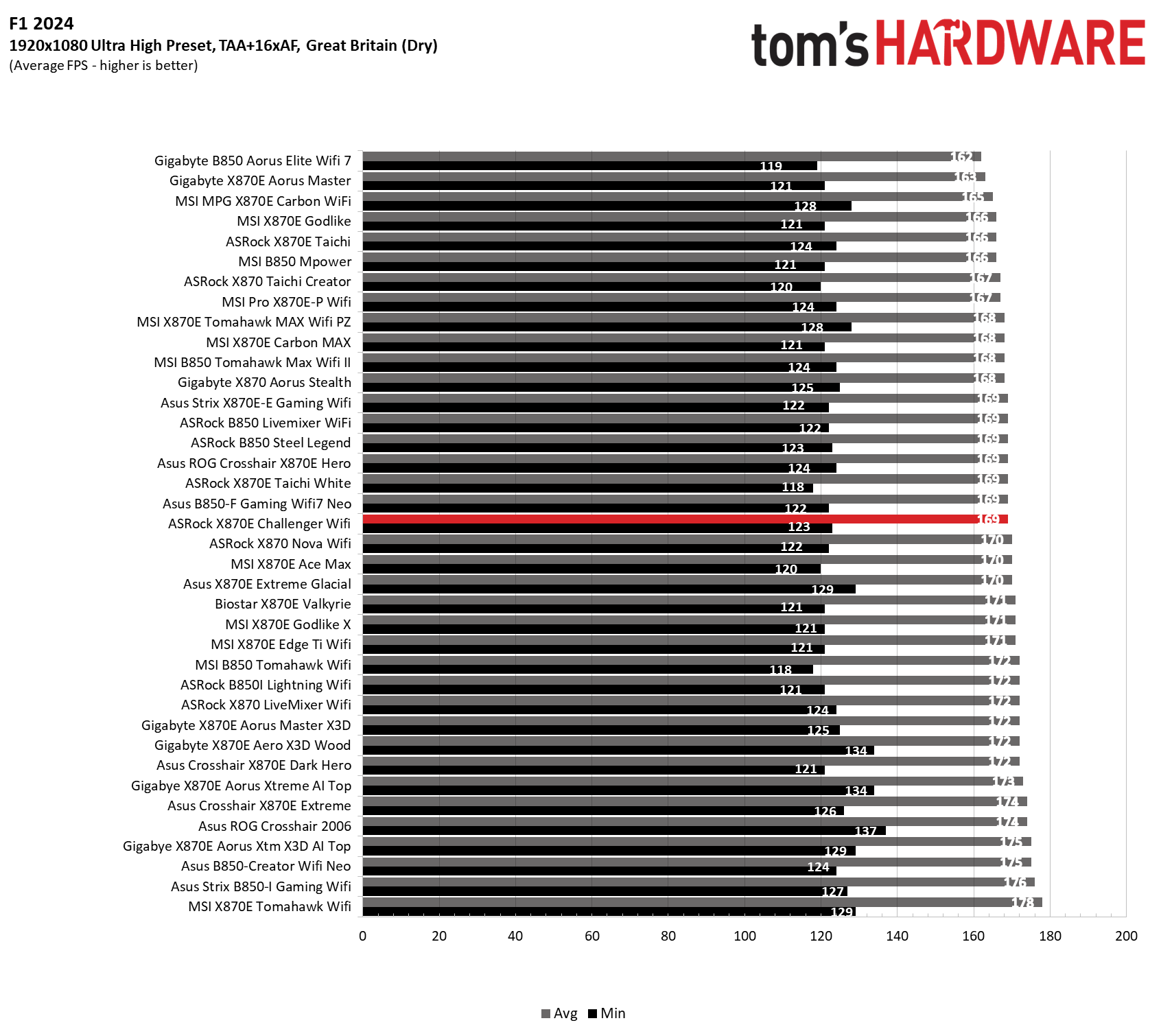
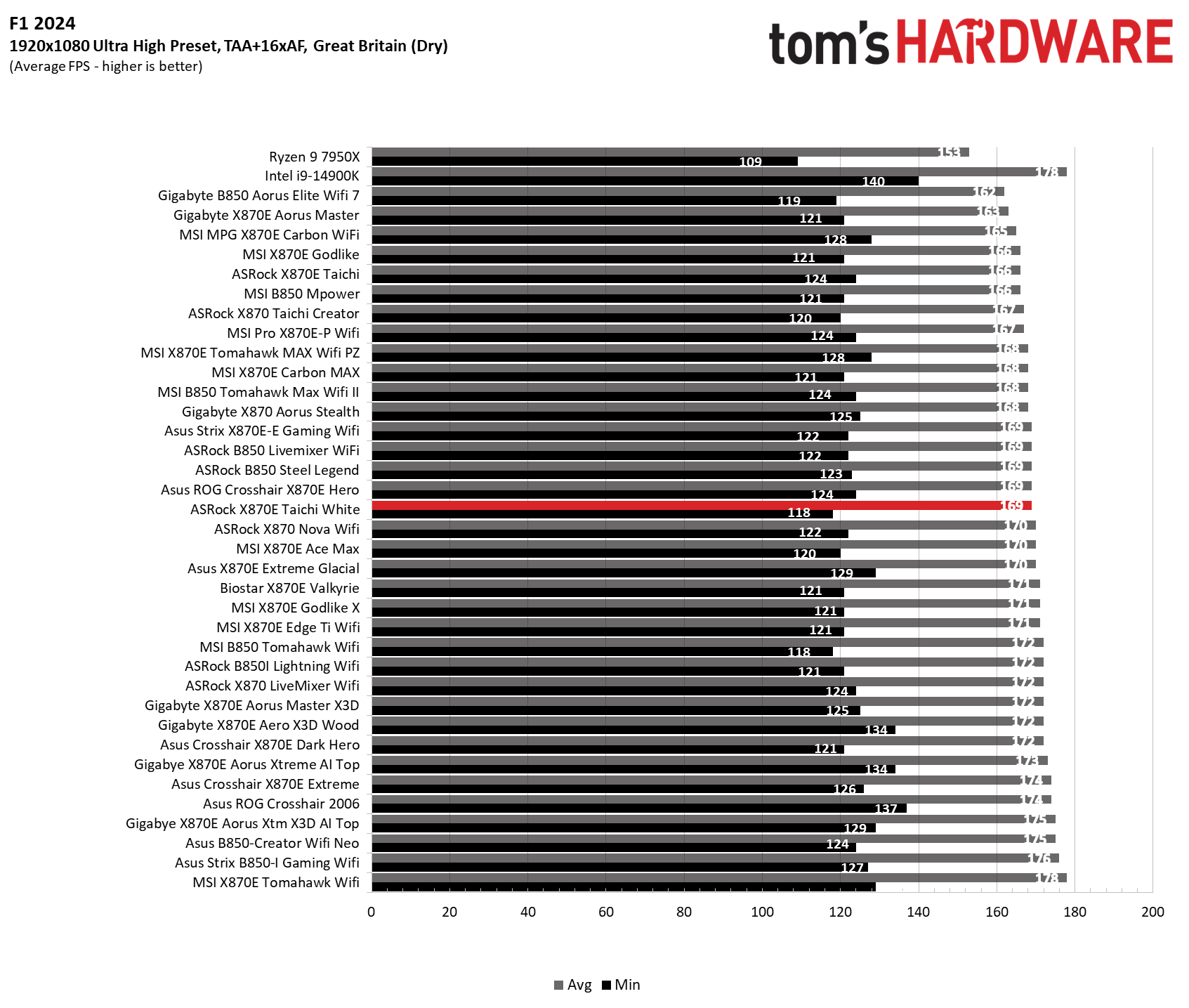
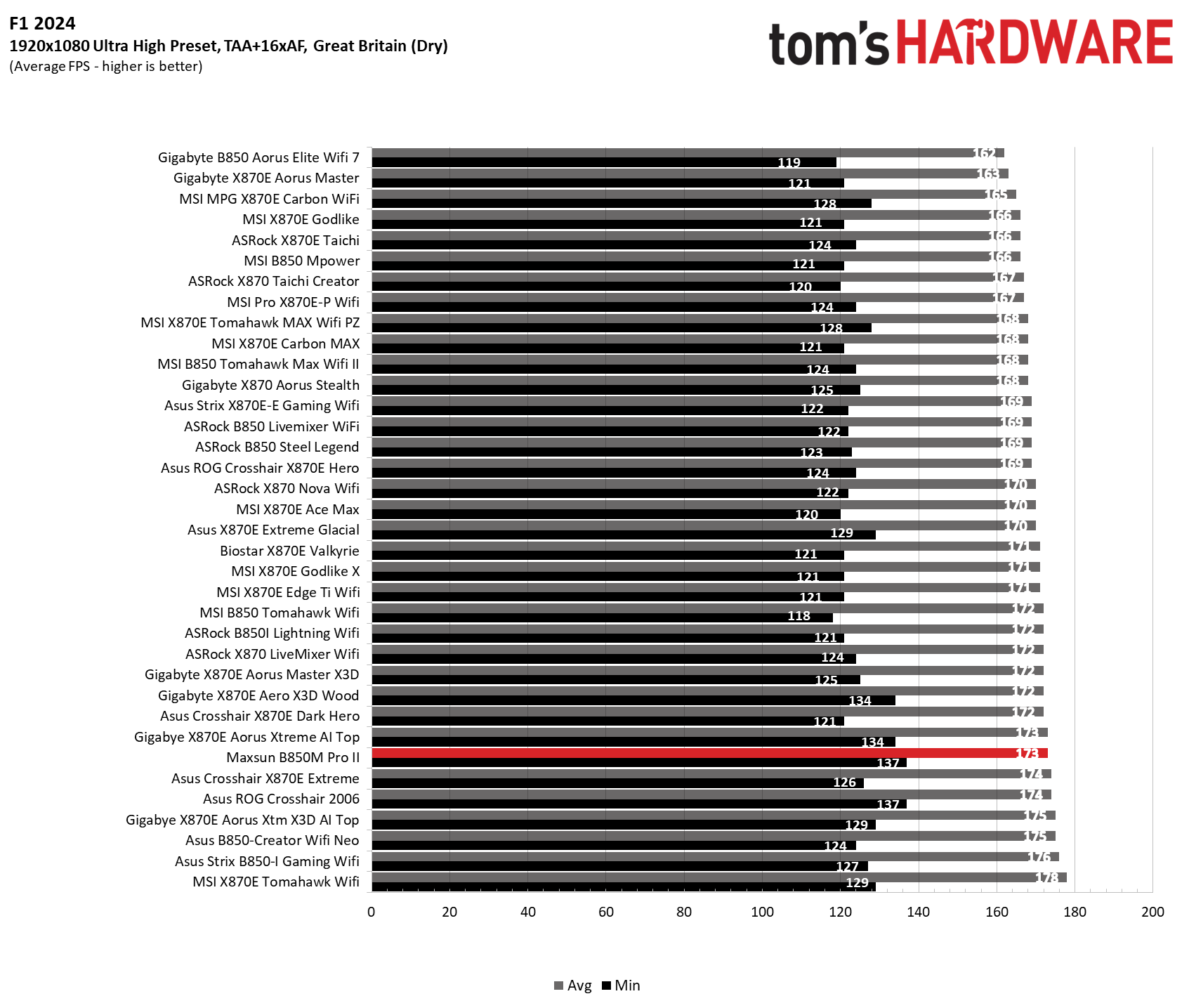
Starting with the launch of Zen 5, we’ve updated our game tests. We’re keeping the F1 racing game but have upgraded to F1 24. We also dropped Far Cry 6 in favor of an even more popular game in Cyberpunk 2077. We run both games at 1920x1080 resolution using the Ultra preset (details listed above). Cyberpunk 2077 uses DLSS, while we left F1 24 to native resolution scaling.

The goal with these settings is to determine if there are differences in performance at the most commonly used (and CPU/system-bound) resolution with settings most people use or strive for (Ultra). We expect the difference between boards in these tests to be minor, with most falling within the margin of error. We’ve also added a minimum FPS setting, which can affect your gameplay and immersion.

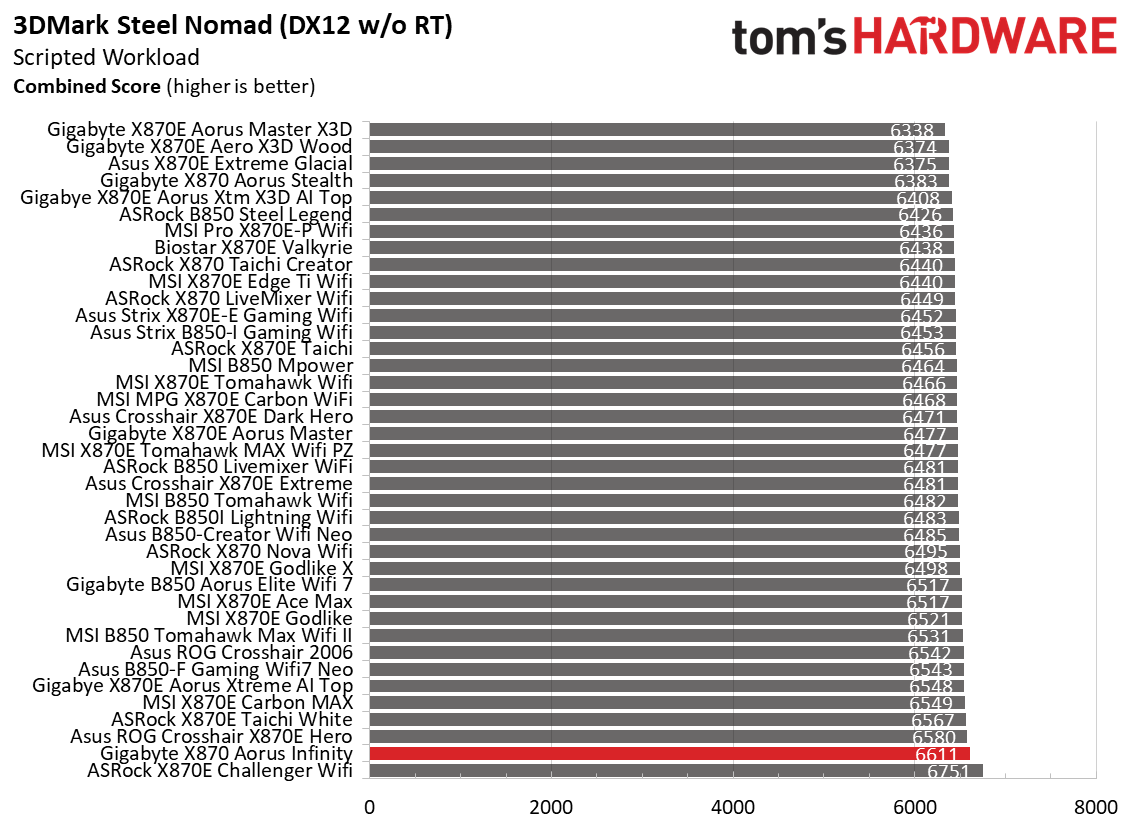
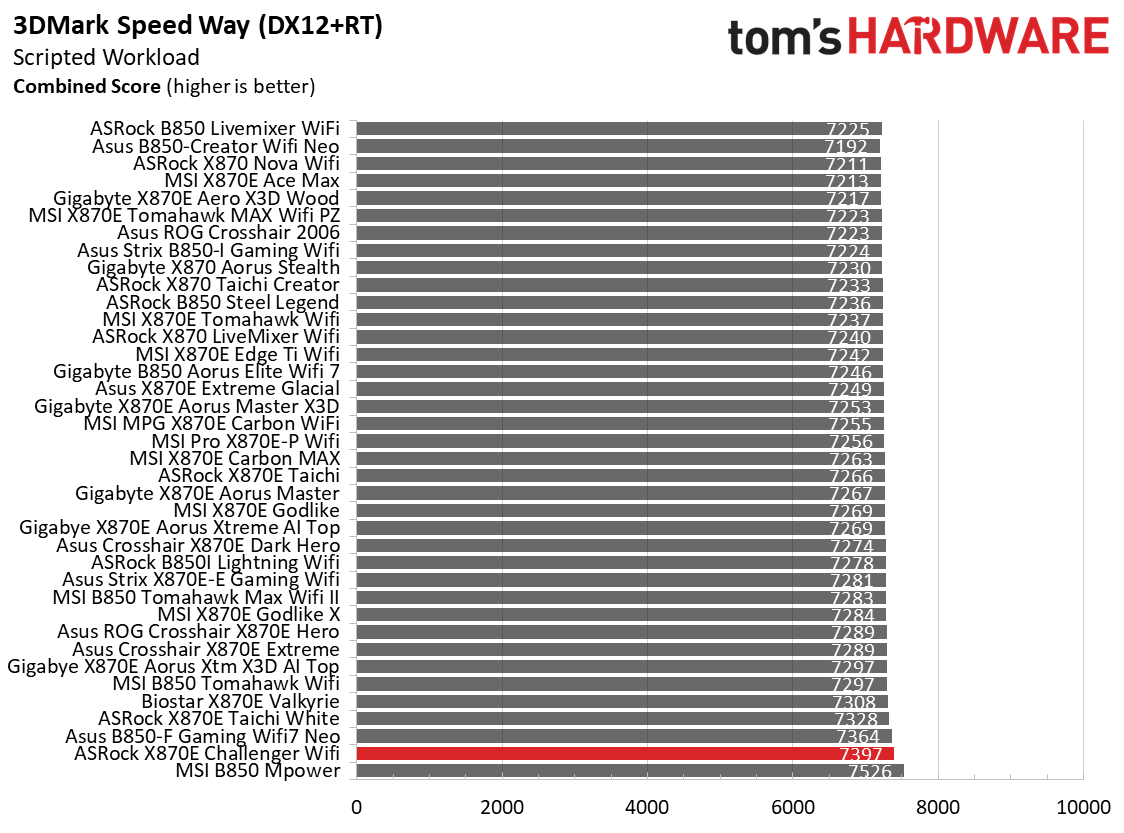
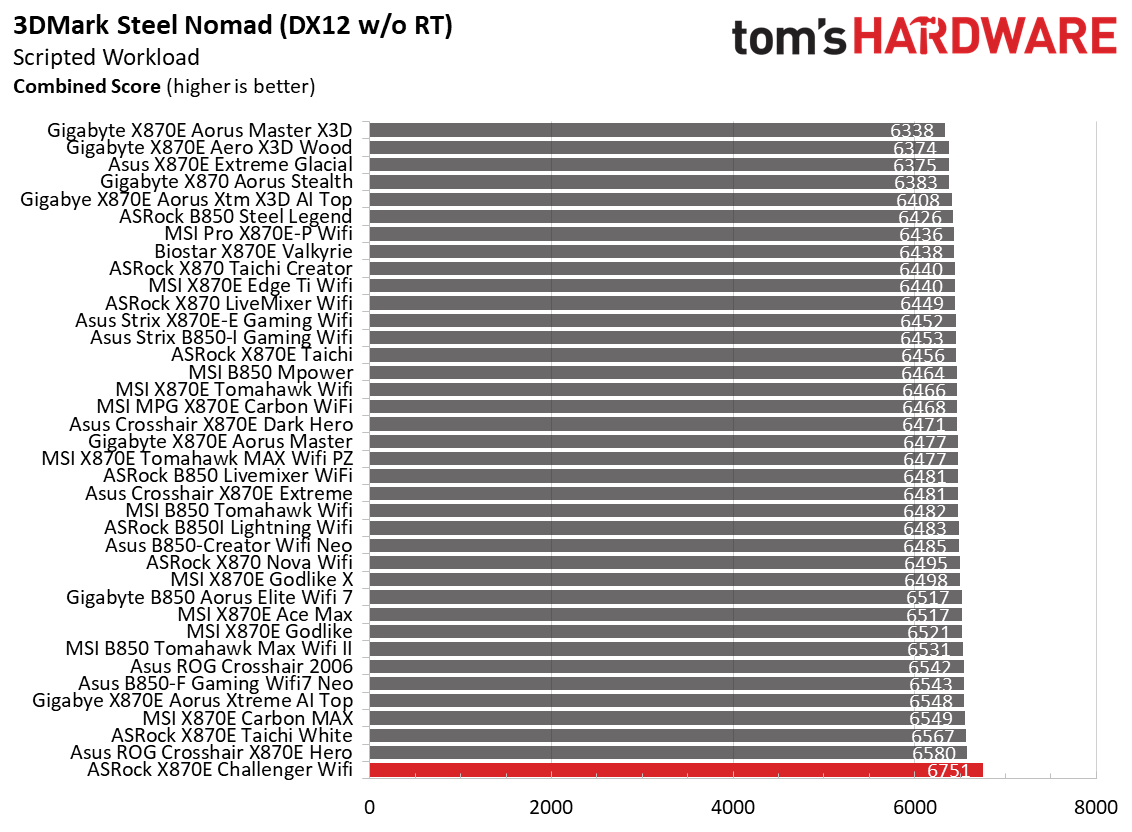
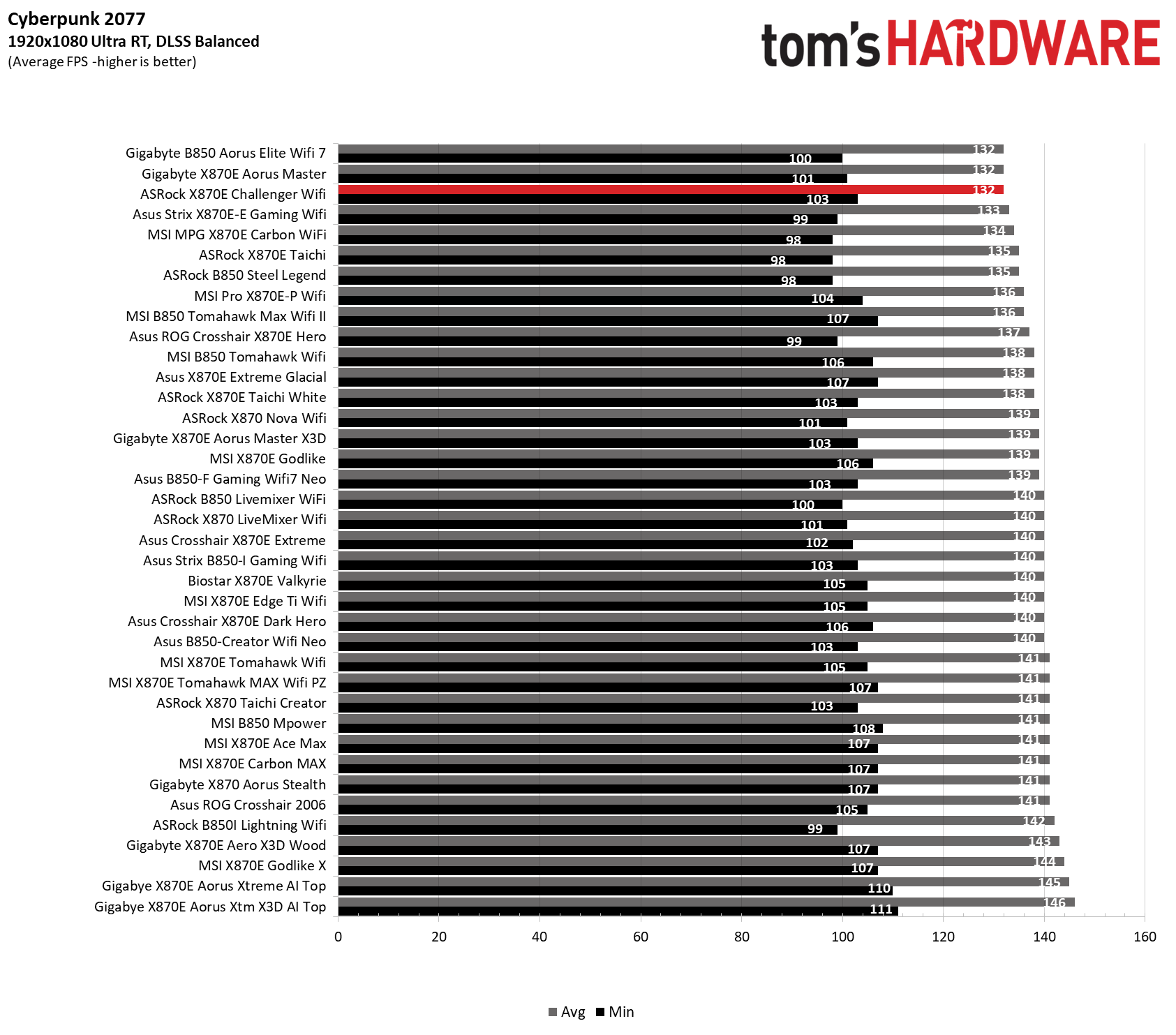
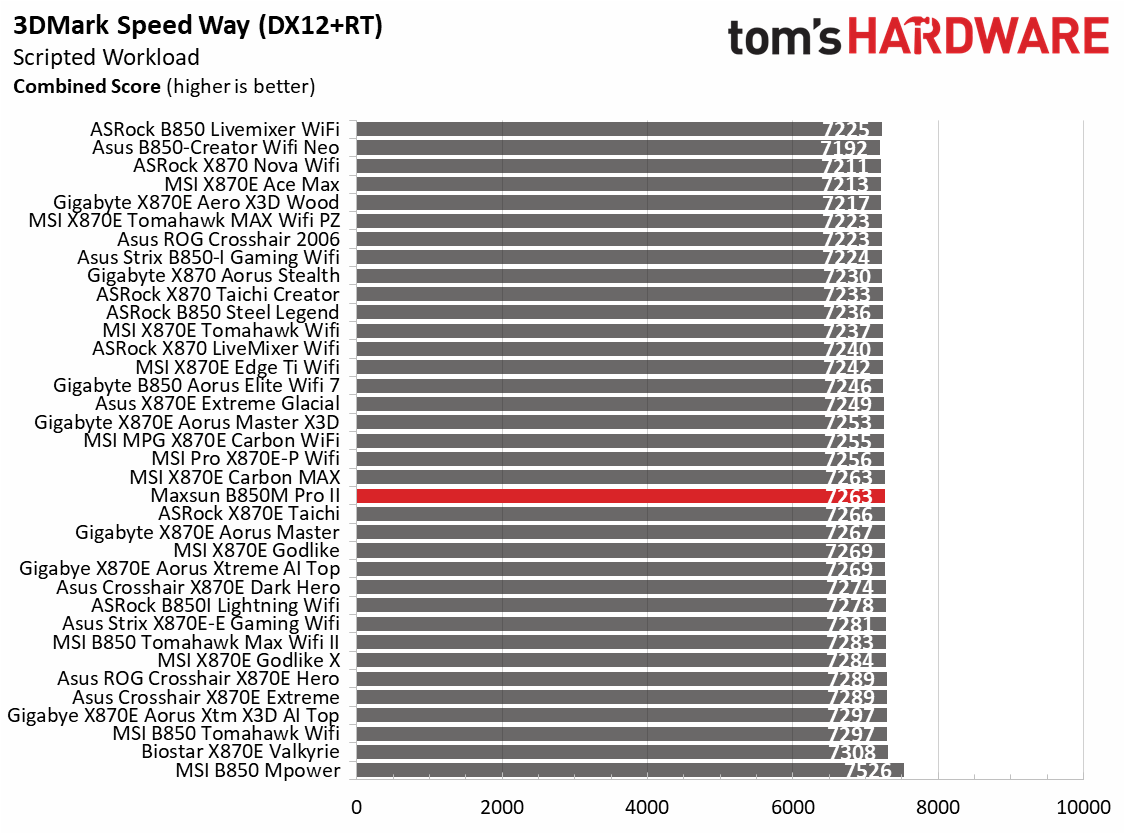
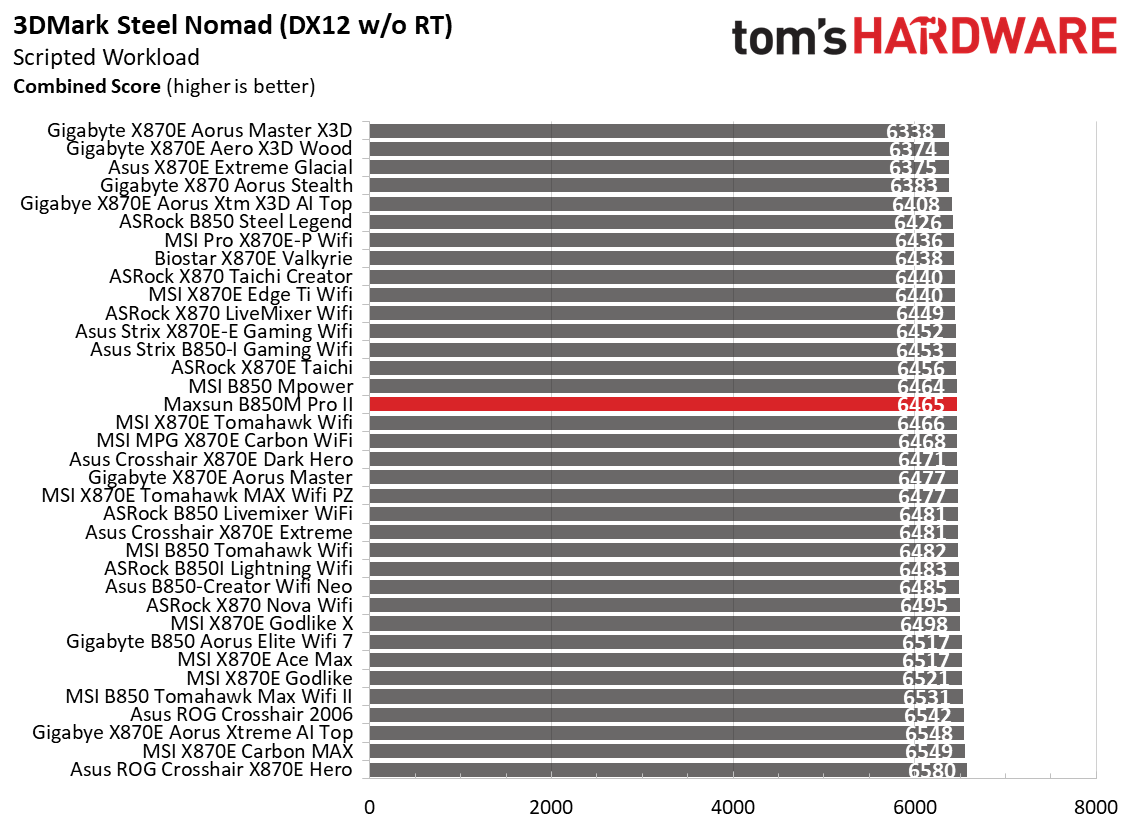
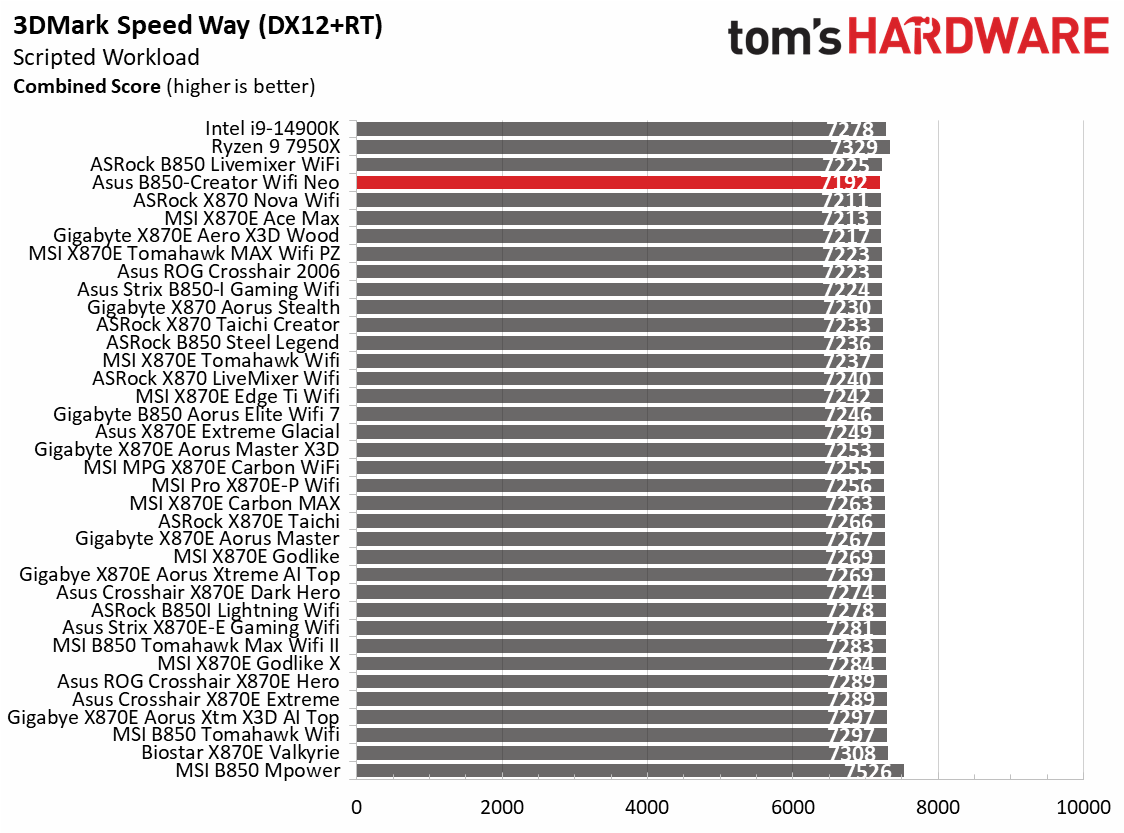
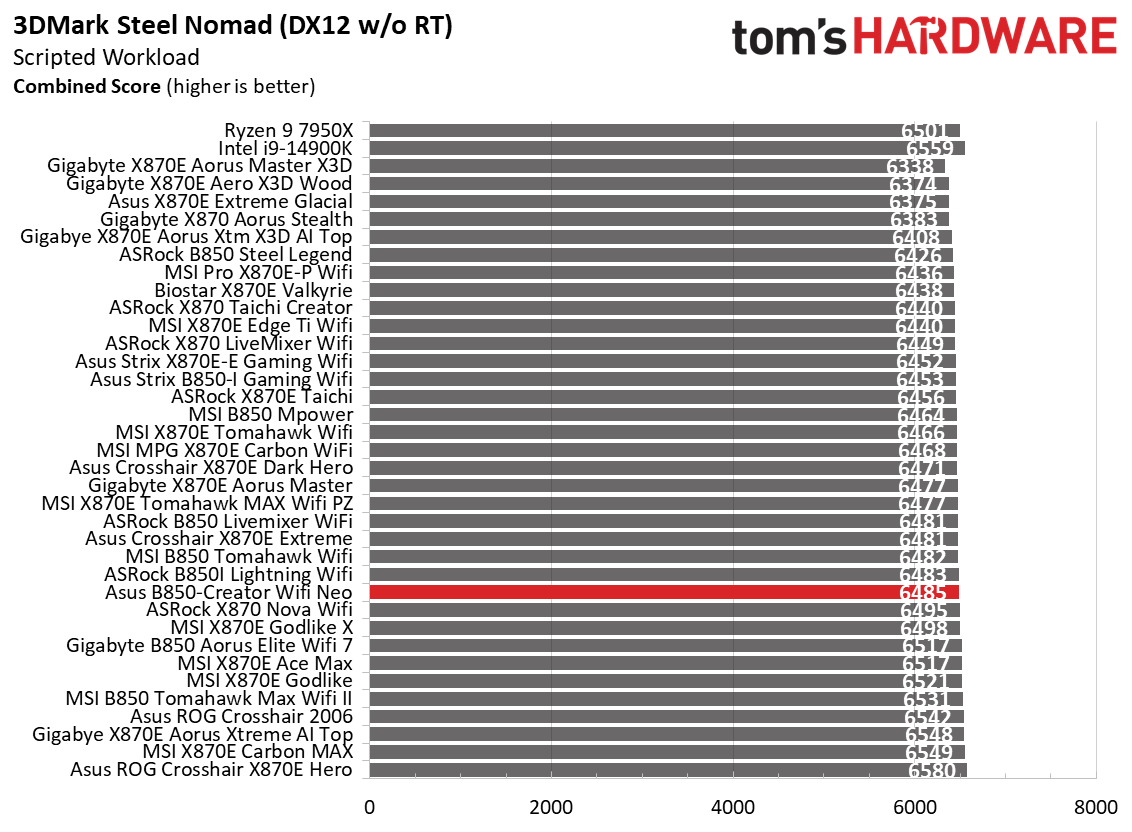
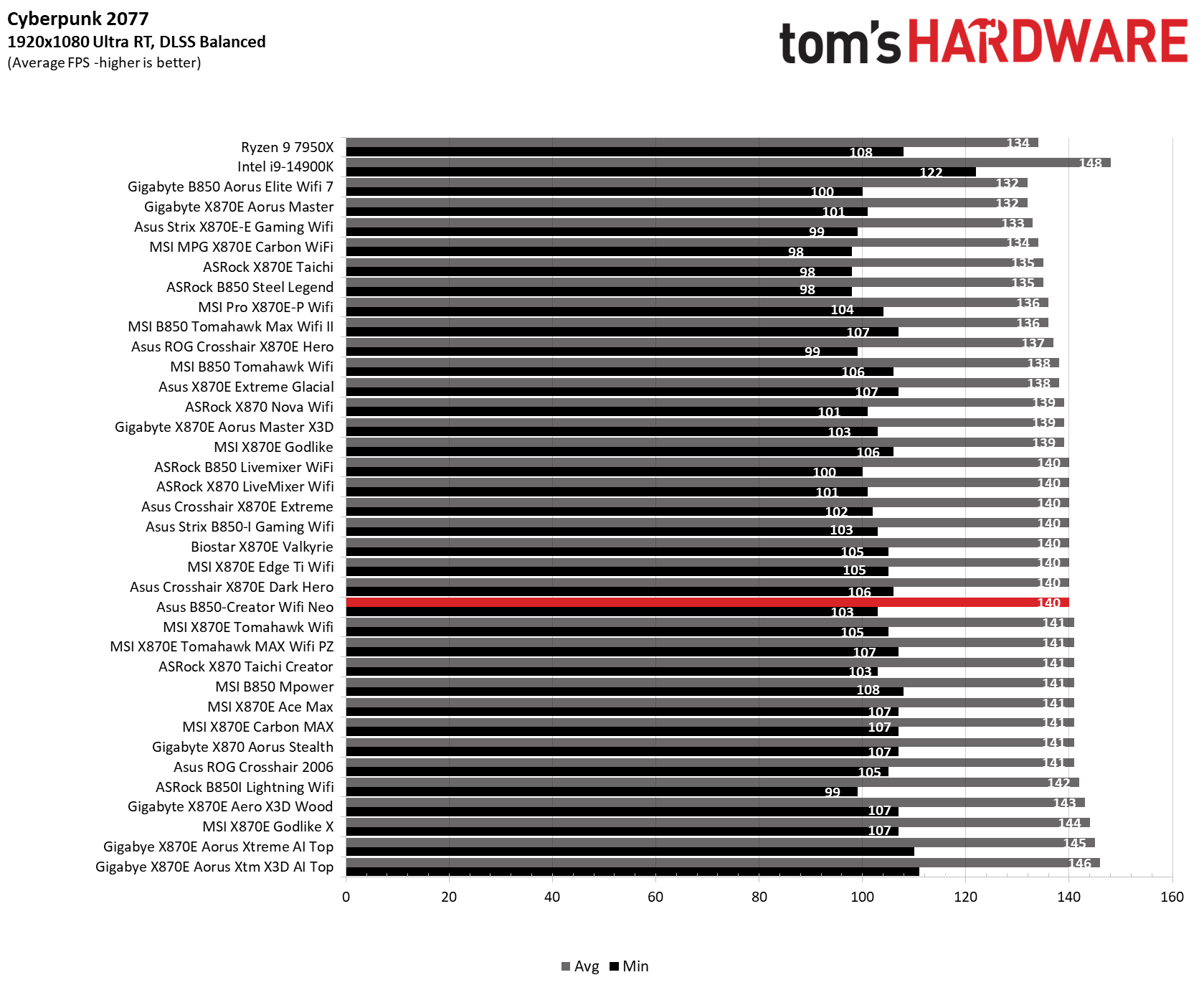
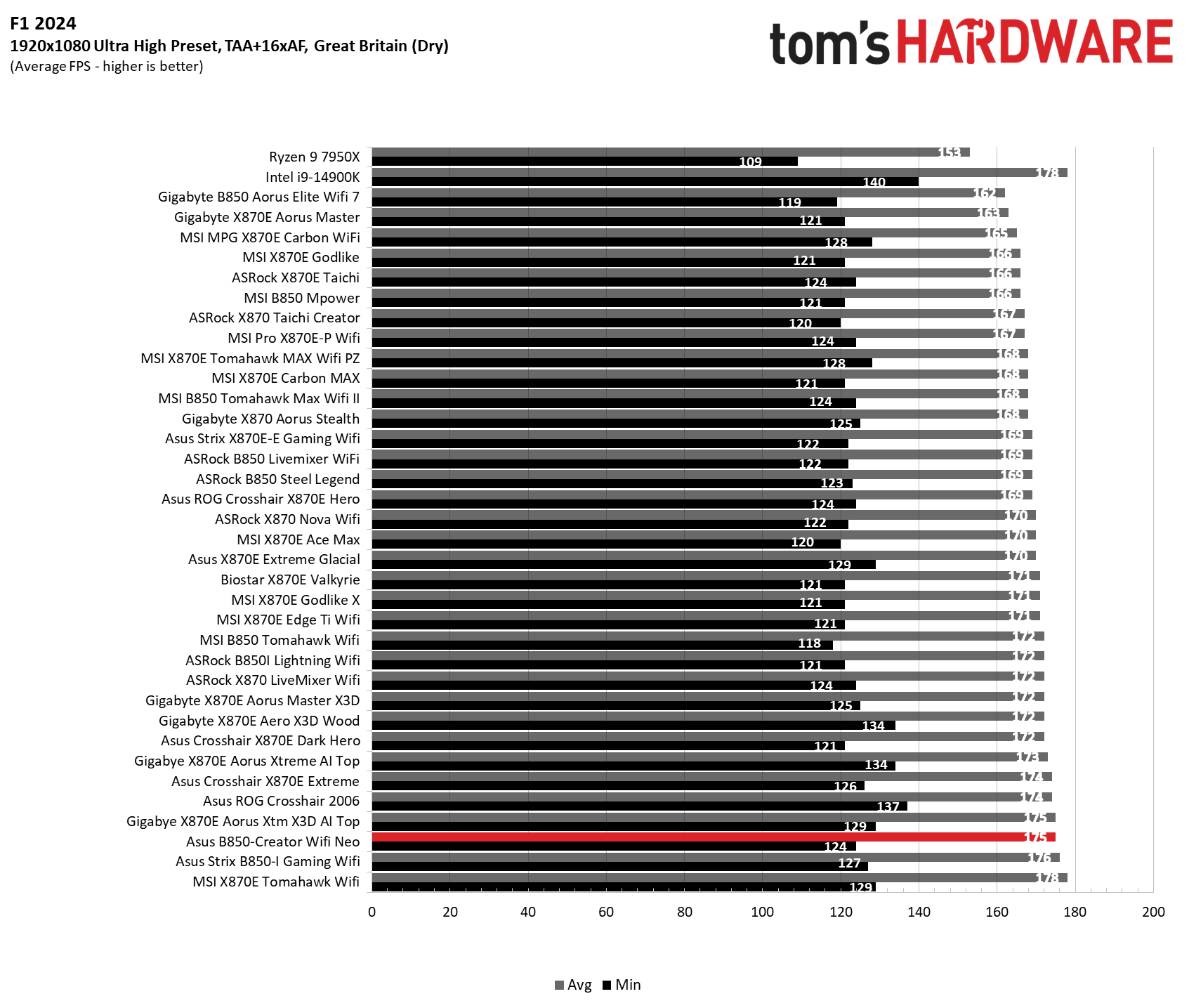
In our 3DMark and game tests, the Creator Neo was average overall. It scored slightly lower on the 3DMark Speedway test but slightly faster than average on Steel Nomad. In our games, Cyberpunk 2077 results were right around average, while F1 24 was slightly above average at 124/175 FPS (minimum/average, respectively). To summarize, this board has no issues running games or any productivity/creator-related activities.

Overclocking

Over the past few CPU generations, overclocking headroom has been shrinking on both sides of the fence, while the out-of-the-box potential has increased. For overclockers, this means there’s less fun to have. For the average consumer, you’re getting the most out of the processor without manual tweaking. Today’s motherboards are more robust than ever, and they easily support power-hungry flagship-class processors; We know the hardware can handle them. There are multiple ways to extract even more performance from these processors: enabling a canned PBO setting, manually tweaking the PBO settings, or just going for an all-core overclock. Results will vary and depend on the cooling as well. In other words, your mileage may vary. Considering all the above, we will not be overclocking the CPU. However, we will try out our different memory kits to ensure they meet the specifications.
Asus B850-Creator Wifi Neo - Memory overclocking
Future
Asus B850-Creator Wifi Neo - Memory overclocking
Future

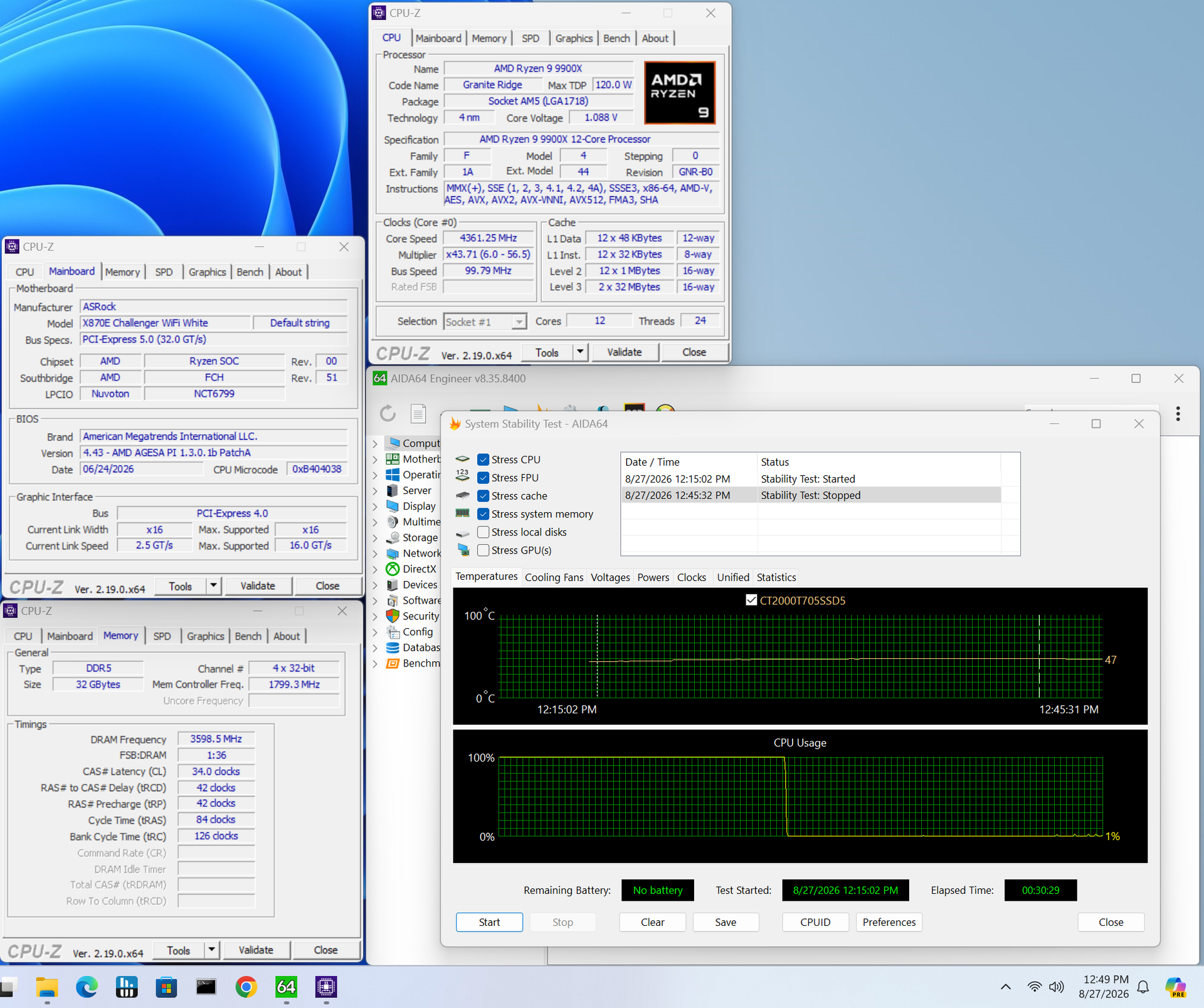
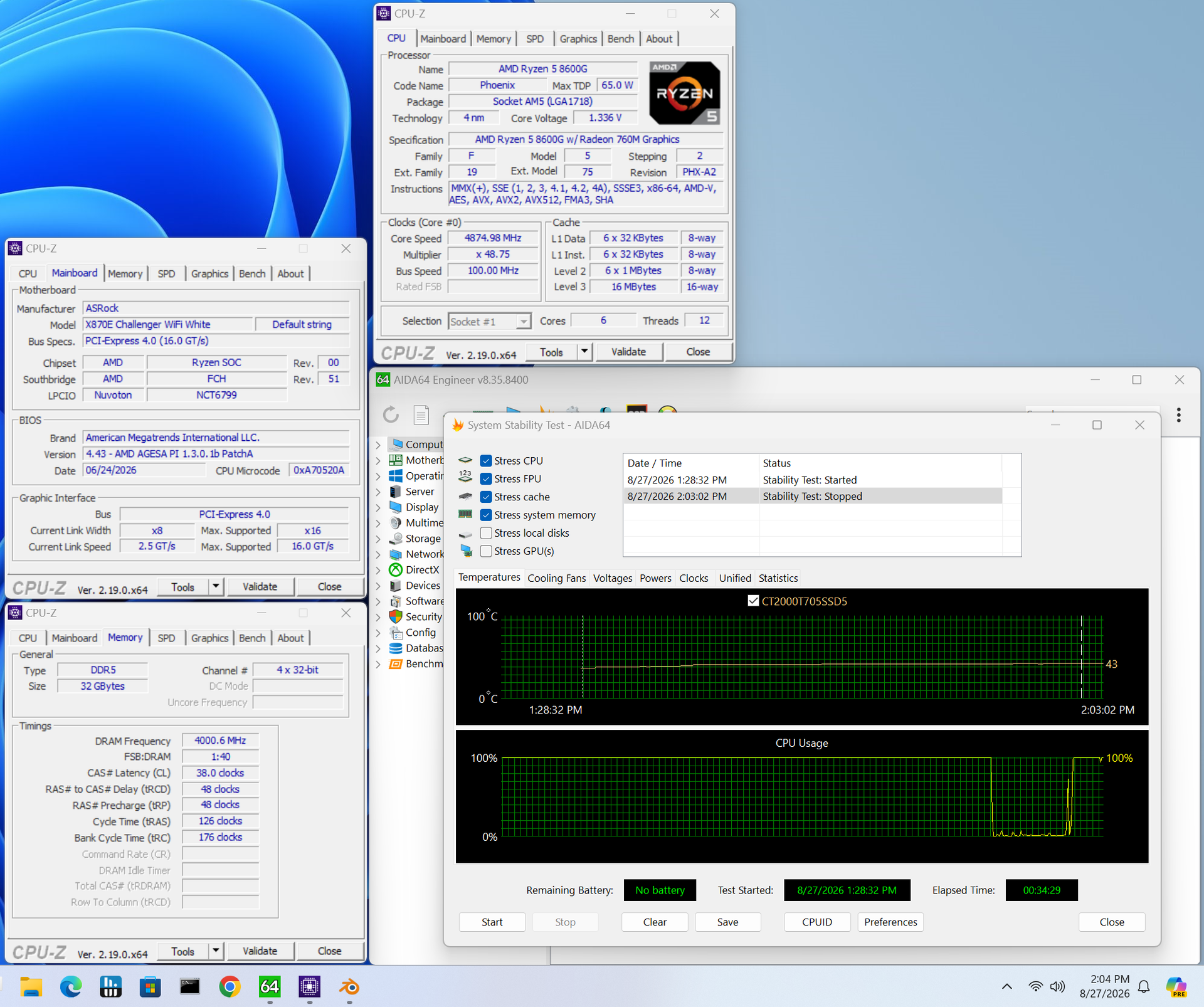
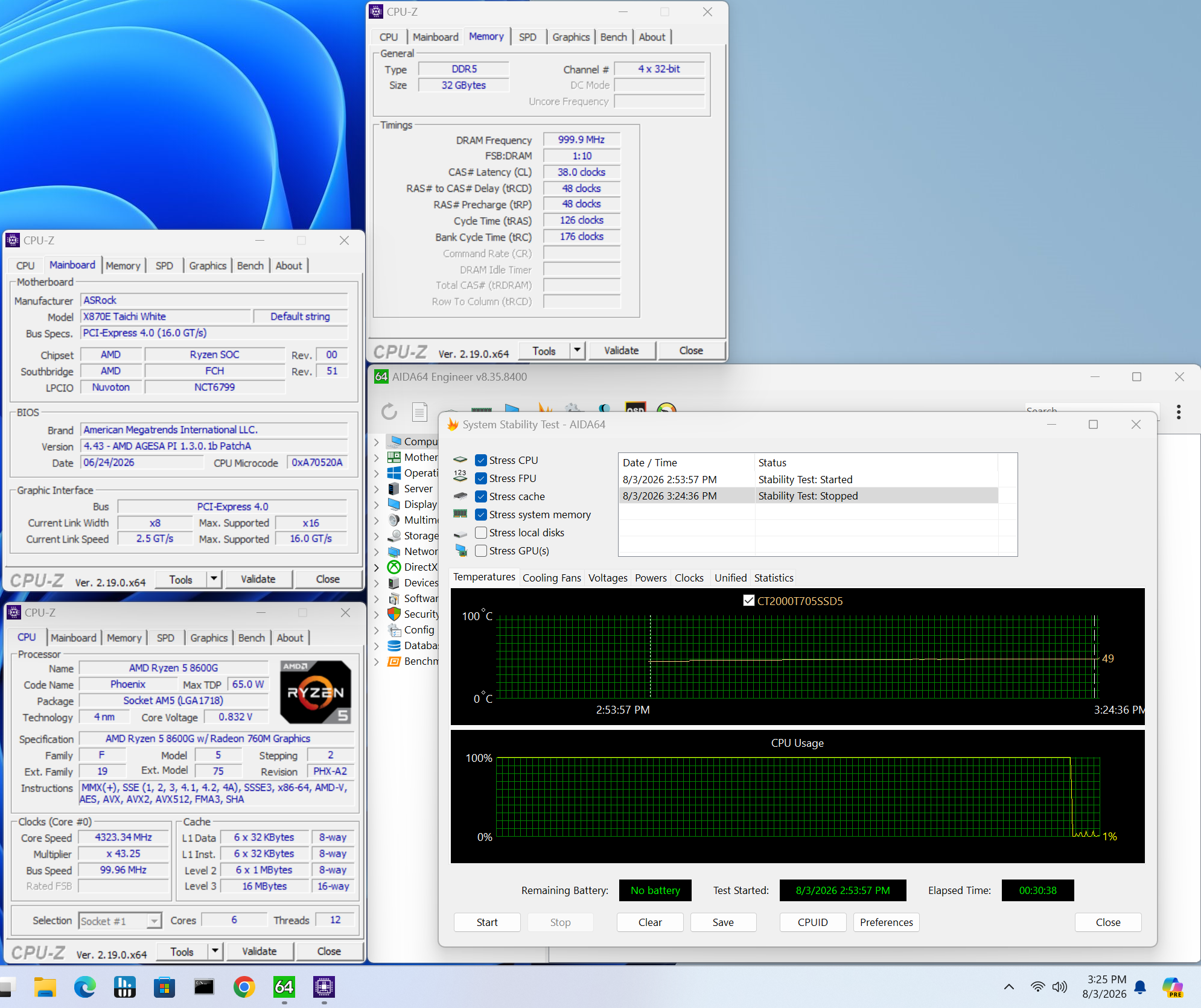
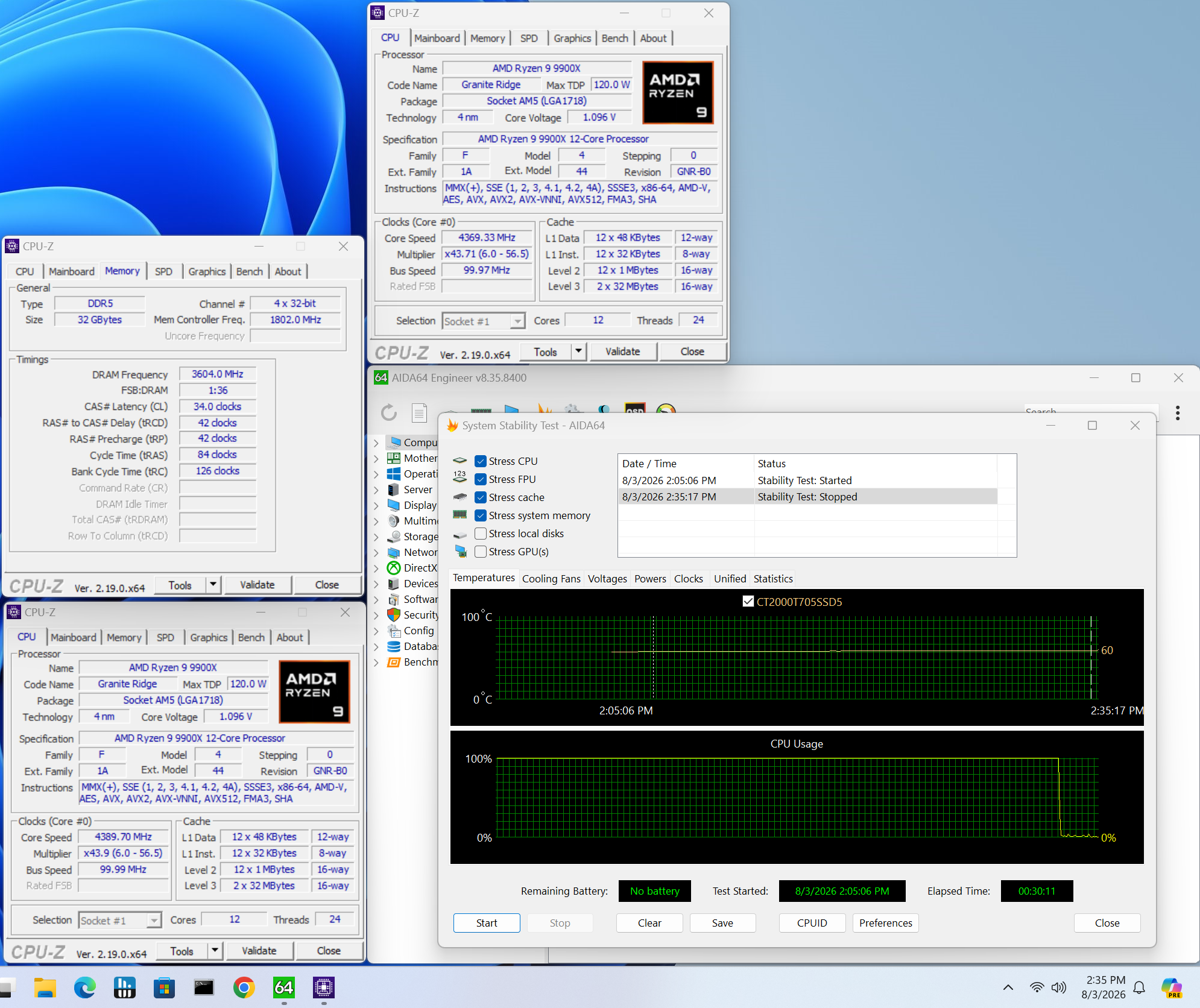
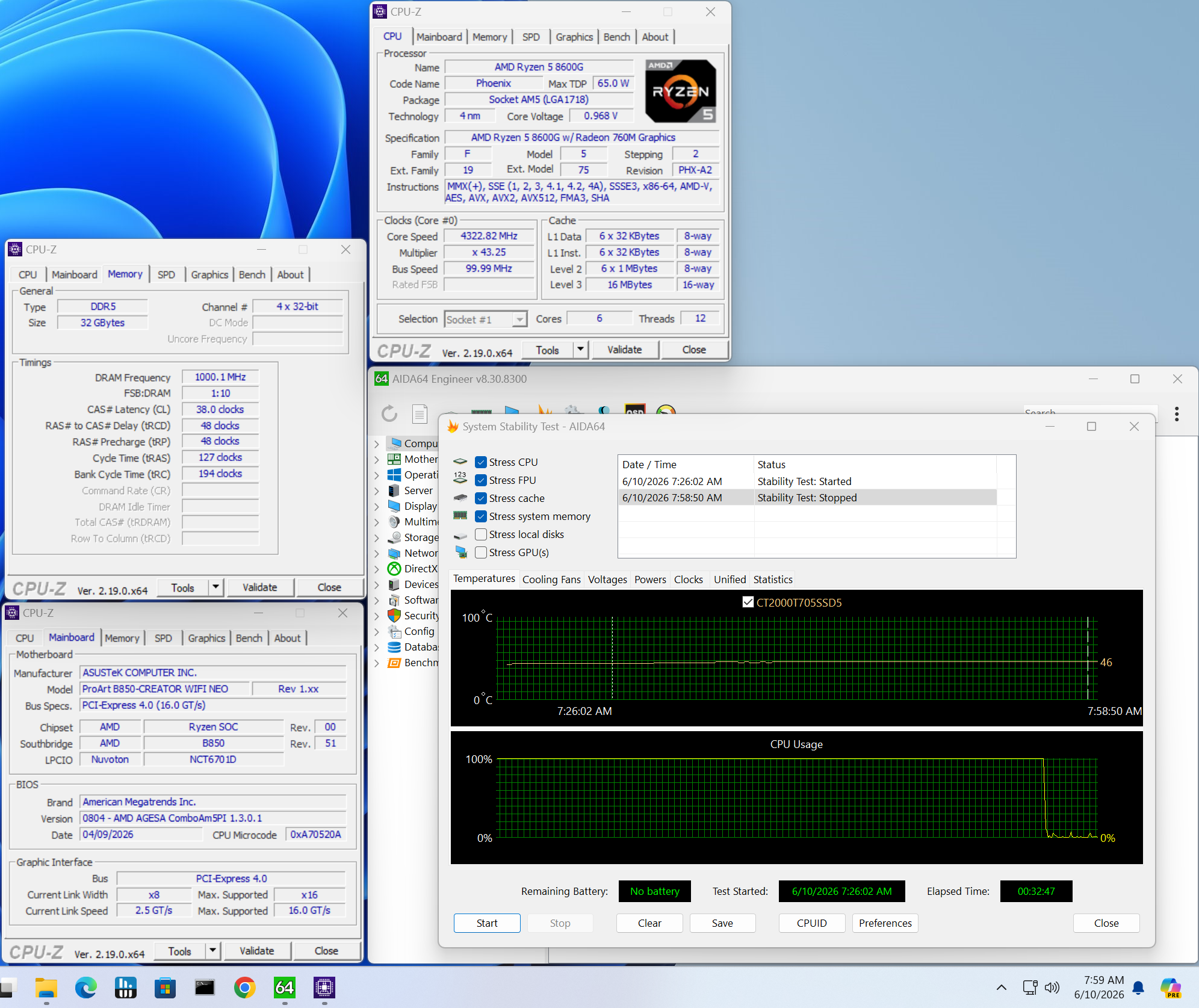
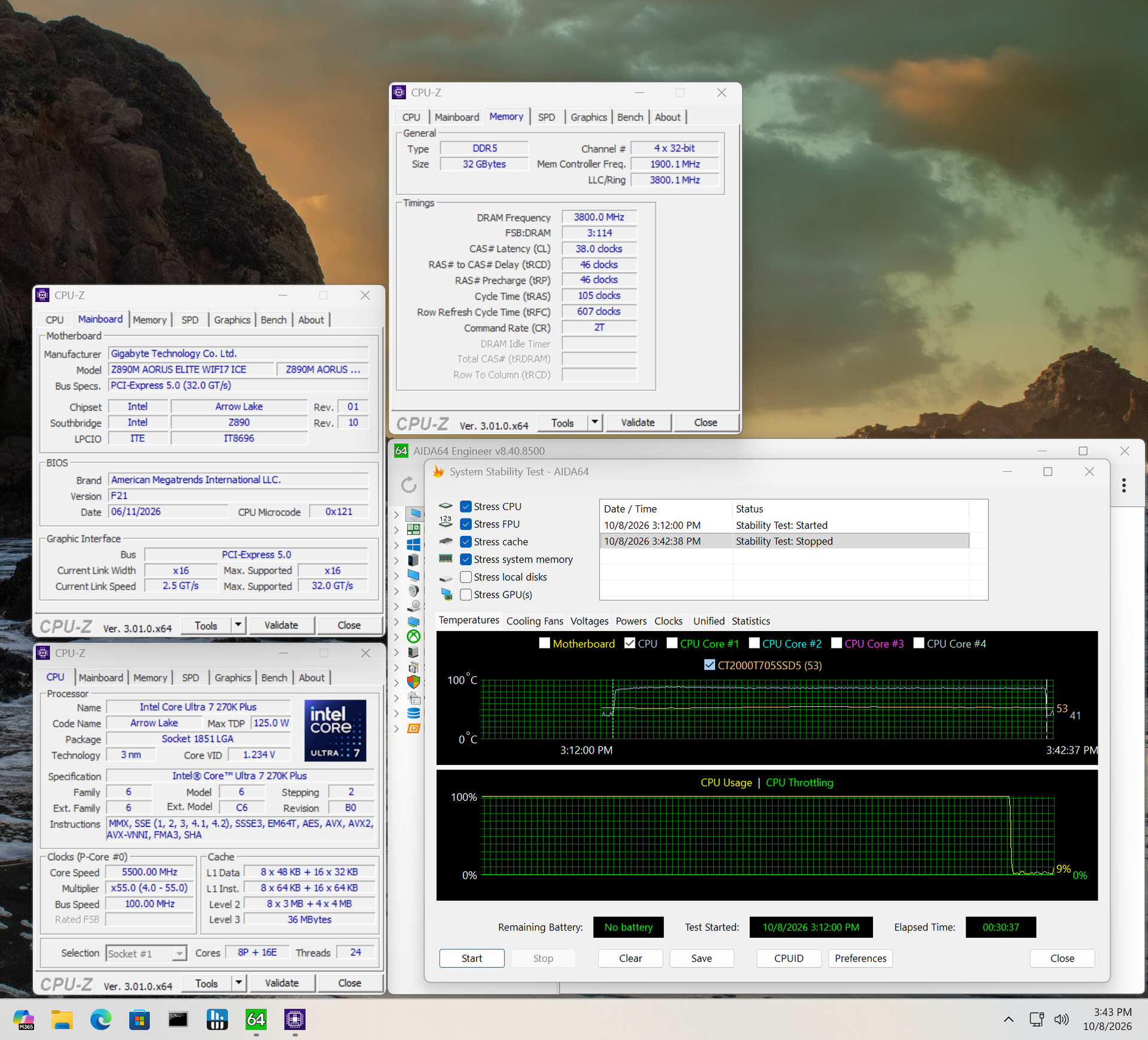
For memory testing, we start with our fastest non-clock driver kit: Klevv 32GB (2x16) DDR5-8000. Per usual on this platform, it booted to Windows but wouldn’t pass a stress test with our 9900X. The Team Group DDR5-7200 kit worked without issue. Those speeds are well past the ‘sweet spot’ for the AMD platform, and with today’s RAM prices, we doubt many people are looking at these higher speeds in the first place.

Dropping in the Ryzen 5 8600G APU, we were able to run our Klevv DDR5-8000 kit without issue, which is a trend we’ve seen since we started using the APU (the IMCs on the APUs are generally better than those on desktop processors). Again, AMD’s sweet spot is around 6000-6400 MT/s, and this board (really any X870E board we’ve tested) can handle that and then some. Asus also offers AI Overclocking for the CPU if you don’t want to adjust settings manually.

Power Consumption / VRM Temperatures

Asus B850-Creator Wifi Neo - Power consumption

(Image credit: Future)

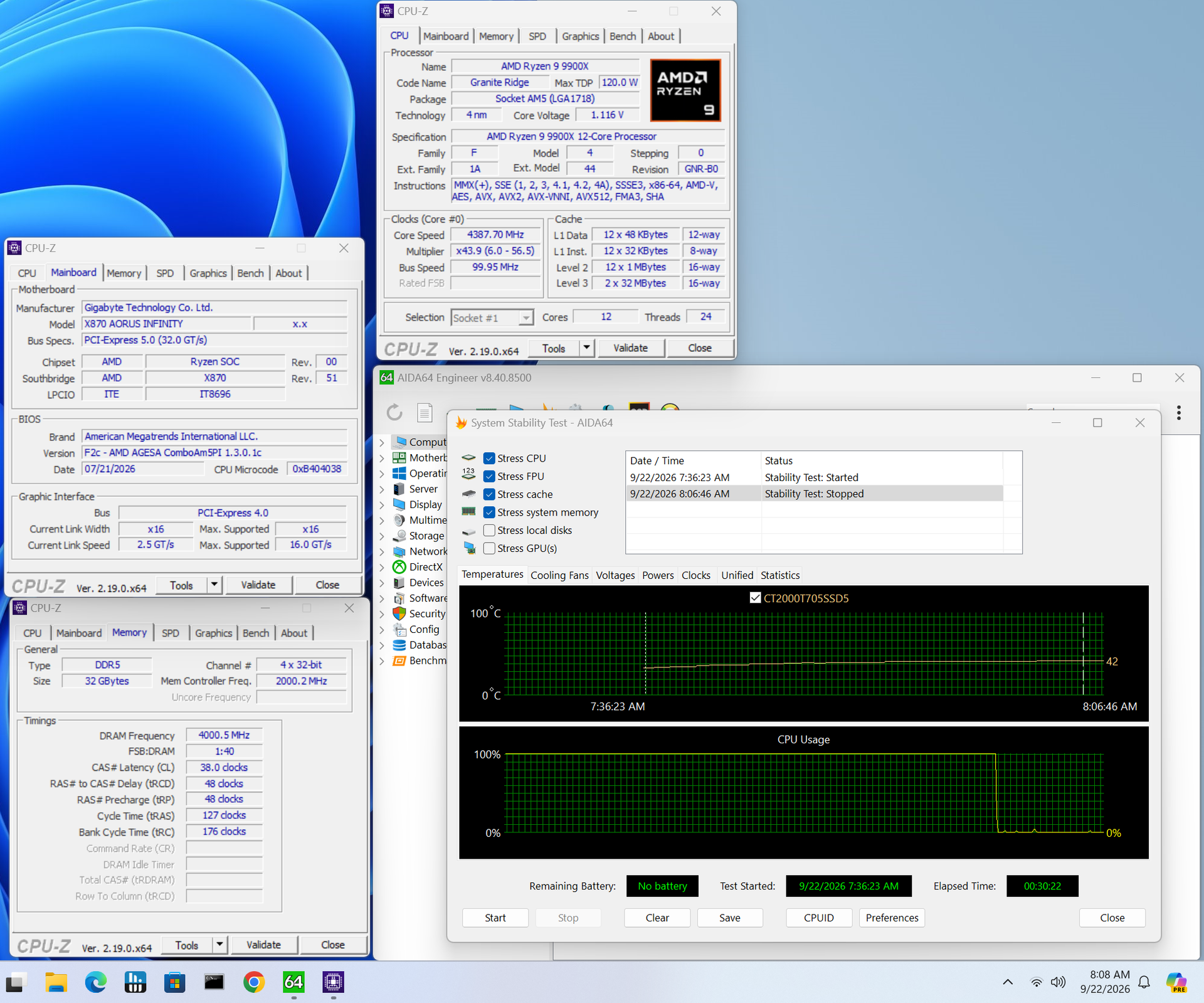
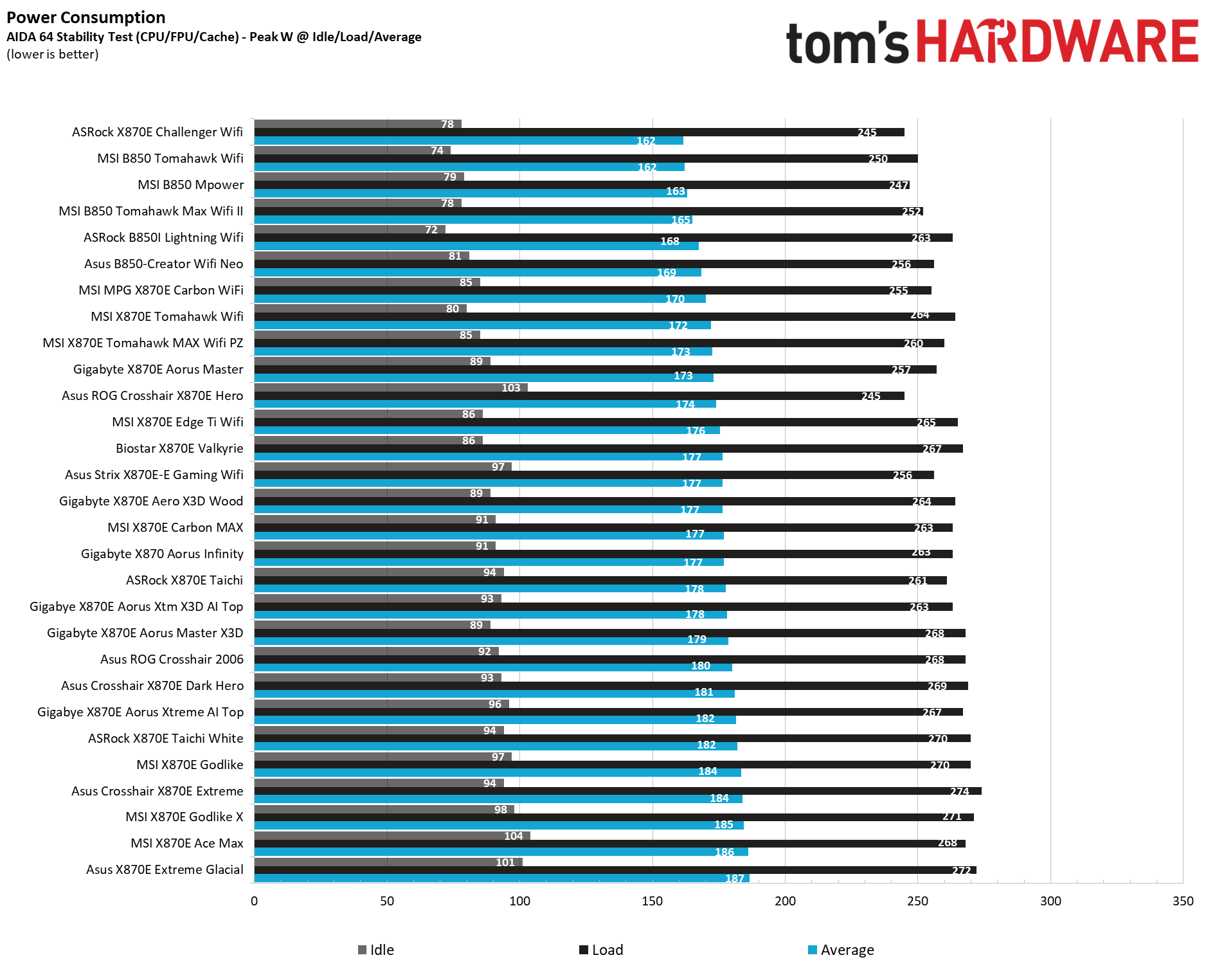
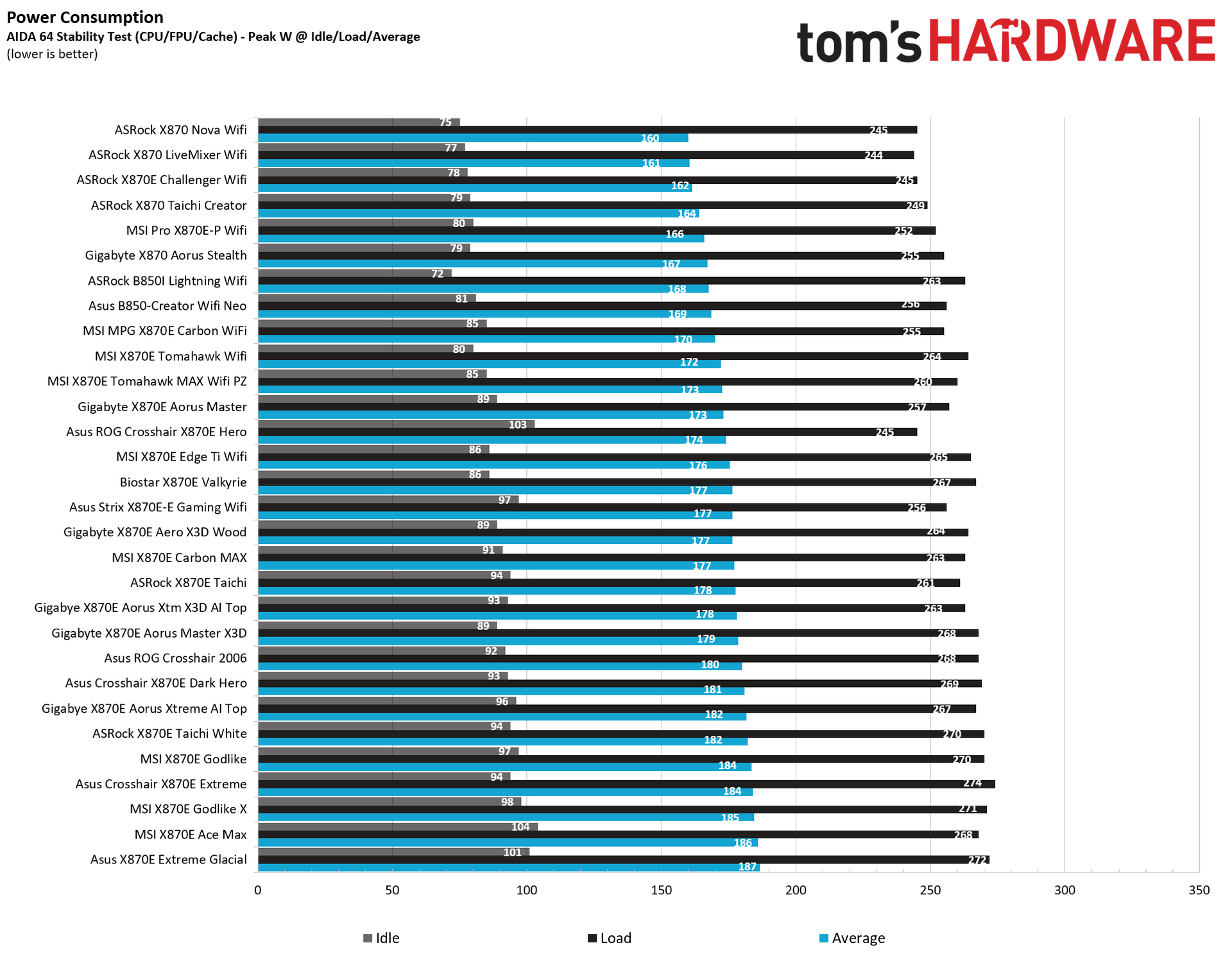
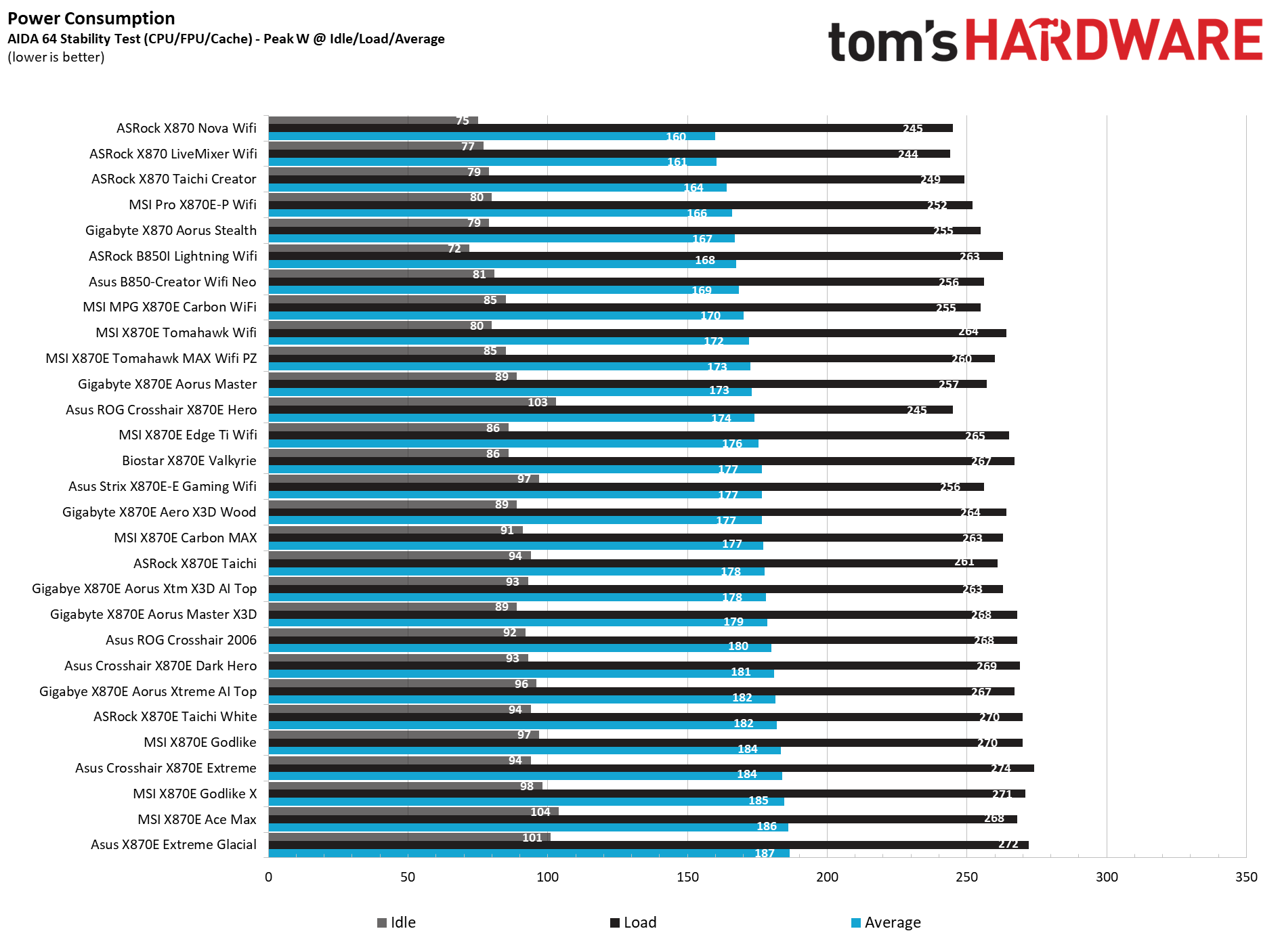
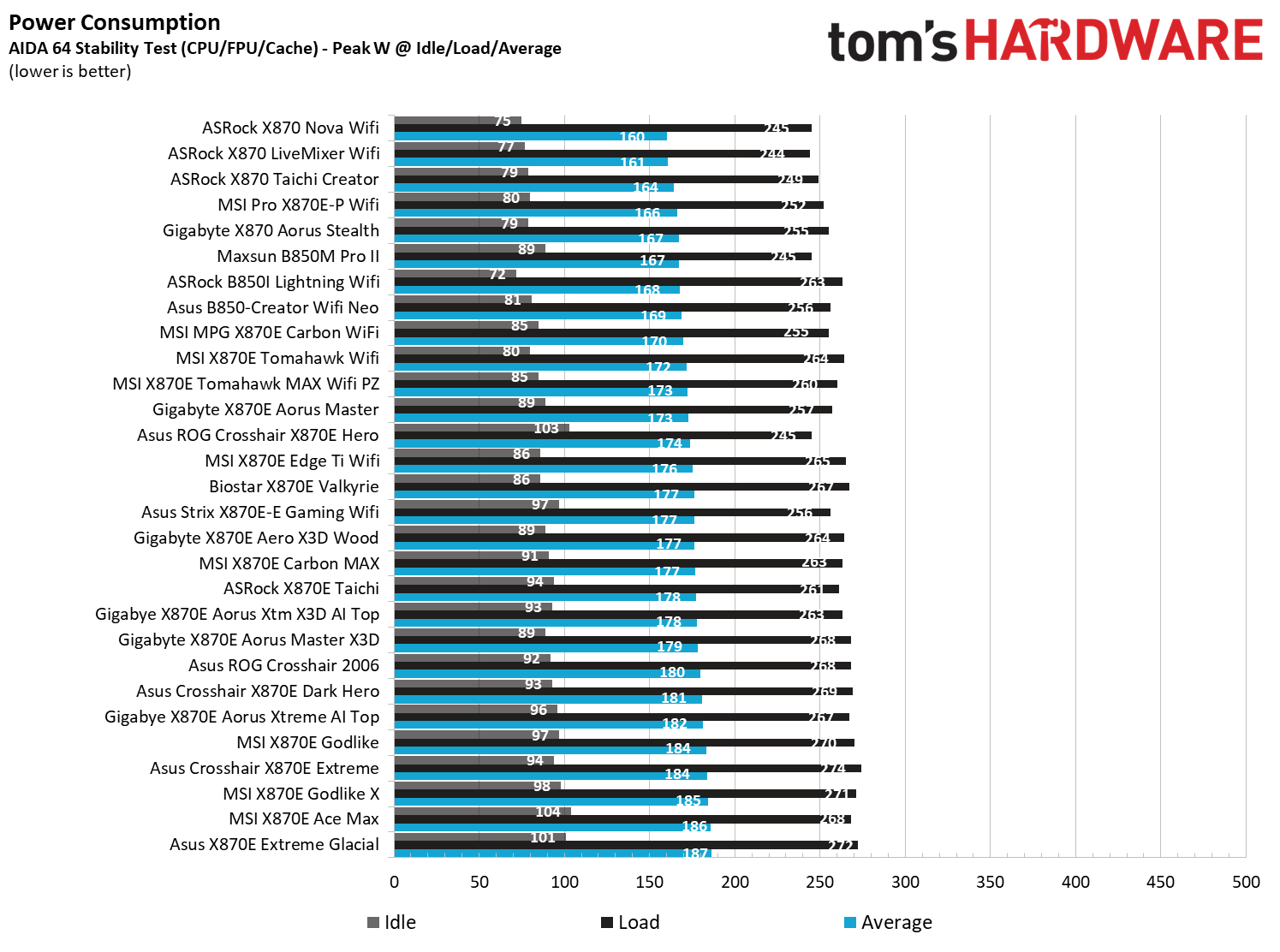
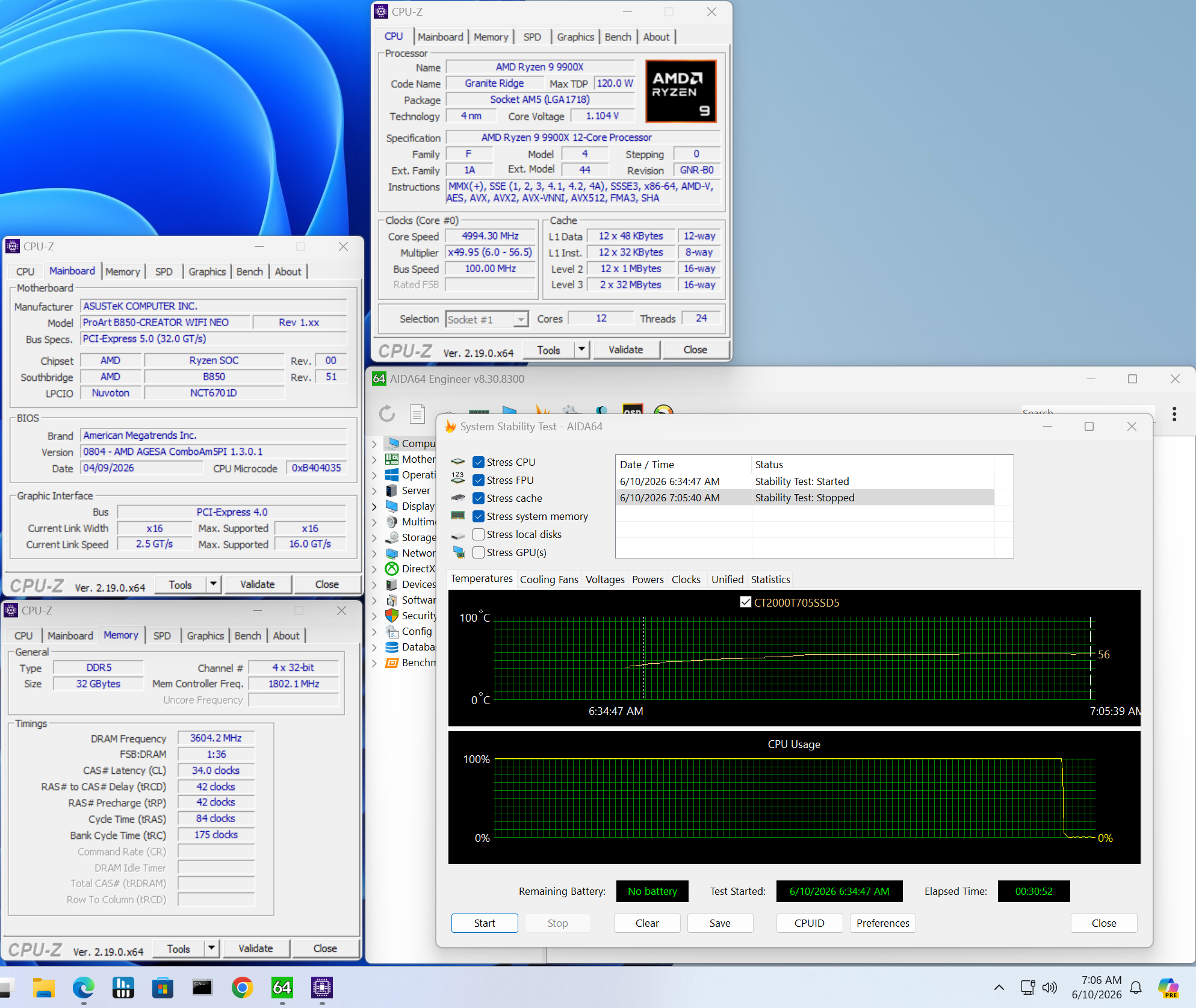
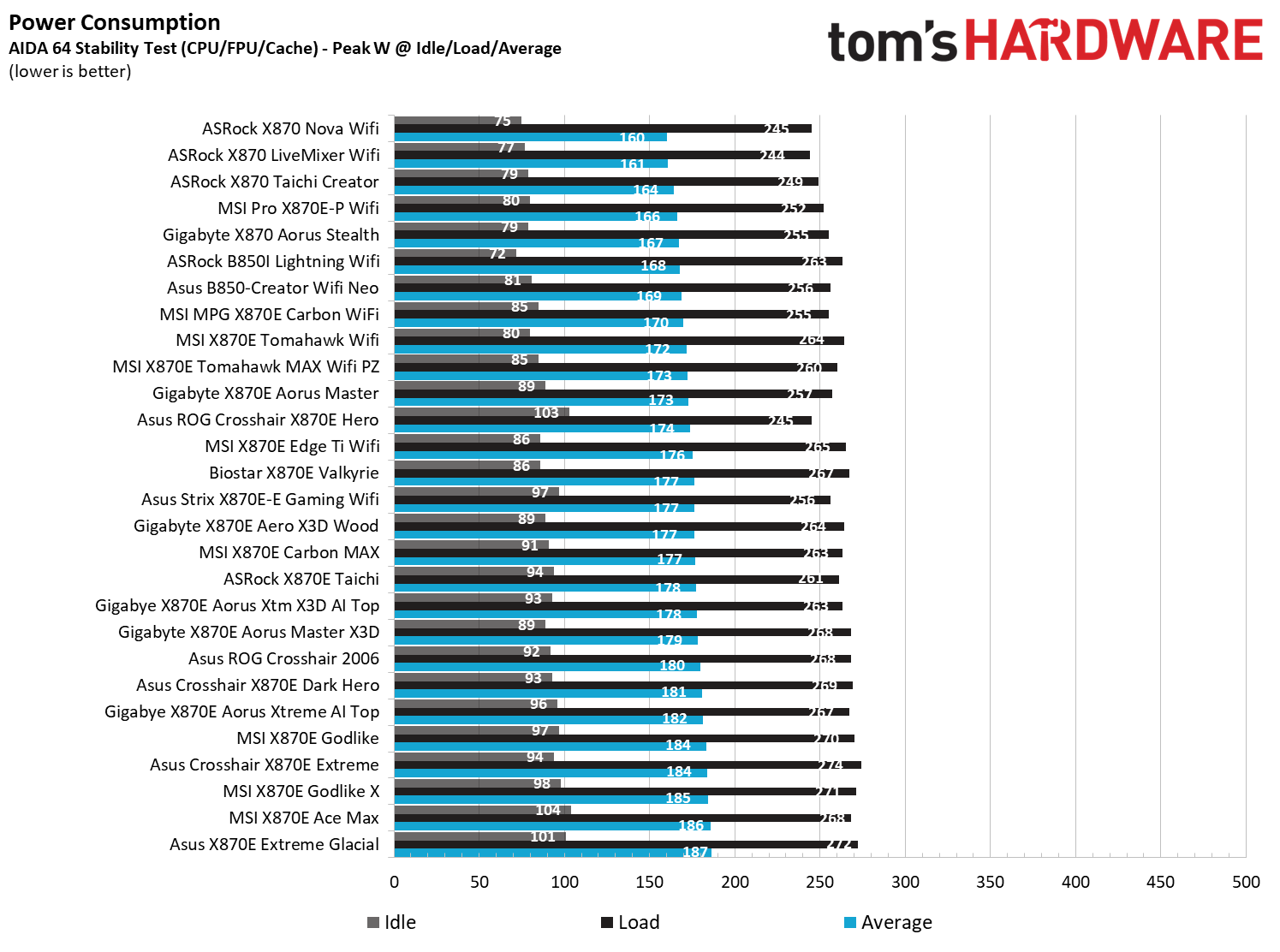
We used AIDA64’s System Stability Test with Stress CPU, FPU, cache, and Memory enabled for power testing, using the processor's peak power consumption value. The wattage reading is obtained from the wall via a Kill-A-Watt meter, capturing the entire PC (excluding the monitor). The only variable that changes is the motherboard; all other parts remain the same. We've moved to using only the stock power use/VRM temperature charts, as this section aims to ensure the power delivery can handle flagship-class processors.

Stress testing the Creator with our DDR5-7200 kit showed it to be less power-hungry than most boards. At idle, it sat around 81W and peaked at 256W. This averages out to 169W, which is again slightly lower than the average B850/X870/X870E-based boards.

Asus B850-Creator Wifi Neo - VRM temps
Future
Asus B850-Creator Wifi Neo - VRM temps
Future

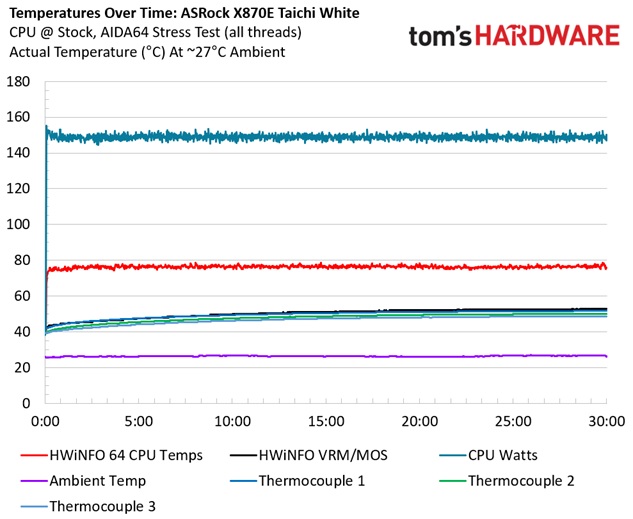
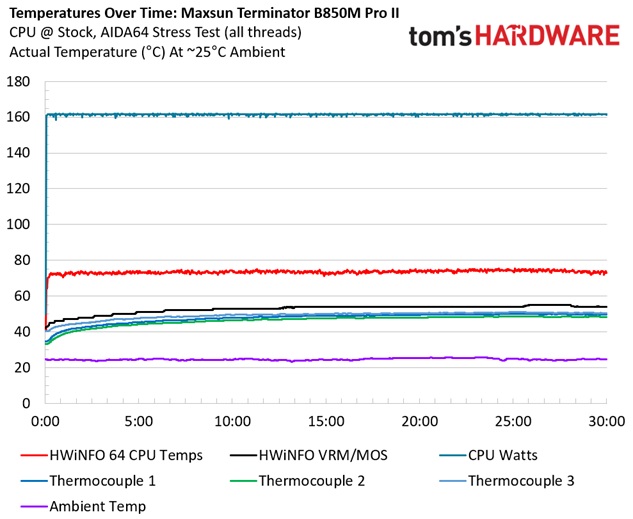
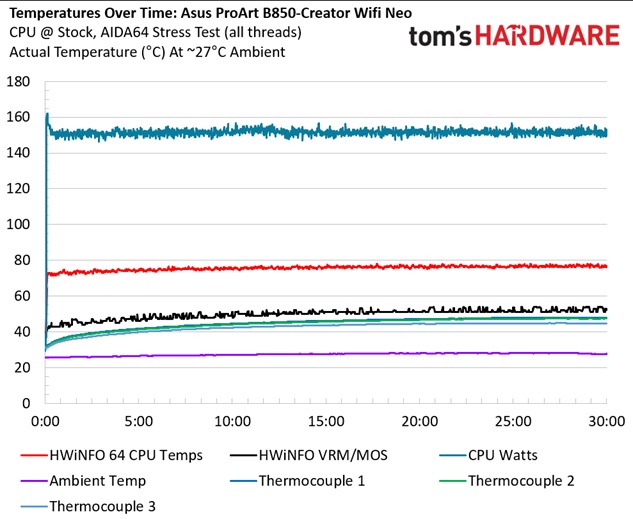
VRM temperatures are good, peaking at just under 48 degrees Celsius on our sensor (internal sensor readings were off and not listed). Between the capable power delivery and large heatsinks, you won’t have any trouble running flagship-class processors or even overclocking.

Bottom Line

Asus’ B850-Creator Wifi Neo is an OK budget motherboard for Creators. Priced at $299.99, you get dual 5 GbE ports, three display output options, and several of Asus’ EZ DIY and AI Features that all help to make this a viable option for the budget-minded creator. That said, you are lacking in a couple of areas compared to the X870E version of the board, which offers faster USB (40 Gbps USB4 ports) and more USB ports. If you’re hung up on the port count, the next Asus Creator option costs almost $250 more ($549.99), and at that point, there are plenty of other options that would work for less.

One example, ASRock’s X870 Taichi Creator ($319.99), is arguably a better option in the creator space and a direct competitor to the Asus B850 Creator. For $20 more, you get 10GbE and 5 GbE, dual USB4 (40 Gbps) ports, and more USB Type-A ports, along with even more robust power delivery. If this isn't the board for you, check out our best motherboards article to see if one of our best picks are right for you.

MORE: Best Motherboards

MORE: Best Motherboard Deals

MORE: Best RAM Combo Deals

MORE: How To Choose A Motherboard

MORE: All Motherboard Content
The motherboard market is so bad that flagship boards are selling at entry-level prices — save up to 57% of premium motherboard designs while RAM prices surge

2026年6月23日 04:38

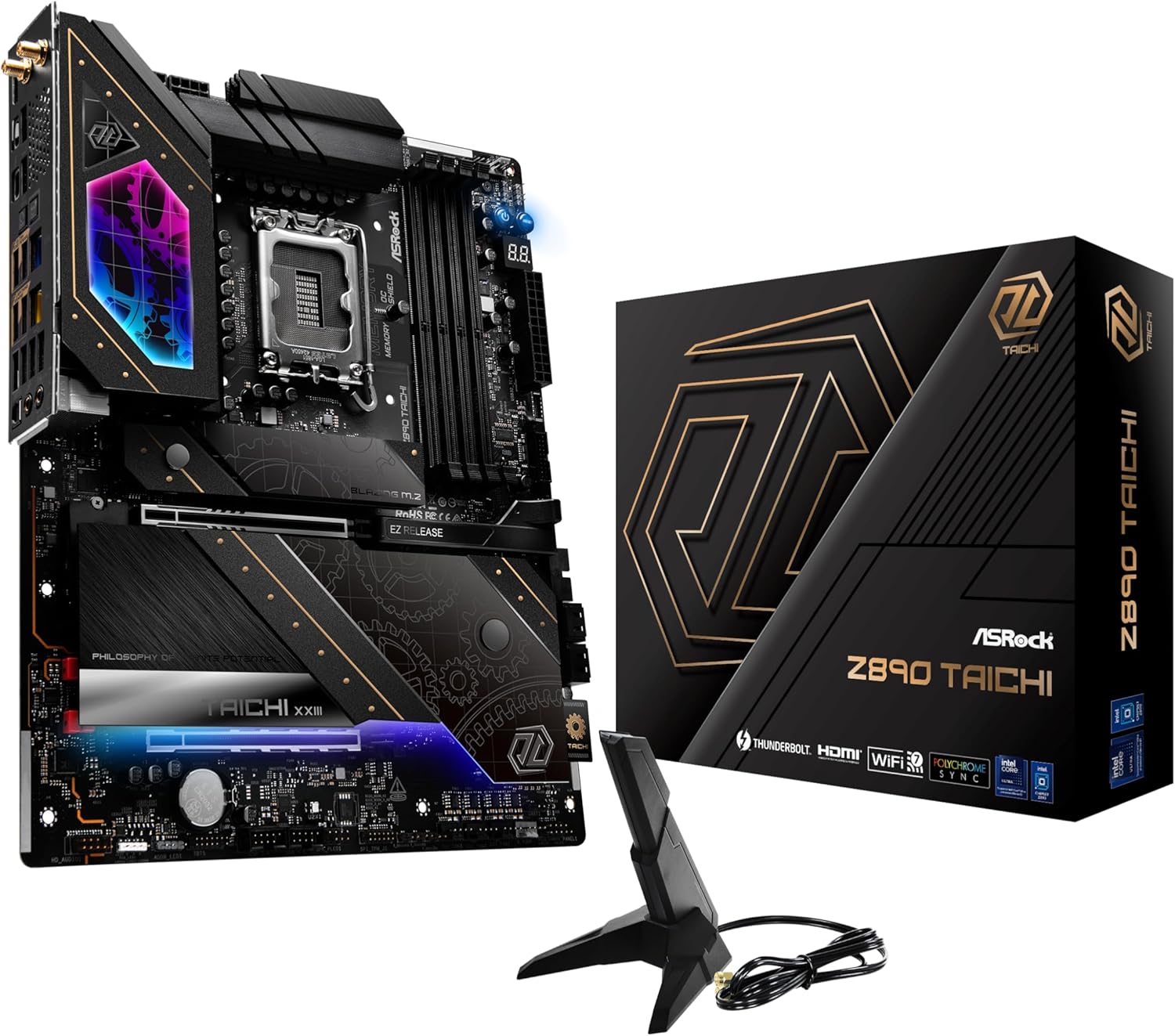
It looks like motherboard vendors are hurting badly. As Prime Day gets underway, we're seeing some price discounts on motherboards that are frankly hard to believe. Take the flagship ASRock Z890 Taichi as an example, which is normally $460, but you can get it for a massive 56% off, bringing the price down to $200. When you see a discount that big (its previous low was $300), you know something is afoot.

That something is the price of RAM and SSDs. With prices high on those components, enthusiasts aren't building new PCs, and by extension, not buying motherboards. Motherboard sales have apparently dropped by as much as 37%, and vendors are massively cutting prices to get those numbers up.

Although the existential dread of PC component pricing right now is omnipresent, let the lose of motherboard vendors be your gain. It's extremely unlikely that we'll see motherboards this cheap again once RAM prices stabilize, so now is the best time to buy if you want to upgrade.
We're picking out some of the most impressive discounts here, but make sure to keep our list of the best motherboard deals handy during Prime Day if you want to check out all of the discounts.
Save $260 on the ASRock Z890 Taichi at a new all-time low price

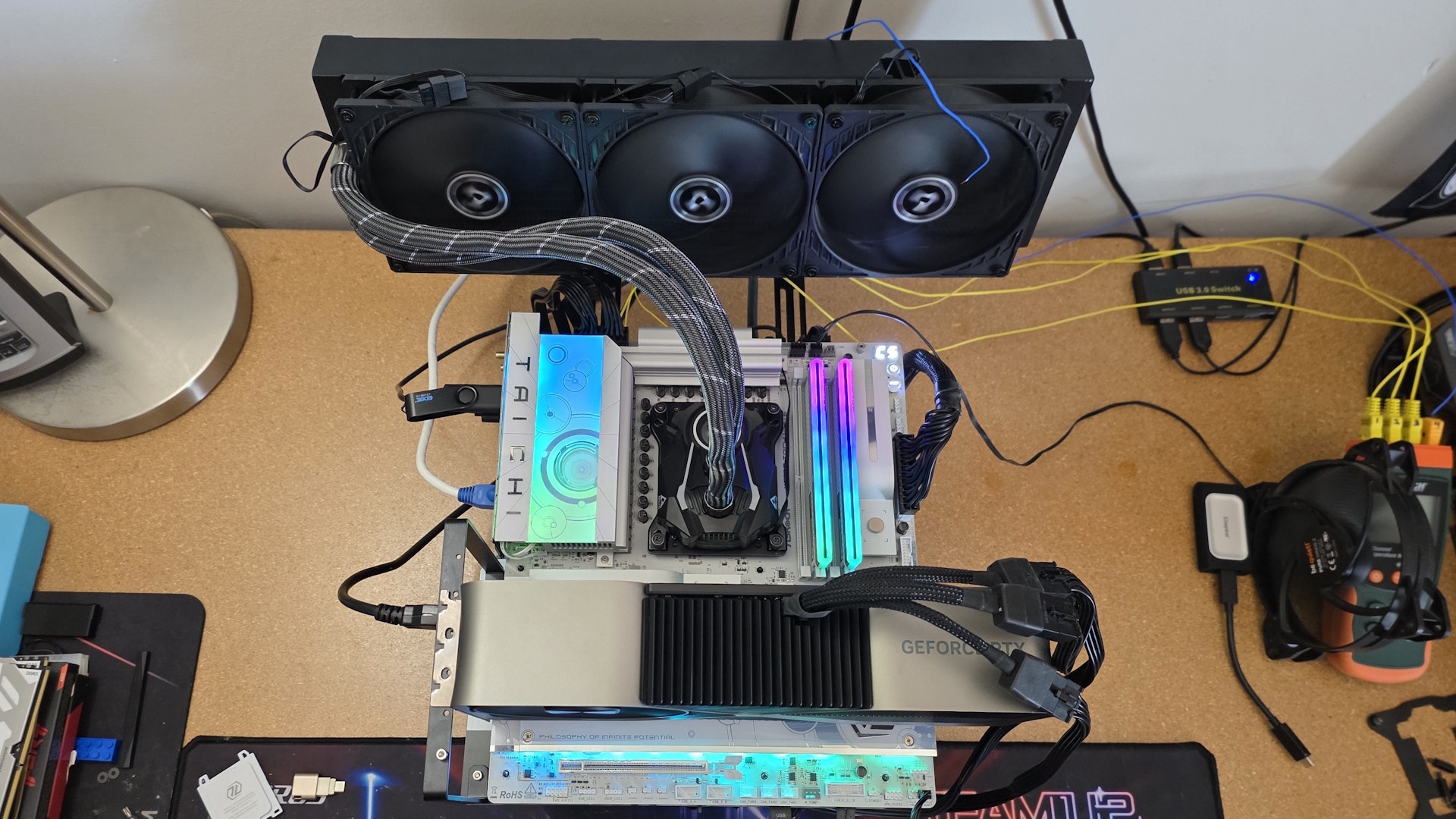
We're very familiar with the ASRock Z890 Taichi, as it's the motherboard we use for testing LGA 1851 CPUs. Carrying ASRock's Taichi brand, it's a flagship design with all the bells and whistles, and at a list price of $460, those bells and whistles make sense. Right now, however, you can get it for just $200.

Get an incredible deal on ASRock's flagship-class Z890 Taichi motherboard. You get the best of everything here, including robust power delivery, fast memory support, dual Thunderbolt 4 ports, and one of the best integrated audio solutions. If you're in the market for an Intel system, the Z890 Taichi is a great motherboard at an even better price.View Deal

The board is high-end across the board. It supports memory speeds up to 9600 MT/s, and it comes with a 20+1+2+1+1 VRM design, giving you plenty of power stages to push your CPU overclocks hard.

Internally, you're spoiled for connectivity options. There are a total of six M.2 slots, one of which supports PCIe Gen5 x4 (the others support PCIe Gen4 x4). The top PCIe slot also supports PCIe Gen5 x16, and the board comes with an internal USB-C header.

Around the rear, you'll find dual Thunderbolt 4 ports, four USB 3.2 Gen 2 ports, another four USB 3.2 Gen 1 ports, two USB 2.0 ports, and dual LAN with connections for 2.5Gb and 5Gb. You simply won't find this level of support on a motherboard for $200, or even $300, for that matter.

Get 40% off the Asus ROG Strix B650E-I makes SFF affordable

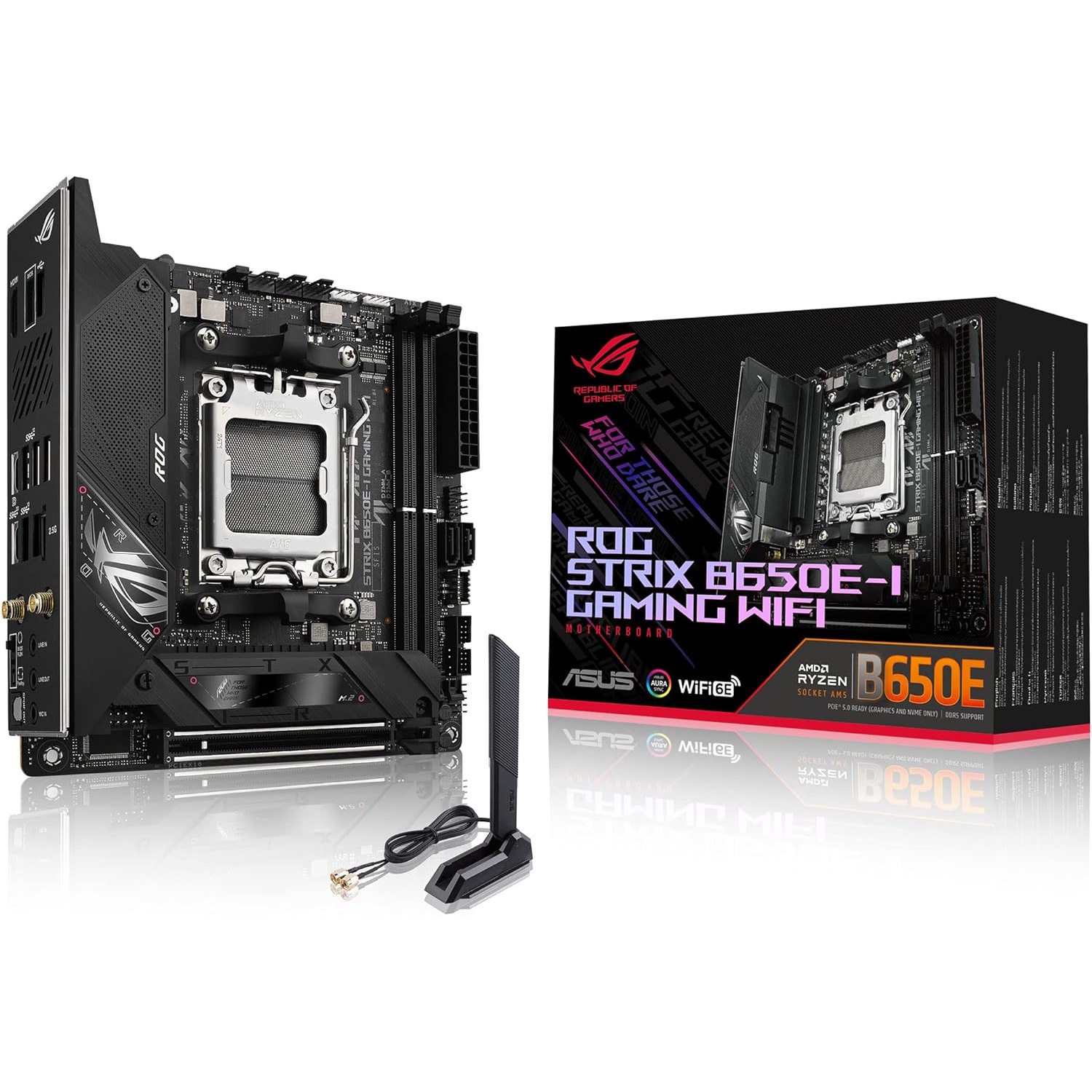
You'll pay a hefty premium on any premium mini ITX motherboard; take it from a recovering SFF addict. This current deal on the Asus ROG Strix B650E-I, which I personally used for the last few years with a Ryzen 7 7800X3D, makes mini-ITX seem far more reasonable. The board is 40% off, bringing its $300 list price down to $180.
This ITX form-factor motherboard can run the latest AMD Ryzen 9000 processors via a BIOS update, and other AM5 CPUs. It also has Wi-Fi 6E, Bluetooth 5.2, PCIe 5.0 x16, up to 6400 MT/s RAM support, and two NVMe slots, one of which is PCIe 5.0-capable. At under $200, this is a steal for a Mini-ITX motherboard on the AM5 platform.View Deal

That matches the board's previous all-time low, which it hasn't been to in nearly a year. Despite such limited room, this board has a solid amount of connectivity. It features two M.2 slots, one at PCIe Gen5 and the other at Gen4, along with two SATA connections. There's a single PCIe 5.0 x16 slot that supports PCIe bifurcation through the BIOS, as well. There's even internal headers for USB 3.2 Gen 1 and Gen 2, so you get full front panel connectivity.
Around the back, you get a total of eight USB ports: two USB 2.0, four USB 3.2 Gen 2 Type-A, one USB 3.2 Gen 2 Type-C, and a USB 3.2 Gen 2x2 Type-C. The board also comes with Wi-Fi 6E and Bluetooth 5.2, so you don't need to muck around with add-in cards. Although the 600-series chipsets debuted with Ryzen 7000 CPUs, this board also supports newer Ryzen 9000 CPUs via a BIOS update.

Flashback to LGA 1700 with the MSI Z790 Gaming Plus Wi-Fi at an all-time low price

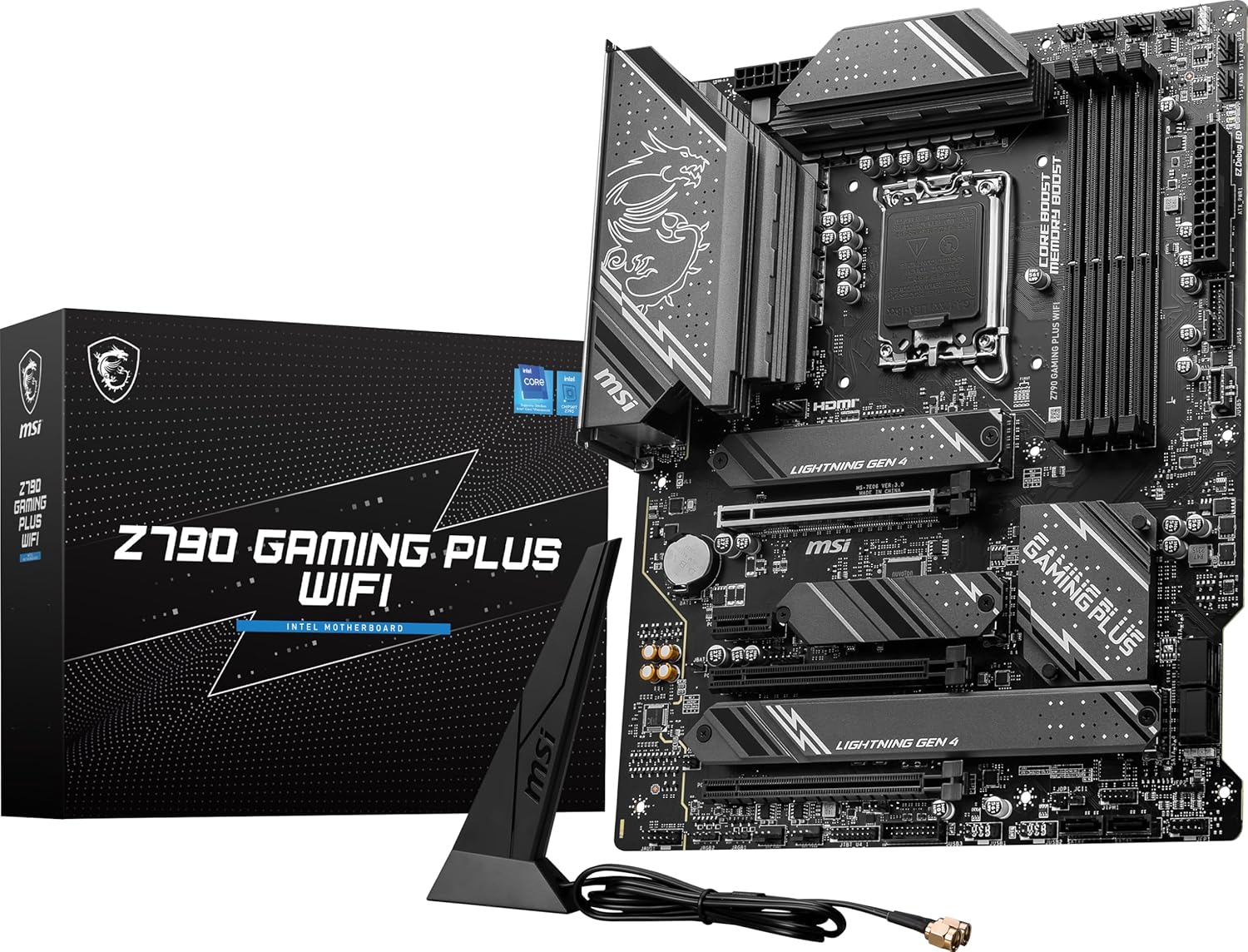
MSI's Gaming Plus range doesn't go overboard like a Taichi, but they're reliable boards that we've cycled in and out of the Tom's Hardware test bench several times over the years. The MSI Z790 Gaming Plus Wi-Fi here doesn't have a shocking sticker discount (it's 27% off), but it's down to its lowest price ever, giving you Intel's flagship chipset from the previous generation for just $130.

All-time low price.

Get a great deal on the MSI Z790 Gaming Plus Wifi motherboard. For just $129.99 you get a quality motherboard with four M.2 sockets (one PCIe 5.0) and 4 SATA ports, 2.5GbE and Wi-Fi 6E, power delivery capable of handling the last-gen flagship processors (Raptor Lake), and looks good with any dark build theme. View Deal

This is a midrange motherboard that you can buy for an entry-level price. It sports a total of four M.2 slots, one of which supports PCIe Gen5, along with four PCIe expansion slots (the top x16 slot supports Gen5, as well). Networking is excellent, as well, with the board coming with 2.5Gb LAN, Wi-Fi 6E, and Bluetooth 5.3.

Through the back panel, you get audio hookups for the Realtek ALC897 7.1 audio chip, along with three USB 2.0 ports, two USB 3.2 Gen 1 ports, a single USB 3.2 Gen 2 port, and a single USB 3.2 Gen2x2 Type-C connection. The board features internal headers for USB 3.0 and 3.2 Gen 2, as well.

More Prime Day Tech Deals

Join the Tom's Hardware deals Discord for up-to-the-minute hardware deals.

Best Tech and PC deals | Best gaming PC deals | Best RAM combo deals | Best 3D printer deals | Best RAM deals | Best gaming laptop deals | Best monitor deals | Best Wi-Fi Router deals | Best GPU deals | Best SSD deals | Best hard drive HDD deals | Best CPU deals | Best gaming chair deals | Best PC building tool deals | Best PC peripherals deals | Best filament and resin deals | Best motherboard deals | Best CPU cooler deals | Best PC case deals | Best Dell and Alienware deals | Best USB charger deals | Best gaming and productivity laptop deals under $1,000 | Best laptop PC deals

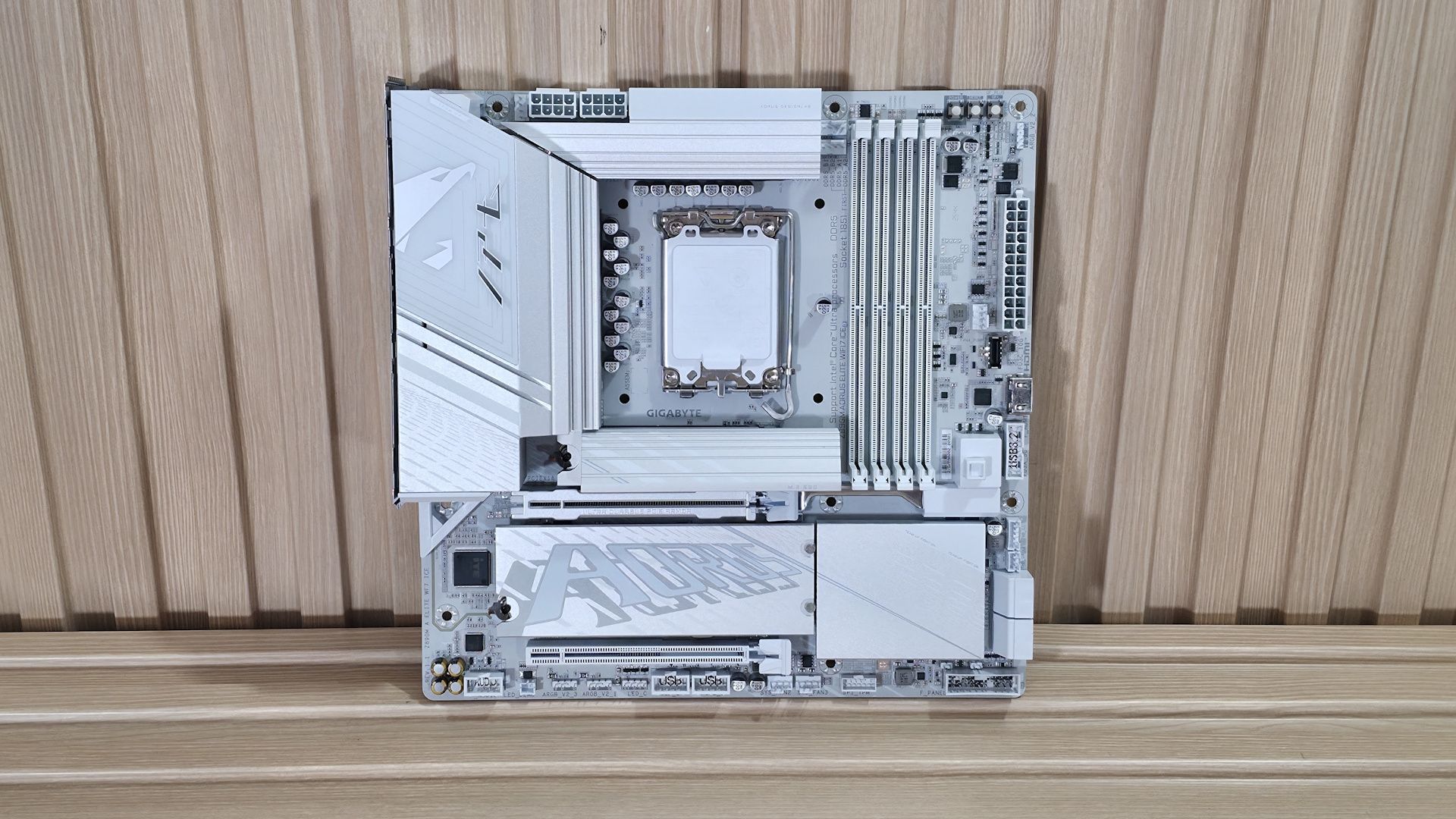
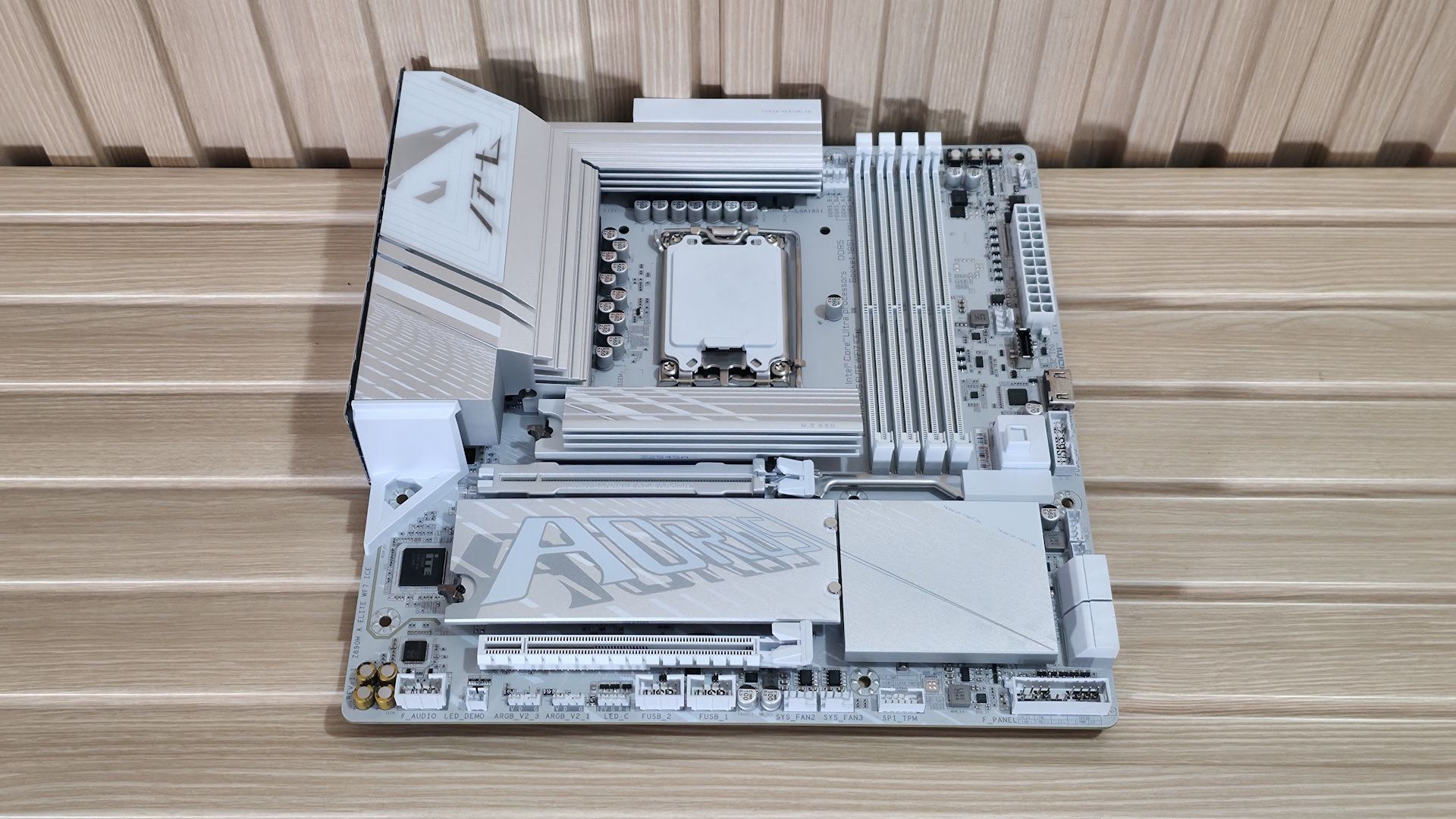
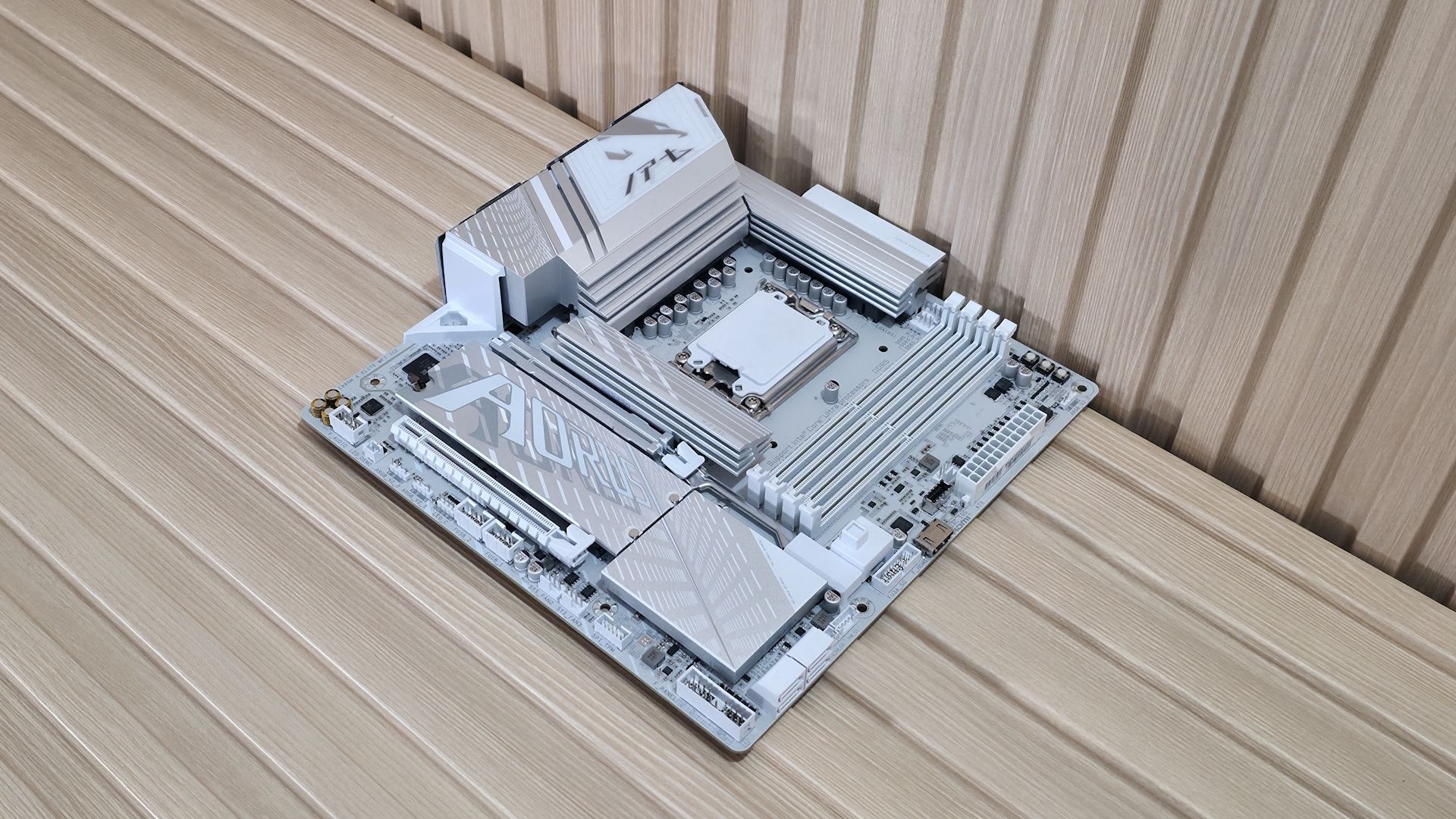
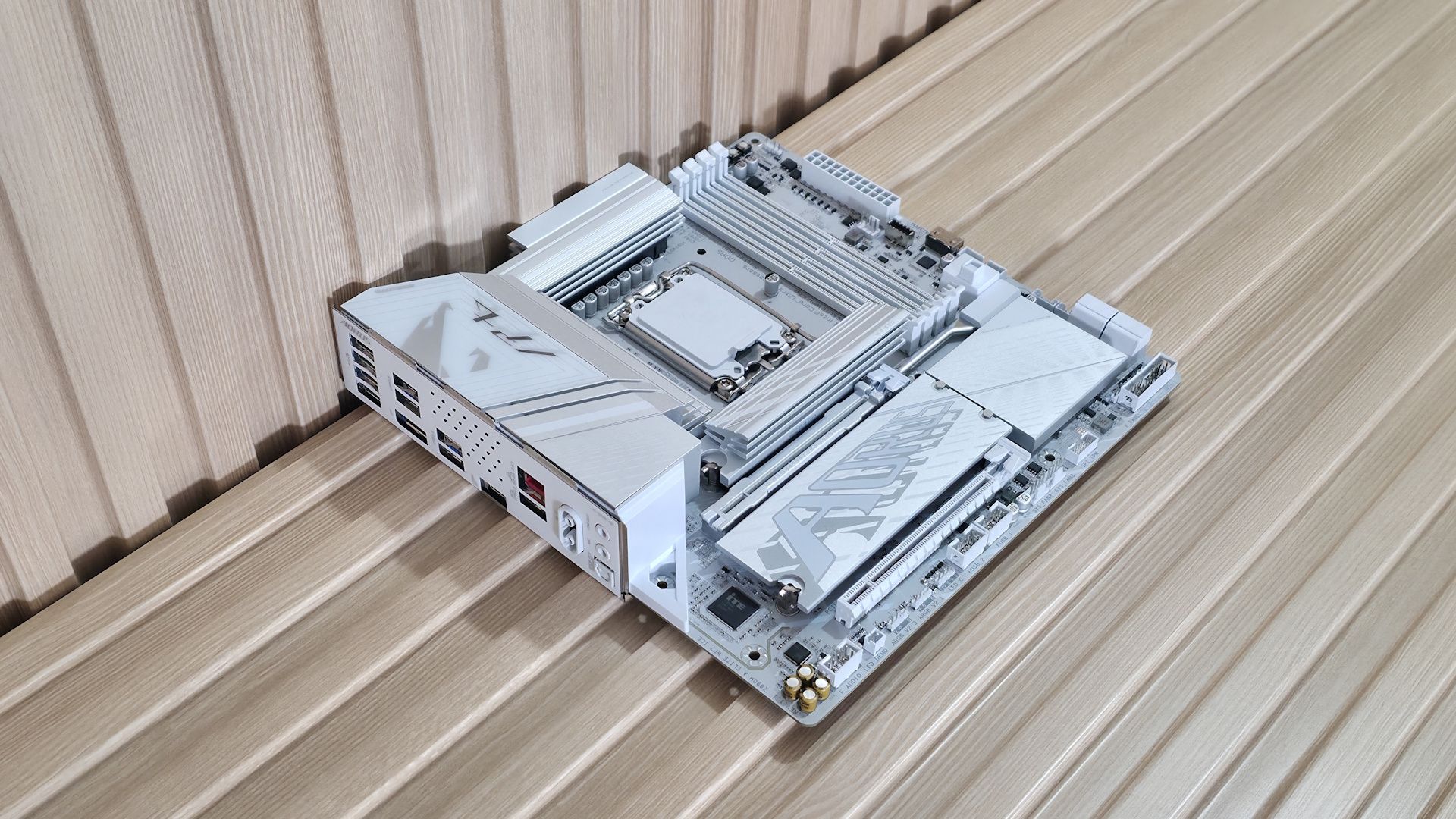
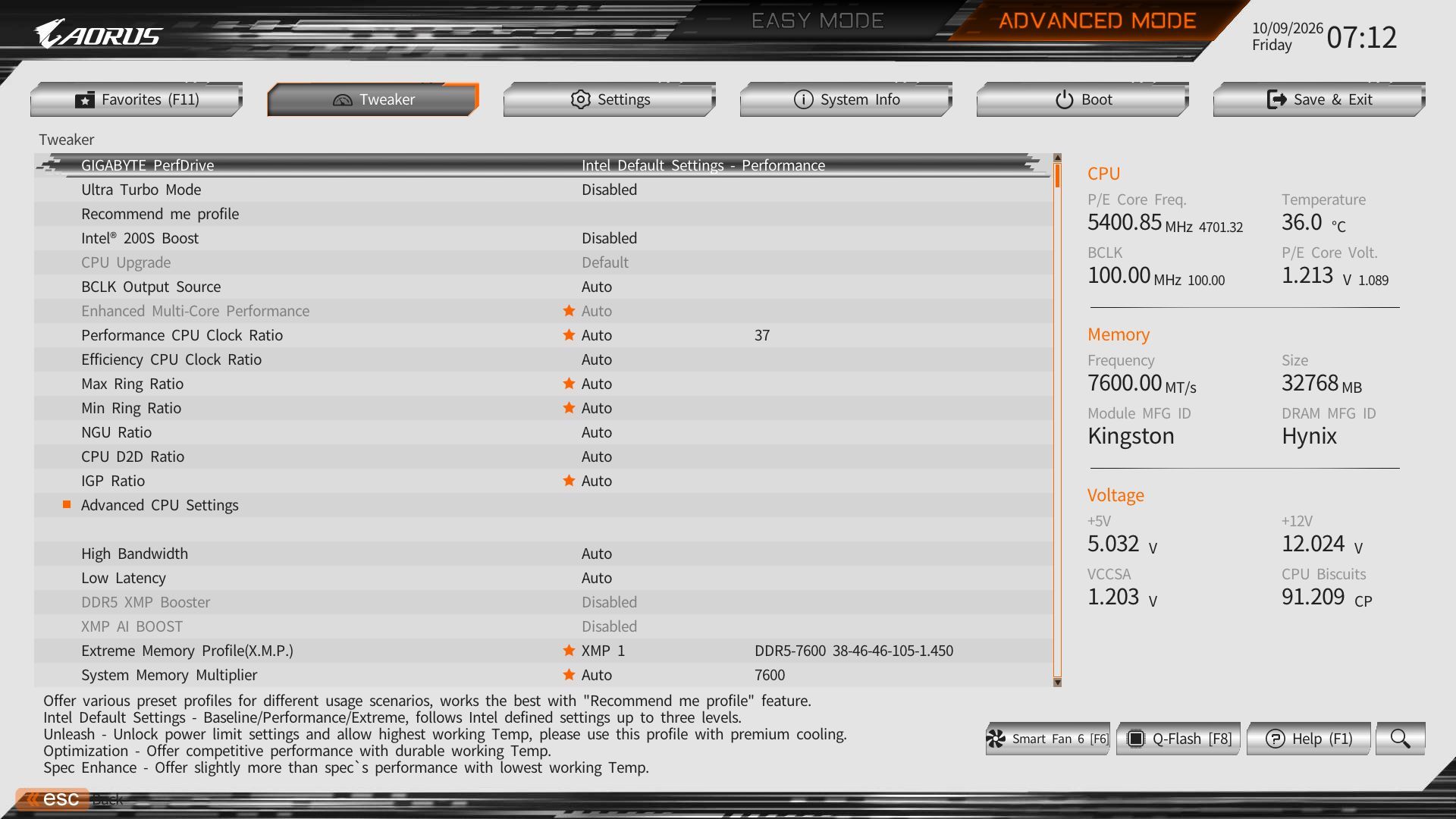
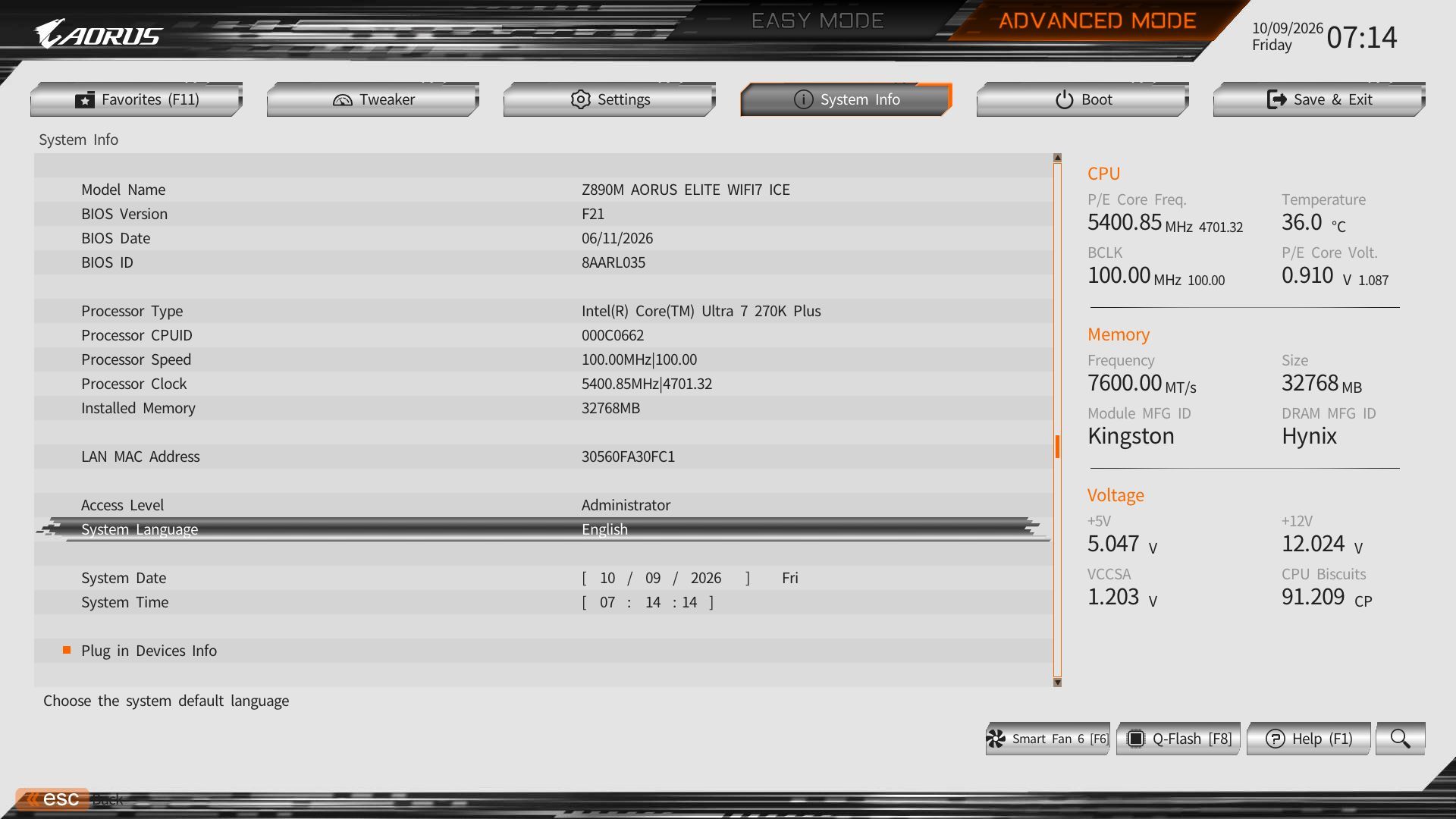
Gigabyte Z890 Aorus Elite Wifi7 Plus Motherboard Review: Cost-conscious refresh board delivers (almost) all the fixens

2026年6月6日 21:13
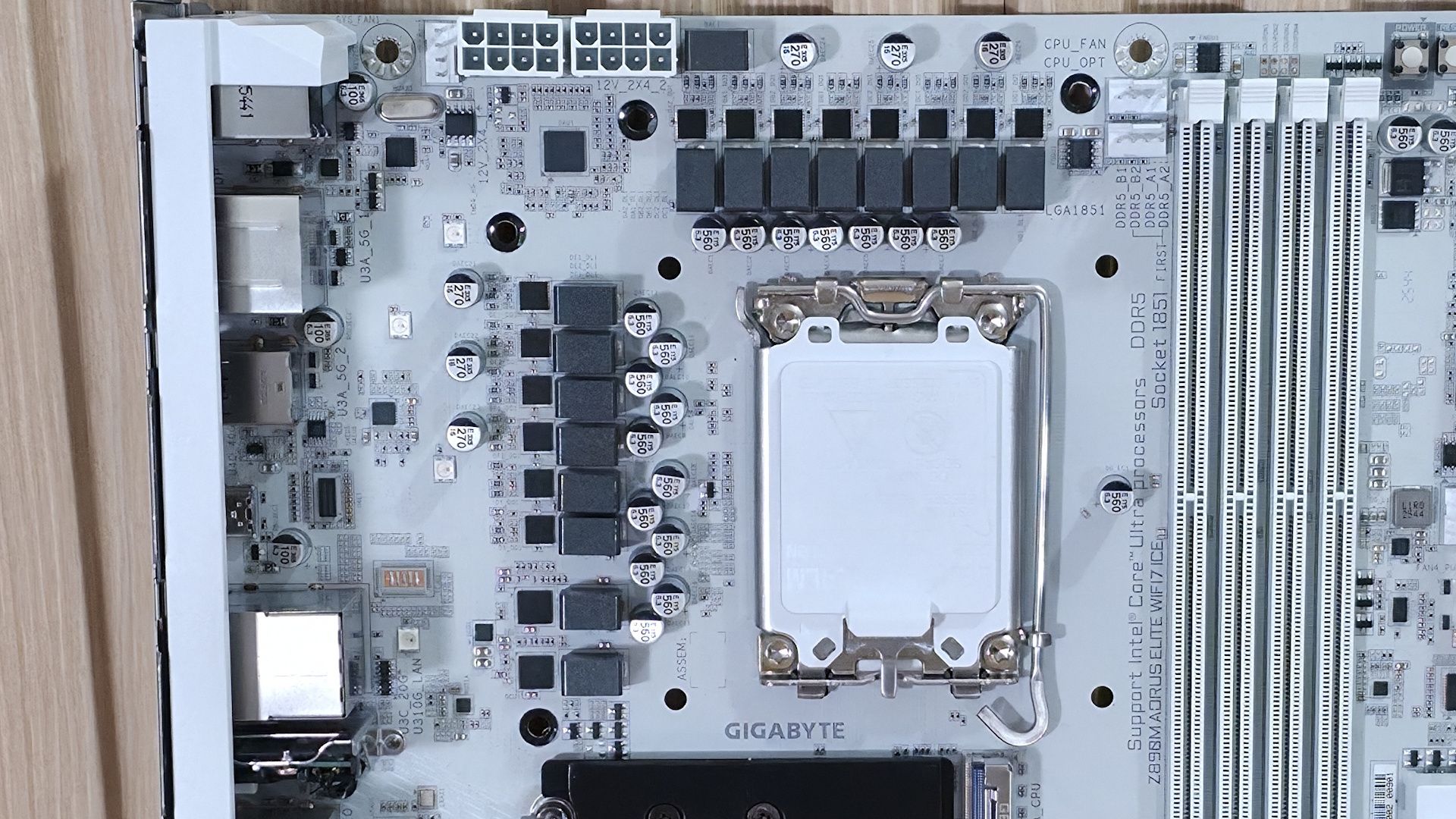
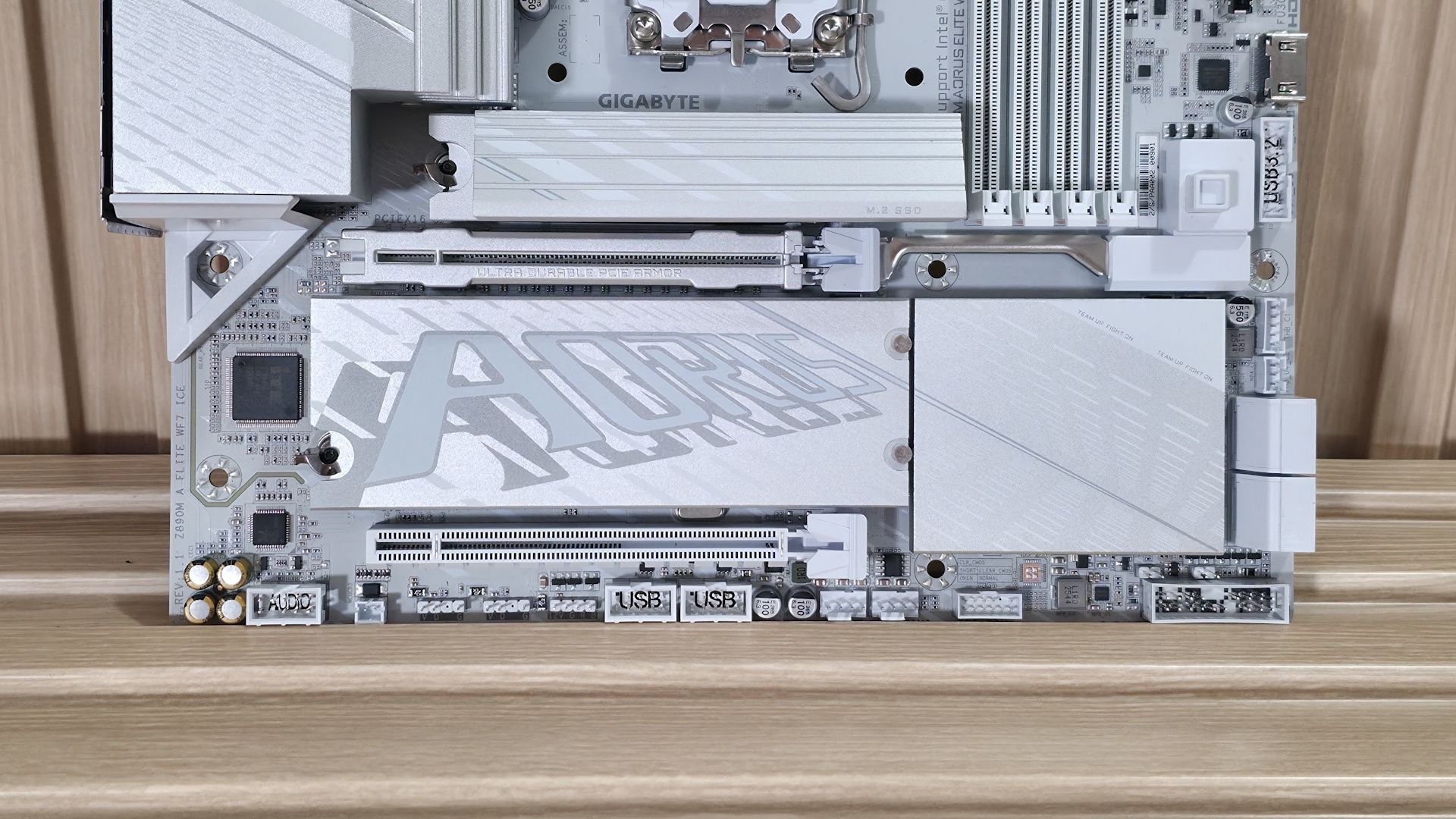
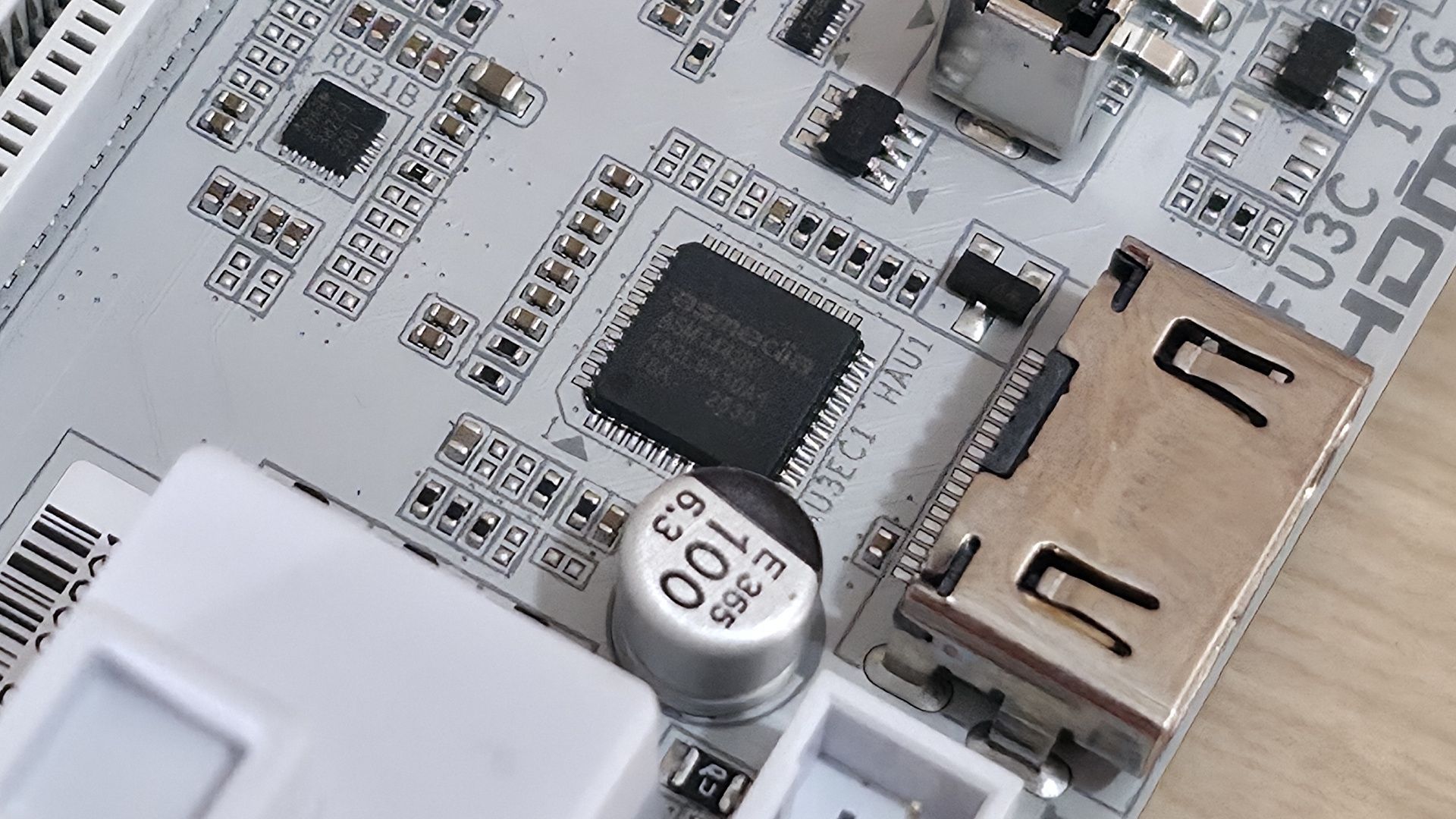
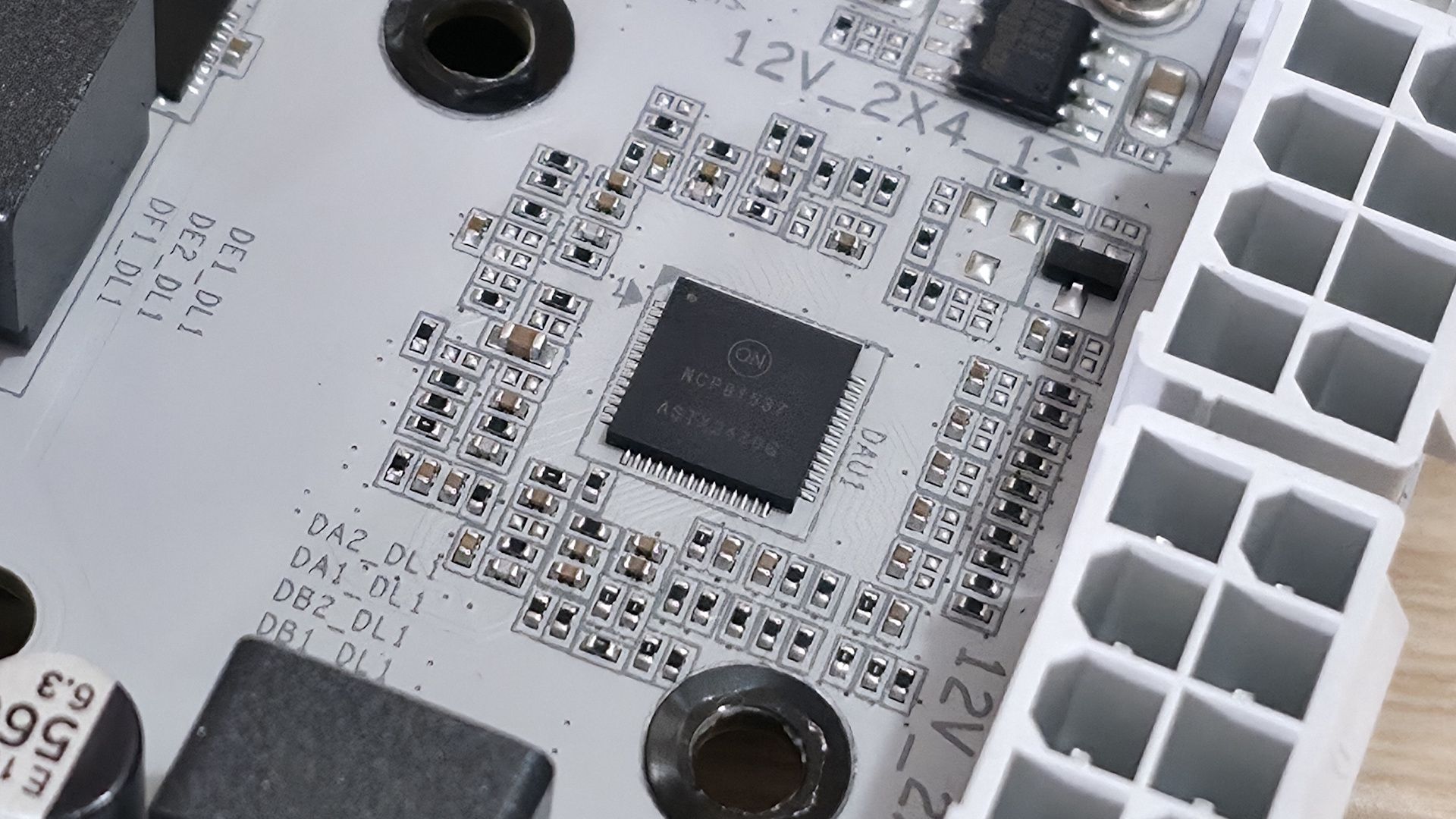
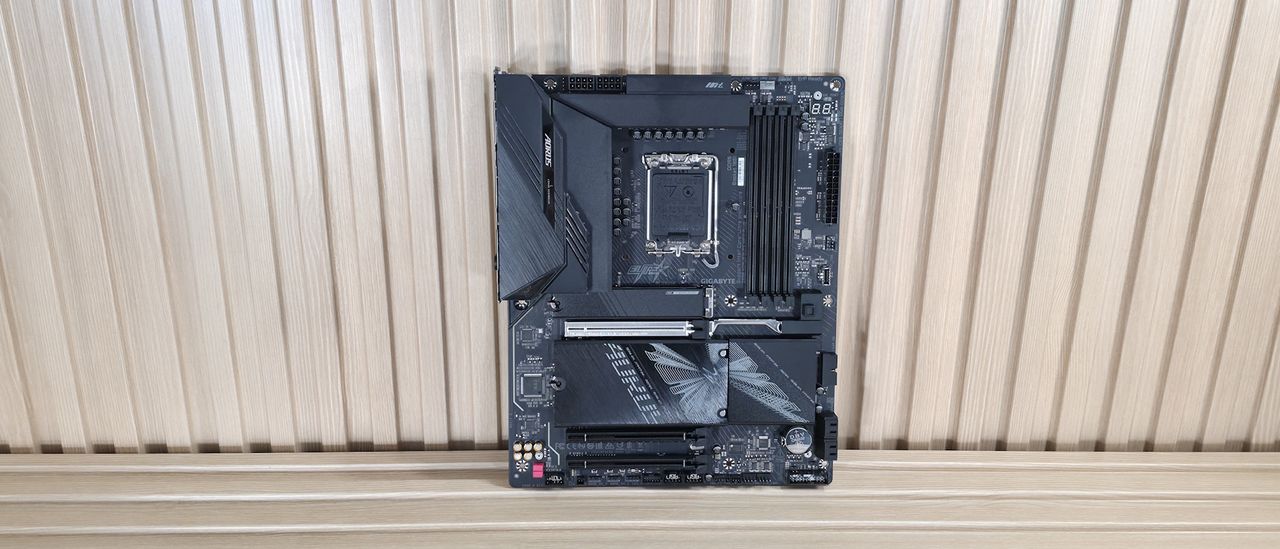
At under $270, the Gigabyte Z890 Aorus Elite Wifi7 Plus is a worthwhile mainstream motherboard. Fast networking and ample storage options are just two of the highlights of this refreshed Z890 offering.

Asus ROG Crosshair 2006 motherboard review: 20 years of ROG

2026年5月28日 21:00
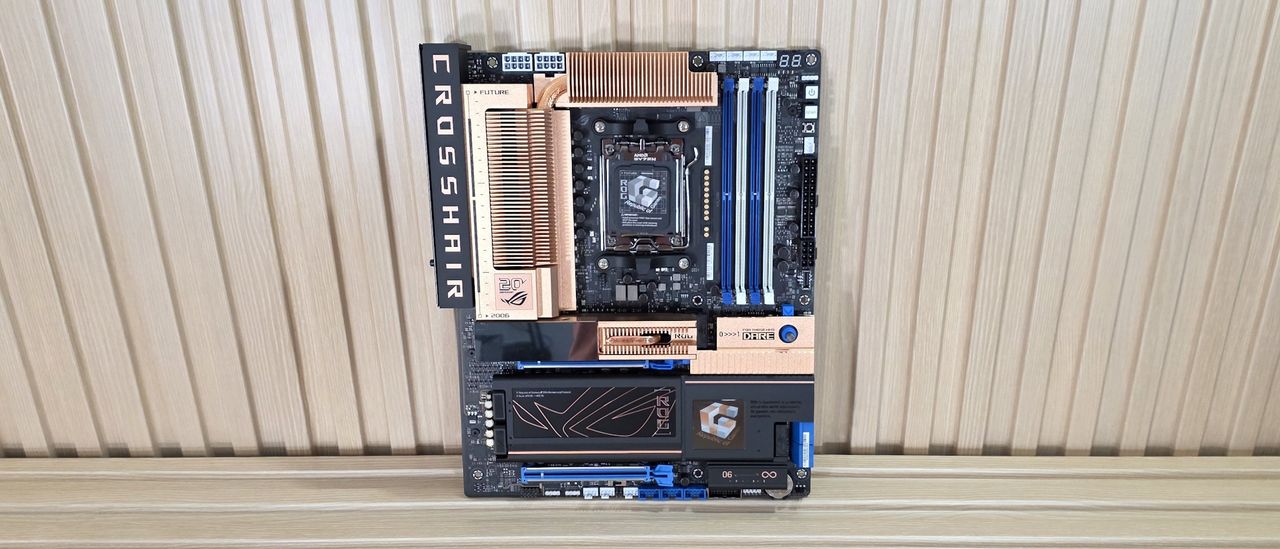
The ROG Crosshair 2006 is a premium mid-range AM5 board with retro flair, robust power delivery, dual LAN, Wi-Fi 7, and five M.2 sockets – but the limited run and nostalgia premium is the real reason you might want to spend $100 more over the similar Dark Hero.

Gigabyte Z890 Aorus Elite Duo X Motherboard Review: CQDIMM support with Arrow Lake Refresh

2026年5月2日 21:00
Gigabyte’s Z890 Aorus Elite Duo X lands square in the mid-range sweet spot, offering ample connectivity, five M.2 sockets, native Arrow Lake Refresh support, and CQDIMM compatibility, all for a compelling sub-$280 price.

iGame X870E Vulcan OC V14 Motherboard Review: Colorful enters the high-end overclocking scene

2026年4月29日 22:50
Colorful’s iGame X870E Vulcan OC V14 is a capable premium mid-range motherboard built for overclocking, thanks to its robust power delivery, cooling, and design. It faces tough competition at its price point, but remains a solid, feature-rich option under $700.

Gigabyte X870E Aorus Xtreme X3D AI Top motherboard review: The latest and greatest Xtreme

2026年4月28日 20:26
Gigabyte’s X870E Aorus Xtreme X3D AI Top delivers flagship-class hardware and excellent performance at a comparatively lower price, balancing high-end features, comprehensive connectivity, and even AI-focused tools for premium AM5 builds.

EXPO 1.2 only brings partial CUDIMM support due to lack of native IMC compatibility — Asus also working on updating older B650 and X670 boards with EXPO 1.2

2026年4月28日 19:00
New AGESA updates are bringing EXPO 1.2 support to more and more 800-series AM5 motherboards, but CUDIMM support remains only partial. Because Zen 4 and 5's IMC is incompatible with CUDIMM, it can only run in bypass mode with limited speeds. Moreover, older 600-series motherboards are now also expected to get EXPO 1.2 support later.

Alleged images of the long-awaited Nvidia N1/N1X SoC surface on laptop motherboard — board features 128 GB of LPDDR5X memory alongside 8+6+2 phase VRM

2026年4月10日 00:40
Nvidia's N1 SoC leaks yet again, but this time in the flesh, with potentially a laptop motherboard featuring the long-rumored chip. It was spotted on sale on a Chinese marketplace for roughly $1,400. The pictures show the PCB rocking 128 GB of LPDDR5X-8533 RAM, robust power delivery, and a decent I/O selection.

PCI Express roadmap: The path to 1TB/s with PCI 8.0, the challenges of integration, and beyond

2026年4月9日 01:58
We take a deep-dive into the past, present, and future of the ubiquitous PCIe standard, and look ahead at the challenges that await manufacturers when integrating PCIe 6.0 and beyond into real-world hardware.

Gigabyte X870E Aorus Xtreme AI Top Motherboard Review: Solid flagship, but the X3D version is what you want today

2026年4月1日 22:25
The Gigabyte X870E Aorus Xtreme AI Top delivers strong performance, premium features, and a slick appearance, but high pricing and newer refresh boards, like the X3D version, make it a tough sell unless you snag a refurb deal.

❌
❌