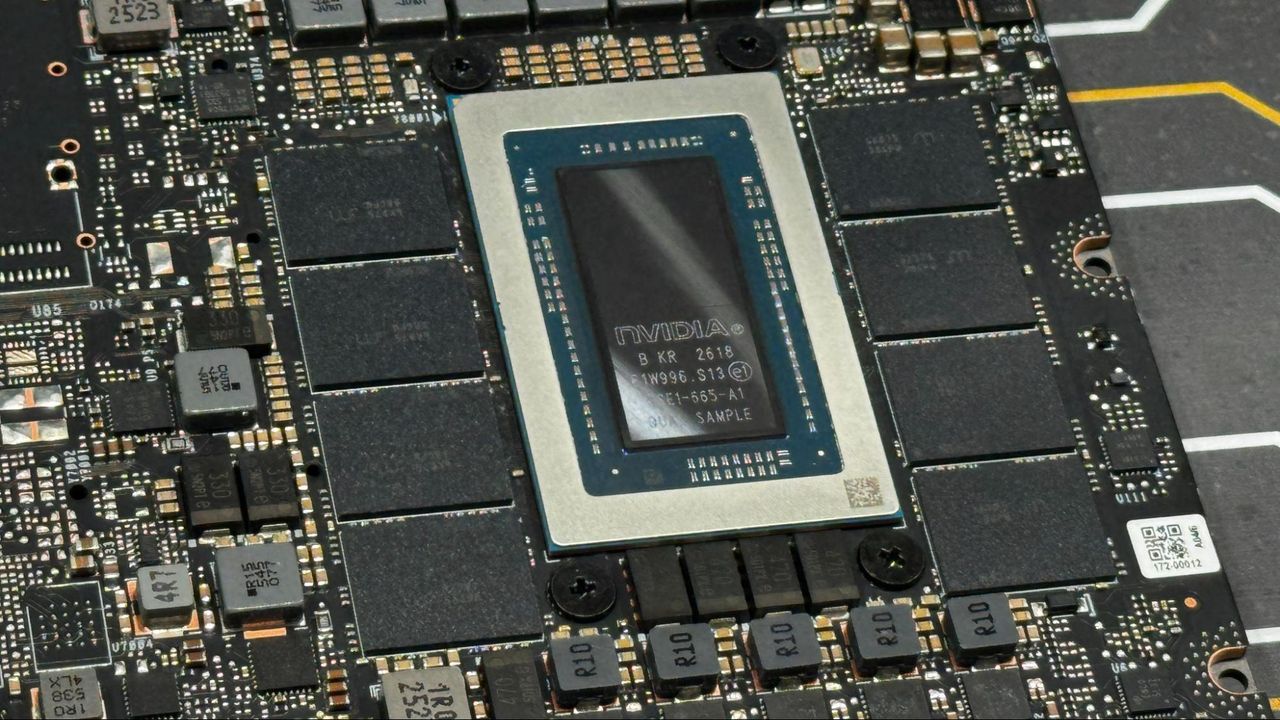
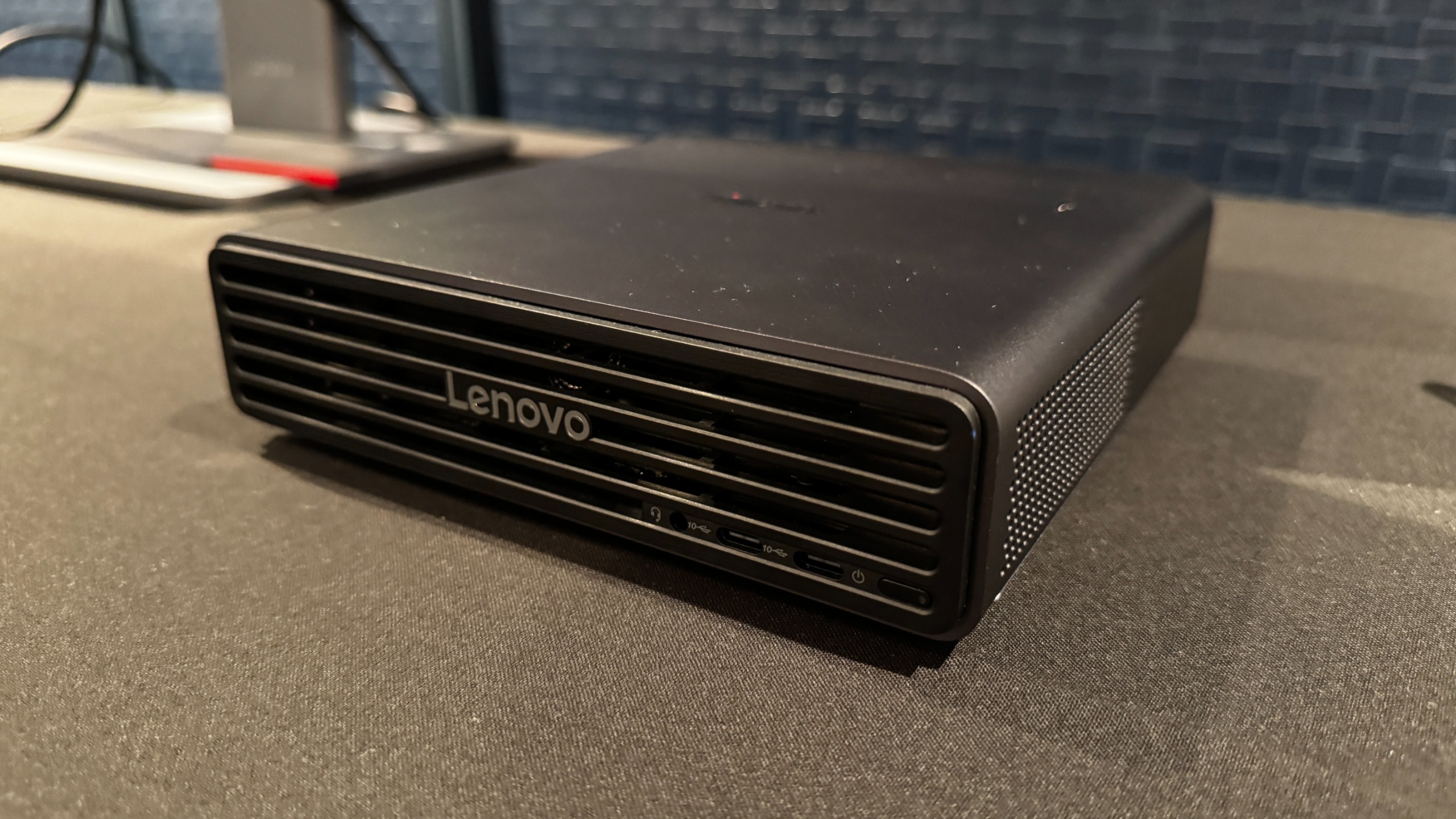
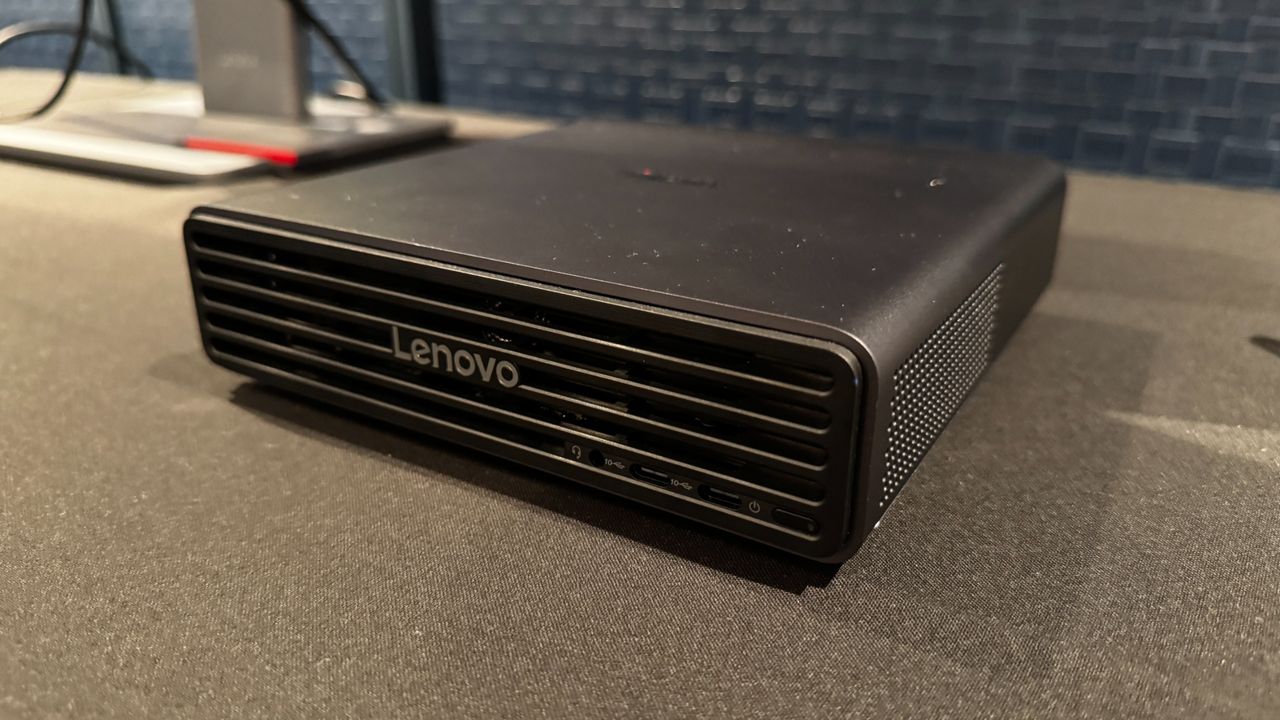
We recently toured China-based Lenovo’s new production facilities here in the US. Lenovo is the number one player in the global PC market (by shipments), with products spanning consumer, business, and enterprise sectors. But while Lenovo is a Chinese-based company, it has a significant business presence in the United States. Its U.S. headquarters, which opened in 2005, is in Morrisville, NC, right in the heart of the Research Triangle Park. The company also opened its first PC manufacturing line, a short drive away in Whitsett, NC, shortly after.
This past Friday, Lenovo took the latest step in its efforts to expand its U.S. manufacturing presence with a symbolic ribbon-cutting for the expansion of manufacturing at its Whitsett facility. The company invested millions of dollars into the facility, doubling its footprint to 890,000 square feet. There are currently 400 line workers, with the capacity to expand that number to 1,000 in the near future.
It doesn’t take a rocket scientist to understand why Lenovo is making this investment, as it comes down to two words: artificial intelligence.
Lenovo in Whitsett
As Ashley Gorakhpurwalla, Executive VP and President for the Infrastructure Solutions Group, explained, for many of Lenovo’s customers, “AI is moving from the hype cycle now into the hero cycle.” With many of its customers looking to increase reliance on U.S.-produced hardware, an “infrastructure they can trust is going to be the catalyst for that.” So, it only made sense to tap into resources and the local community it has fostered over the past two decades
“Because behind every AI breakthrough, it's powerful, powerful infrastructure,” Gorakhpurwalla continued. “As technology becomes more advanced, I think that building high-quality infrastructure closer to our customers is becoming more important than ever.”
North Carolina might not always have been at the forefront of people’s minds when it comes to technological leadership, and it’s a question that Ben Massey, VP Supply Chain for Lenovo, has often fielded. “You know, people ask me all the time, how are you going to make that work in North Carolina?” Massey explained. “The way it's going to work is that we've got an arc from the Triangle to the Triad with thousands of engineers, thousands of manufacturing people in R&D who can work in supply chain, people who can all work together to bring this technology together with speed. Faster product development to mass production, shorter customer lead times, and greater end-to-end cost efficiency.”
Lenovo’s main U.S. R&D hub in Morrisville is just over an hour's drive away from the Whitsett facility along Interstate 40. In addition, the company can pull young talent from nearby universities like NC State, Duke, UNC-Chapel Hill, and Wake Forest, along with the state’s robust community college system.
Lenovo and its local contractors were able to take the facility from an empty warehouse to a fully functioning server production line in nine months. That included the necessary electricity capacity (up to 20 MW) from Duke Energy.
By the Numbers
I was given a full tour of the Whisett manufacturing facility (along with other members of the press, Lenovo dignitaries, and local lawmakers), from start to finish. It was an impressive operation; one that I wish I could express to you in photos. However, photos and videos were strictly forbidden due to the proprietary nature of the hardware and testing equipment, and to protect Lenovo's customers' privacy.
The kitting area, where the components like processors, memory, and storage are assembled, encompasses 26,000 square feet. There are 10 kitting lines, where workers currently assemble 200 racks per week, with the capability to double that number to 400. The 50 team members in this area process over 150,000 parts per day.
(Image credit: Tom's Hardware)
There are currently seven assembly lines, residing in a space roughly double the size of the kitting area (53,000 square feet). Lenovo has the capacity to produce 1,400 server nodes per day across 28 assembly stations (one server is produced every 60 seconds).
At full tilt, Lenovo says that it will have 1,000 operators running three shifts. However, there are currently around 380. Employees get roughly 1,000 hours of training, and they rotate throughout different phases of the building process to hone their skills.
After touring the kitting and assembly lines, we moved into the testing areas, where L10 testing takes place. There are 10 thermally controlled testing pods, with 16 test racks per pod. The room is chilled using massive Computer Room Air Handlers (CRAH), each with 1 MW of cooling capacity.
In addition, there are 30 Vertiv Liebert XDU direct liquid cooling units (expandable to 50), each with a capacity of up to 300 kW, to aid with testing finished packages for customers. Lenovo explained that Nvidia GB300 racks consume 140 kW, while Vera Rubin will consume 230 kW at peak load. For comparison, the average U.S. household consumes between 1 and 1.5 kW per day. That's a lot of power coming from a rack measuring 18 inches across and seven feet tall. Lenovo’s first taste of Vera Rubin is said to be making its way to the Whitsett facility by the end of August.
We also toured where the massive freshwater pipes enter the building to fuel the cooling operations, along with the utility room, where the impressive overhead electrical conduits feed power into the site from a nearby substation. Working with Duke Energy, Lenovo was able to go from temporary power at the site to full power within 7 months.
Closing Thoughts
I’m not a native to this state; however, I’ve lived in central NC for 40 of my 46 years on this earth. So it was rather impressive to see the Whitsett facility taking shape roughly 20 minutes from my childhood home. However, the sense of pride was also clouded by the realities of the times that we live in. The proliferation of AI in nearly every facet of our lives is the entire impetus behind the need to expand server manufacturing capacity for the homeland. Companies like Google, Microsoft, OpenAI, and others crave the computing hardware necessary to feed AI demands, which in turn is driving a wedge between big tech and local communities. From strains on local water supplies and power grids to the acquisition of land to build new data centers, we’re at a real crossroads where local communities, local governments, and big tech companies are each looking to have a say in how our future plays out.
When you use a laptop, you might assume that it will always perform the same, whether you use it while plugged in or unplugged. After all, these systems are designed to be used on the go. But for a long time, that hasn't been the case.
More recently, some silicon vendors have been boasting about closer parity in plugged and unplugged performance, offering you similar power whether you're working at your desk or anywhere else. To see the current state of this, we've taken samples of the latest laptop from each major CPU manufacturer: Intel, AMD, Qualcomm, and Apple, and run a few tests to see how they compare.
For the Windows systems, we used the balanced power profile, which was already the default on the majority of these laptops, while the MacBook Pro has an "automatic" power management profile out of the box.
Where we could, we went for top-end processors, including the Intel Core Ultra X9 388H, Qualcomm Snapdragon X2 Elite Extreme, and Apple's M5 Max. In AMD's case, we had two Gorgon Point processors, a Ryzen AI 9 465 and a Ryzen AI 7 445. To see some generational gains, we also included an Intel Core Ultra 7 258V "Lunar Lake" chip.
We tested three ways: in Cinebench 2026 single-core and multi-core workloads, as well as using Handbrake, an open source video conversion tool, to transcode a 4K video to 1080p.
Note that we're not comparing the scores of the systems to each other. We're comparing the systems to themselves, to see how performance changes on the battery.
Tom's HardwareTom's HardwareTom's Hardware
With those tests run, we can calculate percentage differences to see percentage changes. Notably, a number of systems actually increased performance ever so slightly on battery. This occurred the most on multi-threaded Cinebench, where the Zenbook A16 with Snapdragon X2 Elite Extreme increased by 13.06%, while the ThinkPad X9 bumped up by 4.98%.
Asus Zenbook Duo
(Intel Core Ultra X9 388H)
Asus Zenbook A16
(Snapdragon X2 Elite Extreme)
Apple MacBook Pro
(14-inch, M5 Max)
Acer Swift Go 16 AI
(AMD Ryzen AI 7 445)
Average
+0.01%
-0.41%
+0.08%
-50.06%
Cinebench 2026 (Single-threaded)
0%
-0.96%
+0.27%
-56.25%
Cinebench 2026 (Multi-threaded)
-3.41%
+13.06%
+0.85%
-42.28%
Handbrake
+3.43%
-13.33%
-0.89%
-51.64%
Qualcomm's chip was by far the most variable. While it dramatically increased in performance on battery for Cinebench nT, it dropped a similar amount for Handbrake.
(Image credit: Tom's Hardware)
But it was Apple and Intel that led the pack. While the Core Ultra X9 388H had the most consistent score on average, it did show 3% swings in multi-threaded Cinebench and on Handbrake. Apple's M5 Max results were the most consistent throughout, never swaying even a full percentage point on battery.
The least consistent system on battery power was the Acer Swift Go 16 AI, running on an AMD Ryzen AI 7 445. That system lost a ton of performance when unplugged from the wall, dropping as much as 56.25% performance off the wall. On average, benchmark scores were 50% lower on that system. On the HP OmniBook X Flip 14, Ryzen AI 9 465, it still dropped, but far less, losing an average of 5.45% performance on power based on these tests.
On the bright side, things are going in the right direction. Intel and Apple's most advanced systems give you very similar experiences on battery and power — at least in these tests. Snapdragon can, but sometimes it swings a bit. It's really AMD that needs to catch up in this regard. And we know that can be done. The Steam Deck, which was released in 2022, was specifically designed to have similar performance on and off the charger, and it uses a semi-custom AMD SoC. Its AMD-based opponents, however, still get better performance on a charge. You not only have to have your chip designed around battery and performance. You also need to make sure that the system around it is optimized for that.
The other side of this coin is efficiency. If you're able to perform heavy tasks on battery without losing performance, you're likely going to do it. That's especially the case if you do field work in creative or industrial fields. That means ensuring that your system can handle your workload long enough to get it done. But hey, there's always an external battery, right?
Start getting all your gear ready to head back to school or college, and power your way through new projects and assignments, or even the occasional movie, with this gorgeous laptop from Acer. For the same price as an Apple Neo, you can get your hands on the Acer Swift Go 16 AI laptop for just $699 while this discount lasts. Saving a cool $300 off the list price. Packing some great tech for the money, you get a complete laptop that houses the latest WiFi 7 wireless connectivity and even a touch-screen display.
The immediate standout feature of the Acer Swift Go 16 AI is the large 16-inch WUXGA (1920 x 1200) OLED touch-screen display that offers an amazing UX when browsing the internet or creating content and projects, and delivers a cinema‑grade experience thanks to the OLED panel offering a color gamut with 100% DCI‑P3, and an ultra‑fast 0.2ms gray-to-gray response time.
Packed inside the luxurious and thin metal chassis is an Intel Core Ultra 5 322 processor with Intel's AI Boost technology (Up to 46 NPU TOPS). This processor was only released this year, and already you're able to get a massive discount on this laptop. A humungous boon in this time of extortionate prices on computing tech. Also included is 16GB of fast LPDDR5X memory, Thunderbolt 4 for rapid data transfer and fast charging, and 512GB of SSD storage.
Wrapped in a luxurious metal chassis, the Acer Swift Go 16 AI looks and feels like a premium-grade laptop. It features a 16-inch 2K OLED touchscreen panel, Intel Core Ultra 5 322 processor, 16GB of memory, and a 512GB SSD. TView Deal
We reviewed the flagship version of the Acer Swift 16 with a more powerful CPU and more RAM, but the rest of the laptop shared the same qualities as this SKU that we have on a deal today. A premium-feeling laptop computer with a large haptic touchpad, decent battery life, a comfortable-to-use keyboard, and quiet cooling operation. The laptop also meets military-grade durability standards with its MIL‑STD 810H rating, so it should hopefully resist a few scraps and bumps during transit between classes.
As an added bonus, you get to enjoy two months of Xbox Game Pass Premium, as a two-month membership is included with a purchase of this laptop. That's a library of around 200 or so games that you can access. And although this isn't a gaming laptop with a dedicated graphics card, you can still use it to stream games from the Xbox cloud and play over the speedy WiFi 7 connection. Perfect for when you have some downtime.
Everyone loves previews of pre-release hardware that just happened to fall off the back of a truck — particularly when it's a piece of kit that's been lighting up news headlines. Fouquin, a TechPowerUp reader, "accidentally" stumbled upon a Microsoft Surface Laptop Ultra prototype that ensconces an Nvidia RTX Spark N1X SoC.
As a quick recap, the N1X is supposed to herald a generation of "AI laptops", meaning it's an alternative to the RTX Spark desktop, Mac Studio, Ryzen AI Max machines, and the Macbook Pro. This is due to the fact that they're all designs with large pools of unified memory and competent GPUs, making them suitable for non-datacenter AI work. The N1X packs 10 MediaTek-designed ARM CPU cores in a 5p5e configuration with multi-threading for 20 threads total, plus a GPU purportedly equivalent to a desktop RTX 4070 or a mobile RTX 5070. It can be wired up to 128 GB of LPDDR5X onboard in a unified pool, though the tested machine only has 24 GB.
Fouquin notes the limitations of their "review" and notes they're not an AI person, though they tried running the Phoronix AI test suite nonetheless. This yielded a mixed bag of results, as very few tests would reliably work, seemingly due to pre-production drivers. Some Vulkan tests did run properly, and the reported performance appears to be indeed in the ballpark of an RTX 4070, though there are two very important caveats.
First, this system and its drivers appear to be very buggy and unoptimized, particularly around power management. Fouquin says the system came with ancient 591.33 drivers from November 2025, eventually upgraded to 616.00 preview drivers with CUDA and Vulkan support. Apart from that, the tester found the machine's TDP spends and power plans behaving erratically, and none of the Phoronix CUDA tests produced results.
Second, head-to-head benchmarks are hard to come by, as RTX-series desktop cards have limited pools of VRAM compared to the 24 GB on the test machine. All told, there's a fair chance that final hardware might perform better, especially considering this pre-production machine displayed many outstanding issues with the LCD display, idle current draw, and that plugging it in or running it from battery didn't make any difference. Interestingly, despite the 616.00 drivers adding features, performance actually took a significant turn for the worse.
The Cinebench 2024 multi-threaded CPU test produced a result of 1386 points, trailing the 12-core Macbook M4 Pro, while Cinebench 2026 yielded 5771, a fair bit behind the Apple M4 Max. Fouquin did run some GPU tests, and the best results in 3DMark were with the older drivers. Port Royal showed 26-31 FPS on older drivers, while Nomad got 20-21 FPS. Meanwhile, Unigine Superposition actually improved with the 616.00 software, netting a maximum of 56-58 FPS.
Compared to desktop cards, those results would roughly match RTX 3060 or RTX 3060 Ti, once again underscoring the pre-release nature of the Nvidia drivers and related software. As if more illustration was needed, the Balanced power plan almost always produced the best results.
The story isn't much different in gaming, as Fouquin says that while most of their library of games ran fine, the performance was very sluggish, with multiple-second stutters and with GPU clock speed "bouncing all over the place." Helldivers 2 would outright crash the system, as did the GPGPU integer tests. Fouquoin believes these are all issues specific to this particular implementation of the N1X rather than a problem with the platform altogether. It's worth adding that presumably the games ran under the ARM emulation layer, which can introduce its own set of issues.
N1X chip and fixable warts aside, Fouquin actually liked the machine, remarking on the high build quality, the keyboard feel, touchpad input, and display quality. Given there were previous claims the machine would be serviceable, Fouquin put those to the test and opened it, finding that while that claim is technically true, "many snap-on thin aluminum sheet panels covering all the primary components (even encasing the SSD) means actually attempting to service the laptop will lead to much bending and/or breaking." Here's to hoping that this too is fixed before final release.
Following price hikes on the Mac and iPad due to the ongoing memory and storage crisis, Apple has announced a new leasing program, Apple Upgrade. The new offering will be "provided" by Klarna and available in Apple Stores in the U.S., as well as the Apple Store online and the Apple Store app.
There will be 24- and 36-month leasing options for the Mac and iPad, while the iPhone and Watch will have 12- and 24-month options.
Mac leases will start at $24.99 per month, which includes the MacBook Air, MacBook Pro, iMac, and Mac Studio. Apple's announcement leaves out its cheapest systems, the MacBook Neo and Mac Mini.
iPad leases start at $11.99 per month and include the iPad Mini, iPad Air, and iPad Pro, but not the base-level vanilla iPad.
It's a similar pattern for the Apple Watch, with leases starting at $11.99 but leaving out the Apple Watch SE 3. But the iPhone lineup (leases start at $17.99) doesn't have any exceptions, including the iPhone 17, 17e, and 17 Pro and Pro Max, and iPhone Air.
These are not purchases or loans. Customers can sign up for Klarna leases in-store or online (including a soft credit inquiry that doesn't affect your credit score). At the end of a lease, you can return your device and start a new lease to upgrade, purchase the device with a "one-time payment," or return the device and exit the lease entirely.
Unlike the iPhone Upgrade Program, Apple Upgrade leases don't include AppleCare, but Apple will let you buy a subscription. AppleCare also. saw some price hikes, likely because the components that are serviced under the extended service program are more expensive.
In fact, Apple Upgrade will replace the iPhone Upgrade Program in the United States, likely upsetting some diehard fans. Apple will allow those customers to lease a device through Klarna, buy the phone outright, or finance with monthly installments on their Apple Card. As always, there's carrier financing for phones.
If you want a Windows or Linux laptop that you can upgrade and repair, you should be looking at Framework. But to maintain that repairability, the company's build quality has always left something to be desired.
The Framework Laptop 13 Pro ($1,199 to start without SSD, RAM, or OS, $1,599 to start pre-built, approximately $3,272 as tested) is the company's attempt to shake that image, with a CNC aluminum chassis, a haptic touchpad, a high-resolution touchscreen, and other premium features that hadn't previously made it into Framework's repair-friendly laptops.
This design is far and away better than its existing chassis, but launching a laptop based on repairability when parts for it are extremely expensive puts the Laptop 13 Pro out of reach for many.
Design of the Framework Laptop 13 Pro
The Framework Laptop 13 Pro is a big step up in design from its predecessor, the original Framework Laptop 13. It has a new, blacked-out color scheme as opposed to Framework's go-to silver. But more importantly, it feels like a much more premium product.
The CNC-machined aluminum chassis has significantly less flex than the regular Framework laptop, which would sometimes bend with just one hand. That's not to say there's no bending, specifically around the display, but this is an improvement that made me feel far more confident having the laptop in my backpack.
Tom's HardwareTom's HardwareTom's Hardware
The chassis has an almost velvety feel. I can't explain it, because this is solid aluminum, but it has some sort of coating that feels unique in my hands. The black color, however, is a fingerprint magnet.
With the laptop open, you'll find one area that doesn't feel as premium — the bezel, which is still plasticky and attached with magnets. It doesn't look or feel as premium as the rest of the system, and many other laptops have just a small portion below the screen, allowing for thinner borders, especially at the top.
This keyboard deck, too, feels more solid. There's a bit of give, sure, but the magnetic attachment and five Torx screws (more on that in upgradeability, below) feel a lot more like one consistent piece when assembled.
Tom's HardwareTom's Hardware
Our review unit came with the "graphite gray/black" keyboard, with distinct orange accents on the Framework keys (an extra $10). It looks really cool and should be the default, but there are also all-black options and one with lavender keys in place of the gray.
At 11.68 X 9.02 x 0.62 inches and 3.17 pounds, this system easily fits into my backpack. It's similar in size and thickness to a MacBook Pro (12.31 x 8.71 x 0.61 inches, 3.4 pounds with M5).
Upgradeability of the Framework Laptop 13 Pro
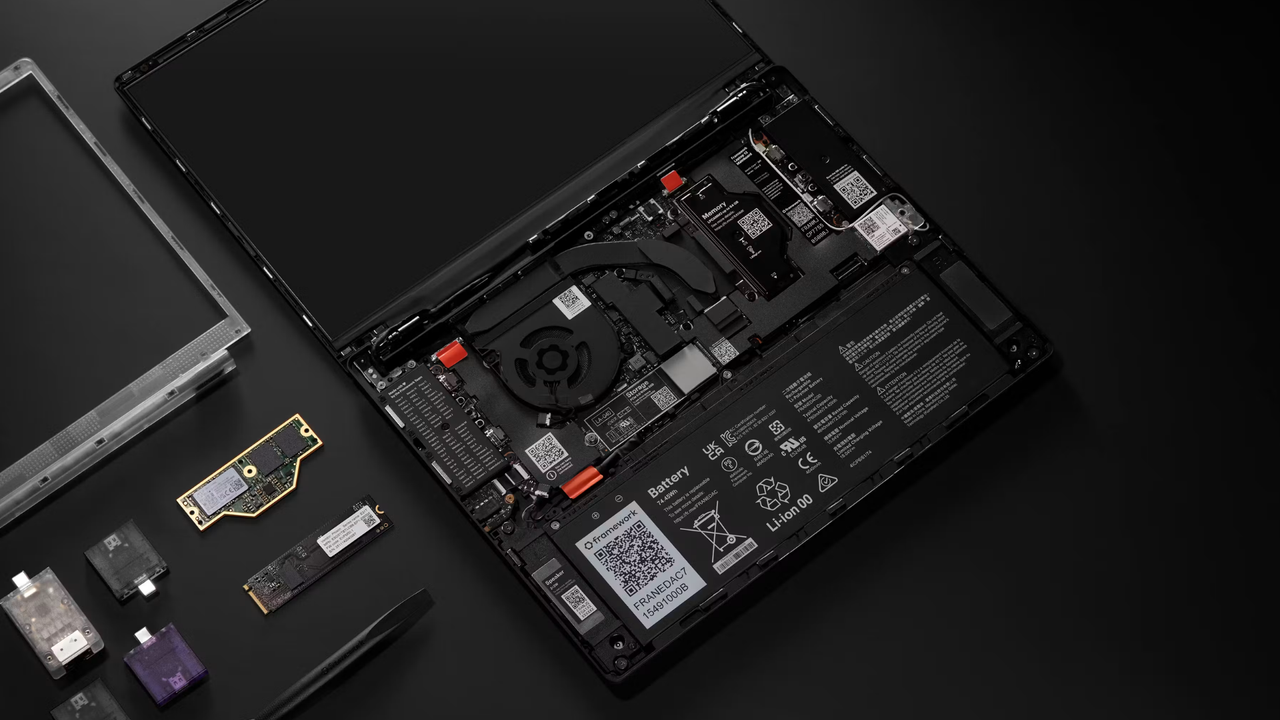
Framework's modularity continues on in the new design. In fact, if you wanted, you could build a Laptop 13 Pro around your old Framework mainboard, Ship of Theseus style (though some parts would need to be swapped simultaneously to accommodate the new battery's shape and size).
We reviewed a DIY Edition of the Laptop 13 Pro, which meant installing a Framework-supplied SSD and LPCAMM2 memory before getting started. The only tool you need is the Torx T5 screwdriver that comes in the box.
Tom's HardwareTom's Hardware
The SSD is a pretty standard install, but the memory, which is LPCAMM2, was a first for me. You have to be extremely careful with it, aligning the memory with a sensitive interposer (which also happens to be slightly under a ribbon cable connected to the screen. This got in the way for me a few times, but it's easy enough to get around. There's a memory cover that goes on top of the LPCAMM2, with three screws labeled in the order you should tighten them to firmly seat the module.
(Image credit: Tom's Hardware)
On AMD Ryzen AI 300 configurations, LPCAMM2 isn't available: you use standard SO-DIMMs.
From there, you need to attach the input cover using a ribbon cable (do take a minute to admire the underside of the haptic touchpad and its four piezo sensors), which then snaps into place on the chassis. The bezel snaps onto the bottom of the screen and also attaches with magnets.
From there, you flip the laptop over and tighten five captive Torx T5 screws. Pop in your expansion cards, lock the slots, and voila, you're ready to install an operating system.
FrameworkFramework
On the Intel version we tested, there's nothing limiting where you place expansion cards. On models using AMD's Ryzen AI 300 chips, however, you'll want to be sure not to put USB Type-A ports in the rear slots, as they'll use more power than other cards.
If you buy a prebuilt version, the OS will come pre-loaded. Otherwise, you can largely reverse any of these steps at any time to make upgrades, including likely eventual mainboard improvements.
My main criticism is that LPCAMM2 is hard to get right now (harder, in general, than regular SO-DIMMs, which at least some enthusiasts might have around). You can get them from Framework, but this isn't a standard that you have a lot of options to buy from. In that way, the DIY version doesn't make a ton of sense, unless you really, really want to bring your own SSD.
Four expansion card slots (over USB-C/Thunderbolt 4), 3.5 mm headphone jack
Camera
1080p / 30 FPS, hardware privacy switch
Battery
74.45 WHr
Power Adapter
100W GaN USB-C charger
Operating System
Bring your own (tested with Windows 11 Home)
Dimensions (WxDxH)
11.68 X 9.02 x 0.62 inches (296.63 x 228.98 x 15.85 mm)
Weight
3.17 pounds (1.44 kg)
Price (as configured)
$1,799 + RAM + SSD + OS + expansion cards (Our review unit is approximately $4,023 at time of testing)
Productivity Performance on the Framework Laptop 13 Pro
We tested the Framework Laptop 13 Pro in its most powerful configuration: with an Intel Core Ultra X9 388H and 64GB of RAM. Our system also had a roomy 2TB SSD. To best compare the system to other laptops in our benchmark database, we opted to run Windows 11.
Framework Framework Framework Framework
On Geekbench 6, the Framework Laptop 13 Pro notched a single-core score of 2,952 and a multi-core score of 14,965. The single-core score was similar to the same X9 chip found in the Asus Zenbook Duo. But in multi-core, the Zenbook had a score that was 15.49% higher, likely due to cooling; Framework is cooling Intel's top mobile chip with a single fan. Apple's M5 MacBook Pro and Qualcomm's Snapdragon X2 Elite in the HP OmniBook Ultra 14 both scored higher on both tests.
The Framework Laptop and its WD Black SN7100 SSD were the fastest of the group in copying 25GB of files, with a speed of 2,800.33 MBps, followed most closely by the OmniBook at 2,620.91 MBps.
On Handbrake, the Framework transcoded a 4K video to 1080p in 4 minutes and 9 seconds, ahead of the Duo but behind both ARM-based laptops.
To stress test the system, we ran Cinebench 2026 ten times and monitored scores and CPU speeds. The scores were largely in the 3,800 and 3,900's, with a peak score of 3979.85 on run 6, before scores started dropping down slightly. In HWInfo, the CPU’s P cores averaged 3.16 GHz, while the E cores reached 2.75 GHz, and the low-power E cores measured at 2.61 GHz.
Graphics on the Framework Laptop 13 Pro
As we've seen in other Panther Lake laptops, the Intel Arc B390's Xe cores are no joke.
(Image credit: Framework )
The 12 cores on the X9 388H enabled the Laptop 13 Pro to achieve a score of 1,362 on 3DMark’s Steel Nomad cross-platform benchmark. It lost only to the presumably better-cooled Zenbook Duo using the same chip.
Display on the Framework Laptop Pro 13
The Framework Laptop 13 Pro marks the company's first custom display, along with the first time its 13-inch laptop has had a touchscreen (touch was previously available on the Framework Laptop 12).
The 13.5-inch, 2880 x 1920 display (one of the few 3:2 screens on the market these days) offers a variable refresh rate between 30 and 120 Hz.
Most importantly, Framework's display is exceedingly bright. In the trailer for Avengers: Doomsday, an explosion in the X-Mansion and lightning coming from Thor's Stormbreaker axe were eye-popping.
(Image credit: Framework )
The panel measured an astounding 709 nits on our light meter, handily surpassing the MacBook Pro's mini LED screen (558 nits) and the OLED panels on the Asus Zenbook Duo (456 nits) and HP OmniBook Ultra 14 (414 nits).
The Framework's display was largely on par with the MacBook's in terms of color volume, covering 114.3% of sRGB and 81% of the more challenging DCI-P3 color space. The MacBook was a fraction of a percent better. The bigger differences are in the benefits mini LED may bring against LCD, but the point remains that for Framework, this is an impressive display. If older Framework Laptop 13 owners take one upgrade from this system, it may well be the panel for the sake of the quality, even if they don't care about touch.
Keyboard and Touchpad on the Framework Laptop 13 Pro
(Image credit: Tom's Hardware)
The keyboard cover on the Framework Laptop 13 Pro is one large piece sitting on top of the components, just like previous designs. Here, the keyboard has white backlighting and 1.5 mm of key travel.
And unlike some laptops, you can feel all of that travel. As I breezed through the monkeytype.com typing test at 123 words per minute, I did note that the keys feel a bit stiffer than I'm used to on other laptops. A colleague I showed the laptop to liked the effect, though I think some people might hope the keys wear in a bit.
This laptop also marks the first time Framework has offered a haptic touchpad. This one uses four Piezo sensors to convert pressure into clicks.
On the one hand, it's a huge step up from the company's mechanical touchpads, which often felt cheap. I never had any issues with gestures or navigation. But I could sometimes see and feel the haptic touchpad flex in the keyboard deck, which could probably be fixed with a bit of extra reinforcement.
Audio on the Framework Laptop 13 Pro
The Framework Laptop 13 Pro uses a pair of 2W side-firing speakers, rather than the bottom-firing speakers on the original Framework Laptop 13 design. If you're using Windows 11, you get Dolby Atmos support (tough luck for now if you're a Linux user), including the Dolby Settings app.
Despite Framework's claims that they're louder, they're really best for personal listening. Alice Merton's "Ignorance is Bliss" only barely filled my living room. The vocals, guitars, and drums were distinguishable and sounded pretty good otherwise.
It's not uncommon for wristrests to vibrate while playing music, but on the Framework Laptop, that extended to the haptic touchpad, which would noticeably move under my finger while listening to music.
Battery Life on the Framework Laptop 13 Pro
(Image credit: Framework )
Framework is debuting a larger, 74 WHr battery on the Laptop 13 Pro. Even when powering the Core Ultra X9 388H, the system was long-lasting. On our battery test, which browses websites, streams video, and runs light OpenGL tests with the screen at 150 nits, the Laptop 13 Pro ran for 15 hours and 55 minutes, beating other Windows-based competitors. Only the MacBook Pro surpassed that, at 18 hours and 14 minutes.
Heat on the Framework Laptop 13 Pro
As configured, the Framework Laptop 13 Pro can get a bit toasty. Again, the Core X9 388H is running under a single fan.
During our Cinebench 2026 stress test, the keyboard hit 110 degrees Fahrenheit, which did feel warm to the touch. The haptic trackpad measured 90 F, while the hottest spot on the bottom was 117 F.
Internally, the CPU measured an average of 90.1 degrees Celsius and reported throttling for much of the back of the test.
Webcam on the Framework Laptop 13 Pro
The 1080p webcam on the Framework Laptop 13 Pro is serviceable, but not the best.
While colors were accurate enough in video and photo testing, there was graininess in both well-lit and dark images.
Additionally, this laptop doesn't sport an infrared camera for Windows Hello. Your only option is the fingerprint reader.
Software and Warranty on the Framework Laptop 13 Pro
We tested the Framework Laptop 13 Pro with Windows 11, and it was blissfully free of bloatware. Framework's dedicated shortcut on the F12 key opens up a page on its website for guides for the system.
I would like to see an easy way to customize the keyboard. VIA's web app doesn't recognize the keyboard in my testing (previously, it has only recognized the 16-incher and its various input modules). I hope to see support for that soon. (At least the key tester function worked).
Framework sells the Laptop 13 Pro with a one-year warranty. An extended three-year warranty is available that varies based on configuration. Framework told Tom's Hardware that this is because the "cost of servicing the warranty scales with the cost of the system," so more expensive systems with pricier hardware have more costly extended service plans.
Framework Laptop 13 Pro Configurations
We tested the Framework Laptop 13 Pro in a DIY configuration that's $1,799 with an Intel Core Ultra X9 388H before adding in memory, storage, an operating system, or any of the extras like the expansion cards.
If you purchased all of our components from Framework, the system was approximately $3,272 when we started testing it. In the middle of testing, the price of the memory on the DIY systems nearly doubled from $849 to $1,600, making our configuration roughly $4,023. That's without an OS, as we installed our own copy of Windows.
That being said, this configuration is backordered, and Framework isn't taking further orders: "We are working with Intel and expect to get additional allocation of X9, but we don't have timing we can communicate on when it will be available for order," Framework said through a PR representative. It's also likely to see a price increase, as the company has already announced that its X7 and X9 chip prices are going up. It's very possible that by time you read this review, any number of components may have changed price.
(Image credit: Tom's Hardware)
The 2TB SSD was $505, while the keyboard was $10 (for the colors), as was the bezel ($10), though both of those aesthetic options can be had for free if you opt for black or a few other color options.
The cheapest DIY Edition, with an Intel Core Ultra Series 3, starts at $1,499. If you prefer AMD Ryzen AI 300 over Intel Core Ultra Series 3, that starts at $1,399 with a Ryzen AI 7 350.
On the prebuilt side, the cheapest Intel system (with the same Core Ultra 5 325, plus 16GB of RAM and 512GB of storage) is $1,599 (up from $1,499 during pre-orders), while AMD versions begin at $2,299 (up from $2,099) with 1TB of storage and 32GB of memory.
Bottom Line
When Framework debuted the Laptop 13 Pro, it promised a "MacBook Pro for Linux users." I'm not sure I agree. The MacBook Pro has an air of utility, while the Framework Laptop Pro 13 is more playful. That alone makes it feel different.
This Framework is by far its best-built laptop, feeling more premium and rigid than ever before, along with a bright screen and a haptic touchpad. But there are some areas, like the bezels and expansion ports, that still show the gaps.
(Image credit: Tom's Hardware)
The new silicon is also faster and more efficient than we've seen. We've complained about battery life on some older Framework systems, but Panther Lake is efficient enough (along with a 74 WHr battery) to bring Framework in line — and ahead — of at least some premium Windows-based competitors.
Price and availability may scare off some customers. Erratic, expensive chip pricing is the norm these days, but most people don't see that firsthand. They only see the bottom line. But also, at this price, you could get an M5 Max MacBook Pro with 32GB of RAM, which would way outperform this system on multi-core and graphics performance.
There is room for improvement, especially in cooling. But the biggest issue Framework has here for its niche audience is the price of components, especially for the DIY edition. But if you happen to have parts lying around, there's no question that this design should usurp its old one as quickly as possible.
You can save $1,000 on a truly high-end gaming laptop that, for many, is way over the top for the average user in both hardware and price. But if you want the most powerful laptop gaming setup, or a portable desktop replacement, then this Lenovo Legion 9i gaming laptop from B&H Photo, priced at $5,799, is something you should check out. It's certainly not your average gaming laptop, as it comes with the top-tier halo components from Intel and Nvidia, and is absolutely massive at 18 inches.
Gaming laptops have always been more expensive than desktop gaming PCs with comparable components, even with the comparable components not being as powerful as their desktop counterparts due to the size, power, and heat limitations of stuffing hardware components into a smaller laptop chassis.
This model of the Lenovo Legion 9i contains the most powerful laptop graphics card available, Nvidia's RTX 5090 with 24GB of GDDR7 VRAM, and Intel's Core Ultra 9 290HX Plus 24-core processor, plus a massive 64GB of DDR5 RAM (2 x 32) with four RAM slots available, able to support up to 192GB of total RAM. For storage, there is a 2TB SSD, with Windows 11 Home edition pre-installed.
The luxurious 18-inch display features a detailed 3840 x 2400 resolution with a 3ms gray-to-gray response time. The display can reach up to 240Hz at native resolution and up to 440Hz when set to an FHD resolution. The display uses an IPS panel with 520 nits of brightness and a color gamut of 100% DCI-P3
Play your favorite PC games with high frame rates and smooth gameplay with an Intel Core Ultra 9 24-Core processor, RTX 5090 laptop graphics card, 64GB of DDR5 RAM, and a 2TB SSD.View Deal
The Lenovo Legion 9i also uses the latest Thunderbolt 5, WiFi 7, Bluetooth 5.4, and 2.5GbE Ethernet. The keyboard is fully RGB backlit with chiclet-style keys. This is a very powerful gaming laptop that you can also use for some serious creative work and go hard on some smaller local LLM models if you want to dabble with some AI workloads.
It is a very expensive laptop, made more costly by the price of RAM and NAND in the current economy. Still, it's also $1,000 cheaper than the usual price, so if this kind of laptop is something you're interested in, then head to B&H Photo and check out the RTX 5090-powered Legion 9i available for $5,799.
The best laptops must do more than look expensive; they need to justify their price with the right mix of design, performance, display quality, and daily usability. HP’s OmniBook X Flip 14 (starts at $1,399.99; $2,599.99 as tested) gets much of that formula right, with a sublime metal chassis, a choice of two refined colors, AMD Ryzen AI processors, and the convenience of a 2-in-1 design. It feels every bit like a high-end machine, with solid entertainment features and impressive build quality, but its high price, middling performance, and merely decent 1920 x 1200 OLED display keep it from fully standing out.
Design of the HP OmniBook X Flip 14
The OmniBook X Flip 14 is HP’s design at its best. The deep espresso finish gives the laptop a rich, almost executive character. (The other available color is atmospheric blue.) Its matte metal surfaces felt reassuringly solid in my hand. HP also claims a MIL-STD-810H durability rating.
Tom's HardwareTom's Hardware
At 12.32 x 8.6 x 0.57 inches, the OmniBook’s footprint is slightly larger than Dell's XPS 14, though the weight is essentially a wash: 3.09 pounds for HP versus 3 pounds flat for Dell. Lenovo’s Yoga Slim 7i is much lighter at 2.15 pounds, but HP is the only one offering a 2-in-1 form factor, with a 360-degree display hinge that lets it fold into a tablet. While its size and weight prevent it from being a good iPad replacement, the functionality can be handy in cramped places like an airplane seat where it might not be as comfortable to use it as a laptop.
The laptop offers just enough connectivity– two USB4 ports, one USB-A port (10 Gbps), HDMI 2.1, and an audio jack. The compact 65 W power adapter plugs into either USB4 port, conveniently split across both sides of the chassis. A Realtek 8922AE-VS networking card supports the latest Wi-Fi 7 standard.
Tom's HardwareTom's Hardware
HP OmniBook X Flip 14 Specifications
CPU
AMD Ryzen AI 9 465
Graphics
AMD Radeon 880M graphics (integrated)
Memory
32GB LPDDR5X-8533
Storage
2TB SSD (Samsung MZVL82T0HBL1)
Display
14-inch, 1920 x 1200, OLED, touch, 60 Hz
Networking
Wi-Fi 7, Bluetooth 5.4 (Realtek 8922AE-VS)
Ports
2x USB4, USB 3.2 Gen 2, HDMI 2.1, audio
Camera
5MP IR
Battery
59 Wh
Power Adapter
Type-C (65 W)
Operating System
Windows 11 Pro
Dimensions (WxDxH)
12.32 x 8.6 x 0.57 inches (313 x 218 x 15 mm)
Weight
3.09 pounds (1.4 kg)
Price (as configured)
$2,599.99
Productivity Performance on the HP OmniBook X Flip 14
We tested a high-end OmniBook X Flip 14 configuration featuring a Ryzen AI 9 465 processor, 32GB of RAM, and a 2TB PCIe Gen 4 SSD.
Our comparison systems include the 14-inch Apple MacBook Pro featuring the M5 processor (was $2,349 as tested, but is now $2,549), the Dell XPS 14 with a Core Ultra X7 358H ($2,199.99), and two Lenovo models: the Yoga Slim 7i ($1,629.99 with a Core Ultra 7 355) and the Yoga Slim 7x ($1,579 with a Snapdragon X2 Elite X2E-88-100). The OmniBook is the only 2-in-1 design in the group.
The OmniBook landed in the lower half of the pack. In Geekbench, where it scored 13,734 points in multi-core, and our Handbrake 4K-to-1080p video transcoding test, which it completed in 4 minutes and 56 seconds, it outpaced the Core Ultra 7 355-powered Yoga Slim 7i (11,555 points and 5:56), but it couldn't match the stronger Core Ultra X7 358H in the XPS 14 (16,927 points and 4:30). The MacBook Pro proved even more potent (17,926 points and 3:31) but it was outgunned by the Snapdragon-powered Yoga Slim 7x (20,563 points and 2:11).
The OmniBook's average speed in our 25GB file transfer test was 1,477.3 MBps, essentially tying the XPS 14 (1,419.76 MBps) but trailing the Yoga Slim 7i (1,659.21 MBps). The MacBook Pro (1,917.35 MBps) and Yoga Slim 7x (1,934.78 MBps) led.
Though it didn't top our charts, the OmniBook still offers performance a step above what many thin-and-light laptops offer and decent multitasking capability, with its 10-core/20-thread design.
To stress test productivity laptops, we run 10 loops of Cinebench 2026. The OmniBook started at 3,465 points and slowly descended to 3,070 points by the fifth iteration, then steadily recovered and completed the last run with 3,306 points. During the test, the Ryzen AI 9 465 CPU ran at an average frequency of 2.79 GHz.
Graphics Performance on the HP OmniBook X Flip 14
In 3DMark Steel Nomad, the OmniBook's Radeon 880M integrated graphics offered basic performance at best, outpacing the Intel Graphics in the Yoga Slim 7i (513 points), but coming nowhere near close to Adreno X2-90 GPU in the Yoga Slim 7x (1,115 points), MacBook Pro (1,122 points) or the Arc solution in Dell's XPS 14 (1,446 points), powered by the Core Ultra X7 358H.
(Image credit: Tom's Hardware)
Display on the HP OmniBook X Flip 14
The HP OmniBook X Flip 14 is available with three touch display options: a 1920 x 1200 IPS, a 1920 x 1200 OLED, or a sharper 2880 x 1800 OLED. Our unit came with the middle option, the 1920 x 1200 OLED. It’s unquestionably colorful – watching Star Wars: Return of the Jedi, Endor’s green forests looked lush, and OLED’s excellent contrast provided inky blackness in space scenes.
Brightness, however, is the weak point. Stormtrooper armor didn’t have the crisp white pop that it should, and blaster bolts and lightsabers looked a bit muted. HP rates this panel for just 300 nits, which is low even by OLED standards and feels out of place given the rest of the laptop’s excellent execution.
That said, the 2880 x 1800 OLED panel should solve that problem. HP rates it for 500 nits in SDR and 1,100 nits in HDR, and it also increases the refresh rate to 120 Hz – all the other panels are limited to 60 Hz. Since the 2880 x 1800 panel is only $80 more than the 1920 x 1200 version through HP’s online configurator, it looks like the display upgrade to get.
The OmniBook is also compatible with a digital MPP 2.0 pen, which we didn’t test, but HP offers as a $30 option.
(Image credit: Tom's Hardware)
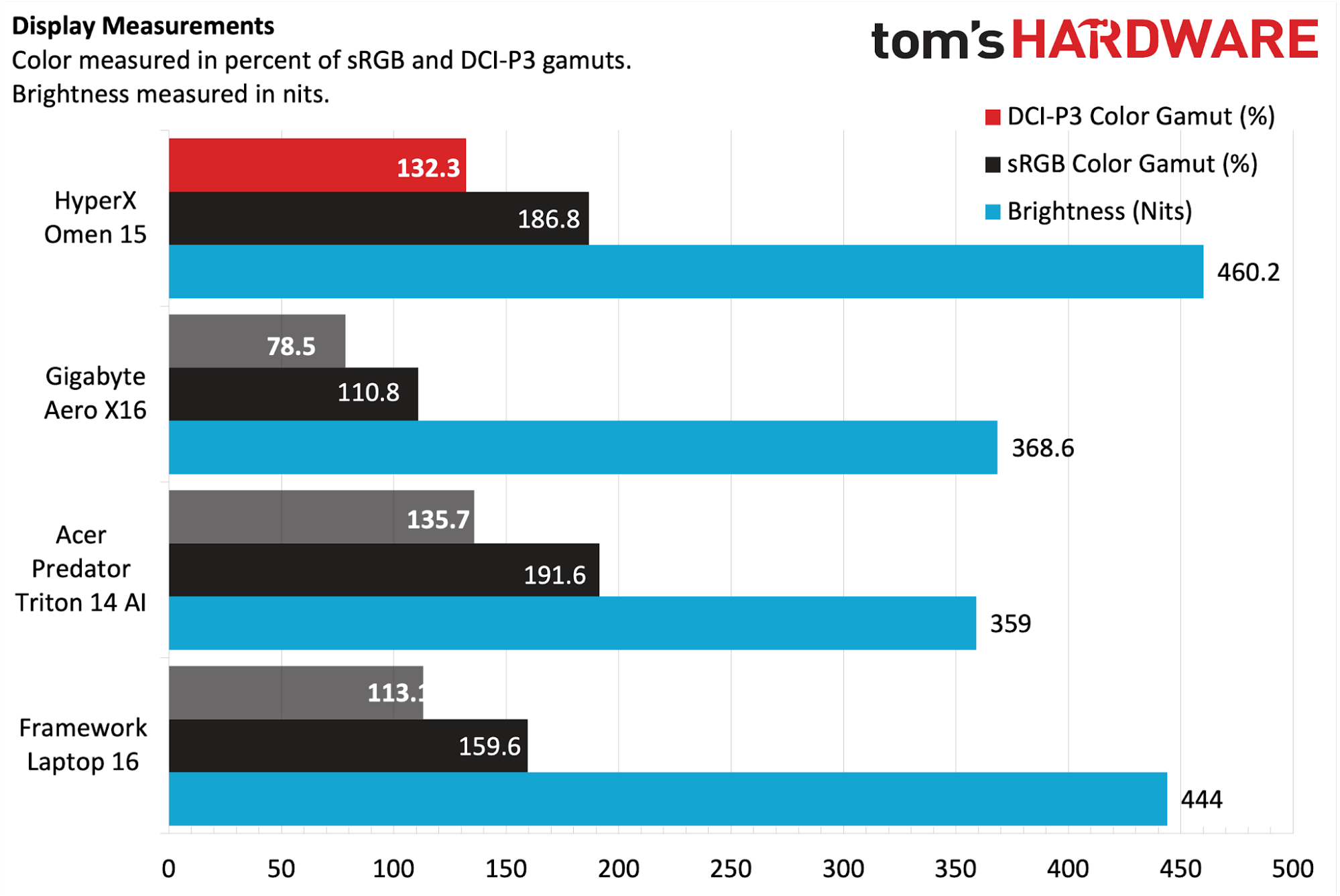
Our charts confirm the OmniBook’s limited brightness, registering just 266 nits. The OLED-equipped XPS 14 and Yoga Slim 7x are considerably brighter, but none of them come close to the Yoga Slim 7i. The MacBook Pro proved the brightest, though it’s not an exact comparison since it uses a mini LED panel. Color-wise, however, the OmniBook topped the charts, with sRGB and DCI-P3 coverage just as high as the Yoga Slim 7x.
Keyboard and Touchpad on the HP OmniBook X Flip 14
The OmniBook has a keyboard that I can type on for long sessions without feeling fatigued. The keys offer just enough travel to feel engaging, with good cushioning at the bottom of the keystroke and a flex-free deck. Though key spacing is minimal, the angled edges of the keys provide a sense of separation.
On the MonkeyType test, I hit 120 words per minute with perfect accuracy, which is as quickly as I can go on any keyboard. White backlighting provides excellent visibility; toggling backlight brightness (F10) briefly brings up a handy menu to adjust backlight duration.
(Image credit: Tom's Hardware)
Layout-wise, the half-height up and down and full-size left and right aren’t intuitive, and dedicated home, end, page up, and page down keys are absent. The F1 key, which doubles as volume mute, offers a convenient orange LED indicator when the volume is off.
The touchpad is mechanical rather than haptic. Its nicely sized, matte surface offers seamless finger swiping – my fingers didn’t stutter or drag – and predictable clicking action.
Audio on the HP OmniBook X Flip 14
The OmniBook’s dual speakers provide decent audio for a laptop. While not loud – there’s just enough volume for movie watching in a quiet room – the setup sounds balanced and has audible bass. In Phil Collins’ “Don’t Lose My Number”, the drum hits had a satisfying sharpness and some punch at the low end. Vocal and instrument separation is good, with no hint of strain. The Chainsmokers’ “Summertime Friends” also sounded pleasant: crisp vocals, enough bass to satisfy, and an airy soundstage.
HP includes a DTS Headphone:X license (useful if you have supported headphones, which I don’t) and DTS:X decoder license via the DTS Sound Unbound app, though it doesn’t provide any equalizer controls. Confusingly, to get software EQ, you need to use the HP app, which provides music, movie, and voice presets and a graphic EQ. I found the Music preset sounded best and didn’t hear improvements while tweaking the EQ.
Upgradeability of the HP OmniBook X Flip 14
Four small Philips-head screws secure the OmniBook’s bottom panel, which are not all the same size – the fronts are shorter than the rears. I used a plastic trim tool to pop the clips securing the panel, starting along the rear edge and working my way around the edges.
Upgradeable components include the M.2 2280 SSD, M.2 2230 wireless card, and the battery. The memory is not upgradeable.
Tom's HardwareTom's Hardware
Battery Life on the HP OmniBook X Flip 14
The OmniBook X Flip 14 lasted a respectable 14 hours and 53 minutes in our battery test, which consists of web browsing, running OpenGL tests, and streaming videos with the screen at 150 nits while connected to Wi-Fi. It outlasted Dell’s XPS 14 (12:23) but it was almost two hours shy of the Yoga Slim 7i (16:38) and couldn’t catch the MacBook Pro (18:14) or Yoga Slim 7x (19:25). That said, the OmniBook’s numbers still make it perfectly practical for a full workday without a charger.
It’s notable that configurable models come equipped with a more powerful 70 Wh battery if they are also equipped with the 2880 x 1800 OLED panel. It's possible the higher-resolution display requires more power.
(Image credit: Tom's Hardware)
Heat on the HP OmniBook X Flip 14
During our 10-loop Cinebench 2026 stress test, the OmniBook's surface temperatures peaked at 79 degrees Fahrenheit on the touchpad, 109 F between the G and H keys, and 113 F on the underside. Internally, the Ryzen AI 9 465's average temperature was 69 degrees Celsius across all cores. The laptop felt borderline hot to the touch in certain places. Without the stress of a benchmarking run, the laptop felt lukewarm at most. Its cooling fans sound unnoticeable for general use and are quiet enough to be ignored under load.
Webcam on the HP OmniBook X Flip 14
HP’s 1080p webcam delivers a balanced picture. In my living room with overhead lighting, my face was properly exposed despite a bright window in the background, which wasn’t blown out. Some noise was evident in darker shadows, but the picture looked smooth and detailed. The detail is also good – I could make out writing on my chalkboard about a dozen feet away. The webcam also offers an IR sensor for Windows Hello sign-ins and a physical privacy shutter.
Software and Warranty on the HP OmniBook X Flip 14
The main app included on the OmniBook is the HP app, which provides software updates, battery smart charge settings, touchpad gesture control, diagnostics, a virtual support assistant, and support access. Audio equalizers are also available, though spatial settings are in the tandem DTS Sound Unbound app.
HP also includes its Omni+ app for secure password management, HP Smart for connecting printers, and HP TV+ to centralize streaming apps. A McAfee trial was also installed. These apps are not unique to the OmniBook, though, and don’t directly add value.
HP covers the OmniBook X 14 Flip with a one-year warranty.
HP OmniBook X 14 Flip Configurations
We tested the OmniBook X Flip 14 in a built-to-order configuration direct from HP with a Ryzen AI 9 465 processor, Radeon 880M integrated graphics, 2K OLED display, 32GB of RAM, 2TB SSD, and Windows 11 Pro. It retailed for $2,599.99 as of this writing, though a 13% off sale briefly appeared during the review period.
Models from HP start at $1,399.99 with a Ryzen AI 5 430/Radeon 840M, 2K IPS screen, 16GB of RAM, and a 512GB SSD. Customization options include Deep Espresso or Atmospheric Blue colors, several CPU choices – a Ryzen AI 7 445/Radeon 840M, Ryzen AI 7 450/Radeon 860M, and Ryzen AI 9 465/Radeon 880M. CPUs starting with the Ryzen AI 7 445 automatically upgrade to 32GB of memory. Storage choices range from 512GB to 2TB.
HP also sells a version of this laptop with Intel Core Ultra Series 3 internals, which aren’t priced too differently from the AMD models.
Bottom Line
The HP OmniBook X Flip 14 is a polished premium convertible with excellent build quality, comfortable inputs, and practical battery life, but its high price, middling performance, and underwhelming 2K OLED display make the value equation tricky.
Lenovo’s Yoga Slim 7i offers a superior screen for less money, while Dell’s XPS 14 delivers better performance if you’re willing to sacrifice some battery life. Still, HP remains worth considering if the 2-in-1 functionality is a priority, especially if you configure it with the sharper, brighter 2880 x 1800 OLED panel.
If you want the performance of Dell’s XPS family but don’t want to lay out the cash to step up to a slightly snazzier design and higher resolution display, the Dell 14S is a cheaper alternative. The 14S is Dell’s mainstream 14-inch laptop, starting at $1,269 compared to $1,589 for the XPS 14.
A nearly $300 difference is nothing to sneeze at in this economy, so we’ll take a look at the 14S and what it offers for a cost-sensitive audience. And with an as-tested price of $1,469, we’ll see whether it still represents good value compared to its more expensive sibling.
Design of the Dell 14S (2026)
Although the 14S is a lower-priced alternative to the XPS 14, it doesn't skimp on features or build quality. Like the trendier XPS 14, the 14S features an aluminum chassis finished in celestial blue on our review unit. The keyboard deck, lid, and bottom of the chassis feature a matte finish, while the edges of the chassis and lid are highly polished.
The only hint of cost-cutting to my eyes is the use of a plastic bezel around the screen. However, I wouldn’t have even noticed the material difference if Dell hadn’t explicitly pointed it out. Build quality is impeccable, with no flex in the chassis and no floppiness in the firm display hinge.
While the XPS 14 goes for a minimalist approach on the port front with just three Thunderbolt 4 ports, the 14S gives you a lot more variety. You’ll find an HDMI 2.1 port, a USB-A 3.2 Gen 1 port, and two Thunderbolt 4 ports on the left side of the chassis. On the opposite side, there’s another USB-A 3.2 Gen 1 port and a 3.5 mm jack. There’s really nothing to complain about here, and it’s nice to see that we have both USB-A and USB-C support for legacy and newer devices alike.
Tom's HardwareTom's Hardware
Our 14S review unit features a 1200p OLED touchscreen, weighs 3.28 pounds, and measures 12.35 x 8.82 x 0.61 inches. For comparison, the XPS 14 is 12.19 x 8.26 x 0.58 inches and weighs just 3 pounds. The Asus ZenBook A16 measures 13.92 x 9.54 x 0.65 inches and weighs 2.87 pounds, while the Apple MacBook Air (M5) weighs 2.7 pounds and measures 11.97 x 8.46 x 0.44 inches.
Dell 14S (2026) Specifications
CPU
Intel Core Ultra 7 355
Graphics
Intel Graphics (Integrated)
NPU
Up to 49 TOPS
Memory
16GB LPDDR5x-7467 onboard
Storage
512GB M.2 PCIe Gen 4 NVMe SSD
Display
14-inch, 1920 x 1200, OLED, 60 Hz, Multi-touch
Networking
Intel BE213 (Wi-Fi 7), Bluetooth 5.4
Ports
2x Thunderbolt 4, 2x USB-A, 1x HDMI 2.1, 3.5 mm headphone jack
Camera
2MP RGB+IR
Battery
70 WHr
Power Adapter
65W, USB Type-C
Operating System
Windows 11 Home
Dimensions (WxDxH)
12.35 x 8.82 x 0.61 inches
Weight
3.28 pounds (1.49 kg)
Price (as configured)
$1,469.99
Productivity Performance on the Dell 14S (2026)
The Dell 14S uses an Intel Core Ultra 7 355 processor, featuring 4 performance cores, 4 low-power efficient cores, and a maximum turbo frequency of 4.7 GHz. This is the same processor used in one of the XPS 14 models we tested. The Zenbook A16 uses a Snapdragon X2 Elite SoC, Qualcomm’s flagship Arm chip and an excellent all-around performer, while the MacBook Air uses Apple’s entry-level M5 Arm SoC.
Our review unit came equipped with 16GB of LPDDR5x-7467 memory and a 512GB PCIe 4.0 SSD. 512GB is rather small at this price point, considering most laptops we test come with a 1TB SSD as the baseline.
In the Geekbench synthetic CPU benchmark, the 14S's single-core performance closely mirrored that of the XPS 14 featuring the same CPU, with the former achieving a score of 2,704 versus 2,685 for the latter. However, there was a significant discrepancy between the two in the multi-core benchmark, with the 14S hitting 11,064 compared to 7,964 for the XPS 14. The Zenbook A16 proved to be an exceptional performer with its Snapdragon X2 Elite processor, with 3,807 and 22,733 on the single-core and multi-core benchmarks, respectively.
The 512GB SSD on the 14S was relegated to the back of the pack in our 25GB file transfer test, finishing at an average speed of 1,378.71 MBps. This was well behind the XPS 14 (1,730 MBps) and the chart-topping MacBook Air (1,924 MBps)
It was a similar story on our Handbrake test, in which we transcode a 4K video file to 1080p. Here, the 14S finished the test in 7 minutes and 22 seconds, nearly 40 seconds behind the XPS 14. However, the Zenbook A16 absolutely smoked all of the laptops in this test, finishing in just 2 minutes and 8 seconds.
During the Cinebench 2026 stress test, the 14S started at just over 1,600, before dipping to 1,465. It then recovered to a peak of 1,735 before settling in the 1,550 to 1,650 range for the rest of the runs.
The Ultra 7 355 P-cores averaged 2.61 GHz, while the low-power E-cores averaged 2.45 GHz.
Graphics on the Dell 14S (2026)
The Dell 14S uses integrated Intel Graphics with 4 Xe cores. On the 3DMark Steel Nomad test, the 14S achieved a score of 505, which was just below that of the XPS 14 (532).
(Image credit: Tom's Hardware)
However, the Zenbook A16 once again flexed its muscle with a score of 1,262, while the MacBook Air came in at 1,005, nearly double the result of the 14S.
Display on the Dell 14S (2026)
Our 14S review unit came optioned with a 1920 x 1200 (FHD+) 60 Hz OLED touchscreen. This is a step up from the base system and features an FHD IPS display.
The display was overall quite colorful, with vivid colors and inky blanks; something that I’ve come to appreciate with OLED displays. I watched a few movie trailers, including the most recent trailer for The Odyssey and Spider-Man: Brand New Day. The trailer for Spider-Man looked especially brilliant, with the suit's iconic red and blue and the seismic destruction left by Hulk's Thunderclap.
(Image credit: Tom's Hardware)
My one complaint about the display is that it wasn’t particularly bright. Dell specs the OLED panel at 300 nits, and our lab instruments measured an average of just 269 nits. The displays on all of its competitors broke the 400-nit mark, with the XPS 14 hitting 466 nits.
As for color performance, the display on the 14S reached 84.5 percent of the DCI-P3 space by volume and 119.3 percent of the sRGB space. Those numbers were right on top of the numbers we recorded for the other three laptops in this test, with just a few percentage points separating them.
Keyboard and Touchpad on the Dell 14S (2026)
The Dell 14S features an island-style backlit keyboard with springy keys and near-silent actuation. The exception to this rule was the spacebar, which seemed to bottom out easily and rewarded me with a grating “clank” every time I pressed it with my thumb.
(Image credit: Tom's Hardware)
With that said, I used Keyhero.com to measure my typing speed, which was 87 words per minute with 97 percent accuracy.
Unlike the XPS 14, the 14S doesn’t feature a haptic trackpad (after all, cost-cutting has to come from somewhere). Instead, it features a top-hinged trackpad, meaning that “clicks” performed near the top of the surface, above the hinge, don’t register. You’ll need to keep your thumb near the bottom of the touchpad, where your thumb should naturally rest anyway if you’re using proper hand positioning.
Audio on the Dell 14S (2026)
The 14S uses dual 2-watt speakers, which sound reasonable enough. They’re not particularly powerful or worthy of high praise. I played the City of Angels soundtrack, culminating with the four heavenly instrumental tracks performed by Gabriel Yared.
While the strings sounded quite good, the angelic vocals that come in about a third of the way through in An Angel Falls sounded dull and lifeless. This was especially disappointing as the voices dropped into the lower registers. However, this is me being nitpicky about audio using one of my favorite albums of all time; for typical productivity-related tasks, the speakers on the 14S will do just fine. I didn’t find any third-party software to fine-tune the speakers.
Upgradeability of the Dell 14S (2026)
There are six screws (two of which are captive) that hold the Dell 14S' bottom panel in place. Once the screws are removed, the whole panel lifts off from the back.
There are two upgradeable pieces of hardware inside our review unit (besides the battery, which can be replaced): there’s an M.2 PCIe Intel BE213 Wi-Fi 7 card and a Kioxia 2230 PCIe 4.0 512GB SSD. While our unit had a 2230 SSD, the M.2 slot can accommodate up to 2280 modules.
Battery Life on the Dell 14S (2026)
One of the remarkable accomplishments of the XPS 14 that we previously tested was its battery life. The 14S also delivers on that front, lasting 20 hours and 41 minutes on our battery test, consisting of browsing the web, streaming video, and running OpenGL tests at 150 nits of brightness. This was just one minute shy of the XPS 14’s performance. Also, keep in mind that the 14S has an OLED display; our previous XPS 14 review unit used a non-touch IPS panel, so a similarly equipped 14S would likely post even better battery numbers.
Tom's Hardware
For comparison, the MacBook Air, which has long been one of the reigning champs of battery life, could only muster 15 hours and 28 minutes of runtime. And the Zenbook A16, which was a performance monster in our productivity tests, couldn’t quite hit 10 hours and 30 minutes.
Heat on the Dell 14S (2026)
While running our Cinebench 2026 stress test on the 14S, we measured external surface temperatures and processor temperatures via its internal sensors.
Tom's HardwareTom's Hardware
The Core 7 Ultra 355 hit 106 degrees Fahrenheit on the keyboard between the G and H keys, around 82 F on the touchpad, and 108 F on the hottest point on the bottom. The processor measured 88 degrees Celsius.
One thing to note is that while the XPS 14 has two system fans, the 14S has just one.
Webcam on the Dell 14S (2026)
Dell's 14S uses an entry-level acceptable 2MP camera. It is by no means as clear or crisp as the 8MP unit in the more expensive XPS 14, but we weren't expecting that given its positioning. Color was quite good on the webcam, but the images were neither sharp nor grain-free. There was a lot of noise in the images, and details were quickly lost, as my facial hair looked a bit "muddy."
The camera also struggled with the overhead LED lights in my home office, causing blooming effects that marred the images.
Like many laptops, the 14S also incorporates an IR sensor for Windows Hello facial recognition.
Software and Warranty on the Dell 14S (2026)
The 14S is relatively light on included bloatware. Dell Optimizer and Dell Support Assist are installed by default. The former lets you optimize settings for the display, battery, and thermal management. The latter allows you to scan your system for issues, update software/firmware, optimize your network connection, and obtain assistance from customer service.
There are also the usual Intel utilities for graphics and security; however, I didn’t see the app shortcuts typically featured in a fresh Windows 11 installation (e.g., Dropbox, LinkedIn).
The 14S comes with one year of what Dell calls Basic Onsite Service. You can optionally add Accidental Damage Service (covering drops, spills, and power surges) for $59/year (currently on promotion for $29/year).
Dell 14S (2026) Configurations
The 14S is available with four processors (Core Ultra 5 322, Core Ultra 7 355, Core Ultra X7 358H, and Core Ultra 9 386H), Intel Graphics or Arc Graphics, 16GB or 32GB of memory, 512GB or 1TB SSD, and a 14-inch 1200p IPS or OLED display (in touch or non-touch options). You can also choose between Celestial Blue and Frost Blue for the chassis color when ordering directly from Dell.com.
The base configuration with a Core Ultra 5 322 processor, 16GB of RAM, a 512GB SSD, and a 14-inch non-touch IPS display costs $1,269.99. That is a very attractive entry point for the 14S, but options can quickly ratchet up the price. For example, a config with a Core Ultra 9 386H, Intel Graphics, 32GB of memory, a 512GB SSD, and a 14-inch touch OLED display retails for $2,019.99, while a Core Ultra X7 358H with Arc Graphics, 32GB of RAM, a 1TB SSD, and a 14-inch touch OLED display sells for $1,869.99. In the $1,800 to $2,000+ price range, you’d probably be better off going with an XPS 14.
Our review unit, featuring the Core Ultra 7 355, Intel Graphics, 16GB of RAM, 512GB SSD, and a 14-inch touch OLED display, landed about in the middle at $1,469.99.
Bottom Line
The Dell 14S attempts to mimic some of the perks of its flashier relative, the XPS 14, with a high-quality aluminum chassis, OLED display options, and stellar battery life (over 20 hours in our testing). It also adds in features you don’t get on the XPS 14, like an HDMI 2.1 port and USB-A ports.
(Image credit: Tom's Hardware)
However, you also give up a bit. You don’t get the quad speakers, 8MP webcam, Gorilla Glass screen cover, or the option for a 2.8K 120 Hz OLED touch screen.
If those features aren’t important to you, consider this: our 14S review unit retails for $1,469.99. An XPS 14 with the same processor, memory allotment, storage size, and a 14-inch 2.8K 120 Hz OLED display costs $2,249.99. That’s a nearly $800 upcharge. In the grand scheme of things, the 14S is definitely living up to its “mainstream” positioning in the Dell laptop family.
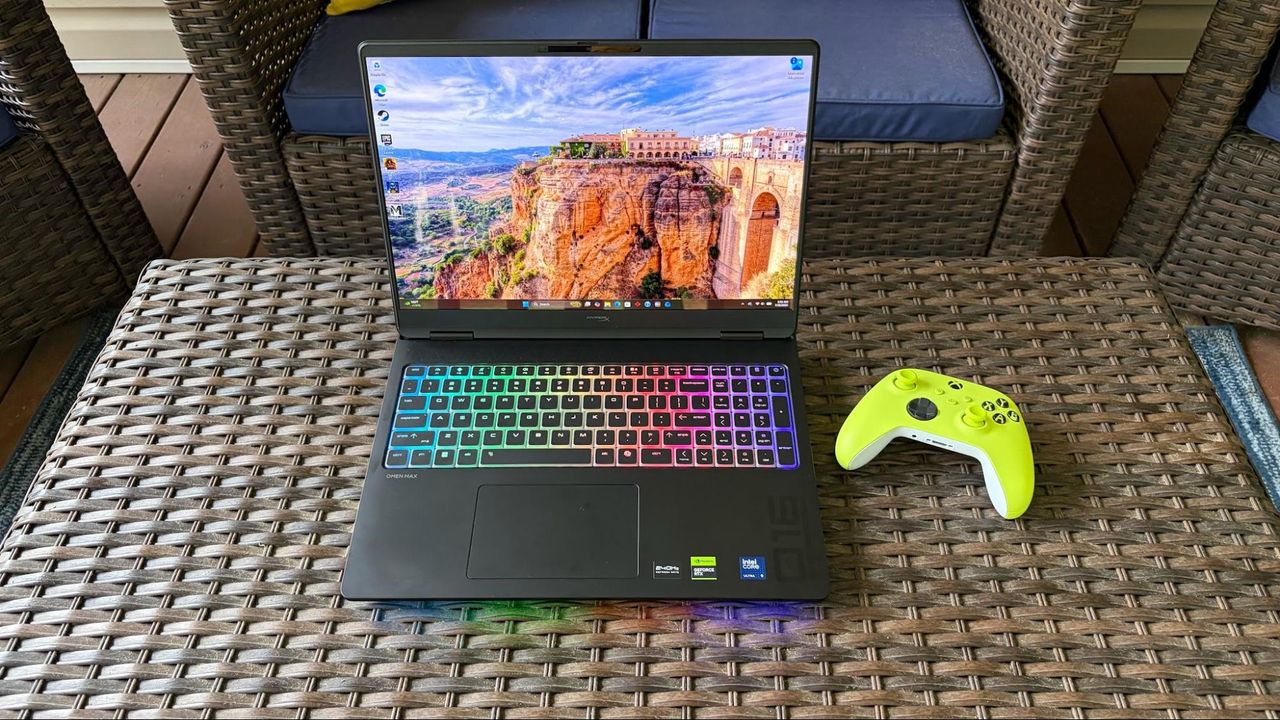
It's that time of year when you need to start thinking about prepping for starting a new semester or heading off to college. One of the handiest items to get a hold of is a competent laptop computer for doing lots of your coursework on. If that same laptop also happens to be able to play games, well, that's a big bonus. Shaving a massive $900 off the list price, HP's HyperX Omen 16 gaming laptop is now just $1,099.99. That's a superb price for a laptop that packs an RTX 5060 mobile GPU and a crisp 16-inch 2K display.
The HyperX Omen 16 packs some seriously good components for the price tag, as finding a capable RTX 5060 gaming laptop for near $1000 is a rarity in today's computer market. Inside the chassis of this model of the Omen 16 is an AMD Ryzen 7 8745HX processor, an Nvidia GeForce RTX 5060 laptop GPU with 8GB of dedicated GDDR7 VRAM, 16GB of RAM, and a small 512GB SSD. The display measures 16 inches diagonally and has a crisp 2K (1920 x 1200) resolution with a max refresh rate of 165Hz and a 3ms gray-to-gray response time. The IPS panel has a micro-edge display, anti-glare, low blue light emissions, a brightness of 400 nits, and 100% sRGB for the color gamut.
HP's HyperX Omen 16 features an AMD Ryzen 7 8745HX processor, an Nvidia GeForce RTX 5060 laptop GPU with 8GB of dedicated GDDR7 VRAM, 16GB of RAM, and a 512GB SSD. It's a capable gaming laptop with a crisp 16-inch IPS display and a fast 165Hz refresh rate. View Deal
We haven't had the opportunity to review this particular model of the HyperX Omen 16, so we can't fully use our Omen 16 review as a fair comparison. Our review unit used the much more powerful RTX 5080 GPU and Intel Core Ultra 9 275HX CPU. The components that are included in this model, though, are very familiar, so we do have a good idea how they will run, and the chassis, screen, and features of the Omen 16 will overlap.
The RTX 5060 will be able to run games smoothly on the 16-inch 1920 x 1200 display, and will be able to make use of Nvidia's DLSS software to increase framerates for a smoother experience on more taxing titles.
So if you're looking for a competent laptop for heading back to school, you can't go far wrong with this $1,099 deal on the HyperX Omen 16 for both work and play.
Framework is adjusting the pricing for its upcoming Framework Laptop 13 Pro, the company announced in a blog post. The company says that its supplier of LPCAMM2 memory updated pricing to be "more than double" its existing inventory, while laptops and mainboards will see increases due to rises in prices for other components.
"We recently received a cost update from our LPCAMM2 supplier that goes far beyond anything we had predicted and anything we’re able to absorb without placing our ability to operate at real financial risk," wrote chief executive Nirav Patel. "Rather than the low-to-mid double digit [sic] percentage increase we had forecast from Q2 to Q3 on LPCAMM2 costs, we received prices that are more than double that of the prior inventory we had brought in."
LPCAMM2 memory is specifically in the Intel Core Ultra Series 3 version of the laptop, while models using AMD Ryzen AI 300 processors are sticking with SO-DIMMs.
But while Patel said the company has enough LPCAMM2 modules to fulfill existing pre-orders, their mix of 64GB, 32GB, and 16GB options doesn't match it exactly. Instead, the company is fulfilling as many orders of 64GB as it can before dropping down to 32GB at the original 32GB price. From there, it will drop certain 32GB to 16GB at that original price. Here's how Patel puts it:
"After evaluating a number of possible paths forward, we’re proceeding on the one that we believe minimizes the impact of this challenge. We have enough 64GB modules in inventory to cover pre-order batches through Batch 4 of laptops and Batch 7 of Mainboards. For orders beyond that configured with 64GB, we’ve updated the order configuration to use a 32GB module at the original 32GB module price. After that, we allocated the remaining 32GB modules to DIY Edition and Mainboard pre-orders configured with 32GB through Batch 4 of laptops and Batch 7 of Mainboards. For DIY Edition and Mainboard orders beyond that configured with 32GB, we’ve updated the order configuration to use a 16GB module at the original 16GB price. Note that because we don’t currently have a Core X7 Ultra pre-built configuration with 16GB of memory, we have not adjusted pre-built orders that originally contained 32GB. That is a configuration we plan to introduce later."
Framework will continue offering 16GB LPCAMM2 modules at $239, but said it will have to increase the cost once those modules run out. But the 32GB modules will now be $800 (they were previously $439), while the 64GB modules in pre-orders going forward will be an eye-watering $1,600, up from $849.
But that's not all. Framework is also raising the price of systems and mainboards in new orders. Patel wrote that X7 and X9 chips will be getting more expensive, as well as Windows license costs, and "increases in memory, storage, and other silicon costs for some of our Ryzen AI 300 Series configurations."
Patel wrote that Framework's supply chain experts have been able to bring down costs on some components, including 48GB DDR5 modules and SN850X 8TB and SN7100 1TB SSDs, while increasing costs of 16GB DDR5 modules and SN850X 1TB and SN7100 4TB drives. Patel says that pre-orders with components getting lower pricing will have their prices dropped if they're not yet fulfilled. If prices go up, Framework says it will still charge what you paid when you pre-ordered.
Patel and his team have been updating this blog, which showcases a very rocky ecosystem, more publicly than most other PC vendors.
Framework's website says that the first batch of pre-orders for the Laptop 13 Pro is set to ship in July. That gives the company a week to get these systems out the door.
For that, you get Nvidia's punchy mobile RTX 5070 GPU, 32GB of RAM for gaming and multitasking, 1TB of storage, and a nifty 2560 x 1600 WQXGA display. Given the current prices of RAM and storage, getting a laptop of this spec at this price is pretty much unheard of these days. We actually covered the HX 350 version of this laptop at $1,389 earlier this month. This deal gets you a snappier HX 370 CPU for just $10 more.
Get the Gigabyte Aero X16 with RTX 5070, 32GB of RAM, 1TB SSD, and AMD's Ryzen AI 9 HX 370, a 12-core CPU. View Deal
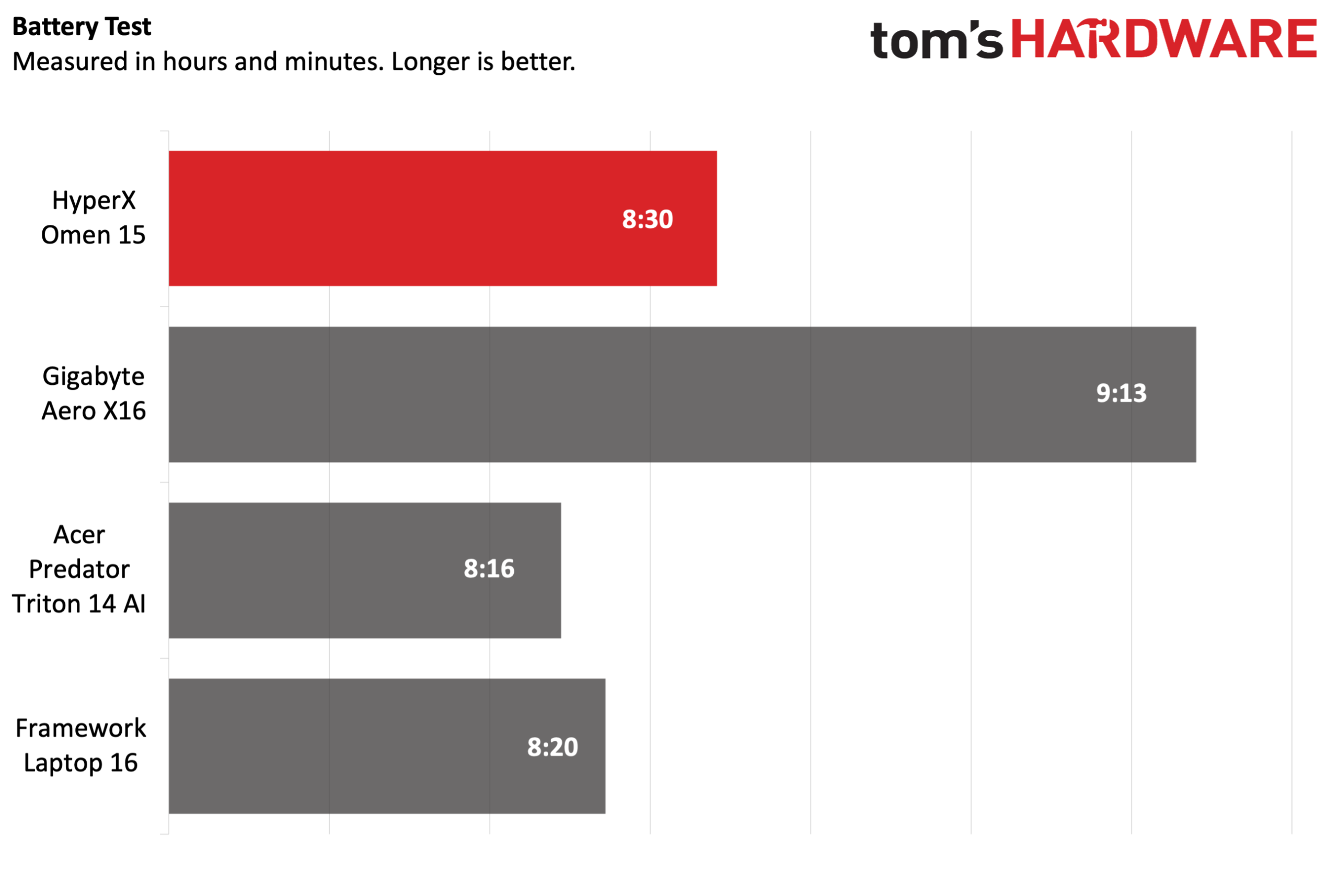
We've actually reviewed the aforementioned 350 version of this laptop, where we praised the Aero's excellent productivity performance, good battery life, and scope for upgradeability. However, it was let down by its display and performance given the price. At the $1,399 discount, however, it becomes a much more enticing prospect. As you can see, it sails past rivals in our battery test, scoring nearly an hour longer usage compared to its next-closest rival.
(Image credit: Tom's Hardware)
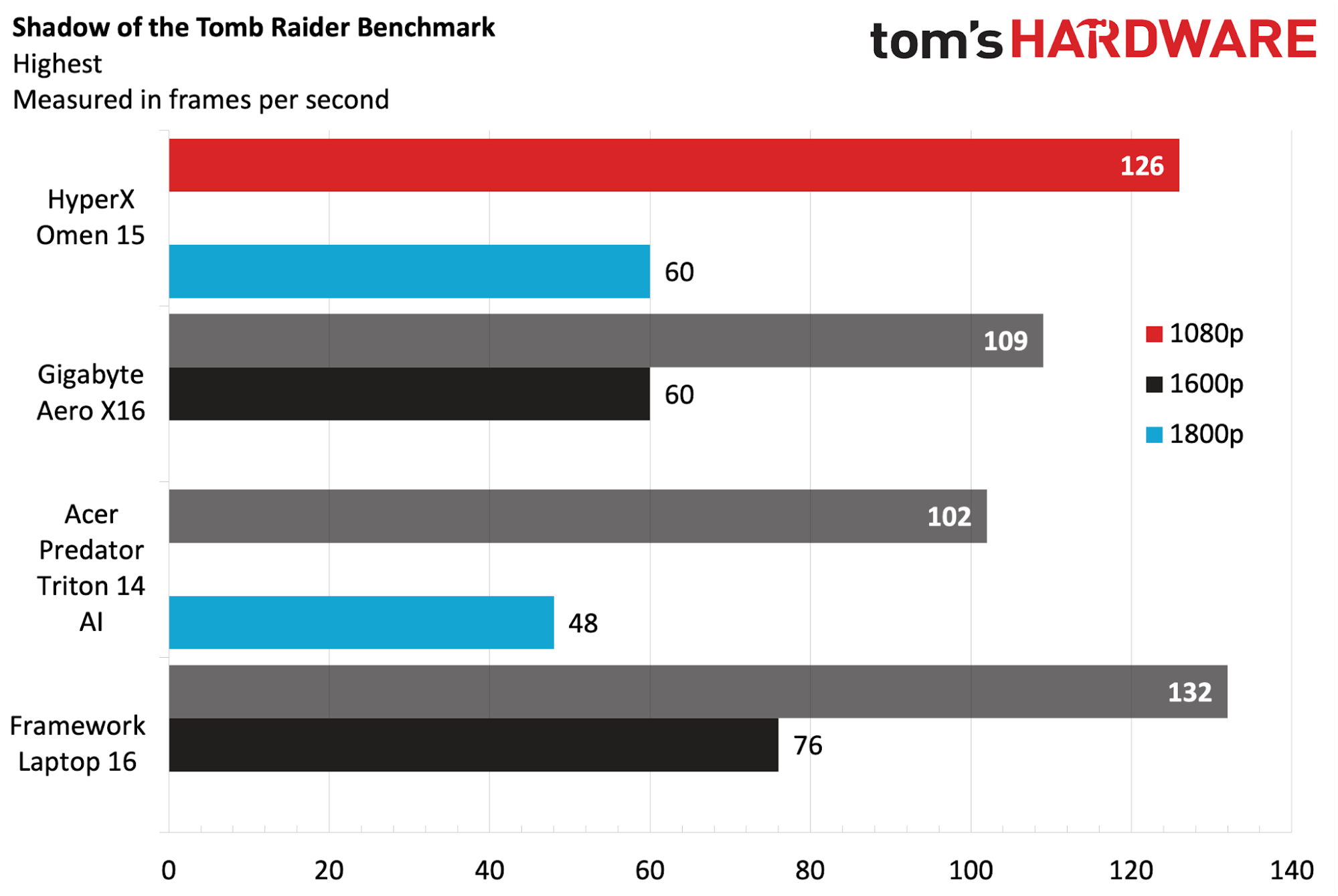
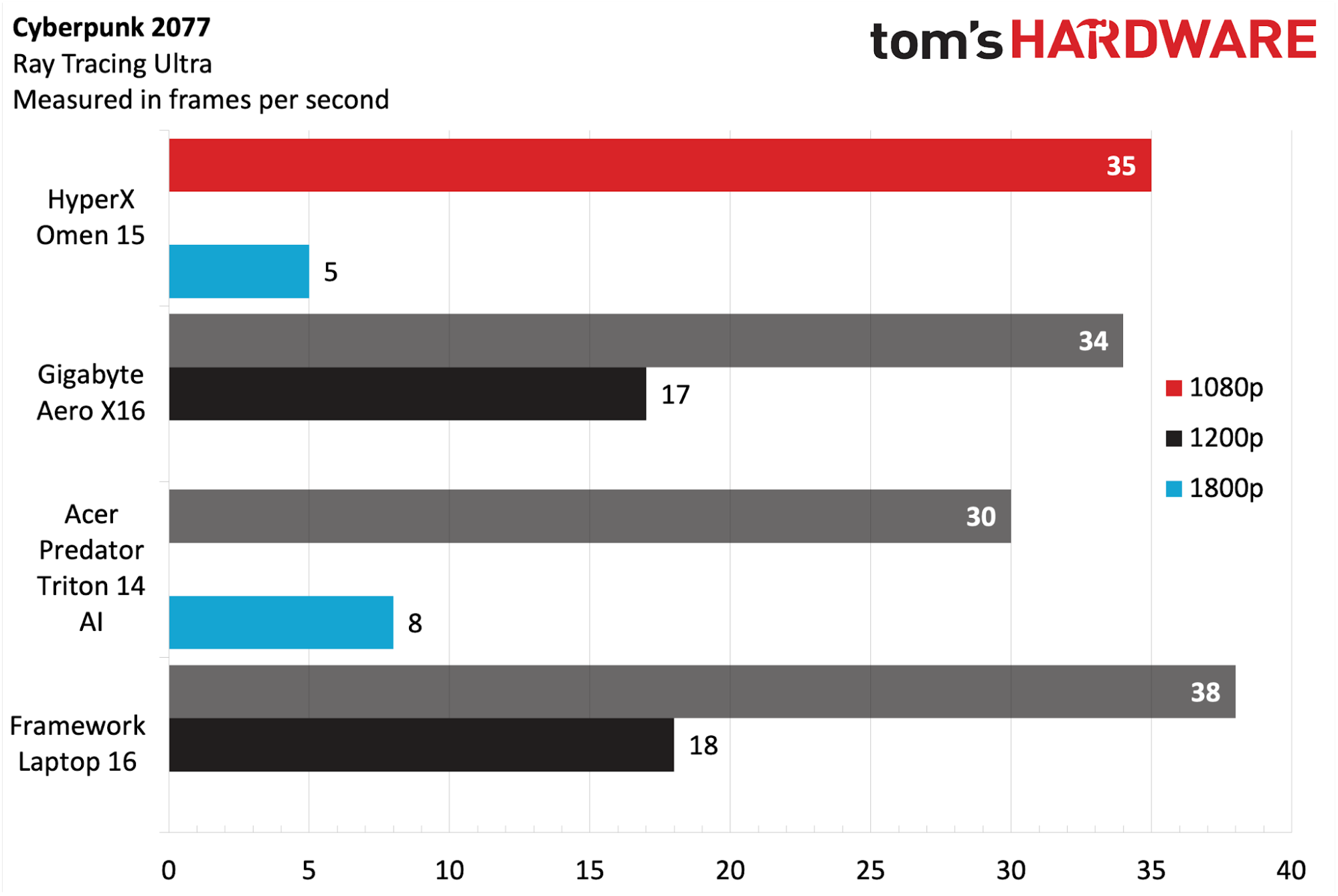
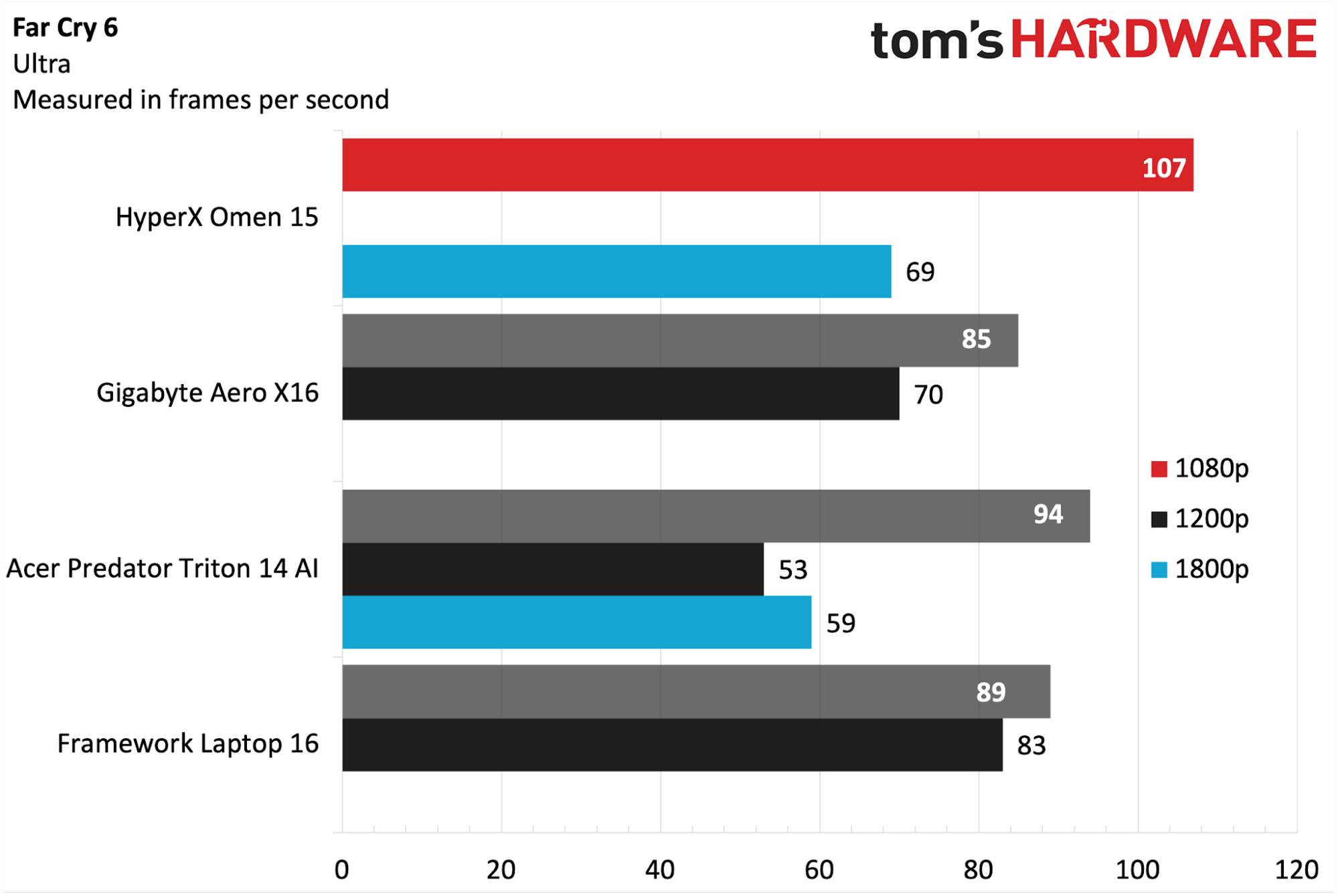
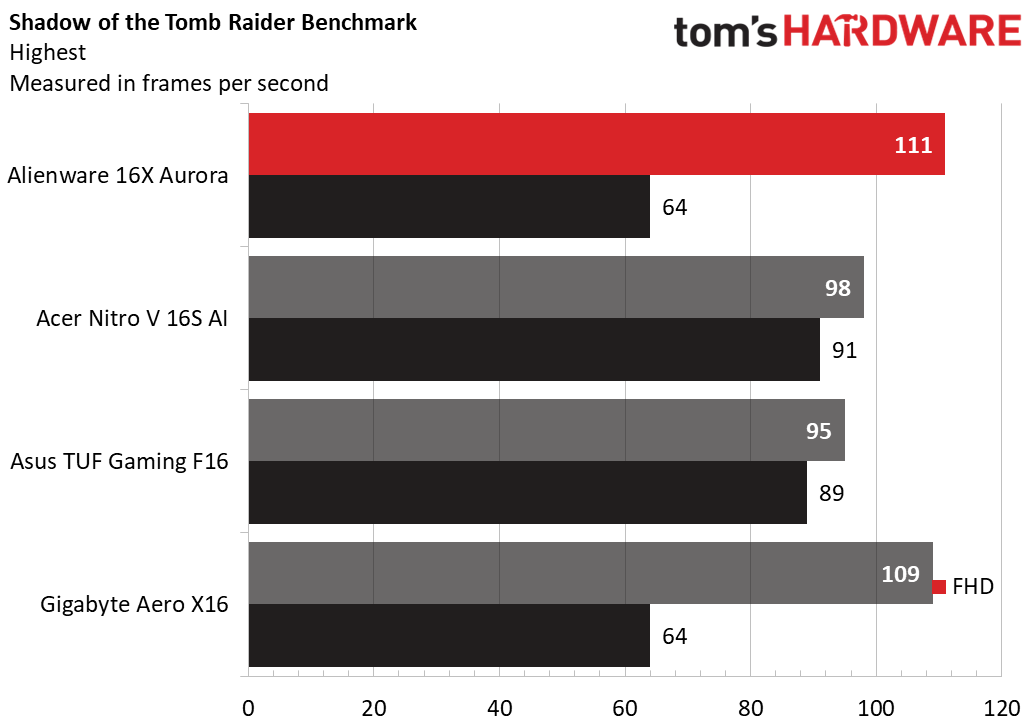
As you can see from our gaming benchmarks, the Aero X16 can easily deliver over 100 fps in Shadow of the Tomb Raider at 1080p, or 64 fps at its native 2560 x 1600. It's not the most potent gaming laptop on the market by any means, but it's one of the best-value options given the sub-$1,400 price point on offer here.
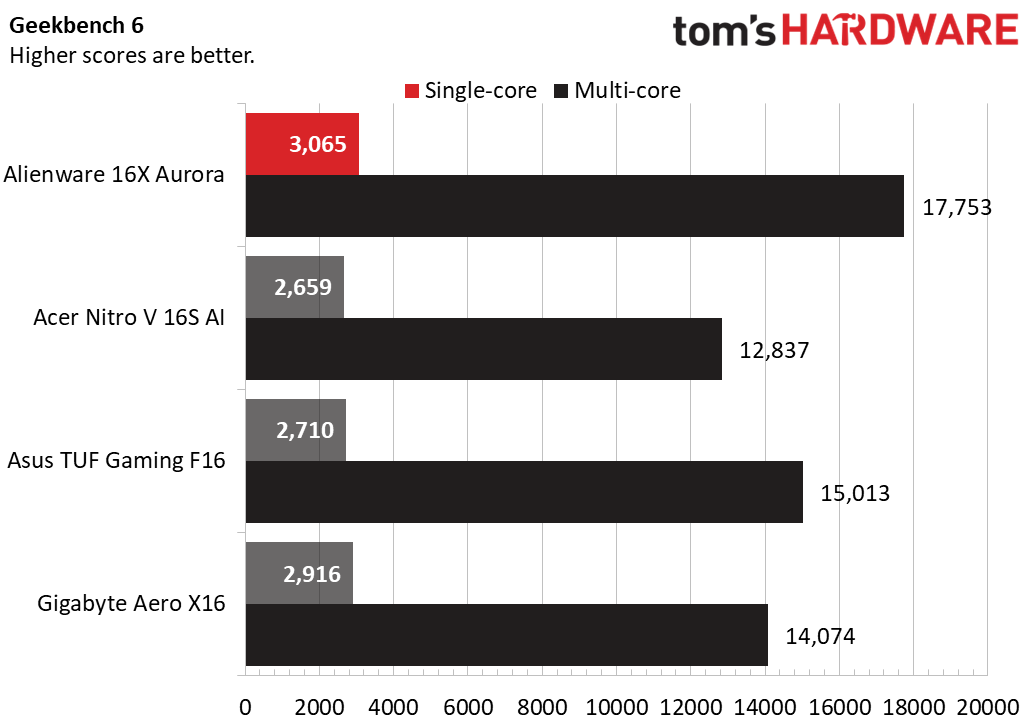
Our productivity testing is based on AMD's Ryzen AI 7 350 processor. This 8-core CPU delivered decent Geekbench 6 scores, so expect the 12-core 370 in this model to offer better performance still and also give gaming a much-needed boost, with 24 threads and boost clocks of up to 5.1 GHz.
The other specs of this laptop, notably the 32GB of RAM and 1TB SSD, are also impressive. 32GB of DDR5 is worth nearly $400 these days, and that'll get you all the multitasking and performance you need for work and play. While this isn't an OLED laptop, the 2560 x 1600 display offers a refresh rate of up to 165Hz.
As the 'Aero' moniker suggests, the X16 is also thin and light. It measures just 0.65 inches in thickness and weighs 4.18 lbs, making it a very portable option. You'll also be pleased to know that the laptop can be upgraded in the future, with two SODIMM memory slots and two M.2 drive slots offering you headroom to add RAM or storage later in life.
There's no denying how good the build quality and construction of Apple's MacBook Pro lineup are. They are what every other high-end laptop manufacturer tries to emulate, which lets Apple charge a very high price for the privilege of owning one. If you're looking for a high-performance laptop for coding, video production, or even some light LLM/AI tasks, then this deal on the 14-inch Apple MacBook Pro with M5 chip for $2,699 is worth a look. B&H Photo has slashed $400 off the $3,099 list price to bring it down to this price, and give you the chance to pick up a powerful laptop with 48GB of memory.
This 14-inch MacBook Pro uses the latest M5 Pro chip, with a 15-core CPU and 16-core GPU with a Neural Accelerator in each core, delivering amazing processing power in a small package. This model sports a hefty 48GB of unified RAM, a 1TB SSD for storage, and a crisp 3024 x 1964-pixel Liquid Retina XDR display (1600 nits peak HDR brightness), with superb battery life (up to 24 hours).
Other features include a 12MP Center Stage camera with Desk View support, an in-house N1 networking chip that combines Wi-Fi 7 and Bluetooth 6, an SDXC Slot, Thunderbolt 5, and a MagSafe 3 connector.
This 14-inch MacBook Pro uses the latest M5 Pro chip with a 15-core CPU and 16-core GPU, 48GB of unified RAM, and a 1TB SSD. A gorgeous 3024 x 1964px Liquid Retina XDR display provides the visuals. View Deal
We had the chance to review the MacBook Pro 14-Inch and found that the M5 chip delivers solid performance gains over its M4 predecessor. The SSD performance has greatly improved, and the rocking speaker system is still a cut above similar laptops from competitors. In our benchmark testing, the MacBook Pro's M5 CPU delivered between a 10 to 20% improvement over the prior generation's M4 chip in CPU performance.
This laptop is not only fantastic for gaming, but the powerhouse Core Ultra 9 290HX is Intel's flagship laptop processor, with a massive 24 cores, including eight performance cores and 16 efficiency cores. That makes it great for all manner of productivity tasks, no matter what you're studying.
Get a 16-inch laptop with a 2K OLED display, Intel Core Ultra 9 290HX, 32GB of RAM, RTX 5070 Ti, and 1TB SSD. View Deal
The HP Omen Max 16 laptop is a model we've reviewed, and we like its general premium feel thanks to its aluminum enclosure, good audio, and decent webcam. The headline here is that Intel Core Ultra 9 290HX CPU. This flagship Arrow Lake Refresh CPU features boost clocks of up to 5.5 GHz. Below is a selection of laptops we've tested running this CPU, and as you can see, it delivers very impressive Geekbench 6 scores.
Tom's HardwareTom's HardwareTom's Hardware
That CPU is backed up by the punchy RTX 5070 Ti GPU. While it doesn't have the coveted 16GB of VRAM of the desktop variant, it does have 12GB, getting you more than the 8GB configurations you'll mind on the lower end of Nvidia's scale. This Blackwell GPU has 5,888 CUDA cores and should provide ample power at the laptop's native resolution of 2560 x 1600 at 240 Hz. That display is also really notable because it's an OLED panel, rather than IPS, offering much better contrast and response times for gaming and watching content.
Alongside the potent CPU and GPU combo, you get 32GB of DDR5 RAM and a 1TB SSD. The former is crucial for multitasking and gaming, while the latter should be fine to get you started with a few Steam games and your studies.
As always with the Omen Max, you get two USB-A ports, two Thunderbolt 4 with USB-C, a 3.5mm headphone jack, an Ethernet port, and HDMI 2.1.
If you'd like to compromise a little, you could get a 5080 version of this laptop for a little more. Priced at $2,949 ($1,070 off), this model comes with a slightly less potent Core Ultra 9 275HX (still 24 cores), a 2TB SSD, and the aforementioned 5080. That gives you more storage and a better GPU for $150 more.
AMD's latest CPU release is out in the wild and currently has exclusivity with Newegg. So if you want to get your hands on one, it's going to be from the Egg for now, at least. The AMD Ryzen 7 7700X3D was only recently announced at Computex 2026, slotting in between the 7600X3D and the 7800X3D in the product stack. But with a suggested retail price of $329, it's turning out not to be a great value for money compared with the prices of the existing 7600X3D and 7800X3D processors, that is, until the 7700X3D started appearing in Newegg's combo bundles. Today, you can pick up the AMD Ryzen 7 7700X3D along with the ASRock B650M Pro RS WiFi Micro ATX motherboard and 16GB of G.SKILL Flare X5 DDR5-6000 RAM for just $450 in this Newegg combo bundle.
The 7700X3D has slightly lower boost clocks than its big brother, the 7800X3D, but it gives you the same eight Zen 4 cores and 104 MB of combined L2 and L3 cache. In this bundle, it works out as a much cheaper 7800X3D alternative, with only a slight drop in overall performance. When paired with the Micro ATX motherboard, this is a great start for a budget-oriented small-form-factor gaming PC.
You're saving a tidy $202.99 (31%) on the price of this combo bundle, thanks firstly to the $153.99 combo discount and then a further $49 when you use promo code PKC337 at checkout.
Pick up a brand-new Newegg combo bundle that features the AMD Ryzen 7 7700X3D CPU with eight Zen 4 cores and 104 MB of combined L2 and L3 cache, plus ASRock's B650M Pro RS WiFi Micro ATX motherboard and 16GB of G.SKILL Flare X5 DDR5-6000 RAM.View Deal
You can also pick up the new AMD Ryzen 7 7700X3D separately for just $279.99, as Newegg has slapped the same $49 discount on the individual CPU. Use promo code PKC337 at checkout to apply the discount.
The AMD Ryzen 7 7700X3D CPU sports eight Zen 4 cores and 104 MB of combined L2 and L3 cache with a 120W TDP on the AM5 platform.View Deal
In our review of the AMD Ryzen 7 7700X3D, we found the CPU to fit between the 7800X3D and 7600X3D, as expected. The 7700X3D shaves 200 MHz off the base clock and 500 MHz off the boost clock, but surprisingly performs closer to the 7600X3D, with only a 2% difference in average performance.
(Image credit: Tom's Hardware)
Just $450 for an AM5 7700X3D PC bundle that includes a competent gaming CPU, motherboard, and memory is good enough value, and the Micro ATX board means you could construct a small form factor build, or your own Steam Machine-type setup with superior parts. The big downside to this bundle is the single stick of RAM. It will, of course, still work, but you do take a slight performance hit from not using dual channels. However, you can always upgrade with an extra 16GB stick in future.
As you can imagine, the focus here is on the RTX 5080, a 16GB VRAM beast, which even in its mobile format will chew through any title at the 2,560 x 1,600 resolution the display offers. However, the rest of the specs are also noteworthy, including the 12-core AMD Ryzen 9 HX 375, 32GB of DDR5, and the 1TB SSD.
Get an HP Omen Max laptop with an RTX 5080 GPU, Ryzen 9 HX 375, a 1TB SSD, and 32GB of RAM, all packed into a 16-inch chassis with a 2560 x 1600 240Hz display. View Deal
We haven't reviewed this exact spec of laptop, but we have tested the more potent RTX 5090 version of this model. As you can read in our HP Omen Max 16 laptop review, it's a little on the heavy side (5.99 lbs), but that's a trade-off for the premium look and feel of the aluminum enclosure. We also liked the excellent audio and sharp webcam.
Our testing data from other laptops shows the Ryzen AI 9 HX 375 chip easily bests Snapgradon's X Elite and Intel's Core 7 Ultra 258V in Geekbench 6 scores. With a 5.1 GHz max boost clock, 24MB L3 cache, and 12 cores, this is a solid processor.
As mentioned, the headline feature is the RTX 5080. With 16GB of VRAM and 7680 CUDA Cores, it will easily run any game at 1080p or the laptop's native resolution of 2,560 x 1,600. That display is a 16-inch WQXGA IPS panel (so no OLED, sadly), with a 3ms response time and 500 nits of brightness.
You also get the coveted 32GB of DDR5 5600 RAM, as well as a 1TB Gen 4 M.2 SSD, plenty of storage for your Steam library. Other features include Bluetooth 5.4 and Wi-FI 7, as well as battery fast charge, which gets you around 50% charge in just 30 minutes.
In terms of connectivity, the Omen Max features two USB-A ports, HDMI 2.1, a 3.5mm headphone jack, and two USB-C ports. There are also a further two M.2 SSD expansion slots, so you can open it up and increase your storage with a bit of DIY tinkering in future.
To put the value of this deal into perspective, HP is also currently selling an Intel Core Ultra 7 270HX Plus version of this laptop. Although the processor is a little better, you only get a 5070 Ti with 12GB of VRAM, 16GB of RAM, and a 512GB SSD, for $1,999. So for the extra $199, you're getting double the storage, double the RAM, and a 5080 instead of the 5070 Ti, which is a sizeable GPU performance jump.
Fancy a gaming laptop that's a little different? Something that can be used to play games, run small local LLMs, and even transform into a tablet for on-the-go use, then check out this hefty $900 saving on the Asus RoG Flow Z13 from Best Buy, now only $2099.99. The original $2,999.99 price tag is a lot to ask for, even with this laptop's exceptional amount of speedy RAM, but at the reduced price, it's a very attractive proposition.
The Asus RoG Flow Z13 sports a 13.4-inch display with a 16:10 WQXGA 180Hz IPS ROG Nebula display and Gorilla Glass protection, with a 2560 x 1600 pixel resolution. The display is also touchscreen-enabled, and one of the quirks of this particular gaming laptop is that it can switch from an ordinary laptop setup to a tablet orientation with a built-in kickstand.
The hardware inside consists of AMD's 16-core Ryzen AI Max+ 395 processor with integrated Radeon 8060S graphics, a hefty 64GB of 8000 MT/s LPDDR5X unified memory, and a 1TB SSD for storage. You will be able to happily game on high settings at 1080p, but may need to make some compromises at 1440p to keep the frame rate high.
An AMDRyzen AI Max+ 395 gaming laptop with a 16-core processor and integrated Radeon 8060S graphics, plus a hefty 64GB of 8000MT/s LPDDR5X unified memory. There's also a 1TB SSD for storage and the 2 in ability to transform from a laptop to a touchscreen tablet. View Deal
The chassis of the Asus RoG Flow Z13 is constructed from a CNC'd aluminum block for a solid structure, with a lightweight stainless steel vapor chamber that efficiently dissipates heat while adding extra strength to the laptop. Liquid metal thermal material is used to keep the CPU cool under load and helps to keep the noise levels of the laptop to a minimum while playing the most demanding games or using AI applications and software.
Perfect for taking on the go, this convertible 2-in-1 Asus RoG Flow Z13 laptop is a good deal at $2099.99, especially considering the extortionate price of RAM in the current climate. 64GB is considered large for a laptop, although there is a 128GB version of this laptop; the price is a lot higher, and not good value for money.
The Razer Blade 16 has long been leading contender among the best gaming laptops, thanks in part to its careful component selection and strong style. In this case, our review unit comes equipped with an Intel Core Ultra 9 386H processor and a flagship RTX 5090 GPU.
While the chassis remains the same as the Razer Blade 16 that we tested a little over a year ago, the 25W processor in our new review unit enabled some impressive runtimes that eclipse the competition. You’ll have to pay a considerable sum for the luxury, but the Blade 16 makes as strong a case as a compelling premium gaming laptop.
Design of the Razer Blade 16
We were impressed with the design of last year's Blade 16, and luckily, Razer hasn’t altered the formula for this year’s model. You get the same matte-black chassis that measures just 0.69 inches at its thickest point (0.59 inches towards the front). Build quality remains excellent in true Razer fashion.
The overall design is minimalist, with a minimal amount of RGBs and no obvious ventilation slats along the sides for heat management. Instead, the clean design would look at home sitting on your desk while you're gaming with an Xbox controller, or sitting on your desk in a cubicle at work. The only bit of flash that you’ll find is the RGB Razer logo on the lid.
You’ll find thin bezels around the glossy 16-inch OLED display, below which you’ll find the full-size keyboard and a large trackpad. There’s also a small status LED at the front right of the chassis (just below the Intel Core Ultra sticker on the deck). It pulses white when the laptop is in standby mode.
There’s a healthy assortment of ports on the laptop, including three legacy USB 3.3 Gen 2 Type-A ports. There’s also one Thunderbolt 4 port, one Thunderbolt 5, an SD card reader (UHS-II), a full-size HDMI 2.1 port, and a 3.5 mm combo audio jack. There’s also a proprietary power port.
The Blade 16 measures 13.98 x 9.86 x 0.69 inches and weighs 4.71 pounds. For comparison, the MSI Raider 16 HX also packs an RTX 5090, but measures 14.29 x 10.62 x 1.14 inches and weighs over a pound more (5.73 pounds). The Alienware 16 Area-51 is heavier still at 7.49 pounds, with dimensions of 14.37 x 11.41 x 1.12 inches.
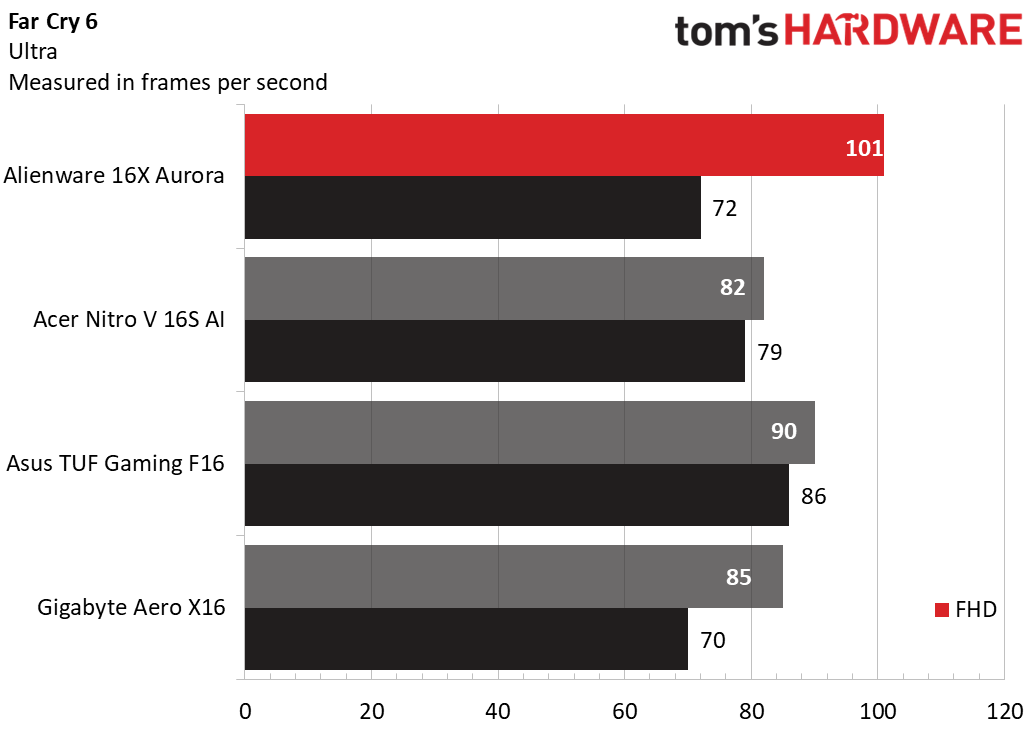
Razer Blade 16 Specifications
CPU
Intel Core Ultra 9 386H
Graphics
Nvidia GeForce RTX 5090 (24GB GDDR7, 1,597 MHz Boost Clock, 175 W Max TGP)
Memory
32GB LPDDR5X-9600 (2x 16GB)
Storage
2TB PCIe 4.0 NVMe M.2 SSD
Display
16-inch, 2560x1600, 240 Hz, 16:10
Networking
Wi-Fi 7, Bluetooth 6.0
Ports
1x Thunderbolt 5, 1x Thunderbolt 4, 3x USB 3.2 Type-A Gen 2, 1x HDMI 2.1, 3.5 mm headphone jack, SD reader (UHS-II)
Camera
1080p IR webcam
Battery
90 Whr
Power Adapter
280 W
Operating System
Windows 11 Home
Dimensions (WxDxH)
13.98 x 9.86 x 0.69 inches
Weight
4.71 pounds
Price (as configured)
$4,899.99
Gaming and Graphics on the Razer Blade 16
Our Blade 16 review unit is equipped with a Core Ultra 9 386H processor, which has 16 total cores (4 performance, 8 efficient) and a maximum performance turbo frequency of 4.9 GHz for the performance cores. There’s also 32GB of LPDDR5x memory and a GeForce RTX 5090 GPU (1,597 MHz boost clock, 175W max TGP).
This combo generally performed well across our gaming benchmark suite, with a few exceptions. While playing Battlefield 6 at native resolution in Overkill detail mode, with DLSS Quality and Frame Generation enabled, I was comfortably getting between 110 and 120 FPS, even with a lot of action happening on the screen.
For this review, the competitive set consists of last year's Blade 16 (Ryzen AI 9 HX 370 at 28W, RTX 5090 at 160W TGP), MSI Raider 16 Max HX (Core Ultra 9 290HX Plus at 55W, RTX 5090 at 175W TGP), and the Alienware 16 Area-51 (Core Ultra 9 290HX Plus at 55W, RTX 5080 at 175W TGP).
As usual, we start our gaming benchmarks with the Shadow of the Tomb Raider (Highest setting) benchmark, where the Blade 16 delivered 182 FPS at 1080p. Performance at 1600p scaled down to 133 FPS. The 2025 edition of the Blade 16 was 16 FPS behind at 1080, but at the resolution that most would play at, 1600p, the older model was nearly 30 FPS faster (162 FPS versus 133 FPS).
Cyberpunk 2077 (Ray Tracing Ultra settings), the laptops were pretty evenly matched, with most running between 65 and 70 FPS at 1080p and at around 40 FPS at 1600p. For the Razer Blade 16 specifically, it achieved 65 FPS at 1080p and 42 FPS at 1600p.
Far Cry 6 (Ultra settings) saw the Blade 16 running in third place ahead of its predecessor (106 FPS at 1080p, 108 FPS at 1600p). The Alienware 16 Area-51 and Raider 16 Max HX were a few FPS ahead at each resolution, but it was still a relatively close fight among the top three.
Red Dead Redemption 2 (Medium settings) proved challenging for the Blade 16, as it lagged behind with 94 FPS at 1080p and just 71 FPS at 1600p. For comparison, last year's model eclipsed those numbers at 121 FPS and 94 FPS, respectively. The 25W CPU simply couldn’t keep up with the 28W Ryzen and 55W Intel HX chips
However, the Blade 16 was back to its fighting form in the Borderlands 3 (Badass settings) benchmark, easily slipping into second place behind the Raider 16 Max HX with 175 FPS at 1080p and 126 FPS at 1600p.
Metro Exodus is still our preferred benchmark for gaming laptop stress testing. Our review unit averaged 133.39 FPS at 1080p across 15 loops using the RTX benchmark preset. The CPU performance cores averaged 3.96 GHz, and the efficiency cores averaged 3.5 GHz. The RTX 5090 GPU also ran at 1.95 GHz.
One item of note is that the two system fans are incredibly loud while gaming, which may force you to use a pair of the best gaming headsets to block out the added noise.
Productivity Performance on the Razer Blade 16
The Razer Blade 16 uses a 16-core Intel Core Ultra 9 386H processor, 32GB of memory, and a 2TB PCIe 4.0 SSD. With some of the competition sporting upwards of 8 additional cores, the Blade 16 didn’t really break through in the multi-threaded benchmarks.
The synthetic CPU benchmark Geekbench saw the Blade 16 lag slightly behind its predecessor in single-core (2,895 versus 2,922), but pull ahead in multi-core performance (16,971 versus 16,025). However, neither Blade system was a match for the Core Ultra 9 290HX Plus processors in the Alienware 16 Area-51 and Raider 16 Max HX; the latter of which pulled numbers of 3,231 and 20,656, respectively.
Tom's HardwareTom's HardwareTom's Hardware
In our 25GB file transfer test, the Blade 16 took second place by the slightest of margins, hitting 1,735.09 MBps. However, this result was still 1,000 MBps behind the first-place Alienware 16 Area-51.
The multi-threaded performance shortfall crept up again in our Handbrake test, where we transcode a 4K video file to 1080p. The Blade 16 pulled up the rear in this group, even falling behind the Blade 16 with the Ryzen AI 9 HX 370. It took 3 minutes and 17 seconds to complete the task compared to just 1 minute and 51 seconds for the Raider 16 Max HX.
Display on the Razer Blade 16
As Tom's Hardware's resident monitor editor, I’m absolutely smitten with OLED panels. Thankfully, the OLED display on the Blade 16 doesn’t disappoint: it’s a 16-inch panel with a 2560 x 1600 resolution and a native refresh rate of 240 Hz.
We found that color volume was 90 percent for DCI-P3 and 127 percent for sRGB. Brightness levels were also fairly impressive, earning second place behind the Raider 16 Max HX at 408.2 nits.
(Image credit: Tom's Hardware)
Although the instrumented tests show some regression compared to last year’s Blade 16 in the sRGB and DCI-P3 color spaces, the display looks amazing in a vacuum. The gritty visuals while playing Battlefield 6 in Overkill mode were a delight to my eyes, with sunlight glinting through windows and concussive bomb blasts kicking up debris all around me.
Keyboard and Touchpad on the Razer Blade 16
The keyboard on the Blade 16 uses scissor switches with 1.5 mm of travel. The key presses are slightly clicky, and my fingers had no trouble getting used to typing on the keys.
I used my standard keyhero.com typing test and scored 89 words per minute with 97 percent accuracy, which is about par for the course for me.
(Image credit: Tom's Hardware)
The touchpad is absolutely massive, measuring 5.9 inches wide and 3.8 inches tall. It’s one of the largest trackpads you’ll find outside of Apple’s 16-inch MacBook Pros. What isn’t Apple-like is the insistence on using a mechanical linkage for trackpad actuation instead of the steadier, more consistent presses made possible by a haptic touchpad. For a laptop with a sticker price of nearly $5,000, I don’t think it’s too much to ask for some haptics here.
However, if you’re using this laptop primarily for gaming, you’ll likely be using one of the best gaming mice for your competitive sessions.
Audio on the Razer Blade 16
The six-speaker audio system on the Blade 16 is THX-optimized, and the audio quality is good, if not quite price-appropriate. While playing Battlefield 6, in-game dialog, explosions, gunfire, and vehicle noise generally sounded good, but the effects were competing with the turbine whine of the dual system fans. Cranking the volume to near-max levels helped drown out the fan noise, but at that point, I was experiencing a bit of aural overload, so I opted to put on a pair of headphones.
When the CPU and GPU weren’t heavily taxed, I was able to better enjoy the speakers, such as by playing Dave Matthews Band’s album Before These Crowded Streets for the 300th time. I cruised through the album with the volume set to a comfortable 50%, savoring the acoustic and bass guitars on “Dreaming Tree,” which always results in a relaxing frisson for me.
Similarly, I watched the Mel Gibson-helmed The Patriot to get into the mood for the Fourth of July, and reveled in the heavy dialogue, flintlock musket blasts, and cannon bursts.
You can make adjustments to the audio using the Razer Synapse software,
Upgradeability of the Razer Blade 16
Accessing the interior of the Blade 16 involves removing 10 Torx screws. Once all screws are removed, the bottom panel lifts off with minimal force. You’ll find the large 90 WHr battery at the bottom front of the chassis, and above are two M.2 slots that accept full-length 2280 SSDs.
Tom's HardwareTom's HardwareTom's Hardware
The right slot was populated with a 2TB Lexar NM790 PCIe 4.0 SSD, while the left slot was empty, allowing for future upgrades. Also accessible is the PCIe Wi-Fi 7 network adapter (Intel BE213).
Battery Life on the Razer Blade 16
One thing to keep in mind is that the Blade 16 maintained competitive gaming performance among its peers, while its multi-threaded performance took a back seat. However, those compromises were fully redeemed in terms of battery life.
(Image credit: Tom's Hardware)
The Blade 16 uses a 90 WHr battery, which delivered shockingly long endurance (for a gaming laptop) in our battery test, consisting of web browsing, video streaming over Wi-Fi, and OpenGL testing with the screen brightness set at 150 nits. The system lasted a staggering 12:46, besting the Ryzen AI 9 HX 370-equipped Blade 16 by over 5 hours and the Alienware 16 Area-51 by over 9 hours. Even the Raider 16 Max HX was no match, falling short by over 4 hours.
That is a fantastic result for such a thin and light 16-inch gaming laptop, and it is a testament to the miserly energy consumption of the Panther Lake processor.
Heat on the Razer Blade 16
While running the Metro Exodus stress test, we measured the temperature of Blade 16's aluminum-alloy chassis in various spots. The keyboard measured 102 degrees Fahrenheit (F) between the G and H keys, while the touchpad was 92 F.
Tom's HardwareTom's Hardware
The hottest part of the laptop was near the rear center of the bottom of the chassis, where we measured 130 F. So it’s best to keep the laptop firmly planted on your desk while gaming, lest you roast your legs.
During the Metro Exodus stress test, the CPU measured 75.3 degrees Celsius (C). Meanwhile, the RTX 5090 came in at 87 C.
Webcam on the Razer Blade 16
Razer continues to use a run-of-the-mill 1080p webcam with an IR sensor for Windows Hello support. It’s by no means a class-leading webcam, but it’s perfectly usable for Zoom or Teams meetings.
I found the colors to be mostly adequate, but there was a little lightness in the detail in my facial features.
Software and Warranty on the Razer Blade 16
One of my favorite things about Razer laptops is that they aren’t loaded down with too much added software. On our Blade 16 review unit, Razer Chroma and Synapse were preloaded.
Synapse is an all-in-one utility that lets you adjust performance profiles, keyboard macros, audio presets, and more. Chroma, on the other hand, gives you full control over system RGBs, including the per-key keyboard effects.
Otherwise, you’ll find requisite utilities, like the Nvidia app and the usual Windows app shortcuts (we’re looking at you, LinkedIn) on the Start menu.
The Blade 16 comes backed by a one-year warranty for the system itself and a two-year warranty for the 90 WHr battery.
Razer Blade 16 Configurations
Our Blade 16 review unit came configured with a Core Ultra 9 386H processor, 32GB of LPDDR5X memory, a 2TB SSD, RTX 5090 laptop GPU, and a 16-inch, 240 Hz. 1600p display. The price as-configured is a whopping $4,899.99.
There are cheaper configurations available — if you retain the Core Ultra 9 386H and opt for an RTX 5070 Ti, 1TB SSD, and 32GB of memory, the price drops to $3,499.99. Going with RTX 5080 bumps (all other hardware staying the same) takes the price to $3,999.99.
Bottom Line
Overall, the Razer Blade 16 was a strong performer in our gaming benchmarks, which is the primary reason why most people would be willing to spend nearly $5,000 for this system. More importantly, the Panther Lake-based system delivered nearly 13 hours of non-gaming battery life, outrunning its closest competitor by over 4 hours. Combine those results with the beautiful display, attractive chassis, and under-the-radar design, and you have a winning combination.
(Image credit: Tom's Hardware)
However, there are some detractions; the lack of a haptic trackpad at this price point is annoying, and multi-threaded performance significantly lagged the competition. Also, the $4,900 asking price is high, although not completely out of line for a system with these specs. You can save roughly $900 by going with an RTX 5080 instead of the RTX 5090 that was in our system.
But if price isn’t an issue for you, it’s hard to argue with this compelling combination of gaming performance and battery life.
Lenovo has just updated its current-gen Legion 7a 16-inch gaming laptop with a new GPU config: the 12GB version of the RTX 5070 mobile. Previously, the laptop 5070 was limited to just 8GB of VRAM, but Nvidia recently overhauled it, splitting the 5070 SKU into two distinct variants. Lenovo is one of the first vendors to feature the 12GB 5070 in a retail device, but it doesn't come cheap — this new Legion 7a is listed for a whopping $3,375 on Best Buy right now.
(Image credit: Future)
For that money, you're getting a flagship Ryzen AI 9 HX 470 CPU, 32GB of LPDDR5X-8000 memory, and a 1TB PCIe 4.0 SSD. Not to mention a gorgeous 2560 x 1600 OLED display with a 240 Hz refresh rate, solid build quality, and a plethora of cutting-edge I/O. This laptop is also the perfect recipient for the upgrade since its GPU topped out at a measly RTX 5060 before, making it less powerful than the last-gen Legion 7a devices.
Now, that RTX 5060 variant was almost $600 cheaper than this new 5070-equipped model, but it's actually expanded to a $1,000 delta right now because the 5060 SKU is on sale at the moment. When Nvidia first announced RTX 50-series laptops, it said RTX 5070 devices would start at $1,299; even if you consider the upgraded VRAM, you're paying just about double of what was initially promised to you.
In all seriousness, the Legion 7a is a premium gaming laptop with all the bells and whistles so it naturally commands a higher price, AI boom or not. The RTX 5070 in here is also rated at a 115W TGP instead of the 100W baseline Nvidia has set for the GPU. Regardless, you can still find cheaper laptops kitted with the new 12GB RTX 5070, such as Lenovo's own Legion 7i with a Core Ultra 9 290HX Plus processor.
The extra 4GB of VRAM in these devices, gained by swapping from 2GB GDDR7 modules to 3GB ones, should help improve performance in modern titles and AI workloads, especially where ray tracing is involved. Customers have already complained about Nvidia's insistence on packing 8GB video memory pools with various GPUs for years, and at this point, if you're buying a new GPU (or laptop) with that spec, you're killing any chances of future-proofing.
Asus’ ROG Strix Scar 18 (starting at $4,299.99) is an example of abundance in the world of gaming laptops, built around an 18-inch display and the latest flagship silicon: a Core Ultra 9 290HX Plus with Nvidia’s GeForce RTX 5090 in our test unit. This machine makes a loud first impression, from its stellar (albeit tricky to configure) mini-LED display to the unique scrolling marquee lighting on its lid. But at this price - $4,999.99 as tested – the Scar 18 must prove it can hold the line against Razer’s Blade 18 before it can claim a spot at the top.
Design of the Asus ROG Strix Scar 18 (2026)
At 15.71 x 11.73 x 1.38 inches, the Scar 18 has the footprint of a cafeteria tray – this isn’t a laptop you’ll be getting out on a plane. And at 8.16 pounds, this is also one of the heaviest laptops on the market. But performance is the goal here, not portability. Razer’s Blade 18 (15.74 x 10.84 x 1.1 inches) is thinner and significantly lighter, at 7.06 pounds.
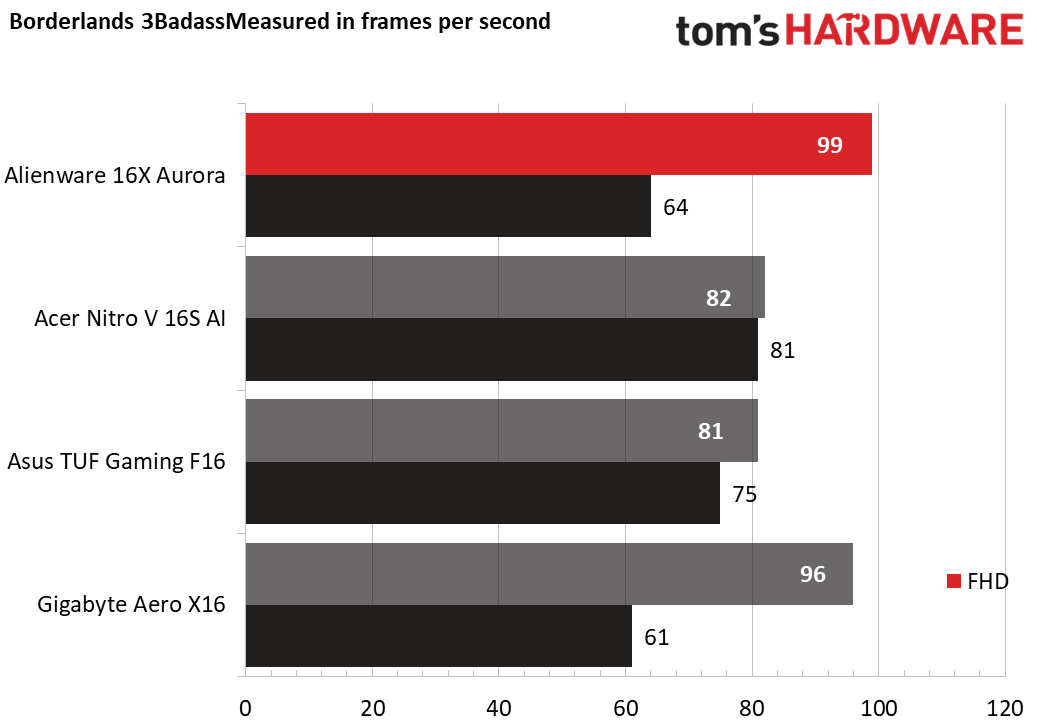
Tom's HardwareTom's Hardware
The vibrant Aura Sync lightbar around the base of the laptop also demands attention, as does the RGB-lit Republic of Gamers logo on the lid. Both are configurable with customizable lighting and patterns in the Armoury Crate app.
The lid also has a special feature called AniMe vision, a diagonally scrolling marquee of text via LEDs shining through holes in the lid backing. (This is extremely similar to the AniMe Matrix that debuted on the Zephyrus line years ago.) There are several preconfigured versions of the Republic of Gamers logo, and you can add your own text effects. Layered effects are possible and don’t always produce the desired effect — I had a “raining” effect enabled at the same time as my text, and the text was almost impossible to make out.
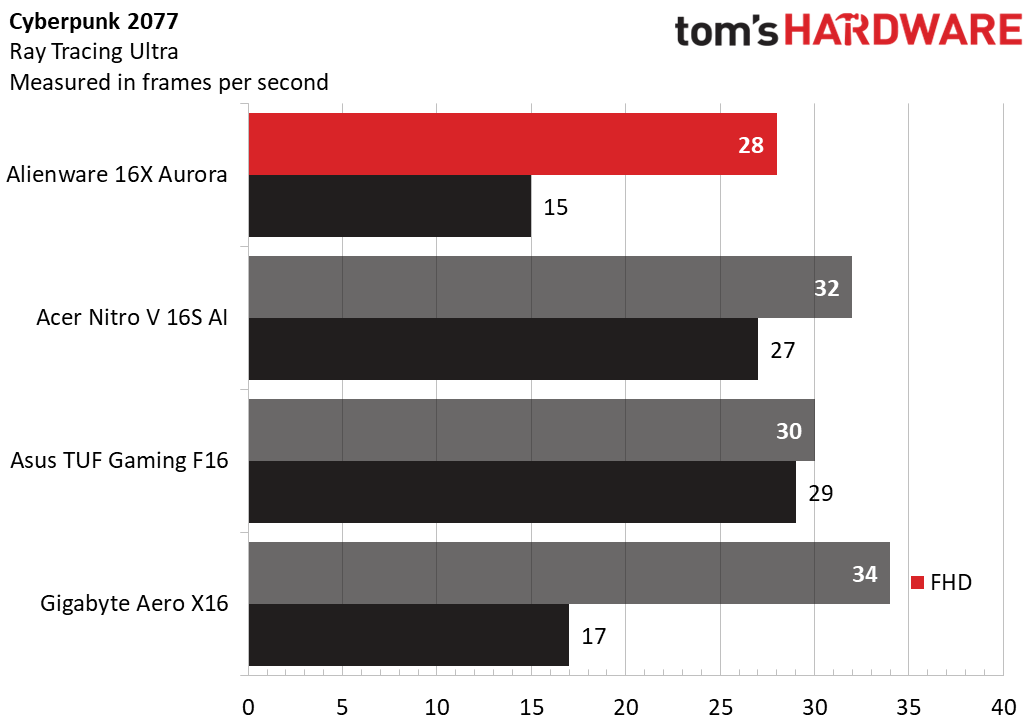
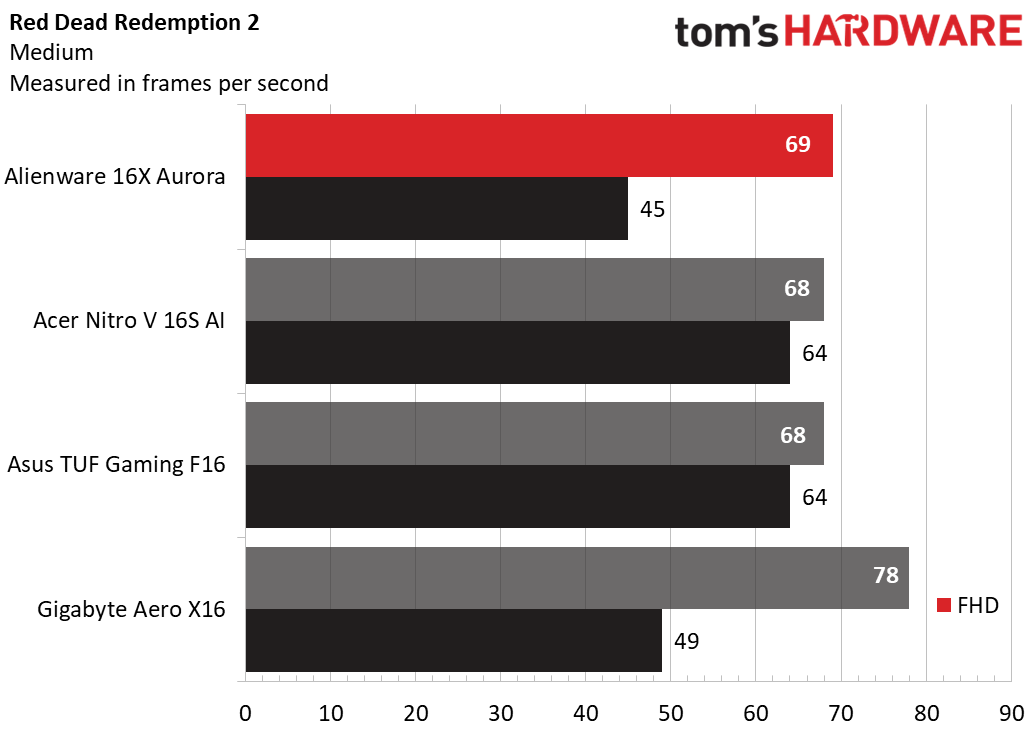
The bottom line is that the Scar 18 couldn’t do anything more to look like a gaming laptop – it is designed to be seen. Build-wise, it’s a solid machine, showing minimal flex no matter how I handled it. Only the lid is metal, with the rest of the construction thick plastic.
Connectivity is thoroughly modern: two Thunderbolt 5 (USB-C) and three USB-A 3.2 Gen 2 ports, HDMI 2.1, an audio combo jack, and 2.5 Gbps Ethernet. Internally, it offers Wi-Fi 7 and Bluetooth 5.4 from an Intel BE200 networking card. The power connector is proprietary for the 450 W power brick.
Tom's HardwareTom's Hardware
Specifications
CPU
Intel Core Ultra 9 290HX Plus
Graphics
Nvidia GeForce RTX 5090 (24GB GDDR7, 1,597 MHz boost clock, 175 W maximum graphics power)
Memory
32GB DDR5-6400 (1x 32GB)
Storage
1TB PCIe 4.0 SSD (HFS001TEJ9X101N)
Display
18-inch, 3840 x 2400, 16:10, Mini-LED, G-Sync, 240 Hz, anti-glare
Networking
Intel Wi-Fi 7 BE200, Bluetooth 5.4
Ports
2x Thunderbolt 5, 3x USB 3.2 Gen 2 Type-A, HDMI 2.1, 3.5 mm combo audio jack, 2.5 Gbps Ethernet
Camera
FHD IR
Battery
90 WHr
Power Adapter
450 W (proprietary connector)
Operating System
Windows 11 Home
Dimensions (WxDxH)
15.71 x 11.73 x 1.38 inches (39.9 x 29.8 x 3.5 cm)
Weight
8.16 pounds (3.7 kg)
Price (as configured)
$4,999.99
Gaming and Graphics on the Asus ROG Strix Scar 18 (2026)
We tested the ROG Strix Scar 18 in flagship form, featuring a Core Ultra 9 290HX Plus processor, RTX 5090 graphics card (175 W maximum graphics power), and 32GB of RAM. This is top-of-the-line gaming technology, though with one misstep: single-channel RAM. This might affect its performance as we’re about to see. The Task Manager confirms that only one SO-DIMM slot was used.
(Image credit: Tom's Hardware)
I put the Scar 18 through its paces playing 007: First Light at 3840 x 2400 with all detail settings maxed out. At first, this proved too demanding – I saw 26 to 32 frames per second (FPS) in most scenes. Enabling DLSS more than doubled the frame rate – I saw around 70 FPS or better, and the game was supremely playable.
Our comparison lineup includes Alienware’s 16 Area-51 (RTX 5080), MSI’s Raider 16 Max HX (RTX 5090), and Razer’s Blade 18 (RTX 5090). All laptops use a Core Ultra 9 290HX Plus and have GPUs rated for 175 W like our Asus. Their native screen resolutions, however, are different: Alienware and MSI are 2560 x 1600 while Razer has a unique dual-model display supporting both 1920 x 1200 and 3840 x 2400.
The Scar 18 was competitive across the board at 1200p, typically a few FPS ahead of the Alienware but a few FPS behind the MSI and particularly the Razer.
Bumping the resolution to 4K, the Scar 18 trailed the Razer in most games – the delta was at or almost 10% in Shadow of the Tomb Raider, Far Cry 6, Cyberpunk 2077, and F1 23. (Red Dead Redemption 2 was the exception.) While those numbers won't make the difference between playability and unplayability, the price of these laptops makes it difficult to overlook.
Differences versus the Razer aside, the Scar 18 still demonstrates ample performance for gaming at 4K in most of the games we tested, though not all – it averaged only 21 FPS in Cyberpunk 2077 on ray tracing ultra, indicating that it won't be possible to play every game at maximum detail settings.
We stress test gaming laptops running 15 loops of the Metro Exodus stress test at RTX settings. During the test, the Scar 18 averaged 141 FPS with minimal variance between runs, starting at 141.5 FPS and finishing at 141.1 FPS. The Core Ultra 9 290HX Plus CPU averaged 4.59 GHz on its P-cores and 2.58 GHz on its E-cores while the RTX 5090 had an average boost clock of 1.98 GHz.
Productivity Performance on the Asus ROG Strix Scar 18 (2026)
We tested the Scar 18 with a Core Ultra 9 290HX Plus CPU, 32GB of RAM, and a 1TB PCIe 4.0 SSD. Not including a PCIe 5.0 drive seems like a missed opportunity at this price, though Razer does the same thing.
Tom's HardwareTom's HardwareTom's Hardware
In Geekbench 6, the single-core numbers between these laptops were almost indistinguishable as we might expect given they all use the Core Ultra 9 290HX Plus, though the Scar 18’s multi-core score of 17,629 points significantly trailed the others, which all scored over 20,000 points.
The Scar 18 landed middle of the road in our 25GB file transfer test, averaging 2,042.69 MBps, putting it ahead of the MSI (1,357.93 MBps) and Razer (1,670.53 MBps) but behind the Alienware (2,738.9 MBps).
The Scar 18 also proved competitive in our 4K-to-1080p Handbrake transcoding test, completing it in two minutes and 11 seconds to lead the Alienware (2:24) but trail the MSI (1:51) and Razer (2:01).
Display on the Asus ROG Strix Scar 18 (2026)
The Scar 18’s “Nebula” HDR display is its crowning feature. With a 3840 x 2400 (4K) resolution, mini-LED backlighting with 2,000 dimming zones, a 240 Hz refresh rate, and Nvidia G-Sync, this is quite advanced.
Tweaking is required to get this display to perform as intended, and it’s not simple. Out of the box, HDR is disabled, the refresh rate is capped at 120 Hz, and G-Sync is unavailable since Nvidia Optimus, which dynamically switches between the CPU’s integrated graphics and the RTX 5090, is enabled. To unlock maximum performance, the GPU must be put in “Ultimate” mode in Armoury Crate, which is effectively a MUX toggle that disables the integrated graphics. A restart is required for this to take effect. G-Sync, the 240 Hz refresh rate, and a special feature called “Extreme Low Motion Blur” (ELMB) then become available. The latter is aimed at esports players– it manipulates the pixels so that they turn off when switching colors, theoretically eliminating blur. (More on this in a moment.)
Those aren’t the only settings you’ll need to know about. You can toggle the mini-LED backlighting control between one zone, multi-zone balanced, or multi-zone strong. These settings produce very different images – one-zone provides the deepest contrast, multi-zone balanced is the dimmest but evens out the contrast to make dark scenes appear brighter, and multi-zone strong is the brightest and most vibrant. I stuck with the latter for nearly everything.
ELMB only works in one-zone mode without HDR. I tested it using the Blur Blusters UFO Test. It clearly made a difference – in the 240 fps scrollbar, the UFO looked crisp moving across the screen. Disabling ELMB caused it to become blurry, making it harder to see details. This feature can really matter for competitive esports.
But wait, there are even more settings! Armoury Crate includes many color modes through a feature called GameVisual — racing, scenery, RTS/RPG, fps, cinema, eyecare, vivid, and e-reading. On top of that, it also provides color temperature and gamut settings.
Then there’s the question of HDR. To get that working, it must first be enabled in the Windows Settings app. Back in Armoury Crate, you’ll find GameVisual, color temperature and gamut settings, Extreme Low Motion Blur, and mini-LED backlighting settings are no longer available. That’s the trade-off.
Complicating all this is that the settings I just mentioned are in different places in Armoury Crate. Some are in the display section, while others require going into the Devices section, selecting the Scar 18, and making changes there. It’s not straightforward, and those that simply use this laptop out of the box without tweaking won’t get the best visual experience.
After much experimentation, I played 007: First Light in GPU Ultimate mode, G-Sync enabled, a 240 Hz refresh rate, and True Color HDR enabled through Windows. The picture left little to the imagination – colors seemed to pop off the screen and the 4K resolution provided exquisite detail right down to the patches on Bond’s uniform. HDR effects from muzzle flashes and explosions were dazzling in dark environments.
When I watched Zootopia 2, I switched off HDR and used SDR multi-zone strong. Colors looked exquisite, and brightness was borderline excessive in a darker room. Bright objects like lamps almost seemed overexposed, but they weren’t – the display was simply that bright, and colors were so saturated that I found it hard to look away.
(Image credit: Tom's Hardware)
The Scar 18’s numbers are from its default out-of-the-box display settings. In color coverage, its 77.9% DCI-P3 coverage was last in the group – Alienware's OLED screen achieved 93.7% — but is still high enough to create vibrant-looking colors. Its 428.2-nit peak brightness was mid-pack, brighter than the Alienware's 368.6 nits but well back from Razer's 538 nits.
Also shown in our charts are the multi-zone strong settings, which produced 584.6 nits of brightness, with parts peaking at 625 nits. Enabling HDR, we measured an astounding 1,124 nits at 10%, 1,090 nits at 40%, and 943 nits at 100%. If you're looking for one of the brightest laptop displays around, the Scar 18 ranks high on the list.
Keyboard and Touchpad on the Asus ROG Strix Scar 18 (2026)
The Scar 18’s keyboard is great for gaming – the keys require enough actuation force that resting your fingers on WASD or the arrow keys won’t produce accidental presses. Key travel is communicative in the sense your fingers know exactly when a key is at the top or bottom of the stroke. The bright RGB backlight is sharp and easy to see.
(Image credit: Tom's Hardware)
The keyboard is less ideal for productivity. The tactile feel is rather lifeless, though I still managed 126 words per minute with 99% accuracy in my usual MonkeyType run. Layout-wise, a two-thirds-size number pad on an 18-inch laptop is a miss – there’s plenty of space to make it full-size. Additionally, the arrow key cluster isn’t separated out, resulting in no right Ctrl key, and there are no dedicated Home, End, Page Up, or Page Down keys. Asus does, however, provide five dedicated macro keys, a rarity on any laptop. These are configurable in the Armoury Crate app.
Asus’ mechanical touchpad is excellent, with an expansive surface and a smooth but fingerprint-resistant surface coating. Its clicking action is quiet.
Audio on the Asus ROG Strix Scar 18 (2026)
The Scar 18’s quad-speaker array delivers a decent, if not remarkable, audio experience. In 007: First Light, soft details like the footsteps of approaching enemies were easy to pinpoint, thanks to the expansive soundstage – there’s plenty of room to separate the speaker placement on a laptop this large. Bass is muted, though, resulting in explosions and gunfire that don’t stir up as much excitement as they could.
In Phil Collins’ “Don’t Lose My Number,” high hats on drum hits were sharp but missed low-end bump. Switching to the Chainsmokers’ “Summertime Friends,” I also noted the lack of bass, though the vocals were crisp. The overall sound signature is on the hollow side, but that can be sharpened up using the Atmos Detailed equalizer in the Dolby Access app. None of the equalizers made up for the lack of bass, though. Volume levels are also moderate – I found myself pushing at least 80% volume for most situations.
Upgradeability of the Asus ROG Strix Scar 18 (2026)
Getting inside the Scar 18 couldn’t be easier – simply slide the latch below the palm rest, slide the entire bottom panel forward, and lift it away. You don't even need tools.
Upgrade possibilities include two M.2 slots, two SODIMM slots, and the battery.
Tom's HardwareTom's Hardware
Battery Life on the Asus ROG Strix Scar 18 (2026)
Our battery test consists of web browsing, running OpenGL tests, and streaming videos with the screen at 150 nits while connected to Wi-Fi.
(Image credit: Tom's Hardware)
One minute shy of the five-hour mark, the Scar 18 demonstrates respectable battery life for an 18-inch gaming laptop. The Razer lasted half an hour longer (5:31) and the MSI Raider (8:34) clearly does a better job conserving power, but the Scar 18 did outperform the Alienware (3:33) by several hours.
Heat on the Asus ROG Strix Scar 18 (2026)
We measure the surface temperatures of gaming laptops while running the Metro Exodus stress test. Peak temperatures were 91 degrees Fahrenheit on the keyboard between the G and H keys, 90 F on the touchpad, and 108 F on the underside near the cooling vents. Internally, the Core Ultra 9 290HX Plus averaged 66 Celsius while the RTX 5090 ran at 64 C.
The laptop’s fans are well-behaved for daily use. Though fan noise increases while gaming, I had no trouble hearing footsteps and distant conversations in 007: First Light using the built-in speakers.
Webcam on the Asus ROG Strix Scar 18 (2026)
Asus’ FHD webcam has the minimum resolution expected on a modern laptop. The picture looks soft and washed out. Highlights aren’t handled that well – a window in the background appeared blown out – and I had trouble making out details on my face from just a few feet away. Gamers who value visual quality will want to invest in an external webcam.
Software and Warranty on the Asus ROG Strix Scar 18 (2026)
Asus includes a useful software bundle, starting with the familiar Armoury Crate. This app provides component monitoring, a macro editor, game library, an exhaustive amount of display settings, and lighting settings via Aura Sync and AniMe Vision. Accessing some settings is unintuitive since you need to go to the Device section and select the laptop. There you can access Windows key and Touchpad toggles and several display settings, including panel overdrive (240 Hz refresh rate). Most settings can be saved in profiles.
The MyAsus app is more generic. In addition to diagnostics and system updates, it provides a battery care mode, microphone noise cancelation, and networking preferences that allow prioritizing traffic to games or other apps.†
The Scar 18 also works with Asus’ GlideX app to share content across devices, including phones and tablets.
Asus includes a standard one-year warranty.
Configurations
Asus offers two Scar 18 configurations with only the GPU different between them – model G835LWG-DB96 uses an RTX 5080 for $4,299.99 while our review model, G835LXG-DB96, steps up to the RTX 5090 for $4,999.99. All other components are the same: a Core Ultra 9 290HX Plus processor, 32GB of RAM, a 1TB SSD, and the 18-inch mini-LED display.
Pricing is slightly higher than Razer’s Blade 18 with the RTX 5080 – it was $4,099 at this writing. Razer runs $5,399 with the RTX 5090, but that price also includes a 2TB SSD.
Bottom Line
The Scar 18 is an undeniably impressive machine that goes all-in on visuals. Its mini-LED “Nebula” display looks breathtaking when properly configured, producing exceptional brightness. The AniMe scrolling marquee, dedicated macro keys, and easy serviceability also elevate its appeal.
However, when it comes to performance, the Scar 18’s single-channel RAM and lack of a PCIe 4.0 SSD are significant shortcomings on a $4,999.99 machine. Several of our gaming benchmarks and multi-core CPU performance showed meaningful dips against Razer’s Blade 18. Additionally, while its display is brilliant, the maze of settings required to unlock its potential means it doesn’t provide the best experience out of the box.
Overall, the Scar 18 is a formidable and visually stunning laptop with plenty of power and one of the best displays you’ll find in a laptop. It simply doesn’t perform consistently enough to displace the Blade 18 as our top recommendation among elite 18-inch gaming laptops.